Joongang Telecom JD-LITE DVRs Card User Manual Manual English 2

Joongang Telecom Co., Ltd. DVRs Card Manual English 2

users manual

1DVR JD-Lite SystemJD-LiteUser’s ManualThank you very much for your intelligent selection of DVR JD-Lite System, a digital video recorder system. You are always assured of the best quality from us.We expect your valuable patronage.Yours faithfully,Management and staffs of Joongang TelecomJoongang Telecom Co., Ltd
2υCopyrightsNo part of the software as well as this manual may be reproduced or transmitted in any form or by any means for any purpose other than the purchaser’s personal use, without the express written permission of Joongang Telecom Co., Ltd.Such a violation may be punished.Copyright, Joongang Telecom Co., Ltd.  All rights reserved.υUpgrade and After Sales ServiceDVR System and its programs and information contained in this manual is subject to change without notice to upgrade quality and functions, and does not represent a commitment on the part of Joongang Telecom Company. You may get a copy of upgraded program and software from Joongang Telecom Company.  υWarranty1. You shall be given after sales service free of charge during ___ years after buying DVR JD-Lite. 2. You shall be responsible for failures of DVR JD-Lite  caused by reasons in the below, and accordingly shall pay our after sales service even during the warranty period: 1) Careless use and wrong operation;  2) Failures by repairing at your discretion, not by after sales service engineers and/or technicians of Joongang Telecom.3. You shall pay our after sales service after expiration of the warranty period. 4. For more information of after sales service, call over phone or visit DVR Business Division of Joongang Telecom. 5. You are not assured of after sales service against failures of DVR JD-Lite caused by force majeure. Windows herein belongs to trademark of Microsoft Company.
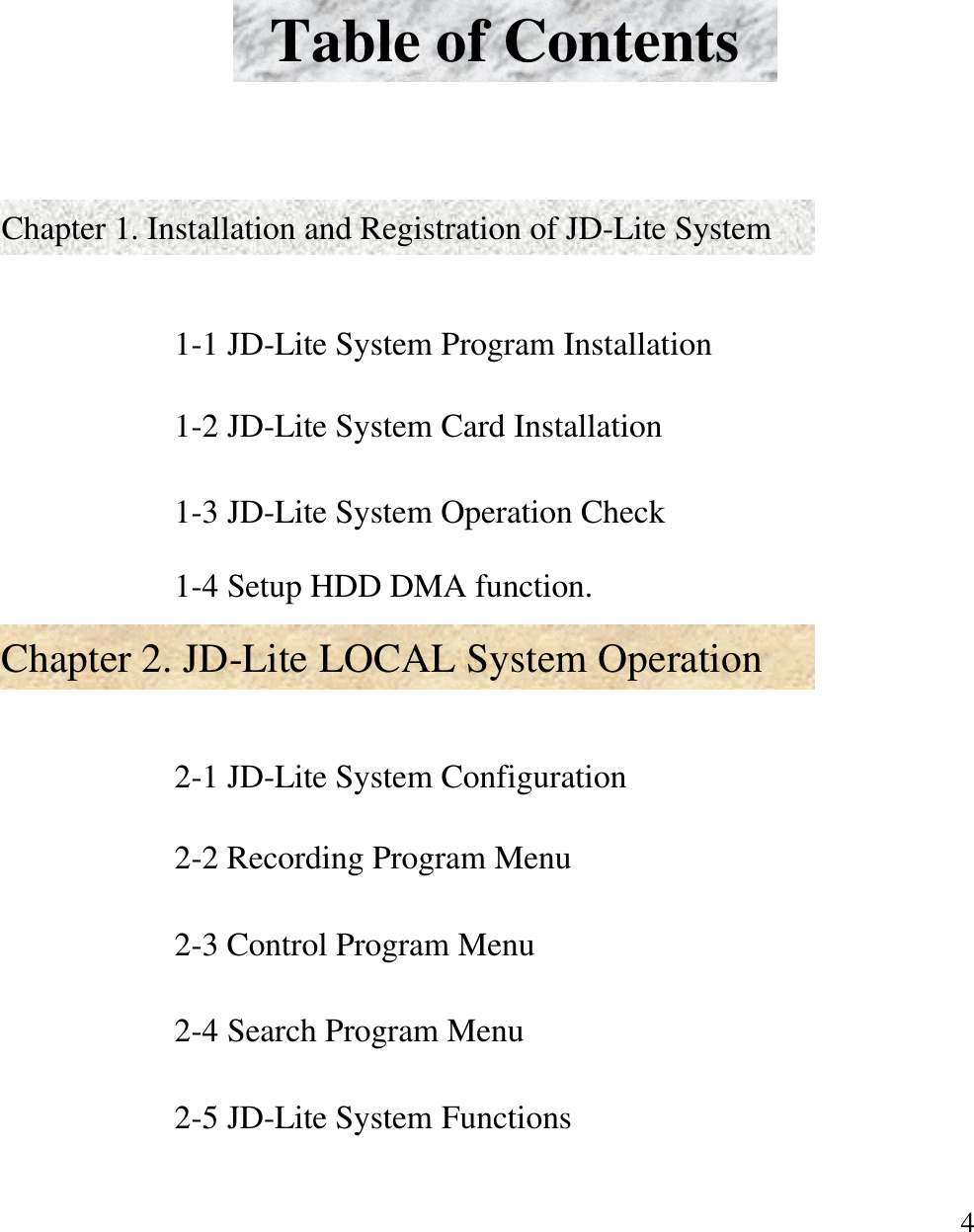
3υSpecifications1. MAIN PROCESSOR : P-II500Mhz or above2. MAIN BOARD             : ATX Main Board 3. MAIN MEMORY         : 64MByte or above4. HARD DISK DRIVE    : 15G Byte5. VGA CARD                  : AGP 8 Mbytes or above(Voodoo,Savage chip series)6. FLOPPY DISK DRIVE : 3.5 inch 1 piece7. MOUSE                         : PS/2 MOUSE8. KEYBOARD                 : 106 Key9. D.V.R BOARD              : JD-Lite PCI Card-Camera Input      : 4 Port 75 NTSC/PALυBefore calling After Sales Service departmentAt first, read this manual carefully to know whether you can repair DVR JD-Lite by yourself. When you cannot do it, get in touch with DVR Business Division of Joongang Telecom to find out a good solution after checking details of your problems.
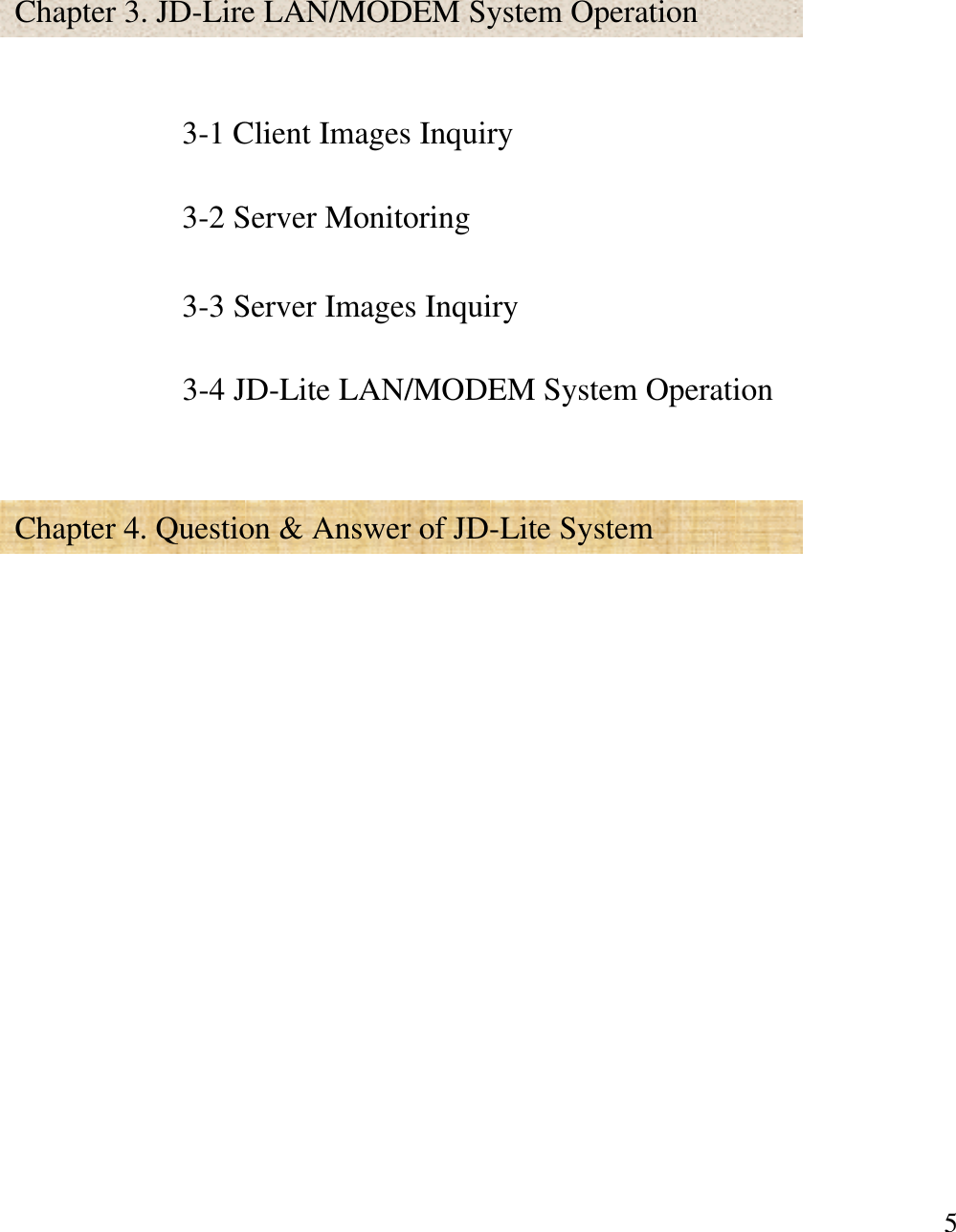
4Table of Contents Chapter 1. Installation and Registration of JD-Lite SystemChapter 2. JD-Lite LOCAL System Operation1-1 JD-Lite System Program Installation1-2 JD-Lite System Card Installation1-3 JD-Lite System Operation Check2-2 Recording Program Menu2-3 Control Program Menu2-4 Search Program Menu2-5 JD-Lite System Functions2-1 JD-Lite System Configuration1-4 Setup HDD DMA function.
5Chapter 4. Question & Answer of JD-Lite System3-1 Client Images Inquiry3-2 Server Monitoring3-3 Server Images InquiryChapter 3. JD-Lire LAN/MODEM System Operation3-4 JD-Lite LAN/MODEM System Operation
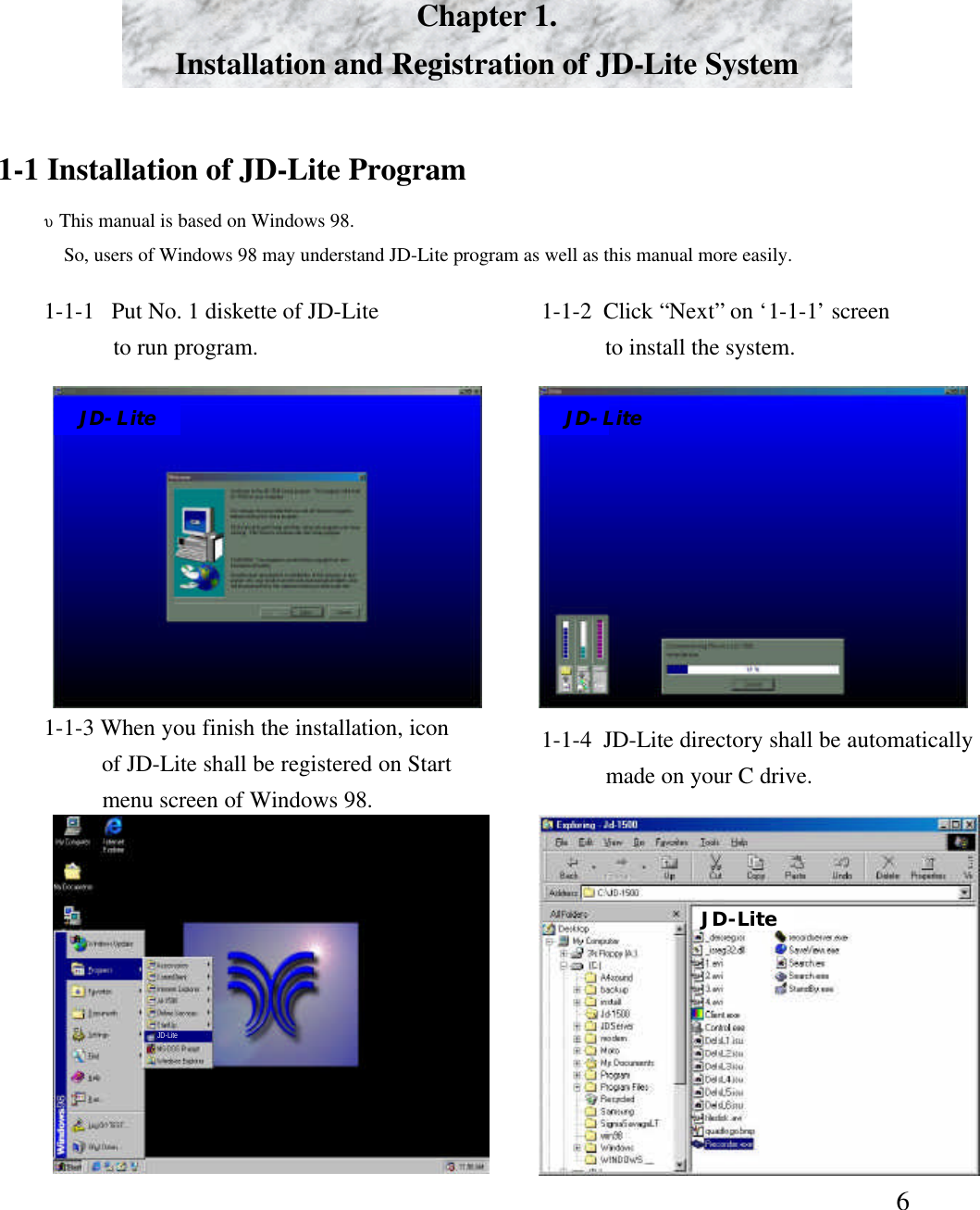
6Chapter 1. Installation and Registration of JD-Lite System1-1 Installation of JD-Lite ProgramυThis manual is based on Windows 98.So, users of Windows 98 may understand JD-Lite program as well as this manual more easily. 1-1-1  Put No. 1 diskette of JD-Liteto run program.  1-1-2  Click “Next”on ‘1-1-1’screento install the system. 1-1-3 When you finish the installation, iconof JD-Lite shall be registered on Startmenu screen of Windows 98. 1-1-4  JD-Lite directory shall be automaticallymade on your C drive. JD-LiteJD-LiteJD-LiteJD-Lite
71-2-1  JD-Lite board is a kind of P&P board of PCI way (There exists no jumper). Turn yourcomputer OFF to open main body. Then, find out empty PCI slot and put the board into it. 1-2 JD-Lite System Card Installation1-2-2   Close the main body. Connect BNC cables to necessary ports among 16 camera ports in therear of main body. You also connect BNC cable at opposite side to camera. USB portP/S 2 portSerial portParallel portVideo portJD-Lite portUTP portModem portExternal output system and sensor portCamera port1. Camera port : Connect BNC cable of No. 1 ~4 camera. Each port has its own number.   2. External output system and Sensor port : Connect not only cables of No. 1 ~ 4 sensor, but also four (No. 17~20)of external output system. Each port has its own number. 3. JD-Lite port : Connect four cameras. The port is used when camera port is not used. 4. Serial port : Make use of serial port No. 1 to use  Pan/Tilt.5. Other ports : When you make use of monitor, keyboard, mouse, LAN, modem and so on, you may use other ports.
81-3-3  Select ‘Controller’, and thenclick Registration Information. 1-3-4 Make Registration Informationwindow become active. Then,a message of ‘The system runscorrectly’indicates normal installationof the system.  1-3 JD-Lite System Operation Check1-3-1 At first, click My Computer icon, andthen click right-hand button of mouse todisplay menu in the below. Then, clickregistration information. 1-3-2  Make System Registration Informationwindow become active. Check thata controller named ‘VideoCapture64[BSR1000]’has been registered in‘Sound, Video and Game Controller’.
91-4-3 Select `GENERIC IDE DISK TYPE`,Then Click [Properties]1-3-4 Click [Settings],select DMA.Then reboot the system to complete set-up DMA function.1-4 Set-up HDD DMA Function1-4-1 At first, click My Computer icon, andthen click right-hand button of mouse todisplay menu in the below. Then, clickregistration information. 1-4-2 After  window become active,Click Disk Drives.
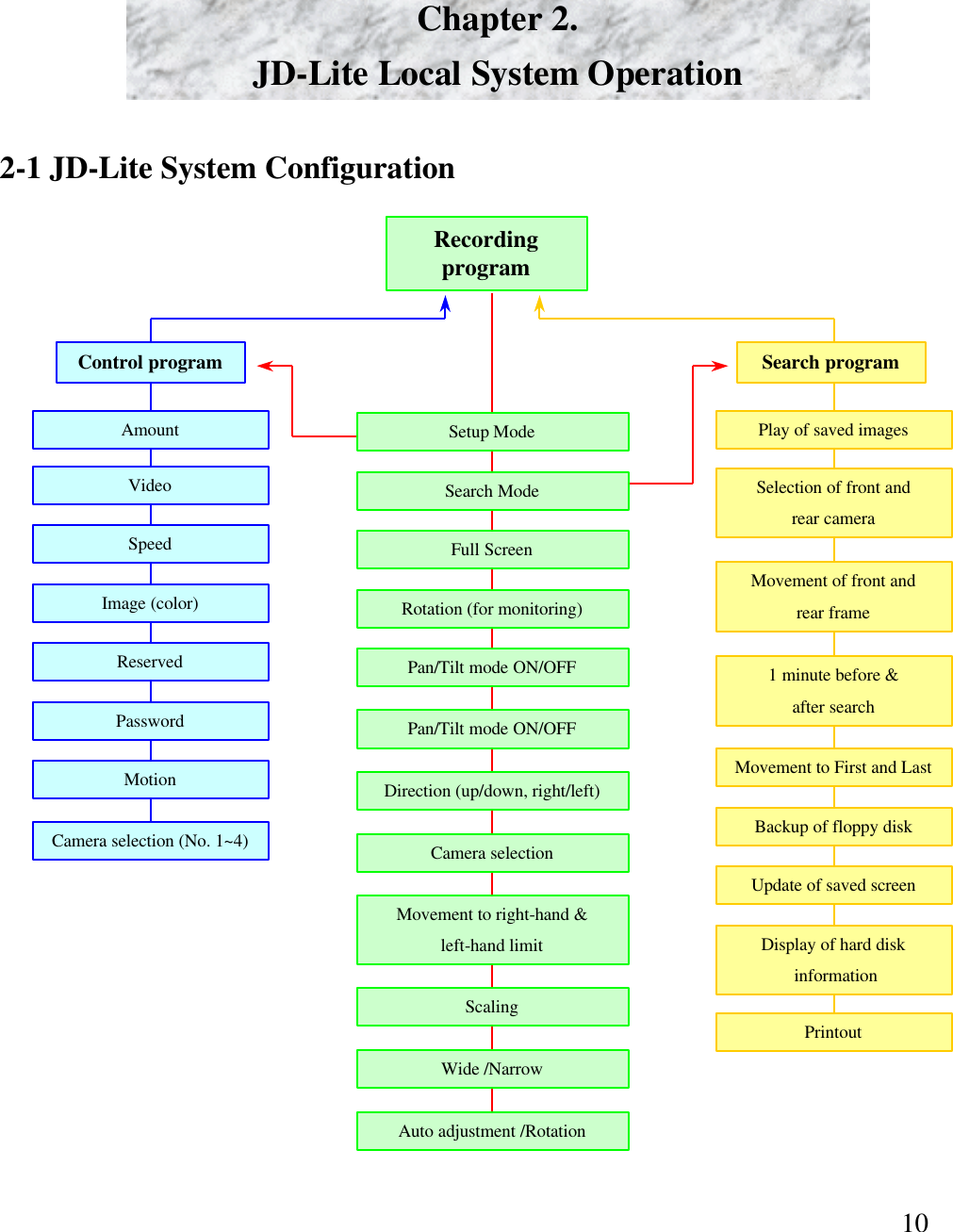
10Chapter 2. JD-Lite Local System OperationRecording programControl program Search programPan/Tilt mode ON/OFFPan/Tilt mode ON/OFFDirection (up/down, right/left)Camera selectionMovement to right-hand &left-hand limitScalingWide /NarrowAuto adjustment /RotationFull ScreenRotation (for monitoring)Setup ModeSearch ModeVideoSpeedAmountImage (color)ReservedPasswordMotionCamera selection (No. 1~4)Play of saved images Selection of front andrear cameraMovement of front andrear frame1 minute before &after searchMovement to First and LastBackup of floppy diskUpdate of saved screen Display of hard diskinformation Printout2-1 JD-Lite System Configuration
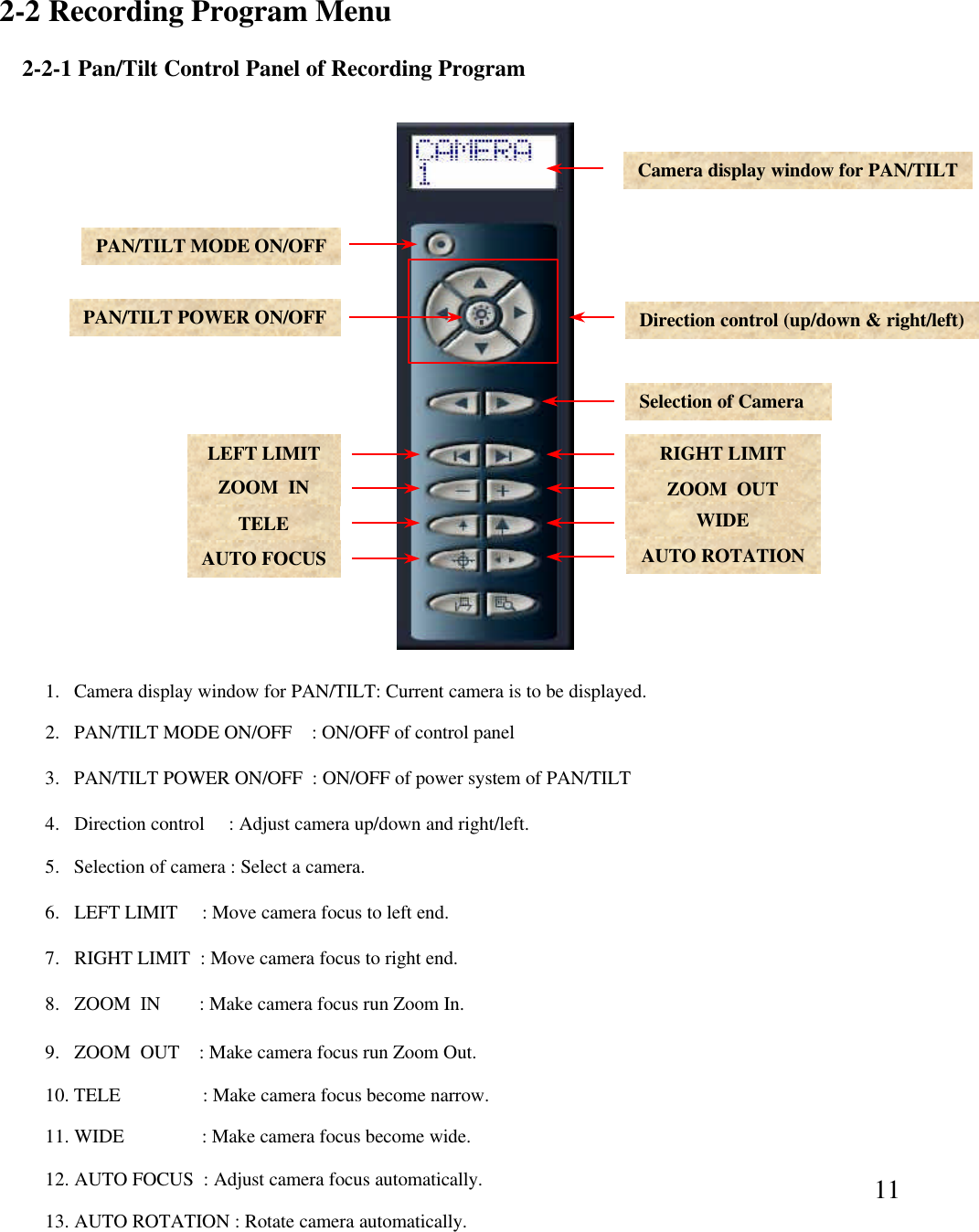
11Camera display window for PAN/TILTDirection control (up/down & right/left)PAN/TILT MODE ON/OFFPAN/TILT POWER ON/OFFSelection of CameraRIGHT LIMITZOOM  OUTWIDEAUTO ROTATIONZOOM  INLEFT LIMITTELEAUTO FOCUS2.   PAN/TILT MODE ON/OFF    : ON/OFF of control panel1.   Camera display window for PAN/TILT: Current camera is to be displayed.4.   Direction control   : Adjust camera up/down and right/left. 5.   Selection of camera : Select a camera.  6.   LEFT LIMIT     : Move camera focus to left end. 7.   RIGHT LIMIT  : Move camera focus to right end. 8.   ZOOM  IN        : Make camera focus run Zoom In.9.   ZOOM  OUT    : Make camera focus run Zoom Out.10. TELE                 : Make camera focus become narrow. 11. WIDE                : Make camera focus become wide. 12. AUTO FOCUS  : Adjust camera focus automatically.  13. AUTO ROTATION : Rotate camera automatically.  3.   PAN/TILT POWER ON/OFF  : ON/OFF of power system of PAN/TILT2-2-1 Pan/Tilt Control Panel of Recording Program2-2 Recording Program Menu
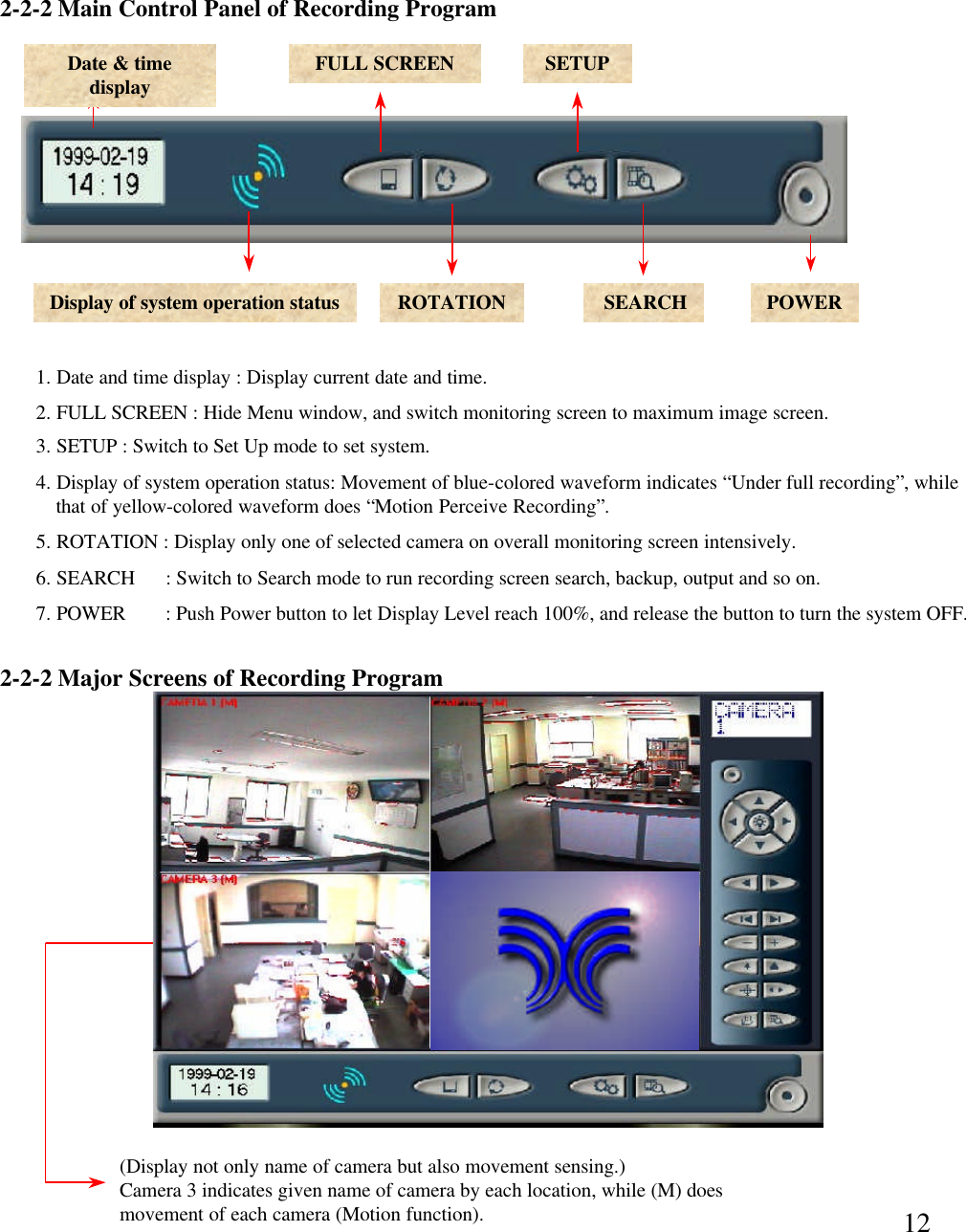
12(Display not only name of camera but also movement sensing.)Camera 3 indicates given name of camera by each location, while (M) does movement of each camera (Motion function).2-2-2 Major Screens of Recording Program2-2-2 Main Control Panel of Recording ProgramDate & time display FULL SCREEN SETUPDisplay of system operation status ROTATION SEARCH POWER1. Date and time display : Display current date and time. 2. FULL SCREEN : Hide Menu window, and switch monitoring screen to maximum image screen. 3. SETUP : Switch to Set Up mode to set system. 4. Display of system operation status: Movement of blue-colored waveform indicates “Under full recording”, whilethat of yellow-colored waveform does “Motion Perceive Recording”.  5. ROTATION : Display only one of selected camera on overall monitoring screen intensively.  6. SEARCH      : Switch to Search mode to run recording screen search, backup, output and so on. 7. POWER     : Push Power button to let Display Level reach 100%, and release the button to turn the system OFF.
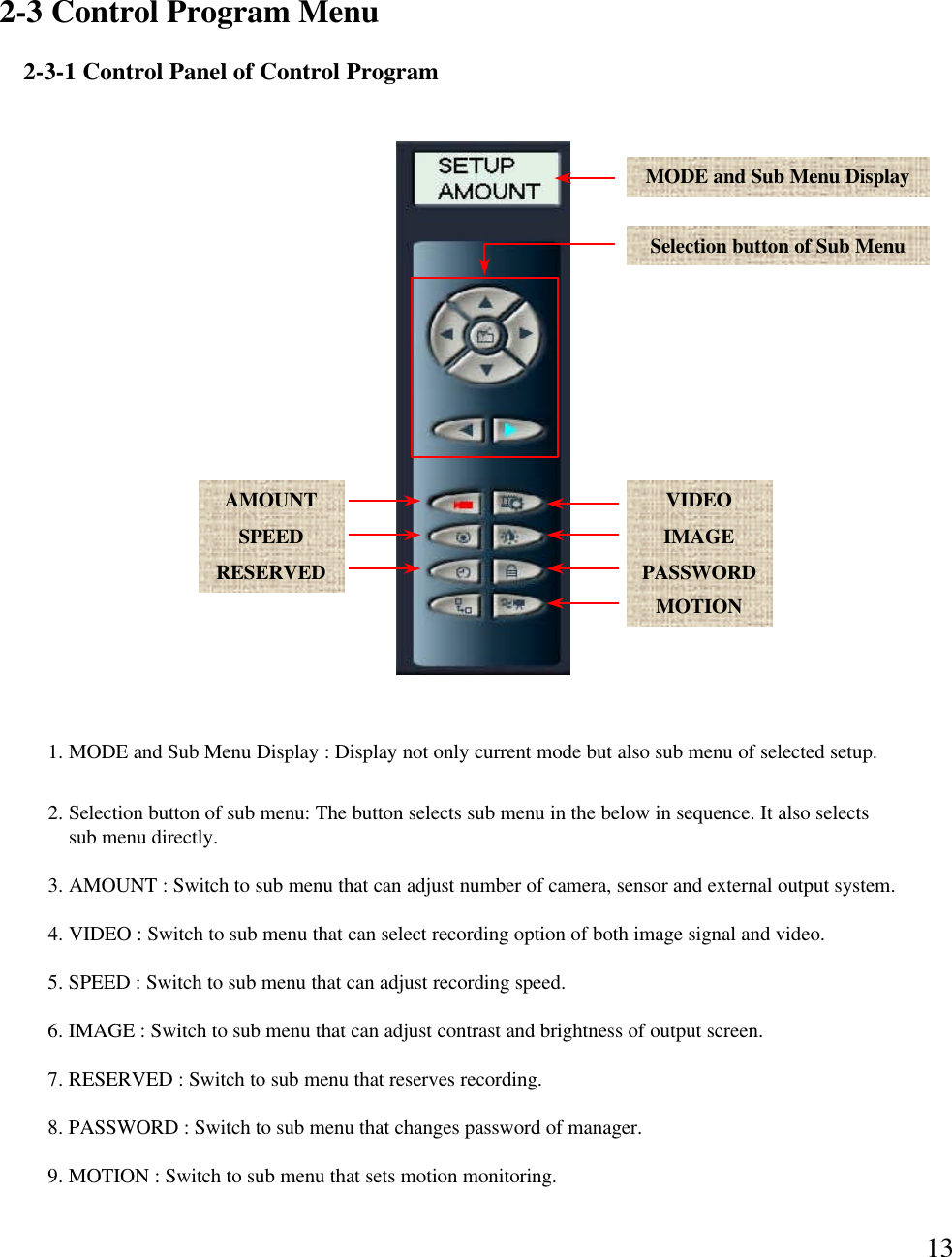
132-3 Control Program Menu2-3-1 Control Panel of Control ProgramMODE and Sub Menu DisplaySelection button of Sub MenuAMOUNTSPEEDRESERVEDVIDEOIMAGEPASSWORDMOTION1. MODE and Sub Menu Display : Display not only current mode but also sub menu of selected setup.  2. Selection button of sub menu: The button selects sub menu in the below in sequence. It also selectssub menu directly. 3. AMOUNT : Switch to sub menu that can adjust number of camera, sensor and external output system.  4. VIDEO : Switch to sub menu that can select recording option of both image signal and video. 5. SPEED : Switch to sub menu that can adjust recording speed.  6. IMAGE : Switch to sub menu that can adjust contrast and brightness of output screen.  7. RESERVED : Switch to sub menu that reserves recording. 8. PASSWORD : Switch to sub menu that changes password of manager. 9. MOTION : Switch to sub menu that sets motion monitoring.
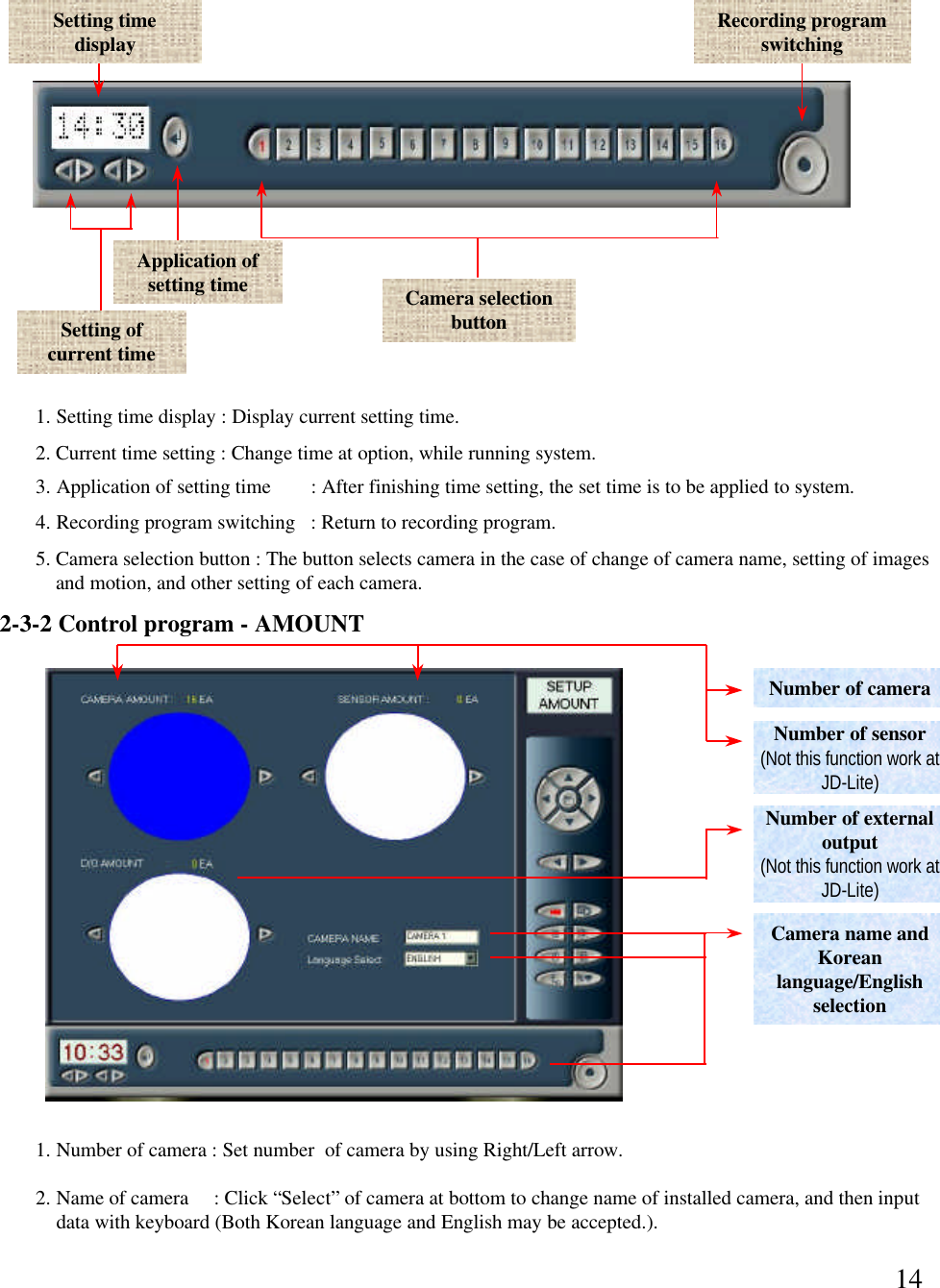
14Setting time display Recording program switchingApplication of setting time Camera selection button1. Setting time display : Display current setting time. 2. Current time setting : Change time at option, while running system. 3. Application of setting time   : After finishing time setting, the set time is to be applied to system. 4. Recording program switching   : Return to recording program. 5. Camera selection button : The button selects camera in the case of change of camera name, setting of imagesand motion, and other setting of each camera. 2. Name of camera     : Click “Select”of camera at bottom to change name of installed camera, and then inputdata with keyboard (Both Korean language and English may be accepted.).Number of sensor(Not this function work at  JD-Lite)Number of cameraNumber of external output (Not this function work at  JD-Lite)1. Number of camera : Set number  of camera by using Right/Left arrow.  2-3-2 Control program -AMOUNTCamera name and Korean language/English selectionSetting of current time
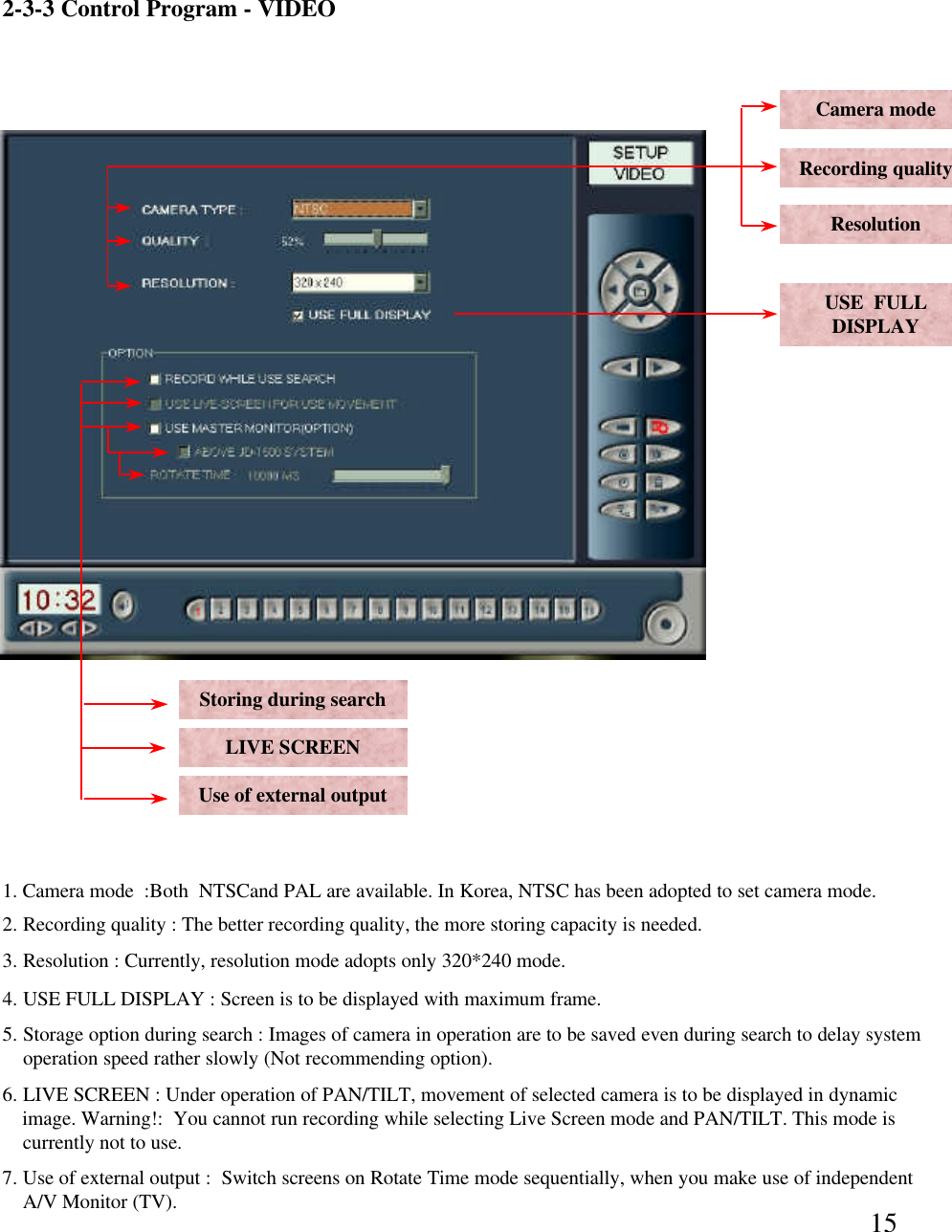
152-3-3 Control Program -VIDEOCamera modeRecording qualityResolutionUse of external outputLIVE SCREENStoring during search1. Camera mode  :Both  NTSCand PAL are available. In Korea, NTSC has been adopted to set camera mode.2. Recording quality : The better recording quality, the more storing capacity is needed. 3. Resolution : Currently, resolution mode adopts only 320*240 mode.5. Storage option during search : Images of camera in operation are to be saved even during search to delay systemoperation speed rather slowly (Not recommending option). 6. LIVE SCREEN : Under operation of PAN/TILT, movement of selected camera is to be displayed in dynamicimage. Warning!:  You cannot run recording while selecting Live Screen mode and PAN/TILT. This mode iscurrently not to use.  7. Use of external output :  Switch screens on Rotate Time mode sequentially, when you make use of independentA/V Monitor (TV).  USE  FULLDISPLAY4. USE FULL DISPLAY : Screen is to be displayed with maximum frame.
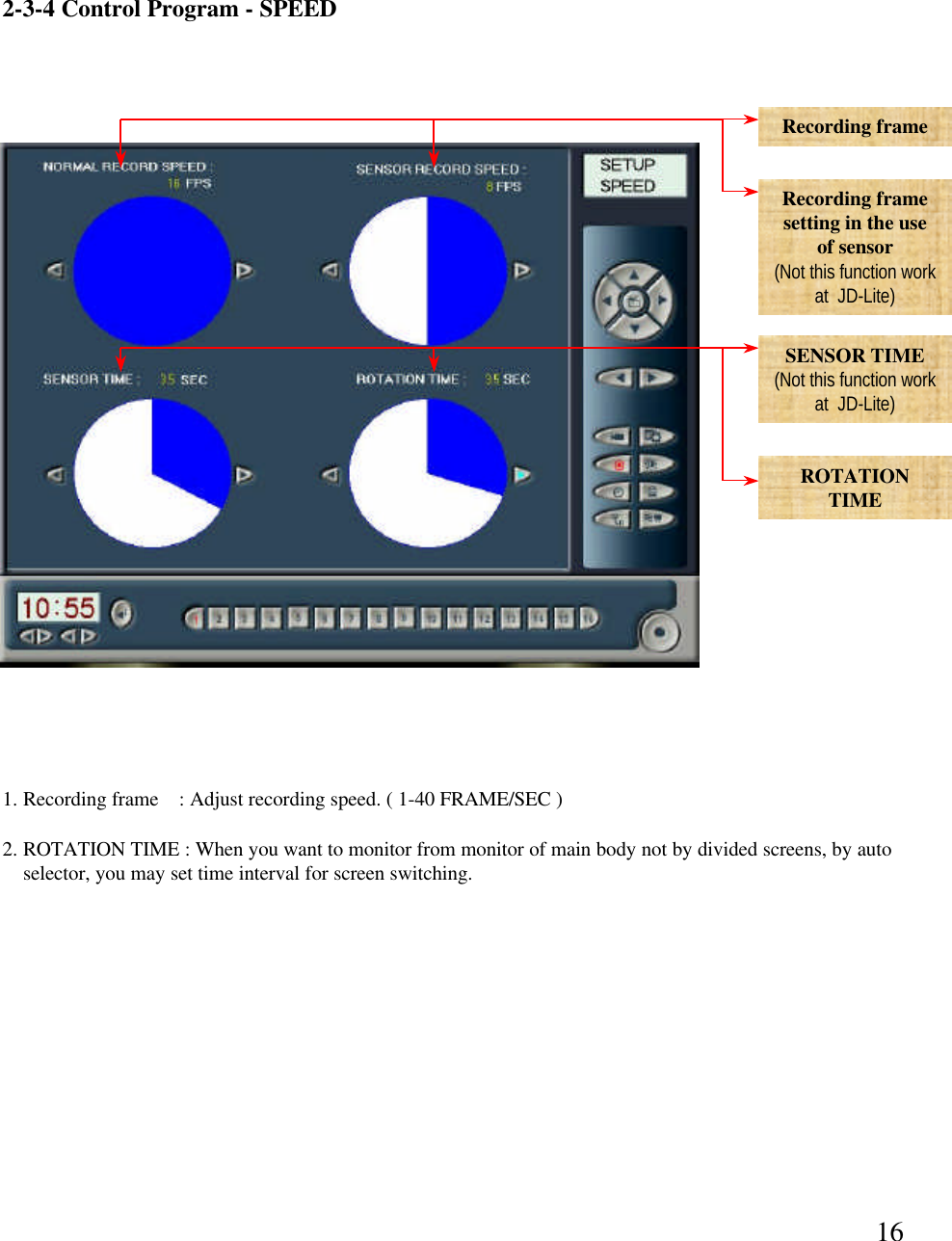
162-3-4 Control Program -SPEEDRecording frame Recording frame setting in the use of sensor(Not this function work at  JD-Lite)SENSOR TIME(Not this function work at  JD-Lite)ROTATIONTIME1. Recording frame    : Adjust recording speed. ( 1-40 FRAME/SEC )2. ROTATION TIME : When you want to monitor from monitor of main body not by divided screens, by auto selector, you may set time interval for screen switching.
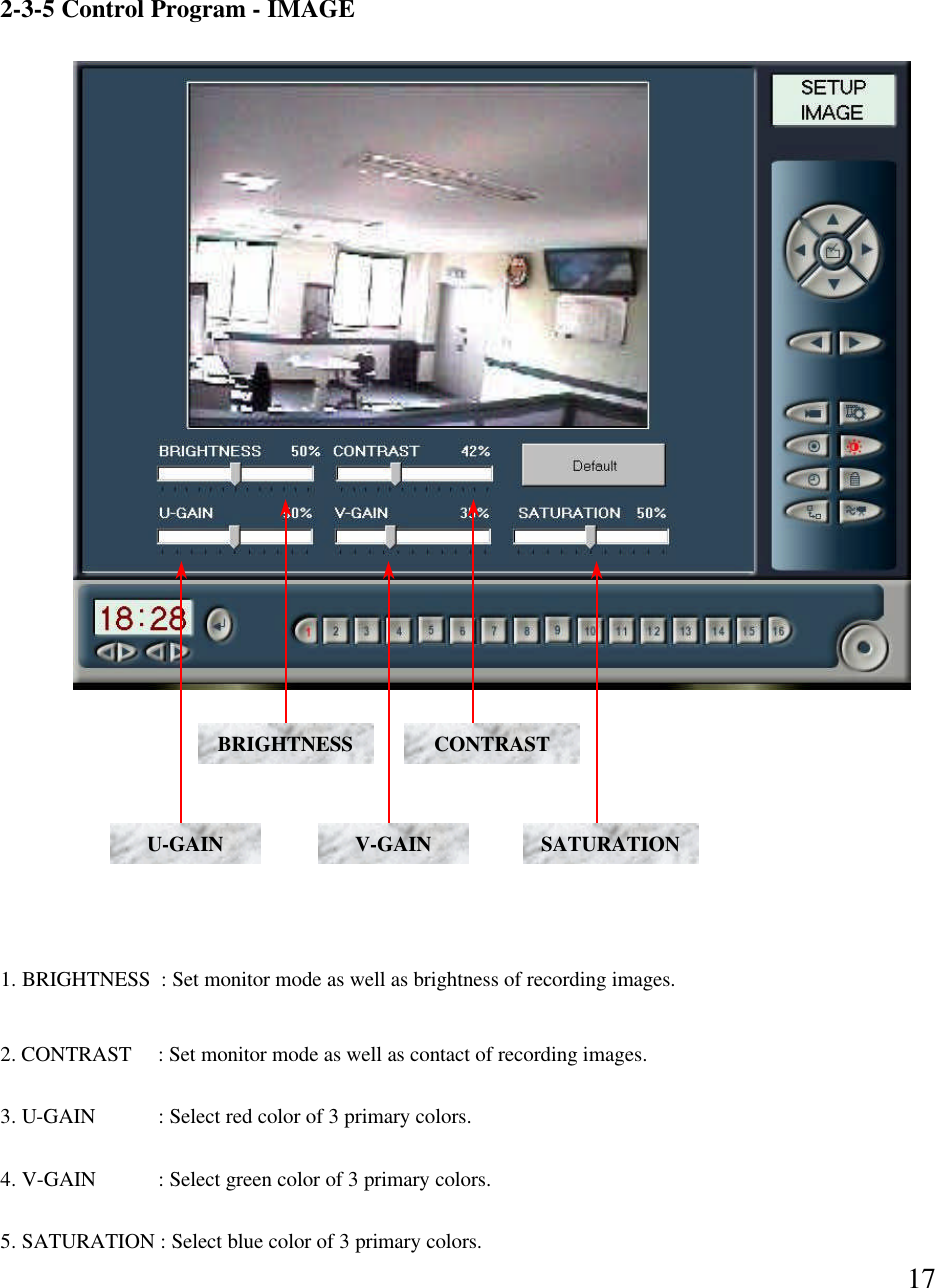
172-3-5 Control Program -IMAGEBRIGHTNESS CONTRASTU-GAIN SATURATIONV-GAIN1. BRIGHTNESS  : Set monitor mode as well as brightness of recording images. 2. CONTRAST     : Set monitor mode as well as contact of recording images. 3. U-GAIN  : Select red color of 3 primary colors.  4. V-GAIN  : Select green color of 3 primary colors.  5. SATURATION : Select blue color of 3 primary colors.
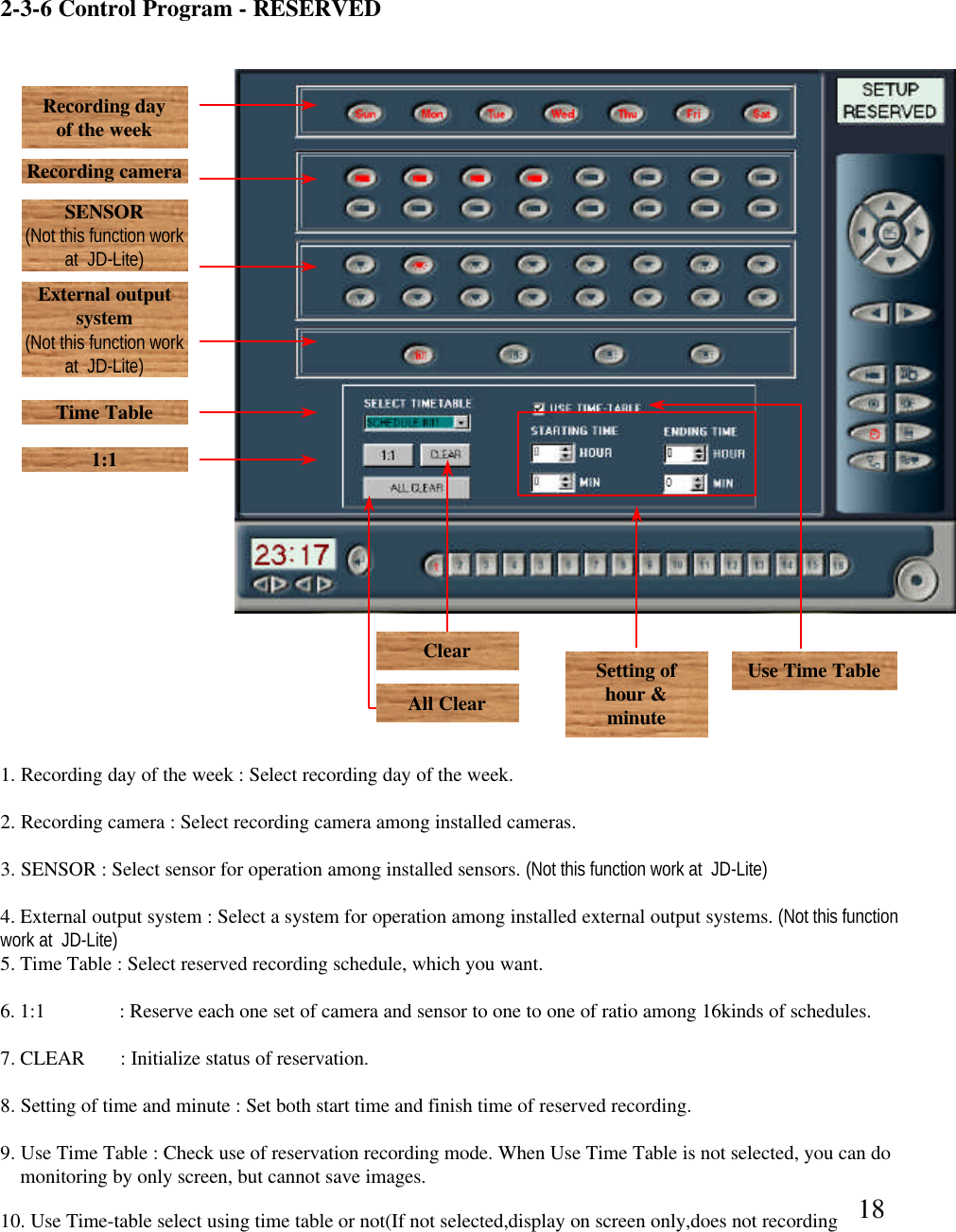
182-3-6 Control Program -RESERVEDRecording day of the weekRecording cameraSENSOR(Not this function work at  JD-Lite)External output system(Not this function work at  JD-Lite)Time Table1:1Setting of hour & minuteUse Time Table 1. Recording day of the week : Select recording day of the week. 2. Recording camera : Select recording camera among installed cameras.  3. SENSOR : Select sensor for operation among installed sensors. (Not this function work at  JD-Lite)4. External output system : Select a system for operation among installed external output systems. (Not this function work at  JD-Lite)5. Time Table : Select reserved recording schedule, which you want.6. 1:1           : Reserve each one set of camera and sensor to one to one of ratio among 16kinds of schedules. 7. CLEAR       : Initialize status of reservation. 8. Setting of time and minute : Set both start time and finish time of reserved recording.  9. Use Time Table : Check use of reservation recording mode. When Use Time Table is not selected, you can domonitoring by only screen, but cannot save images.  ClearAll Clear10. Use Time-table select using time table or not(If not selected,display on screen only,does not recording
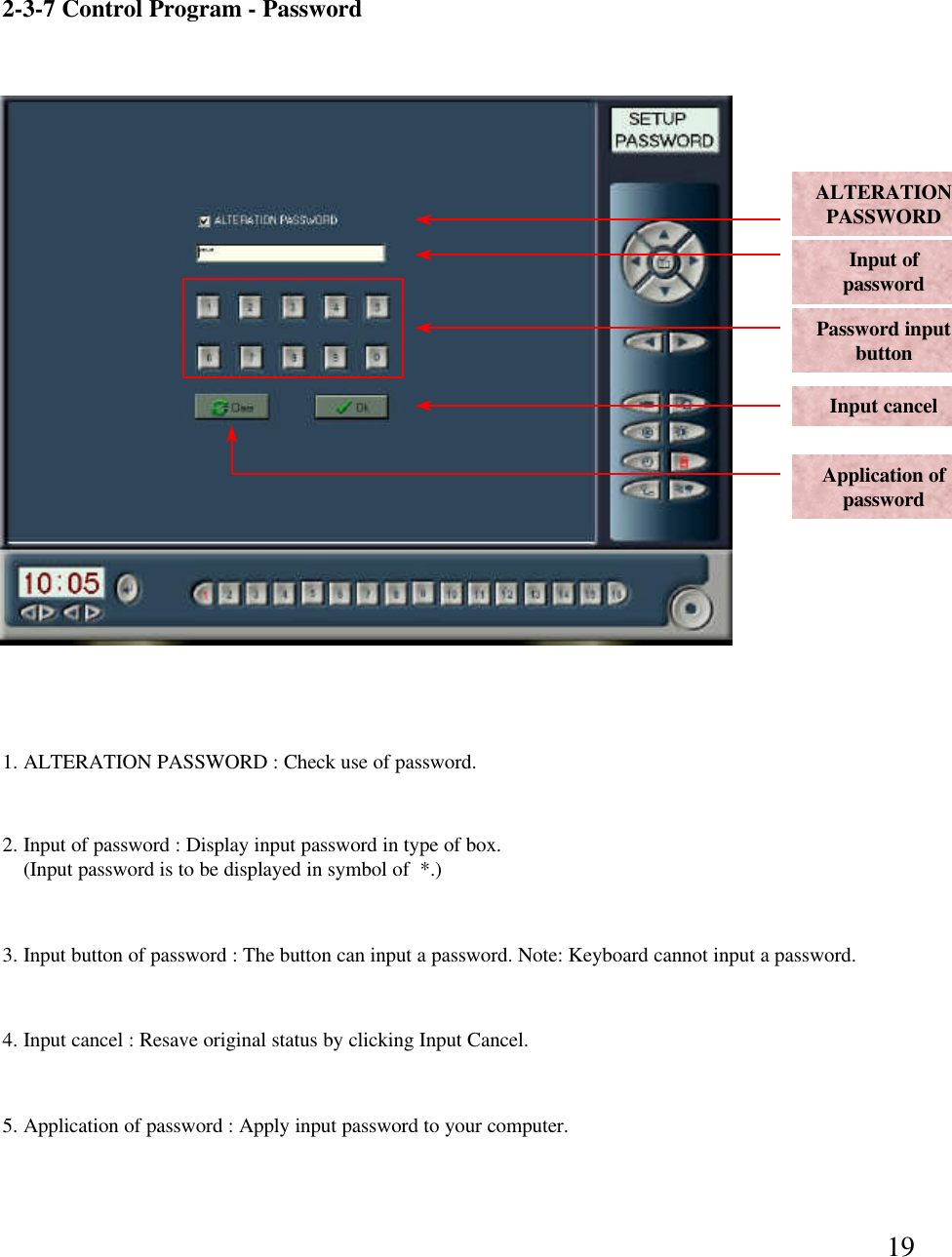
192-3-7 Control Program -PasswordALTERATIONPASSWORDInput of password Password input buttonInput cancelApplication of password1. ALTERATION PASSWORD : Check use of password.  2. Input of password : Display input password in type of box.(Input password is to be displayed in symbol of  *.)3. Input button of password : The button can input a password. Note: Keyboard cannot input a password. 4. Input cancel : Resave original status by clicking Input Cancel. 5. Application of password : Apply input password to your computer.
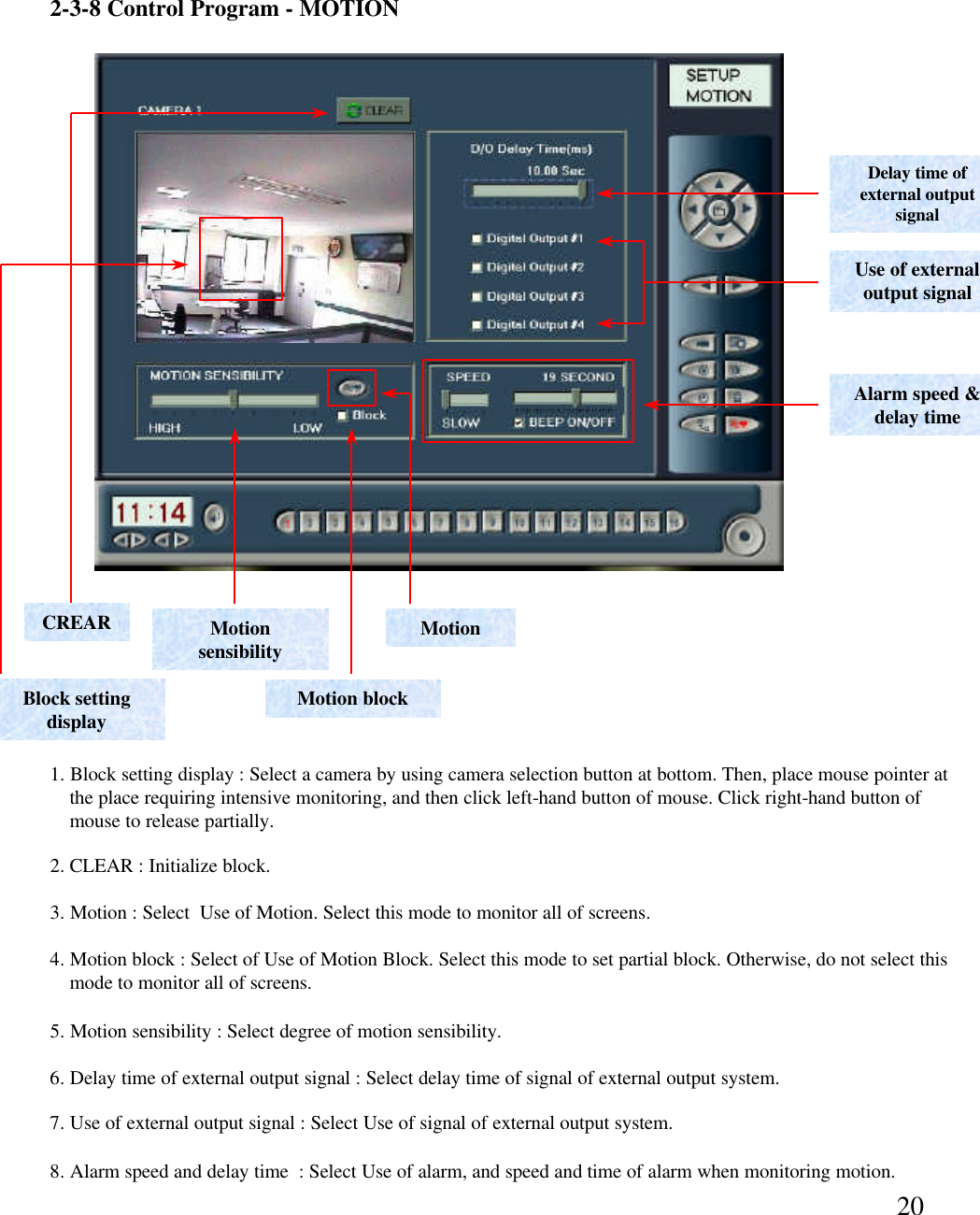
202-3-8 Control Program -MOTIONDelay time of external output signal Use of external output signalAlarm speed & delay timeMotionMotion sensibilityMotion block6. Delay time of external output signal : Select delay time of signal of external output system.  7. Use of external output signal : Select Use of signal of external output system. 8. Alarm speed and delay time  : Select Use of alarm, and speed and time of alarm when monitoring motion. 4. Motion block : Select of Use of Motion Block. Select this mode to set partial block. Otherwise, do not select this mode to monitor all of screens.  3. Motion : Select  Use of Motion. Select this mode to monitor all of screens. 5. Motion sensibility : Select degree of motion sensibility. CREARBlock setting display1. Block setting display : Select a camera by using camera selection button at bottom. Then, place mouse pointer atthe place requiring intensive monitoring, and then click left-hand button of mouse. Click right-hand button ofmouse to release partially.  2. CLEAR : Initialize block.
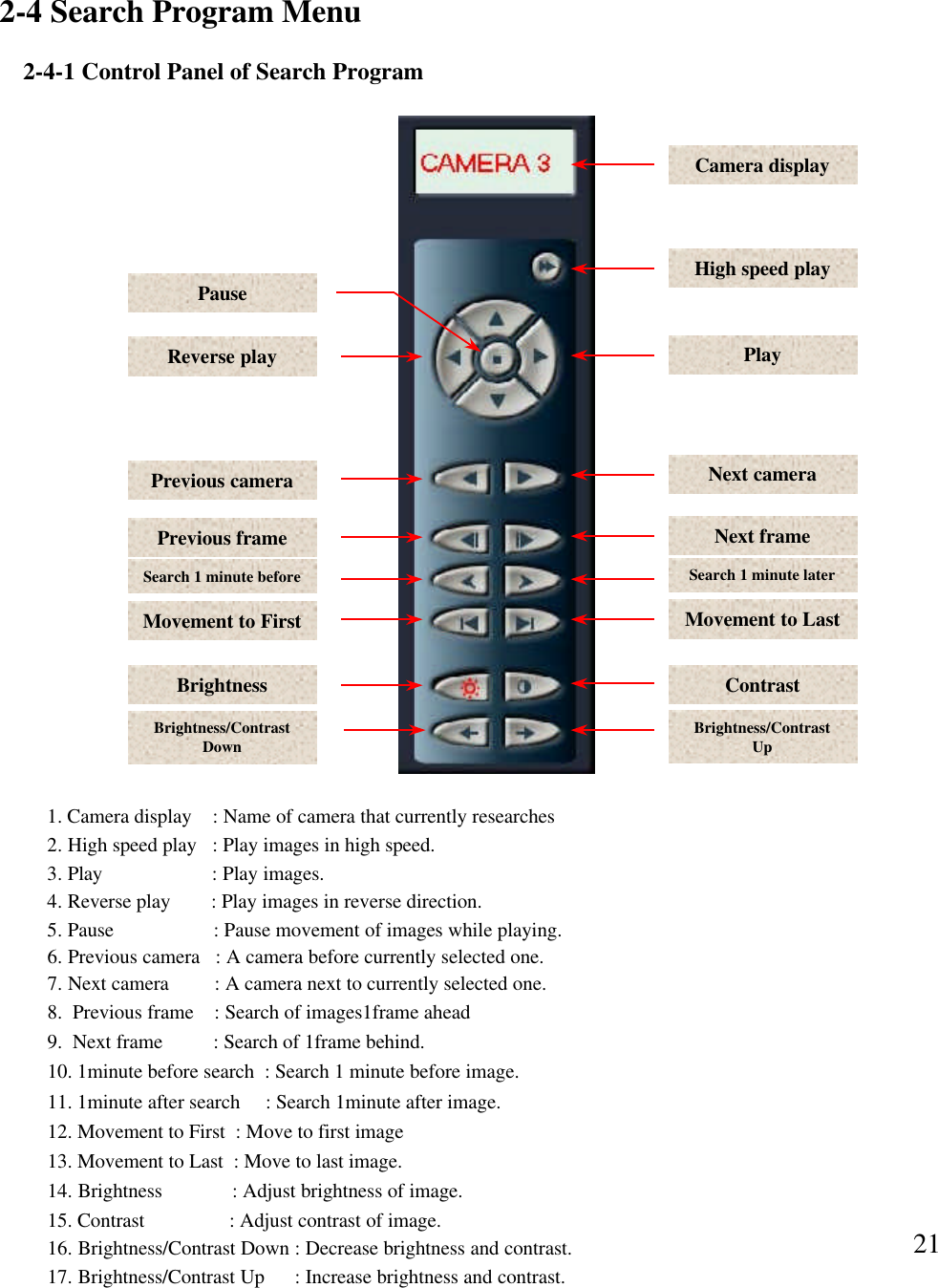
212-4 Search Program Menu2-4-1 Control Panel of Search Program1. Camera display    : Name of camera that currently researches2. High speed play   : Play images in high speed. 3. Play  : Play images.4. Reverse play     : Play images in reverse direction.  5. Pause  : Pause movement of images while playing.6. Previous camera   : A camera before currently selected one. 7. Next camera         : A camera next to currently selected one. 8.  Previous frame    : Search of images1frame ahead9.  Next frame          : Search of 1frame behind.  10. 1minute before search  : Search 1 minute before image. 11. 1minute after search   : Search 1minute after image.12. Movement to First  : Move to first image13. Movement to Last  : Move to last image. 14. Brightness  : Adjust brightness of image. 15. Contrast  : Adjust contrast of image. High speed playPlayNext cameraNext frameSearch 1 minute laterMovement to LastContrastBrightness/Contrast UpBrightness/Contrast DownBrightnessMovement to FirstSearch 1 minute beforePrevious framePrevious cameraReverse playPauseCamera display16. Brightness/Contrast Down : Decrease brightness and contrast. 17. Brightness/Contrast Up  : Increase brightness and contrast.
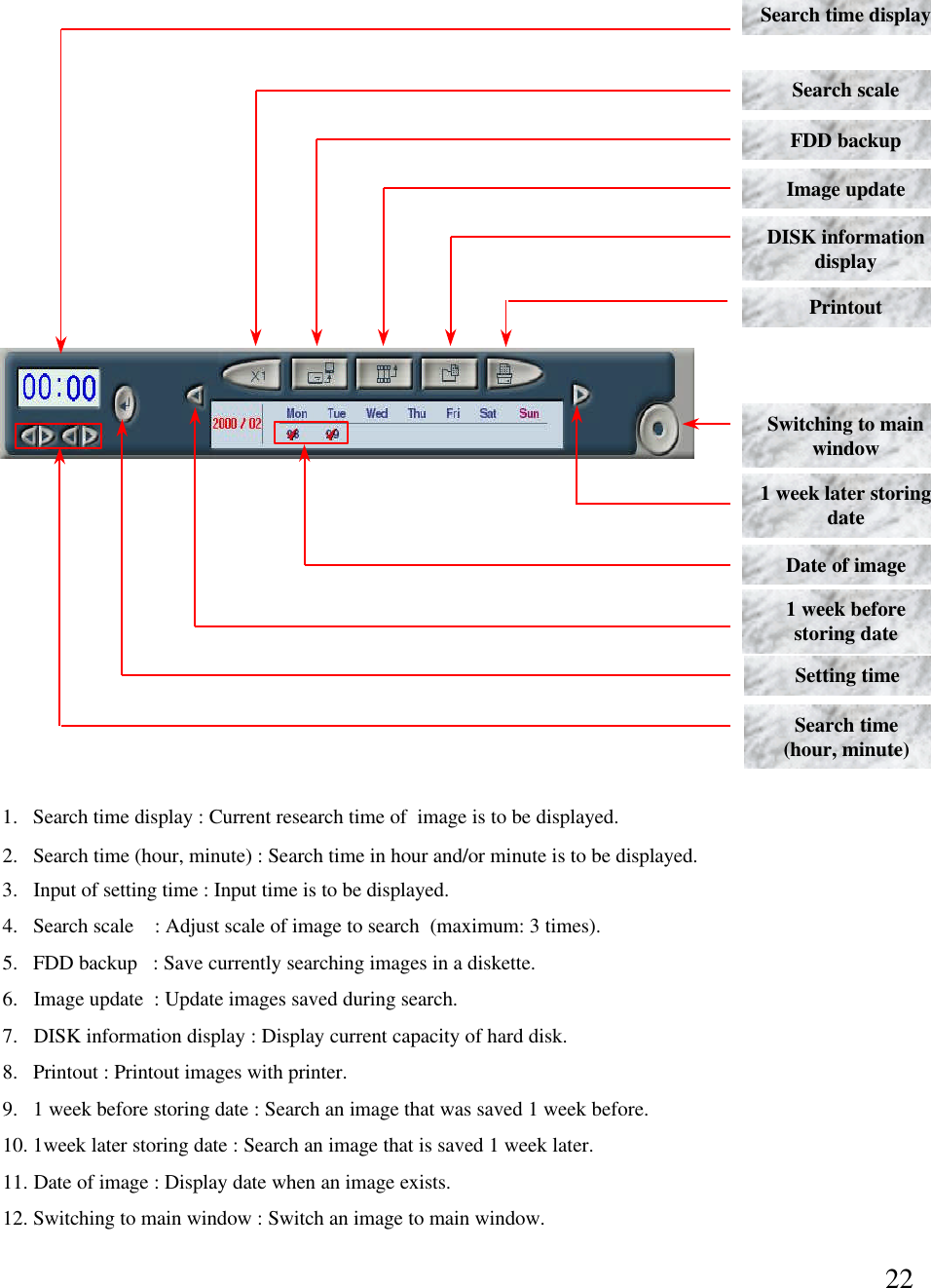
22Search time displaySearch scale FDD backupImage updateDISK information displayPrintoutSwitching to main windowSearch time(hour, minute)1 week later storing dateDate of image1.   Search time display : Current research time of  image is to be displayed. 2.   Search time (hour, minute) : Search time in hour and/or minute is to be displayed. 3.   Input of setting time : Input time is to be displayed. 1 week before storing dateSetting time4.   Search scale    : Adjust scale of image to search  (maximum: 3 times).5.   FDD backup  : Save currently searching images in a diskette. 6.   Image update  : Update images saved during search. 7.  DISK information display : Display current capacity of hard disk. 8.   Printout : Printout images with printer. 9.   1 week before storing date : Search an image that was saved 1 week before.  10. 1week later storing date : Search an image that is saved 1 week later.  11. Date of image : Display date when an image exists. 12. Switching to main window : Switch an image to main window.
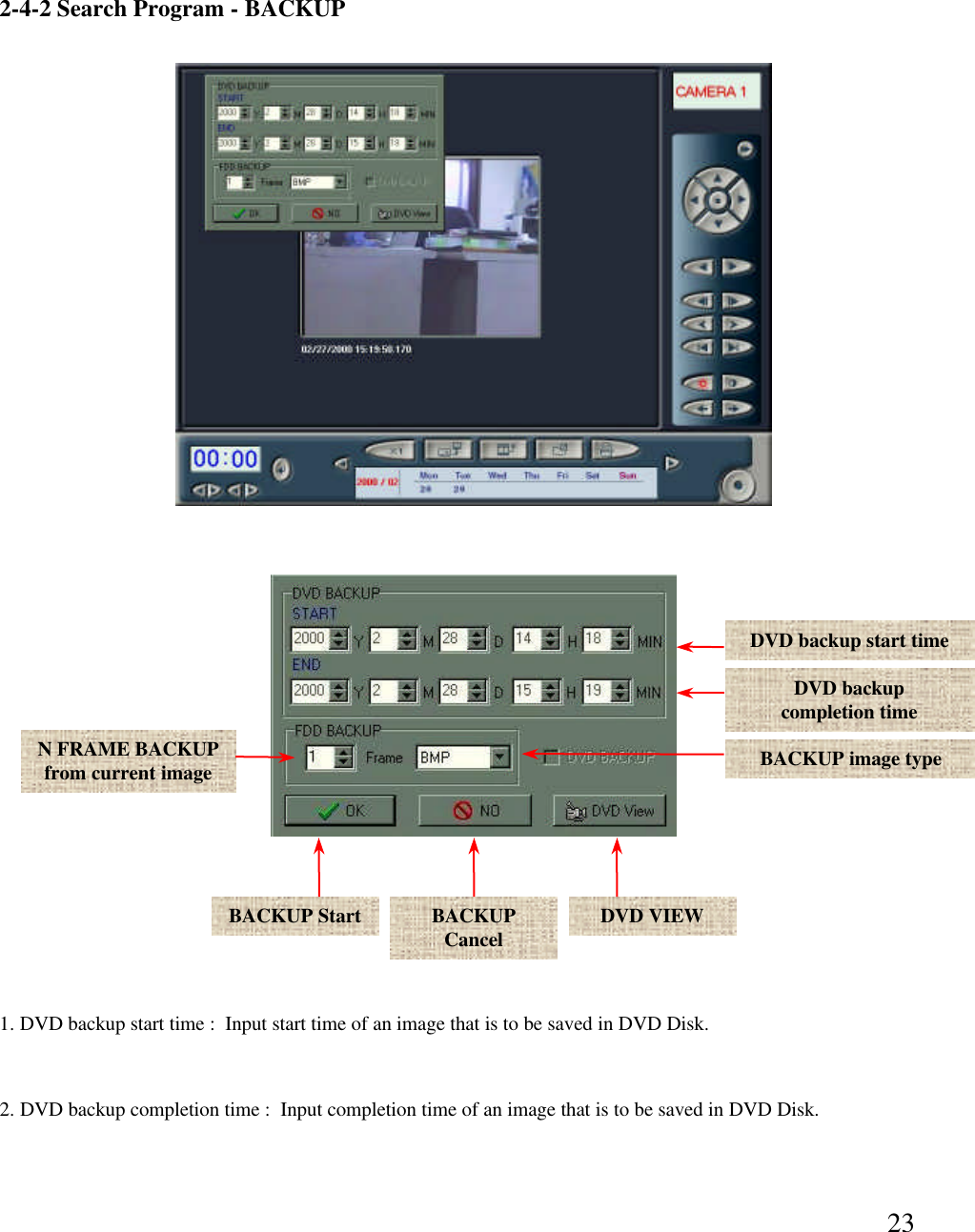
232-4-2 Search Program -BACKUPN FRAME BACKUP from current imageBACKUP Start BACKUP CancelBACKUP image typeDVD VIEWDVD backup start timeDVD backupcompletion time1. DVD backup start time :  Input start time of an image that is to be saved in DVD Disk. 2. DVD backup completion time :  Input completion time of an image that is to be saved in DVD Disk.
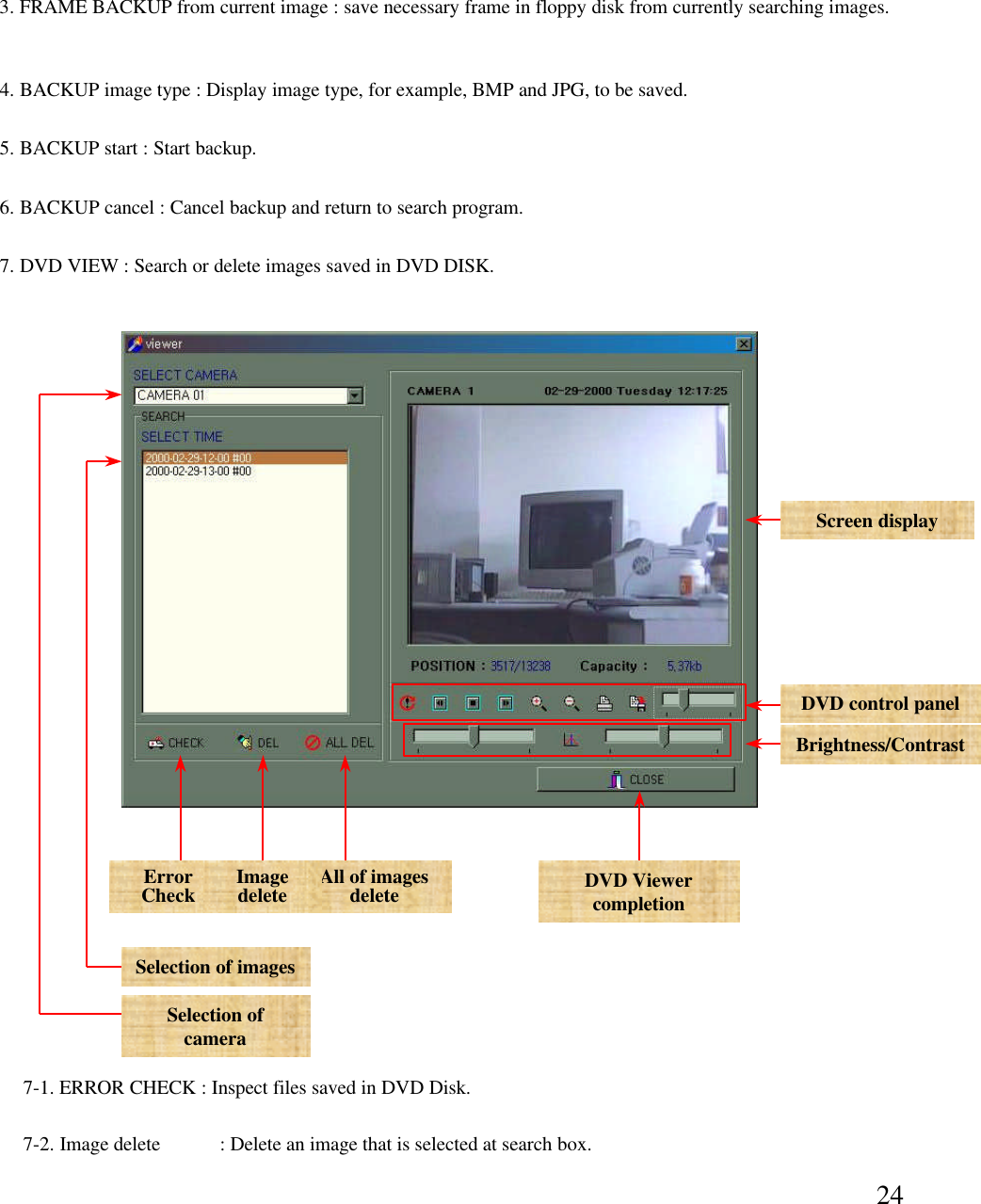
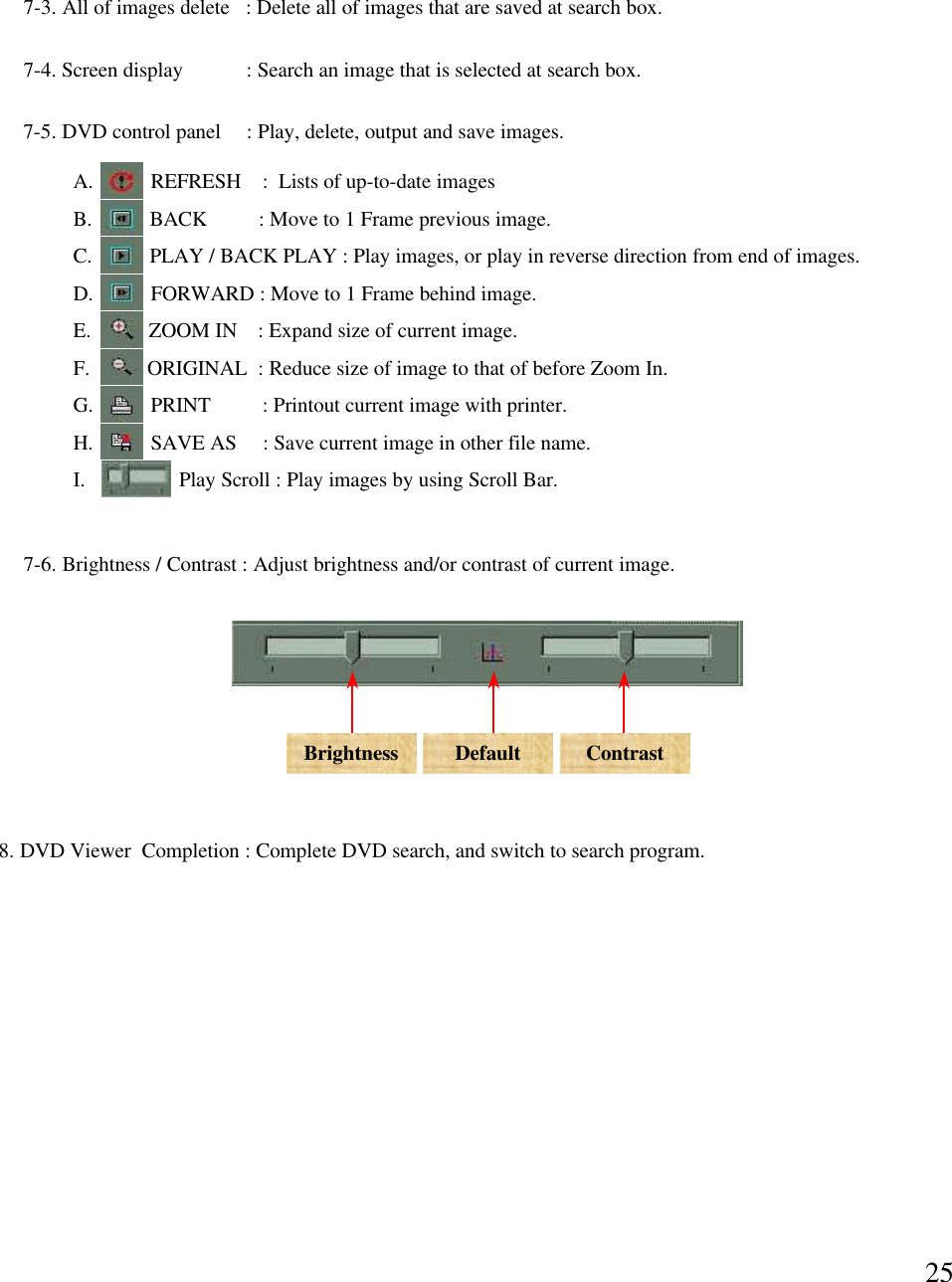
243. FRAME BACKUP from current image : save necessary frame in floppy disk from currently searching images.  4. BACKUP image type : Display image type, for example, BMP and JPG, to be saved. 5. BACKUP start : Start backup. 6. BACKUP cancel : Cancel backup and return to search program. 7. DVD VIEW : Search or delete images saved in DVD DISK. All of images delete Error CheckSelection of imagesSelection of cameraDVD Viewer completionBrightness/ContrastDVD control panelScreen display7-1. ERROR CHECK : Inspect files saved in DVD Disk. 7-2. Image delete            : Delete an image that is selected at search box.  Image delete
257-5. DVD control panel  : Play, delete, output and save images. A.     REFRESH    :  Lists of up-to-date imagesB.     BACK       : Move to 1 Frame previous image.C.     PLAY / BACK PLAY : Play images, or play in reverse direction from end of images. D.     FORWARD : Move to 1 Frame behind image.E.      ZOOM IN    : Expand size of current image. F.       ORIGINAL  : Reduce size of image to that of before Zoom In.G.        PRINT          : Printout current image with printer. H.          SAVE AS     : Save current image in other file name.I.          Play Scroll : Play images by using Scroll Bar. 7-6. Brightness / Contrast : Adjust brightness and/or contrast of current image. Brightness Default Contrast7-3. All of images delete   : Delete all of images that are saved at search box. 7-4. Screen display            : Search an image that is selected at search box. 8. DVD Viewer  Completion : Complete DVD search, and switch to search program.
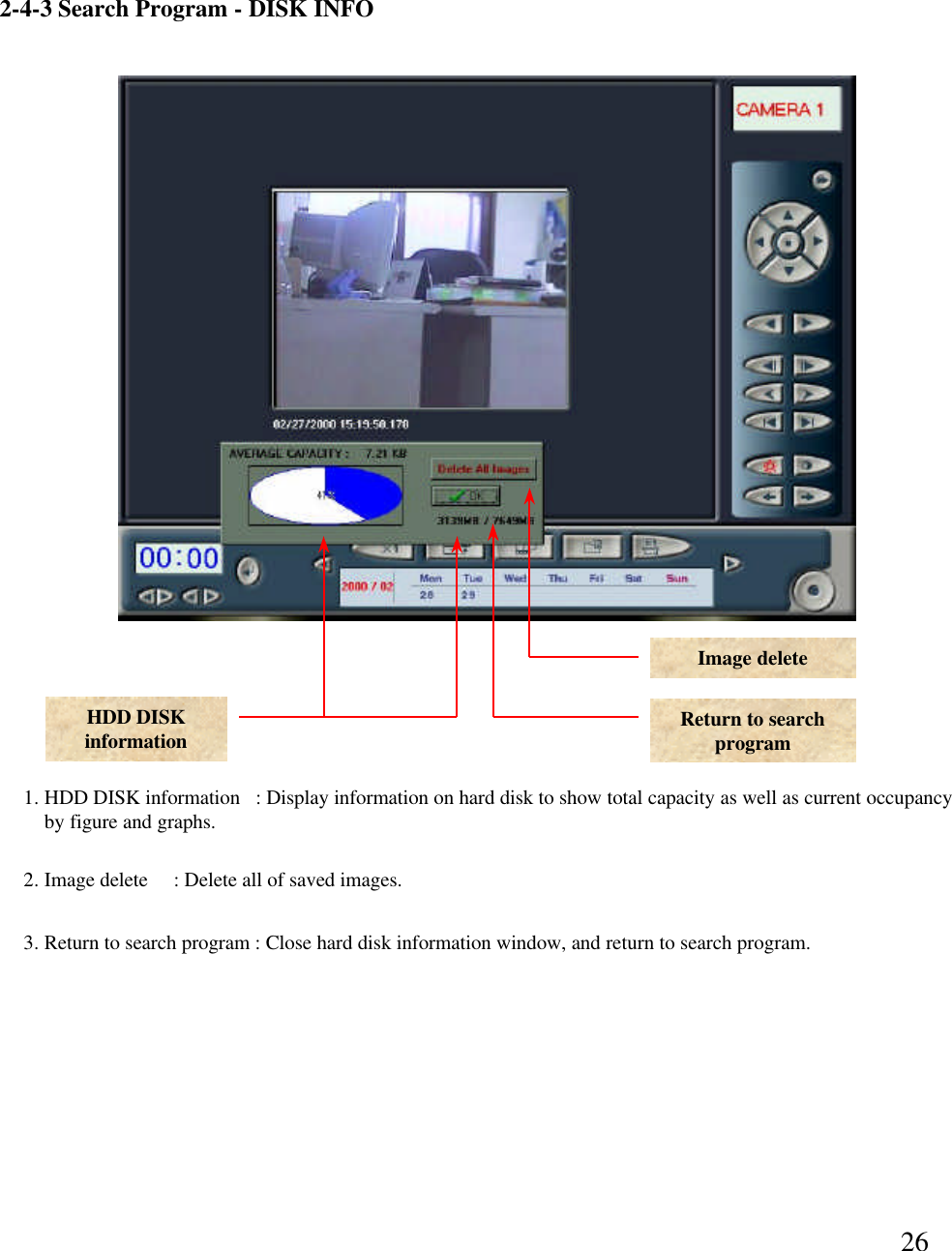
262-4-3 Search Program -DISK INFOHDD DISK informationImage deleteReturn to search program1. HDD DISK information   : Display information on hard disk to show total capacity as well as current occupancy by figure and graphs. 2. Image delete     : Delete all of saved images.  3. Return to search program : Close hard disk information window, and return to search program.
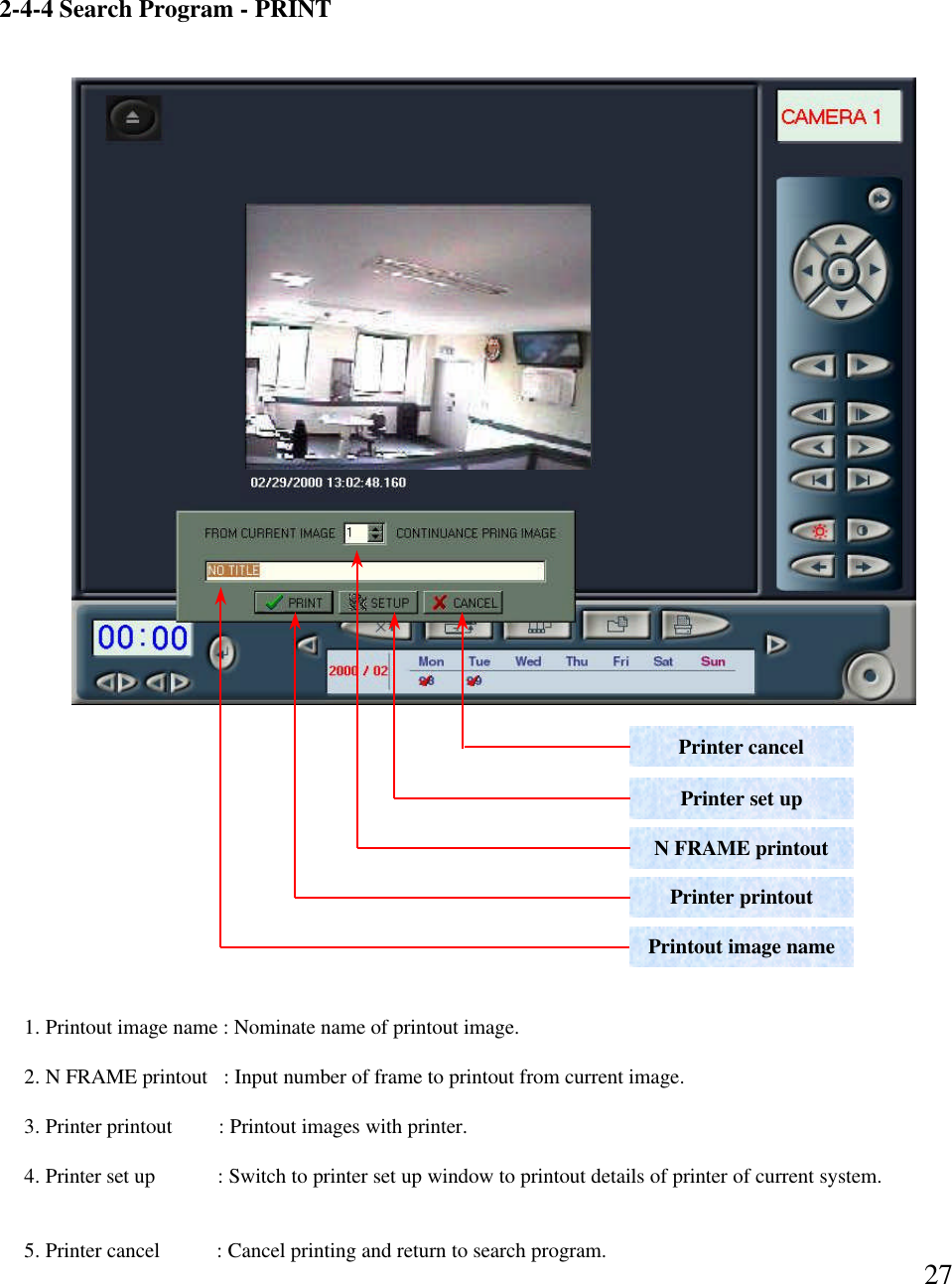
272-4-4 Search Program -PRINTPrinter cancelPrinter set upN FRAME printoutPrinter printoutPrintout image name1. Printout image name : Nominate name of printout image. 2. N FRAME printout   : Input number of frame to printout from current image. 3. Printer printout    : Printout images with printer. 4. Printer set up     : Switch to printer set up window to printout details of printer of current system. 5. Printer cancel  : Cancel printing and return to search program.
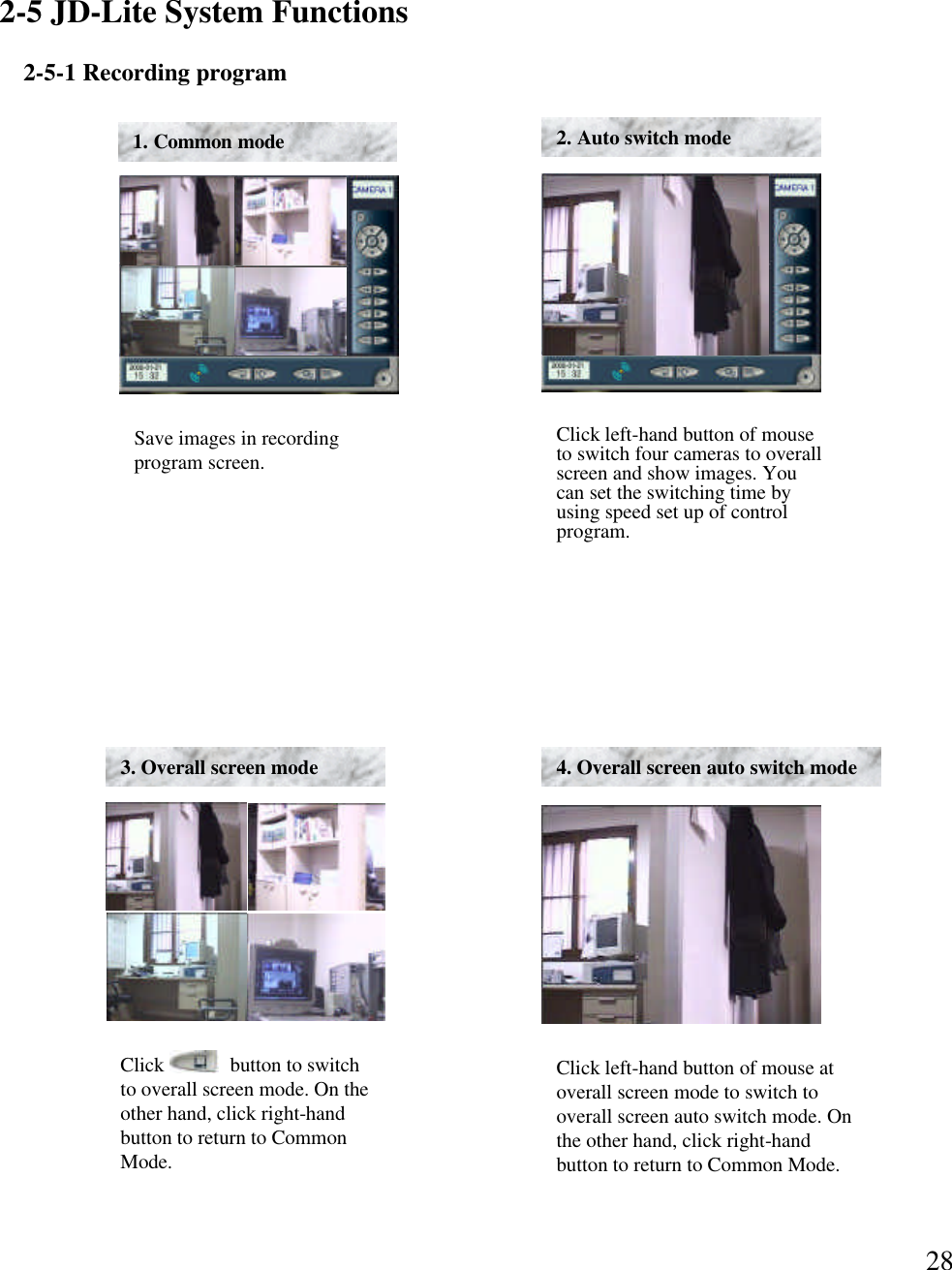
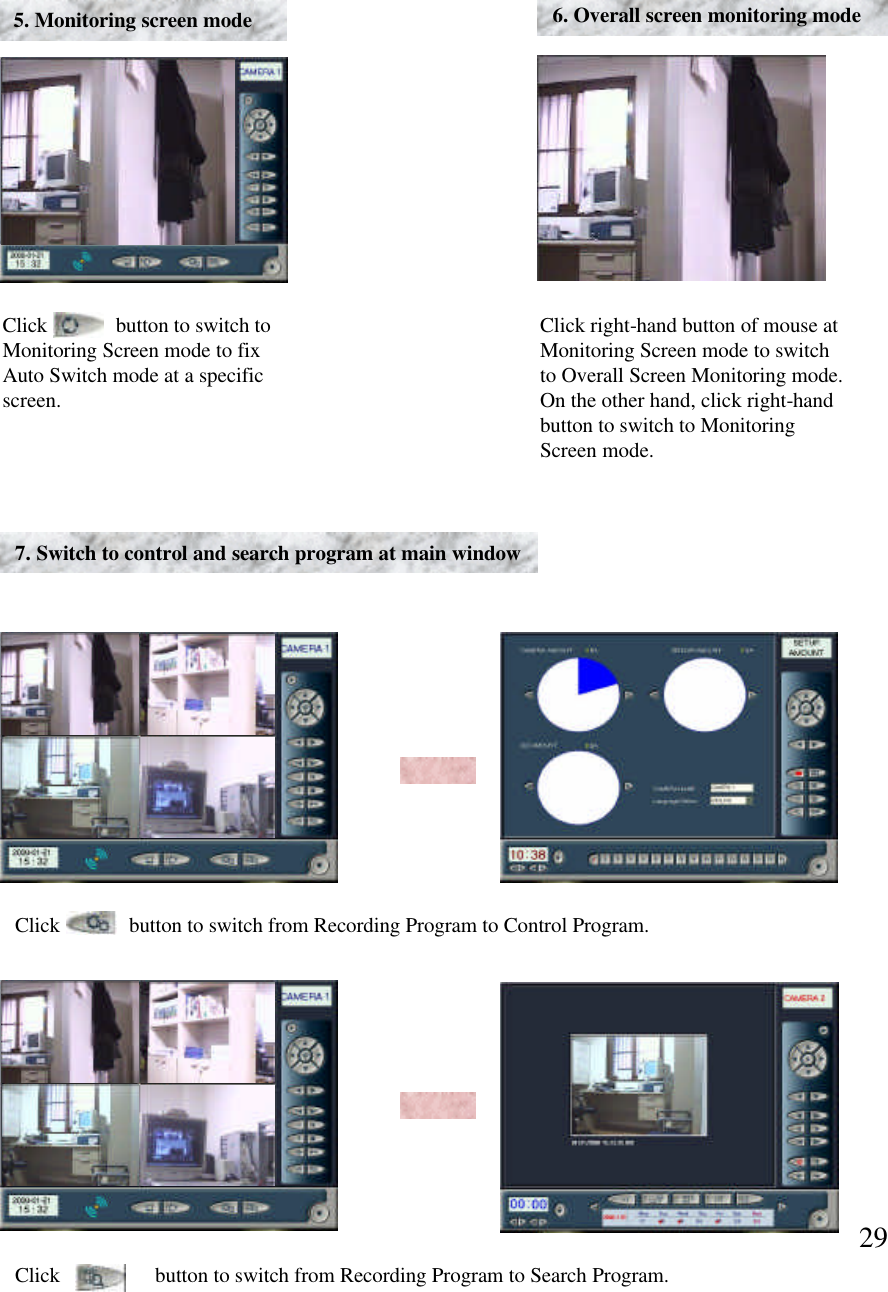
282-5 JD-Lite System Functions2-5-1 Recording programSave images in recording program screen. 1. Common modeClick left-hand button of mouse to switch four cameras to overall screen and show images. You can set the switching time by using speed set up of control program. 2. Auto switch modeClick             button to switch to overall screen mode. On the other hand, click right-hand button to return to Common Mode.3. Overall screen mode 4. Overall screen auto switch mode Click left-hand button of mouse at overall screen mode to switch to overall screen auto switch mode. On the other hand, click right-hand button to return to Common Mode.
29Click             button to switch to Monitoring Screen mode to fix Auto Switch mode at a specific screen. 5. Monitoring screen mode 6. Overall screen monitoring modeClick right-hand button of mouse at Monitoring Screen mode to switch to Overall Screen Monitoring mode. On the other hand, click right-hand button to switch to Monitoring Screen mode. 7. Switch to control and search program at main windowClick             button to switch from Recording Program to Control Program.        Click                  button to switch from Recording Program to Search Program.
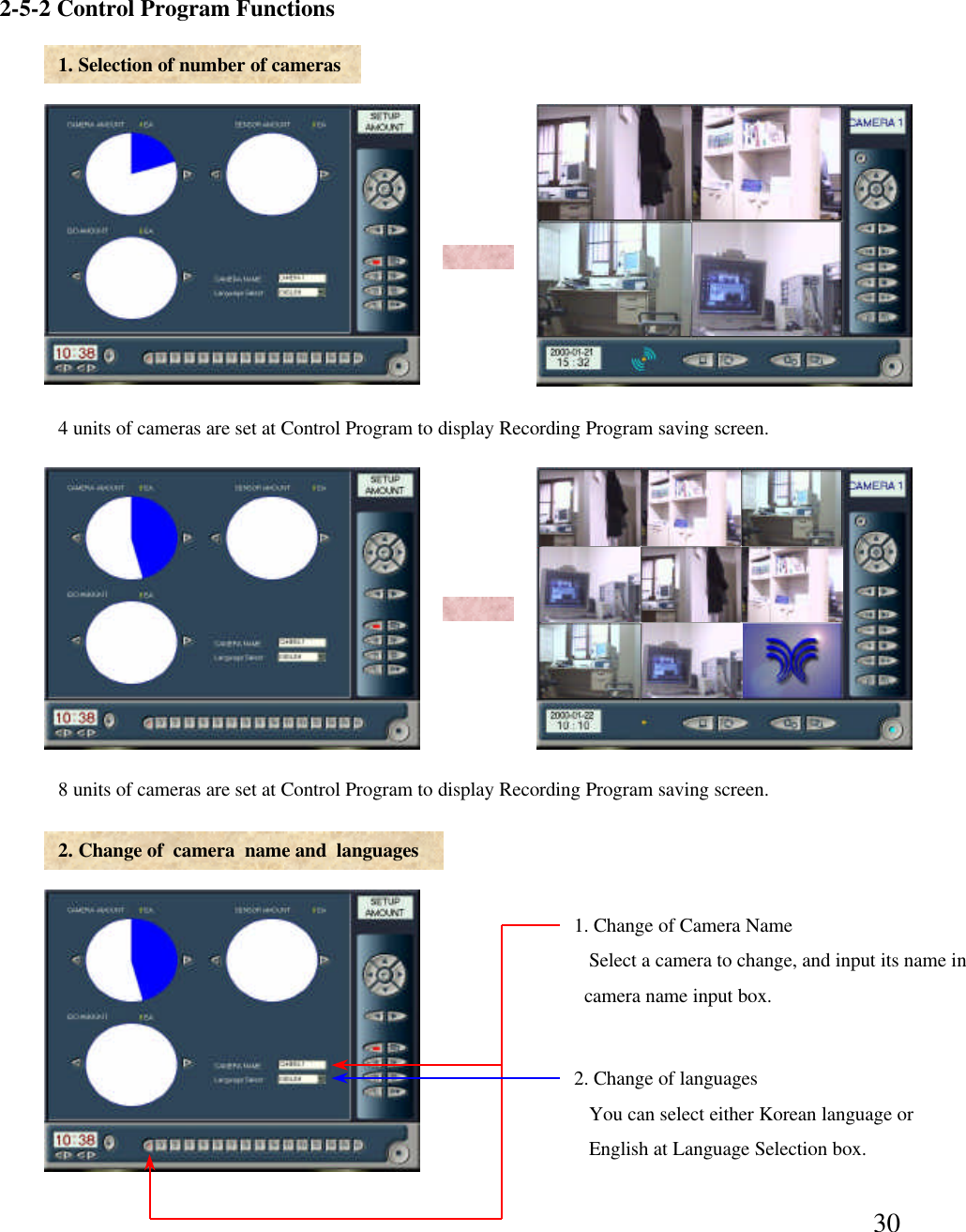
302-5-2 Control Program Functions1. Selection of number of cameras4 units of cameras are set at Control Program to display Recording Program saving screen. 8 units of cameras are set at Control Program to display Recording Program saving screen. 2. Change of  camera  name and  languages1. Change of Camera NameSelect a camera to change, and input its name in camera name input box. 2. Change of languagesYou can select either Korean language or English at Language Selection box.
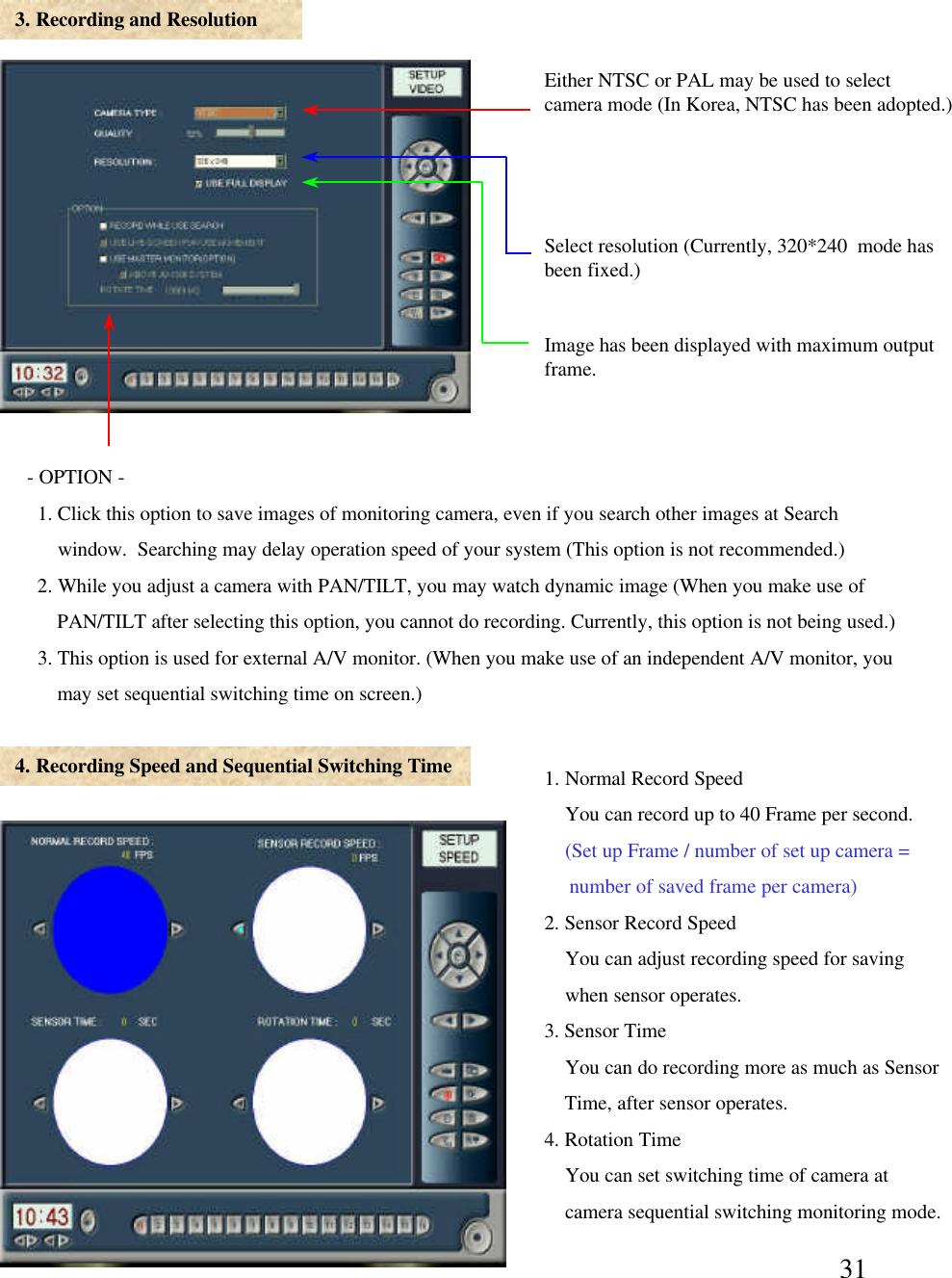
313. Recording and Resolution4. Recording Speed and Sequential Switching TimeEither NTSC or PAL may be used to select camera mode (In Korea, NTSC has been adopted.)Select resolution (Currently, 320*240  mode has been fixed.)-OPTION -1. Click this option to save images of monitoring camera, even if you search other images at Search window.  Searching may delay operation speed of your system (This option is not recommended.) 2. While you adjust a camera with PAN/TILT, you may watch dynamic image (When you make use of PAN/TILT after selecting this option, you cannot do recording. Currently, this option is not being used.) 3. This option is used for external A/V monitor. (When you make use of an independent A/V monitor, you may set sequential switching time on screen.)      1. Normal Record SpeedYou can record up to 40 Frame per second. (Set up Frame / number of set up camera =number of saved frame per camera)2. Sensor Record SpeedYou can adjust recording speed for savingwhen sensor operates. 3. Sensor TimeYou can do recording more as much as SensorTime, after sensor operates. 4. Rotation TimeYou can set switching time of camera atcamera sequential switching monitoring mode. Image has been displayed with maximum output frame.
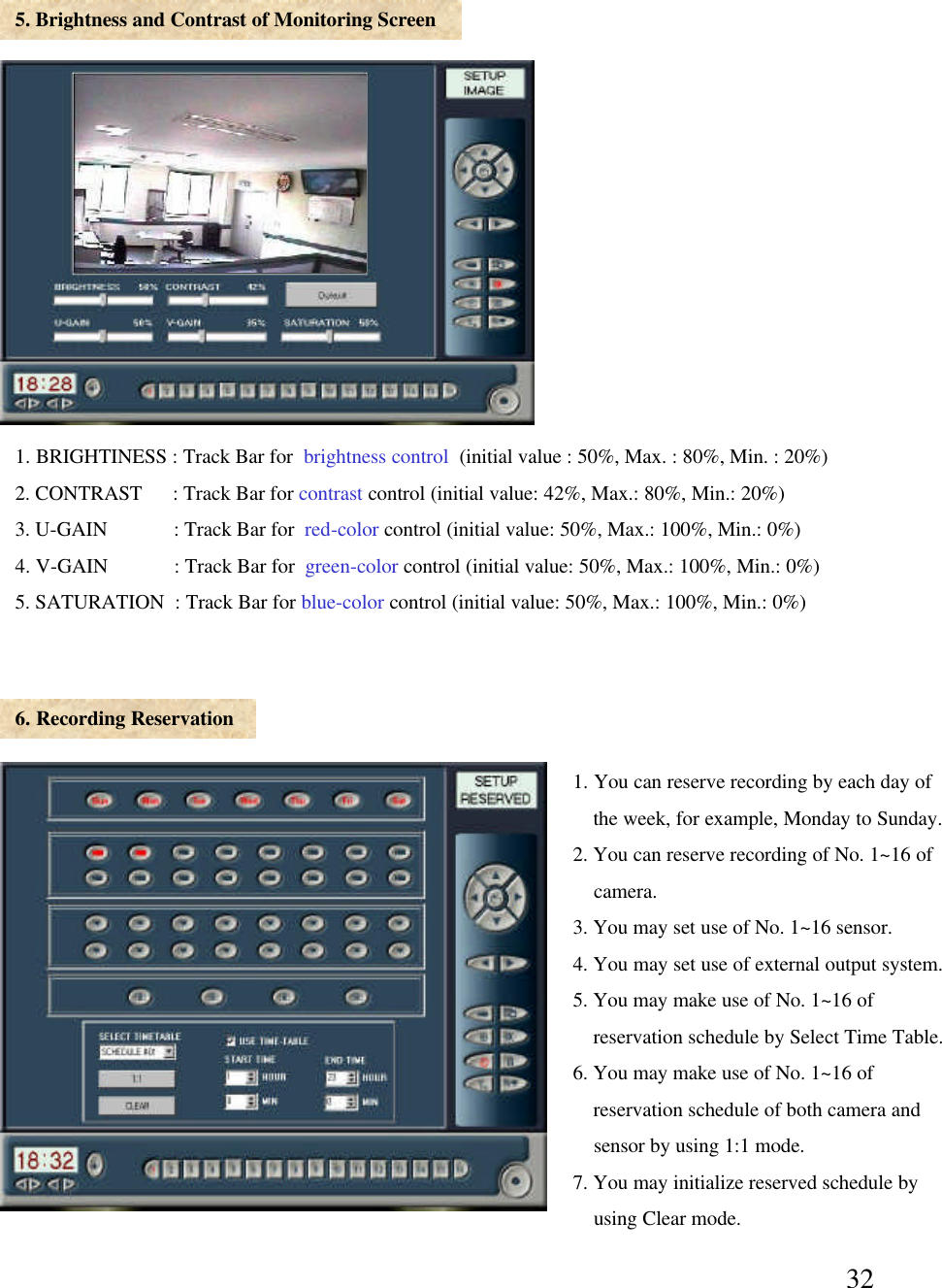
325. Brightness and Contrast of Monitoring Screen6. Recording Reservation1. BRIGHTINESS : Track Bar for  brightness control (initial value : 50%, Max. : 80%, Min. : 20%)2. CONTRAST      : Track Bar for contrast control (initial value: 42%, Max.: 80%, Min.: 20%)3. U-GAIN             : Track Bar for  red-color control (initial value: 50%, Max.: 100%, Min.: 0%) 4. V-GAIN             : Track Bar for  green-color control (initial value: 50%, Max.: 100%, Min.: 0%) 5. SATURATION  : Track Bar for blue-color control (initial value: 50%, Max.: 100%, Min.: 0%)1. You can reserve recording by each day of the week, for example, Monday to Sunday. 2. You can reserve recording of No. 1~16 of camera. 3. You may set use of No. 1~16 sensor. 4. You may set use of external output system.5. You may make use of No. 1~16 of  reservation schedule by Select Time Table. 6. You may make use of No. 1~16 of reservation schedule of both camera and sensor by using 1:1 mode. 7. You may initialize reserved schedule by using Clear mode.
337. Password8. Motion sensibility and Scope Set Up1. MOTION SENSIBILITY : You can adjust sensibility of motion. High sensibility can check even minor movement to send alarm and/or signal to external output system. Click Block Box to perceive area that you  want. You can select Block at several areas. If no Block is selected, you may monitor overall screen. (Motion Sensibility operates only when sensor shaped button turn red-colored lamp ON.)2. D/O Delay Time : You may set Delay Time to delay signal to external output system, and select external output system to send a signal. 3. BEEP ON / OFF : Under Motion Sensibility mode, you may set alarm speed and delay time by using Use ofAlarm. Input of PasswordClick ‘ALTERATION PASSWORD’to let button become active to input password. Click the button to input password. Then, click ‘OK’to display a question message on saving of the password. Click ‘Yes’to save the password. Otherwise, click ‘Clear’to cancel input of the password. [However, this mode shall be applied to only Control Program-Set Up.]
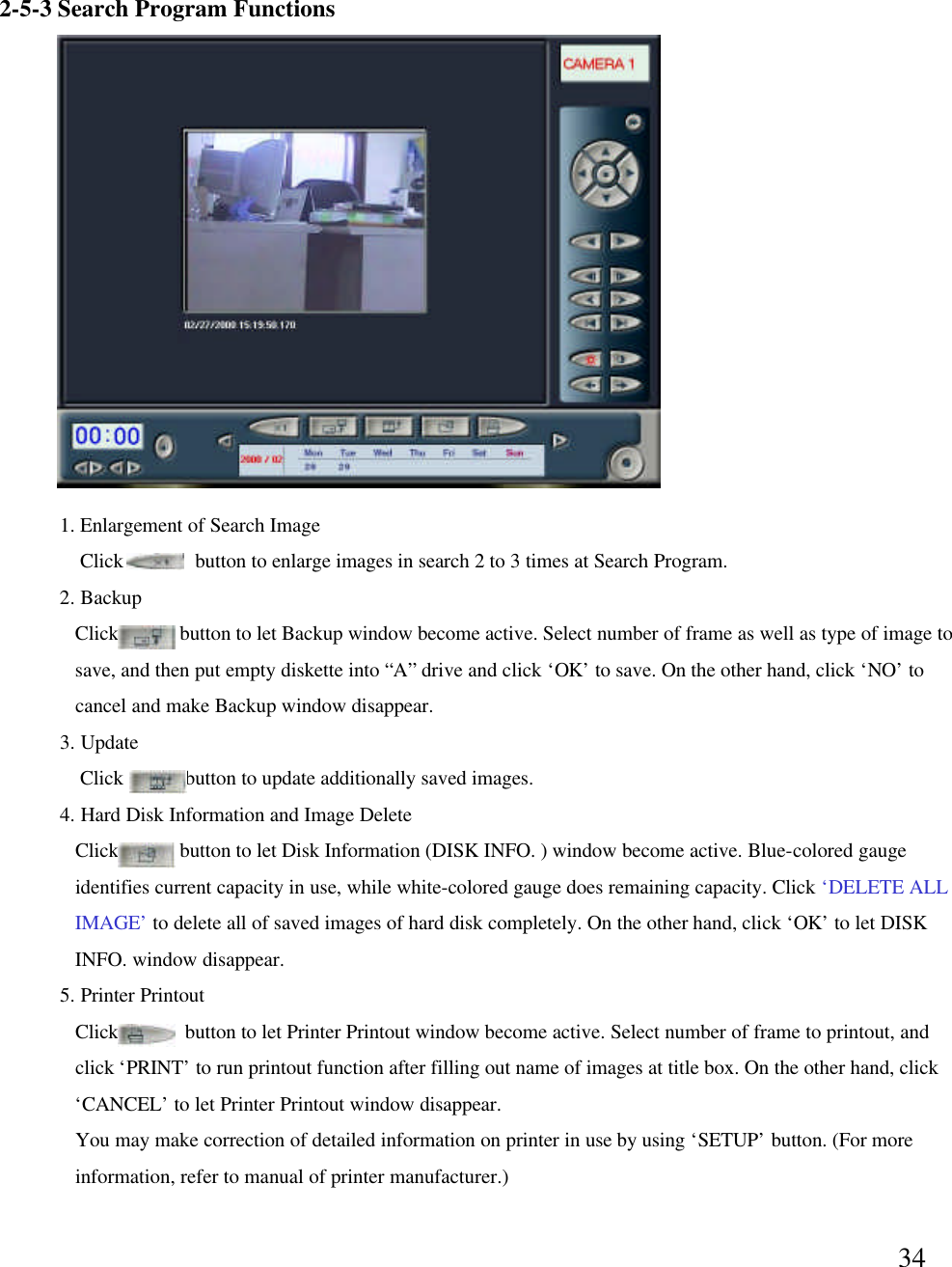
342-5-3 Search Program Functions2. BackupClick            button to let Backup window become active. Select number of frame as well as type of image to save, and then put empty diskette into “A”drive and click ‘OK’to save. On the other hand, click ‘NO’to cancel and make Backup window disappear. 3. UpdateClick            button to update additionally saved images. 4. Hard Disk Information and Image DeleteClick            button to let Disk Information (DISK INFO. ) window become active. Blue-colored gauge identifies current capacity in use, while white-colored gauge does remaining capacity. Click ‘DELETE ALL IMAGE’to delete all of saved images of hard disk completely. On the other hand, click ‘OK’to let DISKINFO. window disappear. 5. Printer PrintoutClick             button to let Printer Printout window become active. Select number of frame to printout, and  click ‘PRINT’to run printout function after filling out name of images at title box. On the other hand, click ‘CANCEL’to let Printer Printout window disappear.You may make correction of detailed information on printer in use by using ‘SETUP’button. (For more information, refer to manual of printer manufacturer.)1. Enlargement of Search ImageClick              button to enlarge images in search 2 to 3 times at Search Program.
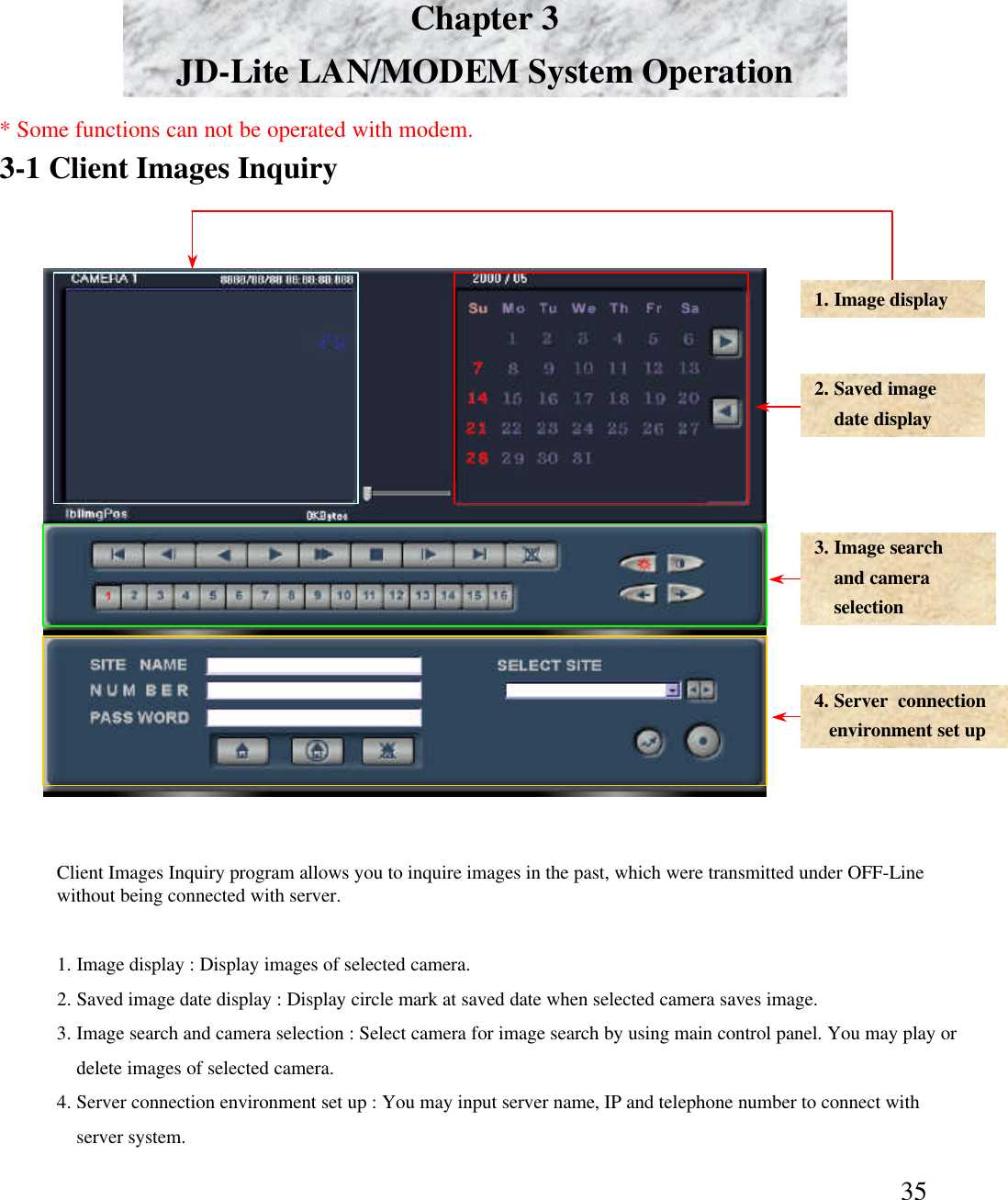
35Chapter 3JD-Lite LAN/MODEM System Operation3-1 Client Images Inquiry1. Image display 2. Saved imagedate display3. Image searchand camera selection4. Server  connection environment set up1. Image display : Display images of selected camera. 2. Saved image date display : Display circle mark at saved date when selected camera saves image. 3. Image search and camera selection : Select camera for image search by using main control panel. You may play or delete images of selected camera. 4. Server connection environment set up : You may input server name, IP and telephone number to connect with server system.  Client Images Inquiry program allows you to inquire images in the past, which were transmitted under OFF-Line without being connected with server. * Some functions can not be operated with modem.
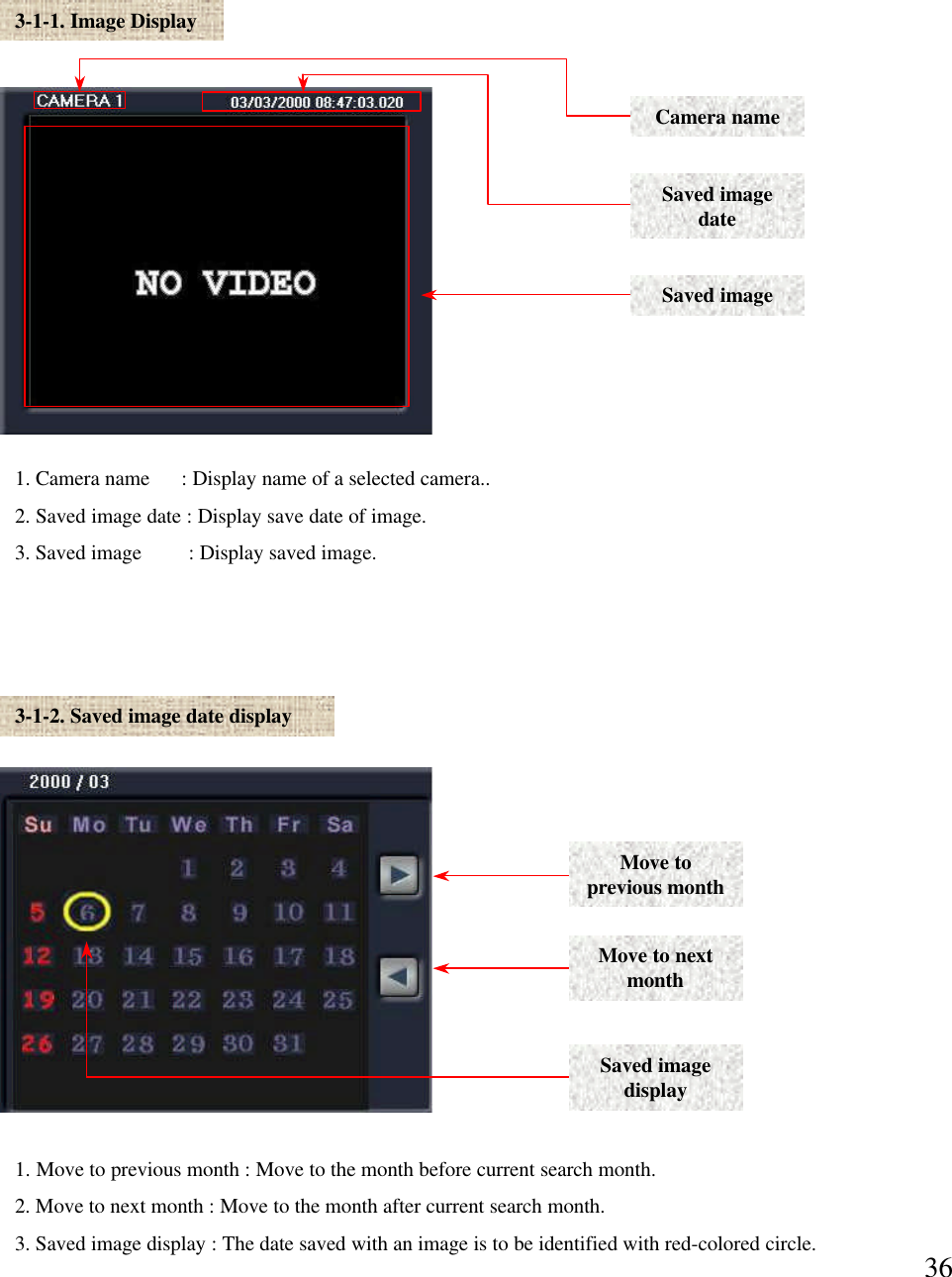
363-1-1. Image Display1. Camera name      : Display name of a selected camera..2. Saved image date : Display save date of image. 3. Saved image         : Display saved image. Camera nameSaved image dateSaved image3-1-2. Saved image date display1. Move to previous month : Move to the month before current search month. 2. Move to next month : Move to the month after current search month. 3. Saved image display : The date saved with an image is to be identified with red-colored circle. Move to previous monthMove to next monthSaved image display
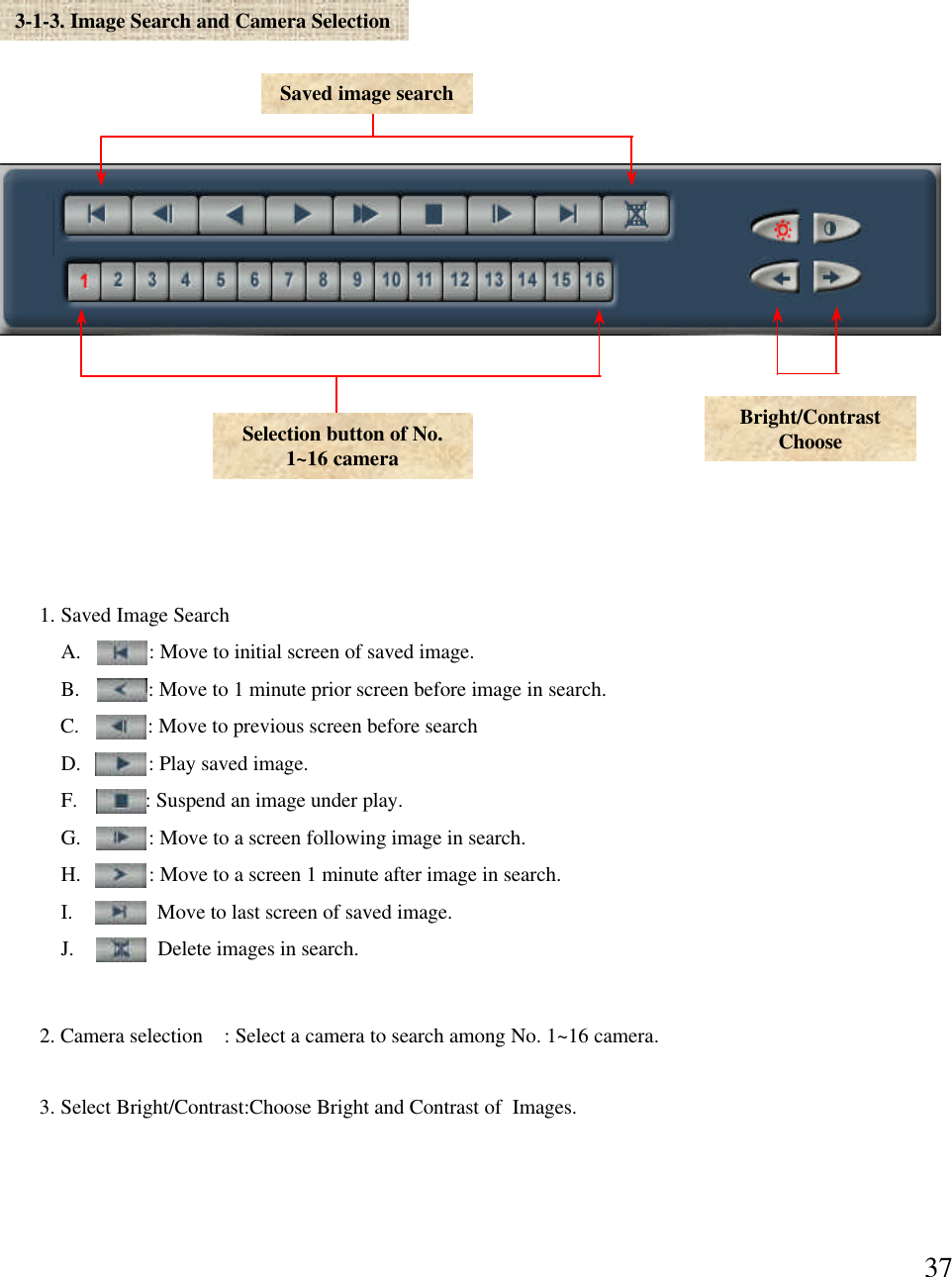
373-1-3. Image Search and Camera SelectionSelection button of No. 1~16 cameraSaved image search1. Saved Image SearchA.             : Move to initial screen of saved image.B.             : Move to 1 minute prior screen before image in search. C.             : Move to previous screen before search D.             : Play saved image. F.             : Suspend an image under play. G.             : Move to a screen following image in search.H.             : Move to a screen 1 minute after image in search. I.             :  Move to last screen of saved image. J.             :  Delete images in search. 2. Camera selection    : Select a camera to search among No. 1~16 camera. 3. Select Bright/Contrast:Choose Bright and Contrast of  Images.Bright/Contrast Choose
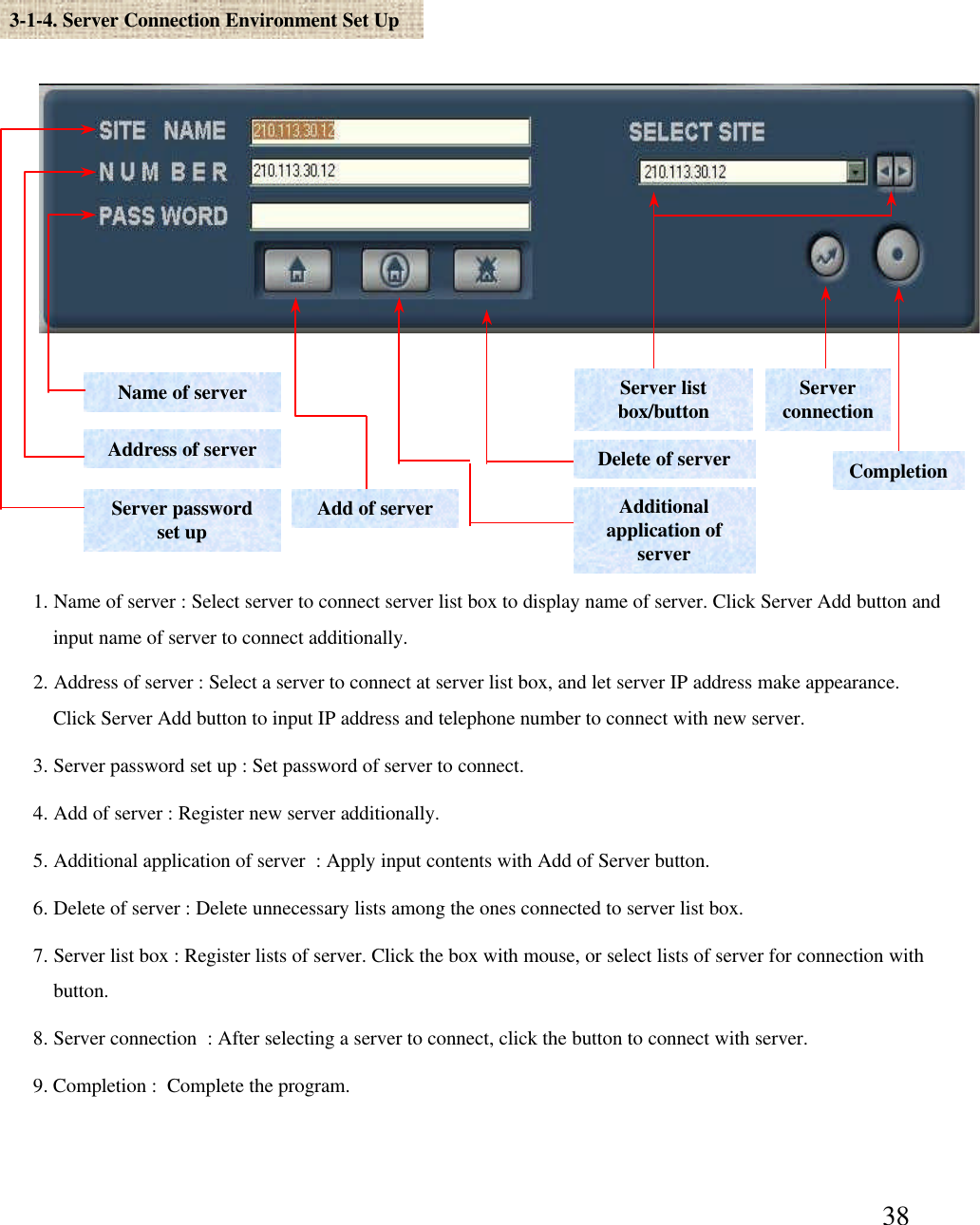
383-1-4. Server Connection Environment Set UpName of serverAddress of serverServer password set upDelete of serverAdditional application of serverAdd of serverServer list box/button Server connectionCompletion1. Name of server : Select server to connect server list box to display name of server. Click Server Add button and input name of server to connect additionally. 2. Address of server : Select a server to connect at server list box, and let server IP address make appearance.Click Server Add button to input IP address and telephone number to connect with new server.  3. Server password set up : Set password of server to connect. 4. Add of server : Register new server additionally. 5. Additional application of server  : Apply input contents with Add of Server button. 6. Delete of server : Delete unnecessary lists among the ones connected to server list box. 7. Server list box : Register lists of server. Click the box with mouse, or select lists of server for connection withbutton.  8. Server connection  : After selecting a server to connect, click the button to connect with server. 9. Completion :  Complete the program.
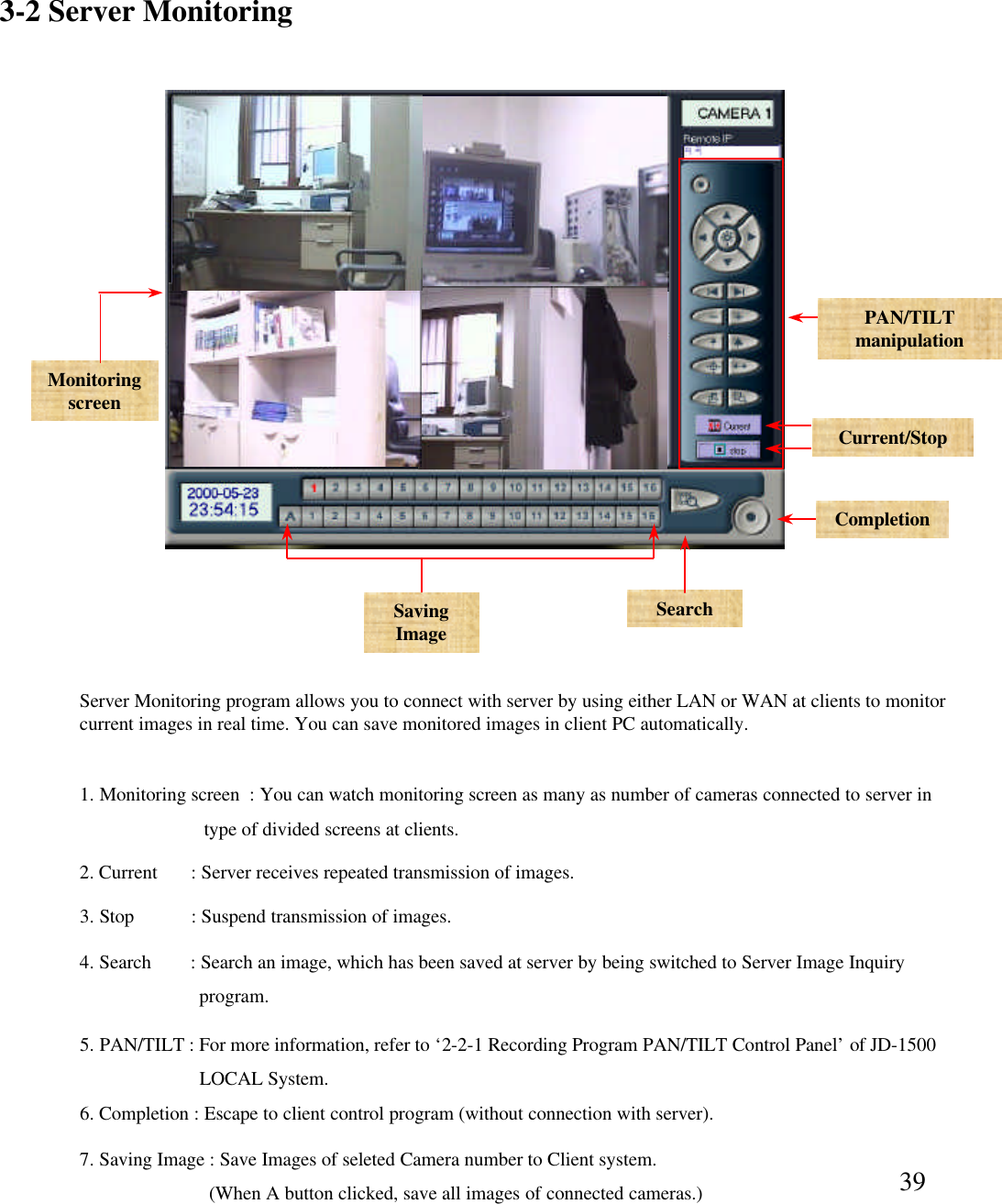
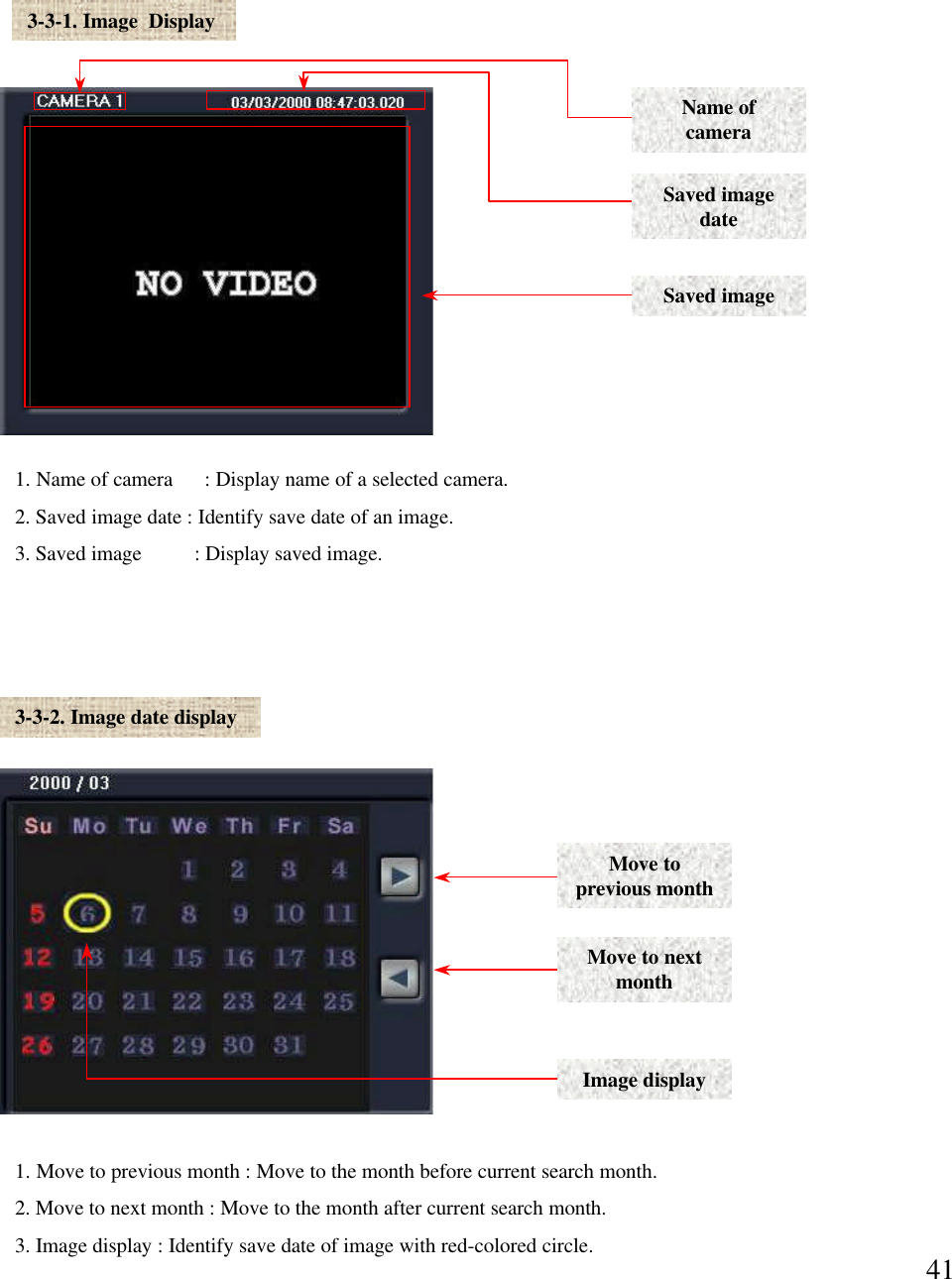
393-2 Server Monitoring2. Current  : Server receives repeated transmission of images. 4. Search        : Search an image, which has been saved at server by being switched to Server Image Inquiry program.  Monitoring screen1. Monitoring screen  : You can watch monitoring screen as many as number of cameras connected to server in type of divided screens at clients.  Current/Stop3. Stop  : Suspend transmission of images. 5. PAN/TILT : For more information, refer to ‘2-2-1 Recording Program PAN/TILT Control Panel’of JD-1500 LOCAL System.  PAN/TILT manipulationSearch6. Completion : Escape to client control program (without connection with server). Server Monitoring program allows you to connect with server by using either LAN or WAN at clients to monitor current images in real time. You can save monitored images in client PC automatically. CompletionSaving Image7. Saving Image : Save Images of seleted Camera number to Client system.(When A button clicked, save all images of connected cameras.)
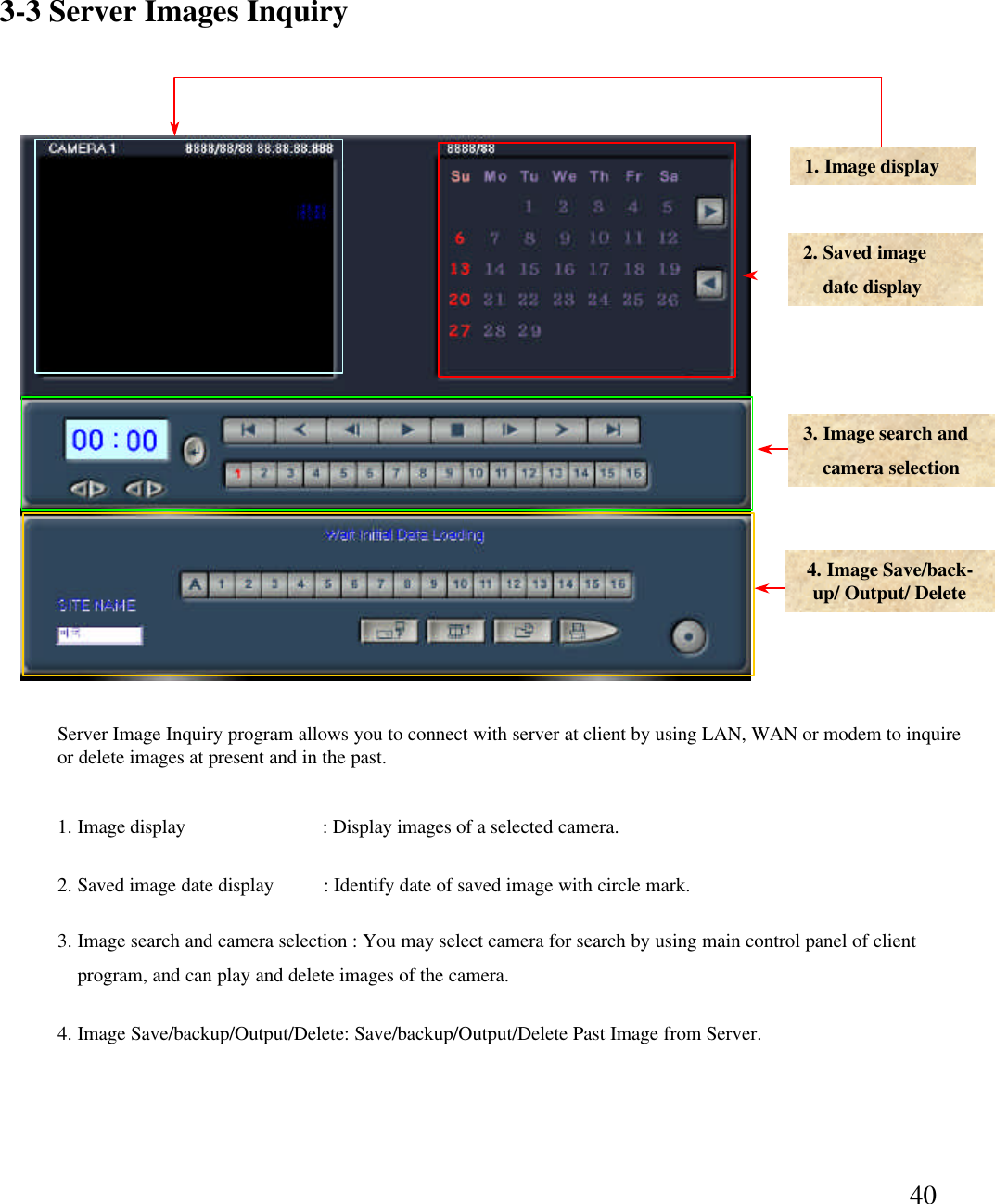
403-3 Server Images Inquiry 1. Image display2. Saved imagedate display3. Image search and  camera selection4. Image Save/back-up/ Output/ Delete 1. Image display                            : Display images of a selected camera. 2. Saved image date display          : Identify date of saved image with circle mark. 3. Image search and camera selection : You may select camera for search by using main control panel of client program, and can play and delete images of the camera.  4. Image Save/backup/Output/Delete: Save/backup/Output/Delete Past Image from Server.Server Image Inquiry program allows you to connect with server at client by using LAN, WAN or modem to inquire or delete images at present and in the past.
413-3-1. Image  Display1. Name of camera      : Display name of a selected camera. 2. Saved image date : Identify save date of an image.3. Saved image          : Display saved image. Name of cameraSaved image dateSaved image3-3-2. Image date display1. Move to previous month : Move to the month before current search month. 2. Move to next month : Move to the month after current search month. 3. Image display : Identify save date of image with red-colored circle. Move to previous monthMove to next monthImage display
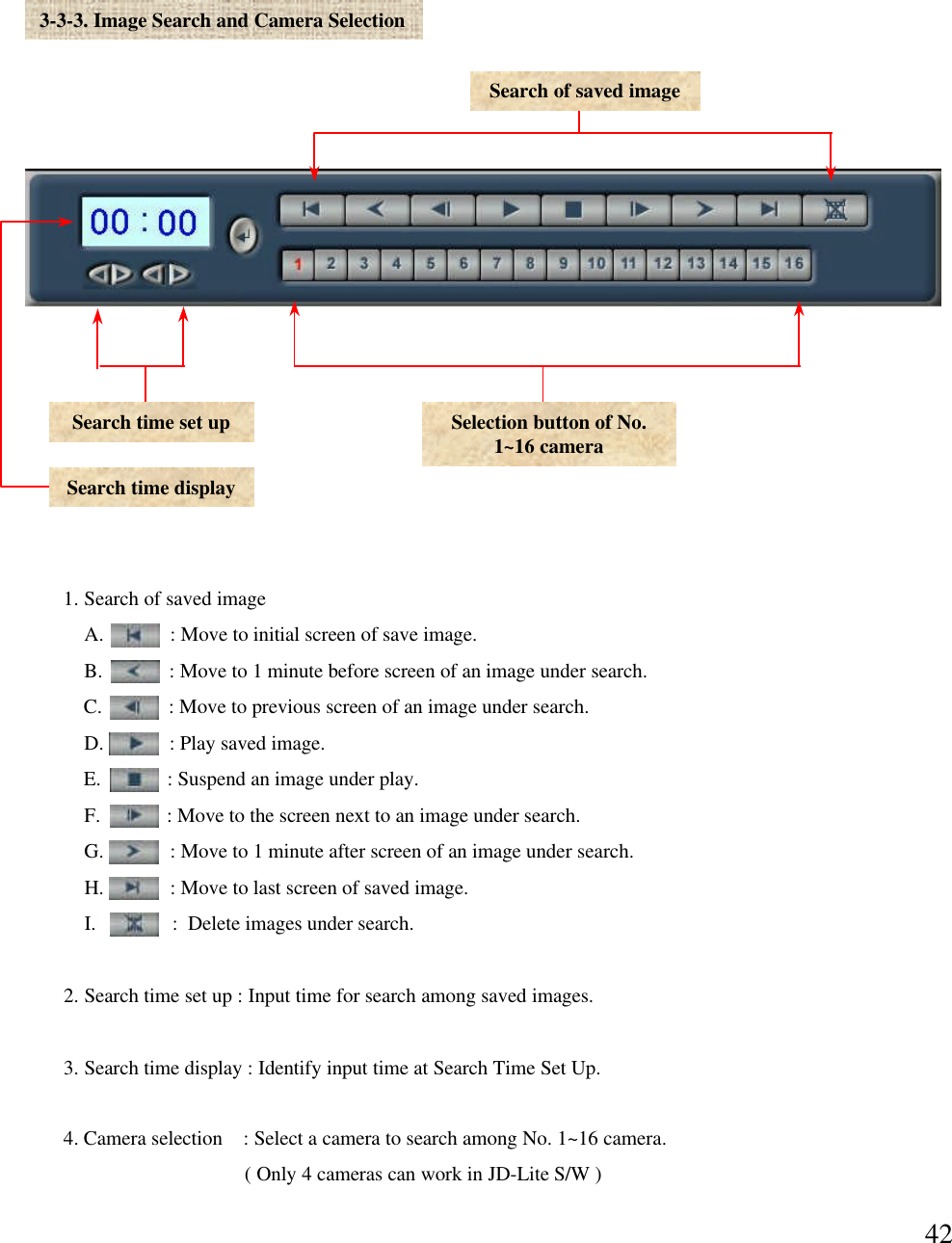
423-3-3. Image Search and Camera Selection Search time set upSearch time displaySearch of saved image1. Search of saved imageA.             : Move to initial screen of save image. B.             : Move to 1 minute before screen of an image under search. C.             : Move to previous screen of an image under search. D.             : Play saved image.E.             : Suspend an image under play. F.             : Move to the screen next to an image under search. G.             : Move to 1 minute after screen of an image under search.  H.             : Move to last screen of saved image. I.               :  Delete images under search. 2. Search time set up : Input time for search among saved images. 3. Search time display : Identify input time at Search Time Set Up.Selection button of No. 1~16 camera4. Camera selection    : Select a camera to search among No. 1~16 camera. ( Only 4 cameras can work in JD-Lite S/W )
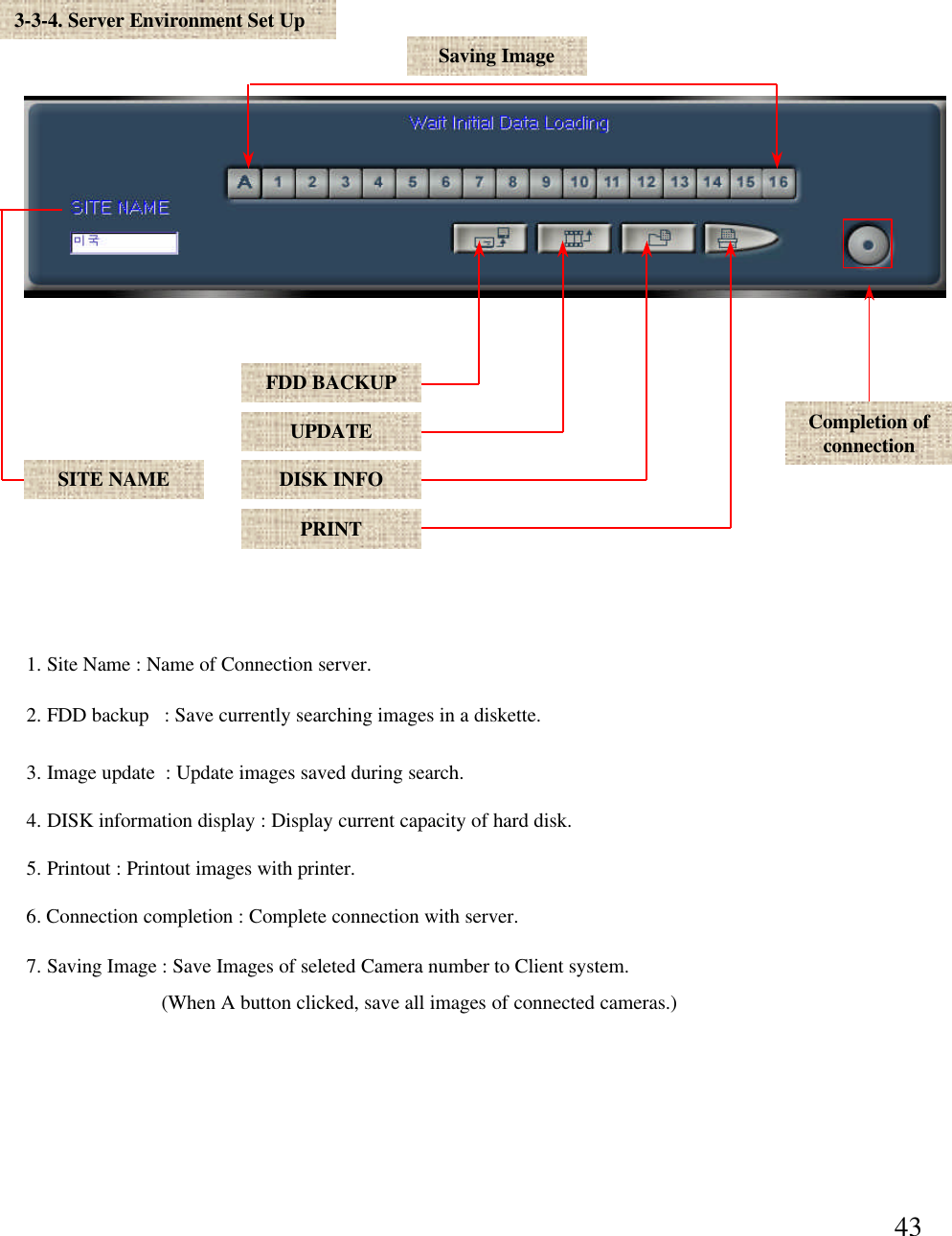
433-3-4. Server Environment Set UpCompletion of connection6. Connection completion : Complete connection with server. FDD BACKUPUPDATEDISK INFOPRINTSITE NAME1. Site Name : Name of Connection server.3. Image update  : Update images saved during search. 4. DISK information display : Display current capacity of hard disk. 5. Printout : Printout images with printer. 2. FDD backup  : Save currently searching images in a diskette. 7. Saving Image : Save Images of seleted Camera number to Client system.(When A button clicked, save all images of connected cameras.)Saving Image
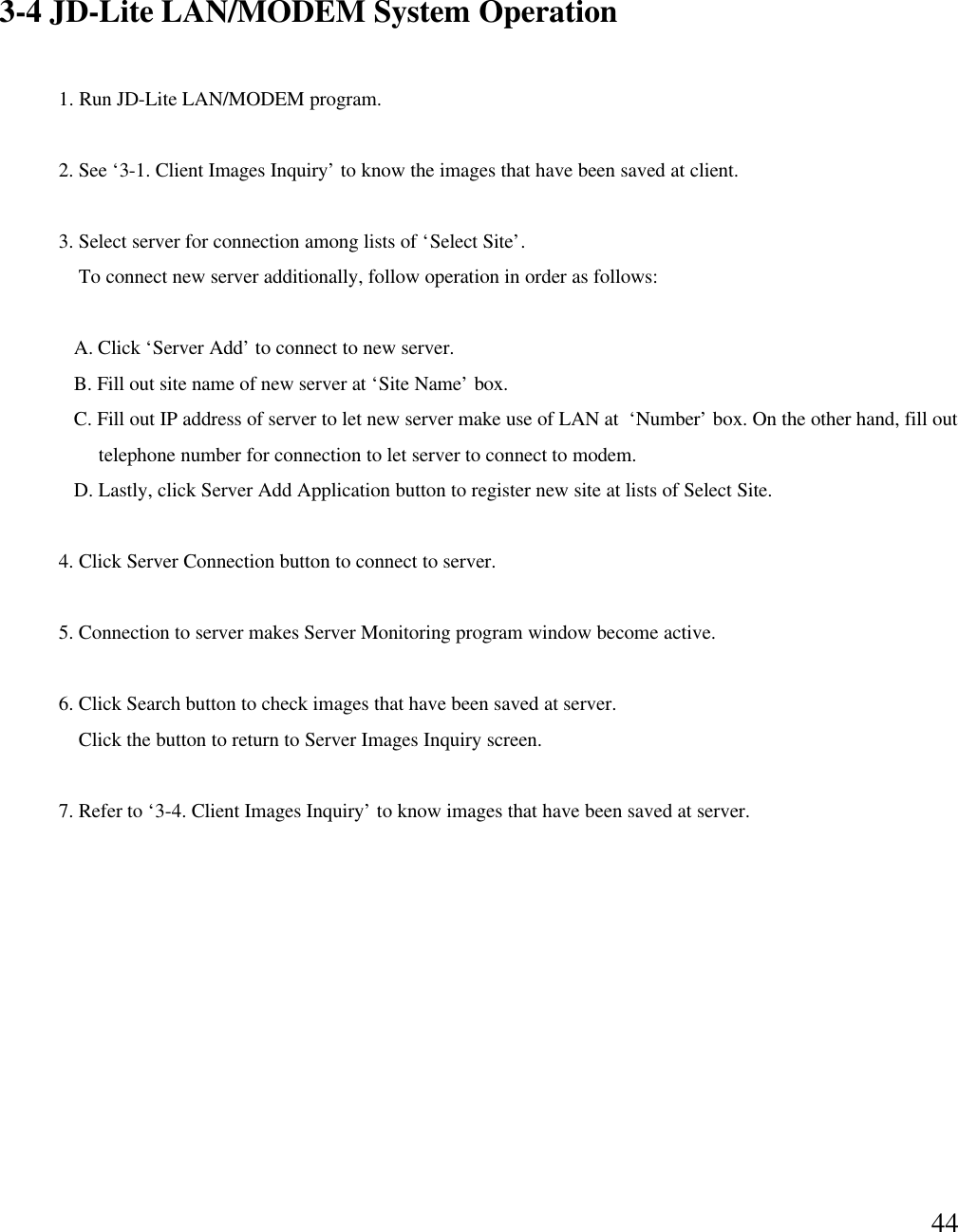
443-4 JD-Lite LAN/MODEM System Operation1. Run JD-Lite LAN/MODEM program. 2. See ‘3-1. Client Images Inquiry’to know the images that have been saved at client.3. Select server for connection among lists of ‘Select Site’.To connect new server additionally, follow operation in order as follows: A. Click ‘Server Add’to connect to new server. B. Fill out site name of new server at ‘Site Name’box. C. Fill out IP address of server to let new server make use of LAN at  ‘Number’box. On the other hand, fill out telephone number for connection to let server to connect to modem.  D. Lastly, click Server Add Application button to register new site at lists of Select Site. 4. Click Server Connection button to connect to server. 5. Connection to server makes Server Monitoring program window become active. 6. Click Search button to check images that have been saved at server. Click the button to return to Server Images Inquiry screen. 7. Refer to ‘3-4. Client Images Inquiry’to know images that have been saved at server.
45Chapter 4Question & Answer of JD-Lite SystemRead carefully following cases to help you solve problems properly and save time. Q. I am unable to save images. A. If a waveform, system operation mark of recording program, does not move, or a part or all of cameras has not been saved despite movement of the waveform, check JD-Lite as follows:1. Check that number of units being connected to JD-Lite has been properly set up(See ‘Amount’of ‘Control Program -Set Up’). 2. Check that you have selected NTSC of camera mode (See ‘Video’of ‘Control Program-Set Up’.) 3. Check that you have correctly set up amount of camera, and have selected day of the week for recording(See ‘Reserved’of Control Program-Set Up).If you do not run sensor, turn all of sensors OFF, and click column of ‘Use Recording Schedule’to run recording of image.  4. Check that you have clicked ‘Area’, and have selected ‘Selection of Motion Sensibility Mode’as wellas ‘Motion Block’, and have selected ‘Minimum’of ‘Motion Sensibility Control’(See ‘Motion’of Control Program-Set Up.)Q. I cannot watch overall screen in the use of PAN/TILT. A. If you are unable to watch overall screen at center of the screen despite clicking PAN/TILT,take action as follows:1. Check that you have clicked option of ‘Run Camera PAN/TILT by overall screen’(See ‘Video’of Control Program-Set Up.) Q. Sometimes, I watch broken screen  while conducting search. A. If a part or all of the screen has been broken, take action as follows:1. Such a phenomenon may occur at different set up of resolution saving between search and saving (See Video-Control Program -Set Up).Select ‘DELETE ALL IMAGE’of ‘DISK INFO.’(See Search program), and delete all of saved screens,and check again.
46Q. Recording program produces not image, but black-colored screen. A. If an image is not produced, take action as follows:1. Check that you have selected ‘32 Bit (True Color) of color attributes of Display Registration (See Control Panel of Windows). 2. Check whether there is an error of ‘Video Capture64[BSR1000]’of ‘Sound Video and Game Controller’of systemmanager tab (See System Registration of control panel of Windows). 3. If same phenomenon may occur under a circumstance in the above, files of system controller is wrong. So, you areasked to procure a good program.
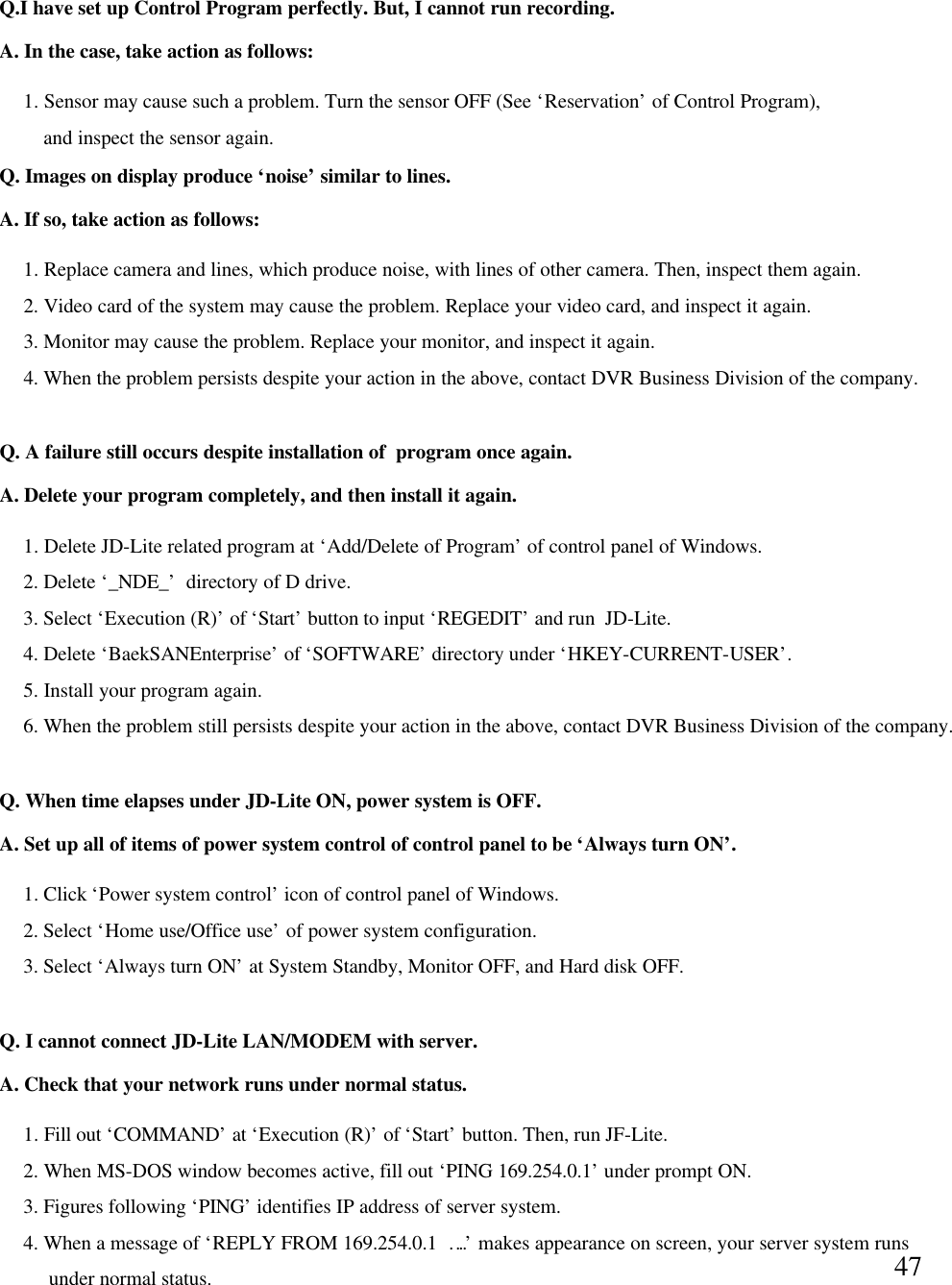
47A. In the case, take action as follows:Q.I have set up Control Program perfectly. But, I cannot run recording.  1. Sensor may cause such a problem. Turn the sensor OFF (See ‘Reservation’of Control Program),and inspect the sensor again.  A. If so, take action as follows:Q. Images on display produce ‘noise’similar to lines. 1. Replace camera and lines, which produce noise, with lines of other camera. Then, inspect them again. 2. Video card of the system may cause the problem. Replace your video card, and inspect it again. 3. Monitor may cause the problem. Replace your monitor, and inspect it again.  4. When the problem persists despite your action in the above, contact DVR Business Division of the company. A. Delete your program completely, and then install it again. Q. A failure still occurs despite installation of  program once again. 1. Delete JD-Lite related program at ‘Add/Delete of Program’of control panel of Windows. 2. Delete ‘_NDE_’directory of D drive. 3. Select ‘Execution (R)’of ‘Start’button to input ‘REGEDIT’and run  JD-Lite. 4. Delete ‘BaekSANEnterprise’of ‘SOFTWARE’directory under ‘HKEY-CURRENT-USER’. 5. Install your program again. 6. When the problem still persists despite your action in the above, contact DVR Business Division of the company. A. Set up all of items of power system control of control panel to be ‘Always turn ON’.Q. When time elapses under JD-Lite ON, power system is OFF. 1. Click ‘Power system control’icon of control panel of Windows. 2. Select ‘Home use/Office use’of power system configuration. 3. Select ‘Always turn ON’at System Standby, Monitor OFF, and Hard disk OFF. A. Check that your network runs under normal status. Q. I cannot connect JD-Lite LAN/MODEM with server. 1. Fill out ‘COMMAND’at ‘Execution (R)’of ‘Start’button. Then, run JF-Lite. 2. When MS-DOS window becomes active, fill out ‘PING 169.254.0.1’under prompt ON.  3. Figures following ‘PING’identifies IP address of server system.  4. When a message of ‘REPLY FROM 169.254.0.1 ….’makes appearance on screen, your server system runsunder normal status.

Navigation menu