User manual-rev1

Incorporated
User Interface Specification
VDT985
Document No.: UIS-V1601
Revision 0 (last updated: 4-29-2015)
This document is the property of Kaz, Incorporated. It is lent and is to be returned upon request. The
contents of this document are confidential and constitute trade secrets proprietary to Kaz,
Incorporated. Neither this document nor its contents shall be disclosed to any unauthorized person,
copied or published without Kaz, Incorporated prior written consent.
Page
1
of
31
TEM-04030101 Rev 1 Effective Date 30-APR-2009
User Interface Specification
VDT985
(Project V1601)
Vick’s Bluetooth Digital Stick Thermometer

Incorporated
User Interface Specification
VDT985
Document No.: UIS-V1601
Revision 0 (last updated: 4-29-2015)
This document is the property of Kaz, Incorporated. It is lent and is to be returned upon request. The
contents of this document are confidential and constitute trade secrets proprietary to Kaz,
Incorporated. Neither this document nor its contents shall be disclosed to any unauthorized person,
copied or published without Kaz, Incorporated prior written consent.
Page
2
of
31
TEM-04030101 Rev 1 Effective Date 30-APR-2009
Table of Contents
1 Introduction ............................................................................................................................. 5
1.1 Purpose ......................................................................................................................... 5
1.2 Scope ............................................................................................................................ 5
1.3 References .................................................................................................................... 5
1.4 Terms and Abbreviations ............................................................................................... 5
2 Responsibilities ....................................................................................................................... 5
3 User interface .......................................................................................................................... 5
3.1 Device ID ....................................................................................................................... 5
3.2 App ID ........................................................................................................................... 6
4 Device Workflow ...................................................................................................................... 6
4.1 User action with thermometer workflow ......................................................................... 6
5 App Workflow .......................................................................................................................... 8
5.1 First Time App Launch: Terms, Privacy, & App Tour ....................................................... 8
5.2 TOUR: ........................................................................................................................... 9
If user selects TAKE TOUR from opening sequence, below app screens appear. .................... 9
5.3 First Time Pairing ........................................................................................................ 10
5.4 Home Screen (Take Temp) .......................................................................................... 11
5.5 Taking a Measurement ................................................................................................ 11
5.5.1 Enabling Bluetooth and Selecting Profile .......................................................... 11
If the APP is reopened after being closed, it will first make sure BT is enabled on the phone and
then proceed to home screen. If BT is not enabled screen below will appear. User will enable
Bluetooth on PHONE settings. User selects profile by using arrows to rotate carousel. ......... 11
5.5.2 Bluetooth and Thermometer status -Sequence to take Measurement ............... 12
5.5.3 Measurement complete .................................................................................... 14
5.6 Profiles ........................................................................................................................ 15
5.7 History ......................................................................................................................... 16
Incorporated
User Interface Specification
VDT985
Document No.: UIS-V1601
Revision 0 (last updated: 4-29-2015)
This document is the property of Kaz, Incorporated. It is lent and is to be returned upon request. The
contents of this document are confidential and constitute trade secrets proprietary to Kaz,
Incorporated. Neither this document nor its contents shall be disclosed to any unauthorized person,
copied or published without Kaz, Incorporated prior written consent.
Page
3
of
31
TEM-04030101 Rev 1 Effective Date 30-APR-2009
.......................... 16
5.7.1 Add Manual Event............................................................................................. 17
5.7.2 Edit a Measurement .......................................................................................... 17
5.7.3 Exporting Data .................................................................................................. 18
5.8 Reminders ................................................................................................................... 18
5.9 “More Menu” functions ................................................................................................. 19
5.9.1 Add new device ................................................................................................ 19
5.9.2 Settings (switch C/F) ......................................................................................... 19
5.9.3 Temperature Reference Chart ........................................................................... 20
5.9.4 App Tour ........................................................................................................... 20
5.9.5 User Manual ..................................................................................................... 20
5.9.6 Battery .............................................................................................................. 22
5.9.7 Tips and Advice ................................................................................................. 22
5.9.8 Vicks. Com ........................................................................................................ 23
5.9.9 Browse All Products .......................................................................................... 23
5.9.10 Contact Tech Support........................................................................................ 24
5.10 LOW BATTERY INDICATOR ....................................................................................... 24
5.11 ERROR MESSAGES .................................................................................................. 24

Incorporated
User Interface Specification
VDT985
Document No.: UIS-V1601
Revision 0 (last updated: 4-29-2015)
This document is the property of Kaz, Incorporated. It is lent and is to be returned upon request. The
contents of this document are confidential and constitute trade secrets proprietary to Kaz,
Incorporated. Neither this document nor its contents shall be disclosed to any unauthorized person,
copied or published without Kaz, Incorporated prior written consent.
Page
4
of
31
TEM-04030101 Rev 1 Effective Date 30-APR-2009
5.11.1 Low temperature display ................................................................................... 25
5.11.2 Ambient Error .................................................................................................... 25
5.11.3 System Error ..................................................................................................... 26
5.11.4 Premature Removal of Thermometer ................................................................ 27
5.11.5 Remove Thermometer Error ............................................................................. 28
5.12 Enter Water bath/Calibration mode .............................................................................. 28
6 InSight Tables (programmed into the app) ............................................................................. 28
6.1 US app Insight colors -No AgeSmart ........................................................................... 29
6.2 EMEA and CA app Insight colors –With AgeSmart....................................................... 29
7 Document Information and Approval ...................................................................................... 30
7.1 Revision History .......................................................................................................... 30
7.2 Approval ...................................................................................................................... 31
7.3 Effective date: .............................................................................................................. 31
Incorporated
User Interface Specification
VDT985
Document No.: UIS-V1601
Revision 0 (last updated: 4-29-2015)
This document is the property of Kaz, Incorporated. It is lent and is to be returned upon request. The
contents of this document are confidential and constitute trade secrets proprietary to Kaz,
Incorporated. Neither this document nor its contents shall be disclosed to any unauthorized person,
copied or published without Kaz, Incorporated prior written consent.
Page
5
of
31
TEM-04030101 Rev 1 Effective Date 30-APR-2009
1 INTRODUCTION
1.1
Purpose
This document identifies and defines the tactile, visual, and audio interactions with the thermometer
device and mobile app of the VDT985 consumer model Vicks Bluetooth Digital Stick Thermometer.
1.2
Scope
Included in this UIS are the definitions of thermometer button functions, audio signals, light signals,
user workflows and associated app display interactions for the VDT985 Bluetooth Digital Stick
Thermometer.
1.3
References
SOP-05000000 Design Control
PRD-V1601 Product Requirements Document
1.4
Terms and Abbreviations
Term/Abbreviation Definition
UI User Interface
S, sec Seconds
2 RESPONSIBILITIES
Program Manager- Distributes document to cross-functional team, files document in the Design
History File and assigns team members for document approval.
3 USER INTERFACE
3.1
Device ID
Incorporated
User Interface Specification
VDT985
Document No.: UIS-V1601
Revision 0 (last updated: 4-29-2015)
This document is the property of Kaz, Incorporated. It is lent and is to be returned upon request. The
contents of this document are confidential and constitute trade secrets proprietary to Kaz,
Incorporated. Neither this document nor its contents shall be disclosed to any unauthorized person,
copied or published without Kaz, Incorporated prior written consent.
Page
6
of
31
TEM-04030101 Rev 1 Effective Date 30-APR-2009
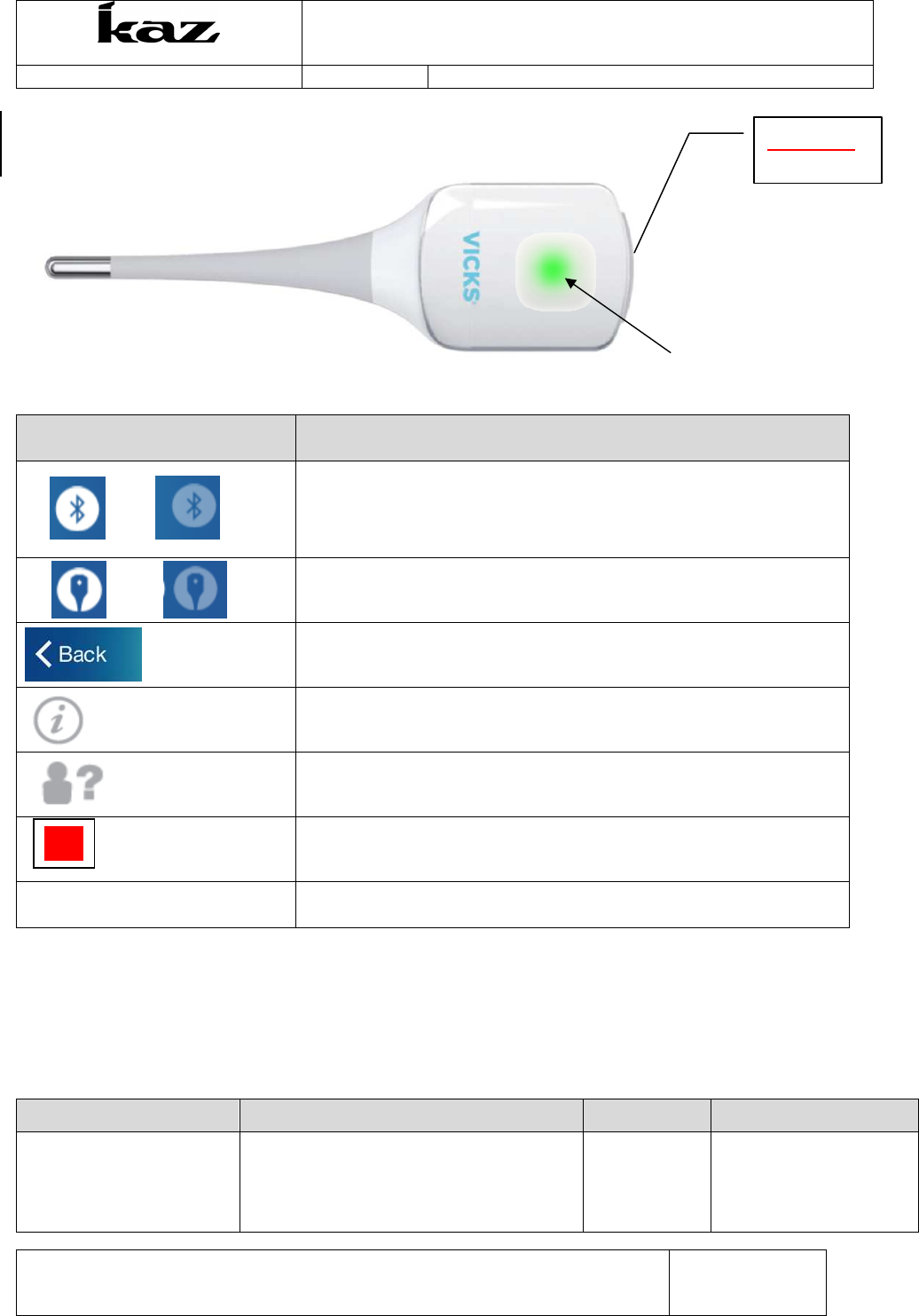
Green LED, Red LED
3.2
App ID
App Icons Meaning
1.
2.
1. Bluetooth enabled indicator
2. Bluetooth NOT enabled indicator
1. 2. 1. Therm connected/paired indicator
2. Therm NOT connected/paired indicator
Back button, brings user to previous screen (located in upper
left-hand corner)
More Info
Anonymous measurement. Marks a saved temperature
measurement that is saved in history but is not assigned to a profile.
Symbol appears next to Bluetooth and thermometer icons in
upper right and provides helpful information
4 DEVICE WORKFLOW
4.1
User action with thermometer workflow
EVENT/MODE USER ACTION AUDIO LED
Power ON therm -User turns On thermometer by pressing
the power button (when device is OFF)
-User can press once or press and hold.
-Unit cannot be turned off for 5 seconds
1 short beep
Solid Green – About 1-2
seconds
O/I Button
?

Incorporated
User Interface Specification
VDT985
Document No.: UIS-V1601
Revision 0 (last updated: 4-29-2015)
This document is the property of Kaz, Incorporated. It is lent and is to be returned upon request. The
contents of this document are confidential and constitute trade secrets proprietary to Kaz,
Incorporated. Neither this document nor its contents shall be disclosed to any unauthorized person,
copied or published without Kaz, Incorporated prior written consent.
Page
7
of
31
TEM-04030101 Rev 1 Effective Date 30-APR-2009
after power on.
Therm NOT paired
(standby mode)
User only needs to take action for first
time paring. Subsequent pairing occurs
automatically
none Blinking red
(same as all errors)
1
st
time paring 1. Thermometer can be ON or OFF
2. User presses and holds down power
button (while normal turn on LED
sequence displays: green LED
followed immediately by red blinking
LED)
3. After exactly 3 seconds, red
blinking light on thermometer will
change to STEADY red light.
4. App screen will prompt user to press
“CONFIRM STEADY….” Button on
app
5. Screen will show “Connecting”
6. When pairing has successfully
completed, the thermometer’s green
LED appears solid, and the therm is
ready to use.
none. When user presses and
holds power button
normal turn on LED
sequence occurs: solid
green LED followed
immediately by red
blinking LED to indicate
not paired status)
Therm will change from
blinking red to STEADY
red after exactly 3
seconds. After user
confirms STEADY red
LED by pushing app
button,, LED will change
to GREEN.
Therm IS paired
(standby mode)
None.
(Therm is ready to take a measurement
and communicate with app.)
none Solid Green
Initiate Measurement -User opens app and goes through take
temp sequence on app.
none Same as standby
—Solid Green (if paired)
or Blinking Red (if not
paired)
Measurement in progress
-User should keep therm inserted until
measurement completes.
-User will see temp increasing on the app
screen.
-Power button is locked (therm cannot be
powered off) until measurement
completes
none Blinking Green
Measurement Completes
(no errors)
User can remove thermometer and read
temperature on app screen
1 long beep Back to standby
—Solid Green (if paired)
or Blinking Red (if not
paired)
Incorporated
User Interface Specification
VDT985
Document No.: UIS-V1601
Revision 0 (last updated: 4-29-2015)
This document is the property of Kaz, Incorporated. It is lent and is to be returned upon request. The
contents of this document are confidential and constitute trade secrets proprietary to Kaz,
Incorporated. Neither this document nor its contents shall be disclosed to any unauthorized person,
copied or published without Kaz, Incorporated prior written consent.
Page
8
of
31
TEM-04030101 Rev 1 Effective Date 30-APR-2009
Measurement Error
Ambient Error
Hi/Lo Temp Error
System Error
Error message will appear on app screen
(See below for specific error message
app screens.)
2 quick beeps
repeated 5x
(same as
V966)
Steady RED appears on
thermometer until Take
temp button is pressed
or user navigates away
from error screen
10% & 20% Low Therm
Battery
Low battery warning displays on app
screen only.
none none
Less than 2.2 V Battery Dead battery warning displays on app
screen only.
2 quick beeps
repeated 5x
(same as
V966)
Steady red
Power OFF therm -User presses power button (when device
is ON, but not actively taking a
measurement)
-Cannot be powered off within 5secs
of power on- do we still want this?
1 short beep LED off
Therm auto powers OFF Device powers OFF automatically after
2mins of continuous standby
1 short beep LED off
Short beep ~0.5sec
Long beep ~2 sec
5 APP WORKFLOW
5.1
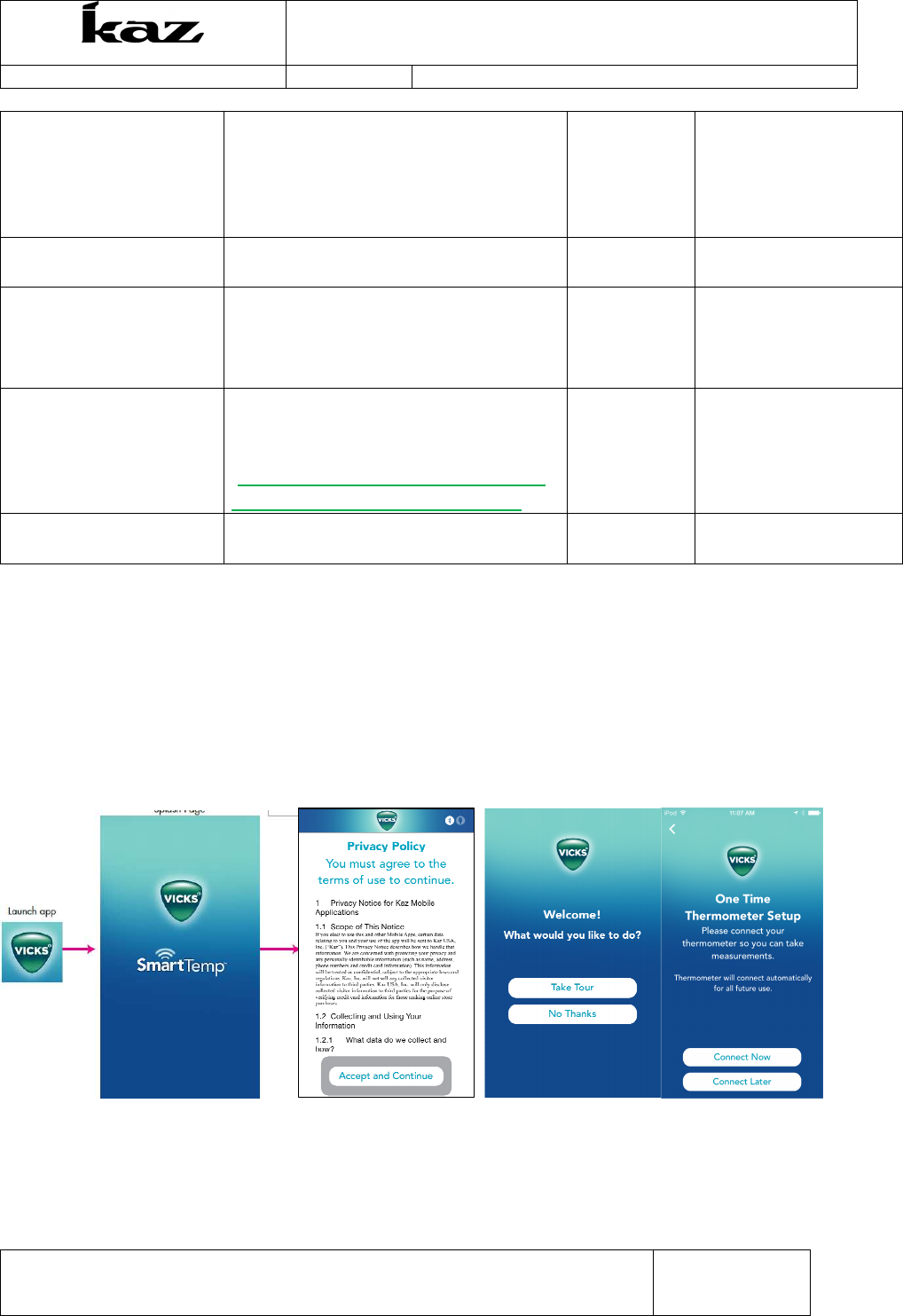
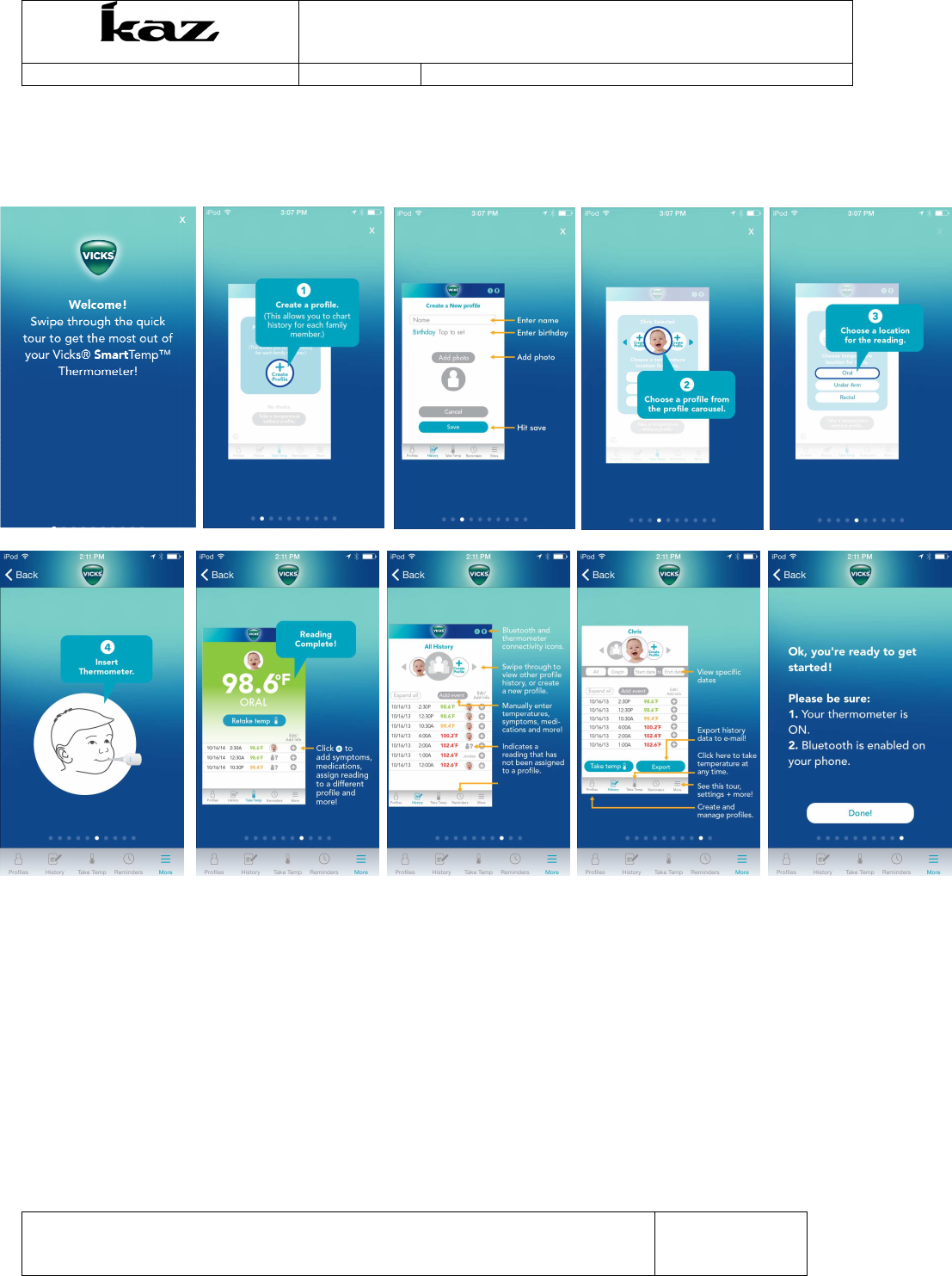
First Time App Launch: Terms, Privacy, & App Tour
The following screen sequence illustrates the first time the app is opened after being downloaded.
User is prompted to accept privacy policy, take tour and pair thermometer.
Incorporated
User Interface Specification
VDT985
Document No.: UIS-V1601
Revision 0 (last updated: 4-29-2015)
This document is the property of Kaz, Incorporated. It is lent and is to be returned upon request. The
contents of this document are confidential and constitute trade secrets proprietary to Kaz,
Incorporated. Neither this document nor its contents shall be disclosed to any unauthorized person,
copied or published without Kaz, Incorporated prior written consent.
Page
9
of
31
TEM-04030101 Rev 1 Effective Date 30-APR-2009
5.2
TOUR:
If user selects TAKE TOUR from opening sequence, below app screens appear.
Incorporated
User Interface Specification
VDT985
Document No.: UIS-V1601
Revision 0 (last updated: 4-29-2015)
This document is the property of Kaz, Incorporated. It is lent and is to be returned upon request. The
contents of this document are confidential and constitute trade secrets proprietary to Kaz,
Incorporated. Neither this document nor its contents shall be disclosed to any unauthorized person,
copied or published without Kaz, Incorporated prior written consent.
Page
10
of
31
TEM-04030101 Rev 1 Effective Date 30-APR-2009
5.3
First Time Pairing
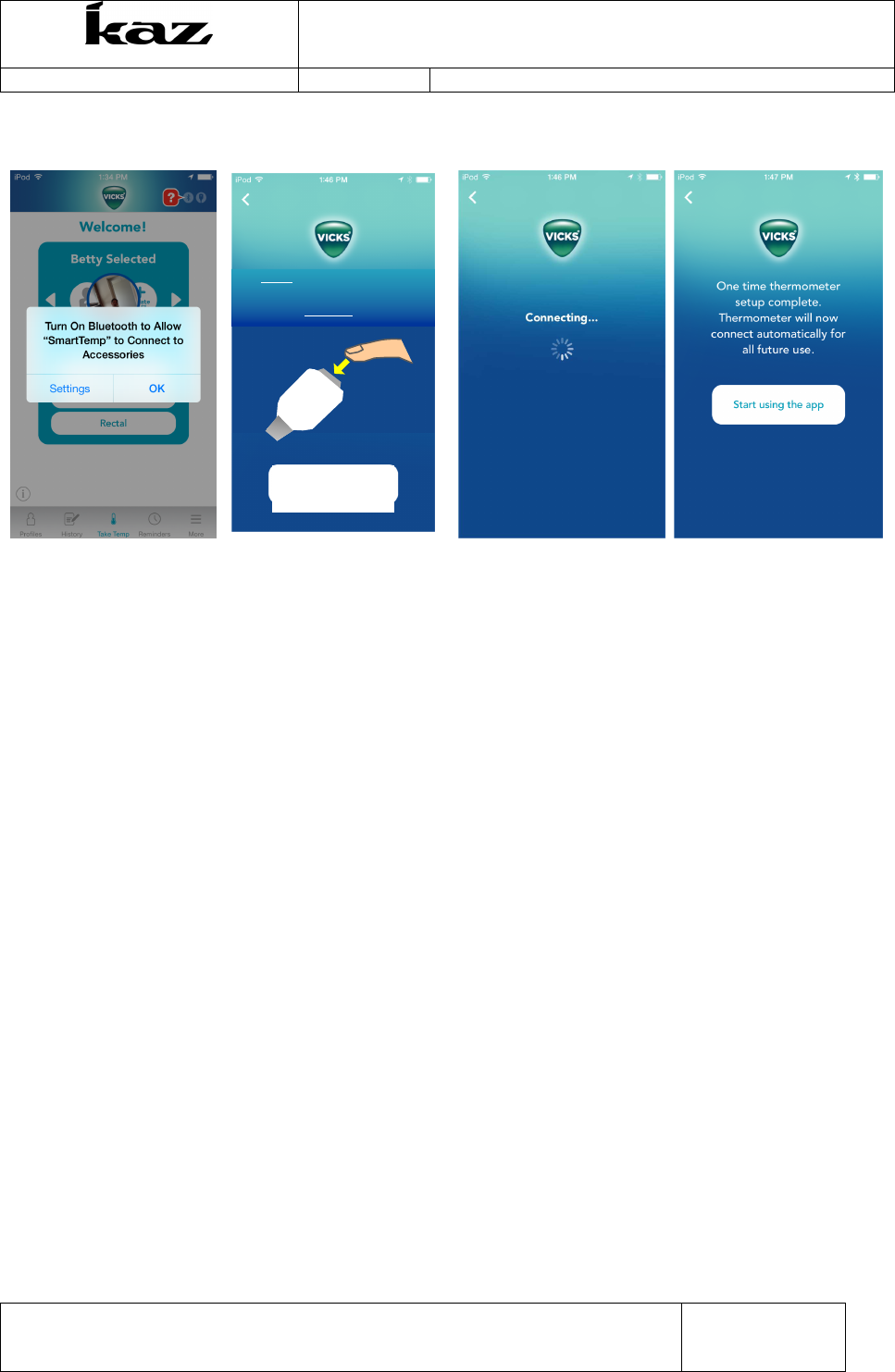
Bluetooth should be “ON” in phone, if not pop up will appear. User must go to phone settings
to turn on Bluetooth. When BT is on, the App will prompt to pair thermometer with APP by
HOLDing temp button until steady red light, then confirm red light by pressing app button
and then therm will connect to app and user can begin to take measurements.
After the first time use and thermometer has been paired, when the app is launched it will
bring you directly to the Home screen (see below) after the splash page, skipping the rest of
the first-time-use screens.
HOLD
button down until red
light on thermometer stops
flashing and becomes
STEADY.
Confirm
STEADY
red
light on
thermometer
VICKS
Incorporated
User Interface Specification
VDT985
Document No.: UIS-V1601
Revision 0 (last updated: 4-29-2015)
This document is the property of Kaz, Incorporated. It is lent and is to be returned upon request. The
contents of this document are confidential and constitute trade secrets proprietary to Kaz,
Incorporated. Neither this document nor its contents shall be disclosed to any unauthorized person,
copied or published without Kaz, Incorporated prior written consent.
Page
11
of
31
TEM-04030101 Rev 1 Effective Date 30-APR-2009
5.4
Home Screen (Take Temp)
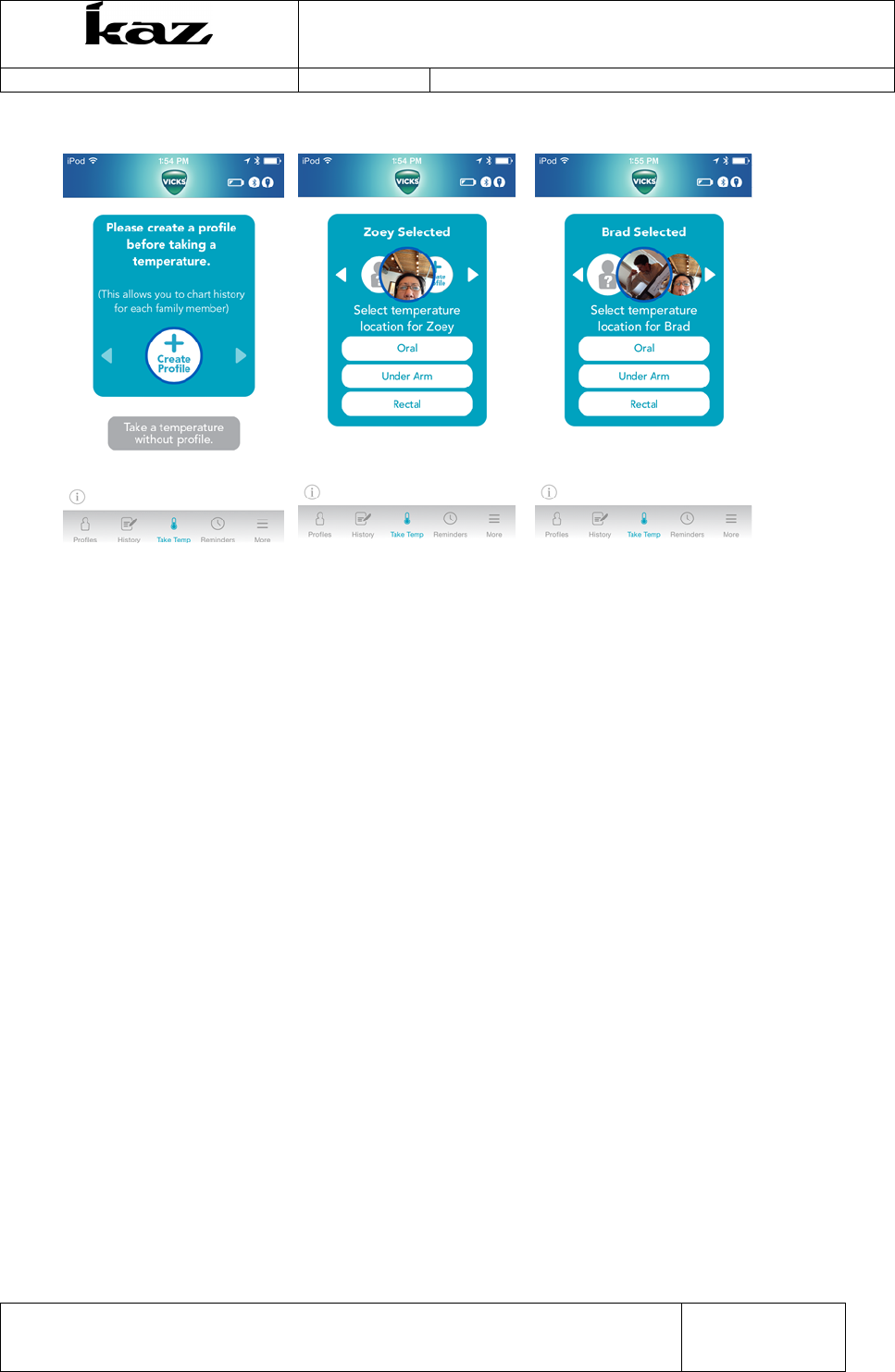
Fig 1 Fig 2 Fig 3
Upon initial launch, App will prompt user to create profile in the profile carousel. It they want
to take measurement without a profile, thet can choose to take a temperature without a
profile. The measurement will appear in ALL HISTORY screen as an unassigned reading.
1st fig- shows HOME screen upon launch, 2nd fig, HOME screenone profile created, 3rd fig-
HOME screen 2 profiles created) Icon with question mark is “no profile selected.”
When a user presses on any of the bottom bar icons (Profiles, History, Reminders, & More)
the user will be brought to that section of the app. See the relevant sections below for details.
(5.6 Profiles, 5.7 History, 5.8 Reminders, 5.9 More Menu)
The “Take Temp” icon in the bottom bar will always take users to the home page as shown
above.
The App prompts the user to create profile FIRST so that measurements can be logged
against created profiles ot patients.
5.5
Taking a Measurement
5.5.1 Enabling Bluetooth and Selecting Profile
If the APP is reopened after being closed, it will first make sure BT is enabled on the phone
and then proceed to home screen. If BT is not enabled screen below will appear. User will
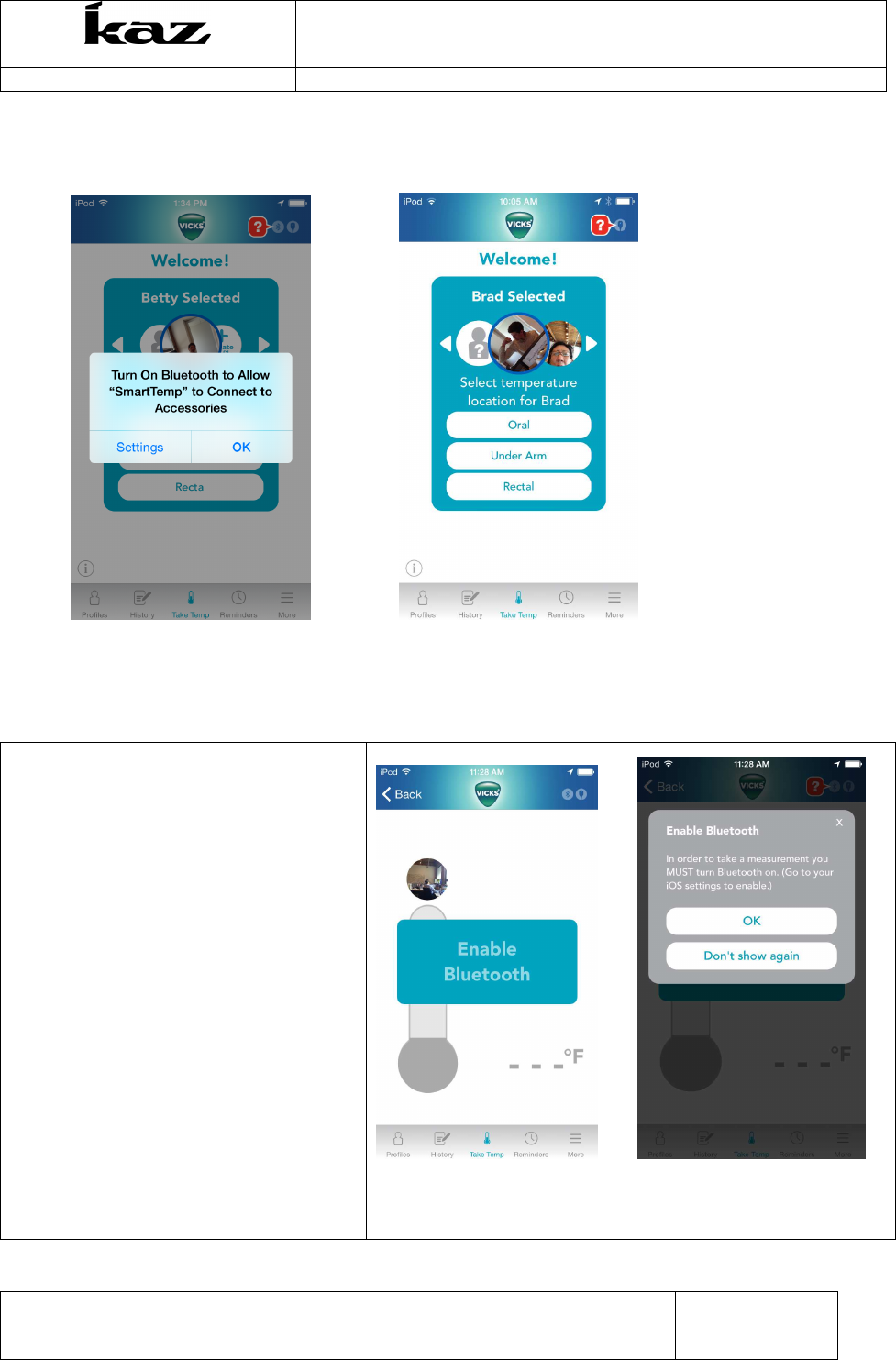
Incorporated
User Interface Specification
VDT985
Document No.: UIS-V1601
Revision 0 (last updated: 4-29-2015)
This document is the property of Kaz, Incorporated. It is lent and is to be returned upon request. The
contents of this document are confidential and constitute trade secrets proprietary to Kaz,
Incorporated. Neither this document nor its contents shall be disclosed to any unauthorized person,
copied or published without Kaz, Incorporated prior written consent.
Page
12
of
31
TEM-04030101 Rev 1 Effective Date 30-APR-2009
enable Bluetooth on PHONE settings. User selects profile by using arrows to rotate carousel.
5.5.2 Bluetooth and Thermometer status -Sequence to take Measurement
Conditions at start of measurement (in order of hierarchy)…
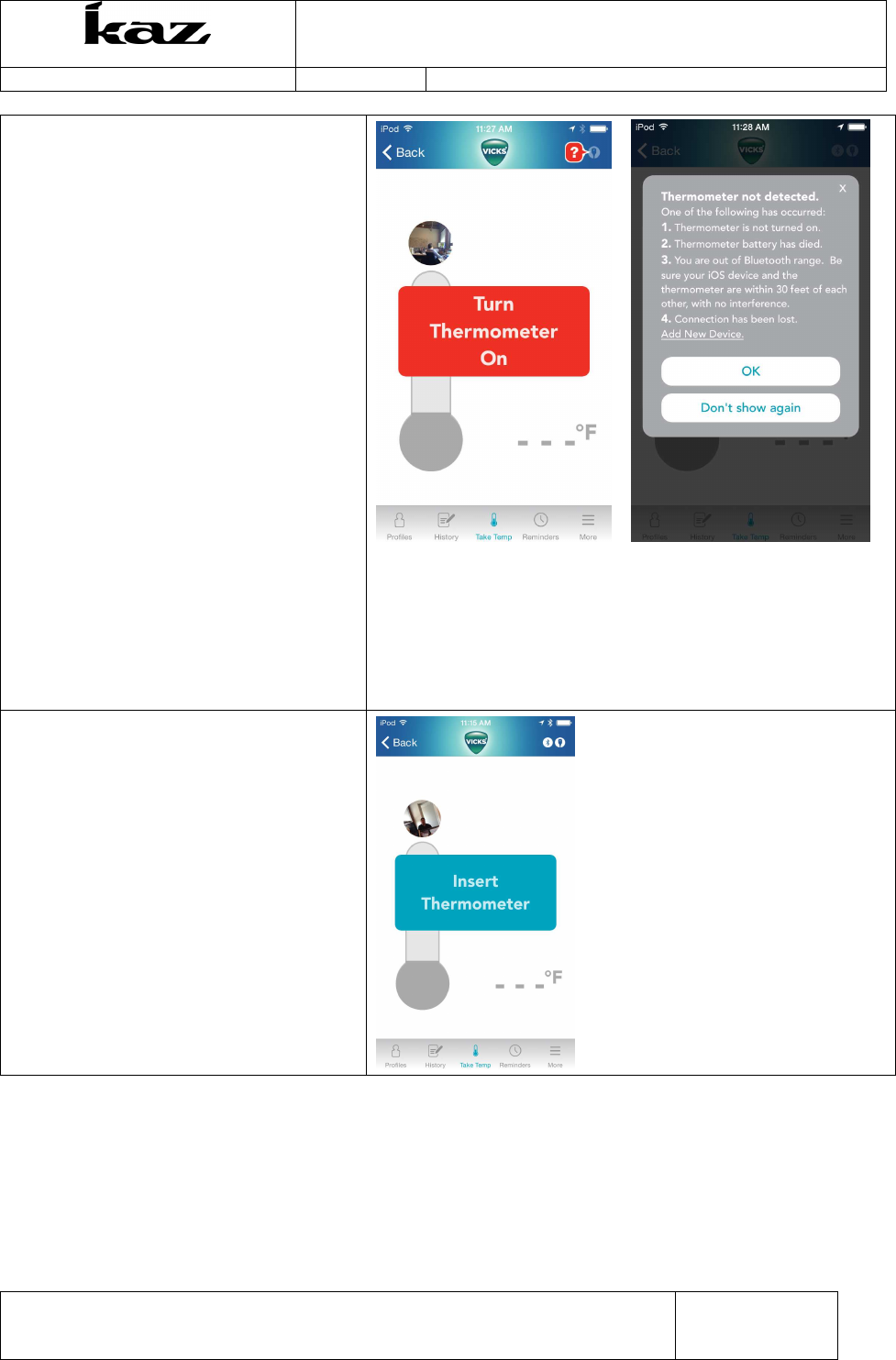
• If Bluetooth is not turned on when
trying to take a measurement the
app will provide a prompt to Enable
Bluetooth. ( if user ignores prompt
on 6.1 and presses OK, but does
not change phone setting.)
• The Bluetooth status icon in the
upper right corner will be grayed
out indicating that the phone’s
Bluetooth is not enabled.
• If the user presses the red question
bubble pop-up next to the grayed
out icon a window will pop-up
detailing the problem.
Incorporated
User Interface Specification
VDT985
Document No.: UIS-V1601
Revision 0 (last updated: 4-29-2015)
This document is the property of Kaz, Incorporated. It is lent and is to be returned upon request. The
contents of this document are confidential and constitute trade secrets proprietary to Kaz,
Incorporated. Neither this document nor its contents shall be disclosed to any unauthorized person,
copied or published without Kaz, Incorporated prior written consent.
Page
13
of
31
TEM-04030101 Rev 1 Effective Date 30-APR-2009
• If the thermometer is off or the app
does not detect the thermometer,
the app will display the “Turn
Thermometer On” prompt when
trying to take a measurement.
• The grayed out Thermometer
status icon in the upper right
corner, indicates that the
thermometer is not connected.
• If the user presses the red question
bubble pop-up next to the grayed
out icon a window will pop-up
detailing the problem.1. no power,
battery is dead, out of range, or
device has lost pairing click on Add
New Device
• If the thermometer is ON and
paired with the app, but not
inserted when the measurement
starts the app will display the
“Insert Thermometer” prompt
• (uses same animation as the Turn
on Thermometer prompt)
Incorporated
User Interface Specification
VDT985
Document No.: UIS-V1601
Revision 0 (last updated: 4-29-2015)
This document is the property of Kaz, Incorporated. It is lent and is to be returned upon request. The
contents of this document are confidential and constitute trade secrets proprietary to Kaz,
Incorporated. Neither this document nor its contents shall be disclosed to any unauthorized person,
copied or published without Kaz, Incorporated prior written consent.
Page
14
of
31
TEM-04030101 Rev 1 Effective Date 30-APR-2009
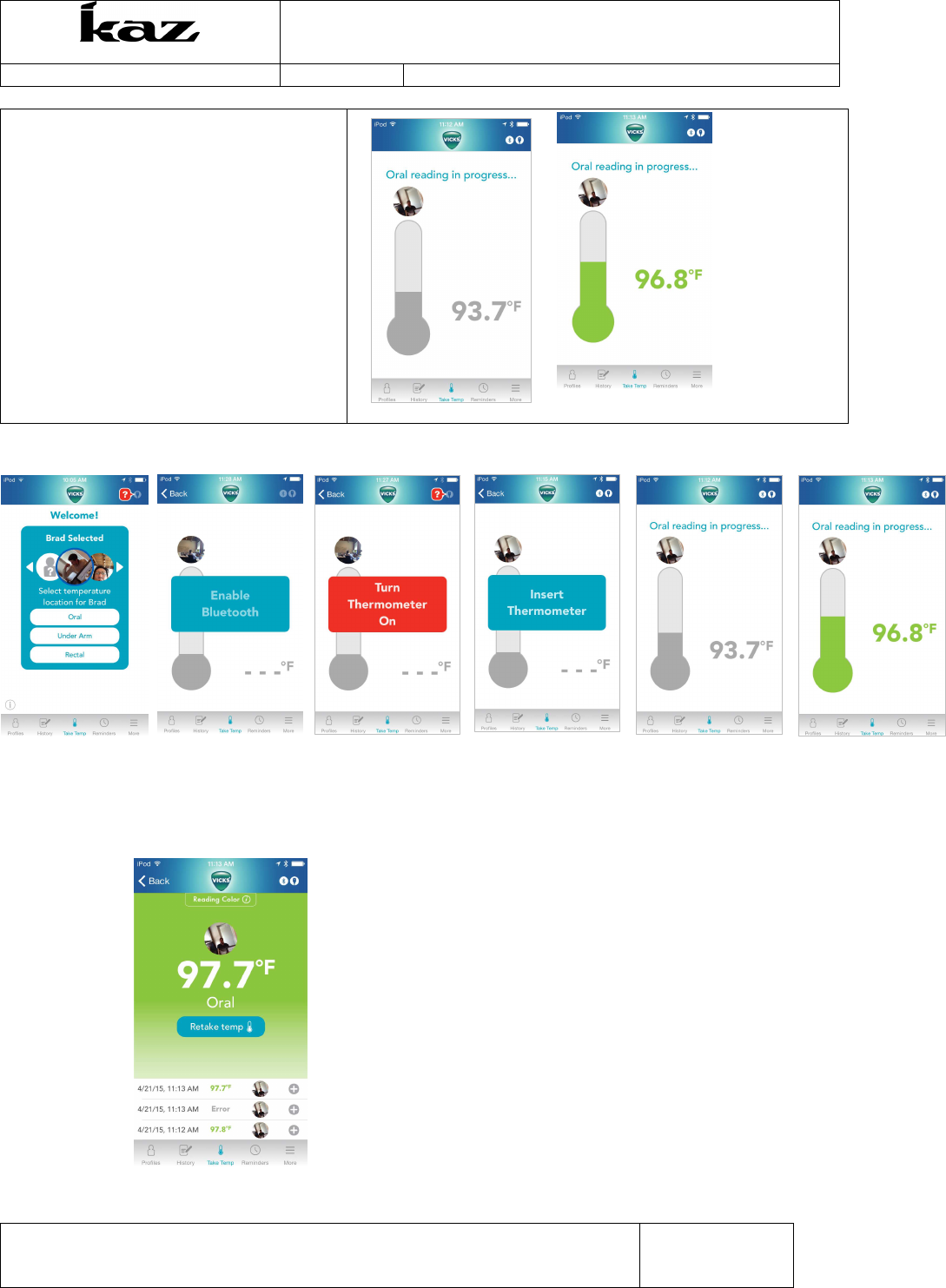
• If the thermometer is ON and
paired and inserted properly the
user will see the “Reading in
progress” screen
• This screen shows an active
animation of the real time
temperature being measured
(displays increasing highest
temperature)
Full Measurement sequence
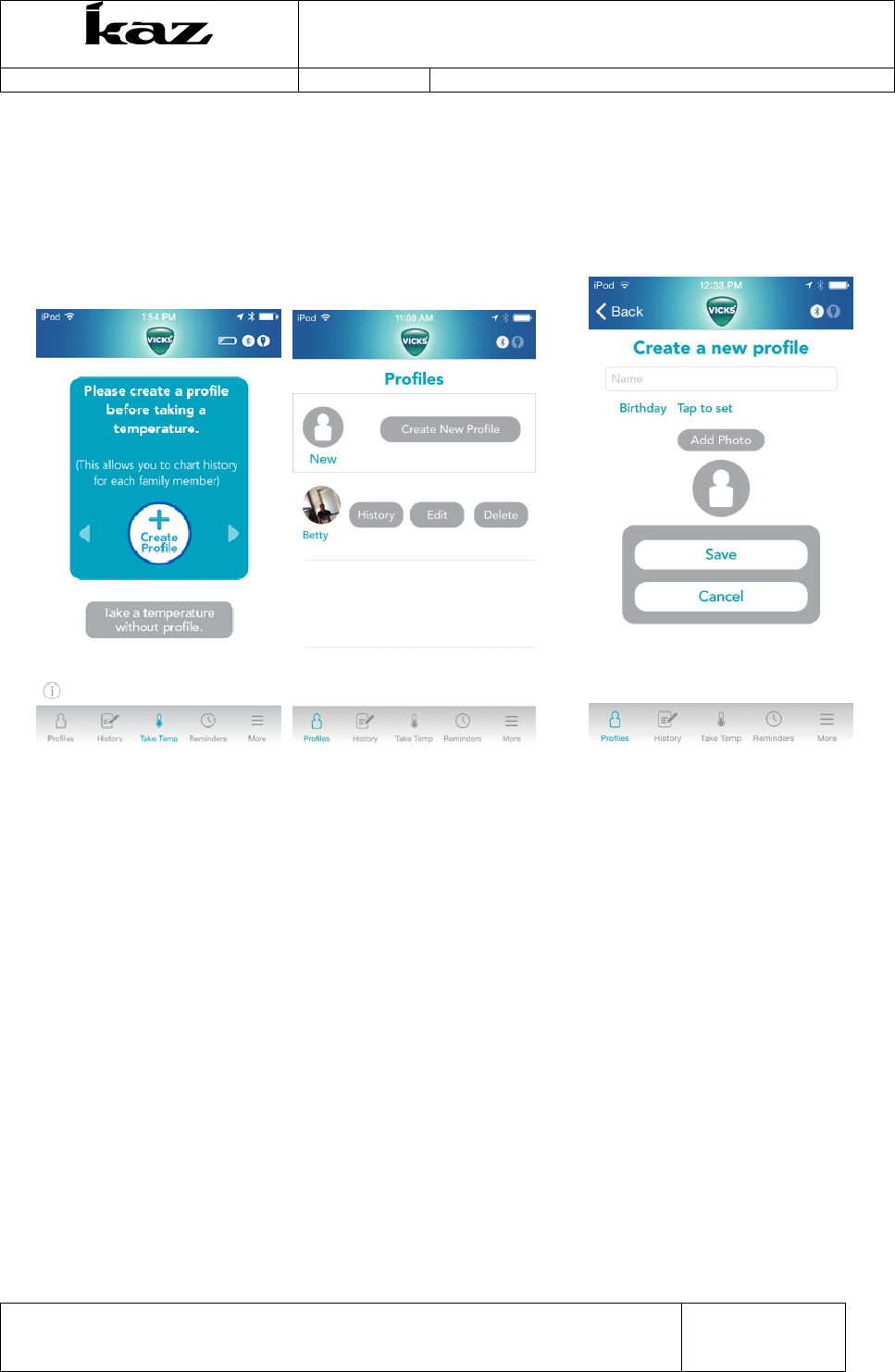
5.5.3 Measurement complete
Measurement will appear in color relating to Fever Reference Chart. Profile, location and last
3 measurements of that profile will be displayed.
Incorporated
User Interface Specification
VDT985
Document No.: UIS-V1601
Revision 0 (last updated: 4-29-2015)
This document is the property of Kaz, Incorporated. It is lent and is to be returned upon request. The
contents of this document are confidential and constitute trade secrets proprietary to Kaz,
Incorporated. Neither this document nor its contents shall be disclosed to any unauthorized person,
copied or published without Kaz, Incorporated prior written consent.
Page
15
of
31
TEM-04030101 Rev 1 Effective Date 30-APR-2009
5.6
Profiles
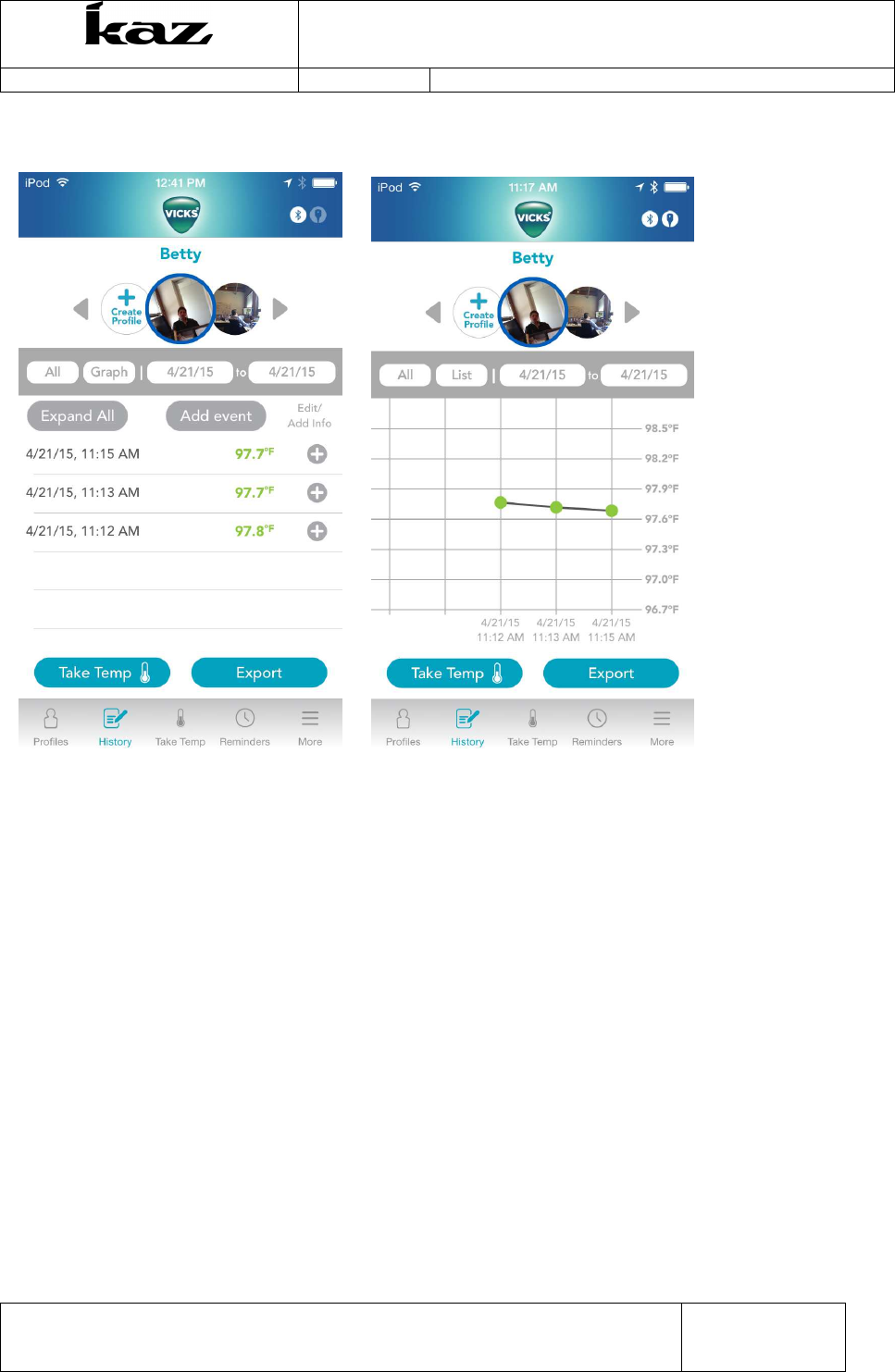
User can create Profile from the Home screen by pressing the CREATE PROFILE button on
the Carousel. They can also create profiles by pressing the profiles button on the bottom tab.
When they press “create profile” the “Create a new profile” screen appears.
Incorporated
User Interface Specification
VDT985
Document No.: UIS-V1601
Revision 0 (last updated: 4-29-2015)
This document is the property of Kaz, Incorporated. It is lent and is to be returned upon request. The
contents of this document are confidential and constitute trade secrets proprietary to Kaz,
Incorporated. Neither this document nor its contents shall be disclosed to any unauthorized person,
copied or published without Kaz, Incorporated prior written consent.
Page
16
of
31
TEM-04030101 Rev 1 Effective Date 30-APR-2009
5.7
History
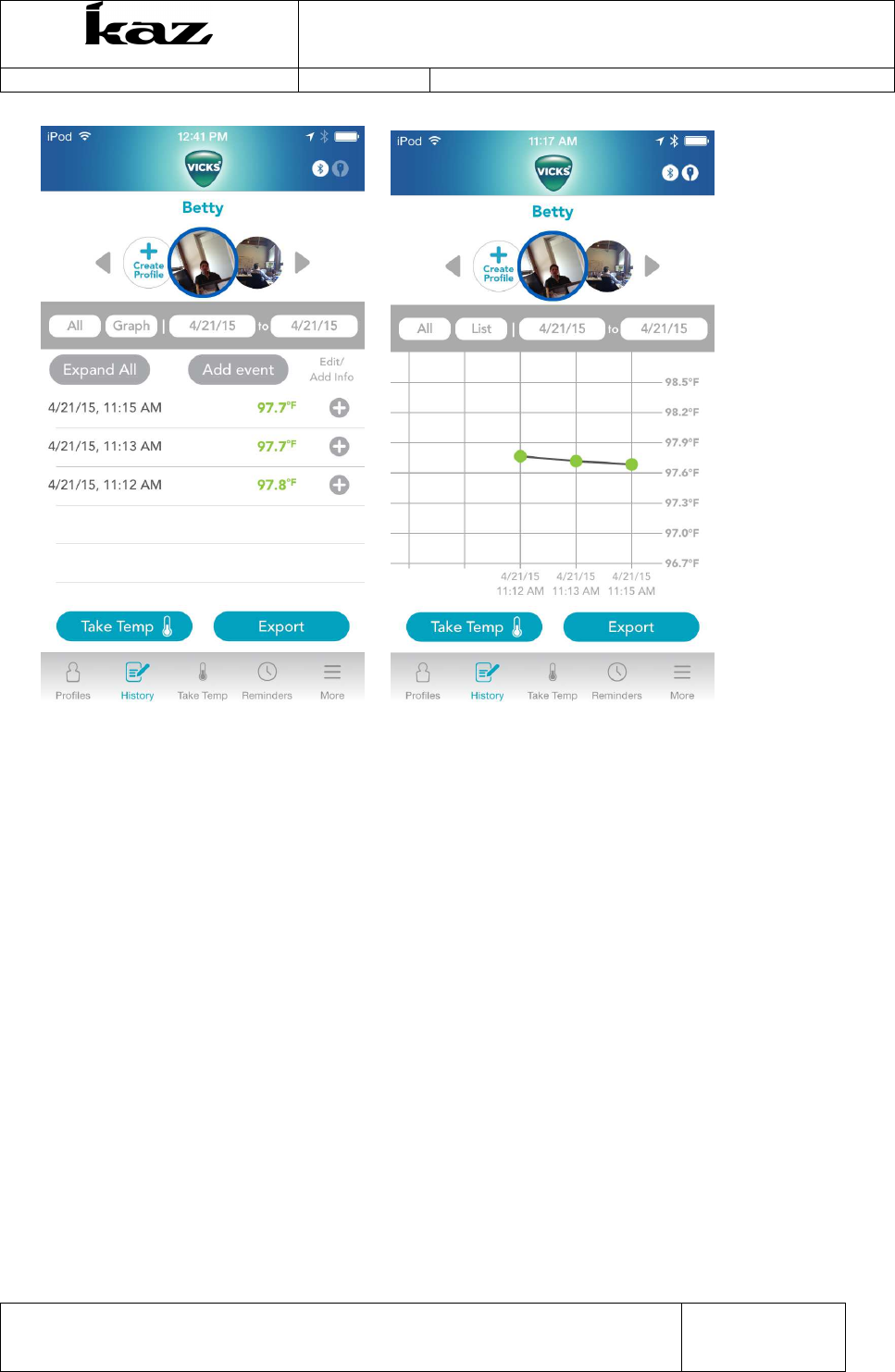
• Users can select to see ALL history or a date range of the history.
• The History will always default to display in List view (as seen above). By clicking on
“List/Graph” button, you can switch from viewing in List format or viewing in Graph format (as
seen below).
• The blue “Take temp” button goes to the “Home” screen (same as the Take Temp icon in the
bottom gray bar)
• The blue “Export” button allows user to send their data to an external source via email. (See
“Export data” section for more details)
Incorporated
User Interface Specification
VDT985
Document No.: UIS-V1601
Revision 0 (last updated: 4-29-2015)
This document is the property of Kaz, Incorporated. It is lent and is to be returned upon request. The
contents of this document are confidential and constitute trade secrets proprietary to Kaz,
Incorporated. Neither this document nor its contents shall be disclosed to any unauthorized person,
copied or published without Kaz, Incorporated prior written consent.
Page
17
of
31
TEM-04030101 Rev 1 Effective Date 30-APR-2009
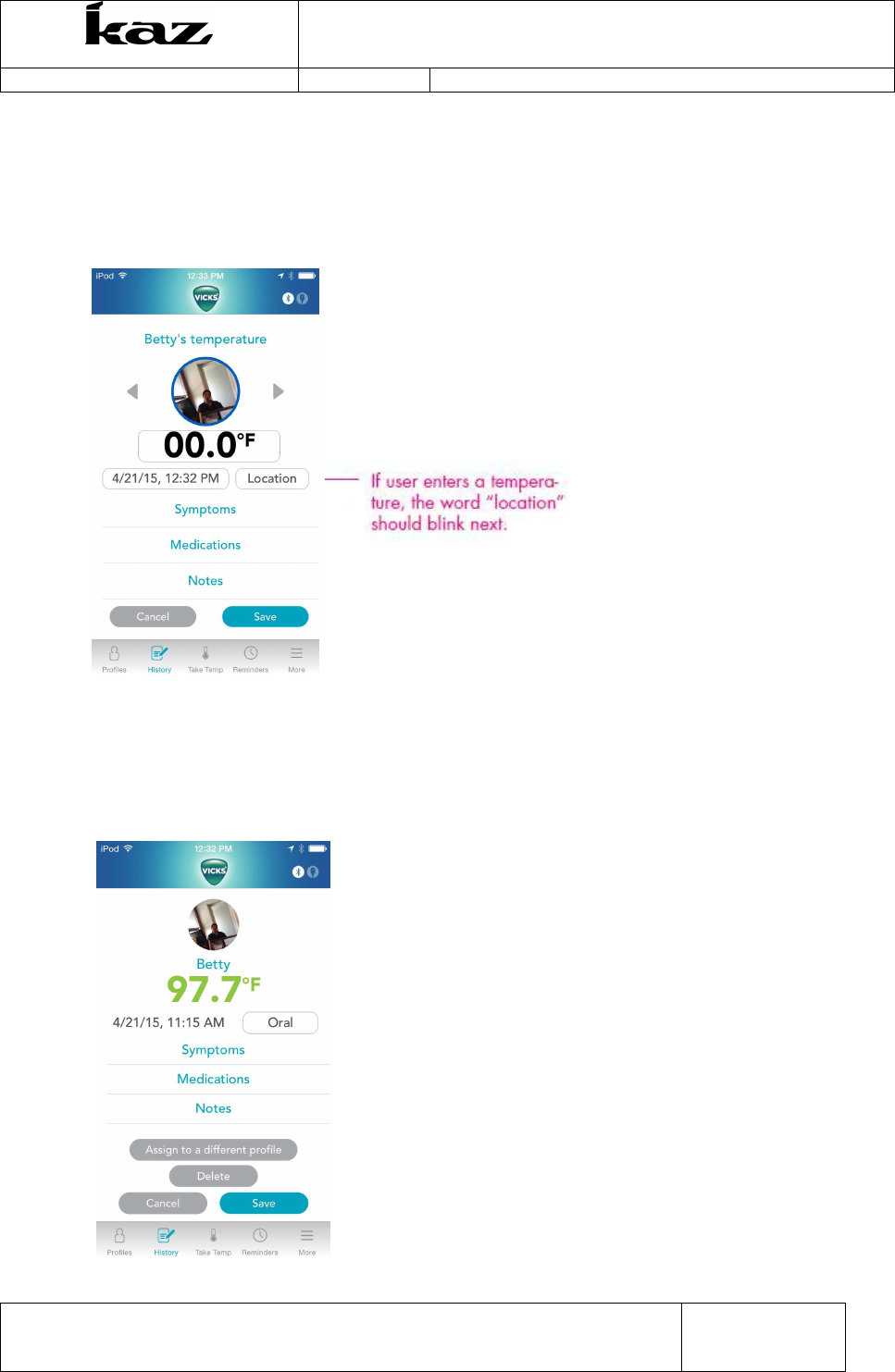
5.7.1 Add Manual Event
When user touches “Add Event” button on the History screen, they will be brought to the following
screen, where they can manually enter the appropriate information for a temperature that may
not have been taken with the VDT985. App will prompt for location if temperature is input.
5.7.2 Edit a Measurement
When user touches “Edit/Add Info” next to reading on history screen, user can add, save, delete
information or change the profile that the measurement was initially assigned to.
Incorporated
User Interface Specification
VDT985
Document No.: UIS-V1601
Revision 0 (last updated: 4-29-2015)
This document is the property of Kaz, Incorporated. It is lent and is to be returned upon request. The
contents of this document are confidential and constitute trade secrets proprietary to Kaz,
Incorporated. Neither this document nor its contents shall be disclosed to any unauthorized person,
copied or published without Kaz, Incorporated prior written consent.
Page
18
of
31
TEM-04030101 Rev 1 Effective Date 30-APR-2009
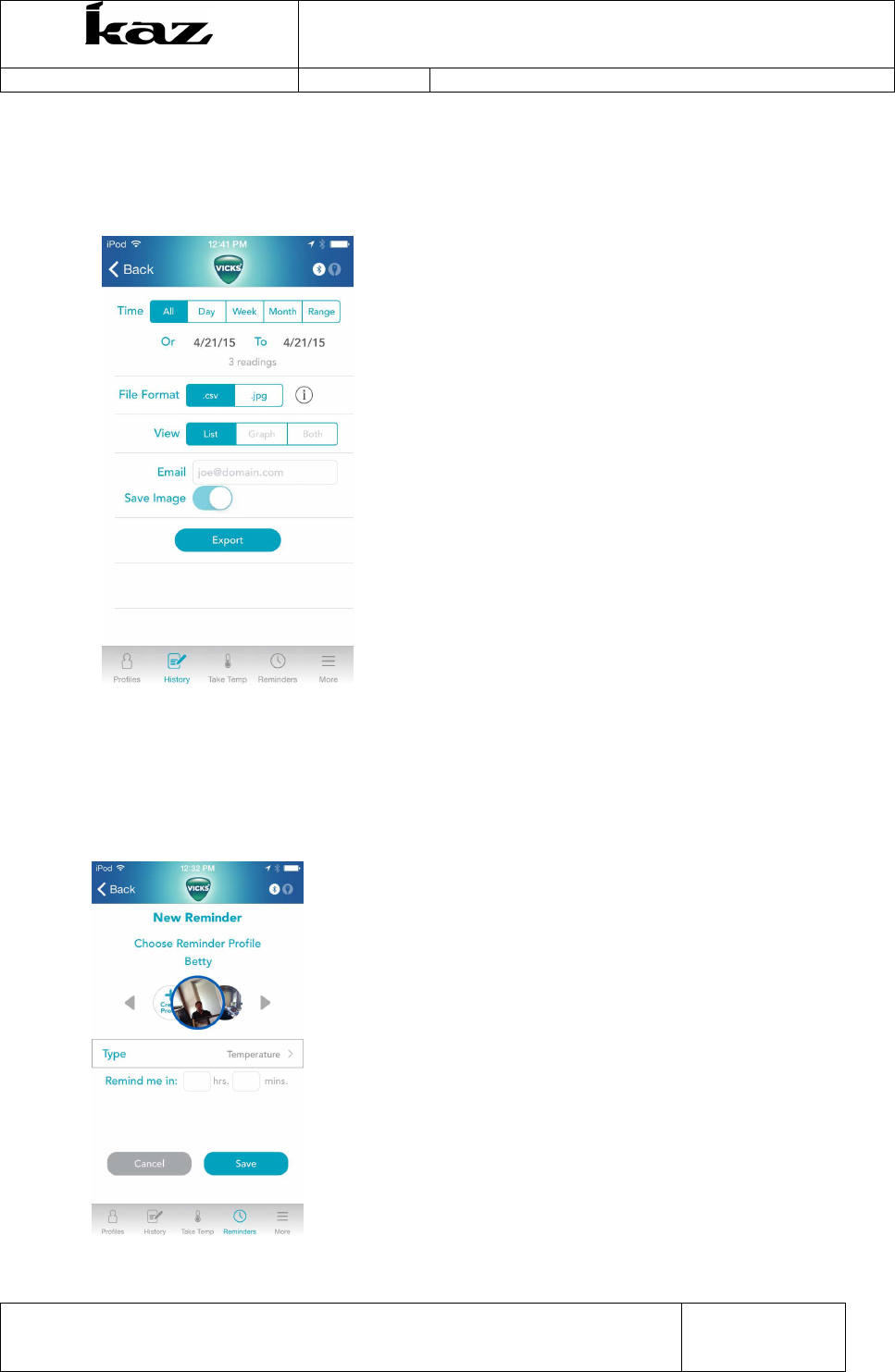
5.7.3 Exporting Data
When user touches “Export” button on the History screen, they will be brought to the following
screen, where she can select history range and export format and where to export information to.
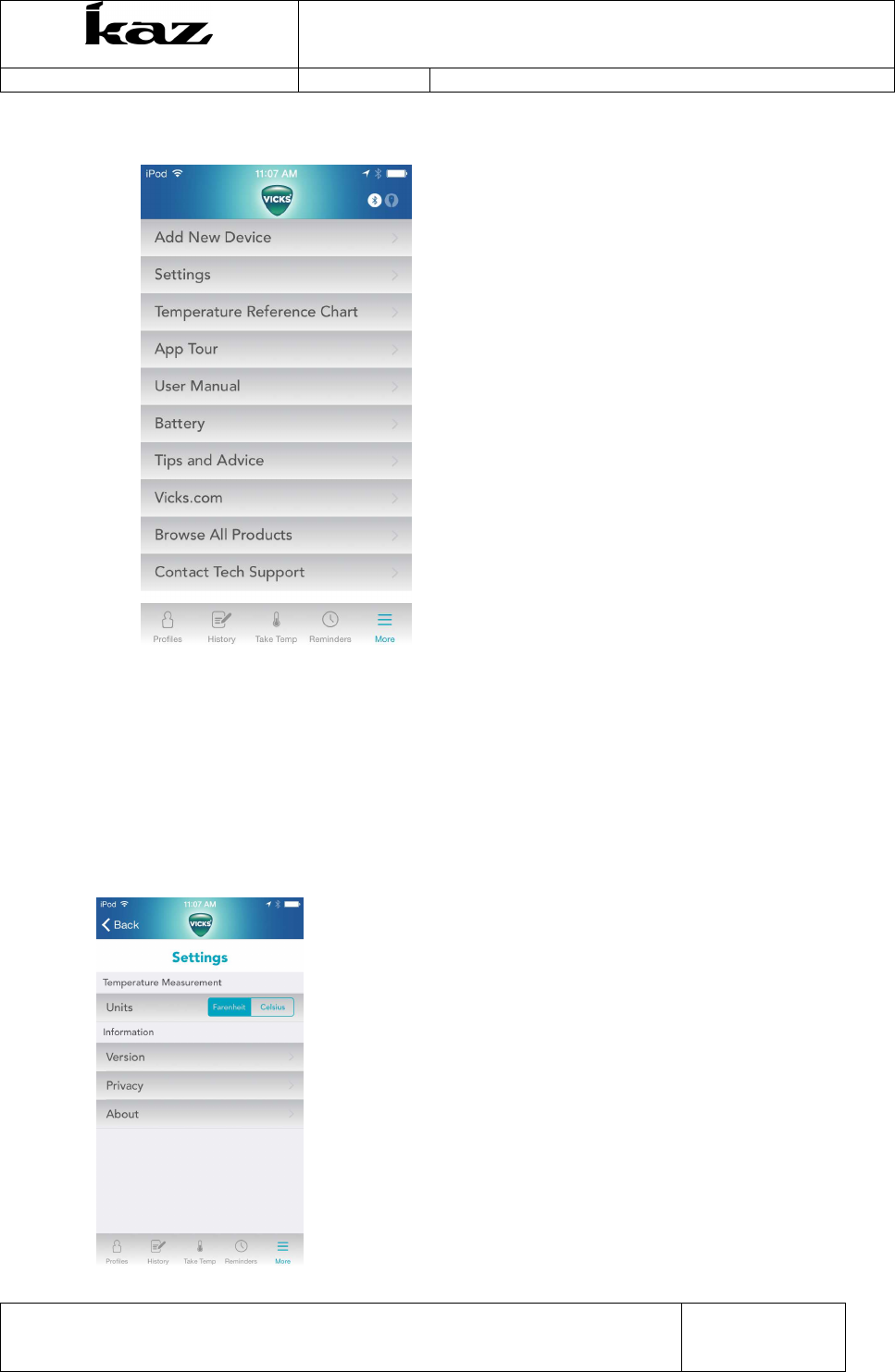
5.8
Reminders
When user touches “Reminder” tab on bottom of Home screen, they will be brought to the
Reminder screen. User can create reminders that will be “pushed” to the phone and appear a on
phone home screen.
Incorporated
User Interface Specification
VDT985
Document No.: UIS-V1601
Revision 0 (last updated: 4-29-2015)
This document is the property of Kaz, Incorporated. It is lent and is to be returned upon request. The
contents of this document are confidential and constitute trade secrets proprietary to Kaz,
Incorporated. Neither this document nor its contents shall be disclosed to any unauthorized person,
copied or published without Kaz, Incorporated prior written consent.
Page
19
of
31
TEM-04030101 Rev 1 Effective Date 30-APR-2009
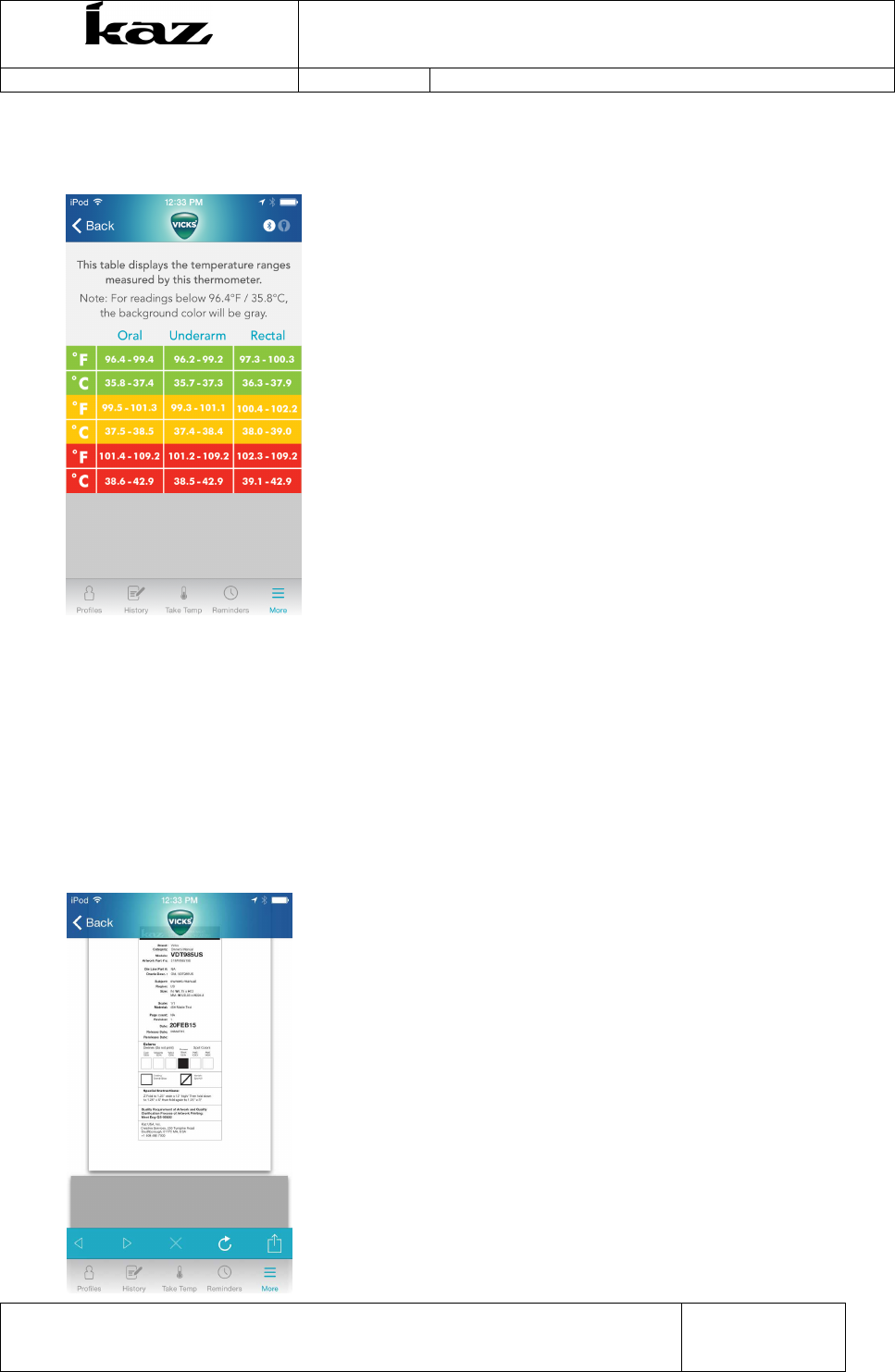
5.9
“More Menu” functions
5.9.1 Add new device
Will enable user to pair or repair thermometers to the app. Will revert to First Time Pairing
sequence. See section 5.3.
5.9.2 Settings (switch C/F)
Allows you to switch the displayed temperatures between Celsius and Fahrenheit
Incorporated
User Interface Specification
VDT985
Document No.: UIS-V1601
Revision 0 (last updated: 4-29-2015)
This document is the property of Kaz, Incorporated. It is lent and is to be returned upon request. The
contents of this document are confidential and constitute trade secrets proprietary to Kaz,
Incorporated. Neither this document nor its contents shall be disclosed to any unauthorized person,
copied or published without Kaz, Incorporated prior written consent.
Page
20
of
31
TEM-04030101 Rev 1 Effective Date 30-APR-2009
5.9.3 Temperature Reference Chart
Will show below fever reference chart:
5.9.4 App Tour
Will launch tour. Go to section 5.2
5.9.5 User Manual
This tab will take you to the online Owner’s Manual. The content below will appear in this version
of the Owner’s Manual.

Incorporated
User Interface Specification
VDT985
Document No.: UIS-V1601
Revision 0 (last updated: 4-29-2015)
This document is the property of Kaz, Incorporated. It is lent and is to be returned upon request. The
contents of this document are confidential and constitute trade secrets proprietary to Kaz,
Incorporated. Neither this document nor its contents shall be disclosed to any unauthorized person,
copied or published without Kaz, Incorporated prior written consent.
Page
21
of
31
TEM-04030101 Rev 1 Effective Date 30-APR-2009
5.9.5.1 FCC Identification Number
FCC ID: 2ABRGVDT985
This device complies with Part 15 of the FCC Rules. Operation is subject to the following two
conditions: (1) this device may not cause harmful interference, and (2) this device must accept
any interference received, including interference that may cause undesired operation.
5.9.5.2 FCC Warning
Changes or modifications to this unit not expressly approved by the party responsible for compliance could
void the user’s authority to operate the equipment.
5.9.5.3 FCC Statement
NOTE: This equipment has been tested and found to comply with the limits for a Class B digital
device, pursuant to Part 15 of the FCC Rules. These limits are designed to provide reasonable
protection against harmful interference in a residential installation. This equipment generates, uses
and can radiate radio frequency energy and, if not installed and used in accordance with the
instructions, may cause harmful interference to radio communications.
However, there is no guarantee that interference will not occur in a particular installation. If this
equipment does cause harmful interference to radio or television reception, which can be
determined by turning the equipment off and on, the user is encouraged to try to correct the
interference by one or more of the following measures:
Reorient or relocate the receiving antenna.
Increase the separation between the equipment and receiver.
Connect the equipment into an outlet on a circuit different from that to which the receiver is
connected.
Consult the dealer or an experienced radio/TV technician for help.
Incorporated
User Interface Specification
VDT985
Document No.: UIS-V1601
Revision 0 (last updated: 4-29-2015)
This document is the property of Kaz, Incorporated. It is lent and is to be returned upon request. The
contents of this document are confidential and constitute trade secrets proprietary to Kaz,
Incorporated. Neither this document nor its contents shall be disclosed to any unauthorized person,
copied or published without Kaz, Incorporated prior written consent.
Page
22
of
31
TEM-04030101 Rev 1 Effective Date 30-APR-2009
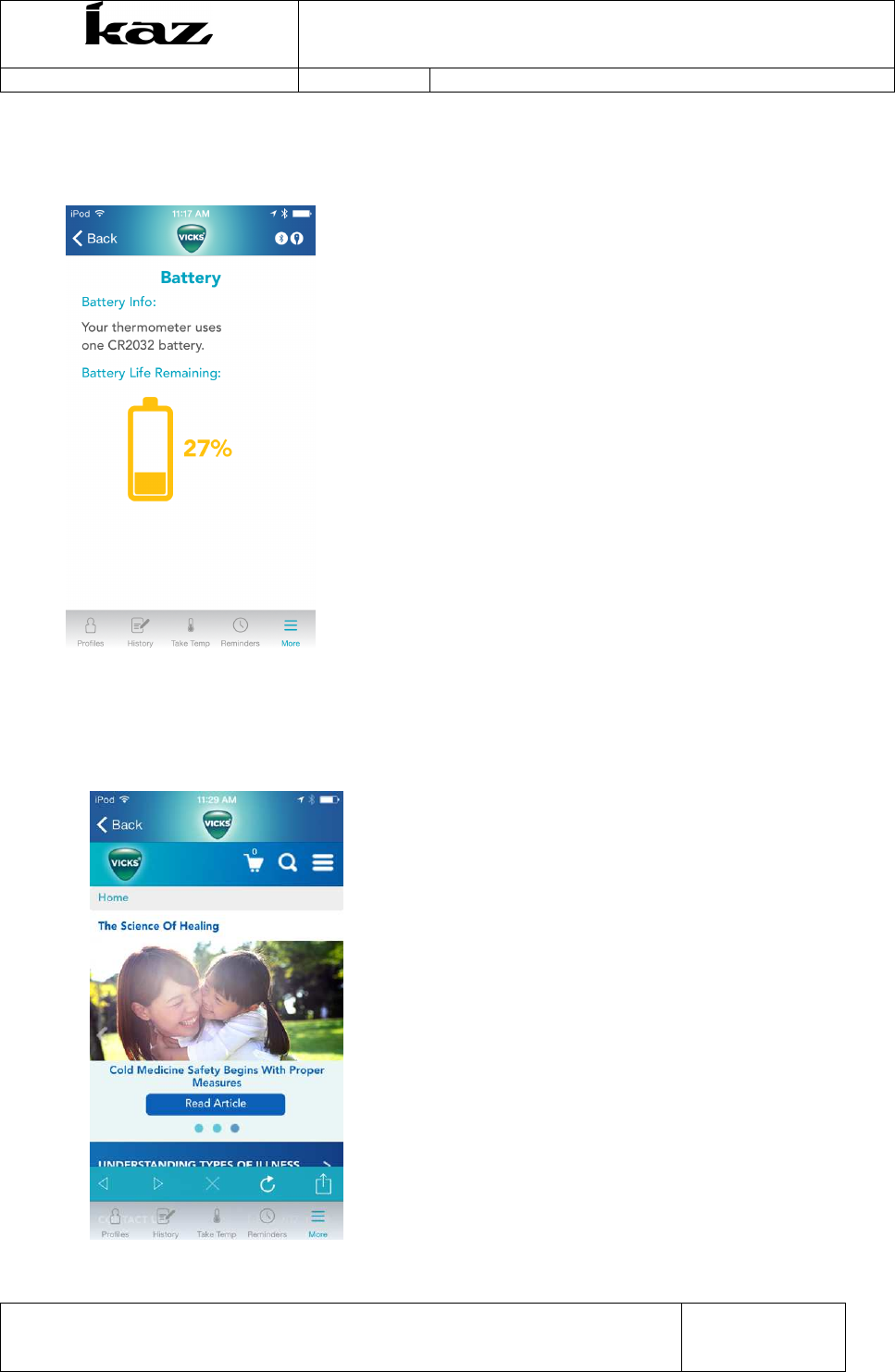
5.9.6 Battery
Will enable user to pair or repair thermometers to the app.
5.9.7 Tips and Advice
Will take user to this webpage:
Incorporated
User Interface Specification
VDT985
Document No.: UIS-V1601
Revision 0 (last updated: 4-29-2015)
This document is the property of Kaz, Incorporated. It is lent and is to be returned upon request. The
contents of this document are confidential and constitute trade secrets proprietary to Kaz,
Incorporated. Neither this document nor its contents shall be disclosed to any unauthorized person,
copied or published without Kaz, Incorporated prior written consent.
Page
23
of
31
TEM-04030101 Rev 1 Effective Date 30-APR-2009
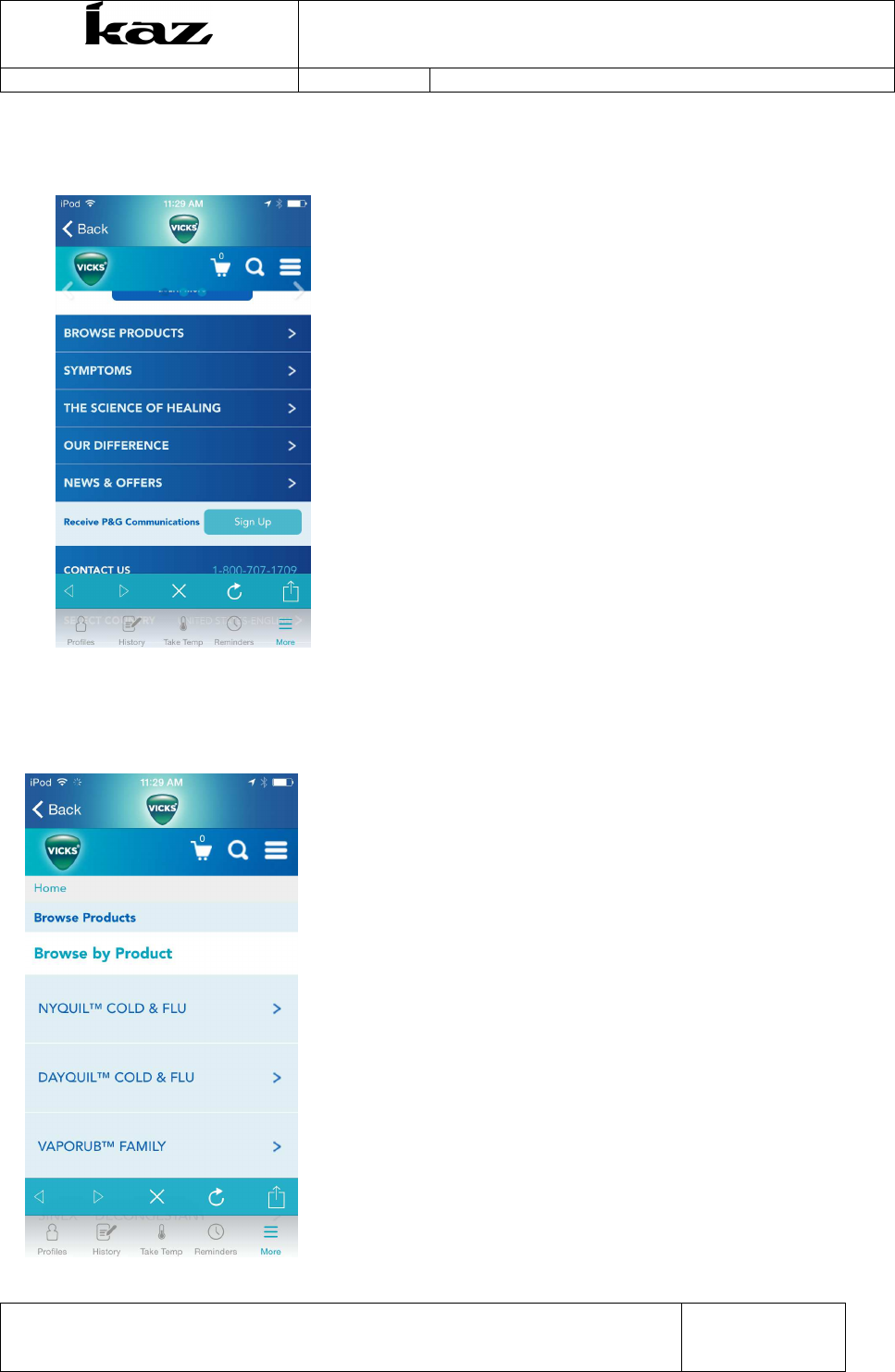
5.9.8 Vicks. Com
Will take user to this webpage:
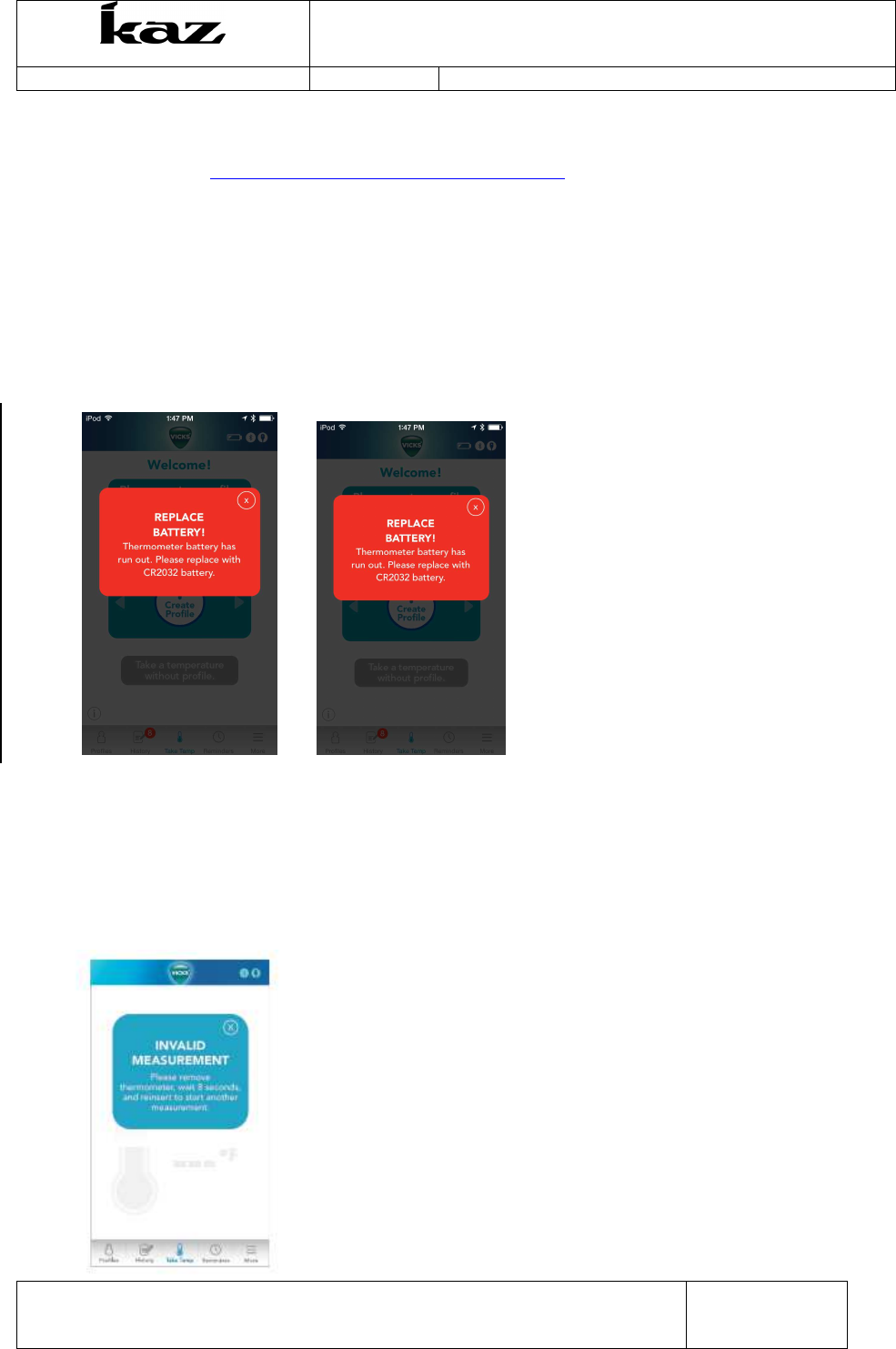
5.9.9 Browse All Products
Will take user to this webpage:
Incorporated
User Interface Specification
VDT985
Document No.: UIS-V1601
Revision 0 (last updated: 4-29-2015)
This document is the property of Kaz, Incorporated. It is lent and is to be returned upon request. The
contents of this document are confidential and constitute trade secrets proprietary to Kaz,
Incorporated. Neither this document nor its contents shall be disclosed to any unauthorized person,
copied or published without Kaz, Incorporated prior written consent.
Page
24
of
31
TEM-04030101 Rev 1 Effective Date 30-APR-2009
5.9.10 Contact Tech Support
Will direct users to http://www.vickshumidifiers.com/support
5.10
LOW BATTERY INDICATOR
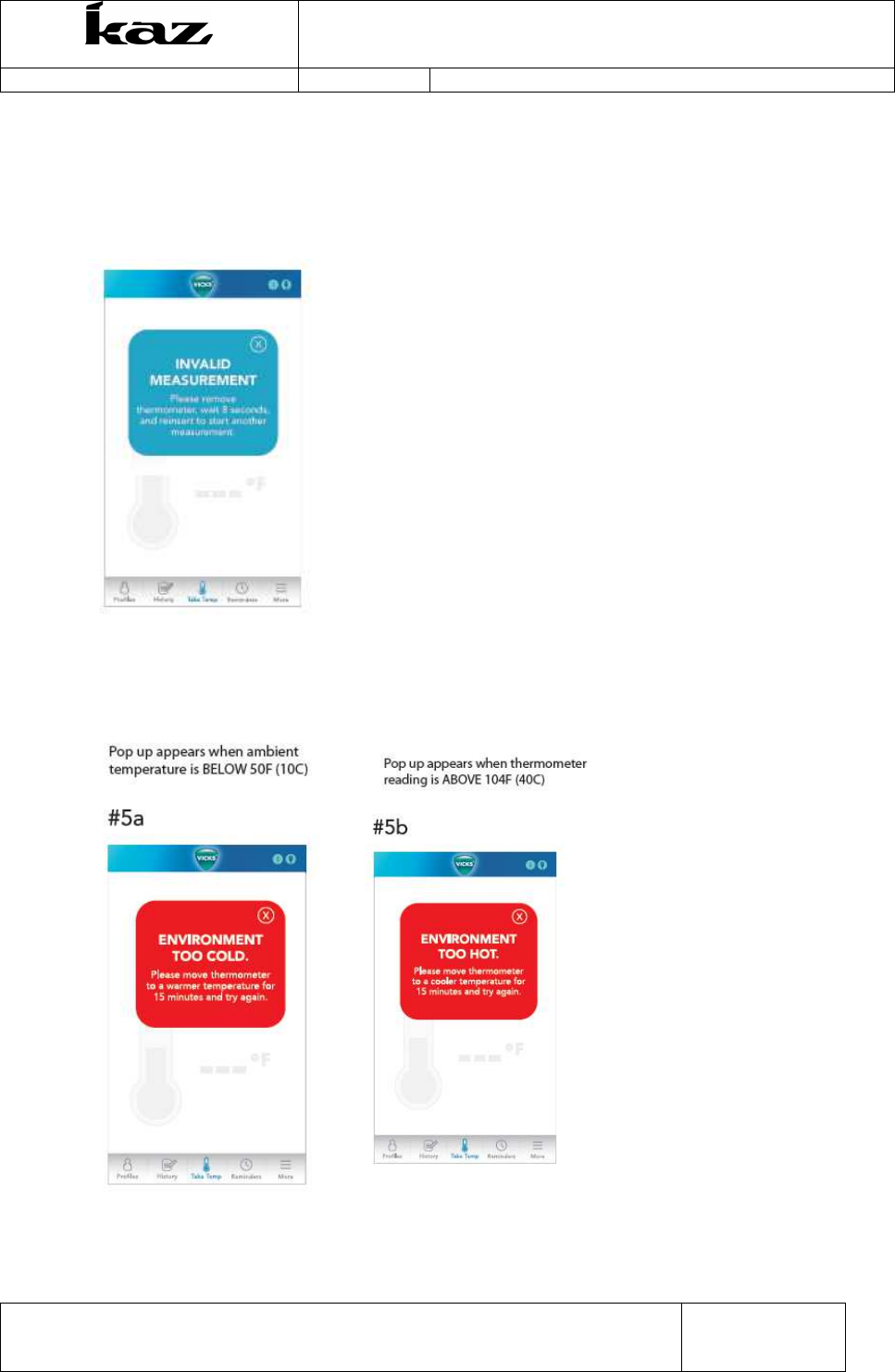
When battery has 10% life left, App screen will display: “WARNING! Thermometer has
20% battery life remaining. Please replace with CR2032 battery.”
When battery has less than 2.2.V, App screen will display: “REPLACE BATTERY!
Thermometer battery has run out. Please replace with CR2032 battery.”
5.11
ERROR MESSAGES
When measured temperature is higher than 42.9°C or 109.22, the App will display
“INVALID MEASUREMENT Please remove thermometer for 8 seconds and reinsert to
start another measurement.”
Incorporated
User Interface Specification
VDT985
Document No.: UIS-V1601
Revision 0 (last updated: 4-29-2015)
This document is the property of Kaz, Incorporated. It is lent and is to be returned upon request. The
contents of this document are confidential and constitute trade secrets proprietary to Kaz,
Incorporated. Neither this document nor its contents shall be disclosed to any unauthorized person,
copied or published without Kaz, Incorporated prior written consent.
Page
25
of
31
TEM-04030101 Rev 1 Effective Date 30-APR-2009
5.11.1 Low temperature display
When measured temperature is below 89.6F or 32C App will display:
“INVALID MEASUREMENT Please remove thermometer for 8 seconds and reinsert to
start another measurement.”
5.11.2 Ambient Error
When ambient temperature is BELOW 50F or 10C, the App will display: “ENVIRONMENT
TOO COLD. Please move to a warmer temperature for 15 minutes and try again.”
When ambient temperature is ABOVE 104F or 40C, the App will display: “ENVIRONMENT
TOO HOT. Please move to a warmer temperature for 15 minutes and try again.”
Incorporated
User Interface Specification
VDT985
Document No.: UIS-V1601
Revision 0 (last updated: 4-29-2015)
This document is the property of Kaz, Incorporated. It is lent and is to be returned upon request. The
contents of this document are confidential and constitute trade secrets proprietary to Kaz,
Incorporated. Neither this document nor its contents shall be disclosed to any unauthorized person,
copied or published without Kaz, Incorporated prior written consent.
Page
26
of
31
TEM-04030101 Rev 1 Effective Date 30-APR-2009
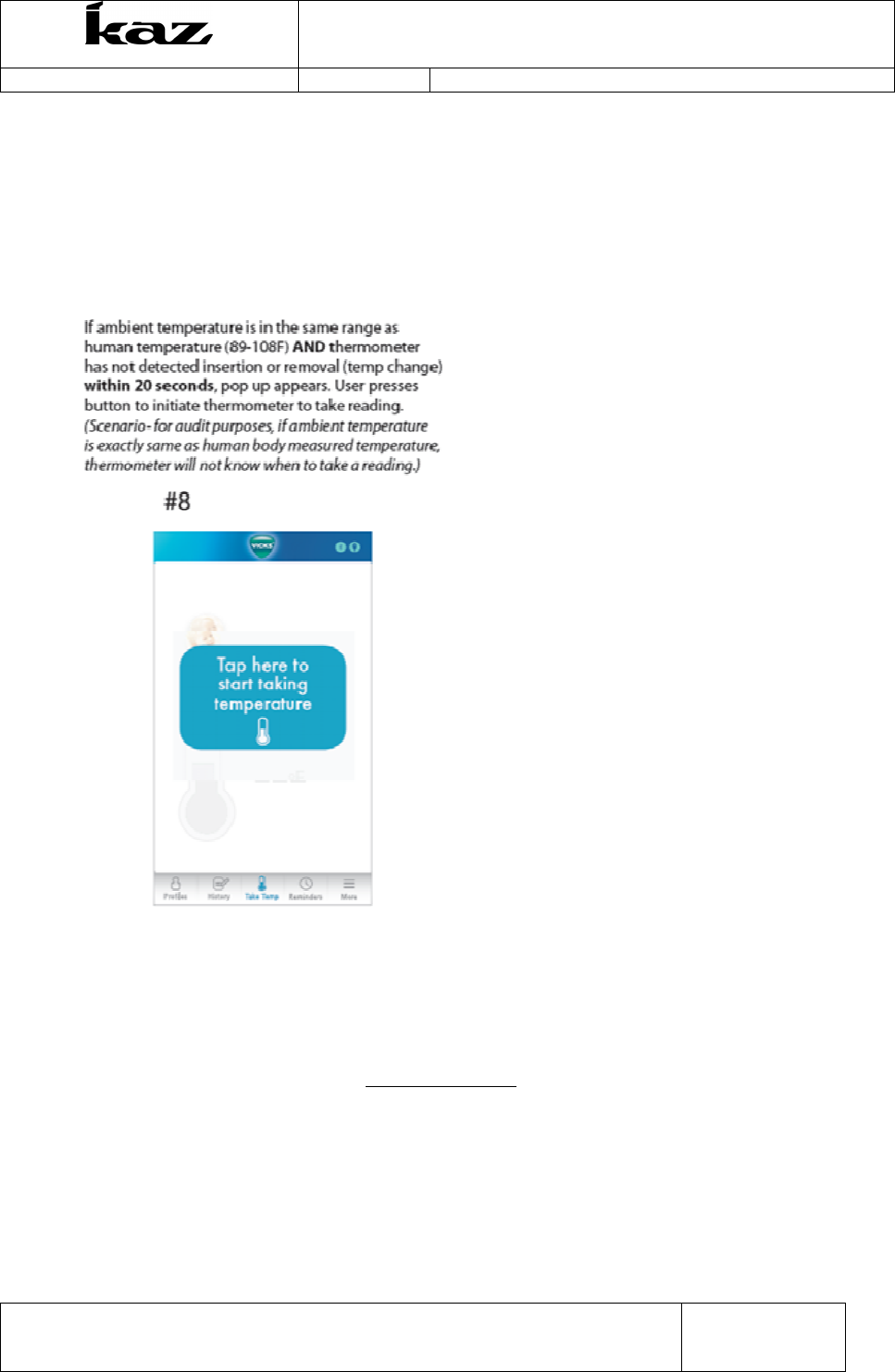
If ambient temperature is in the same range as human temperature (89-108F) AND
thermometer has not detected insertion or removal (temp change) within 20 seconds, App
will display button screen below. User presses button to initiate thermometer to take
reading. (Scenario- if ambient temperature is exactly same as human body measured
temperature, thermometer will not know when to take a reading.))
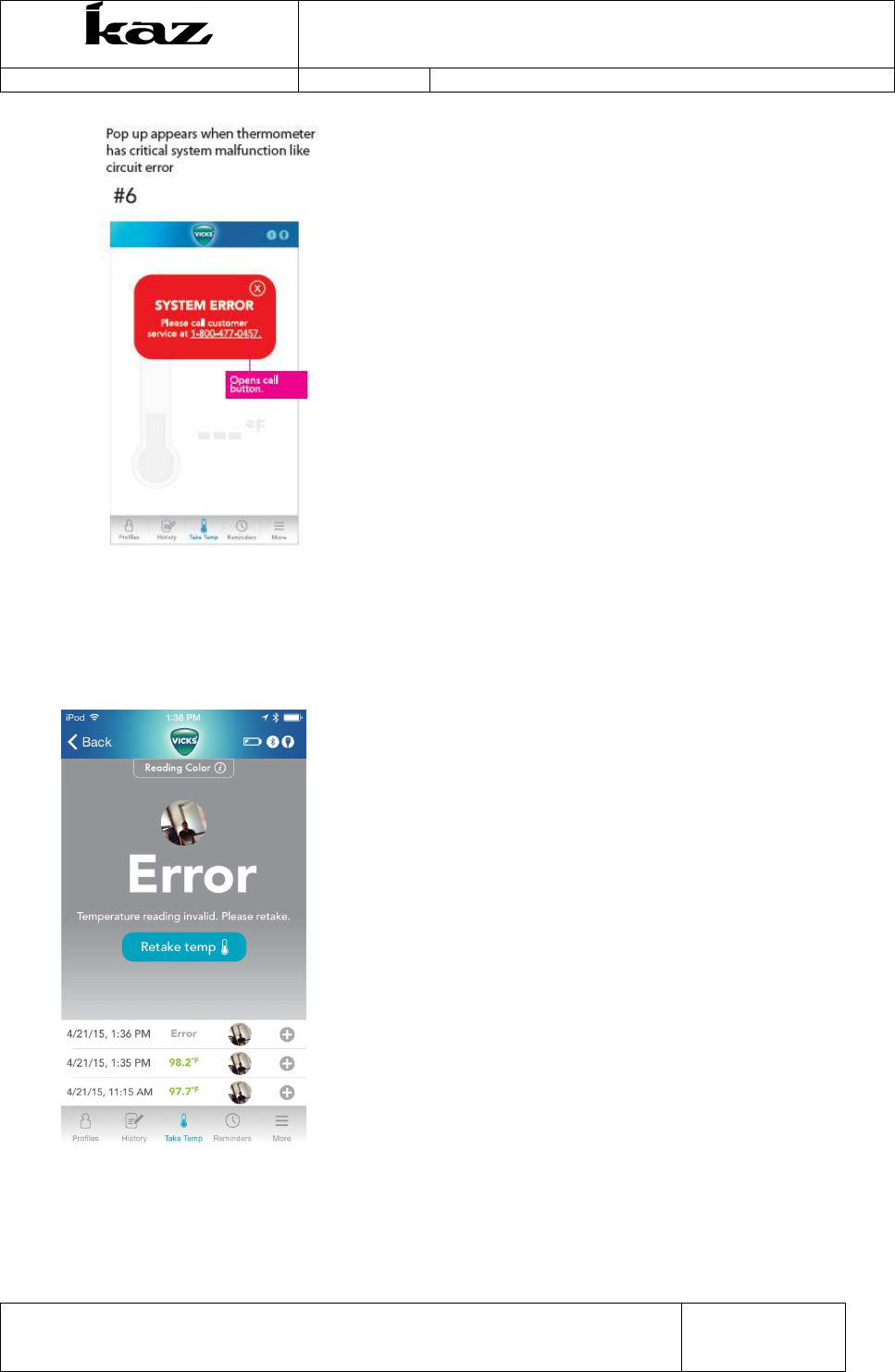
5.11.3 System Error
When a system error occurs such as a short or broken circuit, the app displays
“Please call customer service at 1-800-477-0457” (Clickable- to dial out.)
Incorporated
User Interface Specification
VDT985
Document No.: UIS-V1601
Revision 0 (last updated: 4-29-2015)
This document is the property of Kaz, Incorporated. It is lent and is to be returned upon request. The
contents of this document are confidential and constitute trade secrets proprietary to Kaz,
Incorporated. Neither this document nor its contents shall be disclosed to any unauthorized person,
copied or published without Kaz, Incorporated prior written consent.
Page
27
of
31
TEM-04030101 Rev 1 Effective Date 30-APR-2009
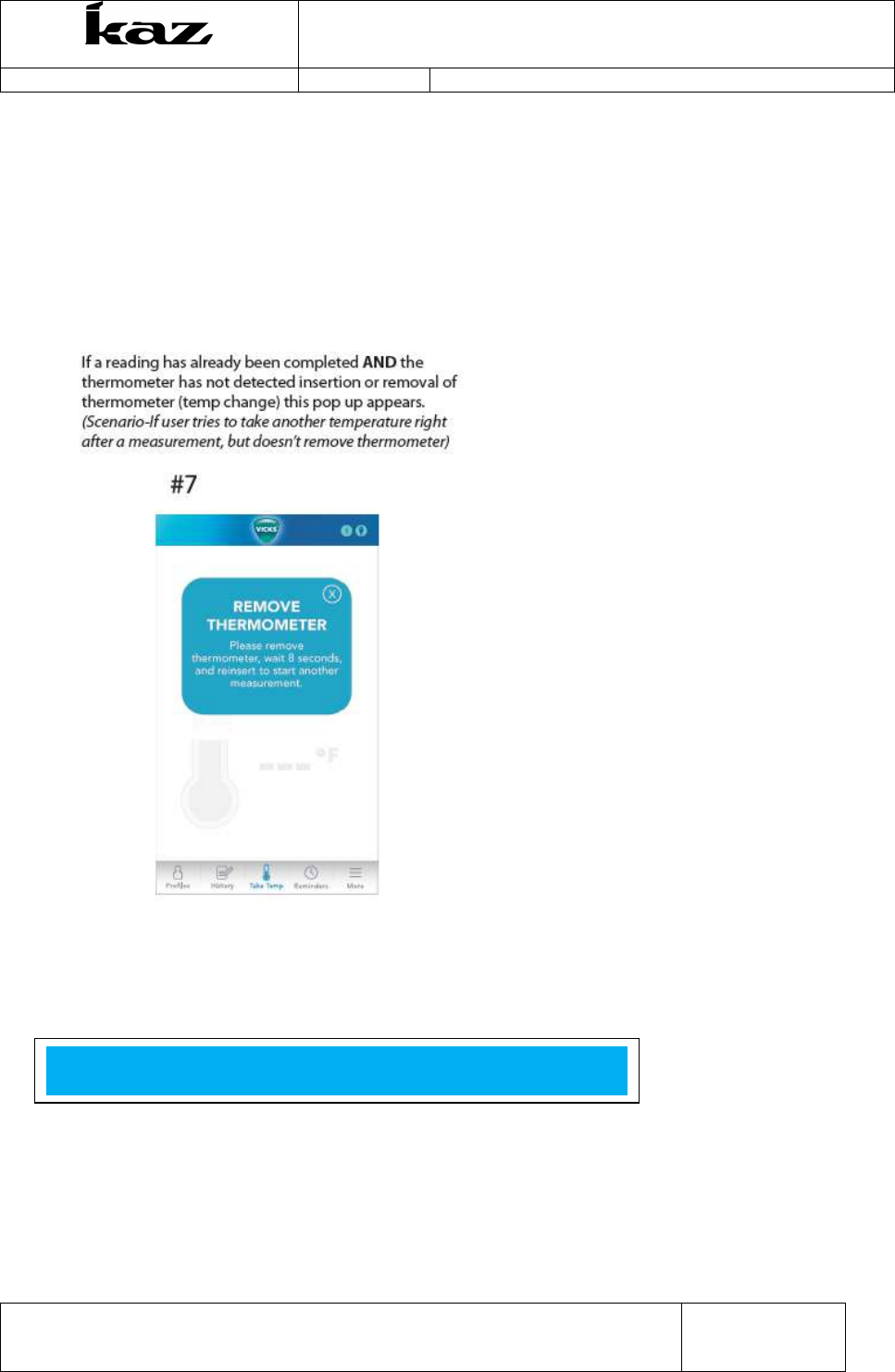
5.11.4 Premature Removal of Thermometer
If user removes thermometer before measurement is complete, App will display…”Error.
Please reinsert thermometer and wait for confirmation beep.”
Incorporated
User Interface Specification
VDT985
Document No.: UIS-V1601
Revision 0 (last updated: 4-29-2015)
This document is the property of Kaz, Incorporated. It is lent and is to be returned upon request. The
contents of this document are confidential and constitute trade secrets proprietary to Kaz,
Incorporated. Neither this document nor its contents shall be disclosed to any unauthorized person,
copied or published without Kaz, Incorporated prior written consent.
Page
28
of
31
TEM-04030101 Rev 1 Effective Date 30-APR-2009
5.11.5 Remove Thermometer Error
If a reading has already been completed AND the thermometer has not detected insertion or
removal of thermometer (temp change), the App displays: “REMOVE THERMOMETER
Please remove thermometer for 8 seconds and reinsert to start another measurement.”
(Scenario-If user tries to take another temperature right after a measurement, but doesn’t
remove thermometer
5.12
Enter Water bath/Calibration mode
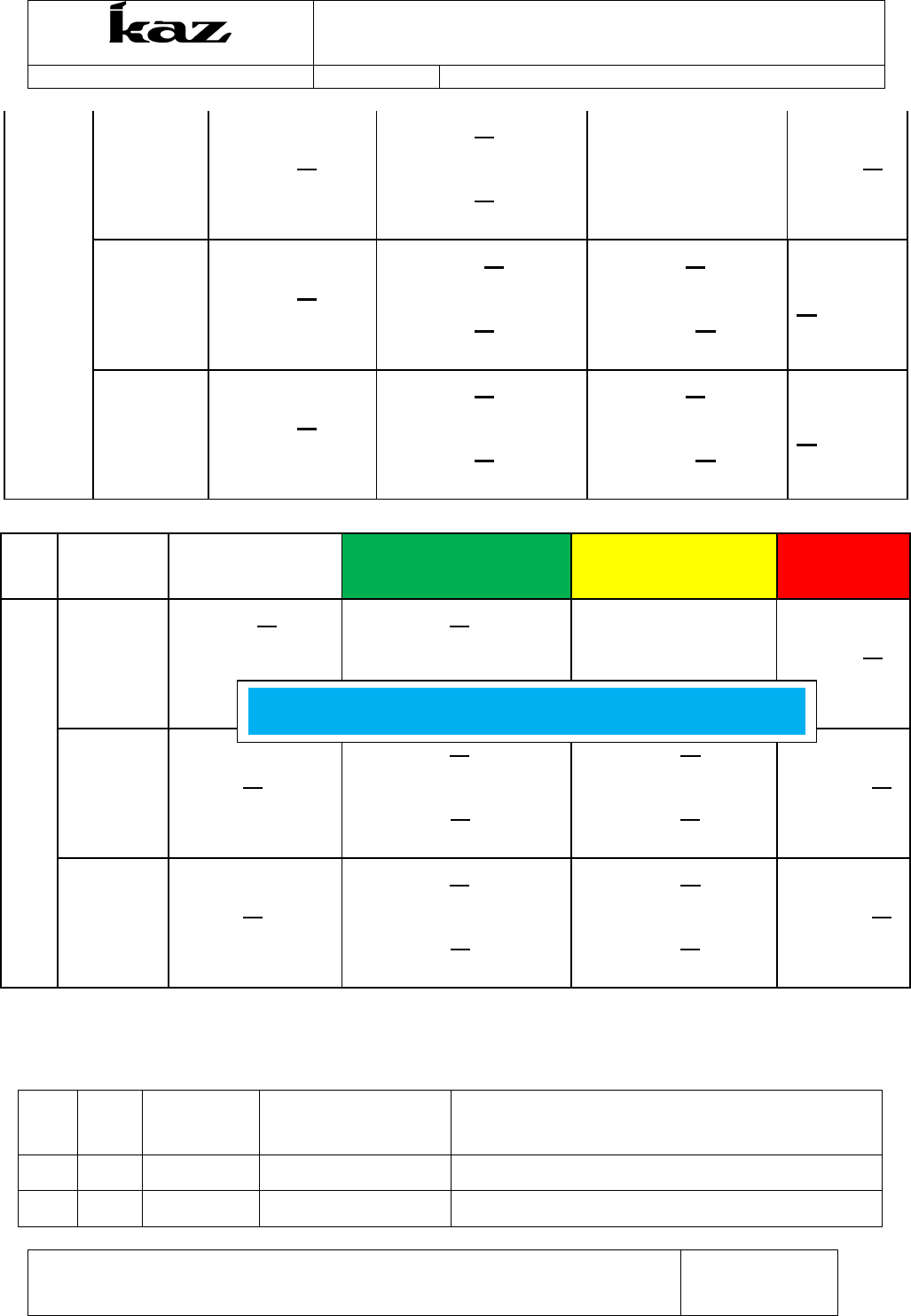
6 INSIGHT TABLES (PROGRAMMED INTO THE APP)
For all of the following tables:
Temperatures below the “No color” range or above the “Red” range will not display a temperature
value, and instead will show an error message on the app. The device will also display the red
blinking error LED and beeps.
JIM/DANIEL TO INPUT

Incorporated
User Interface Specification
VDT985
Document No.: UIS-V1601
Revision 0 (last updated: 4-29-2015)
This document is the property of Kaz, Incorporated. It is lent and is to be returned upon request. The
contents of this document are confidential and constitute trade secrets proprietary to Kaz,
Incorporated. Neither this document nor its contents shall be disclosed to any unauthorized person,
copied or published without Kaz, Incorporated prior written consent.
Page
29
of
31
TEM-04030101 Rev 1 Effective Date 30-APR-2009
6.1
US app Insight colors -No AgeSmart
Site Scale
No Color
(but temp
displays)
Green
(
Healthy Temperature)
Yellow
(Slightly
Elevated)
Red
(Elevated)
Oral °F ≥89.6 ≤96.3 >96.3 ≤99.4 >99.4 ≤101.3 >101.3
≤109.2
°C ≥32.0 ≤35.7 >35.7 ≤37.4 >37.4 ≤38.5 >38.5 ≤42.9
Under
Arm
°F ≥89.6 ≤96.1 >96.1 ≤99.2 >99.2 ≤101.1 >101.1
≤109.2
°C ≥32.0 ≤35.6 >35.6 ≤37.3 >37.3 ≤38.4 >38.4 ≤42.9
Rectal °F ≥89.6 ≤97.2 >97.2 ≤100.3 >100.3
≤102.2 >102.2
≤109.2
°C ≥32.0 ≤36.2 >36.2 ≤37.9 >37.9 ≤39.0 >39.0 ≤42.9
6.2
EMEA and CA app Insight colors –With AgeSmart
Site
Age
Range
No Color
(but temp displays)
Green
(
Healthy Temperature)
Yellow
(Slightly Elevated)
Red
(Elevated)
Oral
≤ 3
months
<96.4°F or
<35.8°C
≥96.4°F or
≥35.8°C
≤99.4°F or
≤37.4°C
N/A >99.4°F or
>37.4°C
>3
months
≤ 36
months
<95.7°F or
<35.4°C
≥95.7°F or
≥35.4°C
≤99.6°F or
≤37.6°C
>99.6°F or
>37.6°C
≤101.3°F or
≤38.5°C
>101.3°F or
>38.5°C
>36
months
<95.7°F or
<35.4°C
≥95.7°F or
≥35.4°C
≤99.9°F or ≤
37.7°C
>99.9°F or >
37.7°C
≤103.0°F or
≤39.4°C
>103.0°F or
>39.4°C
Site Age
Range
No Color
(but temp displays)
Green
(
Healthy
Temperature)
Yellow
(Slightly Elevated)
Red
(Elevated)
JIM/DANIEL TO CHECK
JIM/DANIEL TO CHECK
Incorporated
User Interface Specification
VDT985
Document No.: UIS-V1601
Revision 0 (last updated: 4-29-2015)
This document is the property of Kaz, Incorporated. It is lent and is to be returned upon request. The
contents of this document are confidential and constitute trade secrets proprietary to Kaz,
Incorporated. Neither this document nor its contents shall be disclosed to any unauthorized person,
copied or published without Kaz, Incorporated prior written consent.
Page
30
of
31
TEM-04030101 Rev 1 Effective Date 30-APR-2009
7 DOCUMENT INFORMATION AND APPROVAL
7.1
Revision History
Old
Rev
New
Rev Date Originator/
Author
Change
Description
- A 7/25/2014 Katie Sofia Initial Release
2 2-13-2015 Zoey Juhng
Underarm
≤ 3 months
<96.2°F or
<35.7°C
≥96.2°F or
≥35.7°C
≤99.2°F or
≤37.3°C
N/A >99.2°F or
>37.3°C
>3 months
≤ 36
months
<95.5°F or
<35.3°C
≥95.5°F or
≥35.3°C
≤99.4°F or
≤37.4°C
>99.4°F or
>37.4°C
≤101.1°F or
≤38.4°C
>101.1°F
or
>38.4°C
>36
months
<95.6°F or
<35.3°C
≥95.6°F or
≥35.3°C
≤99.4°F or ≤
37.4°C
>99.4°F or
>37.4°C
≤102.9°F or ≤
39.4°C
>102.9°F
or
>39.4°C
Site Age
Range
No Color
(but temp displays)
Green
(
Healthy Temperature)
Yellow
(Slightly Elevated)
Red
(Elevated)
Rectal
≤ 3
months
<97.3°F or
<36.3°C
≥97.3°F or
≥36.3°C
≤100.3°F or
≤37.9°C
N/A >100.3°F or
>37.9°C
>3
months
≤ 36
months
<96.6°F or
<35.9°C
≥96.6°F or
≥35.9°C
≤100.5°F or
≤38.1°C
>100.5°F or
>38.1°C
≤102.2°F or
≤39.0°C
>102.2°F or
>39.0°C
>36
months
<96.6°F or
<35.9°C
≥96.6°F or
≥35.9°C
≤100.8°F or ≤
38.2°C
>100.8°F or >
38.2°C
≤103.9°F or ≤
39.9°C
>103.9°F or
>39.9°C
JIM/DANIEL TO CHECK
Incorporated
User Interface Specification
VDT985
Document No.: UIS-V1601
Revision 0 (last updated: 4-29-2015)
This document is the property of Kaz, Incorporated. It is lent and is to be returned upon request. The
contents of this document are confidential and constitute trade secrets proprietary to Kaz,
Incorporated. Neither this document nor its contents shall be disclosed to any unauthorized person,
copied or published without Kaz, Incorporated prior written consent.
Page
31
of
31
TEM-04030101 Rev 1 Effective Date 30-APR-2009
3 2_13_2015
Zoey Juhng
4 4_21_15 Zoey Juhng
6 4_28_15 Zoey Juhng
7 4_29-15 Zoey Juhng
7.2
Approval
7.3
Effective date:
Approval signatures are filed at Document Control
Function Name Signature Date
Program
Management Daniel Lawton
Industrial Design Zoey Juhng
Marketing (US) Lynne Hammell
Marketing
(Canada) Bhawna Sharma
Marketing (EMEA) Julien Charriere
Research and
Development (PE) Gary Hu
Operations
(Microlife) Willis Chan
Regulatory? Raj K
Quality? Billy Li