KTV Global 29GG 29 Inches Flat Type TV Broadcast Receiver User Manual 29GG400 10 15
KTV Global Corporation 29 Inches Flat Type TV Broadcast Receiver 29GG400 10 15
Contents
- 1. User manual 1of 3
- 2. User Manual 2 of 3
- 3. User Manual 3 of 3
User Manual 2 of 3
29
28
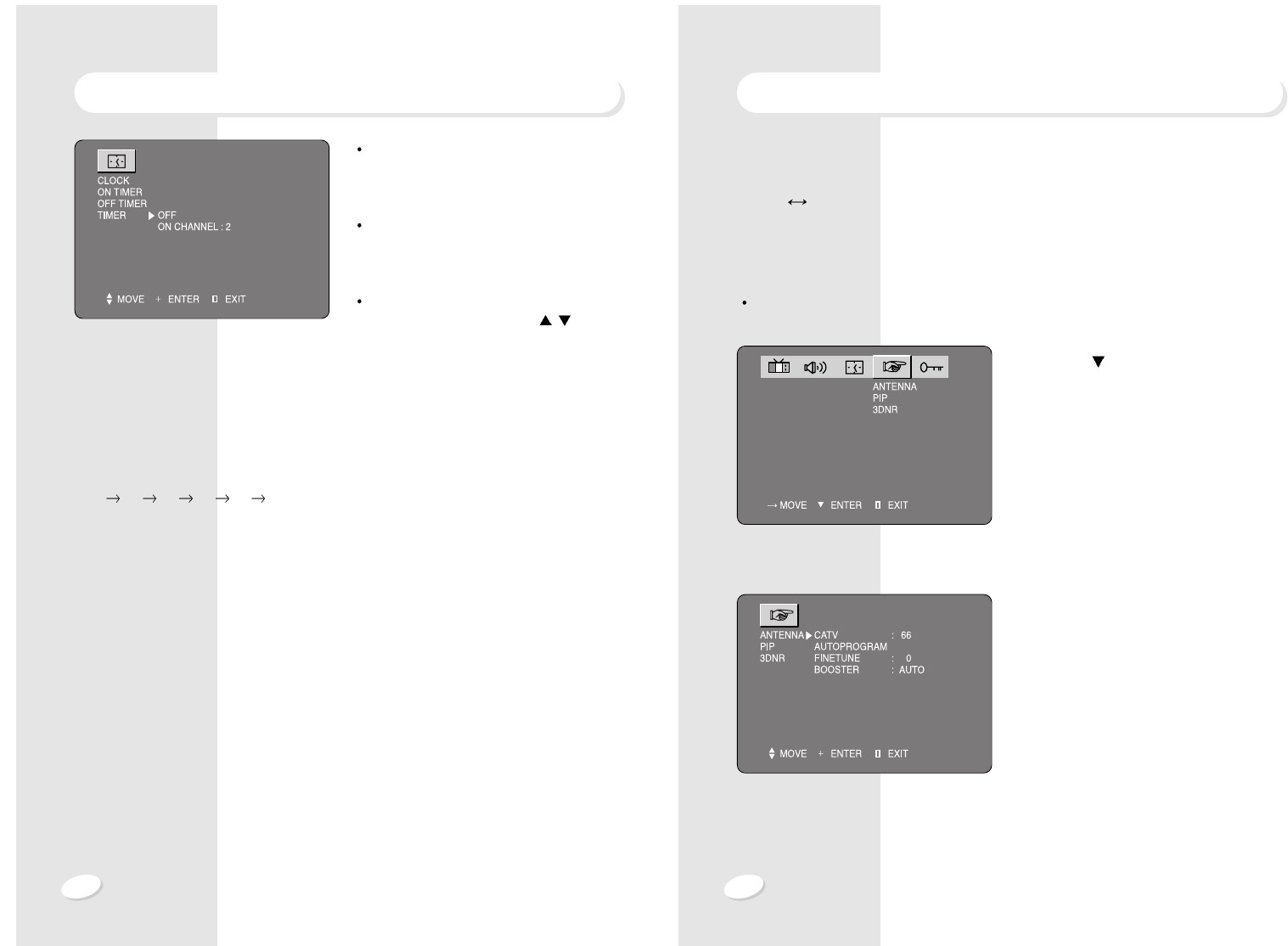
ANTENNA SELECTION
CATV TV
In this mode, you can change the broadcast mode between TV (For regular VHF/UHF
channel) and CATV (For cable channel).
Press menu button and select set-up icon by VOL -/+ Key.
1. Press CH button.
2. Change the broadcast mode by VOL +
button.
SET UPCLOCK SETTING
When the power is off(stand-by mode)
after timer is set, the color of stand-by
indicator changes from green to orange.
If on timer and off timer is set at the same
time and minutes, ON TIMER has priority
over off timer when power is off
You can activate timer function and chan-
nel, using VOL + and CH /button.
SLEEP TIMER
Select a sleep time period from 15 to 90 minutes.
The television automatically is turned off after the set sleep time has elapsed.
Whenever sleep button is pressed, the time period change as shown below
OFF 15 30 45 60 90.
AUTOMATIC POWER -OFF OPERATION
Set is turned off automatically after 15 minutes in the absence of picture signal.
31
30
MANUAL SEARCH
The channel is deleted from the memory, and the color of the channel number changes
from green to red.
FINE-TUNE
If the reception is clear, do not fine-tune the channel. Because this is done automatically
during the autoprogram operation.
The AFT(Automatic Frequence Tuning) mode does not operate on the channels that are
fine-tuned.
Press VOL + / - button to fine-tune a channel.
BOOSTER EFFECTS
In case that the incoming signal is weak, set BOOSTER auto or active state.
However, If you are located in a strong signal area like a nearby broadcasting station
and if the picture is distorted, set booster off or inactive state .
Press VOL + button to set booster active or inactive.
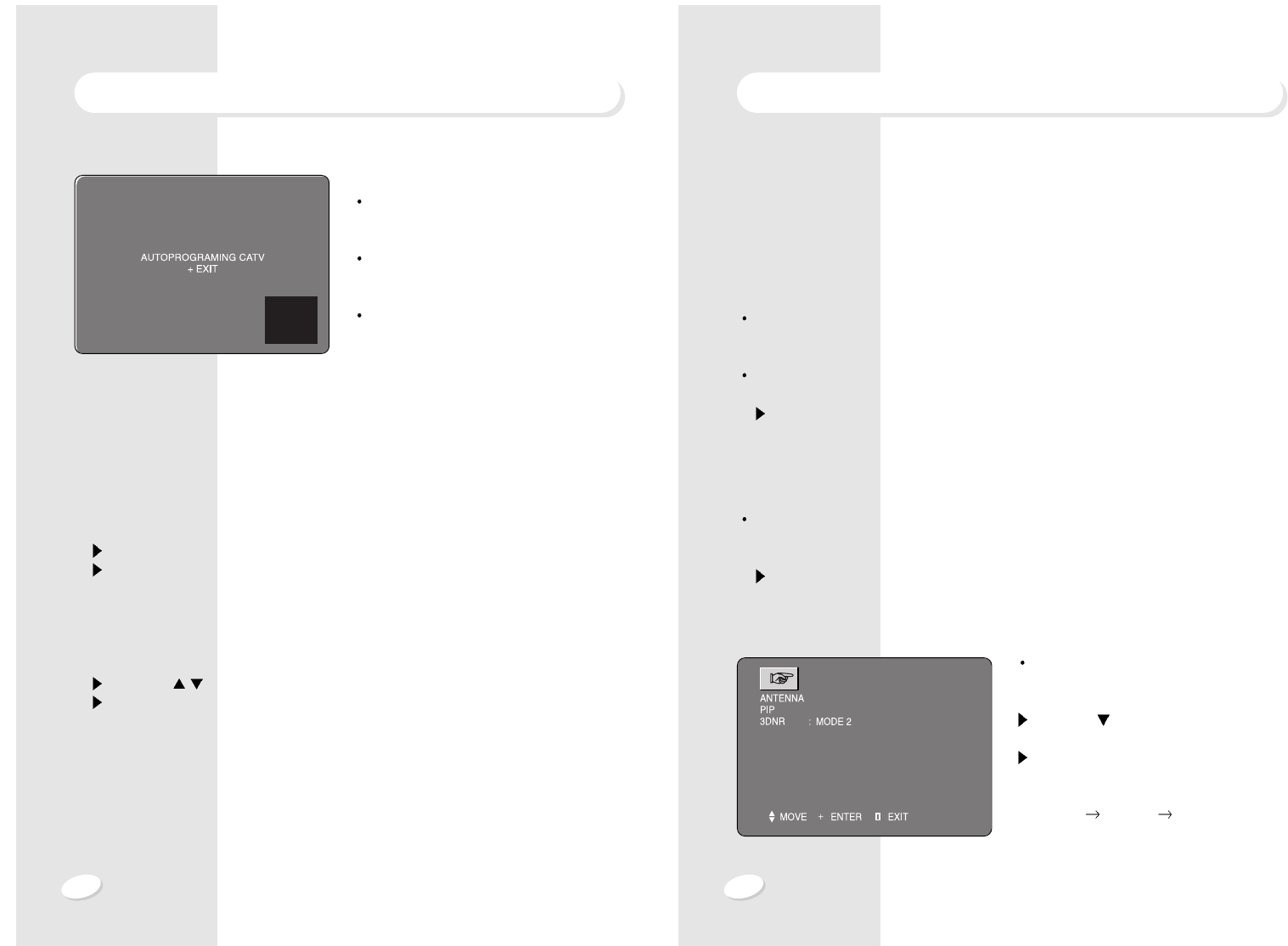
3DNR FUNCTION
Motion adaptive spatial and temporal
noise reduction (3D-NR) reduces a lot of
noise in the picture!
Press CH button to select 3D-NR (3
Dimension Noise Reduction).
Press VOL + button to change 3D-NR
mode and then the mode changes as
shown below.
2 MODE 3 MODE 1 MODE
SET UP
AUTO-PROGRAM
All broadcast channel in the current mode
(CATV/TV) will be scanned and stored.
After this operation, press MENU button to
exit.
T0 stop this procedure during the opera-
tion, press VOL + button.
MANUAL SEARCH
1. To add a channel
To add a skipped channel to the memory after the autoprogram operation, follow these
steps.
Select a channel to view by using 10 digit keys on the remote controller.
Press ADD/DEL button on the remote controller.
The color of a memorized channel number changes from red into GREEN.
2. To delete a channel
Exclude a channel from the memory.
Follow these steps to delete a channel in TV memory.
Press CH /button or 10 digit keys to select a channel you want to delete.
Press ADD/DEL button on the remote controller.
SET UP
33
32
PIP OPERATION
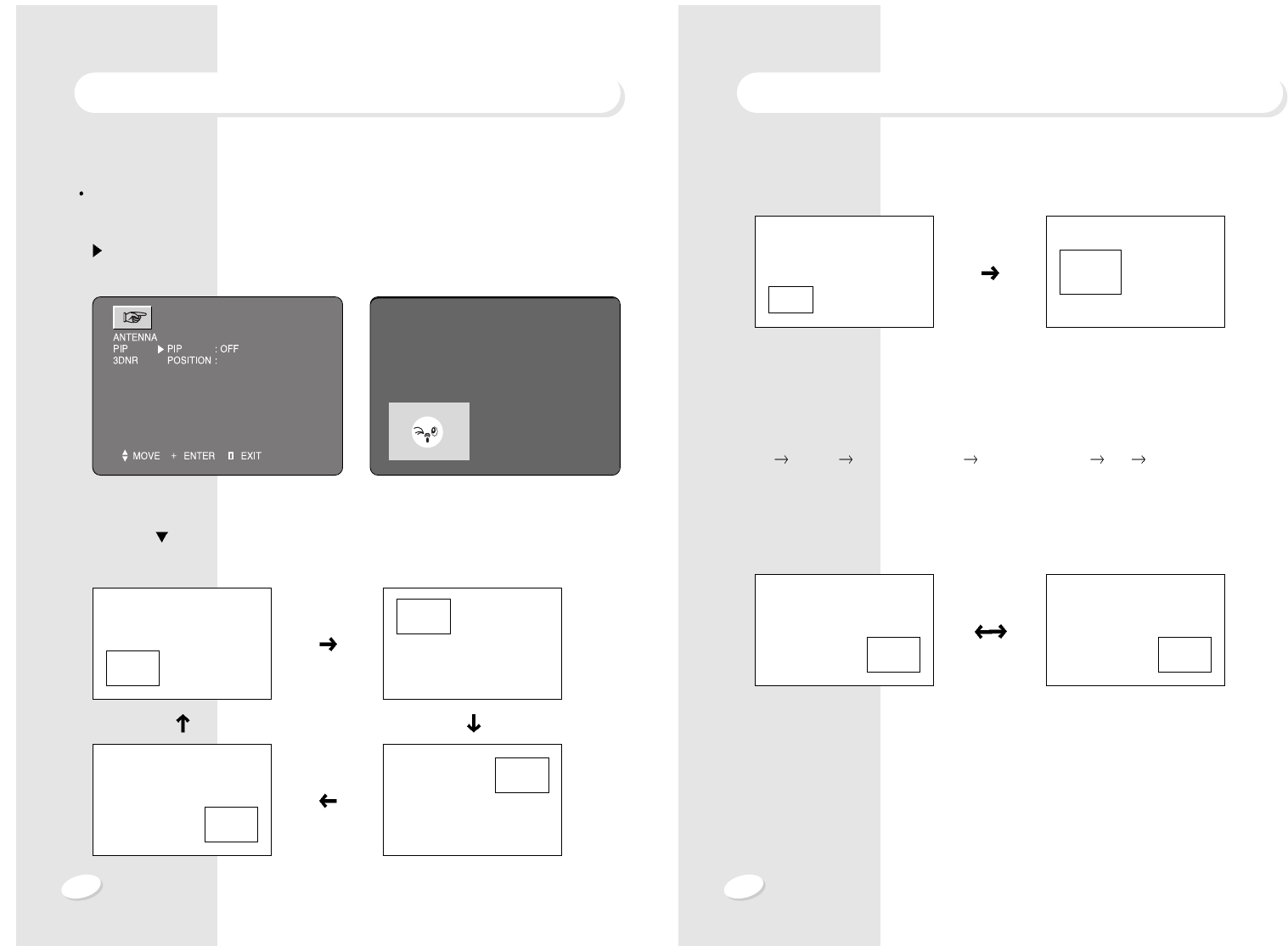
3. PIP Size
4. PIP TV/VIDEO
Press TV/VIDEO button on the PIP panel and then PIP picture mode will be toggled as
shown below.
TV VIDEO1 VIDEO2(S-VHS 2) VIDEO3(S-VHS 3) YUV RGB
5. PIP Swap
Press swap button to swap main window with sub window.
6. PIP Still
Press still button and then PIP will freeze.
PIP OPERATION
MAIN PIP
PIP MAIN
PIP OPERATION
In this mode, enjoy watching and listening to two picture sources at the same time.
1. PIP ON / OFF
Press VOL + button to activate PIP operation or press the PIP button on the remote
controller.
2. PIP Position
Press CH and VOL + button to change a direction or press position button on the
panel PIP.
PIP OPERATION
35
34
PIP OPERATION
8. PIP Strobe operation
You can view sports game action frame
by frame in still quickshots.
Press strobe button once more to exit.
PIP OPERATION
PIP OPERATION
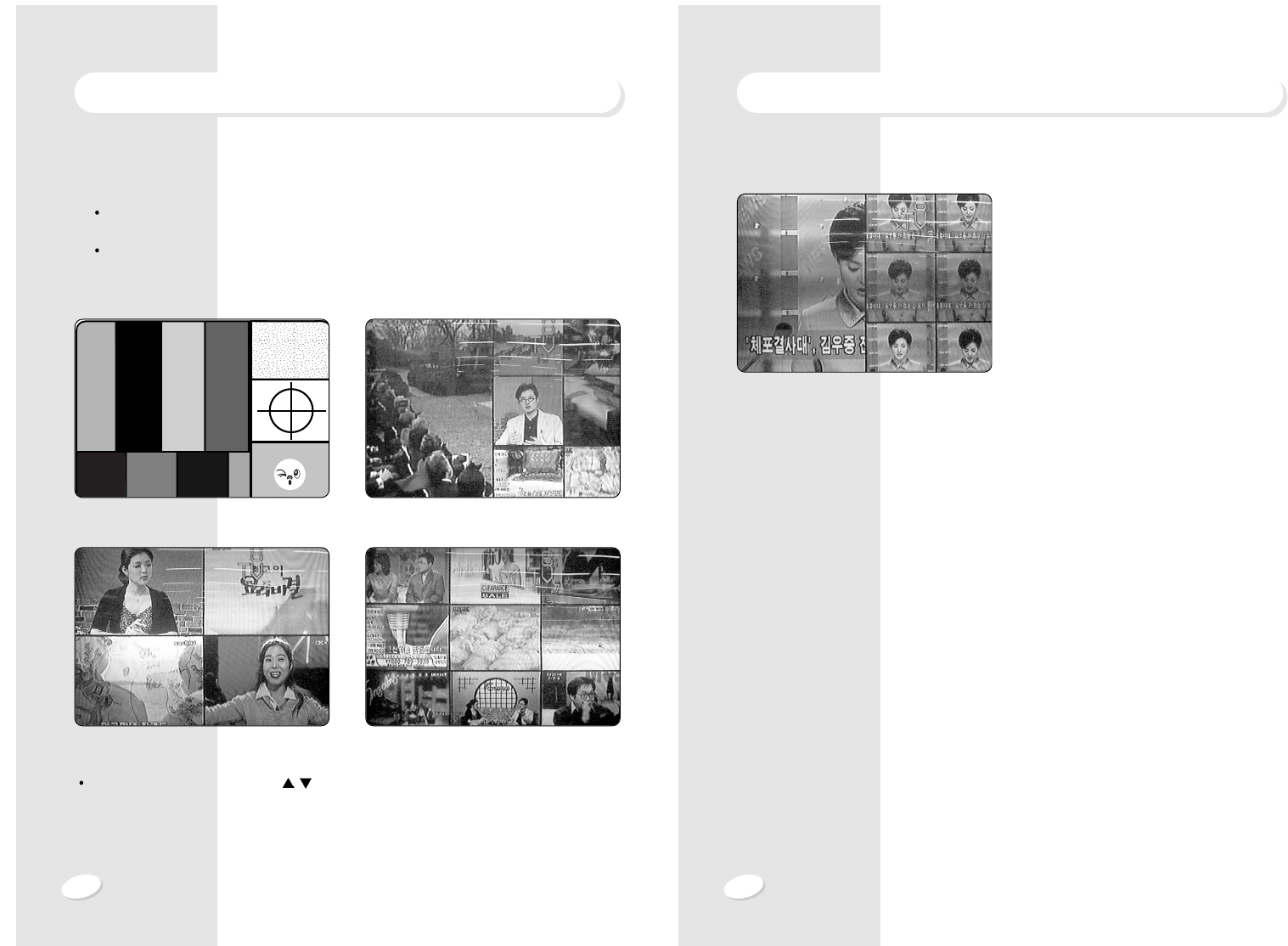
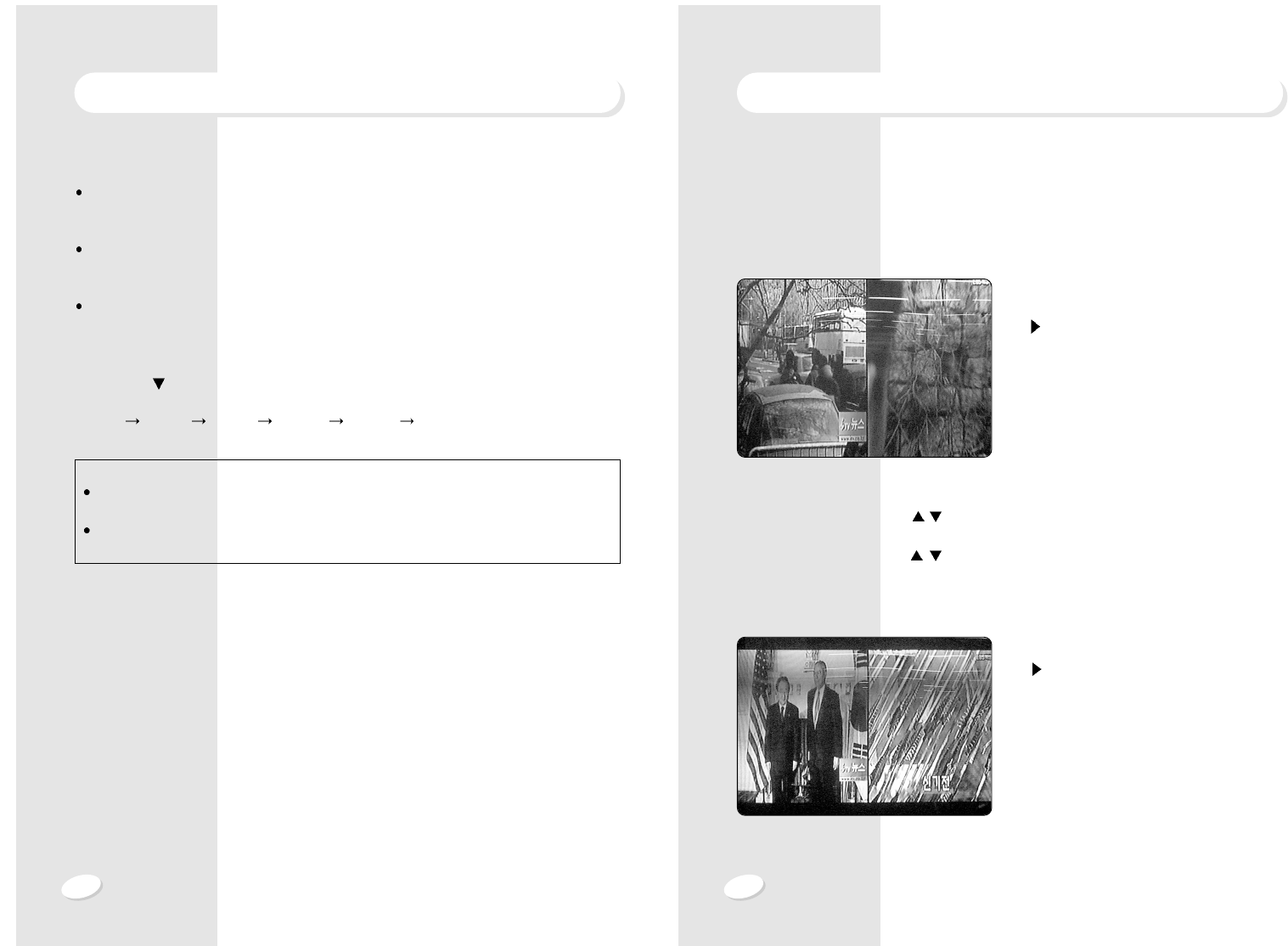
7. Channel index function
You can check other broadcast pictures in sequence while watching main picture!
Press index button in sequence.
Press index button once Press index button twice
Press index button thrice times Press index button four times
Press index button again or CH /button to exit.
PIP OPERATION
37
36
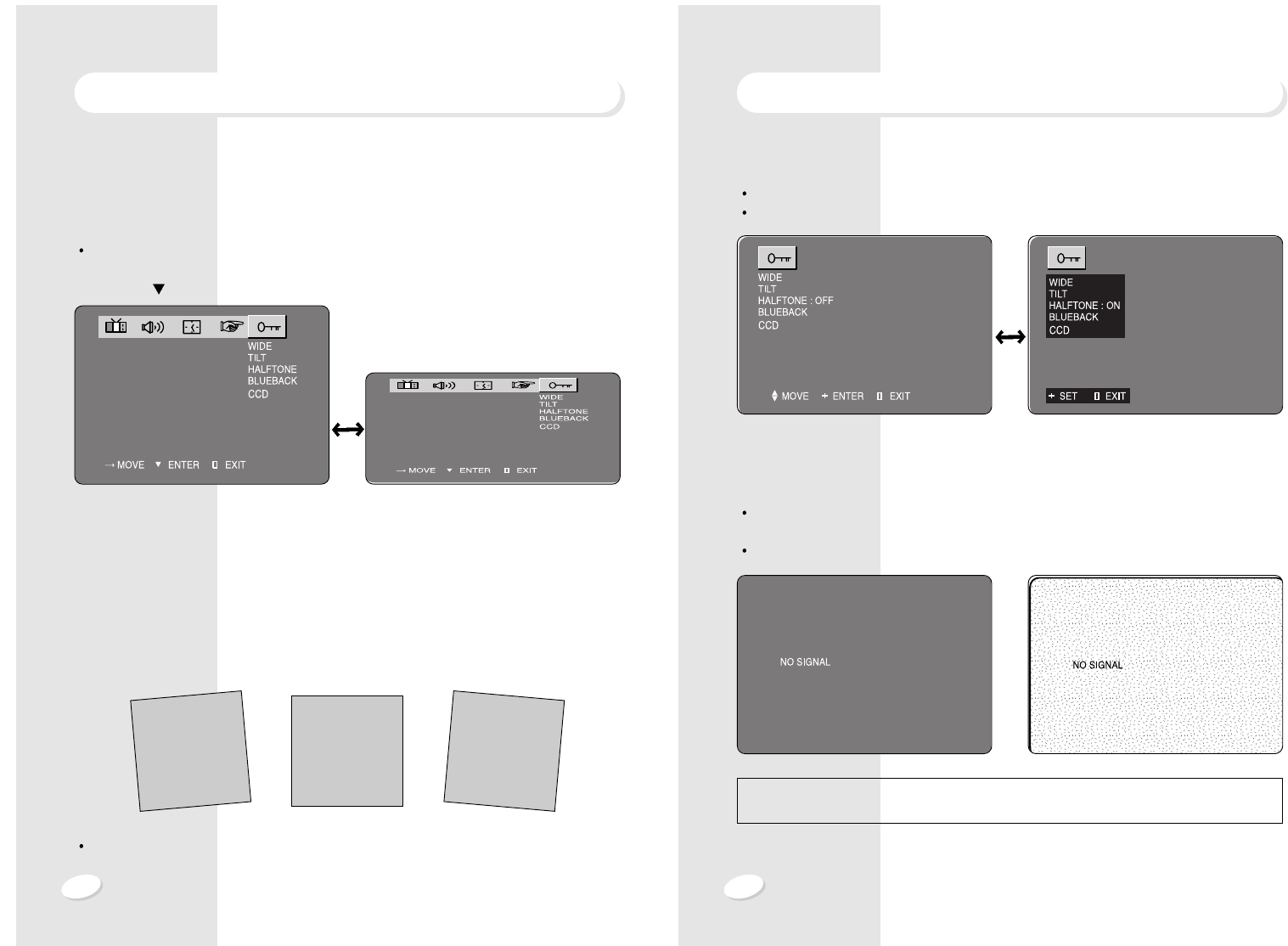
HALFTONE MODE
See guide characters on a slight black background.
Press VOL + button to activate the halftone mode.
BLUEBACK MODE
When there is no picture signal or the signal is weak, the screen will revert to a solid blue
color.
We recommend to disable this function in watching very weak signals.
FUNCTIONS
WIDE FUNCTION
This function lets you select one between wide and normal screen.
WIDE ON : 16:9 SCREEN
WIDE OFF: 4:3 SCREEN
Press menu button and then select FUNCTION icon by VOL -/+ key.
1. Press CH button
2. Press VOL + button to activate wide mode or press wide button on the remote controller.
TILT FUNCTION
It compensates the picture display for tilting to the left or right because of the geomagnetic
effects.
TILT TO THE LEFT NORMAL TILT TO THE RIGHT
Adjust the tilt of the picture using VOL + / - button.
FUNCTIONS
NOTE : Even if there is no signal in the main window, blue back function will not activate
when PIP is on!
39
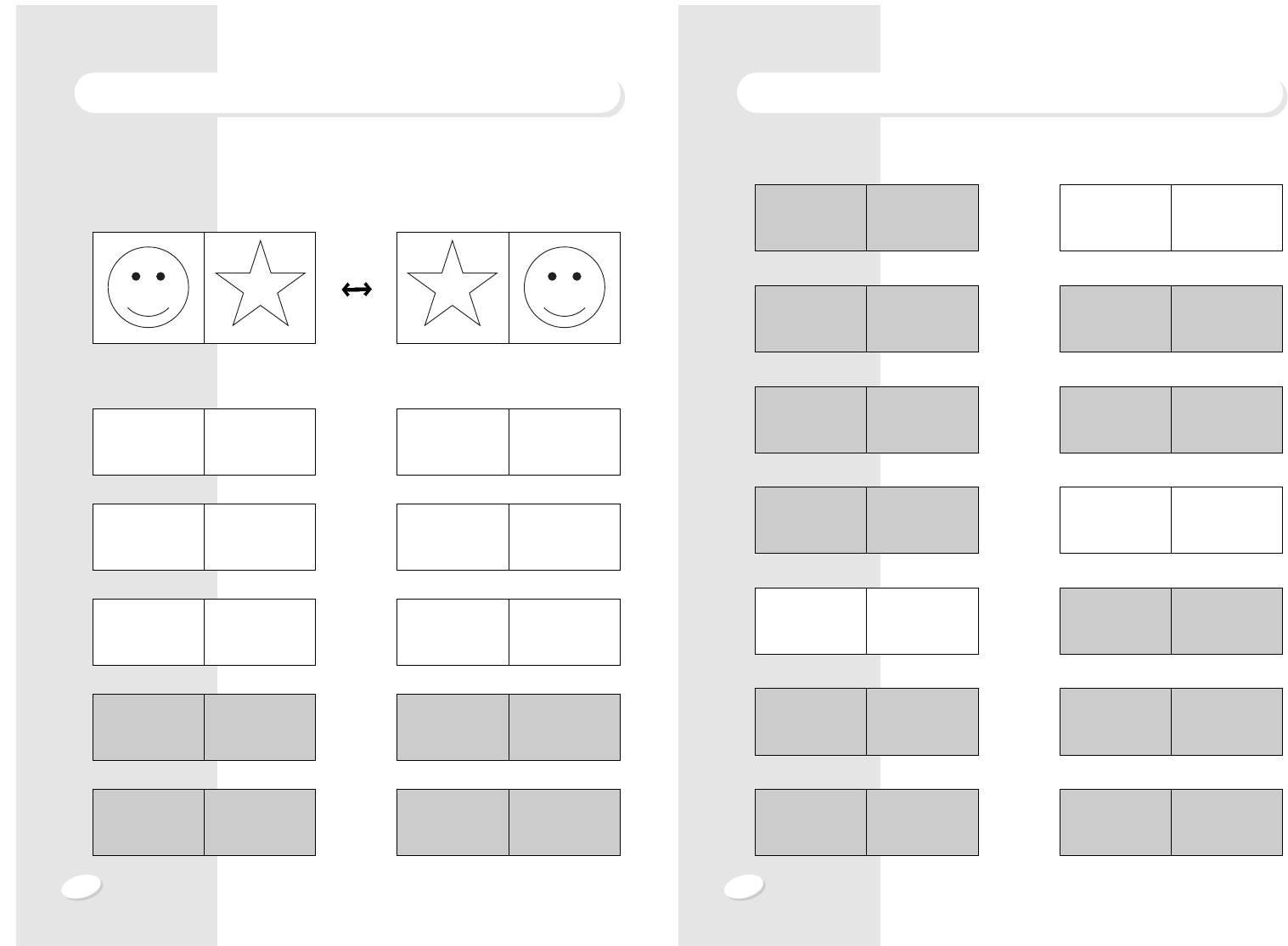
DOUBLE WINDOW FUNCTION
Watch main and sub picture of the same size simultaneously!
Listen to the main sound or sub sound by a headphone with it's independent volume con-
trol.
1. Conversion from normal window to double
window.
Press double button on the remote con-
troller.
MAIN PICTURE : Press CH /button or 10 digit keys to change the channel you want
to watch.
SUB PICTURE : Press CH /button on the panel PIP to change the channel you want
to watch.
2. Wide mode in double window.
In double window mode, you can watch
TV at wide display state by wide button.
PRACTICAL APPLICATION
CLOSED CAPTION DECODER MODE
A built-in closed caption decoder(CCD)
Detects broadcasts with encoded closed caption signals and displays their content on
the screen.
While the closed caption and text modes are respectively capable of receiving either of 2
channels of information (CCD 1&2, text 1&2), few TV stations broadcast more than 1
channel of CCD information, and fewer still broadcast any text information at all.
CCD and TEXT information can be displayed nly when there are being broadcast by the
TV station, or contained in a videotape or DISC.
1. Press MENU button and then select function icon by VOL -/+ key.
2. Press CH button to select CCD.
3. Each time you press VOL + button, the CCD mode will be toggled like this;
OFF CCD1 CCD2 TEXT1 TEXT2 OFF
4. Press MENU button sequentially to exit.
FUNCTIONS
38
NOTE
Caption charactors disappear when the On-Screen display is on the screen.
They appear again when the On-Screen display goes off.
Caption display errors will occur when the broadcast signal is weak, a video tape has
been poorly recorded, or a videotape has been recorded over numberous times.
41
40
DOUBLE WINDOW FUNCTION
PRACTICAL APPLICATION
VIDEO 1 RGB
VIDEO 2
(S-VHS 2) VIDEO 1
VIDEO 2
(S-VHS 2)
VIDEO 3
(S-VHS 3)
VIDEO 2
(S-VHS 2)
VIDEO 2
(S-VHS 2)
VIDEO 2
(S-VHS 2) YUV
VIDEO 3
(S-VHS 3)
VIDEO 3
(S-VHS 3)
VIDEO 3
(S-VHS 3) VIDEO 1
VIDEO 3
(S-VHS 3) RGB
VIDEO 2
(S-VHS 2) RGB
VIDEO 3
(S-VHS 3)
VIDEO 2
(S-VHS 2)
VIDEO 3
(S-VHS 3) YUV
VIDEO1 TV
VIDEO 2
(S-VHS 2) TV
VIDEO 3
(S-VHS 3) TV
PRACTICAL APPLICATION
DOUBLE WINDOW FUNCTION
3. Swap function in double window.
Press swap button on the panel PIP to swap main picture with sub picture.
4. Multiple input selection in double window
TV(2 CH) TV(13CH) TV VIDEO 1
TV VIDEO2
(S-VHS 2) TV VIDEO3
(S-VHS 3)
TV YUV TV RGB
VIDEO 1 VIDEO1 VIDEO 1 VIDEO 2
(S-VHS 2)
VIDEO 1 VIDEO 3
(S-VHS 3) VIDEO 1 YUV