KTV Global LT201CB 20.1" LCD TV Receiver User Manual

KTV Global Corporation 20.1" LCD TV Receiver Users Manual

Users Manual

TFT LCD TVUser’s Manual
Important Safety Instructions431)  Read these instructions.2)  Keep these instructions.3)  Heed all warnings.4)  Follow all instructions.5)  Do not use this apparatus near water.6)  Clean only with dry cloth.7) Do not block any ventilation openings. Install in accordance with the manufacturer sinstructions.8)  Do not install near any heat sources such as radiators, heat registers, stoves, orother apparatus (including amplifiers) that produce heat.9) Do not defeat the safety purpose of the polarized or grounding-type plug. A polarized plug has two blades with one wider than the other. A grounding typeplug has two blades  and a third grounding  prong. The wide blade  or the thirdprong are provided for your safety. If the provided plug does not fit into your outlet.Consult an electrician for replacement of the obsolete outlet.10) Protect the power  cord from being  walked on or  pinched particularly at  plugs,convenience receptacles, and the point where they exit from the apparatus.11)   Only use attachments/accessories specified by the manufacturer.12)  Use only with the cart, stand, tripod, bracket, or table specified by the manufacturer,or sold with the apparatus. When a cart is used, use caution when moving thecart/apparatus combination to avoid injury from tip-over.13) Unplug this apparatus during lightning storms or when unused for long periods oftime.14) Refer all servicing to qualified service personnel. Servicing is required when theapparatus has been damaged in any way, such as power-supply cord or plug isdamaged, liquid has been moisture, does  not operate normally, or has beendropped.15) The apparatus shall not be exposed to dripping or splashing and that no objectsfilled with liquids, such as vases, shall be placed on the apparatus.
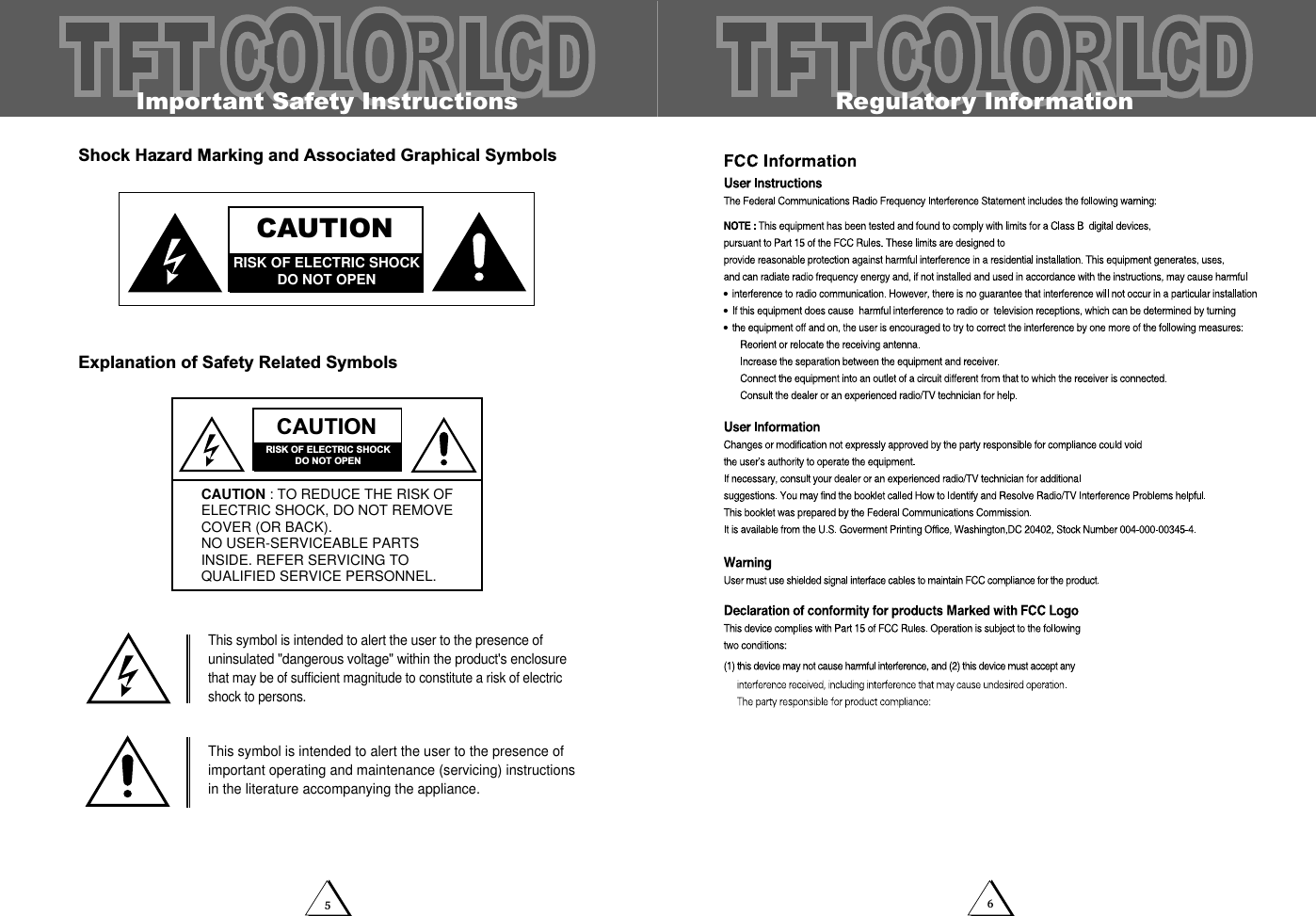
6Important Safety Instructions5Shock Hazard Marking and Associated Graphical SymbolsExplanation of Safety Related SymbolsCAUTIONRISK OF ELECTRIC SHOCKDO NOT OPENCAUTIONRISK OF ELECTRIC SHOCKDO NOT OPENCAUTION : TO REDUCE THE RISK OFELECTRIC SHOCK, DO NOT REMOVECOVER (OR BACK).NO USER-SERVICEABLE PARTSINSIDE. REFER SERVICING TOQUALIFIED SERVICE PERSONNEL.This symbol is intended to alert the user to the presence ofuninsulated "dangerous voltage" within the product's enclosurethat may be of sufficient magnitude to constitute a risk of electricshock to persons. This symbol is intended to alert the user to the presence ofimportant operating and maintenance (servicing) instructionsin the literature accompanying the appliance. Regulatory Information
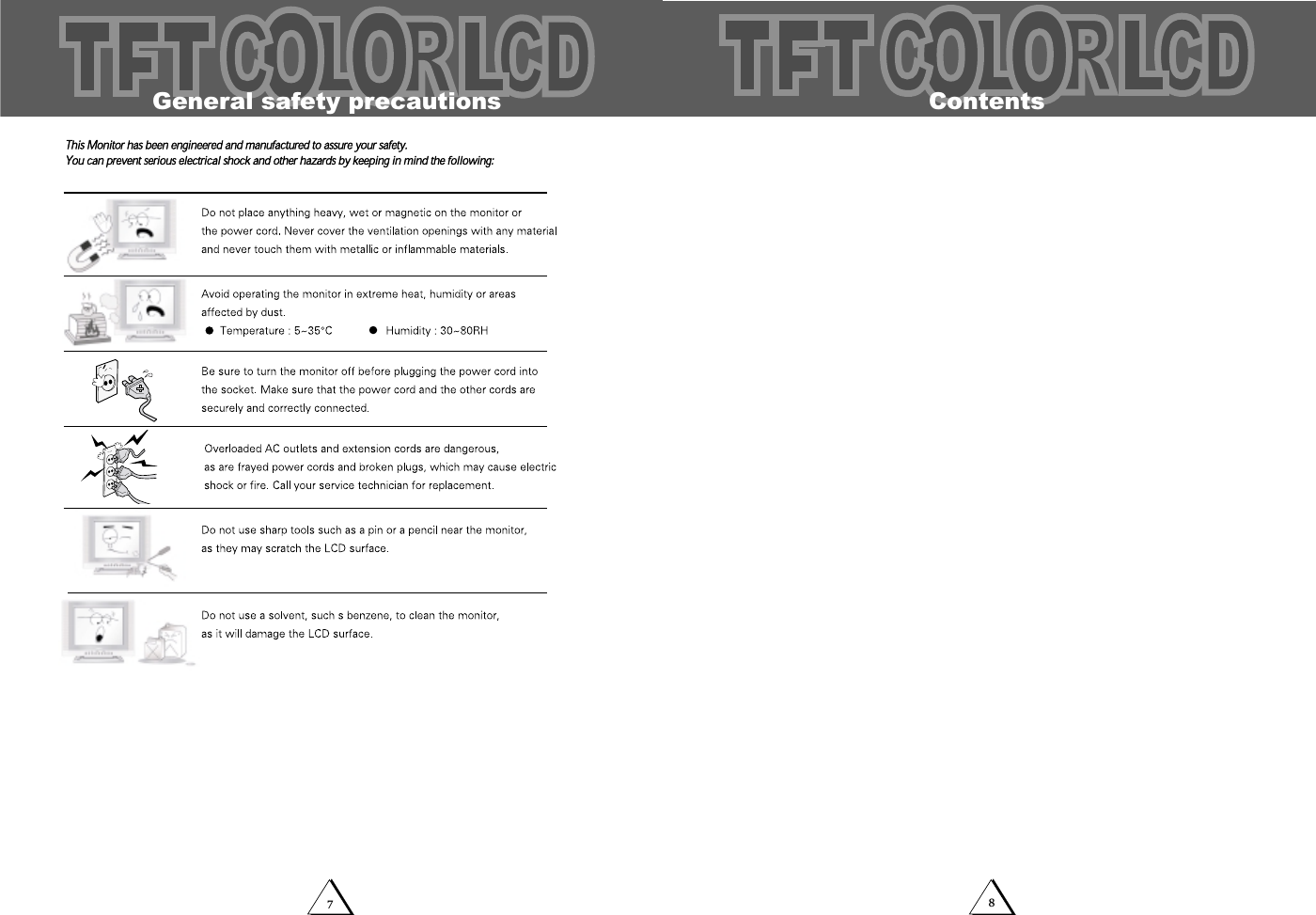
87Contents                                                General safety precautions
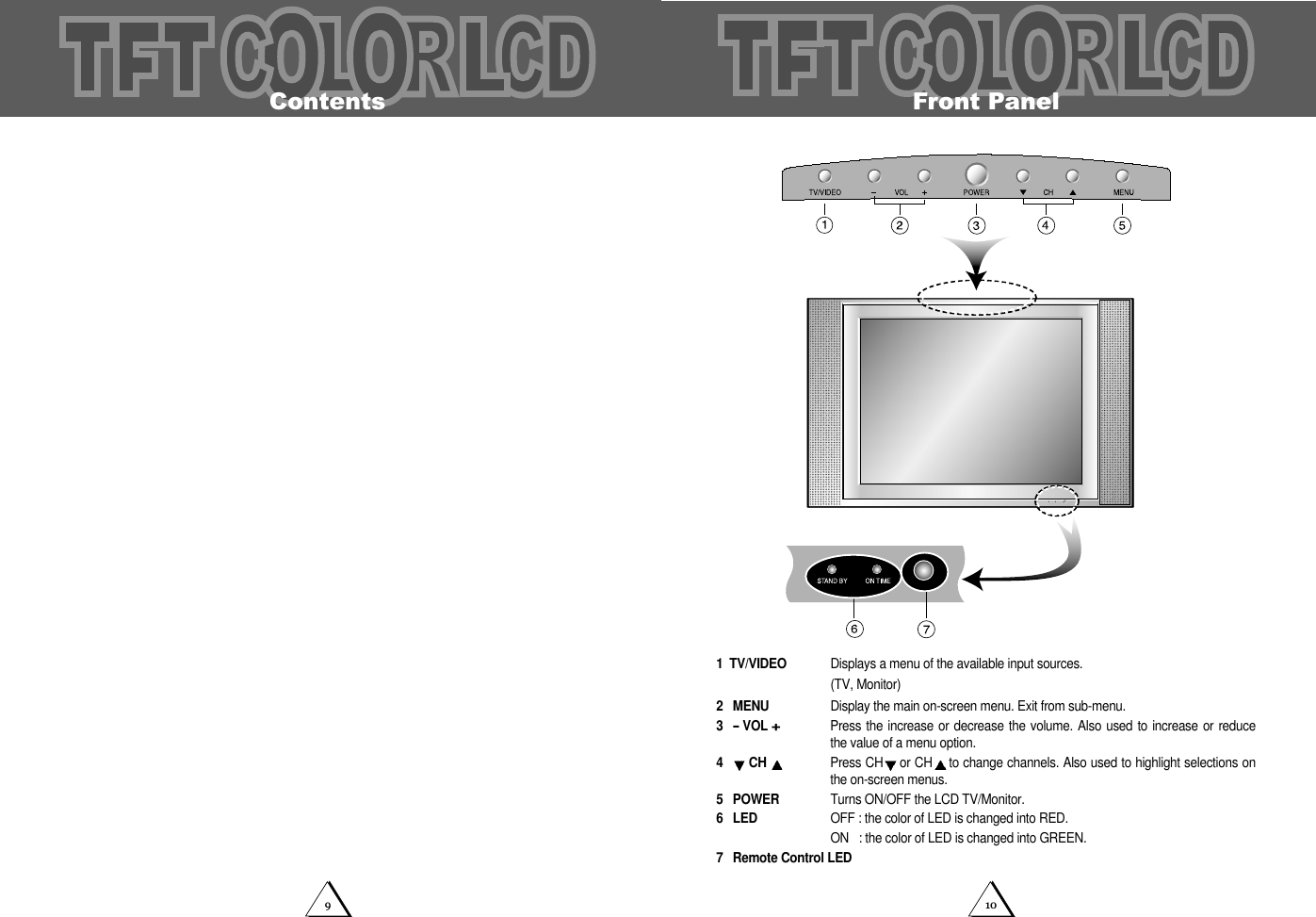
109Front Panel1 TV/VIDEO  Displays a menu of the available input sources.(TV, Monitor)2 MENU Display the main on-screen menu. Exit from sub-menu.3-VOL +Press the increase or decrease the volume. Also used to increase or reducethe value of a menu option.4CH  Press CH or CH to change channels. Also used to highlight selections onthe on-screen menus.5 POWER Turns ON/OFF the LCD TV/Monitor.6 LED OFF : the color of LED is changed into RED.ON   : the color of LED is changed into GREEN.7 Remote Control LEDContents
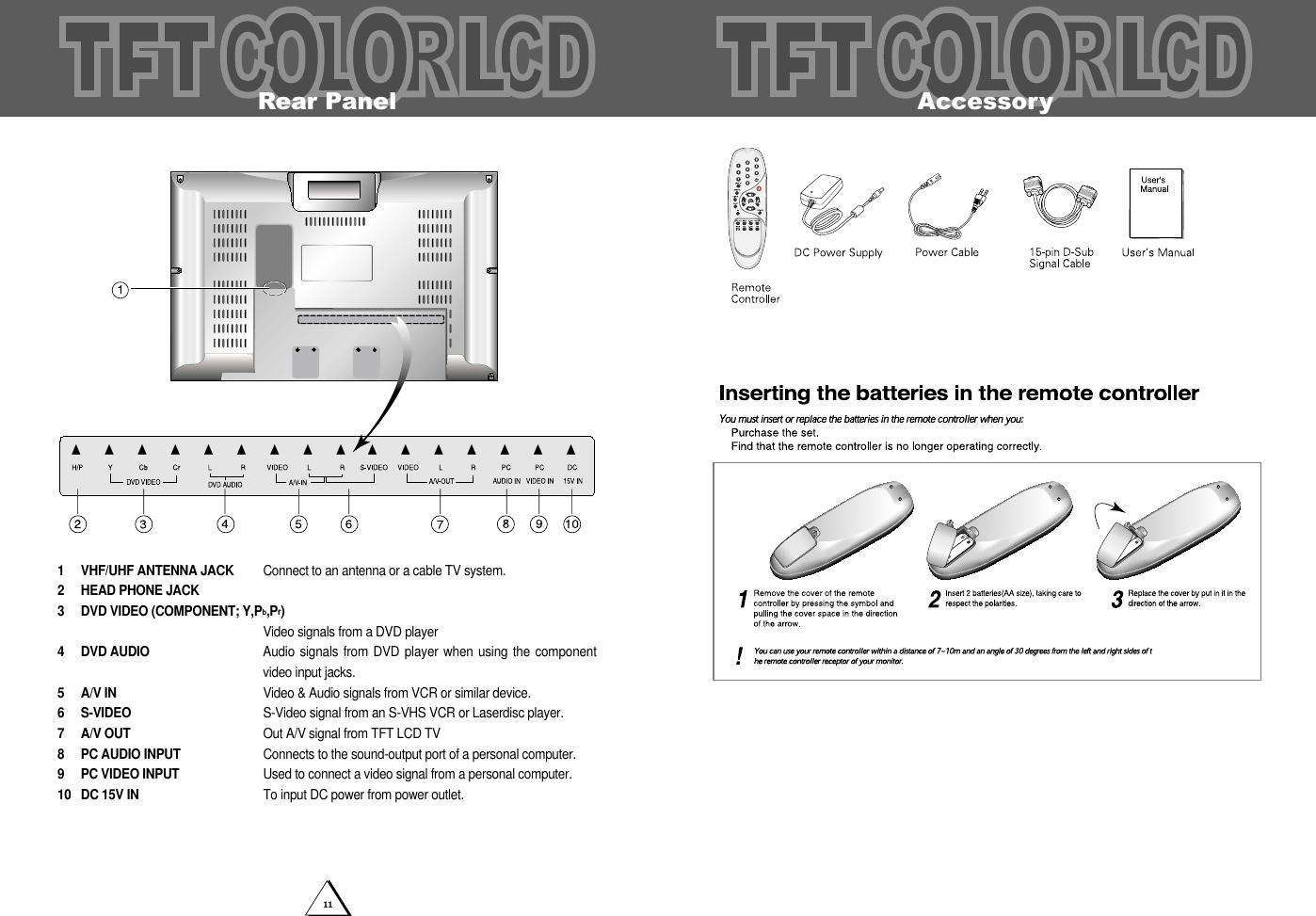
11                                                                                 Rear Panel▲▲▲▲▲▲▲▲▲▲▲▲▲▲▲▲1 VHF/UHF ANTENNA JACK Connect to an antenna or a cable TV system.2 HEAD PHONE JACK3 DVD VIDEO (COMPONENT; Y,Pb,Pr)Video signals from a DVD player4 DVD AUDIO Audio signals from DVD player when  using the componentvideo input jacks.5 A/V IN Video & Audio signals from VCR or similar device.6 S-VIDEO S-Video signal from an S-VHS VCR or Laserdisc player.7 A/V OUT Out A/V signal from TFT LCD TV8 PC AUDIO INPUT Connects to the sound-output port of a personal computer.9 PC VIDEO INPUT Used to connect a video signal from a personal computer.10  DC 15V IN To input DC power from power outlet. Accessory
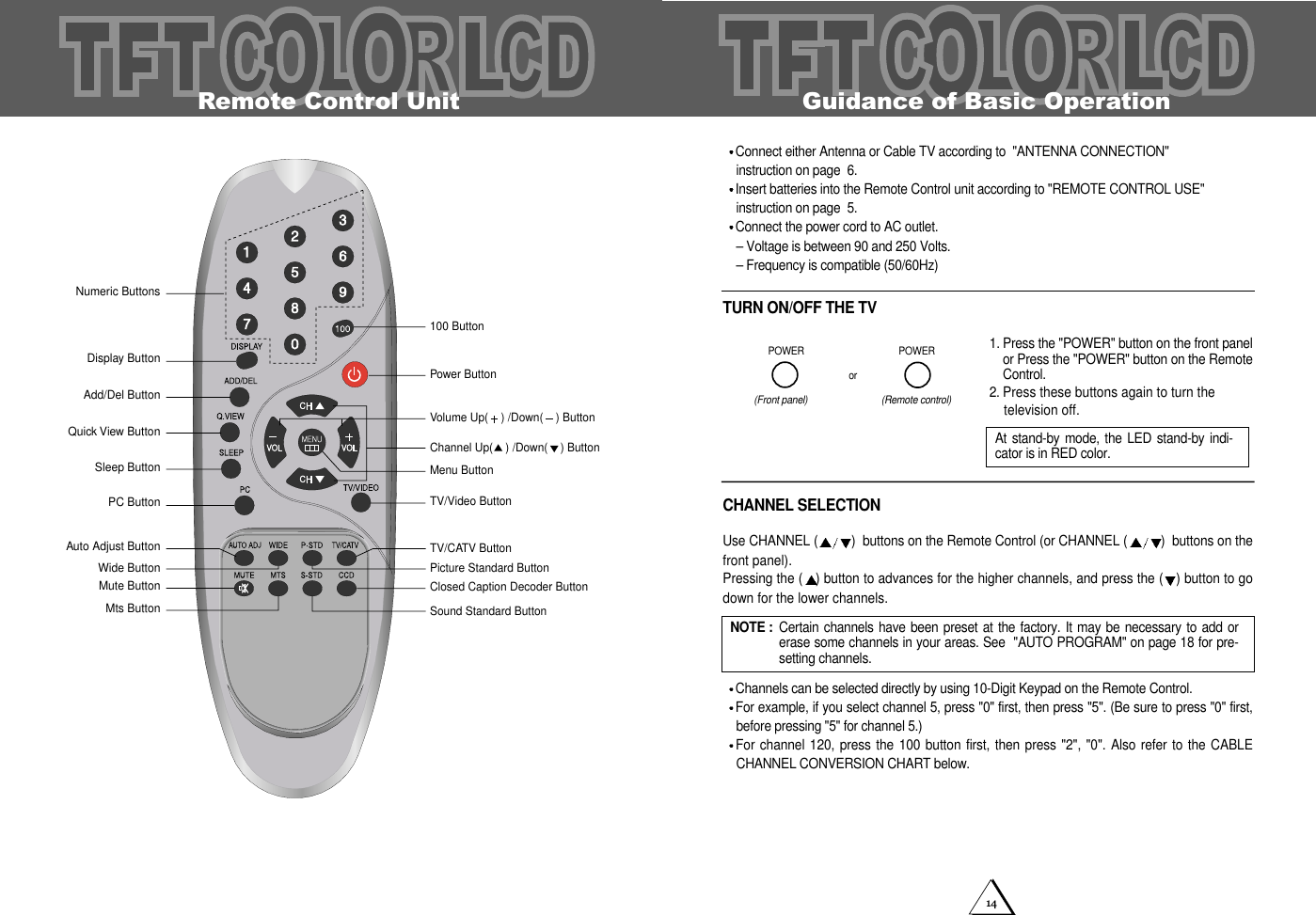
14Guidance of Basic OperationConnect either Antenna or Cable TV according to  "ANTENNA CONNECTION"instruction on page  6.Insert batteries into the Remote Control unit according to "REMOTE CONTROL USE"instruction on page  5.Connect the power cord to AC outlet.– Voltage is between 90 and 250 Volts.– Frequency is compatible (50/60Hz)TURN ON/OFF THE TV1. Press the "POWER" button on the front panelor Press the "POWER" button on the RemoteControl.2. Press these buttons again to turn the television off.CHANNEL SELECTIONUse CHANNEL ( )  buttons on the Remote Control (or CHANNEL ( )  buttons on thefront panel).Pressing the ( ) button to advances for the higher channels, and press the ( ) button to godown for the lower channels.Channels can be selected directly by using 10-Digit Keypad on the Remote Control.For example, if you select channel 5, press "0" first, then press "5". (Be sure to press "0" first,before pressing "5" for channel 5.)For channel 120, press the 100  button first, then press "2", "0". Also  refer to the CABLECHANNEL CONVERSION CHART below.or(Front panel)POWERPOWER(Remote control)NOTE :  Certain channels have been preset  at the factory. It  may be necessary to  add orerase some channels in your areas. See  "AUTO PROGRAM" on page 18 for pre-setting channels.At stand-by mode, the LED  stand-by indi-cator is in RED color. Numeric Buttons100 ButtonPower ButtonVolume Up(    ) /Down(    ) ButtonChannel Up(    ) /Down(    ) ButtonMenu ButtonTV/Video ButtonTV/CATV ButtonPicture Standard ButtonClosed Caption Decoder ButtonSound Standard ButtonDisplay ButtonAdd/Del ButtonQuick View ButtonSleep ButtonPC ButtonAuto Adjust ButtonWide ButtonMute ButtonMts ButtonRemote Control Unit
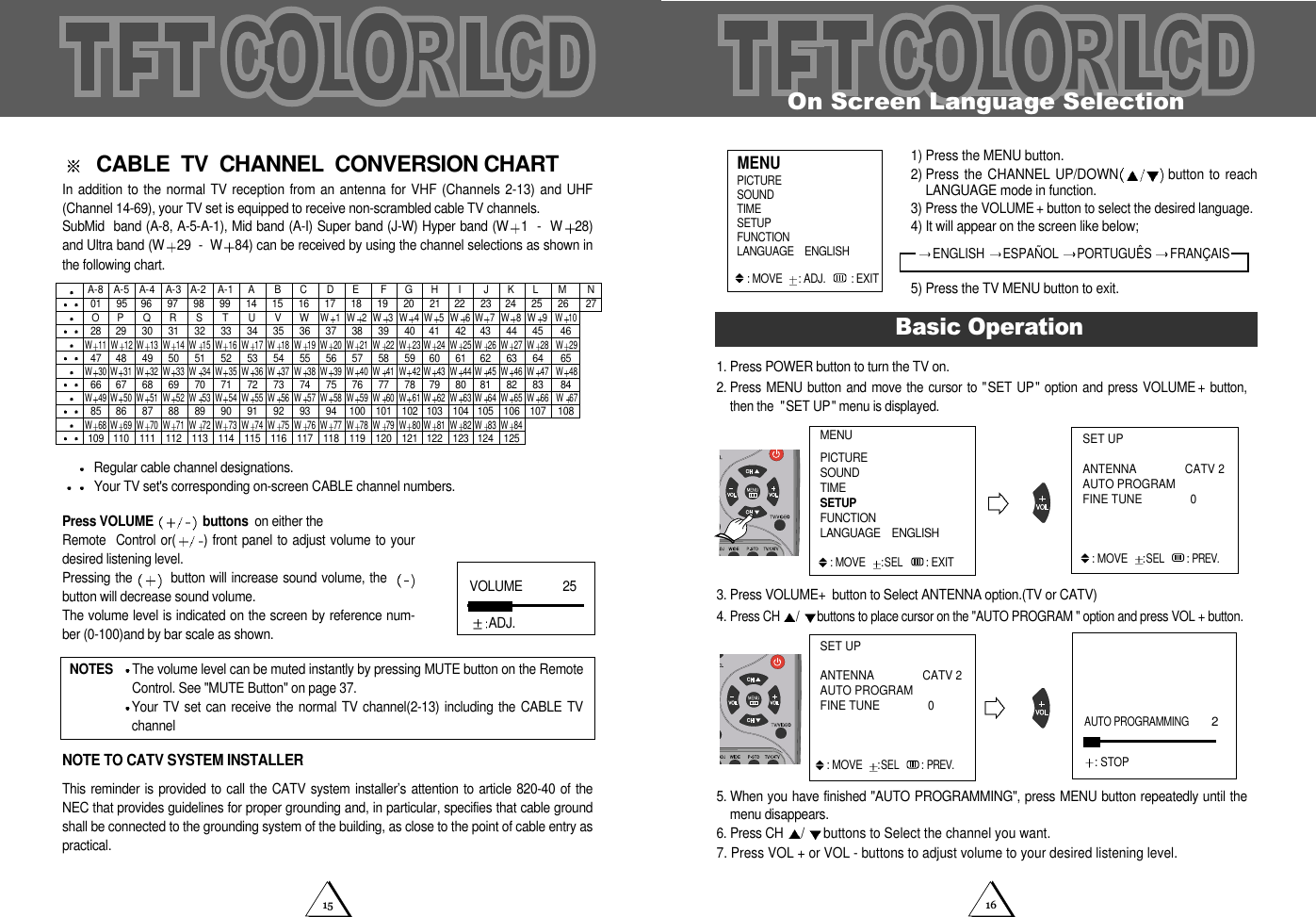
1615On Screen Language Selection1. Press POWER button to turn the TV on.2.Press MENU  button and  move the cursor  to "SET  UP"  option and  press VOLUME +button,then the  "SET UP" menu is displayed.3. Press VOLUME+button to Select ANTENNA option.(TV or CATV)4. Press CH  /buttons to place cursor on the "AUTO PROGRAM " option and press VOL + button.5. When you have finished "AUTO PROGRAMMING", press MENU button repeatedly until themenu disappears. 6. Press CH  /buttons to Select the channel you want.7. Press VOL + or VOL - buttons to adjust volume to your desired listening level.Basic OperationAUTO PROGRAMMING         2: STOPSET UPANTENNA CATV 2 AUTO PROGRAMFINE TUNE 0 : MOVE:SEL : PREV.1) Press the MENU button.2) Press the CHANNEL UP/DOWN button to reachLANGUAGE mode in function. 3) Press the VOLUME + button to select the desired language. 4) It will appear on the screen like below;5) Press the TV MENU button to exit. PICTURESOUNDTIMESETUPFUNCTIONLANGUAGE    ENGLISH: MOVE   : ADJ. : EXITMENUENGLISH  ESPAÑOL  PORTUGUÊS  FRANÇAISMENUPICTURESOUNDTIMESETUPFUNCTIONLANGUAGE    ENGLISH: MOVE:SEL : EXITSET UPANTENNA CATV 2 AUTO PROGRAMFINE TUNE 0 : MOVE:SEL : PREV.CABLE  TV  CHANNEL  CONVERSION CHARTIn addition to the normal TV reception from an antenna for VHF  (Channels 2-13) and UHF(Channel 14-69), your TV set is equipped to receive non-scrambled cable TV channels.SubMid  band (A-8, A-5-A-1), Mid band (A-I) Super band (J-W) Hyper band (W 1  -  W 28)and Ultra band (W 29  -  W 84) can be received by using the channel selections as shown inthe following chart.Regular cable channel designations.Your TV set's corresponding on-screen CABLE channel numbers.Press VOLUME  buttons on either the Remote  Control or( ) front panel to adjust volume to yourdesired listening level.Pressing the  button will increase sound volume, the  button will decrease sound volume.  The volume level is indicated on the screen by reference num-ber (0-100)and by bar scale as shown.NOTE TO CATV SYSTEM INSTALLERThis reminder is provided  to call the CATV  system installer’s attention to  article 820-40 of theNEC that provides guidelines for proper grounding and, in particular, specifies that cable groundshall be connected to the grounding system of the building, as close to the point of cable entry aspractical.NOTES  The volume level can be muted instantly by pressing MUTE button on the RemoteControl. See "MUTE Button" on page 37.Your TV  set can receive  the normal  TV channel(2-13)  including the CABLE  TVchannelA-8 A-4012847 48 49 50 51 52 53 54 55 56 57 58 59 60 61 62 63 64 6566 67 68 69 70 71 72 73 74 75 76 77 78 79 80 81 82 83 8429 30 31 32 33 34 35 36 37 38 39 40 41 42 43 44 45 4696 97 98 99 14 15 16 17 18 19 20 21 22 23 24 25 26 27A-3 A-2 A-1 A B COP QR S T U VWW1W2W11 W 12 W 13 W 14 W 15 W 16 W 17 W 18 W 19 W 20 W 21 W 22 W 23 W 24 W 25 W 26 W 27 W 28 W 29W30 W 31 W 32 W 33 W 34 W 35 W 36 W 37 W 38 W 39 W 40 W 41 W 42 W 43 W 44 W 45 W 46 W 47 W 4885 86 87 88 89 90 91 92 93 94 100 101 102 103 104 105 106 107 108W49 W 50 W 51 W 52 W 53 W 54 W 55 W 56 W 57 W 58 W 59 W 60 W 61 W 62 W 63 W 64 W 65 W 66 W 67109 110 111 112 113 114 115 116 117 118 119 120 121 122 123 124 125W68 W 69 W 70 W 71 W 72 W 73 W 74 W 75 W 76 W 77 W 78 W 79 W 80 W 81 W 82 W 83 W 84W3W4W 5W6W 7W8W9W10DE FGHI JKLM NA-595VOLUME            25ADJ.
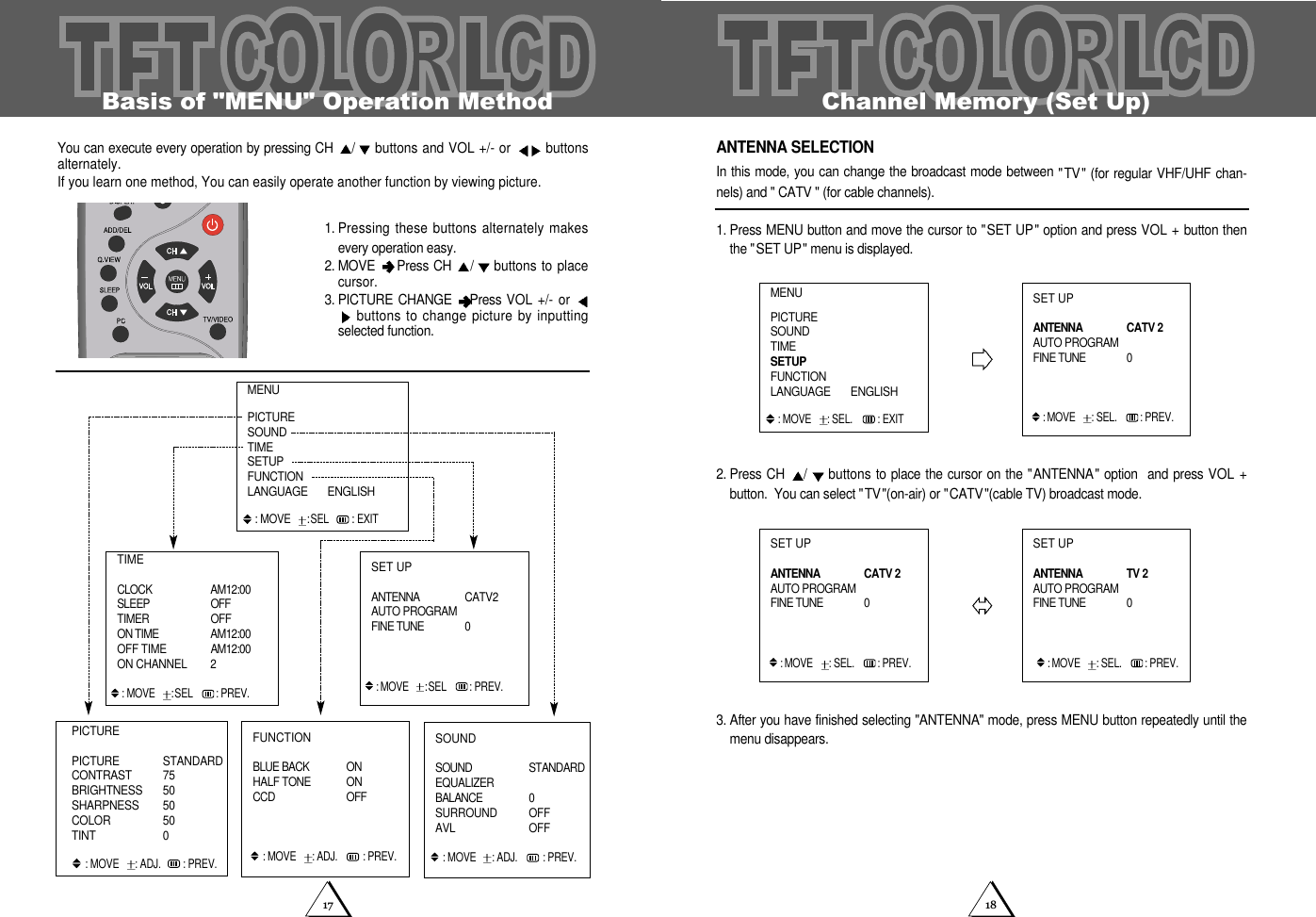
1817Channel Memory (Set Up)ANTENNA SELECTIONIn this mode, you can change the broadcast mode between "TV" (for regular VHF/UHF chan-nels) and " CATV " (for cable channels).1. Press MENU button and move the cursor to "SET UP" option and press VOL + button thenthe "SET UP" menu is displayed.  2. Press CH  /buttons to place the cursor on the "ANTENNA" option  and press VOL +button.  You can select "TV"(on-air) or "CATV"(cable TV) broadcast mode. 3. After you have finished selecting "ANTENNA" mode, press MENU button repeatedly until themenu disappears.MENUPICTURESOUNDTIMESETUPFUNCTIONLANGUAGE       ENGLISH: MOVE   : SEL.  : EXITSET UPANTENNA CATV 2AUTO PROGRAMFINE TUNE 0: MOVE  : SEL.  : PREV. SET UPANTENNA CATV 2AUTO PROGRAMFINE TUNE 0: MOVE   : SEL. : PREV. SET UPANTENNA TV 2AUTO PROGRAMFINE TUNE 0: MOVE  : SEL.  : PREV. Basis of "MENU" Operation MethodYou can execute every operation by pressing CH  / buttons and VOL +/- or  buttonsalternately.If you learn one method, You can easily operate another function by viewing picture.1. Pressing these buttons alternately makesevery operation easy.2. MOVE  Press CH  /buttons to placecursor.3. PICTURE CHANGE  Press VOL  +/-  or buttons to change picture by inputtingselected function.FUNCTIONBLUE BACK ONHALF TONE ONCCD OFF: MOVE   : ADJ. : PREV.TIMECLOCK AM12:00SLEEP OFFTIMER OFFON TIME AM12:00OFF TIME  AM12:00ON CHANNEL 2: MOVE :SEL  : PREV. SET UPANTENNA CATV2AUTO PROGRAMFINE TUNE 0: MOVE  :SEL  : PREV. MENUPICTURESOUNDTIMESETUPFUNCTIONLANGUAGE       ENGLISH: MOVE:SEL: EXITPICTUREPICTURE STANDARDCONTRAST  75BRIGHTNESS 50SHARPNESS  50COLOR  50TINT  0: MOVE   : ADJ. : PREV.SOUNDSOUND STANDARDEQUALIZERBALANCE 0SURROUND OFFAVL  OFF : MOVE   : ADJ. : PREV.
2019Channel Memory (Set up)MANUAL MEMORY(channel add/delete)1. TO ADD A CHANNELIf you want to add to the memory a channel the TV did not store during AUTO PROGRAM,follow these steps.  Press the 10-Digit Keypad button to select a channel you want to view.Press  "ADD/DEL" button on the Remote Control.The channel is added to memory and the color of the channel number changes from redto green.2. TO DELETE CHANNELYou can exclude the channels of your choice from the memorized channel.Follow these steps to delete the channel in the TV's memory.Press CH  /buttons or Press the 10-Digit keypad button to select a channel you wantto delete.Press  "ADD/DEL" button on the Remote Control.The channel is removed from  the memory, and the color of the channel number  changes   from  green to red.CATV  12channel deletedCATV  12channel addedCH ADDING CH DELETINGCOLOR: GREENCOLOR: REDChannel Memory (Set Up)AUTO PROGRAMThis function allows  the channels  to be memorized  automatically to match  the TV broadcastsand cable channels in your area.1. Press MENU button and move the cursor to "SET UP" option and press VOL + button, thenthe "SET UP" menu is displayed.  2. Press CH  /buttons to place cursor on the  "AUTO PROGRAM" option and press VOL +button. When tuned to a channel in which TV program is broadcasted,  this channel is memorized andthe color changes from magenta to green. After every channels were memorized, "SET UP" menu is displayed.3. When you have finished "AUTO PROGRAMMING", press MENU button repeatedly until themenus disappear.NOTES  If the broadcast signal is weak, the channel will not be memorized.  In this case, perform the MANUAL MEMORY procedure.(Refer to the next page)If you wish to stop this procedure during the operation, Press VOL + button. SET UPANTENNA CATV 2AUTO PROGRAMFINE TUNE 0: MOVE  : SEL.  : PREV. SET UPANTENNA CATV 2AUTO PROGRAMFINE TUNE 0: MOVE  : SEL.   : PREV. AUTO PROGRAMMING         2+ : STOPMENUPICTURESOUNDTIMESETUPFUNCTIONLANGUAGE       ENGLISH: MOVE  : SEL.  : EXIT
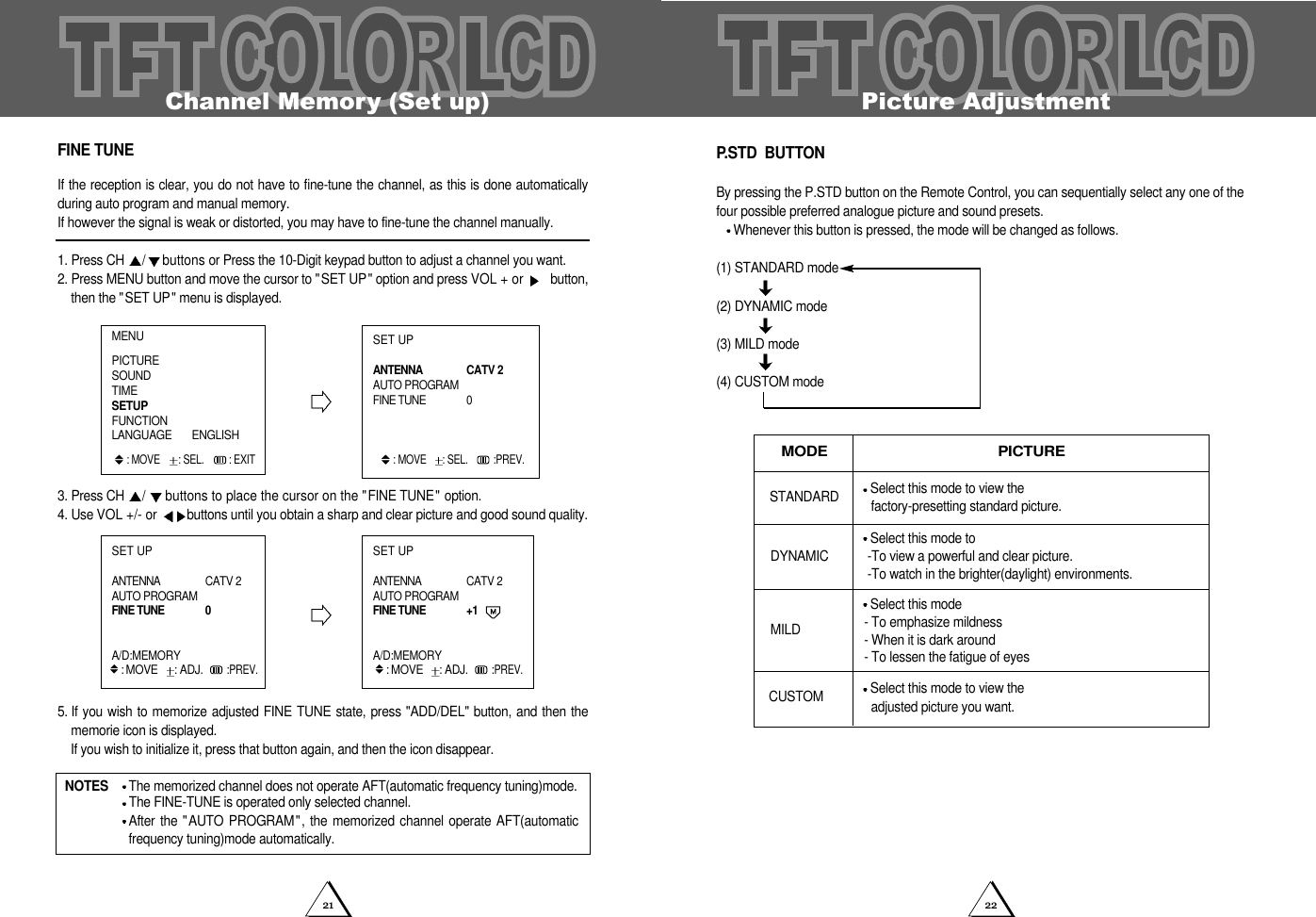
2221Picture AdjustmentP.STD  BUTTONBy pressing the P.STD button on the Remote Control, you can sequentially select any one of thefour possible preferred analogue picture and sound presets.Whenever this button is pressed, the mode will be changed as follows.(1) STANDARD mode(2) DYNAMIC mode                                 (3) MILD mode(4) CUSTOM modeMODE PICTURECUSTOM Select this mode to view the adjusted picture you want.Select this mode to view the factory-presetting standard picture.Select this mode to -To view a powerful and clear picture.-To watch in the brighter(daylight) environments.Select this mode - To emphasize mildness- When it is dark around- To lessen the fatigue of eyesSTANDARDDYNAMICMILDChannel Memory (Set up)FINE TUNEIf the reception is clear, you do not have to fine-tune the channel, as this is done automaticallyduring auto program and manual memory.If however the signal is weak or distorted, you may have to fine-tune the channel manually.1. Press CH  /buttons or Press the 10-Digit keypad button to adjust a channel you want.2. Press MENU button and move the cursor to "SET UP" option and press VOL + or  button,then the "SET UP" menu is displayed.3. Press CH  / buttons to place the cursor on the "FINE TUNE" option.4. Use VOL +/- or  buttons until you obtain a sharp and clear picture and good sound quality.5. If you wish to memorize adjusted FINE TUNE state, press "ADD/DEL" button, and then thememorie icon is displayed.  If you wish to initialize it, press that button again, and then the icon disappear.NOTES  The memorized channel does not operate AFT(automatic frequency tuning)mode.The FINE-TUNE is operated only selected channel.After the "AUTO  PROGRAM",  the memorized channel  operate AFT(automaticfrequency tuning)mode automatically.SET UPANTENNA CATV 2AUTO PROGRAMFINE TUNE 0A/D:MEMORY: MOVE   : ADJ.  :PREV. SET UPANTENNA CATV 2AUTO PROGRAMFINE TUNE +1A/D:MEMORY: MOVE  : ADJ.  :PREV. SET UPANTENNA CATV 2AUTO PROGRAMFINE TUNE 0: MOVE   : SEL.   :PREV. MENUPICTURESOUNDTIMESETUPFUNCTIONLANGUAGE       ENGLISH: MOVE  : SEL.  : EXIT
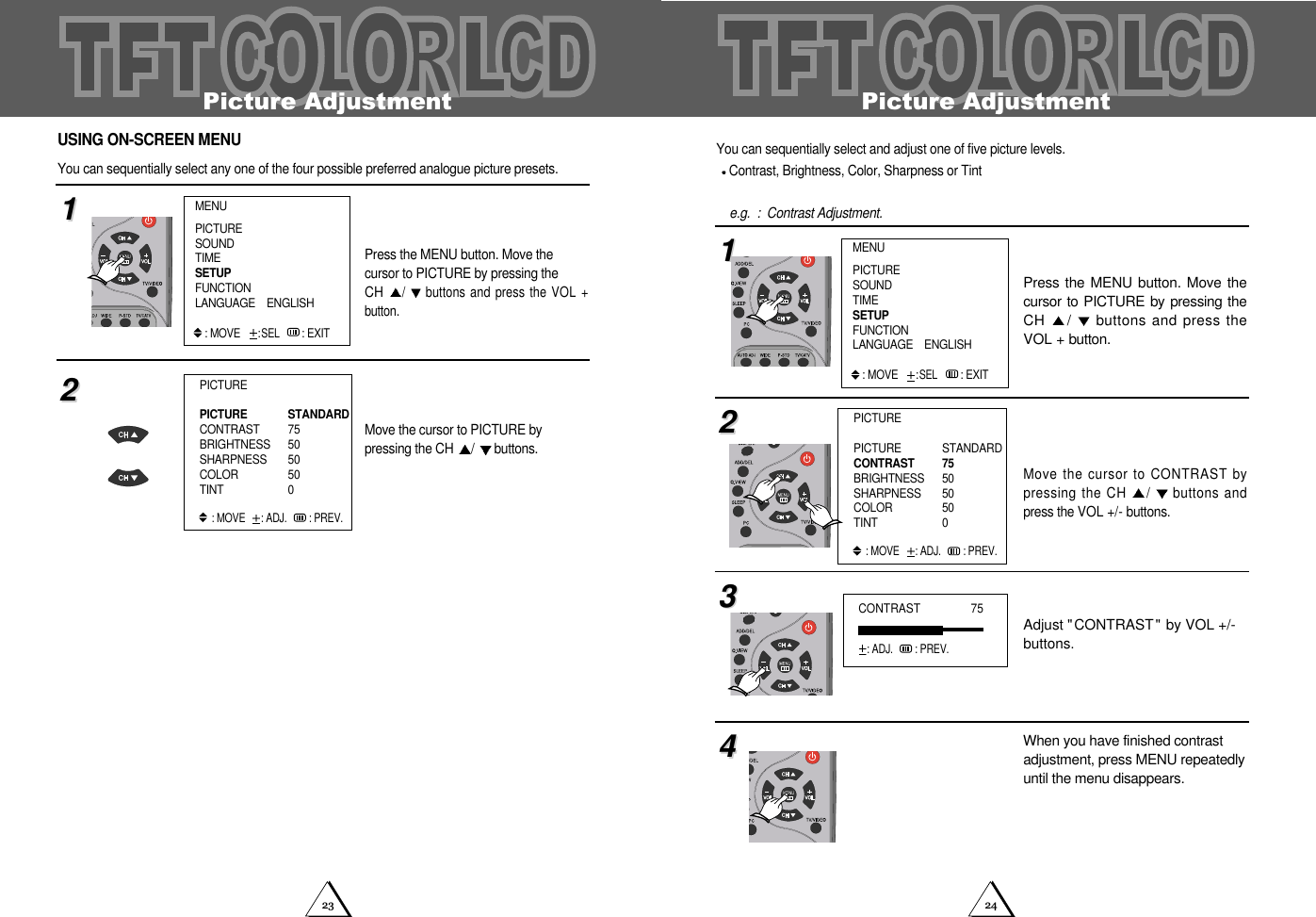
2423Picture AdjustmentYou can sequentially select and adjust one of five picture levels. Contrast, Brightness, Color, Sharpness or Tint  e.g.  :  Contrast Adjustment.Press the MENU button. Move thecursor to PICTURE by pressing theCH  /buttons and press theVOL + button.Move the cursor to CONTRAST bypressing the CH  /buttons andpress the VOL +/- buttons.Adjust "CONTRAST" by VOL +/-buttons.When you have finished contrastadjustment, press MENU repeatedlyuntil the menu disappears.11223344CONTRAST                75: ADJ. : PREV.PICTUREPICTURE STANDARDCONTRAST  75BRIGHTNESS 50SHARPNESS  50COLOR  50TINT  0: MOVE   : ADJ. : PREV.MENUPICTURESOUNDTIMESETUPFUNCTIONLANGUAGE    ENGLISH: MOVE:SEL : EXITPicture AdjustmentPress the MENU button. Move the cursor to PICTURE by pressing the CH /buttons and press the VOL +button.Move the cursor to PICTURE by pressing the CH  /buttons.1122PICTUREPICTURE STANDARDCONTRAST  75BRIGHTNESS 50SHARPNESS  50COLOR  50TINT  0: MOVE   : ADJ. : PREV.USING ON-SCREEN MENUYou can sequentially select any one of the four possible preferred analogue picture presets. MENUPICTURESOUNDTIMESETUPFUNCTIONLANGUAGE    ENGLISH: MOVE:SEL : EXIT
2625Sound AdjustmentPress the MENU button. Move thecursor to SOUND by pressing theCH  /buttons and press theVOL + button.Move the cursor to SOUND by pressingthe CH  /buttons.1122USING ON-SCREEN MENUThere is a choice of five audio settings by using the on-screen menu, the five settings can byviewed in the sequence illustrated.SOUNDEQUALIZERBALANCE 0SURROUND OFF: MOVE   : ADJ. : PREV.MENUPICTURESOUNDTIMESETUPFUNCTION: MOVE:SEL : EXITSound AdjustmentS.STDThere is a choice of five audio settings. By pressing the S.STD button, any one of five settingscan be in the sequence illustrated.Whenever this button is pressed, the mode will be changed as follows.1. Press S.STD button.Whenever this button is pressed, the mode will be changed as follows.Select this mode to hear the adjusted sound you wantCUSTOMSelect this mode to hear the factory presetting standardsoundSTANDARDSelect this mode to hear the musicMUSICSelect this mode to view the movie  MOVIESelect this mode to hear the voice clearlySPEECHSTANDARD MUSIC MOVIE SPEECH CUSTOM
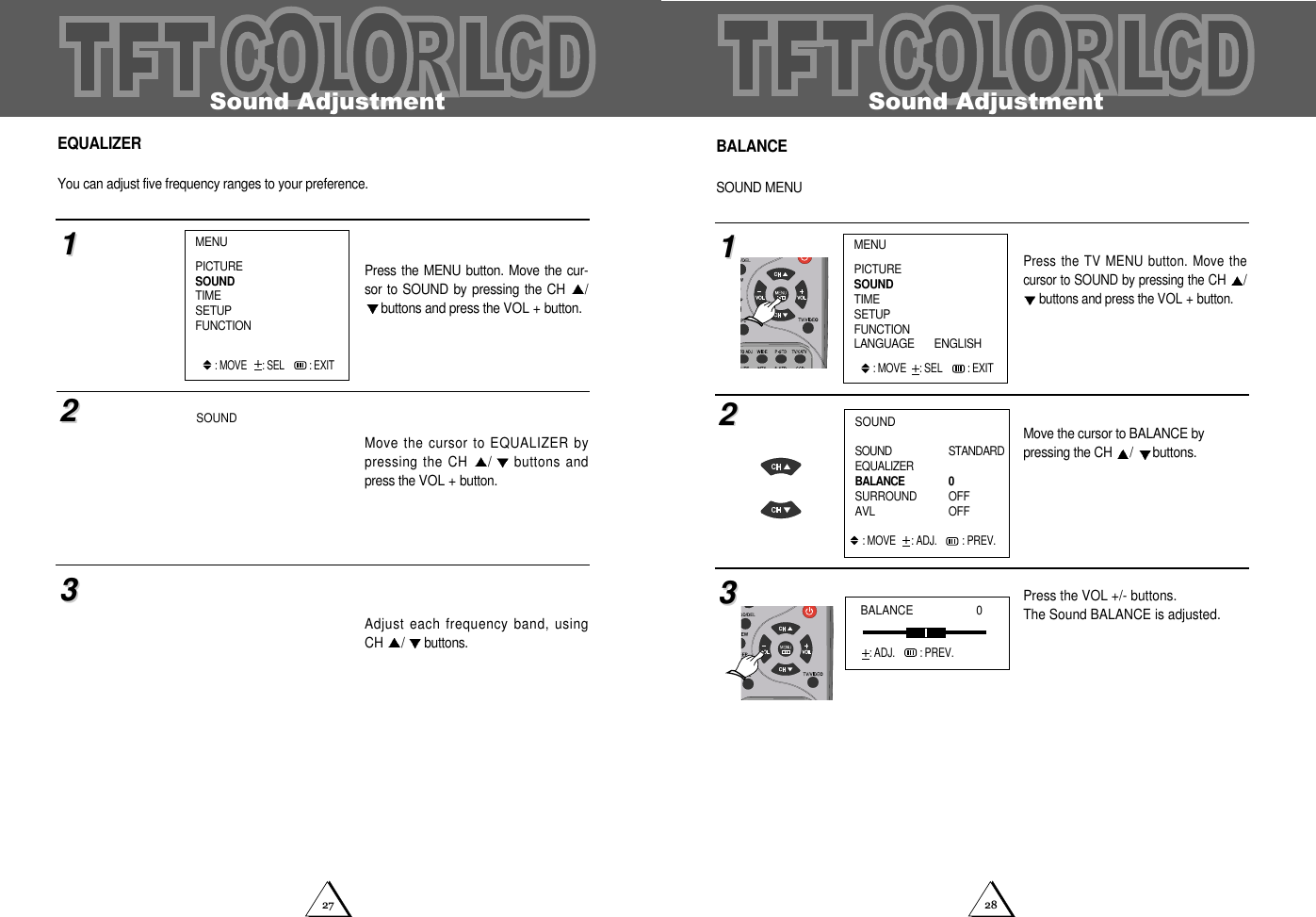
2827Sound AdjustmentBALANCESOUND MENUPress the TV MENU button. Move thecursor to SOUND by pressing the CH /buttons and press the VOL + button.Move the cursor to BALANCE by pressing the CH  /buttons.Press the VOL +/- buttons.The Sound BALANCE is adjusted. 112233MENUPICTURESOUNDTIMESETUPFUNCTIONLANGUAGE       ENGLISH: MOVE  : SEL  : EXITSOUNDSOUND STANDARDEQUALIZERBALANCE 0SURROUND OFFAVL  OFF : MOVE   : ADJ. : PREV.BALANCE                    0: ADJ.   : PREV.Sound AdjustmentEQUALIZERYou can adjust five frequency ranges to your preference. Press the MENU  button. Move the  cur-sor to SOUND  by pressing the CH  /buttons and press the VOL + button.Move the cursor to EQUALIZER bypressing the CH  /buttons andpress the VOL + button.Adjust each frequency band, usingCH  /buttons.112233MENUPICTURESOUNDTIMESETUPFUNCTION: MOVE   : SEL  : EXITSOUND

Navigation menu