Kingston Digital MLWG3 MobileLite WIRELESS G3 (MLWG3,MLWG3/64) User Manual

Kingston Digital Inc. MobileLite WIRELESS G3 (MLWG3,MLWG3/64)

User Manual

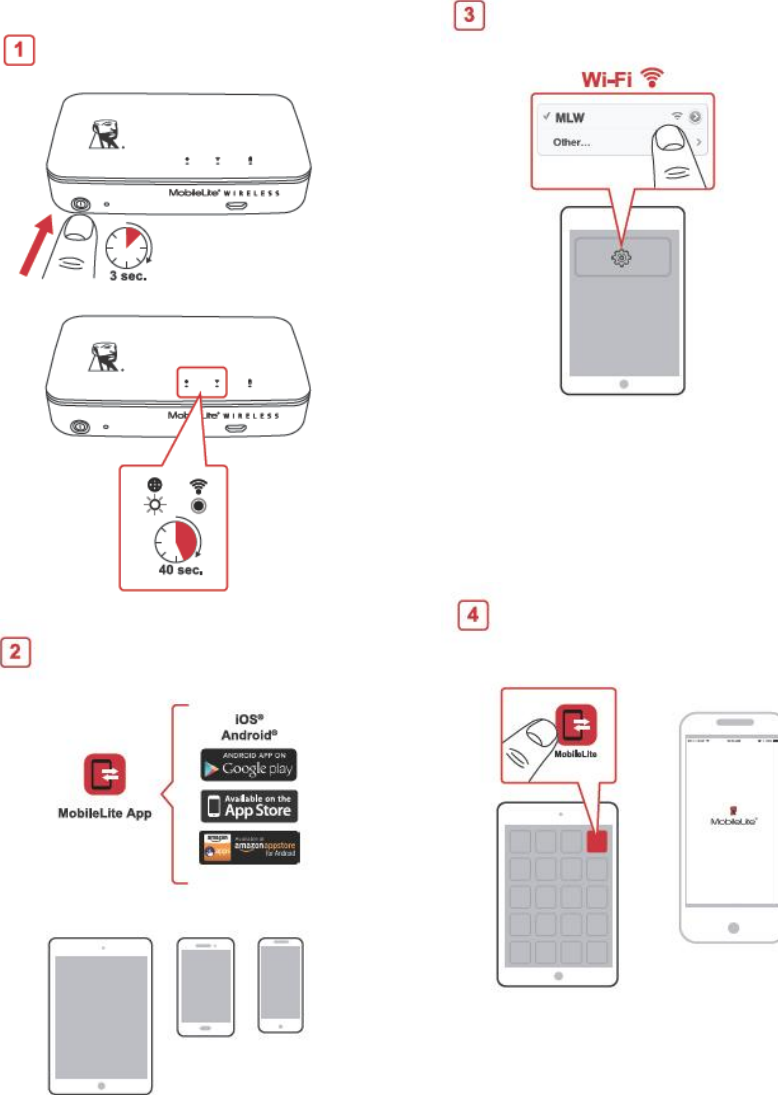
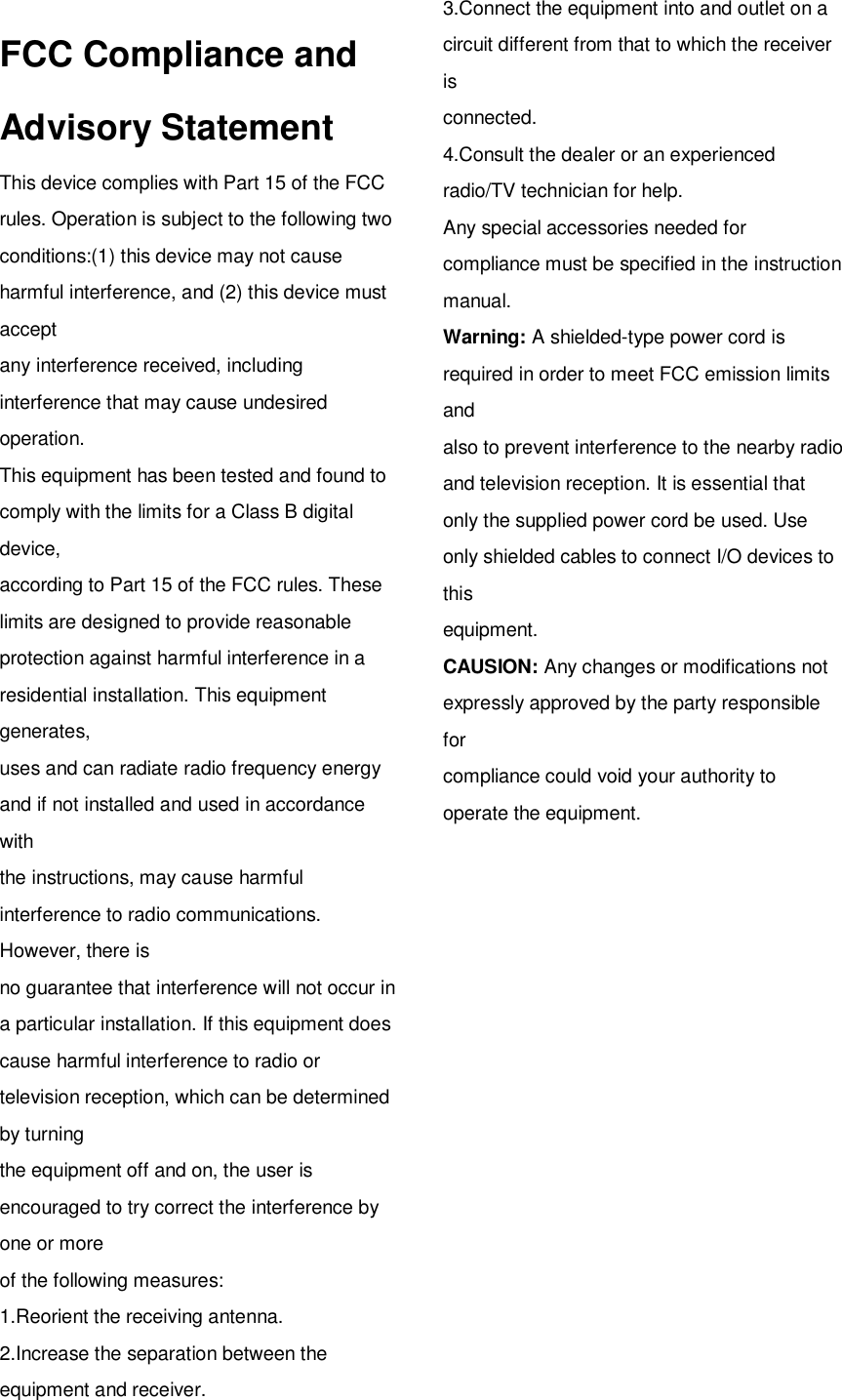
User's Guide  MLWG3 Getting Started Step 1 – Charge your MLWG3 Device Before using, make sure your MLWG3™ is fully charged. To charge, connect the included USB cable to your MLWG3’s mini USB port (1) and the other end into an available USB port on your computer or to a USB wall adapter. The green power light will stop _ashing when MLWG3 is fully charged. Step 2 – Add Content to your MLWG3 Windows users: When connecting your MLWG3 to your computer, two drive letters will appear in Windows Explorer — one Read-Only labeled “CDROM” and one Removable Disk labeled “MLWG3” Double-click on the drive labeled “MLWG3” to add your content. Transfer your _les the same as you would for any USB drive; drag or copy _les from your computer to your MLWG3 device Mac users: By default when connecting your MLWG3 to your computer, two drives will appear on your desktop — one Read-Only labeled “CDROM” and one Removable Disk labeled “MLWG3” Double-click on the drive labeled “MLWG3” to add your content. Transfer your _les the same as you would for any USB drive; drag or copy _les from your computer to your MLWG3 device. (It is recommended that you organize your content by creating folders, e.g., “Videos, Music, Pictures and Documents”) Step 3 – Download Kingston’s Free MLWG3 App from the App Store Visit Apple’s App Store and search for “Kingston MLWG3”.   Figure 1 – Kingston’s MLWG3 App Icon Step 4 Power on the MLWG3 by pressing the On/Off button (2).* *Note: After you power on, wait for Blue Wi-Fi Activity Light to start _ashing before proceeding to the next step(3). Step 5 Go to the Settings icon on your iPad®, iPhone®, or iPod® touch and select Wi-Fi. Con_rm that Wi-Fi is ON. Select “Kingston
MLWG3” under “Choose a Network” and click on it to connect to it. Step 6 Once connected, open the Kingston MLWG3 app on your iPad, iPhone, or iPod touch and enjoy your new expanded storage. Step 7 Share your content with as many as three users by having them follow steps 3 to 6. A. USB 2.0 port - Allows you to connect an external USB Storage Device to MobileLite Wireless G3. It also allows you to charge your mobile device. B. SD slot - Allows you to connect a memory card (SD/SDHC/SDXC or any microSD w/ adapter) to MobileLite Wireless G3. (Optional: no built-in capacity or  ≦ 64GB) C. Battery LED/Power* - Indicates current battery status and current power state. D. Wi-Fi LED - Indicates current status of Wi-Fi broadcast. E. Bridged LED - Indicates whether or not MobileLite Wireless G3 is bridged to an Internet gateway via Wi-Fi or Ethernet. F. Power button - Powers on or powers off the MobileLite Wireless G3 device. Short press (1 second): Power bank mode/Long press (3 seconds): Wi-Fi mode. G. Reset button - Allows you to reset the MobileLite Wireless G3 device to its original (default) configuration. Hold the button down for more than 10 seconds. H. Micro-B USB port - Allows you to charge MobileLite Wireless G3 or connect it to a standard USB port on your computer for fast, easy data transfer. Each media expansion port will require its own drive letter if media are inserted. I. Ethernet port – Allows you to connect an Ethernet cable to create a hotspot for wireless internet access. Wi-Fi mode will temporarily disable while connected to Ethernet. * The battery LED also indicates how much battery time is left while the MobileLite Wireless G3 is powered on. Green indicates 51% - 100% battery charge remaining; orange indicates 25% - 50% battery charge remaining; and red indicates less than 25% battery charge remaining.  Product Content:  • 1 station MobileLite Wireless G3  Note: This product has a black and white two kinds of housing      • 1 strip the USB cable (45 cm, A turn Micro-B connector)       • 1 inner bond MicroSD 64G card
  FCC Compliance and Advisory Statement This device complies with Part 15 of the FCC rules. Operation is subject to the following two conditions:(1) this device may not cause harmful interference, and (2) this device must accept any interference received, including interference that may cause undesired operation. This equipment has been tested and found to comply with the limits for a Class B digital device, according to Part 15 of the FCC rules. These limits are designed to provide reasonable protection against harmful interference in a residential installation. This equipment generates, uses and can radiate radio frequency energy and if not installed and used in accordance with the instructions, may cause harmful interference to radio communications. However, there is no guarantee that interference will not occur in a particular installation. If this equipment does cause harmful interference to radio or television reception, which can be determined by turning the equipment off and on, the user is encouraged to try correct the interference by one or more of the following measures: 1.Reorient the receiving antenna. 2.Increase the separation between the equipment and receiver. 3.Connect the equipment into and outlet on a circuit different from that to which the receiver is connected. 4.Consult the dealer or an experienced radio/TV technician for help. Any special accessories needed for compliance must be specified in the instruction manual. Warning: A shielded-type power cord is required in order to meet FCC emission limits and also to prevent interference to the nearby radio and television reception. It is essential that only the supplied power cord be used. Use only shielded cables to connect I/O devices to this equipment. CAUSION: Any changes or modifications not expressly approved by the party responsible for compliance could void your authority to operate the equipment.
Required notices to the User of Canada (RSS)  IC statement CAN ICES-3 (B)/NMB-3(B)  This device complies with Industry Canada licence-exempt RSS standard(s). Operation is subject to the following two conditions: (1) this device may not cause interference, and (2) this device must accept any interference, including interference that may cause undesired operation of the device.  Le présent appareil est conforme aux CNR d’Industrie Canada applicables aux appareils radio exempts de licence. L’exploitation est autorisée aux deux conditions suivantes : (1) l’appareil ne doit pas produire de brouillage, et (2) l’utilisateur de l’appareil doit accepter tout brouillage radioélectrique subi, même si le brouillage est susceptible d’en compromettre le fonctionnement.     Complies with IDA Standards DAXXXXXX
 使用說明書      有關完整的用戶手冊和常見問題列表,請線上訪問我們的網站 http://www.kingston.com/us/landing/widriveplus/  入門   無線存取裝置 型號:MLWG3 步驟 1-為您的 MLWG3 充電 在使用前,請先確認您的 MLWG3 已經充飽電量。若需充電,請將附贈的 USB 線連接至MLWG3 的microUSB 埠(1),另一端插入電腦上可用的 USB 插槽或 USB 電源轉接器即可。當MLWG3 充飽電量後,綠色指示燈會停止閃爍。 步驟 2-將資料傳輸至您的 MLWG3 Windows 作業系統的使用者:將您的計算器連接上 MLW 的無線SSID後 (無線 SSID後面會帶四碼,為 MLW 的MAC  位址末四碼),無線連接上後,Windows 檔案總管的網路磁片下面會出現一個磁片代號-一個標示為「MLW--」的卸除式磁片。在標示有「MLW」開頭的磁片點擊兩下後,如果有出現彈出輸入帳號密碼的視窗,帳號輸入”admin”,  密碼空白按輸入即可,進入之後會出現 USB, SD,或是 Internal 的資料夾,即可新增檔案。傳輸檔案的方式與使用一般USB 隨身碟相同;您只需將電腦中的檔案拖曳或複製即可。  Mac 作業系統的使用者:將您的 Mac 連接上MLW 的無線 SSID 後 (無線 SSID 後面都會帶四碼,為 MLW 的MAC 位址末四碼),  無線連接上後,點選 MAC 上方的 “Go -> Connect to Server”,  輸入”smb://192.168.202.254” or “smb://192.168.203.254” 後,如果有出現彈出輸入帳號密碼的視窗,帳號輸入”admin”,  密碼請空白,再按輸入即可,進入之後會出現USB, SD,或是 Internal 的資料夾,即可新增檔案。傳輸檔案的方式與使用一般USB 隨身碟相同;您只需將電腦中的檔案拖曳或複製即可 (建議您建立資料夾來組識您的檔案,例如「影片、音樂、圖片和檔」) 步驟 3-從App Store(下載免費的MobileLite 應用程式 您可連結至Apple 的App Store(並輸入「MobileLite」搜尋。 步驟 4 按下 On/Off 按鈕(2)以開啟 MLWG3 電源。 *請注意:當電源開啟後,請等候藍色的 Wi-Fi指示燈開始閃爍,再繼續下一個操作步驟(3)。 步驟 5 在iPad®、iPhone®或 iPod® touch 的「設定」功能中點選 Wi-Fi 功能。確認開啟啟 Wi-Fi 功能。在「選擇網路」下選取有「MLW」開頭的無線 SSID 並開啟聯機。 步驟 6 聯機之後開啟 iPad®、iPhone®或 iPod® touch 上的 MLW 的應用程式,即可開始使用MLWG3 的儲存空間。 步驟 7 遵循步驟 3至6的程式,您即可透過 MLWG3最多同時與三位元使用者分享檔案資料。    A. USB 2.0  連接埠 -  可讓您將外接式 USB 儲存裝置連接至 MobileLite Wireless G3。也能讓您為行動裝置充電。 B. SD  插槽 -  可讓您將記憶卡
(SD/SDHC/SDXC  或任何搭配轉接卡的 microSD  記憶卡)  連接至 MobileLite Wireless G3。(選配:無內置容量 或 ≦64GB) C.  電池 LED  指示燈/電量* -  表示目前電池和電量的狀態。 D. WiFi LED  指示燈 -  表示目前 WiFi  訊號的狀態。 E.  網路橋接 LED  指示燈 -  表示 MobileLite Wireless G3  是否已透過 Wi-Fi 或乙太網路橋接到網際網路。 F.  電源鍵 -  開啟或關閉 MobileLite Wireless G3  裝置的電源。短按 (1  秒):備用電池模式/長按 (3  秒):Wi-Fi  模式。Wireless G3  充電,或是連接到電腦上的標準 USB  連接埠,以便快速且 輕鬆地傳輸資料。當擴充連接埠在使用時,每個使用中的連接埠都需要專屬的磁碟機代號。 G.  重置按鈕 -  可讓您將 MobileLite Wireless G3裝置恢復原廠設定 (出廠預設值)。按住按鈕十秒以上。 H. Micro-B USB  連接埠 -  可為 MobileLite  I.  乙太網路連接埠 – 可以連接乙太網路纜線,以建立無線網路熱點,聯機到網際網路。當連接至乙太網路時,Wi-Fi模式將暫時停用。  *電池 LED  指示燈在開啟 MobileLite Wireless G3  電源時,會顯示目前電池電量剩餘時間。綠色表示剩下 51% - 100%  的電池電量;橘色表示剩 下 25% - 50%  電池電量;而紅色表示剩下或低於 25%  的電池電量。 產品內容:  1  台 MobileLite Wireless G3 備註:本產品有黑色及白色兩種外殼      1  條 USB  傳輸線 (45  公分,A  轉 Micro-B 接頭)       1  個 內鍵 MicroSD 64G 卡       注意事項: 依據低功率電波幅射性電機管理辨法 第十二條:經型式認證合格之低功率射頻電機,非經許可,公司、商號或使用者均 不得得擅自變更頻率、加大功率或變更通原計之特性及功能。 第十四條:低功率射頻電機之使用不得影響飛航安全及干擾合法通信;經發現有干 擾現象時,應立即停用,並改善至無干擾時方得繼續使用。 前項合法通信,指依電信法規定作業之無線電通信。低功率射頻電機須忍受合法通 信或工業、科學及醫療用電波輻射性電機設備之干擾。 減少電磁波影響,請妥適使用。 [警語] 「電磁波曝露量MPE  標準值1mW/cm2,送測產品實測值為 (0.028) mW/cm2」

Navigation menu