Luminex 5842 12-Bluetooth Ceiling Light User Manual 351 1542

Luminex International Co., Ltd 12-Bluetooth Ceiling Light 351 1542

Users Manual

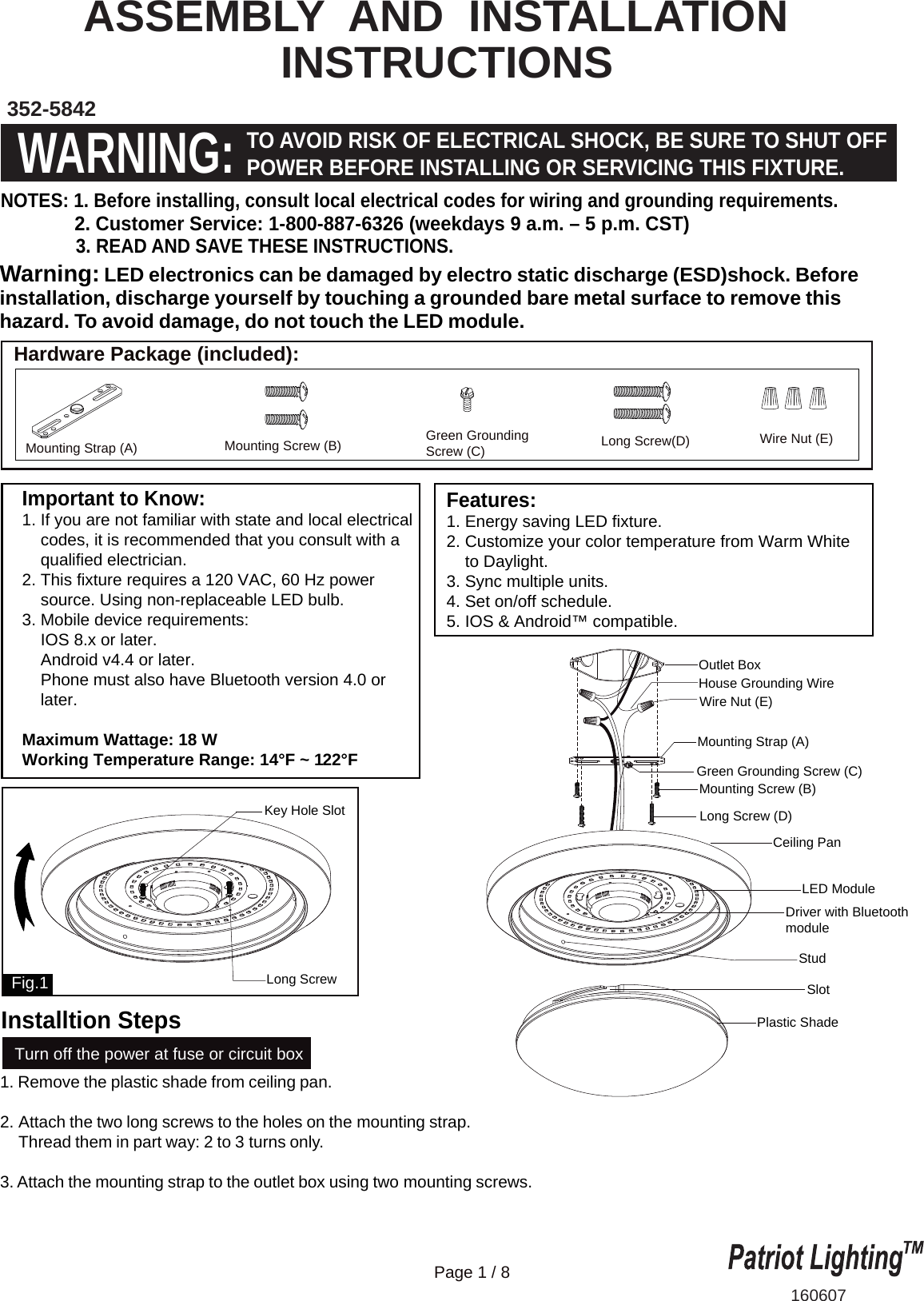
Important to Know:1. If you are not familiar with state and local electrical    codes, it is recommended that you consult with a    qualified electrician.2. This fixture requires a 120 VAC, 60 Hz power    source. Using non-replaceable LED bulb.3. Mobile device requirements:    IOS 8.x or later.    Android v4.4 or later.    Phone must also have Bluetooth version 4.0 or     later.Maximum Wattage: 18 WWorking Temperature Range: 14°F ~ 122°F Features:1. Energy saving LED fixture.2. Customize your color temperature from Warm White    to Daylight. 3. Sync multiple units. 4. Set on/off schedule.5. IOS & Android™ compatible.ASSEMBLY  AND  INSTALLATION                 INSTRUCTIONS352-5842160607WARNING:TO AVOID RISK OF ELECTRICAL SHOCK, BE SURE TO SHUT OFFPOWER BEFORE INSTALLING OR SERVICING THIS FIXTURE.NOTES: 1. Before installing, consult local electrical codes for wiring and grounding requirements.              2. Customer Service: 1-800-887-6326 (weekdays 9 a.m. – 5 p.m. CST)               3. READ AND SAVE THESE INSTRUCTIONS.  Hardware Package (included):Turn off the power at fuse or circuit boxMounting Strap (A) Green GroundingScrew (C) Long Screw(D)Mounting Screw (B) Wire Nut (E)Ceiling PanStudDriver with BluetoothmodulePlastic ShadeLong ScrewKey Hole SlotSlotLED ModuleFig.11. Remove the plastic shade from ceiling pan.2. Attach the two long screws to the holes on the mounting strap.     Thread them in part way: 2 to 3 turns only.  3. Attach the mounting strap to the outlet box using two mounting screws. Warning: LED electronics can be damaged by electro static discharge (ESD)shock. Before installation, discharge yourself by touching a grounded bare metal surface to remove this hazard. To avoid damage, do not touch the LED module. Page 1 / 8Outlet BoxHouse Grounding WireWire Nut (E)Long Screw (D)Mounting Strap (A)Green Grounding Screw (C)Mounting Screw (B)Installtion Steps
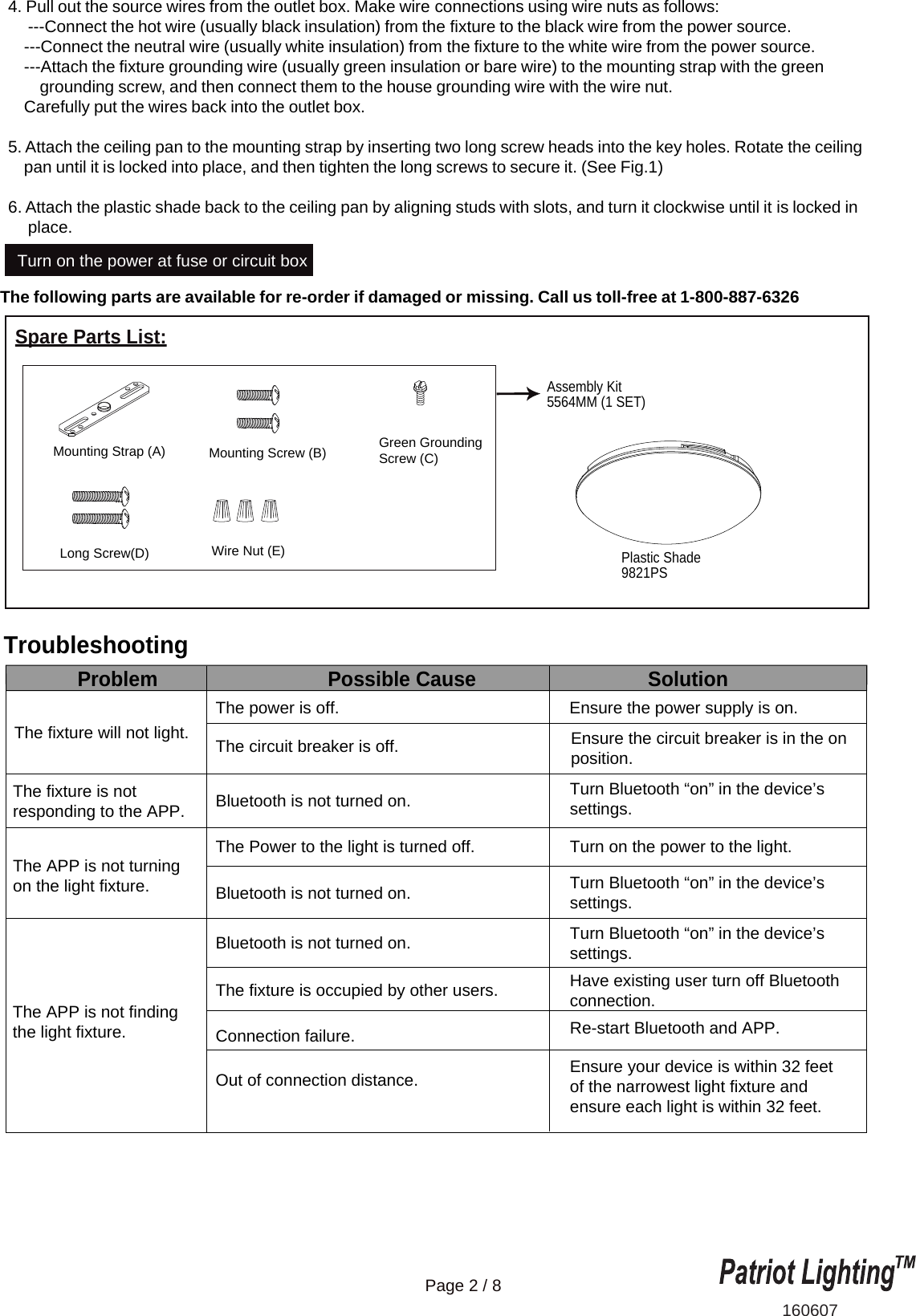
The following parts are available for re-order if damaged or missing. Call us toll-free at 1-800-887-6326The fixture will not light.Ensure the power supply is on.Ensure the circuit breaker is in the onposition.Turn Bluetooth “on” in the device’s settings.Turn Bluetooth “on” in the device’s settings.Turn Bluetooth “on” in the device’s settings.Have existing user turn off Bluetooth connection.Re-start Bluetooth and APP.Ensure your device is within 32 feet of the narrowest light fixture and ensure each light is within 32 feet.Turn on the power to the light.The power is off.The circuit breaker is off.Bluetooth is not turned on.Bluetooth is not turned on.Bluetooth is not turned on.The Power to the light is turned off.The fixture is occupied by other users.Connection failure.Out of connection distance.Problem Possible Cause SolutionThe fixture is not responding to the APP.The APP is not turning on the light fixture.The APP is not finding the light fixture.160607Turn on the power at fuse or circuit boxPlastic Shade9821PSPage 2 / 8Spare Parts List:Assembly Kit5564MM (1 SET) Mounting Strap (A) Green GroundingScrew (C)Long Screw(D)Mounting Screw (B)Wire Nut (E)4. Pull out the source wires from the outlet box. Make wire connections using wire nuts as follows:     ---Connect the hot wire (usually black insulation) from the fixture to the black wire from the power source.    ---Connect the neutral wire (usually white insulation) from the fixture to the white wire from the power source.    ---Attach the fixture grounding wire (usually green insulation or bare wire) to the mounting strap with the green         grounding screw, and then connect them to the house grounding wire with the wire nut.    Carefully put the wires back into the outlet box.5. Attach the ceiling pan to the mounting strap by inserting two long screw heads into the key holes. Rotate the ceiling    pan until it is locked into place, and then tighten the long screws to secure it. (See Fig.1)6. Attach the plastic shade back to the ceiling pan by aligning studs with slots, and turn it clockwise until it is locked in     place.Troubleshooting
160607Page 3 / 85-Year Limited Warranty:This Patriot Lighting fixture carries a limited warranty against defects in material or workmanship. If the Patriot Lighting product fails at any time within five (5) years after the original date of sale due to defects in material or workmanship, return the product to Menards with the original sales receipt. At its discretion, Patriot Lighting will replace the defective fixture with the same or similar fixture or issue a refund. This warranty and any implied warranty (including but not limited to any implied warranty of merchantability or fitness for a particular purpose) does not cover glass globes, light bulbs and other expendable items. This warranty excludes coverage of finish or color against tarnishing, flaking, and discoloration. If the original purchaser ceases to own the Patriot Lighting product this warranty and any implied warranty will be void. This warranty does not cover damage caused by misuse or abuse, including but not limited to improper installation, improper usage, accident, negligence, unauthorized repair, unauthorized modifications, or unauthorized maintenance of the fixture. This warranty does not include reimbursement for inconvenience, installation, setup time, returned shipping charges or defects, losses, labor, injuries to personal property. This warranty gives the consumer specific legal rights, and the consumer may have other rights which vary from state to state. The seller’s employees are not qualified to advise on the use of the fixture. Any oral representations made will not be binding on seller or its employees.For questions regarding this product, call toll-free at 1-800-887-6326.FCC Statement1. This device complies with Part 15 of the FCC Rules. Operation is subject to the following two conditions:    (1) This device may not cause harmful interference.    (2) This device must accept any interference received, including interference that may cause undesired operation.2. Changes or modifications not expressly approved by the party responsible for compliance could void the user's     authority to operate the equipment.NOTE: The manufacturer is not responsible for any radio or TV interference caused by unauthorized modificationsto this equipment. Such modifications could void the user’s authority to operate the equipment.NOTE: This equipment has been tested and found to comply with the limits for a Class B digital device, pursuant to part 15 of the FCC Rules. These limits are designed to provide reasonable protection against harmful interference in a residential installation. This equipment generates uses and can radiate radio frequency energy and, if not installed and used in accordance with the instructions, may cause harmful interference to radio communications. However, there is no guarantee that interference will not occur in a particular installation. If this equipment does cause harmful interference to radio or television reception, which can be determined by turning the equipment off and on, the user is encouraged to try to correct the interference by one or more of the following measures:- Reorient or relocate the receiving antenna.- Increase the separation between the equipment and receiver.- Connect the equipment into an outlet on a circuit different from that to which the receiver is connected.- Consult the dealer or an experienced radio/TV technician for helpThis equipment complies with FCC radiation exposure limits set forth for an uncontrolled environment. This equipment should be installed and operated with minimum distance of 20 cm between the radiator and your body.
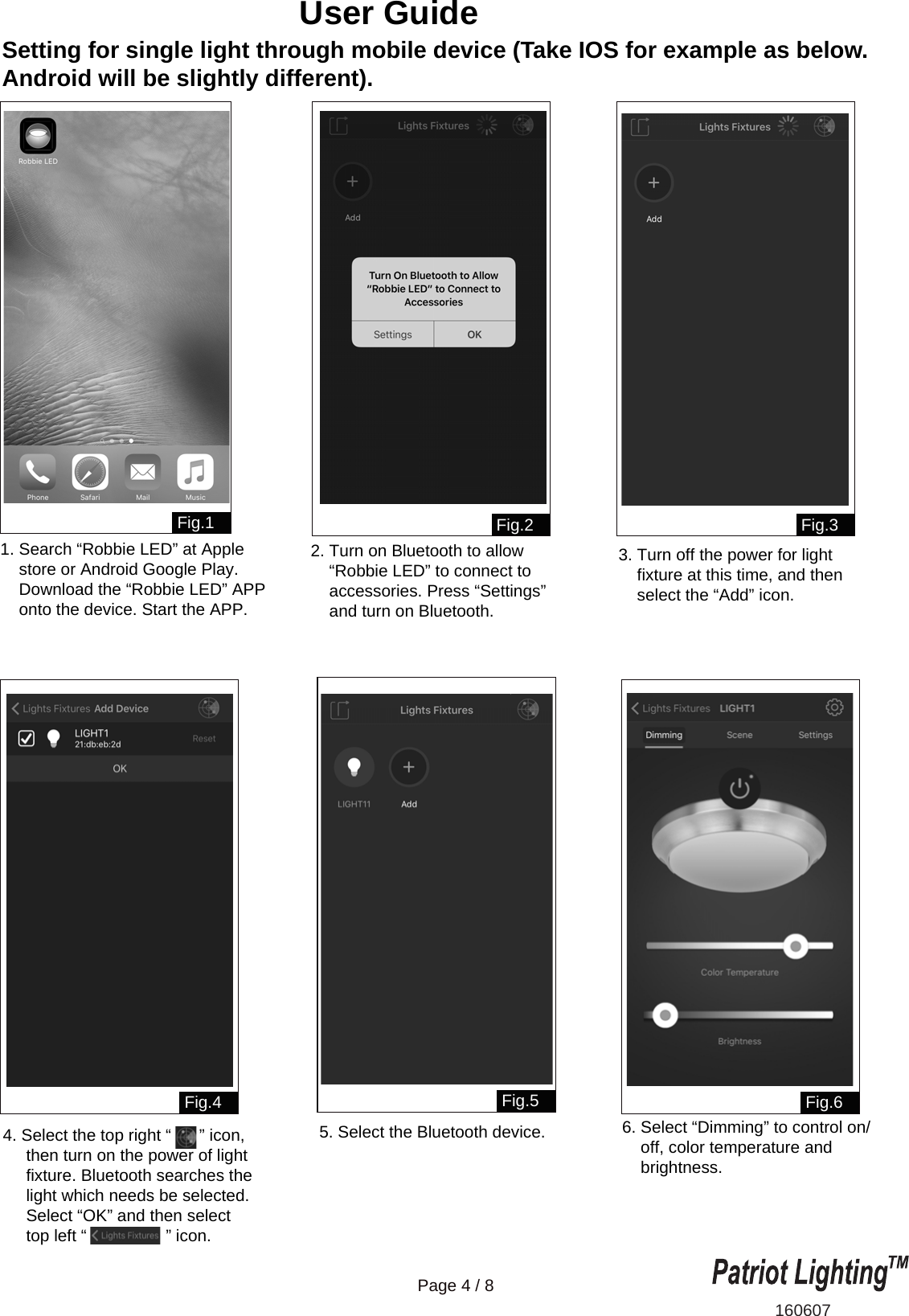
Setting for single light through mobile device (Take IOS for example as below. Android will be slightly different).160607Page 4 / 8User Guide Fig.1 Fig.2Fig.6Fig.3Fig.4 Fig.51. Search “Robbie LED” at Apple     store or Android Google Play.     Download the “Robbie LED” APP    onto the device. Start the APP.2. Turn on Bluetooth to allow     “Robbie LED” to connect to     accessories. Press “Settings”     and turn on Bluetooth.6. Select “Dimming” to control on/    off, color temperature and    brightness.3. Turn off the power for light     fixture at this time, and then     select the “Add” icon.4. Select the top right “      ” icon,     then turn on the power of light     fixture. Bluetooth searches the      light which needs be selected.     Select “OK” and then select      top left “                 ” icon.5. Select the Bluetooth device.
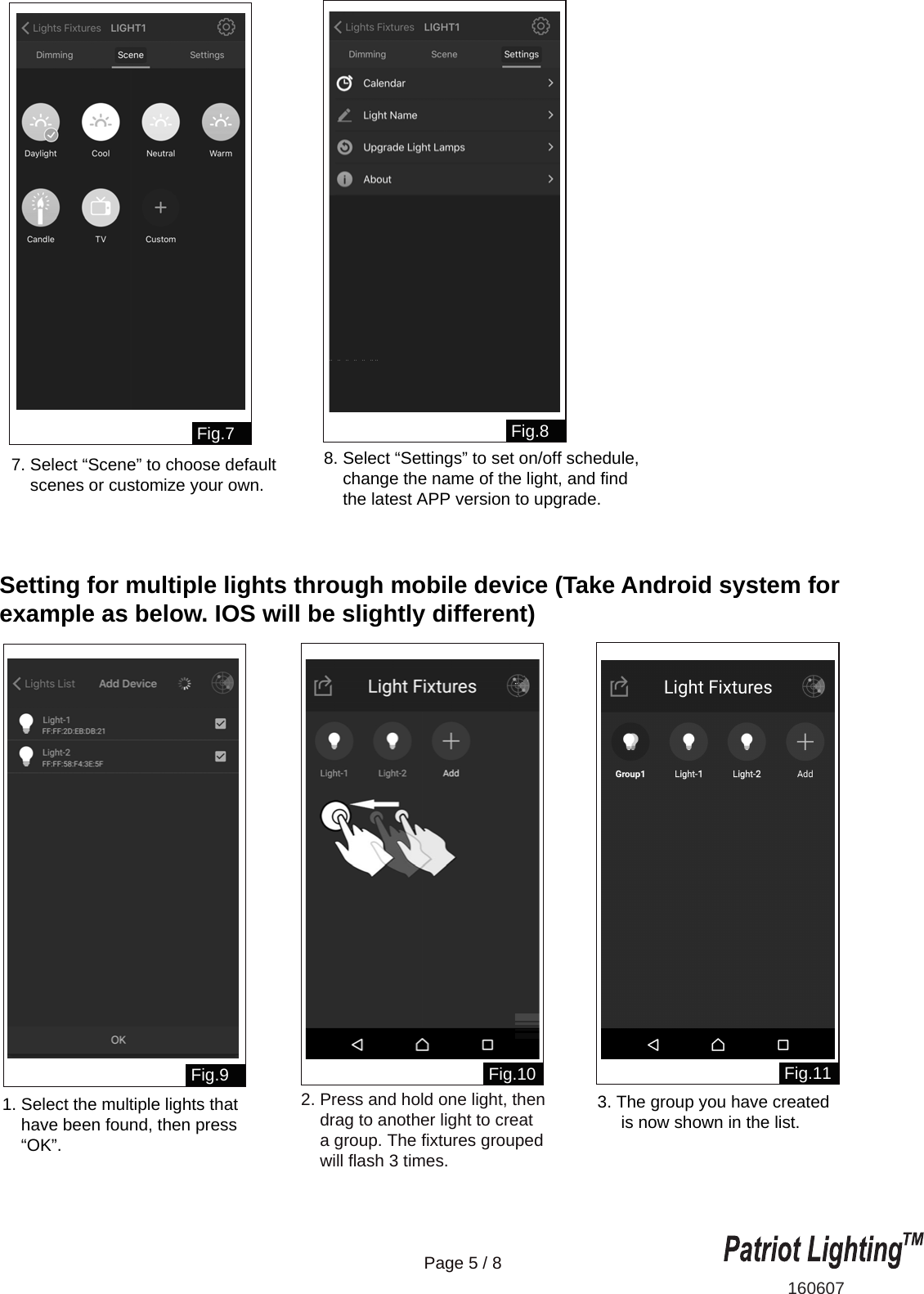
Setting for multiple lights through mobile device (Take Android system for example as below. IOS will be slightly different)160607Page 5 / 8Fig.7Fig.10 Fig.11Fig.9Fig.87. Select “Scene” to choose default     scenes or customize your own.8. Select “Settings” to set on/off schedule,     change the name of the light, and find     the latest APP version to upgrade.2. Press and hold one light, then     drag to another light to creat     a group. The fixtures grouped     will flash 3 times.3. The group you have created     is now shown in the list.1. Select the multiple lights that     have been found, then press     “OK”.
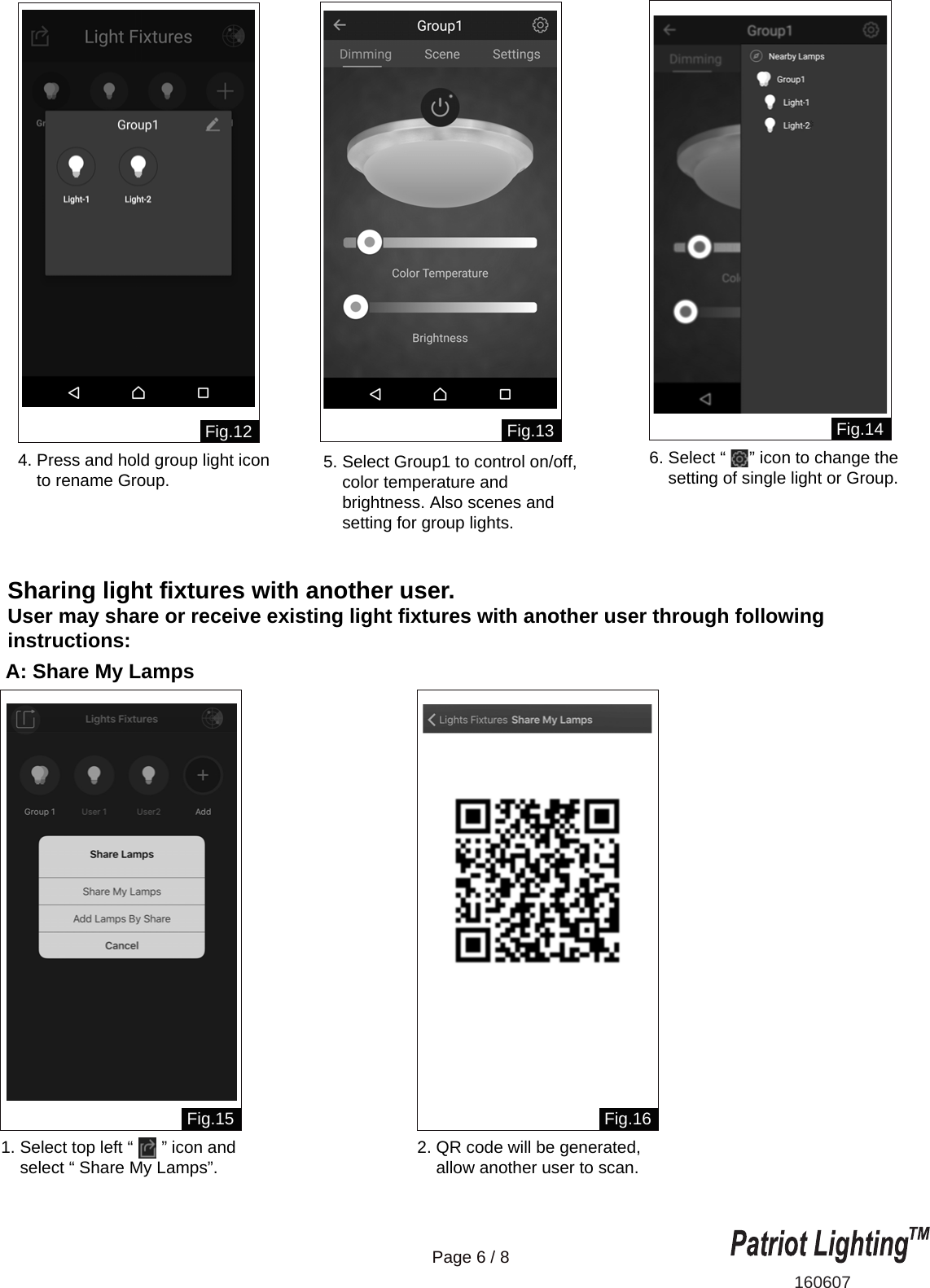
Sharing light fixtures with another user.User may share or receive existing light fixtures with another user through following instructions:A: Share My Lamps160607Page 6 / 8Fig.13 Fig.14Fig.15 Fig.16Fig.124. Press and hold group light icon    to rename Group. 1. Select top left “      ” icon and    select “ Share My Lamps”. 2. QR code will be generated,    allow another user to scan.5. Select Group1 to control on/off,    color temperature and     brightness. Also scenes and     setting for group lights.6. Select “     ” icon to change the     setting of single light or Group.
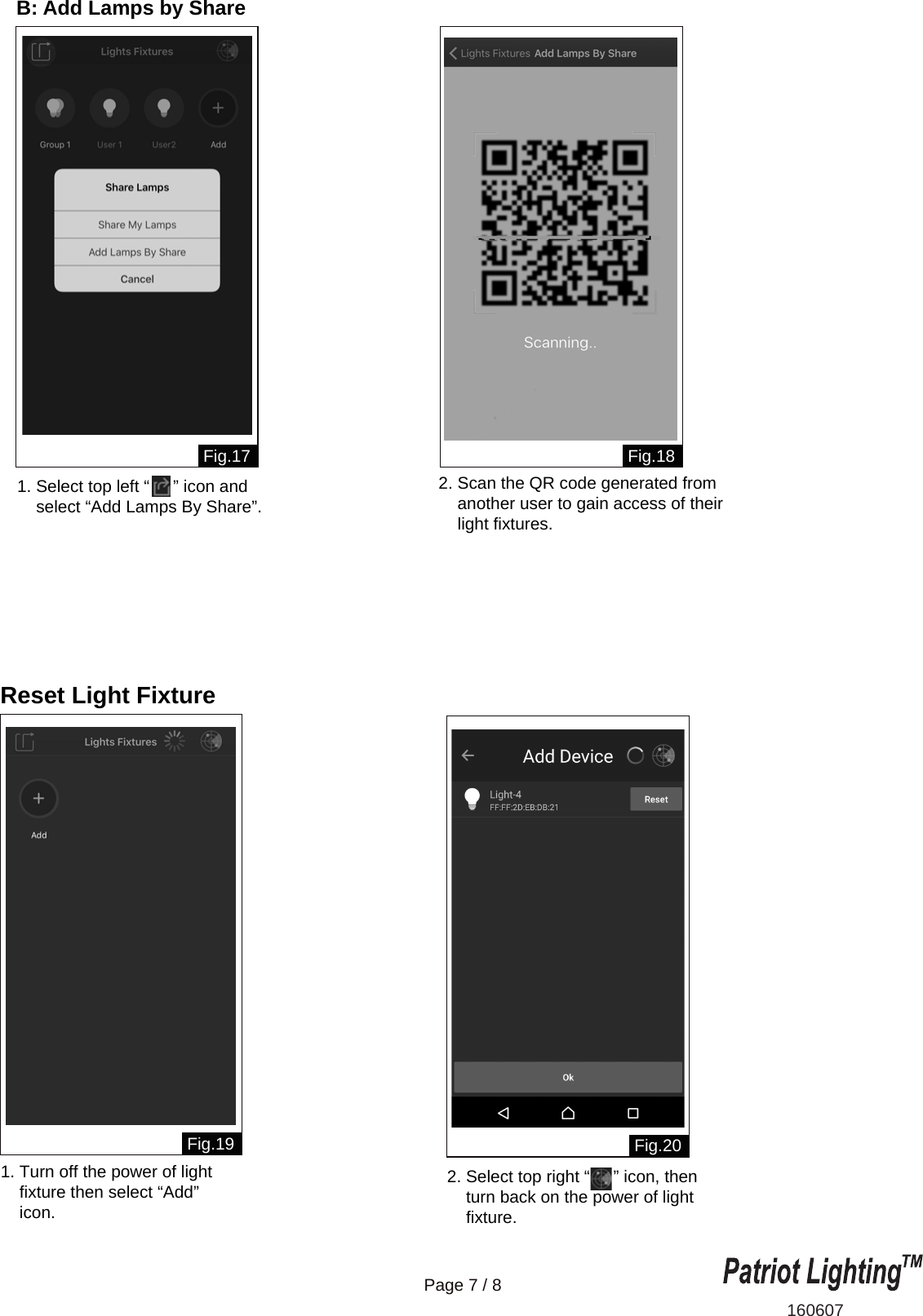
B: Add Lamps by Share160607Page 7 / 8Reset Light FixtureFig.17 Fig.18Fig.20Fig.192. Scan the QR code generated from    another user to gain access of their    light fixtures.  1. Turn off the power of light     fixture then select “Add”     icon. 1. Select top left “     ” icon and    select “Add Lamps By Share”.2. Select top right “     ” icon, then     turn back on the power of light     fixture.
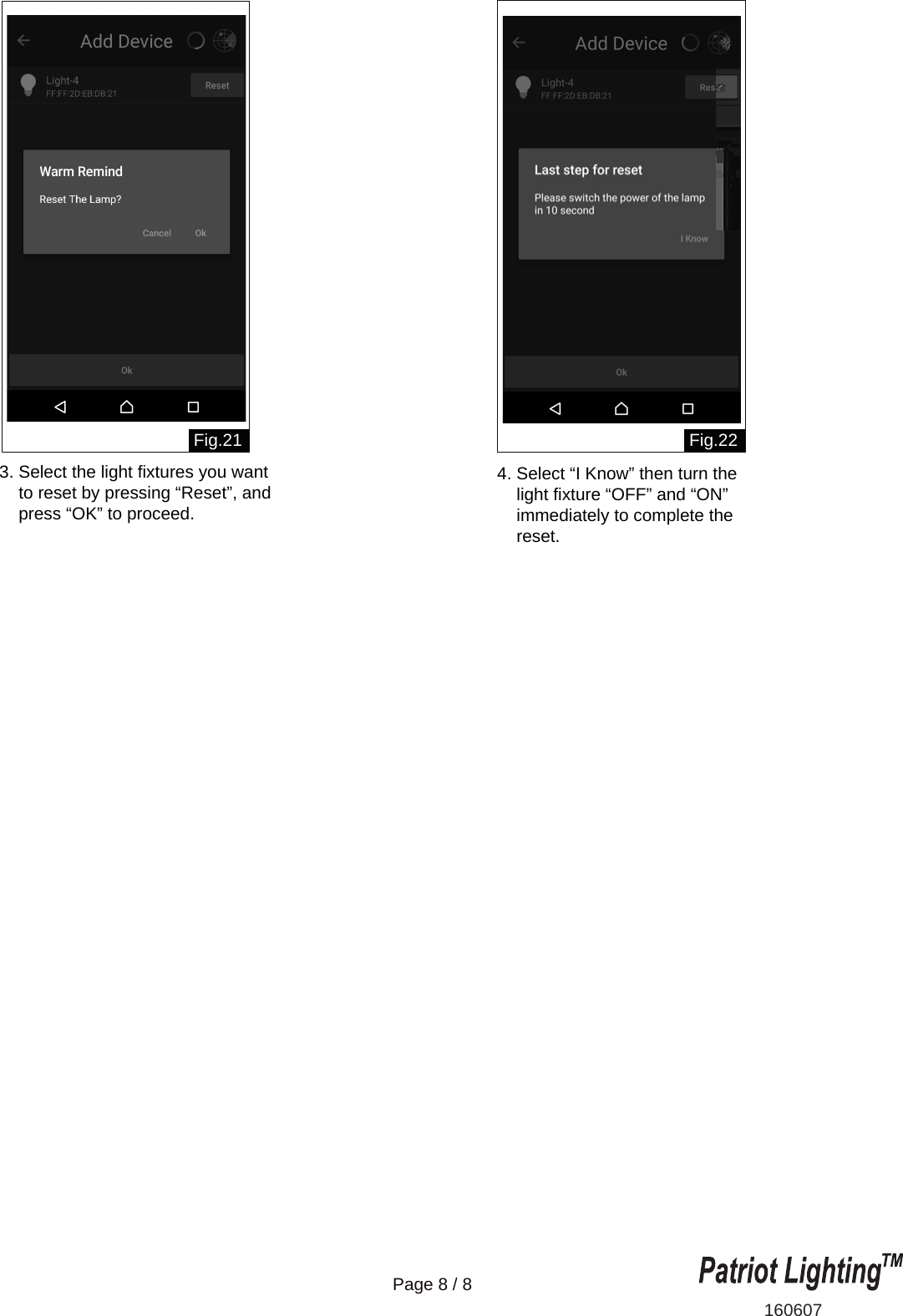
160607Page 8 / 8Fig.21 Fig.223. Select the light fixtures you want    to reset by pressing “Reset”, and     press “OK” to proceed.4. Select “I Know” then turn the     light fixture “OFF” and “ON”     immediately to complete the     reset.

Navigation menu