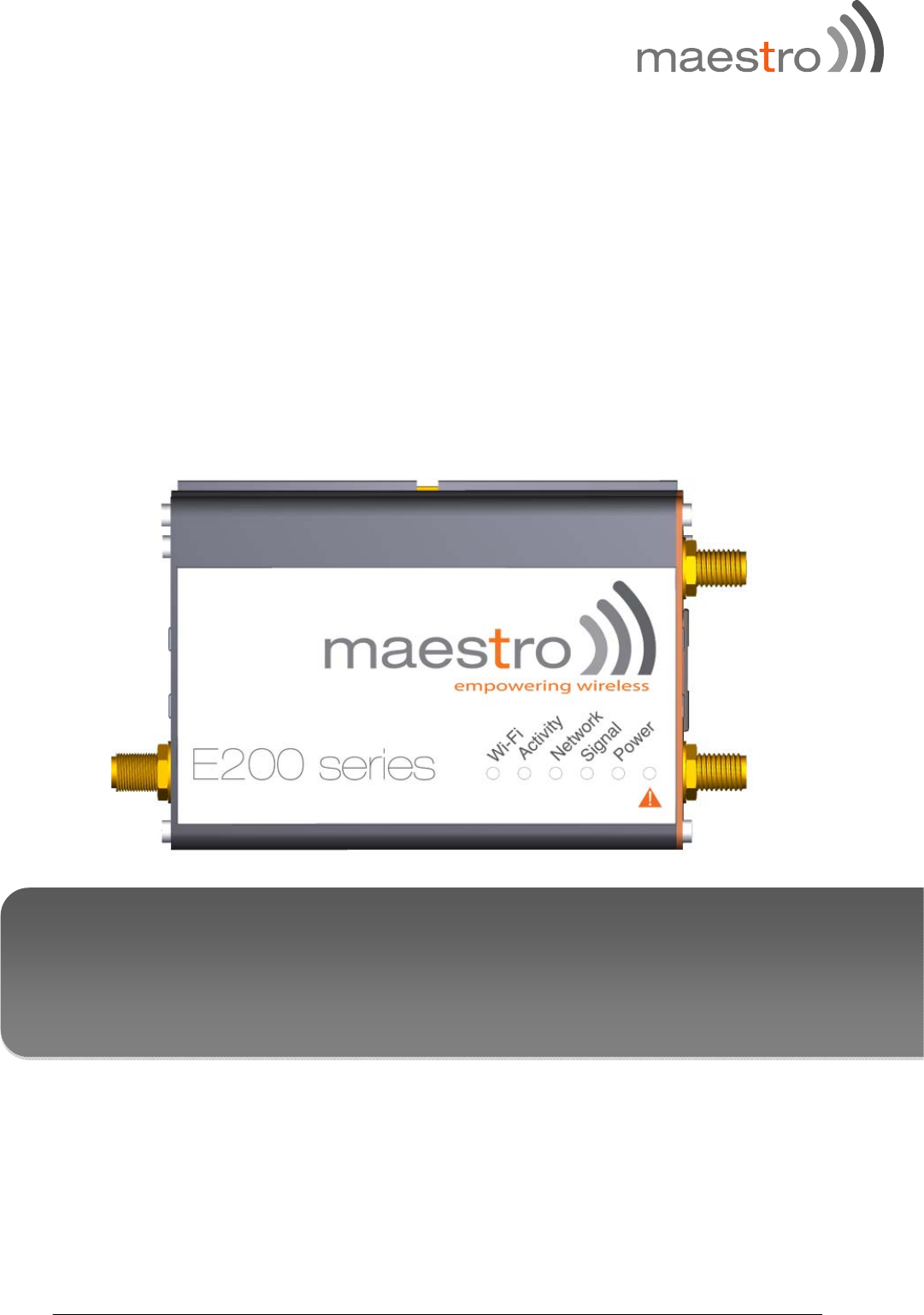
MAESTRO WIRELESS E206XT 3G WiFi Router User Manual
MAESTRO WIRELESS HOLDINGS LIMITED 3G WiFi Router
User manual
1 Maestro E200 Series www.maestro-wireless.com
QUICK START GUIDE-M2M products
E200 Series – Cellular / WAN / LAN / Wi-Fi Router
Version 1.1
2 Maestro E200 Series www.maestro-wireless.com
Copyright
Copyright© 2015 Maestro Wireless Solutions Limited. All right reserved. This document is
for the use of intended recipients only and the contents may not be reproduced,
redistributed, or copied in whole or in part for any purpose without Maestro prior express
consent.
Note: This document is subject to change without notice
This manual cover the following M2M products:
Maestro E205XT02
Maestro E205XT04
Maestro E206XT
DOCUMENT VERSION DATE
1.0 Initial document release 26 Sep. 14
1.1 Added illustration 18 Mar. 15

3 Maestro E200 Series www.maestro-wireless.com
This manual is written without any warranty.
Maestro Wireless Solutions Ltd. reserves the right to modify or improve the product and
its accessories which can also be withdrawn without prior notice.
Our company stresses the fact that the performance of the product and its accessories
depends on the proper use conditions as well as the surrounding environment.
Maestro Wireless Solutions Ltd. assumes no liability for damage incurred directly or
indirectly from errors, omissions or discrepancies between the router and this manual.
This software, solution or application is provided on an "as is" basis. No warranty whether
expressed or implied is given by Maestro Wireless Solutions Ltd. in relation to this
software, solution or application. User shall assume the entire risk of using or relying on
this software, solution, and application.
In no event will Maestro Wireless Solutions Ltd. be liable for any loss or damage
including without limitation, indirect or consequential loss, damage, or any loss, damage

4 Maestro E200 Series www.maestro-wireless.com
whatsoever arising from loss of data or profit arising out of, or in connection with, the use
of this router product. Every effort is made to keep the product and its software up and
running smoothly. However, Maestro Wireless Solutions Ltd. takes no responsibility for,
and will not be liable for, the product or its software being temporarily unavailable due to
technical issues beyond our control.
The above terms and conditions are subject to change without prior notice. The present
use of this product solution implies that the user approves and understands all the above
terms and conditions.

5 Maestro E200 Series www.maestro-wireless.com
Table of Contents
2 SAFETY PRECAUTIONS ............................................................................................................ 7
2.1 GENERAL PRECAUTIONS ....................................................................................................................... 7
2.2 USING THE ROUTER IN VEHICLE .......................................................................................................... 7
3 PROTECTING YOUR ROUTER ................................................................................................ 7
4 OVERVIEW ................................................................................................................................... 8
4.1 SCOPE ...................................................................................................................................................... 8
4.2 TARGET AUDIENCE ................................................................................................................................ 8
5 PREREQUISITES ......................................................................................................................... 8
6 USER MANUAL CONVENTIONS .............................................................................................. 8
7 PRODUCT OVERVIEW ............................................................................................................ 10
7.1 E200 SERIES AT A GLANCE ................................................................................................................10
7.2 BUNDLE CONTENT ...............................................................................................................................10
8 PRODUCT FEATURES ............................................................................................................. 12
9 PHYSICAL DIMENSIONS AND LED ...................................................................................... 13
9.1 PHYSICAL DIMENSIONS .......................................................................................................................13
9.2 LED INDICATORS .................................................................................................................................14
9.3 ETHERNET PORT LED INDICATORS ..................................................................................................16
10 HARDWARE INSTALLATION ............................................................................................. 17
10.1 INSTALL THE SIM CARD ...................................................................................................................17
10.2 CONNECT THE CELLULAR (WWAN) ANTENNA(S) ....................................................................17
10.3 CONNECT THE LAN CABLE .............................................................................................................18
10.4 CONNECT THE POWER SUPPLY .......................................................................................................18
11 E205 BASIC CONFIGURATION .......................................................................................... 19
11.1 CONNECTING TO THE WEB INTERFACE .........................................................................................19
11.2 LAN CONFIGURATION ......................................................................................................................20
11.3 WAN CONFIGURATION ....................................................................................................................21
11.3.1 Manual .............................................................................................................................................. 21
11.3.2 Automatic ........................................................................................................................................ 22
11.3.3 PPPoE ................................................................................................................................................ 22
11.4 CELLULAR SETUP ..............................................................................................................................22
11.5 WIRELESS (WI-FI) ...........................................................................................................................23
12 E205 ADVANCED CONFIGURATION ................................................................................ 25
12.1 FLASHING FIRMWARE AND UPDATING YOUR DEVICE ..................................................................25
13 APPENDIX ................................................................................................................................ 27
13.1 DEFAULT SETTINGS ..........................................................................................................................27
13.2 RESET TO FACTORY DEFAULT SETTING .........................................................................................27
13.2.1 Using the web-based user interface .................................................................................... 27

6 Maestro E200 Series www.maestro-wireless.com
13.2.2 Using the reset button on the side of the router ............................................................ 29
13.3 LIST OF ACRONYMS ...........................................................................................................................30

7 Maestro E200 Series www.maestro-wireless.com
1 Safety Precautions
1.1 General precautions
The router generates radio frequency (RF) power. When using the router, care
must be taken to ensure safety as well as compliance with all the regulations
surrounding the use of RF equipment.
Do not use the router in aircraft, hospitals and petrol stations or in places where
using GSM products or other RF equipment is prohibited.
Be sure that the router will not be interfering with nearby equipment such as
pacemakers or medical equipment. The antenna of the router should be directed
away from computers, office equipment, home appliance, etc.
Always keep the router at a minimally safe distance of 26.6cm or more from a
human body.
Do not put the antenna inside metallic boxes or other containers
1.2 Using the router in vehicle
Check for any regulation or law authorizing the use of GSM equipment in vehicles
in your country before installing the router.
Installation of the router should be done by qualified personnel. Consult your vehicle
dealer for any possible interference concerns related to the use of the router.
Be careful when the router is powered by the vehicle’s main battery. The battery
may be drained after extended period.
1.3 Protecting your router
To ensure error-free usage, please install and operate your router with care and comply
with the following:
Do not expose the router to extreme conditions such as high humidity/rain, high
temperatures, direct sunlight, caustic/harsh chemicals, dust, or water.

8 Maestro E200 Series www.maestro-wireless.com
Do not try to disassemble or modify the router as there are no user serviceable
parts inside and the warranty would be void in case of tampering.
Do not drop, hit or shake the router.
Do not use the router under extreme vibrating conditions.
Do not pull the power supply cable. Please attach or detach it by holding the
connector after switching off the supply.
Install and connect the router in accordance to the instruction manual. Failure to
do so will void the warranty.
2 Overview
2.1 Scope
This document provides you all the information you need to set-up, configure and use
the Maestro E200 Series router.
2.2 Target audience
This document is intended for customers and integrators who understand basic
telecommunications and information technology terminology and concepts.
3 Prerequisites
Before continuing with the installation of your E200 Series router, make sure you have a
computer equipped with the following:
A computer with an Ethernet port
A web browser such as Google Chrome, Mozilla Firefox, Apple Safari or Internet
Explorer
4 User manual conventions
The following symbols are used throughout the user manual:

9 Ma
e
e
stro E200
S
T
h
T
h
T
h
S
eries
h
e following
h
e following
h
e following
symbol ind
symbol ind
symbol pr
o
d
icates atte
n
d
icates a wa
r
o
vides infor
m
n
tion must
b
r
ning
m
ation
www.
m
b
e paid
m
aestro-wireless.com

10 Maestro E200 Series www.maestro-wireless.com
5 Product overview
5.1 E200 Series at a glance
Dual-band HSDPA (E205XT020), tri-band HSDPA (E205XT04), quad-band HSPA+ &
dual-band EV-DO (E206XT)
GPRS/EDGE auto-fallback
LAN on RJ45 port
Switchable WAN/LAN on RJ45 port (E206XT only)
Built-in Wi-Fi with an external RP-SMA antenna connector
Automatic WAN / 3G failover
Built-in GPS supporting active antenna via an external SMA connector (E205XT02,
E205XT04 only)
Built-in concurrent diversity/GPS antenna supporting active antenna via an
external SMA connector (E206XT only)
External SMA antenna connectors for 3G
Two digital inputs/outputs
Six color LED’s for displaying for Wi-Fi and network activity, signal, power and
alarm
Device management and configuration via a web GUI
DIN rail mountable
5.2 Bundle content
E200 Series router x 1
1m Ethernet cable 8P8C x 1
2G/3G/4G terminal antenna (Length> 20mm) SMA x 1
3.8 dBi, 2.4/5.1~5.9 GHz dipole antenna RP-SMA (M) hinged 90° x 1
Industrial grade 1.2 A power supply x 1
DIN clip x 1

11 Maestro E200 Series www.maestro-wireless.com
If any of these items are missing or damaged, please contact Maestro Support
immediately. The Maestro Support website can be found at: http://support.maestro-
wireless.com/

12 Maestro E200 Series www.maestro-wireless.com
6 Product features
With high-speed cellular (3G and beyond), WAN, LAN and Wi-Fi connectivity, the E200 is
a highly versatile, reliable and rugged router designed for mission-critical enterprise
applications requiring faultless connectivity.
The E200 comes in two models; the cost-effective HSDPA ensures always- on connectivity
for 2G migration or low-latency applications such as energy and sales & payment, while
the HSPA+ penta-band is ideal for deployment in vertical markets requiring high-speed
data or global roaming, such as security and transportation.
The E200 can be configured through an easy-to-use web interface; a configuration wizard
will help the user set-up the router step-by-step and select their primary and redundancy
network. Advanced configuration setting for functions such as VPN, IPsec, OpenVPN and
Wi-Fi hotspot are also directly available through the web interface. Once configured, a set
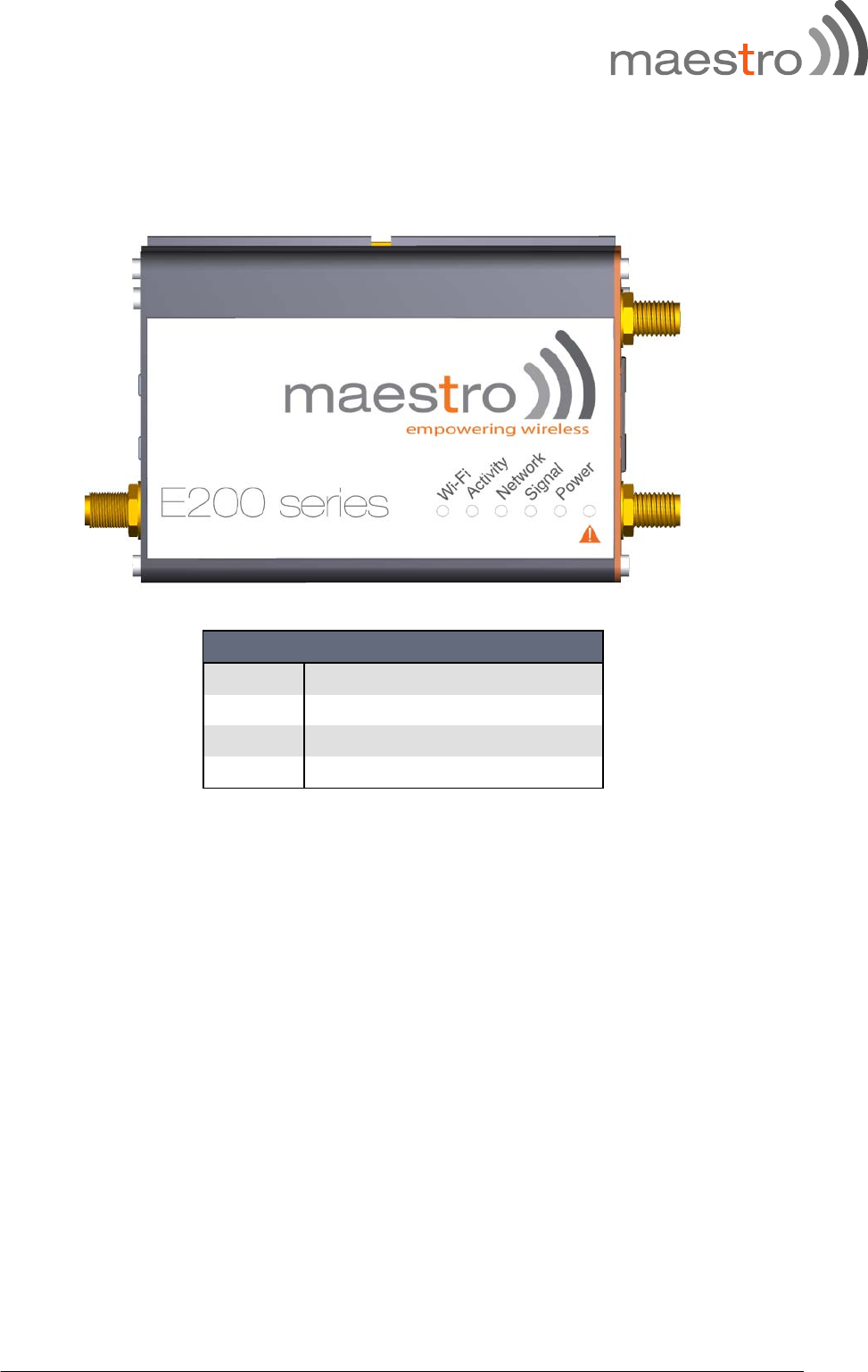
of 6 LED’s on the top of the aluminum alloy casing will help the user ensure that the
device is operating correctly. Users can also remotely manage the router is also available
through an HTTPS connection over the LAN or WAN.
13 Maestro E200 Series www.maestro-wireless.com
7 Physical dimensions and LED
7.1 Physical dimensions
E200 Series dimensions without connector
Lenght 83.9mm
Depth 60mm
Height 25mm
Weight 90g
14 M
a
The
N
A
WI-
Act
i
Net
w
Sig
n
Po
w
Ale
r
a
estro E200
7.2 L
E
E200 Series
A
ME
FI
i
vit
y
w
ork
n
al
w
er
r
t
Series
E
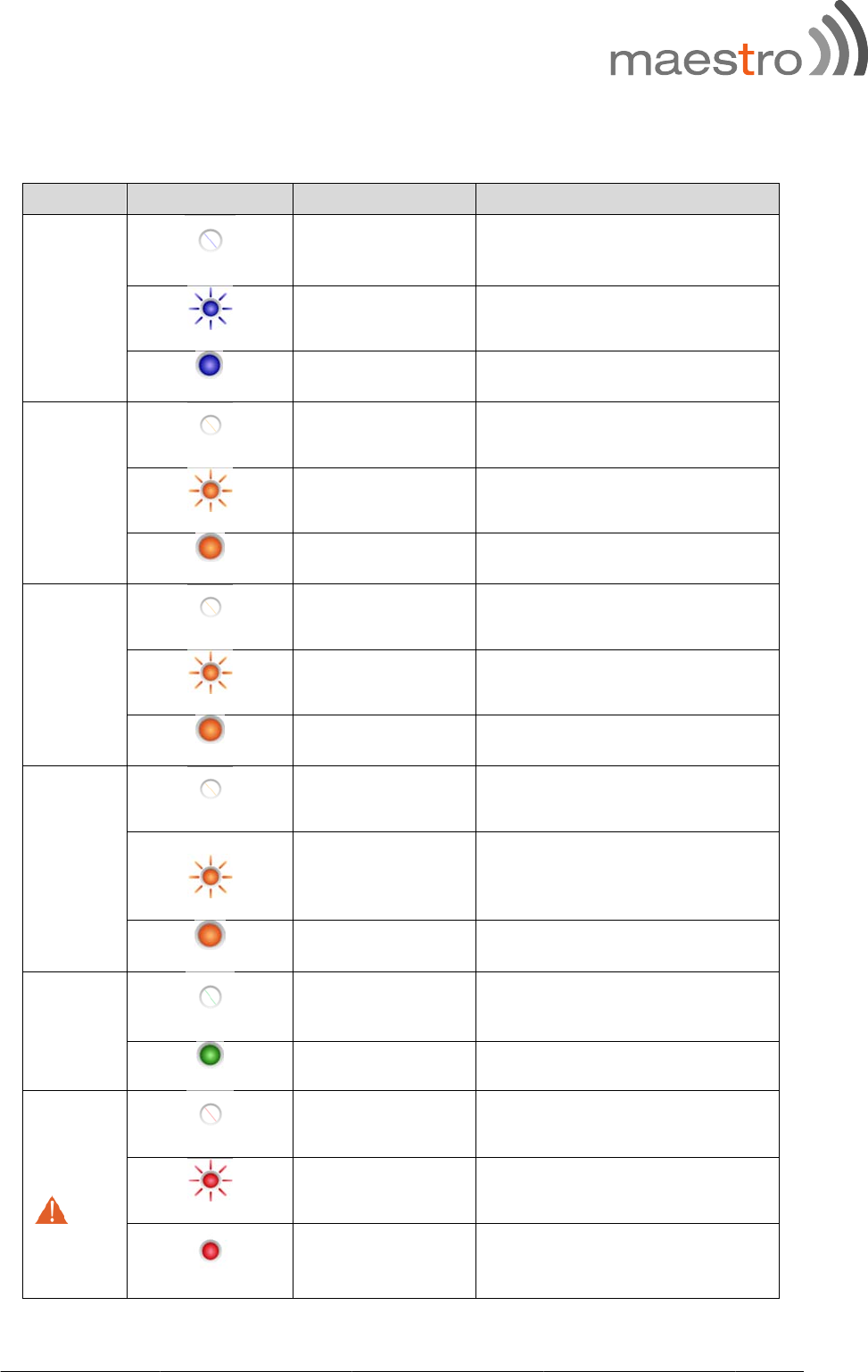
D indica
t
features 6
L
COLOUR
t
ors
L
EDs on the front to di
s
STATE
OFF
Flashing
ON
OFF
Flashing
ON
OFF
Flashing
ON
OFF
Flashing
ON
OFF
ON
OFF
Flashing
ON
s
play critical
W
Wi
-
W
Cellul
a
C
Cell
u
Device is
W
No al
S
o
Hardwar
e
www.
m
system info
DESCRI
P
W
i-Fi network is
-
Fi network co
n
W
i-Fi network
i
a
r data service
C
ellular data s
e
u
lar data servi
c
SIM card is n
o
registered on
t
SIM card is
No signal (
C
W
eak signal (1
0
Strong signal
Power
Power
ert, device is r
u
o
ftware fault (c
r
e
fault (high te
m
w
ith module o
r
m
aestro-wire
rmation
P
TION
s
deactivated
n
nection traffic
is activated
is not connect
e
e
rvice traffic
c
e is connected
o
t inserted
the cellular ne
t
inserted
C
SQ<10)
0
<CSQ<20)
(CSQ>20)
off
on
u
nning smooth
r
ash, issues…)
mperature, pro
r SIM card)
less.com
e
d
t
work
ly
blem

15 Maestro E200 Series www.maestro-wireless.com
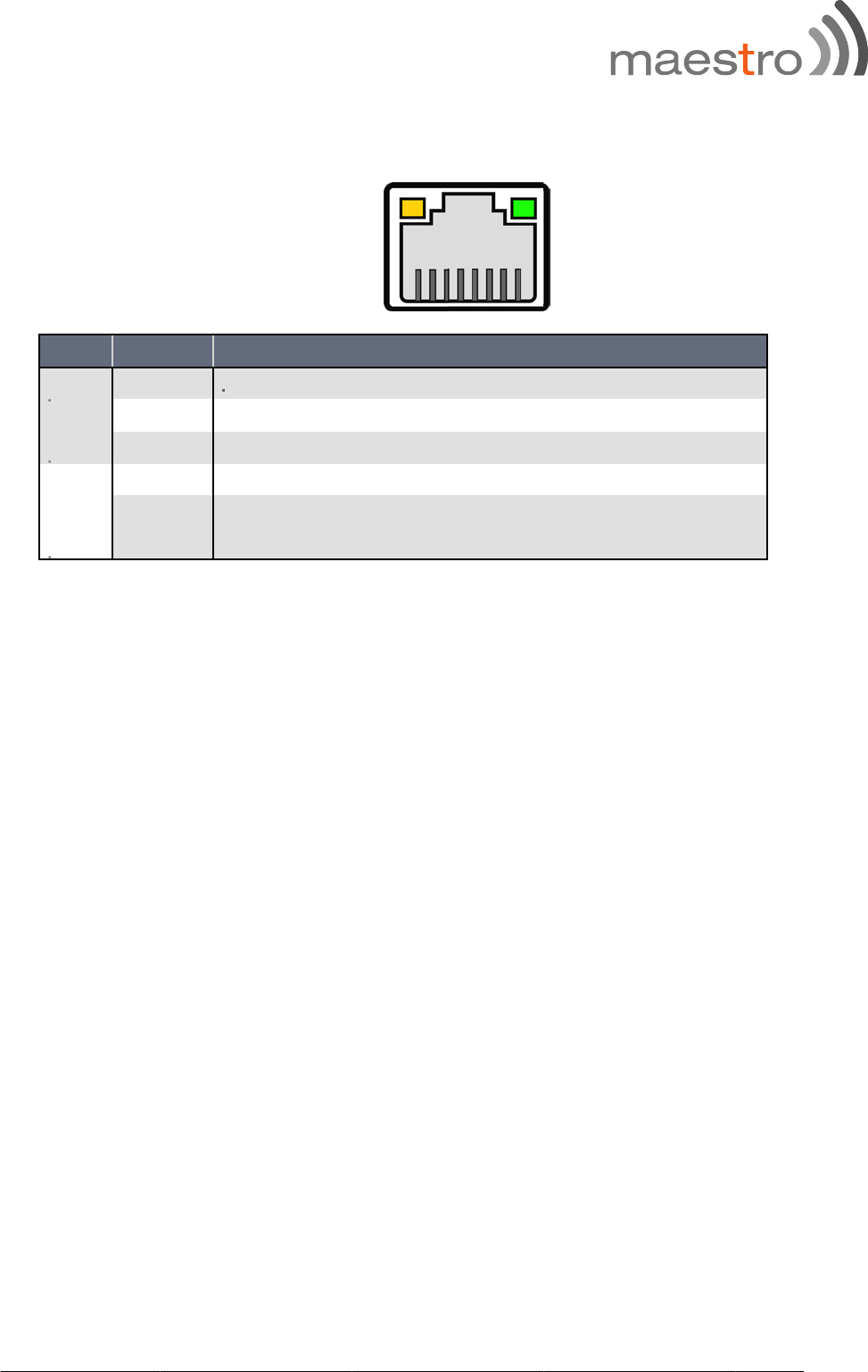
16 M
a
The
L
G
r
A
m
r
a
estro E200
7.3 Et
h
E200 Series
L
ED ST
A
r
een
On
Blin
k
Off
m
be On
Off
Series
h
ernet p
o
router feat
u
A
TUS
The
r
k
ing The
r
No
v
The
The
Eth
e
o
rt LED i
n
u
res two Et
h
r
e is a valid
r
e is activity
v
alid netwo
r
Ethernet p
o
Ethernet p
o
e
rnet cable i
s
n
dicators
h
ernet ports
D
network lin
k
on the net
w
r
k link detec
o
rt is operati
o
rt is operati
s
connected
with two L
E
ESCRIPTIO
N
k
.
w
ork link.
ted.
ng at a spe
e
ng at a spe
e
.
www.
m
E
D.
e
d of 1000
M
e
d of 10/10
0
m
aestro-wire
M
bps.
0
Mbps or n
o
less.com
o
17 Maestro E200 Series www.maestro-wireless.com
8 Hardware installation
8.1 Install the SIM card
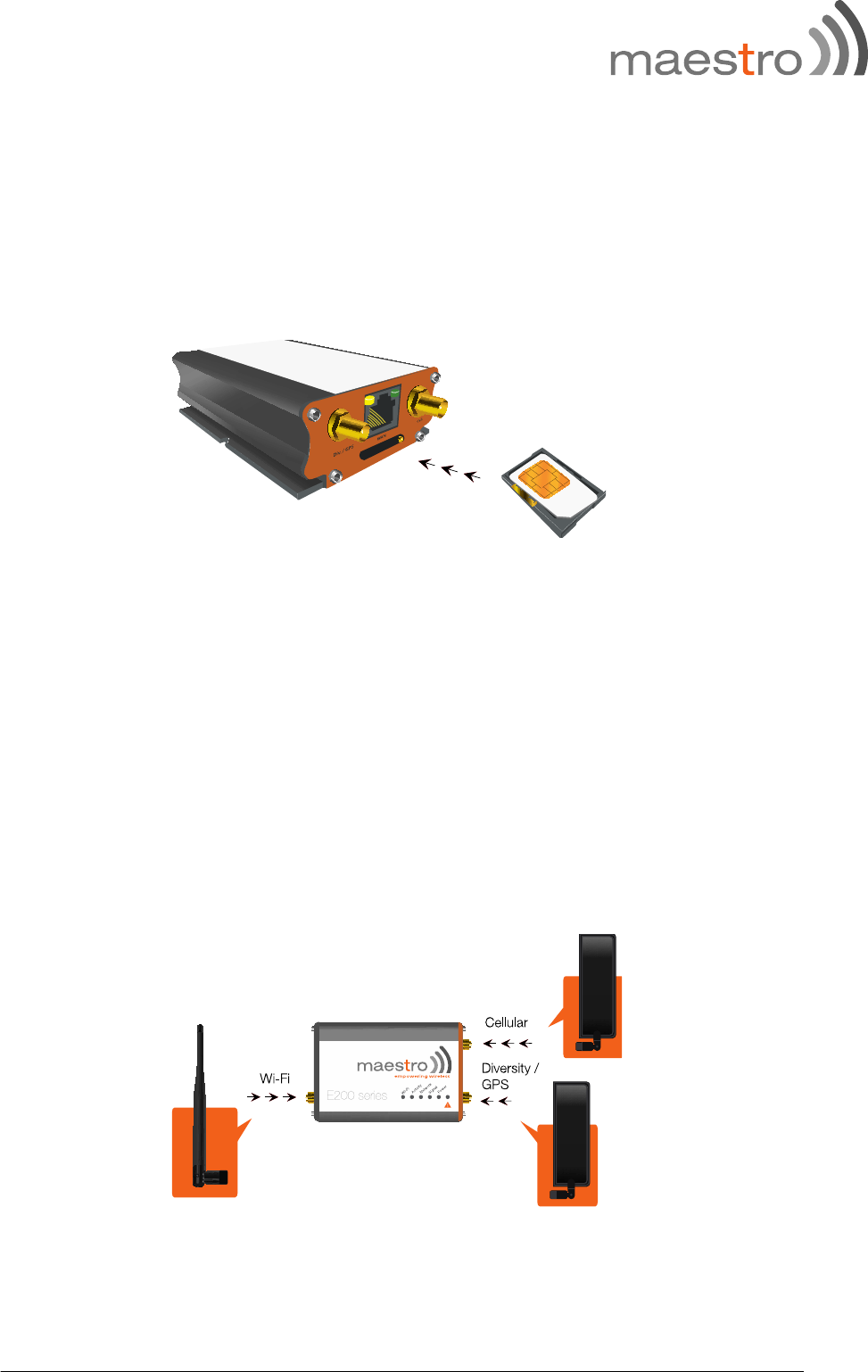
SIM card(s) should be inserted into the SIM tray as illustrated in the image below. SIM
card contact should be face up.
8.2 Connect the Cellular (WWAN) Antenna(s)
Connect the cellular antenna to the “Cellular” connector (SMA Female) on the unit. If the
unit is equipped with a secondary cellular antenna connector “Div.”, it is highly
recommended to connect an additional antenna to this connector for diversification. Dual
antennas will provide improved signal strength thus better performance.
Note: For most applications, the antenna(s) included with the unit will provide suitable
reception, but some circumstances/environments may require a higher quality antenna or
one mounted in a different location. If this is the case, Maestro has many antenna options
to chose from, please contact us or visit maestro-wireless.com.
18 M
a
Con
to a
Con
loca
a
estro E200
8.3 C
o
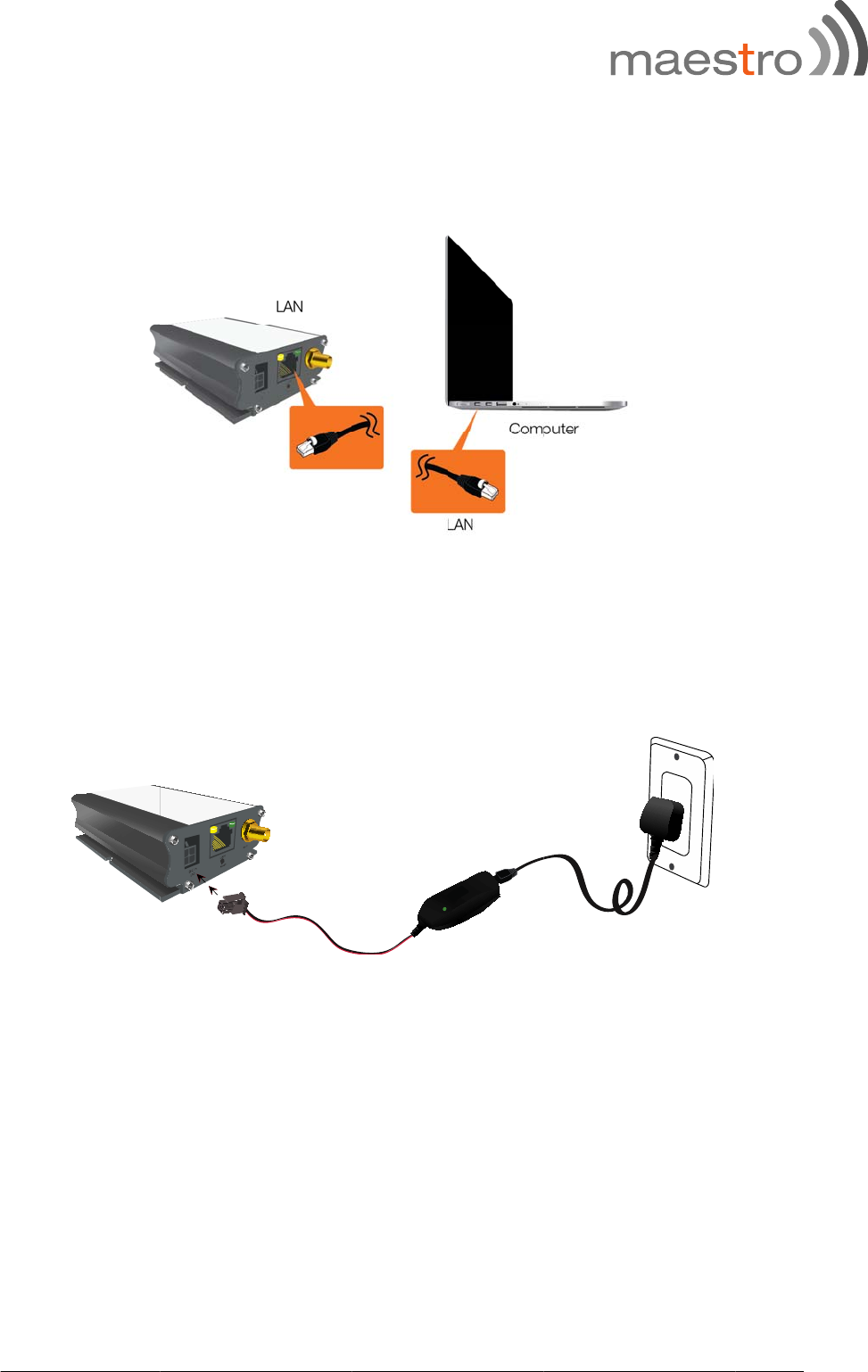
nect one e
n
LAN port
o
8.4 C
o
nect the Mi
c
a
ted on the
L
Series
o
nnect t
h
n
d of the Et
h
o
n a PC.
o
nnect t
h
c
ro-Fit 4-pi
n
L
AN side of
h
e LAN
C
h
ernet cable
h
e power
n
male conn
e
the unit.
C
able
to the “LA
N
supply
ector of the
N
” port on t
h
power sup
p
www.
m
h
e unit and
t
p
ly to the p
o
m
aestro-wire
the other e
n
o
wer conne
c
less.com
n
d
c
tor
19 M
a
9
Con
you
r
You
(Thi
s
use
r
Aft
e
If y
o
a
estro E200
E20
5
9.1 C
o
nect the LA
r web brow
s
http://
1
Note: I
f
new IP
a
will be invi
t
Default
Default
s
is the def
a
r
passwords
e
r successful
o
u need to
a
Series
5
Bas
o
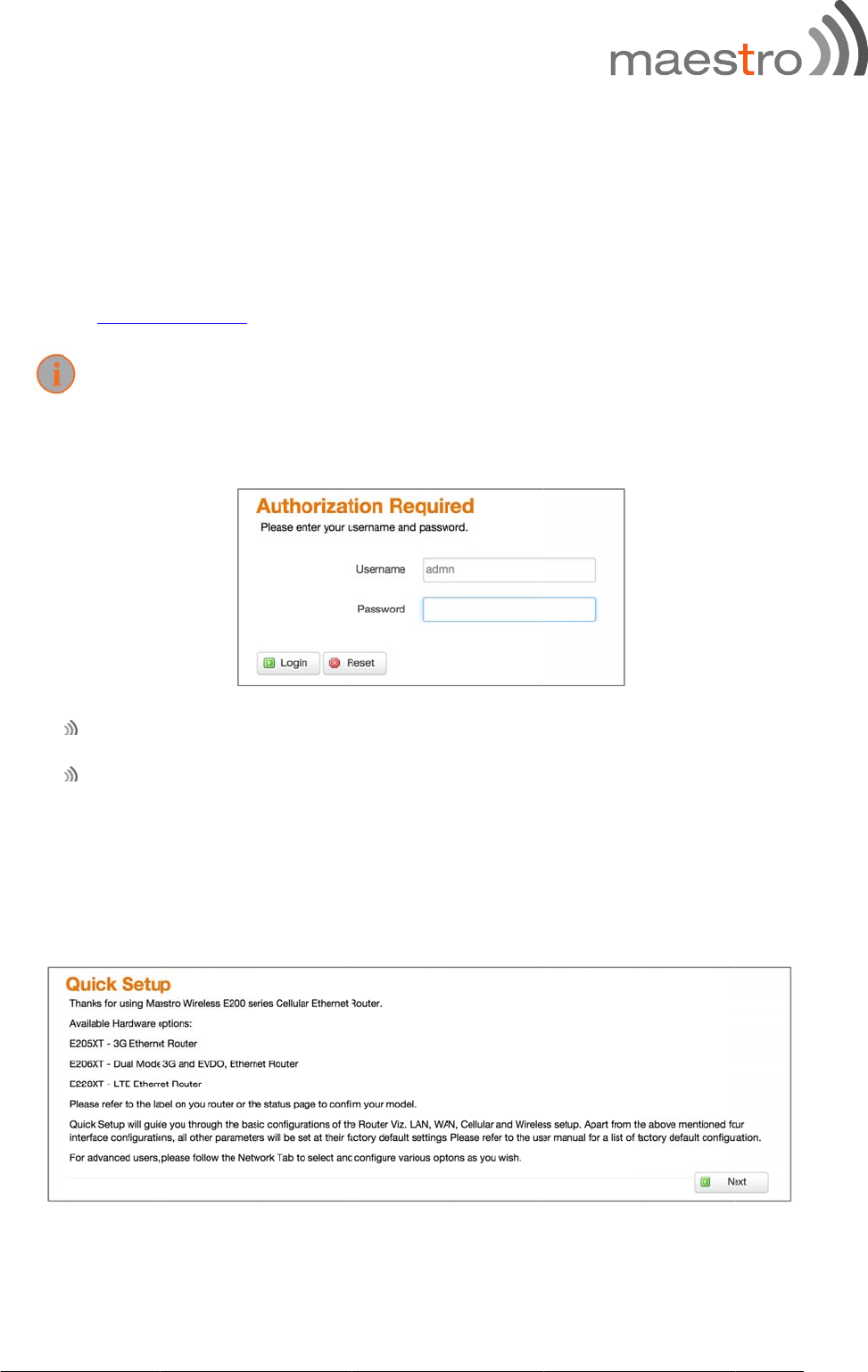
nnectin
g
N interface
o
s
er. Enter th
e
1
92.168.1.1
f
you chang
e
a
ddress int
o
t
ed to enter
login – ad
m
password –
a
ult userna
m
can be cha
n
ly login the
a
ccess adva
n
ic co
n
g
to the
w
o
f your E20
0
e
device LA
N
e
the IP ad
d
o
your brow
s
the admin
u
m
in
admin
m
e and pass
w
n
ged at Sys
t
Quick Setu
p
F
n
ced feature
n
figu
r
w
eb inter
f
0
to a com
p
N
IP addres
s
d
ress, reme
m
s
er address
b
u
sername a
n
w
ord for Ma
t
em>Admini
s
p
page will s
F
igure 1: Quick Set
u
e
you can n
a
r
ation
f
ace
uter via the
s
in the bro
w
m
ber to reb
o
b
ar.
n
d passwor
d
estro route
r
s
tration
how up
u
p
vigate direc
www.
m
RJ-45 cable
w
ser addres
s
o
ot the rout
e
d
:
s. The admi
n
t
ly in the m
e
m
aestro-wire
e
and and st
s
field.
e
r and ente
r
n and read-
e
nu.
less.com
a
rt
r
the
o
nly
20 M
a
If y
o
qui
c
set
u
Bal
a
In t
h
Cell
pre
v
The
The
and
foll
o
a
estro E200
o
u want to f
c
k setup pa
g
Since E2
between
u
p. To make
a
ncing Tab
Priority
Priority
Priority
h
e quick set
ular and Wi-
v
iously save
d
9.2 L
A
LAN config
modem ro
u
to act as a
o
ws:
LAN IP
a
IPv4 Ne
Series
ollow the q
u
g
e.
00 has mult
various WA
any chang
e
1 – Wired
W
2 – Wi-Fi a
s
3 – Cellular
up page, yo
Fi interface
s
d
values..
A
N confi
g
uration pag
e
u
ter is shipp
e
DHCP serv
e
a
ddress: 19
2
tmask : 255
.
u
ick user gu
iple WAN i
n
N interfaces
s the WAN
W
AN
s
WAN (WW
A
u can perfo
r
s
. All other c
g
uration
e
is used to
e
d preconfi
g
r. The mod
e
2
.168.1.1
.
255.255.0
ide click on
n
terfaces, th
e
s
is as follo
w
priority sett
i
W
AN) (Wi-Fi i
rm basic co
n
c
onfiguratio
n
configure t
h
Figure 2: IP addre
s
g
ured to us
e
e
m router’s
d
the Next b
u
e
default pri
w
s and cann
o
i
ngs, please
n Client Mo
n
figuration
s
n
s will be se
t
h
e LAN setti
s
s
e
private IP
a
d
efault LAN
www.
m
u
tton and y
o
o
rity setting
o
t be chang
e
go to the
N
d
e)
s
ettings for
t
t
to the fact
ngs of the
r
a
ddresses o
n
IP configur
a
m
aestro-wire
o
u will enter
g
s for switch
e
d in Quick
N
etwork / L
o
t
he LAN, W
A
t
ory default
r
outer
n
the LAN s
a
tion is as
less.com
i
ng
o
ad
A
N,
o
r
ide,
21 Maestro E200 Series www.maestro-wireless.com
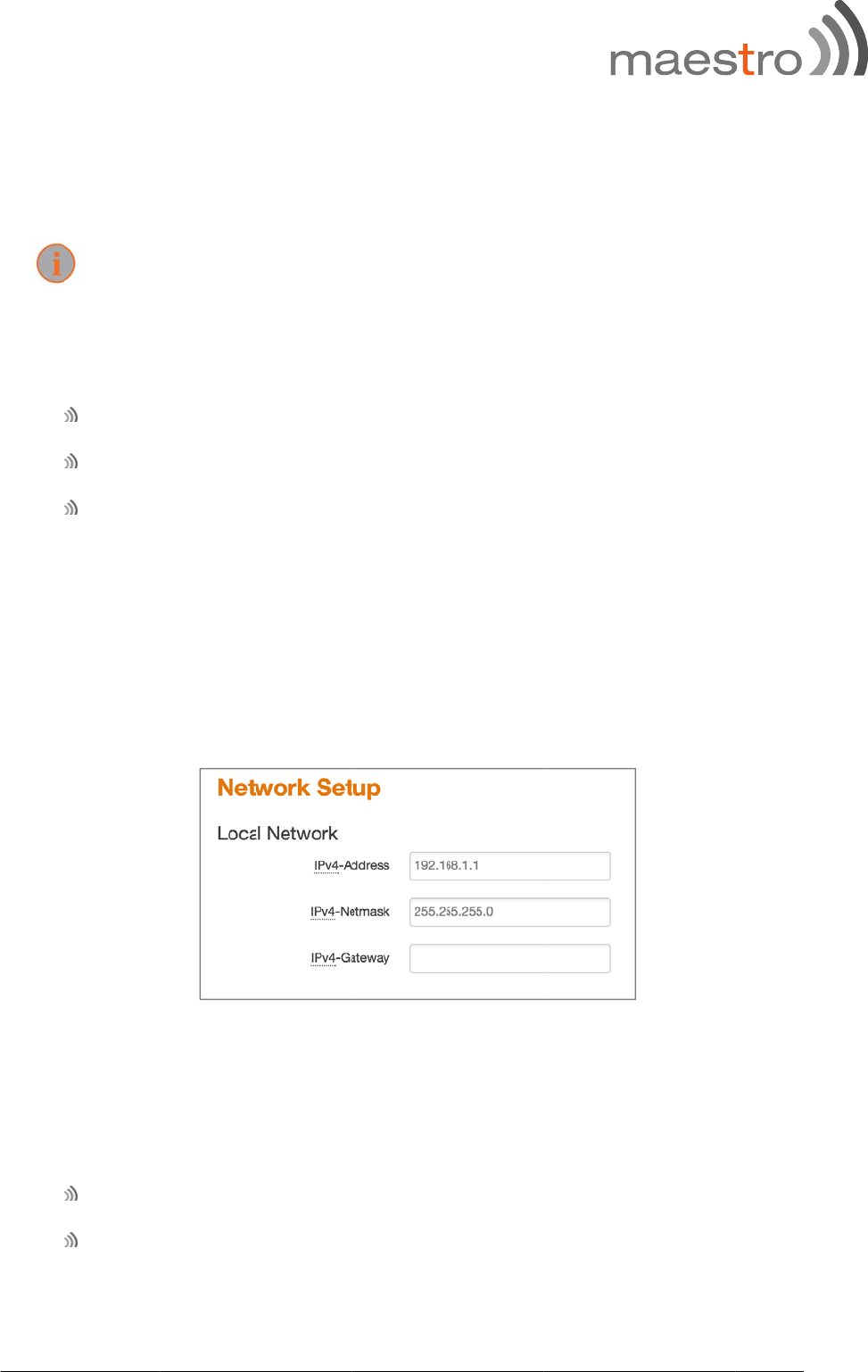
These addresses are part of the designated private address range for use in private
networks, and should be suitable in most applications. If your network has a requirement
to use a different IP addressing scheme, you can make those changes here and click.
The LAN TCP/IP Setup settings are
IPv4 Address: This is the LAN IP address of the modem router.
IPv4 Netmask: This is the LAN subnet mask of the modem router. Combined with
the IP address, the IP subnet mask allows a device to know which other addresses
are local to it, and which must be reached through a gateway or modem router.
Advanced LAN configuration parameters could be found under Network/Interfaces, under
LAN parameters click Edit > Advanced Settings.
9.3 WAN configuration
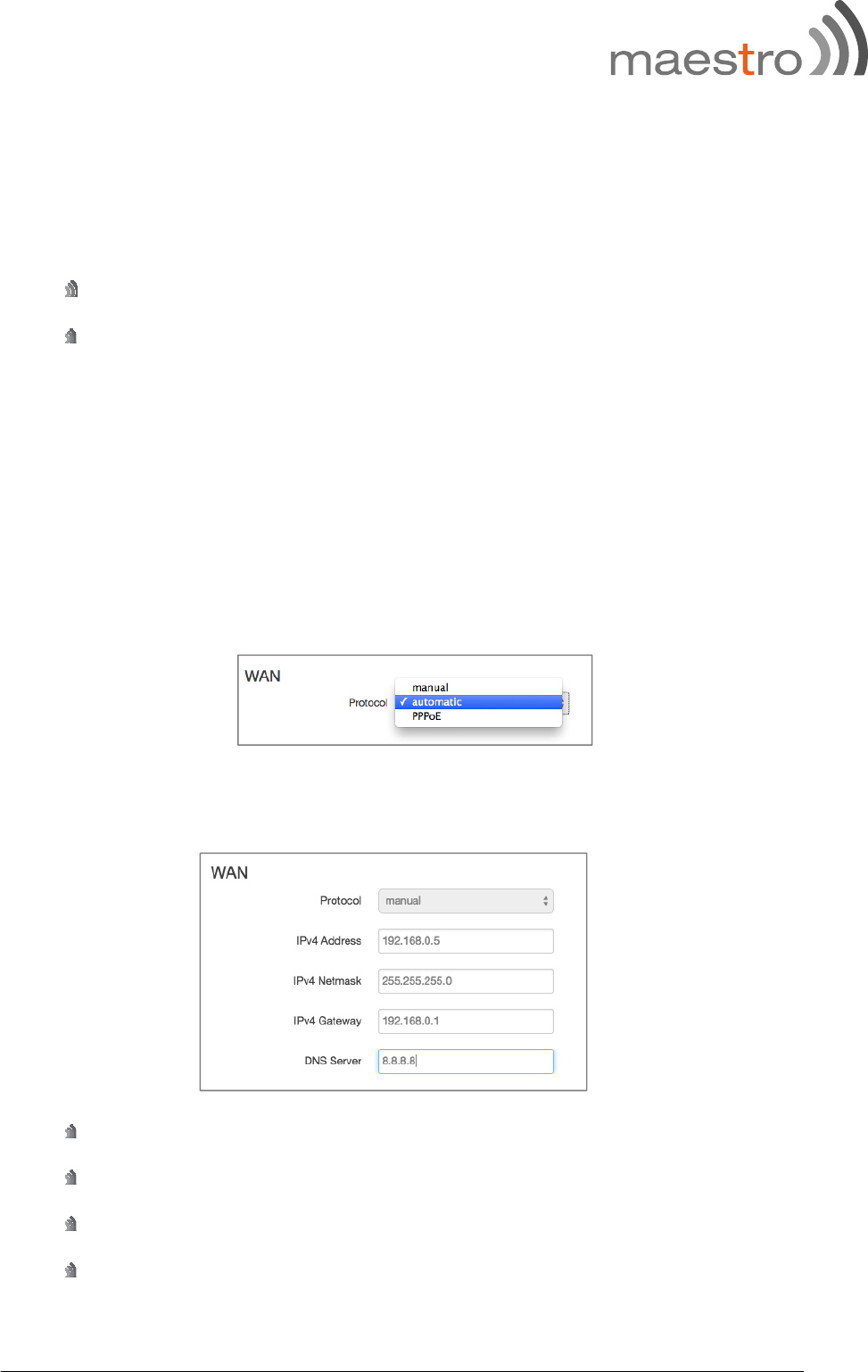
By default the WAN is in automatic mode, you can also set it to Manual or PPPoE
9.3.1 Manual
IPv4 Address: The IP address to assign to the selected WAN interface.
IPv4 Netmask: The Subnet mask of the IP address above.
IPv4 Gateway: The gateway to assign this WAN interface.
DNS server: The DNS server for the WAN interface.
22 Maestro E200 Series www.maestro-wireless.com
9.3.2 Automatic
The WAN will be setup automatically.
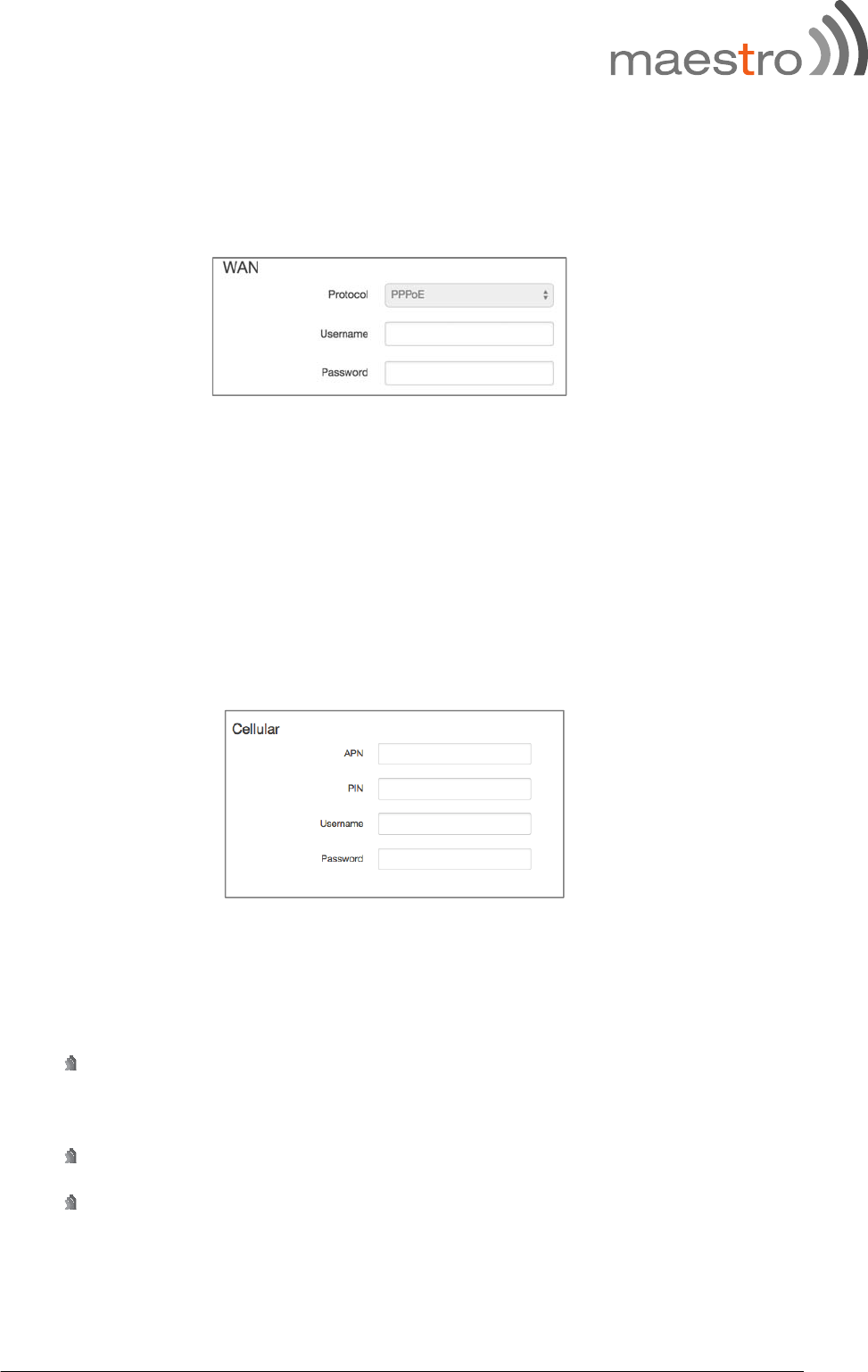
9.3.3 PPPoE (Point-to-Point Protocol over Ethernet)
Acquire IP Address automatically from your Provider using the PPPoE protocol.
Many DSL providers use PPPoE. To acquire an IP Address from the PPPoE server, a
username and password are required. Ask your Provider for your username and password
if you don’t know them.
Advanced WAN configuration parameters could be found under Network/Interfaces, under
WAN parameters click Edit > Advanced Settings.
9.4 Cellular Setup
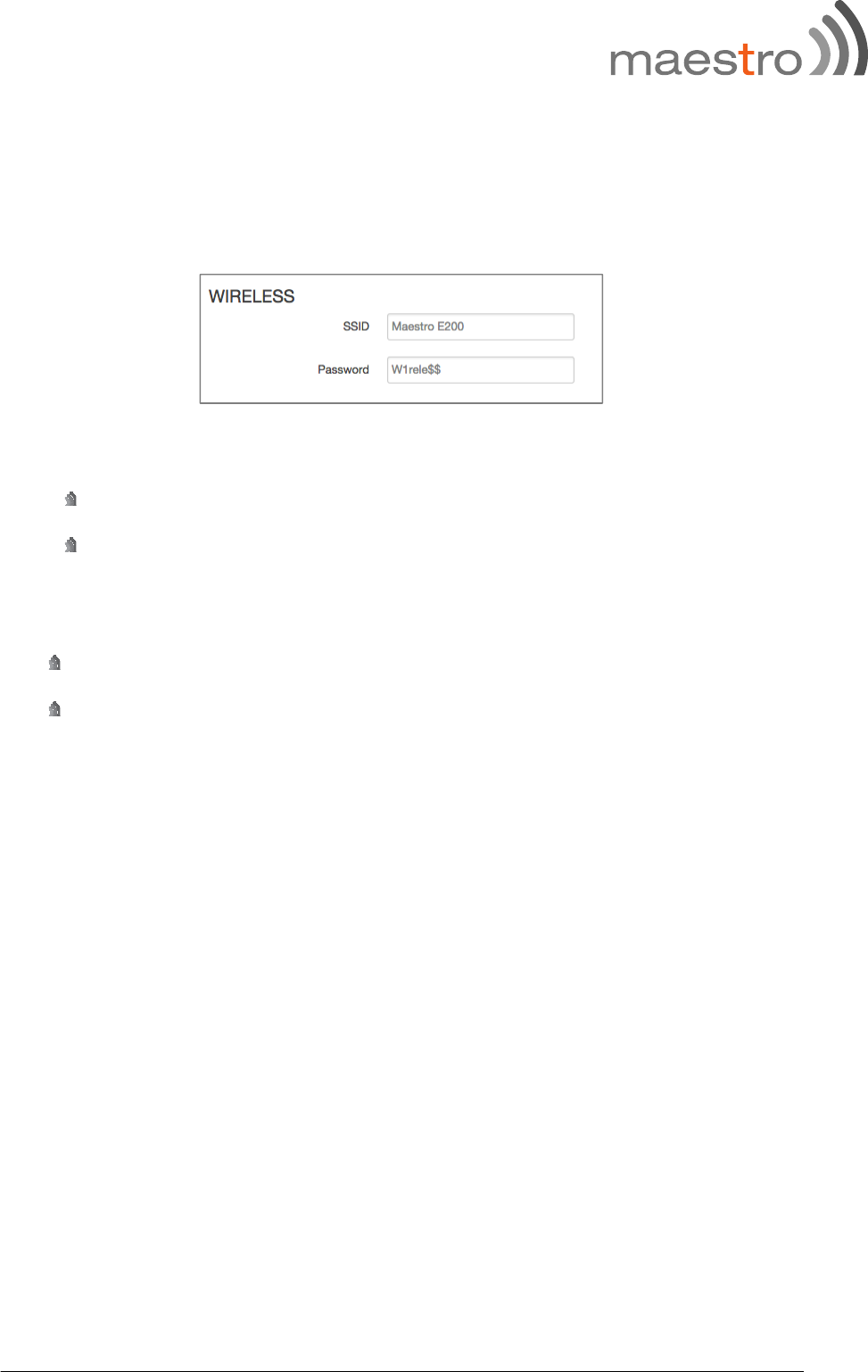
You can enter the cellular settings like APN, SIM PIN for security, Username and Password
corresponding to your cellular connection (SIM Card), which you will receive from your
Cellular Operator.
APN: Access Point Name, enter the access point name provided by your network
operator
PIN: If required please enter your SIM card’s PIN code
Username and Password: If required enter login credentials provided by your
network operator
23 Maestro E200 Series www.maestro-wireless.com
Advanced cellular configuration parameters could be found under Network/Interfaces,
under 3G parameters click Edit > Advanced Settings.
9.5 Wireless (Wi-Fi)
By default, the Wi-Fi is in Access Point mode:
Default SSID: Maestro E200
Default Password: W1rele$$
The E200 Wi-Fi can be configured either as
An Access Point, in which case, the Wi-Fi acts as a LAN or
As a Wi-Fi Client in which case, the E200 connects to an external Wi-Fi source which
will be the source of Internet or WAN for the E200.
Default security settings used are WPA-PSK, WPA2-PSK Mixed Mode. You can choose
your encryption and change your password accordingly. Bring up on boot tick box in
Wireless section by default is enabled. Ticking the box will enable the Wi-Fi (Wireless)
interface every time the Router Reboots.

24 M
a
Wi-
F
If y
o
net
w
Adv
Wir
e
On
c
to
N
a
estro E200
F
i section fr
o
- The def
a
- When y
Mode.
o
u create m
u
w
orks creat
e
anced Wi-Fi
e
less Overvi
e
c
e the Quick
WAN an
To verify
N
etwork/Inte
r
Series
o
m this Qui
c
a
ult Wi-Fi i
n
ou scan for
u
ltiple acces
e
d will not s
h
configurati
o
e
w paramet
e
Setup is d
o
d/or Cellula
that your s
e
r
faces.
c
k setup pa
g
n
terface is r
e
available W
i
s point net
w
h
ow up in
Q
o
n paramet
e
e
rs clic
k
Edi
t
o
ne, you will
r
and Wi-Fi
w
e
tup were s
u
g
e will disa
p
e
moved fro
m
i-Fi network
w
orks (Multi
p
Q
uick Setup.
e
rs could b
e
t
> Advance
d
have basic
will be conf
u
ccefully ap
p
p
pear when
m
Network /
s and conv
e
p
le SSDI’s),
t
e
found und
e
d
Settings.
LAN conne
c
i
gured as A
c
p
lied and y
o
www.
m
Wi-Fi page
e
rt the Rout
e
t
he addition
a
e
r Network/
W
c
tivity, Inter
n
c
cess Point.
ur router is
m
aestro-wire
e
r to Client
al Wi-Fi
W
i-Fi, under
n
et access o
v
now runnin
less.com
v
er
g
go
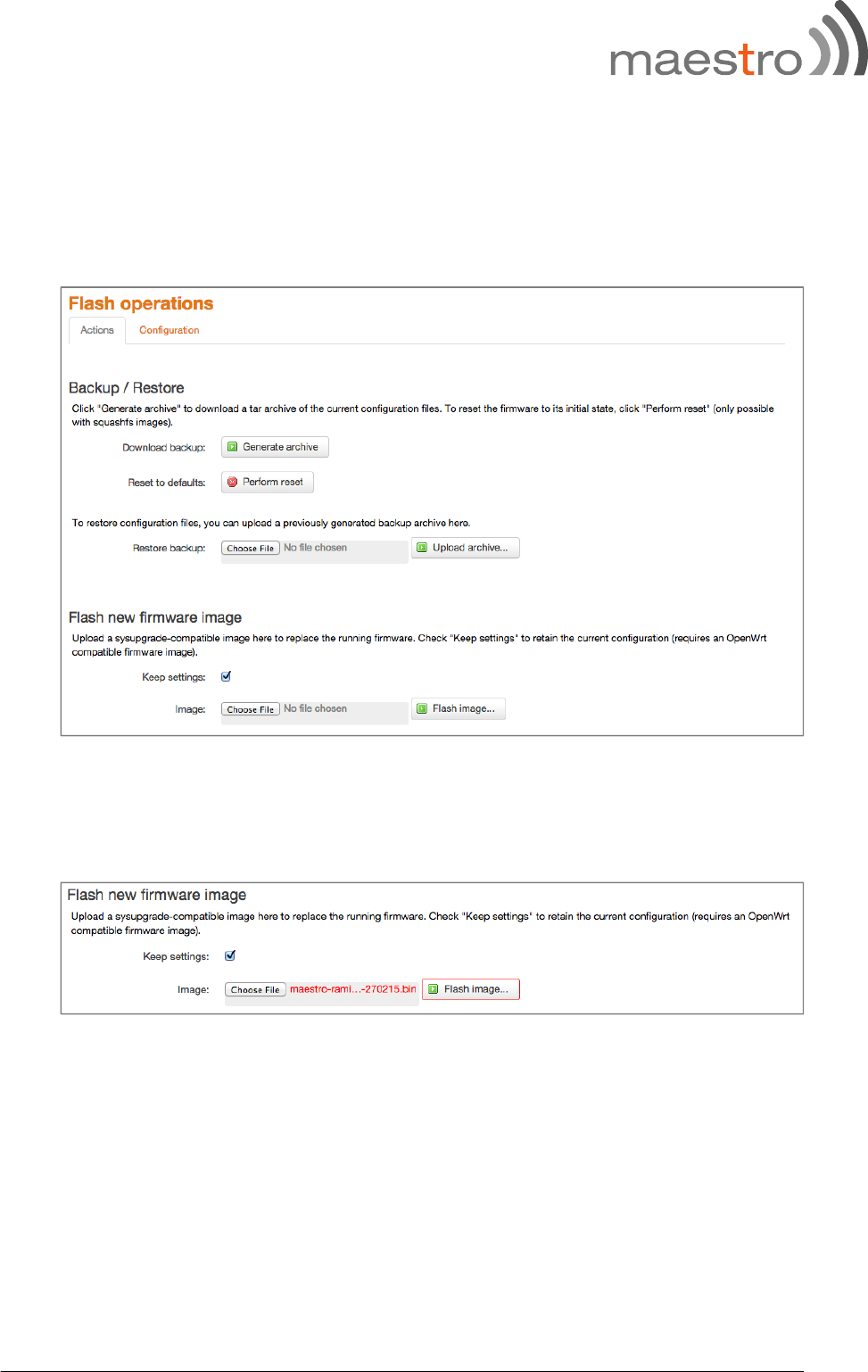
25 Maestro E200 Series www.maestro-wireless.com
10 E205 advanced configuration
10.1 Flashing firmware and updating your device
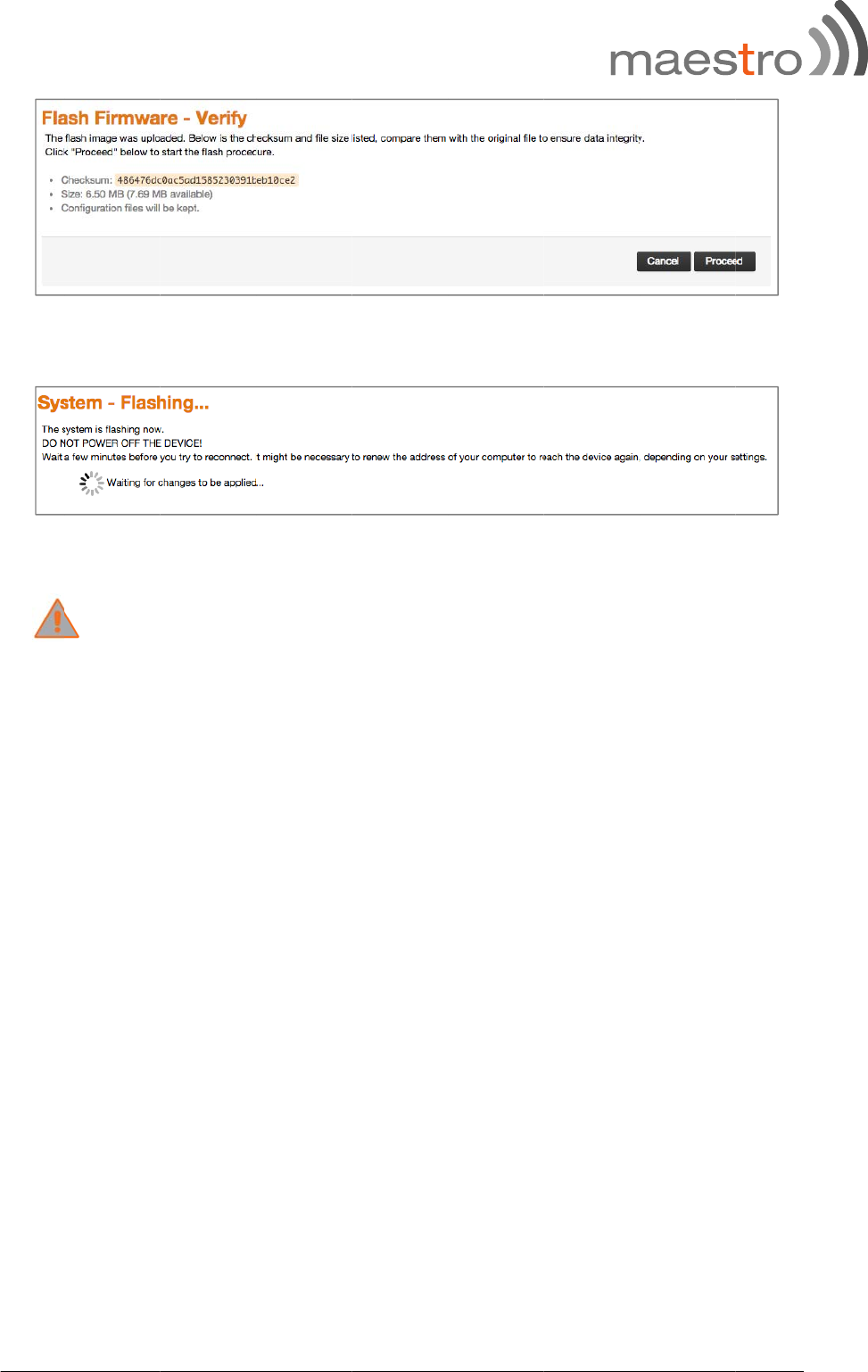
E200 Series can be updated through the web interface. Go to System/Back-up / Flash
Firmware.
Under Flash new firmware image, click on Choose File and locate the .bin file on your
computer.
Once the file located on the computer click Flash image…
26 M
a
Clic
k
The
Wai
t
add
a
estro E200
k
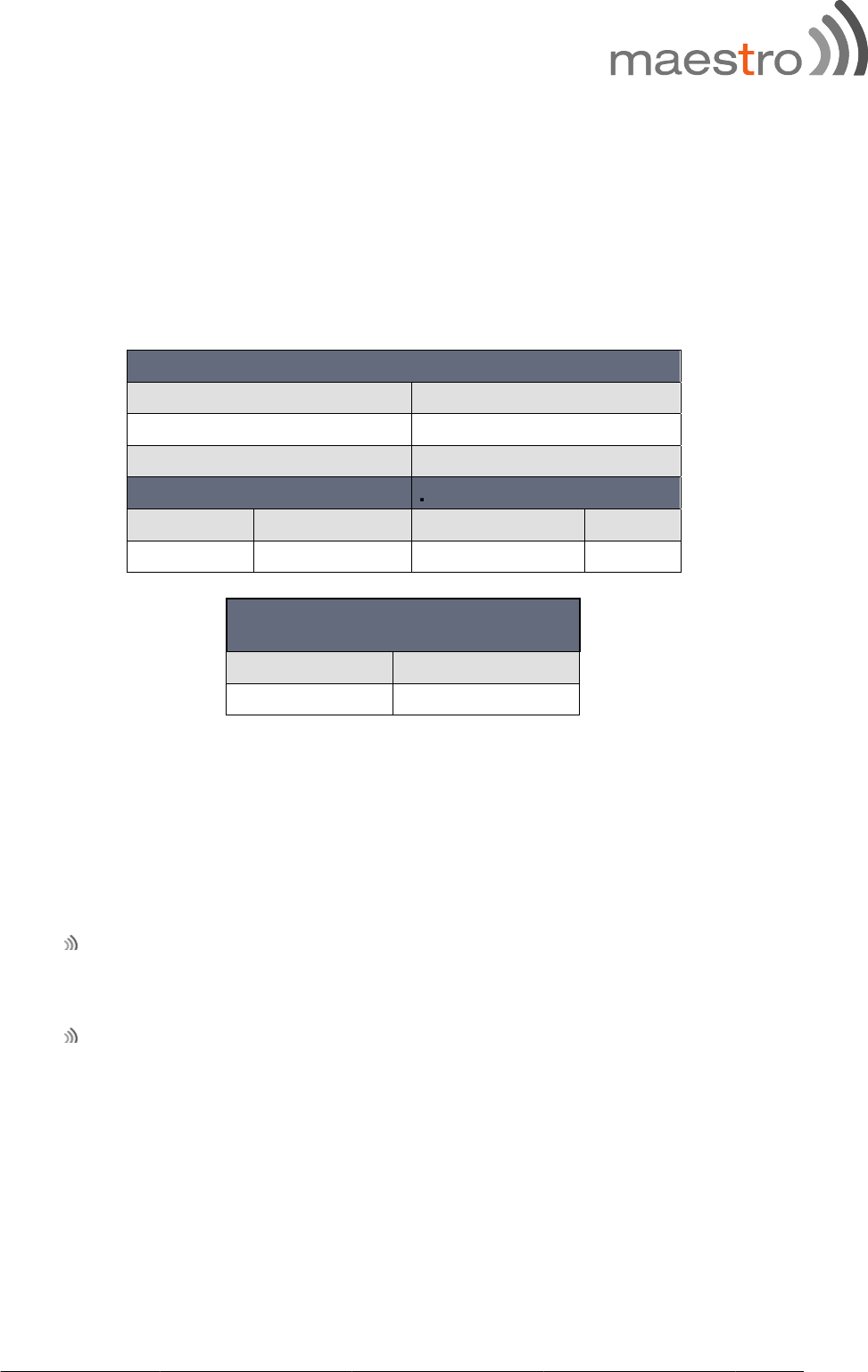
Proceed
system will
DO NO
T
t
a few min
u
ress of your
Series
now be fla
s
T
POWER O
F
u
tes before
y
computer t
hing.
F
F THE DEVI
C
y
ou try to r
e
o reach the
C
E!
e
connect. It
device agai
might be n
e
n, dependin
www.
m
e
cessary to
r
g on your s
e
m
aestro-wire
r
enew the
ettings.
less.com
27 M
a
1
1
The
Not
e
fun
c
Res
t
con
f
def
a
The
r
usin
To
r
a
estro E200
1
A
p
p
11.1 D
e
following t
a
e: The admi
c
tions such
a
Sta
Su
b
De
f
AD
Us
e
Pa
s
11.2 R
e
t
oring facto
r
f
iguration.
Y
a
ults on you
You ha
v
configu
r
You are
r
e are two
m
n
g the web-
b
11.
2
r
estore your
Series
p
endi
x
e
fault se
t
a
bles list th
e
n manager
a
a
s …., which
tic IP Addr
e
b
net Mask:
f
ault Gatew
a
MIN MANA
e
rname:
s
sword:
E2
0
Us
Pa
e
set to f
a
r
y defaults
w
Y
ou may enc
r E200 Seri
e
v
e lost your
r
ation page
asked to p
e
m
ethods yo
u
b
ased user i
n
2
.1 Using
t
router to it
s
x
t
tings
e
default set
t
a
ccount allo
w
are privileg
e
LAN
(
ss:
a
y:
G
ER ACCO
U
admin
admin
0
0 SERIES R
O
ername:
s
sword:
a
ctory de
f
w
ill reset the
ounter a sit
u
s router su
c
username a
n
e
rform a fac
t
u
can use to
n
terface or
u
t
he web-ba
s
s
factory de
f
t
ings for th
e
ws you to
m
e
d only to t
(
MANAGEM
19
2
25
5
19
2
U
NT RO
Us
e
Pas
OUTER TEL
N
root
admi
n
f
ault sett
i
E200 Serie
s
u
ation wher
e
c
h as:
nd passwor
d
tory reset b
y
restore fac
t
u
sing the re
sed user in
f
ault setting
s
e
E200 Serie
s
m
anage all s
e
he root ma
n
ENT)
2
.168.1.1
5
.255.255.0
2
.168.1.1
OT MANAG
e
rname:
sword:
N
ET ACCESS
n
i
ng
s
router to i
t
e
you need
d
and are u
n
y
Maestro s
u
t
ory default
set button
o
terface
s
, please fol
www.
m
s
router.
e
ttings of th
n
ager accou
n
ER ACCOU
N
root
admi
n
t
s factory d
e
to restore t
h
n
able to log
i
u
pport staff.
s
ettings on
y
o
n the side
o
l
ow these st
m
aestro-wire
h
e router ex
c
n
t.
N
T
n
e
fault
h
e factory
in to the w
e
.
your E200,
o
f the route
t
eps:
less.com
c
ept
e
b
r
.

28 Maestro E200 Series www.maestro-wireless.com
Open a browser window and navigate to the IP address of the router (default address is
http://192.168.1.1). Login to the router using
root as the User Name and admin as the
password.
Click the System item from the top menu bar, then Backup / Flash Firmware and then
under Flash operations select the Actions tabs.
Under the Actions tabs, click the Perform reset button. The router asks you to confirm that
you wish
to reset all changes. Click OK to continue. The router will erase the
configuration partition and reboot.

29 Maestro E200 Series www.maestro-wireless.com
11.2.2 Using the reset button on the side of the router
Use a pin to push the Reset button on the device for XX seconds. The router will restore
the factory default settings and reboot.
When you have reset your E200 Series router to its default settings you will be able to
access the device’s configuration web interface using http://192.168.1.1 with username
admin or root and password admin.
30 Maestro E200 Series www.maestro-wireless.com
11.3 List of acronyms
Acronym Expansion / Meaning
2G 2nd Generation
3G 3rd Generation
ADSL Asymmetric digital subscriber line, ADSL is a type of DSL broadband
communications technology used for connecting to the Internet
AES Advanced Encryption Standard
AP Client Access Point Client
CSQ
DHCP Dynamic Host Configuration Protocol (DHCP) is a standardized networking
protocol used on Internet Protocol (IP) networks for dynamically distributing
network configuration parameters, such as IP addresses for interfaces and services.
DIN DIN connector is an electrical connector that was originally standardized by the
Deutsches Institut für Normung (DIN)
DMZ In computer security, a DMZ or Demilitarized Zone is a physical or logical sub
network that contains and exposes an organization's external-facing services to a
larger and un-trusted network, usually the Internet.
DNS Domain Name System (DNS) is a hierarchical distributed naming system for
computers, services, or any resource connected to the Internet or a private network
DynDNS, DDNS Dynamic DNS (DDNS) is a method of automatically updating a name server in the
Domain Name System (DNS), often in real time, with the active DNS configuration
of its configured hostnames, addresses or other information.
EDGE Enhanced Data rates for GSM Evolution (EDGE) is a digital mobile phone
technology that allows improved data transmission rates as a backward-compatible
extension of GSM.
GPRS General packet radio service (GPRS) is a packet oriented mobile data service on the
2G and 3G cellular communication system's global system for mobile
communications
GSM Global system for mobile communications
HT Physical mode High Throughput Physical Mode
ICMP Internet Control Message Protocol (ICMP) is one of the main protocols of the
Internet Protocol Suite. It is used by network devices, like routers, to send error
messages
IGMP Internet Group Management Protocol is a communications protocol used by hosts
and adjacent routers on IP networks to establish multicast group memberships
IP Sec Internet Protocol Security is a protocol suite for securing Internet Protocol (IP)
communications by authenticating and encrypting each IP packet of a
communication session
ISP Internet service provider
L2TP Layer 2 Tunneling Protocol is a tunneling protocol used to support virtual private
networks
LAN Local Area Network
Acronym Expansion / Meaning
LLTD Link Layer Topology Discovery is a proprietary Link Layer protocol for network
topology discovery and quality of service diagnostics
M2M Machine to machine
MAC address Media access control address is a unique identifier assigned to network interfaces
for communications on the physical network segment
MTU Maximum transmission unit of a communications protocol of a layer is the size (in
31 Maestro E200 Series www.maestro-wireless.com
bytes) of the largest protocol data unit that the layer can pass onwards
NAT Network address translation is a methodology of modifying network address
information in Internet Protocol (IP) datagram packet headers while they are in
transit across a traffic routing device for the purpose of remapping one IP address
space into another.
NTP Network Time Protocol is a networking protocol for clock synchronization between
computer systems over packet-switched, variable-latency data networks
PPPoE Point-to-Point Protocol over Ethernet
PPTP Point-to-Point Tunneling Protocol
PSK Pre-shared key
QoS Quality of Service
RF Radio Frequency
Rx Reception
SIM Subscriber identity module
SMA SMA (Sub Miniature version A) connectors are semi-precision coaxial RF
connectors
SMS Short Message Service
SPI Serial Peripheral Interface
SSID Service set identification
TCP Transmission Control Protocol
TKIP Transmission Control Protocol
Tx Transmission
UDP User Datagram Protocol
UPnP Universal Plug and Play
VPN Virtual private network
WAN Wide Area network
WCDMA Wideband Code Division Multiple Access
WDS Wireless distribution system
WEP Wired Equivalent Privacy, is a wireless network security standard
Wi-Fi Local area wireless technology that allows an electronic device to exchange data or
connect to the internet using 2.4 GHz UHF and 5 GHz SHF radio waves
WPA Wi-Fi Protected Access
WPA2 Wi-Fi Protected Access II
32 Maestro E200 Series www.maestro-wireless.com
11.4 Support
There are several resources available to you for support and troubleshooting of your
Maestro product or for resolving configuration difficulties at Maestro’s support website,
http://support.maestro-wireless.com/knowledgebase.php.
Try these troubleshooting steps to eliminate your problem. After working through these
steps and if your problem is not solved, please send a ticket to Maestro support team.
Fill out an Online Support Request via: http://support.maestro-
wireless.com/index.php?a=add. You will need to create a user account if one is not
already set up.
When submitting a support request, please include a copy of the System Log file from the
unit’s and the configuration files. This will greatly improve the quality of the initial
response you receive. Without this file, it is often very difficult for the support team to
provide accurate answers to your queries.
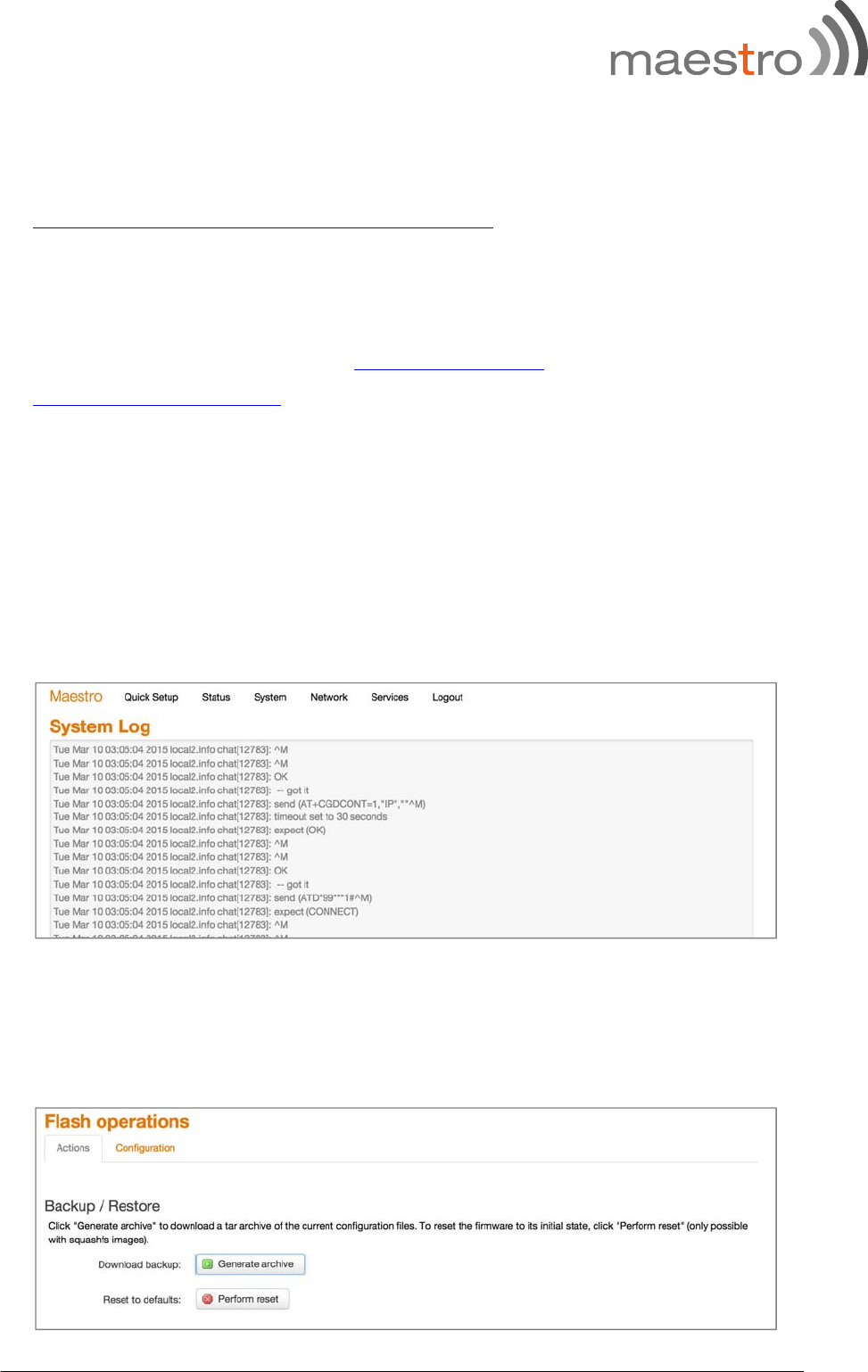
To create a copy of the system login on your router and go to Status > System Log.
Select the entire log, copy it and paste it on a new document file .
To generate an archive of your configuration go to System > Backup / Flash Firmware,
under the Actions tabs click on Generate archive.

33 Maestro E200 Series www.maestro-wireless.com
An archive file “backup-Maestro-201x-xx-xx.tar.gz will be downloaded on your default
download folder, please attached the file while filling the support request online.