Matias FK304305 Matias Bluetooth Folding Keyboard User Manual FK304 Manual 2e indd
Matias Corporation Matias Bluetooth Folding Keyboard FK304 Manual 2e indd
Matias >
Users Manual
Ouvrir et fermer le clavier
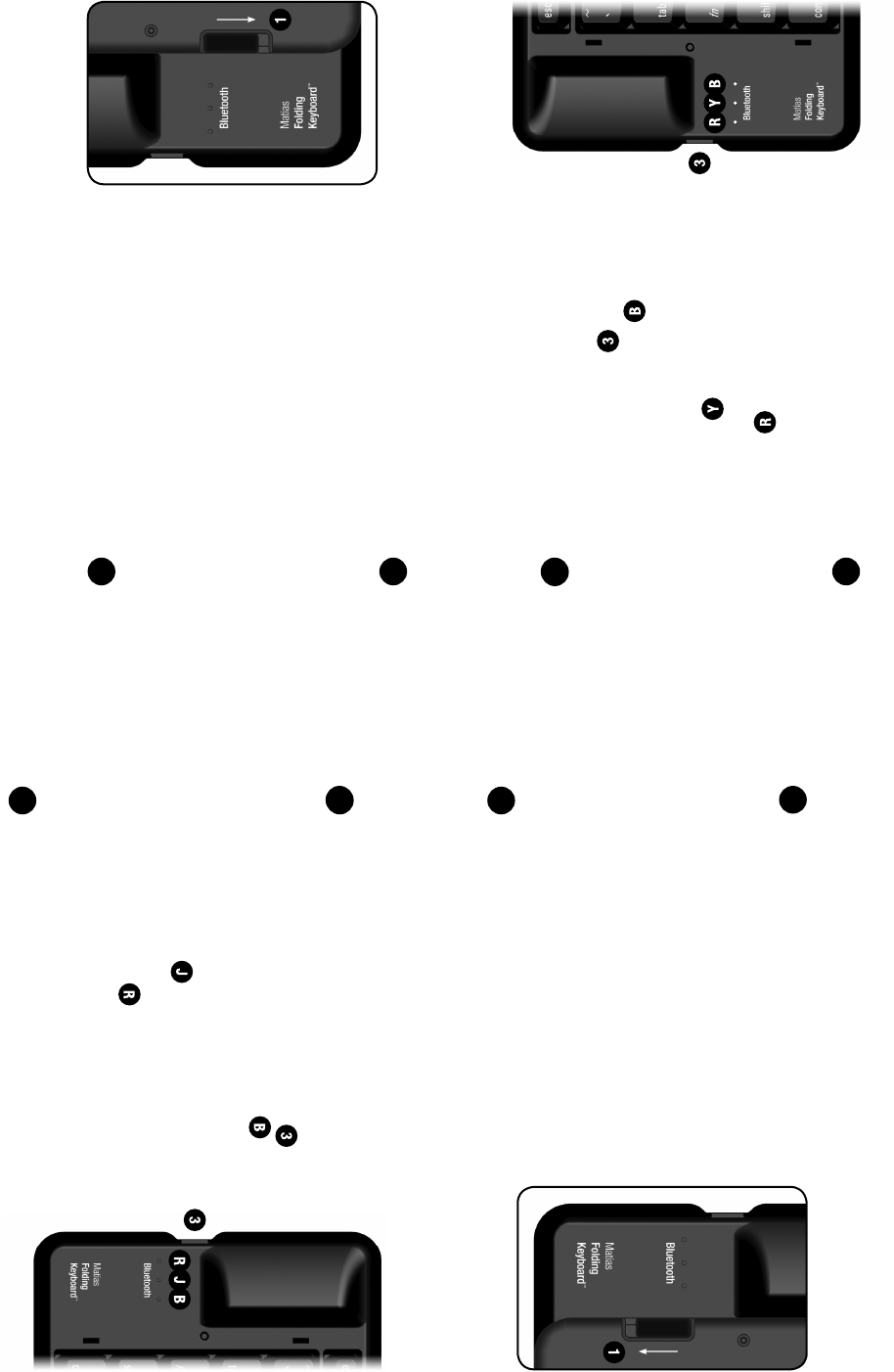
Pour ouvrir, glissez le bouton ouvert en bas.
Pour fermer, pliez et appuyez les deux
bouts ensemble.
RAPPELEZ-VOUS d’éteindre le clavier
avant de le fermer.
Insérez les piles
Des piles sont incluses dans la boîte. Le compartiment à piles se
trouve dessous le clavier.
Bouton de puissance
Appuyez sur le bouton de puissance pour
allumer le clavier – la lumière bleue clignote.
Appuyez à nouveau pour éteindre le clavier –
la lumière jaune clignote.
Si la lumière rouge clignote, vos piles sont
faibles.
Confi guration Bluetooth
®
S.V.P. voir page 4.
1
Matias Bluetooth Folding Keyboard pour Mac – Clavier US (FK304)
installation rapide
1
2
3
2
4
1
Opening & closing the keyboard
To open, slide the open switch down.
To close, fold and press the two ends
together.
REMEMBER to turn the keyboard OFF
before you close it.
Insert batteries
Batteries are included in the box. The battery compartment is
located on the underside of the keyboard.
On/Off Button
Press the On/Off button to turn the
keyboard on – the blue light fl ashes.
Press again to turn the keyboard off –
the yellow light fl ashes.
If the red light fl ashes, your batteries are low.
Bluetooth
® setup
Please turn to page 4.
Matias Bluetooth Folding Keyboard for Mac – US Layout (FK304)
quick setup
1
2
3
2
4
For more information, please visit:
Technical support:
www.matias.ca/foldingkeyboard/support
Injury prevention and health:
www.matias.ca/health
Warranty information:
please turn to page 14.
Matias Corporation
129 Rowntree Dairy Road, Unit #20
Vaughan, Ontario, L4L 6E1
Canada
Telephone: 1-905-265-8844
e-mail: info@matias.ca
www.matias.ca
Copyright © 2008 Matias Corporation. All rights reserved. Matias Folding Keyboard, Matias
Bluetooth Folding Keyboard, Matias, and the Matias logo are trademarks of the Matias
Corporation. Mac and Mac OS are trademarks of Apple, Inc. The Bluetooth ® word mark and
logos are registered trademarks owned by Bluetooth SIG, Inc. and any use of such marks by
Matias is under license. Other names may also be trademarks and their owners are respectfully
acknowledged. Patent Pending. Made in China.
2
Pour plus d’information, s.v.p. visitez:
Assistance technique:
www.matias.ca/foldingkeyboard/support
Prévention des blessures et santé:
www.matias.ca/health
Garantie:
s.v.p. voir page 14.
Matias Corporation
129 Rowntree Dairy Road, Unit #20
Vaughan, Ontario, L4L 6E1
Canada
Téléphone: 1-905-265-8844
e-mail: info@matias.ca
www.matias.ca
2
Copyright © 2008 Matias Corporation. Tous droits réservés. Matias Folding Keyboard,
Matias Bluetooth Folding Keyboard, Matias, et le logo Matias sont des marques déposées de
Matias Corporation. Mac et Mac OS sont des marques déposées de Apple Inc. La marque et
le logo Bluetooth ® sont la propriété de Bluetooth SIG, Inc. et toute utilisation de telles marques
par Matias est sous licence. D’autres noms peuvent être des marques déposées et leurs
propriétaires sont respectueusement reconnus. Brevets en instance. Fabriqué en Chine.
Using the fn key
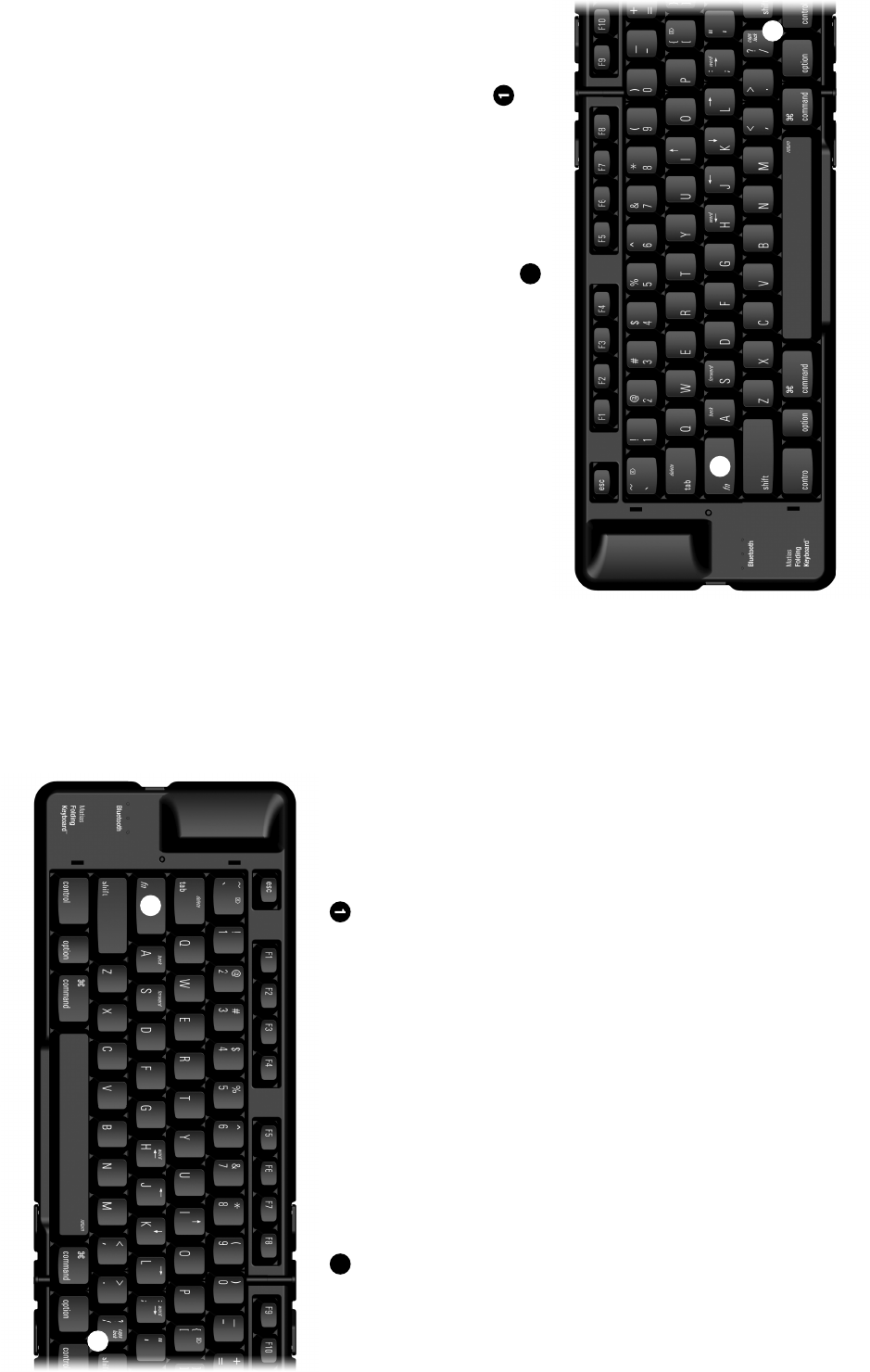
Fn key commands are printed on the keys in italic.
The fn key works just like Shift or Ctrl.
Hold down fn and then press the key that has the command
you want.
Using the Eject key on Mac OS X
To Eject, simply hold down the F12 key until the Eject symbol
appears on the screen.
Using Caps Lock
To turn Caps Lock on/off, simply hold down the fn key
and press the / ? caps lock key 2:
3
1
2
Utiliser la touche fn
Commandes de touche fn sont imprimées sur les touches en
italique.
La touche fn fonctionne tout comme Shift ou Ctrl.
Maintenir en place fn et ensuite appuyez sur la touche qui
correspond à la commande que vous voulez.
Utiliser la touche Éjection sur Mac OS X
Pour Éject, appuyez simplement sur la touche F12 jusqu’à ce
que vous voyez apparaître le symbole Éjection à l’écran.
Utilizer Caps Lock
Pour allumer ou éteindre Caps Lock, maintenir en place la
touche fn et appuyez sur la touche / ? caps lock 2:
3
1
2
Bluetooth
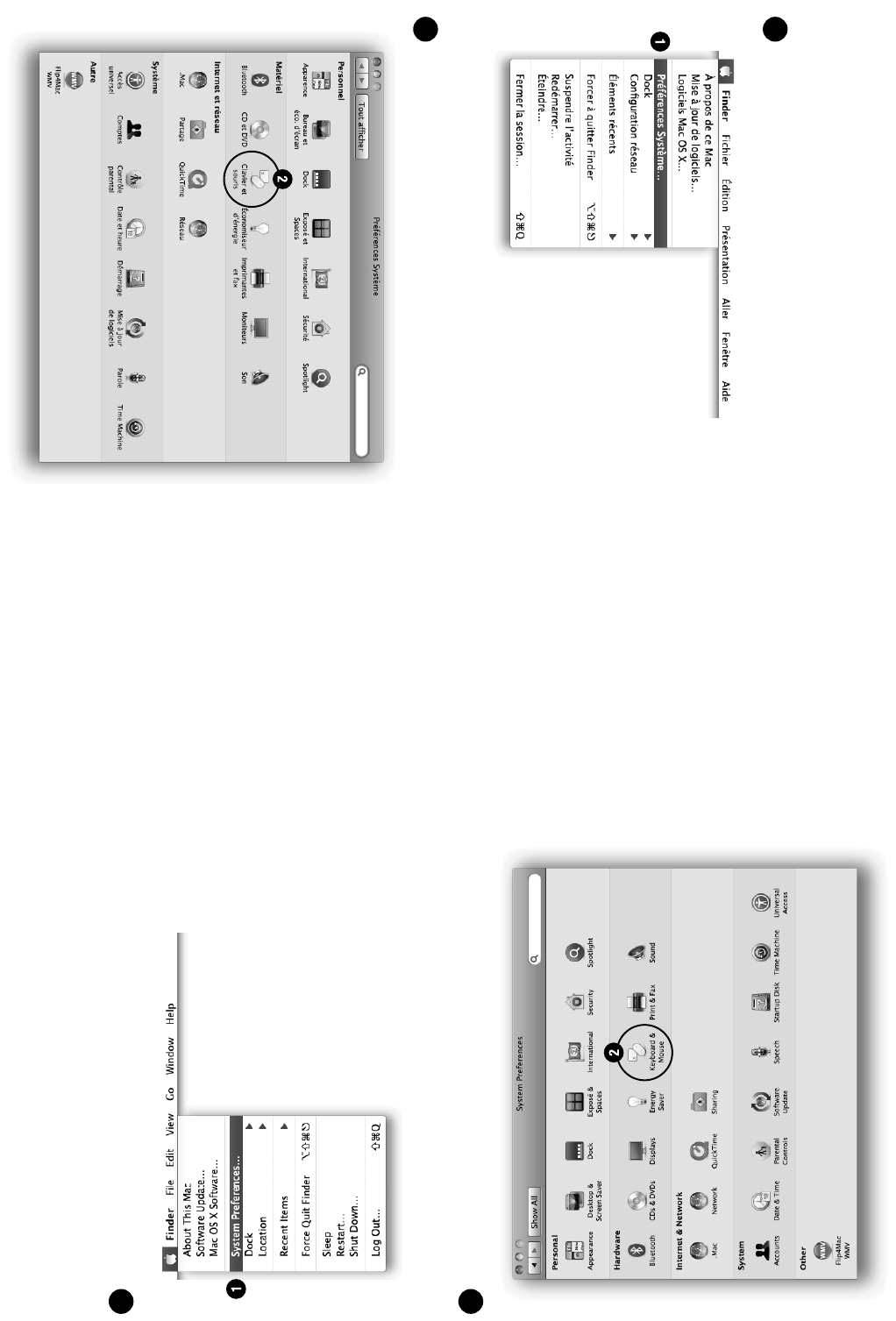
® Setup Instructions
Open System Preferences.
Click on Keyboard & Mouse.
4
1
2
Instructions d’installation Bluetooth
®
Ouvrez Préférences Système.
Cliquez sur Clavier et souris.
4
1
2
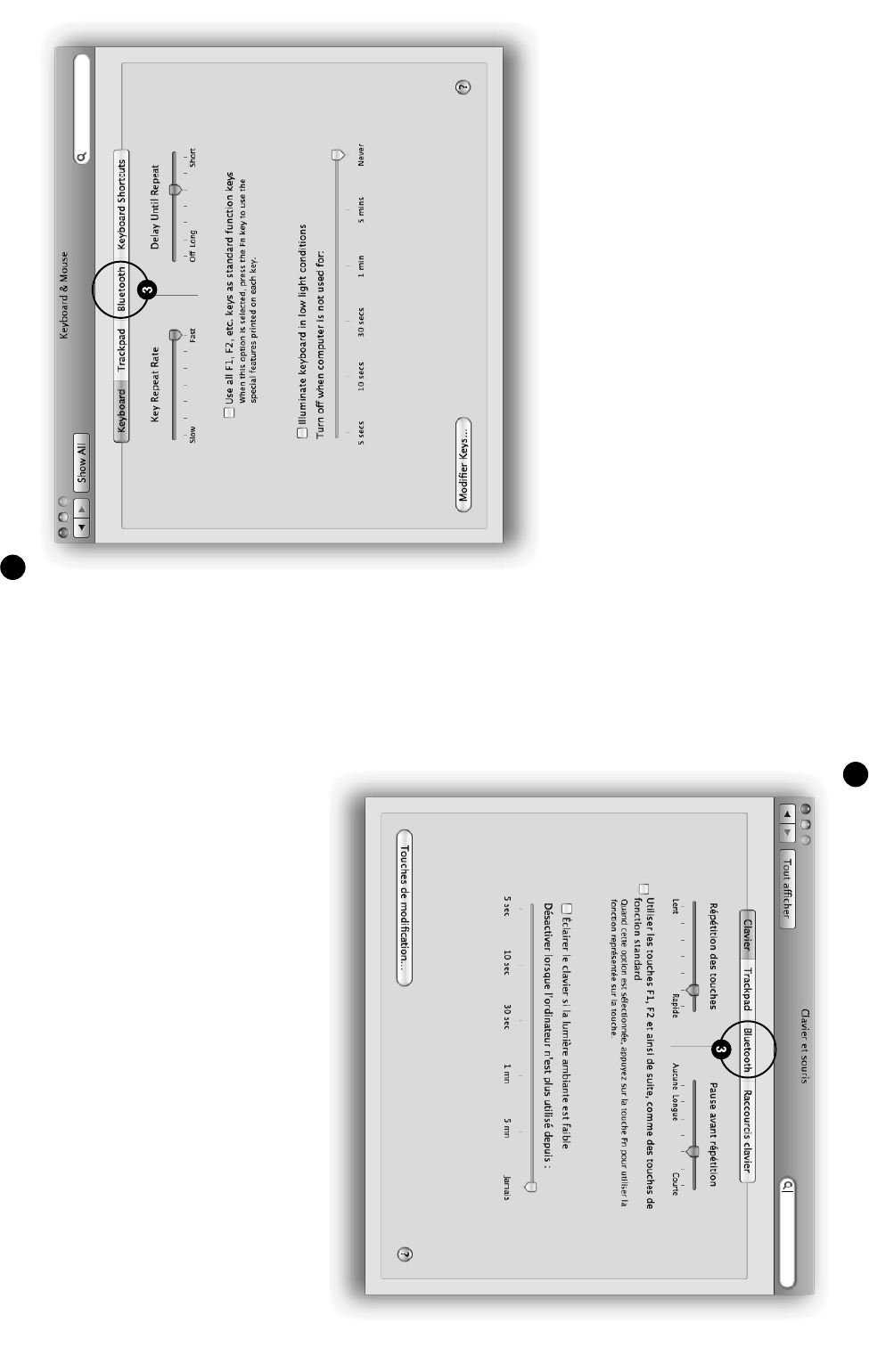
Click on Bluetooth.
5
3
Cliquez sur Bluetooth.
3
5
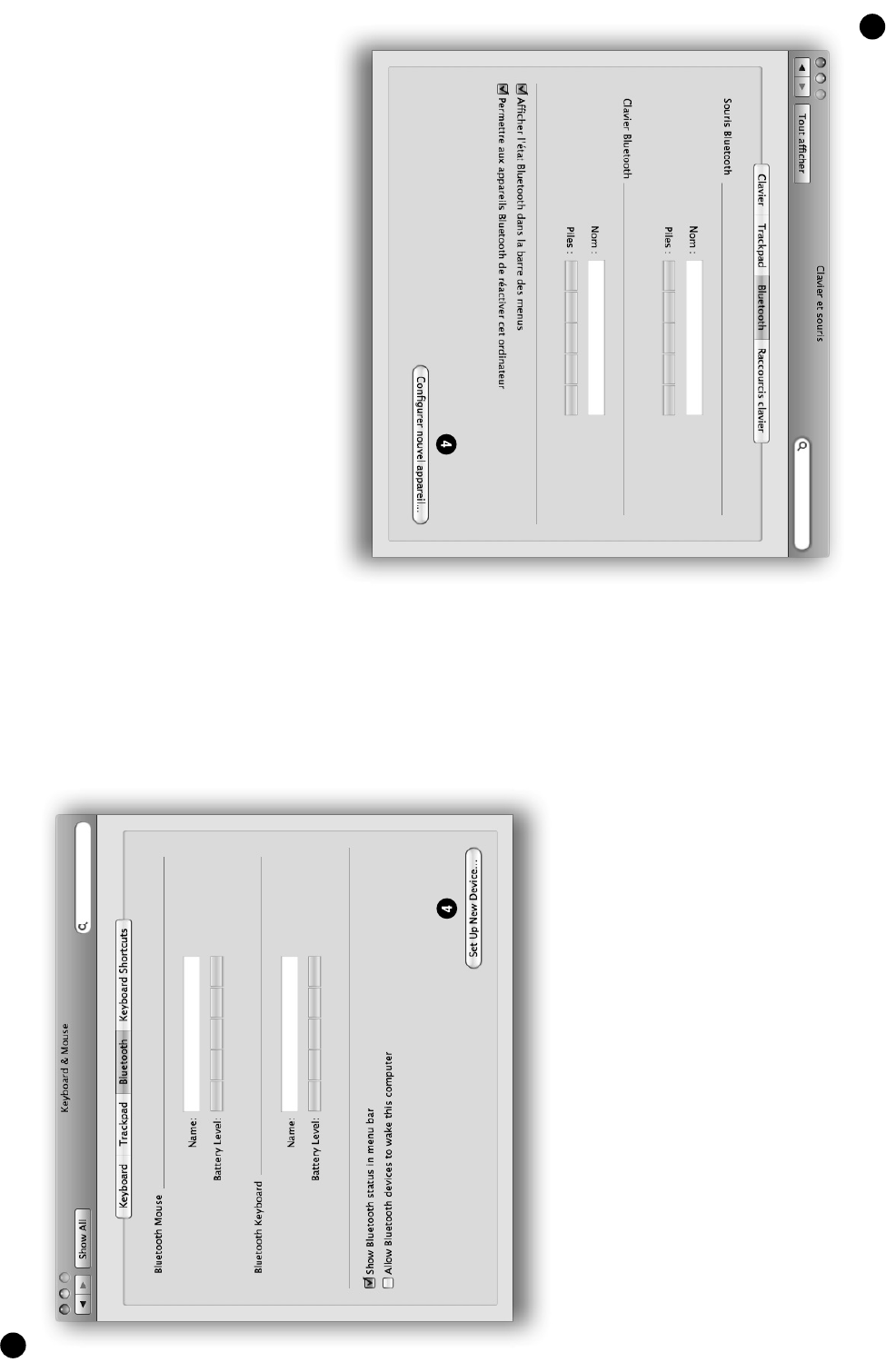
4
Click on Set Up New Device...
6
4
Cliquez sur Confi gurer nouvel appareil...
6

6
5
Press the On/Off button 5 to turn the keyboard on.
The blue light will fl ash briefl y.
If the yellow light fl ashes, then press the button again.
If the red light fl ashes or no light fl ashes, then you need to
insert new batteries.
With a pen or similar pointed object, press the pairing button 6
until the blue light fl ashes.
7
6
5
Appuyez sur le bouton de puissance 5 pour allumer le
clavier. La lumière bleue clignotera brièvement.
Si la lumière jaune clignote, appuyez encore une fois sur
le bouton.
Si la lumière rouge clignote ou si aucune lumière clignote,
vous devez insérer de nouvelles piles.
Avec un stylo ou un autre objet pointu, appuyez sur le bouton de
jumelage 6 jusqu’a ce que la lumière bleue clignote.
7
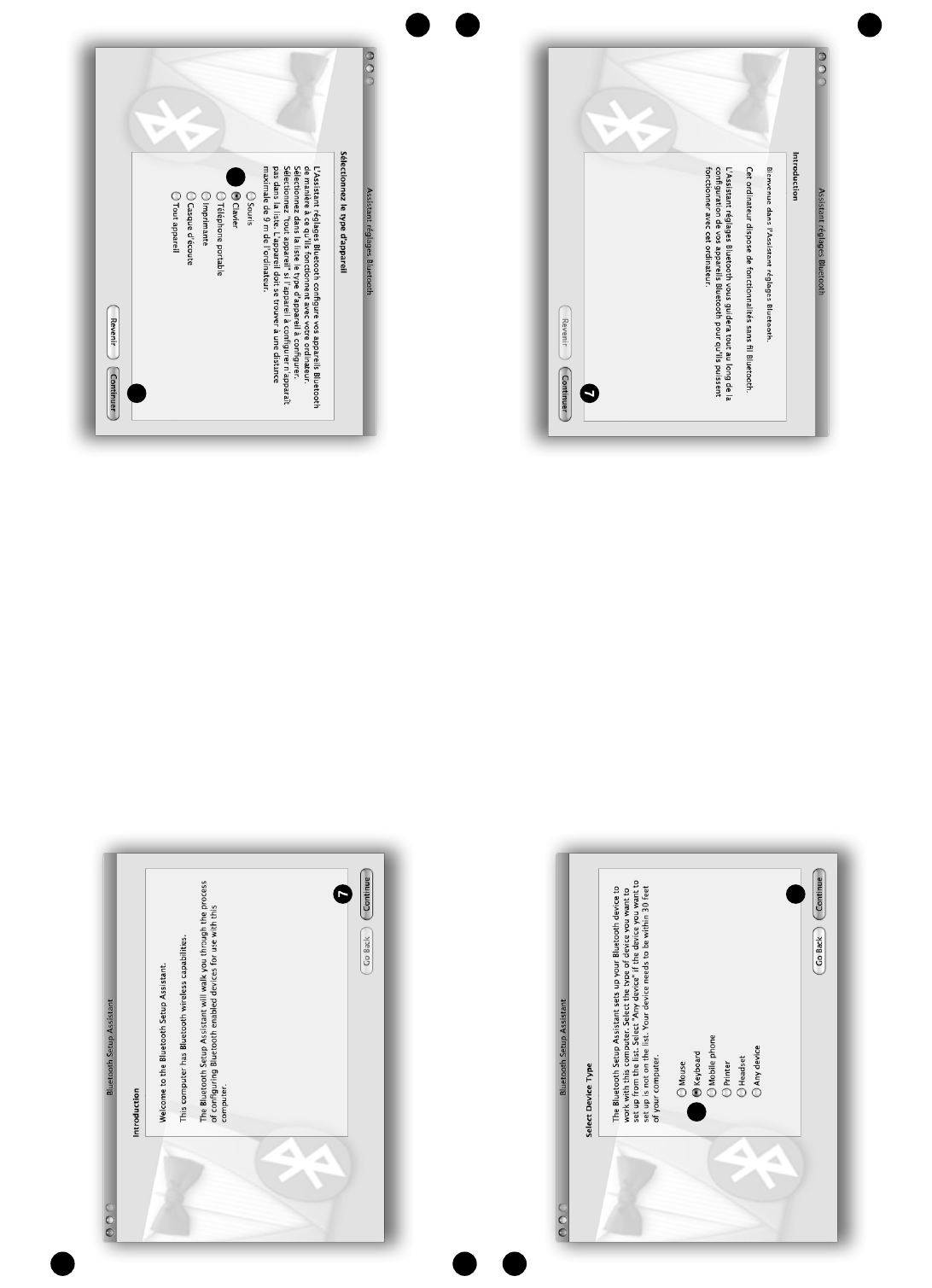
Cliquez Continuer.
Cliquez sur Clavier.
Cliquez Continuer.
8
7
8
9
8
9
Click Continue.
Click on Keyboard.
Click Continue.
8
7
8
9
8
9
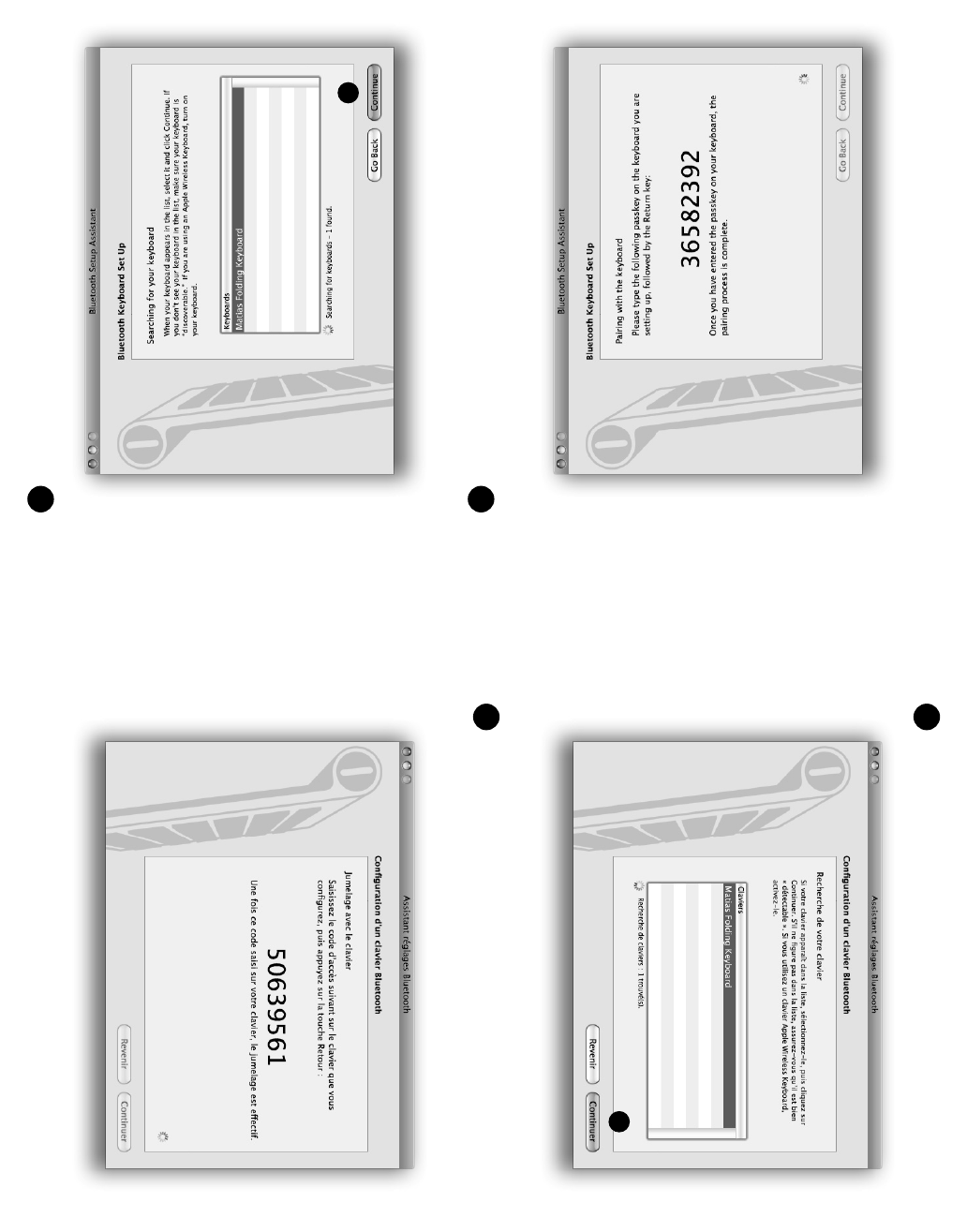
After the keyboard appears in the list, click Continue.
Type the number shown on your screen using the keyboard,
and then press the Enter key on the keyboard.
9
10
11
10
Une fois que le clavier apparaît sur la liste, cliquez Continuer.
En utilisant le clavier, tapez le numéro qui se trouve á l’écran,
ensuite appuyez sur la touche Enter sur le clavier.
9
10
11
10
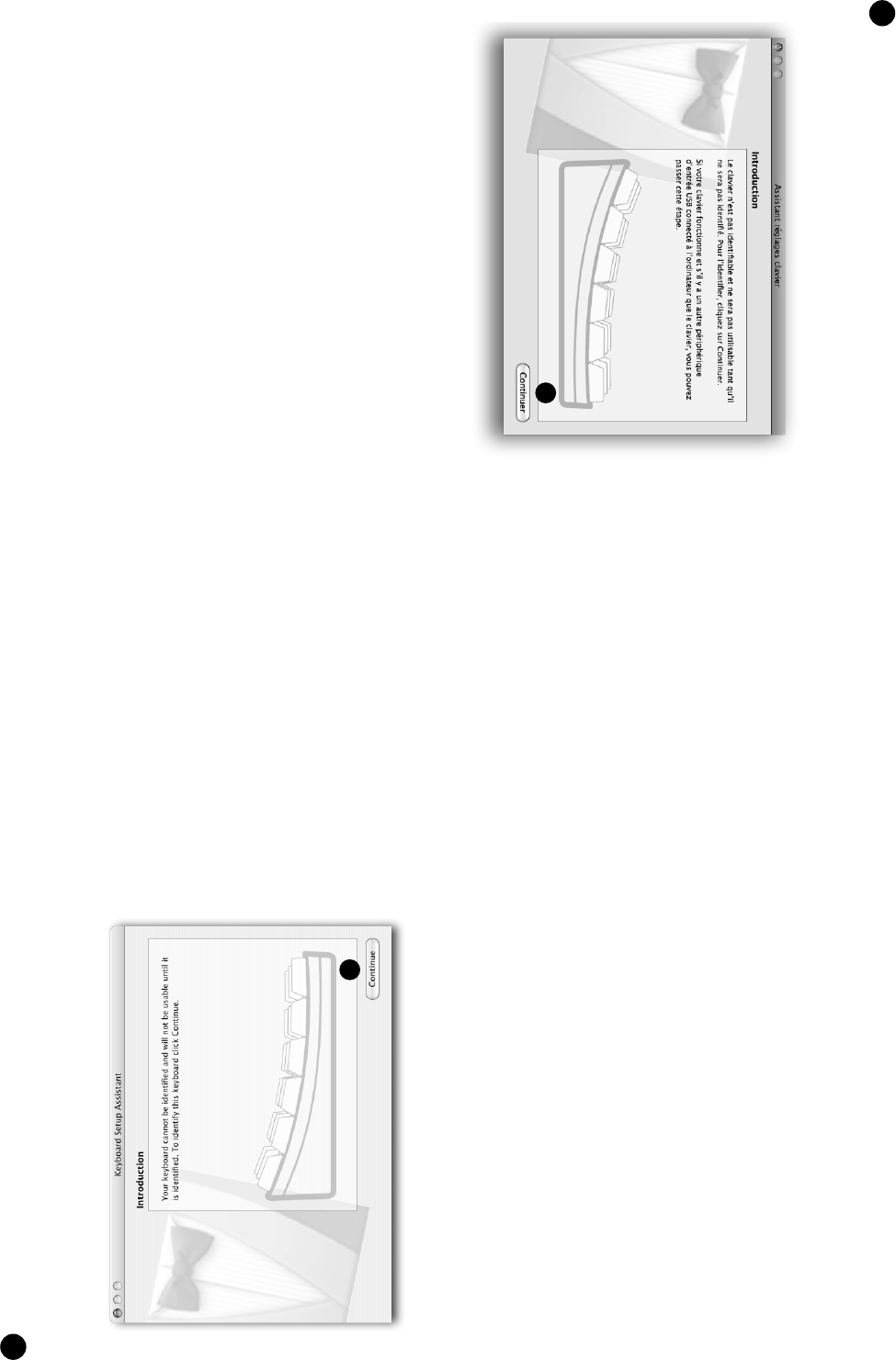
If the following window appears, click Continue.
If this window does NOT appear, then proceed to step 17.
10
12
12
Si la fenêtre qui suit apparaît, cliquez Continuer.
Si la fenêtre n’apparaît pas, procédez à l’étape 17.
12
12
10
11
14
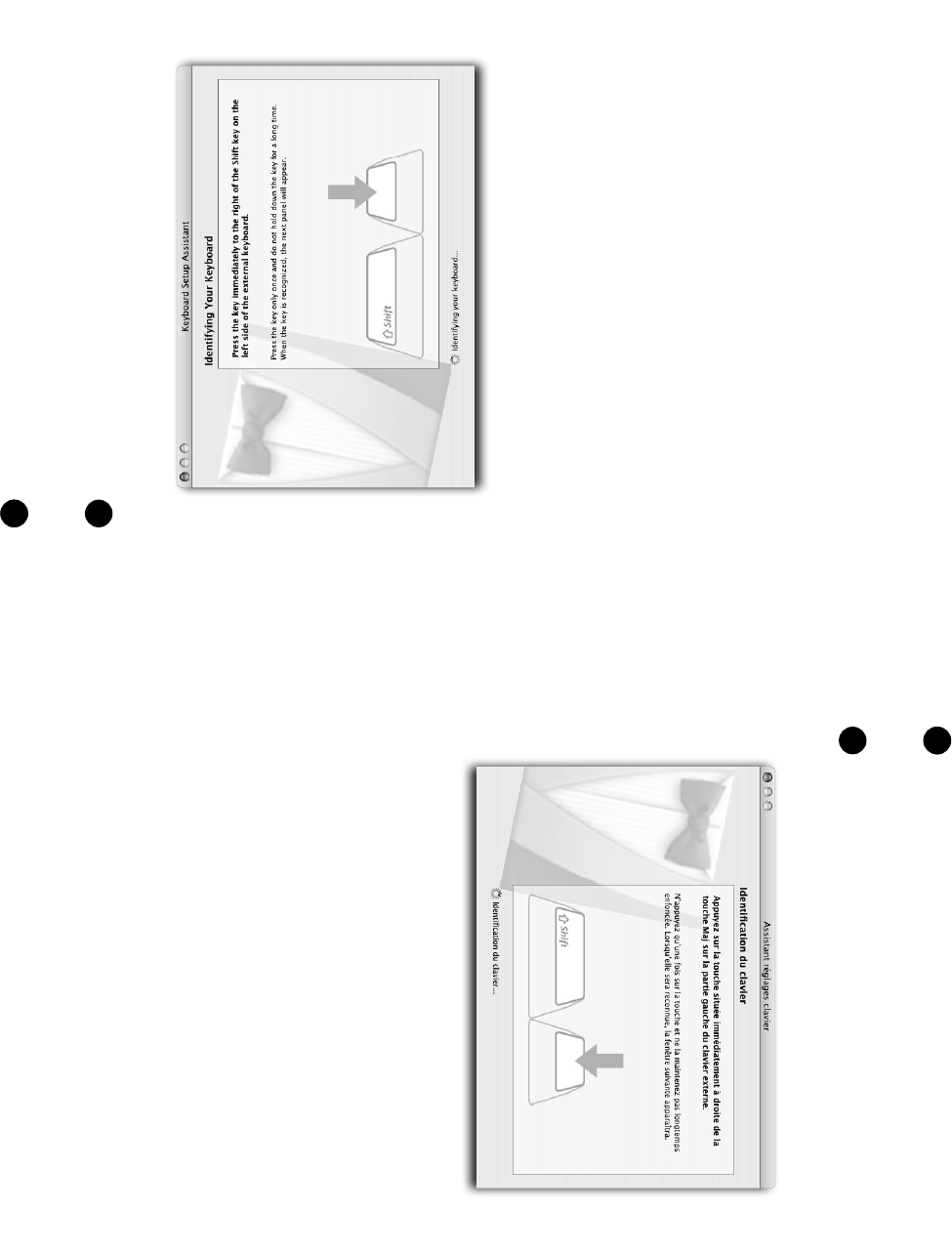
Read window instructions, and press key on keyboard as
requested.
Another instruction may follow, requesting another key press.
Press key as requested.
13
14
11
14
Lisez les instructions dans la fenêtre, et appuyez sur la touche
au clavier comme demandé.
Une autre instruction peut suivre, demandant d’appuyer sur
une autre touche. Appuyez sur la touche comme demandé.
13
14
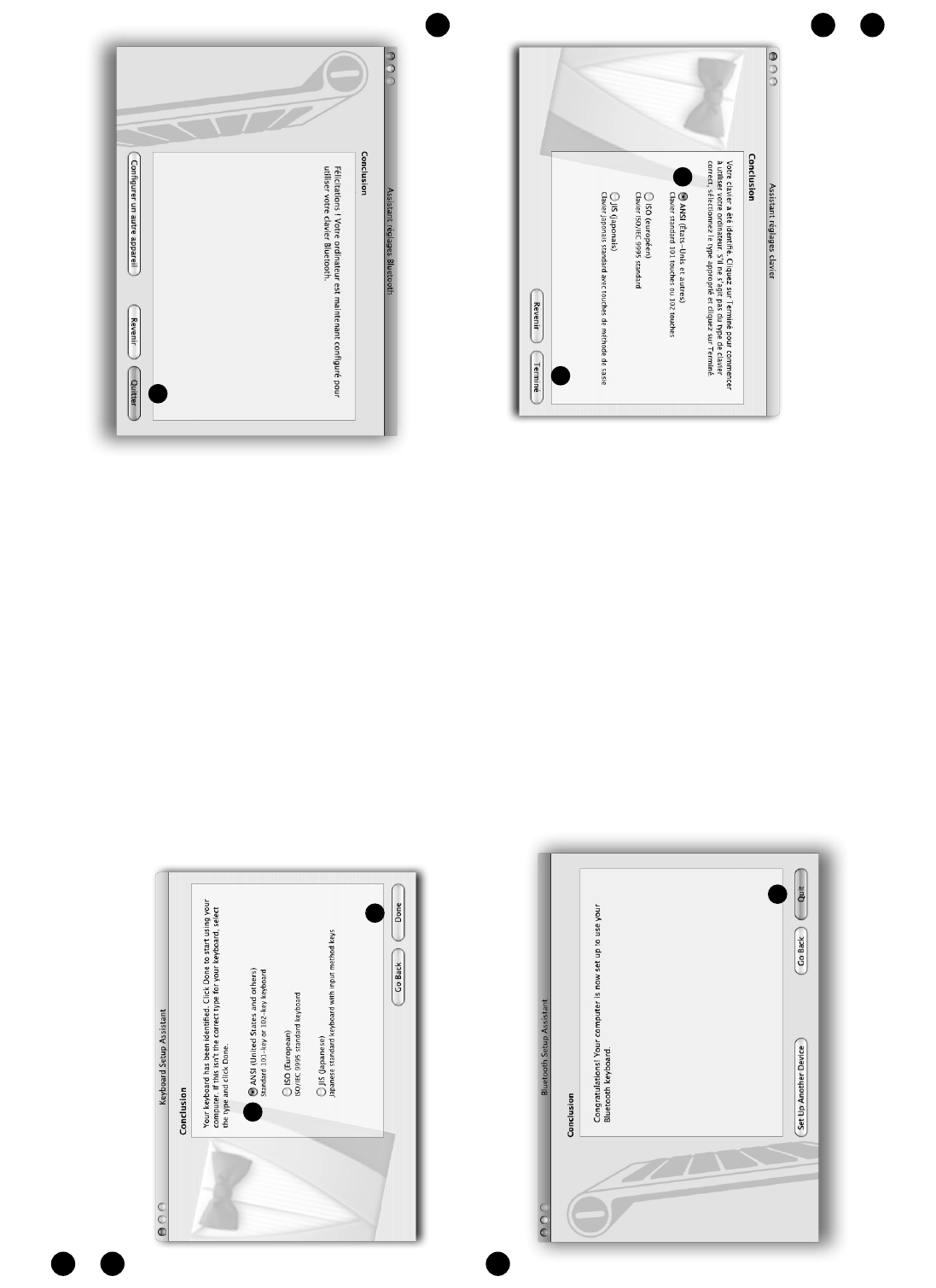
Click Quit.
17
17
12
Click on ANSI.
Click on Done.
15
16
15
16
Cliquez Quitter.
17
17
12
Cliquez sur ANSI.
Cliquez sur Terminé.
15
16
15
16
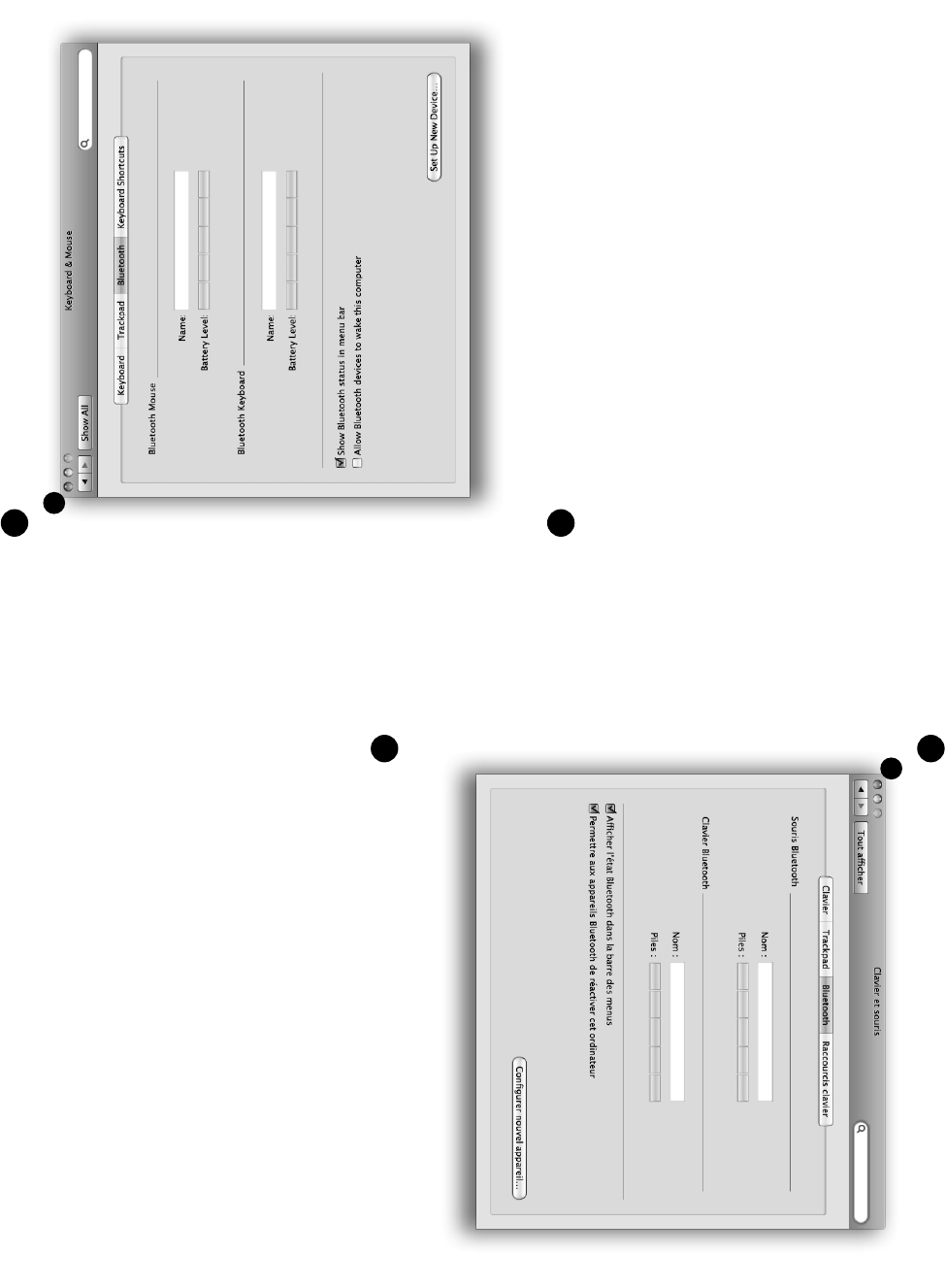
Click on the red button to close the window.
18
18
13
Setup is complete.
See page 3 for more information.
19
Cliquez sur le bouton rouge afi n de fermer la fenêtre.
18
18
13
L’installation est complète.
S.V.P. voir page 3 pour plus d’information.
19

MATIAS FOLDING KEYBOARD LIMITED WARRANTY
Matias Corporation (“Matias”) warrants to the original end user (“Customer”)
that these products will be free from defects in workmanship and materials,
under normal use, for 1 year from the date of original purchase from Matias
or its authorized reseller. Matias’ sole obligation under this express warranty
shall be (at Matias’ option and expense) to repair or replace the product
or part with a comparable product or part. All products or parts that are
replaced become the property of Matias.
LIMITATION OF LIABILITY
To the full extent allowed by law, Matias excludes for itself and its suppliers
any liability (whether based in contract or in tort, including negligence)
for incidental, consequential, indirect, special or punitive damages of any
kind, or for loss of revenue or profi ts, loss of business, loss of information
or data, or other fi nancial loss arising out of or in connection with the sale,
installation, maintenance, use, performance, failure, or interruption of this
product, even if Matias or its authorized reseller has been advised of the
possibility of such damages, and limits its liability to replacement, repair,
or refund of the purchase price paid, at Matias’ option. This disclaimer of
liability for damages will not be affected if any remedy provided herein
shall fail of its essential purpose.
WARRANTY PROCEDURE
Please contact the Matias Help Desk by e-mail at help@matias.ca or by
phone at (905) 265-8844, and give a detailed explanation of the problem.
We will fi rst try to solve your problem by e-mail/phone.
If e-mail/phone support is not successful or if the item is defective, Matias
will assign you an EMA number (Exchange Merchandise Authorization),
and send instructions for returning the product for replacement.
For more information about our Return Policy, please visit our website at:
www.matias.ca/returns
1
2
3
4
14
14
MATIAS FOLDING KEYBOARD - GARANTIE LIMITÉE
Matias Corporation (“Matias”) garantit au propriétaire original (“Client”) que ce
produit sera absent de vices de fabrication et de matière, dans des conditions
normales d’utilisation, pour une période de UN (1) AN à compter de la date d’achat
original de Matias ou d’un de ses revendeurs autorisés. La seule obligation de
Matias sous cette garantie sera, (au choix et aux frais de Matias) de réparer ou de
remplacer le produit ou la pièce avec un produit ou une pièce comparable. Tous
produits ou pièces remplacés deviennent la propriété de Matias.
LIMITATION DE RESPONSABILITÉ
Dans la mesure autorisée par la loi, Matias exclut pour soi et pour ses fournisseurs
aucune responsabilité (soit basé en contrat ou en tort, y inclus la négligence) pour
des dommages accessoires, consecutifs, indirects, spéciaux ou punitifs d’aucune
sorte, ou pour perte de revenue ou de profi ts, perte d’affaires, perte d’information
ou de données, ou autre perte fi nanciaire survenant ou liée à la vente, l’installation,
l’entretien, l’usage, la performance, l’échec, ou l’interruption de ce produit, même
si Matias ou son revendeur autorisé ont étés informés de manière explicite de
l’éventualité de tels dommages, et limite sa responsabilité au remplacement,
réparation ou remboursement du prix d’achat, au choix de Matias. Cet avis de non-
responsabilité pour les dommages ne sera pas modifi é même si aucune solution
ci-incluse échoue son but essentiel.
PROCÉDURE DE GARANTIE
S.V.P. contactez Matias Help Desk par courriel (help@matias.ca) ou par
téléphone (905) 265-8844, et donnez une description détaillée du problème.
Nous essaierons en premier de résoudre votre problème par courriel/
téléphone.
Si l’aide par courriel/téléphone n’est pas satisfaisante, ou si le produit est
défectueux, Matias vous assignera un numéro EMA (Échange de Marchandise
Autorisée), and vous enverra des instructions pour le retour du produit afi n
d’effectuer un remplacement.
Pour de plus ample renseignements vis-à-vis notre politique de retour, s.v.p.
visitez notre site web: www.matias.ca/fr/returns
1
2
3
4
Federal Communications Commission (FCC)
Requirements, Part 15
THIS DEVICE COMPLIES WITH PART 15 OF THE FCC RULES.
OPERATION IS SUBJECT TO THE FOLLOWING TWO CONDITIONS:
(1) THIS DEVICE MAY NOT CAUSE HARMFUL INTERFERENCE,
AND (2) THIS DEVICE MUST ACCEPT ANY INTERFERENCE
RECEIVED, INCLUDING INTERFERENCE THAT MAY CAUSE
UNDESIRED OPERATION.
NOTE: THE MANUFACTURER IS NOT RESPONSIBLE FOR ANY
RADIO OR TV INTERFERENCE CAUSED BY UNAUTHORIZED
MODIFICATIONS TO THIS EQUIPMENT. SUCH MODIFICATIONS
COULD VOID THE USER AUTHORITY TO OPERATE THE
EQUIPMENT.