Matias FK306307 MATIAS FOLDING KEYBOARD User Manual FK306 Manual 1e indd
Matias Corporation MATIAS FOLDING KEYBOARD FK306 Manual 1e indd
Matias >
Users Manual
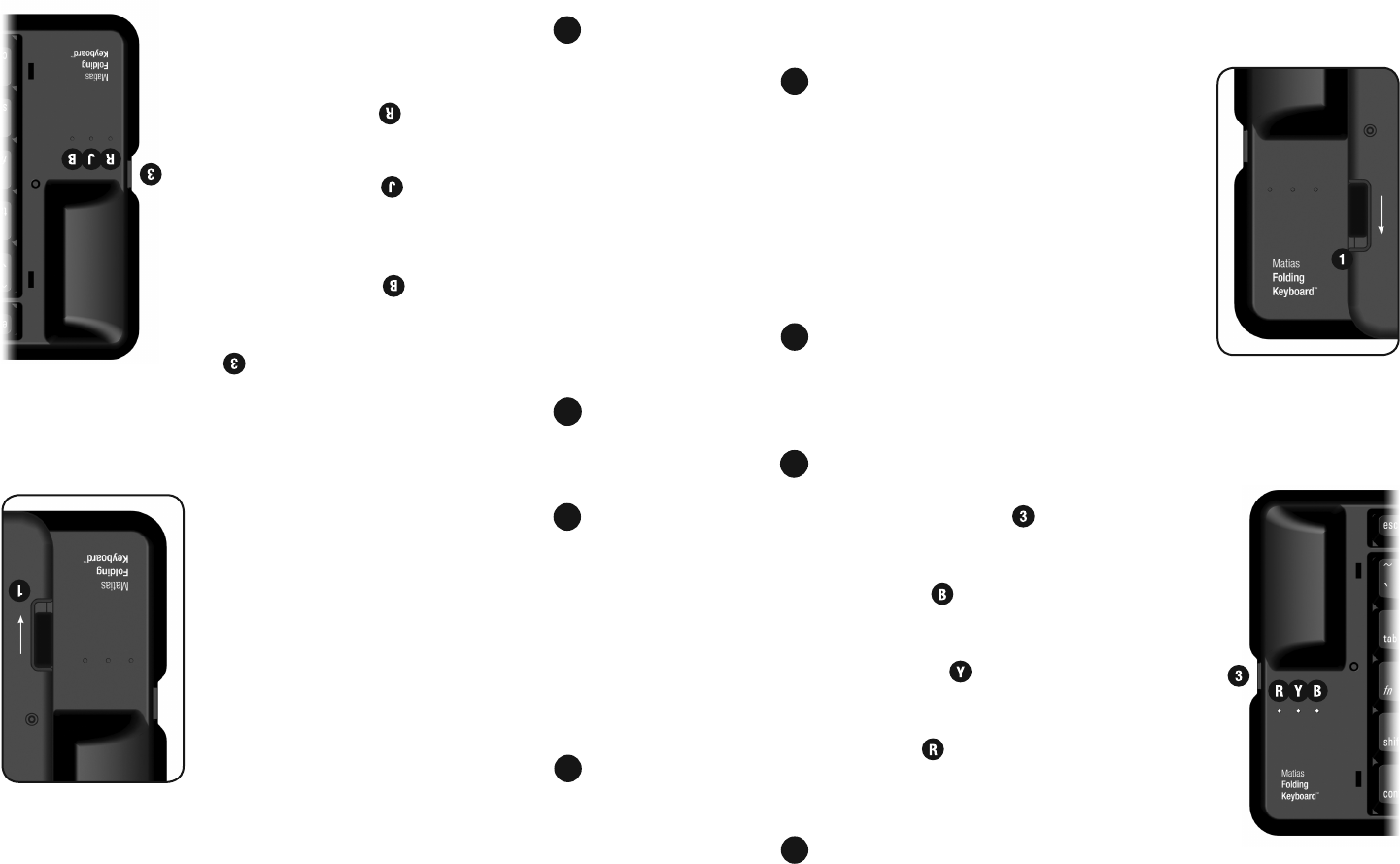
Ouvrir et fermer le clavier
Pour ouvrir, glissez le bouton ouvert en bas.
Pour fermer, pliez et appuyez les deux
bouts ensemble.
RAPPELEZ-VOUS d’éteindre le clavier
avant de le fermer.
Insérez les piles
Des piles sont incluses dans la boîte.
Bouton de puissance
Appuyez sur le bouton de puissance pour
allumer et éteindre le clavier.
La lumière bleue clignote quand vous
allumez le clavier, et continue de clignoter
jusqu’à ce qu’il connecte.
La lumière jaune clignote pour quelques
secondes lorsque vous l’éteignez.
La lumière rouge clignote si vos piles sont
faibles.
Installation & confi guration du
pilote
S.V.P. voir p. 4.
1
Matias Wireless Folding Keyboard pour BlackBerry – (FK306)
installation rapide
1
2
3
2
4
1
Opening & closing the keyboard
To open, slide the open switch down.
To close, fold and press the two ends together.
REMEMBER to turn the keyboard OFF before
you close it.
Insert batteries
Batteries are included in the box.
On/Off Button
Press the On/Off button to turn the keyboard
on and off.
The blue light fl ashes when you turn it on, and
keeps fl ashing until it connects.
The yellow light fl ashes for a few seconds
when you turn it off.
The red light fl ashes when the batteries
are low.
Driver installation & setup
Please turn to page 4.
Matias Wireless Folding Keyboard for BlackBerry – FK306
quick setup
1
2
3
2
4

For more information, please visit:
Technical support:
www.matias.ca/foldingkeyboard/support
Injury prevention and health:
www.matias.ca/health
Warranty information:
please turn to page 29.
2
You can download this manual from:
http://matias.ca/manuals/FK306_manual_EN.pdf
Matias Corporation
221 Narinia Crescent
Newmarket, Ontario, L3X 2E1
Canada
Telephone: +1-905-265-8844
e-mail: info@matias.ca
www.matias.ca
Pour plus d’information, s.v.p. visitez:
Assistance technique:
www.matias.ca/foldingkeyboard/support
Prévention des blessures et santé:
www.matias.ca/health
Garantie:
s.v.p. voir page 29.
2
Matias Corporation
221 Narinia Crescent
Newmarket, Ontario, L3X 2E1
Canada
Téléphone: +1-905-265-8844
courriel: info@matias.ca
www.matias.ca
Vous pouvez télécharger ce manuel au:
http://matias.ca/manuals/FK306_manual_FR.pdf
Table des matières
1 Installation Rapide
5 Départ
6 Installation facile
16 Installer via PC
17 Il Faut Lire Ceci
18 Allumez le clavier en premier
19 Signifi cation des lumières clignotantes
20 Éteignez le clavier avant de le fermer
21 Comment ça fonctionne
22 Touche Échap vous retourne
22 Touches Menu
22 Ouvrir et Fermer les applications
22 Sélectionner, Couper, Copier & Coller du texte
23 Certaines touches ne fonctionneront pas comme prévues
23 Touches Rapide — Raccourcis clavier sur mesure
25 Dépannage
26 PgUp/PgDown (ou une autre touche) ne fonctionne pas
26 Comment arrêter le message agaçant « liaison perdue »
27 Le pilote a arrêté de connecter avec mon clavier
27 Je ne peux plus jumeler les appareils Bluetooth
27 Message d’erreur: Injector API policy. S.V.P. appelez…
28 Assistance
29 Garantie
3
Table of Contents
1 Quick Setup
5 Getting Started
6 Easy Install
16 Installing via PC
17 Must Read
18 Turn the Keyboard ON fi rst
19 What the fl ashing lights mean
20 Turn the Keyboard Off BEFORE you close it
21 How It Works
22 Esc key moves you back
22 Menu keys
22 Opening & Exiting Applications
22 Select, Cut, Copy & Paste Text
23 Some keys may not work as expected
23 Hot Keys — Custom keyboard shortcuts
25 Troubleshooting
26 PgUp / PgDown (or some other key) doesn’t work
26 How to stop the annoying “connection lost” messages
27 The driver stopped connecting to my keyboard
27 I can’t pair Bluetooth devices anymore
27 Error message: Injector API policy. Please contact...
28 Getting Help
29 Warranty Information
3

4
4
5
Getting Started
6 Easy Install
16 Installing via PC
5
Départ
6 Installation facile
16 Installer via PC
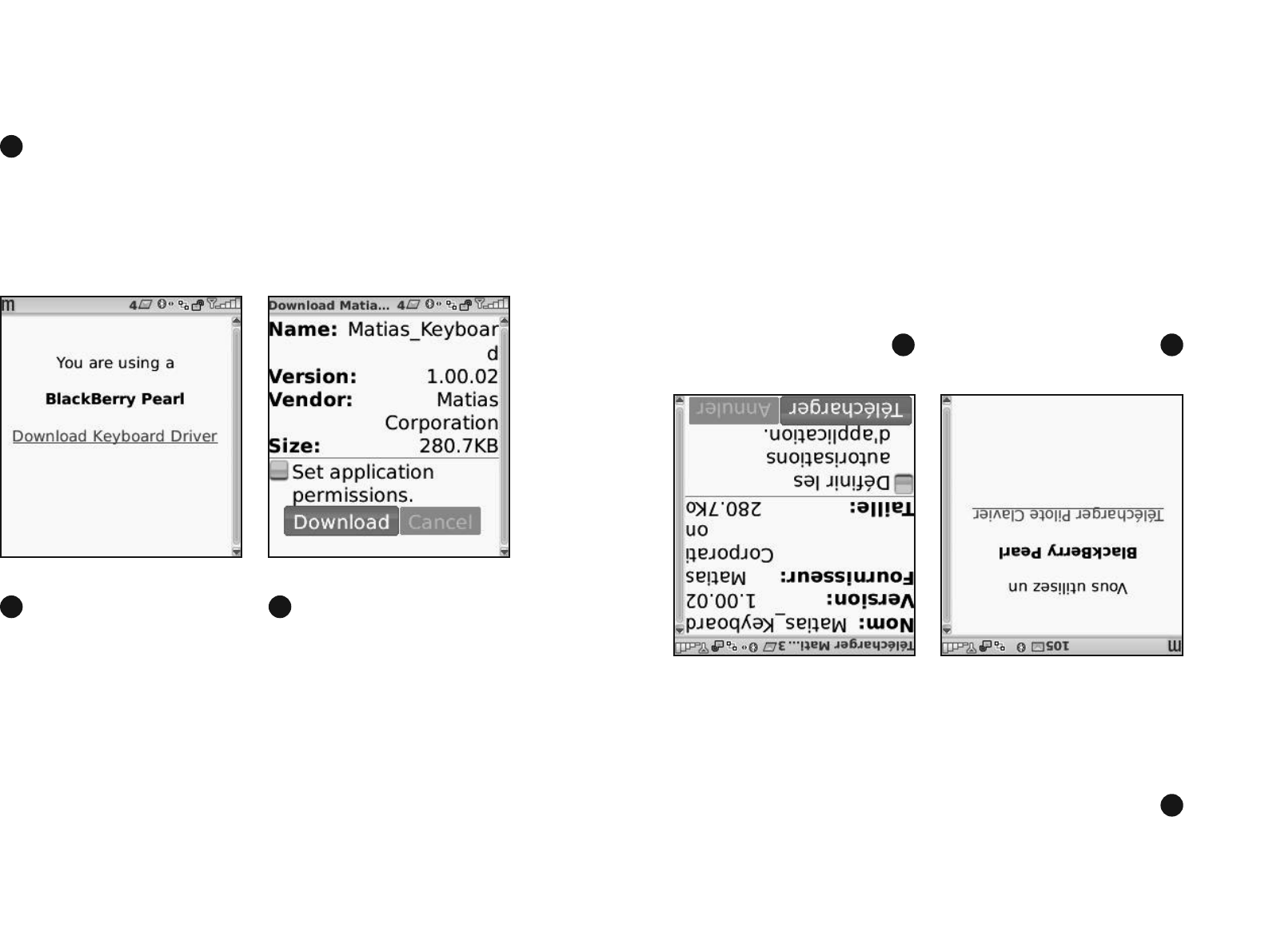
The web page will identify
your BlackBerry.
Click on Download
Keyboard Driver.
Click Download.
Easy Install
On your BlackBerry, open the Internet Browser and go to...
www.installer.cc
1
6
2 3
La page web identifi era votre
BlackBerry.
Cliquez sur Télécharger
Pilote Clavier.
Cliquez Télécharger.
Installation facile
Sur votre BlackBerry, ouvrez le navigateur Internet et lancez...
www.installation.cc
1
6
2 3
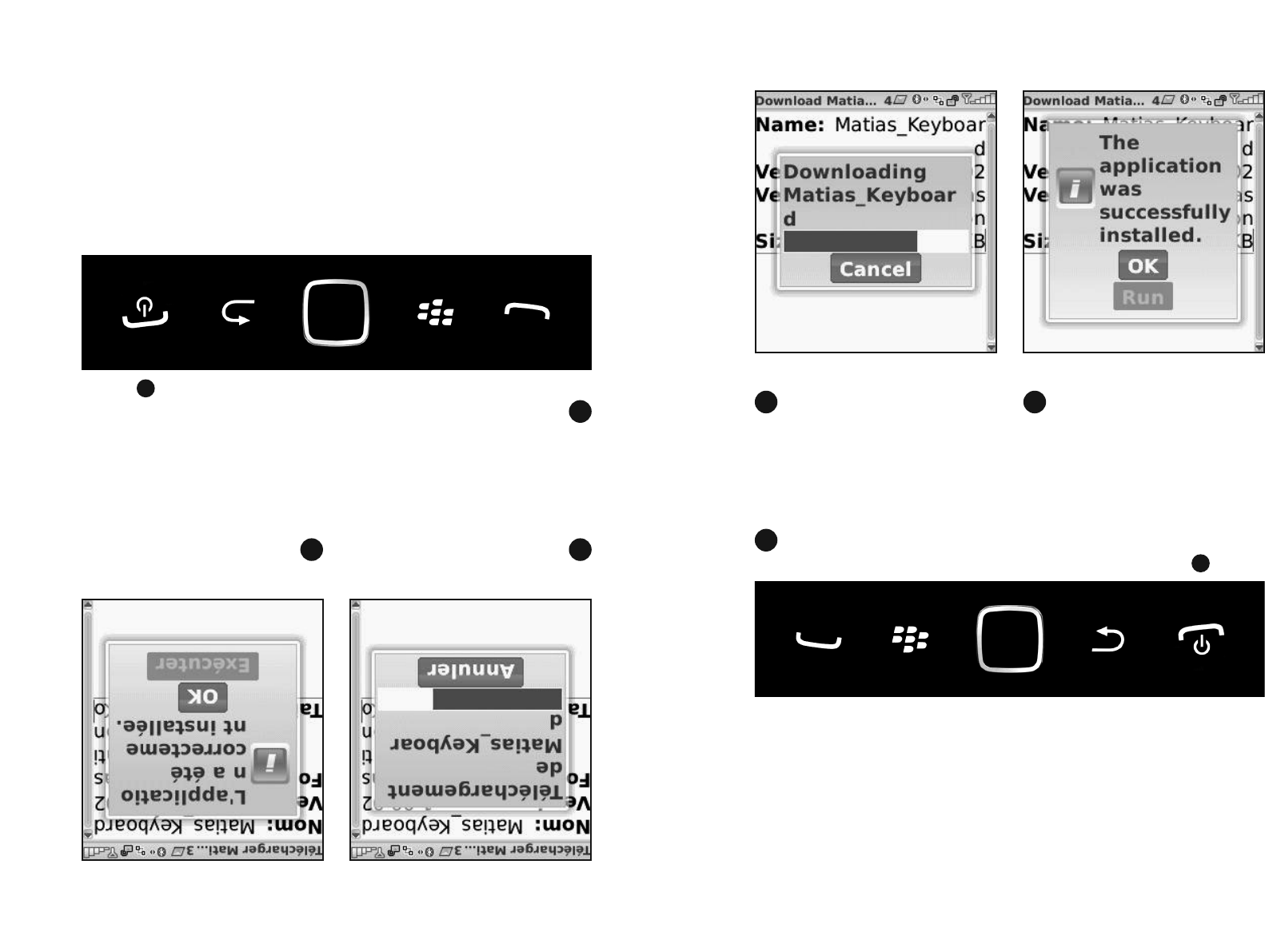
Attendez que le télécharge-
ment du pilote se termine.
Cliquez OK.
Appuyez la touche Fin sur votre BlackBerry.
7
4
6
5
6
Wait for the driver to fi nish
downloading.
Click OK.
Press the End key on your BlackBerry.
7
4
6
5
6
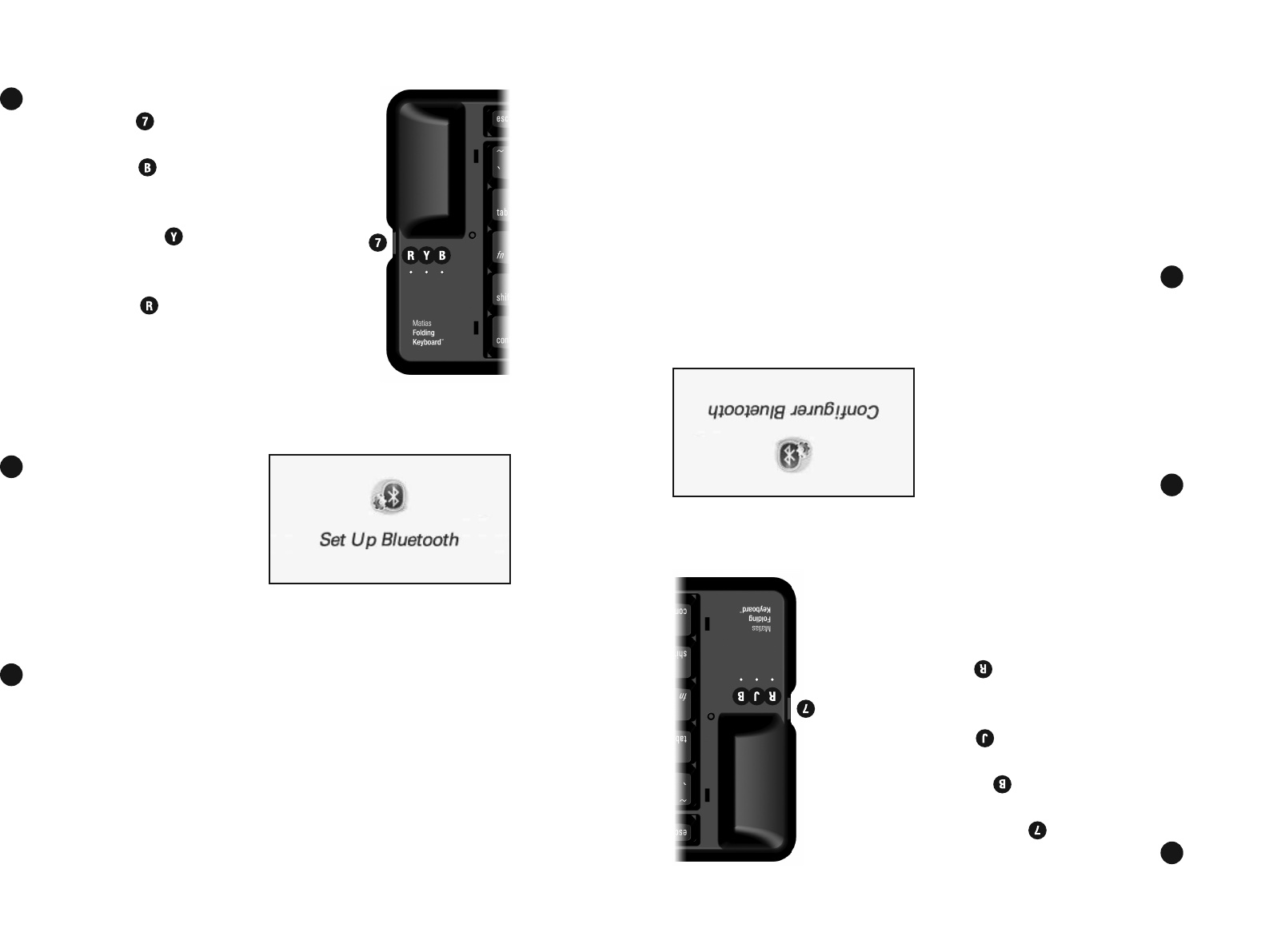
Turn on the keyboard, by pressing the
on/off button .
The blue light will start fl ashing to
indicate it’s on.
If the yellow light fl ashes, you turned
it off.
If the red light fl ashes, you need
new batteries.
Open the Set Up Bluetooth
application.
Select Add Device or Search.
8
7
8
9
Allumez le clavier en appuyant sur le bouton
de puissance .
Une lumière bleue clignotera brièvement.
Si une lumière jaune clignote, vous
l’avez éteint.
Si une lumière rouge clignote, il vous faut
de nouvelles piles.
Ouvrez l’application
Confi gurer Bluetooth.
Choisissez Ajouter appareil ou Rechercher.
8
7
8
9
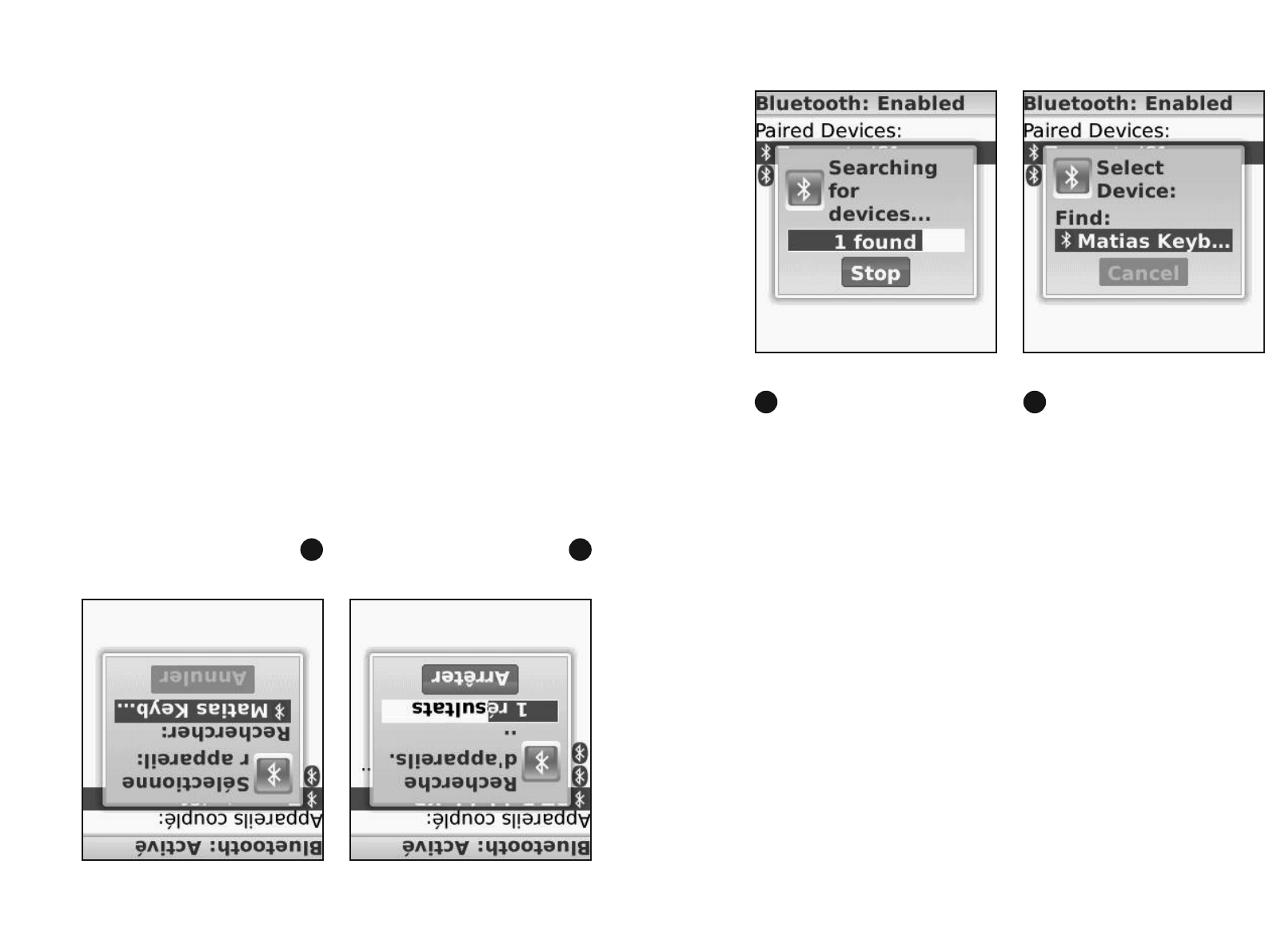
9
Votre BlackBerry
commencera à rechercher
des appareils.
Il en trouvera peut-être
plusieurs.
Une fois la recherche ter-
minée, vous verrez une liste
d’appareils.
Cliquez Matias Keyboard –
Smartphone.
Si votre écran est petit, vous
verrez juste le début du nom.
10 11
9
Your BlackBerry will begin
searching for devices.
It may fi nd more than one.
When it’s done searching,
you’ll see a list of devices.
Click on Matias Keyboard -
Smartphone
Depending on your screen
size, it may only show the
beginning of the name.
10 11
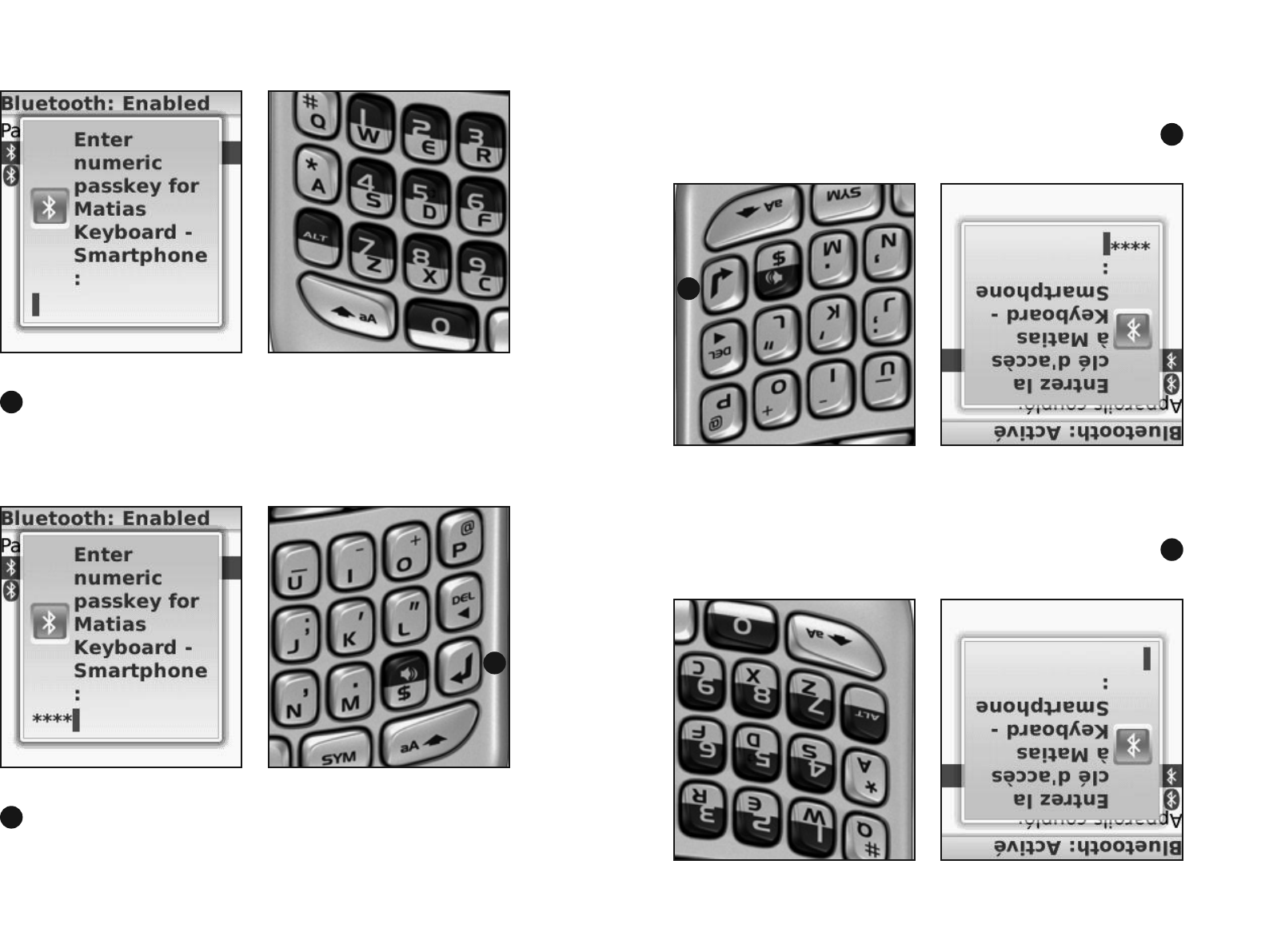
10
Type 1234 on your BlackBerry.
Then press Enter on your BlackBerry.
12
13
13
10
Tapez la clé d’accès 1234 sur votre BlackBerry.
Appuyez la touche Retour sur votre BlackBerry.
12
13
13
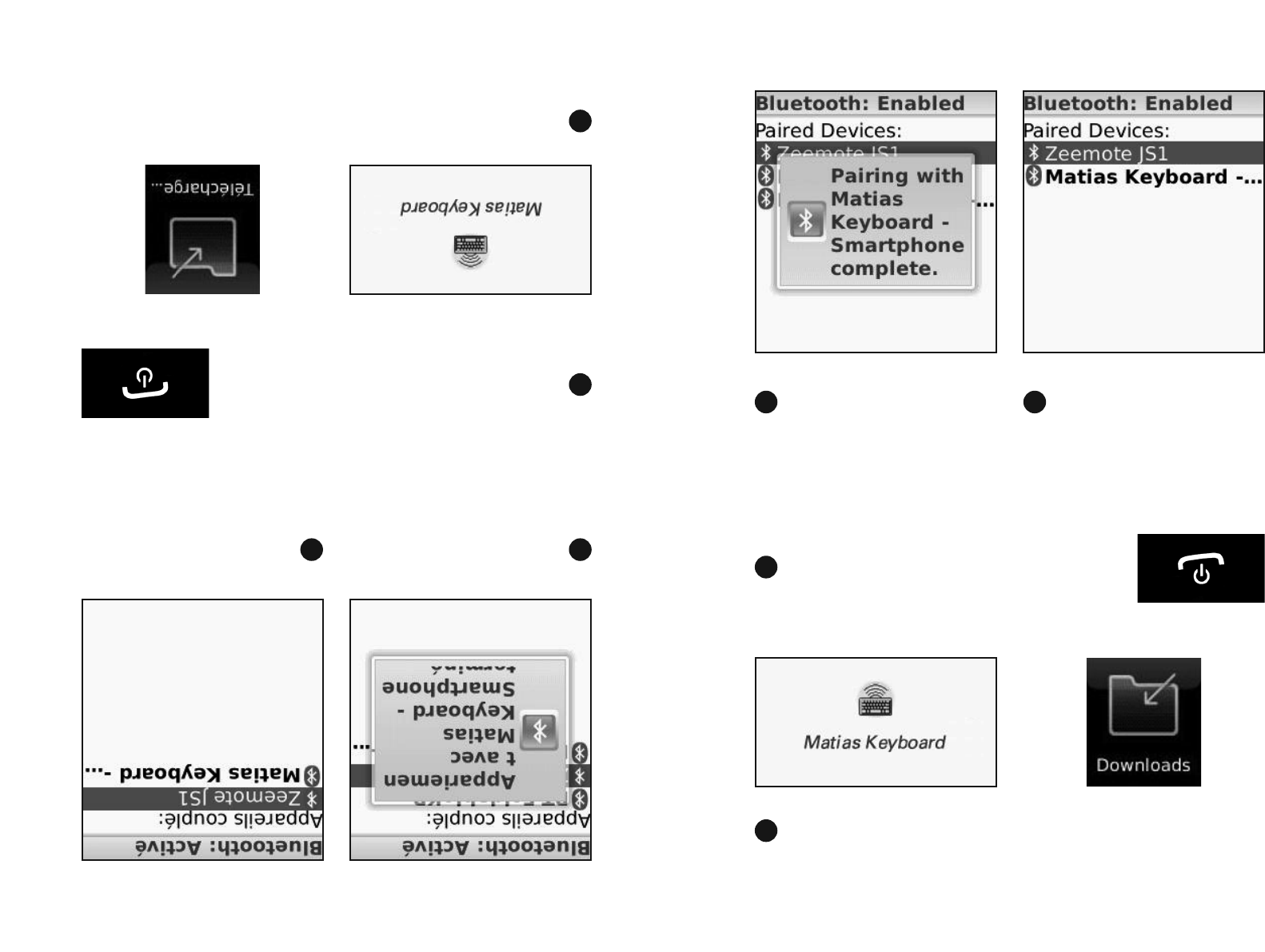
11
Wait until pairing is complete. When the list of paired
devices appears, you should
see the new keyboard shown
in the list.
14 15
11
Attendez jusqu’à
l’appariement se termine.
Quand la liste d’appareils
couplés apparait, le nouveau
clavier devrait se trouver sur
la liste.
14 15
17
Appuyez la touche Fin sur votre BlackBerry.
16
Ouvrez l’application Matias Keyboard. Elle se trouvera peut-être
au répertoire des téléchargements.
17
Press the End key on your BlackBerry.
16
Open the Matias Keyboard application. It may be in the
Downloads directory.
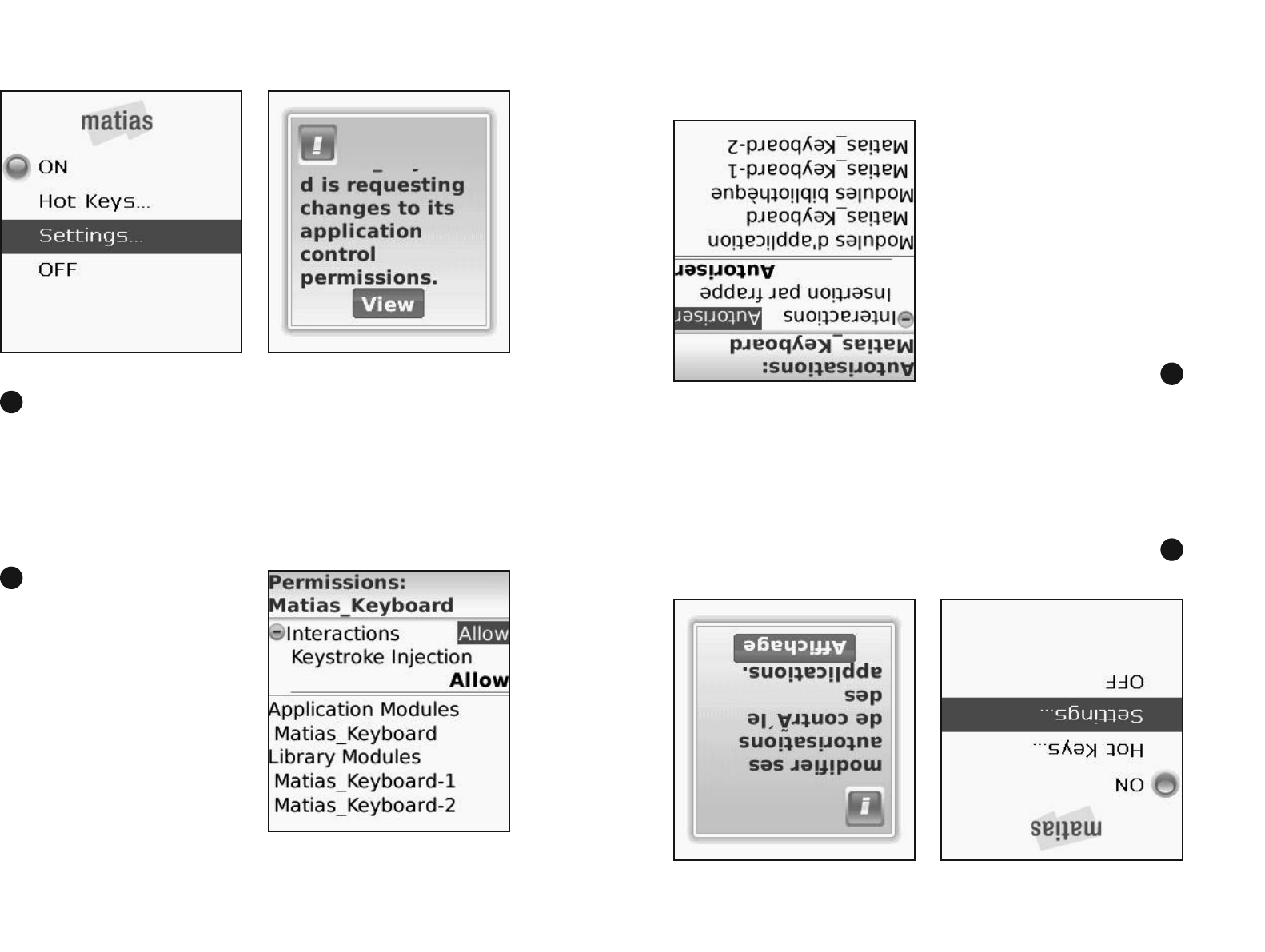
12
If this screen appears,
proceed to Step 22.
If a request to change
Application Control
Permissions appears,
click View.
A Permissions settings screen
will appear. The correct
settings have already been
set by the driver.
This screen will look different
for different BlackBerry
models.
You don’t need to change
anything.
Proceed to Step 20.
18
19
12
Si cet écran apparait,
procédez à l’étape 22.
Si une demande de modifi er
ses autorisations de
contrôle des applications
apparait, cliquez Affi chage.
Un écran de réglages
d’autorisations apparaitra.
Les réglages correct ont
déjà été fi xés par le pilote.
L’apparence de l’écran
sera différente pour chaque
modèle BlackBerry.
Vous n’avez rien à changer.
Procédez à l’étape 20.
18
19
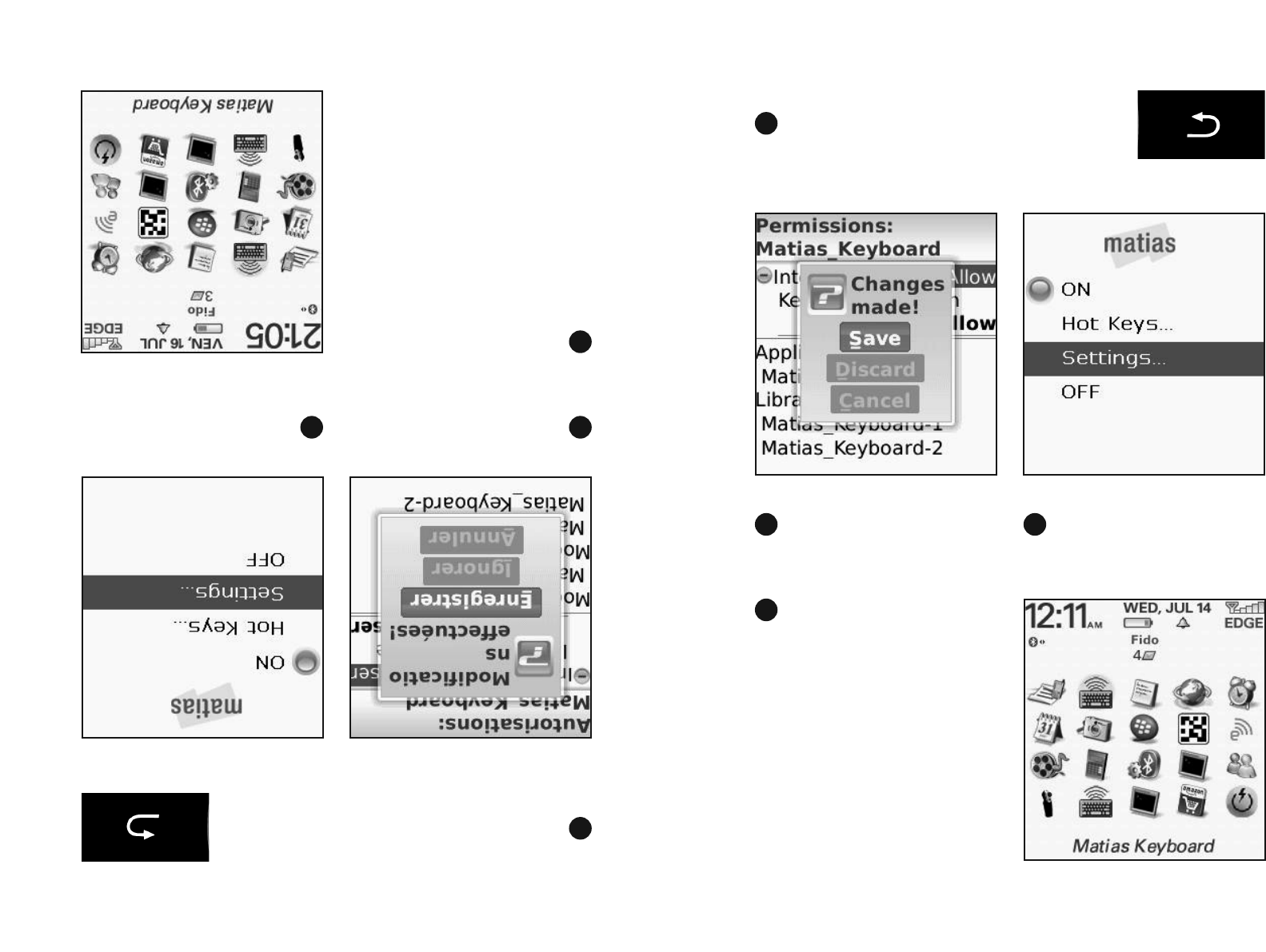
13
Cliquez Enregistrer. Défi lez vers le haut et
cliquez ON.
21 22
Appuyez la touche Précédente sur votre
BlackBerry.
20
Le pilote s’allumera et
fermera automatiquement
l’application.
23
13
Click Save. Scroll up and click ON.
21 22
Press the Back button on your BlackBerry.
20
The driver will turn ON
and automatically exit the
application.
23
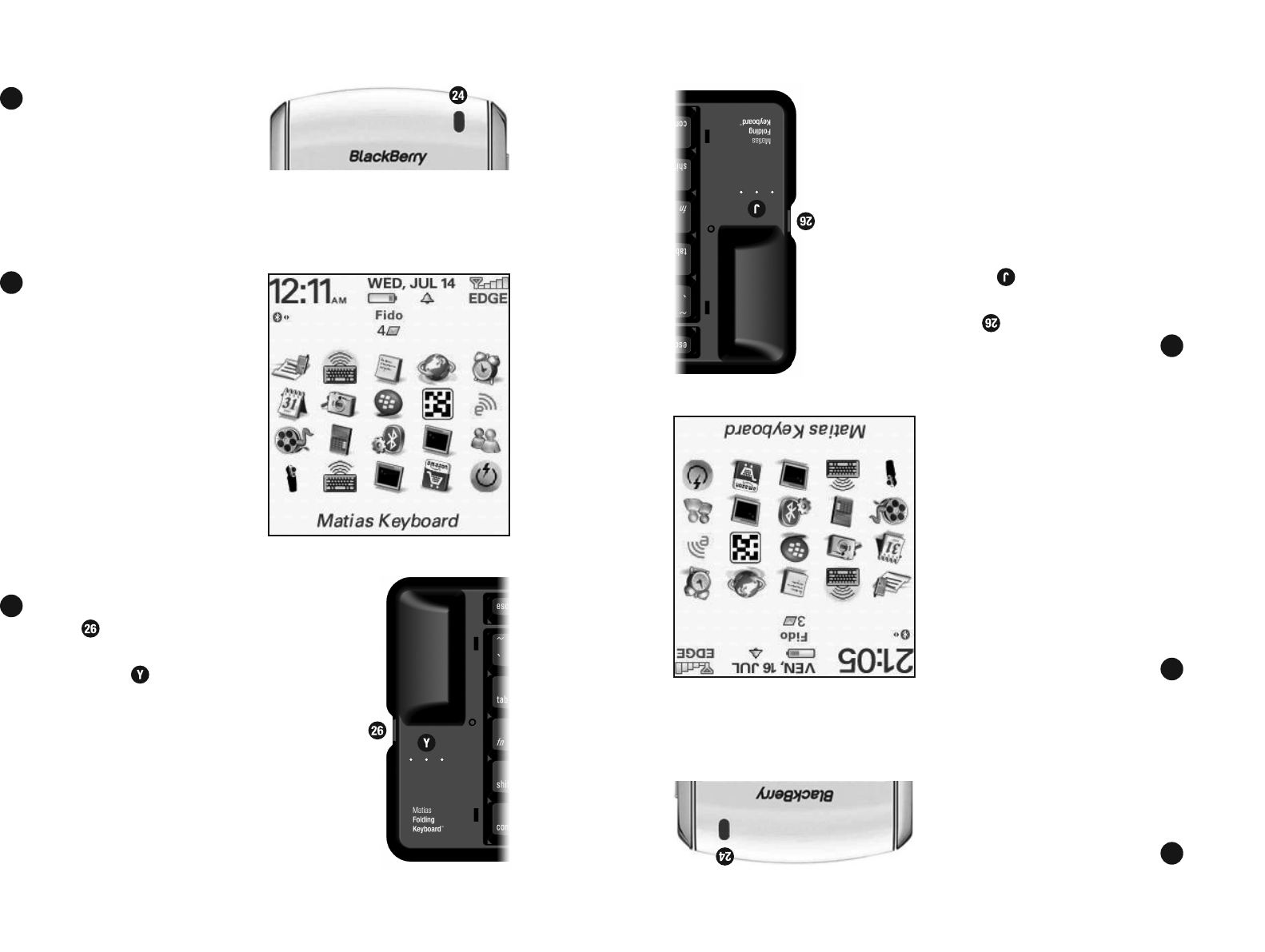
After a brief pause, a blue
light on your BlackBerry will
start fl ashing.
The keyboard is now
connected and working.
Pressing the Arrow keys on
the keyboard lets you select
different applications.
Pressing the Enter key on
the keyboard will open an
application.
To turn the keyboard Off, press the On/Off
button .
A yellow light will blink briefl y to indicate
that it’s off.
14
24
25
26
Après une brève pause, une
lumière bleue commencera à
clignoter.
Le clavier est maintenant
connecté et il fonctionne.
Appuyer sur les touches de
direction au clavier vous
permet de sélectionner
différentes applications.
Appuyer sur la touche Retour
ouvrira une application.
Pour éteindre le clavier, appuyez sur le
bouton de puissance .
Une lumière jaune clignotera brièvement.
14
24
25
26
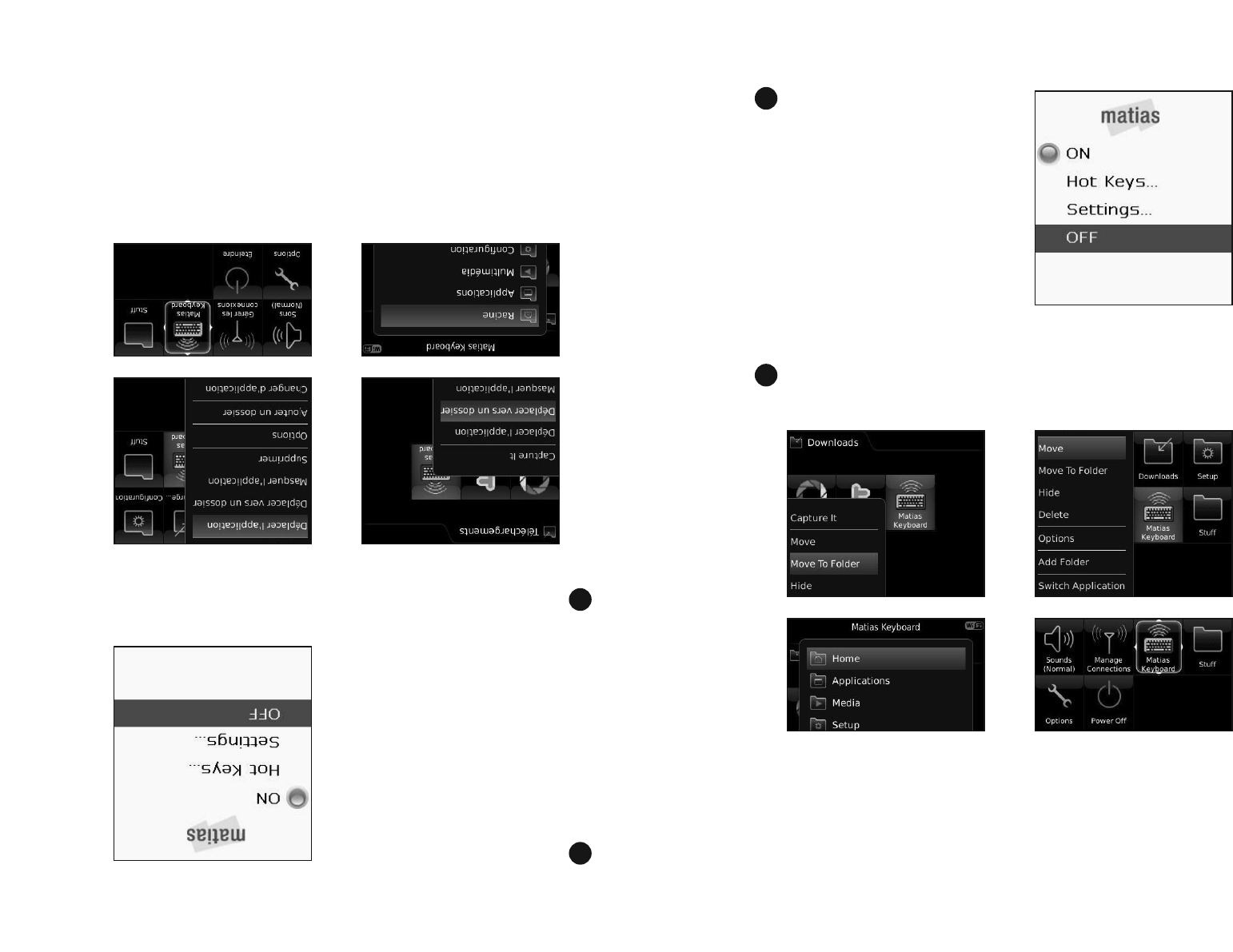
To conserve your BlackBerry’s
battery power, we recommend
that you turn the driver Off
when you’re not using the
keyboard.
Scroll down and click OFF.
The driver will turn off and exit
automatically.
For convenience, you may want to move the Keyboard driver to
a different location.
15
27
28
To move it to a different
folder, select the driver, press
the Menu button, click Move
To Folder, then click on the
desired folder.
To move the driver to a
different position, select it,
press the Menu button,
click Move, then click on
the desired position.
Afi n de conserver la puissance
de vos piles BlackBerry, nous
recommandons que vous
éteignez le pilote lorsque vous
n’utilisez pas le clavier.
Défi lez vers le bas et cliquez OFF.
Le pilote s’éteindra et se
fermera automatiquement.
Par souci de commodité, vous désirerez peut-être déplacer le pilote
clavier à un endroit différent.
15
27
Pour le déplacer à un nouveau
dossier, sélectionnez le pilote,
appuyez sur la touche Menu,
cliquez Déplacer vers un
dossier, ensuite cliquez sur le
dossier désiré.
Pour déplacer le pilote,
sélectionnez-le, appuyez
sur la touche Menu, cliquez
Déplacer l’application,
ensuite cliquez sur la
position désirée.
28

16
Installing via PC
From the Internet browser on your PC, go to this web page and
follow the instructions...
www.installer.cc
16
Installer via PC
Ouvrez le navigateur Internet sur votre PC, lancez ce site web,
et suivez les instructions…
www.installation.cc

17
Il Faut Lire Ceci
18 Allumez le clavier en premier
19 Signifi cation des lumières clignotantes
20 Éteignez le clavier avant de le fermer
17
Must Read
18 Turn the Keyboard ON fi rst
19 What the fl ashing lights mean
20 Turn the Keyboard Off BEFORE you close it

18
Turn the Keyboard ON fi rst
The fastest way for the keyboard to connect to your BlackBerry
is to follow these simple steps...
Turn ON the keyboard. You’ll see the Blue light fl ashing.
Turn ON the driver software.
Wait a few moments.
When the Blue light on your keyboard stops fl ashing, and the
Blue light on your BlackBerry starts fl ashing, the keyboard
is connected.
1
2
3
4
18
Allumez le clavier en premier
Suivez ces étapes simples afi n de connecter rapidement votre
clavier à votre BlackBerry…
Allumez le clavier. La lumière bleue clignotera.
Allumez le logiciel de pilotage.
Attendez quelques moments.
Quand la lumière bleue sur votre clavier arrête de clignoter,
et la lumière bleue sur votre BlackBerry clignote, le clavier
est connecté.
1
2
3
4
19
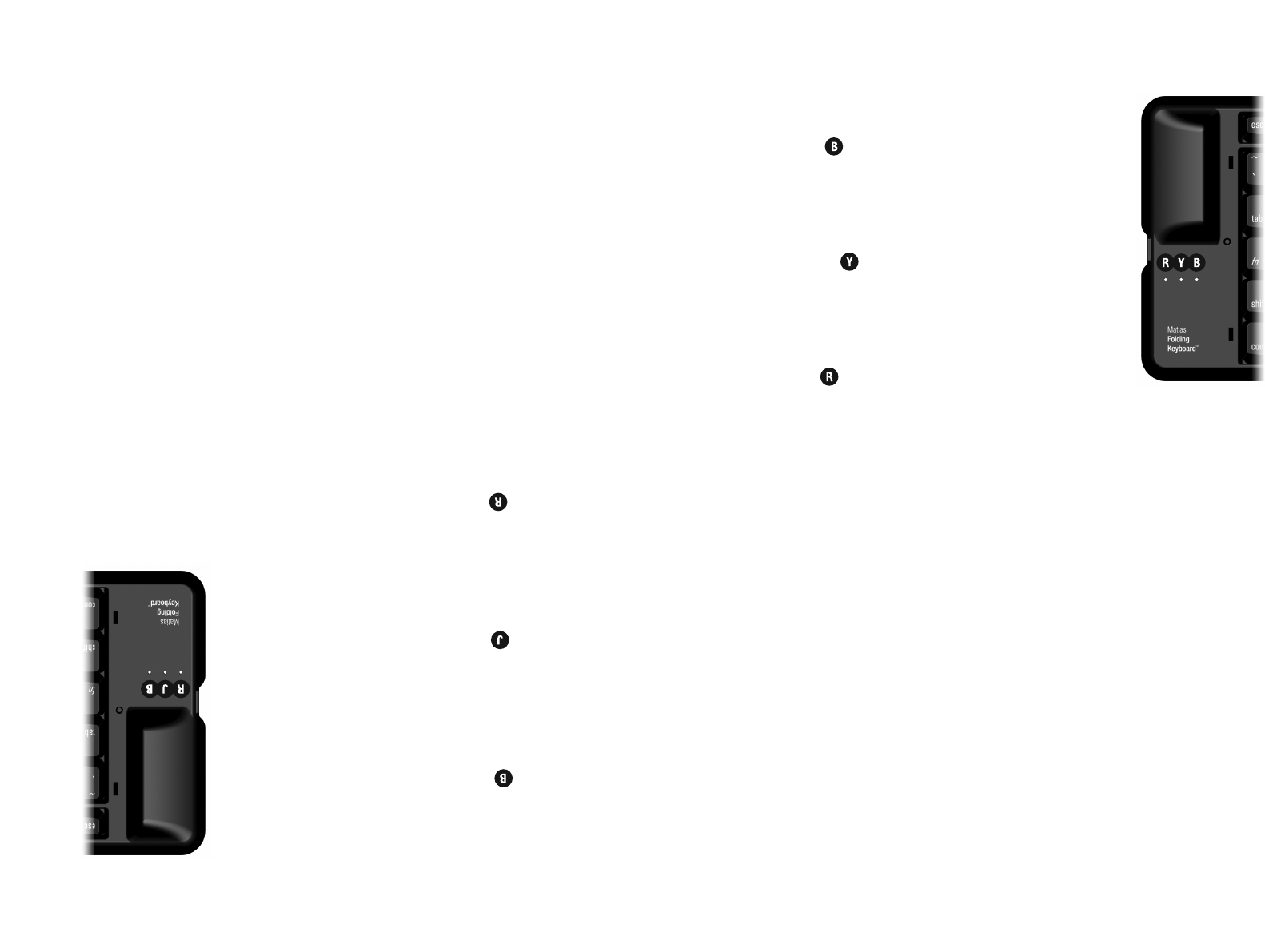
What the fl ashing lights mean
Blue = keyboard ON and trying to
connect.
It will stop blinking when it’s connected.
Yellow = keyboard is OFF and it’s safe
to fold it closed.
It will stop blinking after a few seconds.
Red = your batteries are low.
19
Signifi cation des lumières
clignotantes
Bleue = le clavier est allumé et essaie
de connecter.
La lumière cessera de clignoter une fois la
connexion est faite.
Jaune = le clavier est éteint et peut
être fermé en sécurité.
La lumière cessera de clignoter après
quelques secondes.
Rouge = Vos piles sont faibles.
20
Turn the keyboard Off BEFORE you close it
If you close the keyboard while it’s still connected to your
BlackBerry, it will send random key presses to your BlackBerry.
To prevent this from happening, follow these steps...
Press the on/off button on the keyboard to turn it off.
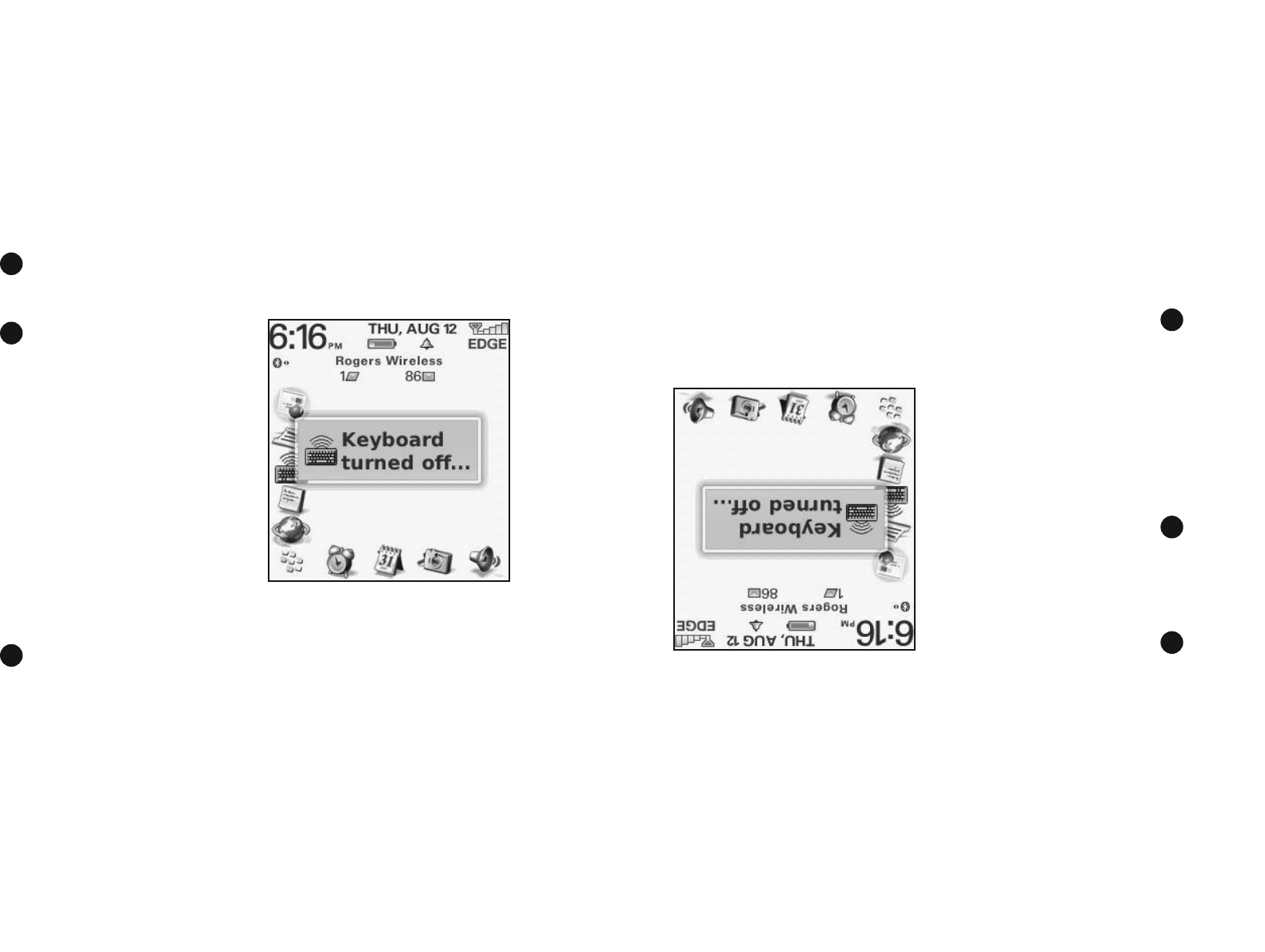
A yellow light will fl ash briefl y.
The BlackBerry will beep and
show a Keyboard turned
off... message.
If you don’t see the message in step 2, open the driver
software and turn it off.
1
2
3
20
Éteignez le clavier AVANT de le fermer
Si vous fermez le clavier pendant qu’il demeure connecté à
votre BlackBerry, il enverra des appuis de touche au hasard à
votre BlackBerry.
Afi n de prévenir cette circonstance, suivez les étapes
suivantes…
Appuyez sur le bouton de
puissance du clavier pour
l’éteindre. Une lumière jaune
clignotera brièvement.
Le BlackBerry fera bip
et montrera le message
Keyboard turned off...
Si vous ne voyez pas ce message, allumez le logiciel de
pilotage et éteignez le pilote.
1
2
3

21
Comment ça fonctionne
22 Touche Échap vous retourne
22 Touches Menu
22 Ouvrir et Fermer les applications
22 Sélectionner, Couper, Copier & Coller du texte
23 Certaines touches ne fonctionneront pas comme prévues
23 Touches Rapide — Raccourcis clavier sur mesure
21
How It Works
22 Esc key moves you back
22 Menu keys
22 Opening & Exiting Applications
22 Select, Cut, Copy & Paste Text
23 Some keys may not work as expected
23 Hot Keys — Custom keyboard shortcuts

22
Esc moves you back
The Esc key moves you back. It works exactly like the Escape
key on your BlackBerry.
Menu keys
The left and right Windows keys reproduce the Menu key.
Opening & Exiting Applications
From the Home screen, you can use the Arrow keys to select
an application, and the Enter key to open it.
Press the Esc key one or more times to exit applications.
Select, Cut, Copy & Paste Text
Many standard keyboard shortcuts work as you would expect,
including Cut, Copy & Paste (Ctrl-X, Ctrl-C, Ctrl-V).
You can Select Text by holding down the Shift key and tapping
the Arrow keys.
22
Touche Échap vous retourne
La touche Échap vous retourne. Elle fonctionne exactement
comme la touche Échap sur votre BlackBerry.
Touches Menu
Les touches Windows de gauche et de droite reproduisent la
touche Menu.
Ouvrir et Fermer les applications
De l’écran d’accueil, vous pouvez vous servir des touches de
direction pour choisir une application, et de la touche Retour
pour l’ouvrir.
Appuyez sur la touche Échap une fois ou plus pour quitter les
applications.
Sélectionner, Couper, Copier & Coller du texte
Plusieurs des raccourcis clavier fonctionnent de façon prévue,
y inclus Couper, Copier & Coller (Ctrl-X, Ctrl-C, Ctrl-V)
Vous pouvez Sélectionner du texte en maintenant en place la
touche Shift et en tapant les touches de direction.

23
Certaines touches ne fonctionneront pas
comme prévues
Nous avons fait de notre mieux pour que tout fonctionne
aussi normalement que possible, mais ce clavier ne sera pas
exactement comme celui de votre PC.
Le BlackBerry n’est pas un PC, et n’as pas été conçu de façon
à fonctionner avec un clavier PC.
Les touches ne fonctionneront pas tous de la même façon
qu’elles le ferait sur un PC. Elles fonctionneront comme prévu
avec certaines applications, et non avec d’autres.
Touches Rapide — Raccourcis Clavier sur mesure
Vous pouvez créer vos propres raccourcis clavier pour ouvrir
des applications, composer des numéros de téléphone, ouvrir
des pages web, et encore plus.
Sélectionnez le menu Raccourcis Clavier du pilote, et cliquez
pour choisir une des options.
23
Some keys may not work as expected
We’ve done our best to make everything work as normally as
possible, but you should not expect it to be exactly like your PC
keyboard.
The BlackBerry is not a PC, and was not designed to work with
PC keyboards.
So, not every key will work the way it does on a PC. They may
work as expected in some applications, but not in others.
Hot Keys — Custom keyboard shortcuts
You can create your own keyboard shortcuts for opening apps,
dialing phone numbers, opening web pages, and more.
Select the Hot Keys... menu in the driver, and click to select
the various options.

24
24

25
Dépannage
26 PgUp/PgDown (ou une autre touche) ne fonctionne pas
26 Comment arrêter le message agaçant « liaison perdue »
27 Le pilote a arrêté de connecter avec mon clavier
27 Je ne peux plus jumeler les appareils Bluetooth
27 Message d’erreur: Injector API policy. S.V.P. appelez…
25
Troubleshooting
26 PgUp / PgDown (or some other key) doesn’t work
26 How to stop the annoying “connection lost” messages
27 The driver stopped connecting to my keyboard
27 I can’t pair Bluetooth devices anymore
27 Error message: Injector API policy. Please contact...

26
PgUp / PgDown (or some other key) doesn’t work
This is normal.
The BlackBerry is not a PC, and was not designed with PC
keyboards in mind.
So, not every key will work the way it does on a PC. They may
work as expected in some applications, but not in others.
We’ve done our best to make everything work as normally as
possible, but you should not expect it to be exactly like your
PC keyboard.
How to stop the annoying “connection lost”
messages
Turn the keyboard driver software off, when you’re not using
the keyboard.
This stops the “connection lost” messages.
It also saves battery life on your BlackBerry.
26
PgUp / PgDown (ou autre touche) ne fonctionne pas
Ceci est normal.
Le BlackBerry n’est pas un PC, et n’as pas été conçu de façon
à tenir compte des claviers PC.
Les touches ne fonctionneront pas tous de la même façon
qu’elles le ferait sur un PC. Elles fonctionneront comme prévu
avec certaines applications, et non avec d’autres.
Nous avons fait de notre mieux pour que tout fonctionne
aussi normalement que possible, mais ce clavier ne sera pas
exactement comme celui de votre PC.
Comment arrêter le message agaçant
« liaison perdue »
Éteignez le logiciel de pilotage du clavier quand vous n’utilisez
pas le clavier.
Ceci empêche les messages « liaison perdue ».
Ceci prolonge aussi la durée de vie de vos piles.

27
Le pilote a arrêté de connecter avec mon clavier
Essayez d’éteindre le pilote, et ensuite de l’allumer.
Si ceci ne résout pas le problème, éteignez votre BlackBerry,
et ensuite, rallumez-le.
Je ne peux plus jumeler les appareils Bluetooth
Éteignez le pilote clavier.
Jumelez le nouvel appareil.
Rallumez le pilote clavier.
Si ceci ne résout pas le problème, éteignez votre BlackBerry,
et ensuite, rallumez-le.
Message d’erreur: Injector API policy.
S.V.P. appelez…
Ceci s’appelle “Injector API Blocking” — une des mesures
de sécurité comprise dans la Stratégie des Applications de
Contrôle pour votre BlackBerry.
Contactez votre administrateur BES et demandez qu’il suive
les instructions sur cette page web:
http://matias.ca/besconfi g
1
2
3
27
The driver stopped connecting to my keyboard
Try turning the driver Off, and then On.
If that doesn’t fi x it, turn your BlackBerry Off, and then On.
I can’t pair Bluetooth devices anymore
Turn OFF the keyboard driver.
Pair the new device.
Turn the keyboard driver back on.
If that doesn’t work, turn your BlackBerry off, and then back on.
Error message: Injector API policy. Please
contact your BES admin...
This is called “Injector API Blocking” — a security measure in
the BES Application Control Policy for your BlackBerry.
Contact your BES administrator and ask them to follow the
instructions on this web page:
http://matias.ca/besconfi g
1
2
3

28
Getting Help
You can reach our Help Desk by email at help@matias.ca or
by phone at 1-905-265-8844 or 1-888-663-4263.
28
Assistance
Vous pouvez atteindre notre service d’assistance par courriel à
help@matias.ca ou par téléphone en composant
1-905-265-8844 ou 1-888-663-4263.

MATIAS FOLDING KEYBOARD GARANTIE LIMITÉE
Matias Corporation (“Matias”) garantit au propriétaire original (“Client”) que ce produit
sera absent de vices de fabrication et de matière, dans des conditions normales
d’utilisation, pour une période de UN (1) AN à compter de la date d’achat original
de Matias ou d’un de ses revendeurs autorisés. La seule obligation de Matias sous
cette garantie sera, (au choix et aux frais de Matias) de réparer ou de remplacer le
produit ou la pièce avec un produit ou une pièce comparable. Tous produits ou pièces
remplacés deviennent la propriété de Matias.
LIMITATION DE RESPONSABILITÉ
Dans la mesure autorisée par la loi, Matias exclut pour soi et pour ses fournisseurs
aucune responsabilité (soit basé en contrat ou en tort, y inclus la négligence) pour
des dommages accessoires, consécutifs, indirects, spéciaux ou punitifs d’aucune
sorte, ou pour perte de revenue ou de profi ts, perte d’affaires, perte d’information
ou de données, ou autre perte fi nancière survenant ou liée à la vente, l’installation,
l’entretien, l’usage, la performance, l’échec, ou l’interruption de ce produit, même
si Matias ou son revendeur autorisé ont étés informés de manière explicite de
l’éventualité de tels dommages, et limite sa responsabilité au remplacement,
réparation ou remboursement du prix d’achat, au choix de Matias. Cet avis de
non-responsabilité pour les dommages ne sera pas modifi é même si aucune solution
ci-incluse échoue son but essentiel.
PROCÉDURE DE GARANTIE
S.V.P. contactez la service d’assurance Matias par courriel à help@matias.ca
ou par téléphone au (905) 265-8844, et donnez une description détaillée
du problème.
Nous essaierons en premier de résoudre votre problème par courriel/téléphone.
Si l’aide par courriel/téléphone n’est pas satisfaisante, ou si le produit est
défectueux, Matias vous assignera un numéro EMA (Échange de Marchandise
Autorisée), et vous enverra des instructions pour le retour du produit afi n
d’effectuer un remplacement.
Pour de plus ample renseignements vis-à-vis notre politique de retour, s.v.p.
visitez notre site web: www.matias.ca/returns
1
2
3
4
29
1
2
3
4
MATIAS FOLDING KEYBOARD LIMITED WARRANTY
Matias Corporation (“Matias”) warrants to the original end user (“Customer”)
that these products will be free from defects in workmanship and materials,
under normal use, for 1 year from the date of original purchase from Matias
or its authorized reseller. Matias’ sole obligation under this express warranty
shall be (at Matias’ option and expense) to repair or replace the product
or part with a comparable product or part. All products or parts that are
replaced become the property of Matias.
LIMITATION OF LIABILITY
To the full extent allowed by law, Matias excludes for itself and its suppliers
any liability (whether based in contract or in tort, including negligence)
for incidental, consequential, indirect, special or punitive damages of any
kind, or for loss of revenue or profi ts, loss of business, loss of information
or data, or other fi nancial loss arising out of or in connection with the sale,
installation, maintenance, use, performance, failure, or interruption of this
product, even if Matias or its authorized reseller has been advised of the
possibility of such damages, and limits its liability to replacement, repair,
or refund of the purchase price paid, at Matias’ option. This disclaimer of
liability for damages will not be affected if any remedy provided herein
shall fail of its essential purpose.
WARRANTY PROCEDURE
Please contact the Matias Help Desk by e-mail at help@matias.ca or by
phone at (905) 265-8844, and give a detailed explanation of the problem.
We will fi rst try to solve your problem by e-mail/phone.
If e-mail/phone support is not successful or if the item is defective, Matias
will assign you an EMA number (Exchange Merchandise Authorization),
and send instructions for returning the product for replacement.
For more information about our Return Policy, please visit our website at:
www.matias.ca/returns
29
Copyright © 2010 Matias Corporation. All rights reserved. Matias Folding Keyboard, Matias, and
the Matias logo are trademarks of the Matias Corporation. BlackBerry is a trademark of Research
in Motion Limited. Other names may also be trademarks and their owners are respectfully
acknowledged. Patent Pending. Made in China.
30
Copyright © 2010 Matias Corporation. Tous droits reserves. Matias Folding Keyboard, Matias, et
le logo Matias sont des marques déposées de Matias Corporation. BlackBerry est une marque
déposée de Research in Motion. D’autres noms peuvent être des marques déposées et leurs
propriétaires sont respectueusement reconnus. Brevet en instance. Fabriqué en Chine.
30

APPENDIX
FCC Warning Statement
This device complies with Part 15 of the FCC Rules. Operation is subject to the following
two conditions:
(1) this device may not cause harmful interference, and
(2) this device must accept any interference received, including interference that may
cause undesired operation.
This equipment has been tested and found to comply with the limits for a class B digital device,
pursuant to part 15 of the FCC Rules. These limits are designed to provide reasonable protection
against harmful interference in a residential installation.
This equipment generates, uses and can radiate radio frequency energy and, if not installed and
used in accordance with the instructions, may cause harmful interference to radio communications.
However, there is no guarantee that interference will not occur in a particular installation. If this
equipment does cause harmful interference to radio or television reception, which can be
determined by turning the equipment off and on, the user is encouraged to try to correct the
interference by one or more of the following measures:
-Reorient or relocate the receiving antenna.
-Increase the separation between the equipment and receiver.
-Connect the equipment into an outlet on a circuit different from that to which the receiver is
connected.
-Consult the dealer or an experienced radio/TV technician for help.
Any changes or modifications not expressly approved by the party responsible for
compliance could void the user’s authority to operate the equipment.
Prohibition of Co-location
This device and its antenna(s) must not be co-located or operating in conjunction with any other
antenna or transmitter
Safety Information
To maintain compliance with FCC’s RF exposure guidelines, this equipment should be installed and
operated with minimum distance 20cm between the radiator and your body. Use on the supplied
antenna. Use on the supplied antenna. Unauthorized antenna, modification, or attachments
could damage the transmitter and may violate FCC regulations.

APPENDIX
Declaration of Conformity for R&TTE directive 1999/5/EC
Essential requirements – Article 3
Protection requirements for health and safety – Article 3.1a
Testing for electric safety according to , EN50385 and EN 60950-1 has been conducted. These are
considered relevant and sufficient.
Protection requirements for electromagnetic compatibility – Article 3.1b
Testing for electromagnetic compatibility according to EN 301 489-1 and EN 301 489-17 has been
conducted. These are considered relevant and sufficient.
Effective use of the radio spectrum – Article 3.2
Testing for radio test suites according to EN 300 328 has been conducted. These are considered
relevant and sufficient.
CE Mark Warning
This is a Class B product, in a domestic environment, this product may cause radio interference, in
which case the user may be required to take adequate measures.