MicroWeb MNC-W200 Network IP Camera User Manual 2

MicroWeb Co., Ltd. Network IP Camera 2

Contents

User Manual 2

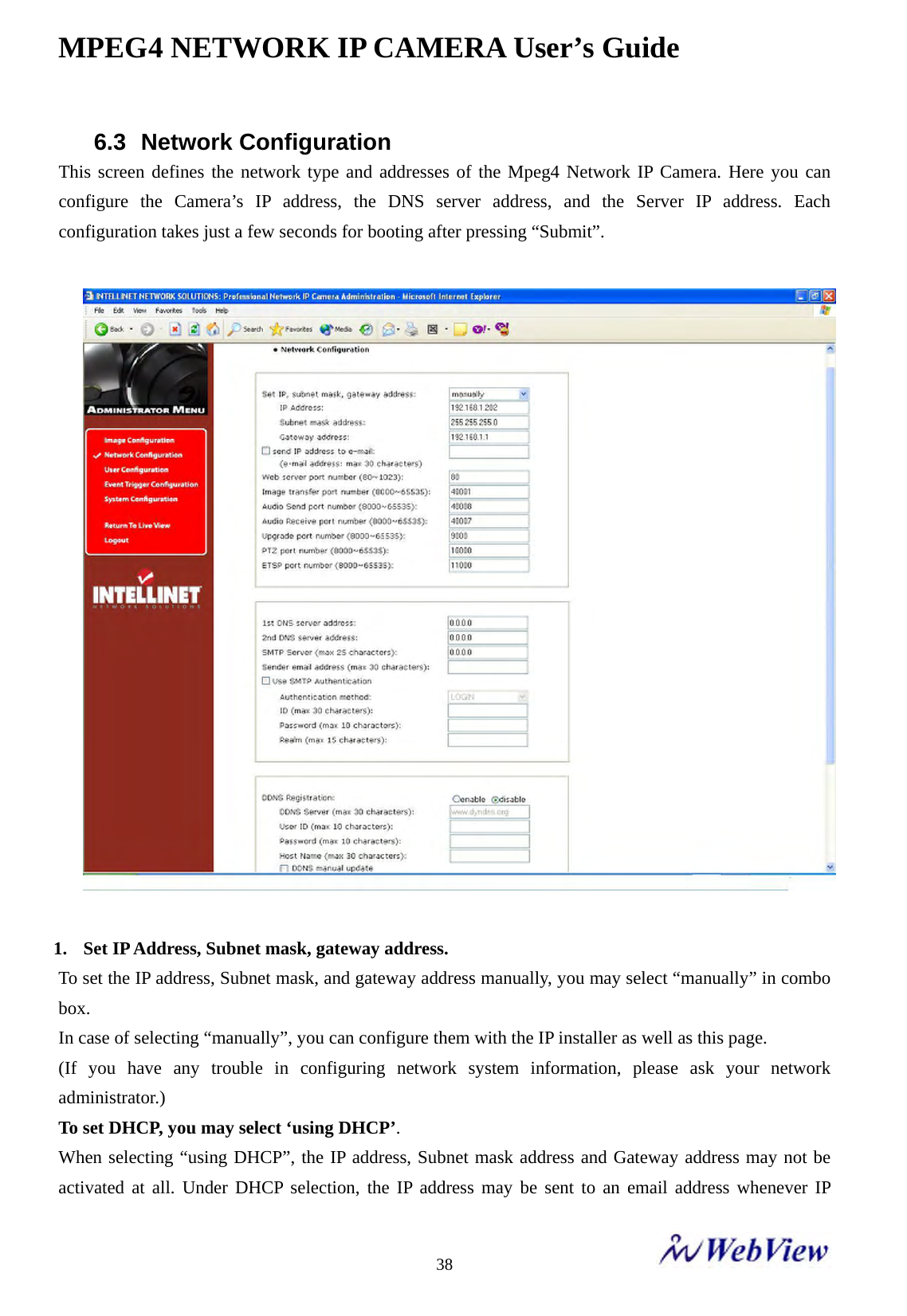
MPEG4 NETWORK IP CAMERA User’s Guide    386.3 Network Configuration This screen defines the network type and addresses of the Mpeg4 Network IP Camera. Here you can configure the Camera’s IP address, the DNS server address, and the Server IP address. Each configuration takes just a few seconds for booting after pressing “Submit”.      1. Set IP Address, Subnet mask, gateway address. To set the IP address, Subnet mask, and gateway address manually, you may select “manually” in combo box. In case of selecting “manually”, you can configure them with the IP installer as well as this page. (If you have any trouble in configuring network system information, please ask your network administrator.) To set DHCP, you may select ‘using DHCP’. When selecting “using DHCP”, the IP address, Subnet mask address and Gateway address may not be activated at all. Under DHCP selection, the IP address may be sent to an email address whenever IP
MPEG4 NETWORK IP CAMERA User’s Guide    39address is changed. Users in a local network area may check the IP address through IP installer.                2.    Send IP address to e-mail To send camera system information (Camera Name, Camera Location, DHCP IP address), check in a text box and enter your email address. (You should configure your SMTP server information first) 3.    Web Server Port Number To set the Port Number for the Web Server. (The default port number is ‘80’ and users can select from 80 to 1023) 4.  Image Transfer Port Number To set the port number for the video / image transfer. (The default port number is “40001” and users can select from 8000 to 65535) 5.  Audio Send port number :  To set the port number for the Audio transfer to the connected camera client. (The default port number is “40008” and users can select from 8000 to 65535)  6.  Audio Receive port number :  Set the port number for the receiving Audio from connected camera client. (The default port number is “40007” and users can select from 8000 to 65535)  7.Ugrade port number To set the Port Number for upgrading firmware. Default port number is “9000” and users can select from 8000~65535.   NOTE  If you select “DHCP”, you may see the rebooting message “Now the Network Camera is rebooting to apply the changes...” on Web Browser. After completing rebooting, Operating Status LED blinks once per second. (You must check whether the Operating Status LED blinks after selecting “DHCP” and rebooting process of camera to ensure your new setting.)  To select DHCP, you must have DHCP server in the network. Otherwise, the IP address will be rebooted automatically as the previous IP address. It may take about 4 minutes for booting.
MPEG4 NETWORK IP CAMERA User’s Guide    406. PTZ port number To set the port number for PTZ control. (Default is ‘10000’ and users can select from 8000 to 65535.        7. ETSP port number To set the port number for ETSP (Event Trigger Setting Program). (Default is “11000” and users can select from 8000 to 65535. (For the detail of ETSP, please refer to the ETSP manual.)  8. 1st, 2nd DNS server address To map between IP address and domain name, you should enter you DNS server address. If a user set the DNS server into camera, users can configure SMTP server, FTP server, NTP server with its domain name.          9. SMTP server Enter the SMTP server IP address or host name here to send camera system information by an email. You should configure this first to get camera system information by email.  10. Use SMTP authentication If you need user authentication for using the SMTP server, check in a box and enter your ID, Password and Realm for your SMTP server. (The Mpeg4 Network IP Camera’s SMTP authentication is supporting “LOGIN” method)   - Authentication method : Choose the SMTP authentication method. - ID : Enter the user ID for SMTP authentication. - Password : Enter the user Password for SMTP authentication.. - Realm : Enter the Realm for SMTP authentication. CAUTION Be careful not to duplicate port number between Image Transfer Port Number and Upgrade port number. If it is duplicated, the warning message may appear. DNS (Domain Name System) DNS (Domain Name System) is to map between IP address and domain name. Every network device on the world has its IP address to be connected on Internet. And the device is to be connected not with its domain name but with its IP address. Common users are not familiar with IP addresses but the domain names. If a user accesses a certain network device with its domain name, DNS server resolves the domain name into an IP address of the device and replies the result to the user.
MPEG4 NETWORK IP CAMERA User’s Guide    4111. DDNS Registration To register the IP Network Camera to DDNS (Dynamic Domain name server) server, check in a “enable” box.   A dynamic IP address complicates remote access since you may not know what your current WAN IP address is when you want to access your network over the internet. The solution to the dynamic IP address problem comes in the form of a dynamic DNS service. (Please refer to the “APPENDIX” for the details.)  12. ID, password Enter the ID and Password to find the registered IP Network Camera in DDNS server.  13. Host Name Enter the Host Name to find the registered IP Network Camera in DDNS server.  14. DDNS manual update You can update the DDNS service manually.  15. Status To show the status of successful access for DDNS server.  17. SUBMIT   Send configured data by user to the Mpeg4 Network IP Camera.
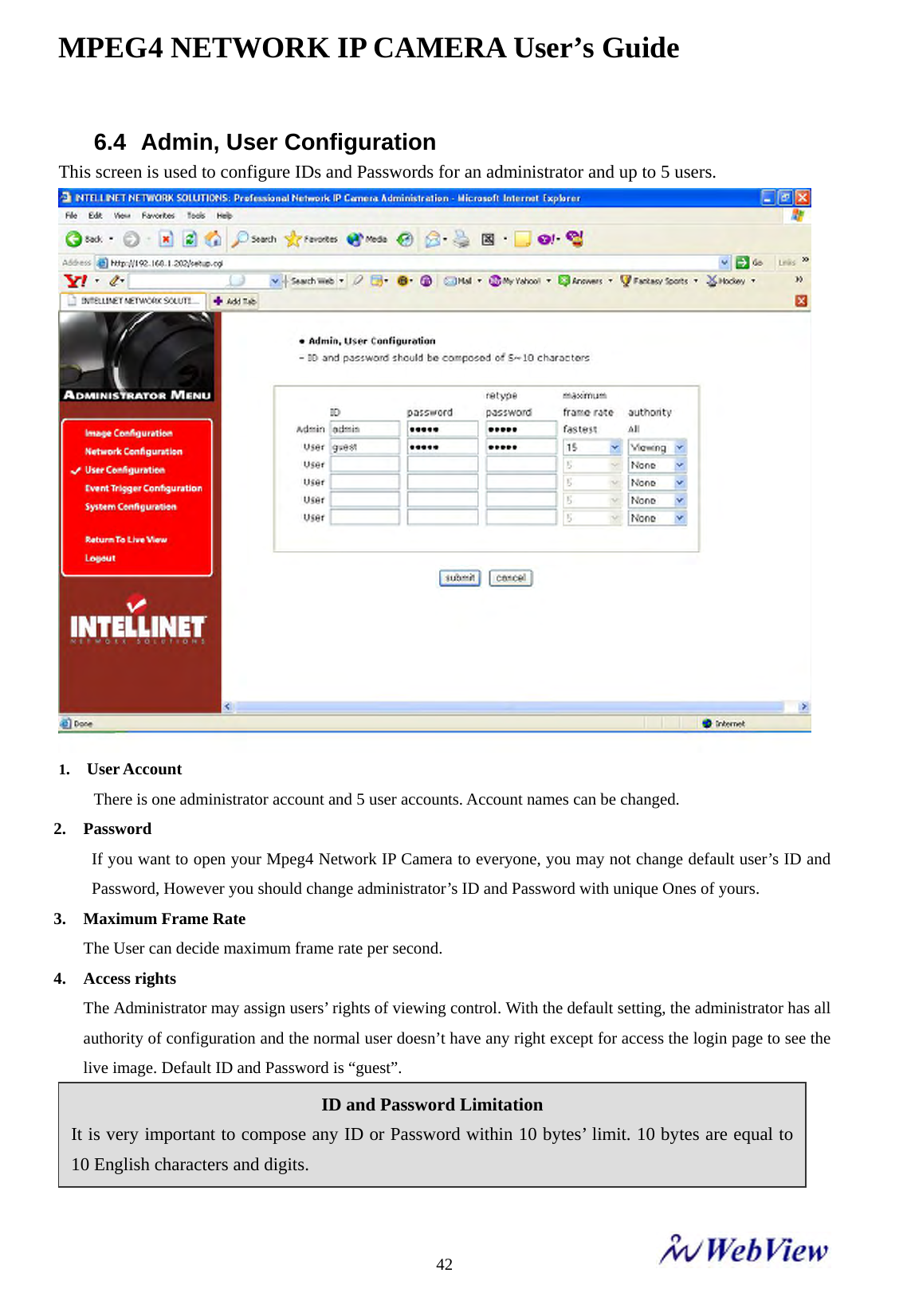
MPEG4 NETWORK IP CAMERA User’s Guide    426.4 Admin, User Configuration This screen is used to configure IDs and Passwords for an administrator and up to 5 users.  1.  User Account There is one administrator account and 5 user accounts. Account names can be changed. 2. Password If you want to open your Mpeg4 Network IP Camera to everyone, you may not change default user’s ID and Password, However you should change administrator’s ID and Password with unique Ones of yours.   3. Maximum Frame Rate The User can decide maximum frame rate per second. 4. Access rights The Administrator may assign users’ rights of viewing control. With the default setting, the administrator has all authority of configuration and the normal user doesn’t have any right except for access the login page to see the live image. Default ID and Password is “guest”.     ID and Password Limitation It is very important to compose any ID or Password within 10 bytes’ limit. 10 bytes are equal to 10 English characters and digits.
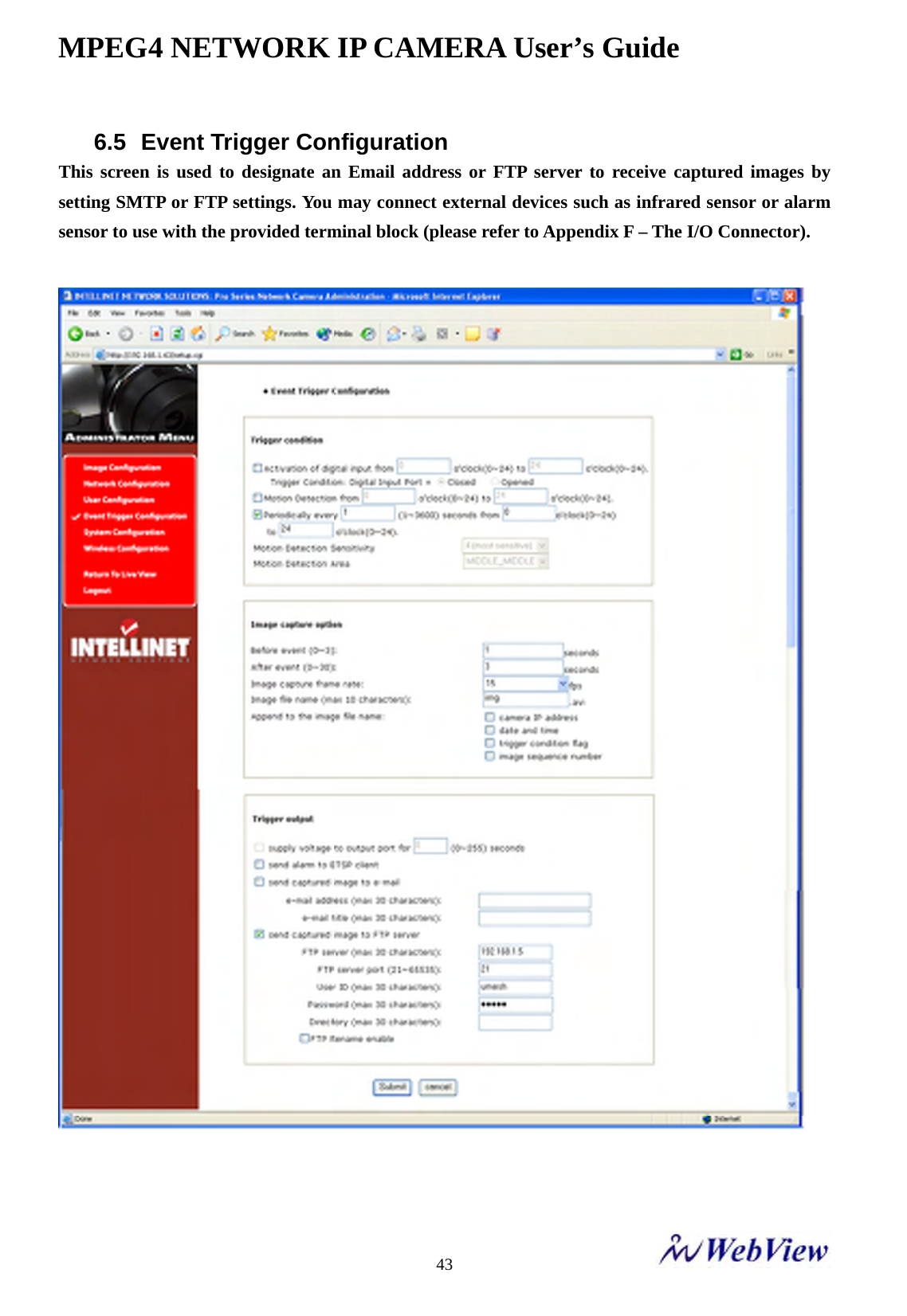
MPEG4 NETWORK IP CAMERA User’s Guide    436.5  Event Trigger Configuration This screen is used to designate an Email address or FTP server to receive captured images by setting SMTP or FTP settings. You may connect external devices such as infrared sensor or alarm sensor to use with the provided terminal block (please refer to Appendix F – The I/O Connector).
MPEG4 NETWORK IP CAMERA User’s Guide    44(1) Trigger Condition       This is to select option how to send an event signal to Mpeg4 Network IP Camera. ① Activation of digital input port from…. The Mpeg4 Network IP Camera receives an event signal from external devices such as infrared sensor, alarm sensor etc.  ② Motion Detection from…… This is to detect motion from camera by S/W data comparison. When you select “Motion detection”, the Mpeg4 Network IP Camera detects a motion triggered   by camera. To detect motion, the camera compares a previous image from present image. When the camera recognizes the data change through comparing the previous image data with present one, then motion detection function is activated.    ③ Periodically….. The Mpeg4 Network IP Camera itself is to be triggered periodically by setting a certain value from 1 to 3600 seconds. You may set the periodical event time for certain hour like 06:00 to 24:00 by setting 1 o’clock to 24 o’clock.  ④ Motion Detection Sensitivity This is to configure the level of motion detection sensitivity. The level is composed of 5 levels from 0 to 4 The higher the level is, the more sensitivity applies.  NOTE In a dark place without light, it may never detect the motion because its image wouldn’t be changed at all. NOTE In case of level 4 for sensitivity, the camera may detect a tiny motion even a light changes, so the event can be trigger so often. In case of level 0 for sensitivity, the camera may not detect a tiny motion. It is strongly recommended to configure it as the level of 1 ~3 for motion detection sensitivity setting in normal condition
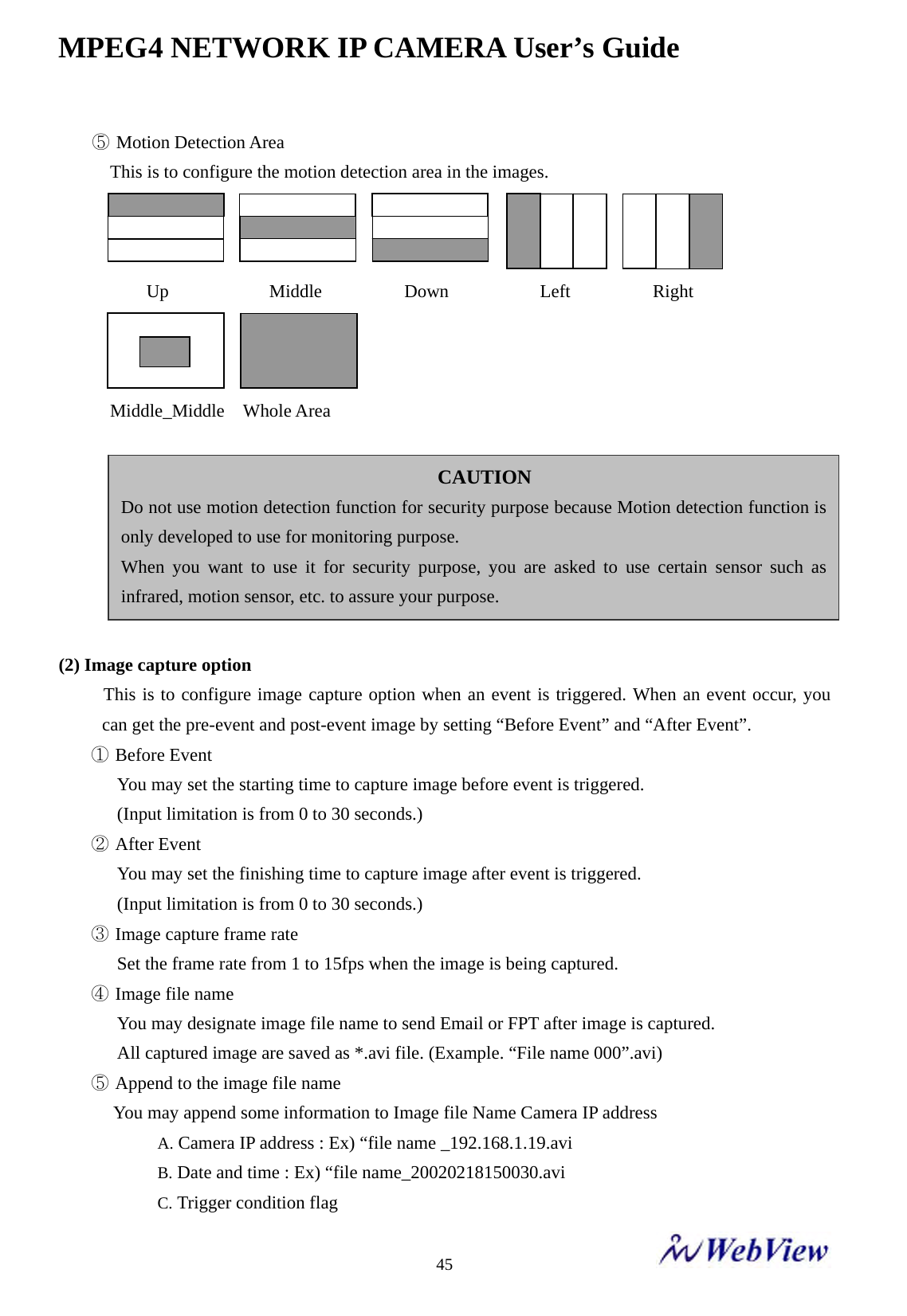
MPEG4 NETWORK IP CAMERA User’s Guide    45⑤ Motion Detection Area This is to configure the motion detection area in the images.      Up           Middle         Down          Left         Right    Middle_Middle  Whole Area   (2) Image capture option      This is to configure image capture option when an event is triggered. When an event occur, you can get the pre-event and post-event image by setting “Before Event” and “After Event”. ① Before Event You may set the starting time to capture image before event is triggered. (Input limitation is from 0 to 30 seconds.) ② After Event You may set the finishing time to capture image after event is triggered.   (Input limitation is from 0 to 30 seconds.) ③ Image capture frame rate Set the frame rate from 1 to 15fps when the image is being captured.   ④ Image file name You may designate image file name to send Email or FPT after image is captured. All captured image are saved as *.avi file. (Example. “File name 000”.avi) ⑤ Append to the image file name You may append some information to Image file Name Camera IP address A. Camera IP address : Ex) “file name _192.168.1.19.avi B. Date and time : Ex) “file name_20020218150030.avi C. Trigger condition flag CAUTION Do not use motion detection function for security purpose because Motion detection function is only developed to use for monitoring purpose. When you want to use it for security purpose, you are asked to use certain sensor such as infrared, motion sensor, etc. to assure your purpose.
MPEG4 NETWORK IP CAMERA User’s Guide    46    In case of choosing “Activation of digital input port”, “D” may be appended to image file name. Ex) “file name_D.avi” In case of choosing “Periodically every…”, “P” is appended to image file name. Ex) “file name_P.avi” D. Image sequence number   If you select this option, you may classify the file that has same extend name. Consecutive numbers are from “000” to “999” Ex) When you designate file name as “camera” and select “Image sequence number”, the file name appears “ camera001.avi, camera002.avi ….camera999.avi”              (3) Trigger Output  This is to configure digital output states and control script. Mpeg4 Network IP Camera sends captured image via E-mail or FTP server when connected external sensors detect events.  ①  External devices signal output                 This is to supply voltage to output port when events are triggered. (This option is only activated when you select “Activation of digital output” option in previous “Trigger Condition” option.)     ② Send alarm to ETSP client        This is to send alarm to ETSP client.               If you check it in a box, the alarm will be sent to ETSP client when the events are triggered.      ③  Send captured image via E-mail This is to designate a person to receive captured image via Email. Mpeg4 Network IP Camera sends captured video to designated E-mail address through SMTP Image capture option limitation Configuration for image capture option affects memory capacity. If you configure this option to excess memory size, the warning message “Not enough memory…” appears.  The total image capture frame rate must be limited 120 fps due to memory size. (Before event time + After event time) x Image capture frame rate must be under 120. For example, in case you configure “Before event” as 3 seconds, “After event time” as 2 seconds and “image capture frame” as 3fps, the total image capture frame rate is ( 3 + 2) X 3 = 15 fps. If warning message appears, please reduce the value of the option.
MPEG4 NETWORK IP CAMERA User’s Guide    47 server. You may configure SMTP server and E-mail address where you want to receive. (E-mail address must be composed within 50 bytes. 50 bytes are equal to 50 English characters.) ④  Send captured image to FTP server This is to send captured video from Mpeg4 Network IP Camera when an event is triggered. Enter ftp server IP address, User ID and Password and select directory to save video.
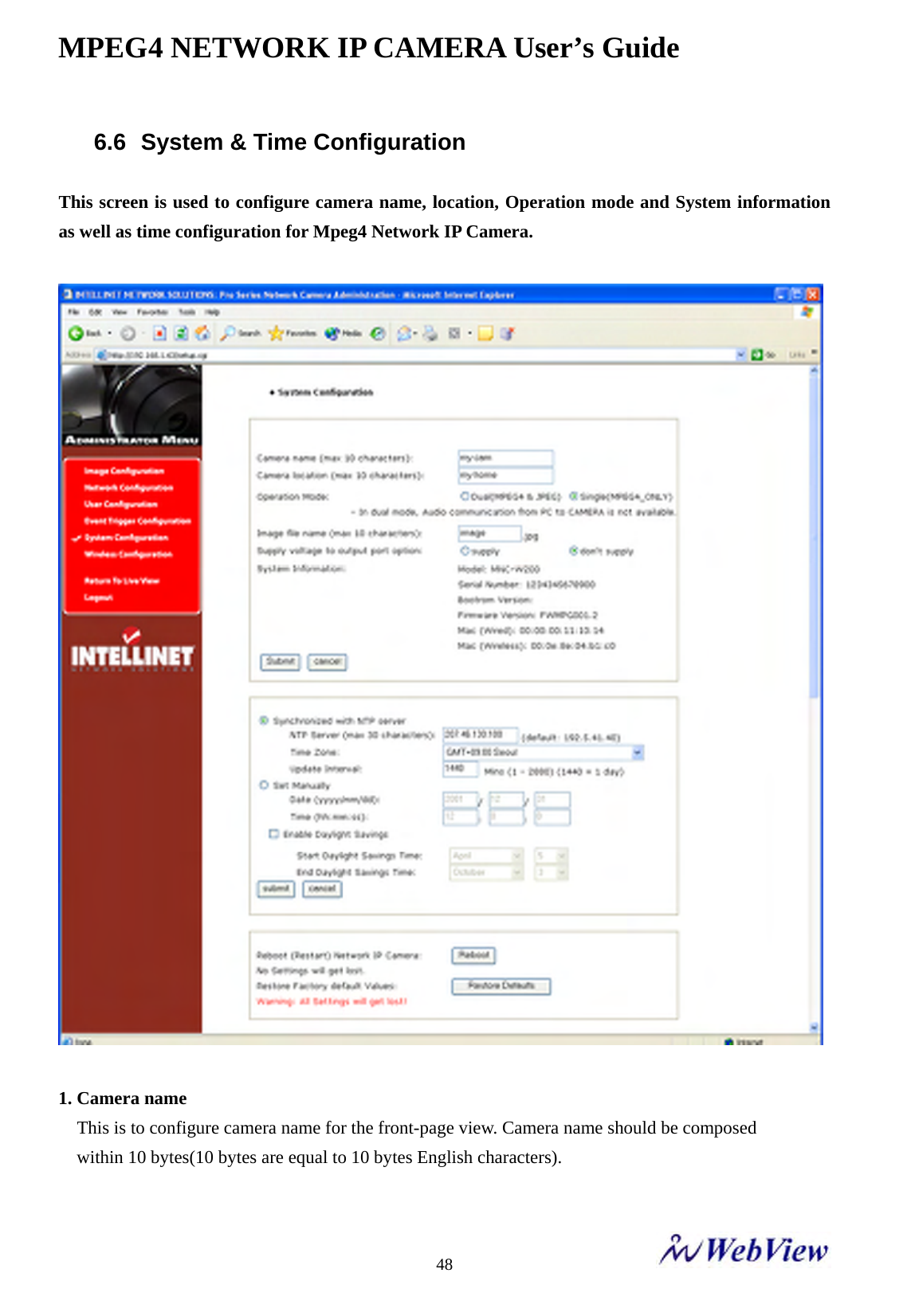
MPEG4 NETWORK IP CAMERA User’s Guide    486.6  System & Time Configuration  This screen is used to configure camera name, location, Operation mode and System information as well as time configuration for Mpeg4 Network IP Camera.    1. Camera name   This is to configure camera name for the front-page view. Camera name should be composed within 10 bytes(10 bytes are equal to 10 bytes English characters).
MPEG4 NETWORK IP CAMERA User’s Guide    492. Camera location This is to configure camera location for the front-page view. Camera location should be composed   within 30 bytes (30 bytes are equal to 30 bytes English characters) .   3. Operation Mode   There are two Operation modes for Mpeg4 Network IP Camera , one is dual mode and other is single mode. In Dual mode, Camera can encode & transmit both MPEG4 and JPEG images simultaneously   over the N/W. Where as in single mode only Mpeg4 video will be encode and transmit over the network.   The Jpeg images which can be transmitted in dual mode will be access through the following URL     http://camera IP (URL)/jpg/imagename.jpg  In Dual mode, audio communication from PC to Camera is not available whereas in single mode which is used as MPEG4 only , bi directional audio communication is available.  4.Image File Name This option is used to for accessing the JPEG images with “.jpg” extension. The file name should be less than or equal to 10 characters.  5. Supply voltage to output port option     This option is to supply voltage to the Mpeg4 Network IP Camera’s output port.   Just click “supply” to supply voltage to control the PTZ devices.  6. System Information This is to check system information for Mpeg4 Network IP Camera. You may see the model name, serial no., Mac no., and Bootrom & Firmware version. (Please refer to the Chapter ‘Appendix E. Updating Firmware.)  7. Synchronized with NTP server   The Network IP Camera automatically configures Date & Time through the NTP (Network Time Protocol) server. The NTP Server is based on Greenwich time. Select NTP server, IP address and Time zone to set the date and time automatically, and then press, “SUBMIT”. It may not work due to the possible network error; in this case, you can select other NTP server and IP address or you can set the date and time manually. Once Date & Time configuration is set, you don’t have to configure again whenever you connect to the Network IP Camera.
MPEG4 NETWORK IP CAMERA User’s Guide    507.1 NTP Server    The standard public or private NTP server IP address.   7.2 Time Zone    Select the appropriate time zone as per camera location.     7.3Update Interval  The update time interval for updating/synchronizing the camera time with NTP server  8.Set Manually   Enter the Date and Time manually,   then click “SUBMIT”.   9.Enable Daylight Savings This is to configure the Daylight Savings Time - Start Daylight Savings Time: To configure the start of Daylight Saving Time - End Daylight Savings Time: To configure the end of Daylight Saving Time. -            10.Reboot (Restart) Network IP Camera This option will reboot or restart the Camera. Your settings will not be lost.  11.Restore Factory default Values This option will restore the default factory value.    NOTE  Network IP Camera does NOT support RTC(Real Time Clock), in case you choose “Set manually” option. Network IP Camera reinstate as default value “2001/01/01 00:00:00”.   To configure Date & Time, it must be reconfigured.
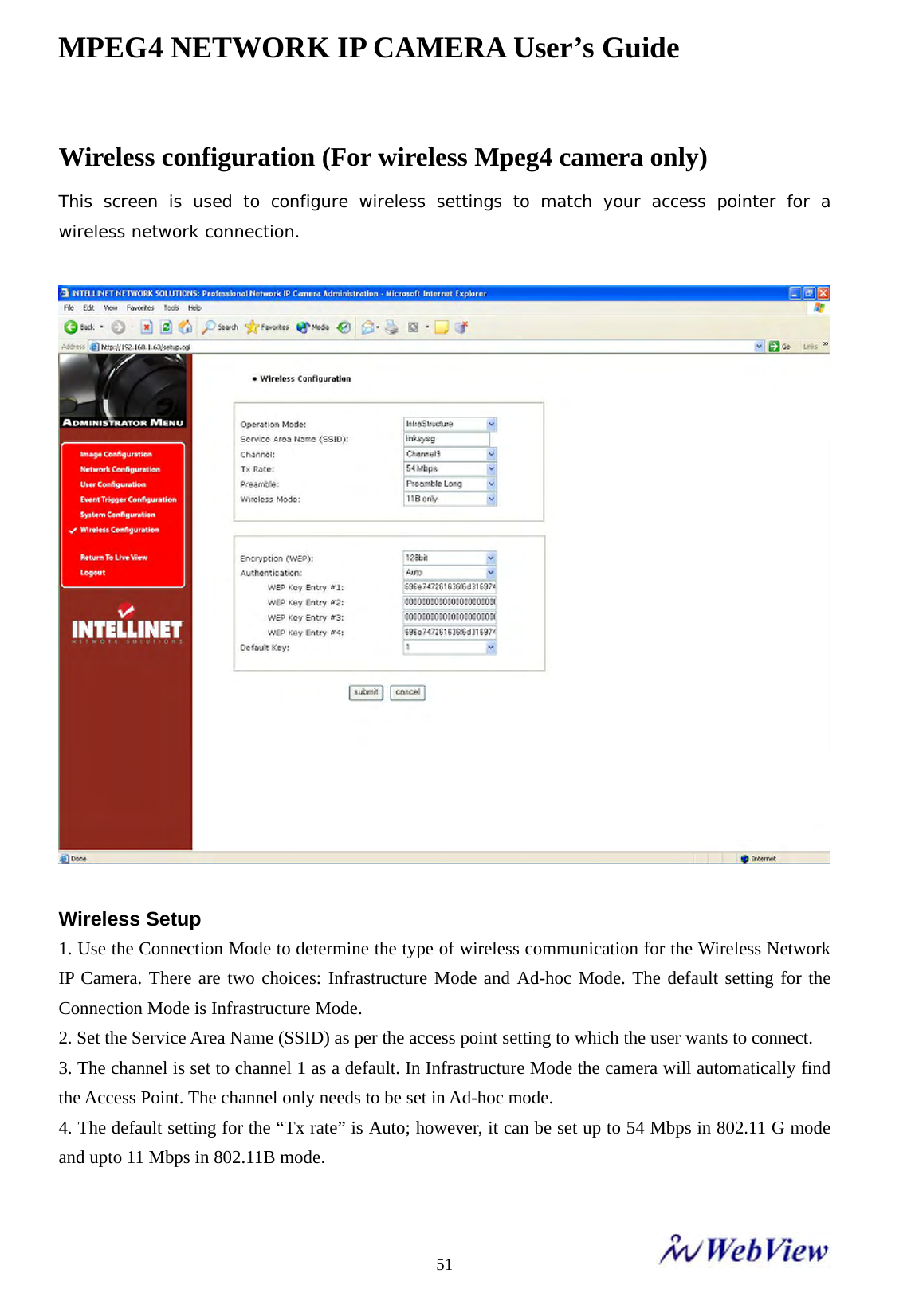
MPEG4 NETWORK IP CAMERA User’s Guide    51Wireless configuration (For wireless Mpeg4 camera only)   This screen is used to configure wireless settings to match your access pointer for a wireless network connection.    Wireless Setup   1. Use the Connection Mode to determine the type of wireless communication for the Wireless Network IP Camera. There are two choices: Infrastructure Mode and Ad-hoc Mode. The default setting for the Connection Mode is Infrastructure Mode.   2. Set the Service Area Name (SSID) as per the access point setting to which the user wants to connect.   3. The channel is set to channel 1 as a default. In Infrastructure Mode the camera will automatically find the Access Point. The channel only needs to be set in Ad-hoc mode.   4. The default setting for the “Tx rate” is Auto; however, it can be set up to 54 Mbps in 802.11 G mode and upto 11 Mbps in 802.11B mode.
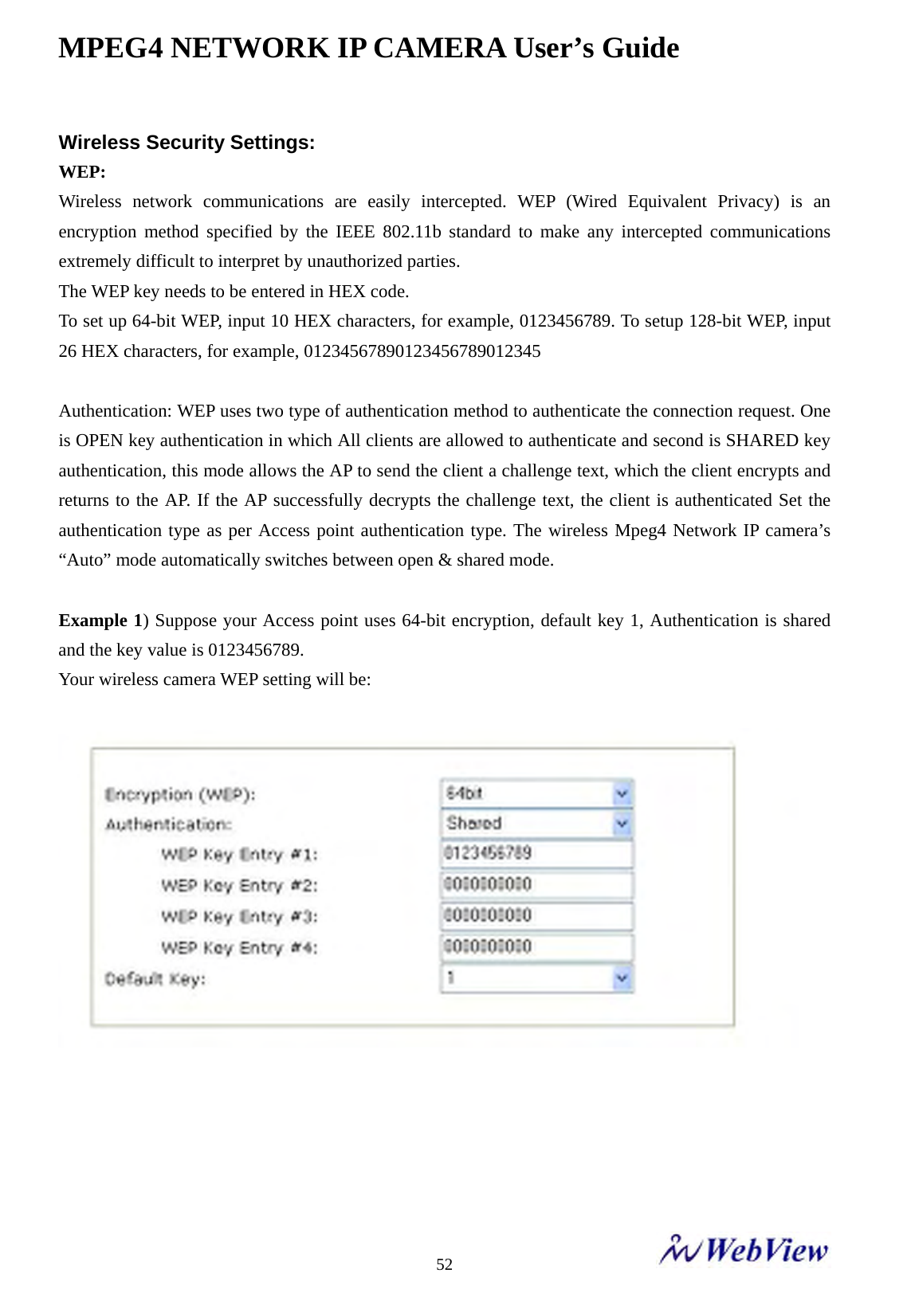
MPEG4 NETWORK IP CAMERA User’s Guide    52Wireless Security Settings:   WEP: Wireless network communications are easily intercepted. WEP (Wired Equivalent Privacy) is an encryption method specified by the IEEE 802.11b standard to make any intercepted communications extremely difficult to interpret by unauthorized parties.   The WEP key needs to be entered in HEX code.   To set up 64-bit WEP, input 10 HEX characters, for example, 0123456789. To setup 128-bit WEP, input 26 HEX characters, for example, 01234567890123456789012345    Authentication: WEP uses two type of authentication method to authenticate the connection request. One is OPEN key authentication in which All clients are allowed to authenticate and second is SHARED key authentication, this mode allows the AP to send the client a challenge text, which the client encrypts and returns to the AP. If the AP successfully decrypts the challenge text, the client is authenticated Set the authentication type as per Access point authentication type. The wireless Mpeg4 Network IP camera’s “Auto” mode automatically switches between open & shared mode.  Example 1) Suppose your Access point uses 64-bit encryption, default key 1, Authentication is shared and the key value is 0123456789.   Your wireless camera WEP setting will be:
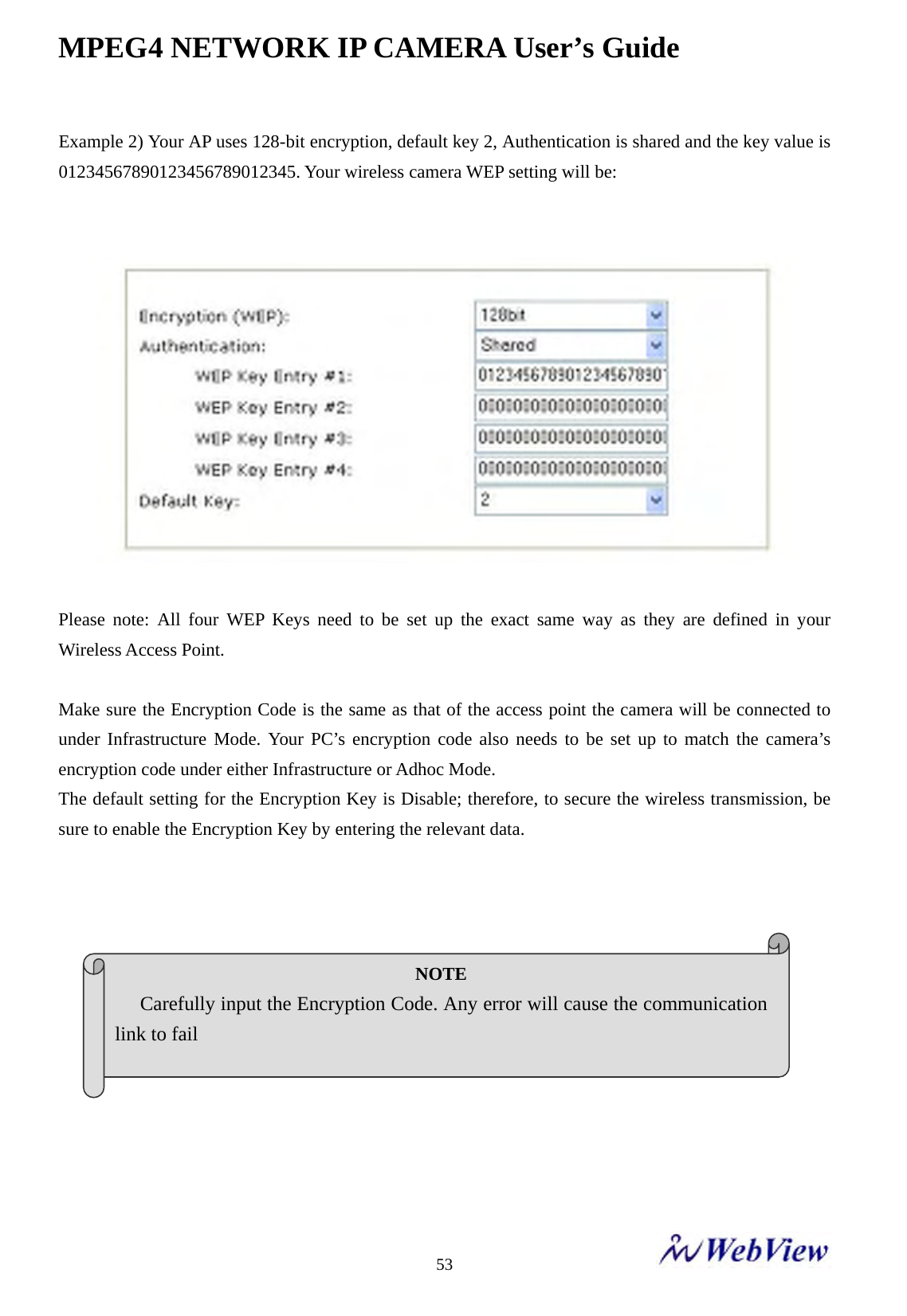
MPEG4 NETWORK IP CAMERA User’s Guide    53Example 2) Your AP uses 128-bit encryption, default key 2, Authentication is shared and the key value is 01234567890123456789012345. Your wireless camera WEP setting will be:       Please note: All four WEP Keys need to be set up the exact same way as they are defined in your Wireless Access Point.    Make sure the Encryption Code is the same as that of the access point the camera will be connected to under Infrastructure Mode. Your PC’s encryption code also needs to be set up to match the camera’s encryption code under either Infrastructure or Adhoc Mode.   The default setting for the Encryption Key is Disable; therefore, to secure the wireless transmission, be sure to enable the Encryption Key by entering the relevant data.               NOTE  Carefully input the Encryption Code. Any error will cause the communication link to fail
MPEG4 NETWORK IP CAMERA User’s Guide    54IMPORTANT   Infrastructure Mode:   This is an 802.11 networking framework in which devices communicate with each other by first going through an access point (AP). In infrastructure mode, wireless devices can communicate with each other or can communicate with a wired network. When one AP is connected to a wired network and a set of wireless stations, it is referred to as a Basic Service Set (BSS). An Extended Service Set (ESS) is a set of two or more BSSs that form a single sub network. Most corporate wireless LANs operate in Infrastructure Mode because they require access to the wired LAN in order to use services such as file servers or printers.    Ad-hoc Mode:   This is an 802.11 networking framework in which devices or stations communicate directly with each other, without the use of an AP. Ad-hoc Mode is also referred to as Peer-to-Peer Mode or an Independent Basic Service Set (IBSS). Ad-hoc Mode is useful for establishing a network where wireless infrastructure does not exist or where services are not required.    SSID (service set identifier):  This is a 32-character unique identifier attached to the header of packets sent over a WLAN that acts as a password when a mobile device tries to connect to the BSS. The SSID differentiates one WLAN from another, so all access points and all devices attempting to connect to a specific WLAN must use the same SSID. A device will not be permitted to join the BSS unless it can provide the unique SSID.   An SSID is also referred to as a network name because essentially it is a name that identifies a wireless network.   To connect a wireless client such as a Wireless Network IP Camera to a specific AP, the user of camera should specify the SSID name in the camera’s wireless IP setting.
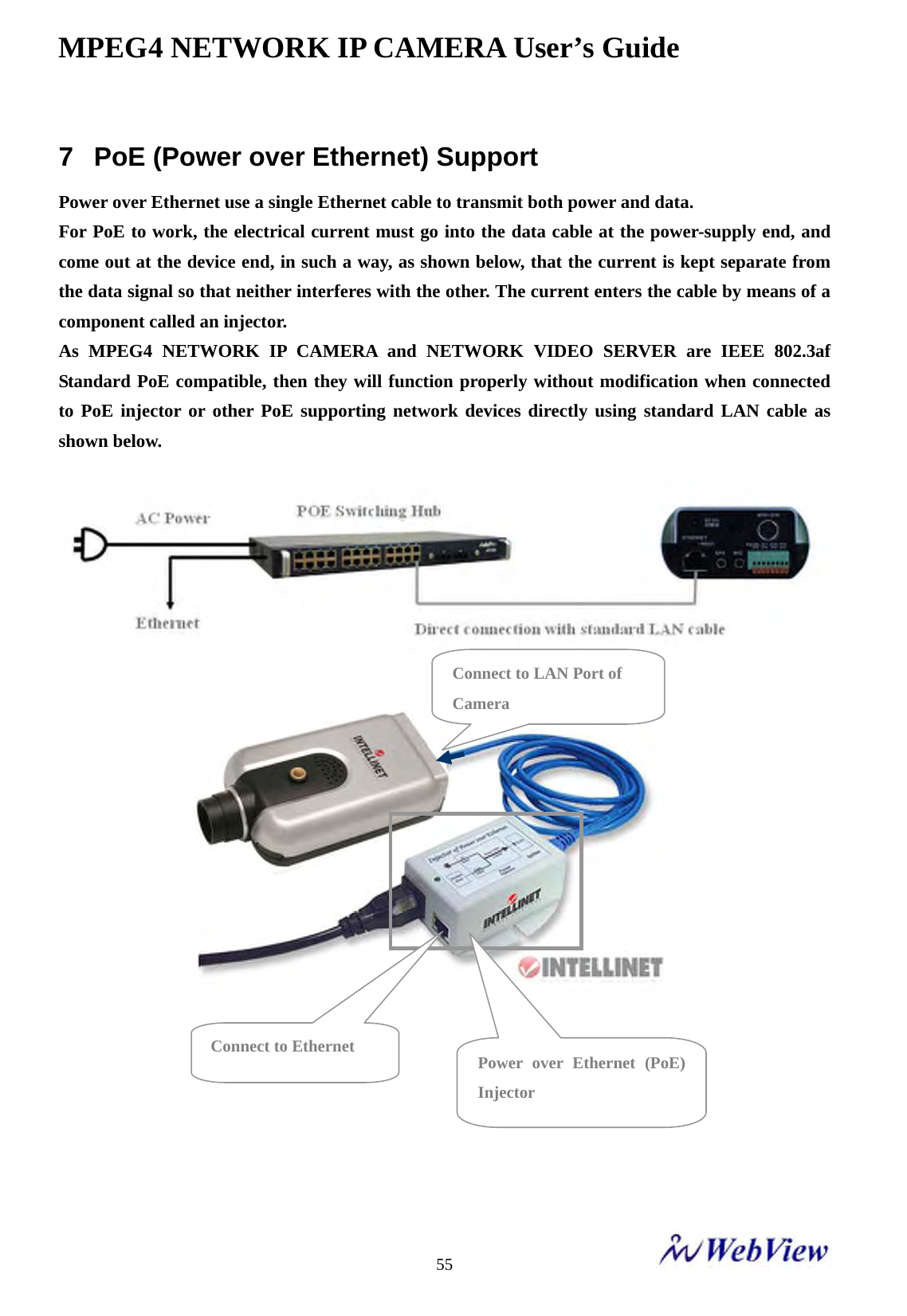
MPEG4 NETWORK IP CAMERA User’s Guide    557  PoE (Power over Ethernet) Support Power over Ethernet use a single Ethernet cable to transmit both power and data.   For PoE to work, the electrical current must go into the data cable at the power-supply end, and come out at the device end, in such a way, as shown below, that the current is kept separate from the data signal so that neither interferes with the other. The current enters the cable by means of a component called an injector.   As MPEG4 NETWORK IP CAMERA and NETWORK VIDEO SERVER are IEEE 802.3af Standard PoE compatible, then they will function properly without modification when connected to PoE injector or other PoE supporting network devices directly using standard LAN cable as shown below.                          Connect to Ethernet  Power over Ethernet (PoE) Injector Connect to LAN Port of Camera
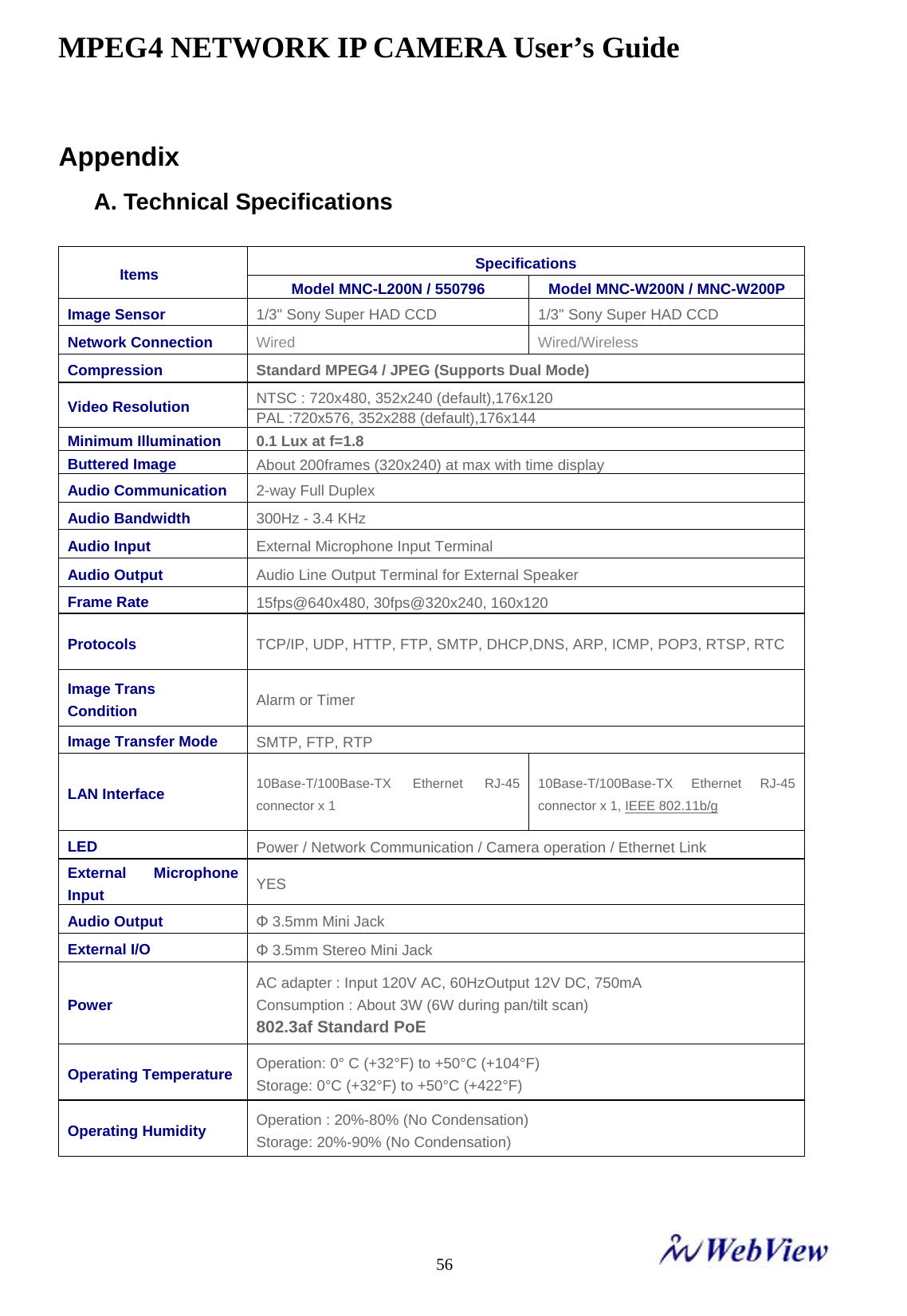
MPEG4 NETWORK IP CAMERA User’s Guide    56Appendix A. Technical Specifications  Specifications Items  Model MNC-L200N / 550796  Model MNC-W200N / MNC-W200P Image Sensor 1/3" Sony Super HAD CCD 1/3" Sony Super HAD CCD Network Connection Wired Wired/Wireless Compression Standard MPEG4 / JPEG (Supports Dual Mode) NTSC : 720x480, 352x240 (default),176x120 Video Resolution PAL :720x576, 352x288 (default),176x144 Minimum Illumination 0.1 Lux at f=1.8 Buttered Image About 200frames (320x240) at max with time display Audio Communication 2-way Full Duplex Audio Bandwidth 300Hz - 3.4 KHz Audio Input External Microphone Input Terminal Audio Output Audio Line Output Terminal for External Speaker Frame Rate   15fps@640x480, 30fps@320x240, 160x120 Protocols  TCP/IP, UDP, HTTP, FTP, SMTP, DHCP,DNS, ARP, ICMP, POP3, RTSP, RTC Image Trans Condition Alarm or Timer Image Transfer Mode SMTP, FTP, RTP LAN Interface  10Base-T/100Base-TX Ethernet RJ-45 connector x 1 10Base-T/100Base-TX Ethernet RJ-45 connector x 1, IEEE 802.11b/g LED Power / Network Communication / Camera operation / Ethernet Link External Microphone Input YES Audio Output Φ 3.5mm Mini Jack External I/O Φ 3.5mm Stereo Mini Jack Power AC adapter : Input 120V AC, 60HzOutput 12V DC, 750mA Consumption : About 3W (6W during pan/tilt scan) 802.3af Standard PoE Operating Temperature  Operation: 0° C (+32°F) to +50°C (+104°F) Storage: 0°C (+32°F) to +50°C (+422°F) Operating Humidity Operation : 20%-80% (No Condensation) Storage: 20%-90% (No Condensation)
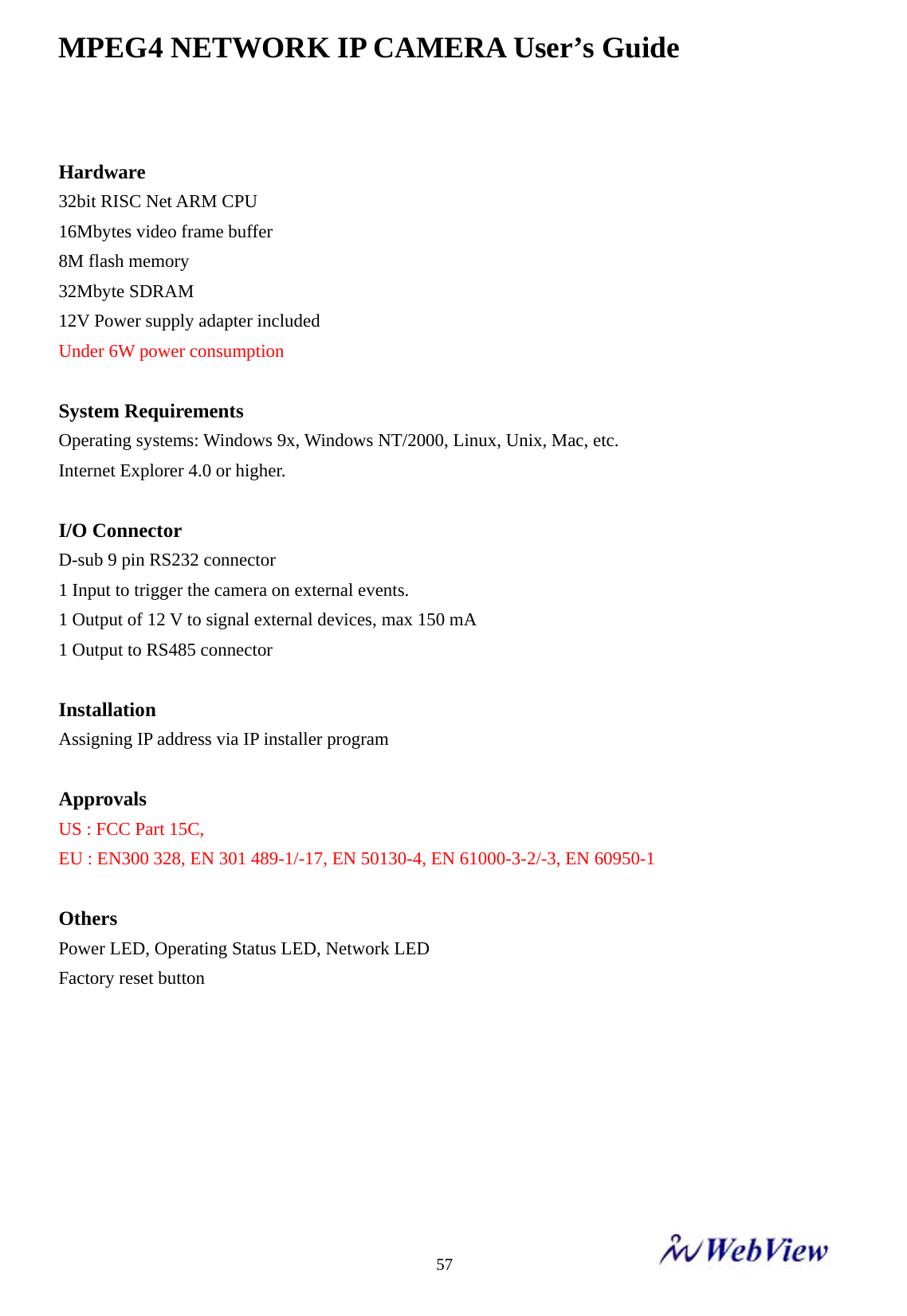
MPEG4 NETWORK IP CAMERA User’s Guide    57 Hardware 32bit RISC Net ARM CPU 16Mbytes video frame buffer 8M flash memory   32Mbyte SDRAM   12V Power supply adapter included Under 6W power consumption  System Requirements Operating systems: Windows 9x, Windows NT/2000, Linux, Unix, Mac, etc. Internet Explorer 4.0 or higher.  I/O Connector D-sub 9 pin RS232 connector 1 Input to trigger the camera on external events. 1 Output of 12 V to signal external devices, max 150 mA 1 Output to RS485 connector    Installation Assigning IP address via IP installer program  Approvals  US : FCC Part 15C,   EU : EN300 328, EN 301 489-1/-17, EN 50130-4, EN 61000-3-2/-3, EN 60950-1  Others Power LED, Operating Status LED, Network LED   Factory reset button
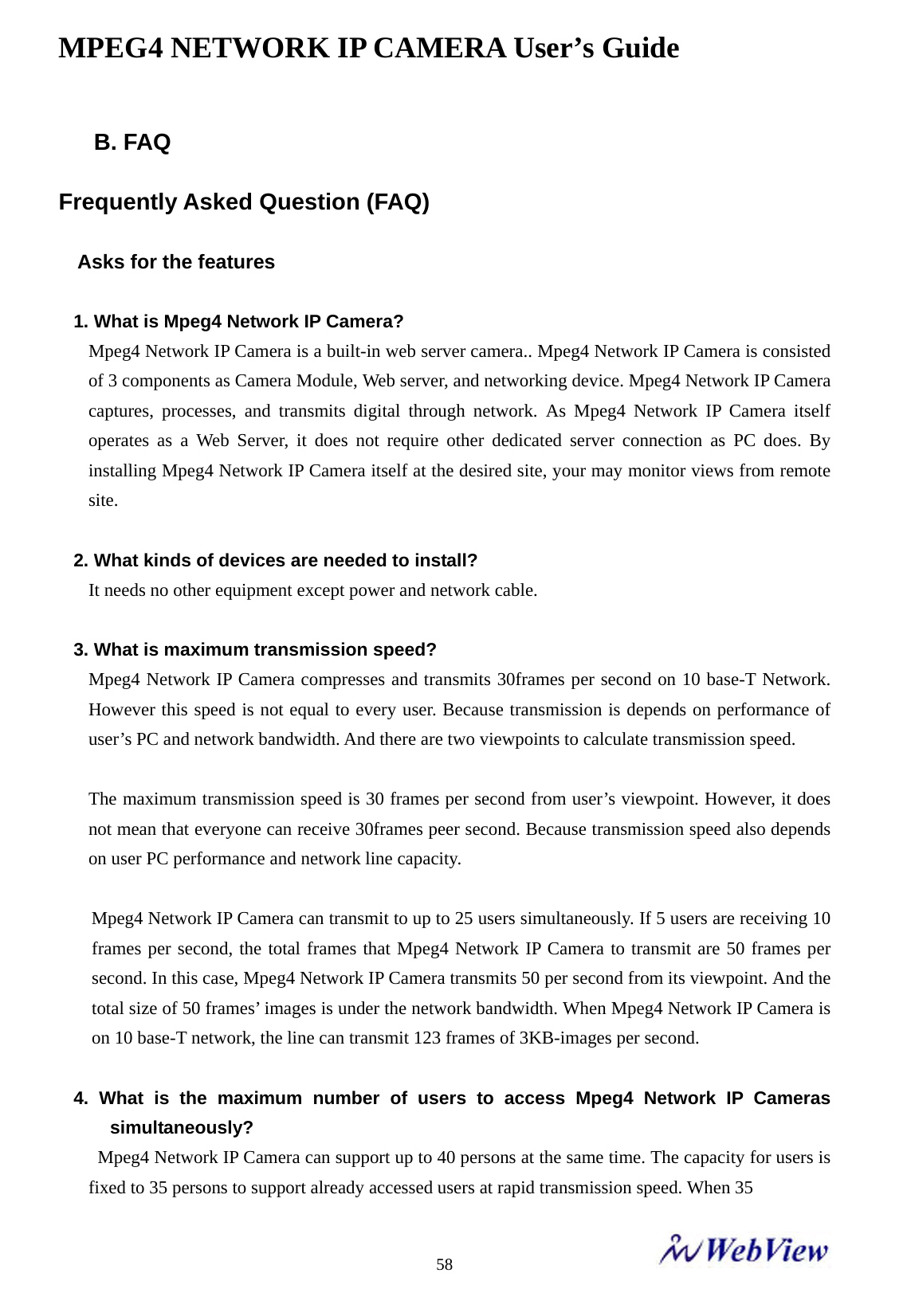
MPEG4 NETWORK IP CAMERA User’s Guide    58B. FAQ  Frequently Asked Question (FAQ)  Asks for the features  1. What is Mpeg4 Network IP Camera? Mpeg4 Network IP Camera is a built-in web server camera.. Mpeg4 Network IP Camera is consisted of 3 components as Camera Module, Web server, and networking device. Mpeg4 Network IP Camera captures, processes, and transmits digital through network. As Mpeg4 Network IP Camera itself operates as a Web Server, it does not require other dedicated server connection as PC does. By installing Mpeg4 Network IP Camera itself at the desired site, your may monitor views from remote site.  2. What kinds of devices are needed to install? It needs no other equipment except power and network cable.  3. What is maximum transmission speed? Mpeg4 Network IP Camera compresses and transmits 30frames per second on 10 base-T Network. However this speed is not equal to every user. Because transmission is depends on performance of user’s PC and network bandwidth. And there are two viewpoints to calculate transmission speed.  The maximum transmission speed is 30 frames per second from user’s viewpoint. However, it does not mean that everyone can receive 30frames peer second. Because transmission speed also depends on user PC performance and network line capacity.    Mpeg4 Network IP Camera can transmit to up to 25 users simultaneously. If 5 users are receiving 10 frames per second, the total frames that Mpeg4 Network IP Camera to transmit are 50 frames per second. In this case, Mpeg4 Network IP Camera transmits 50 per second from its viewpoint. And the total size of 50 frames’ images is under the network bandwidth. When Mpeg4 Network IP Camera is on 10 base-T network, the line can transmit 123 frames of 3KB-images per second.    4. What is the maximum number of users to access Mpeg4 Network IP Cameras simultaneously?   Mpeg4 Network IP Camera can support up to 40 persons at the same time. The capacity for users is fixed to 35 persons to support already accessed users at rapid transmission speed. When 35
MPEG4 NETWORK IP CAMERA User’s Guide    59persons access the camera, users can receive 1 frames per about 5 seconds.  Asks for the Installing and Running Mpeg4 Network IP Camera  1. What network Line can be used with Mpeg4 Network IP Camera? All network lines (except telephone lines) can be used, although telephone lines may be used through PCs to connect to Mpeg4 Network IP Camera remotely. Network limes such as xDSL, cable modem. that use dynamic IP addresses require a different installation process than a   dedicated line that has a static IP address.  2. What is the maximum extension range of network lines? UTP Cable that is used for the Ethernet can be extended up to 100 meters without bridging.   However existing UTP Cable can be extended up to 240 meters without bridging.  3. Does Mpeg4 Network IP Camera need a special rack or case for outdoor use? Originally, Mpeg4 Network IP Camera itself can’t be weatherproofed. Therefore, it has to be equipped with weatherproof case if Mpeg4 Network IP Camera is used for outdoor, like existing CCTV or something.  4. If Mpeg4 Network IP Camera consists of only permanent IP address and several private IP addresses. Can Mpeg4 Network IP Camera be connected to the network with a private IP address? Mpeg4 Network IP Camera can be assigned a private IP address on a network with a permanent IP address. If the network is a Class C network (255.255.255.XXX), then Mpeg4 Network IP Camera may be assigned any available number in the last “room” (represented by XXX). However, since Mpeg4 Network IP Camera is a web server, it can be designated as a local server. Any device on a LAN can be designed as the local server through the router. Designating Mpeg4 Network IP Camera as the local server will make it easier for people outside the LAN to view real-time images form Mpeg4 Network IP Camera.  5. If the network consists of only private IP address, can Mpeg4 Network IP Camera be   connected at the network? Mpeg4 Network IP Camera can be connected to LAN having only private IP addresses, but only people on the local network can access Mpeg4 Network IP Camera. Networks with narrow bandwidth may not be able to support several Mpeg4 Network IP Cameras connected simultaneously.
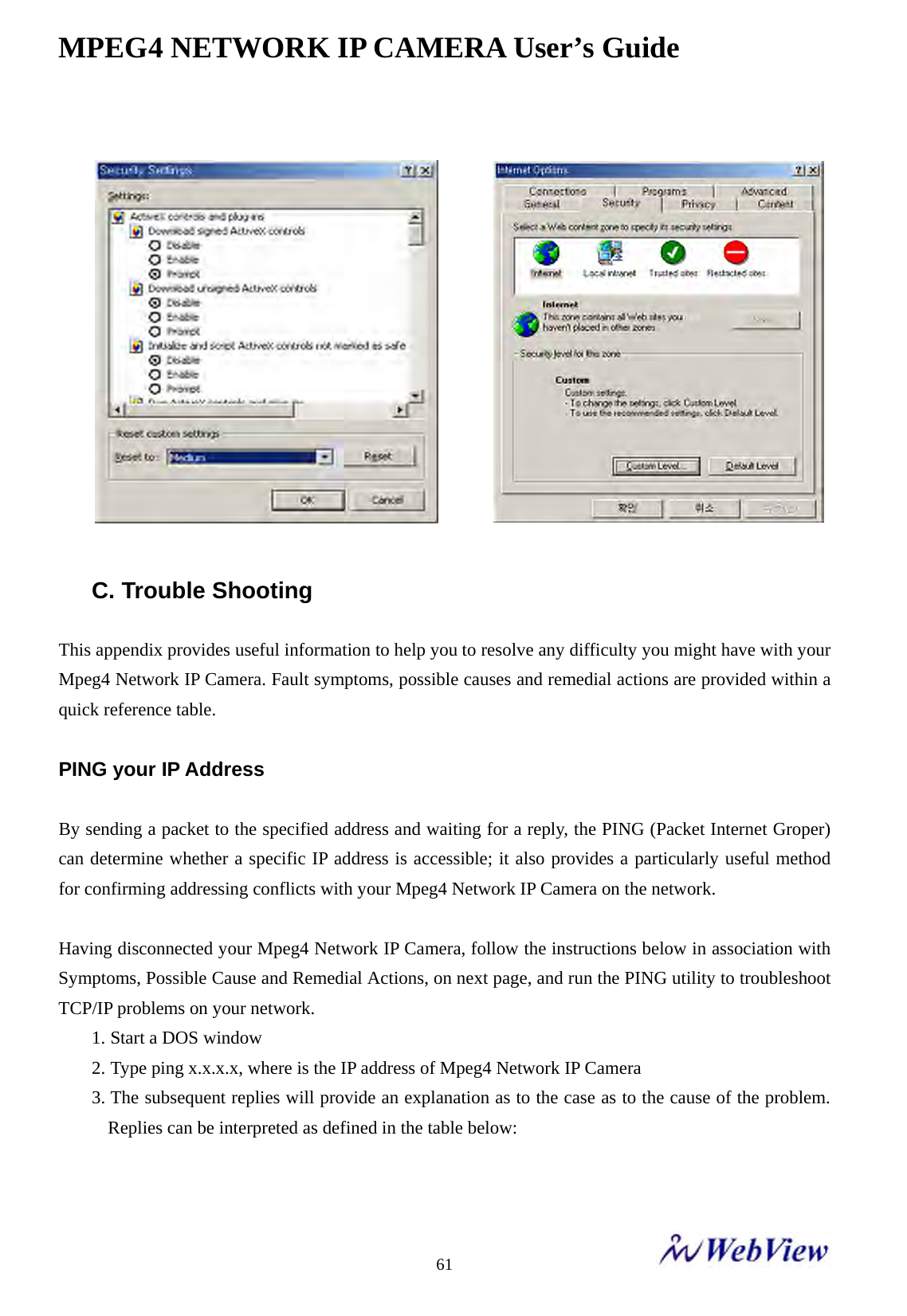
MPEG4 NETWORK IP CAMERA User’s Guide    606. If a firewall is on the network, how it works? If a firewall is on your network, please check here “ If your computer is behind firewall check   The left check box” at the login page.     7. How can a user see the images sent from Mpeg4 Network IP Camera using Internet   Explorer?    If a user wants to see the real-time images of Mpeg4 Network IP Camera using Internet Explorer browser, install Mpeg4 Network IP Camera Active-X control. The Active-X control is used in the live image viewer. When you access login page in Mpeg4 Network IP Camera Homepage, The Active-X Control is downloaded automatically.  8. I can’t automatically download Active-X Control for Mpeg4 Network IP Camera?     Active-X control is be downloaded and installed automatically. However, situations occasionally arise which prohibit this from happening. If the Internet Explorer is an earlier version than v4.0 or the registry information of the system is corrupted, the automatic download and installation may fail. If problems occur with automatic download, please try a manual download.    You may see the option in login page for Mpeg4 Network IP Camera.       Just click “here” button, then pop-up appears. You may choose “modify” or “ reinstall”.  9. Even though I enter right ID and Password to login, some error message “You must login first” appears. What’s wrong?     Check security setting for Internet Explorer. Go to “Internet Option” and then check “Security”     (If it’s set “High”, Active-X would have problem downloading)          Note: If you have any problem when you install ActiveX, click here to download  and install ActiveX manually If    t  i  b hi d fi ll h k th  l ft  h k b
MPEG4 NETWORK IP CAMERA User’s Guide    61                  C. Trouble Shooting  This appendix provides useful information to help you to resolve any difficulty you might have with your Mpeg4 Network IP Camera. Fault symptoms, possible causes and remedial actions are provided within a quick reference table.  PING your IP Address  By sending a packet to the specified address and waiting for a reply, the PING (Packet Internet Groper) can determine whether a specific IP address is accessible; it also provides a particularly useful method for confirming addressing conflicts with your Mpeg4 Network IP Camera on the network.  Having disconnected your Mpeg4 Network IP Camera, follow the instructions below in association with Symptoms, Possible Cause and Remedial Actions, on next page, and run the PING utility to troubleshoot TCP/IP problems on your network. 1. Start a DOS window 2. Type ping x.x.x.x, where is the IP address of Mpeg4 Network IP Camera 3. The subsequent replies will provide an explanation as to the case as to the cause of the problem. Replies can be interpreted as defined in the table below:
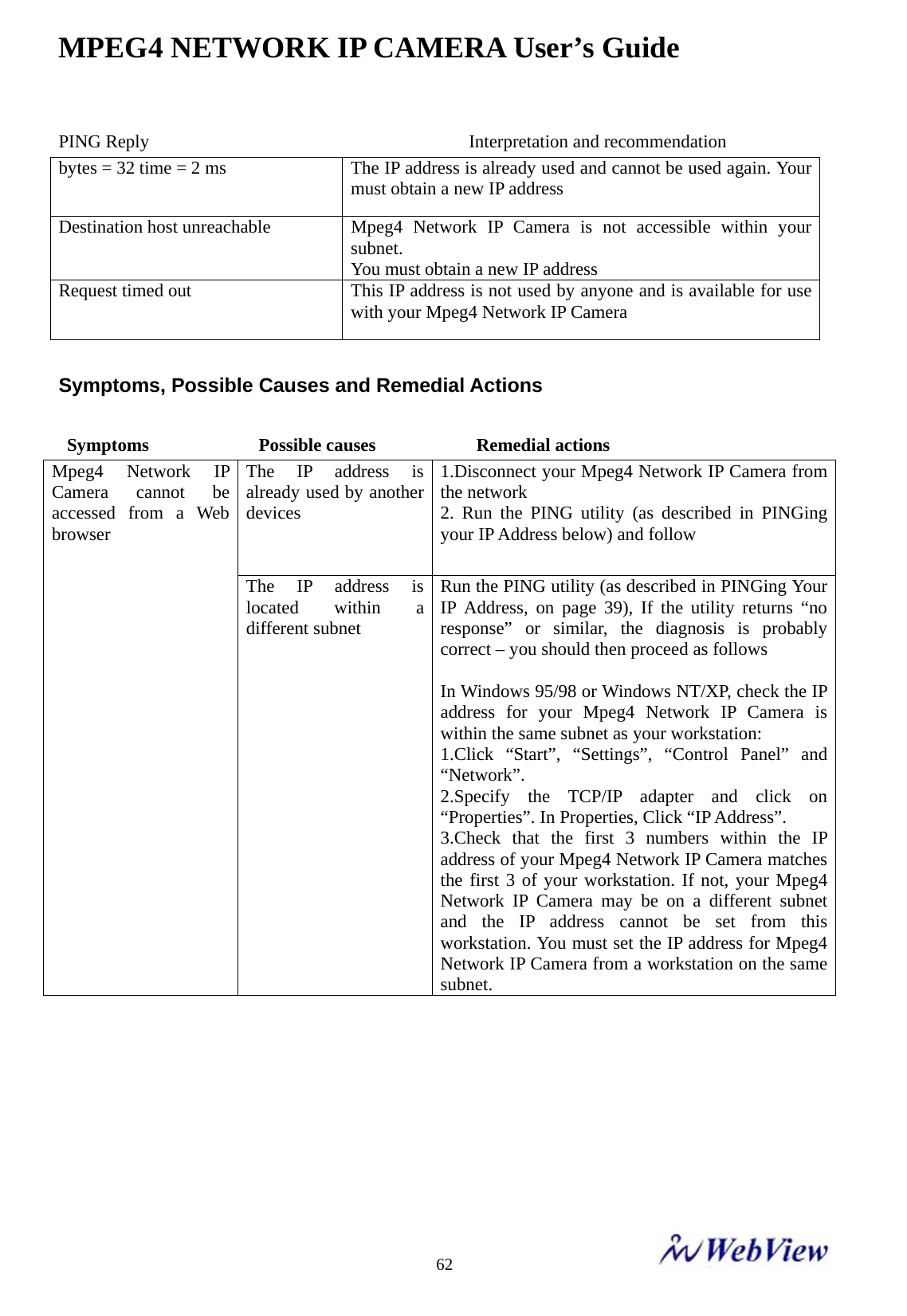
MPEG4 NETWORK IP CAMERA User’s Guide    62PING Reply                                   Interpretation and recommendation bytes = 32 time = 2 ms  The IP address is already used and cannot be used again. Your must obtain a new IP address Destination host unreachable  Mpeg4  Network  IP Camera is not accessible within your subnet. You must obtain a new IP address Request timed out  This IP address is not used by anyone and is available for use with your Mpeg4 Network IP Camera  Symptoms, Possible Causes and Remedial Actions   Symptoms            Possible causes           Remedial actions The IP address is already used by another devices 1.Disconnect your Mpeg4 Network IP Camera from the network 2. Run the PING utility (as described in PINGing your IP Address below) and follow Mpeg4 Network IP Camera cannot be accessed from a Web browser                      The IP address is located within a different subnet Run the PING utility (as described in PINGing Your IP Address, on page 39), If the utility returns “no response” or similar, the diagnosis is probably correct – you should then proceed as follows  In Windows 95/98 or Windows NT/XP, check the IP address for your Mpeg4 Network IP Camera is within the same subnet as your workstation: 1.Click “Start”, “Settings”, “Control Panel” and “Network”. 2.Specify the TCP/IP adapter and click on “Properties”. In Properties, Click “IP Address”. 3.Check that the first 3 numbers within the IP address of your Mpeg4 Network IP Camera matches the first 3 of your workstation. If not, your Mpeg4 Network IP Camera may be on a different subnet and the IP address cannot be set from this workstation. You must set the IP address for Mpeg4 Network IP Camera from a workstation on the same subnet.
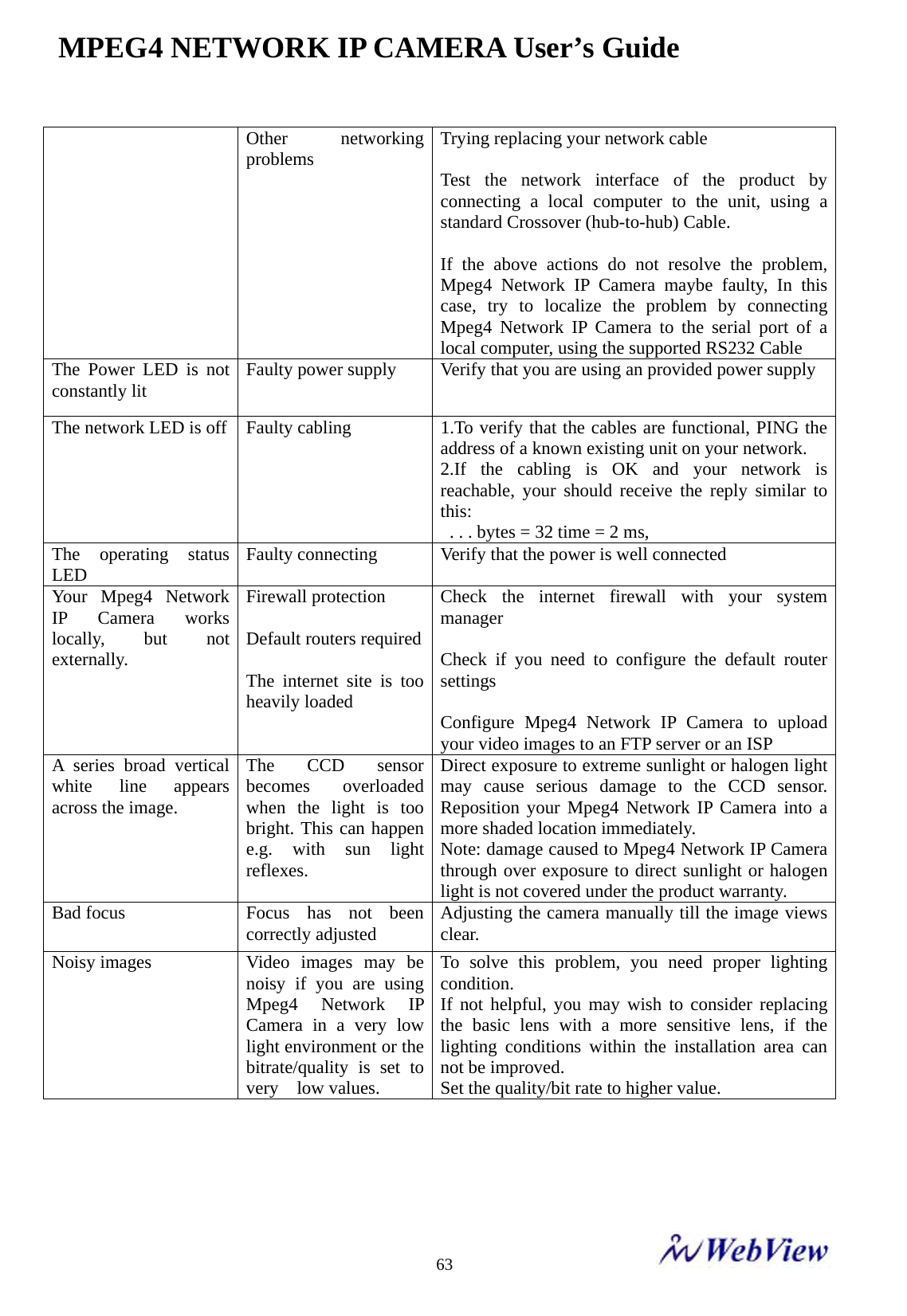
MPEG4 NETWORK IP CAMERA User’s Guide    63           Other networking problems  Trying replacing your network cable  Test the network interface of the product by connecting a local computer to the unit, using a standard Crossover (hub-to-hub) Cable.  If the above actions do not resolve the problem, Mpeg4 Network IP Camera maybe faulty, In this case, try to localize the problem by connecting Mpeg4 Network IP Camera to the serial port of a local computer, using the supported RS232 Cable The Power LED is not constantly lit  Faulty power supply  Verify that you are using an provided power supply The network LED is off  Faulty cabling  1.To verify that the cables are functional, PING the address of a known existing unit on your network. 2.If the cabling is OK and your network is reachable, your should receive the reply similar to this:   . . . bytes = 32 time = 2 ms, The operating status LED   Faulty connecting  Verify that the power is well connected   Your Mpeg4 Network IP Camera works locally, but not externally.  Firewall protection  Default routers required The internet site is too heavily loaded Check the internet firewall with your system manager  Check if you need to configure the default router settings  Configure Mpeg4 Network IP Camera to upload your video images to an FTP server or an ISP A series broad vertical white line appears across the image.  The CCD sensor becomes overloaded when the light is too bright. This can happen e.g. with sun light reflexes. Direct exposure to extreme sunlight or halogen light may cause serious damage to the CCD sensor. Reposition your Mpeg4 Network IP Camera into a more shaded location immediately. Note: damage caused to Mpeg4 Network IP Camera through over exposure to direct sunlight or halogen light is not covered under the product warranty. Bad focus  Focus has not been correctly adjusted  Adjusting the camera manually till the image views clear. Noisy images   Video images may be noisy if you are using Mpeg4 Network IP Camera in a very low light environment or the bitrate/quality is set to very  low values. To solve this problem, you need proper lighting condition.  If not helpful, you may wish to consider replacing the basic lens with a more sensitive lens, if the lighting conditions within the installation area can not be improved.   Set the quality/bit rate to higher value.
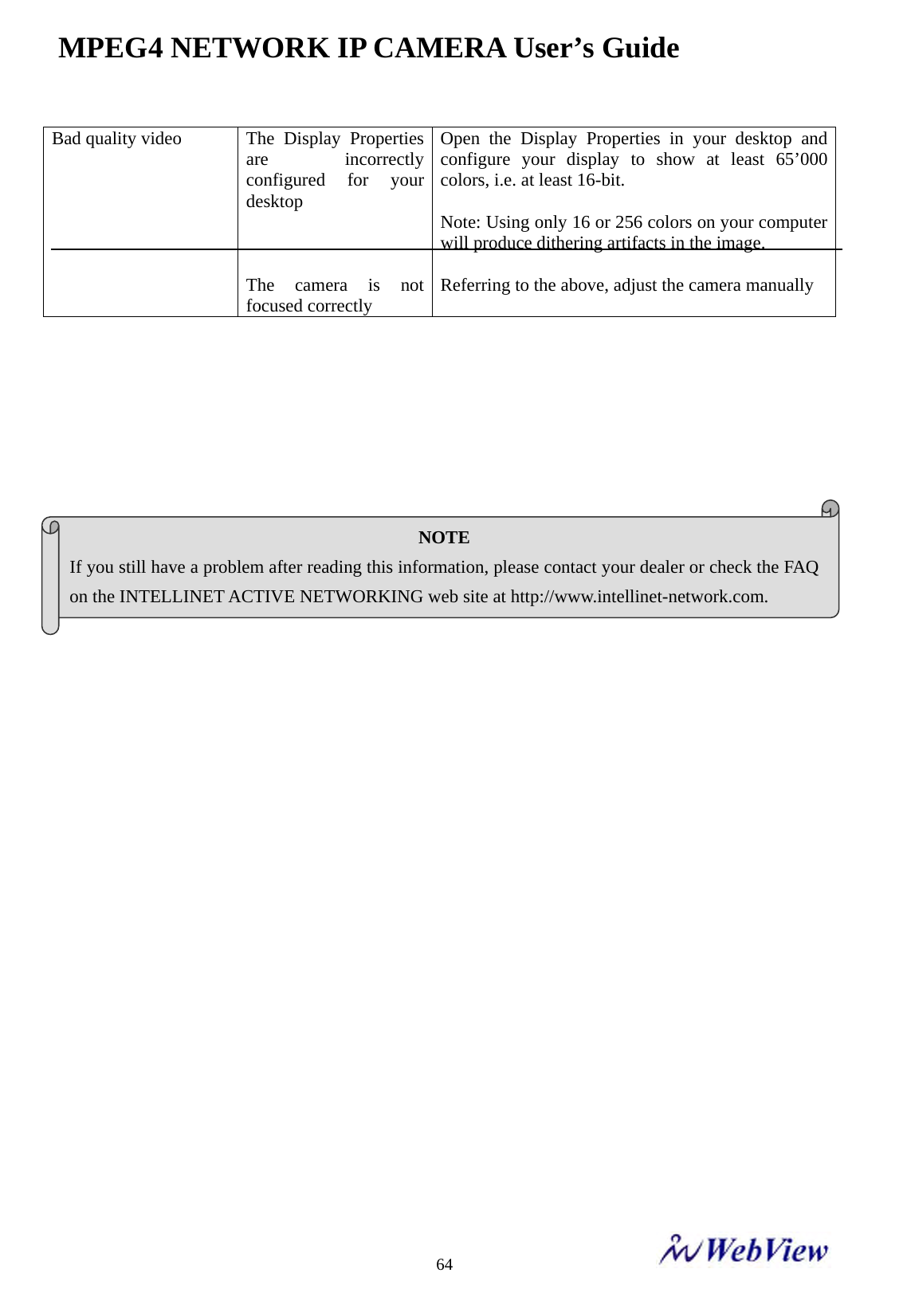
MPEG4 NETWORK IP CAMERA User’s Guide    64Bad quality video  The  Display  Properties are incorrectly configured for your desktop    The camera is not focused correctly Open the Display Properties in your desktop and configure your display to show at least 65’000 colors, i.e. at least 16-bit.  Note: Using only 16 or 256 colors on your computer will produce dithering artifacts in the image.  Referring to the above, adjust the camera manually                                NOTE If you still have a problem after reading this information, please contact your dealer or check the FAQ on the INTELLINET ACTIVE NETWORKING web site at http://www.intellinet-network.com.
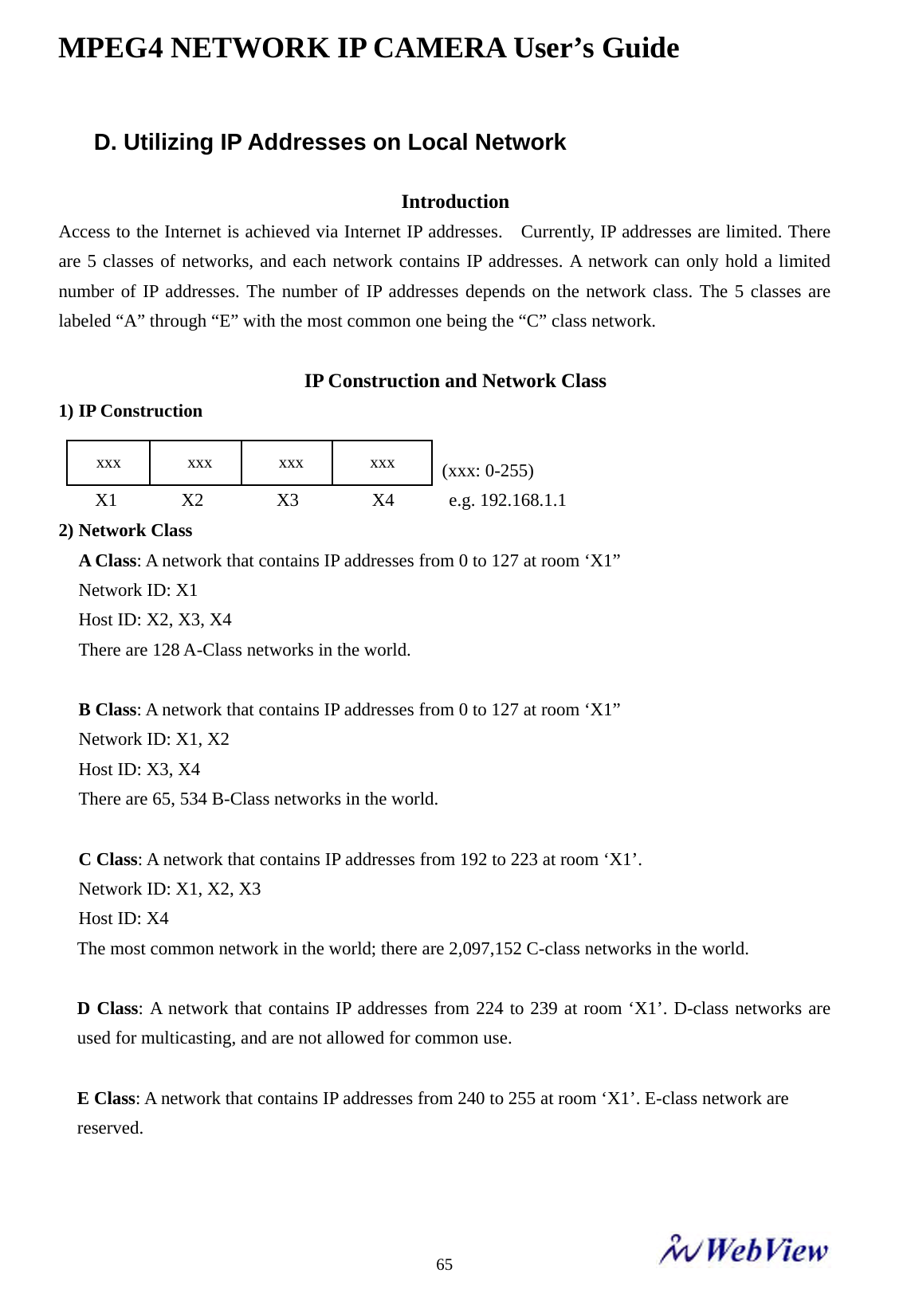
MPEG4 NETWORK IP CAMERA User’s Guide    65D. Utilizing IP Addresses on Local Network  Introduction Access to the Internet is achieved via Internet IP addresses.    Currently, IP addresses are limited. There are 5 classes of networks, and each network contains IP addresses. A network can only hold a limited number of IP addresses. The number of IP addresses depends on the network class. The 5 classes are labeled “A” through “E” with the most common one being the “C” class network.  IP Construction and Network Class 1) IP Construction                                            (xxx: 0-255)     X1       X2        X3        X4      e.g. 192.168.1.1 2) Network Class A Class: A network that contains IP addresses from 0 to 127 at room ‘X1” Network ID: X1 Host ID: X2, X3, X4 There are 128 A-Class networks in the world.  B Class: A network that contains IP addresses from 0 to 127 at room ‘X1” Network ID: X1, X2 Host ID: X3, X4 There are 65, 534 B-Class networks in the world.  C Class: A network that contains IP addresses from 192 to 223 at room ‘X1’. Network ID: X1, X2, X3 Host ID: X4 The most common network in the world; there are 2,097,152 C-class networks in the world.  D Class: A network that contains IP addresses from 224 to 239 at room ‘X1’. D-class networks are used for multicasting, and are not allowed for common use.  E Class: A network that contains IP addresses from 240 to 255 at room ‘X1’. E-class network are   reserved.    xxx        xxx        xxx        xxx
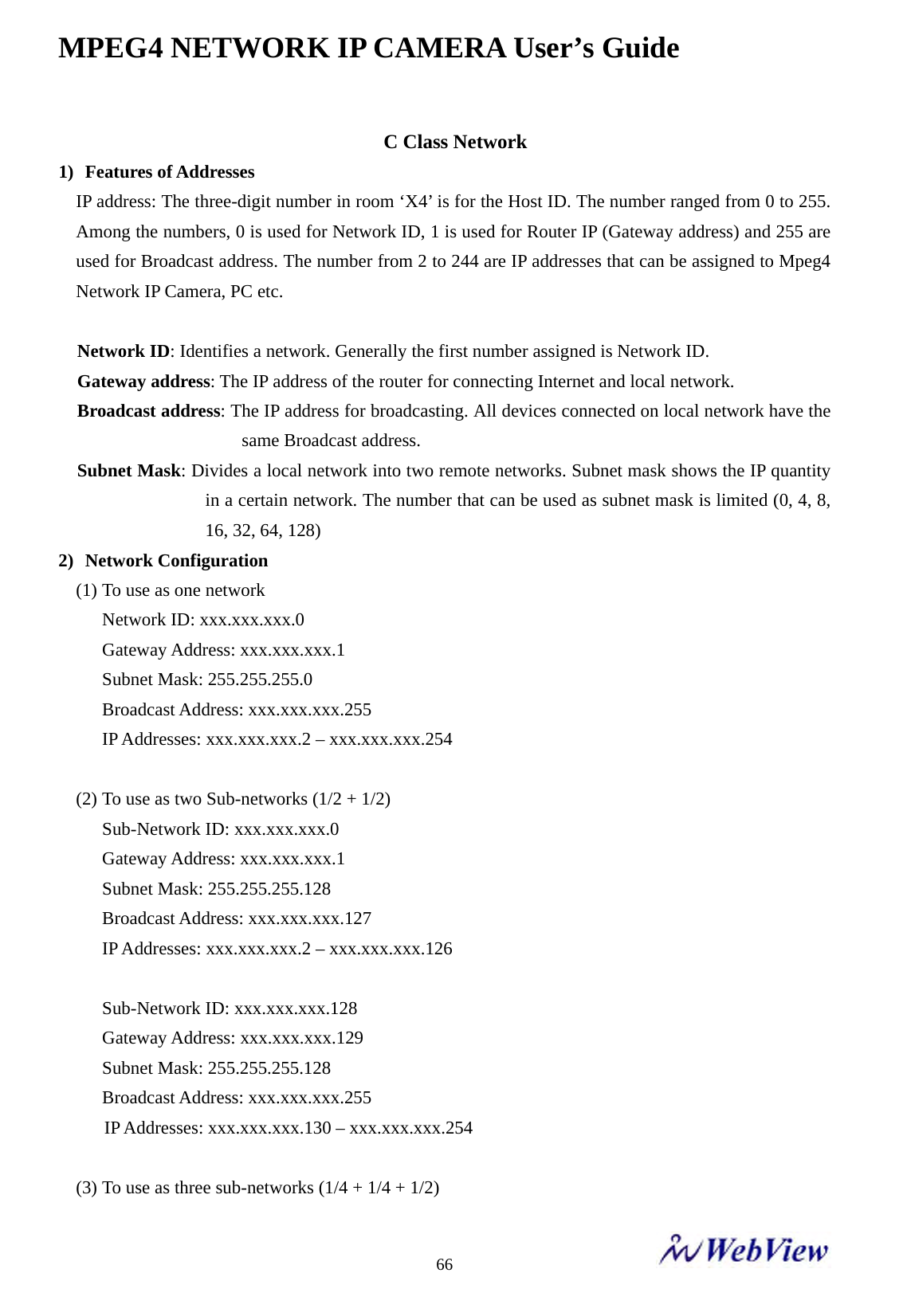
MPEG4 NETWORK IP CAMERA User’s Guide    66C Class Network 1)  Features of Addresses IP address: The three-digit number in room ‘X4’ is for the Host ID. The number ranged from 0 to 255. Among the numbers, 0 is used for Network ID, 1 is used for Router IP (Gateway address) and 255 are used for Broadcast address. The number from 2 to 244 are IP addresses that can be assigned to Mpeg4 Network IP Camera, PC etc.  Network ID: Identifies a network. Generally the first number assigned is Network ID. Gateway address: The IP address of the router for connecting Internet and local network.   Broadcast address: The IP address for broadcasting. All devices connected on local network have the same Broadcast address. Subnet Mask: Divides a local network into two remote networks. Subnet mask shows the IP quantity in a certain network. The number that can be used as subnet mask is limited (0, 4, 8, 16, 32, 64, 128) 2)  Network Configuration (1) To use as one network Network ID: xxx.xxx.xxx.0 Gateway Address: xxx.xxx.xxx.1 Subnet Mask: 255.255.255.0 Broadcast Address: xxx.xxx.xxx.255 IP Addresses: xxx.xxx.xxx.2 – xxx.xxx.xxx.254  (2) To use as two Sub-networks (1/2 + 1/2) Sub-Network ID: xxx.xxx.xxx.0 Gateway Address: xxx.xxx.xxx.1 Subnet Mask: 255.255.255.128 Broadcast Address: xxx.xxx.xxx.127 IP Addresses: xxx.xxx.xxx.2 – xxx.xxx.xxx.126  Sub-Network ID: xxx.xxx.xxx.128 Gateway Address: xxx.xxx.xxx.129 Subnet Mask: 255.255.255.128 Broadcast Address: xxx.xxx.xxx.255      IP Addresses: xxx.xxx.xxx.130 – xxx.xxx.xxx.254  (3) To use as three sub-networks (1/4 + 1/4 + 1/2)
MPEG4 NETWORK IP CAMERA User’s Guide    67Sub-Network ID: xxx.xxx.xxx.0 Gateway Address: xxx.xxx.xxx.1 Subnet Mask: 255.255.255.192 Broadcast Address: xxx.xxx.xxx.63 IP Addresses: xxx.xxx.xxx.2 – xxx.xxx.xxx.62  Sub-Network ID: xxx.xxx.xxx.64 Gateway Address: xxx.xxx.xxx.65 Subnet Mask: 255.255.255.192 Broadcast Address: xxx.xxx.xxx.127 IP Addresses: xxx.xxx.xxx.66 – xxx.xxx.xxx.126  Sub-Network ID: xxx.xxx.xxx.128 Gateway Address: xxx.xxx.xxx.129 Subnet Mask: 255.255.255.128 Broadcast Address: xxx.xxx.xxx.225 IP Addresses: xxx.xxx.xxx.130 – xxx.xxx.xxx.256  (4) To use as four sub-networks (1/4 + 1/4 + 1/4 + 1/4) Sub-Network ID: xxx.xxx.xxx.0 Gateway Address: xxx.xxx.xxx.1 Subnet Mask: 255.255.255.192 Broadcast Address: xxx.xxx.xxx.63 IP Addresses: xxx.xxx.xxx.2 – xxx.xxx.xxx.62  Sub-Network ID: xxx.xxx.xxx.64 Gateway Address: xxx.xxx.xxx.65 Subnet Mask: 255.255.255.192 Broadcast Address: xxx.xxx.xxx.127 IP Addresses: xxx.xxx.xxx.66 – xxx.xxx.xxx.126  Sub-Network ID: xxx.xxx.xxx.128 Gateway Address: xxx.xxx.xxx.129 Subnet Mask: 255.255.255.192 Broadcast Address: xxx.xxx.xxx.191 IP Addresses: xxx.xxx.xxx.130 – xxx.xxx.xxx.190
MPEG4 NETWORK IP CAMERA User’s Guide    68Sub-Network ID: xxx.xxx.xxx.192 Gateway Address: xxx.xxx.xxx.193 Subnet Mask: 255.255.255.192 Broadcast Address: xxx.xxx.xxx.255 IP Addresses: xxx.xxx.xxx.194 – xxx.xxx.xxx.254
MPEG4 NETWORK IP CAMERA User’s Guide    69 E. Updating Firmware                 Identify the version of Firmware You can identify the version of Mpeg4 Network IP Camera’s Firmware on System Configuration Page.   (You may check the version of your Mpeg4 Network IP Camera firmware first and then try to update)   To check the present version of Firmware, follow the below step. ① Connect to your Mpeg4 Network IP Camera’s homepage.   ② Click “Administrator Tools”.   ③ Move to System Configuration Page and then you can check the version of Firmware.    Download New Firmware You can download the latest Firmware software through the Internet at the WEBVIEW ACTIVE NETWORKING support website located at www.WebView-network.com.  Install New Firmware The Mpeg4 Network IP Camera can be upgraded via the LAN or remotely over the Internet. Follow these steps for loading the new firmware:   A. Confirm that the Mpeg4 Network IP Camera is connected to your PC. (As long as you can access your Mpeg4 Network IP Camera Homepage, you can process upgrading)  Caution This process to update the current firmware is already installed into your Network IP Camera  If you are to begin the process, follow the instruction as manual. And during the process, do not give physical shock nor disconnect network and power. Otherwise, your Network IP Camera can be damaged seriously, which may result inappropriate operation or operation failure.  If you failed to update Firmware or Network IP Camera does not operate properly after updating process, please contact your dealer nearby in your area.
MPEG4 NETWORK IP CAMERA User’s Guide    70B. Execute the newly updated firmware and select the firmware file via ‘Firmware Open’ button  C. Enter Camera’s IP address, Upgrade port number, Admin ID and Password configured on the Network Configuration page.  And then press “start upgrade” button.     You may see the upgrading status. Upgrading levels are divided into 4 steps from Transferring Firmware to Verifying    flash memory. (Each step is indicated on    progress bar)    D. When completed upgrading, a message appears indicating the upgrade has been completed.   Click the “OK” button.
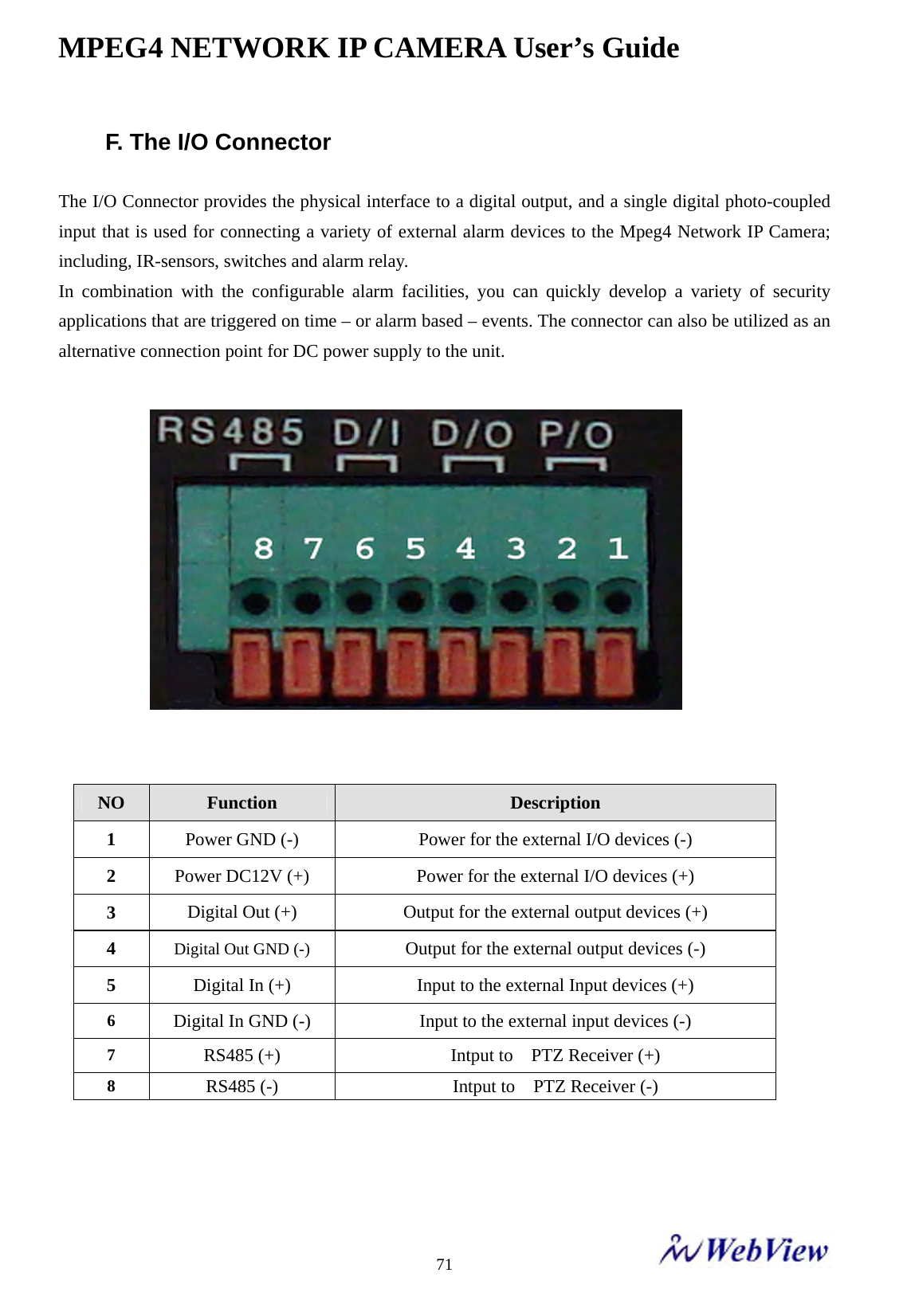
MPEG4 NETWORK IP CAMERA User’s Guide    71F. The I/O Connector  The I/O Connector provides the physical interface to a digital output, and a single digital photo-coupled input that is used for connecting a variety of external alarm devices to the Mpeg4 Network IP Camera; including, IR-sensors, switches and alarm relay. In combination with the configurable alarm facilities, you can quickly develop a variety of security applications that are triggered on time – or alarm based – events. The connector can also be utilized as an alternative connection point for DC power supply to the unit.     NO  Function  Description 1  Power GND (-)  Power for the external I/O devices (-) 2  Power DC12V (+)  Power for the external I/O devices (+) 3  Digital Out (+)  Output for the external output devices (+) 4  Digital Out GND (-) Output for the external output devices (-) 5  Digital In (+)  Input to the external Input devices (+) 6  Digital In GND (-) Input to the external input devices (-) 7  RS485 (+) Intput to  PTZ Receiver (+) 8  RS485 (-) Intput to  PTZ Receiver (-)
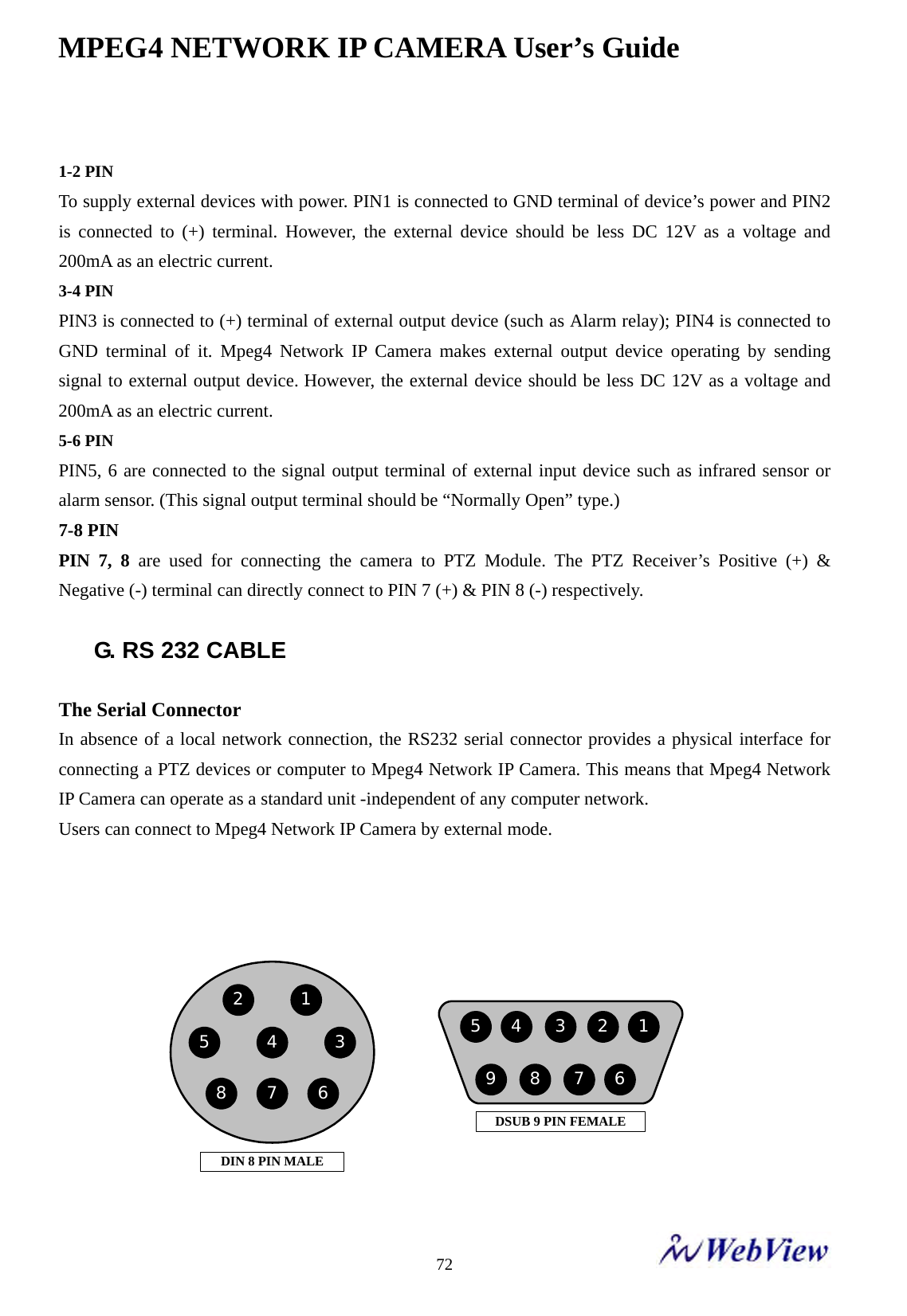
MPEG4 NETWORK IP CAMERA User’s Guide    72 1-2 PIN To supply external devices with power. PIN1 is connected to GND terminal of device’s power and PIN2 is connected to (+) terminal. However, the external device should be less DC 12V as a voltage and 200mA as an electric current. 3-4 PIN PIN3 is connected to (+) terminal of external output device (such as Alarm relay); PIN4 is connected to GND terminal of it. Mpeg4 Network IP Camera makes external output device operating by sending signal to external output device. However, the external device should be less DC 12V as a voltage and 200mA as an electric current. 5-6 PIN PIN5, 6 are connected to the signal output terminal of external input device such as infrared sensor or alarm sensor. (This signal output terminal should be “Normally Open” type.)   7-8 PIN   PIN 7, 8 are used for connecting the camera to PTZ Module. The PTZ Receiver’s Positive (+) & Negative (-) terminal can directly connect to PIN 7 (+) & PIN 8 (-) respectively.    G. RS 232 CABLE  The Serial Connector In absence of a local network connection, the RS232 serial connector provides a physical interface for connecting a PTZ devices or computer to Mpeg4 Network IP Camera. This means that Mpeg4 Network IP Camera can operate as a standard unit -independent of any computer network.   Users can connect to Mpeg4 Network IP Camera by external mode.       123456789DSUB 9 PIN FEMALE2 1543678DIN 8 PIN MALE
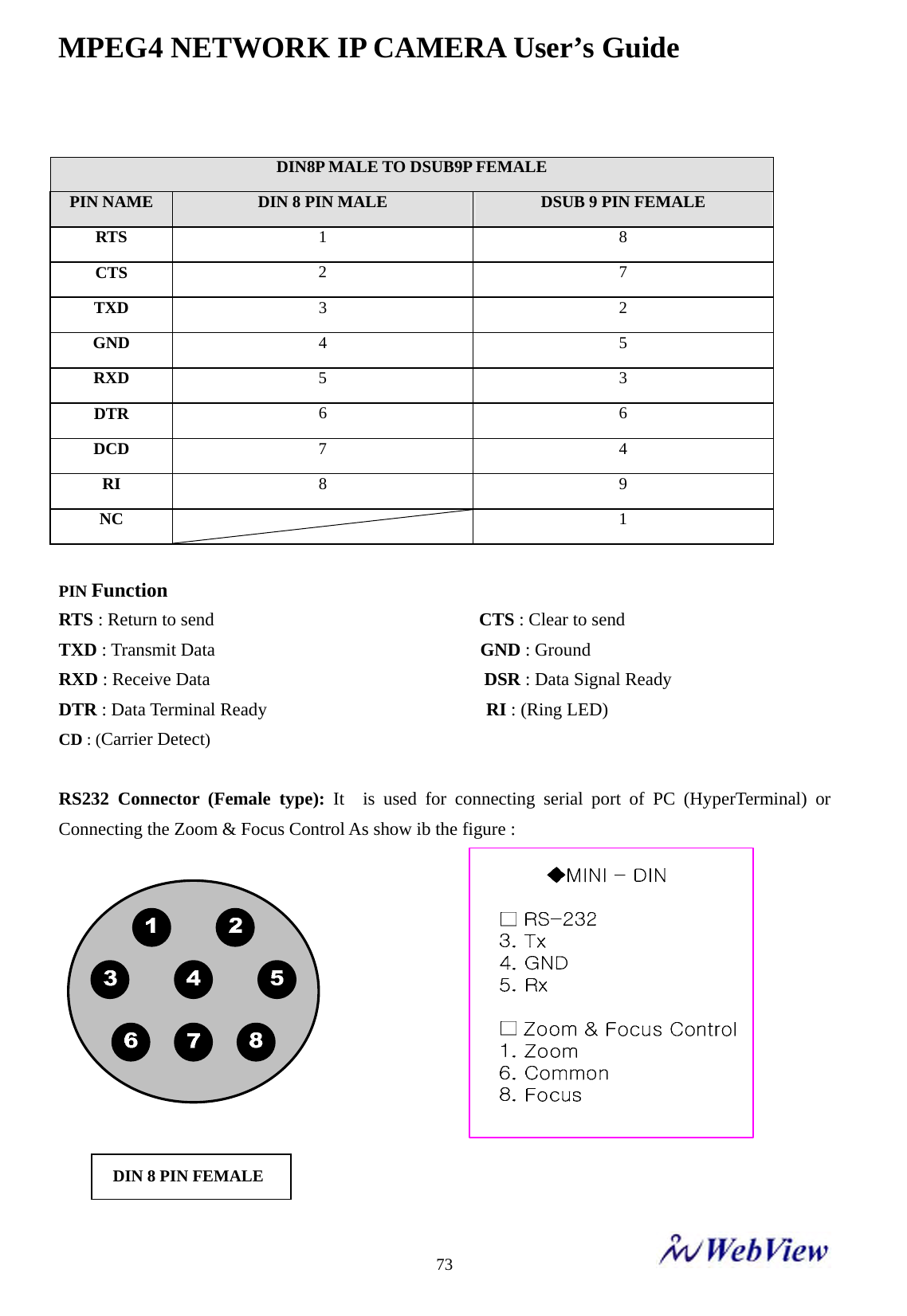
MPEG4 NETWORK IP CAMERA User’s Guide    73 DIN8P MALE TO DSUB9P FEMALE PIN NAME  DIN 8 PIN MALE  DSUB 9 PIN FEMALE RTS  1 8 CTS  2 7 TXD  3 2 GND  4 5 RXD  5 3 DTR  6 6 DCD  7 4 RI  8 9 NC   1  PIN Function RTS : Return to send                             CTS : Clear to send TXD : Transmit Data                             GND : Ground   RXD : Receive Data                              DSR : Data Signal Ready DTR : Data Terminal Ready                        RI : (Ring LED) CD : (Carrier Detect)   RS232 Connector (Female type): It  is used for connecting serial port of PC (HyperTerminal) or Connecting the Zoom & Focus Control As show ib the figure :                        DIN 8 PIN FEMALE
MPEG4 NETWORK IP CAMERA User’s Guide    74 H. Dynamic Domain Name Server (DDNS)  Your internet Service Provider (ISP) provides you at least one IP address which you use to connect to the Internet. The address you get may be static, meaning it never changes, or dynamic, meaning it’s likely to change periodically. Just how often it changes, depends on your ISP. A dynamic IP address complicates remote access since you may not know what your current WAN IP address is when you want to access your network over the Internet. The solution to the dynamic IP address problem comes in the form of a dynamic DNS service.  The Internet uses DNS servers to lookup domain names and translates them into IP addresses. Domain names, such as www.intellinte-network.com , are just easy to remember aliases for IP addresses. A dynamic DNS service is unique because it provides a means of updating your IP address so that your listing will remain current when your IP address changes. There are several excellent DDNS services available on the Internet and best of all they’re free to use. Two such several excellent DDNS services are www.ods.org (ODS) and www.DynDNS.org. You’ll need to register with the service and set up the domain name of your choice to begin using it. Please refer the the home page or the service for detailed instructions.  A DDNS service works by uploading your WAN IP address to its servers periodically, your gateway-router may support DDNS directly, in which case you can enter your DDNS account information into your router and it will update the DDNS servers automatically when your IP address changes. Please consult your router’s documentation for more information. If your router does not support DDNS, you can run a small client utility on any PC on your network which will perform the updating. The client utility is usually provided for free by the service. Check the service’s web page for further information, terms and conditions.
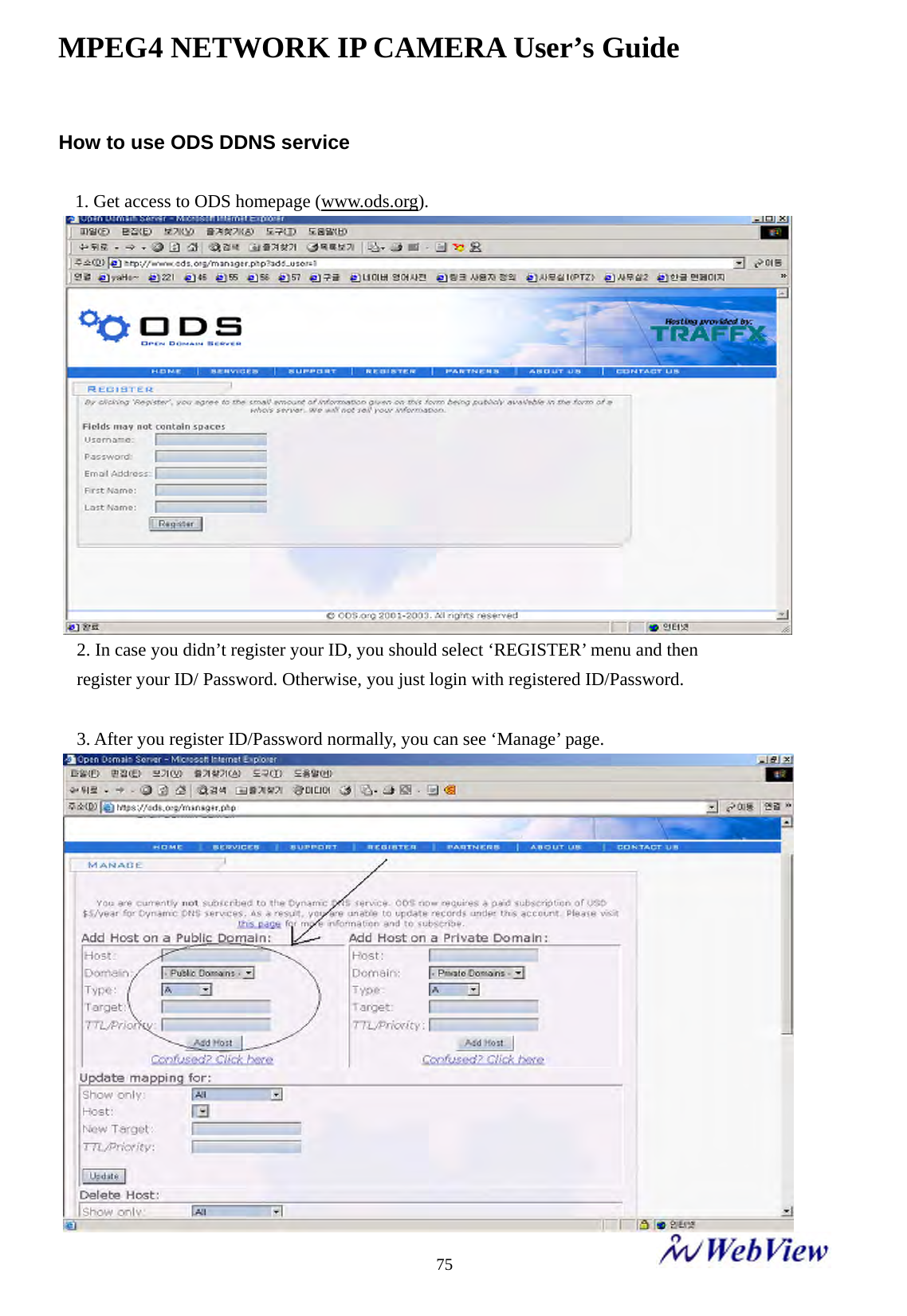
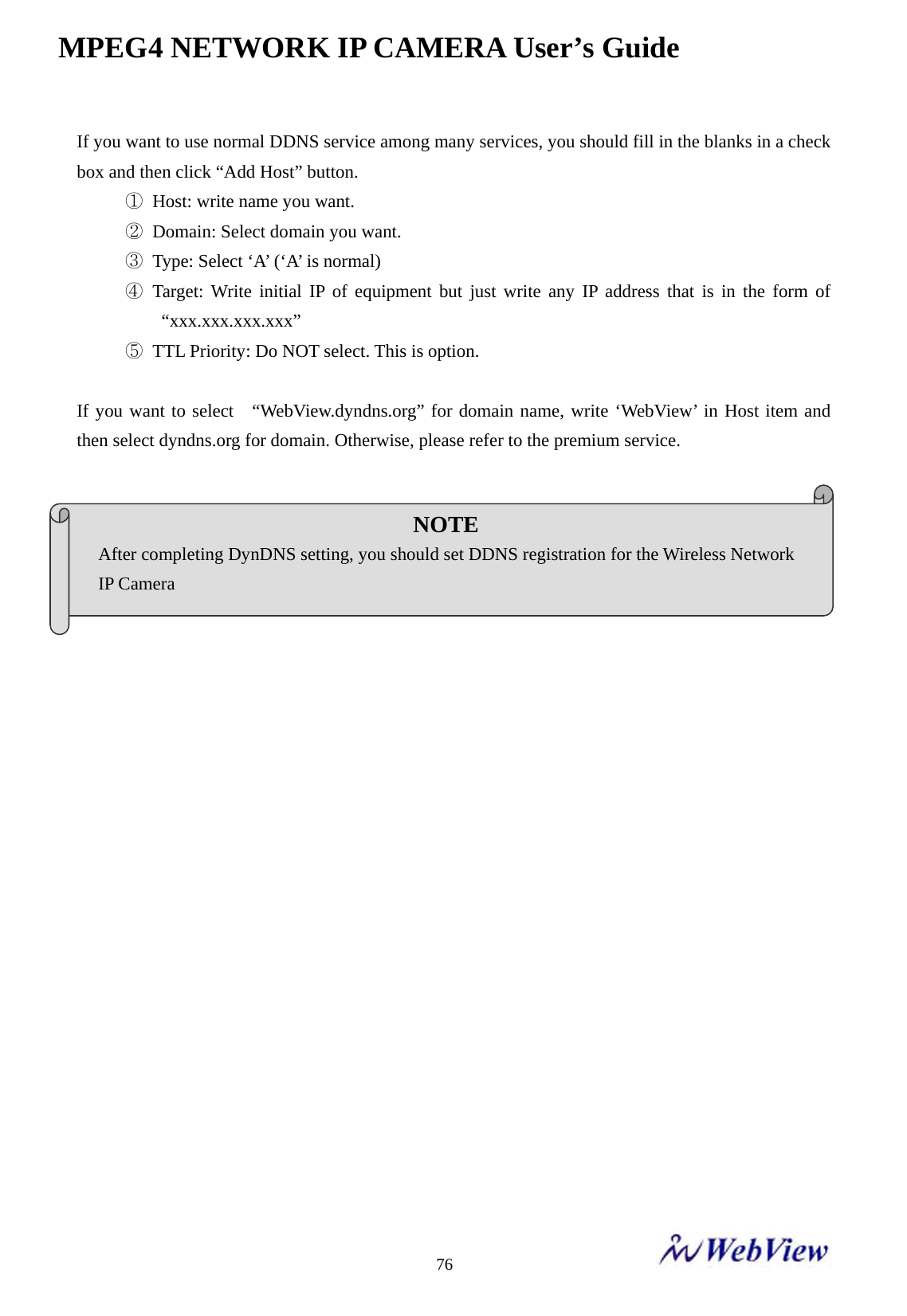
MPEG4 NETWORK IP CAMERA User’s Guide    75How to use ODS DDNS service  1. Get access to ODS homepage (www.ods.org). 2. In case you didn’t register your ID, you should select ‘REGISTER’ menu and then                         register your ID/ Password. Otherwise, you just login with registered ID/Password.  3. After you register ID/Password normally, you can see ‘Manage’ page.
MPEG4 NETWORK IP CAMERA User’s Guide    76If you want to use normal DDNS service among many services, you should fill in the blanks in a check box and then click “Add Host” button. ①  Host: write name you want. ②  Domain: Select domain you want. ③  Type: Select ‘A’ (‘A’ is normal) ④ Target: Write initial IP of equipment but just write any IP address that is in the form of “xxx.xxx.xxx.xxx” ⑤  TTL Priority: Do NOT select. This is option.  If you want to select  “WebView.dyndns.org” for domain name, write ‘WebView’ in Host item and then select dyndns.org for domain. Otherwise, please refer to the premium service.                     NOTE After completing DynDNS setting, you should set DDNS registration for the Wireless Network   IP Camera
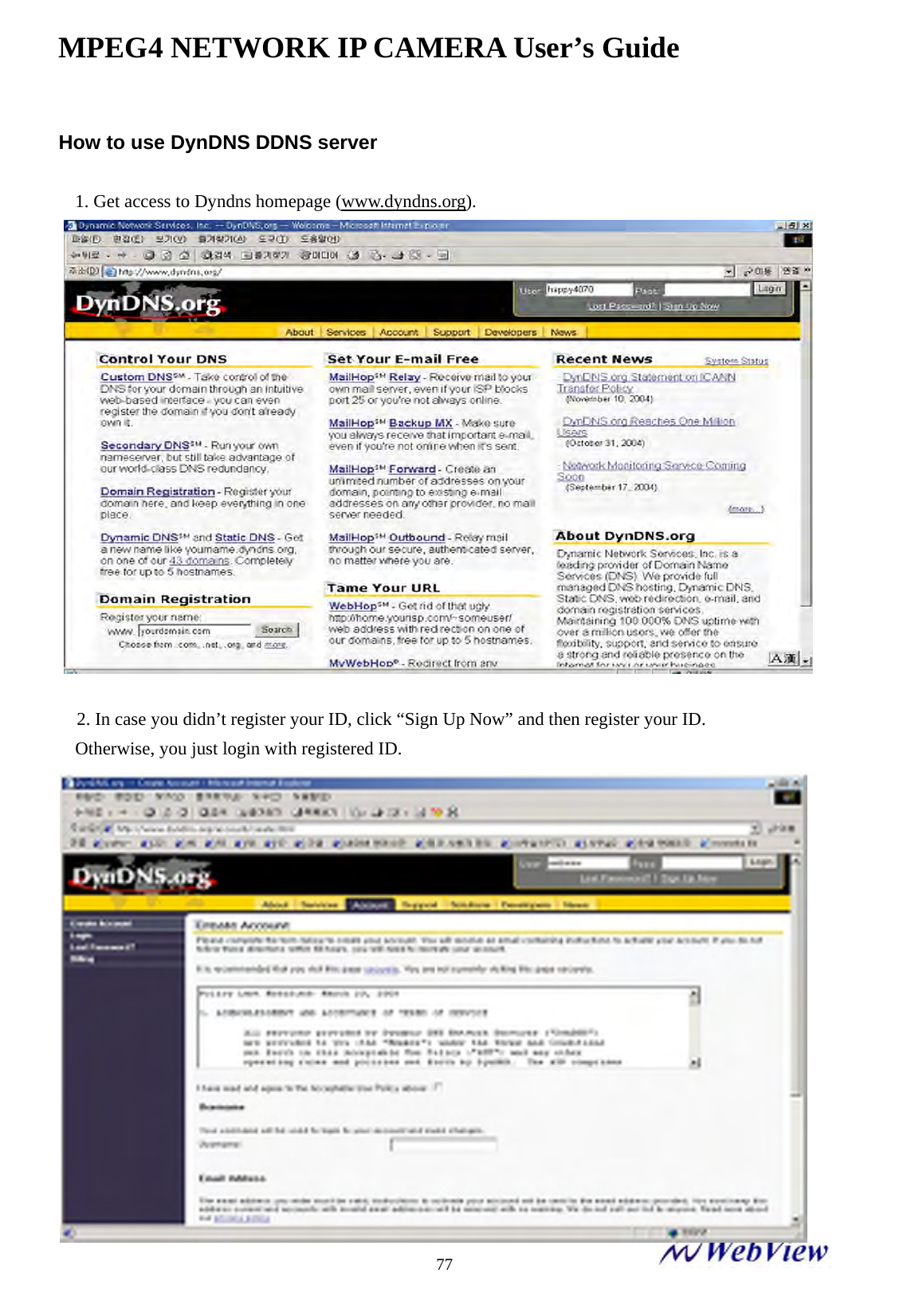
MPEG4 NETWORK IP CAMERA User’s Guide    77How to use DynDNS DDNS server  1. Get access to Dyndns homepage (www.dyndns.org).  2. In case you didn’t register your ID, click “Sign Up Now” and then register your ID. Otherwise, you just login with registered ID.
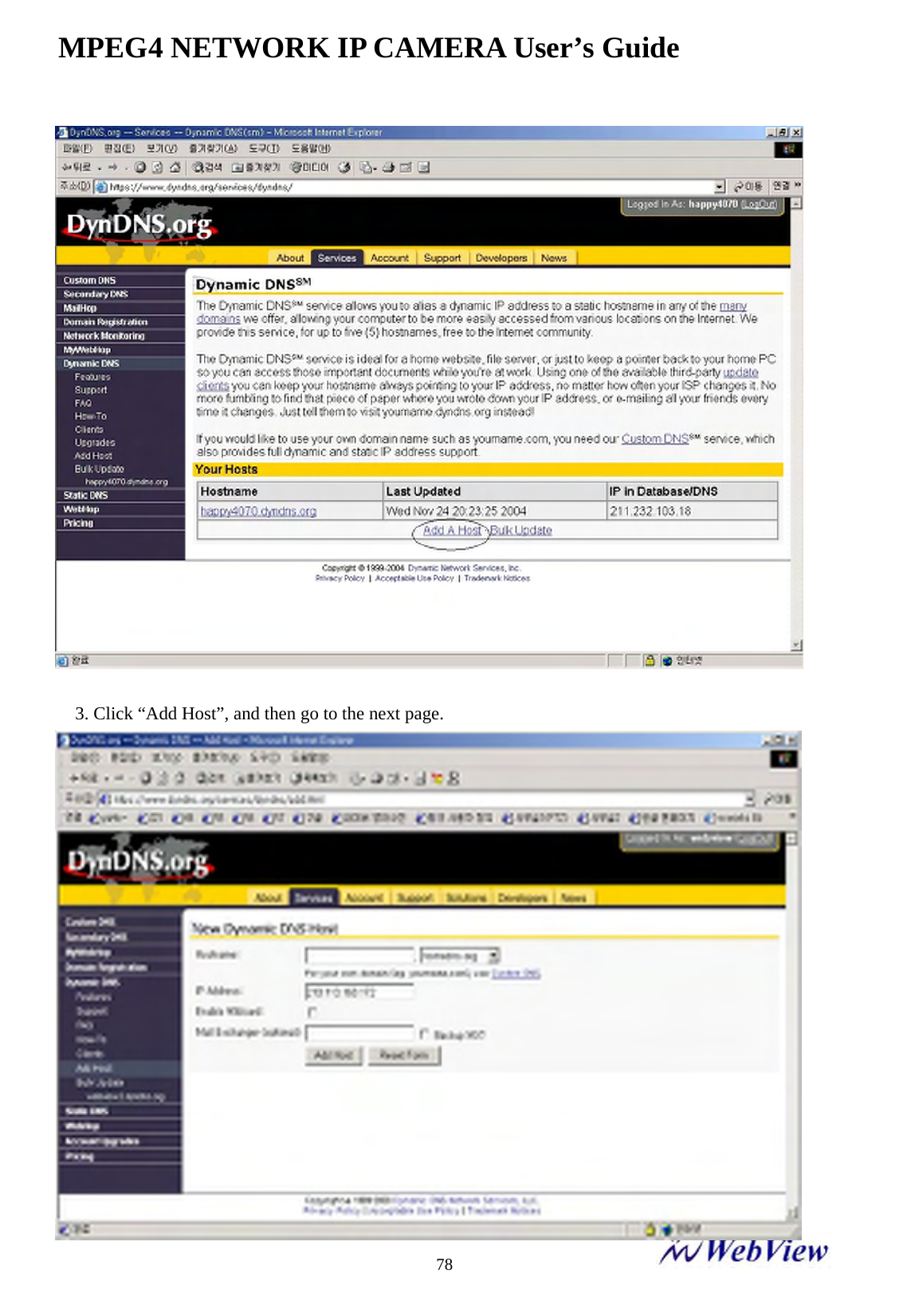
MPEG4 NETWORK IP CAMERA User’s Guide    78 3. Click “Add Host”, and then go to the next page.
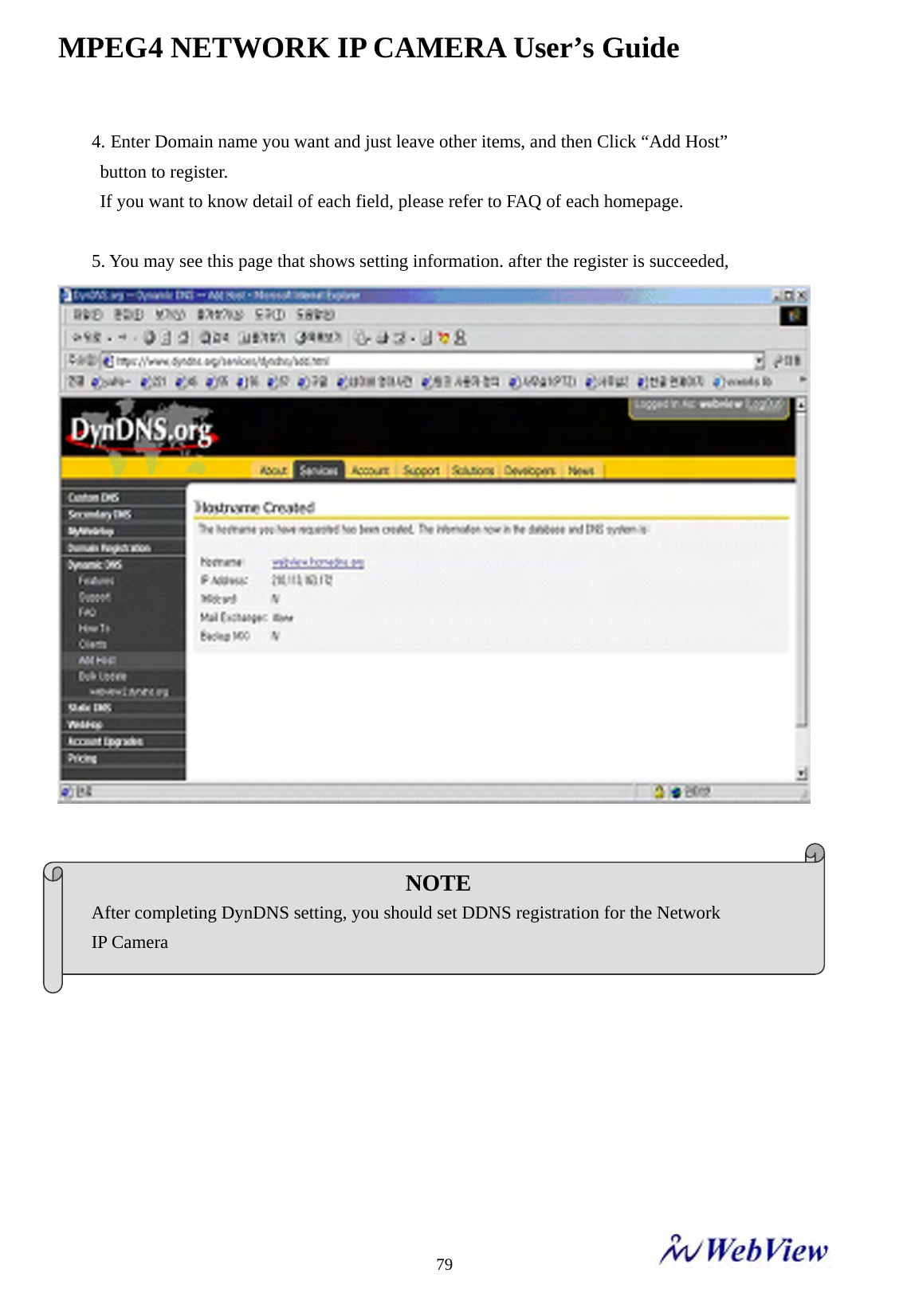
MPEG4 NETWORK IP CAMERA User’s Guide    794. Enter Domain name you want and just leave other items, and then Click “Add Host”   button to register. If you want to know detail of each field, please refer to FAQ of each homepage.  5. You may see this page that shows setting information. after the register is succeeded,     NOTE After completing DynDNS setting, you should set DDNS registration for the Network   IP Camera
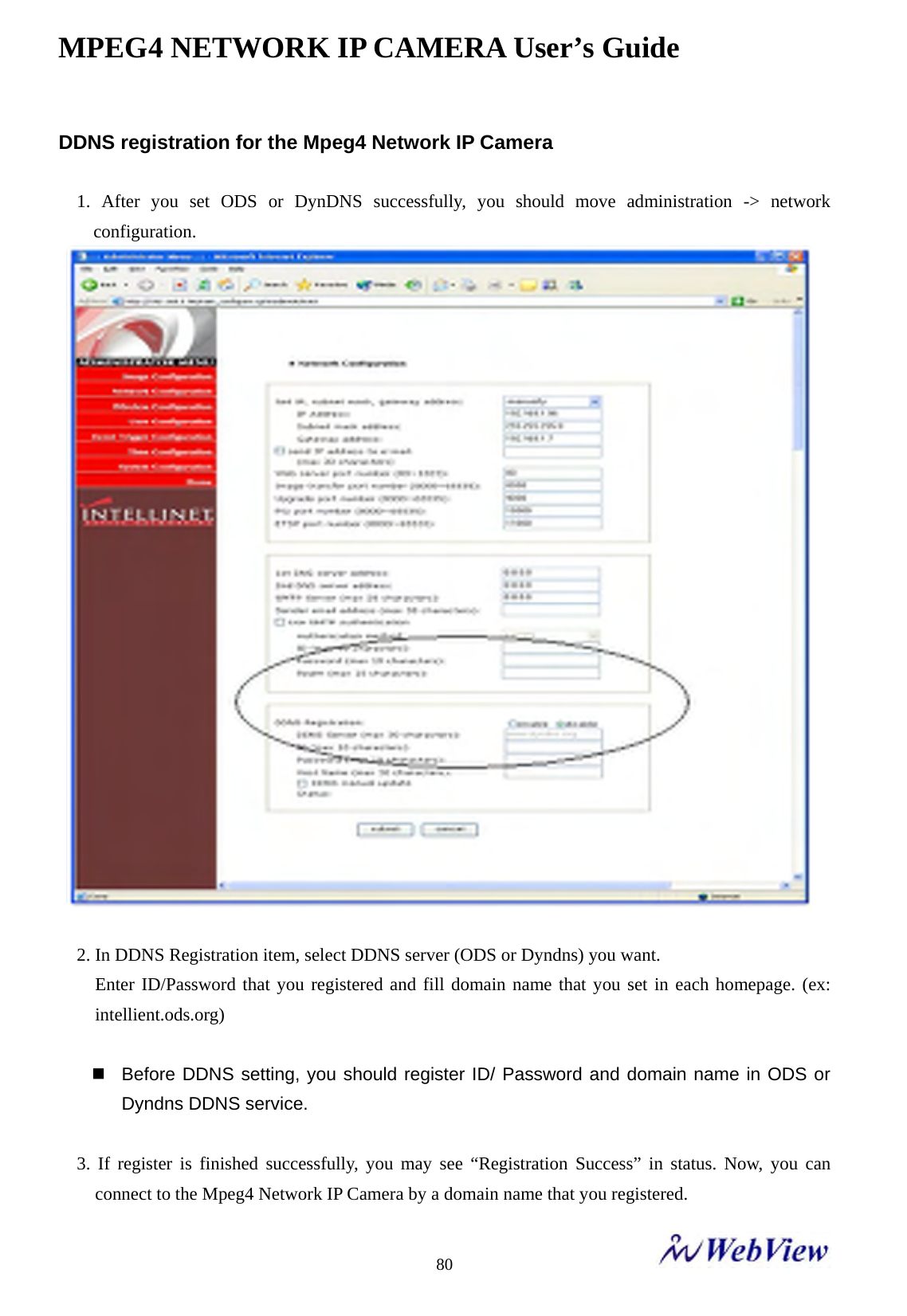
MPEG4 NETWORK IP CAMERA User’s Guide    80DDNS registration for the Mpeg4 Network IP Camera  1. After you set ODS or DynDNS successfully, you should move administration -> network configuration.   2. In DDNS Registration item, select DDNS server (ODS or Dyndns) you want.   Enter ID/Password that you registered and fill domain name that you set in each homepage. (ex: intellient.ods.org)    Before DDNS setting, you should register ID/ Password and domain name in ODS or Dyndns DDNS service.  3. If register is finished successfully, you may see “Registration Success” in status. Now, you can connect to the Mpeg4 Network IP Camera by a domain name that you registered.
MPEG4 NETWORK IP CAMERA User’s Guide    81I. High Speed Solutions  This information is to help you access high-speed Internet services such as xDSL or a cable modem connection. However, most high-speed Internet Services provide you with some external IP addresses, there are several practical issues that should be considered.  AVAILABLE IP ADDRESS  ISP (Internet Service Provider) will provide you with several external static IP addresses ideally –in which case you can assign any one of these to your Mpeg4 Network IP Camera to make it fully accessible over the Internet. However, if your service provider supplies you with only one IP number – which is often the case – this IP number is normally assigned to your PC-leaving no connection available for your Mpeg4 Network IP Camera.    What can you do if your ISP is unable to provide you with an IP number?   There are a number of other options what you may like to consider: including:  NAT BOX  Short for Network Address Translation, NAT (Network Address Translation) is Internet standard that allows a local-area network (LAN) to use one set of IP addresses for internal traffic and a second set of addresses for external traffic. A NAT box located where your LAN meets the Internet will handle all of the necessary IP address translations and provides:    z Internal IP addresses that are unique to your network – with no possibility of conflict with IP     Addresses used by other companies and organizations. z The possibility of combining multiple ISDN connections into a single Internet connection. z An effective firewall for hiding internal IP addresses  NAT Feature in Windows 2000  Utilize the NAT feature in Windows 2000 to allow multiple Ethernet cards in your PC, and you can then use one of port for the Internet and the other for your internal network. With this solution, you can let your Mpeg4 Network IP Camera upload image streams to an external Web Server that is maintained and located with your ISP.
MPEG4 NETWORK IP CAMERA User’s Guide    82ROUTERS AND FIREWALLS  Another solution is to use one of several small routers/firewalls currently available on the market. These provide the necessary NAT functionality and allow complete independence for your PC, which can be switched off or rebooted without affecting the image transmission from your Mpeg4 Network IP Camera.   WINGATE SERVER SOFTWARE:  Running on a single Windows 95/98/2000 or NT computer, this software allows multiple users simultaneous access to the Internet through a LAN or higher-speed line, such as xDSL or cable modem connection; and effectively shares a single Internet connection with almost any type of client computer running TCP/IP.  For more advanced users, the WinGate 3.0 Standard and Pro versions also allow the administrator to change the IP bindings so that external requests may be routed specifically to your Mpeg4 Network IP Camera – running behind the WinGate software.                    NOTE NAT, or Network Address Translator, Virtual LAN) A hardware device currently being developed and used to extend the Internet addresses already in use. NAT has been suggested as an alternative to adopting IPv6 (IPng). It allows duplicate IP addresses to be used within a corporation and unique addresses outside. It is defined in RFC 1631.
MPEG4 NETWORK IP CAMERA User’s Guide    83J. Reinstating the Factory Default Settings  This information explains instructions in detail on how to set the default settings in the Mpeg4 Network IP Camera. In certain circumstances it may become necessary to restart or reinstate the Factory Default settings for your Mpeg4 Network IP Camera: This is performed by pressing the Reset Button, or using Hyper Terminal Setting. Follow these instructions to reinstate the product factory default settings  By pressing Reset button.  ① Using a paper clip or any sharp pin, press the reset button on the backside of Mpeg4 Network IP Camera. ② Switch off the Mpeg4 Network IP Camera by disconnecting the power cable. ③ Press and keep the Reset Button pressed, and then reconnect the power supply cable. ④ Keep the Reset Button pressed until the Operating Status LED (Green) blinks three times. (Note that this may take up to 10~15 seconds), then release the button. When the Operating Status LED (Green) blinks three times.  By Using Hyper Terminal    ① Execute “Hyper Terminal” as referred to Chapter “4.3.1 Configuring Hyper Terminal”   ② Supply the power to the Mpeg4 Network IP Camera. ③ After a while, the count down starts with the message “Press Any key tostop auto-boot within 3 seconds...”At this time, press any key. Then,[Mpeg4 Network IP Camera Boot] prompt shows like the below image.
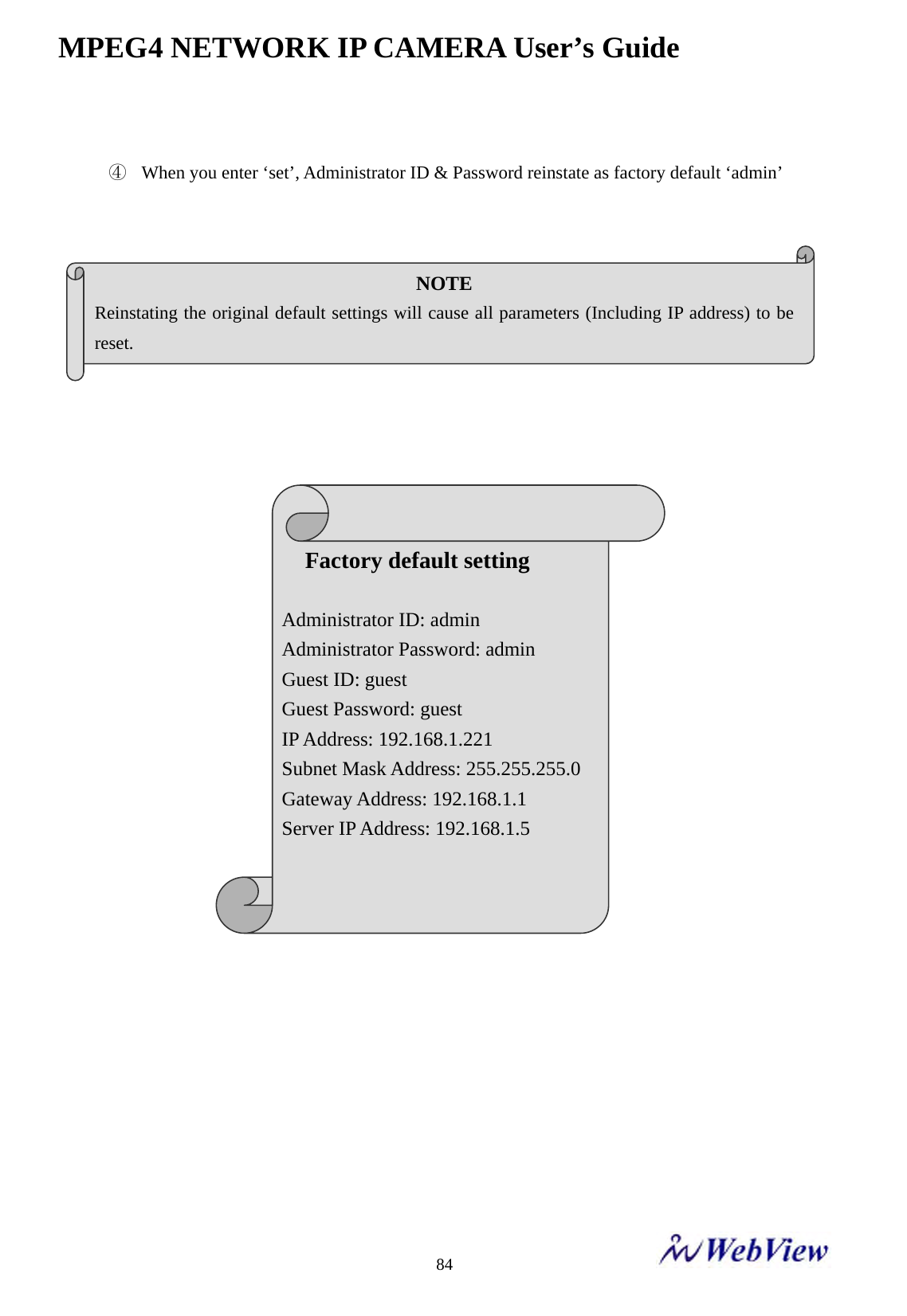
MPEG4 NETWORK IP CAMERA User’s Guide    84 ④ When you enter ‘set’, Administrator ID & Password reinstate as factory default ‘admin’                                   NOTE Reinstating the original default settings will cause all parameters (Including IP address) to be reset.  Factory default setting  Administrator ID: admin Administrator Password: admin Guest ID: guest Guest Password: guest IP Address: 192.168.1.221 Subnet Mask Address: 255.255.255.0 Gateway Address: 192.168.1.1 Server IP Address: 192.168.1.5
MPEG4 NETWORK IP CAMERA User’s Guide    85K. Glossary of Terms  ActiveX – A control (or set of rules) used by a browser. ActiveX controls are often downloaded and installed automatically as required.  ARP – Address Resolution Protocol. A method for finding a host's Ethernet address from its Internet address. The sender broadcasts an ARP packet containing the Internet address of another host and waits for it (or some other host) to send back its Ethernet address. Each host maintains a cache of address translations to reduce delay and loading. ARP allows the Internet address to be independent of the Ethernet address but it only works if all hosts support it. The ARP command can be used to set the IP – addresses for your product.  CGI – A standard for running external programs from a World-Wide Web HTTP server. CGI specifies how to pass arguments to the executing program as part of the HTTP request. It also defines a set of environment variables. Commonly, the program will generate some HTML which will be passed back to the browser but it can also request URL redirection. A set of rules (or a program) that allows a Web Server to communications with other programs.    DSL – Digital Subscriber Loop, A family of digital telecommunications protocols designed to allow high speed data communication over the existing copper telephone lines between end-users and telephone companies. DHCP - A protocol that provides a means to dynamically allocate IP addresses to computers on a local area network. The system administrator assigns a range of IP addresses to DHCP and each client computer on the LAN has its TCP/IP software configured to request an IP address from the DHCP server. The request and grant process uses a lease concept with a controllable time period. Ethernet –A widely used networking standard.  Firewall –A virtual barrier between a LAN (Local Area Network) and other networks, e.g. the Internet.  Frame Grabber Card – Plug-in hardware for “grabbing” images.  FTP - A client-server protocol that allows a user on one computer to transfer files to and from another computer over a TCP/IP network. Also the client program the user executes to transfer files. It is defined in STD 9, RFC 959.
MPEG4 NETWORK IP CAMERA User’s Guide    86HTML - A markup language used to structure text and multimedia documents and to set up hypertext links between documents, used extensively on the World Wide Web.  HTTP - A protocol used to request and transmit files, especially WebPages and WebPages components, over the Internet or other computer network. Intranet - A privately maintained computer network that can be accessed only by authorized persons, especially members or employees of the organization that owns it.  IP – Internet Protocol. The network layer for the TCP/IP protocol suite widely used on Ethernet networks, defined in STD 5, RFC 791. IP is a connectionless, best-effort packet switching protocol. It provides packet routing, fragmentation and re-assembly through the data link layer.  IP number (address) – A unique number used by a computer on the network to allow it to be identified and found.  JPEG – A standard image format, used widely for photographs. Also known as JPG.  LAN – Local Area Network. A data communications network which is geographically limited (typically to a 1 km radius) allowing easy interconnection of terminals, microprocessors and computers within adjacent buildings. Ethernet and FDDI are examples of standard LANs.  PING - A protocol that sends a message to another computer and waits for acknowledgment, often used to check if another computer on a network is reachable.  PPP – Point–to–Point Protocol. A method allowing one computer to connect to another, usually via a modem over a phone line.  Protocol - A set of formal rules describing how to transmit data, especially across a network. Low-level protocols define the electrical and physical standards to be observed, bit- and byte-ordering and the transmission and error detection and correction of the bit stream. High-level protocols deal with the data formatting, including the syntax of messages, the terminal to computer dialogue, character sets, sequencing of messages etc. SMTP – Simple Mail Transfer Protocol
MPEG4 NETWORK IP CAMERA User’s Guide    87TCP/IP - Transmission Control Protocol/Internet Protocol. The wide-area-networking protocol that makes the Internet work. TCP/IP is used on many networks, including the Internet. TCP keeps track of the individual packets of information and IP contains the rules for how the packets are actually sent and received. URL – Uniform Resource Locator. An “address” on the network.   WAN – Wide–Area–Network. A communications network that uses such devices as telephone lines, satellite dishes, or radio waves to span a larger geographic area than can be covered by a LAN.  Wizard – A program designed specifically to guide the user through a procedure. Typically used for installation and configuration. Install shield Wizard is required to download ActiveX manually.

Navigation menu