Novatron HD36WNTD MEDIA PLAYER User Manual NTD36HD English 0811

Novatron Co., Ltd MEDIA PLAYER NTD36HD English 0811

Contents

users manual 2

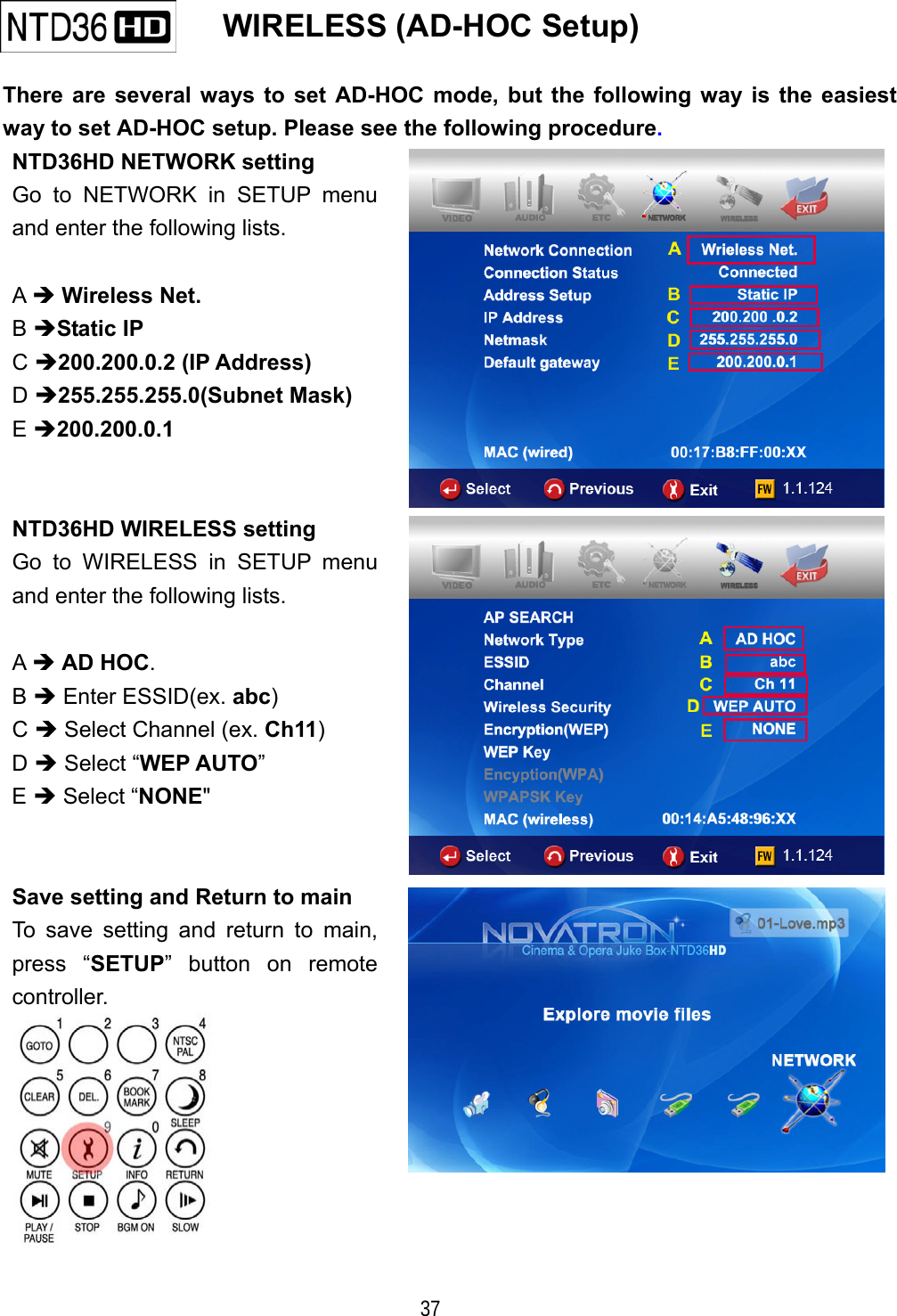
  37    WIRELESS (AD-HOC Setup)   There are several ways to set AD-HOC mode, but the following way is the easiest way to set AD-HOC setup. Please see the following procedure. NTD36HD NETWORK setting Go to NETWORK in SETUP menu and enter the following lists.  A  Wireless Net. B Static IP C 200.200.0.2 (IP Address) D 255.255.255.0(Subnet Mask)  E 200.200.0.1  NTD36HD WIRELESS setting Go to WIRELESS in SETUP menu and enter the following lists.  A  AD HOC. B  Enter ESSID(ex. abc) C  Select Channel (ex. Ch11) D  Select “WEP AUTO”  E  Select “NONE"  Save setting and Return to main To save setting and return to main, press “SETUP” button on remote controller.
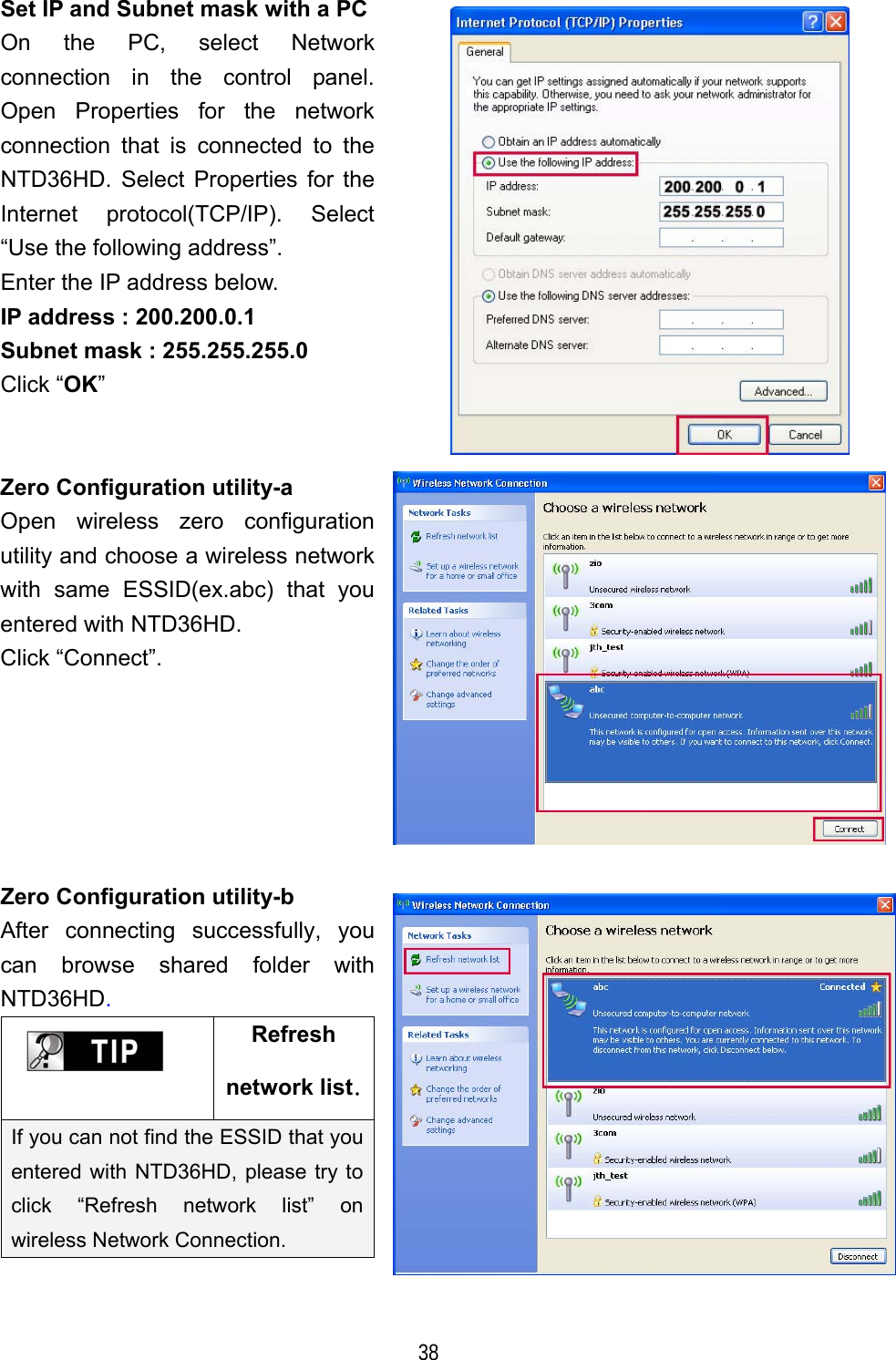
  38 Set IP and Subnet mask with a PCOn the PC, select Network connection in the control panel. Open Properties for the network connection that is connected to the NTD36HD. Select Properties for the Internet protocol(TCP/IP). Select “Use the following address”. Enter the IP address below. IP address : 200.200.0.1 Subnet mask : 255.255.255.0 Click “OK”  Zero Configuration utility-a Open wireless zero configuration utility and choose a wireless network with same ESSID(ex.abc) that you entered with NTD36HD. Click “Connect”.  Zero Configuration utility-b After connecting successfully, you can browse shared folder with NTD36HD.  Refresh network list.If you can not find the ESSID that you entered with NTD36HD, please try to click “Refresh network list” on wireless Network Connection.
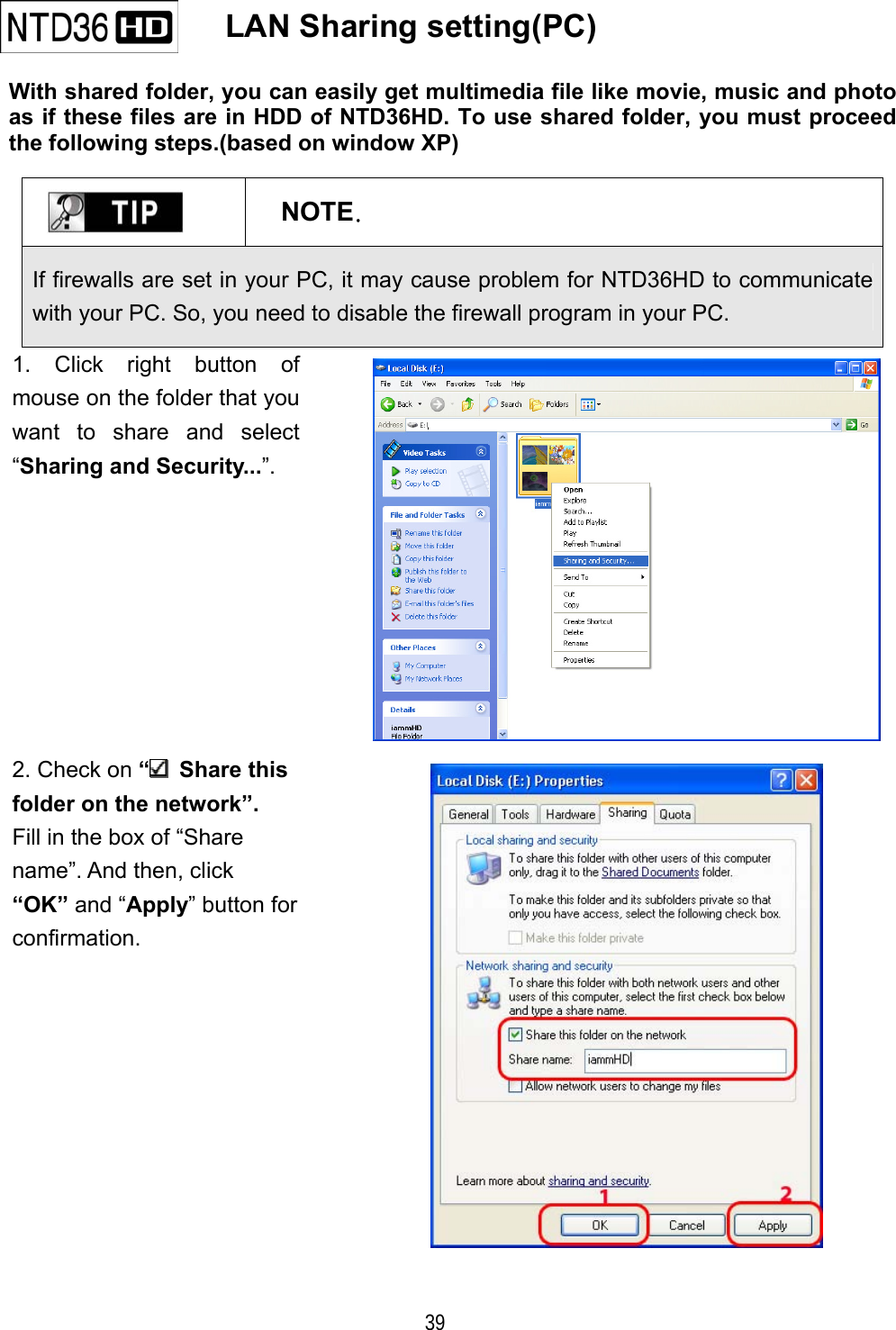
  39    LAN Sharing setting(PC)  With shared folder, you can easily get multimedia file like movie, music and photo as if these files are in HDD of NTD36HD. To use shared folder, you must proceed the following steps.(based on window XP)   NOTE. If firewalls are set in your PC, it may cause problem for NTD36HD to communicate with your PC. So, you need to disable the firewall program in your PC. 1. Click right button of mouse on the folder that you want to share and select “Sharing and Security...”.  2. Check on “ Share this folder on the network”. Fill in the box of “Share   name”. And then, click   “OK” and “Apply” button for confirmation.
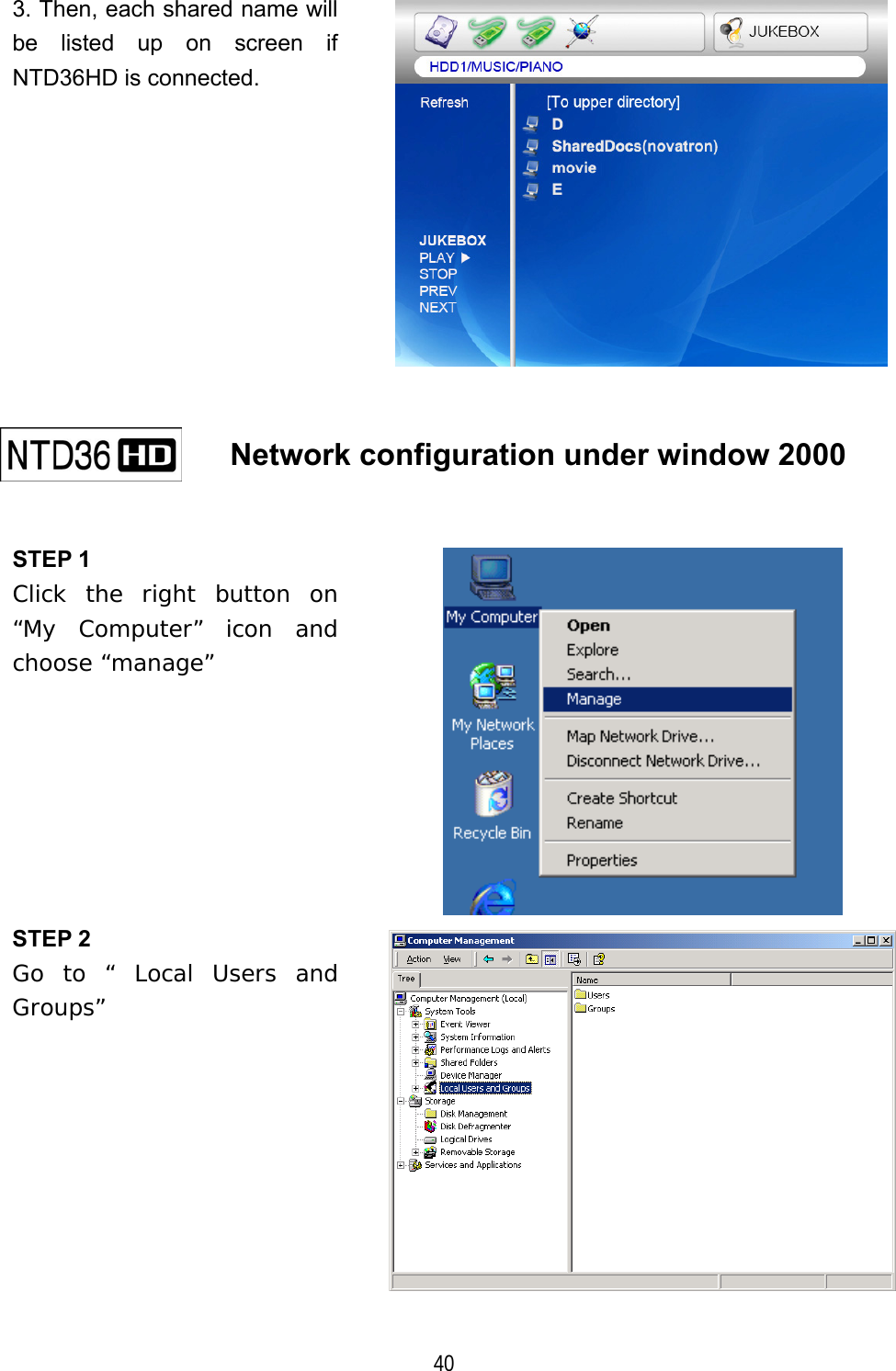
  40 3. Then, each shared name will be listed up on screen if NTD36HD is connected.      Network configuration under window 2000    STEP 1 Click the right button on “My Computer” icon and choose “manage”  STEP 2 Go to “ Local Users and Groups”
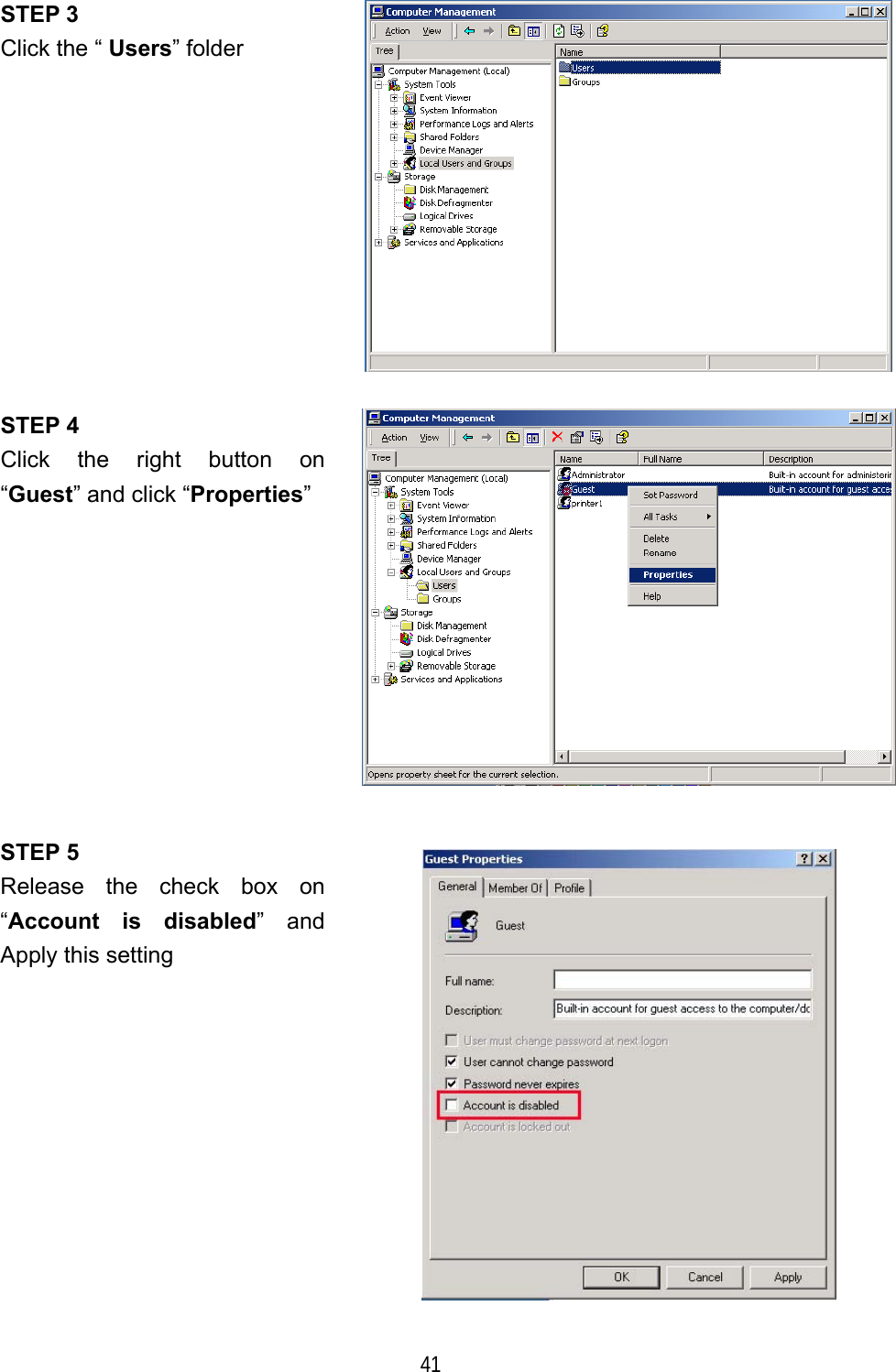
  41 STEP 3 Click the “ Users” folder  STEP 4 Click the right button on “Guest” and click “Properties”  STEP 5 Release the check box on “Account is disabled” and Apply this setting
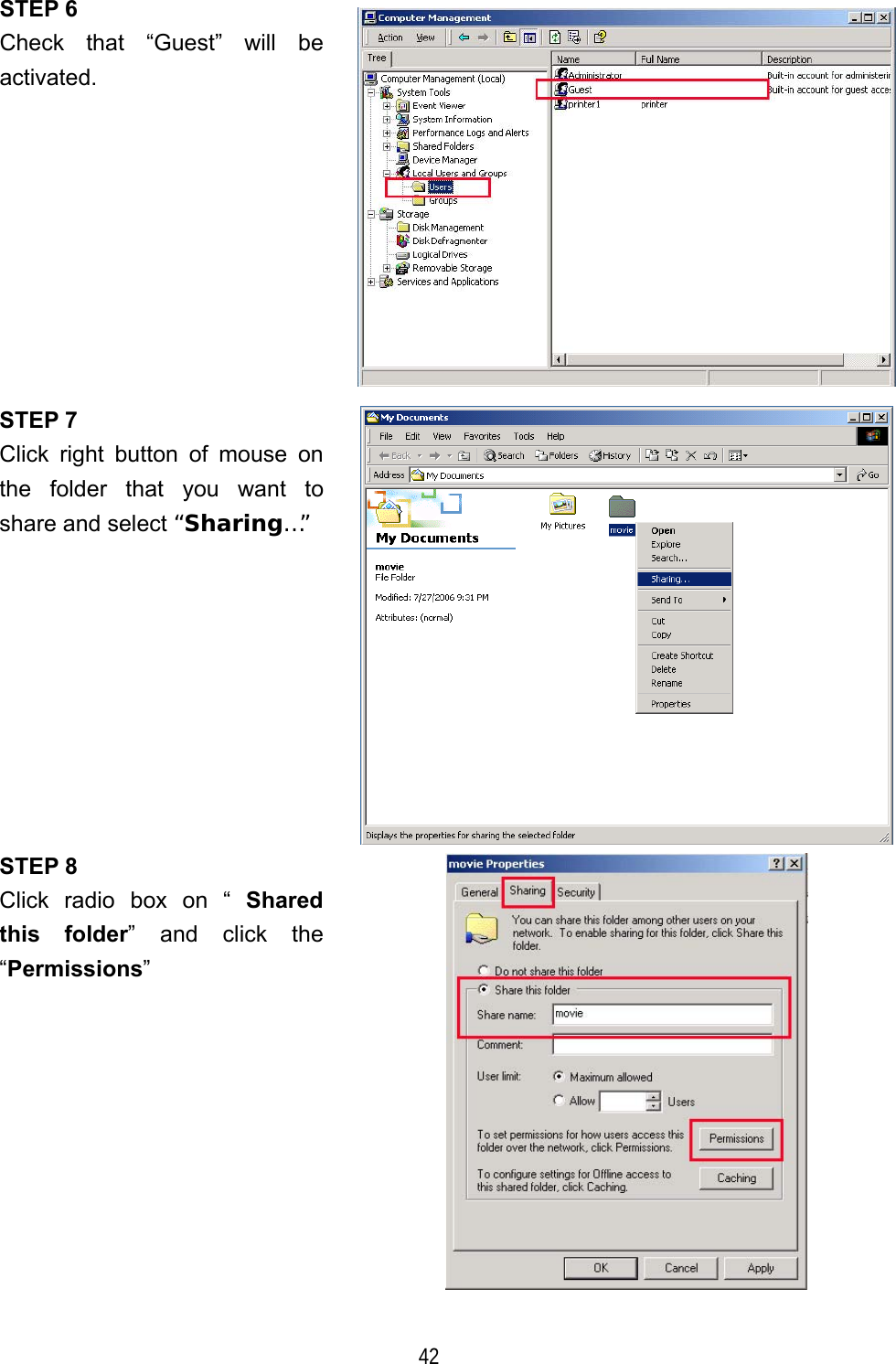
  42 STEP 6 Check that “Guest” will be activated.  STEP 7 Click right button of mouse on the folder that you want to share and select “Sharing…”  STEP 8 Click radio box on “ Shared this folder” and click the “Permissions”
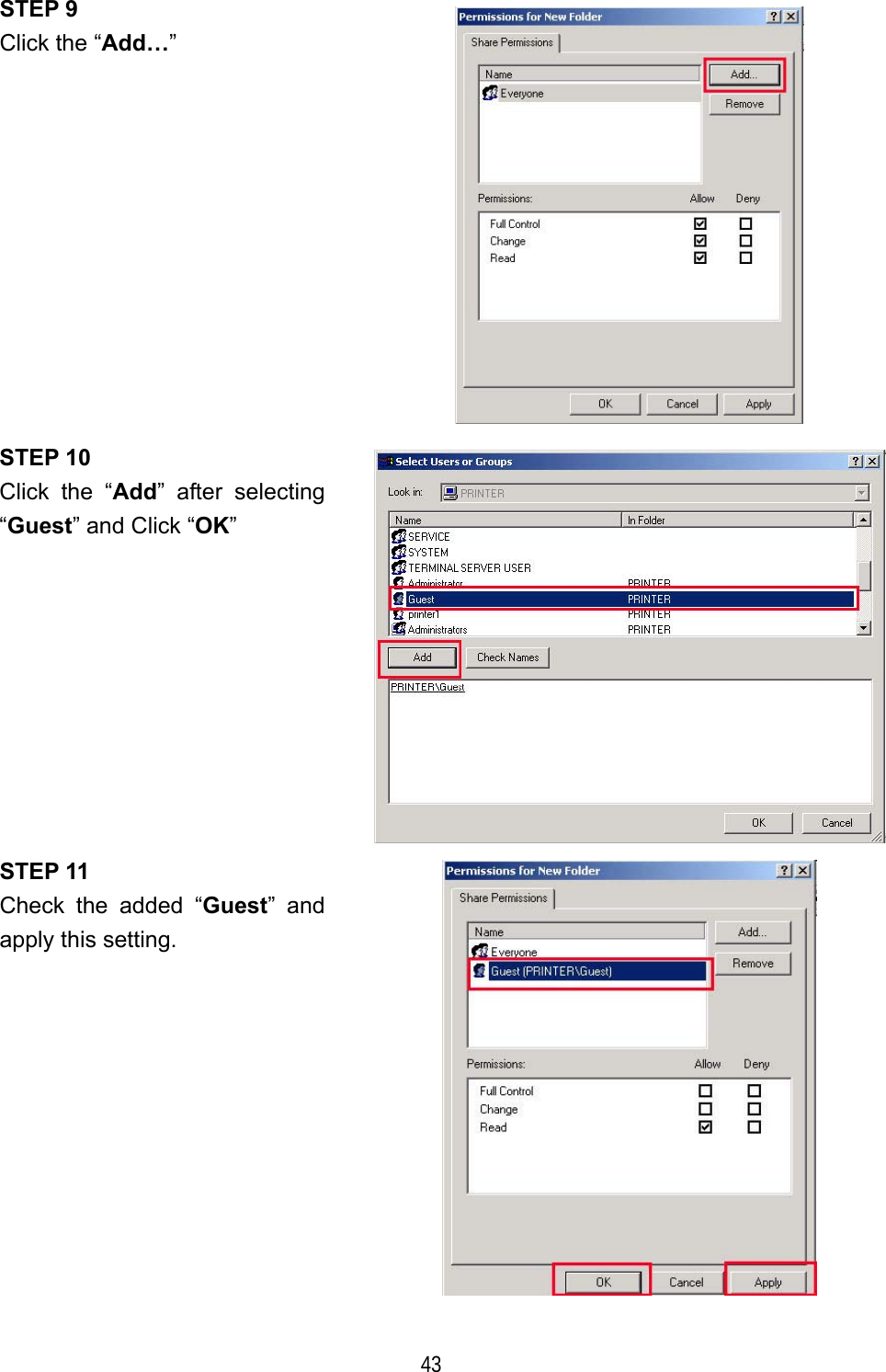
  43 STEP 9 Click the “Add…”  STEP 10 Click the “Add” after selecting “Guest” and Click “OK”  STEP 11 Check the added “Guest” and apply this setting.
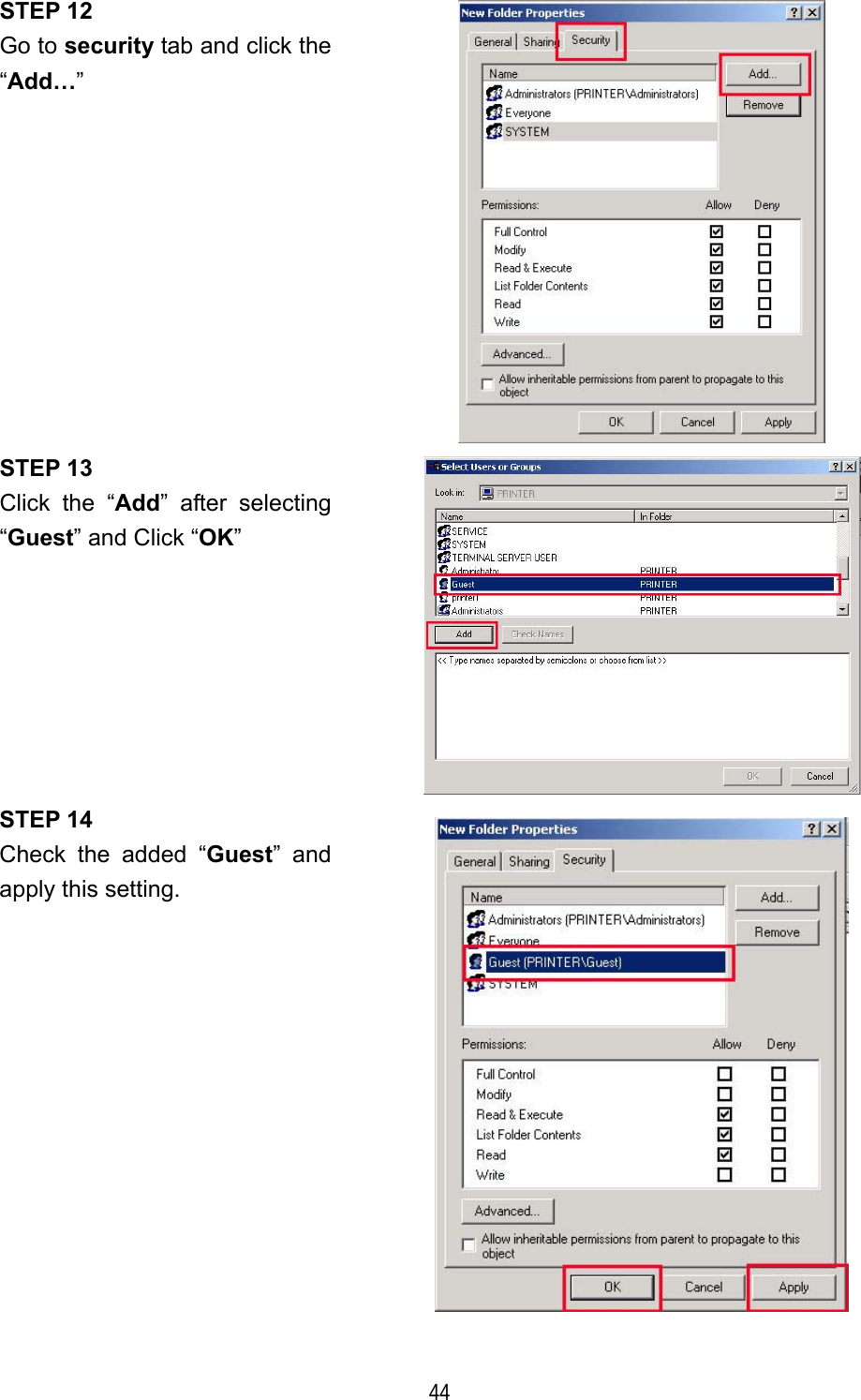
  44 STEP 12 Go to security tab and click the “Add…”  STEP 13 Click the “Add” after selecting “Guest” and Click “OK”  STEP 14 Check the added “Guest” and apply this setting.
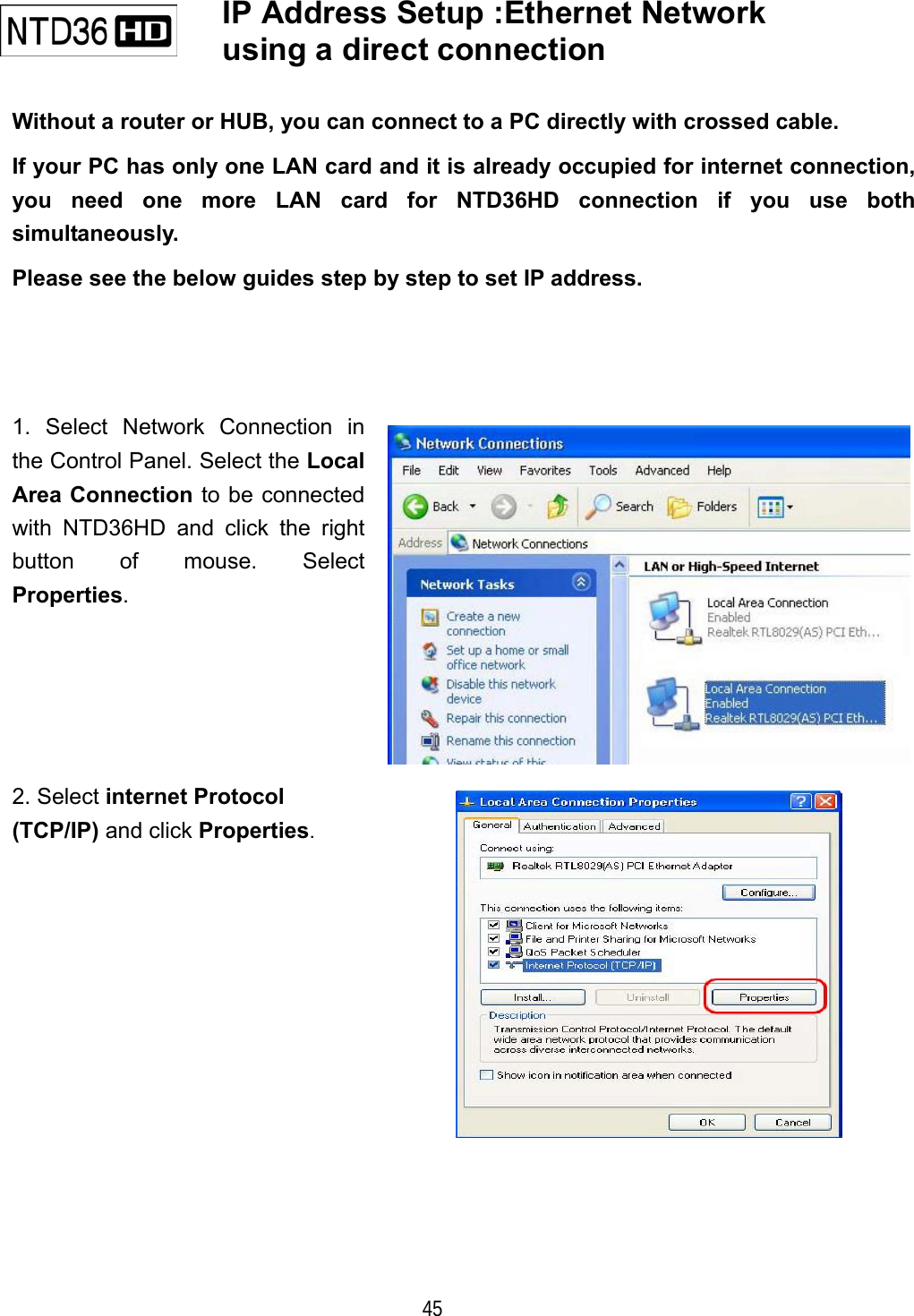
  45    IP Address Setup :Ethernet Network using a direct connection     Without a router or HUB, you can connect to a PC directly with crossed cable. If your PC has only one LAN card and it is already occupied for internet connection, you need one more LAN card for NTD36HD connection if you use both simultaneously. Please see the below guides step by step to set IP address. 1. Select Network Connection in the Control Panel. Select the Local Area Connection to be connected with NTD36HD and click the right button of mouse. Select Properties. 2. Select internet Protocol (TCP/IP) and click Properties.
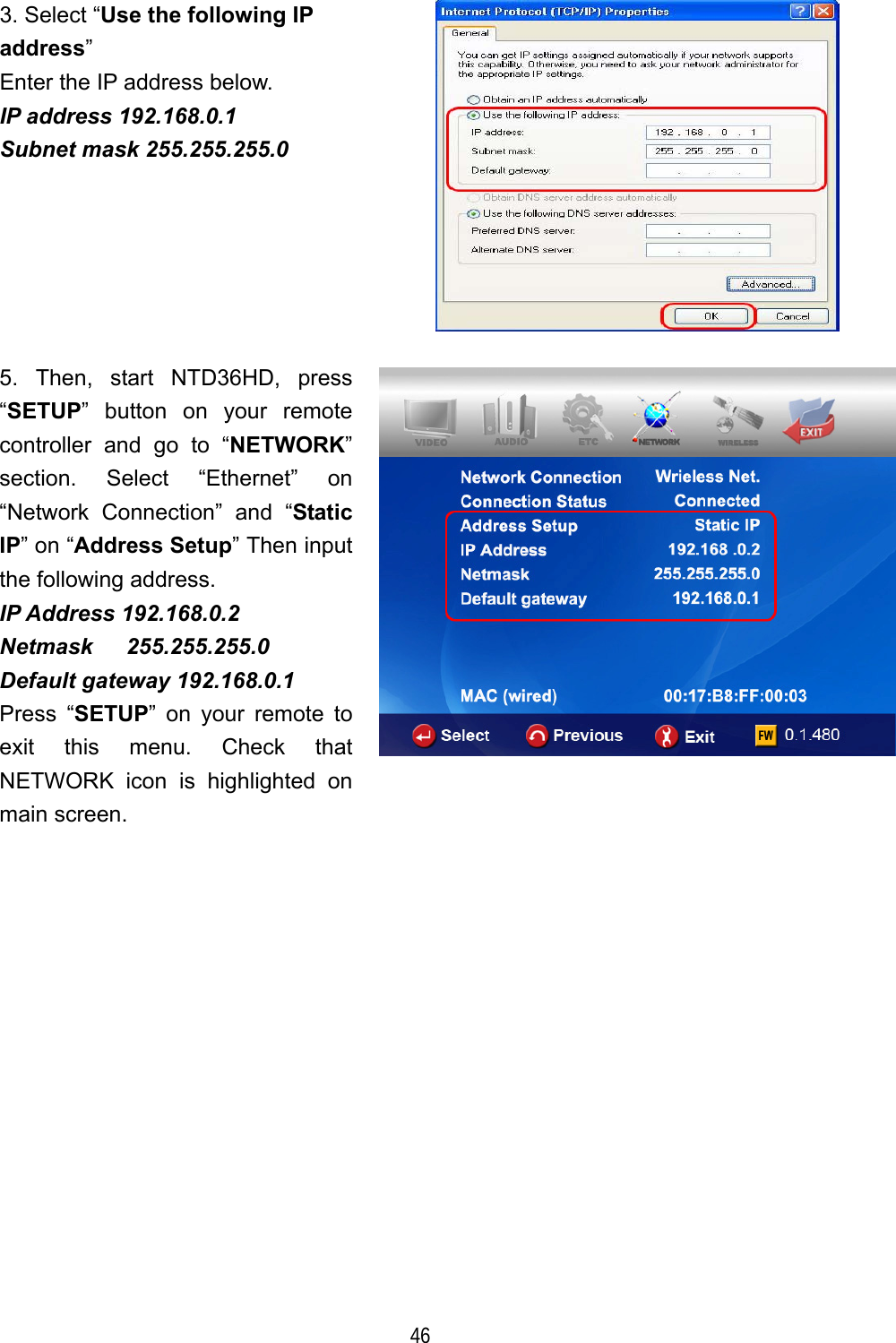
  46 3. Select “Use the following IP address” Enter the IP address below. IP address 192.168.0.1 Subnet mask 255.255.255.0  5. Then, start NTD36HD, press “SETUP” button on your remote controller and go to “NETWORK” section. Select “Ethernet” on “Network Connection” and “Static IP” on “Address Setup” Then input the following address. IP Address 192.168.0.2 Netmask   255.255.255.0 Default gateway 192.168.0.1 Press “SETUP” on your remote to exit this menu. Check that NETWORK icon is highlighted on main screen.
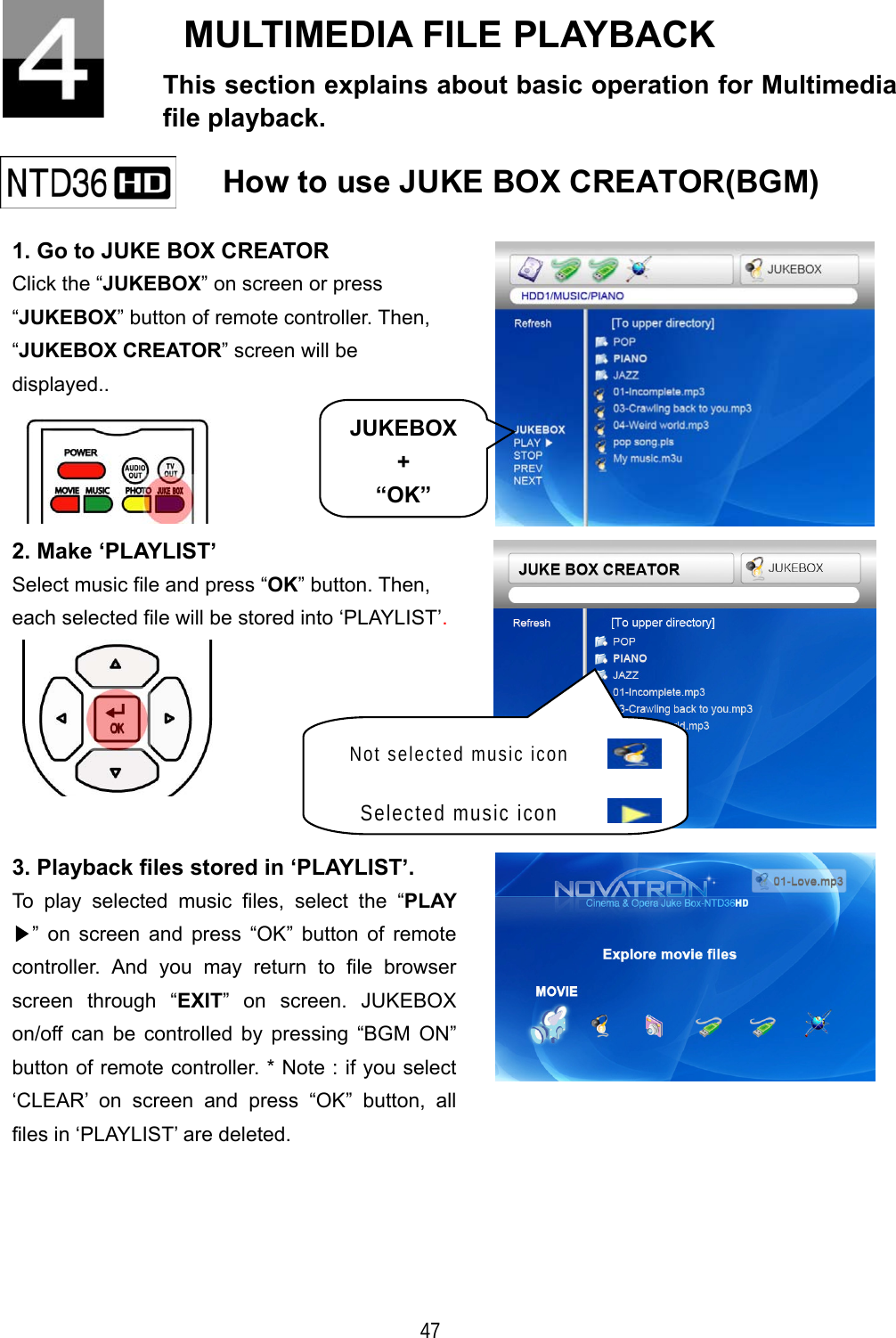
  47 MULTIMEDIA FILE PLAYBACK This section explains about basic operation for Multimedia file playback.    How to use JUKE BOX CREATOR(BGM)   1. Go to JUKE BOX CREATOR Click the “JUKEBOX” on screen or press “JUKEBOX” button of remote controller. Then, “JUKEBOX CREATOR” screen will be displayed..   2. Make ‘PLAYLIST’ Select music file and press “OK” button. Then, each selected file will be stored into ‘PLAYLIST’.   3. Playback files stored in ‘PLAYLIST’. To play selected music files, select the “PLAY ▶” on screen and press “OK” button of remote controller. And you may return to file browser screen through “EXIT” on screen. JUKEBOX on/off can be controlled by pressing “BGM ON” button of remote controller. * Note : if you select ‘CLEAR’ on screen and press “OK” button, all files in ‘PLAYLIST’ are deleted.  JUKEBOX+ “OK”Not selected music icon  Selected music icon
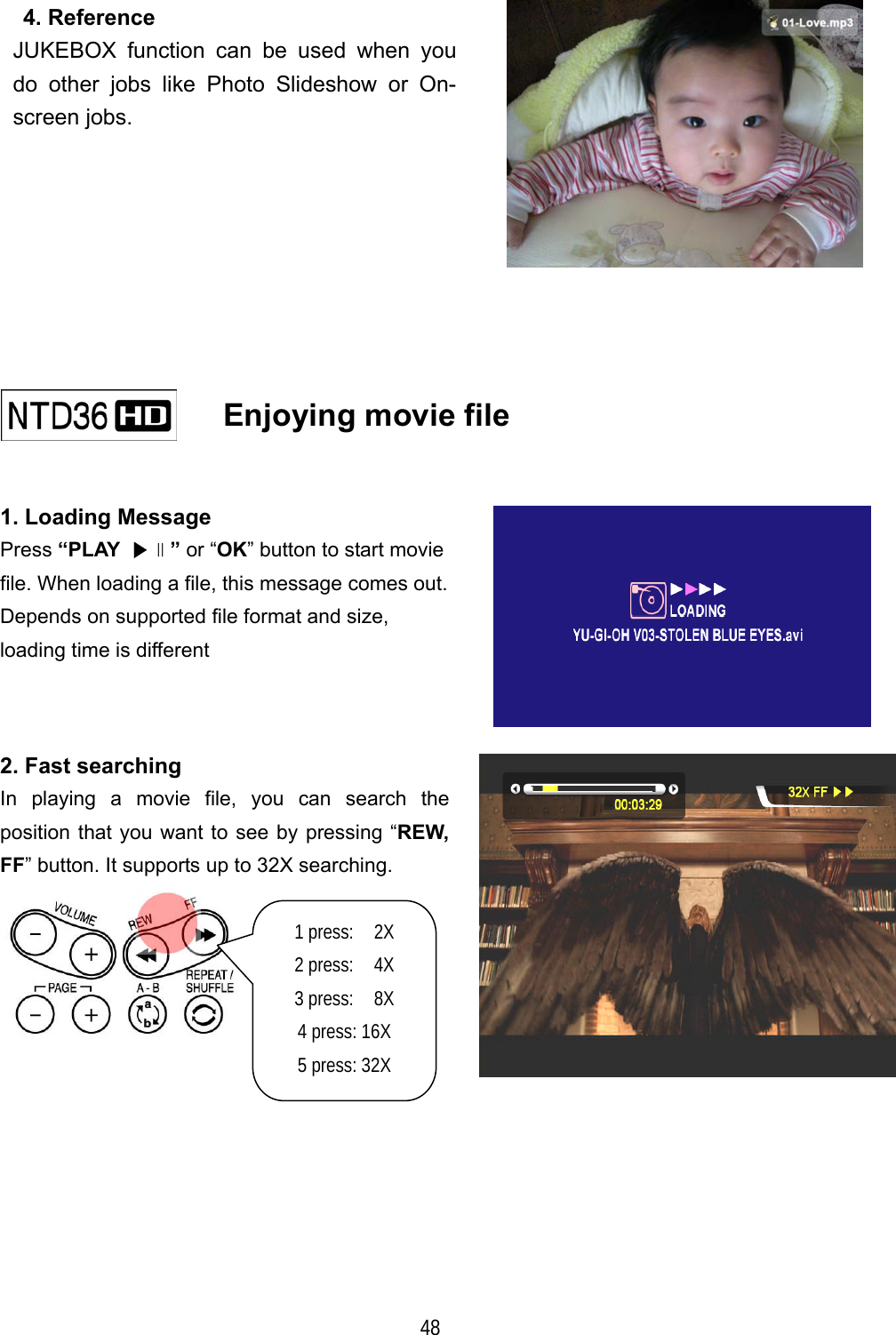
  48  4. Reference JUKEBOX function can be used when you do other jobs like Photo Slideshow or On-screen jobs.        Enjoying movie file    1. Loading Message Press “PLAY  ▶∥” or “OK” button to start movie file. When loading a file, this message comes out. Depends on supported file format and size,   loading time is different  2. Fast searching In playing a movie file, you can search the position that you want to see by pressing “REW, FF” button. It supports up to 32X searching.  1 press:  2X  2 press:  4X 3 press:  8X 4 press: 16X 5 press: 32X
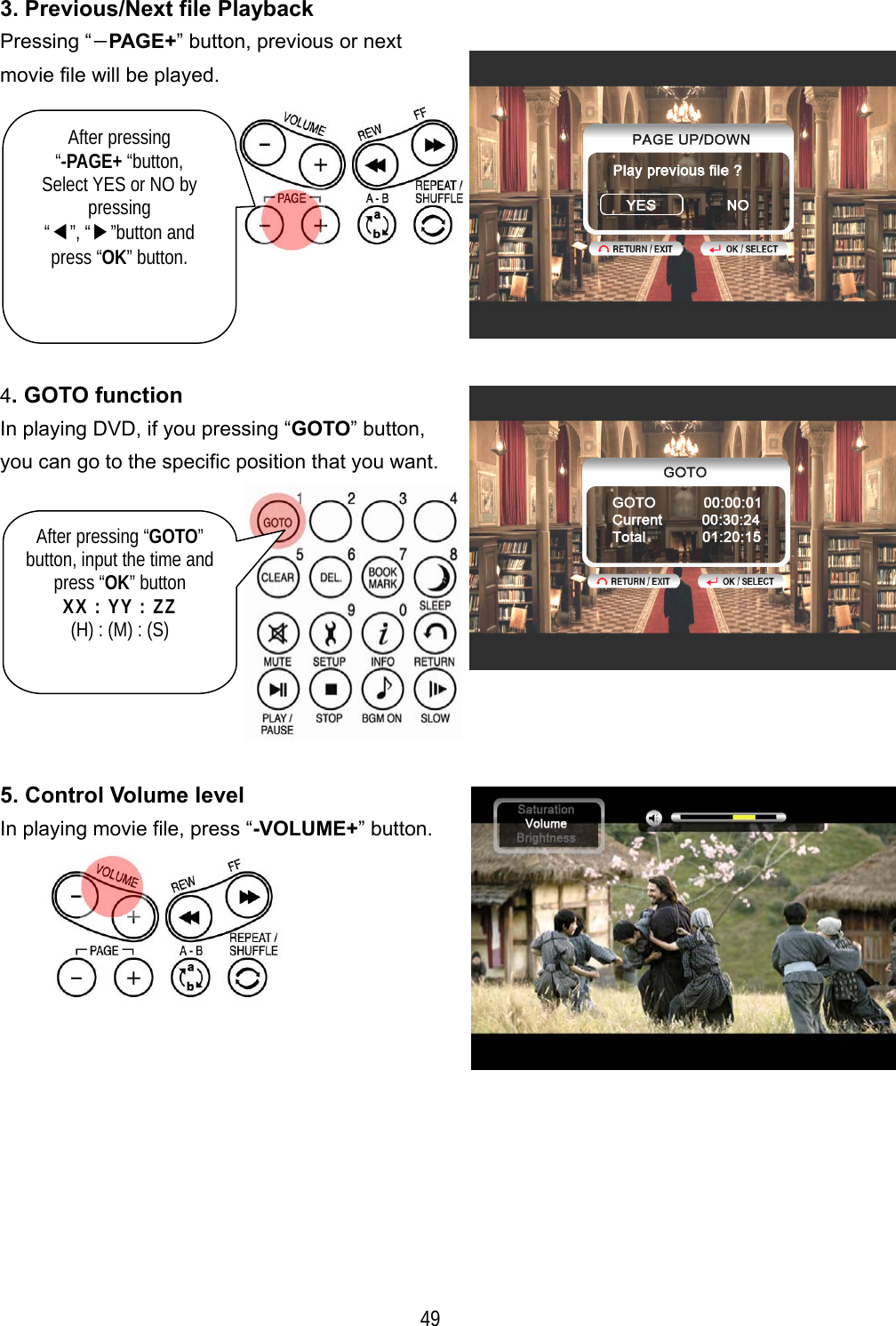
  49 3. Previous/Next file Playback Pressing “−PAGE+” button, previous or next movie file will be played.  4. GOTO function In playing DVD, if you pressing “GOTO” button, you can go to the specific position that you want. 5. Control Volume level   In playing movie file, press “-VOLUME+” button.   After pressing  “-PAGE+ “button, Select YES or NO by pressing “◀”, “▶”button and press “OK” button. After pressing “GOTO” button, input the time andpress “OK” button XX : YY : ZZ (H) : (M) : (S)
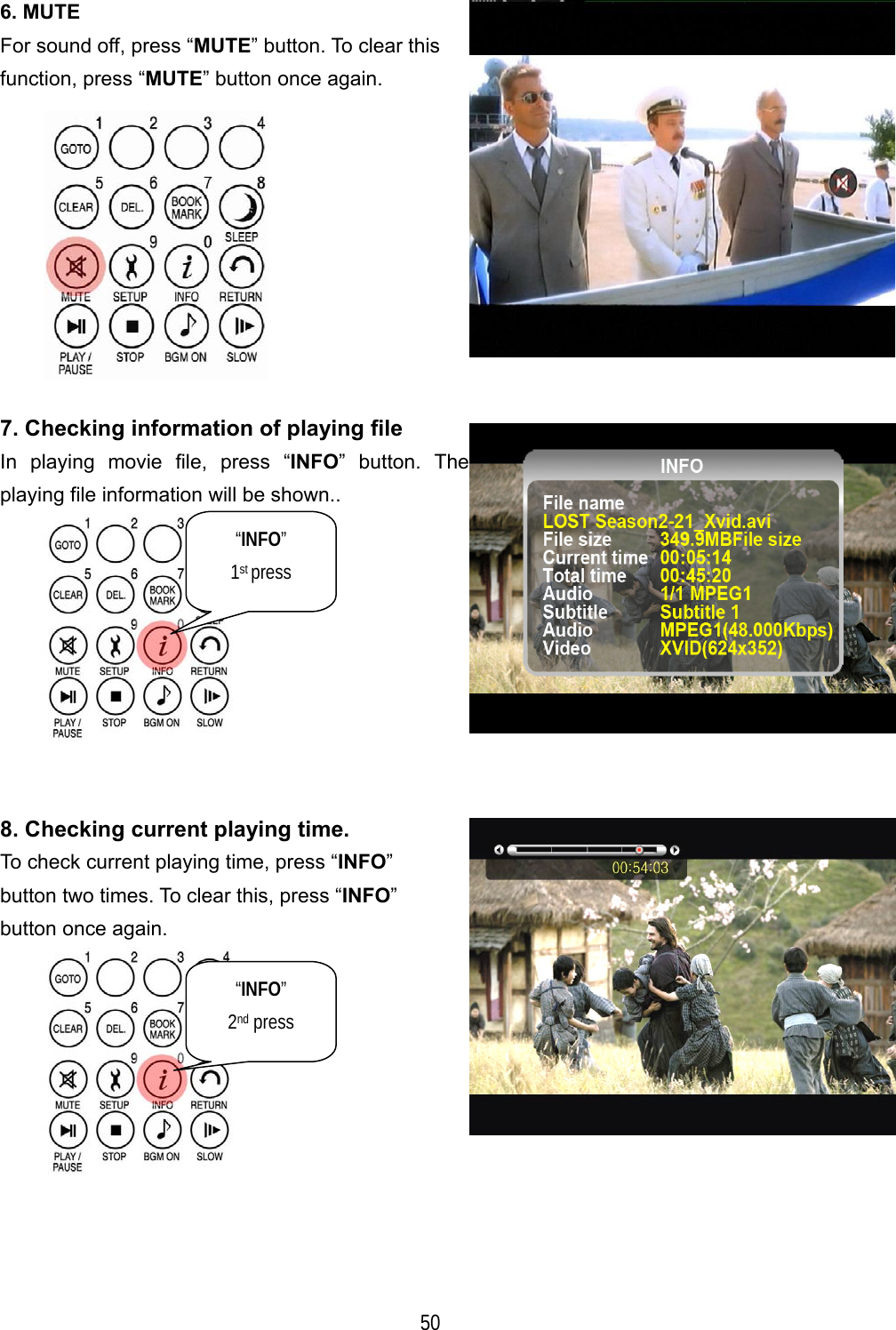
  50 6. MUTE For sound off, press “MUTE” button. To clear this function, press “MUTE” button once again.  7. Checking information of playing file In playing movie file, press “INFO” button. The playing file information will be shown..  8. Checking current playing time. To check current playing time, press “INFO” button two times. To clear this, press “INFO”  button once again.  “INFO” 1st press “INFO” 2nd press
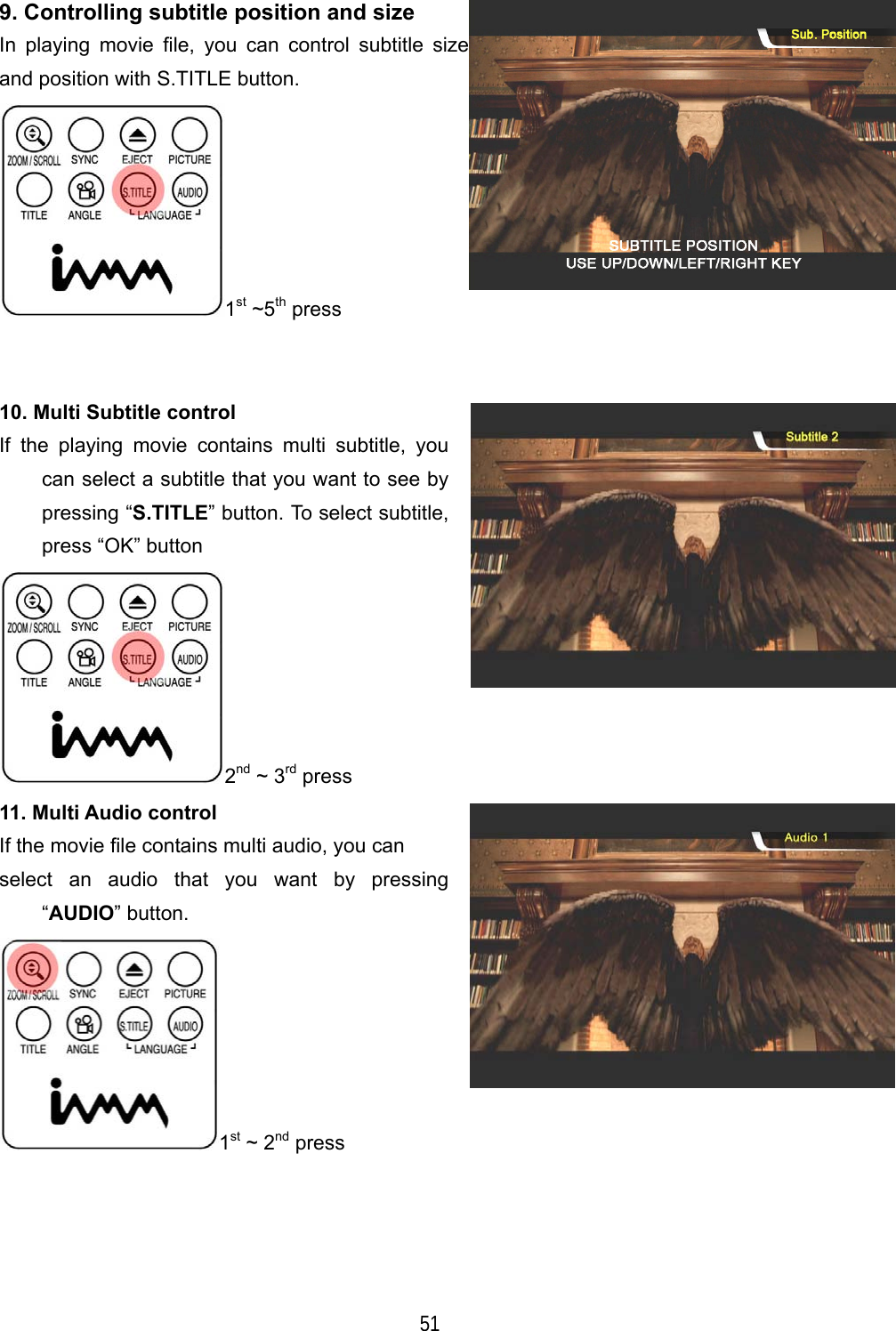
  51 9. Controlling subtitle position and size In playing movie file, you can control subtitle size and position with S.TITLE button. 1st ~5th press    10. Multi Subtitle control If the playing movie contains multi subtitle, you can select a subtitle that you want to see by pressing “S.TITLE” button. To select subtitle, press “OK” button 2nd ~ 3rd press 11. Multi Audio control If the movie file contains multi audio, you can   select an audio that you want by pressing “AUDIO” button.   1st ~ 2nd press
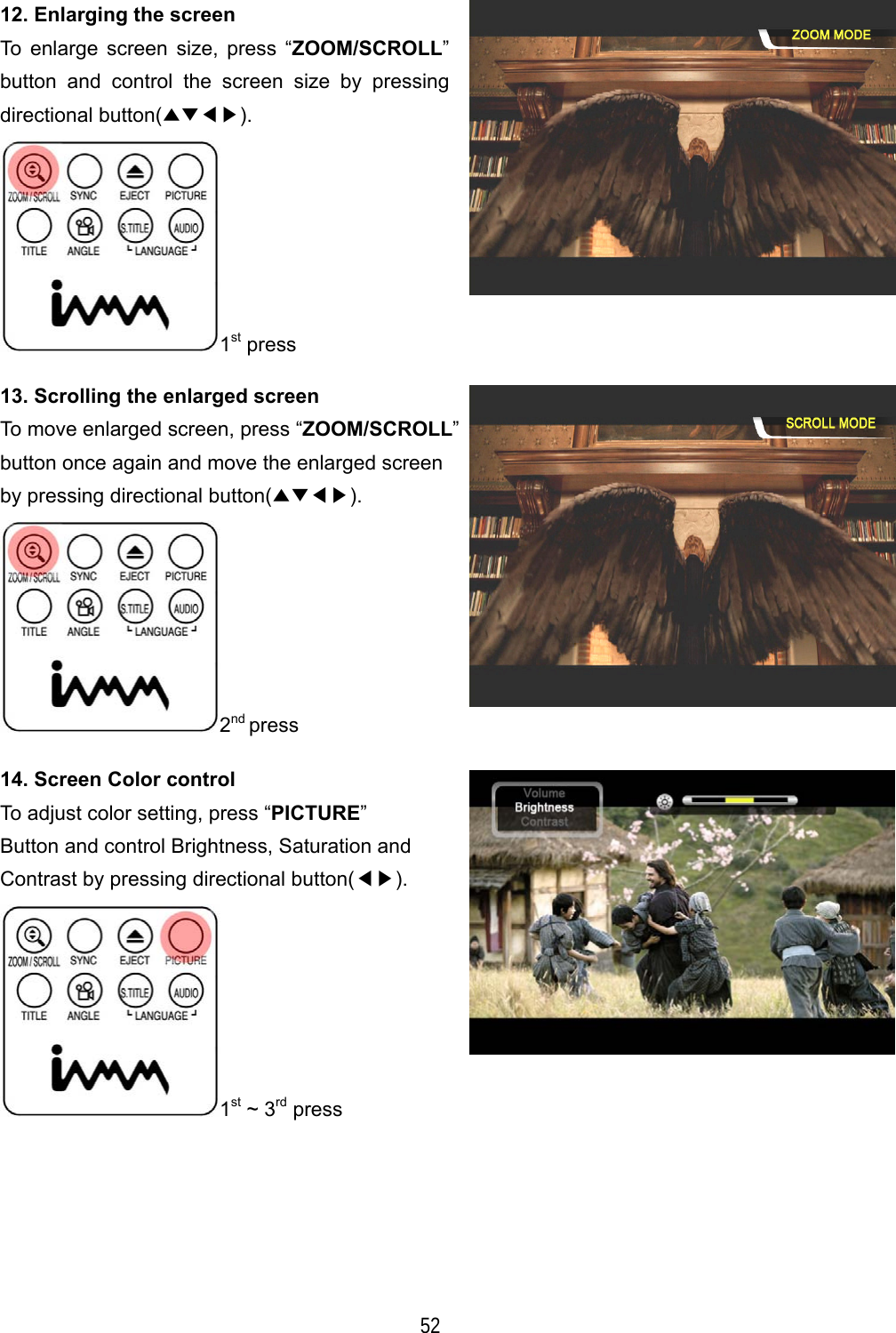
  52 12. Enlarging the screen To enlarge screen size, press “ZOOM/SCROLL” button and control the screen size by pressing directional button(▲▼◀▶). 1st press 13. Scrolling the enlarged screen To move enlarged screen, press “ZOOM/SCROLL”button once again and move the enlarged screen by pressing directional button(▲▼◀▶). 2nd press 14. Screen Color control To adjust color setting, press “PICTURE” Button and control Brightness, Saturation and Contrast by pressing directional button(◀▶). 1st ~ 3rd press
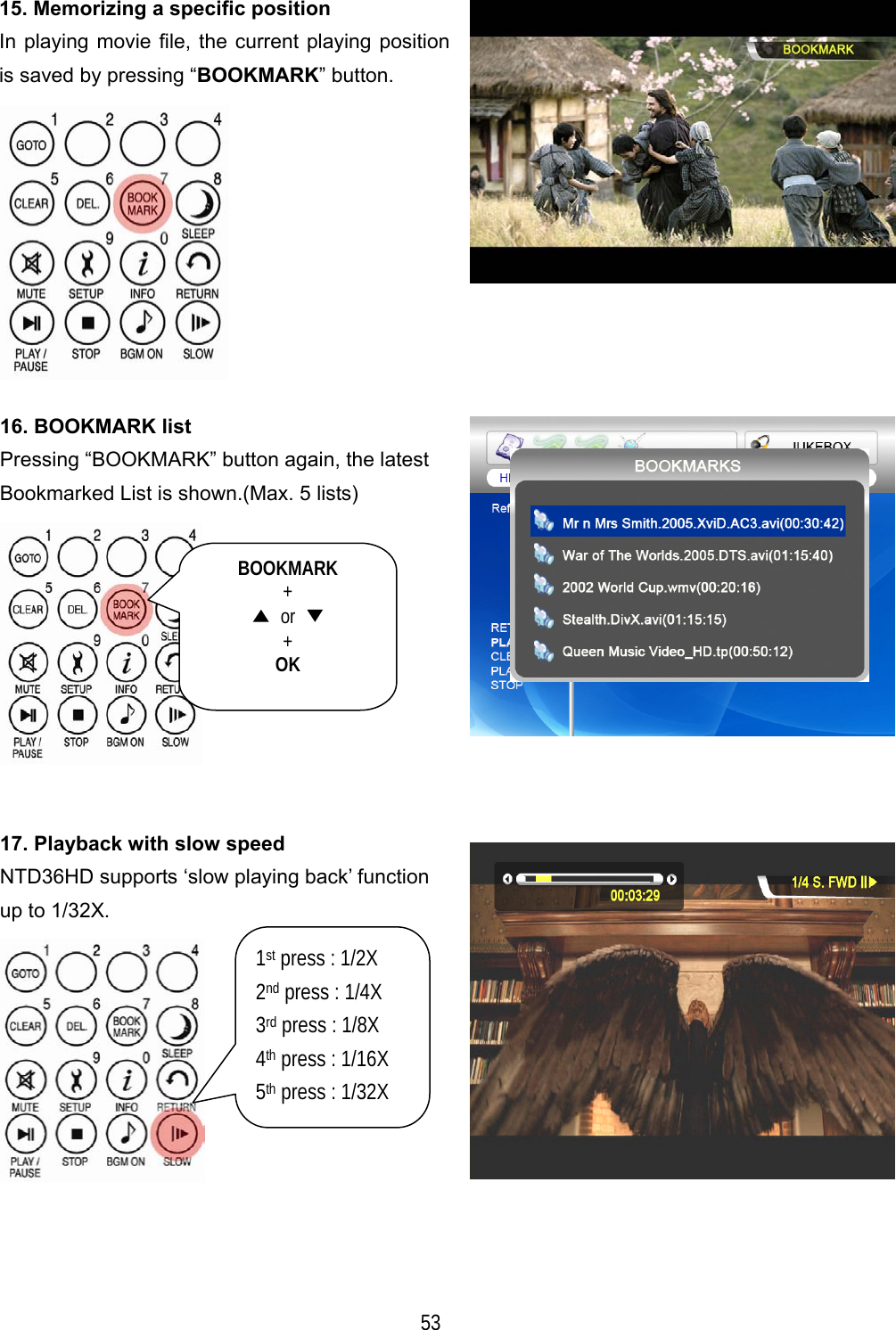
  53 15. Memorizing a specific position In playing movie file, the current playing position is saved by pressing “BOOKMARK” button.  16. BOOKMARK list Pressing “BOOKMARK” button again, the latest Bookmarked List is shown.(Max. 5 lists)  17. Playback with slow speed NTD36HD supports ‘slow playing back’ function up to 1/32X.  BOOKMARK + ▲ or ▼ + OK 1st press : 1/2X 2nd press : 1/4X 3rd press : 1/8X 4th press : 1/16X 5th press : 1/32X
  54 18. Control subtitle sync If a movie and a subtitle do not match, you can control a subtitle showing time by pressing “SYNC” button. 1st press 19. Section Repeat – Set the beginning point Press “A-B” button once to select the beginning “A-“ point. 1st press  20. Section Repeat – Set the ending point   Press “A-B” button again to select the Ending “-B” point. A-B section will be repeated. To clear this setting, press “A-B” button once again. 2nd press *note : This function is useful for language study or enjoying sports moving picture.  SYNC +  ◀ or ▶

Navigation menu