Novatron HD36WNTD MEDIA PLAYER User Manual NTD36HD English 0811

Novatron Co., Ltd MEDIA PLAYER NTD36HD English 0811

Contents

users manual 3

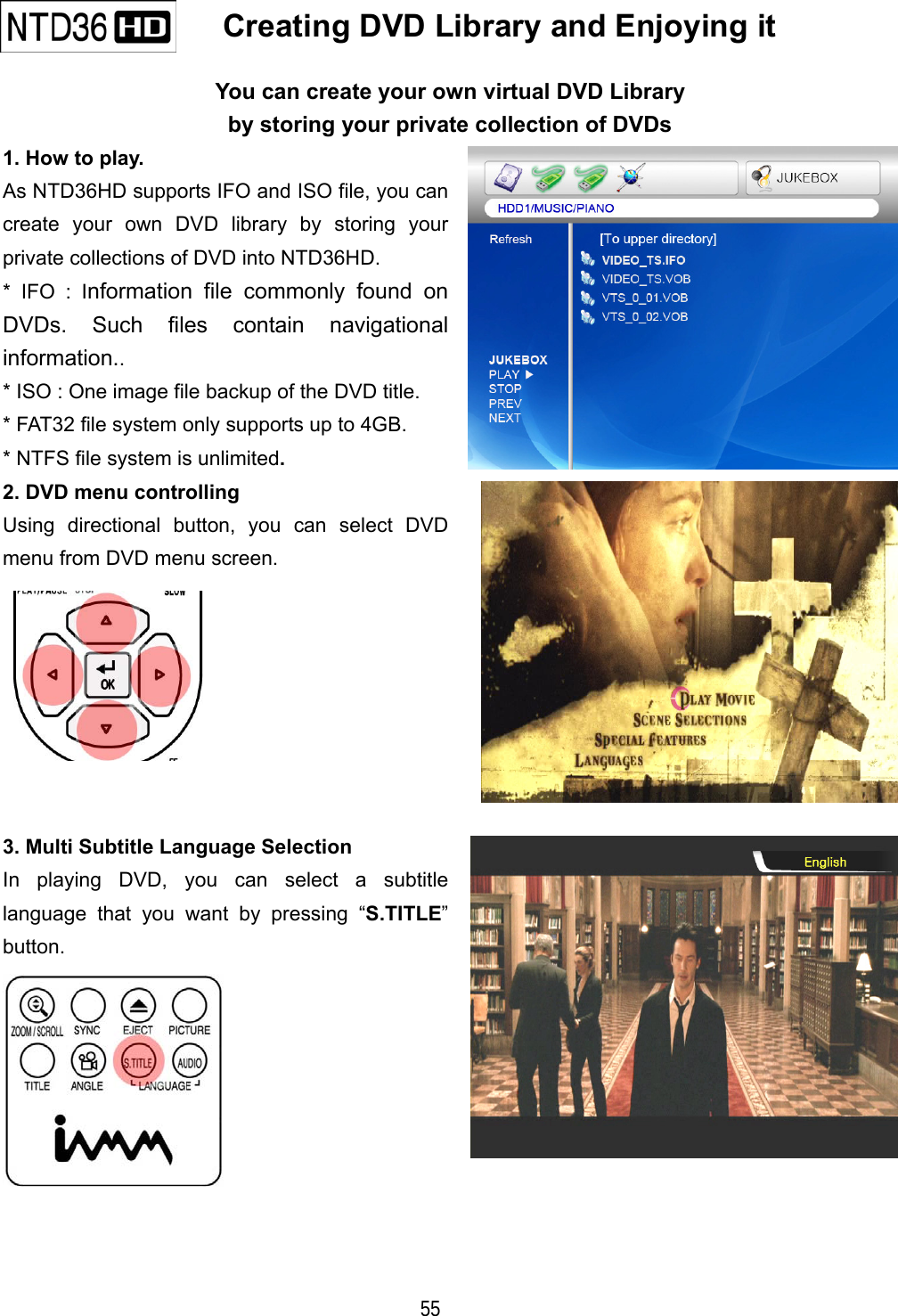
  55    Creating DVD Library and Enjoying it   You can create your own virtual DVD Library by storing your private collection of DVDs 1. How to play. As NTD36HD supports IFO and ISO file, you can create your own DVD library by storing your private collections of DVD into NTD36HD. * IFO : Information file commonly found on DVDs. Such files contain navigational information.. * ISO : One image file backup of the DVD title. * FAT32 file system only supports up to 4GB. * NTFS file system is unlimited. 2. DVD menu controlling Using directional button, you can select DVD menu from DVD menu screen.  3. Multi Subtitle Language Selection In playing DVD, you can select a subtitle language that you want by pressing “S.TITLE” button.
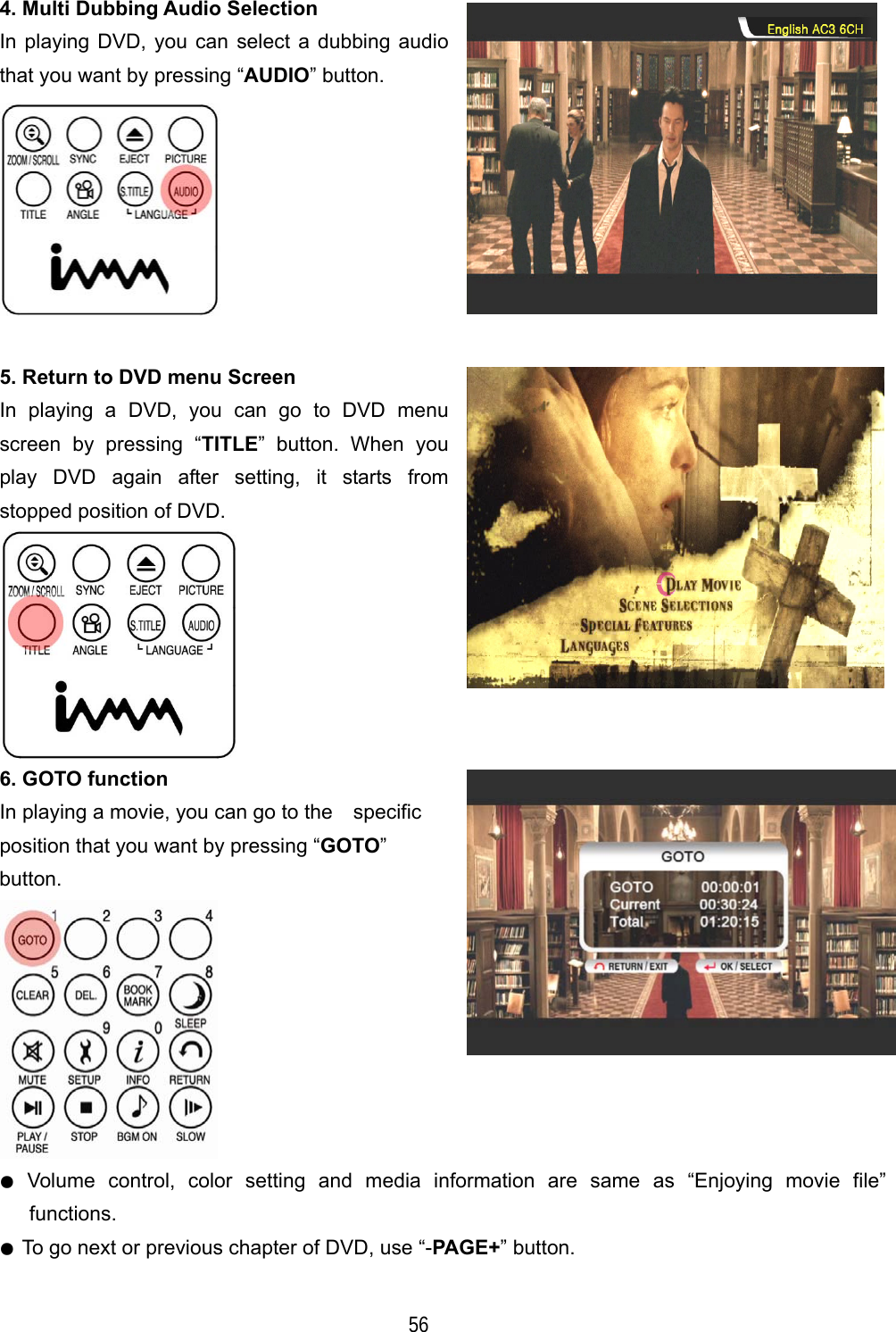
  56 4. Multi Dubbing Audio Selection In playing DVD, you can select a dubbing audio that you want by pressing “AUDIO” button.   5. Return to DVD menu Screen In playing a DVD, you can go to DVD menu screen by pressing “TITLE” button. When you play DVD again after setting, it starts from stopped position of DVD.  6. GOTO function In playing a movie, you can go to the    specific position that you want by pressing “GOTO”  button.  ● Volume control, color setting and media information are same as “Enjoying movie file” functions.  ● To go next or previous chapter of DVD, use “-PAGE+” button.
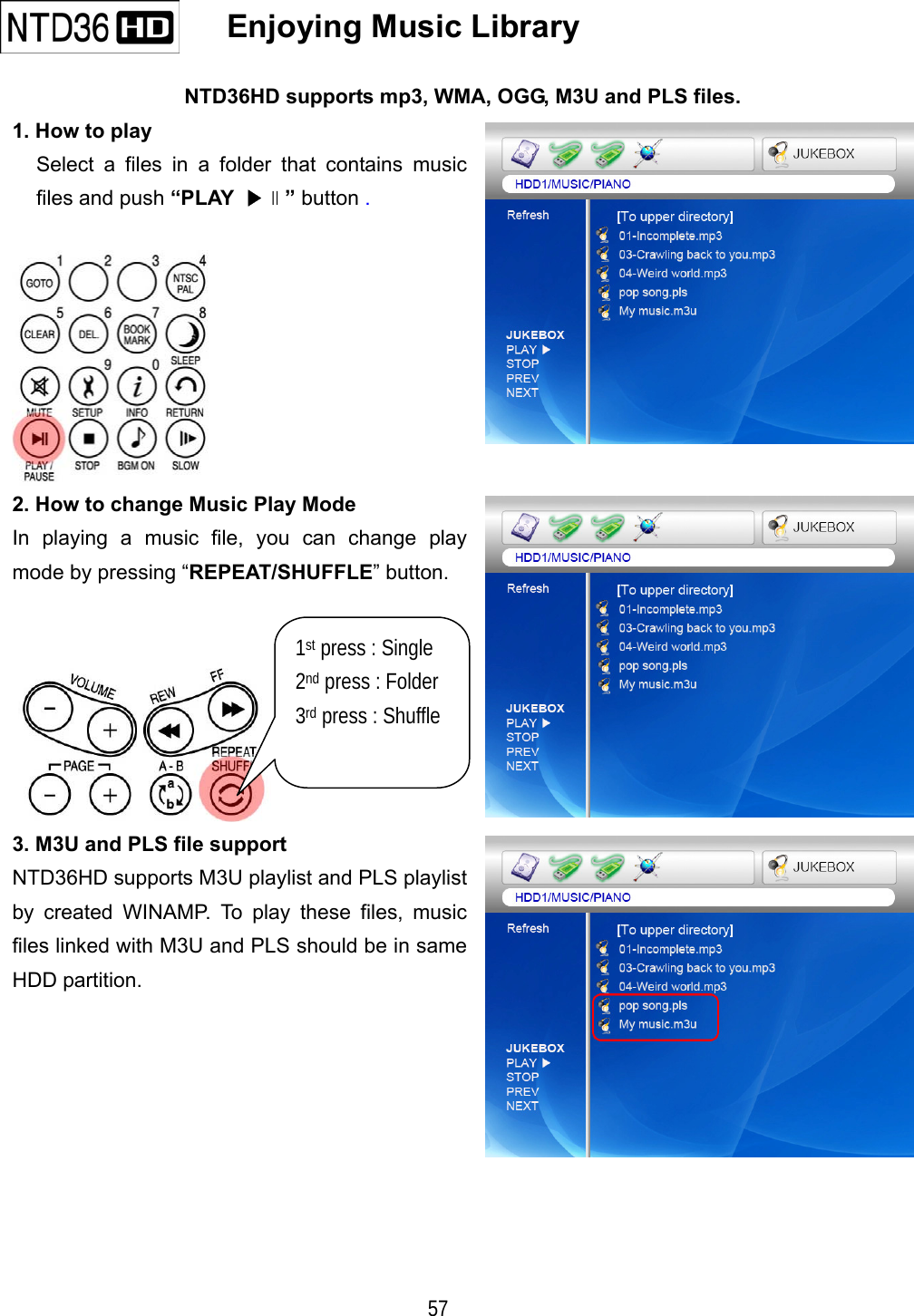
  57     Enjoying Music Library   NTD36HD supports mp3, WMA, OGG, M3U and PLS files. 1. How to play Select a files in a folder that contains music files and push “PLAY  ▶∥” button .   2. How to change Music Play Mode In playing a music file, you can change play mode by pressing “REPEAT/SHUFFLE” button.    3. M3U and PLS file support NTD36HD supports M3U playlist and PLS playlist by created WINAMP. To play these files, music files linked with M3U and PLS should be in same HDD partition.      1st press : Single 2nd press : Folder 3rd press : Shuffle
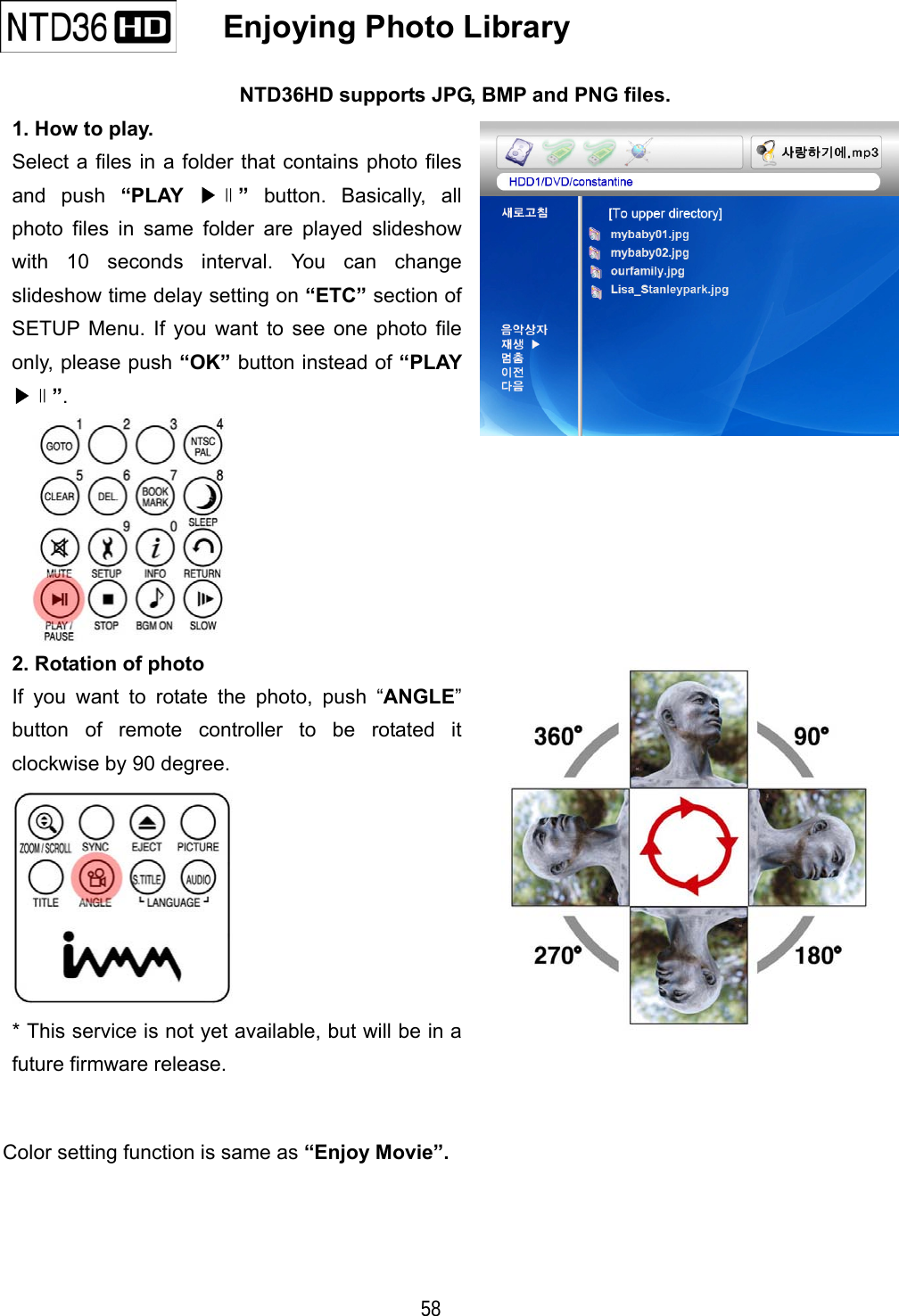
  58   Enjoying Photo Library   NTD36HD supports JPG, BMP and PNG files. 1. How to play. Select a files in a folder that contains photo files and push “PLAY  ▶∥” button. Basically, all photo files in same folder are played slideshow with 10 seconds interval. You can change slideshow time delay setting on “ETC” section of SETUP Menu. If you want to see one photo file only, please push “OK” button instead of “PLAY ▶∥”.  2. Rotation of photo If you want to rotate the photo, push “ANGLE” button of remote controller to be rotated it clockwise by 90 degree.    * This service is not yet available, but will be in a future firmware release.   Color setting function is same as “Enjoy Movie”.
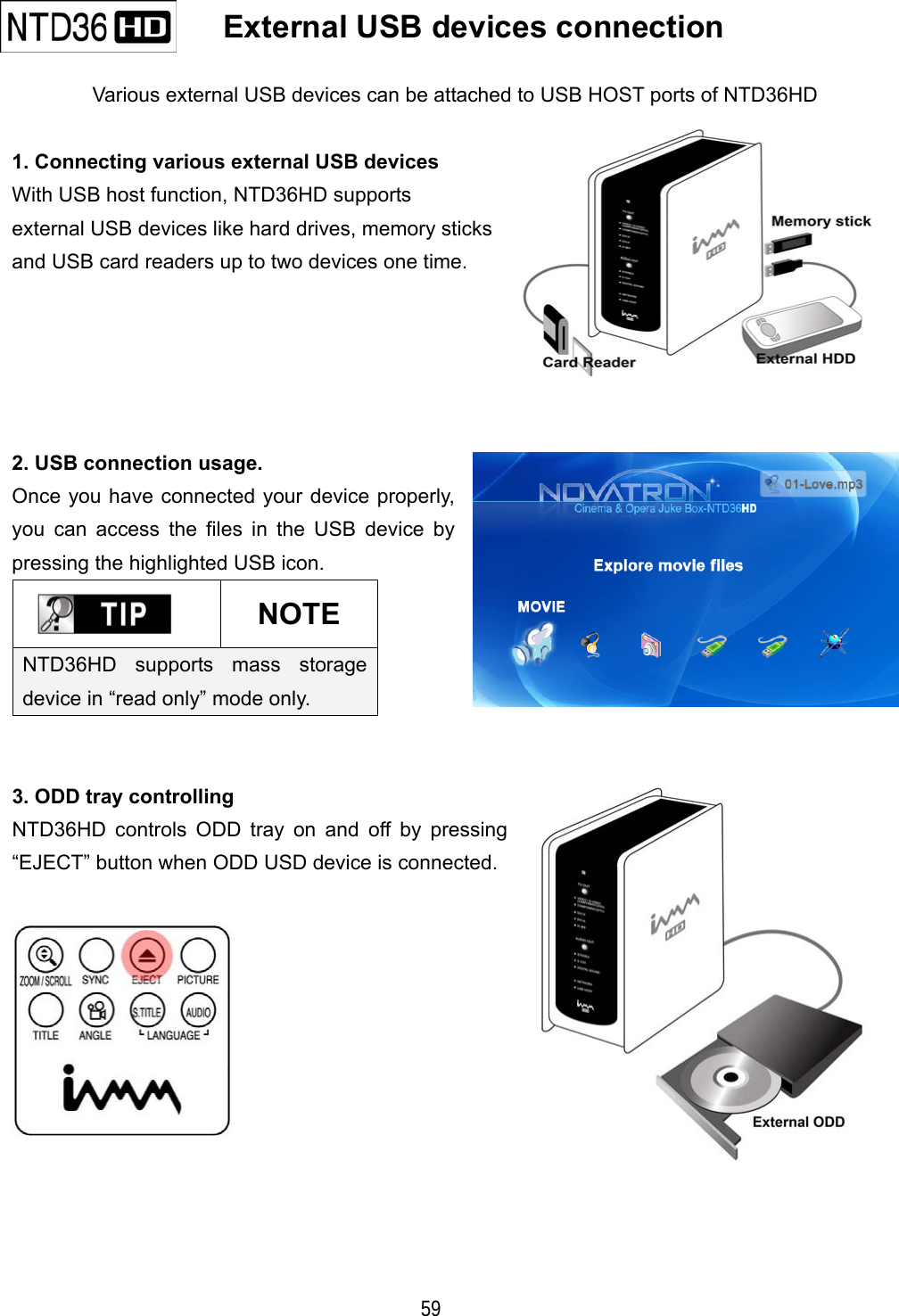
  59    External USB devices connection   Various external USB devices can be attached to USB HOST ports of NTD36HD  1. Connecting various external USB devices With USB host function, NTD36HD supports external USB devices like hard drives, memory sticks   and USB card readers up to two devices one time.      2. USB connection usage. Once you have connected your device properly, you can access the files in the USB device by pressing the highlighted USB icon.  NOTE NTD36HD supports mass storage device in “read only” mode only.   3. ODD tray controlling NTD36HD controls ODD tray on and off by pressing “EJECT” button when ODD USD device is connected.
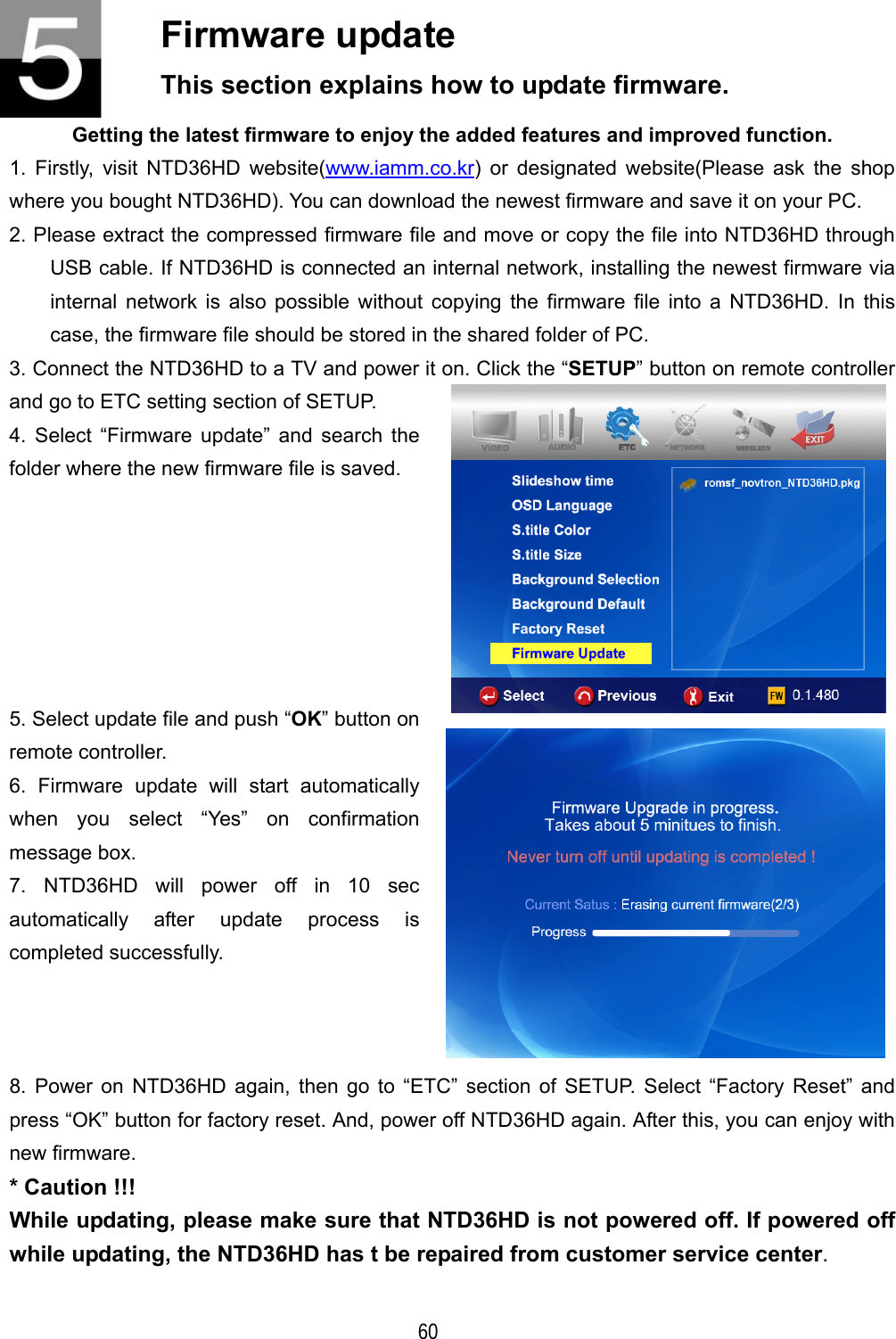
  60 Firmware update This section explains how to update firmware. Getting the latest firmware to enjoy the added features and improved function. 1. Firstly, visit NTD36HD website(www.iamm.co.kr) or designated website(Please ask the shop where you bought NTD36HD). You can download the newest firmware and save it on your PC. 2. Please extract the compressed firmware file and move or copy the file into NTD36HD through USB cable. If NTD36HD is connected an internal network, installing the newest firmware via internal network is also possible without copying the firmware file into a NTD36HD. In this case, the firmware file should be stored in the shared folder of PC. 3. Connect the NTD36HD to a TV and power it on. Click the “SETUP” button on remote controller and go to ETC setting section of SETUP. 4. Select “Firmware update” and search the folder where the new firmware file is saved.  5. Select update file and push “OK” button on remote controller. 6. Firmware update will start automatically when you select “Yes” on confirmation message box. 7. NTD36HD will power off in 10 sec automatically after update process is completed successfully.   8. Power on NTD36HD again, then go to “ETC” section of SETUP. Select “Factory Reset” and press “OK” button for factory reset. And, power off NTD36HD again. After this, you can enjoy with new firmware. * Caution !!! While updating, please make sure that NTD36HD is not powered off. If powered off while updating, the NTD36HD has t be repaired from customer service center.
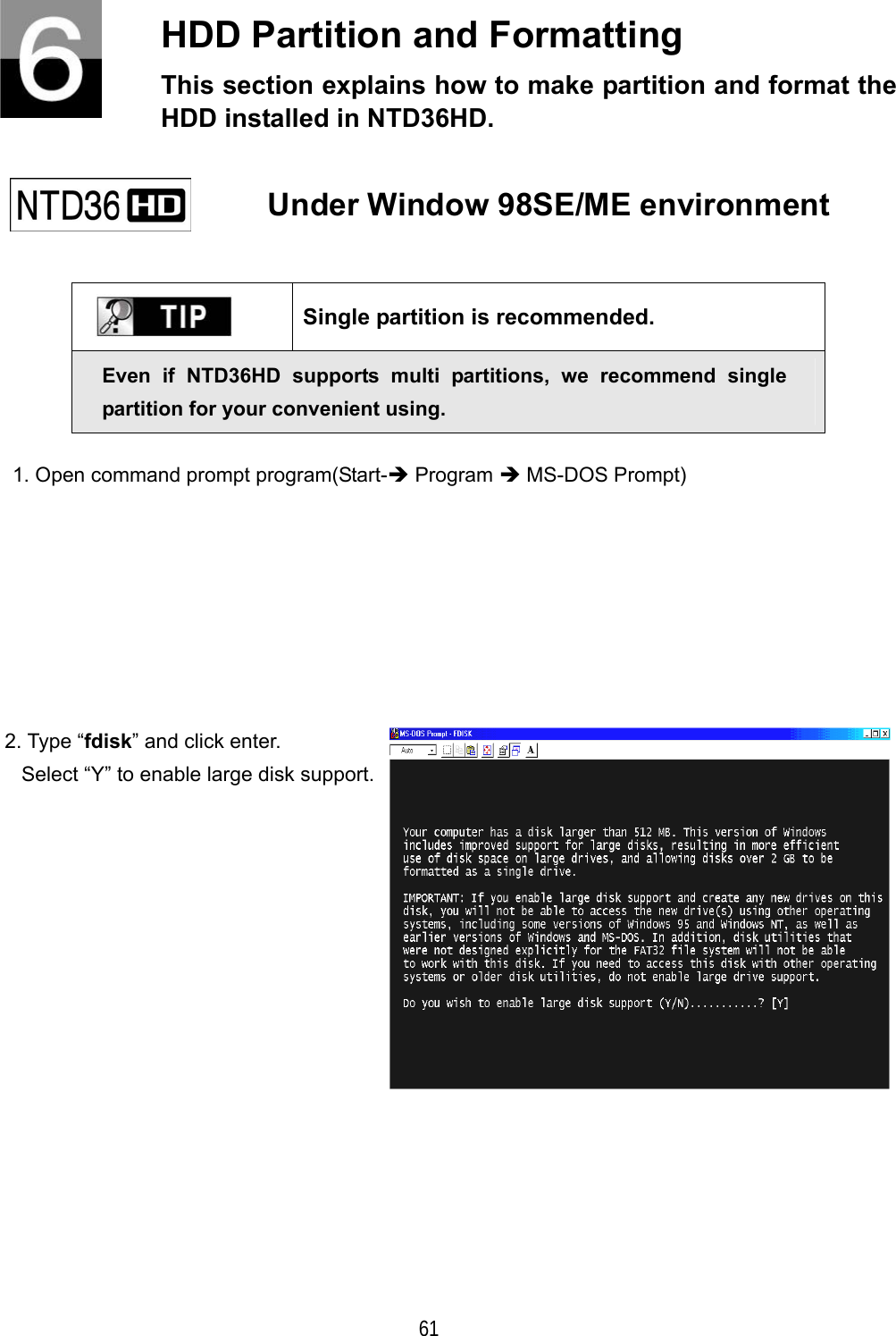
   61 HDD Partition and Formatting   This section explains how to make partition and format the HDD installed in NTD36HD.    Under Window 98SE/ME environment    Single partition is recommended. Even if NTD36HD supports multi partitions, we recommend single partition for your convenient using. 1. Open command prompt program(Start- Program  MS-DOS Prompt) 2. Type “fdisk” and click enter. Select “Y” to enable large disk support.
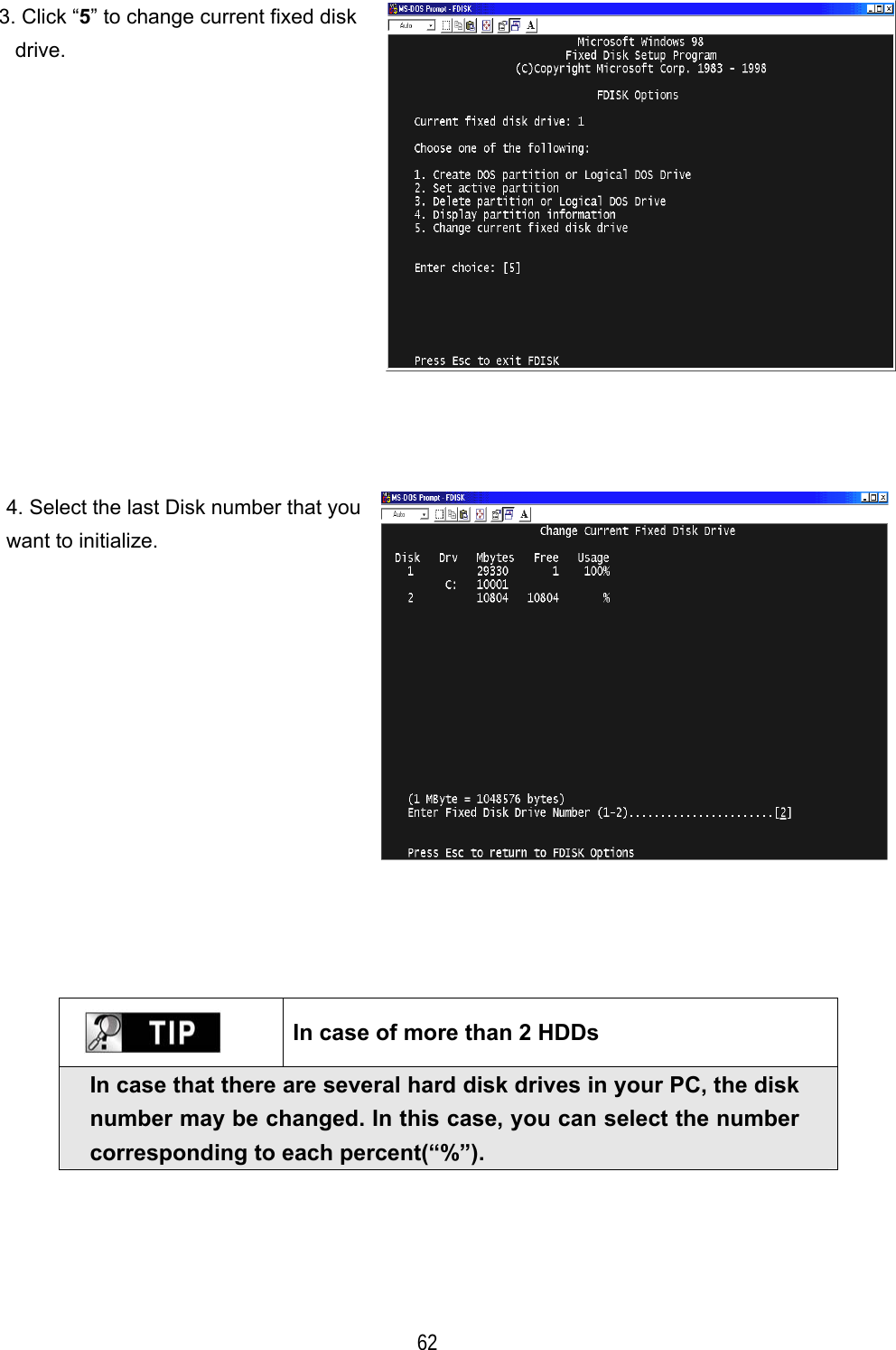
   62 3. Click “5” to change current fixed disk drive. 4. Select the last Disk number that you want to initialize.   In case of more than 2 HDDs In case that there are several hard disk drives in your PC, the disk number may be changed. In this case, you can select the number corresponding to each percent(“%”).
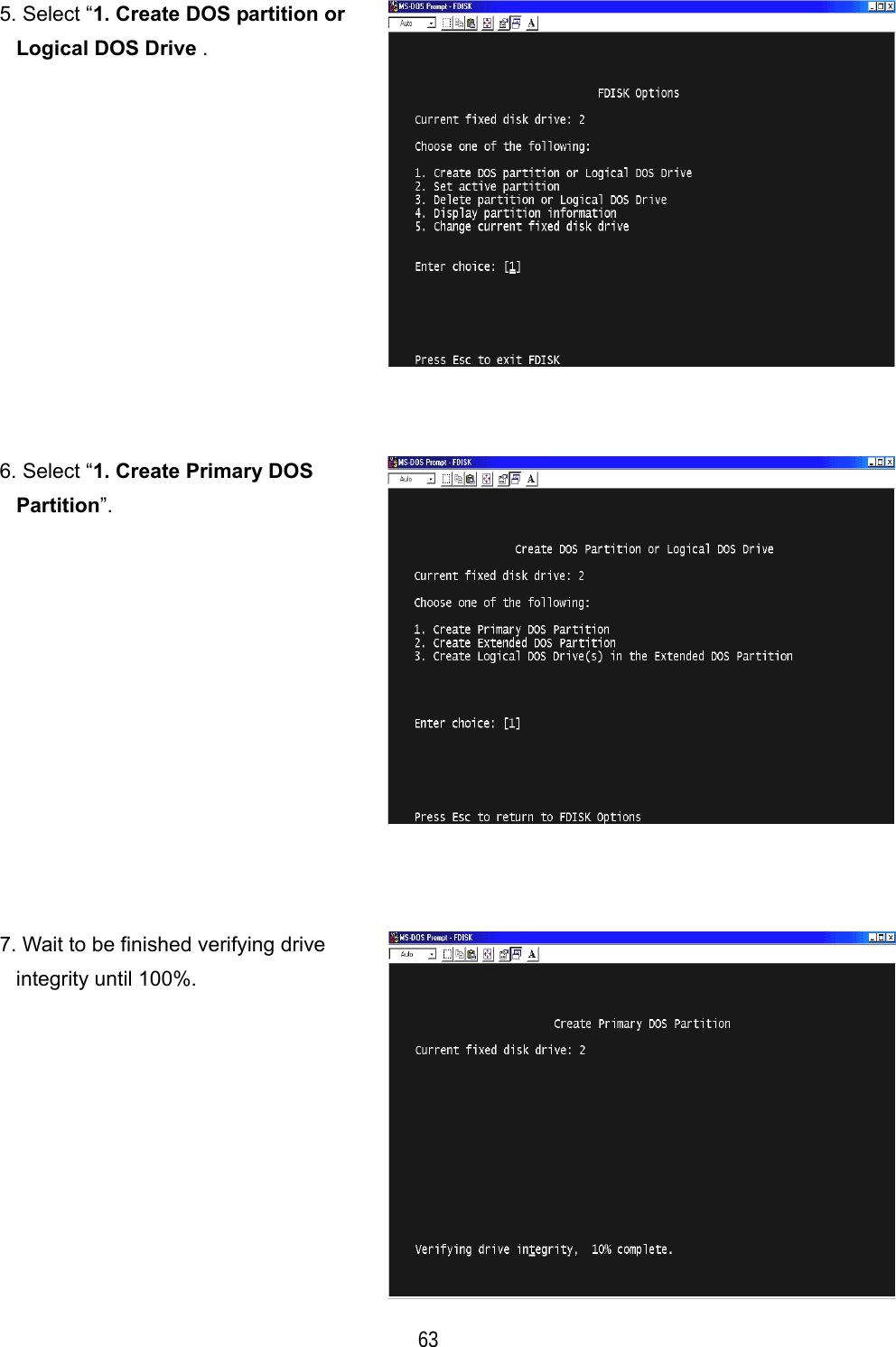
   63 5. Select “1. Create DOS partition or Logical DOS Drive . 6. Select “1. Create Primary DOS Partition”. 7. Wait to be finished verifying drive integrity until 100%.
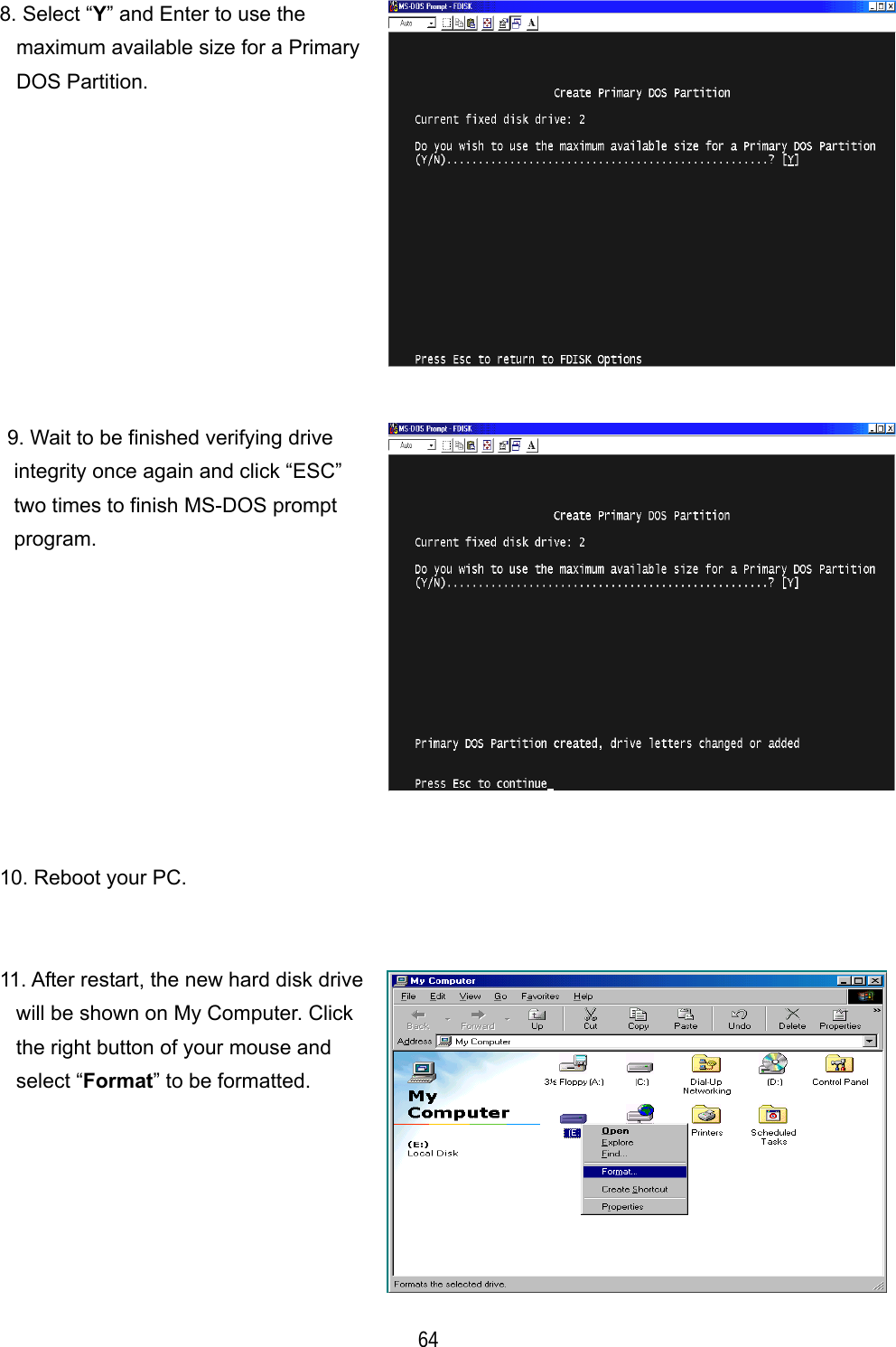
   64 8. Select “Y” and Enter to use the maximum available size for a Primary DOS Partition. 9. Wait to be finished verifying drive integrity once again and click “ESC” two times to finish MS-DOS prompt program.  10. Reboot your PC. 11. After restart, the new hard disk drive will be shown on My Computer. Click the right button of your mouse and select “Format” to be formatted.
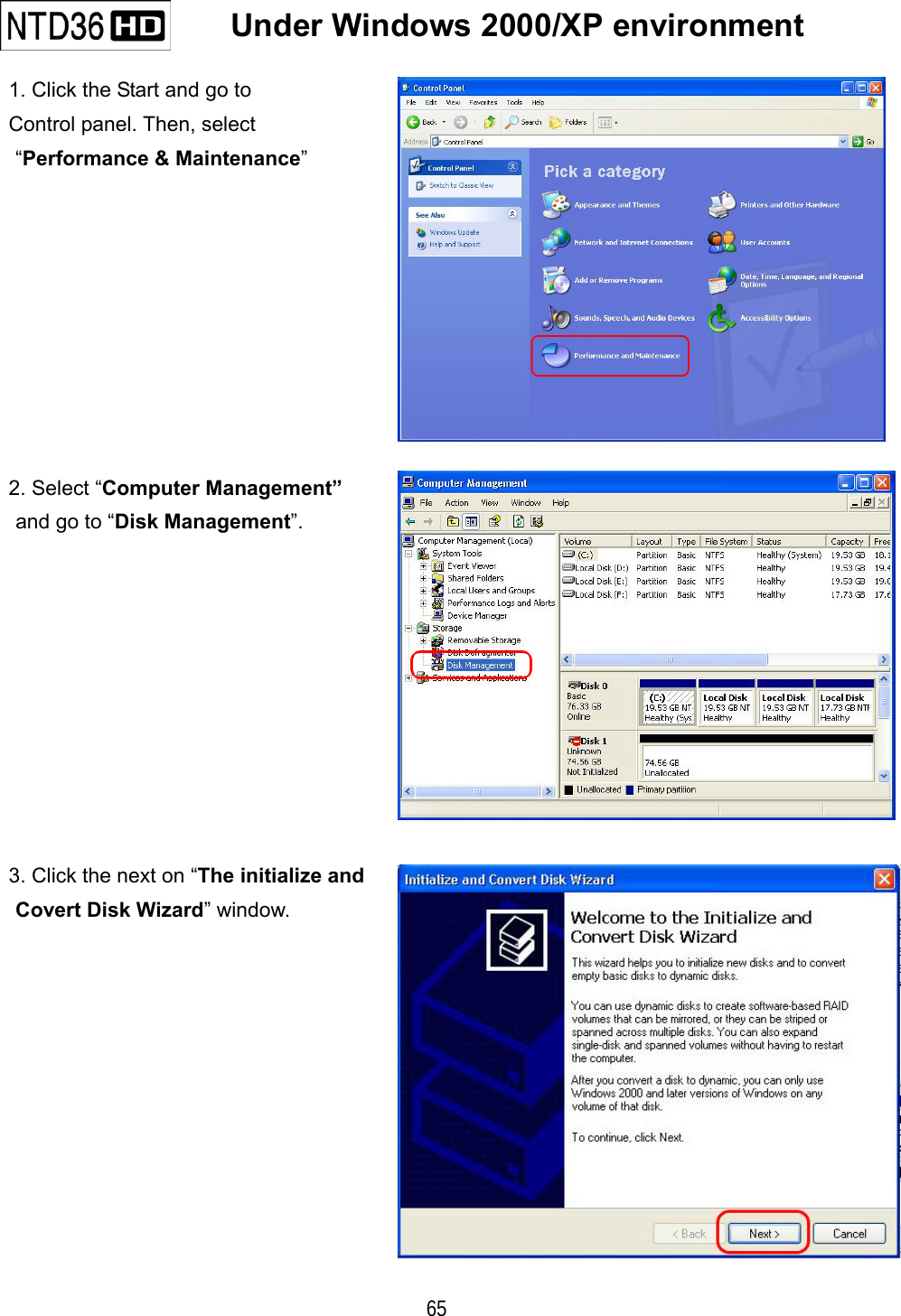
   65     Under Windows 2000/XP environment   1. Click the Start and go to Control panel. Then, select “Performance & Maintenance”     2. Select “Computer Management” and go to “Disk Management”.  3. Click the next on “The initialize and   Covert Disk Wizard” window.
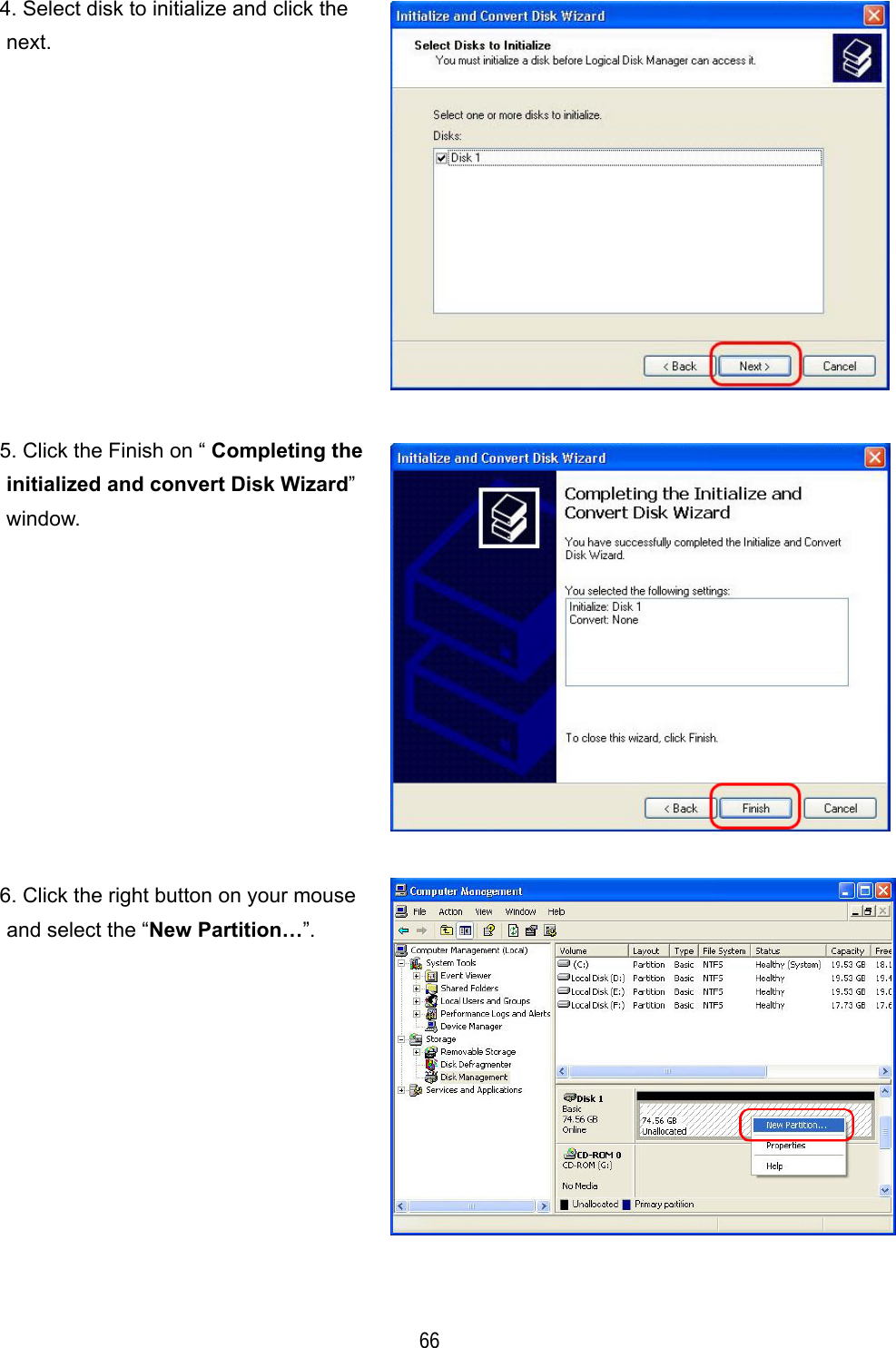
   66 4. Select disk to initialize and click the next.  5. Click the Finish on “ Completing the initialized and convert Disk Wizard” window.  6. Click the right button on your mouse and select the “New Partition…”.
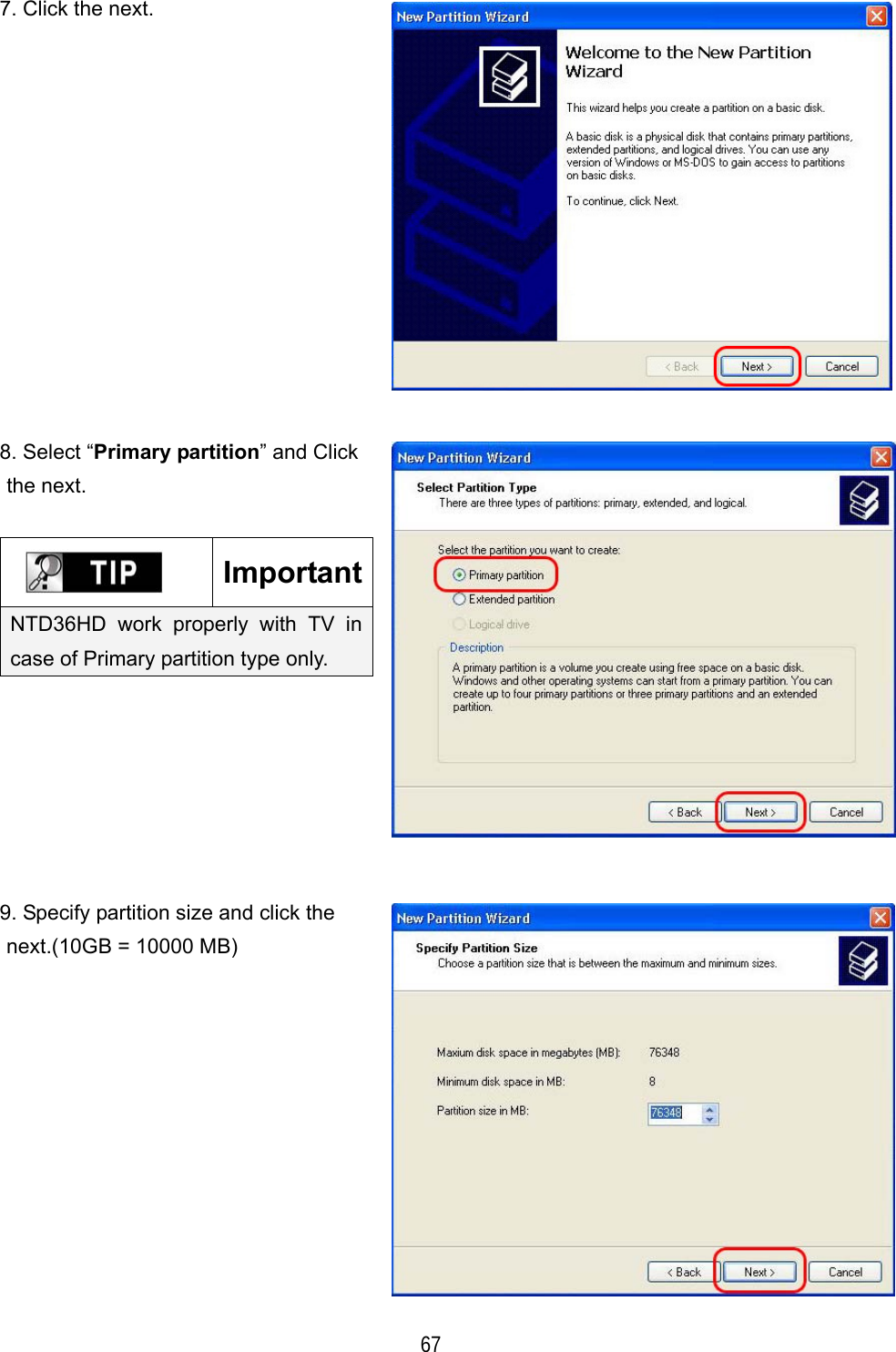
   67 7. Click the next.  8. Select “Primary partition” and Click the next.   ImportantNTD36HD work properly with TV in case of Primary partition type only.  9. Specify partition size and click the next.(10GB = 10000 MB)
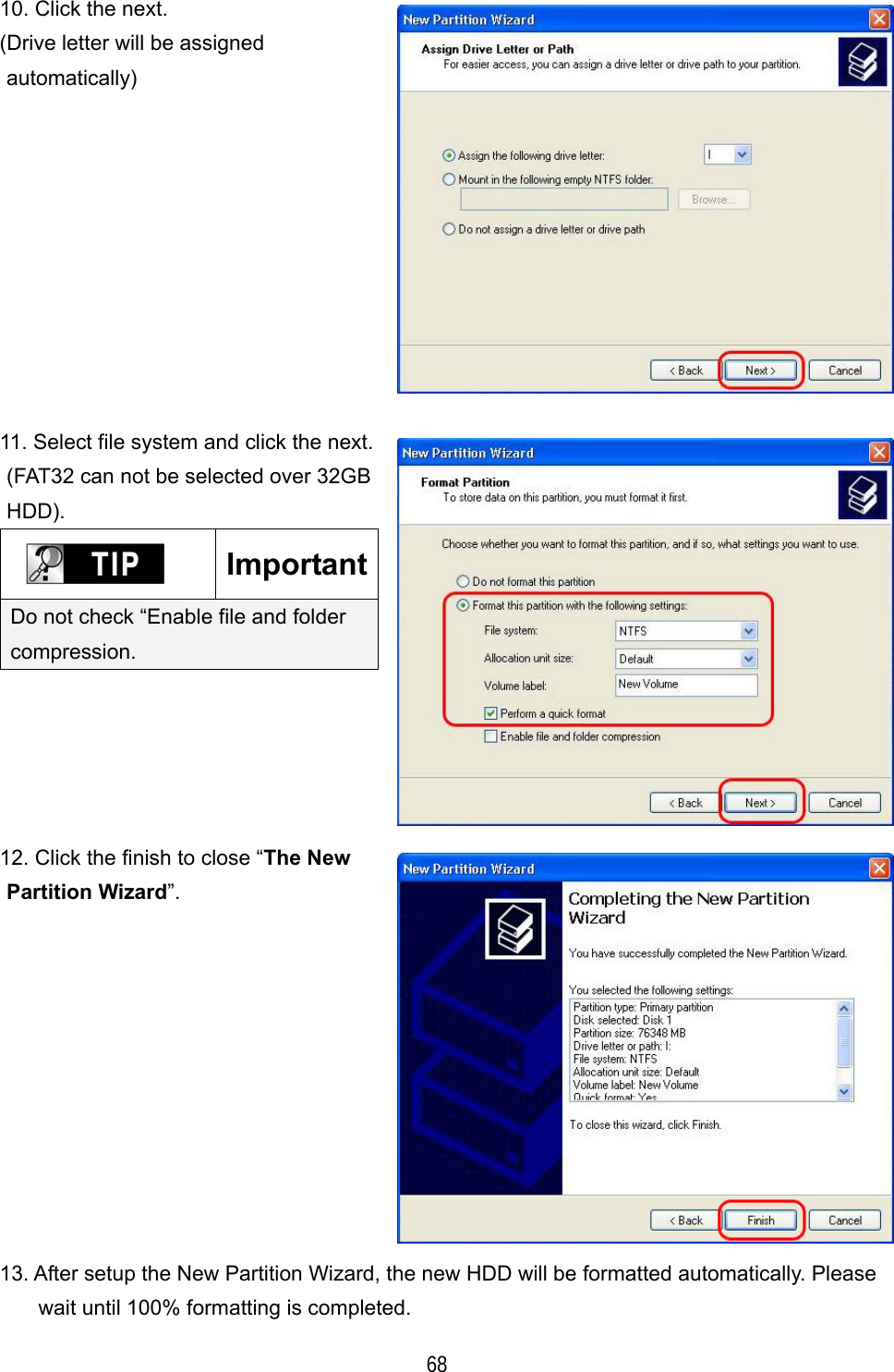
   68 10. Click the next. (Drive letter will be assigned automatically)  11. Select file system and click the next. (FAT32 can not be selected over 32GB HDD).  ImportantDo not check “Enable file and folder compression.   12. Click the finish to close “The New Partition Wizard”.  13. After setup the New Partition Wizard, the new HDD will be formatted automatically. Please wait until 100% formatting is completed.
   69 Troubleshooting Before contacting Customer Service Center, please check below points first.    Problems related to TV screen   1.  In case of no-display on the TV screen.  Check if TV Out mode is set properly with your TV or Monitor. You may use TV OUT button of remote controller(of NTD36HD unit). Press this button several times with 2~3sec time interval.  Check whether you set your TV as Video input or Component input.  Check if A/V cable or Component cable is connected properly and firmly. Check whether the file that you want play is supported by NTD36HD, or not  2.    Much noise on TV screen.   Check whether video cable is connected properly and tightly.  Check if TV Out mode is matched with your TV, or not.  In case that you connect NTD36HD to TV indirectly through DVD player or VCR, etc, there may some noise on TV screen. Please connect NTD35 to TV directly.  In case there is some moisture inside of NTD36HD when you move it from cold outside to warm inside, you need to wait for some time until NTD36HD is conformed to inside temperature.  3. In case that the size of playing picture does not fit to TV screen.  As aspect ratio is fixed, please set it properly again in the SET-UP menu..
   70  1.  In case of no-sound or much noise   Check whether stereo cable(A/V cable) is connected properly and tightly between NTD36HD and TV set.    Check if [MUTE] button is pressed and volume level is set properly  Check whether digital audio cable is connected properly and tightly to the audio input connectors of Home Theater System or Audio Amplifier  Try changing the value(Down mix or pass through) of Audio Out on SET-UP menu  Try changing audio cable with new one.  Check the Audio channels(2channel or 5.1 channel) on SETUP MENU   2.  In case of no-sound or bad sound quality when connected with digital audio system   Check the Audio channels(2channel or 5.1 channel) on SETUP MENU  Set as ‘pass through’ on SETUP menu.  Check the status of connection and set up for digital audio system(Refer to the manual of digital audio system)  Check whether optical cable or coaxial cable is connected properly and tightly                 Problems related to Sound
   71  1.  In case that NTD36HD does not recognize HDD   Check whether the root folder or specific folder contains too many files. In this case, make sub folders and move some files to the sub folders to reduce files number in specific folder.  Check whether HDD is connected with NTD35 properly(Check IDE flat cable and power cable)  Check whether HDD is formatted properly( It should be based on ‘Primary partition’ and you must not check ‘file and folder compression’ option in formatting HDD)  Check HDD jumper setting(It must be set as ‘Single’ or ‘Master’)  Try changing with new HDD(There may be some problem in HDD itself caused by impact or damage from outside.)  2.  In case that PC does not recognize NTD36HD as external USB mass storage.   If PC is operated by Windows 98SE, you need to install the USB driver for Windows98SE into your PC properly.  Check whether NTD36HD is powered ON.(It should be powered ON)   Try changing with new HDD(There may be some problem in HDD itself caused by impact or damage from outside.)  3.  In case that Remote Controller does not work properly.   Check if there is any obstacle between remote controller and IR Receiver of NTD36HD  Check battery of remote controller.   Check whether the IR receiver is exposed to strong light such as direct sun light.      Problems related to HDD or Remote Controller
   72   As the network is not set up correctly. Try setting up again according to “Setting up NETWORK(Page 31)  Check cable connection status. Cables should be connected to each port of the Router or switch HUB properly.  The NTD36HD and PC are not on the same NET MASK( Subnet)  Wrong IP address input, check the IP address and subnet mask  The NETWORK icon is activated, but can not read the Shared DATA. In this case, check whether firewall is set in PC. If firewall is set, please disable it for NTD36HD to communicate with PC.   Contact to below for Customer Service.                    Problem related to NETWORK
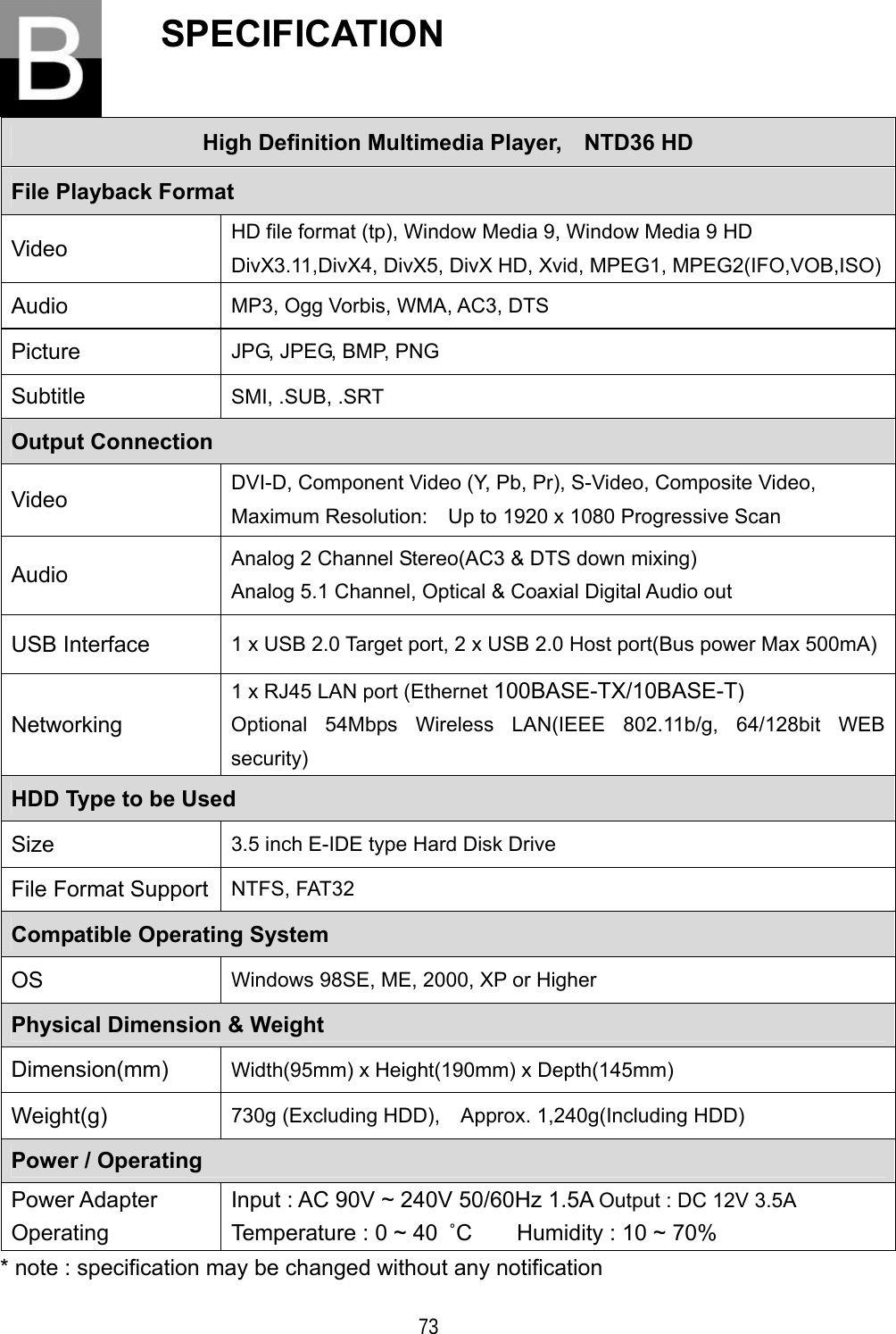
   73 SPECIFICATION  High Definition Multimedia Player,    NTD36 HD File Playback Format Video  HD file format (tp), Window Media 9, Window Media 9 HD DivX3.11,DivX4, DivX5, DivX HD, Xvid, MPEG1, MPEG2(IFO,VOB,ISO)Audio  MP3, Ogg Vorbis, WMA, AC3, DTS   Picture  JPG, JPEG, BMP, PNG Subtitle  SMI, .SUB, .SRT Output Connection   Video  DVI-D, Component Video (Y, Pb, Pr), S-Video, Composite Video,   Maximum Resolution:    Up to 1920 x 1080 Progressive Scan Audio  Analog 2 Channel Stereo(AC3 & DTS down mixing) Analog 5.1 Channel, Optical & Coaxial Digital Audio out USB Interface  1 x USB 2.0 Target port, 2 x USB 2.0 Host port(Bus power Max 500mA) Networking 1 x RJ45 LAN port (Ethernet 100BASE-TX/10BASE-T) Optional 54Mbps Wireless LAN(IEEE 802.11b/g, 64/128bit WEB security) HDD Type to be Used Size  3.5 inch E-IDE type Hard Disk Drive File Format Support  NTFS, FAT32 Compatible Operating System OS  Windows 98SE, ME, 2000, XP or Higher Physical Dimension & Weight Dimension(mm)  Width(95mm) x Height(190mm) x Depth(145mm) Weight(g)  730g (Excluding HDD),    Approx. 1,240g(Including HDD)   Power / Operating Power Adapter Operating Input : AC 90V ~ 240V 50/60Hz 1.5A Output : DC 12V 3.5A Temperature : 0 ~ 40  ˚C    Humidity : 10 ~ 70% * note : specification may be changed without any notification

Navigation menu