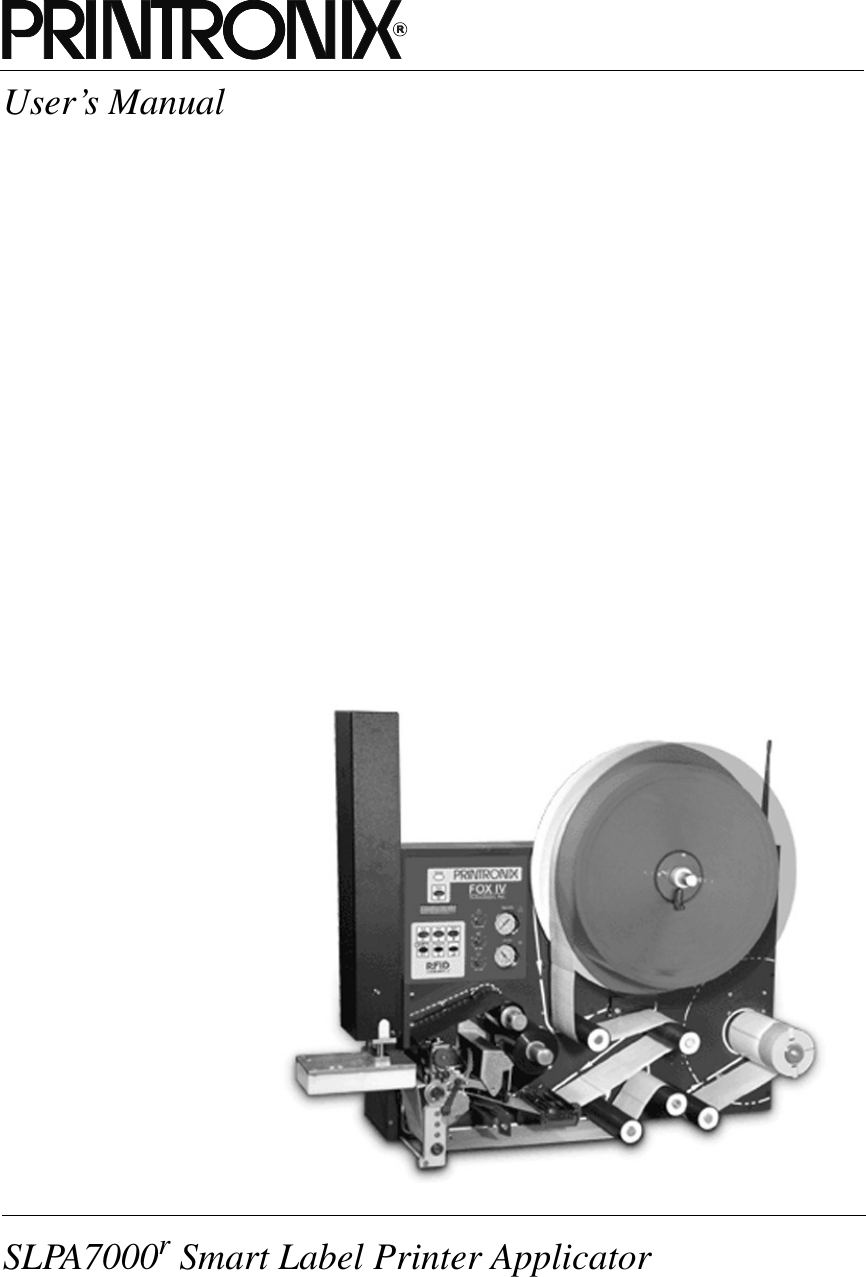
Printronix ADMP2PA Print and Apply Machine User Manual PTX UM SLPA7000r 250117A

Printronix Inc Print and Apply Machine PTX UM SLPA7000r 250117A

Contents

Users Manual 2

SLPA7000r Smart Label Printer ApplicatorUser’s Manual
User’s ManualSLPA7000r Smart Label Printer Applicator
IMPORTANT WARRANTY INFORMATIONPRINTER WARRANTYPrintronix® warrants to the purchaser that under normal use and service, this printer (excluding the thermal printhead) purchased hereunder shall be free from defects in material and workmanship for a period of one year from the date of shipment from Printronix. (In the United States and Canada, this period provides for onsite support service in the first 90 days of ownership, with return-to-factory service provided from the 91st day of ownership until the end of one year, costs of shipping to be borne by the purchaser.)Consumable items such as media and ribbons are not covered under this warranty. This warranty does not cover equipment or parts that have been misused, altered, or used for purposes other than those for which they were manufactured. This warranty also does not cover loss, shipping damage, damage resulting from accident or damages resulting from unauthorized service.THERMAL PRINTHEADPrintronix warrants the printhead for a period of one hundred eighty (180) days, or 1,000,000 linear inches for direct thermal use, or 2,000,000 linear inches for thermal transfer use, whichever comes first. The warranty does not cover printheads that have been misused, damaged due to improper cleaning, or damaged due to use of improper ribbons or media.SUPPLIESFor the nearest Printronix full-service distributor that carries Printronix genuine supplies, please call 1-800-733-1900 or fax (714)-368-2354. Supplies design, specification, and selection are integral to the development of any computer imaging system. Printronix's extensive manufacturing and research capabilities, along with years of experience in the design of printers and their applications, assures that you will receive the exact materials that you require to maximize the performance of your Printronix printer. For more information, call the Printronix Customer Solutions Center at (714) 368-2686 or access the Printronix website at http://www.printronix.com.ON-SITE MAINTENANCE SERVICEPrintronix offers on-site support services in the United States and Canada. Please contact the Printronix Maintenance Contracts Group at 800-854-6463 - option 1 for detailed service agreement information.
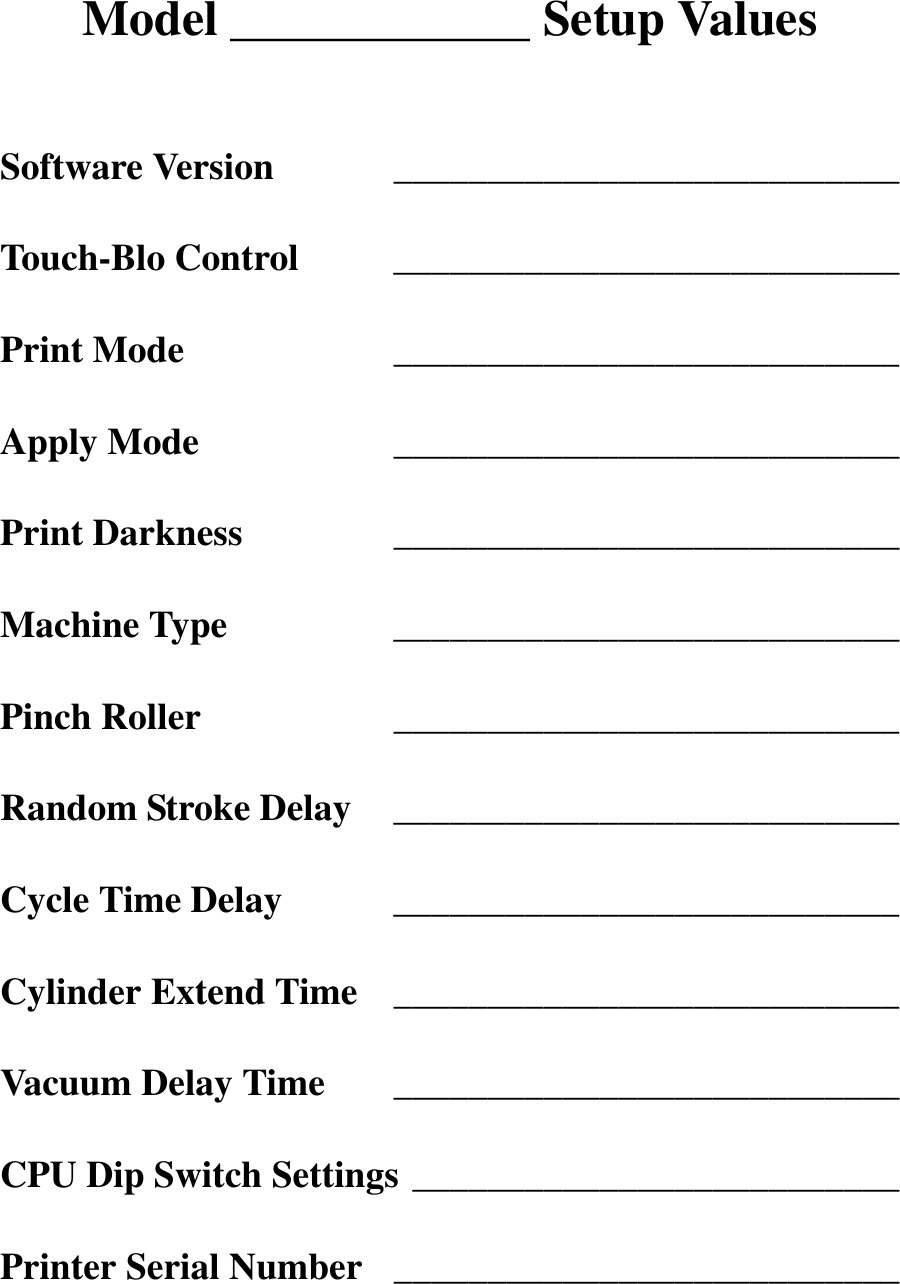
Model ____________ Setup ValuesSoftware Version ___________________________Touch-Blo Control ___________________________Print Mode ___________________________Apply Mode ___________________________Print Darkness ___________________________Machine Type ___________________________Pinch Roller ___________________________Random Stroke Delay ___________________________Cycle Time Delay ___________________________Cylinder Extend Time ___________________________Vacuum Delay Time ___________________________CPU Dip Switch Settings __________________________Printer Serial Number ___________________________
Communication NoticesThis equipment has been tested and found to comply with the limits for a Class B digital device, pursuant to Part 15 of the FCC Rules. These limits are designed to provide reasonable protection against harmful interference in a residential installation. This equipment generates, uses, and can radiate radio frequency energy and, if not installed and used in accordance with the instructions, may cause harmful interference to radio communications. However, there is no guarantee that interference will not occur in a particular installation. If this equipment does cause harmful interference to radio or television reception, which can be determined by turning the equipment off and on, the user is encouraged to try to correct the interference by one or more of the following measures:•Reorient or relocate the receiving antenna.•Increase the separation between the equipment and receiver.•Connect the equipment into an outlet on a circuit different from that to which the receiver is connected.•Consult the dealer or an experienced radio/TV technician for help.Unauthorized changes or modifications could void the user’s authority to operate the equipment.This device complies with part 15 of the FCC Rules. Operation is subject to the following two conditions: (1) this device may not cause harmful interference, and (2) this device must accept any interference received, including interference that may cause undesired operation.Any change or modification to this product voids the user’s authority to operate it per FCC Part 15 Subpart A Section 15.21 regulations.This product contains an intentional radiator with the following parameters: Operating Frequency: 902 to 928 MHzTypical RF Power: 25 to 100 milliwatts (SL5x04 MP) or 25 to 205 milliwatts (SL5x04 C1)Maximum RF Power: 1 Watt under abnormal conditionsCanadaThis Class B digital apparatus complies with Canadian ICES-003 and RSS 210.Cet appareil numérique de la classe B est conforme à la norme NMB-003 du Canada.Operation is subject to the following two conditions: (1) this device may not cause interference, and (2) this device must accept any interference, including interference that may cause undesired operation of the device.This device has been designed to operate with the antennas listed below, and having a maximum gain of –18 dBi. Antennas not included in this list or having a gain greater than –18 dBi dB are strictly prohibited for use with this device. The required antenna impedance is 50 ohms.Tested To Comply With FCC StandardsPrintronix SL5000r and T5000rFOR HOME OR OFFICE USE
To reduce potential radio interference to other users, the antenna type and its gain should be so chosen that the equivalent isotropically radiated power (e.i.r.p.) is not more than that permitted for successful communication.CE Notice (European Union)Marking by the CE symbol indicates compliance of this Printronix system to the EMC Directive and the Low Voltage Directive of the European Union. Such marking is indicative that this Printronix system meets the following technical standards:•EN 300 220-1 (2000), Electromagnetic Compatibility and Radio Spectrum Matters; Short Range Devices; Radio equipment to be used in the 25 MHz to 1000 MHz frequency range with power levels ranging up to 500 mW.•EN 55022 — “Limits and Methods of Measurement of Radio Interference Characteristics of Information Technology Equipment.”•EN 50082-1: 1992 — “Electromagnetic compatibility—Generic immunity standard Part 1: Residential, commercial, and light industry.”•EN 60950 — “Safety of Information Technology Equipment.”This printer is a Class B product for use in a typical Class B domestic environment.CE SymbolTaiwan
Trademark AcknowledgementsCompatibility Software Copyright © 1989 Phoenix Technologies Ltd., All Rights Reserved.Alien and Alien Technology are registered trademarks of Alien Technology Corporation.Code V is a trademark of Quality Micro Systems, Inc.EIA is a registered service mark of the Electronic Industries Association.Epson is a registered trademark of Seiko Epson Corporation.HP is a registered trademark of Hewlett-Packard Company.IBM is a registered trademark of International Business Machines Corporation.IGP, LinePrinter Plus, PGL, Printronix, and PSA are registered trademarks of Printronix, Inc.IPDS is a trademark of International Business Machines Corporation.LaserJet is a registered trademark of Hewlett-Packard Company.Microsoft, MS-DOS, and Windows are registered trademarks of Microsoft Corporation.PCL is a registered trademark of Hewlett-Packard Company.PhoenixPage PCL 5 is a registered trademark of Phoenix Technologies Ltd.PostScript is a registered trademark of Adobe Systems.PPI1, PPI2, SLPA7000e are trademarks of Printronix, Inc.Proprinter is a registered trademark of International Business Machines Corporation.QMS is a registered trademark of Quality Micro Systems, Inc.TEC is a registered trademark of the Toshiba TEC Corporation.Zebra is a registered trademark of Zebra Technologies Corporation.Copyright 2004, 2005, Printronix, Inc.
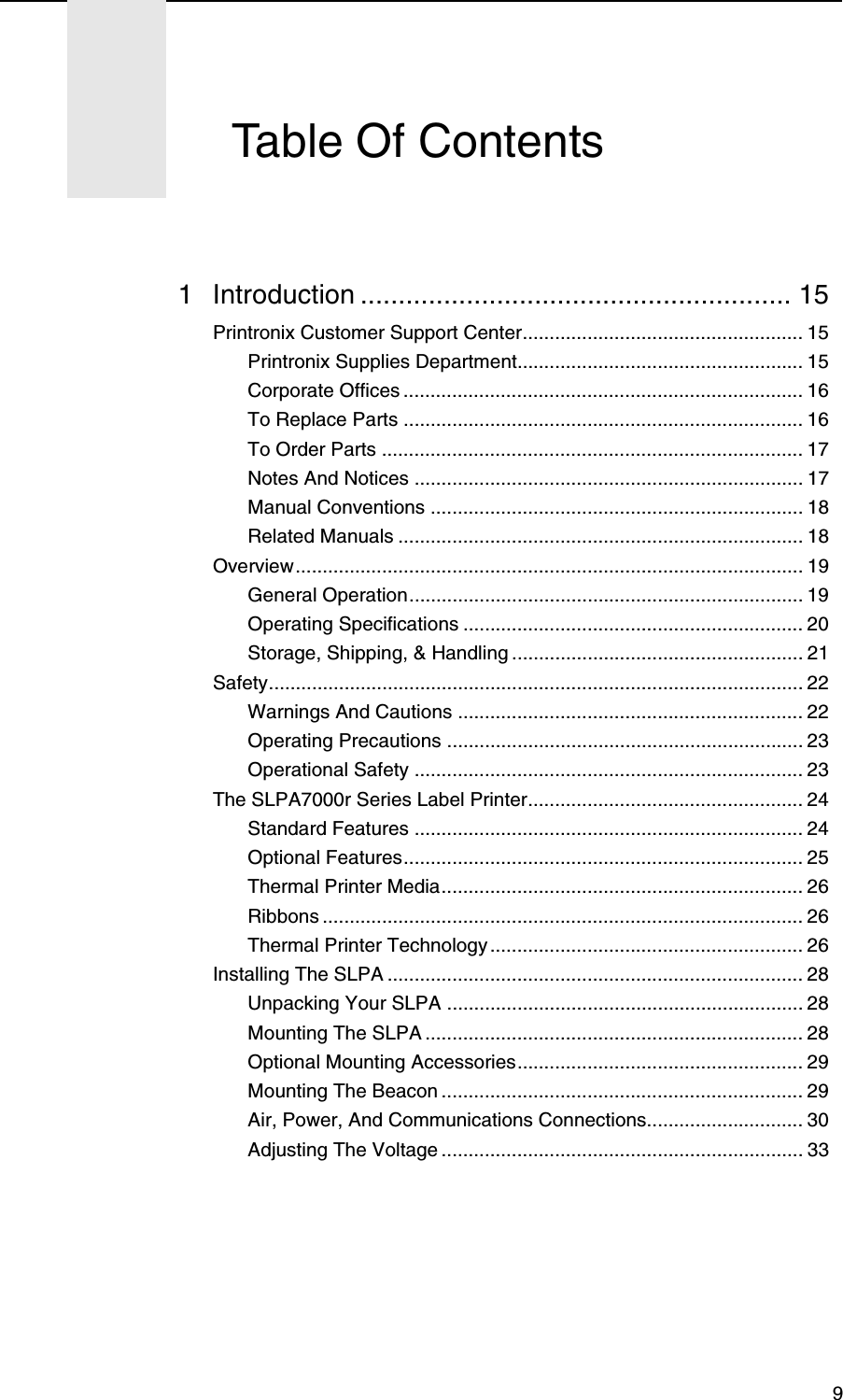
 91 Introduction ......................................................... 15Printronix Customer Support Center.................................................... 15Printronix Supplies Department..................................................... 15Corporate Offices .......................................................................... 16To Replace Parts .......................................................................... 16To Order Parts .............................................................................. 17Notes And Notices ........................................................................ 17Manual Conventions ..................................................................... 18Related Manuals ........................................................................... 18Overview.............................................................................................. 19General Operation......................................................................... 19Operating Specifications ............................................................... 20Storage, Shipping, & Handling ...................................................... 21Safety................................................................................................... 22Warnings And Cautions ................................................................ 22Operating Precautions .................................................................. 23Operational Safety ........................................................................ 23The SLPA7000r Series Label Printer................................................... 24Standard Features ........................................................................ 24Optional Features.......................................................................... 25Thermal Printer Media................................................................... 26Ribbons ......................................................................................... 26Thermal Printer Technology.......................................................... 26Installing The SLPA ............................................................................. 28Unpacking Your SLPA .................................................................. 28Mounting The SLPA ...................................................................... 28Optional Mounting Accessories..................................................... 29Mounting The Beacon ................................................................... 29Air, Power, And Communications Connections............................. 30Adjusting The Voltage ................................................................... 33Table Of Contents
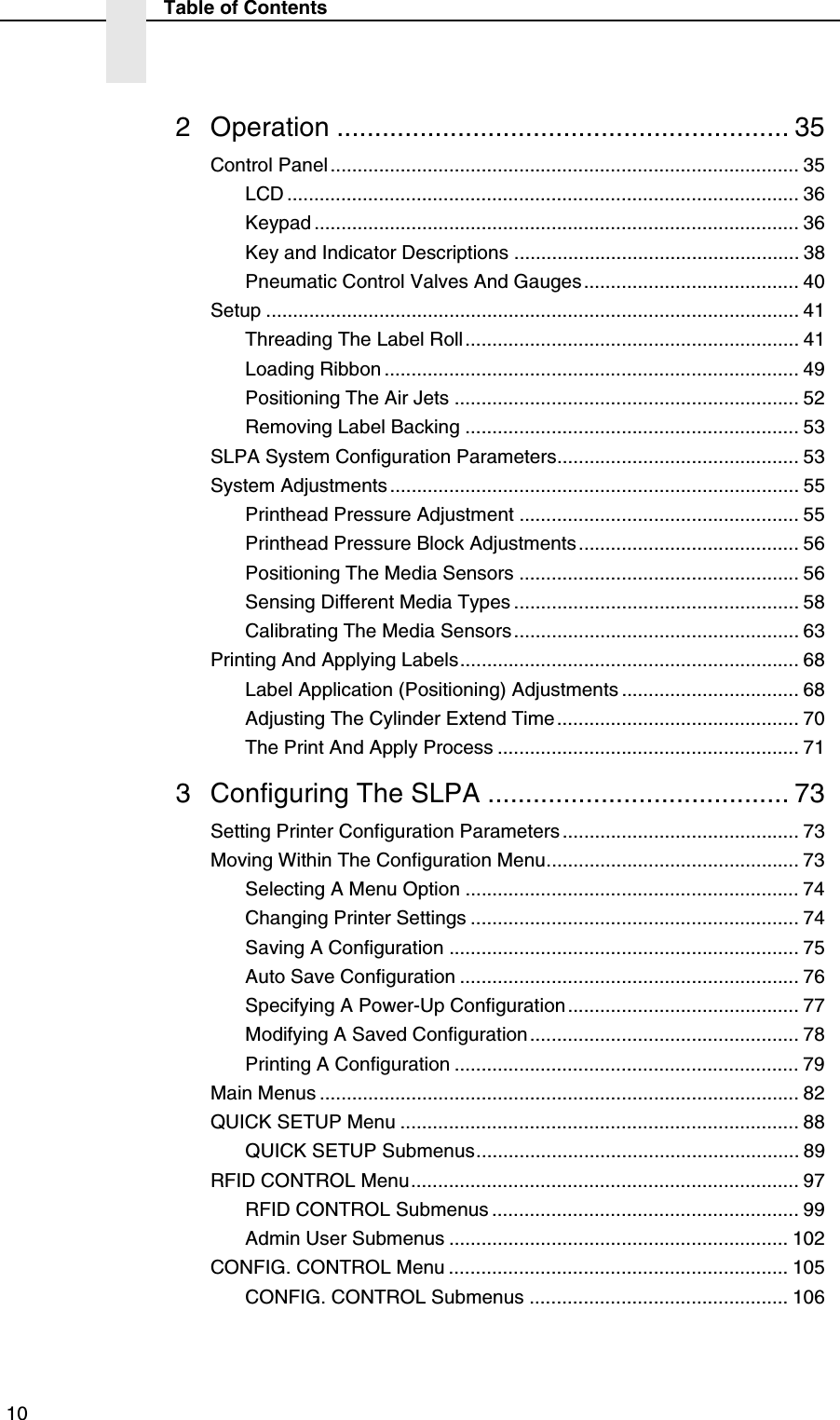
 10Table of Contents2 Operation ............................................................ 35Control Panel....................................................................................... 35LCD ............................................................................................... 36Keypad .......................................................................................... 36Key and Indicator Descriptions ..................................................... 38Pneumatic Control Valves And Gauges........................................ 40Setup ................................................................................................... 41Threading The Label Roll.............................................................. 41Loading Ribbon ............................................................................. 49Positioning The Air Jets ................................................................ 52Removing Label Backing .............................................................. 53SLPA System Configuration Parameters............................................. 53System Adjustments ............................................................................ 55Printhead Pressure Adjustment .................................................... 55Printhead Pressure Block Adjustments......................................... 56Positioning The Media Sensors .................................................... 56Sensing Different Media Types ..................................................... 58Calibrating The Media Sensors..................................................... 63Printing And Applying Labels............................................................... 68Label Application (Positioning) Adjustments ................................. 68Adjusting The Cylinder Extend Time ............................................. 70The Print And Apply Process ........................................................ 713 Configuring The SLPA ........................................ 73Setting Printer Configuration Parameters ............................................ 73Moving Within The Configuration Menu............................................... 73Selecting A Menu Option .............................................................. 74Changing Printer Settings ............................................................. 74Saving A Configuration ................................................................. 75Auto Save Configuration ............................................................... 76Specifying A Power-Up Configuration........................................... 77Modifying A Saved Configuration.................................................. 78Printing A Configuration ................................................................ 79Main Menus ......................................................................................... 82QUICK SETUP Menu .......................................................................... 88QUICK SETUP Submenus............................................................ 89RFID CONTROL Menu........................................................................ 97RFID CONTROL Submenus ......................................................... 99Admin User Submenus ............................................................... 102CONFIG. CONTROL Menu ............................................................... 105CONFIG. CONTROL Submenus ................................................ 106
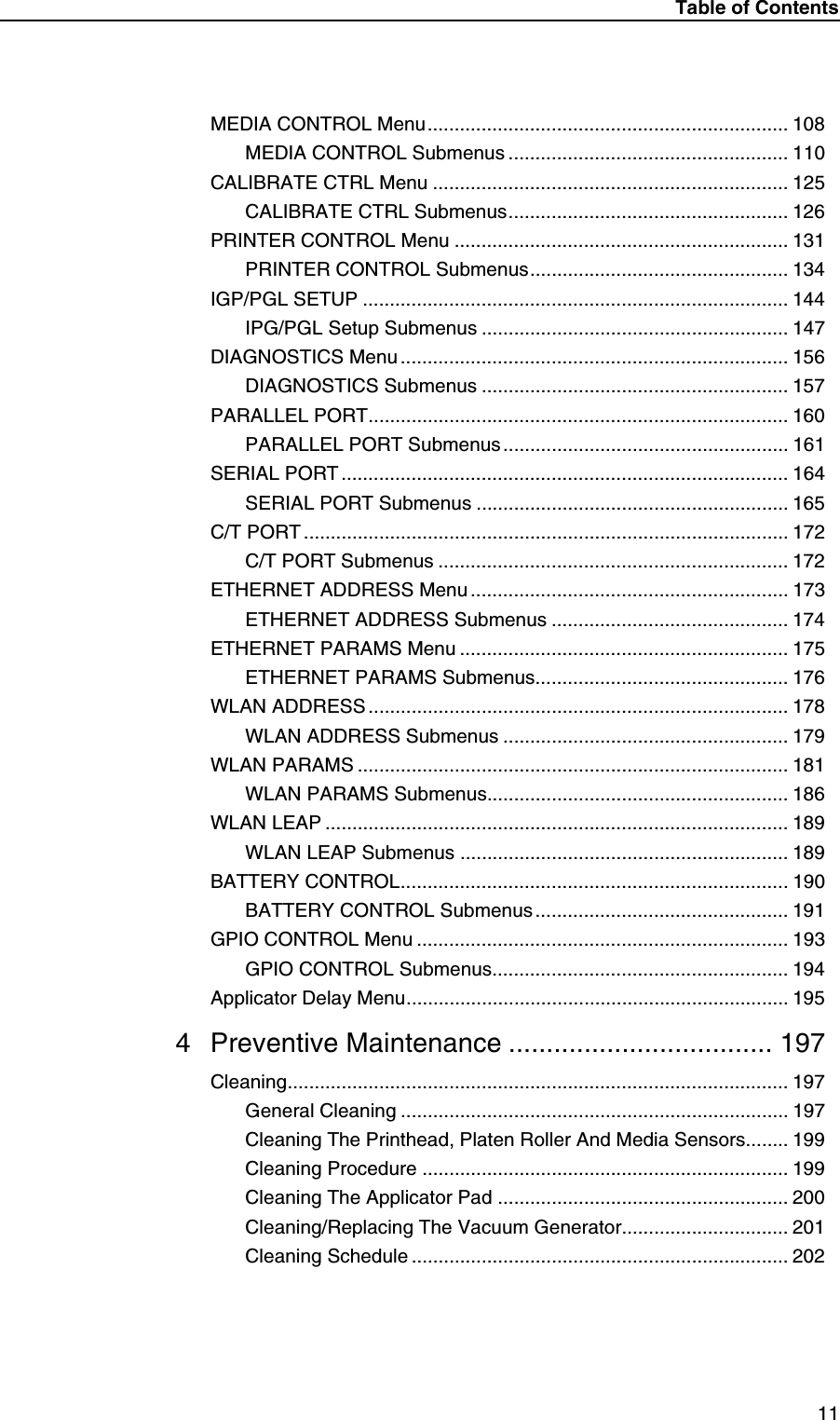
Table of Contents11MEDIA CONTROL Menu................................................................... 108MEDIA CONTROL Submenus .................................................... 110CALIBRATE CTRL Menu .................................................................. 125CALIBRATE CTRL Submenus.................................................... 126PRINTER CONTROL Menu .............................................................. 131PRINTER CONTROL Submenus................................................ 134IGP/PGL SETUP ............................................................................... 144IPG/PGL Setup Submenus ......................................................... 147DIAGNOSTICS Menu ........................................................................ 156DIAGNOSTICS Submenus ......................................................... 157PARALLEL PORT.............................................................................. 160PARALLEL PORT Submenus ..................................................... 161SERIAL PORT ................................................................................... 164SERIAL PORT Submenus .......................................................... 165C/T PORT .......................................................................................... 172C/T PORT Submenus ................................................................. 172ETHERNET ADDRESS Menu ........................................................... 173ETHERNET ADDRESS Submenus ............................................ 174ETHERNET PARAMS Menu ............................................................. 175ETHERNET PARAMS Submenus............................................... 176WLAN ADDRESS.............................................................................. 178WLAN ADDRESS Submenus ..................................................... 179WLAN PARAMS ................................................................................ 181WLAN PARAMS Submenus........................................................ 186WLAN LEAP ...................................................................................... 189WLAN LEAP Submenus ............................................................. 189BATTERY CONTROL........................................................................ 190BATTERY CONTROL Submenus ............................................... 191GPIO CONTROL Menu ..................................................................... 193GPIO CONTROL Submenus....................................................... 194Applicator Delay Menu....................................................................... 1954 Preventive Maintenance ................................... 197Cleaning............................................................................................. 197General Cleaning ........................................................................ 197Cleaning The Printhead, Platen Roller And Media Sensors........ 199Cleaning Procedure .................................................................... 199Cleaning The Applicator Pad ...................................................... 200Cleaning/Replacing The Vacuum Generator............................... 201Cleaning Schedule ...................................................................... 202
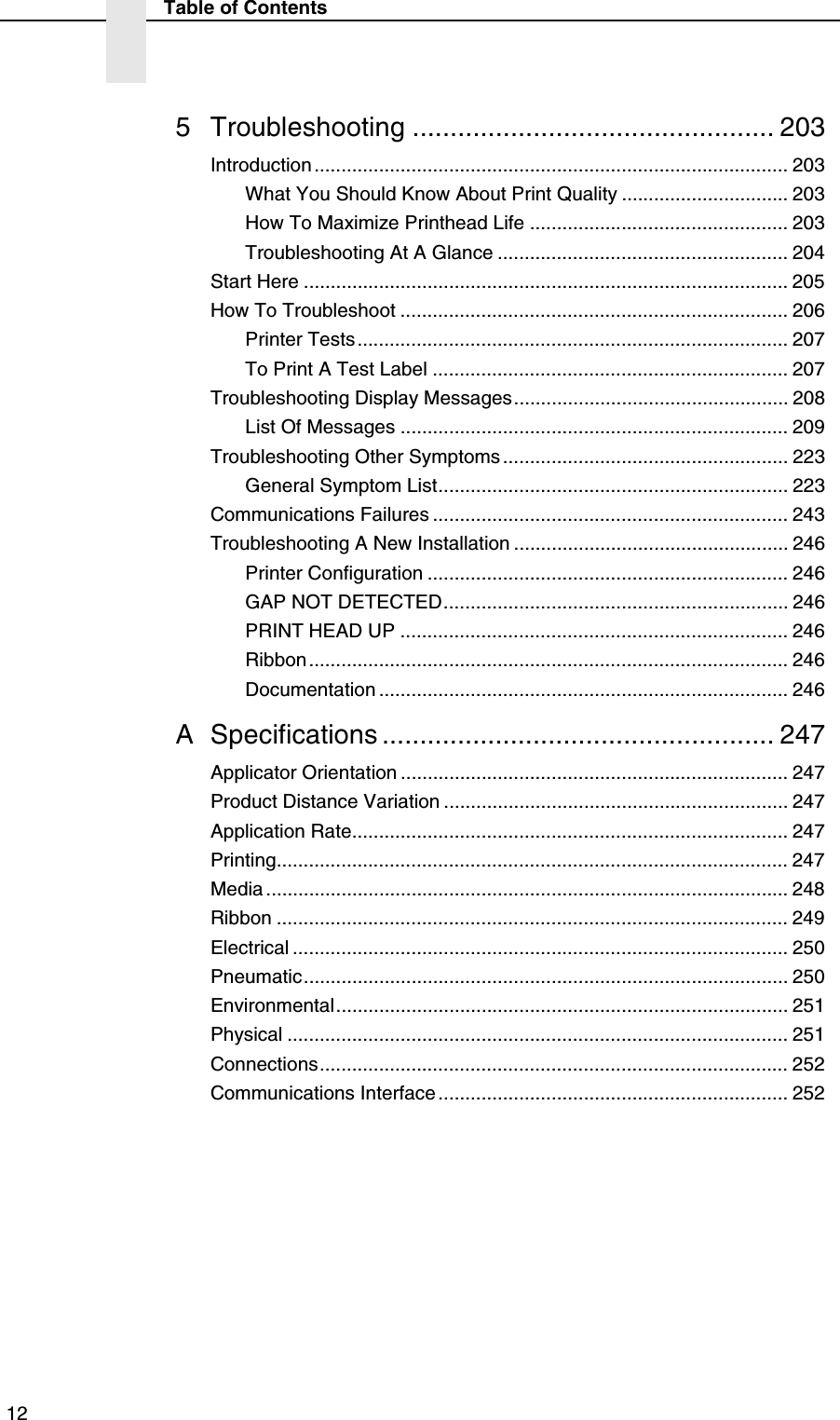
 12Table of Contents5 Troubleshooting ................................................ 203Introduction........................................................................................ 203What You Should Know About Print Quality ............................... 203How To Maximize Printhead Life ................................................ 203Troubleshooting At A Glance ...................................................... 204Start Here .......................................................................................... 205How To Troubleshoot ........................................................................ 206Printer Tests ................................................................................ 207To Print A Test Label .................................................................. 207Troubleshooting Display Messages................................................... 208List Of Messages ........................................................................ 209Troubleshooting Other Symptoms ..................................................... 223General Symptom List................................................................. 223Communications Failures .................................................................. 243Troubleshooting A New Installation ................................................... 246Printer Configuration ................................................................... 246GAP NOT DETECTED................................................................ 246PRINT HEAD UP ........................................................................ 246Ribbon......................................................................................... 246Documentation ............................................................................ 246A Specifications .................................................... 247Applicator Orientation ........................................................................ 247Product Distance Variation ................................................................ 247Application Rate................................................................................. 247Printing............................................................................................... 247Media ................................................................................................. 248Ribbon ............................................................................................... 249Electrical ............................................................................................ 250Pneumatic.......................................................................................... 250Environmental.................................................................................... 251Physical ............................................................................................. 251Connections....................................................................................... 252Communications Interface................................................................. 252
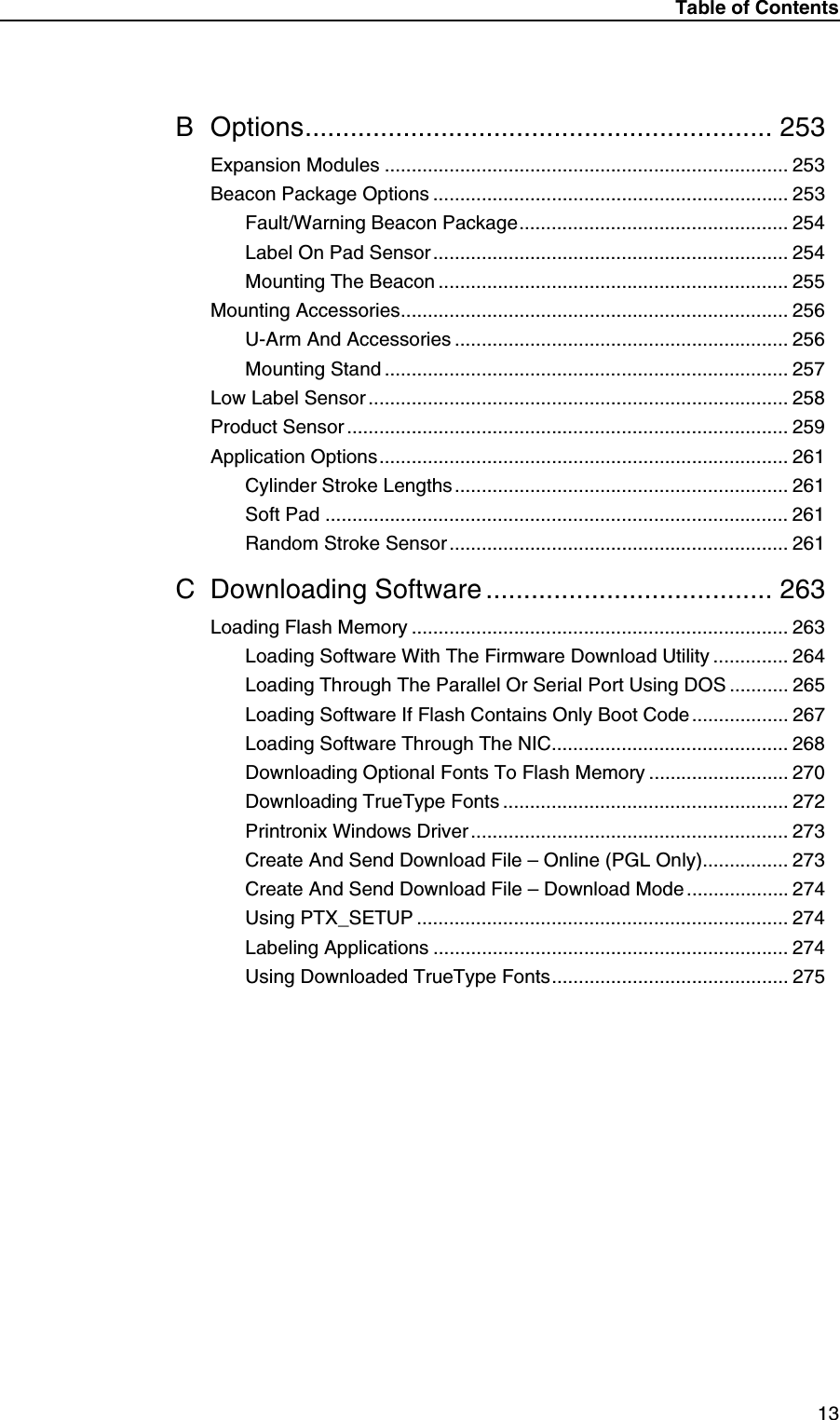
Table of Contents13B Options.............................................................. 253Expansion Modules ........................................................................... 253Beacon Package Options .................................................................. 253Fault/Warning Beacon Package.................................................. 254Label On Pad Sensor.................................................................. 254Mounting The Beacon ................................................................. 255Mounting Accessories........................................................................ 256U-Arm And Accessories .............................................................. 256Mounting Stand ........................................................................... 257Low Label Sensor .............................................................................. 258Product Sensor .................................................................................. 259Application Options............................................................................ 261Cylinder Stroke Lengths .............................................................. 261Soft Pad ...................................................................................... 261Random Stroke Sensor ............................................................... 261C Downloading Software ...................................... 263Loading Flash Memory ...................................................................... 263Loading Software With The Firmware Download Utility .............. 264Loading Through The Parallel Or Serial Port Using DOS ........... 265Loading Software If Flash Contains Only Boot Code .................. 267Loading Software Through The NIC............................................ 268Downloading Optional Fonts To Flash Memory .......................... 270Downloading TrueType Fonts ..................................................... 272Printronix Windows Driver........................................................... 273Create And Send Download File – Online (PGL Only)................ 273Create And Send Download File – Download Mode ................... 274Using PTX_SETUP ..................................................................... 274Labeling Applications .................................................................. 274Using Downloaded TrueType Fonts............................................ 275
 14Table of Contents
 151IntroductionCAUTIONThoroughly review this manual before attempting to install, set up, and operate the SLPA.Printronix Customer Support CenterIMPORTANTPlease have the following information available prior to calling the Printronix Customer Support Center:•Model number•Serial number (located on the back of the printer)•Installed options (i.e., interface and host type if applicable to the problem)•Configuration printout (Press PRT CONFIG on the control panel, then press Enter)•Is the problem with a new install or an existing printer?•Description of the problem (be specific)•Good and bad samples that clearly show the problem (faxing of these samples may be required)Americas (714) 368-2686Europe, Middle East, and Africa (31) 24 6489 410Asia Pacific (65) 6548 4114http://www.printronix.com/public/servicessupport/default.aspxPrintronix Supplies DepartmentContact the Printronix Supplies Department for genuine Printronix supplies.Americas (800) 733-1900Europe, Middle East, and Africa (33) 1 46 25 1900Asia Pacific (65) 6548 4116or (65) 6548 4182http://www.printronix.com/public/supplies/default.aspx
 16Chapter 1 Printronix Customer Support CenterCorporate OfficesPrintronix, Inc.14600 Myford RoadP.O. Box 19559Irvine, CA 92623-9559Phone: (714) 368-2300Fax: (714) 368-2600Printronix, Inc.Nederland BVP.O. Box 163, Nieuweweg 283NL-6600 Ad WijchenThe NetherlandsPhone: (31) 24 6489489Fax: (31) 24 6489499Printronix Schweiz GmbH42 Changi South Street 1Changi South Industrial EstateSingapore 486763Phone: (65) 6542 0110Fax: (65) 6546 1588Visit the Printronix web site at www.printronix.comTo Replace Parts1. Refer to the SLPA7000r Maintenance Manual.2. Find the removal procedure for the part.3. Read the entire procedure before you start and make sure you understand all notes and notices, which are defined on page 17.4. Gather the tools you will need.5. Do the procedure.
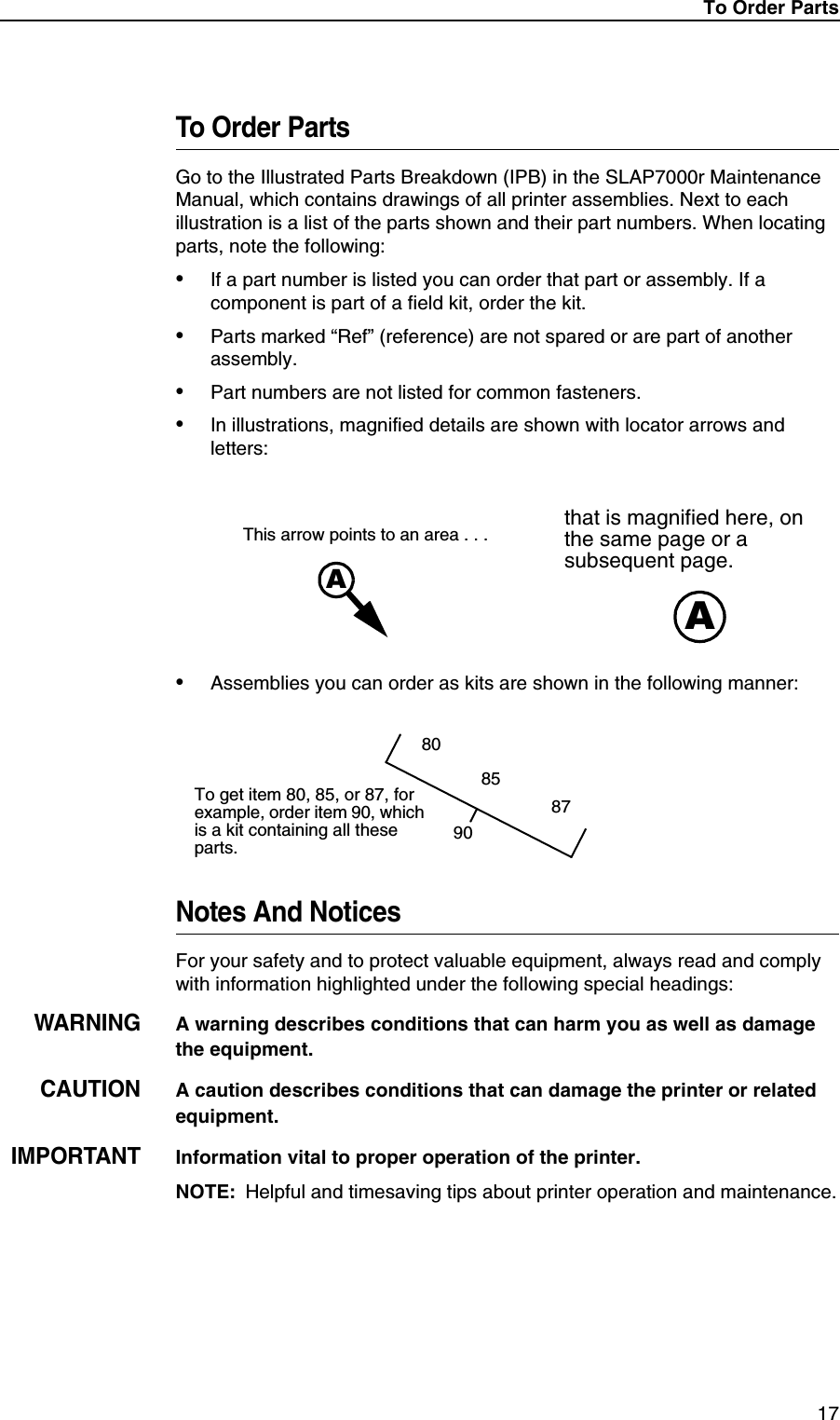
To Order Parts 17To Order PartsGo to the Illustrated Parts Breakdown (IPB) in the SLAP7000r Maintenance Manual, which contains drawings of all printer assemblies. Next to each illustration is a list of the parts shown and their part numbers. When locating parts, note the following:•If a part number is listed you can order that part or assembly. If a component is part of a field kit, order the kit.•Parts marked “Ref” (reference) are not spared or are part of another assembly.•Part numbers are not listed for common fasteners.•In illustrations, magnified details are shown with locator arrows and letters:•Assemblies you can order as kits are shown in the following manner:Notes And NoticesFor your safety and to protect valuable equipment, always read and comply with information highlighted under the following special headings:WARNINGA warning describes conditions that can harm you as well as damage the equipment.CAUTIONA caution describes conditions that can damage the printer or related equipment.IMPORTANTInformation vital to proper operation of the printer.NOTE: Helpful and timesaving tips about printer operation and maintenance.AAThis arrow points to an area . . . that is magnified here, on the same page or a subsequent page.90858087To get item 80, 85, or 87, for example, order item 90, which is a kit containing all these parts.
 18Chapter 1 Printronix Customer Support CenterManual Conventions•Control panel keys are printed in bold, uppercase letters.Example: Press the PAUSE key to take the printer offline.•Control panel keys are often shown by their symbol or icon (located on the control panel directly below the key).Example: Press the ↵ to select it.•Liquid Crystal Display (LCD) messages are printed in uppercase letters inside quotation marks ( “ ” ).Example: When “OFFLINE” appears on the LCD, you may release the PAUSE key.•LCD fault messages display the specific fault in uppercase letters on the top line. A corrective action in upper and lowercase letters displays on the bottom line.Example: PAPER OUTLoad Paper•Key combinations (pressing keys at the same time) are indicated by the+ (plus) symbol.Example: Press ↓ + ↵ to unlock the ↵ key.Related ManualsThis manual does not explain how to install, operate, configure the printer, or how to program application software for operation with the printer. That information is in the following manuals, available online at www.printronix.com:•T5000 Thermal Printer User’s Manual•T5000 Quick Reference Manual•T5000 Maintenance Manual•Network Interface Card User’s Manual•IGP®/PGL Emulation Programmer’s Reference Manual•IGP®/VGL Emulation Programmer’s Reference Manual•IPDS™ Programmer’s Reference Manual•LinePrinter Plus® Emulation Programmer’s Reference Manual•Printer Protocol Interpreter (PPI) ZGL™ Programmer’s Reference Manual•Printer Protocol Interpreter (PPI) TGL™ Programmer’s Reference Manual•Printer Protocol Interpreter (PPI) IGL™ Programmer’s Reference Manual•Printer Protocol Interpreter (PPI) STGL™ Programmer’s Reference Manual
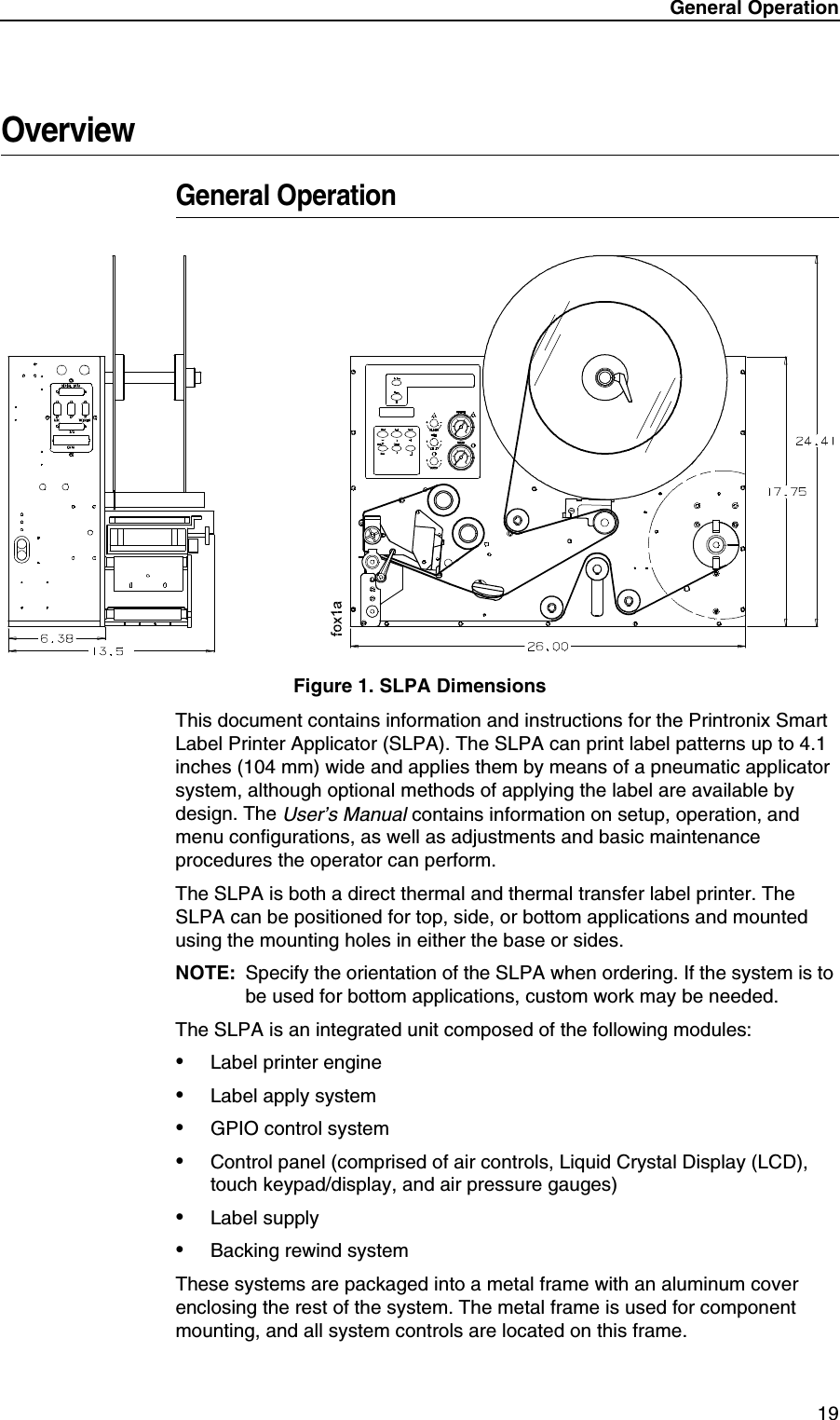
General Operation 19OverviewGeneral OperationFigure 1. SLPA DimensionsThis document contains information and instructions for the Printronix Smart Label Printer Applicator (SLPA). The SLPA can print label patterns up to 4.1 inches (104 mm) wide and applies them by means of a pneumatic applicator system, although optional methods of applying the label are available by design. The User’s Manual contains information on setup, operation, and menu configurations, as well as adjustments and basic maintenance procedures the operator can perform.The SLPA is both a direct thermal and thermal transfer label printer. The SLPA can be positioned for top, side, or bottom applications and mounted using the mounting holes in either the base or sides.NOTE: Specify the orientation of the SLPA when ordering. If the system is to be used for bottom applications, custom work may be needed.The SLPA is an integrated unit composed of the following modules:•Label printer engine•Label apply system•GPIO control system•Control panel (comprised of air controls, Liquid Crystal Display (LCD), touch keypad/display, and air pressure gauges) •Label supply•Backing rewind systemThese systems are packaged into a metal frame with an aluminum cover enclosing the rest of the system. The metal frame is used for component mounting, and all system controls are located on this frame.
 20Chapter 1 OverviewOperating SpecificationsOperating EnvironmentThe SLPA is designed for general use in warehouse and industrial environments. It should not be exposed to liquids or damaging chemical vapors, and will function properly in environments with an ambient temperature between 40o to 100o F (4o to 38o C). Minimizing unnecessary exposure to dirt and dust is also recommended.NOTE: Optional enclosures may be purchased to protect the products in unusually harsh environments.Power RequirementsA properly grounded, dedicated line supplying either:115 VAC +10%, single phase @ 50 - 60 Hzor 230 VAC +10%, single phase @ 50 - 60 Hz.CAUTIONIt is recommended that you isolate the SLPA from its power supply by means of a surge suppressor to minimize any potential damage to the equipment.A suppressor which limits voltage to 400V and has a response time of 1-5ns is highly recommended.Air SupplyThe applicator system works with a regulated 80 to 100 psi (550 to 690 kPa) air supply that is dust and oil free. A filter is provided that is equipped with a mist separator to remove any condensation that builds in the line.CAUTIONThe pneumatic supply line should also be dedicated to maintain the appropriate pressure range, thereby providing relief against excess pressure. Providing such protection should prevent the supply pressure from exceeding 135 psi (931 kPA).
Storage, Shipping, & Handling 21Storage, Shipping, & HandlingStorage•Store the SLPA in a clean dry area.•Storage temperatures should be between -40o to 150o F (-40o to 65o C).•Do not store the SLPA with labels or printing ribbon installed.•Store the SLPA in its original packaging if possible.Shipping•Observe storage conditions when shipping. Retain the shipping materials if the SLPA is intended to be moved from site to site.•If the original packing is not available, ensure sufficient padding/protection for the printhead, applicator, label rollers, and rear cover.•Carefully inspect the SLPA packaging upon receipt. If damage from dropping, crushing, or punctures occurred, contact the carrier directly and specify the nature of the damage.Handling•When handling the SLPA, do not rest or pivot it such that pressure may be applied to the printhead assembly.•Do not lift or pull the SLPA by gripping the applicator pad, the pneumatic tubing, the printhead assembly, or any of the rollers which are located on the front of the it.NOTE: It is possible to manually position the applicator pad. Ensure that the applicator pad is in the full up position to prevent any damage from occurring when the SLPA is moved.
 22Chapter 1 SafetySafetyWarnings And CautionsWARNINGPrintronix has provided the necessary guards and warnings within the confines of the SLPA, but cannot anticipate each customer’s individual installation and operational environments. It is the customer’s responsibility to provide in-house safety guards to provide adequate worker safety for their respective production settings.WARNINGAn input signal from the product sensor activates the SLPA when it is powered on. Make certain that protective guards are properly secured and that materials are clear of the applicator pad/printhead assembly before powering on the SLPA.WARNINGThis manual includes instructions on basic operation and preventative maintenance only. Only qualified technicians should perform service procedures, i.e, procedures requiring access to the rear compartment or power entry module of the SLPA.WARNINGBoth surge protection for the electrical supply and pressure relief for the pneumatic supply are strongly recommended. Failure to properly protect against extreme fluctuations in the supply sources could result in operator injury or damage to equipment.CAUTIONPower off the SLPA and disconnect both the power source and the air supply prior to doing any maintenance, adjustments, and/or parts replacement which do not require these systems to be powered on.CAUTIONRead and become familiar with all of the instructions in this manual before proceeding to operate the SLPA.CAUTIONAny external communications cables to be used with the SLPA must be properly shielded and grounded. Failure to provide proper shielding or grounding for these cables could result in malfunctioning or damage to the SLPA.CAUTIONWhen handling the SLPA, do not rest or pivot it such that pressure may be applied to the printhead assembly.
Operating Precautions 23Operating PrecautionsProper operation of the SLPA depends upon timely maintenance and appropriate operation. Always observe the following precautions:•Use label stock which is designed for use with the SLPA. Printronix supplied replacement stock is recommended.•Ensure that a regulated air supply is used for the pneumatic system. Use the appropriate filters for the removal of dirt, oil, and excessive moisture.•Secure all protective guards, covers, and enclosures prior to operating the SLPA. Ensure proper mounting of the SLPA prior to use.•Do not attempt to operate an SLPA from a power source other than that for which it was designed. Do not use any of the SLPA’s components to power or operate any equipment except those they are intended to operate.•Use only Printronix replacement parts for maintenance and repair.•You must have this manual to perform any maintenance. Use only the appropriate tools and ensure that maintenance workers are properly grounded if work is being performed on the circuitry.•Do not use objects other than a finger to operate buttons on the keypad.•Sound pressure levels indicated a maximum reading of 81 ±1dB(A).Sound levels were determined based on printers of similar design and assembled with a 3 x 4 inch applicator pad. Readings were taken in a low noise environment, at approximately 1.0 meter.NOTE: Sound levels may vary depending upon the mounting of the SLPA, the surface to which a label is applied, and the environment in which it is used. The size of the applicator pad can also affect sound levels, in that larger pads can produce greater noise when applying labels.Operational SafetyWARNINGThe addition of custom safety guards in the vicinity of the label applicator is essential to the safe operation of the SLPA. Due to the variety of potential assembly line setups, Printronix cannot provide sufficient guarding in a standard package. The addition of such guards is the responsibility of the buyer.WARNINGThe SLPA should be powered off during any operation in which a worker may be exposed to a hazardous zone. If it is necessary that the SLPA remain powered on, make certain that the Pause button is pressed and the product sensor is disconnected.
 24Chapter 1 The SLPA7000r Series Label PrinterThe SLPA7000r Series Label PrinterThe SLPA7000 Series is a family of direct thermal and thermal transfer printers designed to print labels and tags from any MS-DOS®, Windows®, or ASCII-based computer.Printronix Dynamic Print Control provides exceptional print quality. A circuit monitors the data to be printed and automatically adjusts the energy applied to the thermal printhead for maximum performance.The printer can communicate with the host computer via RS-232 and RS-422 serial, Centronics®-compatible parallel, IEEE® 1284 compliant parallel, and (optionally) coax/twinax, ethernet 10/100Base-T, or wireless ethernet host connections. The interface cable needed to connect the printer to the host device is supplied by the user.Standard Features•Emulations:•Printronix LinePrinter Plus (LP+). Provides direct compatibility with Printronix P-series printers.•Epson FX-1050, Proprinter IIIXL, and Serial Matrix printers.•Printronix IGP/PGL and IGP/VGL. Provides printer system commands for text, barcodes, graphics, lines, and boxes.•Thermal Transfer and Direct Thermal Printing: On all printers(except -DT models, which print only in direct thermal mode)•Bar Codes: Support for over 20 types of bar codes•Resident Fonts: OCRA, OCRB, Courier, Letter Gothic, andCG Triumvirate Bold Condensed•Download: Forms, fonts, and graphics into printer memory•High Resolution Printhead: For sharp graphics and text•Tear-Off Mode: For positioning the label at the peel bar•32MB Flash memory•8MB DRAM memory•Auto Label Mapping®: For compatibility with programs written for Printronix line matrix printers.•Ventless System: For operation in environments with airborne particulate matter without compromising performance•ZGL, TGL, IGL, and STGL Interpreters: PPI/ZGL (ZebraTM), PPI/TGL (TEC), PPI/IGL (Intermec), and PPI/STGL (SATO) interpreters are powerful integration tools that allows the SL5000r/T5000r to function in virtually all legacy ZPLTM, TEC, IPL, and SGL application environments without requiring modification to host data stream.
Optional Features 25•Standard interfaces:•Serial: RS-232•USB 2.0 Universal Serial Bus•Parallel: Centronics®-compatible parallel, IEEE® 1284 compliant parallelNOTE: The interface cable needed to connect the printer to the host device is supplied by the user.Optional FeaturesThe following options are also available:•Fonts: A selection of fonts can be loaded from the host computer into printer memory. Once loaded, these fonts are accessed in the same way as the resident fonts. See Table 16 on page 270 for a list of optional fonts.•Memory Expansion (for non-IPDS printers only):•16MB DRAM SIMM (single in-line memory module): Provides additional memory to accommodate long label formats. Replaces standard 8 MB Flash SIMM.•Twinax/Coax Host Interface: Provides connection to a host computer system using a coaxial or twinaxial interface.•Network Interface Card (NIC): This option allows you to attach the printer to a LAN (Local Area Network) rather than attaching it directly to a host computer.NIC adapters are available as an internally installed option, mounted inside the printer with the 10/100Base-T (UTP) connection only.NOTE: In this manual, the terms “Network Interface Card” (or “NIC”) and “Ethernet” are used interchangeably.•Wireless NIC: This card provides wireless 802.11b connectivity without expensive cabling and reconfigurations required from a wired network.•IPDS: Available for coax/twinax, a NIC, or a combination of both. The printer may be ordered with this option installed and the required hardware to support it, or it can be field installed by an authorized service representative at a later date. The printer must have a coax/twinax interface or NIC, 300 dpi printhead, 16 MB DRAM, and 10 MB flash memory installed to support this field-installed option.•TN5250/TN3270: Enables your printer to communicate with an IBM host through a NIC using the 5250/3270 datastream. This feature allows you to use an application generated for the twinax/coax emulation to be printed through the NIC.•RS-422: Serial interface option.
 26Chapter 1 The SLPA7000r Series Label PrinterThermal Printer MediaBecause there are two modes of operation, there are two kinds of thermal printer paper:•Direct thermal paper: This paper is coated with chemicals that act as accelerators, ink, and ink binders. In direct thermal mode, the heat from the thermal printhead contacts the paper and causes a chemical reaction on the surface of the paper.•Thermal transfer paper: This film or synthetic paper substitute is designed to accept transferred images well and to resist scratching. Most thermal transfer papers can be die-cut for easy label applications. Printronix offers a selection of thermal transfer paper sizes and face stocks, which ensures high print quality and long life when used with Printronix ribbons.RibbonsUse only Printronix Genuine Thermal Ribbons in this printer. Printronix thermal ribbons are engineered to enhance thermal printing capabilities and to prevent premature wear of the printhead.Thermal Printer TechnologyUnlike a dot matrix, laser, or LED printhead printer, a thermal printer has a printhead containing heating elements that are used with paper or a ribbon specially designed for use with a heated printhead. The SLPA uses an inline thermal printhead, which produces high resolution output quickly and efficiently.The Printing ProcessThe thermal printhead allows two modes of operation:•Direct Thermal Mode: The thermal printhead selectively heats tiny rectangular dots on its surface. When the heated dots contact specially coated thermal paper, the dyes and developers in the coating react to the heat and develop an image. This mode of printing is often used for short-term labeling applications.•Thermal Transfer Mode: The heated dots contact a thermal ribbon; the thermal ribbon reacts to the heat by bonding the image to the paper. This method is especially suitable for print applications requiring long-term storage, abrasion resistance, durability in extreme environmental conditions, and resistance to tampering. (Models designated -DT do not print in this mode.)
Thermal Printer Technology 27Dynamic Print ControlPrint quality in thermal printers depends on how well the thermal ribbon and thermal transfer paper respond to the heat of the thermal printhead. The thermal printhead must reach a specific temperature to print, then must cool down in the shortest possible time after printing. Print quality therefore depends on precise control of the energy supplied to the thermal dots. If uneven print density occurs, it is usually caused by the stored heat from dots printed previously.The SLPA uses Dynamic Print Control technology to ensure even print density. Dynamic Print Control is printer software that monitors and adjusts printhead temperatures. Based on stored results of previously printed dots, the printer predicts the amount of heat required to print subsequent dots and regulates the electrical energy applied to the printhead. This prevents uneven print density and permits the printing of narrow-ladder bar codes and vertical grid lines that are absolutely straight.
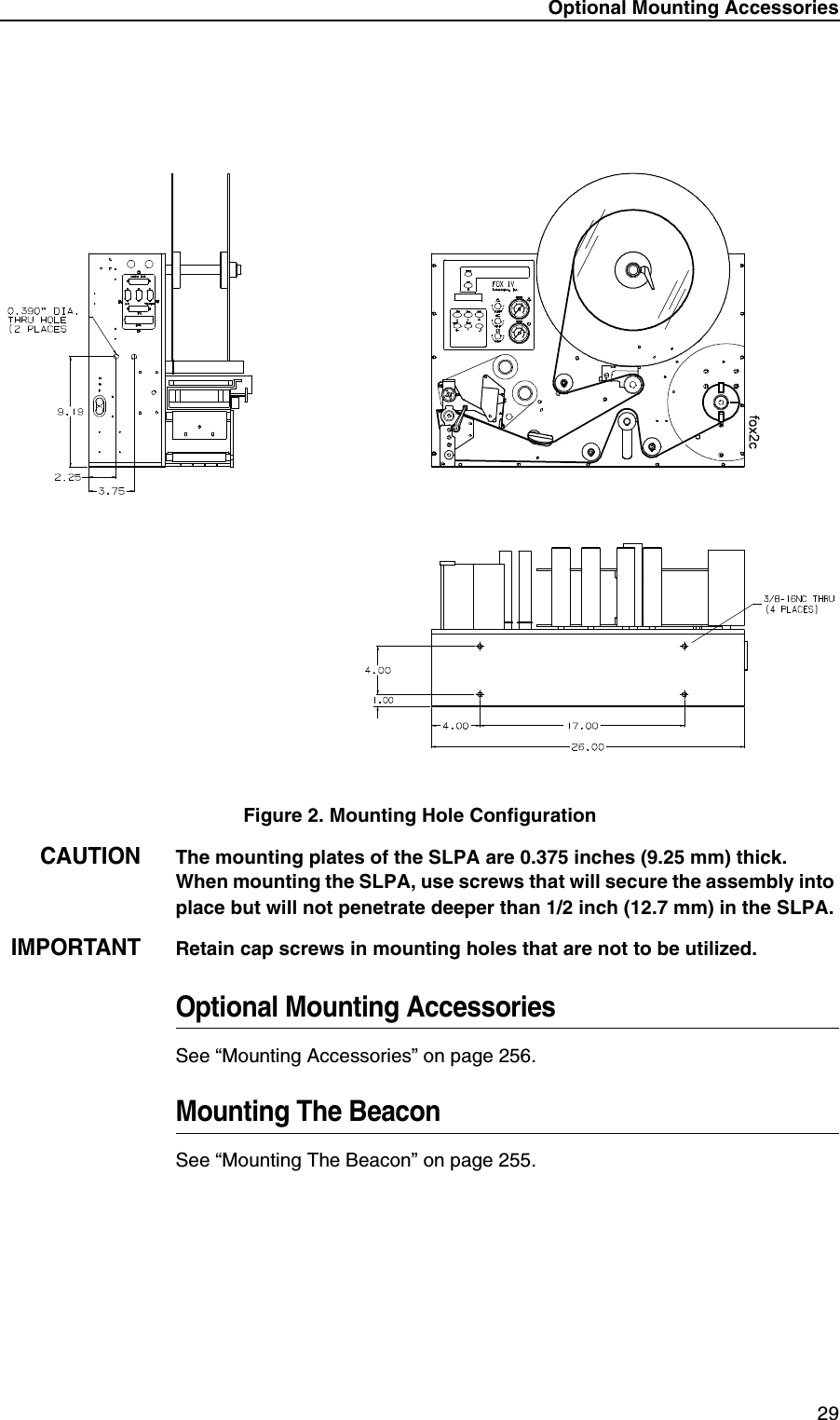
 28Chapter 1 Installing The SLPAInstalling The SLPAUnpacking Your SLPAThe SLPA has been securely packaged for protection during transportation. Once received, follow the steps outlined below to ensure that the SLPA is not damaged.1. Remove the top layer of protective paper from the SLPA.2. Lift the SLPA from the protective bottom layer of the box.CAUTIONDo not lift or pull the SLPA by gripping the applicator pad, the pneumatic tubing, the printhead assembly or ANY ROLLERS which are located on the front of it.3. Save the shipping container and protective layers of paper to ensure proper return shipping to Printronix, if necessary.4. Organize all items as they are unpacked from their containers. Carefully inspect each item for signs of damage. Make certain that all parts (options) requested are received with the order.5. Consult the enclosed packing slip for contact information if any item is missing or broken.Mounting The SLPAThe mounting method for the SLPA allows for side, top, or bottom applications.NOTE: Specify the orientation of the SLPA when ordering. If the system is to be used for bottom applications, custom work may be needed.If the bottom base plate is used, the SLPA can easily be mounted to any flat surface using the four 3/8 - 16 UNC holes provided. If the SLPA is mounted using the 0.39 inch diameter holes provided on the side panels, special fixturing may be needed to prevent potential damage to the connectors and cabling in those areas.To facilitate access to the control panel, the SLPA should be mounted at a height between 2.0 feet (0.6 m) to 6.2 feet (1.9 m) above service level.
Optional Mounting Accessories 29Figure 2. Mounting Hole ConfigurationCAUTIONThe mounting plates of the SLPA are 0.375 inches (9.25 mm) thick. When mounting the SLPA, use screws that will secure the assembly into place but will not penetrate deeper than 1/2 inch (12.7 mm) in the SLPA.IMPORTANTRetain cap screws in mounting holes that are not to be utilized.Optional Mounting AccessoriesSee “Mounting Accessories” on page 256.Mounting The BeaconSee “Mounting The Beacon” on page 255.
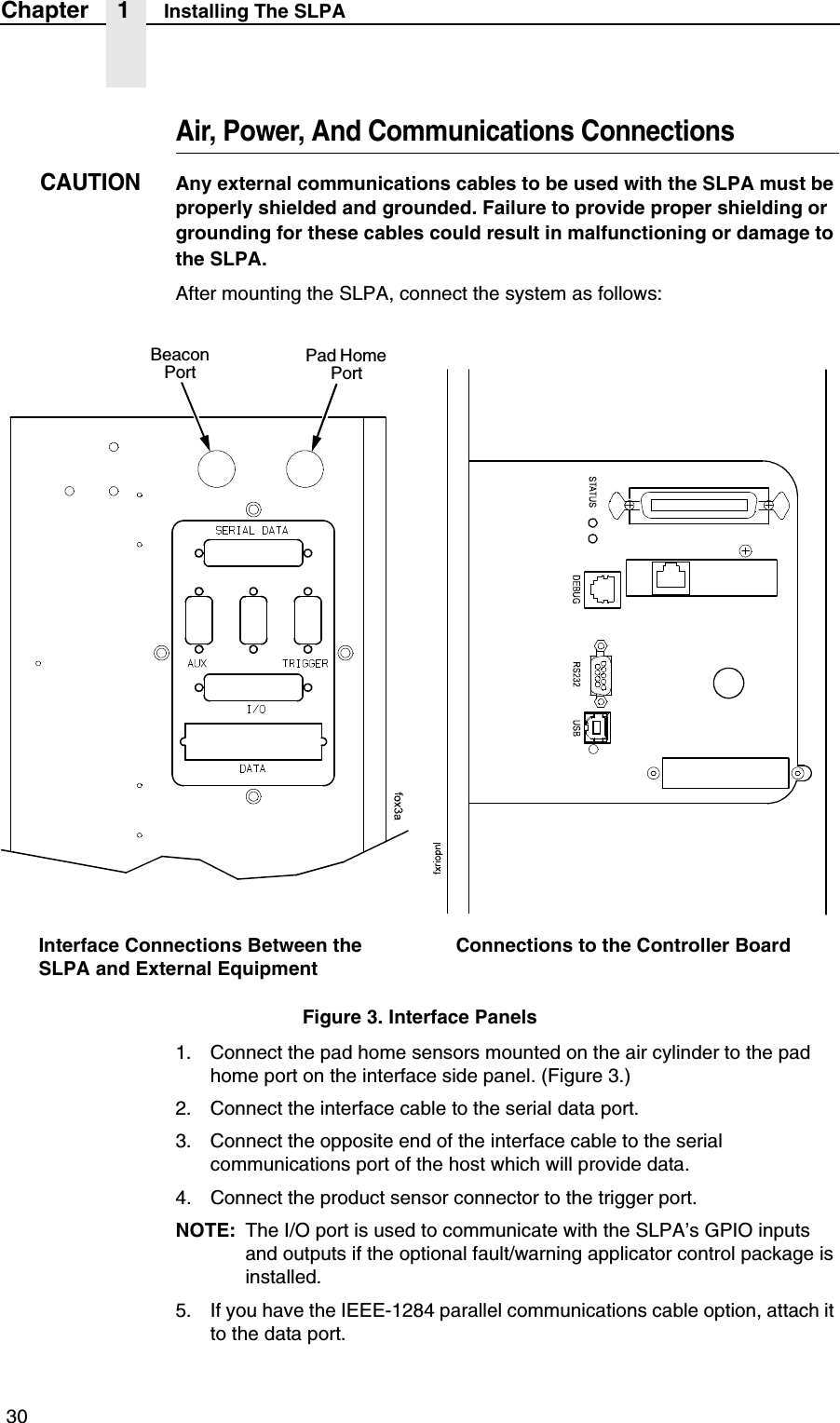
 30Chapter 1 Installing The SLPAAir, Power, And Communications ConnectionsCAUTIONAny external communications cables to be used with the SLPA must be properly shielded and grounded. Failure to provide proper shielding or grounding for these cables could result in malfunctioning or damage to the SLPA.After mounting the SLPA, connect the system as follows:Figure 3. Interface Panels1. Connect the pad home sensors mounted on the air cylinder to the pad home port on the interface side panel. (Figure 3.)2. Connect the interface cable to the serial data port.3. Connect the opposite end of the interface cable to the serial communications port of the host which will provide data.4. Connect the product sensor connector to the trigger port.NOTE: The I/O port is used to communicate with the SLPA’s GPIO inputs and outputs if the optional fault/warning applicator control package is installed.5. If you have the IEEE-1284 parallel communications cable option, attach it to the data port.Beacon Port Pad Home PortInterface Connections Between the SLPA and External EquipmentConnections to the Controller Board
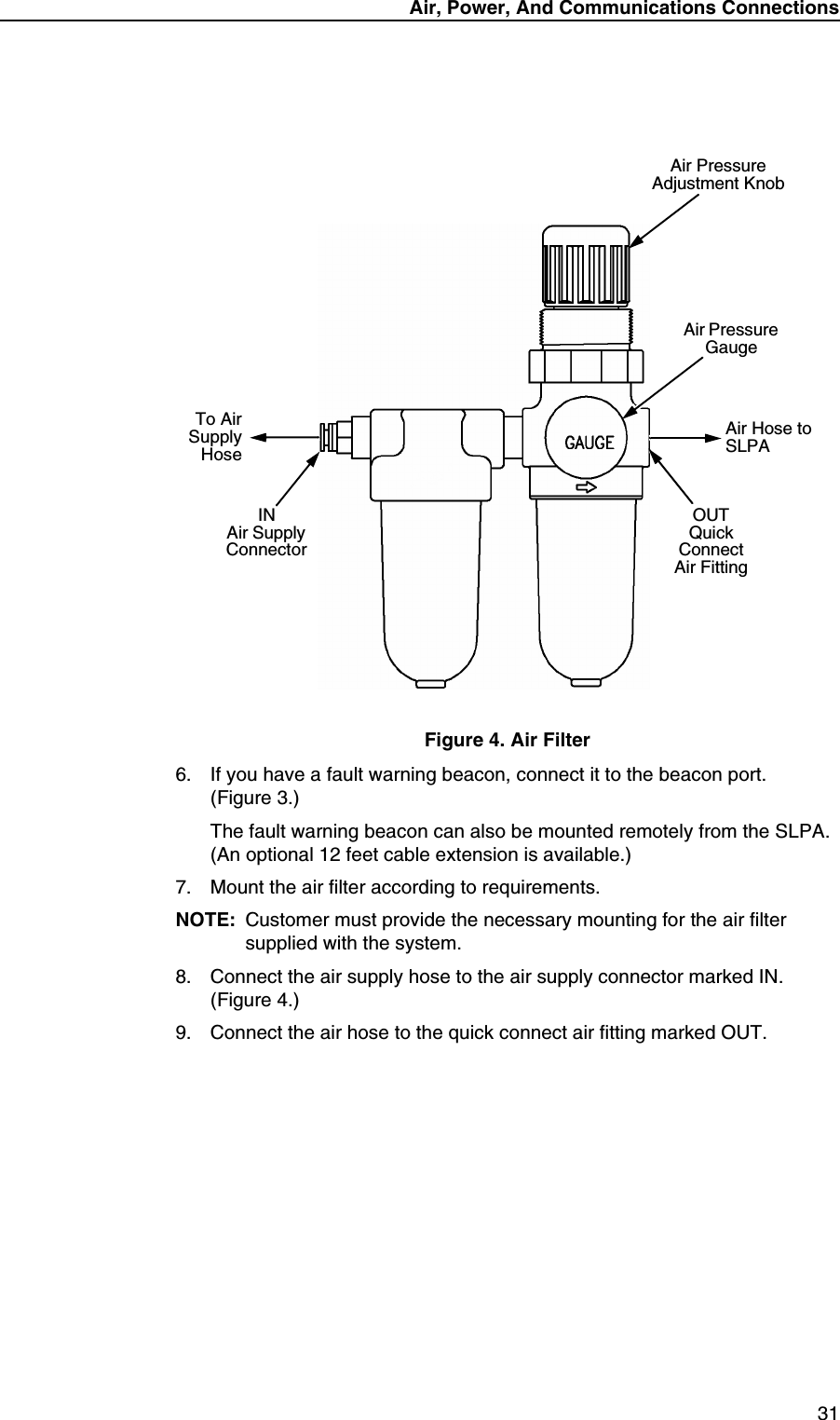
Air, Power, And Communications Connections 31Figure 4. Air Filter6. If you have a fault warning beacon, connect it to the beacon port. (Figure 3.)The fault warning beacon can also be mounted remotely from the SLPA. (An optional 12 feet cable extension is available.)7. Mount the air filter according to requirements.NOTE: Customer must provide the necessary mounting for the air filter supplied with the system.8. Connect the air supply hose to the air supply connector marked IN. (Figure 4.)9. Connect the air hose to the quick connect air fitting marked OUT.To AirSupplyHoseAir Hose to SLPAAir Pressure Adjustment KnobINAir Supply ConnectorOUTQuick ConnectAir FittingAir Pressure Gauge
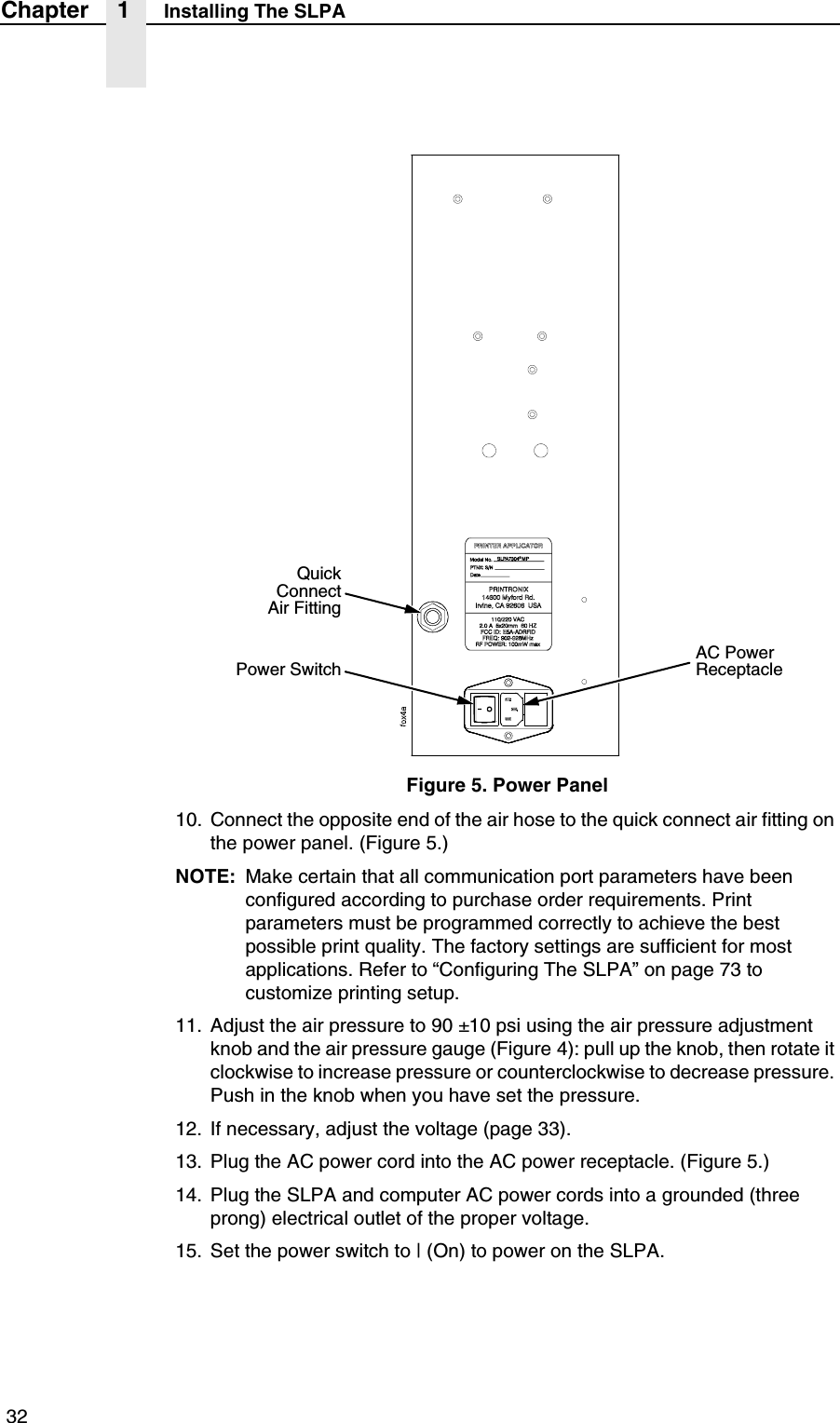
 32Chapter 1 Installing The SLPAFigure 5. Power Panel10. Connect the opposite end of the air hose to the quick connect air fitting on the power panel. (Figure 5.)NOTE: Make certain that all communication port parameters have been configured according to purchase order requirements. Print parameters must be programmed correctly to achieve the best possible print quality. The factory settings are sufficient for most applications. Refer to “Configuring The SLPA” on page 73 to customize printing setup.11. Adjust the air pressure to 90 ±10 psi using the air pressure adjustment knob and the air pressure gauge (Figure 4): pull up the knob, then rotate it clockwise to increase pressure or counterclockwise to decrease pressure. Push in the knob when you have set the pressure.12. If necessary, adjust the voltage (page 33).13. Plug the AC power cord into the AC power receptacle. (Figure 5.)14. Plug the SLPA and computer AC power cords into a grounded (three prong) electrical outlet of the proper voltage.15. Set the power switch to | (On) to power on the SLPA.QuickConnectAir FittingPower SwitchAC Power Receptacle
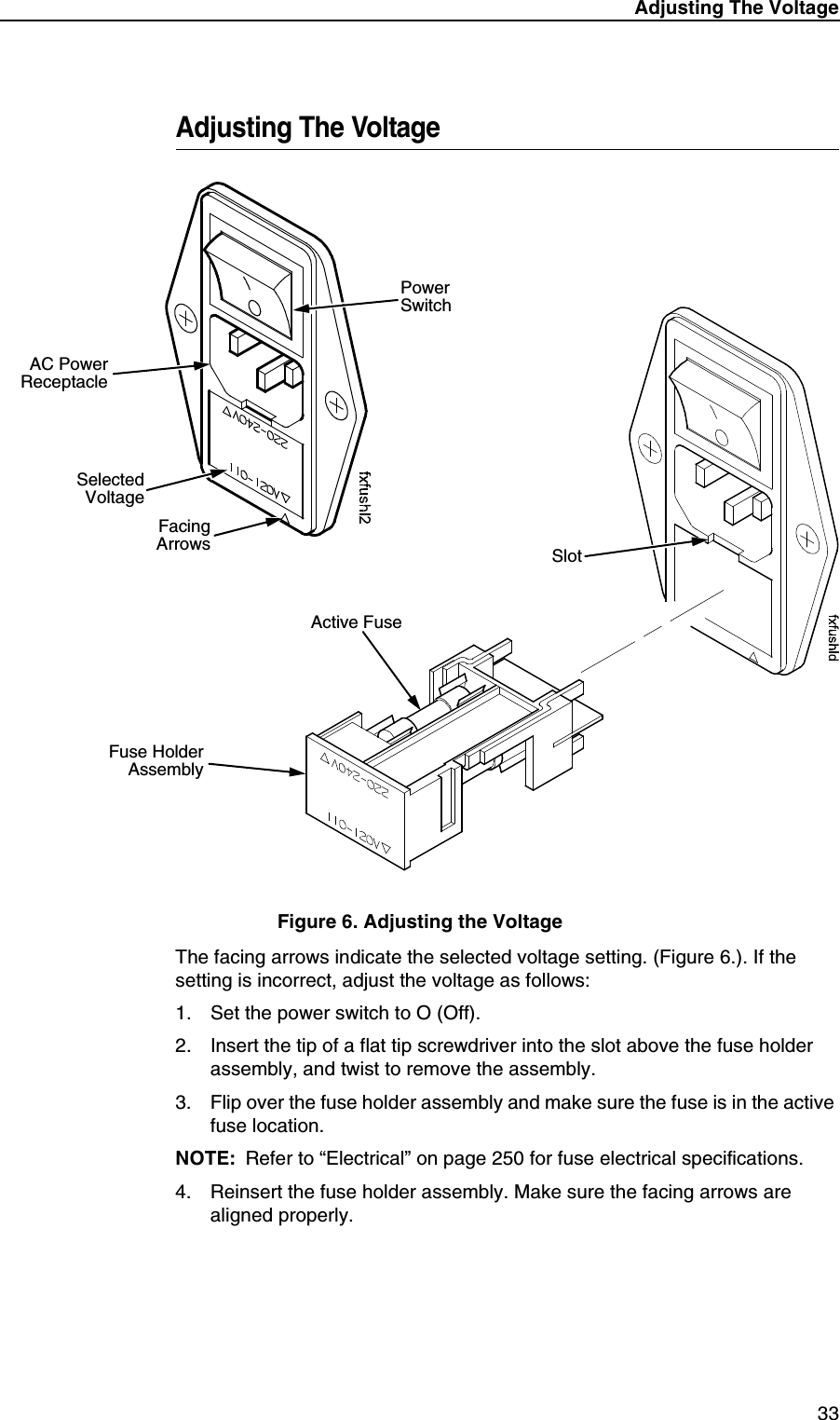
Adjusting The Voltage 33Adjusting The VoltageFigure 6. Adjusting the VoltageThe facing arrows indicate the selected voltage setting. (Figure 6.). If the setting is incorrect, adjust the voltage as follows:1. Set the power switch to O (Off).2. Insert the tip of a flat tip screwdriver into the slot above the fuse holder assembly, and twist to remove the assembly.3. Flip over the fuse holder assembly and make sure the fuse is in the active fuse location.NOTE: Refer to “Electrical” on page 250 for fuse electrical specifications.4. Reinsert the fuse holder assembly. Make sure the facing arrows are aligned properly.FacingArrowsSelectedVoltagePower SwitchAC PowerReceptacleFuse HolderAssemblyActive FuseSlot
 34Chapter 1 Installing The SLPA
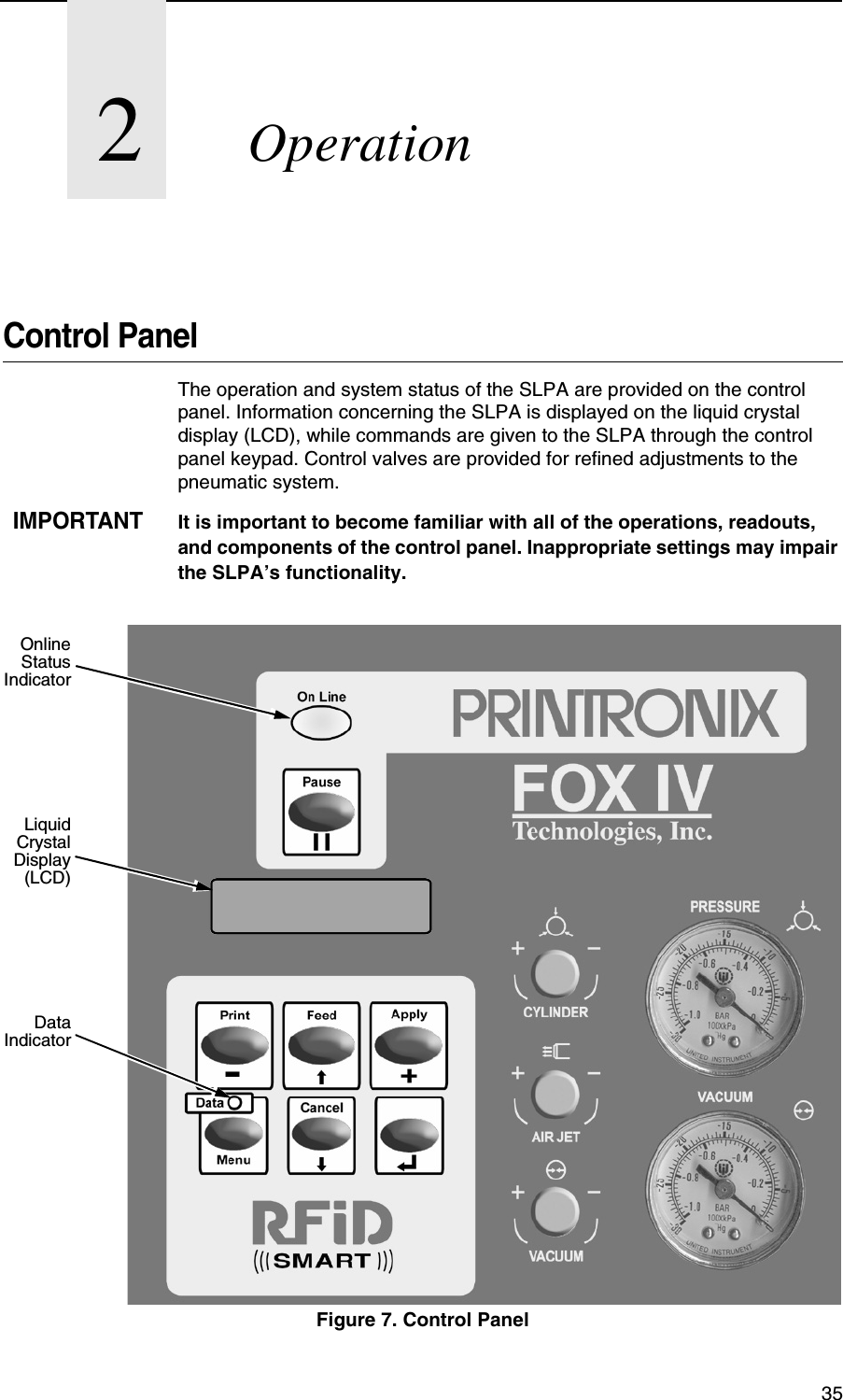
352OperationControl PanelThe operation and system status of the SLPA are provided on the control panel. Information concerning the SLPA is displayed on the liquid crystal display (LCD), while commands are given to the SLPA through the control panel keypad. Control valves are provided for refined adjustments to the pneumatic system.IMPORTANTIt is important to become familiar with all of the operations, readouts, and components of the control panel. Inappropriate settings may impair the SLPA’s functionality.Figure 7. Control PanelOnlineStatusIndicatorDataIndicatorLiquidCrystalDisplay(LCD)
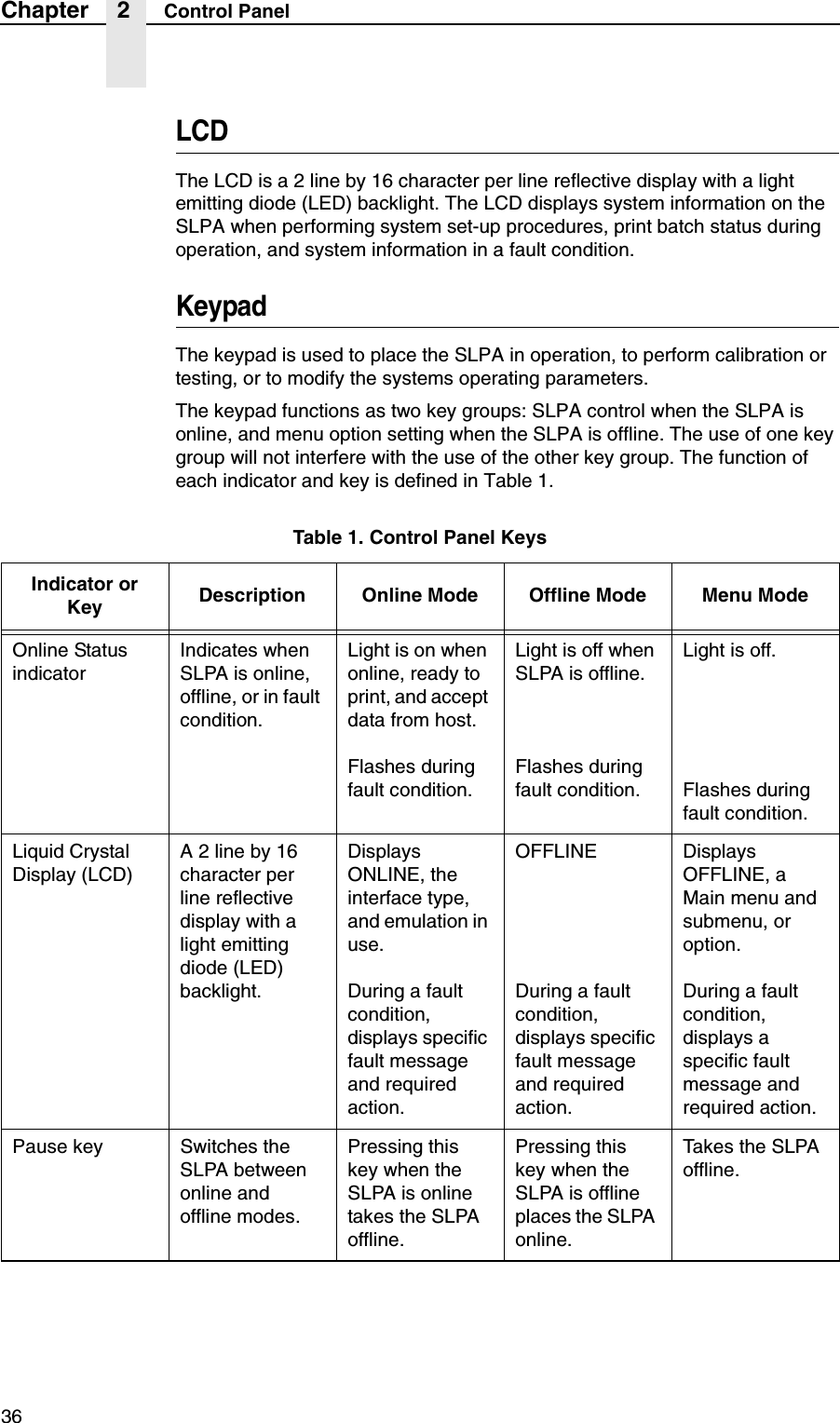
36Chapter 2 Control PanelLCDThe LCD is a 2 line by 16 character per line reflective display with a light emitting diode (LED) backlight. The LCD displays system information on the SLPA when performing system set-up procedures, print batch status during operation, and system information in a fault condition.KeypadThe keypad is used to place the SLPA in operation, to perform calibration or testing, or to modify the systems operating parameters.The keypad functions as two key groups: SLPA control when the SLPA is online, and menu option setting when the SLPA is offline. The use of one key group will not interfere with the use of the other key group. The function of each indicator and key is defined in Table 1.Table 1. Control Panel KeysIndicator or Key Description Online Mode Offline Mode Menu ModeOnline Status indicatorIndicates when SLPA is online, offline, or in fault condition.Light is on when online, ready to print, and accept data from host.Flashes during fault condition.Light is off when SLPA is offline.Flashes during fault condition.Light is off.Flashes during fault condition.Liquid Crystal Display (LCD)A 2 line by 16 character per line reflective display with a light emitting diode (LED) backlight.Displays ONLINE, the interface type, and emulation in use.During a fault condition, displays specific fault message and required action.OFFLINEDuring a fault condition, displays specific fault message and required action.Displays OFFLINE, a Main menu and submenu, or option.During a fault condition, displays a specific fault message and required action.Pause key Switches the SLPA between online and offline modes.Pressing this key when the SLPA is online takes the SLPA offline.Pressing this key when the SLPA is offline places the SLPA online.Takes the SLPA offline.
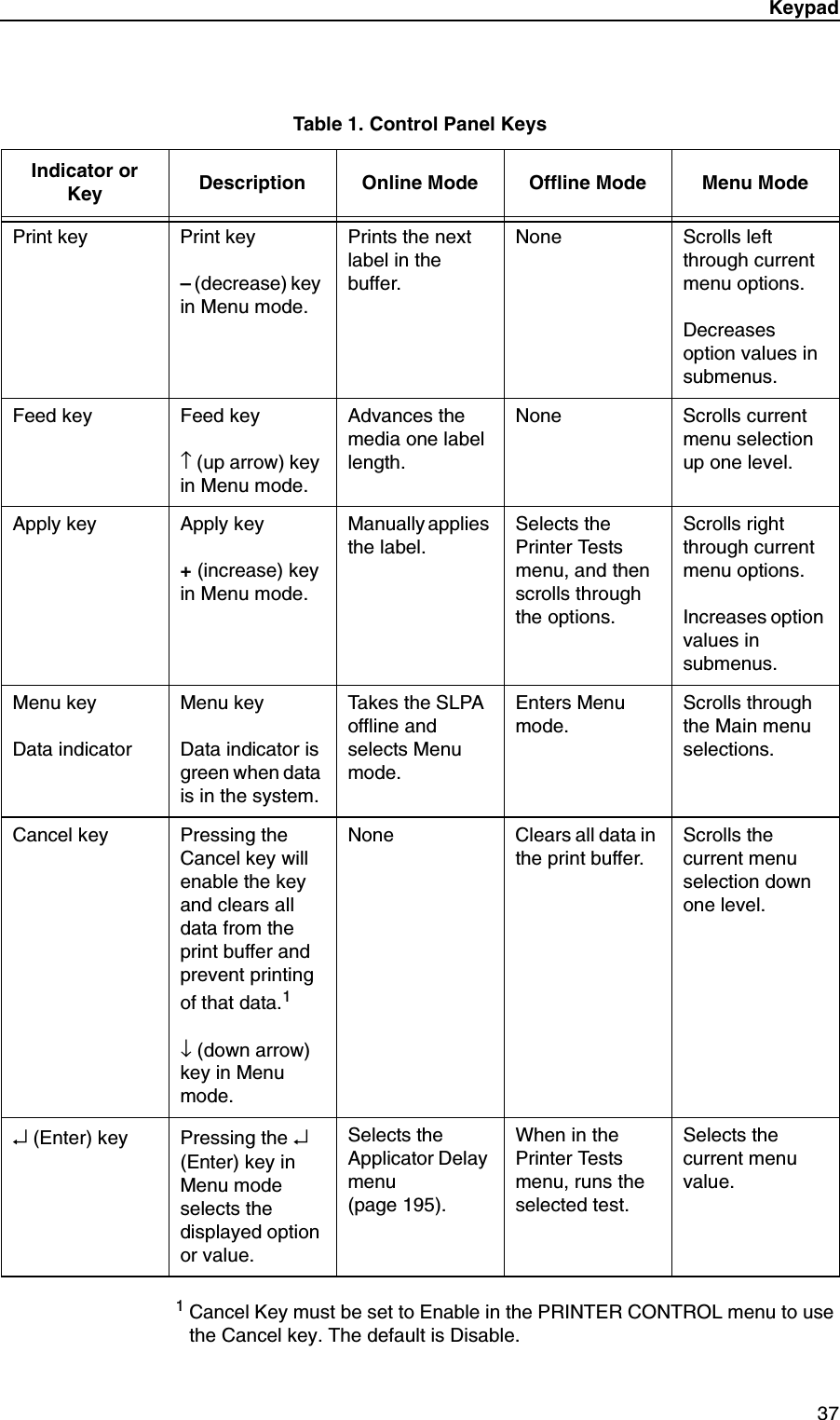
Keypad371 Cancel Key must be set to Enable in the PRINTER CONTROL menu to use the Cancel key. The default is Disable.Print key Print key– (decrease) key in Menu mode.Prints the next label in the buffer.None Scrolls left through current menu options.Decreases option values in submenus.Feed key Feed key↑ (up arrow) key in Menu mode.Advances the media one label length.None Scrolls current menu selection up one level.Apply key Apply key+ (increase) key in Menu mode.Manually applies the label.Selects the Printer Tests menu, and then scrolls through the options.Scrolls right through current menu options.Increases option values in submenus.Menu keyData indicatorMenu keyData indicator is green when data is in the system.Takes the SLPA offline and selects Menu mode.Enters Menu mode.Scrolls through the Main menu selections.Cancel key Pressing the Cancel key will enable the key and clears all data from the print buffer and prevent printing of that data.1↓ (down arrow) key in Menu mode.None Clears all data in the print buffer.Scrolls the current menu selection down one level.↵ (Enter) key Pressing the ↵ (Enter) key in Menu mode selects the displayed option or value.Selects the Applicator Delay menu (page 195).When in the Printer Tests menu, runs the selected test.Selects the current menu value.Table 1. Control Panel KeysIndicator or Key Description Online Mode Offline Mode Menu Mode
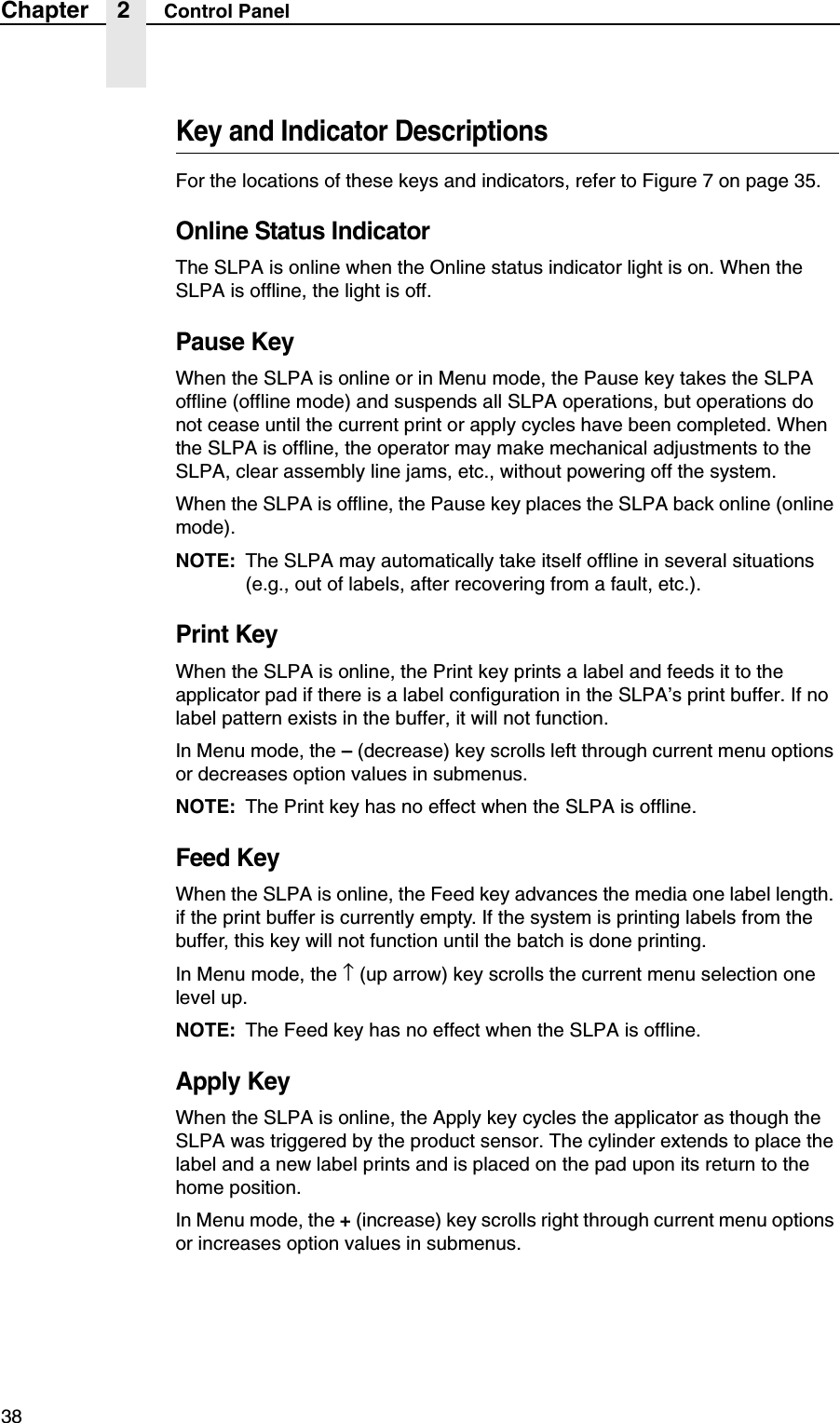
38Chapter 2 Control PanelKey and Indicator DescriptionsFor the locations of these keys and indicators, refer to Figure 7 on page 35.Online Status IndicatorThe SLPA is online when the Online status indicator light is on. When the SLPA is offline, the light is off.Pause KeyWhen the SLPA is online or in Menu mode, the Pause key takes the SLPA offline (offline mode) and suspends all SLPA operations, but operations do not cease until the current print or apply cycles have been completed. When the SLPA is offline, the operator may make mechanical adjustments to the SLPA, clear assembly line jams, etc., without powering off the system.When the SLPA is offline, the Pause key places the SLPA back online (online mode).NOTE: The SLPA may automatically take itself offline in several situations (e.g., out of labels, after recovering from a fault, etc.).Print KeyWhen the SLPA is online, the Print key prints a label and feeds it to the applicator pad if there is a label configuration in the SLPA’s print buffer. If no label pattern exists in the buffer, it will not function.In Menu mode, the – (decrease) key scrolls left through current menu options or decreases option values in submenus.NOTE: The Print key has no effect when the SLPA is offline.Feed KeyWhen the SLPA is online, the Feed key advances the media one label length. if the print buffer is currently empty. If the system is printing labels from the buffer, this key will not function until the batch is done printing.In Menu mode, the ↑ (up arrow) key scrolls the current menu selection one level up.NOTE: The Feed key has no effect when the SLPA is offline.Apply KeyWhen the SLPA is online, the Apply key cycles the applicator as though the SLPA was triggered by the product sensor. The cylinder extends to place the label and a new label prints and is placed on the pad upon its return to the home position.In Menu mode, the + (increase) key scrolls right through current menu options or increases option values in submenus.
Key and Indicator Descriptions39Menu Key and Data Indicator LightWhen the SLPA is either online or offline, the Menu key takes the SLPA offline and into Menu mode.In Menu mode, the Menu key scrolls through the Main menu of the SLPA’s operating system. It permits the operator to set or change various operating parameters.The Data indicator light on the Menu key is green when data is in the system. This data refers to the information printed on the label. If the green light is off, there is no data in the system. There is no manual operation of this indicator.Cancel KeyNOTE: Cancel Key must be set to Enable in the PRINTER CONTROL menu to use the Cancel key. The default is Disable.When the SLPA is offline, the Cancel key clears the current print pattern and all printing programs currently in the print buffer.After clearing the print buffer, the SLPA automatically takes itself offline. The SLPA may then have a new label pattern downloaded to the print buffer. Press the Pause key to place the SLPA back online.In Menu mode, the ↓ (down arrow) key scrolls the current menu selection one level down.↵ (Enter Key)When the SLPA is online, the ↵ (Enter) key selects the Applicator Delay Menu (page 195).When the SLPA is offline, the ↵ (Enter) key is used to select a menu option, or parameter value within the submenus. Press ↵ to select a menu option or parameter.In Menu mode, the ↵ (Enter) key selects the current value.
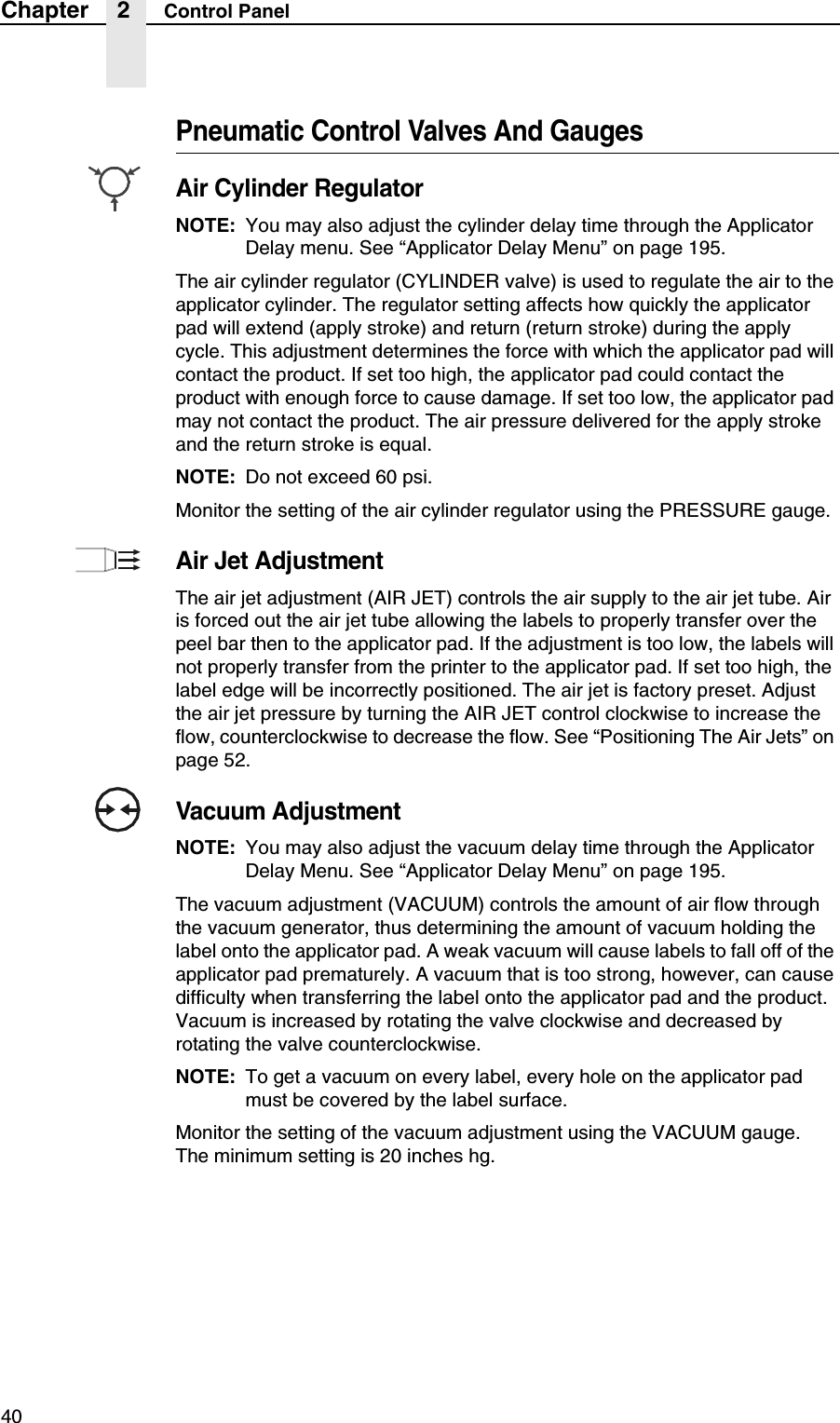
40Chapter 2 Control PanelPneumatic Control Valves And GaugesAir Cylinder RegulatorNOTE: You may also adjust the cylinder delay time through the Applicator Delay menu. See “Applicator Delay Menu” on page 195.The air cylinder regulator (CYLINDER valve) is used to regulate the air to the applicator cylinder. The regulator setting affects how quickly the applicator pad will extend (apply stroke) and return (return stroke) during the apply cycle. This adjustment determines the force with which the applicator pad will contact the product. If set too high, the applicator pad could contact the product with enough force to cause damage. If set too low, the applicator pad may not contact the product. The air pressure delivered for the apply stroke and the return stroke is equal.NOTE: Do not exceed 60 psi.Monitor the setting of the air cylinder regulator using the PRESSURE gauge.Air Jet AdjustmentThe air jet adjustment (AIR JET) controls the air supply to the air jet tube. Air is forced out the air jet tube allowing the labels to properly transfer over the peel bar then to the applicator pad. If the adjustment is too low, the labels will not properly transfer from the printer to the applicator pad. If set too high, the label edge will be incorrectly positioned. The air jet is factory preset. Adjust the air jet pressure by turning the AIR JET control clockwise to increase the flow, counterclockwise to decrease the flow. See “Positioning The Air Jets” on page 52.Vacuum AdjustmentNOTE: You may also adjust the vacuum delay time through the Applicator Delay Menu. See “Applicator Delay Menu” on page 195.The vacuum adjustment (VACUUM) controls the amount of air flow through the vacuum generator, thus determining the amount of vacuum holding the label onto the applicator pad. A weak vacuum will cause labels to fall off of the applicator pad prematurely. A vacuum that is too strong, however, can cause difficulty when transferring the label onto the applicator pad and the product. Vacuum is increased by rotating the valve clockwise and decreased by rotating the valve counterclockwise.NOTE: To get a vacuum on every label, every hole on the applicator pad must be covered by the label surface.Monitor the setting of the vacuum adjustment using the VACUUM gauge. The minimum setting is 20 inches hg.
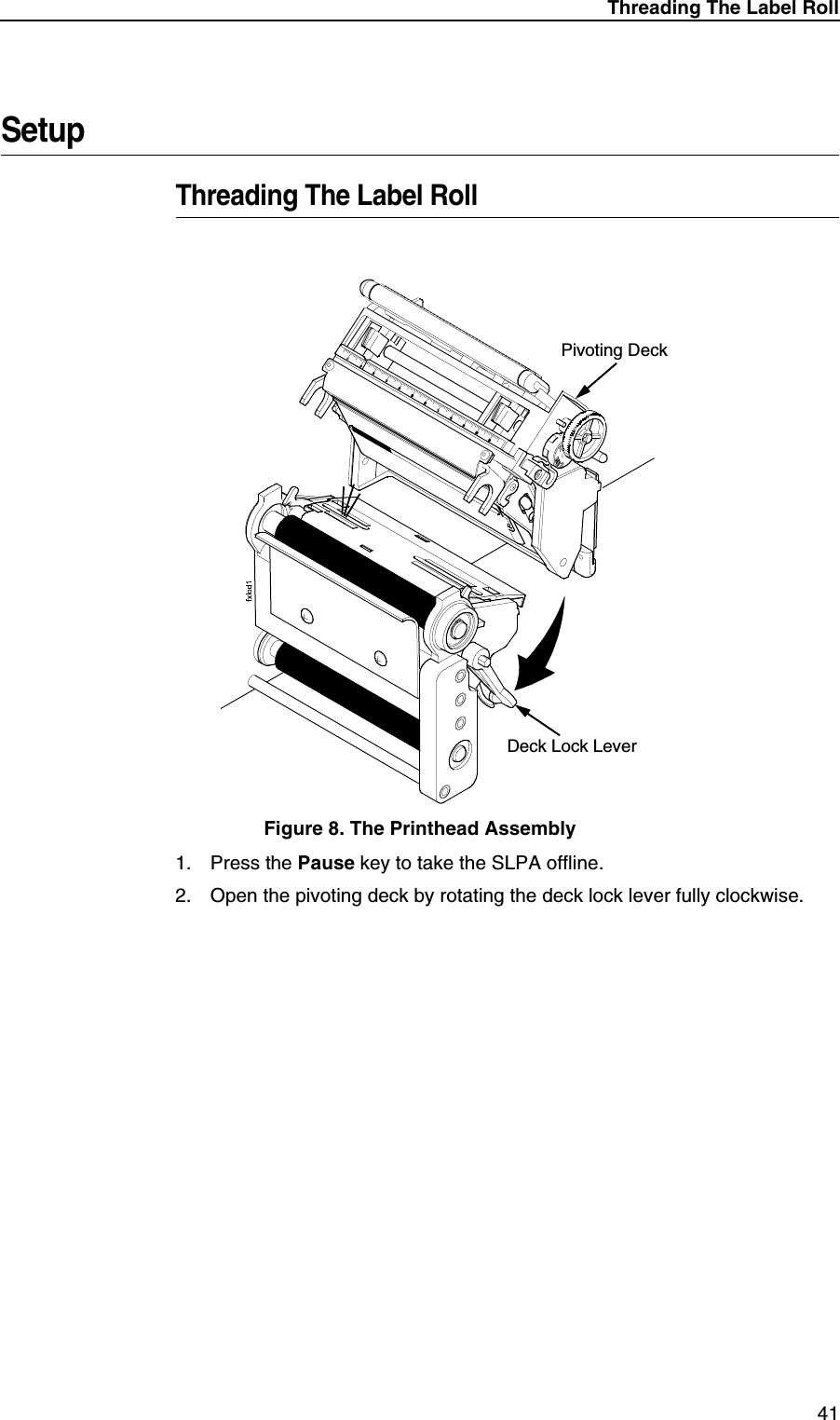
Threading The Label Roll41SetupThreading The Label RollFigure 8. The Printhead Assembly1. Press the Pause key to take the SLPA offline.2. Open the pivoting deck by rotating the deck lock lever fully clockwise.Pivoting DeckDeck Lock Lever
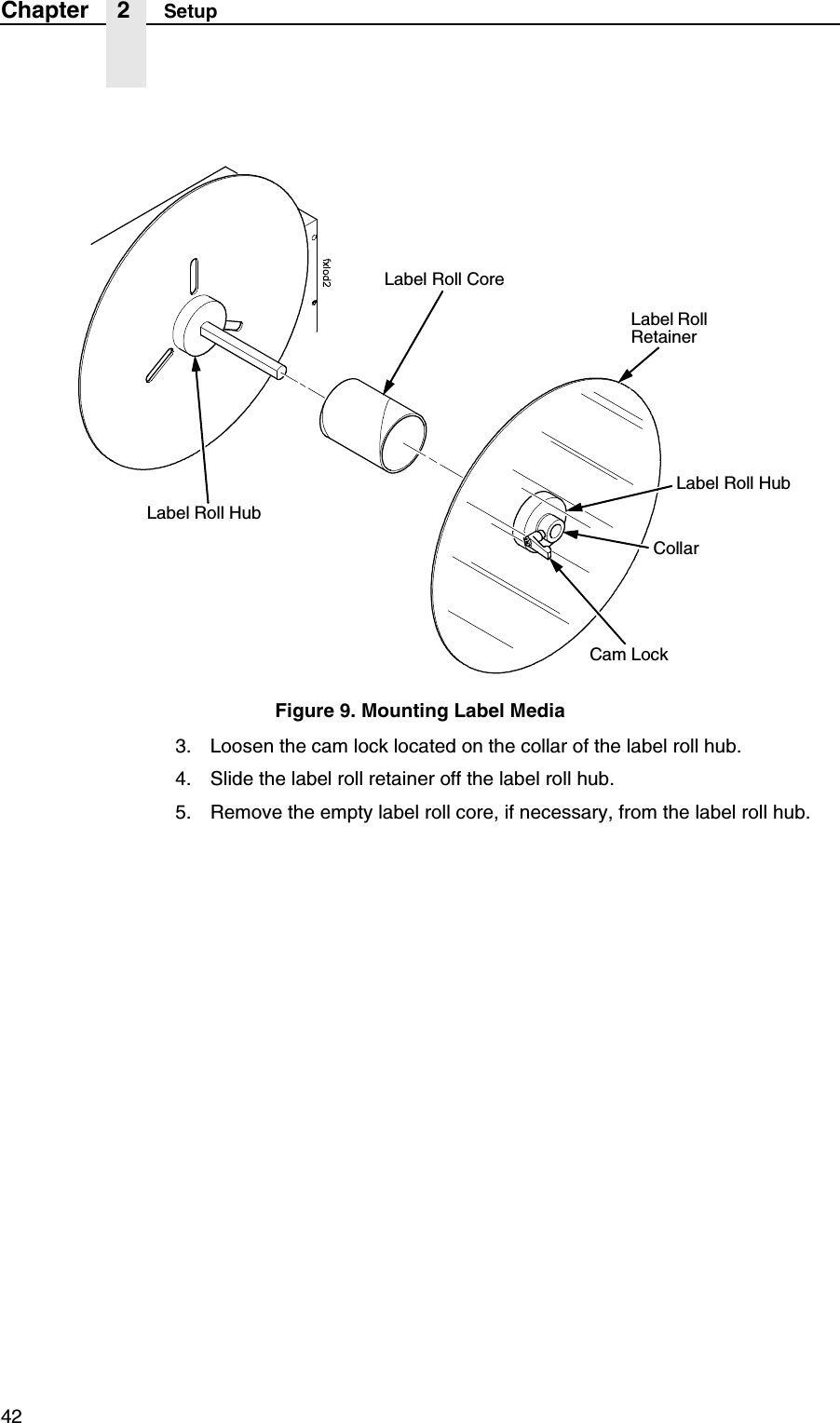
42Chapter 2 SetupFigure 9. Mounting Label Media3. Loosen the cam lock located on the collar of the label roll hub.4. Slide the label roll retainer off the label roll hub.5. Remove the empty label roll core, if necessary, from the label roll hub.Label Roll CoreCam LockLabel Roll HubLabel Roll RetainerCollarLabel Roll Hub
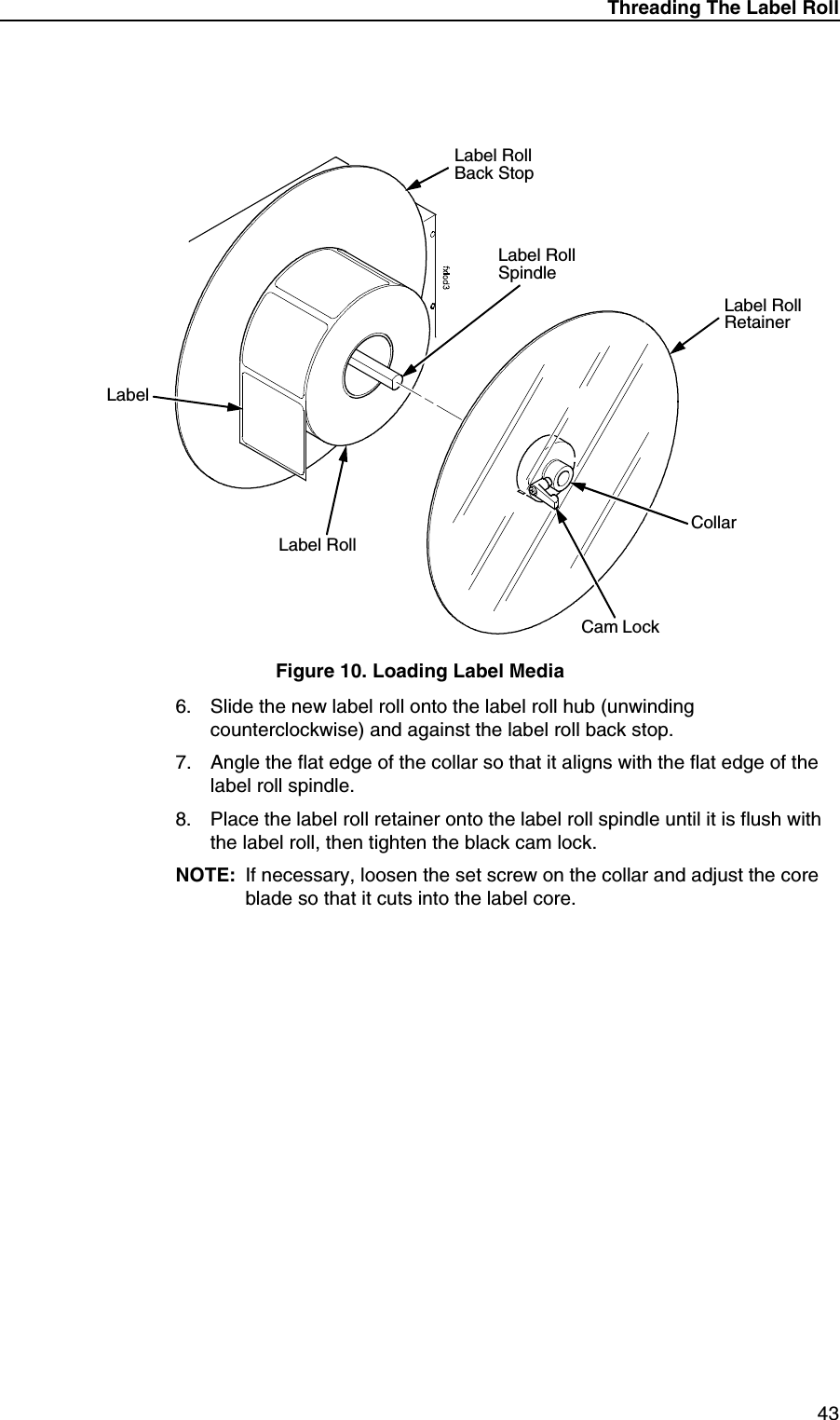
Threading The Label Roll43Figure 10. Loading Label Media6. Slide the new label roll onto the label roll hub (unwinding counterclockwise) and against the label roll back stop.7. Angle the flat edge of the collar so that it aligns with the flat edge of the label roll spindle.8. Place the label roll retainer onto the label roll spindle until it is flush with the label roll, then tighten the black cam lock.NOTE: If necessary, loosen the set screw on the collar and adjust the core blade so that it cuts into the label core.Label Roll Back StopLabel RollCollarLabel Roll RetainerCam LockLabelLabel Roll Spindle
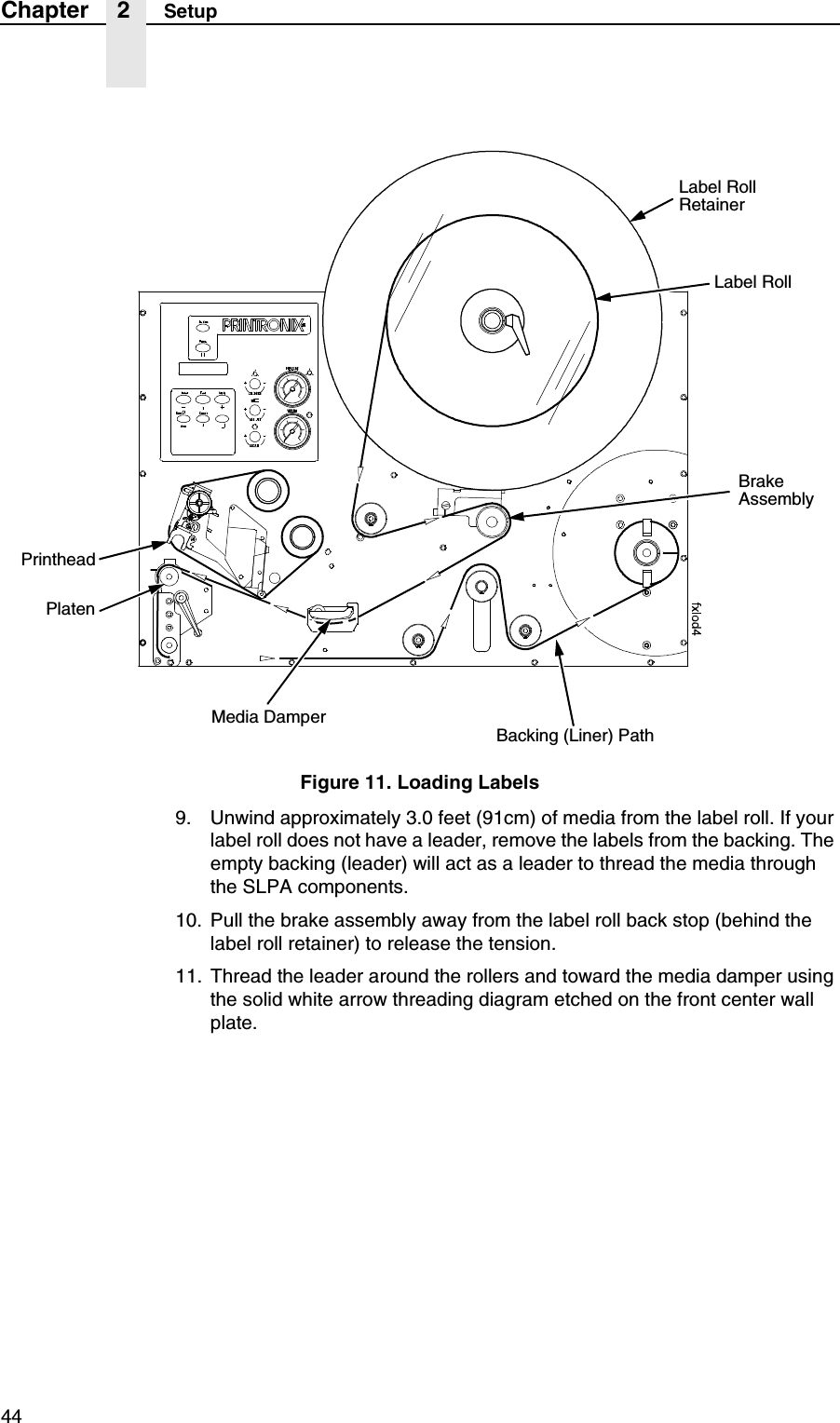
44Chapter 2 SetupFigure 11. Loading Labels9. Unwind approximately 3.0 feet (91cm) of media from the label roll. If your label roll does not have a leader, remove the labels from the backing. The empty backing (leader) will act as a leader to thread the media through the SLPA components.10. Pull the brake assembly away from the label roll back stop (behind the label roll retainer) to release the tension.11. Thread the leader around the rollers and toward the media damper using the solid white arrow threading diagram etched on the front center wall plate.Label Roll RetainerBrake AssemblyPrintheadPlatenMedia DamperBacking (Liner) PathLabel Roll
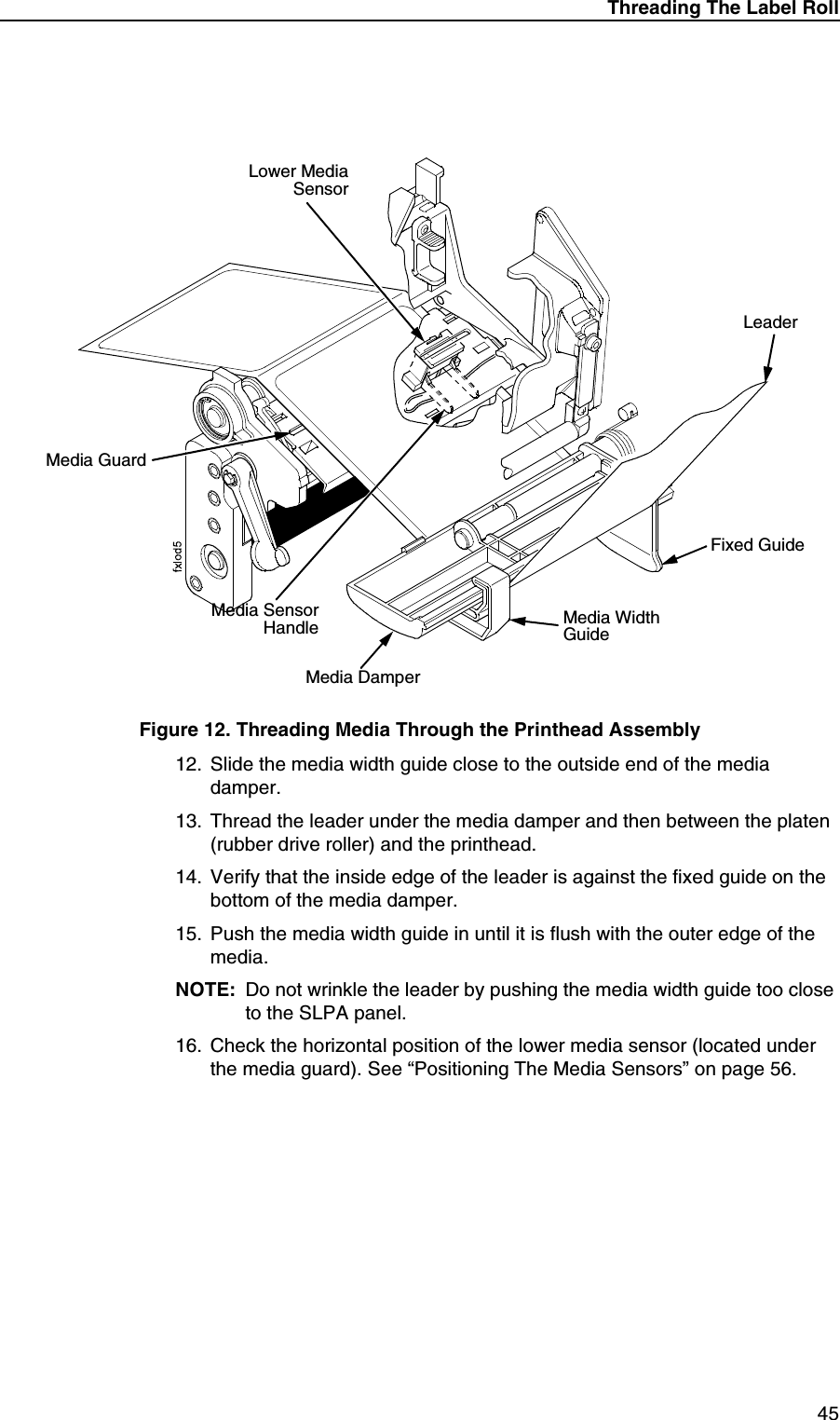
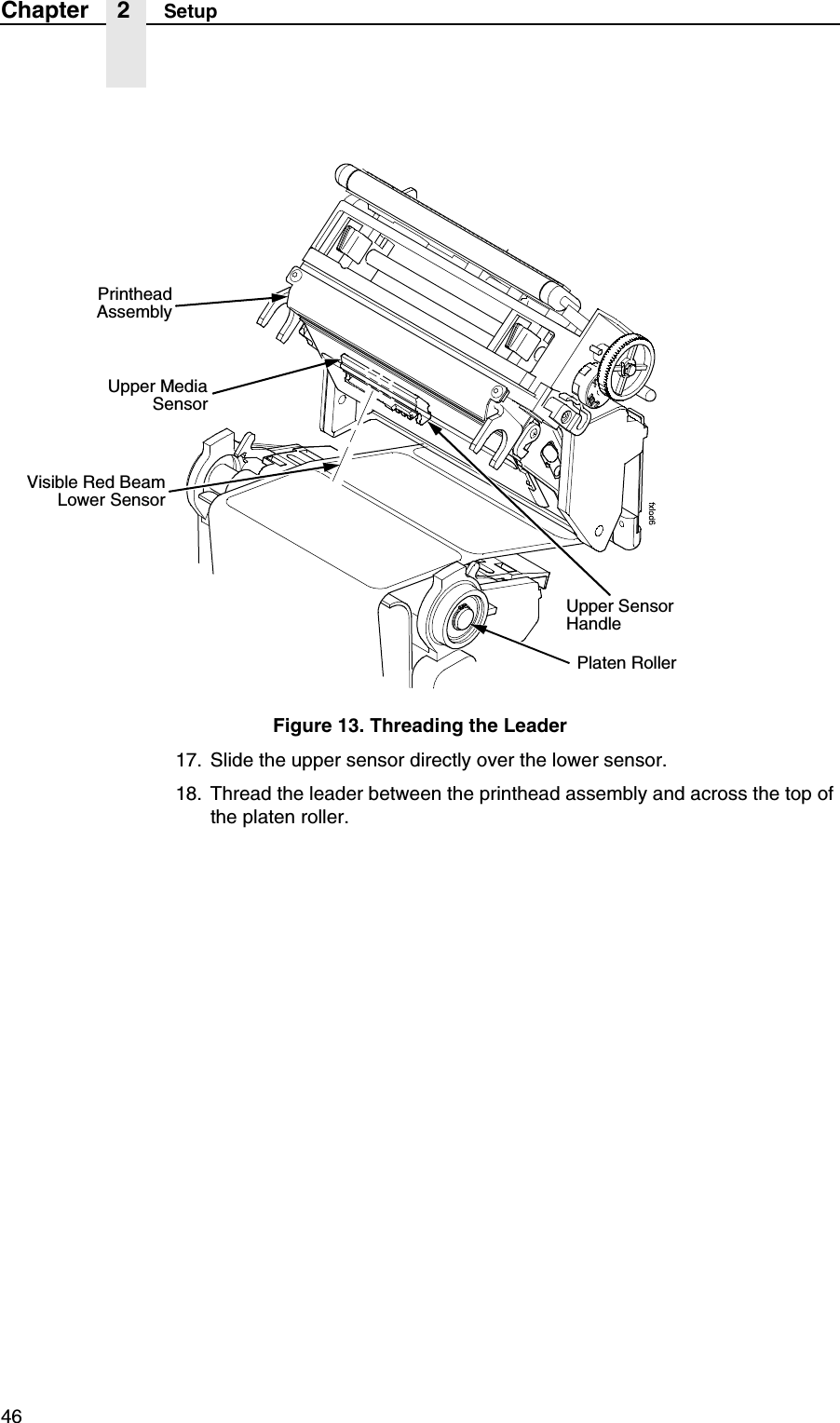
Threading The Label Roll45Figure 12. Threading Media Through the Printhead Assembly12. Slide the media width guide close to the outside end of the media damper.13. Thread the leader under the media damper and then between the platen (rubber drive roller) and the printhead.14. Verify that the inside edge of the leader is against the fixed guide on the bottom of the media damper.15. Push the media width guide in until it is flush with the outer edge of the media.NOTE: Do not wrinkle the leader by pushing the media width guide too close to the SLPA panel.16. Check the horizontal position of the lower media sensor (located under the media guard). See “Positioning The Media Sensors” on page 56.Media GuardMedia Width GuideMedia DamperFixed GuideLower MediaSensorMedia SensorHandleLeader
46Chapter 2 SetupFigure 13. Threading the Leader17. Slide the upper sensor directly over the lower sensor.18. Thread the leader between the printhead assembly and across the top of the platen roller.Upper MediaSensorVisible Red BeamLower SensorUpper Sensor HandlePlaten RollerPrintheadAssembly
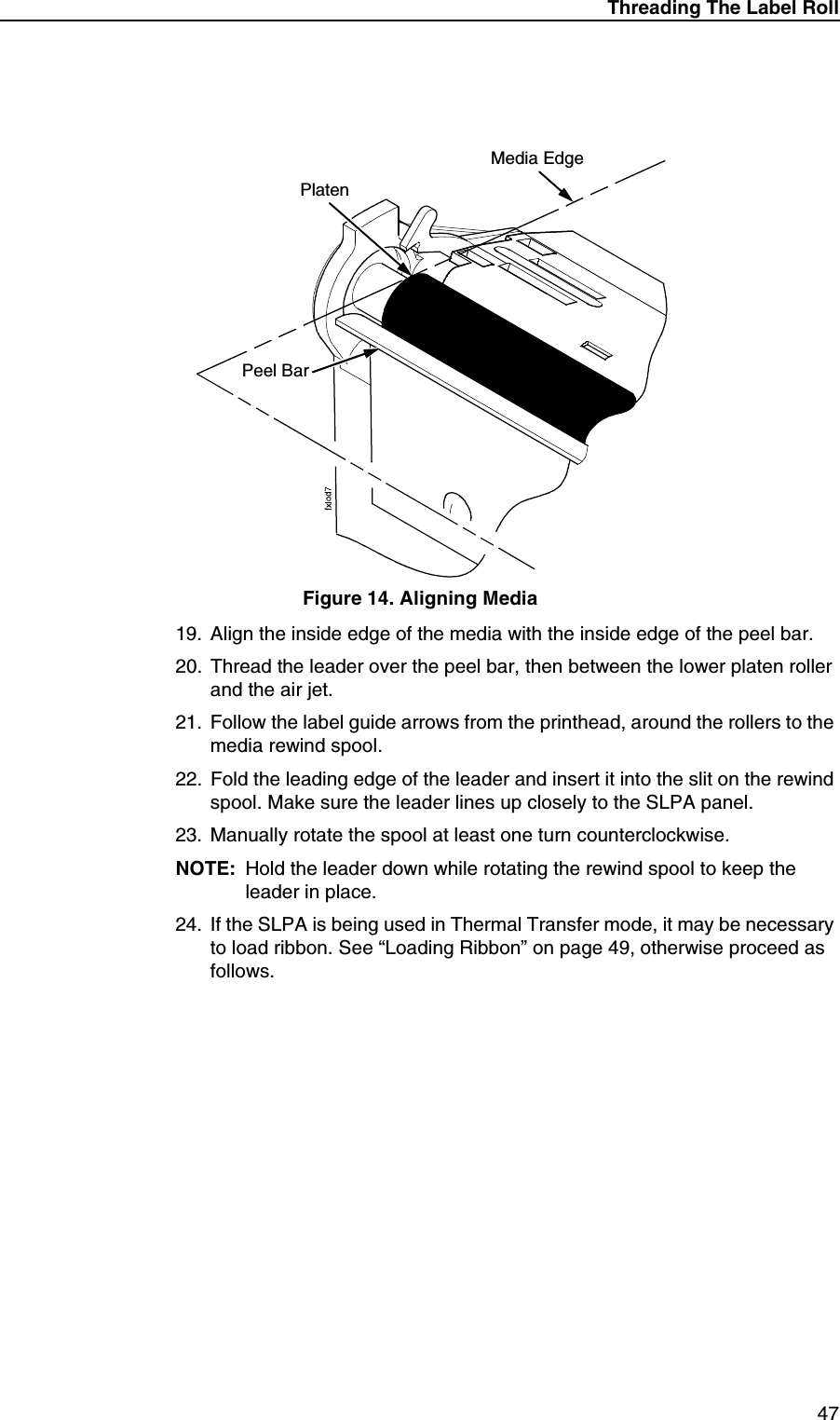
Threading The Label Roll47Figure 14. Aligning Media19. Align the inside edge of the media with the inside edge of the peel bar.20. Thread the leader over the peel bar, then between the lower platen roller and the air jet.21. Follow the label guide arrows from the printhead, around the rollers to the media rewind spool.22. Fold the leading edge of the leader and insert it into the slit on the rewind spool. Make sure the leader lines up closely to the SLPA panel.23. Manually rotate the spool at least one turn counterclockwise.NOTE: Hold the leader down while rotating the rewind spool to keep the leader in place.24. If the SLPA is being used in Thermal Transfer mode, it may be necessary to load ribbon. See “Loading Ribbon” on page 49, otherwise proceed as follows.PlatenMedia EdgePeel Bar
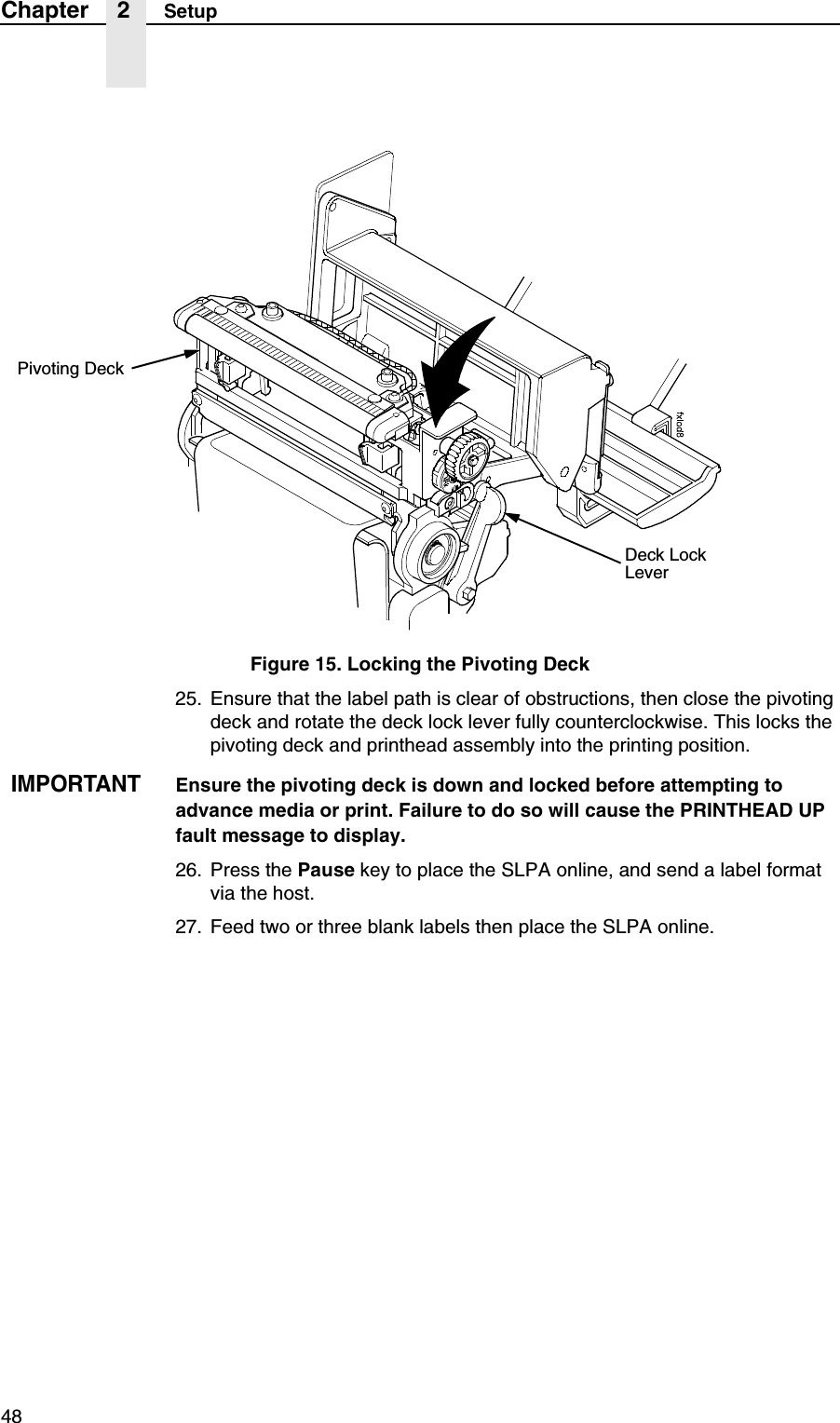
48Chapter 2 SetupFigure 15. Locking the Pivoting Deck25. Ensure that the label path is clear of obstructions, then close the pivoting deck and rotate the deck lock lever fully counterclockwise. This locks the pivoting deck and printhead assembly into the printing position.IMPORTANTEnsure the pivoting deck is down and locked before attempting to advance media or print. Failure to do so will cause the PRINTHEAD UP fault message to display.26. Press the Pause key to place the SLPA online, and send a label format via the host.27. Feed two or three blank labels then place the SLPA online.Pivoting DeckDeck Lock Lever
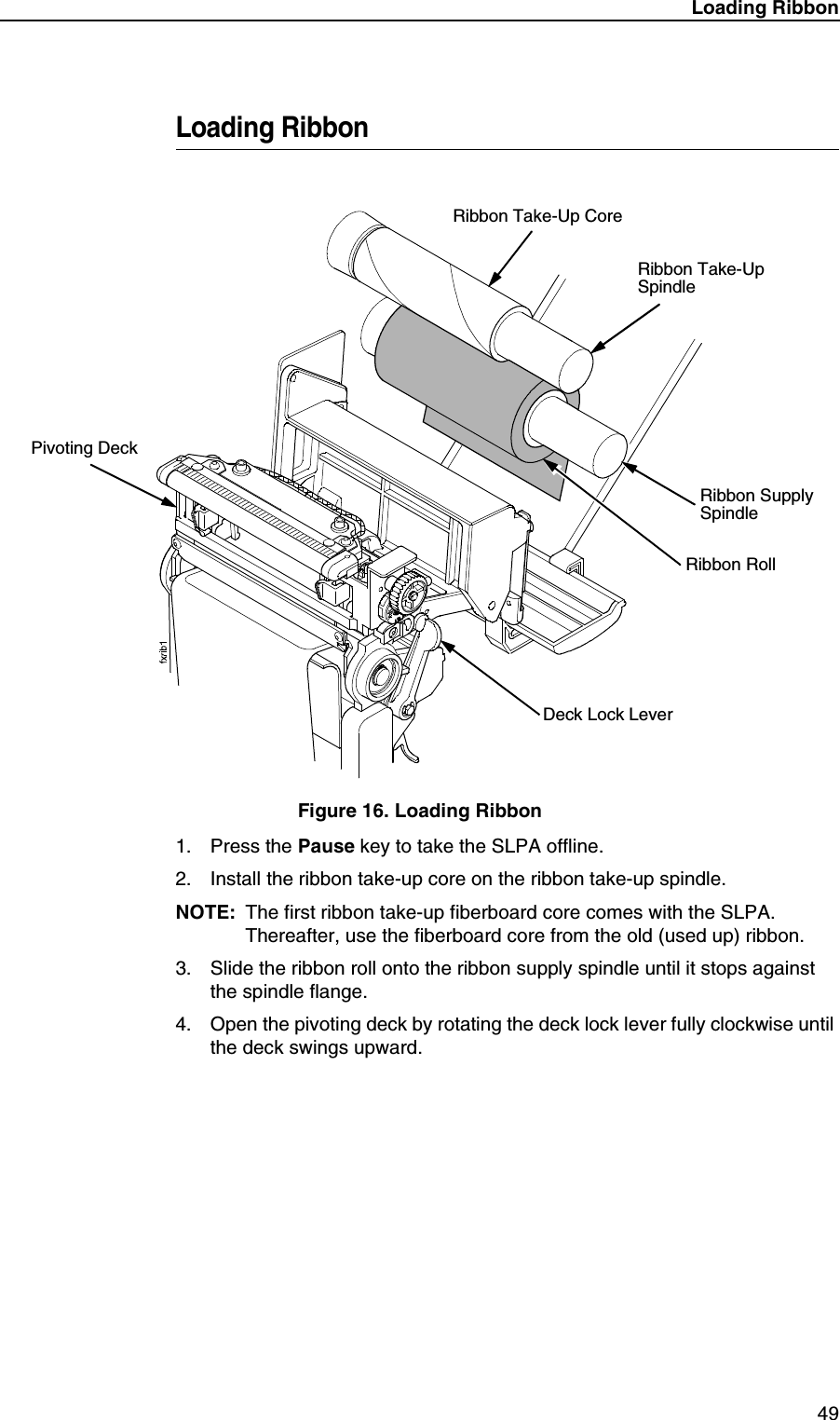
Loading Ribbon49Loading RibbonFigure 16. Loading Ribbon1. Press the Pause key to take the SLPA offline.2. Install the ribbon take-up core on the ribbon take-up spindle.NOTE: The first ribbon take-up fiberboard core comes with the SLPA. Thereafter, use the fiberboard core from the old (used up) ribbon.3. Slide the ribbon roll onto the ribbon supply spindle until it stops against the spindle flange.4. Open the pivoting deck by rotating the deck lock lever fully clockwise until the deck swings upward.Ribbon Take-Up CoreRibbon Take-Up SpindleRibbon Supply SpindleRibbon RollPivoting DeckDeck Lock Lever
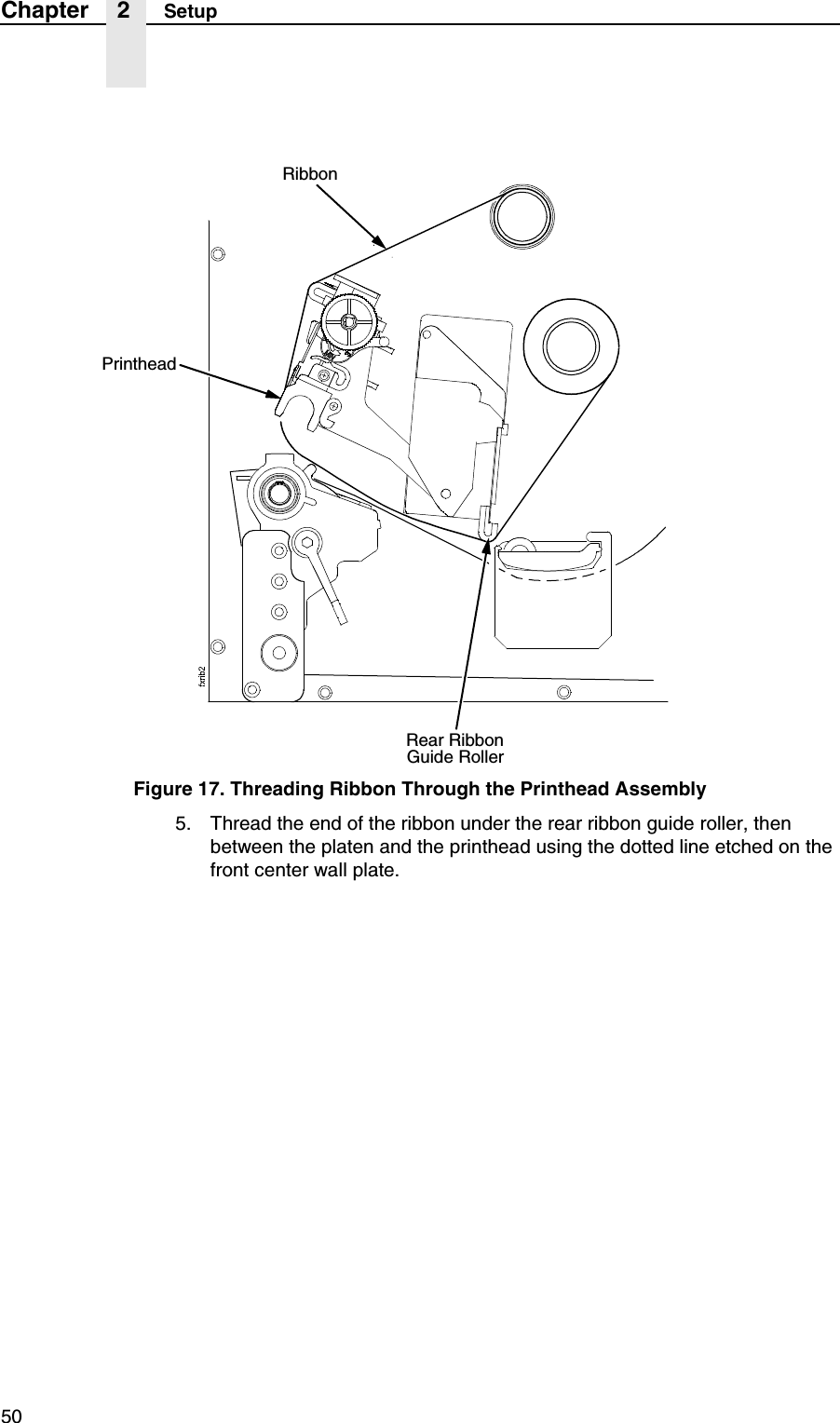
50Chapter 2 SetupFigure 17. Threading Ribbon Through the Printhead Assembly5. Thread the end of the ribbon under the rear ribbon guide roller, then between the platen and the printhead using the dotted line etched on the front center wall plate.RibbonPrintheadRear RibbonGuide Roller
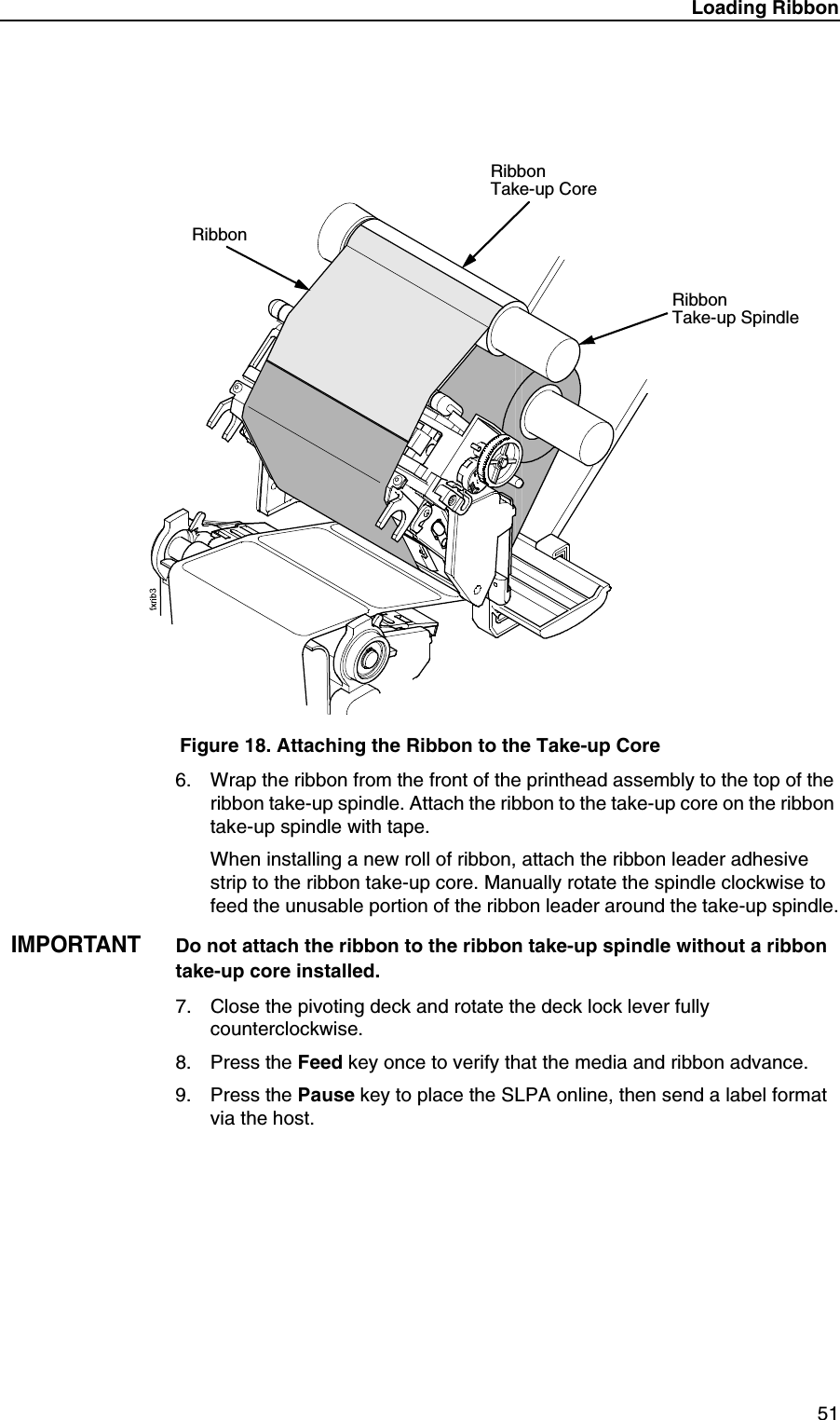
Loading Ribbon51Figure 18. Attaching the Ribbon to the Take-up Core6. Wrap the ribbon from the front of the printhead assembly to the top of the ribbon take-up spindle. Attach the ribbon to the take-up core on the ribbon take-up spindle with tape.When installing a new roll of ribbon, attach the ribbon leader adhesive strip to the ribbon take-up core. Manually rotate the spindle clockwise to feed the unusable portion of the ribbon leader around the take-up spindle.IMPORTANTDo not attach the ribbon to the ribbon take-up spindle without a ribbon take-up core installed.7. Close the pivoting deck and rotate the deck lock lever fully counterclockwise.8. Press the Feed key once to verify that the media and ribbon advance.9. Press the Pause key to place the SLPA online, then send a label format via the host.RibbonTake-up CoreRibbonTake-up SpindleRibbon
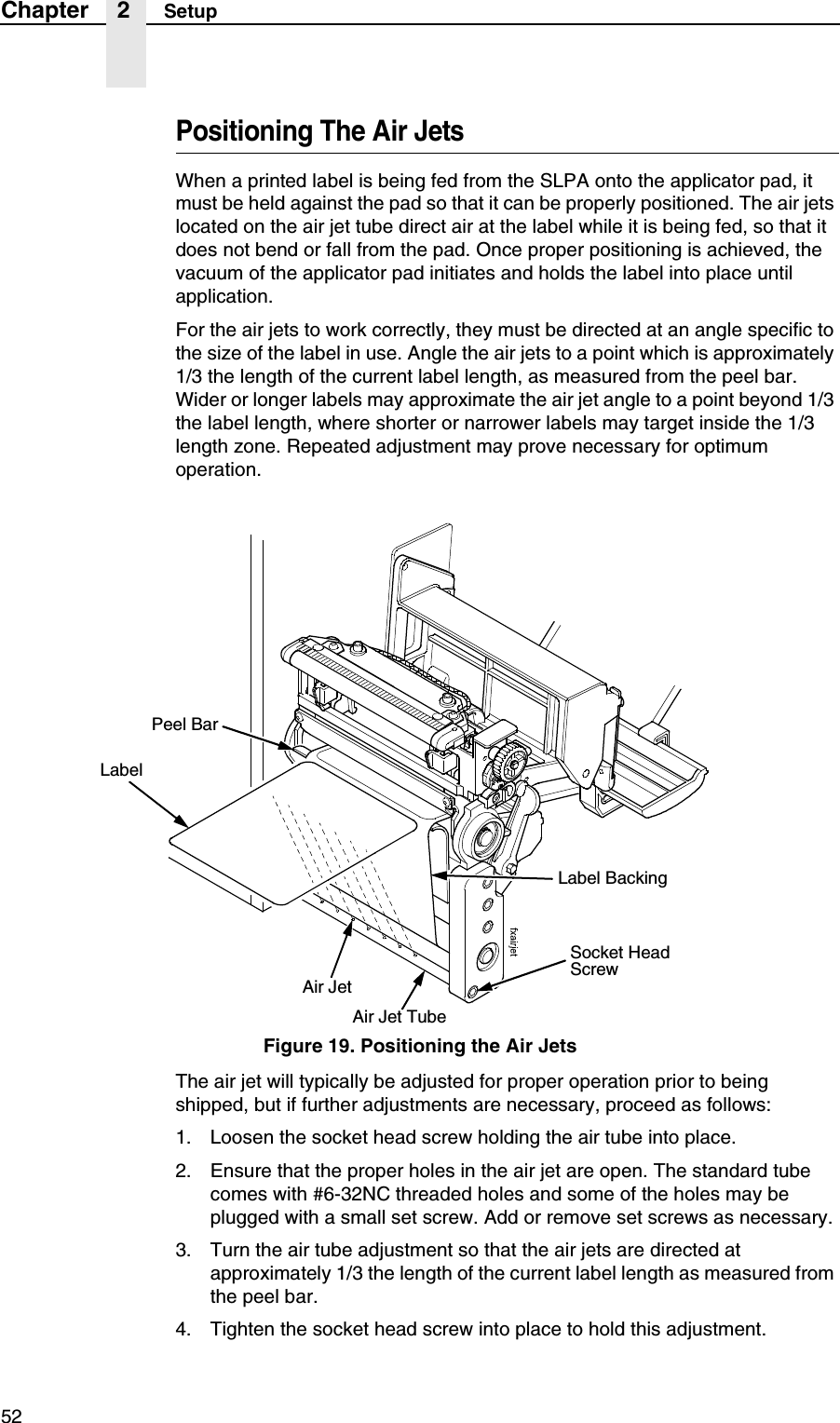
52Chapter 2 SetupPositioning The Air JetsWhen a printed label is being fed from the SLPA onto the applicator pad, it must be held against the pad so that it can be properly positioned. The air jets located on the air jet tube direct air at the label while it is being fed, so that it does not bend or fall from the pad. Once proper positioning is achieved, the vacuum of the applicator pad initiates and holds the label into place until application.For the air jets to work correctly, they must be directed at an angle specific to the size of the label in use. Angle the air jets to a point which is approximately 1/3 the length of the current label length, as measured from the peel bar. Wider or longer labels may approximate the air jet angle to a point beyond 1/3 the label length, where shorter or narrower labels may target inside the 1/3 length zone. Repeated adjustment may prove necessary for optimum operation.Figure 19. Positioning the Air JetsThe air jet will typically be adjusted for proper operation prior to being shipped, but if further adjustments are necessary, proceed as follows:1. Loosen the socket head screw holding the air tube into place.2. Ensure that the proper holes in the air jet are open. The standard tube comes with #6-32NC threaded holes and some of the holes may be plugged with a small set screw. Add or remove set screws as necessary.3. Turn the air tube adjustment so that the air jets are directed at approximately 1/3 the length of the current label length as measured from the peel bar.4. Tighten the socket head screw into place to hold this adjustment.Socket Head ScrewAir Jet TubeAir JetLabelLabel BackingPeel Bar
Removing Label Backing53Removing Label BackingIf the media rewind spool needs to be unloaded during operation, proceed as follows:1. Press the Pause key to take the SLPA offline.2. Tear the label backing near the media rewind hub, then reach around the rewound backing, placing your fingers behind the hub of the media rewind spool.3. Pull the rewind spool away from the centerwall plate until the rewind release bars collapse toward the center of the hub, then pull off the used label backing. The rewind hub will snap back into position near the centerwall once the used label backing is removed.4. Feed a few blank labels by inserting the new edge of the label backing into the slit on the rewind spool and manually rotate the spool at least one turn counterclockwise.5. Press the Pause key to place the SLPA online.SLPA System Configuration ParametersThe following is a list of the four system configuration parameters required for the operation of the SLPA as an RFID label printer/applicator. They are Media Handling, RFID Reader, GPIO Port, and GPIO Table.NOTE: You may need to set or configure other parameters for proper SLPA operation.Media HandlingThis item selects the method of media handling.1. Press the Menu key to take the SLPA offline and into Menu mode.2. Press the Menu key to scroll through the Main menu until QUICK SETUP displays.3. Press either the ↑ or ↓ key to scroll through the QUICK SETUP submenu until Media Handling displays in the first line of the LCD.4. Press the + or – key to scroll through the parameters until Tear Off displays on the second line of the LCD.5. Press the Enter key to select Tear Off.
54Chapter 2 SLPA System Configuration ParametersRFID ReaderThis enables the RFID Reader.1. Press the Menu key to take the SLPA offline and into Menu mode.2. Press Menu key to scroll through the Main menu until RFID CONTROL displays.3. Press the ↑ or ↓ key to scroll through the RFID CONTROL submenu until RFID Reader displays in the first line of the LCD.4. Press the + or – key to scroll through the parameters until Enable displays on the second line of the LCD.5. Press the ↵ key to select Enable.GPIO ControlSets the required GPIO features (enable GPIO, select User Defined table select, select Main table, enable Print and Apply).1. Press the Menu key to take the SLPA offline and into Menu mode.2. Press the Menu key to scroll through the Main menu until GPIO CONTROL displays.3. Press the ↑ or ↓ key to scroll through the GPIO CONTROL submenu until GPIO displays in the first line of the LCD.4. Press the + or – key to scroll through the parameters until Enable displays on the second line of the LCD.5. Press the ↵ key to select Enable.6. Press the ↑ or ↓ key to scroll through the GPIO CONTROL submenu until GPIO Sel. Table displays in the first line of the LCD.7. Press the + or – key to scroll through the parameters until Main displays on the second line of the LCD.8. Press the ↵ key to select Main.9. Press the ↑ or ↓ key to scroll through the GPIO CONTROL submenu until GPIO Tables displays in the first line of the LCD.10. Press the + or – key to scroll through the parameters until User Defined displays on the second line of the LCD.11. Press the ↵ key to select User Defined.12. Press the ↑ or ↓ key to scroll through the GPIO submenu until GPIO Print&Apply displays in the first line of the LCD.NOTE: Admin User must be enabled in the Printer Control menu.13. Press the + or – key to scroll through the parameters until Enable displays on the second line of the LCD.14. Press the ↵ key to select Enable.
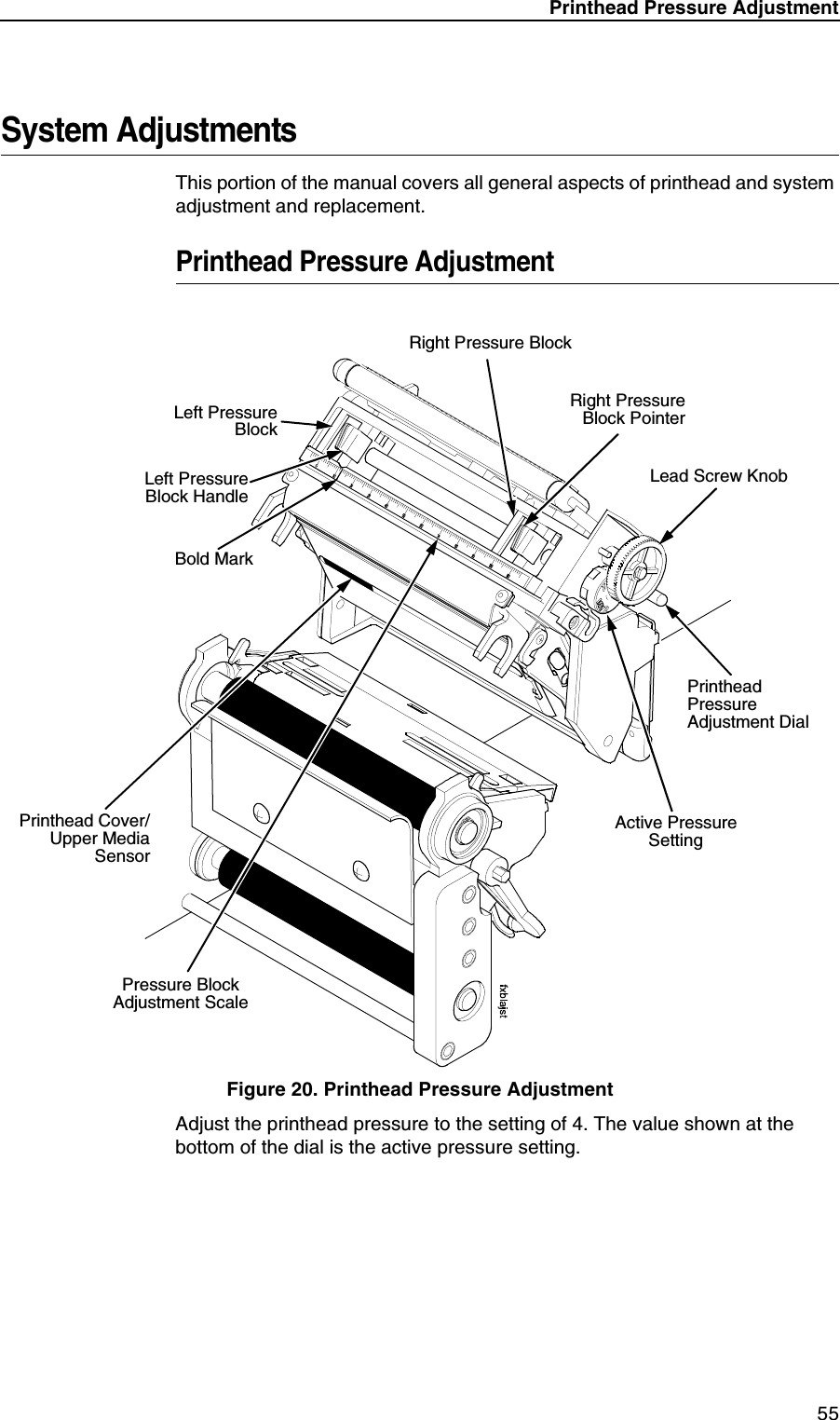
Printhead Pressure Adjustment55System AdjustmentsThis portion of the manual covers all general aspects of printhead and system adjustment and replacement.Printhead Pressure AdjustmentFigure 20. Printhead Pressure AdjustmentAdjust the printhead pressure to the setting of 4. The value shown at the bottom of the dial is the active pressure setting.Left PressureBlockLeft PressureBlock HandleBold MarkPrinthead Cover/Upper MediaSensorPressure Block Adjustment ScaleRight Pressure BlockRight PressureBlock PointerLead Screw KnobPrinthead Pressure Adjustment DialActive Pressure Setting
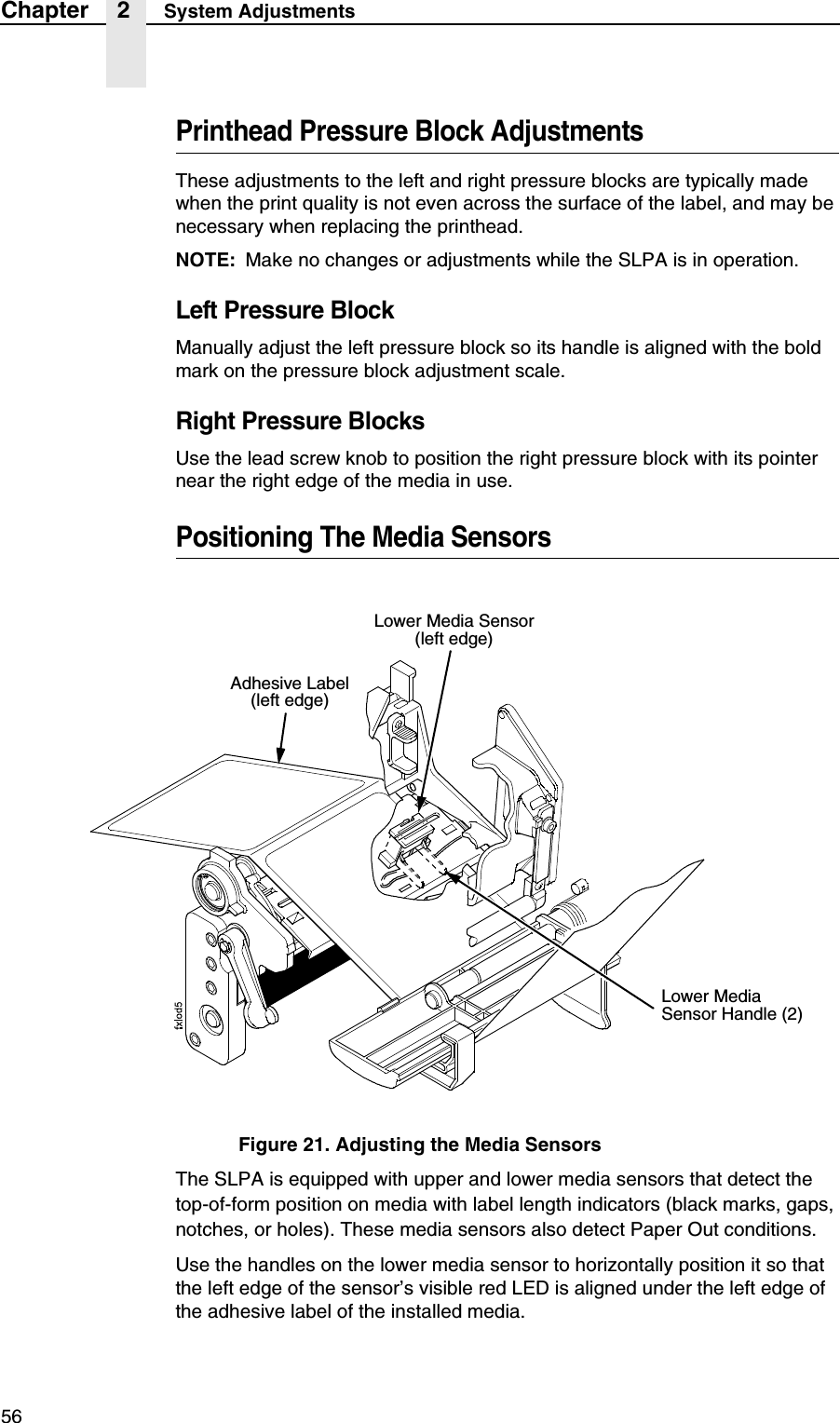
56Chapter 2 System AdjustmentsPrinthead Pressure Block AdjustmentsThese adjustments to the left and right pressure blocks are typically made when the print quality is not even across the surface of the label, and may be necessary when replacing the printhead.NOTE: Make no changes or adjustments while the SLPA is in operation.Left Pressure BlockManually adjust the left pressure block so its handle is aligned with the bold mark on the pressure block adjustment scale.Right Pressure BlocksUse the lead screw knob to position the right pressure block with its pointer near the right edge of the media in use.Positioning The Media SensorsFigure 21. Adjusting the Media SensorsThe SLPA is equipped with upper and lower media sensors that detect the top-of-form position on media with label length indicators (black marks, gaps, notches, or holes). These media sensors also detect Paper Out conditions.Use the handles on the lower media sensor to horizontally position it so that the left edge of the sensor’s visible red LED is aligned under the left edge of the adhesive label of the installed media.Adhesive Label(left edge)Lower Media Sensor(left edge)Lower Media Sensor Handle (2)
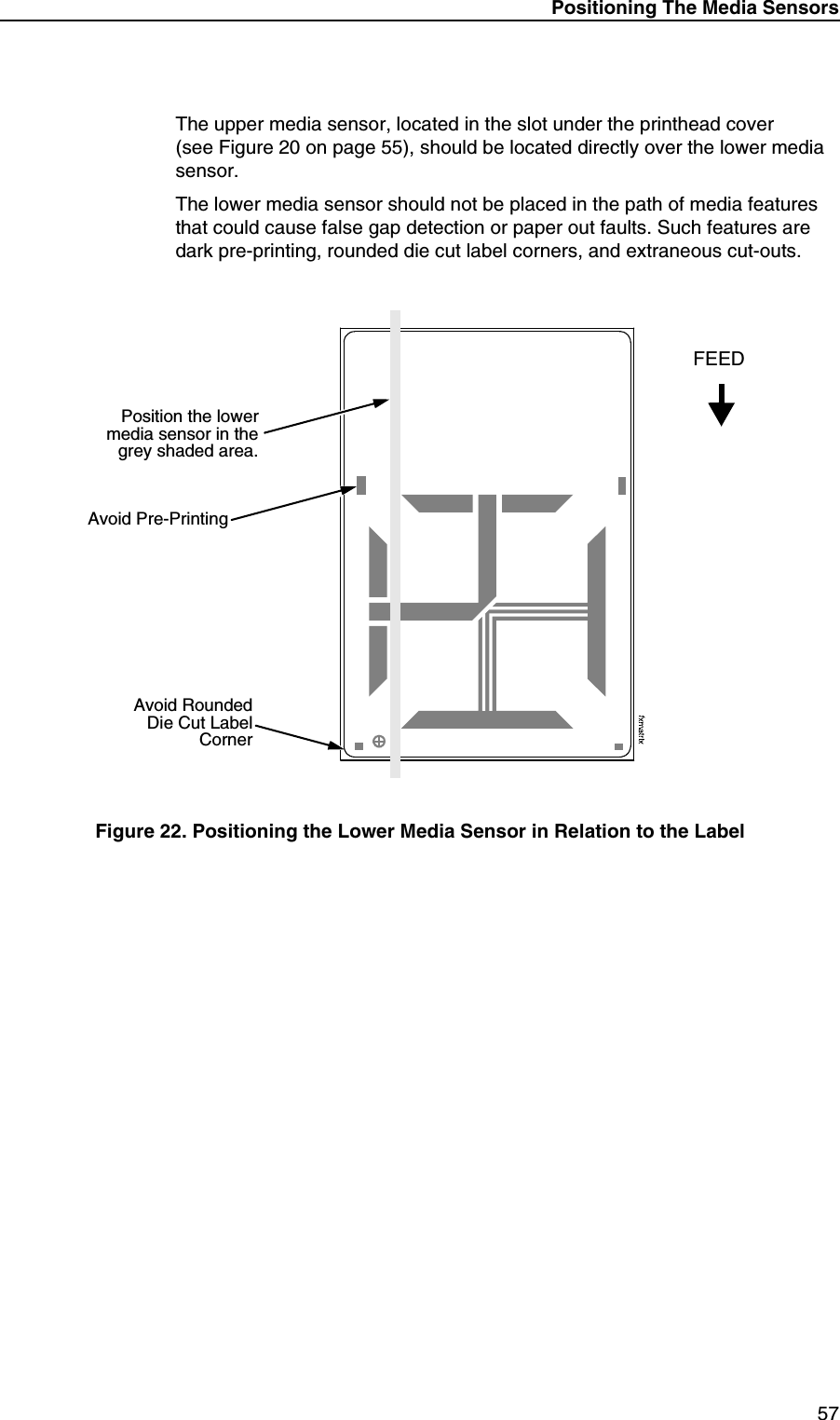
Positioning The Media Sensors57The upper media sensor, located in the slot under the printhead cover(see Figure 20 on page 55), should be located directly over the lower media sensor.The lower media sensor should not be placed in the path of media features that could cause false gap detection or paper out faults. Such features are dark pre-printing, rounded die cut label corners, and extraneous cut-outs.Figure 22. Positioning the Lower Media Sensor in Relation to the LabelAvoid RoundedDie Cut LabelCornerPosition the lowermedia sensor in thegrey shaded area.Avoid Pre-PrintingFEED
58Chapter 2 System AdjustmentsSensing Different Media TypesThe SLPA’s media sensors can detect the different types of label length indicators on a large variety of media types. This requires changes to theGap/Mark Sensor menu item in the CALIBRATE CTRL menu:1. Press the Menu key to take the SLPA offline and into Menu mode.2. Press ↓ and ↵ together until ENTER SWITCH UNLOCKED displays.3. Press the Menu key until CALIBRATE CTRL displays.4. Press ↓ until Gap/Mark Sensor / Disable* (the currently enabled option) displays.5. Press + or – until the option that matches the type of label length indicators on the installed media displays:•Disable. The default. Select when using media with no label length indicators (no black marks, gaps, notches, or holes) or when you want the SLPA to ignore all existing label length indicators on the installed media. See instructions below.NOTE: When you select Disable, the length of each label is based on the Label Length value entered in the QUICK SETUP menu or the value sent via host software.•Mark. Select when using media that has horizontal black marks located on the underside of the label liner or tag stock. See page 59.•Gap. Select when using media with a liner space between die cut labels or when using tag stock with notches or holes as label length indicators on white background media. See page 60.•Advanced Gap. Select when using media that has liner gaps between die cut labels with a black background. See page 61.•Advanced Notch. Select when using media with notches or holes that interrupt a black vertical line on the underside of the media.See page 62.NOTE: If the SLPA detects a false paper out message when you change from Advanced Gap or Advanced Notch to Gap or Mark sensing or vice versa, press the Pause key and run Auto Calibrate (page 63).6. Press ↵ to enable the displayed option. An asterisk (*) appears next to the selection.7. Press Pause until OFFLINE displays.8. Review “Calibrating The Media Sensors” on page 63.9. Perform the Auto Calibrate procedure on page 63.
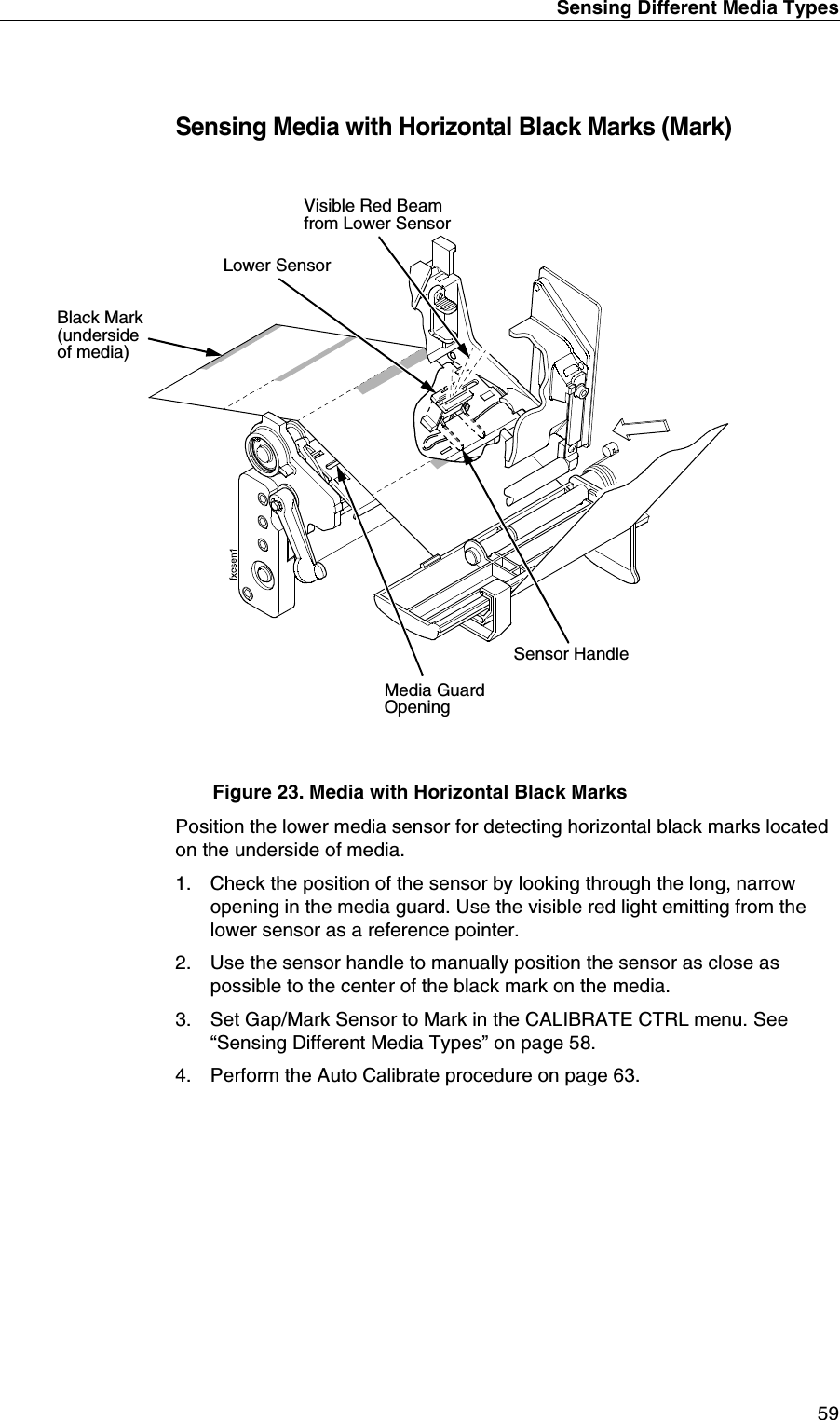
Sensing Different Media Types59Sensing Media with Horizontal Black Marks (Mark)Figure 23. Media with Horizontal Black MarksPosition the lower media sensor for detecting horizontal black marks located on the underside of media.1. Check the position of the sensor by looking through the long, narrow opening in the media guard. Use the visible red light emitting from the lower sensor as a reference pointer.2. Use the sensor handle to manually position the sensor as close as possible to the center of the black mark on the media.3. Set Gap/Mark Sensor to Mark in the CALIBRATE CTRL menu. See “Sensing Different Media Types” on page 58.4. Perform the Auto Calibrate procedure on page 63.Lower SensorMedia GuardOpeningBlack Mark (underside of media)Sensor HandleVisible Red Beamfrom Lower Sensor
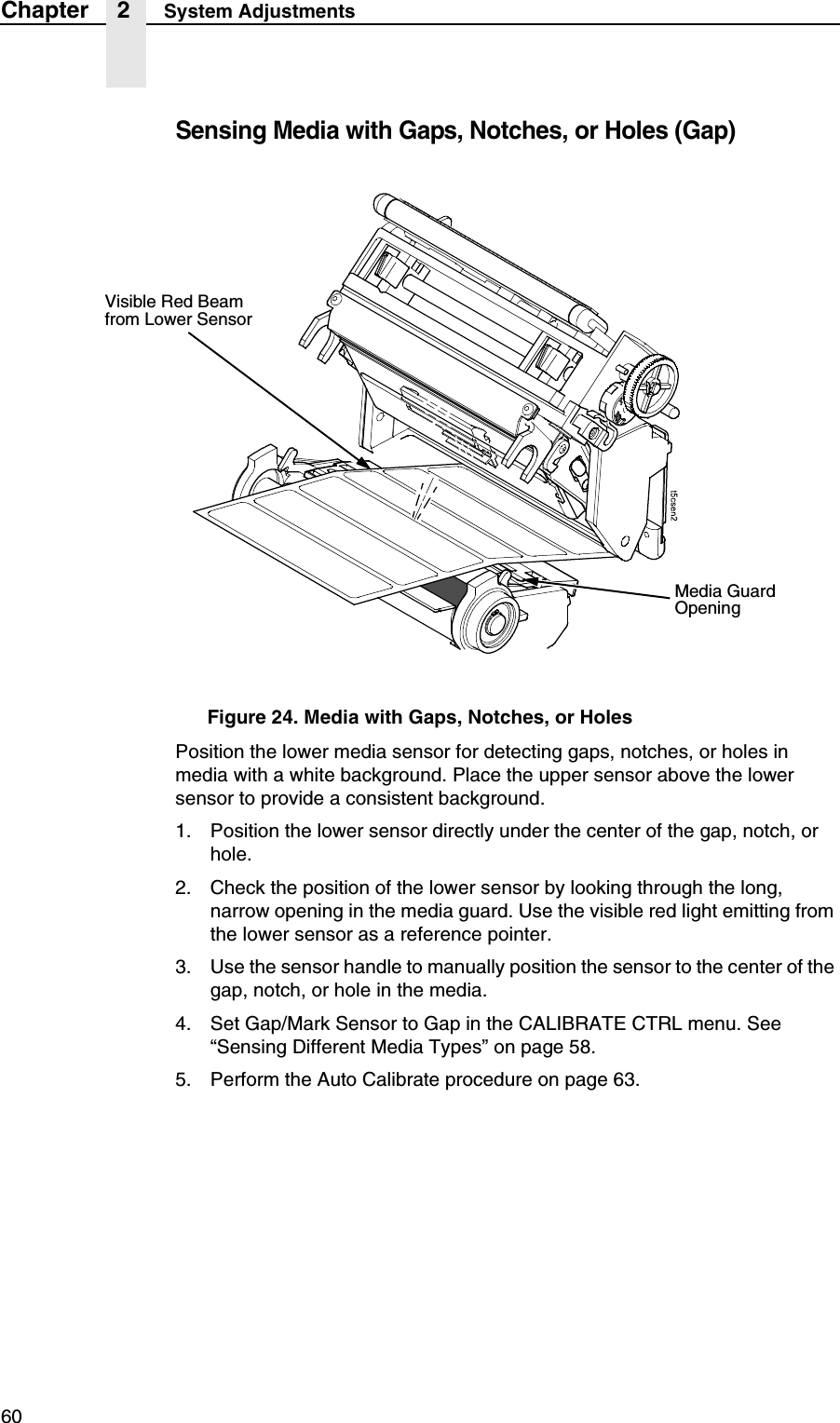
60Chapter 2 System AdjustmentsSensing Media with Gaps, Notches, or Holes (Gap)Figure 24. Media with Gaps, Notches, or HolesPosition the lower media sensor for detecting gaps, notches, or holes in media with a white background. Place the upper sensor above the lower sensor to provide a consistent background.1. Position the lower sensor directly under the center of the gap, notch, or hole.2. Check the position of the lower sensor by looking through the long, narrow opening in the media guard. Use the visible red light emitting from the lower sensor as a reference pointer.3. Use the sensor handle to manually position the sensor to the center of the gap, notch, or hole in the media.4. Set Gap/Mark Sensor to Gap in the CALIBRATE CTRL menu. See “Sensing Different Media Types” on page 58.5. Perform the Auto Calibrate procedure on page 63.Media GuardOpeningVisible Red Beamfrom Lower Sensor
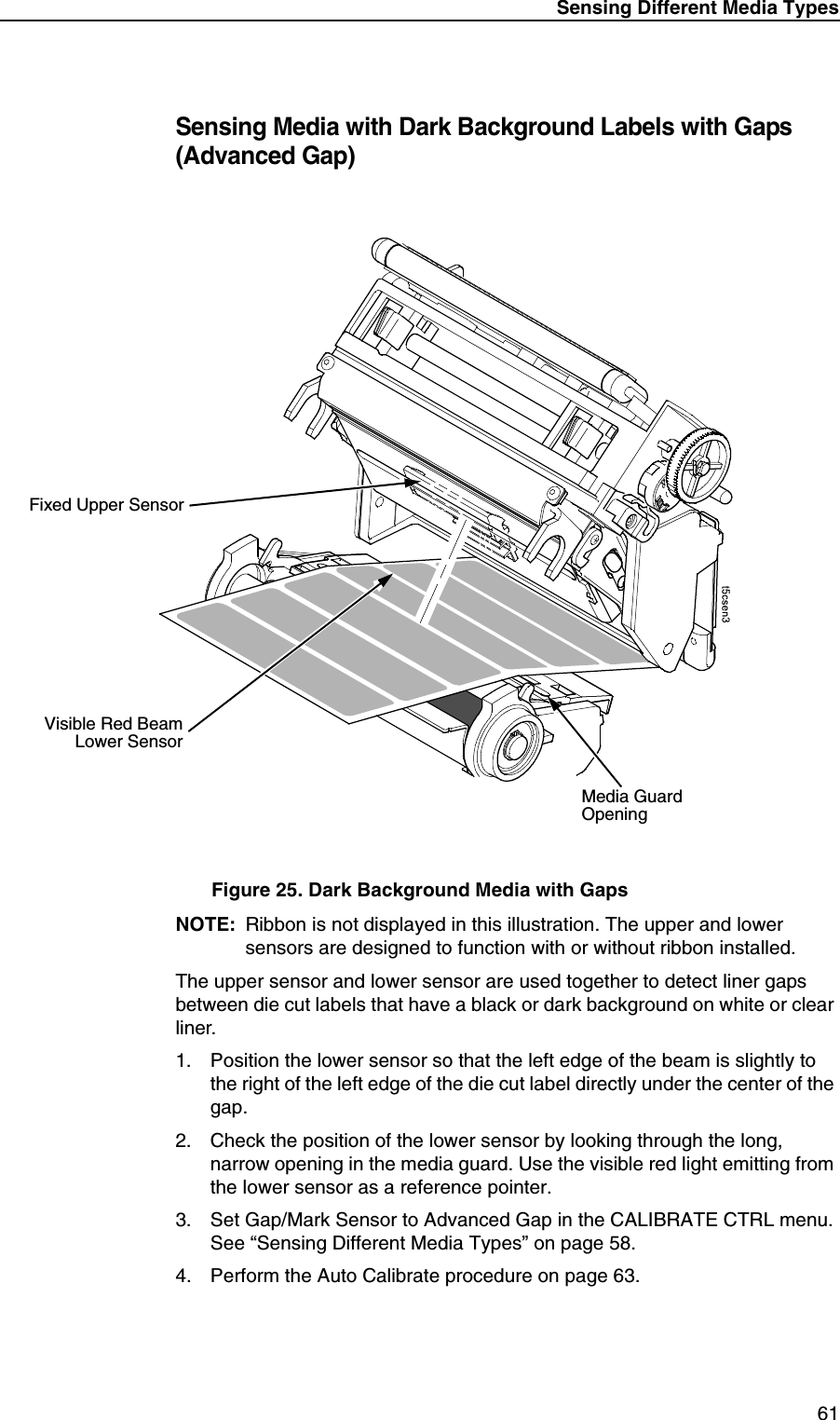
Sensing Different Media Types61Sensing Media with Dark Background Labels with Gaps (Advanced Gap)Figure 25. Dark Background Media with GapsNOTE: Ribbon is not displayed in this illustration. The upper and lower sensors are designed to function with or without ribbon installed.The upper sensor and lower sensor are used together to detect liner gaps between die cut labels that have a black or dark background on white or clear liner.1. Position the lower sensor so that the left edge of the beam is slightly to the right of the left edge of the die cut label directly under the center of the gap.2. Check the position of the lower sensor by looking through the long, narrow opening in the media guard. Use the visible red light emitting from the lower sensor as a reference pointer.3. Set Gap/Mark Sensor to Advanced Gap in the CALIBRATE CTRL menu. See “Sensing Different Media Types” on page 58.4. Perform the Auto Calibrate procedure on page 63.Media GuardOpeningVisible Red BeamLower SensorFixed Upper Sensor
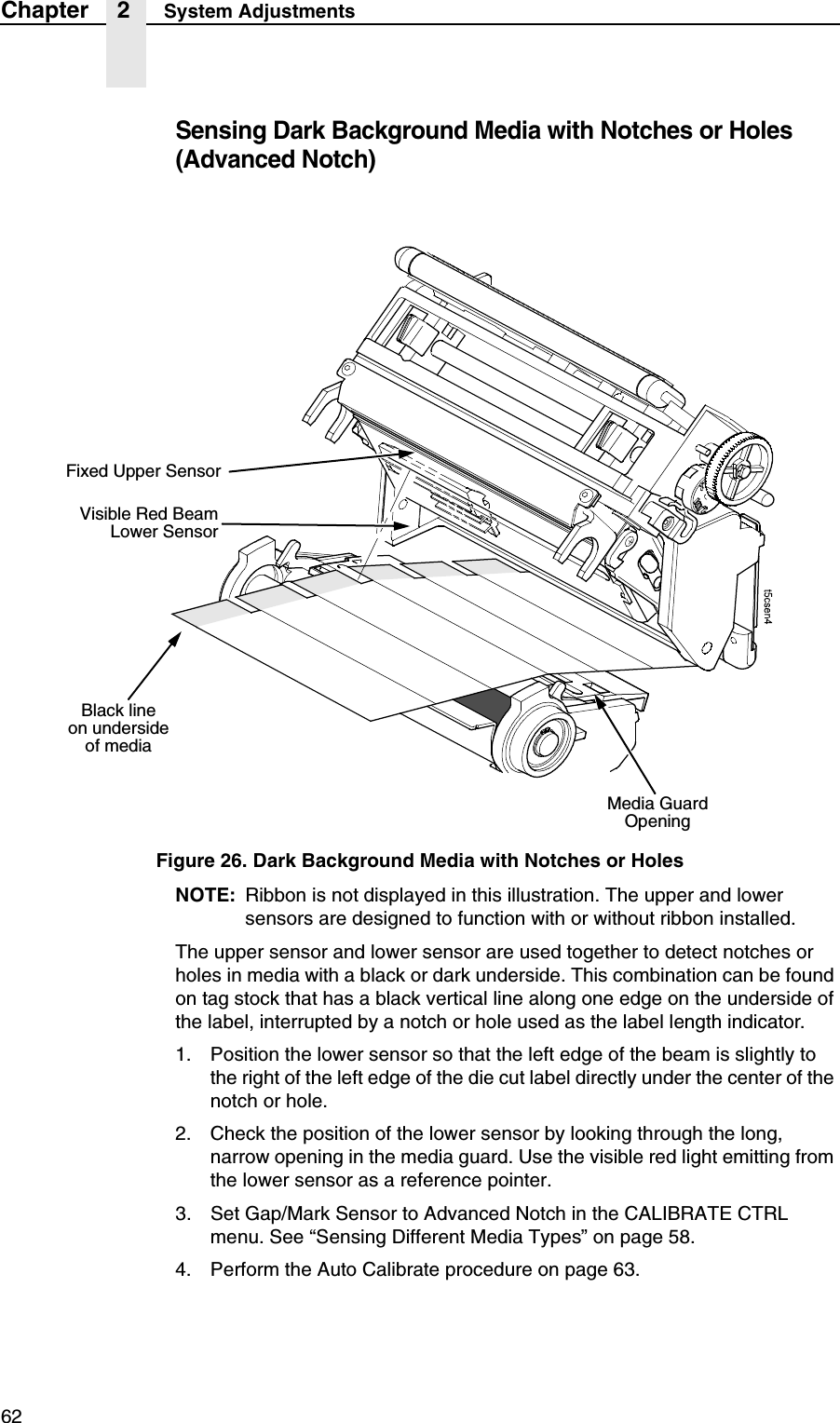
62Chapter 2 System AdjustmentsSensing Dark Background Media with Notches or Holes (Advanced Notch)Figure 26. Dark Background Media with Notches or HolesNOTE: Ribbon is not displayed in this illustration. The upper and lower sensors are designed to function with or without ribbon installed.The upper sensor and lower sensor are used together to detect notches or holes in media with a black or dark underside. This combination can be found on tag stock that has a black vertical line along one edge on the underside of the label, interrupted by a notch or hole used as the label length indicator.1. Position the lower sensor so that the left edge of the beam is slightly to the right of the left edge of the die cut label directly under the center of the notch or hole.2. Check the position of the lower sensor by looking through the long, narrow opening in the media guard. Use the visible red light emitting from the lower sensor as a reference pointer.3. Set Gap/Mark Sensor to Advanced Notch in the CALIBRATE CTRL menu. See “Sensing Different Media Types” on page 58.4. Perform the Auto Calibrate procedure on page 63.Visible Red BeamLower SensorMedia Guard OpeningFixed Upper SensorBlack lineon underside of media
Calibrating The Media Sensors63Calibrating The Media SensorsDue to manufacturing differences in media and ribbon, the media sensors may have difficulty differentiating between the label and the liner or the label and the black mark. When this occurs, the SLPA may intermittently skip a label or display a fault message such as GAP NOT DETECTED / See Manual or PAPER OUT / Load Paper.Media sensor sensitivity and reliability can be improved by changing theGap/Mark Threshold and/or Paper Out Threshold values. You can change these values automatically by performing the Auto Calibrate or Manual Calibrate procedure in the CALIBRATE CTRL menu or change them manually by entering your own Gap/Mark Threshold or Paper Out Threshold values. (The changes take effect immediately within the current configuration menu.)Auto or Manual Calibrate is completed successfully when the displayed Sensed Distance value correctly matches that of the installed media. When Gap is selected, the Sensed Distance value should match the length from the trailing edge of one gap to the trailing edge of the next gap (or one label + one gap). When Mark is selected, the Sensed Distance value should match the length from the leading edge of one black mark to the leading edge of the next black mark.When you have completed Auto or Manual Calibrate, you can verify that the new values are correct by pressing the Feed key several times. Each time you press Feed, media advances one label and stops at the correct Top-of-Form position of the next label.Once you confirm the correct values, save them to the desired configuration menu before powering off the SLPA. See “Saving A Configuration” on page 75.Running Auto CalibrateYou can initialize Auto Calibrate via the Apply key (described in detail below) or via the CALIBRATE CTRL or DIAGNOSTIC menus in Menu mode.NOTE: Verify that the Gap/Mark Sensor option (Disable, Mark, Gap, Advanced Gap, or Advanced Notch) matches the installed media. See “Sensing Different Media Types” on page 58.Check that the media sensors are horizontally positioned to permit sensing of the label length indicators. See “Positioning The Media Sensors” on page 56.If you try to do an Auto Calibrate when Peel-Off Media Handling is enabled, the LCD will display CANNOT CALIBRATE / Disable Peel-Off. Before you can do an Auto Calibrate, you must select another media handling mode.1. Press the Pause key until OFFLINE displays on the LCD.2. Press ↓ and ↵ together until ENTER SWITCH UNLOCKED displays.3. Press the Apply key until Printer Tests / Auto Calibrate displays.4. Press ↵. Media advances until it can accurately detect the label length indicators and then stops at the Top-of-Form position. The Sensed Distance value will then display for one second.
64Chapter 2 System Adjustments5. Auto Calibrate is successful when the Sensed Distance value correctly matches that of the installed media:•Gap/Mark Sensor = Gap, Advanced Gap, or Advanced Notch: The Sensed Distance value is the physical length of one label plus the length of one gap, notch, or hole.•Gap/Mark Sensor = Mark: The Sensed Distance value is the physical distance from the leading edge of one black mark to the leading edge of the next.•Gap/Mark Sensor = Disable: Not applicable. If Gap/Mark Sensor is set to Disable, the Sensed Distance value will not be updated.If GAP NOT DETECTED displays, run Auto Calibrate again.If Auto Calibrate continues to end with an incorrect Sensed Distance value displayed or a fault message displayed, run Manual Calibrate as described on page 66.NOTE: The amount of media sampled during Auto Calibrate is based on the length of a label and transitions detected, without error, between a label and its label length indicators.6. Press the Pause key until OFFLINE displays.7. Press the Feed key several times. Each time you press Feed, the media advances one label length and stops.NOTE: After a form feed, the position of the leading edge of the next label depends on the type of Media Handling mode selected under the QUICK SETUP menu. Tear-Off and Tear-Off Strip Media Handling will position the label edge at the peel bar, while Continuous will position the label edge under the printhead.8. Press the Pause key until ONLINE displays.9. Once the Sensed Distance value is confirmed, save it to the desired configuration (page 75) before powering off the SLPA.
Calibrating The Media Sensors65Running Media ProfileThe Media Profile printout shows the relationship of the Paper Out Threshold and the Gap/Mark Threshold values, illustrates if and when each label length indicator is detected, and shows the difference between the label length indicators and the label. The profile printout (see Figure 27 on page 66) helps you set the thresholds for difficult media. This includes pre-printed labels and labels with poor gap/media dynamic range.Once Media Profile is initiated, the SLPA will continue to advance media and print the profile in landscape orientation until you press ↵ to stop printing.NOTE: Verify the CALIBRATE CTRL menu Gap/Mark Sensor option (Disable, Mark, Gap, Advanced Gap, or Advanced Notch) matches the installed media. See “Sensing Different Media Types” on page 58.You will need a minimum installed label width of two inches to support the Profile printout.Ensure the lower media sensor is horizontally positioned to permit sensing of the label length indicators. See “Positioning The Media Sensors” on page 56.Ensure the Print Mode option selected in the QUICK SETUP menu matches the media installed. Select Direct for heat sensitive media (no ribbon required) or Transfer for thermal transfer media (ribbon required).1. Press the Menu key to take the SLPA offline and into Menu mode.2. Press ↓ and ↵ together until ENTER SWITCH UNLOCKED displays.3. Press the Menu key until PRINTER CONTROL displays.4. Press ↑ until Admin User displays.5. Press + until Enable displays.6. Press ↵ to select Enable. An asterisk (*) appears next to Enable.7. Press Menu until GPIO CTRL displays.8. Press ↓ until GPIO Print&Apply displays.9. Press + until Disable displays.10. Press ↵ to select Disable. An asterisk (*) appears next to Disable.11. Set Continuous Mode in the Media Handling menu.
66Chapter 2 System Adjustments12. Press Menu until CALIBRATE CTRL displays.13. Press ↓ until Media Profile / Profile Print displays and then press ↵. (The SLPA will continue to print the profile until you press ↵.)The SLPA will advance media and continue to print a dynamic profile image depicting the relationship of the label and any label length indicators detected.14. Press ↵. The SLPA will stop printing.15. Press Menu until GPIO CTRL displays.16. Press ↓ until GPIO Print&Apply displays.17. Press + until Enable displays.18. Press ↵ to select Enable. An asterisk (*) appears next to Enable.19. Press the Pause key until OFFLINE displays.NOTE: The Gap/Mark and Paper Out Threshold values shown on the Profile printout represent the last values determined from a successful Auto or Manual Calibrate or the factory default values if no Auto or Manual Calibrate was performed.Figure 27. Media Profile PrintoutRunning Manual CalibrateManual Calibrate should be performed only when the values derived from Auto Calibrate fail to improve the media sensors’ ability to sense label length indicators on the installed media. You must first enable Admin User in the PRINTER CONTROL menu before accessing or initializing Manual Calibrate in the CALIBRATE CTRL menu.NOTE: Verify the Gap/Mark Sensor option (Gap, Mark, Advanced Gap, Advanced Notch, or Disable) matches the installed media. See “Sensing Different Media Types” on page 58.255191127063000Paper Out(144)Gap Mark(105)
Calibrating The Media Sensors67Ensure the media sensors are horizontally positioned to permit sensing of the label length indicators. See “Positioning The Media Sensors” on page 56.Ensure the Print Mode option selected in the QUICK SETUP menu matches the media installed. Select Direct for heat sensitive media (no ribbon required) or Transfer for thermal transfer media (ribbon required).If you try to do a Manual Calibrate when Peel-Off Media Handling is enabled, the LCD will display, CANNOT CALIBRATE / Disable Peel-Off. Before you can do a Manual Calibrate, you must select another media handling mode.1. Press the Menu key to take the SLPA offline and into Menu mode.2. Press the ↓ and ↵ keys together until ENTER SWITCH UNLOCKED displays.3. Press the Menu key until PRINTER CONTROL displays.4. Press ↑ until Admin User displays.5. Press + until Enable displays.6. Press ↵ to select Enable. An asterisk (*) appears next to Enable.7. Press the Menu key until CALIBRATE CTRL displays.8. Press ↓ until Manual Calibrate / Run Calibrate displays, then press ↵.9. Follow the instructions displayed on the LCD. Example: REMOVE RBN&MEDIA / Press Enter indicates that you must open the pivoting deck and remove the ribbon and media from under the printhead, close and lock the pivoting deck, and press the ↵ key.During the last step of Manual Calibrate, the SLPA will advance the media and attempt to detect the label length indicators and stop at the Top-of-Form position. The Sensed Distance value will then display for one second. The calibrate is successful when the Sensed Distance value correctly matches that of the installed media.If CALIBRATION FAIL / See Manual displays, run Manual Calibrate again.NOTE: The amount of media sampled during Manual Calibrate is based on the length of a label and the transitions detected without error, between a label and its label length indicators.10. Press the Pause key until OFFLINE displays.11. Press the Feed key several times. Each time you press Feed, the media advances one label length and stops.NOTE: After a form feed, the position of the leading edge of the next label depends on the type of Media Handling mode selected under the QUICK SETUP menu. Tear-Off and Tear-Off Strip Media Handling positions the label edge at the peel bar, while Continuous positions the label edge under the printhead.12. Once the correct values are confirmed, save them to the desired configuration (page 75) before powering off the SLPA.
68Chapter 2 Printing And Applying LabelsPrinting And Applying LabelsWARNINGPrintronix has provided the necessary guards and warnings within the confines of the SLPA, but cannot anticipate each customer’s individual installation and operational environments. It is the customer’s responsibility to provide in-house safety guards to provide adequate worker safety for their respective production settings. WARNINGAn input signal from the product sensor will activate the SLPA when the SLPA is online unless it is taken offline.This section provides a brief overview of the print and apply process as well as suggested steps preliminary to printing.During power-up, the SLPA performs a self-diagnostic test and indicates if the system has any existing fault or warning conditions.Once the SLPA is online and configured (if necessary) for the desired application, take the SLPA offline before downloading labels from the host into the buffer. This will prevent any chance of having the system cycle before you are prepared to begin print operations.For information on the proper setup of the SLPA, see “Setup” on page 41.Label Application (Positioning) AdjustmentsTo apply the labels at the desired location on the product:1. Mount the product sensor on the side of the conveyor, determining if the sensor should be mounted upstream from the applicator pad (product passes sensor before pad) or downstream from the applicator pad (product passes pad before sensor), depending on the application.IMPORTANTMount the product sensor appropriate to the position where you would like the label to be applied. It is easier to position the label onto the product using the sensor delay when the sensor is mounted upstream from the applicator pad.
Label Application (Positioning) Adjustments69Figure 28. Return Speed Control Valve2. Set the Cycle Delay time for the product sensor using the Applicator Delay menu. (See “Applicator Delay Menu” on page 195.)NOTE: The Cycle Delay setting determines the amount of delay from the time that the product sensor detects the product to the time that the applicator pad is online. Since the label prints first, be sure to account for printing time. The longer the time entered, the farther back (closer to the trailing edge) the label will be placed onto the product. Conversely, if this value is set to zero, for example, the applicator pad will launch as soon as the label is printed.Begin by setting the Cylinder Extend time to 10 msec to begin this adjustment procedure. (See “Applicator Delay Menu” on page 195.)AAFlow ControlValveTamp Cylinder AirShut Off Valve
70Chapter 2 Printing And Applying Labels3. Place the product sample on the conveyor and allow it move past the SLPA. The label that is applied will be used as a reference point for positioning the rest of the labels.4. To move the label toward the leading edge of the product, decrease the Cycle Delay time. Begin by decreasing the time in intervals of 10 msec, then fine tune in intervals 1 msec. Repeat this procedure until the label is positioned where desired.5. To move the label toward the trailing edge of the product, increase the Cycle Delay time. Begin by increasing the time in intervals of 10 msec, then fine tune in intervals 1 msec. Repeat this procedure until the label is positioned where desired.If the label still cannot be positioned properly, remount the product sensor as follows:1. To position the label toward the leading edge of the product, move the product sensor upstream.2. To position the label toward the trailing edge of the product, move the product sensor downstream.3. Once the label is positioned in the desired location on the product, secure the product sensor onto the conveyor.If the SLPA cycles when a product is not in position, a background object may be activating the sensor. To correct this problem, reposition the product sensor or adjust the product sensor. See “Product Sensor” on page 259 for more information on product sensor adjustments.WARNINGInterrupting the signal on the product sensor will activate the SLPA.Make certain that the path of the applicator path is clear.Adjusting The Cylinder Extend TimeNOTE: Remember that the supply air pressure to the SLPA should be80 to 100 psi (550 to 690 kPa). Set the cylinder pressure to 40 psi to start.1. Set the Cylinder Extend time using the Applicator Delay menu. (See “Applicator Delay Menu” on page 195.)NOTE: The amount of time the applicator pad is energized through the cylinder extend time, determines how far the pad travels during application of the label. The longer the time entered, the farther the distance the applicator pad travels. If this value is set to zero, for example, the applicator pad will not launch.Set the Cylinder Extend time to 110 msec to begin this adjustment procedure.
The Print And Apply Process71•If the applicator pad does not contact the product (if the stroke time is not long enough):Increase the Cylinder Extend time using the Applicator Delay menu. Begin by increasing the time in intervals of 10 msec, then fine tune in increments of 1 msec. A higher setting allows the applicator pad more time to extend toward the product, therefore, increasing the stroke length.•If the applicator pad remains on the product for too long (if the stroke time is too long):Decrease the Cylinder Extend time using the Applicator Delay menu. Begin by increasing the time in intervals of 6 msec, then fine tune in increments of 1 msec. A lower setting decreases the amount of time that the applicator pad is extended (in contact with the product).2. Use the flow control valve (located on the air cylinder) to adjust the speed of the return stroke. (Figure 28.) Increase the speed by rotating the valve counterclockwise and decrease the speed by rotating the valve clockwise.The Print And Apply ProcessBefore labels can be printed and applied:1. Ensure that the protective guards are properly secured and that materials are clear of the applicator pad and printhead assembly.2. Ensure that you have input time values for Cycle Delay, Cylinder Extend, and Vacuum Delay (if applicable). (See “Applicator Delay Menu” on page 195.)NOTE: The applicator will not move unless a value is entered for Cylinder Extend.3. Press the Pause key on the control panel to enable the product sensor, or to allow remote signals received through the interface package option to activate the SLPA.NOTE: You may wish to cycle several labels onto product samples, to ensure proper operation of the SLPA.
72Chapter 2 Printing And Applying Labels
733Configuring The SLPAIMPORTANTChanging system parameters can affect SLPA operation and could disable it. Thoroughly review this chapter, as inappropriate settings may impair the SLPA’s functionality.Setting Printer Configuration ParametersConfiguration parameters are set from the control panel or are retrieved from the printer’s memory. The parameters define how the SLPA will respond to command and interface signals from the host computer.The configuration menu structure consists of main menus and the options applicable to each menu.NOTE: Some configurations refer to SLPA options that may not be present in your SLPA. If you select an option or feature that is not present, no action will be performed by the SLPA or an “OPTION NOT INSTALLED” message will display on the LCD.Moving Within The Configuration MenuYou can move through the configuration menus using the appropriate navigation keys. (See “Control Panel” on page 35 for more details on the function of the control panel keys.)You can select different options and save them as the power on default; however, you can only save them to configuration menus 1 to 8. The factory configuration menu can be altered, but not saved.When the SLPA is online, the first line of the LCD displays “ONLINE” and the second line lists the active interface port and type of emulation.To configure the SLPA:1. Press the Menu key to enter take the SLPA offline and enter Menu mode.2. You can move through configuration main menus in two ways:•Press the Menu key to move to the right.•Press the + key to move right or the – key to move left.NOTE: In menus with numeric ranges of more than 50 numbers, hold down the + or – key for more than 2 seconds to move through the range in increments of 5. To move in increments of 1 again, release your hold on the + or – key.
74Chapter 3 Moving Within The Configuration MenuSelecting A Menu OptionTo select an option, you need to press the ↵ key. By default, however, the↵ key is “locked” when the printer is turned on to prevent accidental changes to the configuration menu. If you press the ↵ key when the key is locked, the message “ENTER SWITCH LOCKED” displays on the LCD for one second and the value will not be selected.To unlock the ↵ key, press the ↓ and ↵ keys at the same time. This toggles the ENTER/LOCK function.•If this function is performed while the ↵ key is locked, the message “ENTER SWITCH UNLOCKED” displays for one second, and the ↵ key will be unlocked.•If this function is performed while the ↵ key is unlocked, the message “ENTER SWITCH LOCKED” displays for one second, and the ↵ key will be locked.When you press the ↵ key (with the ↵ key unlocked), you select the value or option that displays. An asterisk displays after the value you selected, and the configuration is changed immediately.IMPORTANTThis change takes effect for all subsequent data and operations for the printer as soon as the ↵ key is pressed and the asterisk (*) is displayed. The configuration change(s) stay in effect only while the printer is powered on. When the power is turned off, all current configurations will be lost unless changes made to it are saved via the CONFIG. CONTROL menu.To save configuration information permanently or to select it as the power-up default, see “Saving A Configuration” on page 75.Changing Printer SettingsYou can change (or “configure”) printer settings, such as print speed or emulations, through the control panel as follows:1. Press the   key until the following message displays:2. Press the ↓ key to cycle through these options:•Print Intensity•Print Speed•Print Mode•Media Handling•Paper Feed Shift•Label Length•Label WidthMENU MODEQUICK SETUP...
Saving A Configuration75•Ver Image Shift•Hor Image Shift•Orientation•Gap/Mark Sensor•Auto Calibrate•Save Config.•Power-Up Config.3. When the desired submenu displays, press the + or – key to scroll through the values or options.4. Press the ↵ key to select a value. An asterisk (*) displays next to the selected value or option.5. If there are more submenu values or options you want to change, use the , ↑, ↓, +, and – keys to access the value and the ↵ key to select it. At any time, you may press the   key to return to the Main menu.6. At any time, you may press the PAUSE key twice to exit the Configuration menu and place the printer online. Once you have finished selecting all your options, save your configuration.IMPORTANTIf you do not save your configuration, all your new values will be lost when you power off the printer.Saving A ConfigurationYou can save up to eight different configurations to meet eight unique print job requirements. These configurations are saved and stored in the printer and are not lost when the printer is turned off.NOTE: If the Protect Configs. option is enabled, the new configuration will not be saved until the existing configuration is deleted.Follow these steps to save a new configuration:1. Press the  key until the following message displays:2. Press the ↓ key until the following message displays:3. Press the + or – key to cycle through the options (1-8). Note that “Factory” is not listed, because no changes made to the factory configuration can be saved under Factory..........MENU MODECONFIG. CONTROLSave Config.1*

Navigation menu