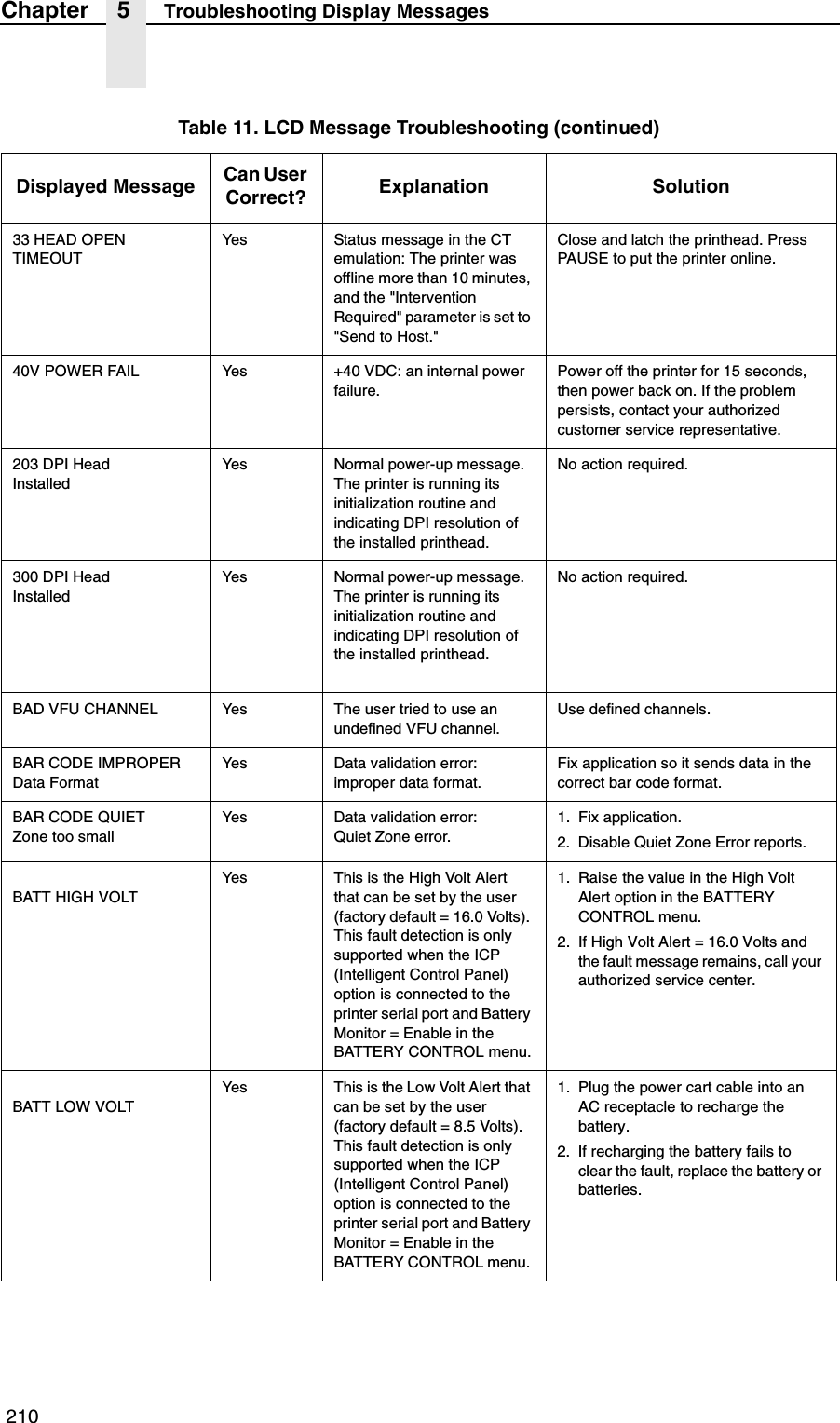
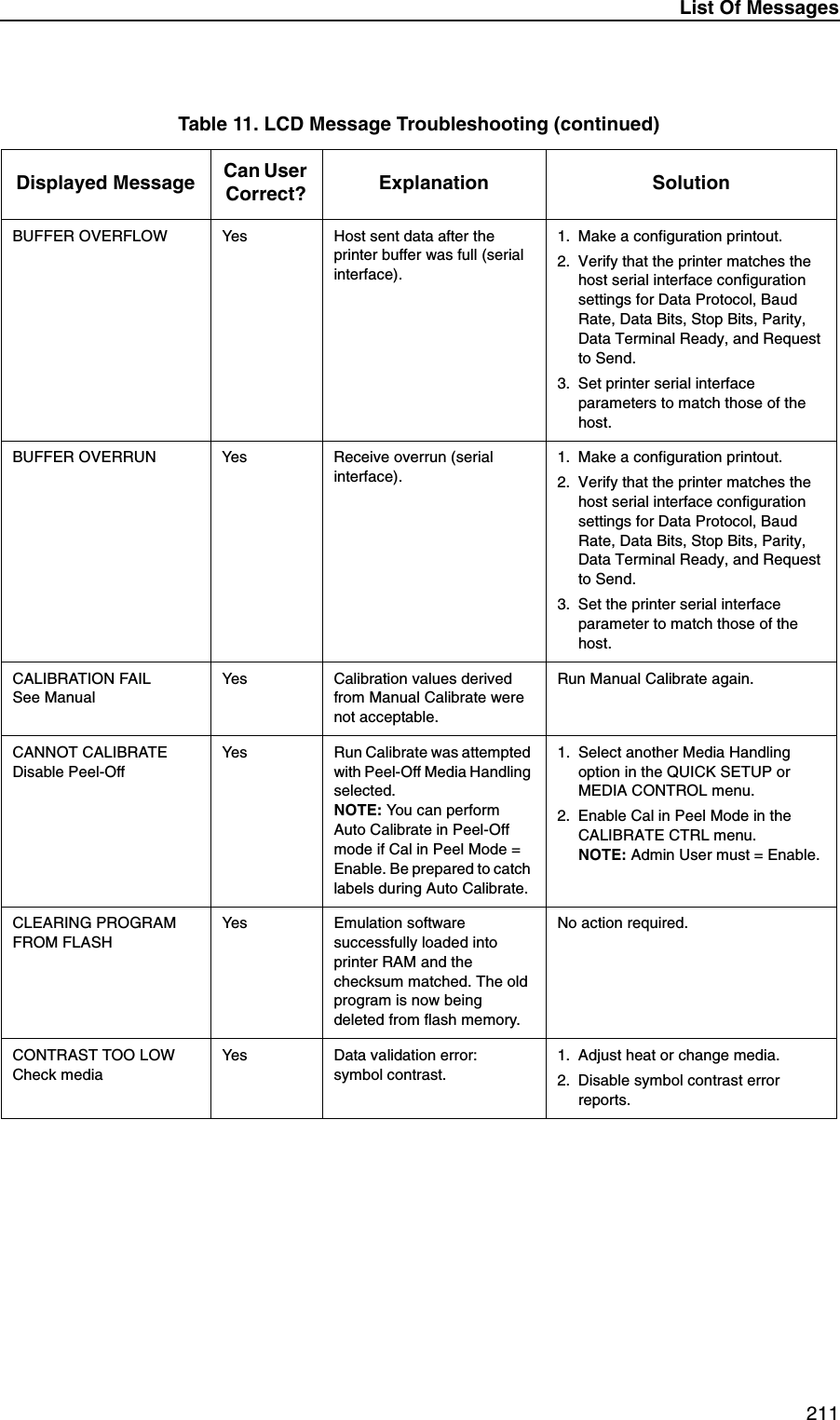
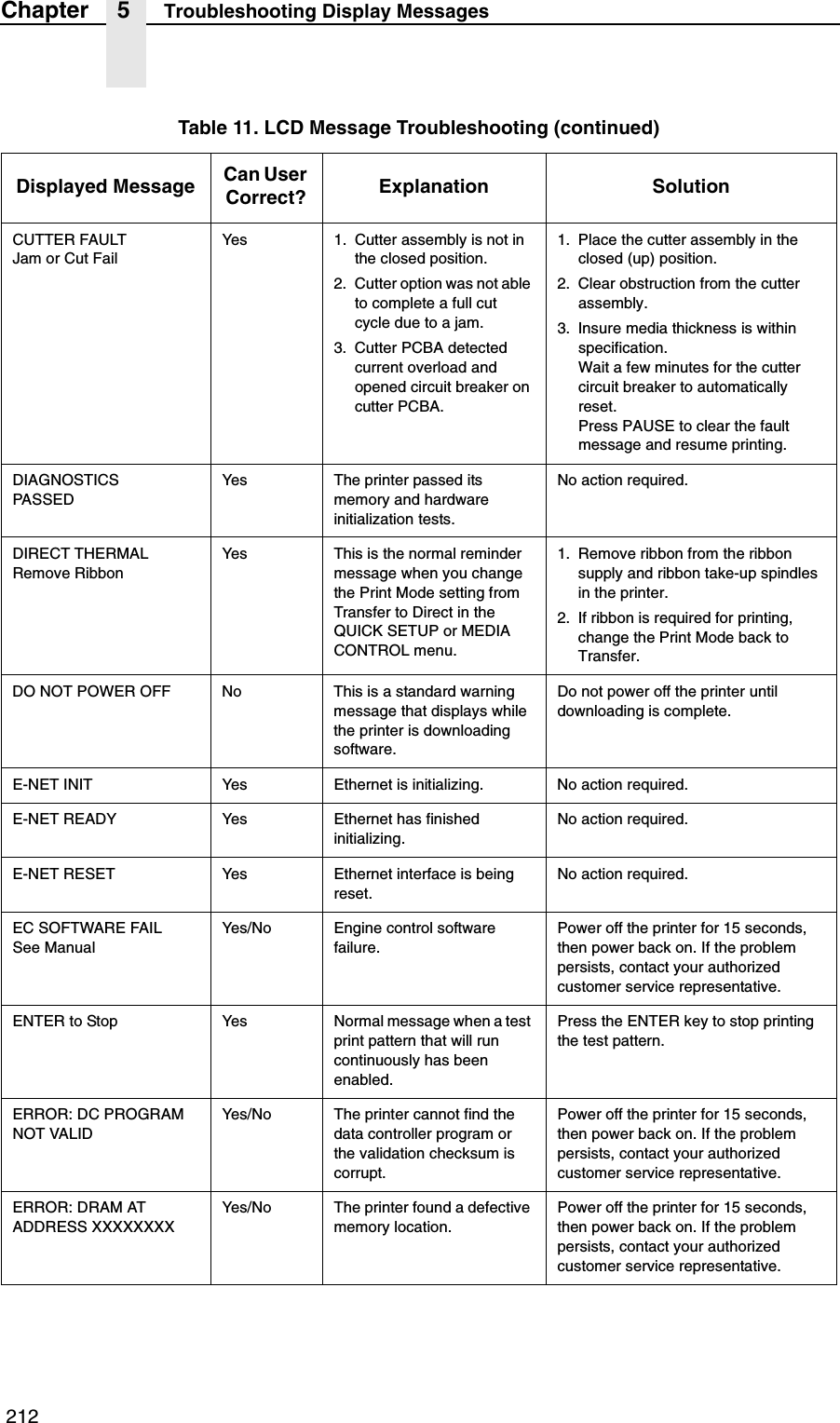
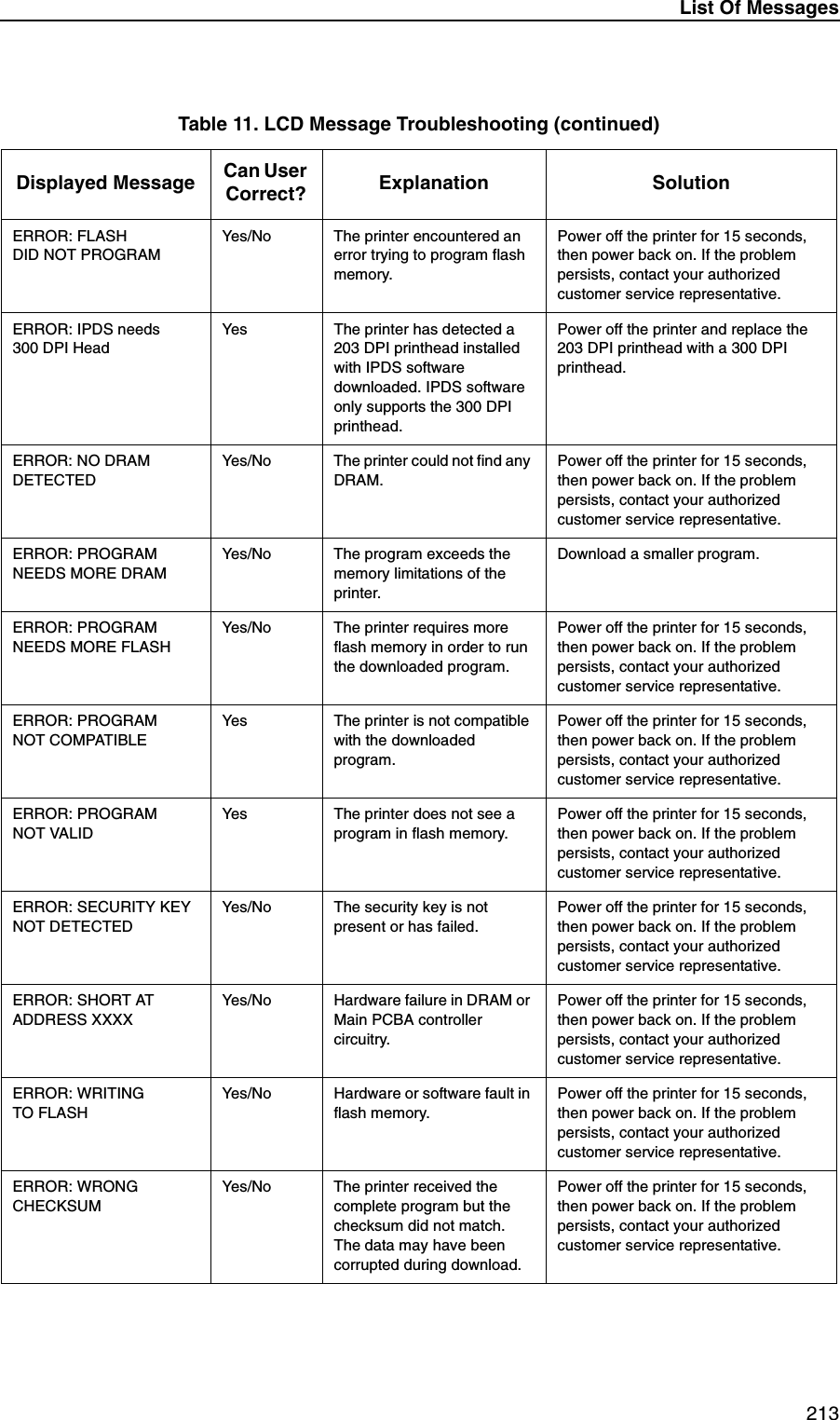
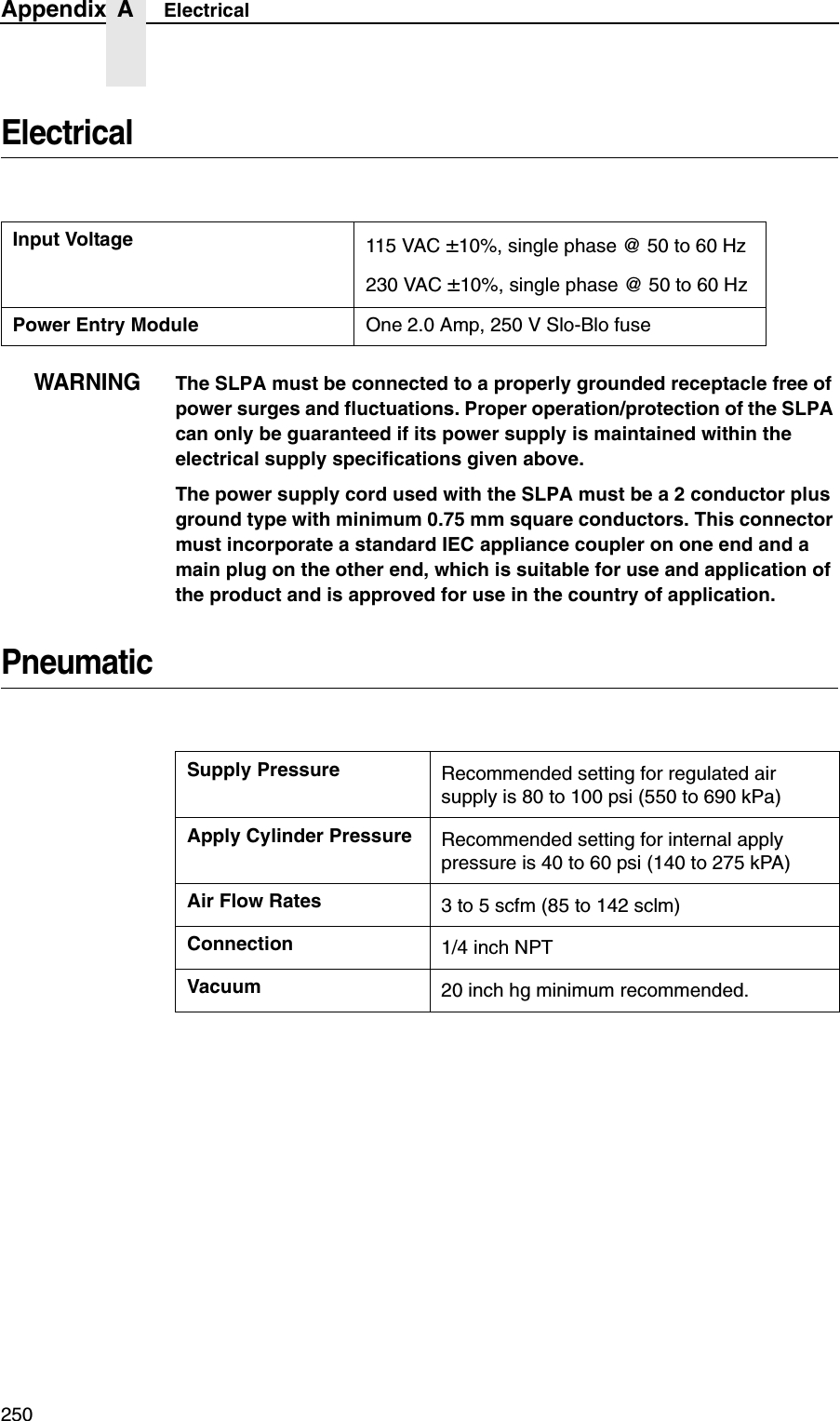
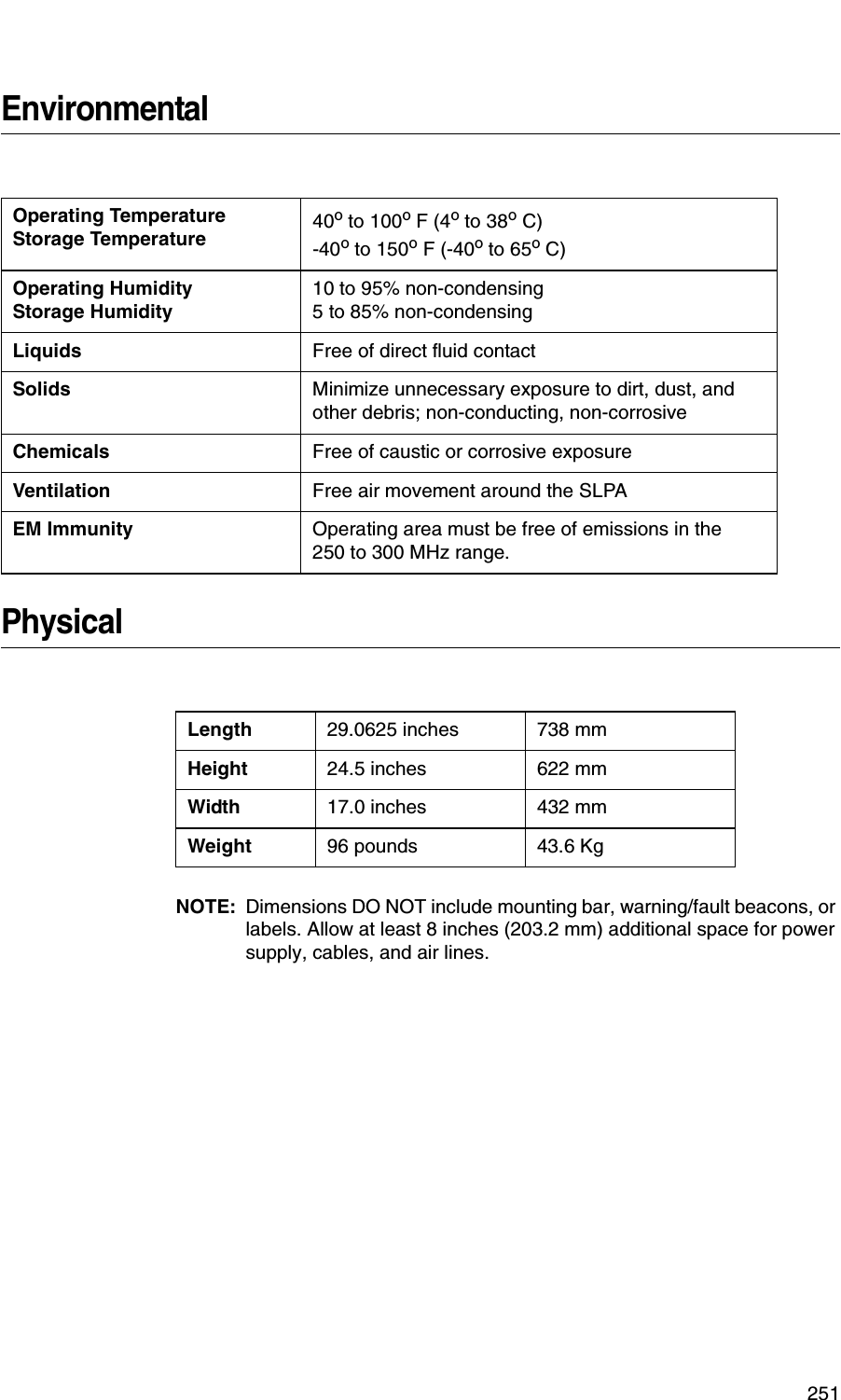
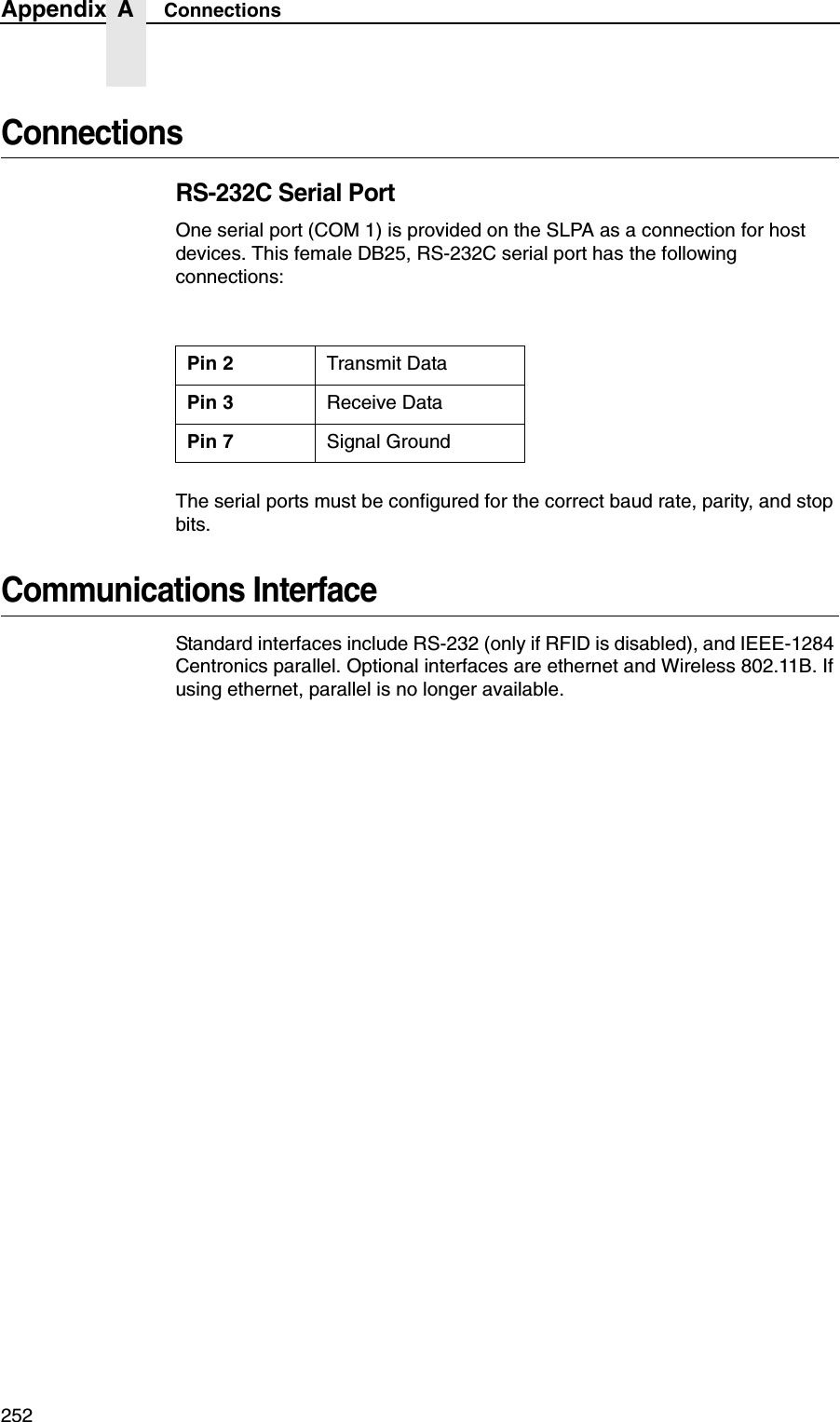
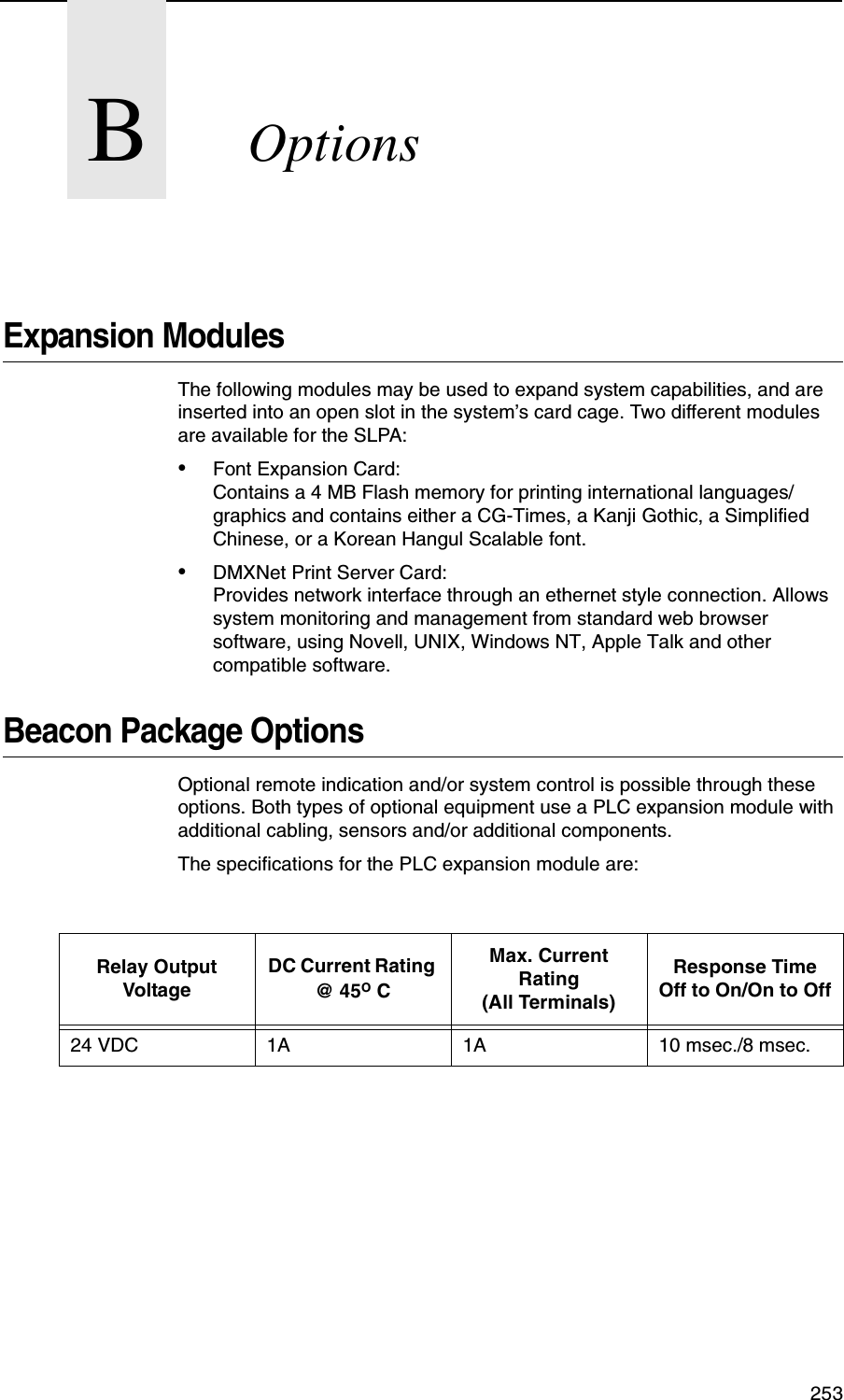
Printronix ADMP2PA Print and Apply Machine User Manual PTX UM SLPA7000r 250117A

Printronix Inc Print and Apply Machine PTX UM SLPA7000r 250117A

Contents

Users Manual 3

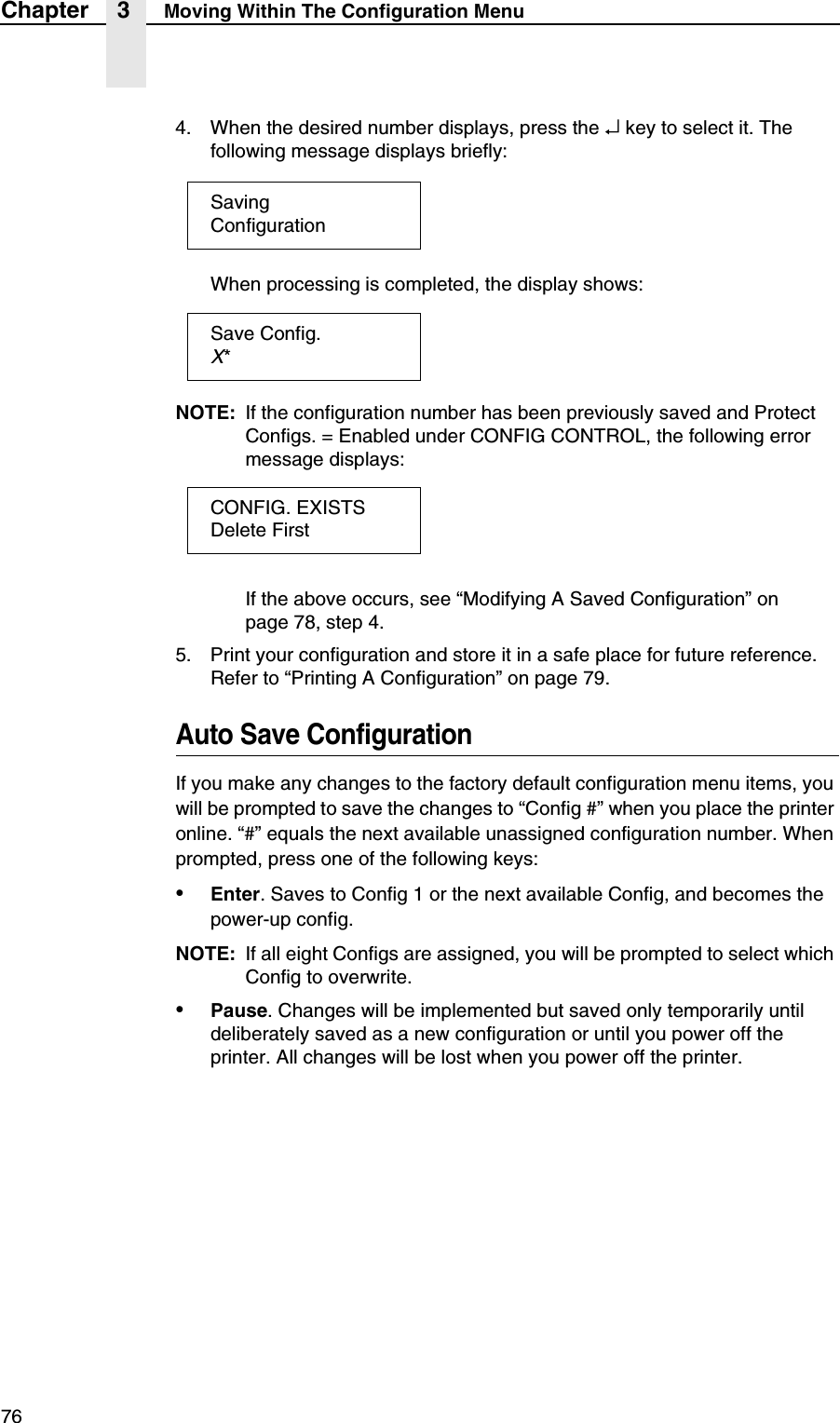
76Chapter 3 Moving Within The Configuration Menu4. When the desired number displays, press the ↵ key to select it. The following message displays briefly:When processing is completed, the display shows:NOTE: If the configuration number has been previously saved and Protect Configs. = Enabled under CONFIG CONTROL, the following error message displays:If the above occurs, see “Modifying A Saved Configuration” on page 78, step 4.5. Print your configuration and store it in a safe place for future reference. Refer to “Printing A Configuration” on page 79.Auto Save ConfigurationIf you make any changes to the factory default configuration menu items, you will be prompted to save the changes to “Config #” when you place the printer online. “#” equals the next available unassigned configuration number. When prompted, press one of the following keys:•Enter. Saves to Config 1 or the next available Config, and becomes the power-up config.NOTE: If all eight Configs are assigned, you will be prompted to select which Config to overwrite.•Pause. Changes will be implemented but saved only temporarily until deliberately saved as a new configuration or until you power off the printer. All changes will be lost when you power off the printer.SavingConfigurationSave Config.X*CONFIG. EXISTSDelete First
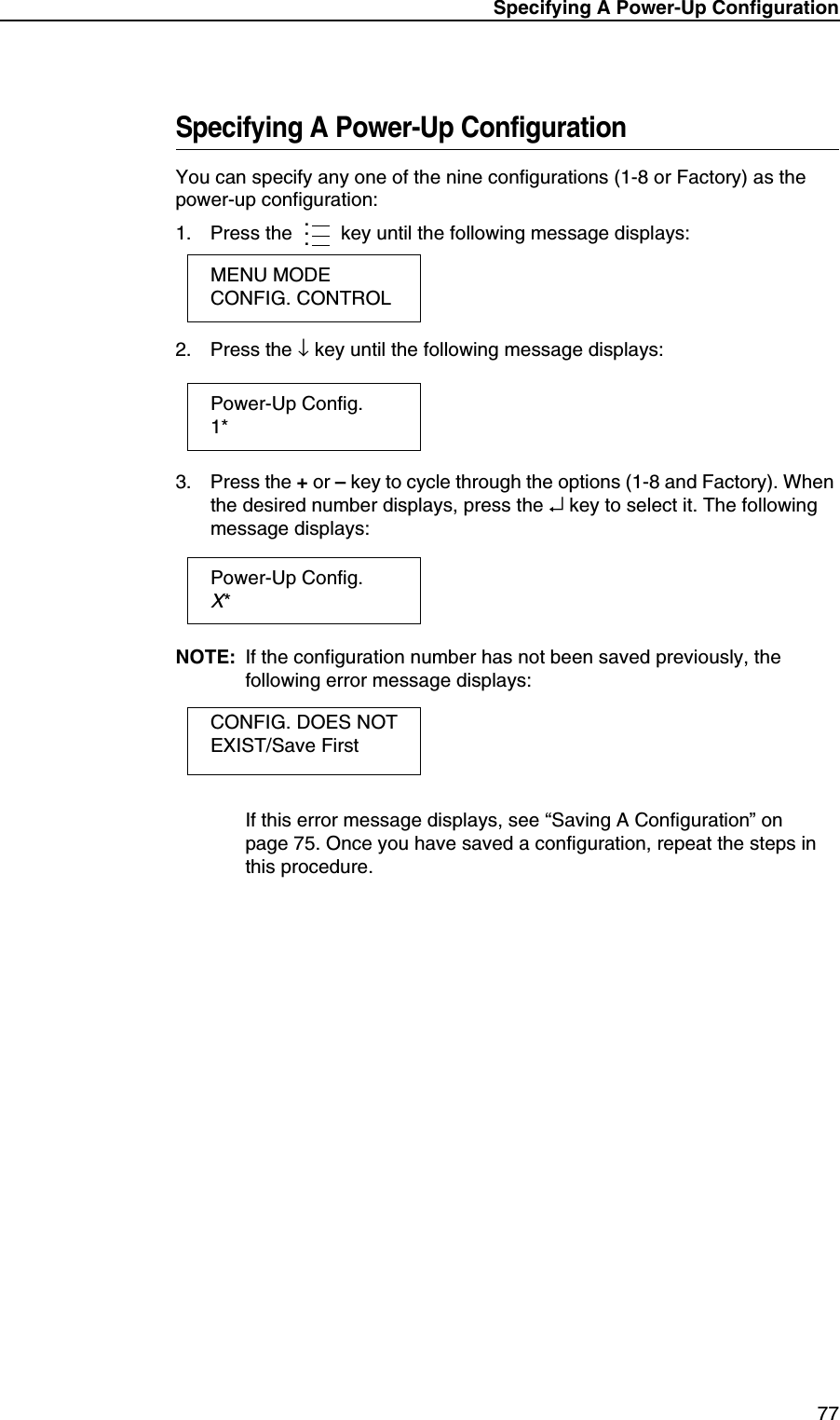
Specifying A Power-Up Configuration77Specifying A Power-Up ConfigurationYou can specify any one of the nine configurations (1-8 or Factory) as the power-up configuration:1. Press the  key until the following message displays:2. Press the ↓ key until the following message displays:3. Press the + or – key to cycle through the options (1-8 and Factory). When the desired number displays, press the ↵ key to select it. The following message displays:NOTE: If the configuration number has not been saved previously, the following error message displays:If this error message displays, see “Saving A Configuration” on page 75. Once you have saved a configuration, repeat the steps in this procedure....MENU MODECONFIG. CONTROLPower-Up Config.1*Power-Up Config.X*CONFIG. DOES NOT EXIST/Save First
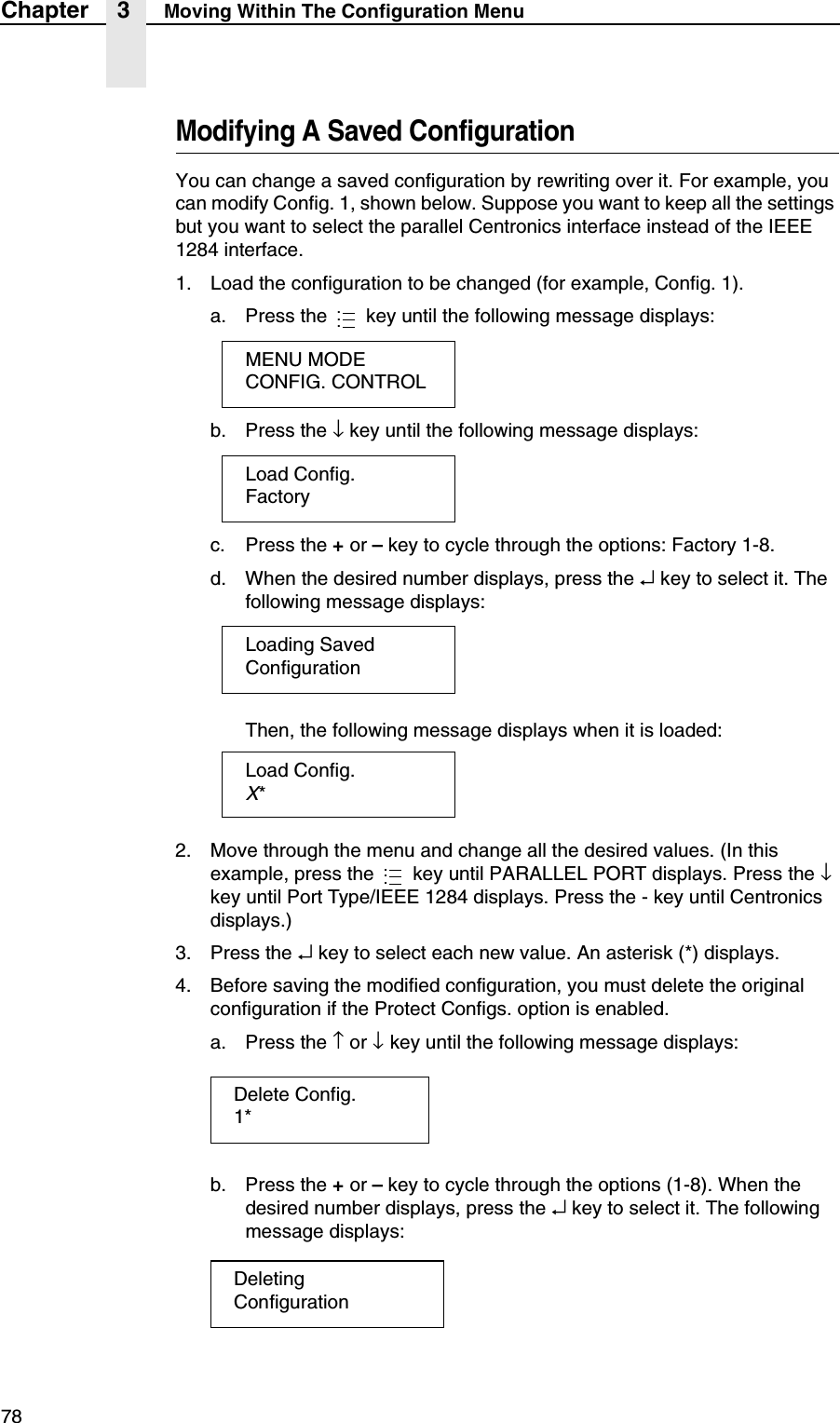
78Chapter 3 Moving Within The Configuration MenuModifying A Saved ConfigurationYou can change a saved configuration by rewriting over it. For example, you can modify Config. 1, shown below. Suppose you want to keep all the settings but you want to select the parallel Centronics interface instead of the IEEE 1284 interface.1. Load the configuration to be changed (for example, Config. 1).a. Press the   key until the following message displays:b. Press the ↓ key until the following message displays:c. Press the + or – key to cycle through the options: Factory 1-8.d. When the desired number displays, press the ↵ key to select it. The following message displays:Then, the following message displays when it is loaded:2. Move through the menu and change all the desired values. (In this example, press the   key until PARALLEL PORT displays. Press the ↓ key until Port Type/IEEE 1284 displays. Press the - key until Centronics displays.)3. Press the ↵ key to select each new value. An asterisk (*) displays.4. Before saving the modified configuration, you must delete the original configuration if the Protect Configs. option is enabled.a. Press the ↑ or ↓ key until the following message displays:b. Press the + or – key to cycle through the options (1-8). When the desired number displays, press the ↵ key to select it. The following message displays:...MENU MODECONFIG. CONTROLLoad Config.FactoryLoading SavedConfigurationLoad Config.X*...Delete Config.1*DeletingConfiguration
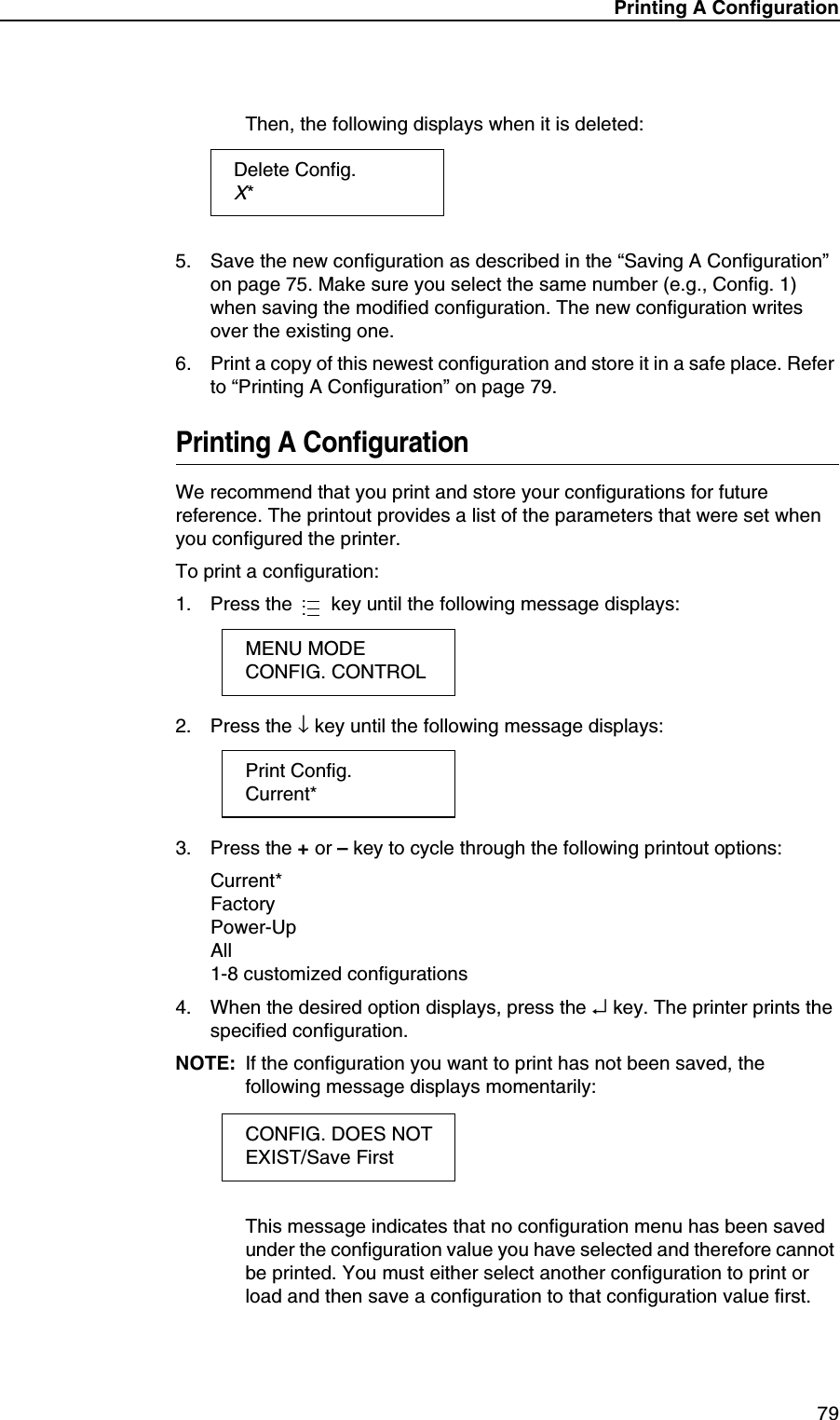
Printing A Configuration79Then, the following displays when it is deleted:5. Save the new configuration as described in the “Saving A Configuration” on page 75. Make sure you select the same number (e.g., Config. 1) when saving the modified configuration. The new configuration writes over the existing one.6. Print a copy of this newest configuration and store it in a safe place. Refer to “Printing A Configuration” on page 79.Printing A ConfigurationWe recommend that you print and store your configurations for future reference. The printout provides a list of the parameters that were set when you configured the printer.To print a configuration:1. Press the   key until the following message displays:2. Press the ↓ key until the following message displays:3. Press the + or – key to cycle through the following printout options:Current*FactoryPower-UpAll1-8 customized configurations4. When the desired option displays, press the ↵ key. The printer prints the specified configuration.NOTE: If the configuration you want to print has not been saved, the following message displays momentarily:This message indicates that no configuration menu has been saved under the configuration value you have selected and therefore cannot be printed. You must either select another configuration to print or load and then save a configuration to that configuration value first.Delete Config.X*...MENU MODECONFIG. CONTROLPrint Config.Current*CONFIG. DOES NOTEXIST/Save First
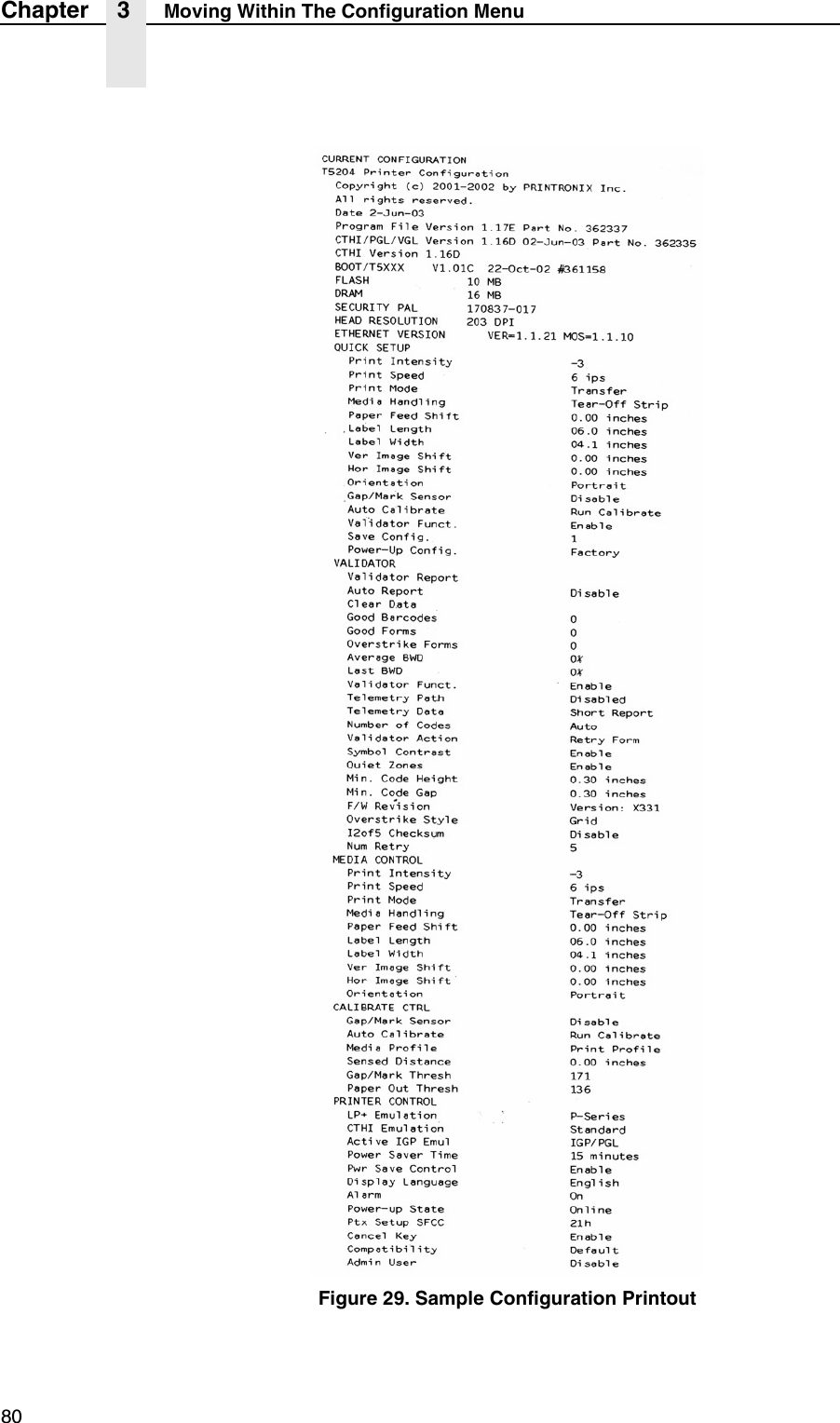
80Chapter 3 Moving Within The Configuration MenuFigure 29. Sample Configuration Printout
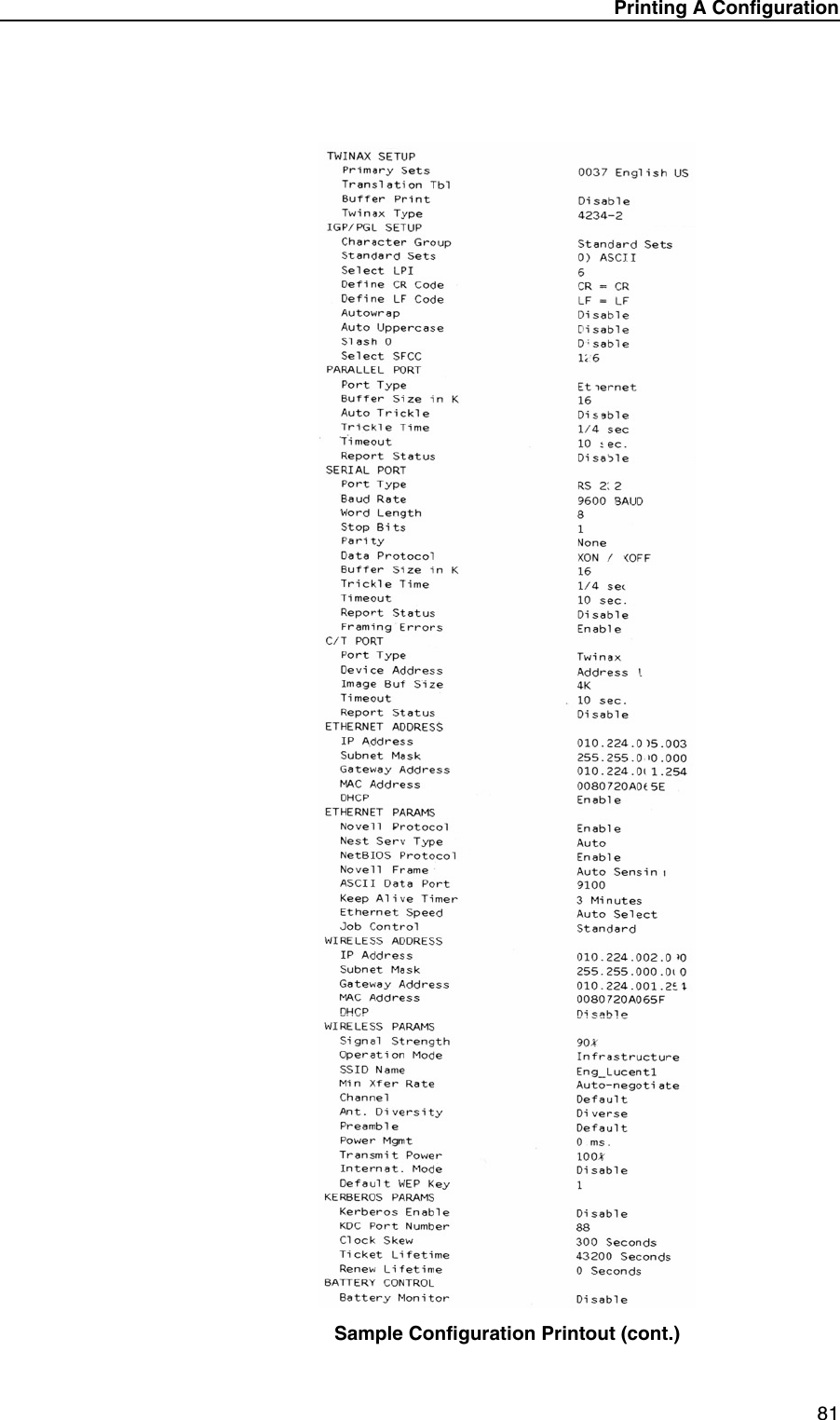
Printing A Configuration81Sample Configuration Printout (cont.)
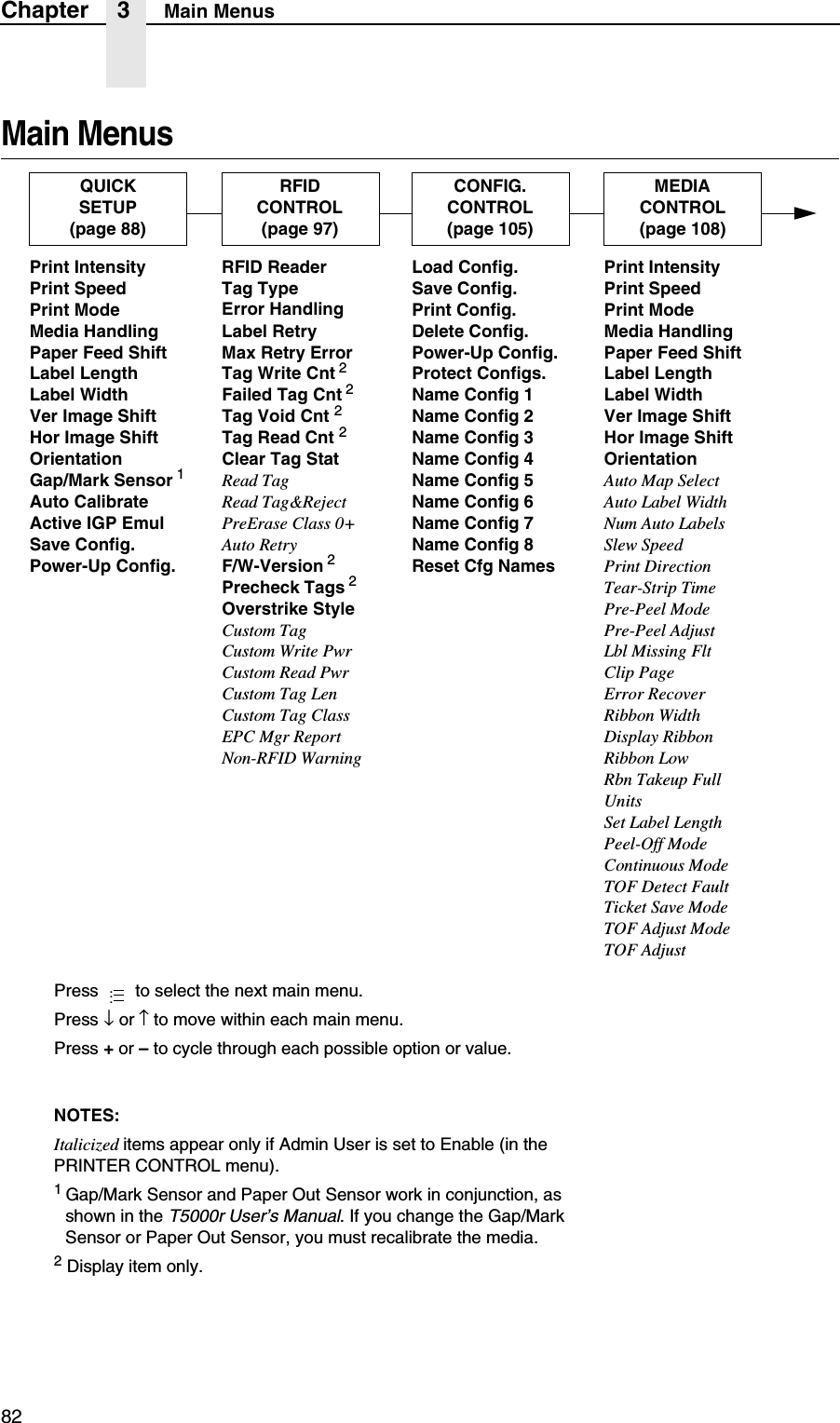
82Chapter 3 Main MenusMain MenusLoad Config.Save Config.Print Config.Delete Config.Power-Up Config.Protect Configs.Name Config 1Name Config 2Name Config 3Name Config 4Name Config 5Name Config 6Name Config 7Name Config 8Reset Cfg NamesCONFIG.CONTROL(page 105)NOTES:Italicized items appear only if Admin User is set to Enable (in the PRINTER CONTROL menu).1 Gap/Mark Sensor and Paper Out Sensor work in conjunction, as shown in the T5000r User’s Manual. If you change the Gap/Mark Sensor or Paper Out Sensor, you must recalibrate the media.2 Display item only.RFID CONTROL(page 97)RFID ReaderTag TypeError HandlingLabel RetryMax Retry ErrorTag Write Cnt 2Failed Tag Cnt 2Tag Void Cnt 2Tag Read Cnt 2Clear Tag StatRead TagRead Tag&RejectPreErase Class 0+Auto RetryF/W-Version 2Precheck Tags 2Overstrike StyleCustom TagCustom Write PwrCustom Read PwrCustom Tag LenCustom Tag ClassEPC Mgr ReportNon-RFID WarningPrint IntensityPrint SpeedPrint ModeMedia HandlingPaper Feed ShiftLabel LengthLabel WidthVer Image ShiftHor Image ShiftOrientationAuto Map SelectAuto Label WidthNum Auto LabelsSlew SpeedPrint DirectionTear-Strip TimePre-Peel ModePre-Peel AdjustLbl Missing FltClip PageError RecoverRibbon WidthDisplay RibbonRibbon LowRbn Takeup FullUnitsSet Label LengthPeel-Off ModeContinuous ModeTOF Detect FaultTicket Save ModeTOF Adjust ModeTOF AdjustMEDIACONTROL(page 108)Press   to select the next main menu.Press ↓ or ↑ to move within each main menu.Press + or – to cycle through each possible option or value....Print IntensityPrint SpeedPrint ModeMedia HandlingPaper Feed ShiftLabel LengthLabel WidthVer Image ShiftHor Image ShiftOrientationGap/Mark Sensor 1Auto CalibrateActive IGP EmulSave Config.Power-Up Config.QUICKSETUP(page 88)
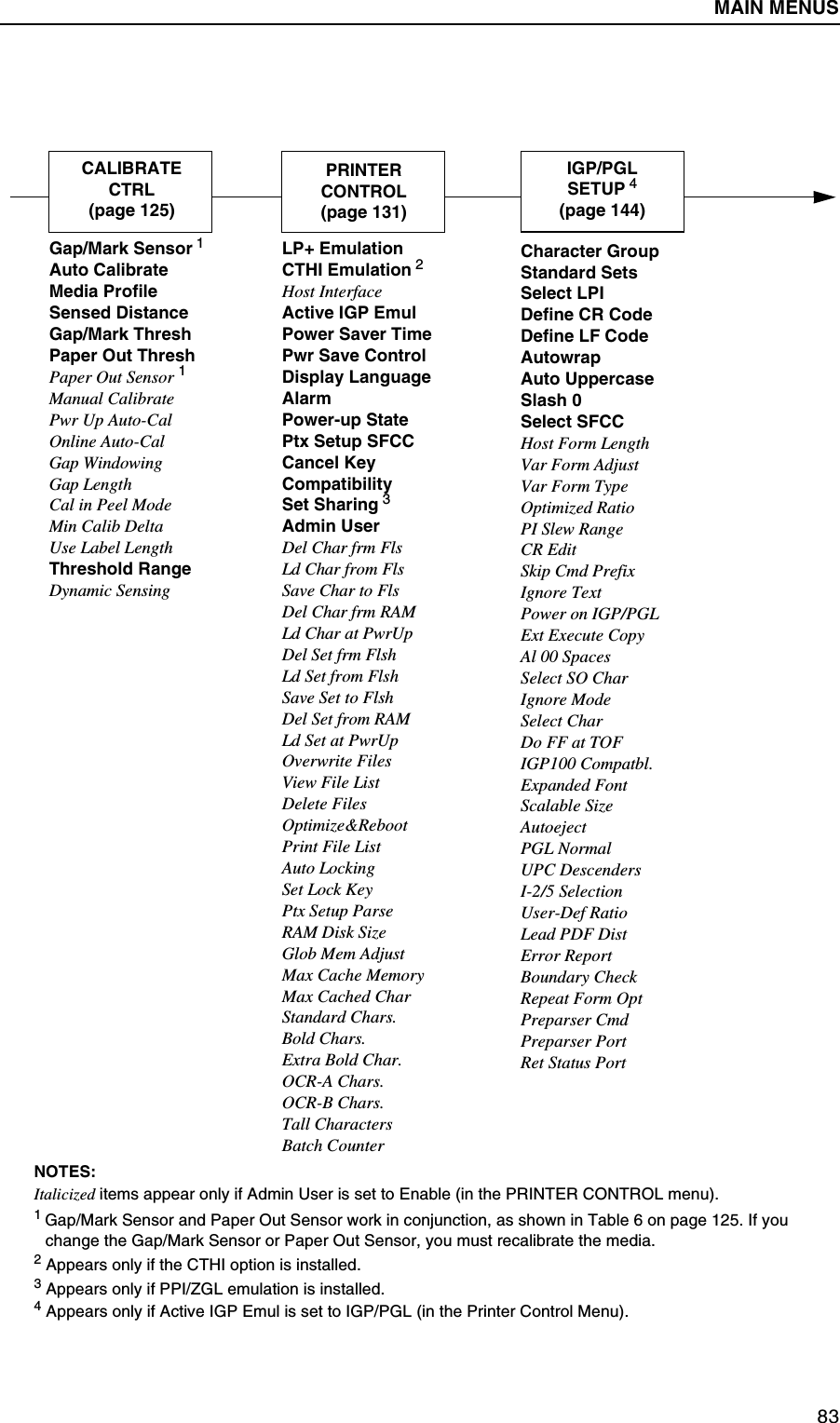
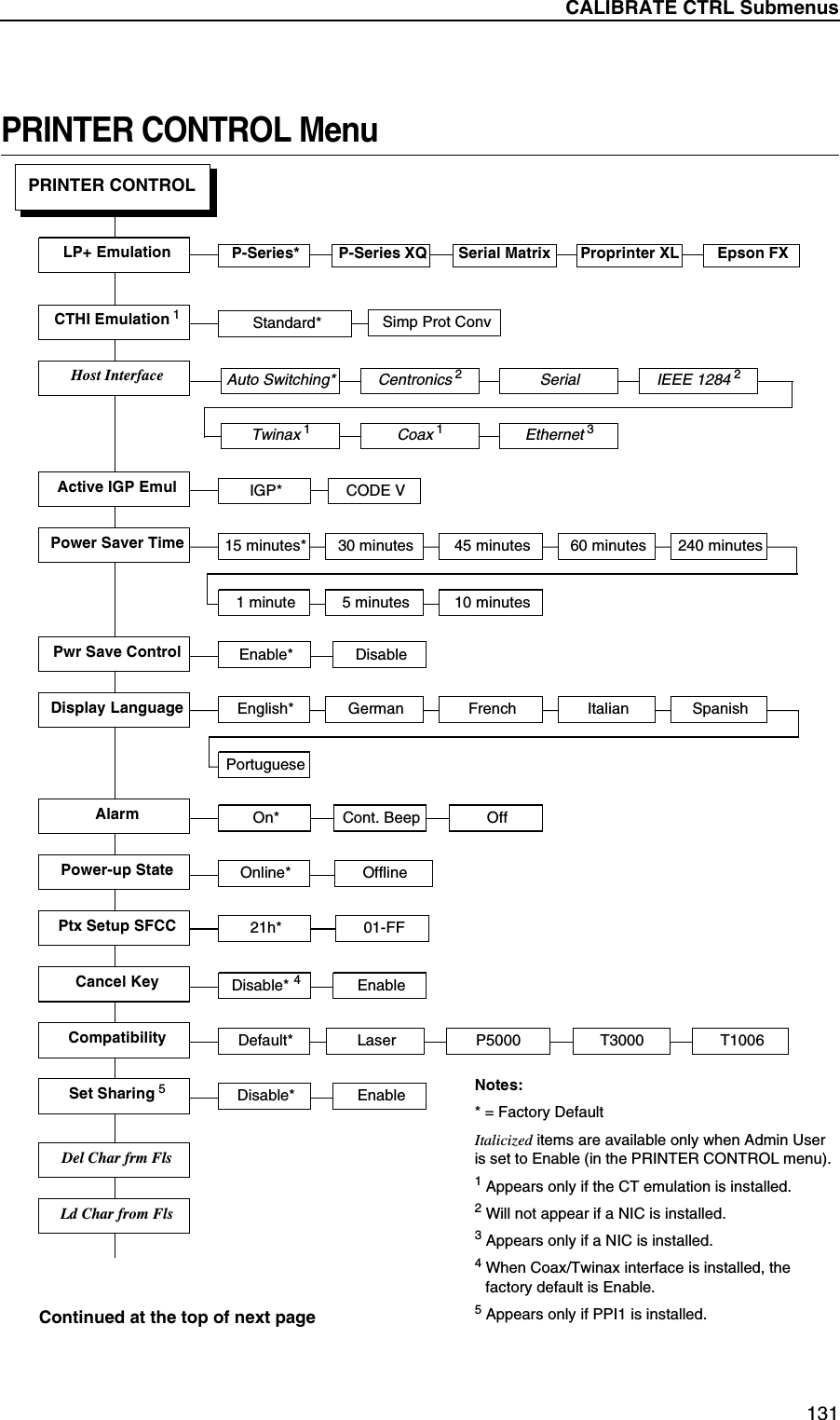
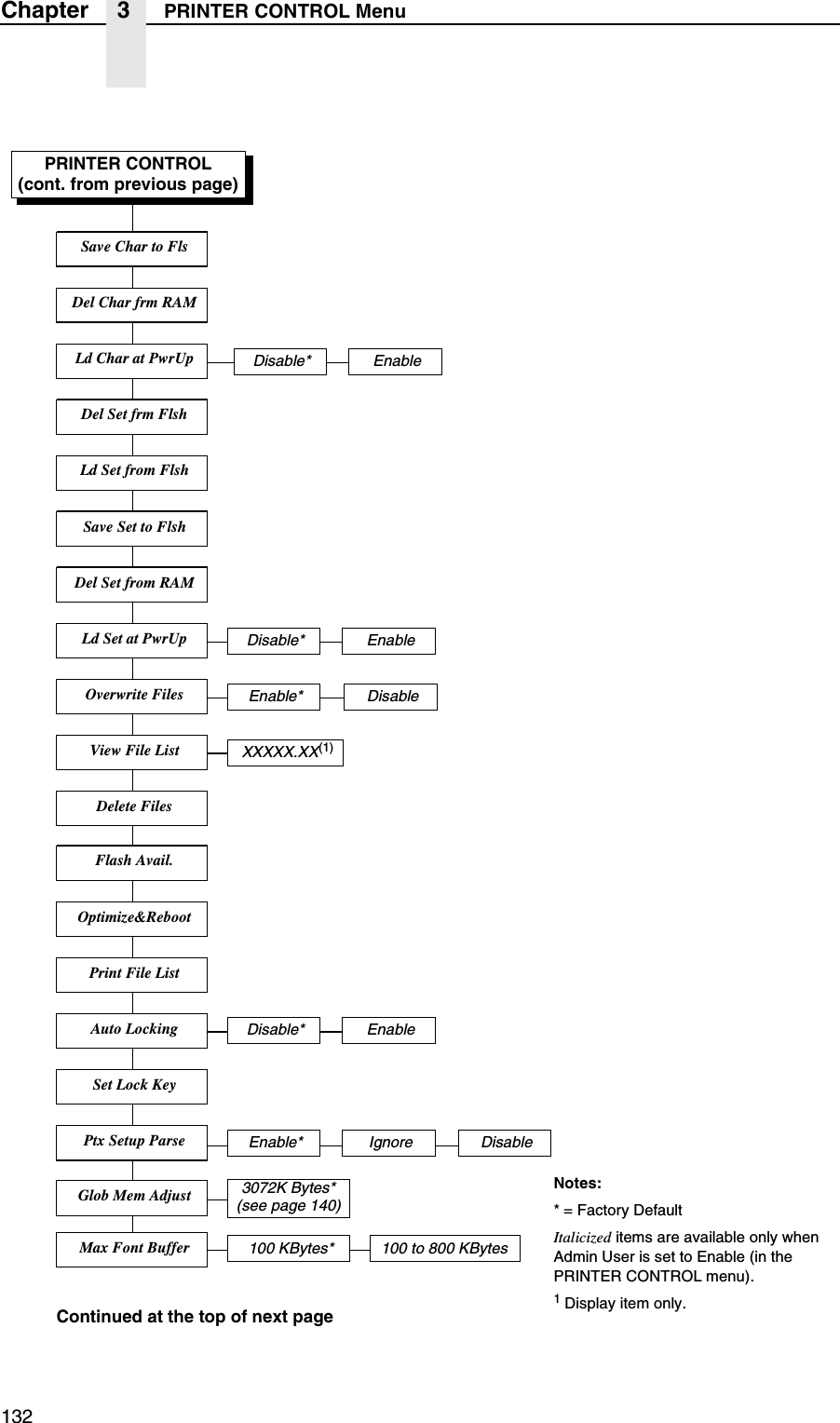
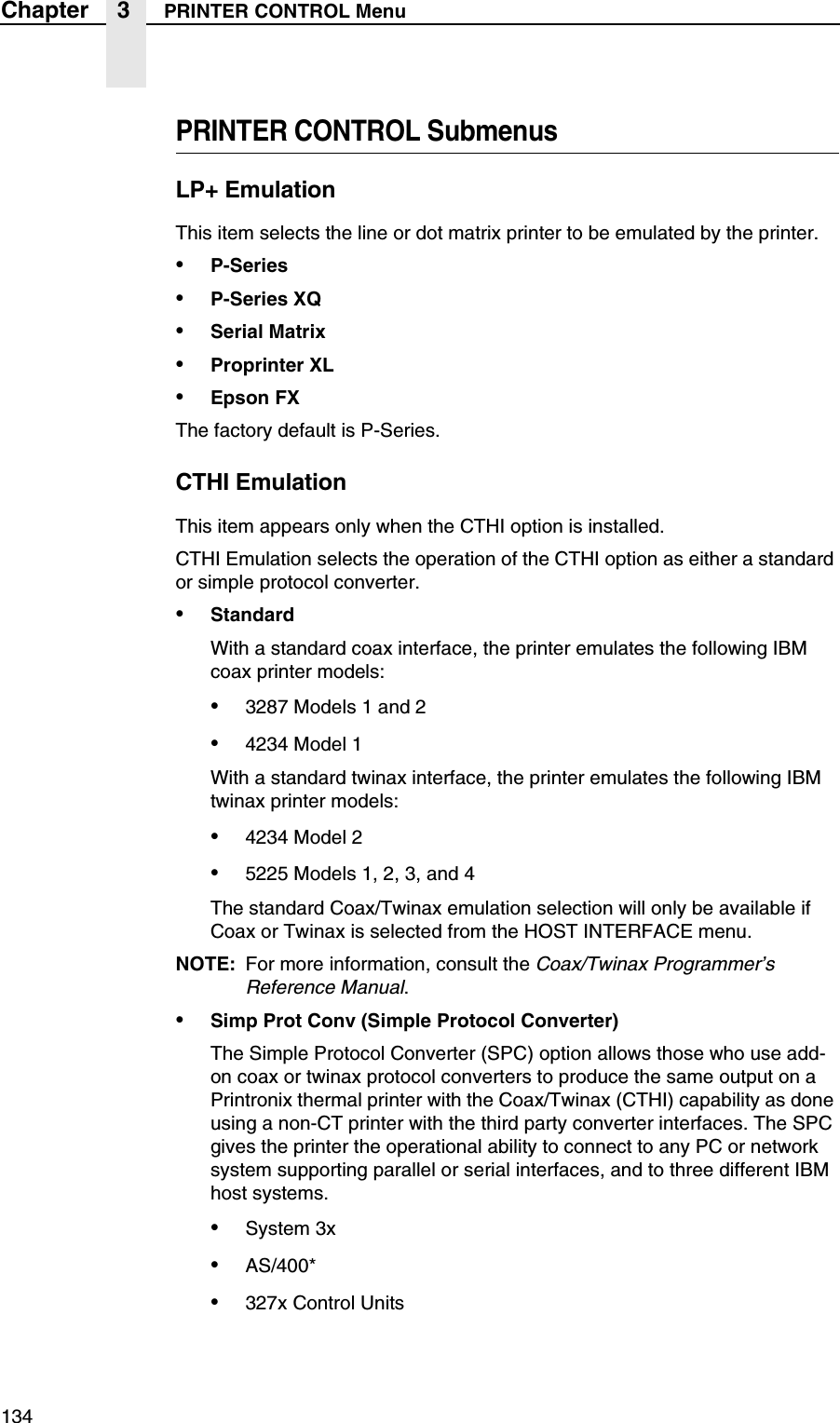
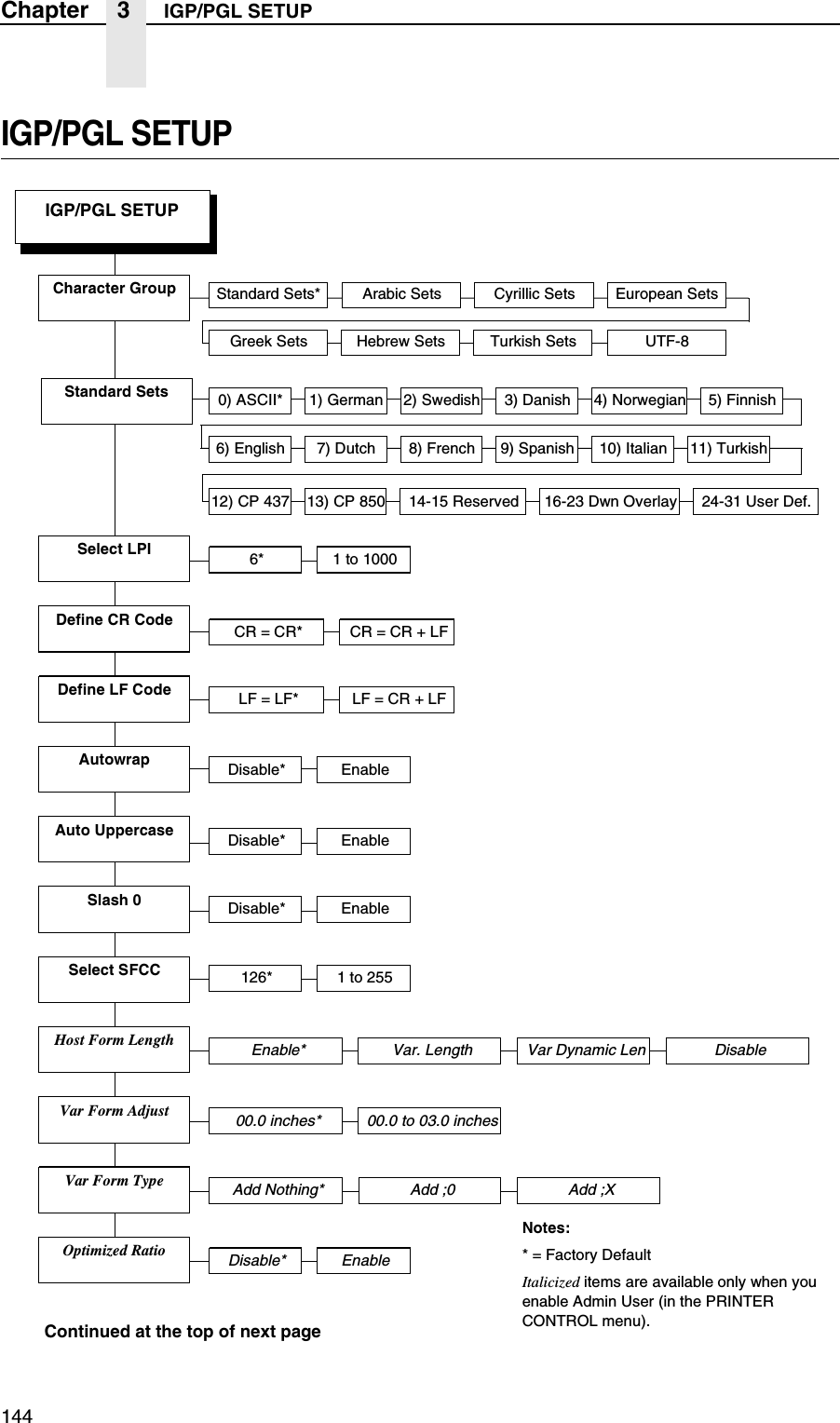
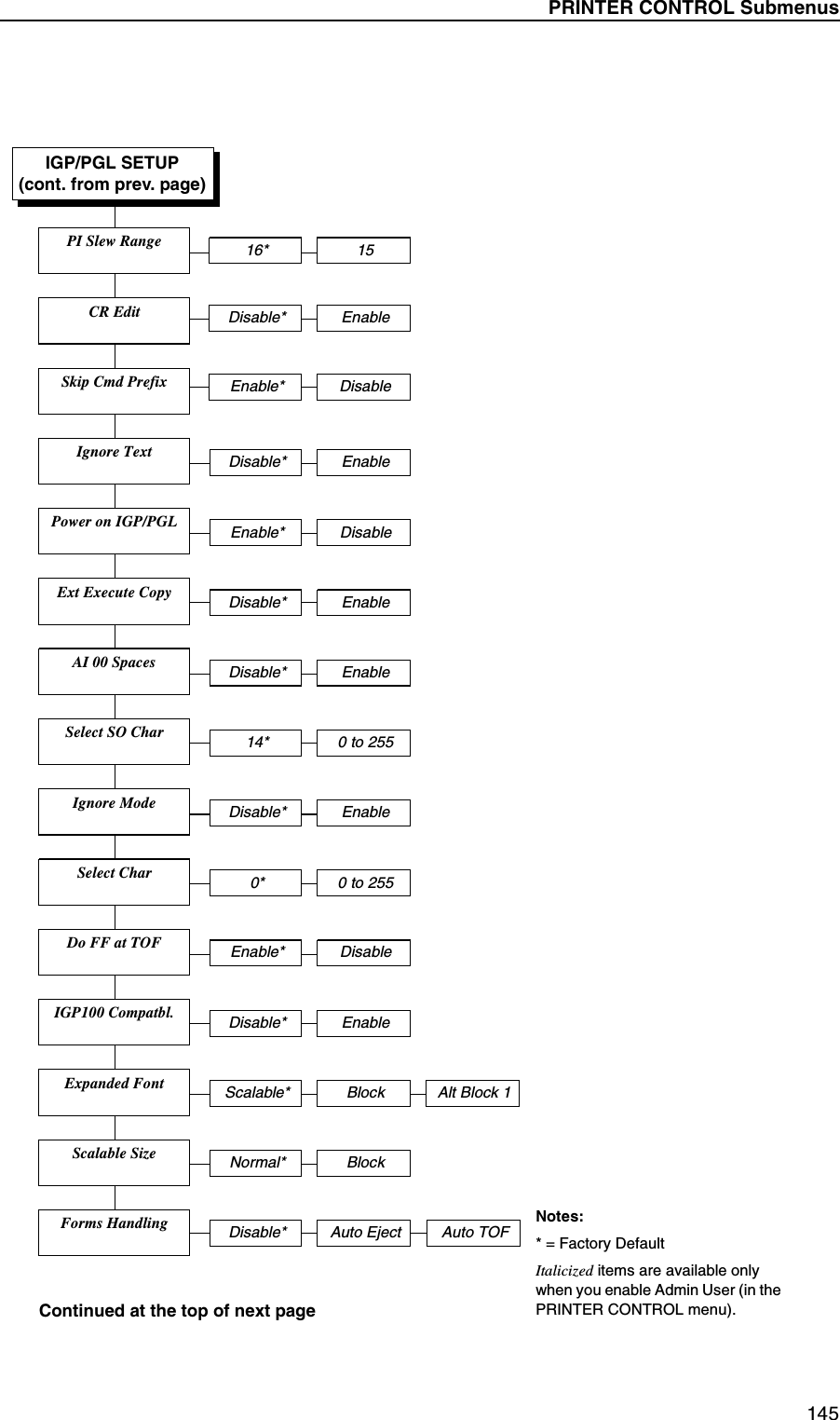
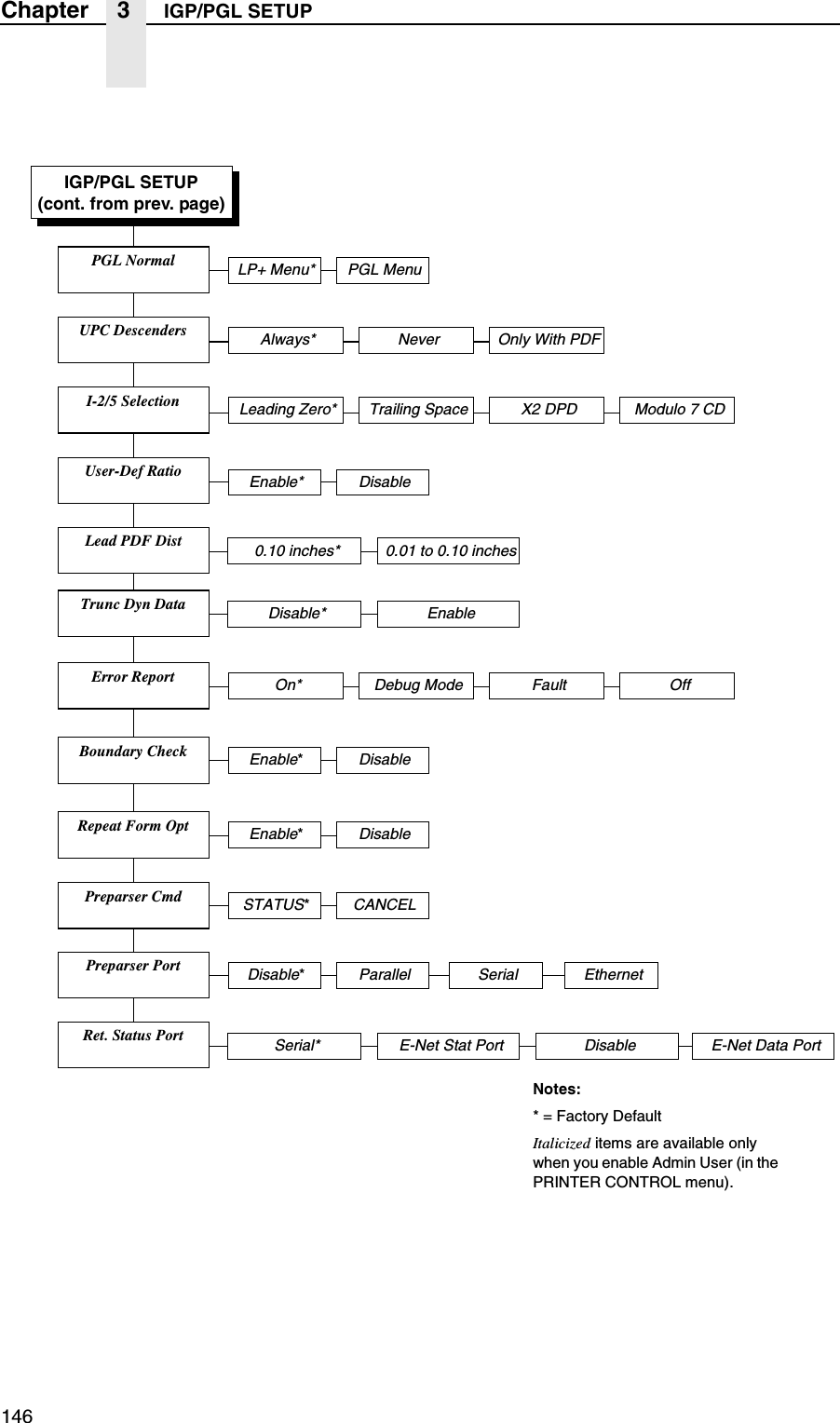
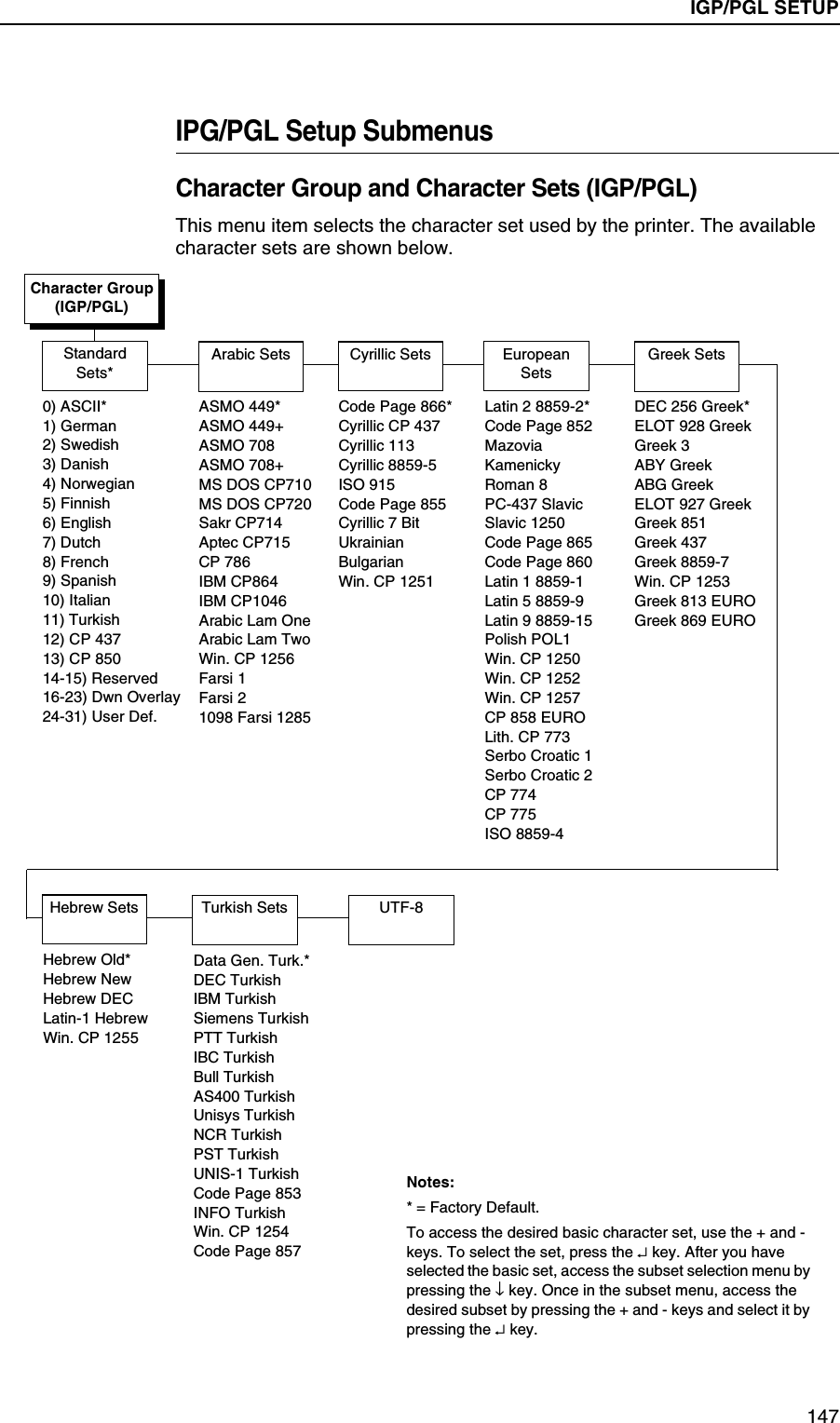
Printing A Configuration83LP+ EmulationCTHI Emulation 2Host InterfaceActive IGP EmulPower Saver TimePwr Save ControlDisplay LanguageAlarmPower-up StatePtx Setup SFCCCancel KeyCompatibilitySet Sharing 3Admin UserDel Char frm FlsLd Char from FlsSave Char to FlsDel Char frm RAMLd Char at PwrUpDel Set frm FlshLd Set from FlshSave Set to FlshDel Set from RAMLd Set at PwrUpOverwrite FilesView File ListDelete FilesOptimize&RebootPrint File ListAuto LockingSet Lock KeyPtx Setup ParseRAM Disk SizeGlob Mem AdjustMax Cache MemoryMax Cached CharStandard Chars.Bold Chars.Extra Bold Char.OCR-A Chars.OCR-B Chars.Tall CharactersBatch CounterPRINTERCONTROL(page 131)NOTES:Italicized items appear only if Admin User is set to Enable (in the PRINTER CONTROL menu).1 Gap/Mark Sensor and Paper Out Sensor work in conjunction, as shown in Table 6 on page 125. If you change the Gap/Mark Sensor or Paper Out Sensor, you must recalibrate the media.2 Appears only if the CTHI option is installed.3 Appears only if PPI/ZGL emulation is installed.4 Appears only if Active IGP Emul is set to IGP/PGL (in the Printer Control Menu).IGP/PGLSETUP 4(page 144)Character GroupStandard SetsSelect LPIDefine CR CodeDefine LF CodeAutowrapAuto UppercaseSlash 0Select SFCCHost Form LengthVar Form AdjustVar Form TypeOptimized RatioPI Slew RangeCR EditSkip Cmd PrefixIgnore TextPower on IGP/PGLExt Execute CopyAl 00 SpacesSelect SO CharIgnore ModeSelect CharDo FF at TOFIGP100 Compatbl.Expanded FontScalable SizeAutoejectPGL NormalUPC DescendersI-2/5 SelectionUser-Def RatioLead PDF DistError ReportBoundary CheckRepeat Form OptPreparser CmdPreparser PortRet Status PortCALIBRATECTRL(page 125)Gap/Mark Sensor 1Auto CalibrateMedia ProfileSensed DistanceGap/Mark ThreshPaper Out ThreshPaper Out Sensor 1Manual CalibratePwr Up Auto-CalOnline Auto-CalGap WindowingGap LengthCal in Peel ModeMin Calib DeltaUse Label LengthThreshold RangeDynamic SensingMAIN MENUS
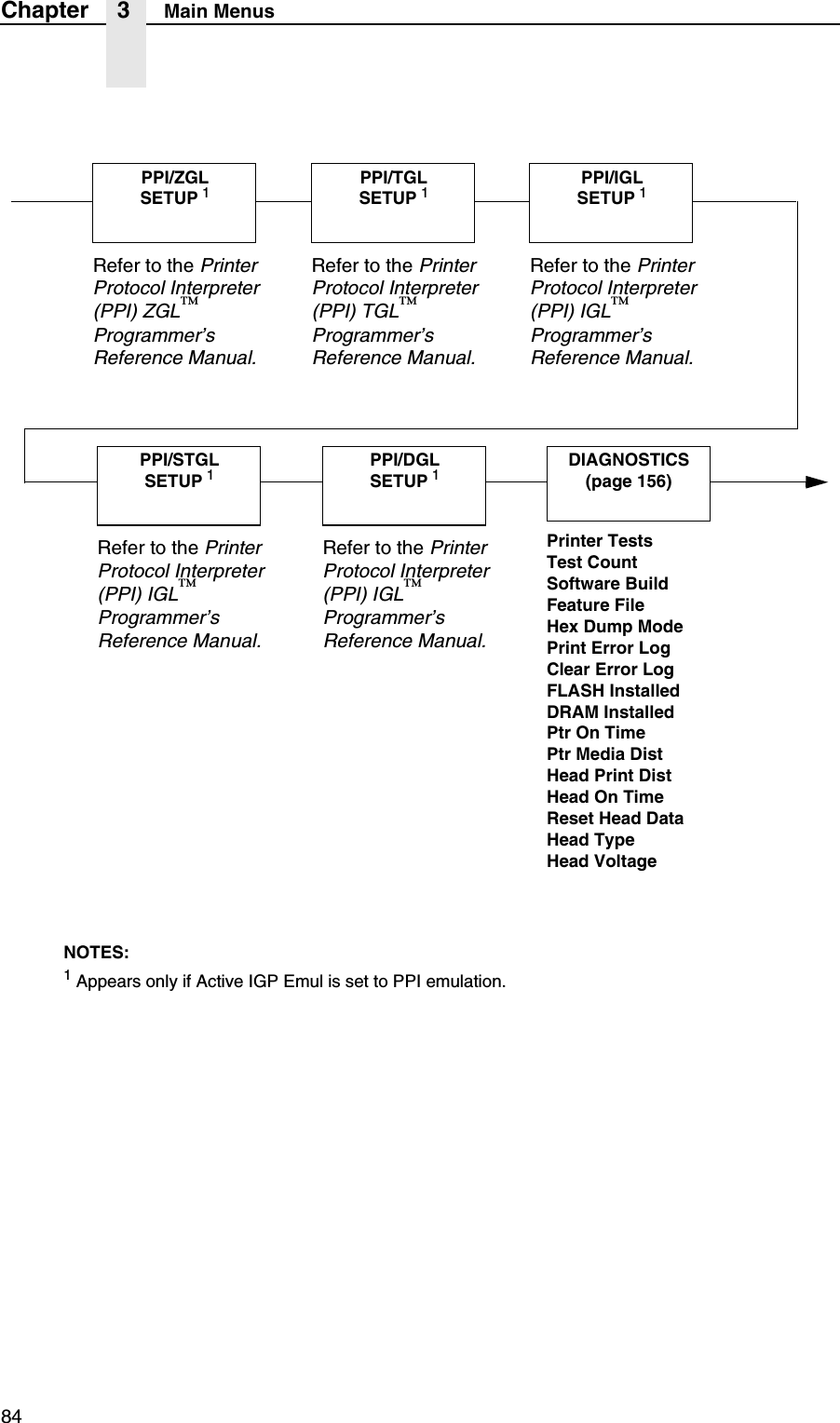
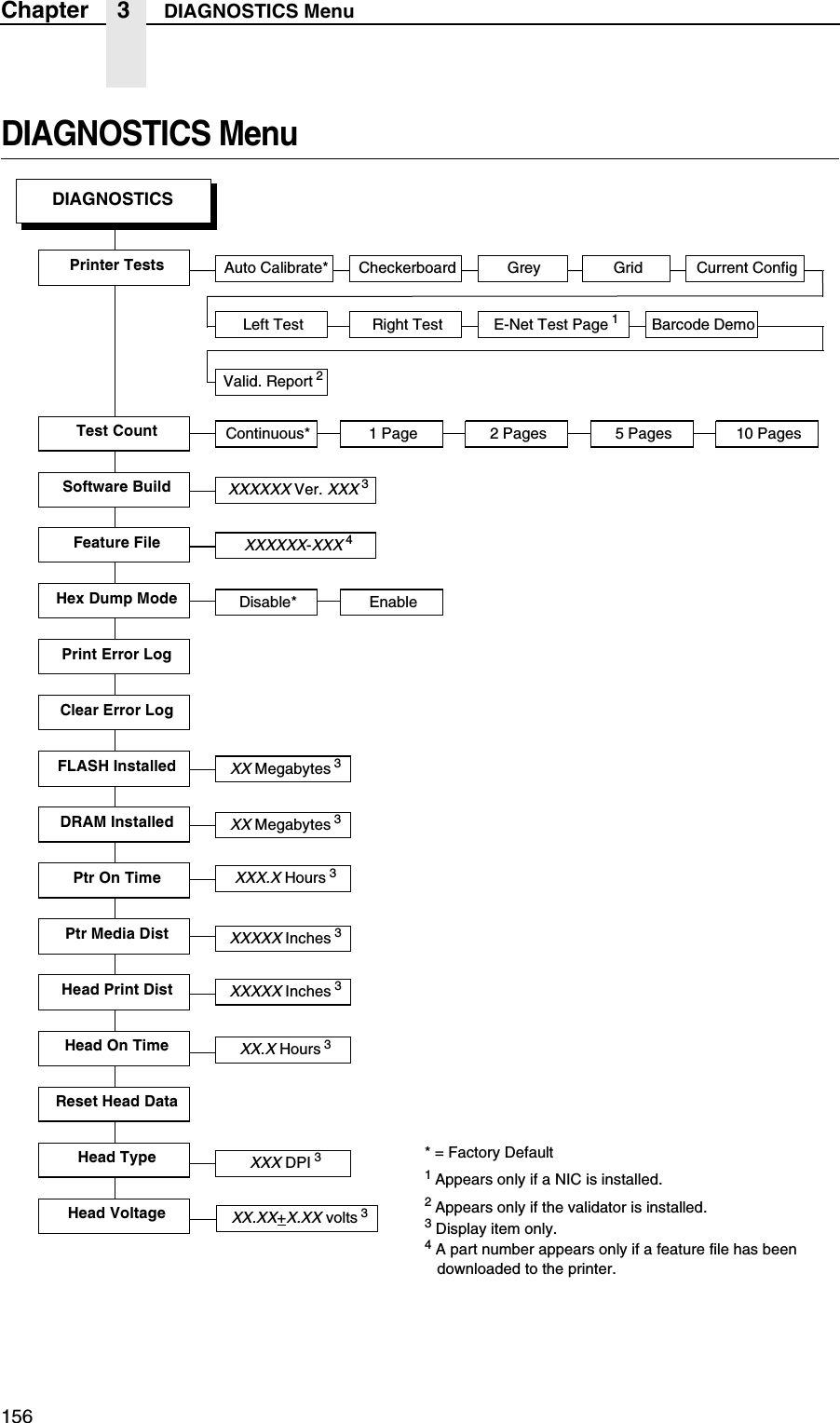
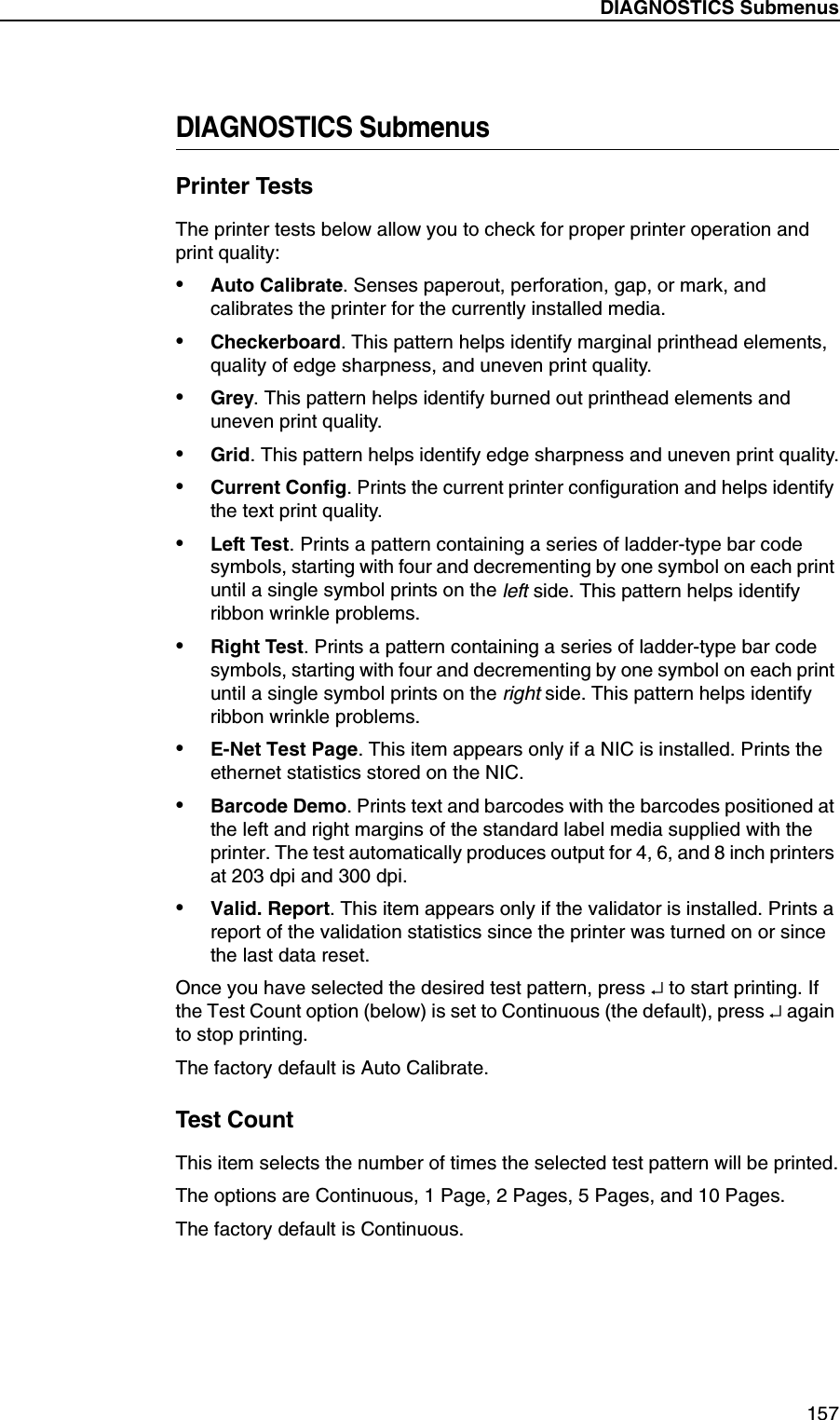
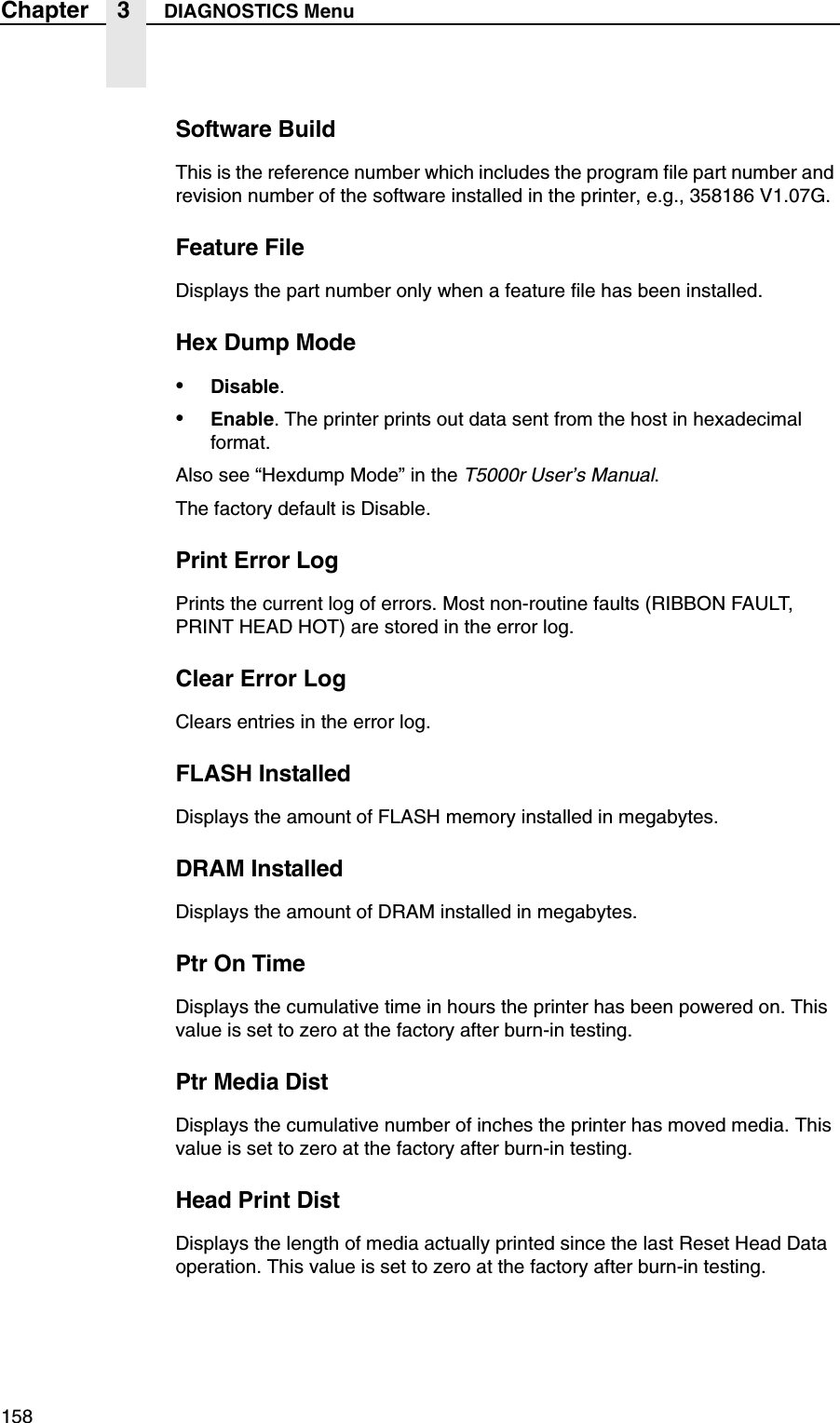
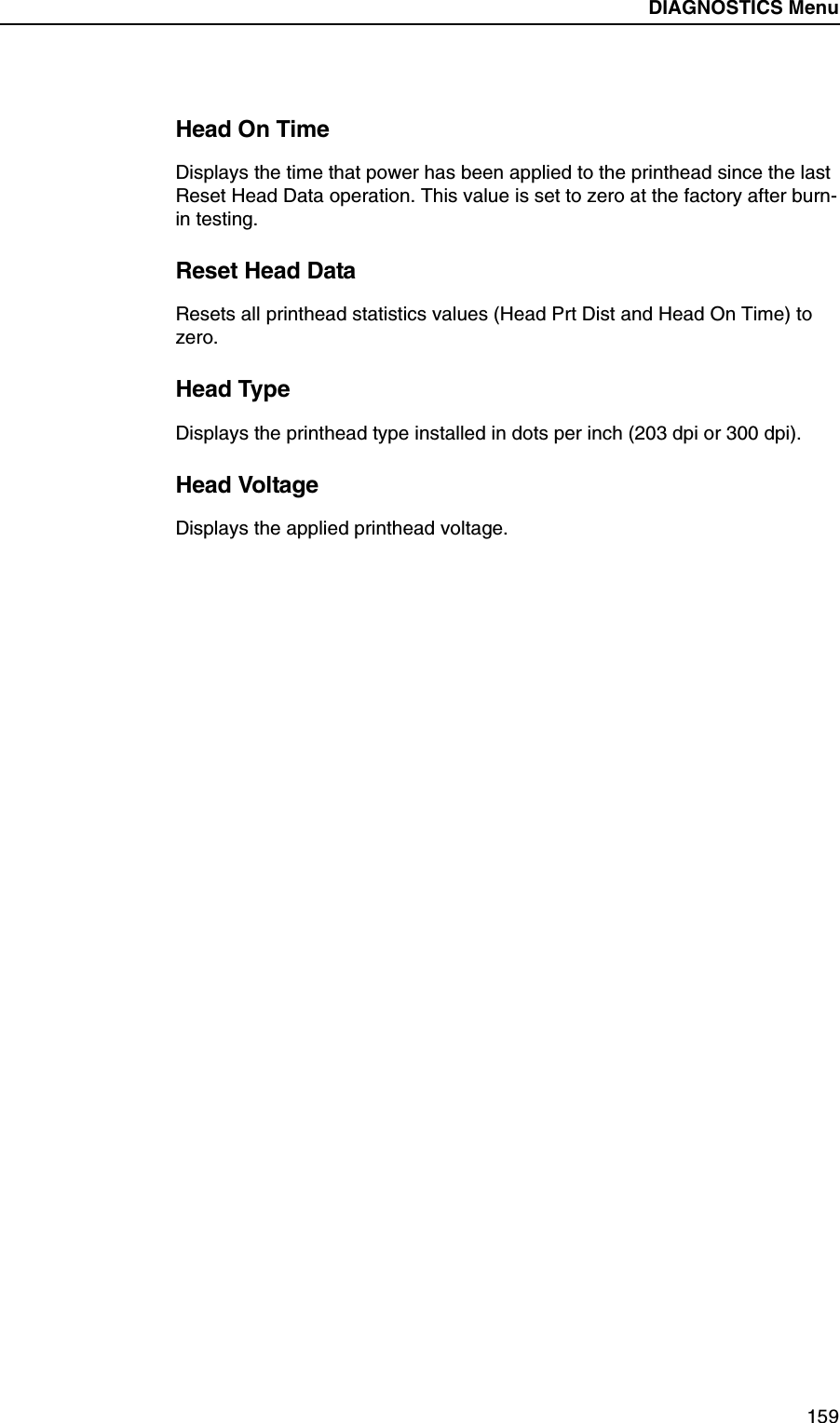
84Chapter 3 Main MenusNOTES:1 Appears only if Active IGP Emul is set to PPI emulation.PPI/ZGLSETUP 1Refer to the Printer Protocol Interpreter (PPI) ZGL™ Programmer’s Reference Manual.PPI/TGLSETUP 1Refer to the Printer Protocol Interpreter (PPI) TGL™ Programmer’s Reference Manual.PPI/IGLSETUP 1Refer to the Printer Protocol Interpreter (PPI) IGL™ Programmer’s Reference Manual.PPI/STGLSETUP 1Refer to the Printer Protocol Interpreter (PPI) IGL™ Programmer’s Reference Manual.PPI/DGLSETUP 1Refer to the Printer Protocol Interpreter (PPI) IGL™ Programmer’s Reference Manual.DIAGNOSTICS(page 156)Printer TestsTest CountSoftware BuildFeature FileHex Dump ModePrint Error LogClear Error LogFLASH InstalledDRAM InstalledPtr On TimePtr Media DistHead Print DistHead On TimeReset Head DataHead TypeHead Voltage
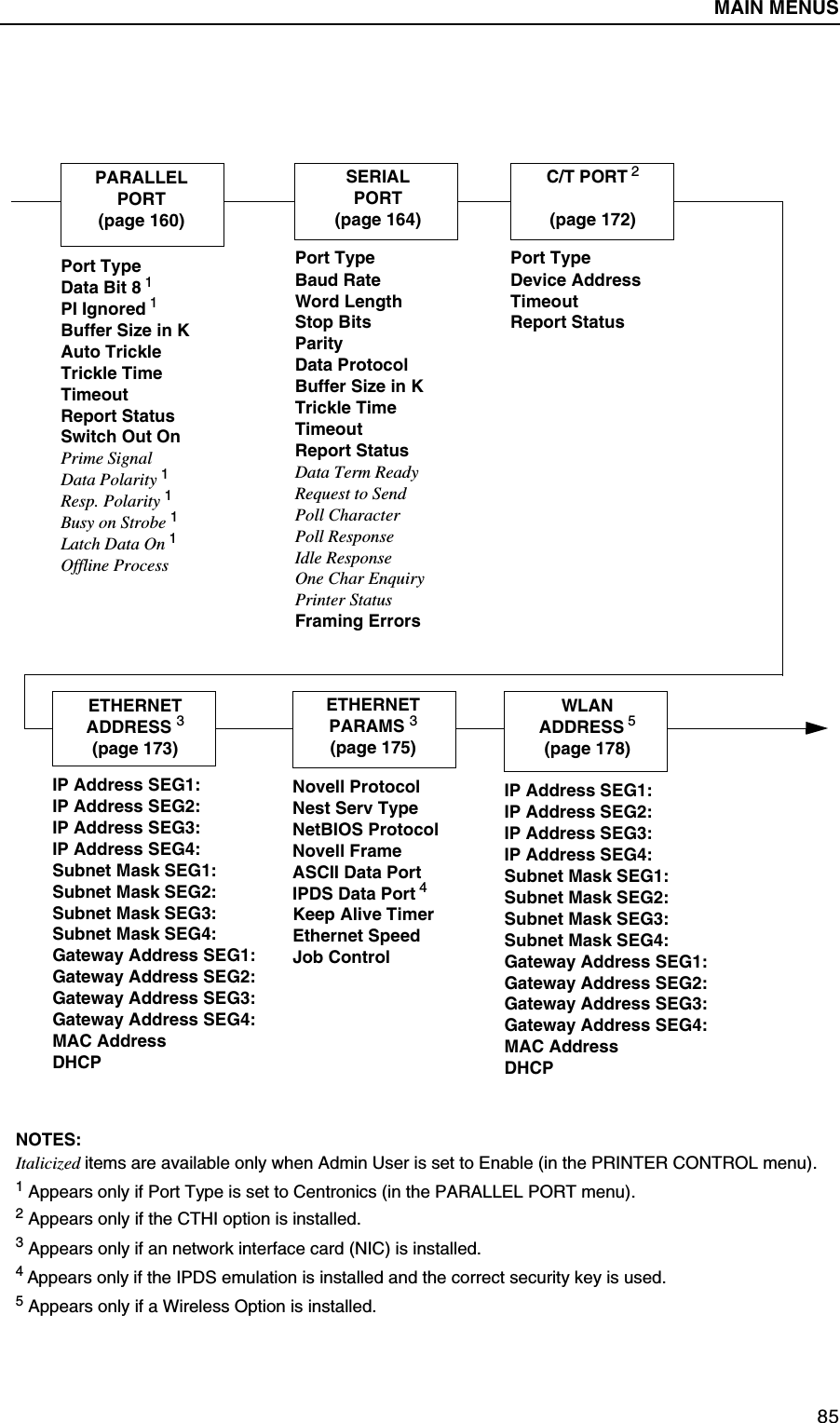
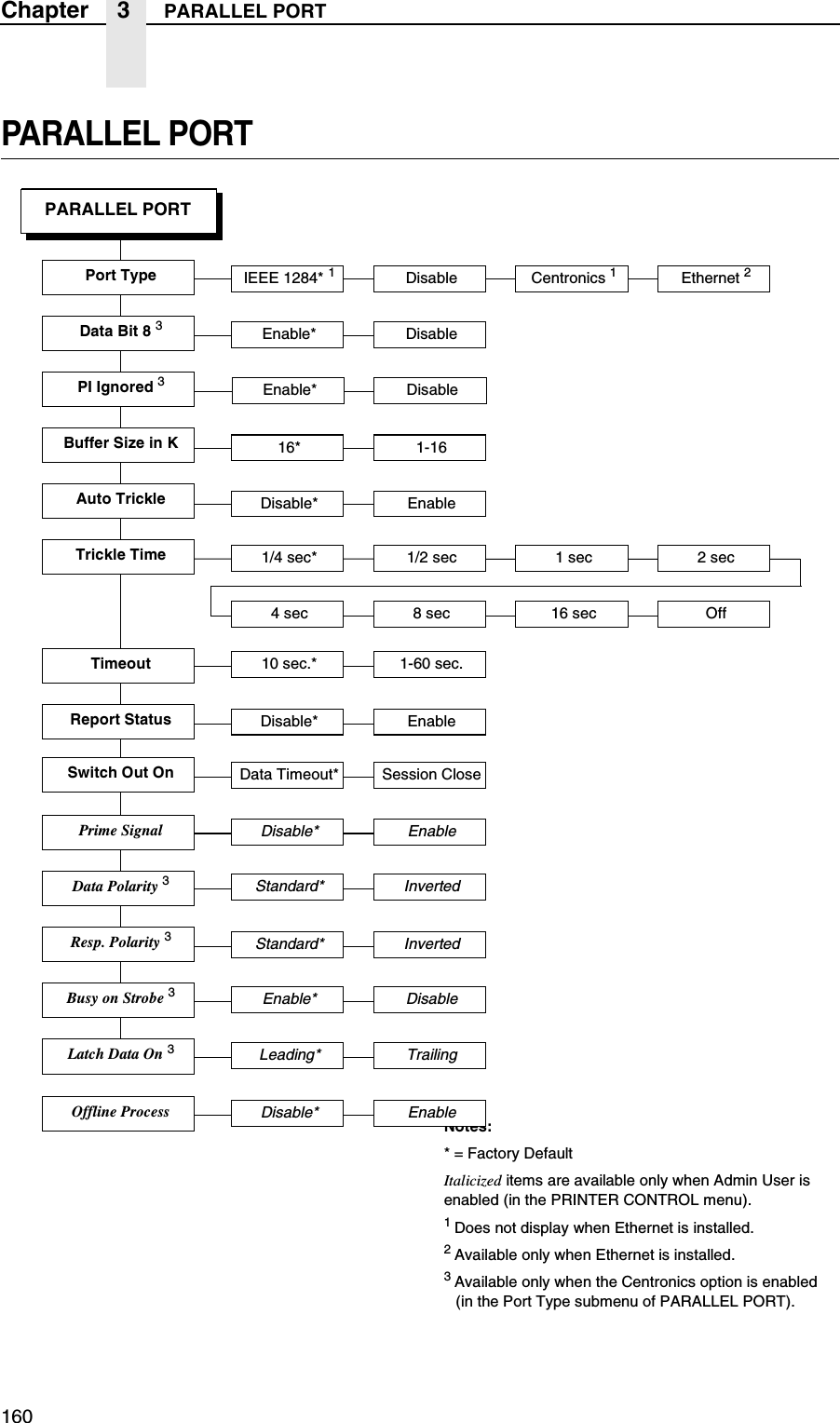
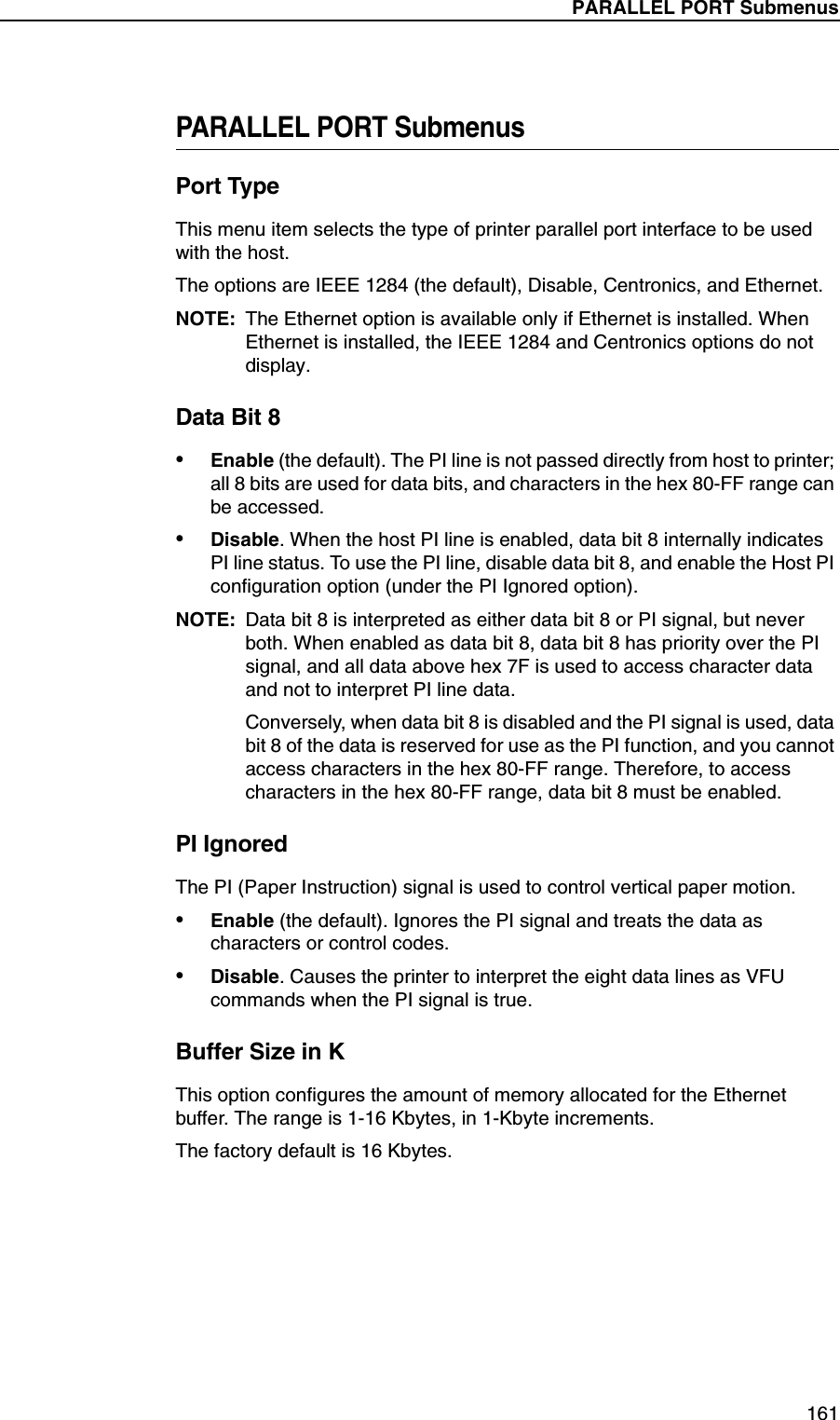
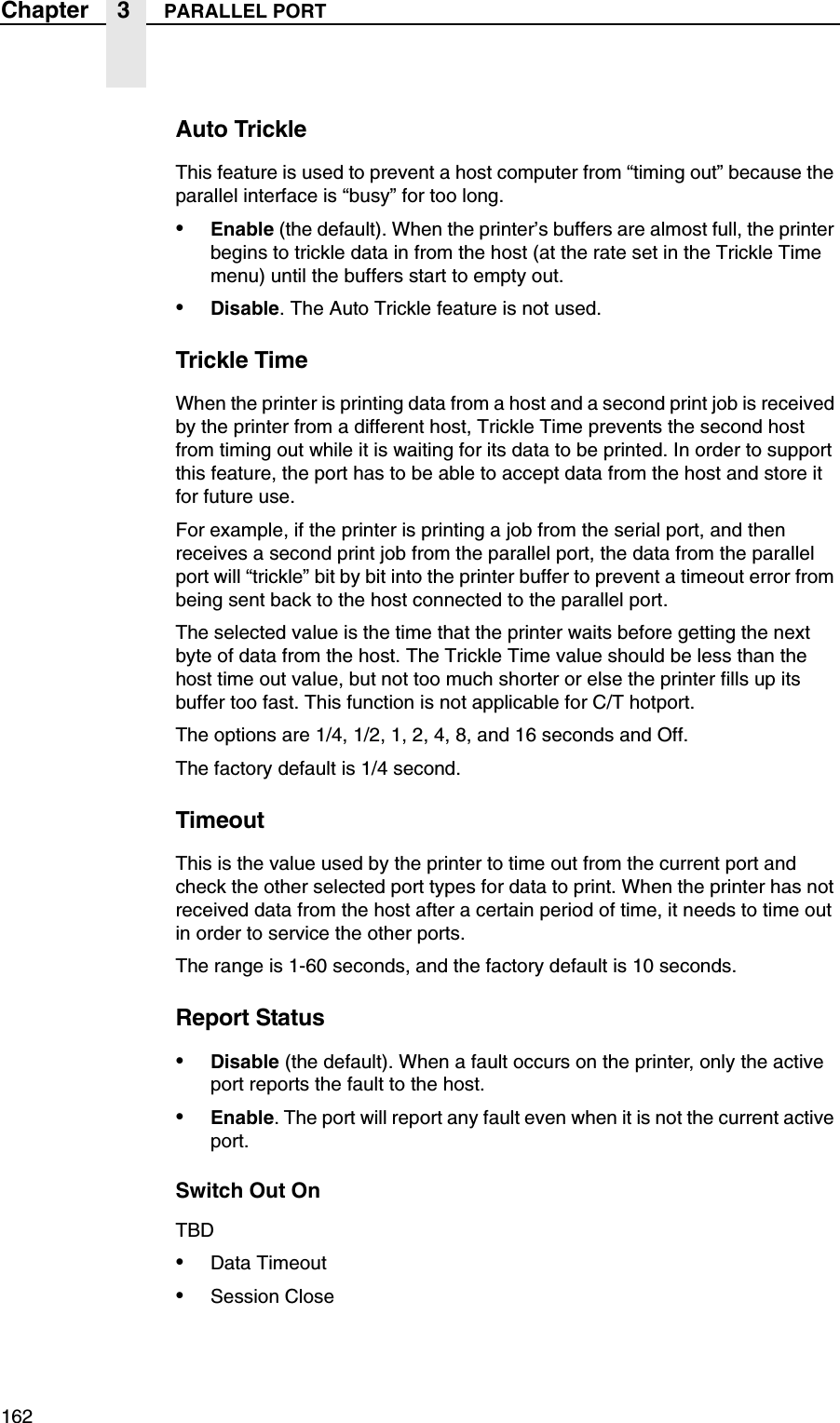
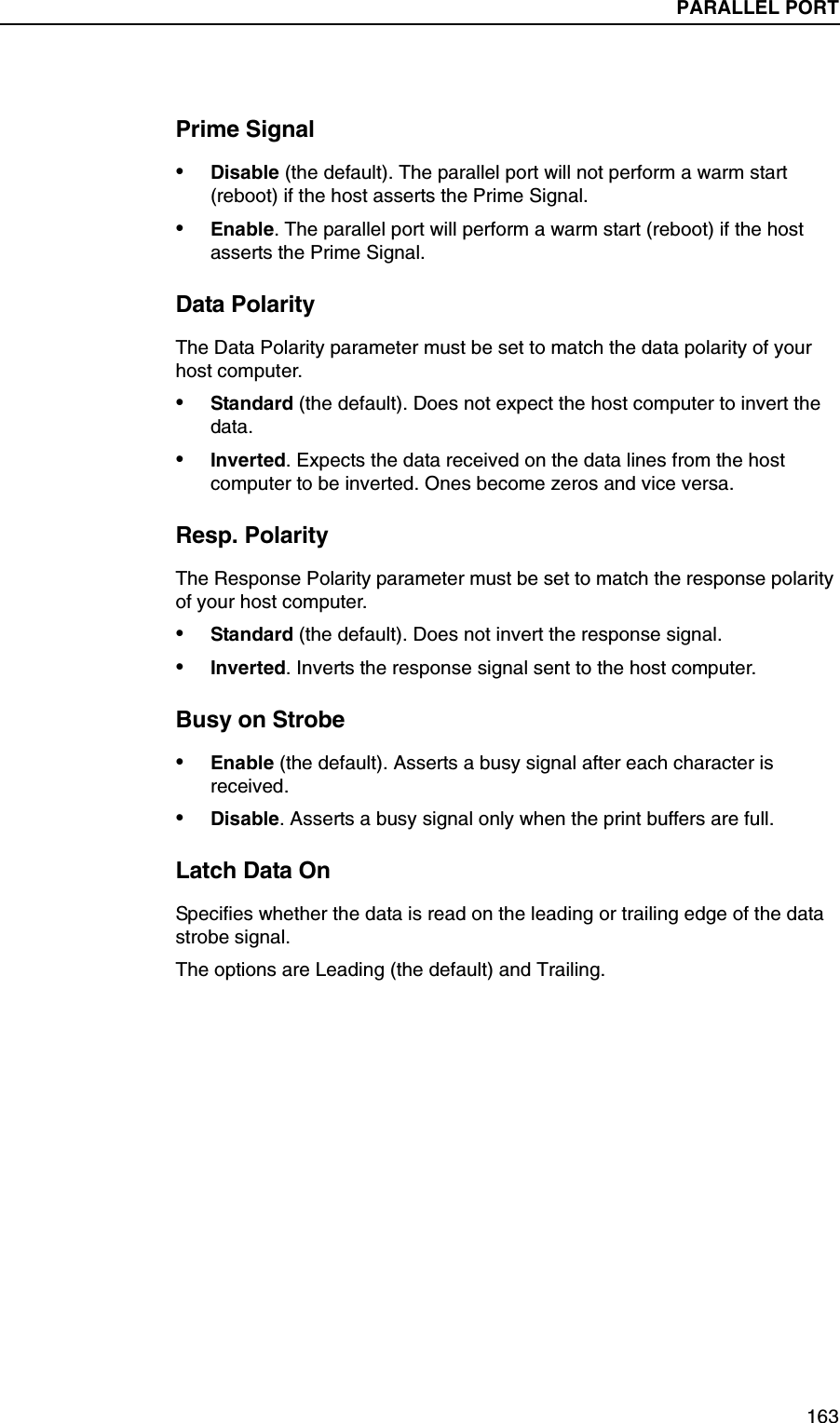
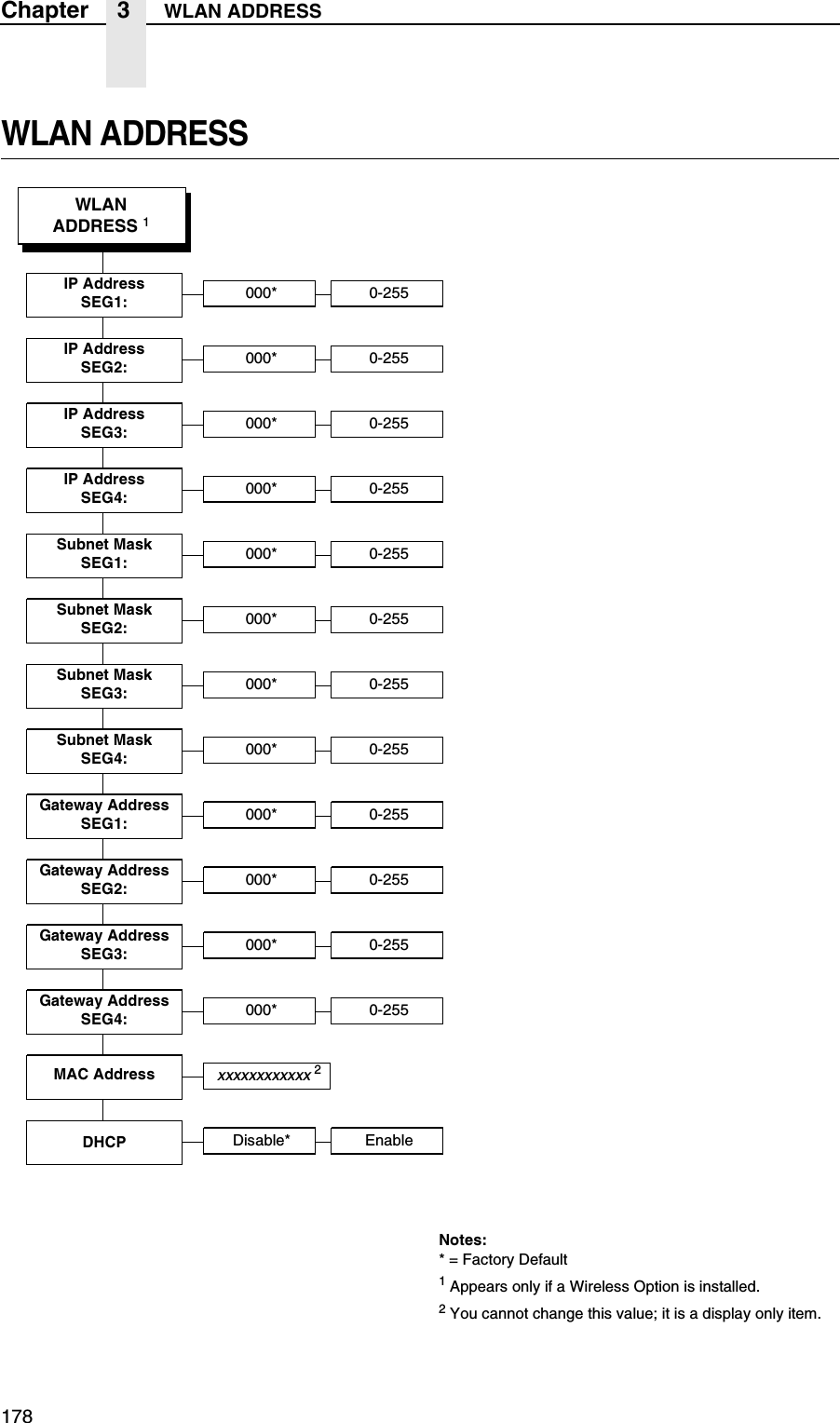
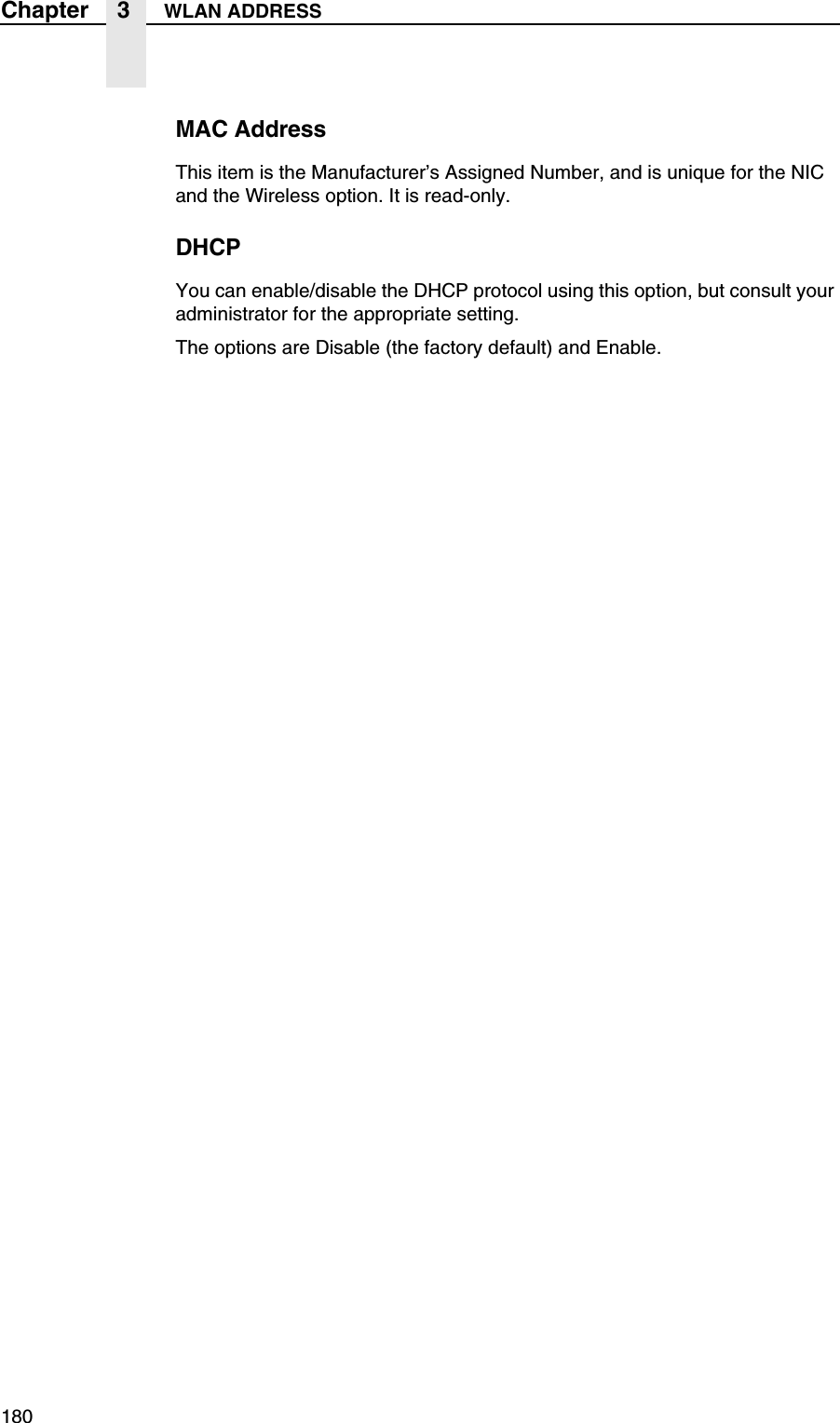
Printing A Configuration85NOTES:Italicized items are available only when Admin User is set to Enable (in the PRINTER CONTROL menu).1 Appears only if Port Type is set to Centronics (in the PARALLEL PORT menu).2 Appears only if the CTHI option is installed.3 Appears only if an network interface card (NIC) is installed.4 Appears only if the IPDS emulation is installed and the correct security key is used.5 Appears only if a Wireless Option is installed.PARALLELPORT(page 160)SERIALPORT (page 164)Port TypeBaud RateWord LengthStop BitsParityData ProtocolBuffer Size in KTrickle TimeTimeoutReport StatusData Term ReadyRequest to SendPoll CharacterPoll ResponseIdle ResponseOne Char EnquiryPrinter StatusFraming ErrorsPort TypeData Bit 8 1PI Ignored 1Buffer Size in KAuto TrickleTrickle TimeTimeoutReport StatusSwitch Out OnPrime SignalData Polarity 1Resp. Polarity 1Busy on Strobe 1Latch Data On 1Offline ProcessC/T PORT 2(page 172)Port TypeDevice AddressTimeoutReport Status ETHERNETADDRESS 3(page 173)IP Address SEG1:IP Address SEG2:IP Address SEG3:IP Address SEG4:Subnet Mask SEG1:Subnet Mask SEG2:Subnet Mask SEG3:Subnet Mask SEG4:Gateway Address SEG1:Gateway Address SEG2:Gateway Address SEG3:Gateway Address SEG4:MAC AddressDHCPETHERNETPARAMS 3(page 175)Novell ProtocolNest Serv TypeNetBIOS ProtocolNovell FrameASCII Data PortIPDS Data Port 4Keep Alive TimerEthernet SpeedJob ControlWLANADDRESS 5(page 178)IP Address SEG1:IP Address SEG2:IP Address SEG3:IP Address SEG4:Subnet Mask SEG1:Subnet Mask SEG2:Subnet Mask SEG3:Subnet Mask SEG4:Gateway Address SEG1:Gateway Address SEG2:Gateway Address SEG3:Gateway Address SEG4:MAC AddressDHCPMAIN MENUS
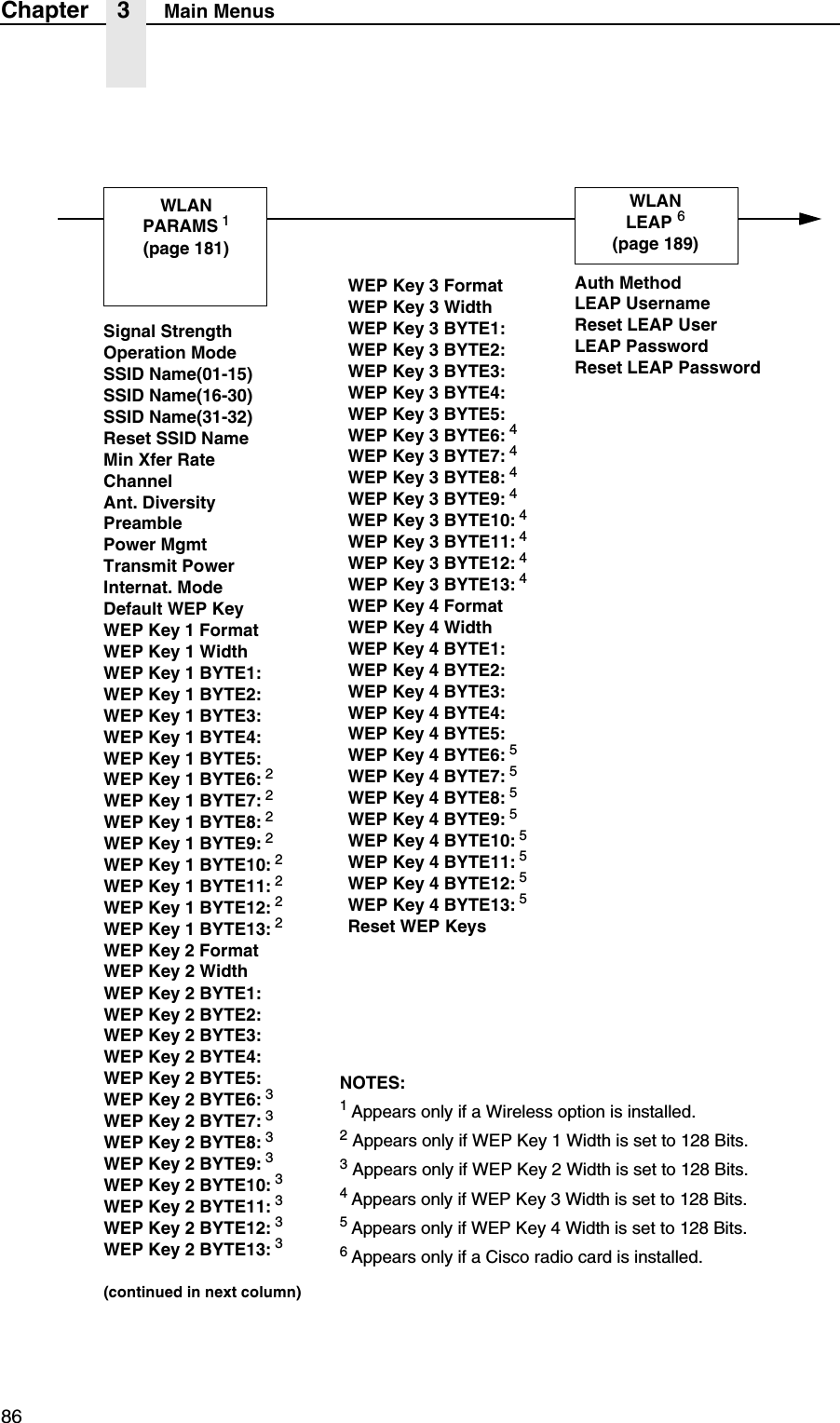
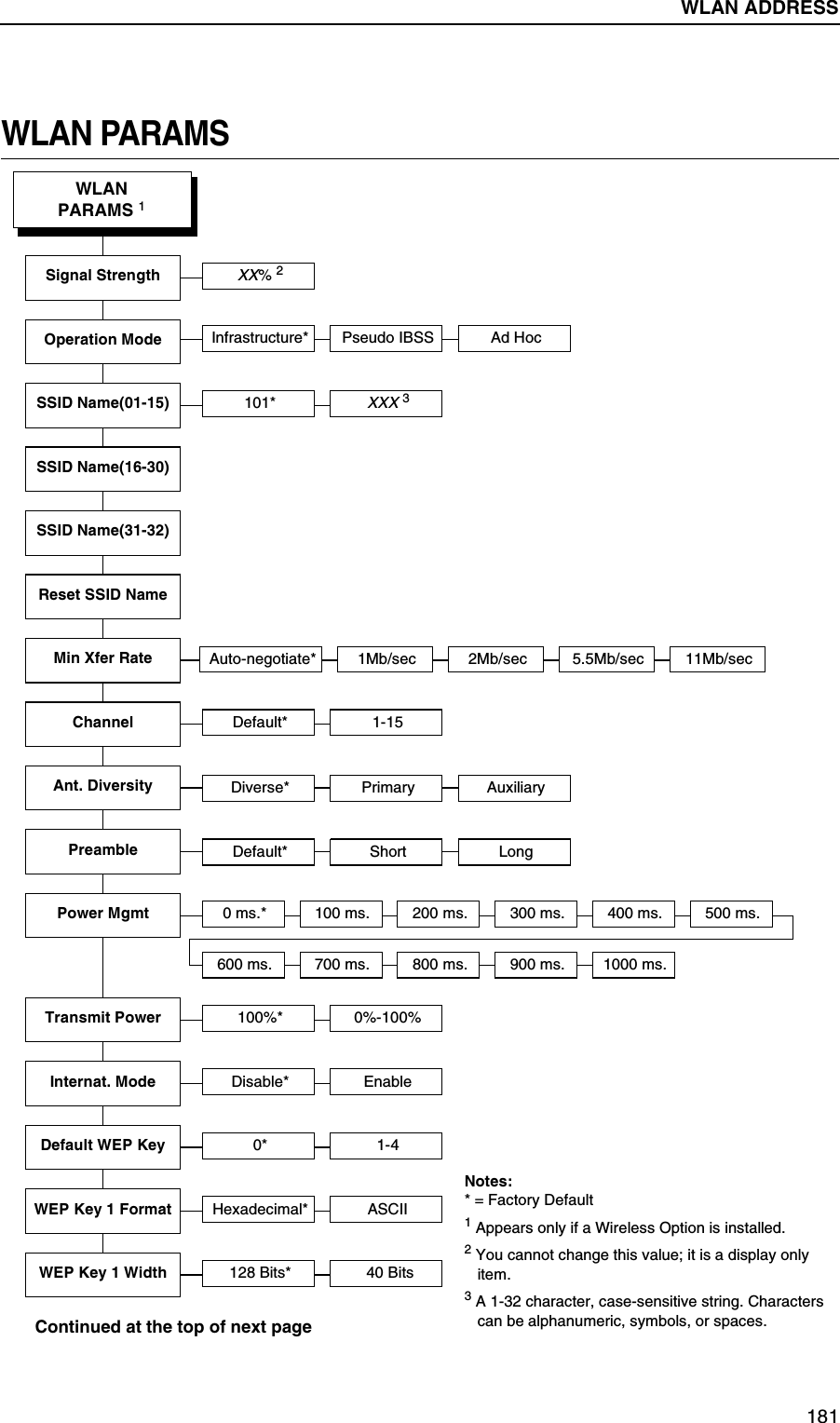
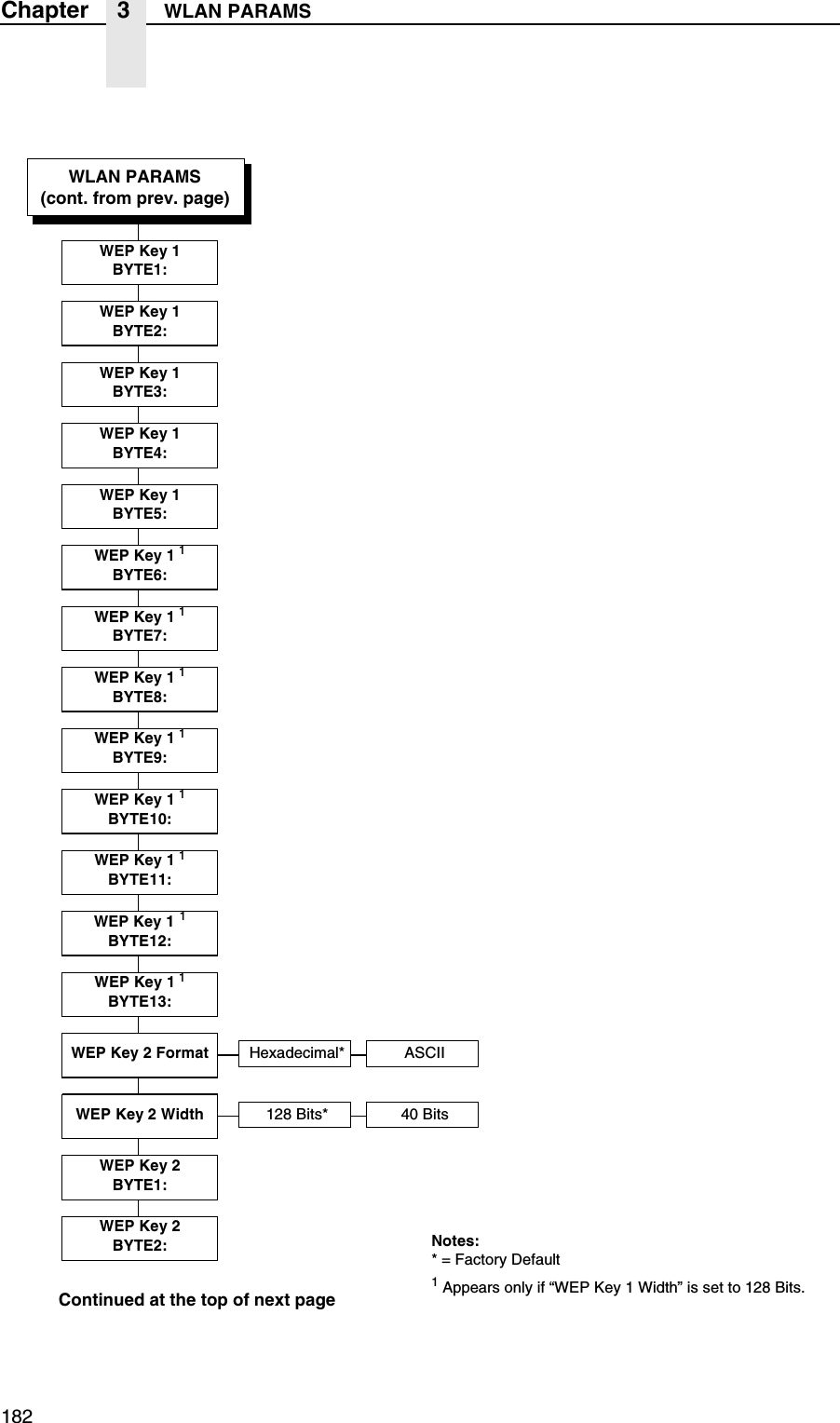
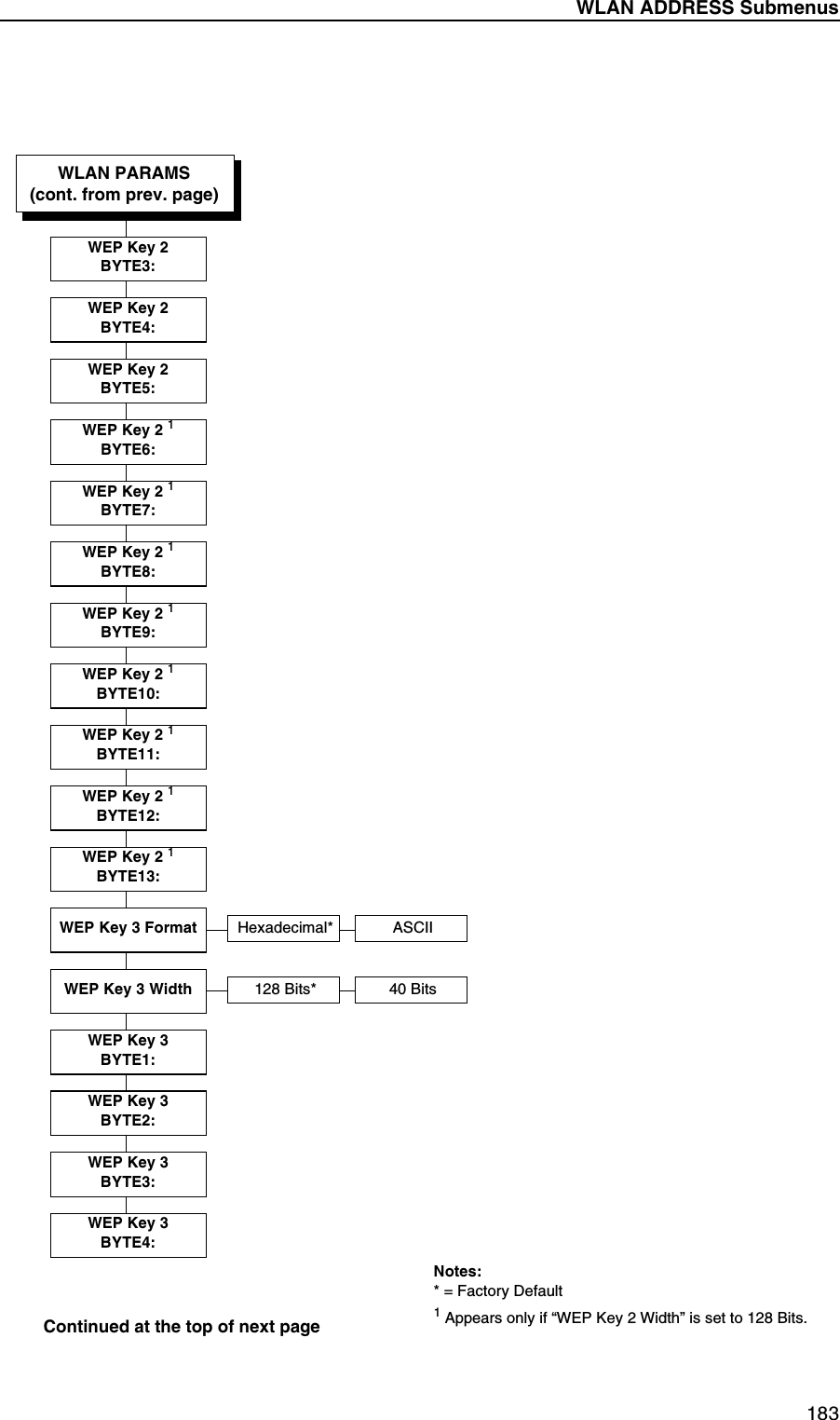
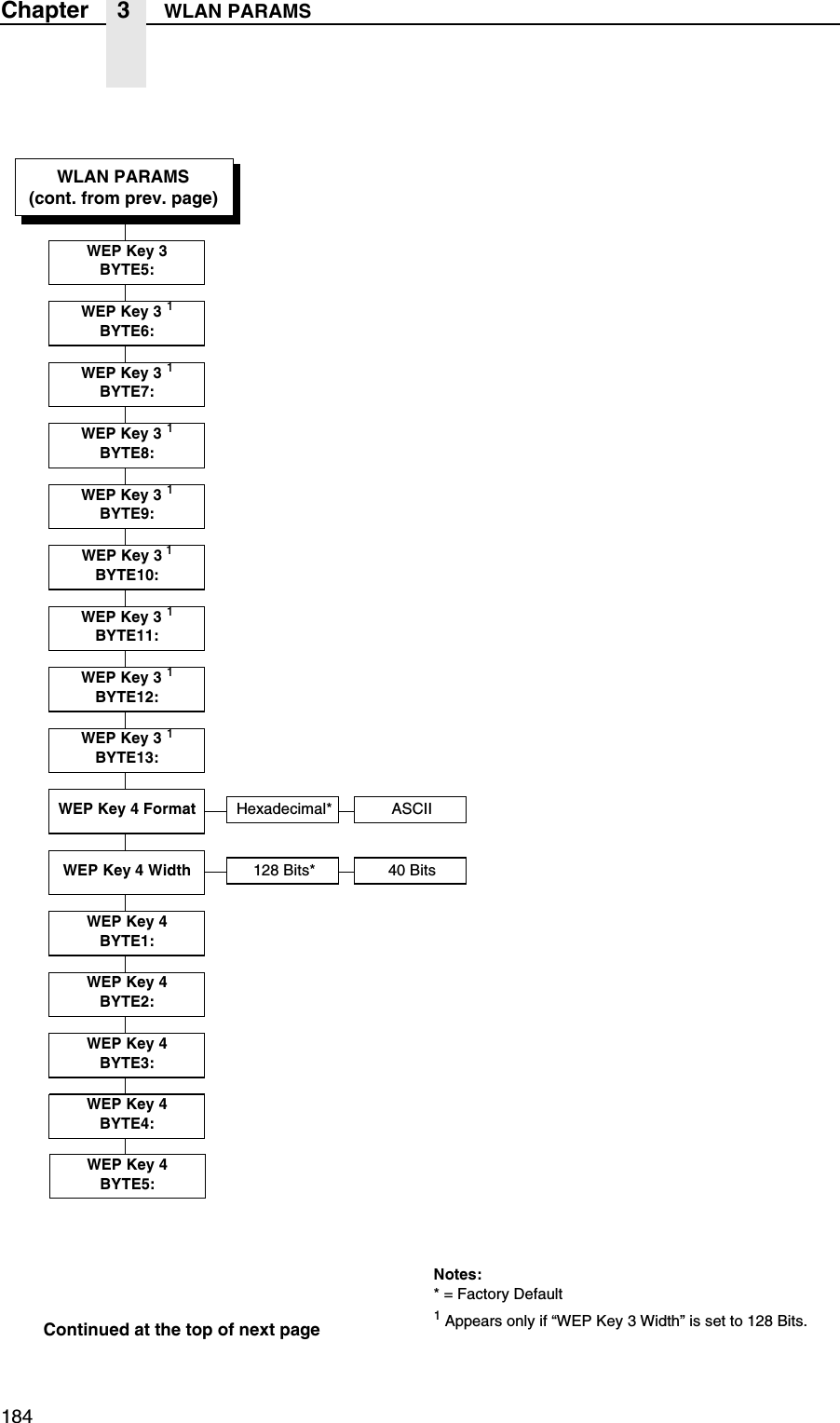
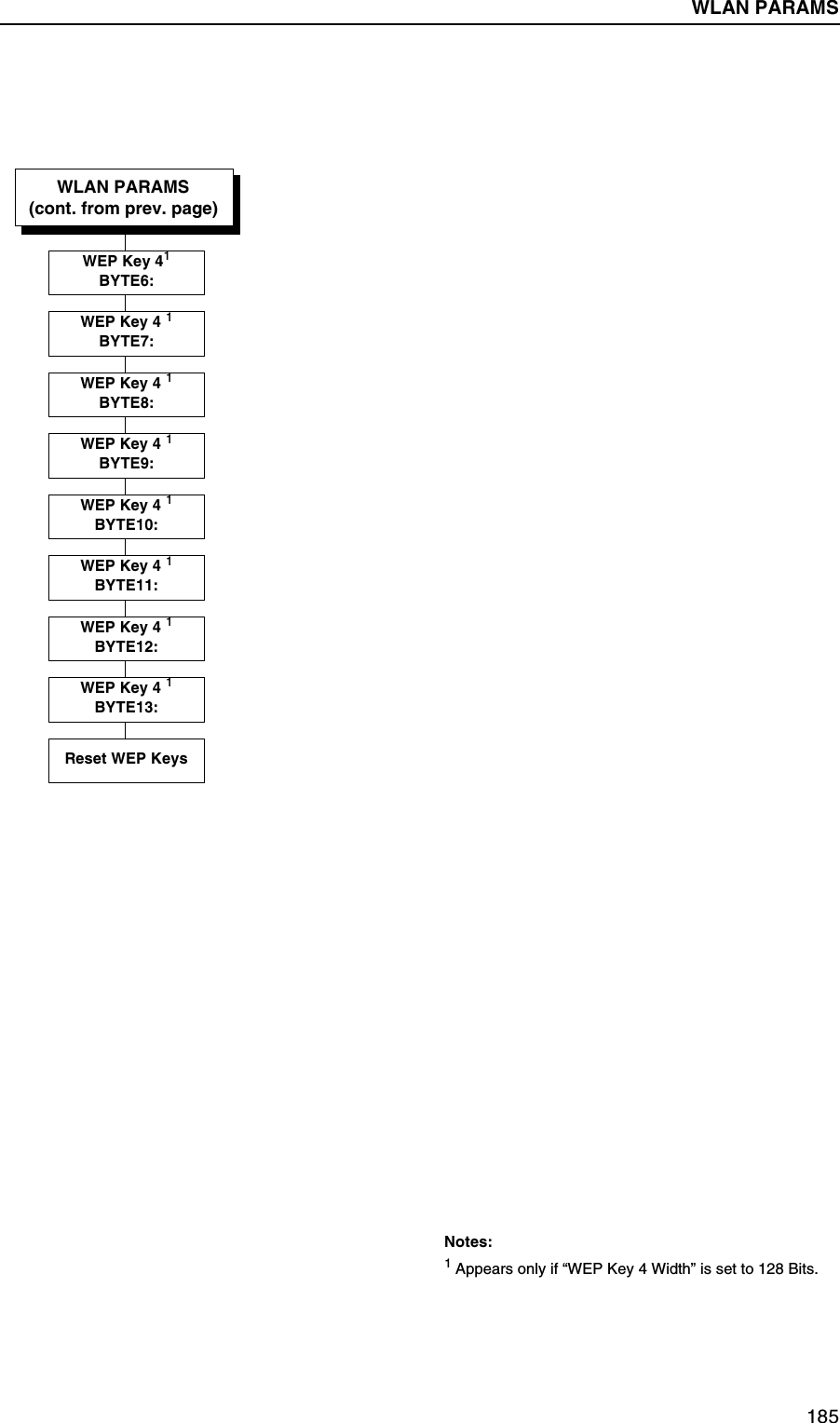
86Chapter 3 Main MenusNOTES:1 Appears only if a Wireless option is installed.2 Appears only if WEP Key 1 Width is set to 128 Bits.3 Appears only if WEP Key 2 Width is set to 128 Bits.4 Appears only if WEP Key 3 Width is set to 128 Bits.5 Appears only if WEP Key 4 Width is set to 128 Bits.6 Appears only if a Cisco radio card is installed.WLANPARAMS 1(page 181)Signal StrengthOperation ModeSSID Name(01-15)SSID Name(16-30)SSID Name(31-32)Reset SSID NameMin Xfer RateChannelAnt. DiversityPreamblePower MgmtTransmit PowerInternat. ModeDefault WEP KeyWEP Key 1 FormatWEP Key 1 WidthWEP Key 1 BYTE1:WEP Key 1 BYTE2:WEP Key 1 BYTE3:WEP Key 1 BYTE4:WEP Key 1 BYTE5:WEP Key 1 BYTE6: 2WEP Key 1 BYTE7: 2WEP Key 1 BYTE8: 2WEP Key 1 BYTE9: 2WEP Key 1 BYTE10: 2WEP Key 1 BYTE11: 2WEP Key 1 BYTE12: 2WEP Key 1 BYTE13: 2WEP Key 2 FormatWEP Key 2 WidthWEP Key 2 BYTE1:WEP Key 2 BYTE2:WEP Key 2 BYTE3:WEP Key 2 BYTE4:WEP Key 2 BYTE5:WEP Key 2 BYTE6: 3WEP Key 2 BYTE7: 3WEP Key 2 BYTE8: 3WEP Key 2 BYTE9: 3WEP Key 2 BYTE10: 3WEP Key 2 BYTE11: 3WEP Key 2 BYTE12: 3WEP Key 2 BYTE13: 3(continued in next column)WEP Key 3 FormatWEP Key 3 WidthWEP Key 3 BYTE1:WEP Key 3 BYTE2:WEP Key 3 BYTE3:WEP Key 3 BYTE4:WEP Key 3 BYTE5:WEP Key 3 BYTE6: 4WEP Key 3 BYTE7: 4WEP Key 3 BYTE8: 4WEP Key 3 BYTE9: 4WEP Key 3 BYTE10: 4WEP Key 3 BYTE11: 4WEP Key 3 BYTE12: 4WEP Key 3 BYTE13: 4WEP Key 4 FormatWEP Key 4 WidthWEP Key 4 BYTE1:WEP Key 4 BYTE2:WEP Key 4 BYTE3:WEP Key 4 BYTE4:WEP Key 4 BYTE5:WEP Key 4 BYTE6: 5WEP Key 4 BYTE7: 5WEP Key 4 BYTE8: 5WEP Key 4 BYTE9: 5WEP Key 4 BYTE10: 5WEP Key 4 BYTE11: 5WEP Key 4 BYTE12: 5WEP Key 4 BYTE13: 5Reset WEP KeysWLANLEAP 6(page 189)Auth MethodLEAP UsernameReset LEAP UserLEAP PasswordReset LEAP Password
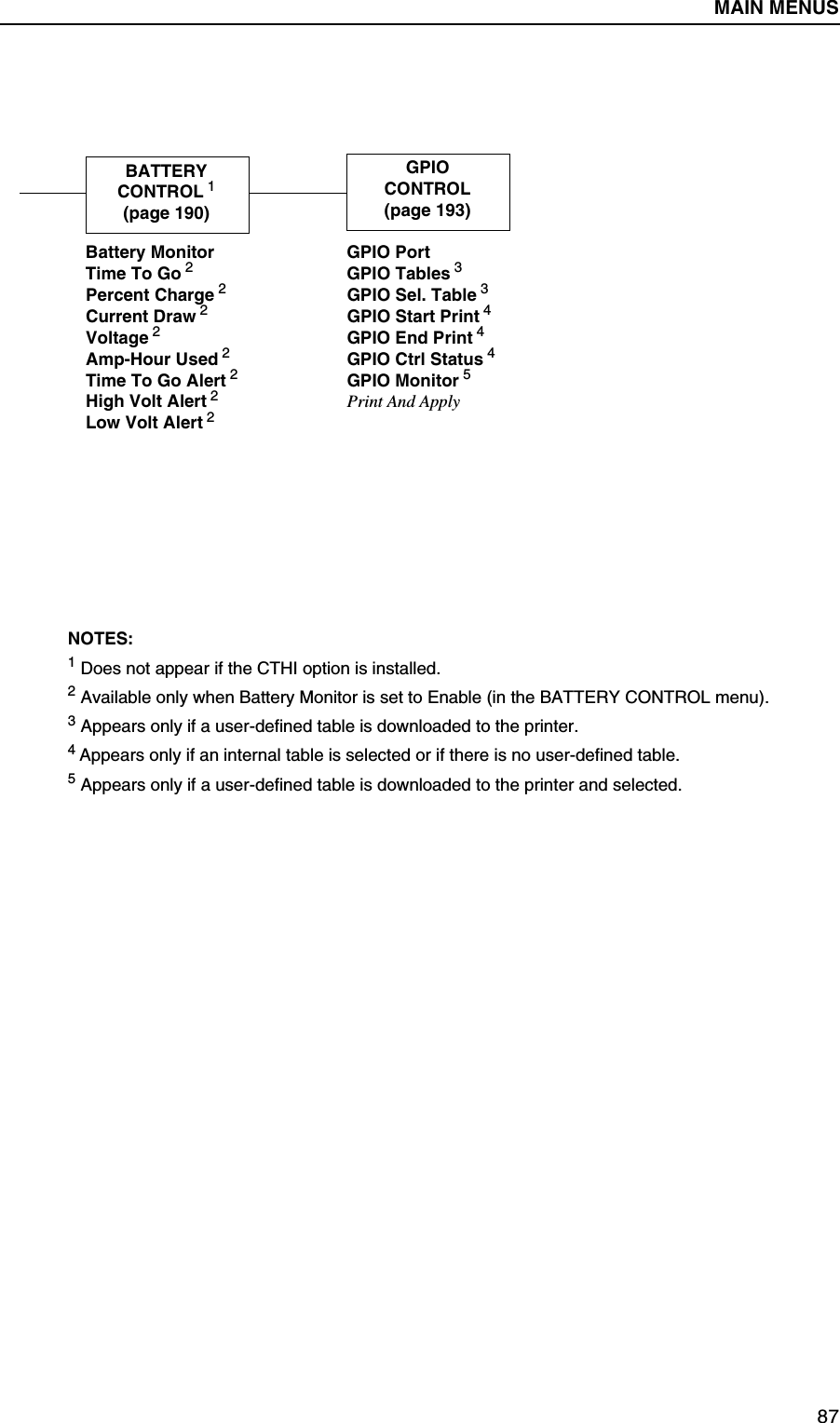
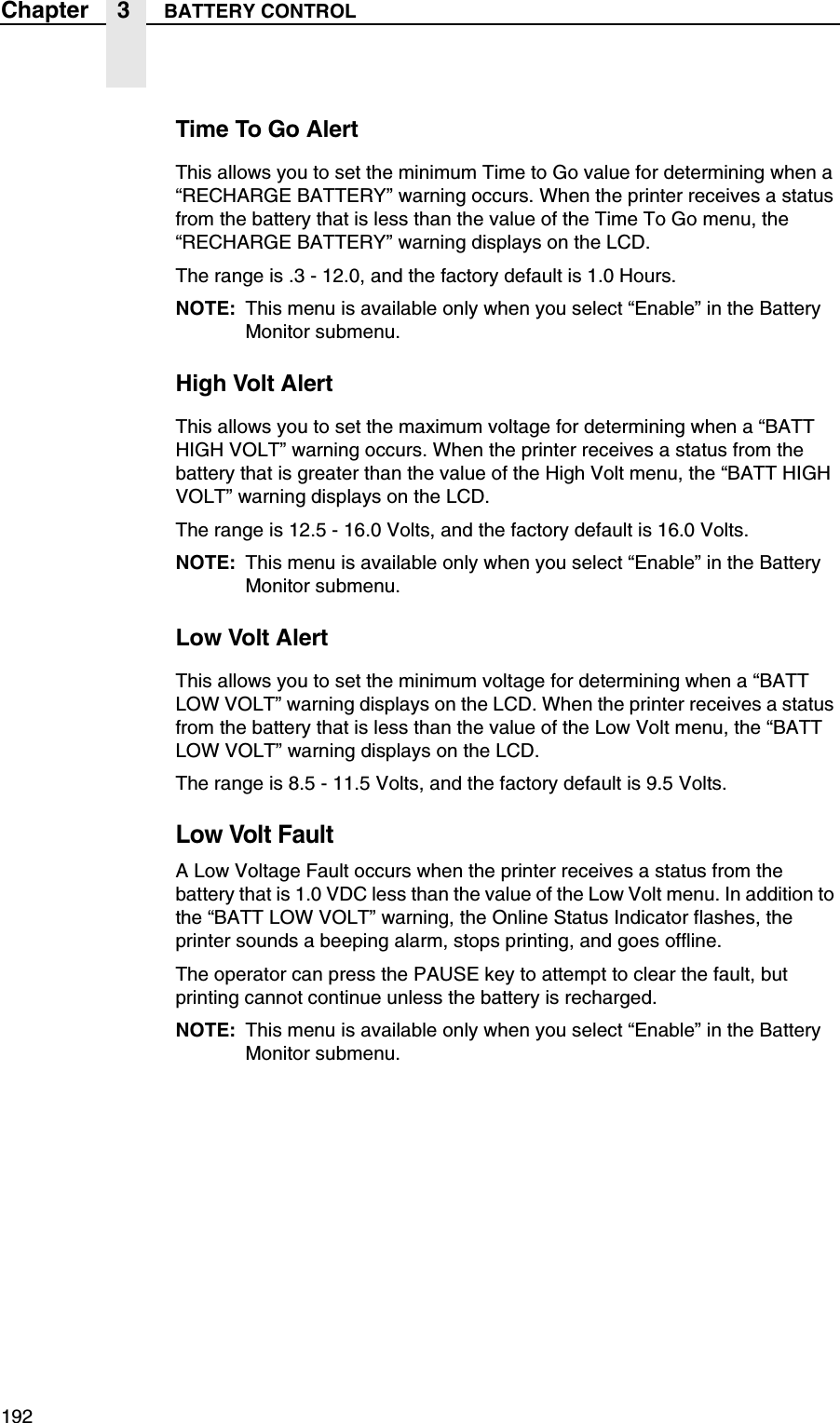
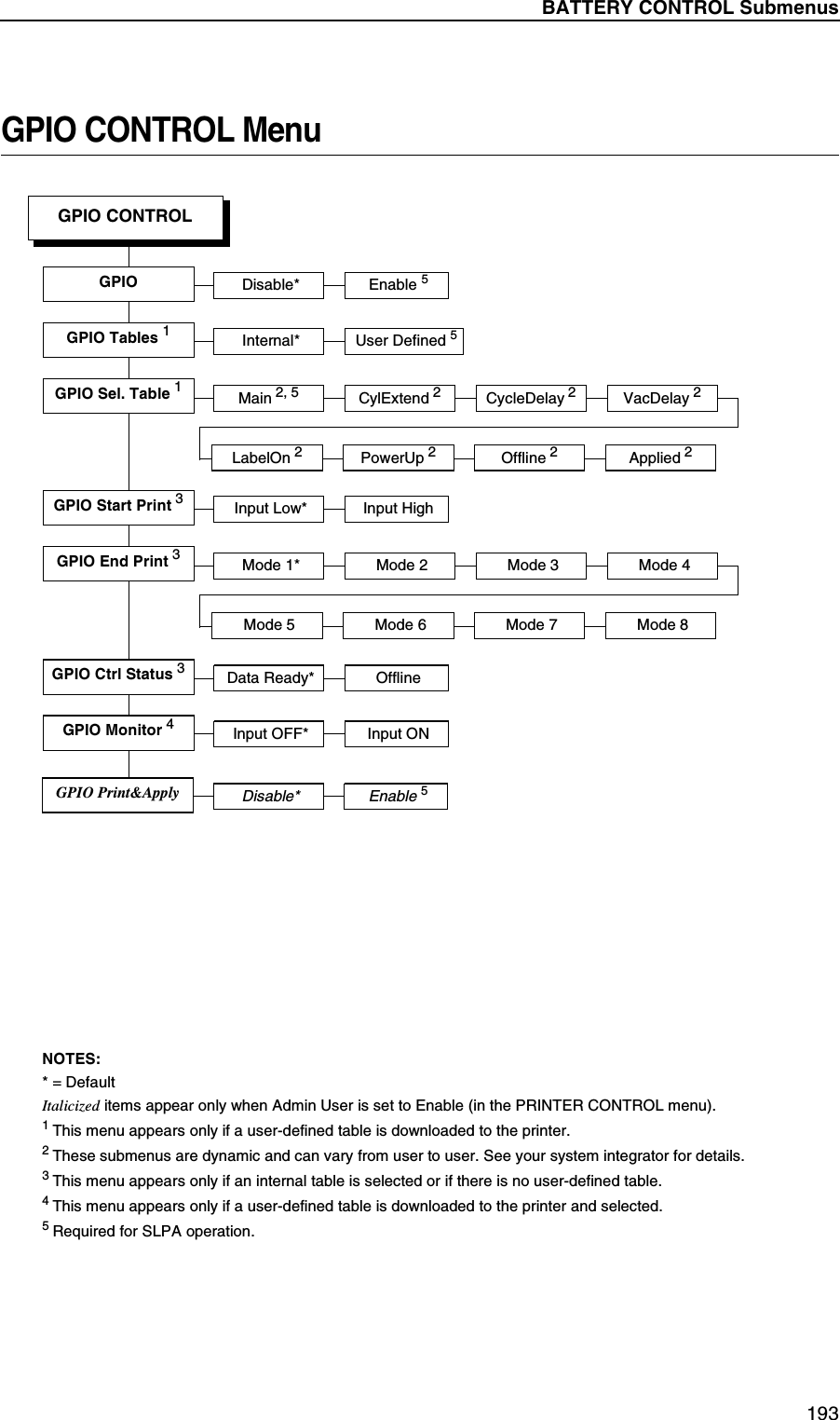
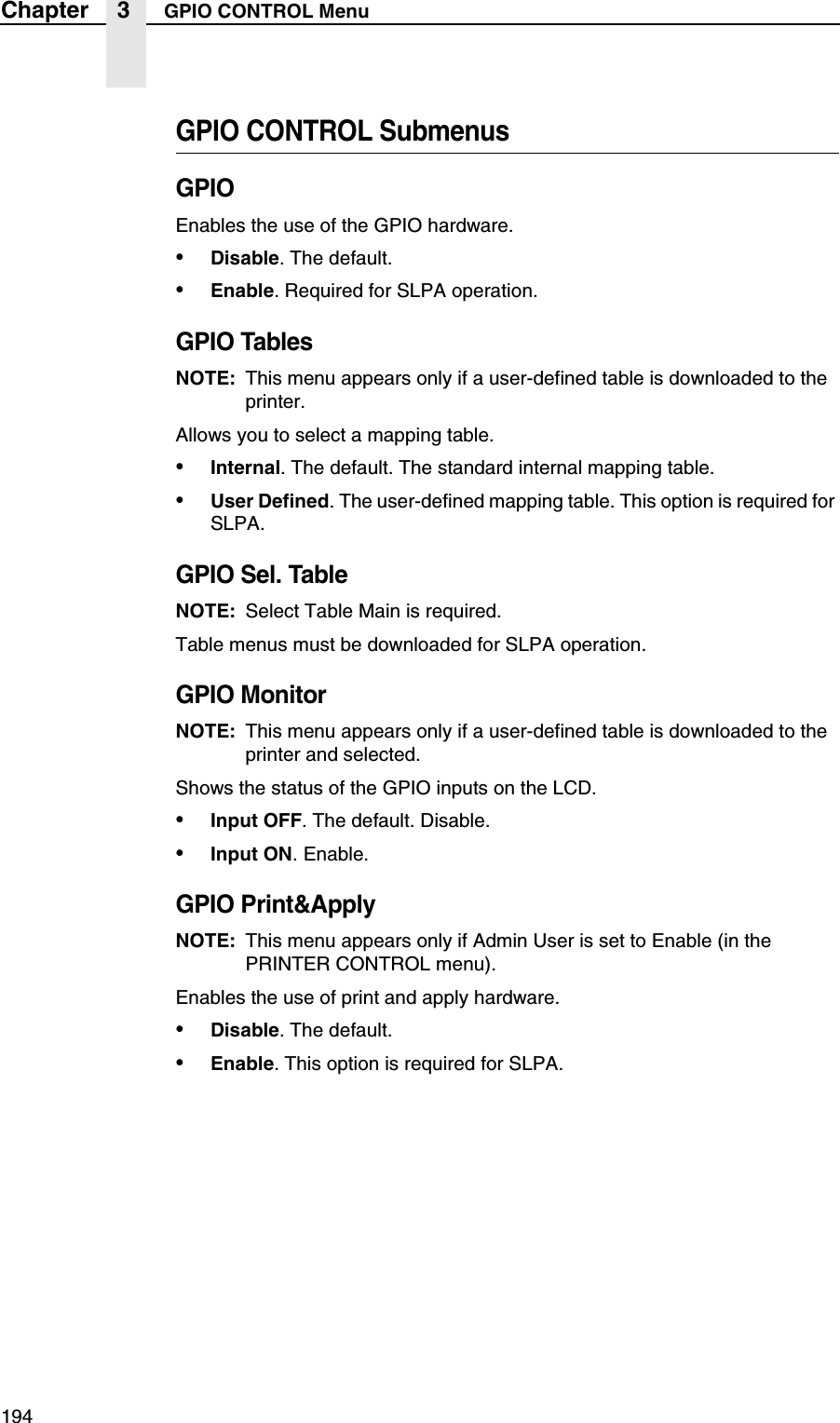
Printing A Configuration87NOTES:1 Does not appear if the CTHI option is installed.2 Available only when Battery Monitor is set to Enable (in the BATTERY CONTROL menu).3 Appears only if a user-defined table is downloaded to the printer.4 Appears only if an internal table is selected or if there is no user-defined table.5 Appears only if a user-defined table is downloaded to the printer and selected.GPIOCONTROL(page 193)GPIO PortGPIO Tables 3GPIO Sel. Table 3GPIO Start Print 4GPIO End Print 4GPIO Ctrl Status 4GPIO Monitor 5Print And ApplyBATTERYCONTROL 1(page 190)Battery MonitorTime To Go 2Percent Charge 2Current Draw 2Voltage 2Amp-Hour Used 2Time To Go Alert 2High Volt Alert 2Low Volt Alert 2MAIN MENUS
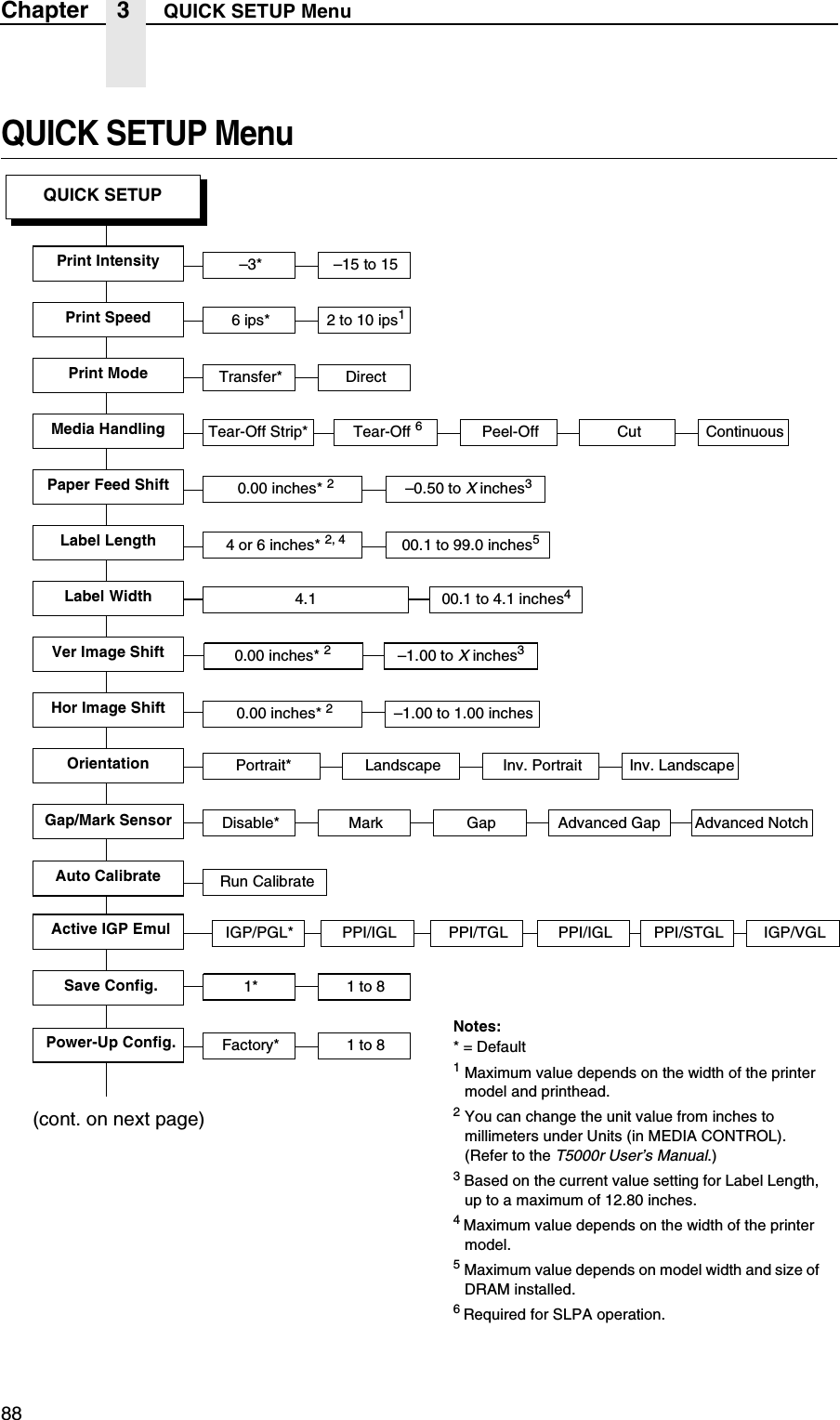
88Chapter 3 QUICK SETUP MenuQUICK SETUP MenuQUICK SETUPNotes:* = Default1 Maximum value depends on the width of the printer model and printhead.2 You can change the unit value from inches to millimeters under Units (in MEDIA CONTROL). (Refer to the T5000r User’s Manual.)3 Based on the current value setting for Label Length, up to a maximum of 12.80 inches.4 Maximum value depends on the width of the printer model.5 Maximum value depends on model width and size of DRAM installed.6 Required for SLPA operation.Print Intensity6 ips* 2 to 10 ips1Print SpeedPrint ModePaper Feed ShiftLabel WidthLabel LengthOrientationTransfer* Direct4.1Portrait* Landscape Inv. Portrait Inv. Landscape–3* –15 to 1500.1 to 4.1 inches40.00 inches* 24 or 6 inches* 2, 4 00.1 to 99.0 inches5–0.50 to X inches3Run CalibrateAuto Calibrate1* 1 to 8Factory* 1 to 8Save Config.Power-Up Config.Ver Image ShiftHor Image Shift0.00 inches* 2–1.00 to 1.00 inches 0.00 inches* 2–1.00 to X inches3Tear-Off Strip* Tear-Off 6Peel-Off CutMedia Handling ContinuousGap/Mark Sensor Disable* Mark Gap Advanced NotchAdvanced Gap(cont. on next page)Active IGP Emul IGP/PGL* PPI/IGL PPI/TGL PPI/IGL IGP/VGLPPI/STGL
QUICK SETUP Submenus89NOTE: Many QUICK SETUP submenus are available in other main menus. (Refer to the T5000r User’s Manual.)Changes made in the QUICK SETUP menu are updated in the other main menus, and vice versa.QUICK SETUP SubmenusPrint IntensityThis menu item specifies the level of thermal energy from the printhead to be used for the type of media and ribbon installed.Large numbers imply more heat (thermal energy) to be applied for each dot. This has a significant effect on print quality. The print intensity and speed must match the media and ribbon type to obtain the best possible print quality and barcode grades.The range is –15 through +15:•In Transfer mode, the default is –3.•In Direct Thermal mode, the default is 0.QUICK SETUP(cont. from previous page)SMT: StatusToolset [1]* Toolset [1] to Toolset [4]SMT: Sel ToolsetDisabled* EnabledEPC 1zEPC 2, 3SMT: Select ToolNotes:* = Default.1 Appears only if Toolset [1] is selected underSMT: Sel Toolset.2 Appears only if Toolset [2] is selected underSMT: Sel Toolset.3 Undocumented options are reserved for internal use and future design.UPCA 1zUPCA 2, 3EAN8 1zEAN8 2, 3EAN13 1zEAN13 2, 3UCC128 1zUCC128 2, 3GTIN 1zGTIN 2, 3
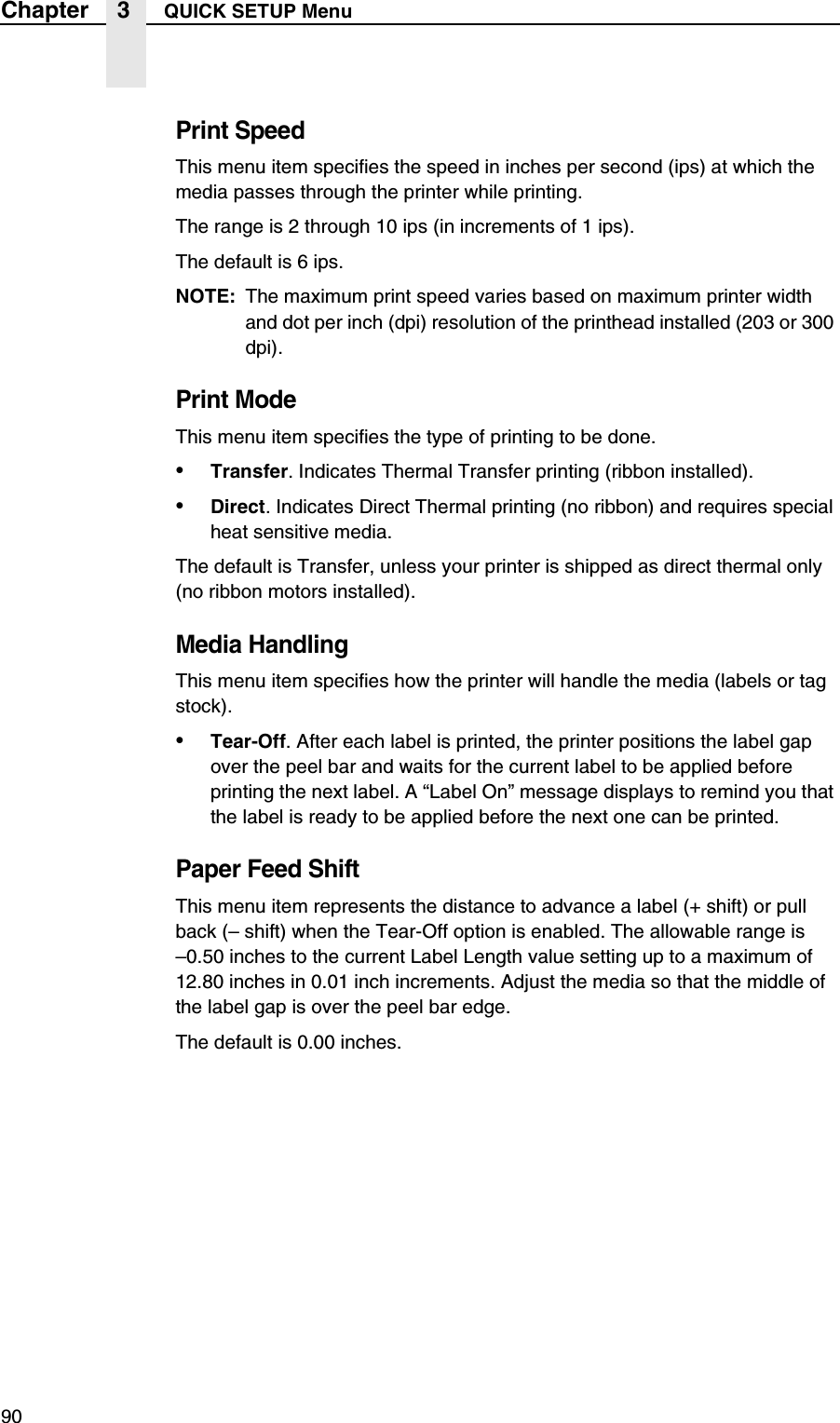
90Chapter 3 QUICK SETUP MenuPrint SpeedThis menu item specifies the speed in inches per second (ips) at which the media passes through the printer while printing.The range is 2 through 10 ips (in increments of 1 ips).The default is 6 ips.NOTE: The maximum print speed varies based on maximum printer width and dot per inch (dpi) resolution of the printhead installed (203 or 300 dpi).Print ModeThis menu item specifies the type of printing to be done.•Transfer. Indicates Thermal Transfer printing (ribbon installed).•Direct. Indicates Direct Thermal printing (no ribbon) and requires special heat sensitive media.The default is Transfer, unless your printer is shipped as direct thermal only (no ribbon motors installed).Media HandlingThis menu item specifies how the printer will handle the media (labels or tag stock).•Tear-Off. After each label is printed, the printer positions the label gap over the peel bar and waits for the current label to be applied before printing the next label. A “Label On” message displays to remind you that the label is ready to be applied before the next one can be printed.Paper Feed ShiftThis menu item represents the distance to advance a label (+ shift) or pull back (– shift) when the Tear-Off option is enabled. The allowable range is–0.50 inches to the current Label Length value setting up to a maximum of 12.80 inches in 0.01 inch increments. Adjust the media so that the middle of the label gap is over the peel bar edge.The default is 0.00 inches.
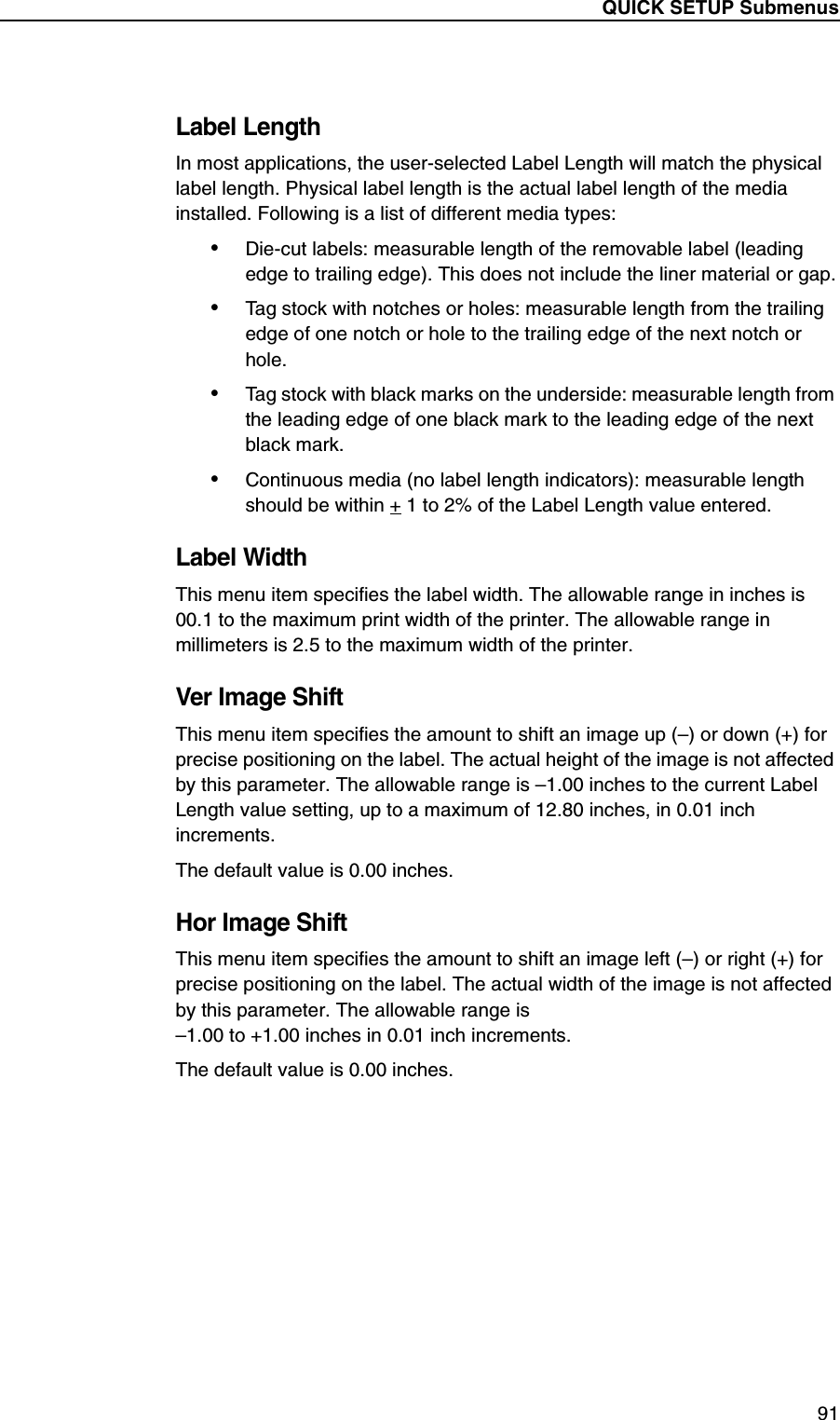
QUICK SETUP Submenus91Label LengthIn most applications, the user-selected Label Length will match the physical label length. Physical label length is the actual label length of the media installed. Following is a list of different media types:•Die-cut labels: measurable length of the removable label (leading edge to trailing edge). This does not include the liner material or gap.•Tag stock with notches or holes: measurable length from the trailing edge of one notch or hole to the trailing edge of the next notch or hole.•Tag stock with black marks on the underside: measurable length from the leading edge of one black mark to the leading edge of the next black mark.•Continuous media (no label length indicators): measurable length should be within + 1 to 2% of the Label Length value entered.Label WidthThis menu item specifies the label width. The allowable range in inches is 00.1 to the maximum print width of the printer. The allowable range in millimeters is 2.5 to the maximum width of the printer.Ver Image ShiftThis menu item specifies the amount to shift an image up (–) or down (+) for precise positioning on the label. The actual height of the image is not affected by this parameter. The allowable range is –1.00 inches to the current Label Length value setting, up to a maximum of 12.80 inches, in 0.01 inch increments.The default value is 0.00 inches.Hor Image ShiftThis menu item specifies the amount to shift an image left (–) or right (+) for precise positioning on the label. The actual width of the image is not affected by this parameter. The allowable range is–1.00 to +1.00 inches in 0.01 inch increments.The default value is 0.00 inches.
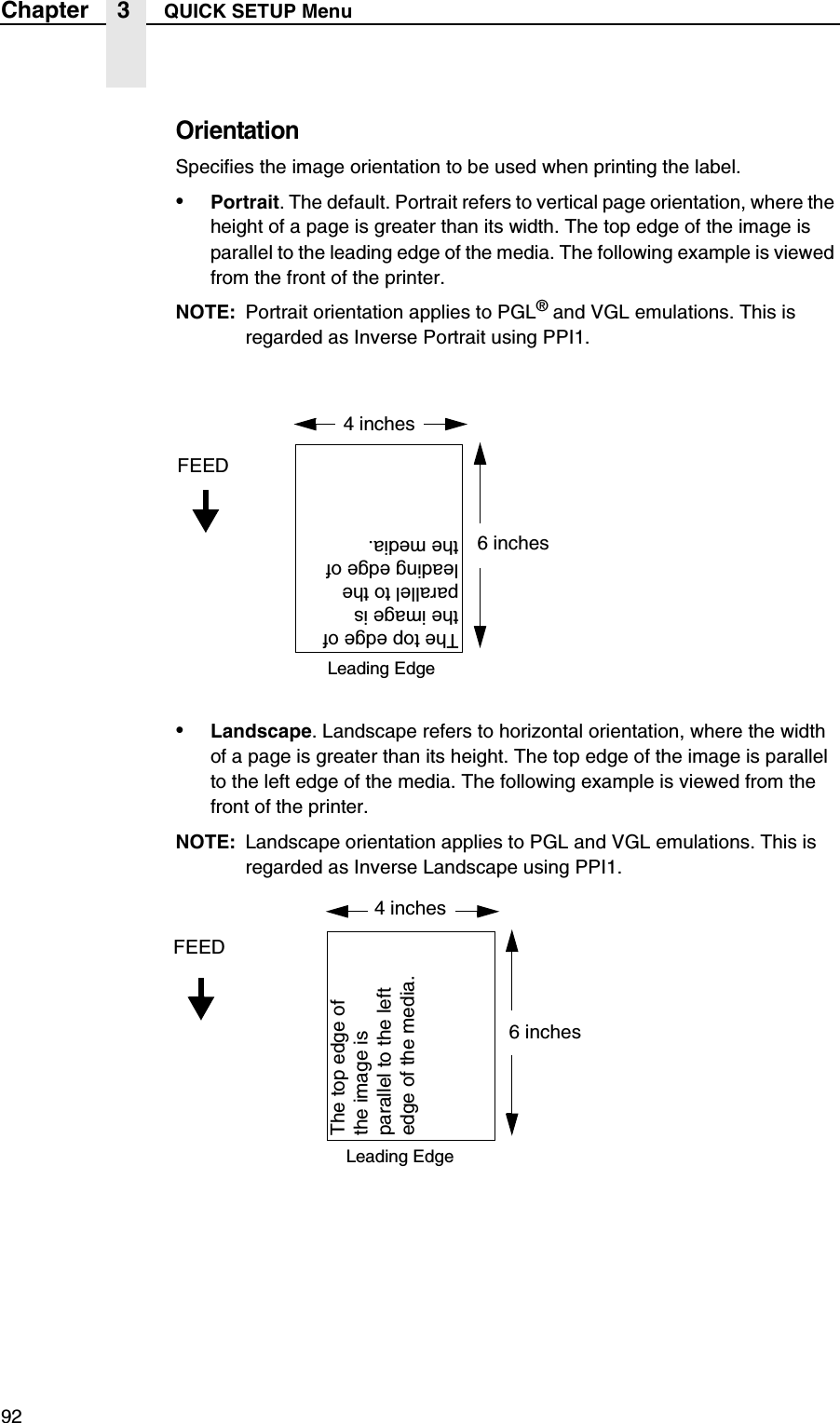
92Chapter 3 QUICK SETUP MenuOrientationSpecifies the image orientation to be used when printing the label.•Portrait. The default. Portrait refers to vertical page orientation, where the height of a page is greater than its width. The top edge of the image is parallel to the leading edge of the media. The following example is viewed from the front of the printer.NOTE: Portrait orientation applies to PGL® and VGL emulations. This is regarded as Inverse Portrait using PPI1.•Landscape. Landscape refers to horizontal orientation, where the width of a page is greater than its height. The top edge of the image is parallel to the left edge of the media. The following example is viewed from the front of the printer.NOTE: Landscape orientation applies to PGL and VGL emulations. This is regarded as Inverse Landscape using PPI1.4 inchesFEED6 inchesThe top edge of the image is parallel to the leading edge of the media.Leading Edge4 inchesFEED6 inchesThe top edge of the image is parallel to the left edge of the media.Leading Edge
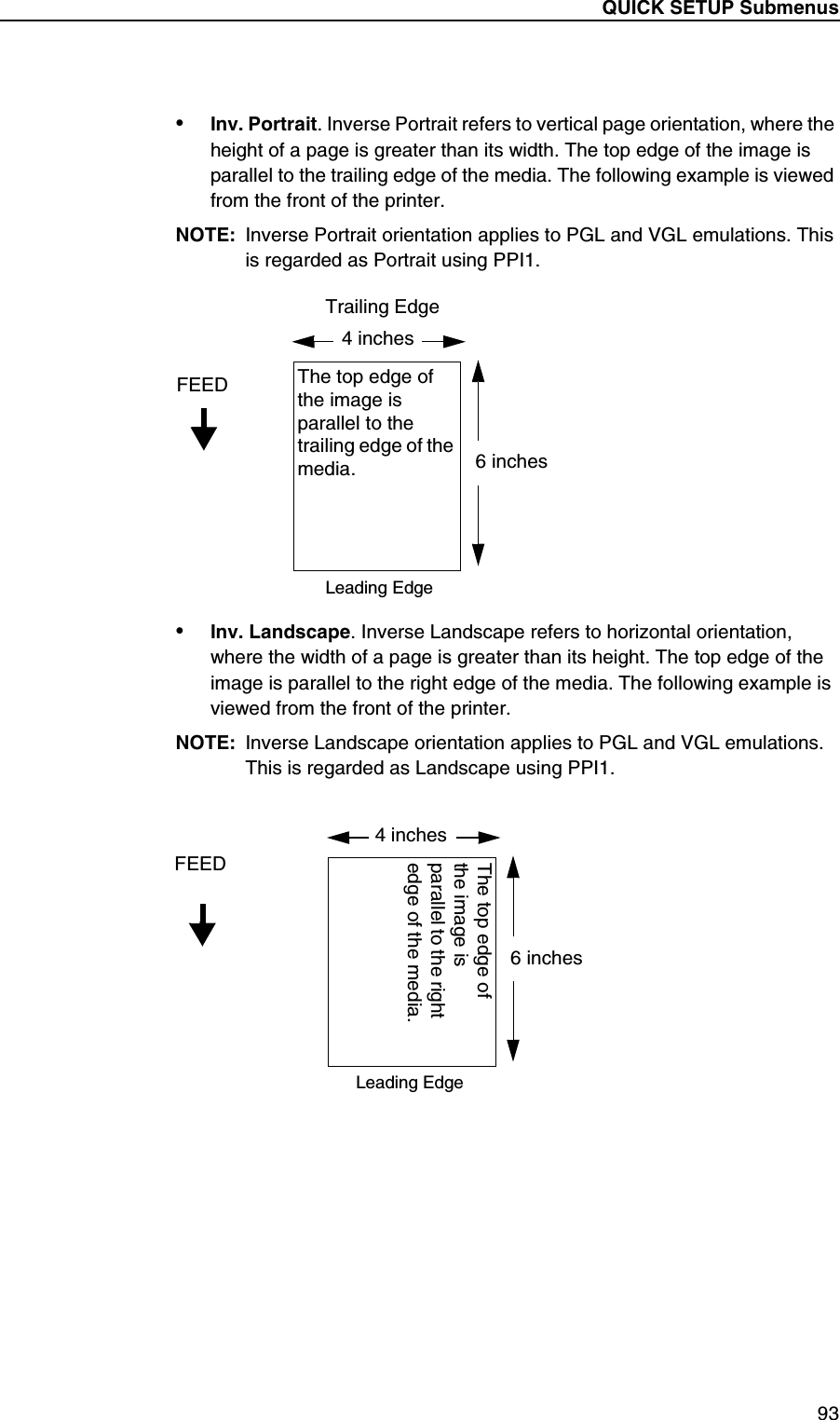
QUICK SETUP Submenus93•Inv. Portrait. Inverse Portrait refers to vertical page orientation, where the height of a page is greater than its width. The top edge of the image is parallel to the trailing edge of the media. The following example is viewed from the front of the printer.NOTE: Inverse Portrait orientation applies to PGL and VGL emulations. This is regarded as Portrait using PPI1.•Inv. Landscape. Inverse Landscape refers to horizontal orientation, where the width of a page is greater than its height. The top edge of the image is parallel to the right edge of the media. The following example is viewed from the front of the printer.NOTE: Inverse Landscape orientation applies to PGL and VGL emulations. This is regarded as Landscape using PPI1.4 inchesFEED6 inchesThe top edge of the image is parallel to the trailing edge of the media.Leading EdgeTrailing Edge4 inchesFEED6 inchesThe top edge of the image is parallel to the right edge of the media.Leading Edge
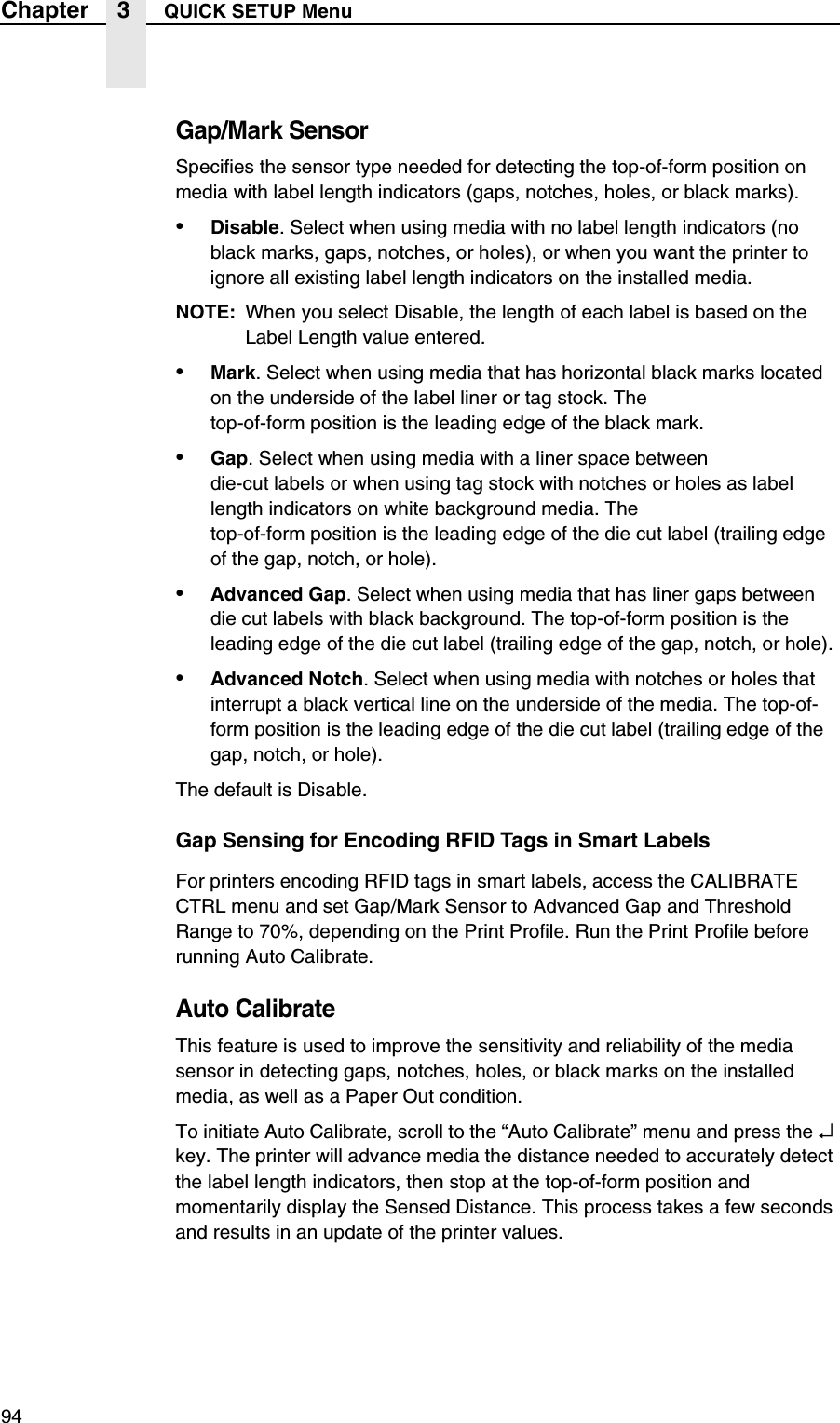
94Chapter 3 QUICK SETUP MenuGap/Mark SensorSpecifies the sensor type needed for detecting the top-of-form position on media with label length indicators (gaps, notches, holes, or black marks).•Disable. Select when using media with no label length indicators (no black marks, gaps, notches, or holes), or when you want the printer to ignore all existing label length indicators on the installed media.NOTE: When you select Disable, the length of each label is based on the Label Length value entered.•Mark. Select when using media that has horizontal black marks located on the underside of the label liner or tag stock. Thetop-of-form position is the leading edge of the black mark.•Gap. Select when using media with a liner space betweendie-cut labels or when using tag stock with notches or holes as label length indicators on white background media. Thetop-of-form position is the leading edge of the die cut label (trailing edge of the gap, notch, or hole).•Advanced Gap. Select when using media that has liner gaps between die cut labels with black background. The top-of-form position is the leading edge of the die cut label (trailing edge of the gap, notch, or hole).•Advanced Notch. Select when using media with notches or holes that interrupt a black vertical line on the underside of the media. The top-of-form position is the leading edge of the die cut label (trailing edge of the gap, notch, or hole).The default is Disable.Gap Sensing for Encoding RFID Tags in Smart LabelsFor printers encoding RFID tags in smart labels, access the CALIBRATE CTRL menu and set Gap/Mark Sensor to Advanced Gap and Threshold Range to 70%, depending on the Print Profile. Run the Print Profile before running Auto Calibrate.Auto CalibrateThis feature is used to improve the sensitivity and reliability of the media sensor in detecting gaps, notches, holes, or black marks on the installed media, as well as a Paper Out condition.To initiate Auto Calibrate, scroll to the “Auto Calibrate” menu and press the ↵ key. The printer will advance media the distance needed to accurately detect the label length indicators, then stop at the top-of-form position and momentarily display the Sensed Distance. This process takes a few seconds and results in an update of the printer values.
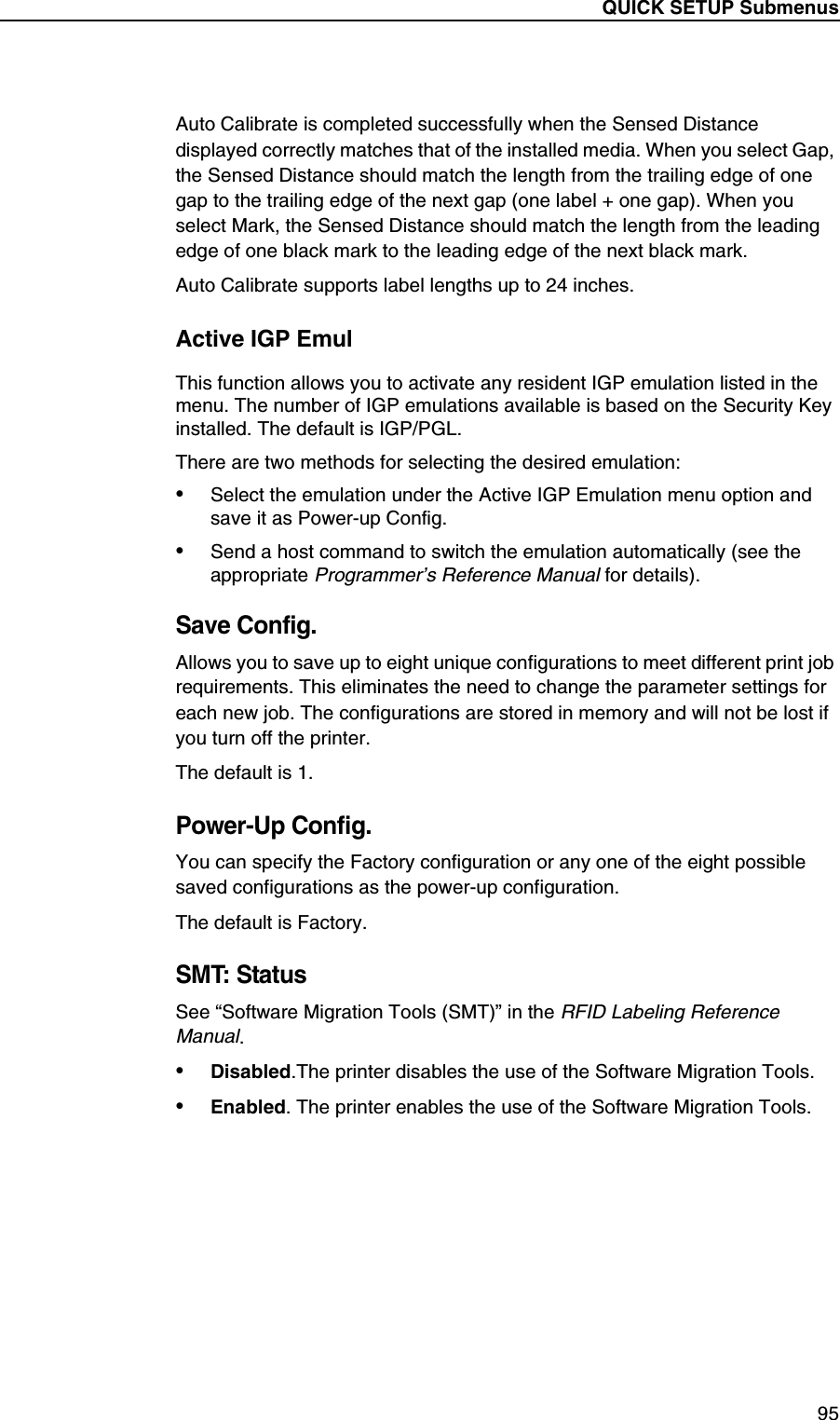
QUICK SETUP Submenus95Auto Calibrate is completed successfully when the Sensed Distance displayed correctly matches that of the installed media. When you select Gap, the Sensed Distance should match the length from the trailing edge of one gap to the trailing edge of the next gap (one label + one gap). When you select Mark, the Sensed Distance should match the length from the leading edge of one black mark to the leading edge of the next black mark.Auto Calibrate supports label lengths up to 24 inches.Active IGP EmulThis function allows you to activate any resident IGP emulation listed in the menu. The number of IGP emulations available is based on the Security Key installed. The default is IGP/PGL.There are two methods for selecting the desired emulation:•Select the emulation under the Active IGP Emulation menu option and save it as Power-up Config.•Send a host command to switch the emulation automatically (see the appropriate Programmer’s Reference Manual for details).Save Config.Allows you to save up to eight unique configurations to meet different print job requirements. This eliminates the need to change the parameter settings for each new job. The configurations are stored in memory and will not be lost if you turn off the printer.The default is 1.Power-Up Config.You can specify the Factory configuration or any one of the eight possible saved configurations as the power-up configuration.The default is Factory.SMT: StatusSee “Software Migration Tools (SMT)” in the RFID Labeling Reference Manual.•Disabled.The printer disables the use of the Software Migration Tools.•Enabled. The printer enables the use of the Software Migration Tools.
96Chapter 3 QUICK SETUP MenuSMT: Sel ToolsetSee “Software Migration Tools (SMT)” in the RFID Labeling Reference Manual.•Toolset [1]. SMTs for PGL emulation.•Toolset [2]. SMTs for PPI1 emulation.•Toolset [3] and Toolset [4]. Reserved for internal use and future design.SMT: Select ToolSee “Software Migration Tools (SMT)” in the RFID Labeling Reference Manual.•EPC, GTIN, UPCA, EAN8, EAN13, and UCC128. SMTs displayed if Toolset [1] is selected under SMT: Sel Toolset.•zEPC, zGTIN, zUPCA, zEAN8, zEAN13, and zUCC128. SMTs displayed if Toolset [2] is selected under SMT: Sel Toolset.NOTE: Undocumented options are reserved for internal use and future design.
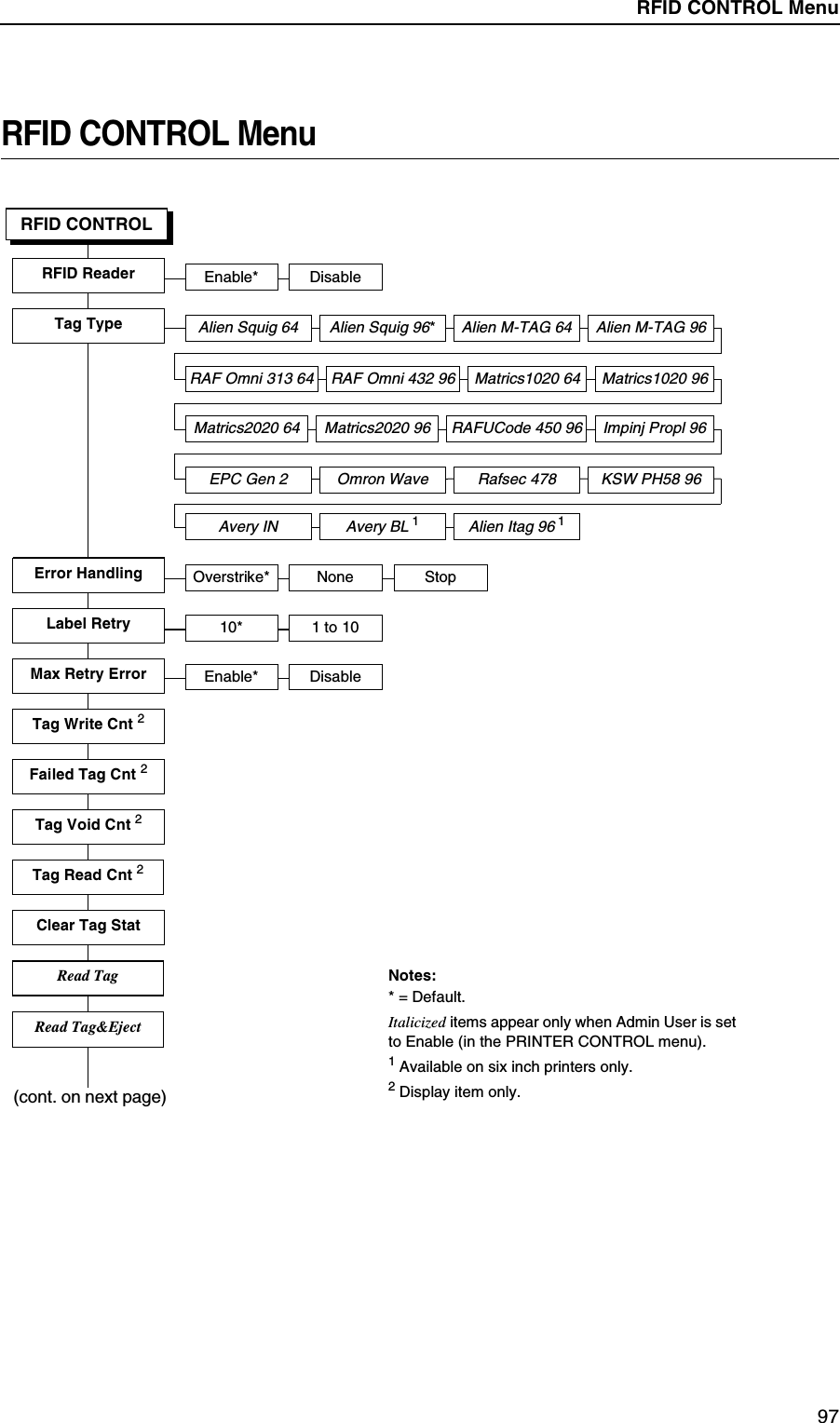
QUICK SETUP Submenus97RFID CONTROL MenuAlien Squig 96*Tag TypeRFID CONTROLRFID ReaderStopError HandlingTag Write Cnt 2Clear Tag StatFailed Tag Cnt 2Overstrike* NoneEnable* DisableLabel RetryNotes:* = Default.Italicized items appear only when Admin User is set to Enable (in the PRINTER CONTROL menu).1 Available on six inch printers only.2 Display item only.10* 1 to 10Read Tag(cont. on next page)Alien M-TAG 64 Alien M-TAG 96RAF Omni 313 64 RAF Omni 432 96 Matrics1020 64 Matrics1020 96Max Retry Error Enable* DisableMatrics2020 64 Matrics2020 96 RAFUCode 450 96Tag Void Cnt 2Tag Read Cnt 2EPC Gen 2 Omron Wave Rafsec 478 KSW PH58 96Read Tag&EjectAvery IN Avery BL 1Alien Itag 96 1Alien Squig 64Impinj Propl 96RFID CONTROL Menu
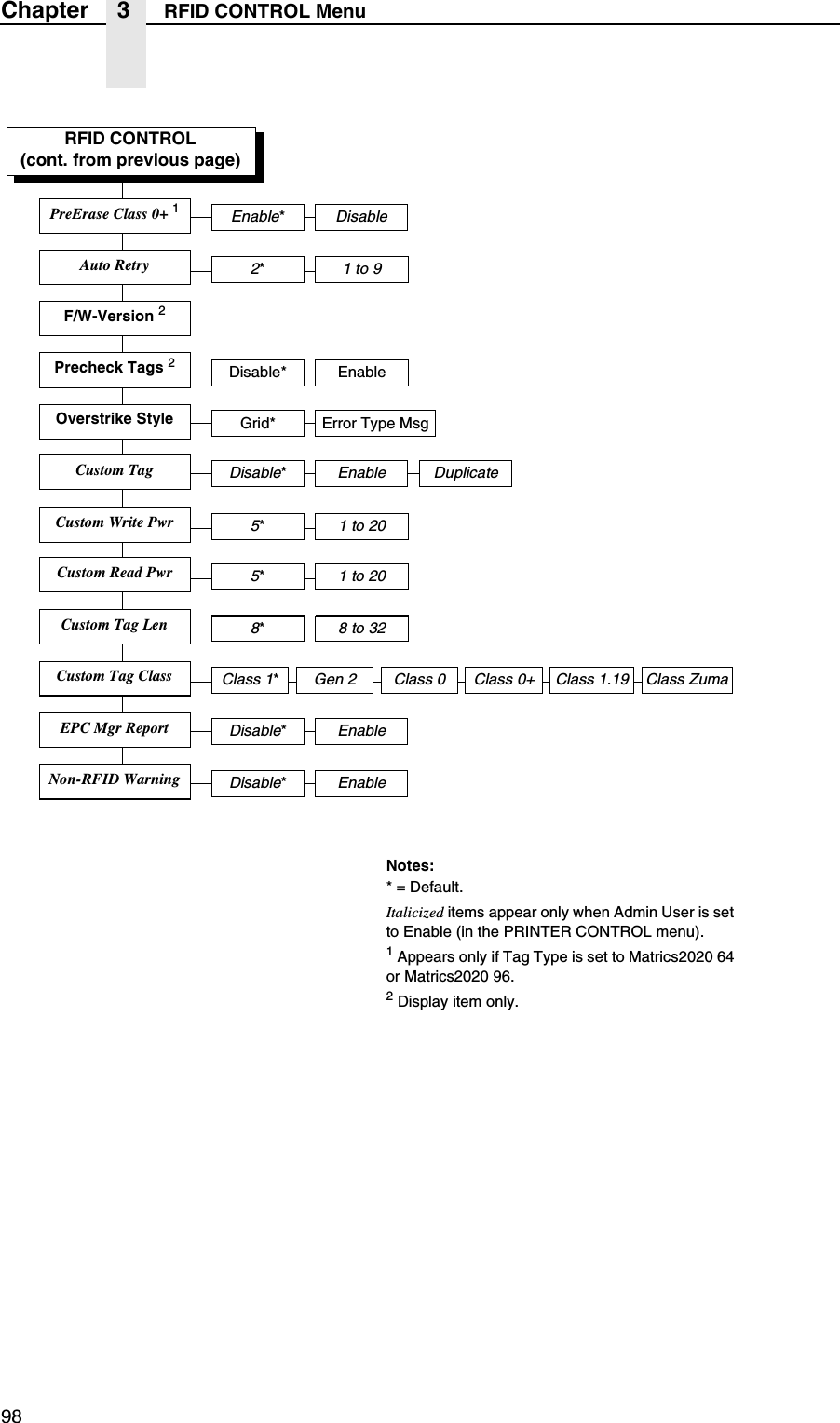
98Chapter 3 RFID CONTROL MenuCustom Tag Len8*8 to 32RFID CONTROL(cont. from previous page)Notes:* = Default.Italicized items appear only when Admin User is set to Enable (in the PRINTER CONTROL menu).1 Appears only if Tag Type is set to Matrics2020 64 or Matrics2020 96.2 Display item only.Custom Tag ClassClass 1*Class 0 Class 0+Disable*Enable DuplicateCustom TagCustom Write Pwr5*1 to 20Precheck Tags 2Disable* EnableOverstrike Style Grid* Error Type MsgDisable*EnableEPC Mgr ReportF/W-Version 2Class 1.19Custom Read Pwr5*1 to 20Disable*EnableNon-RFID WarningClass ZumaAuto Retry2*1 to 9Enable*DisablePreErase Class 0+ 1Gen 2
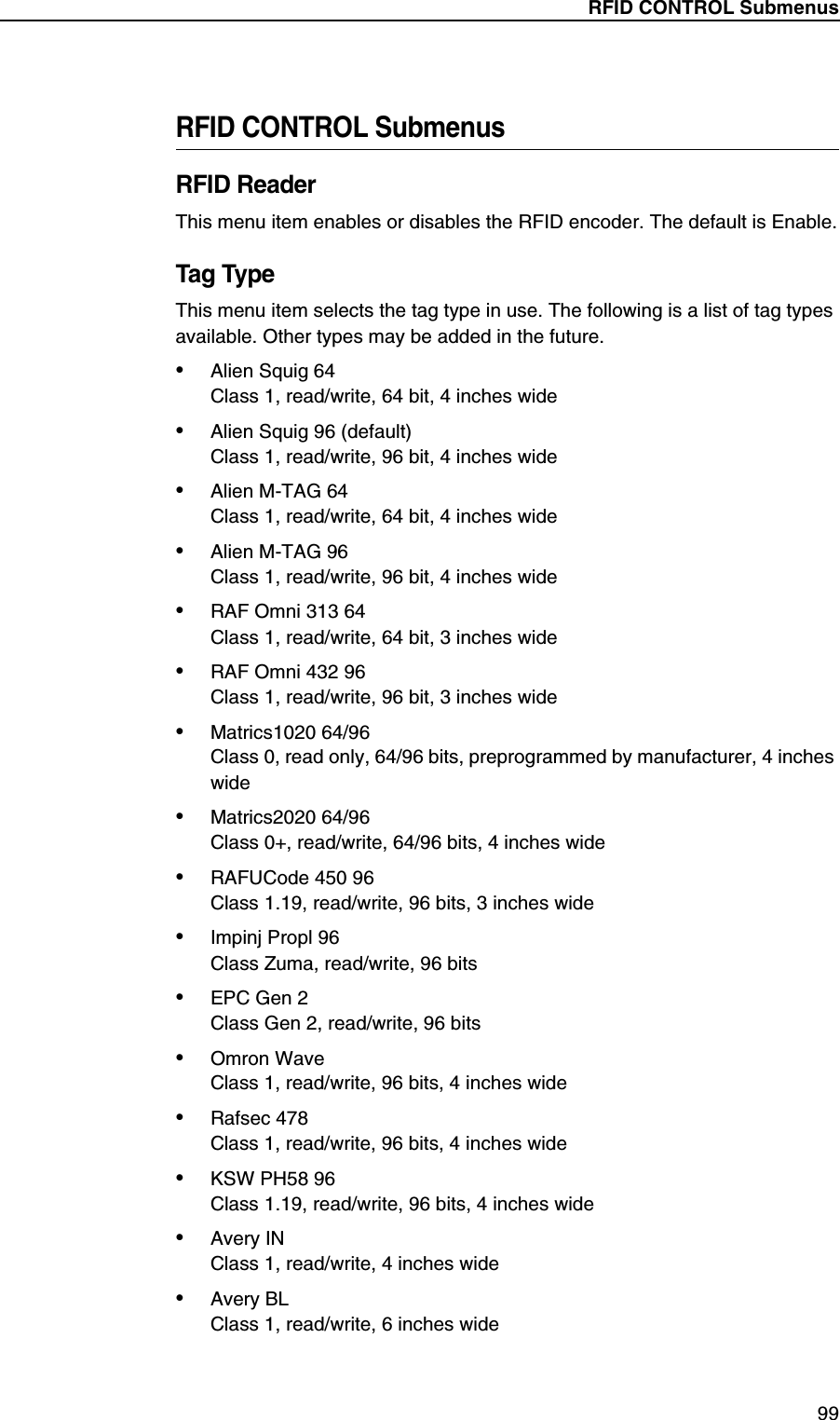
RFID CONTROL Submenus99RFID CONTROL SubmenusRFID ReaderThis menu item enables or disables the RFID encoder. The default is Enable.Tag TypeThis menu item selects the tag type in use. The following is a list of tag types available. Other types may be added in the future.•Alien Squig 64Class 1, read/write, 64 bit, 4 inches wide•Alien Squig 96 (default)Class 1, read/write, 96 bit, 4 inches wide•Alien M-TAG 64Class 1, read/write, 64 bit, 4 inches wide•Alien M-TAG 96Class 1, read/write, 96 bit, 4 inches wide•RAF Omni 313 64Class 1, read/write, 64 bit, 3 inches wide•RAF Omni 432 96Class 1, read/write, 96 bit, 3 inches wide•Matrics1020 64/96Class 0, read only, 64/96 bits, preprogrammed by manufacturer, 4 inches wide•Matrics2020 64/96Class 0+, read/write, 64/96 bits, 4 inches wide•RAFUCode 450 96Class 1.19, read/write, 96 bits, 3 inches wide•Impinj Propl 96Class Zuma, read/write, 96 bits•EPC Gen 2Class Gen 2, read/write, 96 bits•Omron WaveClass 1, read/write, 96 bits, 4 inches wide•Rafsec 478Class 1, read/write, 96 bits, 4 inches wide•KSW PH58 96Class 1.19, read/write, 96 bits, 4 inches wide•Avery INClass 1, read/write, 4 inches wide•Avery BLClass 1, read/write, 6 inches wide
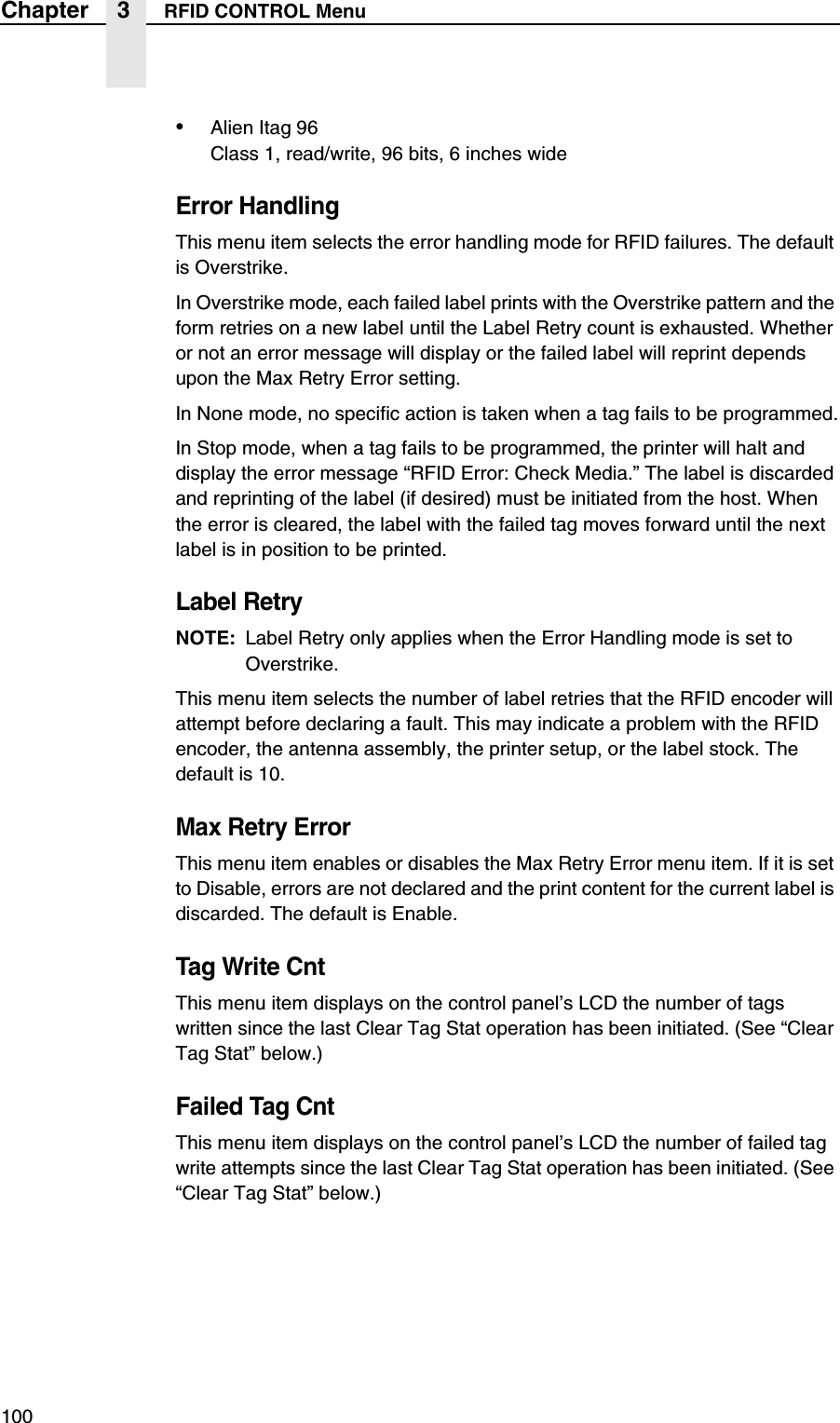
100Chapter 3 RFID CONTROL Menu•Alien Itag 96Class 1, read/write, 96 bits, 6 inches wideError HandlingThis menu item selects the error handling mode for RFID failures. The default is Overstrike.In Overstrike mode, each failed label prints with the Overstrike pattern and the form retries on a new label until the Label Retry count is exhausted. Whether or not an error message will display or the failed label will reprint depends upon the Max Retry Error setting.In None mode, no specific action is taken when a tag fails to be programmed.In Stop mode, when a tag fails to be programmed, the printer will halt and display the error message “RFID Error: Check Media.” The label is discarded and reprinting of the label (if desired) must be initiated from the host. When the error is cleared, the label with the failed tag moves forward until the next label is in position to be printed.Label RetryNOTE: Label Retry only applies when the Error Handling mode is set to Overstrike.This menu item selects the number of label retries that the RFID encoder will attempt before declaring a fault. This may indicate a problem with the RFID encoder, the antenna assembly, the printer setup, or the label stock. The default is 10.Max Retry ErrorThis menu item enables or disables the Max Retry Error menu item. If it is set to Disable, errors are not declared and the print content for the current label is discarded. The default is Enable.Tag Write CntThis menu item displays on the control panel’s LCD the number of tags written since the last Clear Tag Stat operation has been initiated. (See “Clear Tag Stat” below.)Failed Tag CntThis menu item displays on the control panel’s LCD the number of failed tag write attempts since the last Clear Tag Stat operation has been initiated. (See “Clear Tag Stat” below.)
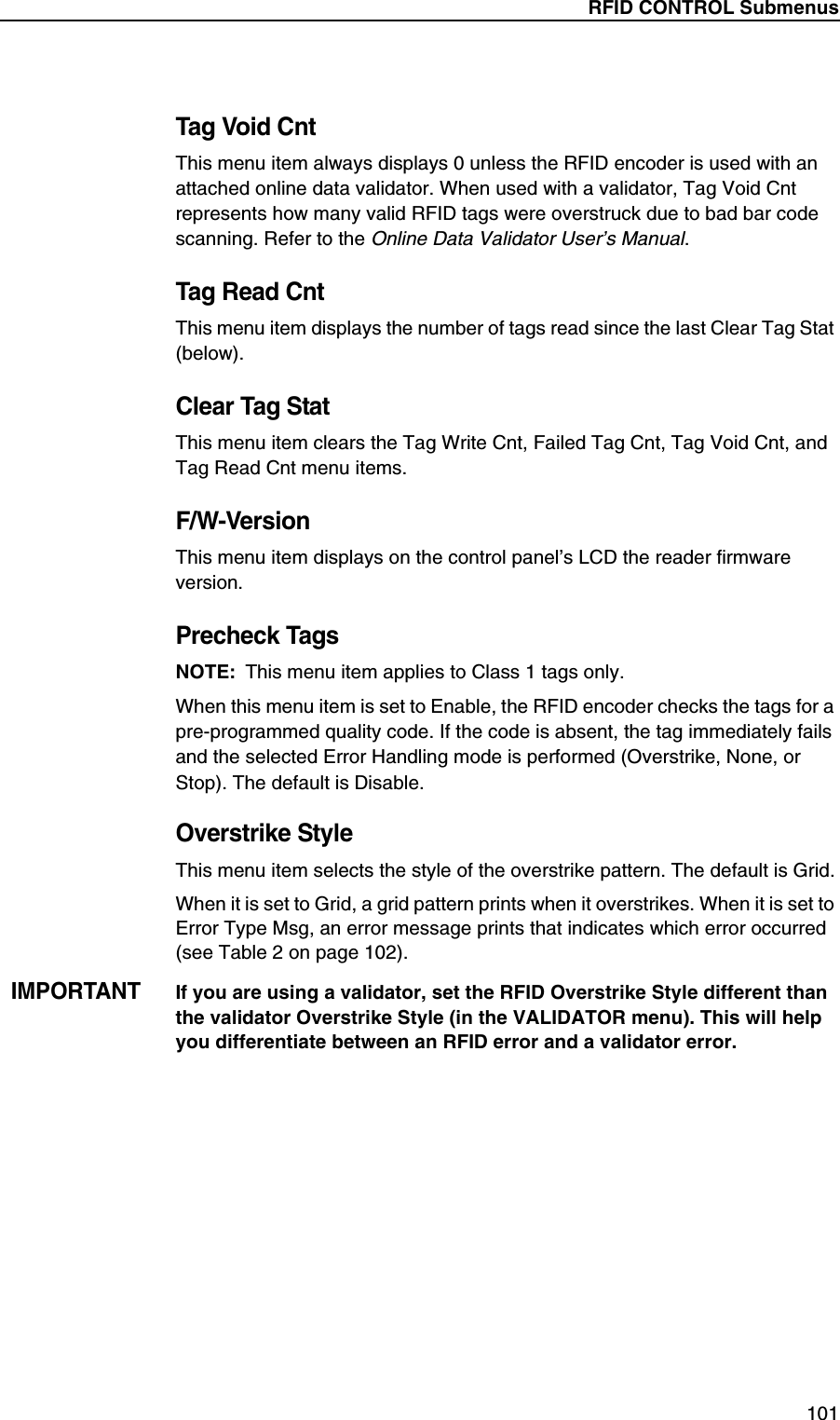
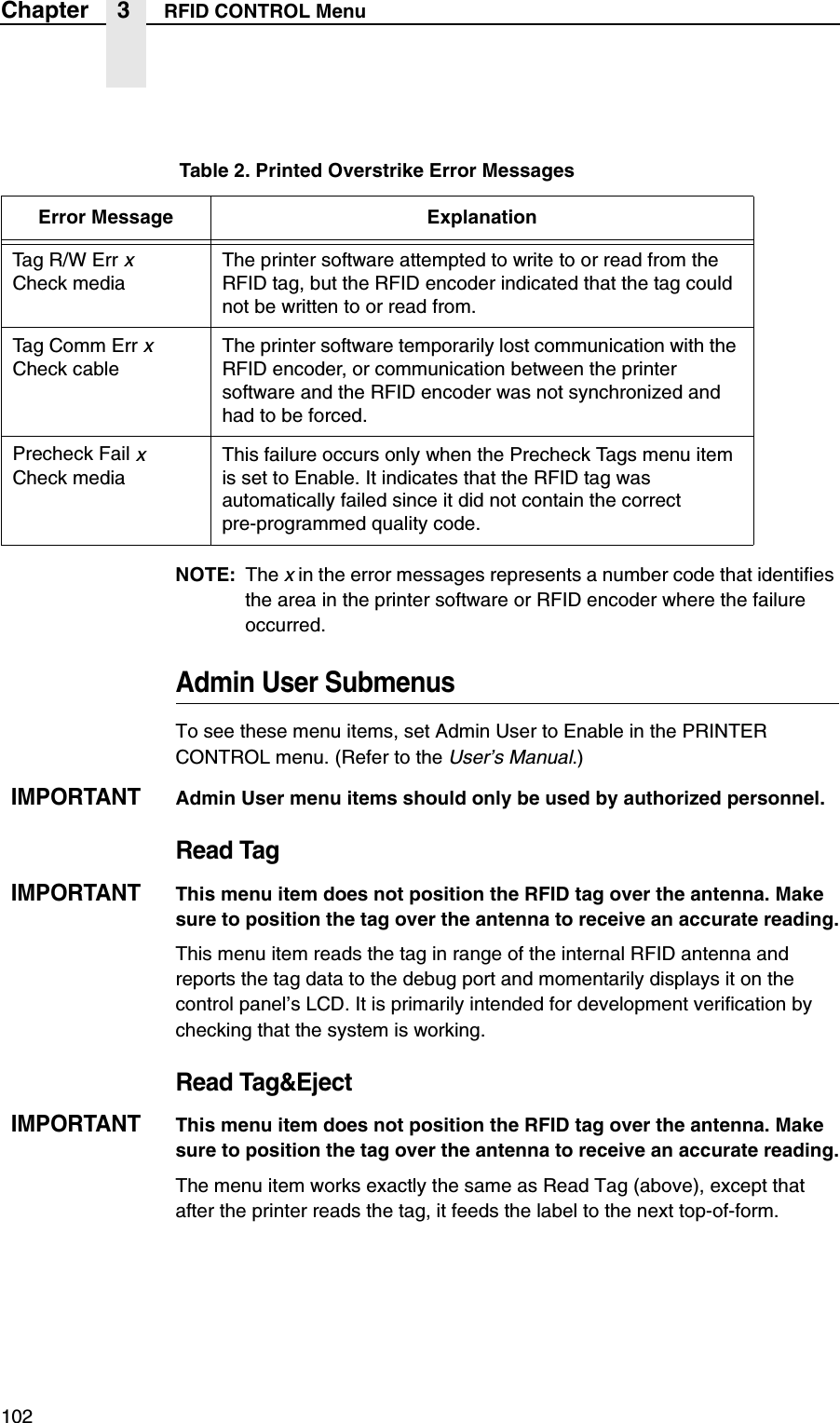
RFID CONTROL Submenus101Tag Void CntThis menu item always displays 0 unless the RFID encoder is used with an attached online data validator. When used with a validator, Tag Void Cnt represents how many valid RFID tags were overstruck due to bad bar code scanning. Refer to the Online Data Validator User’s Manual.Tag Read CntThis menu item displays the number of tags read since the last Clear Tag Stat (below).Clear Tag StatThis menu item clears the Tag Write Cnt, Failed Tag Cnt, Tag Void Cnt, and Tag Read Cnt menu items.F/W-VersionThis menu item displays on the control panel’s LCD the reader firmware version.Precheck TagsNOTE: This menu item applies to Class 1 tags only.When this menu item is set to Enable, the RFID encoder checks the tags for a pre-programmed quality code. If the code is absent, the tag immediately fails and the selected Error Handling mode is performed (Overstrike, None, or Stop). The default is Disable.Overstrike StyleThis menu item selects the style of the overstrike pattern. The default is Grid.When it is set to Grid, a grid pattern prints when it overstrikes. When it is set to Error Type Msg, an error message prints that indicates which error occurred (see Table 2 on page 102).IMPORTANTIf you are using a validator, set the RFID Overstrike Style different than the validator Overstrike Style (in the VALIDATOR menu). This will help you differentiate between an RFID error and a validator error.
102Chapter 3 RFID CONTROL MenuNOTE: The x in the error messages represents a number code that identifies the area in the printer software or RFID encoder where the failure occurred.Admin User SubmenusTo see these menu items, set Admin User to Enable in the PRINTER CONTROL menu. (Refer to the User’s Manual.)IMPORTANTAdmin User menu items should only be used by authorized personnel.Read TagIMPORTANTThis menu item does not position the RFID tag over the antenna. Make sure to position the tag over the antenna to receive an accurate reading.This menu item reads the tag in range of the internal RFID antenna and reports the tag data to the debug port and momentarily displays it on the control panel’s LCD. It is primarily intended for development verification by checking that the system is working.Read Tag&EjectIMPORTANTThis menu item does not position the RFID tag over the antenna. Make sure to position the tag over the antenna to receive an accurate reading.The menu item works exactly the same as Read Tag (above), except that after the printer reads the tag, it feeds the label to the next top-of-form.Table 2. Printed Overstrike Error MessagesError Message ExplanationTa g R / W  E r r xCheck mediaThe printer software attempted to write to or read from the RFID tag, but the RFID encoder indicated that the tag could not be written to or read from.Tag Comm Err xCheck cableThe printer software temporarily lost communication with the RFID encoder, or communication between the printer software and the RFID encoder was not synchronized and had to be forced.Precheck Fail xCheck mediaThis failure occurs only when the Precheck Tags menu item is set to Enable. It indicates that the RFID tag was automatically failed since it did not contain the correct pre-programmed quality code.
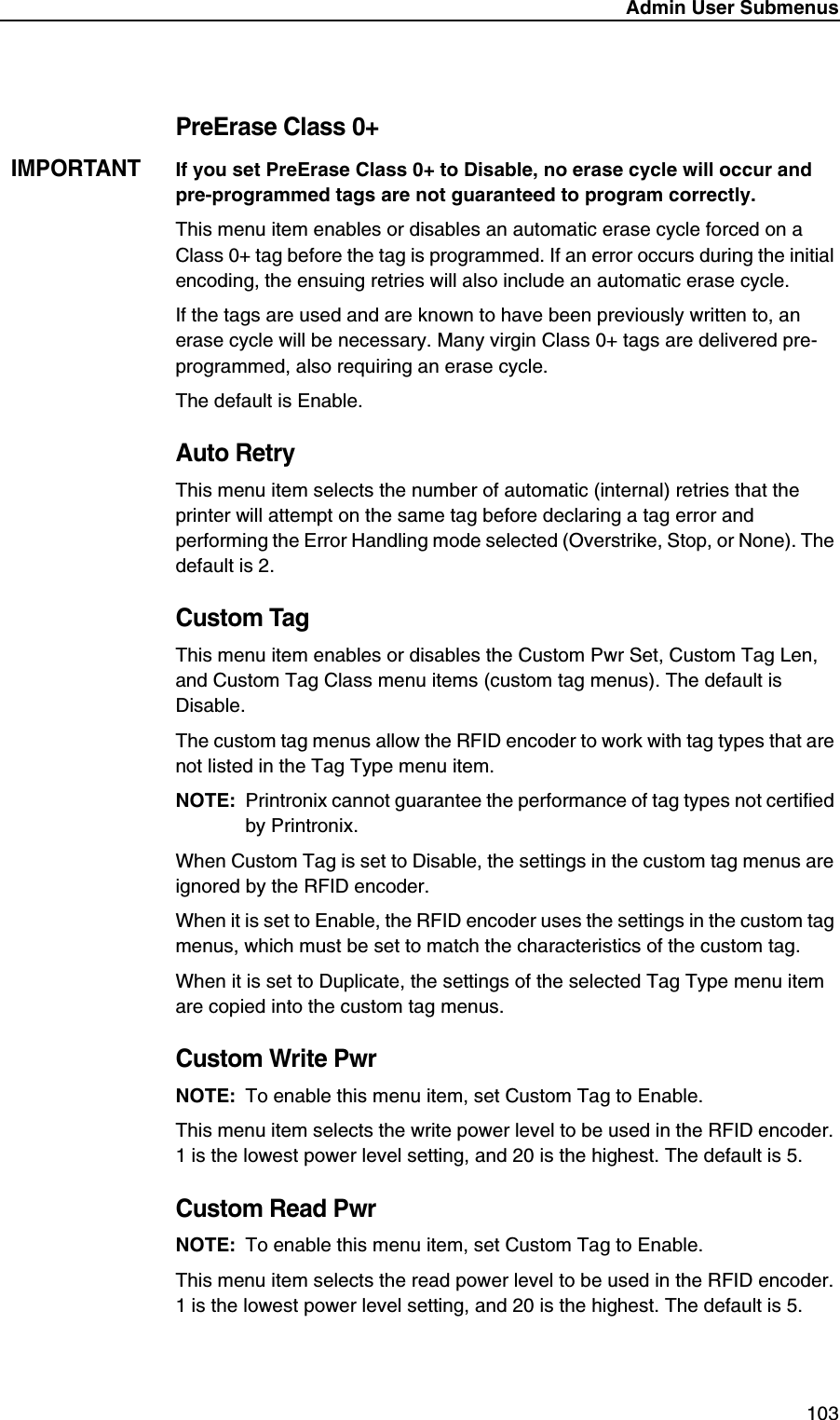
Admin User Submenus103PreErase Class 0+IMPORTANTIf you set PreErase Class 0+ to Disable, no erase cycle will occur and pre-programmed tags are not guaranteed to program correctly.This menu item enables or disables an automatic erase cycle forced on a Class 0+ tag before the tag is programmed. If an error occurs during the initial encoding, the ensuing retries will also include an automatic erase cycle.If the tags are used and are known to have been previously written to, an erase cycle will be necessary. Many virgin Class 0+ tags are delivered pre-programmed, also requiring an erase cycle.The default is Enable.Auto RetryThis menu item selects the number of automatic (internal) retries that the printer will attempt on the same tag before declaring a tag error and performing the Error Handling mode selected (Overstrike, Stop, or None). The default is 2.Custom TagThis menu item enables or disables the Custom Pwr Set, Custom Tag Len, and Custom Tag Class menu items (custom tag menus). The default is Disable.The custom tag menus allow the RFID encoder to work with tag types that are not listed in the Tag Type menu item.NOTE: Printronix cannot guarantee the performance of tag types not certified by Printronix.When Custom Tag is set to Disable, the settings in the custom tag menus are ignored by the RFID encoder.When it is set to Enable, the RFID encoder uses the settings in the custom tag menus, which must be set to match the characteristics of the custom tag.When it is set to Duplicate, the settings of the selected Tag Type menu item are copied into the custom tag menus.Custom Write PwrNOTE: To enable this menu item, set Custom Tag to Enable.This menu item selects the write power level to be used in the RFID encoder. 1 is the lowest power level setting, and 20 is the highest. The default is 5.Custom Read PwrNOTE: To enable this menu item, set Custom Tag to Enable.This menu item selects the read power level to be used in the RFID encoder. 1 is the lowest power level setting, and 20 is the highest. The default is 5.
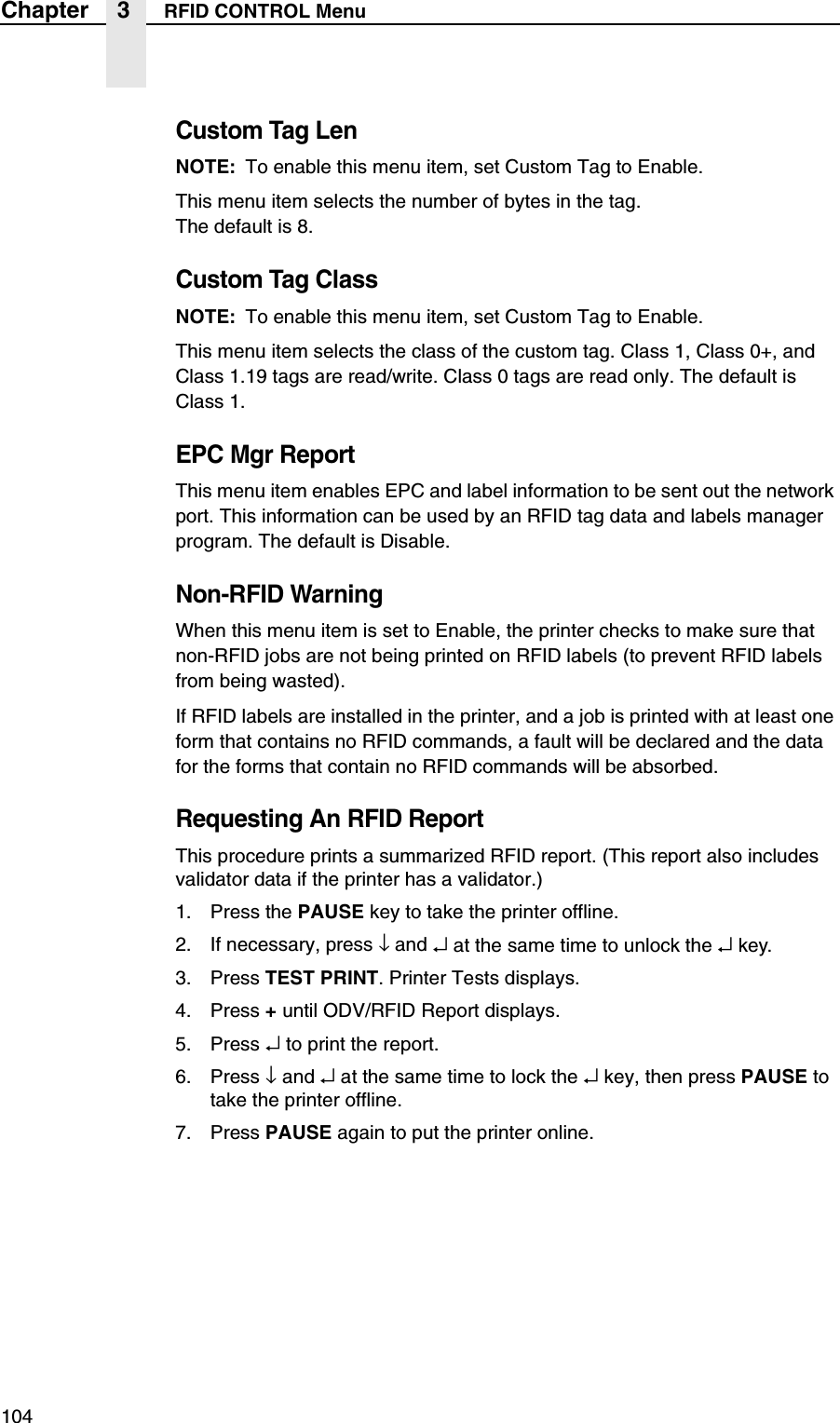
104Chapter 3 RFID CONTROL MenuCustom Tag LenNOTE: To enable this menu item, set Custom Tag to Enable.This menu item selects the number of bytes in the tag.The default is 8.Custom Tag ClassNOTE: To enable this menu item, set Custom Tag to Enable.This menu item selects the class of the custom tag. Class 1, Class 0+, and Class 1.19 tags are read/write. Class 0 tags are read only. The default is Class 1.EPC Mgr ReportThis menu item enables EPC and label information to be sent out the network port. This information can be used by an RFID tag data and labels manager program. The default is Disable.Non-RFID WarningWhen this menu item is set to Enable, the printer checks to make sure that non-RFID jobs are not being printed on RFID labels (to prevent RFID labels from being wasted).If RFID labels are installed in the printer, and a job is printed with at least one form that contains no RFID commands, a fault will be declared and the data for the forms that contain no RFID commands will be absorbed.Requesting An RFID ReportThis procedure prints a summarized RFID report. (This report also includes validator data if the printer has a validator.)1. Press the PAUSE key to take the printer offline.2. If necessary, press ↓ and ↵ at the same time to unlock the ↵key.3. Press TEST PRINT. Printer Tests displays.4. Press + until ODV/RFID Report displays.5. Press ↵ to print the report.6. Press ↓ and ↵ at the same time to lock the ↵ key, then press PAUSE to take the printer offline.7. Press PAUSE again to put the printer online.
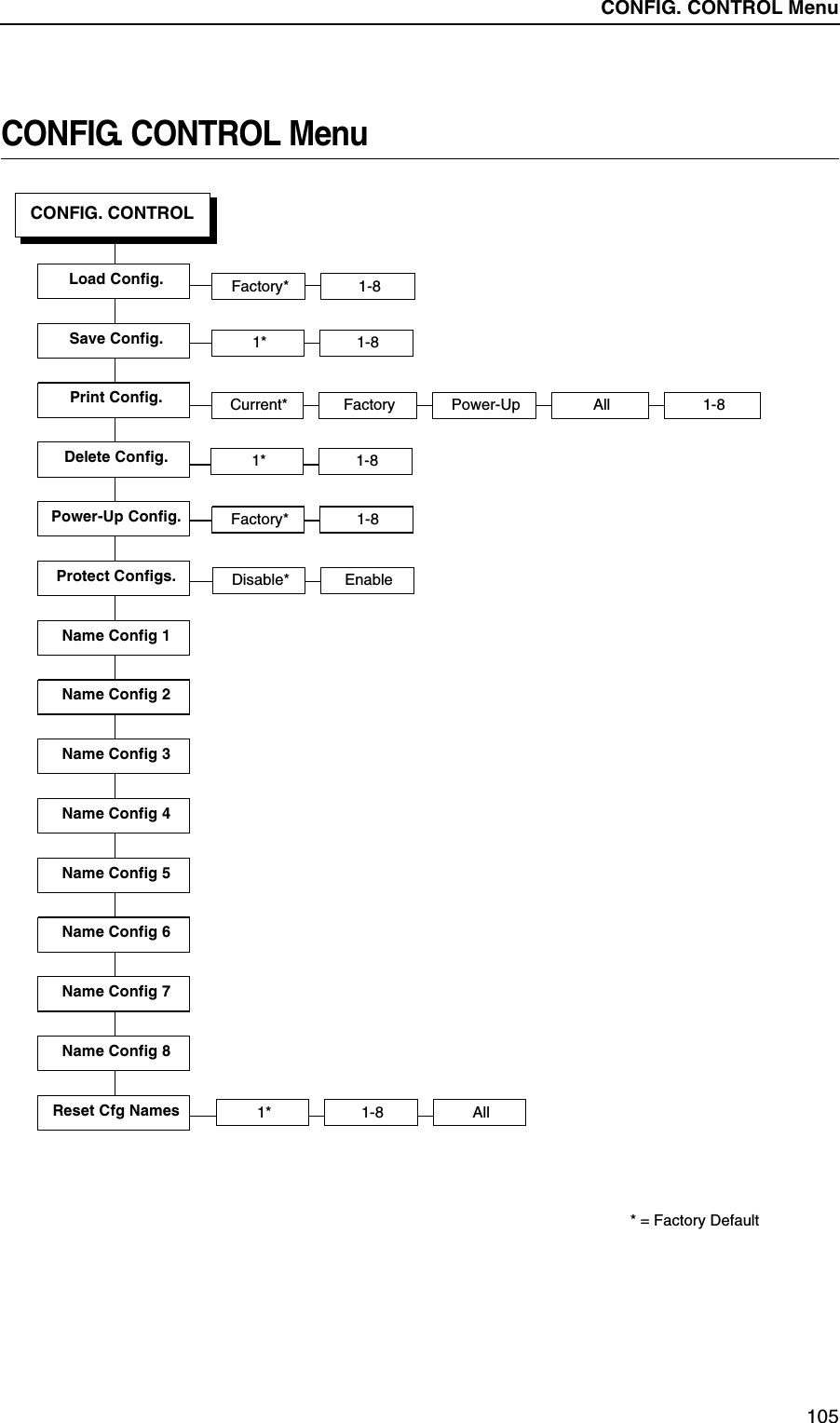
Admin User Submenus105CONFIG. CONTROL MenuCONFIG. CONTROL* = Factory DefaultLoad Config. Factory* 1-81* 1-8Current* Factory Power-Up All 1-8Factory* 1-8Disable* Enable1-8 All1*Save Config.Print Config.Delete Config.Power-Up Config.Name Config 1Protect Configs.Name Config 2Name Config 3Name Config 4Name Config 5Name Config 6Name Config 7Name Config 8Reset Cfg Names1* 1-8CONFIG. CONTROL Menu
106Chapter 3 CONFIG. CONTROL MenuCONFIG. CONTROL SubmenusLoad Config.The printer can store up to eight configurations in memory. This parameter allows you to select and load a specific configuration.The factory default is Factory.Save Config.This option allows you to save up to eight unique configurations to meet different print job requirements. This eliminates the need to change the parameter settings for each new job. The configurations are stored in memory and will not be lost if you turn off the printer. If the Protect Configs. parameter is enabled, the new configuration will not be saved unless the existing configuration has been deleted first. The factory default configuration cannot be changed. See “Saving A Configuration” on page 75 for details.The factory default is 1.Print Config.This option is used to print a listing of various stored printer configurations. We recommend you store printouts of your configurations in a safe place for quick referral.The options are Current (the factory default), Factory, Power-Up, and All.Delete Config.You can delete one or all of your eight customized configurations. The factory default configuration cannot be deleted.The factory default is 1.Power-Up Config.You can specify any one of nine configurations (1-8 saved custom configurations or Factory) as the power-up configuration.The factory default is Factory.Protect Configs.You can specify whether or not a new configuration should overwrite an existing configuration when you activate the Save Configs. parameter. When disabled (default), the new configuration will overwrite the existing configuration. When enabled, the new configuration will not overwrite the existing configuration, and the message “CONFIG. EXISTS / Delete First” displays.The options are Disable (the factory default) and Enable.
CONFIG. CONTROL Submenus107Name Config (1-8)You may specify a 15-character name which can be used to refer to a configuration. The name you enter for a configuration will be used in the Load Config., Save Config., Print Config., Delete Config., and Power-Up Config. menus. The names can only be cleared by using the Reset Cfg Names menu.When you move into the Name Configs. menu, the top line of the display shows the current configuration name. The second line of the display is initially the same as the top line. You can modify the second line of the display without affecting the top line until the ↵ key is pressed, which sets the modified name as the current selection.Press ↑ or ↓ to cycle through the values available for that character at the cursor location. Press + to move to the next character to be modified. Press – to go back to a character you have already modified. Continue until you have entered the name you want to give to this configuration, then press ↵ to save. The name you entered will now represent this configuration on the printer's front panel. To exit this menu without saving, press any key other than ↵. The configuration name will revert to the last saved value.The factory default is 1.Reset Cfg NamesYou can reset specific configuration names back to the default value of the configuration number.The options are 1-8 and All, and the factory default is 1.
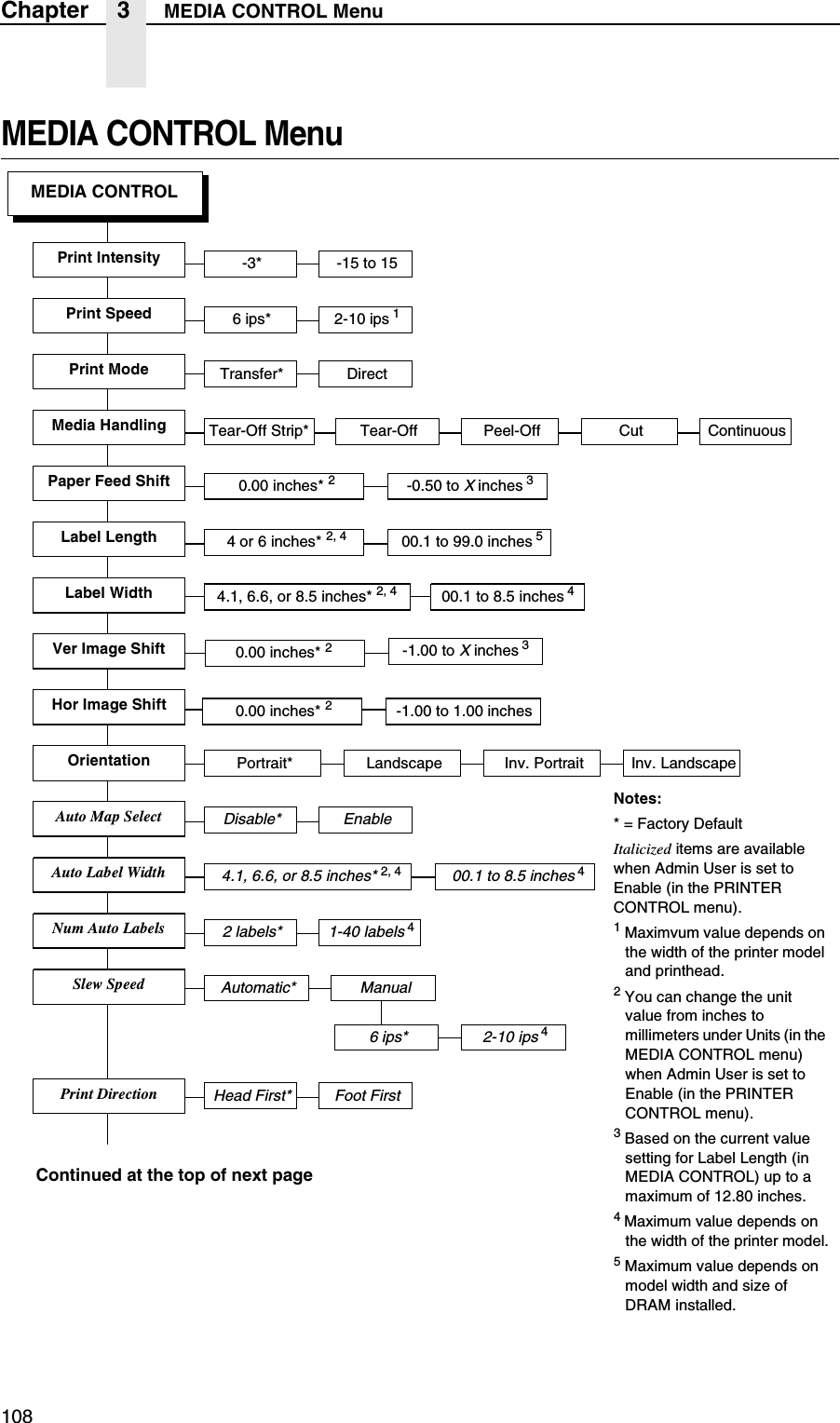
108Chapter 3 MEDIA CONTROL MenuMEDIA CONTROL MenuMEDIA CONTROLPrint Intensity6 ips* 2-10 ips 1Tear-Off Strip* Tear-Off Peel-Off CutPrint SpeedPrint ModeMedia HandlingPaper Feed ShiftLabel WidthLabel LengthVer Image ShiftHor Image ShiftOrientationAuto Map SelectAuto Label WidthNum Auto LabelsSlew SpeedTransfer* DirectDisable* Enable4.1, 6.6, or 8.5 inches* 2, 4Portrait* Landscape Inv. Portrait Inv. Landscape2 labels* 1-40 labels 400.1 to 8.5 inches 44.1, 6.6, or 8.5 inches* 2, 4Continued at the top of next page-3* -15 to 15Notes:* = Factory DefaultItalicized items are available when Admin User is set to Enable (in the PRINTER CONTROL menu).1 Maximvum value depends on the width of the printer model and printhead.2 You can change the unit value from inches to millimeters under Units (in the MEDIA CONTROL menu) when Admin User is set to Enable (in the PRINTER CONTROL menu).3 Based on the current value setting for Label Length (in MEDIA CONTROL) up to a maximum of 12.80 inches.4 Maximum value depends on the width of the printer model.5 Maximum value depends on model width and size of DRAM installed.0.00 inches* 2-1.00 to 1.00 inches 0.00 inches* 2-1.00 to X inches 300.1 to 8.5 inches 40.00 inches* 24 or 6 inches* 2, 4 00.1 to 99.0 inches 5-0.50 to X inches 3ManualAutomatic*Continuous2-10 ips 46 ips*Foot FirstHead First*Print Direction
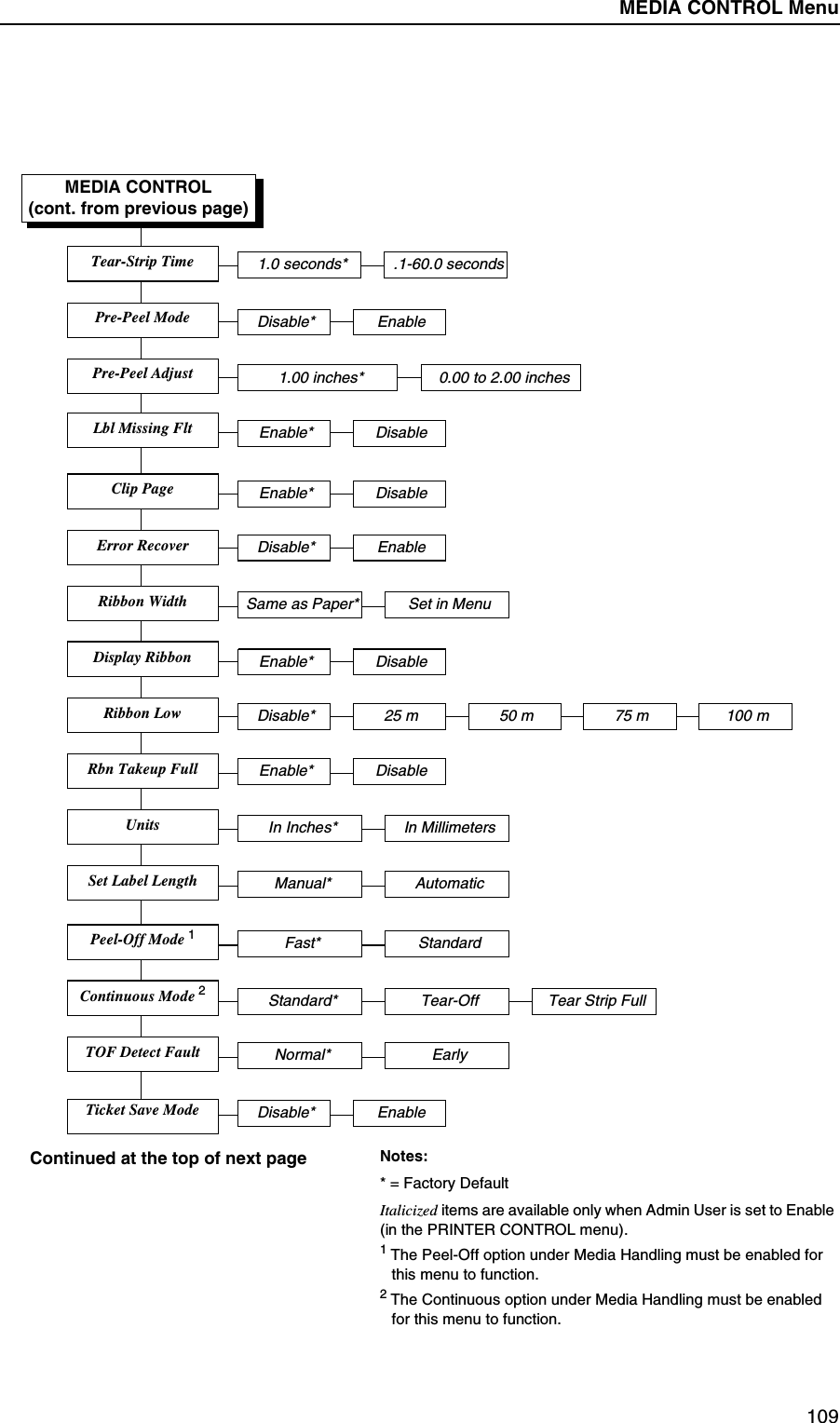
CONFIG. CONTROL Submenus109MEDIA CONTROL(cont. from previous page)Pre-Peel ModePre-Peel AdjustClip PageError RecoverRibbon WidthDisplay RibbonRibbon LowRbn Takeup FullUnitsEnable* DisableEnable* DisableDisable* Enable0.00 to 2.00 inches1.00 inches* Disable* EnableSame as Paper* Set in MenuEnable* DisableDisable* 25 m 50 m 75 m 100 mIn Inches* In MillimetersNotes:* = Factory DefaultItalicized items are available only when Admin User is set to Enable (in the PRINTER CONTROL menu).1 The Peel-Off option under Media Handling must be enabled for this menu to function.2 The Continuous option under Media Handling must be enabled for this menu to function.Set Label LengthManual* AutomaticPeel-Off Mode 1Fast* StandardContinuous Mode 2Standard* Tear-OffTOF Detect FaultNormal* EarlyTear Strip FullTear-Strip Time.1-60.0 seconds1.0 seconds*Lbl Missing FltEnable* DisableTicket Save ModeDisable* EnableContinued at the top of next pageMEDIA CONTROL Menu
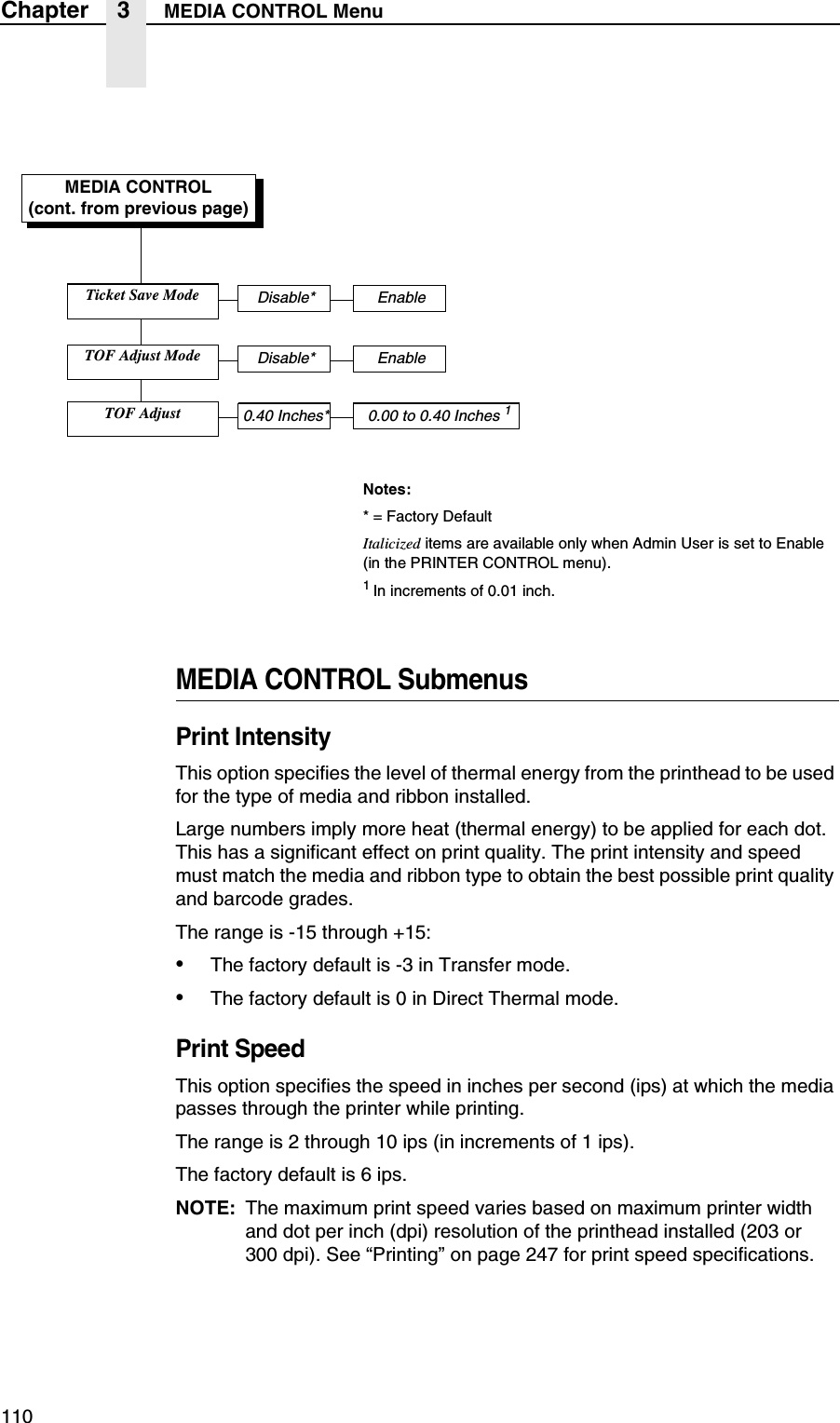
110Chapter 3 MEDIA CONTROL MenuMEDIA CONTROL SubmenusPrint IntensityThis option specifies the level of thermal energy from the printhead to be used for the type of media and ribbon installed.Large numbers imply more heat (thermal energy) to be applied for each dot. This has a significant effect on print quality. The print intensity and speed must match the media and ribbon type to obtain the best possible print quality and barcode grades.The range is -15 through +15:•The factory default is -3 in Transfer mode.•The factory default is 0 in Direct Thermal mode.Print SpeedThis option specifies the speed in inches per second (ips) at which the media passes through the printer while printing.The range is 2 through 10 ips (in increments of 1 ips).The factory default is 6 ips.NOTE: The maximum print speed varies based on maximum printer width and dot per inch (dpi) resolution of the printhead installed (203 or300 dpi). See “Printing” on page 247 for print speed specifications.MEDIA CONTROL(cont. from previous page)Notes:* = Factory DefaultItalicized items are available only when Admin User is set to Enable (in the PRINTER CONTROL menu).1 In increments of 0.01 inch.Ticket Save ModeDisable* EnableTOF Adjust ModeDisable* EnableTOF Adjust0.40 Inches* 0.00 to 0.40 Inches 1
MEDIA CONTROL Submenus111Print ModeThis option specifies the type of printing to be done.•Transfer. Indicates Thermal Transfer printing (ribbon installed).•Direct. Indicates Direct Thermal printing (no ribbon) and requires special heat sensitive media.The factory default is Transfer.Media HandlingThis option specifies how the printer will handle the media (labels or tag stock).•Tear-Off. After each label is printed, the printer positions the label over the tear bar and waits for you to tear off the label before printing the next one (on-demand printing). A “Remove Label” message will display to remind you to remove the label before the next one can be printed.Paper Feed ShiftThis option represents the distance to advance (+ shift) or pull back (– shift) the stop position of a label when Tear-Off Strip, Tear-Off, Peel-Off, or Cut media handling option is enabled. The allowable range is -0.50 inches to the current Label Length value setting, up to a maximum of 12.80 inches, in .01 inch increments.The factory default is 0.00 inches.Label LengthThis option specifies the user-selected Label Length in inches or millimeters. In most applications, the user-selected Label Length will match the physical label length. Physical label length is the actual label length of the media installed.When setting label length, consider the following:Label Length can be manually entered via the control panel MEDIA CONTROL menu or sent via host computer using the appropriate software command.A Host Forms Length (Label Length) value sent from the host computer will override and change the manually entered Label Length value in the MEDIA CONTROL menu.•Physical Label Length is the actual measurable length of the label. The following list of different media types explains how the physical label lengths are determined:•Die-cut labels – measurable length of the removable label (leading edge to trailing edge). This does not include the liner material or gap.•Tag Stock with notches or holes – measurable length from the trailing edge of one notch or hole to the leading edge of the next notch or hole.
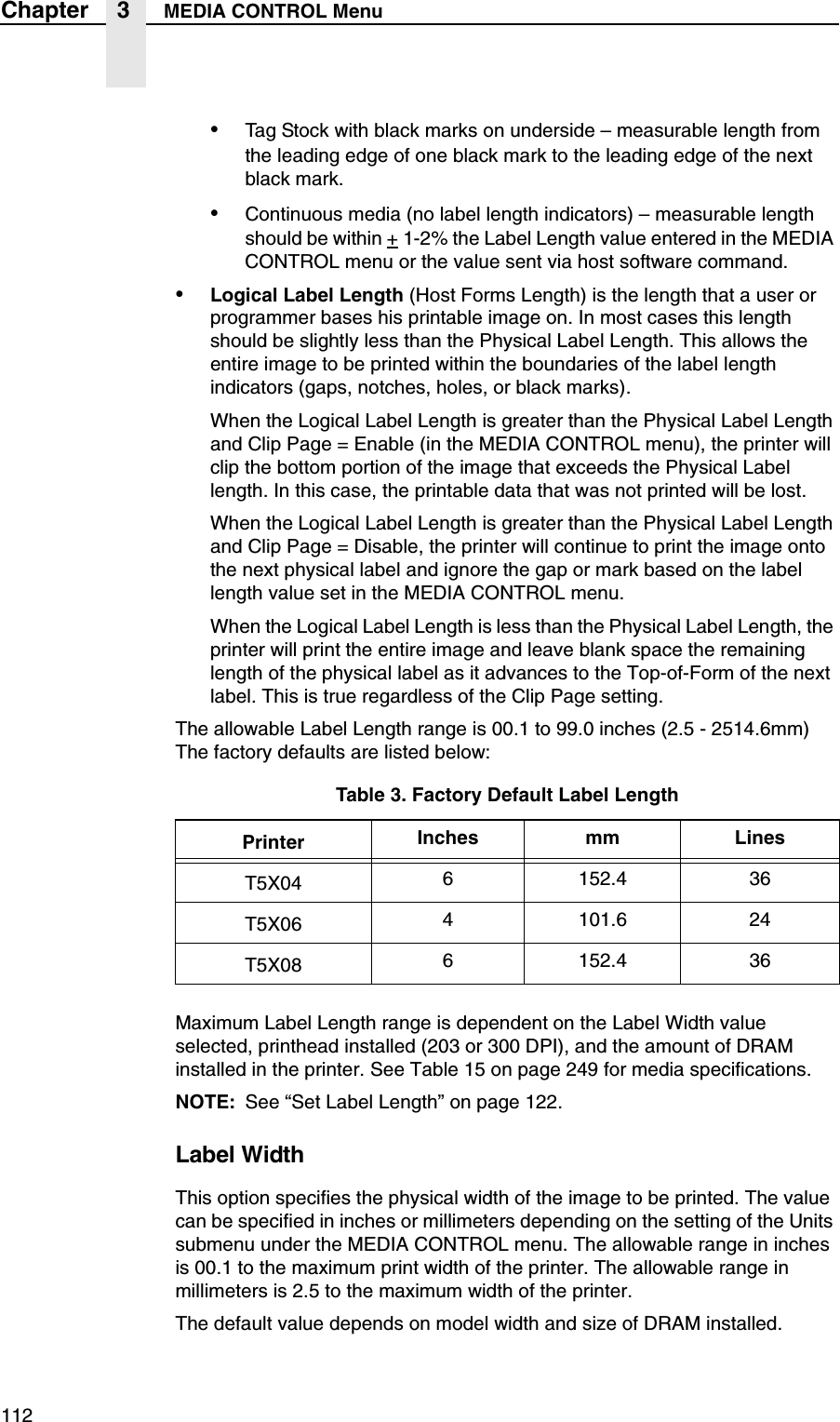
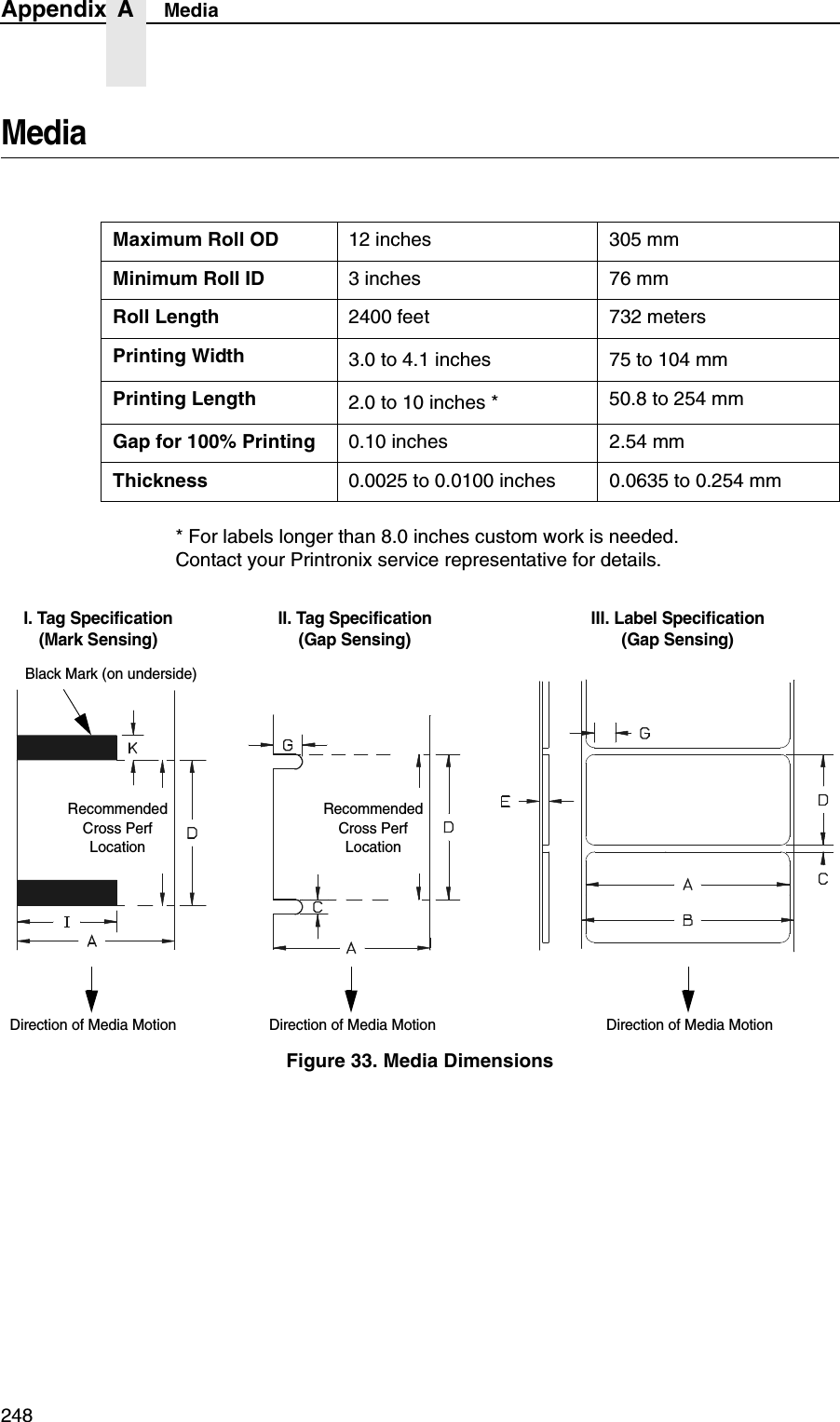
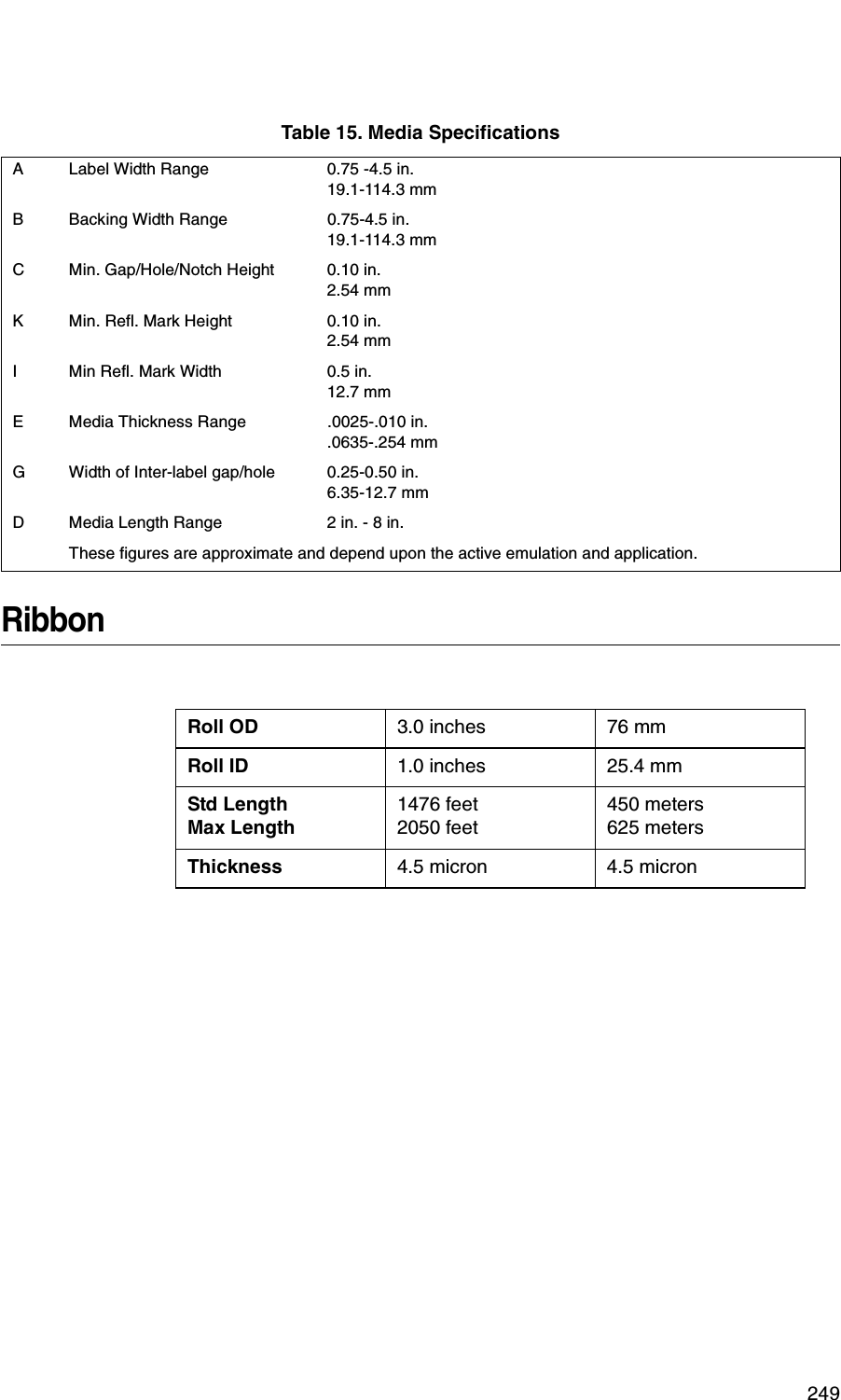
112Chapter 3 MEDIA CONTROL Menu•Tag Stock with black marks on underside – measurable length from the leading edge of one black mark to the leading edge of the next black mark.•Continuous media (no label length indicators) – measurable length should be within + 1-2% the Label Length value entered in the MEDIA CONTROL menu or the value sent via host software command.•Logical Label Length (Host Forms Length) is the length that a user or programmer bases his printable image on. In most cases this length should be slightly less than the Physical Label Length. This allows the entire image to be printed within the boundaries of the label length indicators (gaps, notches, holes, or black marks).When the Logical Label Length is greater than the Physical Label Length and Clip Page = Enable (in the MEDIA CONTROL menu), the printer will clip the bottom portion of the image that exceeds the Physical Label length. In this case, the printable data that was not printed will be lost.When the Logical Label Length is greater than the Physical Label Length and Clip Page = Disable, the printer will continue to print the image onto the next physical label and ignore the gap or mark based on the label length value set in the MEDIA CONTROL menu.When the Logical Label Length is less than the Physical Label Length, the printer will print the entire image and leave blank space the remaining length of the physical label as it advances to the Top-of-Form of the next label. This is true regardless of the Clip Page setting.The allowable Label Length range is 00.1 to 99.0 inches (2.5 - 2514.6mm) The factory defaults are listed below:Maximum Label Length range is dependent on the Label Width value selected, printhead installed (203 or 300 DPI), and the amount of DRAM installed in the printer. See Table 15 on page 249 for media specifications.NOTE: See “Set Label Length” on page 122.Label WidthThis option specifies the physical width of the image to be printed. The value can be specified in inches or millimeters depending on the setting of the Units submenu under the MEDIA CONTROL menu. The allowable range in inches is 00.1 to the maximum print width of the printer. The allowable range in millimeters is 2.5 to the maximum width of the printer.The default value depends on model width and size of DRAM installed.Table 3. Factory Default Label LengthPrinter Inches mm LinesT5X04 6 152.4 36T5X06 4 101.6 24T5X08 6 152.4 36
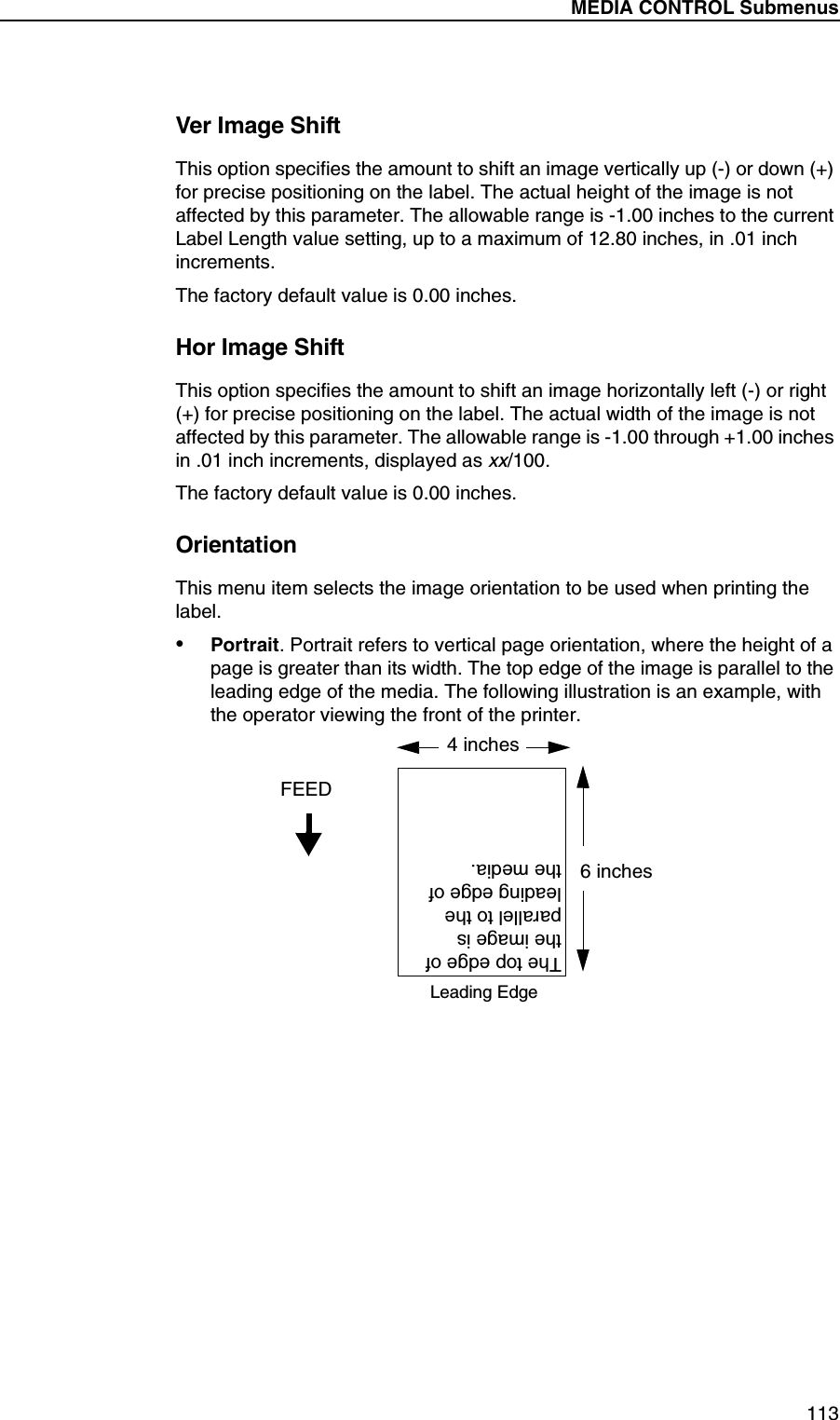
MEDIA CONTROL Submenus113Ver Image ShiftThis option specifies the amount to shift an image vertically up (-) or down (+) for precise positioning on the label. The actual height of the image is not affected by this parameter. The allowable range is -1.00 inches to the current Label Length value setting, up to a maximum of 12.80 inches, in .01 inch increments.The factory default value is 0.00 inches.Hor Image ShiftThis option specifies the amount to shift an image horizontally left (-) or right (+) for precise positioning on the label. The actual width of the image is not affected by this parameter. The allowable range is -1.00 through +1.00 inches in .01 inch increments, displayed as xx/100.The factory default value is 0.00 inches.OrientationThis menu item selects the image orientation to be used when printing the label.•Portrait. Portrait refers to vertical page orientation, where the height of a page is greater than its width. The top edge of the image is parallel to the leading edge of the media. The following illustration is an example, with the operator viewing the front of the printer.4 inches6 inchesFEEDThe top edge of the image is parallel to the leading edge of the media.Leading Edge
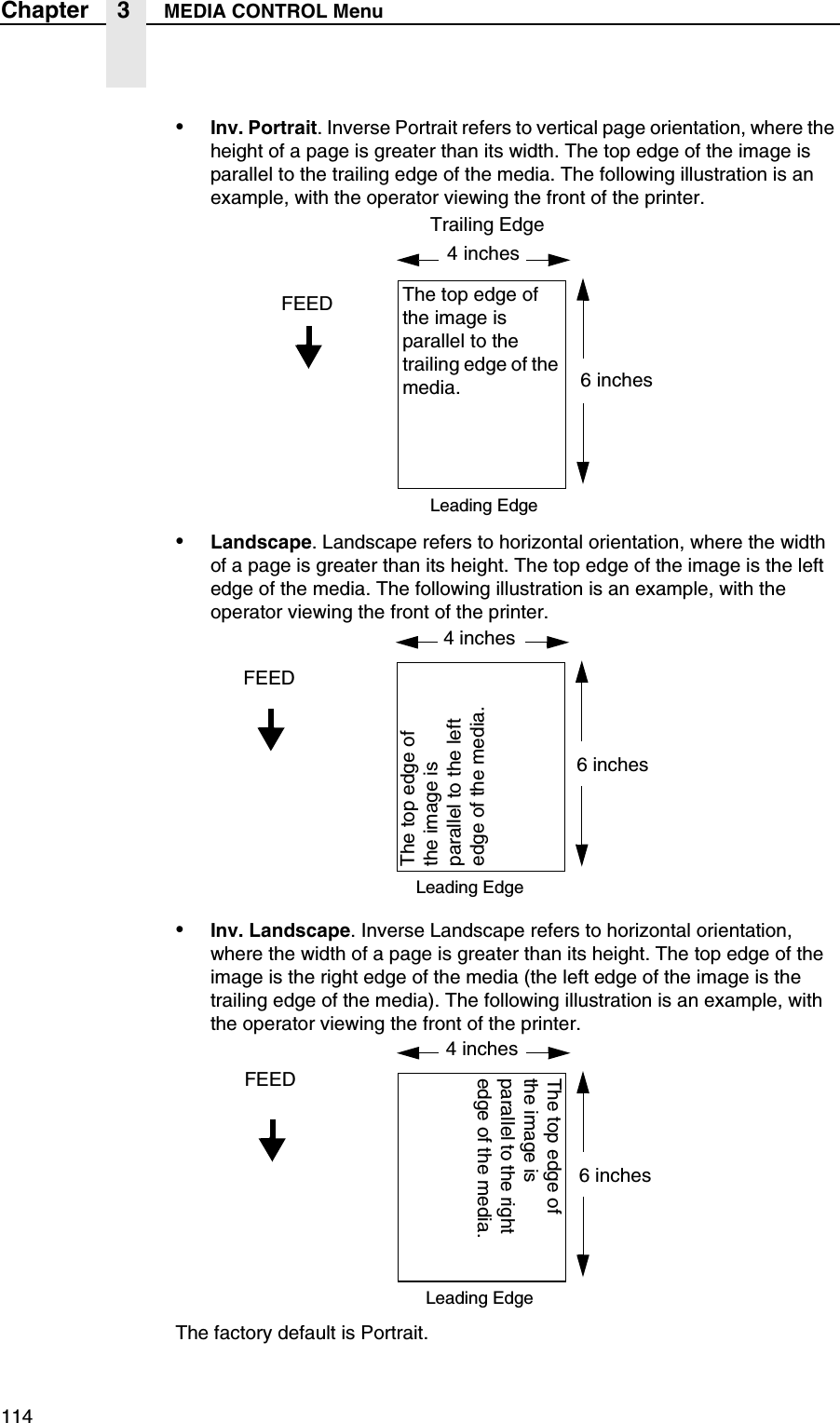
114Chapter 3 MEDIA CONTROL Menu•Inv. Portrait. Inverse Portrait refers to vertical page orientation, where the height of a page is greater than its width. The top edge of the image is parallel to the trailing edge of the media. The following illustration is an example, with the operator viewing the front of the printer.•Landscape. Landscape refers to horizontal orientation, where the width of a page is greater than its height. The top edge of the image is the left edge of the media. The following illustration is an example, with the operator viewing the front of the printer.•Inv. Landscape. Inverse Landscape refers to horizontal orientation, where the width of a page is greater than its height. The top edge of the image is the right edge of the media (the left edge of the image is the trailing edge of the media). The following illustration is an example, with the operator viewing the front of the printer.The factory default is Portrait.FEED The top edge of the image is parallel to the trailing edge of the media.Leading EdgeTrailing Edge4 inches6 inchesFEEDThe top edge of the image is parallel to the left edge of the media.Leading Edge4 inches6 inchesFEEDThe top edge of the image is parallel to the right edge of the media.Leading Edge4 inches6 inches
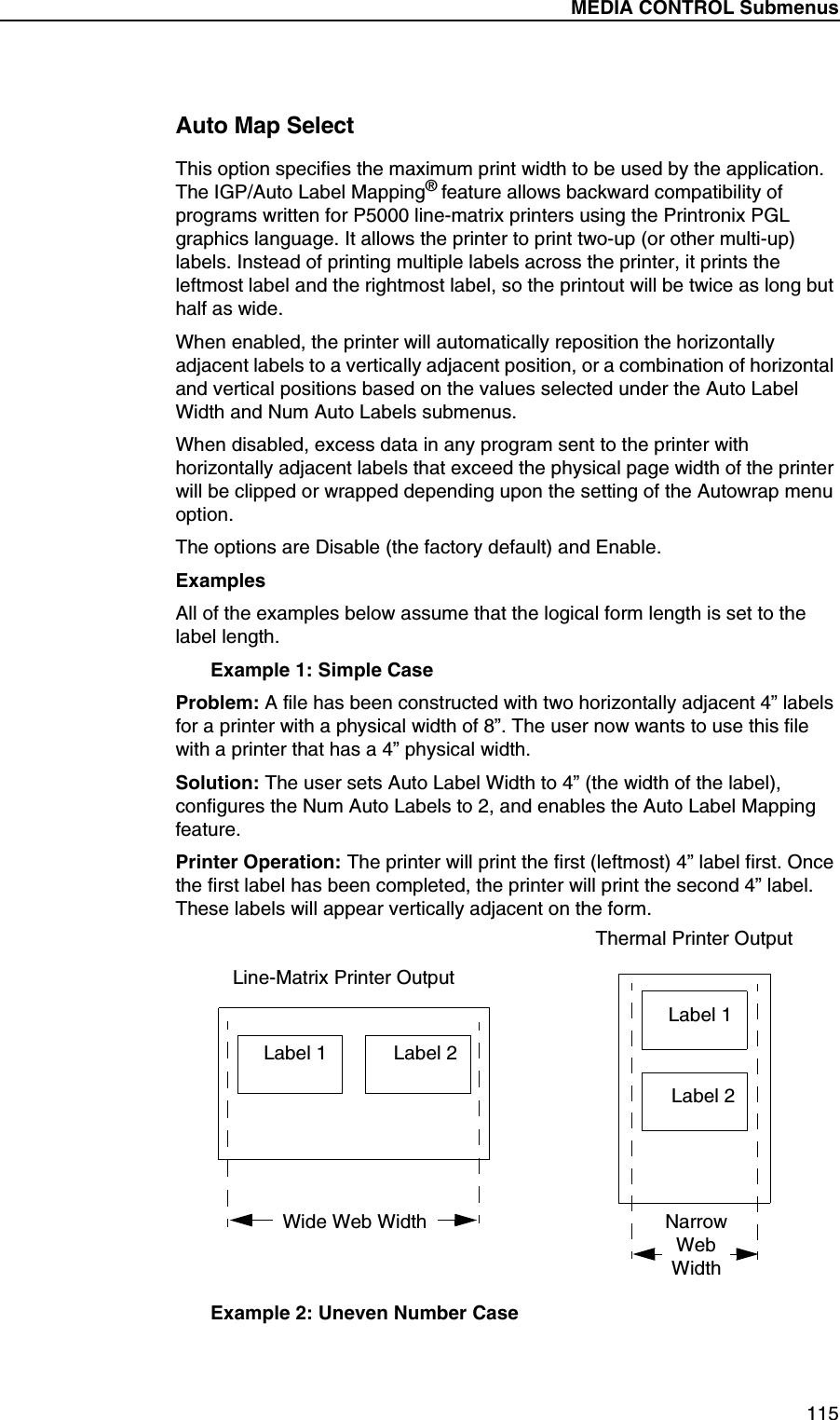
MEDIA CONTROL Submenus115Auto Map SelectThis option specifies the maximum print width to be used by the application. The IGP/Auto Label Mapping® feature allows backward compatibility of programs written for P5000 line-matrix printers using the Printronix PGL graphics language. It allows the printer to print two-up (or other multi-up) labels. Instead of printing multiple labels across the printer, it prints the leftmost label and the rightmost label, so the printout will be twice as long but half as wide.When enabled, the printer will automatically reposition the horizontally adjacent labels to a vertically adjacent position, or a combination of horizontal and vertical positions based on the values selected under the Auto Label Width and Num Auto Labels submenus.When disabled, excess data in any program sent to the printer with horizontally adjacent labels that exceed the physical page width of the printer will be clipped or wrapped depending upon the setting of the Autowrap menu option.The options are Disable (the factory default) and Enable.ExamplesAll of the examples below assume that the logical form length is set to the label length.Example 1: Simple CaseProblem: A file has been constructed with two horizontally adjacent 4” labels for a printer with a physical width of 8”. The user now wants to use this file with a printer that has a 4” physical width.Solution: The user sets Auto Label Width to 4” (the width of the label), configures the Num Auto Labels to 2, and enables the Auto Label Mapping feature.Printer Operation: The printer will print the first (leftmost) 4” label first. Once the first label has been completed, the printer will print the second 4” label. These labels will appear vertically adjacent on the form.Example 2: Uneven Number CaseLabel 1 Label 2Label 1Label 2Line-Matrix Printer OutputThermal Printer OutputWide Web Width NarrowWebWidth
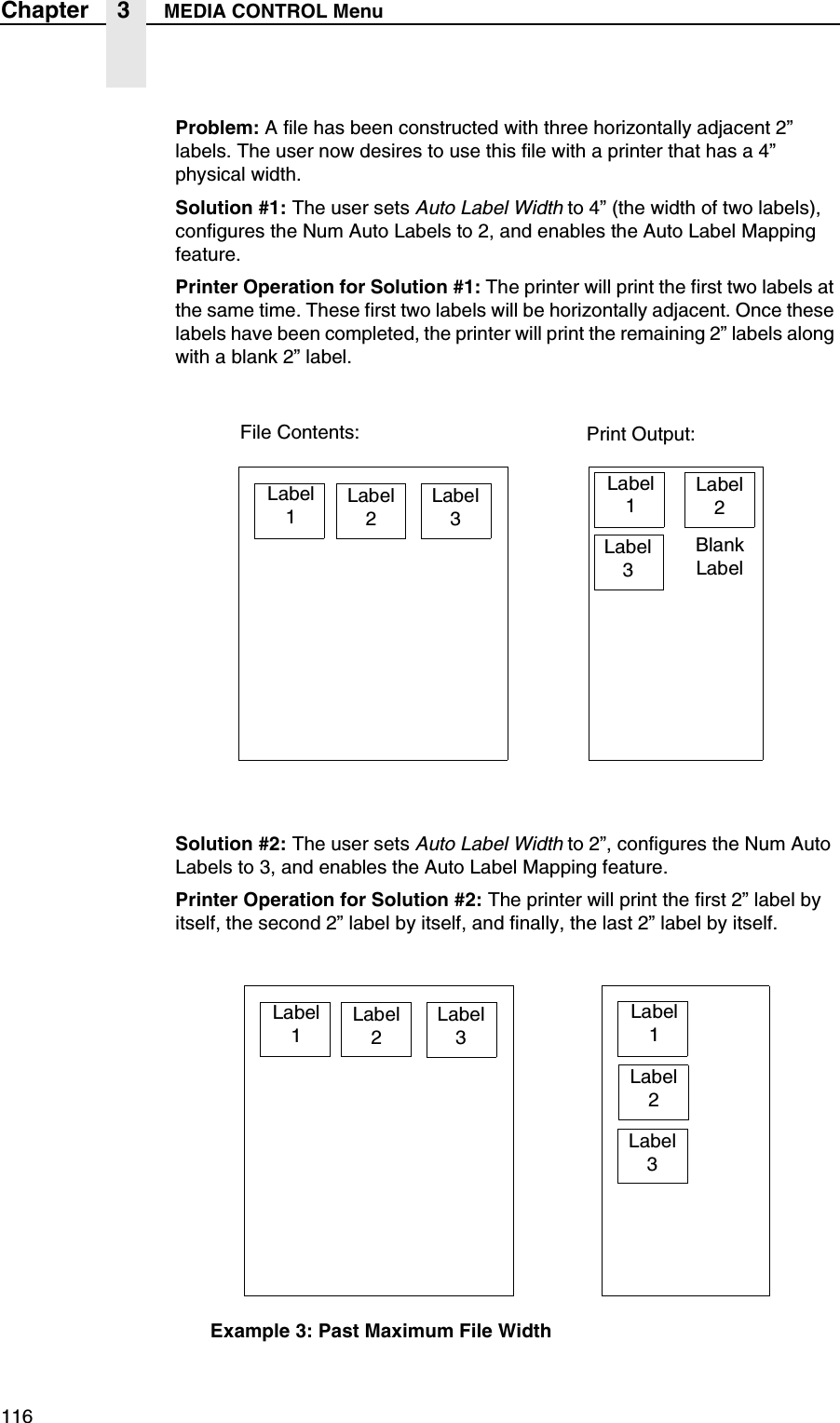
116Chapter 3 MEDIA CONTROL MenuProblem: A file has been constructed with three horizontally adjacent 2” labels. The user now desires to use this file with a printer that has a 4” physical width.Solution #1: The user sets Auto Label Width to 4” (the width of two labels), configures the Num Auto Labels to 2, and enables the Auto Label Mapping feature.Printer Operation for Solution #1: The printer will print the first two labels at the same time. These first two labels will be horizontally adjacent. Once these labels have been completed, the printer will print the remaining 2” labels along with a blank 2” label.Solution #2: The user sets Auto Label Width to 2”, configures the Num Auto Labels to 3, and enables the Auto Label Mapping feature.Printer Operation for Solution #2: The printer will print the first 2” label by itself, the second 2” label by itself, and finally, the last 2” label by itself.Example 3: Past Maximum File WidthLabel1Label2Label3Label1Label2Label3BlankLabelFile Contents: Print Output:Label1Label2Label3Label1Label2Label3
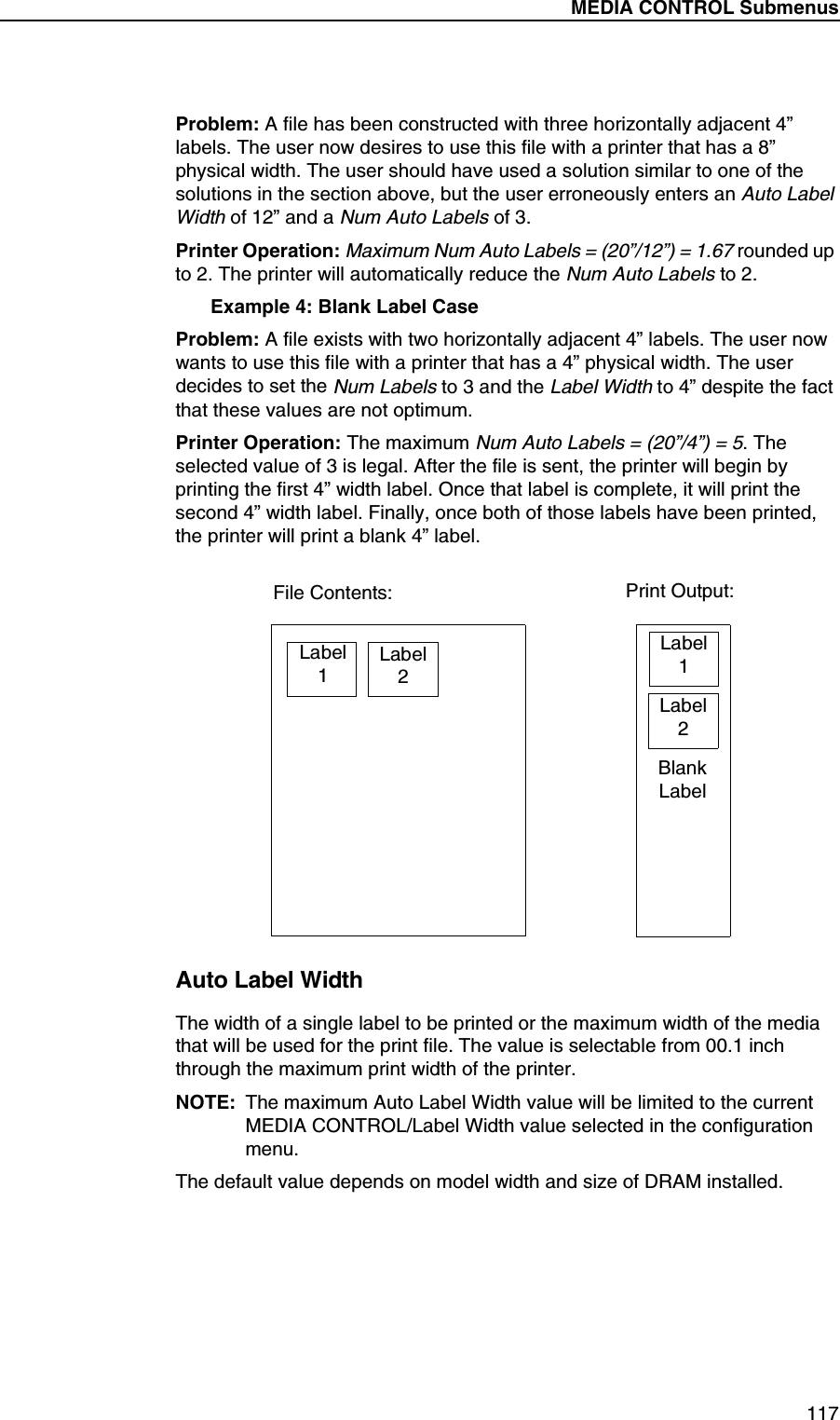
MEDIA CONTROL Submenus117Problem: A file has been constructed with three horizontally adjacent 4” labels. The user now desires to use this file with a printer that has a 8” physical width. The user should have used a solution similar to one of the solutions in the section above, but the user erroneously enters an Auto Label Width of 12” and a Num Auto Labels of 3.Printer Operation: Maximum Num Auto Labels = (20”/12”) = 1.67 rounded up to 2. The printer will automatically reduce the Num Auto Labels to 2.Example 4: Blank Label CaseProblem: A file exists with two horizontally adjacent 4” labels. The user now wants to use this file with a printer that has a 4” physical width. The user decides to set the Num Labels to 3 and the Label Width to 4” despite the fact that these values are not optimum.Printer Operation: The maximum Num Auto Labels = (20”/4”) = 5. The selected value of 3 is legal. After the file is sent, the printer will begin by printing the first 4” width label. Once that label is complete, it will print the second 4” width label. Finally, once both of those labels have been printed, the printer will print a blank 4” label.Auto Label WidthThe width of a single label to be printed or the maximum width of the media that will be used for the print file. The value is selectable from 00.1 inch through the maximum print width of the printer.NOTE: The maximum Auto Label Width value will be limited to the current MEDIA CONTROL/Label Width value selected in the configuration menu.The default value depends on model width and size of DRAM installed.Label1Label2Label1Label2File Contents: Print Output:BlankLabel
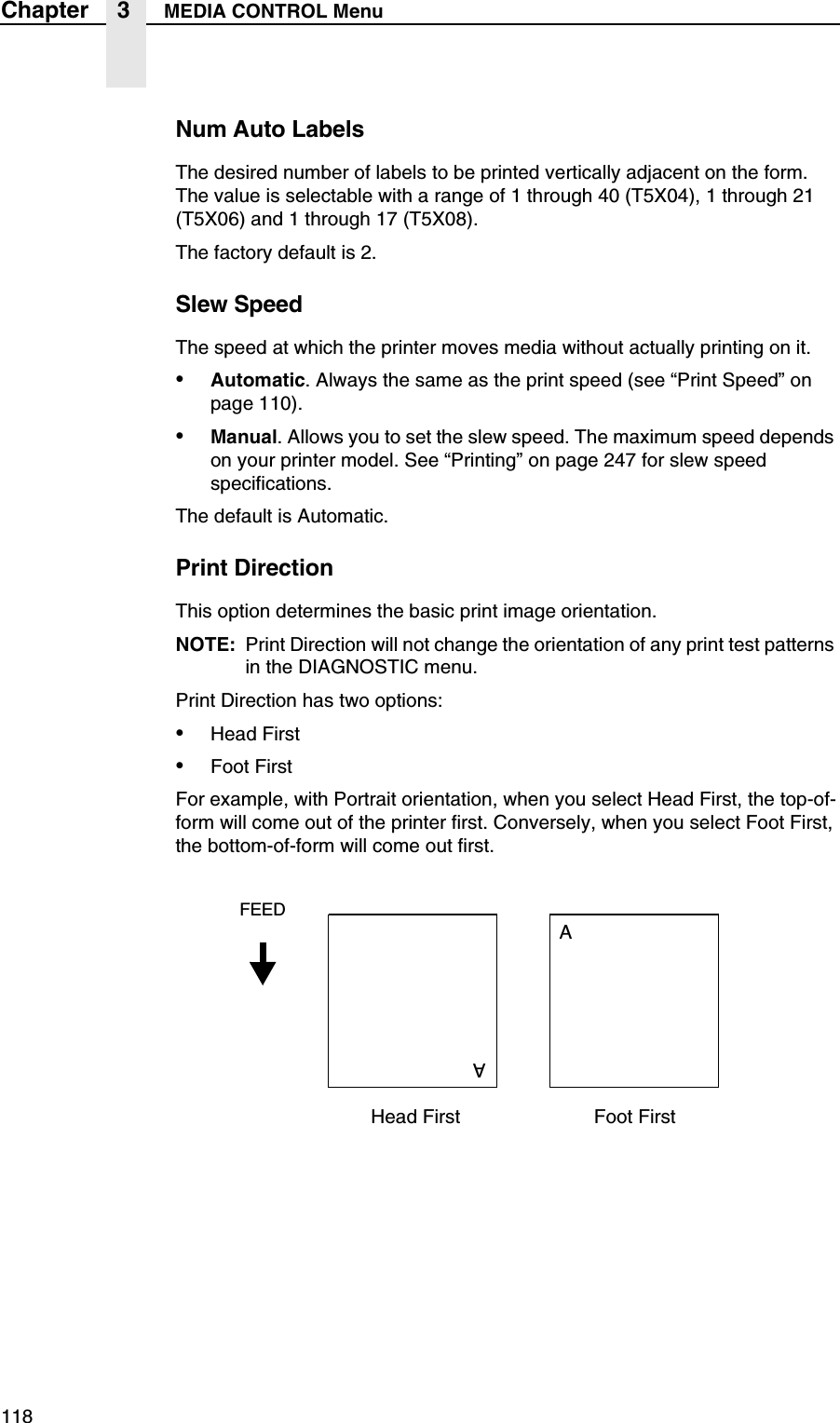
118Chapter 3 MEDIA CONTROL MenuNum Auto LabelsThe desired number of labels to be printed vertically adjacent on the form. The value is selectable with a range of 1 through 40 (T5X04), 1 through 21 (T5X06) and 1 through 17 (T5X08).The factory default is 2.Slew SpeedThe speed at which the printer moves media without actually printing on it.•Automatic. Always the same as the print speed (see “Print Speed” on page 110).•Manual. Allows you to set the slew speed. The maximum speed depends on your printer model. See “Printing” on page 247 for slew speed specifications.The default is Automatic.Print DirectionThis option determines the basic print image orientation.NOTE: Print Direction will not change the orientation of any print test patterns in the DIAGNOSTIC menu.Print Direction has two options:•Head First•Foot FirstFor example, with Portrait orientation, when you select Head First, the top-of-form will come out of the printer first. Conversely, when you select Foot First, the bottom-of-form will come out first.Head FirstFEEDAAFoot First
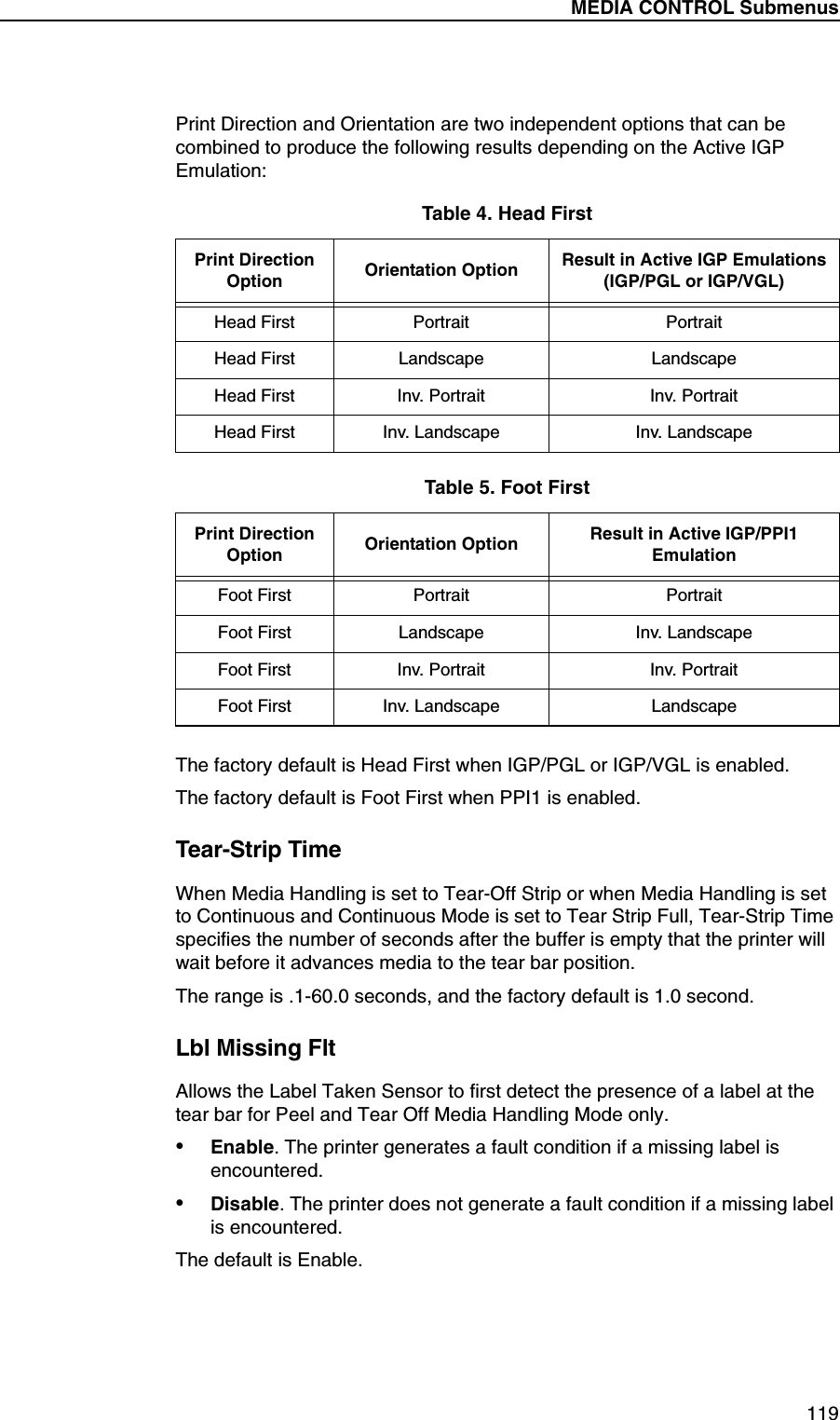
MEDIA CONTROL Submenus119Print Direction and Orientation are two independent options that can be combined to produce the following results depending on the Active IGP Emulation:The factory default is Head First when IGP/PGL or IGP/VGL is enabled.The factory default is Foot First when PPI1 is enabled.Tear-Strip TimeWhen Media Handling is set to Tear-Off Strip or when Media Handling is set to Continuous and Continuous Mode is set to Tear Strip Full, Tear-Strip Time specifies the number of seconds after the buffer is empty that the printer will wait before it advances media to the tear bar position.The range is .1-60.0 seconds, and the factory default is 1.0 second.Lbl Missing FltAllows the Label Taken Sensor to first detect the presence of a label at the tear bar for Peel and Tear Off Media Handling Mode only.•Enable. The printer generates a fault condition if a missing label is encountered.•Disable. The printer does not generate a fault condition if a missing label is encountered.The default is Enable.Table 4. Head FirstPrint DirectionOption Orientation Option Result in Active IGP Emulations(IGP/PGL or IGP/VGL)Head First Portrait PortraitHead First Landscape LandscapeHead First Inv. Portrait Inv. PortraitHead First Inv. Landscape Inv. LandscapeTable 5. Foot FirstPrint DirectionOption Orientation Option Result in Active IGP/PPI1 Emulation Foot First Portrait PortraitFoot First Landscape Inv. LandscapeFoot First Inv. Portrait Inv. PortraitFoot First Inv. Landscape Landscape
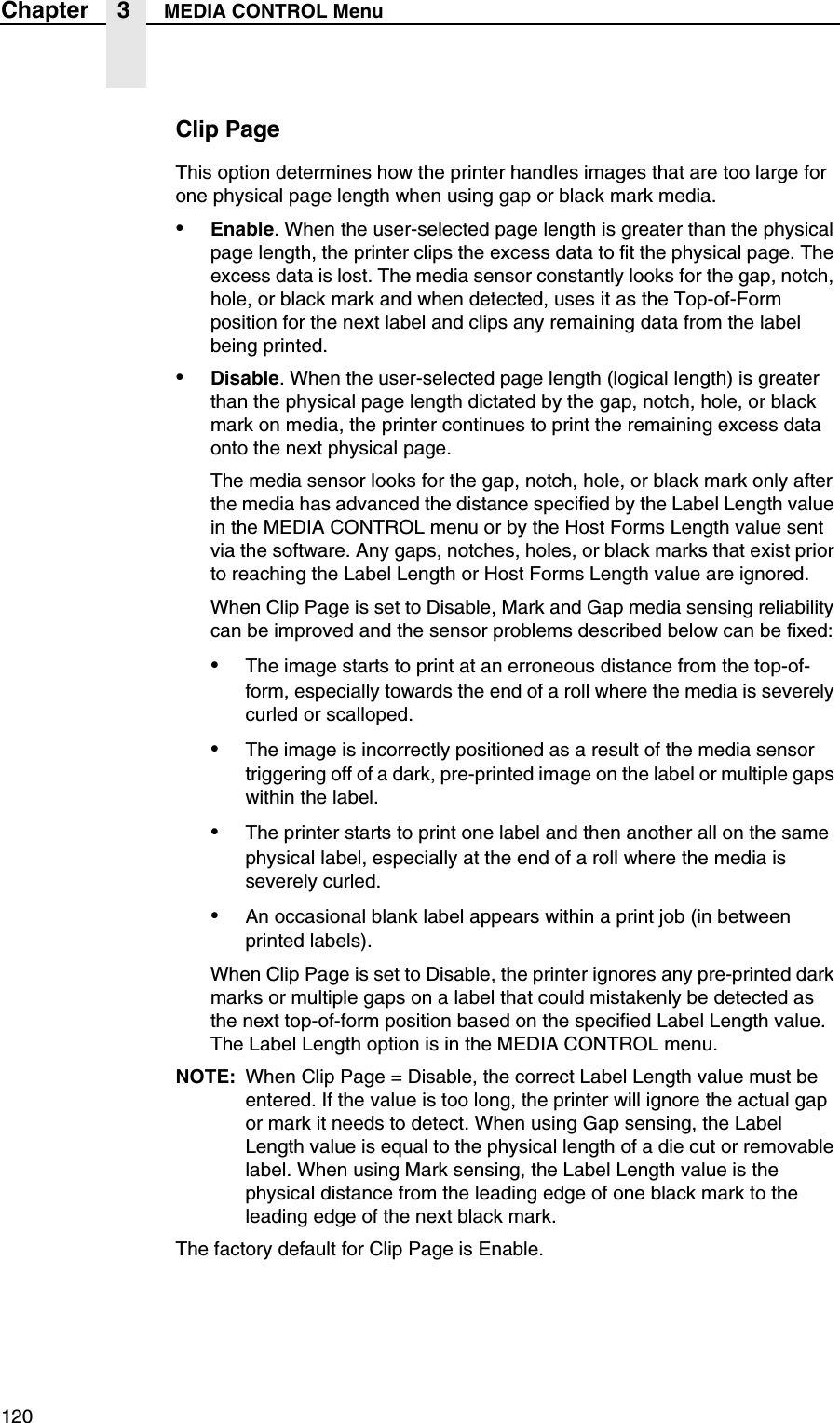
120Chapter 3 MEDIA CONTROL MenuClip PageThis option determines how the printer handles images that are too large for one physical page length when using gap or black mark media.•Enable. When the user-selected page length is greater than the physical page length, the printer clips the excess data to fit the physical page. The excess data is lost. The media sensor constantly looks for the gap, notch, hole, or black mark and when detected, uses it as the Top-of-Form position for the next label and clips any remaining data from the label being printed.•Disable. When the user-selected page length (logical length) is greater than the physical page length dictated by the gap, notch, hole, or black mark on media, the printer continues to print the remaining excess data onto the next physical page.The media sensor looks for the gap, notch, hole, or black mark only after the media has advanced the distance specified by the Label Length value in the MEDIA CONTROL menu or by the Host Forms Length value sent via the software. Any gaps, notches, holes, or black marks that exist prior to reaching the Label Length or Host Forms Length value are ignored.When Clip Page is set to Disable, Mark and Gap media sensing reliability can be improved and the sensor problems described below can be fixed:•The image starts to print at an erroneous distance from the top-of-form, especially towards the end of a roll where the media is severely curled or scalloped.•The image is incorrectly positioned as a result of the media sensor triggering off of a dark, pre-printed image on the label or multiple gaps within the label.•The printer starts to print one label and then another all on the same physical label, especially at the end of a roll where the media is severely curled.•An occasional blank label appears within a print job (in between printed labels).When Clip Page is set to Disable, the printer ignores any pre-printed dark marks or multiple gaps on a label that could mistakenly be detected as the next top-of-form position based on the specified Label Length value. The Label Length option is in the MEDIA CONTROL menu.NOTE: When Clip Page = Disable, the correct Label Length value must be entered. If the value is too long, the printer will ignore the actual gap or mark it needs to detect. When using Gap sensing, the Label Length value is equal to the physical length of a die cut or removable label. When using Mark sensing, the Label Length value is the physical distance from the leading edge of one black mark to the leading edge of the next black mark.The factory default for Clip Page is Enable.
MEDIA CONTROL Submenus121Error RecoverThis option determines how the printer handles data that was printing when an error occurred.•Disable. The printer will not reprint the label that was printing when the error condition occurred.•Enable. The printer reprints the label that was printing when the error condition occurred.The factory default is Disable.Ribbon WidthWhen Same As Paper is selected, the printer automatically adjusts the ribbon operating parameters to match the installed media width. In those cases where the media width is less than the installed ribbon width, the Set In Menu option should be selected. After selection, the ribbon width is set to the proper value by pressing the ↓ key and choosing the actual ribbon width using the + and – keys. The chosen width is then selected by pressing the ↵ key. The factory default is Same As Paper.Display RibbonWhen enabled, the remaining length of unused ribbon will display on the LCD (when the printer is online).The options are Enable (the factory default) and Disable.
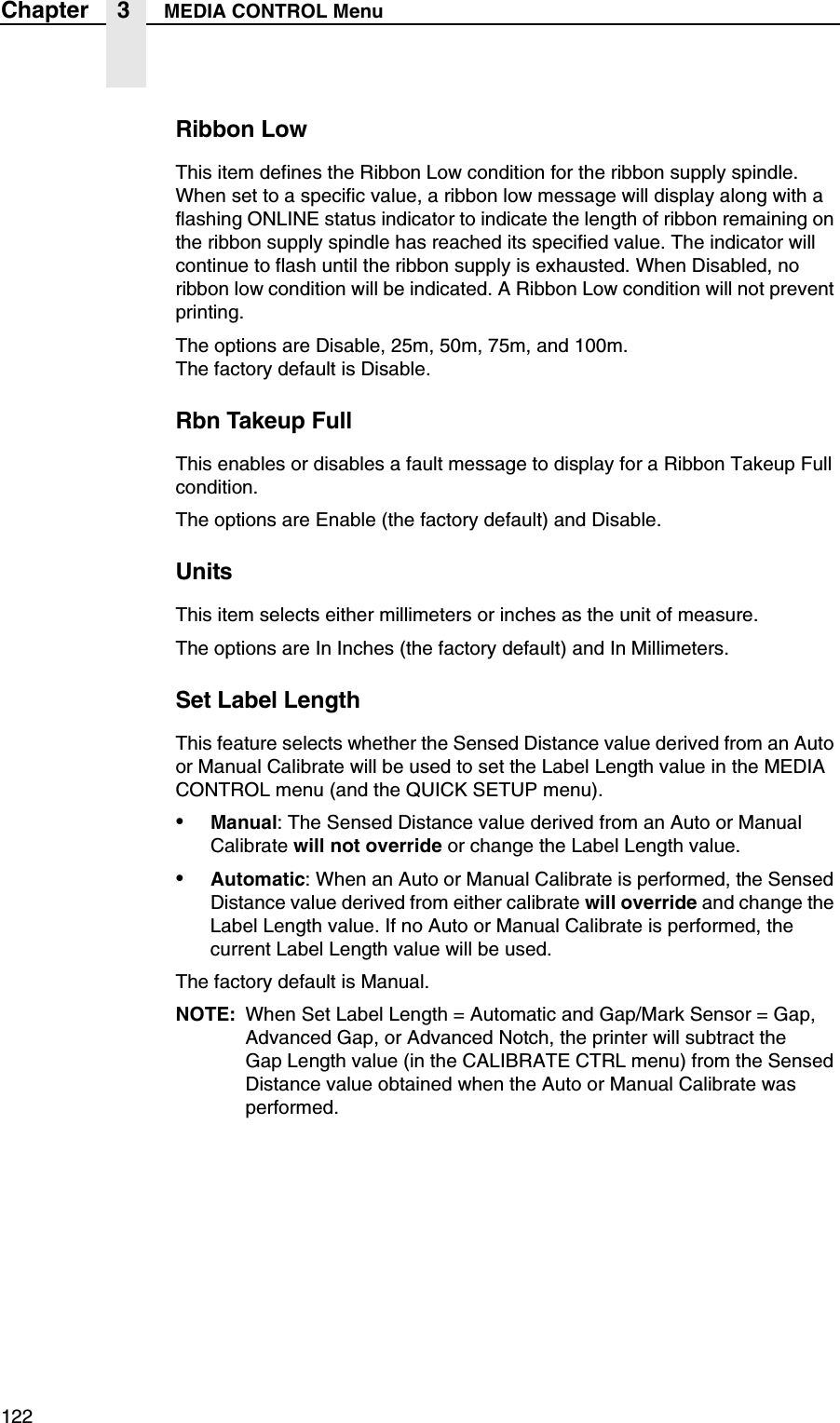
122Chapter 3 MEDIA CONTROL MenuRibbon LowThis item defines the Ribbon Low condition for the ribbon supply spindle. When set to a specific value, a ribbon low message will display along with a flashing ONLINE status indicator to indicate the length of ribbon remaining on the ribbon supply spindle has reached its specified value. The indicator will continue to flash until the ribbon supply is exhausted. When Disabled, no ribbon low condition will be indicated. A Ribbon Low condition will not prevent printing.The options are Disable, 25m, 50m, 75m, and 100m.The factory default is Disable.Rbn Takeup FullThis enables or disables a fault message to display for a Ribbon Takeup Full condition.The options are Enable (the factory default) and Disable.UnitsThis item selects either millimeters or inches as the unit of measure.The options are In Inches (the factory default) and In Millimeters.Set Label LengthThis feature selects whether the Sensed Distance value derived from an Auto or Manual Calibrate will be used to set the Label Length value in the MEDIA CONTROL menu (and the QUICK SETUP menu).•Manual: The Sensed Distance value derived from an Auto or Manual Calibrate will not override or change the Label Length value.•Automatic: When an Auto or Manual Calibrate is performed, the Sensed Distance value derived from either calibrate will override and change the Label Length value. If no Auto or Manual Calibrate is performed, the current Label Length value will be used.The factory default is Manual.NOTE: When Set Label Length = Automatic and Gap/Mark Sensor = Gap, Advanced Gap, or Advanced Notch, the printer will subtract theGap Length value (in the CALIBRATE CTRL menu) from the Sensed Distance value obtained when the Auto or Manual Calibrate was performed.
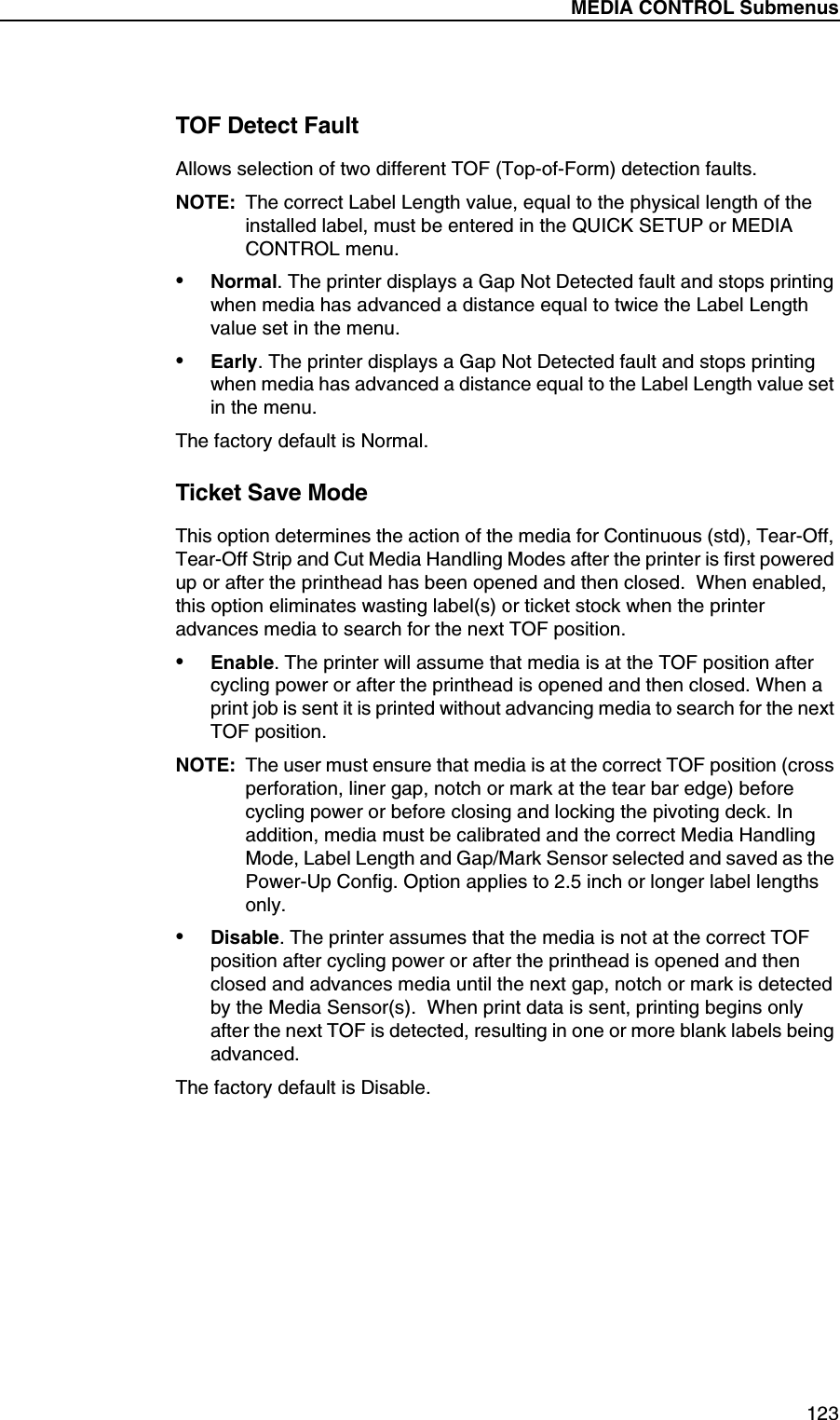
MEDIA CONTROL Submenus123TOF Detect FaultAllows selection of two different TOF (Top-of-Form) detection faults.NOTE: The correct Label Length value, equal to the physical length of the installed label, must be entered in the QUICK SETUP or MEDIA CONTROL menu.•Normal. The printer displays a Gap Not Detected fault and stops printing when media has advanced a distance equal to twice the Label Length value set in the menu.•Early. The printer displays a Gap Not Detected fault and stops printing when media has advanced a distance equal to the Label Length value set in the menu.The factory default is Normal.Ticket Save ModeThis option determines the action of the media for Continuous (std), Tear-Off, Tear-Off Strip and Cut Media Handling Modes after the printer is first powered up or after the printhead has been opened and then closed.  When enabled, this option eliminates wasting label(s) or ticket stock when the printer advances media to search for the next TOF position.•Enable. The printer will assume that media is at the TOF position after cycling power or after the printhead is opened and then closed. When a print job is sent it is printed without advancing media to search for the next TOF position.NOTE: The user must ensure that media is at the correct TOF position (cross perforation, liner gap, notch or mark at the tear bar edge) before cycling power or before closing and locking the pivoting deck. In addition, media must be calibrated and the correct Media Handling Mode, Label Length and Gap/Mark Sensor selected and saved as the Power-Up Config. Option applies to 2.5 inch or longer label lengths only.•Disable. The printer assumes that the media is not at the correct TOF position after cycling power or after the printhead is opened and then closed and advances media until the next gap, notch or mark is detected by the Media Sensor(s).  When print data is sent, printing begins only after the next TOF is detected, resulting in one or more blank labels being advanced.The factory default is Disable.
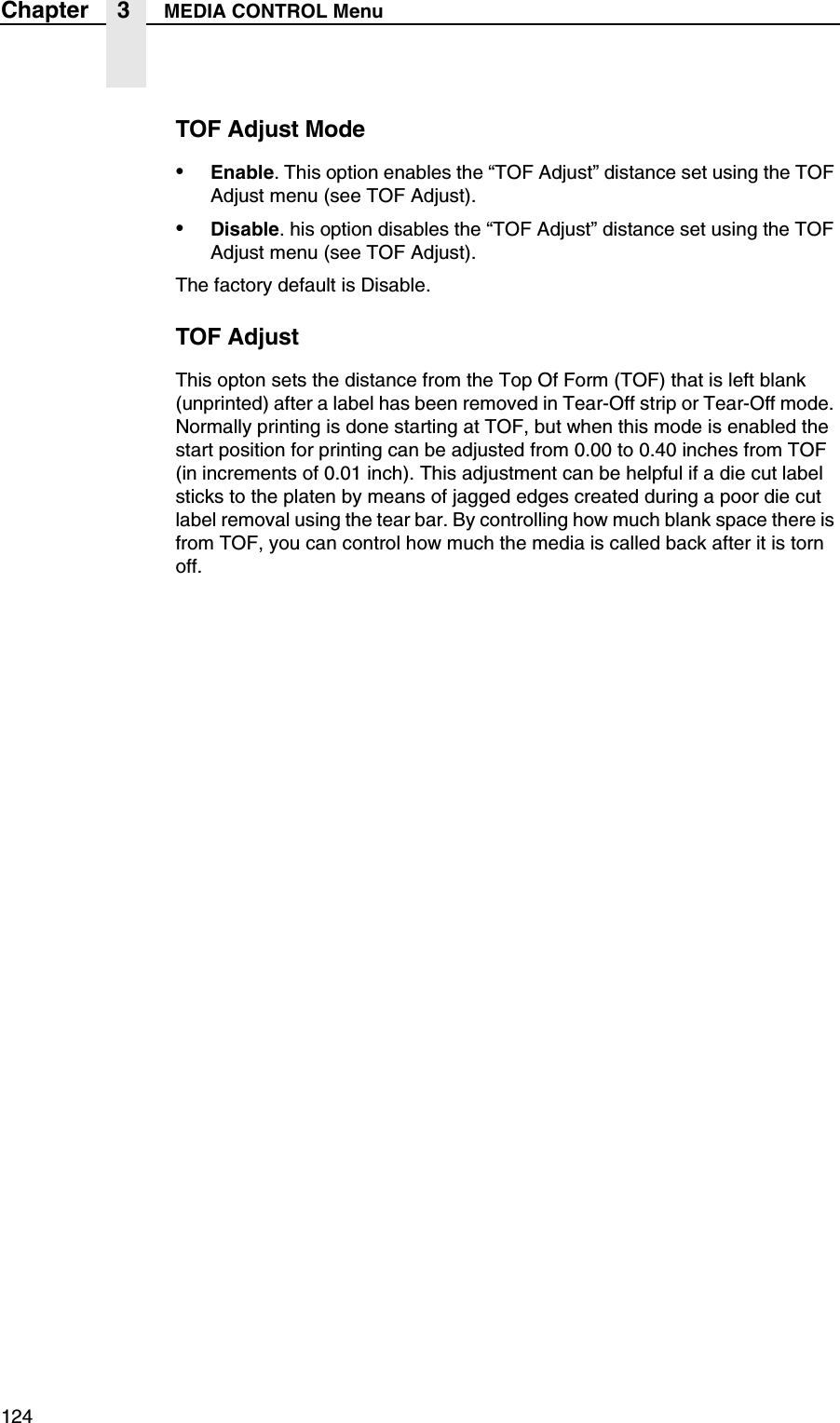
124Chapter 3 MEDIA CONTROL MenuTOF Adjust Mode•Enable. This option enables the “TOF Adjust” distance set using the TOF Adjust menu (see TOF Adjust).•Disable. his option disables the “TOF Adjust” distance set using the TOF Adjust menu (see TOF Adjust).The factory default is Disable.TOF AdjustThis opton sets the distance from the Top Of Form (TOF) that is left blank (unprinted) after a label has been removed in Tear-Off strip or Tear-Off mode. Normally printing is done starting at TOF, but when this mode is enabled the start position for printing can be adjusted from 0.00 to 0.40 inches from TOF (in increments of 0.01 inch). This adjustment can be helpful if a die cut label sticks to the platen by means of jagged edges created during a poor die cut label removal using the tear bar. By controlling how much blank space there is from TOF, you can control how much the media is called back after it is torn off.
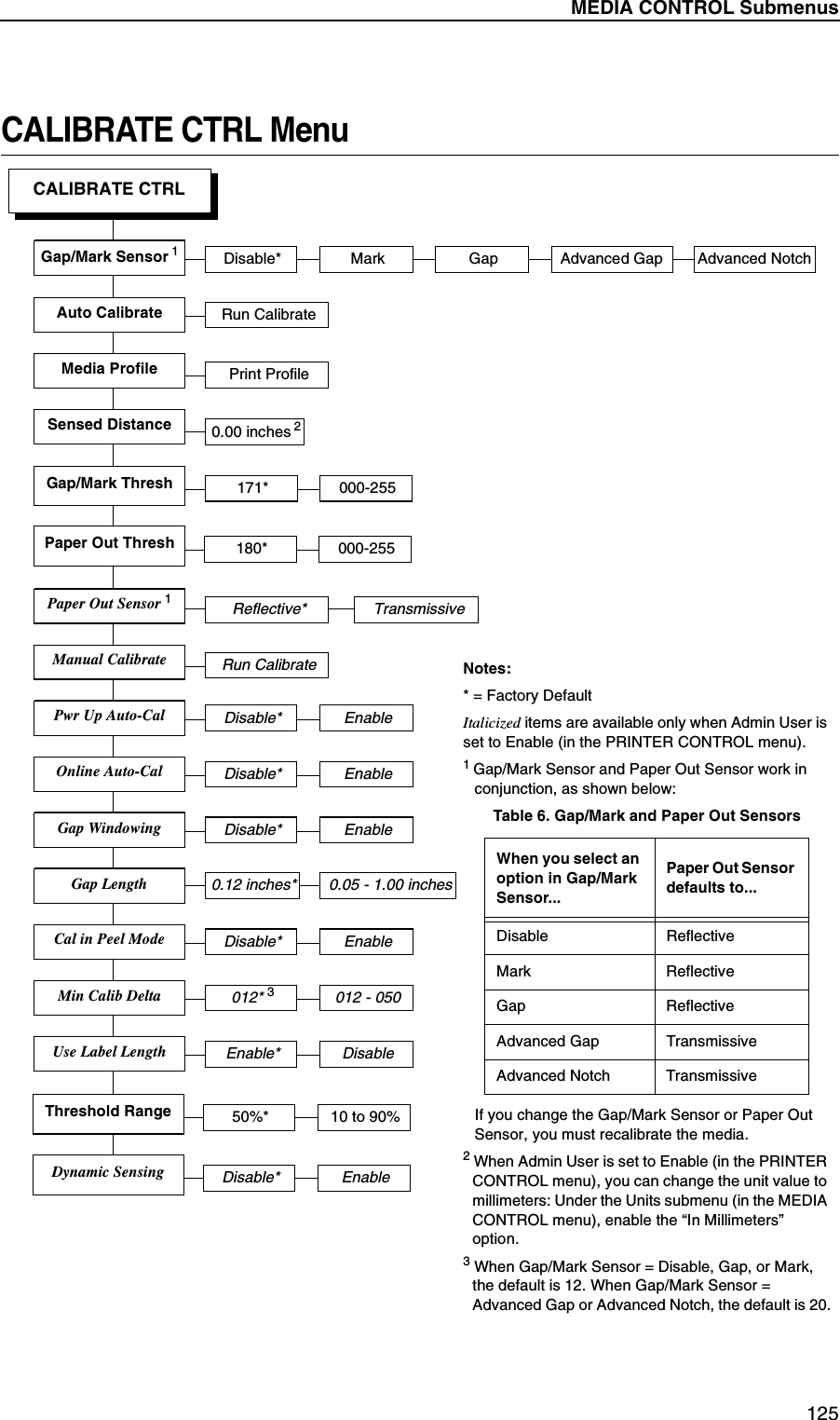
MEDIA CONTROL Submenus125CALIBRATE CTRL MenuCALIBRATE CTRLRun CalibrateAuto CalibrateSensed DistancePaper Out ThreshPwr Up Auto-CalManual Calibrate0.00 inches 2Notes:* = Factory DefaultItalicized items are available only when Admin User is set to Enable (in the PRINTER CONTROL menu).1 Gap/Mark Sensor and Paper Out Sensor work in conjunction, as shown below:If you change the Gap/Mark Sensor or Paper Out Sensor, you must recalibrate the media.2 When Admin User is set to Enable (in the PRINTER CONTROL menu), you can change the unit value to millimeters: Under the Units submenu (in the MEDIA CONTROL menu), enable the “In Millimeters” option.3 When Gap/Mark Sensor = Disable, Gap, or Mark, the default is 12. When Gap/Mark Sensor = Advanced Gap or Advanced Notch, the default is 20.Table 6. Gap/Mark and Paper Out SensorsWhen you select an option in Gap/Mark Sensor...Paper Out Sensor defaults to...Disable ReflectiveMark ReflectiveGap ReflectiveAdvanced Gap TransmissiveAdvanced Notch TransmissiveGap/Mark Thresh 171* 000-255180* 000-255Run CalibrateDisable* EnablePrint ProfileMedia ProfilePaper Out Sensor 1Reflective* TransmissiveGap WindowingDisable* EnableGap Length0.12 inches* 0.05 - 1.00 inchesOnline Auto-CalDisable* EnableCal in Peel ModeDisable* EnableGap/Mark Sensor 1 Disable* Mark Gap Advanced NotchAdvanced GapUse Label LengthEnable* DisableMin Calib Delta012* 3012 - 050Threshold Range 50%* 10 to 90%Dynamic SensingDisable* Enable
126Chapter 3 CALIBRATE CTRL MenuCALIBRATE CTRL SubmenusGap/Mark SensorThe available options specify the sensor type needed for detecting the Top-of-Form position on media with label length indicators (gaps, notches, holes, or black marks).•Disable. Select when using media with no label length indicators (no gaps, notches, holes, or black marks), or when you want the printer to ignore all existing label length indicators on the installed media.NOTE: When you select Disable, the length of each label is based on the Label Length value entered in the MEDIA CONTROL menu or the value sent via host software.•Mark. Select when using media that has horizontal black marks located on the underside of the label liner or tag stock. The Top-of-Form position is the leading edge of the black mark.•Gap. Select when using media with a liner space between die-cut labels or when using tag stock with notches or holes as label length indicators on white background media. The Top-of-Form position is the leading edge of the die cut label (trailing edge of the gap, notch, or hole).•Advanced Gap. Select when using media that has liner gaps between die cut labels with black background. The Top-of-Form position is the leading edge of the die cut label (trailing edge of the gap, notch, or hole).•Advanced Notch. Select when using media with notches or holes that interrupt a black vertical line on the underside of the media. The Top-of-Form position is the leading edge of the die cut label (trailing edge of the gap, notch, or hole).The factory default is Disable.Auto CalibrateThis feature is used to improve the sensitivity and reliability of the Media Sensor in detecting gaps, notches, holes, or black marks on the installed media, as well as a paper out condition.You can initiate Auto Calibrate from the TEST PRINT key, the CALIBRATE CTRL menu, or the DIAGNOSTIC menu. When “Auto Calibrate” displays on the LCD, press the ↵ key. The printer advances media the distance needed to accurately detect the label length indicators, then stops at the Top-of-Form position, and momentarily displays the Sensed Distance. This process takes a few seconds to complete and results in changes to the values the printer uses for Gap/Mark Threshold, Paper Out Threshold, and Sensed Distance. These value changes take effect immediately within the current configuration menu.Auto Calibrate is completed successfully when the Sensed Distance displayed correctly matches that of the installed media. When Gap is selected, the Sensed Distance should match the length from the trailing edge of one gap to the trailing edge of the next gap (one label + one gap). When Mark is selected, the Sensed Distance should match the length from the leading edge of one black mark to the leading edge of the next black mark.Auto Calibrate supports label lengths up to 24 inches.
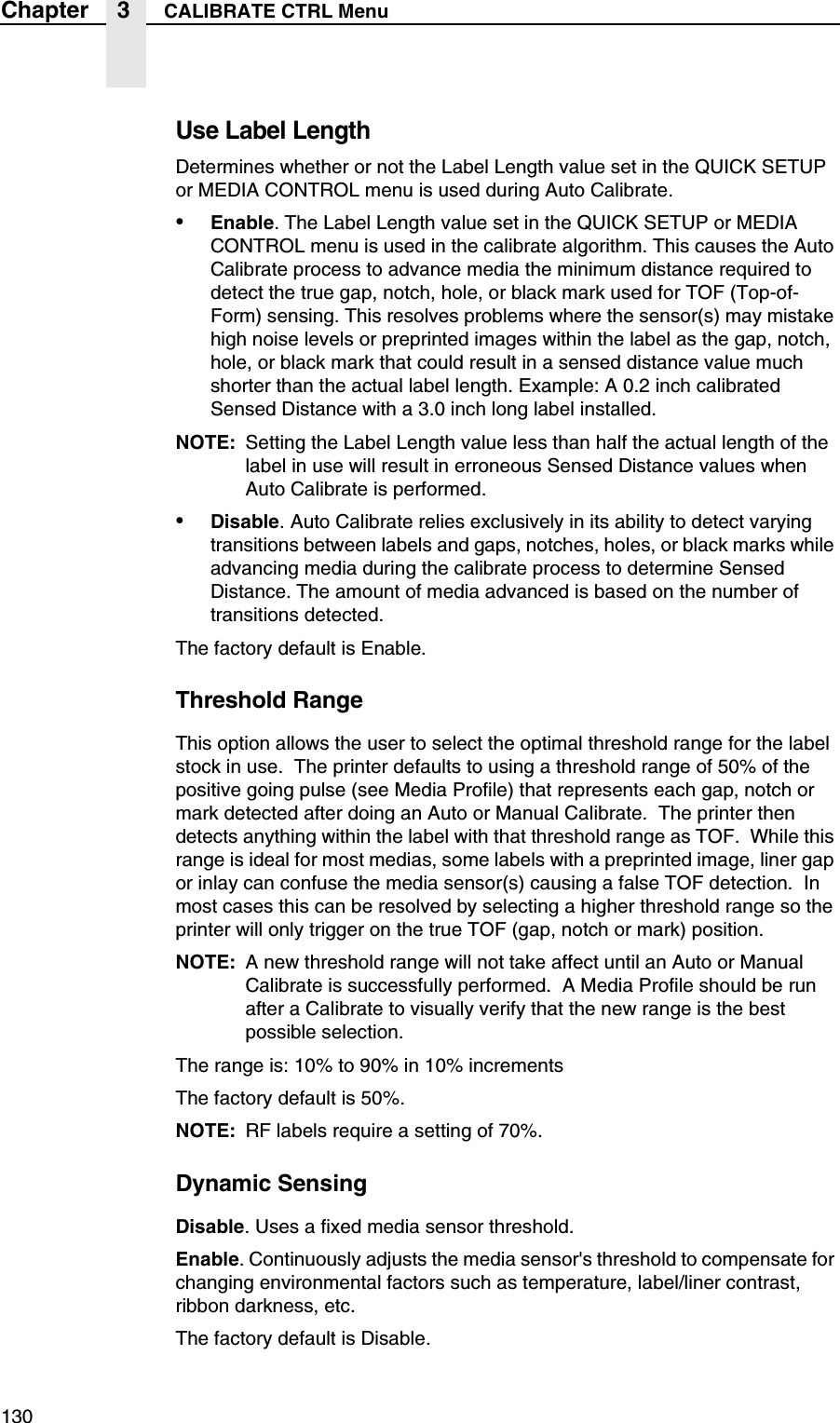
CALIBRATE CTRL Submenus127Media ProfileThis feature provides a graphical printout showing the relationship of the Paper Out Threshold and the Gap/Mark Threshold. The profile printout assists you in setting the thresholds for difficult media. This includes pre-printed labels, and labels with poor gap/media dynamic range.When selected, the printer will advance media and print the media profile along the length of each label. The printer will continue to print the profile until you press ↵.The factory default is Print Profile.Sensed DistanceThis value (in inches) represents the distance that was sensed between the TOF of one label to the TOF of the next label. With gapped media installed, the distance equals the physical label length plus one gap, notch, or hole (trailing edge of one gap, notch, or hole to the trailing edge of the next gap, notch, or hole). With black mark media installed, the distance equals the leading edge of one black mark to the leading edge of the next. This value is automatically determined only after successful completion of Auto or Manual Calibrate and cannot be changed manually.The factory default is 0.00 inches.Gap/Mark ThreshThis menu item sets a value that, when exceeded by the output of the media sensor, is recognized by the printer as a gap (or black mark). When Auto or Manual Paper Calibrate is performed, the value displayed is equal to thegap/mark threshold value set by this procedure. If running the procedure does not provide a reliable Top-Of-Form detection, e.g., when using unusual media, the Gap/Mark Thresh value can be manually set to the desired value.The range is 000-255, and the factory default is 171.Paper Out ThreshThis menu item selects a value that, when exceeded by the output of the media sensor, is recognized by the printer as a paper out condition. When Auto or Manual Calibrate is performed, the value displayed is equal to the paper out threshold value set by this procedure. If running the procedure does not provide a reliable paper out detection, e.g., when using non-standard media, the Paper Out Thresh value can be manually set to the desired value.The range is 000-255, and the factory default is 136.Paper Out SensorSelects which type of media sensing, Reflective or Transmissive, will be used to detect a paper out condition. The printer automatically selects the type of sensing based on the Gap/Mark sensing selected (see Table 6 on page 125).NOTE: Whenever you select Transmissive, you must position the upper media sensor directly over the lower media sensor (see “Positioning The Media Sensors” on page 56).The factory default is Reflective.CALIBRATE CTRL Menu
128Chapter 3 CALIBRATE CTRL MenuManual CalibrateManual Calibrate is another method of improving the printer’s media sensing and is only used when Auto Calibrate has failed or the Gap/Mark Threshold or Paper Out Threshold values derived from Auto Calibrate do not improve the media sensors’ gap or mark sensing capability.To initiate Manual Calibrate, press ↵ when “Manual Calibrate” displays under the CALIBRATE CTRL menu. You will then be prompted for the remaining steps.Example: “REMOVE RBN&MEDIA/Press Enter” or“LOAD RBN ONLY/Press Enter” etc.During the last stage of Manual Calibrate, the printer uses the statically derived values, advances media, stops at the Top-of-Form position, and momentarily displays the Sensed Distance. This process takes longer than Auto Calibrate, and the end result is a change to the Gap/Mark Threshold, Paper Out Threshold, and Sensed Distance values that the printer will use. These value changes take effect immediately within the current configuration menu.Manual Calibrate is completed successfully when the displayed Sensed Distance correctly matches that of the installed media. When Gap is selected, the Sensed Distance should match the length from the trailing edge of one gap to the trailing edge of the next gap (or one label + one gap). When Mark is selected, the Sensed Distance should match the length from the leading edge of one black mark to the leading edge of the next black mark.Manual Calibrate supports label lengths up to 24 inches.Pwr Up Auto-Cal•Disable.•Enable. When the printer is first powered on, it will complete its initialization and self-tests and then perform an Auto Calibrate. Once the Auto Calibrate is complete, the printer will momentarily display the Sensed Distance determined by the Auto Calibrate.The factory default is Disable.Online Auto-CalNOTE: Error Recover (under MEDIA CONTROL) will not function when is enabled (see “Error Recover” on page 121).The options for Online Auto-Cal are:•Disable.•Enable. Whenever the printer is brought online, it automatically performs an Auto Calibrate (see “Auto Calibrate” on page 126). Once the Auto Calibrate is complete, the printer momentarily displays the Sensed Distance determined by the Auto Calibrate and then resumes printing any pending jobs.NOTE: If using the Online Auto-Cal feature, you must first enable it prior to printing any data.The factory default is Disable.
CALIBRATE CTRL Submenus129Gap WindowingThis feature compensates for any early falling edges or spurious peaks and troughs that may appear within the gap length in media. These edges or peaks and troughs can cause unreliable detection of the leading edge of the next label (top-of-form). Use Gap Windowing to resolve the following problems:•Loss of one or more complete (serialized) labels.•Start of an image printed in the middle of a gap, especially with fanfold, perforated media.•Top part of an image lost when printing in head-first orientation.The options for Gap Windowing are Enable and Disable:•Enable. When the leading edge of a gap is detected, the printer ignores the first 90% of the gap length value specified in the Gap Length menu option. The result is that cross perforations or unusual media discrepancies within the gap are filtered out, allowing the printer to reliably detect the actual leading edge of the next label and use it as the TOF position.•Disable. When the leading edge of a gap is detected, the printer continuously looks for the leading edge of the next label and uses it as the TOF position. Perforations or unusual media discrepancies within the gap can cause inaccurate TOF detection.The factory default is Disable.Gap LengthGap Length is the actual length (height) of a label gap measured in .01 inch increments. The range is 0.05 to 1.00 inches.NOTE: You must enter the correct Gap Length. If the Gap Length is too long, the image will shift down from the leading edge (TOF) of the label.The factory default is 0.12 inches.Min Calib DeltaMinimum Calibrate Delta changes the minimum threshold value the sensor(s) require to detect the difference between the label and a gap, notch, hole or black mark. This allows bolder gaps (such as notches or holes) to be used as the TOF while intermediate gaps (liner) can be ignored. Increasing the Min Calib Delta makes the sensor(s) less sensitive to intermediate gaps and noise. Decreasing the Min Calib Delta makes the sensor(s) more sensitive for detecting gaps on low contrast media, where there is very little difference between the label and the gap (liner).The range is 012 - 050.NOTE: When Gap/Mark Sensor = Disable, Gap, or Mark, the default is 12. When Gap/Mark Sensor = Advanced Gap or Advanced Notch, the default is 20.
130Chapter 3 CALIBRATE CTRL MenuUse Label LengthDetermines whether or not the Label Length value set in the QUICK SETUP or MEDIA CONTROL menu is used during Auto Calibrate.•Enable. The Label Length value set in the QUICK SETUP or MEDIA CONTROL menu is used in the calibrate algorithm. This causes the Auto Calibrate process to advance media the minimum distance required to detect the true gap, notch, hole, or black mark used for TOF (Top-of-Form) sensing. This resolves problems where the sensor(s) may mistake high noise levels or preprinted images within the label as the gap, notch, hole, or black mark that could result in a sensed distance value much shorter than the actual label length. Example: A 0.2 inch calibrated Sensed Distance with a 3.0 inch long label installed.NOTE: Setting the Label Length value less than half the actual length of the label in use will result in erroneous Sensed Distance values when Auto Calibrate is performed.•Disable. Auto Calibrate relies exclusively in its ability to detect varying transitions between labels and gaps, notches, holes, or black marks while advancing media during the calibrate process to determine Sensed Distance. The amount of media advanced is based on the number of transitions detected.The factory default is Enable.Threshold RangeThis option allows the user to select the optimal threshold range for the label stock in use.  The printer defaults to using a threshold range of 50% of the positive going pulse (see Media Profile) that represents each gap, notch or mark detected after doing an Auto or Manual Calibrate.  The printer then detects anything within the label with that threshold range as TOF.  While this range is ideal for most medias, some labels with a preprinted image, liner gap or inlay can confuse the media sensor(s) causing a false TOF detection.  In most cases this can be resolved by selecting a higher threshold range so the printer will only trigger on the true TOF (gap, notch or mark) position.   NOTE: A new threshold range will not take affect until an Auto or Manual Calibrate is successfully performed.  A Media Profile should be run after a Calibrate to visually verify that the new range is the best possible selection.The range is: 10% to 90% in 10% incrementsThe factory default is 50%.NOTE: RF labels require a setting of 70%.Dynamic SensingDisable. Uses a fixed media sensor threshold.Enable. Continuously adjusts the media sensor's threshold to compensate for changing environmental factors such as temperature, label/liner contrast, ribbon darkness, etc.The factory default is Disable.
CALIBRATE CTRL Submenus131PRINTER CONTROL MenuPRINTER CONTROLEnable* DisablePower Saver TimeDisplay LanguageLd Char from FlsDel Char frm FlsPwr Save Control15 minutes* 30 minutes 45 minutes 60 minutes 240 minutes1 minute 5 minutes 10 minutesEnglish* German French Italian SpanishPortugueseActive IGP EmulLP+ Emulation P-Series* P-Series XQ Serial Matrix Proprinter XL Epson FXIGP* CODE VCTHI Emulation 1 Standard* Simp Prot ConvAuto Switching*Host InterfaceCentronics 2Serial IEEE 1284 2Twinax 1Coax 1Ethernet 3Notes:* = Factory DefaultItalicized items are available only when Admin User is set to Enable (in the PRINTER CONTROL menu).1 Appears only if the CT emulation is installed.2 Will not appear if a NIC is installed.3 Appears only if a NIC is installed.4 When Coax/Twinax interface is installed, the factory default is Enable.5 Appears only if PPI1 is installed.Disable* 4EnableCancel KeyCompatibilityPtx Setup SFCCPower-up State Online* Offline21h* 01-FFDefault* Laser P5000 T3000 T1006Cont. Beep OffOn*AlarmSet Sharing 5 Disable* EnableContinued at the top of next page
132Chapter 3 PRINTER CONTROL MenuOverwrite FilesView File ListDelete FilesPrint File ListOptimize&RebootAuto LockingSet Lock KeyPtx Setup ParseGlob Mem AdjustDisable* EnableIgnore DisableEnable*3072K Bytes*(see page 140)Enable* DisableNotes:* = Factory DefaultItalicized items are available only when Admin User is set to Enable (in the PRINTER CONTROL menu).1 Display item only.Ld Set from FlshSave Set to FlshDel Set from RAMLd Set at PwrUpDisable* EnableXXXXX.XX(1)Del Char frm RAMDel Set frm FlshLd Char at PwrUpDisable* EnableSave Char to FlsPRINTER CONTROL(cont. from previous page)Continued at the top of next pageFlash Avail.Max Font Buffer100 KBytes* 100 to 800 KBytes
CALIBRATE CTRL Submenus133Max Cached Char01 KBytes*0-512340*Bold Chars.0-512448*Standard Chars.Extra Bold Char.0-512504*Batch CounterEnableDisable*01-20 KBytesNotes:* = Factory DefaultItalicized items are available only when Admin User is set to Enable (in the PRINTER CONTROL menu).1 Required to set Print and Apply Mode in GPIO Control.OCR-A Chars.0-512384*OCR-B Chars.0-512304*Tall CharactersEnableDisable*PRINTER CONTROL(cont. from previous page)Admin User Disable* Enable 1Max Cache Memory900 KBytes* 50-900 KBytes*
134Chapter 3 PRINTER CONTROL MenuPRINTER CONTROL SubmenusLP+ EmulationThis item selects the line or dot matrix printer to be emulated by the printer.•P-Series•P-Series XQ•Serial Matrix•Proprinter XL•Epson FXThe factory default is P-Series.CTHI EmulationThis item appears only when the CTHI option is installed.CTHI Emulation selects the operation of the CTHI option as either a standard or simple protocol converter.•StandardWith a standard coax interface, the printer emulates the following IBM coax printer models:•3287 Models 1 and 2•4234 Model 1With a standard twinax interface, the printer emulates the following IBM twinax printer models:•4234 Model 2•5225 Models 1, 2, 3, and 4The standard Coax/Twinax emulation selection will only be available if Coax or Twinax is selected from the HOST INTERFACE menu.NOTE: For more information, consult the Coax/Twinax Programmer’s Reference Manual.•Simp Prot Conv (Simple Protocol Converter)The Simple Protocol Converter (SPC) option allows those who use add-on coax or twinax protocol converters to produce the same output on a Printronix thermal printer with the Coax/Twinax (CTHI) capability as done using a non-CT printer with the third party converter interfaces. The SPC gives the printer the operational ability to connect to any PC or network system supporting parallel or serial interfaces, and to three different IBM host systems.•System 3x•AS/400*•327x Control Units
PRINTER CONTROL Submenus135The SPC will support the same models for Twinax as the Printronix P7000 printer.The printer emulations supported by the SPC are Twinax 5225 and Coax 3287. The SPC also provides a range of interfaces available in your thermal printer: Centronics, serial, coax, and twinax. Also supported are Epson, Proprinter XL, P-Series, Serial Matrix, VGL, and PGL emulations.The SPC has the ability to handle multiple print jobs concurrently through coax/twinax and parallel and serial interfaces. This is accomplished through the Auto Switching feature (see “Auto Switching” in the T5000r User’s Manual). Because of hardware restrictions, coax and twinax cannot be selected together.For more information, refer to the Coax/Twinax Programmer’s Reference Manual for the Simple Protocol Converter Option.The factory default is Standard.Host InterfaceThis option allows you to send print jobs through any interface with auto-switching selected as host interface. It also allows a particular interface from the menu to be selected.The options are Auto Switching, Centronics, Serial, IEEE 1284, Twinax, Coax, and Ethernet.NOTE: The Twinax and Coax options appear only if the CT emulation is installed. The Ethernet option appears only if a NIC is installed. The Centronics and IEEE 1284 options do not appear if a NIC is installed.The factory default is Auto Switching.Active IGP EmulThis function allows you to activate the PGL or VGL emulation. There are two methods for selecting the desired emulation: directly from the printer menu or by sending a host command which will switch the emulation automatically (see the appropriate Programmer’s Reference Manual for details).When changing from one IGP emulation to the other, the printer will load the saved configuration. Thus, any setting performed before selecting those interfaces and not saved in NVRAM will be lost.IMPORTANTWhen the ACTIVE IGP EMUL is switched from one IGP emulation to another, the printer will load the settings saved under the Power-Up Config. menu. These settings may not be the current settings in use prior to switching the Active IGP emulation. The Print Mode, Media Sensor, Media Handling, Calibration, Label Length, Label Width, and other settings in use will change to the settings saved under the Power-Up Config. menu. Therefore, insure that all desired settings are saved as the printer Power-Up Config. menu settings before you switch the Active IGP emulation.The options are IGP/PGL (the factory default) and IGP/VGL.PRINTER CONTROL MENU
136Chapter 3 PRINTER CONTROL MenuPower Saver TimeThe time interval you specify for this parameter sets the amount of idle time before the printer goes into Power Saver mode.Pressing any key removes the power saver message from the control panel. Sending a print job to the printer also turns off power saver mode.The options are 1, 5, 10, 15, 30, 45, 60, and 240 minutes.The factory default is 15 minutes.Pwr Save ControlPwr Save Control allows you to enable and disable Power Saver mode. If enabled, the menu for Power Saver Time is in effect.The options are Enable (the factory default) and Disable.Display LanguageThis parameter chooses the language that will appear on the LCD: English, German, French, Italian, Spanish, or Portuguese.The factory default is English.Del Char frm FlsThis option deletes downloaded character(s) from flash memory.Ld Char from FlsThis option loads downloaded character(s) from flash memory.Save Char to FlsThis option saves downloaded character(s) to flash memory.Del Char frm RAMThis option deletes downloaded character(s) from RAM.Ld Char at PwrUpThis option loads downloaded character(s) from flash memory at Power Up.The options are Disable (the factory default) and Enable.Del Set frm FlshThis option deletes downloaded overlay set(s) from flash memory.Ld Set from FlshThis option loads downloaded overlay set(s) from flash memory.
PRINTER CONTROL Submenus137Save Set to FlshThis option saves downloaded overlay set(s) to flash memory.Del Set from RAMThis option deletes the downloaded overlay set(s) from RAM.Ld Set at PwrUpThis option loads the downloaded overlay set from flash memory at Power Up.The options are Disable (the factory default) and Enable.Alarm•On. An audible alarm sounds (3 beeps) when a fault occurs, such as a paper jam.•Cont. Beep. A continuous audible alarm sounds when a fault occurs, which can be stopped by pressing CLEAR.•Off. No audible alarm sounds.The factory default is On.Power-up State•Online. The printer powers up in the online state.•Offline. The printer powers up in the offline state. This selection must be saved as a power-up configuration to be used.The factory default is Online.Ptx Setup SFCCAllows you to choose the hex value of the ASCII character you wish to use as the SFCC for the PTX SETUP command. Valid hex values are 01 to FF.The factory default value is hex 21, which corresponds to the “!” character.Overwrite FilesThis allows you to prevent files from being overwritten by disabling the overwrite function.The options are Enable (the factory default) and Disable.View File ListDisplays the list of files in the file system. Pressing ↓ displays the file size.
138Chapter 3 PRINTER CONTROL MenuDelete FilesAllows you to delete files in the file list. Contact your administrator for assistance.Flash Avail.The amount of flash available for the user to save or download files into flash.Optimize&RebootReclaims flash space from deleted flash files. After pressing ↵ wait for the printer to reboot.Print File ListPrints a summary of the files stored in flash memory and several statistics on File System usage.Cancel Key•Disable.•Enable. When enabled, the  (CANCEL) key may be used in offline mode to clear all data in the print buffer, and deleted data will not be printed.The factory default is Disable. When the Coax/Twinax interface is installed, the factory default is Enable.CompatibilityThis parameter allows you to make T5000 series thermal printers compatible with other printers.When trying to preserve compatibility with respect to barcodes, you may not always be able to make them equal in size. This is due to the various dot-per-inch differences between printer types. When an exact match cannot be made, the barcode is reduced in size so that the form bounds will not be compromised and the barcode will be readable.•Default. Use for optimum performance.•Laser. Forces the output to correspond with the laser line of printers.•P5000. Forces the output to correspond with the P5000 line of line matrix printers.•T3000. Forces the output to correspond with the T3000 line of thermal printers.•T1006. Forces the output to correspond with the T1006 line of thermal printers.The factory default is Default.
PRINTER CONTROL Submenus139Set SharingThis option allows character sets to be shared between the active LP+ protocol and the active emulation. If CT is installed and active, choosing a character set in the CT activates that character set in the active emulation and LP+ protocols. (These changes are not visible on the front panel.) If Set Sharing is not selected, only the LP+ protocol will share the CT’s character set.Switching host interfaces from CT to Centronics when Set Sharing is enabled causes the LP+ protocol character set to change to the same character set as the active emulation, if possible.In a non-CT system, changing character sets in the LP+ protocol causes the active emulation to change to the same character set if the selected set exists in the active emulation. If the active emulation has no access to the selected set, no changes are made. Selecting a new character set in the active emulation causes the LP+ protocol to change to the same character set if the selected character set exists in the active LP+ protocol. Not all sets are shared between emulations in the Standard group of character sets. As a result, selecting a set in the Standard group of the LP+ protocol or active emulation may or may not cause the other emulation to have the same set.NOTE: The front panel option, Set Sharing, has no effect on the LP+ andCT/LP+ builds. The option only applies to the builds with PPI1.The options are Disable (the factory default) and Enable.Auto Locking•Disable. The ↵ (ENTER) key must be locked manually.•Enable. The printer automatically locks the ↵ key five minutes after the last control panel key press.The factory default is Disable.Set Lock KeyNormally, to lock or unlock the printer menu, the ↓ and ↵ keys are pressed at the same time. The Set Lock Key parameter lets you choose different keys to lock or unlock the printer menu. You may choose almost any group of keys as the new lock and unlock keys. You cannot use the ↵ key or any key combinations which are already used for another function. There is no limit to how many keys can be selected.To set the new lock key:1. Go to the PRINTER CONTROL main menu and select “Set Lock Key.”2. Press ↵. The display reads, “Select a new lock key.”3. Press the combination of keys that you want to be the new lock key. Make sure you press all keys selected at the same time.4. If the selection is valid, the display will read, “Enter the new lock key again.” Press the same combination of keys a second time. If the selection is invalid, the display will read, “Invalid key selection.” Return to step 2 and start over.
140Chapter 3 PRINTER CONTROL Menu5. If the new lock key combination is entered again correctly, the display will read, “Lock key has been changed.” If it was entered incorrectly, the display will read, “Validation failed.” Start over at step 1.6. After entering the new lock combination successfully, press the PAUSE key to put the printer back online.NOTE: The new lock combination will remain even if the printer is powered off and back on.Ptx Setup Parse•Enable. Will parse and execute the PTX SETUP commands.•Ignore. Will parse the PTX SETUP commands but not act on them.•Disable. Will not parse the PTX SETUP commands so they will print out as text.The factory default is Enable.Glob Mem AdjustThis menu allows you to adjust the ratio of global memory allocated to label size versus PGL forms, fonts, and logos. For example, when using short labels, you can allocate more memory to forms, fonts, and logos by increasing the Glob Mem Adjust value. The default settings and adjustment ranges depend upon the amount of installed printer DRAM and are listed below.NOTE: You can find the amount of installed DRAM in two ways: listed at the top of your configuration printout next to “DRAM” or from the control panel via the DIAGNOSTIC menu next to the DRAM Installed option.Max Font BufferThe maximum amount of DRAM allocated for downloading fonts (True-Type, Scalable, or Bit Map).The range is 100 to 800 Kbytes, and the factory default is 100 Kbytes.DRAM Installed 8 MB 16 MBFactory Default 0.5 MB 3 MBRange 0 to 1 MB 0 to 9 MB
PRINTER CONTROL Submenus141Max Cache MemoryThe Maximum Cache Memory option specifies the size of the memory block that can be allocated to the font cache. The font cache stores bitmaps that are created on demand from the font outlines stored on the printer flash. The cache allows the printer to print scalable fonts at optimum speed.To calculate the memory requirement, use this equation:The allowable range is 50 KBytes through 900 KBytes in 50-KByte increments.The factory default is 900 KB.NOTE: For most applications, the default settings for font memory are acceptable. Therefore, do not change the defaults unless your application requires an uncommon memory configuration.Max Cached CharThe Maximum Cached Characters option specifies the size of the largest character that can be stored in the font cache. To calculate the memory requirement, use this equation:For example, with a print head that prints at 203 dpi you would use the following formula:Therefore, select a value that is equal to or greater than 5,151. The closest available value is 6 KBytes.The allowable range is 1 KByte through 20 KBytes, in 1-KByte increments.The factory default is 01 KBytes.NOTE: For most applications, the default settings for font memory are acceptable. Therefore, do not change the defaults unless your application requires an uncommon memory configuration.horizontal resolution xvertical resolution xaverage character height (inches) xaverage character width (inches) x# of charactersto be cached8horizontal resolution xvertical resolution xaverage character height (inches) xcharacter width (inches)8203 X 203 X 1 X 18= 5,151
142Chapter 3 PRINTER CONTROL MenuStandard Chars.This menu entry permits you to adjust the thickness or font weight of standard text fonts.The range is 0 to 512, and the factory default is 340.Bold Chars.This menu entry permits you to adjust the thickness or font weight of bold text fonts. This menu will not take effect unless you save it in a configuration and the printer is powered up with that configuration.The range is 0 to 512, and the factory default is 448.Extra Bold Char.This menu entry permits you to adjust the thickness or font weight of extra bold text fonts.The range is 0 to 512, and the factory default is 504.NOTE: For most applications, the default settings for font memory are acceptable. Therefore, do not change the defaults unless your application requires an uncommon memory configuration.OCR-A Chars.Character weight adjustment of resident OCR-A characters.The range is 0 to 512, and the factory default is 384.OCR-B Chars.Character weight adjustment of resident OCR-B characters.The range is 0 to 512, and the factory default is 304.Tall CharactersIncreases the point height of resident Intellifont characters.•Enable. Increases the point height of resident Intellifont characters approximately 10%.•Disable. Standard resident font character point height is maintained.The factory default is Disable.
PRINTER CONTROL Submenus143Batch CounterDisplays the number of pages remaining in a print job.•Enable. The # Pages remaining to be printed will display on the second line of the control panel LCD. This feature is supported in PGL and PPI1 only. The PGL Execute command to support this feature is: ~EXECUTE;NAME;(#Pages). The PPI1 Execute command is: ^PQ(#Pages).NOTE: If the correct execute command is absent from the print file, “0 Pages” will continually display on the control panel LCD.•Disable. The # Pages remaining to be printed will not display. Instead, the Active emulation and interface will display on the second line of the control panel LCD.The factory default is Disable.Admin User•Disable.•Enable. When enabled, this function permits access to submenus which would not normally be changed by a typical user.The factory default is Disable.
144Chapter 3 IGP/PGL SETUPIGP/PGL SETUPIGP/PGL SETUPStandard Sets*126* 1 to 255Character Group Arabic Sets Cyrillic Sets European SetsContinued at the top of next pageNotes:* = Factory DefaultItalicized items are available only when you enable Admin User (in the PRINTER CONTROL menu).Standard SetsSelect LPIDefine CR CodeDefine LF CodeAutowrapAuto UppercaseSlash 0Select SFCCHost Form LengthVar Form AdjustOptimized RatioGreek Sets Hebrew Sets Turkish Sets3) Danish 4) Norwegian2) Swedish0) ASCII* 1) German 5) Finnish6) English 7) Dutch 8) French 9) Spanish 10) Italian 11) Turkish6* 1 to 1000CR = CR* CR = CR + LFLF = LF* LF = CR + LFDisable* EnableDisable* EnableDisable* Enable00.0 to 03.0 inchesDisable* Enable00.0 inches*12) CP 437 13) CP 850 16-23 Dwn Overlay14-15 Reserved 24-31 User Def.Var Form TypeAdd ;0Add Nothing* Add ;XVar. LengthEnable* DisableVar Dynamic LenUTF-8
PRINTER CONTROL Submenus145IGP/PGL SETUP(cont. from prev. page)Normal* BlockPower on IGP/PGLNotes:* = Factory DefaultItalicized items are available only when you enable Admin User (in the PRINTER CONTROL menu).Ext Execute CopyAI 00 SpacesSelect SO CharIgnore ModeSelect CharDo FF at TOFIGP100 Compatbl.Expanded FontScalable SizeForms HandlingIgnore TextDisable* EnableEnable* DisableDisable* EnableDisable* Enable14* 0 to 255Disable* Enable0* 0 to 255Enable* DisableDisable* EnableScalable* Block Alt Block 1Disable* Auto EjectPI Slew RangeSkip Cmd PrefixCR Edit16* 15Disable* EnableEnable* DisableContinued at the top of next pageAuto TOF
146Chapter 3 IGP/PGL SETUPIGP/PGL SETUP(cont. from prev. page)Notes:* = Factory DefaultItalicized items are available only when you enable Admin User (in the PRINTER CONTROL menu).UPC DescendersUser-Def RatioI-2/5 SelectionError ReportRepeat Form OptOnly With PDFNeverAlways*FaultDebug ModeOn* OffEnable* DisableX2 DPDTrailing SpaceLeading Zero* Modulo 7 CDEnable*DisableLead PDF Dist0.01 to 0.10 inches0.10 inches*PGL NormalLP+ Menu* PGL MenuRet. Status PortE-Net Stat PortSerial* Disable E-Net Data PortTrunc Dyn DataEnableDisable*Preparser CmdSTATUS*CANCELPreparser PortDisable*Parallel Serial EthernetBoundary CheckEnable*Disable
IPG/PGL Setup Submenus147IPG/PGL Setup SubmenusCharacter Group and Character Sets (IGP/PGL)This menu item selects the character set used by the printer. The available character sets are shown below.Character Group(IGP/PGL)StandardSets*Arabic Sets Cyrillic Sets EuropeanSetsGreek SetsHebrew Sets Turkish Sets0) ASCII*1) German2) Swedish3) Danish4) Norwegian5) Finnish6) English7) Dutch8) French9) Spanish10) Italian11) Turkish12) CP 43713) CP 85014-15) Reserved16-23) Dwn Overlay24-31) User Def.ASMO 449*ASMO 449+ASMO 708ASMO 708+MS DOS CP710MS DOS CP720Sakr CP714Aptec CP715CP 786IBM CP864IBM CP1046Arabic Lam OneArabic Lam TwoWin. CP 1256Farsi 1Farsi 21098 Farsi 1285Code Page 866*Cyrillic CP 437Cyrillic 113Cyrillic 8859-5ISO 915Code Page 855Cyrillic 7 BitUkrainianBulgarianWin. CP 1251Latin 2 8859-2*Code Page 852MazoviaKamenickyRoman 8PC-437 SlavicSlavic 1250Code Page 865Code Page 860Latin 1 8859-1Latin 5 8859-9Latin 9 8859-15Polish POL1Win. CP 1250Win. CP 1252Win. CP 1257CP 858 EUROLith. CP 773Serbo Croatic 1Serbo Croatic 2CP 774CP 775ISO 8859-4DEC 256 Greek*ELOT 928 GreekGreek 3ABY GreekABG GreekELOT 927 GreekGreek 851Greek 437Greek 8859-7Win. CP 1253Greek 813 EUROGreek 869 EUROHebrew Old*Hebrew NewHebrew DECLatin-1 HebrewWin. CP 1255Data Gen. Turk.*DEC TurkishIBM TurkishSiemens TurkishPTT TurkishIBC TurkishBull TurkishAS400 TurkishUnisys TurkishNCR TurkishPST TurkishUNIS-1 TurkishCode Page 853INFO TurkishWin. CP 1254Code Page 857Notes:* = Factory Default.To access the desired basic character set, use the + and - keys. To select the set, press the ↵ key. After you have selected the basic set, access the subset selection menu by pressing the ↓ key. Once in the subset menu, access the desired subset by pressing the + and - keys and select it by pressing the ↵ key.UTF-8IGP/PGL SETUP
148Chapter 3 IGP/PGL SETUPSelect LPIThis is the number of lines to be printed per inch. For example, at 6 lpi there is1/6 inch from the top of one print line to the top of the next print line.The options are 6.0, 8.0, and 10.3 LPI.The factory default is 6.0 LPI.Define CR codeThis option controls the action of the printer when it receives a Carriage Return code (0D hex) from the host computer. If this feature is enabled, each time the printer receives a carriage return, it inserts an additional Line Feed code (0A hex) into the data stream. Do not use this feature if the host computer sends line feeds to the printer.NOTE: For this menu to take effect in PGL, PGL Normal needs to be set to PGL Menu (see page 145).•CR = CR. Does not insert an extra line feed after each carriage return.•CR = CR + LF. Inserts an extra line feed after each carriage return. The next print position will be print position 1 of the next line.The factory default is CR = CR.Define LF code (PGL, Serial Matrix, Proprinter XL, Epson FX)This parameter forces the printer to insert an automatic Carriage Return code into the data stream whenever a Line Feed code occurs. This can be used in most installations, but it is required if the host computer does not send carriage returns to the printer.NOTE: For this menu to take effect in PGL, PGL Normal needs to be set to PGL Menu (see page 145).•LF = LF. Does not perform an automatic carriage return. The next print position will be at the current print character position on the next line.•LF = CR + LF. Performs an automatic carriage return. The next print position will be print position 1 of the next line.The factory default is LF = LF.AutowrapThis parameter determines if text will wrap to the next line when the line of text exceeds the right margin.•Disable. Truncates the text beyond the right margin until a CR or CR + LF is received.•Enable. Automatically inserts a CR + LF after a full print line.The factory default is Disable.
IPG/PGL Setup Submenus149Auto UppercaseThis parameter enables the printer to print text in all uppercase when using the ALPHA command.•Disable. The printer will print text in upper and lowercase.•Enable. The printer will print text in uppercase only.The factory default is Disable.Slash 0This parameter allows you to print the numeral “0” with or without the slash. This option applies to all character sets except OCR A and OCR B.•Disable (the default). Zero is printed without a slash.•Enable. Zero is printed with a slash.Select SFCC (PGL)You can specify which decimal code (1-255) will be used as the Special Function Control Code (SFCC). The SFCC denotes that the following data is a PGL command.The range is 1-255, and the factory default is 126.Host Form Length (PGL)Determines how the physical label length (see Label Length under the MEDIA CONTROL menu) is affected upon receiving an EXECUTE command.•Enable. The physical label length will change to match the form length (specified in CREATE command). The physical label size remains at the new setting until another EXECUTE command is received, or the PRINTER CONTROL menu settings are changed.•Var. Length. The physical label length is the longest print element plus the setting of “Var Form Adjust.”•Var Dynamic Len. The physical label length will change to the longest print element defined in CREATE mode plus the setting of “Var Form Adjust.”•Disable. Forms printed in EXECUTE mode do not change the physical label size. Therefore, the size of the form (defined in CREATE mode) must fit within the current label dimensions, or errors may occur.NOTE: Changing the form length via the EXECUTE command changes the LP+ Emulation logical dimensions.The factory default is Enable.IGP/PGL SETUP
150Chapter 3 IGP/PGL SETUPVar Form AdjustThis specifies an amount (in tenths of inches) to add to the length of variable-length forms. Variable-length forms use a semicolon at the end of the CREATE command: ~CREATE;<FORMNAME>;0.Typically, variable-length forms are determined by the elements within the form. The longest form element becomes the overall form length. This option allows an additional space to be added to the form length.The range is 00.0 to 03.0 inches, and the factory default is 00.0 inches.Var Form Type•Add Nothing (the default). When selected, no action is taken.•Add ;0. When selected, the form length ends at the longest printed element. (Same as ∼CREATE;filename;0)•Add ;X. When selected, the form length is the same as the physical page length (the Label Length menu under MEDIA CONTROL). (Same as ∼CREATE;filename;X)Optimized RatioThis option selects different bar code ratios for certain bar codes including Code 39 and Interleaved 2 of 5. It is included for compatibility with the IGP-X00 printers.•Disable (the default). Use standard bar code ratios.•Enable. Select the alternate bar code ratios.PI Slew RangeYou can specify how many lines the paper will feed.•15. A paper slew of 1-15 will move 1-15 lines. A paper slew of 0 will move 1 line.•16 (the default). A paper slew of 0-15 will move 1-16 lines.CR EditThis parameter determines if a carriage return will be followed by a line feed.•Disable. The printer ignores all carriage returns that are not followed by line feeds.•Enable. The printer processes all carriage returns, even for those that are not followed by line feeds.The factory default is Disable.Skip Cmd PrefixStands for Skip Command Prefix. This parameter determines if the printer will print any data before a PGL command is received.•Enable (the default). The printer ignores all data before a PGL command.•Disable. The printer will print all data before a PGL command.
IPG/PGL Setup Submenus151Ignore Text•Disable. When disabled, text in normal mode will be printed. Attributes to be printed depend on the PGL Normal menu setting.•Enable. When enabled, any line of text (non-PGL commands) in normal mode will be ignored.The factory default is Disable.Power on IGP/PGLYou can set the IGP/PGL feature so that it is enabled or disabled when the printer is powered on.•Enable (the default). The IGP/PGL is enabled when the printer is powered on. (The IGP/PGL feature is initialized in the Normal mode.)•Disable. The IGP/PGL is disabled when the printer is powered on. (The IGP/PGL feature is initialized to the Quiet mode.)Ext Execute Copy•Disable. Dynamic data, overlay data, etc. are not allowed if the optional Form Count parameter (number of forms to print) is specified as part of the Execute command. (This setting is IGP-100 compatible.)•Enable. Dynamic data, overlay data, etc. are allowed within a form where the Form Count parameter is specified in the Execute command. In this case, the same form is printed for whatever the Form Count is. Incremental data is not incremented since the printing page is the same. The overlay data is only printed with the first form and not on subsequent forms, and each form is printed on a separate page.The factory default is Disable.AI 00 SpacesThis option is designated for EAN/UCC-128 barcodes whose application identifier (AI) is 00.•Disable. The printable data field is printed with the AI enclosed in parentheses. This is the standard EAN/UCC-128 format.•Enable. The printable data field is printed with the UCC fields separated by spaces. This option is IGP-X00 compatible.The factory default is Disable.Select SO CharAllows you to specify a decimal code from 0 through 255 to be used in place of SO (Shift Out) as the control code which allows access for the alternate set of control function characters. See the description of the Code 128 barcodes in the PGL Programmer's Reference Manual for details.The range is 0-255, and the factory default is 14.
152Chapter 3 IGP/PGL SETUPIgnore ModeThis parameter instructs the IGP to ignore the character selected under the Select Character menu.•Disable. The IGP does not ignore any characters.•Enable. The IGP ignores the character specified in the Select Character menu.The factory default is Disable.Select CharInstructs the IGP which decimal character (0-255) to ignore from the host.The range is 0-255, and the factory default is 0.Do FF at TOFDetermines whether the printer, with media already set at the TOF (Top-of-Form) position, will advance media to the next TOF position upon receipt of an FF command.•Enable. The printer will advance media from the present TOF position to the next TOF position upon receipt of an FF command, causing a blank form.•Disable. The printer will not advance media from the present TOF position to the next TOF position upon receipt of an FF command.The factory default is Enable.IGP100 Compatibl.This parameter forces the output to correspond with IGP-100 printer output in cases where there are differences.The options are Disable (the factory default) and Enable.Expanded Font (PGL)Expanded font allows you to print characters in different sizes with specified parameters and to select which font face to use.•Scalable. Uses scalable fonts.•Block. Uses block fonts.•Alt Block 1. Uses alternative block fonts with a different character set.The factory default is Scalable.Scalable SizeThis option determines whether scalable characters are sized based on normal scaling or based on the size of block characters. If the option Block is set, then the scalable character are made to be the same size as block characters in the old IGP-X00 printers.The options are Normal (the factory default) and Block.
IPG/PGL Setup Submenus153Forms HandlingThis submenu allows the user to handle the form in the following ways:•Disable (the default). No effect.•Auto Eject. Automatically ejects a page at the end of the job to spill out the last page.•Auto TOF. Automatically does a form feed (FF) at the end of each form to the next top of form.PGL NormalThis option determines whether PGL passes the text data in Normal mode according to LP+ or whether PGL will print the text data itself.•LP+ Menu (the default). PGL will pass the text data to LP+ only in the default setting state (6 LPI, default character set, and font attribute).•PGL Menu. PGL will always print the text data itself.UPC Descenders (PGL)This parameter allows you to print bar code descenders when human readable data is not presented in the UPC/EAN bar codes.•Always (the default). UPC/EAN bar codes are printed with descenders, even if there is no human readable data.•Never. UPC/EAN bar codes are printed without descenders if the PDF command is present.•Only With PDF. UPC/EAN bar codes are printed with descenders only when the PDF command is presented.I-2/5 SelectionThis option is added to be compatible with a special IGP-X00 customization. Usually, if Interleaved 2/5 bar codes have an odd number of digits, a leading zero is inserted in front of the data. However, this special IGP-X00 customization gives you the option of adding a space character at the end of the bar code instead.•Leading Zero. A leading zero is inserted in front of the data.•Trailing Space. A space is inserted at the end of the data instead of a leading zero.•X2 DPD. When selected, I-2/5 bar code with a magnification X2 will use the specially configured ratios 3:3:6:5 rather than 3:6:9:12 for compatibility issues.•Modulo 7 CD. The I-2/5 bar code uses a modulo 7 check digit instead of the default modulo 10 check digit.The factory default is Leading Zero.
154Chapter 3 IGP/PGL SETUPUser-Def RatioThis option allows you to ignore the user-defined barcode ratio and replace it with the default ratio (X1).•Enable (the default). Allows the user-defined barcode ratio.•Disable. The user-defined barcode ratio will be replaced with the default ratio (X1).Lead PDF DistAdjusts the leading and trailing character spacing distance of the PDF for UPC/EAN barcodes.The range is 0.01- 0.10 inches in 0.01 inch increments, and the factory default is 0.10 inches.Trunc Dyn DataThis submenu allows the user to truncate the dynamic data up to the maximum data length specified in Create Mode.•Disable (the default). If the dynamic data exceeds the maximum data length, an error will report.•Enable. If the dynamic data exceeds the maximum data length, the data truncates.Error ReportThis item sets the error reporting capability of the printer for PGL forms as follows:•On. Full error checking reported. Any element that falls off the current page is reported as an error.•Debug Mode. Puts the printer in debug mode whenever a form is defined in CREATE mode. Each line of the CREATE form will be printed along with an error if one has occurred.•Fault. Allows you to halt the printer if a PGL error occurs. If you select this option, the PGL error prints on the paper, the message “IGP/PGL Error” displays on the front panel, and the printer goes offline. You must clear the error before the printer can resume normal operation.•Off. There is no error checking whatsoever. Graphic elements such as alpha, line, barcodes, etc. will be clipped if they are beyond the page boundaries.The factory default is On.
IPG/PGL Setup Submenus155Boundary CheckThis option turns on or off the page boundary check for all print elements.•Enable. When enabled, an out of bound error is reported if the print element is out of the page boundary.•Disabled. When disabled, no out of bound error is reported. The out of bound print element prints over the page boundary.The factory default is Enable.Repeat Form Opt•Enable (the default). Speeds up the processing of repeated forms for PGL, thereby resulting in increased printer throughput. This option provides no speed benefit for forms that are unrelated to one another and should be disabled under those circumstances.•Disable. Should be selected when subsequent forms are unrelated to one another.Preparser CmdAllows users to select which preparser command to use. Once the command is selected, the command will be executed immediately when it is sent to the printer.•Status (the default). Select (STCC) STATUS command.•Cancel. Select (STCC) CANCEL command.Preparser PortAllows users to select which port to send the Preparser command to the printer.•Disable (the default). Not using the Preparser command.•Parallel. The Parallel port (including attached Ethernet card).•Serial. The Serial port.•Ethernet. The embedded Ethernet port. This option only shows when the embedded ethernet is installed.Ret. Status PortThis option selects the port for the Return Status Commands (i.e., ~STATUS (PGL) and ~HS (PPI/ZGL)) to send the status data back to the Host. The default is Serial. The remaining options include E-NET Stat Port, E-NET Data Port for Ethernet connection, and Disable.
156Chapter 3 DIAGNOSTICS MenuDIAGNOSTICS MenuDIAGNOSTICS XX Megabytes 3Printer TestsTest CountHex Dump ModePrint Error LogClear Error LogDRAM InstalledPtr On TimePtr Media DistHead Print DistHead On TimeReset Head DataGridContinuous*Head TypeGreyCheckerboardAuto Calibrate* Current ConfigLeft Test Right Test Barcode DemoHead VoltageXXXXX Inches 3XXXXX Inches 3XXX.X Hours 3XX.X Hours 3XXX DPI 3XX.XX+X.XX volts 31 Page 2 Pages 5 Pages 10 PagesDisable* Enable* = Factory Default1 Appears only if a NIC is installed.2 Appears only if the validator is installed.3 Display item only.4 A part number appears only if a feature file has been downloaded to the printer.E-Net Test Page 1Valid. Report 2XX Megabytes 3FLASH InstalledSoftware BuildXXXXXX Ver. XXX 3Feature FileXXXXXX-XXX 4
DIAGNOSTICS Submenus157DIAGNOSTICS SubmenusPrinter TestsThe printer tests below allow you to check for proper printer operation and print quality:•Auto Calibrate. Senses paperout, perforation, gap, or mark, and calibrates the printer for the currently installed media.•Checkerboard. This pattern helps identify marginal printhead elements, quality of edge sharpness, and uneven print quality.•Grey. This pattern helps identify burned out printhead elements and uneven print quality.•Grid. This pattern helps identify edge sharpness and uneven print quality.•Current Config. Prints the current printer configuration and helps identify the text print quality.•Left Test. Prints a pattern containing a series of ladder-type bar code symbols, starting with four and decrementing by one symbol on each print until a single symbol prints on the left side. This pattern helps identify ribbon wrinkle problems.•Right Test. Prints a pattern containing a series of ladder-type bar code symbols, starting with four and decrementing by one symbol on each print until a single symbol prints on the right side. This pattern helps identify ribbon wrinkle problems.•E-Net Test Page. This item appears only if a NIC is installed. Prints the ethernet statistics stored on the NIC.•Barcode Demo. Prints text and barcodes with the barcodes positioned at the left and right margins of the standard label media supplied with the printer. The test automatically produces output for 4, 6, and 8 inch printers at 203 dpi and 300 dpi.•Valid. Report. This item appears only if the validator is installed. Prints a report of the validation statistics since the printer was turned on or since the last data reset.Once you have selected the desired test pattern, press ↵ to start printing. If the Test Count option (below) is set to Continuous (the default), press ↵ again to stop printing.The factory default is Auto Calibrate.Test CountThis item selects the number of times the selected test pattern will be printed.The options are Continuous, 1 Page, 2 Pages, 5 Pages, and 10 Pages.The factory default is Continuous.
158Chapter 3 DIAGNOSTICS MenuSoftware BuildThis is the reference number which includes the program file part number and revision number of the software installed in the printer, e.g., 358186 V1.07G.Feature FileDisplays the part number only when a feature file has been installed.Hex Dump Mode•Disable.•Enable. The printer prints out data sent from the host in hexadecimal format.Also see “Hexdump Mode” in the T5000r User’s Manual.The factory default is Disable.Print Error LogPrints the current log of errors. Most non-routine faults (RIBBON FAULT, PRINT HEAD HOT) are stored in the error log.Clear Error LogClears entries in the error log.FLASH InstalledDisplays the amount of FLASH memory installed in megabytes.DRAM InstalledDisplays the amount of DRAM installed in megabytes.Ptr On TimeDisplays the cumulative time in hours the printer has been powered on. This value is set to zero at the factory after burn-in testing.Ptr Media DistDisplays the cumulative number of inches the printer has moved media. This value is set to zero at the factory after burn-in testing.Head Print DistDisplays the length of media actually printed since the last Reset Head Data operation. This value is set to zero at the factory after burn-in testing.
DIAGNOSTICS Submenus159Head On TimeDisplays the time that power has been applied to the printhead since the last Reset Head Data operation. This value is set to zero at the factory after burn-in testing.Reset Head DataResets all printhead statistics values (Head Prt Dist and Head On Time) to zero.Head TypeDisplays the printhead type installed in dots per inch (203 dpi or 300 dpi).Head VoltageDisplays the applied printhead voltage.DIAGNOSTICS Menu
160Chapter 3 PARALLEL PORTPARALLEL PORTPARALLEL PORTTrickle TimePort TypeData Bit 8 3TimeoutReport StatusPrime Signal2 sec1 sec1/2 sec1/4 sec*4 sec 8 sec 16 sec OffEnable* DisableIEEE 1284* 1Disable Centronics 110 sec.* 1-60 sec.Disable* EnableDisable* EnableNotes:* = Factory DefaultItalicized items are available only when Admin User is enabled (in the PRINTER CONTROL menu).1 Does not display when Ethernet is installed.2 Available only when Ethernet is installed.3 Available only when the Centronics option is enabled (in the Port Type submenu of PARALLEL PORT).Data Polarity 3Resp. Polarity 3Busy on Strobe 3Standard* InvertedStandard* InvertedEnable* DisablePI Ignored 3Buffer Size in K 16* 1-16Enable* DisableLatch Data On 3Leading* TrailingEthernet 2Auto Trickle Disable* EnableOffline Process Disable* EnableSwitch Out On Data Timeout* Session Close
PARALLEL PORT Submenus161PARALLEL PORT SubmenusPort TypeThis menu item selects the type of printer parallel port interface to be used with the host.The options are IEEE 1284 (the default), Disable, Centronics, and Ethernet.NOTE: The Ethernet option is available only if Ethernet is installed. When Ethernet is installed, the IEEE 1284 and Centronics options do not display.Data Bit 8•Enable (the default). The PI line is not passed directly from host to printer; all 8 bits are used for data bits, and characters in the hex 80-FF range can be accessed.•Disable. When the host PI line is enabled, data bit 8 internally indicates PI line status. To use the PI line, disable data bit 8, and enable the Host PI configuration option (under the PI Ignored option).NOTE: Data bit 8 is interpreted as either data bit 8 or PI signal, but never both. When enabled as data bit 8, data bit 8 has priority over the PI signal, and all data above hex 7F is used to access character data and not to interpret PI line data.Conversely, when data bit 8 is disabled and the PI signal is used, data bit 8 of the data is reserved for use as the PI function, and you cannot access characters in the hex 80-FF range. Therefore, to access characters in the hex 80-FF range, data bit 8 must be enabled.PI IgnoredThe PI (Paper Instruction) signal is used to control vertical paper motion.•Enable (the default). Ignores the PI signal and treats the data as characters or control codes.•Disable. Causes the printer to interpret the eight data lines as VFU commands when the PI signal is true.Buffer Size in KThis option configures the amount of memory allocated for the Ethernet buffer. The range is 1-16 Kbytes, in 1-Kbyte increments.The factory default is 16 Kbytes.
162Chapter 3 PARALLEL PORTAuto TrickleThis feature is used to prevent a host computer from “timing out” because the parallel interface is “busy” for too long.•Enable (the default). When the printer’s buffers are almost full, the printer begins to trickle data in from the host (at the rate set in the Trickle Time menu) until the buffers start to empty out.•Disable. The Auto Trickle feature is not used.Trickle TimeWhen the printer is printing data from a host and a second print job is received by the printer from a different host, Trickle Time prevents the second host from timing out while it is waiting for its data to be printed. In order to support this feature, the port has to be able to accept data from the host and store it for future use.For example, if the printer is printing a job from the serial port, and then receives a second print job from the parallel port, the data from the parallel port will “trickle” bit by bit into the printer buffer to prevent a timeout error from being sent back to the host connected to the parallel port.The selected value is the time that the printer waits before getting the next byte of data from the host. The Trickle Time value should be less than the host time out value, but not too much shorter or else the printer fills up its buffer too fast. This function is not applicable for C/T hotport.The options are 1/4, 1/2, 1, 2, 4, 8, and 16 seconds and Off.The factory default is 1/4 second.TimeoutThis is the value used by the printer to time out from the current port and check the other selected port types for data to print. When the printer has not received data from the host after a certain period of time, it needs to time out in order to service the other ports.The range is 1-60 seconds, and the factory default is 10 seconds.Report Status•Disable (the default). When a fault occurs on the printer, only the active port reports the fault to the host.•Enable. The port will report any fault even when it is not the current active port.Switch Out OnTBD•Data Timeout•Session Close
PARALLEL PORT Submenus163Prime Signal•Disable (the default). The parallel port will not perform a warm start (reboot) if the host asserts the Prime Signal.•Enable. The parallel port will perform a warm start (reboot) if the host asserts the Prime Signal.Data PolarityThe Data Polarity parameter must be set to match the data polarity of your host computer.•Standard (the default). Does not expect the host computer to invert the data.•Inverted. Expects the data received on the data lines from the host computer to be inverted. Ones become zeros and vice versa.Resp. PolarityThe Response Polarity parameter must be set to match the response polarity of your host computer.•Standard (the default). Does not invert the response signal.•Inverted. Inverts the response signal sent to the host computer.Busy on Strobe•Enable (the default). Asserts a busy signal after each character is received.•Disable. Asserts a busy signal only when the print buffers are full.Latch Data OnSpecifies whether the data is read on the leading or trailing edge of the data strobe signal.The options are Leading (the default) and Trailing.PARALLEL PORT
164Chapter 3 SERIAL PORTSERIAL PORTNotes:* = Factory DefaultItalicized items are available only when you enable Admin User (in the PRINTER CONTROL menu).SERIAL PORTBaud RatePort TypeWord Length57600 BAUD38400 BAUD19200 BAUD9600 BAUD*600 BAUD 1200 BAUD 2400 BAUD 4800 BAUDRS 232* RS 422 DisableTrickle Time 2 sec1 sec1/2 sec1/4 sec* 4 sec8 sec 16 sec Off115200 BAUDStop BitsParity MarkEvenOddNone* SenseBuffer Size in K 16* 1-16Timeout 10 sec.* 1-60 sec.Report Status Disable* EnableData Term ReadyOn-Line and BNFTrue* Off-Line or BF On-Line FalseRequest to SendOn-Line and BNF* Off-Line or BF On-Line False TruePoll Character00 Hex* 00-FF HexPoll Response0 ms* 0-30 msIdle ResponseDisable* EnableOne Char EnquiryDisable* EnablePrinter StatusDisable* ENQ/STX ENQ1* 28* 7DTRData Protocol Series1 1 CharACK / NAK ETX / ACKXON / XOFF* Series1 2 CharFraming Errors Enable* Disable
SERIAL PORT Submenus165SERIAL PORT SubmenusPort TypeThis item allows you to select the type of printer serial port interface, RS-232 or RS-422, to be used with its host. The serial port can also be disabled.The factory default is RS 232.Baud RateSets the baud rate of the serial interface in the printer. Baud rate is the speed at which serial data is transferred between the host computer and the printer. The options for the RS-232 and RS-422 interfaces are 600, 1200, 2400, 4800, 9600, 19200, 38400, 57600, and 115200 Baud.NOTE: If you select a baud rate that is greater than 19200 and you experience data loss, you may need to lower the baud rate or use RS-422. You also may need to increase the Buffer Size in K parameter from the default (1 Kbyte) to improve performance.The factory default is 9600.Word LengthSets the length of the serial data word. The length of the data word can be set to 7 or 8 bits and must match the corresponding data bits setting in the host computer.The factory default is 8.Stop BitsSets the number of stop bits in the serial data word. Either 1 or 2 stop bits can be selected. The setting must match the corresponding stop bit setting in the host computer.The factory default is 1.ParityThe options are Odd, Even, Mark, Sense, or None. The setting must match the corresponding parity setting in the host computer.The factory default is None.
166Chapter 3 SERIAL PORTData ProtocolYou can select one of the following serial interface protocols to meet the host interface requirements.•XON / XOFF (the default). The printer controls the flow of communication from the host by turning the transmission on and off. In some situations, such as when the buffer is full or the timing of signals is too slow or too fast, the printer will tell the host to stop transmission by sending an XOFF character. An XOFF character is sent when the number of empty bytes in the buffer is less than or equal to 25 percent of the buffer size. If the host keeps sending data after an XOFF is sent, the printer firmware will continue to send an XOFF for every 16 characters received. When cleared, the printer will resume receiving data (XON). The data does not have any End of Text codes; XON / XOFF is a non-block protocol.•ETX / ACK. End of Text / Acknowledge. The host controls the flow of communication to the printer by sending a block of data and ending the block with an End of Text (ETX) signal. When the printer receives the ETX signal, it will acknowledge the ETX, thereby acknowledging it has received the entire block of data.•ACK / NAK. ACK means acknowledge; the device acknowledges it has accepted a transmission. NAK means negative acknowledge; the device did not receive the transmission.•Series1 1 Char. The printer controls the flow of communication from the host by turning the transmission on and off using response characters sent to the host. If the number of valid bytes in the buffer reaches 75 percent of the buffer size, the online or offline and buffer full response character is sent. If the buffer is completely full, an online or offline buffer full response is sent every time a character is sent from the host. Whenever the printer state changes to online or offline, the appropriate response character is sent. If the idle response option is enabled, the printer will send a response character every two seconds while the number of valid bytes in the buffer is less than 75 percent of the buffer size. If a poll character is received (configurable from the Poll Character xx Hex option on the front panel from hex 0 through FF), the printer will send a response character n milliseconds later (configurable from the Poll Character xx MS on the front panel from 0 through 30). This n milliseconds is called the poll delay. The poll character will be removed from the input data stream and will not be processed. This may cause problems with the transmission of binary data (e.g., control codes, bit image, etc.). If a poll delay is started due to the receipt of a poll character and another poll character is received, the second poll character has no effect and is removed from the input data stream. If a transition (from buffer full to empty or online to offline) occurs during a poll delay, the new printer state will be sent at the end of the poll delay.
SERIAL PORT Submenus167The response characters are described below.•Series1 2 Char. This protocol behaves exactly the same as the Series 1 Char except there is a two-character response to the host. The response characters are described in the following table:•DTR. The printer controls the data flow by sending this hardware signal to the host. If there is enough room in the printer buffer, the printer will send a high signal; if the buffer is full, the printer will send a low signal. DTR tells the host if it is safe to send more data. (If the host sends data during an unsafe condition, data will be lost.) DTR is not available when RS-422 is selected.Buffer Size in KThis option configures the amount of memory allocated for the serial port buffer. The range is 1-16 Kbytes, in 1-Kbyte increments.NOTE: If you select a baud rate that is 19200 or greater, you may need to increase the Buffer Size in K parameter from the default to 16 Kbytes to improve performance.The factory default is 16.Printer State ResponseOnline and Buffer Empty CROnline and Buffer Full 3Offline and Buffer Empty 0Offline and Buffer Full 2Printer State ResponseOnline and Buffer Empty 1 CROnline and Buffer Full 3 CROffline and Buffer Empty 0 CROffline and Buffer Full 2 CRSERIAL PORT
168Chapter 3 SERIAL PORTTrickle TimeWhen the printer is printing data from a host and a second job is received by the printer from a different host, Trickle Time prevents the second host from timing out while it is waiting for its data to be printed. In order to support this feature, the port has to be able to accept data from the host and store it for future use.For example, if the printer is printing a job from the serial port and then receives a second print job from the parallel port, the data from the parallel port will “trickle” bit by bit into the printer buffer to prevent a timeout error from being sent back to the host connected to the parallel port.The selected value is the time that the printer waits before getting the next byte of data from the host. The Trickle Time value should be less than the host time out value, but not too much shorter or else the printer fills up its buffer too fast. This function is not applicable for C/T hotport.The options are 1/4, 1/2, 1, 2, 4, 8, and 16 seconds and Off.The factory default is 1/4 sec.TimeoutThis is the value used by the printer to time out from the current port and check the other selected Port Types for data to print. When the printer has not received data from the host after a certain period of time, it needs to time out in order to service the other ports.The range is 1-60 seconds, and the factory default is 10 seconds.Report StatusWhen a fault condition occurs in the printer, normally only the active port reports the fault to the host. With this menu item enabled, the port will report any fault even when it is not the current, active port.The options are Disable (the factory default) and Enable.Data Term ReadyStands for Data Terminal Ready. This configuration is part of hardware flow control and determines when the Data Terminal Ready (DTR) signal is generated. This signal indicates if the printer is ready to receive data.•True (the default). Continuously asserts the DTR signal.•On-Line and BNF (buffer not full). Asserts the DTR signal when the printer is online and the internal serial buffer is not full.•Off-Line or BF (buffer full). Asserts the DTR signal when the printer is offline or the internal serial buffer is full.•On-Line. Asserts the DTR signal when the printer is online.•False. Never asserts the DTR signal.
SERIAL PORT Submenus169Request to SendThis configuration is part of hardware flow control and determines when the Request to Send (RTS) signal is generated. This signal indicates whether or not the printer is ready to receive data.•On-Line and BNF (the default). Asserts the RTS signal when the printer is online and the internal serial buffer is not full.•Off-Line or BF. Asserts the RTS signal when the printer is offline or the internal serial buffer is full.•On-Line. Asserts the RTS signal when the printer is online.•False. Never asserts the RTS signal.•True. Continuously asserts the RTS signal.Poll CharacterThis option is for the Series1 protocol. Whenever the printer receives this character, it sends a response to the host indicating the current state of the printer (see Series1 protocol).The range is 00-FF Hex, and the factory default is 00 Hex.Poll ResponseThis option is for the Series1 protocol. After receiving a poll character, the printer will wait the poll response time in milliseconds before sending the response.The range is 0-30 ms, and the factory default is 0 ms.Idle ResponseThis option is for the Series1 protocol.•Disable (the default).•Enable. The printer sends a response character every two seconds while the number of valid bytes in the buffer is less than 75 percent of the buffer size.The factory default is Disable.
170Chapter 3 SERIAL PORTOne Char EnquiryThe One Char Enquiry mode uses the Poll Character to detect a request from the host and sends a response back to the host. This option also allows you to turn on and off this feature.The Poll Character is removed from the data stream. If the Data Protocol is set to ETX/ACK, ACK/NAK, or Series1, One Char Enquiry is automatically disabled.The options are Disable (the default) and Enable.Printer Status•Disable. Printer status ignored.•ENQ/STX (see Table 8).•ENQ (see Table 9).When enabled, the printer will respond to an ENQ character by sending a status byte to the host. The type of status byte is determined by a Front Panel Menu selection. The selections allowed are ENQ/STX and ENQ. The ENQ is removed from the data stream.Table 7. One Char Enquiry Response CharactersPrinter State Response (hex)Online and Buffer Not Full 22Online and Buffer Full 23Offline and Buffer Not Full 20Offline and Buffer Full 21Table 8. ENQ/STX Status ByteBit Printer Status0Set when the printer is not online or the buffer is full.1Set when the printer is offline.2Clear during a paper out or RibbonMinder fault.3Always set.4Set during a Head Open fault.5Set during a buffer overflow fault.6Set during a parity or framing error fault.7Always clear.
SERIAL PORT Submenus171The factory default is Disable.Framing ErrorsThese are possible errors that can occur when serial interface settings of the printer do not match those of the host computer.•Enable (the default). If a framing error occurs, a fault message will display on the control panel.•Disable. If a framing error occurs, a fault message will not display on the control panel.Table 9. ENQ Status ByteBit Printer Status0Set when the label has printed.1Set when the label is presented.2Set while the printer is online.3Always set.4Set printing in the batch mode.5Set during a Ribbon fault.6Set during a Paper Out fault.7Set during a Head Open fault.
172Chapter 3 C/T PORTC/T PORTC/T PORT SubmenusPort TypeThis item selects the desired active CTHI interface and appears only when the CTHI option is installed.The factory default is Twinax.Device AddressAllows you to set the device address from 0 through 6. The host directs data and commands on the twinax line to a specific device based on its unique device address. After the address has been changed, a Power On Reset (POR) status is sent to the host.The factory default is 1.TimeoutThis item allows you to set the time that the printer, when it has not received data from its host, will begin to service all other host ports looking for data to print.The range is 5-60 seconds, and the factory default is 10 seconds.Report StatusWhen a fault condition occurs in the printer, normally only the active port reports the fault to the host. With this item enabled, the port will report any fault even when it is not the current, active port.The options are Disable (the factory default) and Enable.C/T PORT 1Port Type Twinax* Coax DisableTimeout 10 sec.* 5-60 sec.Report Status Disable* EnableDevice Address Address 1* Address 0-6Notes:* = Factory Default1 Appears only if the CTHI option is installed.
C/T PORT Submenus173ETHERNET ADDRESS MenuNotes:* = Factory Default1 Appears only if a NIC is installed.2 Display item only.IP AddressSEG1: 000*ETHERNETADDRESS 10 to 255IP AddressSEG2: 000* 0 to 255IP AddressSEG3: 000* 0 to 255IP AddressSEG4: 000* 0 to 255Subnet MaskSEG1: 000* 0 to 255Subnet MaskSEG2: 000* 0 to 255Subnet MaskSEG3: 000* 0 to 255Subnet MaskSEG4: 000* 0 to 255Gateway AddressSEG1: 000* 0 to 255Gateway AddressSEG2: 000* 0 to 255Gateway AddressSEG3: 000* 0 to 255Gateway AddressSEG4: 000* 0 to 255MAC Addressxxxxxxxxxxxx 2DHCP Disable* Enable
174Chapter 3 ETHERNET ADDRESS MenuETHERNET ADDRESS SubmenusIP AddressThis item allows you to set the IP Address for the TCP/IP protocol in four three-digit segments (SEG1 through SEG4). If the IP Address is assigned by Bootp, ARP or DHCP, it is dynamic and read-only.The factory defaults for the SEG1 through SEG4 are 000, 000, 000, and 000.NOTE: When changing the IP Address, the printer resets the NIC (network interface card) when the printer is placed online. When the printer resets the NIC, the LCD displays DO NOT POWER OFF. After the NIC has completed its initialization, the LCD displays E-NET INIT to signal that the NIC and printer are in the initialization process. When both the NIC and printer have completed initialization, the LCD displays E-NET READY.Subnet MaskThis item allows you to set the Subnet Mask for the TCP/IP protocol in four three-digit segments (SEG1 through SEG4). If the Subnet Mask is assigned by Bootp, Arp or DHCP, it is dynamic and read-only.The factory defaults for the SEG1 through SEG4 are 000, 000, 000, and 000.NOTE: When changing the Subnet Mask, the printer resets the NIC when the printer is placed online. When the printer resets the NIC, the LCD displays DO NOT POWER OFF. After the NIC has completed its initialization, the LCD displays E-NET INIT to signal that the NIC and printer are in the initialization process. When both the NIC and printer have completed initialization, the LCD displays E-NET READY.Gateway AddressThis item allows you to set the Gateway Address for the TCP/IP protocol in four three-digit segments (SEG1 through SEG4). If the Gateway Address is assigned by Bootp, ARP or DHCP, it is dynamic and read-only.The factory defaults for the SEG1 through SEG4 are 000, 000, 000, and 000.NOTE: When changing the Gateway Address, the printer resets the NIC when the printer is placed online. When the printer resets the NIC, the LCD displays DO NOT POWER OFF. After the NIC has completed its initialization, the LCD displays E-NET INIT to signal that the NIC and printer are in the initialization process. When both the NIC and printer have completed initialization, the LCD displays E-NET READY.MAC AddressThis item is the Manufacturer’s Assigned Number, and is unique for each NIC. It is read-only.DHCPYou can enable/disable the DHCP protocol using this option, but consult your administrator for the appropriate setting.The options are Disable (the factory default) and Enable.
ETHERNET ADDRESS Submenus175ETHERNET PARAMS MenuNest Serv TypeNetBIOS Protocol Enable* DisableNovell FrameAuto* BinderyNovell Protocol Enable* DisableNDSEthernet 802.3 Ethernet 802.2Auto Sensing* Ethernet II 802.2 SnapNotes:* = Factory Default1 Appears only if a NIC is installed.2 Set the port number that works with your host system.3 Appears only if the IPDS emulation is installed.ETHERNETPARAMS 1ASCII Data Port 9100* 0 to 65535 2Keep Alive Timer 3 Minutes* 2 to 10 MinutesEthernet SpeedIPDS Data Port 3 5001* 0 to 65535 210 Full Duplex 100 Half DuplexAuto Select* 10 Half Duplex 100 Full DuplexJob Control Standard* Enhanced Off
176Chapter 3 ETHERNET PARAMS MenuETHERNET PARAMS SubmenusNovell Protocol•Enable. The NIC will respond to the Novell protocol.•Disable. The NIC does not recognize the Novell protocol.The factory default is Enable.Nest Serv TypeYou can change the Nest Server using this option, but consult your administrator for the appropriate setting.The options are Auto (the factory default), Bindery, and NDS.NetBIOS Protocol•Enable. The NIC will respond to the NetBIOS protocol.•Disable. The NIC does not recognize the NetBIOS protocol.The factory default is Enable.Novell FrameThis menu option provides selection of the frame type for the Novell protocol. For the definition of each frame type, refer to the appropriateNovell-authorized documents.The factory default is Auto Sensing.ASCII Data PortThis option allows you to set the port number for ASCII print jobs. The data port number needs to match your host system setting.The range is 0 to 65535, and the factory default is 9100.IPDS Data Port (IPDS emulation only)This option allows you to set the port number for IPDS print jobs.The range is 0 to 65536, and the factory default is 5001.Keep Alive TimerThis is the time that the Keep Alive Timer will run. Keep in mind that with the Keep Alive Timer on, the tcp connection will stay connected even after the print job has terminated.The range is 2 to 10 minutes, and the factory default is 3 minutes.
ETHERNET PARAMS Submenus177Ethernet SpeedThis menu appears only if a 10/100Base-T NIC (network interface card) is installed.The Ethernet Speed menu has five different speed modes to allow compatibility with different systems and networks:•Auto Select. Tells the 10/100Base-T NIC to perform an auto detection scheme and configure itself to be 10 Half Duplex, 10 Full Duplex, 100 Half Duplex, or 100 Full Duplex.•10 Half Duplex. Tells the 10/100Base-T NIC to communicate at 10 Megabits per second using half duplex.•10 Full Duplex. Tells the 10/100Base-T NIC to communicate at 10 Megabits per second using full duplex.•100 Half Duplex. Tells the 10/100Base-T NIC to communicate at 100 Megabits per second using half duplex.•100 Full Duplex. Tells the 10/100Base-T NIC to communicate at 100 Megabits per second using full duplex.The factory default is Auto Select.Job Control•Standard. The NIC waits for the entire job to be received before it indicates the job is done.•Enhanced. The NIC waits for the entire job to be printed before it indicates the job is done.•Off. There is no synchronization between the NIC and the printer.The factory default is Standard.NOTE: For detailed information about using the NIC, refer to the Network Interface Card User’s Manual.
178Chapter 3 WLAN ADDRESSWLAN ADDRESSNotes:* = Factory Default1 Appears only if a Wireless Option is installed.2 You cannot change this value; it is a display only item.IP AddressSEG1: 000*WLANADDRESS 10-255IP AddressSEG2: 000* 0-255IP AddressSEG3: 000* 0-255IP AddressSEG4: 000* 0-255Subnet MaskSEG1: 000* 0-255Subnet MaskSEG2: 000* 0-255Subnet MaskSEG3: 000* 0-255Subnet MaskSEG4: 000* 0-255Gateway AddressSEG1: 000* 0-255Gateway AddressSEG2: 000* 0-255Gateway AddressSEG3: 000* 0-255Gateway AddressSEG4: 000* 0-255MAC Addressxxxxxxxxxxxx 2DHCP Disable* Enable
WLAN ADDRESS Submenus179WLAN ADDRESS SubmenusIP AddressThis item allows you to set the IP Address for the TCP/IP protocol in four three-digit segments (SEG1 through SEG4). If the IP Address is assigned by Bootp, ARP or DHCP, it is dynamic and read-only.The factory defaults for the SEG1 through SEG4 are 000, 000, 000, and 000.When changing the IP Address, the printer resets the Network Interface Card (NIC) when the printer is placed online. When the printer resets the NIC, the LCD displays DO NOT POWER OFF. After the NIC has completed its initialization, the LCD displays E-NET INIT to signal that the NIC and printer are in the initialization process. When both the NIC and printer have completed initialization, the LCD displays E-NET READY.Subnet MaskThis item allows you to set the Subnet Mask for the TCP/IP protocol in four three-digit segments (SEG1 through SEG4). If the Subnet Mask is assigned by Bootp, Arp or DHCP, it is dynamic and read-only.The factory defaults for the SEG1 through SEG4 are 000, 000, 000, and 000.When changing the Subnet Mask, the printer resets the NIC when the printer is placed online. When the printer resets the NIC, the LCD displays DO NOT POWER OFF. After the NIC has completed its initialization, the LCD displays E-NET INIT to signal that the NIC and printer are in the initialization process. When both the NIC and printer have completed initialization, the LCD displays E-NET READY.Gateway AddressThis item allows you to set the Gateway Address for the TCP/IP protocol in four three-digit segments (SEG1 through SEG4). If the Gateway Address is assigned by Bootp, ARP or DHCP, it is dynamic and read-only.The factory defaults for the SEG1 through SEG4 are 000, 000, 000, and 000.When changing the Gateway Address, the printer resets the NIC when the printer is placed online. When the printer resets the NIC, the LCD displays DO NOT POWER OFF. After the NIC has completed its initialization, the LCD displays E-NET INIT to signal that the NIC and printer are in the initialization process. When both the NIC and printer have completed initialization, the LCD displays E-NET READY.
180Chapter 3 WLAN ADDRESSMAC AddressThis item is the Manufacturer’s Assigned Number, and is unique for the NIC and the Wireless option. It is read-only.DHCPYou can enable/disable the DHCP protocol using this option, but consult your administrator for the appropriate setting.The options are Disable (the factory default) and Enable.
WLAN ADDRESS Submenus181WLAN PARAMSNotes:* = Factory Default1 Appears only if a Wireless Option is installed.2 You cannot change this value; it is a display only item.3 A 1-32 character, case-sensitive string. Characters can be alphanumeric, symbols, or spaces.Continued at the top of next pageOperation Mode Infrastructure*WLANPARAMS 1Pseudo IBSSSSID Name(01-15) 101*SSID Name(16-30)SSID Name(31-32)Reset SSID NameAd HocMin Xfer Rate Auto-negotiate* 1Mb/sec 2Mb/sec 5.5Mb/sec 11Mb/secAnt. Diversity Diverse* Primary AuxiliarySignal StrengthXX% 2Internat. Mode Disable* EnablePreamble Default* Short LongPower Mgmt 0 ms.* 100 ms. 200 ms. 300 ms. 400 ms. 500 ms.600 ms. 700 ms. 800 ms. 900 ms. 1000 ms.Channel Default* 1-15Default WEP Key 0* 1-4WEP Key 1 Format Hexadecimal* ASCIIWEP Key 1 Width 128 Bits*  40 BitsTransmit Power 100%* 0%-100%XXX 3WLAN ADDRESS
182Chapter 3 WLAN PARAMSNotes:* = Factory Default1 Appears only if “WEP Key 1 Width” is set to 128 Bits.WEP Key 1BYTE2:WEP Key 1BYTE3:WEP Key 1BYTE4:WEP Key 1BYTE5:WEP Key 1 1BYTE6:WEP Key 1 1BYTE7:WEP Key 1 1BYTE8:Continued at the top of next pageWEP Key 1 1BYTE9:WLAN PARAMS(cont. from prev. page)WEP Key 1BYTE1:WEP Key 1 1BYTE10:WEP Key 1 1BYTE11:WEP Key 1 1BYTE12:WEP Key 1 1BYTE13:WEP Key 2 Format Hexadecimal* ASCIIWEP Key 2 Width 128 Bits* 40 BitsWEP Key 2BYTE2:WEP Key 2BYTE1:
WLAN ADDRESS Submenus183WLAN PARAMS(cont. from prev. page)WEP Key 2BYTE3:WEP Key 2BYTE4:WEP Key 2BYTE5:WEP Key 2 1BYTE6:WEP Key 2 1BYTE7:WEP Key 2 1BYTE8:WEP Key 2 1BYTE9:WEP Key 2 1BYTE10:WEP Key 2 1BYTE11:WEP Key 2 1BYTE12:WEP Key 2 1BYTE13:WEP Key 3 Format Hexadecimal* ASCIIWEP Key 3 Width 128 Bits* 40 BitsWEP Key 3BYTE2:WEP Key 3BYTE1:Notes:* = Factory Default1 Appears only if “WEP Key 2 Width” is set to 128 Bits.Continued at the top of next pageWEP Key 3BYTE3:WEP Key 3BYTE4:
184Chapter 3 WLAN PARAMSWLAN PARAMS(cont. from prev. page)WEP Key 3BYTE5:WEP Key 3 1BYTE6:WEP Key 3 1BYTE7:WEP Key 3 1BYTE8:WEP Key 3 1BYTE9:WEP Key 3 1BYTE10:WEP Key 3 1BYTE11:WEP Key 3 1BYTE12:WEP Key 3 1BYTE13:Notes:* = Factory Default1 Appears only if “WEP Key 3 Width” is set to 128 Bits.Continued at the top of next pageWEP Key 4 Format Hexadecimal* ASCIIWEP Key 4 Width 128 Bits* 40 BitsWEP Key 4BYTE2:WEP Key 4BYTE1:WEP Key 4BYTE3:WEP Key 4BYTE4:WEP Key 4BYTE5:
WLAN ADDRESS Submenus185WLAN PARAMS(cont. from prev. page)WEP Key 4 1BYTE8:WEP Key 4 1BYTE9:WEP Key 4 1BYTE10:WEP Key 4 1BYTE11:WEP Key 4 1BYTE12:WEP Key 4 1BYTE13:Notes:1 Appears only if “WEP Key 4 Width” is set to 128 Bits.Reset WEP KeysWEP Key 41BYTE6:WEP Key 4 1BYTE7:WLAN PARAMS
186Chapter 3 WLAN PARAMSWLAN PARAMS SubmenusSignal StrengthThis menu displays the strength of the wireless signal.NOTE: This is a display value only and cannot be changed.Operation ModeAllows you to select the way the Wireless option communicates:•Infrastructure (the default). The Wireless option must go through an Access Point.•Pseudo IBSS. Proprietary, peer-to-peer communication (without an Access Point). The two peers must be specific to one manufacturer.•Ad Hoc. Standard, peer-to-peer communication (without an Access Point). The two peers can be from different manufacturers.SSID NameA 1-32 character, case-sensitive string that identifies the Extended Service Set Identification (ESS_ID) network the unit is part of. (ESS_ID is also called NET_ID.) These characters can be alphanumeric, symbols, or spaces.Reset SSID NameAllows you to reset the SSID name.Min Xfer RateAllows you to set the minimum speed at which the Wireless Option will accept a connection (in millions bits per second). The options are Auto-negotiate, 1Mb/sec., 2Mb/sec., 5.5Mb/sec., and 11Mb/sec.The factory default is Auto-negotiate.ChannelAllows you to select the RF channel.The options are Default (the factory default) and 1-15.
WLAN PARAMS Submenus187Ant. DiversityThe type of antenna used:•Diverse (the default). Select when you want to use the antenna with the best reception.•Primary. Select when you want to use the Primary antenna on the server.•Auxiliary. Select when you want to use the Auxiliary antenna on the server.PreambleThe length of the preamble in transmit packets.•Default (the default). The Wireless option automatically determines the length.•Short. For newer printers which can handle higher transfer rate speeds.•Long. For older printers, which cannot handle higher transfer rate speeds.Power MgmtThis allows you to set power-save mode and sleep time. A value specifying the sleep time in milliseconds will be provided. If set to zero, power-save mode will be disabled.The range is 0-1000 ms., and the factory default is 0 ms.Internat. ModeWhen enabled, the Wireless option adapts to international frequency requirements in Europe.The options are Disable (the factory default) and Enable.Transmit PowerThe power level as a percentage of full power.The range is 0 - 100%, and the factory default is 100%.Default WEP KeyThis feature enables you to encrypt (scramble) information for security purposes. With this feature, you can set up to four encryption keys, in either ASCII or hexadecimal format, and in either 40 or 128 bits. (The more bits you choose, the more difficult it will be to decode the information.)NOTE: None of the WEP Key Configuration menus display on the configuration printout.WLAN PARAMS
188Chapter 3 WLAN PARAMSWEP Key FormatAllows you to format the WEP keys in ASCII or hexadecimal code.The factory default is Hexadecimal.WEP Key WidthThis is the encryption strength. The options are 40 Bits and 128 Bits; 40 bits are weaker and 128 bits are stronger.NOTE: If you select 40 bits, the WEP Key BYTE6 through WEP Key BYTE13 menus will not display.The factory default is 128 bits.WEP Key BYTE1 through BYTE13These are the individual characters of the encryption key.Reset WEP KeysAllows you to reset all four WEP keys (WEP Key 1 through WEP Key 4) at one time.
WLAN LEAP Submenus189WLAN LEAPWLAN LEAP SubmenusAuth MethodThis feature allows the user to select the authentication method used for the wireless network interface.•Open (the default). Selects open authentication.•Shared. Selects shared key authentication.•Kerberos. Selects Kerberos authentication (for use when a Symbol RF card is installed).•LEAP. Selects LEAP authentication (for use with a Cisco RF card installed).LEAP Username•LEAP Username (01-15). The first 15 characters of the LEAP user name (maximum number of characters is 32).•LEAP Username (16-30). Characters 16 to 30 of the LEAP user name (maximum number of characters is 32).•LEAP User (31-32). Characters 31 to 32 of the LEAP user name (maximum number of characters is 32).Reset LEAP UserResets the LEAP user name to an empty string.LEAP Password•LEAP Password (01-15). The first 15 characters of the LEAP password (maximum number of characters is 32).•LEAP Password (16-30). Characters 16 to 30 of the LEAP password (maximum number of characters is 32).•LEAP Password (31-32). Characters 31 to 32 of the LEAP password (maximum number of characters is 32).WLANLEAP 2Auth MethodOpen*SharedKerberos 1LEAP 2* = Factory Default1 = Only if a Symbol radio card is installed.2 = Only if a Cisco radio card is installed.LEAP UsernameReset LEAP UserReset LEAP PasswordLEAP Username (01-15)LEAP Username (16-30)LEAP Username (31-32)LEAP PasswordLEAP Password (01-15)LEAP Password (16-30)LEAP Password (31-32)WLAN PARAMS
190Chapter 3 BATTERY CONTROLReset LEAP PasswordResets the LEAP password to an empty string.BATTERY CONTROLTime To Go 2Percent Charge 2Current Draw 2Battery Monitor Disable* EnableNotes:* = Factory Default1 Does not appear if the CTHI option is installed.2 Available only when you select “Enable” in the Battery Monitor submenu (in the BATTERY CONTROL menu).3 You cannot change this value; it is a display only item.BATTERYCONTROL 1Voltage 2Time To Go Alert 2High Volt Alert 2Amp-Hour Used 2+/- xx.x Amp-Hours 3Low Volt Alert 2.3 - 12.0 Hours12.5 - 16.0 Volts8.5 - 11.5 Volts1.0 Hours*16.0 Volts*9.5 Volts*xx.xx Volts 3+/- xx.xx Amps 3xxx.x% 3xxx.xx Hours 3
BATTERY CONTROL Submenus191BATTERY CONTROL SubmenusBattery Monitor•Disable (the default). When set to Disable, the other Battery Control menus do not display. The Serial Port is restored to normal use, and the Serial Port menu displays.•Enable. When set to Enable, the other Battery Control menus display. The Serial Port is reserved for monitoring the power cart, and the Serial Port menu does not display.When Battery Monitoring has been enabled and the printer is online, the second line of the LCD message displays the time remaining as “Batt xxx.xx Hrs.”The factory default is Disable.Time To GoThis displays the Time to Go status on the LCD in hundredths of an hour.NOTE: This menu is available only when you select “Enable” in the Battery Monitor submenu. When the power cart charger is connected to an AC outlet, the Time To Go will be 0.00 Hours. This message updates approximately every two minutes.Percent ChargeThis displays the Charge Percentage in tenths of a percent.NOTE: This menu is available only when you select “Enable” in the Battery Monitor submenu.Current DrawThis displays the Current Draw in hundredths of an amp.NOTE: This menu is available only when you select “Enable” in the Battery Monitor submenu.VoltageThis displays the Voltage in hundredths of a volt.NOTE: This menu is available only when you select “Enable” in the Battery Monitor submenu.Amp-Hour UsedThis displays the Amp-Hour Used in tenths of an amp hour.NOTE: This menu is available only when you select “Enable” in the Battery Monitor submenu.
192Chapter 3 BATTERY CONTROLTime To Go AlertThis allows you to set the minimum Time to Go value for determining when a “RECHARGE BATTERY” warning occurs. When the printer receives a status from the battery that is less than the value of the Time To Go menu, the “RECHARGE BATTERY” warning displays on the LCD.The range is .3 - 12.0, and the factory default is 1.0 Hours.NOTE: This menu is available only when you select “Enable” in the Battery Monitor submenu.High Volt AlertThis allows you to set the maximum voltage for determining when a “BATT HIGH VOLT” warning occurs. When the printer receives a status from the battery that is greater than the value of the High Volt menu, the “BATT HIGH VOLT” warning displays on the LCD.The range is 12.5 - 16.0 Volts, and the factory default is 16.0 Volts.NOTE: This menu is available only when you select “Enable” in the Battery Monitor submenu.Low Volt AlertThis allows you to set the minimum voltage for determining when a “BATT LOW VOLT” warning displays on the LCD. When the printer receives a status from the battery that is less than the value of the Low Volt menu, the “BATT LOW VOLT” warning displays on the LCD.The range is 8.5 - 11.5 Volts, and the factory default is 9.5 Volts.Low Volt FaultA Low Voltage Fault occurs when the printer receives a status from the battery that is 1.0 VDC less than the value of the Low Volt menu. In addition to the “BATT LOW VOLT” warning, the Online Status Indicator flashes, the printer sounds a beeping alarm, stops printing, and goes offline.The operator can press the PAUSE key to attempt to clear the fault, but printing cannot continue unless the battery is recharged.NOTE: This menu is available only when you select “Enable” in the Battery Monitor submenu.
BATTERY CONTROL Submenus193GPIO CONTROL MenuGPIO CONTROLInternal* User Defined 5GPIO Tables 1Input Low* Input HighGPIO Start Print 3Mode 1*GPIO End Print 3Data Ready* OfflineGPIO Ctrl Status 3Input OFF* Input ONGPIO Monitor 4Disable* Enable 5GPIOMode 2 Mode 3 Mode 4Mode 5 Mode 6 Mode 7 Mode 8NOTES:* = DefaultItalicized items appear only when Admin User is set to Enable (in the PRINTER CONTROL menu).1 This menu appears only if a user-defined table is downloaded to the printer.2 These submenus are dynamic and can vary from user to user. See your system integrator for details.3 This menu appears only if an internal table is selected or if there is no user-defined table.4 This menu appears only if a user-defined table is downloaded to the printer and selected.5 Required for SLPA operation.Disable* Enable 5GPIO Print&ApplyMain 2, 5GPIO Sel. Table 1 CylExtend 2 CycleDelay 2 VacDelay 2LabelOn 2 PowerUp 2 Offline 2 Applied 2
194Chapter 3 GPIO CONTROL MenuGPIO CONTROL SubmenusGPIOEnables the use of the GPIO hardware.•Disable. The default.•Enable. Required for SLPA operation.GPIO TablesNOTE: This menu appears only if a user-defined table is downloaded to the printer.Allows you to select a mapping table.•Internal. The default. The standard internal mapping table.•User Defined. The user-defined mapping table. This option is required for SLPA.GPIO Sel. TableNOTE: Select Table Main is required.Table menus must be downloaded for SLPA operation.GPIO MonitorNOTE: This menu appears only if a user-defined table is downloaded to the printer and selected.Shows the status of the GPIO inputs on the LCD.•Input OFF. The default. Disable.•Input ON. Enable.GPIO Print&ApplyNOTE: This menu appears only if Admin User is set to Enable (in the PRINTER CONTROL menu).Enables the use of print and apply hardware.•Disable. The default.•Enable. This option is required for SLPA.
GPIO CONTROL Submenus195Applicator Delay MenuWith the SLPA online, press the ↵ key to enter the Applicator Delay menu.Press ↑ or ↓ to scroll through the submenus: Cycle Delay, Cylinder Extend, and Vacuum Delay. Press + or – to adjust the values. Press ↵ to set a new value.Press the Menu key to place the SLPA back online. SAVING / DELAY TIMES will display briefly.Cycle DelaySets the length of time the product sensor detects the product until it applies the label.Cylinder ExtendSets the length of elapsed time from the beginning of the cylinder extension to its retraction.Vacuum DelaySets the length of time the vacuum holds the label before releasing the label onto the product.
196Chapter 3 Applicator Delay Menu
1974Preventive MaintenanceWARNINGPrior to any maintenance procedures, be sure to power off the SLPA and disconnect the power cord and air supply hoses unless otherwise indicated.WARNINGMaintenance operation should only be performed by a trained and qualified technician.CleaningGeneral CleaningDuring normal operation, media debris may accumulate around the printer mechanism. Clean the printhead area with the Printronix cleaning kit. Use a soft bristle brush or vacuum cleaner to dust the interior.CAUTIONNever use metallic tools to clean the interior of the SLPA.Dust the exterior of the SLPA regularly. It is preferable to use a Printronix cleaning kit to clean the exterior of the SLPA, or a soft cloth dampened with isopropyl alcohol.CAUTIONDo not use abrasive cleaners or solvents to clean either the exterior or interior of the SLPA.
198Chapter 4 CleaningFigure 30. Cleaning the PrintheadPivoting DeckDeck Lock LeverPrintheadHeatingElementsLower MediaSensor withvisible red LEDPrinthead Cover/Upper Media SensorPlaten RollerAAUpperSensorPrint Element
Cleaning The Printhead, Platen Roller And Media Sensors199Cleaning The Printhead, Platen Roller And Media SensorsPrinthead CleaningAs you use your SLPA, the printhead may become dirty which can result in poor print quality. Clean the printhead each time you install new ribbon (thermal transfer print mode) or install new media (direct thermal print mode). Clean the printhead with the cleaning pen supplied with the SLPA or with a cotton swab moistened with alcohol.By keeping your printhead clean, you will help maintain its life.Platen Roller CleaningMedia dust and adhesive residue on the platen roller can degrade print quality and cause voids in your label image. Clean the platen roller at the same time as the printhead.Use a small amount of isopropyl alcohol on a cloth to clean the platen roller. With the pivoting deck up the platen roller can be rotated forward by hand to access and clean its entire surface area.IMPORTANTDo not use sharp objects such as a knife or screwdriver to remove stuck labels.Media Sensor CleaningThe Upper and Lower Media Sensors should be cleaned to ensure reliable TOF and paper out sensing. Clean the media sensors at the same time as the printhead.The Upper Media Sensor (located in the horizontal slot of the printhead cover) can be wiped clean using a soft cloth. The Lower Media Sensor, easily seen by its visible red light, is located in the horizontal slot of the media guard. Remove media dust by vacuuming or blowing air across the lens cover.Cleaning Procedure1. Set the power switch to O (Off) and let the SLPA cool for 5 minutes.2. Rotate the deck lock lever clockwise to open the pivoting deck and remove any media and ribbon (if loaded) to gain access to the printhead assembly heating element area.3. Gently rub the felt tip of the cleaning pen or a cotton swab moistened with isopropyl alcohol across the printhead heating elements (light brown area).4. Allow the printhead to dry for one minute before reloading the media and ribbon.5. Clean the platen roller.6. Clean the upper and lower media sensors.
200Chapter 4 CleaningCAUTIONDo not use sharp objects on the print surface of the printhead. Be aware that the edges of the printhead may be sharp. Keep fingers away from the edges.Cleaning The Applicator PadFigure 31. The Applicator Pad AssemblyThe applicator pad must be clean to ensure that labels will properly dispense. Use isopropyl alcohol and a clean soft cloth. No other cleaning agent should be used to clean the applicator pad.Perform a maintenance check of the applicator pad vacuum chamber approximately every three months, at minimum, using the following procedures:1. Remove the four (or six) hex screws found at the top of the applicator pad, allowing the bottom pad to drop downward.2. Check the holes of the applicator pad to make certain that there are no large particles of dirt or dust clogging any of the holes.3. Reassemble, making certain that the gasket (foam tape) is seated properly before replacing the bottom pad.Hex Screw (4 or 6)Top PadGasketBottom Pad
Cleaning/Replacing The Vacuum Generator2014. Check for leaks by covering all the holes in the applicator pad with a piece of paper. If there is a leak, the vacuum will not retain the paper on underside of the applicator. Sealing compound may be used to isolate leaks, but must dry thoroughly before the applicator may be used.Cleaning/Replacing The Vacuum GeneratorAir flow through the vacuum generator creates the vacuum for the applicator pad, allowing the label to be held in place. If the label is not retained on the pad and the pad has already been inspected for leaks, then the vacuum generator should be cleaned as follows.1. Locate the vacuum generator inside the electrical enclosure, on the applicator side of the SLPA (see Figure 32). The vacuum generator housing will mark the pressure connection with a P and the vacuum connection with a V. Label the respective tubes before disconnecting them, to ensure proper reassembly.NOTE: The vacuum generator should develop a minimum of 20 inches hg with the hose to tamp pad blocked.Figure 32. Vacuum Generator2. Remove the two air lines attached to the vacuum generator by pushing in on the tube fitting (red collar) to release tension on the flexible tubing. Hold the tube fitting down while pulling the tube free.Vacuum GeneratorAir Line (2)Tube Fitting (2)V PortP Port
202Chapter 4 Cleaning3. Carefully wipe inside the tube fittings, using a small cotton swab moistened with alcohol.4. Using a low pressure air nozzle (90 psi. max. pressure) blow air through the V port, then the P port using three - 2 second bursts. 5. Reconnect the vacuum generator and test the applicator pad’s vacuum as outlined in “Cleaning The Applicator Pad” on page 200.6. If the vacuum has not improved and all pneumatic assemblies and tubing are secure, replace the vacuum generator being careful to connect the air lines to the proper fitting.Cleaning ScheduleWARNINGAll cleaning of printer/applicator parts should be done with isopropyl alcohol and a non-metallic tool. Using any metallic tools can damage machine parts, particularly the printhead and surrounding parts.What follows is a guide for general day-to-day cleaning of the SLPA parts. To keep the machine running smoothly, adhere to the following guidelines:Table 10. General Cleaning ScheduleItems To Be Serviced Frequency How To CleanPlaten Rollers 8 Hours Wipe with soft, lint-free cloth moistened with isopropyl alcohol.Applicator Pad Surface8 Hours Wipe with soft, lint-free cloth moistened with isopropyl alcohol.Dynamic Brake 8 Hours Wipe with soft, lint-free cloth moistened with isopropyl alcohol.Air Jets Daily Blow tube clear with filtering air if needed. Wipe with soft, lint-free cloth moistened with isopropyl alcohol. See “Positioning The Air Jets” on page 52.Air Filter/Regulator Check daily or as neededReplace filter. Wipe parts with clean cloth moistened with isopropyl alcohol.Printhead Elements Weekly or as neededWipe with a Printronix printhead cleaning pen or a cotton swab moistened with isopropyl alcohol.See Figure 30 on page 198. Printhead cleaning needs depend upon the print mode which is being used.
 2035TroubleshootingIntroductionThis chapter lists fault messages and symptoms, and gives procedures for troubleshooting printer malfunctions.You must operate the printer to check its performance and you may have to reconfigure it.What You Should Know About Print QualityThe print quality of a thermal printer is affected most by the amount of heat applied by the printhead to the media and by the location of the printhead in relation to the print media.Low-cost direct thermal media often have very high reaction temperatures, which means that it takes a great deal of heat to make a clear image. Resin ribbons and film media may also require higher print intensity for a quality image.You can increase the heat applied by the printhead in three ways:1. Set the Print Intensity configuration parameter to a higher numerical value with a command from the host computer or by accessing the MEDIA CONTROL menu with the control panel. (See “Configuring The SLPA” on page 73.) This causes more heat to be transferred to the print media, thus generating a darker image.2. Run the printer slower.3. Do both 1 and 2.IMPORTANTKeep the printhead clean. Foreign material on the printhead interferes with heat transfer. If smears, voids, or white lines appear on printed forms, clean the printhead (page 199).How To Maximize Printhead Life1. Remind the customer to clean the printhead with a cleaning pen after each roll of ribbon (thermal transfer) or media roll (direct thermal). The cleaning pen (P/N 203502-001) will last for eight printhead cleanings. Refer to the User’s Guide.
 204Chapter 5 Introduction2. Avoid excessive printhead pressure, usually indicated by white wear spots on the printhead element. Reduce the pressure until you see print quality problems, then increase the pressure slightly until you have good print quality.3. Avoid excessively high Intensity settings. Intensity is the burn temperature that the printhead operates at. Lower temperatures will increase the life of printheads. Reduce the Intensity setting until you see print quality problems, then increase the setting slightly until you have good print quality.4. Clean and inspect the platen roller for excessive wear (light print) and gouges (repeating voids).5. Customer responsibilities: configuration, printhead installation, and preventative maintenance. Refer to the User’s Guide.Troubleshooting At A GlanceStart Here........................................................................................ page 205How To Troubleshoot...................................................................... page 206Troubleshooting Display Messages ................................................ page 208Troubleshooting Other Symptoms .................................................. page 223Troubleshooting A New Installation................................................. page 246
Troubleshooting At A Glance 205Start HereAre you here because of an error message? YESNOGo to Troubleshooting Display Messages, page 208.Power on the printer and observe the control panel for the following sequence of events (retry as required):1. TESTING HARDWAREPLEASE WAIT appears on display.2. DIAGNOSTICS PASSED appears on display.3. LOADING FONTS FROM FLASH appears on display.4. Printer goes ONLINE or OFFLINE, depending on user’s configuration.Did steps 1 through 4 occur? YES YESYESNOIML was successful. Other symptoms are listed in Table 12, page 224.Go to LCD message display is illuminated and the printer appears to be working, but nothing is printed, page 226.Is the control panel display backlit?NOMake a configuration printout. (Refer to the User’s Manual.)Does machine configuration print?YESNOGo to Printer does not initialize, the display is backlit and a faint horizontal bar appears on the top line. No message displays, page 227.Is there a faint horizontal bar on the display?Go to Printer fails to turn on, the display is not backlit, and the fan is not running, page 227.NOIs this a newly installed printer?NOGo to Troubleshooting A New Installation, page 246.YES1. Power down, remove frame side cover, and reseat control panel cable.2. Replace control panel and cable.3. Troubleshoot using Half-Split Method outlined on page 206.
 206Chapter 5 How To TroubleshootHow To TroubleshootYou will be more successful in troubleshooting printer problems if you use standard fault isolation techniques, which are summarized below:1. Ask the operator to describe the problem.2. Verify the fault by running a diagnostic printer test or by replicating the conditions reported by the user.3. Look for a matching message or symptom in Table 11 on page 209 or Table 12 on page 224. If you find a match, follow the troubleshooting instructions.4. If you cannot find the symptom in either troubleshooting table, use the Half-Split Method to find the malfunction:a. Start at a general level and work down to details.b. Isolate faults to half the remaining system at a time, until the final half is a field-replaceable part or assembly.WARNINGALWAYS disconnect the AC power cord from the printer or the power outlet before doing any maintenance procedure. Failure to remove power could result in injury to you or damage to equipment. If you must apply power during maintenance, you will be instructed to do so in the maintenance procedure.5. Replace the defective part or assembly. Do not attempt field repairs of electronic components or assemblies. Most electronic problems are corrected by replacing the printed circuit board assembly, sensor, or cable that causes the fault indication.6. Test printer operation after every corrective action. (See “Printer Tests” on page 207.)7. Install any parts you replaced earlier that did not solve the problem.8. Stop troubleshooting and return the printer to normal operation when the reported symptoms disappear.
Printer Tests 207Printer TestsThis section lists SLPA printer tests which may be performed to check or confirm the proper operation of the SLPA with regard to print quality. The default is Auto Calibrate. The SLPA will display the last test displayed before going online.NOTE: Label test printing places the SLPA in an alternate mode of operation which requires the operator to follow the test procedure very closely. Deviations in this process may cause the SLPA to function erratically, requiring the operator to cycle power to recover the SLPA.To Print A Test LabelCAUTIONPrinting a test label clears all data from the print buffer, and may require the operator to cycle power to recover the SLPA. Do not print test labels when the SLPA is online.NOTE: To print a test label, the SLPA must be taken out of Print and Apply mode (disable Print and Apply mode). The Tear Off Strip and Continuous mode must be enabled, otherwise the SLPA will try to detect a sensor which does not exist.1. Press the Pause key to take the SLPA offline.2. Press the Apply key to enter the Printer Tests menu.3. Press the Apply key until the desired test displays and then press the↵ (Enter) key to begin printing. If you pass the desired test, continue to press Apply until the test displays again.4. If you are printing the Grey or Grid test, press ↵ to stop printing.5. If the Test Count option in the DIAGNOSTICS menu is set to Continuous (the default), press ↵ to stop printing.Auto CalibrateCalibrates the SLPA for the currently installed media based on the Gap/Mark Sensor selected in the CALIBRATE CTRL menu.IMPORTANTDo not press Apply during the Checkerboard, Grey, or Grid test, or the↵ (Enter) key will not stop printing the test. In this case, press Apply until the corresponding test displays again, then press ↵ to stop printing.CheckerboardThis pattern helps identify marginal printhead elements and uneven print quality.GreyThis pattern helps identify burned out printhead elements and uneven print quality.
 208Chapter 5 Troubleshooting Display MessagesGridThis pattern helps identify edge sharpness and uneven print quality.Current ConfigurationPrints the current SLPA configuration and helps identify the text print quality.Left TestPrints a pattern containing a series of ladder-type bar code symbols, starting with four and decreasing by one symbol on each print until a single symbol prints on the left side.This pattern helps identify ribbon wrinkle problems.Right TestPrints a pattern containing a series of ladder-type bar code symbols, starting with four and decreasing by one symbol on each print until a single symbol prints on the right side.This pattern helps identify ribbon wrinkle problems.E-Net Test PageThis prints the ethernet statistics stored on the NIC (network interface card).Barcode DemoPrints text and barcodes with the barcodes positioned at the left and right margins of the standard label media supplied with the SLPA.NOTE: To print a complete version of self-test labels, the label stock must be at least 4.65 inches wide x 3.00 inches long. If the label stock is smaller, the SLPA will print onto multiple labels until the label is complete.Troubleshooting Display MessagesThe printer uses built-in test equipment to monitor its operation and the condition of the print media. Various messages display indicating the status of the printer and media stock levels. Three kinds of messages can appear on the LCD:•Status messages•Configuration menus and menu options•Fault messagesMost fault messages are cleared from the LCD by correcting the fault condition and then pressing the PAUSE key. Fault messages that can only be cleared by shutting down and restarting the printer are indicated by an asterisk (*) appended to the message.
List Of Messages 209When printer logic detects a fault condition, three things happen:•The status indicator on top of the printer flashes on and off.•The audible alarm beeps if it has been enabled in the PRINTER COUNTROL menu. Press PAUSE to silence the alarm.•The control panel LCD displays a fault message.List Of MessagesFind the message in the Message List below and follow the suggested procedure.After correcting an error, press the PAUSE key to erase the message and put the printer in the offline mode. If an error is not cleared, the printer will try to print again but will display the error message until the error is cleared.Table 11. LCD Message TroubleshootingDisplayed Message Can User Correct? Explanation Solution06 HOST REQUEST Yes Status message: in CT emulation, the host computer or printer controller requires attention.Not a printer problem.08 HOLD PRINTTIMEOUTYes Status message: in CT emulation, the printer was offline more than 10 minutes and the “Intervention Required” parameter is set to “Send to Host.”Press PAUSE to put the printer online.15 COMM CHECKYes/No Communication Check: a message that appears in the CT emulation meaning the line is not active on a twinax interface.1. Check your network for proper operation.2. Try a different cable from a known good device.3. If the problem persists, contact your authorized customer service representative.22 INVALID ADDRYes Invalid Address: poll time-out on the twinax interface indicating the unit address is not recognized by printer.Have the system administrator make sure the printer address is correct.27 CU TIMED OUT Yes Controller Unit Timed Out: the printer was not enabled for one minute or more on a coax interface.Check the cable connection and host system. (Refer to the line problem determination procedures, as recommended by the host system.)28 CU NOT ENAB Yes Controller Unit Not Enabled. Poll time-out-error. The printer was not polled for one minute across a coax interface.Check the cable connection and host system. (Refer to the line problem determination procedures, as recommended by the host system.)
 210Chapter 5 Troubleshooting Display Messages33 HEAD OPENTIMEOUTYes Status message in the CT emulation: The printer was offline more than 10 minutes, and the "Intervention Required" parameter is set to "Send to Host."Close and latch the printhead. Press PAUSE to put the printer online.40V POWER FAIL Yes +40 VDC: an internal power failure.Power off the printer for 15 seconds, then power back on. If the problem persists, contact your authorized customer service representative.203 DPI HeadInstalledYes Normal power-up message. The printer is running its initialization routine and indicating DPI resolution of the installed printhead.No action required.300 DPI HeadInstalledYes Normal power-up message. The printer is running its initialization routine and indicating DPI resolution of the installed printhead.No action required.BAD VFU CHANNEL Yes The user tried to use an undefined VFU channel.Use defined channels.BAR CODE IMPROPERData FormatYes Data validation error: improper data format.Fix application so it sends data in the correct bar code format.BAR CODE QUIETZone too smallYes Data validation error:Quiet Zone error.1. Fix application.2. Disable Quiet Zone Error reports.BATT HIGH VOLTYes This is the High Volt Alert that can be set by the user (factory default = 16.0 Volts). This fault detection is only supported when the ICP (Intelligent Control Panel) option is connected to the printer serial port and Battery Monitor = Enable in the BATTERY CONTROL menu.1. Raise the value in the High Volt Alert option in the BATTERY CONTROL menu.2. If High Volt Alert = 16.0 Volts and the fault message remains, call your authorized service center.BATT LOW VOLTYes This is the Low Volt Alert that can be set by the user (factory default = 8.5 Volts). This fault detection is only supported when the ICP (Intelligent Control Panel) option is connected to the printer serial port and Battery Monitor = Enable in the BATTERY CONTROL menu. 1. Plug the power cart cable into an AC receptacle to recharge the battery.2. If recharging the battery fails to clear the fault, replace the battery or batteries.Table 11. LCD Message Troubleshooting (continued)Displayed Message Can User Correct? Explanation Solution
List Of Messages 211BUFFER OVERFLOW Yes Host sent data after the printer buffer was full (serial interface).1. Make a configuration printout.2. Verify that the printer matches the host serial interface configuration settings for Data Protocol, Baud Rate, Data Bits, Stop Bits, Parity, Data Terminal Ready, and Request to Send.3. Set printer serial interface parameters to match those of the host.BUFFER OVERRUN Yes Receive overrun (serial interface).1. Make a configuration printout.2. Verify that the printer matches the host serial interface configuration settings for Data Protocol, Baud Rate, Data Bits, Stop Bits, Parity, Data Terminal Ready, and Request to Send.3. Set the printer serial interface parameter to match those of the host.CALIBRATION FAILSee ManualYes Calibration values derived from Manual Calibrate were not acceptable.Run Manual Calibrate again.CANNOT CALIBRATEDisable Peel-OffYes Run Calibrate was attempted with Peel-Off Media Handling selected.NOTE: You can perform Auto Calibrate in Peel-Off mode if Cal in Peel Mode = Enable. Be prepared to catch labels during Auto Calibrate.1. Select another Media Handling option in the QUICK SETUP or MEDIA CONTROL menu.2. Enable Cal in Peel Mode in the CALIBRATE CTRL menu.NOTE: Admin User must = Enable.CLEARING PROGRAMFROM FLASHYes Emulation software successfully loaded into printer RAM and the checksum matched. The old program is now being deleted from flash memory.No action required.CONTRAST TOO LOWCheck mediaYes Data validation error:symbol contrast.1. Adjust heat or change media.2. Disable symbol contrast error reports.Table 11. LCD Message Troubleshooting (continued)Displayed Message Can User Correct? Explanation Solution
 212Chapter 5 Troubleshooting Display MessagesCUTTER FAULTJam or Cut FailYes 1. Cutter assembly is not in the closed position.2. Cutter option was not able to complete a full cut cycle due to a jam.3. Cutter PCBA detected current overload and opened circuit breaker on cutter PCBA.1. Place the cutter assembly in the closed (up) position.2. Clear obstruction from the cutter assembly.3. Insure media thickness is within specification.Wait a few minutes for the cutter circuit breaker to automatically reset.Press PAUSE to clear the fault message and resume printing.DIAGNOSTICSPASSEDYes The printer passed its memory and hardware initialization tests.No action required.DIRECT THERMALRemove RibbonYes This is the normal reminder message when you change the Print Mode setting from Transfer to Direct in the QUICK SETUP or MEDIA CONTROL menu.1. Remove ribbon from the ribbon supply and ribbon take-up spindles in the printer.2. If ribbon is required for printing, change the Print Mode back to Transfer.DO NOT POWER OFF No This is a standard warning message that displays while the printer is downloading software.Do not power off the printer until downloading is complete.E-NET INIT Yes Ethernet is initializing. No action required.E-NET READY Yes Ethernet has finished initializing.No action required.E-NET RESET Yes Ethernet interface is being reset.No action required.EC SOFTWARE FAILSee ManualYes/No Engine control software failure.Power off the printer for 15 seconds, then power back on. If the problem persists, contact your authorized customer service representative.ENTER to Stop Yes Normal message when a test print pattern that will run continuously has been enabled.Press the ENTER key to stop printing the test pattern.ERROR: DC PROGRAMNOT VALIDYes/No The printer cannot find the data controller program or the validation checksum is corrupt.Power off the printer for 15 seconds, then power back on. If the problem persists, contact your authorized customer service representative.ERROR: DRAM AT ADDRESS XXXXXXXXYes/No The printer found a defective memory location.Power off the printer for 15 seconds, then power back on. If the problem persists, contact your authorized customer service representative.Table 11. LCD Message Troubleshooting (continued)Displayed Message Can User Correct? Explanation Solution
List Of Messages 213ERROR: FLASHDID NOT PROGRAMYes/No The printer encountered an error trying to program flash memory.Power off the printer for 15 seconds, then power back on. If the problem persists, contact your authorized customer service representative.ERROR: IPDS needs300 DPI HeadYes The printer has detected a 203 DPI printhead installed with IPDS software downloaded. IPDS software only supports the 300 DPI printhead.Power off the printer and replace the 203 DPI printhead with a 300 DPI printhead.ERROR: NO DRAM DETECTEDYes/No The printer could not find any DRAM.Power off the printer for 15 seconds, then power back on. If the problem persists, contact your authorized customer service representative.ERROR: PROGRAMNEEDS MORE DRAMYes/No The program exceeds the memory limitations of the printer.Download a smaller program.ERROR: PROGRAMNEEDS MORE FLASHYes/No The printer requires more flash memory in order to run the downloaded program.Power off the printer for 15 seconds, then power back on. If the problem persists, contact your authorized customer service representative.ERROR: PROGRAMNOT COMPATIBLEYes The printer is not compatible with the downloaded program.Power off the printer for 15 seconds, then power back on. If the problem persists, contact your authorized customer service representative.ERROR: PROGRAMNOT VALIDYes The printer does not see a program in flash memory.Power off the printer for 15 seconds, then power back on. If the problem persists, contact your authorized customer service representative.ERROR: SECURITY KEY NOT DETECTEDYes/No The security key is not present or has failed.Power off the printer for 15 seconds, then power back on. If the problem persists, contact your authorized customer service representative.ERROR: SHORT AT ADDRESS XXXXYes/No Hardware failure in DRAM or Main PCBA controller circuitry.Power off the printer for 15 seconds, then power back on. If the problem persists, contact your authorized customer service representative.ERROR: WRITINGTO FLASHYes/No Hardware or software fault in flash memory.Power off the printer for 15 seconds, then power back on. If the problem persists, contact your authorized customer service representative.ERROR: WRONGCHECKSUMYes/No The printer received the complete program but the checksum did not match. The data may have been corrupted during download.Power off the printer for 15 seconds, then power back on. If the problem persists, contact your authorized customer service representative.Table 11. LCD Message Troubleshooting (continued)Displayed Message Can User Correct? Explanation Solution
 214Chapter 5 Troubleshooting Display MessagesERROR OCCURRED FLUSHING QUEUESYes An interim message displays while the printer discards host data it cannot use because a fault condition exists. While this message displays, the asterisk (*) rotates.Wait. When the asterisk (*) stops rotating, a different fault message will appear; troubleshoot the final message.FAN WARNINGYes The printer detected that the power supply fan did not rotate for at least 45 seconds when it is was supposed to.NOTE: This is a warning message and will not halt printing. When too high of internal temperature is detected, based on its source, the printer will stop printing and display a PWR SUPPLY HOT, PRINTER HOT or PRINT HEAD HOT message.1. Verify that the fan rotates when the printer is first powered up and when the printer moves media or prints.2. Call your authorized service representative.FILE EXISTSEnable OverwriteYes The printer operator tried to save a file using the name of an existing stored file.Enter the PRINTER CONTROL menu and enable the Overwrite Files feature to overwrite the existing file.FILE SYS FULLAdd FlashYes/No Insufficient flash memory available to store file.Install a larger flash memory SIMM. For additional flash, contact your authorized service representative.FILE SYS FULLDelete FilesYes Insufficient flash memory available to store file.Enter the PRINTER CONTROL menu. Use Delete Files to delete unwanted files.FILE SYS FULLOptimize & RebootYes Insufficient flash memory available to store file.Enter the PRINTER CONTROL menu and use the Optimize & Reboot feature.FILE SYS INVALIDOptimize&RebootYes/No File system not detected or flash was corrupted.Enter the PRINTER CONTROL menu and use the Optimize & Reboot feature.FILE SYS WRITECheck FlashYes/No Problem writing to flash memory.Power off the printer for 15 seconds, then power back on. If the problem persists, contact your authorized customer service representative.FPGA FILENOT FOUNDYes/No The program file was not downloaded successfully.1. Download the program file again.2. If the message reappears, contact your authorized customer service representative.FRAMING ERROR Yes Serial framing error over a serial interface.Match the serial interface settings of the printer to those of the host computer.Table 11. LCD Message Troubleshooting (continued)Displayed Message Can User Correct? Explanation Solution
List Of Messages 215GAP NOT DETECTEDSee ManualYes The printer is set for Gap or Mark sensing, but a gap, notch, or black mark is not being detected.The lower media sensor is not positioned correctly.When Advanced Gap or Advanced Notch is selected, the upper media sensor is not positioned above the lower media sensor.Gap/Mark Threshold is set too high or Paper Out Threshold is set too low.1. Check that the setting of theGap/Mark Sensor in the CALIBRATE CTRL menu matches the installed media.2. Check the position of the lower and upper media sensors. (See “Positioning The Media Sensors” on page 56.)3. Clean the sensor assembly and paper path.4. Run Auto Calibrate to improve the sensor’s ability to detect the media in use.5. Run the Media Profile printout in the CALIBRATE CTRL menu.6. Run Manual Calibrate. (See “Running Manual Calibrate” on page 66.)7. Manually change the Gap/Mark Threshold and/or Paper Out Threshold values.GRF CHK ERRORPRESS PAUSEYes In the CT emulation over a twinax interface, the printer received a non-printable character.Press the PAUSE key twice.Half Speed ModeYes The printhead or power supply is approaching a hot state. Half Speed Mode helps the cooling process and should permit completion of print jobs.Half Speed Mode helps prevent a PRINT HEAD HOT or PWR SUPPLY HOT fault, which will stop the printer.1. Allow printer to continue printing. Full speed will resume automatically when a lower printhead or power supply temperature is achieved.2. Let the printer cool down. Full speed will be restored when printing is resumed.3. Lower Print Intensity and Print Speed to reduce frequency of Half Speed Mode.HEAD POWER FAIL Yes/No Printhead lost power. 1. Replace the printhead.2. Power off the printer for 15 seconds, then power back on again. If the problem persists, contact your authorized customer service representative.IGP/PGL ERROR Yes Appears when the "Fault" option is selected from Error Report in the front panel.Deselect "Fault" from Error Report on the front control panel.Table 11. LCD Message Troubleshooting (continued)Displayed Message Can User Correct? Explanation Solution
 216Chapter 5 Troubleshooting Display MessagesINSUFFICIENT RAMReboot/Add RAMYes/No Not enough RAM memory available for a printer function.1. Power off the printer for 15 seconds, then power back on again.2. If the message reappears, increase the Glob Mem Adjust size in the PRINTER CONTROL menu and reboot the printer.3. If the message reappears, replace the controller PCBA. Write down the message and return it with the defective board.LABEL MISSINGCheck Paper PathYes The Label Taken Sensor did not detect the label present over the tear bar withTear-Off or Peel-Off Media Handling mode enabled.•The label was removed before the printer stopped printing or before the LCD “Remove Label” message displayed.•The label slipped behind the platen roller.•The label wrapped around the platen roller.•Tear-Off or Peel-Off Media Handling mode was mistakenly selected.1. Press the PAUSE key to continue printing and then wait for the LCD “Remove Label” message before removing the label.2. Open the pivoting deck, reinstall the label, close the deck, press the PAUSE key, and continue printing.3. Open the pivoting deck and remove wrapped labels from the platen. Clean all adhesive from the platen. Reinstall labels, close the deck, press the PAUSE key, and continue printing.4. Select the correct Media Handling mode in the QUICK SETUP menu.LOADING PROGRAMFROM PORT XX%Yes The new emulation program is loading into printer RAM. XX% indicates how much of the program has loaded.No action required.LOADING PROGRAMINTO FLASHYes A program is getting loaded into flash.No action required.MENU MODEQUICK SETUPYes Normal message that displays when you first press the MENU key to place the printer in Menu mode when no validator option is installed.No action required.INCOMPATIBLE WITH CUTTERYes Tear-Off or Peel-Off Media Handling selection was attempted with the cutter option still installed. These modes require that the front door assembly be installed to use the Label Taken Sensor.1. Select a different Media Handling Mode.2. Power off the printer and remove the cutter option, install the front door assembly, power on the printer and select Tear-Off or Peel-Off Mode.Table 11. LCD Message Troubleshooting (continued)Displayed Message Can User Correct? Explanation Solution
List Of Messages 217NON VOLATILE MEMORY FAILEDYes/No The printer assigns a certain amount of simulated NVRAM for storage of saved configurations. Large emulations reduce the amount of space available for saving configurations, which means that sometimes fewer than eight configurations can be saved. If this message appears when saving a configuration, it means the printer is out of memory. Previously saved configurations will still be available, but the one that was “saved” when the message appeared is not in memory. If this message appears at power-up, it means the flash memory is defective.1. If the message appears at power-up, call your authorized customer service representative.2. If the message appears while saving a configuration, the printer is out of memory and will not save that or subsequent configurations. (Previously saved configurations are still okay.)3. Limit the number of saved configurations to seven.OPTION NOTINSTALLEDYes If the printer is powered on with the cutter enabled in the Media Handling menu, but the cutter itself is open (in the down position, or the cutter upper enclosure is removed) the printer cannot detect the cutter. When using the cutter, the printer must be powered on with the cutter in the up position and the cutter upper enclosure installed.1. Check that the cutter option is installed, connected in the up position and the upper enclosure installed before powering on the printer.2. Install the cutter option or change to the correct Media Handling option in the QUICK SETUP menu.3. If the error persists, contact your authorized customer service representative.Table 11. LCD Message Troubleshooting (continued)Displayed Message Can User Correct? Explanation Solution
 218Chapter 5 Troubleshooting Display MessagesPAPER OUTLoad PaperYes The printer does not sense media:•Media was not installed or has run out.•A break in media has occurred.•Media was not routed or installed correctly.•The media sensor is not positioned correctly.•Media is installed correctly, but the sensor is not detecting it.•Gap/Mark Threshold value may be set too high and/or Paper Out Threshold may be set too low.•The printer detected a false PAPER OUT when changing from Advanced Gap or Advanced Notch to Gap or Mark sensing or vice-versa.1. Install media. If a break occurred, reinstall the media. Press the PAUSE key to clear the fault message.2. Verify the lower media sensor is properly positioned under the media. If Advanced Gap or Advanced Notch is selected, verify the upper media sensor is positioned above the lower media sensor. Run Auto Calibrate to improve the ability of the sensor to detect the installed media.3. Check if the Gap/Mark Threshold is too high or the Paper Out Threshold is too low. Lower the Gap/Mark Threshold or raise the Paper Out Threshold value.4. If using media with no gaps or black marks, perform Auto Calibrate to establish a valid Paper Out Threshold.5. If the printer detected a false PAPER OUT when changing from Advanced Gap or Advanced Notch to Gap or Mark sensing orvice-versa, press the PAUSE key and run Auto Calibrate.PAPER OUTTIMEOUTYes In the CT emulation with a coax interface, a time-out message is sent to the host if paper is not loaded within 10 minutes after PAUSE was pressed to clear a paper out fault.Load media and run a print test. If the message persists, contact your authorized service representative.PARITY ERROR Yes Parity error (serial interface). Check your serial host interface parameter settings. If necessary, change them so they match the settings of the attached host.POOR SCANNINGCheck Head&HeatYes Data validation failure:The ratio between bar code elements is too small.Adjust heat/speed/pressure.POOR SCANNINGCheck mediaYes Data validation failure:The bar code is only good in small bands that are difficult to scan.Check for ribbon wrinkle. Roll wrinkled area onto take-up spindle.Table 11. LCD Message Troubleshooting (continued)Displayed Message Can User Correct? Explanation Solution
List Of Messages 219POOR SCANNINGInspect headYes/No Data validation failure:Defects failure; blemishes with the bar code are detected.1. Check paper and ribbon to make sure they are clean, unwrinkled, and installed properly.2. Clean printhead.3. If message persists, replace the printhead.POWER SAVER MODE Yes This is a status message. The printer is in low-energy idle state, the fan and higher voltages are off, and only +5Vdc logic circuits are active.No action required.PRINT HEAD COLDSee ManualYes Printer is in a cold environment or connector P401 has become dislodged from the back of the printhead.1. Reseat P401 on printhead.2. Change the printhead.3. Place printer in a warmer location.4. If problem persists, contact your authorized service representative.PRINT HEAD HOTSee ManualYes/No The printhead has become overheated.1. Allow the printhead to cool down for 5 minutes, then press PAUSE. Resume printing.2. If possible, reduce print intensity.3. If problem persists, contact your authorized service representative.PRINT HEAD UPClose Print HeadYes Printhead is not closed and completely latched.Close and latch the printhead pivoting deck.PRINTER HOTSee ManualYes/No The printer has detected higher than usual temperatures on the controller PCBA.1. Determine that the fan is operating and that all air vents are unobstructed.2. Power off the printer for 15 seconds, then power the printer back on.3. Move the printer to a cooler location.4. If the problem persists after moving the printer to a cooler location, contact your authorized customer service representative.PRINTER UNDERREMOTE CONTROLYes Indicates that remote management software has control of the printer.Press any key on the printer.PWR SUPPLY HOTSee ManualYes Power supply is hot. 1. Determine that the fan is operating and that all air vents are unobstructed.2. Move the printer to a cooler area.3. If the problem persists, contact your authorized customer service representative.Table 11. LCD Message Troubleshooting (continued)Displayed Message Can User Correct? Explanation Solution
 220Chapter 5 Troubleshooting Display MessagesRBN TAKEUP FULLRemove Used RbnYes The ribbon takeup spool is full.1. Empty the takeup spool.2. If the takeup spool is not full, tryre-threading the ribbon.3. Disable Rbn Takeup Full in the MEDIA CONTROL menu.RECHARGE BATTERY Yes This is the Time To Go Alert you can set (factory default = 1.0 Hour). This fault detection is only supported when the ICP (Intelligent Control Panel) option is connected to the printer serial port and Battery Monitor = Enable in the BATTERY CONTROL menu. 1. Plug the power cart cable into an AC receptacle to recharge the battery.2. If recharging the battery fails to clear the fault, replace the battery or batteries.Remove Label Yes •A label was detected at the front of the printer by the Label Taken Sensor. This is the normal reminder message when Peel-Off or Tear-Off Media Handling has been selected.•A label was removed, but the “Remove Label” message remained.•The incorrect Media Handling mode was selected.1. Remove the label from the front of the printer to allow the next label to print.2. Verify that a front door assembly is installed on the printer and that it is properly closed. Ensure that no debris is obstructing the door mirror or the Label Taken Sensor.3. In the QUICK SETUP or MEDIA CONTROL menu, change Media Handling to the correct selection.RESETTINGPLEASE WAITYes Printer finished loading the program into flash memory and is automatically resetting itself.No action required.RESTORINGBOOT CODEYes Normal download initialization message.No action required.RFID TAG FAILED:Check MediaYes Failed tag. Error displays in STOP mode, causing printer to halt.Initiate reprint of the label from the host. When the error is cleared, the label with the failed tag moves forward to the next TOF position.RFID MAX RETRY:Check SystemYes Failed tag. Error displays in OVERSTRIKE mode. Each failed label prints with the OVERSTRIKE pattern; the form retries until the label retry count is exhausted.Clear the error. When the error is cleared, the label with the failed tag moves forward such that the next label is in position.RIBBON BROKENReload RibbonYes Ribbon is broken between the ribbon take up spindle and the printhead.Reattach ribbon.Table 11. LCD Message Troubleshooting (continued)Displayed Message Can User Correct? Explanation Solution
List Of Messages 221RIBBON FAULTTimeoutYes In the CT emulation with a coax interface, the ribbon has not moved for 10 minutes after PAUSE was pressed to clear a ribbon fault.1. Clean the printer.2. Power off, wait 15 seconds, then power back on again. If the message persists, contact your authorized customer service representative.RIBBON LOAD BADReload RibbonYes Ribbon was incorrectly loaded on the take-up or supply spindle.1. Reload the ribbon correctly. For ribbon loading instructions, see page 49.Ribbon LowYes 1. The supply spool is getting low.2. If there is a large amount of ribbon still on the supply spool, then the Ribbon Low message is being displayed falsely.1. Replace ribbon.2. Disable Ribbon Low in the MEDIA CONTROL menu.RIBBON OUTLoad RibbonYes 1. The ribbon supply spool is empty.2. The ribbon has broken.1. Replace ribbon.2. Reinstall ribbon.SECURITY CODE VIOLATIONYes The software being used is not correct for the printer.1. Load the correct software.2. Power off the printer for 15 seconds, then power back on again. If the problem persists, contact your authorized customer service representative.SELECT DOWNLOADPORT=XXXXXXXXXXYes Normal message when the printer is being setup for downloading software to the serial or parallel port.“PORT=” displays selected serial port and parameters or Centronics port.1. Complete the downloading software procedure. See “Loading Through The Parallel Or Serial Port Using DOS” on page 265.2. Exit this procedure by cycling printer power.SOFTWARE ERROR*Recycle PowerYes/No 1. Application software tried to perform an illegal printer function.2. There are damaged logic circuits on the controller PCBA.1. Recycle the printer power. If possible, print a job that has previously worked.2. If the problem persists, contact your authorized service representative.TESTING HARDWAREPLEASE WAITYes Normal power-up message. Printer is running its initialization routine.1. No action required.2. If the printer does not complete initialization and continues displaying this message when the CT emulation is installed, the expansion CT board may not be connected to the controller PCBA.Table 11. LCD Message Troubleshooting (continued)Displayed Message Can User Correct? Explanation Solution
 222Chapter 5 Troubleshooting Display MessagesWAITING FORPROGRAM DOWNLOADYes Normal message when the printer is powered up while holding down both the MENU key and the DOWN arrow key in preparation to download software to the printer.1. Complete the downloading software procedure. See “Downloading Software” on page 263.2. Exit this procedure by cycling printer power.WIRELESS ADAPTERNOT COMPATIBLENo The type of wireless card is incompatible with the printer software.The PCMCIA radio card that you installed may be incompatible with the dual NIC interface in the printer. Verify the approved brand and model number of the radio card with your printer service provider and install the correct version. If using the correct radio card does not resolve this problem, call your service provider for further support.Table 11. LCD Message Troubleshooting (continued)Displayed Message Can User Correct? Explanation Solution
General Symptom List 223Troubleshooting Other SymptomsUse standard fault isolation techniques to troubleshoot malfunctions not indicated by display messages. These techniques are summarized below:1. Ask the operator to describe the problem.2. Verify the fault by running a diagnostic printer test or by replicating conditions reported by the user.3. Look for a match in the General Symptom List below. If you find a match, follow the instructions.4. If you cannot find the symptom in the General Symptom List, use the Half-Split Method to find the malfunction:a. Start at a general level and work down to details.b. Isolate faults to half the remaining system at a time, until the final half is a field-replaceable part or assembly.WARNINGAlways disconnect the AC power cord from the printer or the power outlet before doing a maintenance procedure. Failure to remove power could result in injury to you or damage to equipment. If you must apply power during maintenance, you will be instructed to do so in the maintenance procedure.5. Replace the defective part or assembly. Do not attempt field repairs of electronic components or assemblies. Most electronic problems are corrected by replacing the circuit board, sensor, or cable that causes the fault indication.6. Test printer operation after every corrective action.7. Reinstall any parts you replaced earlier that did not solve the problem.8. Stop troubleshooting and return the printer to normal operation when the reported symptoms disappear.General Symptom ListTable 12, beginning on page 224, is a list of possible printer problems that are not indicated by messages on the LCD. Troubleshooting procedures are included with each symptom.If you encounter a problem that is not listed in Table 12, troubleshoot using the Half-Split Method described above.
 224Chapter 5 Troubleshooting Other SymptomsTable 12. General Symptom ListSymptom SolutionCOMMUNICATIONS FAILURESPrinter hangs during print job. 1. Redownload the latest level of software (page 263).2. Refer to Table 14 on page 244.Fails to print from host. See Table 14 on page 244.Prints incorrect characters. See Table 14 on page 244.Prints extra characters. See Table 14 on page 244.Drops characters. See Table 14 on page 244.Data loss. See Table 14 on page 244.Cannot ping (NIC). See Table 14 on page 244.Cannot print (NIC). See Table 14 on page 244.Host cannot communicate with the printer when connected to AS/400 via TCP/IP with the NIC installed.Refer to the Network Interface Card User’s Manual.NIC responds to ping and telnet utilities, and can print from ftp, but NIC can not be accessed by a browser.1. Open a telnet session using the IP address of the NIC.2. Enter these commands:config httpsavereset3. Wait up to two minutes for the NIC to complete a reset cycle.4. Close the telnet session.You should now be able to access the NIC through a browser by using the IP address as a URL, e.g., http://xxx.xxx.xxx.xxx.If the NIC can not be accessed by the remote management software, do the steps listed under “TCP Port Busy” in the Troubleshooting list of the Maintenance Manual.
General Symptom List 225Cannot access the printer through the remote management software (NIC).If the ethernet port is not enabled under the Debug menu, the following message will appear in the Status and Error Log when you try to connect to a printer:“The network address given in the printer properties was reached, but the printer port is busy. This may occur when another user is accessing the same printer, or when another logical printer is connected to the same address.”To solve the problem, the Debug Ethernet option must be enabled to allow the remote management software to establish a connection with the NIC:1. Ensure a successful ping can be performed.2. On the printer control panel, press PAUSE to take the printer offline.3. Press ↓ and ↵ at the same time to unlock the ↵ key.4. Press +, –, ↓, and ↑ at the same time to enter the Factory menu.5. Press ↓ until Diagnostic Port displays.6. Press + until Debug Ethernet displays. If Debug Ethernet is already marked with an asterisk (*), continue with step 8.7. Press ↵ to select it.8. Press ↓ and ↵ at the same time to lock the ↵ key.9. Press PAUSE twice to put the printer back online.The remote management software will now establish a connection with the NIC.NIC responds to ping, telnet, and ftp utilities, but will not communicate from the host computer.1. Open a telnet session using the IP address of the NIC.2. Enter these commands:start fox prnstop prn3. If the fox test prints, the host computer is not configured properly.Table 12. General Symptom ListSymptom Solution
 226Chapter 5 Troubleshooting Other SymptomsCONTROL PANELBlack squares on the control panel display.1. Install the Flash SIMM.2. If the message reappears, replace the Flash SIMM with a Flash SIMM that has working boot code.3. Redownload software (page 263).Control panel keys do not work, but printer prints in ONLINE mode.A wire is broken or a pin is not making contact in the control panel cable assembly. Replace the control panel cable assembly.LCD message display is illuminated and the printer appears to be working, but nothing is printed.1. Verify that the labels are the correct type (direct thermal).2. Check that the media is loaded with the direct thermal side facing up.3. Check that the transfer ribbon is correctly routed. Route transfer ribbon with ink side out.4. Check that the printhead assembly is properly closed by pressing down on both sides of the pivoting deck. Make sure the latches on each side of the pivoting deck are locked.5. Verify that the ribbon and media are compatible; incompatibility can cause extremely light printing. Match the ribbon to the type of media being used.6. Check that the Print Intensity is correct. Set the Print Intensity in the QUICK SETUP or MEDIA CONTROL menu.7. Check that the Label Width parameter value does not exceed the width of the media installed. Set the Label Width in the QUICK SETUP or MEDIA CONTROL menu.LCD is backlit, no messages display, and a faint horizontal line appears on the display.A wire is broken or a pin is not making contact in the control panel cable assembly. Replace the control panel cable assembly.LCD is not backlit and control panel keys do not work.A wire is broken or a pin is not making contact in the control panel cable assembly. Replace the control panel cable assembly.ONLINE status indicator is flashing.1. Check for Out-of-Media condition or missing labels in the middle of a roll. Load correct media.2. Check that the ribbon and label stock are correctly routed. Load ribbon and label stock correctly.3. Make sure the Print Mode settings (Direct or Transfer) are correctly selected in the QUICK SETUP or MEDIA CONTROL menu.Table 12. General Symptom ListSymptom Solution
General Symptom List 227POWER FAILURESPrinter fails to turn on, the display is not backlit, and the fan is not running.NOTE: The power supply delivers +24VDC and +40VDC. The controller PCBA uses the +24VDC to develop +5VDC and +3.3VDC for its logic circuits.1. Check that printer AC power cord is correctly attached to the printer and to the AC power outlet.2. Test AC wall outlet for correct power range. Place the printer in an area that has the correct power range.3. Test the AC power cord for continuity. Replace a damaged AC power cord or one that fails continuity test.4. Make sure the power supply cable is connected to J17 on the controller PCBA.5. Using a voltmeter, test between TP2 +24VDC (+22 to +26VDC) and TP4 GND on the controller board. If voltage is not in tolerance, replace the power supply assembly.6. If +24VDC is good, check TP1 for +40VDC (+35 to +45VDC). If voltage is not in tolerance, replace the power supply assembly.7. If +24VDC and +40VDC are good, test at TP3 VCC for +5VDC (+4.75 to +5.25VDC). If voltage is not in tolerance replace the controller PCBA.8. If all voltages are good so far, test for +3.3VDC (+3.14 to +3.47VDC) on the center lead of U23 on the controller PCBA. If voltage is not in tolerance, replace the controller PCBA.9. If all voltages are good, replace the Flash SIMM.Printer does not initialize, the display is backlit and a faint horizontal bar appears on the top line. No message displays. The power supply fan runs constantly.1. The Flash SIMM at J38 on the controller PCBA has a poor connection or is not installed. Reseat or install the Flash SIMM as required.2. Using a voltmeter, test for +3.3VDC (+3.14 to +3.47VDC) between the center lead on U23 and TP4 GND on the controller board. If voltage is not in tolerance, check for +5VDC (+4.75 to +5.25VDC) between the top lead of U23 and TP4 GND or between TP3 VCC and TP4 GND. If +5VDC is in tolerance and +3.3VDC is not, replace the controller PCBA.3. If +5VDC is not in tolerance, test for +24VDC (+22 to +26VDC) between TP2 +24VDC and TP4 GND. If +24VDC is in tolerance, replace the controller PCBA.Table 12. General Symptom ListSymptom Solution
 228Chapter 5 Troubleshooting Other SymptomsPRINT QUALITY•Label(s) did not get printed within a multi label print job.•A portion of the printed image was clipped off and the beginning of the next label was printed on the same physical label.1. If the serial interface is being used, verify that the correct data protocol is selected to match the host interface protocol.2. If Clip Page = Enable in the MEDIA CONTROL menu, the printer may have falsely detected a gap, hole, or black mark and then clipped (discarded) the remaining printable data for the label. To fix this:a. Perform Auto Calibrate. See “Running Auto Calibrate” on page 63.b. Decrease Gap Threshold value by 2 or 3 increments. See “Gap/Mark Sensor” on page 94.c. Set Clip Page to Disable. Set Label Length to correct physical length value. Refer to “Clip Page” in the User’s Manual.Short printhead life. See “How To Maximize Printhead Life” on page 203.Media moves, but no image prints in ONLINE mode.1. Print a checkerboard diagnostic test pattern (page 207). If the pattern prints, there is a communication problem between the host computer and the printer.2. Make sure the J402 power supply cable has a good connection to the right side of the printhead.Media moves, but no image prints in Direct Thermal mode.1. Print a checkerboard diagnostic test pattern (page 207). Check the print quality.2. Media is not the type for Direct Thermal printing. Install Direct Thermal media.3. Direct Thermal media is installed with the wrong side up. Reinstall media.4. Check that the Label Width value in the QUICK SETUP or MEDIA CONTROL menu does not exceed the media width installed.5. Check that the Print Intensity value is not set too high in the QUICK SETUP or MEDIA CONTROL menu.6. Check that the printhead assembly is properly closed by pressing down on both sides of the pivoting deck. Make sure the latches on each side of the pivoting deck are locked.7. The head pressure adjustment dial may be set too low. Readjust.8. The printhead pressure blocks are not positioned correctly (horizontally). Refer to the User’s Manual.Table 12. General Symptom ListSymptom Solution
General Symptom List 229Media and ribbon move, but no image prints in Thermal Transfer mode.1. Print a checkerboard diagnostic test pattern (page 207) and check if the image appears on the used portion of the ribbon. If the image is on the ribbon, the ribbon may be installed with the transfer side against the printhead, instead of against the media. Reinstall the ribbon.2. The ribbon may be designed for another model printer.3. Verify that the ribbon and media are compatible; incompatibility can cause extremely light printing. Match the ribbon to the type of media being used.4. Check that the transfer ribbon is correctly routed. Route the transfer ribbon with the ink side out.5. Check that the printhead assembly is properly closed by pressing down on both sides of the pivoting deck. Make sure the latches on each side of the pivoting deck are locked.6. Check that the Label Width parameter value does not exceed the width of the media installed. Set the Label Width in the QUICK SETUP or MEDIA CONTROL menu.7. The head pressure adjustment dial may be set too low. Readjust.8. The Print Intensity value is set too low in the QUICK SETUP or MEDIA CONTROL menu or by host software.9. The printhead pressure blocks are not positioned correctly (horizontally). Refer to the User’s Manual.When narrow media is installed, the media moves but no image prints.Verify that the Label Width value in the QUICK SETUP or MEDIA CONTROL menu agrees with the width of the installed media. Too large a value will start the image too far to the right and off the media.Printing is faded or poor in quality.1. Clean the printhead.2. Check that the pivoting deck is closed and latched. Close the printhead by pressing down on both sides of the pivoting deck and rotating the deck lock lever fully counterclockwise.3. Verify that the head pressure adjustment dial is properly set.4. Verify that the QUICK SETUP or MEDIA CONTROL menu Print Speed and Print Intensity values are correct. Adjust Print Speed and Intensity in the QUICK SETUP or MEDIA CONTROL menu or via the host software.5. Refer to “Thermal Printer Media” and “Thermal Printer Technology” on page 26.Table 12. General Symptom ListSymptom Solution
 230Chapter 5 Troubleshooting Other SymptomsPrint is light on the left or right side of the label.Check to see if the pressure blocks are set for the width of the media being used. Set each block near the edge of the media.Prints strange characters instead of the correct label format.1. If the printer serial interface is being used, check that the printer serial baud rate setting matches the baud rate of the host computer. Reset the printer via software, or cycle power.2. Check if the printer serial host interface is set for 8 data bits but the transmitting device is set for 7 data bits (or vice versa). Check the current setting by viewing it on the LCD and use the SERIAL PORT menu to adjust the settings if necessary. (Refer to the User’s Manual.)3. If the printer parallel interface is being used, make sure the parallel interface terminating resistors are correct for the host computer drivers.4. See Table 14 on page 244.Peel-Off or Tear-Off Media Handling is selected, but the printer does not pause after each label is printed. The entire file prints, not allowing peel-off or tear-off operation.1. Verify that Peel-Off or Tear-Off Media Handling is enabled in the QUICK SETUP or MEDIA CONTROL menu. Print a diagnostic test pattern using Peel-Off or Tear-Off mode to verify operation.2. Peel-Off or Tear-Off mode was selected at the control panel, but a host software command might have changed the selection to another mode. Do step 1.Peel-Off or Tear-Off Media Handling is selected, but diagnostic test patterns will not print.1. The ↵ (ENTER) key was not pressed to start the test pattern printout. The ↵ key starts and stops all test prints. Press ↵.2. Disable Print and Apply mode.Table 12. General Symptom ListSymptom Solution
General Symptom List 231•Start of image is printed an erroneous distance from the top-of-form.•The printer starts to print one label and then another, all within the same physical label.1. In the MEDIA CONTROL menu, set Clip Page to Disable.2. Make sure the Label Length value matches the actual physical length of the label installed.3. In the QUICK SETUP or MEDIA CONTROL menu, set Ver Image Shift to a (–) negative value to bring the image closer to the leading edge of the label or to a (+) positive value to move the image further down the label away from the leading edge.These symptoms could be caused by:•severely curled labels near the end of a media roll•the media sensor triggering off of a dark, preprinted image on the label•multiple gaps within the physical label.•Loss of one or more serialized labels within a print job.•Start of image is printed in the middle of the gap.•The top part of the image is lost when printing with Head First orientation selected.1. If using coax or IPDS and “Early Print Complete” is either enabled or ON, respectively, the printer may be working as designed. Refer to the User’s Manual for information on “Early Print Complete.”2. In the CALIBRATE CTRL menu, set Gap Windowing to Enable.3. Set Gap Length to equal the physical gap length of the media installed. The range is 0.05 to 1.00 inches.The likely cause of these symptoms is that Clip Page = Enable and a cross-perforation, radical fold or flaw in the liner gap has caused the media sensor to detect this as the leading edge (TOF) of the new label or end of label (EOF), or both.Table 12. General Symptom ListSymptom Solution
 232Chapter 5 Troubleshooting Other SymptomsSmears or voids in printed image.1. Dust on label stock from shipping, storage, or the core can cause print voids. Clean the labels with compressed air, a vacuum cleaner, or use static tinsel.2. Atmospheric dust from long-term storage can also cause print voids. Remove a few feet of label stock, exposing the clean inner surface. When storing labels, cover them or place them in plastic.3. Skin oils can adhere to the surface of label stock, causing fingerprints which inhibit thermal transfer. Wipe label stock with a cloth or remove a few feet of labels to expose a clean area. Handle labels by the edges.4. Labels with a rough or uncoated surface can also print with voids. Use smooth (coated) label stock or use a soft wax for printing.5. Oozing adhesive can cause print voids. This sometimes happens with old label stock. Use new label stock.6. Power off the printer and thoroughly clean the printhead with a cleaning pen or isopropyl alcohol and a cotton swab.7. Print the checkerboard and grey diagnostic test patterns(page 207).8. Verify that the head pressure blocks are positioned to match the width of the media being used. (Refer to printhead pressure adjustment in the User’s Manual.)9. Make sure the head pressure adjustment dial is set correctly for the thickness of the media being used. (Refer to the User’s Manual.)10. Make sure the printhead temperature (Print Intensity) is not too high. Use software control to adjust the heat setting. Change the Print Intensity value in the QUICK SETUP or MEDIA CONTROL menu. (Refer to the User’s Manual.)11. Check that the media has not been installed inside out. Surfaces on both sides may look identical, but can produce big differences in print quality.12. Make sure the correct ribbon and media combination are being used; install a new roll of ribbon and media and repeat step 7. Use the correct ribbon type. Genuine Printronix Supplies are highly recommended to ensure the best possible print quality. (Refer to the User’s Manual.)13. Check the ribbon for creases or folds across its surface. Smooth out the ribbon to remove any creases.14. Check that the printhead pressure blocks are correctly positioned. (Refer to the User’s Manual.)Table 12. General Symptom ListSymptom Solution
General Symptom List 233Smears or voids in printed image (continued).15. Reduce the Print Speed value through the QUICK SETUP or MEDIA CONTROL menu or via host software. (Refer to the User’s Manual.)16. Power off the printer. Remove the printhead and inspect it for contamination (adhesive material, ribbon and media residue line buildup), wear, or damage. A worn printhead will show obvious impressions or indentations in the light brown heating element area where ribbon or media made contact. A damaged printhead may have nicks, scratches, grooves, or cracks. If no problem is visible, install the printhead and repeat step 7.17. Install an alternate printhead if one is available and repeat step 7.18. If possible, install the questionable printhead in another printer and repeat step 7.19. If the void areas in test print patterns remain in the same location, replace the printhead.Vertical line through printed image.1. Power off the printer and thoroughly clean the printhead with a cleaning pen or isopropyl alcohol and a cotton swab.2. If problem persists after cleaning the printhead, inspect the printhead for damage and replace it if necessary.Table 12. General Symptom ListSymptom Solution
 234Chapter 5 Troubleshooting Other SymptomsPRINTER OPERATION“*** 053 Insufficient memory to create the LOGO” printed on the media.Install more DRAM.“*** 055 LOGO call not previously defined” printed on the media.Install more DRAM.The printer loses its values for Sensed Distance, Gap/Mark Threshold, and Paper Out Threshold after the printer is powered on reset or reset by the host system. This will manifest itself as a loss in print format registration or possible PAPER OUT errors.After performing a media calibration procedure, save the current configuration under the Config. Control menu. If the customer loads a different type of media, perform a calibration for the new media, or load a saved custom configuration for the specific media. Up to 8 custom configurations can be created for different type of media and print jobs. Also, make sure the Power-Up Config. is not set to Factory. (Refer to the User’s Manual.)Advances several labels when FEED key is pressed.1. Check that labels are loaded correctly. (Refer to the User’s Manual.)2. Check that the Label Length selected under the QUICK SETUP or MEDIA CONTROL menu or the Label Length software command sent by the host computer agrees with the length of the media installed. (Even though gapped or black mark forms are used to establish top-of-form position, a larger label length will override the gap or mark and skip a label or labels if Clip Page = Disable in the MEDIA CONTROL menu.) In the QUICK SETUP or MEDIA CONTROL menu, set the Label Length to match the actual length of media being used. (Refer to the User’s Manual.)3. Enable the Clip Page menu option in the MEDIA CONTROL menu. This will force the printer to constantly look for the gap or black stripe and halt at the top-of-form position.4. Check that the printer is optimized to detect the type of media installed. Perform the Run Calibrate procedure for transmissive and reflective media. (Refer to the User’s Manual.)5. Adjust the media sensor horizontally to detect the gap, holes, notches, or narrow width black stripe. (Refer to the User’s Manual.)6. If problem persists, replace the media sensor.Table 12. General Symptom ListSymptom Solution
General Symptom List 235•Print quality is good, but the printer skips every other label.•An occasional blank label occurs within a print job, but no labels are lost.1. Make sure that the image is not formatted too close to the top edge of the label. Leave white space equal to eight dot rows at the top of the label. 300 dpi = 0.0264 inches. 203 dpi = 0.04 inches.2. Check that Clip Page = Enable in the MEDIA CONTROL menu. Clip Page = Enable causes any printable data to be clipped off and lost once the next TOF position (gap, notch, hole, or black mark) is detected. Clip Page = Disable allows the printer to ignore a gap or mark. The printer looks for the gap or mark after the specified Label Length is first reached.3. In the QUICK SETUP menu, use a negative Ver Image Shift value to move the image toward the leading edge of the label.One or more labels did not print in multiple-label print job.— OR —A portion of the printed image was clipped off and the beginning of the next label was printed on that same label.1. If the serial interface is being used, verify that the selected data protocol for the printer matches that of the host computer.2. If Clip Page = Enable in the MEDIA CONTROL menu, the printer may have falsely detected a gap, hole, or black mark, and then clipped (i.e., discarded) the remaining printable data for the label.a. Do the Run Calibrate procedure. See “CALIBRATE CTRL” in the User’s Manual.b. Increase the Gap Threshold value by two or three increments in the CALIBRATE CTRL menu.c. Change Clip Page to Disable and set Label Length to the correct physical value in the MEDIA CONTROL menu.Print quality difference noticed between printing with a 203 dpi printhead versus a 300 dpi printhead.There is a known noticeable difference in print quality regarding the formatting between a printer with a 203 dpi printhead versus a 300 dpi printhead.There is no fix for this—this is how the printer is designed to work. If the customer changes the printhead, they also need to redesign their jobs or use drivers that match the new printhead resolution.Table 12. General Symptom ListSymptom Solution
 236Chapter 5 Troubleshooting Other SymptomsBar code print jobs print as control codes for IGP or Code V bar code jobs.1. Make sure the correct microcode to support IGP or Code V emulation is loaded in the printer.2. Verify the printer configuration has the correct active graphics emulation selected as IGP or Code V in the PRINTER CONTROL menu.3. Make sure the SFCC character is set to what is being used by the job. You can put the printer into hex-dump mode if it is a non-IPDS printer to find what the SFCC character is.4. If the printer also has IPDS microcode installed, ensure the customer is not using an IPDS device profile to send the IGP or Code V print job to the printer. If the printer is defined as an IPDS device on the host, the customer will then need to create another device profile that is NOT IPDS. Refer the customer to the Coax/Twinax Programmer’s Reference Manual or the Network Interface Card User’s Manual for instruction on correctly creating a different device profile that can utilize IGP or Code V datastreams.Clacking sound in Peel Off or Batch Rewind mode.The media rewind belt is jumping or skipping teeth.Check and adjust the rewinder torque. See page 136.The media or backing fails to consistently rewind onto the spindle when using the rewinder.The media rewind belt is jumping or skipping teeth.Check and adjust the rewinder torque. See page 136.Table 12. General Symptom ListSymptom Solution
General Symptom List 237RIBBONPrinter advances media, but ribbon does not advance.1. Make sure the ribbon is installed correctly.2. A poor ribbon/media combination can cause insufficient friction between media and ribbon. Verify that the correct ribbon and media are being used.3. The printhead pressure may not be set high enough. Set the head pressure adjustment dial higher.4. There may be adhesive on the printhead. Clean the printhead.Ribbon take-up spindle is not rewinding the used ribbon.1. In the QUICK SETUP or MEDIA CONTROL menu, verify that Print Mode is set to Transfer.2. Power off the printer and verify that the take-up spindle rotates freely with no binding.3. If binding exists, remove the side cover and check the gear train.4. Verify that the ribbon take-up motor is connected to J8 on the controller board.5. Replace the ribbon take-up motor.Printer cuts (melts) through the transfer ribbon.1. Verify that the printing heat setting (Print Intensity) is set to the proper level. In the QUICK SETUP or MEDIA CONTROL menu, set Print Intensity to the correct level.2. Verify that Print Speed is not too low. In the QUICK SETUP or MEDIA CONTROL menu, set Print Speed higher.3. Verify that the correct ribbon is installed. The melting point for thermal transfer varies significantly among ribbon types.Printing stops and ONLINE status indicator flashes.1. Check the LCD for a fault message. Press PAUSE to display the fault message again.2. Inspect for a jammed label. Remove jammed label.3. Check that the transfer ribbon and label stock are routed correctly.Narrow width ribbon breaks frequently.The Ribbon Width value in the MEDIA CONTROL menu is set too large, causing too great a ribbon take-up and ribbon supply spindle torque. Reduce the Ribbon Width value to decrease the torque on the ribbon spindles. The Ribbon Width value should be very close to the Label Width value.To reduce the torque further, set Ribbon Length (in the MEDIA CONTROL menu) from Save As Paper to Set In Menu. Then set a value less than the installed ribbon width.Table 12. General Symptom ListSymptom Solution
 238Chapter 5 Troubleshooting Other SymptomsAfter closing the printhead, the printer continuously moves the media back and forth and briefly flashes the message “RBN TAKEUP FULL.”1. Power off the printer and verify that the take-up spindle rotates freely with no binding.2. If binding exists, remove the side cover and check the gear train.3. Verify that the ribbon take-up motor is connected to J8 on the controller board.4. Replace the ribbon take-up motor.Wide width ribbon does not take up properly. The ribbon moves past the platen assembly with the media.The Ribbon Width value in the MEDIA CONTROL menu is set too narrow for the ribbon installed. Set the Ribbon Width value to match the width of the ribbon installed. This will increase the torque on the ribbon take-up spindle.The printer loses data from the print job when an end of ribbon condition occurs while printing, even when Error Recover is set to Enable.Use a Printronix ribbon.NOTE: Some ribbons use a trailer: foil or mylar material at the end of a ribbon roll that is attached to the fiber core. In order for the printer to detect a ribbon out properly and then reprint an incomplete label, the ribbon supply spindle must first spin freely after the ribbon parts from it.The printer can print with a trailer of up to 6 inches long (the distance from the supply spindle to the printhead). If the trailer is more than 6 inches, the printer will continue to print over the trailer, with no image being transferred to the label. A Ribbon Out fault will then be detected when the trailer has parted from the ribbon supply spindle, but may not reprint the last label.Table 12. General Symptom ListSymptom Solution
General Symptom List 239Table 13. Applicator Troubleshooting ChartSympton Diagnosis SolutionCylinder will not cycle after the label is encoded/printed.1. Check for faults on the display.2. Check the photocell operation or apply signal.3. Check input air pressure and cylinder pressure.4. Check that the air hose to the cylinder is not obstructed.5. Check cylinder valve operation.6. Check for mechanical binding of the air cylinder or leaking seal on the cylinder shaft.1. Correct or clear any faults on the LCD.2. Replace photocell if defective. Test photocell or apply signal input from the interface board to the GPIO port.3. Input air pressure should be set to 80 psi. The cylinder pressure should be approximately 40 to 60 psi on the control panel.4. Repair chinked air lines or broken and leaking fittings.5. Check air input and output from the valve. Also check 24 volts to the valve. If not 24 volts, check the 24vdc power supply output. If OK, check for mechanical sticking of the valve. Push manual valve pilot located on top of the valve.6. Remove air lines to the cylinder and manually slide up and down to check for binding. Adjust cylinder or replace cylinder assembly.Label running into tamp pad.1. Check tamp alignment to peel bar.2. Check the air jet pressure and air jet angle.3. Check tamp pad for wear on the edges.1. Loosen four allen screws and slide the tamp pad assembly to .050 inches in front of the peel bar.2. Lower pressure on the control panel, or increase angle adjustment of the air jet.3. Replace the lower pad assembly if worn.
 240Chapter 5 Troubleshooting Other SymptomsNo repeat label after cylinder is cycled.1. Printer buffer is empty or the quantity of one was sent to the print buffer.2. Check pad home sensor LED. LED should be on when tamp is in the return position.3. Check for printer faults.4. Check tamp shut off valve. See Figure 28 on page 69.1. Send new quantity of labels to the buffer.2. Adjust sensor mount on the cylinder and tighten or replace if defective.3. Correct and clear all faults on the LCD.4. Open tamp shut off valve.Cylinder extension too short or too long.Check cylinder extend time and cylinder pressure.Change Cylinder Extend time value in the Applicator Delay menu between 40 - 60.Labels not peeling off onto the tamp pad assembly.1. Check label tension around the peel plate.2. Verify that the labels are not expired or defective.3. Verify that the labels are loaded properly and the backing motor is operating correctly.1. Correct the brake adjustment on the label supply roll. Replace dancer spring if worn. Check peel plate for wear and proper alignment.2. Store labels in an area 60 to 80 degrees F at 50 to 60% humidity. If defective, order new labels from Printronix.3. Make sure the labels are loaded correctly (page 41). Check motor belt and gear for wear. Verify that the dancer proximity is energizing the 24V relay and turning on the rewind motor control circuit.4. Make sure the air jet is turned on.Table 13. Applicator Troubleshooting ChartSympton Diagnosis Solution
General Symptom List 241Label falling off the tamp pad after being dispensed.1. Check air jet pressure and angle adjustment.2. Check vacuum setting and that all the holes on the pad are covered.3. Check for defective or old label supplies that are curling.1. Adjust air jet regulator clockwise and position the air jet to blow onto the first 1/3 of the label. If no air jet stream, check the valve air input and 24V to valve. If still no air jet stream, check the connector. Check the air solenoid valve is connected to the vacuum generator.2. Adjust vacuum valve clockwise for 20 in. hg. Check for obstruction in the vacuum holes. Check for clogged vacuum carb. Check the vacuum filter.3. Order new labels from Printronix.4. Check for 20 inches hg at the hose.Labels buckling while feeding onto the tamp pad assembly.1. Clean any debris on the tamp pad surface.2. Check for a worn tamp pad.1. Clean the tamp pad surface.2. Replace worn tamp pad assembly.3. Increase the vacuum delay time.Table 13. Applicator Troubleshooting ChartSympton Diagnosis Solution
 242Chapter 5 Troubleshooting Other SymptomsLabel advances but the backing rewind motor is not turning.1. Check that the labels are loaded properly.2. Check dancer spring assembly.3. Check dancer proximity switch.4. Check that the relay contact is closing when the proximity LED is on.5. Check for a worn or broken motor rewind belt or gear.6. Check voltage to the rewind motor.7. Place the system online.1. Make sure the labels are loaded correctly (page 41).2. Verify that the dancer spring is attached. Replace the dancer spring if worn.3. The LED should be on when the dancer roller is in the up position. If not, check the connections and the 24vdc power supply or replace the proximity switch.4. If not, check the wiring connections or replace the 24vdc relay.5. Replace broken or worn parts.6. When the proximity LED is on the relay contact should close and the motor will turn on. If not, measure the voltage across the motor leads. This should read 18.5 to 19 VDC or 82 to 84 rpm. Adjust the main pot on the motor control board.Table 13. Applicator Troubleshooting ChartSympton Diagnosis Solution
General Symptom List 243Communications FailuresWith the exception of a defective interface cable, most communications problems between the host computer and printer are not the result of a hardware failure. Communications problems most often result from incompatible configuration of the host computer system, network (LAN, print server, controller, multiplexer, etc.), or the printer. Sometimes the print application program itself is at fault.If the printer appears to have communication problems, print a test pattern and a hex dump to help identify printer configuration errors that can cause problems. Things to look for include the following:•Check that the data string sent to the printer contains the correct information.•Verify that the correct host interface port is being used and that the communication parameters (baud rate, parity, etc.) match those of the host computer.•Verify that the correct interface cable is installed between the host computer and the printer.•If the printer is using the parallel interface, verify that the terminating resistors are correct.If you have limited communications experience and the cause of the problem is not readily apparent, do the following:1. Print out the printer configuration.2. Verify that you have the latest level of software. If not, load the latest level.3. Obtain a copy of the Device Host Configuration if possible.4. Call your support group for help in analyzing the problem.If you cannot get help, or if you have experience solving host-printer communications problems, the following additional information is provided.You can quickly check the ASCII portion of printer logic by sending a plain text file from a computer to the printer to the parallel or serial port. For a description of the ASCII interfaces, refer to the User’s Manual.
 244Chapter 5 Communications FailuresTable 14. Common Communications ProblemsProblem Interface Common CausesFails to print from host-or-Prints incorrect characters-or-Prints extra characters-or-Drops characters-or-Data lossparallel - Interface cable defective- Host/Network configuration- Printer logic- Terminating resistors- Incorrect printer configuration. Refer customer to the User’s Manual.serial - Host/Printer interface cable pinouts incompatible- Host/Printer/Network configuration- Interface cable defective- Printer logic- Incorrect printer configuration. Refer customer to the User’s Manual.USB - Interface cable defective- Host/Printer/Network configuration- Printer logic- Incorrect printer configuration. Refer customer to the User’s Manual.twinax - Interface cable defective- Host-Printer definition- Controller/Network configuration- Printer logic- Incorrect printer configuration. Refer customer to the User’s Manual.coax - Interface cable defective- Controller/Network configuration- Printer logic- Incorrect printer configuration. Refer customer to the User’s Manual.ethernet - Interface cable defective- Host/Printer/Network configuration- Printer logic- Incorrect printer configuration. Refer customer to the User’s Manual.- Incorrect ethernet configuration. Refer customer to the Network Interface Card User’s Manual.- Refer to the NIC Assembly section in the Replacing Parts Chapter of the SLPA7000r Maintenance Manual for a description of the NIC dip switch settings.
General Symptom List 245Device HandshakingHandshaking is the exchange of signals between the host computer and the printer to indicate the status of the data being transferred. In serial data transfer the printer uses both hardware and software handshaking and transmits both forms simultaneously when the input buffer is full.The printer can be used with either serial or parallel host interfaces. Parallel interfaces are usually straightforward, with no special settings required. Serial interfaces, however, have a variety of possible communication parameter settings.There are two methods of handshaking on a serial interface:•Hardware HandshakingThis is an electrical signal controlled by the logic state on pin 20 of serial interface connector J2 at the back of the printer. The signal goes high when the printer is ready to receive data. The signal goes low when the printer is in the busy state, which indicates that the input buffer is full and can no longer receive data.•Software HandshakingXON and XOFF are software signals that control serial data flow between the printer and the host system. When the printer input buffer is full, the printer sends the XOFF (Hex 13) character, which signals the host to stop sending data. When space becomes available in the input buffer, the printer sends the XON (Hex 11) character, which tells the host that the printer is ready to receive more data.The Printer InterfaceThe printer will not function properly if an incorrectly wired interface cable or the wrong interface cable is installed.When the printer is first powered up, it resets itself to the following default communication parameters:Use the SERIAL PORT menu to change serial interface parameters. (Refer to the User’s Manual.)PARAMETER DEFAULT VALUEBaud 9600Data Bits 8Parity NONEStop Bits 1
 246Chapter 5 Troubleshooting A New InstallationTroubleshooting A New InstallationCustomers with new printers sometimes report “problems” that reflect unfamiliarity with the printer and manuals rather than true fault conditions. If a customer reports general printer problems and the printer was recently installed, check the following:Printer ConfigurationMany customers have difficulty configuring new printers for operation with their computer system. Since there are many system configurations and parameter options, configuring a printer can be challenging to those who do not do it often. Check the customer’s host interface to the printer and make sure the printer configuration conforms to the host. If the customer has not yet made a configuration printout, show him how to print and store his printer’s configuration. (Refer to the User’s Manual.)GAP NOT DETECTED1. Do the Run Calibrate procedure. (Refer to the User’s Manual.) Sometimes the customer simply loads media and starts to print without calibrating the media sensor(s).2. Using the starter kit, guide the customer step-by-step through the setup process. The starter kit helps greatly to resolve start-up problems because the ribbon and media are designed to work well with the printer.PRINT HEAD UPShow the customer the printhead latch and how to close the pivoting deck. The pivoting deck can appear to be closed when it is held down only by friction. Make sure the latch closes.Ribbon1. If the customer’s application calls for a ribbon, make sure it is installed correctly.2. In the QUICK SETUP or MEDIA CONTROL menu, verify that the customer has selected the correct mode for his application: Direct Thermal (no ribbon required) or Transfer Thermal (ribbon required).DocumentationStress the importance of consulting the documents that come with the printer. These manuals explain how to operate, care for, and troubleshoot the printer. The manuals also have helpful tips about how to choose media and ribbons and how to obtain the best print quality.
247ASpecificationsApplicator OrientationThe SLPA may be mounted for top, bottom, or side applications.Product Distance VariationThe relationship between the SLPA and the product is adjustable by moving the entire machine on the mounting stand. The applicator effective stroke length is adjustable by setting the cylinder apply pressure along with the cylinder extend time. The maximum stroke from the bottom of the SLPA is equal to the length of the cylinder stroke minus 2.50 inches (63.4 mm). Application RateThe maximum application rate depends upon the label size and the mode of operation. The actual applicator cycle time must be totaled with the printing time, data download, and formatting time (if in Unique mode), to determine maximum cycle rate for a particular application and label size.PrintingPrint Speed 2.0 inches (50.8 mm) to 10 inches (254 mm) per sec {7204 SLPA}2.0 inches (50.8 mm) to 8 inches (203 mm) per sec {7304 SLPA}Slew Speed 2.0 inches (50.8 mm) to 10 inches (254 mm) per sec {7204 SLPA}2.0 inches (50.8 mm) to 8 inches (203 mm) per sec {7304 SLPA}Dot Size 0.005 inch (0.127 mm) dots per inch {7204 SLPA}0.003 inch (0.076 mm) dots per inch {7304 SLPA}Dot Density 300 dots/inch (11.8 dots/mm) {7304 SLPA}203 dots/inch (8 dots/mm) {7204 SLPA}
248Appendix A MediaMedia* For labels longer than 8.0 inches custom work is needed.Contact your Printronix service representative for details.Figure 33. Media DimensionsMaximum Roll OD 12 inches 305 mmMinimum Roll ID 3 inches 76 mmRoll Length 2400 feet 732 metersPrinting Width 3.0 to 4.1 inches 75 to 104 mmPrinting Length 2.0 to 10 inches * 50.8 to 254 mmGap for 100% Printing 0.10 inches 2.54 mmThickness 0.0025 to 0.0100 inches 0.0635 to 0.254 mmI. Tag Specification(Mark Sensing)II. Tag Specification(Gap Sensing)III. Label Specification(Gap Sensing)Direction of Media MotionBlack Mark (on underside)Direction of Media MotionDirection of Media MotionRecommendedCross PerfLocationRecommendedCross PerfLocation
249RibbonTable 15. Media SpecificationsA Label Width Range 0.75 -4.5 in.19.1-114.3 mmB Backing Width Range 0.75-4.5 in.19.1-114.3 mmC Min. Gap/Hole/Notch Height 0.10 in.2.54 mmK Min. Refl. Mark Height 0.10 in.2.54 mmI Min Refl. Mark Width 0.5 in.12.7 mmE Media Thickness Range .0025-.010 in..0635-.254 mmG Width of Inter-label gap/hole 0.25-0.50 in.6.35-12.7 mmD Media Length Range 2 in. - 8 in.These figures are approximate and depend upon the active emulation and application.Roll OD 3.0 inches 76 mmRoll ID 1.0 inches 25.4 mmStd LengthMax Length1476 feet2050 feet450 meters625 metersThickness 4.5 micron 4.5 micron
250Appendix A ElectricalElectricalWARNINGThe SLPA must be connected to a properly grounded receptacle free of power surges and fluctuations. Proper operation/protection of the SLPA can only be guaranteed if its power supply is maintained within the electrical supply specifications given above.The power supply cord used with the SLPA must be a 2 conductor plus ground type with minimum 0.75 mm square conductors. This connector must incorporate a standard IEC appliance coupler on one end and a main plug on the other end, which is suitable for use and application of the product and is approved for use in the country of application.PneumaticInput Voltage 115 VAC ±10%, single phase @ 50 to 60 Hz230 VAC ±10%, single phase @ 50 to 60 HzPower Entry Module One 2.0 Amp, 250 V Slo-Blo fuse Supply Pressure Recommended setting for regulated air supply is 80 to 100 psi (550 to 690 kPa)Apply Cylinder Pressure Recommended setting for internal apply pressure is 40 to 60 psi (140 to 275 kPA)Air Flow Rates 3 to 5 scfm (85 to 142 sclm)Connection 1/4 inch NPTVacuum 20 inch hg minimum recommended.
251EnvironmentalPhysicalNOTE: Dimensions DO NOT include mounting bar, warning/fault beacons, or labels. Allow at least 8 inches (203.2 mm) additional space for power supply, cables, and air lines.Operating TemperatureStorage Temperature 40o to 100o F (4o to 38o C)-40o to 150o F (-40o to 65o C)Operating HumidityStorage Humidity10 to 95% non-condensing5 to 85% non-condensingLiquids Free of direct fluid contactSolids Minimize unnecessary exposure to dirt, dust, and other debris; non-conducting, non-corrosiveChemicals Free of caustic or corrosive exposureVentilation Free air movement around the SLPAEM Immunity Operating area must be free of emissions in the 250 to 300 MHz range.Length 29.0625 inches 738 mmHeight 24.5 inches 622 mmWidth 17.0 inches 432 mmWeight 96 pounds 43.6 Kg
252Appendix A ConnectionsConnectionsRS-232C Serial PortOne serial port (COM 1) is provided on the SLPA as a connection for host devices. This female DB25, RS-232C serial port has the following connections:The serial ports must be configured for the correct baud rate, parity, and stop bits.Communications InterfaceStandard interfaces include RS-232 (only if RFID is disabled), and IEEE-1284 Centronics parallel. Optional interfaces are ethernet and Wireless 802.11B. If using ethernet, parallel is no longer available.Pin 2 Transmit DataPin 3 Receive DataPin 7 Signal Ground
253BOptionsExpansion ModulesThe following modules may be used to expand system capabilities, and are inserted into an open slot in the system’s card cage. Two different modules are available for the SLPA:•Font Expansion Card:Contains a 4 MB Flash memory for printing international languages/graphics and contains either a CG-Times, a Kanji Gothic, a Simplified Chinese, or a Korean Hangul Scalable font.•DMXNet Print Server Card:Provides network interface through an ethernet style connection. Allows system monitoring and management from standard web browser software, using Novell, UNIX, Windows NT, Apple Talk and other compatible software.Beacon Package OptionsOptional remote indication and/or system control is possible through these options. Both types of optional equipment use a PLC expansion module with additional cabling, sensors and/or additional components.The specifications for the PLC expansion module are:Relay Output VoltageDC Current Rating @ 45O CMax. Current Rating (All Terminals)Response Time Off to On/On to Off24 VDC 1A 1A 10 msec./8 msec.
254Appendix B Beacon Package OptionsFault/Warning Beacon PackageThis option provides a blue and an amber beacon tower that is connected to the SLPA. The blue/amber lights are used to convey fault/warning information in this package, as follows:•Fault: An illuminated blue beacon signals a fault situation. Fault conditions (such as Out of Label) signal a state where operation is suspended until the condition is cleared.•Warning: An illuminated amber beacon signals a low label situation. This signal state allows operation to continue, but the operator is prompted to check the system’s status.Label On Pad SensorThe sensor detects whether or not a label is present on the pad. Typically the sensor is set to 15 inches of pulling vacuum. If the sensor detects less than 15 inches of pulling vacuum, it tells the system that the label is not on the pad. If the sensor detects more than 15 inches of pulling vacuum, it tells the system that the label is on the pad. Once the sensor detects that a label is on the pad, the system goes into the label application stage. The vacuum generator should be set to a minimum of 20 inches when the label is on the pad.
Mounting The Beacon255Mounting The BeaconFigure 34. Beacon MountingIf a beacon option was ordered with the system, it is advisable to mount it before mounting the SLPA to the conveyor line. To mount the beacon post:1. Orient the mounting holes of the beacon to the holes on the side panel of the SLPA and secure into place using the provided screws.2. Connect the 5-pin connector assembly of the beacon to the 5-pin plug located on the side panel of the SLPA (Power Panel).Beacon AssemblyMountingHoles
256Appendix B Mounting AccessoriesMounting AccessoriesU-Arm And AccessoriesFigure 35. U-Arm and Offset ArmsThe SLPA is designed so that it can be mounted to a stand, or other fixturing device, using button head socket screws and U-arm. The offset arms are provided to adapt the SLPA for mounting to the U-arm.NOTE: The optional mounting stand that can be purchased with the SLPA utilizes the U-arm configuration.1. Secure the support rod to the side plates of the SLPA using the two washers and four socket screws provided. (If the U-arm was purchased with your SLPA, this may already be done.)2. Secure the U-arm to the stand, or other mounting device using the two mounting clamps, two 3/8 inch washers, and four 3/8-16 socket head cap screws provided.3. Insert the support rods of the offset arms into the recessed section of the U-arm and hold into place.Support Rod (2)Mounting Clamp (2)U-Arm3/8-16 Socket HeadCap Screw (4)Socket Screw (4)3/8 in. Washer3/8 in. Washer
Mounting Stand2574. Secure the SLPA into place using the 3/8-16 socket head cap screws provided with the two U-arm clamps. Torque the bolts to 36 ft-lbs in increments of 6 ft-lbs for each bolt.CAUTIONUse extreme caution when lowering the SLPA onto the U-arm. The SLPA is a heavy unit and may be difficult to lift by one individual. Once the SLPA is supported by the U-arm, it must be held in place until it is secured with the U-arm clamps. The weight distribution of the SLPA is not balanced, therefore, it would tend to pivot on the support rods. The U-arm clamps will supply enough pressure to hold the SLPA into place.Mounting StandAn optional mounting stand can be purchased with the SLPA that utilizes a standard U-arm configuration. Offset arms are provided with all stands, that mount directly to the sides of the SLPA, for easy assembly to the U-arm. Once mounted on the stand, the SLPA can be rotated and locked into various positions for printing.Figure 36. Mounting StandT Base Stand H Base Stand24.25 in.45.50 in. 34.25 in.67.50 in.20.25 in.36.0 in. 36.0 in.63.75 in.
258Appendix B Low Label SensorLow Label SensorThe low label sensor activates the warning beacon to alert the operator of a low label situation. The low label indication can come from the optional fault warning beacon (light tower), message to the LCD or message to the host computer. The low label sensor is typically not adjusted after manufacturing as it is located behind the media unwind assembly. Its position may be moved to allow more or less media stock on the unwind roll before signal activation. Proceed as follows:1. Remove the front label roll retainer and the label roll back stop.2. Remove the two #6-32 screws, relocate the sensor in one of the three possible sensor location holes, and replace the #6-32 anchoring screws.3. Replace the front label roll retainer and the label roll back stop.Figure 37. Low Label Sensor AdjustmentAALow LabelSensor Sensor LocationHole
Mounting Stand259When the label stock is running low, the low label signal state should be ON. To test the label low input:1. Remove the label stock from the label roll hub while monitoring this signal state.2. Turn the label roll hub so that the sensor is not visible through one of the slots in the label roll back stop.3. Clear the fault condition by feeding label/ribbon stock through the printhead as noted by the display instructions.4. Once the error is cleared, rotate the label roll back stop until the low label sensor visibly aligns with one of the open slots in the plate. If the signal state does not change, the sensor and it’s wiring may need maintenance.Product SensorFigure 38. Product Sensor AdjustmentThe product sensor mounts on the side of the conveyor and detects the presence of the product and activates the tamp cycle and next print cycle. The print cycle begins by printing a label and feeding it to the applicator. The system then waits the designated Delay Time, after which the applicator extends to place the label, then returns to await the beginning of the next print command. The mounting position of the product sensor determines the rough placement of the label on the product (see “Label Application (Positioning) Adjustments” on page 68). The DB9 Connector located on the back of the SLPA connects the product sensor to the SLPA.M3x12mm Cross-recessed bolt
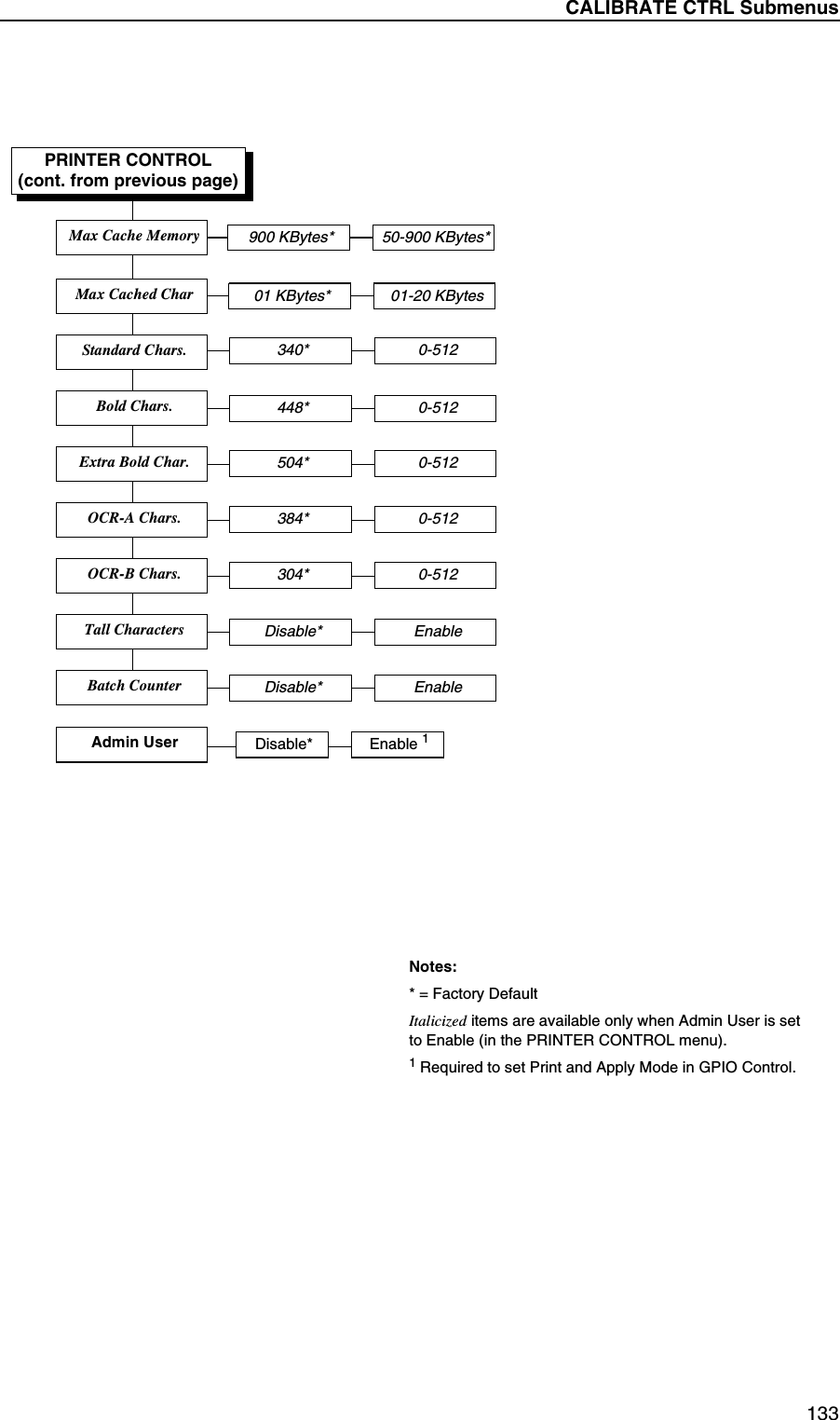
260Appendix B Product SensorProduct sensors of the following type may be used:CAUTIONThe internal signal is pulled up to +24VDC. Use shielding cables which should be grounded at the SLPA end. It is also recommended that a 200 Ω ferrite be attached to the cable for adequate EMI shielding.The product sensor supplied by Printronix has a range of 12 inches (300mm) and has a sensitivity adjustment for different sensing levels. This sensor has two modes of operation, Light Operate and Dark Operate. When an object is in front of the product sensor, the LED, located on the back of the sensor is lit. When in Light Operate mode, the factory preset mode, the sensor will trigger when the LED turns on (is lit). This mode would therefore apply a label when the leading edge of the product is detected by the sensor. When in Dark Operate mode, however, the sensor will trigger when the LED turns off (is not lit). This mode would therefore apply a label when the trailing edge of the product is detected by the sensor.NOTE: For a standard SLPA, the sensor should be set to Light Operate mode. If the Dark Operator mode is required, custom work is needed and must therefore be specified prior to order placement.If the sensor is set to Dark Operator mode for a standard SLPA, the cylinder will always cycle one time on power-up.To adjust the product sensor delay to the correct time for the size of the product:1. Adjust the sensitivity by turning the gain on the top of the product sensor. The red LED located on the top of the product sensor is provided to help set the sensitivity.To adjust to a lower sensitivity, turn the gain counterclockwise. To adjust to a higher sensitivity, turn the gain clockwise.NOTE: The product sensor should be set to a lower sensitivity if it is being triggered by background objects. If the product sensor does not trigger when the product passes in front of the sensor, it should be set to a higher sensitivity.Type Pin Number Pin Description12 - 24 VDC Photo eye(Provided)1 100mA max current allowed2GND6 SignalDevice using NPN Transistor with open collector outputSINK 50 ma2GND6 SignalMechanical Switch 2 GND6 Signal
Cylinder Stroke Lengths261Application OptionsNOTE: The following application options require custom work and must therefore be specified prior to order placement.Cylinder Stroke LengthsTo customize the SLPA to meet individual application requirements, applicators are available in the following cylinder stroke lengths:•8.0 inches (203 mm)•14.0 inches (357 mm) - standard•20.0 inches (508 mm)NOTE: The lengths specified above do not reflect the actual distance that the SLPA can be positioned from the product. The applicator pad must travel 4.75 inches (120.65 mm) from the peel point (point at which the label is applied) before reaching the bottom of the SLPA. Therefore, an SLPA that has a cylinder length of 14 inches, for example, can be positioned no more than 11.50 inches (292 mm) from the product to make contact.Soft PadFor applications requiring cushioned application, a soft applicator pad is available. This pad is manufactured from foam rubber rather than hard plastic, as the standard applicator pad. This option is useful for applying labels to fragile products or products that have irregular surfaces.Random Stroke SensorThe random stroke regulator controls the trip point at which the applicator will return to its home position, once it makes contact with the product. This allows products of different sizes to be marked without concern of the applicator crushing objects which require a shorter stroke of the applicator.There are several sensor types which may be used with the random stroke function, depending upon the customer’s application. Regardless of the type of sensor used, all random stroke sensors will interface with the SLPA via the auxiliary connection on the interface panel.
262Appendix B Application Options
 263CDownloading SoftwareLoading Flash MemoryFlash memory is contained in a SIMM (single in-line memory module) located on the controller PCBA. Printer control languages (the “emulations”) and printer operating system software are loaded into flash memory at the factory, but there are occasions when you may have to load this software:•You have replaced the controller PCBA•You have replaced flash memory•The customer needs to upgrade printer software•The customer needs different emulation software•The customer buys the PGL or VGL graphics language, theCT option, the IPDS option, or the ethernet NIC (network interface card) option after the printer is installedEmulation and operating system software are included as files on a CD-ROM that comes with the printer. You will copy the appropriate file from the CD-ROM to a computer’s hard disk, then download the file from the computer into printer memory.IMPORTANTWhen downloading emulation and operating system software to the printer, all other optional fonts, customer-supplied logos, setup files, feature files, and TIFF files will be erased. You will then need to reload those files. Before starting a download procedure, be sure that you have all the necessary files on hand.You can load software through the serial, parallel, or ethernet port of the printer, and you can do it three ways:•If your computer can run Java™ programs, you can load software through any printer port by using the Firmware Download Utility included on the CD that comes with the printer. (See below.)•You can use DOS commands to load software through the parallel port or serial port. (See page 265.)•If the printer has the ethernet NIC (network interface card) installed, you can load software through the ethernet port. (See page 268.)
 264Appendix C Loading Flash MemoryLoading Software With The Firmware Download UtilityThe Firmware Download Utility (FDU) allows you to load program files into the printer with an easy to use graphical interface. The FDU is a utility program included on the CD that comes with the printer. It can be used on computers running the Windows or UNIX® (such as Linux® or Solaris™) operating systems. With the FDU, you can choose the printer port through which to load software (all are supported), configure the port, and initiate the download.The FDU is a Java-based program, so you need the Java 2 Platform, Standard Edition (J2SE™) Java Runtime Environment (JRE) installed on your computer. The Windows version of the J2SE JRE is included on the CD that comes with the printer in the form of an executable file:j2re-1_4_2_08-windows-i586-p.exe. Copy this file to your computer and double-click it; it will self-extract and install the J2SE JRE on your computer.NOTE: If you have a Linux or Solaris system, you can download the J2SE JRE for your system from http://java.sun.com/j2se.If you have another UNIX system, see your system administrator.Conditions for use of the included Java Software are set forth in  the Sun Microsystems Binary Code License Agreement(http://java.com/en/download/license.jsp). In the event of any conflicting terms, the Binary Code License Agreement controls.1. Make a configuration printout of all saved configurations. (Refer to the User’s Manual.)2. Set the printer power switch to O (Off).3. Disconnect the data (signal) cable(s) from the printer interface connectors.4. Connect a printer data cable to the parallel, serial, or ethernet port of the computer you will use to download the software.5. Connect the printer data cable to the appropriate I/O port of the printer.6. On the printer control panel, press and hold down the   and ↓ keys. Without releasing the keys, power the printer on. When you see“B01: STATUS” on the on the LCD, release the keys.7. Wait until you see “PROGRAM DOWNLOAD” on the LCD before doing the next step. This can take about a minute to appear, depending on the emulations and interfaces installed in the printer.8. On your computer, create a directory named download at the root level of the hard drive (e.g., C:\download on a Windows computer).9. Insert the printer emulation software CD into your computer’s CD-ROM drive.10. Copy the FDU.jar file from the CD-ROM to your computer....
Loading Through The Parallel Or Serial Port Using DOS 26511. Open the readme.txt file on the CD-ROM. There are two emulation sets with corresponding part number files from which to choose:CT / IPDS / IGP / ZGL / TGL / IGL / STGLTN / IGP / ZGL / TGL / IGL / STGLBoth emulations include the LP+ emulation. They are offered in two file formats: .exe and .prg. You can use either format with the FDU.12. Identify which emulation set you want to load into the printer and note the filename that corresponds to that emulation. The filename is a six digit number plus .exe or .prg. For example: 123456.exe or 123456.prgThis is the file you will download into the printer.13. Copy the file to the download directory you created in step 8.14. Double-click the FDU.jar file (for command line prompt users, typejava -jar fdu.jar<Enter>). It will launch in its own window. Use the FDU to enter the emulation part number, to select the I/O connection and its corresponding settings, and to initiate the download.IMPORTANTDo not interrupt the downloading process once it has started. Interrupting a download will leave the flash memory on the controller PCBA incompletely loaded, and the printer may not boot up.15. When the new software has successfully loaded into flash memory and the printer has reset itself, set the printer power switch to O (Off).16. Remove the CD-ROM from your computer and store it with the printer.17. If required, reconnect the data input cable(s) to the printer.18. Set the printer power switch to | (On).19. Using the configuration printout(s) you made in step 1, page 264, restore the printer configurations. (Refer to the printer User’s Manual.)Loading Through The Parallel Or Serial Port Using DOS1. Make a configuration printout of all saved configurations. (Refer to the User’s Manual.)2. Set the printer power switch to O (Off).3. Disconnect the data (signal) cable(s) from the printer interface connectors.4. Connect a parallel data printer cable to the LPT1 port or a serial data printer cable to the COM1 port of an IBM-compatible computer running the Windows (95, 98, Me, NT, 2000, or XP) operating system.NOTE: You can connect the cable to the LPT2 port if the LPT1 port is in use. The load command is different if you use this port, so make sure you use the LPT2 commands in step 15.Software loads at 9600 baud if you load through the serial port with a DOS command. This can take a long time. Software loads much faster through the parallel port.5. Connect the data cable to the appropriate I/O port of the printer.
 266Appendix C Loading Flash Memory6. On the printer control panel, press and hold down the   and ↓ keys. Without releasing the keys, power the printer on. When you see“B01: STATUS” on the on the LCD, release the keys.7. Wait until you see “PROGRAM DOWNLOAD” on the LCD before doing the next step. This can take about a minute to appear, depending on the emulations and interfaces installed in the printer.8. Using Windows Explorer, create a directory named download at the root level of your C: hard drive (C:\download).9. Insert the printer emulation software CD-ROM into your computer’s CD-ROM drive.10. Open the readme.txt file on the CD-ROM. There are two emulation sets with corresponding part number files from which to choose:CT / IPDS / IGP / ZGL / TGL / IGL / STGLTN / IGP / ZGL / TGL / IGL / STGLBoth emulations include the LP+ emulation. They are offered in two file formats: .exe and .prg. Use .exe files to download through the parallel or serial port.11. Identify which emulation set you want to load into the printer and note the filename that corresponds to that emulation. The filename is a six digit number plus .exe. For example: 123456.exeThis is the file you will download into the printer.12. Copy the file to the download directory you created in step 8.13. Start a command prompt session. (The Start Menu icon is usually labeledMS-DOS® Prompt or Command Prompt.)14. At the command prompt type:C:<Enter>cd \download<Enter>15. To load the file through the LPT1 parallel port on the computer, type the following at the command prompt on the computer:filename.exe -pb<Enter>where filename.exe is the file name you noted in step 11. This command decompresses the file on the hard drive and copies it as a binary file into the flash memory on the printer controller board.To load the file through the LPT2 parallel port on the computer, enter the following command:filename.exe -pb2 <Enter>To load the file through the serial port, enter the following commands:mode COM1:9600,N,8,1,P<Enter>filename.exe -pbc1<Enter>NOTE: Software loads at 9600 baud if you load through the serial port with a DOS command. This can take a long time. Software loads much faster through the parallel port.When you power up in download mode (step 6) the printer is ready to accept data from all ports. When the printer receives data from one of the ports (based on the load command you give) the other ports shut down....
Loading Software If Flash Contains Only Boot Code 267IMPORTANTDo not interrupt the downloading process once it has started. Interrupting a download will leave the flash memory on the controller PCBA incompletely loaded, and the printer may not boot up.While the file is copied into memory, the printer LCD informs you of the load process and status.16. When the new software has successfully loaded into flash memory and the printer has reset itself, set the printer power switch to O (Off).17. Remove the CD-ROM from the host computer and store it with the printer.18. If required, reconnect the data input cable(s) to the printer.19. Set the printer power switch to | (On).20. Using the configuration printout(s) you made in step 1 on page 265, restore the printer configurations. (Refer to the printer User’s Manual.)Loading Software If Flash Contains Only Boot CodeIf the flash memory contains only boot code (e.g., if it is new), or if a download was interrupted (e.g., by a power outage), you must download software through the printer’s parallel port using the three-key initialization sequence covered in this section.1. Make sure the printer’s parallel port is available. In some configurations, you may have to re-install the Centronics® I/O cable and connector in order to load basic software into the printer.2. Set the printer power switch to O (Off).3. Disconnect the data (signal) cable(s) from the printer interface connectors.4. Connect a parallel data printer cable to the LPT1 port or LPT2 port of an IBM-compatible computer running the Windows (95, 98, Me, NT, 2000, or XP) operating system.5. Connect the data cable to the Centronics port of the printer.6. On the printer control panel, press and hold down the  , ↓, and ↵ keys. Without releasing the keys, power the printer on. When you see “B20: STATUS 00% / DOWNLOAD MODE” on the LCD, release the keys.7. Using Windows Explorer, create a directory named download at the root level of your C: hard drive. (C:\download)8. Insert the printer emulation software CD-ROM into your computer’s CD-ROM drive.9. Open the readme.txt file on the CD-ROM. There are two emulation sets with corresponding part number files from which to choose:CT / IPDS / IGP / ZGL / TGL / IGL / STGLTN / IGP / ZGL / TGL / IGL / STGLBoth emulations include the LP+ emulation. They are offered in two file formats: .exe and .prg. Use .exe files to download through the parallel port.10. Identify which emulation set you want to load into the printer and note the filename that corresponds to that emulation. The filename is a six digit ...
 268Appendix C Loading Flash Memorynumber plus .exe. For example: 123456.exeThis is the file you will download into the printer.11. Copy the file to the download directory you created in step 7.12. Start a command prompt session. (The Start Menu icon is usually labeledMS-DOS Prompt or Command Prompt.)13. At the command prompt type:C:<Enter>cd \download<Enter>14. To load the file through the LPT1 parallel port on the computer, type the following at the command prompt on the computer:filename.exe -pb<Enter>where filename.exe is the file name you noted in step 11. This command decompresses the file on the hard drive and copies it as a binary file into the flash memory on the printer controller board.To load the file through the LPT2 parallel port on the computer, enter the following command:filename.exe -pb2 <Enter>15. When the software has successfully loaded into flash memory and the printer has reset itself, set the printer power switch to O (Off).16. Starting at step 6, page 266, repeat the “Loading Through The Parallel Or Serial Port Using DOS” procedure. (In other words, use the two-key method to load software again.) This ensures that all necessary code is loaded into printer memory.Loading Software Through The NICIMPORTANTTo load software through the NIC, you need the IP Address of the printer and the flash memory must contain basic printer code. If the flash memory was replaced, or if a download was interrupted (e.g., by a power outage), you must load software through the parallel port. (See “Loading Software If Flash Contains Only Boot Code” on page 267.)1. Make a configuration printout of all saved configurations. (Refer to the User’s Manual.)2. Set the printer power switch to O (Off).3. Connect the ethernet cable to the printer interface.4. On the printer control panel, press and hold down the   and ↓ keys. Without releasing the keys, power the printer on. When you see “B01: STATUS” on the on the LCD, release the keys.5. Wait until you see “WAITING FOR DOWNLOAD” on the LCD before proceeding. This can take about a minute to appear, depending on the emulations and interfaces installed in the printer.6. Using Windows Explorer, create a directory named download at the root level of your C: hard drive. (C:\download)7. Insert the printer emulation software CD-ROM into your computer’s CD-ROM drive....
Loading Software Through The NIC 2698. Open the readme.txt file on the CD-ROM. There are two emulation sets with corresponding part number files from which to choose:CT / IPDS / IGP / ZGL / TGL / IGL / STGLTN / IGP / ZGL / TGL / IGL / STGLBoth emulations include the LP+ emulation. They are offered in two file formats: .exe and .prg. Use .prg files to download through the NIC.9. Identify which emulation set you want to load into the printer and note the filename that corresponds to that emulation. The filename is a six digit number plus .prg. For example: 123456.prgThis is the file you will download into the NIC.10. Copy the file to the download directory you created in step 6.11. Start a command prompt session in Windows. (The Start Menu icon is usually labeled MS-DOS Prompt or Command Prompt.)12. At the command prompt type:C:<Enter>cd \download<Enter>13. Start the FTP (file transfer protocol) program by typing:ftp xxx.xxx.xxx.xxx<Enter>(where xxx.xxx.xxx.xxx is the IP Address of the printer.)14. Log in to the printer by typing:root<Enter>You are given a password prompt.NOTE: The default is no password. If the FTP program requires a password, contact the system administrator.15. At the password prompt, press <Enter>.16. Once logged in, type the following sequence at the command prompt to download the filename.prg file to the printer:cd dest<Enter>cd d1prn<Enter>bin<Enter>put filename.prg<Enter>(where filename.prg is the file name you noted in step 9)IMPORTANTDo not interrupt the downloading process once it has started. Interrupting a download will leave the flash memory on the controller PCBA and NIC incompletely loaded, and the printer may not boot up.17. When the download is complete, exit the FTP program by typing:quit<Enter>18. When the new software has successfully loaded into flash memory and the printer has reset itself, set the printer power switch to O (Off).19. Remove the CD-ROM from the host computer and store it with the printer.20. If required, reconnect the data input cable(s) to the printer.21. Set the printer power switch to | (On).22. Using the configuration printout(s) you made in step 1, page 268, restore the printer configurations. (Refer to the printer User’s Manual.)
 270Appendix C Loading Flash MemoryDownloading Optional Fonts To Flash MemoryOptional fonts are stored on a 3.5 inch floppy diskette that contains file names comprised of a part number with a .dwn extension. You will insert this diskette in your IBM-compatible computer and use either the parallel or serial port to download the desired font(s) to the printer’s flash memory.See Table 16 for a list of optional fonts and their corresponding part numbers.Table 16. Optional FontsFont Name Part NumberAntique Olive 706612-001Avante Garde 706617-001Baskerville 706606-001Caslon 706613-001CG Bodoni 706610-001CG Century 706598-001CG Times 706597-001CG Times International 706614-001CG Triumvirate 706596-001CG Triumvirate Condensed 706607-001Chart 706601-001Decorative 1 706611-001Decorative 2 706618-001Decorative 3 706615-001Decorative 5 706616-001Desktop 706603-001Futura II 706605-001Garamond 706604-001Gill Sans 706595-001ITC Galliard 706608-001ITC Century 706609-001Label #1 706599-001Label #2 706600-001Office 706602-001Univers 706594-001
Downloading Optional Fonts To Flash Memory 2711. Set the printer power switch to O (Off).2. Connect a parallel data cable to the LPT1 port or a serial cable to the COM1 port of an IBM-compatible computer running the Windows (95, 98, Me, NT, 2000, or XP) operating system.NOTE: You can connect the cable to the LPT2 port on the computer if the LPT1 port is already in use. The load commands are different if you use this port, as described in the notes after step 13.3. Verify that the data cable is connected to the appropriate I/O port on the printer and to the host computer.4. Power on the computer and allow it to boot up.5. On the printer control panel, press and hold down the   and ↓ keys. Without releasing the keys, power the printer on. Continue holding down the  and ↓ keys.6. When you see “B01 STATUS” on the LCD, release the   and ↓ keys.7. Wait until you see “PROGRAM DOWNLOAD” on the LCD before proceeding. This can take about a minute to appear, depending on the emulations and interfaces installed in the printer.8. Insert the optional font diskette into diskette drive A (or B) of the computer.9. Start a command prompt session. (The Start Menu icon is usually labeledMS-DOS Prompt or Command Prompt.)10. Make the diskette drive the active drive by typing:A:<Enter> (if the diskette is in drive B, type B:<Enter>)11. List the contents of the diskette at the command prompt by typing the following:dir<Enter>You will see a directory listing containing files with a .dwn extension, e.g., 94021.dwn, 94022.dwn, 94023.dwn.12. Make note of the file name with the .dwn extension of each file you want to download to the printer.NOTE: The numeric portion of the file name will match the numbers of the font typefaces listed in Appendix F of the PGL Programmer’s Reference Manual and provide you with a description and print sample of the typeface.13. At the command prompt type:copy /b filename.dwn LPT1<Enter>(where filename.dwn is file name you noted in step 12.)NOTE: If you are loading the file using the LPT2 port on the computer, type the following command:copy /b filename.dwn LPT2<Enter>(where filename.dwn is a file you noted in step 12.).........
 272Appendix C Loading Flash MemoryIf you are loading the file using the serial port on the computer, type the following commands:mode COM1:9600,N,8,1,P<Enter>copy /b filename.dwn COM1<Enter>(where filename.dwn is a file you noted in step 12.)The 9600 baud rate is the only selection some systems can use. The baud rate information entered in the above commands must match the Baud Rate setting (in the SERIAL PORT menu) saved in the Power-Up Config.You can download the optional fonts one at a time by entering one file name per the copy command or you can copy multiple files in one copy command.To download one file at a time, enter the following at the command prompt:copy /b filename.dwn LPT1<Enter>To download multiple files, enter the following at the command prompt, for example:copy /b filename1.dwn+filename2.dwn+...LPT1<Enter>14. While the font file is copied into flash memory, the printer LCD informs you of the load process and status. When the new file is successfully loaded into memory, the printer will reset itself and go online.15. To verify that the optional fonts have been downloaded:NOTE: Admin User must be set to Enable in the PRINTER CONTROL menu. See the User’s Manual.a. Perform a configuration printout.— OR —b. Select PRINTER CONTROLView File List. The new file names will appear with the same part number file name you downloaded, but with an .sf extension.NOTE: The optional font typefaces cannot be selected via the printer control panel. They can only be selected via a software command from the host.16. Press the PAUSE key to place the printer online and return the printer to normal operation.Downloading TrueType FontsThere are several ways to download TrueType fonts to your SLPA printer. Once a TrueType font is downloaded, it will be stored in the Flash file system as a resident font. Regardless of printer power cycles, the downloaded font will stay in the printer until the user deletes it. The user can find the list of all printer resident fonts under Printer Control -> View File List after enabling Admin User in the Printer Control menu. To delete a downloaded font from the Flash file system, the user should select the font under Printer Control -> Delete File List and then select Optimize & Reboot.
Printronix Windows Driver 273Printronix Windows DriverA TrueType font can be downloaded from a PC through the Printronix Windows Driver.1. Load the Printronix Windows driver provided with your printer on the Manuals and Utilities CD on Windows 2000/NT/XP.2. Once the printer driver is installed on the PC, right click the printer driver and select Properties.3. Click the “TT Font Download” tab to access all the available system TrueType fonts.4. Select the TrueType font(s) from the “Available System TrueType fonts” you want to download.5. Click the “Download” button to download font(s) to the printer while it is online.Create And Send Download File – Online (PGL Only)A TrueType font can be loaded by creating a file that appends a PGL command to the font and then sending that file to the printer. Use the PGL FONTLOAD command:~FONTLOAD;FontName;FontSize;DISKwhereFontName - TrueType font name, e.g. arial.ttfFontSize - TrueType font size, e.g. file size for arial.ttfDISK - Specify the download location to FlashFor example:~FONTLOAD;arial.ttf;60548;DISKInsert binary data of arial.ttf here...ENDAfter the file is created, it can be copied to the appropriate I/O port of the printer while the printer is online, just like any other print file (for example: copy/b filename.ext 1pt1).
 274Appendix C Loading Flash MemoryCreate And Send Download File – Download ModeA TrueType font can be converted to a downloadable format by appending a header to the font file using the cnvt2fls.exe utility.1. Start a MS-DOS prompt window.2. Copy cnvt2fls.exe and addtthdr.bat from your startup CD to your working directory.3. In your working directory, include the TrueType font file in .ttf format, (e.g. arial.ttf).4. Convert the TrueType font file .ttf to a downloadable format .dwn with the following command: addtthdr (filename without extension).5. Put the printer in download mode as described in the “Downloading Optional Font Files To Flash Memory” section.6. Send the downloadable font file (e.g. arial.dwn) to the printer through the appropriate I/O port of the printer.Using PTX_SETUPPTX_SETUP can be used to load TrueType fonts into the file system. Please see the PTX_SETUP chapter in the PGL Programmer’s Reference Manual for details.Example:!PTX_SETUPFILE_IO-CAPTURE; “ARIAL.TTF”.PTX_ENDArial TrueType font binary dataNOTE: Do not add any LF/FF at the end of the binary data!PTX_SETUPFILE_IO-CAPTURE;””.PTX_ENDLabeling ApplicationsA TrueType font can be downloaded through several labeling applications, such as Codesoft, Loftware, and Bartender. Please contact the appropriate company for more details.
Using Downloaded TrueType Fonts 275Using Downloaded TrueType FontsAfter downloading the TrueType font using any of the above methods, the user can access the downloaded TrueType fot by using the FONT;NAME command as described in the PGL Programmer’s Reference Manual.For Example:~CREATE;FORMFONT;NAME ARIAL.TTFALPHA10;10;2;2;$01234$STOPEND~EXECUTE;FORM;1
 276Appendix C Loading Flash Memory
 277Numerics06 HOST REQUEST fault message, 20908 HOLD PRINT TIMEOUT fault message, 20915 COMM CHECK fault message, 209203 DPI fault message, 21022 INVALID ADDR fault message, 20927 CU TIMED OUT fault message, 20928 CU NOT ENAB fault message, 209300 DPI fault message, 21033 HEAD OPEN Timeout fault message, 21040V POWER FAIL fault message, 210AAbout the Printer, 24Accessoriesmounting, 256optional mounting, 29U-arm, 256ACK / NAK, 166Active IGP Emul option, 95, 135Adjustmentscylinder extend time, 70label application, 68media sensor, 56pressure block, left, 56pressure block, right, 56printhead pressure, 55voltage, 33Adjustments, system, 55Admin User option, 143Advanced gap, media sensing, 58, 61Advanced notch, media sensing, 58, 62AI 00 Spaces option, 151Air connection, 30Air cylinder regulator control valve, 40Air jet adjustment control valve, 40AIR JET control valve, 40Air jets, position, 52Air supply, 20Alarm option, 137Amp-Hour Used option, 191Ant. Diversity option, 187Application options, 261cylinder stroke lengths, 261random stroke sensor, 261soft pad, 261Application rate specifications, 247Applicator delay menu mode, 195Applicator pad, cleaning, 200Apply label, 71ASCII Data Port option, 176Asterisk (*), meaning on messages, 208Auth Method, WLAN LEAP menu, 189Auto Calibrate, 207option, 94Auto Calibrate option, 126Auto calibrate, running, 63Auto Label Width option, 117Auto Locking option, 139Auto Map Select option, 115Auto Retry, 103Auto Save Configuration, 76Auto Trickle option, 162Auto Uppercase option, 149Autowrap option, 148Index
 278BBAD VFU CHANNEL fault message, 210BAR CODE IMPROPER Data Format fault message, 210BAR CODE QUIET Zone too small fault message, 210Bar codes, 24Barcode Demo, 208Batch Counter option, 143BATT HIGH VOLT fault message, 210BATT LOW VOLT fault message, 210BATTERY CONTROLmenu, 190submenus, 191Battery Monitor option, 191Baud Rate option, 165Beacon package options, 253Beacon package, fault/warning, 254Beacon, mounting, 255Bold Chars. option, 142Boundary Check option, 155BUFFER OVERFLOW fault message, 211BUFFER OVERRUN fault message, 211Buffer Size in K option (Parallel Port), 161Buffer Size in K option (Serial), 167Busy on Strobe option, 163CC/T PORTmenu, 172submenus, 172CALIBRATE CTRLmenu, 125submenus, 126Calibrating media sensors, 63CALIBRATION Warning fault message, 211Cancel Key option, 138CANNOT CALIBRATE Disable Peel-Off fault message, 211CAUTION, definition, 17Cautions, 22Changing printer settings, 74Channel option, 186Character Group option (PGL), 147Checkerboard, printer test, 207Cleaning, 197applicator pad, 200media sensor, 199platen roller, 199printhead, 199schedule, 202vacuum generator, 201Clear Error Log option, 158Clear Tag Stat, 101CLEARING PROGRAM FROM FLASH fault message, 211Clip Page option, 120Communications connection, 30Communications failures, 243Communications interface specifications, 252Compatibility option, 138CONFIG. CONTROLmenu, 105submenus, 106Configuration, 18Configuration menumoving within, 73printout (sample), 80Configurationsmodifying saved, 78printing, 79printout (sample), 80saving, 75specifying power-up, 77Connectionsair, 30communications, 30power, 30specifications, 252CONTRAST TOO LOW Check media fault message, 211Control gauges, pneumatic, 40Control panel status, keypad, 36Control valves, pneumatic, 40CR Edit option, 150
 279Create And Send Download FileDownload Mode, 274Online (PGL Only), 273CSC, 15CTHI Emulation option, 134Current Configuration, printer test, 208Current Draw option, 191Custom Read Pwr, 103Custom Tag, 103Custom Tag Class, 104Custom Tag Len, 104Custom Write Pwr, 103Customer Support Center, 15CUTTER FAULT Check Cutter fault message, 212CYLINDER control valve, 40Cylinder extend time adjustments, 70Cylinder stroke lengths, 261DDark background labels with gaps, 61Dark background media with notches or holes, 62Data Bit 8 option, 161Data exchange, 245Data indicator light, 39Data Polarity option, 163Data Protocol option, 166Data Term Ready option, 168Default WEP Key option, 187Define CR code option, 148Define LF code option (PGL, Serial Matrix, Proprinter XL, Epson FX), 148Del Char frm Flsh option, 136Del Char frm RAM option, 136Del Set frm Flsh option, 136Del Set from RAM option, 137Delete Config option, 106Delete Files option, 138Device Address option, 172DHCP option, 174, 180Diagnostic tests, 157DIAGNOSTICSmenu, 156submenus, 157DIAGNOSTICS PASSED fault message, 212Direct Thermal Mode, 26DIRECT THERMAL Remove Ribbon fault message, 212Display Language option, 136Display Ribbon option, 121Do FF at TOF option, 152DO NOT POWER OFF fault message, 212Download FileDownload Mode, 274Online (PGL Only), 273Downloading Optional Fonts to Flash Memory, 270Downloading software, 263Downloading TrueType Fonts, 272DRAM Installed option, 158DTR, 167Dynamic Sensing option, 130EEC SOFTWARE FAIL fault message, 212Electrical specifications, 250Emulations, 24Emulations, loading, 263E-NET INIT fault message, 212E-NET READY fault message, 212E-NET RESET fault message, 212E-Net Test Page, 208ENTER to Stop fault message, 212Environment, operating, 20Environmental specifications, 251EPC Mgr Report, 104ERROR DC PROGRAM NOT VALID fault message, 212ERROR DRAM AT ADDRESS XXXXXXXX fault message, 212ERROR FLASH DID NOT PROGRAM fault message, 213Error Handling, 100ERROR IPDS needs 300 DPI Head fault message, 213Error messages, clearing, 209Error messages, printed overstrikePrecheck Fail x / Check media, 102Tag Comm Err x / Check cable, 102Tag R/W Err x / Check media, 102
 280ERROR NO DRAM DETECTED fault message, 213ERROR OCCURRED FLUSHING QUEUES fault message, 214ERROR PROGRAM NEEDS MORE DRAM fault message, 213ERROR PROGRAM NEEDS MORE FLASH fault message, 213ERROR PROGRAM NOT COMPATIBLE fault message, 213ERROR PROGRAM NOT VALID faultmessage, 213Error Recover option, 121Error Report option, 154ERROR SECURITY KEY NOT DETECTED fault message, 213ERROR SHORT AT ADDRESS XXXX fault message, 213ERROR WRITING TO FLASH fault message, 213ERROR WRONG CHECKSUM fault message, 213ETHERNET ADDRESSmenu, 173submenus, 174ETHERNET PARAMSmenu, 175submenus, 176Ethernet Speed option, 177ETX / ACK, 166Exchange, data, 245Expanded Font option (PGL), 152Expansion modules, 253Ext Execute Copy option, 151Extra Bold Char. option, 142FF/W-Version, 101Failed Tag Cnt, 100FAN WARNING fault message, 214Fault message06 HOST REQUEST, 20908 HOLD PRINT TIMEOUT, 20915 COMM CHECK, 209203 DPI, 21022 INVALID ADDR, 20927 CU TIMED OUT, 20928 CU NOT ENAB, 209300 DPI, 21033 HEAD OPEN Timeout, 21040V POWER FAIL, 210BAD VFU CHANNEL, 210BAR CODE IMPROPER Data Format, 210BAR CODE QUIET Zone too small, 210BATT HIGH VOLT, 210BATT LOW VOLT, 210BUFFER OVERFLOW, 211BUFFER OVERRUN, 211CALIBRATION Warning, 211CANNOT CALIBRATE Disable Peel-Off, 211CLEARING PROGRAM FROM FLASH, 211CONTRAST TOO LOW Check media, 211CUTTER FAULT Check Cutter, 212DIAGNOSTICS PASSED, 212DIRECT THERMAL Remove Ribbon, 212DO NOT POWER OFF, 212EC SOFTWARE FAIL, 212E-NET INIT, 212E-NET READY, 212E-NET RESET, 212ENTER to Stop, 212ERROR DC PROGRAM NOT VALID, 212ERROR DRAM AT ADDRESS XXXXXXXX, 212ERROR FLASH DID NOT PROGRAM, 213ERROR IPDS needs 300 DPI Head, 213ERROR NO DRAM DETECTED, 213ERROR OCCURRED FLUSHINGQUEUES, 214ERROR PROGRAM NEEDS MORE DRAM, 213ERROR PROGRAM NEEDS MOREFLASH, 213ERROR PROGRAM NOT COMPATIBLE, 213ERROR PROGRAM NOT VALID, 213ERROR SECURITY KEY NOT DETECTED, 213ERROR SHORT AT ADDRESS XXXX, 213ERROR WRITING TO FLASH, 213ERROR WRONG CHECKSUM, 213
 281FAN WARNING, 214FILE EXISTS Enable Overwrite, 214FILE SYS INVALID Optimize&Reboot, 214FILE SYS WRITE Check Flash, 214FILE SYSTEM FULL Add Flash, 214FILE SYSTEM FULL Delete Files, 214FILE SYSTEM FULL Optimize & Reboot, 214FPGA FILE NOT FOUND, 214FRAMING ERROR, 214GAP NOT DETECTED See Manual, 215GRF CHK ERROR PRESS PAUSE, 215Half Speed Mode, 215HEAD POWER FAIL, 215IGP/PGL ERROR, 215INCOMPATIBLE WITH CUTTER, 216INSUFFICIENT RAM Reboot/Add RAM, 216LABEL MISSING Check Paper Path, 216LOADING PROGRAM FROM PORT XX%, 216LOADING PROGRAM INTO FLASH, 216MENU MODE QUICK SETUP, 216NON VOLATILE MEMORY FAILED, 217OPTION NOT INSTALLED, 217PAPER OUT Load Paper, 218PAPER OUT TIMEOUT, 218PARITY ERROR, 218POOR SCANNING Check Head&Heat, 218POOR SCANNING Check media, 218POOR SCANNING Inspect head, 219POWER SAVER MODE, 219PRINT HEAD COLD See Manual, 219PRINT HEAD HOT, 219PRINT HEAD UP Close Print Head, 219PRINTER HOT, 219PRINTER UNDER REMOTE CONTROL, 219PWR SUPPLY HOT, 219RBN TAKEUP FULL Remove Used Rbn, 220RECHARGE BATTERY, 220Remove Label, 220RESETTING PLEASE WAIT, 220RESTORING BOOT CODE, 220RFID MAX RETRY Check System, 220RFID TAG FAILED Check Media, 220RIBBON BROKEN Reload Ribbon, 220RIBBON FAULT Timeout, 221RIBBON LOAD BAD Reload Ribbon, 221Ribbon Low, 221RIBBON OUT Load Ribbon, 221SECURITY CODE VIOLATION, 221SELECT DOWNLOAD PORT=XXXXXXXXXX, 221SOFTWARE ERROR Recycle Power, 221TESTING HARDWARE PLEASE WAIT, 221WAITING FOR PROGRAM DOWNLOAD, 222WIRELESS ADAPTER NOTCOMPATIBLE, 222Fault Message Troubleshooting Table, 209Fault messagesFault Message Troubleshooting Table, 209Fault messages, clearing, 209Fault/warning beacon package, 254Feature File option, 158Featuresoptional, 25standard, 24FILE EXISTS Enable Overwrite fault message, 214FILE SYS INVALID Optimize&Reboot fault message, 214FILE SYS WRITE Check Flash fault message, 214FILE SYSTEM FULL Add Flash fault message, 214FILE SYSTEM FULL Delete Files fault message, 214FILE SYSTEM FULL Optimize & Reboot fault message, 214Flash Avail. option, 138FLASH Installed option, 158Flash SIMM, loading, 263Fonts, 24, 25Downloading, 270Downloading TrueType, 272Forms Handling option, 153FPGA FILE NOT FOUND fault message, 214FRAMING ERROR fault message, 214Framing Errors option, 171Functions, keypad, 36Fuse, 33
 282GGap Length option, 129GAP NOT DETECTED See Manual fault message, 215Gap Windowing option, 129Gap, media sensing, 58, 60Gap/Mark Sensor option, 94, 126Gap/Mark Thresh option, 127Gateway Addess option, 174, 179General cleaning, 197General operation, 19Glob Mem Adjust option, 140GPIO CONTROLmenu, 193submenus, 194Grey, printer test, 207GRF CHK ERROR PRESS PAUSE faultmessage, 215Grid, printer test, 208HHalf Speed Mode fault message, 215Handling, 21Handling, SLPA, 21Handshaking, hardware and software, 245Hardware handshaking, 245Head On Time option, 159HEAD POWER FAIL fault message, 215Head Print Dist option, 158Head Type option, 159Head Voltage option, 159Hex Dump Mode option, 158High Volt Alert option, 192Holes, media sensing, 60Hor Image Shift option, 91, 113Horizontal black marks, 59Host Form Length option (PGL), 149Host Interface option, 135II-2/5 Selection option, 153Idle Response option, 169Ignore Mode option, 152Ignore Text option, 151IGP/PGL ERROR fault message, 215IGP/PGL SETUP menu, 144IGP100 Compatibl. option, 152IMPORTANT, definition, 17INCOMPATIBLE WITH CUTTER faultmessage, 216Indicator descriptions, 38Indicator lightdata, 39online status, 38Indicators, keypad, 36Installation, 18INSUFFICIENT RAM Reboot/Add RAM fault message, 216Interface panel, 30Interface, communications specifications, 252Interfacing, 243Internat. Mode option, 187IP Address option, 174, 179IPDS Data Port option, 176JJets, air, 52Job Control option, 177KKeep Alive Timer option, 176Key descriptions, 38Keypadcontrol panel status, 36functions, 36indicators, 36LLabel applicationadjustments, 68process, 71Label backing, remove, 53Label Length option, 91, 111LABEL MISSING Check Paper Path faultmessage, 216Label on Pad Sensor, 254Label print process, 71
 283Label Retry, 100Label roll, threading, 41Label sensor, low, 258Label Width option, 91, 112Labeling Applications, 274Latch Data On option, 163Lbl Missing Flt option, 119LCD, 36LCD Fault Message Troubleshooting Table, 209Ld Char at PwrUp option, 136Ld Char from Fls option, 136Ld Set at PwrUp option, 137Ld Set from Flsh option, 136Lead PDF Dist option, 154LEAP Password, WLAN LEAP menu, 189LEAP Username, WLAN LEAP menu, 189Left pressure block adjustment, 56Left Test, printer test, 208Liquid Crystal Display, 36Load Config. option, 106Load ribbon, 49LOADING PROGRAM FROM PORT XX% fault message, 216LOADING PROGRAMINTO FLASH fault message, 216Low label sensor, 258Low Volt Alert option, 192Low Volt Fault option, 192LP+ Emulation option, 134MMAC Address option, 174, 180Main configuration menu, 82Manual Calibrate option, 128Manual calibrate, running, 66Manual conventions, 18Manual, others, 18Mark, media sensing, 58, 59Max Cache Memory option, 141Max Cached Char option, 141Max Font Buffer option, 140Max Retry Error, 100MEDIA CONTROLmenu, 108submenus, 110Media dimensions, 248Media Handling option, 90, 111Media profile, 65printout, 66Media Profile option, 127Media sensingdark background media with notches or holes, 62sensing different types of media, 58with dark background labels with gaps, 61with gaps, notches, or holes, 60with horizontal black marks, 59Media sensordisable, 58gap, 58mark, 58Media sensor adjustment, 56Media sensorscalibrating, 63cleaning, 199Media specifications, 248Media specifications matrix, 249Media, types of thermal media, 26Memory, loading, 263MenuApplicator delay, 195mode, 39MENU MODE QUICK SETUP fault message, 216Menu options, selecting, 74Message List (troubleshooting), 209Messagesasterisk (*), what it means, 208clearing, 209Min Calib Delta option, 129Min Xfer Rate option, 186ModeApplicator delay menu, 195menu, 39offline, 38online, 38Printer Tests, 207
 284Modifying saved configurations, 78Modules, expansion, 253Mountingaccessories, 256Beacon, 255optional accessories, 29SLPA, 28stand, 257NName Config (1-8) option, 107Nest Serv Type option, 176NetBIOS Protocol option, 176Network Interface Card, 25NON VOLATILE MEMORY FAILED fault message, 217Non-RFID Warning, 104Notches, media sensing, 60Notes and notices explained, 17Novell Frame option, 176Novell Protocol option, 176Num Auto Labels option, 118OOCR-A Chars. option, 142OCR-B Chars. option, 142Offline mode, 38One Char Enquiry option, 170Online Auto-Cal option, 128Online mode, 38Online status indicator light, 38Onsite maintenance service, 4Operating, 19environment requirements, 20precautions, 23safety, 23specifications, 20Operation Mode option, 186Optimize&Reboot option, 138Optimized Ratio option, 150OPTION NOT INSTALLED fault message, 217Optional features, 25Optional mounting accessories, 29Optionsnetwork interface card, 25NIC, 25PPI/TGL, 24PPI/ZGL, 24Options, application, 261Orientation option, 92, 113Orientation, SLPA, 247Overstrike Style, 101Overwrite Files option, 137PPackage options, 253beacon, 254Panelinterface, 30power, 32Paperdirect thermal, 26thermal transfer, 26Paper Feed Shift option, 90, 111PAPER OUT Load Paper fault message, 218Paper Out Sensor option, 127Paper Out Thresh option, 127PAPER OUT TIMEOUT fault message, 218PARALLEL PORTmenu, 160submenus, 161Parameters, RFID system configuration, 53PARITY ERROR fault message, 218Parity option, 165Percent Charge option, 191PGL Normal option, 153Physical specifications, 251PI Ignored option, 161PI Slew Range option, 150Platen roller, cleaning, 199Pneumatic control valvesair cylinder regulator, 40air jet adjustment, 40vacuum adjustment, 40Pneumatic control valves and gauges, 40Pneumatic specifications, 250Poll Character option, 169
 285Poll Response option, 169POOR SCANNING Check Head&Heat fault message, 218POOR SCANNING Inspect head fault message, 219POR option, 172Port Type option (C/T Port), 172Port Type option (Parallel Port), 161Port Type option (Serial), 165Position air jets, 52Positioning the media sensors, 56Power connection, 30Power Mgmt option, 187Power on IGP/PGL option, 151Power On Reset option, 172Power panel, 32Power requirements, 20POWER SAVER MODE fault message, 219Power Saver Time option, 136Power-Up Config. option, 95, 106Power-up configuration, specifying, 77Power-up State option, 137PPI/TGL, 24PPI/ZGL, 24Preamble option, 187Precautions, operating, 23Precheck Fail x / Check media, 102PreCheck Tags, 101PreErase Class 0+, 103Preparser Cmd option, 155Prime Signal option (Parallel Port), 163Print Config. option, 106Print Direction option, 118Print Error Log option, 158Print File List option, 138PRINT HEAD COLD See Manual faultmessage, 219PRINT HEAD HOT fault message, 219PRINT HEAD UP Close Print Head fault message, 219Print Intensity option, 89, 110Print Mode option, 90, 111Print quality, 203Print Speed option, 90, 110Printed overstrike error messages, 102Printeralarms, 208changing settings, 74configuration, 18configuration parameters, 73Dynamic Print Control, 27emulations, 24hardware options, 25installation, 18printer tests, 157printing process, 26See SLPAthermal printing technology, 26PRINTER CONTROLmenu, 131submenus, 134PRINTER HOT fault message, 219Printer Status option, 170Printer TestsAuto Calibrate, 207Barcode Demo, 208Checkerboard, 207Current Configuration, 208E-Net Test Page, 208Grey, 207Grid, 208Left Test, 208mode, 207Right Test, 208Printer Tests option, 157PRINTER UNDER REMOTE CONTROL fault message, 219Printhead pressure adjustment, 55Printhead pressure block adjustments, 56Printhead, cleaning, 199Printing a configuration, 79Printing reports, 104Printing specifications, 247Printronix Windows Driver, 273Process, print label, 71Product Distance Variation, 247Product Sensor, 259Protect Configs. option, 106
 286Ptr Media Dist option, 158Ptr On Time option, 158Ptx Setup Parse option, 140Ptx Setup SFCC option, 137PTX_SETUP, 274Pwr Save Control option, 136PWR SUPPLY HOT fault message, 219Pwr Up Auto-Cal option, 128QQUICK SETUPmenu, 88submenus, 89RRandom Stroke Sensor, 261Rate, application specifications, 247Rbn Takeup Full option, 122RBN TAKEUP FULL Remove Used Rbn fault message, 220Read Tag, 102Read Tag&Eject, 102Reading a tagRead Tag menu option, 102RECHARGE BATTERY fault message, 220Remove label backing, 53Remove Label fault message, 220Repeat Form Opt option, 155Replacement, vacuum generator, 201Report Status option (C/T Port), 172Report Status option (Parallel Port), 162Report Status option (Serial), 168Request to Send option, 169Requesting reports, 104Requirementsair supply, 20power, 20Reset Cfg Names option, 107Reset Head Data option, 159Reset LEAP Password, WLAN LEAP menu, 190Reset LEAP User, WLAN LEAP menu, 189Reset SSID Name option, 186Reset WEP Keys option, 188RESETTING PLEASE WAIT fault message, 220Resp. Polarity option, 163RESTORING BOOT CODE fault message, 220Ret. Status Port option, 155RFID CONTROLmenu, 97submenus, 99RFID MAX RETRY Check System fault message, 220RFID Reader, 99RFID system configuration parameters, 53RFID TAG FAILED Check Media faultmessage, 220Ribbonloading, 49specifications, 249RIBBON BROKEN Reload Ribbon fault message, 220RIBBON FAULT Timeout fault message, 221RIBBON LOAD BAD Reload Ribbon faultmessage, 221Ribbon Low fault message, 221Ribbon Low option, 122RIBBON OUT Load Ribbon fault message, 221Ribbon Width option, 121Right pressure block adjustment, 56Right Test, printer test, 208Roll, label threading, 41Runningauto calibrate, 63manual calibrate, 66media profile, 65SSafety, operational, 23Save Char to Fls option, 136Save Config. option, 95, 106Save Set to Flsh option, 137Save, auto, 76Saving configurations, 75Scalable Size option, 152Schedule, cleaning, 202SECURITY CODE VIOLATION fault message, 221Select Char option, 152
 287SELECT DOWNLOAD PORT=XXXXXXXXXX fault message, 221Select LPI option, 148Select SFCC option (PGL), 149Select SO Char option, 151Selecting a menu option, 74Sensed Distance option, 127Sensing different media types, 58Sensorlabel low, 258product, 259Sensor, label on pad, 254SERIAL PORTmenu, 164submenus, 165Series1 1 Char, 166Series1 2 Char, 167Set Label Length option, 122Set Lock Key option, 139Set Sharing option, 139Setting printer configuration parameters, 73Shipping, 21Signal Strength option, 186Simple Protocol Converter, 134Skip Cmd Prefix option, 150Slash 0 option, 149Slew Speed option, 118SLPAmounting, 28orientation, 247unpack, 28Smart Label Printer ApplicatorSee SLPASmart labelsreadingSee Reading a tagSMTSel Toolset option, 96Select Tool option, 96Status option, 95Soft pad, 261Software Build option, 158SOFTWARE ERROR Recycle Power fault message, 221Software handshaking, 245Software, loading, 263Specificationsapplication rate, 247communications interface, 252connections, 252electrical, 250environmental, 251media, 248media dimensions, 248operating, 20physical, 251pneumatic, 250printing, 247product distance variation, 247ribbon, 249SLPA orientation, 247Specifying a power-up configuration, 77SSID Name option, 186Stand, mounting, 257Standard Chars. option, 142Standard features, 24Stop Bits option, 165Storage, 21Stroke lengths, cylinder, 261Subnet Mask option, 174, 179Supplies Department, 15Supplies warranty, 4Switch Out On option, 162System adjustments, 55TTag Comm Err x / Check cable, 102Tag R/W Err x / Check media, 102Tag Read Cnt, 101Tag Type, 99Tag Void Cnt, 101Tag Write Cnt, 100Tall Characters option, 142Tear-Strip Time option, 119Technical support, 15Test Count option, 157TESTING HARDWARE PLEASE WAIT fault message, 221
 288Tests, printer, 207Thermal Transfer Mode, 26Thread label roll, 41Threshold Range option, 130Ticket Save Mode option, 123Time To Go Alert option, 192Time To Go option, 191Timeout option(C/T Port), 172Timeout option (Parallel Port), 162Timeout option (Serial), 168TOF Adjust Mode option, 124TOF Adjust option, 124TOF Detect Fault option, 123Transmit Power option, 187Trickle Time (Serial) option, 168Trickle Time option (Parallel Port), 162Troubleshootingdisplay messages, 208Fault Message Troubleshooting Table, 209how to, 206LCD Messages, 209message list, 209newly installed printer, 246other symptoms, 223procedures, 243start here, 205TrueType Fonts, Downloaded, 275Trunc Dyn Data option, 154Twinax/coax host interface, 25UU-arm and accessories, 256Units option, 122Unpack, SLPA, 28UPC Descenders option (PGL), 153Use Label Length option, 130User-Def Ratio option, 154Using Downloaded TrueType Fonts, 275VVacuum adjustment control valve, 40VACUUM control valve, 40Vacuum generatorcleaning, 201replacing, 201Validator Report, 104Var Form Adjust option, 150Var Form Type option, 150Ver Image Shift option, 91, 113View File List option, 137Voltage option, 191Voltage, adjusting, 33WWAITING FOR PROGRAM DOWNLOAD fault message, 222Warning beacon package, 254WARNING, definition, 17Warnings, 22Warranty, 4WEP Key BYTE1 through BYTE13 option, 188WEP Key Format option, 188WEP Key Width option, 188Windows Driver, 273WIRELESS ADAPTER NOT COMPATIBLE fault message, 222WLAN ADDRESSmenu, 178submenus, 179WLAN LEAPmenu, 189WLAN LEAP menuAuth Method, 189LEAP Password, 189LEAP Username, 189Reset LEAP Password, 190Reset LEAP User, 189WLAN PARAMSmenu, 181, 183, 184submenus, 186Word Length option, 165
 289XXON / XOFF, 166
 290
250117-001A*250117-001*For technical assistance, contact yourDistributor/VAR/Reseller for service.For further assistance, contact the Printronix Customer Support Center.Printronix Customer Support CenterAmericas (714) 368-2686Europe, Middle East, and Africa (31) 24 6489 410Asia Pacific (65) 6548 4114Web site: http://www.printronix.com/public/servicessupport/default.aspxPrintronix Supplier CenterAmericas (800) 733-1900Europe, Middle East, and Africa (33) 1 46 25 1900Asia Pacific (65) 6548 4116 or (65) 6548 4182Web site: http://www.printronix.com/public/supplies/default.aspxPrintronix, Inc.14600 Myford RoadP.O. Box 19559Irvine, CA 92623-9559Phone: (714) 368-2300Fax: (714) 368-2600Printronix Schweiz Gmbh42 Changi South Street 1Changi South IndustrialEstate Singapore 486763Phone: (65) 6542 0110Fax: (65) 6543 1588Printronix, Inc.Nederland BVP.O. Box 163 Nieuweweg 283NI-6600 Ad WijchenThe NetherlandsPhone: (31) 24 6489 489Fax: (31) 24 6489 499Or visit the Printronix web site at www.printronix.com

Navigation menu