QINGDAO WINTEC SYSTEM IDT800 pos terminal User Manual
QINGDAO WINTEC SYSTEM CO., LTD pos terminal
User Manual
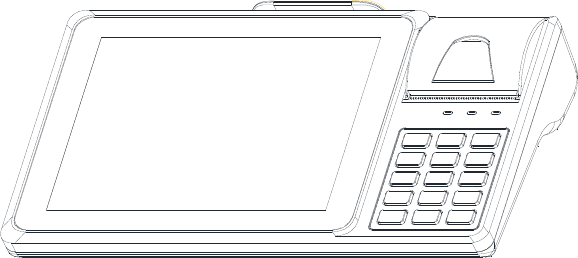
IDT800 智能数据终端
用户手册
青岛中科英泰商用系统股份有限公司
IDT800
www.wintec.cn 1 Hotline:400 708 9898
感谢您选购了IDT800智能数据终端,使用本手册将帮助您了解本产品最
详尽的功能与操作。
产品概述
IDT800 是集打印机和客户显示器于一体的触控智能数据终端,搭载 ARM
硬件平台,运行 Android 系统,是零售、餐饮、娱乐等行业的理想选择。
检查清单
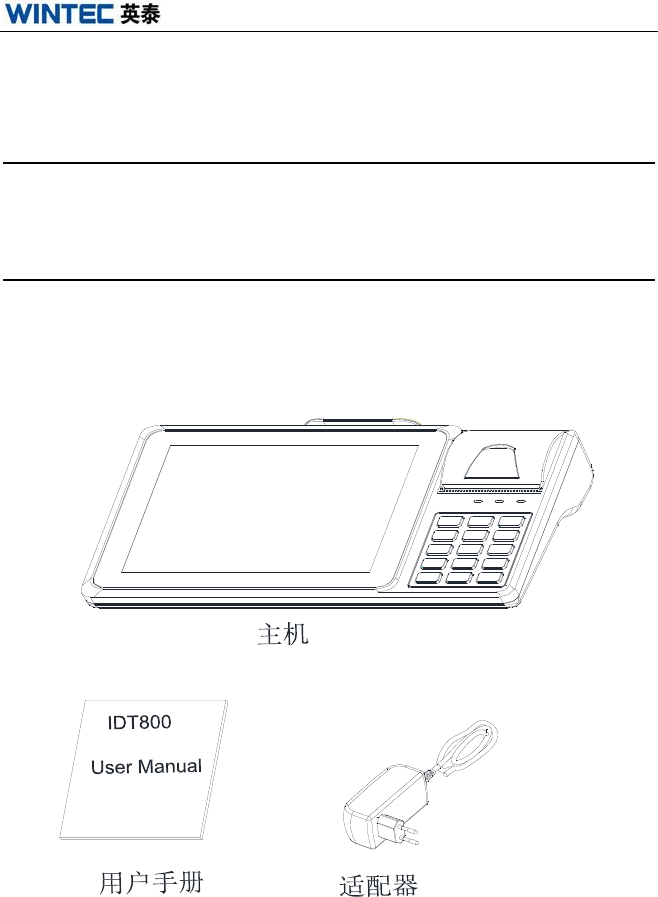
打开包装箱后,请检查包装箱内含有下列物件:主机、适配器、用户手册。
如果物件不全或受损,请联系经销商进行处理。
IDT800
www.wintec.cn 2 Hotline:400 708 9898
产品结构示意图
正面视图
说明
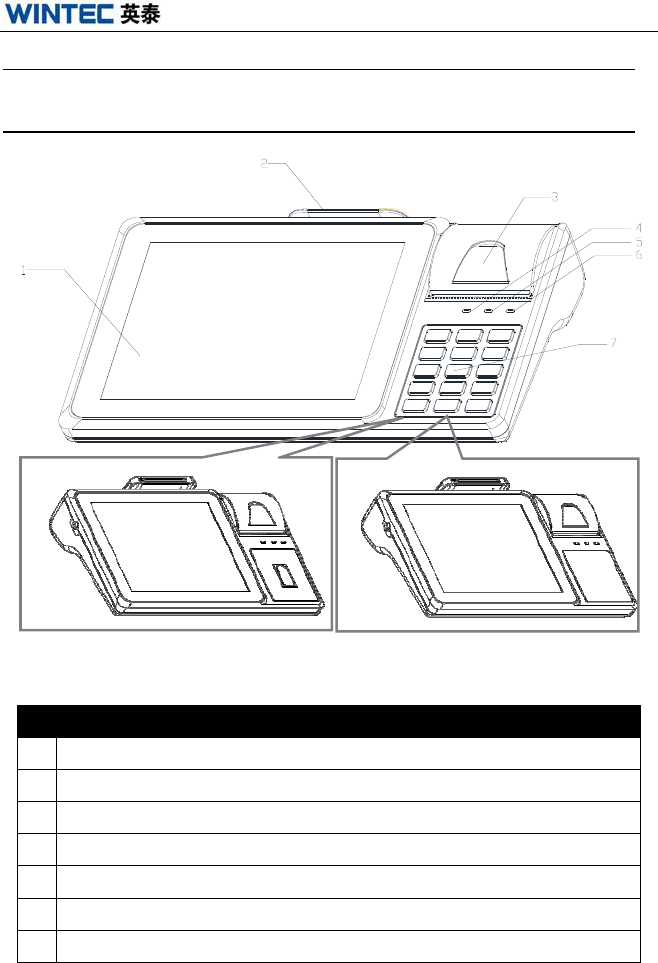
1 液晶屏、触摸屏
2 刷卡器(选配)
3 打印机开盖器
4 电源指示灯
5 运行指示灯
6 打印机状态指示灯
7 按键/指纹/无
IDT800
www.wintec.cn 3 Hotline:400 708 9898
侧面视图
后面视图
说明
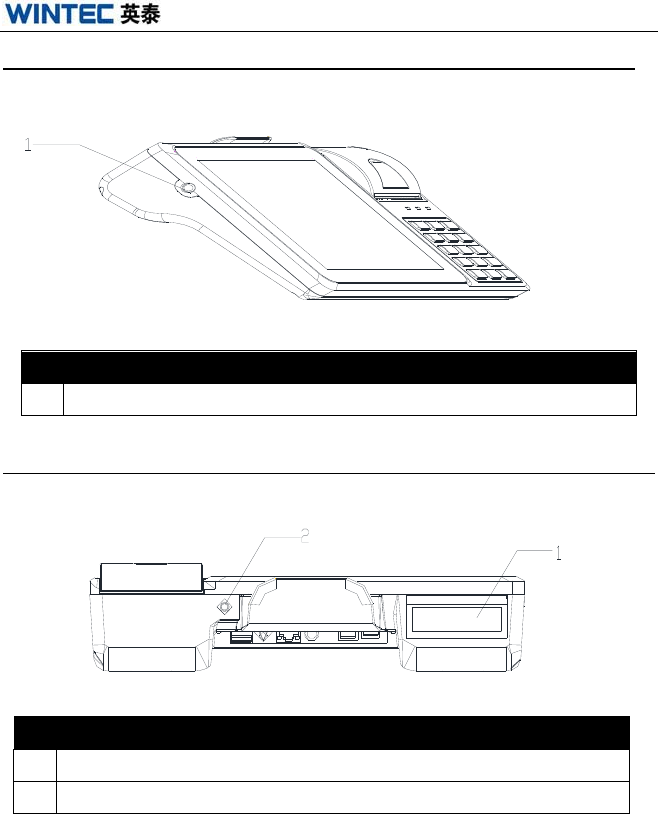
1 主机开关
说明
1 客户显示器
2 摄像头(选配)
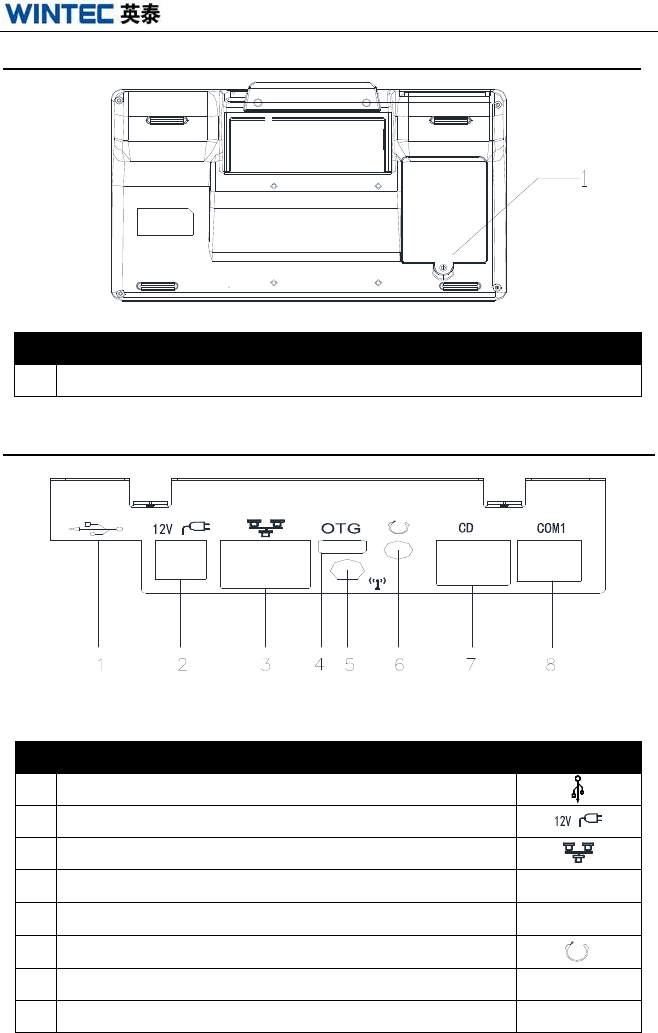
IDT800
www.wintec.cn 4 Hotline:400 708 9898
底部视图
IO 端口
说明
1 USB 接口(1&2 )(接鼠标,键盘)
2 电源输入接口
3 网口
4 USB OTG 接口(接U盘) OTG
5 Void
6 音频接口
7 钱箱口 1 CD
8 串口 1(接密码键盘,串口打印机) COM1
说明
1 电池盖
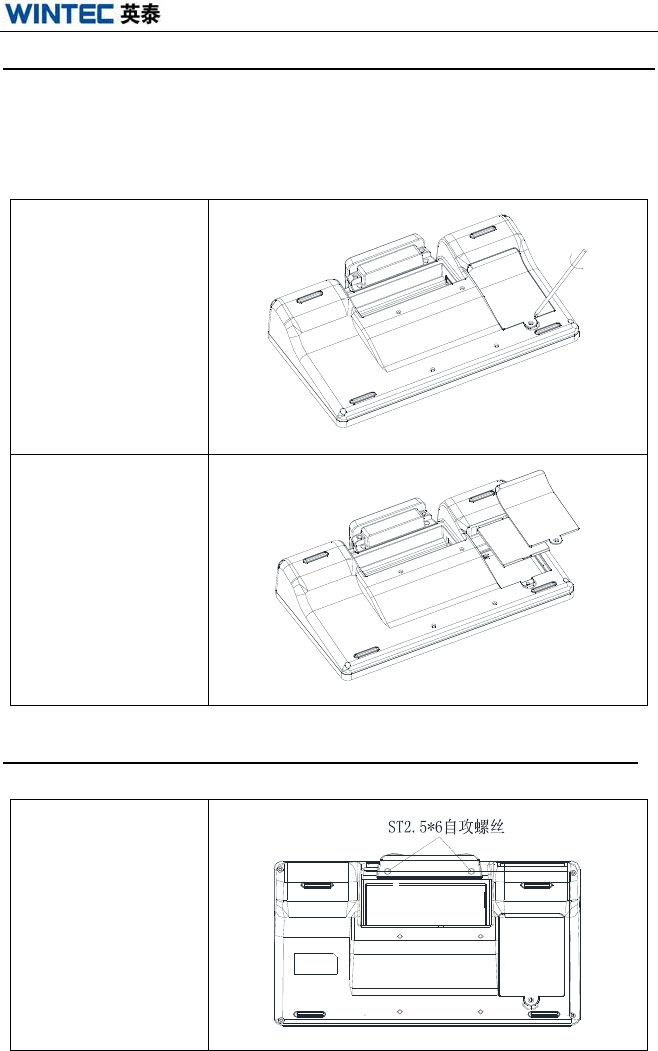
IDT800
www.wintec.cn 5 Hotline:400 708 9898
开机/关机操作
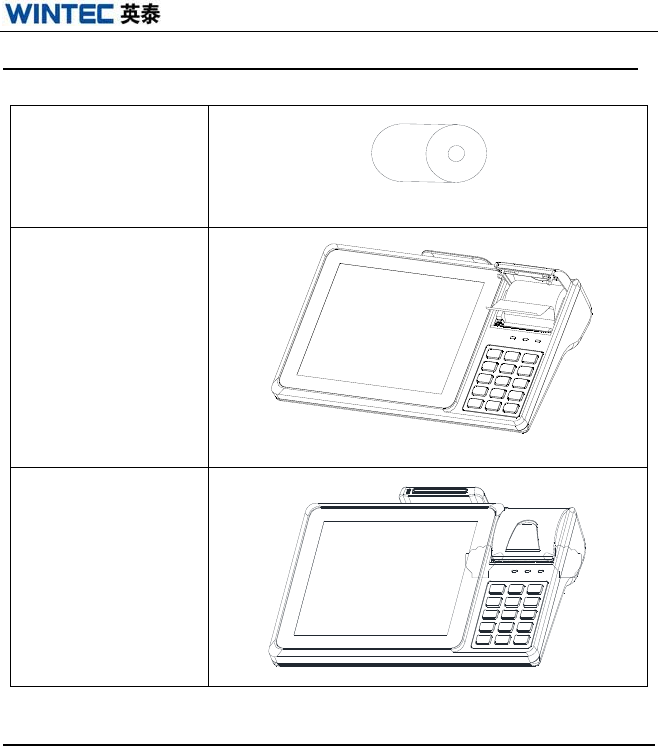
首次开机时,先放入电池,然后插入12V电源适配器,按下主机开关启
动机器。关机时,按下主机开关键直至屏幕出现关机界面,点击触摸屏
确认关机。
1.打开电池盖
2.装入电池(注意电
池方向)
刷卡器安装
1.固定刷卡器
IDT800
www.wintec.cn 6 Hotline:400 708 9898
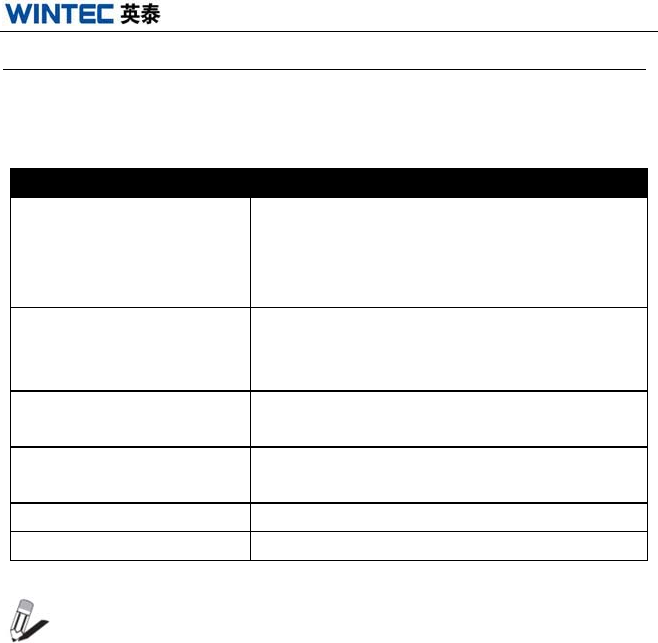
打印纸安装
1.准备好纸卷
2.打开打印机开盖
器,将纸卷放入打
印机(注意纸卷方
向)
3.扶住机身并按下
打印机前盖
Wi-Fi 的使用方法
开机后,进入“设置”菜单,点击开启或关闭 Wi-Fi 按钮。
确认 Wi-Fi 处于开启状态后,系统会自动列出搜索到的无线网络。点击
搜索到的无线网络,进行连接。

IDT800
www.wintec.cn 7 Hotline:400 708 9898
测试软件
运行测试软件“WTIDT800Test”,可进行以下 4项测试:
1. 点击“Printer”选项卡后进行打印机测试。
2. 点击“Cash Drawer”选项卡后进行钱箱测试。
3. 点击“MSR and Keyboard”选项卡后进行刷卡器测试。
4. 点击“Line Display”,进行客显的测试。
5. 点击“Back”关闭窗口退出程序。
注意:客户显示器默认接口为/dev/ttySAC3,波特率为9600bps;打
印机和钱箱默认接口为/dev/ttySAC1,波特率为38400bps。
IDT800
www.wintec.cn 8 Hotline:400 708 9898
常见问题及故障排除
常见故障和建议处理方法如下表:
问题 解决方法
无法开机
①检查外部供电是否正常,适配器插头
是否连接。
②检查主机的蓝色供电指示灯是否亮。
③检查 12V 适配器电源指示灯是否亮。
磁卡阅读器不读卡 ①多试几张卡或换一种卡试验。
②检查磁卡阅读器连线是否正确连接。
③检查刷卡器接口是否设置正确。
打印机故障灯闪烁 检查是否有打印纸,打印纸是否卡住不
动,打印机外壳是否按紧。
无法连接网络 确保网线没有问题,检查网线插头安装正
确。
系统日期不正确 更改系统时间,如果无效则需更换电池。
触摸屏触摸定位不准 重新校准。
注意:遇到问题时,请联系服务供应商,请不要在没有阅读使用手
册的情况下拆开机器。
相关技术资料可以去公司网站下载:
http://www.wintec.cn
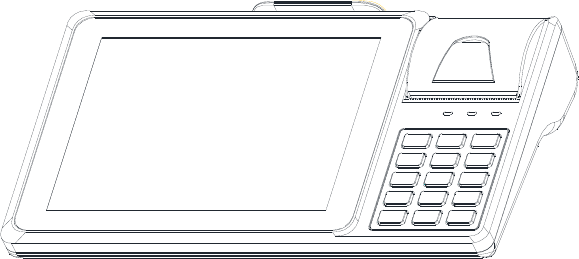
IDT800
User Manual
QINGDAO WINTEC SYSTEM CO., LTD
IDT800
www.wintec.cn 1 Hotline:400 708 9898
Thank you for purchasing our multi-functional IDT800 terminal. This
manual will help you to know the functions and operations of the IDT800.
About the Product
IDT800 is an all-in-one touch terminal with built-in thermal printer and
customer display. Based on ARM platform, it runs android OS. It is an ideal
choice for retail, hospitality and entertainment business etc.
Packaging List
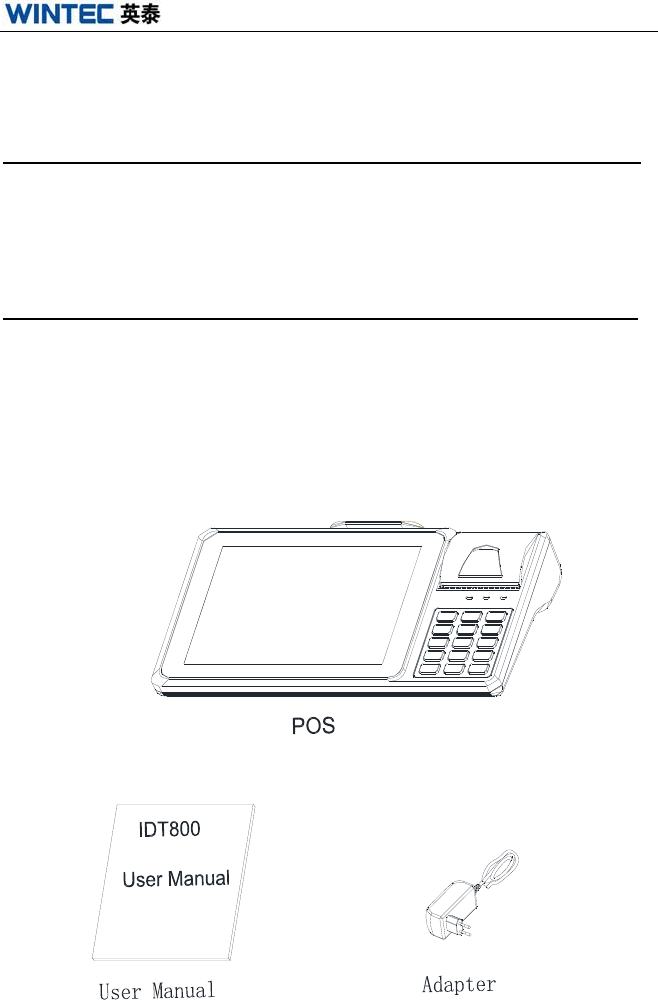
After unpacking the carton, please check that the following items are included:
POS、Adapter、User Manual. If any item is missing or appears damaged,
please contact your dealer immediately.
IDT800
www.wintec.cn 2 Hotline:400 708 9898
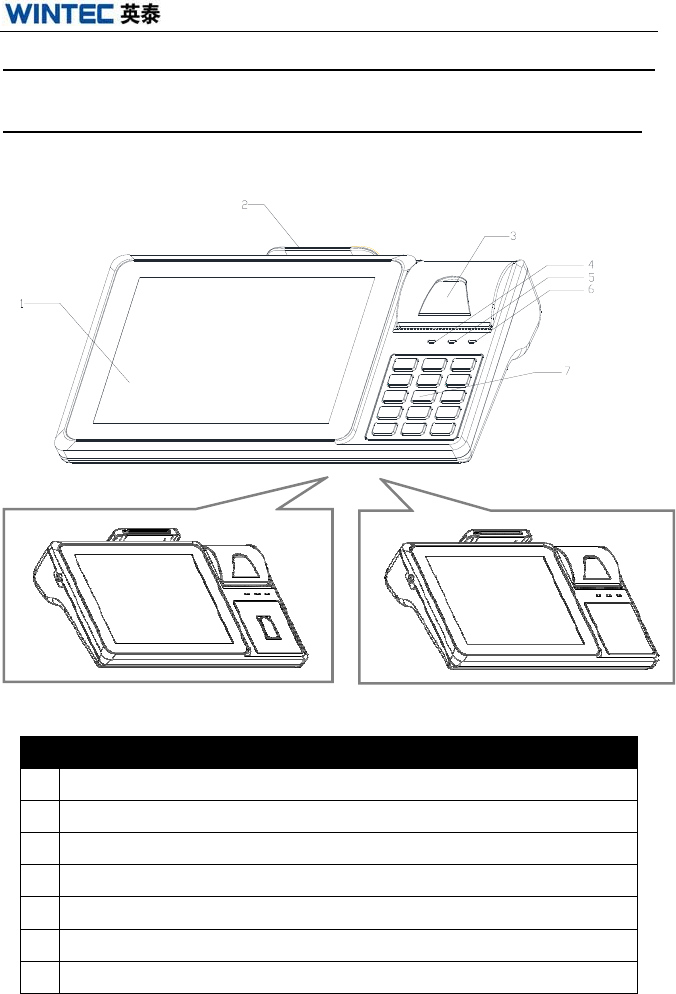
Outward Diagram
Front View
DESCRIPTION
1 TFT LCD, Touch screen
2 Magnetic Card Reader(Optional)
3 Printer Opening Button
4 Power LED
5 Running LED
6 Printer Error LED
7 Keyboard/ Fingerprint/ None
IDT800
www.wintec.cn 3 Hotline:400 708 9898
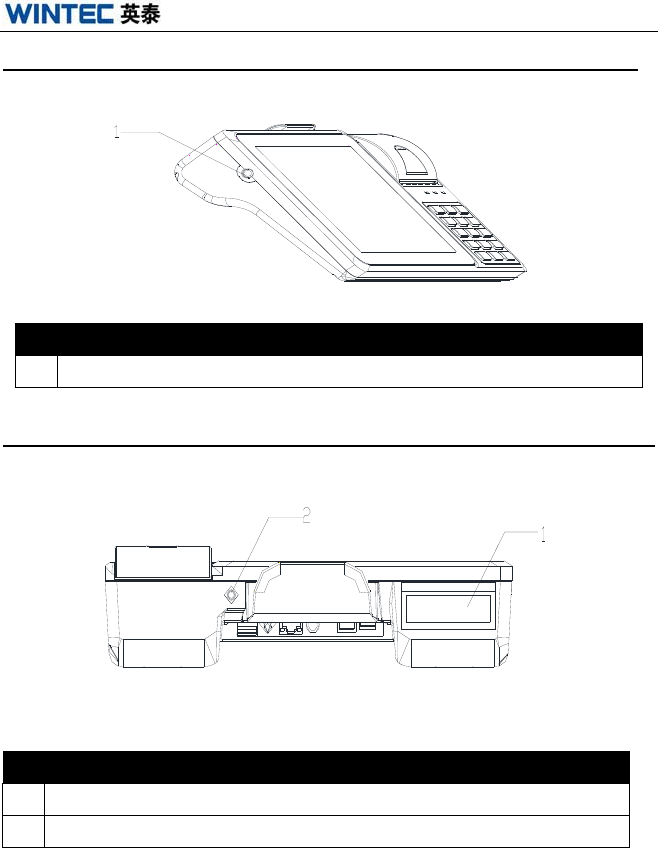
Side View
Back View
DESCRIPTION
1 Host Power Button
DESCRIPTION
1 Customer Display
2 Camera(Optional)
IDT800
www.wintec.cn 4 Hotline:400 708 9898
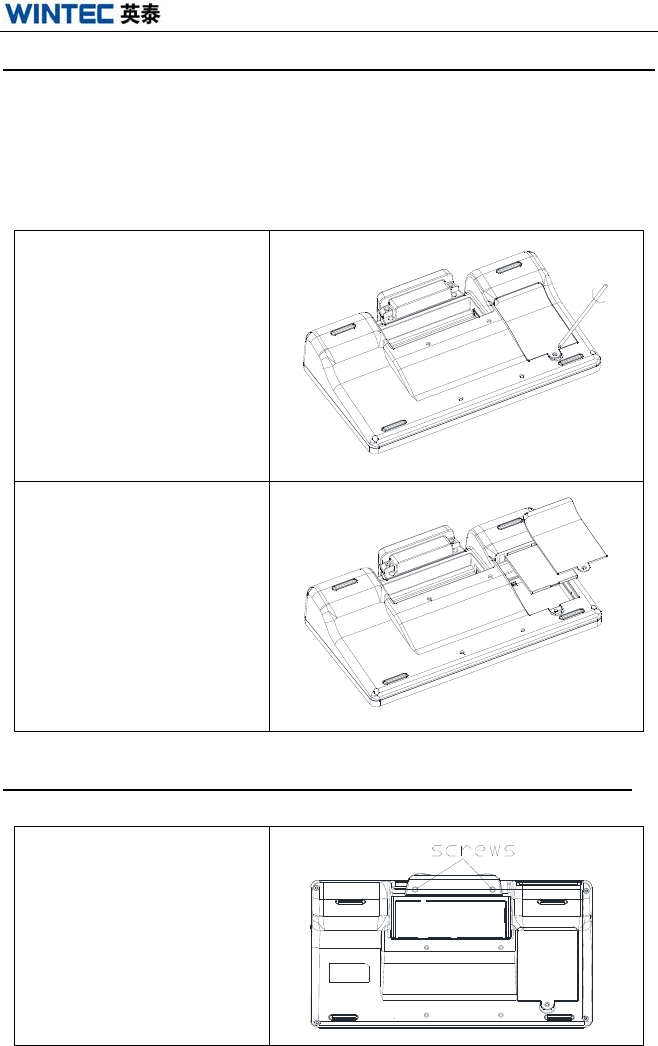
Bottom View
I
O
P
orts
DESCRIPTION
1 USB 1&2(connect USB mouse & keyboard)
2 DC adapter
3 RJ-45 LAN port
4 USB OTG port (connect U disk)OTG
5 Void
6 Audio Port
7 Cash Drawer1 Port CD
8 COM1 port(connect PIN pad,printer)COM1
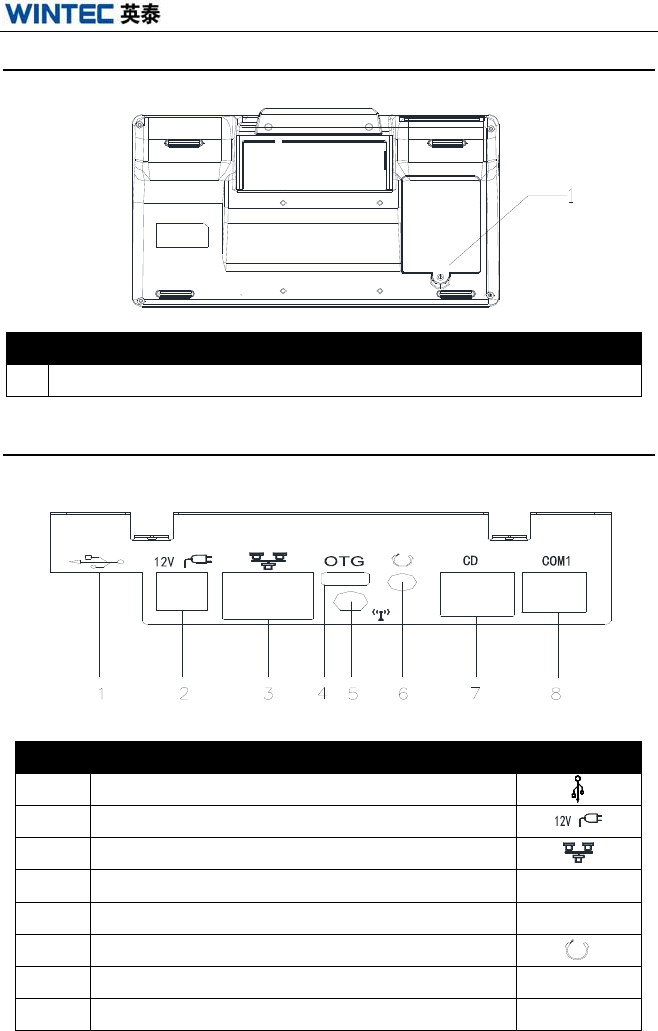
DESCRIPTION
1 Battery Cover
IDT800
www.wintec.cn 5 Hotline:400 708 9898
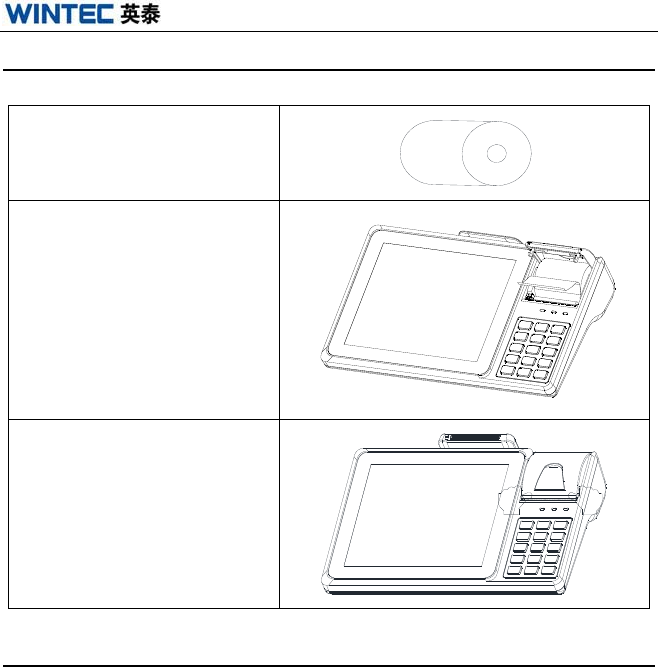
Booting/Shutdown Operation
When first booting, install the battery firstly, then insert the 12V power
adapter and press the power switch to boot the machine up. To shut down the
machine, press the power switch for a while till the shutting down interface
appears, then confirm to shut it down or not.
1.Open the battery cover
2. Put the battery inside
(Please notice the battery
direction).
F
ix the MSR
1.Fix the MSR
IDT800
www.wintec.cn 6 Hotline:400 708 9898
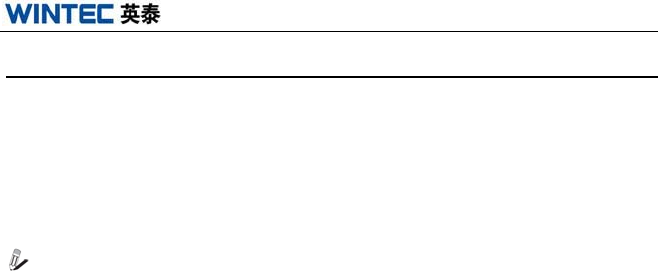
Install the Printer paper
1. Get paper reel prepared.
2. Press the printer open
button, then put the scroll
into printer.
4.Press the enclosure of the
printer.
U
sage of Wi-Fi
On or off Wi-Fi: after booting, enter “Settings” menu, click Wi-Fi button to
turn on or off Wi-Fi.
Wi-Fi Setting :Click the access point and enter the password if needed.
IDT800
www.wintec.cn 7 Hotline:400 708 9898
Software Testing
Click ‘WTIDT800Test’, then do the 4 tests as follows:
1. Click ‘Printer’ to test the printer.
2. Click ‘Cash Drawer’ to test the cash drawer.
3. Click ‘MSR and Keyboard’ to test the magnetic card reader.
4. Click ‘Line Display’ to test the customer display.
5. Click ‘Back’ to exit program.
NOTE:The default setting of the interface for customer display is
/dev/ttySAC3 with baud rate as 9600bps while for printer and cash
drawer it is /dev/ttySAC1 with baud rate as 38400bps.
IDT800
www.wintec.cn 8 Hotline:400 708 9898
Trouble Shooting
A few common hardware problems and suggested solutions are presented in
the table below:
PROBLEM SOLUTION
Can’t turn on the machine.
①Check the external power supply is
normal ,if the adapter connects
②Check the 12v power switch is turned
on.
③Check work state blue LED is light
on
The MSR doesn’t work.
①Try another kind of card.
②Check the cable of the MSR.
③Check if the serial port connecting is
correct or not.
Printer error light blink Check if there is paper or if paper get
stuck or not. Check the printer cover is
tightly closed.
Unable to connect to the
network
Make sure the cable is no problem, and
check if the network cable plugs are
properly installed.
The date or time is not
right. Change the date or time in OS;
Otherwise change the battery.
The touch is inaccurate. Recalibrate the touch screen.
NOTE: Please don’t dismantle the machine without related guide.
Please consult your supplier or service provider first if problem can’t be
solved.
Related technical materials can be download from http://www.wintec.cn.

IDT800
www.wintec.cn 9Hotline:400 708 9898
This device complies with Part 15 of the FCC Rules. Operation is subject to the following
two conditions: (1) this device may not cause harmful interference, and (2) this device
must accept any interference received, including interference that may cause undesired
operation.
This device and its antenna(s) must not be co-located or operating in conjunction with
any other antenna transmitter. This equipment should be installed and operated with a
minimum distance of 20 centimeters between the radiator and your body
Changes or modifications not expressly approved by the party responsible for compliance
could void the user's authority to operate the equipment.
Note: This equipment has been tested and found to comply with the limits for a Class B
digital device, pursuant to part 15 of the FCC Rules. These limits are designed to provide
reasonable protection against harmful interference in a residential installation. This
equipment generates, uses and can radiate radio frequency energy and, if not installed and
used in accordance with the instructions, may cause harmful interference to radio
communications. However, there is no guarantee that interference will not occur in a
particular installation. If this equipment does cause harmful interference to radio or
television reception, which can be determined by turning the equipment off and on, the
user is encouraged to try to correct the interference by one or more of the following
measures:
—Reorient or relocate the receiving antenna.
—Increase the separation between the equipment and receiver.
—Connect the equipment into an outlet on a circuit different from that to which the
receiver is connected.
—Consult the dealer or an experienced radio/TV technician for help.