Radiometer analytical TTL090 Titration Workstation User Manual Usersguide gb

Radiometer analytical S.A.S. Titration Workstation Usersguide gb

Contents

Manual TIM9xx

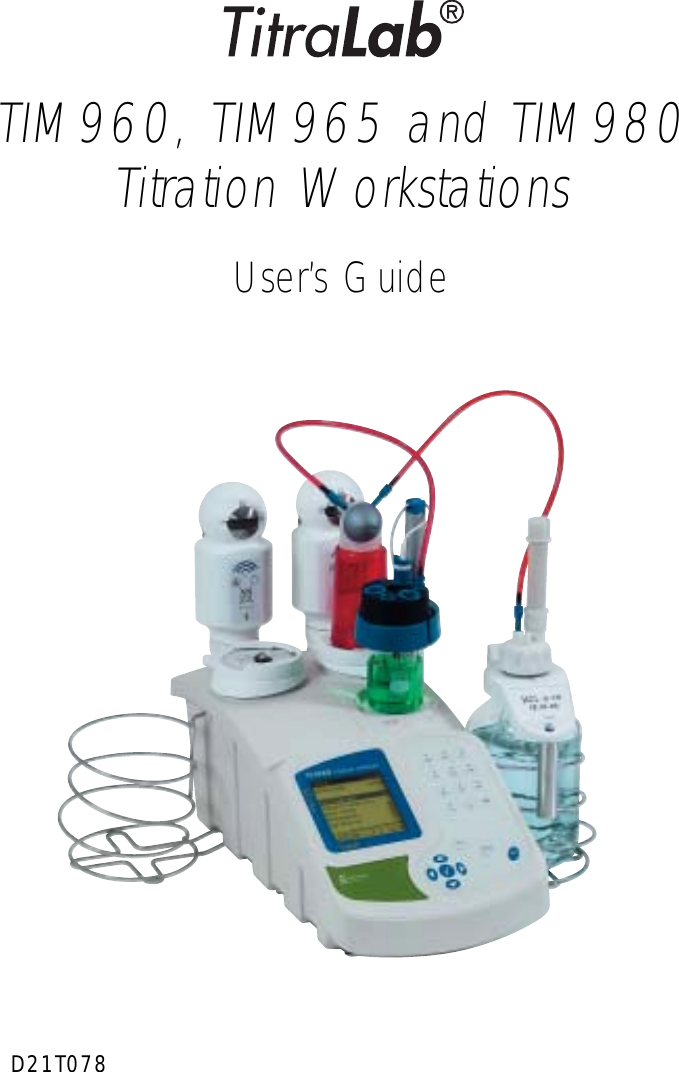
Contents 1TIM960, TIM965 and TIM980Titration WorkstationsUser’s GuideD21T078
2ContentsD21T078 • Printed by Radiometer Analytical SAS • 2006-07B
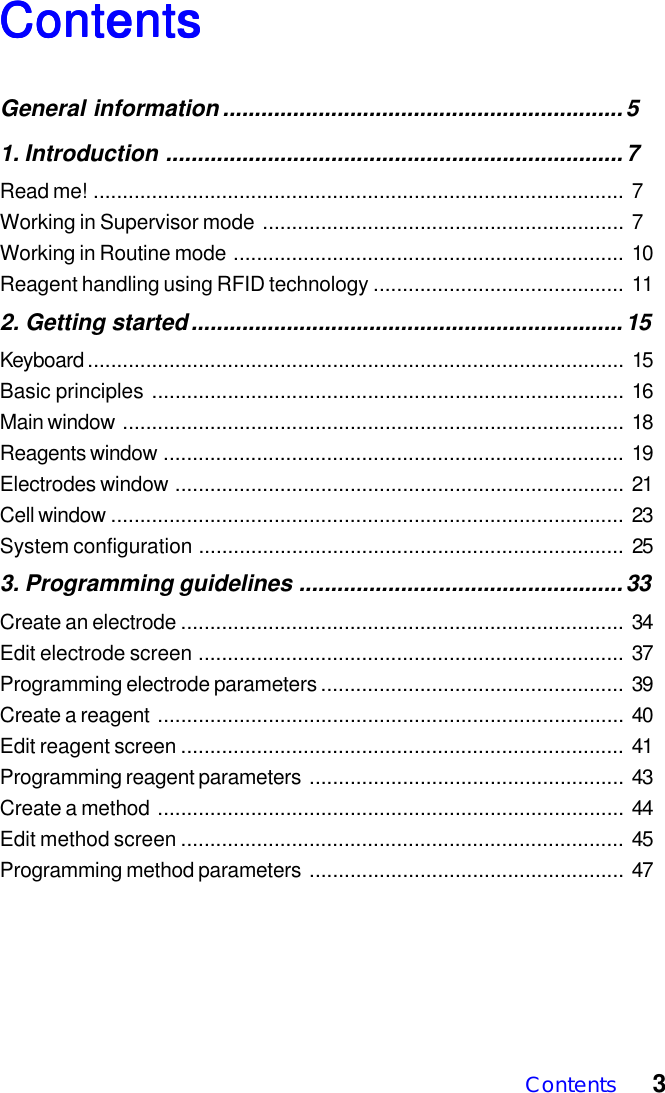
Contents 3ContentsContentsContentsContentsContentsGeneral information ...............................................................51. Introduction ........................................................................7Read me! ........................................................................................... 7Working in Supervisor mode .............................................................. 7Working in Routine mode ................................................................... 10Reagent handling using RFID technology ........................................... 112. Getting started....................................................................15Keyboard ............................................................................................ 15Basic principles ................................................................................. 16Main window ...................................................................................... 18Reagents window ............................................................................... 19Electrodes window ............................................................................. 21Cell window ........................................................................................ 23System configuration ......................................................................... 253. Programming guidelines ...................................................33Create an electrode ............................................................................ 34Edit electrode screen ......................................................................... 37Programming electrode parameters .................................................... 39Create a reagent ................................................................................ 40Edit reagent screen ............................................................................ 41Programming reagent parameters ...................................................... 43Create a method ................................................................................ 44Edit method screen ............................................................................ 45Programming method parameters ...................................................... 47
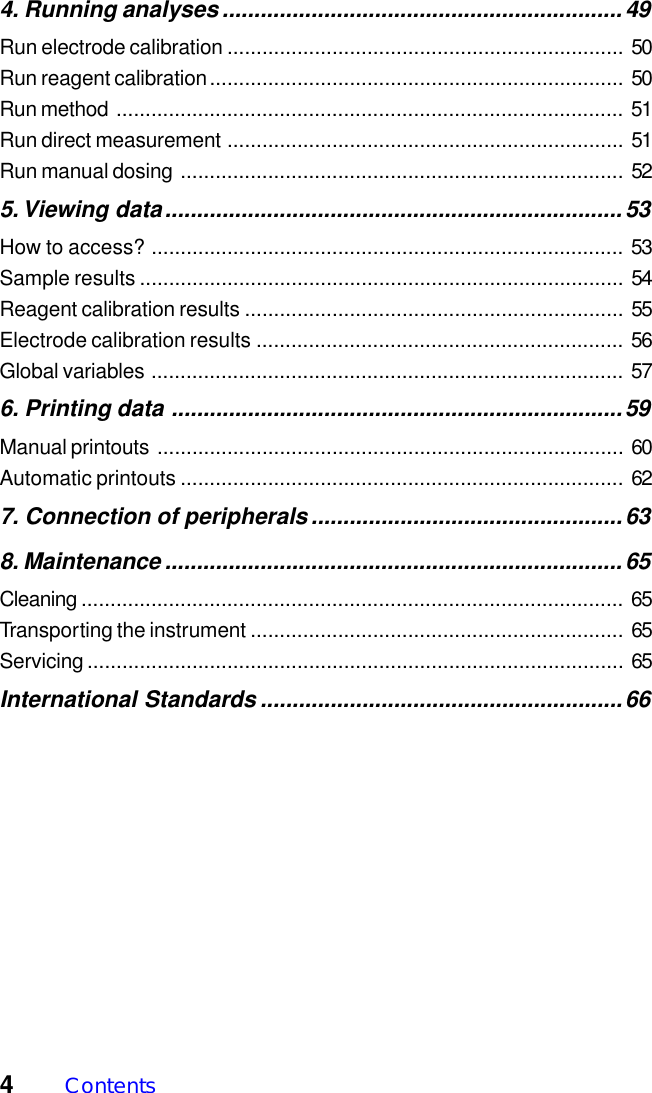
4Contents4. Running analyses...............................................................49Run electrode calibration .................................................................... 50Run reagent calibration....................................................................... 50Run method ....................................................................................... 51Run direct measurement .................................................................... 51Run manual dosing ............................................................................ 525. Viewing data........................................................................53How to access? ................................................................................. 53Sample results ................................................................................... 54Reagent calibration results ................................................................. 55Electrode calibration results ............................................................... 56Global variables ................................................................................. 576. Printing data .......................................................................59Manual printouts ................................................................................ 60Automatic printouts ............................................................................ 627. Connection of peripherals.................................................638. Maintenance ........................................................................65Cleaning ............................................................................................. 65Transporting the instrument ................................................................ 65Servicing ............................................................................................ 65International Standards .........................................................66
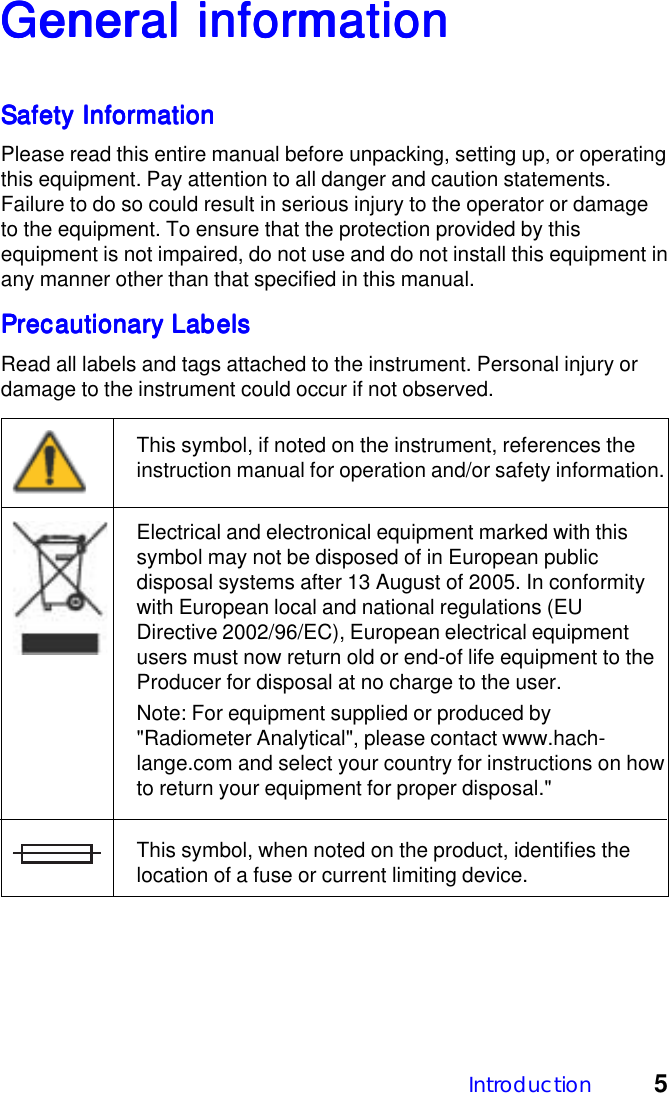
Introduction 5General inforGeneral inforGeneral inforGeneral inforGeneral informationmationmationmationmationSafety InformationSafety InformationSafety InformationSafety InformationSafety InformationPlease read this entire manual before unpacking, setting up, or operatingthis equipment. Pay attention to all danger and caution statements.Failure to do so could result in serious injury to the operator or damageto the equipment. To ensure that the protection provided by thisequipment is not impaired, do not use and do not install this equipment inany manner other than that specified in this manual.Precautionary LabelsPrecautionary LabelsPrecautionary LabelsPrecautionary LabelsPrecautionary LabelsRead all labels and tags attached to the instrument. Personal injury ordamage to the instrument could occur if not observed.This symbol, if noted on the instrument, references theinstruction manual for operation and/or safety information.Electrical and electronical equipment marked with thissymbol may not be disposed of in European publicdisposal systems after 13 August of 2005. In conformitywith European local and national regulations (EUDirective 2002/96/EC), European electrical equipmentusers must now return old or end-of life equipment to theProducer for disposal at no charge to the user.Note: For equipment supplied or produced by"Radiometer Analytical", please contact www.hach-lange.com and select your country for instructions on howto return your equipment for proper disposal."This symbol, when noted on the product, identifies thelocation of a fuse or current limiting device.
6Chapter  1Warning !The TitraLab system has been developed to meet the requirements ofvolumetric titration applications. It is therefore aimed at experiencedusers who have the knowledge required to operate the instrument andimplement the security instructions enclosed. Please remember that theTitraLab system must not, under any circumstances, be used to performtests on living beings.We accept no responsibility for using the TitraLab system and itsperipheral devices under conditions that are not specified in thisReference Manual and its associated User’s Guide (part no. D21T078).Compliance with FCC rules, part 15Compliance with FCC rules, part 15Compliance with FCC rules, part 15Compliance with FCC rules, part 15Compliance with FCC rules, part 15Information to the userInformation to the userInformation to the userInformation to the userInformation to the userNOTE: This equipment has been tested and found to comply with thelimits for a Class B digital device, pursuant to part 15 of the FCC Rules.These limits are designed to provide reasonable protection againstharmful interference in a residential installation. This equipmentgenerates, uses and can radiate radio frequency energy and, if notinstalled and used in accordance with the instruction, may cause harmfulinterference to radio communications. However, there is no guaranteethat interference will not occur in a particular installation. If thisequipment does cause harmful interference to radio or televisionreception which can be determined by turning the equipment off and on,the user is encouraged to try to correct interference by one or more ofthe following measures:- Reorient or relocate the receiving antenna.- Increase the separation between the equipment and receiver.- Connect the equipment into an outlet on circuit different from that towhich the receiver is connected.- Consult the dealer or an experienced radio/TV technician for help.Warning!!Changes and modifications that are not expressly approved by the partyresponsible for compliance could void the user's authority to operate theequipment.
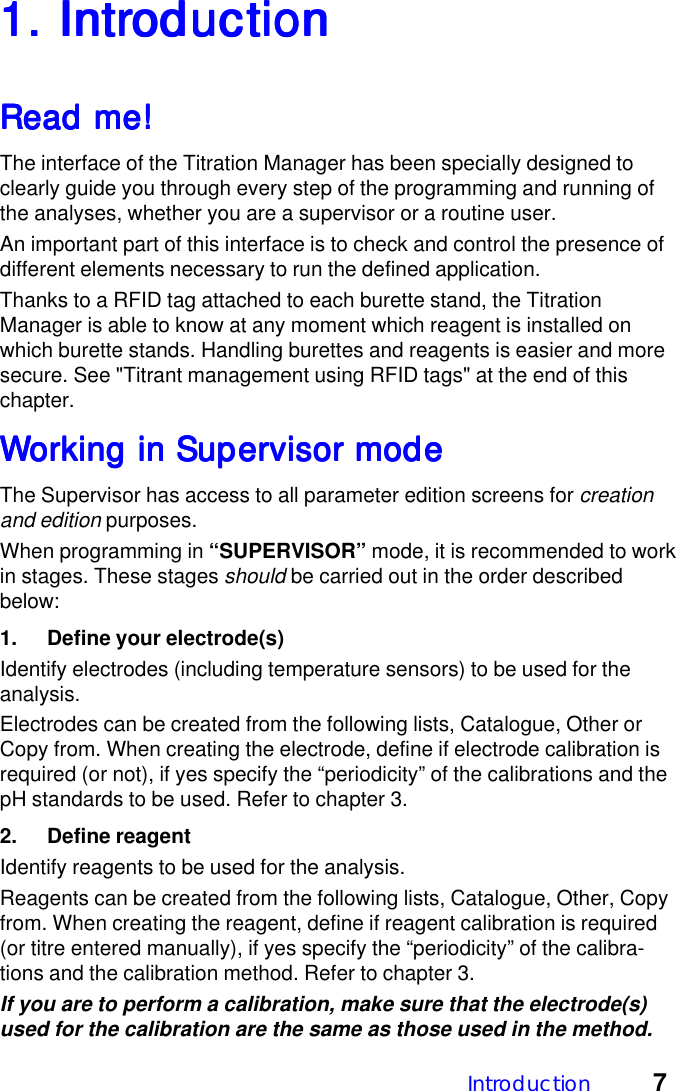
Introduction 71. Intr1. Intr1. Intr1. Intr1. IntroductionoductionoductionoductionoductionRead me!Read me!Read me!Read me!Read me!The interface of the Titration Manager has been specially designed toclearly guide you through every step of the programming and running ofthe analyses, whether you are a supervisor or a routine user.An important part of this interface is to check and control the presence ofdifferent elements necessary to run the defined application.Thanks to a RFID tag attached to each burette stand, the TitrationManager is able to know at any moment which reagent is installed onwhich burette stands. Handling burettes and reagents is easier and moresecure. See "Titrant management using RFID tags" at the end of thischapter.WWWWWorking in Supervisor modeorking in Supervisor modeorking in Supervisor modeorking in Supervisor modeorking in Supervisor modeThe Supervisor has access to all parameter edition screens for creationand edition purposes.When programming in “SUPERVISOR” mode, it is recommended to workin stages. These stages should be carried out in the order describedbelow:1. Define your electrode(s)Identify electrodes (including temperature sensors) to be used for theanalysis.Electrodes can be created from the following lists, Catalogue, Other orCopy from. When creating the electrode, define if electrode calibration isrequired (or not), if yes specify the “periodicity” of the calibrations and thepH standards to be used. Refer to chapter 3.2. Define reagentIdentify reagents to be used for the analysis.Reagents can be created from the following lists, Catalogue, Other, Copyfrom. When creating the reagent, define if reagent calibration is required(or titre entered manually), if yes specify the “periodicity” of the calibra-tions and the calibration method. Refer to chapter 3.If you are to perform a calibration, make sure that the electrode(s)used for the calibration are the same as those used in the method.
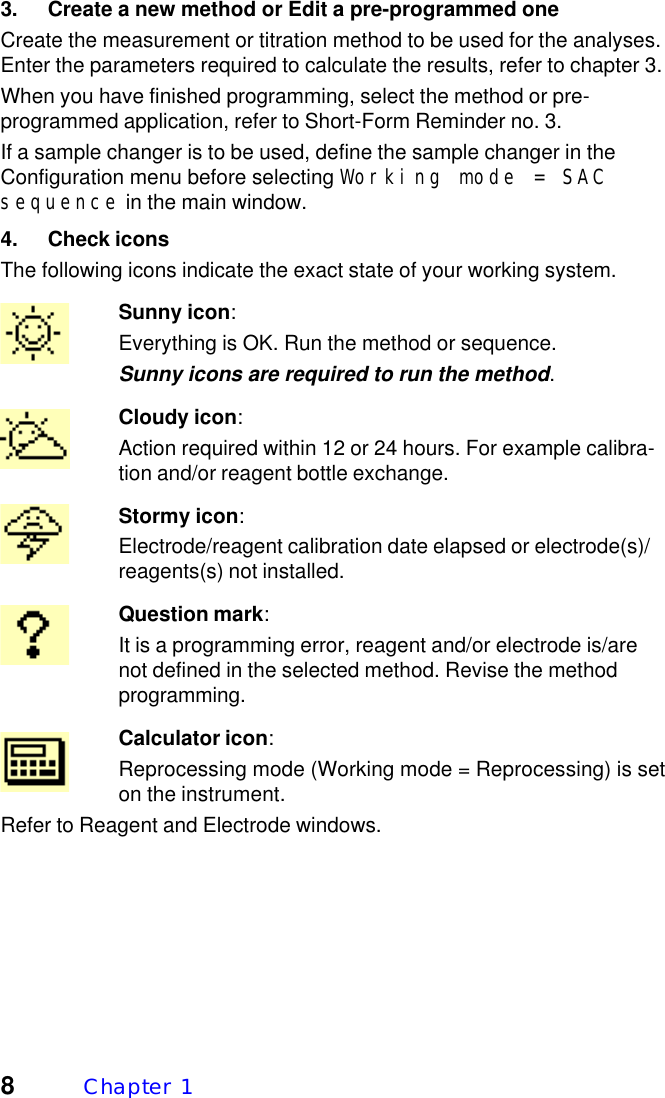
8Chapter  13. Create a new method or Edit a pre-programmed oneCreate the measurement or titration method to be used for the analyses.Enter the parameters required to calculate the results, refer to chapter 3.When you have finished programming, select the method or pre-programmed application, refer to Short-Form Reminder no. 3.If a sample changer is to be used, define the sample changer in theConfiguration menu before selecting Working mode = SACsequence in the main window.4. Check iconsThe following icons indicate the exact state of your working system.Sunny icon:Everything is OK. Run the method or sequence.Sunny icons are required to run the method.Cloudy icon:Action required within 12 or 24 hours. For example calibra-tion and/or reagent bottle exchange.Stormy icon:Electrode/reagent calibration date elapsed or electrode(s)/reagents(s) not installed.Question mark:It is a programming error, reagent and/or electrode is/arenot defined in the selected method. Revise the methodprogramming.Calculator icon:Reprocessing mode (Working mode = Reprocessing) is seton the instrument.Refer to Reagent and Electrode windows.
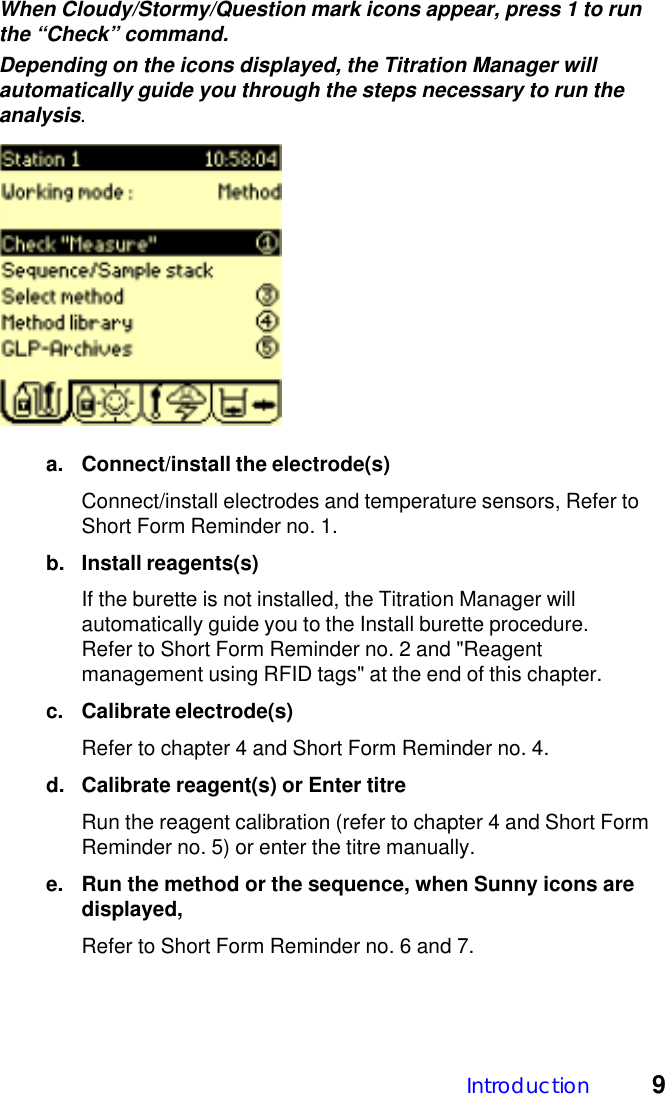
Introduction 9When Cloudy/Stormy/Question mark icons appear, press 1 to runthe “Check” command.Depending on the icons displayed, the Titration Manager willautomatically guide you through the steps necessary to run theanalysis.a. Connect/install the electrode(s)Connect/install electrodes and temperature sensors, Refer toShort Form Reminder no. 1.b. Install reagents(s)If the burette is not installed, the Titration Manager willautomatically guide you to the Install burette procedure.Refer to Short Form Reminder no. 2 and "Reagentmanagement using RFID tags" at the end of this chapter.c. Calibrate electrode(s)Refer to chapter 4 and Short Form Reminder no. 4.d. Calibrate reagent(s) or Enter titreRun the reagent calibration (refer to chapter 4 and Short FormReminder no. 5) or enter the titre manually.e. Run the method or the sequence, when Sunny icons aredisplayed,Refer to Short Form Reminder no. 6 and 7.
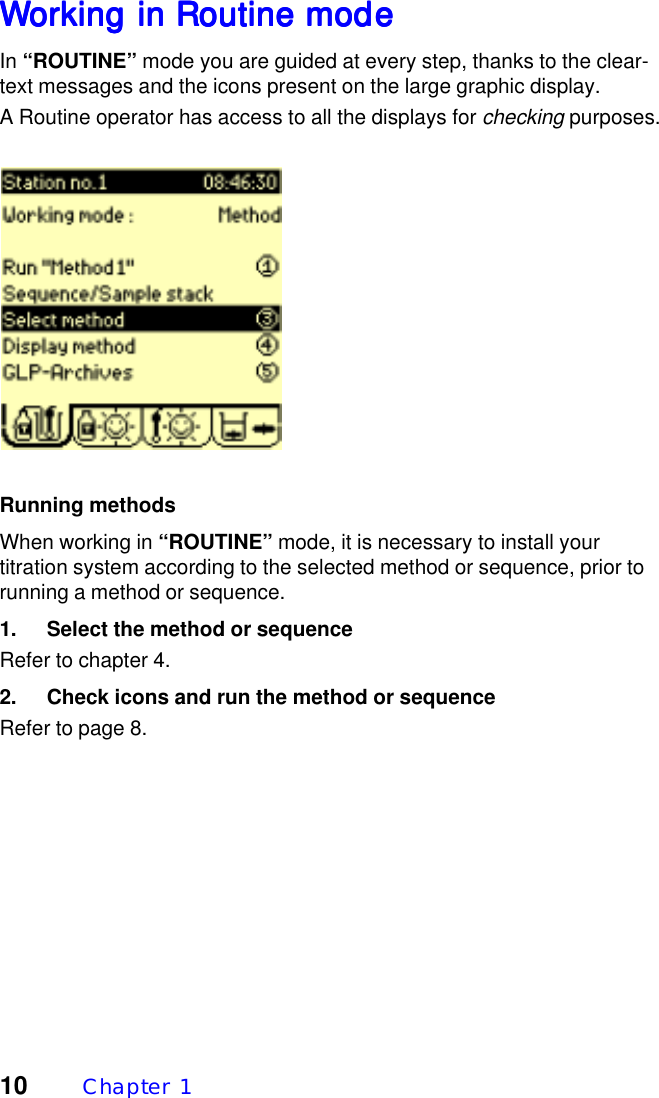
10 Chapter  1WWWWWorking in Routine modeorking in Routine modeorking in Routine modeorking in Routine modeorking in Routine modeIn “ROUTINE” mode you are guided at every step, thanks to the clear-text messages and the icons present on the large graphic display.A Routine operator has access to all the displays for checking purposes.Running methodsWhen working in “ROUTINE” mode, it is necessary to install yourtitration system according to the selected method or sequence, prior torunning a method or sequence.1. Select the method or sequenceRefer to chapter 4.2. Check icons and run the method or sequenceRefer to page 8.
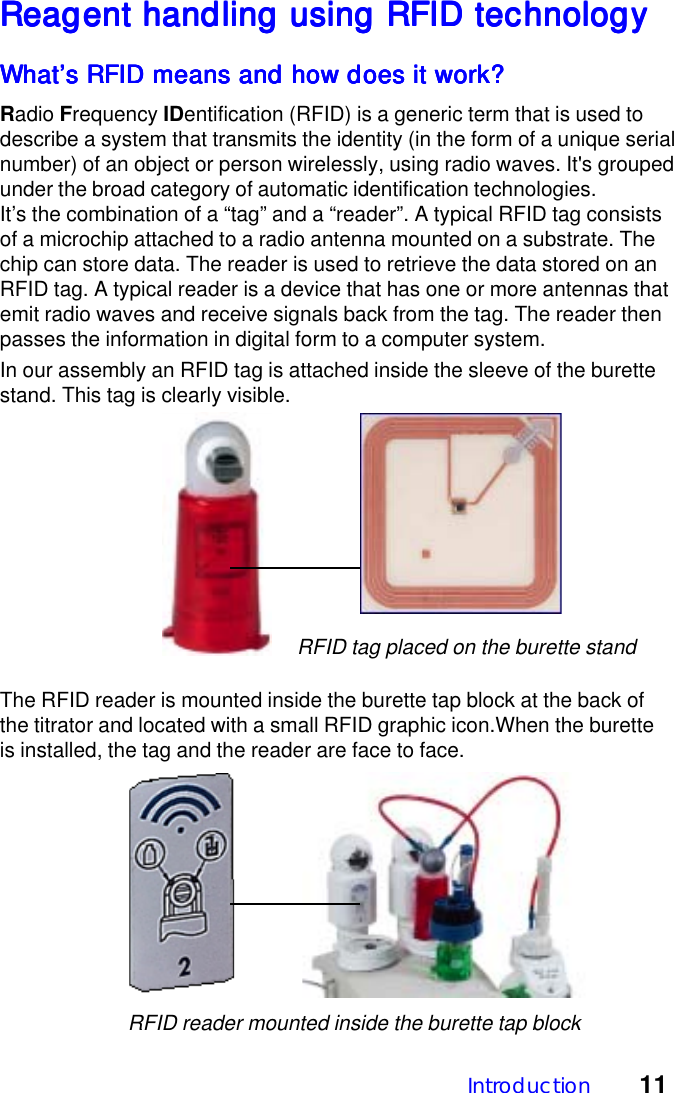
Introduction 11Reagent handling using RFID technologyReagent handling using RFID technologyReagent handling using RFID technologyReagent handling using RFID technologyReagent handling using RFID technologyWhat’s RFID means and how does it work?What’s RFID means and how does it work?What’s RFID means and how does it work?What’s RFID means and how does it work?What’s RFID means and how does it work?Radio Frequency IDentification (RFID) is a generic term that is used todescribe a system that transmits the identity (in the form of a unique serialnumber) of an object or person wirelessly, using radio waves. It's groupedunder the broad category of automatic identification technologies.It’s the combination of a “tag” and a “reader”. A typical RFID tag consistsof a microchip attached to a radio antenna mounted on a substrate. Thechip can store data. The reader is used to retrieve the data stored on anRFID tag. A typical reader is a device that has one or more antennas thatemit radio waves and receive signals back from the tag. The reader thenpasses the information in digital form to a computer system.In our assembly an RFID tag is attached inside the sleeve of the burettestand. This tag is clearly visible.The RFID reader is mounted inside the burette tap block at the back ofthe titrator and located with a small RFID graphic icon.When the buretteis installed, the tag and the reader are face to face.RFID tag placed on the burette standRFID reader mounted inside the burette tap block
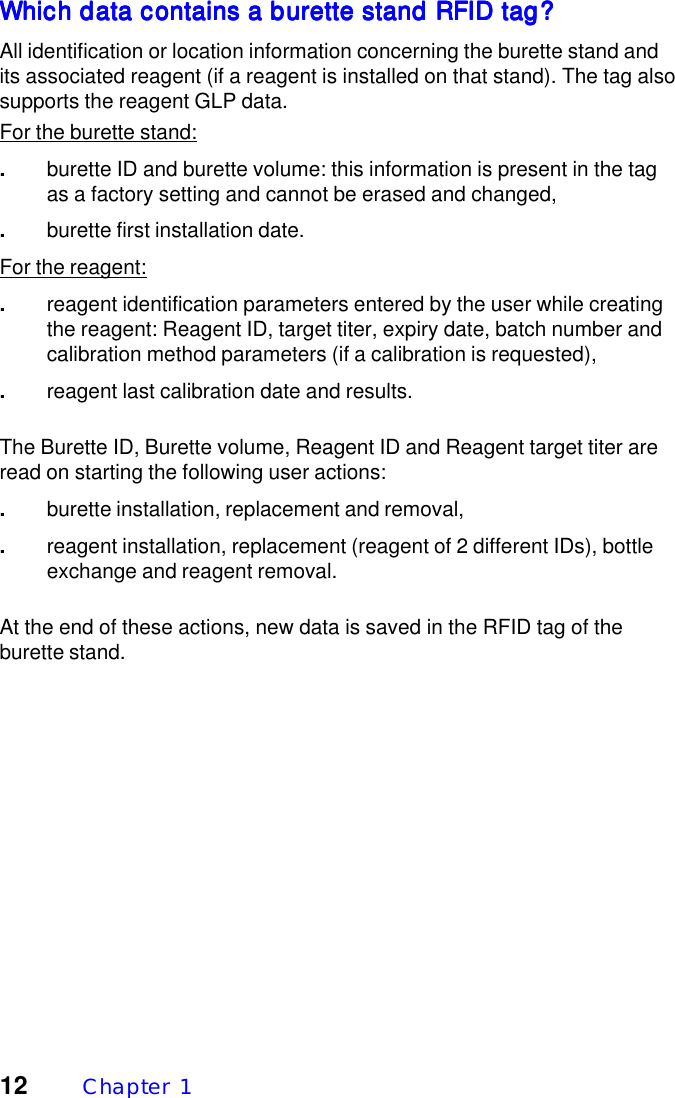
12 Chapter  1Which data contains a burette stand RFID tag?Which data contains a burette stand RFID tag?Which data contains a burette stand RFID tag?Which data contains a burette stand RFID tag?Which data contains a burette stand RFID tag?All identification or location information concerning the burette stand andits associated reagent (if a reagent is installed on that stand). The tag alsosupports the reagent GLP data.For the burette stand:.burette ID and burette volume: this information is present in the tagas a factory setting and cannot be erased and changed,.burette first installation date.For the reagent:.reagent identification parameters entered by the user while creatingthe reagent: Reagent ID, target titer, expiry date, batch number andcalibration method parameters (if a calibration is requested),.reagent last calibration date and results.The Burette ID, Burette volume, Reagent ID and Reagent target titer areread on starting the following user actions:.burette installation, replacement and removal,.reagent installation, replacement (reagent of 2 different IDs), bottleexchange and reagent removal.At the end of these actions, new data is saved in the RFID tag of theburette stand.
Introduction 13Benefits of using RFID technology on burette standsBenefits of using RFID technology on burette standsBenefits of using RFID technology on burette standsBenefits of using RFID technology on burette standsBenefits of using RFID technology on burette standsThe Titration Manager knows at any moment which reagent is installedon which burette stands..Handling burettes and reagents is easier.For example, no need to enter data on burette installation. TheTitration Manager reads automatically the burette and installreagent identification data (burette ID and volume),.RFID tag prevents the operator from using wrong reagents.On installing a reagent, the Titration Manager detects automaticallyif a reagent is already installed or not. If a reagent with a different IDis already installed, a reagent replacement is initiated. If a reagentwith a same ID is already installed, no installation is performed anda reagent check data screen is displayed instead.On removing a burette, the Titration Manager detects automaticallyif a reagent is already installed or not. If a reagent is installed, theTitration Manager removes the reagent before removing theburette..RFID tag supports the complete reagent GLP data.By this way, you ever use updated reagents data and traceability ofresult is ensured. There is no possible permutation of identificationdata from one reagent to another.
14 Chapter  1
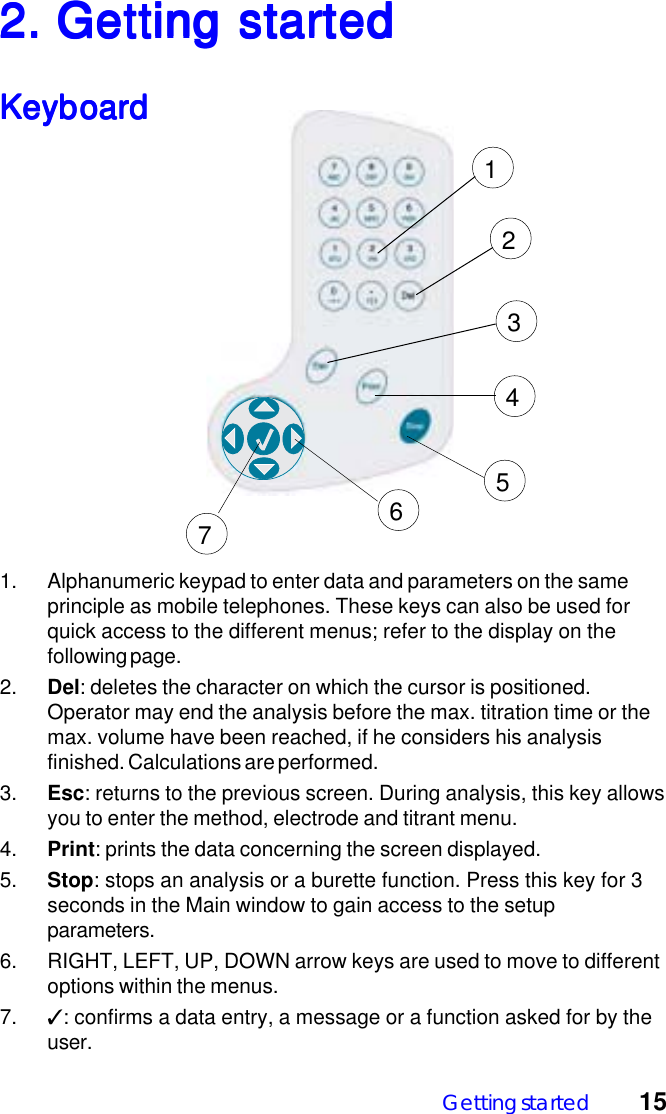
Getting started 152. Getting star2. Getting star2. Getting star2. Getting star2. Getting startedtedtedtedtedKeyboardKeyboardKeyboardKeyboardKeyboard1. Alphanumeric keypad to enter data and parameters on the sameprinciple as mobile telephones. These keys can also be used forquick access to the different menus; refer to the display on thefollowing page.2. Del: deletes the character on which the cursor is positioned.Operator may end the analysis before the max. titration time or themax. volume have been reached, if he considers his analysisfinished. Calculations are performed.3. Esc: returns to the previous screen. During analysis, this key allowsyou to enter the method, electrode and titrant menu.4. Print: prints the data concerning the screen displayed.5. Stop: stops an analysis or a burette function. Press this key for 3seconds in the Main window to gain access to the setupparameters.6. RIGHT, LEFT, UP, DOWN arrow keys are used to move to differentoptions within the menus.7. ✓: confirms a data entry, a message or a function asked for by theuser.1234567
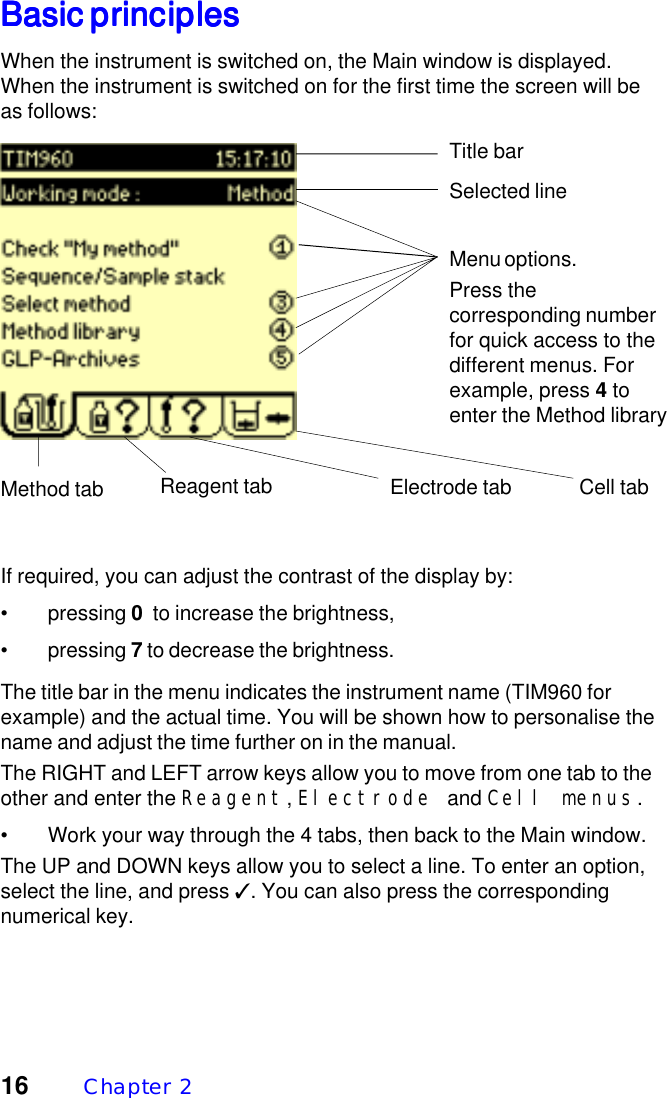
16 Chapter  2Basic principlesBasic principlesBasic principlesBasic principlesBasic principlesWhen the instrument is switched on, the Main window is displayed.When the instrument is switched on for the first time the screen will beas follows:Title barSelected lineMenu options.Press thecorresponding numberfor quick access to thedifferent menus. Forexample, press 4 toenter the Method libraryMethod tab Reagent tab Electrode tab Cell tabIf required, you can adjust the contrast of the display by:• pressing 0  to increase the brightness,• pressing 7 to decrease the brightness.The title bar in the menu indicates the instrument name (TIM960 forexample) and the actual time. You will be shown how to personalise thename and adjust the time further on in the manual.The RIGHT and LEFT arrow keys allow you to move from one tab to theother and enter the Reagent, Electrode and Cell menus.• Work your way through the 4 tabs, then back to the Main window.The UP and DOWN keys allow you to select a line. To enter an option,select the line, and press ✓. You can also press the correspondingnumerical key.
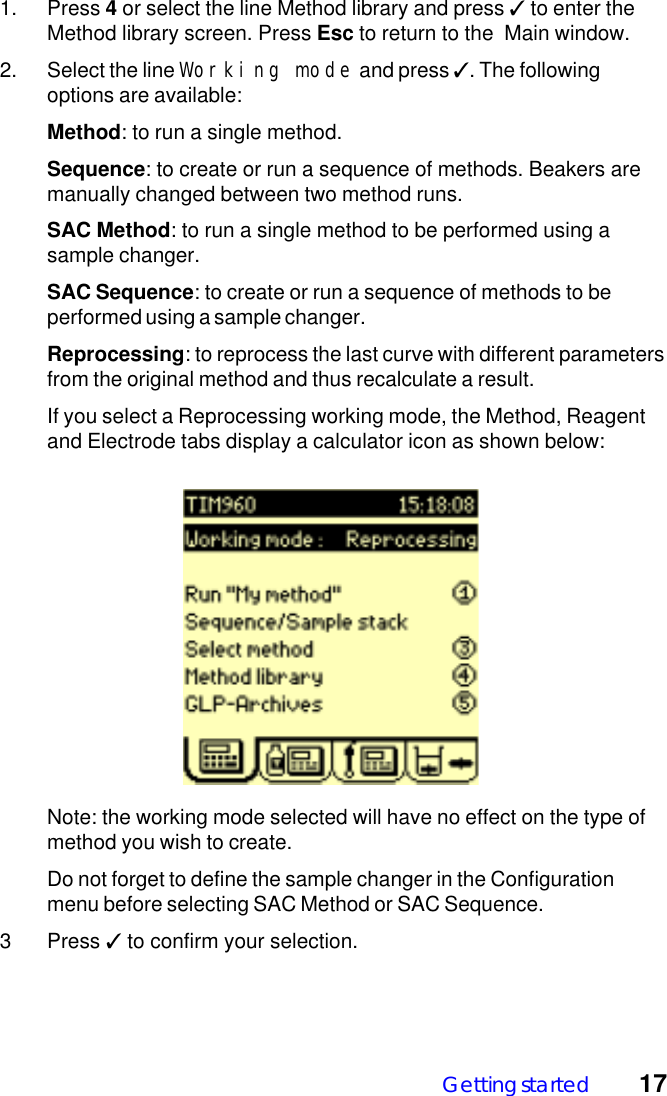
Getting started 171. Press 4 or select the line Method library and press ✓ to enter theMethod library screen. Press Esc to return to the  Main window.2. Select the line Working mode and press ✓. The followingoptions are available:Method: to run a single method.Sequence: to create or run a sequence of methods. Beakers aremanually changed between two method runs.SAC Method: to run a single method to be performed using asample changer.SAC Sequence: to create or run a sequence of methods to beperformed using a sample changer.Reprocessing: to reprocess the last curve with different parametersfrom the original method and thus recalculate a result.If you select a Reprocessing working mode, the Method, Reagentand Electrode tabs display a calculator icon as shown below:Note: the working mode selected will have no effect on the type ofmethod you wish to create.Do not forget to define the sample changer in the Configurationmenu before selecting SAC Method or SAC Sequence.3 Press ✓ to confirm your selection.
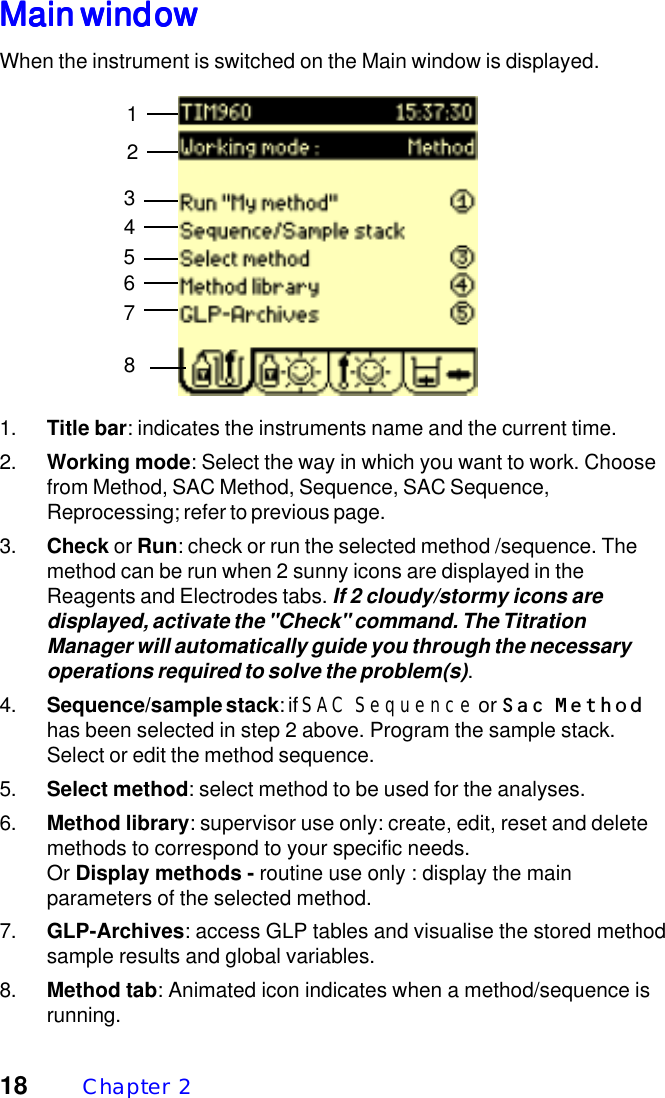
18 Chapter  2Main windowMain windowMain windowMain windowMain windowWhen the instrument is switched on the Main window is displayed.1. Title bar: indicates the instruments name and the current time.2. Working mode: Select the way in which you want to work. Choosefrom Method, SAC Method, Sequence, SAC Sequence,Reprocessing; refer to previous page.3. Check or Run: check or run the selected method /sequence. Themethod can be run when 2 sunny icons are displayed in theReagents and Electrodes tabs. If 2 cloudy/stormy icons aredisplayed, activate the "Check" command. The TitrationManager will automatically guide you through the necessaryoperations required to solve the problem(s).4. Sequence/sample stack: if SAC Sequence or Sac Methodhas been selected in step 2 above. Program the sample stack.Select or edit the method sequence.5. Select method: select method to be used for the analyses.6. Method library: supervisor use only: create, edit, reset and deletemethods to correspond to your specific needs.Or Display methods - routine use only : display the mainparameters of the selected method.7. GLP-Archives: access GLP tables and visualise the stored methodsample results and global variables.8. Method tab: Animated icon indicates when a method/sequence isrunning.81234567
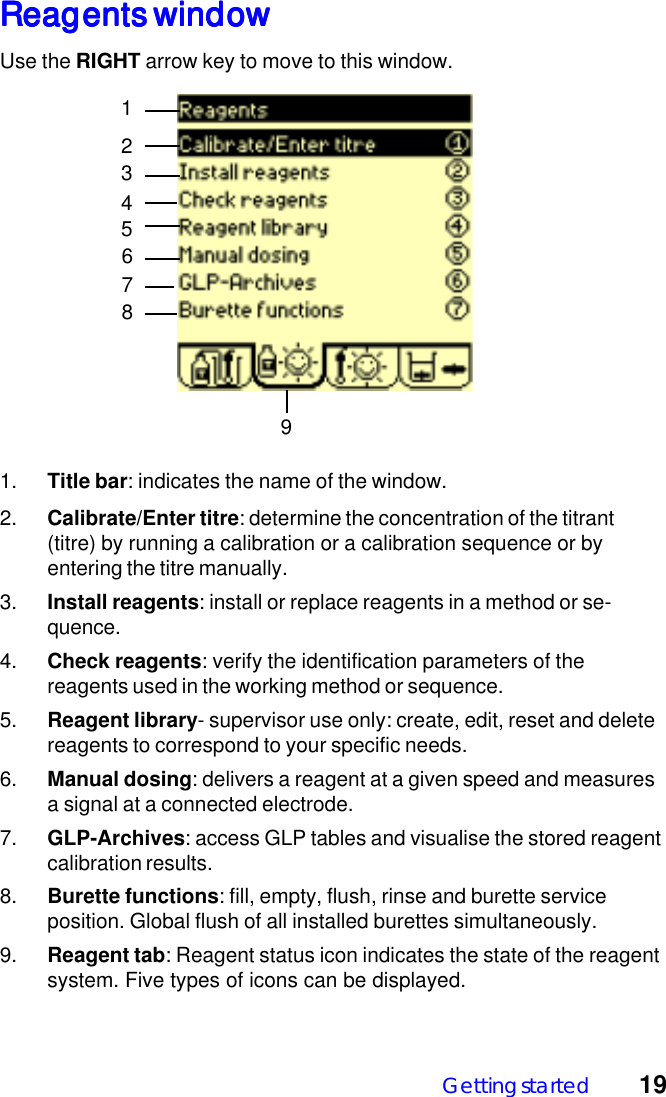
Getting started 19Reagents windowReagents windowReagents windowReagents windowReagents windowUse the RIGHT arrow key to move to this window.124579381. Title bar: indicates the name of the window.2. Calibrate/Enter titre: determine the concentration of the titrant(titre) by running a calibration or a calibration sequence or byentering the titre manually.3. Install reagents: install or replace reagents in a method or se-quence.4. Check reagents: verify the identification parameters of thereagents used in the working method or sequence.5. Reagent library- supervisor use only: create, edit, reset and deletereagents to correspond to your specific needs.6. Manual dosing: delivers a reagent at a given speed and measuresa signal at a connected electrode.7. GLP-Archives: access GLP tables and visualise the stored reagentcalibration results.8. Burette functions: fill, empty, flush, rinse and burette serviceposition. Global flush of all installed burettes simultaneously.9. Reagent tab: Reagent status icon indicates the state of the reagentsystem. Five types of icons can be displayed.6
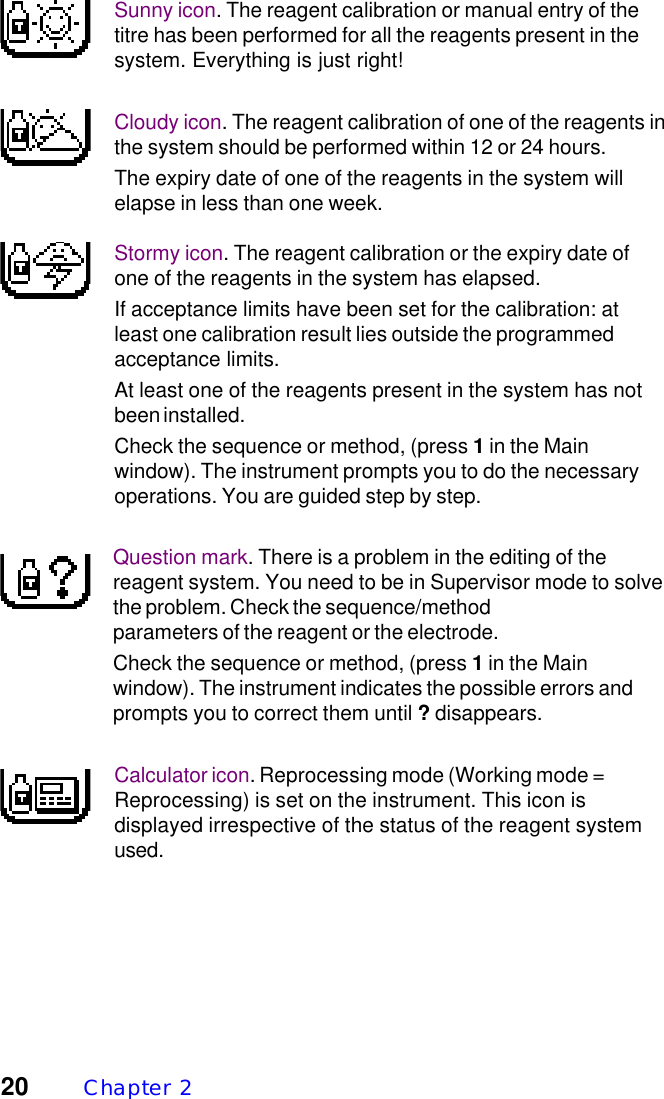
20 Chapter  2Sunny icon. The reagent calibration or manual entry of thetitre has been performed for all the reagents present in thesystem. Everything is just right!Cloudy icon. The reagent calibration of one of the reagents inthe system should be performed within 12 or 24 hours.The expiry date of one of the reagents in the system willelapse in less than one week.Stormy icon. The reagent calibration or the expiry date ofone of the reagents in the system has elapsed.If acceptance limits have been set for the calibration: atleast one calibration result lies outside the programmedacceptance limits.At least one of the reagents present in the system has notbeen installed.Check the sequence or method, (press 1 in the Mainwindow). The instrument prompts you to do the necessaryoperations. You are guided step by step.Question mark. There is a problem in the editing of thereagent system. You need to be in Supervisor mode to solvethe problem. Check the sequence/methodparameters of the reagent or the electrode.Check the sequence or method, (press 1 in the Mainwindow). The instrument indicates the possible errors andprompts you to correct them until ? disappears.Calculator icon. Reprocessing mode (Working mode =Reprocessing) is set on the instrument. This icon isdisplayed irrespective of the status of the reagent systemused.
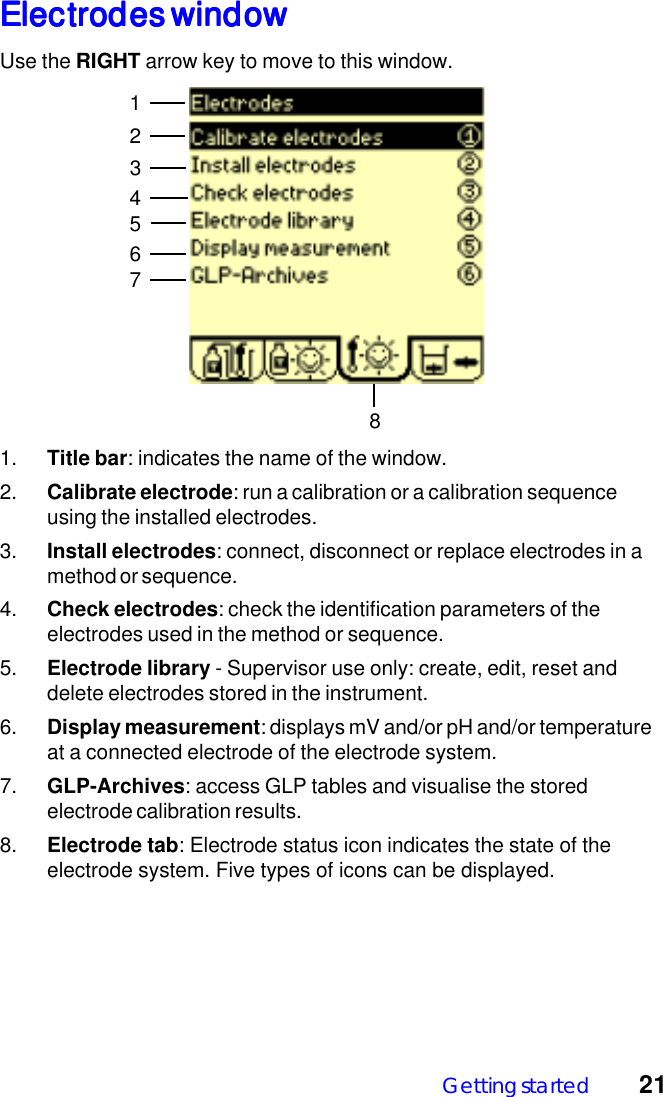
Getting started 21Electrodes windowElectrodes windowElectrodes windowElectrodes windowElectrodes windowUse the RIGHT arrow key to move to this window.124567831. Title bar: indicates the name of the window.2. Calibrate electrode: run a calibration or a calibration sequenceusing the installed electrodes.3. Install electrodes: connect, disconnect or replace electrodes in amethod or sequence.4. Check electrodes: check the identification parameters of theelectrodes used in the method or sequence.5. Electrode library - Supervisor use only: create, edit, reset anddelete electrodes stored in the instrument.6. Display measurement: displays mV and/or pH and/or temperatureat a connected electrode of the electrode system.7. GLP-Archives: access GLP tables and visualise the storedelectrode calibration results.8. Electrode tab: Electrode status icon indicates the state of theelectrode system. Five types of icons can be displayed.
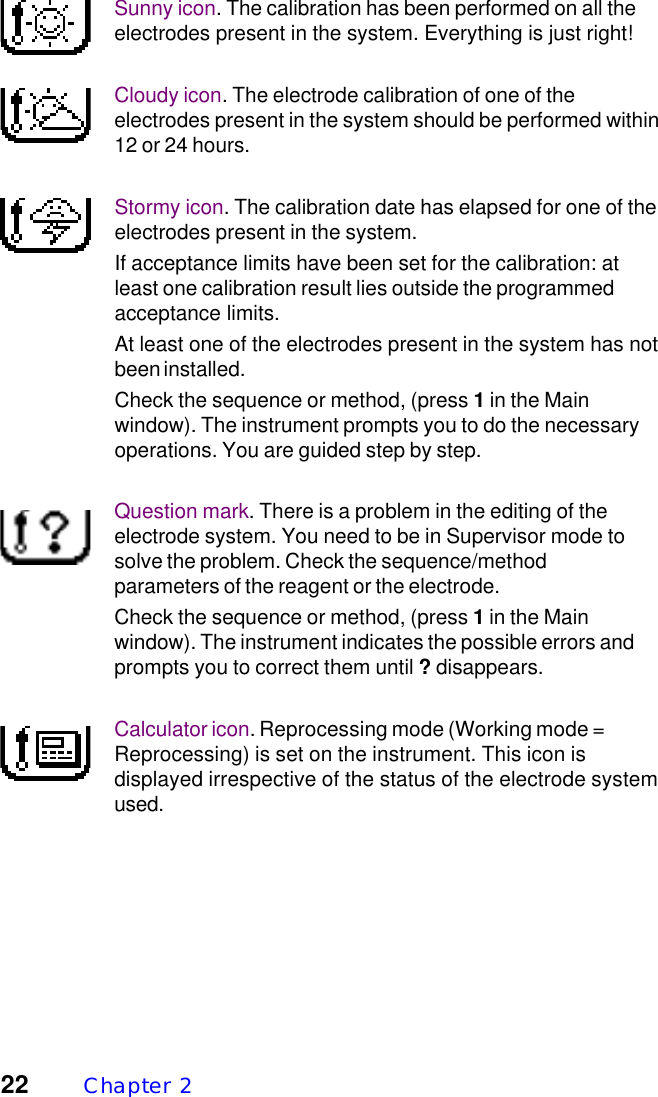
22 Chapter  2Sunny icon. The calibration has been performed on all theelectrodes present in the system. Everything is just right!Cloudy icon. The electrode calibration of one of theelectrodes present in the system should be performed within12 or 24 hours.Stormy icon. The calibration date has elapsed for one of theelectrodes present in the system.If acceptance limits have been set for the calibration: atleast one calibration result lies outside the programmedacceptance limits.At least one of the electrodes present in the system has notbeen installed.Check the sequence or method, (press 1 in the Mainwindow). The instrument prompts you to do the necessaryoperations. You are guided step by step.Question mark. There is a problem in the editing of theelectrode system. You need to be in Supervisor mode tosolve the problem. Check the sequence/methodparameters of the reagent or the electrode.Check the sequence or method, (press 1 in the Mainwindow). The instrument indicates the possible errors andprompts you to correct them until ? disappears.Calculator icon. Reprocessing mode (Working mode =Reprocessing) is set on the instrument. This icon isdisplayed irrespective of the status of the electrode systemused.
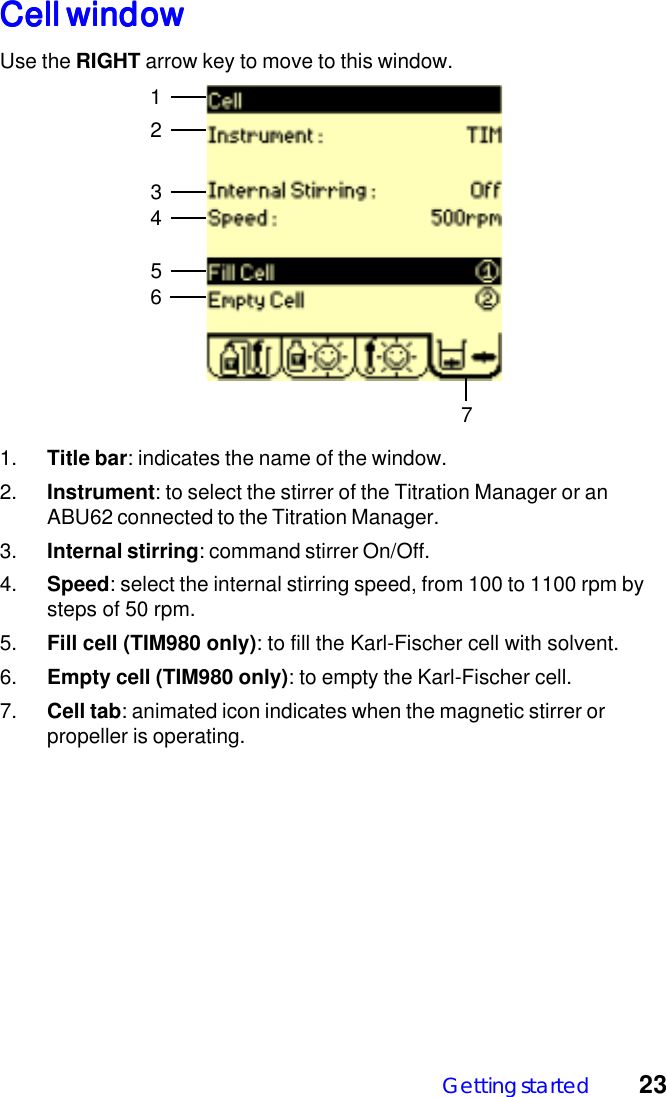
Getting started 23Cell windowCell windowCell windowCell windowCell windowUse the RIGHT arrow key to move to this window.12731. Title bar: indicates the name of the window.2. Instrument: to select the stirrer of the Titration Manager or anABU62 connected to the Titration Manager.3. Internal stirring: command stirrer On/Off.4. Speed: select the internal stirring speed, from 100 to 1100 rpm bysteps of 50 rpm.5. Fill cell (TIM980 only): to fill the Karl-Fischer cell with solvent.6. Empty cell (TIM980 only): to empty the Karl-Fischer cell.7. Cell tab: animated icon indicates when the magnetic stirrer orpropeller is operating.456
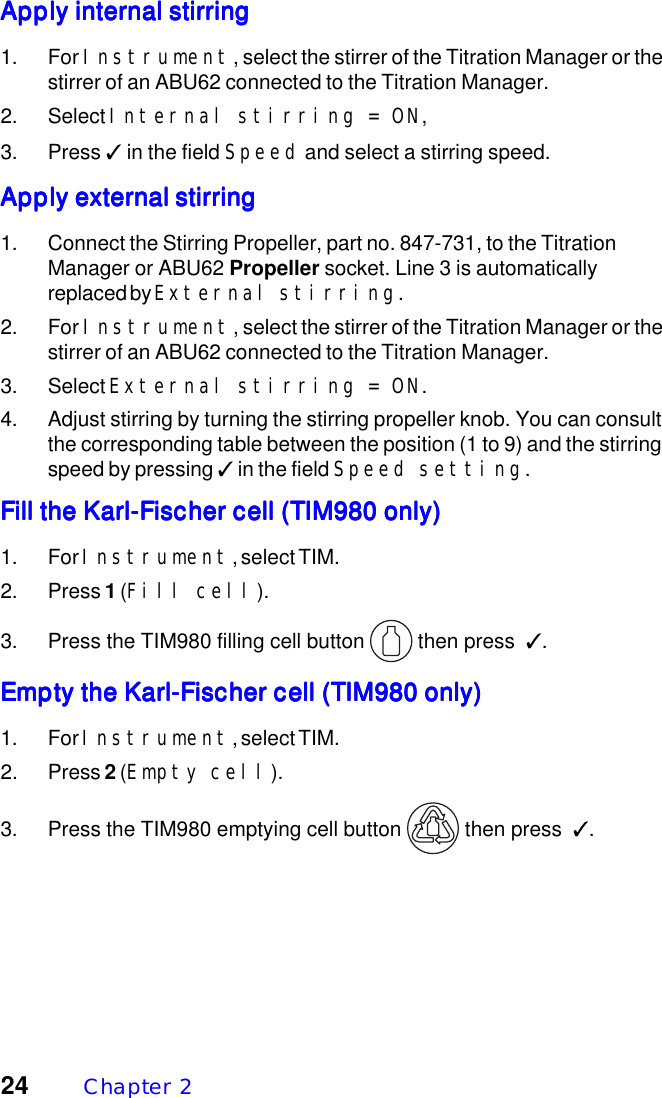
24 Chapter  2Apply internal stirringApply internal stirringApply internal stirringApply internal stirringApply internal stirring1. For Instrument, select the stirrer of the Titration Manager or thestirrer of an ABU62 connected to the Titration Manager.2. Select Internal stirring = ON,3. Press ✓ in the field Speed and select a stirring speed.Apply external stirringApply external stirringApply external stirringApply external stirringApply external stirring1. Connect the Stirring Propeller, part no. 847-731, to the TitrationManager or ABU62 Propeller socket. Line 3 is automaticallyreplaced by External stirring.2. For Instrument, select the stirrer of the Titration Manager or thestirrer of an ABU62 connected to the Titration Manager.3. Select External stirring = ON.4. Adjust stirring by turning the stirring propeller knob. You can consultthe corresponding table between the position (1 to 9) and the stirringspeed by pressing ✓ in the field Speed setting.Fill the Karl-Fischer cell (TIM980 only)Fill the Karl-Fischer cell (TIM980 only)Fill the Karl-Fischer cell (TIM980 only)Fill the Karl-Fischer cell (TIM980 only)Fill the Karl-Fischer cell (TIM980 only)1. For Instrument, select TIM.2. Press 1 (Fill cell).3. Press the TIM980 filling cell button   then press  ✓.Empty the Karl-Fischer cell (TIM980 only)Empty the Karl-Fischer cell (TIM980 only)Empty the Karl-Fischer cell (TIM980 only)Empty the Karl-Fischer cell (TIM980 only)Empty the Karl-Fischer cell (TIM980 only)1. For Instrument, select TIM.2. Press 2 (Empty cell).3. Press the TIM980 emptying cell button   then press  ✓.
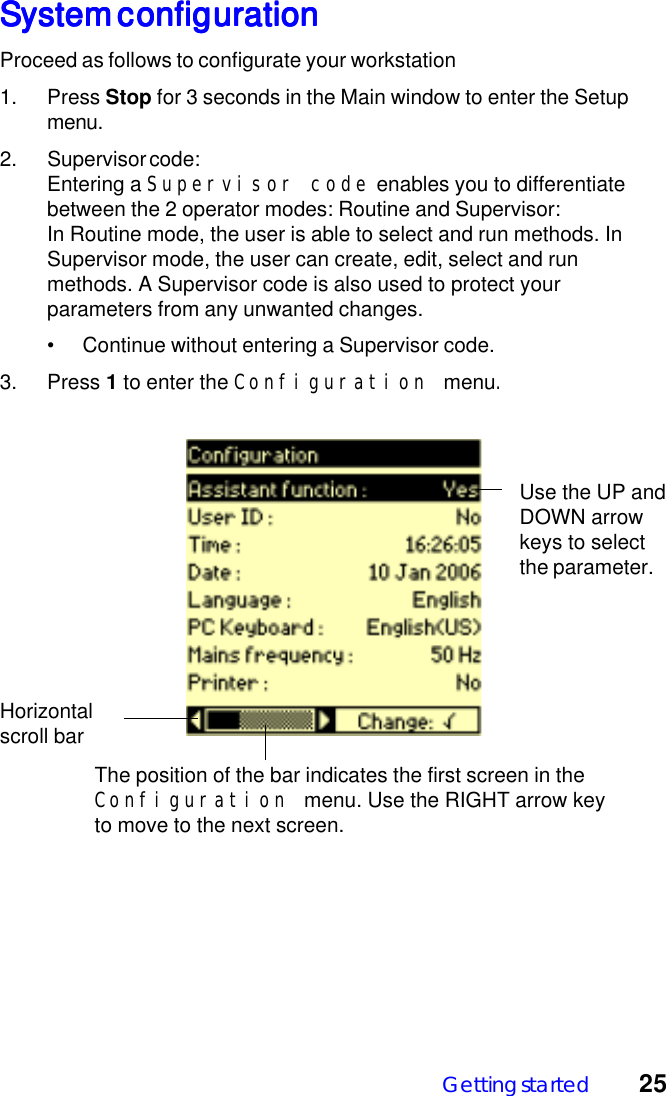
Getting started 25System configurationSystem configurationSystem configurationSystem configurationSystem configurationProceed as follows to configurate your workstation1. Press Stop for 3 seconds in the Main window to enter the Setupmenu.2. Supervisor code:Entering a Supervisor code enables you to differentiatebetween the 2 operator modes: Routine and Supervisor:In Routine mode, the user is able to select and run methods. InSupervisor mode, the user can create, edit, select and runmethods. A Supervisor code is also used to protect yourparameters from any unwanted changes.• Continue without entering a Supervisor code.3. Press 1 to enter the Configuration menu.The position of the bar indicates the first screen in theConfiguration menu. Use the RIGHT arrow keyto move to the next screen.Horizontalscroll barUse the UP andDOWN arrowkeys to selectthe parameter.
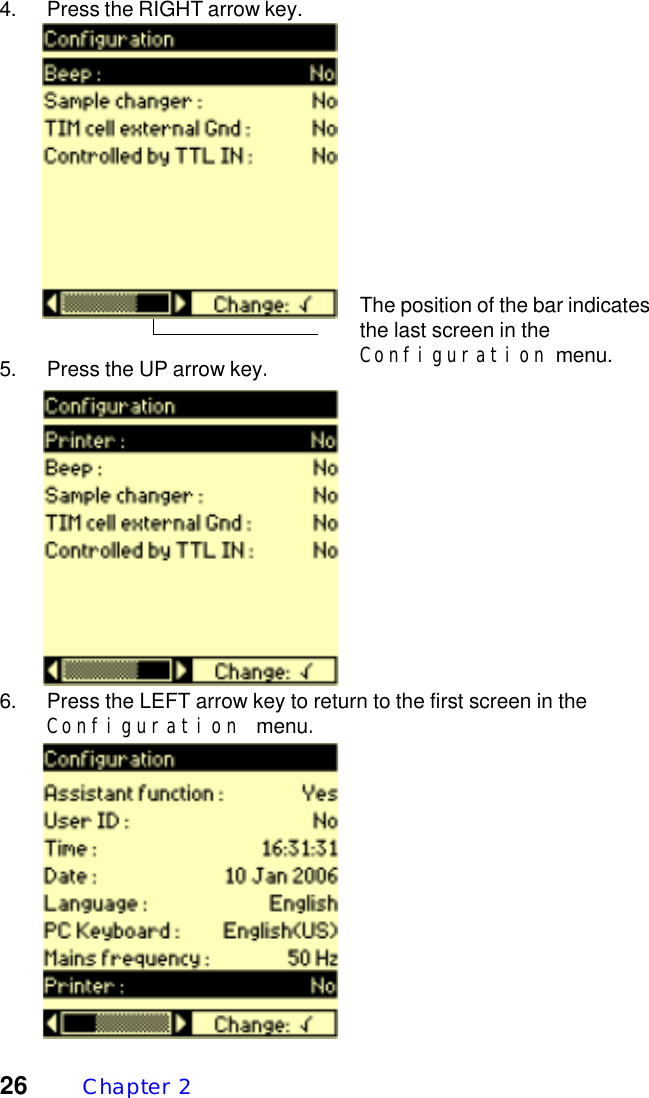
26 Chapter  24. Press the RIGHT arrow key.The position of the bar indicatesthe last screen in theConfiguration menu.5. Press the UP arrow key.6. Press the LEFT arrow key to return to the first screen in theConfiguration menu.
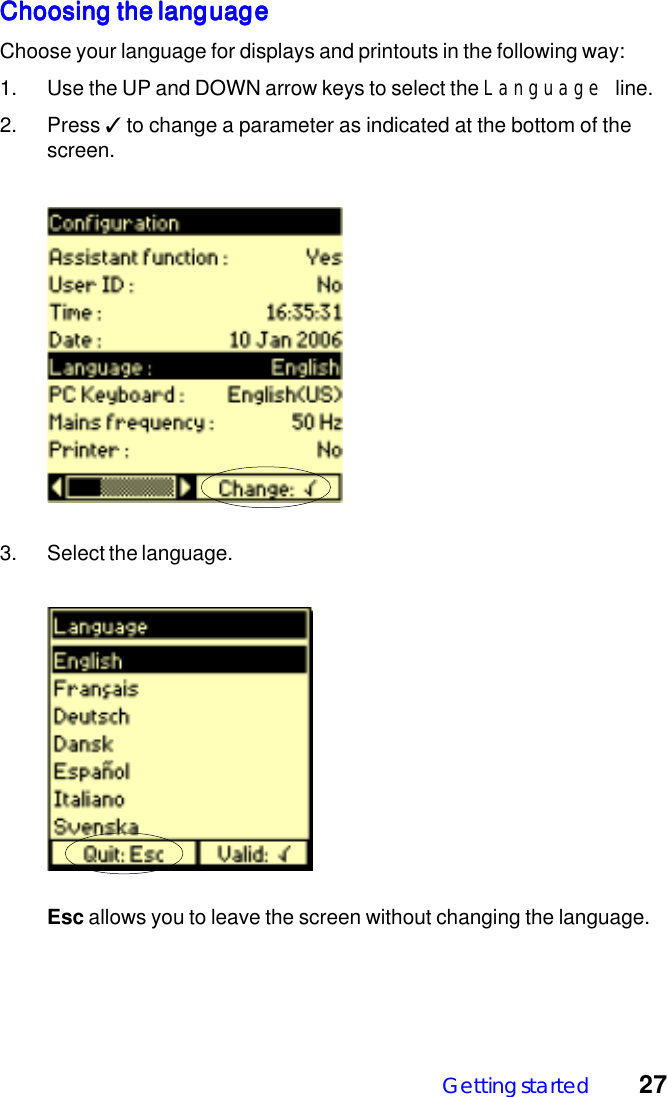
Getting started 27Choosing the languageChoosing the languageChoosing the languageChoosing the languageChoosing the languageChoose your language for displays and printouts in the following way:1. Use the UP and DOWN arrow keys to select the Language line.2. Press ✓ to change a parameter as indicated at the bottom of thescreen.3. Select the language.Esc allows you to leave the screen without changing the language.
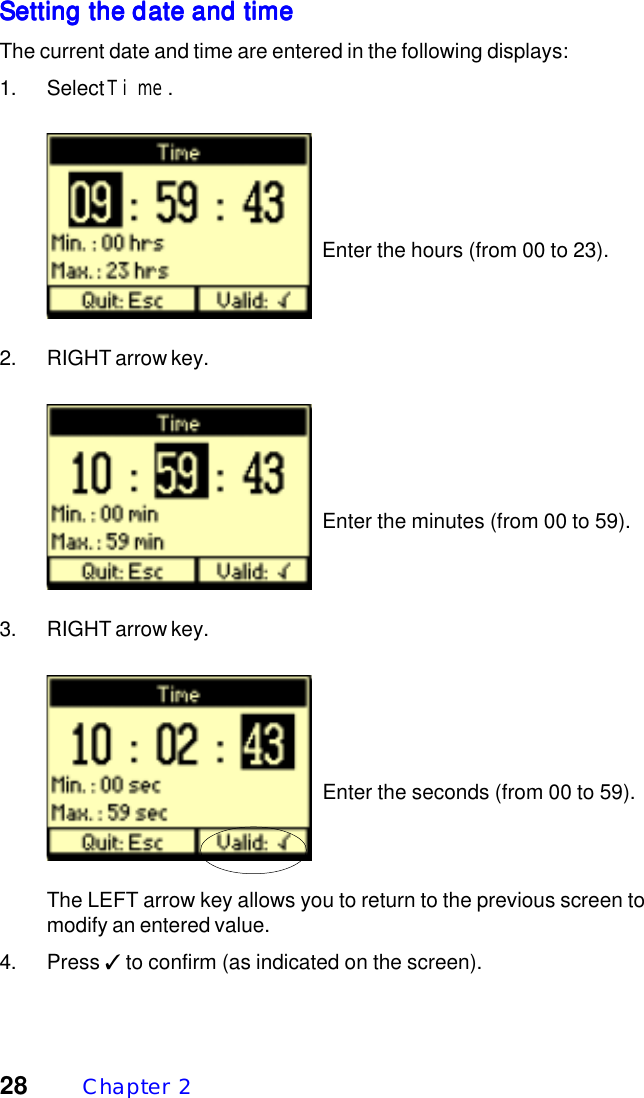
28 Chapter  2Setting the date and timeSetting the date and timeSetting the date and timeSetting the date and timeSetting the date and timeThe current date and time are entered in the following displays:1. Select Time.  Enter the hours (from 00 to 23).2. RIGHT arrow key.  Enter the minutes (from 00 to 59).3. RIGHT arrow key.  Enter the seconds (from 00 to 59).The LEFT arrow key allows you to return to the previous screen tomodify an entered value.4. Press ✓ to confirm (as indicated on the screen).
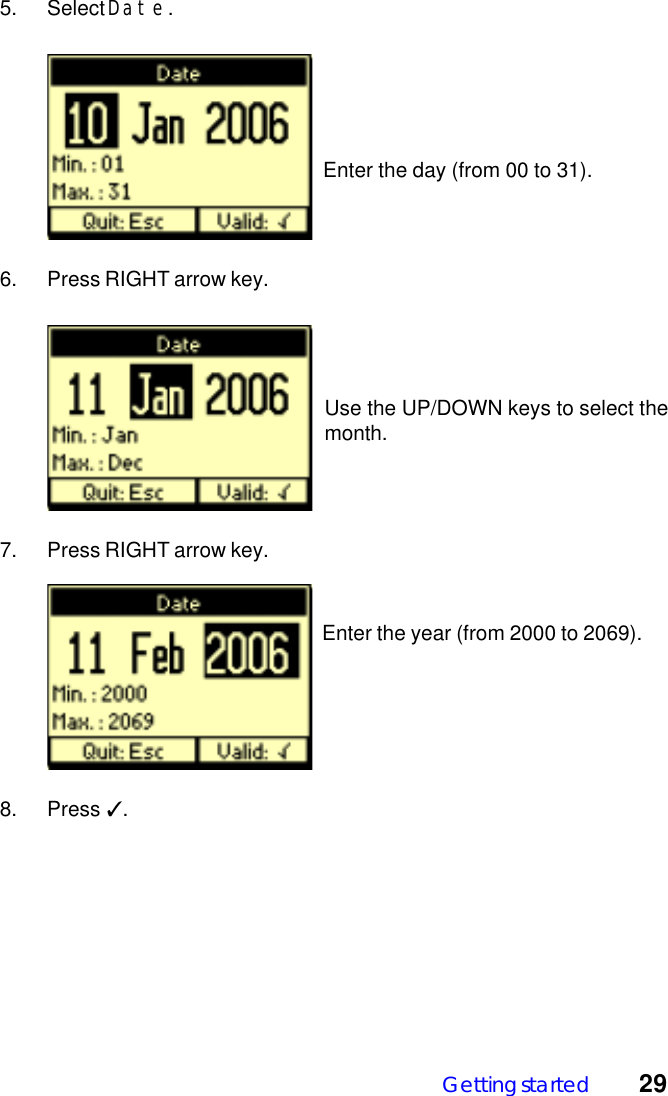
Getting started 295. Select Date.  Enter the day (from 00 to 31).6. Press RIGHT arrow key.7. Press RIGHT arrow key.  Enter the year (from 2000 to 2069).8. Press ✓.Use the UP/DOWN keys to select themonth.
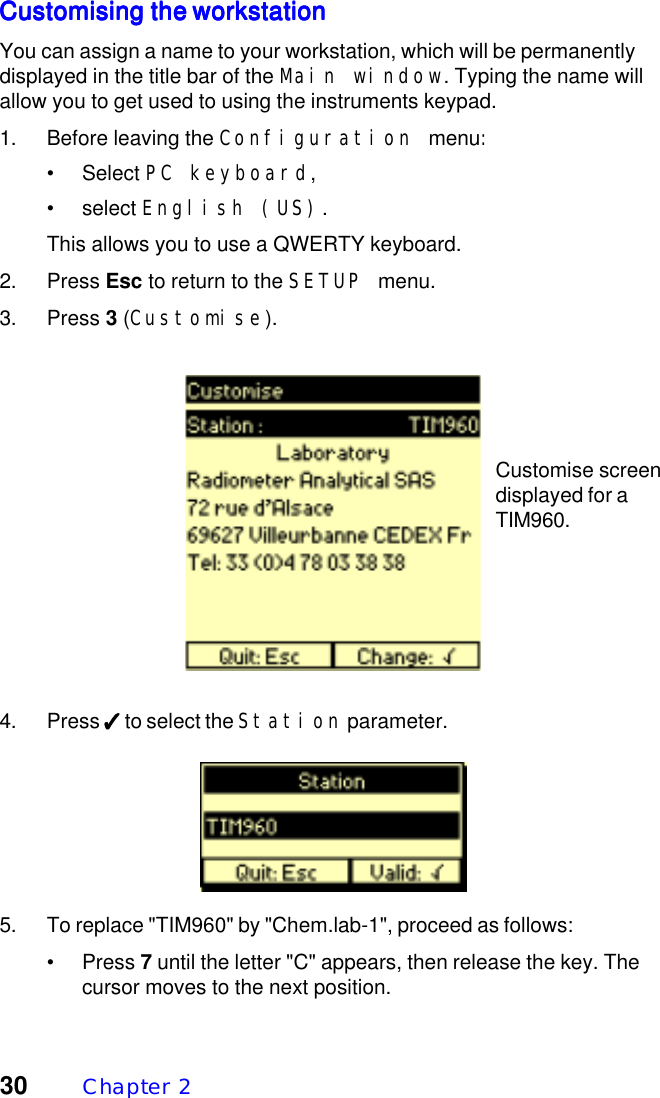
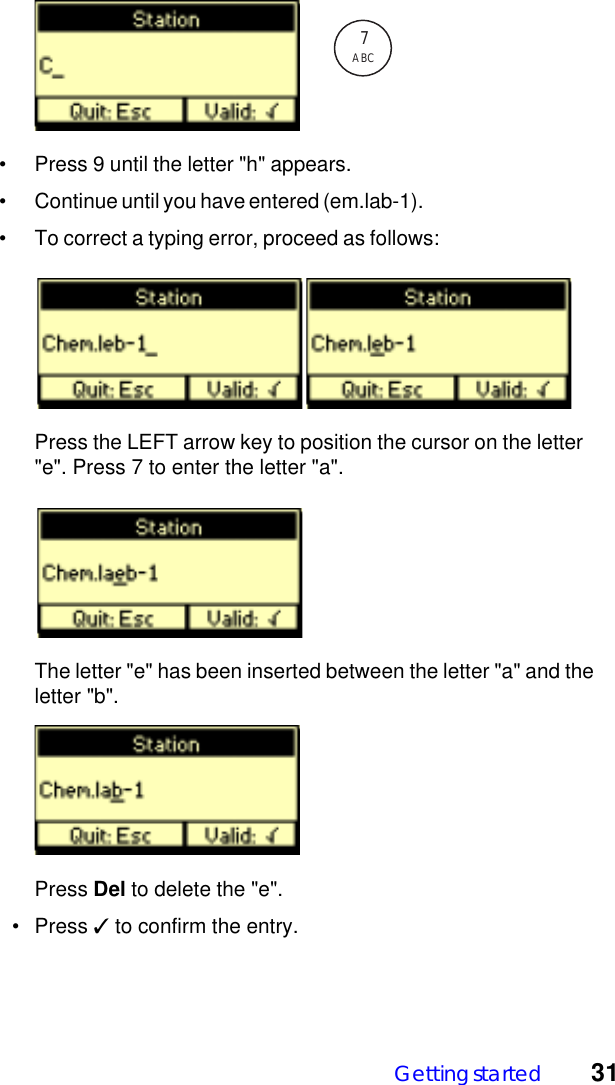
30 Chapter  2Customising the workstationCustomising the workstationCustomising the workstationCustomising the workstationCustomising the workstationYou can assign a name to your workstation, which will be permanentlydisplayed in the title bar of the Main window. Typing the name willallow you to get used to using the instruments keypad.1. Before leaving the Configuration menu:• Select PC keyboard,• select English (US).This allows you to use a QWERTY keyboard.2. Press Esc to return to the SETUP menu.3. Press 3 (Customise).4. Press ✓✓✓✓✓ to select the Station parameter.5. To replace "TIM960" by "Chem.lab-1", proceed as follows:• Press 7 until the letter "C" appears, then release the key. Thecursor moves to the next position.Customise screendisplayed for aTIM960.
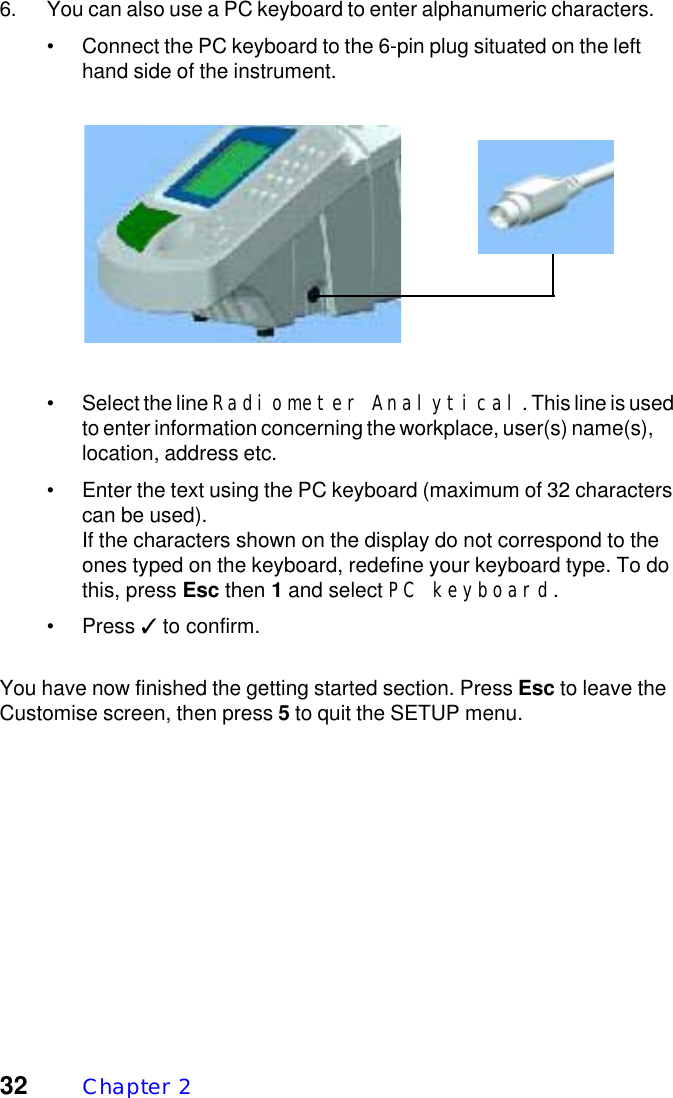
Getting started 31• Press 9 until the letter "h" appears.• Continue until you have entered (em.lab-1).• To correct a typing error, proceed as follows:      Press the LEFT arrow key to position the cursor on the letter"e". Press 7 to enter the letter "a".      The letter "e" has been inserted between the letter "a" and theletter "b".Press Del to delete the "e".  • Press ✓ to confirm the entry.7ABC
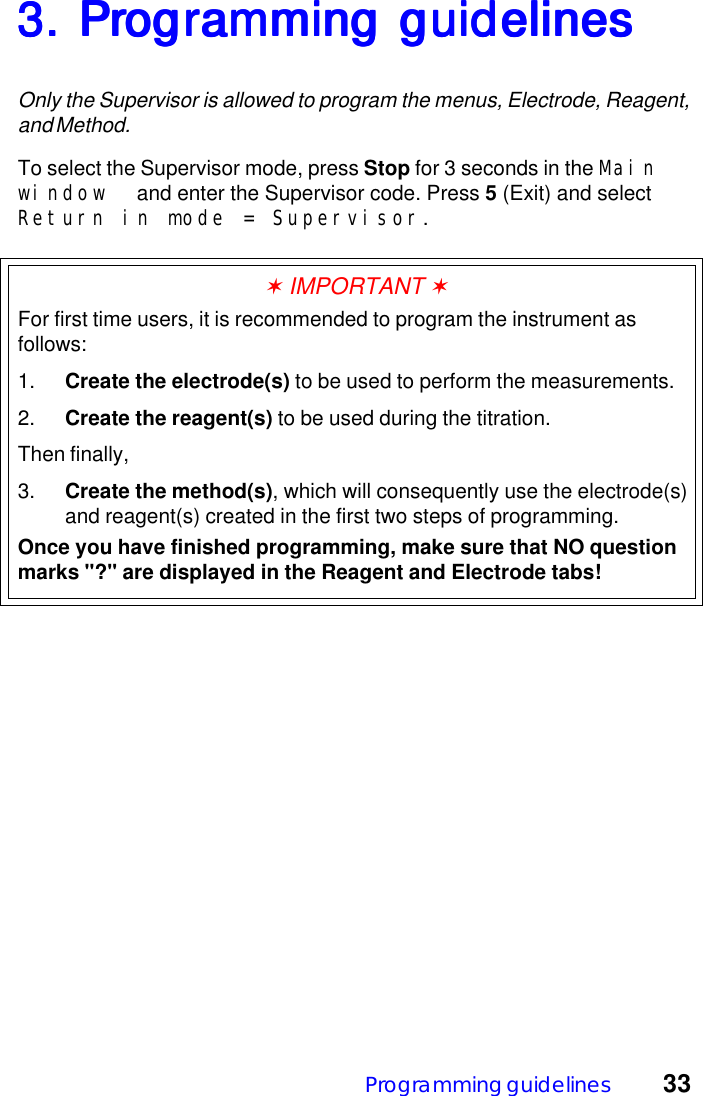
32 Chapter  26. You can also use a PC keyboard to enter alphanumeric characters.• Connect the PC keyboard to the 6-pin plug situated on the lefthand side of the instrument.• Select the line Radiometer Analytical. This line is usedto enter information concerning the workplace, user(s) name(s),location, address etc.• Enter the text using the PC keyboard (maximum of 32 characterscan be used).If the characters shown on the display do not correspond to theones typed on the keyboard, redefine your keyboard type. To dothis, press Esc then 1 and select PC keyboard.• Press ✓ to confirm.You have now finished the getting started section. Press Esc to leave theCustomise screen, then press 5 to quit the SETUP menu.
Programming guidelines 333. Pr3. Pr3. Pr3. Pr3. Programming guidelinesogramming guidelinesogramming guidelinesogramming guidelinesogramming guidelinesOnly the Supervisor is allowed to program the menus, Electrode, Reagent,and Method.To select the Supervisor mode, press Stop for 3 seconds in the Mainwindow  and enter the Supervisor code. Press 5 (Exit) and selectReturn in mode = Supervisor.✶ IMPORTANT ✶For first time users, it is recommended to program the instrument asfollows:1. Create the electrode(s) to be used to perform the measurements.2. Create the reagent(s) to be used during the titration.Then finally,3. Create the method(s), which will consequently use the electrode(s)and reagent(s) created in the first two steps of programming.Once you have finished programming, make sure that NO questionmarks "?" are displayed in the Reagent and Electrode tabs!
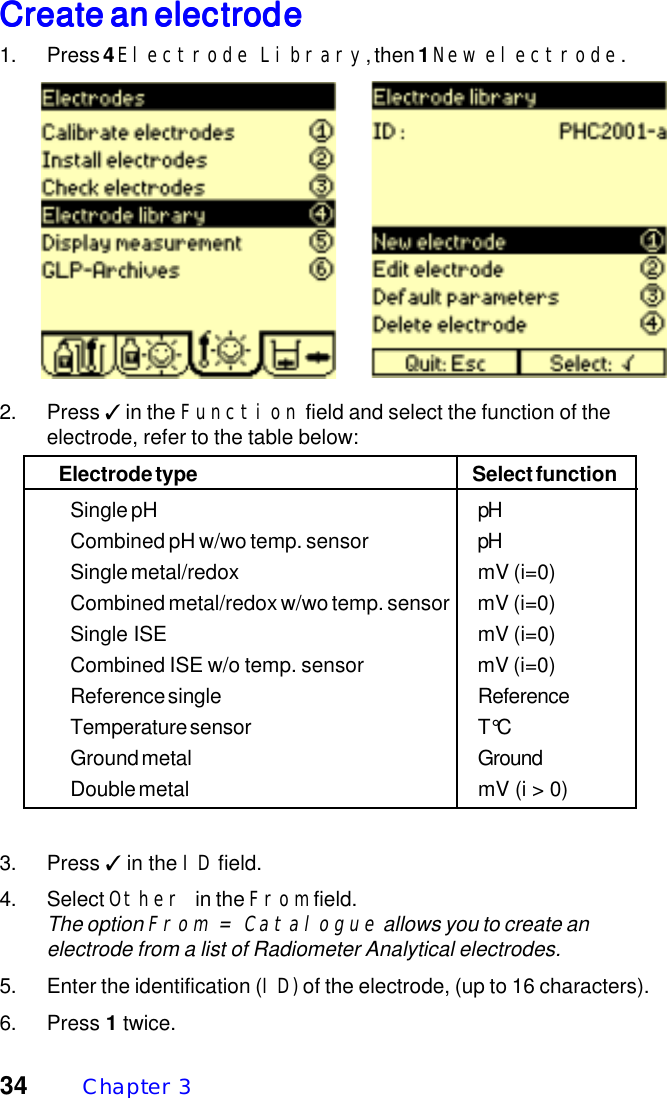
34 Chapter  3Create an electrodeCreate an electrodeCreate an electrodeCreate an electrodeCreate an electrode1. Press 4 Electrode Library, then 1 New electrode.2. Press ✓ in the Function field and select the function of theelectrode, refer to the table below:Electrode type Select functionSingle pH pHCombined pH w/wo temp. sensor pHSingle metal/redox mV (i=0)Combined metal/redox w/wo temp. sensor mV (i=0)Single ISE mV (i=0)Combined ISE w/o temp. sensor mV (i=0)Reference single ReferenceTemperature sensor T°CGround metal GroundDouble metal mV (i > 0)3. Press ✓ in the ID field.4. Select Other in the From field.The option From = Catalogue allows you to create anelectrode from a list of Radiometer Analytical electrodes.5. Enter the identification (ID) of the electrode, (up to 16 characters).6. Press 1 twice.
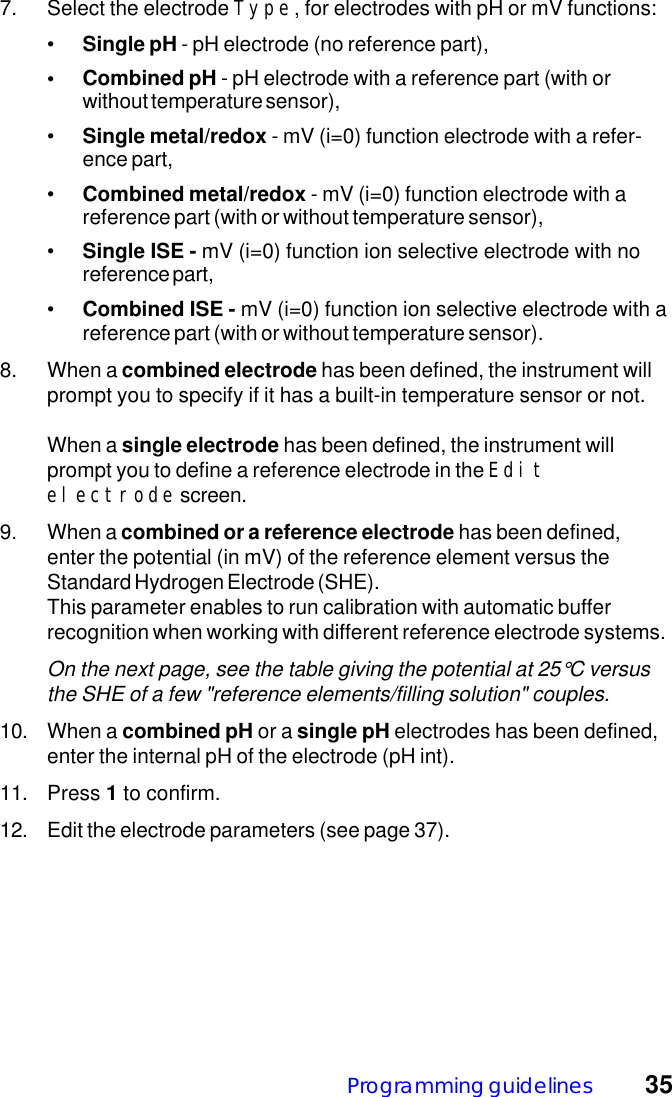
Programming guidelines 357. Select the electrode Type, for electrodes with pH or mV functions:•Single pH - pH electrode (no reference part),• Combined pH - pH electrode with a reference part (with orwithout temperature sensor),•Single metal/redox - mV (i=0) function electrode with a refer-ence part,•Combined metal/redox - mV (i=0) function electrode with areference part (with or without temperature sensor),•Single ISE - mV (i=0) function ion selective electrode with noreference part,•Combined ISE - mV (i=0) function ion selective electrode with areference part (with or without temperature sensor).8. When a combined electrode has been defined, the instrument willprompt you to specify if it has a built-in temperature sensor or not.When a single electrode has been defined, the instrument willprompt you to define a reference electrode in the Editelectrode screen.9. When a combined or a reference electrode has been defined,enter the potential (in mV) of the reference element versus theStandard Hydrogen Electrode (SHE).This parameter enables to run calibration with automatic bufferrecognition when working with different reference electrode systems.On the next page, see the table giving the potential at 25°C versusthe SHE of a few "reference elements/filling solution" couples.10. When a combined pH or a single pH electrodes has been defined,enter the internal pH of the electrode (pH int).11. Press 1 to confirm.12. Edit the electrode parameters (see page 37).
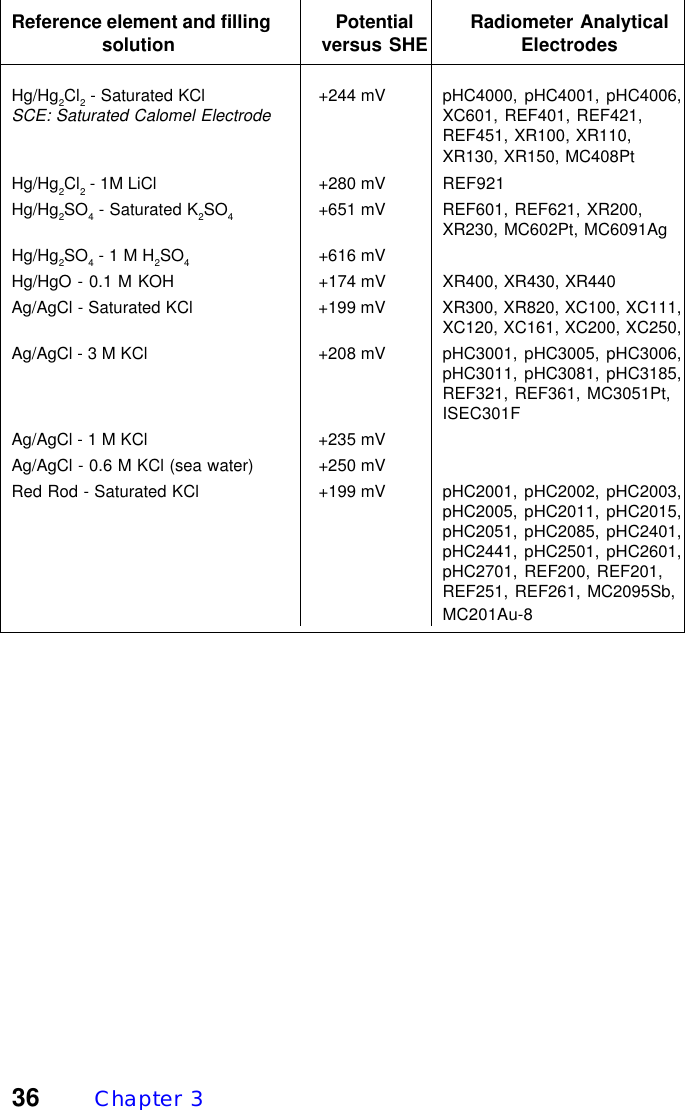
36 Chapter  3Reference element and filling Potential Radiometer Analytical                 solution versus SHE ElectrodesHg/Hg2Cl2 - Saturated KCl +244 mV pHC4000, pHC4001, pHC4006,SCE: Saturated Calomel ElectrodeXC601, REF401, REF421,REF451, XR100, XR110,XR130, XR150, MC408PtHg/Hg2Cl2 - 1M LiCl +280 mV REF921Hg/Hg2SO4 - Saturated K2SO4+651 mV REF601, REF621, XR200,XR230, MC602Pt, MC6091AgHg/Hg2SO4 - 1 M H2SO4+616 mVHg/HgO - 0.1 M KOH +174 mV XR400, XR430, XR440Ag/AgCl - Saturated KCl +199 mV XR300, XR820, XC100, XC111,XC120, XC161, XC200, XC250,Ag/AgCl - 3 M KCl +208 mV pHC3001, pHC3005, pHC3006,pHC3011, pHC3081, pHC3185,REF321, REF361, MC3051Pt,ISEC301FAg/AgCl - 1 M KCl +235 mVAg/AgCl - 0.6 M KCl (sea water) +250 mVRed Rod - Saturated KCl +199 mV pHC2001, pHC2002, pHC2003,pHC2005, pHC2011, pHC2015,pHC2051, pHC2085, pHC2401,pHC2441, pHC2501, pHC2601,pHC2701, REF200, REF201,REF251, REF261, MC2095Sb,MC201Au-8
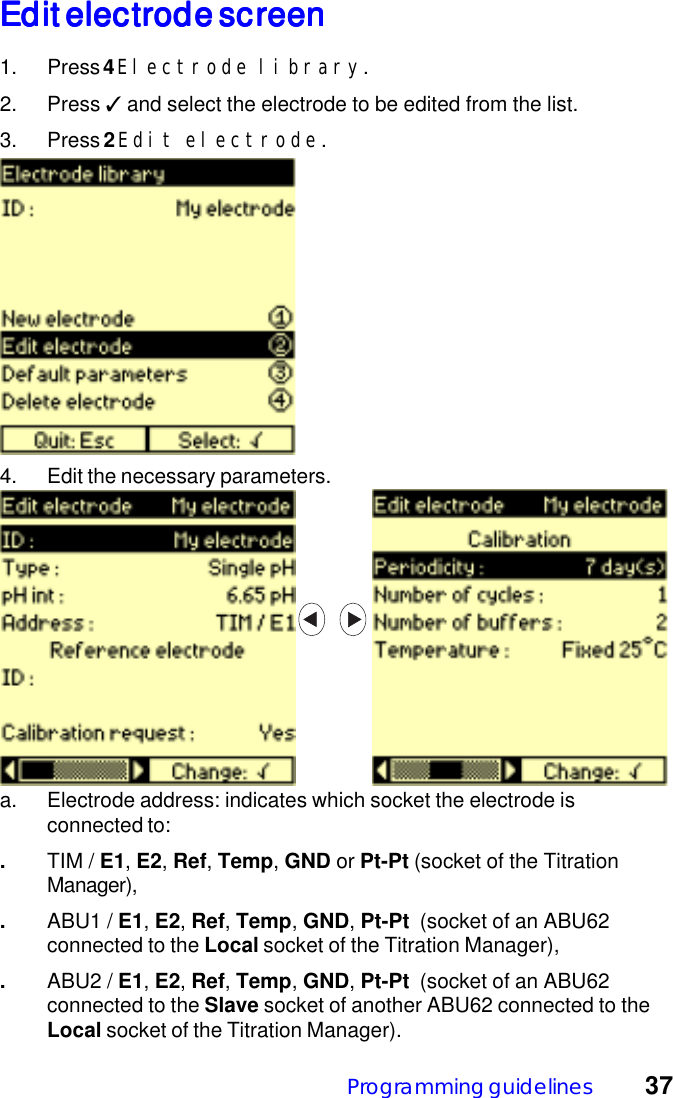
Programming guidelines 37Edit electrode screenEdit electrode screenEdit electrode screenEdit electrode screenEdit electrode screen1. Press 4 Electrode library.2. Press ✓ and select the electrode to be edited from the list.3. Press 2 Edit electrode.a. Electrode address: indicates which socket the electrode isconnected to:.TIM / E1, E2, Ref, Temp, GND or Pt-Pt (socket of the TitrationManager),.ABU1 / E1, E2, Ref, Temp, GND, Pt-Pt  (socket of an ABU62connected to the Local socket of the Titration Manager),.ABU2 / E1, E2, Ref, Temp, GND, Pt-Pt  (socket of an ABU62connected to the Slave socket of another ABU62 connected to theLocal socket of the Titration Manager).4. Edit the necessary parameters.
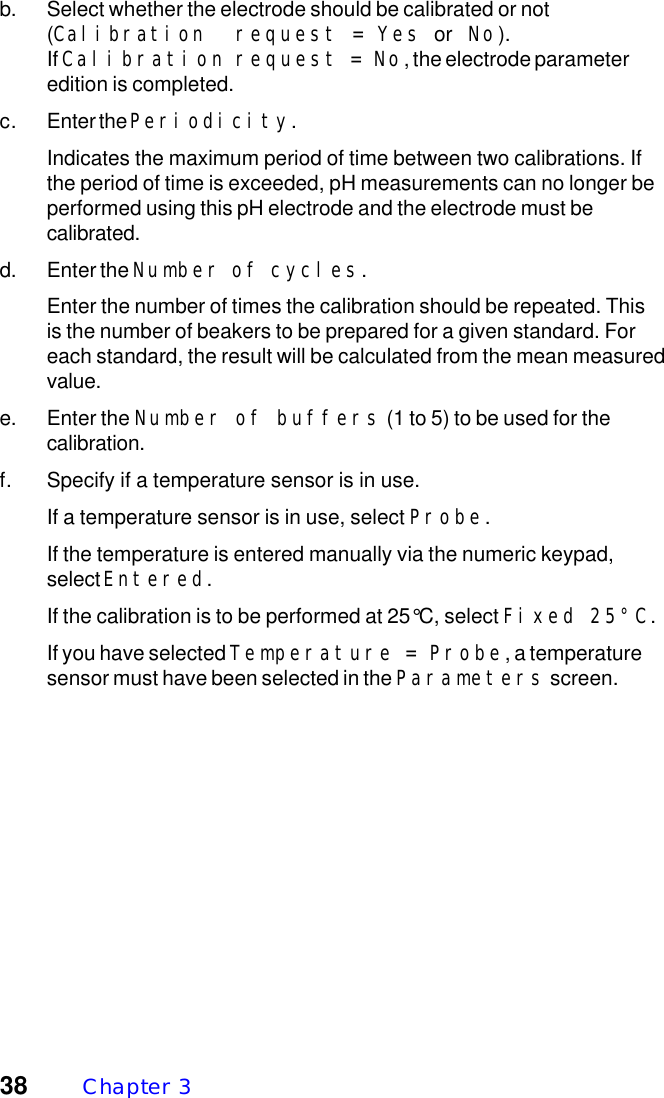
38 Chapter  3b. Select whether the electrode should be calibrated or not(Calibration request = Yes or  No).If Calibration request = No, the electrode parameteredition is completed.c. Enter the Periodicity.Indicates the maximum period of time between two calibrations. Ifthe period of time is exceeded, pH measurements can no longer beperformed using this pH electrode and the electrode must becalibrated.d. Enter the Number of cycles.Enter the number of times the calibration should be repeated. Thisis the number of beakers to be prepared for a given standard. Foreach standard, the result will be calculated from the mean measuredvalue.e. Enter the Number of buffers (1 to 5) to be used for thecalibration.f. Specify if a temperature sensor is in use.If a temperature sensor is in use, select Probe.If the temperature is entered manually via the numeric keypad,select Entered.If the calibration is to be performed at 25°C, select Fixed 25°C.If you have selected Temperature = Probe, a temperaturesensor must have been selected in the Parameters screen.
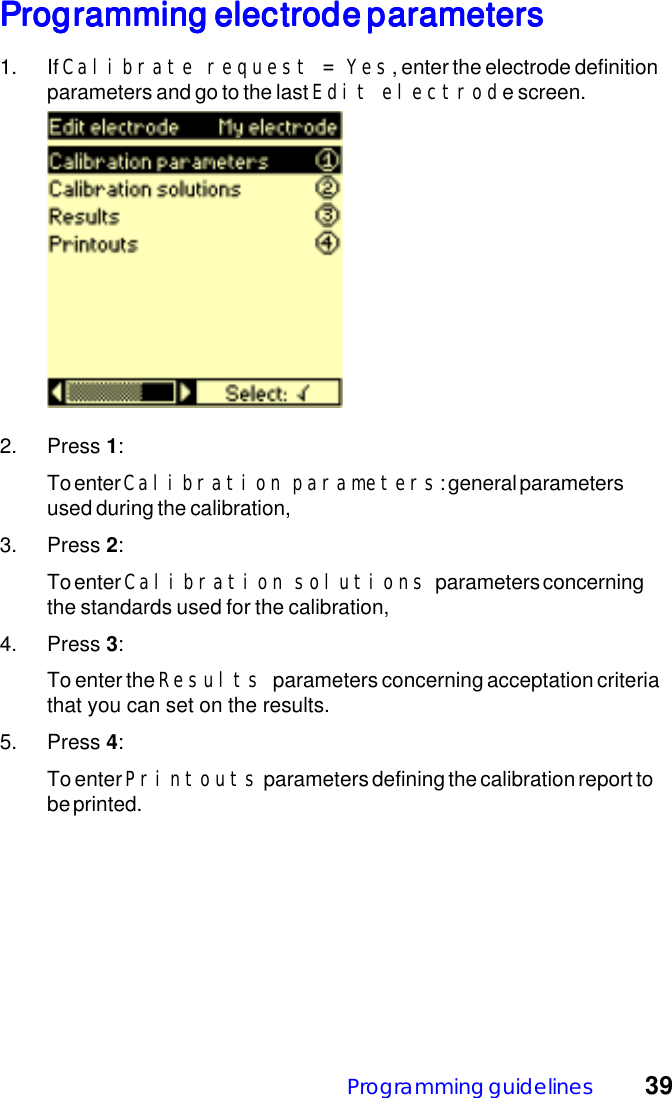
Programming guidelines 39Programming electrode parametersProgramming electrode parametersProgramming electrode parametersProgramming electrode parametersProgramming electrode parameters1. If Calibrate request = Yes, enter the electrode definitionparameters and go to the last Edit electrode screen.2. Press 1:To enter Calibration parameters: general parametersused during the calibration,3. Press 2:To enter Calibration solutions parameters concerningthe standards used for the calibration,4. Press 3:To enter the Results parameters concerning acceptation criteriathat you can set on the results.5. Press 4:To enter Printouts parameters defining the calibration report tobe printed.
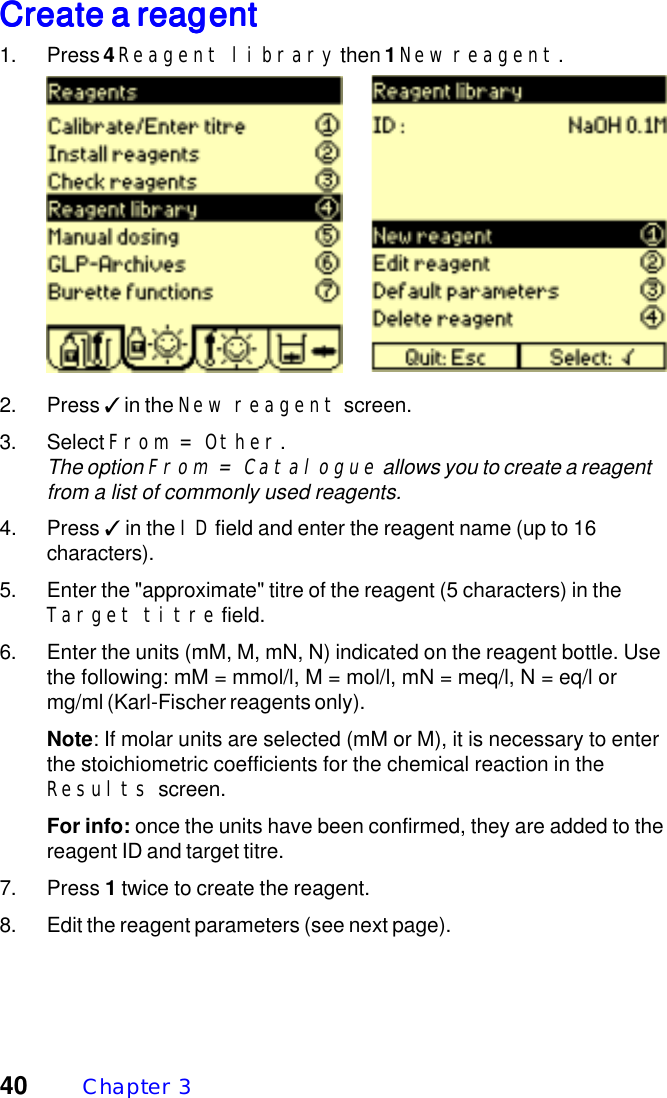
40 Chapter  3Create a reagentCreate a reagentCreate a reagentCreate a reagentCreate a reagent1. Press 4 Reagent library then 1 New reagent.2. Press ✓ in the New reagent screen.3. Select From = Other.The option From = Catalogue allows you to create a reagentfrom a list of commonly used reagents.4. Press ✓ in the ID field and enter the reagent name (up to 16characters).5. Enter the "approximate" titre of the reagent (5 characters) in theTarget titre field.6. Enter the units (mM, M, mN, N) indicated on the reagent bottle. Usethe following: mM = mmol/l, M = mol/l, mN = meq/l, N = eq/l ormg/ml (Karl-Fischer reagents only).Note: If molar units are selected (mM or M), it is necessary to enterthe stoichiometric coefficients for the chemical reaction in theResults screen.For info: once the units have been confirmed, they are added to thereagent ID and target titre.7. Press 1 twice to create the reagent.8. Edit the reagent parameters (see next page).
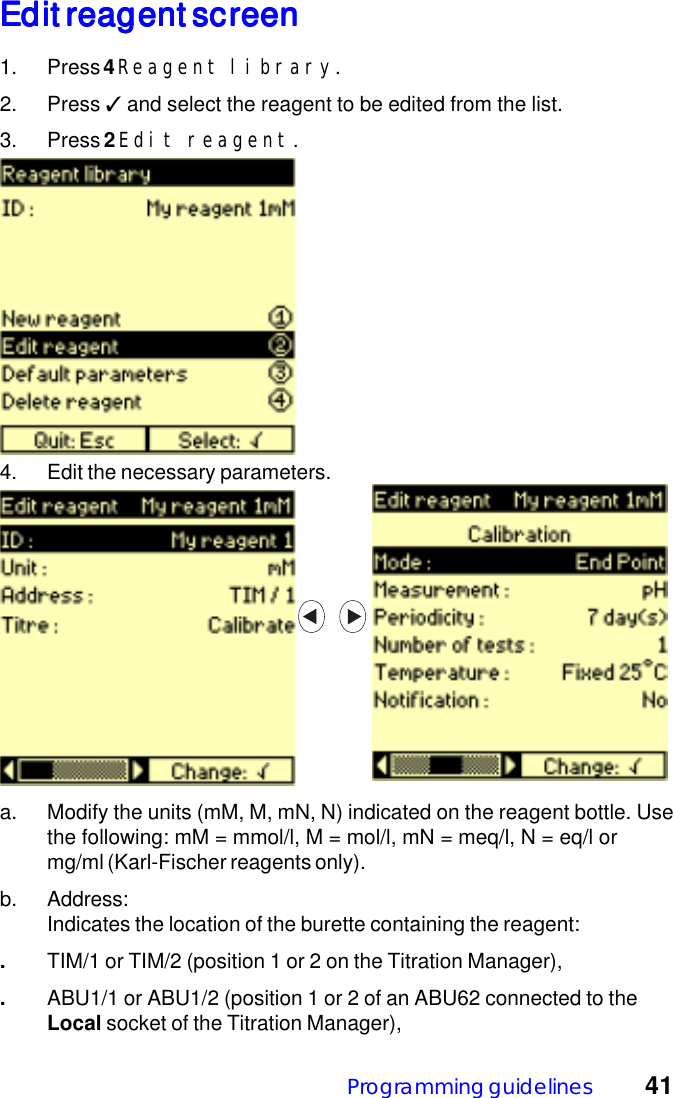
Programming guidelines 41Edit reagent screenEdit reagent screenEdit reagent screenEdit reagent screenEdit reagent screen1. Press 4 Reagent library.2. Press ✓ and select the reagent to be edited from the list.3. Press 2 Edit reagent.4. Edit the necessary parameters.a. Modify the units (mM, M, mN, N) indicated on the reagent bottle. Usethe following: mM = mmol/l, M = mol/l, mN = meq/l, N = eq/l ormg/ml (Karl-Fischer reagents only).b. Address:Indicates the location of the burette containing the reagent:.TIM/1 or TIM/2 (position 1 or 2 on the Titration Manager),.ABU1/1 or ABU1/2 (position 1 or 2 of an ABU62 connected to theLocal socket of the Titration Manager),
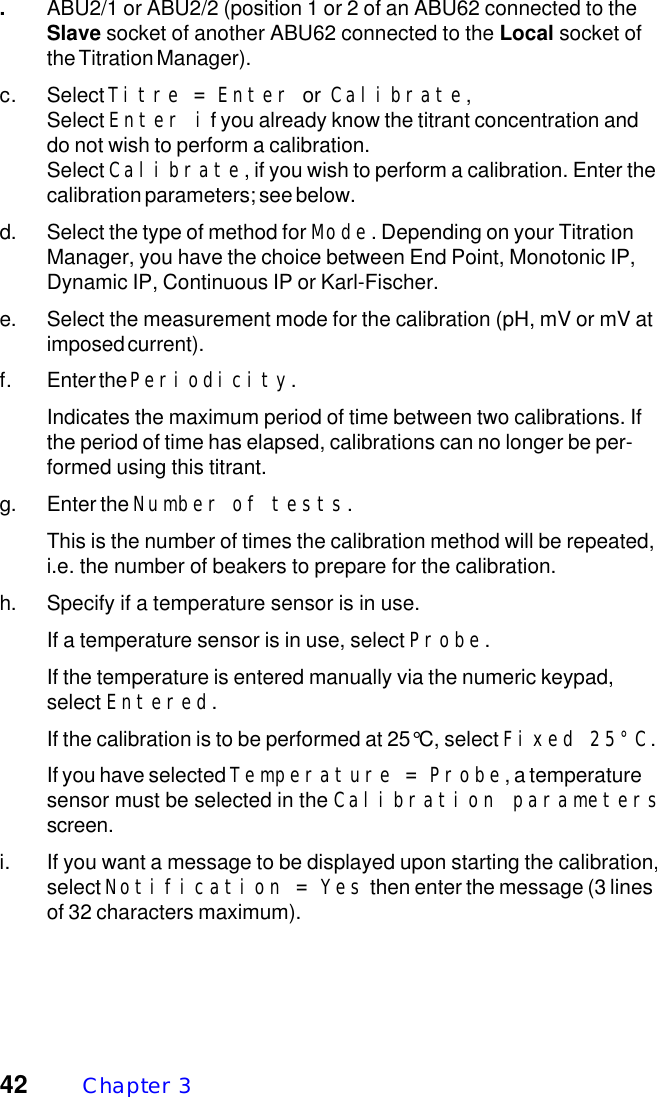
42 Chapter  3.ABU2/1 or ABU2/2 (position 1 or 2 of an ABU62 connected to theSlave socket of another ABU62 connected to the Local socket ofthe Titration Manager).c. Select Titre = Enter or Calibrate,Select Enter if you already know the titrant concentration anddo not wish to perform a calibration.Select Calibrate, if you wish to perform a calibration. Enter thecalibration parameters; see below.d. Select the type of method for Mode. Depending on your TitrationManager, you have the choice between End Point, Monotonic IP,Dynamic IP, Continuous IP or Karl-Fischer.e. Select the measurement mode for the calibration (pH, mV or mV atimposed current).f. Enter the Periodicity.Indicates the maximum period of time between two calibrations. Ifthe period of time has elapsed, calibrations can no longer be per-formed using this titrant.g. Enter the Number of tests.This is the number of times the calibration method will be repeated,i.e. the number of beakers to prepare for the calibration.h. Specify if a temperature sensor is in use.If a temperature sensor is in use, select Probe.If the temperature is entered manually via the numeric keypad,select Entered.If the calibration is to be performed at 25°C, select Fixed 25°C.If you have selected Temperature = Probe, a temperaturesensor must be selected in the Calibration parametersscreen.i. If you want a message to be displayed upon starting the calibration,select Notification = Yes then enter the message (3 linesof 32 characters maximum).
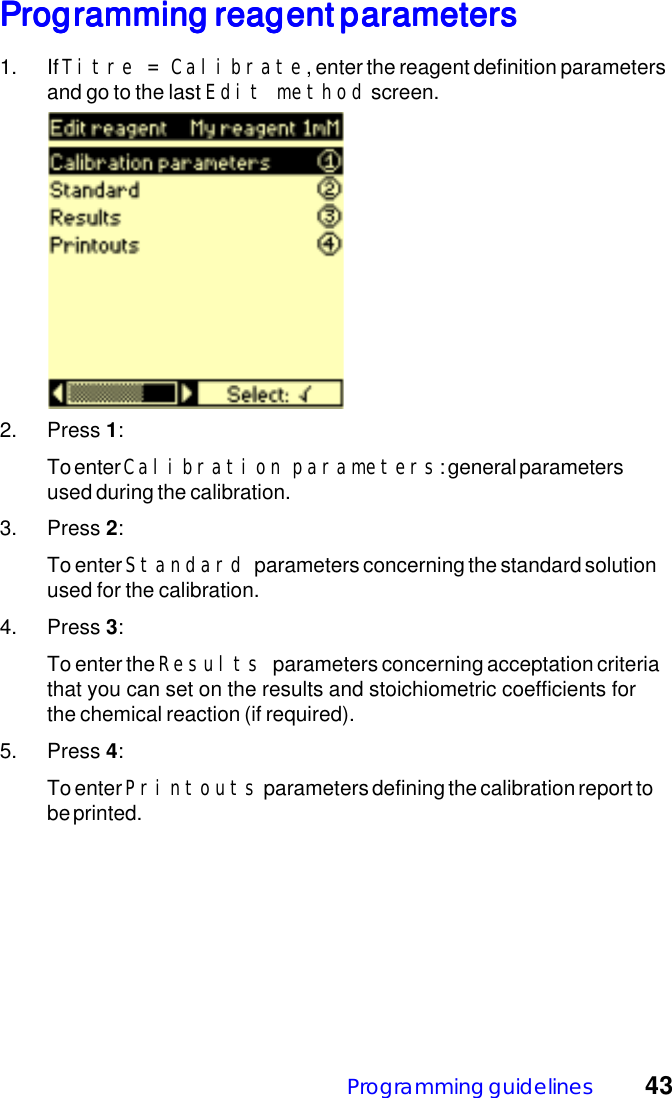
Programming guidelines 43Programming reagent parametersProgramming reagent parametersProgramming reagent parametersProgramming reagent parametersProgramming reagent parameters1. If Titre = Calibrate, enter the reagent definition parametersand go to the last Edit method screen.2. Press 1:To enter Calibration parameters: general parametersused during the calibration.3. Press 2:To enter Standard parameters concerning the standard solutionused for the calibration.4. Press 3:To enter the Results parameters concerning acceptation criteriathat you can set on the results and stoichiometric coefficients forthe chemical reaction (if required).5. Press 4:To enter Printouts parameters defining the calibration report tobe printed.
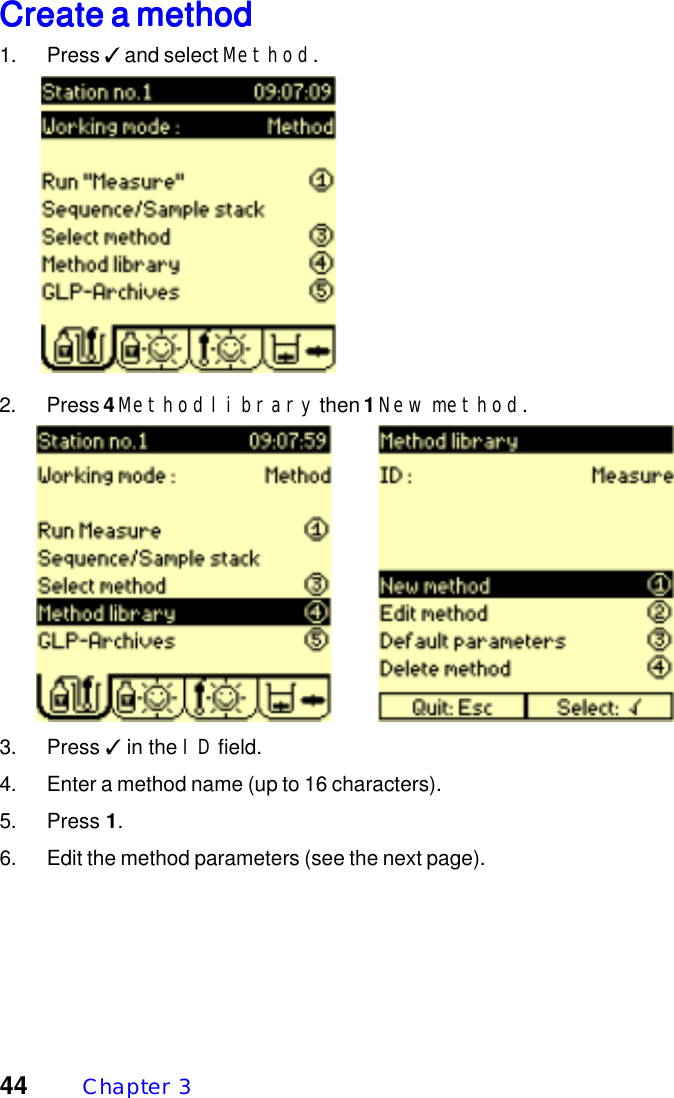
44 Chapter  3Create a methodCreate a methodCreate a methodCreate a methodCreate a method1. Press ✓ and select Method.2. Press 4 Method library then 1 New method.3. Press ✓ in the ID field.4. Enter a method name (up to 16 characters).5. Press 1.6. Edit the method parameters (see the next page).
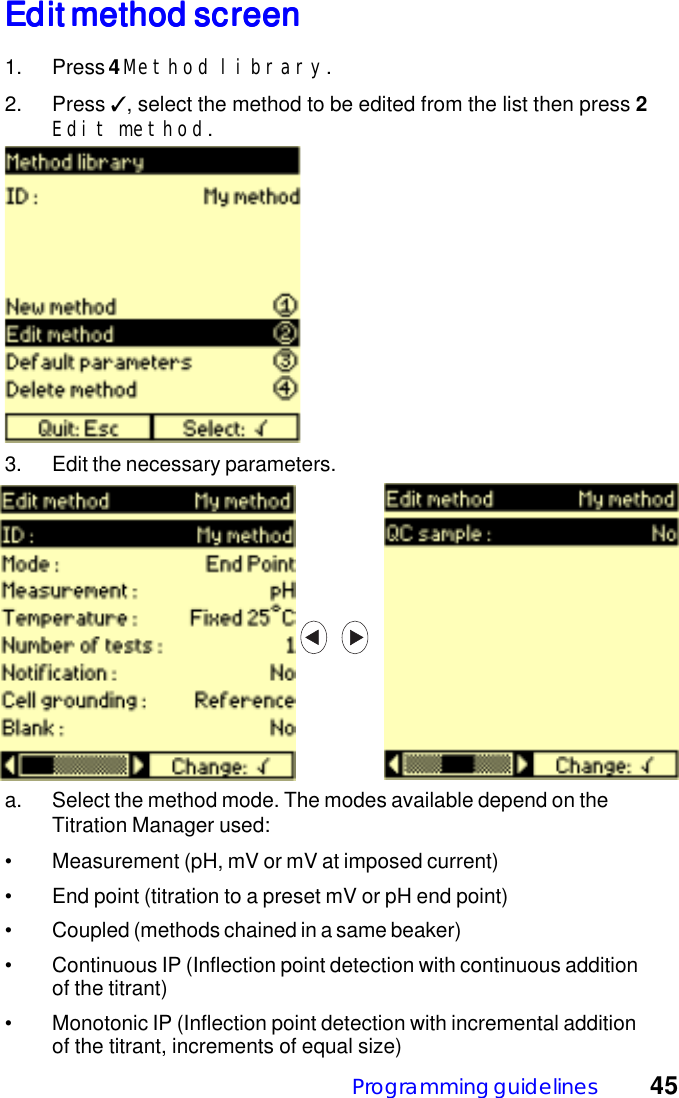
Programming guidelines 45Edit method screenEdit method screenEdit method screenEdit method screenEdit method screen1. Press 4 Method library.2. Press ✓, select the method to be edited from the list then press 2Edit method.3. Edit the necessary parameters.a. Select the method mode. The modes available depend on theTitration Manager used:• Measurement (pH, mV or mV at imposed current)• End point (titration to a preset mV or pH end point)• Coupled (methods chained in a same beaker)• Continuous IP (Inflection point detection with continuous additionof the titrant)• Monotonic IP (Inflection point detection with incremental additionof the titrant, increments of equal size)
46 Chapter  3• Dynamic IP (Inflection point detection with incremental additionof the titrant, increments of varying size)• Karl-Fischer• Addition (1 to 3 additions of reagent. No measurements. Additionsare performed simultaneously or successively)b. Select the measurement mode: pH, mV or mV at imposed current.c. Select the way the temperature is to be measured.•Probe: temperature sensor is required during measurements.•Entered: temperature is to be entered manually using thekeypad.•Fixed 25°C: measurements are assumed to be performed at25°C.d. Enter the Number of tests, i.e. the number of times themethod is to be repeated.e. If you want a message to be displayed upon starting the method,select Notification = Yes then enter the message (3lines of 32 characters maximum).f. Select the way the cell grounding of the measuring electrode will beperformed:•Reference: reference electrode connected to the Ref socketon the titration system.•Metal: metal electrode connected to the GND socket on thetitration system. For titrations in very resistant medium.•Other: an electrode which does not belong to the electrodesystem.g. Blank: A blank or blank sample is usually a solvent used to dissolveor dilute the sample. This blank may contain traces of the speciesyou are analysing. Select Yes for Blank when you want tosubtract the volume of titrant used to titrate the solvent from thevolume found for the dissolved or diluted sample.h. QC sample: the concentration of a QC sample is known accuratelyand the composition is close as possible to that of the samples tobe analysed. QC measurements enable you to perform qualitycontrol tests on the method used. Refer to the Reference Manual formore information concerning this option. Select Yes for QCsample to perform measurements on QC samples.
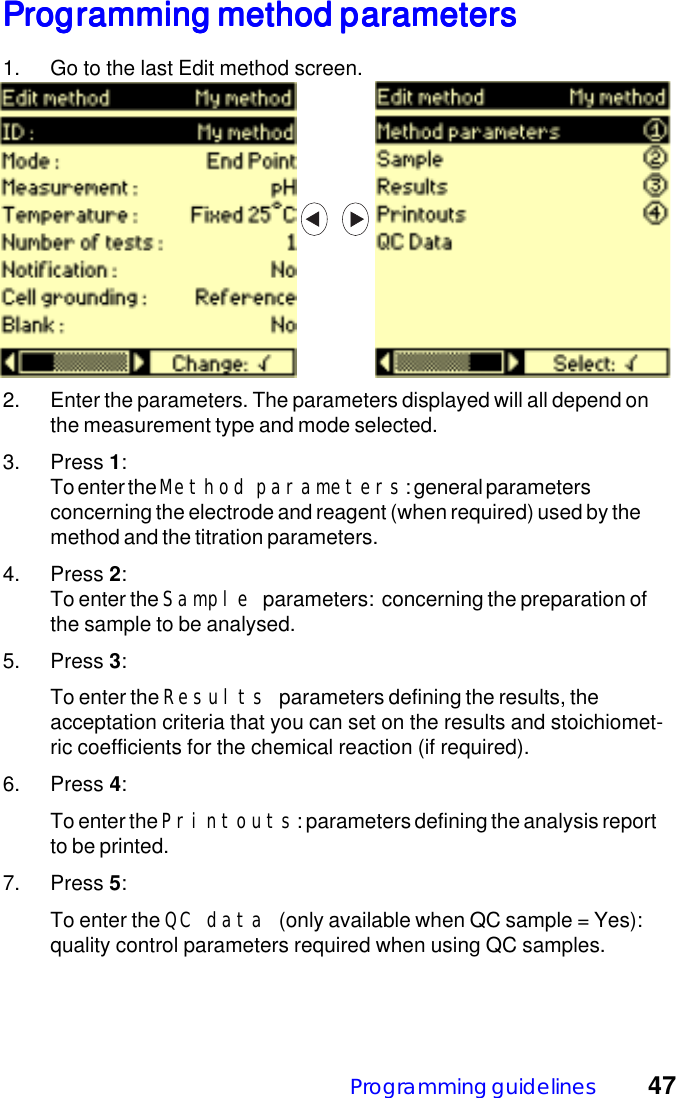
Programming guidelines 47Programming method parametersProgramming method parametersProgramming method parametersProgramming method parametersProgramming method parameters1. Go to the last Edit method screen.2. Enter the parameters. The parameters displayed will all depend onthe measurement type and mode selected.3. Press 1:To enter the Method parameters: general parametersconcerning the electrode and reagent (when required) used by themethod and the titration parameters.4. Press 2:To enter the Sample parameters:  concerning the preparation ofthe sample to be analysed.5. Press 3:To enter the Results parameters defining the results, theacceptation criteria that you can set on the results and stoichiomet-ric coefficients for the chemical reaction (if required).6. Press 4:To enter the Printouts: parameters defining the analysis reportto be printed.7. Press 5:To enter the QC data (only available when QC sample = Yes):quality control parameters required when using QC samples.
48 Chapter  3
Running analyses  494. Running analyses4. Running analyses4. Running analyses4. Running analyses4. Running analyses✶ IMPORTANT ✶Before pressing the Run key, check the following points listed below:1. Select the method by pressing 3 in the main window.2. If Question marks "?" are present in the electrode and/or reagenttabs. Programming error due to missing electrode/reagentparameters. Contact your supervisor.3. Connect/Check electrode(s). Refer to Short-Form Reminder no. 1.When installing/checking an electrode system, do not forget toconnect all the installed electrodes to the Titration Manager orABU62  sockets and to install these electrodes on the TitrationManager (Location = TIM) or the SAC80 or SAC90 Sample Changer(Location = SAC).It is important to immerse, in the same measuring beaker, all theinstalled electrodes having the same location.For example: mV at imposed current and pH measurements.If your installed electrode system comprises a double platinumelectrode with a combined pH electrode, the electrodes must remainpermanently immersed in the same beaker,  in order to measure thepH correctly. This is because it is the double platinum electrode thatprovides the connection to the  ground and not the referenceelectrode.This so-called " 3-electrode or differential measurementconfiguration" will stop the double platinum electrode altering themeasurement at the pH electrode.When using this configuration for an electrode calibration, the doubleplatinum electrode and the pH electrode must always be immersed inthe same beaker.Important: Never remove an electrode or an electrode systemwithout running the Installation/checking procedure first.  Theinstrument needs to know its configuration at any time.For more information, refer to the Reference Manual of your titrationsystem, keyword index: "Electrode connection - Important".
50  Chapter  44. Connect/Check reagent(s). Refer to Short-Form Reminder no. 2.5. Run the analysis when Sunny icons are visible in the electrode andreagent tabs.6. Run an electrode calibration when a Stormy icon appears in theelectrode tab.7. Run a reagent calibration when a Stormy icon appears in thetitrant tab.8. If you are unable to display the "Run" command due to the presenceof Cloudy/Stormy icons in the Reagent and Electrode windows,activate the "Check" command.  The Titration Manager willautomatically guide you through the necessary operations requiredto solve the problem(s).Run electrode calibrationRun electrode calibrationRun electrode calibrationRun electrode calibrationRun electrode calibrationRefer to Short-Form Reminder no. 4.1. Select the method.2. Install the electrode group.3. Enter the Electrodes window.4. Select 1 Calibrate electrode. Press ✓ to select theelectrode to be calibrated from the proposed list.5. Press 1 to start the calibration.Run reagent calibrationRun reagent calibrationRun reagent calibrationRun reagent calibrationRun reagent calibrationRefer to Short-Form Reminder no. 5.1. Select the method.2. Install the reagent to be calibrated.3. Install the electrode group to be used to perform the calibration.4. Enter the Reagents window.5. Select 1 Calibrate/Enter titre. Press ✓ and select thereagent from the proposed list.6. Press 1 to start the calibration.
Running analyses  51Run methodRun methodRun methodRun methodRun methodRefer to Short-Form Reminder no. 6.1. Select the method in the Method library.2. Install the electrode then the reagent groups to be used to performthe analysis.3. Display the Main window.4. Press 1 to start the analysis.Run direct measurementRun direct measurementRun direct measurementRun direct measurementRun direct measurementRefer to Short-Form Reminder no. 8.1. Select the method.2. Install the electrode group to be used to perform the measurement.3. Prepare the sample solution and place on the sample stand.4. Display the Electrodes window.5. Press 5 to start the measurement.6. Select the electrode in the list of connected electrodes. You canstop or start stirring by pressing 1.
52  Chapter  4Run manual dosingRun manual dosingRun manual dosingRun manual dosingRun manual dosingRefer to Short-Form Reminder no. 10.1. Select the method.2. Install the electrode group to be used to perform the measurement(if measurements are to be done).3. Install the reagent group to be used to perform the manual dosing.4. Prepare the sample solution and place on the sample stand.5. Display the Reagents window and press 5.6. Select the reagent in the list of installed reagents and select theelectrode in the list of connected electrodes (if measurements are tobe done).7. Enter an increment size, increment speed and maximum volume tobe dosed.8. Select the type of measurement to be performed (pH, mV, mV (i>0)or no measurement).9. Press 1 to start.
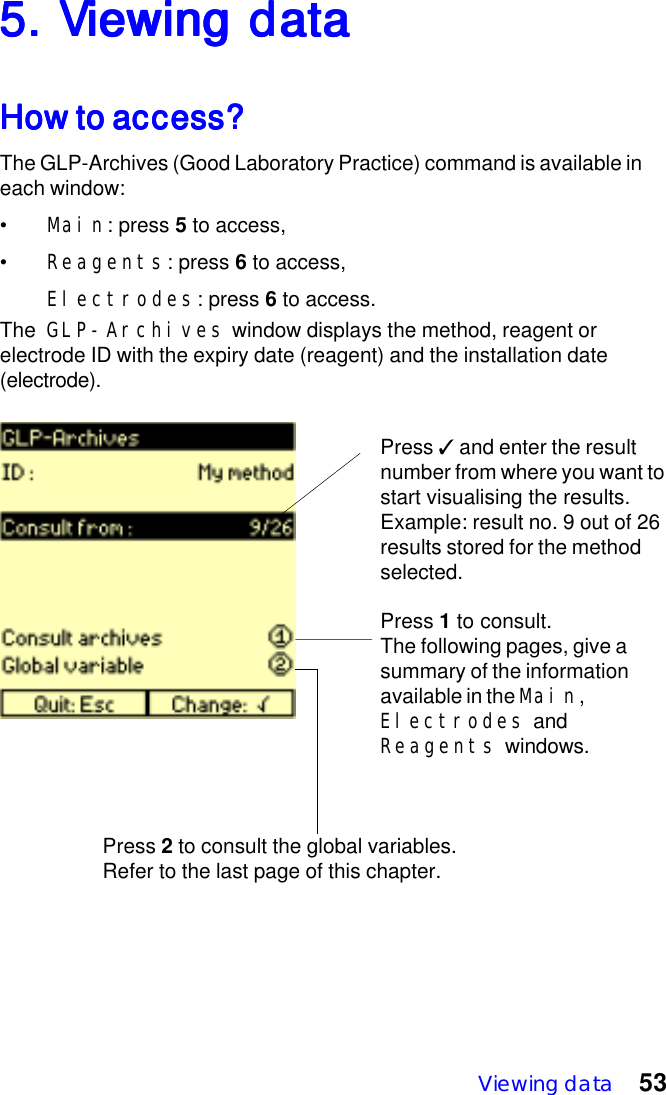
Viewing data 535. V5. V5. V5. V5. Viewing dataiewing dataiewing dataiewing dataiewing dataHow to access?How to access?How to access?How to access?How to access?The GLP-Archives (Good Laboratory Practice) command is available ineach window:•Main: press 5 to access,•Reagents: press 6 to access,Electrodes: press 6 to access.The  GLP-Archives window displays the method, reagent orelectrode ID with the expiry date (reagent) and the installation date(electrode).Press ✓ and enter the resultnumber from where you want tostart visualising the results.Example: result no. 9 out of 26results stored for the methodselected.Press 1 to consult.The following pages, give asummary of the informationavailable in the Main,Electrodes andReagents windows.Press 2 to consult the global variables.Refer to the last page of this chapter.
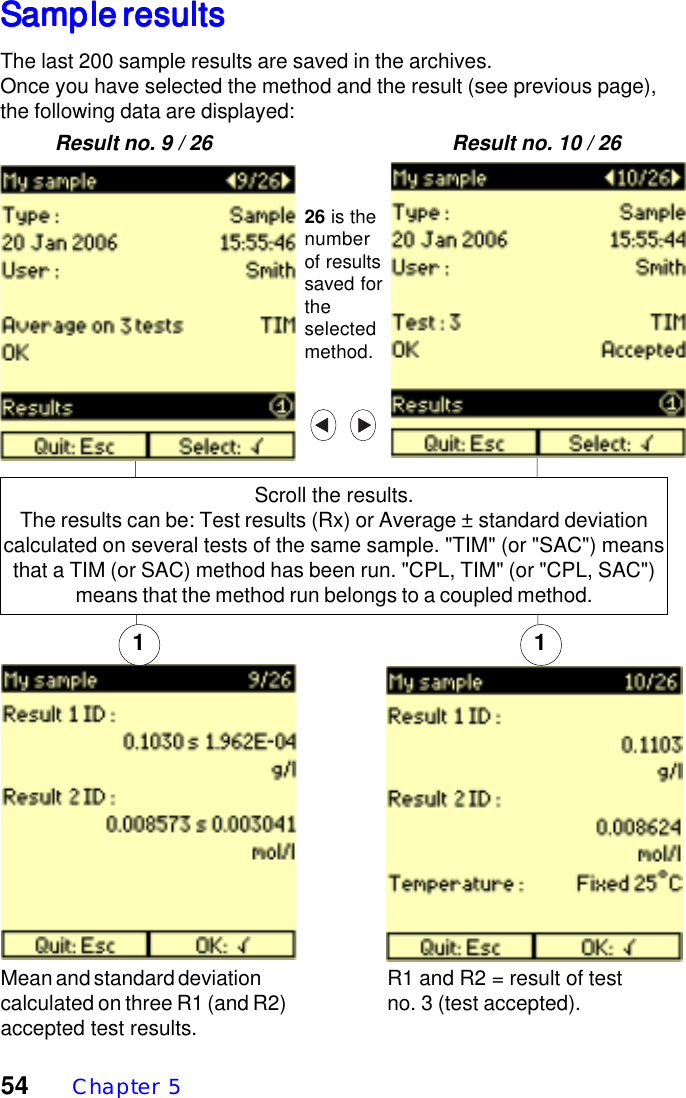
54  Chapter  5Sample resultsSample resultsSample resultsSample resultsSample resultsThe last 200 sample results are saved in the archives.Once you have selected the method and the result (see previous page),the following data are displayed:Result no. 9 / 26 Result no. 10 / 261Scroll the results.The results can be: Test results (Rx) or Average ± standard deviationcalculated on several tests of the same sample. "TIM" (or "SAC") meansthat a TIM (or SAC) method has been run. "CPL, TIM" (or "CPL, SAC")means that the method run belongs to a coupled method.Mean and standard deviationcalculated on three R1 (and R2)accepted test results.1R1 and R2 = result of testno. 3 (test accepted).26 is thenumberof resultssaved fortheselectedmethod.
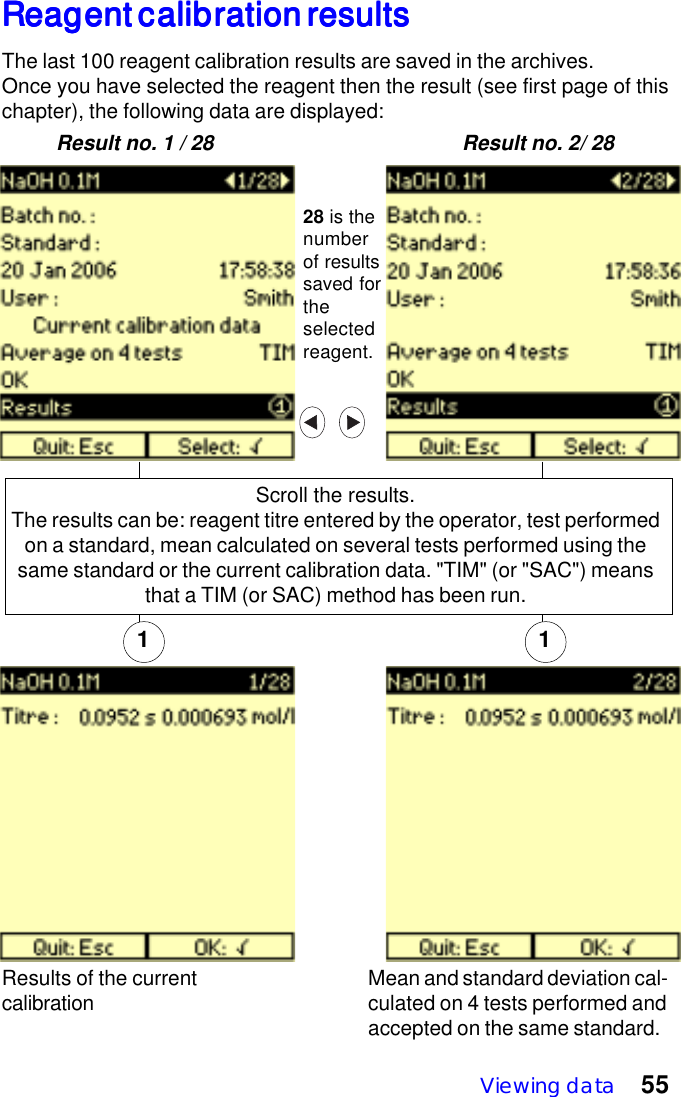
Viewing data 551 1Reagent calibration resultsReagent calibration resultsReagent calibration resultsReagent calibration resultsReagent calibration resultsThe last 100 reagent calibration results are saved in the archives.Once you have selected the reagent then the result (see first page of thischapter), the following data are displayed:Results of the currentcalibration Mean and standard deviation cal-culated on 4 tests performed andaccepted on the same standard.28 is thenumberof resultssaved fortheselectedreagent.Result no. 1 / 28 Result no. 2/ 28Scroll the results.The results can be: reagent titre entered by the operator, test performedon a standard, mean calculated on several tests performed using thesame standard or the current calibration data. "TIM" (or "SAC") meansthat a TIM (or SAC) method has been run.
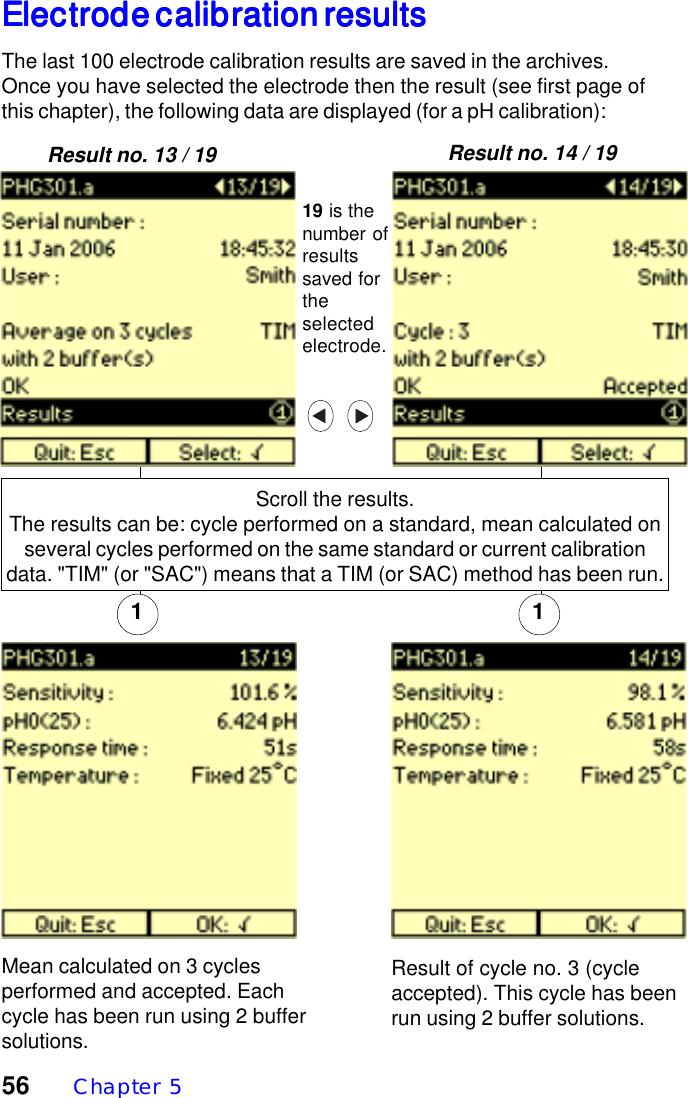
56  Chapter  51Result no. 13 / 19 Result no. 14 / 191Electrode calibration resultsElectrode calibration resultsElectrode calibration resultsElectrode calibration resultsElectrode calibration resultsThe last 100 electrode calibration results are saved in the archives.Once you have selected the electrode then the result (see first page ofthis chapter), the following data are displayed (for a pH calibration):Mean calculated on 3 cyclesperformed and accepted. Eachcycle has been run using 2 buffersolutions.Result of cycle no. 3 (cycleaccepted). This cycle has beenrun using 2 buffer solutions.19 is thenumber ofresultssaved fortheselectedelectrode.Scroll the results.The results can be: cycle performed on a standard, mean calculated onseveral cycles performed on the same standard or current calibrationdata. "TIM" (or "SAC") means that a TIM (or SAC) method has been run.
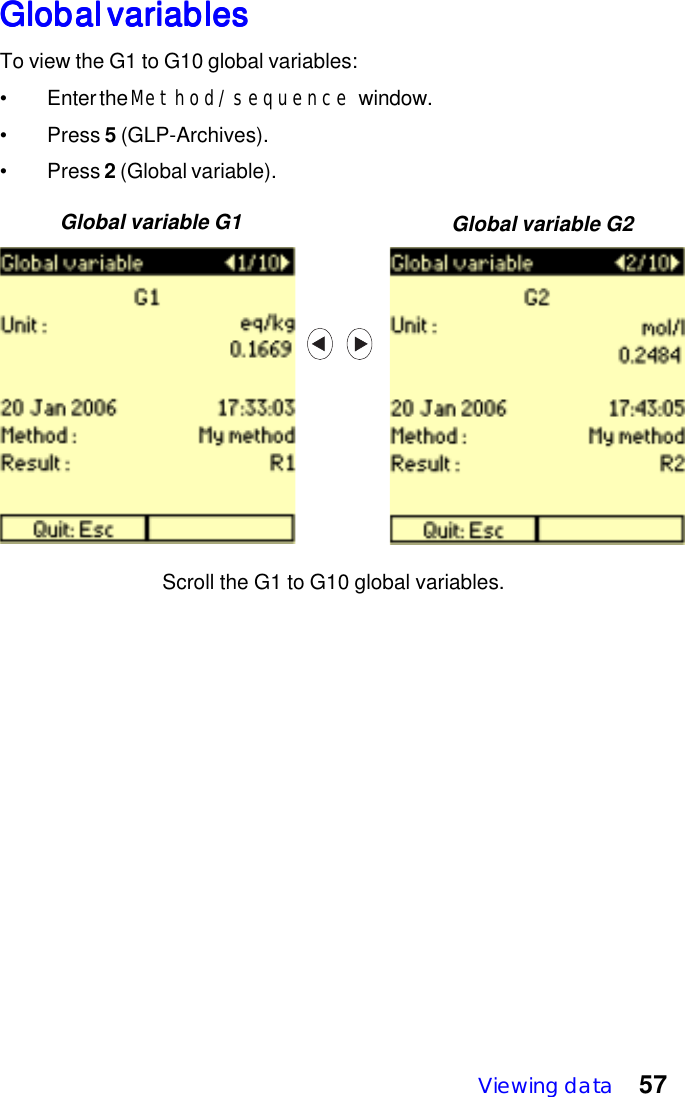
Viewing data 57Scroll the G1 to G10 global variables.Global variable G1 Global variable G2Global variablesGlobal variablesGlobal variablesGlobal variablesGlobal variablesTo view the G1 to G10 global variables:• Enter the Method/sequence window.• Press 5 (GLP-Archives).• Press 2 (Global variable).
58  Chapter  5
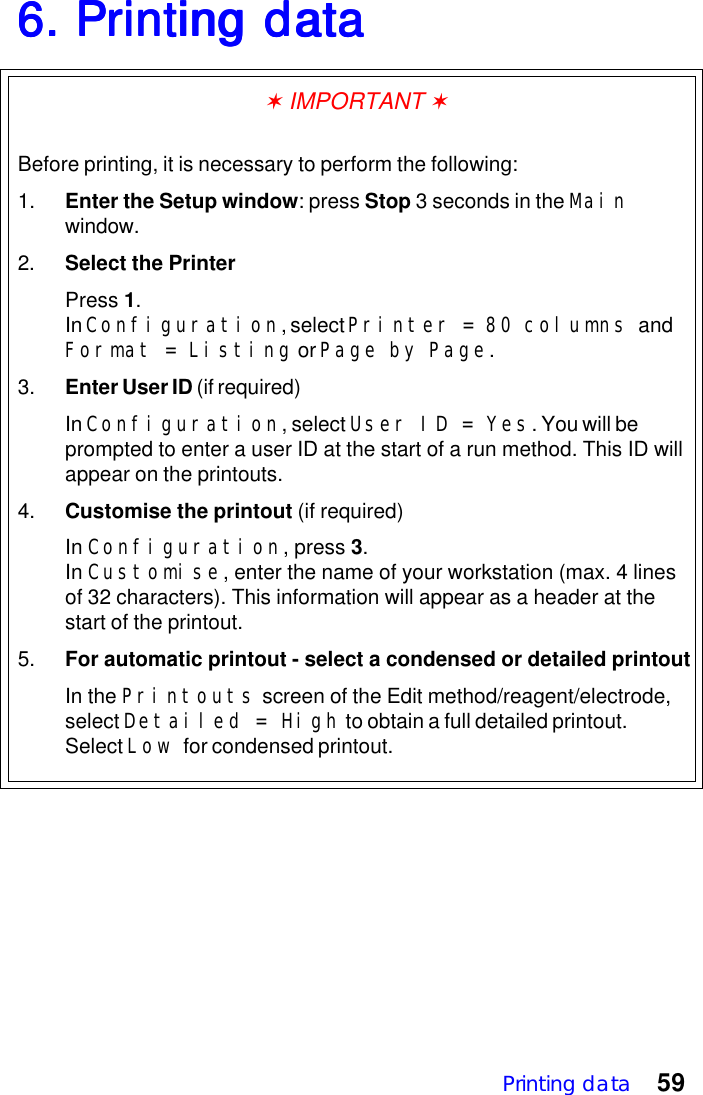
Printing data 596. Printing data6. Printing data6. Printing data6. Printing data6. Printing data✶ IMPORTANT ✶Before printing, it is necessary to perform the following:1. Enter the Setup window: press Stop 3 seconds in the Mainwindow.2. Select the PrinterPress 1.In Configuration, select Printer = 80 columns andFormat = Listing or Page by Page.3. Enter User ID (if required)In Configuration, select User ID = Yes. You will beprompted to enter a user ID at the start of a run method. This ID willappear on the printouts.4. Customise the printout (if required)In Configuration, press 3.In Customise, enter the name of your workstation (max. 4 linesof 32 characters). This information will appear as a header at thestart of the printout.5. For automatic printout - select a condensed or detailed printoutIn the Printouts screen of the Edit method/reagent/electrode,select Detailed = High to obtain a full detailed printout.Select Low for condensed printout.
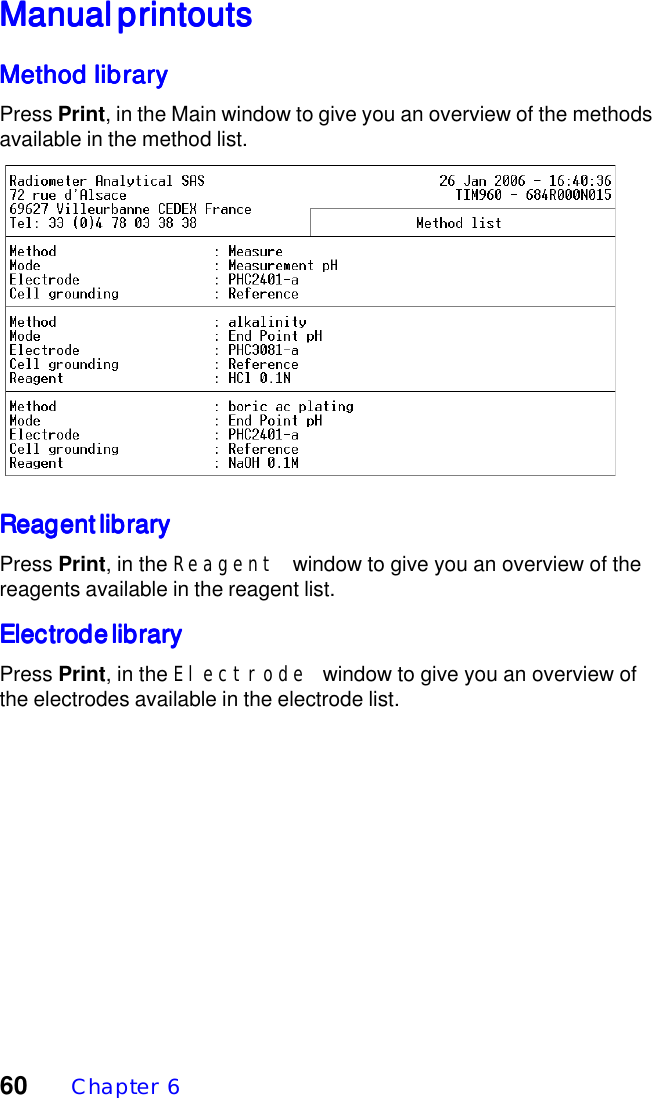
60  Chapter  6Manual printoutsManual printoutsManual printoutsManual printoutsManual printoutsMethod libraryMethod libraryMethod libraryMethod libraryMethod libraryPress Print, in the Main window to give you an overview of the methodsavailable in the method list.Reagent libraryReagent libraryReagent libraryReagent libraryReagent libraryPress Print, in the Reagent window to give you an overview of thereagents available in the reagent list.Electrode libraryElectrode libraryElectrode libraryElectrode libraryElectrode libraryPress Print, in the Electrode window to give you an overview ofthe electrodes available in the electrode list.
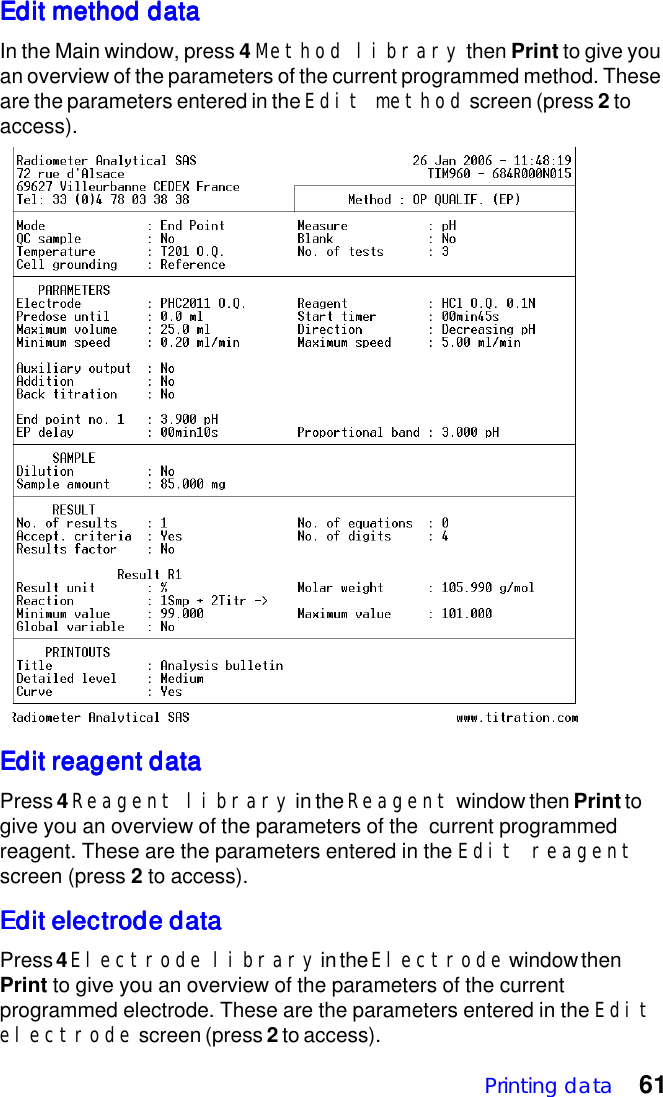
Printing data 61Edit method dataEdit method dataEdit method dataEdit method dataEdit method dataIn the Main window, press 4 Method library then Print to give youan overview of the parameters of the current programmed method. Theseare the parameters entered in the Edit method screen (press 2 toaccess).Edit reagent dataEdit reagent dataEdit reagent dataEdit reagent dataEdit reagent dataPress 4 Reagent library in the Reagent window then Print togive you an overview of the parameters of the  current programmedreagent. These are the parameters entered in the Edit reagentscreen (press 2 to access).Edit electrode dataEdit electrode dataEdit electrode dataEdit electrode dataEdit electrode dataPress 4 Electrode library in the Electrode window thenPrint to give you an overview of the parameters of the currentprogrammed electrode. These are the parameters entered in the Editelectrode screen (press 2 to access).
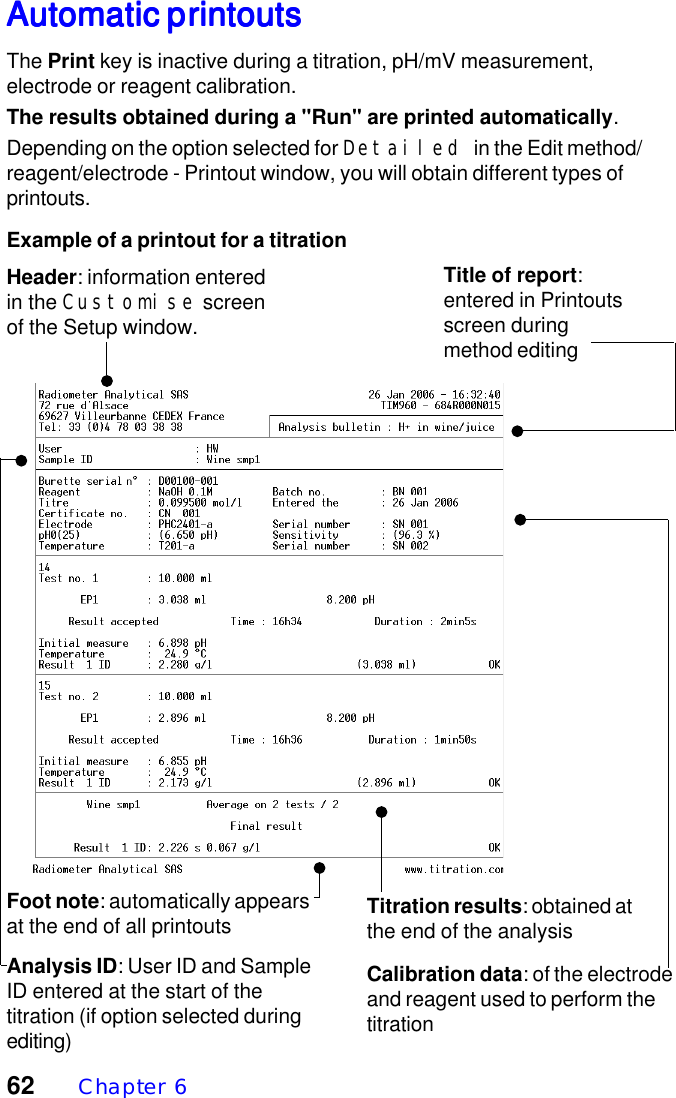
62  Chapter  6Header: information enteredin the Customise screenof the Setup window.Title of report:entered in Printoutsscreen duringmethod editingAnalysis ID: User ID and SampleID entered at the start of thetitration (if option selected duringediting)Calibration data: of the electrodeand reagent used to perform thetitrationTitration results: obtained atthe end of the analysisFoot note: automatically appearsat the end of all printoutsAutomatic printoutsAutomatic printoutsAutomatic printoutsAutomatic printoutsAutomatic printoutsThe Print key is inactive during a titration, pH/mV measurement,electrode or reagent calibration.The results obtained during a "Run" are printed automatically.Depending on the option selected for Detailed in the Edit method/reagent/electrode - Printout window, you will obtain different types ofprintouts.Example of a printout for a titration
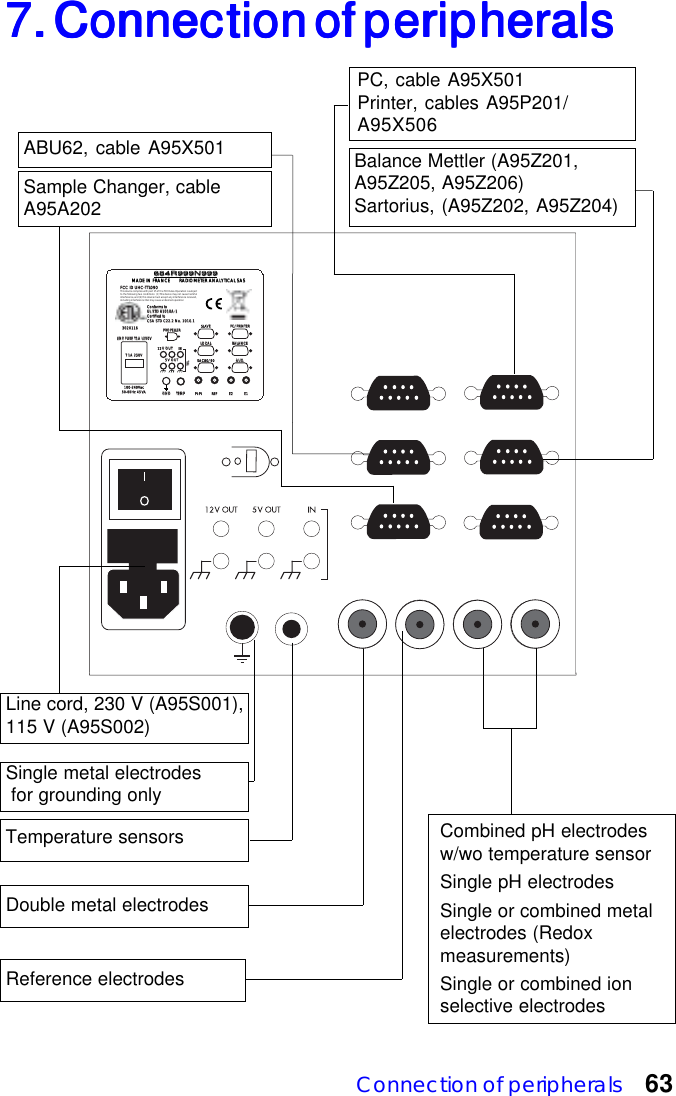
Connection of peripherals 637. Connection of peripherals7. Connection of peripherals7. Connection of peripherals7. Connection of peripherals7. Connection of peripherals Double metal electrodesE1E2TEMPTEMPGNDGNDPROPELLERPROPELLER5V OUTV OUT12V OUTV OUTINT 1A 250VT 1A 250VTTLTTL100-240Vac50-60Hz 4550-60Hz 45VAPC/PRINTERPC/PRINTERBALANCEBALANCELOCALLOCALSAC80/90 AUX.AUX.MADE IN FRANCEMADE IN FRANCERADIOMETER ANALYTICAL SASRADIOMETER ANALYTICAL SAS684R999N999684R999N999REFPt-PtSLAVEVELINE FUSE T1A L250VLINE FUSE T1A L250V30201163020116ConforConforms toms toUL STD 61010A-1UL STD 61010A-1CerCertified totified toCSA STD C22.2 No. 1010.1CSA STD C22.2 No. 1010.1FCC ID UHC-TTL090FCC ID UHC-TTL090This device complies with part 15 of the FCC Rules. Operation is subject to the following two conditions:   (1) This device may not cause harmful interference, and (2) this device must accept any interference received, including interference that may cause undesired operation Temperature sensors Reference electrodes Single metal electrodes  for grounding onlyPC, cable A95X501Printer, cables A95P201/A95X506Combined pH electrodesw/wo temperature sensorSingle pH electrodesSingle or combined metalelectrodes (Redoxmeasurements)Single or combined ionselective electrodesBalance Mettler (A95Z201,A95Z205, A95Z206)Sartorius, (A95Z202, A95Z204)Sample Changer, cableA95A202Line cord, 230 V (A95S001),115 V (A95S002)ABU62, cable A95X501
64  Chapter  7
General information  658. Maintenance8. Maintenance8. Maintenance8. Maintenance8. MaintenanceCleaningCleaningCleaningCleaningCleaningThe Titration Manager requires minimum maintenance. The exteriorsurface can be cleaned with tepid water and wiped dry with a soft cloth.Never use another solvent unless you have first consulted yourRadiometer Analytical representativeTTTTTransporransporransporransporransporting the instrumentting the instrumentting the instrumentting the instrumentting the instrumentAlways use the packaging supplied by the manufacturer.IMPORTANT!Remove the metal rod before transporting the instrument.Never pick-up or carry the instrument by the metal rod.ServicingServicingServicingServicingServicingDO NOT ATTEMPT TO SERVICE THIS PRODUCT YOURSELF,except as noted in the Reference Manual. For servicing, please contactyour Radiometer Analytical service representative at the address givenbelow:RADIOMETER ANALYTICAL SAS72, rue d'Alsace69627 Villeurbanne CEDEX - FranceTel.: +33 (0) 4 78 03 38 38Fax: +33 (0) 4 78 03 38 27E-mail: radiometer@nalytical.comor your local service representative:_____________________________________________________________________________________________________________________________________________________________________
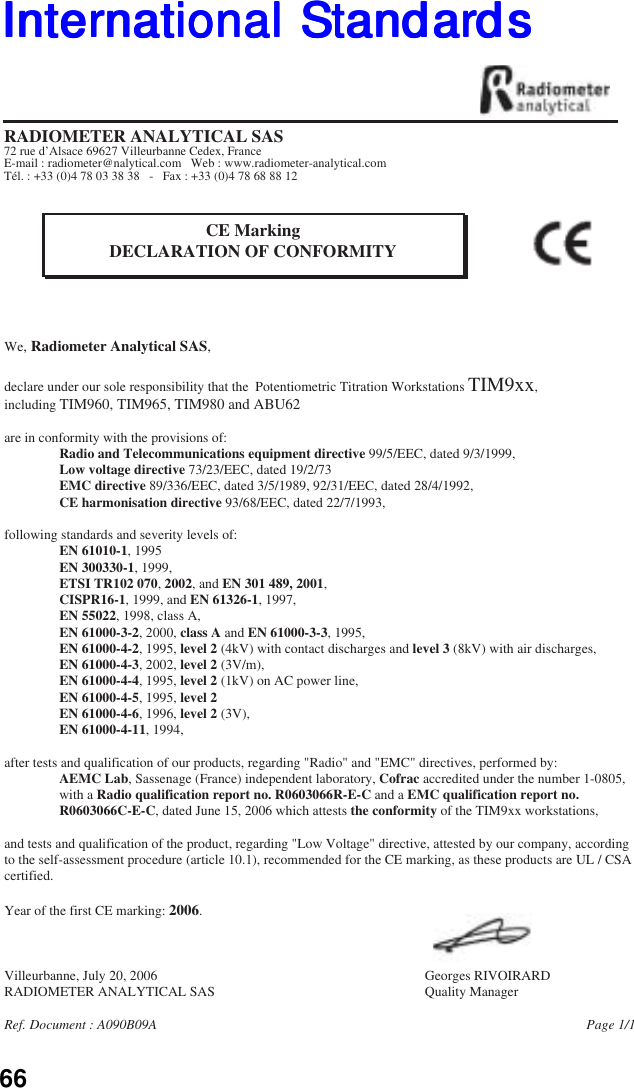
66  Chapter  8We, Radiometer Analytical SAS,declare under our sole responsibility that the  Potentiometric Titration Workstations TIM9xx,including TIM960, TIM965, TIM980 and ABU62are in conformity with the provisions of:                Radio and Telecommunications equipment directive 99/5/EEC, dated 9/3/1999,                Low voltage directive 73/23/EEC, dated 19/2/73                EMC directive 89/336/EEC, dated 3/5/1989, 92/31/EEC, dated 28/4/1992,                 CE harmonisation directive 93/68/EEC, dated 22/7/1993,following standards and severity levels of:                EN 61010-1, 1995                EN 300330-1, 1999,                ETSI TR102 070, 2002, and EN 301 489, 2001,                CISPR16-1, 1999, and EN 61326-1, 1997,                EN 55022, 1998, class A,                EN 61000-3-2, 2000, class A and EN 61000-3-3, 1995,                EN 61000-4-2, 1995, level 2 (4kV) with contact discharges and level 3 (8kV) with air discharges,                EN 61000-4-3, 2002, level 2 (3V/m),                 EN 61000-4-4, 1995, level 2 (1kV) on AC power line,                EN 61000-4-5, 1995, level 2                EN 61000-4-6, 1996, level 2 (3V),                 EN 61000-4-11, 1994,after tests and qualification of our products, regarding "Radio" and "EMC" directives, performed by:                AEMC Lab, Sassenage (France) independent laboratory, Cofrac accredited under the number 1-0805,                  with a Radio qualification report no. R0603066R-E-C and a EMC qualification report no.                  R0603066C-E-C, dated June 15, 2006 which attests the conformity of the TIM9xx workstations, and tests and qualification of the product, regarding "Low Voltage" directive, attested by our company, according  to the self-assessment procedure (article 10.1), recommended for the CE marking, as these products are UL / CSA certified.Year of the first CE marking: 2006.Villeurbanne, July 20, 2006        Georges RIVOIRARDRADIOMETER ANALYTICAL SAS        Quality ManagerRef. Document : A090B09A                                                 Page 1/1RADIOMETER ANALYTICAL SAS72 rue d’Alsace 69627 Villeurbanne Cedex, FranceE-mail : radiometer@nalytical.com   Web : www.radiometer-analytical.comTél. : +33 (0)4 78 03 38 38   -   Fax : +33 (0)4 78 68 88 12CE MarkingDECLARATION OF CONFORMITYInterInterInterInterInternational Standarnational Standarnational Standarnational Standarnational Standardsdsdsdsds
General information  67The Titration Manager complies with the following standards:UL 61010A - 1CAN / CSA C22 2 N° 1010.1 - 92.The Titration Manager TIM9xx complies with part 15 of the FCC Rules.Operation is subject to the following two conditions:(1) This device may not cause harmful interference, and(2) this device must accept any interference received, includinginterference that may cause undesired operation.See "Compliance with FCC rules, part 15 - Information to the user" onpage 5.
68  Chapter  8

Navigation menu