RoyalTek RN2BF PORTABLE NAVIGATION DEVICE User Manual
RoyalTek Company Ltd. PORTABLE NAVIGATION DEVICE Users Manual
RoyalTek >
Users Manual
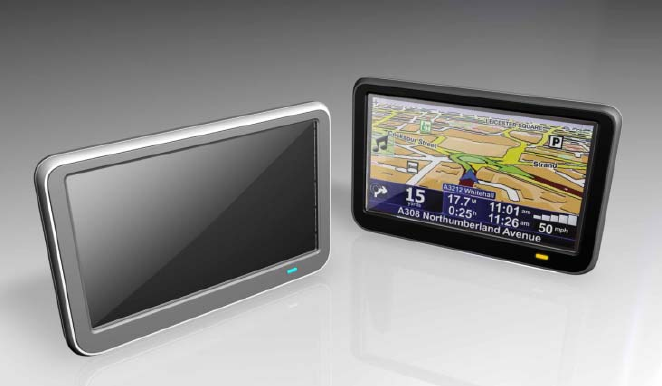
1
RoyalTek RN2_Series
Portable Navigation Device
Reference Manual

2
Legal Notices
Copyright
RoyalTek RN2 Portable Navigation Device User’s Guide Original issue: February 2009
RoyalTek and the RoyalTek logo are registered trademarks of RoyalTek Inc. Other products or system
names appearing in this document are trademarks or registered trademarks of their respective owners.
Further, the © or TM symbols are not used in the text.
Changes may be made periodically to the information in this publication without obligation to notify
any person of such revision or changes. Such changes will be incorporated in new editions of this
User’s Guide or supplementary documents and publications.
No part of this publication may be reproduced, stored in a retrieval system, or transmitted, in any form
or by any means, electronic, mechanical, photocopy, recording, or otherwise, without the prior written
permission of RoyalTek Inc.
DISCLAIMER AND LIMITATION OF LIABILITY
RoyalTek and its subsidiaries make no representations or warranties, either expressed or implied, with
respect to the contents here of and specifically disclaims the implied warranties of merchantability or
fitness for a particular purpose. RoyalTek and its subsidiaries assume no responsibility for any damage
or loss resulting from the use of this RoyalTek RN2 Portable Navigator.
NOTE:Record the device ID, serial number, purchase date, and place of purchase information in the
space provided below. The serial number is indicated on the label affixed to your RoyalTek device. All
correspondence concerning your unit should include the serial number, device ID, and purchase
information.
Revision:
2.00
February 2009
NOTE:
Information
in
this
manual
is
subject
to
change
without
notice.

3
Warnings and Notices
For your safety, do not operate the controls of the product while driving.
GPS satellite signals cannot typically pass through solid materials (except glass). GPS location
information is not typically available inside buildings, tunnels, or underground parking lots.
A minimum of 4 GPS satellite signals is needed to calculate your GPS position. Signal reception can be
affected by weather events or overhead obstacles (e.g. dense foliage and tall buildings).
Other wireless devices in the vehicle may interfere with the reception of satellite signals and cause the
reception to be unstable.
Adapter
Do not attempt to service the unit. There are no serviceable parts inside. Replace the unit if it is
damaged or exposed to excess moisture.
Do not use the adapter if the cord becomes damaged.
Connect the adapter to the proper power source. The voltage requirements are found on the product
case and/or packaging.
Battery
This unit contains a non-replaceable internal Li-polymer battery. The battery could be bursting or
exploding and releasing hazardous chemicals in case of over battery specification and using in an
abnormal conditions; disassemble, crush, puncture, or dispose of the battery in fire or water. Abnormal
operation could be dangerous to your human body. Please be aware.
Use only the specified charger approved by the manufacturer.
Risk of explosion if battery is replaced by an incorrect type dispose of used batteries according to the
instructions.
WARNING: The Lithium-Ion battery in the device must be recycled or disposed of properly.
4
FEDERAL COMMUNICATIONS COMMISSION INTERFERENCE STATEMENT
The RN2 PND has been tested and found to comply with the limits for a Class B digital device in
accordance with the specifications in Part 15 of FCC rules.
Operation is subject to the following two conditions: (1) this device may not cause harmful interference,
and (2) this device must accept any interference received, including interference that may cause
undesired operation. This device generates, uses, and can radiate radio-frequency energy. If it is not
installed and used properly, it may cause interference with radio and television reception.
This equipment has been tested and found to comply with the limits for a class B digital device,
pursuant to Part 15 of the Federal Communications Commission (FCC) rules. These limits are designed
to provide reasonable protection against harmful interference in a residential installation. This
equipment generates, uses, and can radiate radio frequency energy and, if not installed and used in
accordance with the instructions, may cause harmful interference to radio communications. However,
there is no guarantee that interference will not occur in a particular installation. If this equipment does
cause harmful interference to radio or television reception, which can be determined by turning the
equipment off and on, the user is encouraged to try to correct the interference by one or more of the
following measures:
• Reorient or relocate the receiving antenna.
• Increase the separation between the equipment and receiver.
• Connect the equipment into an outlet on a circuit different from that to which the receiver is
connected.
• Consult the dealer or an experienced radio/TV technician for help.
CAUTION:
Any changes or modifications not expressly approved by the grantee of this device could void the
user's authority to operate the equipment.
THE MANUFACTURER IS NOT RESPONSIBLE FOR ANY RADIO OR TV INTERFERENCE
CAUSED BY UNAUTHORIZED MODIFICATIONS TO THIS EQUIPMENT.
SUCH MODIFICATIONS COULD VOID THE USER'S AUTHORITY TO OPERATE THE
EQUIPMENT.
RF exposure warning
This equipment must be installed and operated in accordance with provided instructions and the
antenna(s) used for this transmitter must be installed to provide a separation distance of at least 20 cm
from all persons and must not be co-located or operating in conjunction with any other antenna or
transmitter. End-users and installers must be provide with antenna installation instructions and
transmitter operating conditions for satisfying RF exposure compliance.
5
Declaration of Conformity(R&TTE directive 1999/5/EC)
The following items were completed and are considered relevant and
sufficient:
‧ Essential requirements as in [Article 3]
‧ Protection requirements for health and safety as in [Article 3.1a]
‧ Testing for electric safety according to [EN 60950]
‧ Protection requirements for electromagnetic compatibility in [Article 3.1b]
‧ Testing for electromagnetic compatibility in [EN 301 489-1] & [EN 301]
‧ Testing according to [489-17]
‧ Effective use of the radio spectrum as in [Article 3.2]
‧ Radio test suites according to [EN 300 328]
CE Mark Warning
This is a Class B product, in a domestic environment, this product may cause
radio interference, in which case the user may be required to take adequate
measures.
6
Table of Contents
Chapter 1 Features and Specifications............................................................................8
1.1 RoyalTek RN2 PND features......................................................................8
1.2 RN2 Specifications.......................................................................................8
Chapter 2 Getting Started...........................................................................................10
2.1 Hardware overview....................................................................................10
2.1.1
Packing
list
..........................................................................................10
2.1.2
Front Panel
.........................................................................................12
2.1.3
Car holder
...........................................................................................13
2.2 Using the mounting bracket......................................................................14
2.3 Additional Application with the Optional SKU......................................17
Chapter 3 Using the RN2 ............................................................................................19
3.1 RN2 Operating Basics................................................................................19
3.2 To turn on the device:................................................................................19
3.3 To configure system settings:....................................................................19
3.4 Additional System settings ........................................................................23
3.5 Reset ............................................................................................................23
3.9 To set the favorite application category: .................................................29
3.10 Power Supply..............................................................................................29
3.11 Charge.........................................................................................................30
3.11.1
Discharge
.....................................................................................30
3.11.2
Power outage
................................................................................30
Chapter 4 Entertainment............................................................................................32
4.1. RN2 Multimedia Player.............................................................................32
4.2. Music player...............................................................................................32
4.2.1.
Using
the
Music
player.
......................................................................32
4.2.2.
To
enter
into
the
different
media
players.
........................................32
4.3. Photo Viewer ..............................................................................................36
4.3.1.
Viewing files in Slide Show mode
......................................................36
4.3.2.
Using the Photo Album
......................................................................36
4.4. Video Player ...............................................................................................38
4.4.1.
Use Video Player
.............................................................................38
4.5. Listen MP3 via Car Audio/Stereo (FM Transmitter).............................40
4.5.1
Turn on FM Transmitter frequency
..................................................40
4.5.2
Change FM Transmitter frequency
..................................................41
Chapter 5 Communications.......................................................................................42
5.1. RN2 Bluetooth (Option function) .............................................................42
5.2. Connection..................................................................................................42
7
5.3. Mobile phone connection...........................................................................42
5.4. Call Out (Hands – free Calling)................................................................44
5.5. Contacts (Import phonebooks).................................................................46
Chapter 6 Troubleshooting and Maintenance..............................................................47
6.1. General troubleshooting............................................................................47
6.1.1.
If
your
device
does
not
respond,
do
a
“hard
reset.”
........................47
6.1.2.
Users can also perform a “system reset.”
.........................................47
6.1.3.
Screen responds slowly
......................................................................47
6.1.4.
Inaccurate response to taps.
..............................................................47
6.1.5.
Connection Problems with PC.
.........................................................47
6.1.6.
No GPS connection
.............................................................................47
6.1.7.
No sound coming from the device.
....................................................47
6.1.8.
Can’t I see my photos.
........................................................................48
6.1.9.
Takes longer than normal time to get a GPS fix.
.............................48
6.1.10.
Factory reset does mean a GPS reset.
...............................................48
6.2. Maintenance ...............................................................................................49
6.2.1.
Storage precautions
............................................................................49
6.2.2.
Accessories and repair precautions
..................................................49
8
Chapter 1 Features and Specifications
1.1 RoyalTek RN2 PND features
The
RoyalTek
RN2
Portable
Navigation
D
evice
is
a
powerful
multifunction
GPS/multimedia
navigation
and
entertainment
device.
•
Compact
size
and
lightweight
•
Integrated
GPS
receiver
for
GPS
navigation
•
High-resolution
color
LCD
•
4.3”
wide
touch
screen
with
320 x 240 x 16 bits
•
Multimedia
functionality
with
high
performance
processor
1.2 RN2 Specifications
Table
1:
RN2
dimensions
and
specifications
Category Item
Chassis
Dimension 117mmx77.4mmx11.55mm for 520 mAh
117mmx77.4mmx12.9 mm for 930 mAh
Weight 130g
Specifications Operating Temperature: 0 ℃ to +55 ℃
Storage Temperature:-20 ℃ to + 70 ℃
System
OS Windows CE 5.0 Core Version
NAND Flash 1G or 2G I_NAND
SDRAM 64MB Mobile DDR
Display
Screen Type TFT, Touch Panel
Screen Size 4.3”
Resolution 480x272x16bits (WQVGA)
Backlight Yes, brightness with TSP 300 nits typical
Touch Panel Yes, (Finger Tapped)
9
Category Item
Battery
General - 520mAhr. Li-Polymer/930 mAhr Li-ion
Recharge Time
■520 mAhr
Power ON (Default setting after factory reset)
- Under 4 hours charge from empty to full by AC adapter
- Under 4 hours charge from empty to full by car charger
Power Suspend
- Under 2 hours charge from empty to full by AC adapter
- Under 2 hours charge from empty to full by car charger
■930 mAhr
Power ON (Default setting after factory reset)
- Under 6 hours charge from empty to full by AC adapter
- Under 6 hours charge from empty to full by car charger
Power Suspend
- Under 4 hours charge from empty to full by AC adapter
- Under 4 hours charge from empty to full by car charger
Audio
Earphone Yes (2.5mm)
Speaker 1.0W mono speaker
Hardware Button\Slot
Micro SD Supports Micro SD
Battery switch Yes (HW reset)
FM Transmitter (Optional)
Frequency
1) 88.2 to 107.8Mhz for EU market.
2) 88.2 to 107.8Mhz for US market
3) 76 to 90Mhz for Japan market
4) 88.2 to 107.8Mhz China market
Audio input Digital stereo audio for internal audio
Analog stereo audio if there is analog audio input
Antenna PCB trace
Restriction FM TX will be always off if BT hands free is working
USB
USB solution USB 2.0 device with supporting mass storage( High Speed)
10
Chapter 2 Getting Started
This
chapter
describes
the
hardware
interface
of
the
RoyalTek
RN2
and its
peripherals.
Instructions
for
setting
up
the
device
and
some
basic
system operations
are
also
discussed.
NOTE: Although the RN2 rechargeable Li-Polymer battery comes approximately 30% charged, before
using, it is best to connect the AC adapter (Optional Accessory) or USB cable by PC connect and plug to
power socket and fully charge the battery. The ON/OFF button will be orange when charging and green
when change done.
2.1 Hardware overview
This section introduces the RN2 PND external features and hardware components.
2.1.1
Packing
list
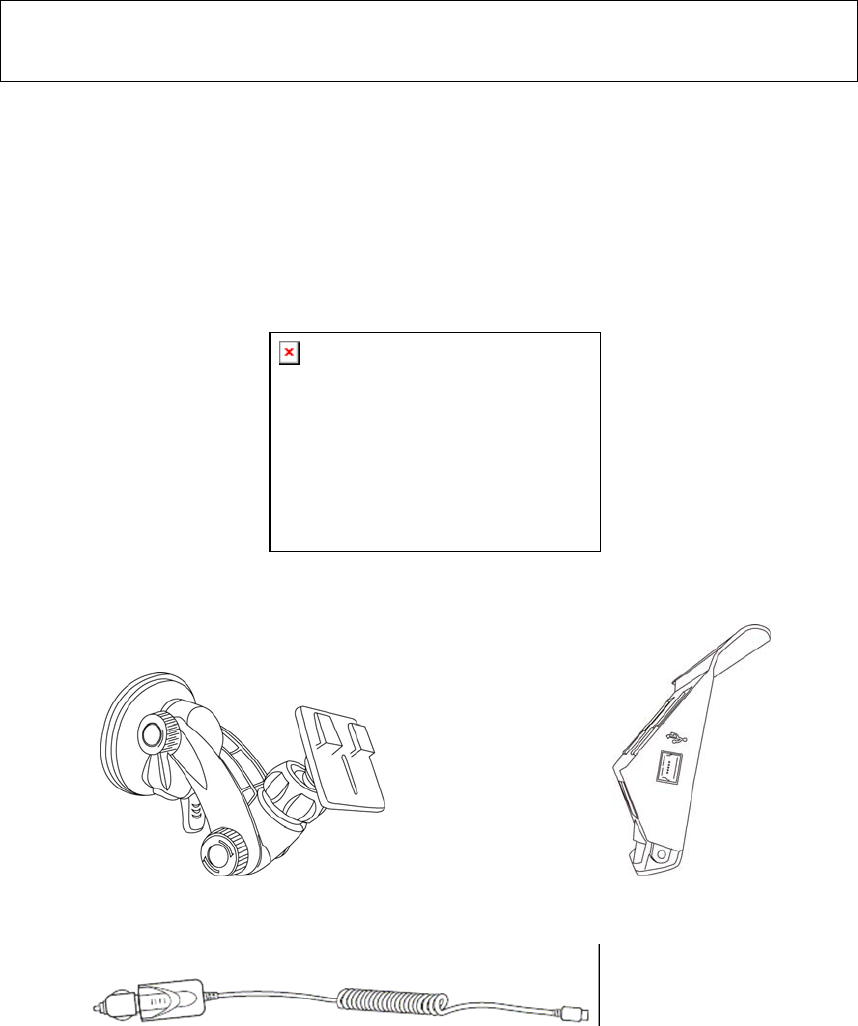
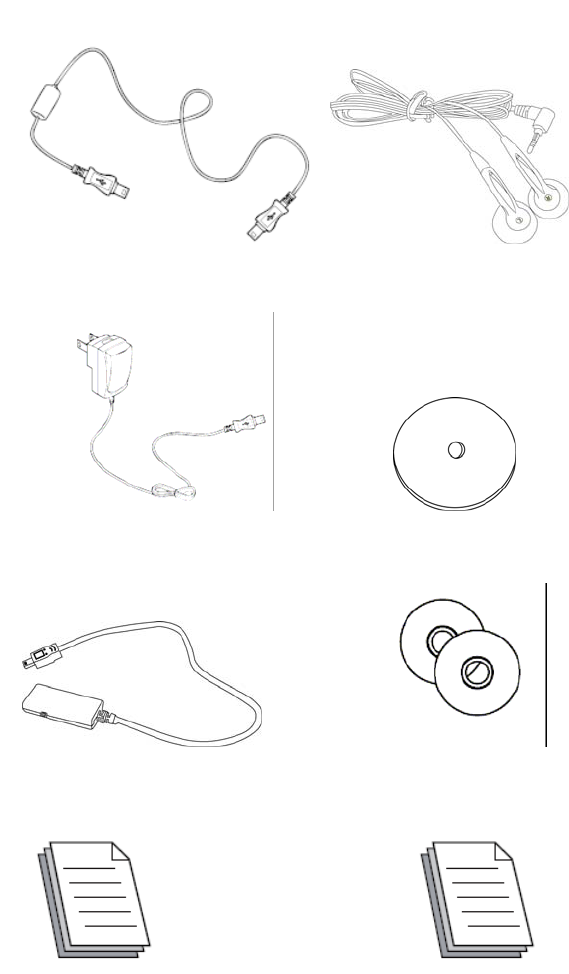
The RoyalTek RN2 box contains all of the items listed below
:
RN2 Portable Navigation Device
Car mount Car holder
Car charger
11
USB cable (Option Accessory) Earphone (Option Accessory)
AC adaptor (Option Accessory) Dashboard (Option Accessory)
TMC Antenna (Optional Accessory). Portable Navigation Device Application Software DVD/CD.
Portable Navigation Device Quick Start Guide. Portable Navigation Device Warranty statement.
12
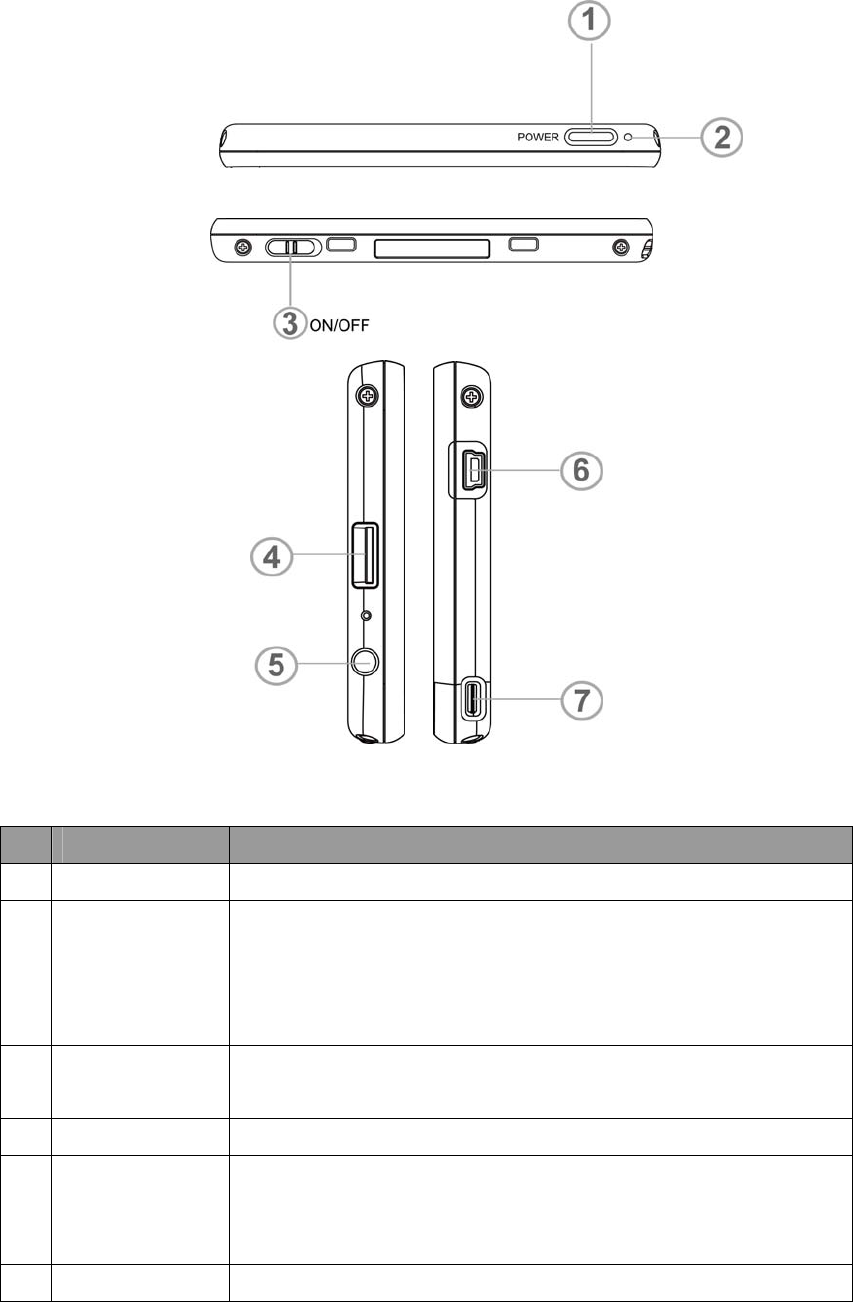
2.1.2 Front Panel
Figure
1:
Top
and
Left/Rights side views
Table
2-
1:
Top
and
Left/Right side
controls
NO Function
1
Power
button
Standby mode by pressing the button for sleep/wake.
2
Power status LED
Indicated the battery charging status.
Green—fully charged or high battery.
Orange—charging Battery
Red—low Battery
3 Micro SD
Accepts Micro SD storage cards, allows you use audio, image files stored
in it for use with internal applications.
4 Earphone
Standard
stereo
headphone
jack.
5
USB port/Docking
connector
For USB port: connects the device to computer running on the Microsoft
Windows platform. Also serves as the power connector for charging the
device.
6
Battery Switch To do a hard reset of the device and suspend the battery
13
2.1.3 Car holder
Figure
2:
Car
holder side views
Table
2-2:
Car holder
No Function
1
USB Port/Docking
connector
For USB port
:
Only serves as the power connector of charging, but mass
storage function. Also, it can connect to external TMC module (Option
part). For Docking connector: connects to car mount kit.
14
2.2 Using the mounting bracket.
The
RN2
comes
with
a
car
mount
kit
and
a
car
charger
to
help
install
your
device
in
your
vehicle.
The
car
mount
kit
uses
a
suction
cup
on
the
windshield to
offer
flexible
mounting
options
for
the
RN2.
Warning:
Some
countries
prohibit
the
mounting
of
any
electronic
device
on
the
vehicle
dashboard.
Be
sure
to
check
your
local
laws
for
acceptable
mounting
areas
before
installing
the
car
mount
bracket.
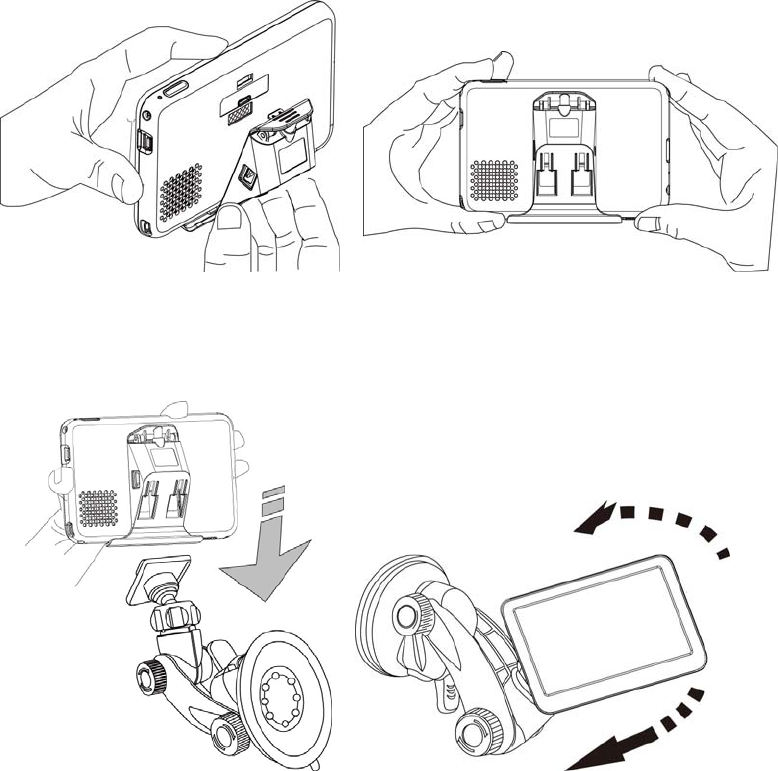
This section shows how to install the car mount kit in your vehicle’s windshield using the suction cup.
The RN2 uses a snap on mounting cradle to use when the device attaches to the car mount. Below is the
backside view of the RN2 in the cradle.
1.
Clean
the
mounting
surface
with
a
glass
cleaner
and
a
clean
cotton
cloth.
2.
If
the
ambient
temperature
is
below
+15°C
(60°F),
you
can
warm
the mounting
area
and
the
suction
cup
(e.g.
with
a
hair
dryer)
to
ensure
a strong
suction
bond.
3.
Install
the
car
mount
on
the
selected
area.
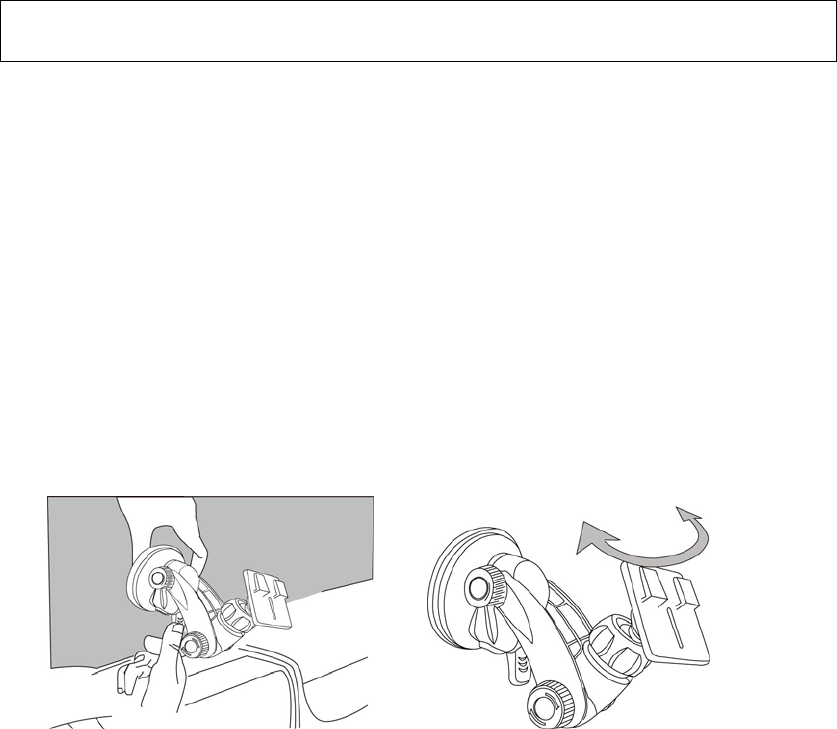
a. Press the suction cup of the car mount firmly against to the windshield. (See Figure 2-3-1)
b. Press down the lever to fix the suction cup in place.
c. Adjust the angles of the arm to your proper viewing position.
Figure
2-3-1
4.
Mounting the device holder with your RN2.
a. Fit RN2 down in the device holder first, and then lock it using the plugs on the bottom of the
device holder. (See Figure2-3-2)
b. Firmly dock the RN2 with device holder on the car mount which has been mounted to your
windscreen.(See Figure2-3-3)
15
Figure
2-3-2
Figure 2-3-3
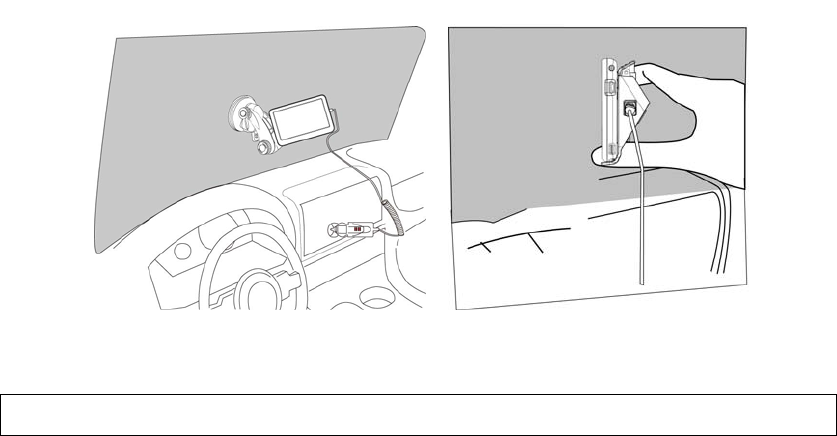
5. Charging your RN2 device.
a. Plug the car charger to the 12 V outlet of your car and then connect the charger cable to the Mini
USB port of the RN2 car holder
;
Please make sure the battery switch status in “ON” mode. (See
Figure 2-3-4)
b. You now can let your RN2 have the continuous power by the car charger.
16
Figure 2-3-4
NOTE:
Your
car
may
be
required
to
switch
the
vehicle
ignition
into
the
accessories
position
to
power
the
cigarette
lighter.
Your
RN2
will
not charge
with
the
ignition
off.
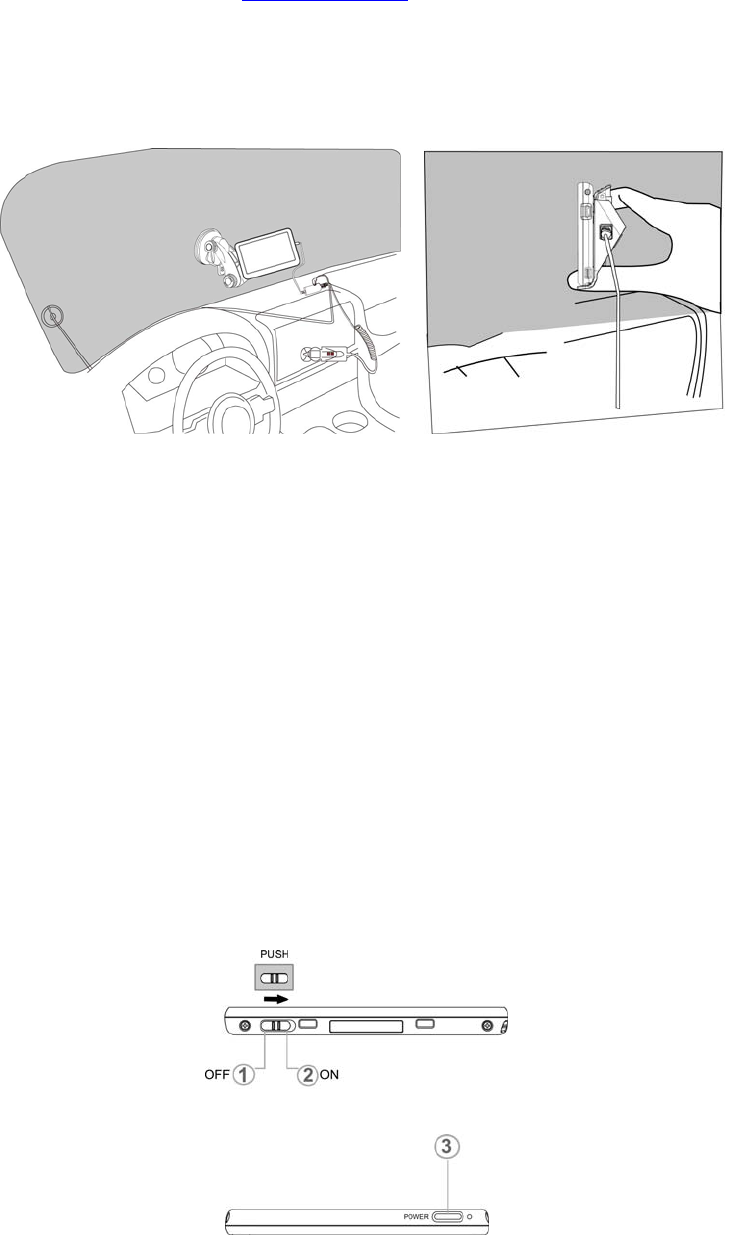
6. Starting your RN2
a. Push the battery switch ON.(Default status OFF)
b. Press the power button to turn on your RN2, then the main menu screen appears.
c. Tap Navigation, you will see the map screen displayed.
d. Please read the User’s Guide of Navigation software for the detail setting information.
Please be noted, the first time turning on your RN2 may take some time to obtain a valid GPS fix.
17
2.3 Additional Application with the Optional SKU
1. TMC Accessory (only available in certain areas)
You may use external TMC accessory to perform TMC function when you are in a TMC Traffic
signal available areas
. Please visit: www.tmcforum.com for the TMC Coverage information,
Please connect the TMC accessory to the USB port of RN2 for the TMC application and be placing
the TMC accessory in a place which will not interfere to the driving safe. (See Figure 2-4-1)
Please refer to the User’s Guide of Navigation software for the detail TMC operating information.
Figure 2-4-1
Disclaimer
Please be noted that RoyalTek Company Ltd. and the licensed Navigation Software are not responsible
for any damage caused by an accident due to unreliable TMC radio transmissions by national, regional,
or local broadcasters caused by TMC service restrictions, or by natural and man-made conditions that
prevent real-time information from being delivered to the device. The both companies are not
responsible for the quality or accuracy of the events broadcast.
Resetting the RN2 Device
You should less than seldom need to reset your RN2 under normal circumstances. However, in the
event that a problem cannot be corrected, you may reset the RN2 device by the following way
:
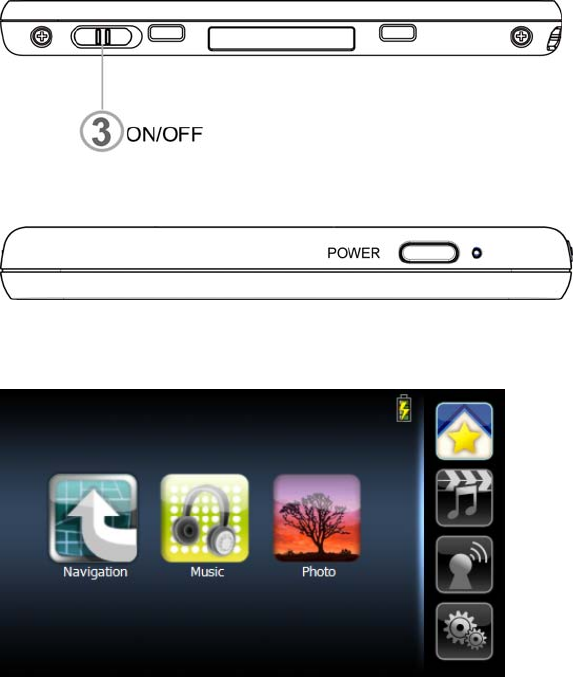
Hard reset:
• To do a “Hard reset” Disconnect all cables, including the AC adapter, from your device.
By sliding the hard reset switch on the primary ON/OFF switch on the right side of the device from
OFF to ON position then tap the power button.(see Figure 2-4-2)
Figure 2-4-2
18
Figure 2-4-3
19
Chapter 3 Using the RN2
3.1 RN2 Operating Basics
After
fully
charging
the
RN2
it
is
ready
to
be
used.
You
can
now
turn
it on
and proceed
to
system
settings configuration.
3.2 To turn on the device:
1. Sliding the battery switch to “ON”. (Default status OFF)
2. Turn
on
your
device
by
pressing
the
power
button
on
the
top
right
panel
of the
device.
After turn on the device,
main page
will
display.
This
is
also
referred
to
the
Favorite page.
3.3 To configure system settings:
If
you
intend
to
start
using
your
RN2
at
once,
we
recommend
that
you configure
the
language
and
time
zone
settings
first.
The
rest
of
the
user
preferences
can
be
set
up
later.
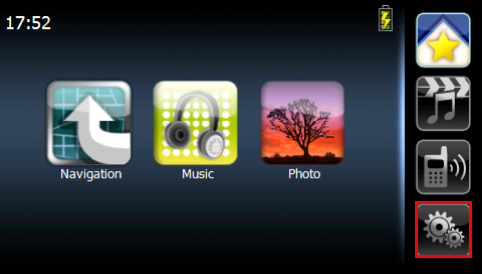
1. Tap
“System”
in
the
right category bar
20
.
21
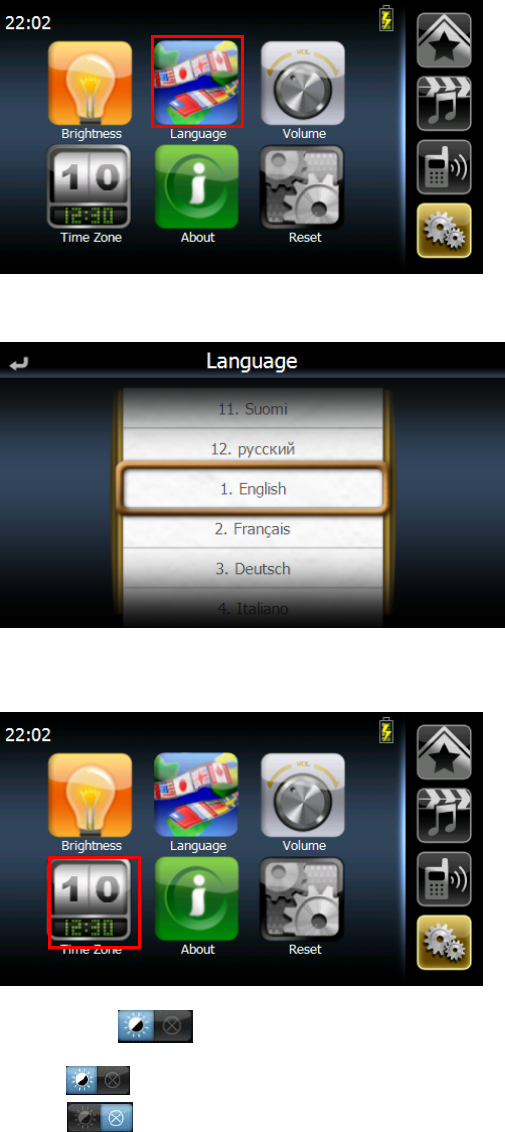
2. Tap “Language” on the System page.
3. It will display current language in central area.
4. To drag wheel scroll language tags.
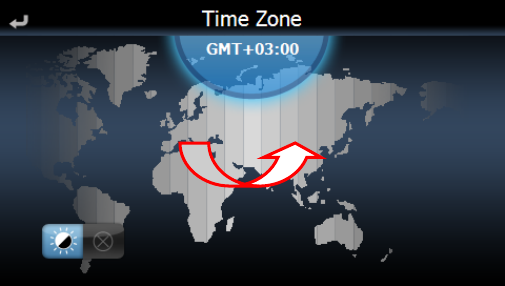
5. To set the system time zone, tap “Time Zone” in System Menu.
6.
Tap the
icon to set up the function of daylight saving s time.
a. represent enable the function of daylight savings time.
b. represent disable the function of daylight savings time.
7. Drag the Map to adjust the time zone.
22
23
3.4 Additional System settings
Other
system
settings
can
be
used
to
view
and
adjust
your
device
current
preferences.
Navigate
from
the
System
Menu.
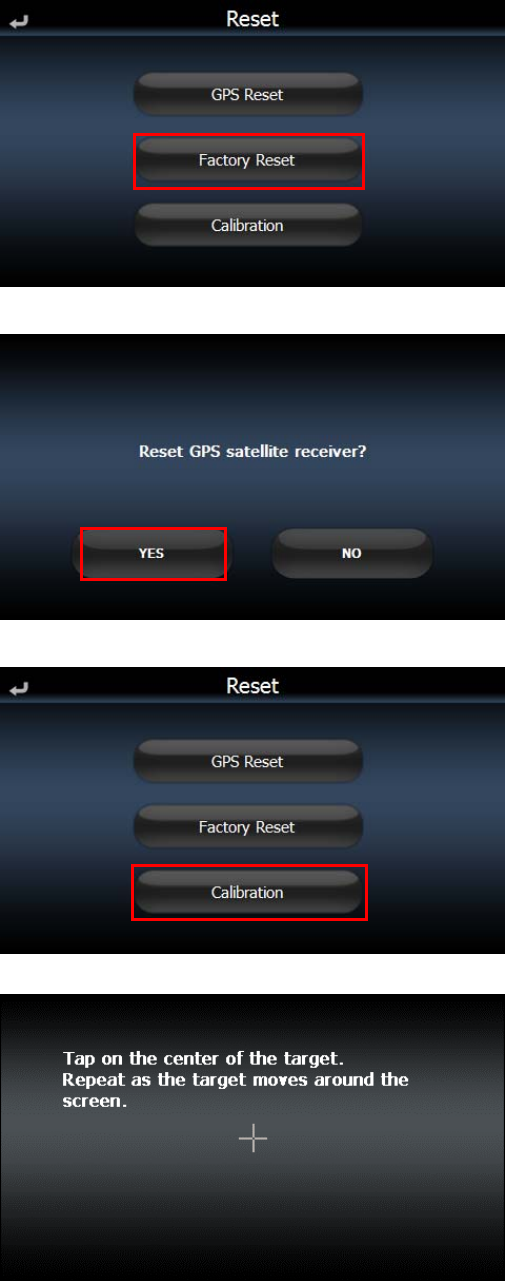
3.5 Reset
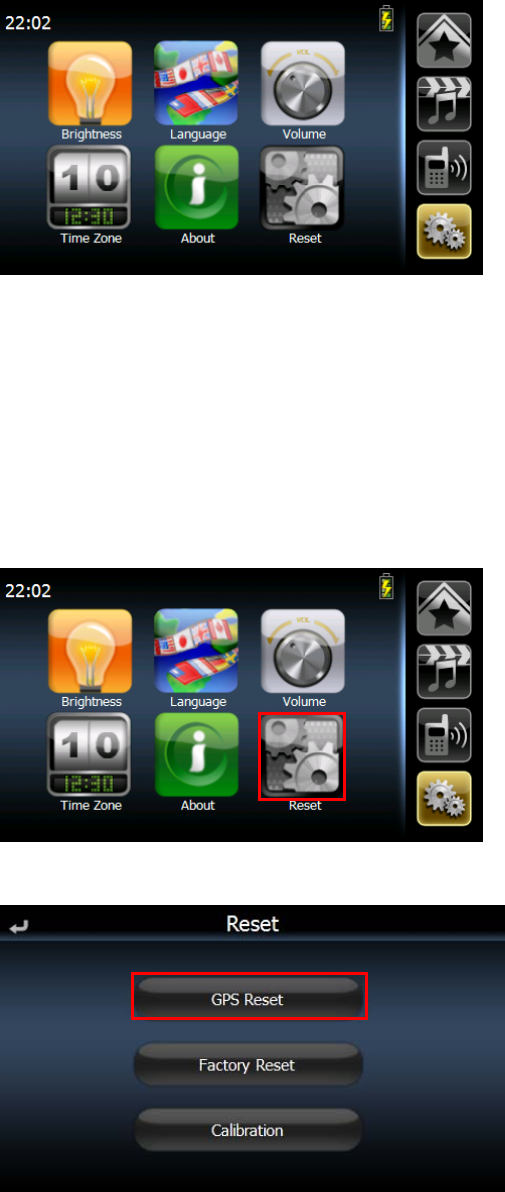
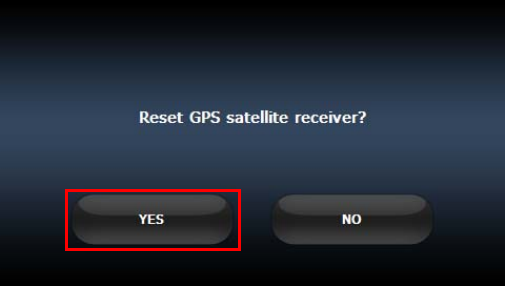
GPS Reset
::
When user wonder if GPS receiver perform properly or not .( ex : Change the region)
Factory Reset
:
The factory reset function not only resets the operating system settings to default factory values, but also
reset the GPS settings.
Calibratio
n:
When the touch screen does not respond well, calibrate the screen of your device.
1 Tap
the
“
Reset”
icon
in
the
System
Menu.
Tap
the
“GPS
Reset”
icon
in
the
Reset
Menu.
.
2 Tap
the “YES” to reset the GPS.
24
25
3 Tap
the
“Factory
Reset”
icon
in
the
Reset
Menu.
4 Tap
the “YES” to do the Factory Reset.
5 Tap
the
“Calibration
”
icon
in
the
Reset
Menu.
6 Tap on the center of the target. Repeat as the target moves around the screen.
26
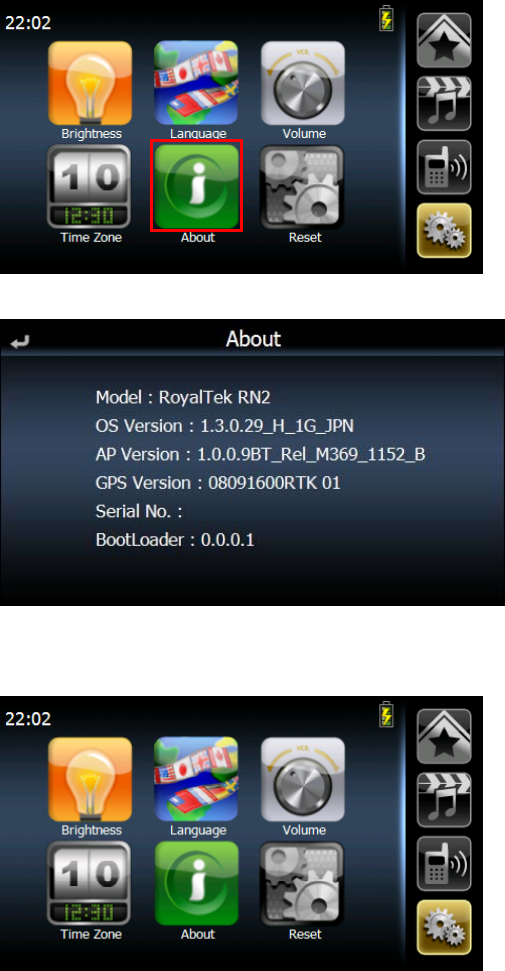
3.6 System Information
1.
Tap
the
Sys
Info.
icon
in
the
System
Menu.
2. You can view the OS version, GPS firmware version and other system information..
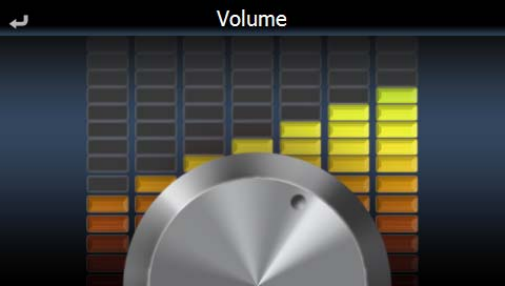
3.7 Volume
1.
Tap
the
Volume
icon
in
the
System
Menu.
3. To adjust the volume by drag the wheel.
4. Drag to left will become silent else will become noisy.
27
28
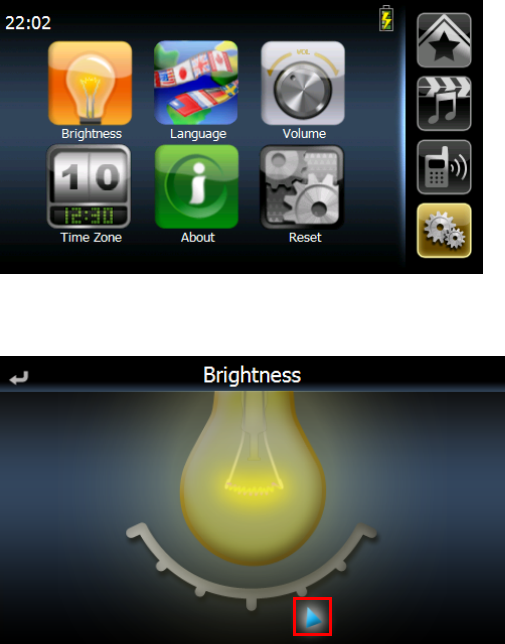
3.8 Backlight
1. Tap
the
Backlight
icon
in
the
System
Menu.
2. Adjust
the
Backlight
brightness by drag triangle icon.
3. Drag to left will become dark, drag to right will become light.
29
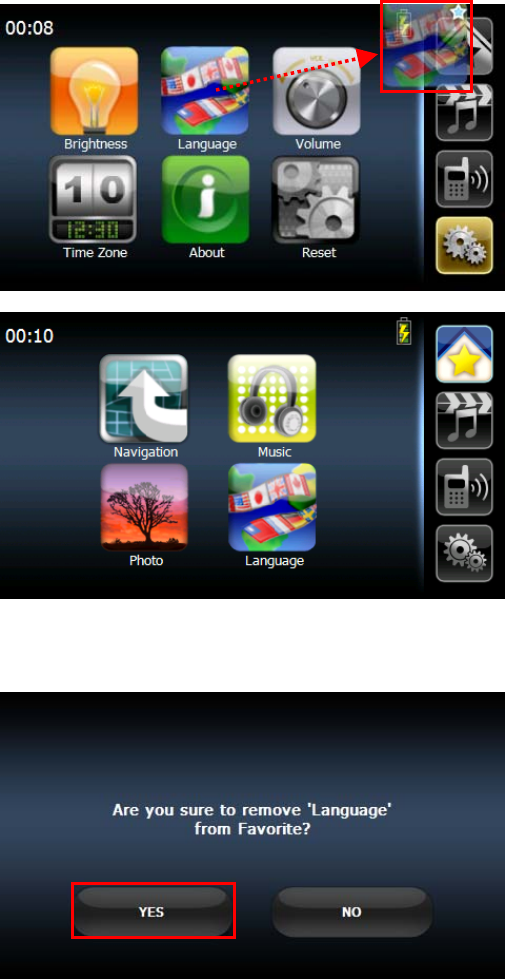
3.9 To set the favorite application category:
Otherwise, provide more organized and friendly application management interface for user organize
their own favorite application category by drag-and-drop, the maximum number of favorite application
shortcut is 6.
Add icon to the favorite page
1. Drag the icon to the category bar of favorite.
2. That will show the icon in favorite page.
Delete icon to the favorite page
1. Drag the icon from Favorite page to category bar and drop it. Confirm dialog will pop up, just tap “YES” to delete.
3.10 Power Supply
30
RN2 has a completive power management system, and enhances its standby time. In
addition, it can make end-users more convenient to carry it for entertainment purpose,
not only using in cars but also at home, outdoor activities.
3.11 Charge
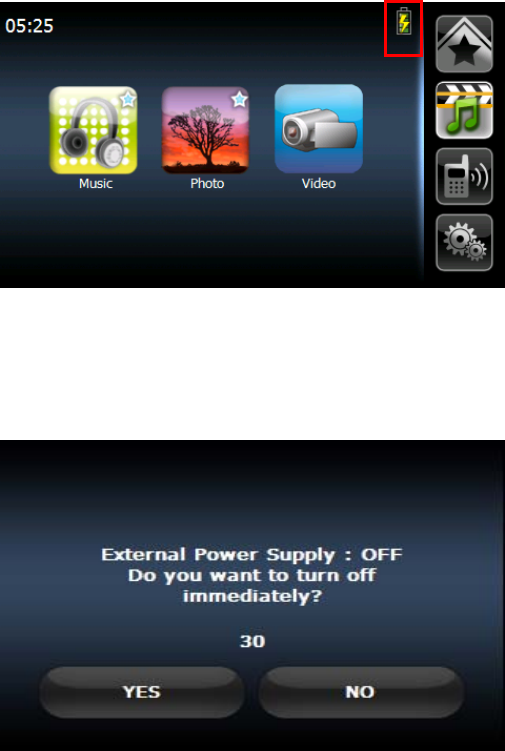
While end-users use our standard car charger or AC adapter to charge RN2, the main
screen would remind you.
3.11.1 Discharge
While end-users remove out our standard car charger or AC adapter, the main screen
would remind you to turn off RN2 or not.
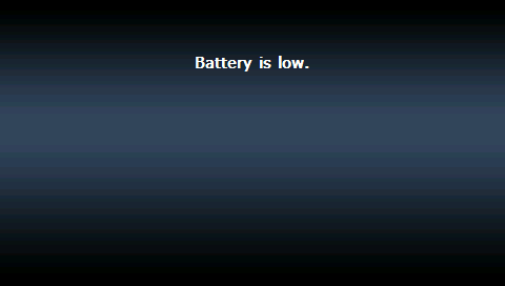
3.11.2 Power outage
While battery capacity is lower than 20%, the main screen would remind end-users
the following message.
31
32
Chapter 4 Entertainment
4.1. RN2 Multimedia Player
The
RN2
is
a
fully
capable
multimedia
player
that
can
enhance
your
portable
entertainment.
In
addition
to
its
navigating
function,
the
RN2
is
also
a
mobile
entertainment
tool
to let
you
enjoy
digital
music,
view
photos.
These
functions
make
the
RN2
a true
multimedia
device.
To
enable
access
of
multimedia
files
from
your
device’s
mass storage
folder and
transfer
these
files,
do
either
of
the
following:
•
Using
the
USB
cable
to
connect
the
device to
your
computer,
and then
use
File
Explorer
to
copy
digital music
and
image
files
into
the
device’s
MyflashDisk
folder.
•
Using
a
compatible
card
reader,
directly
copy
digital
music
and image
files
to
the
Micro
SD
card.
It
is
recommended
to
organize
files
into
subfolders.
These
folders
will
make files
easier
to
find
and
play.
4.2. Music player
Enjoy
your
favorite
music
on
the
road.
The
program
features:
•
Support
for
MP3 files
•
Auto-scanning
of
supported
files
in
the
device’s
Micro
SD
card
•
Separate
volume
control
enabling
you
to
adjust
the
playback
sound level
while
retaining
the
volume
level
set
for
system
sounds
Each
sub
directory
containing
compatible
music
files
is
treated
as
an
individual playlist.
For
a
more
organized
file
search,
it
is
advisable
to
named
sub
directories
based
on
genre
or
listening
preferences.
4.2.1.
Using
the
Music
player.
4.2.2.
To
enter
into
the
different
media
players.
1.
Tap
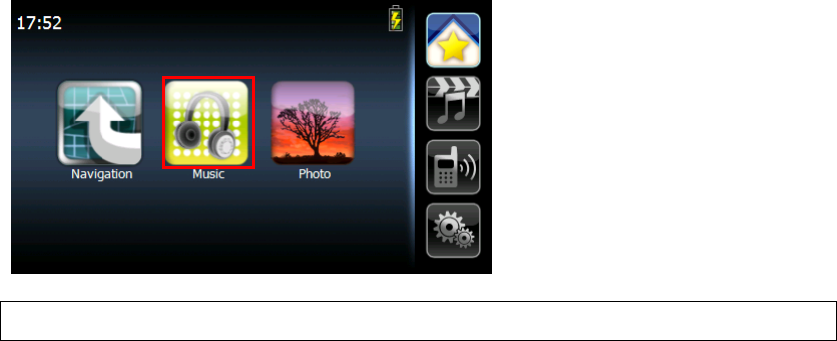
“Music”
icon
in
the
Main Menu.
NOTE:
You
can
also
enter
the
music
player
by
right category bar.
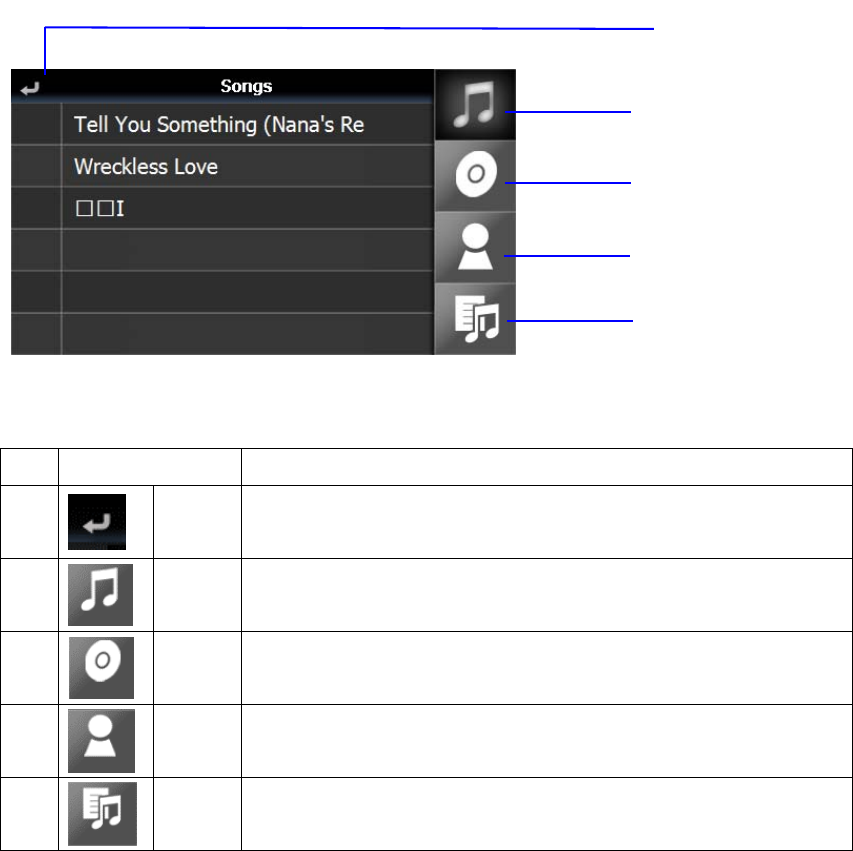
The MP3 player window below controls playback.
33
Table
4-3-2-1:
MP3
player
functions
NO Function
1 Return Return to list page
2 Songs List all song by alphabet
3 Album List all albums by alphabet.
4 Artist List all Artists by alphabet
5 Search Current play list
○
1
○2
○3
○4
○
5
34
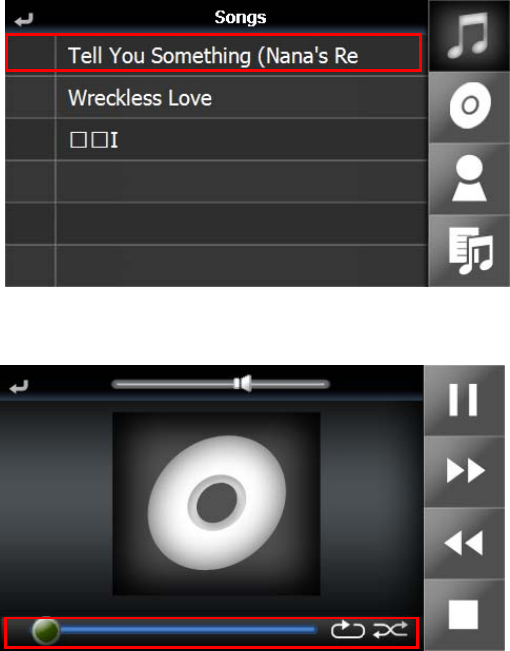
2. Tap the song on the music list.
`
3. Tap bottom information bar will switch to song’s progress.
35
Table
4-3-2-2:
Play sound functions
NO Function
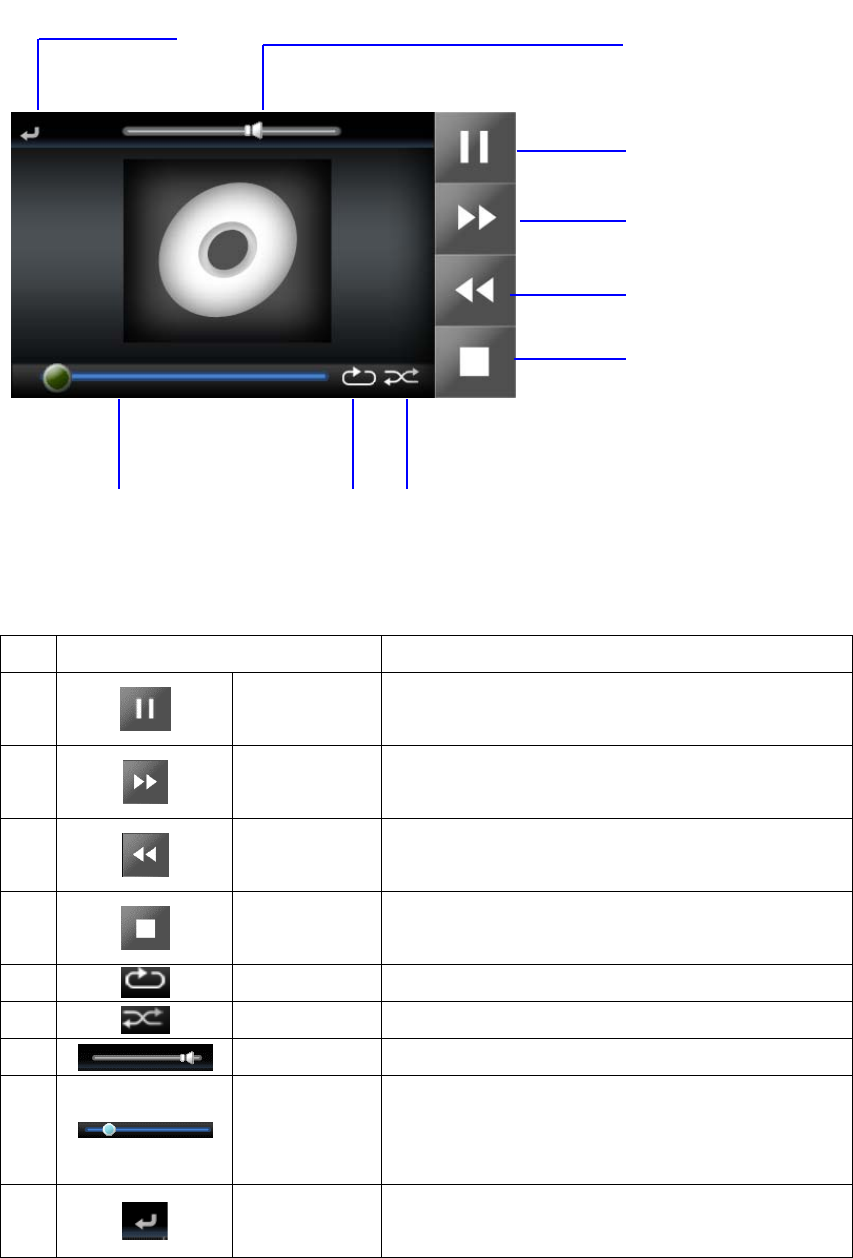
1 Play/Pause P/ay/Pause song
2 Forward Forward to next song.
3 Previous Reword to previous song
4 Stop Stop music play.
5 Repeat Repeat play songs.
6 Random Random play songs.
7 Sound bar To adjust the sound.
8 Bottom info. bar
No even: This place will scroll song’s name and total play time.
Tap: Tap this bar. Will switch to song’s progress.
9 Return Return to list page.
○
1
○2
○3
○4
○5 ○6○7
○8
○
9
36
4.3. Photo Viewer
The
RN2
has
a
great
photo
viewing
option
that
makes
it
easy
to
share
and view
digital
photos
anywhere
on
the
go.
The
program
features:
•
Support
for
JPEG
files (Support Max. 500 photos)
•
Auto-scanning
of
supported
files
in
the
device’s
Micro SD
card & Flash disk
•
Three
viewing
modes:
Thumbnail,
Full
Screen,
and
Slide
Show
•
Album
support
based
on
sub-directory
contents
Each
subdirectory
can
hold
multiple
images
and
be
used
as
an
individual
album.
For
a
more
organized
file
search,
it
is
advisable
to
sort
image
files
into sub
directories
based
on
meaningful
name
or
date.
An
example
could
be
“summer
vacation
pictures”
or
“New
baby”
or
“2005
Best.”
4.3.1. Viewing files in Slide Show mode
You
have
the
option
to
view
images
in
a
slide
show
much
like
viewing
a
Power- Point
presentation
in
your
computer.
Images
are
adjusted
to
fit
the
entire
display
area
and
are
shown
in
a
5-second
interval.
4.3.2. Using the Photo Album
1.
Tap
“Photo”
icon
in
the
Main Menu.
2.
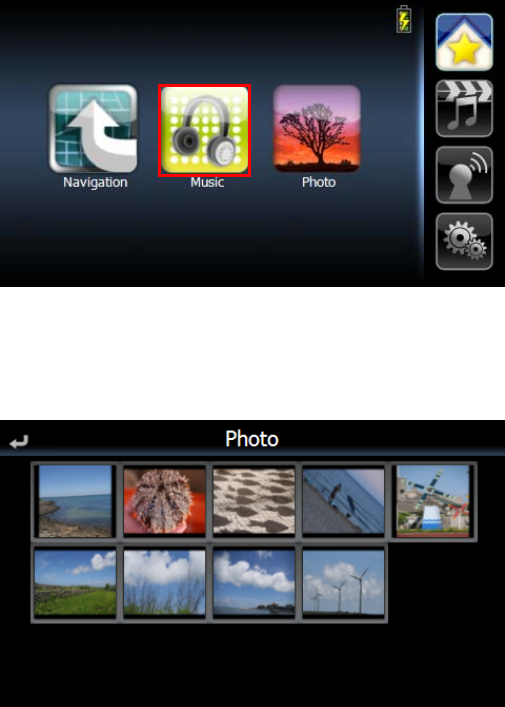
Will list all thumbnails in SD card and store in PND mass storage & SD folder.
3.
Drag all screen area will cause photo move to next or previous page
37
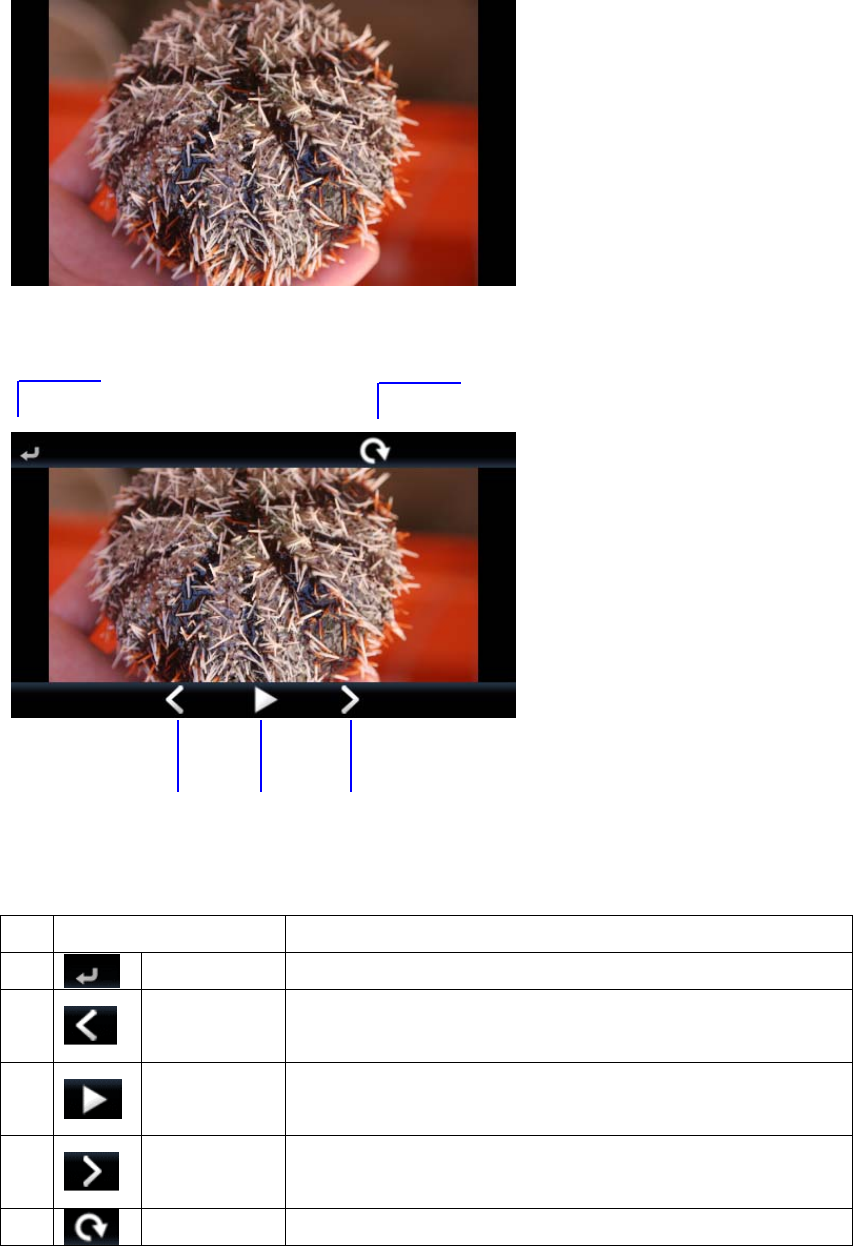
4. Tap specific thumbnail will enlarge thumbnail.
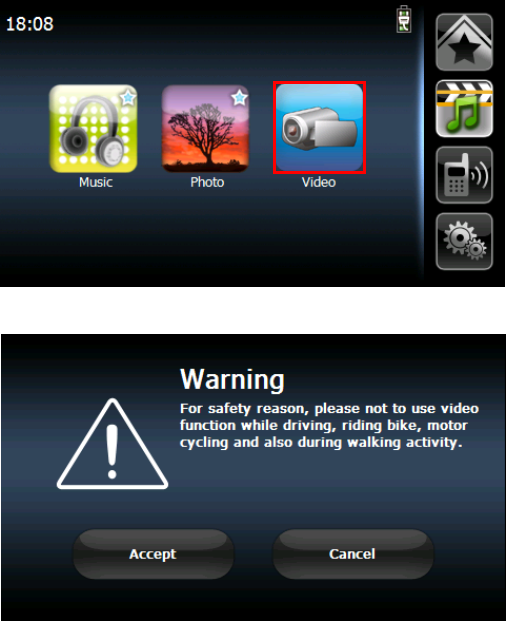
5. Tap the screen will cause control bar display
Table
4-3-4-1:
Photo
Album
Viewer
NO Function
1 Return Return to thumbnail page
2 Previous page Display previous photo.
3 Auto Play mode Auto play all photos.
4 Next page Display next photo.
5
Rotate
Rotate photo
○1 ○5
○2 ○3 ○4
38
4.4. Video Player
Video Player is a very unique function in RN2, which can make end-users enjoy your DIY video
via this device.
The
program
features:
•
Support
VMV/WMA
files (Maximum 500 files)
•
Auto-scanning
of
supported
files
in
the
device’s
Micro SD
card
•
Three
viewing
modes:
Thumbnail,
Full
Screen,
and
Slide
Show
•
Album
support
based
on
sub-directory
contents
4.4.1. Use Video Player
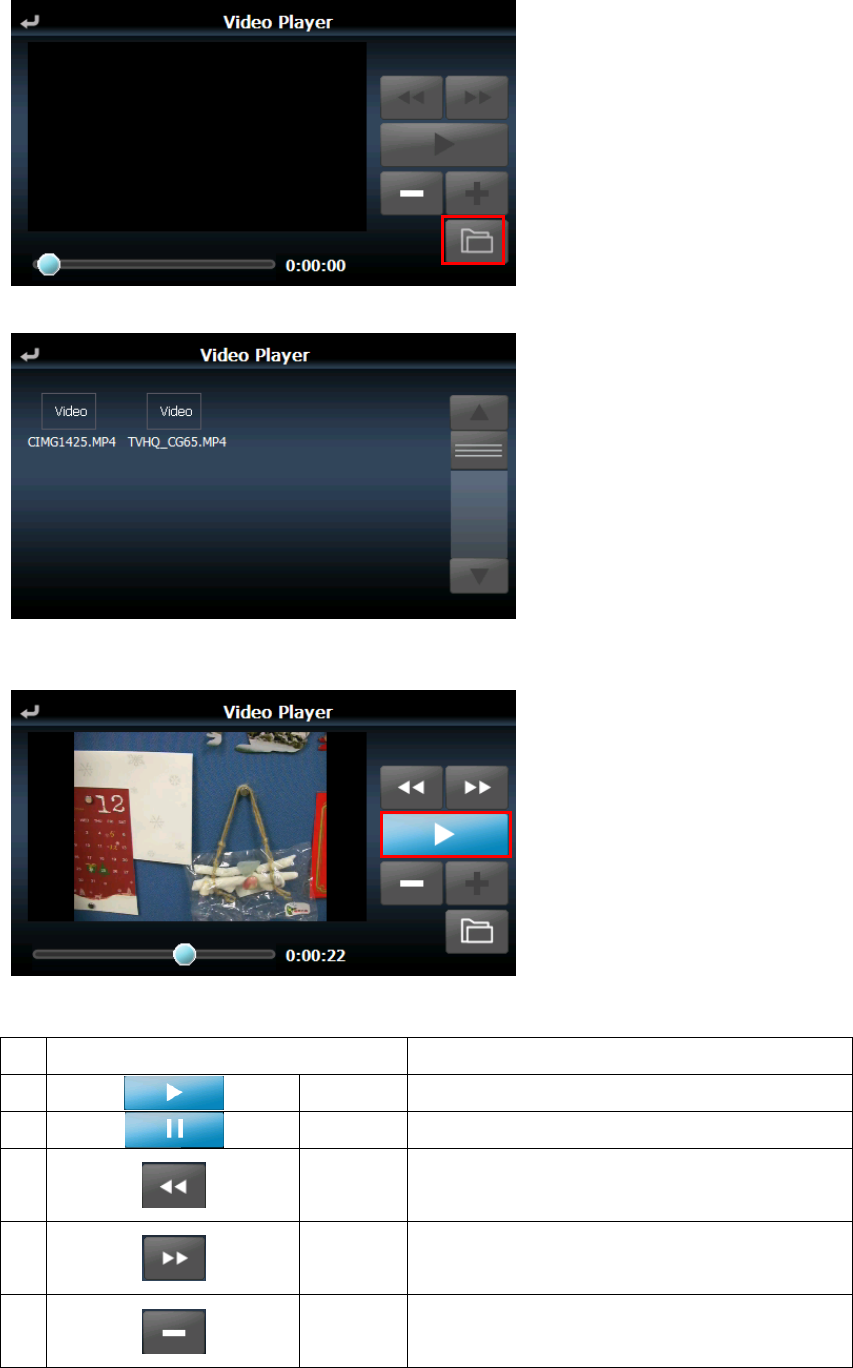
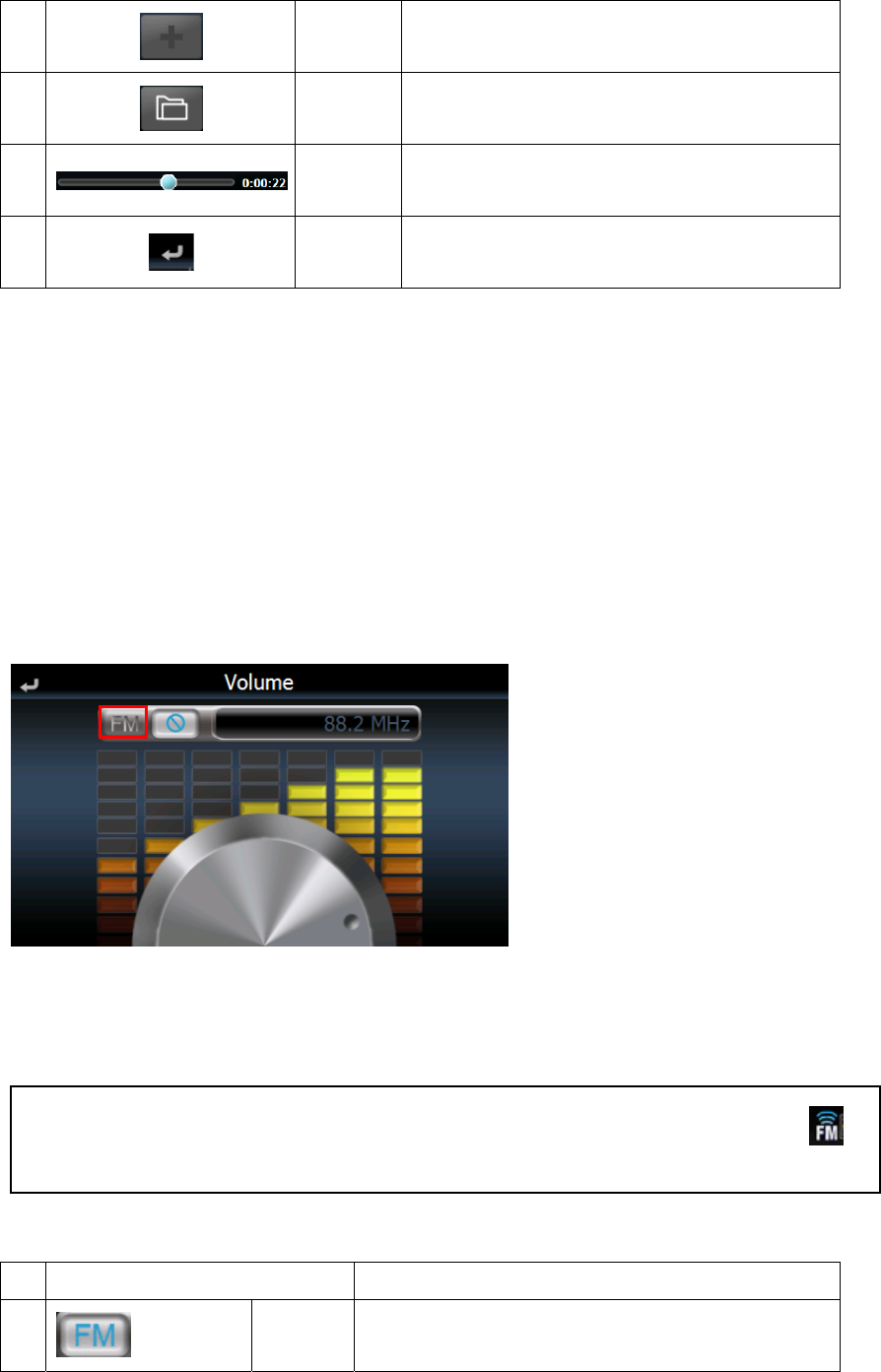
1. Tap “Video” icon in the Main Menu.
2. Tap “Accept” icon to enter Video Player function screen, or tap “Cancel” not to enter into.
3. Tap “File Manager” to choose a file, which you would like to play.
39
4. Tap “Play” to play the file which you choose.
Table
4-4-1-1:
Video Player Display
NO Function
1 Play Play a video file
2
Pause Pause to play a video file
3 Forward
4 Downward
5
Volume
down Turn down volume
40
6 Volume up Turn up volume
7
File
Manager List video files
8
Progress
bar
Show playing progress (Tap or drag to control playing
progress)
9 Return Return to the previous page
4.5. Listen MP3 via Car Audio/Stereo (FM Transmitter)
RN2
has
a
great
music-player-supported function that
makes
you play MP3 files via your car
audio/stereo.
•
Set FM frequency range from 88.2 to 107.8Mhz
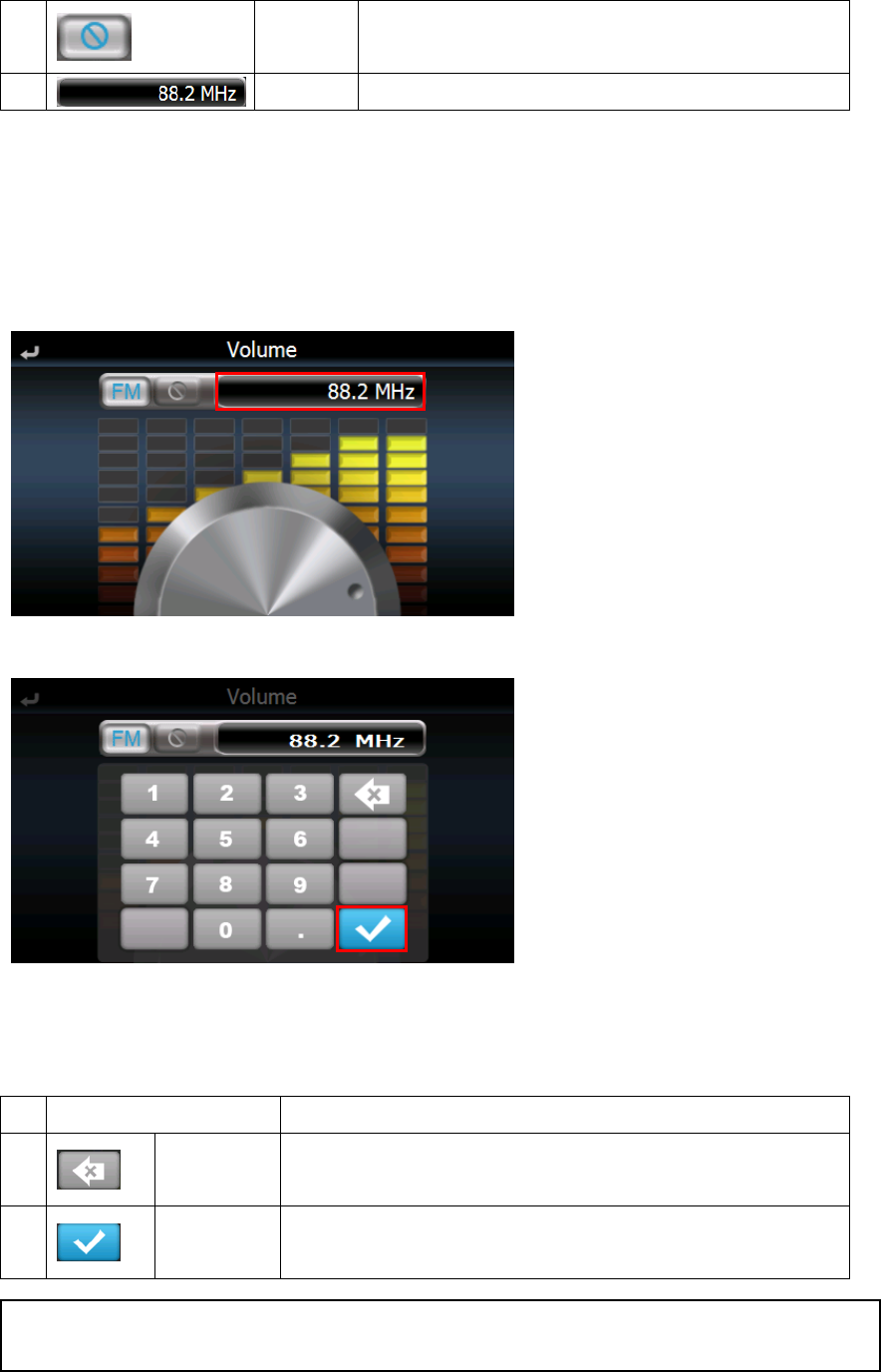
4.5.1 Turn on FM Transmitter frequency
1.
Tap
the
Volume
icon
in
the
System
Menu.
2.
Tap “FM”
to open FM Transmitter function
3.
Set FM frequency 88.2 MHz in your car radio.
4. Play “Music Player”, “Video player” or “Navigation”, and audio will be come out from your
car radio.
Table
4-4-1-1:
FM Transmitter Setting
NO Function Description
1
FM
Transmitter Open FM Transmitter function
N
OTE:there is a sign to remind end-user that FM Transmitter function is open on the main menu.
41
2 Stop Stop FM Transmitter function
3 Frequency Set frequency (Default: 88.2 MHz)
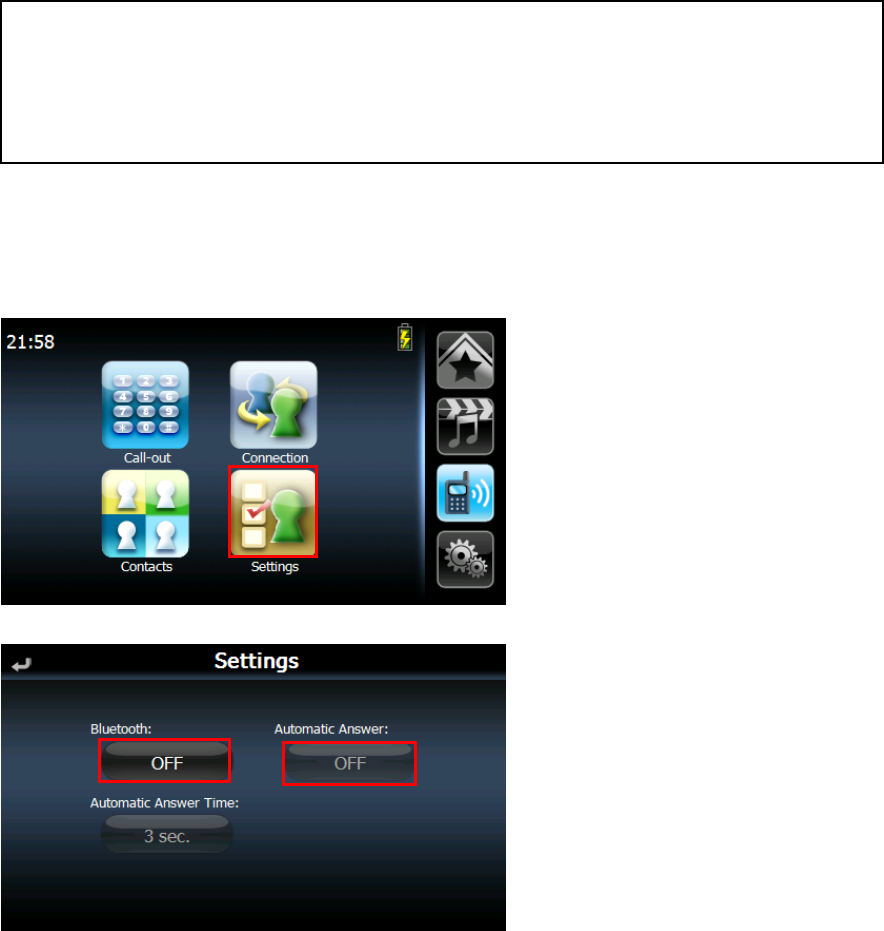
4.5.2 Change FM Transmitter frequency
1.
Tap
frequency entry
2.
Set the frequency number, and tap “Enter”
3.
Set the same frequency number to make your car radio receive audio from RN2.
Table
4-4-2-1:
FM Frequency Setting
NO Function Description
1 Delete Delete frequency number
2 Enter Implement this frequency number
N
OTE:FM Frequency can only set from 88.2 to 107.8Mhz.
42
Chapter 5 Communications
5.1. RN2 Bluetooth (Option function)
Once
your
Bluetooth-enabled
mobile
phone
is
paired
with
your
RN2,
you can
make
hands-free
phone
calls
through
your
RN2’s
integrated
micro- phone
and
speaker.
RN2
makes
it
easy
to
make
and
receive
phones calls
with
ease
while
end-users
drive cars. Hands-free
calling
keeps
things
safe,
letting
you
keep
your
eyes
on
the
road, while
your
RN2
integrates
seamlessly
with
your
mobile
phone.
Easy
to connect
and
use,
just
follow
a
few
quick
steps
to
enjoy
the
benefits
of
Hands- free
calling. (That is option function)
5.2. Connection
5.3. Mobile phone connection
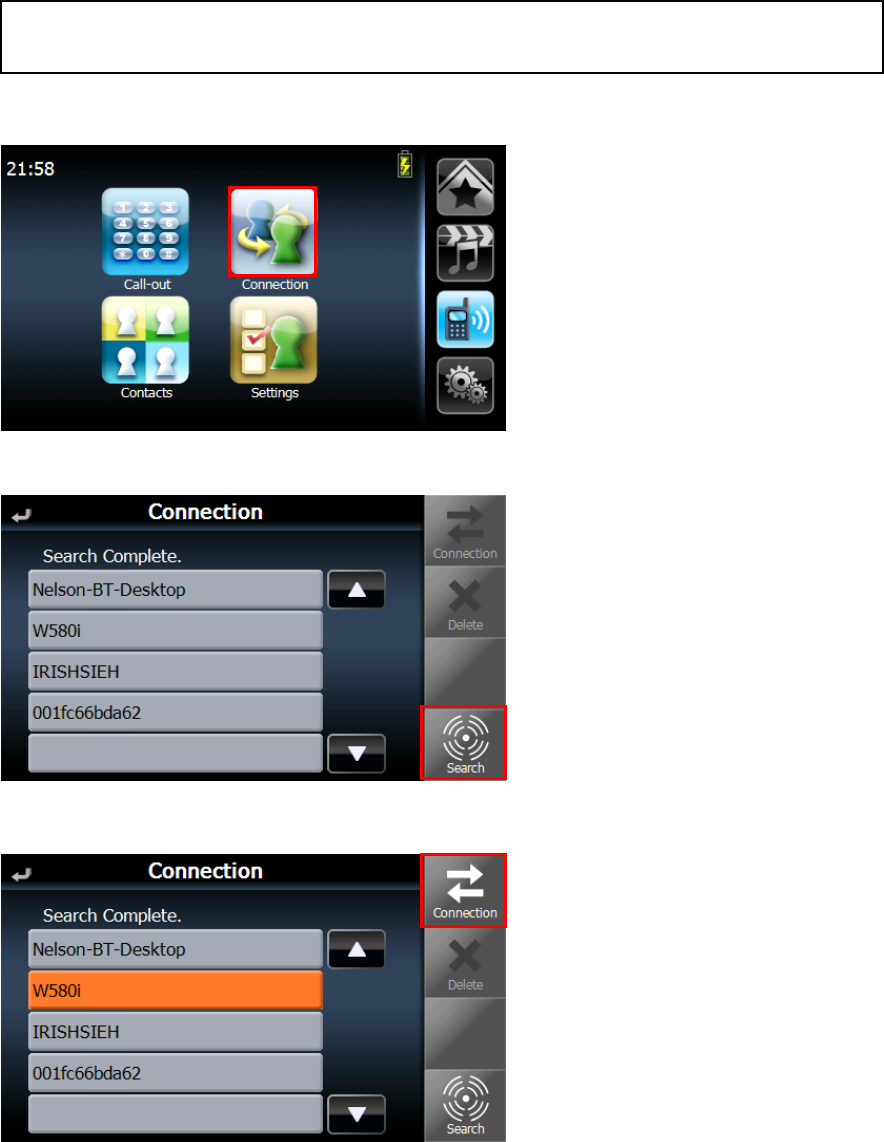
1.
Tap “Settings” to turn on Bluethooth function, and end-users can also turn on “Automatic
Answer” while the mobile phone is ringing.
N
OTE:Make sure the Bluetooth settings of your mobile phone.
- The Bluetooth switch is set to “ON” or “enable”.
- The visibility is set to “Discoverable”, “Show my phone”, (For more detailed information,
see your phone’s manual.)
43
1.
Back to “Communication” screen, and tap “Connection”
2. Tap “Search” to look for Bluetooth on of mobile phones, and
3. Choose one which you want to connect to, and tap “Connection”
N
OTE:”Automatic Answer Time” can be set three mode “3sec.”, “10sec.”, and “30sec.”
44
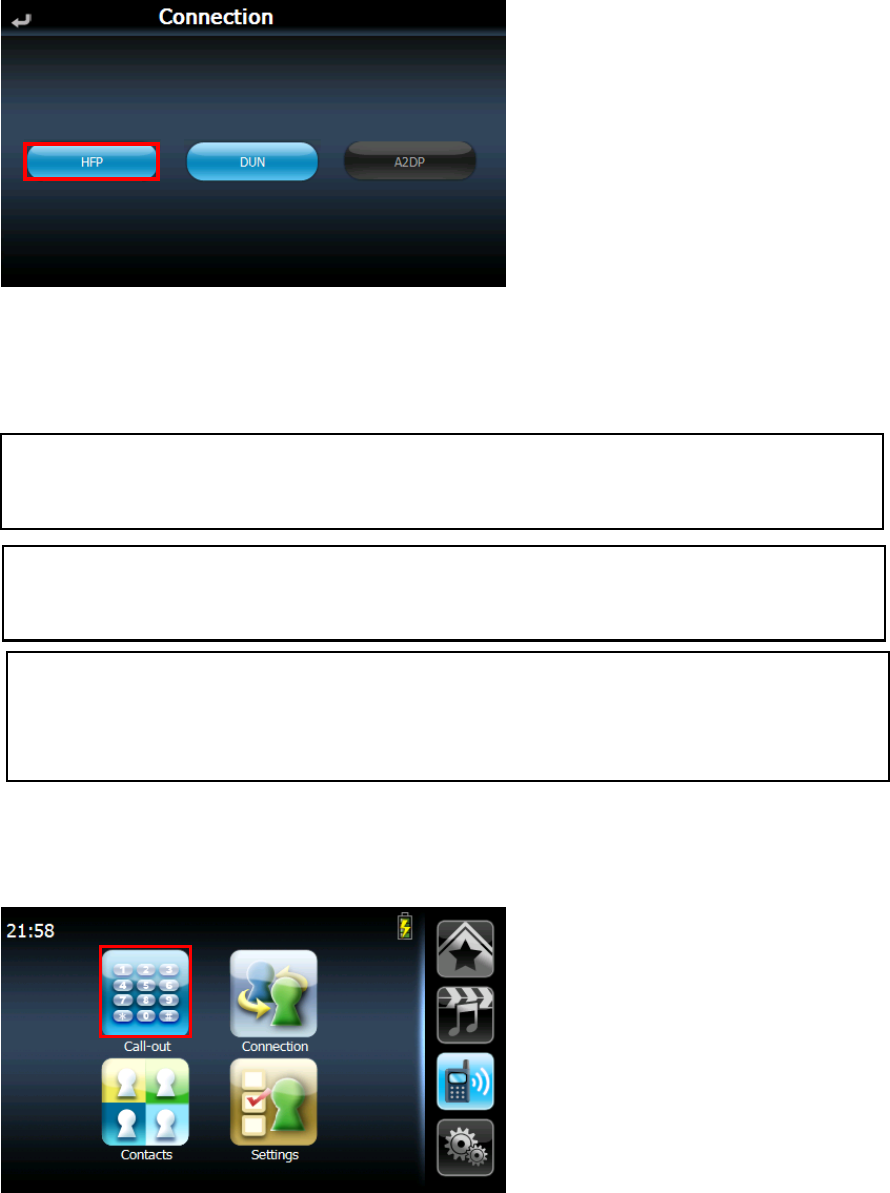
4. Choose “HFP”
5. The mobile phone will often require you to enter a password to connect the device. Enter
“0000” on the mobile phone in this case.
6. When the connection completes, the name of the connected phone is displayed on the title
bar of the “communications” screen.
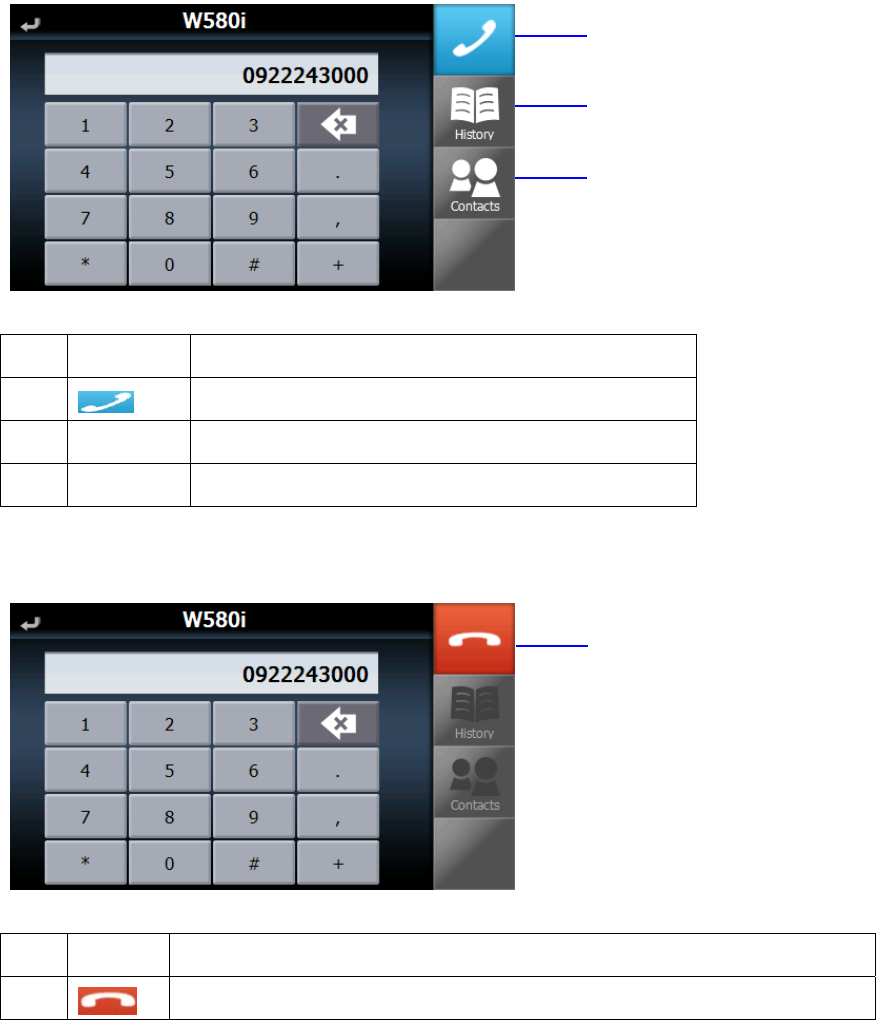
5.4. Call Out (Hands – free Calling)
1. Tap “Call-out” screen is as follows:
N
OTE:If the connected mobile phone has the Bluetooth auto-accept function, set this function to “NO”
(For more detailed information, see your phone’s manual.
N
OTE:Bluetooth function has distance limitation. While the mobile phone is away, and make
Bluetooth function disconnect, NS-4102 would try to re-connect within 10 seconds.
N
OTE: While end-user is turning on FM Transmitter and Bluetooth Hands-free function (connecting
with a cell phone), call conversation would still come out from NS-4102 speaker, not from car
audio/stereo.
45
2. Call-out
No. Name Description
1 Start to make a call.
2 History Call-out from the history of the incoming /outgoing call
3 Contacts Call-out from the contacts. In detail, refer to 4.3.
3. Call-out (in a phone call)
No. Name Description
4 Close a phone call.
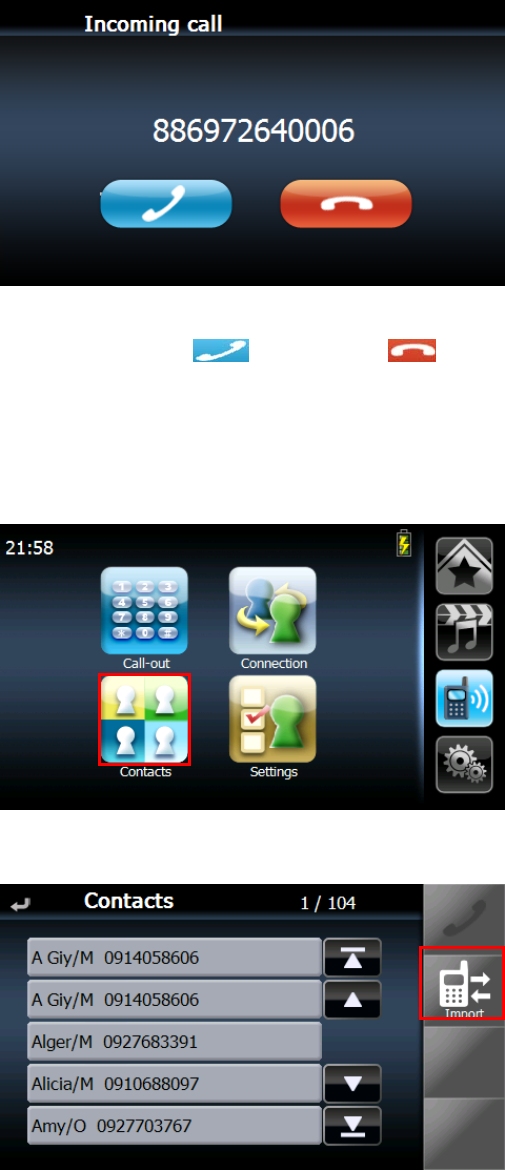
4. Receiving a call
(1) When the connected mobile phone receives a call, the caller’s phone number and two
buttons are displayed on the screen.
○1
○
2
○
3
○
4
46
(2) Receive a call, tap ; Quit a call, tap .
5.5. Contacts (Import phonebooks)
1. Tap “Contacts” screen is as follows:
2. Tap “Import” to import the contact information from the connected mobile phone.
47
Chapter 6 Troubleshooting and
Maintenance
6.1. General troubleshooting
6.1.1.
If
your
device
does
not
respond,
do
a
“hard
reset.”
To
do
a
“hard
reset,”
Disconnect
all
cables,
including
the
AC
adapter, from
your
device.
By sliding the hard reset switch on the primary ON/OFF switch on the right side of the device
form OFF to ON position then tap the power button.
6.1.2. Users can also perform a “system reset.”
To do a “system reset,” in the Main menu, tap System, then tap System Info. This will allow you to do a factory
reset (restore to default set- tings), reset the GPS and recalibrate the touch screen interface.
6.1.3. Screen responds slowly
Make sure you have enough battery power.
6.1.4. Inaccurate response to taps.
• Recalibrate the touch screen.
6.1.5. Connection Problems with PC.
Make sure that the cable is securely plugged into the USB port on your computer and on the device. Connect the
USB cable directly to your computer—do not run the cable through a USB hub.
Reset your device before connecting the cable. Always disconnect your device before you restart
your
computer.
6.1.6. No GPS connection
Make sure that the GPS antenna has a clear view of the sky.
Note that the GPS reception can be affected by:
Bad weather
Dense overhead obstacles (e.g. trees and tall buildings)
Other wireless devices in the car
6.1.7. No sound coming from the device.
Make sure mute is not selected for Volume in system settings. The built-in speaker turns off when the headphone
jack is being used.
48
6.1.8. Can’t I see my photos.
Make sure you are using supported image formats JPG.
6.1.9. Takes longer than normal time to get a GPS fix.
If the previous GPS fix position was more than 500 km or 12 hours apart from your current position and time, it
will also take significantly longer than the standard TTFF time to get a GPS fix. This is due to the nature of the
GPS
algorithm
and
rotational
velocity
between
the
satellites
and
planet
Earth,
and
deemed
normal.
Perform a GPS reset in the main/system/system info menu to get a faster GPS fix.
6.1.10. Factory reset does mean a GPS reset.
Yes. The Factory Reset function resets the OS settings to their default factory values and it will reset the GPS
settings.
49
6.2. Maintenance
• Avoid exposing your device to direct sunlight or strong ultraviolet light for extended periods of
time.
• Do not drop your device or subject it to severe shock.
• Do not subject your device to sudden and severe temperature changes. This could cause moisture
condensation
inside
the
unit,
which
could damage
your
device.
In
the
event
of
moisture
condensation,
allow
the
device
to
dry
out
completely
before
use.
• The screen surface can be easily scratched. Sharp objects may scratch the screen. You may use non-adhesive
generic screen protectors designed specifically for use on portable devices with LCD panels to
help protect the screen from minor scratches.
Never clean your device with it powered on.
Never use organic solvents such as benzene or paint thinner to clean your device. Use of these solvents can cause
deformation or discoloration.
Use a soft, clean, lint-free cloth to clean the display screen. Moistened
LCD screen wipes could also be used as required.
• Never attempt to disassemble, repair or make any modifications to your device. Disassembly, modification or any
attempt at repair could cause damage to your device and even bodily injury or property damage and will void any
warranty.
6.2.1. Storage precautions
• Do not store your device anywhere it may be exposed to water or in conditions of high humidity.
• When the device is not in use for an extended period of time, bring it indoors and store it in cool dry area.
6.2.2. Accessories and repair precautions
• Only authorized accessories should be use with the device. The use of incompatible accessories could result in bodily
injury and/or damage to the device.
• The use of unauthorized accessories will also void your warranty.
• Never attempt to disassemble, repair or make any modification to your device.