SEUIC Technologies AUTOID6 AUTOID6 User Manual

Jiangsu SEUIC Technology Co.,Ltd AUTOID6 Users Manual

Users Manual

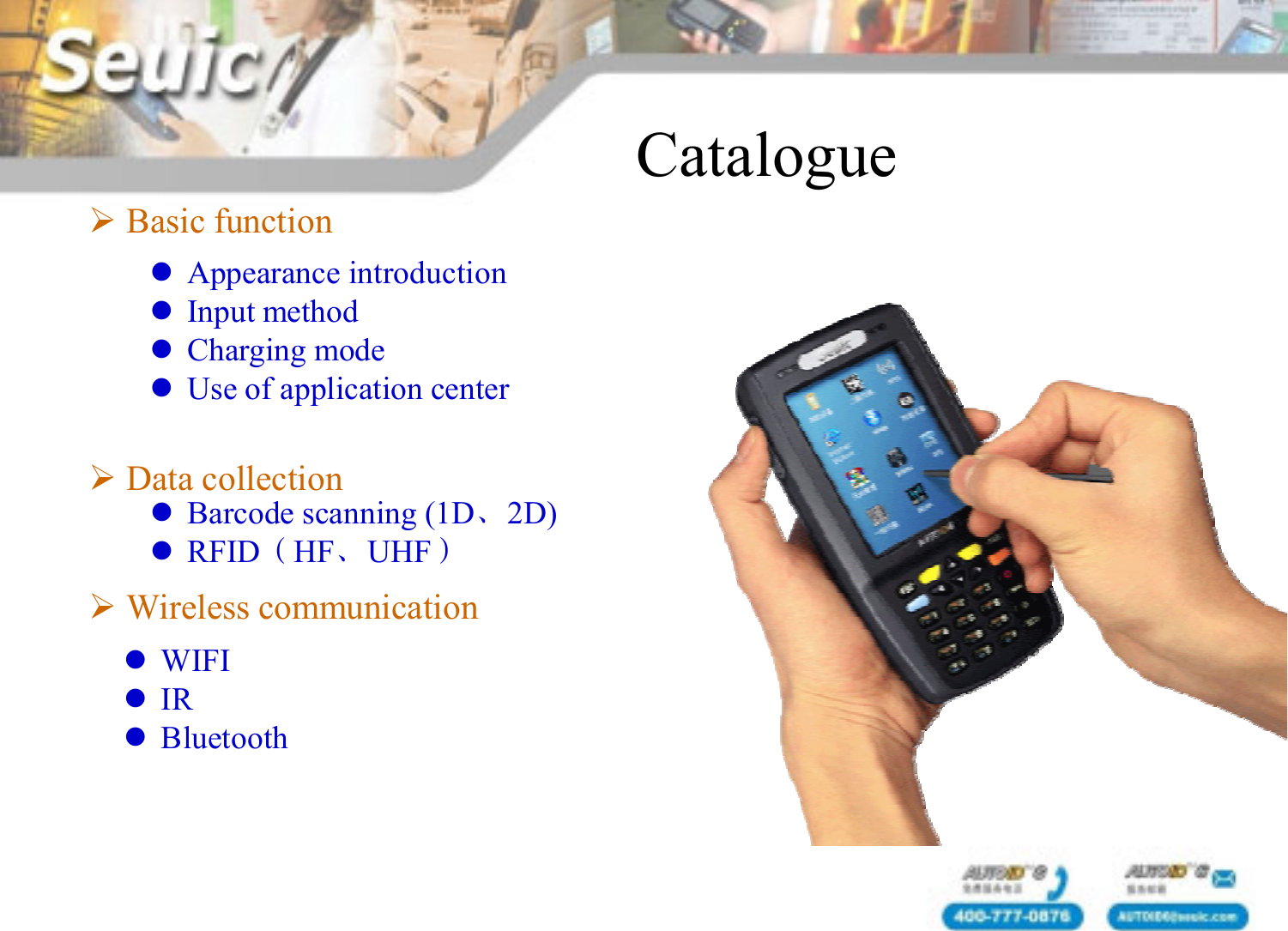
Basic functionData collectionWireless communicationBarcode scanning (1D、2D)RFID(HF、UHF)WIFIIRBluetoothCatalogueAppearance introductionInput methodCharging modeUse of application center
Basic function
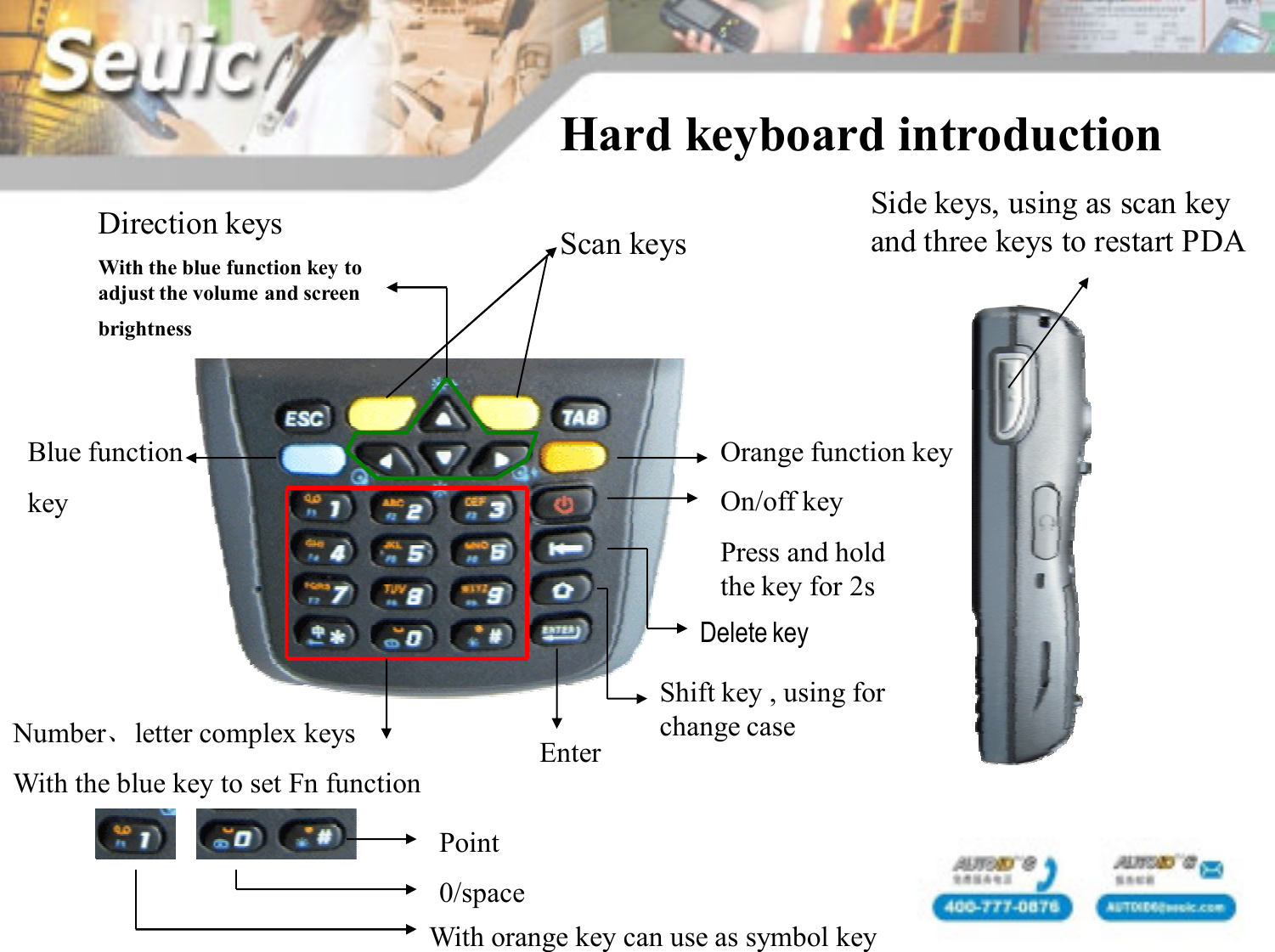
Hard keyboard introduction Scan keysSide keys, using as scan key and three keys to restart PDANumber、letter complex keysWith the blue key to set Fn functionBlue functionkeyOrange function key EnterShift key , using for change caseDelete keyOn/off keyPress and hold the key for 2sPoint0/spaceWith orange key can use as symbol keyDirection keysWith the blue function key to adjust the volume and screen brightness
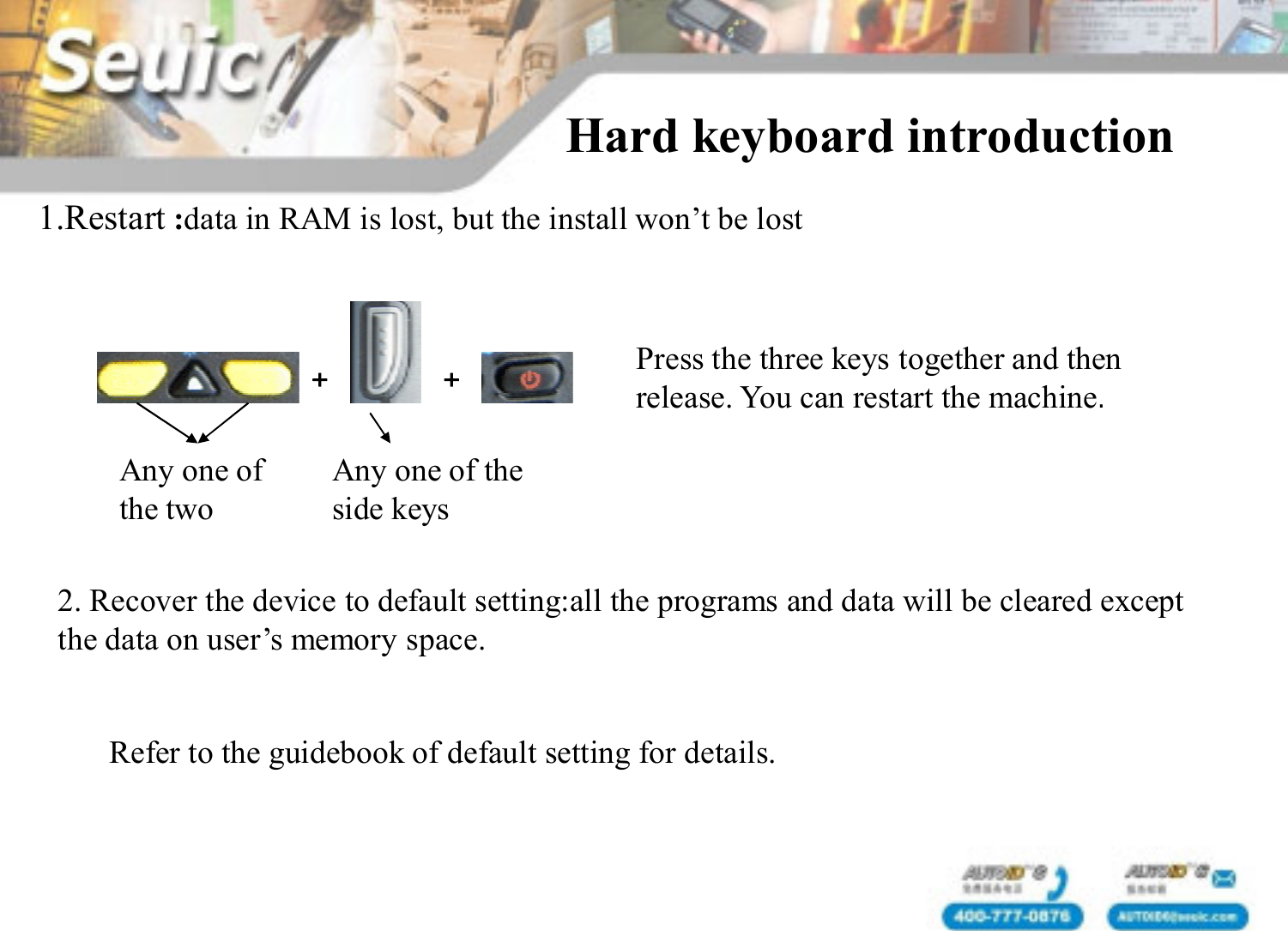
1.Restart :data in RAM is lost, but the install won’t be lostAny one of the two+ +Any one of the side keysPress the three keys together and then release. You can restart the machine.Hard keyboard introduction 2. Recover the device to default setting:all the programs and data will be cleared except the data on user’s memory space.Refer to the guidebook of default setting for details.
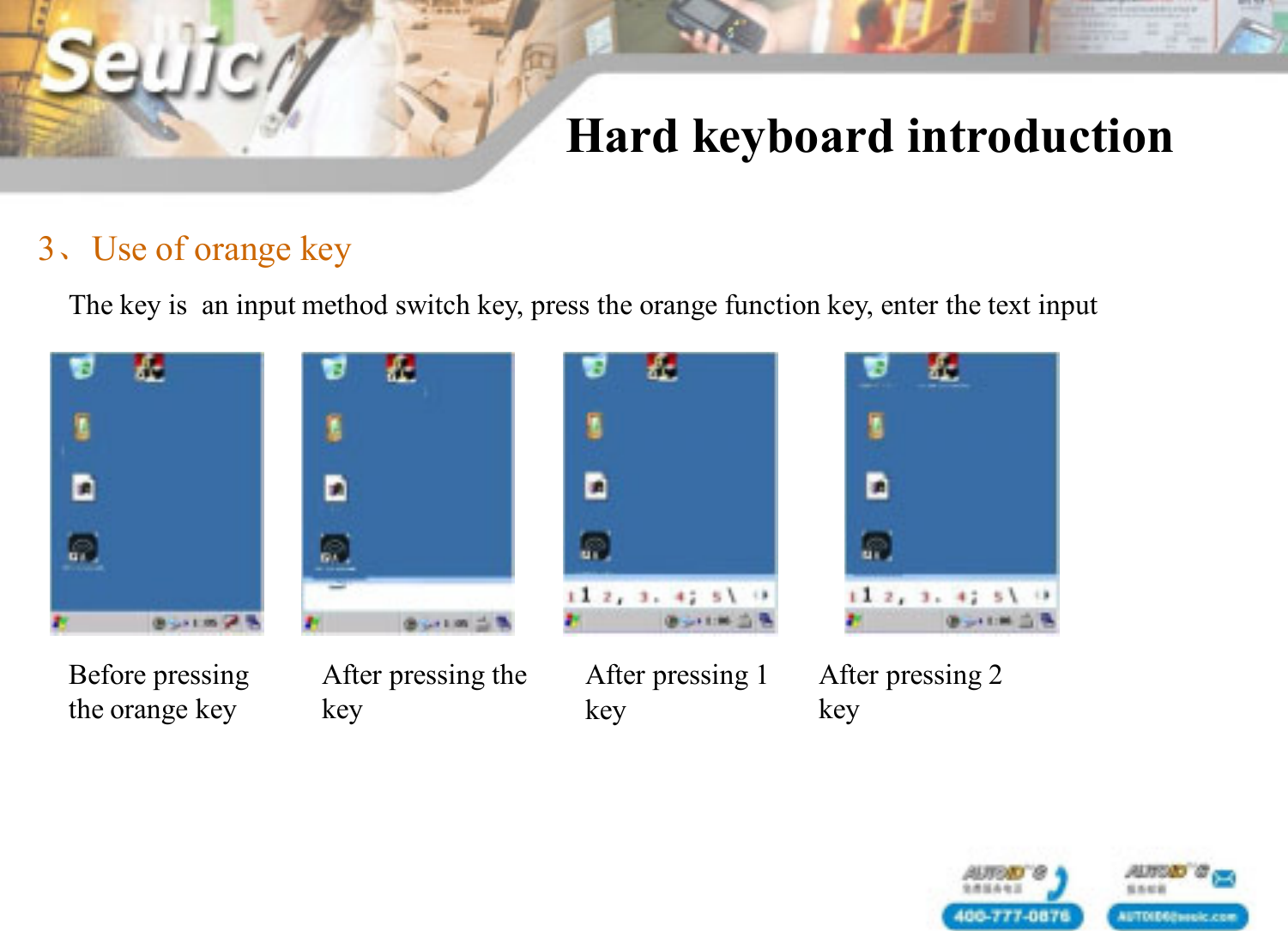
3、Use of orange keyThe key is  an input method switch key, press the orange function key, enter the text inputBefore pressing the orange keyAfter pressing the keyAfter pressing 1 keyAfter pressing 2 keyHard keyboard introduction
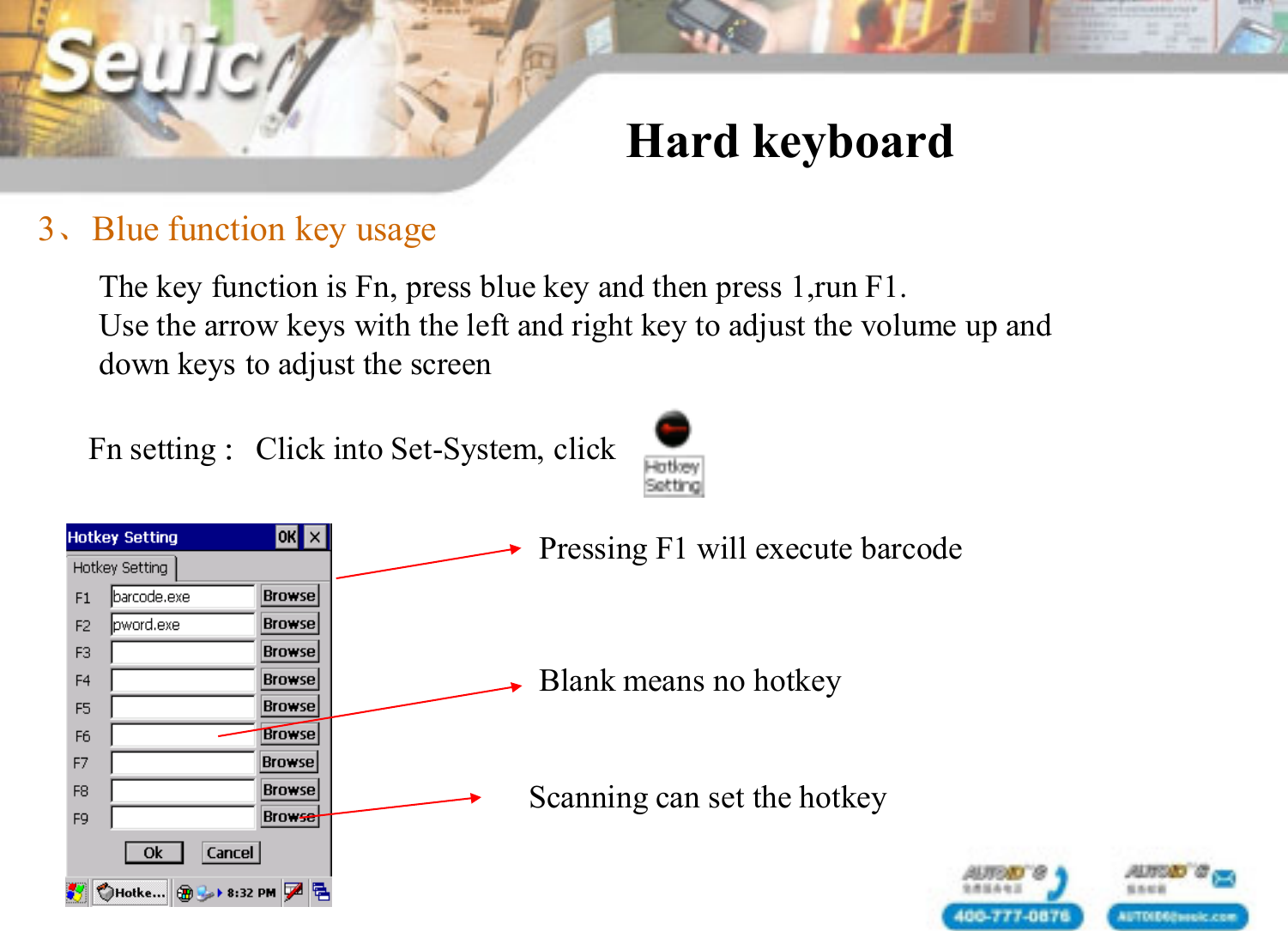
Hard keyboard3、Blue function key usageThe key function is Fn, press blue key and then press 1,run F1.   Use the arrow keys with the left and right key to adjust the volume up and down keys to adjust the screenFn setting :Click into Set-System, clickPressing F1 will execute barcodeScanning can set the hotkeyBlank means no hotkey
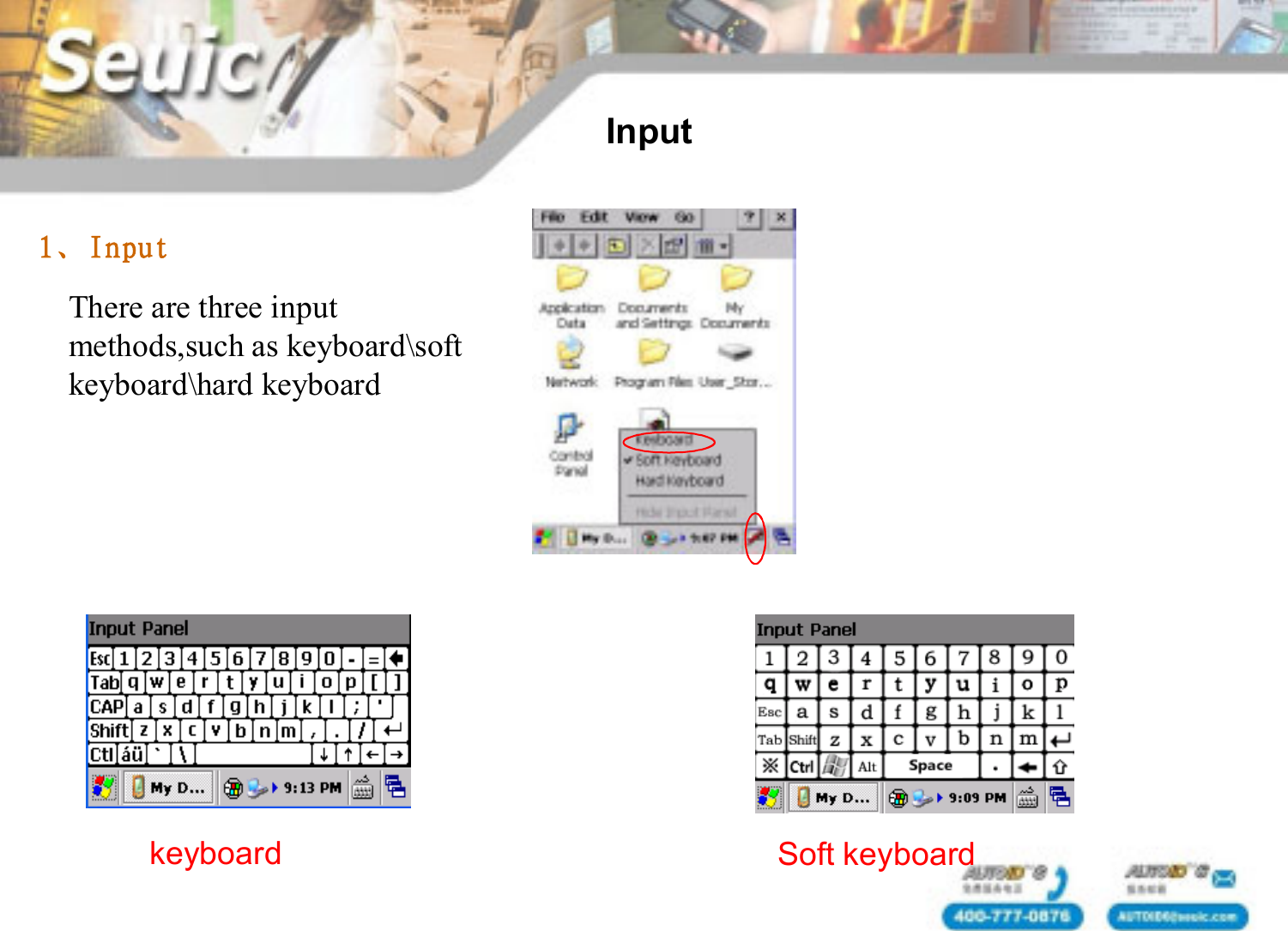
Input1、InputThere are three input methods,such as keyboard\soft keyboard\hard keyboardkeyboard Soft keyboard
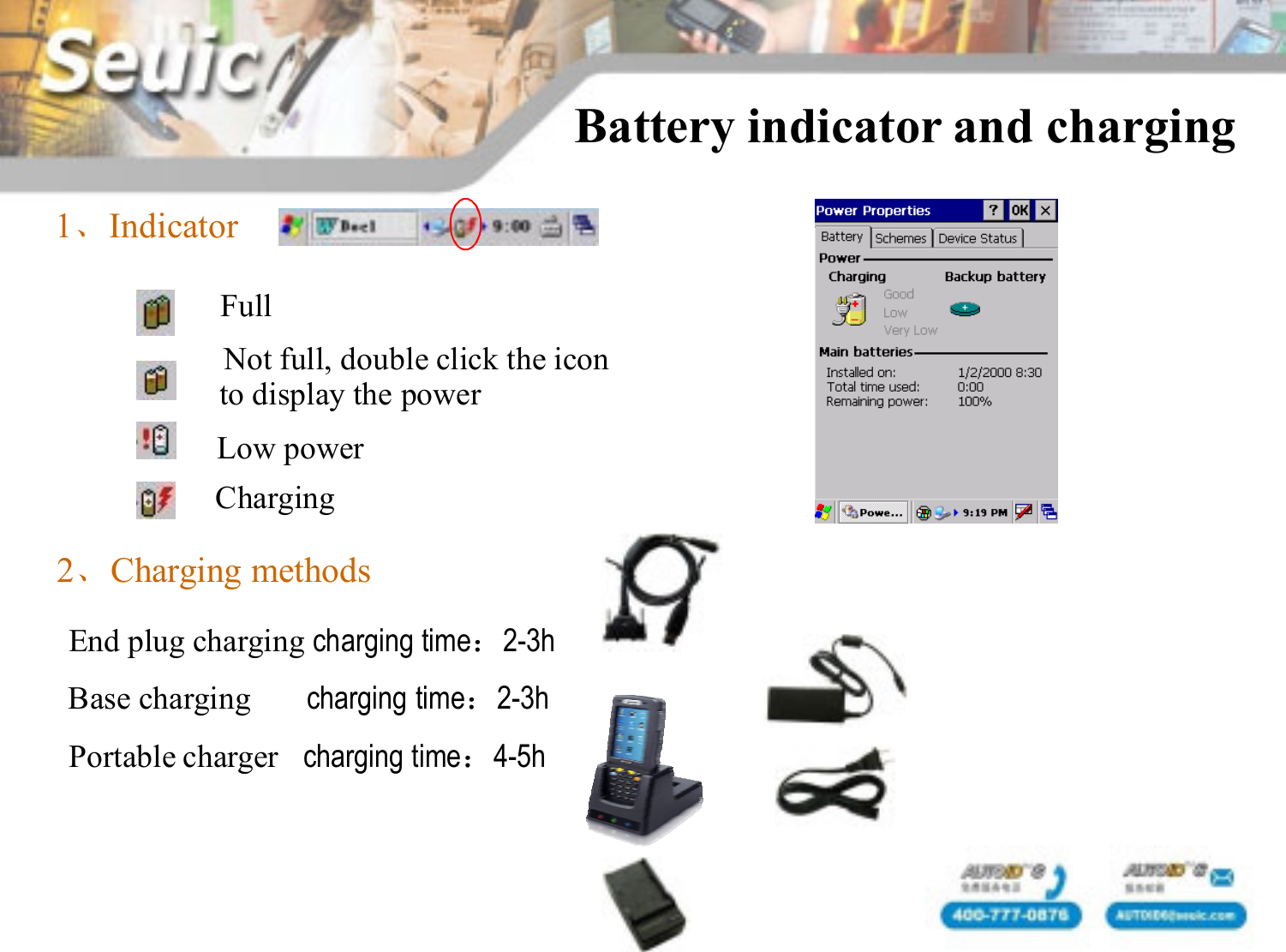
Battery indicator and charging1、IndicatorNot full, double click the icon to display the powerLow powerCharging2、Charging methodsFullEnd plug charging charging time:2-3hBase charging       charging time:2-3hPortable charger   charging time:4-5h
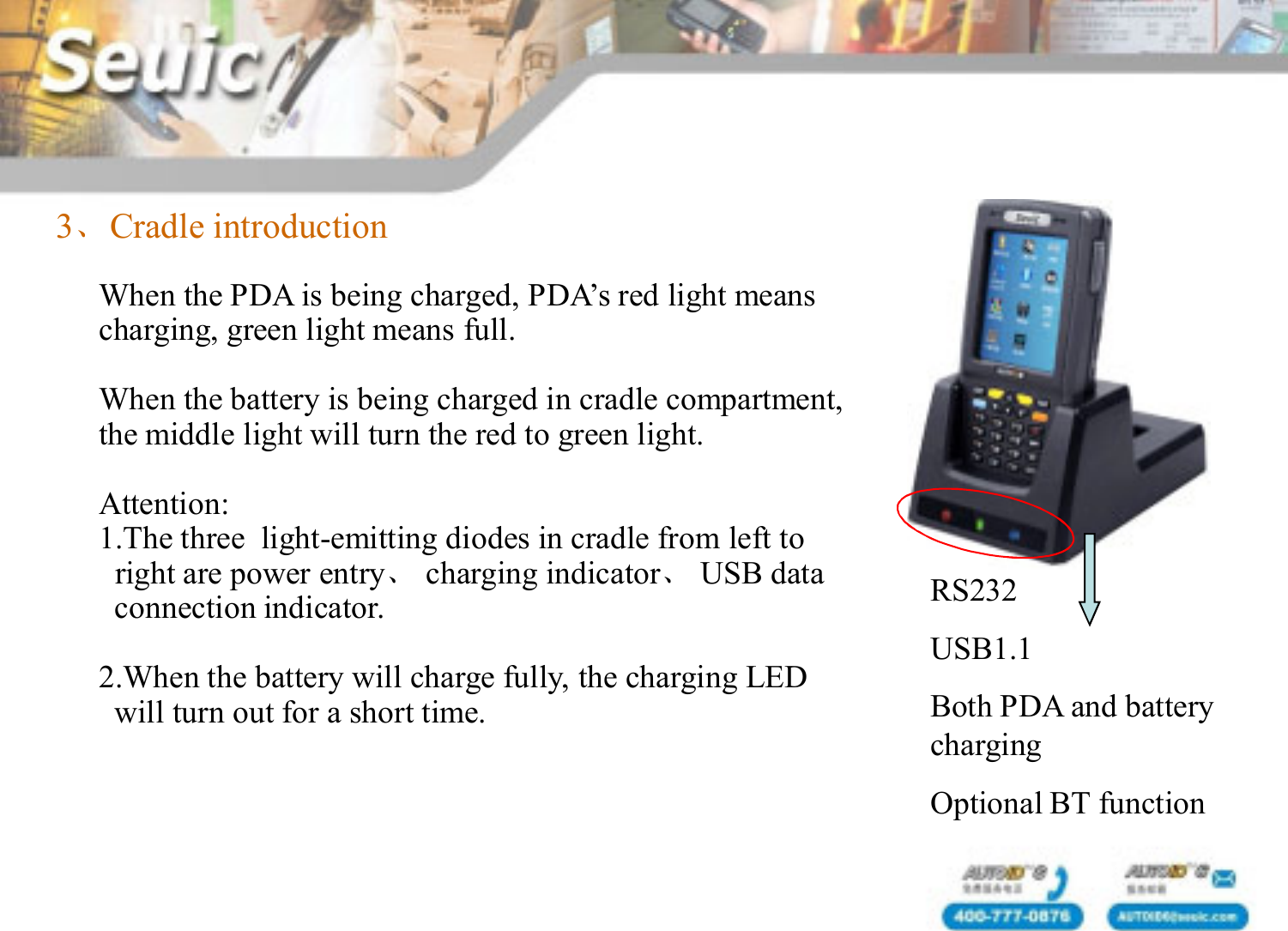
3、Cradle introductionWhen the PDA is being charged, PDA’s red light meanscharging, green light means full. When the battery is being charged in cradle compartment,the middle light will turn the red to green light.Attention:1.The three  light-emitting diodes in cradle from left toright are power entry、charging indicator、USB dataconnection indicator.    2.When the battery will charge fully, the charging LEDwill turn out for a short time.RS232USB1.1Both PDA and battery chargingOptional BT function
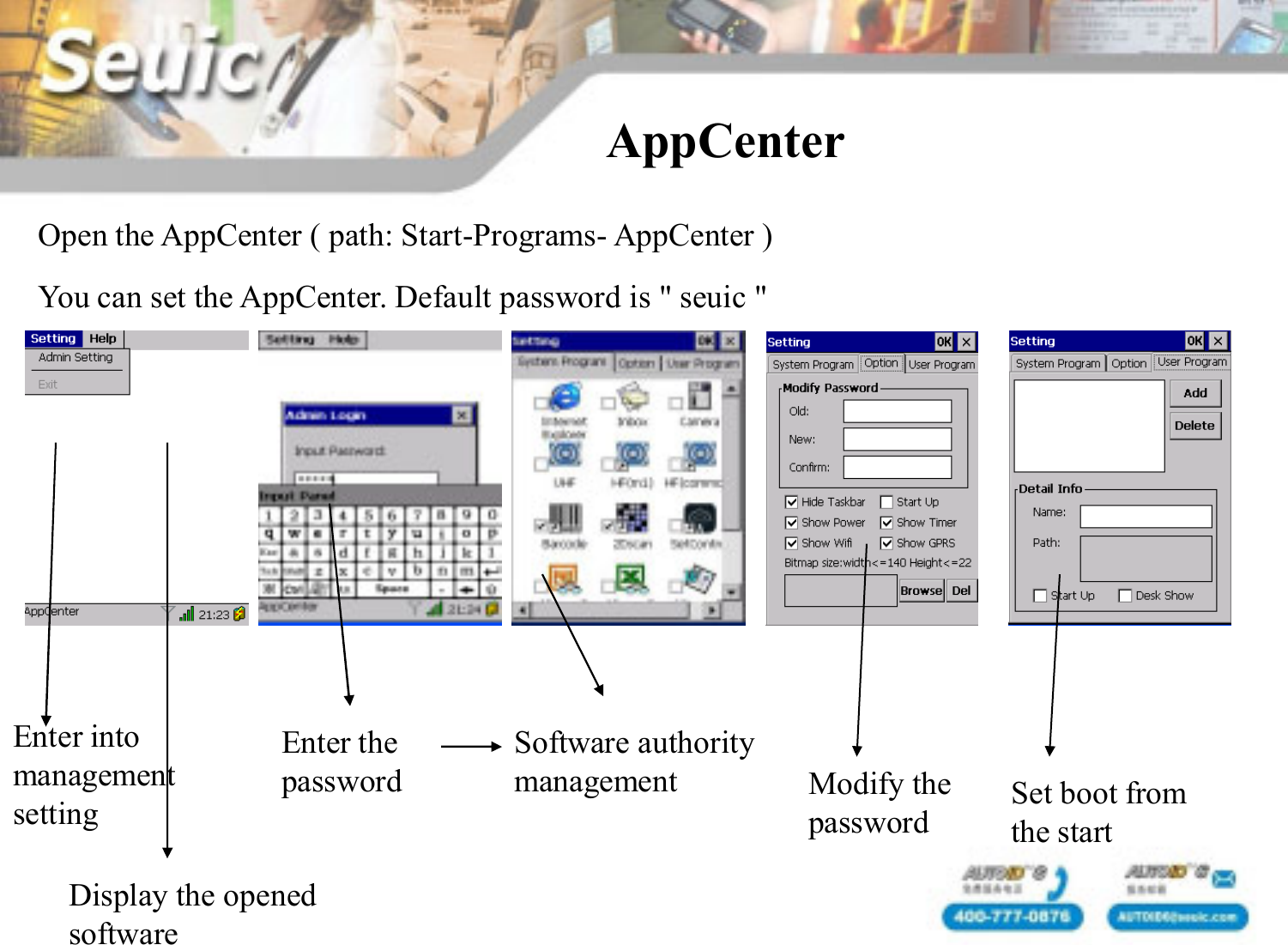
AppCenterYou can set the AppCenter. Default password is " seuic "Open the AppCenter ( path: Start-Programs- AppCenter )Enter into managementsettingDisplay the opened softwareEnter the password Modify the passwordSoftware authority management Set boot from the start
Data capture
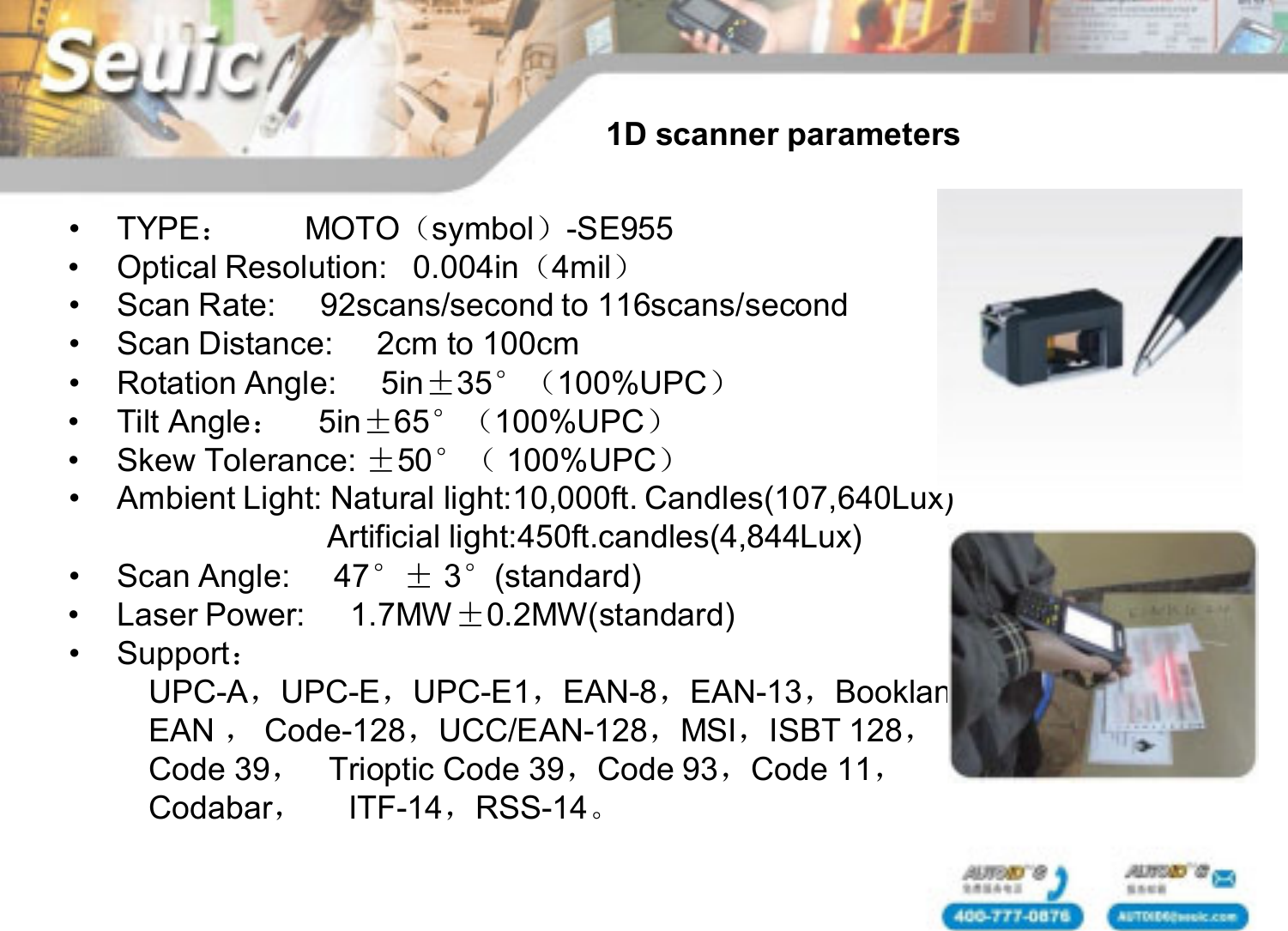
• TYPE:MOTO(symbol)-SE955• Optical Resolution:   0.004in(4mil)• Scan Rate:     92scans/second to 116scans/second• Scan Distance:     2cm to 100cm• Rotation Angle:     5in±35°(100%UPC)• Tilt Angle:5in±65°(100%UPC)• Skew Tolerance: ±50°( 100%UPC)• Ambient Light: Natural light:10,000ft. Candles(107,640Lux)Artificial light:450ft.candles(4,844Lux)• Scan Angle:     47°± 3°(standard)• Laser Power:     1.7MW±0.2MW(standard)• Support:UPC-A,UPC-E,UPC-E1,EAN-8,EAN-13,BooklandEAN ,Code-128,UCC/EAN-128,MSI,ISBT 128,Code 39,Trioptic Code 39,Code 93,Code 11,Codabar,ITF-14,RSS-14。1D scanner parameters
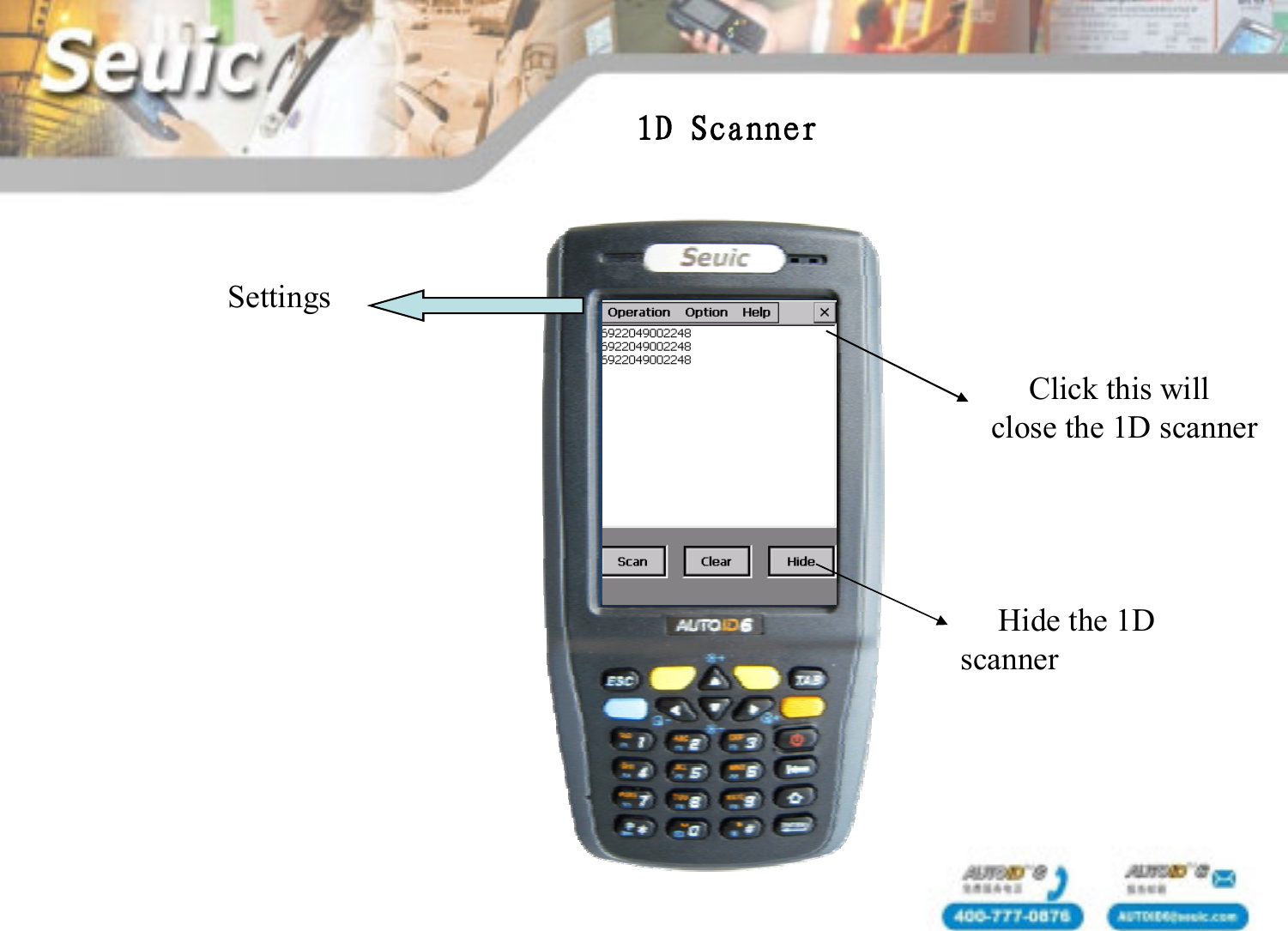
1D ScannerSettingsClick this will close the 1D scannerHide the 1D scanner
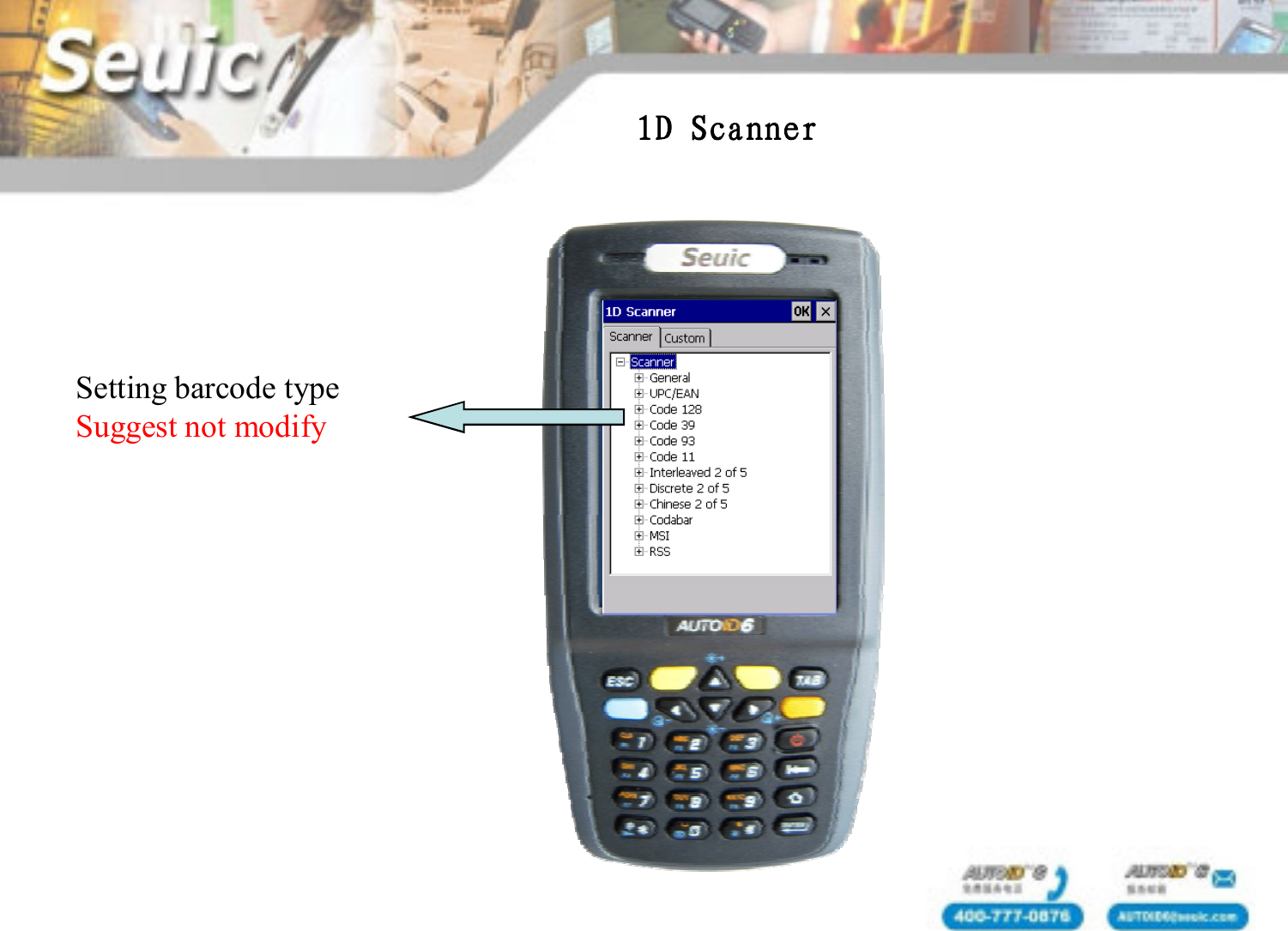
Setting barcode typeSuggest not modify1D Scanner
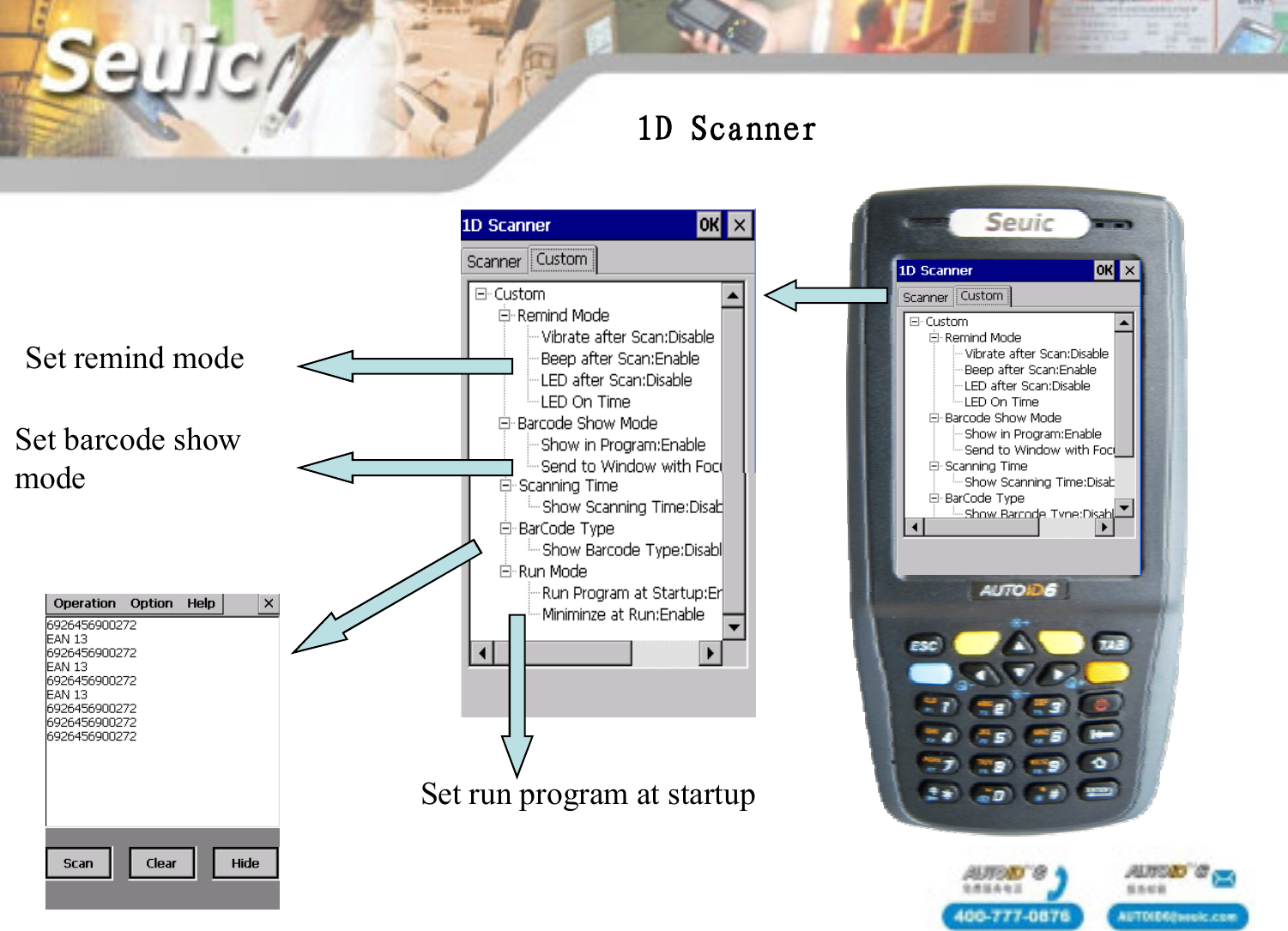
Set remind modeSet barcode showmodeSet run program at startup1D Scanner
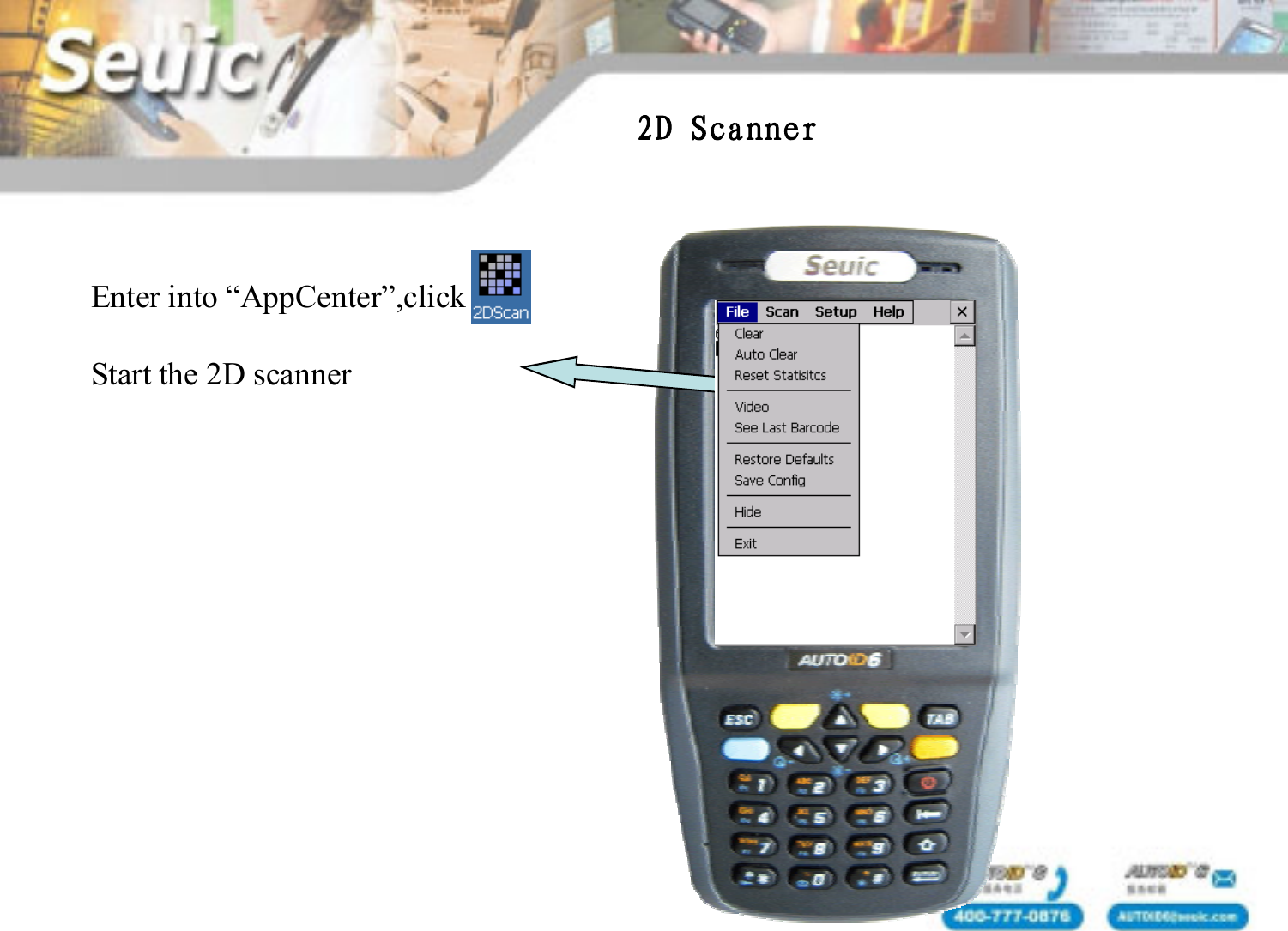
Enter into “AppCenter”,click      Start the 2D scanner2D Scanner
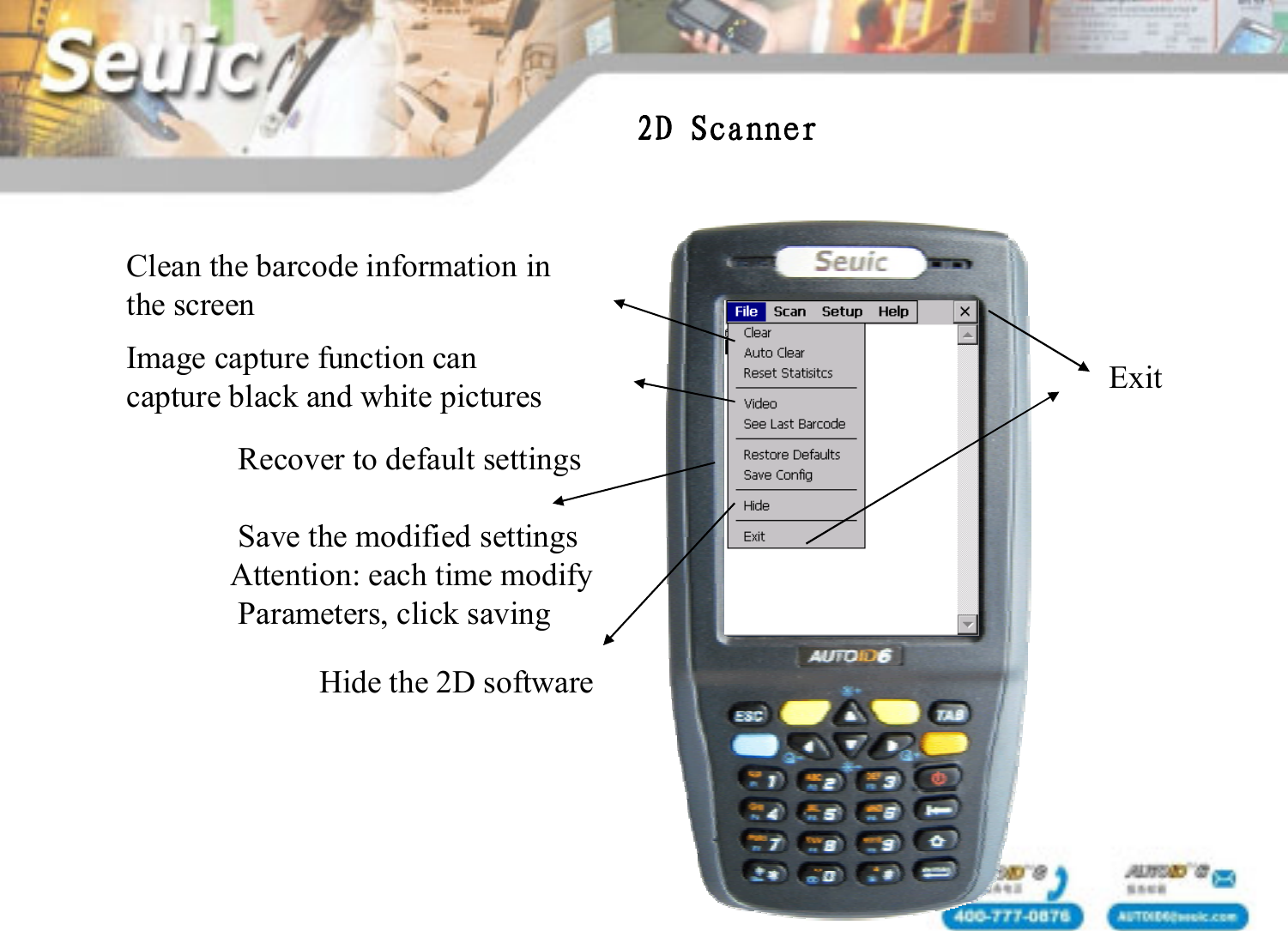
Clean the barcode information in the screenImage capture function can capture black and white picturesRecover to default settingsSave the modified settingsAttention: each time modify Parameters, click savingHide the 2D softwareExit2D Scanner
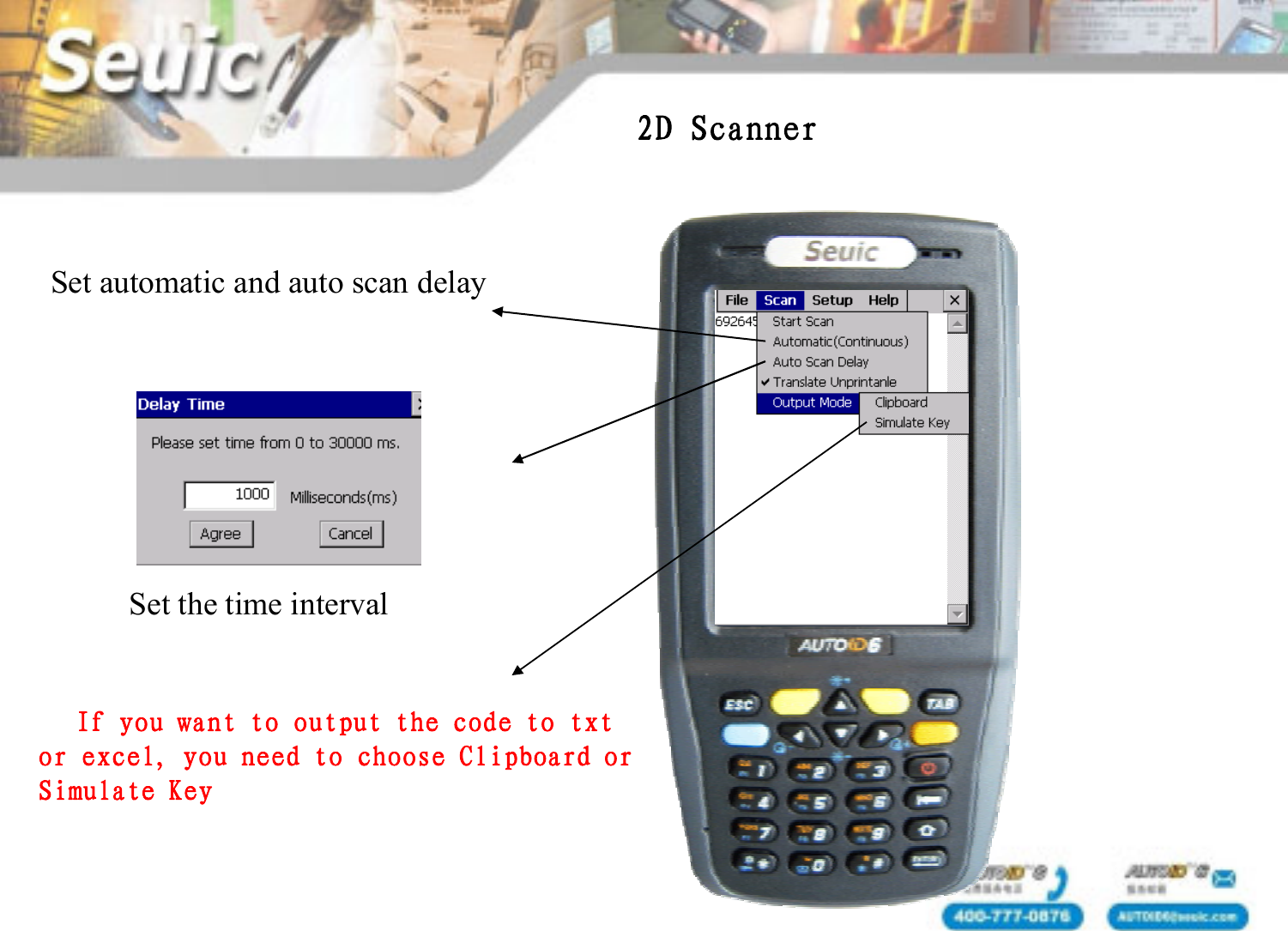
If you want to output the code to txt or excel, you need to choose Clipboard or Simulate Key Set the time intervalSet automatic and auto scan delay2D Scanner
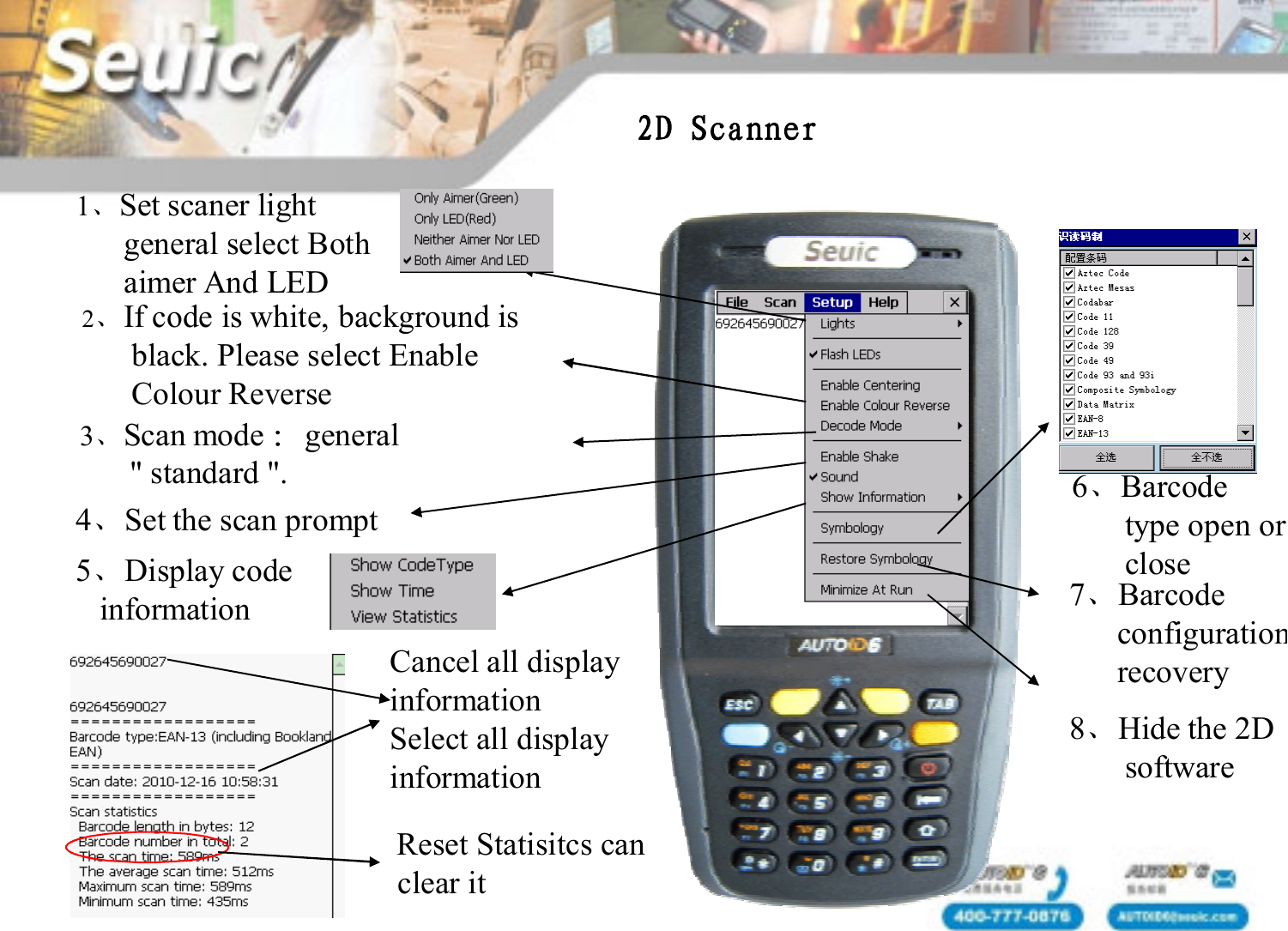
1、Set scaner lightgeneral select Bothaimer And LED2、If code is white, background isblack. Please select Enable       Colour Reverse 3、Scan mode :general" standard ".4、Set the scan prompt5、Display codeinformationCancel all displayinformationSelect all displayinformationReset Statisitcs canclear it6、Barcodetype open orclose7、Barcode                                                             configuration recovery8、Hide the 2Dsoftware2D Scanner
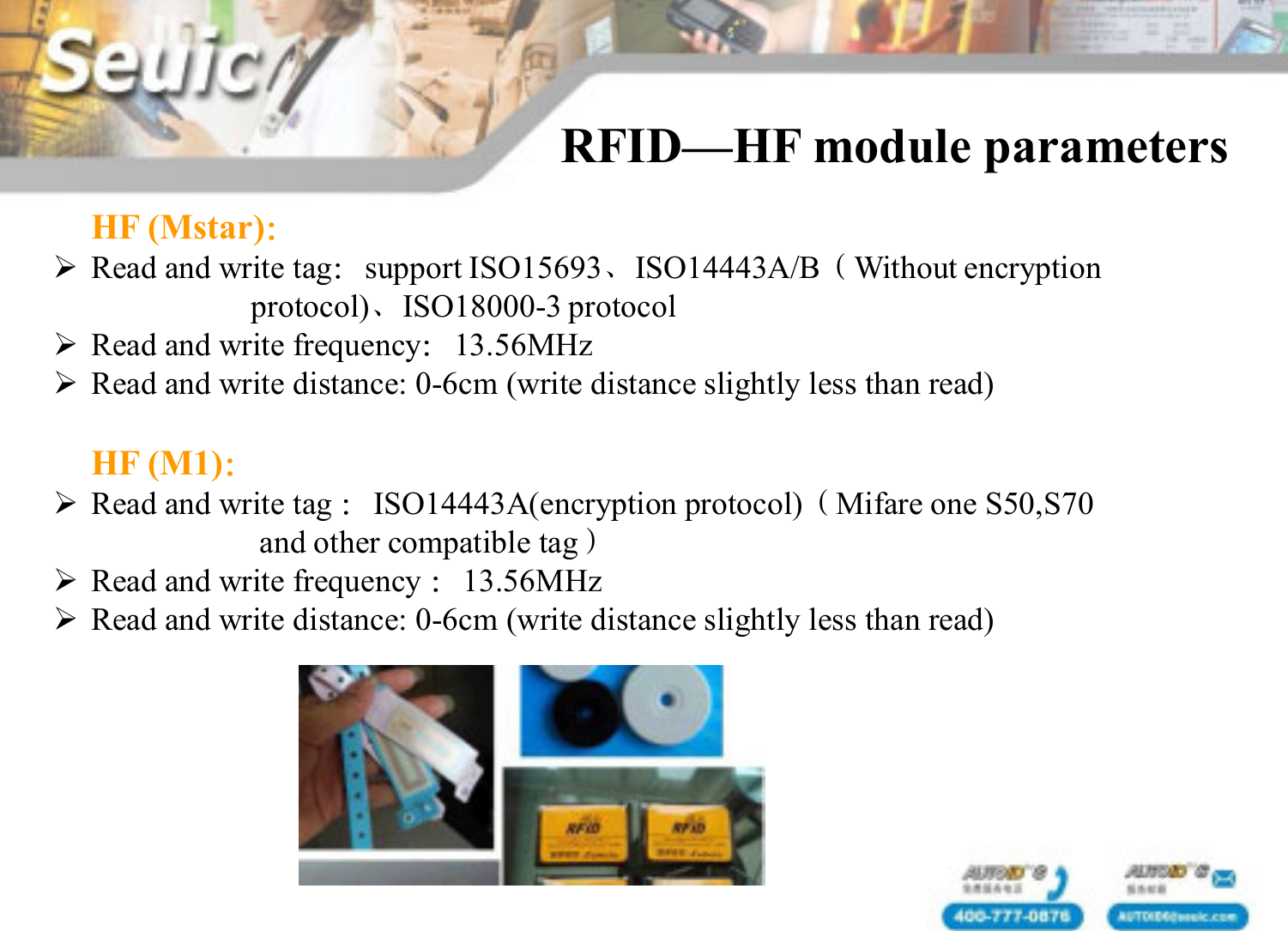
HF (Mstar):Read and write tag:support ISO15693、ISO14443A/B(Without encryption protocol)、ISO18000-3 protocolRead and write frequency:13.56MHzRead and write distance: 0-6cm (write distance slightly less than read)HF (M1):Read and write tag :ISO14443A(encryption protocol)(Mifare one S50,S70and other compatible tag)Read and write frequency :13.56MHzRead and write distance: 0-6cm (write distance slightly less than read)RFID—HF module parameters
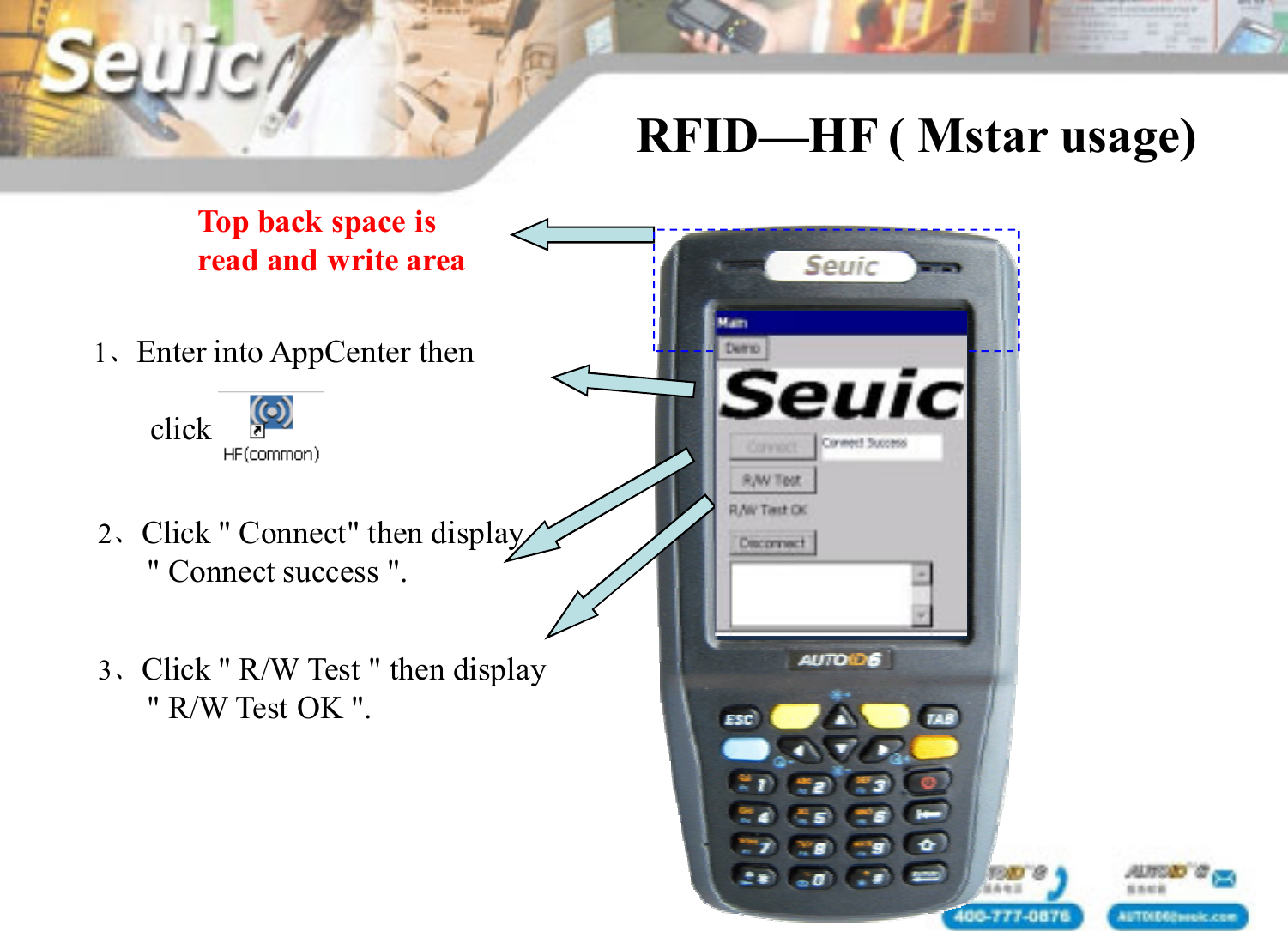
1、Enter into AppCenter thenclickRFID—HF ( Mstar usage)2、Click " Connect" then display " Connect success ".3、Click " R/W Test " then display" R/W Test OK ".Top back space isread and write area
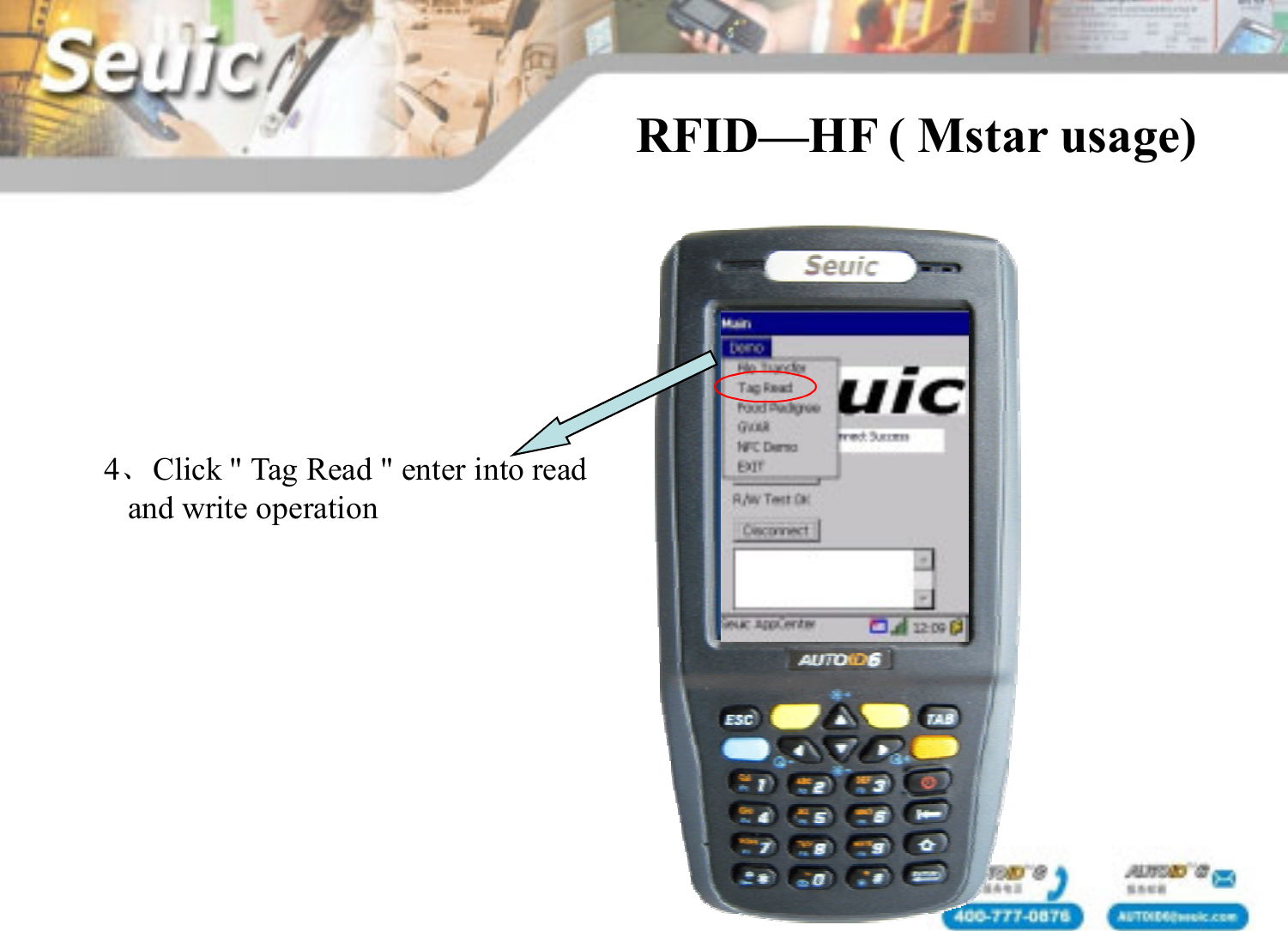
4、Click " Tag Read " enter into readand write operationRFID—HF ( Mstar usage)
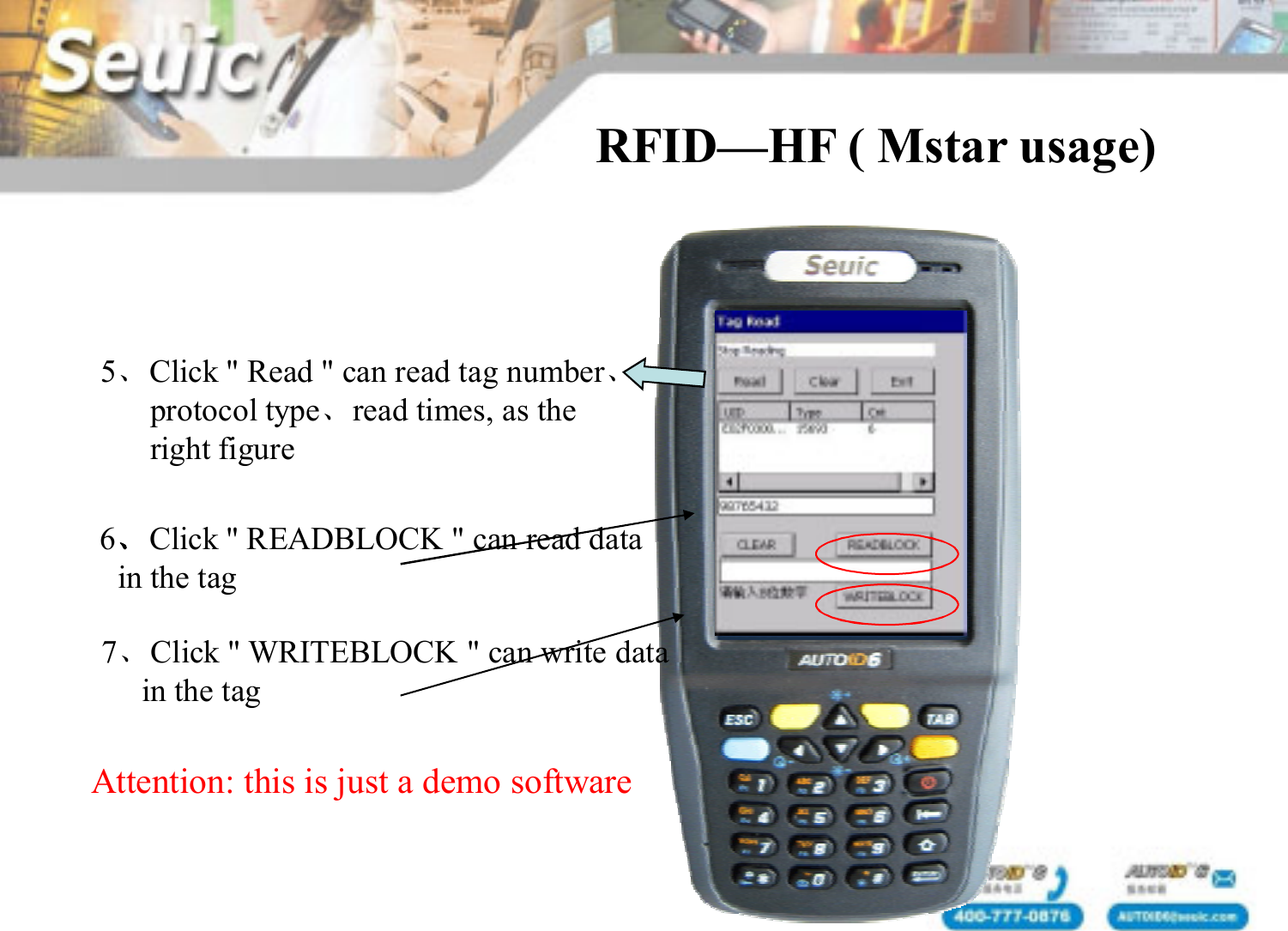
5、Click " Read " can read tag number、protocol type、read times, as the right figure6、Click " READBLOCK " can read datain the tag7、Click " WRITEBLOCK " can write datain the tagAttention: this is just a demo softwareRFID—HF ( Mstar usage)
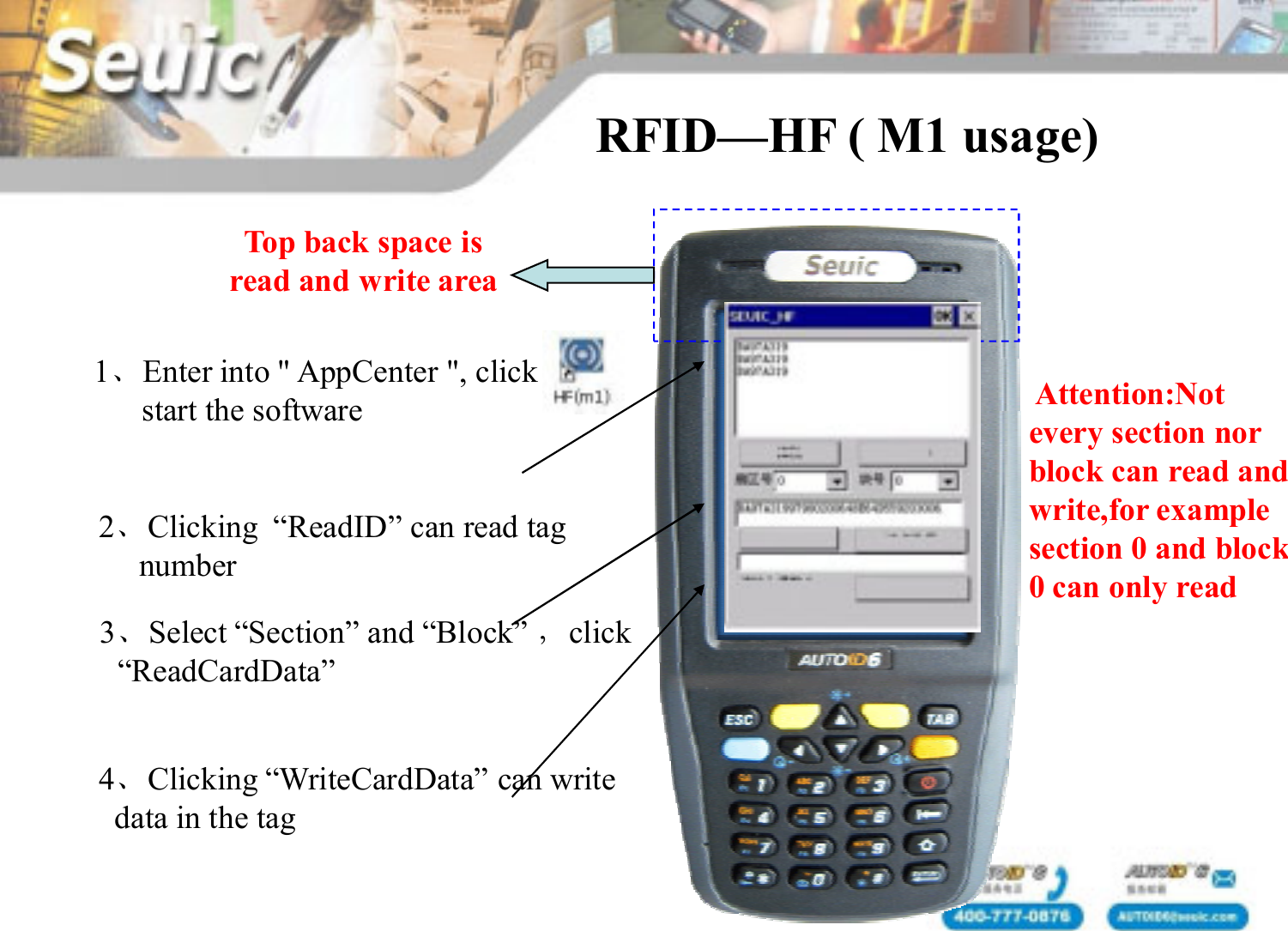
1、Enter into " AppCenter ", clickstart the softwareTop back space isread and write area2、Clicking  “ReadID” can read tag number3、Select “Section” and “Block” ,click“ReadCardData”4、Clicking “WriteCardData” can write data in the tag Attention:Notevery section norblock can read andwrite,for examplesection 0 and block0 can only readRFID—HF ( M1 usage)
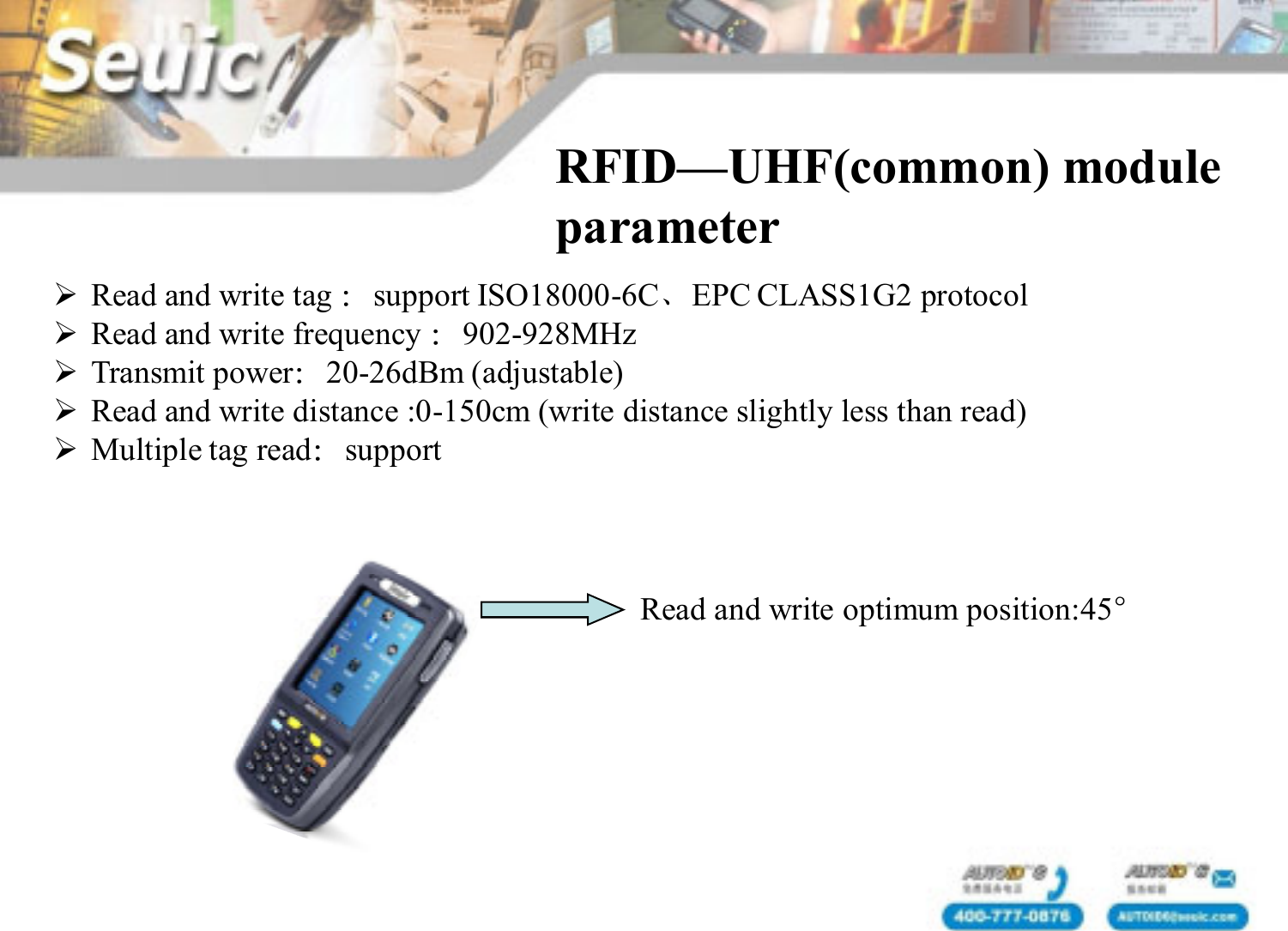
Read and write tag :support ISO18000-6C、EPC CLASS1G2 protocolRead and write frequency :902-928MHzTransmit power:20-26dBm (adjustable)Read and write distance :0-150cm (write distance slightly less than read)Multiple tag read:supportRFID—UHF(common) module parameterRead and write optimum position:45°
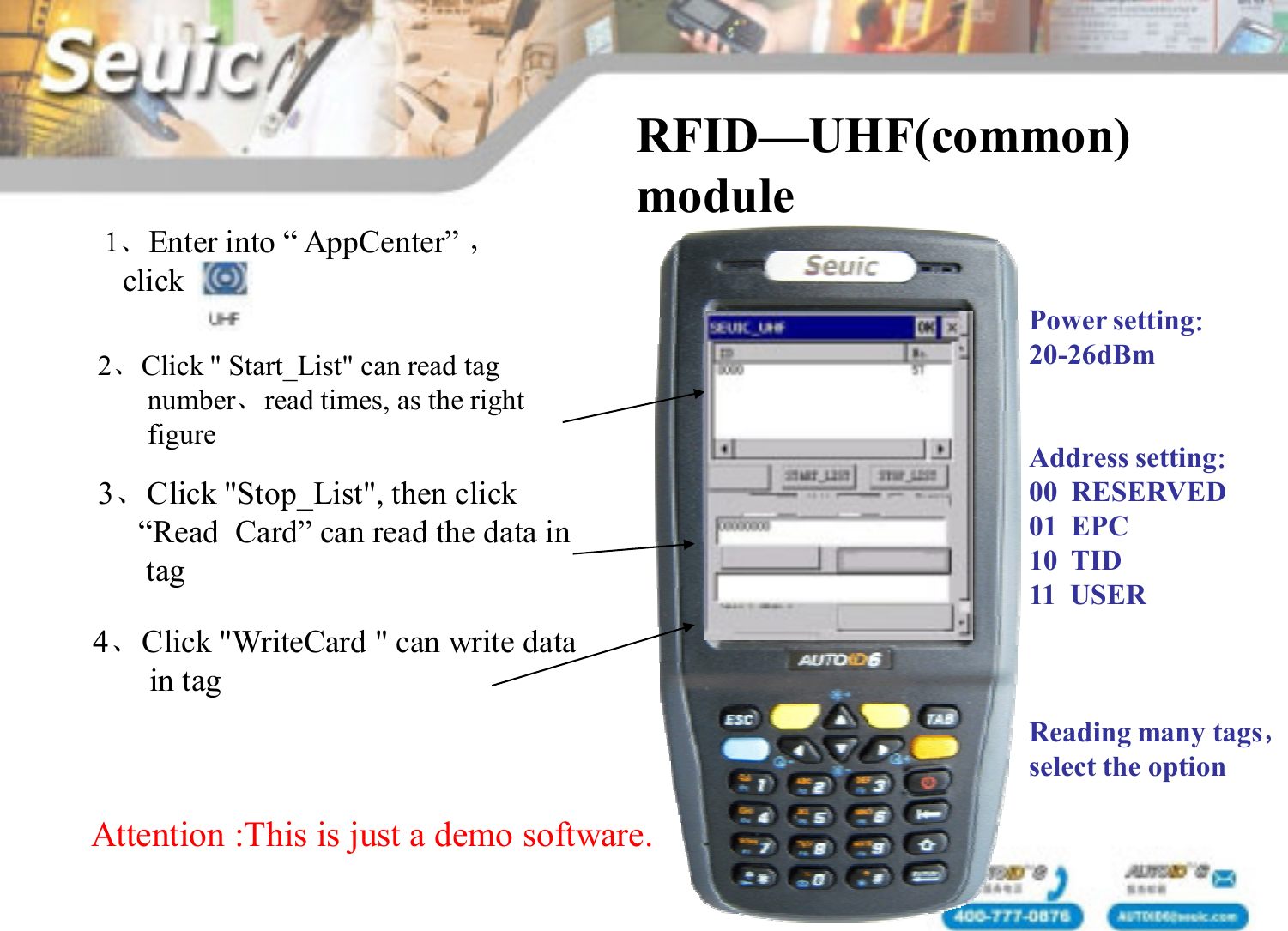
1、Enter into “ AppCenter” ,clickRFID—UHF(common) module2、Click " Start_List" can read tag number、read times, as the rightfigure3、Click "Stop_List", then click “Read  Card” can read the data in tag4、Click "WriteCard " can write data in tagPower setting:20-26dBmAddress setting:00  RESERVED01  EPC10  TID11  USERReading many tags,select the optionAttention :This is just a demo software.
Wireless communication
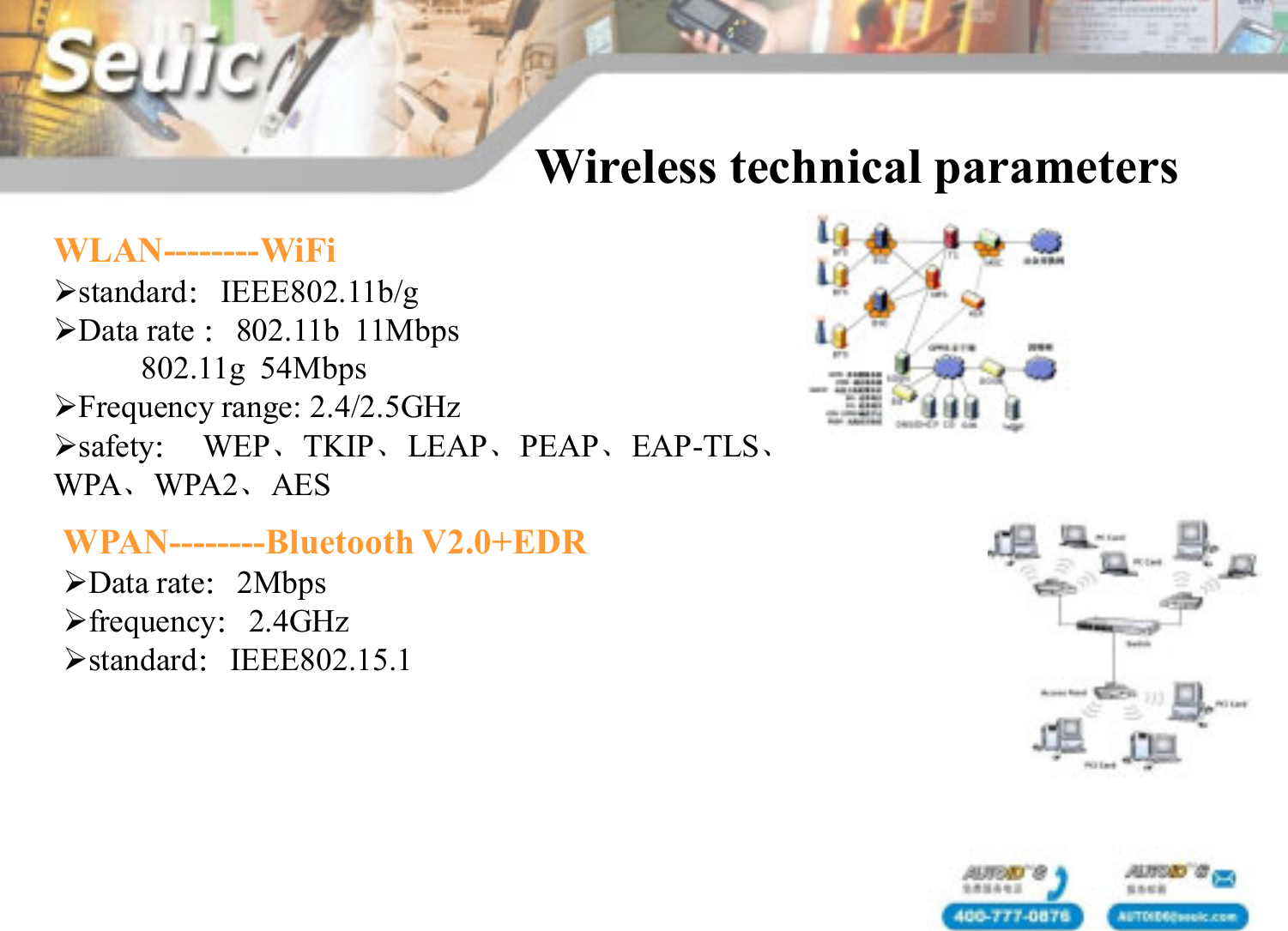
Wireless technical parametersWLAN--------WiFistandard:IEEE802.11b/gData rate :802.11b  11Mbps802.11g  54MbpsFrequency range: 2.4/2.5GHzsafety:WEP、TKIP、LEAP、PEAP、EAP-TLS、WPA、WPA2、AESWPAN--------Bluetooth V2.0+EDRData rate:2Mbps frequency:2.4GHzstandard:IEEE802.15.1
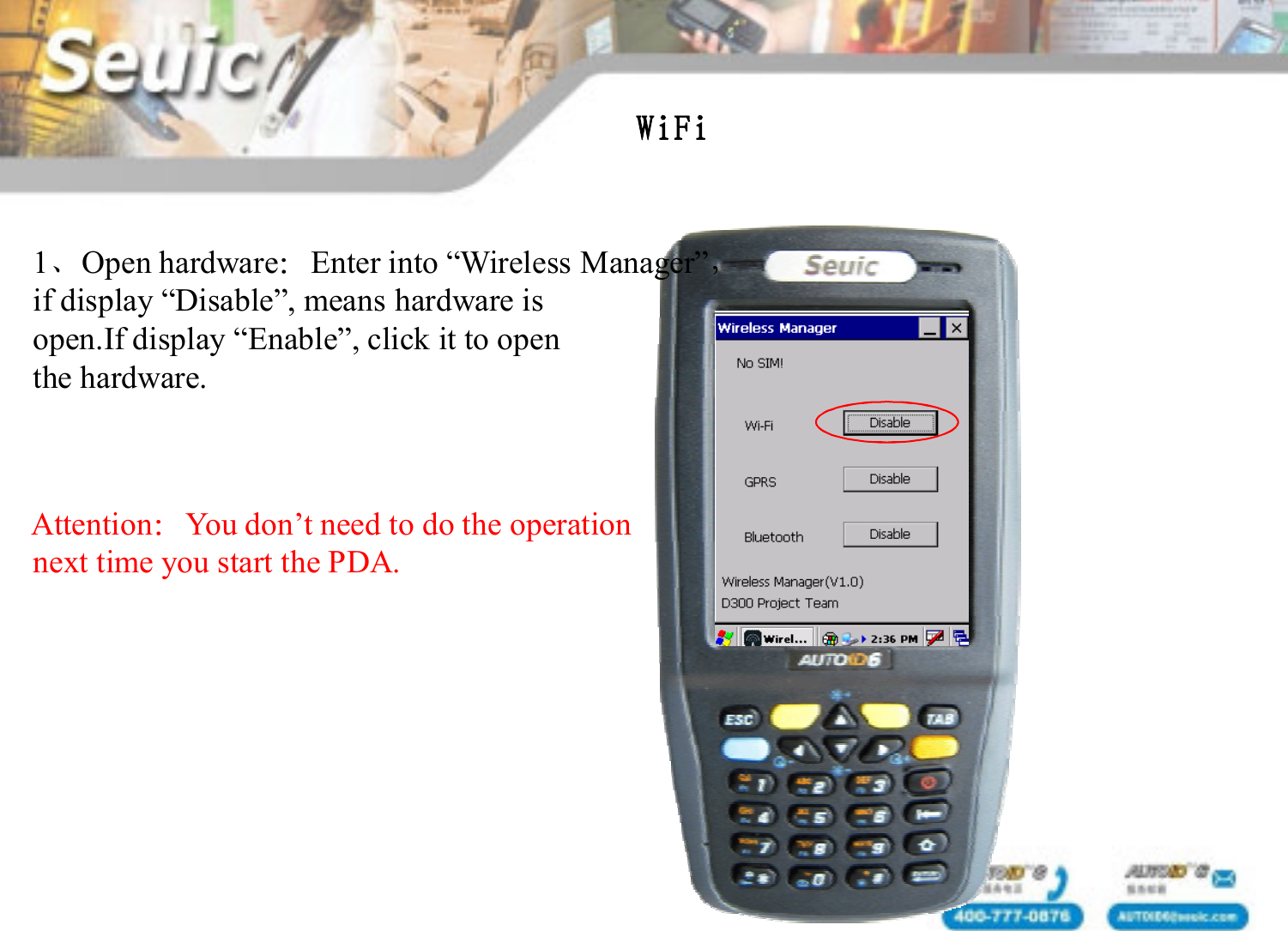
WiFi1、Open hardware:Enter into “Wireless Manager”,if display “Disable”, means hardware isopen.If display “Enable”, click it to openthe hardware. Attention:You don’t need to do the operation next time you start the PDA.
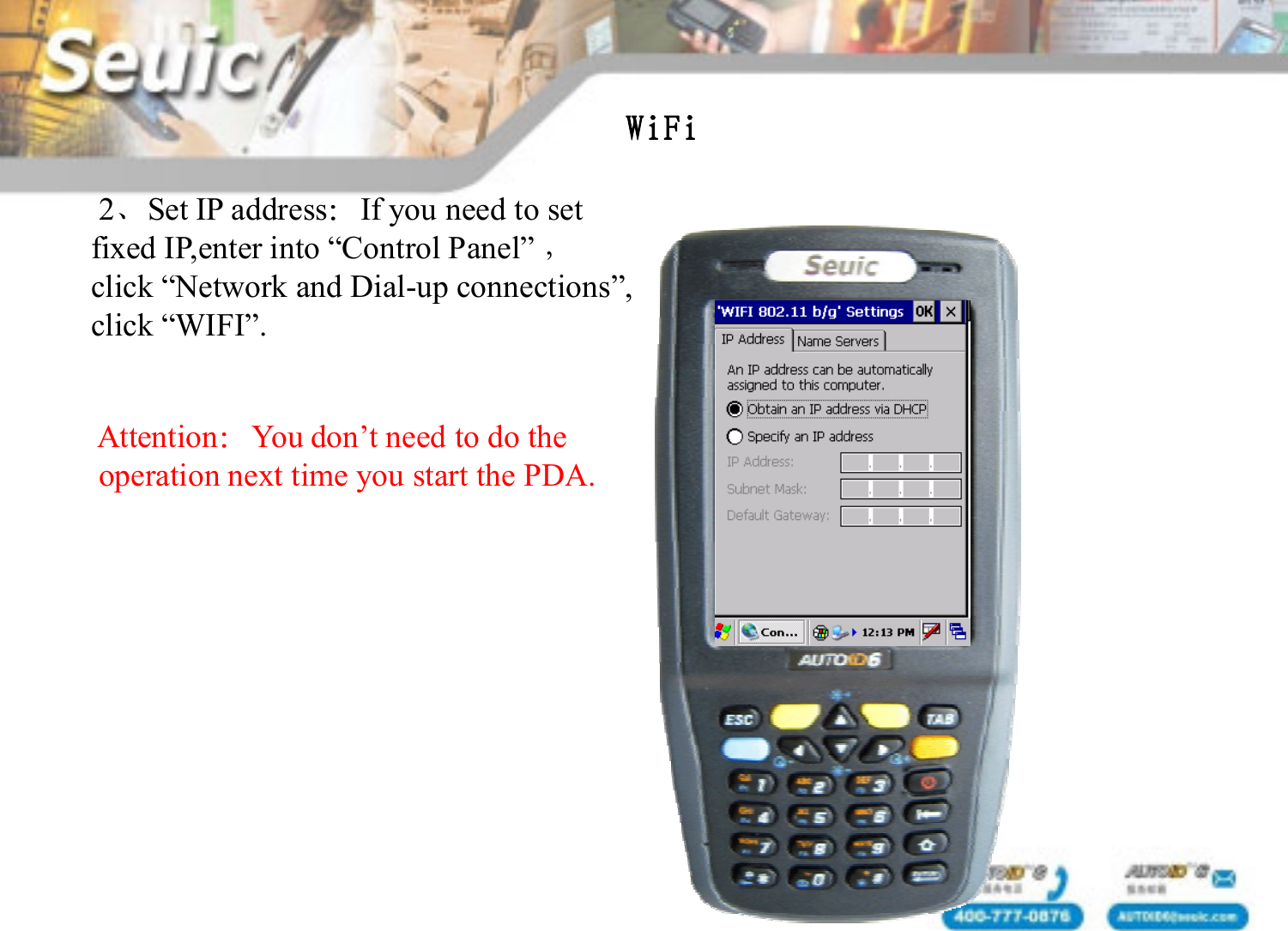
WiFi2、Set IP address:If you need to setfixed IP,enter into “Control Panel” ,click “Network and Dial-up connections”,click “WIFI”.Attention:You don’t need to do the operation next time you start the PDA.
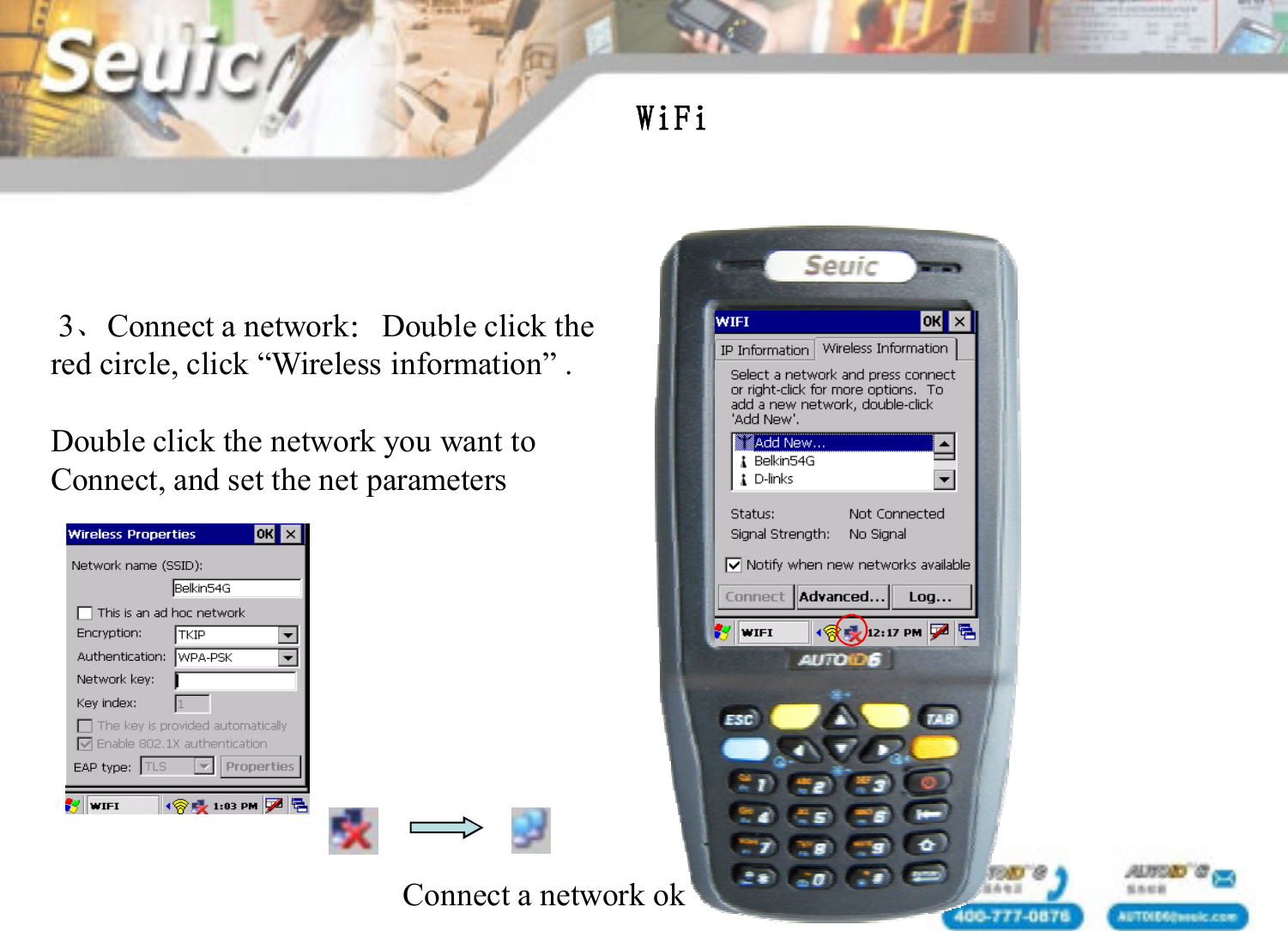
3、Connect a network:Double click the red circle, click “Wireless information” .Double click the network you want to Connect, and set the net parametersWiFiConnect a network ok
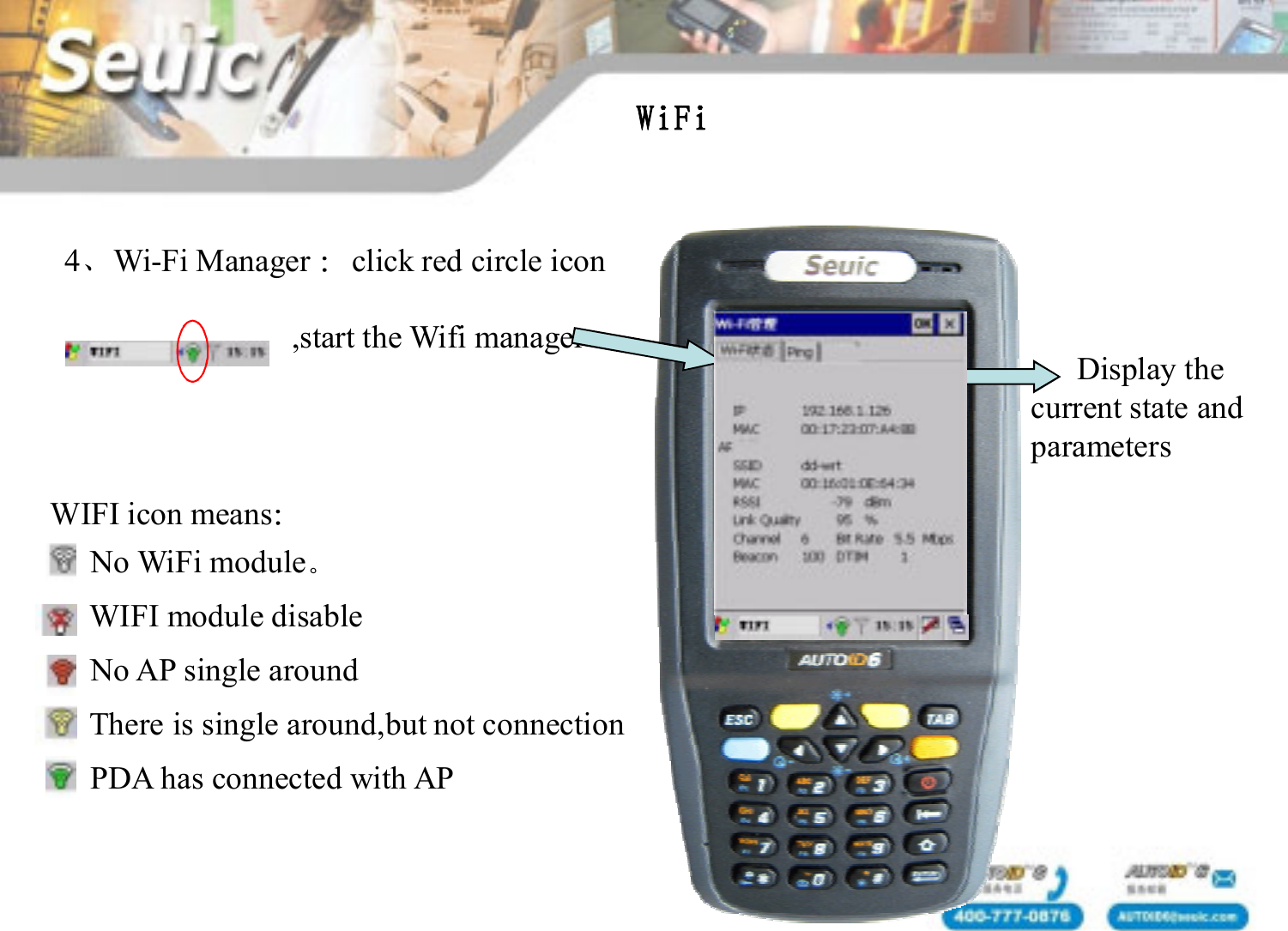
4、Wi-Fi Manager :click red circle icon,start the Wifi managerWIFI icon means:No WiFi module。WIFI module disableNo AP single aroundThere is single around,but not connectionPDA has connected with APDisplay the current state andparameters WiFi
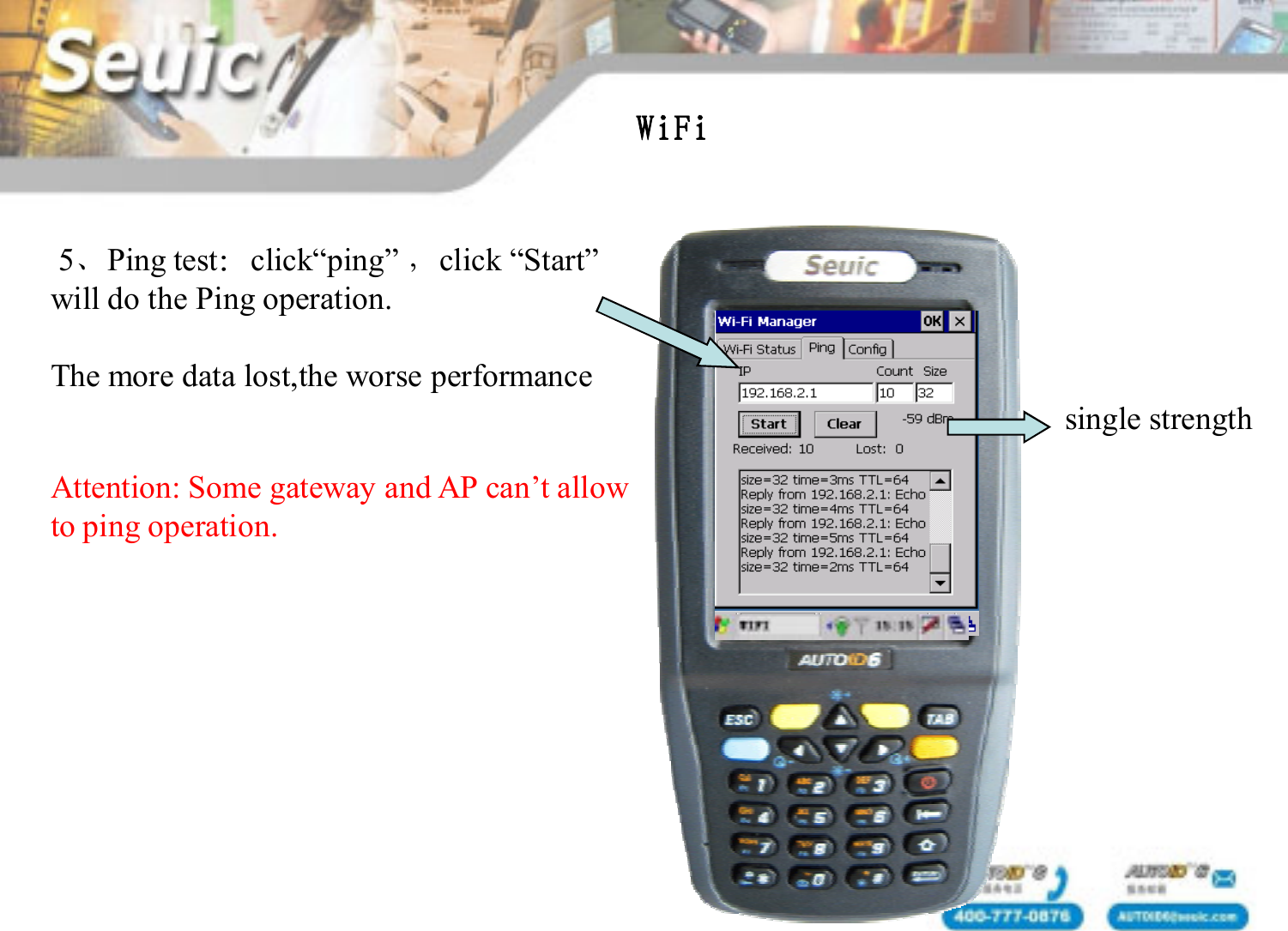
5、Ping test:click“ping” ,click “Start”will do the Ping operation.The more data lost,the worse performanceAttention: Some gateway and AP can’t allowto ping operation. WiFisingle strength
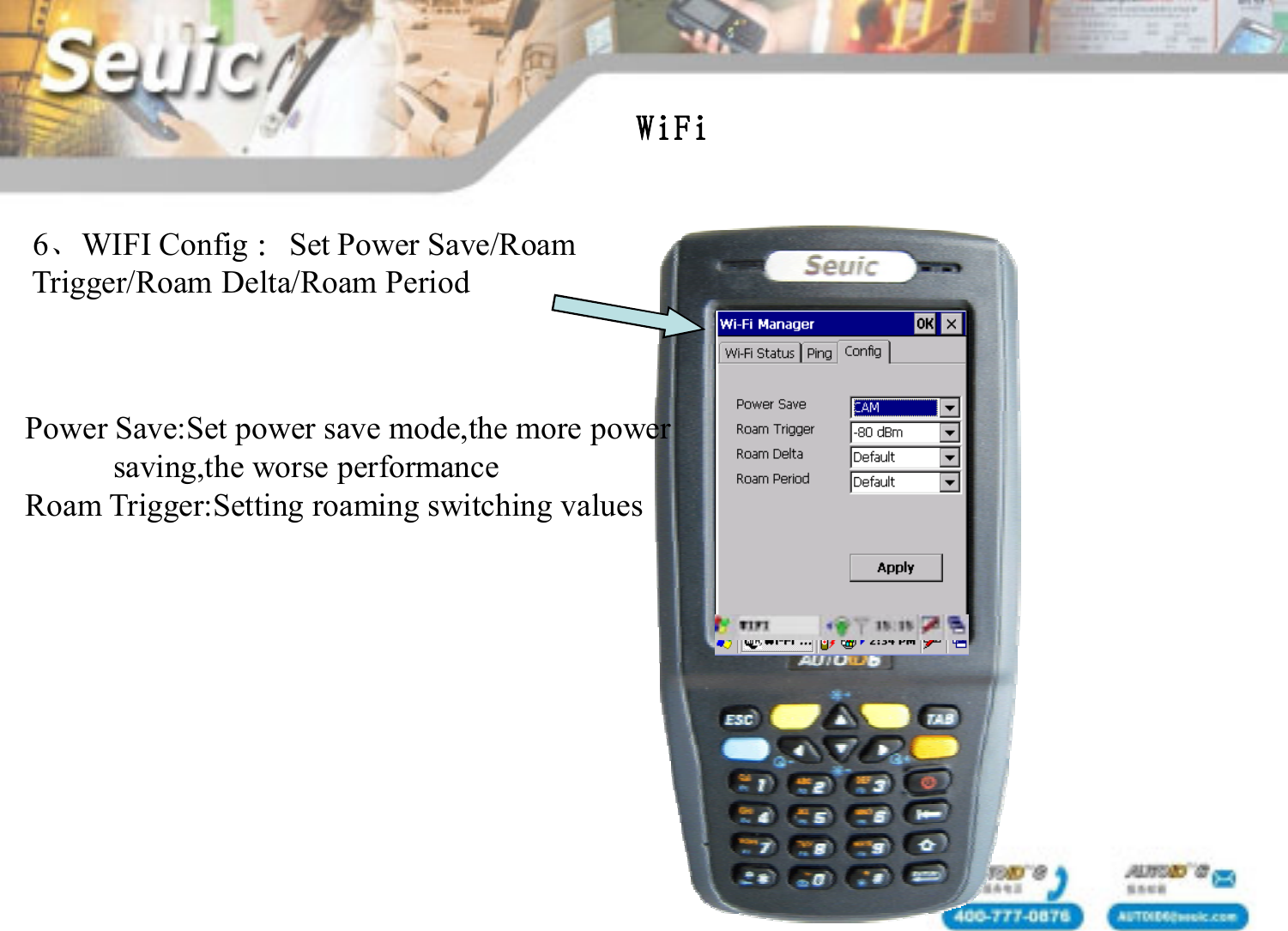
6、WIFI Config :Set Power Save/Roam Trigger/Roam Delta/Roam PeriodPower Save:Set power save mode,the more powersaving,the worse performanceRoam Trigger:Setting roaming switching values WiFi
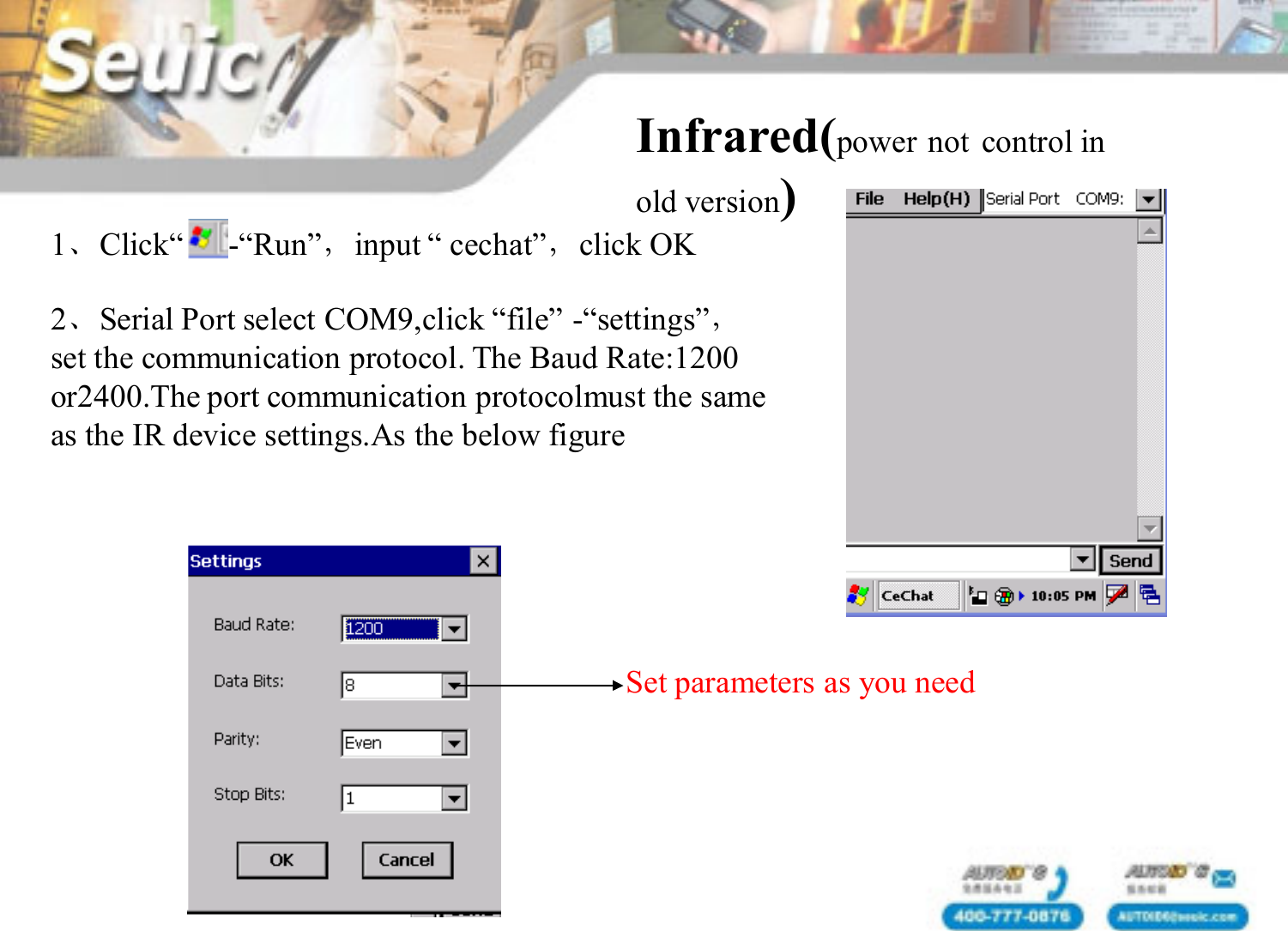
Infrared(power not control in old version)2、Serial Port select COM9,click “file” -“settings”,set the communication protocol. The Baud Rate:1200or2400.The port communication protocolmust the sameas the IR device settings.As the below figure1、Click“    ”-“Run”,input “ cechat”,click OKSet parameters as you need
Infrared(power control in new version)The latest infrared machine is  controlled by power in receiving data. So we need two infrared machines to test infrared communication ,which need users to  write a demo programe.The development method of infrared is as followson():open the power controloff():close the power controlSetRecvState():set infrared to receiveSetSendState():set infrared to send
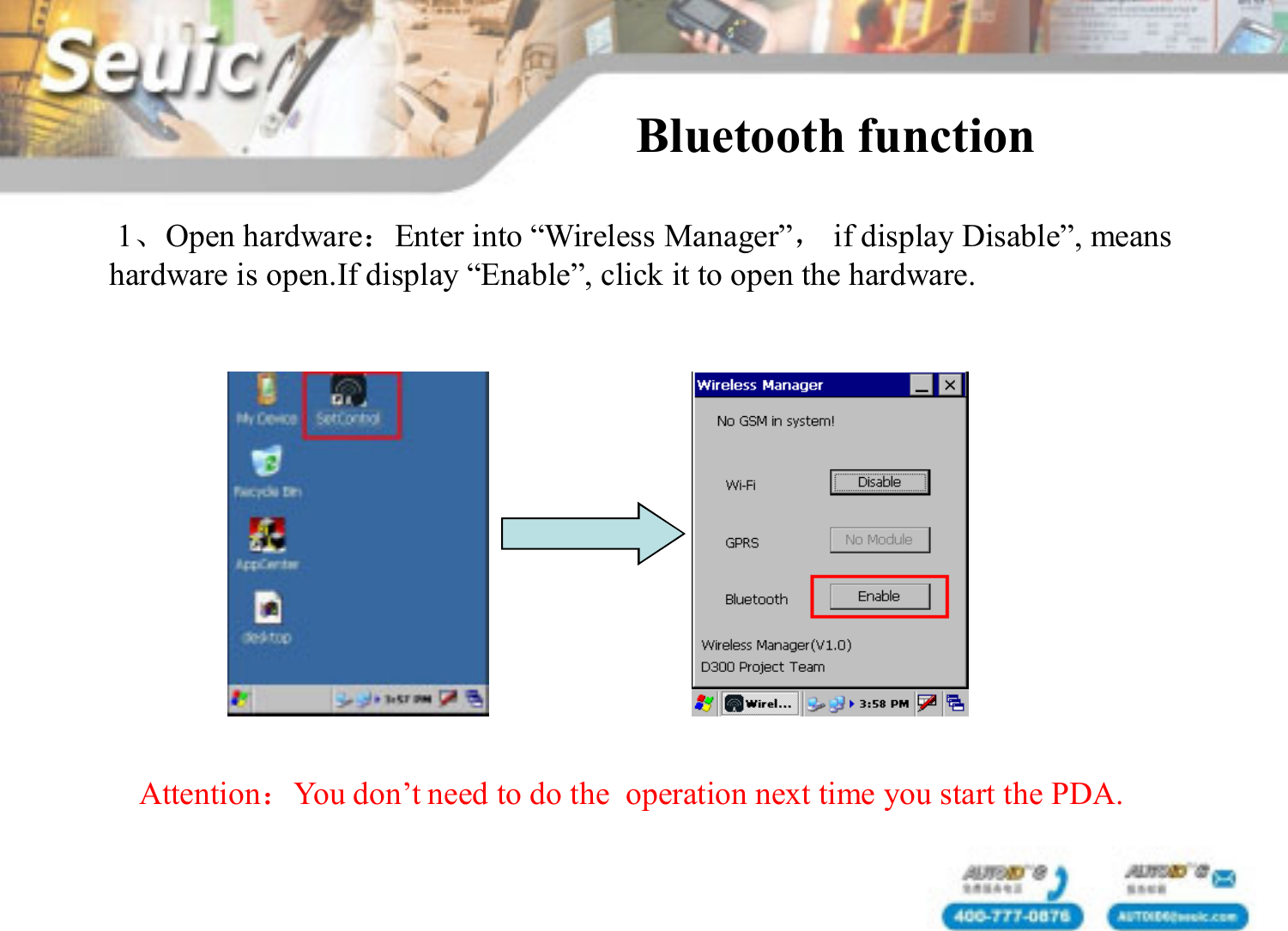
1、Open hardware:Enter into “Wireless Manager”,if display Disable”, means hardware is open.If display “Enable”, click it to open the hardware. Bluetooth function Attention:You don’t need to do the  operation next time you start the PDA.
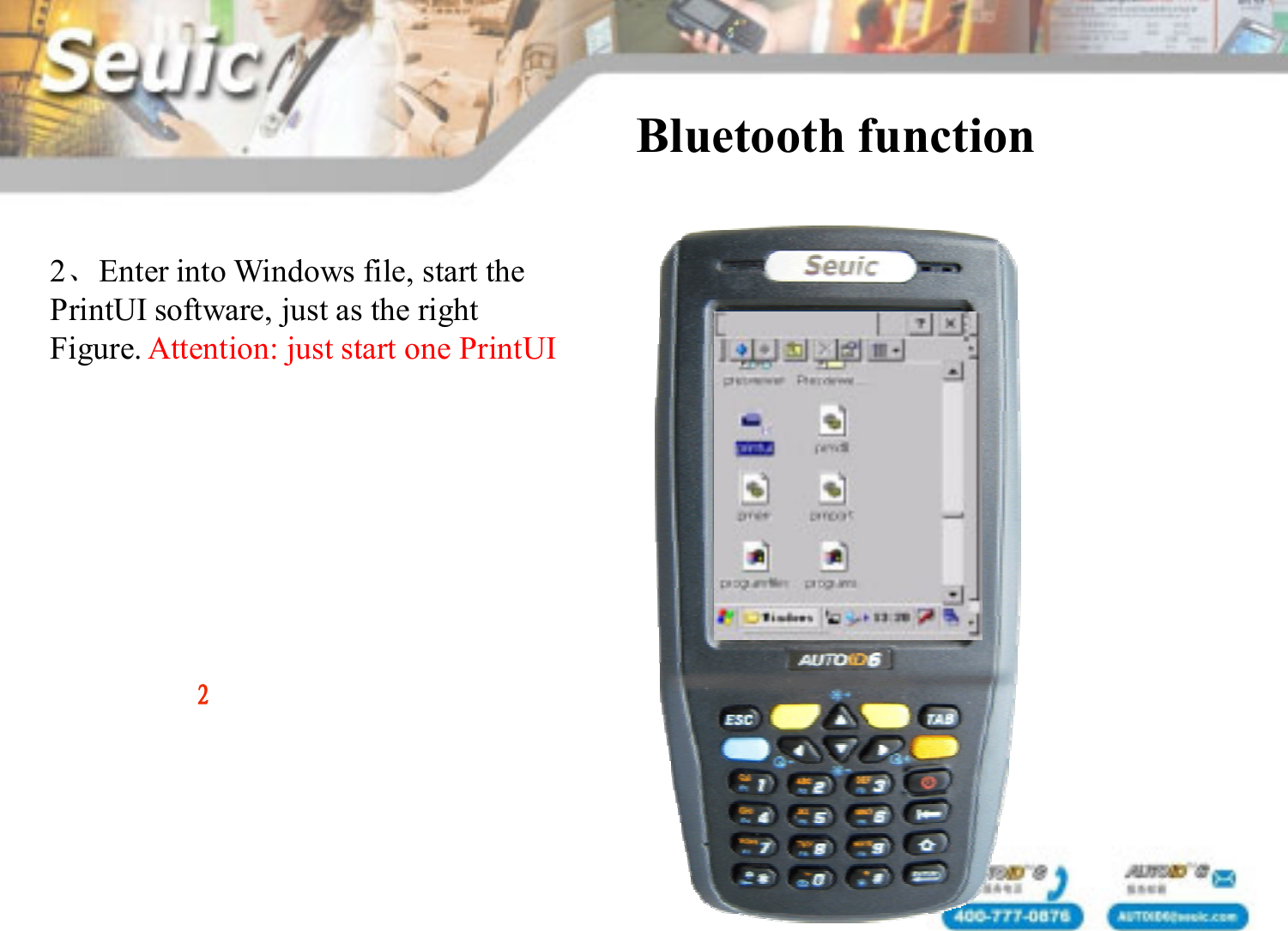
Bluetooth function 2、Enter into Windows file, start thePrintUI software, just as the right Figure. Attention: just start one PrintUI2
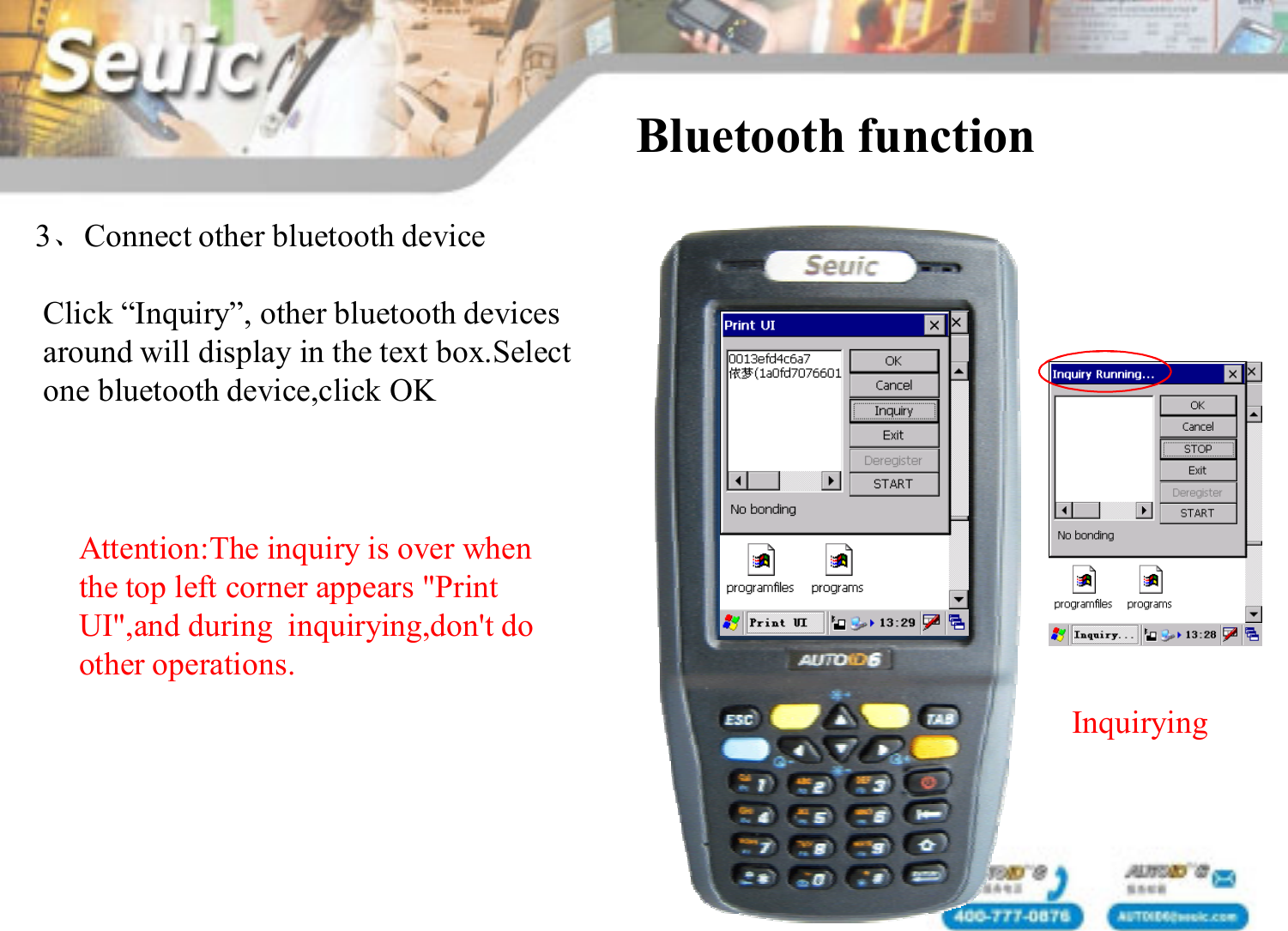
3、Connect other bluetooth deviceClick “Inquiry”, other bluetooth devicesaround will display in the text box.Select one bluetooth device,click OKBluetooth function InquiryingAttention:The inquiry is over when the top left corner appears "Print UI",and during  inquirying,don't do other operations.
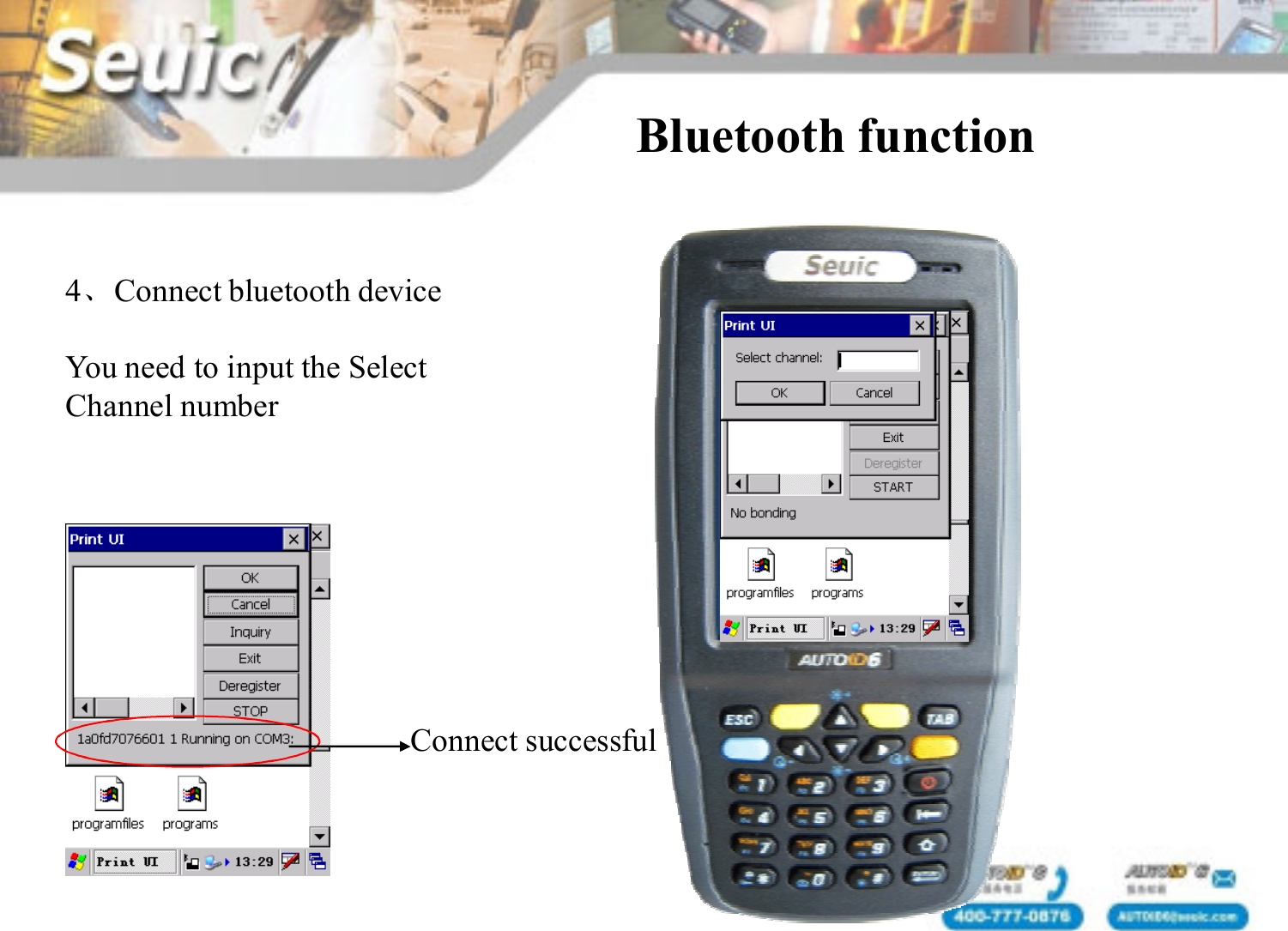
4、Connect bluetooth deviceYou need to input the SelectChannel numberConnect successfulBluetooth function
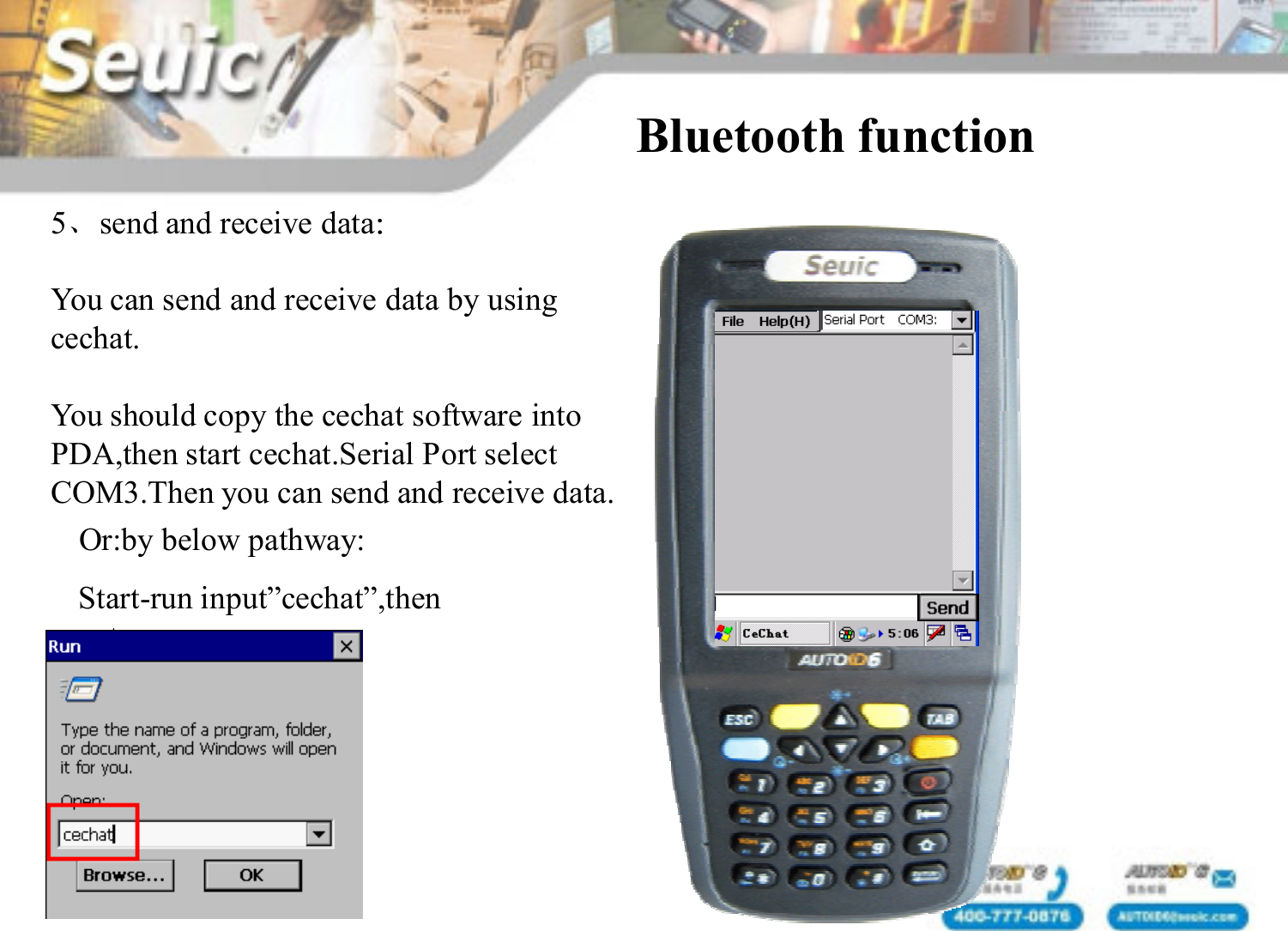
5、send and receive data:You can send and receive data by usingcechat.You should copy the cechat software intoPDA,then start cechat.Serial Port select COM3.Then you can send and receive data.Bluetooth function Or:by below pathway:Start-run input”cechat”,then enter.
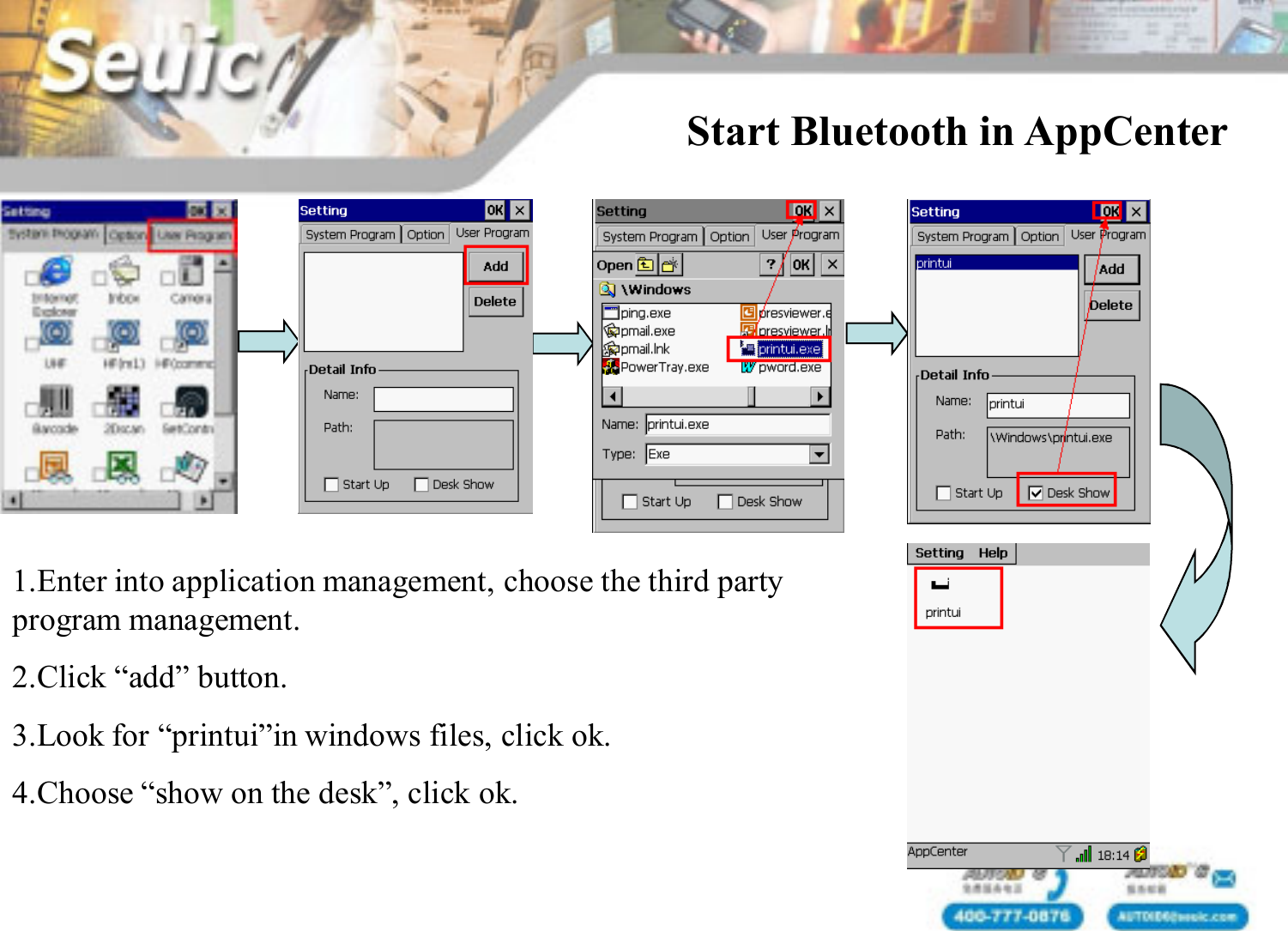
Start Bluetooth in AppCenter1.Enter into application management, choose the third party program management.2.Click “add” button.3.Look for “printui”in windows files, click ok.4.Choose “show on the desk”, click ok.
FCC Radiation Exposure Statement:This equipment complies with FCC radiation exposure limits set forth for an uncontrolled environment. This transmitter must not be co-located or operating in conjunction with any other antenna or transmitter. Note: This equipment has been tested and found to comply with the limits for a Class B digital device,pursuant to part 15 of the FCC Rules. These limits are designed to provide reasonable protection against harmful interference in a residential installation. This equipment generates uses and can radiate radio frequency energy and, if not installed and used in accordance with the instructions, may cause harmful interference to radio communications.However, there is no guarantee that interference will not occur in a particular installation. If this equipment does cause harmful interference to radio or television reception, which can be determined by turning the equipment off and on, the user is encouraged to try to correct the interference by one or more of the following measures:—Reorient or relocate the receiving antenna.—Increase the separation between the equipment and receiver.—Connect the equipment into an outlet on a circuit different from that to which the receiver is connected.—Consult the dealer or an experienced radio/TV technician for help.This device complies with part 15 of the FCC Rules. Operation is subject to the following  two conditions:  (1) This device may not cause harmful interference, and (2) this device must accept any interference received, including interference that may cause undesired operation.
Technical support mail:zoujianjun@seuic.comTel:86-25-52261298Fax:86-25-52261298-8858URL:www.seuic.comHotline:400-777-0876Service mailbox:AUTOID6@seuic.comPostal:210006Address:No 23. Wenzhu Road. YuhuataiDistrict. Nanjing. China(210012)Thank you!

Navigation menu