SK Telecom ALBERT-BT BT Device User Manual part 1

SK Telecom Co., Ltd. BT Device part 1

Contents

User Manual part 1

Smart Robot albertGuide Book
Guide BookSmart Robot albert
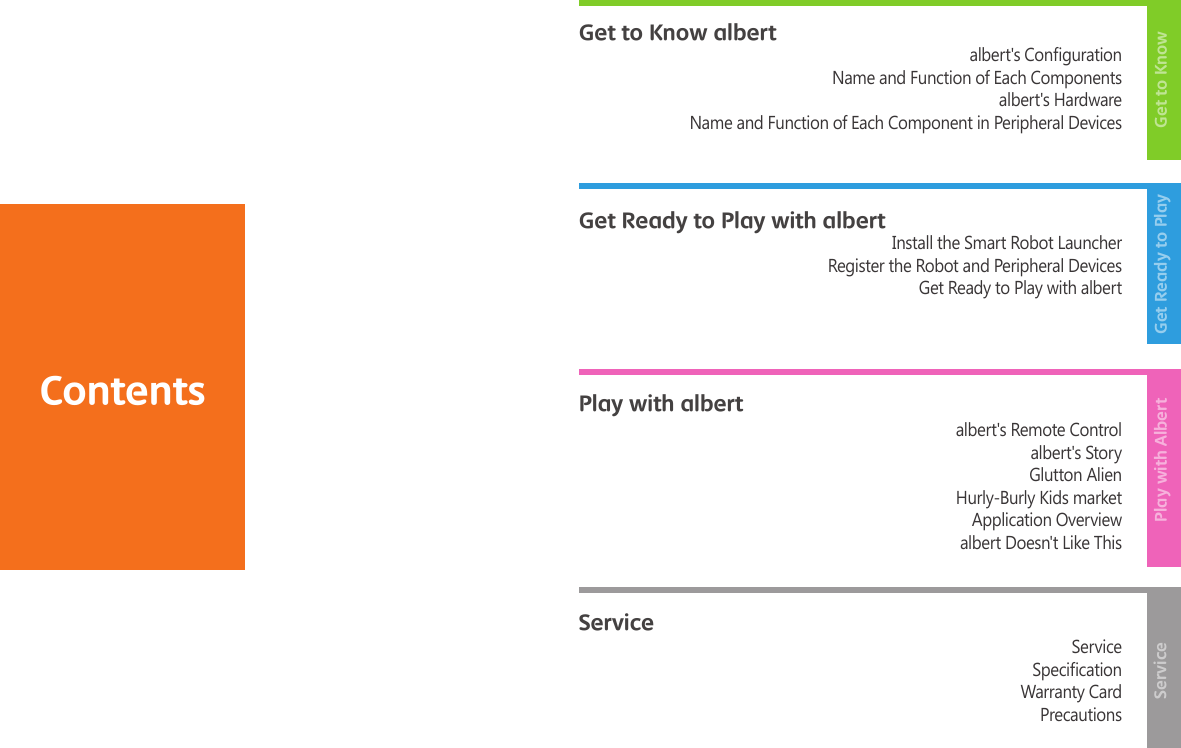
Contents Play with albertGet Ready to Play with albertGet to Know albertGet to KnowGet Ready to PlayPlay with AlbertServiceServicealbert's CongurationName and Function of Each Componentsalbert's HardwareName and Function of Each Component in Peripheral Devicesalbert's Remote Control albert's StoryGlutton AlienHurly-Burly Kids marketApplication Overviewalbert Doesn't Like ThisInstall the Smart Robot LauncherRegister the Robot and Peripheral DevicesGet Ready to Play with albertServiceSpecicationWarranty CardPrecautions
    04
    05Get to Know albert!Get to know my robot friend, albert.
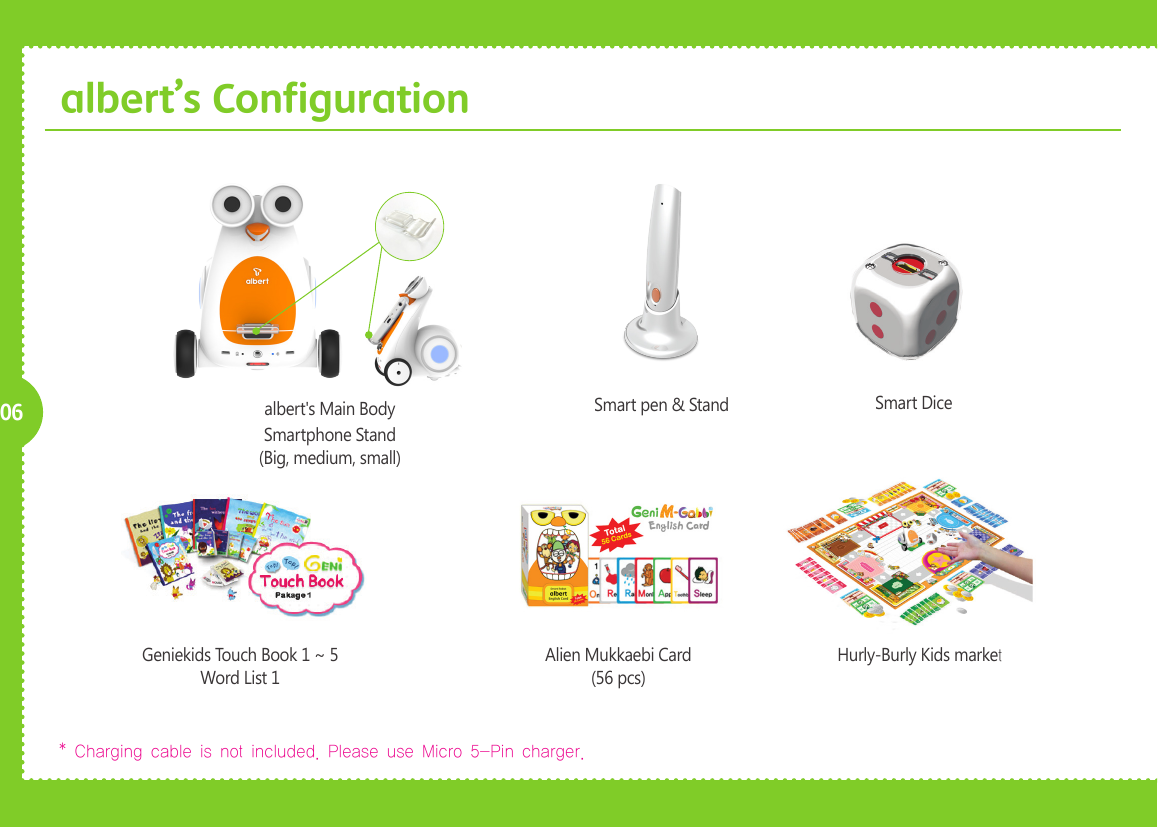
    06albert’s ConfigurationGeniekids Touch Book 1 ~ 5Word List 1* Charging cable is not included. Please use Micro 5-Pin charger. Alien Mukkaebi Card(56 pcs)Hurly-Burly Kids marketSmart pen & Standalbert's Main BodySmartphone Stand (Big, medium, small)Smart Dice
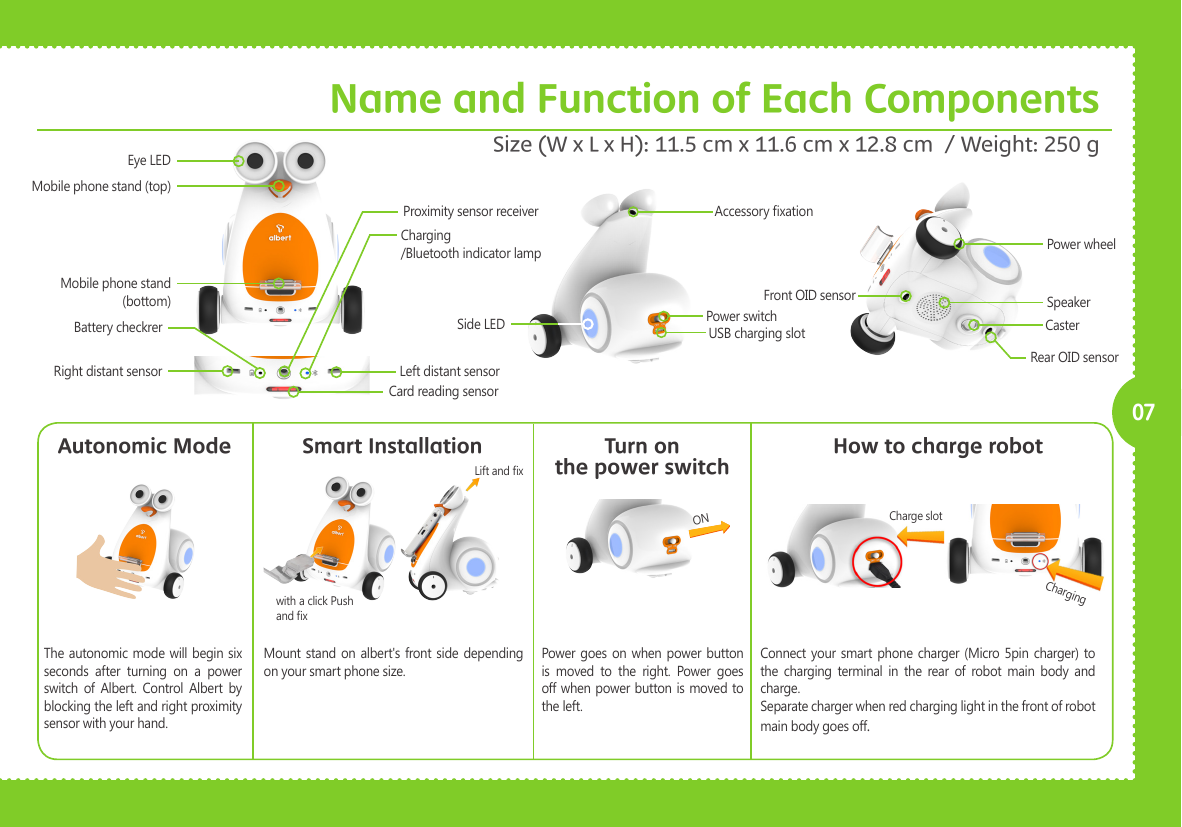
     ON07Front OID sensorRear OID sensorName and Function of Each ComponentsSize (W x L x H): 11.5 cm x 11.6 cm x 12.8 cm  / Weight: 250 gEye LEDProximity sensor receiverMobile phone stand (top) Mobile phone stand (bottom)Battery checkrerRight distant sensorCard reading sensorLeft distant sensorCharging/Bluetooth indicator lampAccessory xationPower switchSide LED USB charging slotPower wheelSpeakerCasterMount stand on albert's front side depending on your smart phone size.The autonomic mode will begin six seconds  after  turning  on  a  power switch  of  Albert.  Control  Albert  by blocking the left and right proximity sensor with your hand.Power goes on  when  power  button is  moved  to  the  right.  Power  goes off when power button is moved to the left.Connect your smart  phone  charger (Micro 5pin charger) to the  charging  terminal  in  the  rear  of  robot  main  body  and charge. Separate charger when red charging light in the front of robot main body goes off. Autonomic Mode Smart Installation Turn onthe power switch How to charge robotwith a click Push and x Lift and x Charge slotCharging
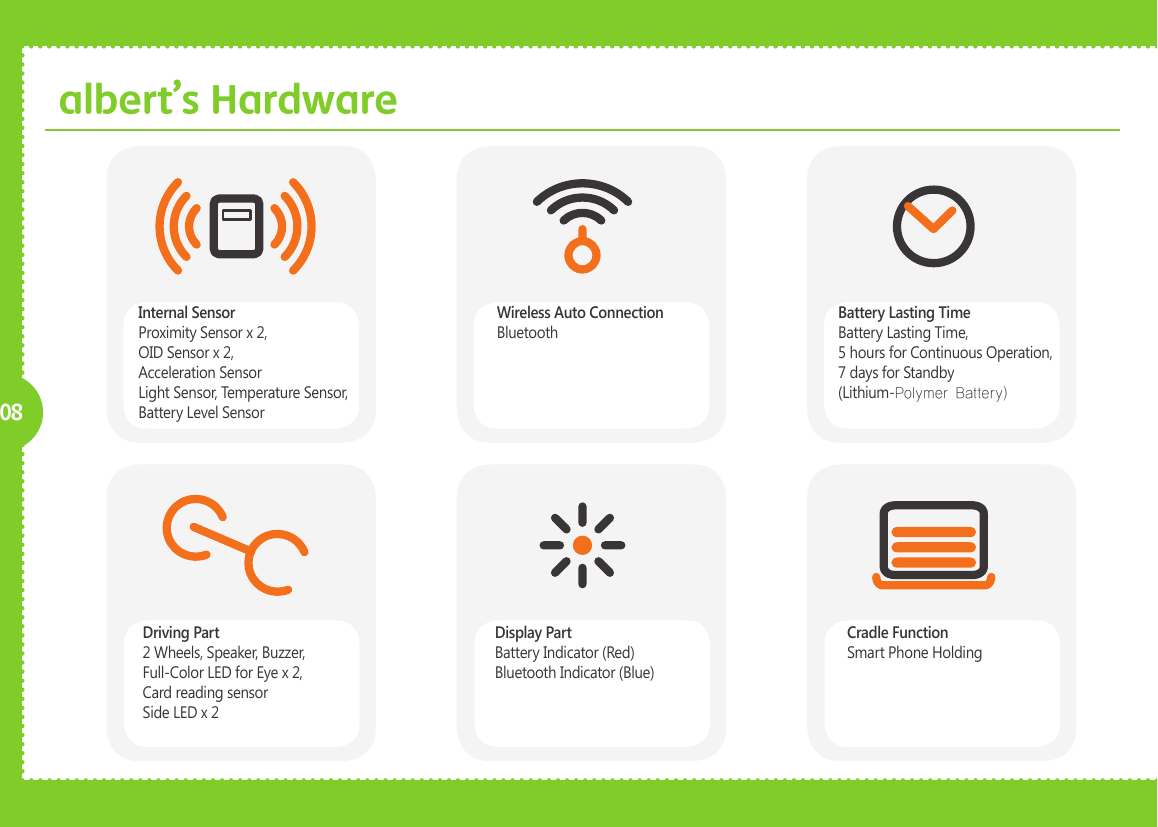
    08albert’s HardwareInternal SensorProximity Sensor x 2, OID Sensor x 2, Acceleration SensorLight Sensor, Temperature Sensor, Battery Level SensorWireless Auto ConnectionBluetoothBattery Lasting TimeBattery Lasting Time,5 hours for Continuous Operation,7 days for Standby (Lithium-Polymer Battery)Driving Part2 Wheels, Speaker, Buzzer,Full-Color LED for Eye x 2,Card reading sensor Side LED x 2Display PartBattery Indicator (Red)Bluetooth Indicator (Blue)Cradle FunctionSmart Phone HoldingName and Function of Each Component in Peripheral Devices
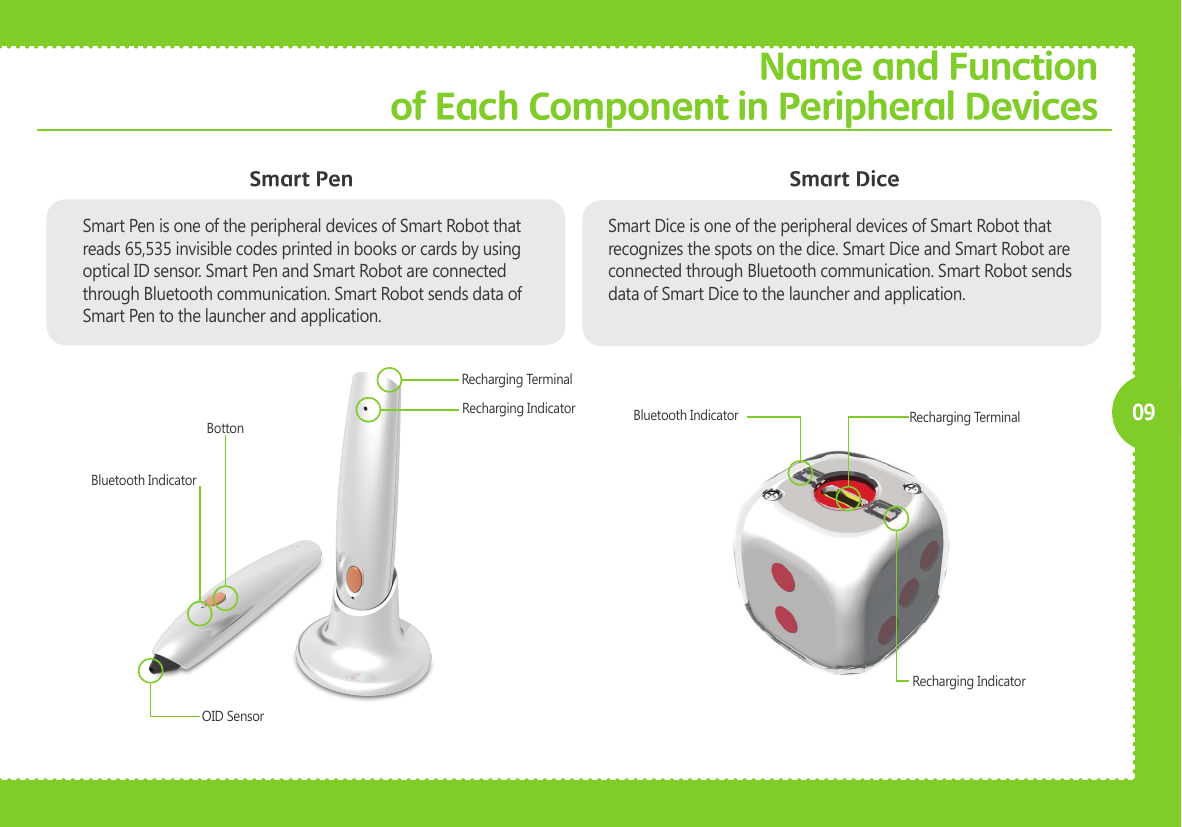
    09Smart DiceName and Function of Each Component in Peripheral DevicesSmart PenSmart Pen is one of the peripheral devices of Smart Robot that reads 65,535 invisible codes printed in books or cards by using optical ID sensor. Smart Pen and Smart Robot are connected through Bluetooth communication. Smart Robot sends data of Smart Pen to the launcher and application.Smart Dice is one of the peripheral devices of Smart Robot that recognizes the spots on the dice. Smart Dice and Smart Robot are connected through Bluetooth communication. Smart Robot sends data of Smart Dice to the launcher and application.OID SensorBluetooth IndicatorBottonRecharging IndicatorRecharging TerminalBluetooth Indicator Recharging TerminalRecharging Indicator
             10
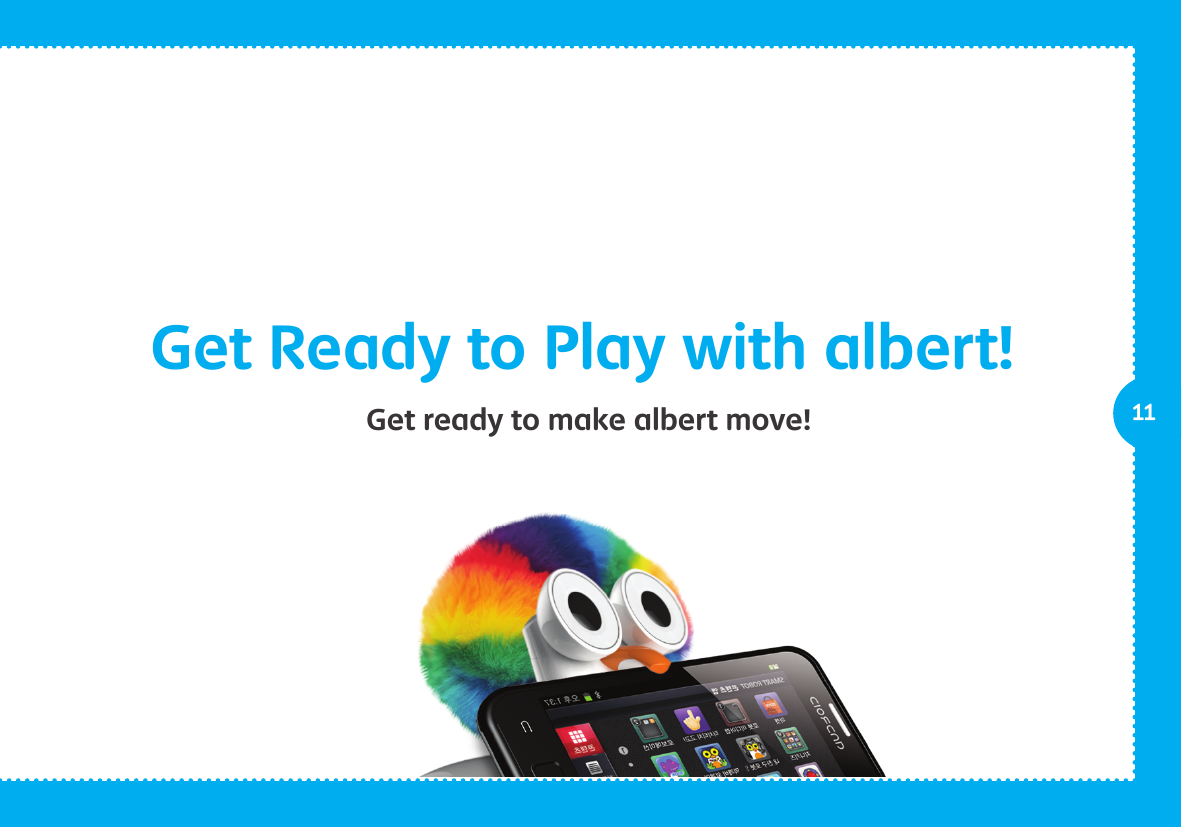
             11Get Ready to Play with albert!Get ready to make albert move!
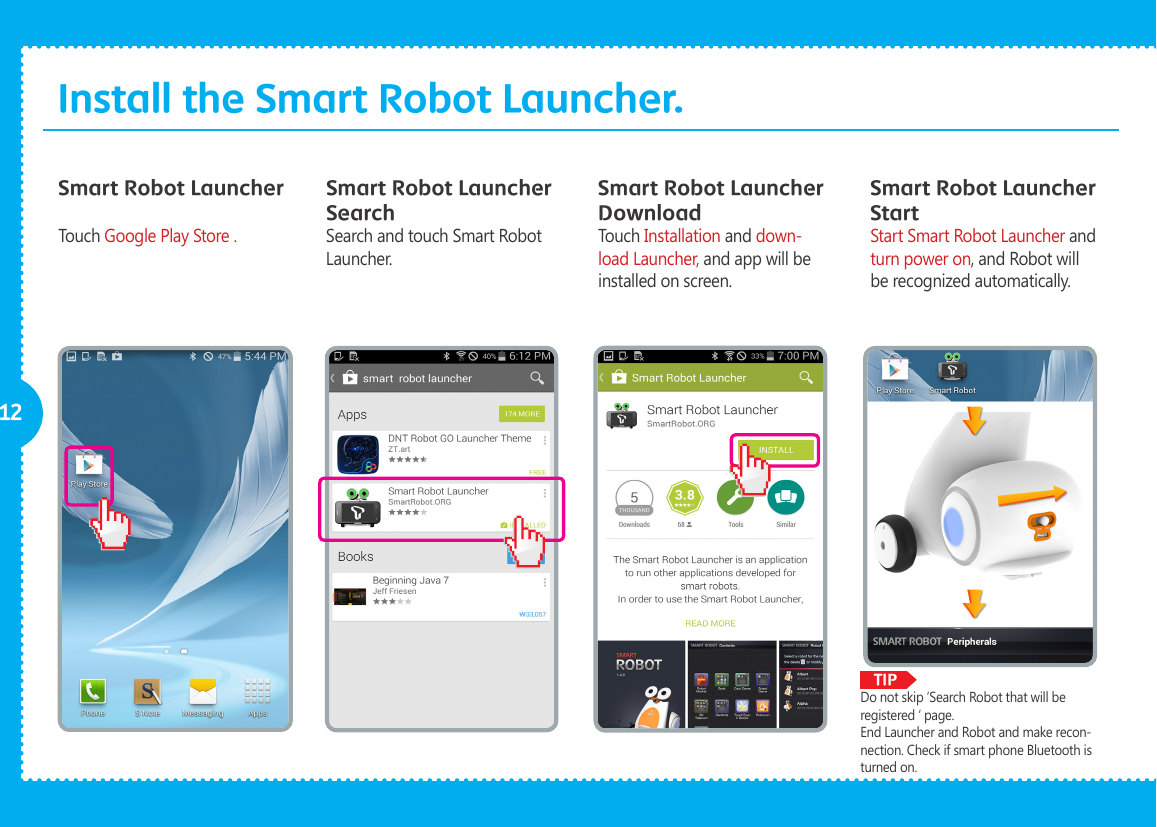
             TIP12Install the Smart Robot Launcher.Smart Robot Launcher Smart Robot Launcher SearchSmart Robot Launcher DownloadTouch Google Play Store . Search and touch Smart Robot Launcher.Touch Installation and down-load Launcher, and app will be installed on screen.Smart Robot Launcher StartStart Smart Robot Launcher and turn power on, and Robot will be recognized automatically.Do not skip ‘Search Robot that will be registered ‘ page. End Launcher and Robot and make recon-nection. Check if smart phone Bluetooth is turned on.
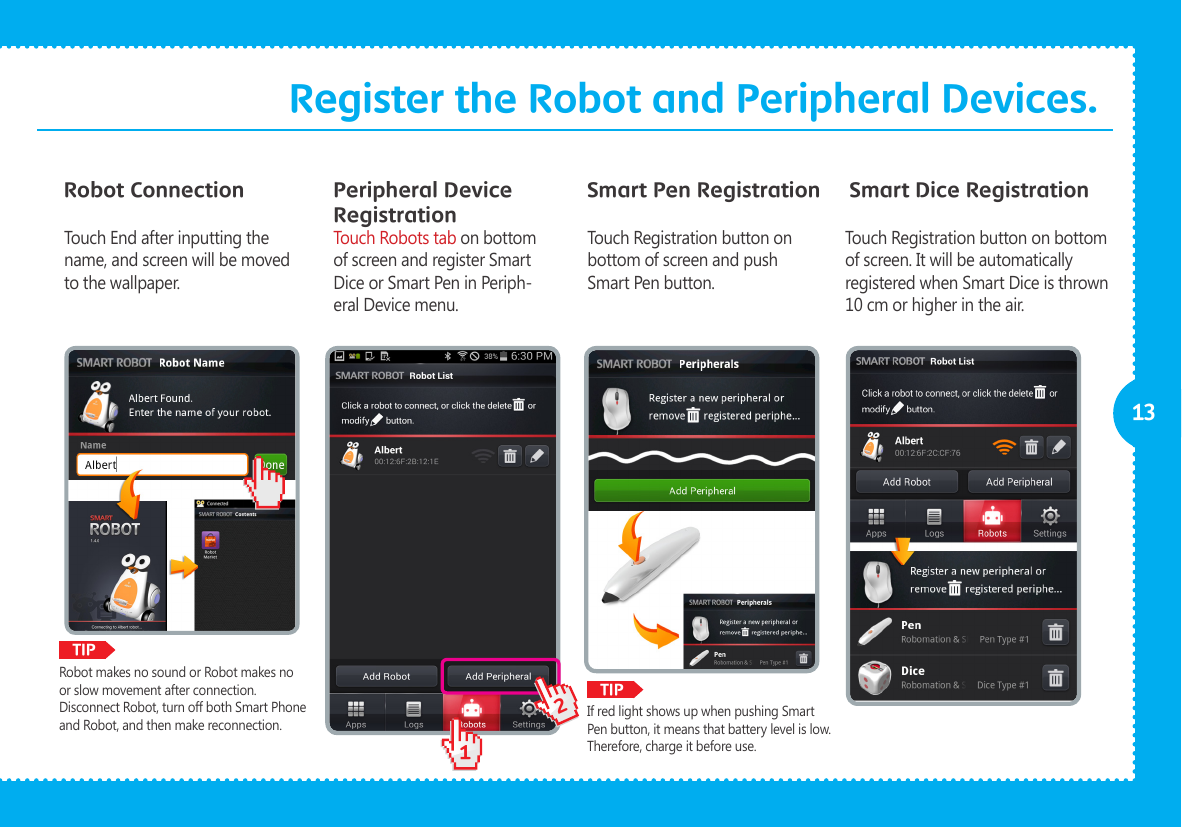
             12TIPTIP13Register the Robot and Peripheral Devices.Robot Connection Peripheral Device RegistrationSmart Pen Registration Smart Dice RegistrationTouch End after inputting the name, and screen will be moved to the wallpaper.Touch Robots tab on bottom of screen and register Smart Dice or Smart Pen in Periph-eral Device menu.Touch Registration button on bottom of screen and push Smart Pen button. Touch Registration button on bottom of screen. It will be automatically registered when Smart Dice is thrown 10 cm or higher in the air.If red light shows up when pushing Smart Pen button, it means that battery level is low. Therefore, charge it before use. Robot makes no sound or Robot makes no or slow movement after connection.Disconnect Robot, turn off both Smart Phone and Robot, and then make reconnection.
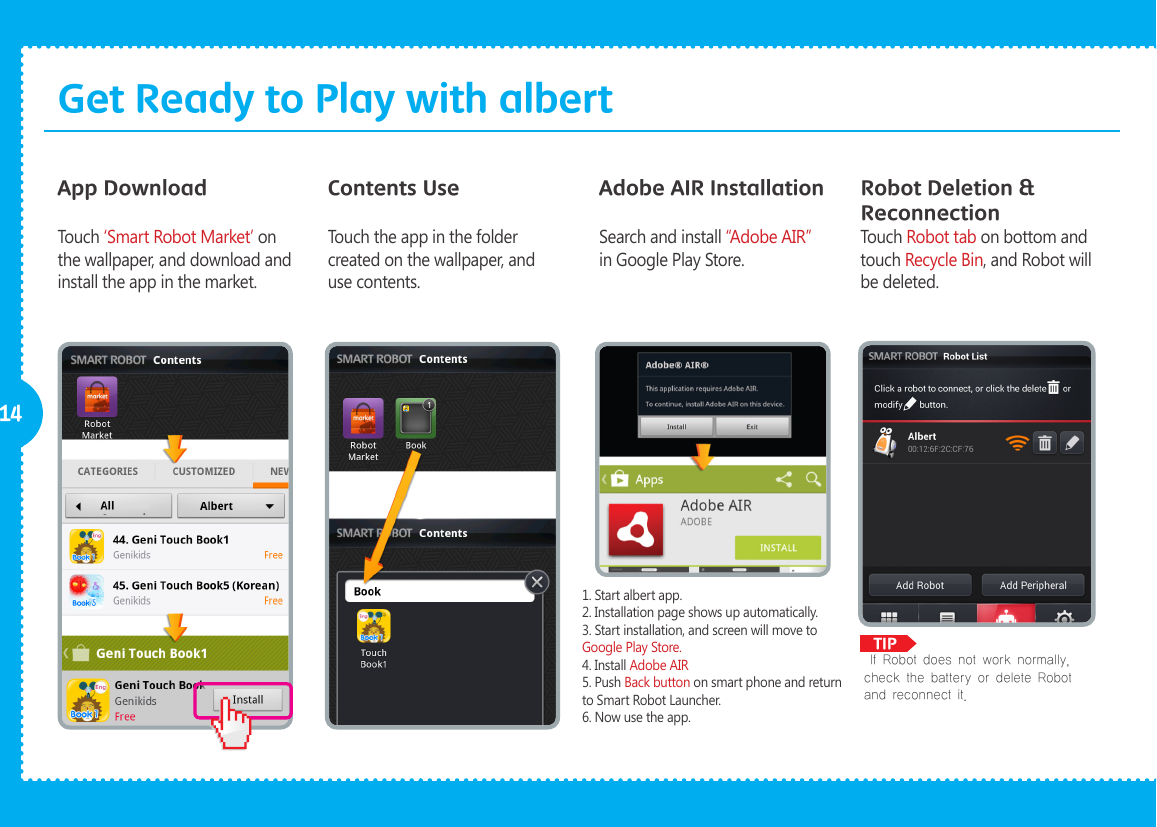
             TIP14Robot Deletion & ReconnectionApp DownloadTouch ‘Smart Robot Market’ on the wallpaper, and download and install the app in the market.Contents UseTouch the app in the folder created on the wallpaper, and use contents.Touch Robot tab on bottom and touch Recycle Bin, and Robot will be deleted.Adobe AIR InstallationSearch and install “Adobe AIR” in Google Play Store. If Robot does not work normally, check the battery or delete Robot and reconnect it. 1. Start albert app.2. Installation page shows up automatically.3. Start installation, and screen will move to Google Play Store.4. Install Adobe AIR5. Push Back button on smart phone and return to Smart Robot Launcher.6. Now use the app.Get Ready to Play with albert
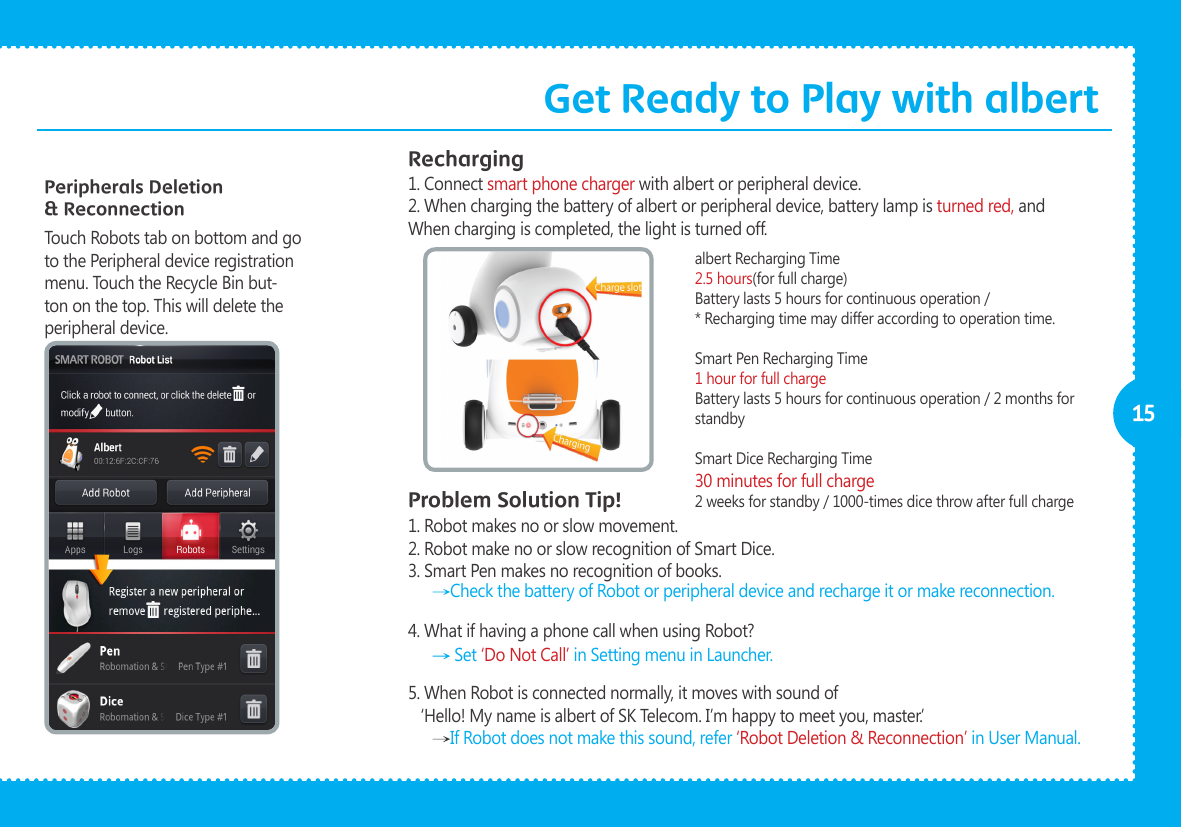
             15Peripherals Deletion & ReconnectionTouch Robots tab on bottom and go to the Peripheral device registration menu. Touch the Recycle Bin but-ton on the top. This will delete the peripheral device.RechargingProblem Solution Tip!1. Connect smart phone charger with albert or peripheral device.2. When charging the battery of albert or peripheral device, battery lamp is turned red, and When charging is completed, the light is turned off.1. Robot makes no or slow movement.2. Robot make no or slow recognition of Smart Dice.3. Smart Pen makes no recognition of books.4. What if having a phone call when using Robot?5. When Robot is connected normally, it moves with sound of   ‘Hello! My name is albert of SK Telecom. I’m happy to meet you, master.’ Check the battery of Robot or peripheral device and recharge it or make reconnection.   Set ‘Do Not Call’ in Setting menu in Launcher.  If Robot does not make this sound, refer ‘Robot Deletion & Reconnection’ in User Manual. albert Recharging Time 2.5 hours(for full charge)Battery lasts 5 hours for continuous operation /* Recharging time may differ according to operation time.Smart Pen Recharging Time 1 hour for full chargeBattery lasts 5 hours for continuous operation / 2 months for standbySmart Dice Recharging Time 30 minutes for full charge2 weeks for standby / 1000-times dice throw after full chargeGet Ready to Play with albert
16
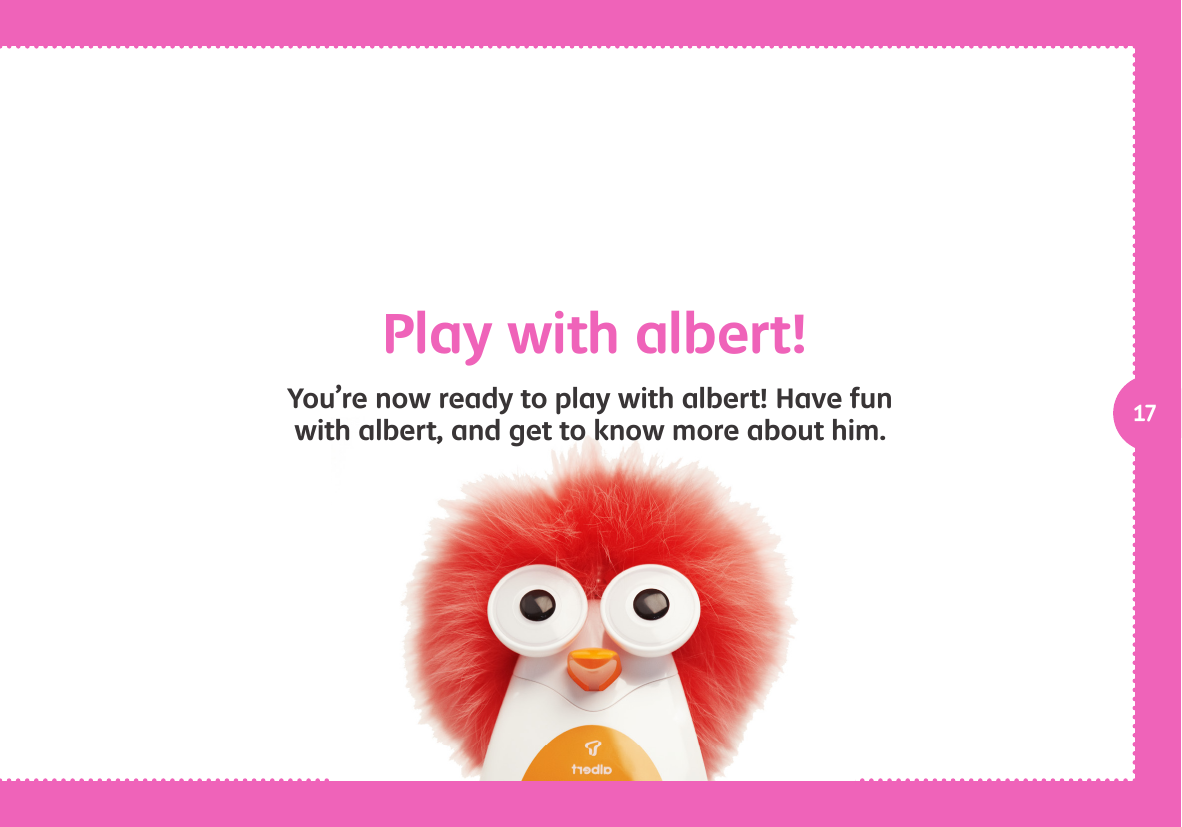
17Play with albert!You’re now ready to play with albert! Have fun with albert, and get to know more about him.
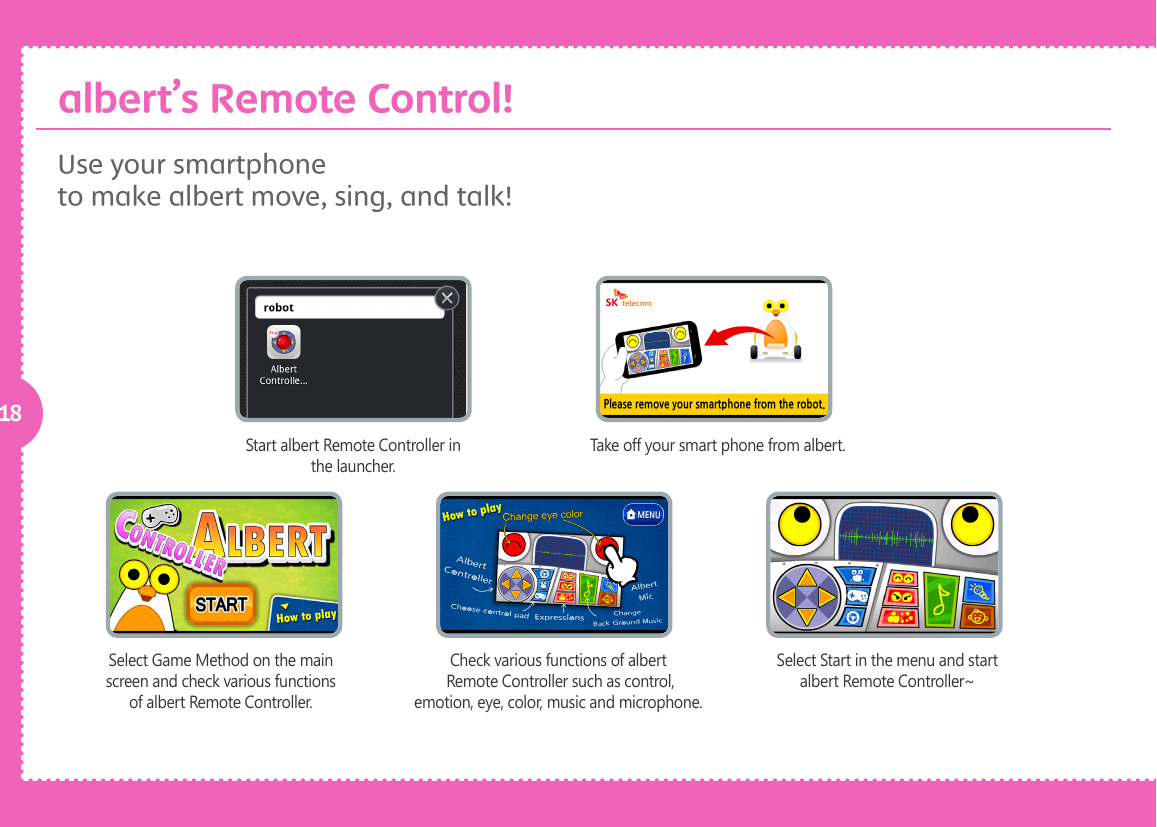
18Use your smartphoneto make albert move, sing, and talk! Start albert Remote Controller in the launcher.Take off your smart phone from albert.Select Game Method on the main screen and check various functions of albert Remote Controller.Check various functions of albert Remote Controller such as control, emotion, eye, color, music and microphone.Select Start in the menu and start albert Remote Controller~albert’s Remote Control!
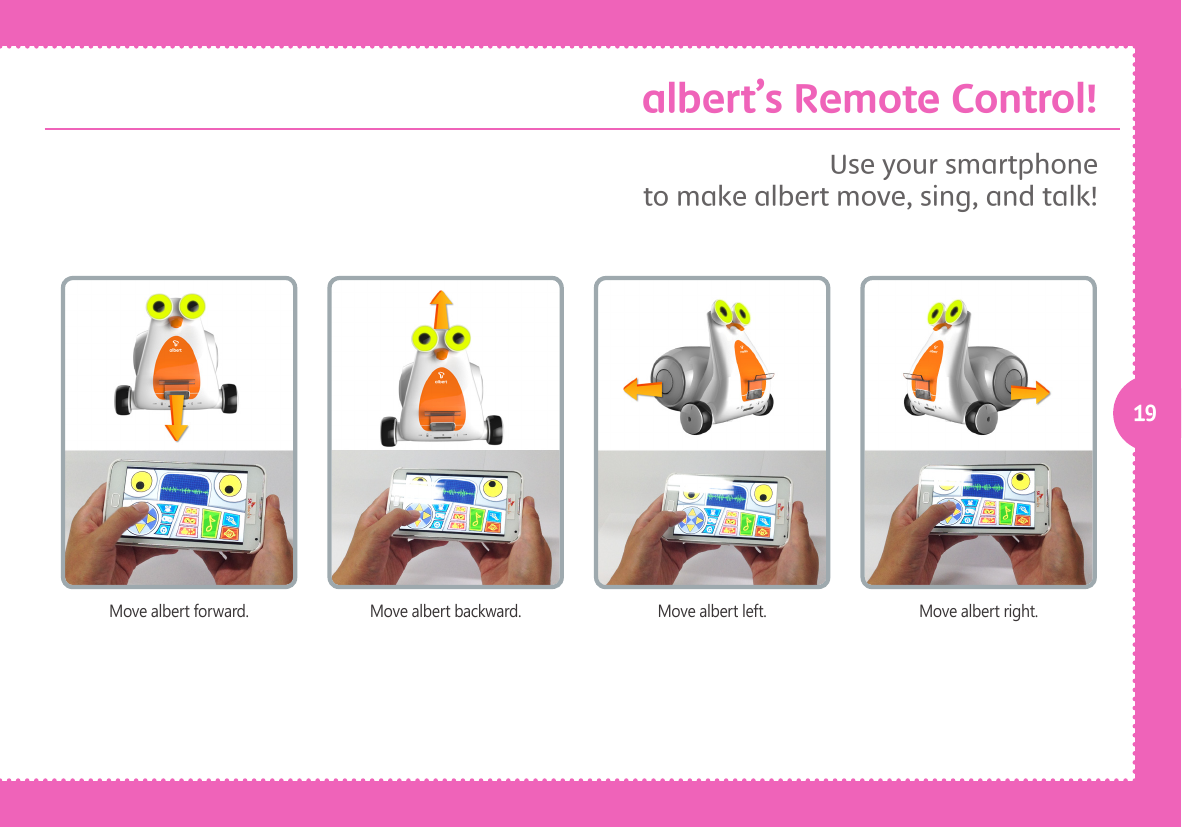
19Move albert forward. Move albert left.Move albert backward. Move albert right.Use your smartphoneto make albert move, sing, and talk! albert’s Remote Control!
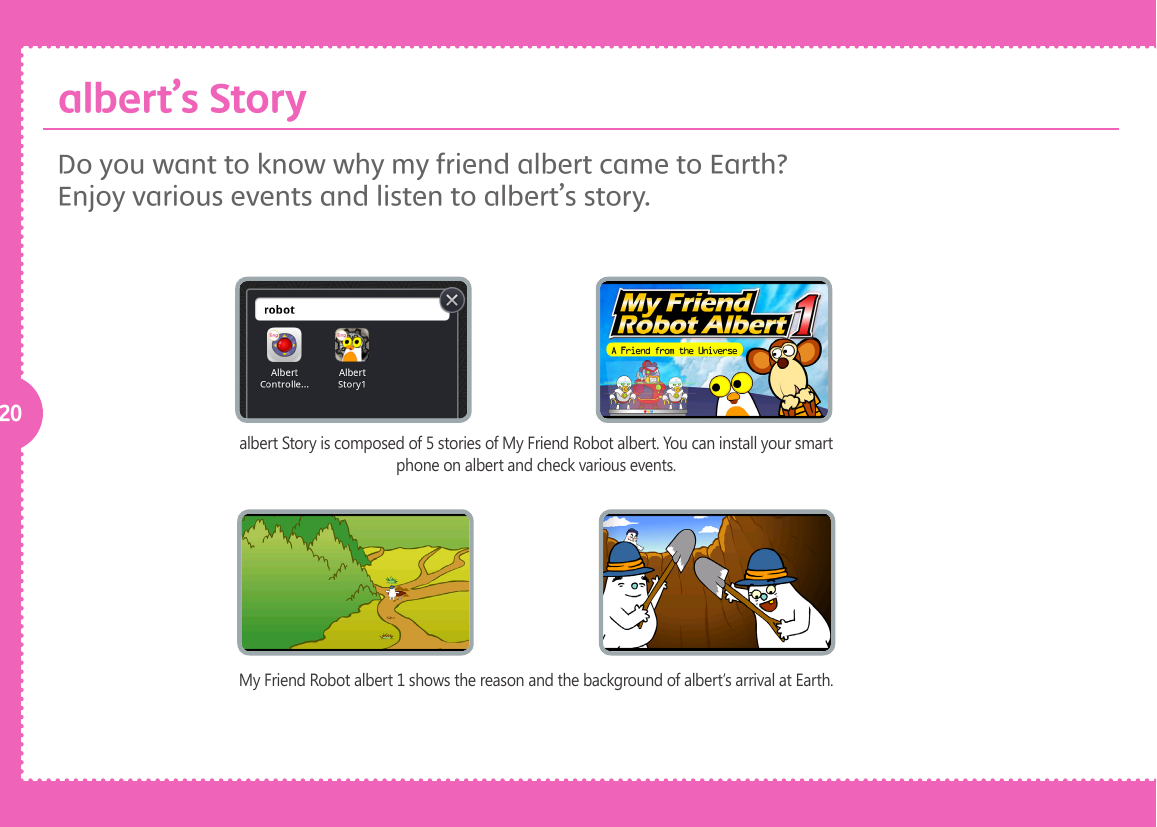
20albert Story is composed of 5 stories of My Friend Robot albert. You can install your smart phone on albert and check various events.My Friend Robot albert 1 shows the reason and the background of albert’s arrival at Earth.Do you want to know why my friend albert came to Earth? Enjoy various events and listen to albert’s story. albert’s Story

Navigation menu