SKYPINE ELECTRONICS CNE8115BCL Car Navigation Entertainment System User Manual I

SKYPINE ELECTRONICS (SHEN ZHEN) CO., LTD. Car Navigation Entertainment System I

Contents

User Manual I

Owner’s manual & Installation manualNXNZ2-DIN DVD MULTIMEDIA STATIONWITH BUILT-IN NAVIGATION & 6.5” TOUCH PANEL CONTROLDVD MULTIMEDIA STATIONWITH BUILT-IN NAVIGATION & 7” TOUCH PANEL CONTROLNX_NZ500 0608.indd   1 6/16/2009   8:01:09 AM000055
EnglishNX500/NZ5002CLARION PRODUCT REGISTRATION INFORMATIONFor USA and Canada onlywww.clarion.com Dear Customer:   Congratulations on your purchase of a Clarion mobile electronic product. We are   confident that you’ll enjoy your Clarion experience.   There are many benefits to registering your product. We invite you to visit our website at www.clarion.com to register your Clarion product.   We have made product registration simple with our easy to use website. The registra-tion form is short and easy to complete. Once you’re registered, we can keep you informed of important product information.   Register at www.clarion.com - it’s easy to keep your Clarion product up to date.    NX_NZ500 0608.indd   2 6/16/2009   8:01:09 AM
EnglishNX500/NZ500 3Contents1.  FEATURES ........................................................................................................................4  Expanding Systems ............................................................................................................42.  PRECAUTIONS .................................................................................................................53.  CONTROLS .......................................................................................................................7  Operational Panel ...............................................................................................................7  Functions of Buttons ...........................................................................................................8  Remote Control ..................................................................................................................9  Functions of Remote Control Buttons ................................................................................104.  CAUTIONS ON HANDLING ..............................................................................................12  Operation panel ..................................................................................................................12  Navigation System .............................................................................................................12  USB Port ............................................................................................................................12  Cleaning .............................................................................................................................13  Handling Discs ...................................................................................................................145.  DVD VIDEO SYSTEM ........................................................................................................ 15  DVD Video Features ........................................................................................................... 15  Discs   ................................................................................................................................16  About the registered marks etc. ..........................................................................................166.  OPERATIONS .................................................................................................................... 17  Basic Operations ................................................................................................................ 17  Radio Operations ...............................................................................................................21  DVD Video Player Operations ............................................................................................23  Sirius Satellite Radio Operations ........................................................................................29  Navigation System Operations ...........................................................................................31     Introduction to Navigation Software  ..............................................................................31     Main Menu Screen Operations ...................................................................................... 31        Route to Home Address .............................................................................................32        Select the Destination ................................................................................................. 32        •  Address or Intersection Mode .................................................................................32        •  Point of Interest Mode .............................................................................................33        •  Coordinates Mode ..................................................................................................34        •  Edit Favorites Mode ................................................................................................34        •  History Mode ..........................................................................................................35        System Preferencies Setup ........................................................................................35        Office Address Setup .................................................................................................. 36        Trip Computer Readings and Resets .......................................................................... 377.  ACCESSORIES .................................................................................................................38  iPod/iPhone Operations ......................................................................................................38  USB Operations .................................................................................................................40  AUX In/AV In Operations ....................................................................................................41  Camera In Operations ........................................................................................................ 41  Setup Operations ...............................................................................................................428.  TROUBLESHOOTING .......................................................................................................449.  ERROR DISPLAYS ............................................................................................................4510. SPECIFICATIONS ..............................................................................................................46INSTALLATION/ WIRE CONNECTION GUIDE ....................................................47NX_NZ500 0608.indd   3 6/16/2009   8:01:09 AM
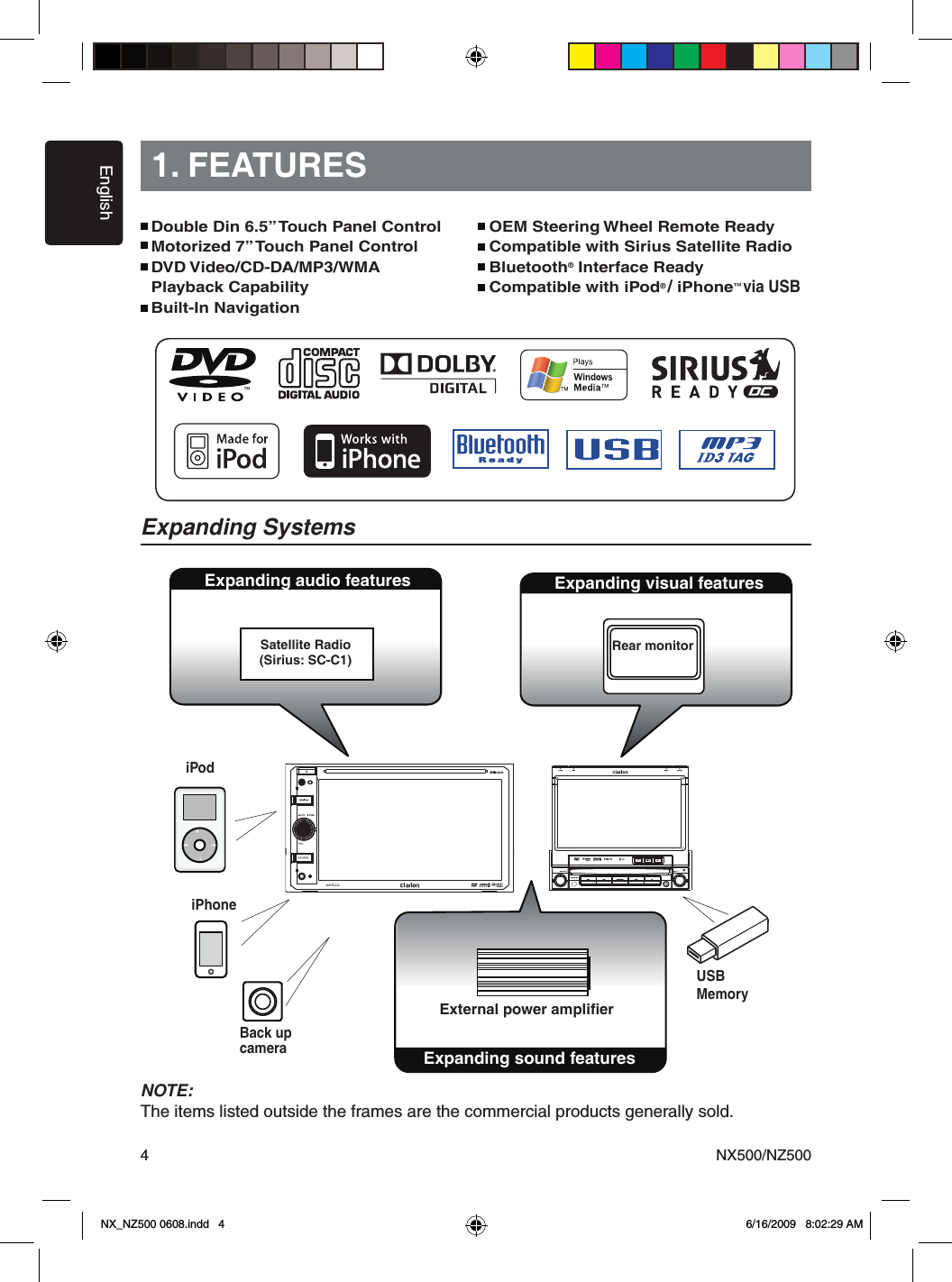
EnglishNX500/NZ50041. FEATURESExpanding SystemsExpanding audio featuresExpanding sound featuresExternal power amplifierNOTE:The items listed outside the frames are the commercial products generally sold.Double Din 6.5” Touch Panel Control Motorized 7” Touch Panel ControlDVD Video/CD-DA/MP3/WMA Playback CapabilityBuilt-In NavigationOEM Steering Wheel Remote ReadyCompatible with Sirius Satellite RadioBluetooth® Interface ReadyCompatible with iPod®/iPhone™via USBSatellite Radio(Sirius: SC-C1)SOURCEVOLMUTE      PWRNAVI/AVNX409SOURCEVOLCLOSE BNDSELINFOPS/AS NAVI/AVPWRpush MUTE push ENTNZ409SCANExpanding visual featuresRear monitoriPhoneiPodBack upcameraUSBMemoryNX_NZ500 0608.indd   4 6/16/2009   8:02:29 AM
EnglishNX500/NZ500 52. PRECAUTIONS•  For your safety, the driver should not watch any video sources and/or operate the controls while driving.    Please note that watching and operating any video sources while driving are prohibited by law in some    countries. Also, while driving, keep the volume to a level at which external sounds can be heard.• When using the navigation system, follow the precautions listed below. After reading this manual,    be sure to keep it in a handy place (such as the glove box of your car).• This navigation system should not be used to replace your own judgment. No itinerary suggested    by this navigation system should ever override any highway regulations, your own judgment, or a    knowledge of safe driving practices. Do not follow the navigation system’s suggested itinerary if it    would cause you to perform a dangerous or illegal act, place you in a dangerous situation, or take    you into an area you consider unsafe.• The advice provided by the navigation system is to be regarded as a suggestion only. There may    be times when the navigation system displays the vehicle’s location incorrectly, fails to suggest the    shortest route, or fails to direct you to your desired destination. In such instances, rely on your own    driving judgment, taking into account the driving conditions at the time.• Do not use the navigation system to locate emergency services. The database does not contain a    complete listing of emergency services such as police stations, fire halls, hospitals and walk-in    clinics. Please show discretion and ask for directions in such instances.• As the driver, you alone are responsible for your driving safety.  • In order to avoid a traffic accident, do not operate the system while driving.  • In order to avoid a traffic accident, operate the system only when the vehicle is stopped at a safe      place and the parking brake is on.  • In order to avoid a traffic accident or traffic offense, remember that actual road conditions and      traffic regulations take precedence over the information contained on the navigation system.  • The software may contain inaccurate or incomplete information due to the passage of time,      changing circumstances, and the sources of information used. Please respect current traffic      conditions and regulations at all times while driving.  • Where actual road conditions and highway regulations differ from the information contained on      the navigation system, abide by the highway regulations.  • Keep the amount of time spent viewing the screen while driving to a strict minimum.• The navigation system does not provide, nor represent in any way information on: traffic and    highway regulations; technical aspects of the vehicle including weight, height, width, load and    speed limits; road conditions including  grade, percentage of incline and surface conditions;    obstacles such as the height and width of bridges and tunnels; and other current driving or road    conditions. Always rely on your own judgment when driving a car, taking into account current    driving conditions.• Do not disassemble or modify this unit. It may cause an accident, fire, or electric shock.• Do not use this unit when a trouble exists, such as no screen content appears or no sound is    audible. It may cause an accident, fire, or electric shock. For that case, consult your authorized    dealer or a nearest Clarion service center.• In case of a problem, such as foreign materials have entered in the unit, the unit gets wet, or    smoke or strange smells come out of the unit, etc., stop using this unit immediately, and consult    your authorized dealer or a nearest Clarion service center.  Using it in that condition may cause an accident, fire, or electric shock.• Use a fuse with the same specification only when replacing the fuse.  Using a fuse with a different specification may causes a fire.• For the installation of this unit or a change in the installation, ask your authorized dealer or a    nearest Clarion service center for safety.  Professional skills and experiences are required to do so.WARNINGNX_NZ500 0608.indd   5 6/16/2009   8:04:42 AM
PS/AS NAVI/AV3. CONTROLSOperational Panel[   ][MUTE][    PWR][VOL][SOURCE][NAVI/AV]AUX INSENSORRESET[CLOSE] [BND] [PS/AS] [NAVI/AV][push MUTE][    PWR][VOL][       ] [       ][SOURCE][      ] [   ][push ENT][SEL][INFO][TILT DOWN][TILT UP]SEEKSCANAUX INRESETDISPLAYPSAS[OPEN][BND]NX_NZ500 0608.indd   7 6/16/2009   8:05:04 AM
EnglishNX500/NZ5008Note: Be sure to read this chapter while referring to front diagram “CONTROLS”[MUTE] [    PWR] [VOL] Knob•  Press this knob to turn on the power. Keep   pressing this knob more than 1 second to turn   off the power.•  Press this knob to attenuate the sound of the   receiver, press again to restore sound.•  Rotate the knob to increase or decrease the    volume.[NAVI/AV] Button•  Press this button to enter navigation video.•  Press this button more than 2 seconds to    return to the previous mode.[SOURCE] Button•  Press this button to scroll through the available  sources such as AM/FM Tuner, Sirius, DVD,    NAVI, USB, Camera modes, etc.[        ] [       ] Search/Seek Button•  Press to search next or previous station or   channel in Tuner, Sirius radio modes.•  Press to search next or previous track or   chapter in CD, MP3/WMA, iPod and DVD    video modes.•  Press and hold to fast forward or fast   backward by ×2 ,4,8,16 step in CD, MP3/WMA    and DVD video mode.•  Press and hold to fast forward or fast   backward in iPod music.•  Press and hold to enter manual seek status in   Tuner and Sirius radio mode, then press briefly   to seek station by step.[       ] Play /Pause Button / Scan ButtonPress to play, pause or scan audio or video.•  Press shortly to scan.•  Press and hold one time:  Audio or video file will be paused. If then press   briefly, file will be resumed to play.[     ] Eject•  Press to eject disc from unit when panel  is opened.[OPEN] [CLOSE] ButtonUse this button to open/close operation panel.[BAND] Button•  Use this button to enter AM/FM tuner mode    from any source.•  Once in AM/FM tuner mode, you can press it   to change bands between FM1, FM2, FM3,    AM bands.[PS/AS] Button•  Press this button to start the preset scan    mode.•  Press and hold this button to start the auto    preset scan and setting mode.[   ] [   ] ButtonPress the buttons to adjust the operational panel angle. [INFO]  ButtonPress to turn On and Off to display list in  Tuner, Sirius radio, DVD/CD modes.[push ENT] [SEL] Button•  Rotate the button to move to next folder in   iPod mode.•  Press to confirm and play current media file  in CD, MP3/WMA, DVD and iPod mode.[DISPLAY] Button•  Press this button to display band in Radio,   Sattelite, CD/DVD, iPod mode.•  Press one more time to dispaly current time    from any mode.RESET Button•  Press this button to reset the unit.SENSOR •  Receiver for the remote control unit (operating    range: 30 degree in all directions).Functions of ButtonsNX_NZ500 0608.indd   8 6/16/2009   8:05:36 AM
EnglishNX500/NZ500 9Remote ControlSignal transmitterSignal transmitter[OPEN][POWER][VOLUME][INFO][/ BAND][SEL][MENU][PICA   B][OKREPEAT][ ][ ]ROOT[ ][ ][SUB TITLE/VIDEO iPod MODE*][ANGLE/AUDIO iPod MODE*][ ] [ ][ ] [ ][MUTE][MODE][SRCH][ ][ESC][TITLE][ZOOM][AUDIO][0 - 9][ ]AUDIO VIDEOiPodReplacing the batteries1.  Press the retention tab and pull      out the battery tray and remove      the old battery.2.  Insert the new CR2025 battery      and slide the battery tray back      in the remote control the same   direction that you removed it.      Please ensure the tray is inserted in    the correct direction.Note:  Using batteries improperly can cause    them to explode. Take note of the   following points:  • When replacing batteries, replace    both batteries with new ones.  • Do not short-circuit, disassemble or    heat batteries.  • Do not dispose of batteries into fire or      flames.  • Dispose of spent batteries properly.* Only when capable iPod/iPhone is connectedNX_NZ500 0608.indd   9 6/16/2009   8:05:37 AM
EnglishNX500/NZ50010Functions of Remote Control ButtonsYou can use the remote control unit to control the NX500 and NZ500.Note:• The wireless remote control operation may not be optimal in direct sunlight.Shared modes[MODE] Button•  Press this button to scroll through the various   available sources such as the AM/FM tuner,   DVD player, iPod, Sirius Radio, or AUX IN.[VOLUME] ButtonIncrease and decrease volume.[MUTE] ButtonTurns mute on and off.[POWER] ButtonPress this button to turn the unit on or off. [OPEN] ButtonPress this button to OPEN or CLOSE the motorized screen. Please ensure there are no obstructions before starting the operation.[MENU] ButtonPress this button to enter the MAIN MENU. From the main menu, you can select your desired source or change your settings. [PIC] ButtonPress this button to change your monitor settings such as Brightness, Color, and Contrast.[SEL] ButtonPress this button to change your audio settings such as Tone, Fader, and Balance. [ESC] ButtonPress this button to exit selection and adjustment menus.TUNER/Satellite Radio mode[BAND] buttonSwitches reception band.[0 - 9] Buttons•  Use in the Key Pad screen to set the radio  frequency or Satellite Radio channels.•  Use to select the preset number in the Preset   List screen.[SEARCH] ButtonPress to show/hide the Key Pad screen.[OK] buttonPress to fix the entered data in the Key Pad screen.[       ], [       ] ButtonsPress to seek the next available higher or lower station in TUNER mode. In Sirius Radio mode, you will scroll through the categories.[      ], [      ] ButtonsPress to manually select the next higher or lower station in TUNER and Satellite Radio modes.[    ], [   ] ButtonsPress to scroll through the saved presets in the TUNER mode. Press [OK] to tune to the highlighted preset.[INFO] ButtonPress to switch in and out of the LIST modewhile in the TUNER/ Sirius Radio mode.DVD PLAYER mode•  Press to turn on and off the playtime display in   the DVD video.•  Press to switch in and out of the LIST mode   while playing CD audio.[SEARCH] ButtonPress to open the direct search menu while in the DVD video mode.[OK] ButtonPress to select, play or pause video and audio media.[    /BAND] Button•Press to stop video and audio media playback.[0 - 9] Buttons•  Press to enter DVD video chapters/titles in the   Key Pad screen.•  Press to set the track/folder number of the CD,   or MP3/WMA in the Key Pad screen.[DISC SEL] Button•  Press to show/hide the Track List screen in the   CD mode.•  Press to show/hide the Folder List screen in    the MP3/WMA mode.[TITLE] ButtonPress to go to the title menu on the DVD.[ROOT] ButtonPress to go to the root menu on the DVD.[   ], [   ], [   ], [   ] Buttons•  Press to select button items on the menu   screen of a DVD video.•  Press [   ], [   ] to scroll through the page  screens in the CD and MP3/WMA modes.NX_NZ500 0608.indd   10 6/16/2009   8:05:37 AM
EnglishNX500/NZ500 11Functions of Remote Control Buttons[       ], [       ] Buttons•  Press to select the next higher or lower    chapter number in DVD video mode.•  Press to select the next higher or lower track    in CD.[      ], [      ]ButtonsPress to perform fast-forward and fast-backward. Press again to advance to higher speed reversing or forwarding such as 2x,4x, 8x and 1 6x. Press once more to resume normal speed playback.[RPT] Button•  Press to perform chapter repeat in the DVD    video mode, and track repeat in CD and MP3/    WMA modes.•  Press again to perform title repeat in DVD    video mode or folder repeat in MP3/WMA    mode. In CD mode, this will activate the repear    all mode.•  Press again to perform all repeat in MP3/WMA    playback mode.[A      B] Button•  Press to set initial starting point of repeat.    The screen will show ‘REP A-’.•  Press again to set repeat ending point.    The screen will show ‘REP A-B’•  Press again to turn off A-B repeating. The    screen will show ‘REP AB Off’[ZOOM] ButtonPress to turn on and zoom in while in DVDVideo mode. You can zoom in up to 3x.[AUDIO] ButtonPress to switch the AUDIO function in the DVD video mode.[SUB-T] ButtonPress to display subtitles in the DVD video mode.[ANGLE] ButtonPress to switch the ANGLE function in the DVD video mode when the Angle mark is displayed.[OK ] ButtonPress to play or pause the selected media.[    ], [    ] ButtonsPress to scroll the list screens.[        ], [       ] ButtonsPress to select the next higher or lower track numbers.[      ], [      ] ButtonsPress to perform fast-forward or fast-backward searching. Press again to change the speed to 2x, 4x, 8x or 16x.NX_NZ500 0608.indd   11 6/16/2009   8:05:37 AM
EnglishNX500/NZ500124. CAUTIONS ON HANDLINGOperation Panel•  The operation panel will operate properly in a    temperature range of 0˚ to 60˚ C.•  Do not allow any liquids on the set from    drinks, umbrellas etc. Doing so may damage    the internal circuitry.•  Do not disassemble or modify the set in any    way. Doing so may result in damage.•  Subjecting the operation panel to shocks may    result in breakage, deformation or other    damage.•  Do not let cigarettes burn the display.  Doing so may damage or deform the cabinet.•  If a problem should occur, have the set  inspected at your store of purchase.•  Do not insert objects or poke in the space   between the operation panel and the   main    unit when the panel is tilted.•  The remote control unit may not work if the    remote control sensor is exposed to direct    sunlight.•  In extremely cold weather, the display   movement may slow down and the display    may darken, but this is not a malfunction. The   display will work normally when the      temperature increases.•  Small black and shiny spots inside the liquid    crystal panel are normal for LCD products.For a longer service life, be sure to read the following cautions.Navigation System• To prevent discharge of the car battery, use   this system with the engine of the vehicle   running as much as possible.• The housing of this unit may become hot   because this unit has a high-speed CPU. Be   careful to handle the unit during navigating or   immediately after turning the power off.• Turn off the power of the vehicle when   connecting or disconnecting wires. Doing this   while the power of the vehicle is turned on,    may cause a trouble or malfunction.Note:  • When using this unit first time after        purchasing, or not used for long periods      of time, it might take about 5 to 15 minutes      until the current location is determined    using  GPS. Moreover, even when using      it often, it may take about 2 to 3 minutes until      the current location is determined according      to the GPS measuring situation.  • When the route (path) cannot be calculated,      move desired destination to a nearby main      road and perform calculation again. It may      be impossible to find a route in case the      car location is too close to the desired      destination.  • For vehicles equipped with an intelligent key,      do not bring the intelligent key close to the      unit of the navigation system. The navigation      system may not operate correctly.  • If an electrical equipment that generates      a strong electrical noise is used near this      unit, the screen may be disturbed and noise      may be generated. In this case, keep away      such an electrical equipment or refrain from      using it.• Data saved to the flash memory may get lost    in case of a breakdown, malfunction, or other    trouble of this unit.• Operation of the navigation system may be   limited to protect the unit if the temperature is    extremely high or low. In such a case, please    wait until temperature becomes normal again.NX_NZ500 0608.indd   12 6/16/2009   8:05:37 AM
EnglishNX500/NZ500 13Cleaning• Cleaning the cabinet  Use a soft, dry cloth and gently wipe off the dirt.   For tough dirt, apply some neutral detergent   diluted in water to a soft cloth, wipe off the dirt   gently, then wipe again with a dry cloth.   Do not use benzene, thinner, car cleaner, etc.,   as these substances may damage the cabinet   or cause the paint to peel. Also, leaving rubber   or plastic products in contact with the cabinet   for long periods of time may cause stains.• Cleaning the liquid crystal panel  The liquid crystal panel tends to collect dust, so   wipe it off occasionally with a soft cloth. The   surface is easily scratched, so do not rub it with   hard objects.USB Port•  The USB memory stick may stick out when   inserted, so it may cause danger during   driving. In such cases, you can use a   commercial USB extension cable, etc., but use   it safely under your own judgment.•  The USB memory sticks must be recognized   as “USB mass storage class” to work properly.   Some models may not operate correctly.  When the memorized data is lost or   damaged by any chance, Clarion shall not   be liable for any damage.  When using an USB memory stick, we   recommend that you backup your data stored   on it before by using a personal computer etc.•  Data files may be broken when using USB   memory sticks in the following situation:   When disconnecting the USB memory stick or   turning the power off during writing or reading   data.  When affected by static electricity or electric   noise.  Connect/disconnect the USB memory stick   when it is not accessed.•  Some USB memory sticks cannot be inserted   to the main unit because of their shape. In    such cases, use a commercial USB extension    cable to connect them.•  Connecting with the computer is not covered.•  Music files (MP3, WMA, etc.) stored in the    USB memory stick cannot be played back.Alkaline (CR) button batteries contain Perchlorate.Don’t put in Trash. Dispose as Hazardous Waste.WARNINGNX_NZ500 0608.indd   13 6/16/2009   8:05:37 AM
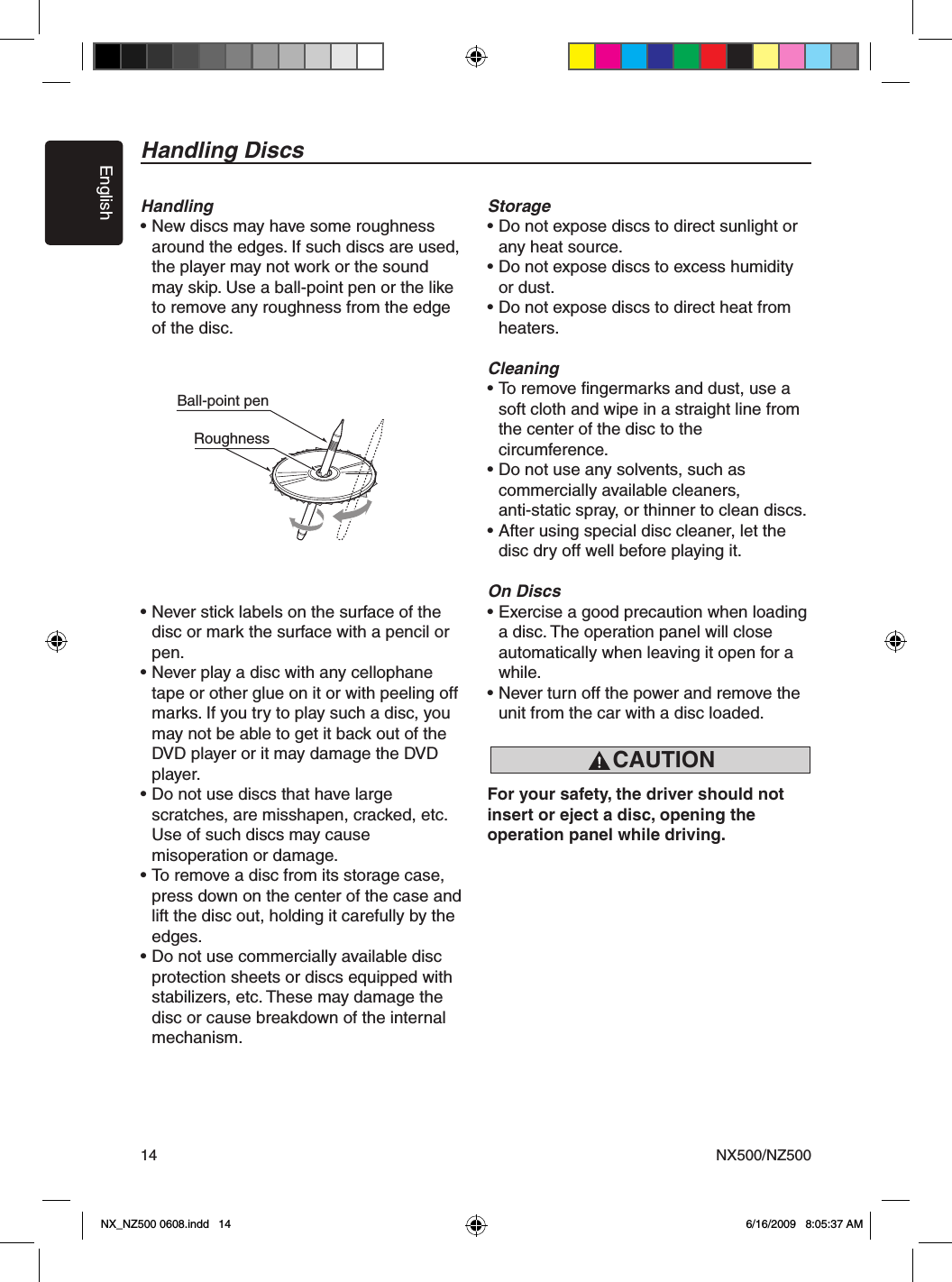
EnglishNX500/NZ50014Handling DiscsHandling• New discs may have some roughness    around the edges. If such discs are used,    the player may not work or the sound    may skip. Use a ball-point pen or the like    to remove any roughness from the edge    of the disc.• Never stick labels on the surface of the    disc or mark the surface with a pencil or    pen.• Never play a disc with any cellophane    tape or other glue on it or with peeling off    marks. If you try to play such a disc, you    may not be able to get it back out of the    DVD player or it may damage the DVD    player.• Do not use discs that have large   scratches, are misshapen, cracked, etc.    Use of such discs may cause   misoperation or damage.• To remove a disc from its storage case,    press down on the center of the case and    lift the disc out, holding it carefully by the    edges.• Do not use commercially available disc   protection sheets or discs equipped with   stabilizers, etc. These may damage the    disc or cause breakdown of the internal    mechanism.Storage• Do not expose discs to direct sunlight or    any heat source.• Do not expose discs to excess humidity    or dust.• Do not expose discs to direct heat from   heaters.Cleaning• To remove fingermarks and dust, use a    soft cloth and wipe in a straight line from    the center of the disc to the   circumference.• Do not use any solvents, such as   commercially available cleaners,   anti-static spray, or thinner to clean discs.• After using special disc cleaner, let the    disc dry off well before playing it.On Discs• Exercise a good precaution when loading    a disc. The operation panel will close   automatically when leaving it open for a    while.• Never turn off the power and remove the    unit from the car with a disc loaded.For your safety, the driver should not insert or eject a disc, opening the operation panel while driving.Ball-point pen RoughnessCAUTIONNX_NZ500 0608.indd   14 6/16/2009   8:05:37 AM
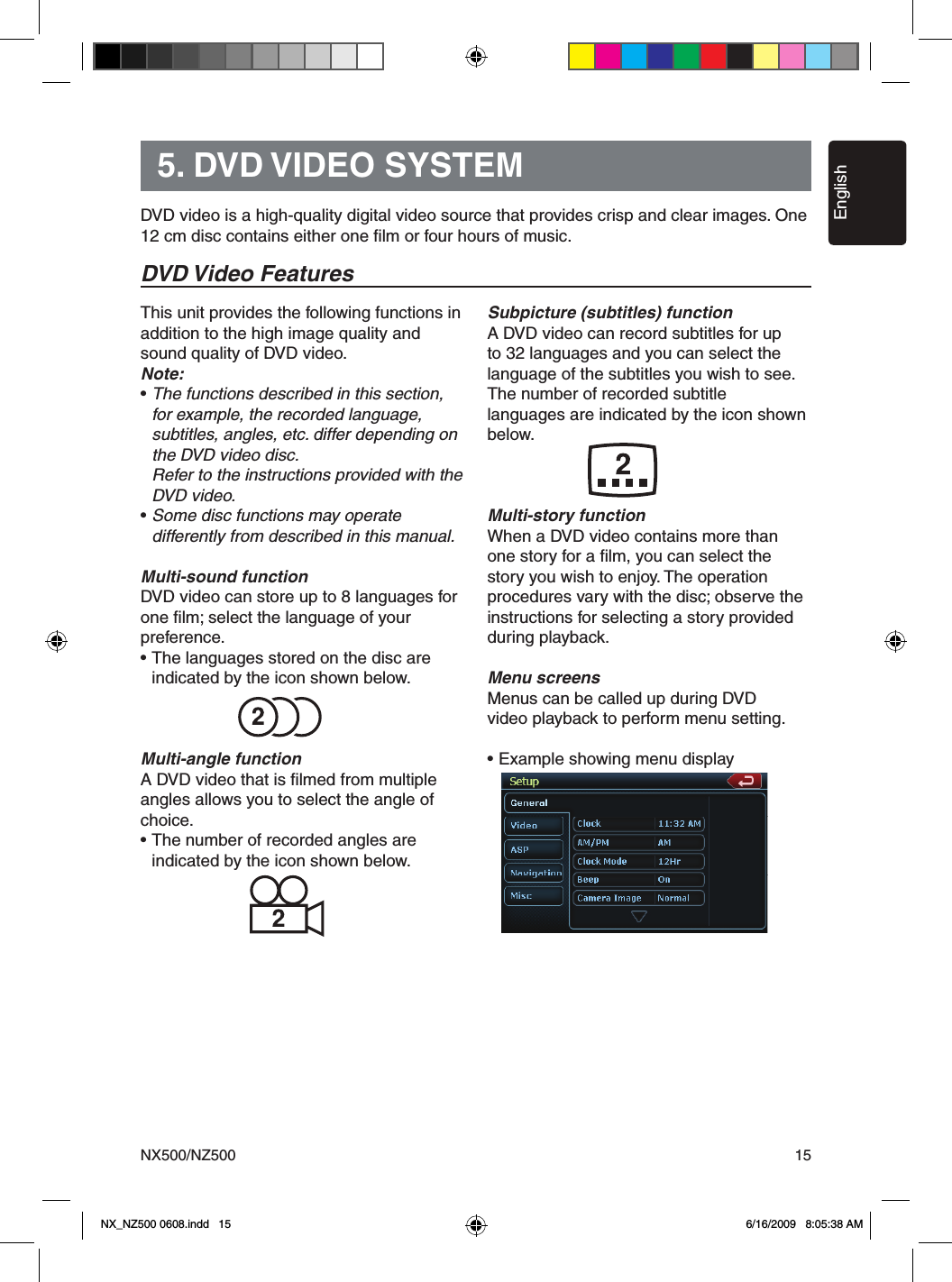
EnglishNX500/NZ500 155. DVD VIDEO SYSTEMThis unit provides the following functions in addition to the high image quality and sound quality of DVD video.Note:• The functions described in this section,    for example, the recorded language,   subtitles, angles, etc. differ depending on    the DVD video disc.   Refer to the instructions provided with the    DVD video.• Some disc functions may operate   differently from described in this manual.Multi-sound functionDVD video can store up to 8 languages for one film; select the language of your preference.• The languages stored on the disc are   indicated by the icon shown below.Multi-angle functionA DVD video that is filmed from multiple angles allows you to select the angle of choice.• The number of recorded angles are  indicated by the icon shown below.Subpicture (subtitles) functionA DVD video can record subtitles for up to 32 languages and you can select the language of the subtitles you wish to see.The number of recorded subtitle languages are indicated by the icon shown below.Multi-story functionWhen a DVD video contains more than one story for a film, you can select the story you wish to enjoy. The operation procedures vary with the disc; observe the instructions for selecting a story provided during playback.Menu screensMenus can be called up during DVD video playback to perform menu setting.• Example showing menu displayDVD video is a high-quality digital video source that provides crisp and clear images. One 12 cm disc contains either one film or four hours of music.DVD Video FeaturesNX_NZ500 0608.indd   15 6/16/2009   8:05:38 AM

Navigation menu