SKYPINE ELECTRONICS CNE8115BCL Car Navigation Entertainment System User Manual II
SKYPINE ELECTRONICS (SHEN ZHEN) CO., LTD. Car Navigation Entertainment System II
UserManual.wiki
>
SKYPINE ELECTRONICS
>
CNE8115BCL User Manual
>
User Manual II
Contents
1.
User Manual I
2.
User Manual II
3.
User Manual IV
User Manual II
Navigation menu
Upload a User Manual
Namespaces
Wiki Guide
HTML
PDF
Info
Views
User Manual
Discussion / Help
Navigation
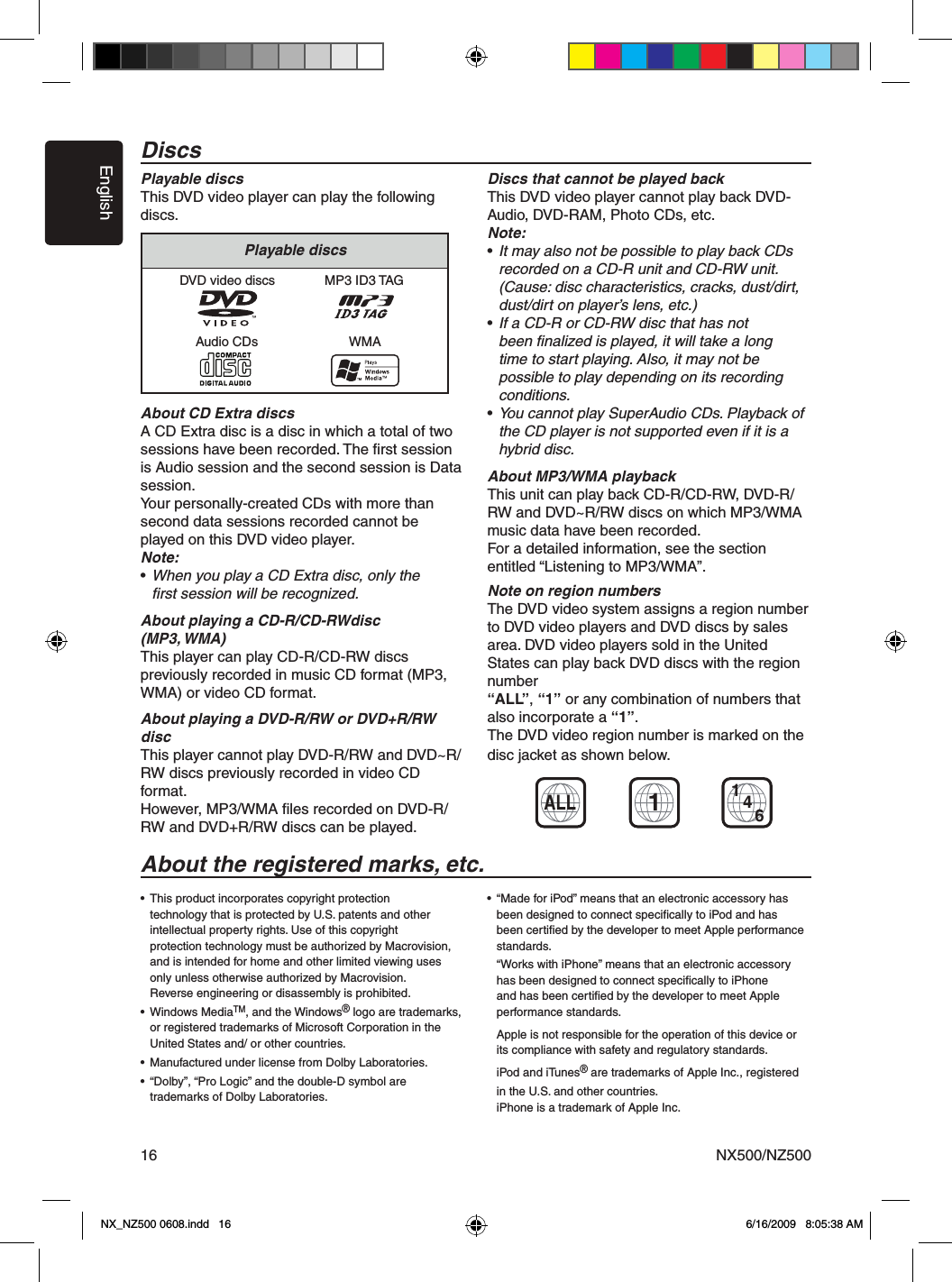
![EnglishNX500/NZ500 176. OPERATIONS Basic OperationsNote:• Be sure to read this chapter referring to the chapter “3. CONTROLS”When the unit is turned on, starting and stopping the engine with its volume raised to the maximum level may harm your hearings. Be careful about adjusting the volume.Turning ON and OFF the PowerNote:• Start the engine before using this unit.• Be careful about using this unit for a long time without running the engine. If you drain the car’s battery too far, you may not be able to start the engine and this can reduce the service life of the battery.1. Start the engine. The power button / knob illumination on the unit will light up.2. Press the [ PWR] button on the tuner to turn ON the power.3. Press the [ ] power button on the remote control to turn ON the power.4. To turn OFF the power, press and hold the [ PWR] power button on the tuner for more than 2 seconds.5. To turn OFF the power, press and hold the [ ] power button on the remote control for more than 2 seconds.Opening and Closing Operational PanelPress [OPEN] button on the unit (NZ500).The operational panel will be open.Press the same button again to close the panel.• Do not move the operation panel forcibly or do not apply strong force to the operation panel.• When the operation panel is operating, be careful not to get your hand or finger caught between the operation panel and main unit or its mechanical parts.• The driver should not operate the operation panel while driving. Adjusting the Angle of the Operational PanelAdjust the desired angle by pressing [ ] [ ]tfiflt buttons on the unfit (NZ500).Selecting a Mode1. Touch the screen button on the Main Menu to enter the desired mode: Tuner, Disc, NAVI, USB, Sirius, AUX IN, AV IN, etc., iPod/iPhone. *External equipment not connected to this unit is not displayed.Turning Monitor ON or OFF1. Touch the screen button Monitor OFF on the Main Menu to turn Off the screen.2. Touch the screen again to turn monitor screen On.CAUTIONEngine ON positionCAUTIONNX_NZ500 0608.indd 17 6/16/2009 8:05:39 AM](https://usermanual.wiki/SKYPINE-ELECTRONICS/CNE8115BCL.User-Manual-II/User-Guide-1183130-Page-2.png)
![EnglishNX500/NZ50018Basic OperationsAdjusting the volumeTurn the volume knob to adjust the volume. Clockwise : Increases the volume.Counter- clockwise : Decreases the volume.• The volume level indicated in the display is in a range from 0 (min.) to 40 (max.).While driving, keep the volume level at which external sounds can be heard.MutePress the [MUTE] [PWR] button to turn mute On and Off. Adjusting the Settings1. Press [Setup] to enter setting menu mode. 2. Press the desired mode button. Modes come in the following order: • General, including Clock settings, Beep, Camera Image, Radio Field, Tel Mute, Tel SP, Auxin Input SW, Version. • Video, ASP, Navigation, Misc.3. Perform the adjustment for the desired item. See the following sections fo details.Adjusting the Audio 1. Press the [EQ] button on the screen or the [SEL] button on the remote control. 2. Touch the item key to adjust. 3. Perform the adjustment.See the following sections for detail. 4.Touch the [ ] key to return to the previous screen. * In the following sections, only the details regarding adjustments are described, procedures to select items are skipped. Adjusting the Balance/Fade 1. Touch the BALANCE or FADE in the Audio Settings. 2. Touch the [F] or [R] key to adjust to the fader level. • The factory default setting is “0”. (Adjustment range: front 9 to rear -9) 3. Touch the [L] or [R] key to adjust to the balance level. • The factory default setting is “0”. (Adjustment range: left -9 to right 9) Adjusting the Bass The bass gain and bass frequency can be adjusted as follows. 1. Touch [-] or [+] key to set the desirable level. Adjusting the Treble The treble gain and treble frequency can be adjusted as follows. 1. Touch [-] or [+] key to set the desirable level. 2. To set the treble center frequency, enter the ASP adjustment in the SETUP menu. CAUTIONNX_NZ500 0608.indd 18 6/16/2009 8:05:43 AM](https://usermanual.wiki/SKYPINE-ELECTRONICS/CNE8115BCL.User-Manual-II/User-Guide-1183130-Page-3.png)
![EnglishNX500/NZ500 19Basic OperationsAdjusting the clockPress the [Setup] button. The Setup menu will be displayed. Touch “Clock” in General sub menu.2. Set up the time by touching the digital numbers on the screen.3. Touch the [Clock Mode] to change time settings to 12Hr or 24Hr. Select 12Hr, than you can choose AM or PM mode.Adjusting the Radio region1. Touch the [Radio Field] button in the Setup menu.2. A region selection menu will appear. Scroll down using the arrow at the bottom of the menu. Scroll up using the arrow at the bottom of the menu. Select the area’s radio region that you are in. If the region selected is incorrect, radio reception will be poor.Displaying the Navigation Map1. Touch the [Navi] button on the Main Menu screen. The warning screen will be displayed.2. Press the highlighted check mark (Accept). The Main Menu will be displayed. Select your destination.3. Select one of the options dispalyed on the screen. • Go To... • Point of Interest • State or Province: CA (The software remembers the last State/Province) • History (The adresses you navigate before) 4. The navigation system will calculate a route to the selected destination by using the criteria set in Setup Mode.5. Touch the State or Province button. The “City” keyboard screen will be displayed. Press the “Check” (1) button to choose the city from the list, or spell the City name on keyboard. Than press Enter (2) button.1231. Check button2. Enter button3. Return to previous screen (menu) NX_NZ500 0608.indd 19 6/16/2009 8:05:46 AM](https://usermanual.wiki/SKYPINE-ELECTRONICS/CNE8115BCL.User-Manual-II/User-Guide-1183130-Page-4.png)
![EnglishNX500/NZ500206. Enter the required information on the screens displayed in the order shown below. In order to proceed to the next sreen, press the “Check” button.7. Press the highlighted “Start Route” button. 8. Route map will be displayed. The navigation to your destination will start. 9. To set up navigation menu, see “Navigation set up “ in “Setup Operations” chapter.Reset to Factory Defaults1. Press Setup to enter setting menu mode. 2. Press the Misc button. 3. Press Load Factory button. Select [YES] to restore your unit to factory default settings. This function will erase all memory from the unit and you must reset all personalized items such as tuner presets.NOTE: You will be asked once to confirm that you would like to reset the unit. The unit will power down and restart with factory defaults.211098765431. Zoom Out2. Map Scale3. GPS Status4. Compass Position5. Current Time6. Back to Menu7. Local Information8. Mute9. Change View10. Zoom InNX_NZ500 0608.findd 0 6/16/2009 8:05:48 AM](https://usermanual.wiki/SKYPINE-ELECTRONICS/CNE8115BCL.User-Manual-II/User-Guide-1183130-Page-5.png)
![EnglishNX500/NZ500 21Seek Tuning1. Press the [BAND] button to select the radio band (FM or AM). 2. Touch the [ ] or [ ] key to automatically seek a station. • When touching the [ ] key, the station is sought in the direction of higher frequencies. • When touching the [ ] key, the station is sought in the direction of lower frequencies.Manual Tuning1. Press the [BAND] button to select the radio band (FM or AM). 2. Touch the [ ] or [ ] key to automatically seek a station. • When touching the [ ] key, the station is sought in the direction of higher frequencies. • When touching the [ ] key, the station is sought in the direction of lower frequencies.Recalling a preset stationThere are 2 ways to recall the preset station.• Using the remote control: 1. Press the [BAND] button to select the desire band (FM or AM) on the remote control. 2. Press the preset number (1 to 6) on numeric pad.• Using the tuner unit: 1. Press the [BAND] button to select the desire band (FM or AM) on the tuner. 2. Press the preset station (1 to 5) on tuner display. 3. Press [ ] or [ ] to select next station up or down the preset list. 4. Press [AS] button to auto search and store the stations.Auto StoreThe Auto Store is a function for storing up to 12 stations that are automatically tuned in sequentially. If 12 receivable stations cannot be received, a previously stored station remains unoverwritten at the memory position.1. Touch the [Band] key to select the desired band. (FM or AM)2. Touch the [AS] key momentarily to start the Auto Store function. A beep sounds and the stations with good reception are stored automatically to the preset channels.Listening to the Radio1. Touch the Tuner button on the Main menu display. The tuner mode screen is displayed.2. Press the [BAND] button or touch the [Band] key on remote control to select the radio band. Each time the button is pressed, the radio reception band changes in the following order: FM1 FM2 FM3 AM FM1...Radio Operations151413121110987616 17 18 19 20 215 1 3 421. Tuner display2. Signal intensity3. Time display 4. Return to previous screen5. Band display6. Loc/DX display7. Stereo/Mono signal mode8. Preset list9. Seek down10. Tune down11. Scan button 12. Tune Up 13. Seek Up14. Band button15. AS button 16. PS button 17. LOC/DX Button18. Slide Bar (Use it to hide some function buttons)19. Previous page button20. Next page button21. EQ mode buttonNX_NZ500 0608.findd 1 6/16/2009 8:05:49 AM](https://usermanual.wiki/SKYPINE-ELECTRONICS/CNE8115BCL.User-Manual-II/User-Guide-1183130-Page-6.png)
![EnglishNX500/NZ50022Radio OperationsPreset ScanThe Preset Scan receives the stations stored in the preset memory in order. This function is useful when searching for the desired station in memory.1. Touch the [Band] key to select the desired band. (FM or AM)2. Touch the [PS] key to start the Preset Scan. The unit starts scanning each station for 10 seconds sequentially.3. When the desired station is tuned in, touch the [PS] key again to continue receiving that station.LOC/DX SettingThe DX / LOC setting changes the tuner sensitivity in order to seperate closely spaced stations. This feature is useful in areas that have many radio stations in close proximity.1. Touch the [DX] key to switch to LOCAL tuner sensitivity.2. Touch the [LOC] key to switch to DX tuner sensitivity.DVD Video Player OperationsChange DVD System SettingsNote: If the set up operation is performed in the middle of DVD video play, the disc will restart from the beginning.Selecting DVD Set Up Menu1. Press the [SETUP] button on the Main Menu to access the Video set up menu.2. Press the [Video]. The video menu is displayed.Setting up the Screen Size Press the [TV Shape] button on the display in to change the sceen size 4:3 or 16:9.The factory default setting is “ 16:9 ”.• When watching a wide type through a conventional type of the rear view monitor (4:3), the leftmost and rightmost areas of the screen are cut off. This function allows displaying the important part of image fully on the screen. In some cases, image is displayed while being panned (scrolled).• When watching a wide type through a wide type of the rear view monitor (16:9), the leftmost and rightmost areas of the screen are not cut off.Setting up the Video System Format Press the Aux IN button on the display to set up the video system format : Auto, PAL or NTSC.The default setting is Auto.Touch the required system format on the screen. Setting up the Video Brightness Press the brightness button. Touch the desired video brightness displayed, on scale from 0 to 20.NX_NZ500 0608.findd 6/16/2009 8:05:49 AM](https://usermanual.wiki/SKYPINE-ELECTRONICS/CNE8115BCL.User-Manual-II/User-Guide-1183130-Page-7.png)
![EnglishNX409/NZ409 23DVD Video Player OperationsCAUTIONFor your safety, the driver should not insert or eject a disc, or operate the controls while driving.Setting up the password for parental level controlThe factory default setting is “0000”.1. In Main Menu press Setup button. Press Misc button on the dispaly. Touch the Set Password ---- and a numerical key pad will appear. Input a new password. The password is set. Note: When a disc with view restrictions is inserted, you will be prompted to input a password. The disc will not be viewable until the correctpassword is entered.Set rating for parental level control 1. Select MISC screen while in SETUP mode. Press Kid Saf button. Press the desired rating for level control. Use this table to set the parental level.• The contents that the parental level restricts vary with the country code.Note: The rating can be selected only under the password unlocked status, and the limits can be set only under the password locked status.Watching/Listening to a discNote: Refer to the diagram in “CONTROLS” chapter.1. To load a disc: Press the [OPEN] button to flip down the front panefl. (NZ500 onfly) Insert the disc into the center of the insertion slot the label side facing up.Note:• Never insert foreign objects into the disc insertion slot.• If the disc is not inserted easily, there maybe another disc in the mechanism or the unit may require service.• 8cm (single play) discs cannot be used.2. Disc starts playing automatically.Ejecting a disc1. To eject a disc press eject [ ] button. The play mode than switches to the Tuner mode. *If the disc is left in the ejected position for 15 seconds, the disc is automatically reloaded. In this case, the play mode will remain set to the Tuner mode. Note: If you force a disc into before auto reloading, it will damage a disc.Showing DVD Player mode screenAfter disc is loaded, the play mode is automatically engaged.Touch the screen of the playing disc to displayDVD Video menu. The display will return to the playback screen, if you do not touch the screen for 5 seconds.NC-17 NO ONE 17 AND UNDER ADMITTEDR RESTRICTEDPG13 PARENTS STRONGLY CAUTIONED PG PARENTAL GUIDANCE SUGGESTED G GENERAL AUDIENCESWARNINGSome videos may be recorded at higher than desired volume levels. Increase the volume gradually from the minimal setting after the video has started.76513 428 910 11 12 13 14NX_NZ500 0608.findd 6/16/2009 8:05:50 AM](https://usermanual.wiki/SKYPINE-ELECTRONICS/CNE8115BCL.User-Manual-II/User-Guide-1183130-Page-8.png)
![EnglishNX500/NZ50024Operate the DVD Player menuYou can select the button items displayed in the DVD menu by directly touching it.If the button items are hard to select correctly, you can also operate them by using the remote control directional buttons.Stop Playback1. Touch the [ ] key. Playback is stopped. 2. To resume playback, press the [ ] button. Playback resumes from the scene where playback is stopped.Play/Pause Playback1. Touch the [ ] key to pause during playback.2. Touch the [ ] key again to resume playback.Skip(Search) a Chapter1. Press the [ ] or [ ] button during playback. 2. Press the [ ] or [ ] button during pflayback. (NZ500) Chapters are skipped down or up from cur-rent locations, as many times as the button is pressed, and playback starts.Fast Forward Fast Backward1. Press the [ ] or [ ] button to start your fast backward or fast forward during playback. The playback speed starts at 2x, then will increase to 4x,8x, and 1 6x with each additional press. *No audio is reproduced during fast forward and fast backward operation. *The fast forward and fast backward speed may differ depending on the disc.Search with a Chapter/Title NumberYou can locate the beginning of a scene using the chapter numbers or title numbers recorded on the DVD Video disc.1. Showing the DVD PLAYER mode screen, touch the [CHAP] key. The Key Pad screen appears with the chapter number input mode. Touching the [Title] key turns the Key Pad to the title number input mode. Touching the [Time] key turns the Key Pad to the time number input mode. • Title A large segment to divide the data area of the disc. • Chapter A small segment to divide the data area of the disc. • Time A specific time on the disc.2. Input the number of the title/chapter/time that you want to play back with the [0] to [9] key.3. Touch the [OK] key. Playback starts from the scene of the input title number, time or chapter number. *If the input title/chapter/time number does not exist or searching with a title/chapter number is not allowed, the screen image will not change. 4. Touch the [ ] Back key.Repeat PlaybackThis operation plays back chapters recorded on the DVD-Video repeatedly.1. Showing the DVD Player mode screen, touch the [ ] Repeat key.2. Touch the [ ] key once for Chapter Repeat, again for Title Repeat.3. Press the [ ] button again to turn off the repeat playback.Repeat A BSelect the desired passage to play back.Touch [ ] repeat A to B button.Selected passage starts play again.Touch this button again to stop replay.1. MENU Button2. INFO Button3. A-B Repeat Button4. Repeat Button5. Subtitle Button6. Channel Button7. Back Button8. Chap Button9. Previous Track Button10. Fast Backward Button11. Play/Pause Button12. Fast Forward Button13. Next Track Button14. Stop Button DVD Video Player OperationsBANX_NZ500 0608.findd 4 6/16/2009 8:05:50 AM](https://usermanual.wiki/SKYPINE-ELECTRONICS/CNE8115BCL.User-Manual-II/User-Guide-1183130-Page-9.png)
![EnglishNX500/NZ500 258DVD Video Player OperationsUsing the Title MenuOn DVD discs containing two or more titles, you can select from the title menu for playback.1. Showing the DVD PLAYER mode screen, touch the [CHAP] key during playback. The title menu screen appears. *Depending on the disc, the title menu cannot be called.2. Select the button items displayed in the title menu screen by the same way of the DVD menu operation. *Depending on the disc, items cannot be selected with the ten-key buttons.Using the Title MenuOn discs in which two or more audios or audio languages have been recorded, you can switch among the audio languages during playback.1. Touch the [ ] audio key during playback. • Each time you touch the key, you can switch among audio languages. • It may take time to switch among audios. * Depending on the disc, up to 8 audios may be recorded. For details, see the mark of the disc: ( Indicates that 8 audios have been recorded). * When the power is turned on and when the disc is changed to a new one, the language set as the factory default is selected. If that language has not been recorded, the language specified on the disc. * Depending on the disc, switching may be completely impossible or impossible on some scenes.2. The DVD PLAYER mode screen will hide in 5 seconds after your selection is made.Switching SubtitlesOn DVD discs in which two or more subtitle languages have been recorded, you can switch among the subtitle languages during playback.1. Touch the [Sub T.] key during playback. Each time you touch the key, you can switch among subtitles. • It may take time to switch among subtitles. * Depending on the disc, up to 32 kinds of subtitles may be recorded. For details, see the mark of the disc: ( Indicates that 8 kinds of 8 subtitles have been recorded). * Depending on the disc, switching may be completely impossible or impossible on some scenes.2. The DVD Player mode screen will hide in 5 seconds after your selection is made.3. To turn off subtitles, repeat touching [Sub T.] key until subtitles are turned off.Switching anglesOn DVD discs in which video images have been recorded in two or more angles, you can switch among the angles during playback.1. Touch the [Angle] button on the remote control during playback. Each time you touch the key, you can switch among angles. * It may take time to switch among angles. * Depending on the disc, up to 9 angles may be recorded. For details, see the mark of the disc: ( Indicates multi-angle). * Depending on the disc, angles may switch smoothly or switch with a momentary still image. * Depending on the disc, switching may be completely impossible or impossible on some scenes. * Depending on the disc, scenes recorded in two or more angles may be played back.Displaying the playback statusTouch the [INFO] key on the DVD Player mode screen, or remote control.Playback status is displayed on the screen.8NX_NZ500 0608.findd 5 6/16/2009 8:05:51 AM](https://usermanual.wiki/SKYPINE-ELECTRONICS/CNE8115BCL.User-Manual-II/User-Guide-1183130-Page-10.png)
![EnglishNX500/NZ50026DVD Video Player OperationsPausing Playback 1. Touch the [ ] button to pause playback. 2. To resume playback, touch the same button again.Skipping a Track (searching) Touch the [ ] button during playback. Tracks are skipped, as many as the times the button is pressed, and playback starts. • Pressing the [ ] button starts playback from the beginning of the next track. • Pressing the [ ] button starts playback from the beginning of the current track. When this button is pressed again within about 2 seconds, playback starts from the beginning of the previous track.Fast Forward and Fast Backward1. Press and hold the [ ] or [ ] button during playback. Press again to advance to higherspeed reversing or forwarding such as 2x,4x, 8x and 1 6x. Press once more to resume normal speed playback. Scanning the Tracks1. Touch the [Scan] button during playback. Touch again to advance to higher speed reversing or forwarding such as 2x,4x, 8x and 16x. Press once more to resume normal speed playback.Searching with the Track NumberThis operation allows searching using the track numbers recorded on the CDs.1. Touch the [ ] keyboard button on a display. The numerical keypad will appear on the screen.2. Input the track number that you want to play back with [0] to [9] key.Playback starts from the track of the input track number. • If the input track number does not exist or searching with a track number is not allowed, the screen image will not change.Selecting a track on the Track List ScreenThis function allows you to select tracks from a displayed list.1. Touch the trak title on the display list. The selected track will start playing.2. When the desired track is not displayed, touch the [ ] or [ ] key to scroll the track list.3. Touch the desired track title key. The corresponding track is started playback.4. Press the [ ] key to return to the previous screen.Other various play functionsTouch the touch key of the function you want to play.Repeat [ ]: Press once to start a single track repeat. Press again to activate a repeat all. To turn repeat off, press same button again. • Repeat symbols are displayed in the info window in the upper right area of the screen. Shuffle [ ]: Touch this button to shuffle the tracks during playback.Touch this button again to turn off the feature. • A shuffle symbol is displayed in the info window in the upper right area of the screen.Stop Playing [ ]: Stop play all the tracks.Set up [ ] Audio: Touch this button to enter Audio Settings menu.LISTENING TO a CD1. Mute Display2. Repeat Display3. Shuffle Display4. Time Display5. Back Button6. Keyboard Button7. Repeat Button8. Shuffle Button9. Previous Track Button10. Play/Pause Button11. Next Track Button12. Stop Button13. Previous Page Button14. Next Page Button15. EQ Button16. Source Display17. Song Title18. Artist Information19. Album Information20. Scan Button21. Slide Bar716513 428 910 11 12 13 14171819620 2115NX_NZ500 0608.findd 6 6/16/2009 8:05:51 AM](https://usermanual.wiki/SKYPINE-ELECTRONICS/CNE8115BCL.User-Manual-II/User-Guide-1183130-Page-11.png)