Salutron HRW02 R Series Activity & Wellness Monitor with Heart Rate Measurement, Spectral Ambient Light Sensor & Intelligent Alerts User Manual
Salutron Inc. R Series Activity & Wellness Monitor with Heart Rate Measurement, Spectral Ambient Light Sensor & Intelligent Alerts
Salutron >
User Manual
Quick Start Guide
Brite R450
®
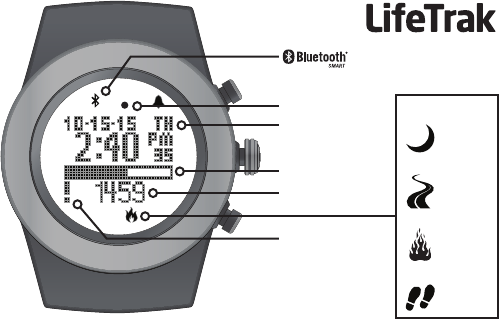
Goal Progress Bar
Time / Date
Activity Value
Activity Type
sleep
distance
calories
steps
LightTrak Sensor
Notication Alert

Welcome to LifeTrak. Let’s take a quick tour of the basic features.
• To turn on your tness tracker, press and hold any button.
Learn more
• For support, tips, product information and full instructions, please visit:
www.lifetrakusa.com/support/help-center/
Copyright © 2015 LifeTrak, Inc. All rights reserved. Duplication or copying of all or part of this manual without
the express written consent of LifeTrak, Inc. is prohibited.
Website: www.LifeTrakUSA.com
Facebook: www.facebook.com/lifetrak
Twitter & Instagram: mylifetrak
Pinterest: pinterest.com/lifetrak
YouTube: www.youtube.com/lifetrakusa
NOTE: Actual model / screen images may vary from images shown.
NOTE: This is NOT a medical device. Please visit our website to view
cautions and warranty information in the full instruction manual.
CUSTOMER SERVICE
If you have questions about your
LifeTrak activity tracker, please
confact our customer service team
support@LifeTrakUSA.com

Table of Contents
Button Layout............................................................................................................................
Staying Connected....................................................................................................................
Pair Your Fitness Tracker & Smartphone / Tablet......................................................................
Sync Fitness Data.....................................................................................................................
Modes of Operation : Notications...........................................................................................
Modes of Operation : Hourly Display.....................................................................................
Modes of Operation : Weekly Display......................................................................................
Modes of Operation : Workouts............................................................................................
Taking Your Heart Rate.........................................................................................................
SleepTrak 2.0.......................................................................................................................
Intelligent Wake-Up..............................................................................................................
LightTrak Alerts....................................................................................................................
Inactivity Alert............................................................................................................................
User Info....................................................................................................................................
Time Setup................................................................................................................................
Goal Setup................................................................................................................................
FCC / IC Caution..................................................................................................................
Helpful Tips.................................................................................................................
1
2
3
4
5-8
9-10
11
12-14
15-16
17-18
19-20
21-22
23
24
25
26
27-28
Back Cover
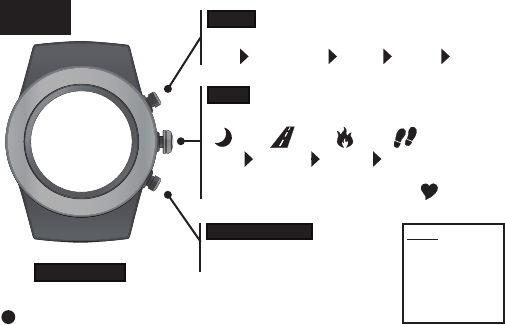
Press to view:
sleep distance calories steps
Press & hold to read your heart rate
MODE
Press to change modes:
Time Notications Hourly Weekly Workout
START / STOP
Press to start and stop in
Workout Mode
VIEW
BUTTON
LAYOUT
BACKLIGHT
To activate the backlight, double-click VIEW
If dark, pressing VIEW once will also activate light
NOTE:
The buttons are
NOT intended for
use under water.
If used, water
could leak in and
cause damage.
1

MODE
Press to change modes:
Time Notications Hourly Weekly Workout
Your LifeTrak Brite R450 can help you stay connected 24/7. To make the most of
your Brite R450, you will need to download the LifeTrak App from the App Store
in iTunes or Google Play.
Visit lifetrakusa.com for iOS and Android smartphone / tablet compatibility.
• Pair your Brite R450 with the LifeTrak app and automatically get notications
right on your wrist. Your Brite R450 stores up to 20 notications.
• See tness alerts and preview social messages on your wrist. Reminders, IM,
SMS, emails, calls and more.
• Stay in the loop with social notications from your family, friends, calendar and
your favorite apps.
• Quickly interpret notications - LifeTrak Brite R450 uses distinct icons for many
notication types: IM, SMS, emails, incoming calls, missed calls, reminders,
RSS/news, general.
• Customize which notication types appear on your wrist and set up your
tness watch through the LifeTrak app.
STAYING CONNECTED
2
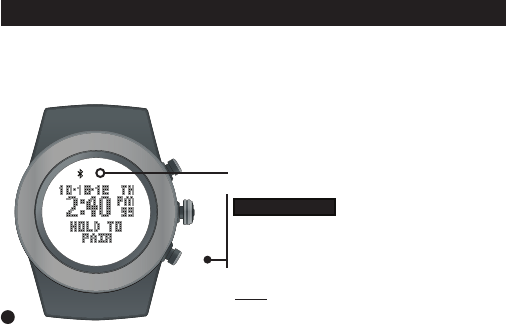
Now that your smartphone / tablet is attempting
to pair, we need your Brite R450 to do the same.
NOTE: For best results, keep your devices within
7 feet / 2 meters of each other when pairing.
START / STOP
From TIME MODE, PRESS & HOLD
to begin pairing. Button can be released once
the Bluetooth icon appears in the display.
Bluetooth Indicator
PAIR YOUR FITNESS TRACKER & SMARTPHONE / TABLET
3
1. Make sure Bluetooth is active on your smartphone / tablet.
2. Install the LifeTrak App on your compatible smartphone / tablet, then open the app.
3. Tap on “Connect a New Watch.”
4. Find the LifeTrak Brite R450 image & Click “Connect to Device.”

Once your LifeTrak Brite R450 and smartphone / tablet
are paired, you can sync tness data, receive notications
and set up your tness tracker.
• Smartphone notications sync automatically.
• Fitness data from your Brite R450 syncs manually.
You will need to sync your tness data manually with a simple
one-step process each time you wish to transfer the data.
To transfer your tness data, simply open your app and click on
the reload button in the top-right corner.
Remember: Bluetooth must be active on your
LifeTrak Brite R450 and your smartphone / tablet,
and devices must be PAIRED to complete the
data transfer (sync).
Indicator
Status
(activity tracker)
Solid: Bluetooth is
on and linked to a
device
Flashing: Bluetooth
is trying to establish a
connection
No icon: Bluetooth
is off
4
SYNC FITNESS DATA
5
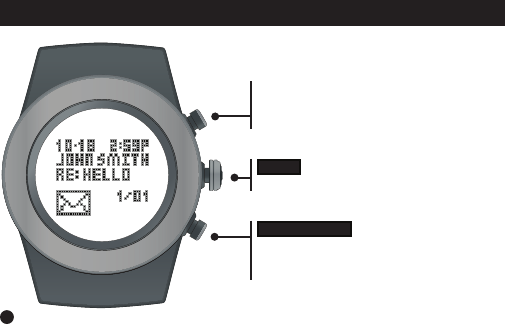
START / STOP
Press to browse through your messages
VIEW
Press & hold to delete messages
From Time Mode,
press MODE until you reach Notications
MODES OF OPERATION : NOTIFICATIONS
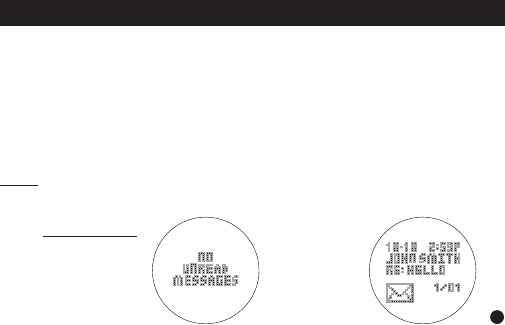
NOTE: Bluetooth must be active on your smartphone / tablet AND your
LifeTrak Brite R450 to receive notications.
You must pair your Brite R450 with the LifeTrak app to receive notications.
Visit www.lifetrakusa.com/app or the App Store in iTunes / Google Play to download.
Once paired, calls and messages from your Bluetooth Smart Ready device will
automatically be sent to your tness tracker.
Up to 20 notications can be stored on your Brite R450. Select which types of
notications you want sent to your tness tracker through the LifeTrak app settings.
Displayed if there
are no messages
on your tness
tracker
Notications Mode
Example of an
email notication
on your tness
tracker
6
NOTIFICATIONS
7
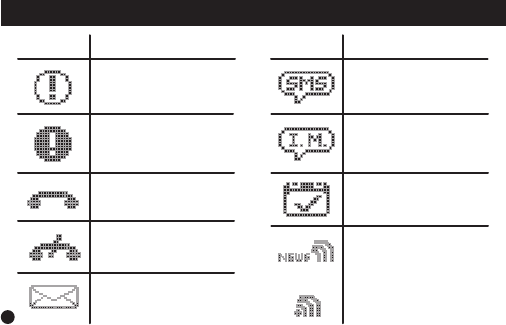
Symbol Notication Type
Generic/Social Alert SMS/MMS
Message
Instant Message
News Feed
Calendar/Planner
Alert
High Priority Alert
Incoming Call
Missed Call
or
Email
Symbol Notication Type
NOTIFICATIONS : TYPES & SYMBOLS
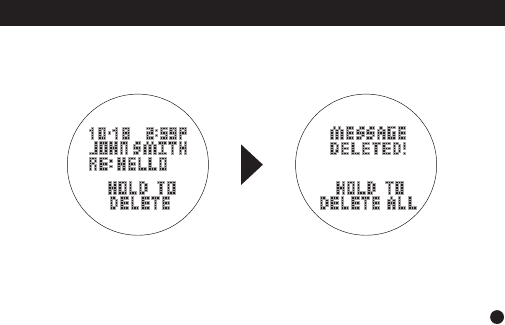
You can delete a single message or all messages
depending on how long you hold VIEW.
The initial press and hold of
VIEW will delete the current
message.
Once the current message
is deleted, you can continue
to hold VIEW to delete all
messages.
8
NOTIFICATIONS : DELETE NOTIFICATIONS
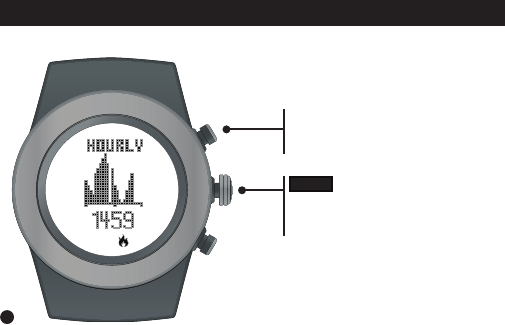
VIEW
Press to view:
sleep, distance, calories, steps
From Time Mode,
press MODE until you reach
Hourly Display
9
MODES OF OPERATION : HOURLY DISPLAY
Shows your progress throughout the day with
a 24-hour graph. The bars are scaled to t the
data from the 24-hour period.
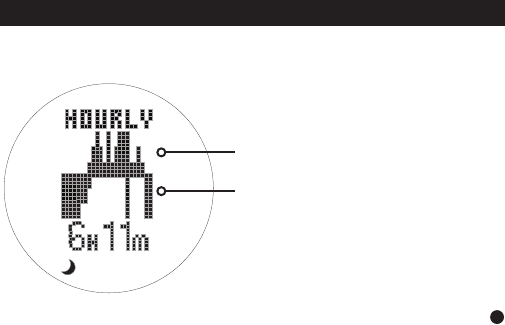
The hourly actigraphy view provides a summary of your sleep and activity levels.
Active: Displays your activity levels while
awake. Bars represent three categories:
Normal, Active and Very Active.
Active graph
Sleep graph
10
HOURLY DISPLAY : ACTIGRAPHY
Sleep: Displays your sleep levels.
Bars represent three categories:
Light, Medium and Deep Sleep.
11
MODES OF OPERATION : WEEKLY DISPLAY
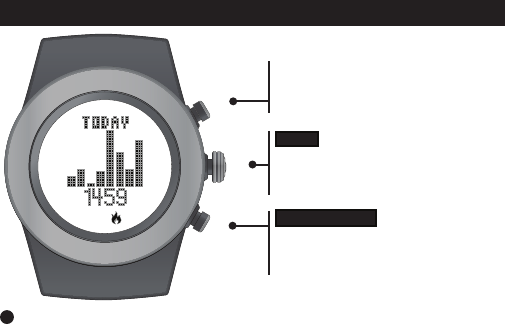
NOTE: Use the LifeTrak app to see trends and insights over weeks, months and years.
START / STOP
Press to browse through the past
7 days
VIEW
Press to view:
distance, calories, steps, sleep
From Time Mode,
Press MODE until you reach
Weekly Display (“Today”)
12
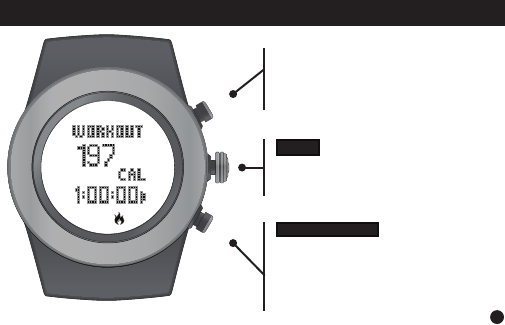
MODES OF OPERATION : WORKOUT
START / STOP
Press to start / stop recording
your workout
Hold to reset data
(Workout mode must be stopped)
VIEW
Press to view:
distance, calories, steps
From Time Mode,
press MODE
until you reach
Workout
START / STOP
Press to browse through the past
7 days
VIEW
Press to view:
distance, calories, steps, sleep
From Time Mode,
Press MODE until you reach
Weekly Display (“Today”)
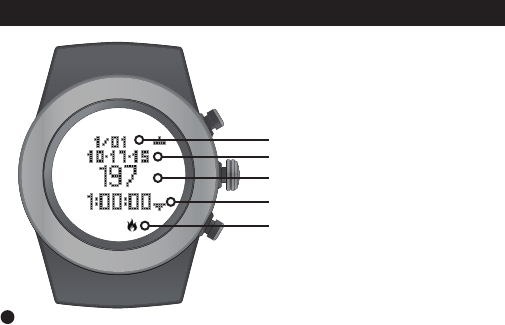
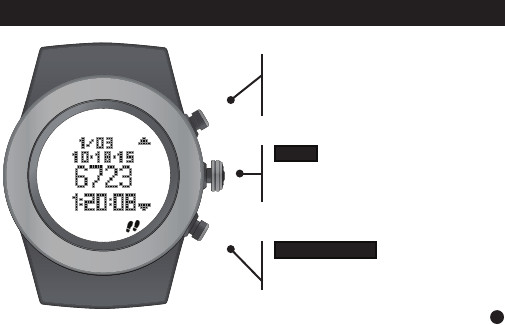
After resetting your workout data, it will be saved
automatically. You can view the last 10 workouts
recorded.
Date Recorded
Record Number
Activity Value
Total Workout Time
Activity Type
13
VIEW WORKOUT RECORDS
START / STOP
Press to go to next
workout recorded.
VIEW
Press to view:
distance, calories, steps
Press & hold to exit workout records.
In WORKOUT MODE, press & hold
MODE to review your workout data.
Press to go to next workout recorded.
14
VIEW WORKOUT RECORDS
15
VIEW
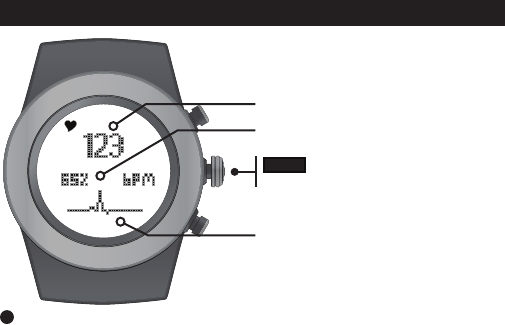
Press & hold to read your heart rate
Heart Rate (beats per minute)
% of Maximum Heart Rate
Pulse Indicator
Taking your heart rate can aid you in staying
in your workout zone and help calculate your
calories more precisely.
1. Wear snugly around your wrist.
2. Gently press and hold VIEW for 3 to 8
seconds until your heart rate appears.
HEART RATE READINGS

VIEW
Press & hold to read your heart rate
If you are having difculty acquiring your heart rate, try the following:
1. Make sure your LifeTrak tness tracker is snugly strapped to your wrist.
A loose t makes it more difcult to properly measure your heart rate.
2. Upon putting on for the rst time, allow a one-minute “warm up” before trying to
acquire your heart rate.
3. When touching the heart sensor button (VIEW), make sure you are using the soft,
at pads of your ngers, not the tips of your ngers.
4. Touch gently with enough pressure to activate the heart sensor button (VIEW).
Pressing too hard can make it difcult to measure your heart rate.
5. Make sure the back metal plate is lying at on your skin.
6. Make sure your wrist and ngers are clean and free from dirt, oils,
or lotions.
7. Clean the heart sensor button (VIEW) and back metal plate with a mild soap and
water, or similar cleaning solution.
8. Moisten with water the pads of the ngers you are using to contact the heart sensor
button (VIEW).
9. Moisten the surface between the back metal plate and the skin on your wrist with
water.
16
HELPFUL HINTS ABOUT HEART RATE
17
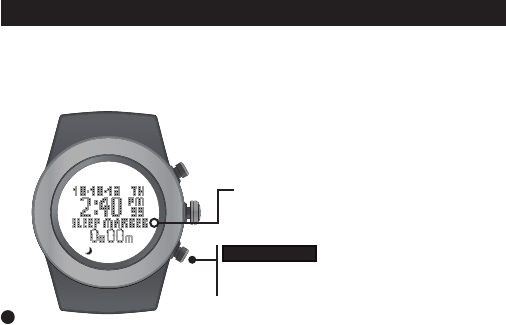
The sleep tracker monitors the duration and quality of sleep. It automatically
detects the beginning and end of your sleep session.
For full control, you can also manually operate the feature by double-clicking
START/ STOP while in Time Mode.
Sleep tracker indicator
(only in manual sleep mode)
START / STOP
Double-click to manually start / stop the sleep
tracker (must be in Time)
SLEEPTRAK 2.0
18
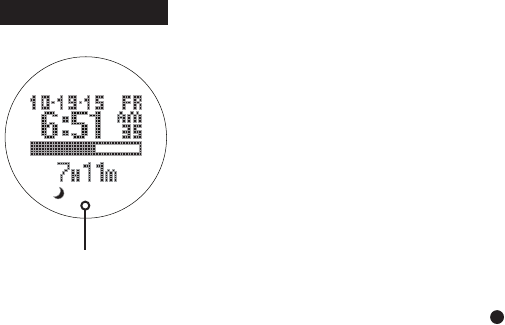
SleepTrak 2.0 is smart enough to distinguish if the
tness tracker is on or off your wrist. Sleep tracking
is disabled when the device is not on your wrist.
Total sleep time is accumulated during all sleep
sessions that end on a particular day. For example, if
you fell asleep last night and woke up this morning,
your sleep duration will be added to today’s total
sleep time.
However, if you fell asleep last night at 10:00 p.m.
and woke up at 11:00 p.m., that hour of sleep would
be added to yesterday’s total sleep time.
NOTE: Once you wake up, the total sleep time will
update after a brief period.
NOTE: Minimum sleep time for recorded data is
10 minutes.
total sleep
time
SLEEPTRAK 2.0
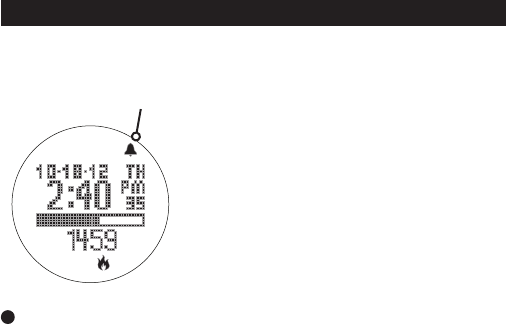
Alarm Indicator
INTELLIGENT WAKE-UP
Your LifeTrak includes Intelligent Wake-Up with Vibra-Alert. This alarm can be set to
wake you at your optimal time.
The Intelligent Wake-Up feature can be adjusted
on your tness tracker (instructions on next page)
or on the LifeTrak App (via Settings).
After setting the alarm time, you have the option of
setting an Intelligent Wake-Up window (0-59 mins)
which will activate prior to the alarm time. During
this window, the vibration alarm will activate only if
you are no longer in a deep sleep stage.
If you are still in a deep sleep stage during the
Intelligent Wake-Up window, the vibration alarm
will activate at the set alarm time.
19
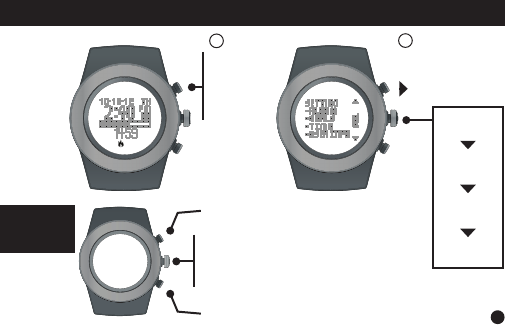
set alert
on/off
set time
(min)
set time
(hr)
adjust
alert start
In Time,
hold
MODE
for
3 sec
Select
ALARMS
WAKEUP
12
20
INTELLIGENT WAKE-UP
INSIDE
SETTING
MODE
Increase value
Decrease value
Press to go to next setting
Press & hold to
exit setting mode
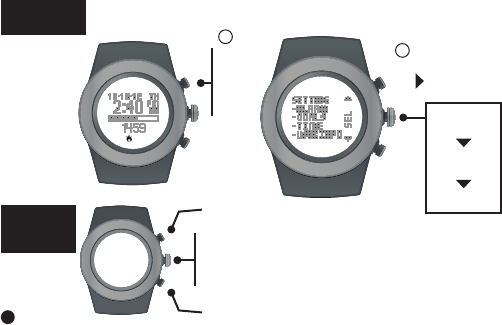
set alert
on/off
exposure
level
duration
Will suggest if you should get more light during the day.
21
In Time,
hold
MODE
for
3 sec
1
Select
ALARMS
DAY LIGHT
2
LightTrak Alerts
can be adjusted
on your tness
tracker or the
LifeTrak App
(via Settings)
LIGHTTRAK
ALERT
INSIDE
SETTING
MODE
Decrease value
Press to go to next setting
Press & hold to
exit setting mode
Increase value
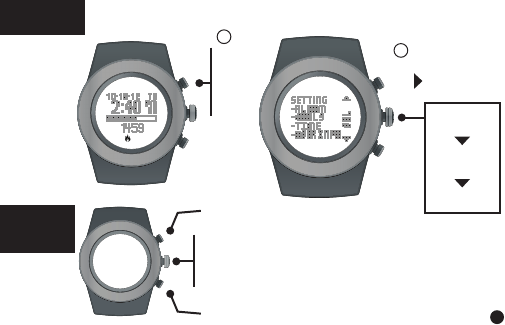
Will suggest if you should reduce light exposure prior to bedtime.
22
LIGHTTRAK
ALERT
LightTrak Alerts
can be adjusted
on your tness
tracker or the
LifeTrak App
(via Settings)
In Time,
hold
MODE
for
3 sec
1
Select
ALARMS
NITE LIGHT
2
set alert
on/off
exposure
level
duration
INSIDE
SETTING
MODE
Increase value
Decrease value
Press to go to next setting
Press & hold to
exit setting mode
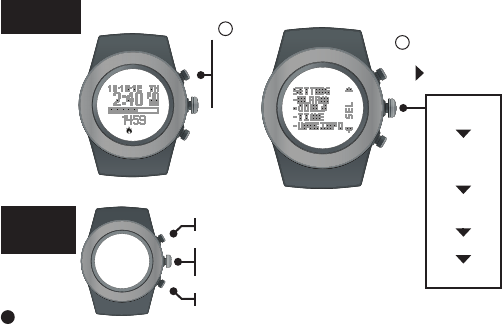
In Time,
hold
MODE
for
3 sec
Select
ALARMS
INACTIVE
INSIDE
SETTING
MODE
set alert
on/off
set inactive
time length
(min/hr)
set step
threshold
start time
end time
1
2
Increase value
Decrease value
Press: go to next setting
Press & hold: exit setting mode
INACTIVITY
ALERT
23
Inactivity Alerts
can be adjusted
on your tness
tracker or the
LifeTrak App
(via Settings)
Helps motivate with alerts if you have been inactive.
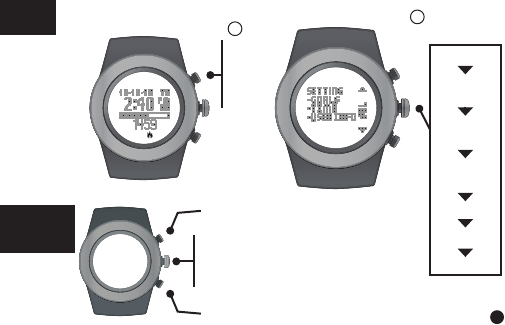
USER
INFO Select
USER INFO
2
gender
birthday
(year)
birthday
(month)
birthday
(day)
unit format
weight
height
24
User Info can be
adjusted on your
tness tracker or
the LifeTrak App
(via Settings)
In Time,
hold
MODE
for
3 sec
1
INSIDE
SETTING
MODE
Increase value
Decrease value
Press to go to next setting
Press & hold to
exit setting mode
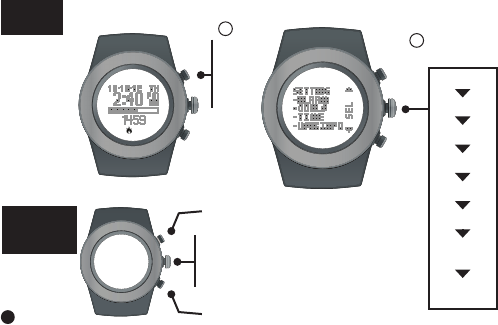
TIME
SETUP
Time Setup
can be adjusted
on your tness
tracker or the
LifeTrak App
(via Settings)
In Time,
hold
MODE
for
3 sec
1Select
TIME
2
seconds
minute
hour
year
month
day
month-day
format
12/24 hr
format
INSIDE
SETTING
MODE
Increase value
Decrease value
Press to go to next setting
Press & hold to
exit setting mode
25
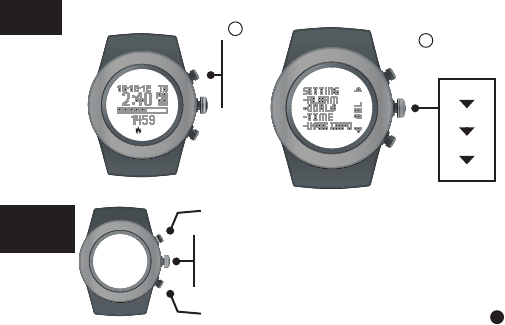
steps
distance
calories
sleep
INSIDE
SETTING
MODE
GOAL
SETUP
Increase value
Decrease value
Press to go to next setting
Press & hold to
exit setting mode
Goals can be
adjusted on your
tness tracker or
the LifeTrak App
(via Settings)
Select
GOALS
2
In Time,
hold
MODE
for
3 sec
1
26

FCC CAUTION
§ 15.19 Labelling requirements
This device complies with part 15 of the FCC Rules.
Operation is subject to the following two conditions:
(1) This device may not cause harmful interference, and
(2) this device must accept any interference received,
including interference that may cause undesired operation.
§ 15.21 Changes or modication warning
Any Changes or modications not expressly approved by the party responsible
for compliance could void the user’s authority to operate the equipment.
*RF warning for Portable device:
The device has been evaluated to meet general RF exposure requirement.
The device can be used in portable exposure condition without restriction.
27

IC CAUTION
Operation is subject to the following two conditions:
(1) This device may not cause interference, and
(2) This device must accept any interference,
including interference that may cause undesired operation of the device.
28
This device complies with Industry Canada's licence-exempt RSSs.
fonctionnement est soumis aux deux conditions suivantes :
Cet appareil est conforme aux CNR exemptes de licence d'Industrie Canada .
Son
( 1 ) Ce dispositif ne peut causer d'interférences ; et
( 2 ) Ce dispositif doit accepter toute interférence , y compris les interférences
qui peuvent causer un mauvais fonctionnement de l'appareil.

HELPFUL TIPS
Information about Calories Burned
• Your body is always burning calories, even when sleeping or not in motion.
Our All-Day Calorie Tracker accounts for these calories burned.
• You will see calories burned even when you’re not wearing your LifeTrak.
This is normal as it is estimating the calories your body typically burns throughout the day.
• You get more accurate calorie burn information by calculating in your heart rate readings, so
remember to take your heart rate throughout the day and more frequently during your exercise.
Information about LightTrak
• Monitoring your exposure to overall blue light levels can help you improve mood, ght fatigue and keep
your circadian rhythm running smoothly. The Brite R450 tracks your light levels and provides alerts to let
you know when to get more or less light. You can view charts and durations on the LifeTrak app.
Information about Inactivity Alerts
• The Brite R450 will let you know when you have been inactive.
Receive an alert to let you know when you should get moving.
Visit our website for more helpful tips: www.lifetrakusa.com
Phone : 1-855-903-9030
Mail : LifeTrak • 39962 Cedar Blvd • Ste 285 • Newark, CA 94560
29