Samsung Electronics Co DIVA2BD DVD Player/Video Cassette Recorder User Manual SLV D300P
Samsung Electronics Co Ltd DVD Player/Video Cassette Recorder SLV D300P
Contents
- 1. Users Manual 1
- 2. Users Manual 2
Users Manual 2
61
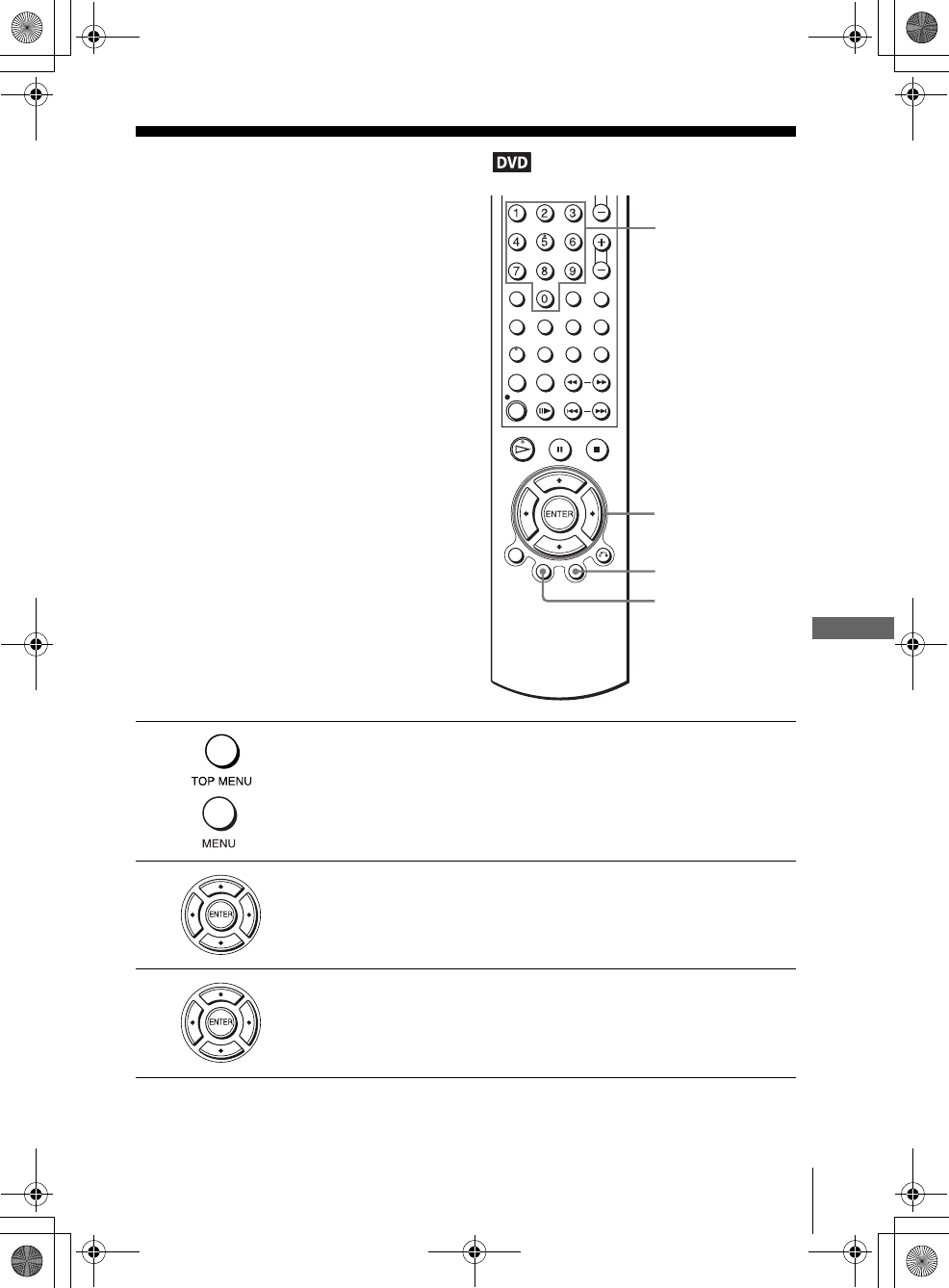
Using the DVD’s menu
DVD Additional Operations
filename[010DVD.fm] model name1[SLV-D300P] [3-083-945-11 (1) US]
filename[G:\2003combo\3083945111\3083945111SLVD300PUC\010DVD.fm]
DVD Additional Operations
Using the DVD’s menu
Note
• Depending on the DVD, you may not be able to use the TOP MENU button.
A DVD is divided into long sections of a
picture or a music feature called “titles.”
When you play a DVD which contains
several titles, you can select the title you
want using the TOP MENU button.
When you play DVDs that allow you to
select items such as the language for the
subtitles and the language for the sound,
select these items using the MENU button.
1Press TOP MENU or MENU.
The disc’s menu appears on the TV screen.
The contents of the menu vary from disc to disc.
2Press V/v/B/b to select the item you want to play or change.
You can also use the number buttons to select the item.
3Press ENTER.
Number
buttons
V/v/B/b
ENTER
MENU
TOP
MENU
010COV.book Page 61 Wednesday, March 19, 2003 10:21 AM
62 Zooming into a scene
filename[010DVD.fm] model name1[SLV-D300P] [3-083-945-11 (1) US]
filename[Z:\2003combo\3083945111-0228\3083945111SLVD300PUC\010DVD.fm]
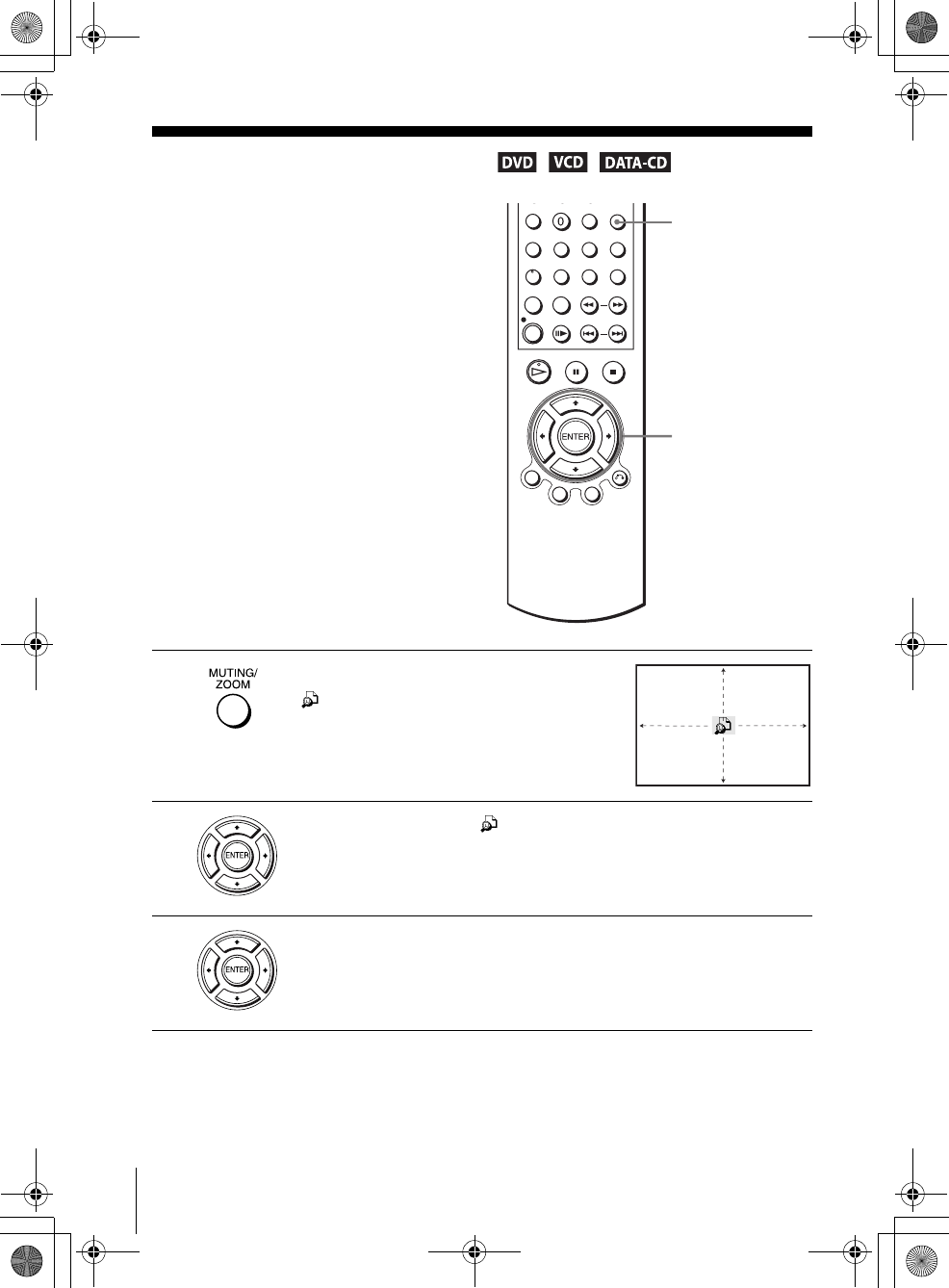
Zooming into a scene
Notes
• You cannot use 4× magnification when you play VIDEO CDs.
• The zoom function may not work depending on the DVD.
You can zoom into a scene during playback
or still mode. To zoom into a JPEG image,
see “Playing JPEG image files” on page 78.
1Press ZOOM.
“ ” appears.
2Press V/v/B/b to move “ ” to the position where you want to zoom in.
3Press ENTER repeatedly to change the magnification.
Each time you press the button, the magnification changes as shown below.
2× t 4× t 2× t normal magnification
ZOOM
V/v/B/b
ENTER
010COV.book Page 62 Saturday, March 15, 2003 4:29 PM
63
Changing the angles
DVD Additional Operations
filename[010DVD.fm] model name1[SLV-D300P] [3-083-945-11 (1) US]
filename[Z:\2003combo\3083945111-0228\3083945111SLVD300PUC\010DVD.fm]
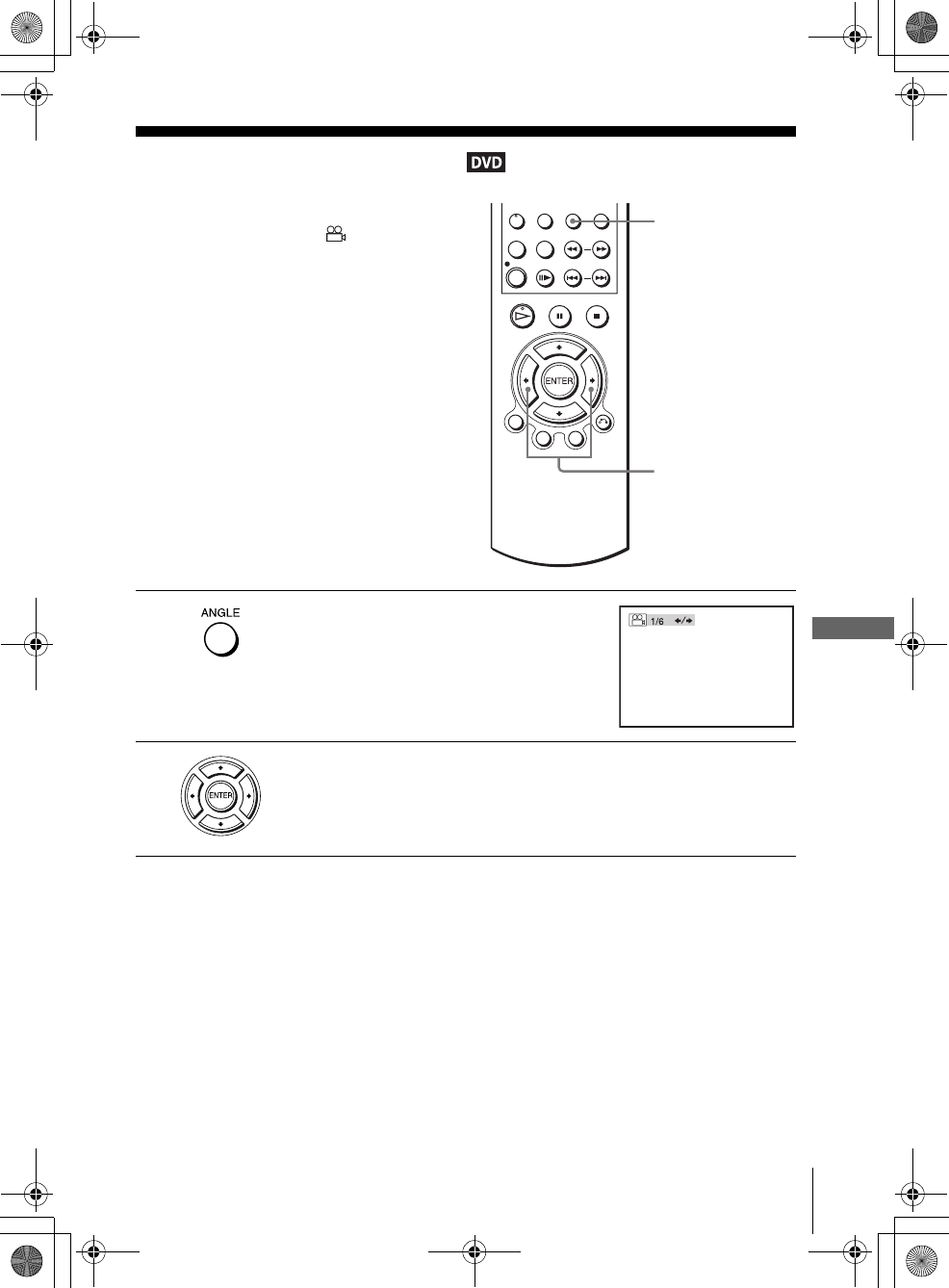
Changing the angles
Note
• Depending on the DVD, you may not be able to change the angles even if multi-angles are
recorded on the DVD.
If various angles (multi-angles) for a scene
are recorded on the DVD, “ ” appears in
the display when you press ANGLE during
playback. This means that you can change
the viewing angle.
1Press ANGLE during playback.
The angle number appears on the display.
The number after the slash indicates the total
number of angles.
2Press B/b repeatedly to select the angle number.
The scene changes to the selected angle.
ANGLE
B/b
010COV.book Page 63 Saturday, March 15, 2003 4:29 PM
64 Displaying the subtitle
filename[010DVD.fm] model name1[SLV-D300P] [3-083-945-11 (1) US]
filename[Z:\2003combo\3083945111-0228\3083945111SLVD300PUC\010DVD.fm]
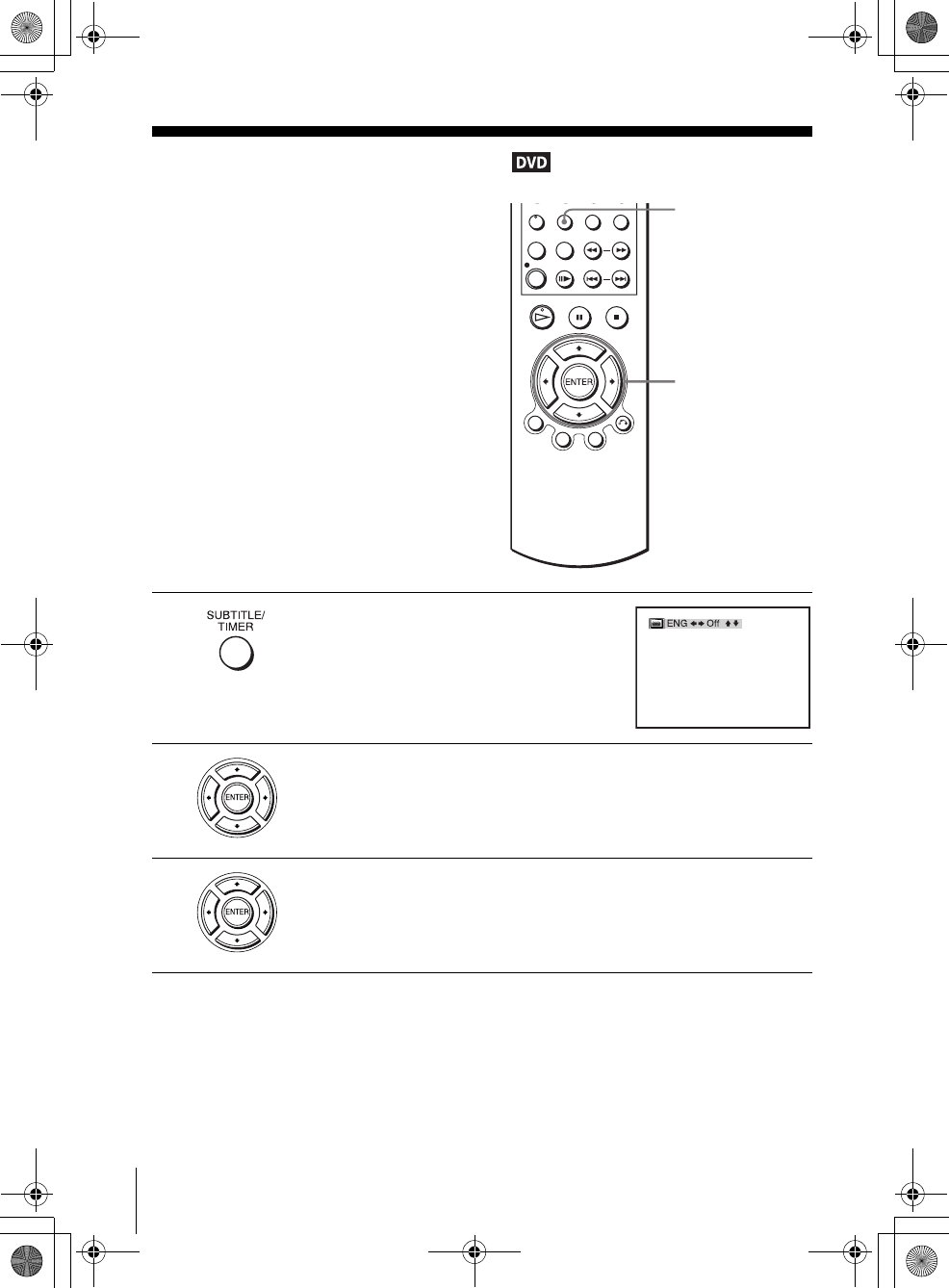
Displaying the subtitle
To turn off the subtitles
Select “Off” in step 3.
Note
• Depending on the DVD, you may not be able to change the subtitles even if multilingual
subtitles are recorded on it. You also may not be able to turn them off.
If subtitles are recorded on the disc, you can
change the subtitles or turn them on and off
whenever you want while playing a DVD.
1Press SUBTITLE during playback.
2Press B/b repeatedly to select the language.
Depending on the DVD, the choice of language varies.
Refer to “DVD Audio/Subtitle Language” on page 108 for the abbreviation
of the language.
3Press V/v repeatedly to select “On.”
SUBTITLE
V/v/B/b
ENTER
010COV.book Page 64 Saturday, March 15, 2003 4:29 PM
65
Various play mode functions (Program play, Shuffle play, Repeat play)
DVD Additional Operations
filename[010DVD.fm] model name1[SLV-D300P] [3-083-945-11 (1) US]
filename[Z:\2003combo\3083945111-0228\3083945111SLVD300PUC\010DVD.fm]
Various play mode functions (Program play,
Shuffle play, Repeat play)
You can set the following play modes:
• Program play (page 65)
• Shuffle play (page 67)
• Repeat play (page 68)
Note
• The play mode is canceled when:
– you open the disc tray
– the player enters standby mode by pressing [/1.
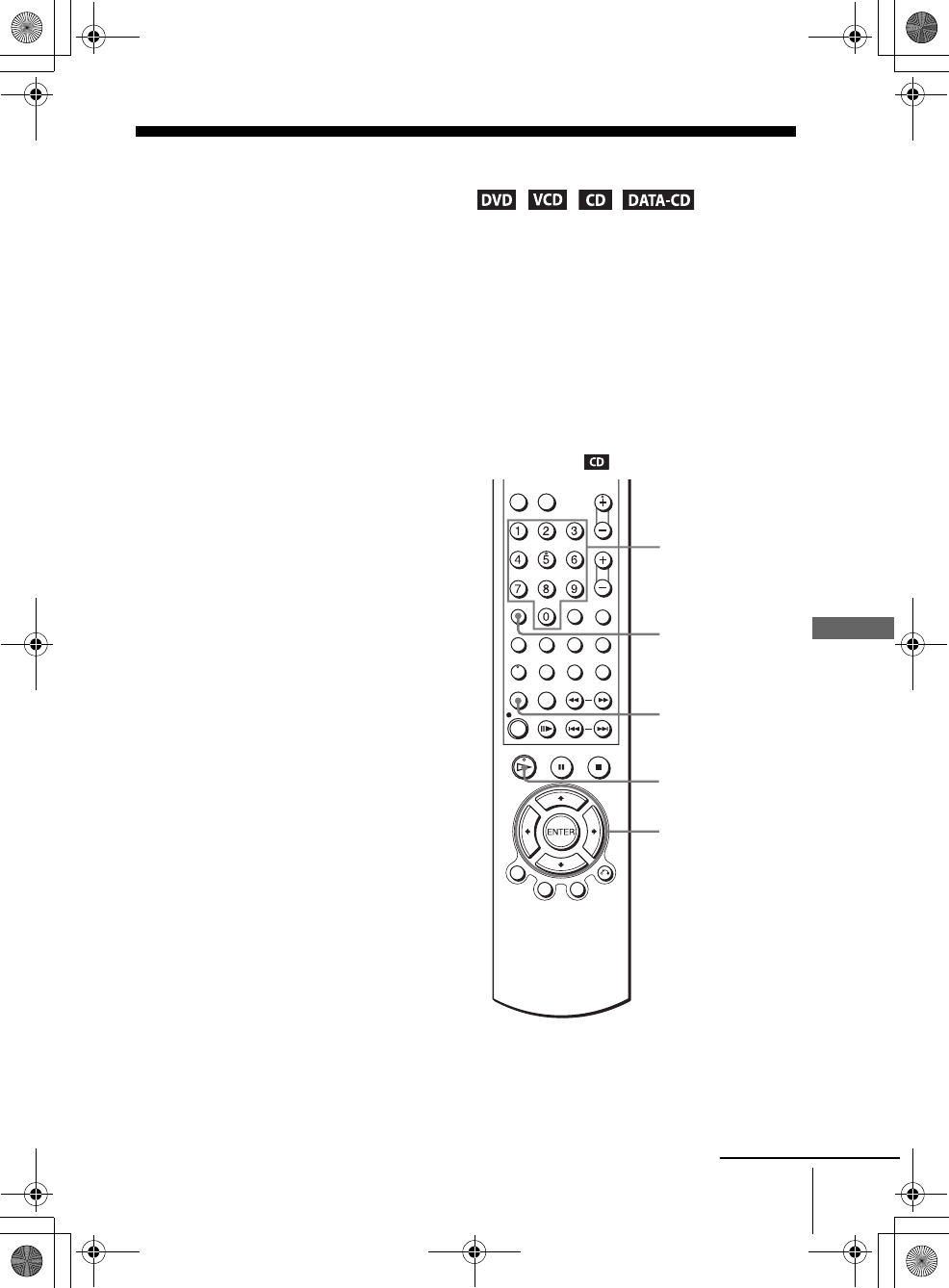
Creating your own program (Program play)
You can play the contents of a disc in the
order you want by arranging the order of the
chapters or tracks on the disc to create your
own program. You can program up to 20
chapters and tracks.
HPLAY
Number
buttons
V/v/B/b
ENTER
CLEAR
REPEAT
continued
010COV.book Page 65 Saturday, March 15, 2003 4:29 PM
66 Various play mode functions (Program play, Shuffle play, Repeat play)
filename[010DVD.fm] model name1[SLV-D300P] [3-083-945-11 (1) US]
filename[Z:\2003combo\3083945111-0228\3083945111SLVD300PUC\010DVD.fm]
To stop program play
Press CLEAR.
To change or cancel a program
Note
• You can do repeat play or shuffle play of the programed tracks. During program play, follow
the steps of “Playing repeatedly (Repeat play)” (page 68) or “Playing in random order
(Shuffle play)” (page 67).
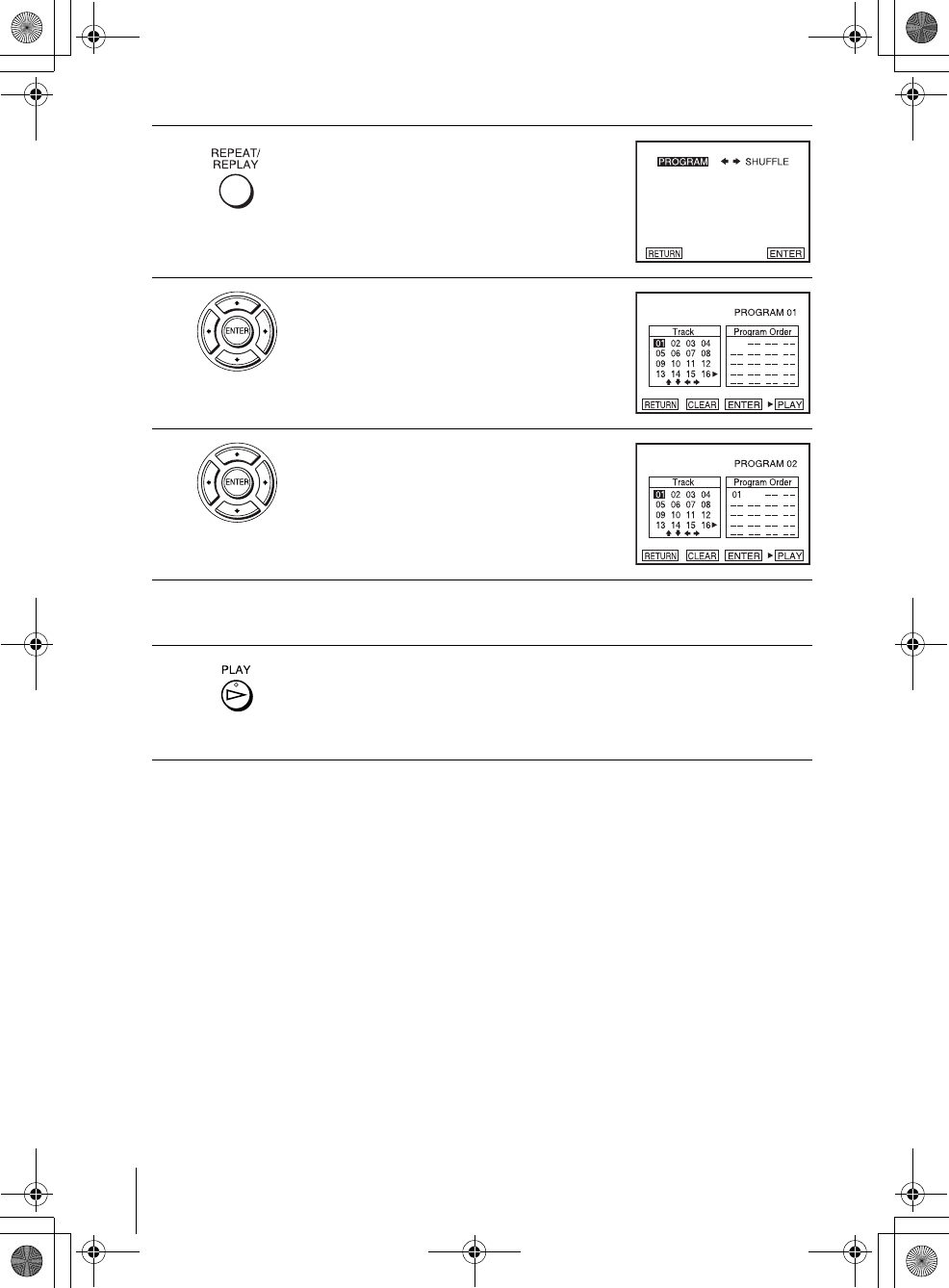
1Press REPEAT when the DVD player is in stop
mode.
2Press B/b to select “PROGRAM”, then press
ENTER.
3Press V/v/B/b to select the track number you
want to program, then press ENTER.
You can also use the number buttons to enter
the track number.
4To program other tracks, repeat step 3.
The programed track numbers are displayed in the selected order.
5Press HPLAY to start program play.
Program play starts.
When the program ends, you can restart the same program again by
pressing HPLAY.
1Follow steps 1 and 2 of “Creating your own program (Program play).”
2Press CLEAR.
The last programed number is canceled.
3Follow step 3 for new programing.
010COV.book Page 66 Saturday, March 15, 2003 4:29 PM
67
Various play mode functions (Program play, Shuffle play, Repeat play)
DVD Additional Operations
filename[010DVD.fm] model name1[SLV-D300P] [3-083-945-11 (1) US]
filename[H:\2003combo\3083945111-0228\3083945111SLVD300PUC\010DVD.fm]
Playing in random order (Shuffle play)
To return to normal play
Press CLEAR.
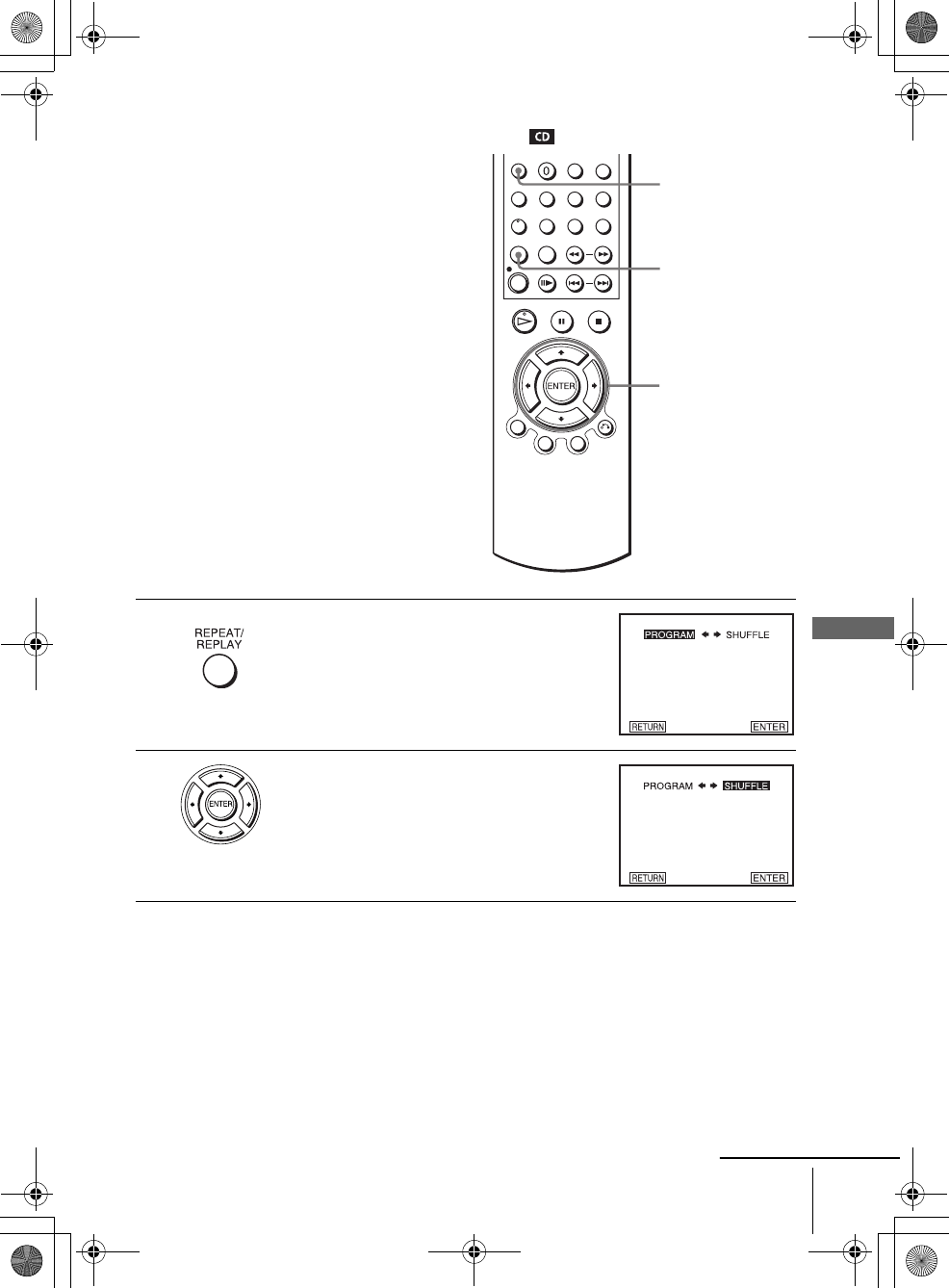
You can shuffle the playback order of tracks.
Subsequent “shuffling” may produce a
different playing order.
1Press REPEAT when the DVD player is in stop
mode.
2Press B/b to select “SHUFFLE”, then press
ENTER.
V/v/B/b
ENTER
REPEAT
CLEAR
continued
010COV.book Page 67 Saturday, March 15, 2003 9:03 PM
68 Various play mode functions (Program play, Shuffle play, Repeat play)
filename[010DVD.fm] model name1[SLV-D300P] [3-083-945-11 (1) US]
filename[Z:\2003combo\3083945111-0228\3083945111SLVD300PUC\010DVD.fm]
Playing repeatedly (Repeat play)
To return to normal play
Select “Off” or press CLEAR in step 2.
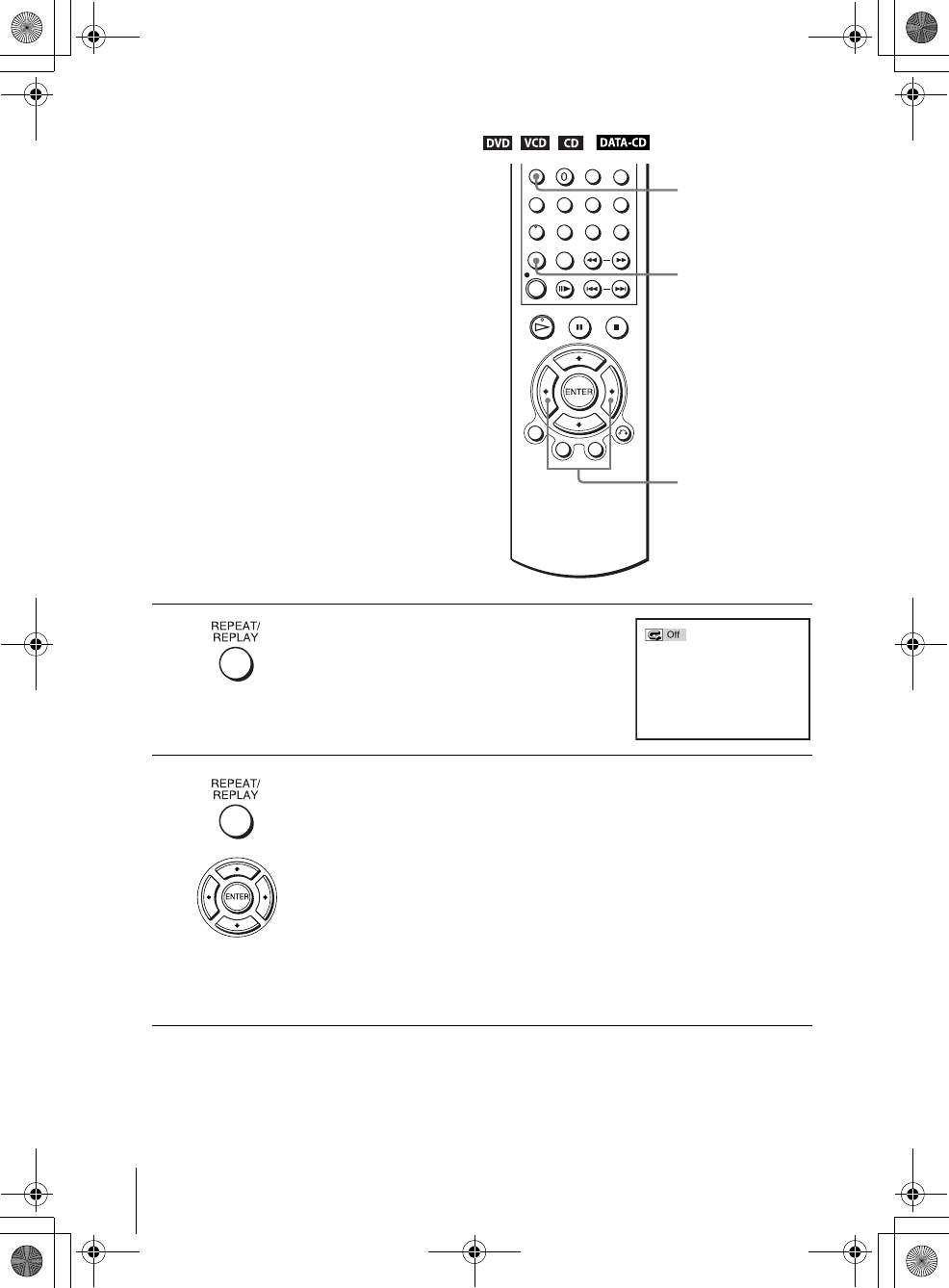
You can play all of the titles or tracks on a
disc or a single title, chapter, or track
repeatedly.
1Press REPEAT during playback.
2Press REPEAT or B/b repeatedly to select the item to be repeated.
When playing a DVD
• Chapter: repeats the current chapter.
• Title: repeats the current title on a disc.
When playing a VIDEO CD or CD
• Track: repeats the current track.
• Disc: repeats all of the tracks.
When playing a DATA CD (MP3 audio)
• Track: repeats the current track.
REPEAT
CLEAR
B/b
010COV.book Page 68 Saturday, March 15, 2003 4:29 PM
69
Using bookmarks
DVD Additional Operations
filename[010DVD.fm] model name1[SLV-D300P] [3-083-945-11 (1) US]
filename[Z:\2003combo\3083945111-0228\3083945111SLVD300PUC\010DVD.fm]
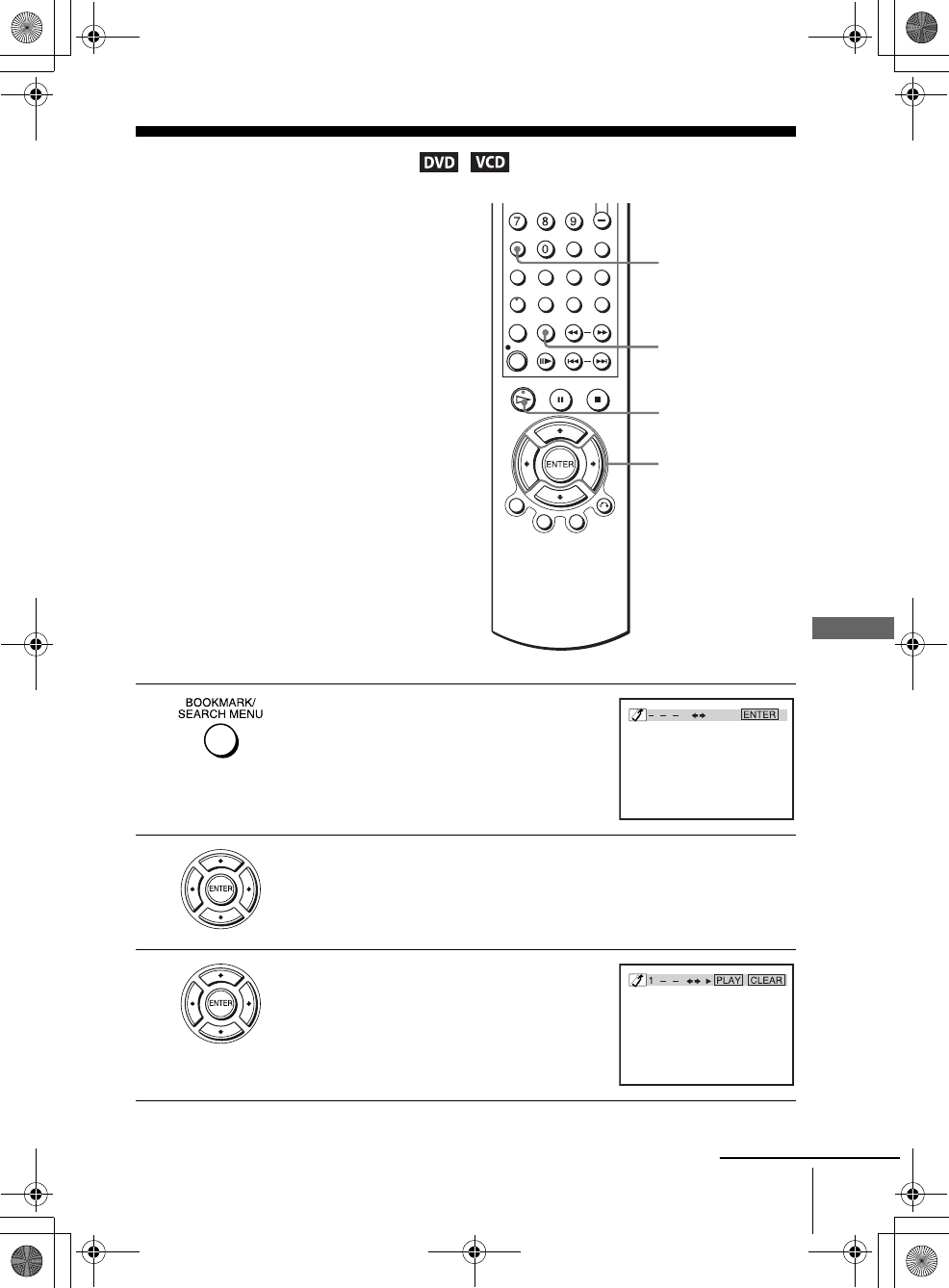
Using bookmarks
You can store scenes in the player’s memory
as bookmarks.
You can set up to three bookmarks.
Select “MENU OFF” before setting up
bookmarks on a VIDEO CD (see “Playing
VIDEO CDs with “MENU ON/OFF”
Functions” on page 81).
1Press BOOKMARK during playback.
Three bookmark placeholders (- - - ) appear
next to the bookmark icon.
2Press B/b to select one of the placeholders.
3Play the DVD scene you want, then press
ENTER.
The selected placeholder changes to a number
(1, 2 or 3).
B/b
ENTER
BOOKMARK
CLEAR
HPLAY
continued
010COV.book Page 69 Saturday, March 15, 2003 4:29 PM

70 Using bookmarks
filename[010DVD.fm] model name1[SLV-D300P] [3-083-945-11 (1) US]
filename[Z:\2003combo\3083945111-0228\3083945111SLVD300PUC\010DVD.fm]
To cancel the bookmark
Press CLEAR after step 3.
To exit the Bookmark menu
Press BOOKMARK.
To playback the scene where you insert a bookmark
Note
• Depending on the DVD, you may not be able to use the bookmark function.
1Press BOOKMARK during playback.
2Press B/b to select the bookmark placeholder, then press HPLAY to play the
bookmark.
010COV.book Page 70 Saturday, March 15, 2003 4:29 PM
71
Changing the sound
DVD Additional Operations
filename[010DVD.fm] model name1[SLV-D300P] [3-083-945-11 (1) US]
filename[Z:\2003combo\3083945111-0228\3083945111SLVD300PUC\010DVD.fm]
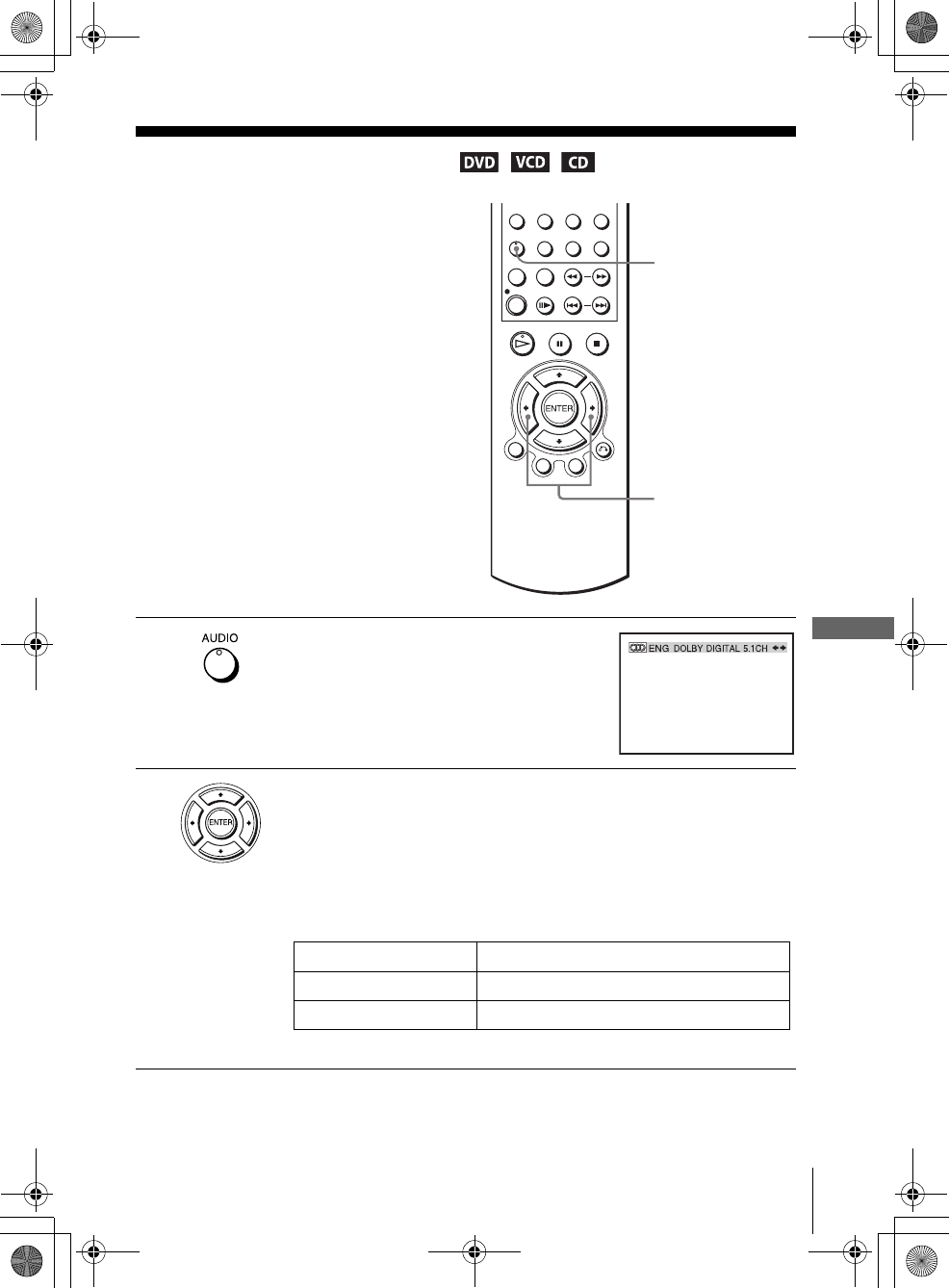
Changing the sound
When playing a DVD recorded in multiple
audio formats (PCM, Dolby Digital, or
DTS), you can change the audio format. If
the DVD is recorded with multilingual
tracks, you can also change the language.
With CDs, DATA CDs, or VIDEO CDs, you
can select the sound from the right or left
channel and listen to the sound of the
selected channel through both the right and
left speakers. For example, when playing a
disc containing a song with the vocals on the
right channel and the instruments on the left
channel, you can hear the instruments from
both speakers by selecting the left channel.
1Press AUDIO during playback.
2Press B/b repeatedly to select the desired language/audio setting.
• When playing a DVD
Depending on the DVD, the choice of language varies.
Refer to “DVD Audio/Subtitle Language” on page 108 for the
abbreviation of the language.
• When playing a VIDEO CD or CD
The default setting is indicated in bold print.
AUDIO
B/b
STEREO The standard stereo sound
Left The sound of the left channel (monaural)
Right The sound of the right channel (monaural)
010COV.book Page 71 Saturday, March 15, 2003 4:29 PM
72 Virtual surround setting
filename[010DVD.fm] model name1[SLV-D300P] [3-083-945-11 (1) US]
filename[Z:\2003combo\3083945111-0228\3083945111SLVD300PUC\010DVD.fm]
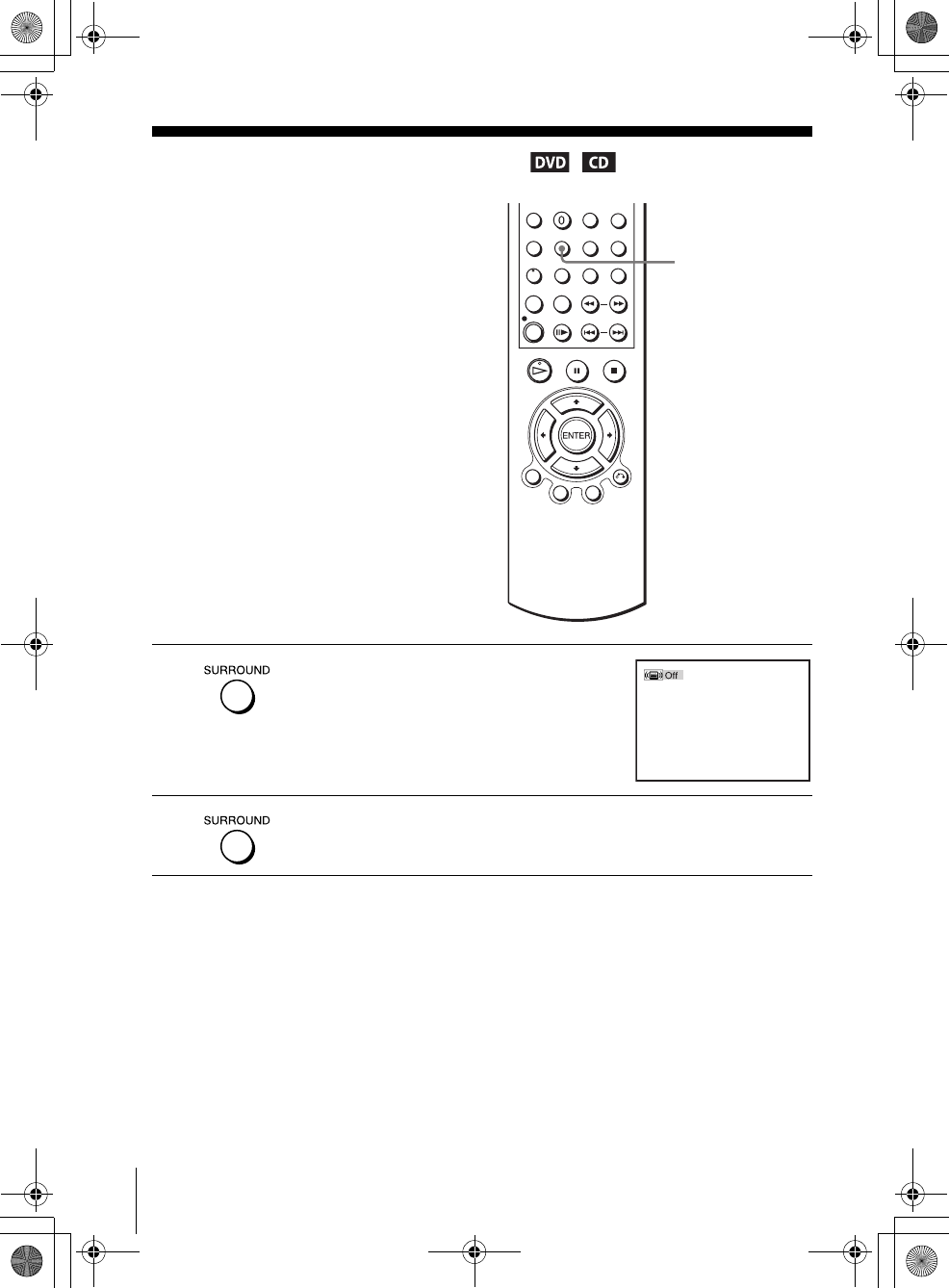
Virtual surround setting
To cancel the setting
Select “Off” in step 2.
When you connect a stereo TV or 2 front
speakers, SURROUND lets you enjoy surround
sound effects by using sound imaging to create
virtual rear speakers from the sound of the front
speakers without using actual rear speakers.
This function is designed to work with the LINE
OUT AUDIO L/R jacks.
1Press SURROUND during playback.
2Press SURROUND repeatedly to select “On.”
SURROUND
010COV.book Page 72 Saturday, March 15, 2003 4:29 PM
73
Virtual surround setting
DVD Additional Operations
filename[010DVD.fm] model name1[SLV-D300P] [3-083-945-11 (1) US]
filename[Z:\2003combo\3083945111-0228\3083945111SLVD300PUC\010DVD.fm]
Notes
• When the playing signal does not contain a signal for the rear speakers, the surround effects
will be difficult to hear.
• When you activate the surround effect, turn off the surround setting of the connected TV or
amplifier (receiver).
• Make sure that your listening position is between and at an equal distance from your
speakers, and that the speakers are located in similar surroundings.
• If you use the DIGITAL AUDIO OUT (OPTICAL or COAXIAL) jack and set “Dolby
Digital” to “Dolby Digital” or “DTS” to “On” in “AUDIO SETUP” menu, sound will come
from your speakers but it will not have the surround effect.
• Portions of this product are licensed from Desper Products, Inc., a subsidiary of Spatializer
Audio Laboratories, Inc. Copyright ©1997-2001Spatializer®, N-2-2™, and the circle-in-
square device are trademarks of Desper Products, Inc.
010COV.book Page 73 Saturday, March 15, 2003 4:29 PM
74 Playing an MP3 audio track
filename[010DVD.fm] model name1[SLV-D300P] [3-083-945-11 (1) US]
filename[Z:\2003combo\3083945111-0228\3083945111SLVD300PUC\010DVD.fm]
Playing an MP3 audio track
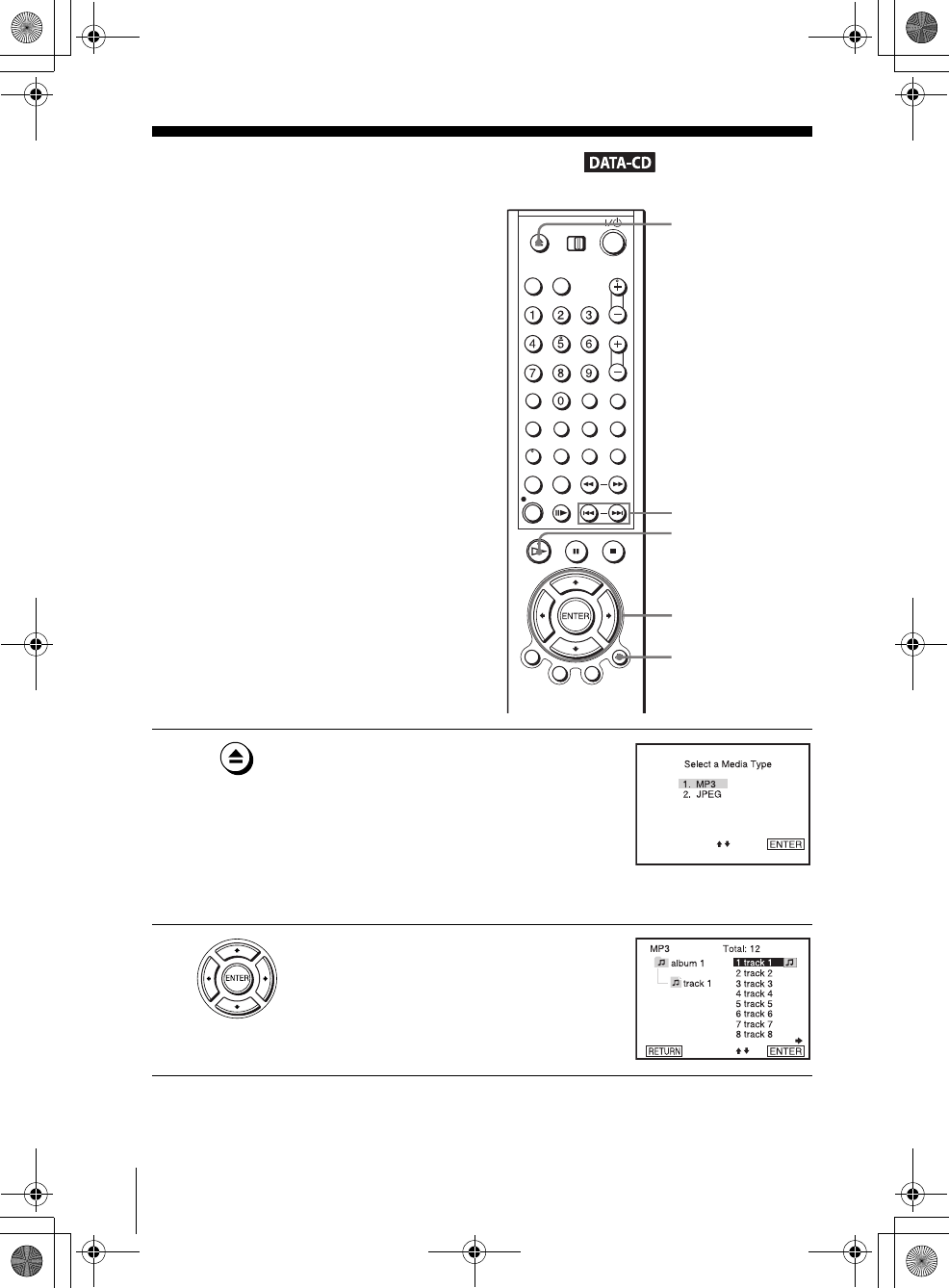
You can play back DATA CDs (CD-ROMs/
CD-Rs/CD-RWs) recorded in MP3 (MPEG1
Audio Layer 3) format.
1Press Z and place a DATA CD on the disc tray,
then press Z to close the tray.
When you load a DATA CD which contains
MP3 audio tracks and JPEG image files,
“Select a Media Type” menu appears.
If you load a DATA CD which contains only
MP3 audio files, the MP3 display appears.
Then you can skip step 2.
2Press V/v to select “MP3”, then press ENTER.
V/v/B/b
ENTER
HPLAY
O RETURN
Z
./ >
010COV.book Page 74 Saturday, March 15, 2003 4:29 PM
75
Playing an MP3 audio track
DVD Additional Operations
filename[010DVD.fm] model name1[SLV-D300P] [3-083-945-11 (1) US]
filename[Z:\2003combo\3083945111-0228\3083945111SLVD300PUC\010DVD.fm]
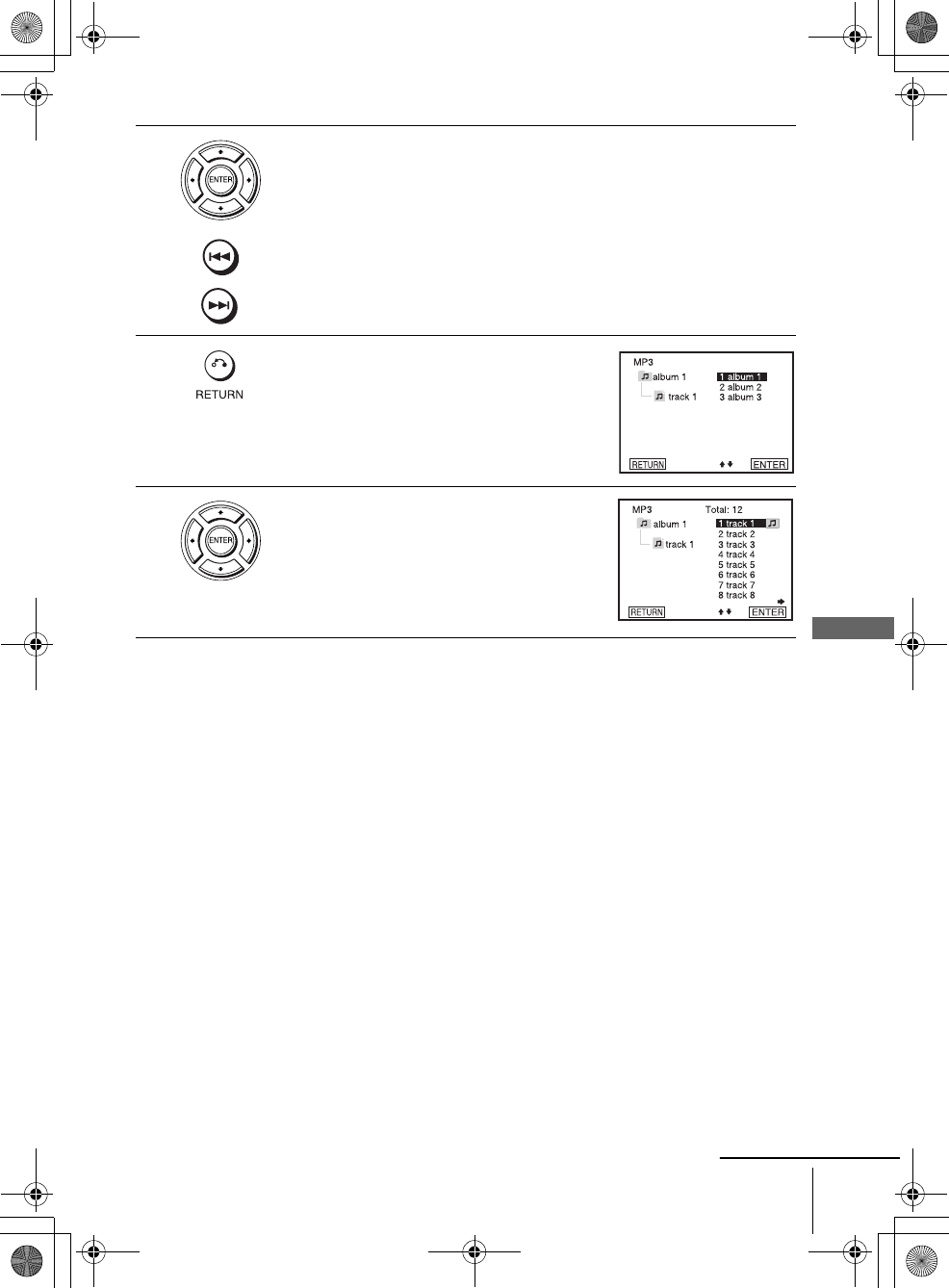
To go to the next or previous page
Press b or B.
To return to the previous display
Press O RETURN.
To return to the “Select a Media Type” menu
Press xSTOP twice, then press TOP MENU.
To turn off the display
Press xSTOP, then press O RETURN repeatedly.
Notes
• Only the letters in the alphabet and numbers can be used for album or track names. Anything
else is displayed as an asterisk.
• Up to 10 alphanumeric characters can be displayed for album or track names.
• ID3 tags cannot be displayed.
3Press V/v or ./ > to select the desired track, then press ENTER.
The selected track starts playing.
When a track or album is being played, its title is shaded. The playing track
number appears on the display window.
4To change the album, press O RETURN.
5Press V/v to select an album, then press
ENTER.
The list of tracks contained in the album
appears.
To select a track, repeat step 2.
continued
010COV.book Page 75 Saturday, March 15, 2003 4:29 PM
76 Playing an MP3 audio track
filename[010DVD.fm] model name1[SLV-D300P] [3-083-945-11 (1) US]
filename[Z:\2003combo\3083945111-0228\3083945111SLVD300PUC\010DVD.fm]
About MP3 audio tracks
You can play MP3 audio tracks on CD-ROMs, CD-Rs, or CD-RWs. However, the
discs must be recorded according to ISO9660 level 1, level 2, or Joliet format for the
player to recognize the tracks.
You can also play discs recorded in Multi Session.
See the instructions of the CD-R/RW device or recording software (not supplied) for
details on the recording format.
To play a Multi Session CD
This player can play Multi Session CDs when an MP3 audio track is located in the
first session. Any subsequent MP3 audio tracks, recorded in the later sessions, can
also be played back. When audio tracks and images in music CD format or video CD
format are recorded in the first session, only the first session will be played back.
Notes
• If you put the extension “.MP3” to data not in MP3 format, the player cannot recognize the
data properly and will generate a loud noise which could damage your speaker system.
• The player cannot play audio tracks in MP3PRO format.
• This player supports MP3 audio tracks recorded with a bit rate of 128 kbps and a sampling
frequency of 44.1 kHz. Attempting to play MP3 audio tracks recorded with different
specifications may result in loud noise, sound skipping or speaker damage.
• Depending on the disc, playback may take some time to start.
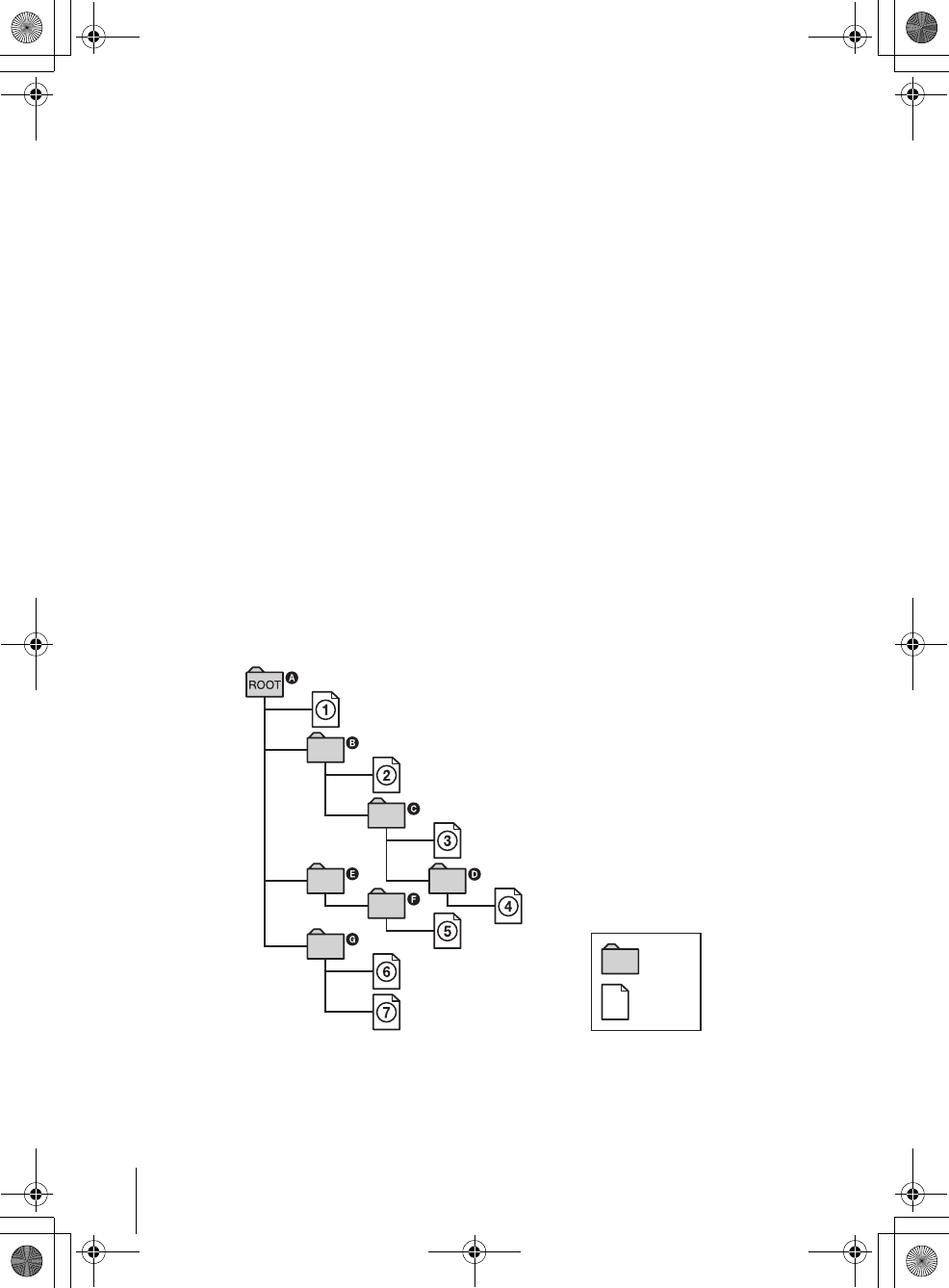
The Playback order of MP3 audio tracks
The playback order of albums and tracks recorded on a DATA CD is as follows.
• Structure of disc contents
Tree 1 Tree 2 Tree 3 Tree 4 Tree 5
album
track
010COV.book Page 76 Saturday, March 15, 2003 4:29 PM
77
Playing an MP3 audio track
DVD Additional Operations
filename[010DVD.fm] model name1[SLV-D300P] [3-083-945-11 (1) US]
filename[Z:\2003combo\3083945111-0228\3083945111SLVD300PUC\010DVD.fm]
When you insert a DATA CD and press HPLAY, the numbered tracks are played
sequentially, from 1 through 7. Any sub-albums/tracks contained within a currently
selected album take priority over the next album in the same tree. (Example: C
contains D so 4 is played before 5.)
When you press O RETURN and the list of MP3 albums appears (page 75), the
albums are arranged in the following order: A t B t C t D t F t G.
Albums that do not contain tracks (such as album E) do not appear in the list.
Tips
• If you add numbers (01, 02, 03, etc.) to the front of the track file names, the tracks will be
played in that order.
• Since a disc with many trees takes longer to start playback, place your albums within the first
two trees.
Notes
• Depending on the software you use to create the DATA CD, the playback order may differ
from the illustration above.
• The playback order above may not be applicable if there are more than a total of 200 albums
and tracks in the DATA CD.
• The player can recognize up to 100 albums (the player will count just albums, including
albums that do not contain MP3 audio tracks). The player will not play any albums beyond
the first 100 albums. Of the first 100 albums, the player will play no more than a combined
total of 200 albums and tracks.
010COV.book Page 77 Saturday, March 15, 2003 4:29 PM
78 Playing JPEG image files
filename[010DVD.fm] model name1[SLV-D300P] [3-083-945-11 (1) US]
filename[H:\2003combo\3083945111-0228\3083945111SLVD300PUC\010DVD.fm]
Playing JPEG image files
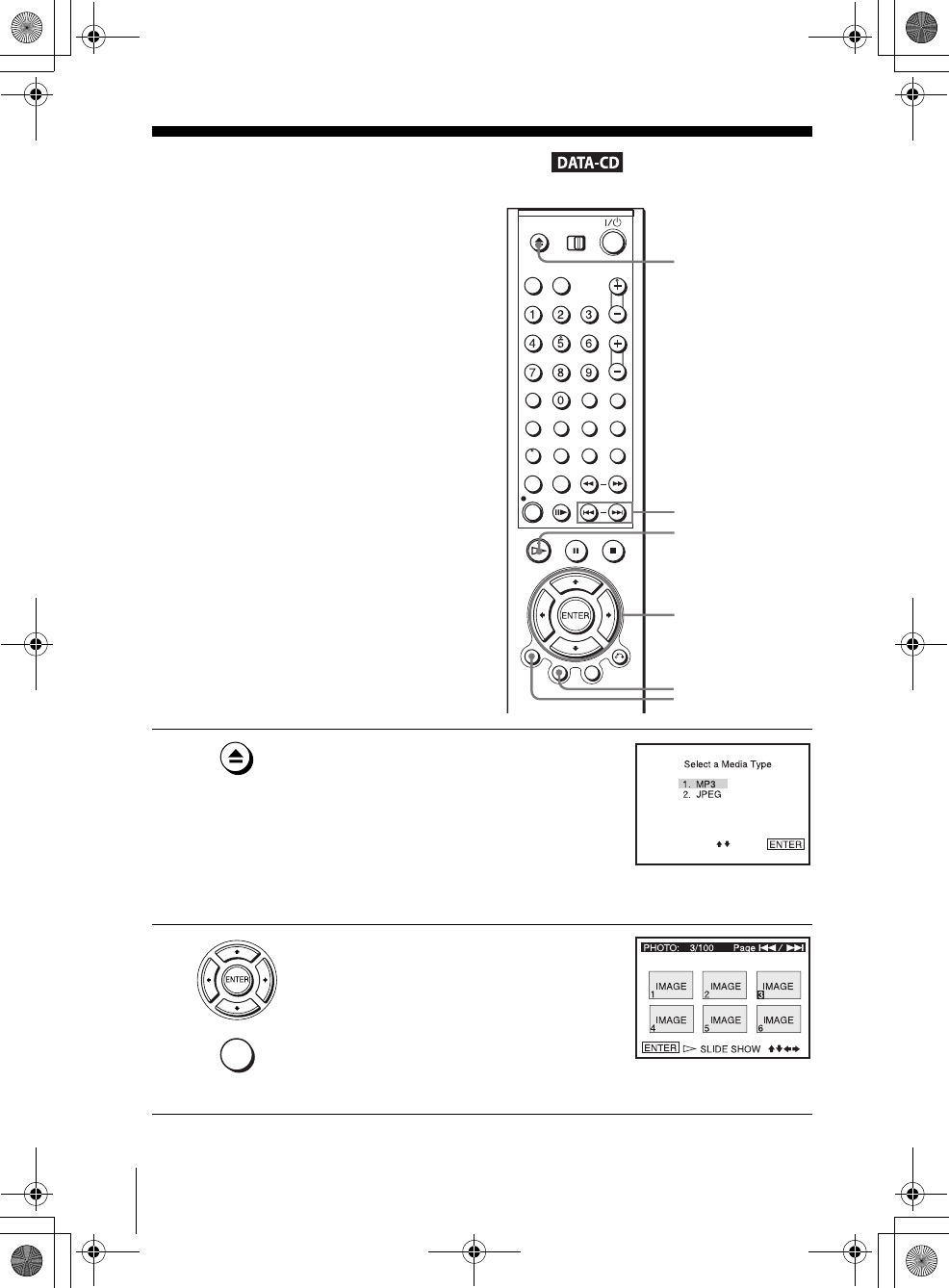
You can play JPEG image files on DATA CDs
(CD-ROMs/CD-Rs/CD-RWs).
1Press Z and place a DATA CD on the disc tray,
then press Z to close the tray.
When you load a DATA CD which contains
MP3 audio tracks and JPEG image files,
“Select a Media Type” menu appears.
If you load a DATA CD which contains only
JPEG image files, the ALBUM display
appears. Then you can skip step 2.
2Press V/v to select “JPEG”, then press
ENTER.
The ALBUM display will appears.
To display the total number of JPEG image
files on the disc, press DISPLAY.
V/v/B/b
ENTER
HPLAY
Z
TOP MENU
./ >
DISPLAY
DISPLAY
010COV.book Page 78 Saturday, March 15, 2003 9:04 PM
79
Playing JPEG image files
DVD Additional Operations
filename[010DVD.fm] model name1[SLV-D300P] [3-083-945-11 (1) US]
filename[H:\2003combo\3083945111-0228\3083945111SLVD300PUC\010DVD.fm]
To display an image
To rotate an image
To zoom in an image
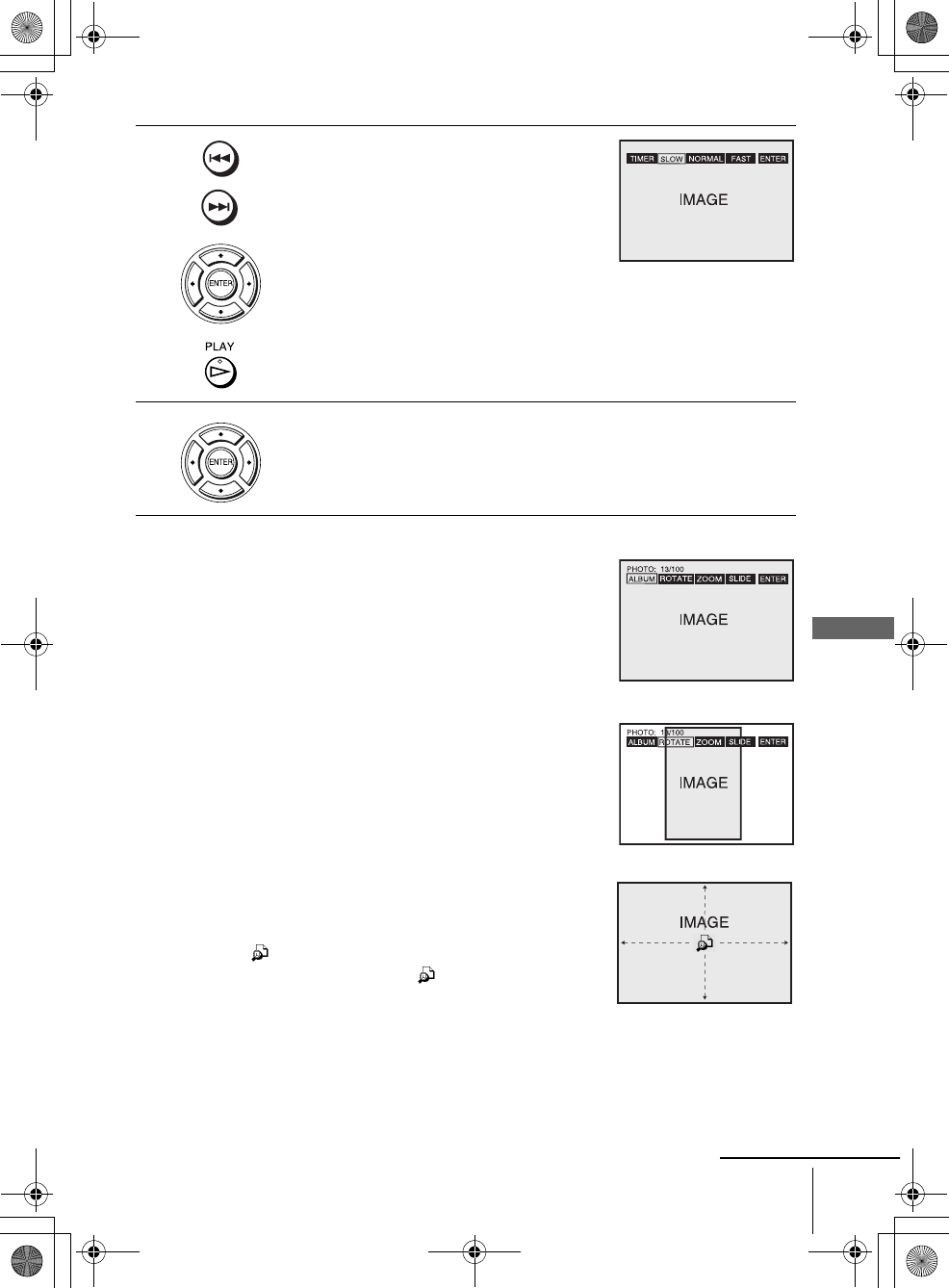
3Press ./ > to select the next/previous
ALBUM page, press V/v/B/b to select an
image in the ALBUM display, then press
HPLAY.
The TIMER menu appears.
4Press B/b to select the desired play speed, then press ENTER.
Slide show starts from the selected image.
1Press V/v/B/b to select an image in the ALBUM
display, then press ENTER.
The selected image number appears in the display
window.
2To display the next/previous image, press ./ >.
1Press V/v/B/b to select an image in the ALBUM
display, then press ENTER.
2Press B/b to select ROTATE, then press ENTER.
Each time you press ENTER, the image turns
clockwise by 90°.
1Press V/v/B/b to select an image in the ALBUM
display, then press ENTER.
2Press B/b to select ZOOM, then press ENTER.
“ ” appears.
3Press V/v/B/b to move “ ” to the position where
you want to zoom in.
4Press ENTER repeatedly to change the magnification.
Each time you press ENTER, the magnification
changes as shown below.
2× t 4× t 2× t normal magnification
continued
010DVD.fm Page 79 Monday, March 17, 2003 6:28 PM
80 Playing JPEG image files
filename[010DVD.fm] model name1[SLV-D300P] [3-083-945-11 (1) US]
filename[H:\2003combo\3083945111-0228\3083945111SLVD300PUC\010DVD.fm]
To enjoy the Slide show
To turn on/off the menu in the single image display
Press DISPLAY in the single image display.
To turn on/off the total number of images in the ALBUM display
Press DISPLAY in the ALBUM display.
To return to the ALBUM display
Press DISPLAY to turn on the menu and press B/b to select ALBUM, then press
ENTER. You can also use MENU button to return to the ALBUM display. Press
. repeatedly to return to the first ALBUM page.
To return to the “Select a Media Type” menu
Press xSTOP twice, then press TOP MENU.
Notes
• Slide show can play in only one direction.
• You cannot rotate or zoom in the image during Slide show.
• If you select ALBUM in the rotated image display, the images in the ALBUM display will
also be rotated. Correct the rotation in the ROTATE menu.
About JPEG image files
You can play JPEG image files on CD-ROMs, CD-Rs, or CD-RWs. However, the
discs must be recorded according to ISO9660 level 1, level 2, or Joliet format for the
player to recognize the files.
You can also play discs recorded in Multi Session.
See the instructions of the CD-R/RW device or recording software (not supplied) for
details on the recording format.
To play a Multi Session CD
This player can play Multi Session CDs when an JPEG image file is located in the
first session. Any subsequent JPEG image files, recorded in the later sessions, can
also be played back. When audio tracks and images in music CD format or video CD
format are recorded in the first session, only the first session will be played back.
Notes
• The system can play the extension “.JPG” or “.JPEG.”
•Some CD-Rs or CD-RWs cannot be played on this system depending on file format.
• If you put the extension “.JPG” or “.JPEG” to data not in JPEG format, the player cannot
recognize the data properly.
• Depending on the disc, playback may take some time to start.
Tip
• If you add numbers (01, 02, 03, etc.) to the front of the file names, the files will be played in
that order.
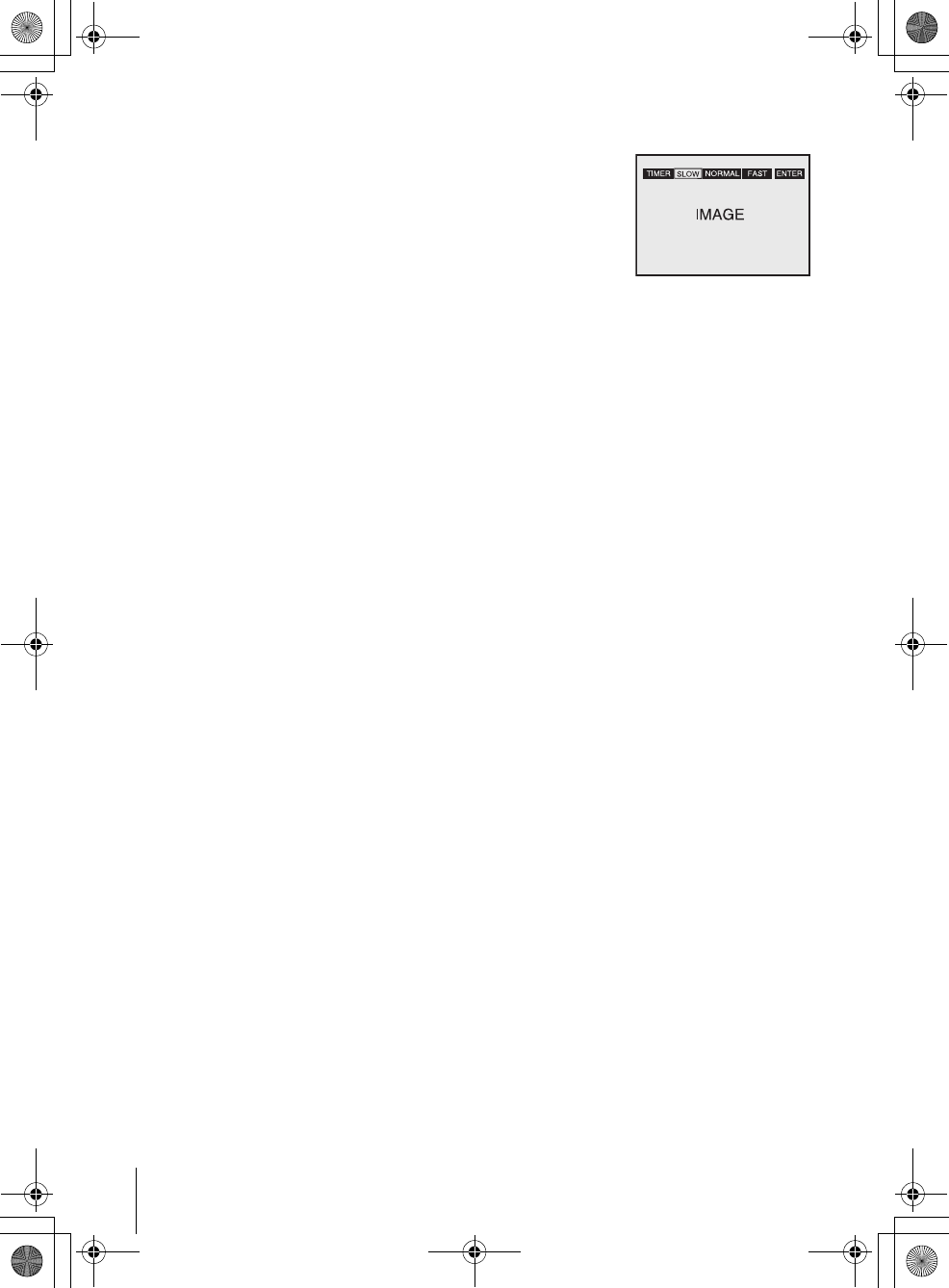
1Press V/v/B/b to select an image in the ALBUM
display, then press ENTER.
2Press B/b to select SLIDE, then press ENTER.
The TIMER menu appears.
3Press B/b to select the desired play speed, then press
ENTER.
Slide show starts.
010DVD.fm Page 80 Monday, March 17, 2003 6:28 PM
81
Playing VIDEO CDs with “MENU ON/OFF” Functions
DVD Additional Operations
filename[010DVD.fm] model name1[SLV-D300P] [3-083-945-11 (1) US]
filename[Z:\2003combo\3083945111-0228\3083945111SLVD300PUC\010DVD.fm]
Playing VIDEO CDs with “MENU ON/OFF”
Functions
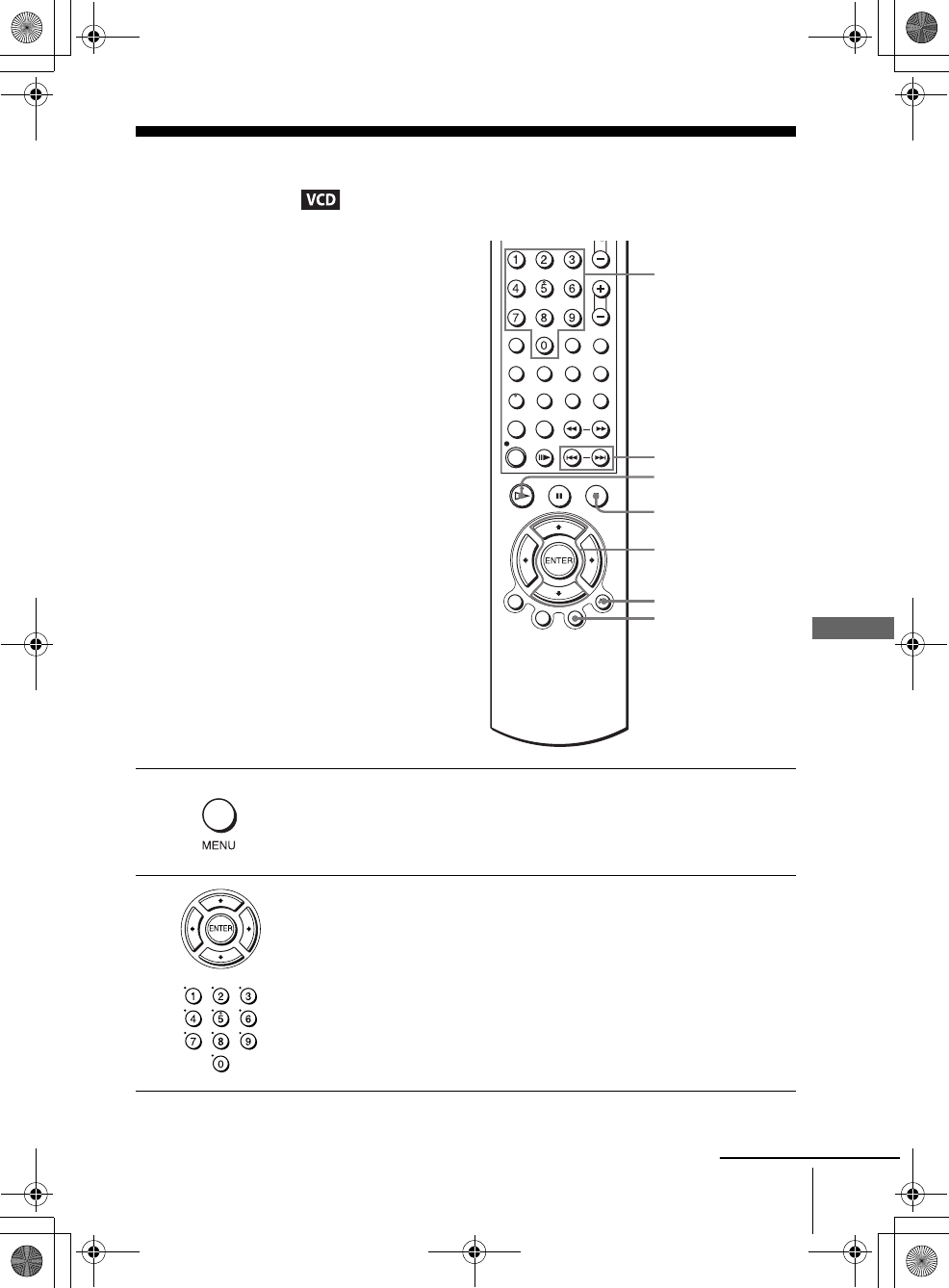
The PBC (Playback control) function allows
you to search and perform other operations
interactively. PBC playback follows a selection
menu displayed on your TV screen.
The “MENU ON” function is the PBC function.
1Press MENU to select “MENU ON.”
The menu for your selection appears.
2Press V/v to select the item number you want.
You can also use the number buttons to select the item number and track.
V/v
ENTER
Number
buttons
HPLAY
O RETURN
xSTOP
./>
MENU
continued
010COV.book Page 81 Saturday, March 15, 2003 4:29 PM
82 Playing VIDEO CDs with “MENU ON/OFF” Functions
filename[010DVD.fm] model name1[SLV-D300P] [3-083-945-11 (1) US]
filename[Z:\2003combo\3083945111-0228\3083945111SLVD300PUC\010DVD.fm]
To return to the menu
Press O RETURN.
To play using “MENU OFF”
Press MENU to select “MENU OFF.”
When “MENU OFF” is selected, the DVD player starts continuous play. You cannot play still
pictures such as a menu.
To return to “MENU ON,” press MENU to select “MENU ON.”
Note
• Depending on the VIDEO CD, “Press ENTER” in step 3 may appear as “Press SELECT” in
the instructions supplied with the disc. In this case, press H PLAY.
3Press ENTER.
4Follow the instructions in the menu for interactive operations.
Refer to the instructions supplied with the disc, as the operating procedure
may differ depending on the VIDEO CD.
010COV.book Page 82 Saturday, March 15, 2003 4:29 PM
83
Quick Timer Recording
VCR Additional Operations
filename[010ADDO.fm] model name1[SLV-D300P] [3-083-945-11 (1) US]
filename[Z:\2003combo\3083945111-0228\3083945111SLVD300PUC\010ADDO.fm]
VCR Additional Operations
Quick Timer Recording
To extend the duration
Press zREC repeatedly to set a new duration time.
To cancel the duration
Press zREC repeatedly until the indicator disappears and the VCR returns to
normal recording mode.
To stop while recording
Press xSTOP.
Note
• You cannot display the current tape time in the display window when setting the recording
duration time.
After you have started recording, you can
have the VCR stop recording automatically
after a specified duration.
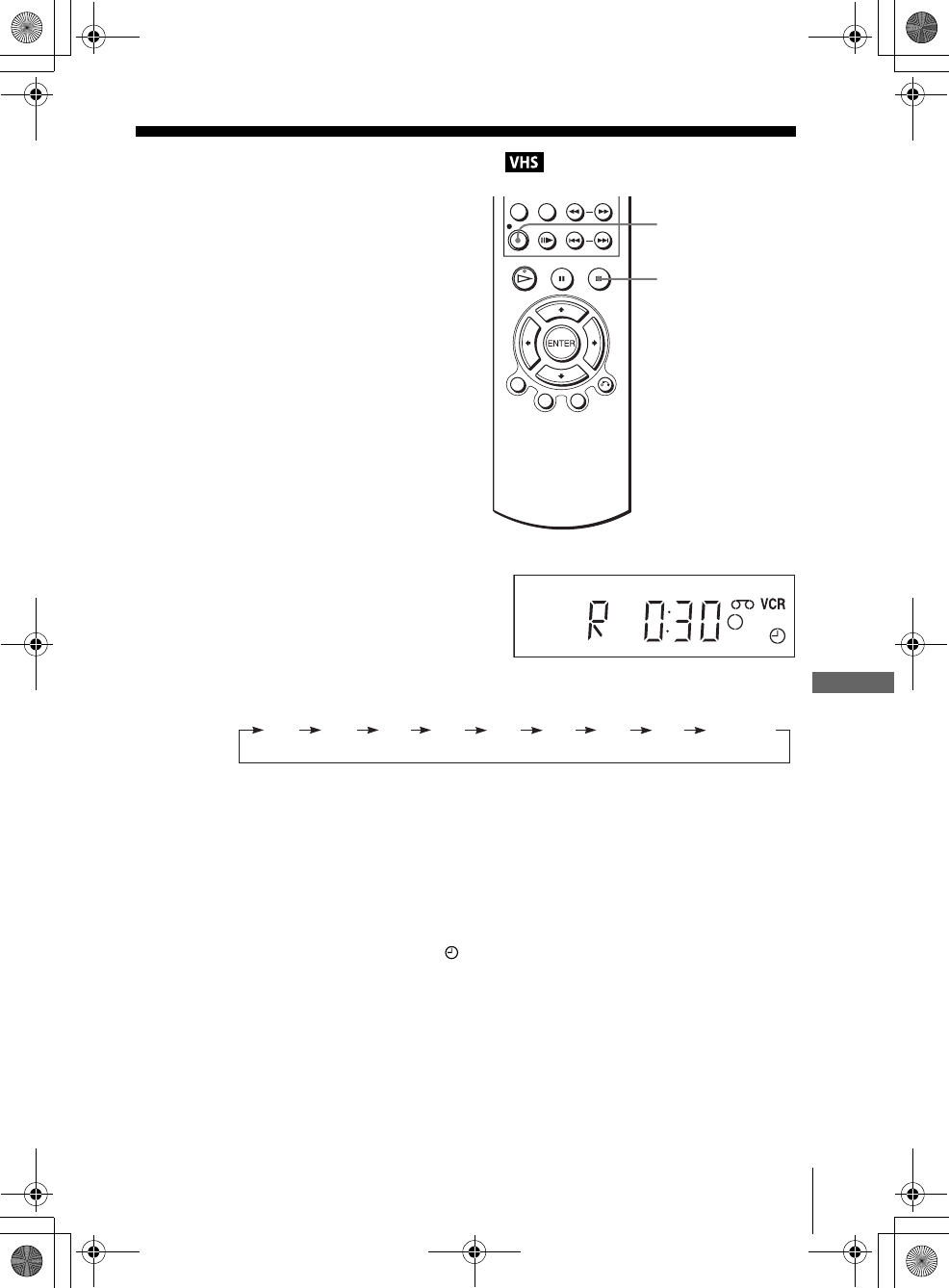
1While recording, press zREC.
2Press zREC repeatedly to set the duration time.
Each press advances the time as follows.
The tape counter decreases minute by minute to 0:00, then the VCR stops
recording.
zREC
xSTOP
0:30 1:00 1:30 2:00 2:30 3:00 3:30 4:00 Normal
recording
010COV.book Page 83 Saturday, March 15, 2003 4:29 PM
84 Recording stereo and bilingual programs
filename[010ADDO.fm] model name1[SLV-D300P] [3-083-945-11 (1) US]
filename[Z:\2003combo\3083945111-0228\3083945111SLVD300PUC\010ADDO.fm]
Recording stereo and bilingual programs
Recording stereo programs
When you receive a program broadcast in stereo, press AUDIO to display “Hi-Fi” on
the TV screen. You can also select “Left,” “Right,” or “Mono.” If there is noise in the
stereo program, select “Mono.” The sound will be recorded in monaural (on both hi-
fi and normal audio tracks) but with less noise.
Recording bilingual programs
Press AUDIO to display “SAP” on the TV screen. When a SAP (Second Audio
Program) is received, “SAP” appears on the TV screen. When MAIN is selected, the
VCR records only the main sound.
Selecting the sound during playback
During playback, press AUDIO to select the sound you want.
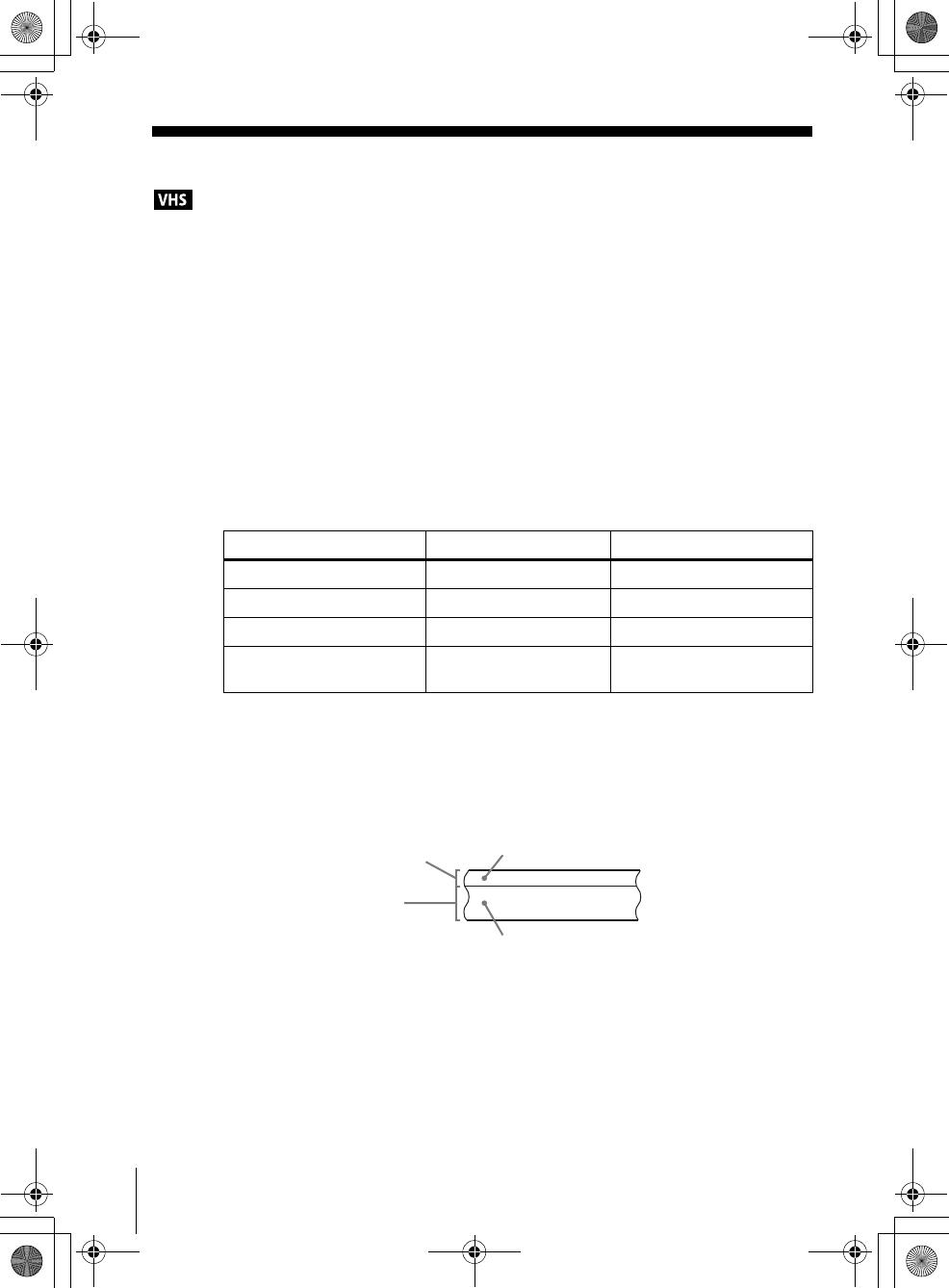
How sound is recorded on a video tape
The VCR records sound onto two separate tracks. Hi-fi audio is recorded onto the
main track along with the picture. Monaural sound is recorded onto the normal audio
track along the edge of the tape.
Notes
• To play a tape in stereo, you must use the A/V connections.
• When you play a tape recorded in monaural, the sound is heard in monaural regardless of the
AUDIO setting.
To listen to On-screen display Display window
Stereo Hi-Fi STEREO indicator
Left channel Left STEREO indicator
Right channel Right STEREO indicator
Monaural sound on the
normal audio track
Mono No indicator
Normal audio track
Hi-fi audio track
(main track)
Monaural sound
Stereo sound
(left/right channels)
010COV.book Page 84 Saturday, March 15, 2003 4:29 PM
85
Searching using various functions
VCR Additional Operations
filename[010ADDO.fm] model name1[SLV-D300P] [3-083-945-11 (1) US]
filename[Z:\2003combo\3083945111-0228\3083945111SLVD300PUC\010ADDO.fm]
Searching using various functions
To search using the index function (Scan and Play)
The VCR automatically marks the tape with an index signal at the point where each
recording begins. Use these signals as references to find a specific recording.
The VCR automatically marks the tape with
an index signal at the point where each
recording begins.
You can easily find a specific point using
various search functions.
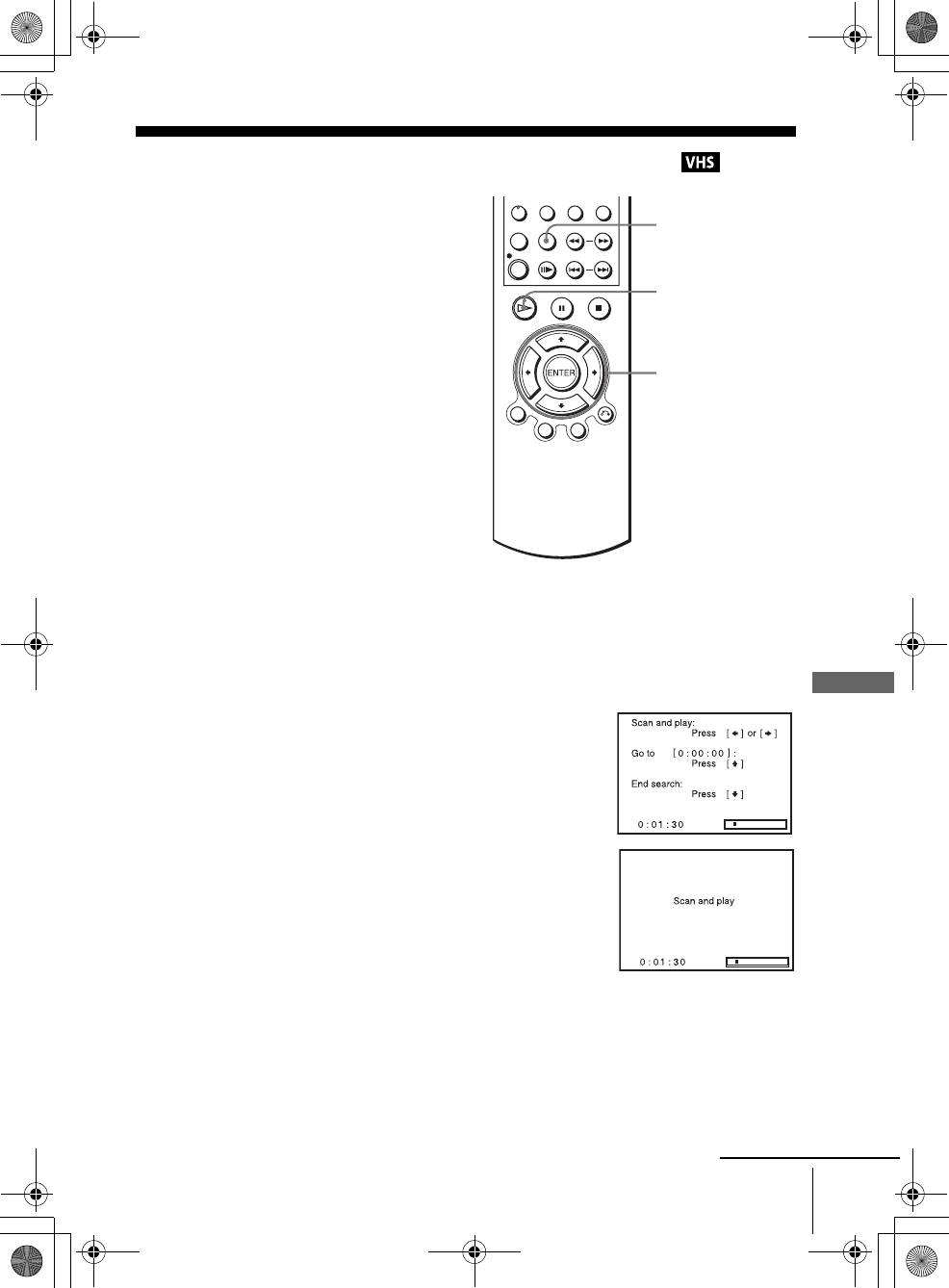
1Insert an indexed tape into the VCR.
2Press SEARCH MENU.
3Press b to scan ahead, or B to scan backwards.
The VCR searches and then plays back for about five
seconds.
4Press HPLAY to view that program.
If you do not press HPLAY, the VCR automatically searches for the next index
mark, or until it reaches the end of the tape.
SEARCH
MENU
V/v/B/b
HPLAY
continued
010COV.book Page 85 Saturday, March 15, 2003 4:29 PM
86 Searching using various functions
filename[010ADDO.fm] model name1[SLV-D300P] [3-083-945-11 (1) US]
filename[Z:\2003combo\3083945111-0228\3083945111SLVD300PUC\010ADDO.fm]
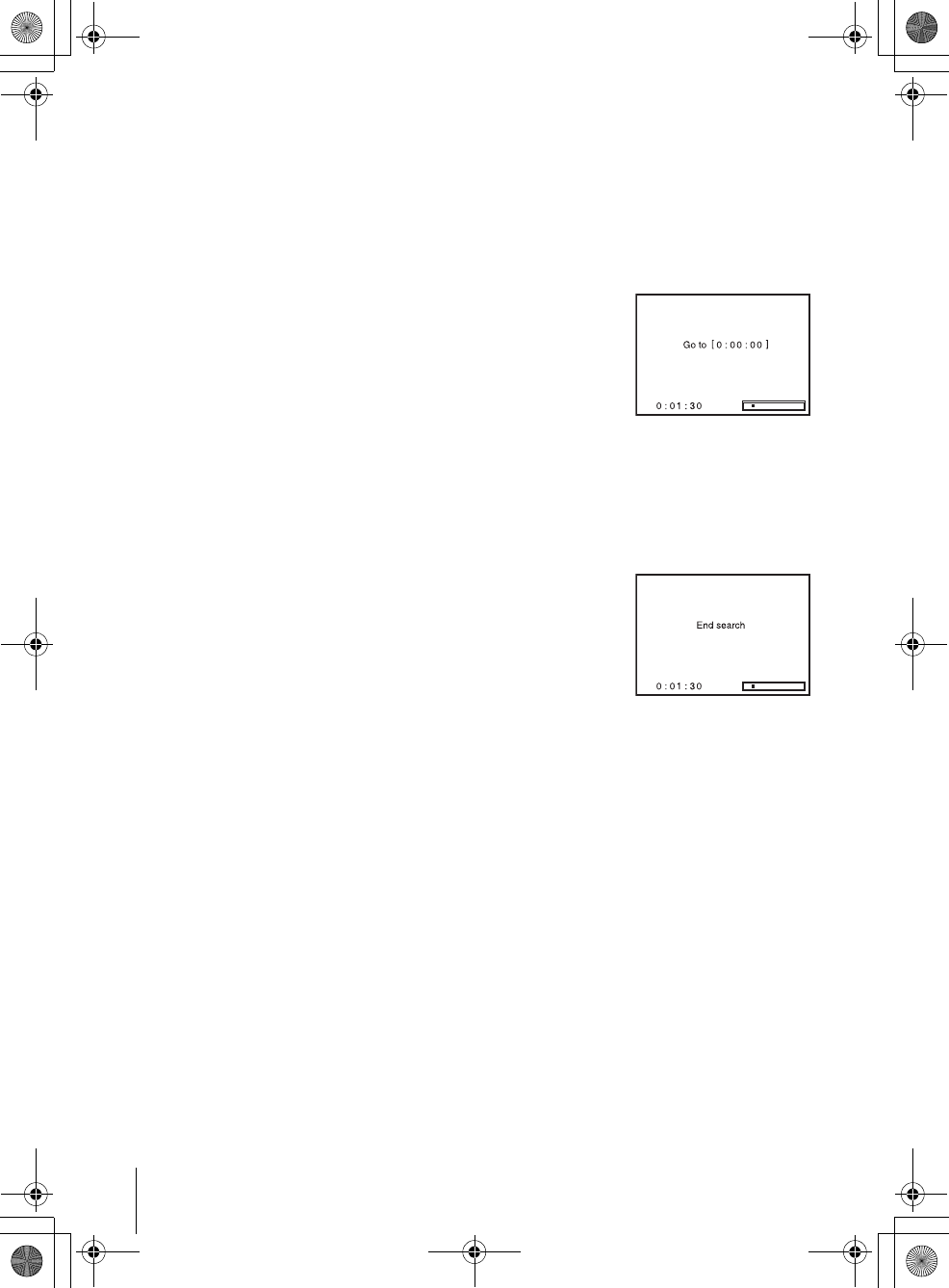
To search for the counter 0:00:00 point
To mark a point on the tape that you want to find later, reset the tape counter to
“0:00:00.”
The VCR automatically fast-forwards or rewinds to the 0:00:00 point on the tape
counter.
To search for a blank portion of the tape
The VCR automatically searches for the beginning of a blank portion. You can easily
find a point you can start recording from.
Note
• Once in recording mode, if the VCR is put in pause and then released to start the recording,
no index mark will be inserted. An index mark will be inserted if the channel is changed
while VCR is put in pause.
1Press SEARCH MENU.
2Press V.
The VCR starts searching and automatically stops at
the 0:00:00 point.
1Press SEARCH MENU.
2Press v.
The VCR starts searching and automatically stops at
the beginning of a blank space. If no blank space is
found, the VCR reaches the end and the tape will be
ejected.
010COV.book Page 86 Saturday, March 15, 2003 4:29 PM
87
Adjusting the picture (tracking)
VCR Additional Operations
filename[010ADDO.fm] model name1[SLV-D300P] [3-083-945-11 (1) US]
filename[Z:\2003combo\3083945111-0228\3083945111SLVD300PUC\010ADDO.fm]
Adjusting the picture (tracking)
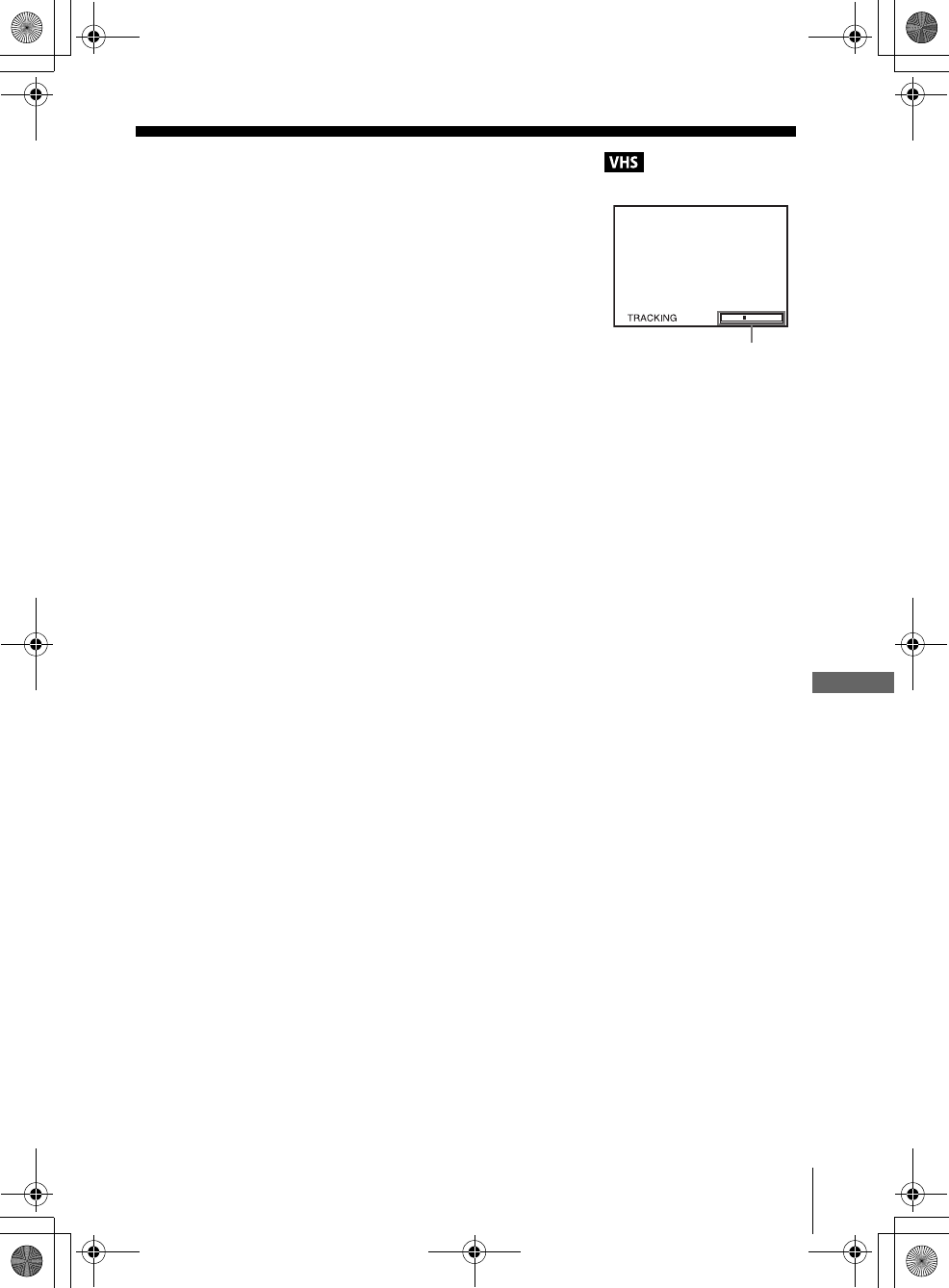
Although the VCR automatically adjusts the tracking
when playing a tape, distortion may occur if the
recording is in poor condition. In this case, manually
adjust the tracking.
Press TRACKING +/– to display the tracking meter.
The distortion should disappear as you press one of
the two tracking buttons.
To resume automatic tracking adjustment, eject the
tape and reinsert it.
Note
• The auto tracking adjustment cannot be guaranteed to work with tapes recorded in the LP
mode on other VCRs.
Tracking meter
010COV.book Page 87 Saturday, March 15, 2003 4:29 PM
88 Changing menu options
filename[010ADDO.fm] model name1[SLV-D300P] [3-083-945-11 (1) US]
filename[Z:\2003combo\3083945111-0228\3083945111SLVD300PUC\010ADDO.fm]
Changing menu options
Menu choices
The default settings are indicated in bold print.
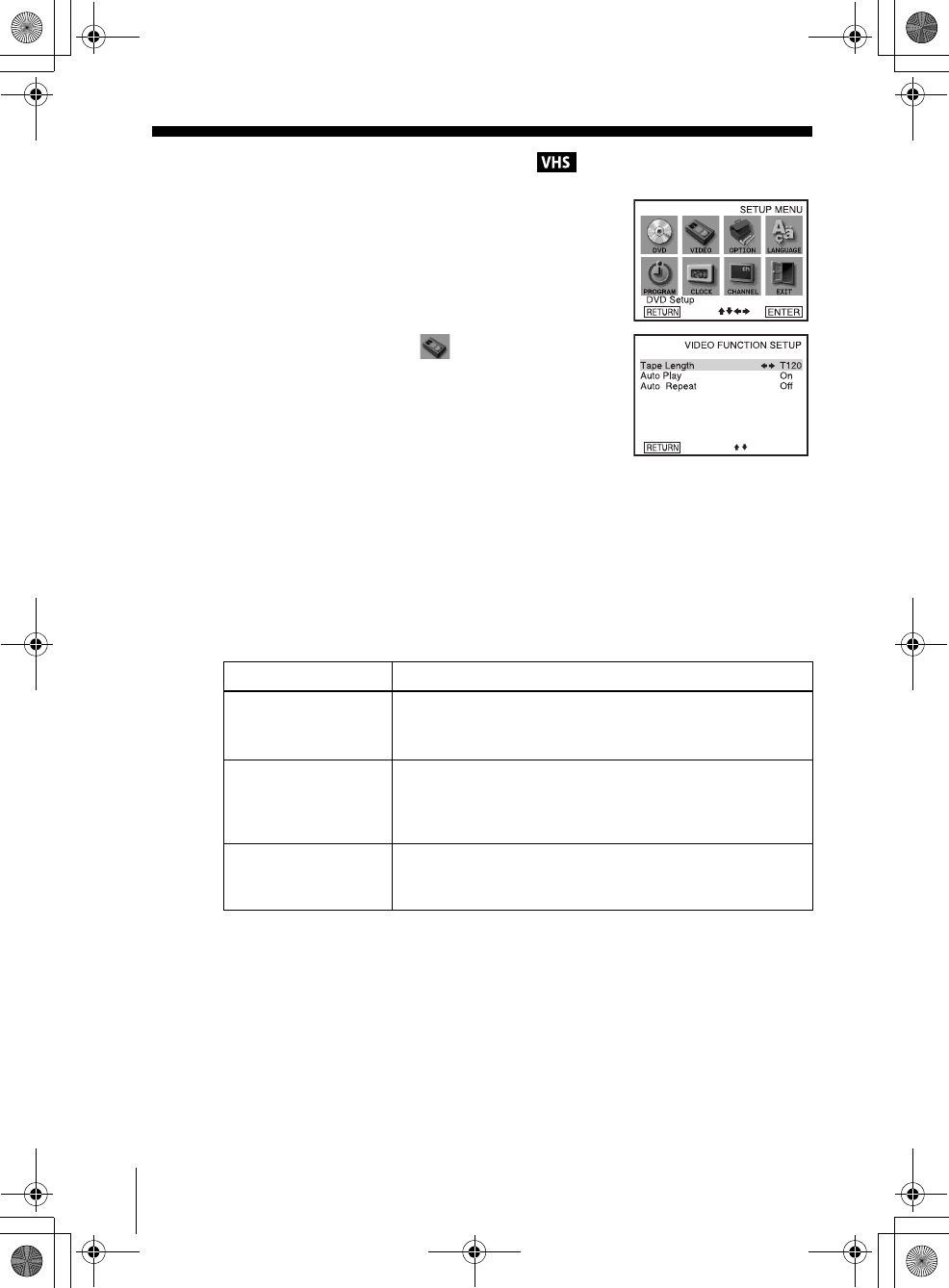
1Press SET UP when the DVD player is in stop
mode.
2Press V/v/B/b to select (Video Function
Setup), then press ENTER.
The “VIDEO FUNCTION SETUP” menu appears.
3Press V/v to select the option to change.
4Press B/b to change the setting.
5Press O RETURN repeatedly to exit the menu.
Menu option Set this option to
Tape Length • T-120 when using a T-120 or shorter length tape.
• T-160 when using a T-160 length tape.
• T-180 when using a T-180 or longer length tape.
Auto Play • On to start playback automatically, when you insert a tape with
its safety tab removed.
• Off to turn off Auto play. You need to press HPLAY to start
playback, even if you insert a tape with its safety tab removed.
Auto Repeat • On to play back a tape repeatedly. The VCR rewinds a tape to
the beginning and restarts playback automatically.
•Off to turn off Auto repeat.
010COV.book Page 88 Saturday, March 15, 2003 4:29 PM
89
Editing with another VCR
VCR Additional Operations
filename[010ADDO.fm] model name1[SLV-D300P] [3-083-945-11 (1) US]
filename[Z:\2003combo\3083945111-0228\3083945111SLVD300PUC\010ADDO.fm]
Editing with another VCR
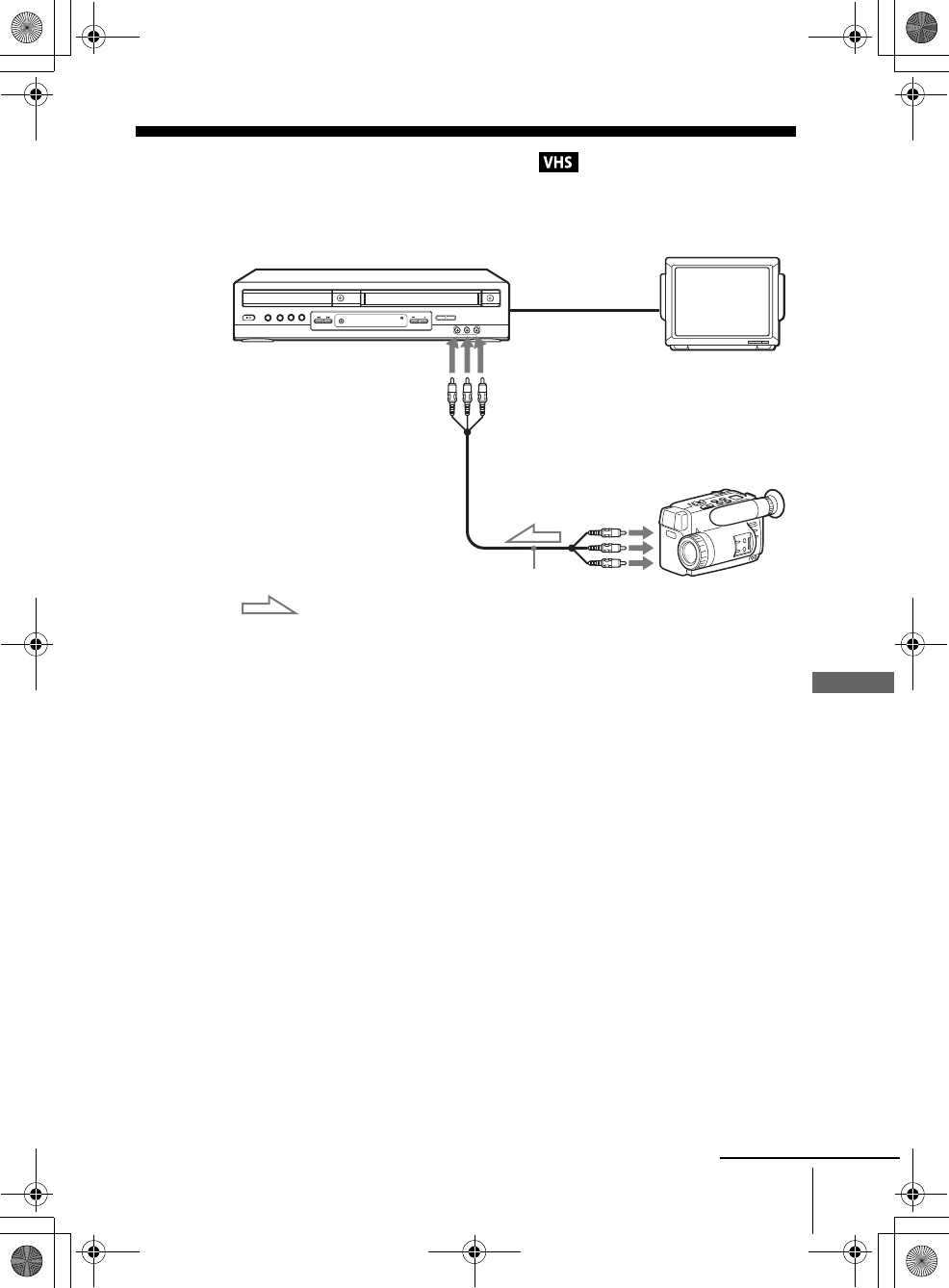
How to connect to record on this VCR
Notes
• Make sure you connect the plugs to jacks of the same color.
• If the other VCR is a monaural type and connected to this VCR’s LINE-2 IN jacks, connect
the audio plug to the AUDIO L (white) jack. The sound is recorded on both right and left
channels. If you connect to the AUDIO R (red) jack, the sound is recorded only on the right
channel.
• If you connected this VCR to both the LINE IN and LINE OUT jacks of the other VCR,
select the input correctly to prevent a humming noise.
• You can use the LINE IN 1 jacks for editing. If the other VCR is a monaural type the sound
is recorded only on the channel whose jack is connected to the audio plug. To record on both
right and left channels, connect the audio plugs to the AUDIO L/R jacks using an audio/video
cord (not supplied).
This VCR (Recorder)
Other VCR (Player)
LINE OUT
: Signal flow
LINE-2 IN
TV
Audio/video cord (not supplied)
continued
010COV.book Page 89 Saturday, March 15, 2003 4:29 PM
90 Editing with another VCR
filename[010ADDO.fm] model name1[SLV-D300P] [3-083-945-11 (1) US]
filename[Z:\2003combo\3083945111-0228\3083945111SLVD300PUC\010ADDO.fm]
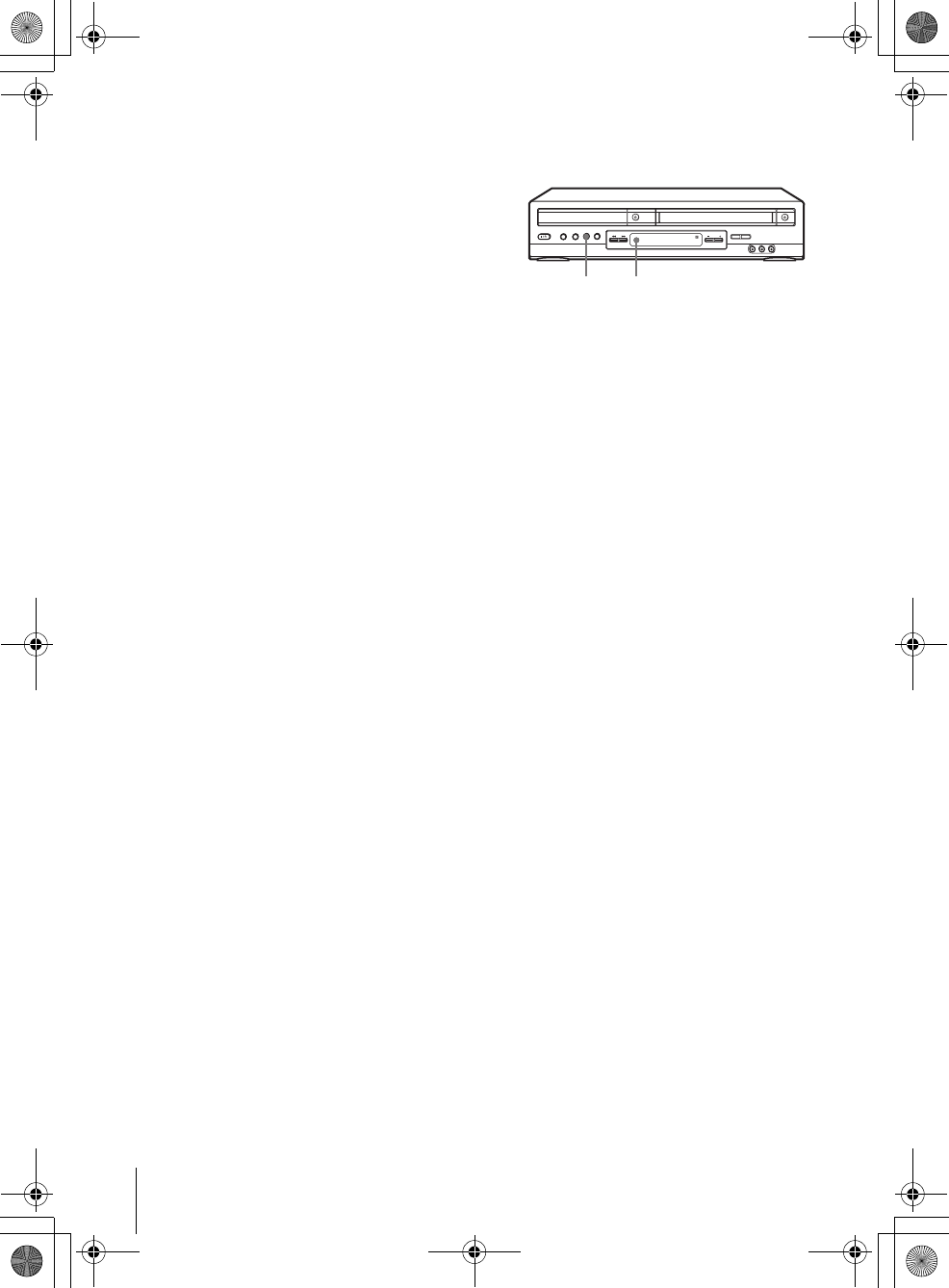
Operation (when recording on this VCR)
To stop editing
Press the xSTOP buttons on both VCRs.
Tip
• To cut out unwanted scenes while editing, press XPAUSE on this VCR when an unwanted
scene begins. When it ends, press XPAUSE again to resume recording.
Before you start editing
• Turn on the VCR and the TV and set
it to the video channel.
• Press INPUT SELECT or CH +/– to
display “LINE 1” or “LINE 2” in the
display window.
• Press SP/EP to select the tape speed,
SP or EP.
1Insert a source tape with its safety tab removed into the other (playback) VCR.
Search for the point to start playback and set it to playback pause.
2Insert a tape into this (recording) VCR. Search for the point to start recording
and press XPAUSE.
3Press zREC on this VCR to set it to recording pause.
4To start editing, press the XPAUSE buttons on both VCRs at the same time.
zRECXPAUSE
010COV.book Page 90 Saturday, March 15, 2003 4:29 PM
91
General setup information
Additional Information
filename[010ADDI.fm] model name1[SLV-D300P] [3-083-945-11 (1) US]
filename[Z:\2003combo\3083945111-0228\3083945111SLVD300PUC\010ADDI.fm]
Additional Information
General setup information
Changing setup options
Menu choices
Initial settings are indicated in bold print.
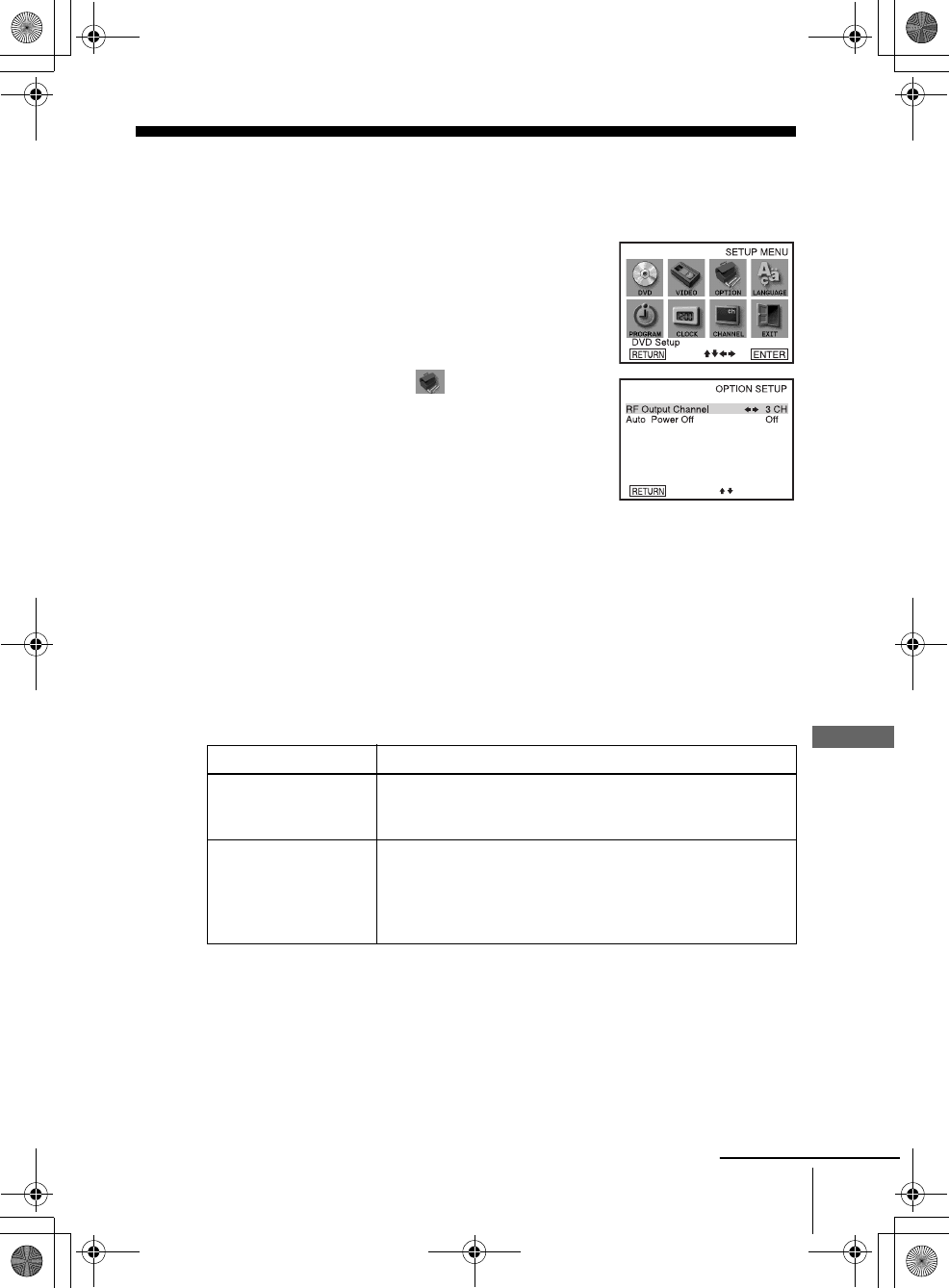
1Press SET UP when the DVD player is in stop mode.
2Press V/v/B/b to select (Option setup), then
press ENTER.
The “OPTION SETUP” menu appears.
3Press V/v to select the option to change.
4Press B/b to change the setting.
5Press O RETURN repeatedly to exit the menu.
If you have changed the RF Output Channel, a confirmation message appears.
Press ENTER to confirm the changed channel.
Menu option Set this option to
RF Output Channel • 3CH when using channel 3 to receive the VCR signal.
• 4CH when using channel 4 to receive the VCR signal.
For details, see page 92.
Auto Power Off • 1Hr to turn off the VCR automatically one hour after the last
operation.
• 2Hr to turn off the VCR automatically two hours after the last
operation.
•Off to set no specific time to turn off.
continued
010COV.book Page 91 Saturday, March 15, 2003 4:29 PM
92 General setup information
filename[010ADDI.fm] model name1[SLV-D300P] [3-083-945-11 (1) US]
filename[Z:\2003combo\3083945111-0228\3083945111SLVD300PUC\010ADDI.fm]
Setting the RF Output channel
When connecting the DVD-VCR to the TV
using only the antenna cable, you must set
the RF Output channel in the “OPTION
SETUP” menu so that the TV can receive the
correct signal from the DVD-VCR.
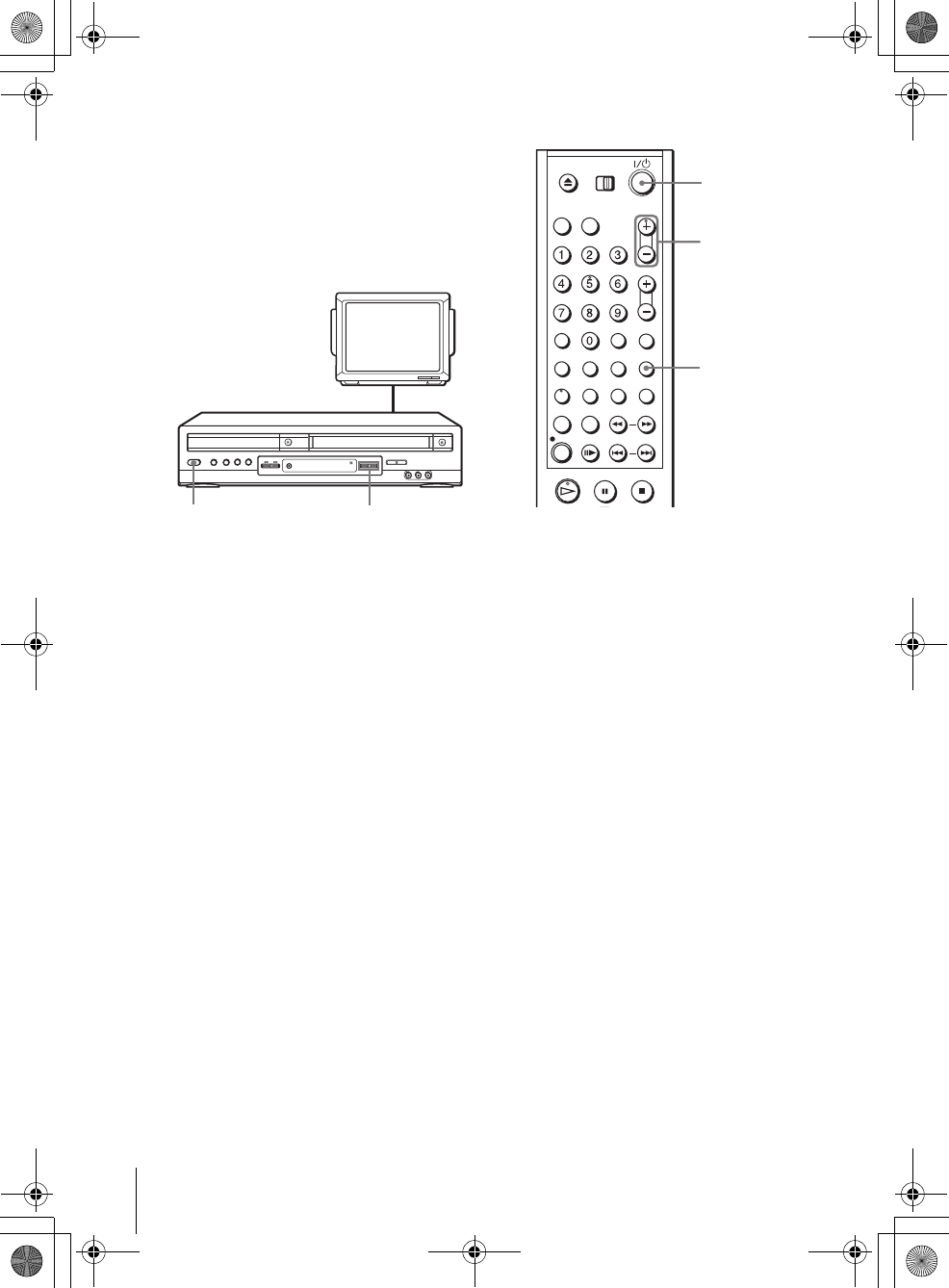
1Set the RF Output channel to “3CH” or “4CH” (see page 91 to set the channel),
whichever channel is not used in your area. If both are used, set the switch to
either channel.
2Press ?/1 to turn on the DVD-VCR.
3Press TV/VIDEO to turn on “VCR” in the DVD-VCR’s display window.
4Press CH +/– to display a channel number in the display window.
Select an active channel number in your area.
5Turn on your TV and set it to the channel you selected in step 1 (3CH or 4CH).
The channel you selected in step 4 appears on the TV screen. If the channels
change when you press CH +/–, you have made the correct setting.
Whenever you use the DVD-VCR, set the TV to the channel selected in step 1.
TV
CHANNEL +/–?/1
TV/VIDEO
CH +/–
?/1
010COV.book Page 92 Saturday, March 15, 2003 4:29 PM
93
General setup information
Additional Information
filename[010ADDI.fm] model name1[SLV-D300P] [3-083-945-11 (1) US]
filename[Z:\2003combo\3083945111-0228\3083945111SLVD300PUC\010ADDI.fm]
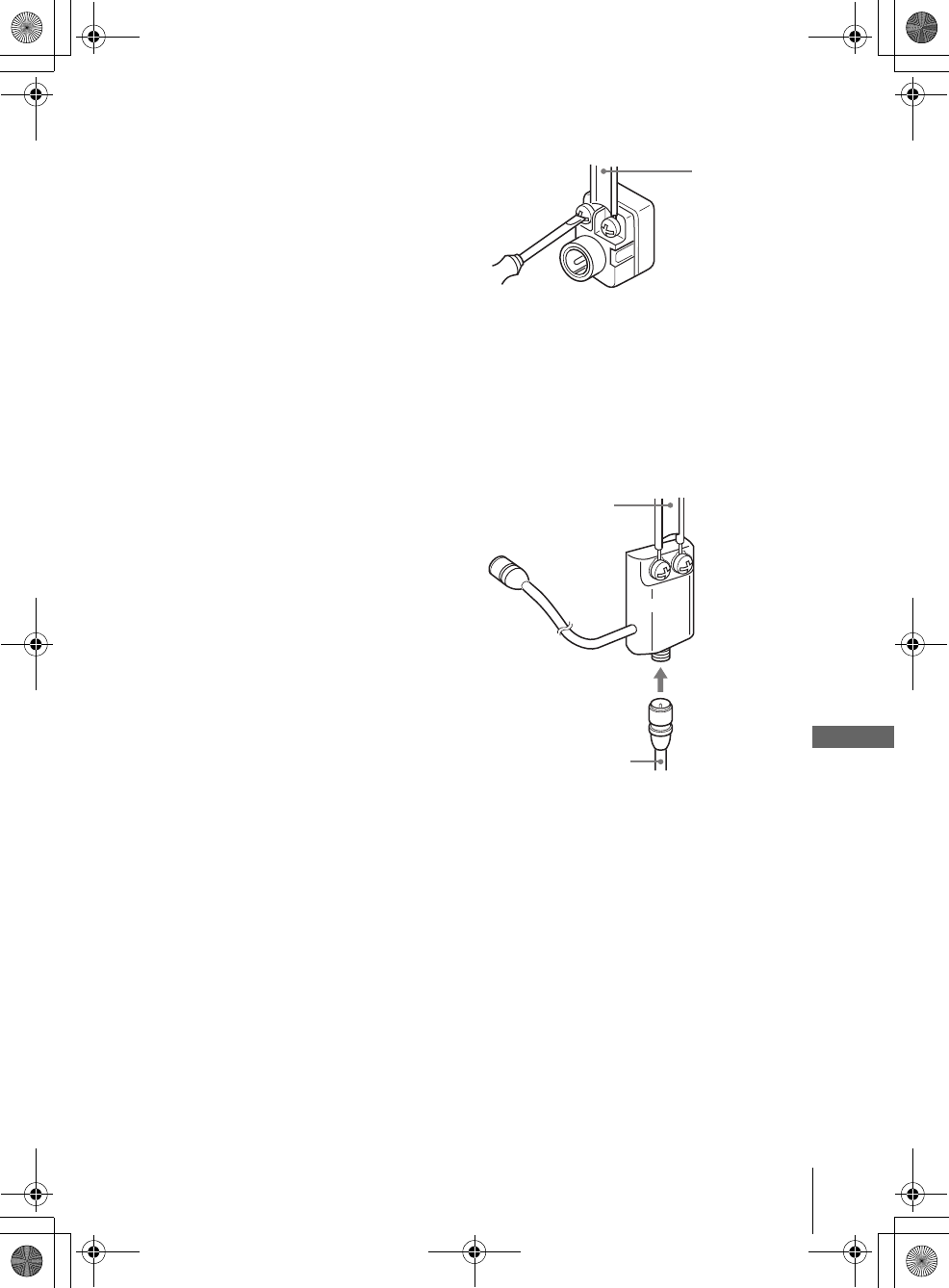
Attaching the external antenna connector
Attaching a UHF/VHF band mixer
When using a 300-ohm twin lead cable for a
VHF/UHF antenna, use an antenna connector
(not supplied) to connect the antenna to the
DVD-VCR.
1Loosen the screws on the antenna connector.
2Wind the twin leads around the screws on the antenna connector.
3Retighten the screws.
When using both a 75-ohm coaxial cable and
a 300-ohm twin lead cable for a VHF/UHF
antenna, use a UHF/VHF band separator/
mixer (not supplied) to connect the antenna
to the DVD-VCR.
1Loosen the screws on the mixer.
2Wind the twin leads around the screws on the mixer.
3Retighten the screws.
4Connect the 75-ohm coaxial cable to the mixer.
300-ohm twin
lead cable
Antenna
connector (not
supplied)
300-ohm twin
lead cable
UHF/VHF
band
separator/
mixer (not
supplied)
75-ohm coaxial
cable
010COV.book Page 93 Saturday, March 15, 2003 4:29 PM
94 Troubleshooting
filename[010ADDI.fm] model name1[SLV-D300P] [3-083-945-11 (1) US]
filename[Z:\2003combo\3083945111-0228\3083945111SLVD300PUC\010ADDI.fm]
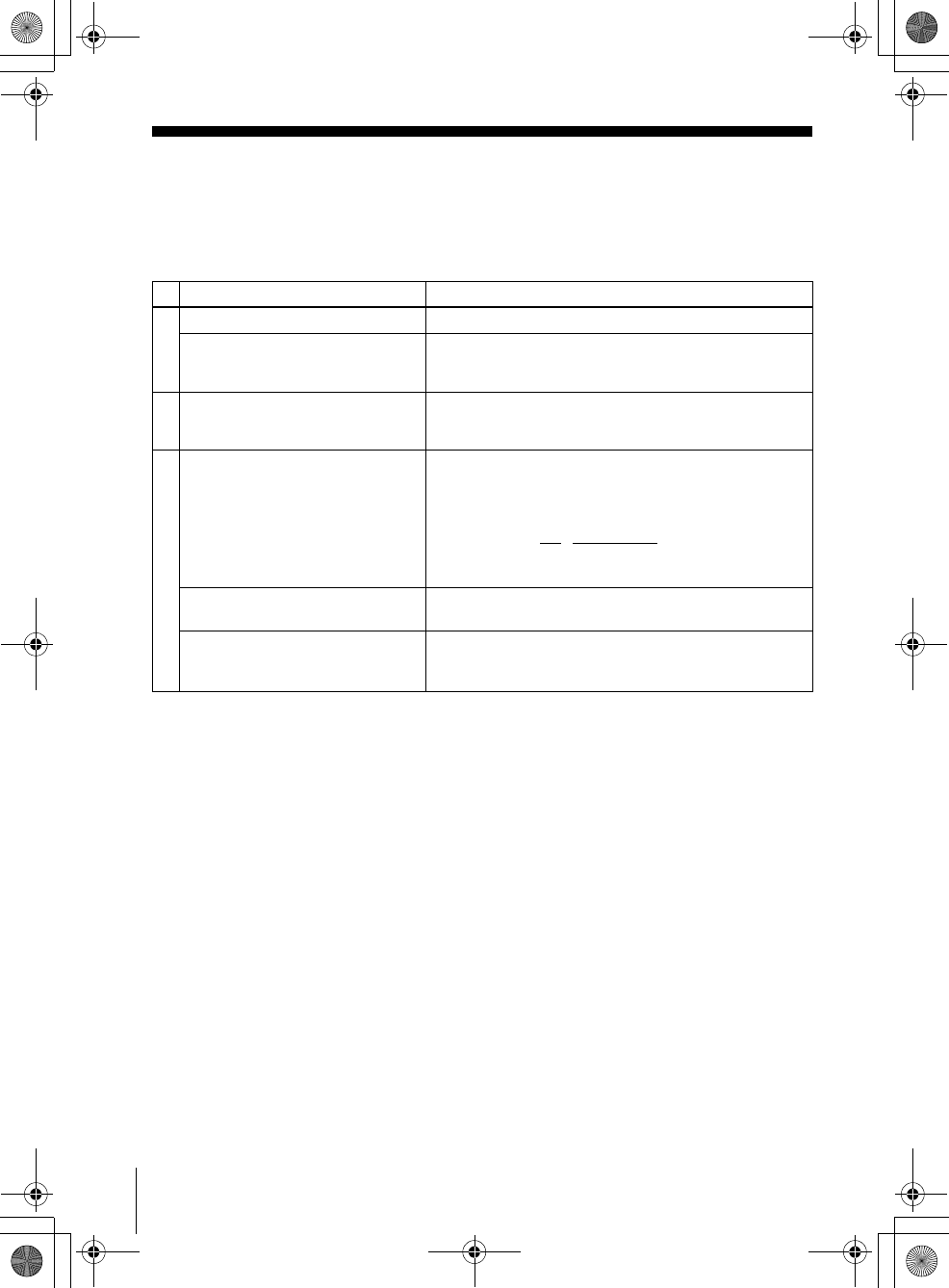
Troubleshooting
If you have any questions or problems not covered below, please consult your nearest Sony
dealer.
General Troubleshooting
Symptom Remedy
Power
The ?/1 switch does not function. • Connect the AC power cord securely.
The power is turned on but the DVD-
VCR does not operate. • Moisture condensation has occurred. Turn the power off,
unplug the AC power cord and leave the DVD-VCR to
dry for over three hours.
Clock
The clock has stopped and “--:--”
appears in the display window. • The clock stops if the DVD-VCR is disconnected from
the wall outlet. Reset the clock (and timer).
Others
The remote commander does not
function.
• Make sure you are pointing the remote commander at the
remote sensor on the DVD-VCR.
• Replace all the batteries in the remote commander with
new ones if they are weak.
• Make sure the TV / DVD·VIDEO switch is set correctly.
• Select correctly VIDEO or DVD with the SELECT DVD/
VIDEO button.
The tracking meter does not appear
on the screen.
• The recording condition of the tape is very poor and
tracking cannot be adjusted.
You cannot control other TVs. • Set your TV’s code number. The code number may
change when you replace the batteries of the remote
commander.
010COV.book Page 94 Saturday, March 15, 2003 4:29 PM
95
Troubleshooting
Additional Information
filename[010ADDI.fm] model name1[SLV-D300P] [3-083-945-11 (1) US]
filename[Z:\2003combo\3083945111-0228\3083945111SLVD300PUC\010ADDI.fm]
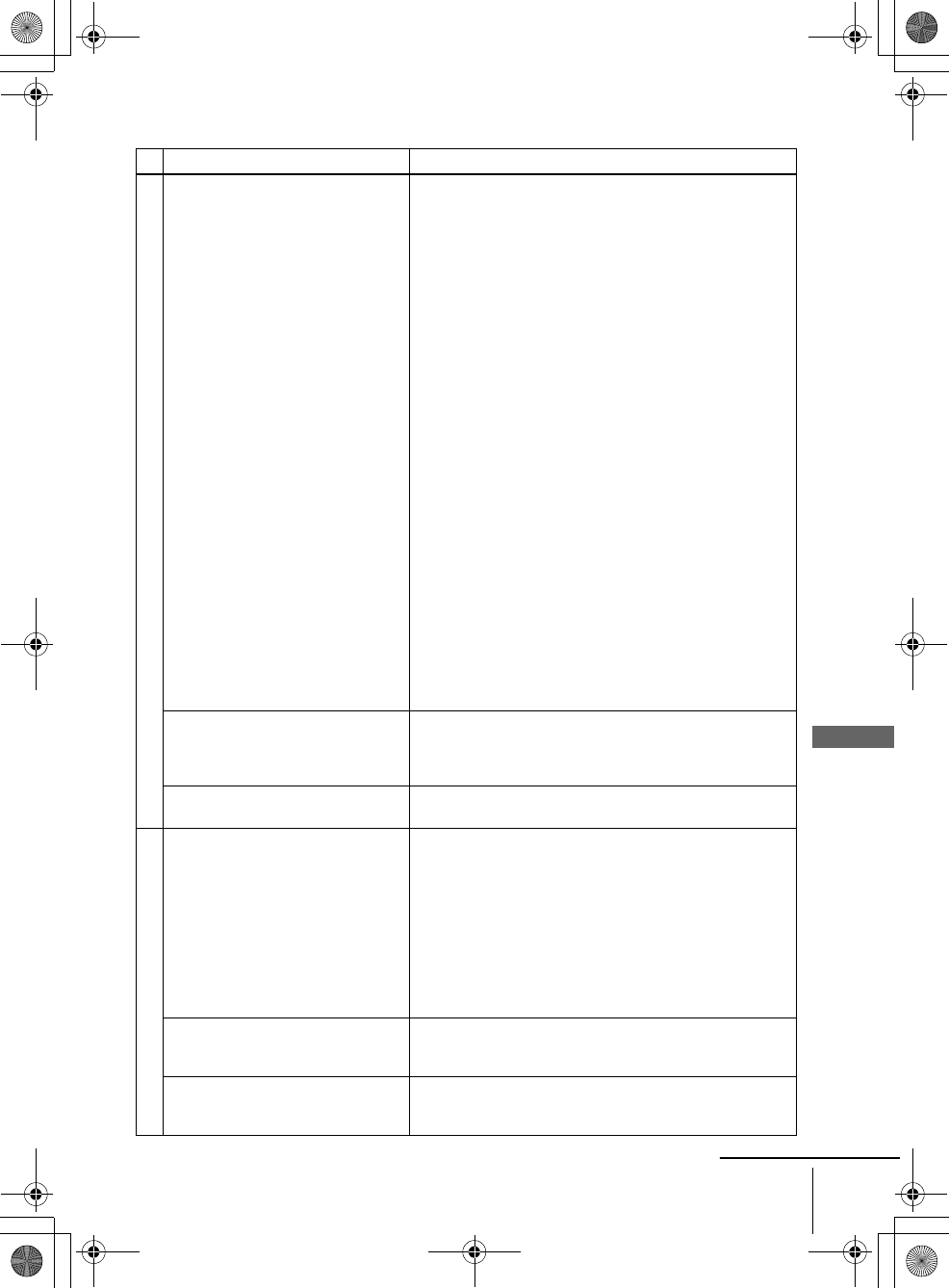
DVD Troubleshooting
Symptom Remedy
Picture
There is no picture/picture noise
appears. • Re-connect the connecting cord securely.
• The connecting cords are damaged.
• Check the connection to your TV (page 14) and switch
the input selector on your TV so that the signal from the
player appears on the TV screen.
• The disc is dirty or flawed.
• If the picture output from your player goes through your
VCR to get to your TV or if you are connected to a
combination TV/VIDEO player, the copy-protection
signal applied to some DVD programs could affect
picture quality. If you still experience problems even
when you connect your player directly to your TV, please
try connecting your player to your TV’s S VIDEO input
(page 48).
• You have set the player to progressive format (the
PROGRESSIVE indicator lights up in blue) eventhough
your TV cannot accept the progressive signal. In this
case, press the PROGRESSIVE button on the front panel
until the PROGRESSIVE indicator turns off (page 55).
• Even if your TV is compatible with progressive format
(480p) signals, the image may be affected when you set
the player to progressive format. In this case, press the
PROGRESSIVE button so that the PROGRESSIVE
indicator turns off and the player is set to normal
(interlace) format (page 55).
• COMPONENT VIDEO OUT jack is not used or “Video
Out” of the “SCREEN SETUP” menu is not set correctly
while the PROGRESSIVE indicator lights up in blue.
Check the setting (page 55) and connection (page 48) or
press the PROGRESSIVE button so that the
PROGRESSIVE indicator turns off.
Even though you set the aspect ratio
in “TV Type” of the “SCREEN
SETUP” menu the picture does not
fill the screen.
• The aspect ratio of the disc is fixed on your DVD.
There is no picture from your VCR
connected to the LINE IN jacks. • The DVD player must be in standby mode to view
pictures from your VCR.
Sound
There is no sound. • Re-connect the connecting cord securely.
• The connecting cord is damaged.
• The player is connected to the wrong input jack on the
amplifier (receiver) (page 15).
• The amplifier (receiver) input is not correctly set.
• The player is in pause mode or in Slow-motion Play mode.
• The player is in fast forward or fast reverse mode.
• If the audio signal does not come through the DIGITAL
AUDIO OUT (OPTICAL or COAXIAL) jack, check the
audio settings (page 50).
Sound is noisy. • When playing a CD with DTS sound tracks, noise will
come from the LINE OUT L/R (AUDIO) jacks (page 32)
or DIGITAL OUT (OPTICAL or COAXIAL) jack.
The sound volume is low. • The sound volume is low on some DVDs. The sound
volume may improve if you set “Audio DRC” to “TV
Mode” (page 51).
continued
010COV.book Page 95 Saturday, March 15, 2003 4:29 PM
96 Troubleshooting
filename[010ADDI.fm] model name1[SLV-D300P] [3-083-945-11 (1) US]
filename[Z:\2003combo\3083945111-0228\3083945111SLVD300PUC\010ADDI.fm]
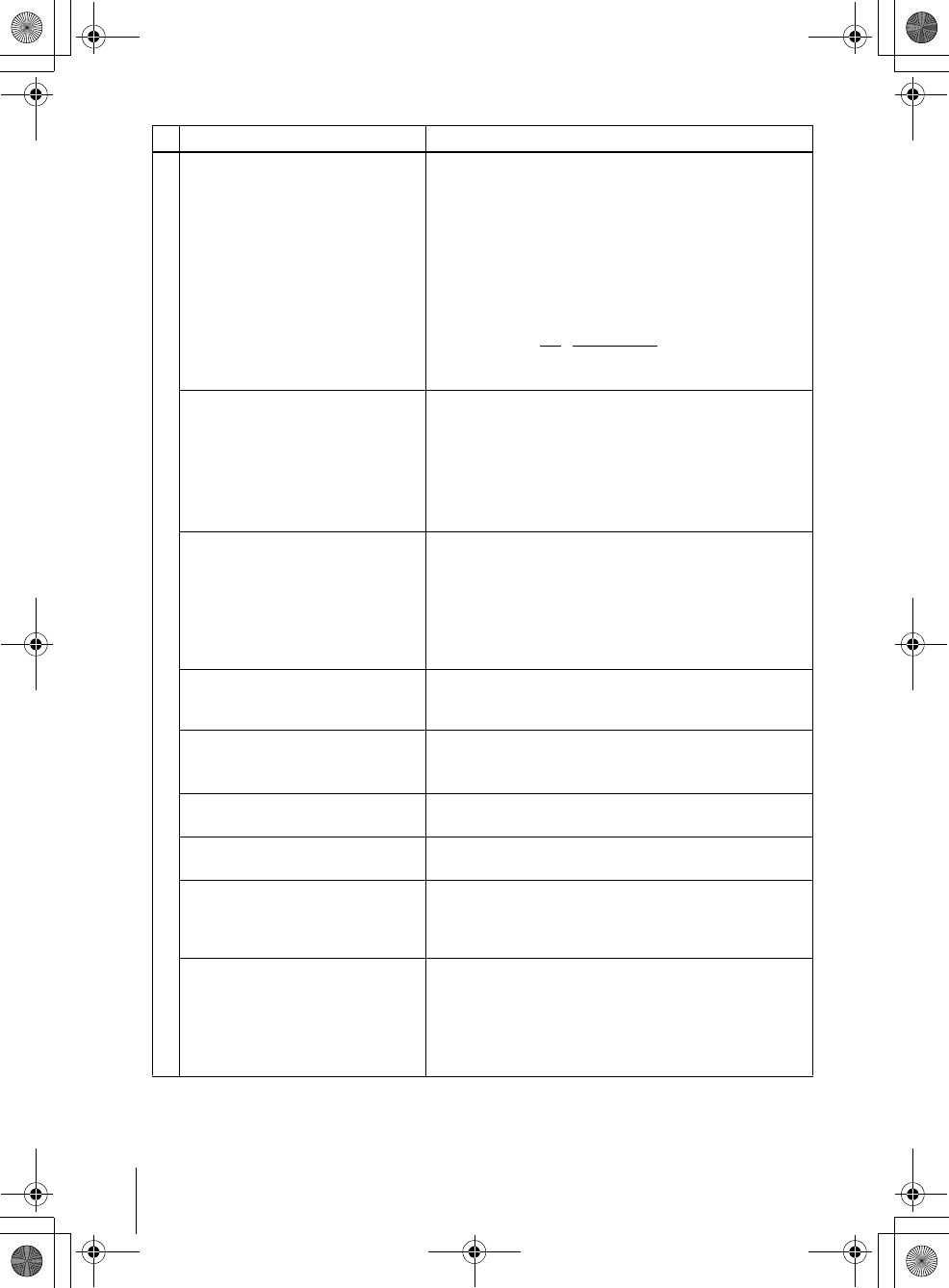
Operation
The disc does not play. • The disc is turned over.
• Insert the disc with the playback side facing down on the
disc tray.
• The disc is skewed.
• The player cannot play certain discs (page 8).
• The region code on the DVD does not match the player.
• Moisture has condensed inside the player (page 3).
• The player cannot play CD-Rs, CD-RWs, or DVD-Rs that
are not finalized (page 9).
• Make sure the TV / DVD·VIDEO switch is set correctly.
• Select correctly VIDEO or DVD with SELECT DVD/
VIDEO button.
The MP3 audio track cannot be
played (page 74).
• The DATA CD is not recorded in the MP3 format that
conforms to ISO9660 Level 1/Level 2 or Joliet.
• The MP3 audio track does not have the extension “.MP3.”
• The data is not formatted in MP3 even though it has the
extension “.MP3.”
• The data is not MPEG1 Audio Layer 3 data.
• The player cannot play audio tracks in MP3PRO format.
The JPEG image file cannot be
played.
• The DATA CD is not recorded in JPEG format that
conforms to ISO9660 Level 1/Level 2 or Joliet.
• The JPEG image file does not have the extension “.JPG”
or “.JPEG.”
• The data is not formatted in JPEG even though it has the
extension “.JPG” or “JPEG.”
• Length or width of the image is more than 4720 dots.
The title of the MP3 audio album/
track or JPEG image album/file is not
correctly displayed.
• The player can only display numbers and alphabet. Other
characters are displayed as asterisks.
The disc does not start playing from
the beginning.
• Program play, shuffle play, or repeat play, has been
selected (pages 65, 67, 68).
• Resume play has taken effect (page 31).
The player starts playing the disc
automatically.
• The disc features an auto playback function.
Playback stops automatically. • While playing discs with an auto pause signal, the player
stops playback at the auto pause signal.
You cannot perform some functions
such as stop, search, slow-motion
play, repeat play, shuffle play, or
program play.
• Depending on the disc, you may not be able to do some
operations. See the operating manual that comes with the
disc.
The language for the sound track
cannot be changed.
• Try using the DVD’s menu instead of the direct selection
button on the remote (page 61).
• Multilingual tracks are not recorded on the DVD being
played.
• The DVD prohibits the changing of the language for the
sound track.
Symptom Remedy
010COV.book Page 96 Saturday, March 15, 2003 4:29 PM
97
Troubleshooting
Additional Information
filename[010ADDI.fm] model name1[SLV-D300P] [3-083-945-11 (1) US]
filename[Z:\2003combo\3083945111-0228\3083945111SLVD300PUC\010ADDI.fm]
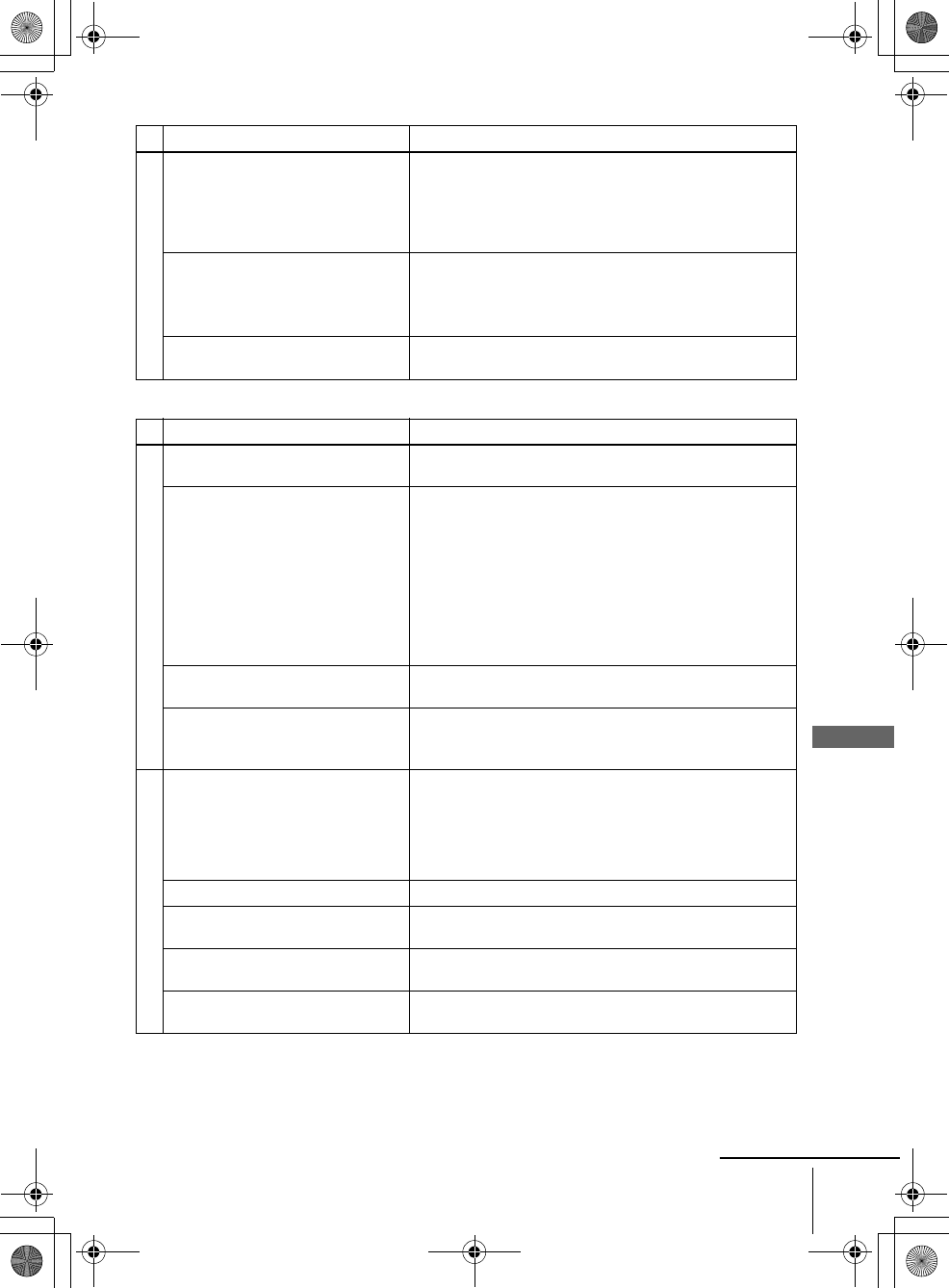
VCR Troubleshooting
Operation
The subtitle language cannot be
changed or turned off.
• Try using the DVD’s menu instead of the direct selection
button on the remote (page 61).
• Multilingual subtitles are not recorded on the DVD being
played.
• The DVD prohibits the changing of the subtitles.
The angles cannot be changed. • Try using the DVD’s menu instead of the direct selection
button on the remote (page 61).
• Multi-angles are not recorded on the DVD being played.
• The DVD prohibits changing of the angles.
The player does not operate properly. • When static electricity, etc., causes the player to operate
abnormally, unplug the player.
Symptom Remedy
Playback
The playback picture does not appear
on the TV screen. • Make sure the TV is set to the channel for the VCR. If
you are using a monitor, set it to video input.
The picture is not clear. • Adjust the tracking with the TRACKING +/– buttons.
• The video heads are dirty (see the last page of
“Troubleshooting”). Clean the video heads using a Sony
video head cleaning cassette. If a Sony cleaning cassette
is not available in your area, have the heads cleaned at
your nearest Sony dealer (a standard service fee will be
charged). Do not use a commercially available liquid
type cleaning cassette, as it may damage the video heads.
• The video heads may have to be replaced. Consult your
local Sony dealer for more information.
The picture rolls vertically during
picture search. • Adjust the vertical hold control on the TV or monitor.
The picture has no sound. • The tape is defective.
• If you made A/V connections, check the audio cord
connection.
Recording
A TV program does not appear on
the TV screen. • Make sure the TV is set to the channel for the VCR. If
you are using a monitor, set it to video input.
• Select the correct source with the INPUT SELECT or
CH +/– buttons. Select a channel number when recording
TV programs; select “L1” or “L2” when recording from
other equipment.
TV reception is poor. • Adjust the TV antenna.
The tape starts playing as soon as it is
inserted. • The safety tab has been removed. To record on this tape,
cover the tab hole.
The tape is ejected when you press
zREC. • Check that the safety tab has not been removed.
Nothing happens when you press
zREC. • Make sure the tape is not at its end.
Symptom Remedy
continued
010COV.book Page 97 Saturday, March 15, 2003 4:29 PM
98 Troubleshooting
filename[010ADDI.fm] model name1[SLV-D300P] [3-083-945-11 (1) US]
filename[Z:\2003combo\3083945111-0228\3083945111SLVD300PUC\010ADDI.fm]
Timer recording
The timer does not operate. • Check that the clock is set.
• Make sure a tape has been inserted.
• Check that the safety tab has not been removed.
• Make sure the tape is not at its end.
• Make sure a program has been set for timer recording.
• Make sure your timer settings are past the current time.
• Check that the cable box is turned on.
• The clock stops if the DVD-VCR is disconnected from
the wall outlet for more than one minute. Reset the clock
and timer.
• Turn the power off and unplug the AC power cord.
Others
A tape cannot be inserted. • Check that a tape is not already in the tape compartment.
The VCR mecanism needs to be
cleaned.
• Clean the cabinet, panel and controls with a dry, soft
cloth, or a soft cloth slightly moistened with a mild
detergent solution. Do not use any type of solvent, such
as alcohol or benzine.
Symptom Remedy
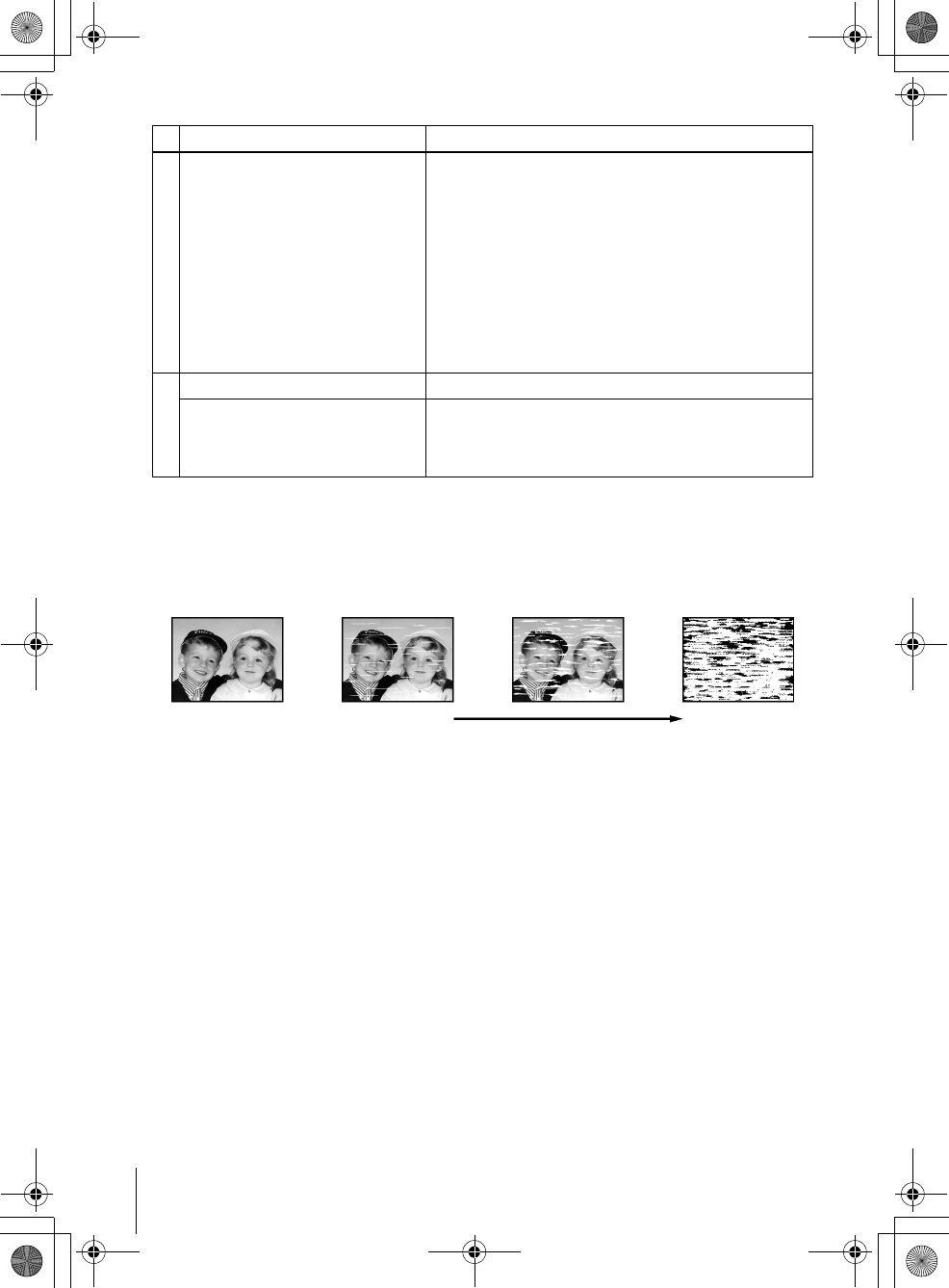
Symptoms caused by contaminated video heads
• Normal picture • Unclear picture• Rough picture
initial
contamination
terminal
• No picture (or
black & white
screen appears)
010COV.book Page 98 Saturday, March 15, 2003 4:29 PM
99
Glossary
Additional Information
filename[010ADDI.fm] model name1[SLV-D300P] [3-083-945-11 (1) US]
filename[Z:\2003combo\3083945111-0228\3083945111SLVD300PUC\010ADDI.fm]
Glossary
Chapter (page 33)
Sections of a picture or a music feature that are smaller than titles. A title is composed of
several chapters. Depending on the disc, no chapters may be recorded.
Dolby Digital (page 46 and 51)
Digital audio compression technology developed by Dolby Laboratories. This technology
conforms to 5.1-channel surround sound. The rear channel is stereo and there is a discrete
subwoofer channel in this format. Dolby Digital provides the same 5.1 discrete channels of
high quality digital audio found in Dolby Digital cinema audio systems. Good channel
separation is realized because all of the channel data are recorded discretely and little
deterioration is realized because all channel data processing is digital.
Dolby Surround (Pro Logic) (page 46)
Audio signal processing technology that Dolby Laboratories developed for surround sound.
When the input signal contains a surround component, the Pro Logic process outputs the front,
center and rear signals. The rear channel is monaural.
DTS (page 51)
Digital audio compression technology that Digital Theater Systems, Inc. developed. This
technology conforms to 5.1-channel surround sound. The rear channel is stereo and there is a
discrete subwoofer channel in this format. DTS provides the same 5.1 discrete channels of high
quality digital audio.
Good channel separation is realized because all of the channel data is recorded discretely and
little deterioration is realized because all channel data processing is digital.
DVD (page 8)
A disc that contains up to 8 hours of moving pictures even though its diameter is the same as a
CD.
The data capacity of a single-layer and single-sided DVD is 4.7 GB (Giga Byte), which is 7
times that of a CD. The data capacity of a double-layer and single-sided DVD is 8.5 GB, a
single-layer and double-sided DVD is 9.4 GB, and double-layer and double-sided DVD is
17GB.
The picture data uses the MPEG 2 format, one of the worldwide standards of digital
compression technology. The picture data is compressed to about 1/40 (average) of its original
size. The DVD also uses a variable rate coding technology that changes the data to be allocated
according to the status of the picture. Audio information is recorded in a multi-channel format,
such as Dolby Digital, allowing you to enjoy a more real audio presence.
Furthermore, various advanced functions such as the multi-angle, multilingual, and Parental
Control functions are provided with the DVD.
DVD-RW (page 8)
A DVD-RW is a recordable and rewritable disc that is the same size as a DVD VIDEO. The
DVD-RW has two different modes: VR mode and Video mode. DVD-RWs created in Video
mode have the same format as a DVD VIDEO, while discs created in VR (Video Recording)
mode allow the contents to be programmed or edited.
continued
010COV.book Page 99 Saturday, March 15, 2003 4:29 PM

100 Glossary
filename[010ADDI.fm] model name1[SLV-D300P] [3-083-945-11 (1) US]
filename[Z:\2003combo\3083945111-0228\3083945111SLVD300PUC\010ADDI.fm]
DVD+RW (page 8)
A DVD+RW (plus RW) is a recordable and rewritable disc. DVD+RWs use a recording format
that is comparable to the DVD VIDEO format.
Interlace format (page 55)
Interlace format shows every other line of an image as a single “field” and is the standard
method for displaying images on television. The even number field shows the even numbered
lines of an image, and the odd numbered field shows the odd numbered lines of an image.
Progressive format (page 49 and 55)
Compared to the Interlace format that alternately shows every other line of an image (field) to
create one frame, the Progressive format shows the entire image at once as a single frame. This
means that while the Interlace format can show 30 frames/60 fields in one second, the
Progressive format can show 60 frames in one second. The overall picture quality increases and
still images, text, and horizontal lines appear sharper. This player is compatible with the 480
progressive format.
Title (page 33)
The longest section of a picture or music feature on a DVD, movie, etc., in video software, or
the entire album in audio software.
Track (page 33)
Sections of a picture or a music feature on a CD or VIDEO CD (the length of a song).
010COV.book Page 100 Saturday, March 15, 2003 4:29 PM
101
Specifications
Additional Information
filename[010ADDI.fm] model name1[SLV-D300P] [3-083-945-11 (1) US]
filename[Z:\2003combo\3083945111-0228\3083945111SLVD300PUC\010ADDI.fm]
Specifications
System
Laser
Semiconductor laser
Format
VHS NTSC standard
Video recording system
Rotary head helical scanning FM system
Video heads
Double azimuth four heads
Video signal
NTSC color, EIA standards
Tape speed
SP: 33.35 mm/s (1 inches/s)
EP: 11.12 mm/s ( inches/s)
LP: 16.67 mm/s ( inches/s),
playback only
Maximum recording/playback time
8 hrs. in EP mode (with T-160 tape)
Rewind time
Approx. 1 min (with T-120 tape)
Tuner section
Channel coverage
VHF 2 to 13
UHF 14 to 69
CATV A-8 to A-1, A to W, W+1 to W+84
Antenna
75-ohm antenna terminal for VHF/UHF
Audio characteristics
Frequency response
DVD VIDEO (PCM 96 kHz): 2 Hz to 44 kHz (±1.0
dB)/DVD VIDEO (PCM 48 kHz): 2 Hz to 22 kHz
(±0.5 dB)/CD: 2 Hz to 20 kHz (±0.5 dB)
Signal-to-noise ratio (S/N ratio)
115 dB (LINE OUT (L/R) AUDIO jacks only)
Harmonic distortion
0.003 %
Dynamic range
DVD VIDEO: 103 dB/CD: 99 dB
Wow and flutter
Less than detected value (±0.001% W PEAK)
The signals from LINE OUT L/R (AUDIO) jacks are
measured. When you play PCM sound tracks with a 96
kHz sampling frequency, the output signals from the
DIGITAL OUT (OPTICAL or COAXIAL) jack are
converted to 48 kHz sampling frequency.
Inputs and outputs
LINE IN 1 and LINE-2 IN
VIDEO IN, phono jack (1 each)
Input signal: 1 Vp-p, 75 ohms, unbalanced, sync
negative
AUDIO IN, phono jacks (2 each)
Input level: 327 mVrms
Input impedance: more than 47 kilohms
LINE OUT
VIDEO OUT, phono jack (1)
Output signal: 1 Vp-p, 75 ohms, unbalanced, sync
negative
AUDIO OUT, phono jacks (2)
Standard output: 327 mVrms
Load impedance: 47 kilohms
Output impedance: less than 10 kilohms
DIGITAL OUT
OPTICAL, Optical output jack
–18 dBm (wave length: 660 nm)
COAXIAL, phono jack
Output signal: 0.5 Vp-p, 75 ohms
COMPONENT VIDEO OUT (Y, Pb, Pr)
Phono jack
Y: 1.0 Vp-p/Pb, Pr: 0.7 Vp-p, 75 ohms
S-VIDEO OUT
4-pin, mini-DIN jack
Y: 1.0 Vp-p, unbalanced, sync negative
C: 0.286 Vp-p, load impedance 75 ohms
Timer section
Clock
Quartz locked
Timer indication
12-hour cycle
Timer setting
8 programs (max.)
38
716
11 16
continued
010COV.book Page 101 Saturday, March 15, 2003 4:29 PM

102 Specifications
filename[010ADDI.fm] model name1[SLV-D300P] [3-083-945-11 (1) US]
filename[Z:\2003combo\3083945111-0228\3083945111SLVD300PUC\010ADDI.fm]
General
Power requirements
120 V AC, 60 Hz
Power consumption
28 W
Operating temperature
0°C to 45°C (32°F to 113°F)
Storage temperature
–20°C to 60°C (–4°F to 140°F)
Operating humidity
25% to 80%
Dimensions including projecting parts and controls
(w/h/d)
Approx. 430 × 95 × 295 mm
(Approx. 17 × 3.7 × 12 inches)
Mass
Approx. 4.0 kg (Approx. 8.8 lbs)
Supplied accessories
Remote commander (1)
Size AA (R6) batteries (2)
75-ohm coaxial cable with F-type connectors (1)
Audio/video cord (pinplug ×3 y pinplug ×3) (1)
Design and specifications are subject to change without
notice.
010COV.book Page 102 Saturday, March 15, 2003 4:29 PM
103
Index to parts and controls
Additional Information
filename[010ADDI.fm] model name1[SLV-D300P] [3-083-945-11 (1) US]
filename[Z:\2003combo\3083945111-0228\3083945111SLVD300PUC\010ADDI.fm]
Index to parts and controls
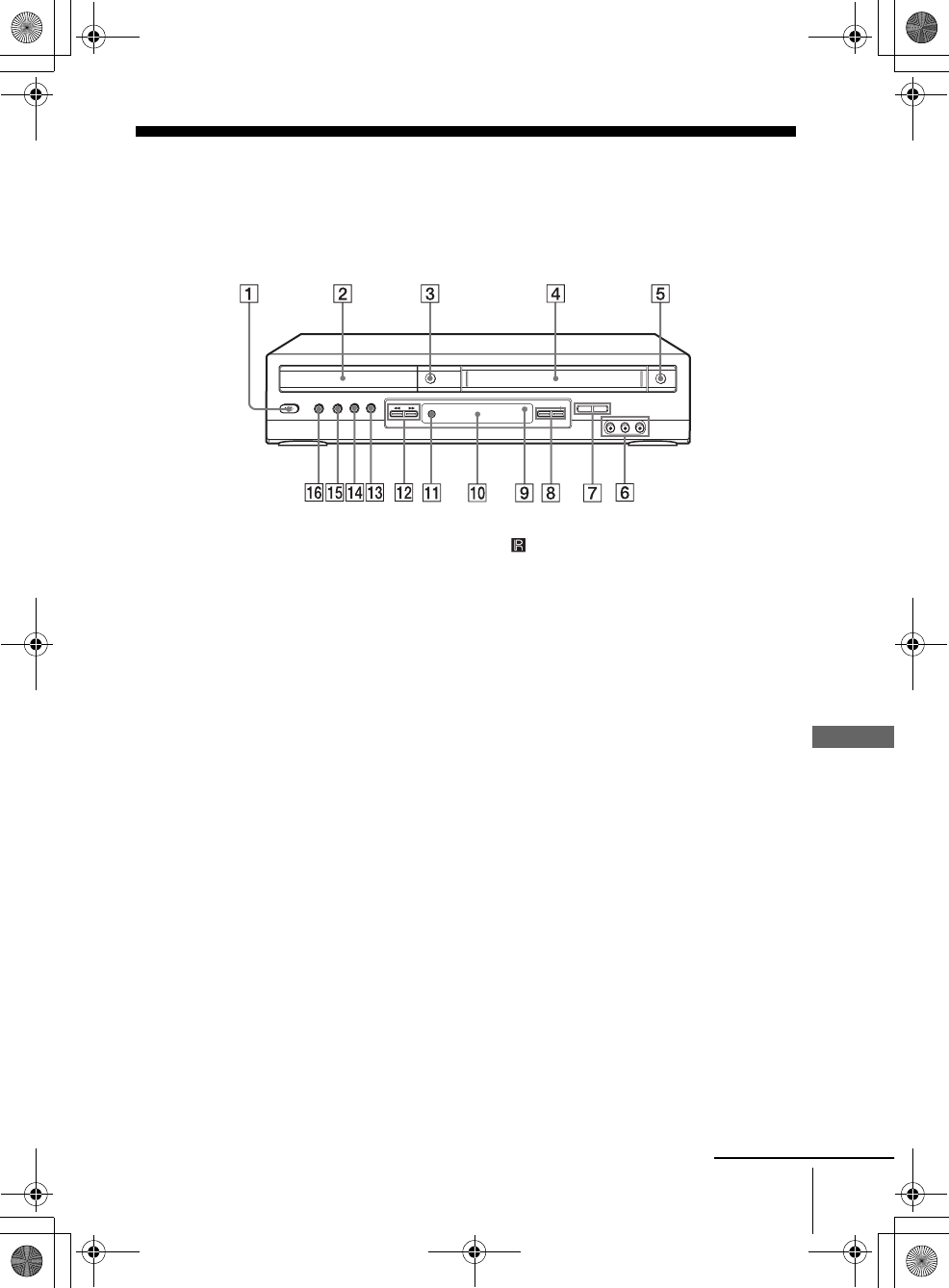
Refer to the pages indicated in parentheses ( ) for details.
Front panel
A?/1 POWER switch (12) (36)
BDisc tray (30)
CA(open/close) button (30) (31)
DTape compartment (38)
EA(eject) button (36)
FLINE-2 IN VIDEO/AUDIO L/R jacks
(89)
GSELECT DVD/VIDEO (11)
HCHANNEL +/– buttons (38)
IRemote sensor
JDisplay window (31) (36)
KzREC (record) button (39)
Lm (rewind)/M (fast-forward) button
(31) (36)
Mx(stop) button (31) (36)
NX(pause) button (31) (36)
OH(play) button (31) (36)
PPROGRESSIVE button/indicator (49)
(55)
continued
010COV.book Page 103 Saturday, March 15, 2003 4:29 PM
104 Index to parts and controls
filename[010ADDI.fm] model name1[SLV-D300P] [3-083-945-11 (1) US]
filename[Z:\2003combo\3083945111-0228\3083945111SLVD300PUC\010ADDI.fm]
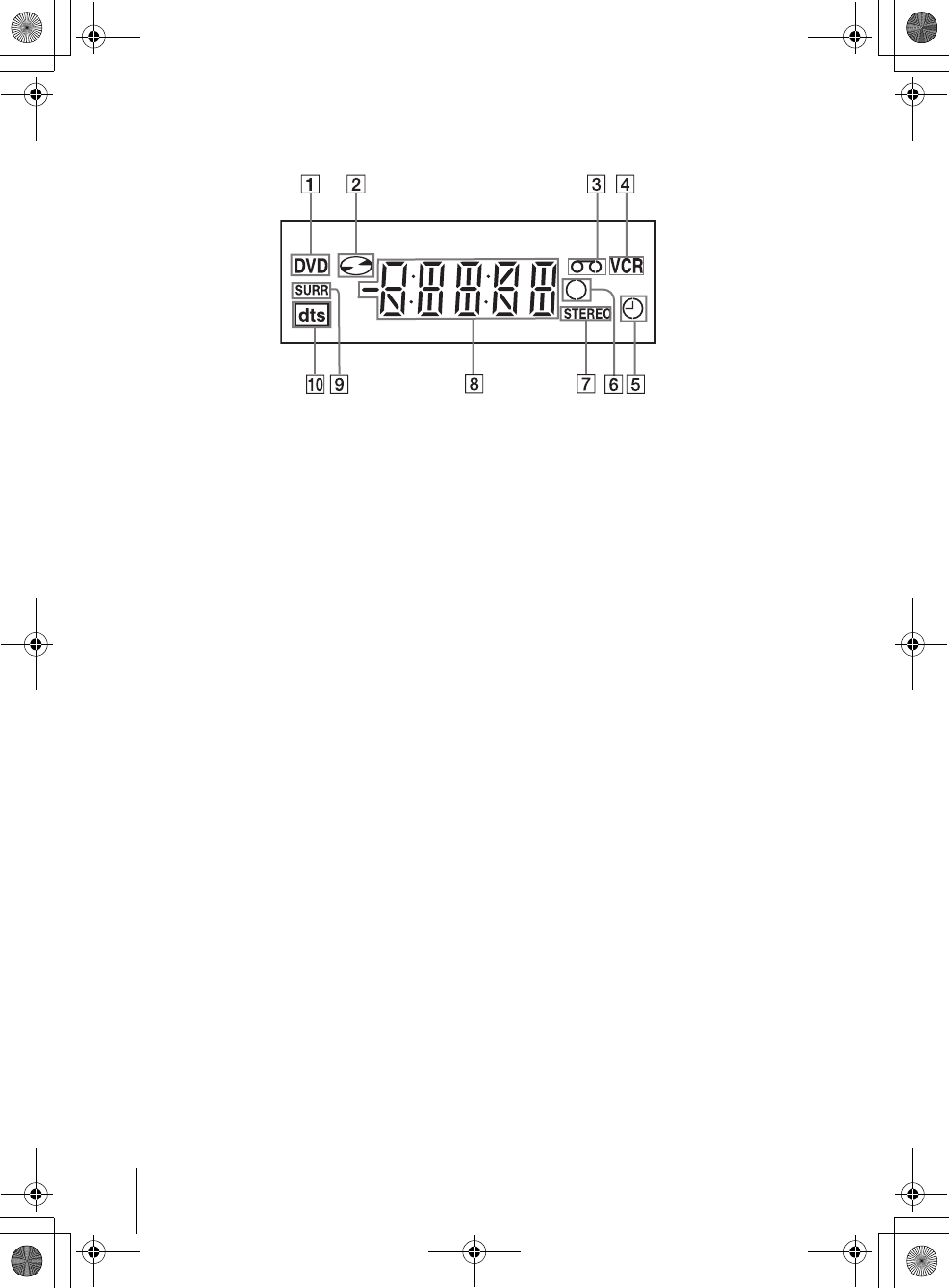
Display window
ADVD indicator (31)
BDisc indicator (31)
CTape indicator (36)
DVCR indicator (36)
ETimer indicator (42)
FRecord indicator (39)
GSTEREO indicator (84)
HPlaying time/clock/current status
indicator (31)
ISURR (surround) indicator (72)
JDTS indicator (51)
010COV.book Page 104 Saturday, March 15, 2003 4:29 PM
105
Index to parts and controls
Additional Information
filename[010ADDI.fm] model name1[SLV-D300P] [3-083-945-11 (1) US]
filename[H:\2003combo\3083945111-0228\3083945111SLVD300PUC\010ADDI.fm]
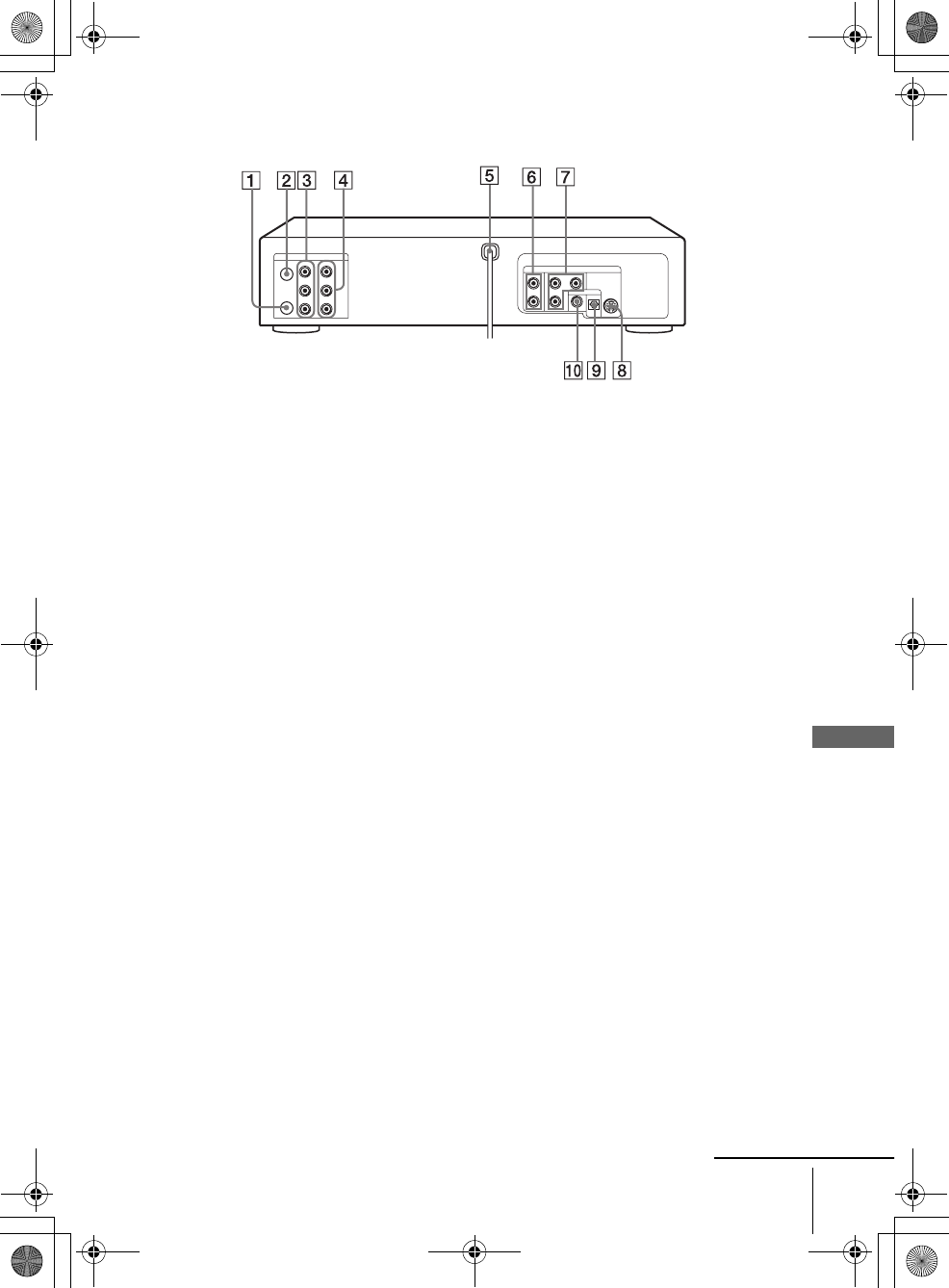
Rear panel
DVD player and VCR
ARF OUT (TO TV) connector (16)
BRF IN (FROM ANT.) connector (16)
CLINE OUT VIDEO/AUDIO L/R jacks
(15)
DLINE IN 1 VIDEO/AUDIO L/R jacks
(15)
EAC power cord (14) (17) (19)
DVD player only
FLINE OUT AUDIO L/R jacks (48)
GCOMPONENT VIDEO OUT Pr/Pb/Y
jacks (49)
HS-VIDEO OUT jack (48)
IDIGITAL AUDIO OUT/OPTICAL jack
(47)
JDIGITAL AUDIO OUT/COAXIAL jack
(47)
continued
010ADDI.fm Page 105 Monday, March 17, 2003 6:32 PM
106 Index to parts and controls
filename[010ADDI.fm] model name1[SLV-D300P] [3-083-945-11 (1) US]
filename[Z:\2003combo\3083945111-0228\3083945111SLVD300PUC\010ADDI.fm]
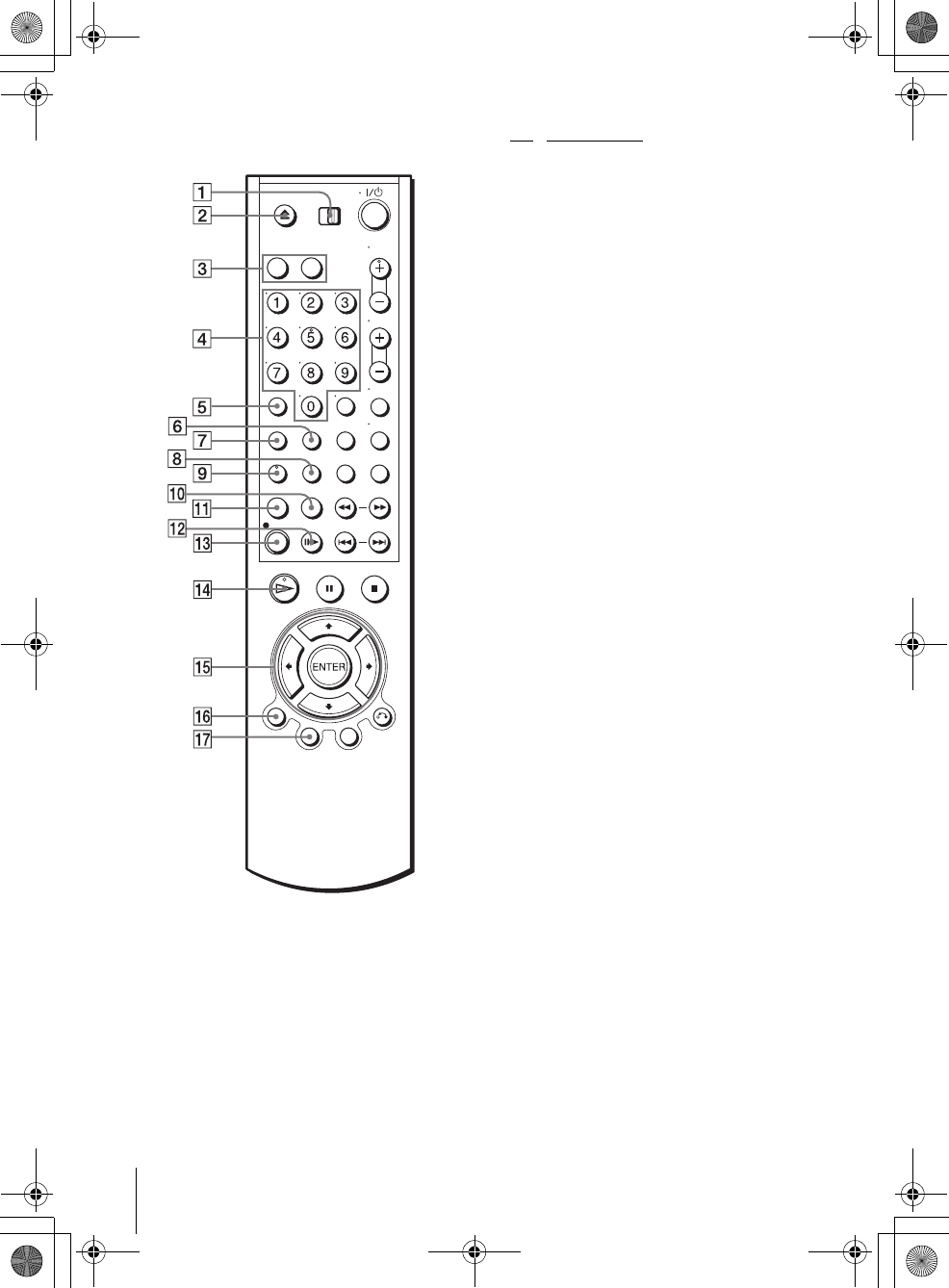
Remote commander ATV / DVD•VIDEO switch (11)
BZ button (30) (31) (36)
[for DVD] (open/close) button
[for VIDEO] (eject) button
CSELECT DVD/VIDEO buttons (11)
DNumber buttons* (29)
ECLEAR button (37) (42) (66)
FSURROUND button (72)
GSET UP button (21)
HSUBTITLE/TIMER button (41) (64)
[for DVD] SUBTITLE button
[for VIDEO] TIMER button
IAUDIO button* (71) (84)
JBOOKMARK/SEARCH MENU button
(69) (85)
[for DVD] BOOKMARK button
[for VIDEO] SEARCH MENU button
KREPEAT/REPLAY button (36) (66)
[for DVD] REPEAT button
[for VIDEO] REPLAY button
LCSKIP button (31) (37)
[for VIDEO] SKIP button
MzREC (record) button (39)
NHPLAY button* (31) (36)
OV/v/B/b button (21)
PDISPLAY button (33) (39)
QTOP MENU button (61)
∗Number 5, AUDIO and HPLAY buttons have
a tactile dot. Use the tactile dot as a reference
when operating the DVD-VCR.
010COV.book Page 106 Saturday, March 15, 2003 4:29 PM
107
Index to parts and controls
Additional Information
filename[010ADDI.fm] model name1[SLV-D300P] [3-083-945-11 (1) US]
filename[Z:\2003combo\3083945111-0228\3083945111SLVD300PUC\010ADDI.fm]
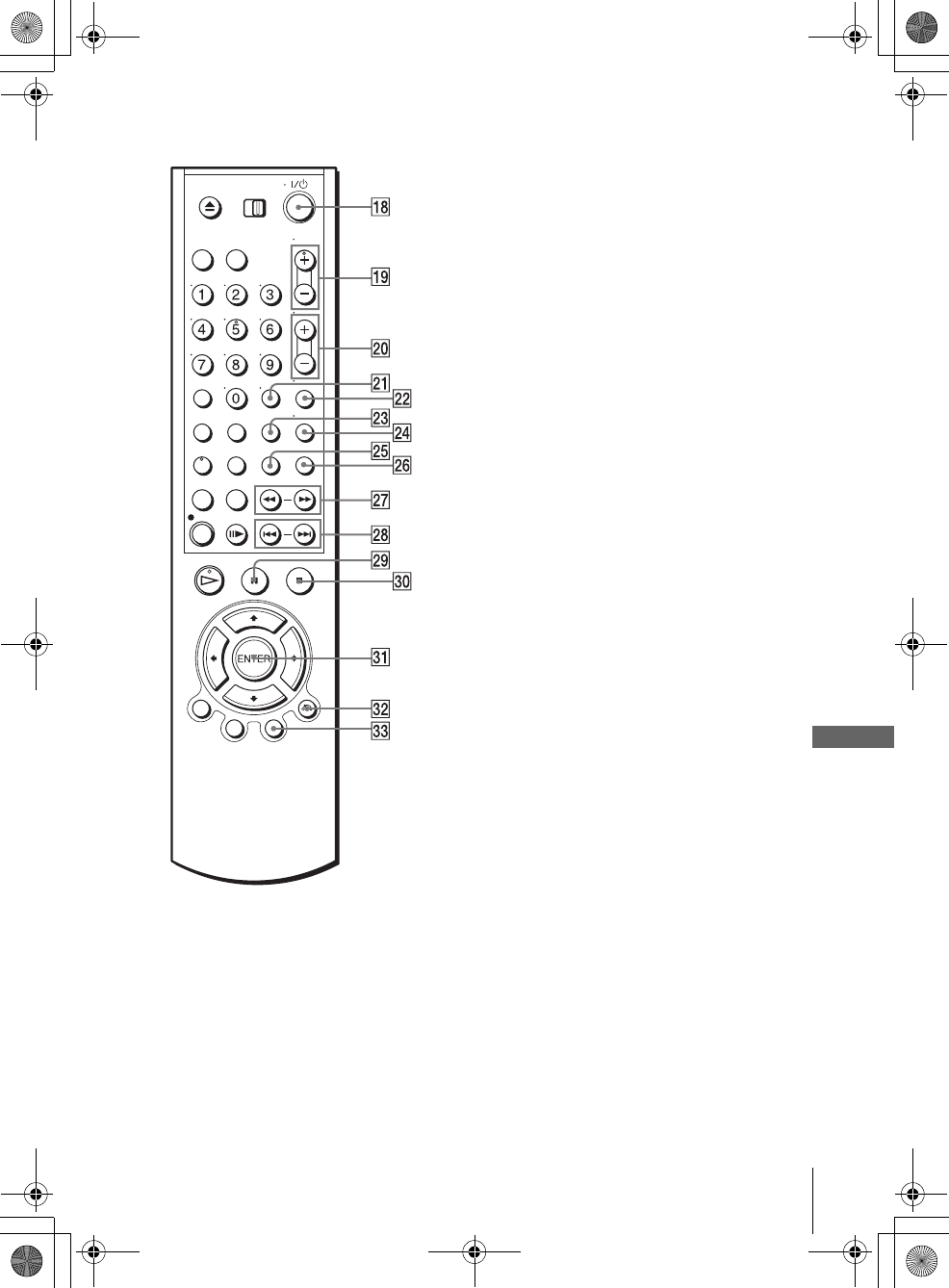
R?/1 (power) switch (12) (36)
SCH (channel)/TRACKING +/– buttons*1
(38) (87)
TVOL (volume) +/– buttons (12)
UENTER button*2 (21)
VMUTING/ZOOM button (12) (62)
[for DVD] ZOOM button
[for VIDEO] No function
[for Sony TV only] MUTING button
WSP (Standard Play)/EP (Extended Play)
button (39)
XTV/VIDEO button (40)
YANGLE button (63)
ZINPUT SELECT button (40)
wj m/M SCAN/SLOW y buttons (31)
(36)
[for DVD] m SCAN button
M SCAN button
SLOW y button
[for VIDEO] m (rewind) button
M (fast-forward) button
SLOW y button
wk ./> SHUTTLE PREV/NEXT
button (31) (37)
[for DVD] .PREV (previous) button
> NEXT (next) button
[for VIDEO] ./> SHUTTLE
button
wl XPAUSE button (31) (36)
e; xSTOP button (31) (36)
ea ENTER button*2 (21)
es O RETURN button (21)
ed MENU button (61)
*1CH/TRACKING + button has a tactile dot.
Use the tactile dot as a reference.
*2The ENTER buttons 21 and 31 can be used
interchangeably.
010COV.book Page 107 Saturday, March 15, 2003 4:29 PM
108 DVD Audio/Subtitle Language
filename[010ADDI.fm] model name1[SLV-D300P] [3-083-945-11 (1) US]
filename[H:\2003combo\3083945111-0228\3083945111SLVD300PUC\010ADDI.fm]
DVD Audio/Subtitle Language
Abbreviation Language
ARA Arabic
CHI Chinese
CRO Croatian
CZK Czech
DAN Danish
DEU German
ENG English
ESP Spanish
FIN Finish
FRA French
GRE Greek
HUN Hungarian
IDN Indonesian
IND Hindi
ISL Islandic
ITA Italian
IWR Hebrew
JPN Japanese
KOR Korean
MAL Malay
NLD Dutch
NOR Norwegian
POL Polish
POR Portuguese
RUS Russian
SVE Swedish
THA Thai
TUR Turquish
VIE Vietnamese
ZAF Afrikaans
010COV.book Page 108 Saturday, March 15, 2003 9:05 PM

109
Index
filename[010COVIX.fm] model name1[SLV-D300P] [3-083-945-11 (1) US]
filename[Z:\2003combo\3083945111-0228\3083945111SLVD300PUC\010COVIX.fm]
Index
Numerics
16:9 54
4:3 Letter Box 54
4:3 Pan Scan 54
A
Adjusting
picture 87
tracking 87
Angle 63
Antenna hookup 16
Audio track 84
Audio/video (A/V) hookup 15
Auto Clock Set 22
B
Bookmark 69
C
Cable hookup 14
Changing menu option 88
Cleaning the video heads 97
Clock setting 22
Commercial Skip 36
Connecting
Cable TV 20
external antenna connector
93
UHF/VHF band mixer 93
Counter 37
D
DATA CD 8, 74, 78
Disabling channels 28
DOLBY DIGITAL 46, 71
DTS 47, 71
Dubbing. see Editing
DVD 8
E
Editing 89
EP mode 39
H
Handling discs 9
Hi-fi audio track 84
J
JPEG 8, 78
L
Language selecting 21
LP mode 40
M
Monaural 84
Monitoring audio during
playback 84
MP3 8, 74
N
Normal audio track 84
P
Palyback
MP3 audio track 74
Parental Control 58
PBC (Playback control) 81
Picture adjustment 87
Playback 30
at various speeds 31, 36
frame by frame 31, 37
program play 65
repeat play 68
selecting the sound 84
shuffle play 67
skip 36
slow motion 32, 37
VIDEO CDs 81
Presetting channels 26
Program play 65
Progressive 49, 100
R
Recording
bilingual programs 84
SAP broadcasts 84
saving 40
stereo broadcasts 84
while watching another
program 40, 43
Repeat play 68
RF channel 92
S
Safety tab 40
SAP (Second Audio Program)
84
Searching
at various speeds 31, 36
for a blank portion 86
for the counter 0 point 86
Scan and Play 85
Shuffle play 67
SP mode 39
STEREO 71
Stereo 84
Subtitle 64
T
Timer setting
daily/weekly recording 43
Tracking adjustment. see
Adjusting
U
Usable discs 8
V
VIDEO CD 8
Z
Zoom 62
010COV.book Page 109 Saturday, March 15, 2003 4:29 PM

filename[010COVIX.fm] model name1[SLV-D300P] [3-083-945-11 (1) US]
010COV.book Page 110 Saturday, March 15, 2003 4:29 PM

filename[010COVIX.fm] model name1[SLV-D300P] [3-083-945-11 (1) US]
010COV.book Page 111 Saturday, March 15, 2003 4:29 PM
Sony Corporation Printed in China AK68-00158A
filename[010BCO.fm] model name1[SLV-D300P] [3-083-945-11 (1) US]
filename[Z:\2003combo\3083945111-0228\3083945111SLVD300PUC\010BCO.fm]
010COV.book Page 112 Saturday, March 15, 2003 4:29 PM