Samsung Electronics Co DVDVR300 DVD Recorder/ Video Cassette Recorder User Manual 1
Samsung Electronics Co Ltd DVD Recorder/ Video Cassette Recorder Users Manual 1
Contents
- 1. Users Manual 1
- 2. Users Manual 2
Users Manual 1
POWER
TV MUTE
100 +
DVD
VOL
F.ADV MARKER
TITLE LIST
DISC MENU TITLE MENU
RETURN
INFO. TV/VCR SUBTITLE REC SPEED
REC DVD
COPY
VCR REC PAUSE
TIME SLIP
PIP
00015J
CLEAR
MENU ANYKEY PLAY LIST
SEARCHSKIP
CH/TRK OPEN/CLOSE
VCR TV
INPUT SEL.
TIMER
REC
SELECT
AUDIO
TV POWER
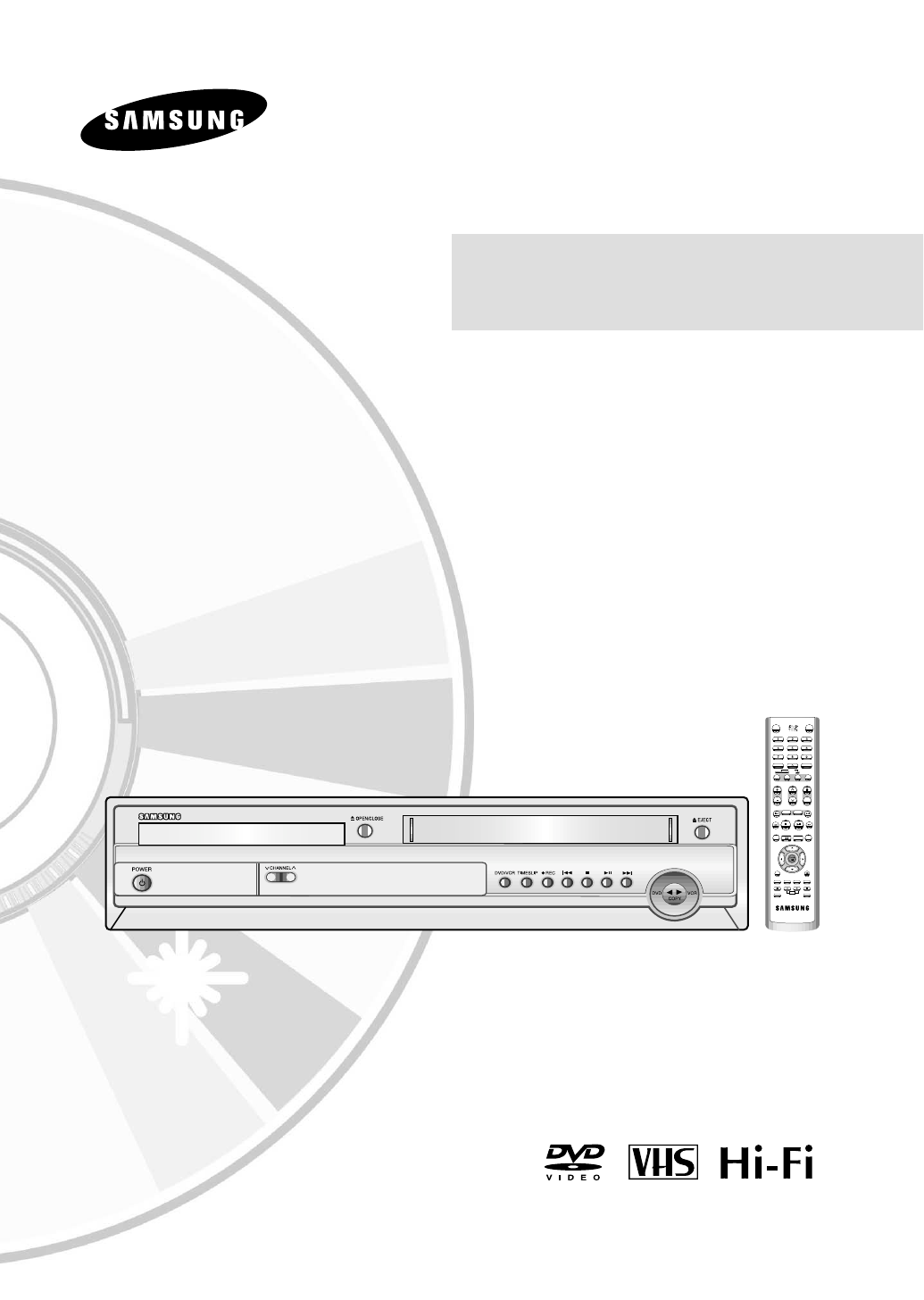
Instruction Manual
DVD-VR300
www.samsungusa.com

Contents
2- Contents
◆
Safety
Warning . . . . . . . . . . . . . . . . . . . . . . . . . . . . 4
Precaution . . . . . . . . . . . . . . . . . . . . . . . . . . 5
Before reading the user’s manual . . . . . . . . .10
How to use a DVD Recorder-VCR . . . . . . . .11
◆
Welcome
General Features . . . . . . . . . . . . . . . . . . . . .13
Disc Information . . . . . . . . . . . . . . . . . . . . .14
Disc Specification . . . . . . . . . . . . . . . . . . . . .15
◆
System Overview
Front Panel Display . . . . . . . . . . . . . . . . . .17
Front Panel Overview . . . . . . . . . . . . . . . . .18
Rear Panel . . . . . . . . . . . . . . . . . . . . . . . . .18
Tour of the Remote control . . . . . . . . . . . . .19
◆
Connections
Quick Overview . . . . . . . . . . . . . . . . . . . . . .20
Unpacking . . . . . . . . . . . . . . . . . . . . . . . . .21
Connecting the Antenna Cable . . . . . . . . . .21
Connecting the Video Cable . . . . . . . . . . . . .23
Connecting the Audio cable . . . . . . . . . . . .26
Connecting the external devices . . . . . . . . . .29
Connecting the Power Cord . . . . . . . . . . . . .31
Preparing the Remote Control . . . . . . . . . . .31
◆
System Setup
On-Screen Menu Navigation . . . . . . . . . . . .32
Manual Clock Set . . . . . . . . . . . . . . . . . . . .33
Setting Up the Language Features . . . . . . . .34
Setting Up the Audio Options . . . . . . . . . . .35
Setting Up the Display (Video) Options . . . .36
Setting Up the Parental Control . . . . . . . . . .37
Channel Set . . . . . . . . . . . . . . . . . . . . . . . . .38
Auto Channel Memory . . . . . . . . . . . . . . . .39
Channel Add/Delete . . . . . . . . . . . . . . . . . .40
RF Out Channel . . . . . . . . . . . . . . . . . . . . .41
VCR Setting . . . . . . . . . . . . . . . . . . . . . . . .42
Video Input . . . . . . . . . . . . . . . . . . . . . . . .44
◆
Playback
*DVD Playback
Front Display . . . . . . . . . . . . . . . . . . . . . . . .45
Playing a Disc . . . . . . . . . . . . . . . . . . . . . . .46
Using the Disc and Title Menu . . . . . . . . . . .47
Using the Search&Skip Functions . . . . . . . .47
Show Motion Play / Step Motion Play . . . . .47
About ANYKEY . . . . . . . . . . . . . . . . . . . . . .48
Repeat Play . . . . . . . . . . . . . . . . . . . . . . . . .48
Using the A-B Repeat Function . . . . . . . . . .49
Moving to a scene directly . . . . . . . . . . . . . .50
Selecting the subtitle & audio language . . . .51
Changing the camera angle . . . . . . . . . . . . .52
Using the Bookmark . . . . . . . . . . . . . . . . . .53
Zooming-In . . . . . . . . . . . . . . . . . . . . . . . .54
Playing Back an Audio CD (CDDA) . . . . . . .55
Play Option Mode . . . . . . . . . . . . . . . . . . . .56
Picture CD Playback . . . . . . . . . . . . . . . . . .57
Picture back MP3 CD . . . . . . . . . . . . . . . . .58
Using PIP . . . . . . . . . . . . . . . . . . . . . . . . . . .59
*VCR Playback
Playing a VCR . . . . . . . . . . . . . . . . . . . . . . .60
Tracking . . . . . . . . . . . . . . . . . . . . . . . . . . .60
Special VCR Playback Features . . . . . . . . . .61
S-VHS Playback . . . . . . . . . . . . . . . . . . . . .62
Variable Search System . . . . . . . . . . . . . . . . .62
Contents - 3
Contents
◆
Recording
*DVD Recording
Recording the current channel you are watching
63
One-Touch Recording(OTR) . . . . . . . . . . . .64
Making a Timer Recording . . . . . . . . . . . . . .65
Editing Timer Record List . . . . . . . . . . . . . .67
Cancle Timer recording . . . . . . . . . . . . . . . .68
Watching the Images Being Recorded (Time Slip)
.68
Recording through a DV jack . . . . . . . . . . . .69
Deleting a Timer Recording Entry . . . . . . . .69
*VCR Recording
Basic Recording . . . . . . . . . . . . . . . . . . . . . .70
Special Recording Features . . . . . . . . . . . . .71
Record Speed . . . . . . . . . . . . . . . . . . . . . . . .71
Copy to DVD or VCR . . . . . . . . . . . . . . . . .72
◆
Editing
Viewing the Menu Functions for a Disc . . . .74
Viewing Title List . . . . . . . . . . . . . . . . . . . . .76
Playing a Title List Entry . . . . . . . . . . . . . . .77
Renaming a Title List Entry . . . . . . . . . . . .78
Deleting a Title List Entry . . . . . . . . . . . . . .79
Locking a Title List Entry . . . . . . . . . . . . . .80
Deleting a Section from a Title List Entry . .81
Creating a Playlist Entry . . . . . . . . . . . . . . .83
Editing a Playlist Entry . . . . . . . . . . . . . . . .84
Editing Scene for a Playlist Entry . . . . . . . . .86
Copying a Playlist Entry to the VCR . . . . . . . .87
Deleting a Playlist Entry to the Playlist . . . . . . .91
Disc Manager . . . . . . . . . . . . . . . . . . . . . . . . . . .91
◆
Reference
Troubleshooting (DVD-VIDEO/DVD-RAM/
DVD-RW/DVD-R) . . . . . . . . . . . . . . . . . . . . . . .99
Troubleshooting . . . . . . . . . . . . . . . . . . . . . . . .100
Problems and Solutions (VCR) . . . . . . . . . . . . .101
Specifications . . . . . . . . . . . . . . . . . . . . . . . .102
Getting Started
Getting Started - 5
Getting Started
4- Getting Started
Warning
TO REDUCE THE RISK OF ELECTRIC SHOCK, DO NOT
REMOVE THE COVER(OR BACK).
NO USER-SERVICEABLE PARTS ARE INSIDE. REFER
SERVICING TO QUALIFIED SERVICE PERSONNEL.
This symbol indicates “dangerous voltage”
inside the product that presents a risk of
electric shock or personal injury.
This symbol indicates important instruc-
tions accompanying the product.
Do not install this equipment in a confined space such
as a bookcase or similar unit.
WARNING : To prevent damage which may result in fire
or electric shock hazard, do not expose this
appliance to rain or moisture.
CAUTION : DVD Recorder-VCRS USE AN INVISI-
BLE LASER BEAM WHICH CAN
CAUSE HAZARDOUS RADIATION
EXPOSURE IF DIRECTED.
BE SURE TO OPERATE RECORDER
CORRECTLY AS INSTRUCTED.
FCC NOTE (for U.S.A):
This equipment has been tested and found to comply
with the limits for a Class B digital device, pursuant to
Part 15 of the FCC Rules. These limits are designed to
provide reasonable protection against harmful interfer-
ence
in a residential installation. This equipment generates,
uses and can radiate radio frequency energy and, if
not installed and used in accordance with the instruc-
tions,
may cause harmful interference to radio communica-
tions.
However, there is no guarantee that interference
will not occur in a particular installation. If this
equipment does cause harmful interference to radio or
television reception, which can be determined by turning
the equipment off and on, the user is encoruaged to
try to correct the interference by one or more of the fol-
lowing
measures:
• Reorient or relocate the receiving antenna.
• Increase the separation between the equipment and
receiver.
• Connect the equipment into an outlet on a circuit dif-
ferent from that to which the receiver is connected.
• Consult the dealer or an experienced radio/TV techni-
cian for help.
This unit can be used only where the
power supply is AC 120V, 60Hz. It cannot
be used elsewhere.
This DVD Recorder-VCR is designed and
manufactured to respond to the Region
Management Information.
If the Region number of a DVD disc does
not correspond to the Region number of
this DVD Recorder-VCR, the DVD
Recorder-VCR cannot play the disc.
This device is protected by U.S. patent
numbers 4,631,603, 4,577,216, 4,819,098
and 4,907,093 and other intellectual prop-
erty rights. The use of Macrovision’s copy
protection technology in the device must
be authorized by Macrovision and is
intended for home and other limited
payperview uses only, unless otherwise
authorized in writing by Macrovision.
Reverse engineering or disassembly is pro-
hibited.
Note
Important Safety Instructions
Precaution
Read these operating instructions carefully before using
the unit. Follow all the safety instructions listed below.
Keep these operating instructions handy for future refer-
ence.
1) Read these instructions.
2) Keep these instructions.
3) Heed all warnings.
4) Follow all instructions.
5) Do not use this apparatus near water.
6) Clean only with dry cloth.
7) Do not block any ventilation openings, Install in
accordance with the manufacturer's instructions.
8) Do not install near any heat sources such as radiators,
heat registers, stoves, or other apparatus (including
amplifiers) that produce heat.
9) Do not defeat the safety purpose of the polarized or
grounding- type plug. A polarized plug has two blades
with one wider than the other. A groundingtype plug
has two blades and a third grounding prong. The wide
blade or the third prong are provided for your safety. if
the provided plug does not fit into your outlet, con-
sult an electrician for replacement of the obsolete out-
let.
10) Protect the power cord from being walked on or
pinched particularly at plugs, convenience recepta-
cles, and the point where they exit from the appara-
tus.
11) Only use attachments/accessories specified by the
manufacturer.
12) Use only with the cart, stand, tripod, bracket, or
table specified by the manufacturer, or sold with the
apparatus. When a cart is used, use caution when
moving the cart/apparatus combination to avoid
injury from tipover.
13) Unplug this apparatus during lightning storms or
when unused for long periods of time.
14) Refer all servicing to qualified service personnel.
Servicing is required when the apparatus has been
damaged in any way, such as power-supply cord or
plug is damaged, liquid has been spilled or objects
have fallen into the apparatus, the apparatus has
been exposed to rain or moisture, does not operate
normally, or has been dropped.
Handling Cautions
•Before connecting other components to this recorder,
be sure to turn them all off.
• Do not move the recorder while a disc is being played,
or the disc may be scratched or broken, and the
recorder’s internal parts may be damaged.
• Do not put a flower vase filled with water or any small
metal objects on the recorder.
• Be careful not to put your hand into the disc tray.
• Do not place anything other than the disc in the disc
Getting Started Precaution tray.
• Exterior interference such as lightning and static elec-
tricity can affect normal operation of this recorder. If
this occurs, turn the recorder off and on again with the
POWER button, or disconnect and then reconnect the
AC power cord to the AC power outlet. The recorder
will operate normally.
• Be sure to remove the disc and turn off the recorder
after use.
• Disconnect the AC power cord from the AC outlet
when you don’t intend to use the recorder for long
periods of time.
• Clean the disc by wiping in a straight line from the
inside to the outside of the disc.
Maintenance of Cabinet
For safety reasons, be sure to disconnect the AC
power cord from the AC outlet.
• Do not use benzene, thinner, or other solvents
for cleaning.
• Wipe the cabinet with a soft cloth.
Getting Started
6- Getting Started
Precaution
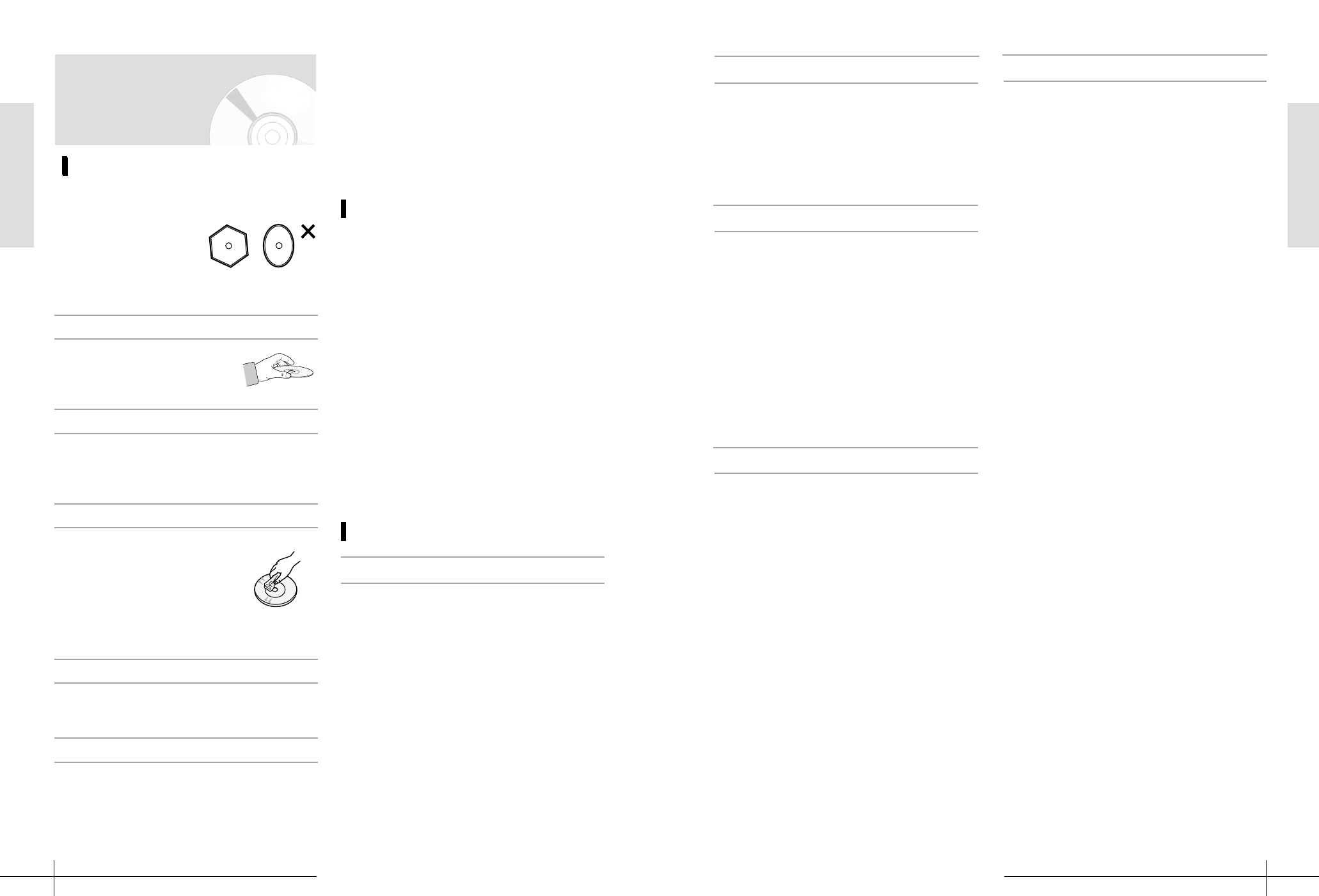
Disc Handling
Disc Specifications
Use discs with regular
shapes. If an irregular disc
(a disc with a special
shape) is used, this DVD
Recorder-VCR may be
damaged.
• Avoid touching the surface of a
disc where recording is per-
formed.
Holding discs
• Clean with an optional
DVDRAM/PD disc cleaner
(LFK200DCA1 where avail-
able).Do not use cleaners or
cloths for CDs to clean DVD-
RAM/DVDRW/DVD-R discs.
DVD-RAM, DVD-RW and DVD-R
• Water droplets may form on the surface of the
disc if the disc is moved suddenly from a cold
place to a warm one.
If the disc has dirt or condensation
Wipe off dirt or contamination on the disc with
a soft cloth.
DVD-Video, DVD-Audio, CD
• Do not write on the printed side with a ball-
point pen or pencil.
• Do not use record cleaning sprays or antistat-
ic. Also, do not use volatile chemicals, such as
benzene or thinner.
• Do not apply labels or stickers to discs. (Do
not use discs fixed with exposed tape adhesive
or leftover peeled-off stickers.)
• Do not use scratch-proof protectors or covers.
• Do not use discs printed with label printers
available on the market.
• Do not load warped or cracked discs.
Cautions on handling discs
Be careful not to harm the disc because the data
on these discs is highly vulnerable to the envi-
ronment.
• Do not keep under direct sunlight.
• Keep in a cool ventilated area.
• Store vertically.
• Keep in a clean protection jacket.
• If you move your DVD Recorder-VCR sudden-
ly from a cold place to a warm place, conden-
sation may generate on the operating parts
and lens and cause abnormal disc playback. If
this occurs, remove the disc and wait for one
to two hours with the power on before att-
tempting playback.
• A digital versatile disc (DVD) can contain up
to 135-minutes of images, 8-language audio
and 32 subtitle languages. It is equipped with
MPEG-2 picture compression and Dolby 3D
surrounding, allowing you to enjoy vivid and
clear theater quality images in the comfort of
your own home.
• When switching from the first layer to the sec-
ond layer of a double-layered DVD Video disc,
there may be momen-tary distortion in the
image and sound.
This is not a malfunction of the unit.
• Once a DVD-R/RW recorded in Video Mode is
finalized, it becomes DVD-Video.
DVD-Video
Disc Storage
Getting Started
Getting Started - 7
• An audio disc on which 44.1kHz PCM Audio
is recorded
• Plays CD-DA format audio CD-R and CD-RW
discs. May not be able to play some CD-R or
CD-RW discs due to the condition of the
recording.
Audio CD
• Only CD-R discs with MP3 files recorded with
ISO9660 or JOLIET format can be played back
• Only MP3 files with the "mp3", and "MP3"
extension can be used.
• For MP3 files recorded with a VBR(Variable
Bit Rates), from 32 Kbps to 320 Kbps, the
sound may cut in out.
• Playable range of bitrate is from 56Kbps to
320Kbps.
• The unit can handle maximum of 1000 files,
maximum1000 folders.
MP3 CD-R/RW
• The unit can handle maximum of 1000 files,
maximum1000 folders
• MOTION JPEG is not supported.
For using CD-R/RW
• If the CD-R/RW disc was not recorded as a
closed session, you may experience a delay in
the early playback time , and may not be
played all recorded files.
• Some CD-R/RW discs may not be playable
with this unit, depending on the device which
was used to burn them.
For contents recorded on CD-R/RW media
from CDs for your personal use. Playability
may vary depending on contents and discs.
JPEG CD-R/RW
• Once a DVD-R/RW recorded in Video Mode is
finalized, it becomes DVD-Video.
• You can record onto the available space on the
disc and perform editing functions such as
giving titles to discs and programs and erasing
programs before finalizing.
• When programming is erased from a DVD-R,
that space does not become available. Once an
area on a DVD-R is recorded on, that area is
no longer available for recording, whether the
recording is erased or not.
• It takes about 30 seconds for the unit to com-
plete recording management information after
recording finishes.
• This product optimizes the DVD-R for each
recording. Optimizing is carried out when you
start recording after inserting the disc or turn
on the unit. Recording onto the disc maybe-
come impossible if optimizing is carried out
too many times.
• Playback may be impossible in some cases due
to the condition of recording.
• This unit is compatible with 1x - 4x recording
speed discs.
• This unit can play back DVD-R discs recorded
and finalized with a Samsung DVD video
recorder. It may not be able to play some
DVD-R discs depending on the disc and the
condition of the recording.
MP3 CD-R/RW

Getting Started
Getting Started - 9
Getting Started
8- Getting Started
Protection
This DVD Recorder-
VCR can allow you to
protect the contents
of your discs, as
described in the ways below.
• Cartridge-protected:
With the write-protect tab located at the pro-
tect position, the contents of the disc cannot
be recorded, edited, or erased.
• Program-protected: See page 80 “Locking the
title List”
• Disc-protected: See page 93 “Disc Protection”
❊ Illegal copies of DVD-RAM/DVD-RW/DVD
discs that are incompatible with the DVD-
VIDEO format can not be played with this
product.
❊ For more information on recording a DVD,
consult your DVD-RAM/DVD-RW/DVD-R
manufacturer.
❊ If poor quality DVD-RAM/DVD-RW/DVD-R
discs are used, your recordings may fail.
• LD, CD-G, CD-I, CD-ROM, DVD-ROM,
DVD+R and DVD+RW discs should not be
used in this product.[Note]
Disc types that can be played : CD/CD-
R/CDRW/MP3/JPEG/DVD-Video/DVD-
RAM/DVD-RW/DVD-R. However, if your
DVD-RW disc was recorded with another
device, it can be played only if it was recorded
and finalized in video mode.
• Some commercial discs and DVD discs pur-
chased outside your region may not be
playable with this product. When these discs
are played, either “No disc.” or “Please check
the regional code.” will be displayed.
• If your DVD-RW disc is an illegal copy or is
not in DVD video format, it may also not be
playable.
Do not use the following discs!
• Many DVD discs are encoded with copy
protection. Because of this, you should
only connect your DVD Recorder-VCR
directly to your TV, not to a VCR.
Connecting to a VCR results in a distorted
picture from copy-protected DVD discs.
• This product incorporates copyright pro-
tection technology that is protected by
methods claims of certain U.S. patents and
other intellectual property rights owned
by Macrovision Corporation and other
rights owners. Use of this copyright pro-
tection technology must be authorized by
Macrovision Corporation, and is intended
for home and other limited viewing uses
only unless otherwise authorized by
Macrovision Corporation. Reverse engi-
neering or disassembly is prohibited.
COPY PROTECTION
• Recording and playback can be performed on
a DVD-RW discs in both of Video Mode and
VR Mode.
• Once a DVD-RW recorded in VR Mode is
finalized,you cannot perform addtional record-
ing.
• Once a DVD-RW recorded in Video Mode is
finalized, it becomes DVD-Video.
• In both modes, playback can be performed
before and after finalization, but additional
recording, deleting and editing can not be per-
formed after finalization. see below the table...
• If you want to record the disc in VR Mode and
then record in V Mode, be sure to execute
Format. Be careful when executing Format
because all the recorded data may be lost.
• A DVD-RW blank disc is initialized to Video
Mode when first initialized.
DVD-RW (VR mode)
- This is a format that is used for recording data
on a DVD-RAM or DVD-RW disc. You can
repeat recording, editing, deleting, partial dele-
tion, creation of playlist, and etc.
- A disc that is recorded in this mode may not be
played by an existing DVD player.
DVD-RW (Video mode)
- This is a format that is used for recording data
on a DVD-RW or DVD-R disc. The disc can be
played by an existing DVD player once it has
been finalized.
- If a disc that has been recorded in V Mode but
has not been finalized by a different maker’s
recorder, it cannot be played or additionally be
recorded by this recorder.
DVD-RW Disc Playback and Recording
• DVD-RAM discs come with or without a car-
tridge. For this product, we recommend DVD-
RAM discs that come with cartridges.
• Some cartridges are able to eject the disc
inside. Even if you are able to eject the disc,
always use the disc with the cartridge to
ensure correct operation.
• DVD-RAM discs have a Write Protect tab in
order to avoid accidental erasure of recorded
data. With the Write Protect tab set to PRO-
TECT, you can play the disc, but recording or
erasing will not work. Set the Write Protect
tab to UNPROTECT to format the disc or
erase data.
• Ensure that the recording mode is set to VR
mode. Otherwise, this product will not be able
to play the recording.
• You cannot play a DVD-RAM in a normal
DVD player because a DVD-RAM is usually
not compatible with a normal DVD player.
However, a DVD-RAM can be played in some
types of DVD players supporting DVD-RAM
standards.
• DVD-RAM recorded on this unit may not
work with other DVD players. For the deter-
mination of compatibility with these DVD-
RAM discs, refer to the user’s manual for the
player.
• DVD-RAM recorded on this product may not
be compatible with other DVD players, refer
to the manual for the player to determine
compatibility with these DVD-RAM disc.
• This unit is compatible with both non-car-
tridge and cartridge DVD-RAM, but the write-
protect tabs on cartridge-type discs give better
protection to your recordings.
DVD-RAM Disc Playback and Recording
Precaution

Getting Started
Getting Started - 11
Getting Started
10 - Getting Started
How to use a DVD
Recorder-VCR
Step 1 Select the disc type
Select the disc type according to the chart on the
rear cover, as each type has different features. This
recorder can precede recording on the following
types of discs. If you want to repeatedly record on
the same disc or you want to edit the disc after
recording, select a rewritable DVD-RW , DVD+RW
or DVD-RAM type disc. If you want to save record-
ing without any change, howev-er, choose a non-
rewritable DVD-R.
Step 2
Format the disc to start recording
Unlike a VCR, the recorder automatically starts for-
matting when an unused disc is inserted. This is
required for the preparation of recording on a disc.
Using a DVD-RAM/-RW
This type of disc can be formatted in either DVD-
Video format (Video mode) or DVD-Video
Recording format (VR mode). You can play a video
mode disc on various DVD components. A VR
mode disc allows more varied editing.
Using a DVD-R
This type of disc can be formatted in DVD Video
format. You can play this type of disc on various
DVD compo-nents. After formatting is complete,
now you can record on the disc.
Only one format can be used in one
DVD-RW.
You can change the DVD-RW format
to another format. It should be noted
that the data of the disc may be lost
when changing formats.
All discs cannot be played on other
DVD components.
Note
Step 4
Playing recording data
You can select the title you want to play in a dis-
played menu and then immediately start playback.
The data of DVD consists of sections, called as
titles, and sub sections, called as chapters.
On this recorder, a title is created between two
points where you start and stop recording.
Chapters are created automatically at specified
intervals, or can be created manually. ( DVD-RWs in
VR mode only)
Step 5
Editing a recording disc
You can find editing discs a lot easier than conven-
tional video tapes. Besides, the recorder can support
many differ-ent edit functions, possible only with
DVDs. With a simple and easy edit menu, you can
operate vari-ous edit functions, such as delete, copy,
rename, lock, etc., on a recorded title.
Creating a playlist (DVD-RAM/-RW in VR mode
With this recorder, you can create a new playlist on
the same disc and edit it without the change of the
original recording. Since Playlist does not occupy
much disc space, you need only one recorder and
one disc.
Step 3
Recoding
There are two different recording methods, ie.,
Direct Recording and Timer Recording. Timer
recording is classi-fied into Once, Weekly, and
Every according to the record-ing type or that is
classified into XP (high quality), SP (standard quali-
ty), LP (low quality), and EP (lower quali-ty)
according to the recording mode. When recording
is set in the FR mode, the best quality picture can
be record-ed during the remaining time.
Icon Term Definition
This involves that the vio-
lation of any of instruc-
tions may cause human
beings to die or have a
severe injury.
This involves that the vio-
lation of any of instruc-
tions may causehuman
beings to be injured or
sustain material loss.
Before reading the
user’s manual
Make sure to check the following matters before
reading the user’s manual.
1) Be sure to be familiar with Safety Instructions
before using this product. (See pages 4~7)
2) If a problem occurs, check for Troubleshooting.
(See pages 99)
Icons that will be used for Safety Instructions
About the use of this user’s manual
©2004 Samsung Electronics Co.
All rights reserved; No part or whole of this user’s
manual may be reproduced or copied without the
prior written permission of Samsung Electronics
Co.
Copyright
Warning
Caution
Icon Term Definition
This involves a function
availablein DVD or Video
Mode DVD-R
This involves a function
available in a Video CD or
CD/Video format CD-
R/CD-RW
This involves a function
available in DVD-RAM
This involves a function
available in DVD-RW
This involves a function
available in DVD-R
This involves a function
available in a data CD
(CD-ROM, CD-R, or CD-
RW
This involves a function
available in a data picture
CD (CD-ROM, CD-R, or
CD-RW)
This involves a function
available in a data CD
(CD-ROM, CD-R, or CD-
RW on which MP3 is
recorded)
This involves a case where
a function does not oper-
ate or settings may be can-
celled
This involves hints or the
contents in the page that
may help each function
operate
Check items before operat-
ing each function
A function that can be
operated by using only
one button
Icons that will be used in the body
DVD
VCD
RAM
RW
R
CD
JPEG
MP3
Caution
NOTE
Preliminary
One-Touch
button

Getting Started
12 - Getting Started
Welcome
Welcome - 13
General Features
DVD-VR300 allows you to record and playback
high quality digital images on a DVD-RAM/DVD-
RW/DVD-R disc. You can record and edit digital
images on DVD-RAM/DVD-RW discs as if old VCR
tapes.
High quality digital audio and video
recording and playback
Record up to about 12-hour images with a
double side 9.4 GB DVD-RAM disc, and up
to about 6-hour images with a 4.7 GB DVD-
RAM disc, depending on the recording
mode.
1
Creating DVD video title using
DVD-RW disc
With DVD-VR300, create your own DVD
video title on 4.7 GB DVD-RW discs.
2
A Variety of Recording Options
Select an appropriate recording mode
between XP, SP, and LP to meet your
recording needs. (See page 65~66.)
Recordingzquality and time on a 4.7-GB
DVD-RAM or DVD-RW disc:
• XP mode - High quality, about 1 hour
• SP mode - Standard quality, about 2 hours
• LP mode - Low quality, about 4 hours
• EP mode - Lower quality, about 6 hours
3
Copying digital camcorder content
using DV input jack
Record digital camcorder images onto
DVD-RAM/DVD-RW/DVD-R discs using the
DV input jack (IEEE 1394-4pin). (See page
69.)
4
How to use a DVD
Recorder-VCR
Step 6
Finaliaing & Playing on other
DVD components
To play your DVD on other DVD components,
finalizing may be necessary in some cases. First, fin-
ish up all your editing and recording operations,
then finalize the disc.
When using a DVD-RW disc in VR Mode
Although finalizing is generally unnecessary when
playing the disc on a VR Mode compatible compo-
nent, a finalized disc should be used for playback
on that type of compo-nent. You can still edit and
record on the disc even after finalizing.
When using a DVD-RW disc in Video Mode
The disc should be finalized first to enable playback
on anything other than this recorder. No more edit-
ing or recording can be made on the disc once it
has been final-ized. To enable recording on the disc
again, you should format it again. Reformatting will
erase all the previous data.
When using a DVD-R disc
You should finalize the disc to play it on a compo-
nent other than this recorder. You cannot edit or
record on the disc once it has been finalized.
Welcome
Welcome - 1514 - Welcome
Welcome
General Features
Time Slip and Picture In Picture
(PIP)
Use the Time Slip functionality to playback
the recorded images while a recording is
proceeding (DVD-RAM only). Use the PIP
functionality to view both of the playback
and recording screens at the same time.
5
High quality progressive scan
Progressive scanning provides high resolu-
tion and flicker free images. The 12-bit 108-
MHz DAC, 2D Y/C Separating circuitry and
Time Base Corrector processor technology
provides you with the highest image play-
back and recording quality. (See page
25~26.)
6
A variety of functionalities with
easy-to-use user interface
Integrated menu system and messaging
functionality allow you to perform the
desired operations easily and conveniently.
With a DVD-RAM/DVD-RW disc, you can
edit recorded images, create playlist, and
edit images in specific sequence according
to your needs.
7
Do not use the following discs!
Disc Information Disc Specifications
• LD, CD-G, CD-I, CD-ROM, DVD-ROM,
DVD+R, and DVD+RW discs should not be
used in this product.
➢
Disc types that can be played back : CD/CD-
R/CD-RW/MP3/DVD/DVD-RAM/ DVD-
RW/DVD-R.
However, if your DVD-RW disc is recorded
with other device, it can be played back only
if it was recorded and finalized in video
mode.
• Some commercial discs and DVD discs
purchased outside your region may not be
played back in this product. If those kinds of
unsupported discs are played back, either “No
disc.” or “Please check the regional code.” will
be displayed.
• If your DVD-RW disc is an illegal copy or is not
of DVD video format, it may not be played
back.
COPY PROTECTION
• Many DVD discs are encoded with copy protec-
tion. Because of this, you should only connect
your DVD player directly to your TV, not to a
VCR. Connecting to a VCR results in a distort-
ed picture from copy-protected DVD discs.
• This product incorporates copyright protection
technology that is protected by methods claims
of certain U.S.patents and other intellectual
property rights owned by Macrovision
Corporation and other rights owners. Use of
this copyright protection technology must be
authorized by Macrovision Corporation, and is
intended for home and other limited viewing
uses only unless otherwise authorized by
Macrovision Corporation. Reverse engineering
or disassembly is prohibited.
• Manufactured under license from Dolby
Laboratories. “Dolby” and the double-D symbol
are trademarks of Dolby Laboratories.
Confidential unpublished works. 1992-1997
Dolby Laboratories Inc. All rights reserved.
• “DTS” and “DTS Digital Out” are trademarks of
Digital Theater Systems, Inc.
1996 Digital Theater Systems, Inc. All rights
reserved.
• When switching from the first layer to the sec-
ond layer of a double-layered DVD Video disc,
there may be a momentary distortion in the
image and sound. This seems that the DVD
Recorder-VCR is malfunctioning, but this is not
a malfunction.
• DVD-Audio discs operating with a DVD Video
recorder can be played.
➢
Only video content on a DVD-Audio disc
can be played.
DVD-Video/Audio Disc
Playback
• Some CD-R discs may not be playable with this
product, depending on the device, which was
used to burn them. (i.e. the type of CD recorder
or personal computer used)
• Only a CD-R disc recorded in closed session
mode is guaranteed playable with this product.
If a disc was recorded in open session mode, it
may not be completely playable.
• Some CD-R discs may not be playable with this
product, depending on the recording conditions
and the disc type.
CD-R Disc Playback

16 - Welcome
Welcome
System
Overview
System Overview - 17
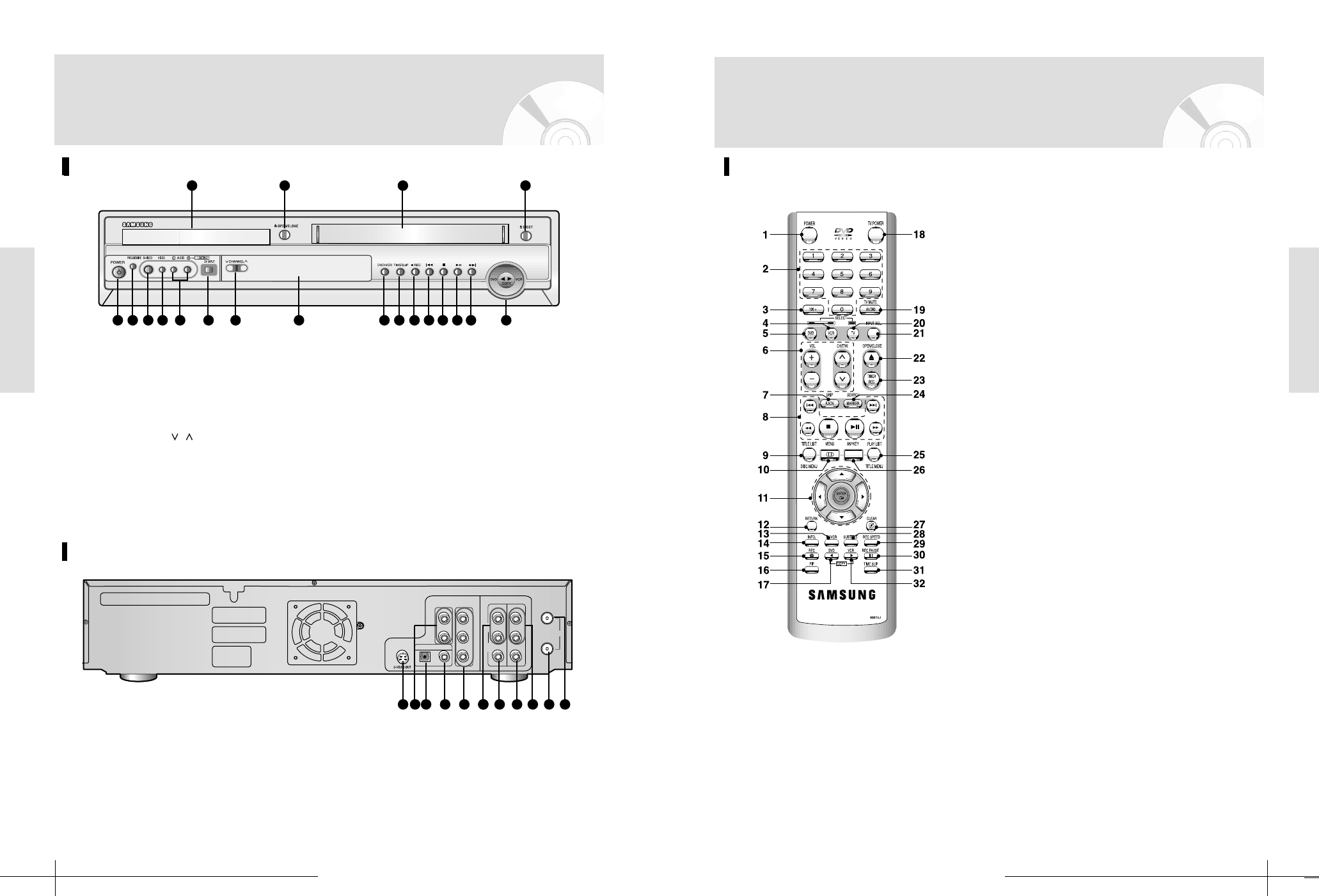
Description
Front Panel Display
1 2 34 5 6
87 9
10 11
1
When the light is on, DVD is operating.
2 DVD-RAM is activated.
3 DVD-R or DVD-RW is activated.
4
Progressive Scan mode is working.
5
When you watch SAP/STEREO channel or
play back Hi-Fi VCR tapes, it is on.
6 VCR is activated.
7 DVD or CD media is loaded.
8 Record function is working.
9
The time, counter position, time remaining
10
When you set a Timer recording, it
or current deck status is indicated.
is on.
11 VHS Videotape is loaded.
CD-R MP3 Disc Playback
• Only CD-R discs with MP3 files recorded with
the ISO 9660 or JOLIET format can be played
back.
• The MP3 files should be recorded at a bit rate
of at least 56kbps to ensure proper playback.
• Only MP3 files with the “.mp3”, and “MP3”
extension can be played.
• If the CD-R disc was not recorded as a closed
session, you may experience a delay in the early
playback time, and the recorder may not play
all recorded files.
• For files recorded with a Variable Bit Rate
(VBR), from 32 kbps to 320 kbps, the sound
may cut in and out.
DVD-RW Disc Playback and
Recording
• You can record to DVD-RW discs with this
product.
• This product can play finalized DVD-RW discs
recorded in Video mode.
• Recording and playback can be performed on a
DVD-RW disc in both of video mode and VR
mode.
• In both modes, playback can be performed
before and after finalization, but additional
recording, deletion, and editing cannot be per-
formed after finalization.
• VR mode
Recording and erasing can be performed as
many times as possible on a disc.
Various edit function can be performed such as
deleting unwanted parts. Depending on record-
ing conditions, DVD-RW discs that has been
recorded in VR mode can be played by DVD
Recorder-VCRs that can play DVD-RW discs.
• Video mode
The DVD-RW disc that has been finalized in
the video mode can be played by DVD
Recorder-VCRs that can play DVD-RW discs.
DVD-R Disc Playback and
Recording
• Once it is finalized, no further recording can be
performed.
• DVD-R discs cannot be formatted or unfinal-
ized.
DVD-RAM Disc Playback and
Recording
• DVD-RAM discs come with or without a car-
tridge. For this product, we recommend DVD-
RAM disc that come with cartridges.
• Some cartridges are able to eject the disc inside.
Even if you are able to eject the disc, always use
the disc with the cartridge to ensure correct
operation.
• DVD-RAM discs have a Write Protect tab in
order to avoid accidental erasure of recorded
data.
With the Write Protect tab set to PROTECT,
you can play the disc, but recording or erasing
will not work.
Set the Write Protect tab to UNPROTECT to
format the disc or erase data.
• Ensure that the recording mode is set to VR
mode. Otherwise, this product will not be able
to play the recording.
• It is impossible to play the DVD-RAM in a nor-
mal DVD Recorder-VCR because a DVD-RAM
is usually not compatible with a normal DVD
Recorder-VCR. However, a DVD-RAM can be
played in some types of DVD Recorder-VCRs
supporting DVD-RAM standards.
• It is only possible to use discs which conform
with DVD-RAM standard Version 2.0.
System Overview
System Overview - 1918 - System Overview
System Overview
Tour of the Rmote Control
Description
7. F.ADV Button
8. Playback-related buttons
Forward/Rewind, Search, Skip, Stop, Play/Pause
9. TITLE LIST(DISC MENU) Button
Use this to enter the View Recoding list/disk menu.
10. MENU Button
Brings up the DVD Recorder-VCR’s setup menu.
11. ENTER/DIRECTION Button
(UP/DOWN or LEFT/RIGHT Buttons)
This button functions as a toggle switch.
12. RETURN Button
Returns to a previous menu.
13. TV/VCR Button
14. INFO Button
This will display current setting or a state of a disc.
15. REC Button
Use to make a recording on DVD-RAM/-RW/-R
discs.
16. PIP Button
17. DVD Button
Press this when you use a DVD.
18. TV POWER Button
19. AUDIO Button
Use this to access various audio functions on a disc.
20. TV Button
Press this to operate TV.
21. INPUT Button
Select line input signal in external input
mode(Tuner or Line input)
22. OPEN/CLOSE Button
To open and close the disc tray.)
23. TIME SLIP Button
Use this to watch, a recently recorded 10-second
program on the PIP screen, while recording.
24. MARKER Button
Use this to bookmark a position while playing a disc.
25. PLAY LIST(TITLE MENU) Button
Use this to return to the Title menu, or to view the
recorded files list.
26. ANYKEY Button
Use this to view the status of the disc that is being
played.
27. CLEAR Button
28. SUBTITLE Button
Press this to switch the DVD’s subtitle language.
29. REC SPEED Button
30. REC PAUSE Button
Use this to pause during recording.
31. TIME SLIP Button
32. VCR Button
1. POWER Button
2. NUMBER Button
3. 100+ Button
Press this to select channel 100 or higher.
4. VCR Button
5. DVD Button
Press this when you use a DVD.
6. TV Control Buttons
• VOLUME Button
TV volume adjustment
• CHANNEL Button
Use this to select a TV channel.
Rear Panel
OUT
RF
(TO TV)
DIGITAL AUDIO OUT
AUDIO OUT COMPONENT
VIDEO OUT
OPTICAL COAXIAL
RY
Pb
Pr
L
R
AUDIO
LINE OUT LINE IN 1
VIDEO
L
R
L
IN
(FROM ANT.)
OUT
RF
(TO TV)
DIGITAL AUDIO OUT
AUDIO OUT COMPONENT
VIDEO OUT
OPTICAL COAXIAL
RY
Pb
Pr
L
R
AUDIO
LINE OUT LINE IN 1
VIDEO
L
R
L
1 3 4 5 7 8 102
1 S-VIDEO OUT 2 AUDIO OUT L,R
3 DIGIRAL AUDIO OUT (OPTICAL) 4
DIGIRAL AUDIO OUT (COAXIAL)
5 COMPONENT VIDEO OUT 6 AUDIO OUT R,L
7 VIDEO OUT 8 VIDEO IN
9 AUDIO IN R,L 10 RF ANTENNA INPUT
11 RF OUT TO TV
6 9
11
Front Panel Overview
1 2
5 6 7 8 9
10 11 12 13 14 15 16 17 18 19 20
3 4
1 DVD DECK 2 DVD OPEN/CLOSE BUTTON
3 VCR DECK 4 VCR EJECT BUTTON
5 POWER BUTTON 6 PROGRESSIVE BUTTON
7 S-VIDEO INPUT 8 VIDEO INPUT
9 AUDIO L.R INPUT 10 DV INPUT
11 CHANNEL
/
12 FRONT PANEL DISPLAY
13 DVD/VCR BUTTON 14 TIMESLIP BUTTON
15 RECORD BUTTON 16 REW/SKIP BUTTON
17 STOP BUTTON 18 PLAY/STILL BUTTON
19 F.F/SKIP BUTTON 20 COPY BUTTON
Description

Connections
Connecting & Setting Up - 21
Accessory
Step 1: Unpacking
Check for the supplied accessories below.
•
Video/Audio Cable (AC97-01746A)
•
RF Cable for TV (AC39-42001J)
•
Remote Control (AK59-00015J)
•
Batteries for Remote Control (AAA Size)
(AC43-12002H)
•
User’s Manual (AK68-00416A)
•
Dispose of batteries according to local environ-
mental regulations. Do not put them in the
household trash.
Step 2: Connecting the
Antenna Cable
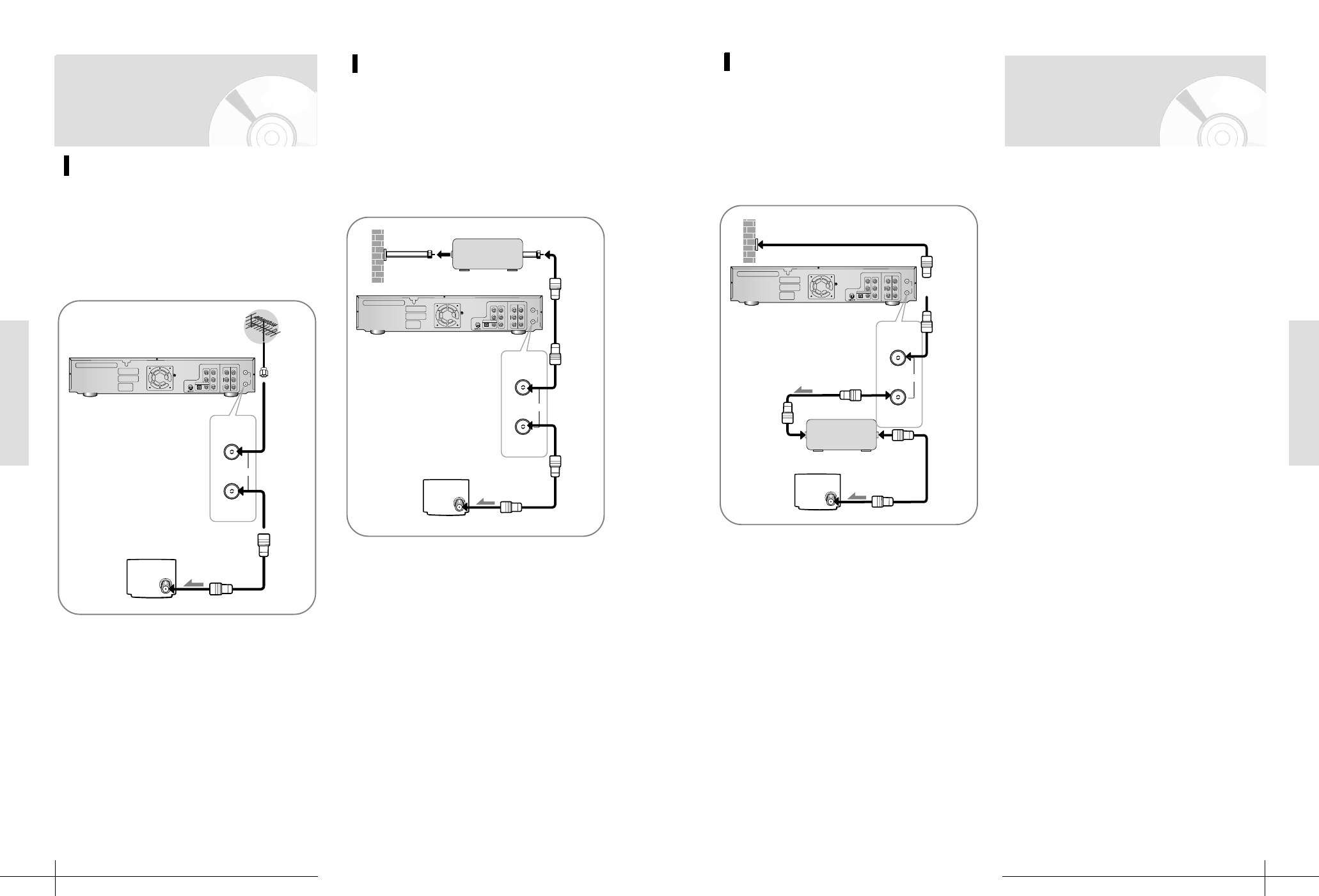
There are several ways to connect your DVD
Recorder-VCR. Select one of the following antenna
connecting that best suits you below.
•
Method 1 : Antenna + DVD Recorder-VCR + TV :
No Cable box
•
Method 2 :
Antenna +Cable box + DVD Recorder-
VCR +
TV : Cable box with many
scrambled channels
•
Method 3 :
Antenna + DVD Recorder-VCR + Cable
box +
TV : Cable box with a few
scrambled channels
If you are using an off-air antenna that has
300-ohm twin flat leads, use an external
antenna connector (300-75 ohm adaptor :
not supplied) to connect the antenna to
the DVD Recorder-VCR.
If you have two separate antennas (one
VHF and one UHF), use a UHF/VHF
com-biner- adaptor (available at most
electron-ics shops) to connect the antenna
to the DVD Recorder-VCR.
Note to CATV system installer: This
reminder is provided to call CATV system
installer’s attention to Article 820-40 of
the National Electrical Code (Section 54
of Canadian Electrical Code, Part I), that
provides guidelines for proper grounding
and, in particular, specifies that the cable
ground shall be connected to the ground-
ing system of the building as close to the
point of cable entry as practical.
Note
Connecting &
Setting Up
Quick Overview
A Quick overview presented in this guide will give
you enough imformation to start using the recorder.
Step 1 : Unpacking
Step 2 : Connecting the Antenna Cable
Step 3 : Connecting the Video Cords
Step 4 : Connecting the Audio Cords
Step 5 : Connecting the external device
Step 6 : Connecting the Power Cord
Step 7 : Preparing the Remote
❷
❷
❷
❷
❷
❷
Connections
Connecting & Setting Up - 2322 - Connecting & Setting Up
Connections
Method 3 : Antenna + DVD
Recorder-VCR + Cable box
+TV : Cable box with a few
scrambled channels
You can record any non-scrambled channel by
selecting the channel on the cable box. You cannot
record scram-bled channel that require a cable box.
To RF IN
To RF OUT
RF Cable
To ANT INPUT
ANT
TV
IN OUT
Cable box
Wall
OUT
RF
(TO TV)
DIGITAL AUDIO OUT
AUDIO OUT COMPONENT
VIDEO OUT
OPTICAL COAXIAL
RY
Pb
Pr
L
R
AUDIO
LINE OUT LINE IN 1
VIDEO
L
R
L
IN
(FROM ANT.)
OUT
RF
(TO TV)
DIGITAL AUDIO OUT
AUDIO OUT COMPONENT
VIDEO OUT
OPTICAL COAXIAL
RY
Pb
Pr
L
R
AUDIO
LINE OUT LINE IN 1
VIDEO
L
R
L
OUT
RF
(TO TV)
IN
(FROM ANT.)
OUT
RF
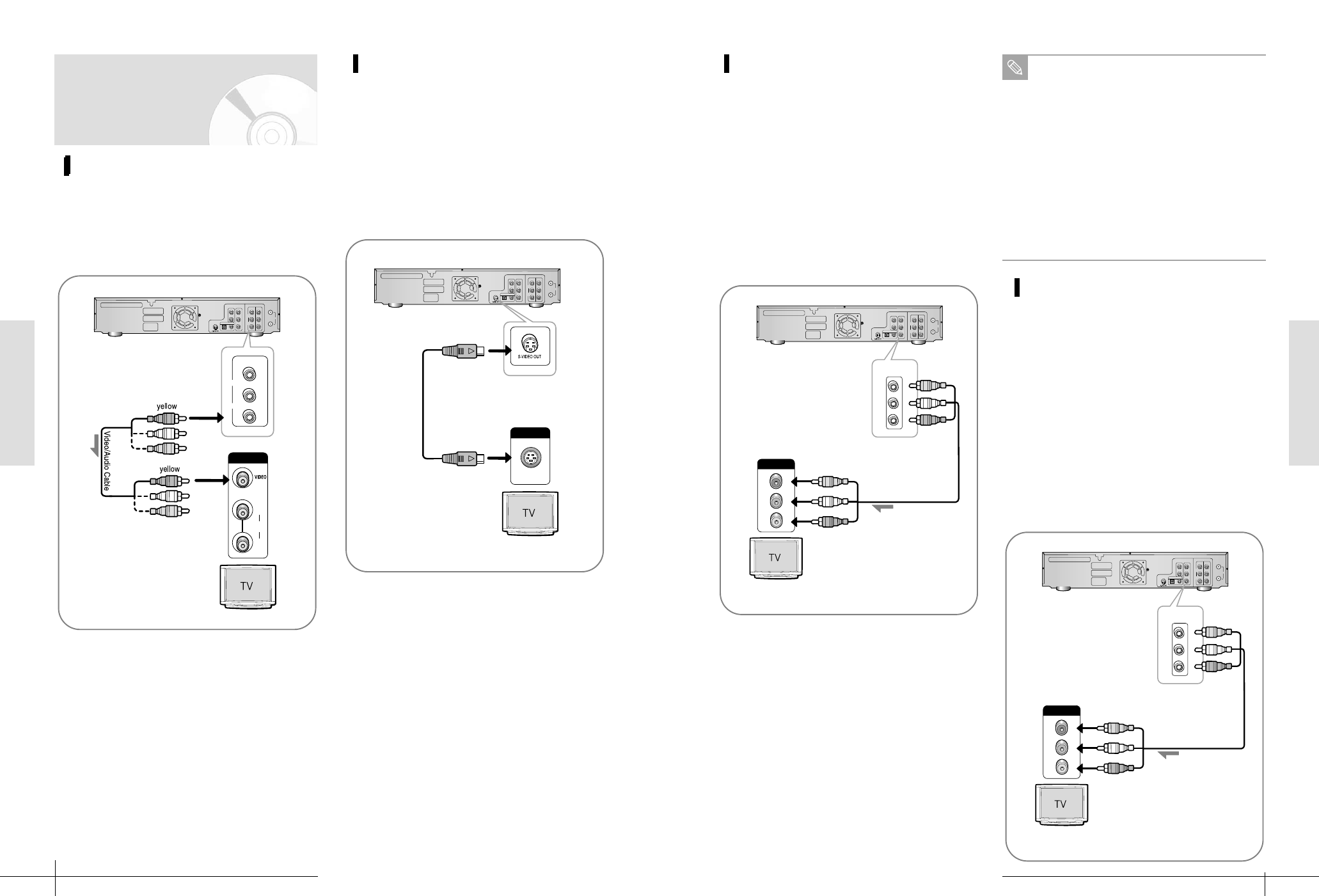
There are several ways to connect your DVD
Recorder-VCR.Select one of the following video
connecting that best suits you below.
•
Method 1 : Connecting to a video input jack
•
Method 2 : Connecting to a s-video input jack
•
Method 3 : Connecting to a component video
input jacks in 480i mode
•
Method 4 : Connecting to a component video
input jacks in 480p mode
S-Video, Component video and Progressive
Output Modes
•
S-Video and component video output are avail-
able only if your TV supports S-Video input or
component video input, respectively. If S-Video or
component video output does not work, check
the TV connec-tions and the TV input selection
settings. (For infor-mation on how to connect to
a TV, see pages 21 ~ 22.)
•
Compared to standard interlaced video, progres-
sive scan doubles the amount of video beam lines
fed to your TV, resulting in a more stable, flicker-
free, and clear image than interlaced video. The
progressive scan video output jack is used in pro-
gressive output mode. This is only available for
TVs, which support progressive scan.
•
Consumers should note that not all high defini-
tion television sets are fully compatible with this
product and may cause artifacts to be displayed in
the picture. In case of 525 progressive scan pic-
ture problems, it is recommended that the user
switch the connection to the ‘standard definition’
output. If there are questions regarding our TV
set compatibility with this model 525p DVD play-
er, please contact our customer service center.
Step 3: Connecting the
Video Cable
Step 2: Connecting the
Antenna Cable
Method1 : Antenna + DVD
Recorder-VCR + TV : No Cable
box
You can record any non-scrambled channel by
selecting the channel on the DVD Recorder-VCR.
Also use this Method if you watch channels with-
out cable box.
To RF IN
To RF OUT
RF Cable
To ANT INPUT
ANT
TV
OUT
RF
(TO TV)
IN
(FROM ANT.)
OUT
RF
OUT
RF
(TO TV)
DIGITAL AUDIO OUT
AUDIO OUT COMPONENT
VIDEO OUT
OPTICAL COAXIAL
RY
Pb
Pr
L
R
AUDIO
LINE OUT LINE IN 1
VIDEO
L
R
L
IN
(FROM ANT.)
OUT
RF
(TO TV)
DIGITAL AUDIO OUT
AUDIO OUT COMPONENT
VIDEO OUT
OPTICAL COAXIAL
RY
Pb
Pr
L
R
AUDIO
LINE OUT LINE IN 1
VIDEO
L
R
L
Method 2 : Antenna +Cable box +
DVD Recorder-VCR + TV : Cable
box with many scrambled chan-
nels
You can record any unscrambled channel by select-
ing the channel on the cable box. You cannot
record one channel while watching another chan-
nel. Be sure that the cable box is turned on.
To RF IN
To RF OUT
RF Cable
To ANT INPUT
ANT
TV
IN OUT
Cable box
Wall
OUT
RF
(TO TV)
DIGITAL AUDIO OUT
AUDIO OUT COMPONENT
VIDEO OUT
OPTICAL COAXIAL
RY
Pb
Pr
L
R
AUDIO
LINE OUT LINE IN 1
VIDEO
L
R
L
IN
(FROM ANT.)
OUT
RF
(TO TV)
DIGITAL AUDIO OUT
AUDIO OUT COMPONENT
VIDEO OUT
OPTICAL COAXIAL
RY
Pb
Pr
L
R
AUDIO
LINE OUT LINE IN 1
VIDEO
L
R
L
OUT
RF
(TO TV)
IN
(FROM ANT.)
OUT
RF
Connections
Connecting & Setting Up - 2524 - Connecting & Setting Up
Connections
Method 3 : Connecting to a
compo-nent video input
jacks(Y,Pb,Pr) in 480i mode
1. Connect component video cables(not supplied)
between the COMOUNENT VIDEO OUT jacks
on DVD Recorder-VCR and COMPONENT
VIDEO IN jacks on the TV (or AV amplifier).
2. Press the Progressive switch on the front panel. If
anything is not displayed on Led-display, it is
480i Mode. Make sure that the disc has stopped
has stopped completely before changing the
switch position.
Method 4 : Connecting to a
compo-nent video input
jacks(Y,Pb,Pr) in 480p mode
Set Your TV should support progressive scan input
to allow you to watch 480p video output.
1. Connect component video cables(not supplied)
between the COMOUNENT VIDEO OUT jacks
on DVD Recorder-VCR and COMPONENT
VIDEO IN jacks on the TV (or AV amplifier).
2. Press the Progressive switch on the front panel. If
“480P” is not displayed on Led-display, now your
DVD Recorder-VCR-VCR is operated on 480P
Mode. Make sure that the disc has stopped com-
pletely before changing the switch possition.
•
You will enjoy accurate color reproduction high
quali-ty images. Component video separates the
picture ele-ment into back and white (Y), blue
(Pb) and red (Pr) signals to present most clear
and clean images.
COMPOMENT
Pb
Pr
Y
1
OUT
RF
(TO TV)
DIGITAL AUDIO OUT
AUDIO OUT COMPONENT
VIDEO OUT
OPTICAL COAXIAL
RY
Pb
Pr
L
R
AUDIO
LINE OUT LINE IN 1
VIDEO
L
R
L
IN
(FROM ANT.)
OUT
RF
(TO TV)
DIGITAL AUDIO OUT
AUDIO OUT COMPONENT
VIDEO OUT
OPTICAL COAXIAL
RY
Pb
Pr
COMPONENT
VIDEO OUT
Y
Pb
Pr
COMPONENT
VIDEO OUT
Y
Pb
Pr
L
R
AUDIO
LINE OUT LINE IN 1
VIDEO
L
R
L
COMPOMENT
Pb
Pr
Y
1
OUT
RF
(TO TV)
DIGITAL AUDIO OUT
AUDIO OUT COMPONENT
VIDEO OUT
OPTICAL COAXIAL
RY
Pb
Pr
L
R
AUDIO
LINE OUT LINE IN 1
VIDEO
L
R
L
IN
(FROM ANT.)
OUT
RF
(TO TV)
DIGITAL AUDIO OUT
AUDIO OUT COMPONENT
VIDEO OUT
OPTICAL COAXIAL
RY
Pb
Pr
COMPONENT
VIDEO OUT
Y
Pb
Pr
COMPONENT
VIDEO OUT
Y
Pb
Pr
L
R
AUDIO
LINE OUT LINE IN 1
VIDEO
L
R
L
Make sure that the color coded connec-
tions match. That is, the Y, Pb and Pr
component output jacks of your DVD
Recorder-VCR should be connected to the
exact corresponding component input
jacks on your TV. Otherwise, red or blue
images will be displayed on the TV
screen.
Make sure that the left and right audio
output jacks of your DVD Recorder-VCR
are connected to the left and right audio
input jacks of your TV, respectively.(page
26)
Note
Method 1 : Connecting to a
video input jack
You can record any non-scrambled channel by
selecting the channel on the cable box. You cannot
record scram-bled channel that require a cable box.
Method 2 : Connecting to a s-
video input jack
Connect a s-video cable(not supplied) between the
S-VIDEO OUT jack on DVD Recorder-VCR and S-
VIDEO IN jack on the TV (or AV amplifier).
•
You will enjoy high quality images. S-Video sepa-
rates the picture element into back and white (Y)
and color (C) signals to present clearer images
than video input mode.
INPUT
AUDIO
L
R
OUT
RF
(TO TV)
DIGITAL AUDIO OUT
AUDIO OUT COMPONENT
VIDEO OUT
OPTICAL COAXIAL
RY
Pb
Pr
L
R
AUDIO
LINE OUT LINE IN 1
VIDEO
L
R
L
IN
(FROM ANT.)
OUT
RF
(TO TV)
DIGITAL AUDIO OUT
AUDIO OUT COMPONENT
VIDEO OUT
OPTICAL COAXIAL
RY
Pb
Pr
L
R
AUDIO
LINE OUT LINE IN 1
VIDEO
L
R
AUDIO
LINE OUT
VIDEO
L
R
L
R
L
INPUT
S-VIDEOS-VIDEO
OUT
RF
(TO TV)
DIGITAL AUDIO OUT
AUDIO OUT COMPONENT
VIDEO OUT
OPTICAL COAXIAL
RY
Pb
Pr
L
R
AUDIO
LINE OUT LINE IN 1
VIDEO
L
R
L
IN
(FROM ANT.)
OUT
RF
(TO TV)
DIGITAL AUDIO OUT
AUDIO OUT COMPONENT
VIDEO OUT
OPTICAL COAXIAL
RY
Pb
Pr
L
R
AUDIO
LINE OUT LINE IN 1
VIDEO
L
R
L
Step 3: Connecting the
Video Cable

Connections
Connecting & Setting Up - 2726 - Connecting & Setting Up
Connections
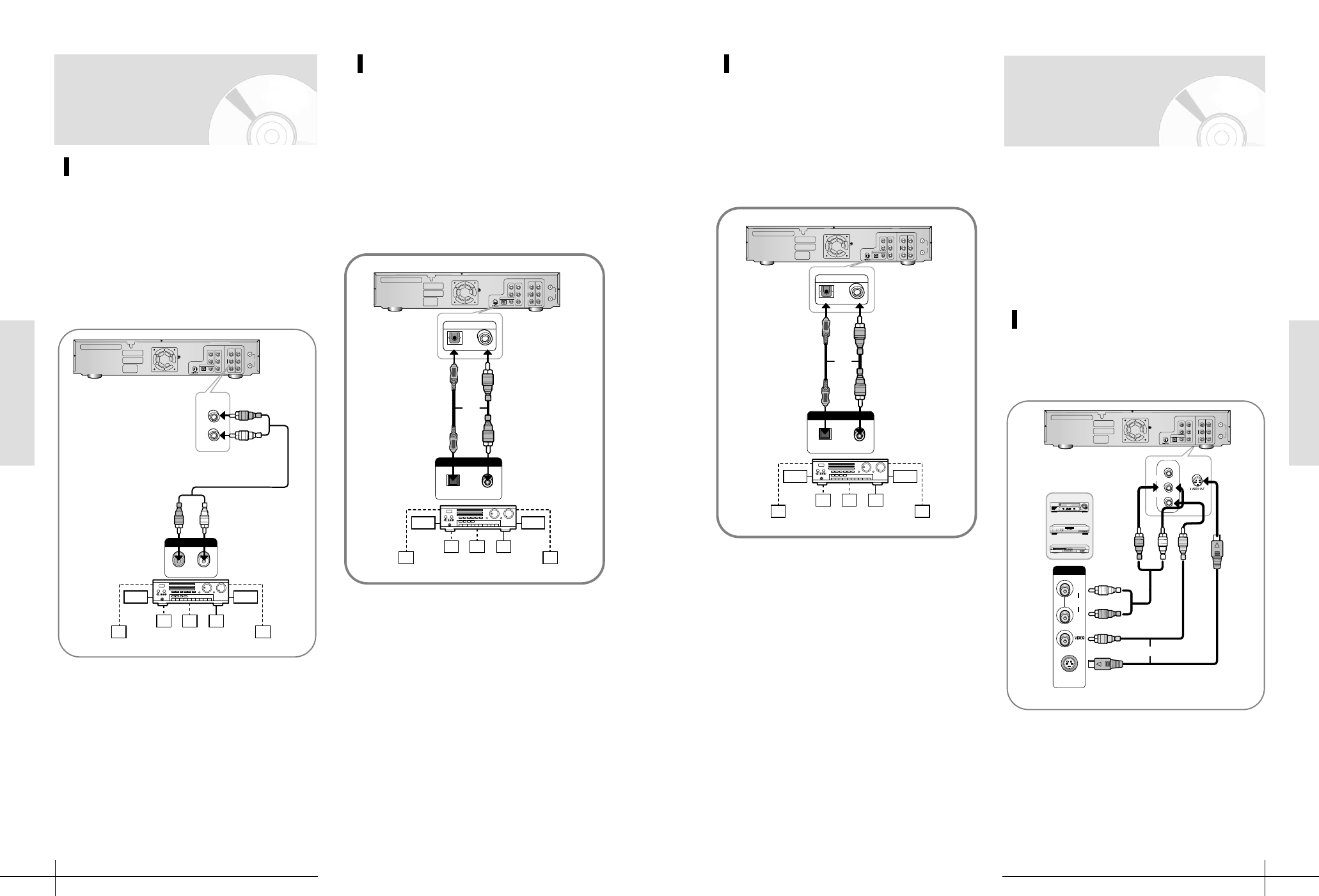
Method 2-1 : Connecting to a
stereo amplifier and 2speak-
ers( audio out )
If your stereo amplifier only has audio input jacks
(L and R), use audio out jacks.
R
1
L
1
ANALOG AUDIO IN
Front(L)speaker Front(R)speaker
white
red
whitered
R
AUDIO
L
R
AUDIO
LINE OUT
L
OUT
RF
(TO TV)
DIGITAL AUDIO OUT
AUDIO OUT COMPONENT
VIDEO OUT
OPTICAL COAXIAL
RY
Pb
Pr
L
R
AUDIO
LINE OUT LINE IN 1
VIDEO
L
R
L
IN
(FROM ANT.)
OUT
RF
(TO TV)
DIGITAL AUDIO OUT
AUDIO OUT COMPONENT
VIDEO OUT
OPTICAL COAXIAL
RY
Pb
Pr
L
R
AUDIO
LINE OUT LINE IN 1
VIDEO
L
R
L
Method 2-2 : Connecting to a
stereo amplifier and 2speak-
ers( digital audio out )
If your stereo amplifier only has digital audio input
jack,
use digital audio out jack. To enjoy Digital Output
sound, you will set up the audio settings. (See page
34)
R
1
L
1
ANALOG AUDIO IN
Front(L)speaker Front(R)speaker
white
red
whitered
R
AUDIO
L
R
AUDIO
LINE OUT
L
OUT
RF
(TO TV)
DIGITAL AUDIO OUT
AUDIO OUT COMPONENT
VIDEO OUT
OPTICAL COAXIAL
RY
Pb
Pr
L
R
AUDIO
LINE OUT LINE IN 1
VIDEO
L
R
L
IN
(FROM ANT.)
OUT
RF
(TO TV)
DIGITAL AUDIO OUT
AUDIO OUT COMPONENT
VIDEO OUT
OPTICAL COAXIAL
RY
Pb
Pr
L
R
AUDIO
LINE OUT LINE IN 1
VIDEO
L
R
L
There are several ways to connect your DVD
Recorder-VCR. Select one of the following audio
connecting that best suits you below.
•
Method 1 : Connecting to your TV
•
Method 2 : Connecting to a stereo amplifier an
2speakers(analog audio out / digital
audio out)
•
Method 3 : Connecting to an AV amplifier with
dolby surround decoder and 3 to
6speakers(analog audio out / digital
audio out)
•
Method 4 : Connecting to an AV amplifier with a
digi-tal input jack and 6speakers
Method 1 : Connecting to your
TV
This connection will use your TV’s speakers.
OUT
RF
(TO TV)
DIGITAL AUDIO OUT
AUDIO OUT COMPONENT
VIDEO OUT
OPTICAL COAXIAL
RY
Pb
Pr
L
R
AUDIO
LINE OUT LINE IN 1
VIDEO
L
R
L
IN
(FROM ANT.)
OUT
RF
(TO TV)
DIGITAL AUDIO OUT
AUDIO OUT COMPONENT
VIDEO OUT
OPTICAL COAXIAL
RY
Pb
Pr
L
R
AUDIO
LINE OUT LINE IN 1
VIDEO
L
R
L
INPUT
AUDIOAUDIO
L
R
red
white
red
white
R
AUDIO
L
R
AUDIO
LINE OUT
L
Step 4 : Connecting
the Audio cable
Make sure that the color coded connec-
tions match. That is, the Y, Pb and Pr
component output jacks of your DVD
Recorder-VCR should be connected to the
exact corresponding component input
jacks on your TV. Otherwise, red or blue
images will be displayed on the TV
screen.
Once 480p video output mode is selected,
Video, S-Video and 480i outputs are dis-
abled.
Make sure that the left and right audio
output jacks of your DVD Recorder-VCR
are connected to the left and right audio
input jacks of your TV, respectively.(page
26)
Note
Manufactured under license from Dolby
Laboratories. “Dolby” and the double-D symbol
are trademarks of Dolby
Laboratories.Confidential
unpublished works. ©1992-1997 Dolby
Laboratories. All rights reserved.
“DTS” and “DTS Digital Out” are trademarks of
Digital Theater Systems, Inc.
©1996 Digital Theater Systems, Inc.
All rights reserved.
Step 3: Connecting the
Video Cable
Connections
Connecting & Setting Up - 2928 - Connecting & Setting Up
Connections
Method 4 : Connecting to an
AV amplifier with a digital
input jack and 6speakers
If your AV amplifier only has a Dolby Digital or DTS
decorder and a digital input jack, use this connec-
tion. To enjoy Dolby Digital or DTS sound, you will
set up the audio settings. (See page 34)
Front RFront L
Subwoofer
Center
Rear(mono)
speaker
Rear(L) Rear(R)
OPTICAL COAXIAL
DIGITAL AUDIO IN
OUT
RF
(TO TV)
DIGITAL AUDIO OUT
AUDIO OUT COMPONENT
VIDEO OUT
OPTICAL COAXIAL
RY
Pb
Pr
L
R
AUDIO
LINE OUT LINE IN 1
VIDEO
L
R
L
IN
(FROM ANT.)
OUT
RF
(TO TV)
DIGITAL AUDIO OUT
AUDIO OUT COMPONENT
VIDEO OUT
OPTICAL COAXIAL
RY
Pb
Pr
L
R
AUDIO
LINE OUT LINE IN 1
VIDEO
L
R
L
or
DIGITAL AUDIO OUT
OPTICAL COAXIAL
DIGITAL AUDIO OUT
OPTICAL COAXIAL
Method 4 : Connecting a VCR,
Settop Box(STB) or DVD play-
er to the AUDIO/VIDEO L1 IN
jacks
This allows you to connect your DVD Recorder-
VCR to other external devices and view or record
their outputs.
•
Method 1 : Connecting a VCR, Set-Top Box(STB) or
DVD player to the AUDIO/VIDEO LINE IN 1 jacks
•
Method 2 : Connecting a Camcorder to the LINE 2
in jacks
•
Method 3 : Connecting to a Camcorder to the DV
IN jack
INPUT
AUDIOAUDIO
L
R
S-VIDEOS-VIDEO
VCR
DVD
STB
or
OUT
RF
(TO TV)
DIGITAL AUDIO OUT
AUDIO OUT COMPONENT
VIDEO OUT
OPTICAL COAXIAL
RY
Pb
Pr
L
R
AUDIO
LINE OUT LINE IN 1
VIDEO
L
R
L
IN
(FROM ANT.)
OUT
RF
(TO TV)
DIGITAL AUDIO OUT
AUDIO OUT COMPONENT
VIDEO OUT
OPTICAL COAXIAL
RY
Pb
Pr
L
R
AUDIO
LINE OUT LINE IN 1
VIDEO
AUDIO
VIDEO
L
R
L
R
L
LINE IN 1
R
L
Step 5 : Connecting
the external devices
Method 3-1 : Connecting to an
AV amplifier with dolby sur-
round decoder and 3 to
6speakers(audio out)
If your AV amplifier only has audio input jacks(L
and R), use audio out jacks. You can enjoy Dolby
sur-round effects only when dolby surround audio
or multi-channel audio discs.
R
1
L
1
ANALOG AUDIO IN
Front RFront L
Subwoofer
Center
Rear(mono)
speaker
Rear(L) Rear(R)
OUT
RF
(TO TV)
DIGITAL AUDIO OUT
AUDIO OUT COMPONENT
VIDEO OUT
OPTICAL COAXIAL
RY
Pb
Pr
L
R
AUDIO
LINE OUT LINE IN 1
VIDEO
L
R
L
IN
(FROM ANT.)
OUT
RF
(TO TV)
DIGITAL AUDIO OUT
AUDIO OUT COMPONENT
VIDEO OUT
OPTICAL COAXIAL
RY
Pb
Pr
L
R
AUDIO
LINE OUT LINE IN 1
VIDEO
L
R
L
R
AUDIO
L
R
AUDIO
L
LINE OUT
Method 3-2 : Connecting to an
AV amplifier with dolby sur-
round decoder and 3 to
6speakers(digital audio out)
If your AV amplifier only has DIGITAL audio input
jack, use digital audio out jack. You can enjoy Dolby
sur-round effects only when dolby surround audio
or multi-channel audio discs. To enjoy Digital
Output sound, you will set up the audio settings.
(See page 34)
Front RFront L
Subwoofer
Center
Rear(mono)
speaker
Rear(L) Rear(R)
OPTICAL COAXIAL
DIGITAL AUDIO IN
OUT
RF
(TO TV)
DIGITAL AUDIO OUT
AUDIO OUT COMPONENT
VIDEO OUT
OPTICAL COAXIAL
RY
Pb
Pr
L
R
AUDIO
LINE OUT LINE IN 1
VIDEO
L
R
L
IN
(FROM ANT.)
OUT
RF
(TO TV)
DIGITAL AUDIO OUT
AUDIO OUT COMPONENT
VIDEO OUT
OPTICAL COAXIAL
RY
Pb
Pr
L
R
AUDIO
LINE OUT LINE IN 1
VIDEO
L
R
L
or
DIGITAL AUDIO OUT
OPTICAL COAXIAL
DIGITAL AUDIO OUT
OPTICAL COAXIAL
Step 4 : Connecting
the Audio cable

Connections
Connecting & Setting Up - 3130 - Connecting & Setting Up
Connections
Be sure to connect the power cord after all connec-
tions are complete.
Step 6 : Connecting
the Power Cord
Install Batteries in the Remote
•
Open the battery cover on the back of the remote.
•
Insert two AAA batteries. Make sure that the
polarities (+ and -) are aligned correctly.
•
Replace the battery cover.
If remote doesn’t operate properly:
•
Check the polarity + - of the batteries (Dry-Cell)
•
Check if the batteries are drained.
•
Check if remote sensor is blocked by obstacles.
•
Check if there is any fluorescent lighting nearby.
Step 7 : Preparing the
Remote Control
Method 2 : Connecting a
Camcorder to the LINE 2 jacks
You can also use the LINE 2 IN jacks on the front
panel of the DVD Recorder-VCR-VCR. You can
recording from connected equipment.-see on page
69
INPUT
AUDIOAUDIO
L
R
S-VIDEOS-VIDEO
Method 3 : Connecting to a
Camcorder to the DV IN jack
f your camcorder has a DV output jack, connect it
to the DV input jack of your DVD Recorder-VCR.
•
If your camcorder has a DV output jack, see page
69 for more information.
Step 5 : Connecting
the external devices
You can also use the LINE IN 2 jacks on
the front panel of the DVD Recorder-
VCR-VCR.
- When the S-Video jack and Video jack
are connected at the same time, the S-
Video jack will be selected first. Line
Selection will be automatically done.
- Picture containing copy protection signal
that prohibit any copying cannot be
recorded.
Note
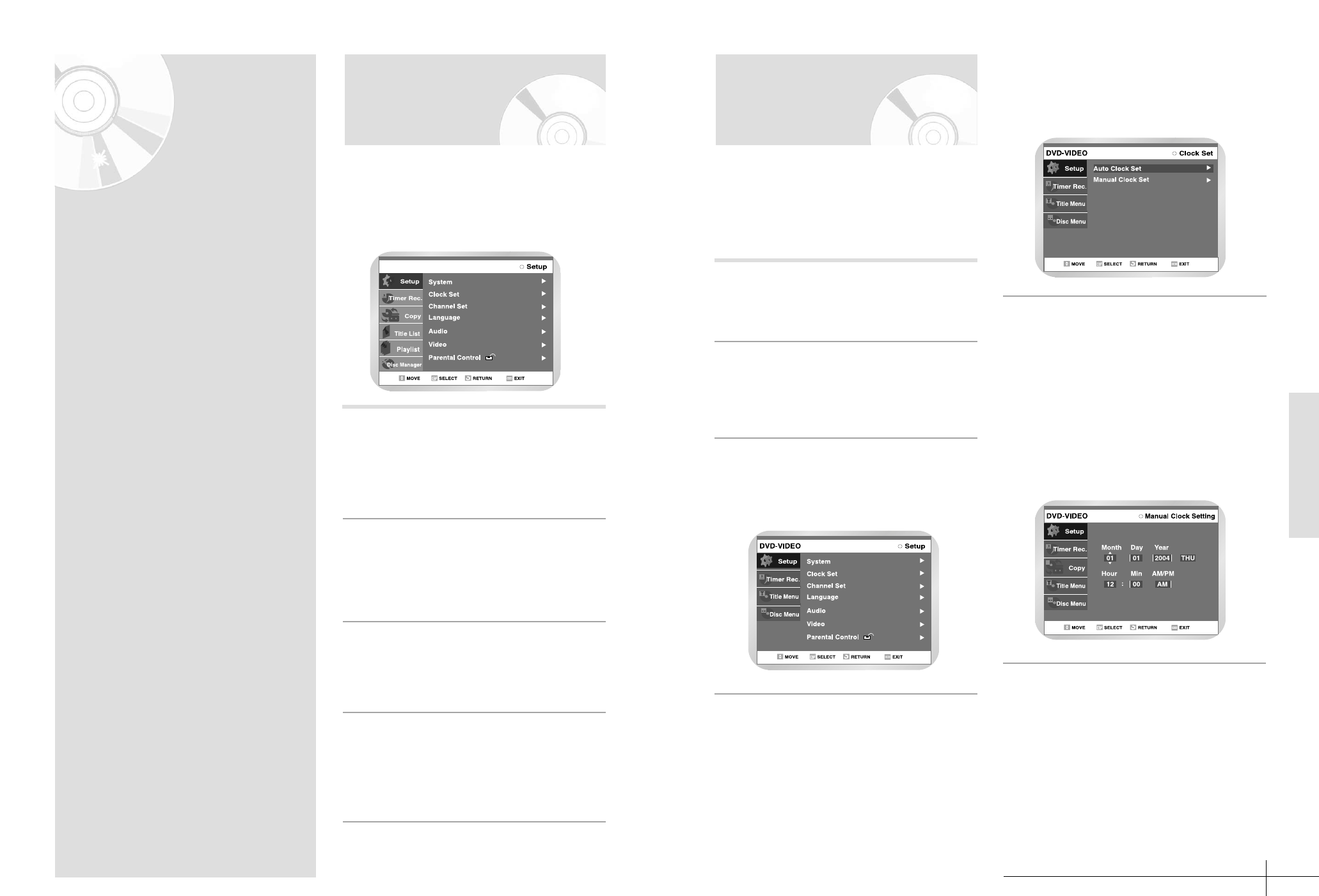
System Setup
System Setup - 33
Manual Clock Set
If Auto Setup fails to set the DVD Recorder-VCR-
VCR’s internal clock by locating a local TV station,
follow these steps to set the date and time manually.
NOTE: For accurate Timer Recording, your DVD
Recorder-VCR-VCR's internal clock must be set
correctly.
Open “MENU”
Press the MENU button while the DVD or
VCR is in Stop or Play mode.
1
Select “Setup”
Using the UP/DOWN buttons, move the
selection bar to “Setup” then press ENTER
to select.
2
Select “Clock Set”
Use the UP/DOWN buttons to highlight
“Clock Set ” then press the ENTER button.
3
Select “Manual Clock Set”
Move the highlight to “Manual Clock Set”,
then press the ENTER button.
• The Clock Set will change as shown.
4
Set the Clock
Use the LEFT/RIGHT buttons to select each
of the following options, then use the
UP/DOWN buttons to set each option:
• Month – Set the month
• Day – Set the day.
• Year – Set the year
• Hour – Set the hour
• Minute – Set the minute
• AM/PM – Set the AM/PM
5
System Setup On-Screen Menu
Navigation
The on-screen menus allow you to enable or dis-
able various functions on your DVD Recorder-
VCR-VCR. Use the following buttons to open and
navigate through the on-screen menus.
MENU Button
Press this button on the remote control
while the DVD or VCR is in Stop or Play
mode to open the on-screen MAIN MENU.
1
Up/Down and Left/Right
Use these buttons to move the selection bar
up/down and left/right to cycle through the
menu options.
2
Enter Button
Press this button on the remote control to
confirm any new settings.
3
Return Button
Press this button on the remote control to
return to the last MENU screen displayed or
to exit the on-screen MENU all together.
4
DVD-RAM(VR)
System Setup
System Setup - 3534 - System Setup
System Setup
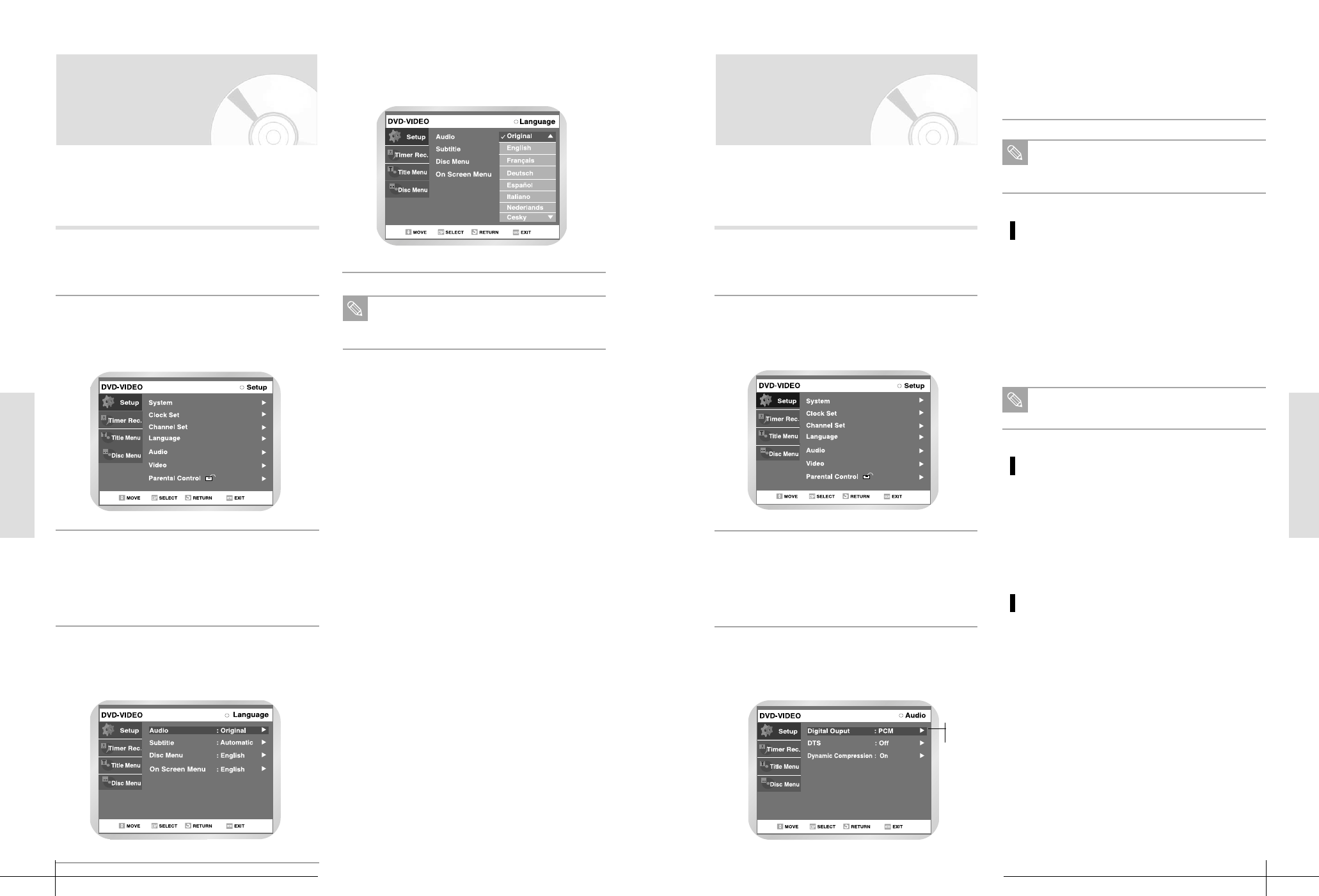
Digital Output
Setting Up the Audio
Options
Use the ❷ buttons to select the desired
item. Then press the RIGHT or ENTER but-
ton.
1. PCM : Converts to PCM(2CH) 48kHz
audio.Select PCM when using the
Analog Audio Outputs.
2. Bitstream : Converts to Dolby Digital
Bitstream (5.1CH). Select
Bitstream when using the Digital
Audio Output.
DTS
1. Off : Doesn’t output digital signal.
2. On : Outputs DTS Bitstream via digital
output only. Select DTS when
connecting to a DTS Decoder.
Dynamic Compression
1. On : To select dynamic compression.
2. Off : To select the standard range.
5
Press the RETURN or ➛button to return
to the previous menu. Press the MENU
button to exit the menu.
Be sure to select the correct Digital
Output or no audio will be heard.
If you set the player menu, disc menu, audio and
subtitle language in advance, they will come up
automatically every time you watch a movie.
With the unit in Stop mode, press the
MENU button on the remote.
1
Select Setup using ❷buttons, then press
the ❿or ENTER button.
2
Select Language using ❷ buttons, then
press the ❿or ENTER button.
Language setup menu will be displayed.
3
Use ❷ buttons to select the desired sub
menu and press the ENTER or ❿button.
4
PCM
Bitstream
Setting Up the
Language Features
If you set the player menu, disc menu, audio and
subtitle language in advance, they will come up
automatically every time you watch a movie.
With the unit in Stop mode, press the
MENU button on the remote.
1
Select Setup using ❷buttons, then press
the ❿or ENTER button.
2
Select Language using ❷ buttons, then
press the ❿or ENTER button.
Language setup menu will be displayed.
3
Select the desired Language using ❷ but-
tons, then press the ❿or ENTER button.
Press the RETURN or ➛button to return
to the previous menu. Press the MENU
button to exit the menu.
5
Use ❷ buttons to select the desired sub
menu and press the ENTER or ❿button.
4

System Setup
System Setup - 3736 - System Setup
System Setup
Setting Up the Parental
Control
The Parental Control function works in conjunc-
tion with DVDs that have been assigned a rating -
which helps you control the types of DVDs that
your family watches. There are up to 8 rating levels
on a disc.
Select Setup using ❷ buttons, then press
the ❿or ENTER button.
2
Select Parental control using ❷ buttons,
then press the ❿or ENTER button.
• When you operate your DVD Recorder-
VCR for the first time, the User Password
screen will be displayed.
Press the ENTER button and the ‘Create
the password.’ message will be displayed.
3
Enter the 4-digit password using the 0 to 9
buttons on the remote.
• The ‘Confirm the password.’ message will
be displayed. Enter your password again.
4
Select Password ON/OFF using ❿and ❷
buttons.
5
On
Off
With the unit in Stop mode, press the
MENU button on the remote.
1
Setting Up the
Display(Video) Options
This function allows you to setup the TV screen
settings.
With the unit in Stop mode, press the
MENU button on the remote.
You can’t use the Setup functions during
playback.
1
Select Setup using ❷ buttons, then press
the ❿or ENTER button.
2
Select Video using ❷ buttons, then press
the ❿or ENTER button.
Video option menu will be displayed.
3
This function depends on disc type. It may not
work for some disc types.
select the sub menu using ❷ buttons,
then press the ❿or ENTER button.
4
Use the ❷ buttons to select the desired
item. Then press the RIGHT or ENTER but-
ton.
5
Press the RETURN or ➛button to return
to the previous menu. Press the MENU
button to exit the menu.
Note
Display(Video) Options
TV Aspect
Depending on the type of television you have, you
may want to adjust the screen setting. (aspect ratio)
• 4:3 letterBox : Select when you want to see
the total 16:9 ratio screen DVD
supplies, even though you
have a TV with a 4:3 ratio
screen. Black bars will appear
at the top and bottom of the
screen.
• 4:3 pan - Scan : Select this for conventional
size TV when you want to see
the central portion of the 16:9
screen. (Extreme left and
right side of movie picture
will be cut off.)
• 16:9 wide : You can view the full 16:9 picture
on your widescreen TV.
Still Mode
Prevent picture shaking in still mode and display
small text clearer.
• Automatic : When selecting Auto,
Field/Frame mode will be auto-
matically converted.
• Field : Select this feature when the screen
shakes in the Auto mode.
• Frame : Select this feature when you want to
see small letters more clearly in the
Auto mode.
Black Level
Adjusts the brightness of the screen.
• 0 IRE : This is the standard NTSC reference
black level for consistent
brightness/contrast across all source.
• 7.5 IRE : This will enhance the black level
for increased brightness/contrast
when viewing DVDs.
3D NR(Noise Reduction)
• On : Select to remove noise from the screen
• Off
System Setup
System Setup - 3938 - System Setup
System Setup
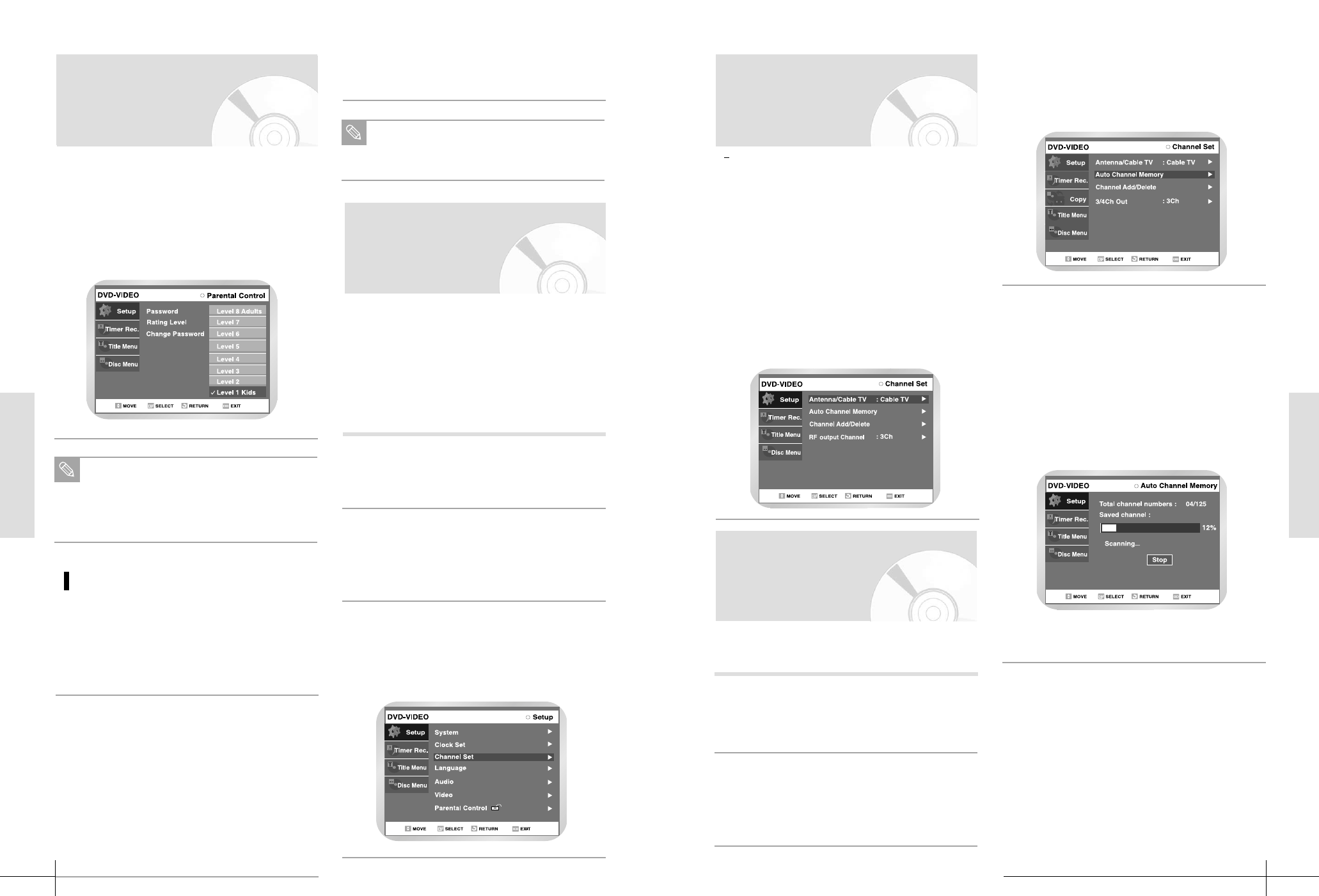
Channel Set
Auto Channel Memory
Select “Antenna/Cable TV”
Move the selection arrow to “Antenna/Cable
TV” then press right button to select from
the following options:
• Antenna - Indicates that the DVD
Recorder-VCR-VCR is connected to an
indoor or outdoor VHF/UHFantenna.
• Cable TV - Indicates that the DVD
Recorder-VCR-VCR is connected to Cable
TV.
• Cable TV - Indicates that the DVD
Recorder-VCR-VCR is connected to Cable
TV.
4
Auto Channel Memory will automatically seek and
store all active channels in your area.
Open “MENU”
With the DVD in stop mode, press the
MENU button.
1
Select “SETUP”
Using the UP/DOWN buttons, move the
selection bar to “Setup” then press ENTER
to select.
2
Select “Channel Set”
Using the UP/DOWN buttons, move the
selection bar to “Channel Set”, then press
ENTER to select.
3
Run “Auto channel memory”
Move the selection arrow to “Auto Channel
Memory,” then press ENTER to select.
• The DVD Recorder-VCR-VCR will auto-
matically search for all available channels
in the selected Tuner Band. This procedure
may take a few minutes to complete.
• When finished, the lowest channel found
will be displayed.
• Press ENTER button to STOP or cancle scanning.
4
Channel Set
This feature allows you to manually set the DVD
Recorder-VCR-VCR’s tuner band to Antenna or
Cable, whichever you connected to the Antenna In
jack during initial setup.
• Use this setting only if Auto Setup detected the
incorrect tuner band, i.e. channels are coming
in on the wrong channel numbers.
Select Rating Level you want using ❷
buttons, then press the ❿or ENTER but-
ton.
• For example, if you select up to Level 6,
discs that contain Level 7, 8 will not play.
Larger number indicates the program is
more intended to adult use only
6
Select Change Password using ❷ buttons,
then press the ❿or ENTER button.
• The ‘Enter the password.’ message will be
displayed.
1
Enter the 4-digit password using the 0 to 9
buttons on the remote.
• The ‘Confirm the password.’ message will
be displayed.
2
Press the RETURN or ➛button to return
to the previous menu. Press the MENU
button to exit the menu.
See Troubleshooting page if you forget
your password.
Enter your password again using the 0 to 9
buttons on the remote.
3
Note
About the Change Password;
Press the RETURN or ➛button to return
to the previous menu. Press the MENU
button to exit the menu.
Note
Open “MENU”
With the DVD in Stop or Play mode, press
the MENU button.
1
Select “Setup”
Using the UP/DOWN buttons, move the
selection bar to “Setup” then press ENTER
to select.
2
Select “Channel Set”
Using the UP/DOWN buttons, move the
selection bar to “Channel Set”, then press
ENTER to select.
3
Setting Up the Parental
Control
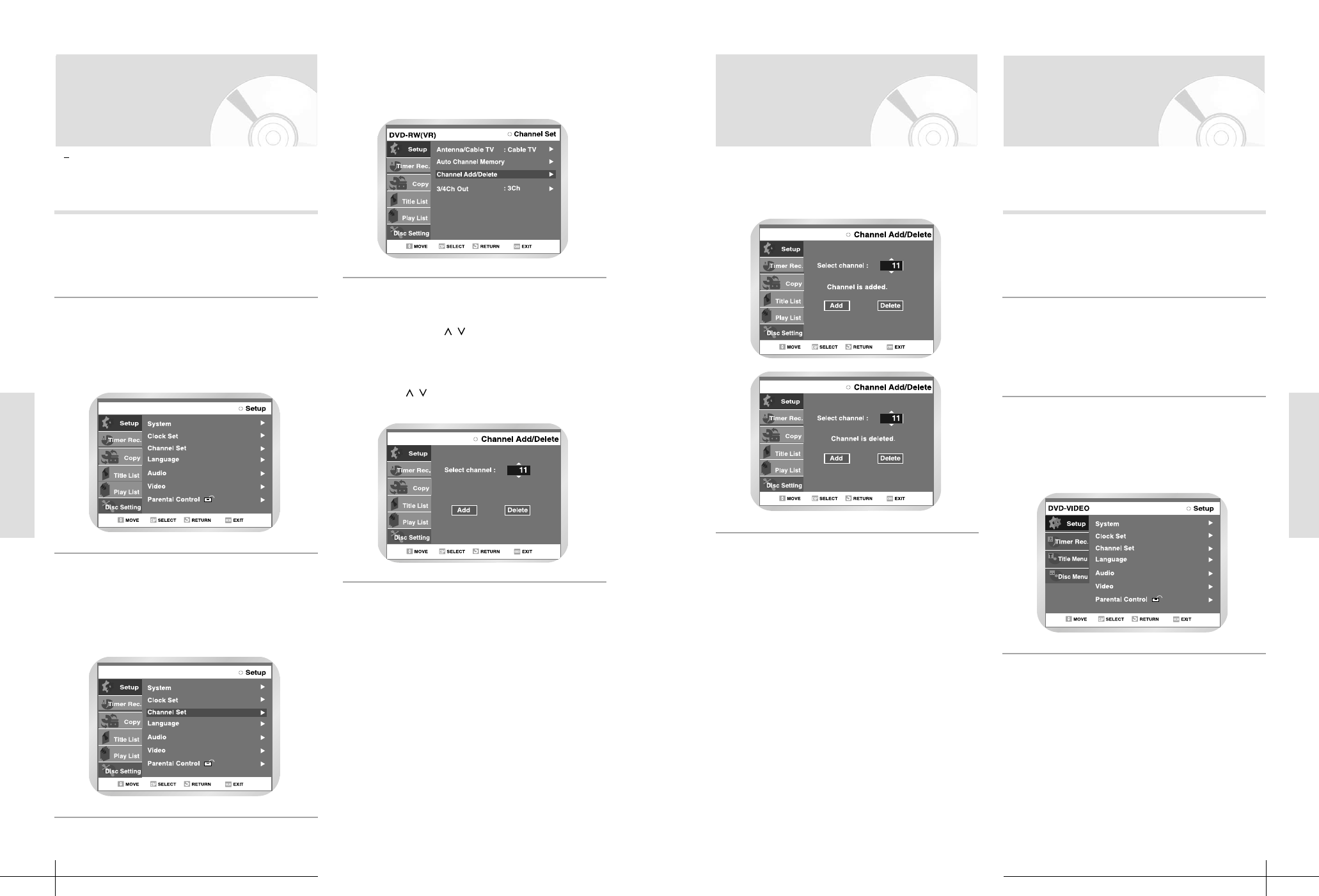
System Setup
System Setup - 4140 - System Setup
System Setup
Channel Add/Delete
DVD-VIDEO
DVD-VIDEO
Add/Delete Channel.
Press Enter to move cursor and select add or
Delete, then press enter.
6
RF Output Channel
When you connect DVD Recorder-VCR-VCR to TV
with RF Antenna Cable, Use this option. You can
watch throuth Ch 3 or 4.
Open “MENU”
With the DVD in Stop or Play mode, press
the MENU button.
1
Select “Setup”
Using the UP/DOWN buttons, move the
selection bar to “Setup” then press ENTER
to select.
2
Select “Channel Set”
Using the UP/DOWN buttons, move the
selection bar to “Channel Set,” then press
ENTER to select.
3
DVD-VIDEO
Channel Add/Delete
Use this feature if Auto Channel Search missed a
channel that you would like to add and delete a
channel you wish to remove.
Open “MENU”
With the DVD in stop mode, press the
MENU button.
1
Select “Setup”
Using the UP/DOWN buttons, move the
selection bar to “Setup” then press ENTER
to select.
2
DVD-RW(VR)
Select “Channel Set”
Using the UP/DOWN buttons, move the
selection bar to “Channel Set”, then press
Enter to select.
3
Select “Channel Add/Delete”
Move the selection bar to “Channel
Add/Delete,” then press ENTER to select.
4
DVD-VIDEO
Select Channel to Add/Delete
Use the CH
/
buttons to tune in the
channel number you wish to add or delete.
Use the numeric number button to move
the channel directly. if you use the naviga-
tion
/
button, the channel will be
moved to the next memorized channel.
5