Samsung Electronics Co GTY3300 Cellular/ PCS WCDMA/ GSM/ EDGE Module User Manual 3

Samsung Electronics Co Ltd Cellular/ PCS WCDMA/ GSM/ EDGE Module 3

User Manual 3

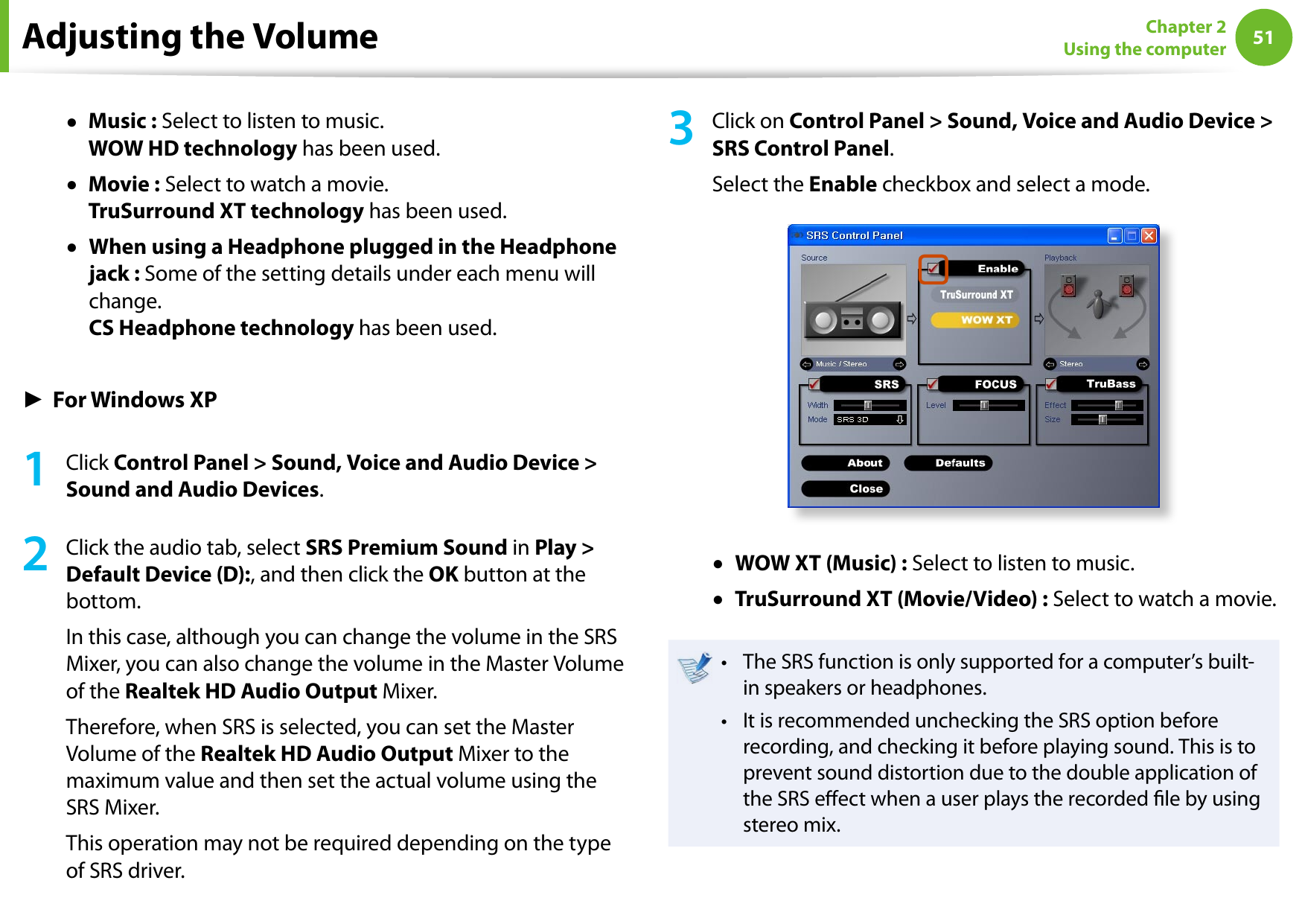
5051Chapter 2 Using the computer●   Music : Select to listen to music. WOW HD technology has been used.●   Movie : Select to watch a movie. TruSurround XT technology has been used.●   When using a Headphone plugged in the Headphone jack : Some of the setting details under each menu will change. CS Headphone technology has been used.► For Windows XP1  Click Control Panel > Sound, Voice and Audio Device > Sound and Audio Devices.2  Click the audio tab, select SRS Premium Sound in Play > Default Device (D):, and then click the OK button at the bottom. In this case, although you can change the volume in the SRS Mixer, you can also change the volume in the Master Volume of the Realtek HD Audio Output Mixer.Therefore, when SRS is selected, you can set the Master Volume of the Realtek HD Audio Output Mixer to the maximum value and then set the actual volume using the SRS Mixer.This operation may not be required depending on the type of SRS driver.3  Click on Control Panel > Sound, Voice and Audio Device > SRS Control Panel.Select the Enable checkbox and select a mode.●   WOW XT (Music) : Select to listen to music.●   TruSurround XT (Movie/Video) : Select to watch a movie.The SRS function is only supported for a computer’s built-• in speakers or headphones.It is recommended unchecking the SRS option before • recording, and checking it before playing sound. This is to prevent sound distortion due to the double application of the SRS eect when a user plays the recorded le by using stereo mix.Adjusting the Volume
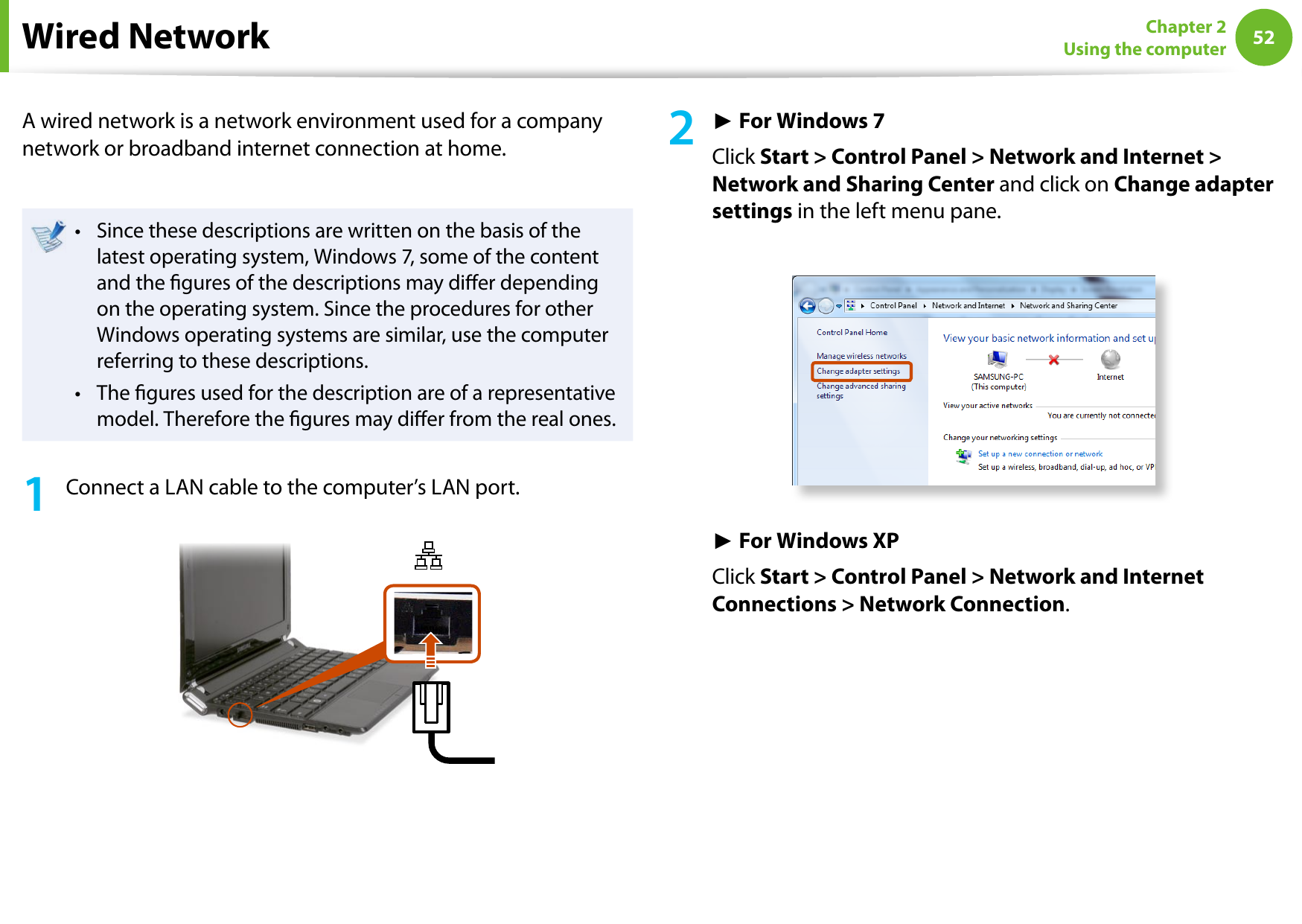
52Chapter 2 Using the computerWired NetworkA wired network is a network environment used for a company network or broadband internet connection at home.Since these descriptions are written on the basis of the • latest operating system, Windows 7, some of the content and the gures of the descriptions may dier depending on the operating system. Since the procedures for other Windows operating systems are similar, use the computer referring to these descriptions.The gures used for the description are of a representative • model. Therefore the gures may dier from the real ones.1  Connect a LAN cable to the computer’s LAN port.2 ► For Windows 7Click Start > Control Panel > Network and Internet > Network and Sharing Center and click on Change adapter settings in the left menu pane.► For Windows XPClick Start > Control Panel > Network and Internet Connections > Network Connection.
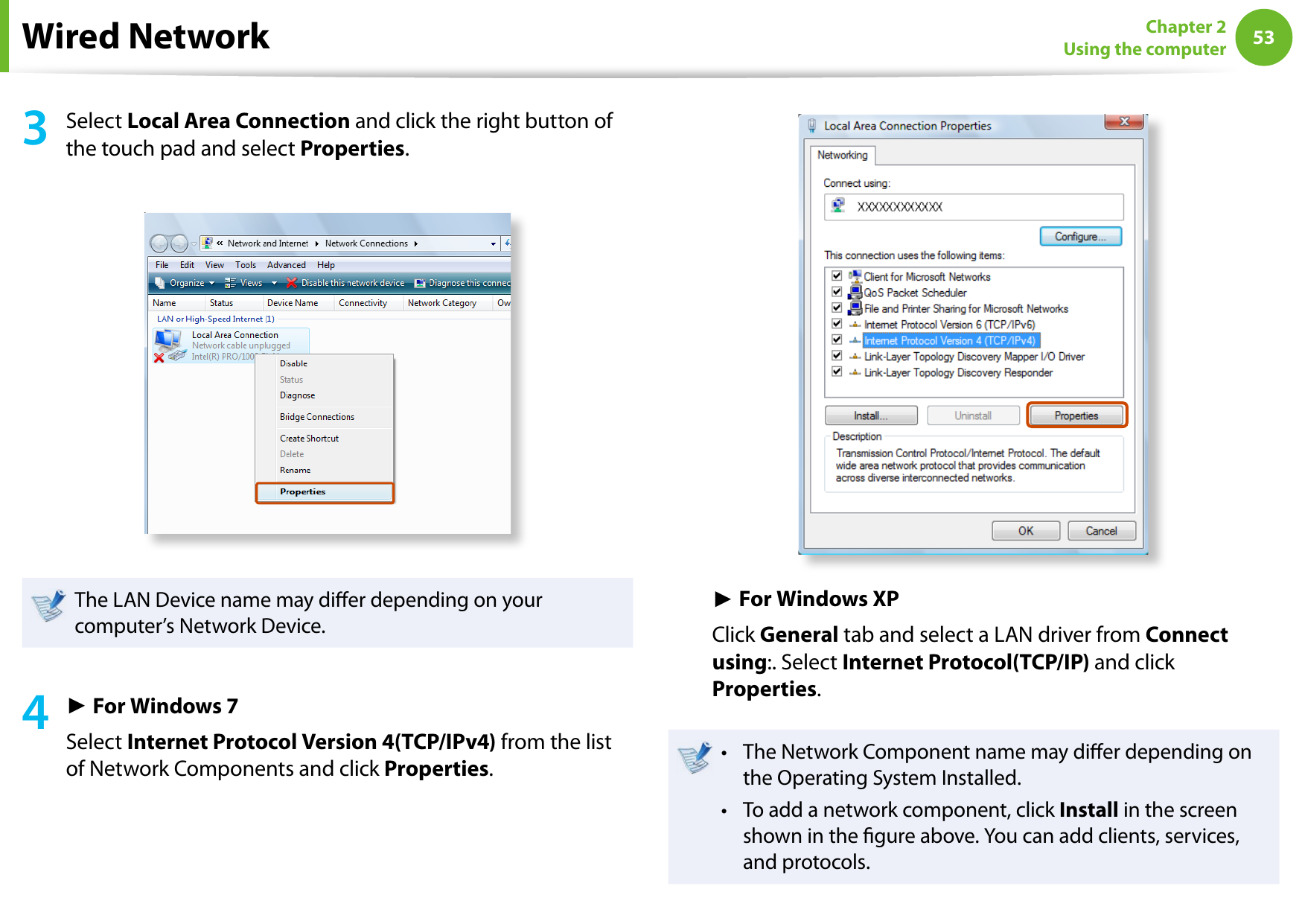
5253Chapter 2 Using the computer3  Select Local Area Connection and click the right button of the touch pad and select Properties.The LAN Device name may dier depending on your computer’s Network Device.4 ► For Windows 7Select Internet Protocol Version 4(TCP/IPv4) from the list of Network Components and click Properties.► For Windows XPClick General tab and select a LAN driver from Connect using:. Select Internet Protocol(TCP/IP) and click Properties.The Network Component name may dier depending on • the Operating System Installed.To add a network component, click • Install in the screen shown in the gure above. You can add clients, services, and protocols.Wired Network
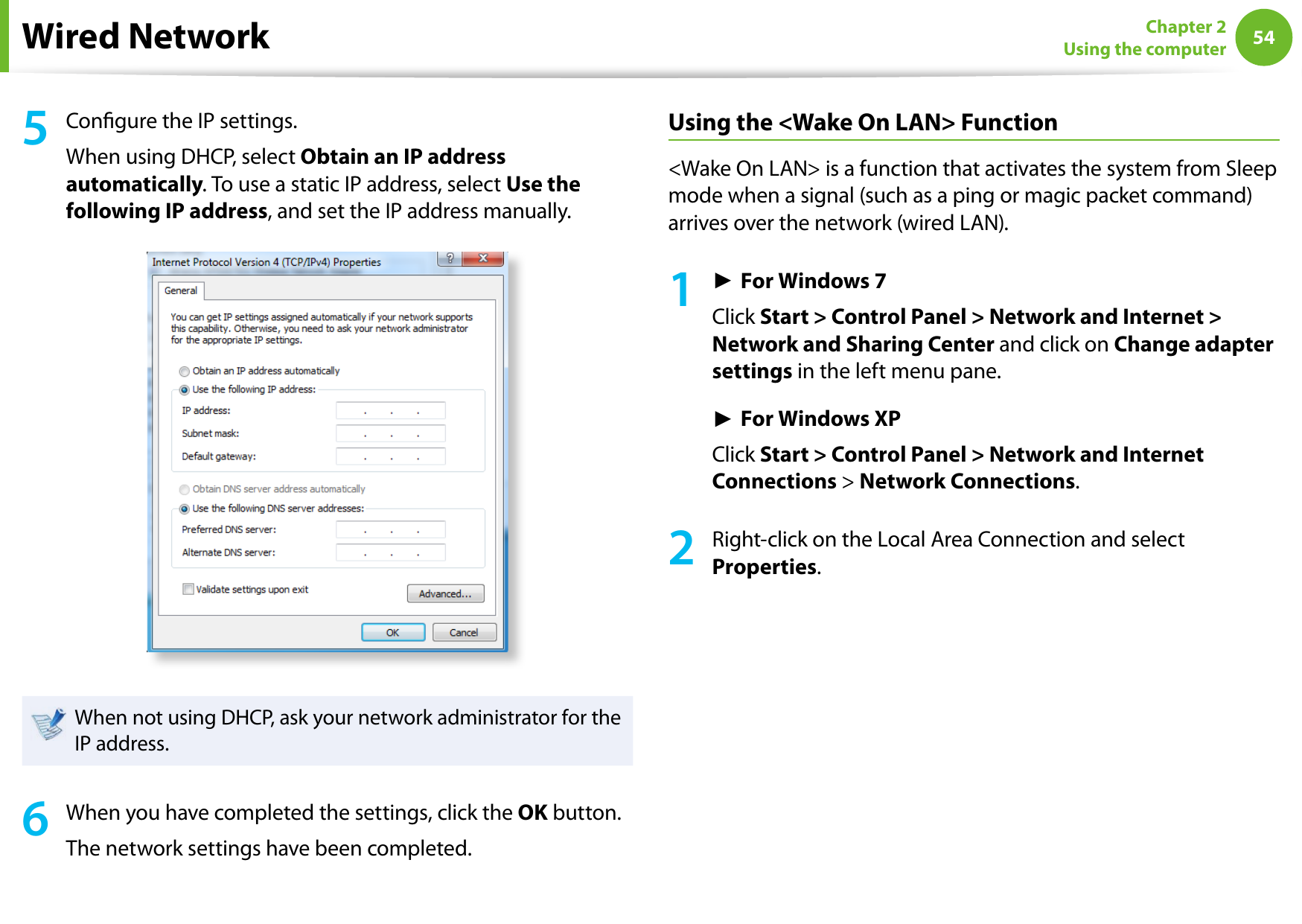
54Chapter 2 Using the computerWired Network5  Congure the IP settings.When using DHCP, select Obtain an IP address automatically. To use a static IP address, select Use the following IP address, and set the IP address manually.When not using DHCP, ask your network administrator for the IP address.6  When you have completed the settings, click the OK button.The network settings have been completed.Using the <Wake On LAN> Function<Wake On LAN> is a function that activates the system from Sleep mode when a signal (such as a ping or magic packet command) arrives over the network (wired LAN).1► For Windows 7Click Start > Control Panel > Network and Internet > Network and Sharing Center and click on Change adapter settings in the left menu pane.► For Windows XPClick Start > Control Panel > Network and Internet Connections > Network Connections.2Right-click on the Local Area Connection and select Properties.
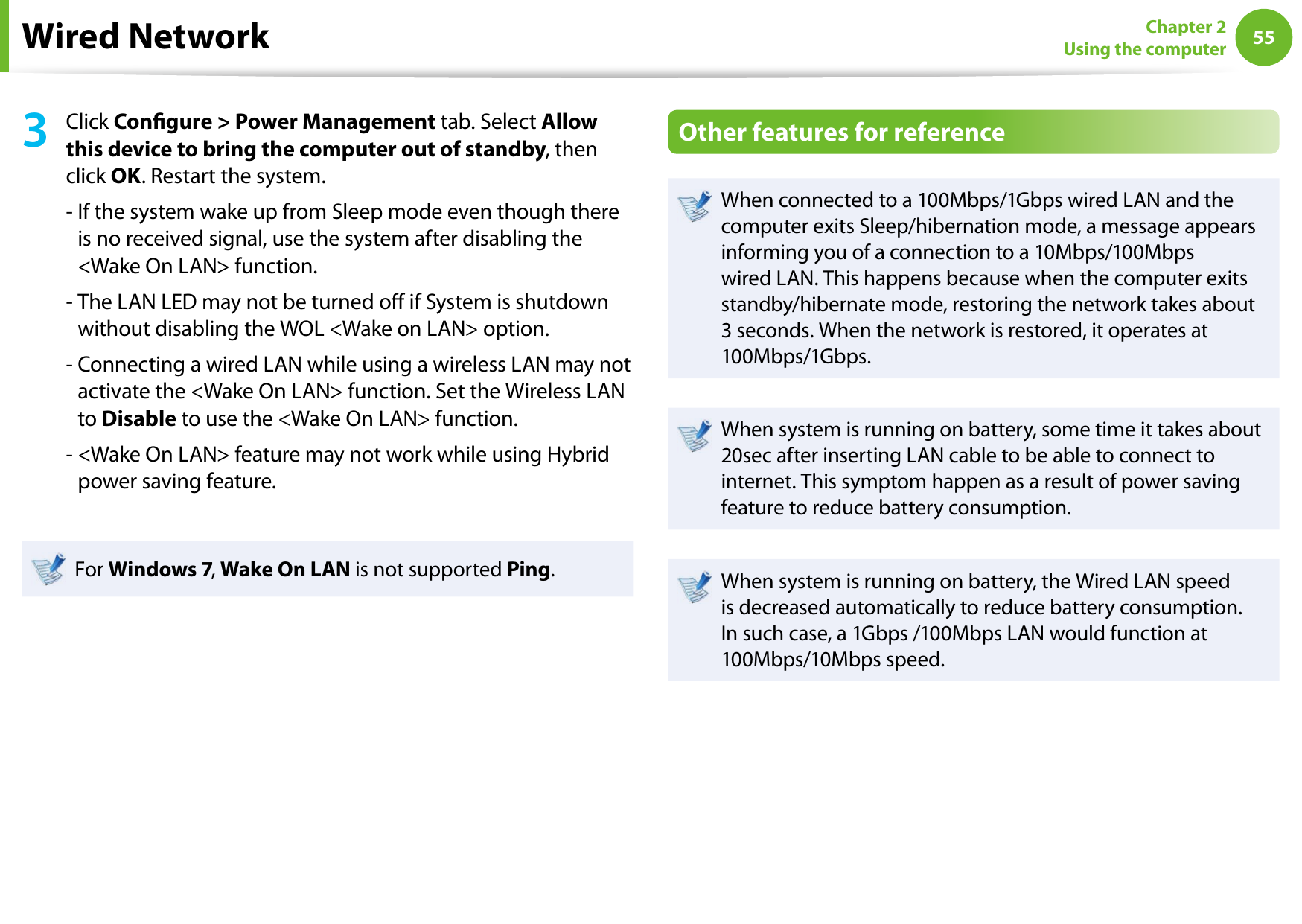
5455Chapter 2 Using the computerWired Network3Click Congure > Power Management tab. Select Allow this device to bring the computer out of standby, then click OK. Restart the system.-  If the system wake up from Sleep mode even though there is no received signal, use the system after disabling the <Wake On LAN> function.-  The LAN LED may not be turned o if System is shutdown without disabling the WOL <Wake on LAN> option.-  Connecting a wired LAN while using a wireless LAN may not activate the <Wake On LAN> function. Set the Wireless LAN to Disable to use the <Wake On LAN> function.-  <Wake On LAN> feature may not work while using Hybrid power saving feature.For Windows 7, Wake On LAN is not supported Ping.Other features for referenceWhen connected to a 100Mbps/1Gbps wired LAN and the computer exits Sleep/hibernation mode, a message appears informing you of a connection to a 10Mbps/100Mbps wired LAN. This happens because when the computer exits standby/hibernate mode, restoring the network takes about 3 seconds. When the network is restored, it operates at 100Mbps/1Gbps.When system is running on battery, some time it takes about 20sec after inserting LAN cable to be able to connect to internet. This symptom happen as a result of power saving feature to reduce battery consumption.When system is running on battery, the Wired LAN speed is decreased automatically to reduce battery consumption. In such case, a 1Gbps /100Mbps LAN would function at 100Mbps/10Mbps speed.
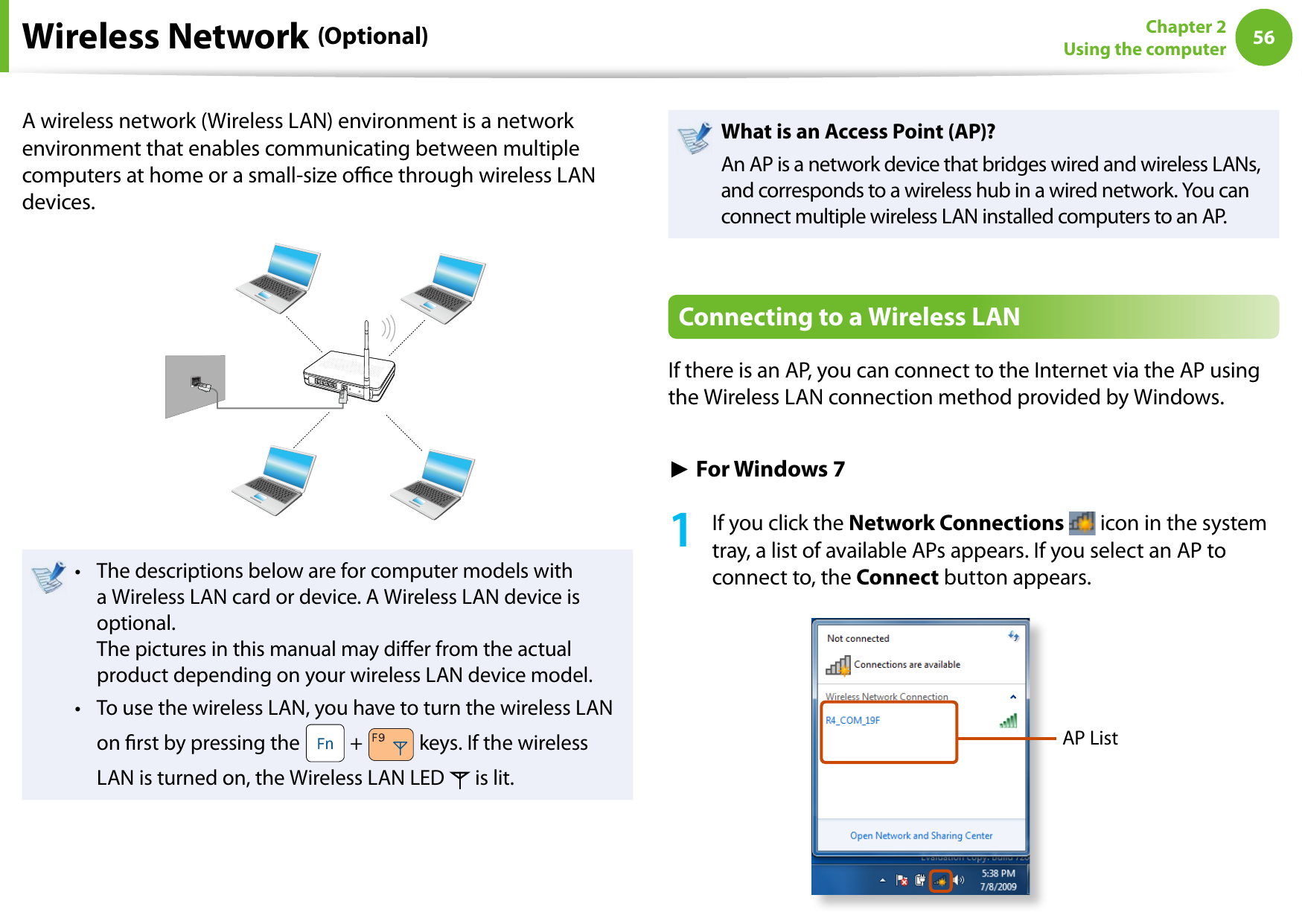
56Chapter 2 Using the computerA wireless network (Wireless LAN) environment is a network environment that enables communicating between multiple computers at home or a small-size oce through wireless LAN devices.The descriptions below are for computer models with • a Wireless LAN card or device. A Wireless LAN device is optional. The pictures in this manual may dier from the actual product depending on your wireless LAN device model.To use the wireless LAN, you have to turn the wireless LAN • on rst by pressing the   +   keys. If the wireless LAN is turned on, the Wireless LAN LED   is lit.What is an Access Point (AP)?An AP is a network device that bridges wired and wireless LANs, and corresponds to a wireless hub in a wired network. You can connect multiple wireless LAN installed computers to an AP.Connecting to a Wireless LANIf there is an AP, you can connect to the Internet via the AP using the Wireless LAN connection method provided by Windows.► For Windows 71  If you click the Network Connections   icon in the system tray, a list of available APs appears. If you select an AP to connect to, the Connect button appears.AP ListWireless Network (Optional)
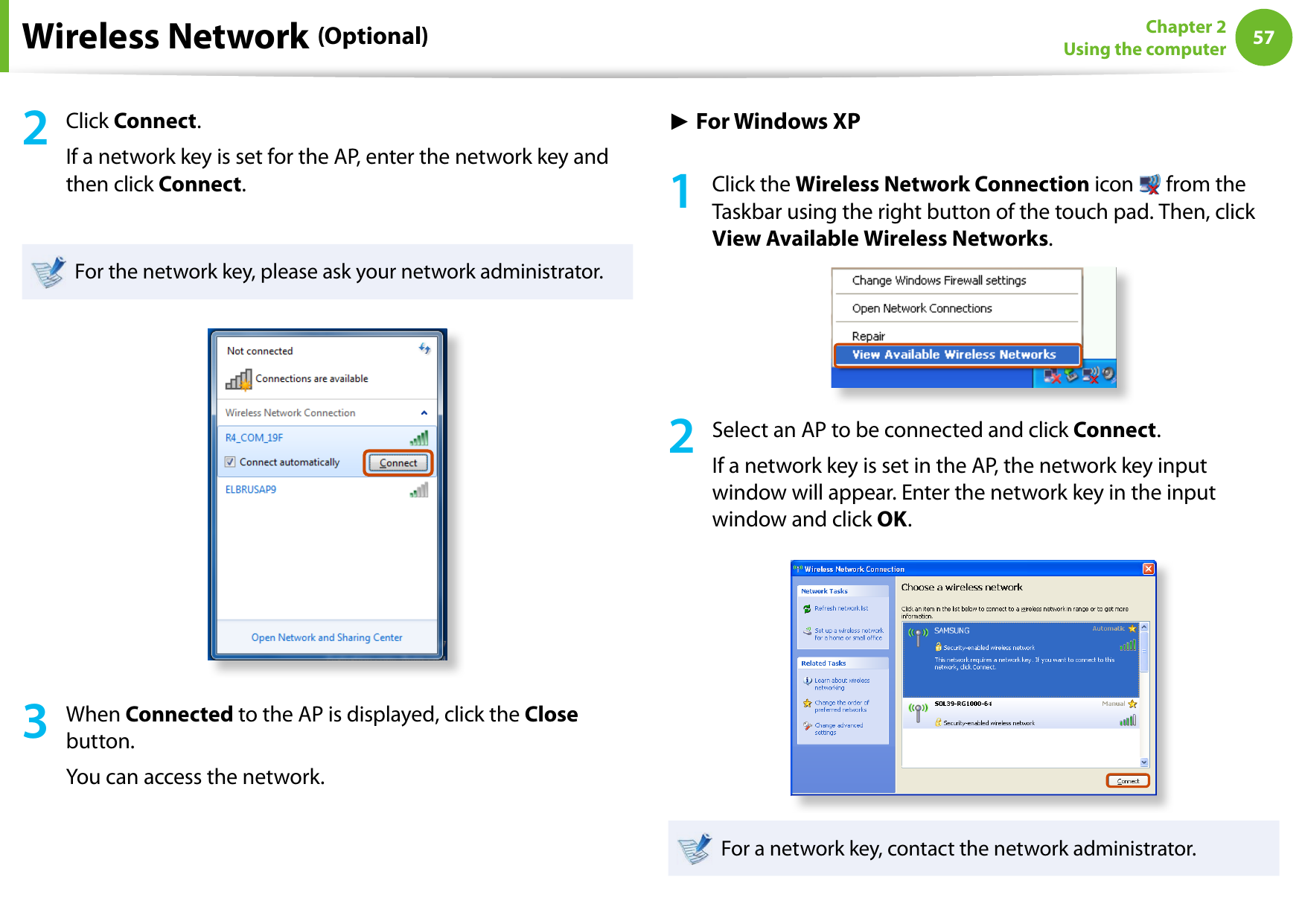
5657Chapter 2 Using the computerWireless Network (Optional)2  Click Connect.If a network key is set for the AP, enter the network key and then click Connect.For the network key, please ask your network administrator.3  When Connected to the AP is displayed, click the Close button.You can access the network.► For Windows XP1  Click the Wireless Network Connection icon   from the Taskbar using the right button of the touch pad. Then, click View Available Wireless Networks.2  Select an AP to be connected and click Connect.If a network key is set in the AP, the network key input window will appear. Enter the network key in the input window and click OK.For a network key, contact the network administrator.
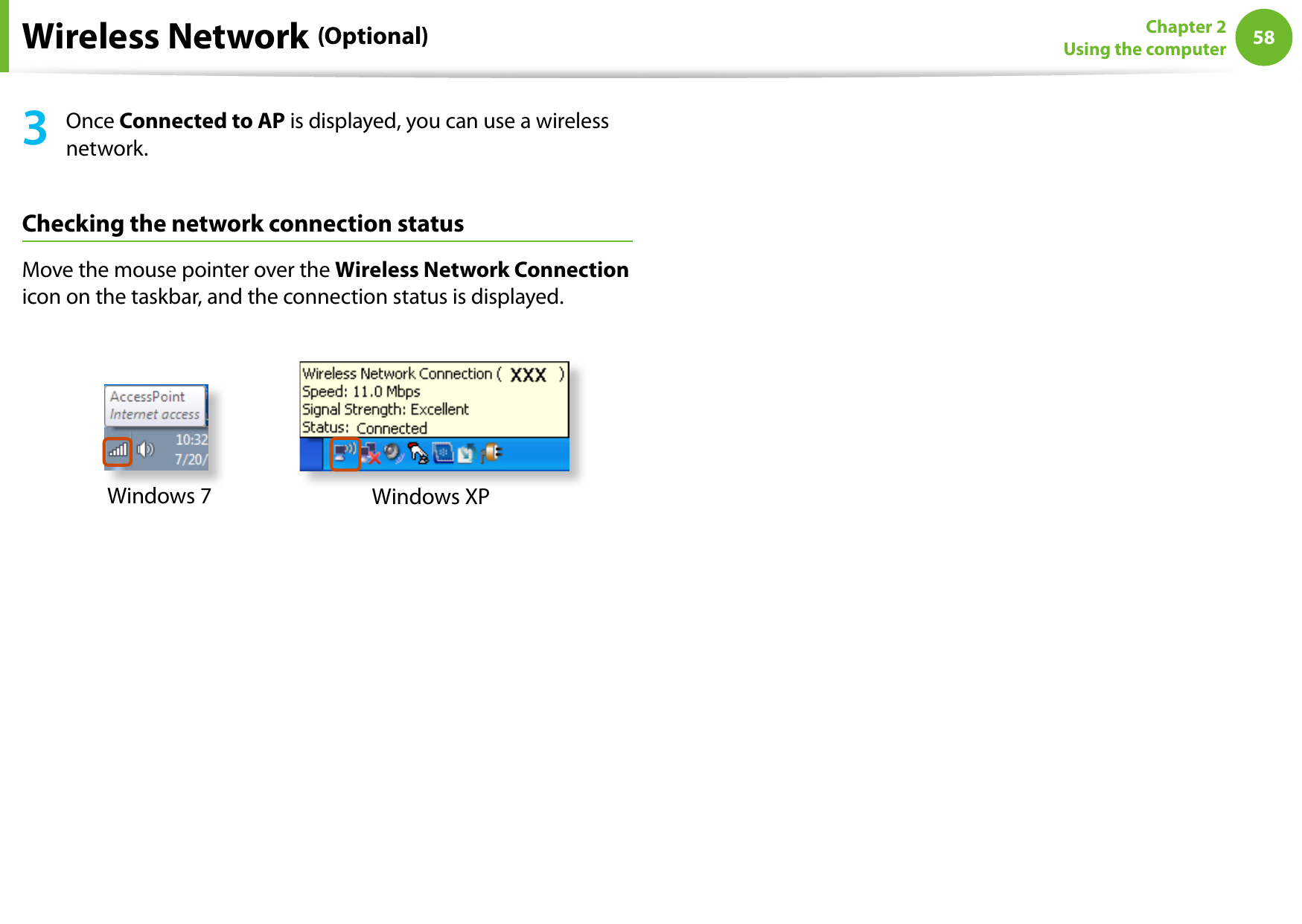
58Chapter 2 Using the computerWireless Network (Optional)3  Once Connected to AP is displayed, you can use a wireless network.Checking the network connection statusMove the mouse pointer over the Wireless Network Connection icon on the taskbar, and the connection status is displayed.Windows 7 Windows XP
5859Chapter 2 Using the computerSharing Content in a Home Network (Easy Content Share) (Optional)Easy Content Share is a DLNA application that allows you to play photos, videos and music les on your TV.These descriptions are for Windows 7 and for supported • models only. The Digital Living Network Alliance (DLNA) aligns industry • leaders in the CE, mobile, and PC industries through digital interoperability, and DLNA-certied devices allow users to play videos, photos and music les stored on a computer on a TV. To play content using DLNA technology, both your • computer and TV must be DLNA certied. For information on whether a product supports DLNA, refer to the respective user manuals.To play videos, photos and music les stored on a computer, congure the settings in the order as shown below.1.  Conguring the network settings for your computer and TV2.  Adding shared content on your computer3.  Playing content on your TV using your computerConguring the network settings for your computer and TVTo share content, all shared devices must be connected to the same access point.Congure the network settings by following the steps below.1  Connect your computer and TV to an access point through a wired or wireless LAN connection, as shown in the gure below.[Network connection diagram]2  Congure the IP address settings for your computer and TV.You must check the Obtain an IP address automatically (DHCP) checkbox.
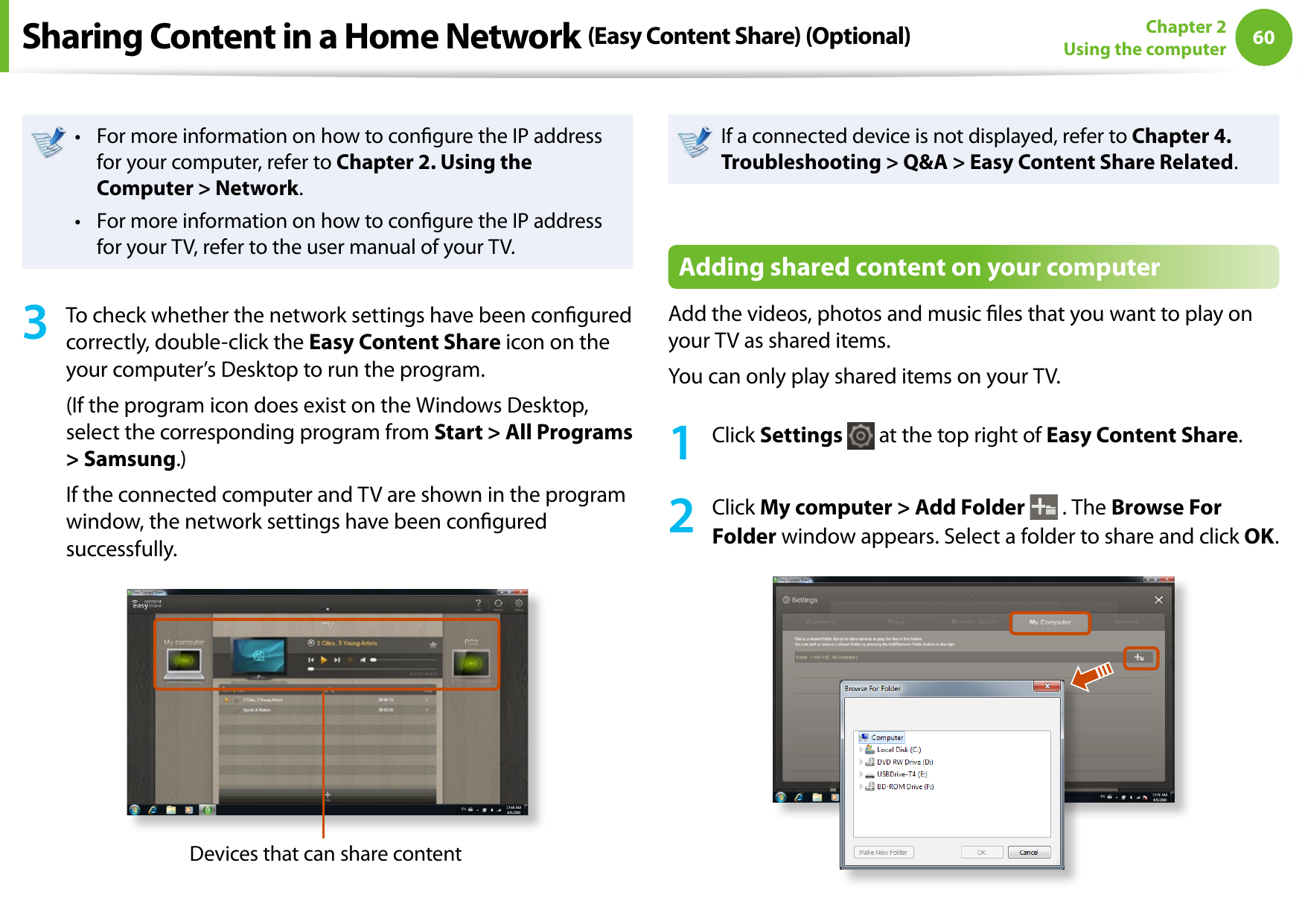
60Chapter 2 Using the computerFor more information on how to congure the IP address • for your computer, refer to Chapter 2. Using the Computer > Network.For more information on how to congure the IP address • for your TV, refer to the user manual of your TV.3  To check whether the network settings have been congured correctly, double-click the Easy Content Share icon on the your computer’s Desktop to run the program.(If the program icon does exist on the Windows Desktop, select the corresponding program from Start > All Programs > Samsung.)If the connected computer and TV are shown in the program window, the network settings have been congured successfully.Devices that can share contentIf a connected device is not displayed, refer to Chapter 4. Troubleshooting > Q&A > Easy Content Share Related.Adding shared content on your computerAdd the videos, photos and music les that you want to play on your TV as shared items.You can only play shared items on your TV.1  Click Settings   at the top right of Easy Content Share.2  Click My computer > Add Folder  . The Browse For Folder window appears. Select a folder to share and click OK.Sharing Content in a Home Network (Easy Content Share) (Optional)
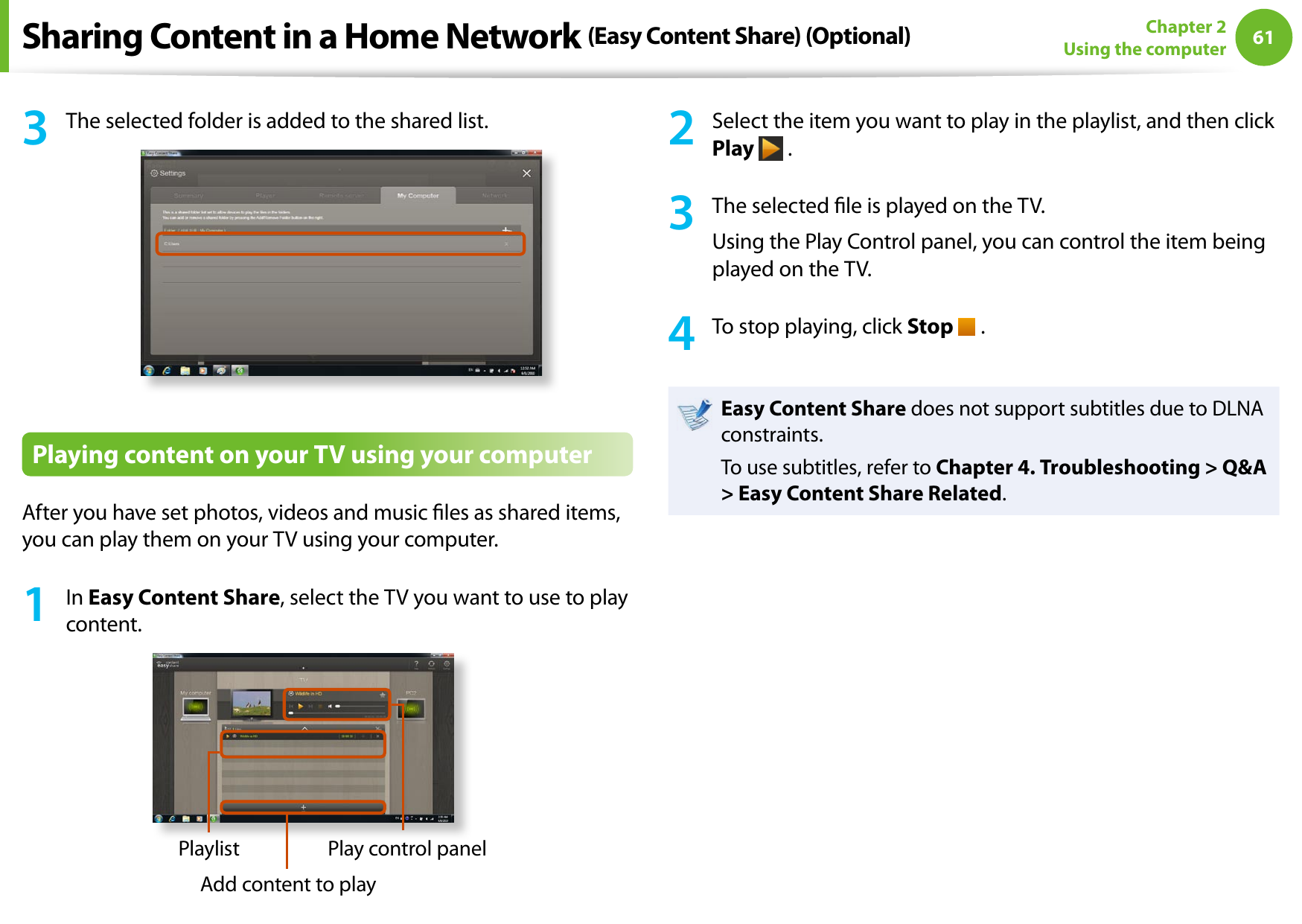
6061Chapter 2 Using the computer3  The selected folder is added to the shared list.Playing content on your TV using your computerAfter you have set photos, videos and music les as shared items, you can play them on your TV using your computer.1  In Easy Content Share, select the TV you want to use to play content.PlaylistAdd content to playPlay control panel2  Select the item you want to play in the playlist, and then click Play   .3  The selected le is played on the TV.Using the Play Control panel, you can control the item being played on the TV.4  To stop playing, click Stop   .Easy Content Share does not support subtitles due to DLNA constraints. To use subtitles, refer to Chapter 4. Troubleshooting > Q&A > Easy Content Share Related.Sharing Content in a Home Network (Easy Content Share) (Optional)
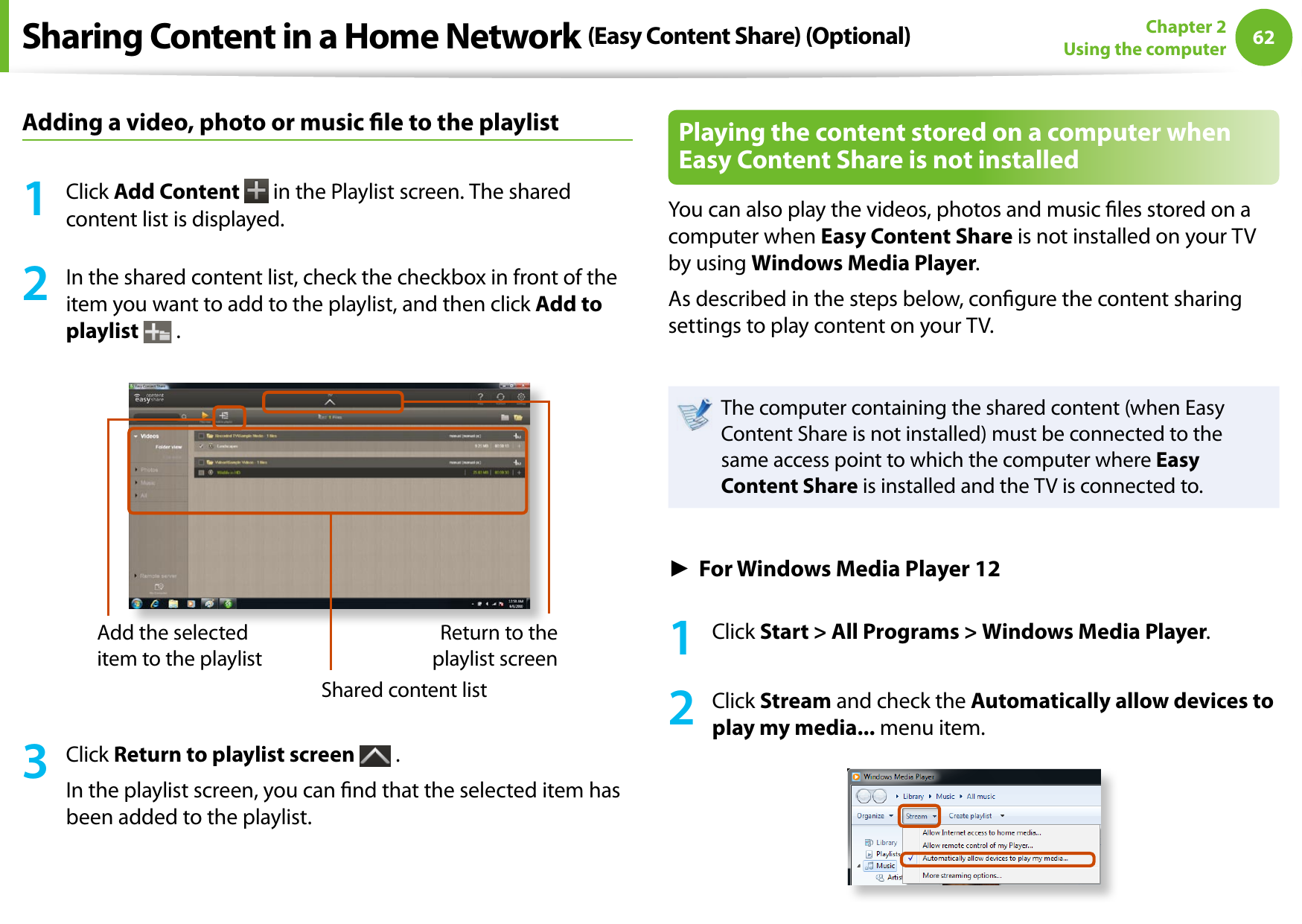
62Chapter 2 Using the computerAdding a video, photo or music le to the playlist1  Click Add Content   in the Playlist screen. The shared content list is displayed.2  In the shared content list, check the checkbox in front of the item you want to add to the playlist, and then click Add to playlist  .Add the selected item to the playlistShared content listReturn to the playlist screen3  Click Return to playlist screen   .In the playlist screen, you can nd that the selected item has been added to the playlist.Playing the content stored on a computer when Easy Content Share is not installedYou can also play the videos, photos and music les stored on a computer when Easy Content Share is not installed on your TV by using Windows Media Player.As described in the steps below, congure the content sharing settings to play content on your TV.The computer containing the shared content (when Easy Content Share is not installed) must be connected to the same access point to which the computer where Easy Content Share is installed and the TV is connected to.► For Windows Media Player 121  Click Start > All Programs > Windows Media Player.2  Click Stream and check the Automatically allow devices to play my media... menu item.Sharing Content in a Home Network (Easy Content Share) (Optional)
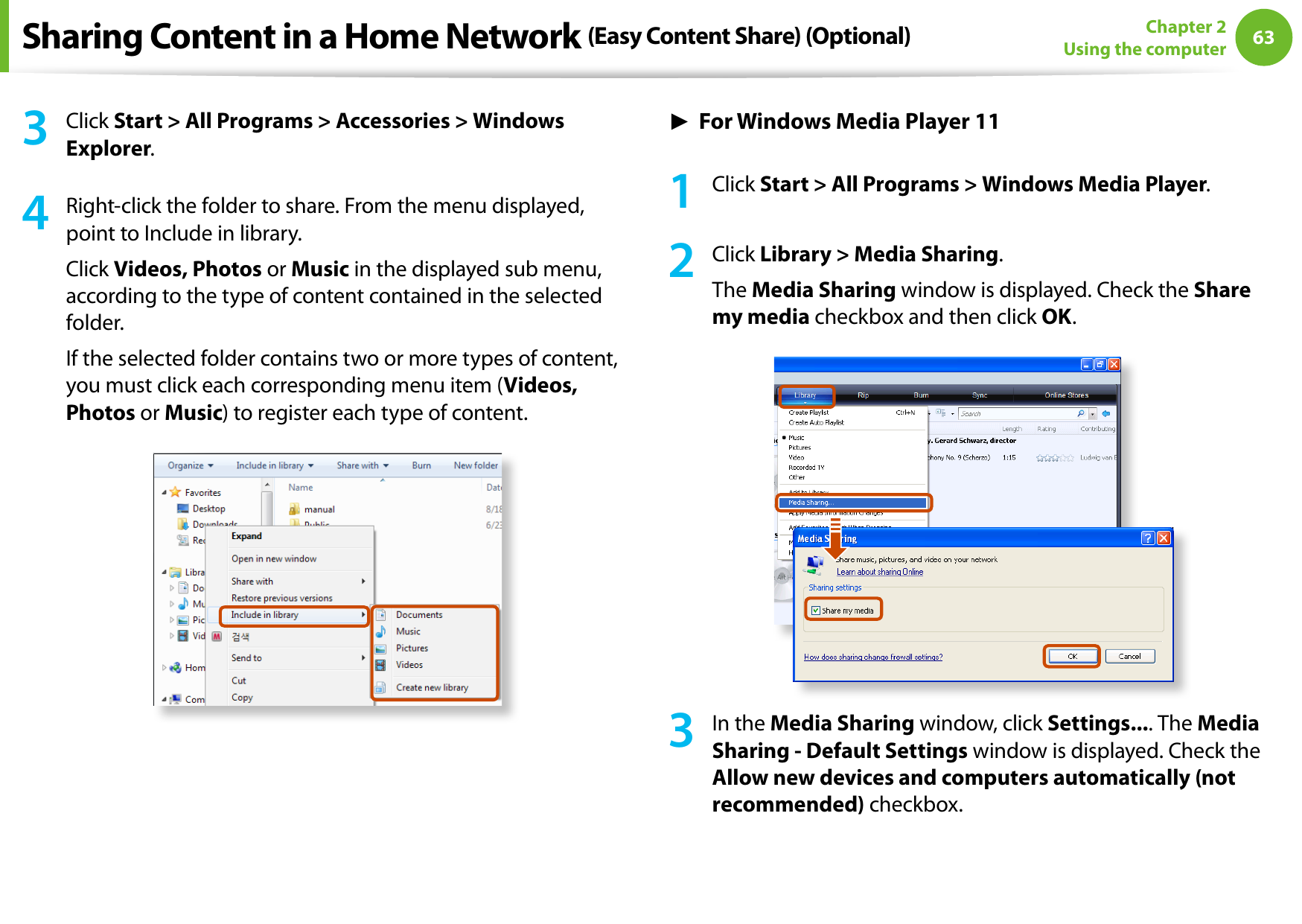
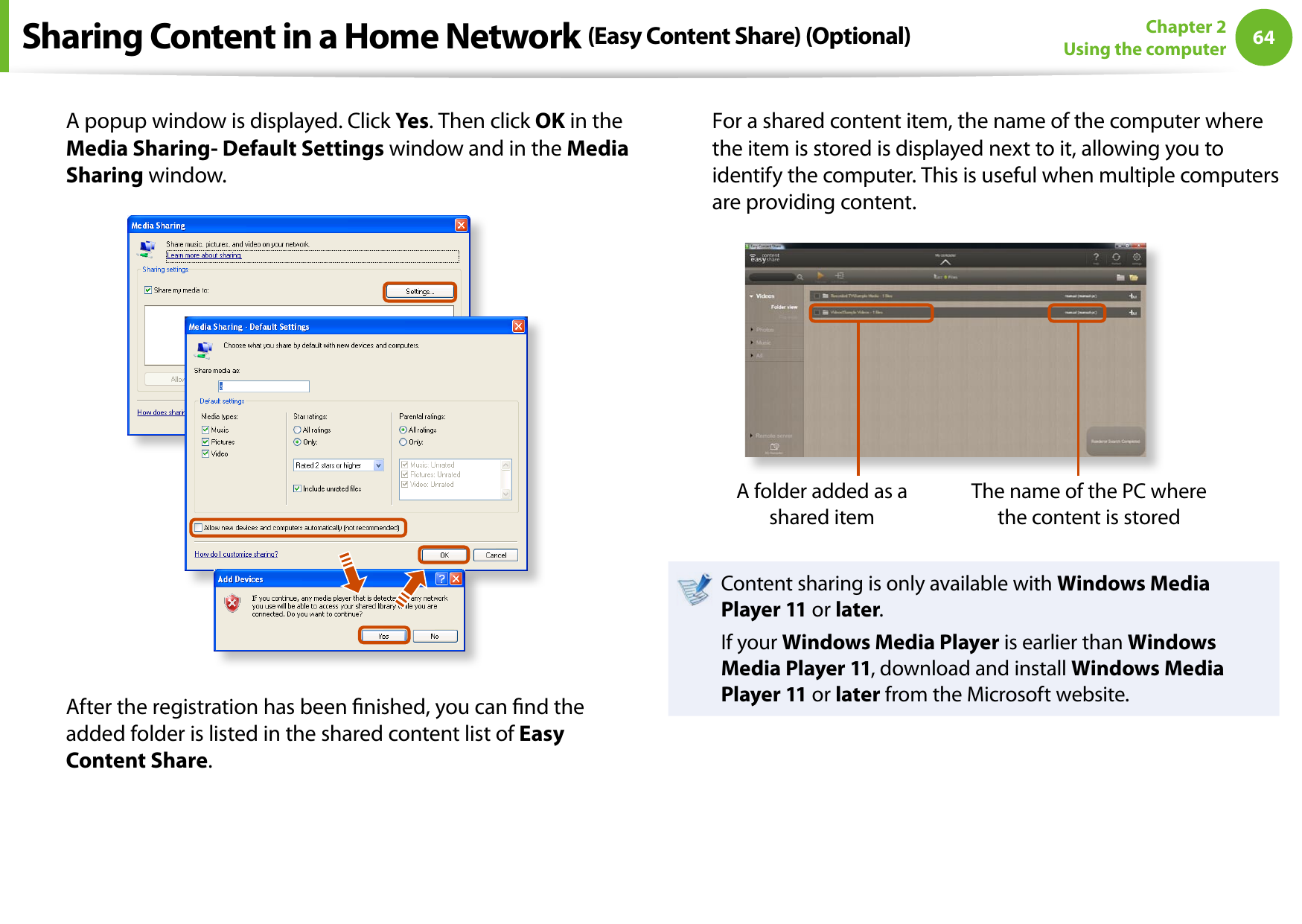
6263Chapter 2 Using the computer3  Click Start > All Programs > Accessories > Windows Explorer.4  Right-click the folder to share. From the menu displayed, point to Include in library.Click Videos, Photos or Music in the displayed sub menu, according to the type of content contained in the selected folder.If the selected folder contains two or more types of content, you must click each corresponding menu item (Videos, Photos or Music) to register each type of content.► For Windows Media Player 111  Click Start > All Programs > Windows Media Player.2  Click Library > Media Sharing.The Media Sharing window is displayed. Check the Share my media checkbox and then click OK.3  In the Media Sharing window, click Settings.... The Media Sharing - Default Settings window is displayed. Check the Allow new devices and computers automatically (not recommended) checkbox.Sharing Content in a Home Network (Easy Content Share) (Optional)
64Chapter 2 Using the computerA popup window is displayed. Click Yes. Then click OK in the Media Sharing- Default Settings window and in the Media Sharing window.After the registration has been nished, you can nd the added folder is listed in the shared content list of Easy Content Share.For a shared content item, the name of the computer where the item is stored is displayed next to it, allowing you to identify the computer. This is useful when multiple computers are providing content.A folder added as a shared itemThe name of the PC where the content is storedContent sharing is only available with Windows Media Player 11 or later.If your Windows Media Player is earlier than Windows Media Player 11, download and install Windows Media Player 11 or later from the Microsoft website.Sharing Content in a Home Network (Easy Content Share) (Optional)
LCD Brightness Control  66BIOS Setup  68Setting a Boot Password  71Changing the Boot Priority  74Upgrading Memory  75Battery  77Using the Security Lock Port  83Chapter 3.  Settings and Upgrade
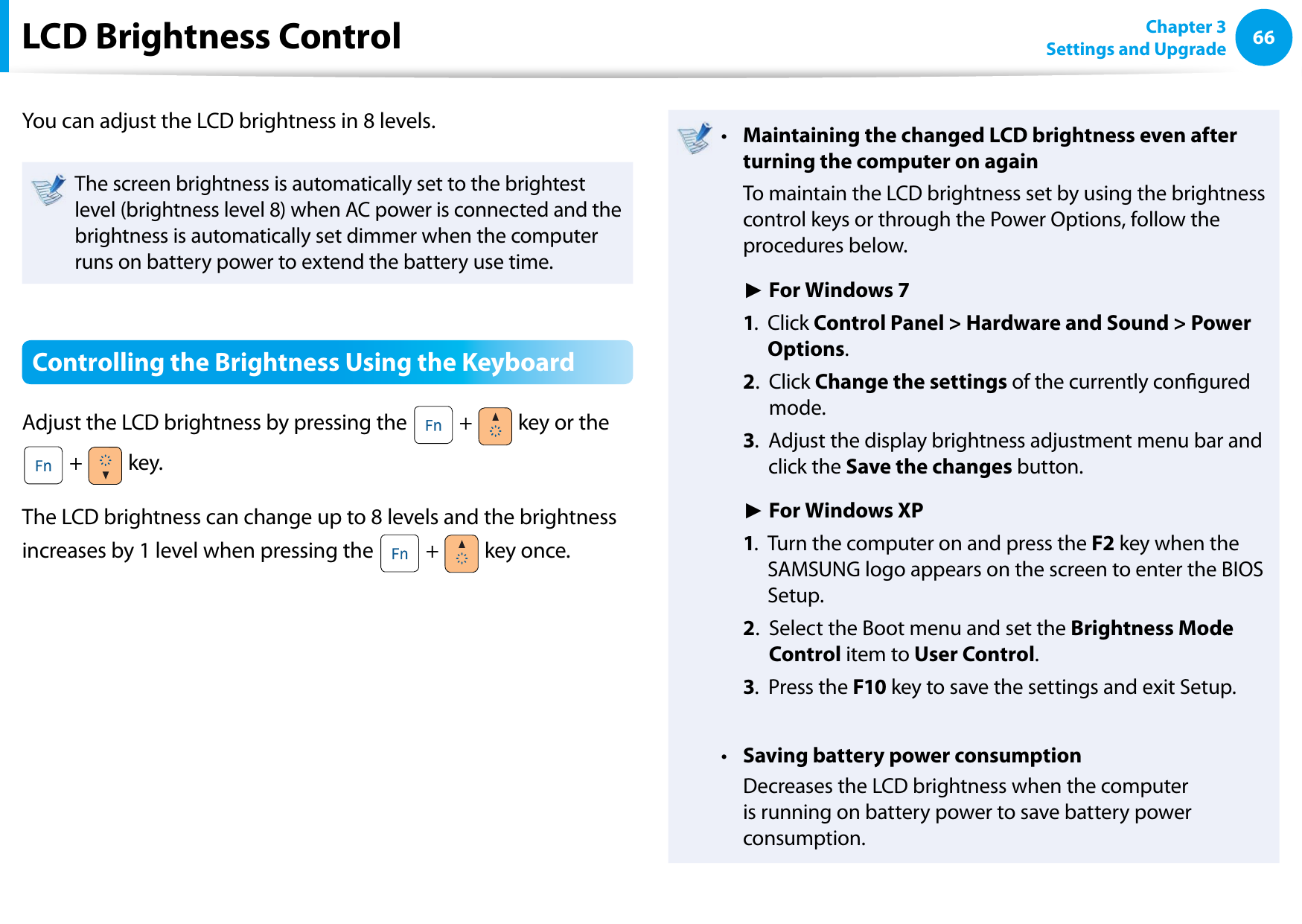
66Chapter 3 Settings and UpgradeLCD Brightness ControlYou can adjust the LCD brightness in 8 levels.The screen brightness is automatically set to the brightest level (brightness level 8) when AC power is connected and the brightness is automatically set dimmer when the computer runs on battery power to extend the battery use time.Controlling the Brightness Using the KeyboardAdjust the LCD brightness by pressing the   +   key or the  +   key.The LCD brightness can change up to 8 levels and the brightness increases by 1 level when pressing the   +   key once.Maintaining the changed LCD brightness even after • turning the computer on again  To maintain the LCD brightness set by using the brightness control keys or through the Power Options, follow the procedures below. ► For Windows 7 1.   Click Control Panel > Hardware and Sound > Power Options. 2.   Click Change the settings of the currently congured mode. 3.   Adjust the display brightness adjustment menu bar and click the Save the changes button. ► For Windows XP 1.   Turn the computer on and press the F2 key when the SAMSUNG logo appears on the screen to enter the BIOS Setup. 2.   Select the Boot menu and set the Brightness Mode Control item to User Control. 3.   Press the F10 key to save the settings and exit Setup.Saving battery power consumption•   Decreases the LCD brightness when the computer is running on battery power to save battery power consumption.
6667Chapter 3 Settings and UpgradeLCD Brightness ControlLCD bad pixels principle of laptop computer•   Samsung observes the specications regarding strict quality and reliability of LCD. But in spite of that, it is inevitable that there might be a small number of bad pixels. A large number of bad pixels can cause problems in appearance, but a small number of pixels doesn’t aect the computer performance.  Therefore Samsung observes and manages the following dot principles:  - Bright dot : 2 or less - Black dot  : 4 or less - Combination of Bright and Dark : 4 or lessInstructions for Cleaning the LCDClean the LCD panel with a soft cloth lightly moistened with computer cleansing detergent moving in one direction. Cleaning the LCD panel with excessive force can damage the LCD.
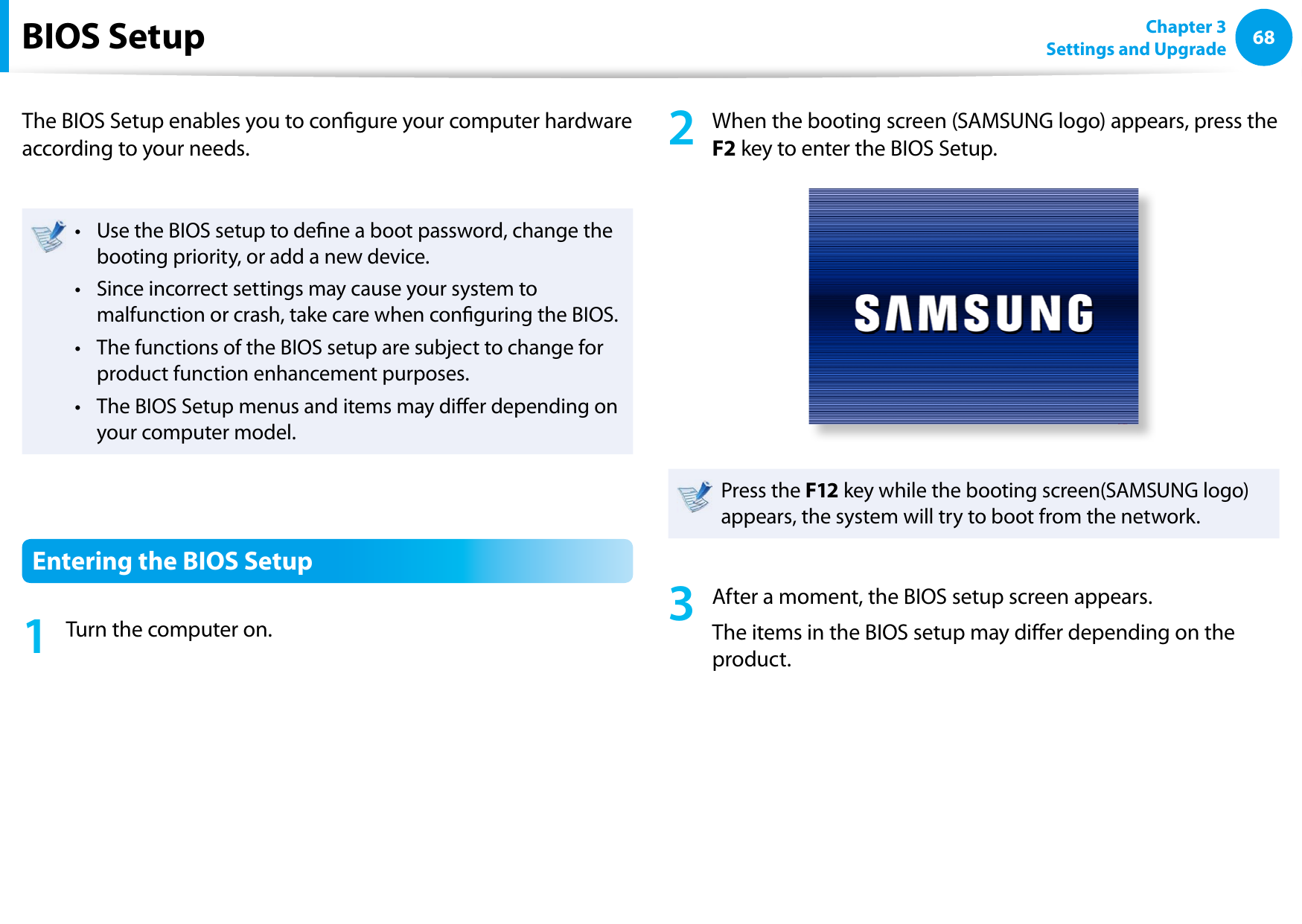
68Chapter 3 Settings and UpgradeBIOS SetupThe BIOS Setup enables you to congure your computer hardware according to your needs.Use the BIOS setup to dene a boot password, change the • booting priority, or add a new device.Since incorrect settings may cause your system to • malfunction or crash, take care when conguring the BIOS.The functions of the BIOS setup are subject to change for • product function enhancement purposes.The BIOS Setup menus and items may dier depending on • your computer model.Entering the BIOS Setup1  Turn the computer on.2  When the booting screen (SAMSUNG logo) appears, press the F2 key to enter the BIOS Setup.Press the F12 key while the booting screen(SAMSUNG logo) appears, the system will try to boot from the network.3  After a moment, the BIOS setup screen appears. The items in the BIOS setup may dier depending on the product.
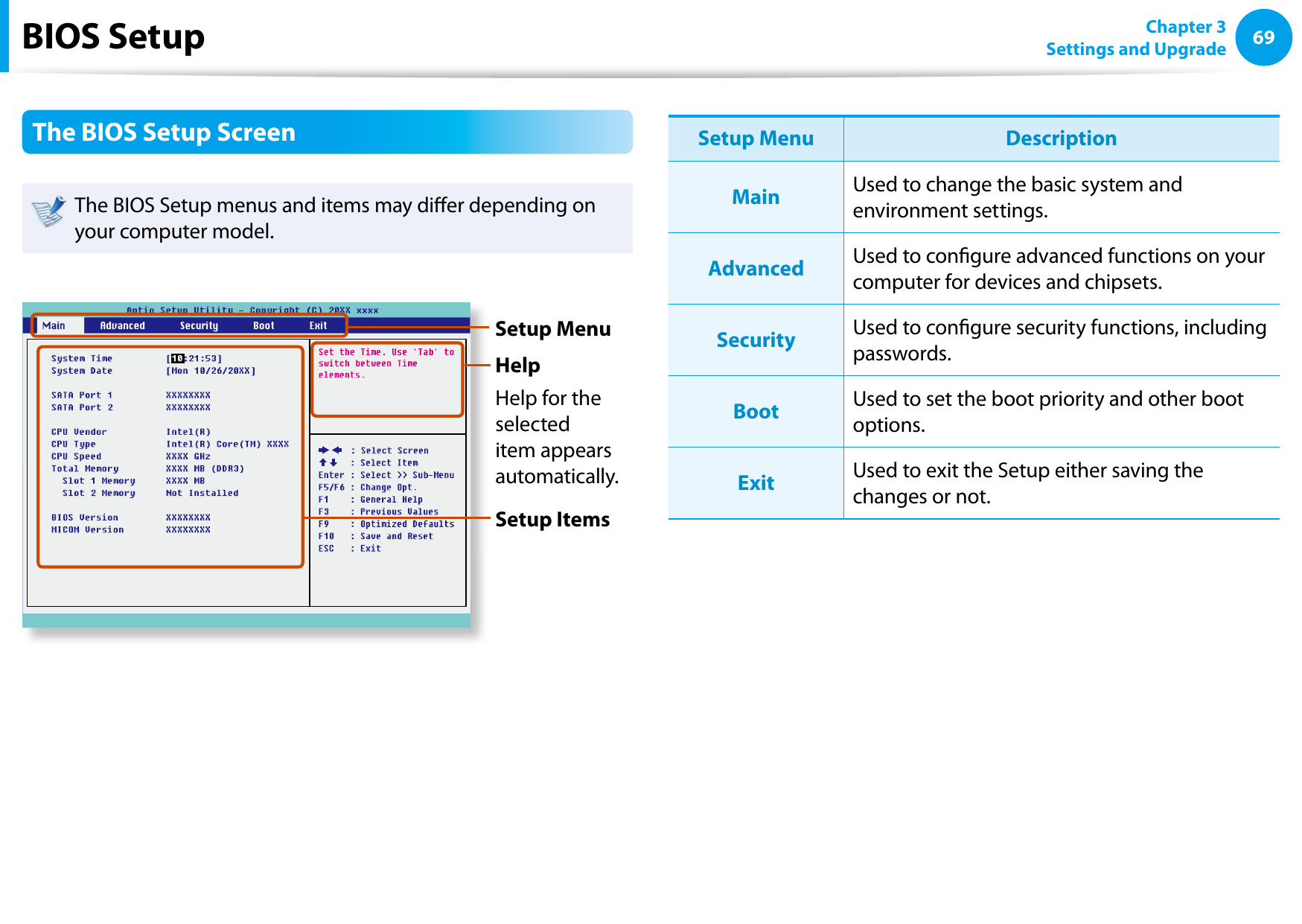
6869Chapter 3 Settings and UpgradeThe BIOS Setup ScreenThe BIOS Setup menus and items may dier depending on your computer model.Setup MenuSetup ItemsHelpHelp for the selected item appears automatically.Setup Menu DescriptionMain Used to change the basic system and environment settings.Advanced Used to congure advanced functions on your computer for devices and chipsets.Security Used to congure security functions, including passwords.Boot Used to set the boot priority and other boot options.Exit Used to exit the Setup either saving the changes or not.BIOS Setup
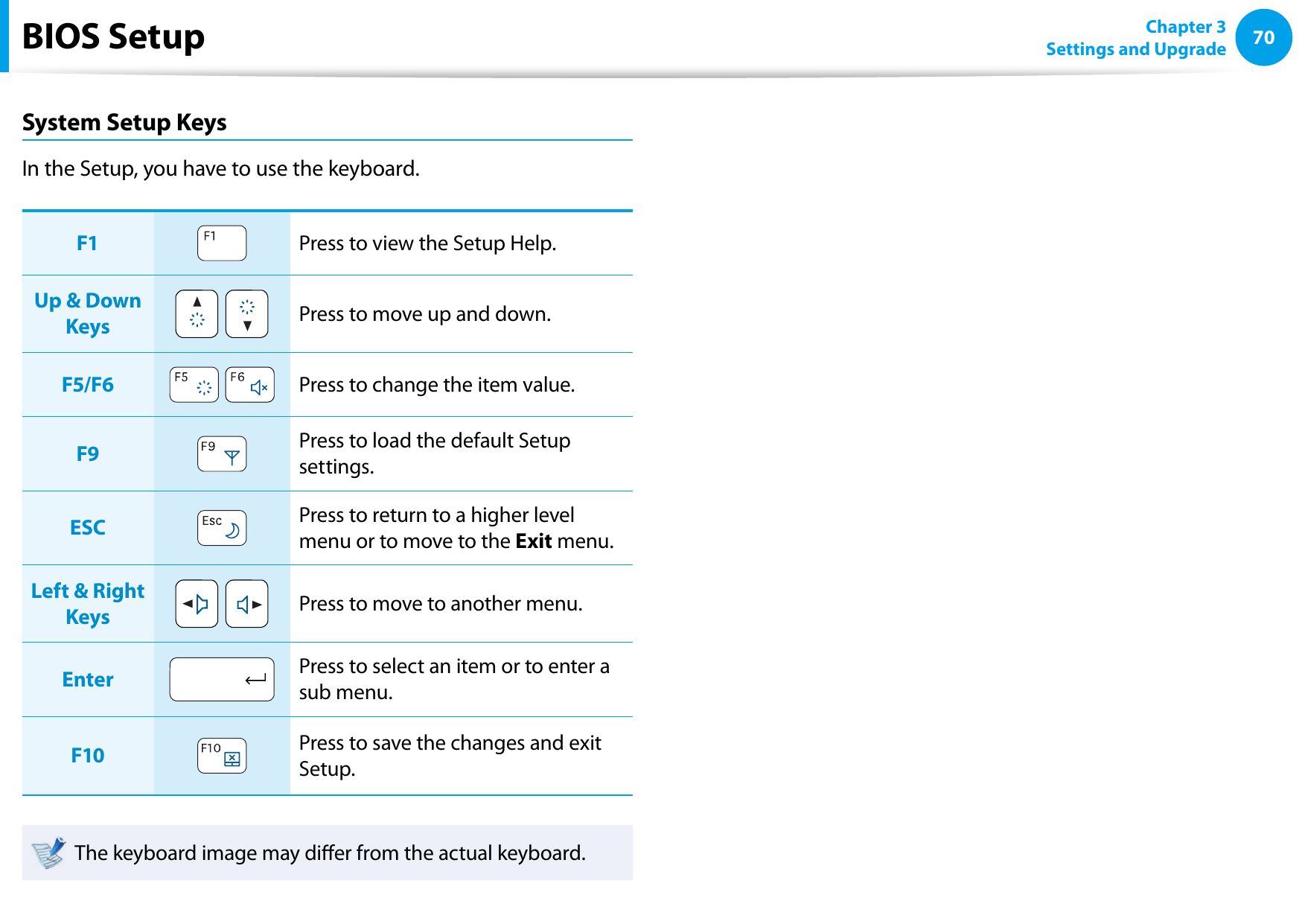
70Chapter 3 Settings and UpgradeSystem Setup KeysIn the Setup, you have to use the keyboard.F1 Press to view the Setup Help.Up & Down Keys  Press to move up and down.F5/F6  Press to change the item value.F9 Press to load the default Setup settings.ESC Press to return to a higher level menu or to move to the Exit menu.Left & Right Keys  Press to move to another menu.Enter Press to select an item or to enter a sub menu.F10 Press to save the changes and exit Setup.The keyboard image may dier from the actual keyboard.BIOS Setup
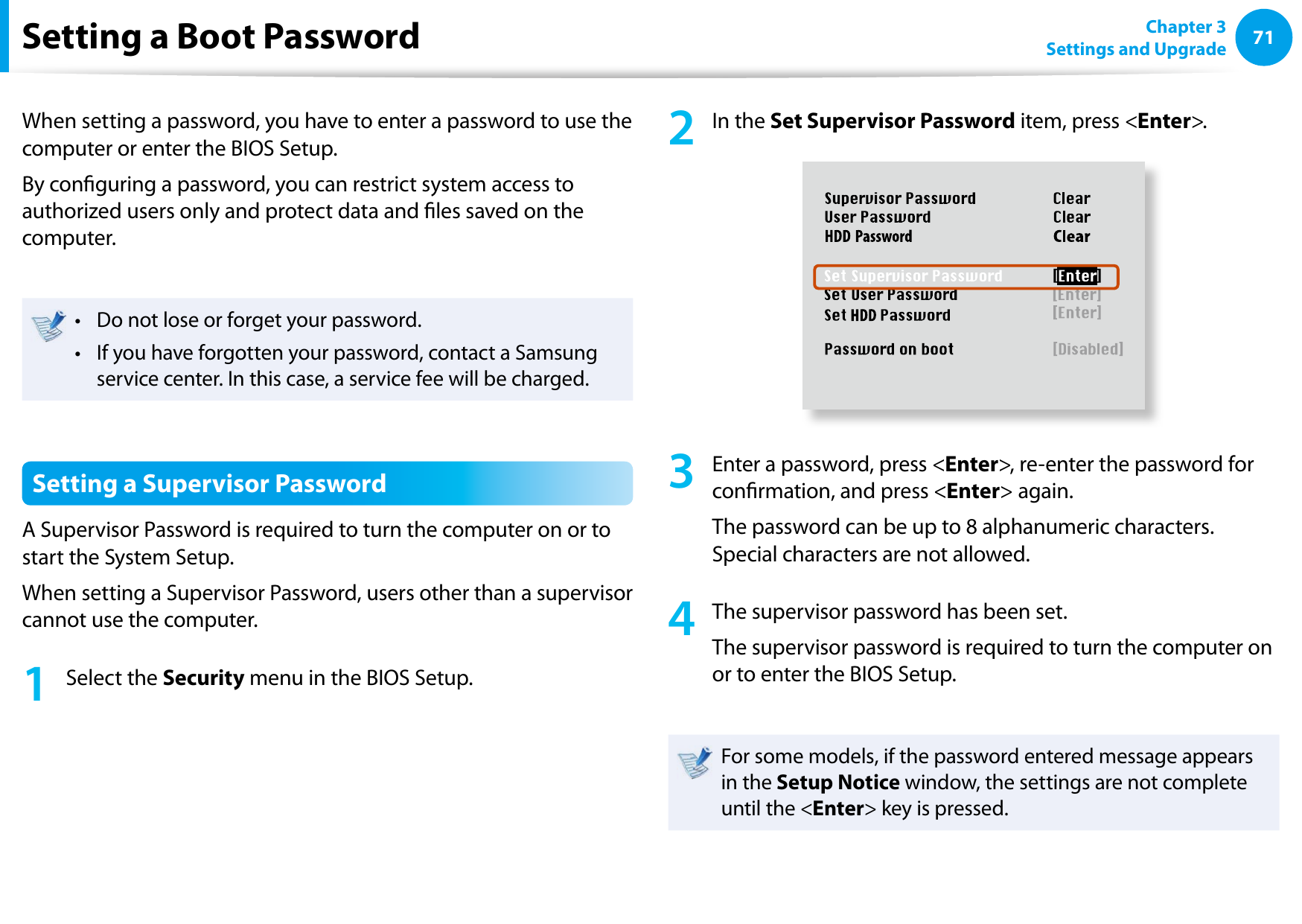
7071Chapter 3 Settings and UpgradeSetting a Boot PasswordWhen setting a password, you have to enter a password to use the computer or enter the BIOS Setup. By conguring a password, you can restrict system access to authorized users only and protect data and les saved on the computer.Do not lose or forget your password. • If you have forgotten your password, contact a Samsung • service center. In this case, a service fee will be charged.Setting a Supervisor PasswordA Supervisor Password is required to turn the computer on or to start the System Setup.When setting a Supervisor Password, users other than a supervisor cannot use the computer.1  Select the Security menu in the BIOS Setup.2  In the Set Supervisor Password item, press <Enter>.XXXXXXXX3  Enter a password, press <Enter>, re-enter the password for conrmation, and press <Enter> again.The password can be up to 8 alphanumeric characters. Special characters are not allowed.4  The supervisor password has been set. The supervisor password is required to turn the computer on or to enter the BIOS Setup.For some models, if the password entered message appears in the Setup Notice window, the settings are not complete until the <Enter> key is pressed.
72Chapter 3 Settings and UpgradeSetting a Boot PasswordSetting a User PasswordUsers can start the system with a user password, but cannot enter the System Setup. By doing this, you can prevent other users from entering Setup.Before conguring a user password, a supervisor password must have been congured. Deactivating the supervisor password also deactivates the user password.In the Set User Password item, press <Enter> and complete the procedures from Step 3 of Setting a Supervisor Password.Setting Up a Boot PasswordTo setup a boot password, the administrator password (Set Supervisor Password) should be set in advance.Set the Password on boot item to Enabled. Once a boot password is set, you have to enter a password to boot up the computer.Setting up a Hard Disk Drive Password (Optional)A supervisor password must be set using the Set Supervisor Password menu.If you set a password for a hard disk drive, it cannot be accessed from another computer.Press <Enter> in the Set HDD Password item and dene a password as described in Step 3 of the Setting up the Supervisor Password.The hard disk drive password setting function is not • provided for some models.Changing the hard disk drive password•   For security purposes, you can only change a hard disk drive password after restarting the computer by pressing the computer Power button.  If you cannot change the hard disk drive password or the HDD Password Frozen message appears when entering the BIOS Setup and then selecting Security > HDD Password, press the Power button to turn the computer on again.
7273Chapter 3 Settings and UpgradeSetting a Boot PasswordDeactivating the Password1  Press <Enter> on the password to be deactivated. For example, to deactivate a supervisor password in the Set Supervisor Password item, press <Enter>.2  In the Enter Current Password item, enter the currently congured password and press <Enter>.3  Leave the Enter New Password item eld empty, and press <Enter>.4  Leave the Conrm New Password eld empty, and press <Enter>.The password is deactivated.For some models the password is only canceled if the <Enter> key is pressed in the Setup Notice window.
74Chapter 3 Settings and UpgradeChanging the Boot PriorityThis computer is congured to boot from an external-type ODD rst. As an example, the procedures to change the highest boot priority device to the hard disk drive are described below.The screen images in this document may dier from actual product.1  Select the Boot menu in the BIOS Setup.2  Press <Enter> on the Boot Device Priority item.XXXXXXXX3  Press the down key (↓) to move to the AHCI HDD itemand press the F6 key to move up to the top item.Boot Device Priority[Boot priority order]1. AHCI CD  : N/A2. AHCI HDD  : XXXXXXXXXXXXXXXX3. USB KEY  : N/A4. USB CD  : XXXXXXXXXXXXXX5. USB FDD  : N/A6. USB HDD  : N/A7. PCI BEV  : N/A8.  - PCI SCSI  : N/A- USB ZIP  : N/A- USB LS120  : N/A- Legacy Network Card- Legacy [Excluded from boot order]4  Press the F10 key to save the settings and exit Setup. The highest boot priority device is now set to the Hard Drive.
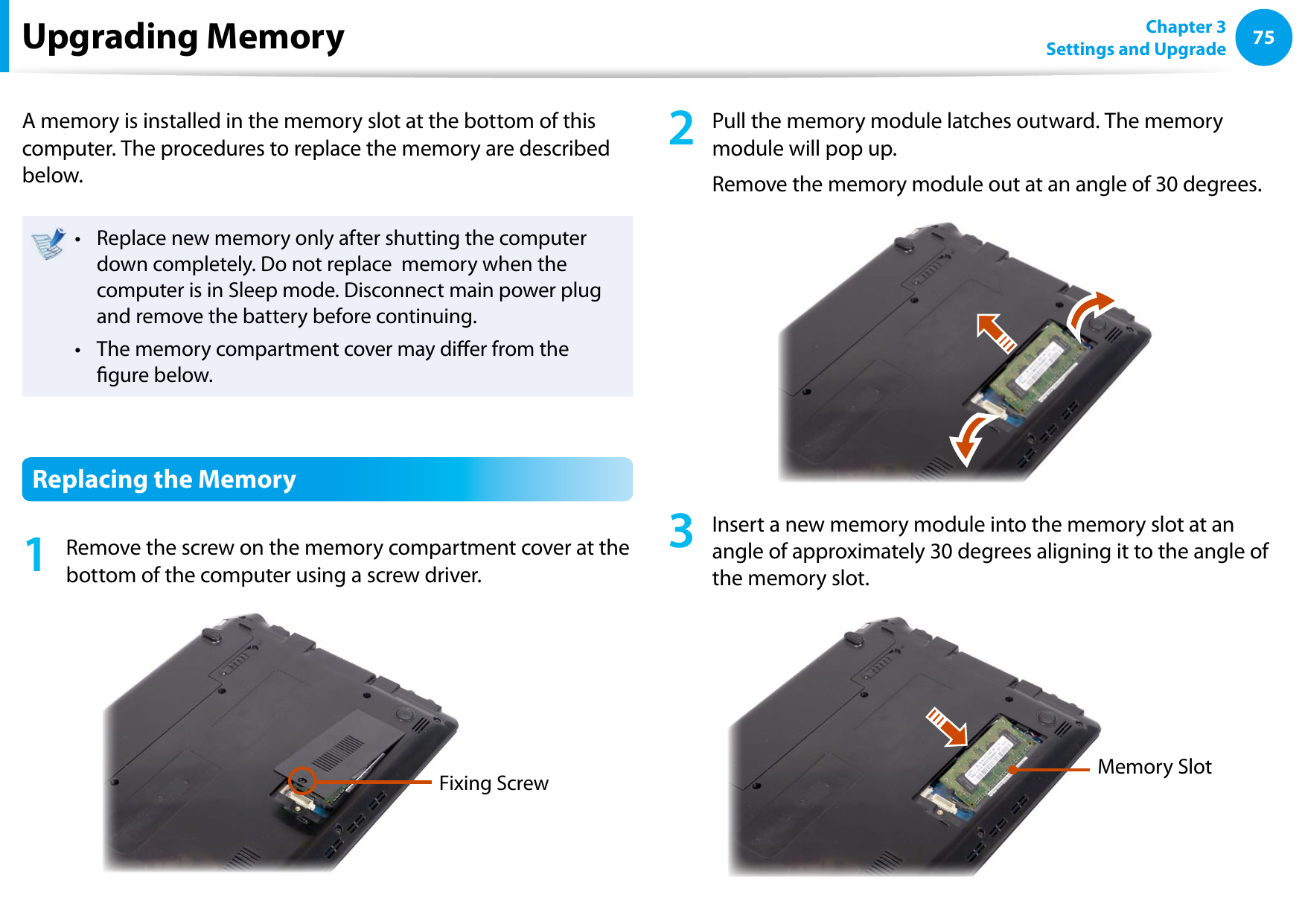
7475Chapter 3 Settings and UpgradeUpgrading MemoryA memory is installed in the memory slot at the bottom of this computer. The procedures to replace the memory are described below.Replace new memory only after shutting the computer • down completely. Do not replace  memory when the computer is in Sleep mode. Disconnect main power plug and remove the battery before continuing.The memory compartment cover may dier from the • gure below.Replacing the Memory1  Remove the screw on the memory compartment cover at the bottom of the computer using a screw driver.Fixing Screw2  Pull the memory module latches outward. The memory module will pop up.Remove the memory module out at an angle of 30 degrees.3  Insert a new memory module into the memory slot at an angle of approximately 30 degrees aligning it to the angle of the memory slot.Memory Slot
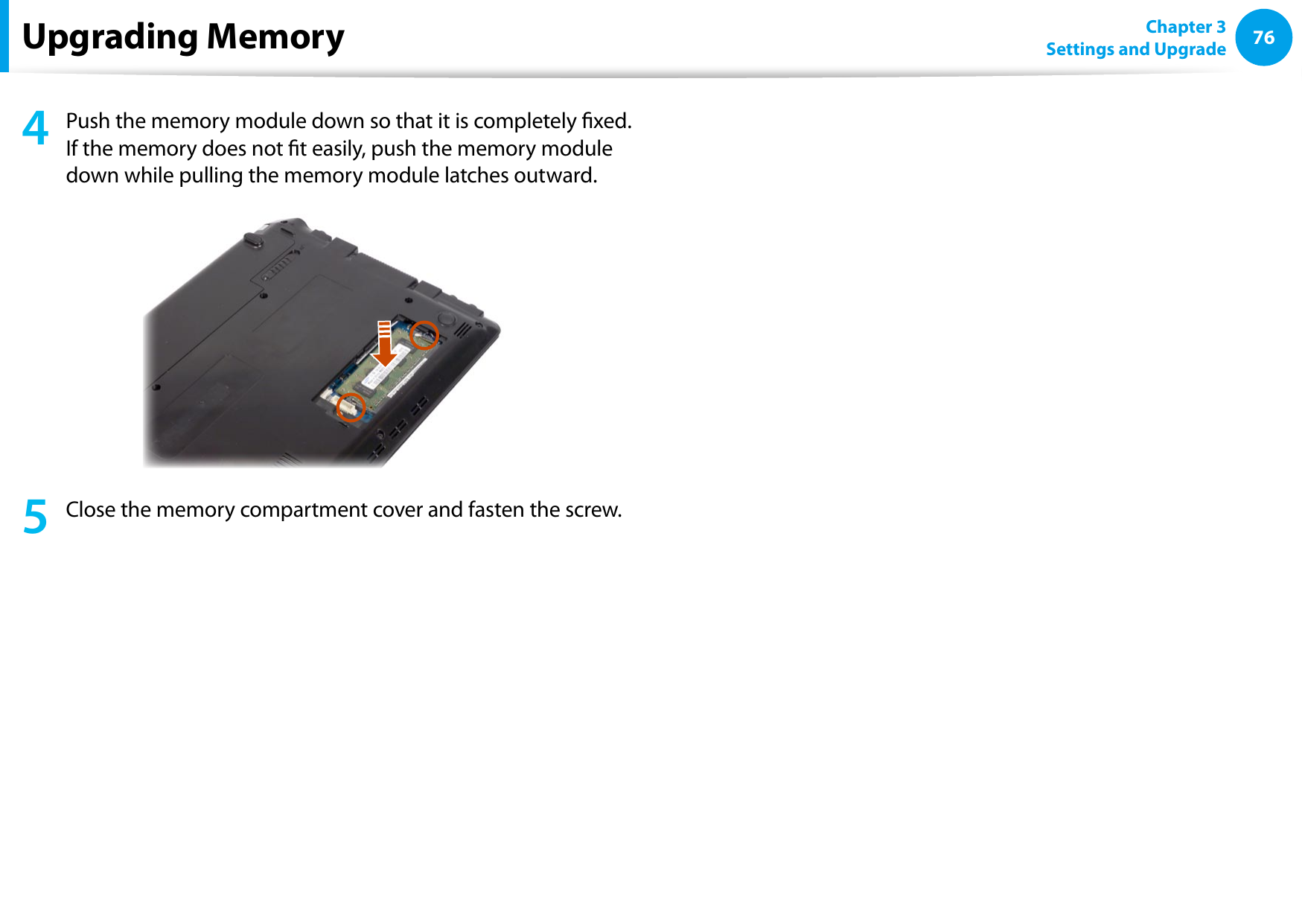
76Chapter 3 Settings and UpgradeUpgrading Memory4  Push the memory module down so that it is completely xed. If the memory does not t easily, push the memory module down while pulling the memory module latches outward.5  Close the memory compartment cover and fasten the screw.
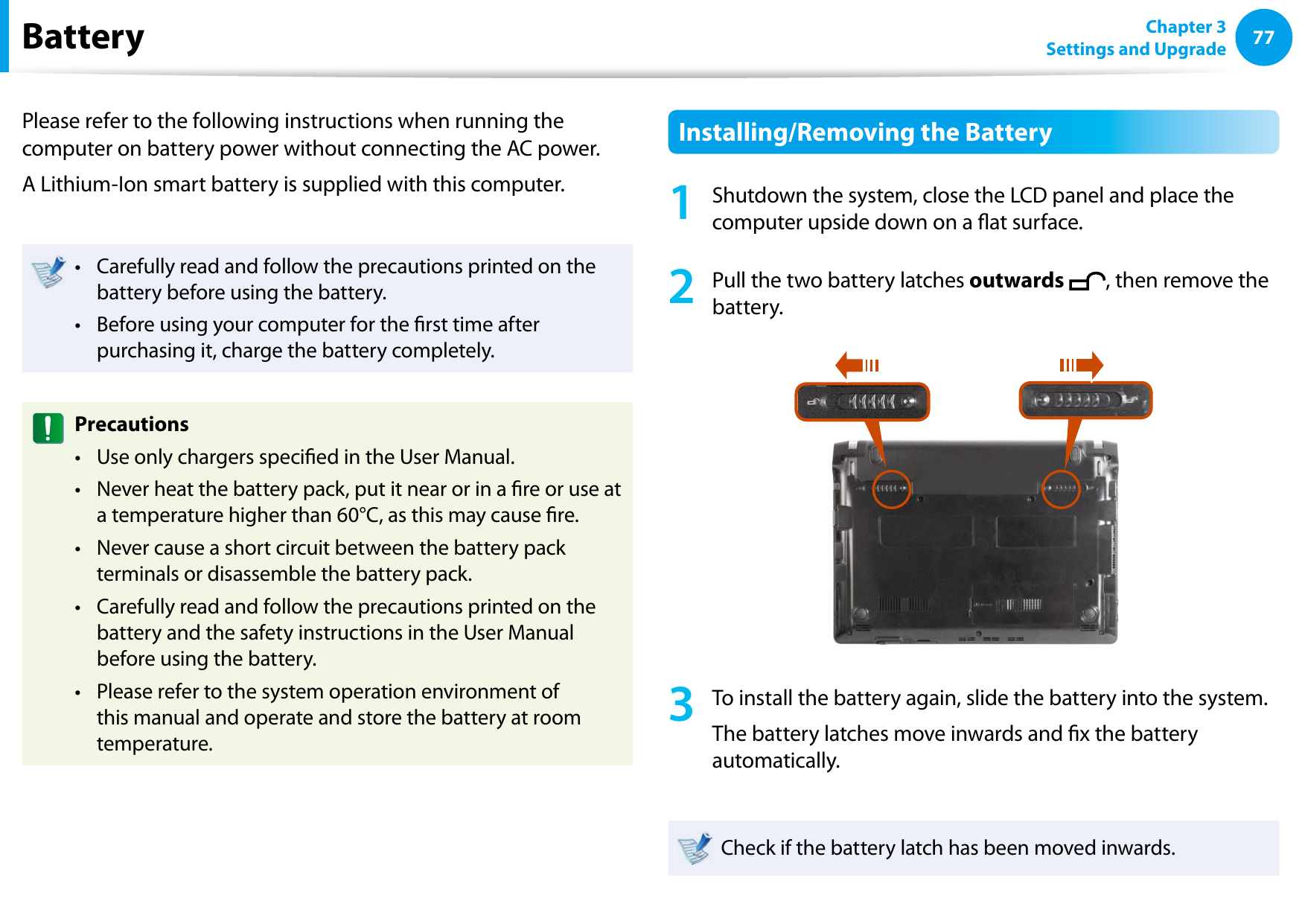
7677Chapter 3 Settings and UpgradeBatteryPlease refer to the following instructions when running the computer on battery power without connecting the AC power. A Lithium-Ion smart battery is supplied with this computer.Carefully read and follow the precautions printed on the • battery before using the battery.Before using your computer for the rst time after • purchasing it, charge the battery completely.PrecautionsUse only chargers specied in the User Manual.• Never heat the battery pack, put it near or in a re or use at • a temperature higher than 60°C, as this may cause re.Never cause a short circuit between the battery pack • terminals or disassemble the battery pack. Carefully read and follow the precautions printed on the • battery and the safety instructions in the User Manual before using the battery.Please refer to the system operation environment of • this manual and operate and store the battery at room temperature.Installing/Removing the Battery1  Shutdown the system, close the LCD panel and place the computer upside down on a at surface.2  Pull the two battery latches outwards  , then remove the battery.3  To install the battery again, slide the battery into the system. The battery latches move inwards and x the battery automatically.Check if the battery latch has been moved inwards.
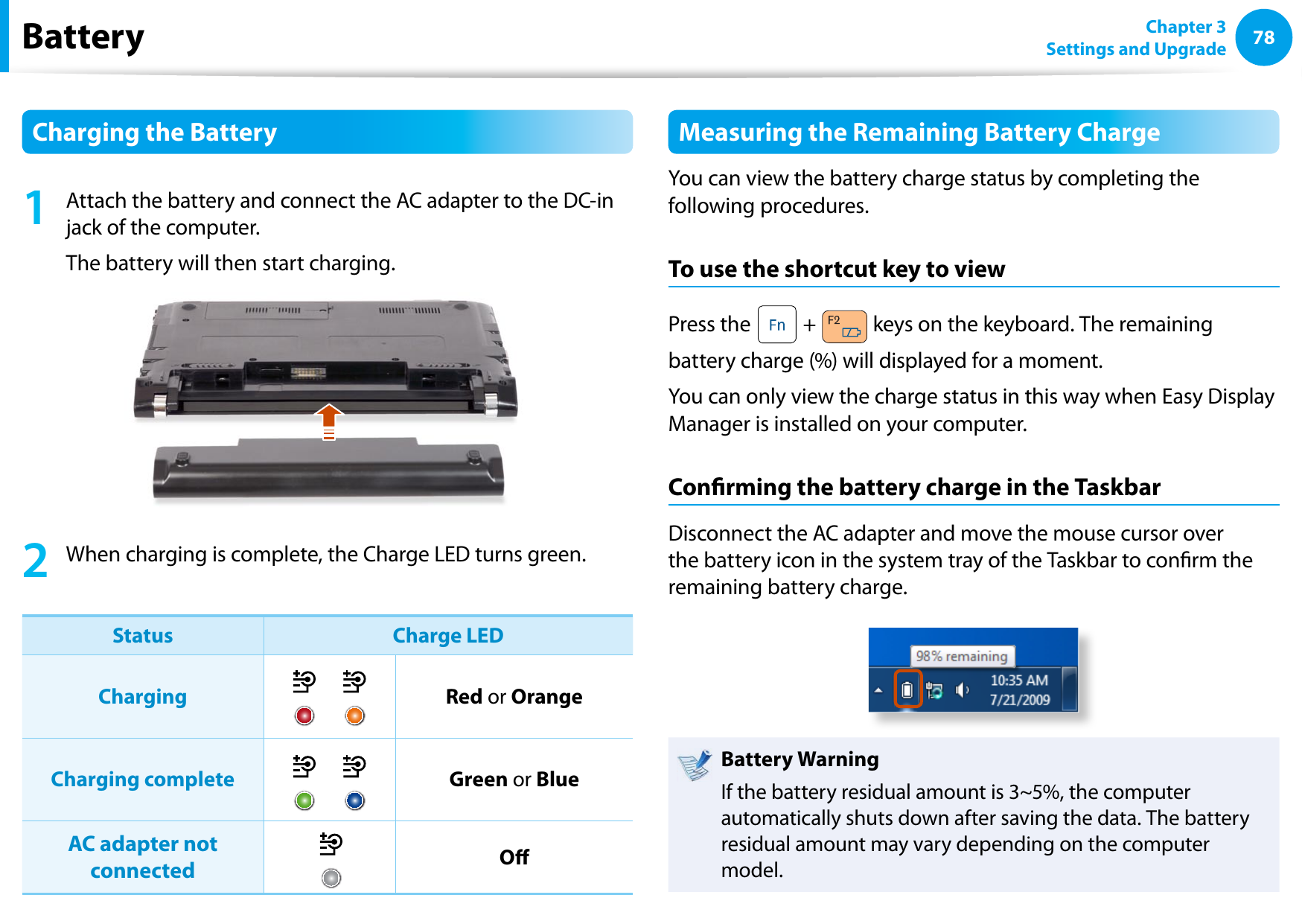
78Chapter 3 Settings and UpgradeBatteryCharging the Battery1  Attach the battery and connect the AC adapter to the DC-in jack of the computer.The battery will then start charging.2  When charging is complete, the Charge LED turns green.Status Charge LEDCharging Red or OrangeCharging complete Green or BlueAC adapter not connected OMeasuring the Remaining Battery ChargeYou can view the battery charge status by completing the following procedures.To use the shortcut key to viewPress the   +   keys on the keyboard. The remaining battery charge (%) will displayed for a moment.You can only view the charge status in this way when Easy Display Manager is installed on your computer.Conrming the battery charge in the TaskbarDisconnect the AC adapter and move the mouse cursor over the battery icon in the system tray of the Taskbar to conrm the remaining battery charge.Battery WarningIf the battery residual amount is 3~5%, the computer automatically shuts down after saving the data. The battery residual amount may vary depending on the computer model.
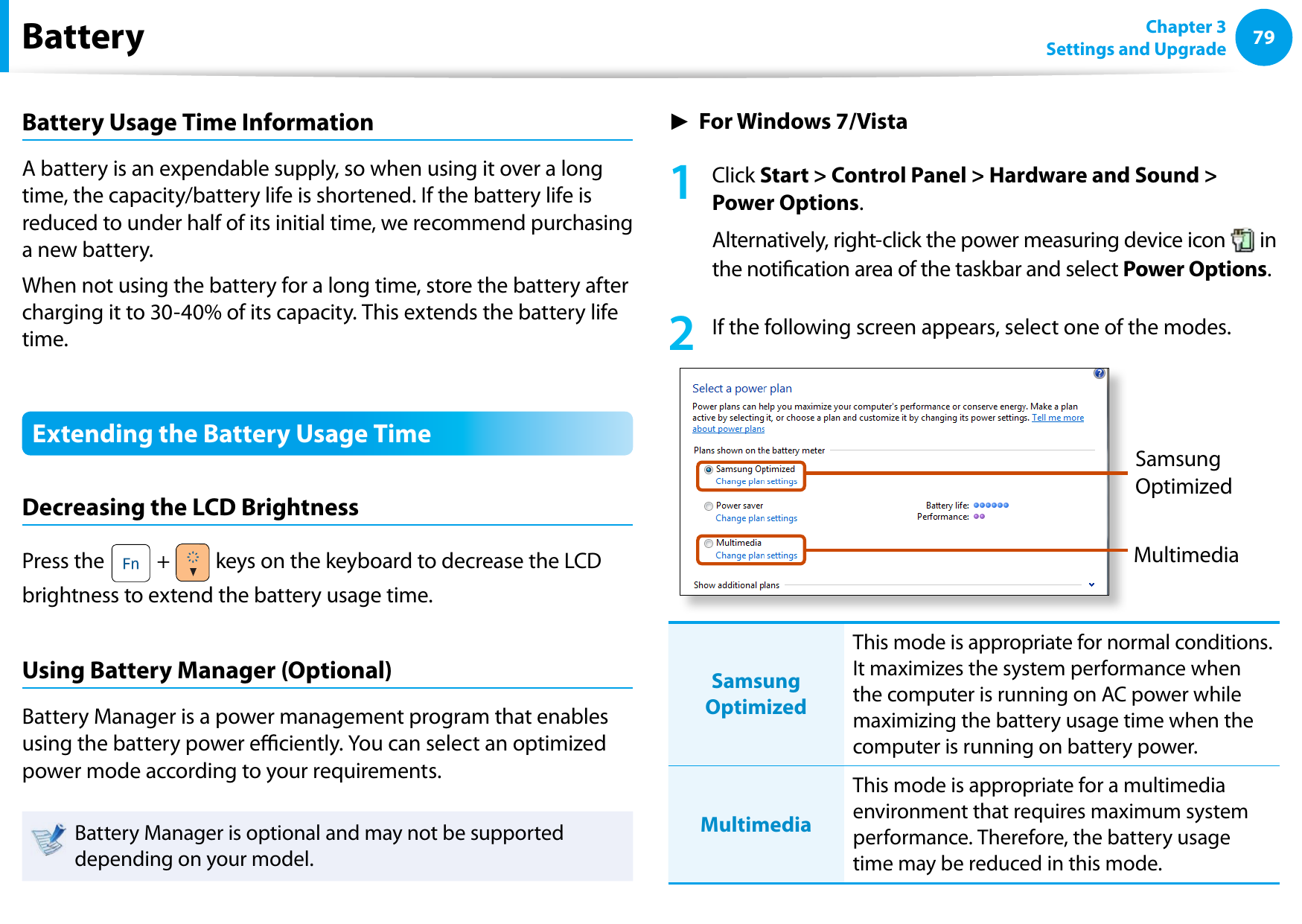
7879Chapter 3 Settings and UpgradeBatteryBattery Usage Time InformationA battery is an expendable supply, so when using it over a long time, the capacity/battery life is shortened. If the battery life is reduced to under half of its initial time, we recommend purchasing a new battery.When not using the battery for a long time, store the battery after charging it to 30-40% of its capacity. This extends the battery life time.Extending the Battery Usage TimeDecreasing the LCD BrightnessPress the   +   keys on the keyboard to decrease the LCD brightness to extend the battery usage time.Using Battery Manager (Optional)Battery Manager is a power management program that enables using the battery power eciently. You can select an optimized power mode according to your requirements.Battery Manager is optional and may not be supported depending on your model.► For Windows 7/Vista1 Click Start > Control Panel > Hardware and Sound > Power Options.Alternatively, right-click the power measuring device icon   in the notication area of the taskbar and select Power Options.2  If the following screen appears, select one of the modes.MultimediaSamsung OptimizedSamsung OptimizedThis mode is appropriate for normal conditions. It maximizes the system performance when the computer is running on AC power while maximizing the battery usage time when the computer is running on battery power.MultimediaThis mode is appropriate for a multimedia environment that requires maximum system performance. Therefore, the battery usage time may be reduced in this mode.
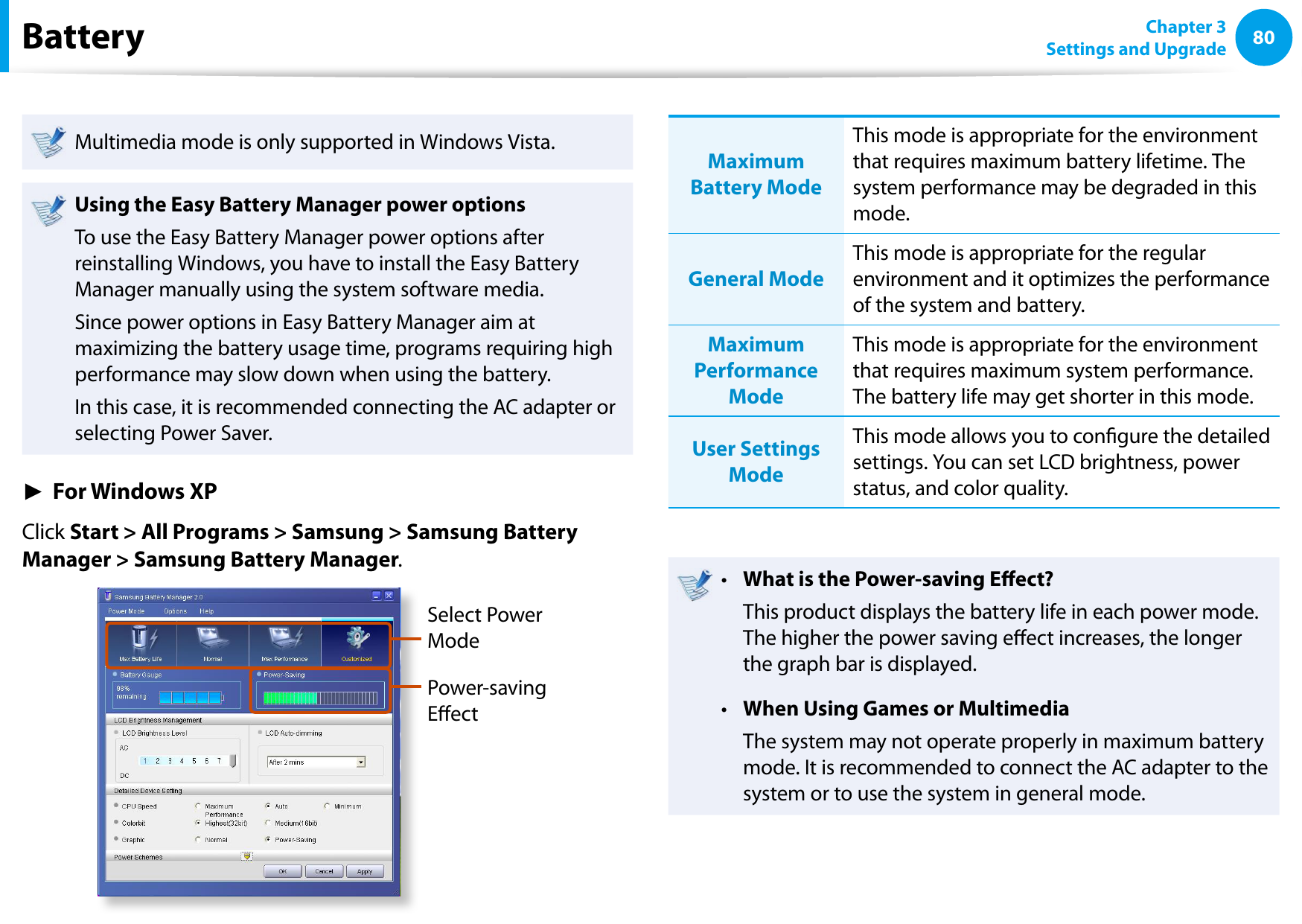
80Chapter 3 Settings and UpgradeBatteryMultimedia mode is only supported in Windows Vista.Using the Easy Battery Manager power optionsTo use the Easy Battery Manager power options after reinstalling Windows, you have to install the Easy Battery Manager manually using the system software media.Since power options in Easy Battery Manager aim at maximizing the battery usage time, programs requiring high performance may slow down when using the battery.In this case, it is recommended connecting the AC adapter or selecting Power Saver.► For Windows XPClick Start > All Programs > Samsung > Samsung Battery Manager > Samsung Battery Manager.Select Power ModePower-saving EectMaximum Battery ModeThis mode is appropriate for the environment that requires maximum battery lifetime. The system performance may be degraded in this mode.General ModeThis mode is appropriate for the regular environment and it optimizes the performance of the system and battery.Maximum Performance ModeThis mode is appropriate for the environment that requires maximum system performance. The battery life may get shorter in this mode.User Settings ModeThis mode allows you to congure the detailed settings. You can set LCD brightness, power status, and color quality.What is the Power-saving Eect?•   This product displays the battery life in each power mode. The higher the power saving eect increases, the longer the graph bar is displayed.When Using Games or Multimedia•   The system may not operate properly in maximum battery mode. It is recommended to connect the AC adapter to the system or to use the system in general mode.

Navigation menu