Samsung Electronics Co ML7300N LASER PRINTER User Manual 2 of 2
Samsung Electronics Co Ltd LASER PRINTER 2 of 2
Contents
- 1. user manual 1 of 2
- 2. user manual 2 of 2
user manual 2 of 2
PR I N T I N G TA S K S
5.8
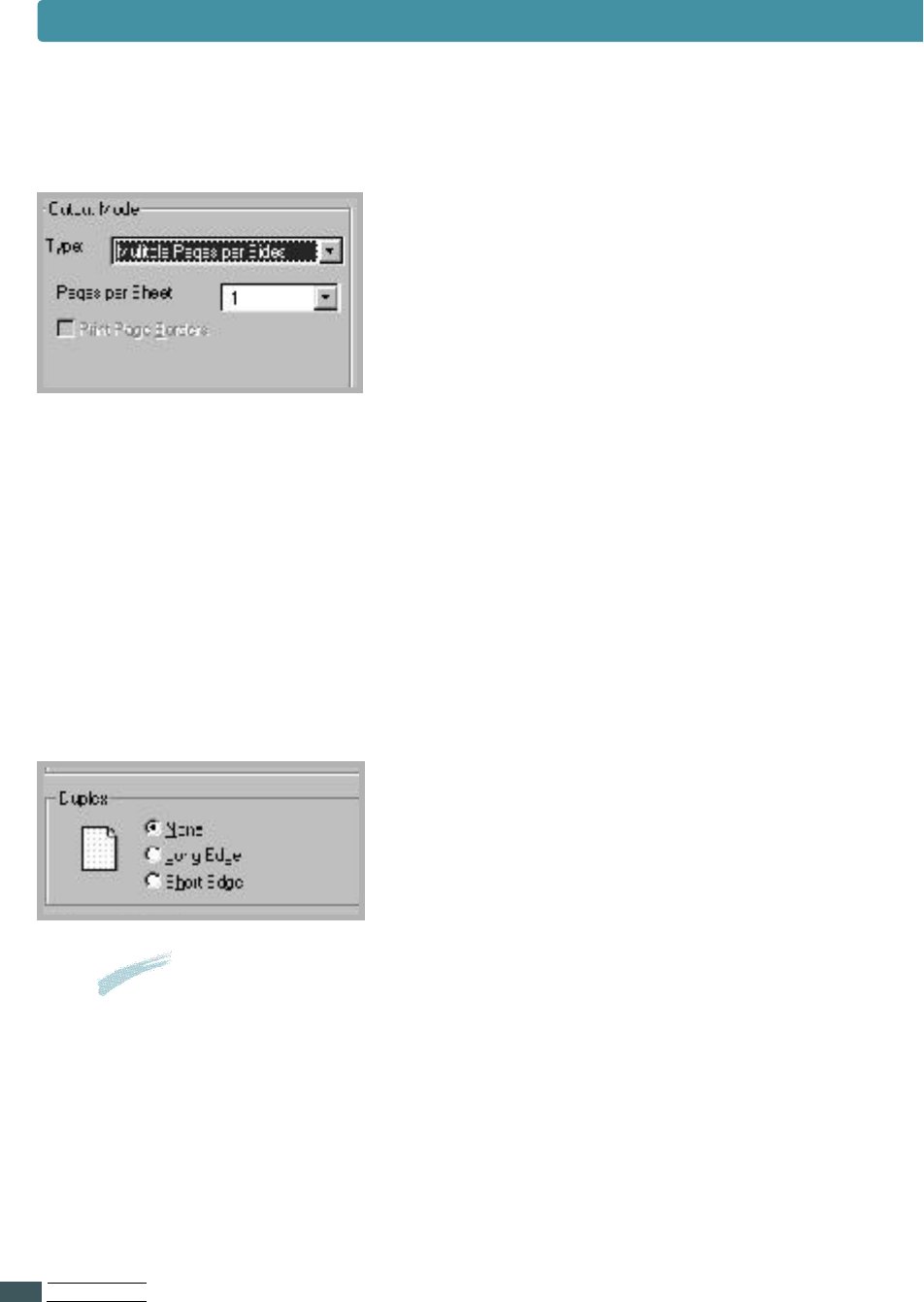
Output Mode
This setting allows you to print multiple
pages, booklet and Fit to page and Po s t e r.
It also allows you to fit ove r s i zed images
onto a single page.
Pages per Sheet(Multiple Images)
Use the Pages per Sheet setting to print
multiple pages on a single sheet of paper.
• You can fit 1, 2, 4, 6, 9 or 16 pages
on a single sheet of paper.
For example, 2 means two page images
are printed on one page.
• The print page borders setting
determines whether a border is printed
around each page image.
Duplex
Use the Duplex box when you want to print
on both sides of the paper. See page 5.14.
Important
If you want to know more about each menu, click on the Help button.
The help screen gives detailed information about each menu.
Using the Printer Driver
PR I N T I N G TA S K S
5.9
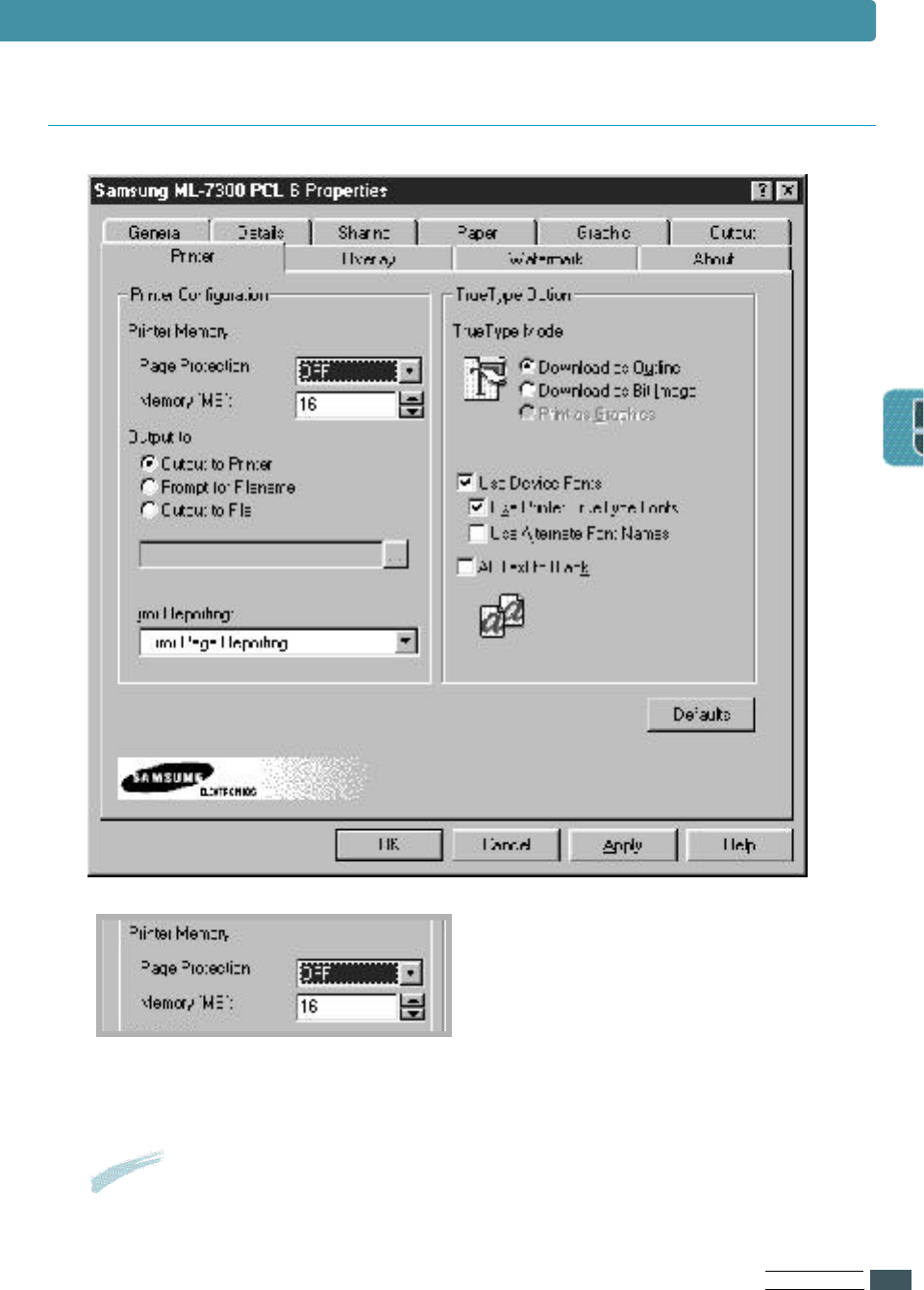
Printer Tab
Printer Memory
Select the value of the printer
memory installed in the printer.
After adding more memory, set
the value of the printer memory.
Important
If you want to know more about each menu, click on the Help button.
The help screen gives detailed information about each menu.
Using the Printer Driver
PR I N T I N G TA S K S
5.10
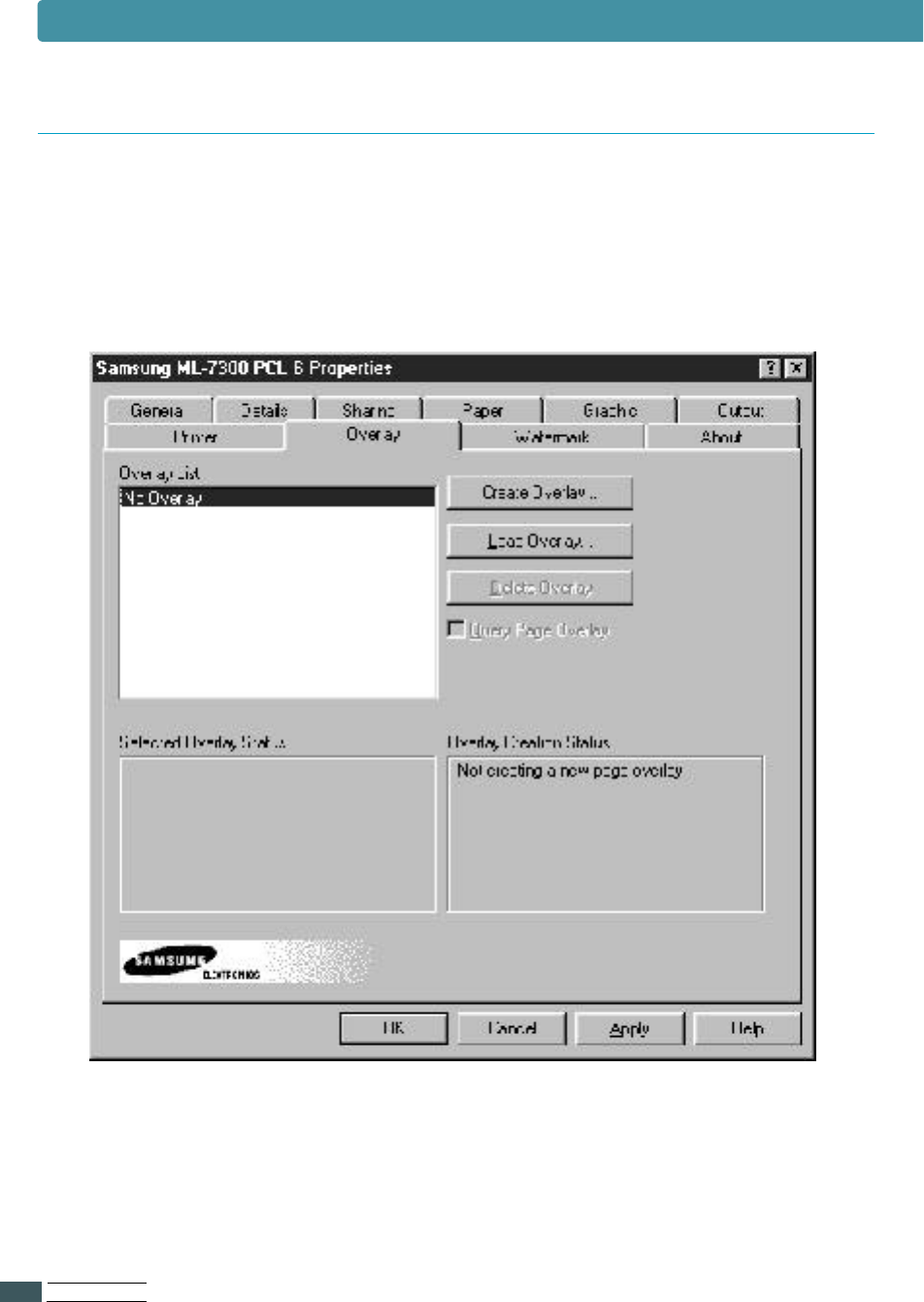
Overlay Tab
Using the Printer Driver
An o v e r l a y is text and/or images stored in the computer HDD as a special file
format that can be printed on any document you choose.
O ve r l a ys are often used to take the place of preprinted forms
and letterhead paper
PR I N T I N G TA S K S
5.11
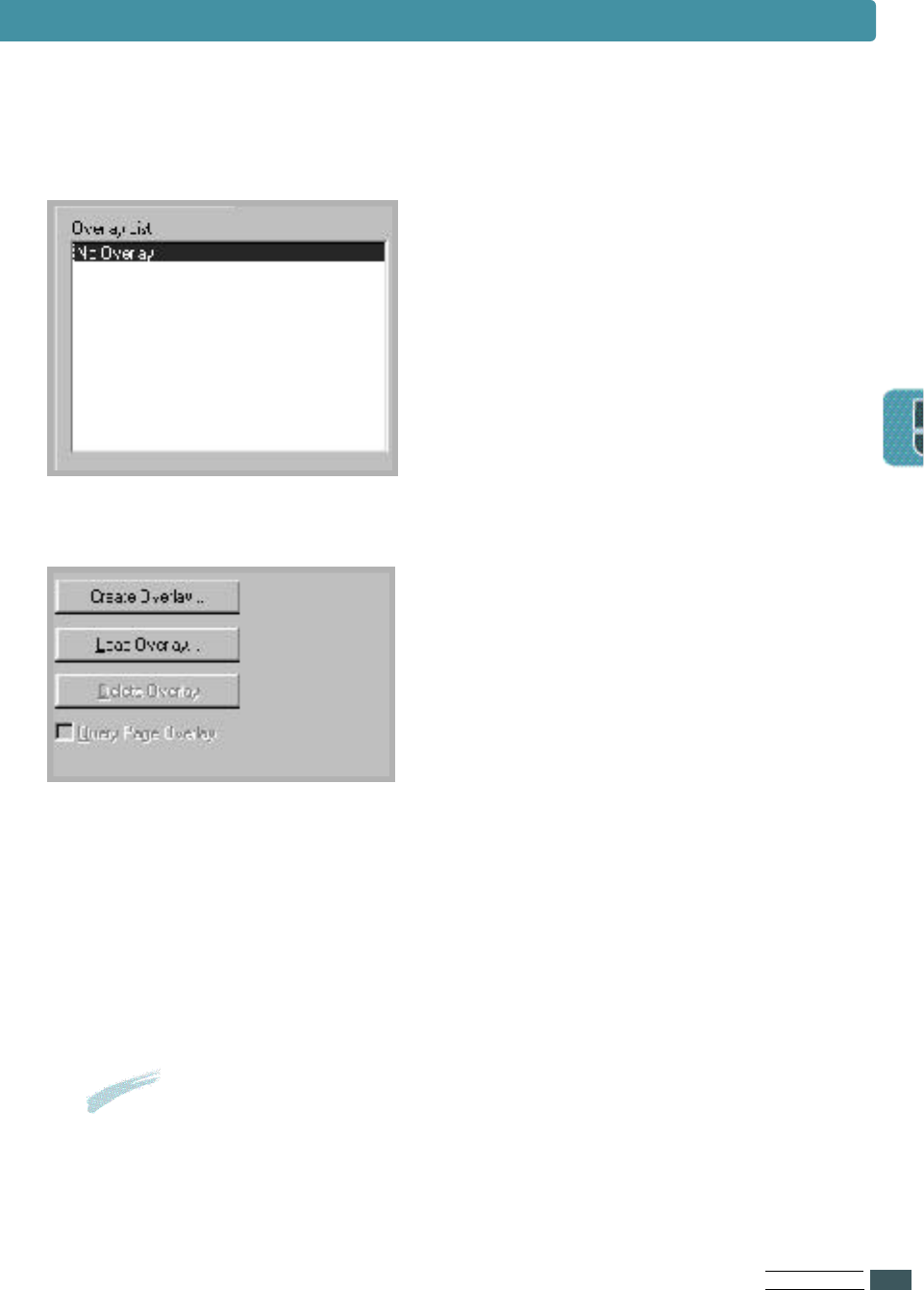
Overlay List
The file is now shown in the O v e r l a y
List b o x and is available for printing.
Select the ove r l ay from the O v e r l a y
L i s t b ox .
Create Overlay
To use a page ove r l a y, you must create
a new page ove r l a y containing your logo
or image.
Load Overlay
If you have stored the ove r l ay file yo u
want to use into an external source, yo u
can also load the file when you access
this Load Ove r l a y window.
Important
If you want to know more about each menu, click on the Help button.
The help screen gives detailed information about each menu.
Using the Printer Driver
PR I N T I N G TA S K S
5.12
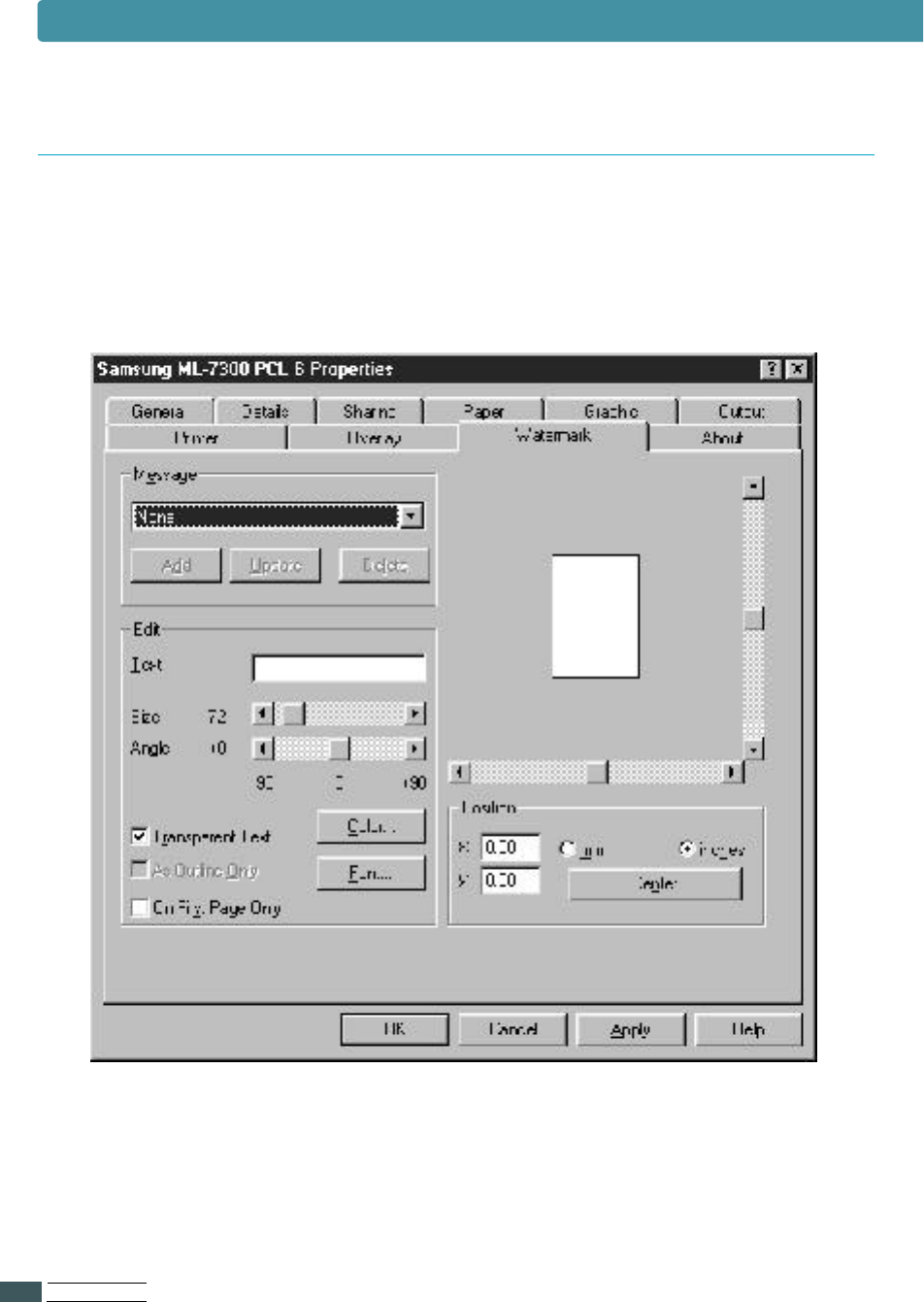
A Watermark is text that is superimposed on your final output.
Usually in a lighter gray you can create a watermark with your own text.
Watermark Tab
Using the Printer Driver
PR I N T I N G TA S K S
5.13
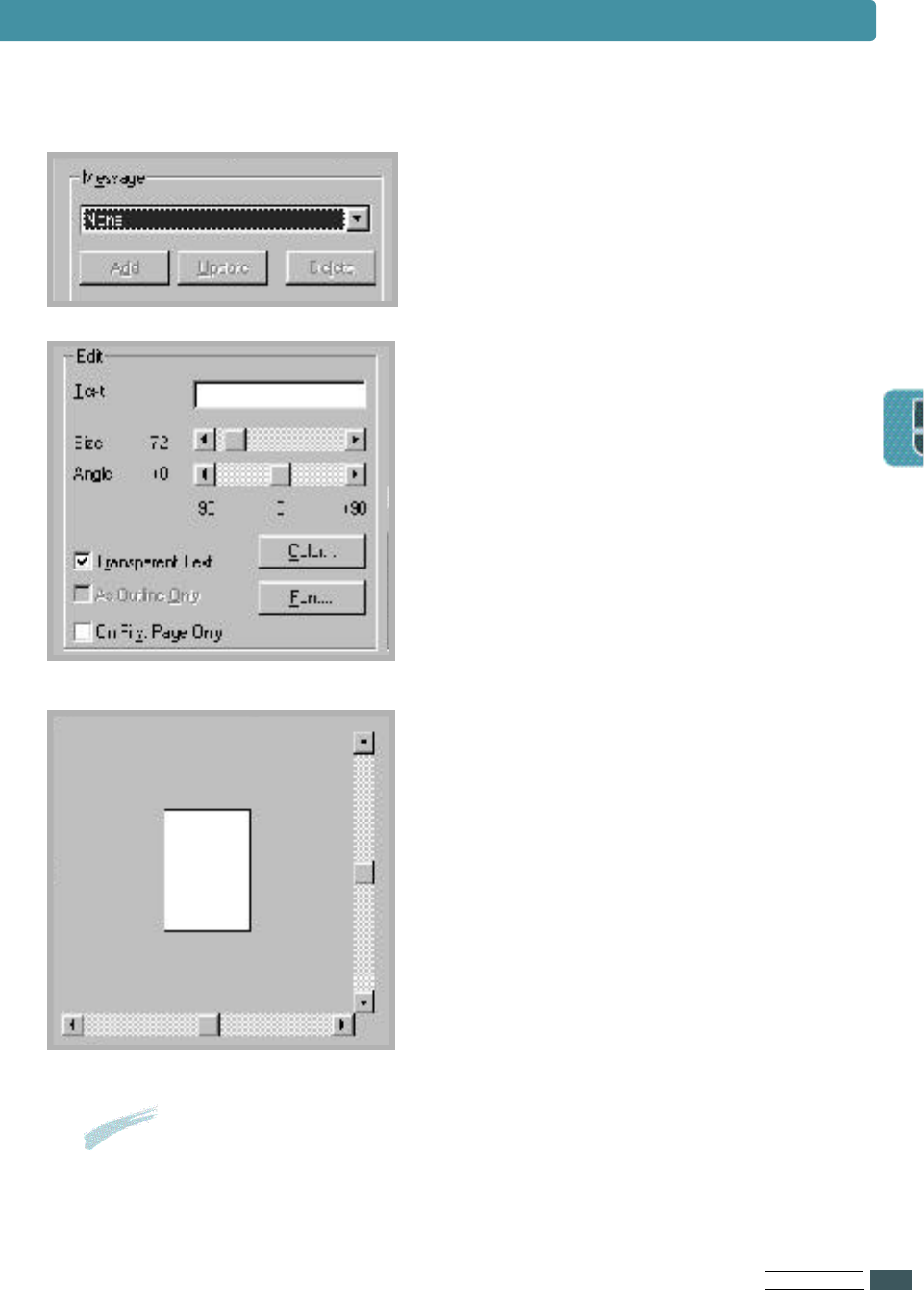
M e s s a g e
You can select a watermark from list.
E d i t
Use this dialog box to enter the text
and layout of your watermark.
You can set the wa t e r m a r k ’s font, size
and darkness, as well as the angle and
position on the page.
The preview area shows the effect of
your settings.
Important
If you want to know more about each menu, click on the Help button.
The help screen gives detailed information about each menu.
Using the Printer Driver
PR I N T I N G TA S K S
5.14
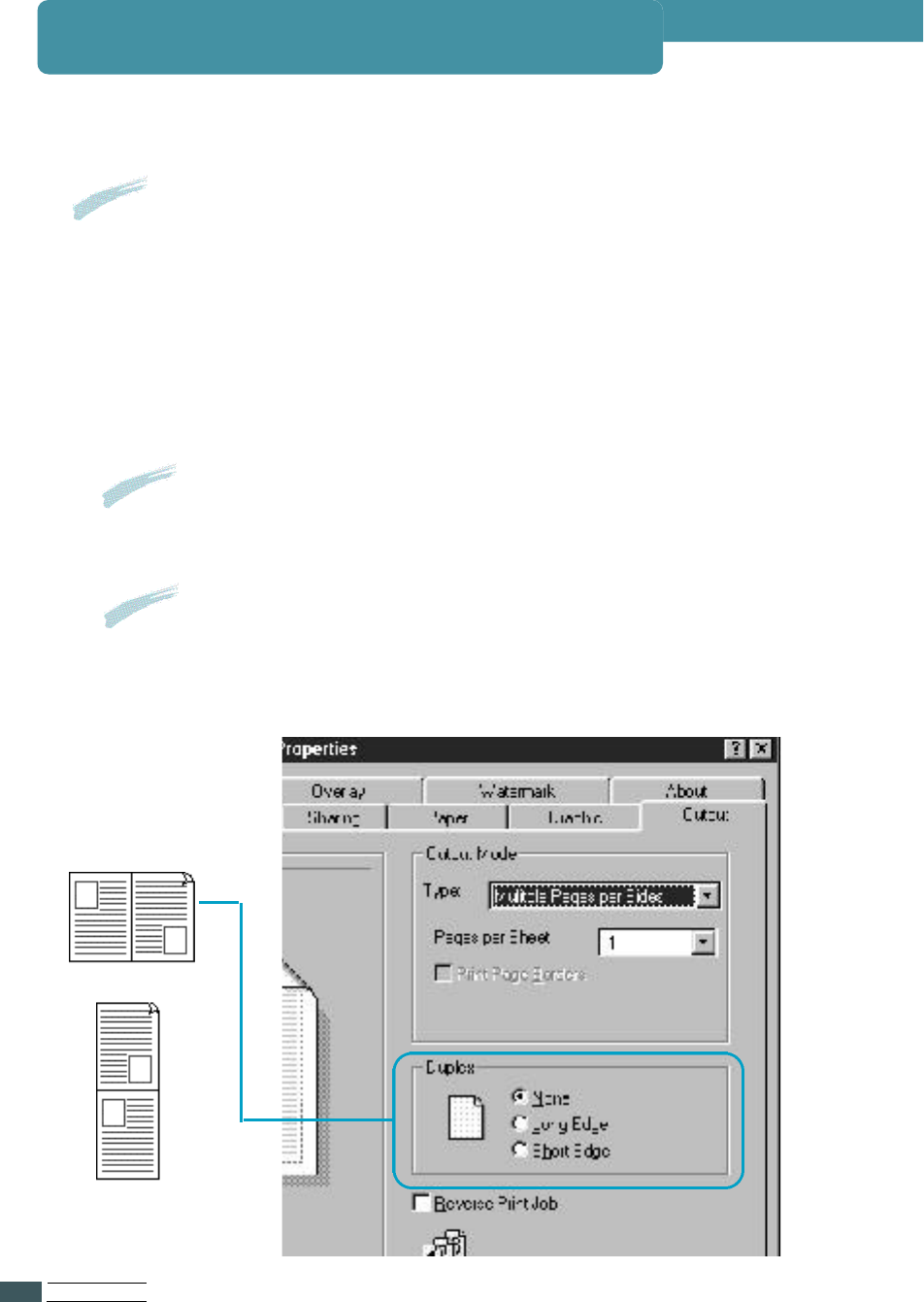
The printer can automatically print on both sides of paper by setting the
Printing Menu or Output tab of Samsung ML-7300 PCL 6 Drive r.
1 Open the document to be printed in appropriate application.
2 Click on the P r i n t b u t t o n .
3 Click on P r o p e r t i e s .
4 Click on the O u t p u t t a b.
5 Set the Duplex item to Short Edge or Long Edge,
and select the source item.
Place the paper against the left side of the Tray (See page 5.16).
Long Edge
Short Edge
Printing Both Sides of Paper
Notes
Do not print on both sides of labels, transparencies, envelopes, or paper
heavier than 24lb. Damage to printer and paper jamming might result.
Result
The PCL printer driver is displayed with the G e n e r a l tab selected.
Result
The Output tab is displayed.

PR I N T I N G TA S K S
5.15
1 M a k e sure the R E A D Y message appears on the display.
2 Press On Line.
3 Press Menu until you see PRINTING MENU.
4 Press Item until you see D U P L E X.
5 Press Value until the setting you need appears on the display
( For more information, see page 3.8).
6 Press Enter to save the selection.
If you use the driver which has not the properties,
you can select ‘DUPLEX’ by setting the control panel menu.
Notes
Settings in the printer driver and software
application override operator panel setting.
Menu Setting
Result
An asterisk(❊) appears beside the current user default
setting for that menu item.
Result
The ‘OFFLINE’ message appears on the display and the printer is off-line.
Printing Both Sides of Paper
PR I N T I N G TA S K S
5.16
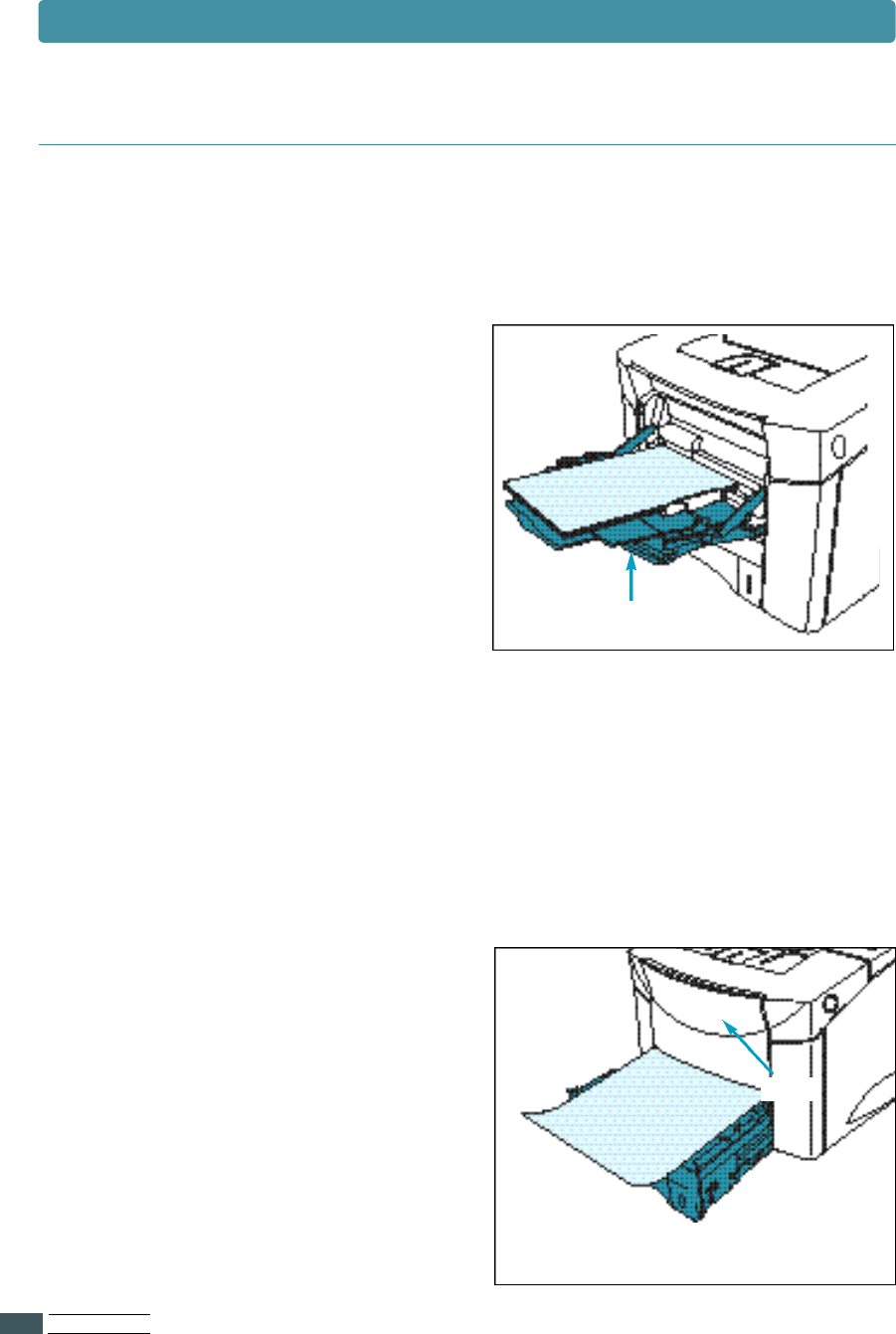
The printer prints the second sides of paper first, so paper such as letterhead
and preprinted paper needs to be oriented as illustrated in the figure below.
Paper Orientation for Printing both sides of Paper
For Multi-Purpose tray
Load the first side facing down and
the top toward you.
• Set the source item in the
properties dialogue box to
Manual or MP.
- To print continuously from Multi-
Purpose tray, set the source
item to MP.
- To print a sheet of paper from
Multi-Purpose tray,
set the source item to Manual.
For all other Tray
Load the first side facing up and
the top toward the printer.
Multi-Purpose Tray
Tray
Printing Both Sides of paper

Maintaining
Your Printer
This chapter provides suggestions for high-quality
and economical printing and information for
maintaining the toner cartridge and the printer.
Topics included in this chapter are:
◆Toner Cartridge
◆Cleaning the Printer
◆Cleaning the LSU
6
6

MA I N TA I N I N G YO U R PR I N T E R
6.1
Toner Cartridge
Do not remove the toner cartridge from its package
until you are ready to use it.
Toner cartridge storage
The life of the toner cartridge depends on the amount
of toner that print jobs require.
When printing text at 5% cove rage, a Samsung toner
cartridge lasts an ave rage of 10,000 pages in simplex
mode, depending on which toner cartridge is installed.
This assumes that print D E N S I T Y and E C O N O m e n u
items are set to default.
Toner cartridge life
Notes
To prevent damage to toner cartridge,
do not expose it to light.
When toner is low, faded or light area might appear
on a printed page.
You might be able to temporarily improve print quality
by distributing the toner.
Distributing the Toner
MA I N TA I N I N G YO U R PR I N T E R
6.2
Toner Cartridge
When toner is low, faded or light areas may appear on a printed page.
You may be able to temporarily improve print quality by redistributing the
t o n e r. The following procedures may allow you to finish the current print job
before replacing the toner cartridge.
Redistributing Toner
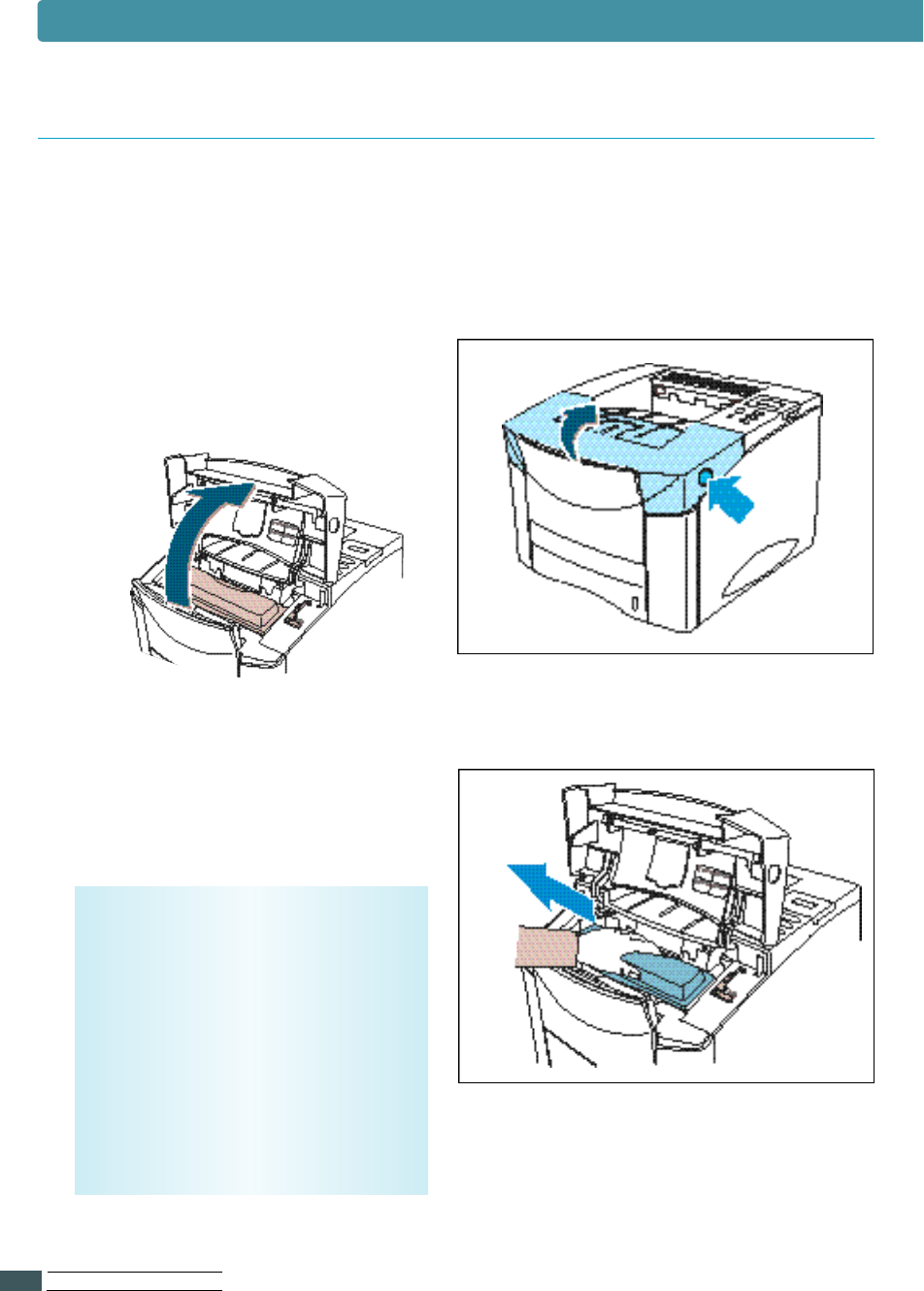
1Open the top cover by pushing
the button on the side of the
p r i n t e r.
2Re m ove the toner cartridge
from the printer.
C A U T I O N S :
• Avoid reaching too far into
the printer. The fusing area
may be hot.
• To prevent damage to the
toner cartridge, do not
expose it to light for m o r e
than a few minute.
MA I N TA I N I N G YO U R PR I N T E R
6.3
Toner Cartridge
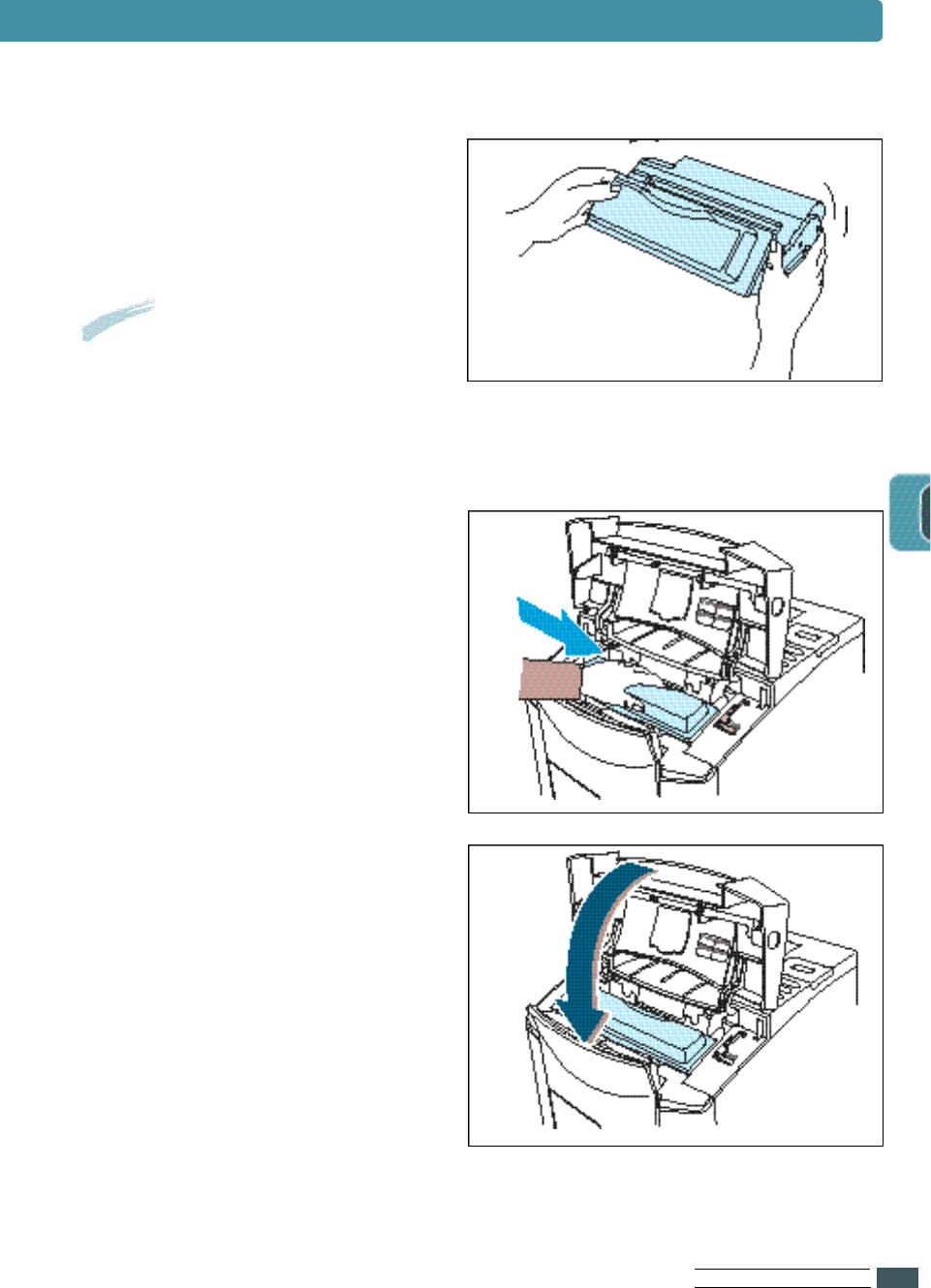
3Gently shake the toner
cartridge from side to side 5 or
6 times to redistribute the
t o n e r.
4Reinsert the toner cartridge
into the printer. Be sure that
the toner cartridge is firmly in
its place.
5Firmly close the cove r.
If the print remains light
Re m ove the old cartridge and
install a new toner cartridge.
See “Installing Toner Cartridge”
on page 2.3.
Notes
If the toner gets on your
clothing, wipe it off with a dry
cloth and wash clothing in cold
water. Hot water sets toner into
f a b r i c.
MA I N TA I N I N G YO U R PR I N T E R
6.4
Cleaning the Printer
To maintain print quality, you should clean the printer.
• N e ver use alcohol or solvent based cleaning agents to clean the printer
as they may damage the printer casing and components.
• N e ver use a hard-bristled brush or abra s i v e pad.
To clean your printer, proceed as follows.
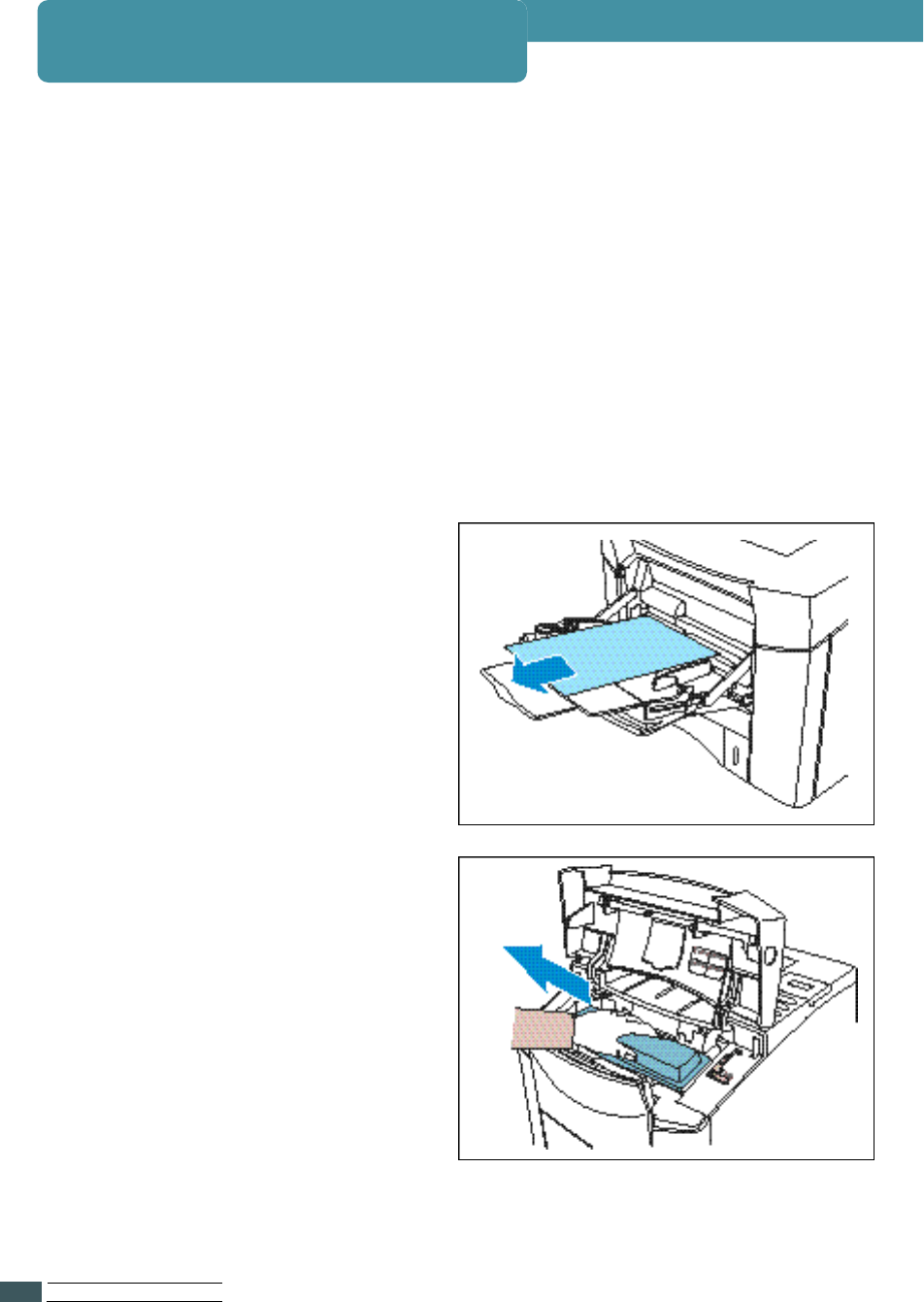
2Re m ove the paper from
Multi-Purpose tray.
3Open the top cover and
r e m ove the toner cartridge.
1Check that the printer is powered off and disconnected from
power point.
MA I N TA I N I N G YO U R PR I N T E R
6.5
Cleaning the Printer
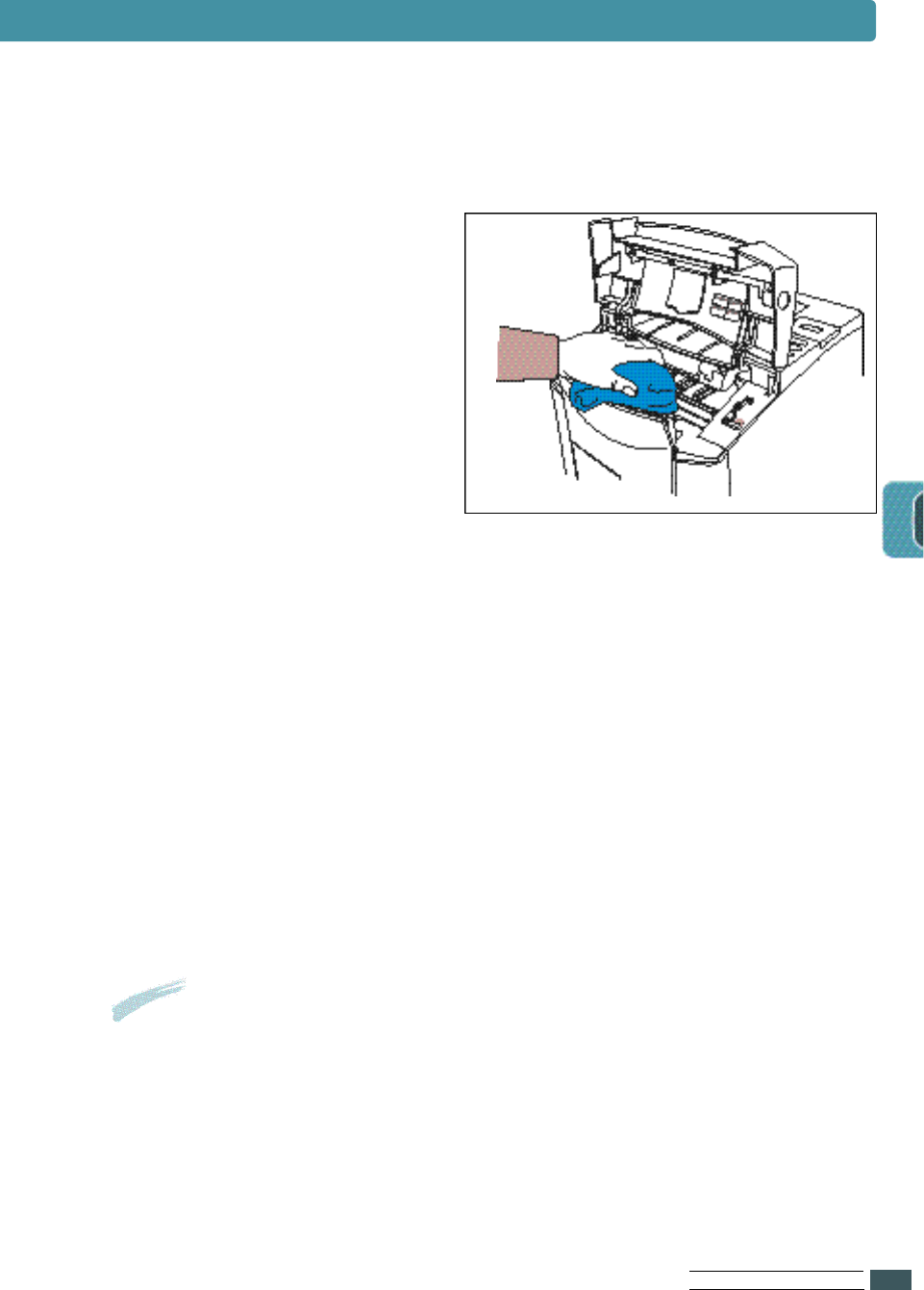
4Use a soft cloth to remove any
d u s t .
5If the outer casing or the paper feed guides are dirty, clean them
w i t h a soft, clean cloth, slightly dampened with a gentle detergent.
6Clean the inside of the printer with a damp cloth.
7Replace the toner cartridge, close the top cove r, plug in the power
cord, and turn the printer on.
Notes
While cleaning the printer, be careful not to touch the transfer
roller(the black, rubber roller, located under neath the toner cartridge).
Skin oils on the roller can cause print quality problems.
MA I N TA I N I N G YO U R PR I N T E R
6.6
Cleaning LSU
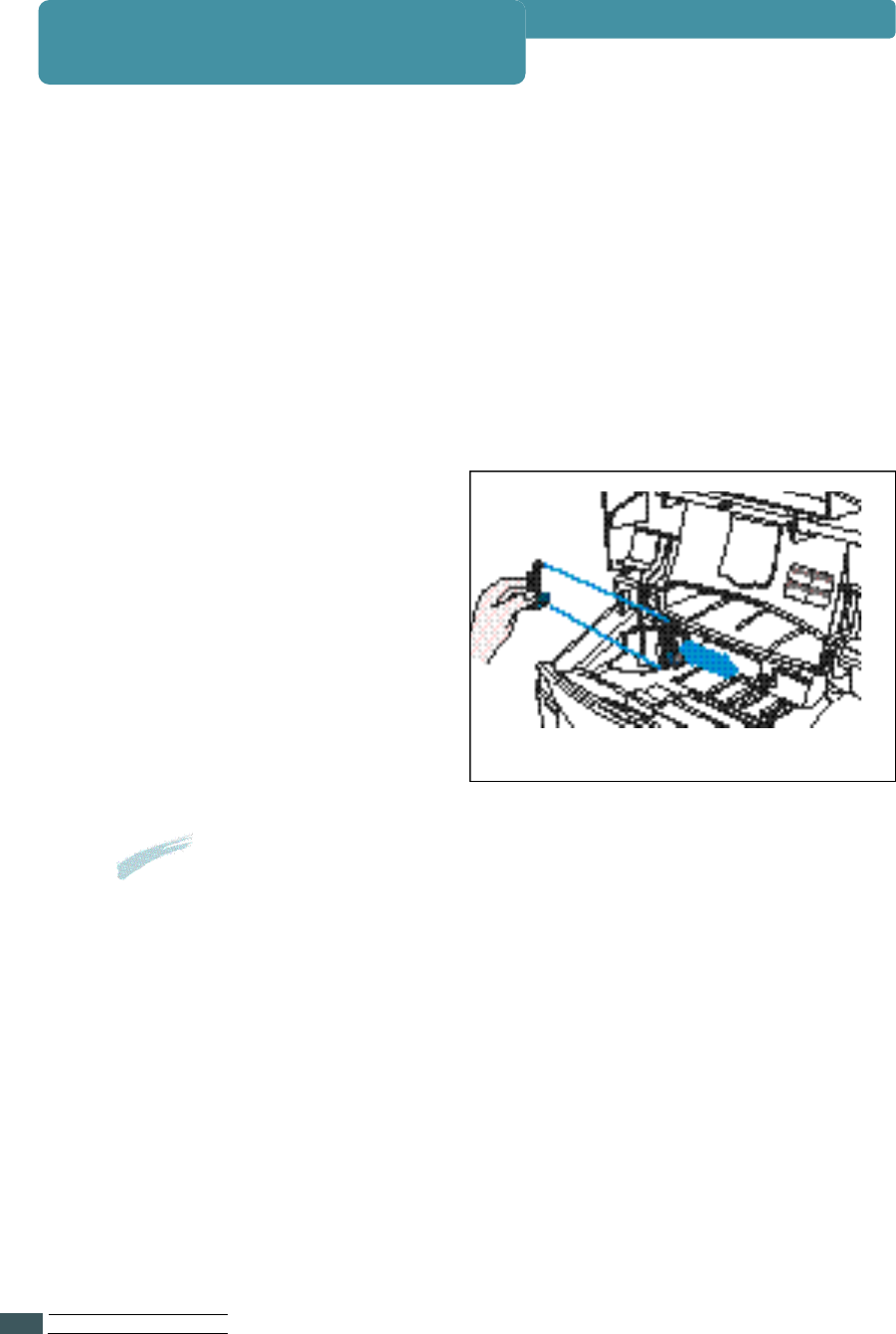
3Slide the LSU cleaner
h o r i zontally across a track on
the top of the LSU.
To obtain high quality from your printer, clean the LSU(Laser Scanning Unit)
when characters have lines running through them.
1Open the top cover and remove the toner cartridge.
2Pull up on the LSU cleaner and put it on the LSU.
Notes
For more information on using method, see
attached label on the inside of the top cover.

MA I N TA I N I N G YO U R PR I N T E R
6.7

Problem Solving
This chapter gives helpful information for
what to do if you encounter a printer error. It
p r ovides information on the following topics:
◆ Clearing Paper Jams
◆ Error Messages
◆ G e n e ral Printing Problems
◆ Poor Print Quality
◆ P S ( P ostScript) Problems
◆ Network Problems
◆ Macintosh Problems
7
7

PR O B L E M SO LV I N G
7.1
If the printer’s operator panel displays a paper jam message, look for paper in
the locations indicated in the figure below, then perform the procedure for
clearing the paper jam.
Clearing Paper Jams
Notes
Be very careful not to tear the paper, when clearing paper jams.
If a small piece of paper is left in the printer, it could cause additional jams.
Paper Jam Locations
PR O B L E M SO LV I N G
7.2
Problem
‘PAPER JAM0’
message appears
on the LC D
Solution
1
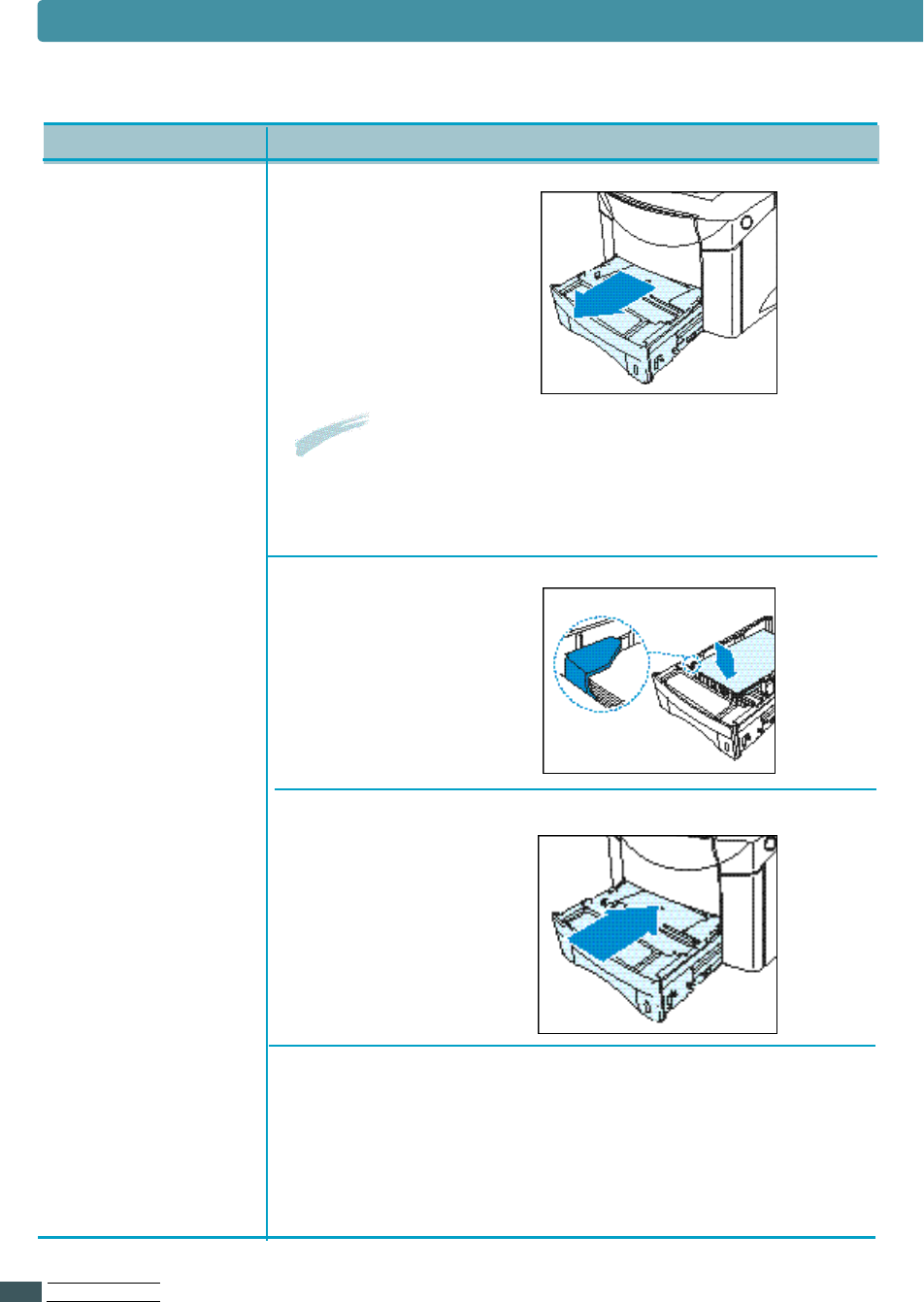
Slide the tray out
of the printer,
and remove any
damaged paper
from the tray.
Notes
If the edge of paper is visible in the feed
area, slowly pull the paper down
and out of the printer.
2
M a k e sure the
paper is below
the tab on the
g u i d e .
4Open and close the top cover to clear the
paper jam message.
3Replace the tray.
Clearing Paper Jams
PR O B L E M SO LV I N G
7.3
Notes
The paper jam locations for both sides printing are different
from those of normal printing. Refer to page 7.1.
‘PAPER JAM1’ or
‘P A P E R J A M 2’
messages appear
on the LC D
Check 1
•
Open and close the top cover The paper comes
out of the printer.
Check 2 (JAM 1)
•
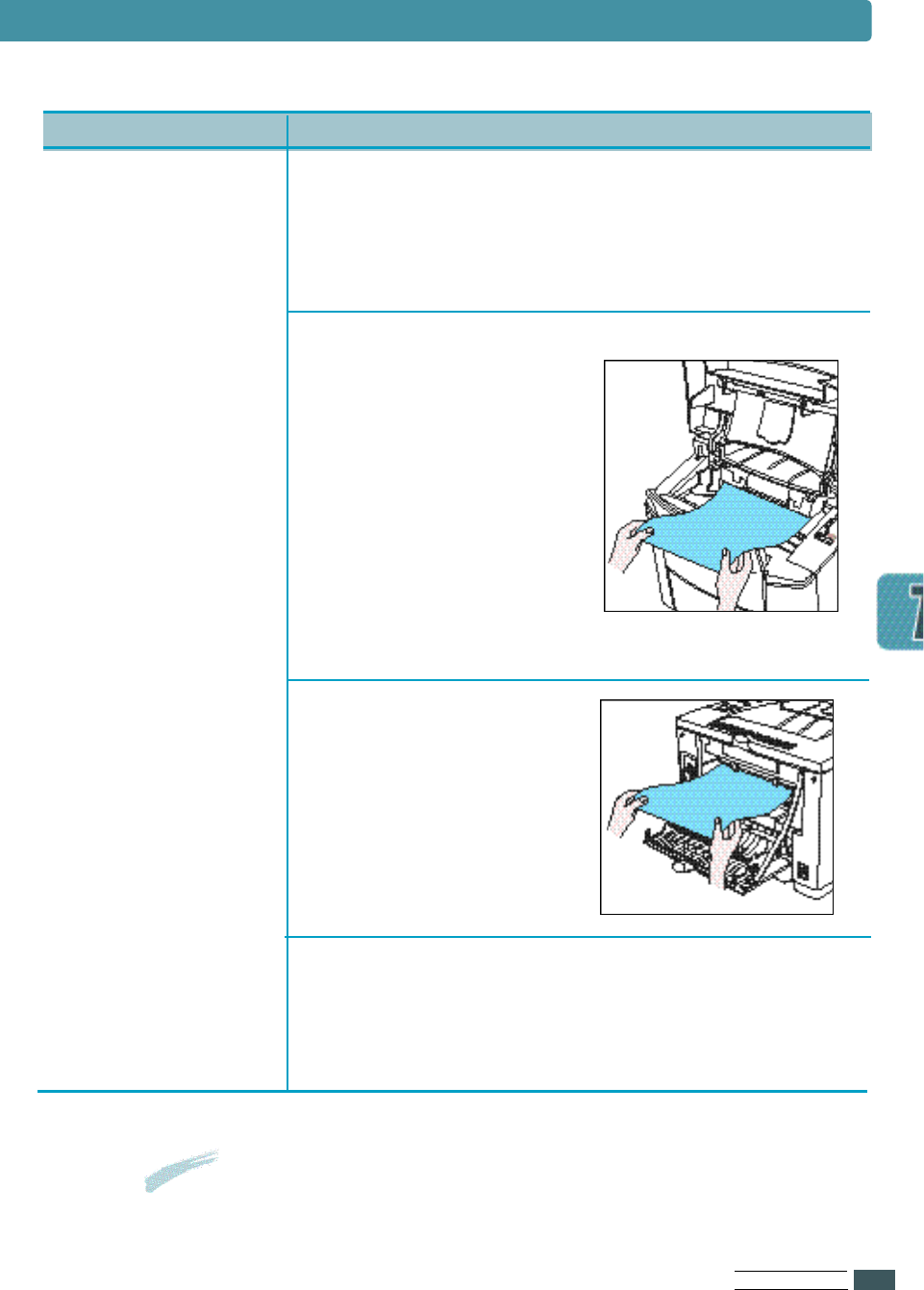
Open the top cover and
r e m ove the toner
c a r t r i d g e .
•
Slowly pull the paper
out of the printer.
Do not tear the paper.
•
Replace the toner
cartridge, and close the top cove r.
Check 3 (JAM 2)
•
Open the rear cove r.
•
G rasp both sides of the
p a p e r, and slowly pull
the paper out of the
p r i n t e r.
Check 4
•
Open and close the top cover to clear the paper
jam message.
Clearing Paper Jams
Problem Solution
PR O B L E M SO LV I N G
7.4
‘DUPLEX JAM 1’ or
‘D U P L E X JAM 2’
messages appear
on the LC D
Check 1
(DUPLEX JAM 1)
•
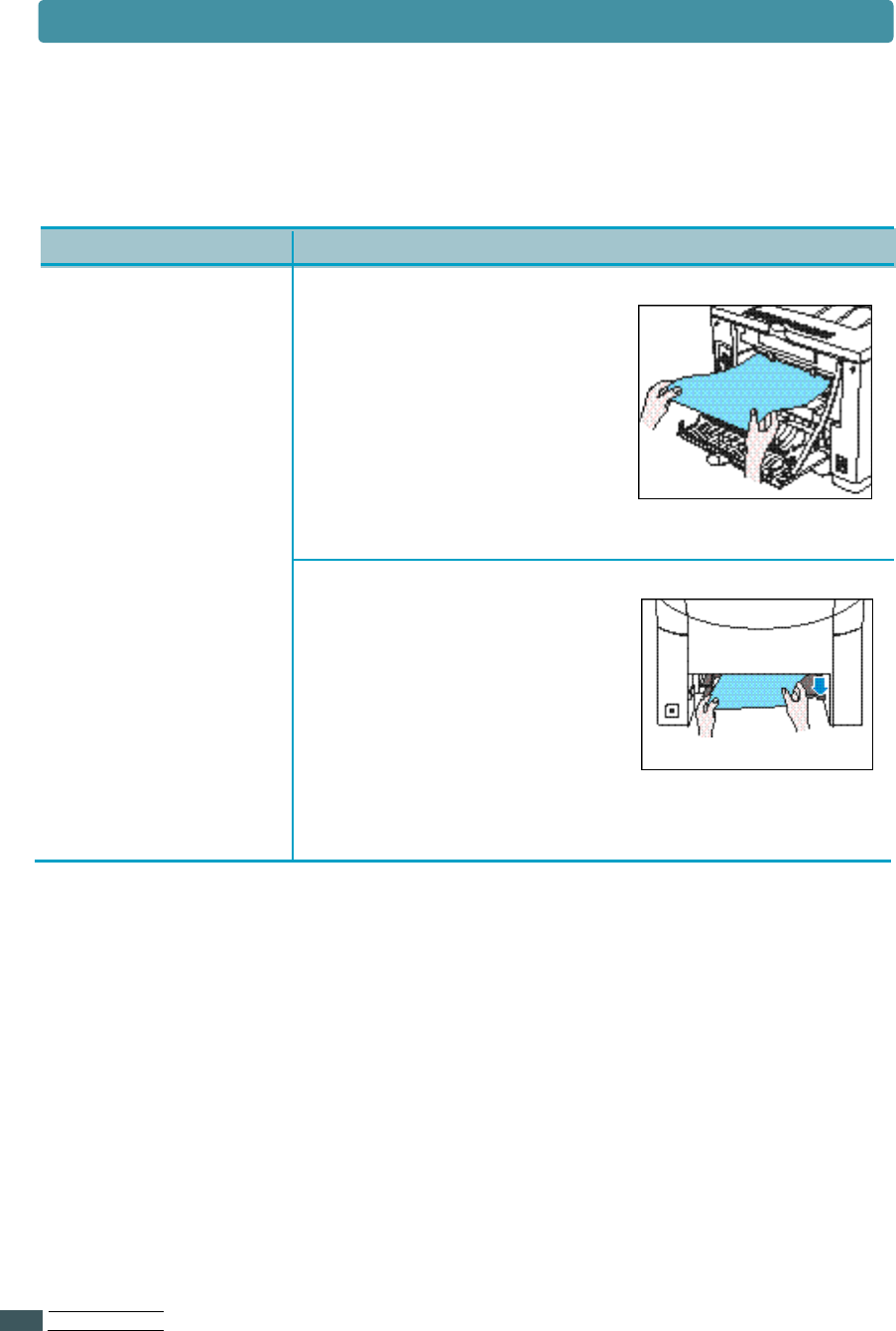
Open the rear cove r.
•
G r asp both sides of
the paper, and slowly
pull the paper out of
the printer.
Check 2 (DUPLEX JAM 2)
•
Pull the cassette pletely
out of the printer.
•
Pull down the metal plate
inside of the printer.
•
Slowly pull the paper
out of the printer.
Clearing Paper Jams
Problem Solution
PR O B L E M SO LV I N G
7.5
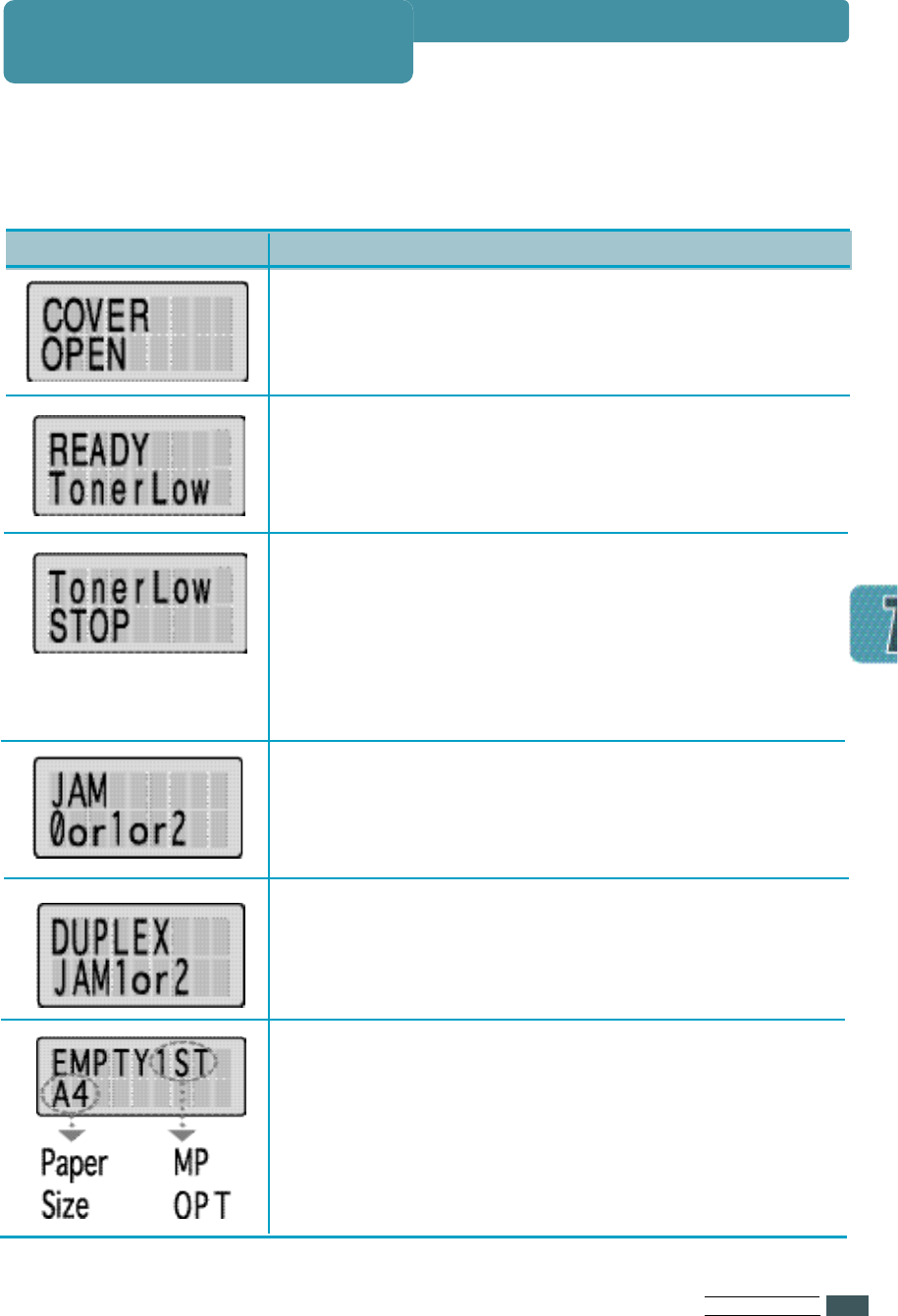
The following table explains messages that might display on the printer
o p e rator panel.
Error Messages
Message Meaning and Requried Action
A cover is open.
•Close the cover.
The printer is running out of toner.
Purchase a new cartridge and replace the
toner cartridge.
The toner is low. The TonerLow menu item is set to
STOP.
•
Purchase a new cartridge and replace the toner
cartridge.
•
Set the TonerL ow menu item to CONTINU.
•
Press the Continue button.
The printer detects a paper jam. Open the cover
and remove the jammed paper, refer to page 7.2
for more information.
The printer detects a paper jam while printing
both sides of paper.
•Open the cover and remove the jammed paper.
Load the paper to clear the message.
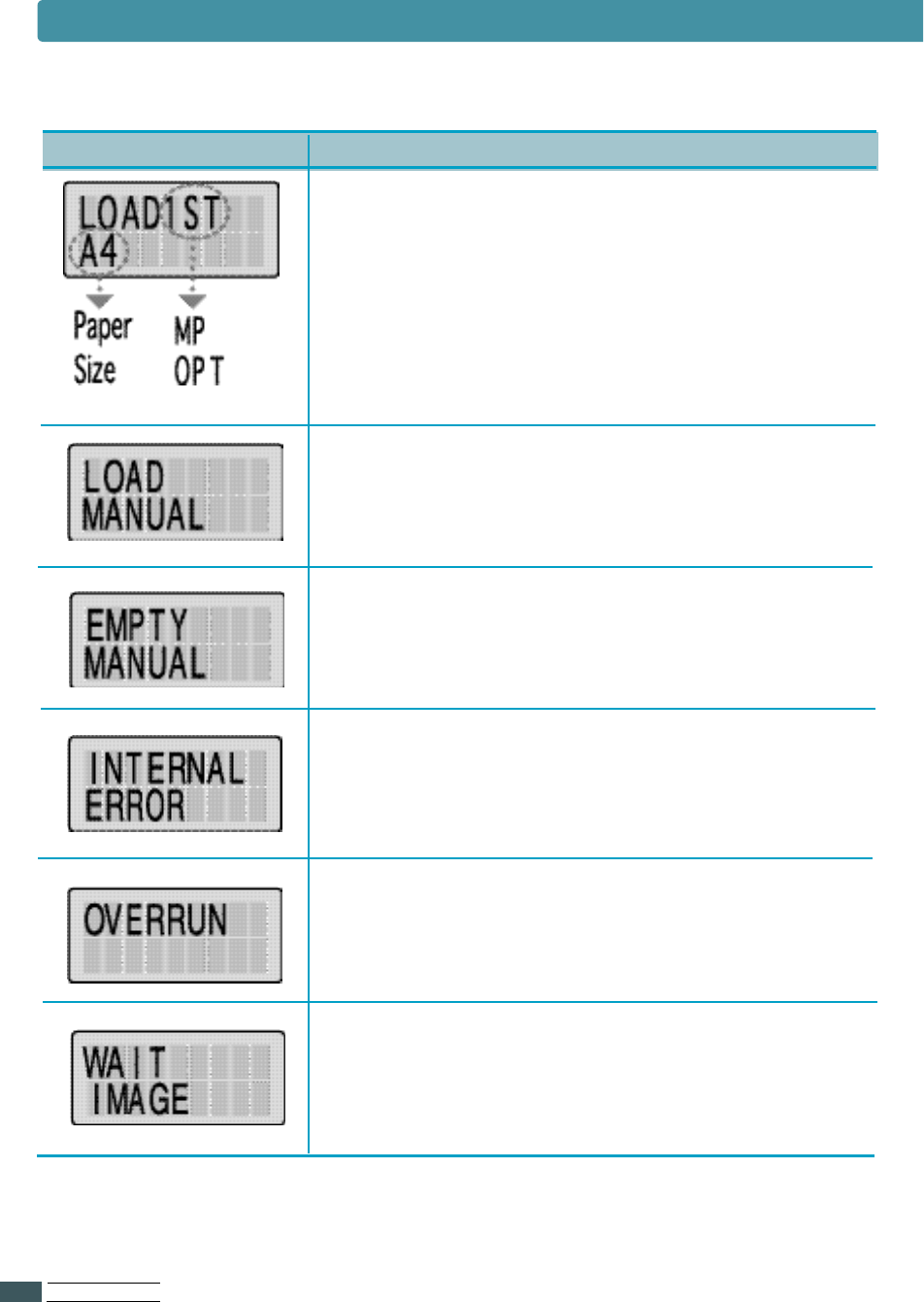
PR O B L E M SO LV I N G
7.6
The requested paper size does not correspond
with the loaded paper size in the displayed tray.
Press Continue ke y.
Load the paper into the Multi-Purpose tray.
An internal error has occurred.
•
Turn the printer off, and then turn the printer on.
•
Contact your local dealer or after-sales service.
Data which was too complex was sent to the
printer.
•
If this message persists, expand the memory.
The program in the memory has been damaged
in someway.
•Contact your local dealer.
Error Messages
Message Meaning and Requried Action
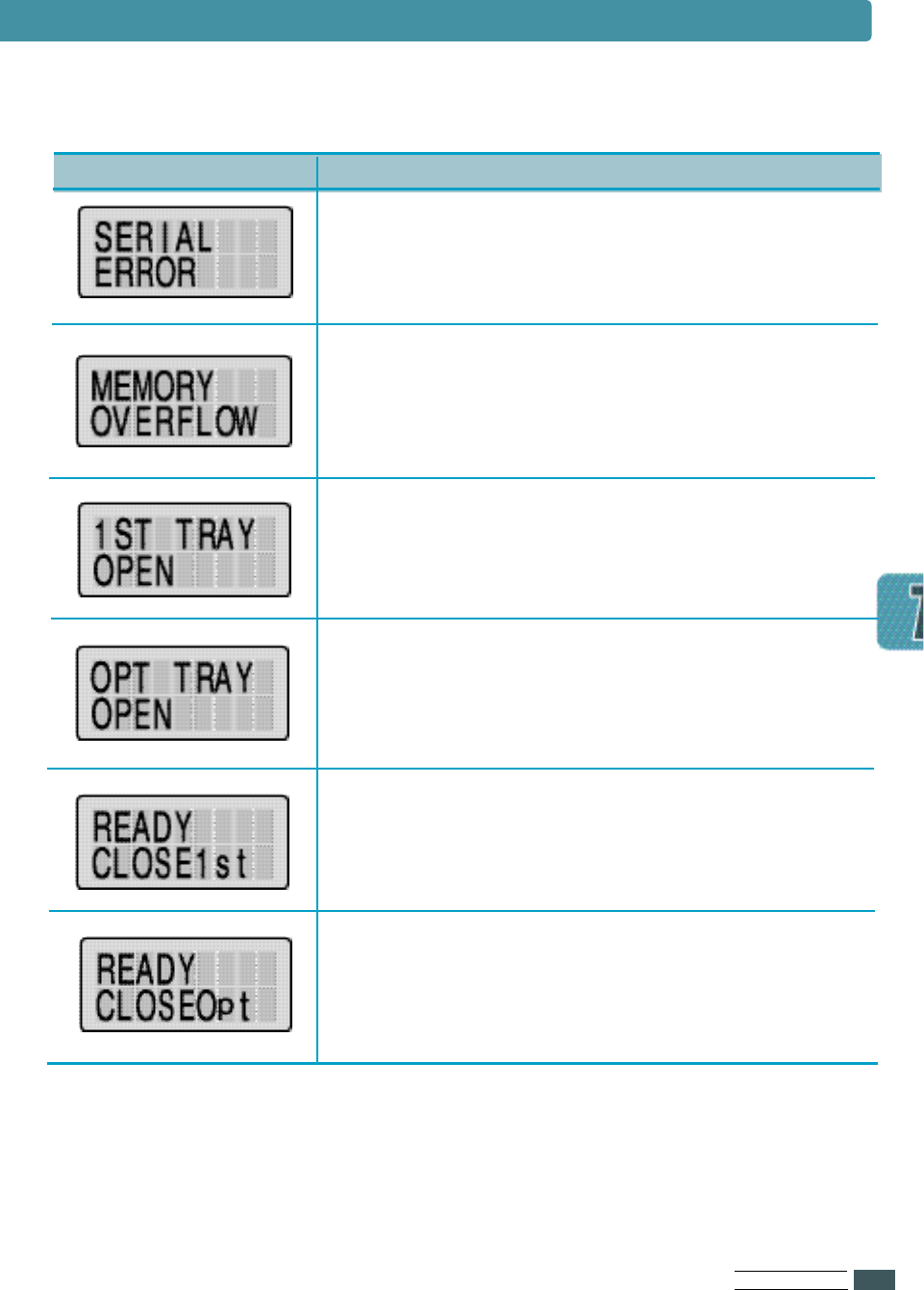
PR O B L E M SO LV I N G
7.7
The printer detects a serial interface error.
●Set the same Baudrate.
There is not enough memory in the printer.
●You might want to add more memory to the
printer.
●Check that the SMET menu item is set to ON.
The 1ST TRAY is open.
Close the 1ST TRAY to clear the message.
The OPT TRAY is open.
Close the OPT TRAY to clear the message.
The 1ST TRAY is open, but you can print
through MP TRAY.
Close the 1ST TRAY to clear the message.
The OPT TRAY is open, but you can print through
1ST tray or MP tray.
Close the OPT TRAY to clear the message.
Error Messages
Message Meaning and Requried Action

PR O B L E M SO LV I N G
7.8
General Printing Problems
•Check the power cord connections.
•Check that the power supplied to the printer is
steady and meets printer specifications.
•Turn the printer off, and then turn the
printer on.
1Select START Settings Printers from
Window 95 task bar (See page 5.1).
2Click on the PCL 6, PCL 5e or PS printer
icon.
3Select File Default Printer.
•Check the printer cable connections
(See page 2.8).
•Check the printer port on your computer.
•Check that all trays are properly loaded,
adjusted, and installed in the printer.
•Check that all covers are correctly closed.
The power does not
turn on.
The printer does not
operate by pressing
the button on the
operator panel.
It cannot print from
software application.
The printed data is
not sent to the
printer.
The test page is
not printed.
Problem Solution

PR O B L E M SO LV I N G
7.9
Poor Print Quality
•
Distribute the toner in toner cartridge (See page 6.1).
•
Adjust the ‘Density’ menu item setting (See page 3.12).
•Clean the inside of the printer (See page 6.4).
•Print a few more pages to see if the problem
will correct itself.
•Clean the inside of the printer (See page 6.4).
•Check the paper type and quality.
•Check the paper type and quality.
•Check the printers environment.
•Install a new toner cartridge.
•Check the printer cable connections.
The vertical lines are
printed on the page.
Print is too light.
There are toner
speckles.
The printer
drops letters.
•Much printing may accumulate toners on the
pressure roller of fuser ass’y.
The accumulated toner may be melted and
t ransferred on the back side of paper.
•Select ‘FUSER CLEAN’in the J O B M E N U.
•‘FUSER CLEAN’selection rotate the motor
about 10 seconds and print one page duplex
printing of specified pattern for fuser clean
and stop.
Dirty spots on the
back side of paper
of fuser ass’y
contamination.
Problem Solution

PR O B L E M SO LV I N G
7.10
PS(PostScript) Problems
1Open the Properties of PS driver.
2Click on PostScript.
3Click on the Advanced button.
4The pure binary data is not supported.
Choose the others.
The Error messages
(This job contains
binary data...) are
printed.
1Open the PS driver Properties.
2Set ‘Optional Tray 2’ item of Device Option to
installed.
The Tray2 is not
selected in PS driver.
Network Problems
There are two methods.
•On the printer front panel, you can set IP
address in Network Menu. You can find the
following menu.
”NETWORK MENU CFG NET TCP/IP
CFG TCP CFG ADRS”
You cannot see any of
DHCP serve r, BOOT P
s e r v er or RARP serve r,
when you want to set IP
address to print serve r.
Problem Solution
Problem Solution

PR O B L E M SO LV I N G
7.11
Macintosh Problems
The printer driver
icon does not appear
in the Chooser
dialogue box.
Your printer name
does not appear in
the Chooser dialogue
box.
• Reinstall the printer software.
See ‘Installing Software’ on page Appendix B.1.
The printer driver
does not automatically
setup the printer
when you click Auto
Setup in the Printer
Setup window.
•LaserWriter 8.x driver should be installed in Mac
OS. Check that it is in the Extensions
folder under the System folder. If not, install
LaserWriter 8.x driver.
• Make sure that you use the standard cable.
•Make sure that the printer is connected to the
proper network.
Check AppleTalk in the Control
Panel on the Apple menu.
• Make sure that the printer is turned on and
‘READY’ appears in the display.
• Check that the LocalTalk cable is
completely plugged into both the printer and your
Macintosh computer.
• Make sure that AppleTalk in Chooser is active.
Problem Solution

Specifications
This appendix provides information on the following
t o p i c s :
◆ Printer Specifications
◆ Paper Specifications
A
A

CPU
Emulations
Memory
Interface
Font
N/W Card
Device Driver
SP E C I F I C AT I O N S
A.1
Printer Specifications
Power PC, 100MHZ
•Default: PCL 6, PCL 5e, PS 3
•16MB Standard
•Max up to 208MB
•IEEE 1284 B type
• Option:
Serial RS-232C/LocalTalk
Serial RS-232C/IrDA
Infrared Adapter Connector
Network
45 Scalable font, 1 Bitmap
• Ethernet 10/100 base Tx
- SNMP in MIB
- TCP/IP
- Netware, Windows, Unix, Mac
PCL: Windows 3.1/95/98/NT 4.0
Controller
*PostScript 3 Emulation
IPS-PRINT_Printer language Emulation© Copyright
1995-2000, Oak Technology, Inc., All rights reserved
Characteristic Description

SP E C I F I C AT I O N S
A.2
Printer Specifications
21 PPM (Letter size)
600 DPI + SRT
Eletrophotography
Non-mag monocomponent/contact
Less than 60 secs
Less than 13 secs
472
✕
442
✕
301(W
✕
D
✕
H)mm
Less than 16.5kg
AC 100 ~ 120 V (USA, Canada)
AC 220 ~ 240 V (Others), 50/60 Hz
350W Printing Avg/ Max 34W printing sleep
Printing: 50dB
Standby: 36dB
Sleep: Background noise
10,000 pages Avg at 5% coverage
In duplex mode, less than 10,000 pages
Speed
Resolution
Imaging
Toning/Fusing
WarmUp time
FPOT
Size(WDH)
Weight
Power Rating
Power Consumption
Noise Level
Toner Cartridge
IEEE 1284
RS-232C
LocalTalk(RS-422)
RS-232C
IrDA
Parallel
Serial
IrDA
Characteristic Description
Enginge
Cable
Characteristic Description

SP E C I F I C AT I O N S
A.3
Printer Specifications
500 sheets - Tray 1
500 sheets(40 envelopes) - Optional Tray 2
250 sheets Facedown
100 sheets(10 envelopes)
•Tray 1 : A4, LTR, Folio, Legal, Exec,
ISO B5, JIS B5 (16~24lbs)
•Multi-Purpose Tray :
A4, LTR, Folio, Legal, Exec,
Statement, ISO B5, JIS B5, A5,
A6, OHP, Label, COM-10, MON,
DL, C5, C6
•Tray 2 : A4, LTR, Folio, Legal,
COM-10, MON, DL, C5
•Paper : A4, LTR, Folio, Legal
Input Capacity
Optional Input
Output Capacity
MP Tray
Type of Media
Duplexing
Operating: 10 OC ~ 30 OC
Storage: 0 OC ~ 35 OC
Operating: 30% ~ 80%
Storage: 10% ~ 90%
Temperature
Humidity
●8
✕
2 LCD
●LCD Display angle adjusting
●Backlighting
Control Panel
Package Weight ●Paper: 3 kg
●Plastic: 0,7 kg
Paper Handling
Environment
Others
Characteristic Description
Characteristic Description
Characteristic Description

SP E C I F I C AT I O N S
A.4
Paper Specifications
The following table gives details about the print material you can load
in each of the printer tray.
A4
LETTER
FOLIO(LEGAL 13”)
LEGAL(LEGAL 14”)
EXECUTIVE
STATEMENT
ISO B5
JIS B5
A5
A6
ENVELOPE
- COM-10
- MONARCH
- DL
- C5
- C6
TRANSPARENCY
- A4
- LETTER
LABEL
- A4
- LETTER
A6(INTERNATIONAL
POST CARD)
PAPER WEIGHT
- CUT SHEET
- ENVELOPE
PAPER CAPACITY
- CUT SHEET
- ENVELOPE
- LABEL
- TRANSPARENCY
210 ✕297 (8.3✕1 1 . 7 ” )
216 ✕279 (8.5✕1 1 ” )
216 ✕330 (8.5✕1 3 ” )
216 ✕356 (8.5✕1 4 ” )
191 ✕267 (7.3✕1 0 . 5 ” )
140 ✕216 (5.5✕8 . 5 ” )
176 ✕250 (6.9✕9 . 9 ” )
182 ✕257 (7.2✕1 0 ” )
148 ✕210 (5.8✕8 . 2 ” )
105 ✕148
105 ✕2 4 1 ( 4 . 1 2 ✕9 . 5 ” )
98 ✕1 9 1 ( 3 . 8 7✕7 . 5 ” )
110 ✕2 2 0 ( 4 . 3 3✕8 . 6 6 ” )
162 ✕2 2 9 ( 6 . 3 8 ✕9 . 0 1 ” )
114 ✕1 6 2 ( 4 . 4 9 ✕6 . 3 8 ” )
210 ✕2 9 7
216 ✕2 7 9 ( 8 . 5✕1 1 ” )
210 ✕2 9 7
216 ✕2 7 9 ( 8 . 5 ✕1 1 ” )
100 ✕1 4 8
●
●
●
●
●
●
●
16-24lb
5 0 0
( 2 0 l b )
●
●
●
●
●
●
●
●
●
●
●
16-24lb
16-20lb
500(20lb)
40(20lb)
●
●
●
●
●
●
●
●
●
●
●
●
●
●
●
●
●
●
●
●
16-43lb
16-24lb
100
10
25
30
●
●
●
●
20-24lb
Paper Paper size Tray1 O p t i o n a l
T r a y 2
M u l t i - P u r p o s e
T r a y
Duplex
Acceptable paper size for all trays

SP E C I F I C AT I O N S
A.5
Paper Specifications
The printer supports the following types of paper :
Make sure the paper is good quality
•
P l a i n
•Letterhead
• Bond
• Rough
•
P r e p u n c h e d
•Preprinted
• Color
• Recycled
• T
ra n s p a r e n c y
•Labels
• Card Stock
Labels
To avoid damaging the printer, use only labels recommended for use in
laser printers.
•The adhesive material should be stable at 400OF(205OC), the printer’s
maximum temperature.
Transparencies
To avoid damaging the printer, use only transparencies recommended
for use in laser printers.
•Transparencies used in the printer must be able to withstand
400OF(205OC), the printers maximum temperature.
Supported Types of Paper
Guidelines for Using Paper

Macintosh User’s
G u i d e
You can use the printer to print a document from a Macintosh
via a Serial LocalTalk interface or an optional network interface.
Topics included in this appendix are:
◆Setting Up Your Printer
◆Installing Software
◆Printing with a Macinthsh
B
B

MA C I N T O S H US E R ’SGU I D E
B.1
Setting Up Your Printer
Installing Serial/LocalTalk Option Card
Installing Software
Installing Network Printer Card - PortThru (for Network Printing only)
Installing LaserWriter Printer Driver
For instructions on installing the Printer Options,
see appendix F, “Installing Serial/LocalTalk or
Serial/IrDA option card”.
For instructions on installing the Printer Options,
see appendix F, “Network Option Card”.
The following system requirements are necessary in
order to connect a Macintosh computer to the
printer.
• Mac OS 7.1 or higher
• Macintosh LaserWriter 8.x printer driver
• ML-7300 PostScript PPD
The LaserWriter 8 printer driver is standard to the
Mac OS 7.1 and higher.
Check the Macintosh Chooser to assure that it is
installed.
If it isn’t, use the Mac OS help system for
information about installing it.

MA C I N T O S H US E R’SGU I D E
B.2
Installing Software
Installing the PS Driver
Make sure the ‘READY’ message appears on the
operator panel display.
1If necessary, press the power button on the
Macintosh computer.
2Insert ML-7300 CD.
3Select the corrent language and double-click the
Installer icon.
Then follow the instructions on the screen.
4From the Apple menu, choose Control Panel,
then double-click AppleTalk.
The AppleTalk dialog box appears.
5From the Connect Via drop-down list,
select Printer Port if connecting with a
LocalTalk cable, or select Ethernet
if using a network connection.
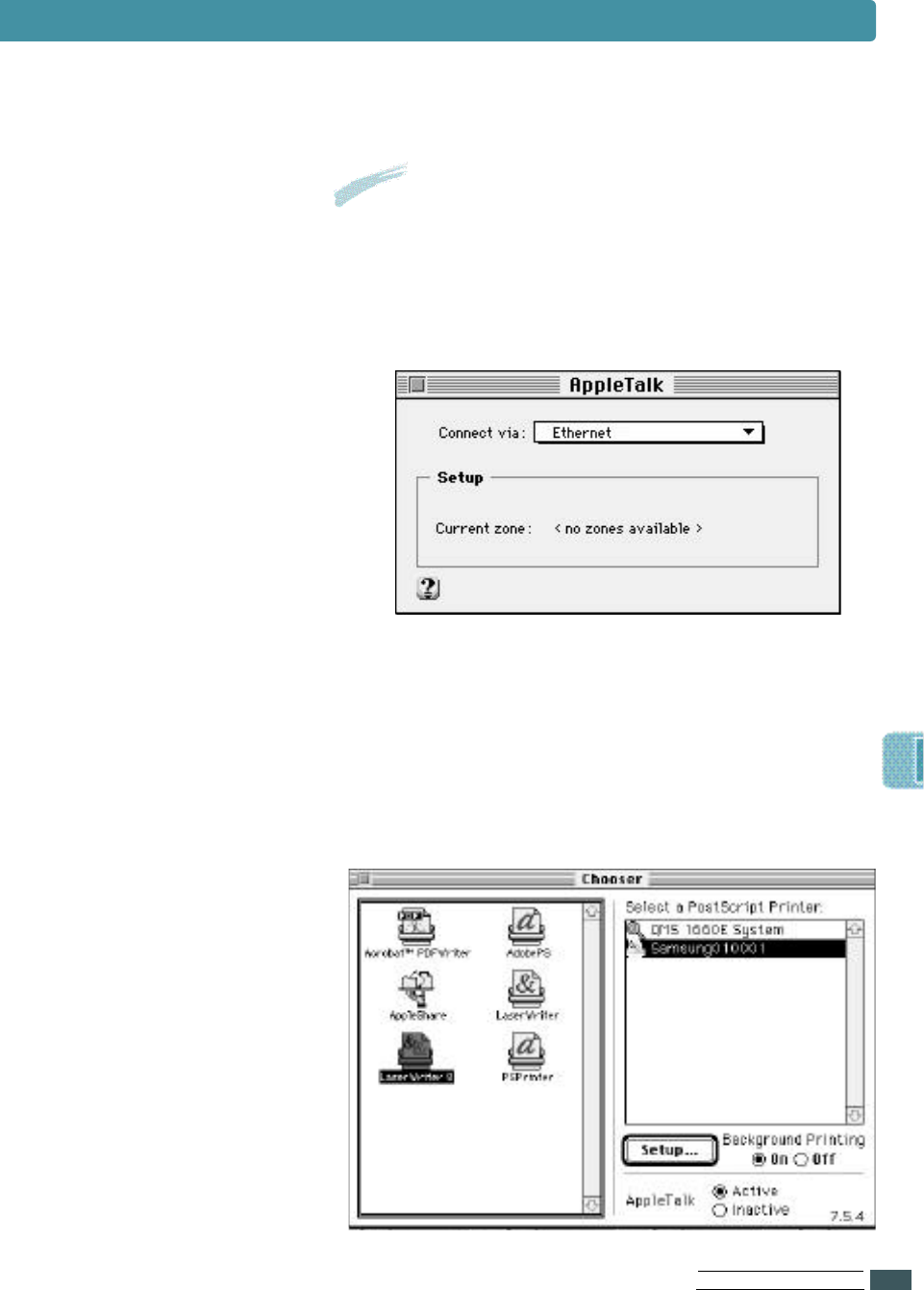
6From Chooser on the Apple menu,
select LaserWriter 8.x icon. The name of your
printer appears in the right pane of the window.
The name by default will be Samsung 010001
(Samsung followed by DDP address in
Hexadecimal).
B.3
Notes:
If the computer is connected to a network,
s e l e c t i n g
Printer Port will disconnect
communication with the network. If you select
LocalTalk, the Samsung ML-7300 printer
appears in the Chooser box.
MA C I N T O S H US E R ’SGU I D E
Installing Software

7Click on your printer name.
8Click the C r e a t e button if it appears.
The installation is completed. You don’t
need to proceed with the following steps.
9Click on the S e t u p button.
10 Select Auto Setup button. The Samsung
M L-7300 file is installed automatically and
the Samsung ML-7300 printer icon
appears on the desktop.
11 M a ke sure the Samsung ML-7300 file is
installed correctly. Click on the O K b u t t o n ,
then close Chooser.
Notes: These steps appear with some driver
versions.
Important : If Auto Setup fails,
click ‘Select PPD’ and choose
Samsung ML-7300 file.
Notes: Keep the original CD-ROM in a safe place.
Installing Software
MA C I N T O S H US E R’SGU I D E
B.4

1Start the necessary application and open the
document you want to print.
2From C h o o s e r in the A p p l e menu, select
LaserWriter 8, then your printer name.
3From the F i l e menu, select Page Setup. The
Page Setup dialog box appears.
4After making any necessary changes to the
page setup, click O K .
See page Appendix B.6 for more information
about Page Setup.
5F r o m F i l e , select P r i n t to open the Print
dialog box .
6M a ke any necessary changes to the print
settings, then click P r i n t .
See page Appendix B.8 for more information
about Print settings.
7Your printer starts printing.
Printing with a Macintosh
Printing from Macintosh
B.5
MA C I N T O S H US E R ’SGU I D E
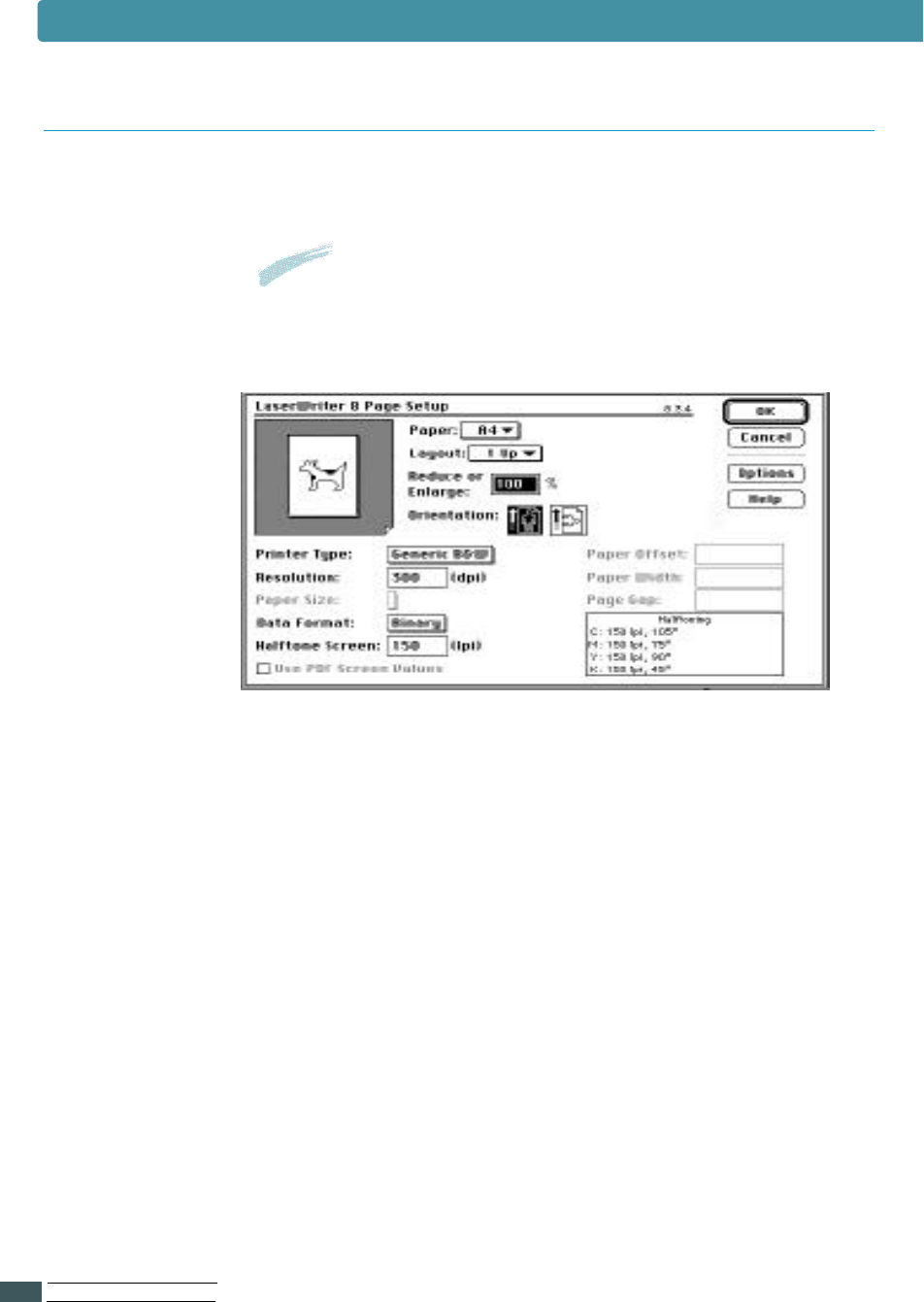
The Page Setup Dialog Box
When you select Page Setup from the File menu of your
application, a dialog box will appear.
Page Setup Features
Paper
: Select the paper size you want to use.
Layout
:Sets the number of pages to be printed on each sheet.
Reduce or Enlarge
: To print a reduced or enlarged copy of your document,
type a percentage of reduction or nlargement.
Orientation
: To set up your document so that it is oriented for
Portrait (tall) or Landscape (wide) printing, click one of
these icons.
Notes: The Page Setup dialog box may differ depending
on the application and LaserWriter version you are
u s i n g .
Printing with a Macintosh
MA C I N T O S H US E R’SGU I D E
B.6
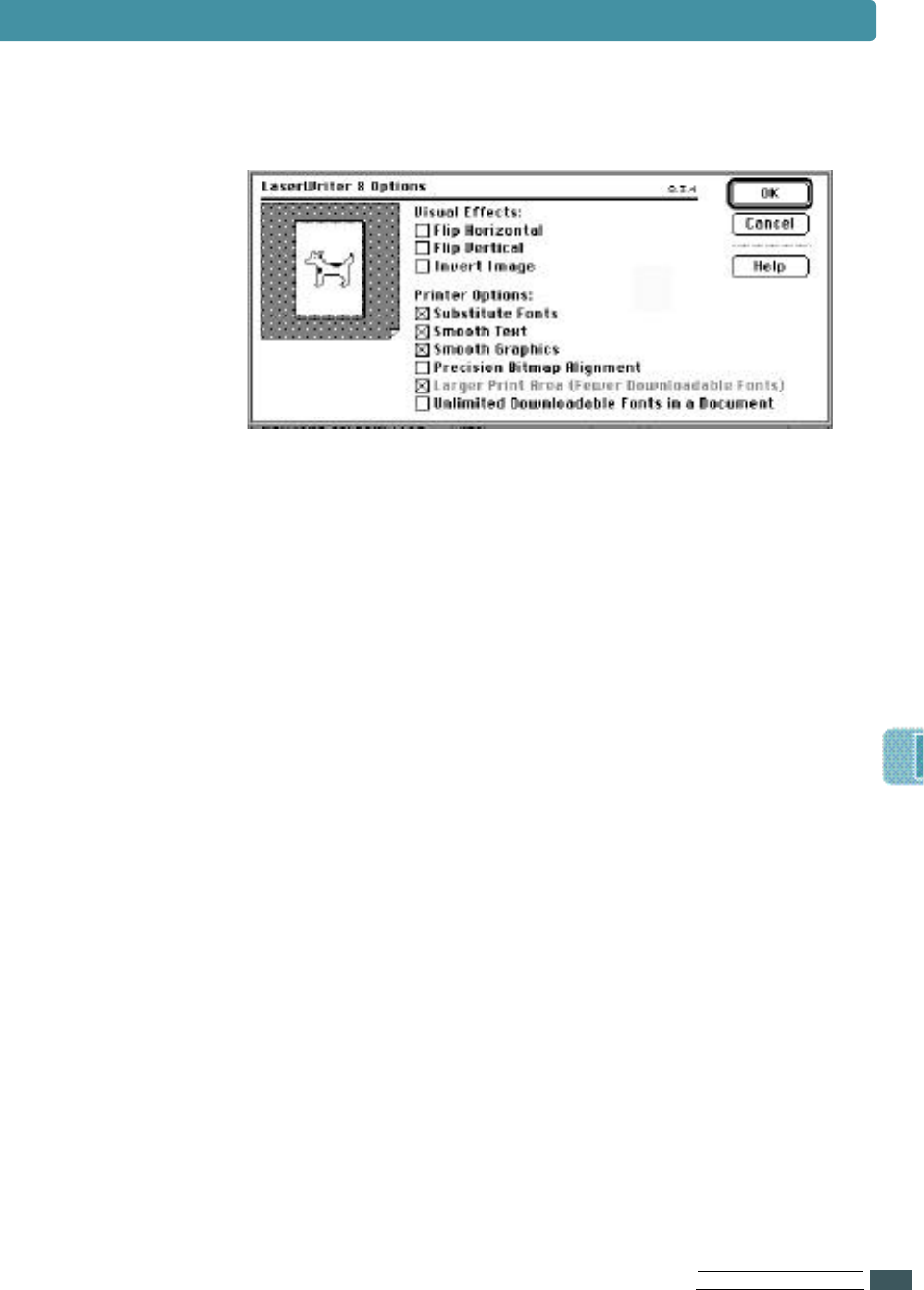
To display additional LaserWriter settings, click the Options
button. The window as shown below appears.
Visual Effects
Flip Horizontal
: To print a mirror image of the document,
click this check box.
Flip Vertical
: To print the document upside down,
click this check box.
Invert Image
: To print white area of the document as black and black
area as white, click this check box.
Printer Options
Substitute Fonts
: To let the printer substitute fonts during printing,
click this check box.
Smooth text
: To improve printed bitmapped fonts,
click this check box.
Smooth Graphics
: To improve printed graphic images by smoothing jagged
edges, click this check box.
Precision Bitmap Alignment
: To print improved bitmapped images, click this check box.
Larger Print Area (Fewer Downloadable Fonts)
: To print on more of the page, click this check box.
Unlimited Downloadable Fonts In a Document
: To use a large numberof Fonts in a document,
click this check box.
Printing with a Macintosh
B.7
MA C I N T O S H US E R ’SGU I D E
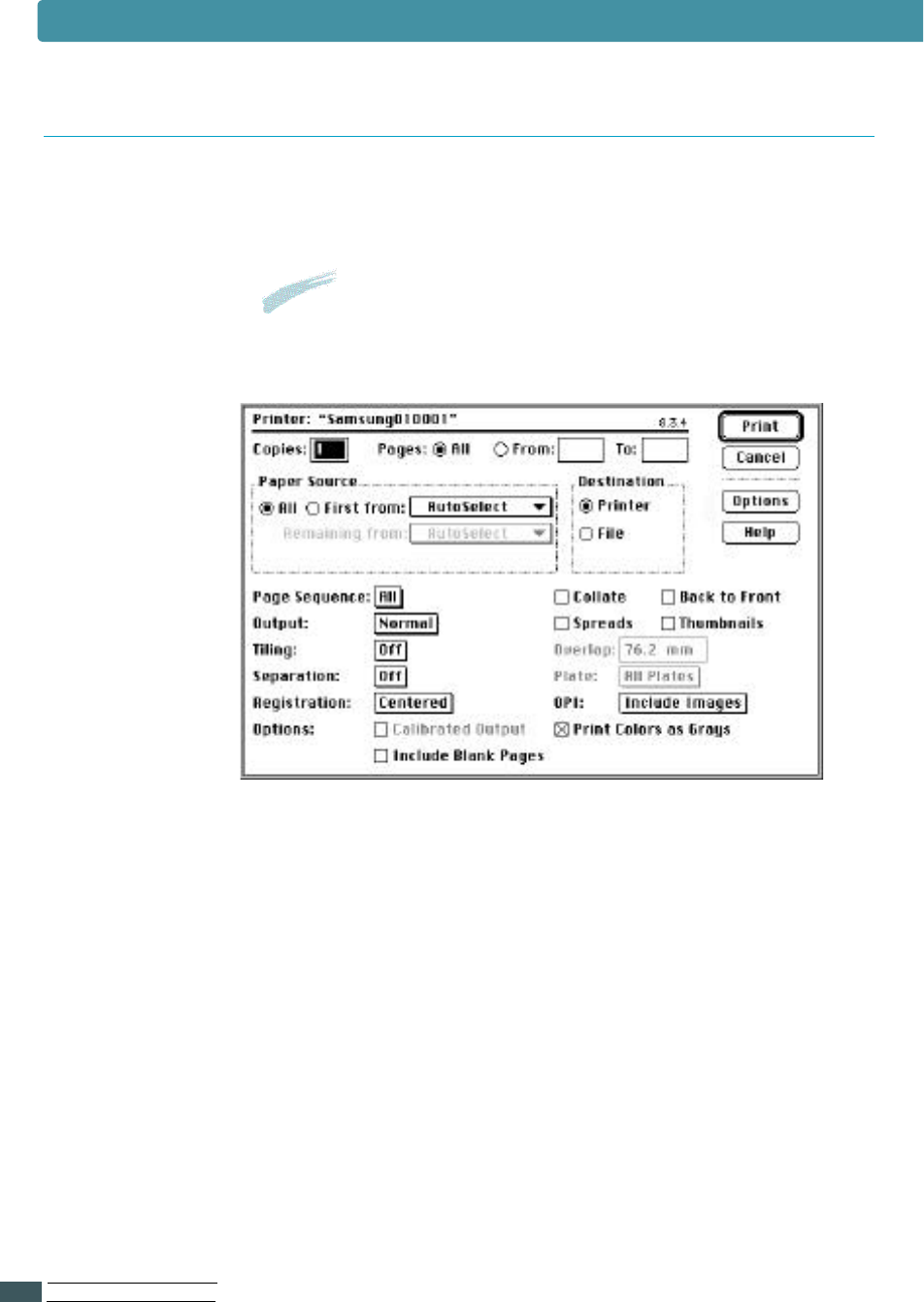
When you select Print from the File menu of your
application, you will see the dialogue box as shown below.
Print Features
C o p i e s
: Type the number of copies to be printed
P a g e s
: To print all your pages, click A l l . To print only some
pages, type the first page number in F r o m b o x and
type the last page number in T o b ox .
Paper Source
: Use these buttons and menus to select the paper
source you want to use.
D e s t i n a t i on
: Use these buttons to send your document to the
printer or to save it as a PostScript file.
The Print Dialog Box
Notes: The Page Setup dialog box may differ depending
on the application and LaserWriter version
you are using.
Printing with a Macintosh
MA C I N T O S H US E R’SGU I D E
B.8
B.9
MA C I N T O S H US E R ’SGU I D E
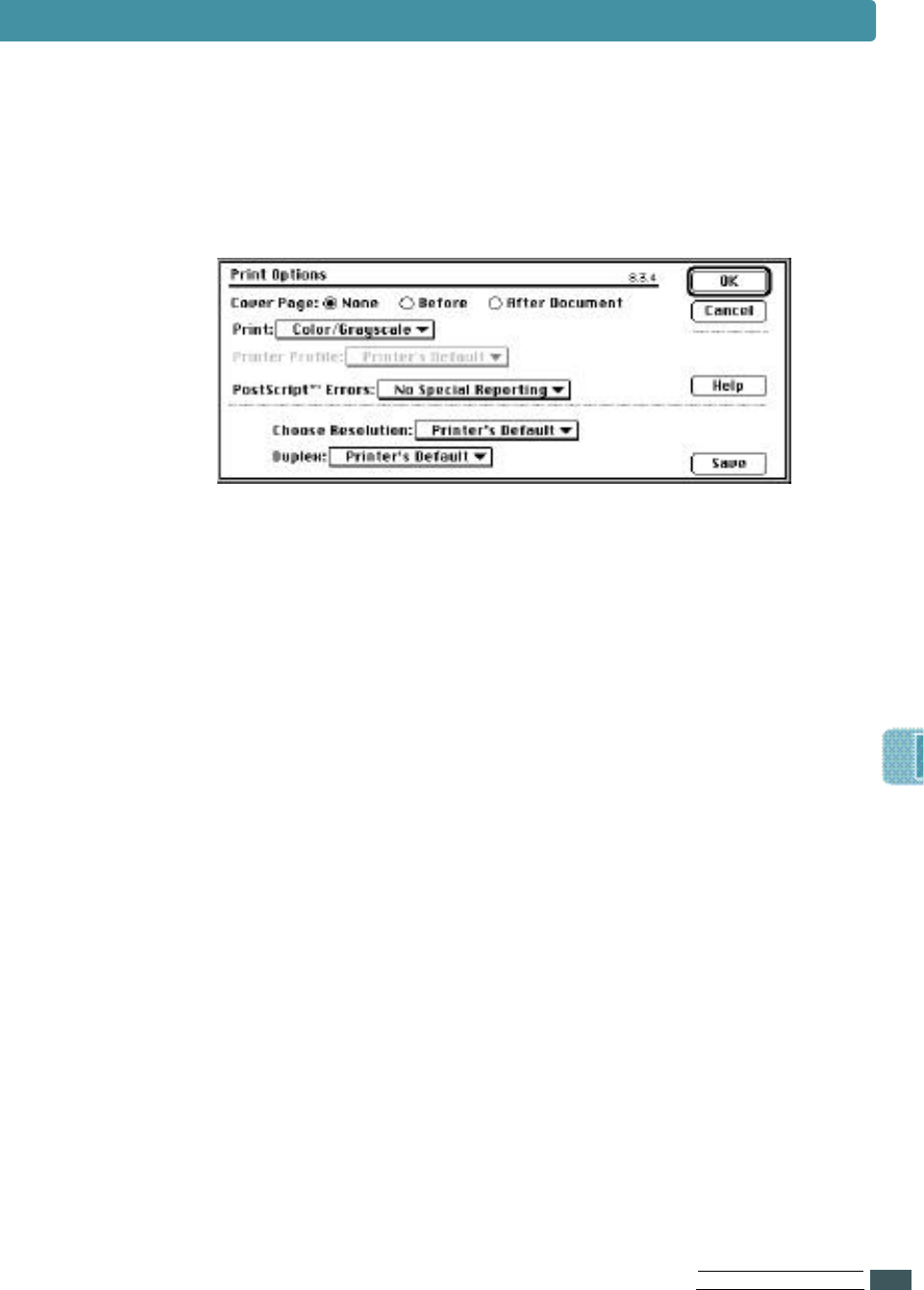
To display additional printer settings, click the O p t i o n s
button. The window as shown below appears.
Print Options Features
Cover Page
: Prints a cover page as the first or last page of the
document, or turns off the printing of a cover page.
P r i n t
: Sets a document for printing in black and white, in
c o l o r, or shades of gray, or using ColorSy n c
matching or PostScript matching.
Print Profile
: Sets a document to be printed using the color
c h a racteristics of a specific printer.
PostScript™ Errors
: P r ovides options for reporting PostScript errors
that occur during printing.
Choose Resolution
: Selects print resolution.
D u p l e x
: Sets binding direction for duplex printing,
or turns off duplex printing.
Printing with a Macintosh

Using Windows
PostScript Driver
If you want to use the PostScript driver provided with your
system CD-ROM or diskettes to print a document, use the
information on this Appendix.
Topics included in this Appendix are:
• Installing PS Driver
C
C

US I N G WI N D O W S PO S T SC R I P T DR I V E R
C.1
Installing PS Driver
Important
•
You must have the CD(or diskette) for “windows 95”
or Windows 98” now being used.
•You cannot use PS in Windows 3.1.
PPDs, in combination with the PostScript drive r, access the
printer features and allow the computer to communicate
with the printer. An installation program for the PPDs is
p r o vided on the ML-7300 CD-ROM.
Notes:
•Installing the PostScript printer driver may require
the use of the operating system files on the original
CD-ROM or diskette that came with your system.
•If you have a PostScript level 3 driver and want to
use it, you must install the PostScript level 3 PPD
which is also provided on the ML-7300 CD-ROM.
1
Before installing PPD files, make sure that the printer
and the PC are properly connected with parallel or
optional network interface. For information on:
• Connecting with parallel interface, see page 2.8.
• Connecting with an optional network interface,
see Appendix F, “Network Option Card”.
2
Insert the CD-ROM shipped with your printer into
your CD-ROM drive .
If the CD-ROM drive does not automatically run:
Select R u n from the S t a r t menu, and ty p e
x : \ c d s e t u p . e x e in the Open box (where xis the
d r i v e letter for the CD-ROM drive), then click O K .
US I N G WI N D O W S PO S TSC R I P T DR I V E R
C.2
3
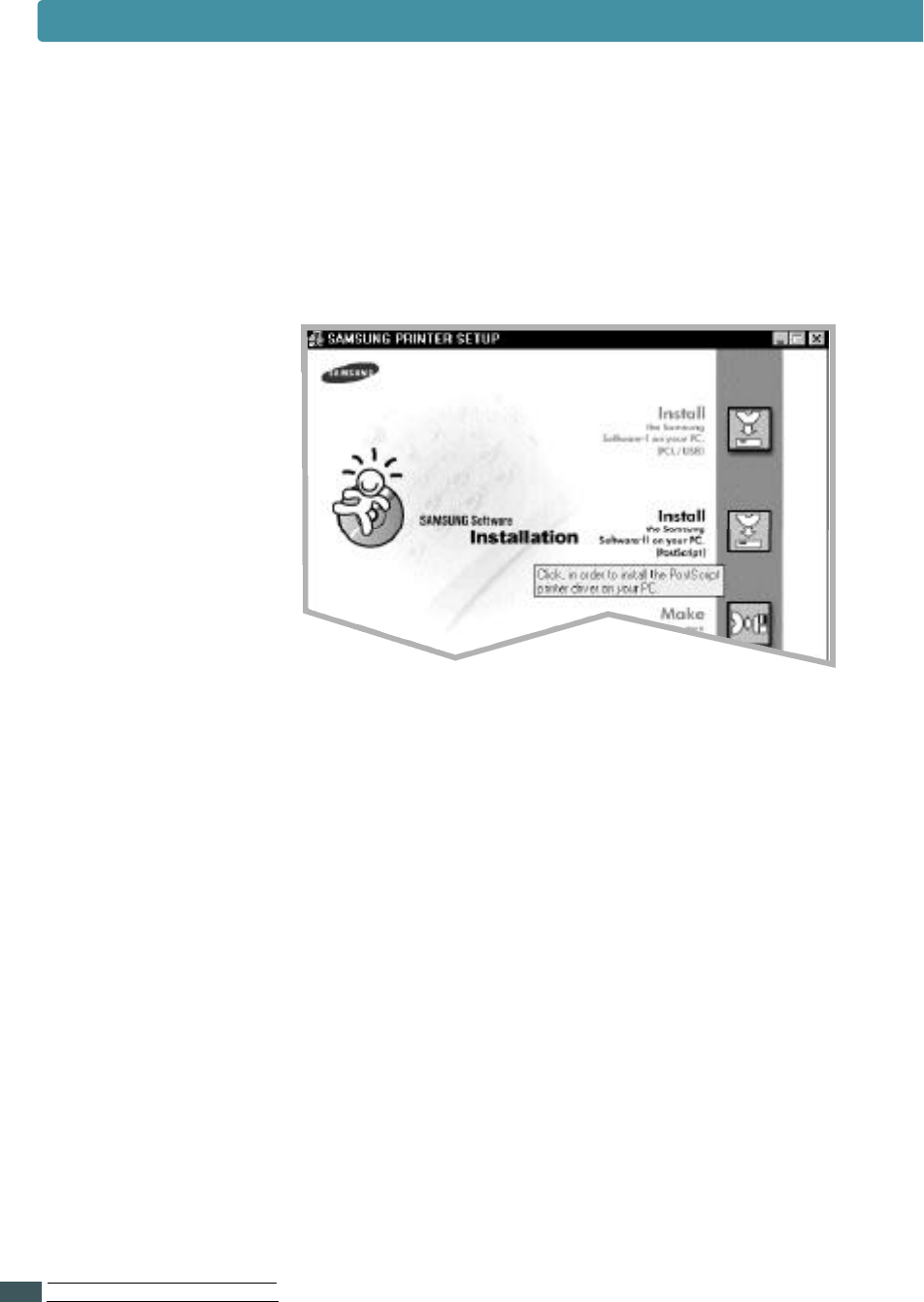
When the opening screen appears,
select the appropriate language.
4
Click Install the Samsung Software-II on your
PC (PostScript).
5
Click on H a v e D i s k , click B r o w s e , then choose:
• for Windows 9x, x : \ E n g (or the desired language
code. See page 2.20)\ps\Win95_98\level 2.
• for Windows NT 4.0, x : \ E n g (or the desired language
code. See page 2.20)\ps\WinNT\level 2.
• for Windows NT 4.0, x : \ E n g(or the desired language
code. See page 2.20)\ p s \ W i n 2 0 0 0
where xis the drive letter for the CD-ROM drive ,
then click O K
.
6
Follow the instructions on the screen to complete the
i n s t a l l a t i o n .
Installing PS Driver

US I N G WI N D O W S PO S T SC R I P T DR I V E R
C.3
Selecting the Default Printer
1
Start Windows on your pc.
2
Select Start Settings P r i n t e r s from the
Windows 95 task bar.
3
Double click the SAMSUNG 7300 Series
PS printer i c o n .
4
Select File Default Printer.
5
Print the document on your Samsung 7300 series.
1Double- click on the PS driver icon.
2Select Printer-Properties.
3Select the required options.
To set the PS driver features, proceed as follows
Installing PS Driver

Using the Printer
o naNetwork
If you work in a networked environment, the printer can be
shared by other users on the network. ML-7300N printer is
a network printer and can be connected to the network via
direct attachment to an external print server.
This appendix provides information on the following topics:
◆About sharing the Printer on a Network
◆Setting Up a Locally Shared Printer
◆Setting Up a Network-Connected Printer
D
D

US I N G T H E PR I N T E R O N ANE T W O R K
D.1
About Sharing the Printer on a Network
If you work in a networked environment,
you can connect the ML-7300 series printer to yo u r
network.
You can connect the printer directly to a selected
computer (called the “host computer”) on the
network. The printer can then be shared by other
users on the network through a Windows 9x, 2000
or NT 4.0 network printer connection.
If an option network card was installed on yo u r
printer (see page Appendix E.8 for information on
installing the option network card in your printer)
or if you have ML-7300N printer, the printer can be
connected to the network via direct attachment to
an external print serve r.
Whether the printer is locally connected or network
connected, you need to install the ML-7300 series
printer software on each computer that will print
documents to the ML-7300 series printer.
Locally Shared
Network-Connect
Printing Across a Network

1
Start Windows.
2
From the Start menu, select Control Panel,
and double-click on the Network icon.
3
Check the File and Print Sharing box, then click OK.
Close the window.
4
Click Start and select Printers from Settings,
then double-click your printer name.
5
Select Properties in the Printers menu.
6
Click the Sharing tab, then check the Shared As box.
Fill in the Shared Name field, then click OK.
1
Right-click Start, and select Explorer.
2
Open your network folder in the left column.
3
Right-click the shared name, and select Capture
Printer Port.
4
Select the port you want, check the Reconnect
at log on box, then click OK.
5
From the Start menu, select Settings, then Printers.
6
Double-click your printer icon.
7
From the Printers menu, select Properties.
8
Press the Details tab, select the printer port,
then click OK.
Setting Up a Locally Shared Printer
US I N G T H E PR I N T E R O N ANE T W O R K
D.2
Setting Up Host Computer
Setting Up Client PC

Setting Up a Network-Connected Printer
To use ML-7300 Series printer as a Network printer,
you must install an optional network card in your printer.
See page F.8 for information on installing network card.
If you have ML-7300N printer, you do not need to install
the network card. The Samsung ML-7300N printer are shipped
with the network card.
After the network card is installed, you must set up
your printer as a network printer using the documentation and
Samsung SyncThru software provided with the network card.
US I N G T H E PR I N T E R O N ANE T W O R K
D.3

Installing
Software from
Diskette
If you need to install the printer software on a system
that does not have a CD-ROM drive, use the instruction on
this appendix to create the software diskettes and install
the printer software from the diskettes.
This appendix provides information on the following topics:
◆Making Installation Diskettes
◆Installing Software from Diskettes
E
E
IN S TA L L I N G SO F T WA R E F R O M DI S K E T T E
E.1
Making Installation Diskettes
If you do not have a CD-ROM drive and if you have access
to another computer with a CD-ROM drive, you can copy
software installation files from the your printer software
CD-ROM onto floppy diskettes, then use the diskettes
instead of the
CD-ROM to install the software.
You can make the installation diskettes for PCL driver(PCL 6,
PCL 5e), PostScript Driver. Make sure that you have several
formatted diskettes ready, then follow these steps:
1
Insert the ML-7300 CD-ROM into the CD-ROM drive.
Install will start automatically.
If the CD-ROM drive does not automatically run:
Select Run from the Start menu, and type
x:\cdsetup.exe in the Open box (where xis the drive
letter for the CD-ROM drive), then click OK.
2
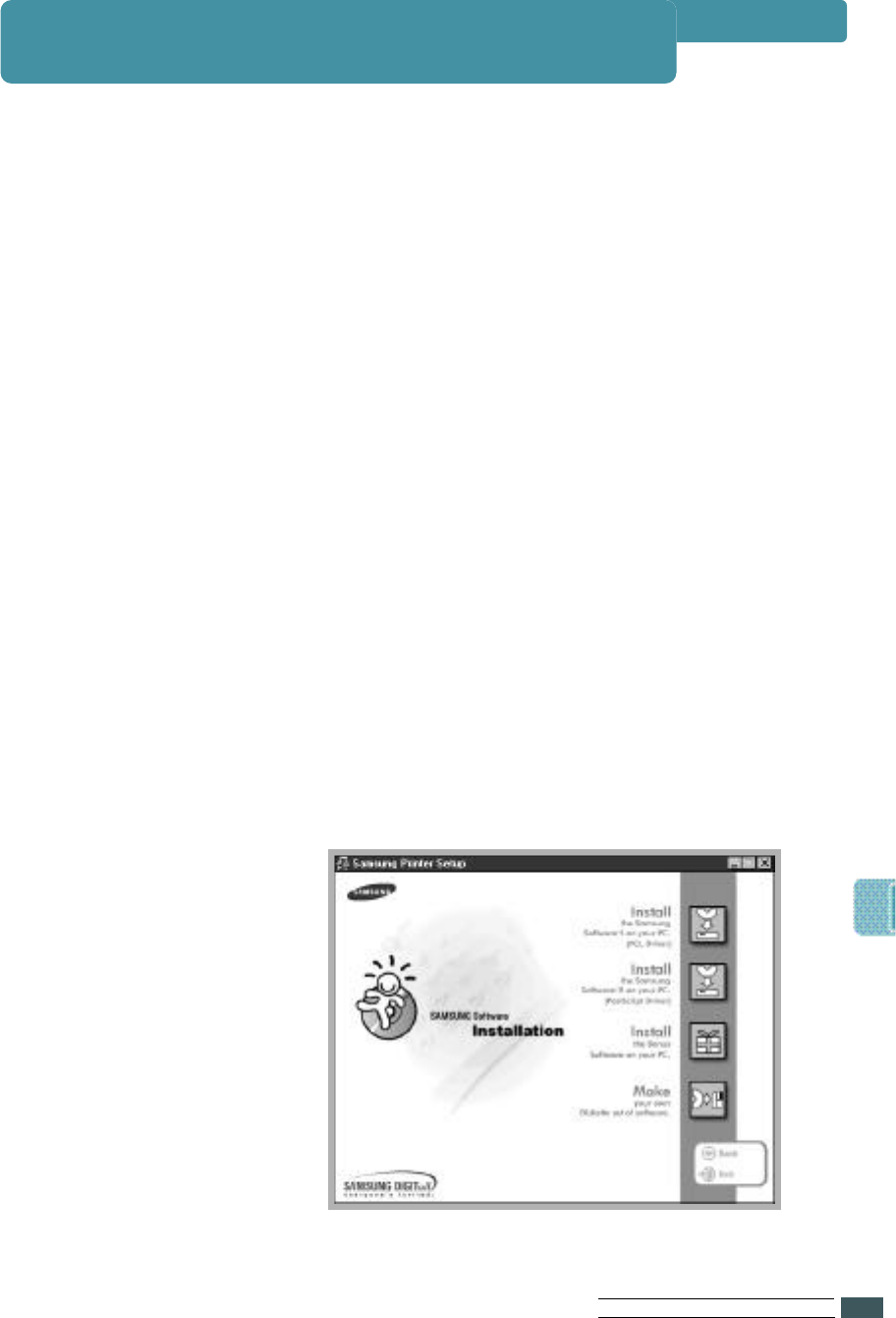
When the opening screen appears,
select the appropriate language.
3
Click Make your own Diskette set of software.
IN S TA L L I N G SO F T WA R E F R O M DI S K E T T E
E.2
4
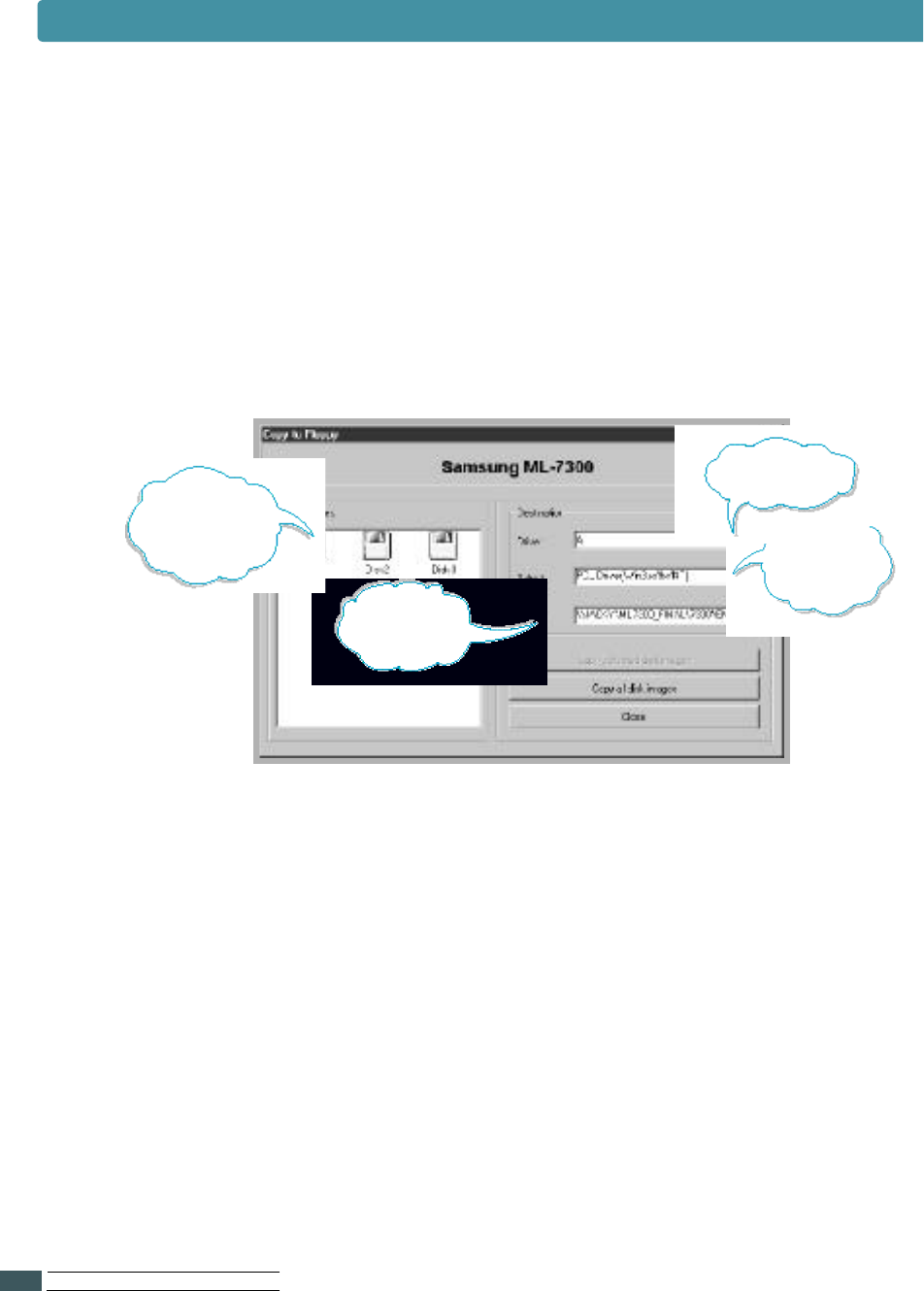
The Copy to Floppy dialog box appears.
Select the desired components you want to copy to the
diskette from the Select box. You can select PCL Printer
Driver, PostScript Driver.
Select the floppy disk drive you will use to
insert the diskette.
5
Click Copy all disk images.
If you want to copy a portion of the selected
component, select the disk you want to copy in the Disk
Images window, then click Copy selected disk image.
6
When prompted, insert a blank, formatted diskette into
the floppy drive, and click Yes to copy the first diskette.
For multiple diskettes, when the first diskette is
finished, you are prompted to insert disk 2.
M a k e sure you label each diskette in order as you create it:
PCL Printer Driver, disk 1 of 3, etc.
Shows the
path of the
s e l e c t e d
c o m p o n e n t .
Select the
f l o p p y drive yo u
will use.
Making Installation Diskettes
Shows the
number of disks
required to copy
the selected
component. Select the
component yo u
want to copy.

The instructions to install PCL Printer Driver, PostScript
Driver are same. Take the following steps:
1
Insert the first diskette (if the selected software
diskettes are more than one) which contains the desired
installation software; PCL Printer Driver, PostScript
Driver.
2
From the Start menu, select Run.
3
Type A:\setup.exe in the Open box and click OK.
(if your floppy drive is not A, substitute the correct
letter).
4
Follow the on-screen instruction to complete the
installation.
IN S TA L L I N G SO F T WA R E F R O M DI S K E T T E
E.3
7
If you have more than one disk, insert the next disk
and click Yes. Repeat this step for a third disk if
necessary.
8
When the diskettes have finished copying, click Close in
the Copy to Floppy dialog box. Then click Exit in the
SAMSUNG PRINTER SETUP dialog box.
Installing Software from Diskettes
Making Installation Diskettes

F
FPrinter Options
Your printer is a full-featured laser printer that has been
optimized to meet most of your printing needs. Recognizing
that each user may have different requirements, however,
Samsung makes several options available to enhance the
printer’s capabilities.
This appendix provides information on the following topics:
◆Precautions
◆Preparations
◆Closing The Printer Cover
◆Understanding the Printer Control Board
◆
Printer Memory
◆
Network Option Card
(Installed in ML-7300N already)
◆Installing
Serial/LocalTalk or
Serial/IrDA option card
◆Seriral/LocalTalk
◆Seriral/IrDA
◆Optional Tray 2

PR I N T E R OP T I O N S
F.1
Precautions
Never remove the printer control board while the printer is
plugged in.
To avoid the possibility of electrical shock, always disconnect the
power cord when installing or removing ANY internal or external
printer option.
The control board and internal printer options
(SIMM, Network interface) are sensitive to static electricity.
Before installing or removing an internal option,
discharge static electricity from your body by touching
something metal, such as the metal back plate on any device
plugged into a grounded power source.
If you walk round before finishing the installation, discharge
once again any static electricity.
Discharge Static Electricity
Disconnect The Power Cord
PR I N T E R OP T I O N
F.2
Preparations
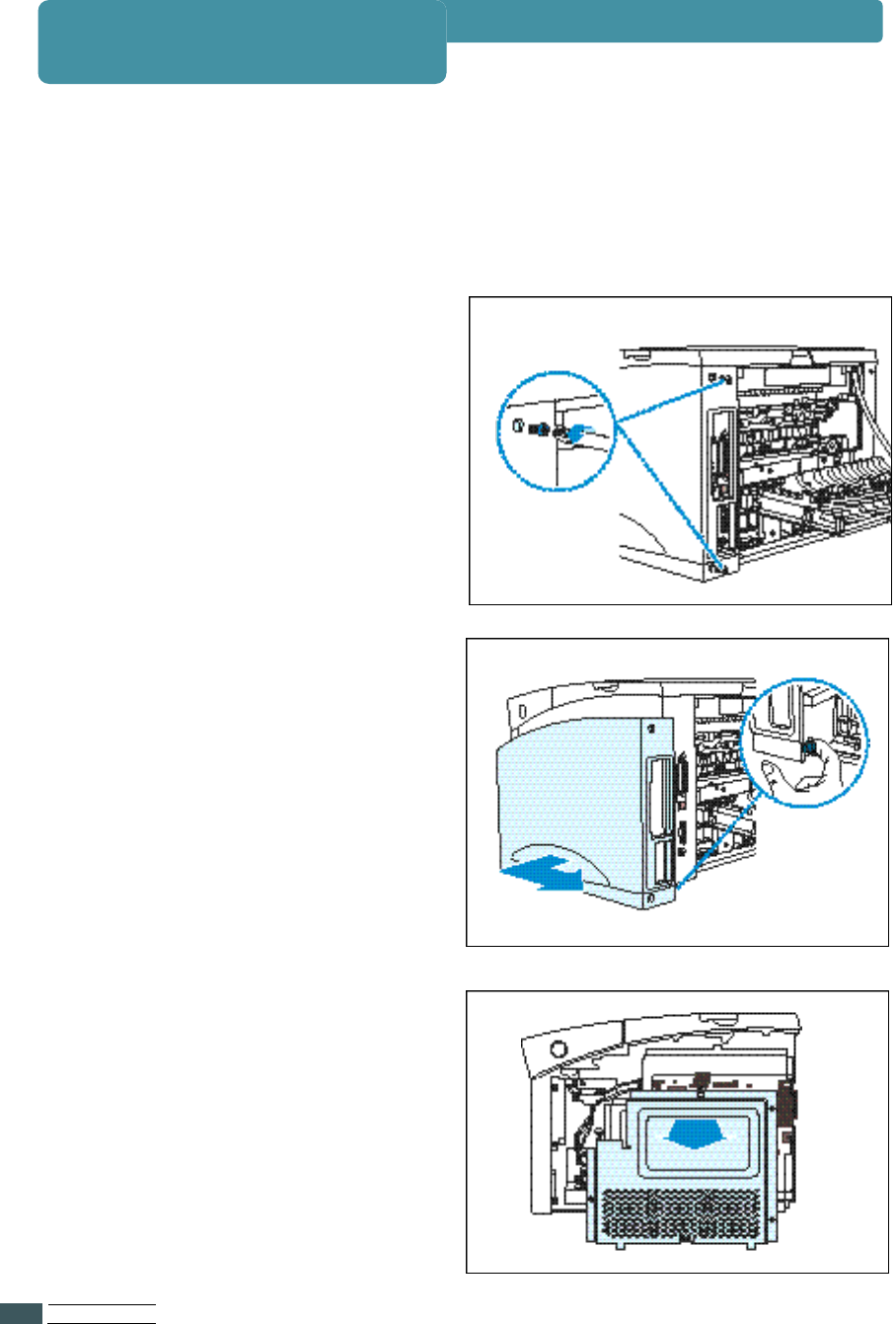
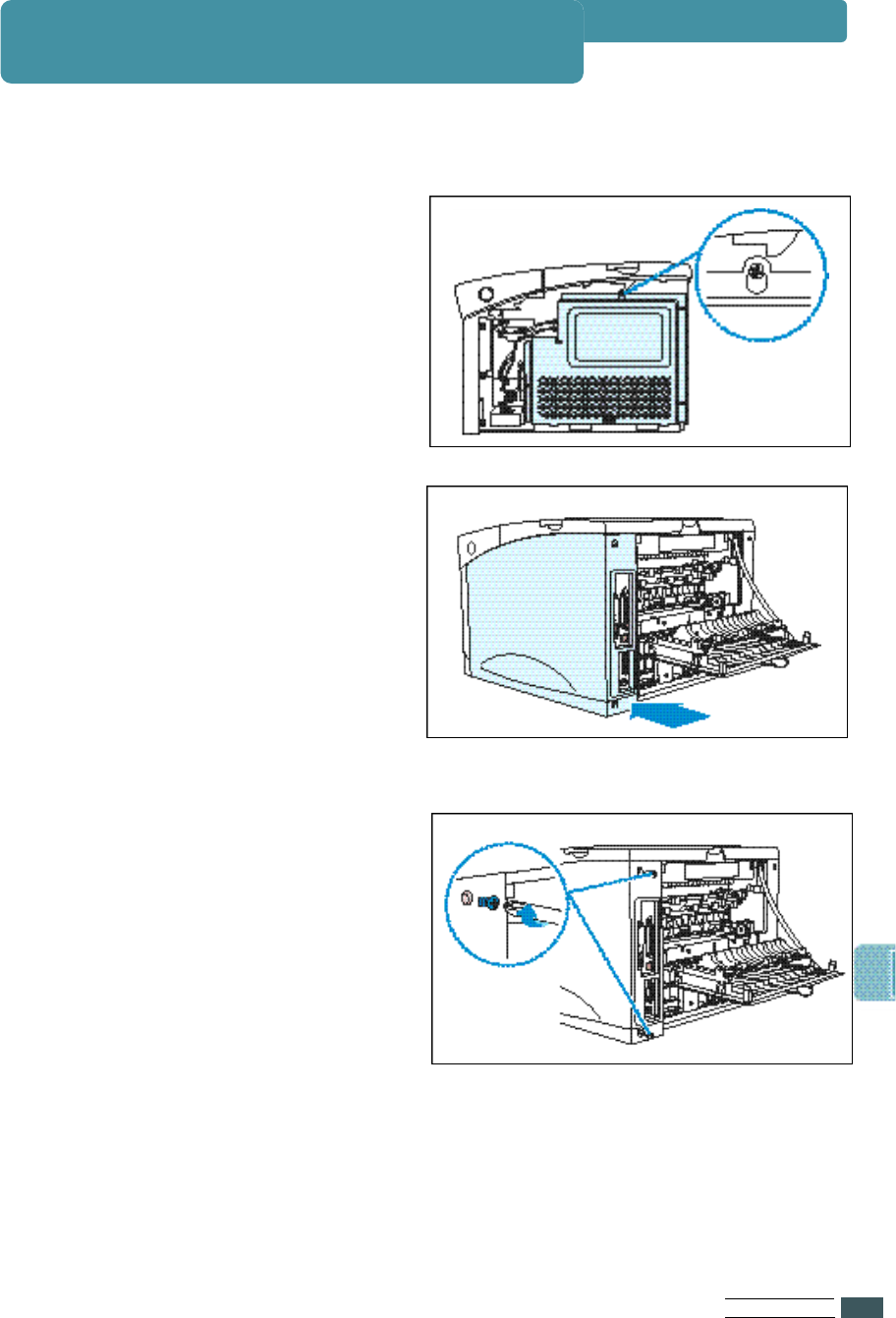
3Re m o ve the printer cove r.
aOpen the rear cove r.
bRe m o ve the two screws
from the back of the printer.
S ave the screws.
cG rasp the cove r
(as illustrated) and pull it
firmly toward the rear of the
printer until it stops.
dRe m ove the cover from the
p r i n t e r.
Complete the following steps before you install the printer options.
1Unplug the printer power cord.
2Disconnect all cables from the back of the printer.
eRe m ove the five screws from
the metal plate covering the
control board.
fRe m ove the plate.
PR I N T E R OP T I O N
F.3
Closing The Printer Cover
When you have finished installing an Option, follow these steps.
1Close the metal plate and tighten
all the screws.
2Set the bottom of the cover onto
the printer Make sure the bottom
tabs on the cover fit into the
corresponding slots in the
p r i n t e r. Rotate the cover up
t o wards the printer. Slide the
c over toward the front of the
printer until it clicks into place.
3Gently tighten all the screws.
4
Reconnect any interface cables and the power cord.
PR I N T E R OP T I O N
F.4
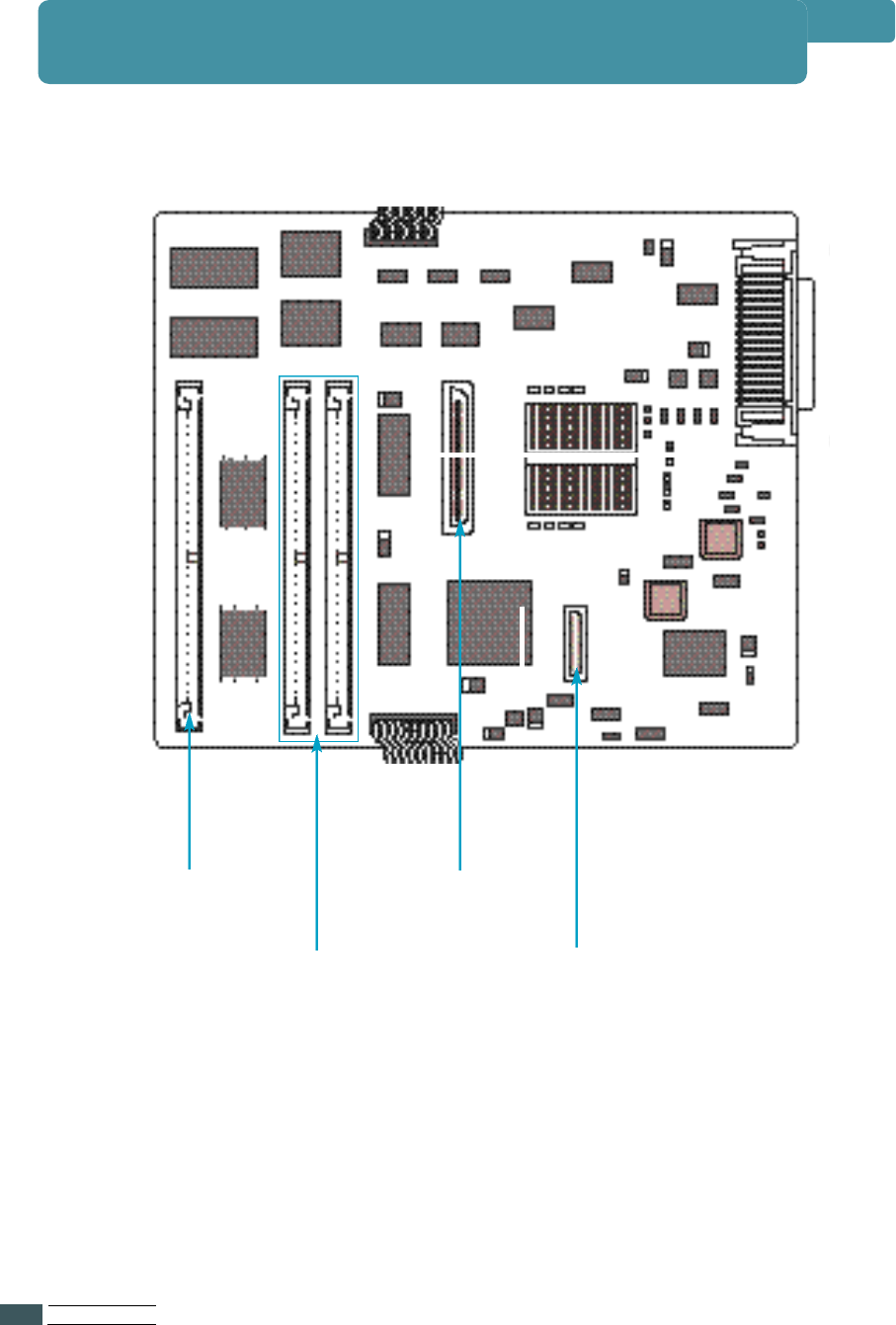
Network Card
C o n n e c t o r
Serial/LocalTalk
or Serial/IrDA
Connector
If the printer cover is opened,
you can see the printer control board as below.
Printer Memory
Connector
ROM SIMM
Connector
Understanding the Printer Control Board

PR I N T E R OP T I O N
F.5
Printer Memory
2
Re m ove two screws and remove the metal plate in the direction
of the arrow.
CN 4: This slot recognizes only half of 8MB,
32MB and 128MB SIMMs if they are installed.
Memory
Connector
CN 3
CN 4
CN 5
The printer memory option increases the printer’s
dynamic random access memory (DRAM).
Your printer was shipped with 16MB of standard printer Memory.
You can install two printer memory options in your printer. Printer memory
u p g rade options available are 4, 8, 16, 32, 64 and 128MB.
Notes Your machine recognizes only half of 8MB, 32MB and 128MB SIMMs
if installed in the slot CN 4.
DRAM SIMM Features for Upgrade
- Speed(Access Time): 50nS
- Refresh Time: 1K(1024 cycles/16 ms) / 2K(2048 cycles/32 ms)
- The Method of refresh is CAS - b e f o r- R AS refresh
- Mode: EDO Ty p e
- Single +5V +/-10% power supply
- The SDRAM does not support
1Before you install the printer memory option, follow steps under
‘Preparations’ on page F.2.
Notes
The printer memory option is easily damaged by static electricity.
Touch something metal before you touch the memory option
.
PR I N T E R OP T I O N
F.6
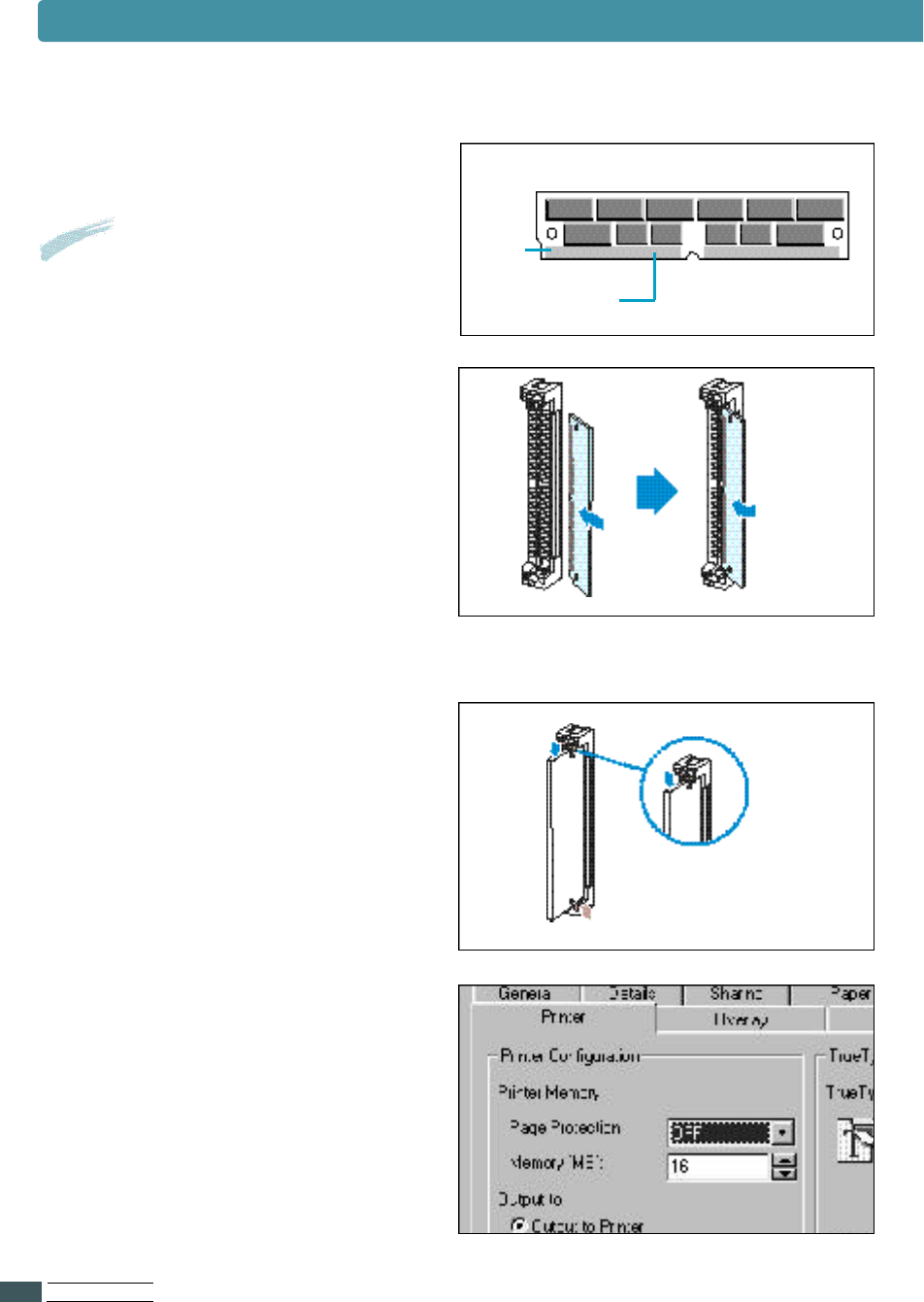
4Hold the memory option with the
connection points pointing
toward the connector and
position the notch as shown.
Insert the memory option all the
way into the connector at a 30O
angle, and rotate it left until it
snaps into place.
5M a k e sure both metal clips on
the connector are fastened, and
the two pins on each of the
connector are pushed through
the holes on the memory option.
6Continue with ‘Closing the
Printer Cove r ’ on page F. 3 .
7Set the printer memory item on
the printer tab of the properties
dialogue box to the value of the
added printer memory.
Notch
Connection points
Printer Memory
3Unpack the memory option.
Notes Avoid touching the connection
points along the edge. Save the
p a c k a g i n g .
PR I N T E R OP T I O N
F.7
Printer Memory
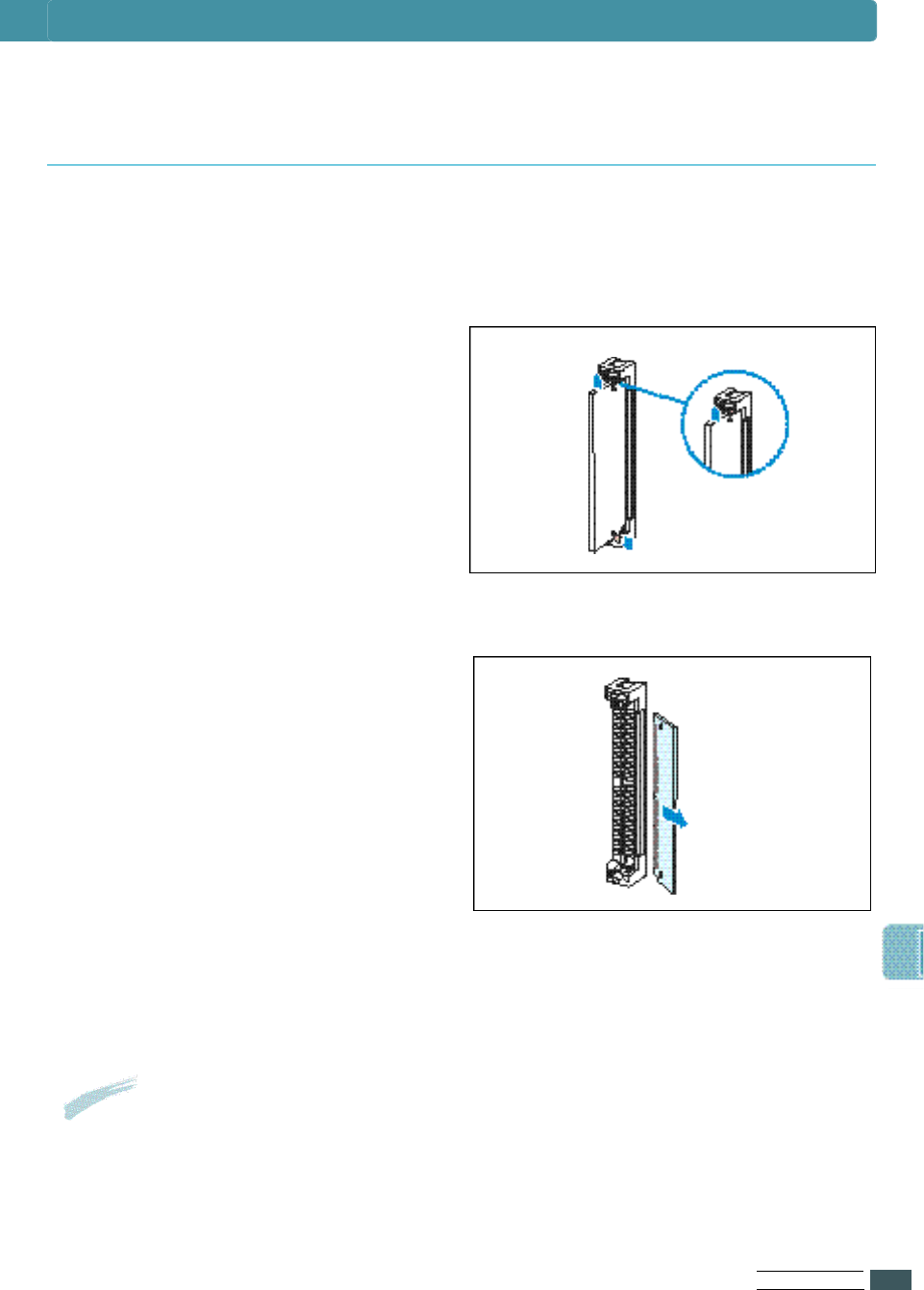
1
Push the metal clips at each end
of the connector away from
memory option.
2
Rotate the memory option right
to a 30Oangle and gently pull it
out of the connector as shown.
Complete the following steps if you need to remove a printer memory
option before you install a new one.
Note:
If you did not save the packaging, wrap the memory option in
paper and store it in a box.
3
Place the printer memory option in its original packaging.
Removing the Printer Memory Option
PR I N T E R OP T I O N
F.8
Network Option Card
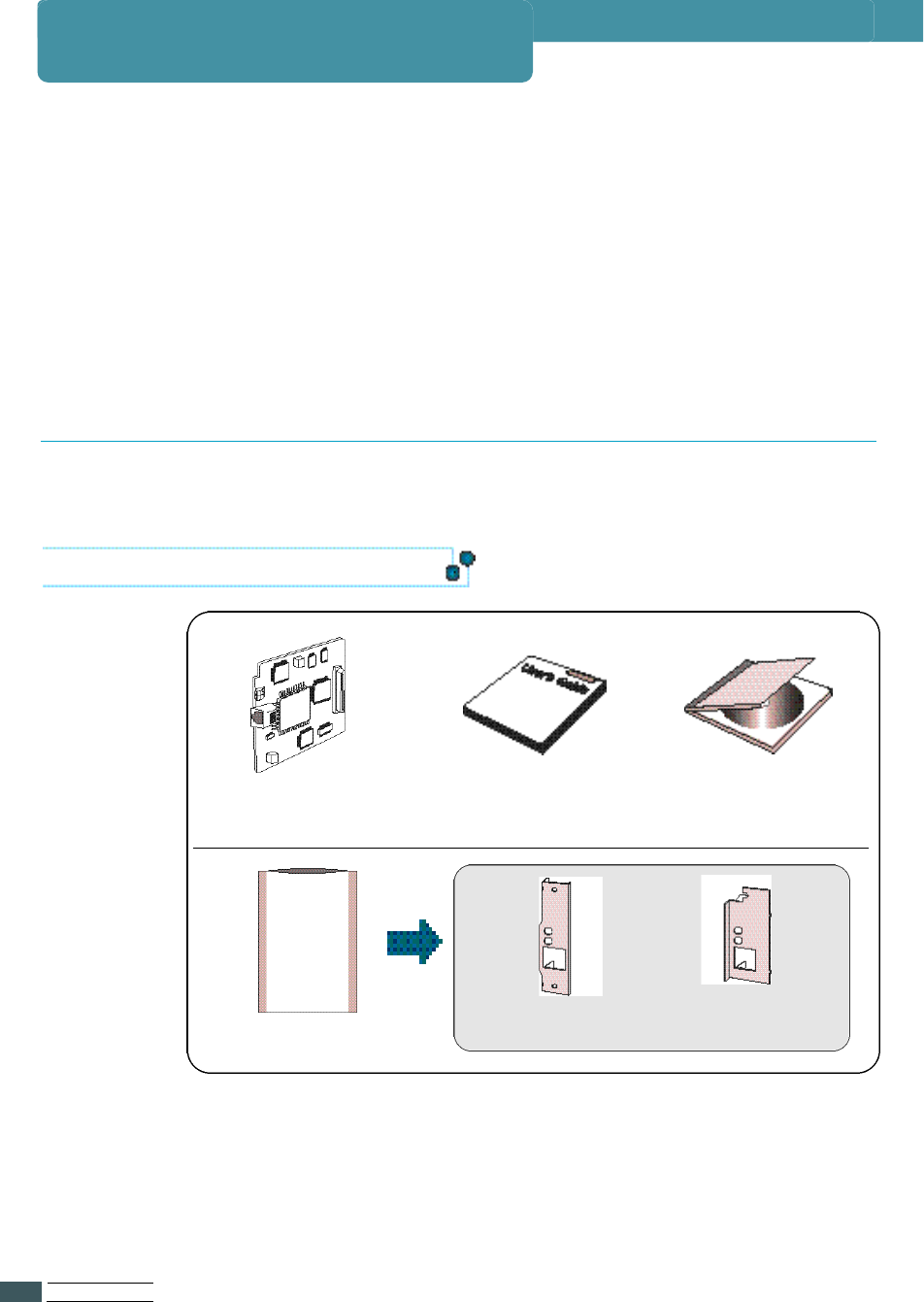
When unpacking the network printer card,
you should find the following items.
Network Printer Card
(PortThru)
Network Bra c ke t s
Network Management
S/W User’s Guide CD-ROM(SyncThru)
Note: Before installing the PortThru card to your printer,
you should attach one of the brackets above by using two
screws provided according to the type of your printer model.
You can check it with the picture of page F.9 which shows the
attached bracket to the PortThru card for ML-7300 Series.
For ML-7300 Series For ML-6060 Series
O v e r v i e w
This chapter describes the proper preparations for network
printing. It contains the following information:
• Package Contents
• Installing the PortThru Network Printer Card
• Connecting a Printer to the Network
• Powering Up
Package Contents
Items Supplied
PR I N T E R OP T I O N
F.9
Network Option Card
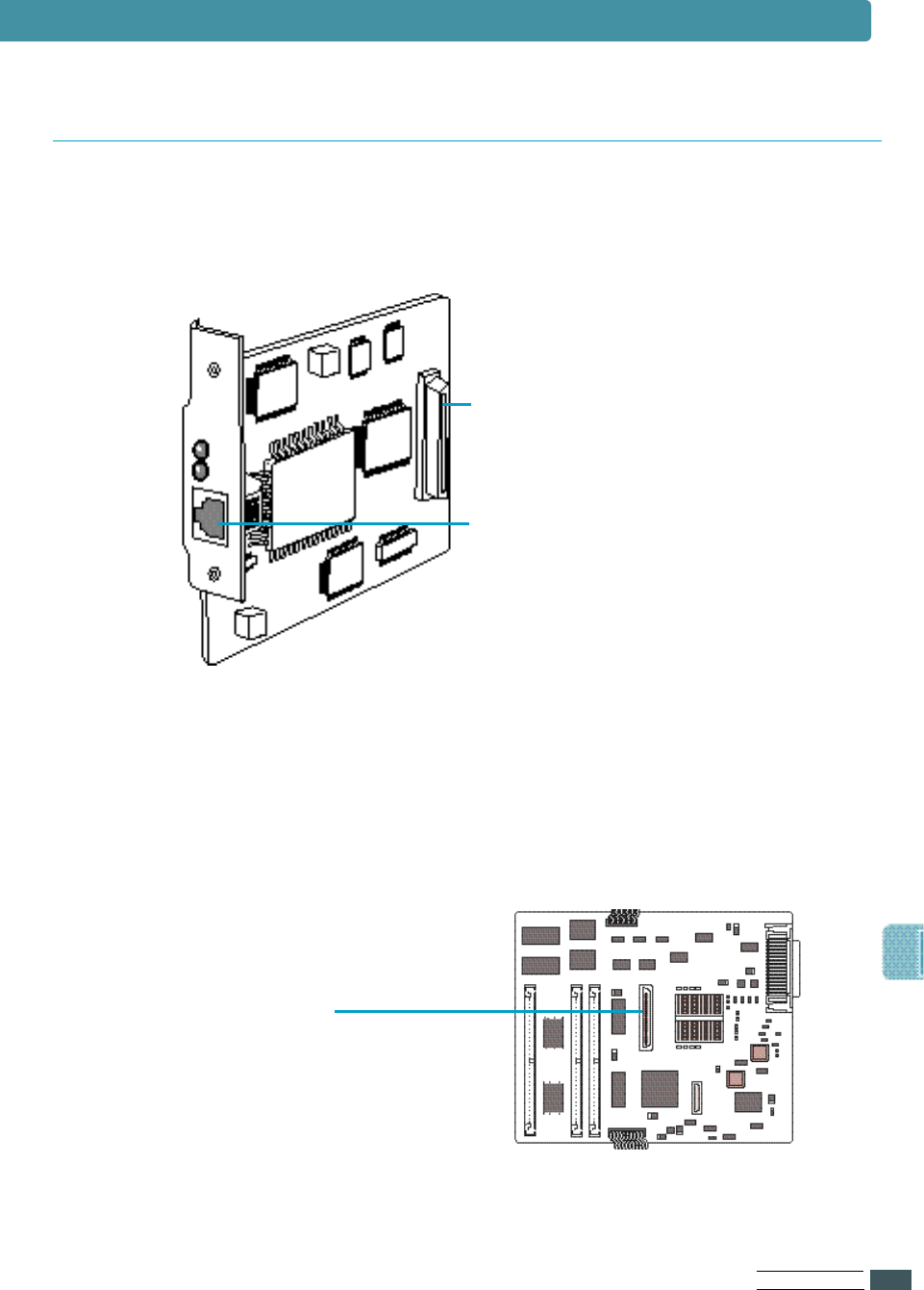
The network option card lets you connect the printer to a local area
n e t w o r k ( L A N ) . You can install one network option card in your printer.
Card Connector Points
RJ-45 Port(Ethernet
10/100 Base T network)
Installation Procedure
1Before you install the network option card, follow steps
under ‘preparations’ on page F. 2 .
2Locate the card connector
on the printer control board.
Network card
connector
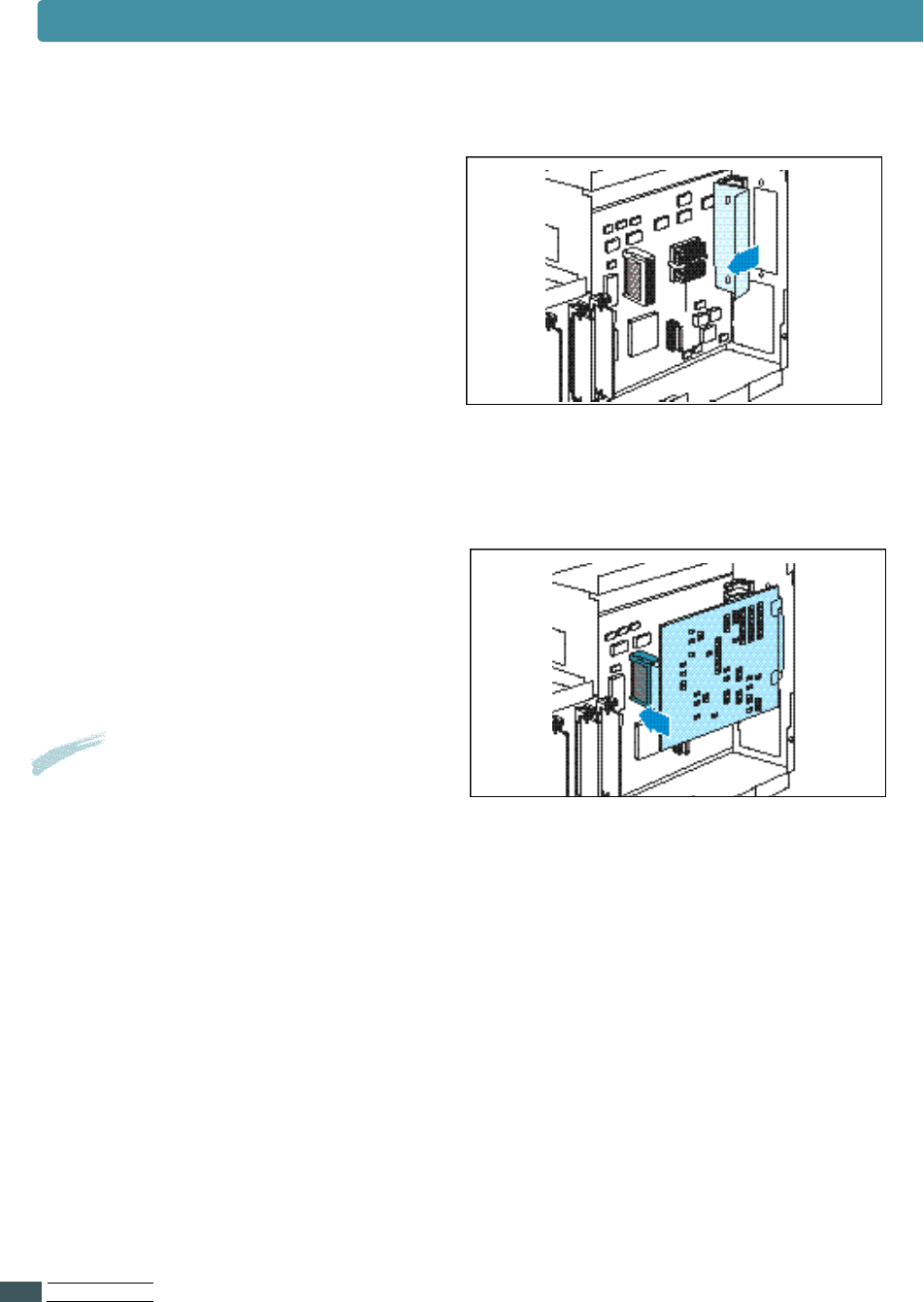
5Align the connector on the card
with the connector on the printer
control board. Push the card
firmly into the connector until it
is completely in place.
Result:
The two connectors should fit
snugly together.
PR I N T E R OP T I O N
F.10
3Remove the two screws from the
metal plate covering the opening
for cable connector.
Remove the plate.
4Unpack the option card.
6Gently tighten the screws to secure the card to the system board.
7Continue with ‘Closing the Printer Cove r ’ on page F. 3 .
8Install the network printer driver(called Sy n cThru) provided
on the CD-ROM.
See Network Management Software User’s Guide for installation.
Network Option Card
PR I N T E R OP T I O N
F.11
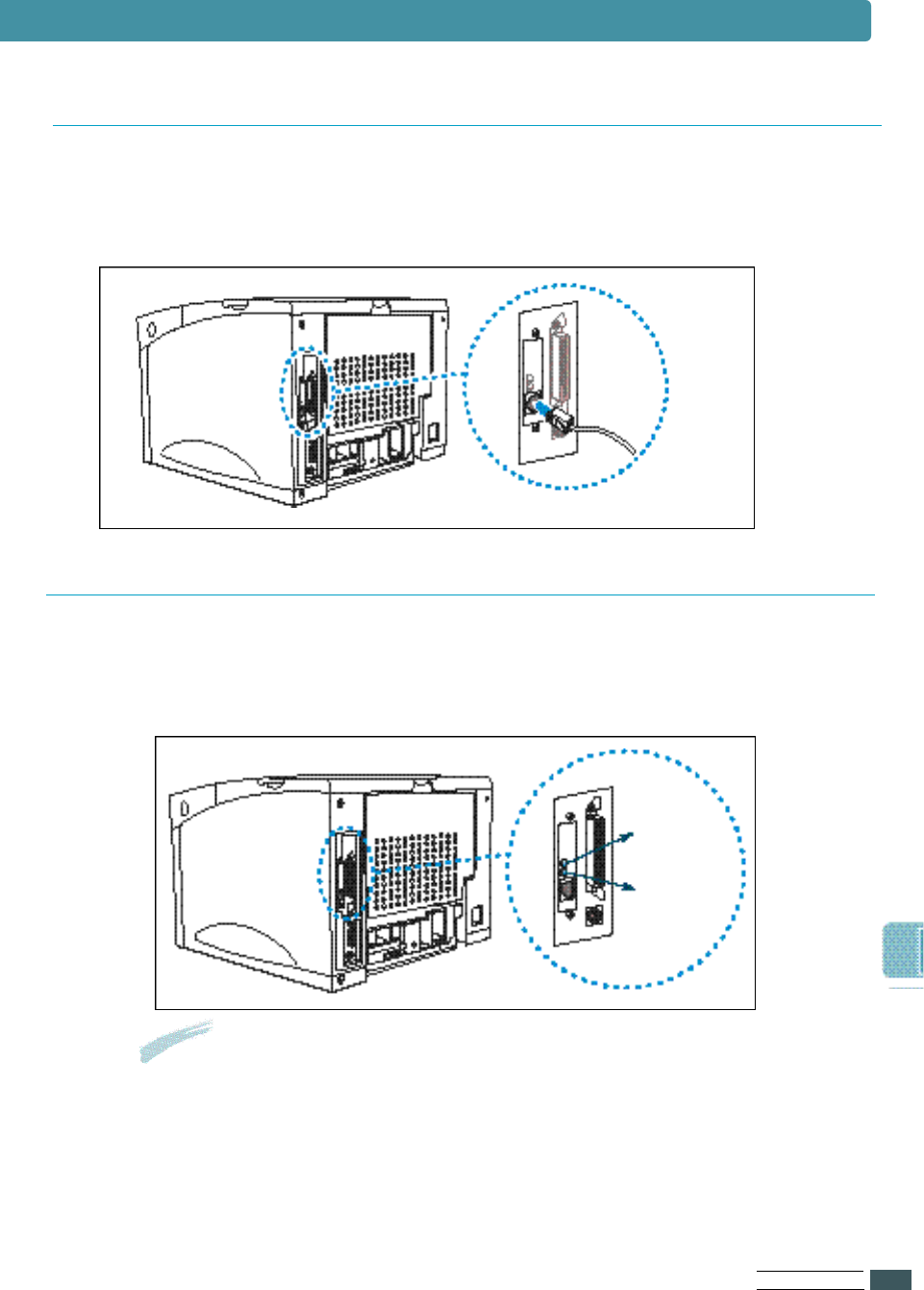
Notes:
•The top green LED comes on when the cable is connected to the port on
the Network Printer Card.
• After booting, the bottom green LED should blink irregularly and the top
green LED should come on continuously. If the bottom green LED blinks
regularly, turn on your printer again.
Connecting a Printer to the Network
Use standard network cabling that is used for other network components.
M a k e sure the printer is turned off before connecting the network cable to the port.
Attach the twisted-pair network cable to the RJ-45 port (10/100 Base T) on the card.
Powering Up
1
Connect the printer power cable into a properly grounded electrical outlet.
2
Turn on the printer.
top green
LED
bottom
green LED
Network Option Card
PR I N T E R OP T I O N
F.12
Installing Serial/LocalTalk
or Serial/IrDA option card
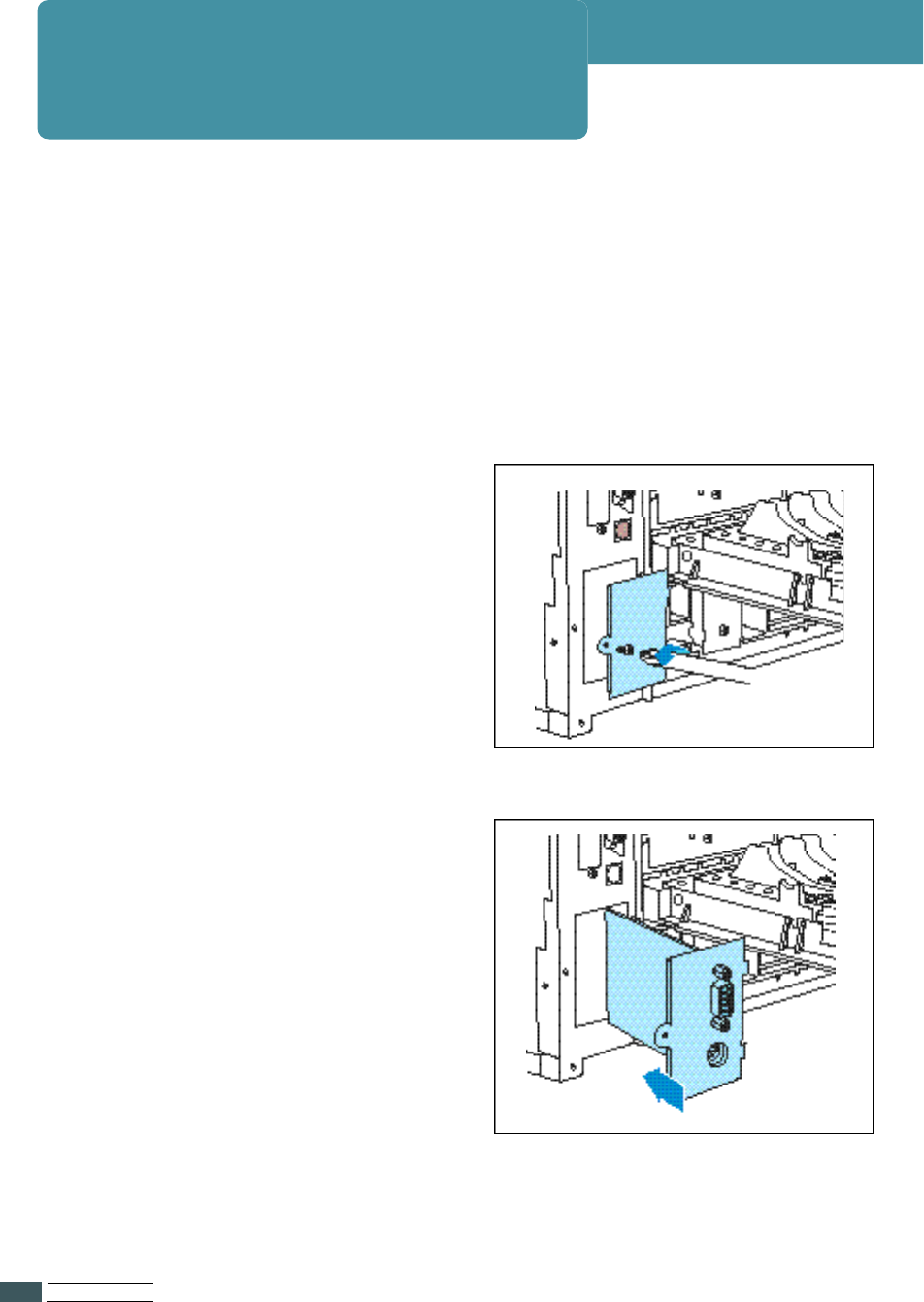
3Re m ove the single screw that
fastens the metal plate cove r i n g
the cable connector opening.
4Re m ove the plate.
5Insert the Serial/LocalTalk or
Serial/IrDA option card into the
option card slot.
2
Locate the Serial/LocalTalk or Serial/IrDA connector on the printer
control board.
1
Before you install the Serial/LocalTalk or Serial/IrDA option card,
follow steps under ‘Preparations’ on page F. 2 .
Installing Serial/LocalTark or Serial/IrDA option card
PR I N T E R OP T I O N
F.13
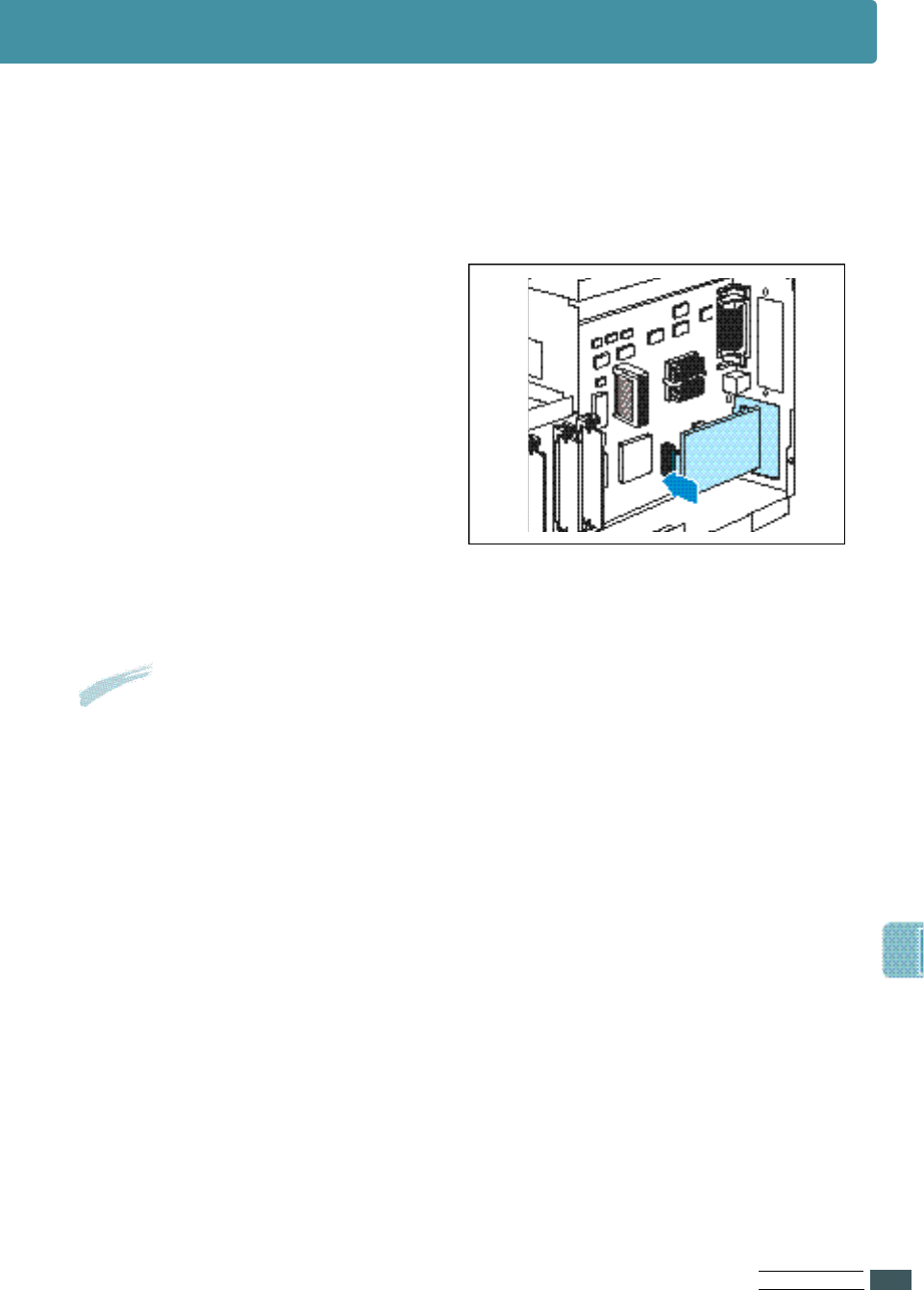
7
Push the card firmly into the connector until it is completely in place.
8
Gently tighten the screws to secure the card to the system board.
9
Continue with ‘Closing the Printer Cove r ’ on page F. 3.
6Align the connector on the card
with the connector on the printer
control board.
Notes :
The two connectors should fit snugly together.
PR I N T E R OP T I O N
F.14
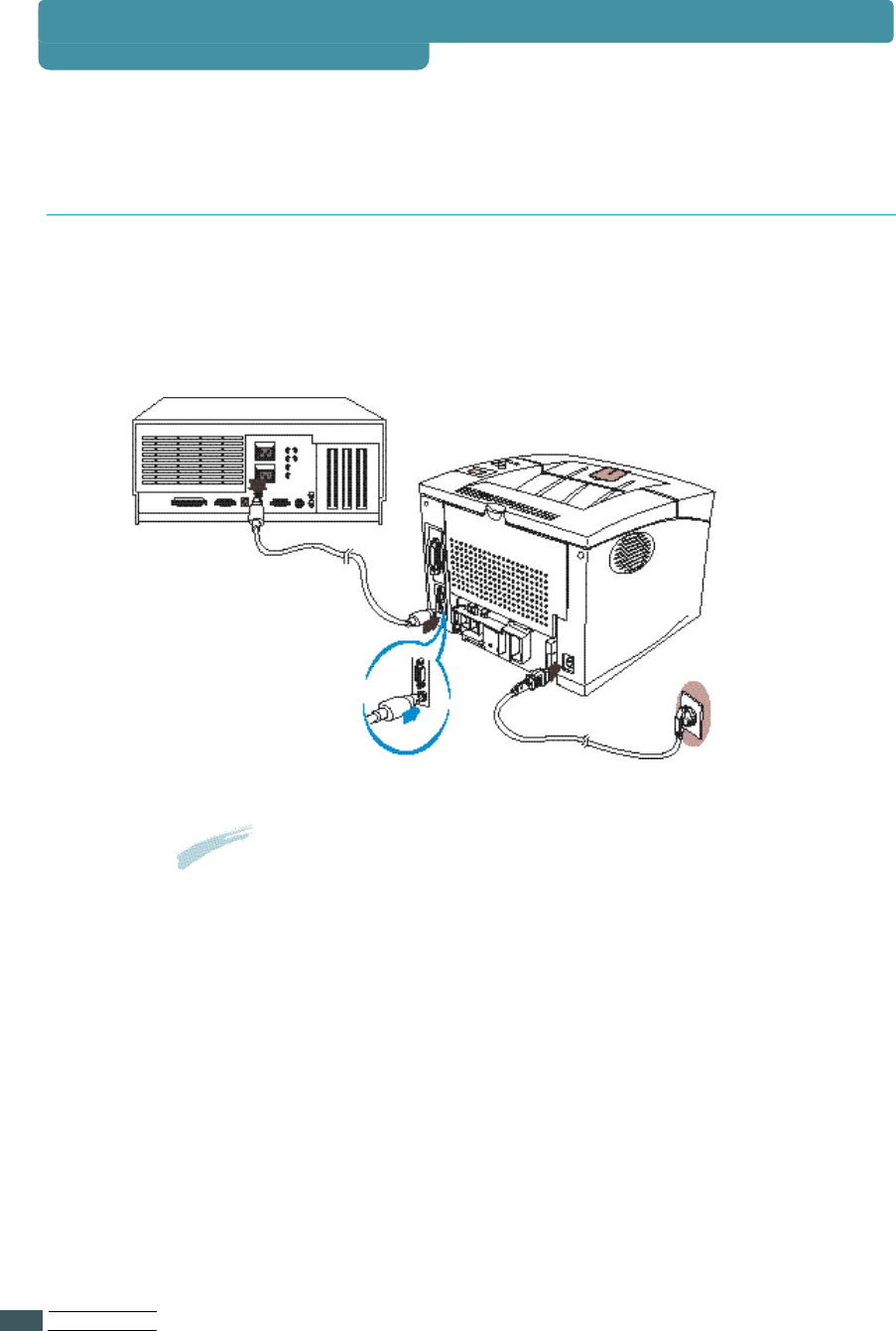
Connect the printer to your Macintosh using a LocalTalk cable.
Notes : A LocalTalk cable is not included.
It must be purchased separately.
Please contact your Macintosh dealer.
Connecting the LocalTalk Cable
Serial/LocalTalk
PR I N T E R OP T I O N
F.15
You can use a infrared adapter to print remotely from an IrDA- C o m p a t i b l e
computer equipped with an infrared port.
The infrared port is compliant with the specifications established by the
Infrared Data Association(IrDA).
The infrared port operates transmitting data at speeds up to 115.200
bits per second.
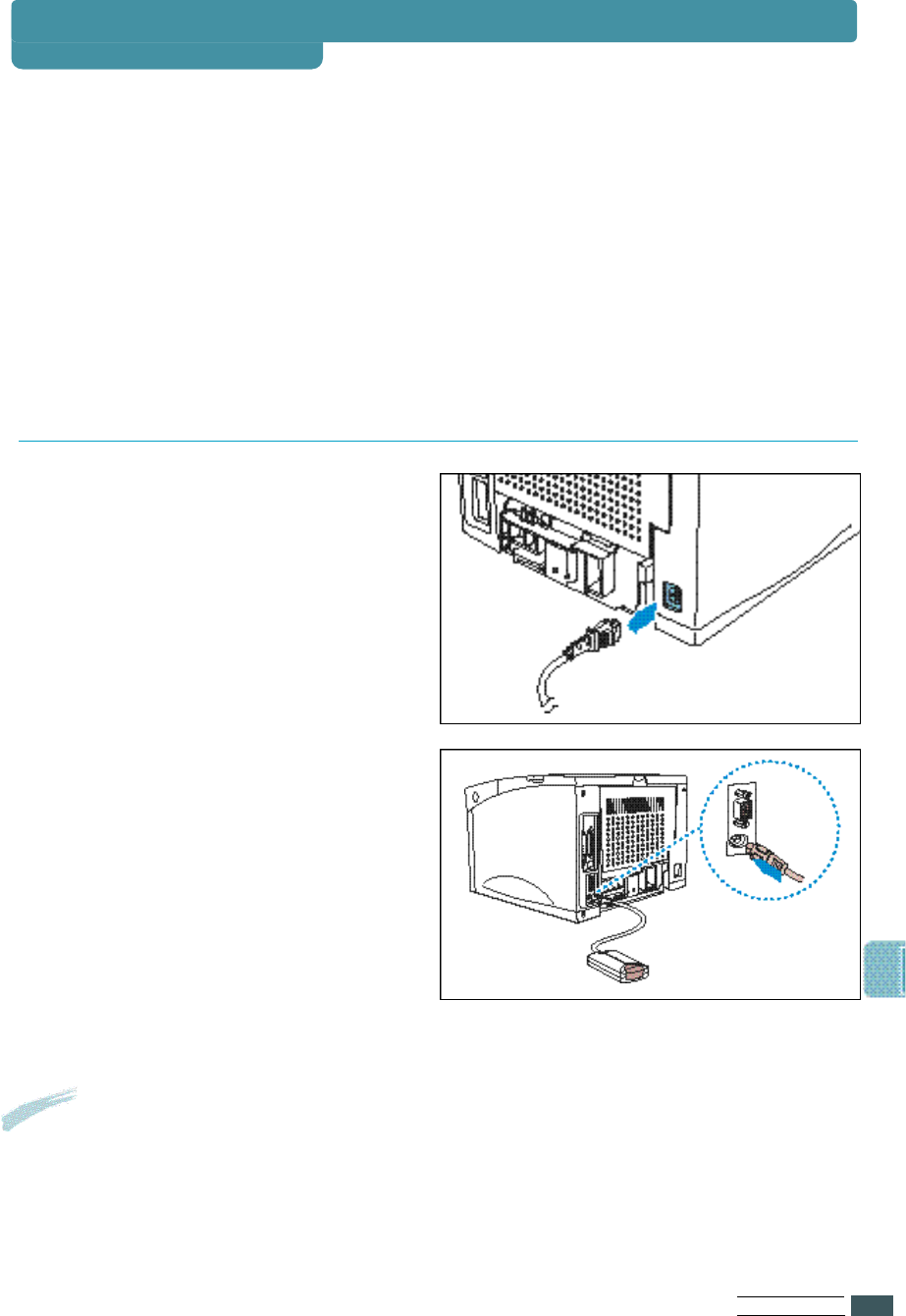
1
M a ke sure the printer power
cord is unplugged.
2Locate the infrared port
on the back of your printer.
3Plug the adapter cable into the
i n f rared port.
4Reconnect the power cord.
Result
The green light on the infrared adapter comes on
when the printer is plugged in.
Serial/IrDA
Connecting the Infrared Apapter
PR I N T E R OP T I O N
F.16
Serial/IrDA
1To print with infrared port, you should install infrared port driver on
your computer.
●If you do not have the drive r, please ask to your PC manufacturer.
●You can download infrared driver of Windows 95 from the internet
with no charge (http://www. m i c r o s o f t . c o m ) .
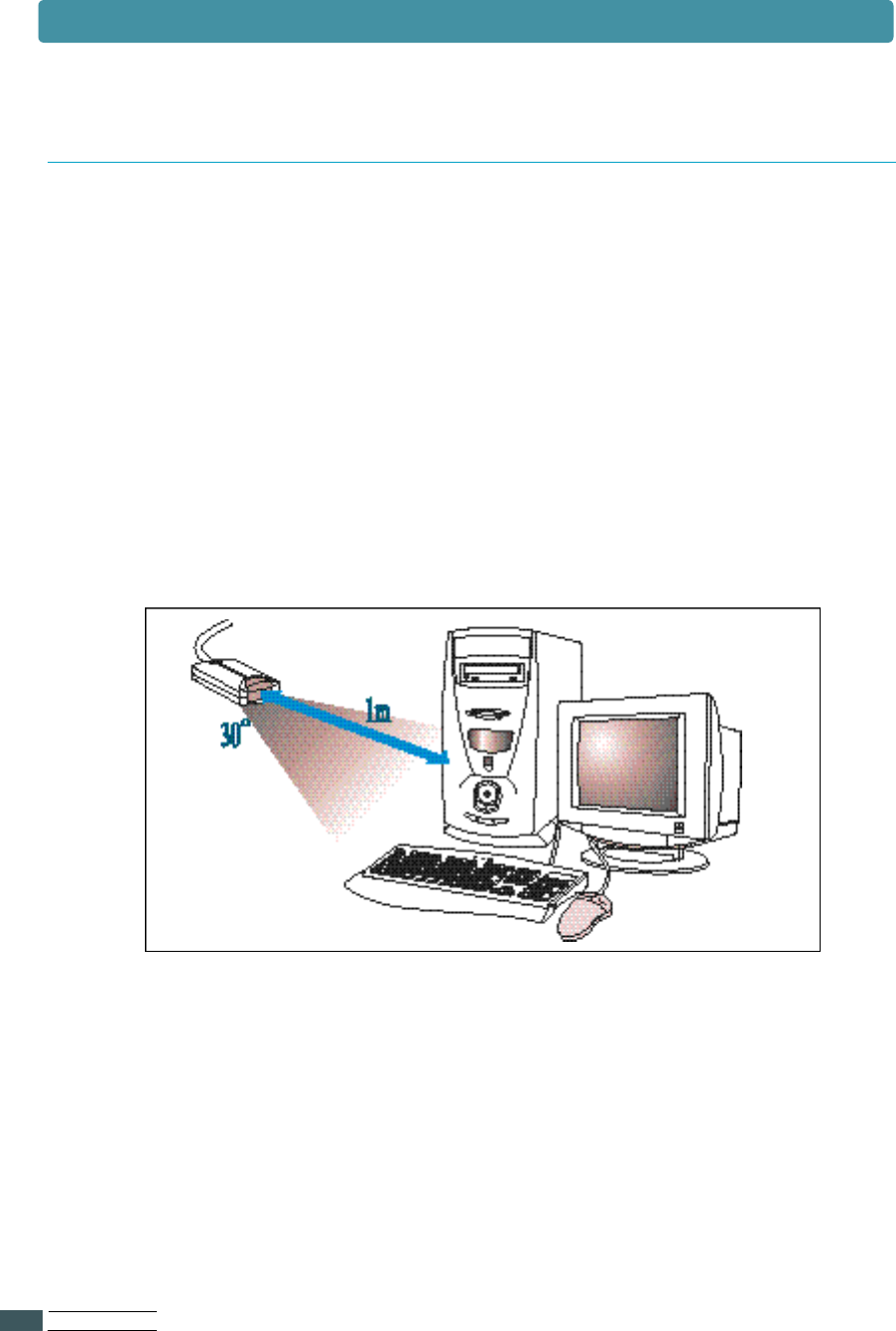
2Aim the computer infrared port at the infrared port on the back
of the printer.
3Aim the infrared port on your computer within 15 degrees of
either side of the line as shown.
4The printer must be within 3 feet(1 meter) of the computer.
5M a ke sure the printer is in ready state.
6Send the print job from the computer.
Using the Infrared Apapter
PR I N T E R OP T I O N
F.17
Optional Tray 2
You can install an Optional Tray 2 Complete the following steps beforeyou
install the Optional Tray 2.
●Unplug the printer power cord.
●Disconnect all cables from the back of the printer.
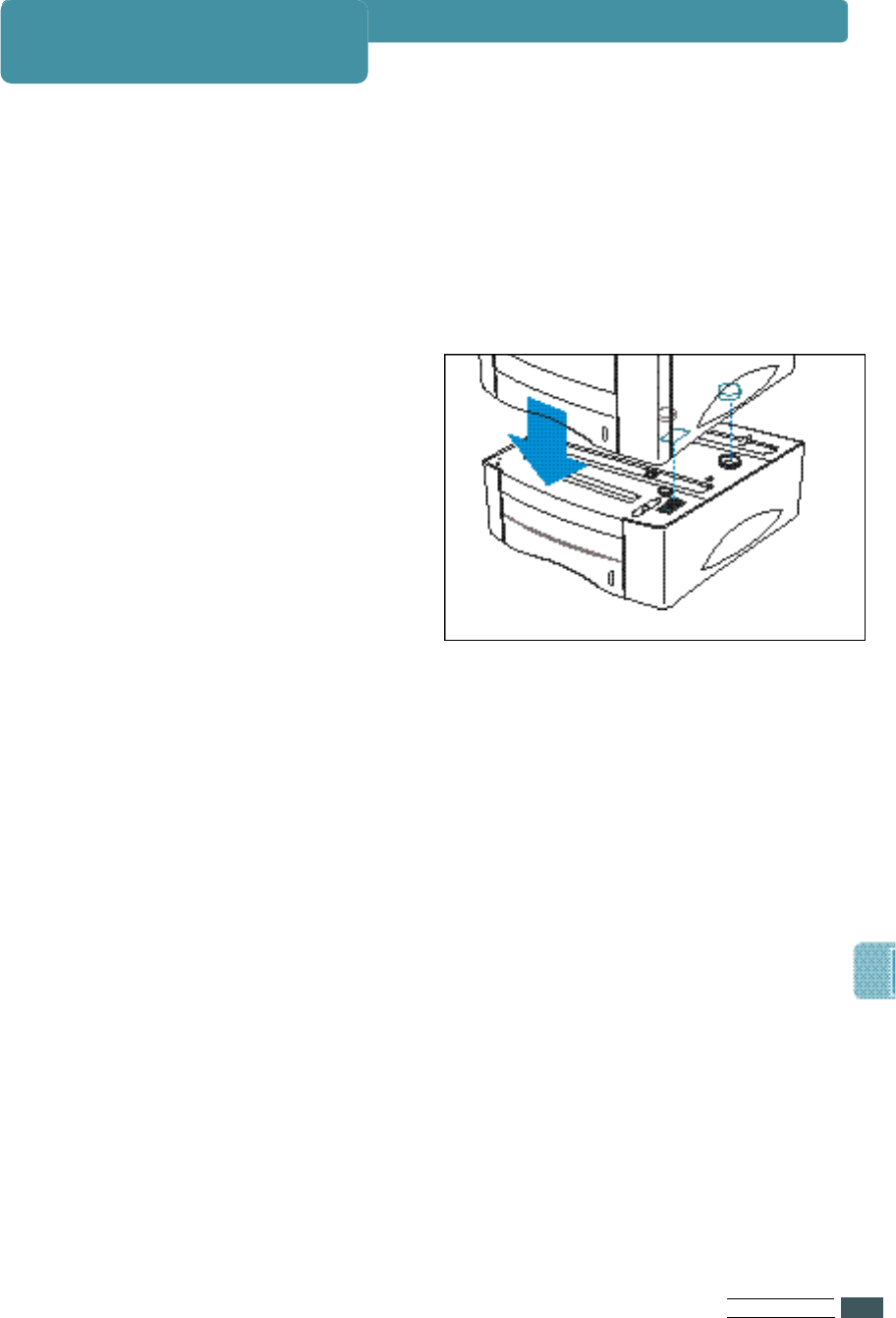
1Carefully place the printer on
top of the Optional Tray 2 unit.
●M a ke sure the connector is
properly inserted.
2Reconnect all cables to the back of the printer.
3Reconnect the power cord to the printer.
4M a ke sure the ‘READY’ message appears on
the operator panel display.
PR I N T E R OP T I O N
F.18
Optional Tray 2
Your printer has an optional cassette that can hold up to 500 sheets of
papers or 40 enve l o p e s .
To load paper in the Optional Tray 2, proceed as follows.
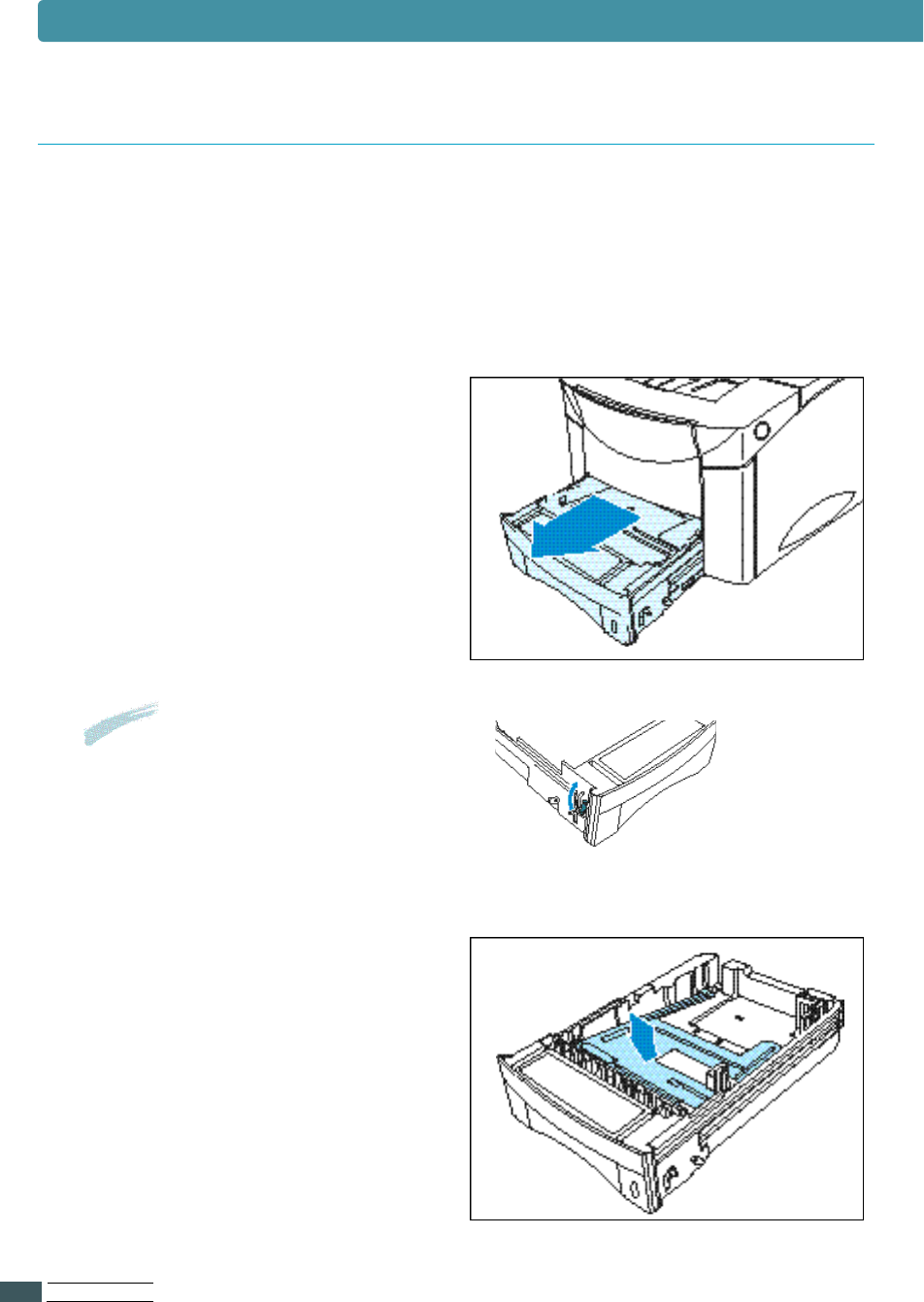
1Pull the tray completely
out of the printer.
2Press down on the bottom
plate to lock it into position.
Notes: To load the envelope into
the tray, lift the lever on
the left side of the tray.
Loading the plain Paper into the Optional Tray 2
PR I N T E R OP T I O N
F.19
Optional Tray 2
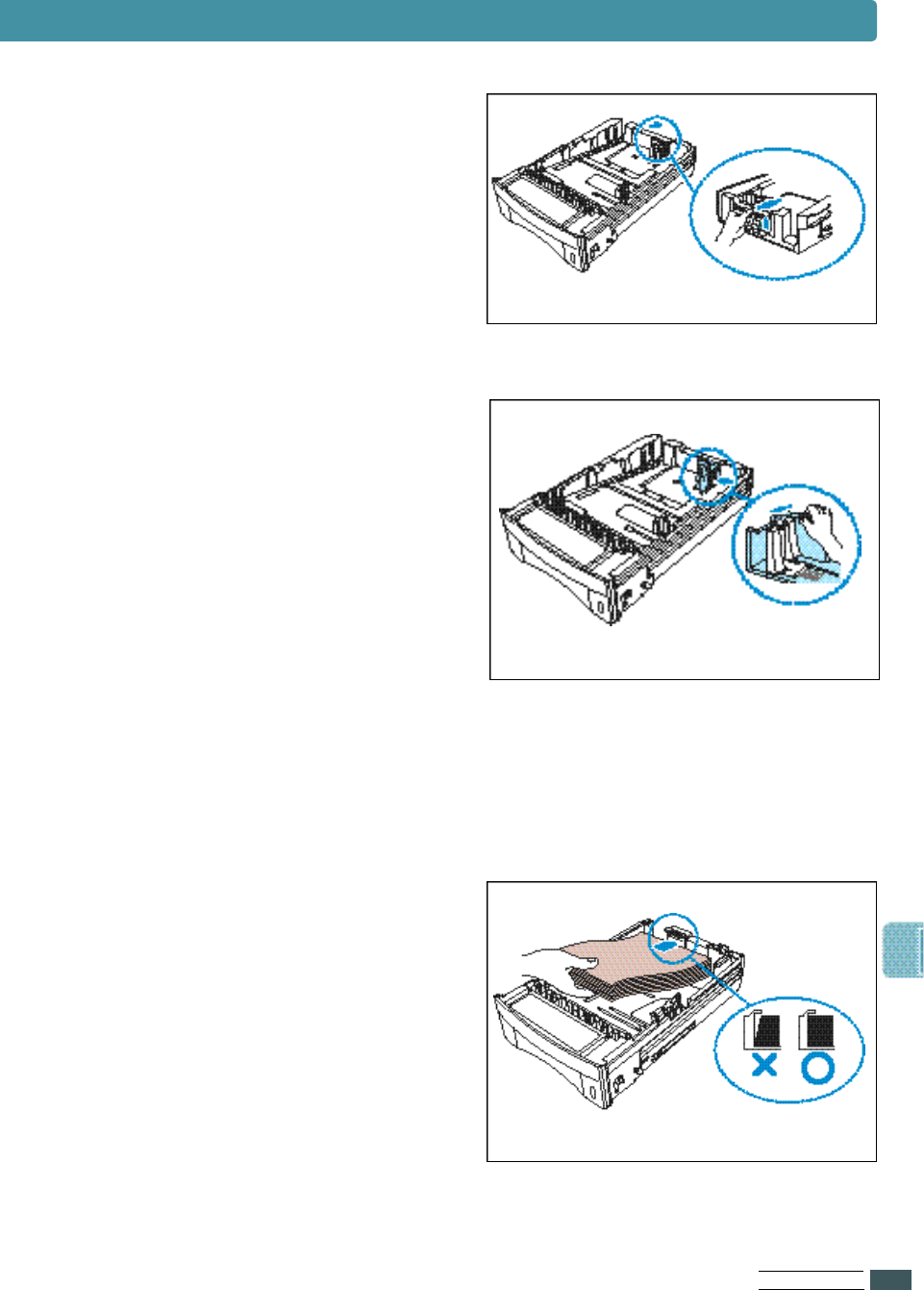
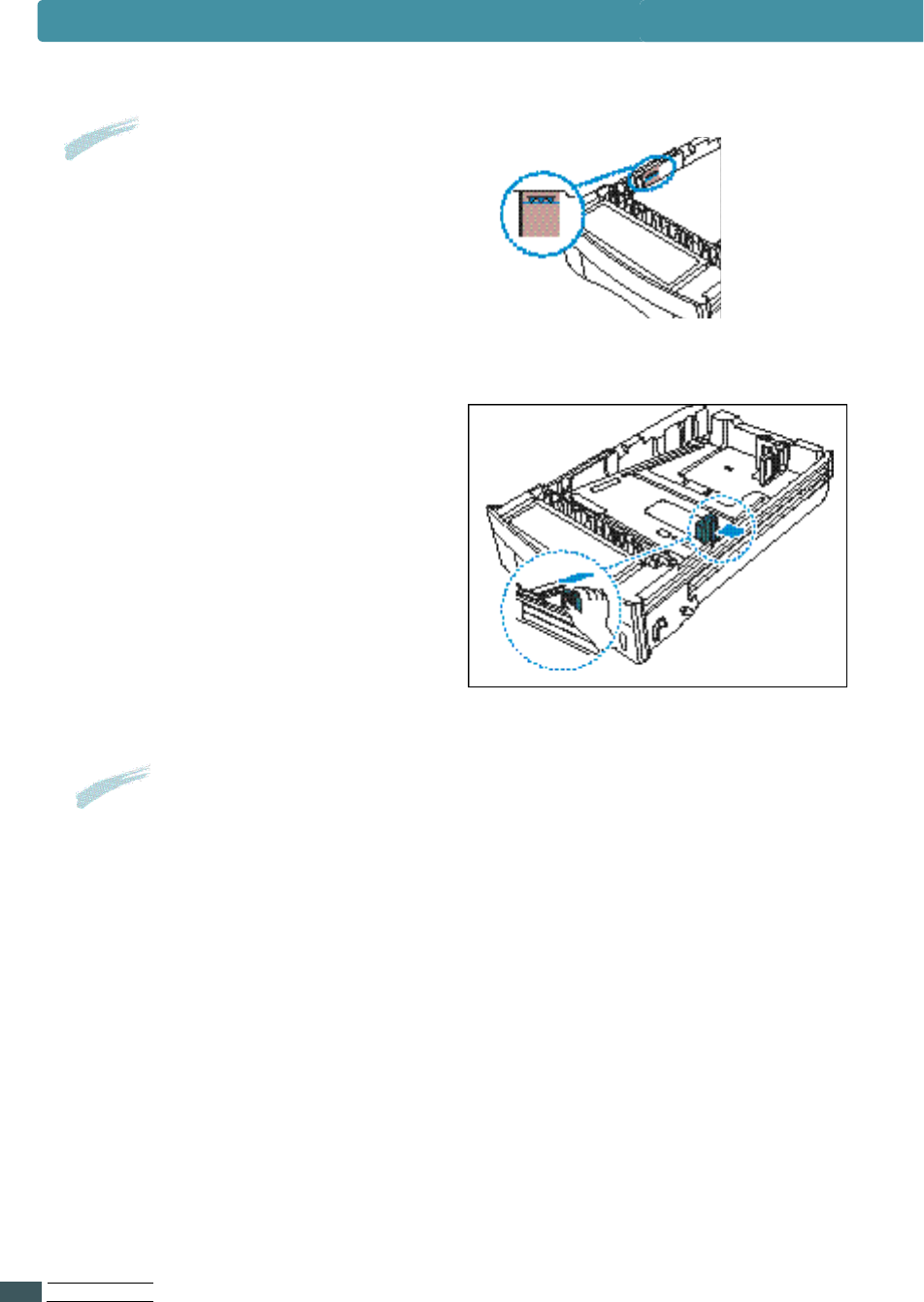
3S q u e e z e and lift the length
guide and slide it to the
desired paper size until it click
into place.
4
Lift the width guide on the paper
guide it to the desired paper size
until it click into place.
The paper size is indicated on the
bottom of the Optional Tray 2.
6
Place the paper against the left
of the rear paper guide.
5
S q u e e ze the width guide and
slide it to the for right side of
the Tray.
PR I N T E R OP T I O N
F.20
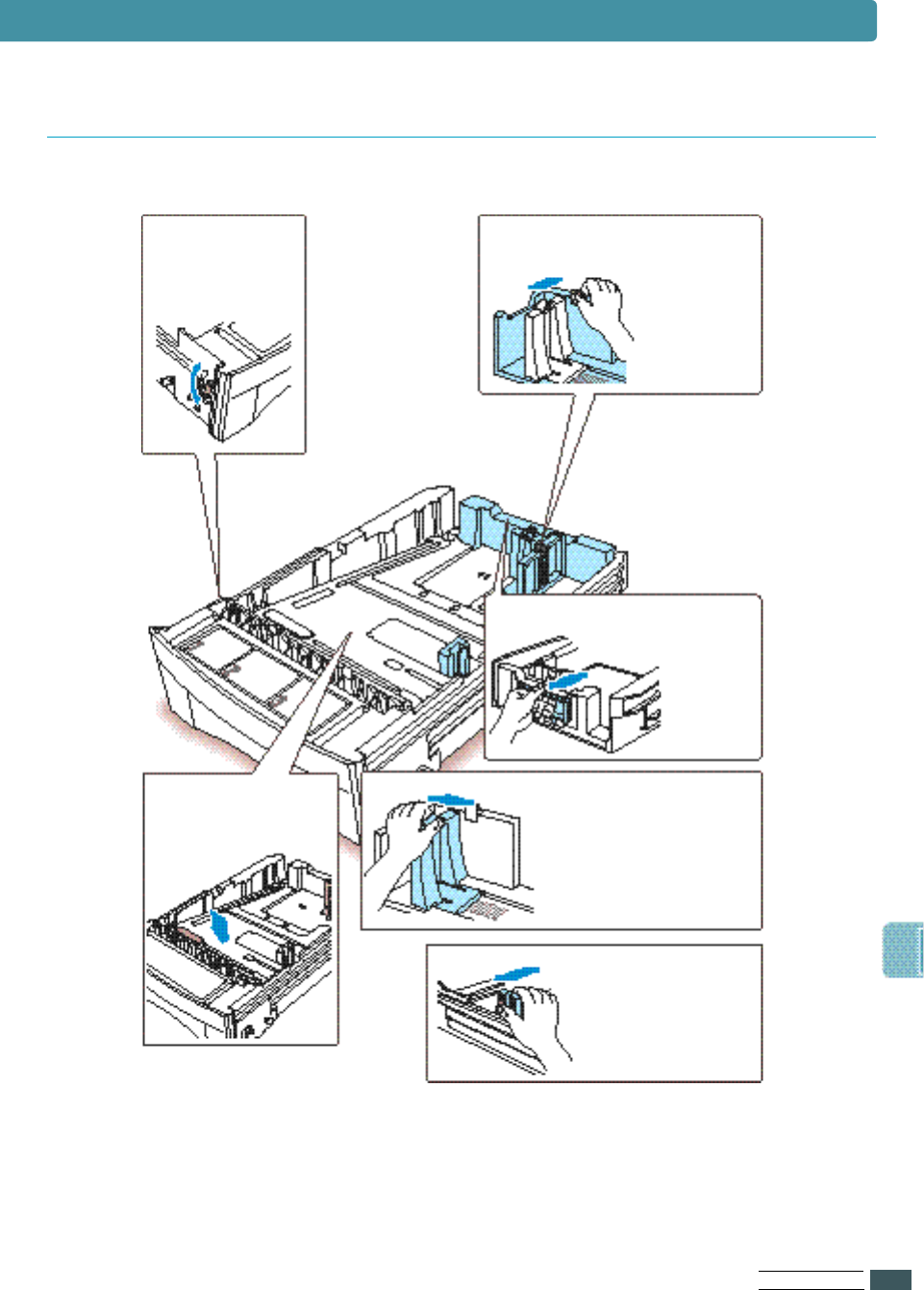
7S q u e e ze the width guide and
slide it to the right and left
until it touches the edge
of the paper.
Notes: ●
Do not fold or crease the paper.
●
This mark indicates the height
of paper loaded.
Notes:
The printer may pull paper from tray 1 first.
To change this, see ‘Paper Source Selection’ on page F.22.
Optional Tray 2
PR I N T E R OP T I O N
F.21
Tray 2
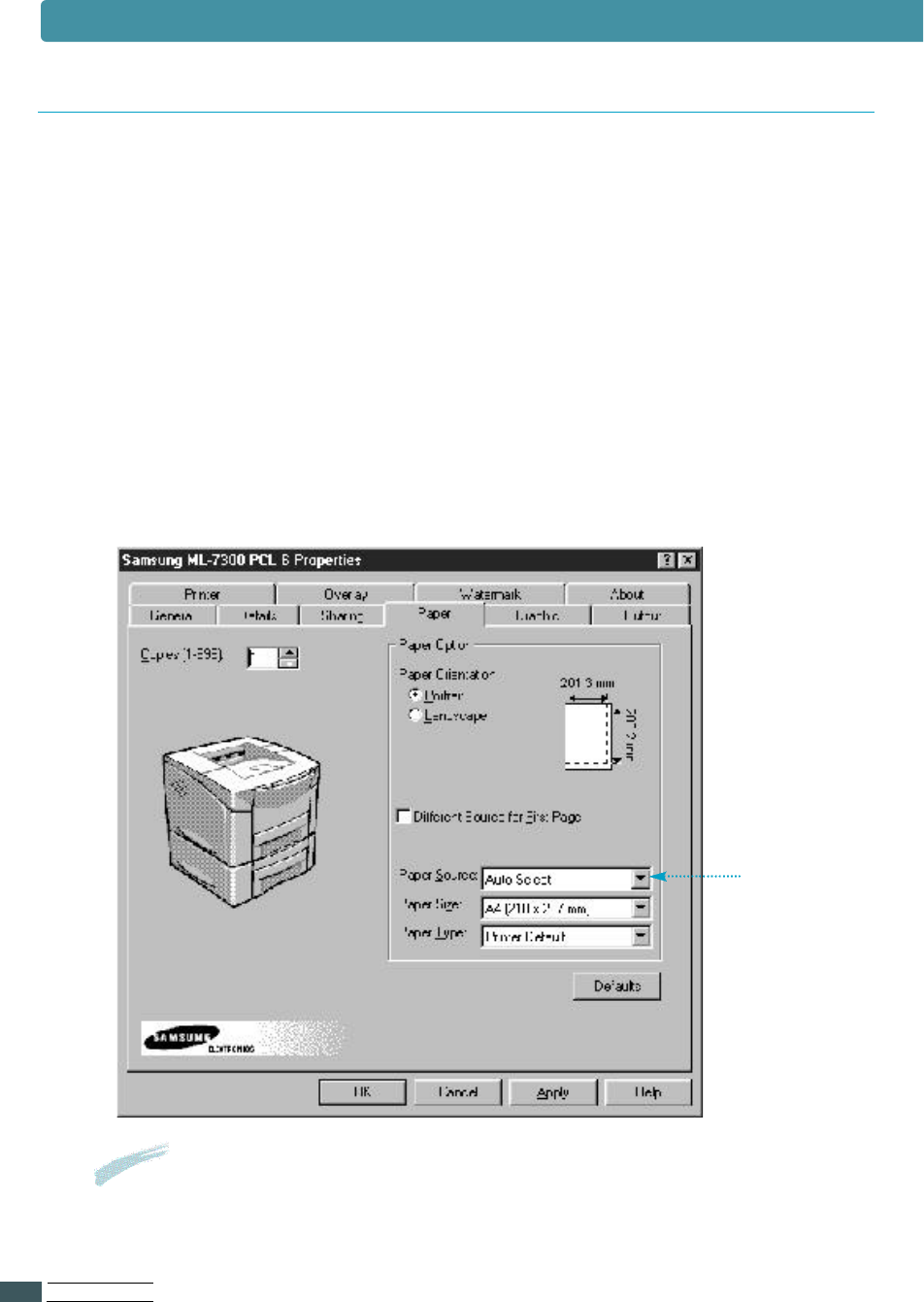
1Lift the leve r
on the left
side of the
Tray.
3
Press down on
the bottom plate
to lock it into
position.
3
Left the width guide and
slide it to the envelope
s i z e indicated
on the bottom.
4
Lift the length guide and
slide it to the enve l o p e
s i z e indicated
on the
b o t t o m .
5Place the enve l o p e s
against the left side of
the Tray. Squeeze the
e nvelope guide leve r
and slide it to the left
until it touches the edge
of the enve l o p e s .
6
S q u e e ze the width
guide and slide it to
the right and left
until it touches the
edge of the
e n v e l o p e s .
Loading the envelopes into the Optional Tray 2
PR I N T E R OP T I O N
F.22
Optional Tray 2
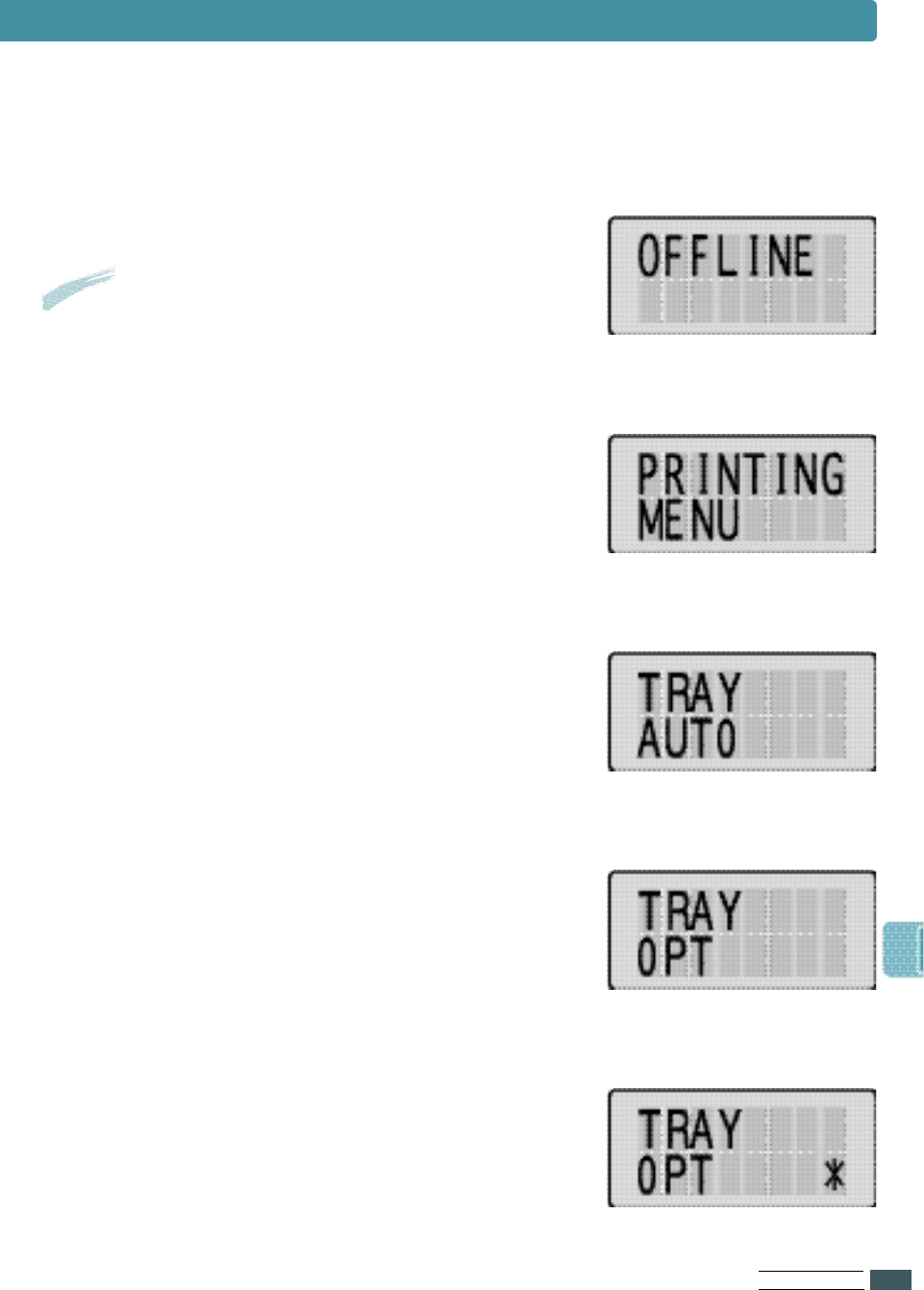
Use PCL driver to select the tray you wish to print.
1Select S t a r t - S e t t i n g s - P r i n t e r s from the windows 95 task bar.
2Click on the Samsung ML-7300 PCL 6 or PCL 5e i c o n .
3Select F i l e s - P r o p e r t i e s.
4Click on the P a p e r t a b.
5Set the source item to Default Value or Optional Tray 2.
Click
Notes:
Settings in the printer driver and software application override
operator panel setting.
Paper Source Selection
PR I N T E R OP T I O N
F.23
Optional Tray 2
2Press the Menu > or < buttons one
or more times until ‘Printing Menu’ is
d i s p l ay e d .
3Press the Item < or > buttons one or
more times until ‘Tray’ appears on the
d i s p l ay.
4Press the Value + or - buttons one or
more times to select ‘OPT’.
5Press the Enter button.
●An asterisk(❊) appears beside the
current user default setting for that
menu item.
You can select paper source by setting TRAY item of the control
panel menu.
If you do not use printer driver.
To Select Optional Tray 2 as the default settings :
1Press On Line.
Result:
The OFFLINE message appears on
the display and the printer is off-line.

Using your
Printer in Linux
You can use Samsung ML-7300 Series printer in Linux
e nv i r o n m e n t .
This appendix provides information on the following topic:
• Linux Driver Installation
G
G

Linux Driver Installation
US I N G YO U R PR I N T E R I N LI N U X
G.1
This Linux driver is designed for Samsung ML-6060 Series
printer and supports Linux Red Hat 6.0 or higher and Intel
Linux. If your Linux version is not included, this driver might
not work properly.
• Install Setup Script file configuration
a. /cdrom/linux/install.sh
b. /cdrom/linux/sprt.db
c. /cdrom/linux/readme.txt
To install the driver, open the x terminal screen and take the
following steps:
Installation
To mount the CD-ROM drive:
1
Insert the Samsung ML-7300 Series CD-ROM into the
CD-ROM drive.
2
Mount the CD-ROM drive under a directory like /mnt in
order to access the files on the CD-ROM:
>mount -t iso9660 /dev/cdrom /mnt/cdrom
Note: To mount the CD-ROM drive, you must be a super user
or must be authorized to mount the CD-ROM by the super
user. If you fail to mount the CD-ROM drive, ask the system
administrator.
1. Mount the CD-ROM
drive.
2. Install setup script.
For details on installing the setup script, refer to the
/cdrom/linux/readme.txt file.
Add the driver to the printer list by typing in:
/cdrom/linux>install.sh (or)
/cdrom/linux>./install.sh (if the path of the current
working directly is not determined.)

US I N G YO U R PR I N T E R I N LI N U X
G.2
Linux Driver Installation
3. Set up the printer filter.
To set up:
1
Run printtool at x terminal.
2
To add the printer driver, click the Add button.
3
In the Add a Printer Entry window, decide the printer
type you will use. Select Local Printer if you have a PC-
connected printer.
4
Click the OK button.
5
If the Info button appears, ignore it, then click the OK
button.
6
The Edit xxxx Entry window opens (where xxxx is the
printer type you have selected at step 3).
If you are not an advanced user, do not change the
Names/Spool Directory/File Limit in Kb/Printer
Device option.
7
Click the Select button in the Input Filter to access
filter setup.
8
Select Samsung Printer PCL 5e Compatible for the
Printer Type item. Then select the default resolution and
paper size.
9
To save the setting, press the OK button.
10
In the Edit xxxx Entry window, press the OK button to
complete the printer driver installation.
11
You can find that the printer driver is added to the
driver window. Select Quit from the PrintTool menu.

IN D E X
I
INDEX
N u m e r i c
16MB RAM . . . . . . . . . . . . . .1 . 2
2 1 P P M . . . . . . . . . . . . . . . . .1 . 2
5 0 0 - Sheet Tray . . . . . . . . . . .1 . 3
A
A d h e s i ve tape . . . . . . . . . . . .2 . 2
AU T O CR . . . . . . . . . . . . . . .3 . 8
AU TO C O N T . . . . . . . . . . . . . .3 . 9
B
B AUD RAT E . . . . . . . . . . . . .3 . 1 7
C
C D . . . . . . . . . . . . . . . . . . .2 . 1 2
CONFIG MENU . . . . . . . . . . . .3 . 9
E M U L
PWR SAV E
AU TO C O N T
E C O N O
JAM RECV
TO N E R LO W
S W I TC H
LO C K T R AY
C o p i e s . . . . . . . . . . . . . . . . .5 . 4
C O U R I E R . . . . . . . . . . . . . .3 . 1 6
COVER OPEN . . . . . . . . . . . . .7 . 5
D
Default printer . . . . . . . . . . .2 . 1 8
D E M O PA G E . . . . . . . . . . . . .3 . 1 5
D E N S I T Y . . . . . . . . . . . . . . .3 . 1 2
D u p l e x . . . . . . . . . .5.8, 5.14, 7.5
E
e nvelopes, print . . . . . . . . . .4 . 5
error messages . . . . . . . . . . .7 . 5
Ethernet 10/100 Base T . . . . .F. 1 1
F
Fo l i o . . . . . . . . . . . . . . . . . .2 . 7
Font Nav i g a t o r . . . . . . . . . . .2 . 1 9
Front view . . . . . . . . . . . . . .1 . 3
G
g raphic mode . . . . . . . . . . . .5 . 6
g raphic tab . . . . . . . . . . . . . .5 . 5
H
halftone, setting . . . . . . . . . .5 . 6
h a r d ware requirements . . . . .2 . 1 3

IN D E X
II
I
i n f rared adapter . . . . . . . . . .F. 1 5
I/O MENU . . . . . . . . . . . . . .3 . 1 7
J
JOB MENU . . . . . . . . . . . . .3 . 1 2
L
Label, printing . . . . . . . . . . . .4 . 7
l a n d s c a p e . . . . . . . . . . . . . . .5 . 4
L o c a l Ta l k . . . . . . . . . . . . . . .F. 1 2
LSU cleaner . . . . . . . . . . . . .6 . 6
M
M a c i n t o s h . . . . . . . . . . . . . .B. 1
Macintosh Problems . . . . . . .7 . 1 1
menu botton . . . . . . . . . . . . .3 . 2
MP size . . . . . . . . . . . . . . . .3 . 5
multiple images . . . . . . . . . . .5 . 8
manual feed
loading paper . . . . . . . . . . .4 . 3
paper source setting . . . . . .5 . 4
m e m o r y, option . . . . . . . . . . .F. 5
multi-purpose tray
loading paper . . . . . . . . . . .4 . 1
paper soruce setting . . . . . .5 . 4
N
network interface
install network card . . . . . . .F. 8
set up a locally shared printerD. 1
network menu . . . . . . . . .3 . 1 8
network problem . . . . . . . .7 . 1 0
O
o p t i o n
closing cove r . . . . . . . . . . .F. 3
memory SIMM . . . . . . . . . .F. 5
nwtwork option card . . . . . .F. 8
p r e p a ra t i o n s . . . . . . . . . . . .F. 2
s e r i a l / I r D A . . . . . . . . . . . .F. 1 5
s e r i a l / L o c a l Ta l k . . . . . . . . .F. 1 4
t ray 2 . . . . . . . . . . . . . . .F. 1 7
o r i e n t a t i o n . . . . . . . . . . . . . .5 . 4
ove r l a y tab . . . . . . . . . . . . .5 . 1 0
P
p a p e r
acceptable size and capacitiesA.4
g u i d e l i n e s . . . . . . . . . . . . .A . 5
s p e c i f i c a t i o n s . . . . . . . . . . .A . 4
supported ty p e . . . . . . . . . .A . 5
paper orientation, setting . . . .5 . 4
paper source, setting . . . . . . .5 . 4
paper tray
change paper size in tray . . .5 . 4
load paper . . . . . . . . . . . . .2 . 5
optional tray 2 . . . . . . . . .F. 1 7
INDEX

IN D E X
III
P ( c o n t i n u e d )
paper type, setting . . . . . . . .5 . 4
p a rallel, connection . . . . . . . .2 . 8
PCL 6, Properties
g r aphic tab . . . . . . . . . . . .5 . 5
output tab . . . . . . . . . . . . .5 . 7
ove r l ay tab . . . . . . . . . . .5 . 1 0
paper tab . . . . . . . . . . . . .5 . 3
printer tab . . . . . . . . . . . .5 . 9
watermark tab . . . . . . . . .5 . 1 2
postscript emulation . . . . . . . .C . 2
install PPD file for Macintosh .B. 1
power save r . . . . . . . . . . . . .3 . 9
power switch . . . . . . . . . . . .2 . 1 0
print quality problem, solving . .7 . 9
printer control board . . . . . . . .F. 4
printer drive r . . . . . . . . . . .2 . 1 2
pcl 6
p o s t s c r i p t
font nav i g a t o r
s y n c t h r u
printer memory connector . . . .F. 4
printer menu . . . . . . . . . . . .3 . 4
printer tab . . . . . . . . . . . . . .5 . 9
printing menu . . . . . . . . . . . .3 . 5
printing problem . . . . . . . . . .7 . 8
PS3 menu . . . . . . . . . . . . . .3 . 1 7
Q
q u a l i t y, problems . . . . . . . . . .7 . 9
R
radio frequecny emissions . . . .G . 3
R E D AY status message . . . . . .3 . 3
rear paper guide . . . . . . . . . .2 . 5
rear right guide . . . . . . . . . . .2 . 6
rear view . . . . . . . . . . . . . . .1 . 3
r e s o l u t i o n . . . . . . . . . . . . . . .5 . 6
ROM SIMM connector . . . . . . .F. 4
S
S E L FT E S T . . . . . . . . . . . . . .2 . 1 1
s e l e c t i o n . . . . . . . . . . . . . .2 . 1 8
S e r i a l / L o c a l Talk connector . . . .F. 4
S e r i a l / L o c a l Talk option card . .F. 1 2
setting up . . . . . . . . . . . . . .2 . 1 2
s o f t ware requirements . . . . .2 . 1 3
s p e c i f i c a t i o n s
p a p e r . . . . . . . . . . . . . . . .A . 4
c o n t r o l l e r . . . . . . . . . . . . .A . 1
e n g i n g e . . . . . . . . . . . . . .A . 2
paper handling . . . . . . . . . .A . 3
e nv i r o n m e n t . . . . . . . . . . .A . 3
package weight . . . . . . . . .A . 3
S RT mode . . . . . . . . . . . . . .5 . 6
INDEX

IN D E X
IV
T
test menu . . . . . . . . . . . . . .3 . 1 5
testing the printer . . . . . . . .2 . 1 1
toner cartridge
d i s t r i b u t i n g . . . . . . . . . . . .6 . 1
i n s t a l l . . . . . . . . . . . . . . . .2 . 3
life expectancy . . . . . . . . . .6 . 1
r e c yc l e . . . . . . . . . . . . . . .6 . 1
redistribute toner . . . . . . . .6 . 2
s ave toner . . . . . . . . . . . . .5 . 6
s t o ra g e . . . . . . . . . . . . . . .6 . 1
top cove r . . . . . . . . . . . . . . .1 . 3
top output bin . . . . . . . . . . . .1 . 3
t ra n s p a r e n c i e s . . . . . . . . . . .4 . 8
U
uninstall utility . . . . . . . . . .2 . 1 7
unpacking your printer . . . . . .2 . 1
V
value button . . . . . . . . . . . . .3 . 1
W
watermark tab . . . . . . . . . . .5 . 1 2
width guide . . . . . . . . . . . . .2 . 5
windows95/98/NT 4.0 . . . . . .2 . 1 4
windows 3.1 . . . . . . . . . . . .2 . 1 7
INDEX