Samsung Electronics Co SLM4075FW Mono Laser Multifuction Printer User Manual
Samsung Electronics Co Ltd Mono Laser Multifuction Printer
Contents
- 1. Users Manual 1
- 2. Users Manual 2
- 3. Users Manual 3
- 4. Users Manual 4
Users Manual 3
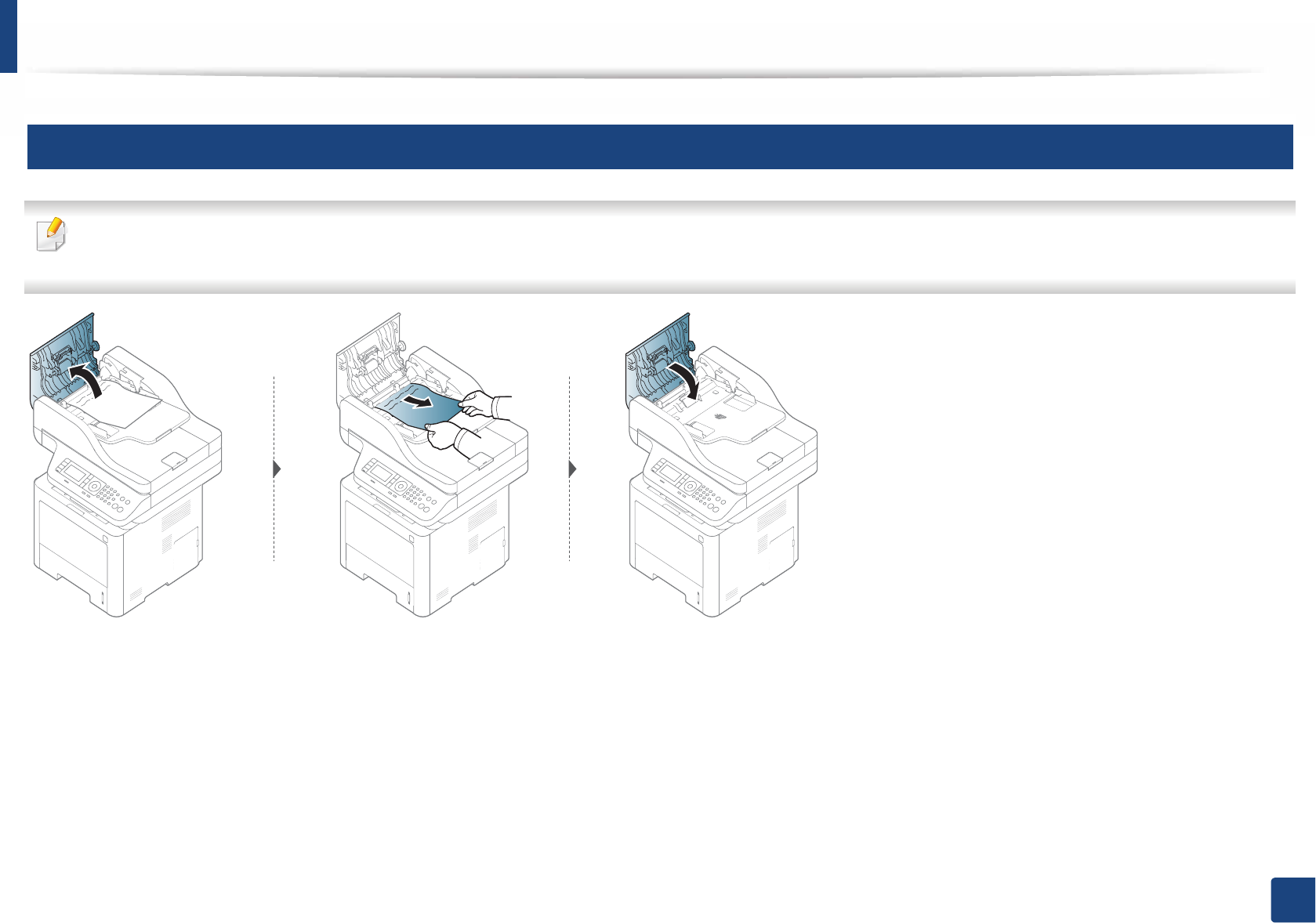
Clearing original document jams
106
4. Troubleshooting
1
Original paper jam in front of scanner
• Illustrations on this user’s guide may differ from your machine depending on its options or models. Check your machine type (see "Front view" on page 20).
• This troubleshooting may not be available depending on model or optional goods (see "Variety feature" on page 9).
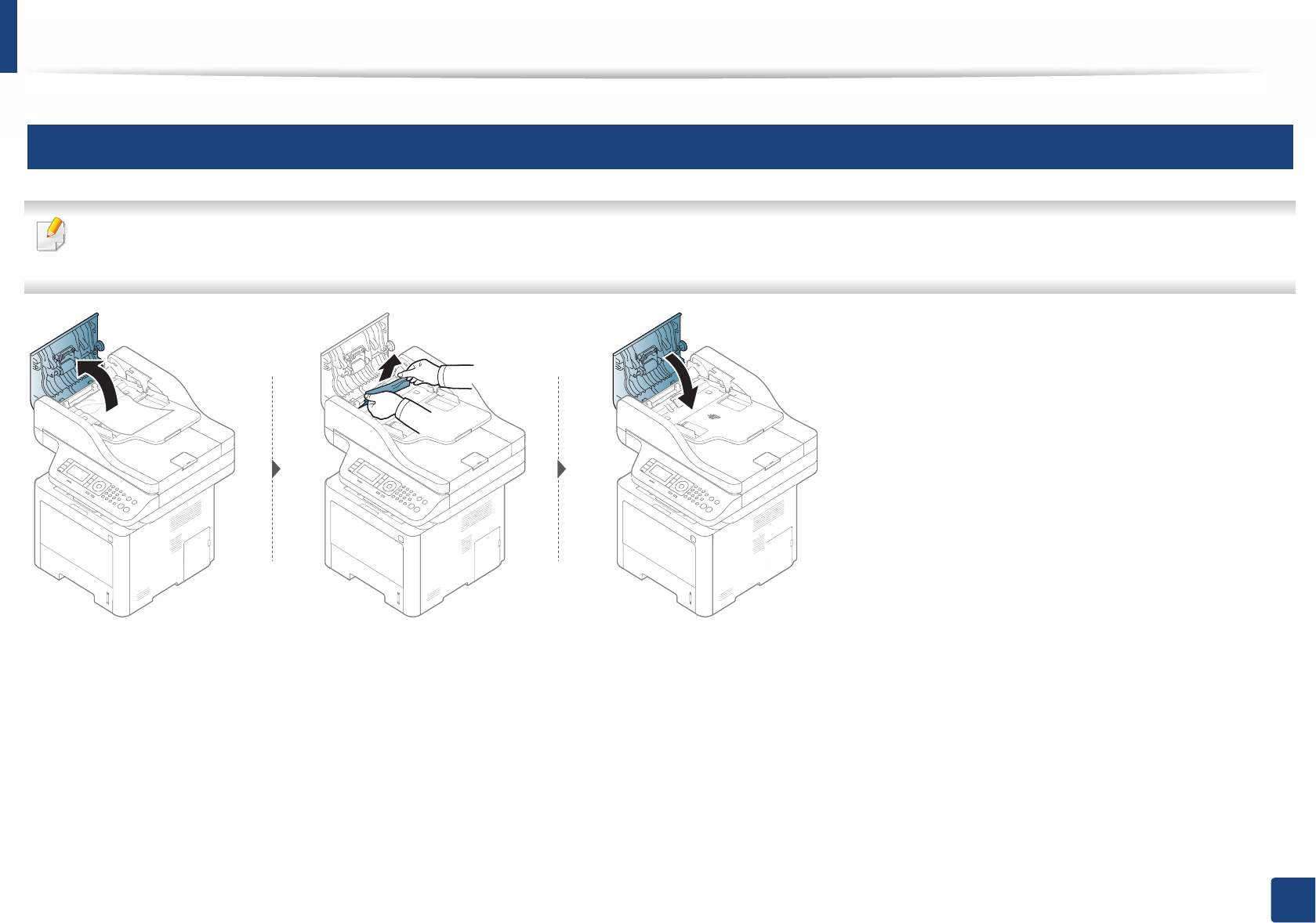
Clearing original document jams
107
4. Troubleshooting
2
Original paper jam inside of scanner
• Illustrations on this user’s guide may differ from your machine depending on its options or models. Check your machine type (see "Front view" on page 20).
• This troubleshooting may not be available depending on model or optional goods (see "Variety feature" on page 9).
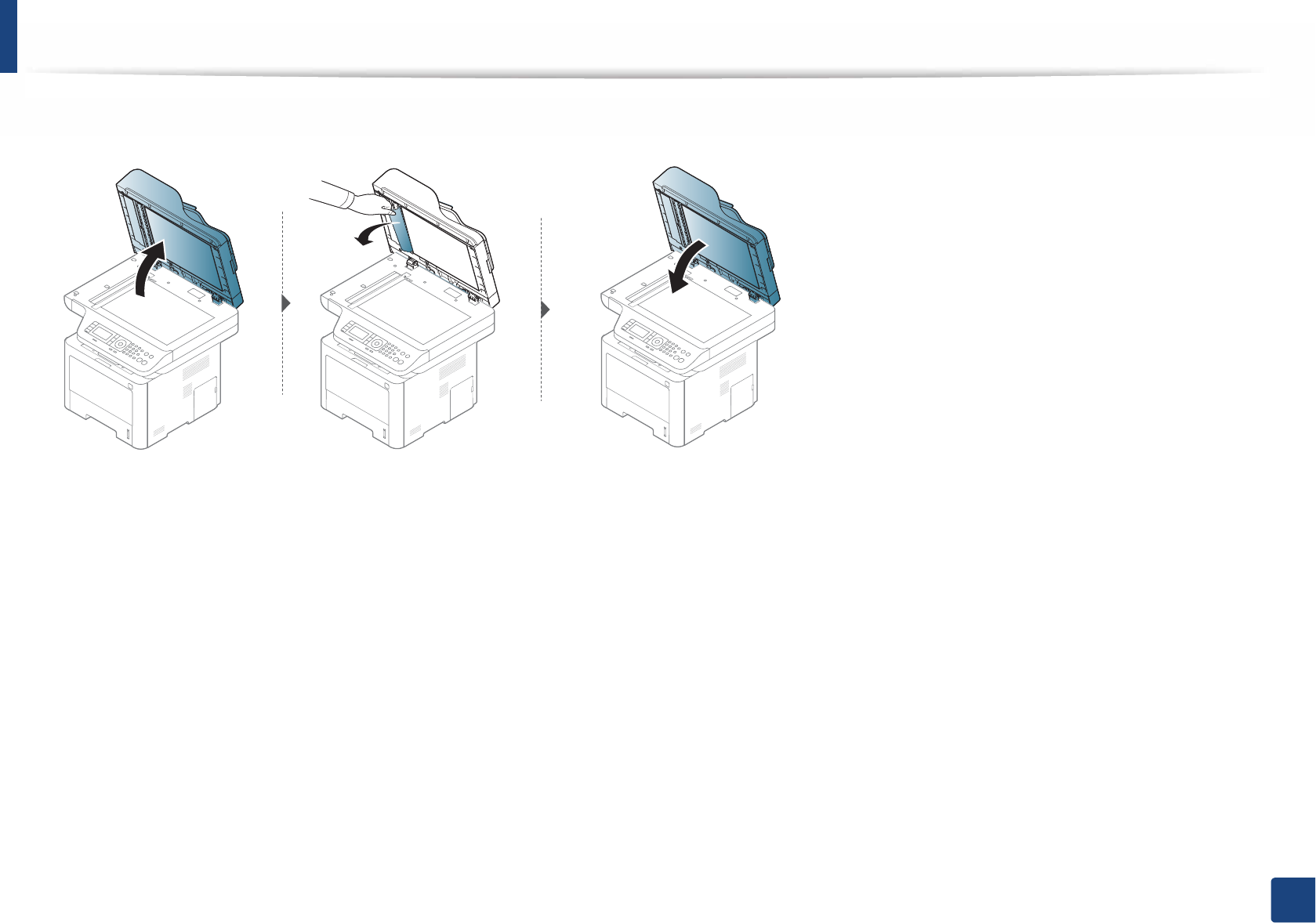
Clearing original document jams
108
4. Troubleshooting
If you do not see the paper in this area, stop and go to next step:
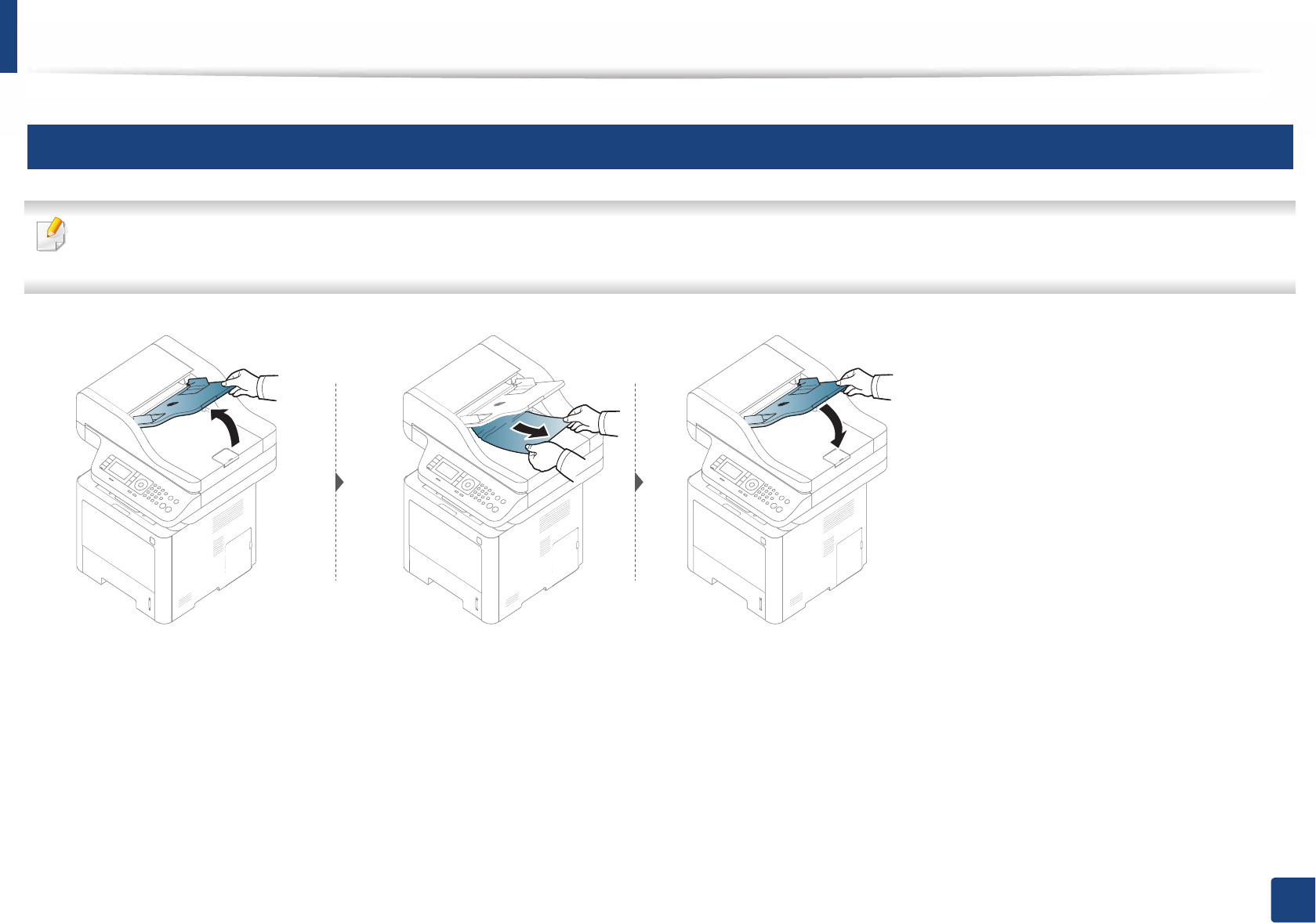
Clearing original document jams
109
4. Troubleshooting
3
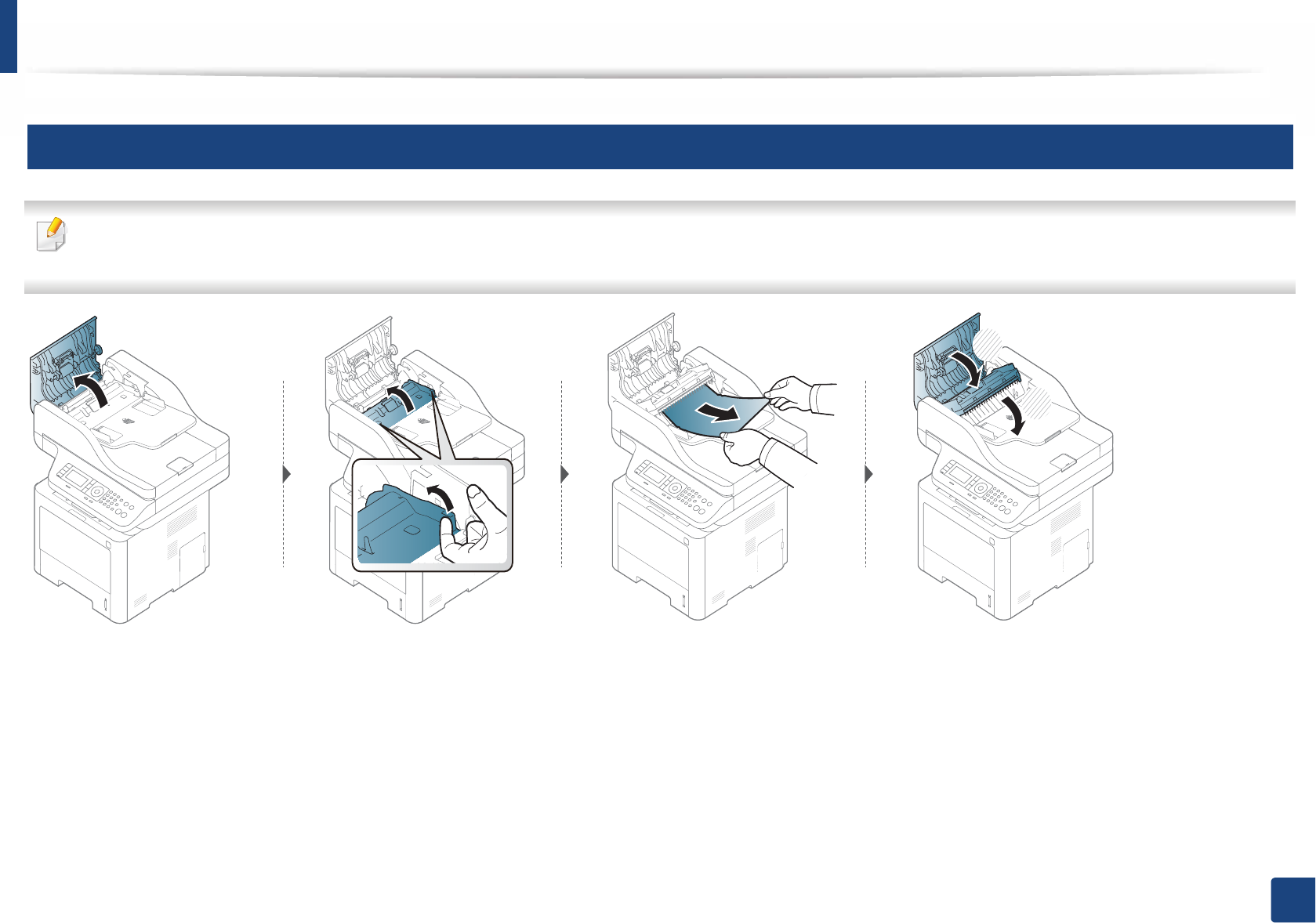
Original paper jam in exit area of scanner
• Illustrations on this user’s guide may differ from your machine depending on its options or models. Check your machine type (see "Front view" on page 20).
• This troubleshooting may not be available depending on model or optional goods (see "Front view" on page 20).
Clearing original document jams
110
4. Troubleshooting
4
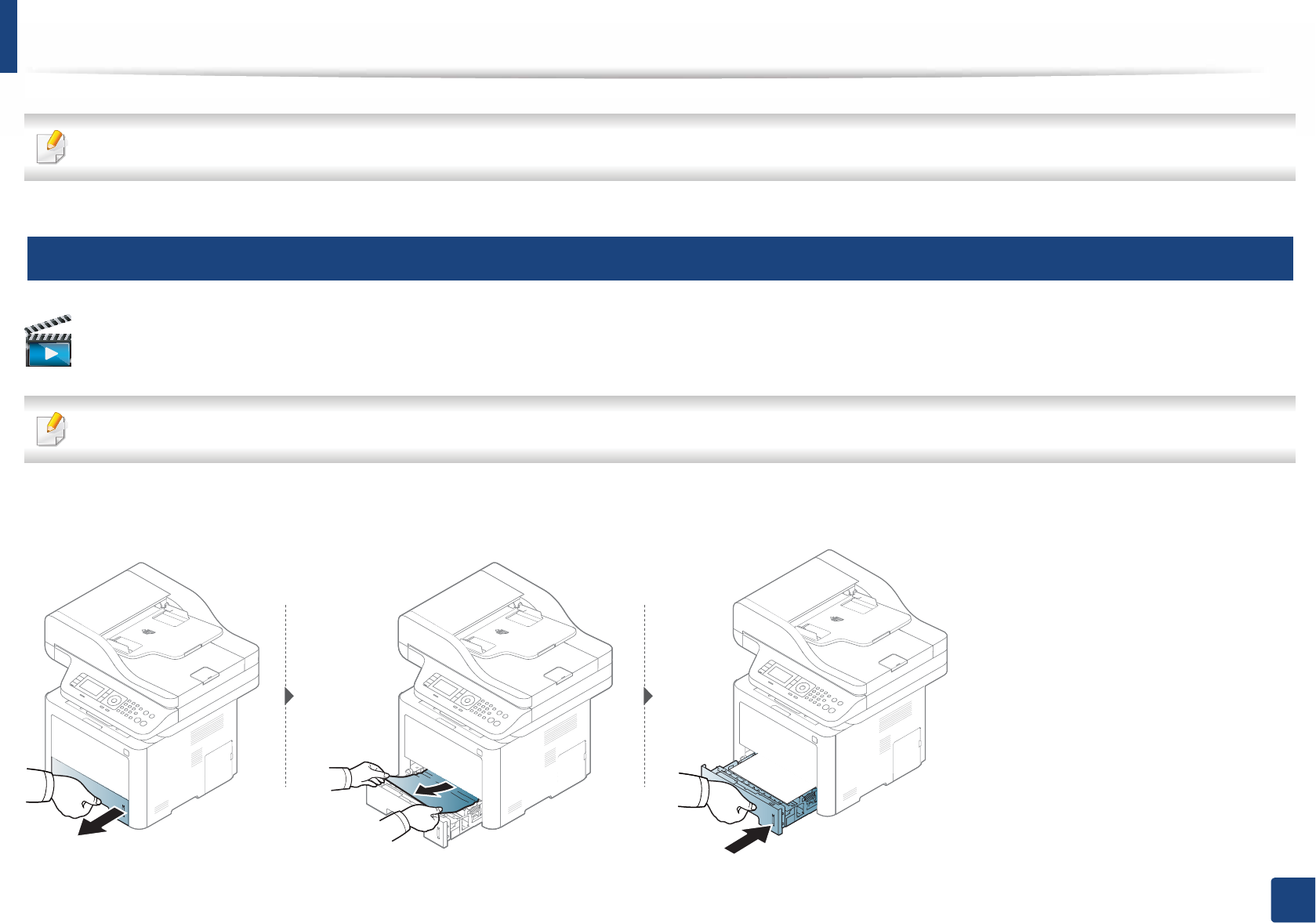
Original paper jam in scanner duplex path
• Illustrations on this user’s guide may differ from your machine depending on its options or models. Check your machine type (see "Front view" on page 20).
• This troubleshooting may be available depending on model(supported Duplex Automatic Document Feeder (DADF)) (see "Variety feature" on page 9).
1
2
111
4. Troubleshooting
Clearing paper jams
To avoid tearing the paper, pull the jammed paper out slowly and gently.
5
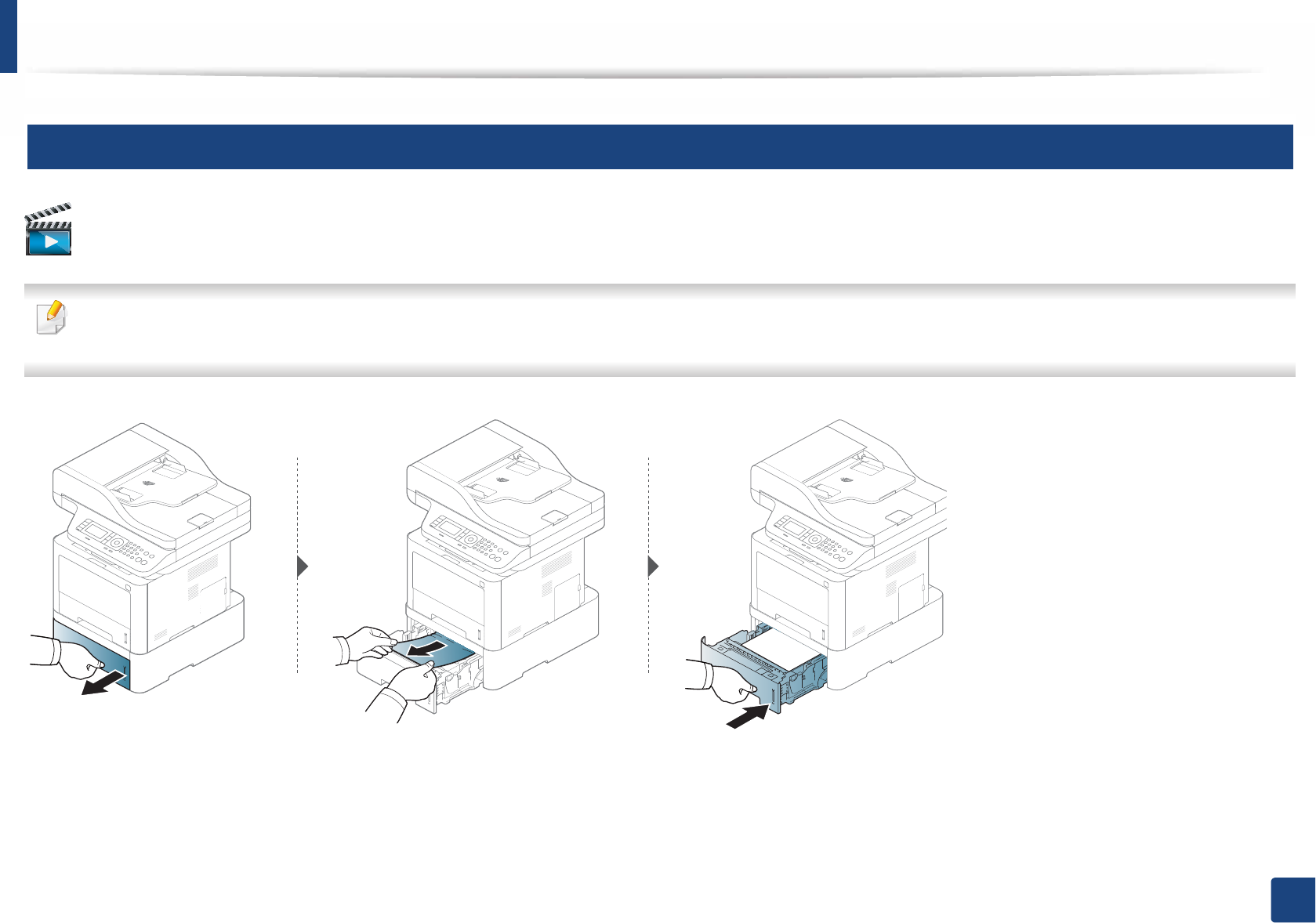
In tray1
Click this link to open an animation about clearing a jam.
Illustrations on this user’s guide may differ from your machine depending on its options or models. Check your machine type (see "Front view" on page 20).
Clearing paper jams
112
4. Troubleshooting
6
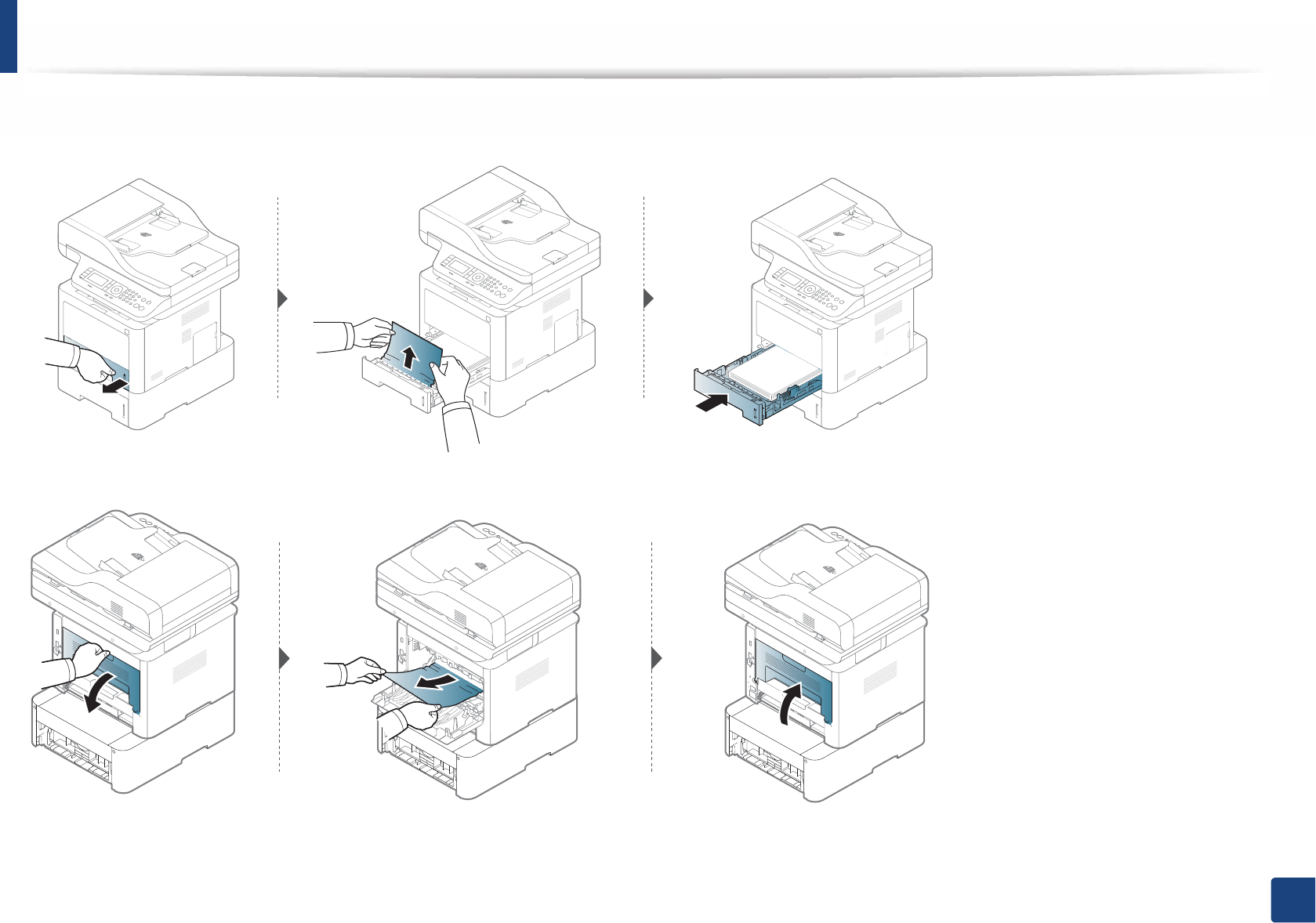
In optional tray
Click this link to open an animation about clearing a jam.
• Illustrations on this user’s guide may differ from your machine depending on its options or models. Check your machine type (see "Front view" on page 20).
• This troubleshooting may be not available depending on model or optional (see "Variety feature" on page 9).
Clearing paper jams
113
4. Troubleshooting
If you do not see the paper in this area, stop and go to next step:
If you do not see the paper in this area, stop and go to next step:
Clearing paper jams
114
4. Troubleshooting
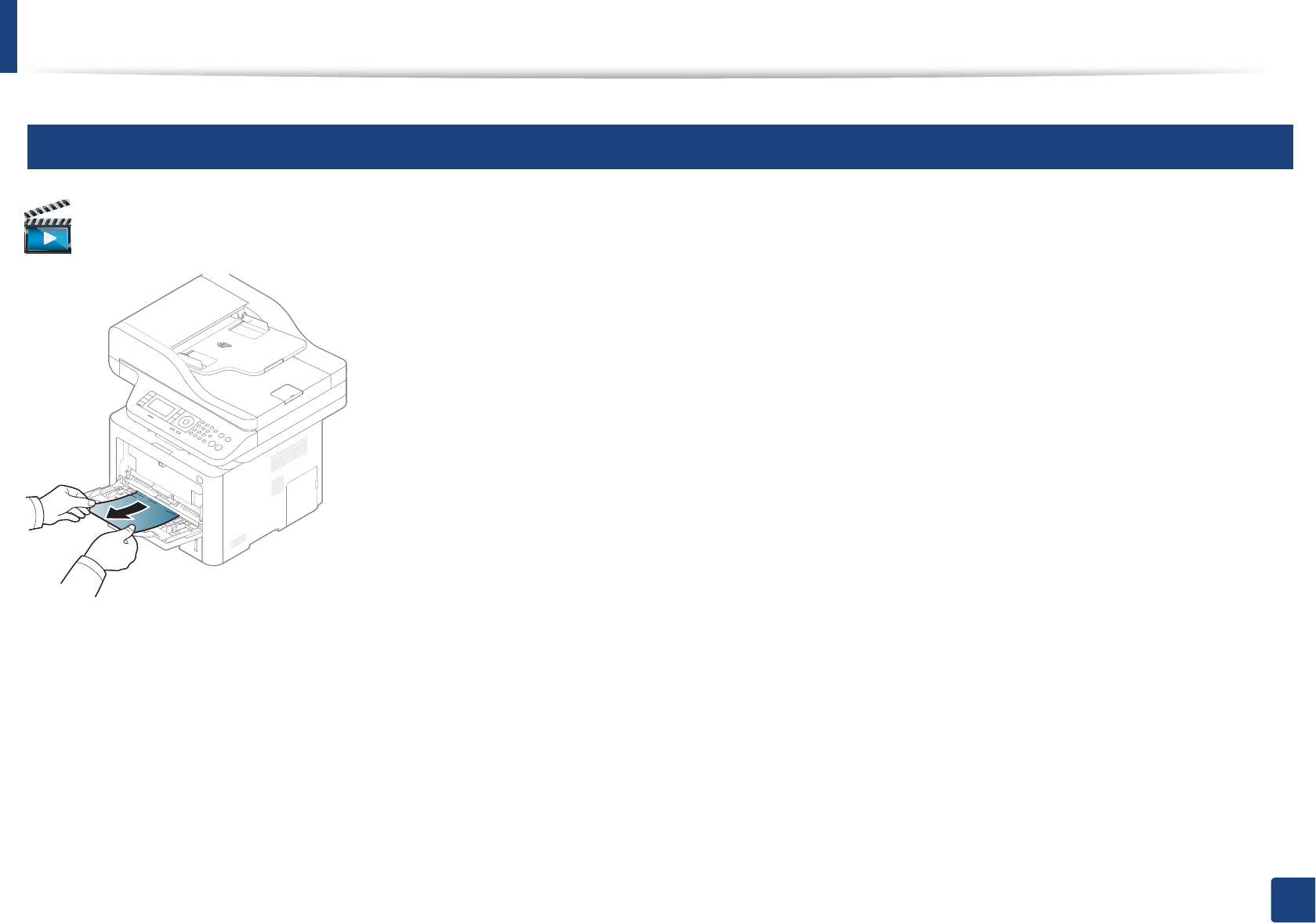
7
In the multi-purpose (or manual feeder) tray
Click this link to open an animation about clearing a jam.
Clearing paper jams
115
4. Troubleshooting
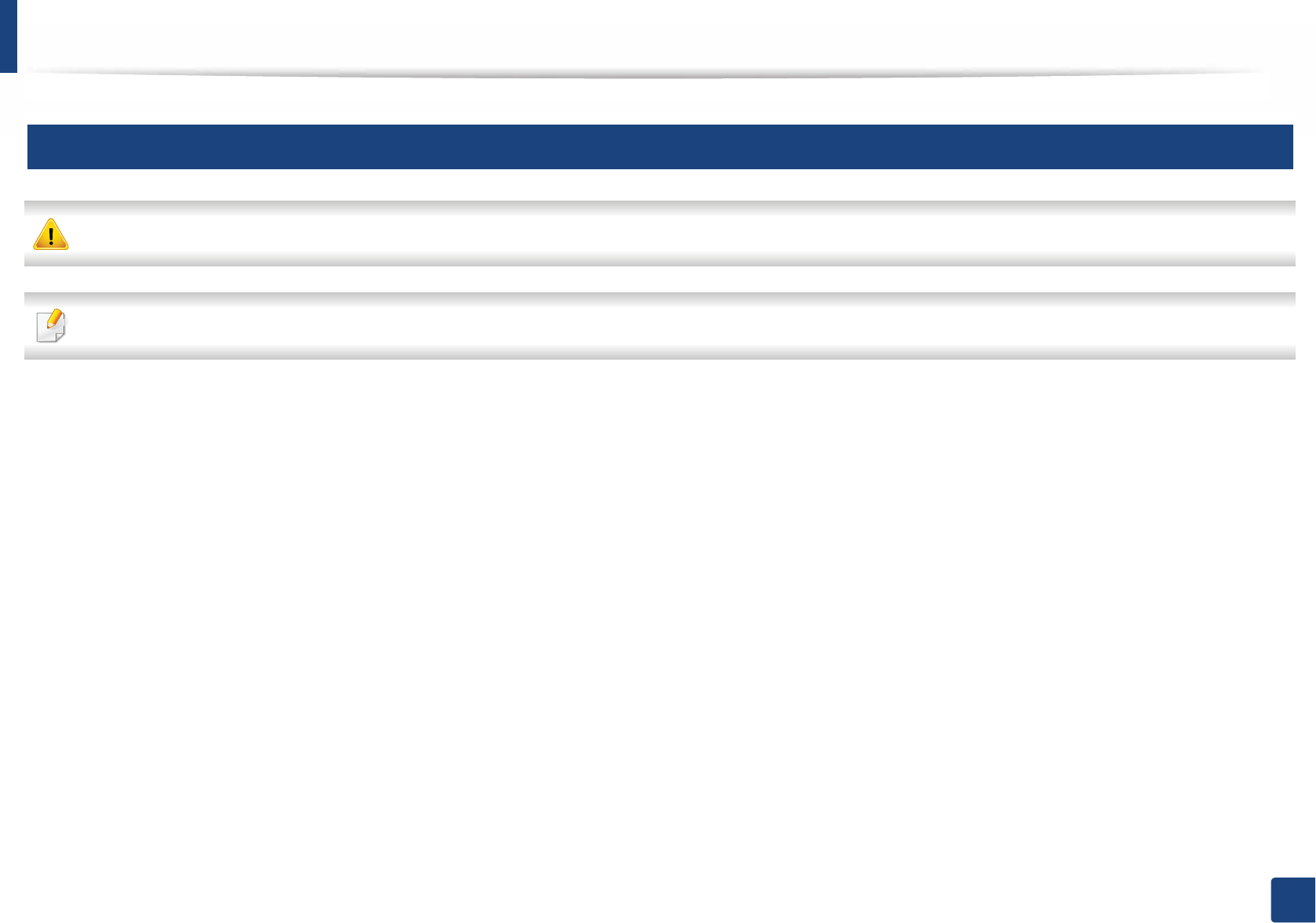
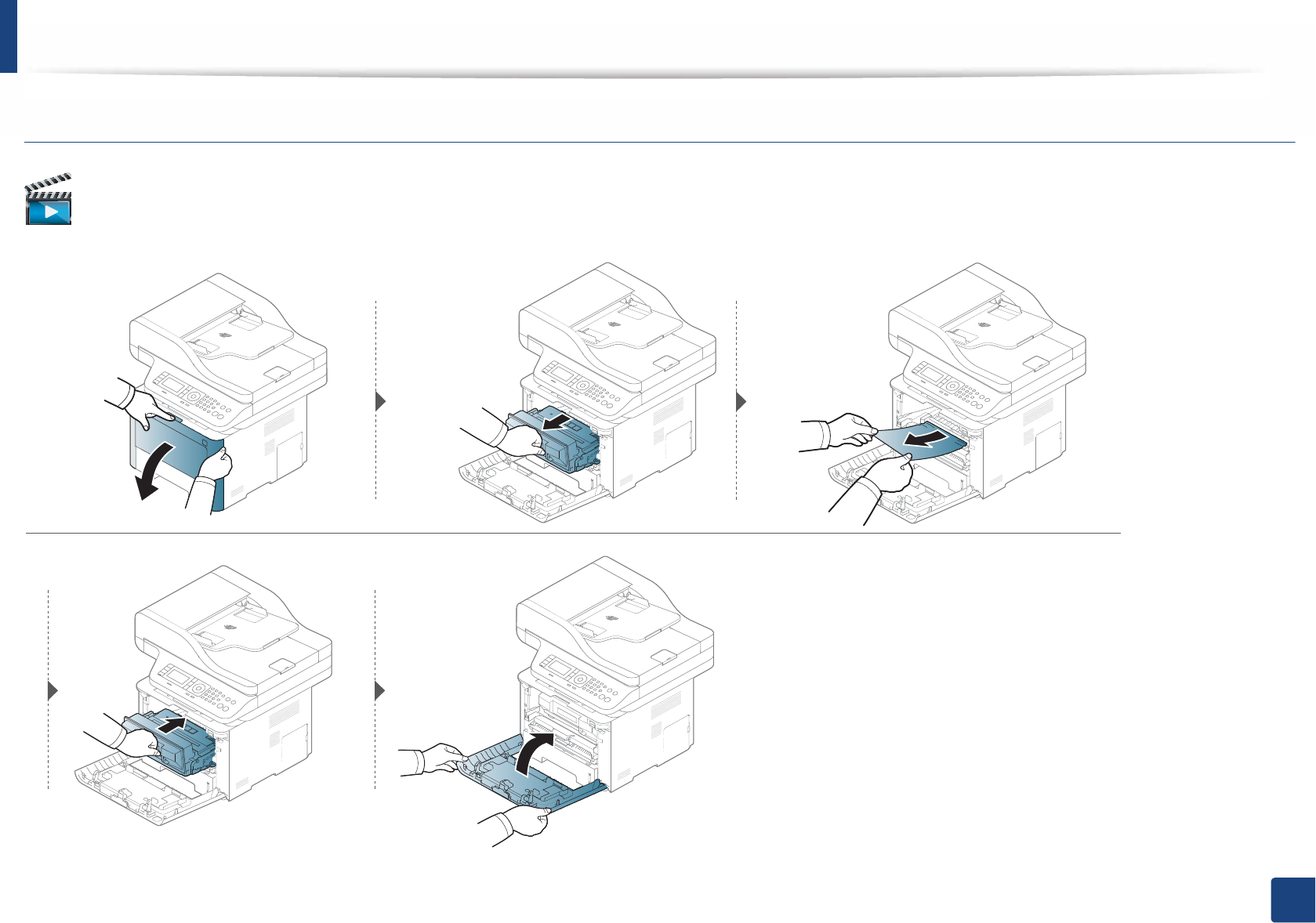
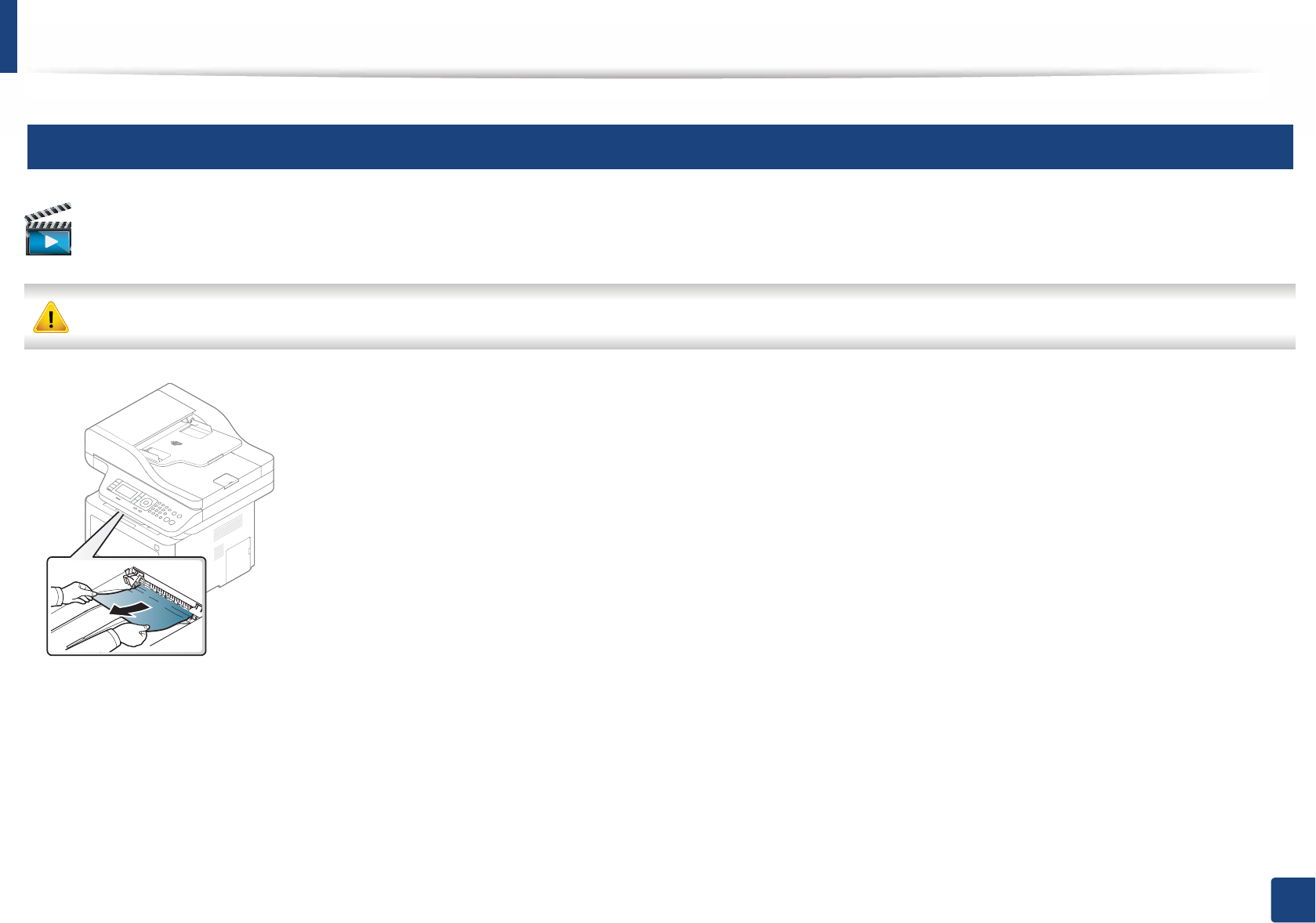
8
Inside the machine
The fuser area is hot. Take care when removing paper from the machine.
Illustrations on this user’s guide may differ from your machine depending on its options or models. Check your machine type (see "Front view" on page 20).
Clearing paper jams
116
4. Troubleshooting
M3370/ M3870/ M4070 series
Click this link to open an animation about clearing a jam.
Clearing paper jams
117
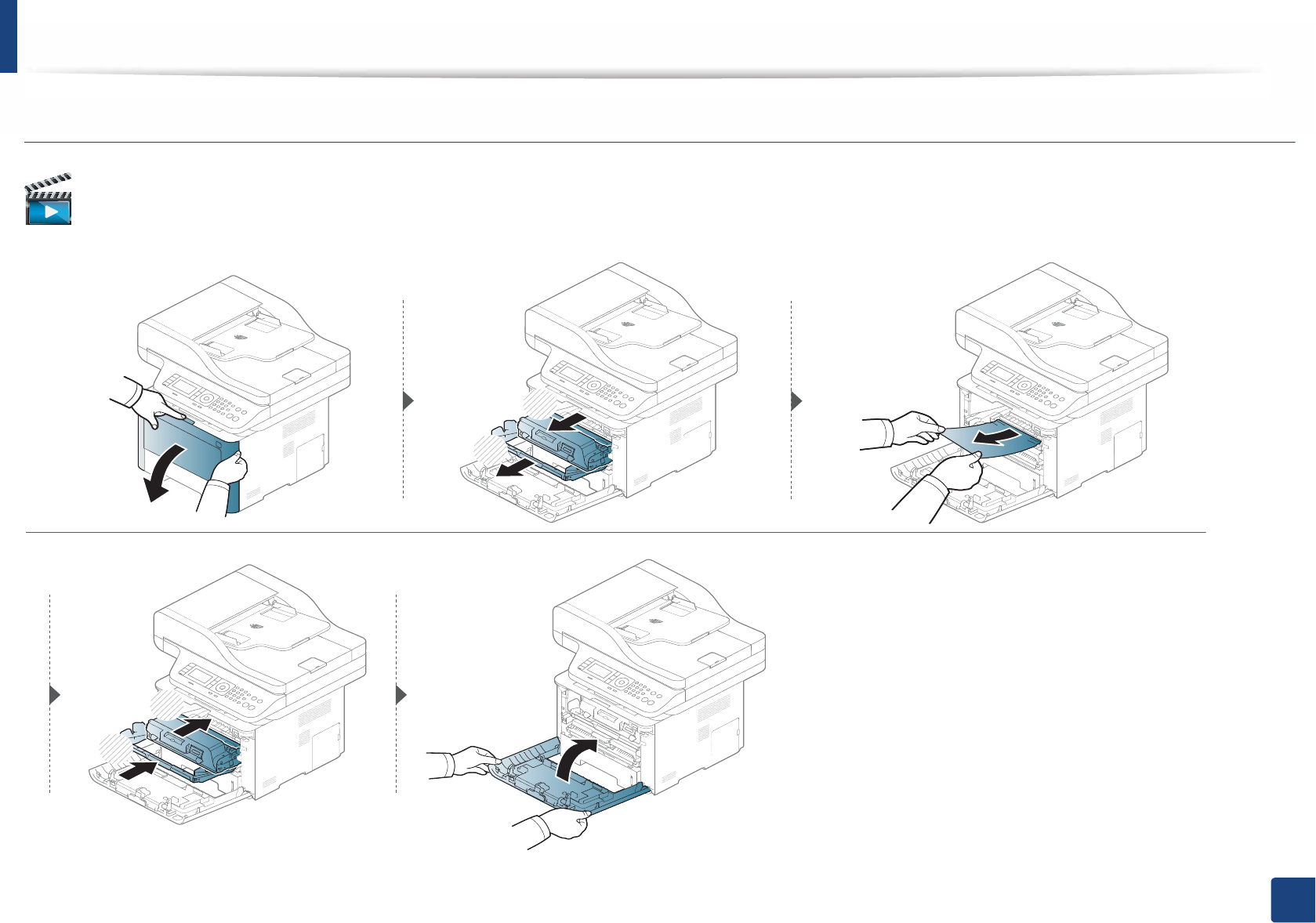
4. Troubleshooting
M3375/ M3875/ M4075 series
Click this link to open an animation about clearing a jam.
1
2
2
1
Clearing paper jams
118
4. Troubleshooting
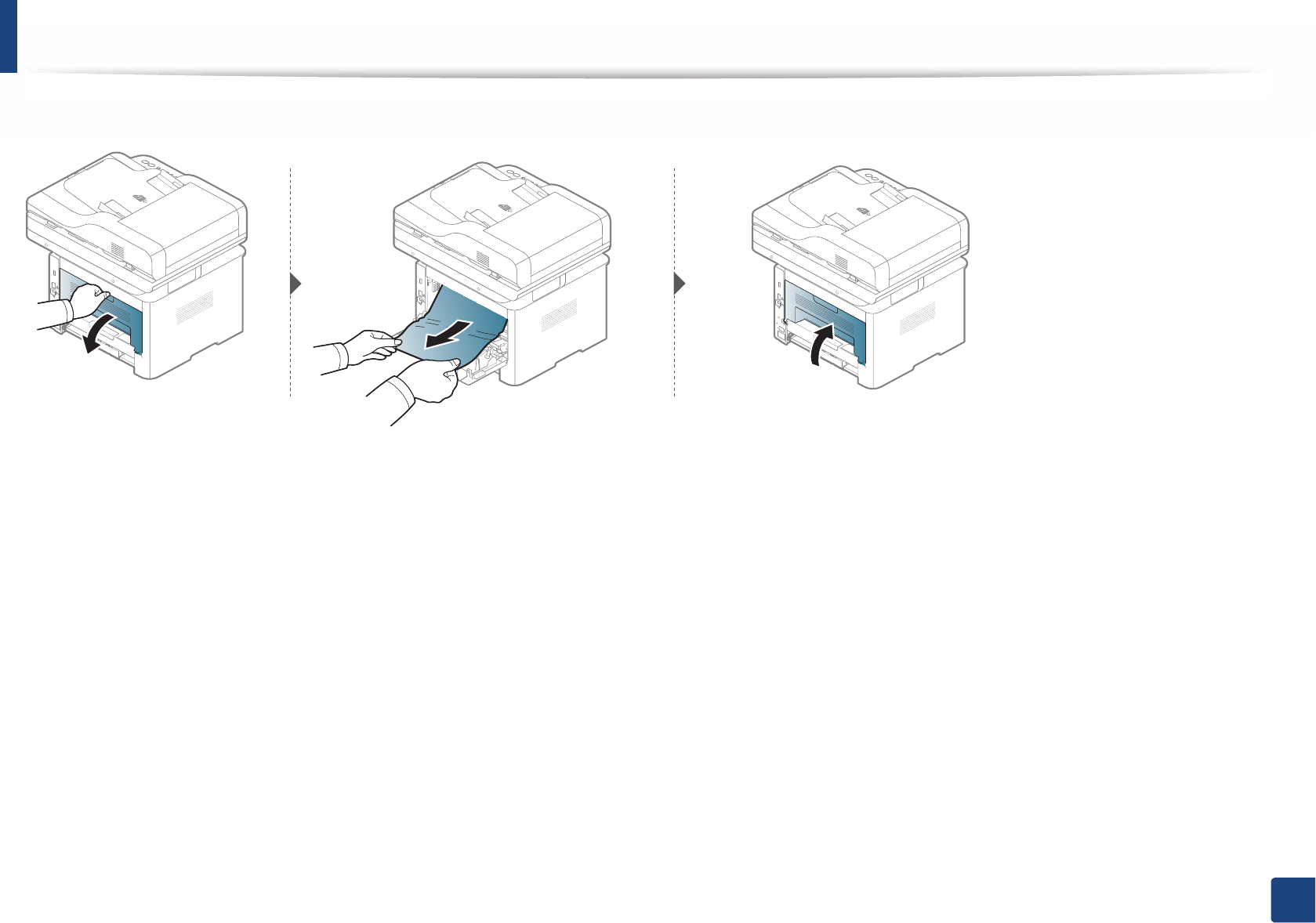
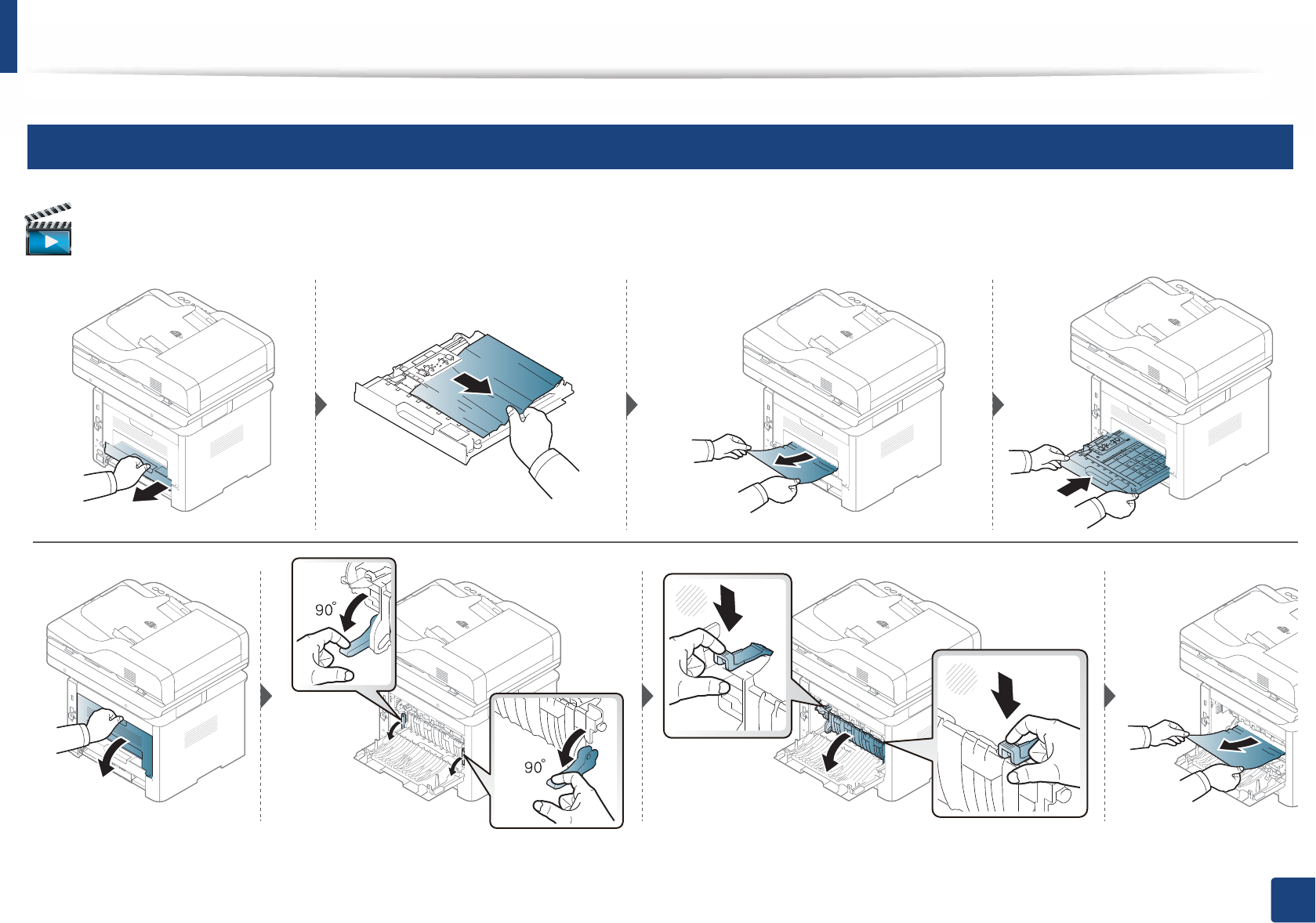
9
In the exit area
Click this link to open an animation about clearing a jam.
The fuser area is hot. Take care when removing paper from the machine.
Clearing paper jams
119
4. Troubleshooting
If you do not see the paper in this area, stop and go to next step:
Clearing paper jams
120
4. Troubleshooting
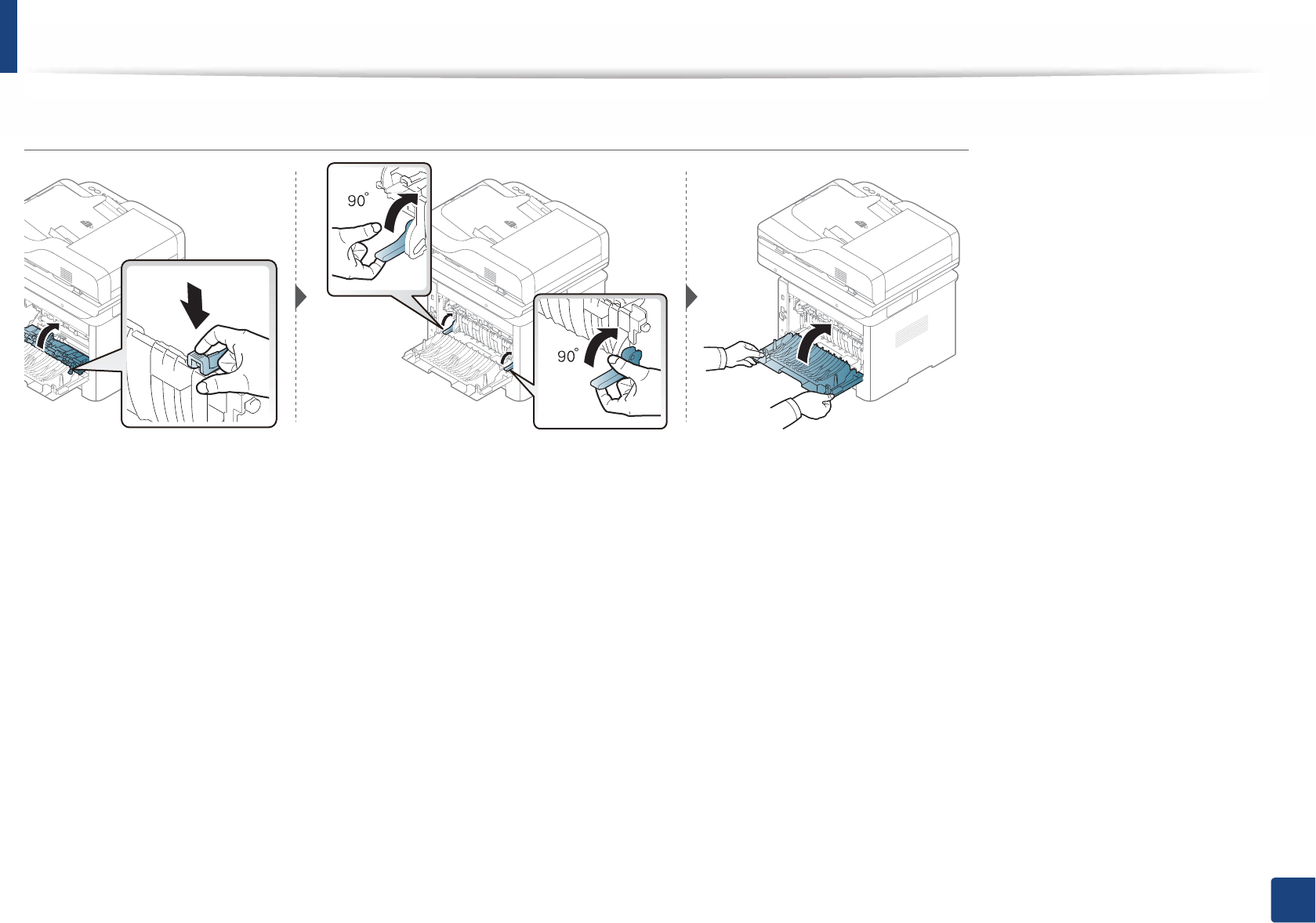
10
In the duplex unit area
Click this link to open an animation about clearing a jam.
2
1
1
Clearing paper jams
121
4. Troubleshooting
If you do not see the paper in this area, stop and go to next step:
122
4. Troubleshooting
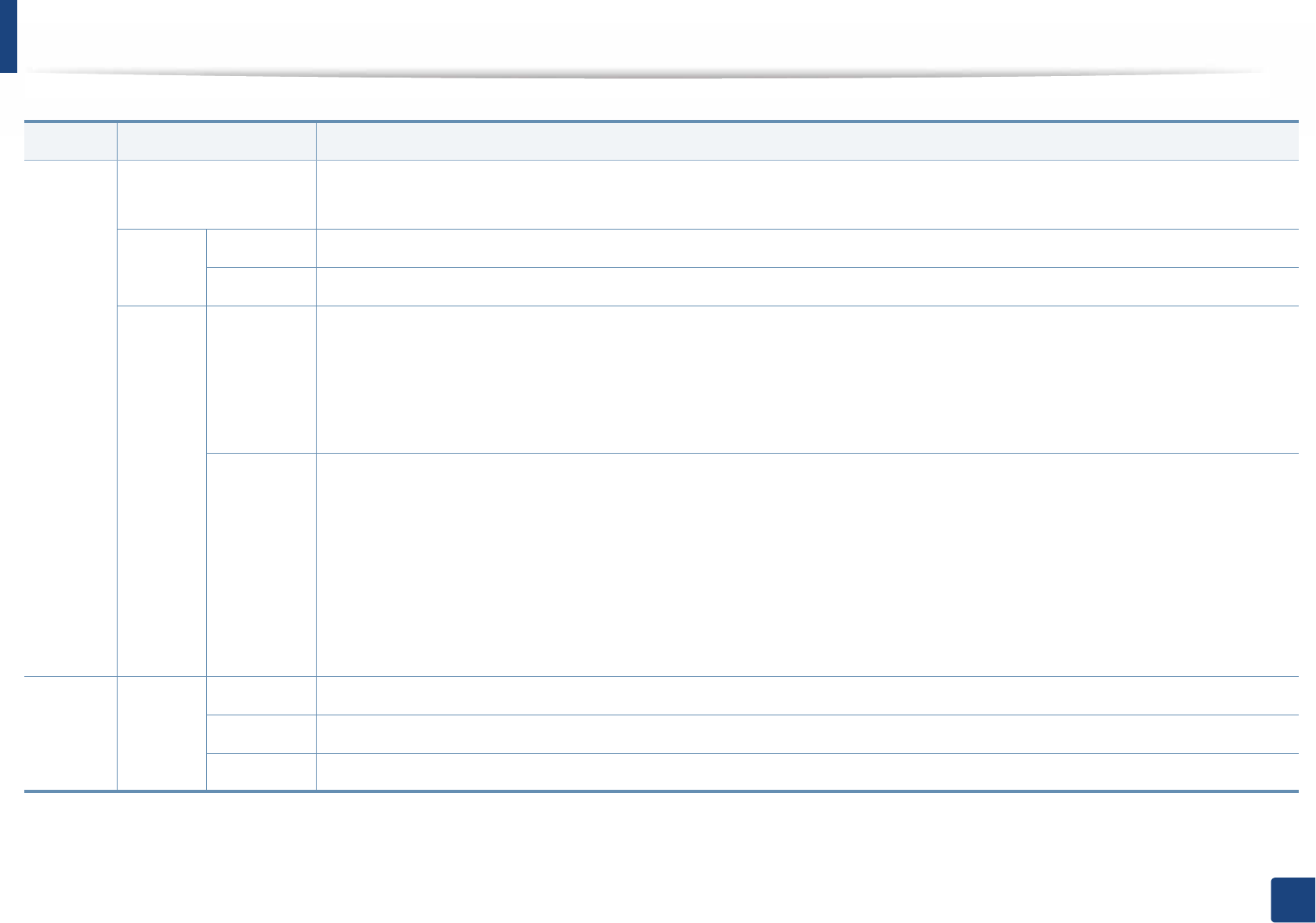
Understanding the status LED
The color of the LED indicates the machine's current status.
• Some LEDs may not be available depending on model or country (see "Control panel overview" on page 22).
• To resolve the error, look at the error message and its instructions from the troubleshooting part (see "Understanding display messages" on page 125).
• You also can resolve the error with the guideline from the computers’s Samsung Printing Status window (see "Using Samsung Printer Status" on page 299).
• If the problem persists, call a service representative.
Understanding the status LED
123
4. Troubleshooting
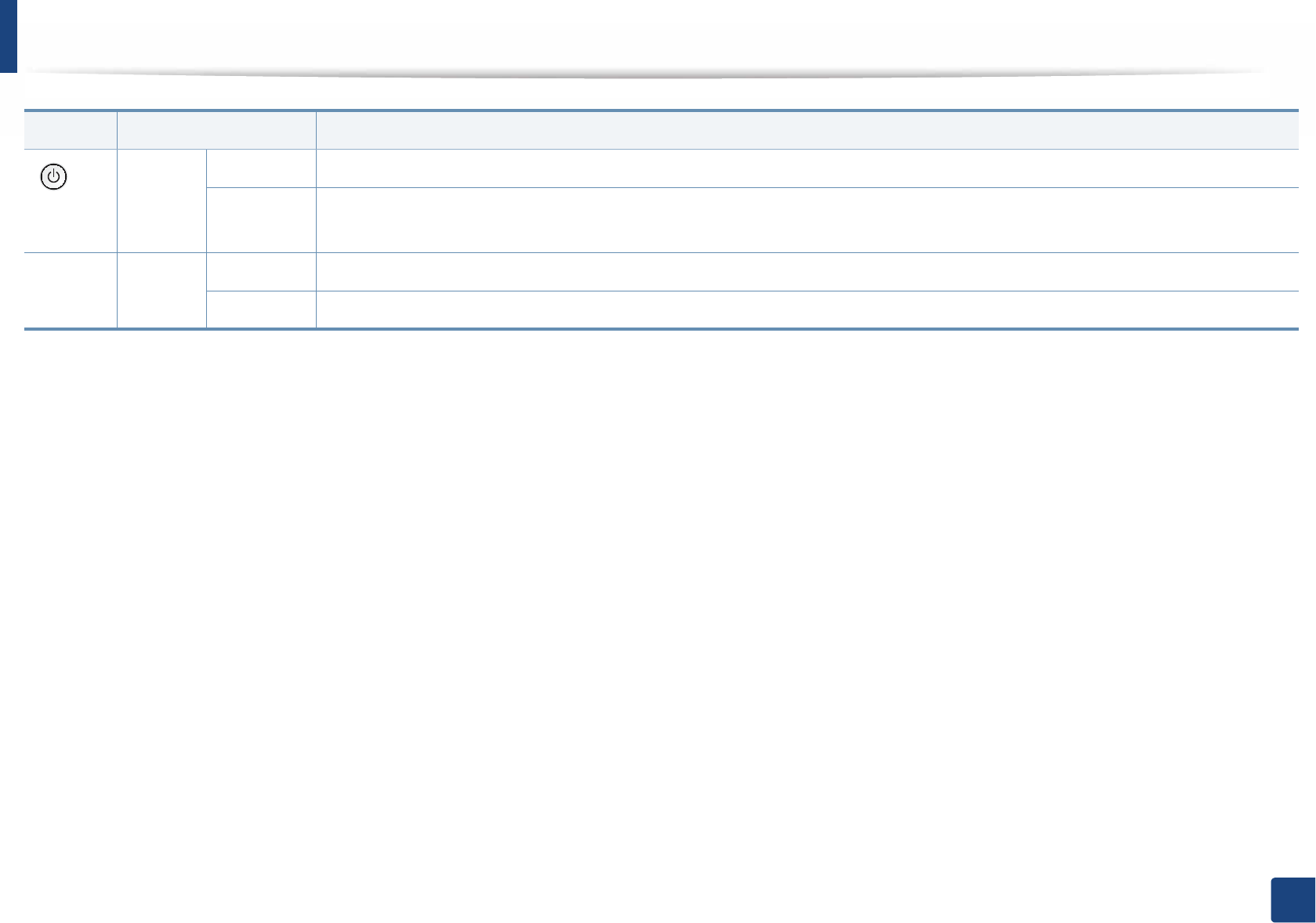
LED Status Description
Status
Off • The machine is off-line.
• The machine is in power save mode.
Green
Blinking When the backlight blinks, the machine is receiving or printing data.
On • The machine is on-line and can be used.
Red
Blinking
• A minor error has occurred and the machine is waiting for the error to be cleared. Check the display message. When the problem
is cleared, the machine resumes.
• Small amount of toner is left in the cartridge. The estimated cartridge lifea of toner is close. Prepare a new cartridge for
replacement. You may temporarily increase the printing quality by redistributing the toner (see "Redistributing toner" on page
83).b
On
• A toner cartridge has almost reached its estimated cartridge lifea. It is recommended to replace the toner cartridge (see
"Replacing the toner cartridge" on page 86).
• The cover is opened. Close the cover.
• There is no paper in the tray. Load paper in the tray.
• The machine has stopped due to a major error. Check the display message (see "Understanding display messages" on page 125).
• A paper jam has occurred (see "Clearing paper jams" on page 111).
• An imaging unit has almost reached its estimated cartridge lifec. It is recommended to replace the toner cartridge
WirelessbBlue
Blinking The machine is connecting to a wireless network.
On The machine is connected to a wireless network (see "Wireless network setup" on page 179).
Off The machine is disconnected from a wireless network.
Understanding the status LED
124
4. Troubleshooting
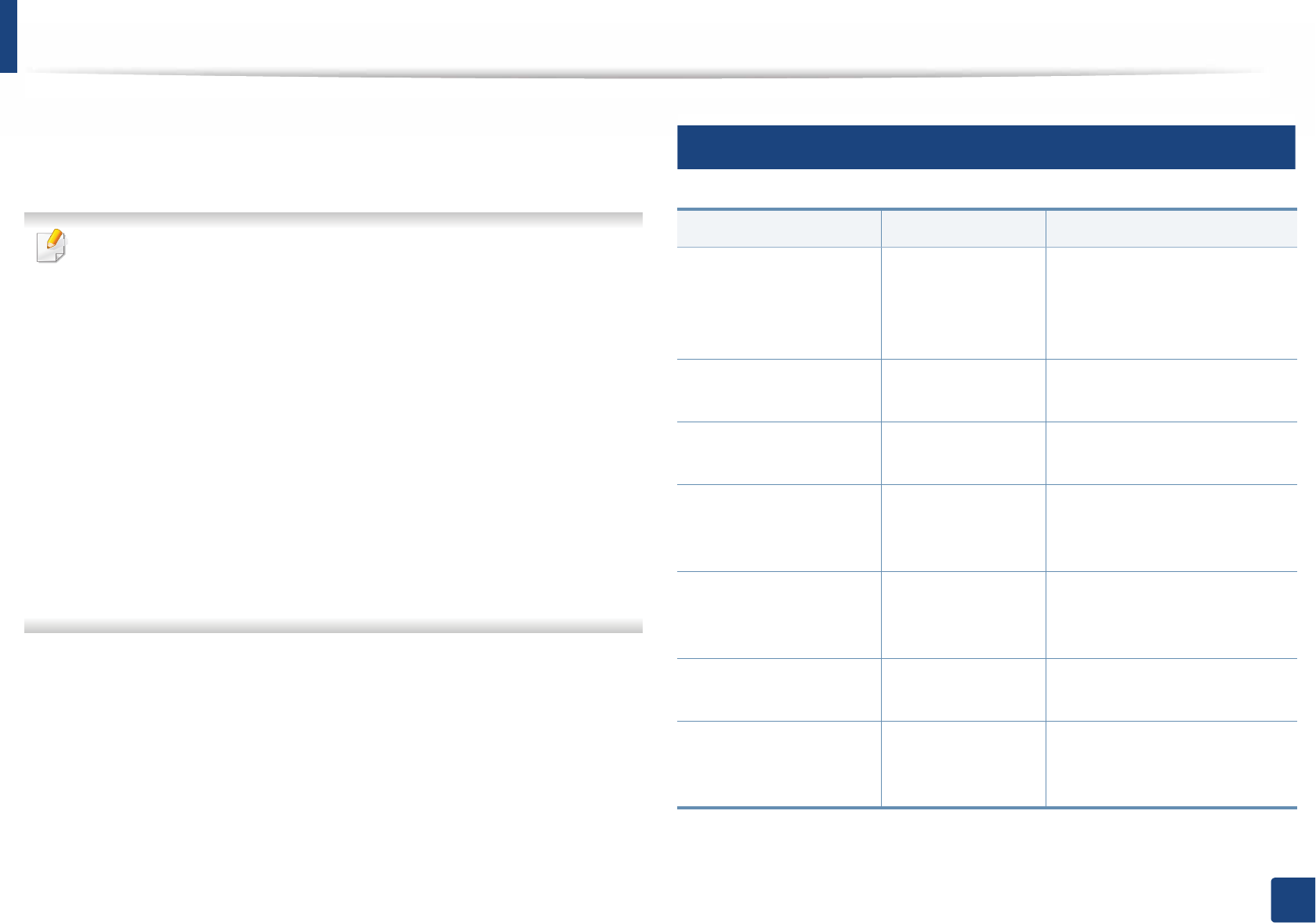
()
Power/
Wakeup
Blue
On The machine is in power save mode.
Off The machine is in ready mode or machine’s power is off.
Eco Green
On Eco mode is on (see "Eco printing" on page 57).
Off Eco mode is off.
a. Estimated cartridge life means the expected or estimated toner cartridge life, which indicates the average capacity of print-outs and is designed pursuant to ISO/IEC 19752. The number of pages
may be affected by operating environment, percentage of image area, printing interval, graphics, media and media size. Some amount of toner may remain in the cartridge even when red LED is
on and the printer stops printing.
b. Some LEDs may not be available depending on model or country (see "Control panel overview" on page 22).
c. When the imaging unit has reached its end of life, the machine will stop printing. In this case, you can choose to stop or continue printing from the SyncThru™Web Service ( Settings > Machine
Settings > System > Setup > Supplies Manangement> Imaging Unit Stop) or Samsung Easy Printer Manager (Device Settings > System > Supplies Management > Imaging Unit Stop).
Turning off this option and continuing to print may damage the device’s system.
LED Status Description
125
4. Troubleshooting
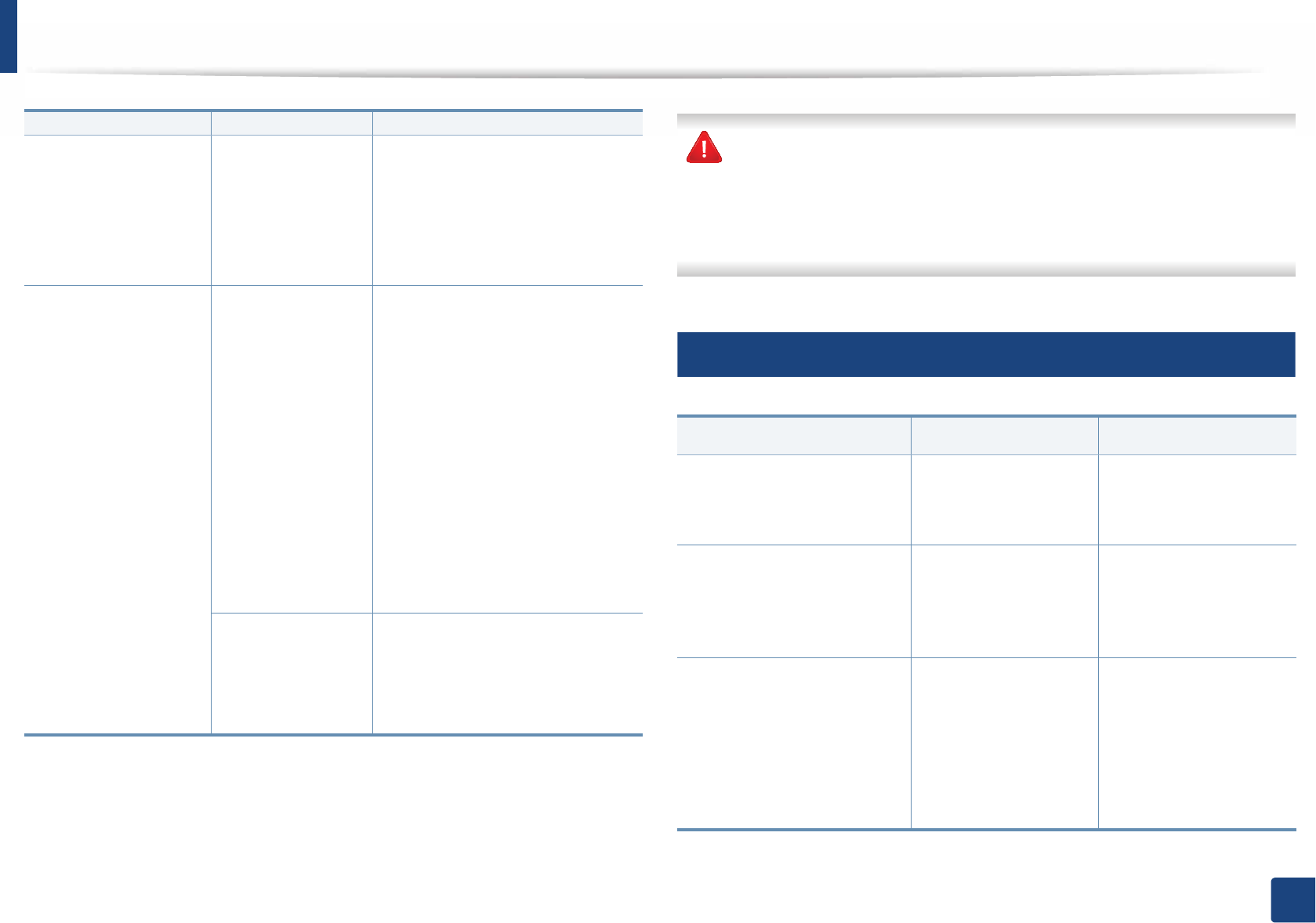
Understanding display messages
Messages appear on the control panel display to indicate the machine’s status
or errors. Refer to the tables below to understand the messages’ and their
meaning, and correct the problem, if necessary.
• You can resolve the error with the guideline from the computers’s
Printing Status program window (see "Using Samsung Printer Status" on
page 299).
• If a message is not in the table, reboot the power and try the printing job
again. If the problem persists, call a service representative.
• When you call for service, provide the service representative with the
contents of display message.
• Some messages may not appear on the display depending on the
options or models.
• [error number] indicates the error number.
• [tray type] indicates the tray number.
• [media type] indicates the media type.
• [media size] indicates the media size.
• [unit type] indicates the unit type.
11
Paper Jam-related messages
Message Meaning Suggested solutions
•Original paper jam
inside of scanner.
Remove jam
The loaded original
document has
jammed in
document feeder.
Clear the jam (see "Clearing
original document jams" on
page 105).
•Paper Jam in tray 1 Paper has jammed
in the tray.
Clear the jam (see "In tray1" on
page 111).
•Paper Jam in tray 2 Paper has jammed
in the optional tray.
Clear the jam (see "In optional
tray" on page 112).
•Paper Jam in MP tray Paper has jammed
in the multi-
purpose tray.
Clear the jam (see "In the multi-
purpose (or manual feeder)
tray" on page 114).
•Jam inside machine Paper has jammed
in inside the
machine.
Clear the jam (see "Inside the
machine" on page 115).
•Jam inside of duplex Paper has jammed
in inside the duplex.
Clear the jam (see "In the
duplex unit area" on page 120).
•Jam in exit area Paper has jammed
in the paper exit
area.
Clear the jam (see "In the exit
area" on page 118).

Understanding display messages
126
4. Troubleshooting
12
Toner-related messages
Message Meaning Suggested solutions
•Error [error number]
Toner Cart Failure:
[error number]
Call for service
•Error [error number]
Toner Failure: [error
number]
Install toner again
•Toner not installed
Toner cartridge is
not installed.
Install it
A toner cartridge is
not installed.
Reinstall the toner cartridge.
A toner cartridge is
not being detected
Reinstall the toner cartridge two or
three times to confirm it is seated
properly. If the problem persists,
contact the service representatives.
Not removed
protective film from
toner.
Remove the protective film from
the toner cartridge.
•IMG. Not
Compatible
Imaging unit is not
compatible.
Check guide
The imaging unit
you have installed is
not for your
machine.
Install a Samsung-genuine imaging
unit, designed for your machine.
•IMG. Not Installed
Imaging unit is not
installed.
Install the unit.
The imaging unit is
not installed or the
CRUM in the
imaging unit is not
properly connected.
Reinstall the imaging unit two or
three times. If the problem persists,
call for service.
•Prepare IMG. unit
Prepare new
imaging unit
The estimated
imaging unit life is
close.
Prepare a new imaging unit for
replacement (see "Available
consumables" on page 77).
•Replace IMG. unit
Replace with new
imaging unit
The indicated
imaging unit has
almost reached its
estimated imaging
unit life.
• You can choose Stop or
Continue as shown on the
control panel. If you select Stop,
the printer stops printing and
you cannot print any more
without changing the imaging
unit. If you select Continue, the
printer keeps printing but the
printing quality cannot be
guaranteed.
Replace the imaging unit for the
best print quality when this
message appears. Using a
imaging unit beyond this stage
can resultin printing quality
issues (see "Replacing the
imaging unit" on page 89).
• If the machine stops printing,
replace the imaging unit (see
"Replacing the imaging unit" on
page 89).
•Toner Not
compatible
Toner cartridge is
not compatible.
Check guide
The indicated toner
cartridge is not
suitable for your
machine.
Install the corresponding toner
cartridge with a Samsung-genuine
cartridge (see "Replacing the toner
cartridge" on page 86).
Message Meaning Suggested solutions
Understanding display messages
127
4. Troubleshooting
Samsung does not recommend using a non-genuine Samsung cartridge
such as refilled or remanufactured. Samsung cannot guarantee a non-
genuine Samsung cartridge's quality. Service or repair required as a result of
using non-genuine Samsung cartridges will not be covered under the
machine warranty.
13
Tray-related messages
•Prepare new toner
Prepare new toner
cartridge
Small amount of
toner is left in the
indicated cartridge.
The estimated
cartridge lifea of
toner is close.
Prepare a new cartridge for a
replacement. You may temporarily
increase the printing quality by
redistributing the toner (see
"Redistributing toner" on page 83).
•Replace new toner
Replace with new
toner cartridge
The indicated toner
cartridge has almost
reached its
estimated cartridge
life.
• You can choose Stop or
Continue as shown on the
control panel. If you select Stop,
the printer stops printing. If you
select Continue, the printer
keeps printing but the printing
quality cannot be guaranteed.
• Replace the toner cartridge for
the best print quality when this
message appears. Using a
cartridge beyond this stage can
result in printing quality issues
(see "Replacing the toner
cartridge" on page 86).
The indicated toner
cartridge has
reached its
estimated cartridge
life
Replace the toner cartridge (see
"Replacing the toner cartridge" on
page 86).
a. Estimated imaging unit life means the expected or estimated imaging unit, which indicates
the average capacity of print-outs and is designed pursuant to ISO/IEC 19752. The number of
pages may be affected by the percentage of image area, operating environment, printing
interval, media type and media size. Some amount of toner may remain in the cartridge even
when red LED is turns on and the printer stops printing.
Message Meaning Suggested solutions
Message Meaning Suggested solutions
•Output bin full
Output bin full.
Remove printed paper
The output tray is full. Remove papers from the
output tray, the printer
resumes printing.
•All Tray Empty
Paper is empty in all
tray.
Load paper
There is no paper in all
tray.
Load paper in tray (see
"Loading paper in the
tray" on page 39).
•Paper Empty in tray 1
Paper is empty in tray 1.
Load paper
•Paper Empty in tray 2
Paper is empty in tray 2.
Load paper
There is no paper in
tray.
Load paper in tray (see
"Tray 1 / optional tray"
on page 39).

Understanding display messages
128
4. Troubleshooting
14
Network-related messages
15
Misc. messages
•Paper Empty in MP
Paper is empty in MP
tray.
Load paper
There is no paper in the
multi-purpose tray.
Load paper in the multi-
purpose tray (see "Multi-
purpose (or manual
feeder) tray" on page
41).
•Tray 2 door is open.
Close it
The tray2 is not
securely latched.
Close the tray2 until it
locks into place.
Message Meaning Suggested solutions
•IP Conflict
This IP address conflicts
with that of other
system
The network IP address
you have set is being used
by someone else.
Check the IP address
and reset it if
necessary (see
Advanced Guide).
•802.1x Network Error
802.1x Network Error
Contact the Admin.
Fail to authenticate. Check the network
authentication
protocol. If the
problem persists,
contact your network
administrator.
Message Meaning Suggested solutions
Message Meaning Suggested solutions
•Door is open.
Close it
The front cover or rear
cover is not securely
latched.
Close the cover until it
locks into place.
•Scanner door open
Door of scanner is
open.
Close the door
The document feeder
cover is not securely
latched.
Close the cover until it
locks into place.
•Not Proper room temp
Not Proper room
temperature.
Change room
temperature
The machine is in a room
with improper room
temperature.
Move the machine to a
room with proper
room temperature (see
"Specifications" on
page 132).
•Replace reverse roller
Replace with new tray
1 reverse roller
•Replace reverse roller
Replace with new tray
2 reverse roller
The life of the tray
reverse roller has
expired.
Replace the tray
reverse roller with a
new one. Contact the
service
representatives.
•Replace pickup roller
Replace with new tray
2 pickup roller
The life of the tray pickup
roller will be expired.
Replace the tray pickup
roller with a new one.
Contact the service
representatives.

Understanding display messages
129
4. Troubleshooting
•Replace pickup roller
Replace with new [tray
type] pickup roller
The life of the tray1, tray2
or MP tray pick-up roller
will expired soon.
Replace the tray pick-
up roller with a new
one. Contact the
service
representatives.
•Memory Full
Fax memory is almost
full.
Print or remove
received fax job
The memory is full. No
more fax data can be
received.
Print or remove the
received fax data in the
memory.
•Scanner Locked
Scanner is locked.
Press Stop button
The scanner is locked. Reboot the power. If
the problem persists,
please call for service.
•Scanner door open
Door of scanner is
open.
Close the door
The document feeder
cover is not securely
latched.
Close the cover until it
locks into place.
•Memory Full
Fax memory is almost
full.
Print or remove
received fax job
The fax memory is almost
full.
Print or remove the
received fax job in
Secure Receive.
Message Meaning Suggested solutions
•Error: [error number]
Fuser Unit Failure:
[error number]
Turn off then on.
Call for service if the
problem
There is a problem in the
fuser unit.
Reboot the power. If
the problem persists,
please call for service.
•Error: [error number]
HDD System Failure:
[error number]
Turn off then on.
Call for service if the
problem
There is a problem in the
HDD system.
Reboot the power. If
the problem persists,
please call for service.
•Error: [error number]
Moto Failure: [error
number]
Turn off then on.
Call for service if the
problem
There is a problem in the
Motor system.
Reboot the power. If
the problem persists,
please call for service.
•Error: [error number]
LSU Failure: [error
number]
Turn off then on.
Call for service if the
problem
There is a problem in the
LSU.
Reboot the power. If
the problem persists,
please call for service.
Message Meaning Suggested solutions

Understanding display messages
130
4. Troubleshooting
•Error: [error number]
Input System Failure:
[error number]
Check tray 2
connection
There is a problem in the
tray 2.
Check the tray2
connection.
•Error: [error number]
Video System Failure:
[error number]
Call for service if the
problem persists
There is a problem in the
video system.
Reboot the power. If
the problem persists,
please call for service.
Message Meaning Suggested solutions

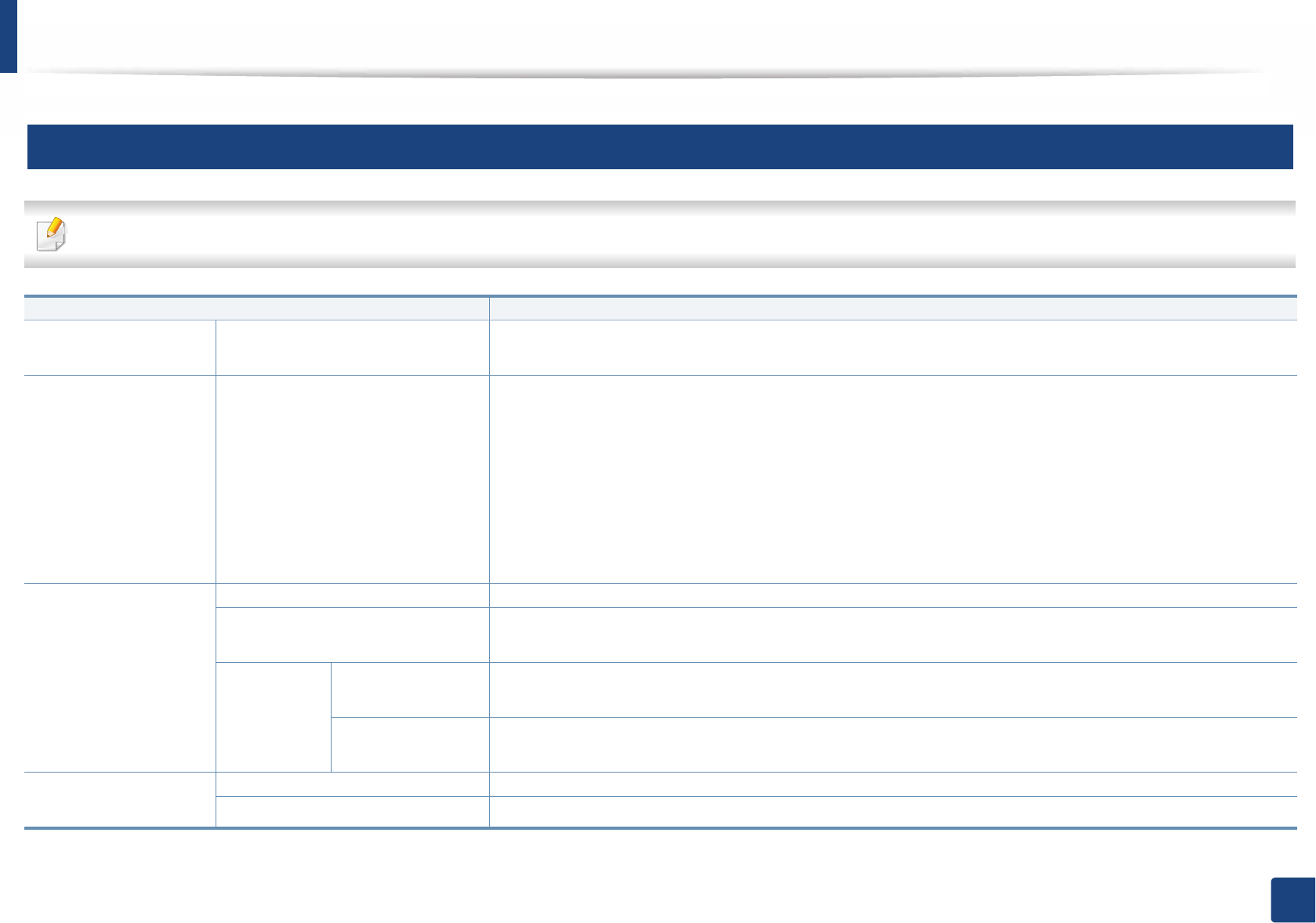
5. Appendix
This chapter provides product specifications and information concerning applicable regulations.
• Specifications 132
• Regulatory information 140
• Copyright 152
132
5. Appendix
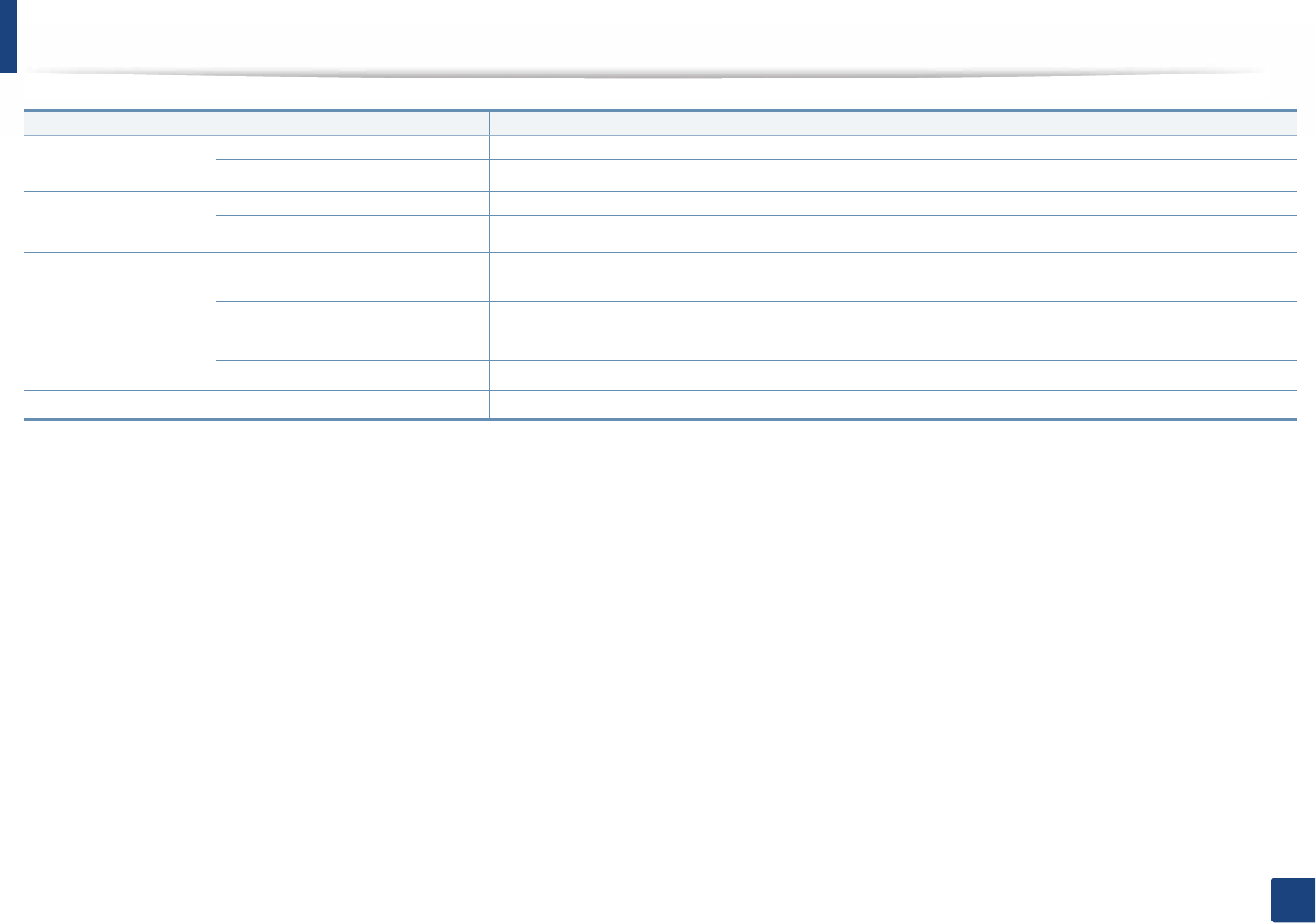
Specifications
1
General specifications
The specification values listed below are subject to change without notice. See www.samsung.com for possible changes in information.
Items Description
DimensionaWidth x Length x Height •M337xFD/ M337xHD/ M387xFD/ M387xHD : 414.6 x 420.6 x 449.1 mm (16.32 x 16.56 x 17.68 inches)
•M387xFW/ M407xFR/ M407xHR : 469 x 444.3 x 482.1 mm (18.46 x 17.49 x 18.98 inches)
WeightaMachine with consumables •M337xFD/337xHD: 15 Kg (33.0 Ibs)
•M3870FD/ 3870HD: 15.32 Kg (33.77 Ibs)
•M3875FD/ 3875HD: 15.38 Kg (33.91 Ibs)
•M3870FW: 17.02 Kg (37.52 Ibs)
•M3875FW: 17.22 Kg (37.96 Ibs)
•M4070FR/ M4070HR: 17.02 Kg (37.52 Ibs)
•M4075FR/ M4075HR: 17.06 Kg (37.61 Ibs)
Noise LevelbReady mode Less than 26 dB (A)
Print mode •M337x series: Less than 54 dB (A)
•M387x/ M407x series: Less than 56 dB (A)
Copy/ Scan
mode
Scanner glass • M337x series: Less than 56 dB (A)
•M387x/ M407x series: Less than 58 dB (A)
Document feeder • M337x series: Less than 56 dB (A)
•M387x/ M407x series: Less than 58 dB (A)
Temperature Operation 10 to 30°C (50 to 86 °F)
Storage (packed) -20 to 40°C (-4 to 104 °F)
Specifications
133
5. Appendix
Humidity Operation 20 to 80% RH
Storage (packed) 10 to 90% RH
Power ratingc110 volt models AC 110 - 127 V
220 volt models AC 220 - 240 V
Power consumption Average operating mode Less than 700 W
Ready mode Less than 10 W
Power save moded•M337xFD/ M337xHD/ M387xFD/ M387xHD/ M407xFR/ M407xHR: Less than 1.1 W
•M387xFW: Less than 1.6 W (Wi-Fi Direct on: Less than 2.8 Wf)
Power off modeeLess than 0.1 W
WirelessfModule SPW-B4319U
a. Dimensions and weight are measured without a handset.
b. Sound Pressure Level, ISO 7779. Configuration tested: basic machine installation, A4 paper, simplex printing.
c. See the rating label on the machine for the correct voltage (V), frequency (hertz) and of current (A) for your machine.
d. The power consumption of power save mode may be affected by machine’s status, setting conditions, operating environment.
e. Power consumption can be completely avoided only when the power cable is not connected.
f. Wireless models only (see "Features by models" on page 7).
Items Description

Specifications
134
5. Appendix
2
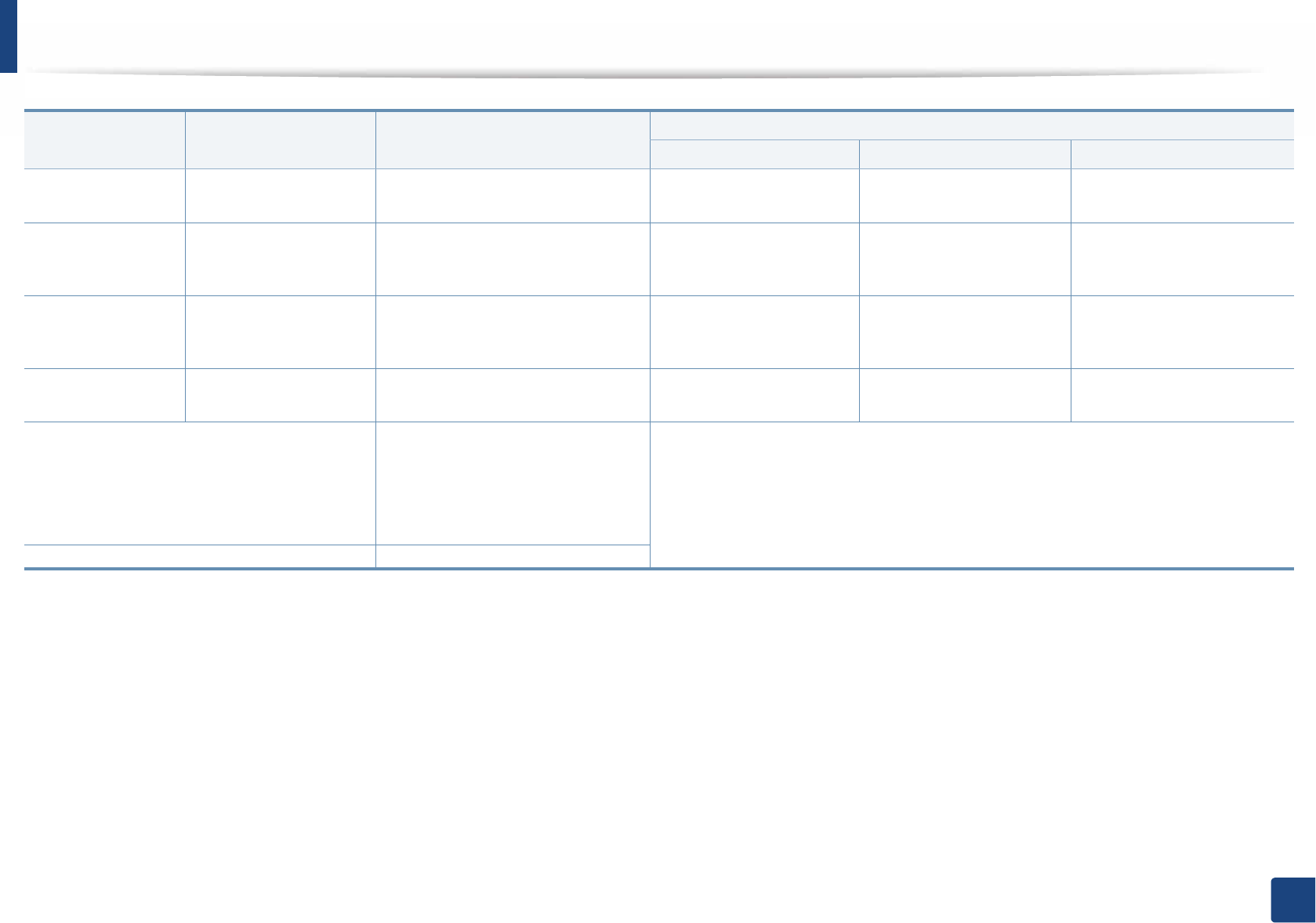
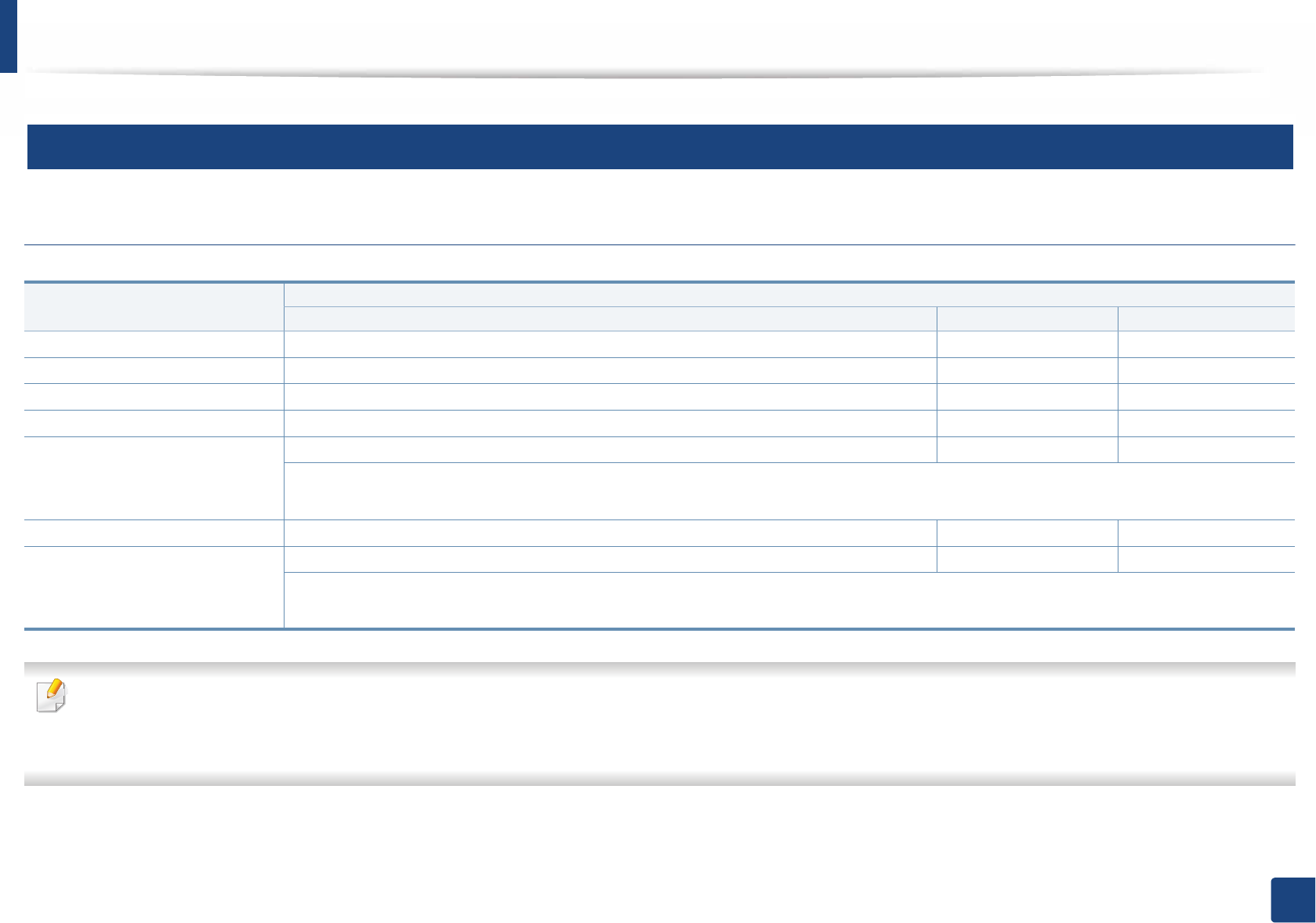
Print media specifications
Type Size Dimensions Print media weight/Capacitya
Tray1 / Optional tray Multi-purpose tray Manual feederb c
Plain paper Letter 216 x 279 mm (8.5 x 11 inches) 70 to 85 g/m2 (19 to 23 lbs
bond)
• 250 sheets of 80 g/m2
(20 lbs bond)
70 to 85 g/m2 (19 to 23 lbs
bond)
• 50 sheets of 80 g/m2 (20
lbs bond)
70 to 85 g/m2 (19 to 23 lbs
bond)
• 1 sheet of 80 g/m2 (20 lbs
bond)
Legal 216 x 356 mm (8.5 x 14 inches)
US Folio 216 x 330 mm (8.5 x 13 inches)
A4 210 x 297 mm (8.26 x 11.69 inches)
Oficio 216 x 343 mm (8.5 x 13.5 inches)
JIS B5 182 x 257 mm (7.16 x 10.11 inches)
ISO B5 176 x 250 mm (6.93 x 9.84 inches)
Executive 184 x 267 mm (7.25 x 10.5 inches)
A5 148 x 210 mm (5.82 x 8.26 inches)
A6 105 x 148 mm (4.13 x 5.82 inches) • 150 sheets of 75 g/m2
(20 lbs bond)
Envelope Envelope Monarch 98 x 191 mm (3.87 x 7.5 inches) Not available in tray1/
optional tray.
75 to 90 g/m2 (20 to 24 lbs
bond)
75 to 90 g/m2 (20 to 24 lbs
bond)
Envelope No. 10 105 x 241 mm (4.12 x 9.5 inches)
Envelope DL 110 x 220 mm (4.33 x 8.66 inches)
Envelope C5 162 x 229 mm (6.37 x 9.01 inches)
Envelope C6 114 x 162 mm (4.48 x 6.38 inches)
Thick paper Refer to the Plain
paper section
Refer to the Plain paper section 86 to 105 g/m2 (23 to 28 lbs
bond)
86 to 105 g/m2 (23 to 28 lbs
bond)
86 to 105 g/m2 (23 to 28 lbs
bond)
Thicker paper Refer to the Plain
paper section
Refer to the Plain paper section Not available in tray1/
optional tray.
164 to 220 g/m2 (44 to 58
lbs bond)
164 to 220 g/m2 (44 to 58 lbs
bond)
Thin paper Refer to the Plain
paper section
Refer to the Plain paper section 60 to 70 g/m2 (16 to 19 lbs
bond)
60 to 70 g/m2 (16 to 19 lbs
bond)
60 to 70 g/m2 (16 to 19 lbs
bond)
Specifications
135
5. Appendix
Transparency Letter, A4 Refer to the Plain paper section Not available in tray1/
optional tray.
138 to 146 g/m2 (36.81 to
38.91 lbs bond)
138 to 146 g/m2 (36.81 to
38.91 lbs bond)
LabelsdLetter, Legal, US Folio,
A4, JIS B5, ISO B5,
Executive, A5
Refer to the Plain paper section Not available in tray1/
optional tray.
120 to 150 g/m2 (32 to 40
lbs bond)
120 to 150 g/m2 (32 to 40 lbs
bond)
Card stock Letter, Legal, US Folio,
A4, JIS B5, ISO B5,
Executive, A5
Refer to the Plain paper section 121 to 163 g/m2 (32 to 43
lbs bond)
121 to 163 g/m2 (32 to 43
lbs bond)
121 to 163 g/m2 (32 to 43 lbs
bond)
Bond paper Refer to the Plain
paper section
Refer to the Plain paper section 106 to 120 g/m2 (28 to 32
lbs bond)
106 to 120 g/m2 (28 to 32
lbs bond)
106 to 120 g/m2 (28 to 32 lbs
bond)
Minimum size (custom)e, f•Multi-purpose(or manual
feeder) tray: 76 x 127 mm (2.99 x
5 inches)
•Tray 1/ Tray 2: 105 x 148.5 mm
(4.13 x 5.85 inches)
•Multi-purpose(or manual feeder) tray: 60 to 220 g/m2 (16 to 58 lbs bond)
•Tray 1/ Tray 2: 60 to 163 g/m2 (16 to 43 lbs bond)
Maximum size (custom) 216 x 356 mm (8.5 x 14 inches)
a. Maximum capacity may differ depending on media weight, thickness, and environmental conditions.
b. M337x series only.
c. 1 sheet for manual feeder.
d. The smoothness of the labels used in this machine is 100 to 250 (sheffield). This means the numeric level of smoothness.
e. The paper types available in multi-purpose tray: Plan, Thick, Thicker, Thin, Cotton, Colored, Pre-printed, Recycled, Envelope, Transparency, Labels, Cardstock, Bond, Archive
f. The paper types available in tray 1: Plan, Thick, Thin, Recycled, Cardstock, Bond, Archive
Type Size Dimensions Print media weight/Capacitya
Tray1 / Optional tray Multi-purpose tray Manual feederb c
Specifications
136
5. Appendix
3
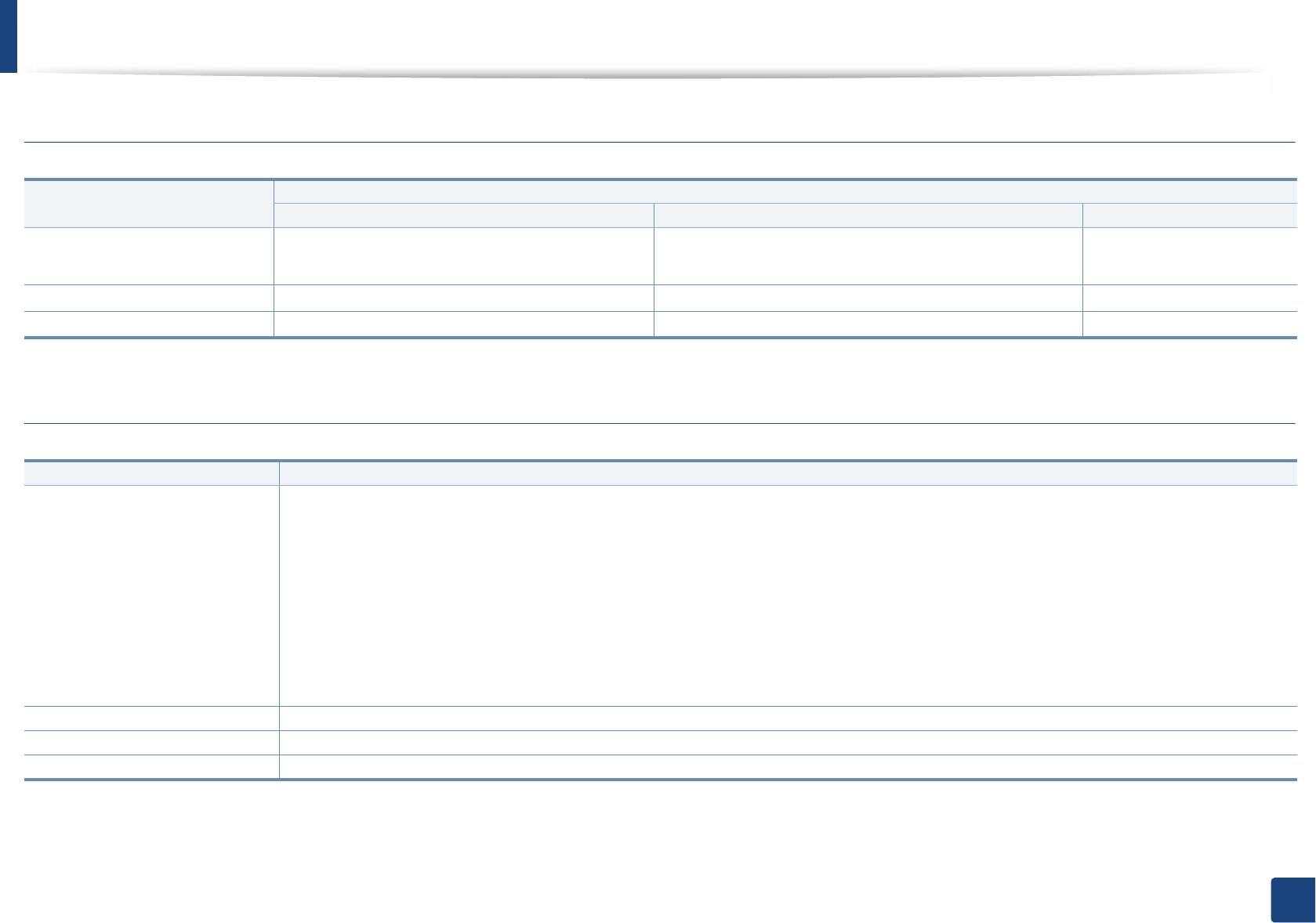
System requirements
Microsoft® Windows®
• Internet Explorer 6.0 or higher is the minimum requirement for all Windows operating systems.
• Users who have administrator rights can install the software.
•Windows Terminal Services is compatible with your machine.
Operating system Requirement (recommended)
CPU RAM free HDD space
Windows® XP Intel® Pentium® III 933 MHz (Pentium IV 1 GHz) 128 MB (256 MB) 1.5 GB
Windows Server® 2003 Intel® Pentium® III 933 MHz (Pentium IV 1 GHz) 128 MB (512 MB) 1.25 GB to 2 GB
Windows Server® 2008 Intel® Pentium® IV 1 GHz (Pentium IV 2 GHz) 512 MB (2 GB) 10 GB
Windows Vista®Intel® Pentium® IV 3 GHz 512 MB (1 GB) 15 GB
Windows® 7 Intel® Pentium® IV 1 GHz 32-bit or 64-bit processor or higher 1 GB (2 GB) 16 GB
• Support for DirectX® 9 graphics with 128 MB memory (to enable the Aero theme).
• DVD-R/W Drive
Windows Server® 2008 R2 Intel® Pentium® IV 1 GHz (x86) or 1.4 GHz (x64) processors (2 GHz or faster) 512 MB (2 GB) 10 GB
Windows® 8 Intel® Pentium® IV 1 GHz 32-bit or 64-bit processor or higher 1 GB (2 GB) 16 GB
• Support for DirectX® 9 graphics with 128 MB memory (to enable the Aero theme).
• DVD-R/W Drive
Specifications
137
5. Appendix
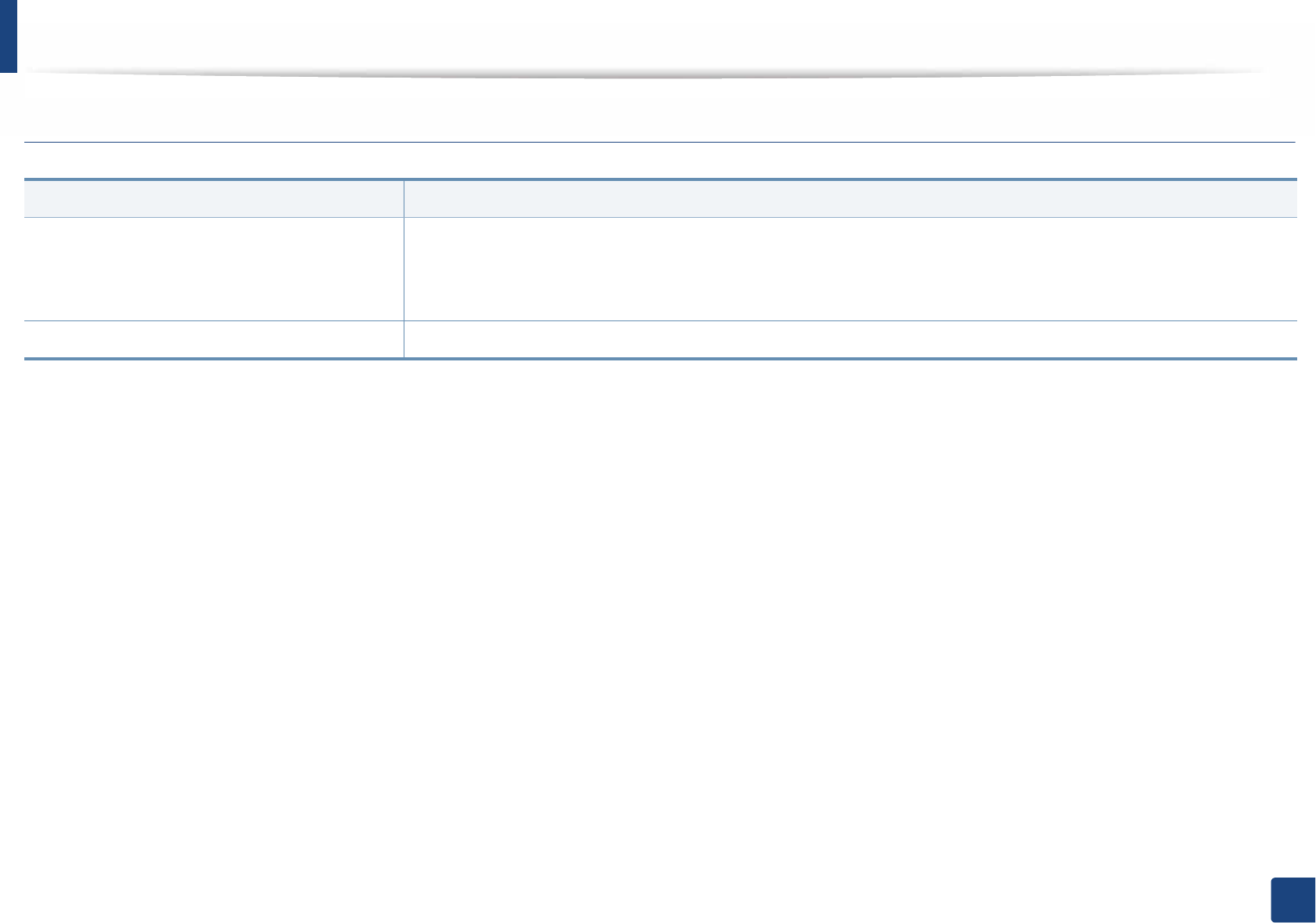
Mac
Linux
Operating system Requirements (Recommended)
CPU RAM Free HDD space
Mac OS X 10.5 •Intel
® processors
• 867 MHz or faster Power PC G4/G5
512 MB (1 GB) 1 GB
Mac OS X 10.6 •Intel
® processors 1 GB (2 GB) 1 GB
Mac OS X 10.7 - 10.8 •Intel
® processors 2 GB 4 GB
Items Requirements
Operating system RedHat® Enterprise Linux WS 4, 5, 6 (32/ 64 bit)
Fedora 5, 6, 7, 8, 9, 10, 11, 12, 13, 14, 15 (32/ 64 bit)
OpenSuSE® 10.2, 10.3, 11.0, 11.1, 11.2, 11.3, 11.4 (32/ 64 bit)
Mandriva 2007, 2008, 2009, 2009.1, 2010 (32/64 bit)
Ubuntu 6.06, 6.10, 7.04, 7.10, 8.04, 8.10, 9.04, 9.10, 10.04, 10.10, 11.04 (32/ 64 bit)
SuSE Linux Enterprise Desktop 10, 11 (32/ 64 bit)
Debian 4.0, 5.0, 6.0 (32/ 64 bit)
CPU Pentium IV 2.4GHz (Intel Core™2)
RAM 512 MB (1 GB)
Free HDD space 1 GB (2 GB)
Specifications
138
5. Appendix
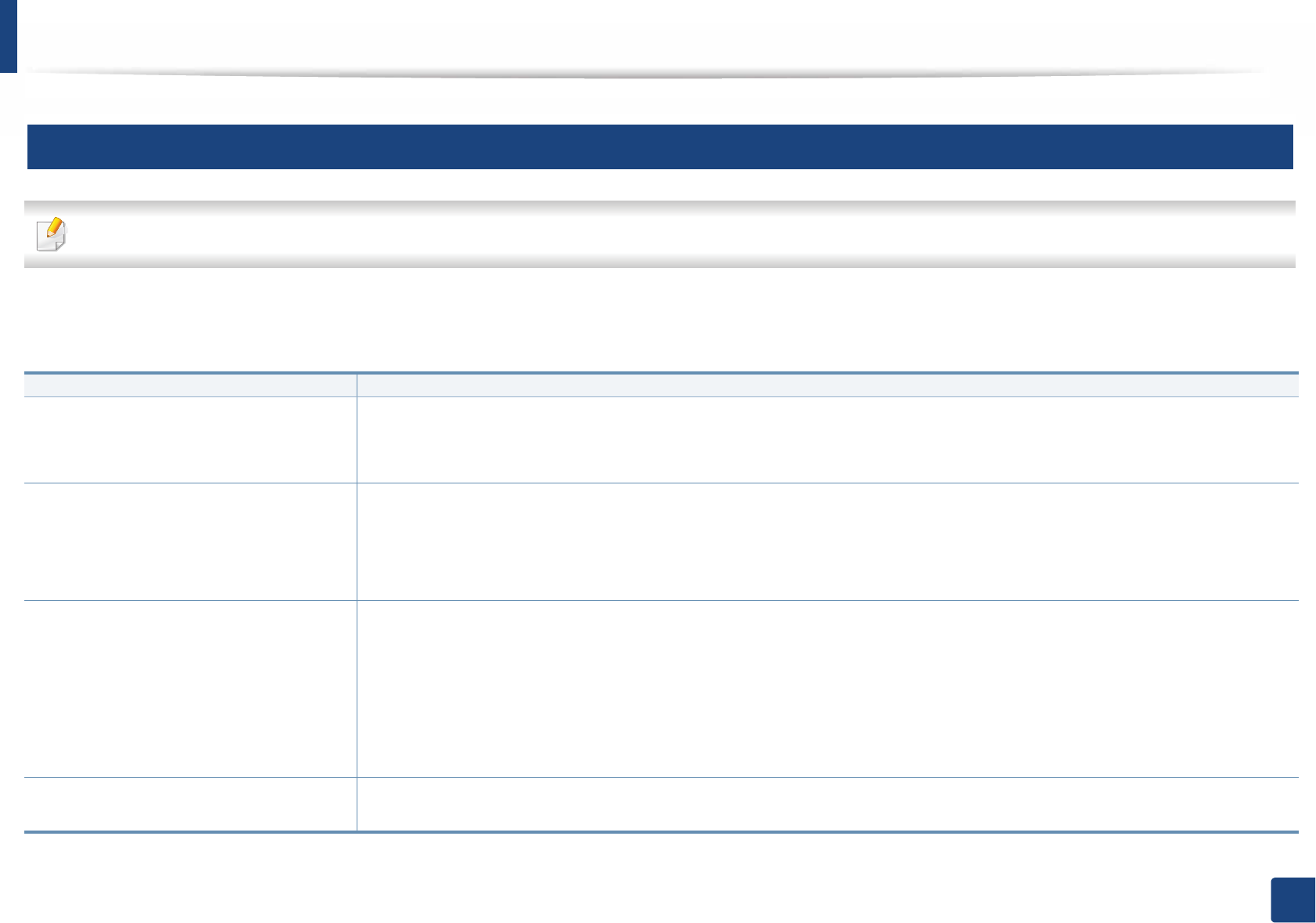
Unix
Items Requirements
Operating system
Sun Solaris 9, 10, 11 (x86, SPARC)
HP-UX 11.0, 11i v1, 11i v2, 11i v3 (PA-RISC, Itanium)
IBM AIX 5.1, 5.2, 5.3, 5.4, 6.1 7.1 (PowerPC)
Free HDD space Up to 100 MB
Specifications
139
5. Appendix
4
Network environment
Network and wireless models only (see "Features by models" on page 7).
You need to set up the network protocols on the machine to use it as your network machine. The following table shows the network environments supported by the
machine.
Items Specifications
Network interface • Ethernet 10/100/100 Base-TX Wired Lan (M337x/M387x series)
• Ethernet 10/100/1000 Base-TX Wired Lan (M407x series)
• 802.11b/g/n Wireless LAN
Network operating system •Windows
® XP, Windows Server® 2003, Windows Vista®, Windows® 7, Windows® 8, Windows Server® 2008 R2
• Various Linux OS
• Mac OS X 10.5 - 10.8
• UNIX OS
Network protocols • TCP/IPv4
• DHCP, BOOTP
• DNS, WINS, Bonjour, SLP, UPnP
• Standard TCP/IP Printing (RAW), LPR, IPP, WSD, AirPrint, Google Cloud Print
• SNMPv 1/2/3, HTTP, IPSec
• TCP/IPv6 (DHCP, DNS, RAW, LPR, SNMPv 1/2/3, HTTP, IPSec)
Wireless security • Authentication: Open System, Shared Key, WPA-Enterprise/ Personal, WPA2-Enterprise/Personal
• Encryption: WEP64, WEP128, TKIP, AES
140
5. Appendix
Regulatory information
This machine is designed for a normal work environment and certified with
several regulatory statements.
5
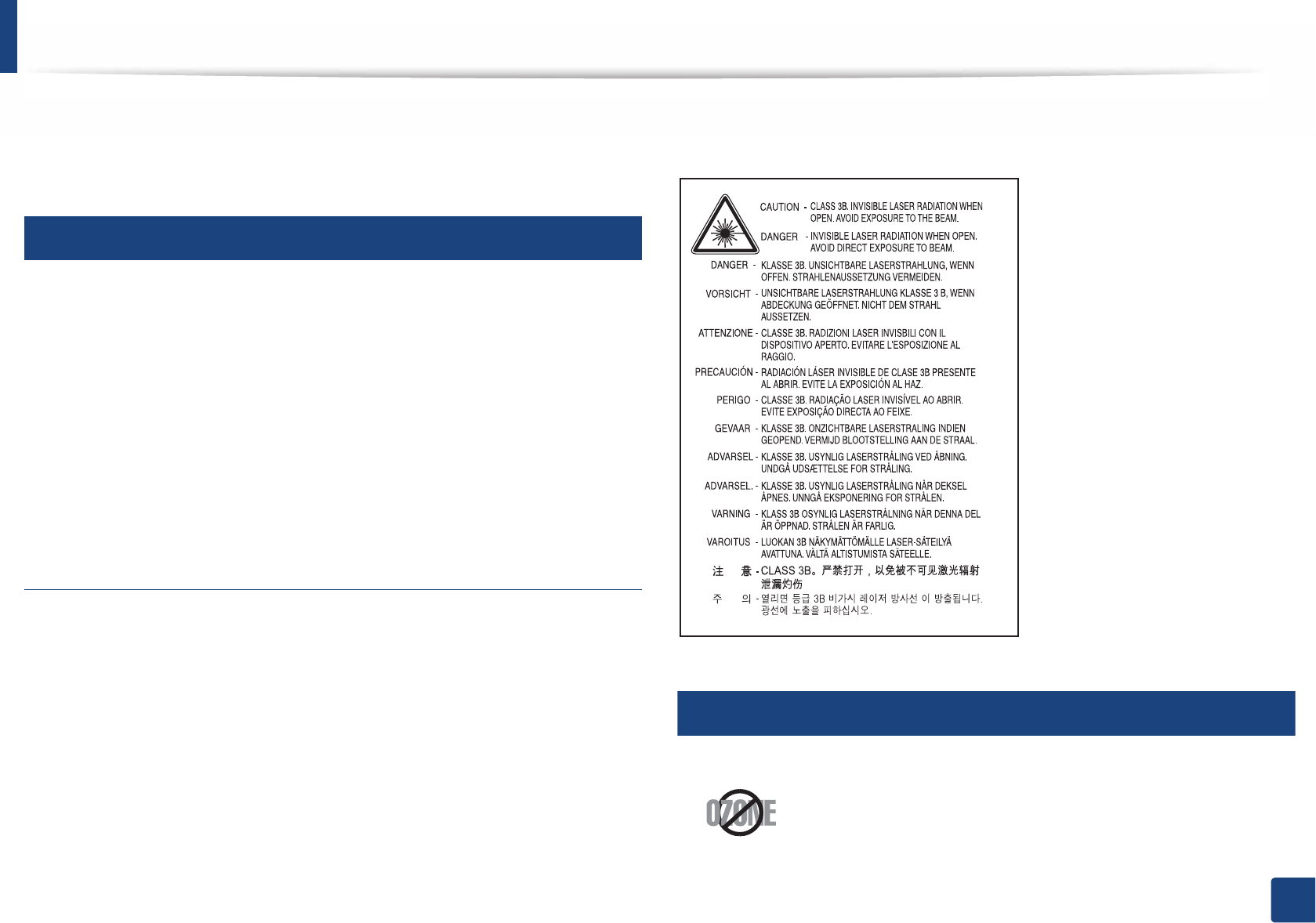
Laser safety statement
The printer is certified in the U.S. to conform to the requirements of DHHS 21
CFR, chapter 1 Subchapter J for Class I (1) laser products, and elsewhere is
certified as a Class I laser product conforming to the requirements of IEC 60825-
1 : 2007.
Class I laser products are not considered to be hazardous. The laser system and
printer are designed so there is never any human access to laser radiation above
a Class I level during normal operation, user maintenance or prescribed service
condition.
Warning
Never operate or service the printer with the protective cover removed from
laser/scanner assembly. The reflected beam, although invisible, can damage
your eyes.
When using this product, these basic safety precautions should always be
followed to reduce risk of fire, electric shock, and injury to persons:
6
Ozone safety
This product’s ozone emission rate is under 0.1 ppm. Because
ozone is heavier than air, keep the product in a place with good
ventilation.
Regulatory information
141
5. Appendix
7
Mercury Safety
8
Power saver
9
Recycling
10
China only
Contains Mercury, Dispose According to Local, State or Federal
Laws.(U.S.A. only)
This printer contains advanced energy conservation technology that
reduces power consumption when it is not in active use.
When the printer does not receive data for an extended period of
time, power consumption is automatically lowered.
ENERGY STAR and the ENERGY STAR mark are registered U.S. marks.
For more information on the ENERGY STAR program see http://
www.energystar.gov
For ENERGY STAR certified models, the ENRGY STAR label will be on
your machine. Check if your machine is ENERGY STAR certified.
Recycle or dispose of the packaging material for this product in an
environmentally responsible manner.
Regulatory information
142
5. Appendix
11
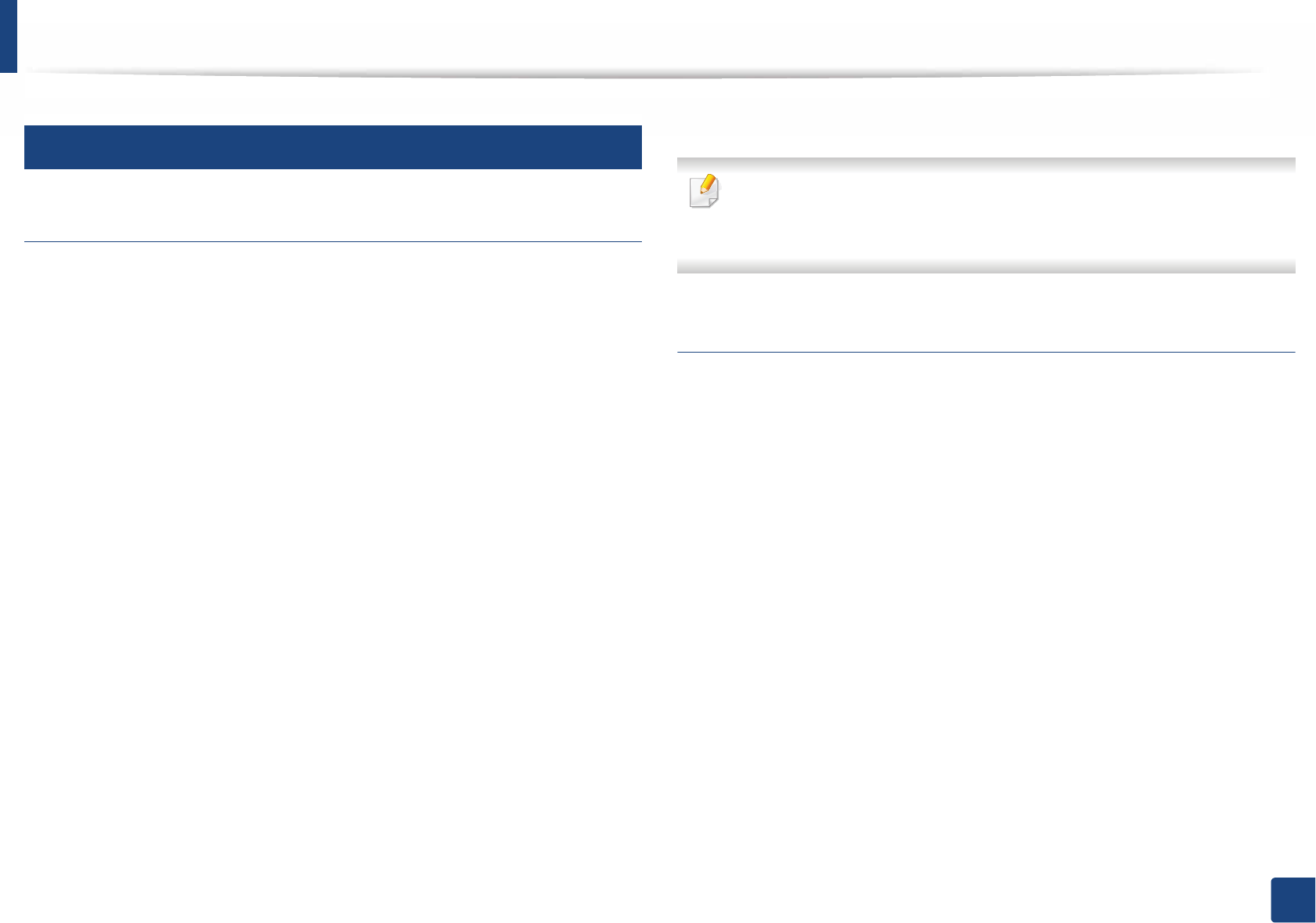
Correct disposal of this product (Waste electrical &
electronic equipment)
(Applicable in countries with separate collection
systems)
(The United States of America only)
Dispose unwanted electronics through an approved recycler. To find the nearest
recycling location, go to our website: www.samsung.com/recyclingdirect Or
call, (877) 278 - 0799
12
State of California Proposition 65 Warning (USA
Only)
13
Taiwan only
This marking on the product, accessories or literature indicates that the
product and its electronic accessories (e.g. charger, headset, USB cable)
should not be disposed of with other household waste at the end of
their working life. To prevent possible harm to the environment or
human health from uncontrolled waste disposal, please separate these
items from other s of waste and recycle them responsibly to promote the
sustainable reuse of material resources.
Household users should contact either the retailer where they
purchased this product, or their local government office, for details of
where and how they can take these items for environmentally safe
recycling.
Business users should contact their supplier and check the terms and
conditions of the purchase contract. This product and its electronic
accessories should not be mixed with other commercial wastes for
disposal.
Regulatory information
143
5. Appendix
14
Radio frequency emissions
FCC information to the user
This device complies with Part 15 of the FCC Rules. Operation is subject to the
following two conditions:
• This device may not cause harmful interference, and
• This device must accept any interference received, including interference
that may cause undesired operation.
This equipment has been tested and found to comply with the limits for a Class
B digital device, pursuant to Part 15 of the FCC Rules. These limits are designed
to provide reasonable protection against harmful interference in a residential
installation. This equipment generates, uses and can radiate radio frequency
energy and, if not installed and used in accordance with the instructions, may
cause harmful interference to radio communications. However, there is no
guarantee that interference will not occur in a particular installation. If this
equipment does cause harmful interference to radio or television reception,
which can be determined by turning the equipment off and on, the user is
encouraged to try to correct the interference by one or more of the following
measures:
• Reorient or relocate the receiving antenna.
• Increase the separation between the equipment and receiver.
• Connect the equipment into an outlet on a circuit different from that to
which the receiver is connected.
• Consult the dealer or experienced radio TV technician for help.
Change or modifications not expressly approved by the manufacturer
responsible for compliance could void the user's authority to operate the
equipment.
Canadian radio interference regulations
This digital apparatus does not exceed the Class B limits for radio noise
emissions from digital apparatus as set out in the interference-causing
equipment standard entitled “Digital Apparatus”, ICES-003 of the Industry and
Science Canada.
Cet appareil numérique respecte les limites de bruits radioélectriques
applicables aux appareils numériques de Classe B prescrites dans la norme sur le
matériel brouilleur: “Appareils Numériques”, ICES-003 édictée par l’Industrie et
Sciences Canada.
Regulatory information
144
5. Appendix
15
United States of America
Federal Communications Commission (FCC)
Intentional emitter per FCC Part 15
Low power, Radio LAN devices (radio frequency (RF) wireless communication
devices), operating in the 2.4 GHz/5 GHz Band, may be present (embedded) in
your printer system. This section is only applicable if these devices are present.
Refer to the system label to verify the presence of wireless devices.
Wireless devices that may be in your system are only qualified for use in the
United States of America if an FCC ID number is on the system label.
The FCC has set a general guideline of 20 cm (8 inches) separation between the
device and the body, for use of a wireless device near the body (this does not
include extremities). This device should be used more than 20 cm (8 inches)
from the body when wireless devices are on. The power output of the wireless
device (or devices), which may be embedded in your printer, is well below the
RF exposure limits as set by the FCC.
This transmitter must not be collocated or operation in conjunction with any
other antenna or transmitter.
Operation of this device is subject to the following two conditions: (1) This
device may not cause harmful interference, and (2) this device must accept any
interference received, including interference that may cause undesired
operation of the device.
Wireless devices are not user serviceable. Do not modify them in any way.
Modification to a wireless device will void the authorization to use it.
Contact manufacturer for service.
FCC Statement for Wireless LAN use:
While installing and operating this transmitter and antenna combination
the radio frequency exposure limit of 1m W/cm2 may be exceeded at
distances close to the antenna installed. Therefore, the user must maintain
a minimum distance of 20cm from the antenna at all times. This device
cannot be colocated with another transmitter and transmitting antenna.
16
Russia only
Regulatory information
145
5. Appendix
17
Germany only
18
Turkey only
19
Thailand only
This telecommunication equipment conforms to NTC technical requirement.
20
Canada only
This product meets the applicable Industry Canada technical specifications. / Le
present materiel est conforme aux specifications techniques applicables
d’Industrie Canada.
The Ringer Equivalence Number (REN) is an indication of the maximum number
of devices allowed to be connected to a telephone interface. The termination of
an interface may consist of any combination of devices subject only to the
requirement that the sum of the RENs of all the devices not exceed five. / L’indice
d’equivalence de la sonnerie (IES) sert a indiquer le nombre maximal de
terminaux qui peuvent etre raccordes a une interface telephonique. La
terminaison d’une interface peut consister en une combinaison quelconque de
dispositifs, a la seule condition que la somme d’indices d’equivalence de la
sonnerie de tous les dispositifs n’excede pas cinq.
21
Fax Branding
The Telephone Consumer Protection Act of 1991 makes it unlawful for any
person to use a computer or other electronic device to send any message via a
telephone facsimile machine unless such message clearly contains in a margin
at the top or bottom of each transmitted page or on the first page of the
transmission the following information:
1 the date and time of transmission
2 identification of either business, business entity or individual sending the
message; and
3 telephone number of either the sending machine, business, business entity
or individual.