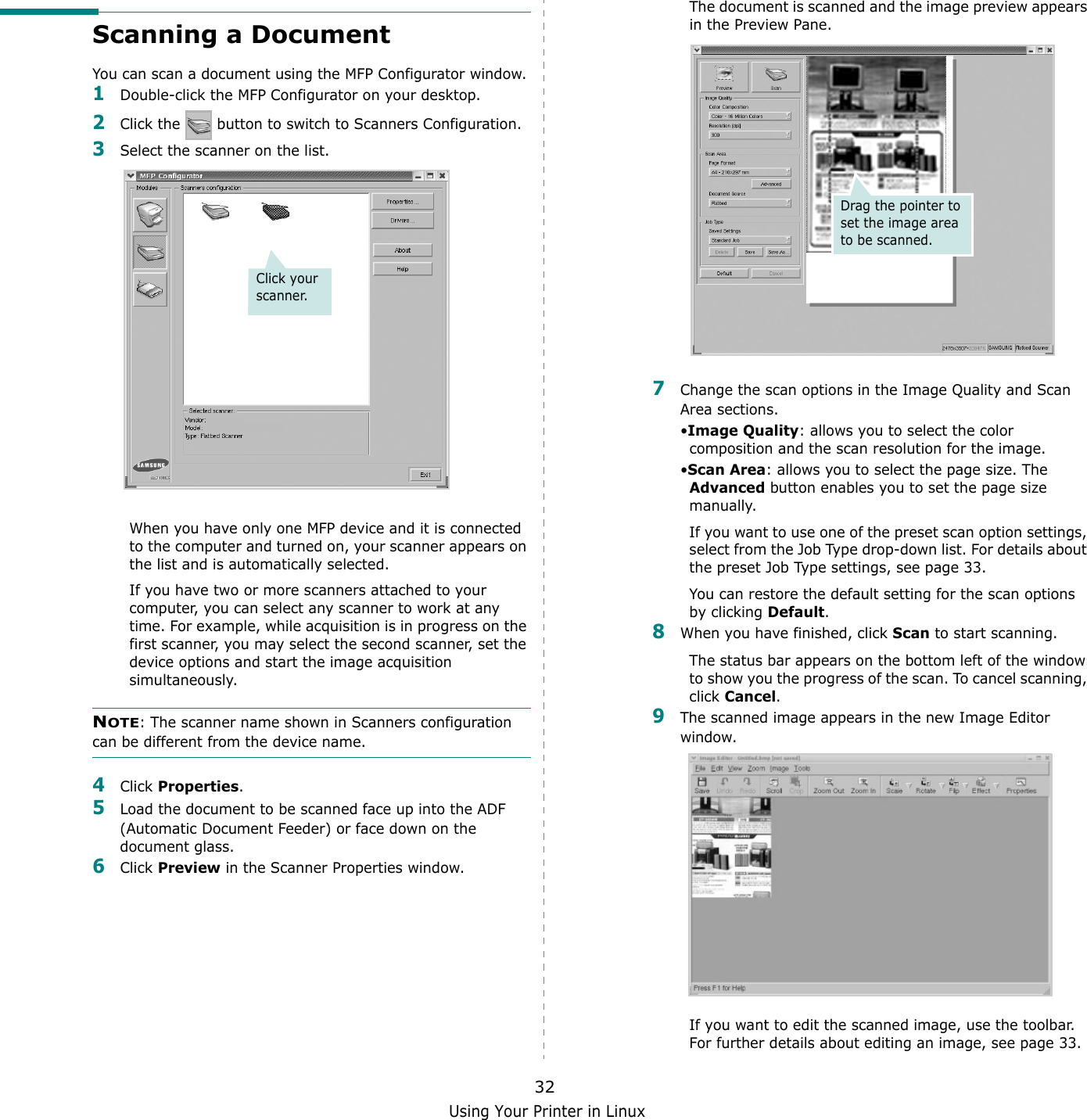
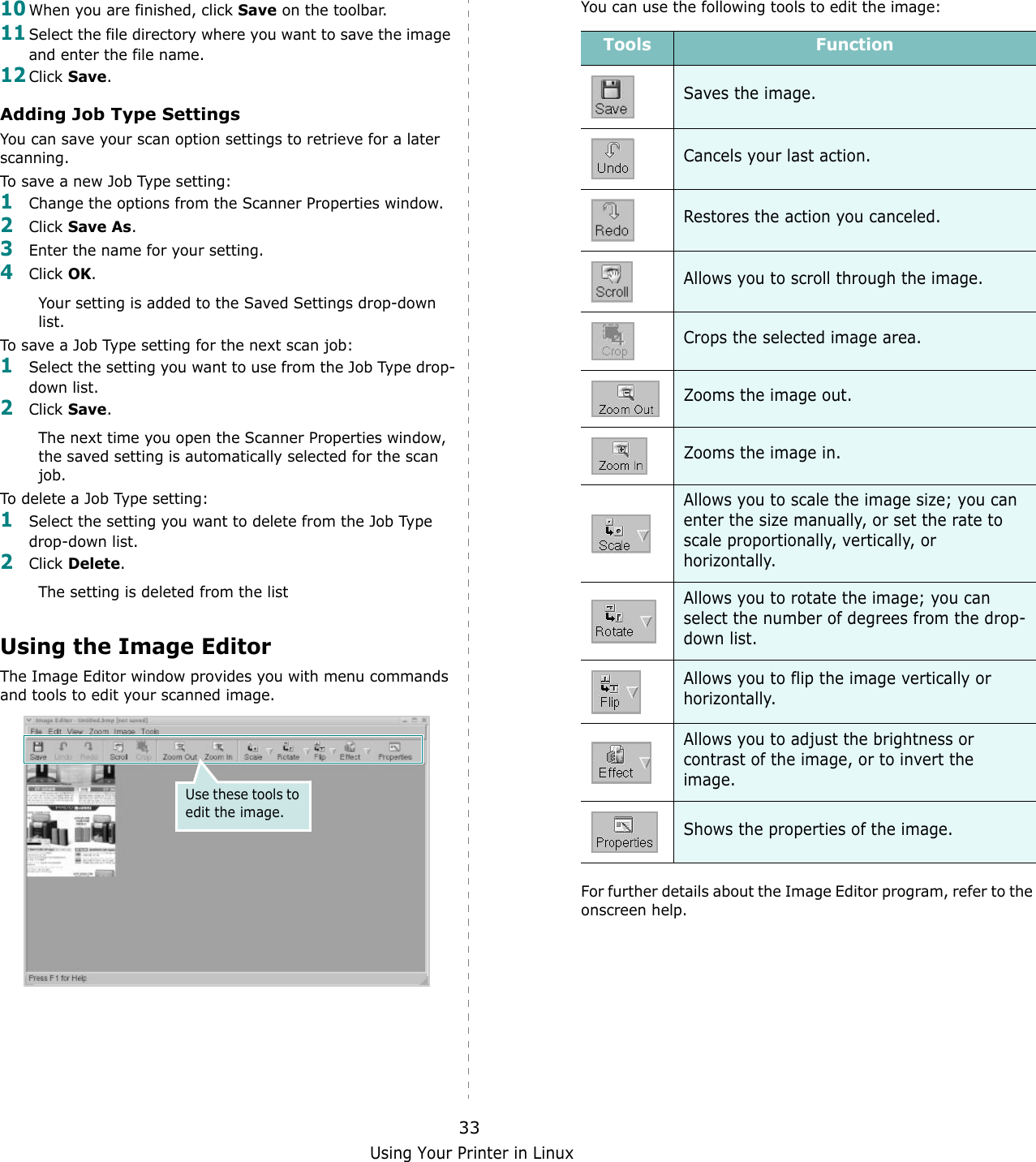
Samsung Electronics Co WT21MFF Laser Beam Printer User Manual 4x17 EN

Samsung Electronics Co Ltd Laser Beam Printer 4x17 EN

Contents

Users Manual 2

Maintenance8.5Cleaning the DrumYou can clean the OPC drum of the toner cartridge manually or automatically.If there are streaks or spots on documents you print, the OPC drum of the toner cartridge may require manual cleaning.1Before starting the cleaning procedure, make sure that paper is loaded in the machine. 2Press Menu on the control panel until “Maintenance” appears on the top line of the display. The first available menu item, “Clean Drum”, displays on the bottom line.3Press Enter. The first available menu item, “Yes” displays on the bottom line.4Press Enter.The machine prints out a cleaning page. Toner particles on the drum surface are affixed to the paper. 5If the problem remains, repeat steps 1 through 4.6To return to Standby mode, press Stop/Clear.Ignoring the Toner Empty Message (Only for SCX-4521F)When the toner cartridge is nearly empty, the machine shows the “[Toner Empty]” message and continues printing except incoming faxes. In this case, incoming faxes are saved in memory.However, you can set the machine to print incoming faxes, even though print quality is not optimal.1Press Menu until “Machine Setup” appears on the display.2Press the scroll button (  or  ) until “Ignore Toner” appears on the bottom line and press Enter.3Press the Scroll button (  or  ) to select “On” or “Off”. Select “On” to ignore the [Toner Empty] message.Select “Off” to stop printing incoming faxes when the message appears. This is the default setting.4Press Enter to save the selection.5To return to Standby mode, press Stop/Clear.Consumables and Replacement PartsFrom time to time, you needs to replace the toner cartridge, roller, and fuser unit to maintain top performance and to avoid print quality problems and paper feed problems resulting from worn parts.The following items should be replaced after you have printed the specified number of pages:To purchase consumables and replacement parts, contact your Samsung dealer or the retailer where you bought your machine. We strongly recommend that these items be installed by a trained service professional, except for the toner cartridge (see “Replacing the Toner Cartridge” on page 8.4) and the ADF rubber pad (see “Replacing the ADF Rubber Pad” on page 8.6).Items Yield (Average)ADF rubber pad Approx. 20,000 pagesADF roller Approx. 50,000 pagesPaper feeding roller Approx. 50,000 pagesTransfer roller Approx. 50,000 pagesFuser unit  Approx. 50,000 pages
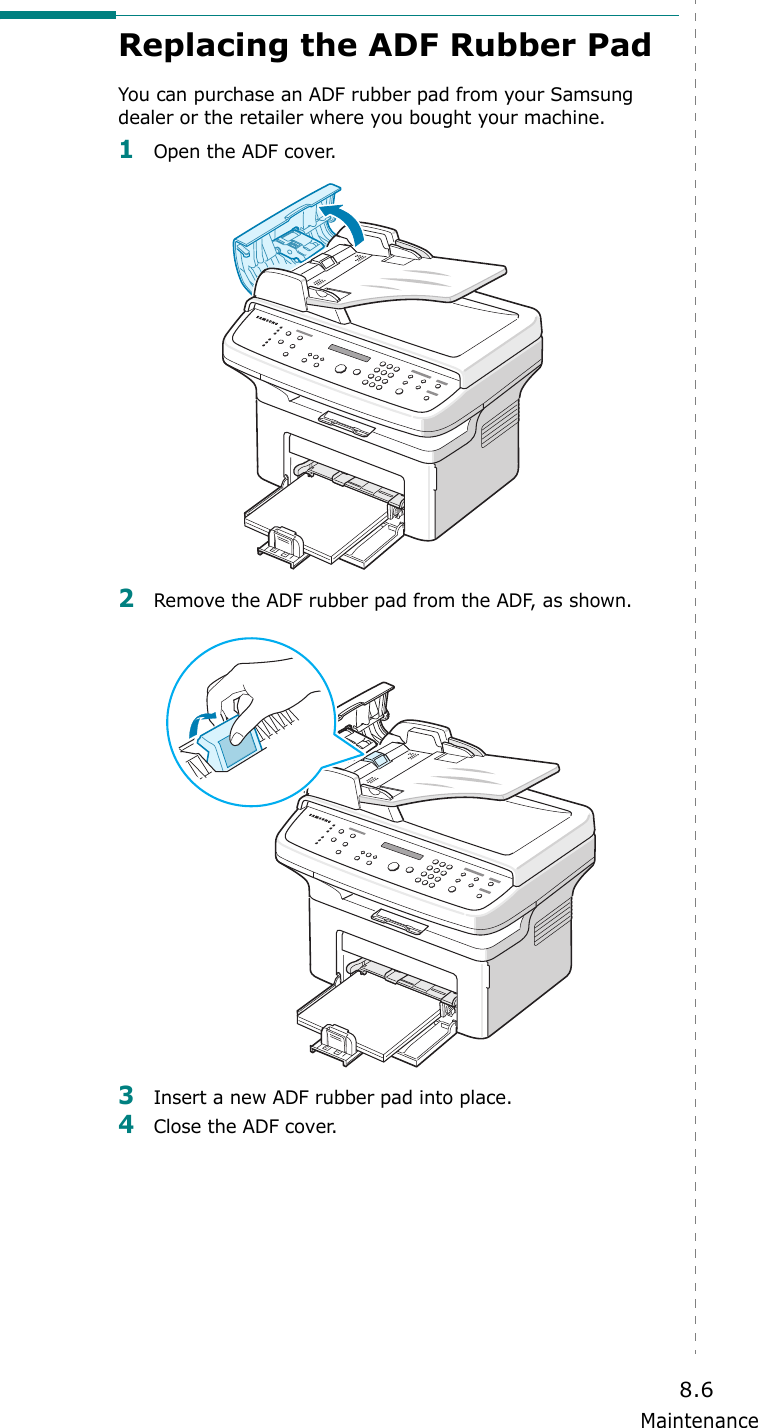
Maintenance8.6Replacing the ADF Rubber PadYou can purchase an ADF rubber pad from your Samsung dealer or the retailer where you bought your machine.1Open the ADF cover.2Remove the ADF rubber pad from the ADF, as shown.3Insert a new ADF rubber pad into place.4Close the ADF cover.
Troubleshooting9.19TroubleshootingThis chapter gives helpful information for what to do if you encounter an error.This chapter includes:• Clearing Document Jams• Clearing Paper Jams• Clearing LCD Error Messages• Solving Other Problems• Common Linux Problems• Common Macintosh ProblemsClearing Document JamsWhen a document jams while passing through the ADF (Automatic Document Feeder), “[Document Jam]” appears on the display.Input Misfeed1Remove any remaining page(s) from the ADF.2Open the ADF cover.3Pull the document gently out of the ADF.4Close the ADF cover. Then load the removed page(s), if any, back into the ADF.NOTE: To prevent document jams, use the document glass for thick, thin, or mixed paper-type documents.
Troubleshooting9.2Exit Misfeed1Remove any remaining page(s) from the ADF.2Open the ADF cover.3Remove the misfed documents from the document output tray.4Close the ADF cover. Then load the removed page(s), if any, back into the ADF.Clearing Paper JamsWhen a paper jam occurs, “Paper Jam” appears on the display. Refer to the table below to locate and clear the paper jam.To avoid tearing the paper, pull out the jammed paper gently and slowly. Follow the instructions in the following sections to clear the jam. Message Location of Jam Go to[Paper Jam 0]Open/Close DoorIn the tray or manual traypage 9.2[Paper Jam 1]Open/Close DoorIn the fuser area or around the toner cartridge.page 9.3[Paper Jam 2]Check InsideIn the paper exit area page 9.3In the Tray1Remove the jammed paper in the tray by gently pulling it straight out.If there is any resistance and the paper does not move when you pull, or if you cannot see the paper in this area, check the fuser area around the toner cartridge. See page 9.3. 2Open and close the front door to resume printing.In the Manual Tray1Remove the jammed paper in the tray by gently pulling it straight out.If there is any resistance and the paper does not move when you pull, or if you cannot see the paper in this area, check the fuser area around the toner cartridge. See page 9.3. 2Open and close the front door to resume printing.
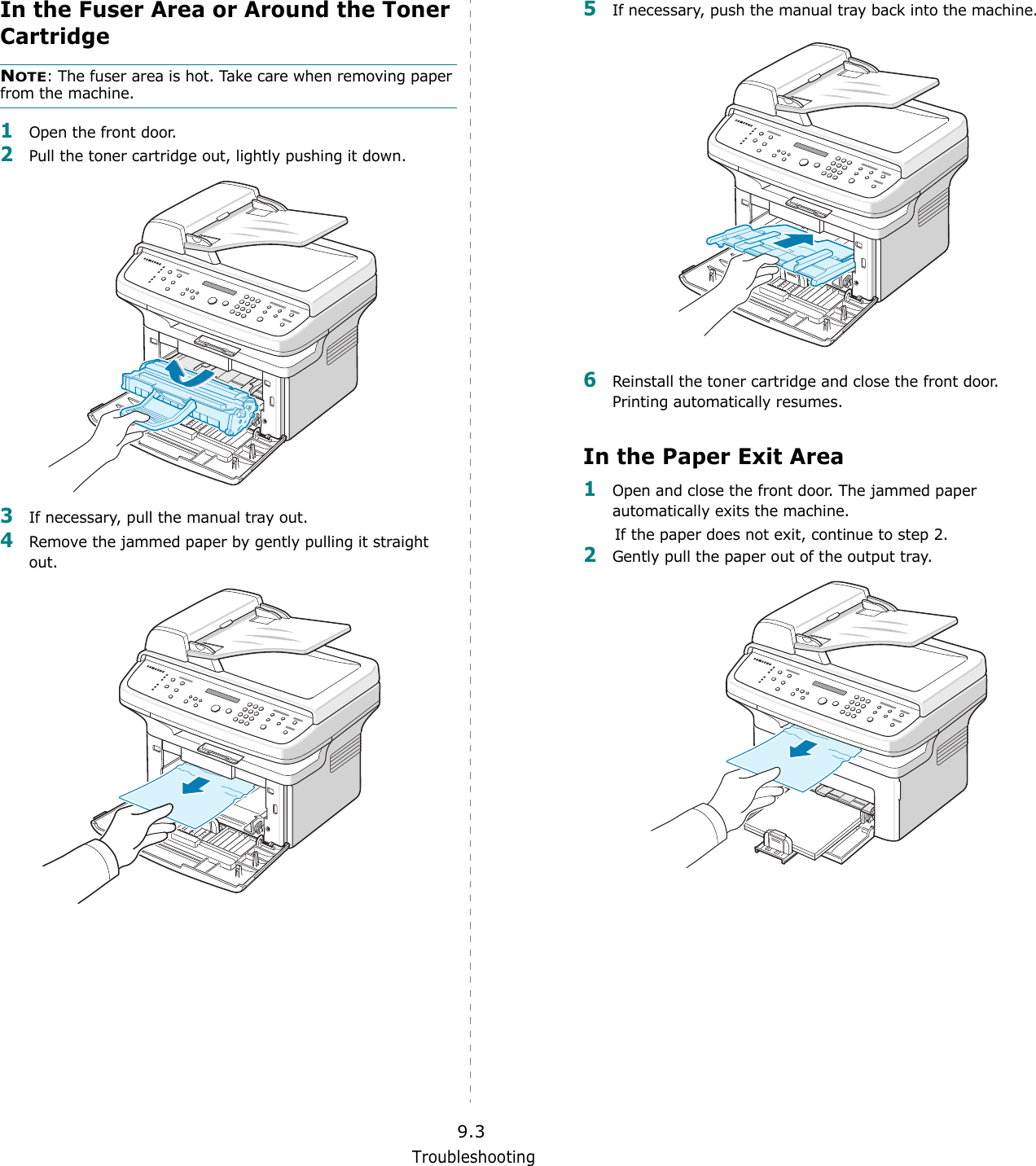
Troubleshooting9.3In the Fuser Area or Around the Toner CartridgeNOTE: The fuser area is hot. Take care when removing paper from the machine.1Open the front door.2Pull the toner cartridge out, lightly pushing it down.3If necessary, pull the manual tray out.4Remove the jammed paper by gently pulling it straight out.5If necessary, push the manual tray back into the machine.6Reinstall the toner cartridge and close the front door. Printing automatically resumes.In the Paper Exit Area1Open and close the front door. The jammed paper automatically exits the machine.If the paper does not exit, continue to step 2.2Gently pull the paper out of the output tray.
Troubleshooting9.43If there is any resistance and the paper does not move when you pull, or if you cannot see the paper in the output tray, open the rear cover by pulling the tab on it.4Remove the jammed paper by gently pulling it straight out.CAUTION: Inside of the machine is hot. Take care when removing paper from the machine.5Close the rear cover.6Open and close the front door to resume printing.Tips for Avoiding Paper JamsBy selecting the correct paper types, most paper jams can be avoided. When a paper jam occurs, follow the steps outlined in “Clearing Paper Jams” on page 9.2. • Follow the procedures in “Loading Paper” on page 2.3. Ensure that the adjustable guides are positioned correctly.• Do not overload the tray. • Do not remove paper from the tray while your machine is printing.• Flex, fan, and straighten the paper before loading. • Do not use creased, damp, or highly curled paper.• Do not mix paper types in the tray.• Use only recommended print materials. See “Paper Specifications” on page 10.3.• Ensure that the recommended print side of print materials is facing up in the tray.Clearing LCD Error MessagesDisplay Meaning Suggested solutionsCancel ?1:Yes  2:No(only for SCX-4521F)Your machine’s memory has become full while trying to store a document into memory.To cancel the fax job, press the 1 button to accept “Yes”. If you want to send the pages that have been successfully stored, press the 2 button to accept “No”. You should send the remaining pages later, when memory is available.[Comm. Error](only for SCX-4521F)The machine has a communication problem.Ask the sender to try again.CRU Fuse Error The toner cartridge is not installed correctly.Install the toner cartridge correctly. See “Replacing the Toner Cartridge” on page 8.4.[Document Jam] The loaded document has jammed in the ADF (Automatic Document Feeder).Clear the document jam. See “Clearing Document Jams” on page 9.1.[Front or Rear][Cover Open]The front door or rear cover is not securely latched.Close the door until it locks into place.Enter Again You entered an unavailable item.Enter the correct item again.
Troubleshooting9.5Low Heat Error There is a problem in the fuser unit.Unplug the power cord and plug it back in. If the problem persists, please call for service.Open Heat Error[Over Heat]Group NotAvailable(only for SCX-4521F)You have tried to select a group location number where only a single location number can be used, such as when adding locations for a broadcast operation.Use a speed dial number or dial a number manually using the number keypad.[Incompatible](only for SCX-4521F)The remote machine did not have the requested feature, such as a delayed transmission.This message also occurs if the remote machine does not have enough memory space to complete the operation you are attempting.Reconfirm the remote machine’s features.[Line Busy](only for SCX-4521F)The receiving party did not answer or the line is already engaged.Try again after a few minutes.[Line Error](only for SCX-4521F)Your machine cannot connect with the remote machine or has lost contact because of a problem with the phone line.Try again. If  the problem persists, wait an hour or so for the line to clear and try again.Or, turn the ECM mode on. See “ECM Mode (Error Correction Mode)” on page 7.15.Load Document You have attempted to set up a copy or fax operation with no document loaded into the ADF.Load a document into the ADF and try again.[LSU Error] A problem has occurred in the LSU (Laser Scanning Unit).Unplug the power cord and plug it back in. If the problem persists, please call for service.Memory Dial Full (only for SCX-4521F)The fax jobs queue in the memory is full.Cancel unnecessary fax jobs in the memory.Display Meaning Suggested solutionsMemory Full(only for SCX-4521F)The memory is full. Delete unnecessary documents and retransmit after more memory becomes available. Alternatively, split the transmission into more than one operation.[No Answer](only for SCX-4521F)The receiving fax machine has not answered after several redial attempts.Try again. Make sure that the receiving machine is operational.[No Cartridge] The toner cartridge is not installed.Install the toner cartridge. See “Installing the Toner Cartridge” on page 2.2.Not Assigned(only for SCX-4521F)• The speed dial location you tried to use has no number assigned to it.• The ID you entered is not assigned.• Dial the number manually using the number keypad or assign the number. For storing a number, see “Automatic Dialing” on page 7.9.• Enter the correct ID page 2.10.[No Paper]Add PaperThe paper in the tray has run out.Load paper in the tray. See “Loading Paper” on page 2.3.Operation Not Assigned(only for SCX-4521F)You are doing the Add/Cancel operation, but there are no jobs waiting.Check the display to see if there are any scheduled jobs. The display should indicate them in Standby mode; for example, Delay Fax.Out of Range The current date and time you entered is not correct.Enter the correct date and time.[Paper Jam 0]Open/Close DoorPaper has jammed in the feeding area of the tray.Clear the jam. See “In the Tray” on page 9.2.[Paper Jam 1]Open/Close DoorPaper has jammed in the fuser area or around the toner cartridge.Clear the jam. See “In the Fuser Area or Around the Toner Cartridge” on page 9.3.[Paper Jam 2]Check InsidePaper has jammed in the paper exit area.Clear the jam. See “In the Paper Exit Area” on page 9.3.[Power Failure] Power has turned off then on and the machine’s memory has not been saved.The job which you were trying to do before the power failure must be completely re-done.Display Meaning Suggested solutions
Troubleshooting9.6Remove Documentsfrom ADFThe Favorite Copy button is set to Clone, Autofit, ID Card Copy or Poster and you press the button.The Clone, Autofit, ID Card Copy or Poster feature does not work with ADF. Remove the documents in the ADF.[Retry Redial?](only for SCX-4521F)The machine is waiting for a specified time interval to redial a previously busy station.You can press Enter to immediately redial, or Stop/Clear to cancel the redial operation.Scanner Locked The scanner module is locked.Upload the power cord and plug it back in.[Stop Pressed] The Stop/Clear button has been pressed during a copy or fax operation.Try again.[Toner Empty] The toner cartridge has run out. Replace the toner cartridge with a new one. See “Replacing the Toner Cartridge” on page 8.4.[Toner Low] The toner is almost empty.Take out the toner cartridge and gently shake it. By doing this, you can temporarily reestablish printing operations. See “Redistributing Toner” on page 8.4.Display Meaning Suggested solutionsSolving Other ProblemsThe following chart lists some conditions that may occur and the recommended solutions. Follow the suggested solutions until the problem is corrected. If the problem persists, please call for service.Paper Feeding ProblemsCondition Suggested solutionsPaper is jammed during printing.Clear the paper jam. See “Clearing Paper Jams” on page 9.2.Paper sticks together.• Ensure that there is not too much paper in the tray. The tray can hold up to 150 sheets of paper, depending on the thickness of your paper.• Make sure that you are using the correct type of paper. See “Paper Specifications” on page 10.3.• Remove paper from the tray and flex or fan the paper.• Humid conditions may cause some paper to stick together.Multiple sheets of paper do not feed.• Different types of paper may be stacked in the tray. Load paper of only one type, size, and weight.• If multiple sheets have caused a paper jam, clear the paper jam. See “Clearing Paper Jams” on page 9.2.Paper does not feed into the machine.• Remove any obstructions inside the machine.• Paper has not been loaded correctly. Remove paper from the tray and reload it correctly.• There is too much paper in the tray. Remove excess paper from the tray.• The paper is too thick. Use only paper that meets the specifications required by the machine. See “Paper Specifications” on page 10.3.The paper keeps jamming.• There is too much paper in the tray. Remove excess paper from the tray. If you are printing on special materials, use one sheet of paper at a time.• An incorrect type of paper is being used. Use only paper that meets the specifications required by the machine. See “Paper Specifications” on page 10.3.• There may be debris inside the machine. Open the front door and remove the debris.Transparencies stick together in the paper exit.Use only transparencies specifically designed for laser printers. Remove each transparency as it exits from the machine.Envelopes skew or fail to feed correctly.Ensure that the paper guides are against both sides of the envelopes.
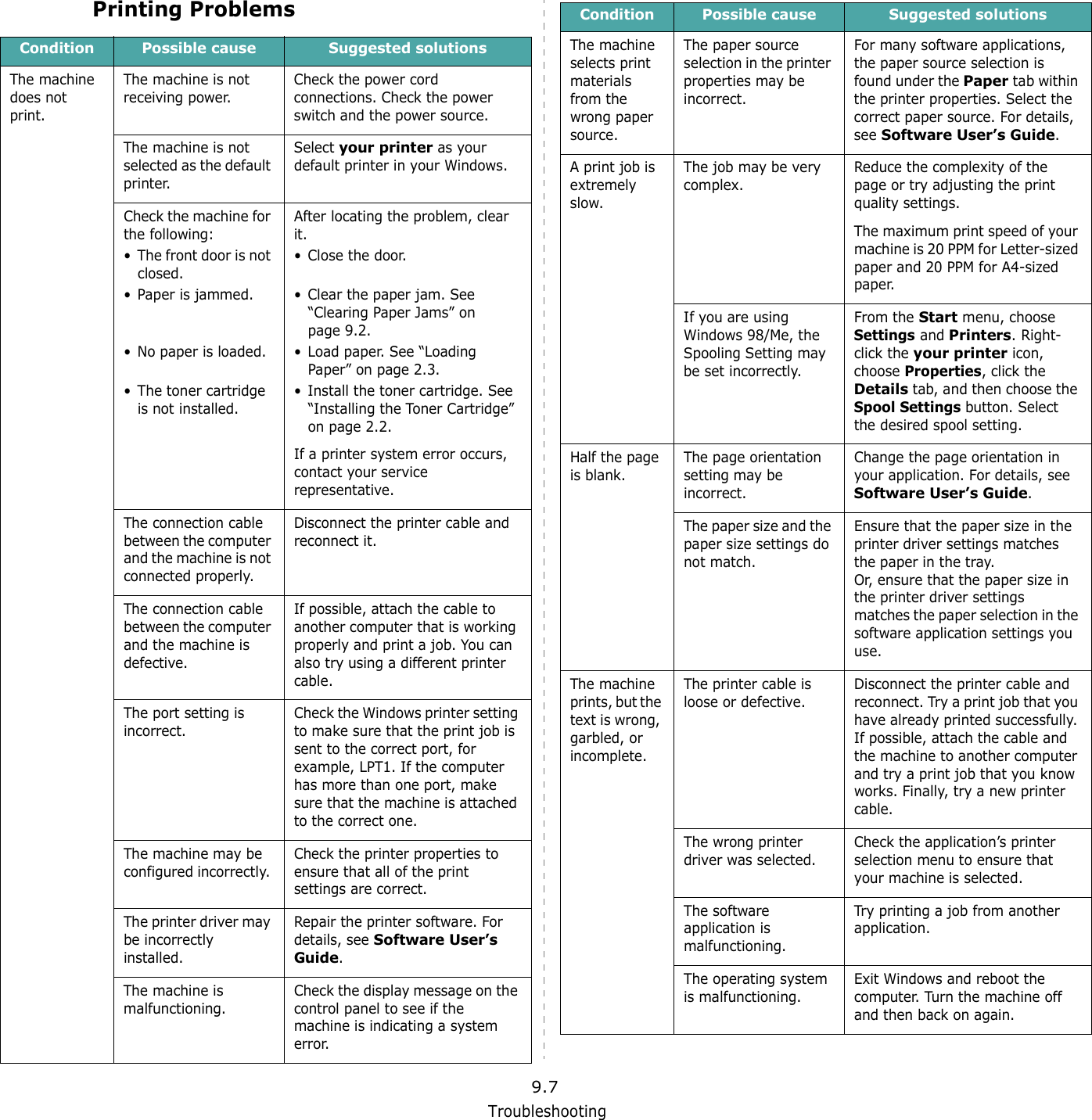
Troubleshooting9.7Printing ProblemsCondition Possible cause Suggested solutionsThe machine does not print.The machine is not receiving power.Check the power cord connections. Check the power switch and the power source.The machine is not selected as the default printer.Select your printer as your default printer in your Windows.Check the machine for the following:• The front door is not closed.• Paper is jammed.• No paper is loaded.• The toner cartridge is not installed.After locating the problem, clear it.• Close the door.• Clear the paper jam. See “Clearing Paper Jams” on page 9.2.• Load paper. See “Loading Paper” on page 2.3.• Install the toner cartridge. See “Installing the Toner Cartridge” on page 2.2.If a printer system error occurs, contact your service representative.The connection cable between the computer and the machine is not connected properly.Disconnect the printer cable and reconnect it.The connection cable between the computer and the machine is defective.If possible, attach the cable to another computer that is working properly and print a job. You can also try using a different printer cable.The port setting is incorrect.Check the Windows printer setting to make sure that the print job is sent to the correct port, for example, LPT1. If the computer has more than one port, make sure that the machine is attached to the correct one.The machine may be configured incorrectly. Check the printer properties to ensure that all of the print settings are correct. The printer driver may be incorrectly installed.Repair the printer software. For details, see Software User’s Guide. The machine is malfunctioning.Check the display message on the control panel to see if the machine is indicating a system error.The machine selects print materials from the wrong paper source.The paper source selection in the printer properties may be incorrect.For many software applications, the paper source selection is found under the Paper tab within the printer properties. Select the correct paper source. For details, see Software User’s Guide.A print job is extremely slow.The job may be very complex.Reduce the complexity of the page or try adjusting the print quality settings.The maximum print speed of your machine is 20 PPM for Letter-sized paper and 20 PPM for A4-sized paper.If you are using Windows 98/Me, the Spooling Setting may be set incorrectly. From the Start menu, choose Settings and Printers. Right-click the your printer icon, choose Properties, click the Details tab, and then choose the Spool Settings button. Select the desired spool setting.Half the page is blank.The page orientation setting may be incorrect.Change the page orientation in your application. For details, see Software User’s Guide.The paper size and the paper size settings do not match.Ensure that the paper size in the printer driver settings matches the paper in the tray.Or, ensure that the paper size in the printer driver settings matches the paper selection in the software application settings you use.The machine prints, but the text is wrong, garbled, or incomplete.The printer cable is loose or defective.Disconnect the printer cable and reconnect. Try a print job that you have already printed successfully. If possible, attach the cable and the machine to another computer and try a print job that you know works. Finally, try a new printer cable.The wrong printer driver was selected.Check the application’s printer selection menu to ensure that your machine is selected.The software application is malfunctioning.Try printing a job from another application.The operating system is malfunctioning.Exit Windows and reboot the computer. Turn the machine off and then back on again.Condition Possible cause Suggested solutions
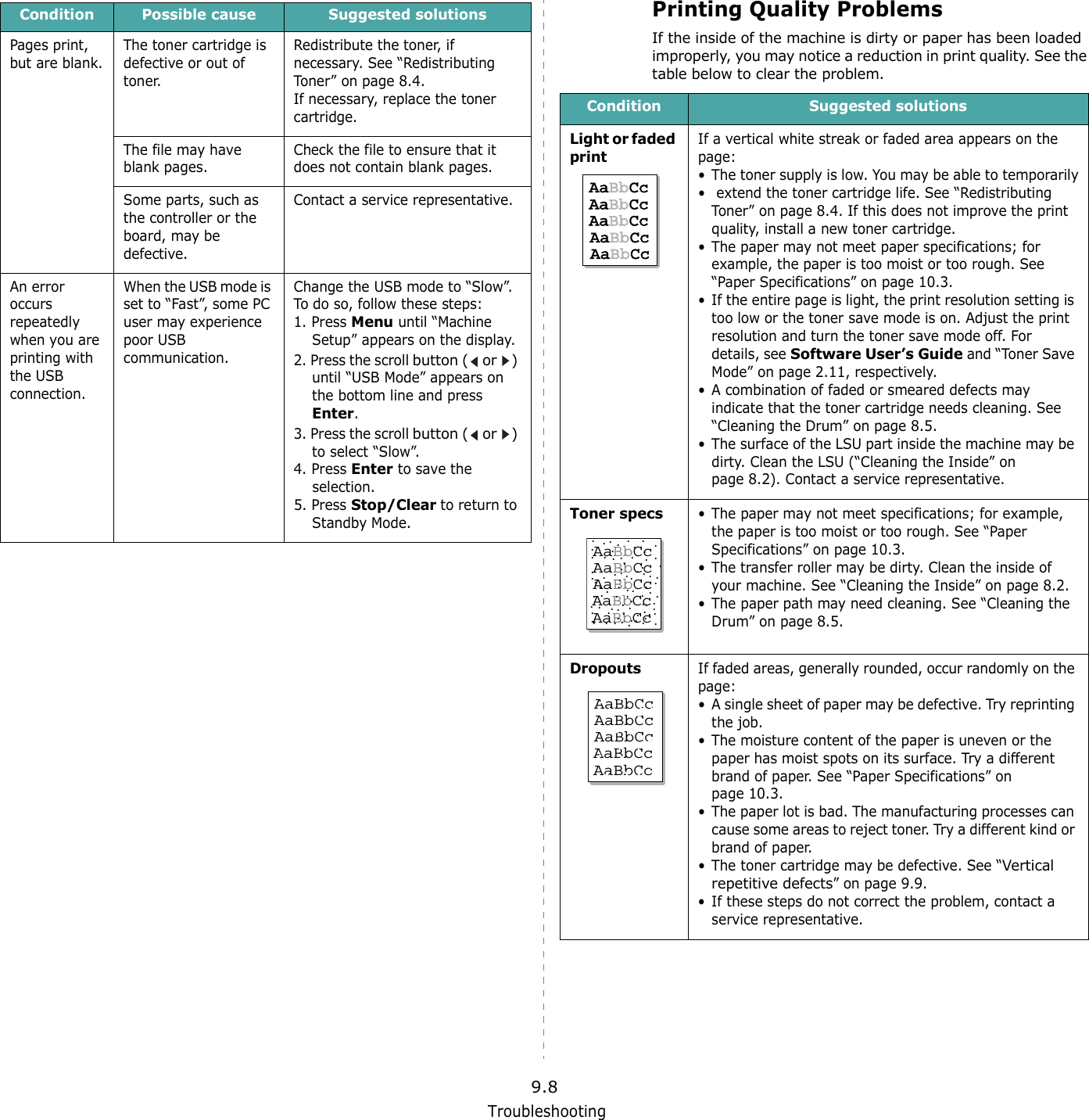
Troubleshooting9.8Pages print, but are blank.The toner cartridge is defective or out of toner.Redistribute the toner, if necessary. See “Redistributing Toner” on page 8.4.If necessary, replace the toner cartridge.The file may have blank pages.Check the file to ensure that it does not contain blank pages.Some parts, such as the controller or the board, may be defective.Contact a service representative.An error occurs repeatedly when you are printing with the USB connection.When the USB mode is set to “Fast”, some PC user may experience poor USB communication.Change the USB mode to “Slow”. To do so, follow these steps:1. Press Menu until “Machine Setup” appears on the display.2. Press the scroll button (  or  ) until “USB Mode” appears on the bottom line and press Enter.3. Press the scroll button (  or  ) to select “Slow”.4. Press Enter to save the selection.5. Press Stop/Clear to return to Standby Mode. Condition Possible cause Suggested solutionsPrinting Quality ProblemsIf the inside of the machine is dirty or paper has been loaded improperly, you may notice a reduction in print quality. See the table below to clear the problem. Condition Suggested solutionsLight or faded printIf a vertical white streak or faded area appears on the page:• The toner supply is low. You may be able to temporarily•  extend the toner cartridge life. See “Redistributing Toner” on page 8.4. If this does not improve the print quality, install a new toner cartridge.• The paper may not meet paper specifications; for example, the paper is too moist or too rough. See “Paper Specifications” on page 10.3.• If the entire page is light, the print resolution setting is too low or the toner save mode is on. Adjust the print resolution and turn the toner save mode off. For details, see Software User’s Guide and “Toner Save Mode” on page 2.11, respectively.• A combination of faded or smeared defects may indicate that the toner cartridge needs cleaning. See “Cleaning the Drum” on page 8.5.• The surface of the LSU part inside the machine may be dirty. Clean the LSU (“Cleaning the Inside” on page 8.2). Contact a service representative.Toner specs• The paper may not meet specifications; for example, the paper is too moist or too rough. See “Paper Specifications” on page 10.3.• The transfer roller may be dirty. Clean the inside of your machine. See “Cleaning the Inside” on page 8.2.• The paper path may need cleaning. See “Cleaning the Drum” on page 8.5.DropoutsIf faded areas, generally rounded, occur randomly on the page:• A single sheet of paper may be defective. Try reprinting the job.• The moisture content of the paper is uneven or the paper has moist spots on its surface. Try a different brand of paper. See “Paper Specifications” on page 10.3.• The paper lot is bad. The manufacturing processes can cause some areas to reject toner. Try a different kind or brand of paper.• The toner cartridge may be defective. See “Vertical repetitive defects” on page 9.9.• If these steps do not correct the problem, contact a service representative.AaBbCcAaBbCcAaBbCcAaBbCcAaBbCcAaBbCcAaBbCcAaBbCcAaBbCcAaBbCcAaBbCcAaBbCcAaBbCcAaBbCcAaBbCc
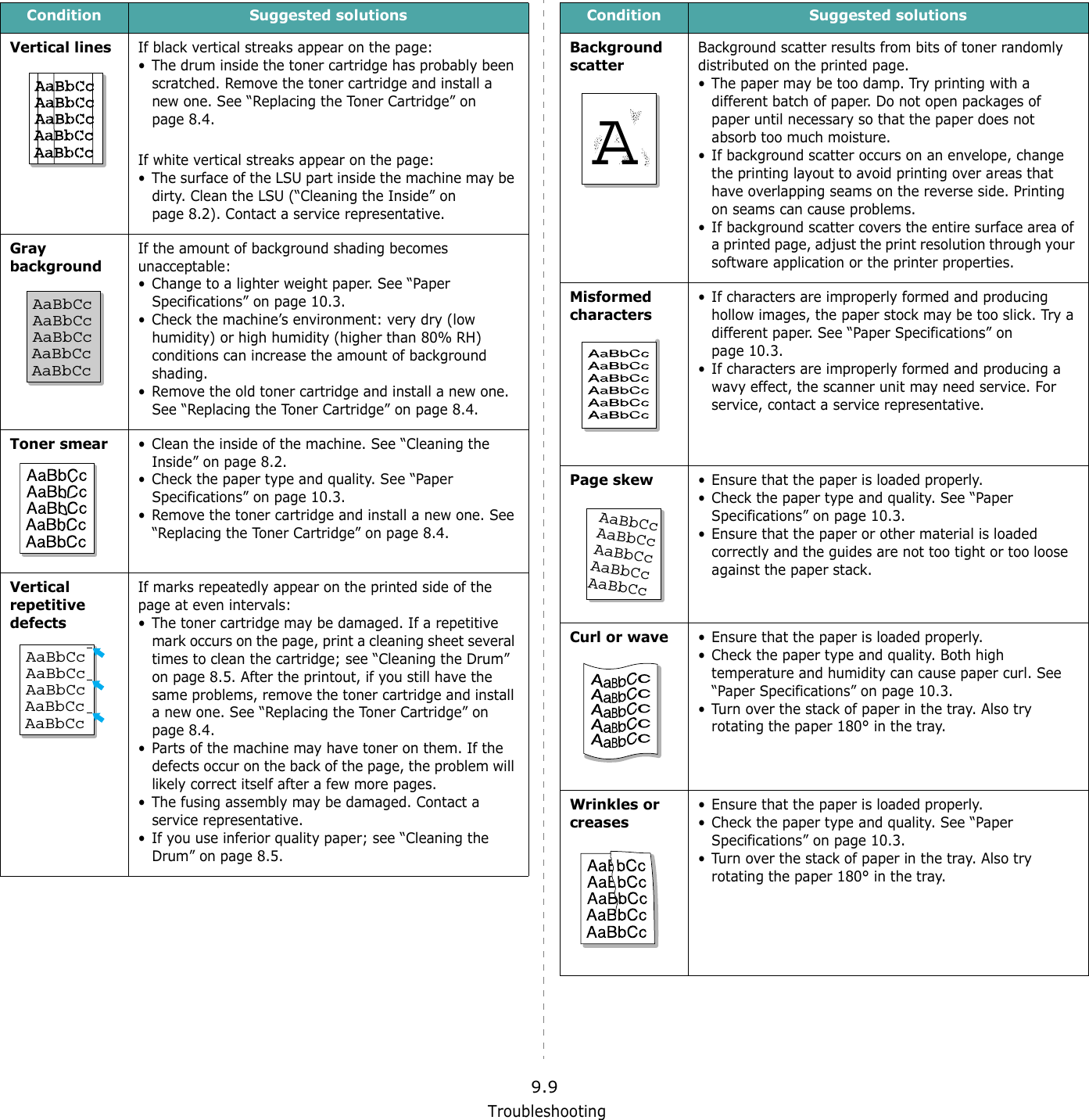
Troubleshooting9.9Vertical linesIf black vertical streaks appear on the page:• The drum inside the toner cartridge has probably been scratched. Remove the toner cartridge and install a new one. See “Replacing the Toner Cartridge” on page 8.4.If white vertical streaks appear on the page:• The surface of the LSU part inside the machine may be dirty. Clean the LSU (“Cleaning the Inside” on page 8.2). Contact a service representative.Gray backgroundIf the amount of background shading becomes unacceptable:• Change to a lighter weight paper. See “Paper Specifications” on page 10.3.• Check the machine’s environment: very dry (low humidity) or high humidity (higher than 80% RH) conditions can increase the amount of background shading.• Remove the old toner cartridge and install a new one. See “Replacing the Toner Cartridge” on page 8.4.Toner smear• Clean the inside of the machine. See “Cleaning the Inside” on page 8.2.• Check the paper type and quality. See “Paper Specifications” on page 10.3.• Remove the toner cartridge and install a new one. See “Replacing the Toner Cartridge” on page 8.4.Vertical repetitive defectsIf marks repeatedly appear on the printed side of the page at even intervals:• The toner cartridge may be damaged. If a repetitive mark occurs on the page, print a cleaning sheet several times to clean the cartridge; see “Cleaning the Drum” on page 8.5. After the printout, if you still have the same problems, remove the toner cartridge and install a new one. See “Replacing the Toner Cartridge” on page 8.4.• Parts of the machine may have toner on them. If the defects occur on the back of the page, the problem will likely correct itself after a few more pages.• The fusing assembly may be damaged. Contact a service representative.• If you use inferior quality paper; see “Cleaning the Drum” on page 8.5.Condition Suggested solutionsAaBbCcAaBbCcAaBbCcAaBbCcAaBbCcAaBbCcAaBbCcAaBbCcAaBbCcAaBbCcAaBbCcAaBbCcAaBbCcAaBbCcAaBbCcBackground scatterBackground scatter results from bits of toner randomly distributed on the printed page. • The paper may be too damp. Try printing with a different batch of paper. Do not open packages of paper until necessary so that the paper does not absorb too much moisture.• If background scatter occurs on an envelope, change the printing layout to avoid printing over areas that have overlapping seams on the reverse side. Printing on seams can cause problems.• If background scatter covers the entire surface area of a printed page, adjust the print resolution through your software application or the printer properties.Misformed characters• If characters are improperly formed and producing hollow images, the paper stock may be too slick. Try a different paper. See “Paper Specifications” on page 10.3.• If characters are improperly formed and producing a wavy effect, the scanner unit may need service. For service, contact a service representative.Page skew• Ensure that the paper is loaded properly.• Check the paper type and quality. See “Paper Specifications” on page 10.3.• Ensure that the paper or other material is loaded correctly and the guides are not too tight or too loose against the paper stack.Curl or wave• Ensure that the paper is loaded properly.• Check the paper type and quality. Both high temperature and humidity can cause paper curl. See “Paper Specifications” on page 10.3.• Turn over the stack of paper in the tray. Also try rotating the paper 180° in the tray.Wrinkles or creases• Ensure that the paper is loaded properly.• Check the paper type and quality. See “Paper Specifications” on page 10.3.• Turn over the stack of paper in the tray. Also try rotating the paper 180° in the tray.Condition Suggested solutionsAAaBbCcAaBbCcAaBbCcAaBbCcAaBbCc
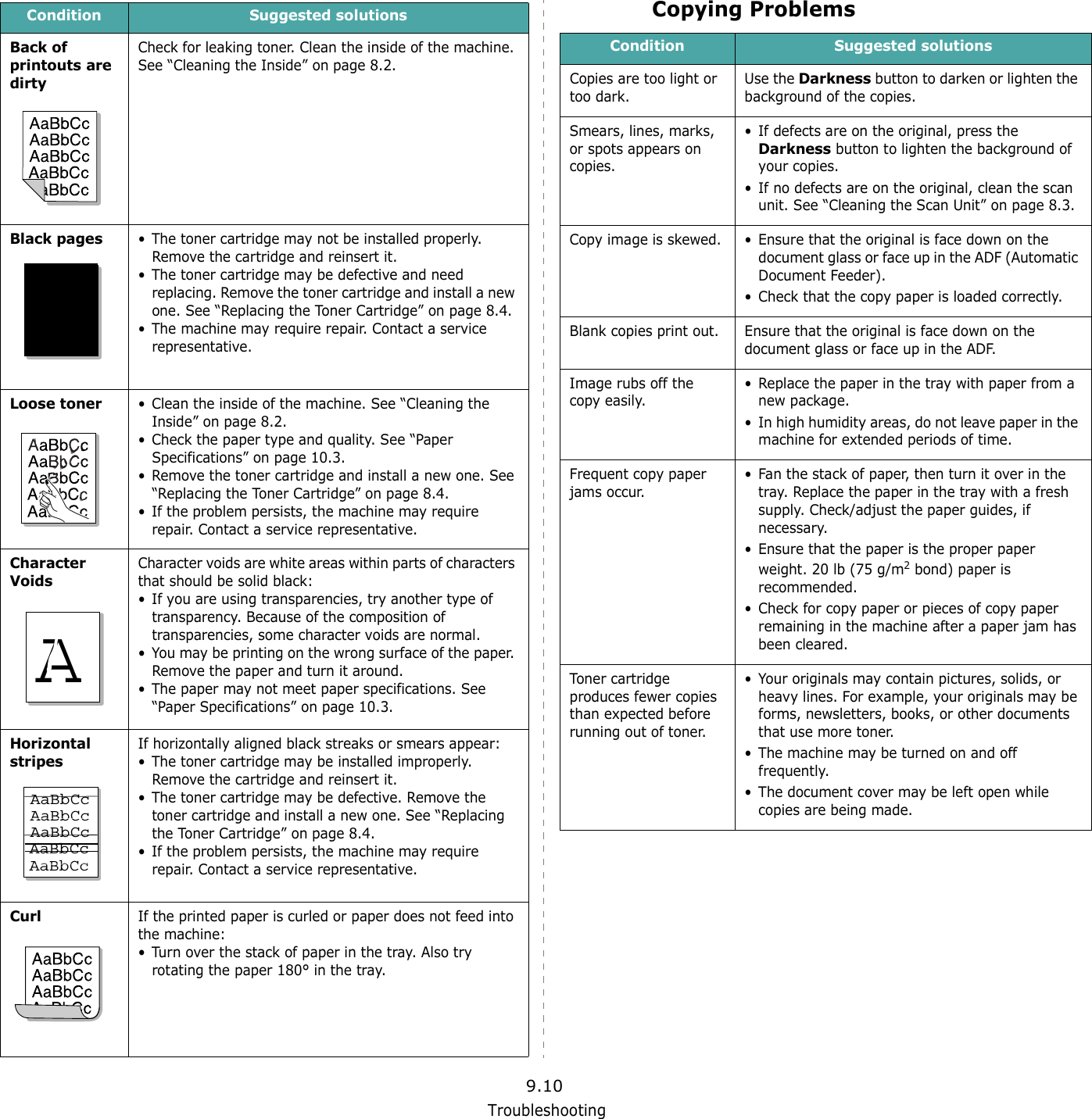
Troubleshooting9.10Back of printouts are dirtyCheck for leaking toner. Clean the inside of the machine. See “Cleaning the Inside” on page 8.2.Black pages• The toner cartridge may not be installed properly. Remove the cartridge and reinsert it.• The toner cartridge may be defective and need replacing. Remove the toner cartridge and install a new one. See “Replacing the Toner Cartridge” on page 8.4.• The machine may require repair. Contact a service representative.Loose toner• Clean the inside of the machine. See “Cleaning the Inside” on page 8.2.• Check the paper type and quality. See “Paper Specifications” on page 10.3.• Remove the toner cartridge and install a new one. See “Replacing the Toner Cartridge” on page 8.4.• If the problem persists, the machine may require repair. Contact a service representative.Character VoidsCharacter voids are white areas within parts of characters that should be solid black:• If you are using transparencies, try another type of transparency. Because of the composition of transparencies, some character voids are normal. • You may be printing on the wrong surface of the paper. Remove the paper and turn it around. • The paper may not meet paper specifications. See “Paper Specifications” on page 10.3.Horizontal stripesIf horizontally aligned black streaks or smears appear:• The toner cartridge may be installed improperly. Remove the cartridge and reinsert it.• The toner cartridge may be defective. Remove the toner cartridge and install a new one. See “Replacing the Toner Cartridge” on page 8.4.• If the problem persists, the machine may require repair. Contact a service representative.CurlIf the printed paper is curled or paper does not feed into the machine:• Turn over the stack of paper in the tray. Also try rotating the paper 180° in the tray.Condition Suggested solutionsAAAaBbCcAaBbCcAaBbCcAaBbCcAaBbCcCopying ProblemsCondition Suggested solutionsCopies are too light or too dark.Use the Darkness button to darken or lighten the background of the copies.Smears, lines, marks, or spots appears on copies.• If defects are on the original, press the Darkness button to lighten the background of your copies.• If no defects are on the original, clean the scan unit. See “Cleaning the Scan Unit” on page 8.3.Copy image is skewed. • Ensure that the original is face down on the document glass or face up in the ADF (Automatic Document Feeder).• Check that the copy paper is loaded correctly.Blank copies print out. Ensure that the original is face down on the document glass or face up in the ADF.Image rubs off the copy easily.• Replace the paper in the tray with paper from a new package.• In high humidity areas, do not leave paper in the machine for extended periods of time.Frequent copy paper jams occur.• Fan the stack of paper, then turn it over in the tray. Replace the paper in the tray with a fresh supply. Check/adjust the paper guides, if necessary.• Ensure that the paper is the proper paper weight. 20 lb (75 g/m2 bond) paper is recommended.• Check for copy paper or pieces of copy paper remaining in the machine after a paper jam has been cleared.Toner cartridge produces fewer copies than expected before running out of toner.• Your originals may contain pictures, solids, or heavy lines. For example, your originals may be forms, newsletters, books, or other documents that use more toner. • The machine may be turned on and off frequently. • The document cover may be left open while copies are being made.
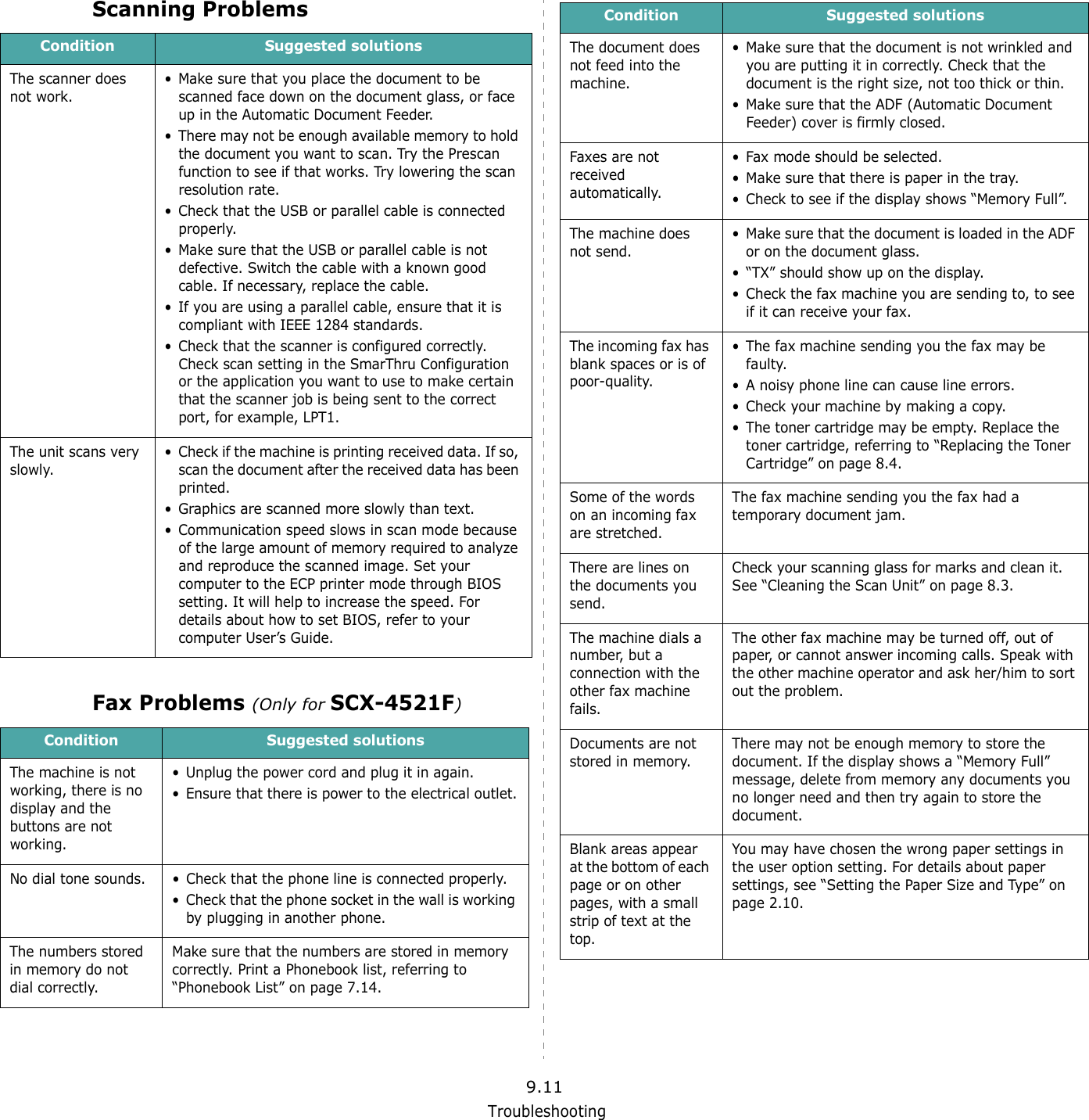
Troubleshooting9.11Scanning ProblemsFax Problems (Only for SCX-4521F)Condition Suggested solutionsThe scanner does not work.• Make sure that you place the document to be scanned face down on the document glass, or face up in the Automatic Document Feeder.• There may not be enough available memory to hold the document you want to scan. Try the Prescan function to see if that works. Try lowering the scan resolution rate.• Check that the USB or parallel cable is connected properly.• Make sure that the USB or parallel cable is not defective. Switch the cable with a known good cable. If necessary, replace the cable.• If you are using a parallel cable, ensure that it is compliant with IEEE 1284 standards.• Check that the scanner is configured correctly. Check scan setting in the SmarThru Configuration or the application you want to use to make certain that the scanner job is being sent to the correct port, for example, LPT1.The unit scans very slowly.• Check if the machine is printing received data. If so, scan the document after the received data has been printed.• Graphics are scanned more slowly than text.• Communication speed slows in scan mode because of the large amount of memory required to analyze and reproduce the scanned image. Set your computer to the ECP printer mode through BIOS setting. It will help to increase the speed. For details about how to set BIOS, refer to your computer User’s Guide.Condition Suggested solutionsThe machine is not working, there is no display and the buttons are not working.• Unplug the power cord and plug it in again. • Ensure that there is power to the electrical outlet.No dial tone sounds. • Check that the phone line is connected properly.• Check that the phone socket in the wall is working by plugging in another phone.The numbers stored in memory do not dial correctly.Make sure that the numbers are stored in memory correctly. Print a Phonebook list, referring to “Phonebook List” on page 7.14.The document does not feed into the machine.• Make sure that the document is not wrinkled and you are putting it in correctly. Check that the document is the right size, not too thick or thin. • Make sure that the ADF (Automatic Document Feeder) cover is firmly closed.Faxes are not received automatically.• Fax mode should be selected. • Make sure that there is paper in the tray.• Check to see if the display shows “Memory Full”.The machine does not send.• Make sure that the document is loaded in the ADF or on the document glass. • “TX” should show up on the display. • Check the fax machine you are sending to, to see if it can receive your fax.The incoming fax has blank spaces or is of poor-quality.• The fax machine sending you the fax may be faulty. • A noisy phone line can cause line errors. • Check your machine by making a copy. • The toner cartridge may be empty. Replace the toner cartridge, referring to “Replacing the Toner Cartridge” on page 8.4. Some of the words on an incoming fax are stretched.The fax machine sending you the fax had a temporary document jam. There are lines on the documents you send.Check your scanning glass for marks and clean it. See “Cleaning the Scan Unit” on page 8.3.The machine dials a number, but a connection with the other fax machine fails.The other fax machine may be turned off, out of paper, or cannot answer incoming calls. Speak with the other machine operator and ask her/him to sort out the problem.Documents are not stored in memory. There may not be enough memory to store the document. If the display shows a “Memory Full” message, delete from memory any documents you no longer need and then try again to store the document.Blank areas appear at the bottom of each page or on other pages, with a small strip of text at the top.You may have chosen the wrong paper settings in the user option setting. For details about paper settings, see “Setting the Paper Size and Type” on page 2.10.Condition Suggested solutions
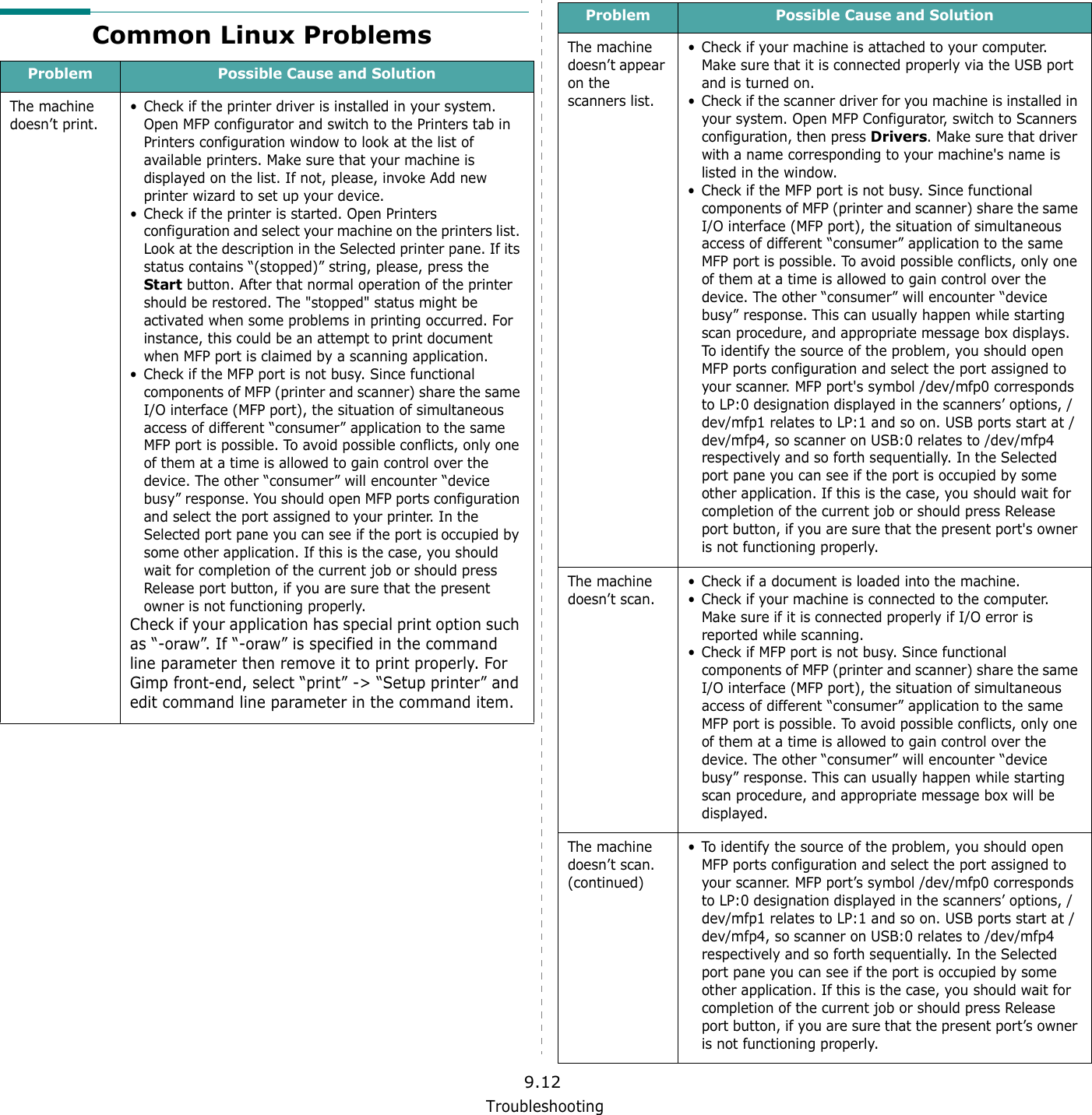
Troubleshooting9.12Common Linux ProblemsProblem Possible Cause and SolutionThe machine doesn’t print.• Check if the printer driver is installed in your system. Open MFP configurator and switch to the Printers tab in Printers configuration window to look at the list of available printers. Make sure that your machine is displayed on the list. If not, please, invoke Add new printer wizard to set up your device.• Check if the printer is started. Open Printers configuration and select your machine on the printers list. Look at the description in the Selected printer pane. If its status contains “(stopped)” string, please, press the Start button. After that normal operation of the printer should be restored. The "stopped" status might be activated when some problems in printing occurred. For instance, this could be an attempt to print document when MFP port is claimed by a scanning application.• Check if the MFP port is not busy. Since functional components of MFP (printer and scanner) share the same I/O interface (MFP port), the situation of simultaneous access of different “consumer” application to the same MFP port is possible. To avoid possible conflicts, only one of them at a time is allowed to gain control over the device. The other “consumer” will encounter “device busy” response. You should open MFP ports configuration and select the port assigned to your printer. In the Selected port pane you can see if the port is occupied by some other application. If this is the case, you should wait for completion of the current job or should press Release port button, if you are sure that the present owner is not functioning properly.Check if your application has special print option such as “-oraw”. If “-oraw” is specified in the command line parameter then remove it to print properly. For Gimp front-end, select “print” -> “Setup printer” and edit command line parameter in the command item.The machine doesn’t appear on the scanners list.• Check if your machine is attached to your computer. Make sure that it is connected properly via the USB port and is turned on.• Check if the scanner driver for you machine is installed in your system. Open MFP Configurator, switch to Scanners configuration, then press Drivers. Make sure that driver with a name corresponding to your machine's name is listed in the window.• Check if the MFP port is not busy. Since functional components of MFP (printer and scanner) share the same I/O interface (MFP port), the situation of simultaneous access of different “consumer” application to the same MFP port is possible. To avoid possible conflicts, only one of them at a time is allowed to gain control over the device. The other “consumer” will encounter “device busy” response. This can usually happen while starting scan procedure, and appropriate message box displays. To identify the source of the problem, you should open MFP ports configuration and select the port assigned to your scanner. MFP port's symbol /dev/mfp0 corresponds to LP:0 designation displayed in the scanners’ options, /dev/mfp1 relates to LP:1 and so on. USB ports start at /dev/mfp4, so scanner on USB:0 relates to /dev/mfp4 respectively and so forth sequentially. In the Selected port pane you can see if the port is occupied by some other application. If this is the case, you should wait for completion of the current job or should press Release port button, if you are sure that the present port's owner is not functioning properly.The machine doesn’t scan.• Check if a document is loaded into the machine.• Check if your machine is connected to the computer. Make sure if it is connected properly if I/O error is reported while scanning.• Check if MFP port is not busy. Since functional components of MFP (printer and scanner) share the same I/O interface (MFP port), the situation of simultaneous access of different “consumer” application to the same MFP port is possible. To avoid possible conflicts, only one of them at a time is allowed to gain control over the device. The other “consumer” will encounter “device busy” response. This can usually happen while starting scan procedure, and appropriate message box will be displayed.The machine doesn’t scan. (continued)• To identify the source of the problem, you should open MFP ports configuration and select the port assigned to your scanner. MFP port’s symbol /dev/mfp0 corresponds to LP:0 designation displayed in the scanners’ options, /dev/mfp1 relates to LP:1 and so on. USB ports start at /dev/mfp4, so scanner on USB:0 relates to /dev/mfp4 respectively and so forth sequentially. In the Selected port pane you can see if the port is occupied by some other application. If this is the case, you should wait for completion of the current job or should press Release port button, if you are sure that the present port’s owner is not functioning properly.Problem Possible Cause and Solution
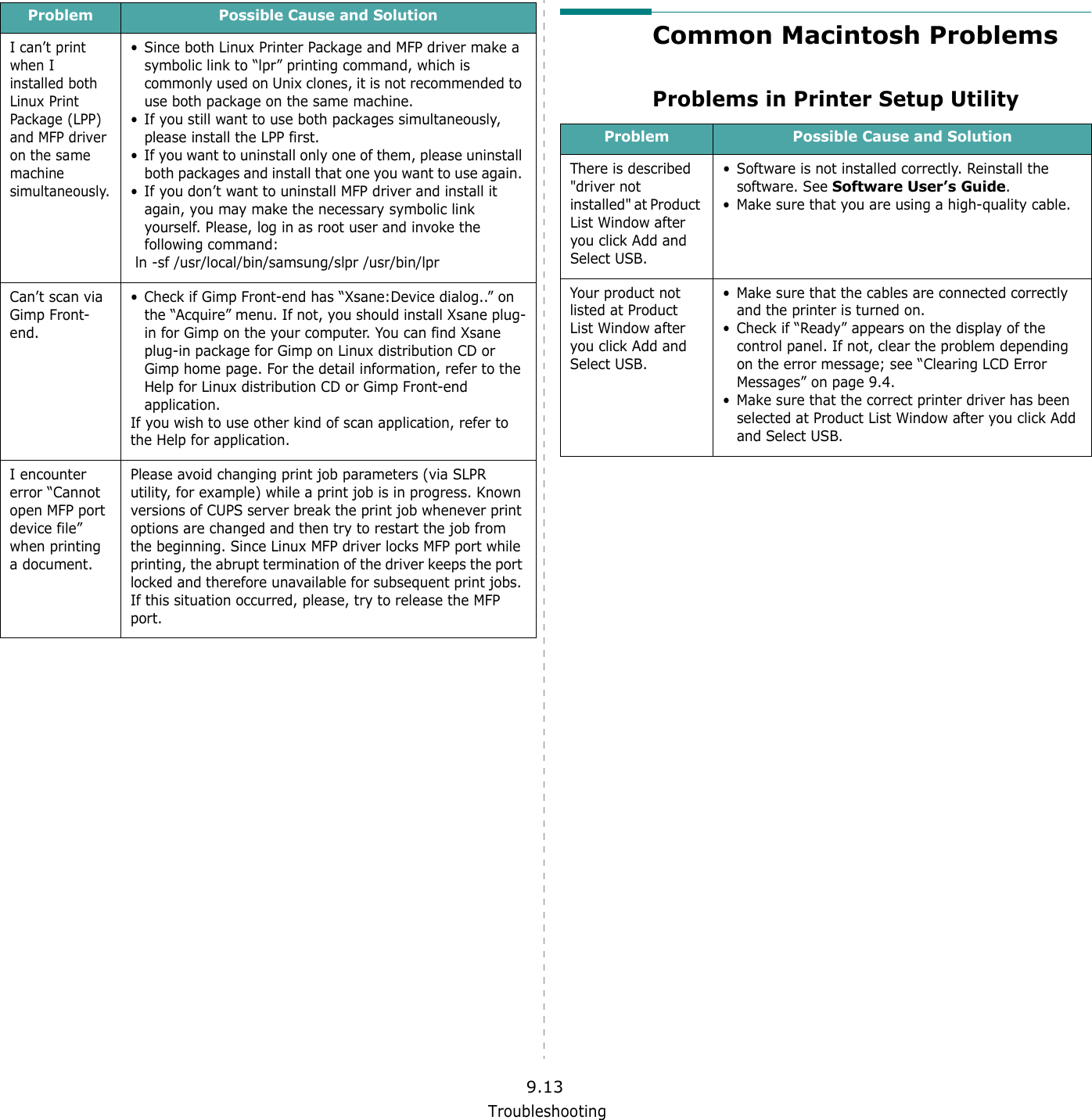
Troubleshooting9.13I can’t print when I installed both Linux Print Package (LPP) and MFP driver on the same machine simultaneously.• Since both Linux Printer Package and MFP driver make a symbolic link to “lpr” printing command, which is commonly used on Unix clones, it is not recommended to use both package on the same machine. • If you still want to use both packages simultaneously, please install the LPP first. • If you want to uninstall only one of them, please uninstall both packages and install that one you want to use again. • If you don’t want to uninstall MFP driver and install it again, you may make the necessary symbolic link yourself. Please, log in as root user and invoke the following command: ln -sf /usr/local/bin/samsung/slpr /usr/bin/lprCan’t scan via Gimp Front-end.• Check if Gimp Front-end has “Xsane:Device dialog..” on the “Acquire” menu. If not, you should install Xsane plug-in for Gimp on the your computer. You can find Xsane plug-in package for Gimp on Linux distribution CD or Gimp home page. For the detail information, refer to the Help for Linux distribution CD or Gimp Front-end application. If you wish to use other kind of scan application, refer to the Help for application.I encounter error “Cannot open MFP port device file” when printing a document.Please avoid changing print job parameters (via SLPR utility, for example) while a print job is in progress. Known versions of CUPS server break the print job whenever print options are changed and then try to restart the job from the beginning. Since Linux MFP driver locks MFP port while printing, the abrupt termination of the driver keeps the port locked and therefore unavailable for subsequent print jobs. If this situation occurred, please, try to release the MFP port. Problem Possible Cause and SolutionCommon Macintosh ProblemsProblems in Printer Setup UtilityProblem Possible Cause and SolutionThere is described "driver not installed" at Product List Window after you click Add and Select USB.• Software is not installed correctly. Reinstall the software. See Software User’s Guide.• Make sure that you are using a high-quality cable.Your product not listed at Product List Window after you click Add and Select USB.• Make sure that the cables are connected correctly and the printer is turned on. • Check if “Ready” appears on the display of the control panel. If not, clear the problem depending on the error message; see “Clearing LCD Error Messages” on page 9.4.• Make sure that the correct printer driver has been selected at Product List Window after you click Add and Select USB.
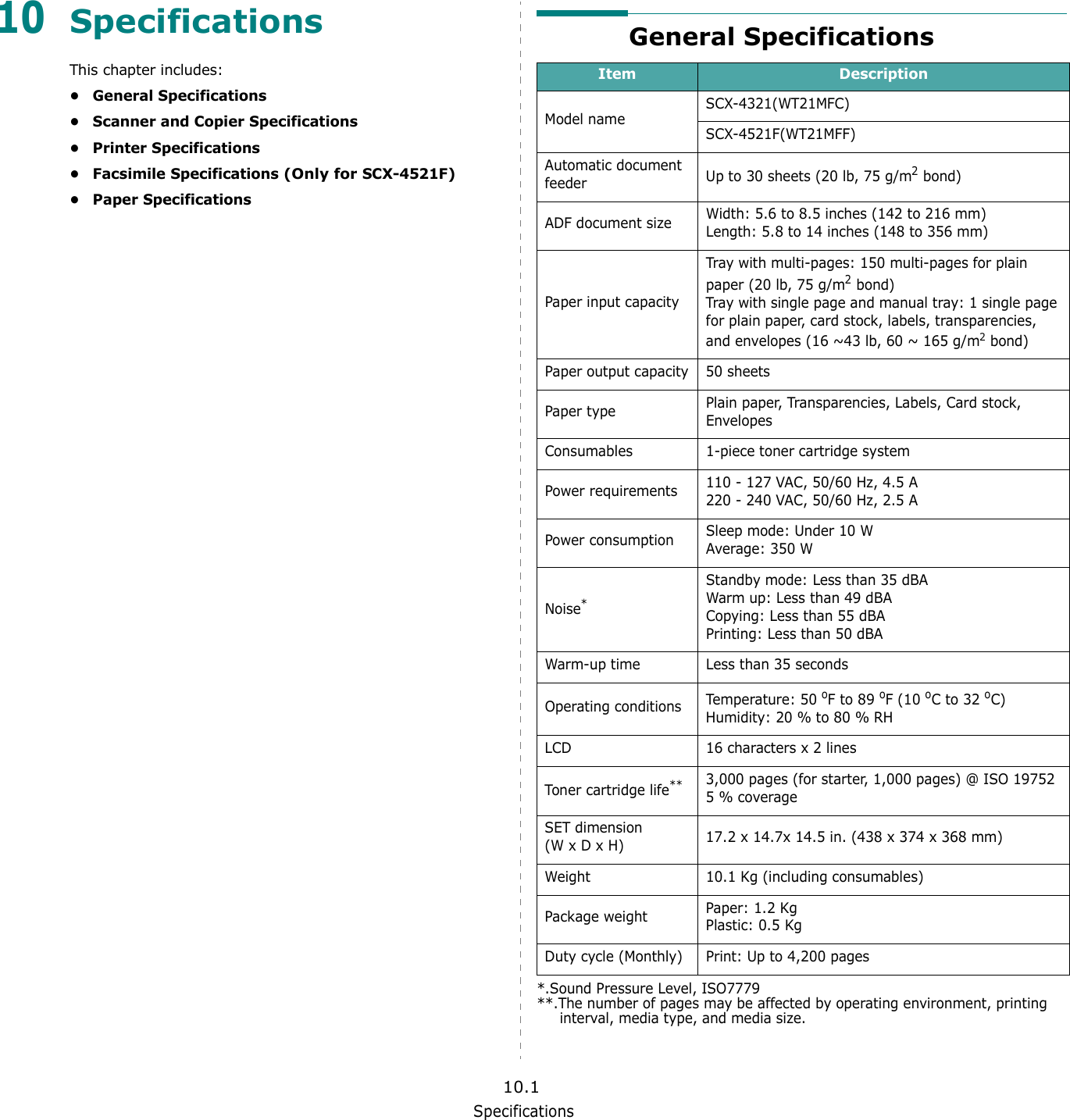
Specifications10.110SpecificationsThis chapter includes:• General Specifications• Scanner and Copier Specifications• Printer Specifications• Facsimile Specifications (Only for SCX-4521F)• Paper SpecificationsGeneral SpecificationsItem DescriptionModel nameSCX-4321(WT21MFC)SCX-4521F(WT21MFF)Automatic document feeder Up to 30 sheets (20 lb, 75 g/m2 bond)ADF document size  Width: 5.6 to 8.5 inches (142 to 216 mm)Length: 5.8 to 14 inches (148 to 356 mm)Paper input capacityTray with multi-pages: 150 multi-pages for plain paper (20 lb, 75 g/m2 bond) Tray with single page and manual tray: 1 single page for plain paper, card stock, labels, transparencies, and envelopes (16 ~43 lb, 60 ~ 165 g/m2 bond)Paper output capacity 50 sheetsPaper type Plain paper, Transparencies, Labels, Card stock, EnvelopesConsumables 1-piece toner cartridge systemPower requirements 110 - 127 VAC, 50/60 Hz, 4.5 A220 - 240 VAC, 50/60 Hz, 2.5 APower consumption Sleep mode: Under 10 WAverage: 350 WNoise**.Sound Pressure Level, ISO7779Standby mode: Less than 35 dBAWarm up: Less than 49 dBACopying: Less than 55 dBAPrinting: Less than 50 dBAWarm-up time Less than 35 secondsOperating conditions Temperature: 50 oF to 89 oF (10 oC to 32 oC)Humidity: 20 % to 80 % RHLCD 16 characters x 2 linesToner cartridge life****.The number of pages may be affected by operating environment, printing interval, media type, and media size.3,000 pages (for starter, 1,000 pages) @ ISO 19752 5 % coverageSET dimension (W x D x H) 17.2 x 14.7x 14.5 in. (438 x 374 x 368 mm)Weight 10.1 Kg (including consumables)Package weight Paper: 1.2 KgPlastic: 0.5 KgDuty cycle (Monthly) Print: Up to 4,200 pages
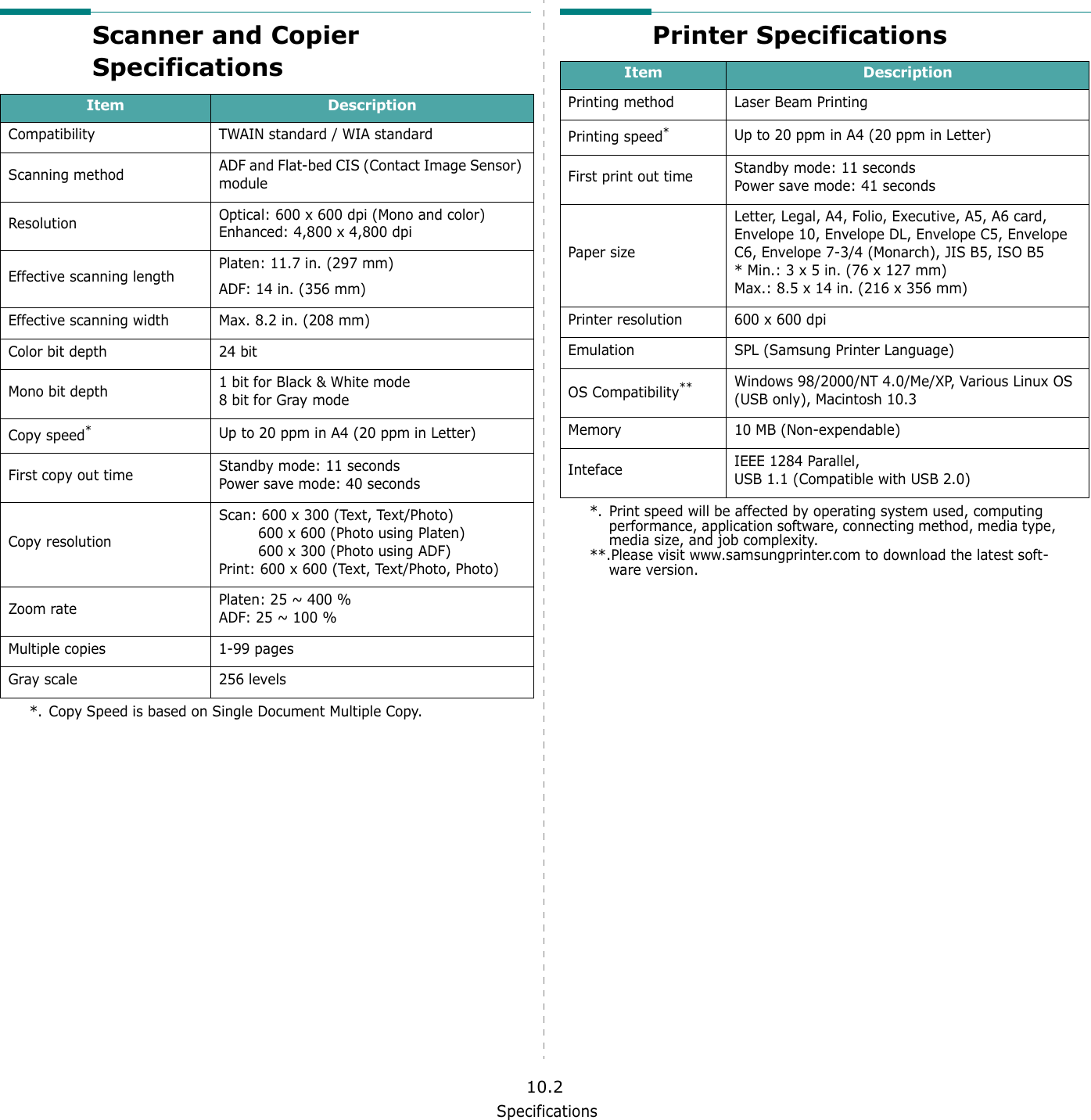
Specifications10.2Scanner and Copier SpecificationsItem DescriptionCompatibility TWAIN standard / WIA standardScanning method ADF and Flat-bed CIS (Contact Image Sensor) moduleResolution Optical: 600 x 600 dpi (Mono and color)Enhanced: 4,800 x 4,800 dpi Effective scanning length Platen: 11.7 in. (297 mm)ADF: 14 in. (356 mm)Effective scanning width Max. 8.2 in. (208 mm)Color bit depth 24 bitMono bit depth 1 bit for Black & White mode8 bit for Gray modeCopy speed**. Copy Speed is based on Single Document Multiple Copy.Up to 20 ppm in A4 (20 ppm in Letter)First copy out time Standby mode: 11 secondsPower save mode: 40 secondsCopy resolutionScan: 600 x 300 (Text, Text/Photo)600 x 600 (Photo using Platen)600 x 300 (Photo using ADF)Print: 600 x 600 (Text, Text/Photo, Photo)Zoom rate Platen: 25 ~ 400 %ADF: 25 ~ 100 %Multiple copies 1-99 pagesGray scale 256 levelsPrinter SpecificationsItem DescriptionPrinting method Laser Beam PrintingPrinting speed**. Print speed will be affected by operating system used, computing performance, application software, connecting method, media type, media size, and job complexity.Up to 20 ppm in A4 (20 ppm in Letter)First print out time Standby mode: 11 secondsPower save mode: 41 secondsPaper sizeLetter, Legal, A4, Folio, Executive, A5, A6 card, Envelope 10, Envelope DL, Envelope C5, Envelope C6, Envelope 7-3/4 (Monarch), JIS B5, ISO B5* Min.: 3 x 5 in. (76 x 127 mm)Max.: 8.5 x 14 in. (216 x 356 mm)Printer resolution 600 x 600 dpi Emulation SPL (Samsung Printer Language)OS Compatibility****.Please visit www.samsungprinter.com to download the latest soft-ware version.Windows 98/2000/NT 4.0/Me/XP, Various Linux OS (USB only), Macintosh 10.3Memory 10 MB (Non-expendable)Inteface IEEE 1284 Parallel, USB 1.1 (Compatible with USB 2.0)
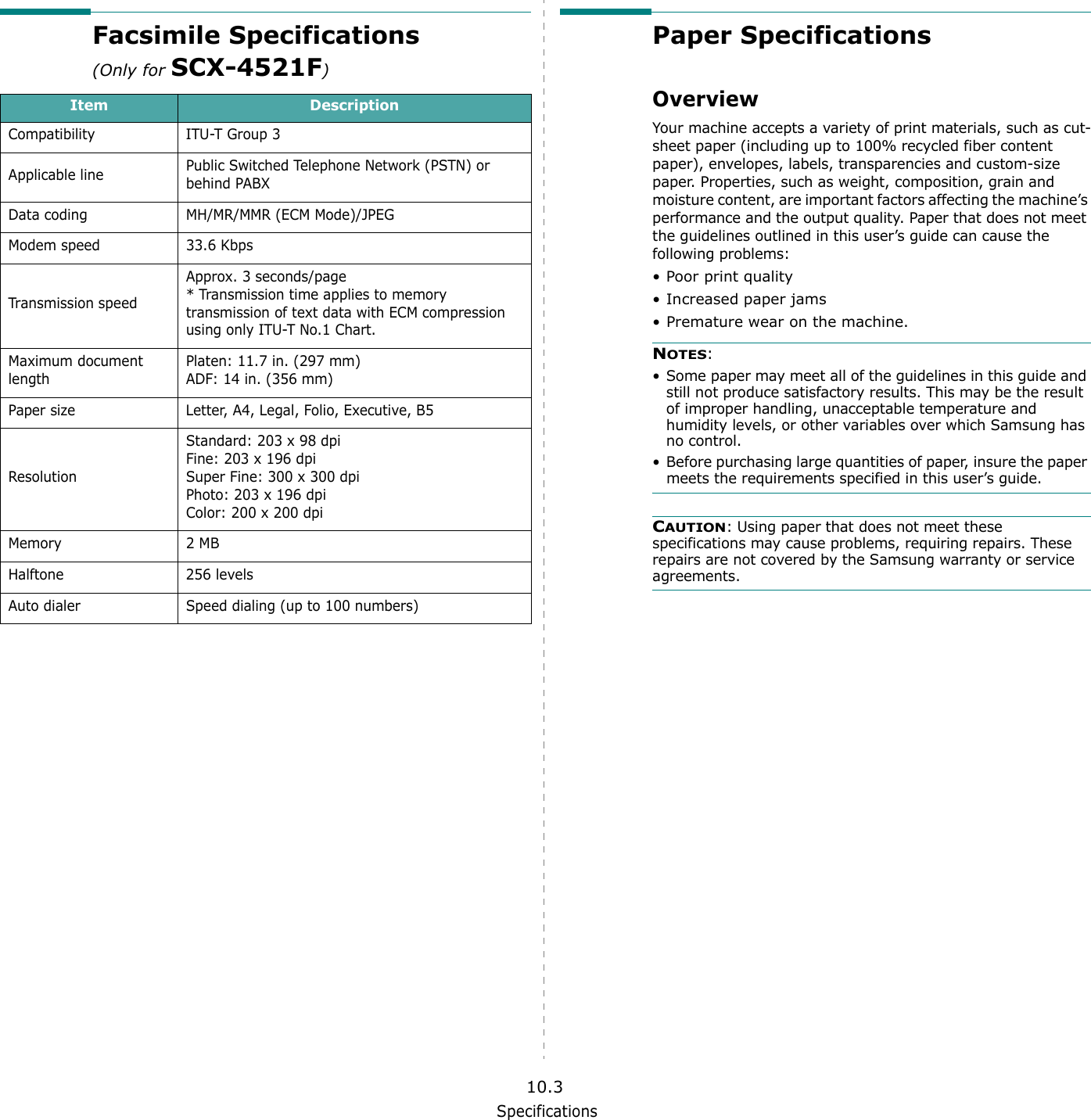
Specifications10.3Facsimile Specifications (Only for SCX-4521F)Item DescriptionCompatibility ITU-T Group 3Applicable line Public Switched Telephone Network (PSTN) or behind PABXData coding MH/MR/MMR (ECM Mode)/JPEGModem speed 33.6 KbpsTransmission speedApprox. 3 seconds/page* Transmission time applies to memory transmission of text data with ECM compression using only ITU-T No.1 Chart.Maximum document lengthPlaten: 11.7 in. (297 mm)ADF: 14 in. (356 mm)Paper size Letter, A4, Legal, Folio, Executive, B5ResolutionStandard: 203 x 98 dpiFine: 203 x 196 dpiSuper Fine: 300 x 300 dpiPhoto: 203 x 196 dpiColor: 200 x 200 dpiMemory 2 MB Halftone 256 levelsAuto dialer Speed dialing (up to 100 numbers)Paper SpecificationsOverviewYour machine accepts a variety of print materials, such as cut-sheet paper (including up to 100% recycled fiber content paper), envelopes, labels, transparencies and custom-size paper. Properties, such as weight, composition, grain and moisture content, are important factors affecting the machine’s performance and the output quality. Paper that does not meet the guidelines outlined in this user’s guide can cause the following problems:•Poor print quality• Increased paper jams• Premature wear on the machine.NOTES: • Some paper may meet all of the guidelines in this guide and still not produce satisfactory results. This may be the result of improper handling, unacceptable temperature and humidity levels, or other variables over which Samsung has no control.• Before purchasing large quantities of paper, insure the paper meets the requirements specified in this user’s guide. CAUTION: Using paper that does not meet these specifications may cause problems, requiring repairs. These repairs are not covered by the Samsung warranty or service agreements.
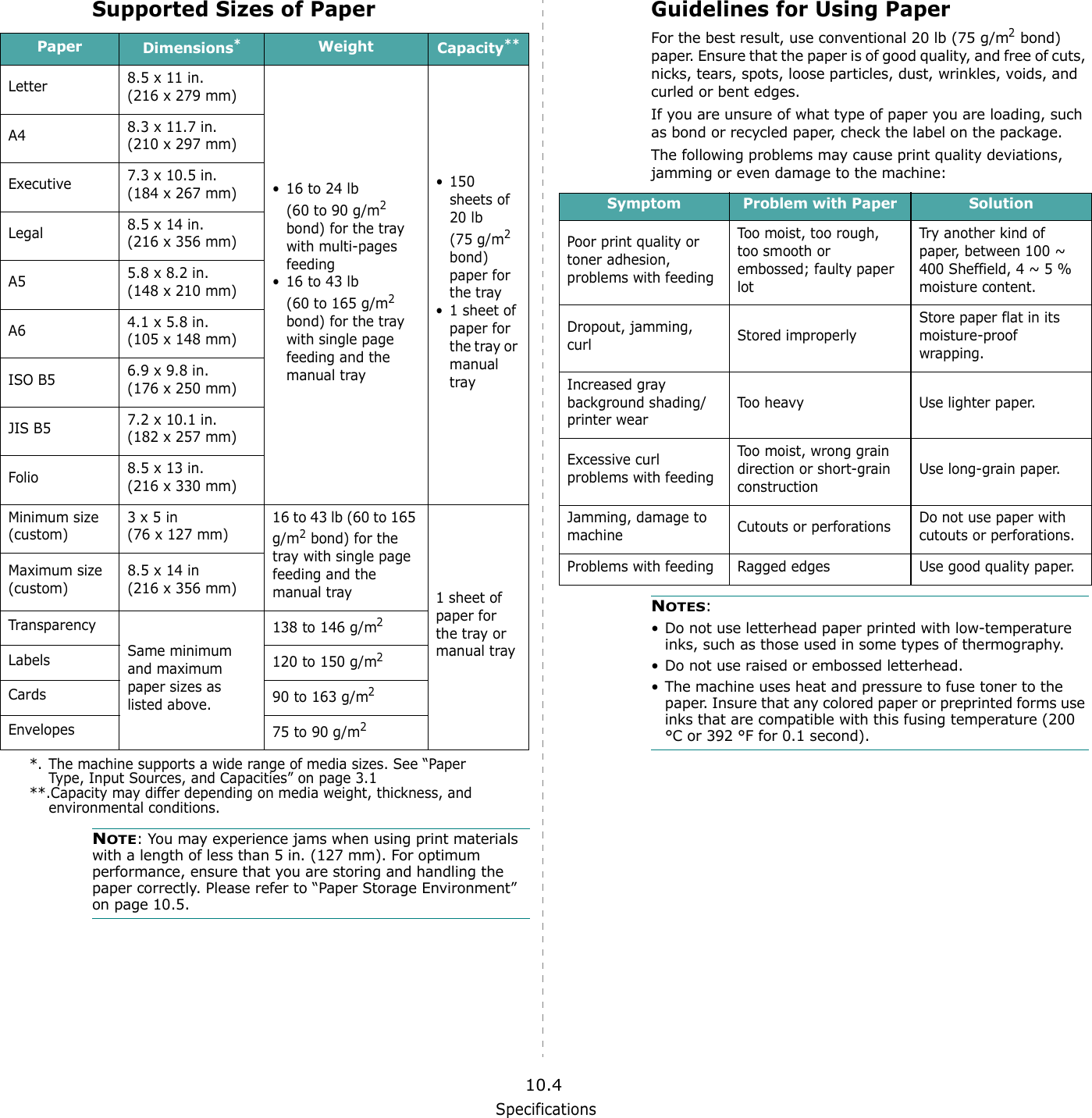
Specifications10.4Supported Sizes of PaperNOTE: You may experience jams when using print materials with a length of less than 5 in. (127 mm). For optimum performance, ensure that you are storing and handling the paper correctly. Please refer to “Paper Storage Environment” on page 10.5.Paper Dimensions*Weight Capacity**Letter 8.5 x 11 in. (216 x 279 mm)• 16 to 24 lb (60 to 90 g/m2 bond) for the tray with multi-pages feeding• 16 to 43 lb (60 to 165 g/m2 bond) for the tray with single page feeding and the manual tray• 150 sheets of 20 lb (75 g/m2 bond) paper for the tray• 1 sheet of paper for the tray or manual trayA4 8.3 x 11.7 in. (210 x 297 mm)Executive 7.3 x 10.5 in. (184 x 267 mm)Legal 8.5 x 14 in. (216 x 356 mm)A5  5.8 x 8.2 in. (148 x 210 mm)A6  4.1 x 5.8 in.(105 x 148 mm)ISO B5 6.9 x 9.8 in.(176 x 250 mm)JIS B5 7.2 x 10.1 in.(182 x 257 mm)Folio 8.5 x 13 in.(216 x 330 mm)Minimum size (custom)3 x 5 in(76 x 127 mm)16 to 43 lb (60 to 165 g/m2 bond) for the tray with single page feeding and the manual tray 1 sheet of paper for the tray or manual trayMaximum size (custom)8.5 x 14 in(216 x 356 mm)TransparencySame minimum and maximum paper sizes as listed above.138 to 146 g/m2Labels 120 to 150 g/m2Cards 90 to 163 g/m2Envelopes 75 to 90 g/m2*. The machine supports a wide range of media sizes. See “Paper Type, Input Sources, and Capacities” on page 3.1**.Capacity may differ depending on media weight, thickness, and environmental conditions.Guidelines for Using PaperFor the best result, use conventional 20 lb (75 g/m2 bond) paper. Ensure that the paper is of good quality, and free of cuts, nicks, tears, spots, loose particles, dust, wrinkles, voids, and curled or bent edges.If you are unsure of what type of paper you are loading, such as bond or recycled paper, check the label on the package.The following problems may cause print quality deviations, jamming or even damage to the machine:NOTES: • Do not use letterhead paper printed with low-temperature inks, such as those used in some types of thermography.• Do not use raised or embossed letterhead.• The machine uses heat and pressure to fuse toner to the paper. Insure that any colored paper or preprinted forms use inks that are compatible with this fusing temperature (200 °C or 392 °F for 0.1 second).Symptom Problem with Paper SolutionPoor print quality or toner adhesion, problems with feedingToo moist, too rough, too smooth or embossed; faulty paper lotTry another kind of paper, between 100 ~ 400 Sheffield, 4 ~ 5 % moisture content.Dropout, jamming, curl Stored improperlyStore paper flat in its moisture-proof wrapping.Increased gray background shading/printer wearToo heavy Use lighter paper.Excessive curl problems with feedingToo moist, wrong grain direction or short-grain constructionUse long-grain paper.Jamming, damage to machine Cutouts or perforations Do not use paper with cutouts or perforations.Problems with feeding Ragged edges Use good quality paper.
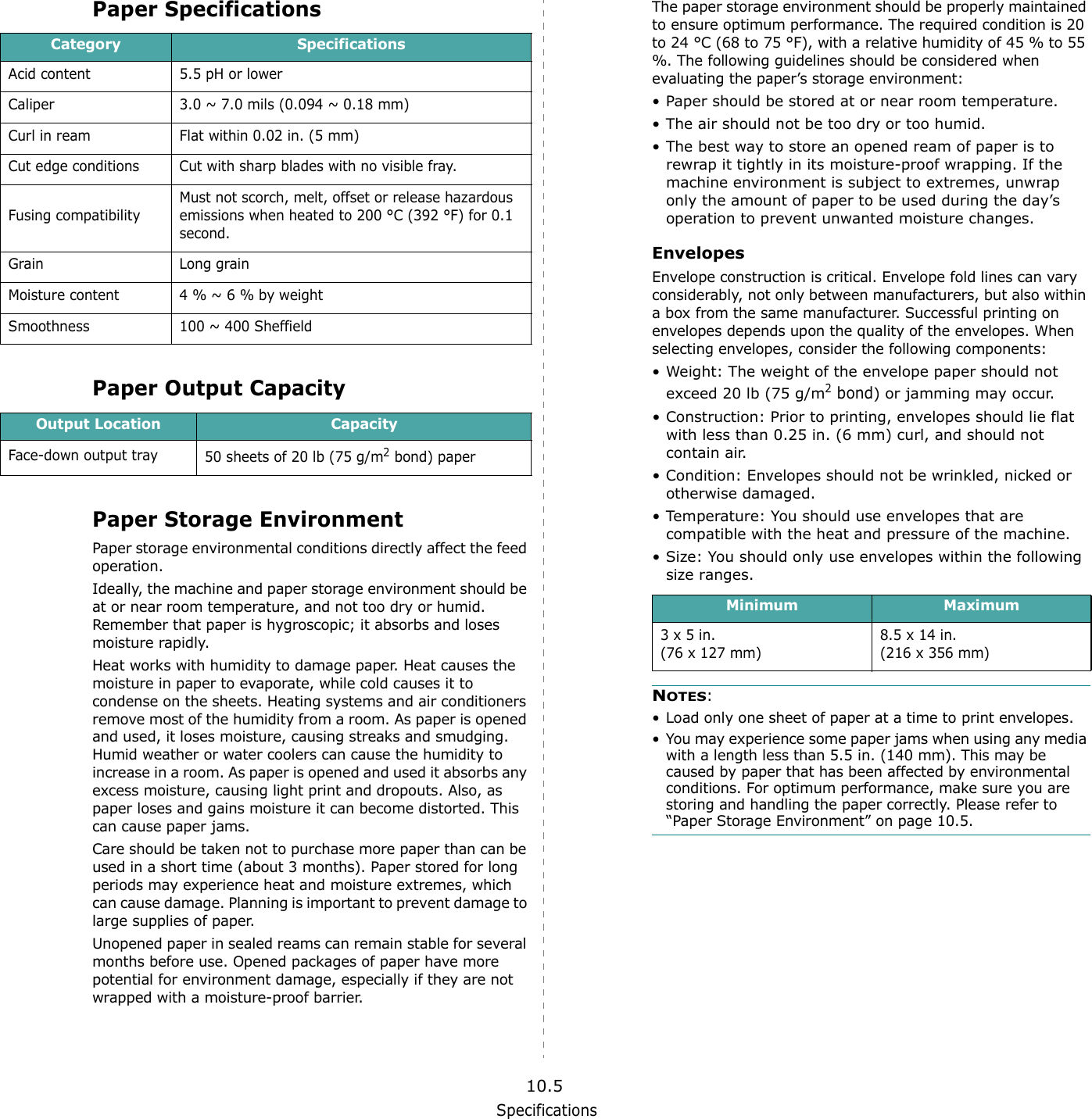
Specifications10.5Paper SpecificationsPaper Output CapacityPaper Storage EnvironmentPaper storage environmental conditions directly affect the feed operation.Ideally, the machine and paper storage environment should be at or near room temperature, and not too dry or humid. Remember that paper is hygroscopic; it absorbs and loses moisture rapidly.Heat works with humidity to damage paper. Heat causes the moisture in paper to evaporate, while cold causes it to condense on the sheets. Heating systems and air conditioners remove most of the humidity from a room. As paper is opened and used, it loses moisture, causing streaks and smudging. Humid weather or water coolers can cause the humidity to increase in a room. As paper is opened and used it absorbs any excess moisture, causing light print and dropouts. Also, as paper loses and gains moisture it can become distorted. This can cause paper jams.Care should be taken not to purchase more paper than can be used in a short time (about 3 months). Paper stored for long periods may experience heat and moisture extremes, which can cause damage. Planning is important to prevent damage to large supplies of paper.Unopened paper in sealed reams can remain stable for several months before use. Opened packages of paper have more potential for environment damage, especially if they are not wrapped with a moisture-proof barrier.Category SpecificationsAcid content 5.5 pH or lowerCaliper 3.0 ~ 7.0 mils (0.094 ~ 0.18 mm)Curl in ream Flat within 0.02 in. (5 mm)Cut edge conditions Cut with sharp blades with no visible fray.Fusing compatibilityMust not scorch, melt, offset or release hazardous emissions when heated to 200 °C (392 °F) for 0.1 second.Grain Long grainMoisture content 4 % ~ 6 % by weightSmoothness 100 ~ 400 SheffieldOutput Location CapacityFace-down output tray 50 sheets of 20 lb (75 g/m2 bond) paperThe paper storage environment should be properly maintained to ensure optimum performance. The required condition is 20 to 24 °C (68 to 75 °F), with a relative humidity of 45 % to 55 %. The following guidelines should be considered when evaluating the paper’s storage environment:• Paper should be stored at or near room temperature.• The air should not be too dry or too humid.• The best way to store an opened ream of paper is to rewrap it tightly in its moisture-proof wrapping. If the machine environment is subject to extremes, unwrap only the amount of paper to be used during the day’s operation to prevent unwanted moisture changes.EnvelopesEnvelope construction is critical. Envelope fold lines can vary considerably, not only between manufacturers, but also within a box from the same manufacturer. Successful printing on envelopes depends upon the quality of the envelopes. When selecting envelopes, consider the following components:• Weight: The weight of the envelope paper should not exceed 20 lb (75 g/m2 bond) or jamming may occur.• Construction: Prior to printing, envelopes should lie flat with less than 0.25 in. (6 mm) curl, and should not contain air.• Condition: Envelopes should not be wrinkled, nicked or otherwise damaged.• Temperature: You should use envelopes that are compatible with the heat and pressure of the machine.• Size: You should only use envelopes within the following size ranges.NOTES:• Load only one sheet of paper at a time to print envelopes.• You may experience some paper jams when using any media with a length less than 5.5 in. (140 mm). This may be caused by paper that has been affected by environmental conditions. For optimum performance, make sure you are storing and handling the paper correctly. Please refer to “Paper Storage Environment” on page 10.5.Minimum Maximum3 x 5 in.(76 x 127 mm)8.5 x 14 in.(216 x 356 mm)
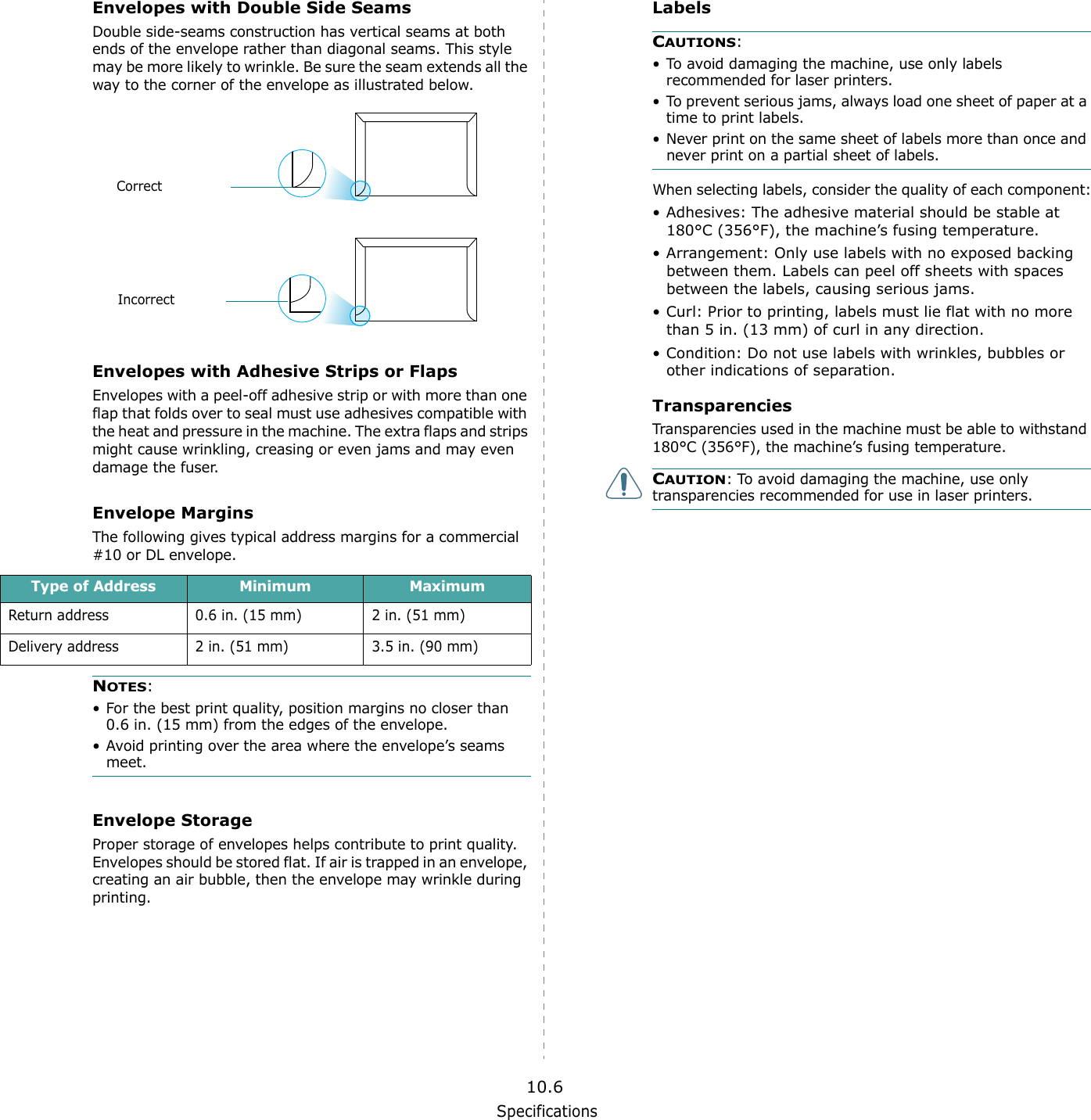
Specifications10.6Envelopes with Double Side SeamsDouble side-seams construction has vertical seams at both ends of the envelope rather than diagonal seams. This style may be more likely to wrinkle. Be sure the seam extends all the way to the corner of the envelope as illustrated below.Envelopes with Adhesive Strips or FlapsEnvelopes with a peel-off adhesive strip or with more than one flap that folds over to seal must use adhesives compatible with the heat and pressure in the machine. The extra flaps and strips might cause wrinkling, creasing or even jams and may even damage the fuser.Envelope MarginsThe following gives typical address margins for a commercial #10 or DL envelope.NOTES:• For the best print quality, position margins no closer than 0.6 in. (15 mm) from the edges of the envelope.• Avoid printing over the area where the envelope’s seams meet.Envelope StorageProper storage of envelopes helps contribute to print quality. Envelopes should be stored flat. If air is trapped in an envelope, creating an air bubble, then the envelope may wrinkle during printing.CorrectIncorrectType of Address Minimum MaximumReturn address 0.6 in. (15 mm) 2 in. (51 mm)Delivery address 2 in. (51 mm) 3.5 in. (90 mm)LabelsCAUTIONS: • To avoid damaging the machine, use only labels recommended for laser printers.• To prevent serious jams, always load one sheet of paper at a time to print labels.• Never print on the same sheet of labels more than once and never print on a partial sheet of labels.When selecting labels, consider the quality of each component:• Adhesives: The adhesive material should be stable at 180°C (356°F), the machine’s fusing temperature.• Arrangement: Only use labels with no exposed backing between them. Labels can peel off sheets with spaces between the labels, causing serious jams.• Curl: Prior to printing, labels must lie flat with no more than 5 in. (13 mm) of curl in any direction.• Condition: Do not use labels with wrinkles, bubbles or other indications of separation.TransparenciesTransparencies used in the machine must be able to withstand 180°C (356°F), the machine’s fusing temperature.CAUTION: To avoid damaging the machine, use only transparencies recommended for use in laser printers.
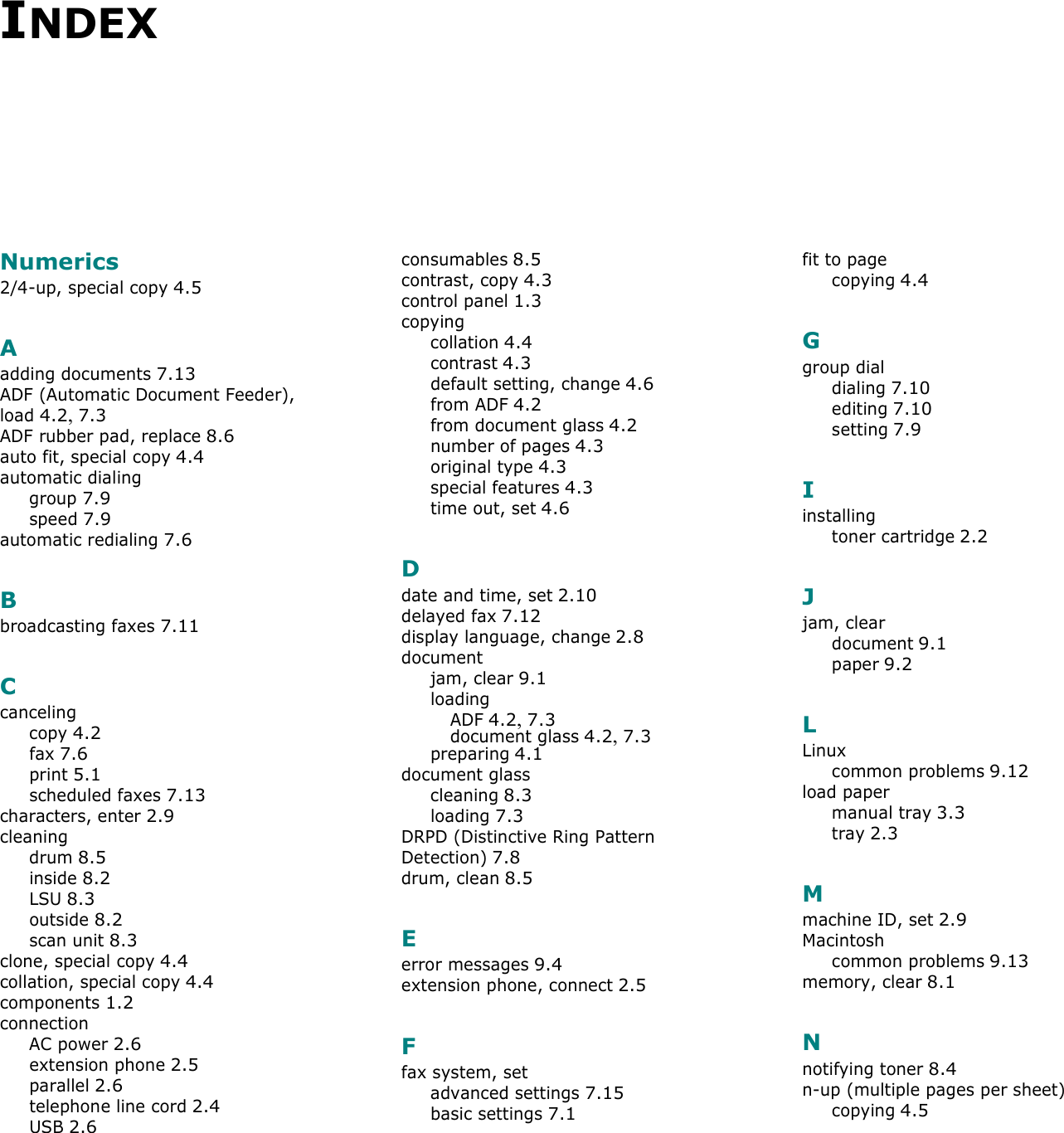
INDEXNumerics2/4-up, special copy 4.5Aadding documents 7.13ADF (Automatic Document Feeder), load 4.2, 7.3ADF rubber pad, replace 8.6auto fit, special copy 4.4automatic dialinggroup 7.9speed 7.9automatic redialing 7.6Bbroadcasting faxes 7.11Ccancelingcopy 4.2fax 7.6print 5.1scheduled faxes 7.13characters, enter 2.9cleaningdrum 8.5inside 8.2LSU 8.3outside 8.2scan unit 8.3clone, special copy 4.4collation, special copy 4.4components 1.2connectionAC power 2.6extension phone 2.5parallel 2.6telephone line cord 2.4USB 2.6consumables 8.5contrast, copy 4.3control panel 1.3copyingcollation 4.4contrast 4.3default setting, change 4.6from ADF 4.2from document glass 4.2number of pages 4.3original type 4.3special features 4.3time out, set 4.6Ddate and time, set 2.10delayed fax 7.12display language, change 2.8documentjam, clear 9.1loadingADF 4.2, 7.3document glass 4.2, 7.3preparing 4.1document glasscleaning 8.3loading 7.3DRPD (Distinctive Ring Pattern Detection) 7.8drum, clean 8.5Eerror messages 9.4extension phone, connect 2.5Ffax system, setadvanced settings 7.15basic settings 7.1fit to pagecopying 4.4Ggroup dialdialing 7.10editing 7.10setting 7.9Iinstallingtoner cartridge 2.2Jjam, cleardocument 9.1paper 9.2LLinuxcommon problems 9.12load papermanual tray 3.3tray 2.3Mmachine ID, set 2.9Macintoshcommon problems 9.13memory, clear 8.1Nnotifying toner 8.4n-up (multiple pages per sheet)copying 4.5
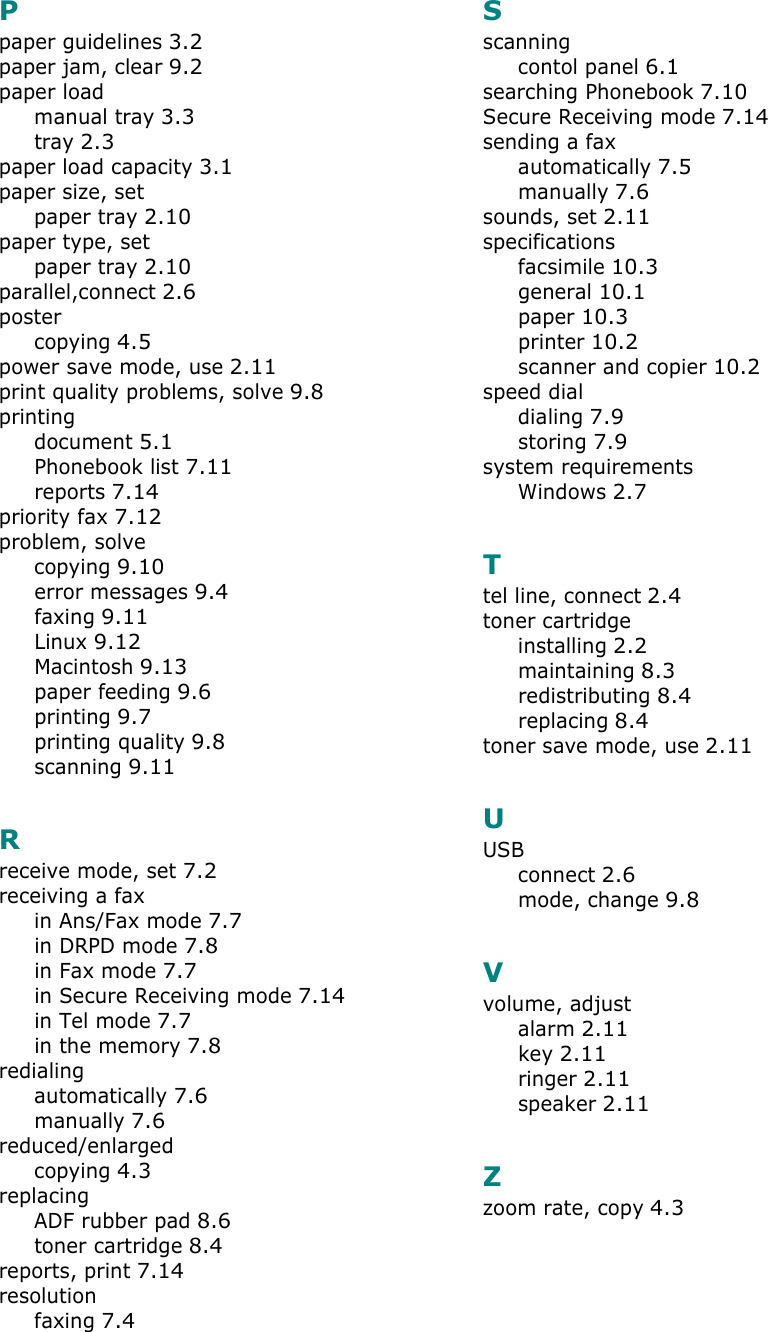
Ppaper guidelines 3.2paper jam, clear 9.2paper loadmanual tray 3.3tray 2.3paper load capacity 3.1paper size, setpaper tray 2.10paper type, setpaper tray 2.10parallel,connect 2.6postercopying 4.5power save mode, use 2.11print quality problems, solve 9.8printingdocument 5.1Phonebook list 7.11reports 7.14priority fax 7.12problem, solvecopying 9.10error messages 9.4faxing 9.11Linux 9.12Macintosh 9.13paper feeding 9.6printing 9.7printing quality 9.8scanning 9.11Rreceive mode, set 7.2receiving a faxin Ans/Fax mode 7.7in DRPD mode 7.8in Fax mode 7.7in Secure Receiving mode 7.14in Tel mode 7.7in the memory 7.8redialingautomatically 7.6manually 7.6reduced/enlargedcopying 4.3replacingADF rubber pad 8.6toner cartridge 8.4reports, print 7.14resolutionfaxing 7.4Sscanningcontol panel 6.1searching Phonebook 7.10Secure Receiving mode 7.14sending a faxautomatically 7.5manually 7.6sounds, set 2.11specificationsfacsimile 10.3general 10.1paper 10.3printer 10.2scanner and copier 10.2speed dialdialing 7.9storing 7.9system requirementsWindows 2.7Ttel line, connect 2.4toner cartridgeinstalling 2.2maintaining 8.3redistributing 8.4replacing 8.4toner save mode, use 2.11UUSBconnect 2.6mode, change 9.8Vvolume, adjustalarm 2.11key 2.11ringer 2.11speaker 2.11Zzoom rate, copy 4.3
Samsung PrinterSoftware User’s Guide
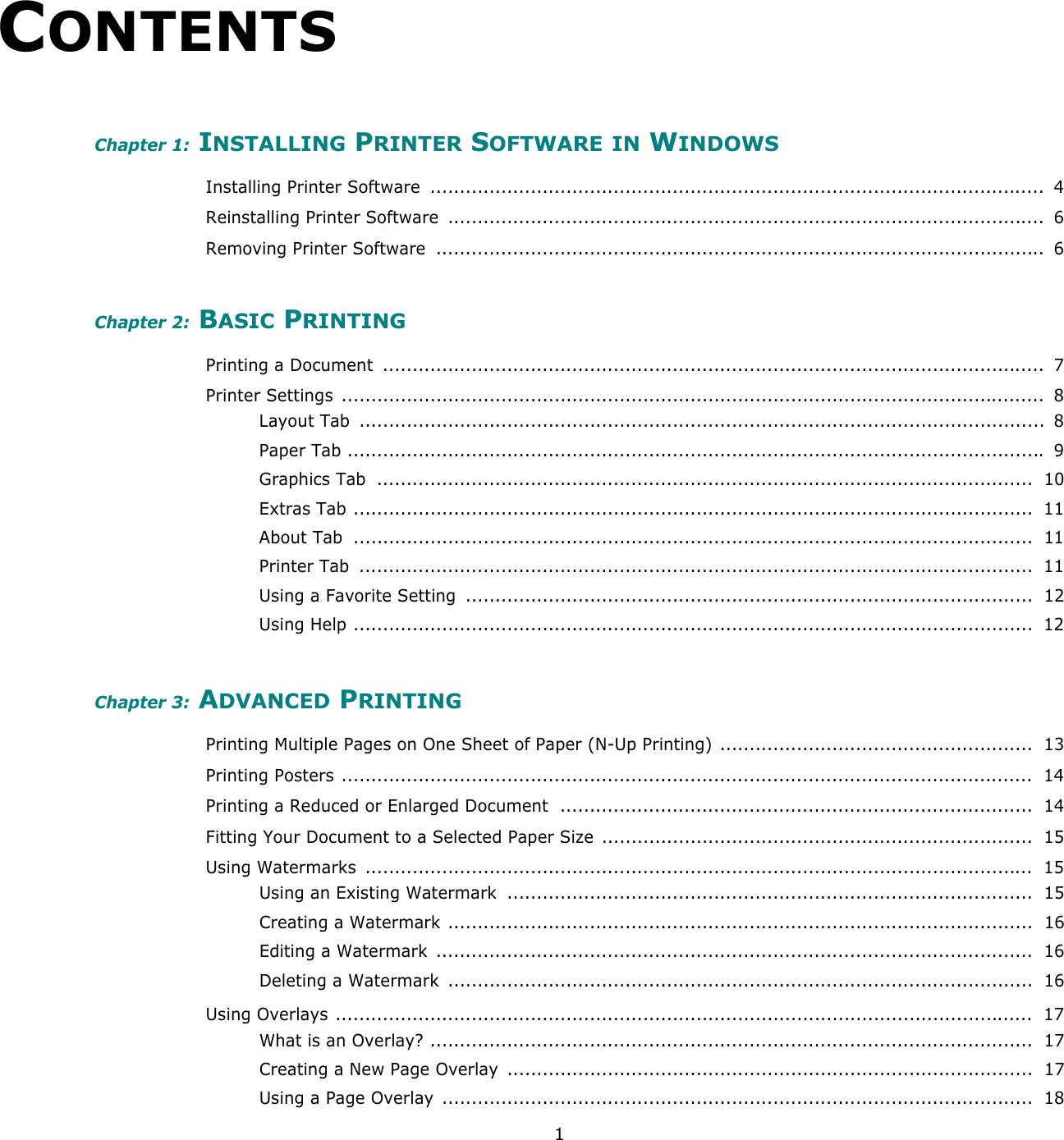
1CONTENTSChapter 1: INSTALLING PRINTER SOFTWARE IN WINDOWSInstalling Printer Software  ........................................................................................................  4Reinstalling Printer Software  .....................................................................................................  6Removing Printer Software  .......................................................................................................  6Chapter 2: BASIC PRINTINGPrinting a Document  ................................................................................................................  7Printer Settings  .......................................................................................................................  8Layout Tab  ....................................................................................................................  8Paper Tab ...................................................................................................................... 9Graphics Tab  ...............................................................................................................  10Extras Tab ...................................................................................................................  11About Tab  ...................................................................................................................  11Printer Tab  ..................................................................................................................  11Using a Favorite Setting  ................................................................................................  12Using Help ...................................................................................................................  12Chapter 3: ADVANCED PRINTINGPrinting Multiple Pages on One Sheet of Paper (N-Up Printing) .....................................................  13Printing Posters .....................................................................................................................  14Printing a Reduced or Enlarged Document  ................................................................................  14Fitting Your Document to a Selected Paper Size  .........................................................................  15Using Watermarks  .................................................................................................................  15Using an Existing Watermark  .........................................................................................  15Creating a Watermark ...................................................................................................  16Editing a Watermark  .....................................................................................................  16Deleting a Watermark  ...................................................................................................  16Using Overlays ......................................................................................................................  17What is an Overlay? ......................................................................................................  17Creating a New Page Overlay  .........................................................................................  17Using a Page Overlay ....................................................................................................  18
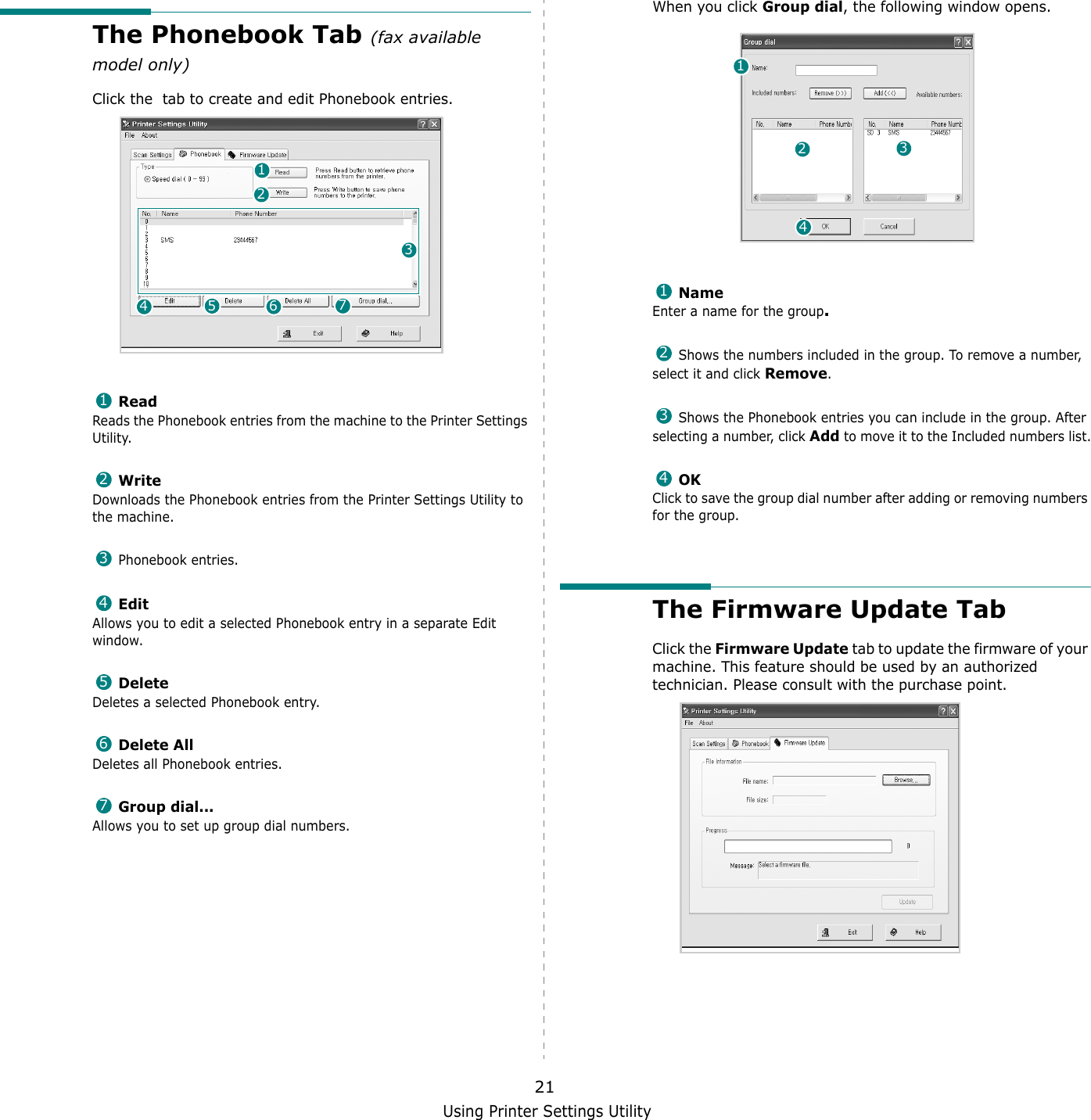
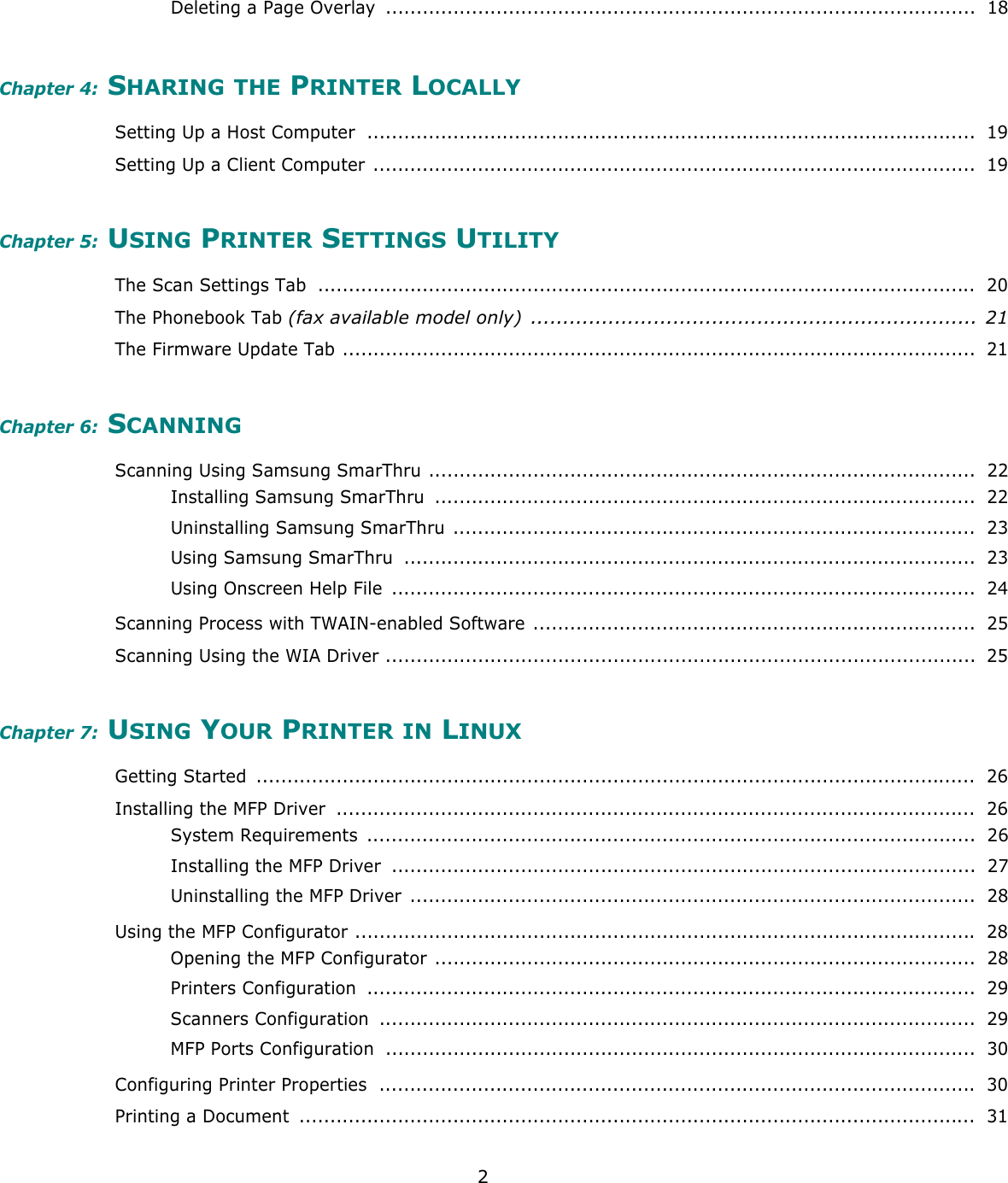
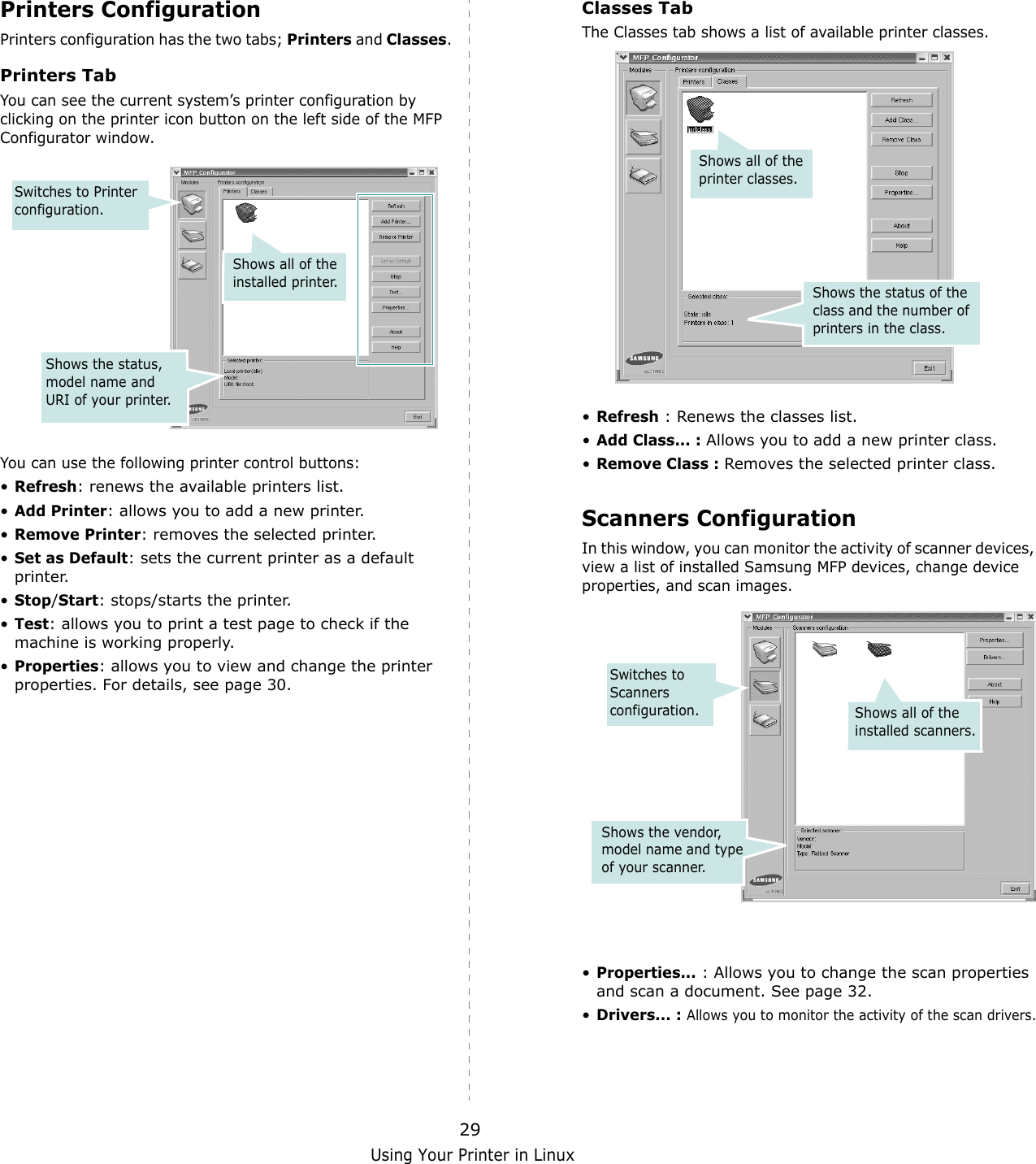
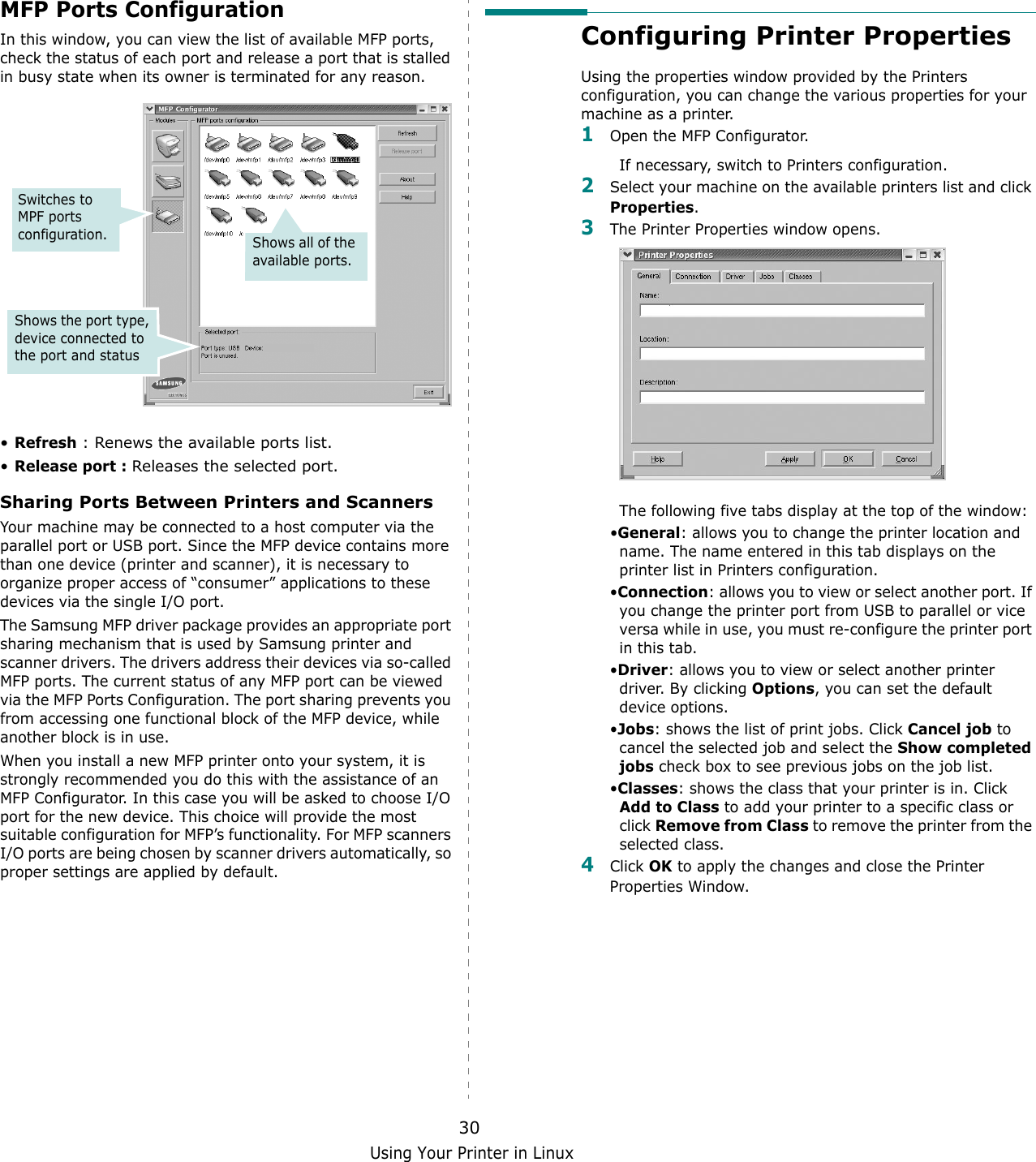
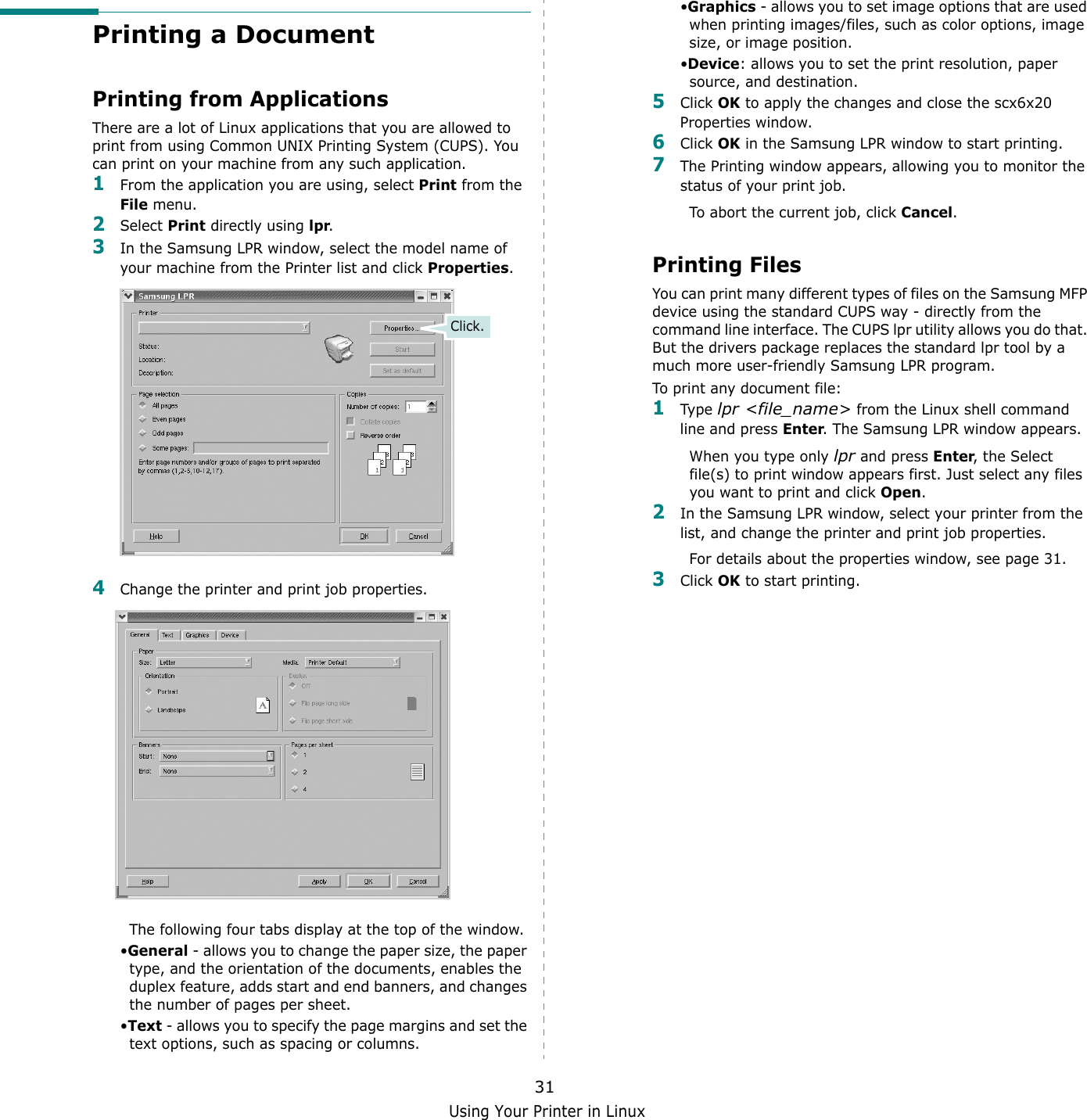
2Deleting a Page Overlay  ................................................................................................  18Chapter 4: SHARING THE PRINTER LOCALLYSetting Up a Host Computer  ...................................................................................................  19Setting Up a Client Computer ..................................................................................................  19Chapter 5: USING PRINTER SETTINGS UTILITYThe Scan Settings Tab  ...........................................................................................................  20The Phonebook Tab (fax available model only)  ..................................................................... 21The Firmware Update Tab .......................................................................................................  21Chapter 6: SCANNINGScanning Using Samsung SmarThru .........................................................................................  22Installing Samsung SmarThru  ........................................................................................  22Uninstalling Samsung SmarThru .....................................................................................  23Using Samsung SmarThru  .............................................................................................  23Using Onscreen Help File  ...............................................................................................  24Scanning Process with TWAIN-enabled Software ........................................................................  25Scanning Using the WIA Driver ................................................................................................  25Chapter 7: USING YOUR PRINTER IN LINUXGetting Started  .....................................................................................................................  26Installing the MFP Driver  ........................................................................................................  26System Requirements  ...................................................................................................  26Installing the MFP Driver  ...............................................................................................  27Uninstalling the MFP Driver  ............................................................................................  28Using the MFP Configurator ..................................................................................................... 28Opening the MFP Configurator ........................................................................................  28Printers Configuration  ...................................................................................................  29Scanners Configuration  .................................................................................................  29MFP Ports Configuration  ................................................................................................  30Configuring Printer Properties  ................................................................................................. 30Printing a Document  ..............................................................................................................  31
3Printing from Applications ..............................................................................................  31Printing Files ................................................................................................................  31Scanning a Document  ............................................................................................................ 32Using the Image Editor  .................................................................................................  33Chapter 8: USING YOUR PRINTER WITH A MACINTOSHInstalling Software for Macintosh .............................................................................................  34Setting Up the Printer  ............................................................................................................  35For a Network-connected Macintosh ................................................................................  35For a USB-connected Macintosh  .....................................................................................  35Printing ................................................................................................................................  36Printing a Document  .....................................................................................................  36Changing Printer Settings  ..............................................................................................  36Printing Multiple Pages on One Sheet of Paper ..................................................................  37Scanning ..............................................................................................................................  38
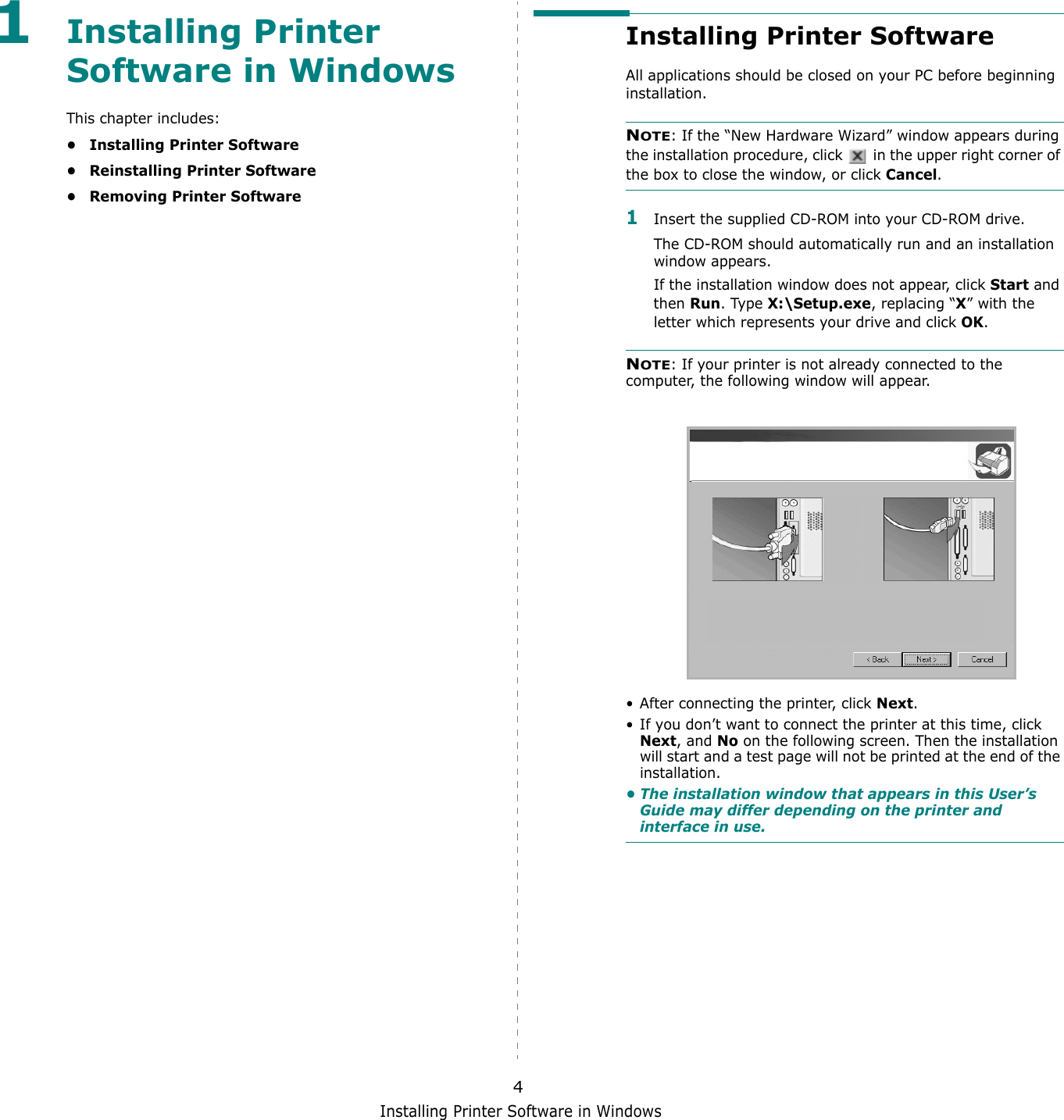
Installing Printer Software in Windows41Installing Printer Software in WindowsThis chapter includes:• Installing Printer Software• Reinstalling Printer Software•Removing Printer SoftwareInstalling Printer SoftwareAll applications should be closed on your PC before beginning installation. NOTE: If the “New Hardware Wizard” window appears during the installation procedure, click   in the upper right corner of the box to close the window, or click Cancel.1Insert the supplied CD-ROM into your CD-ROM drive.The CD-ROM should automatically run and an installation window appears.If the installation window does not appear, click Start and then Run. Type X:\Setup.exe, replacing “X” with the letter which represents your drive and click OK.NOTE: If your printer is not already connected to the computer, the following window will appear.• After connecting the printer, click Next.• If you don’t want to connect the printer at this time, click Next, and No on the following screen. Then the installation will start and a test page will not be printed at the end of the installation.• The installation window that appears in this User’s Guide may differ depending on the printer and interface in use.
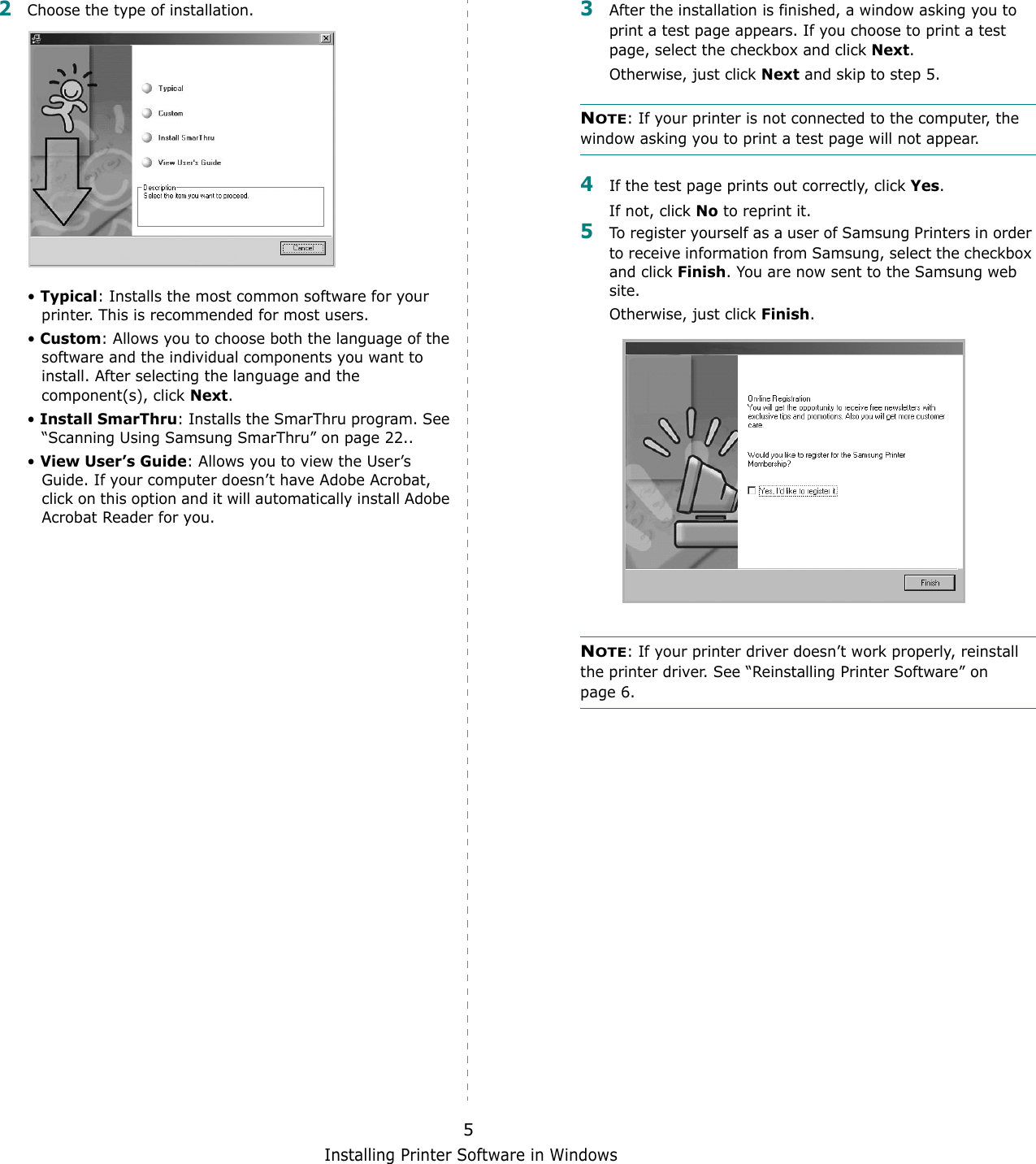
Installing Printer Software in Windows52Choose the type of installation. • Typical: Installs the most common software for your printer. This is recommended for most users.• Custom: Allows you to choose both the language of the software and the individual components you want to install. After selecting the language and the component(s), click Next.• Install SmarThru: Installs the SmarThru program. See “Scanning Using Samsung SmarThru” on page 22..• View User’s Guide: Allows you to view the User’s Guide. If your computer doesn’t have Adobe Acrobat, click on this option and it will automatically install Adobe Acrobat Reader for you.3After the installation is finished, a window asking you to print a test page appears. If you choose to print a test page, select the checkbox and click Next.Otherwise, just click Next and skip to step 5.NOTE: If your printer is not connected to the computer, the window asking you to print a test page will not appear. 4If the test page prints out correctly, click Yes.If not, click No to reprint it.5To register yourself as a user of Samsung Printers in order to receive information from Samsung, select the checkbox and click Finish. You are now sent to the Samsung web site.Otherwise, just click Finish.NOTE: If your printer driver doesn’t work properly, reinstall the printer driver. See “Reinstalling Printer Software” on page 6.
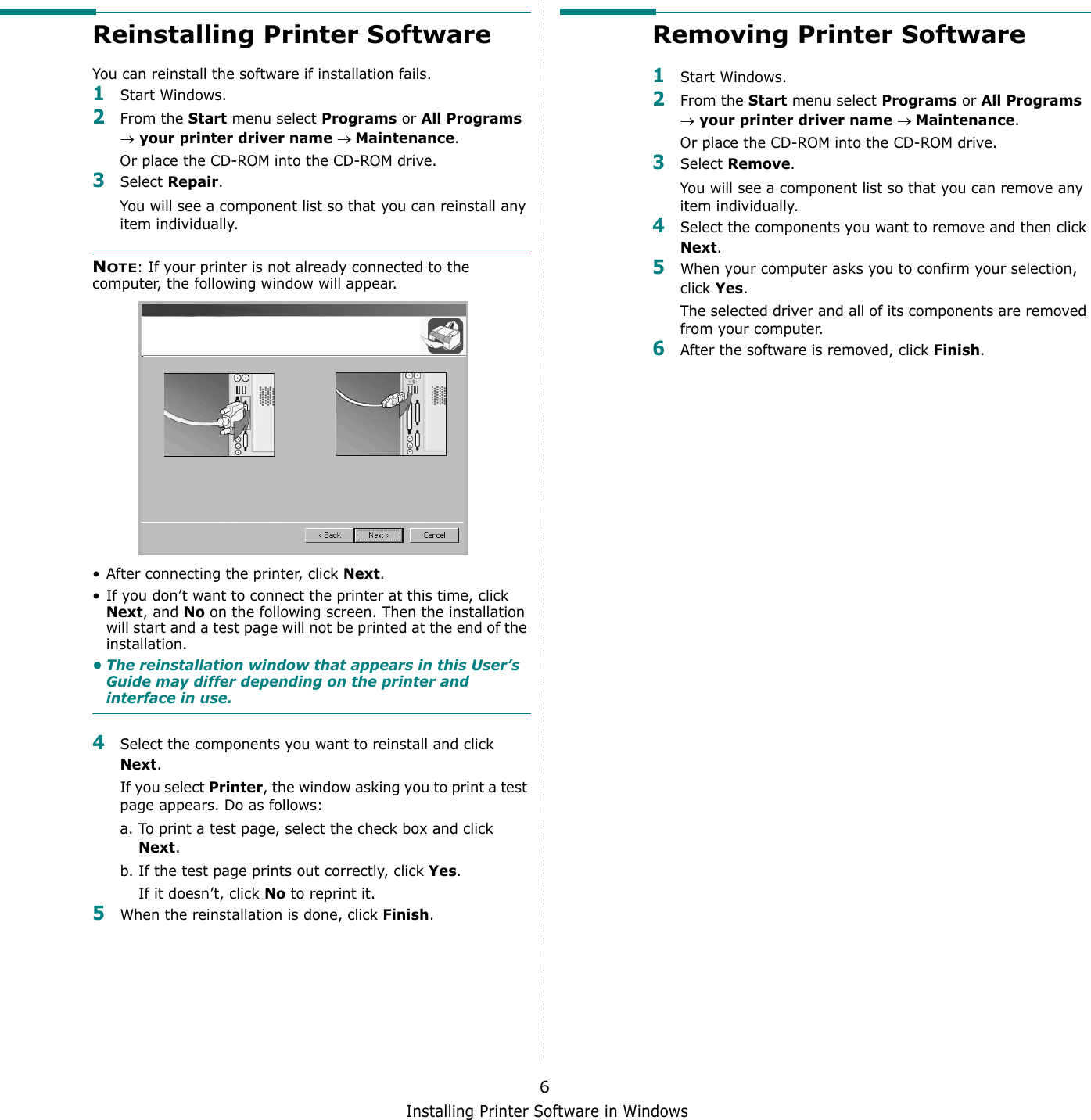
Installing Printer Software in Windows6Reinstalling Printer SoftwareYou can reinstall the software if installation fails.1Start Windows.2From the Start menu select Programs or All Programs → your printer driver name → Maintenance.Or place the CD-ROM into the CD-ROM drive.3Select Repair.You will see a component list so that you can reinstall any item individually.NOTE: If your printer is not already connected to the computer, the following window will appear.• After connecting the printer, click Next.• If you don’t want to connect the printer at this time, click Next, and No on the following screen. Then the installation will start and a test page will not be printed at the end of the installation.• The reinstallation window that appears in this User’s Guide may differ depending on the printer and interface in use.4Select the components you want to reinstall and click Next.If you select Printer, the window asking you to print a test page appears. Do as follows:a. To print a test page, select the check box and click Next.b. If the test page prints out correctly, click Yes.If it doesn’t, click No to reprint it.5When the reinstallation is done, click Finish.Removing Printer Software1Start Windows.2From the Start menu select Programs or All Programs → your printer driver name → Maintenance.Or place the CD-ROM into the CD-ROM drive.3Select Remove.You will see a component list so that you can remove any item individually.4Select the components you want to remove and then click Next.5When your computer asks you to confirm your selection, click Yes.The selected driver and all of its components are removed from your computer.6After the software is removed, click Finish.
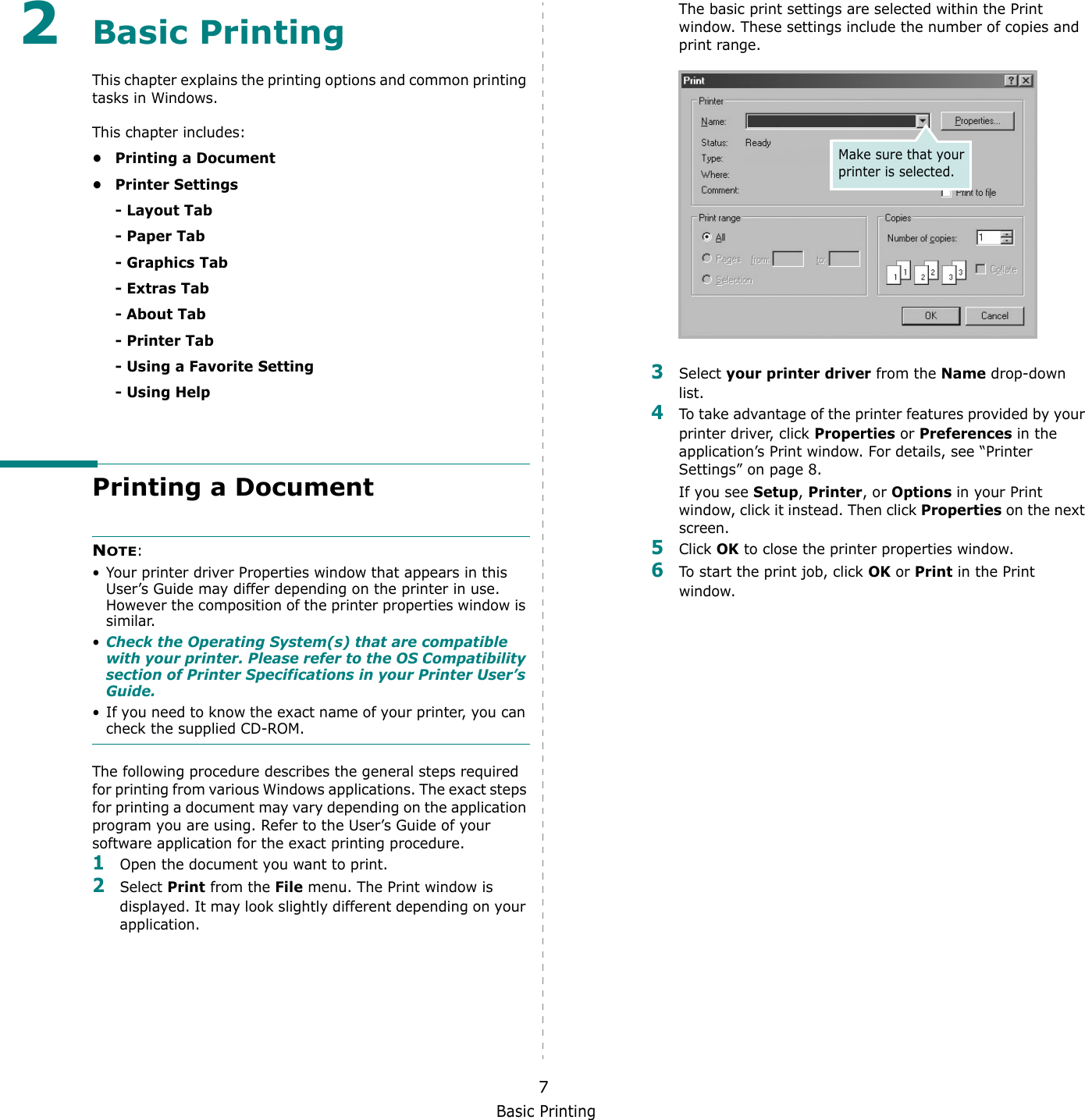
Basic Printing72Basic Printing This chapter explains the printing options and common printing tasks in Windows. This chapter includes:• Printing a Document•Printer Settings- Layout Tab- Paper Tab- Graphics Tab- Extras Tab- About Tab- Printer Tab- Using a Favorite Setting- Using HelpPrinting a DocumentNOTE: • Your printer driver Properties window that appears in this User’s Guide may differ depending on the printer in use. However the composition of the printer properties window is similar.•Check the Operating System(s) that are compatible with your printer. Please refer to the OS Compatibility section of Printer Specifications in your Printer User’s Guide.• If you need to know the exact name of your printer, you can check the supplied CD-ROM.The following procedure describes the general steps required for printing from various Windows applications. The exact steps for printing a document may vary depending on the application program you are using. Refer to the User’s Guide of your software application for the exact printing procedure.1Open the document you want to print.2Select Print from the File menu. The Print window is displayed. It may look slightly different depending on your application. The basic print settings are selected within the Print window. These settings include the number of copies and print range.3Select your printer driver from the Name drop-down list.4To take advantage of the printer features provided by your printer driver, click Properties or Preferences in the application’s Print window. For details, see “Printer Settings” on page 8.If you see Setup, Printer, or Options in your Print window, click it instead. Then click Properties on the next screen.5Click OK to close the printer properties window.6To start the print job, click OK or Print in the Print window.Make sure that your printer is selected.
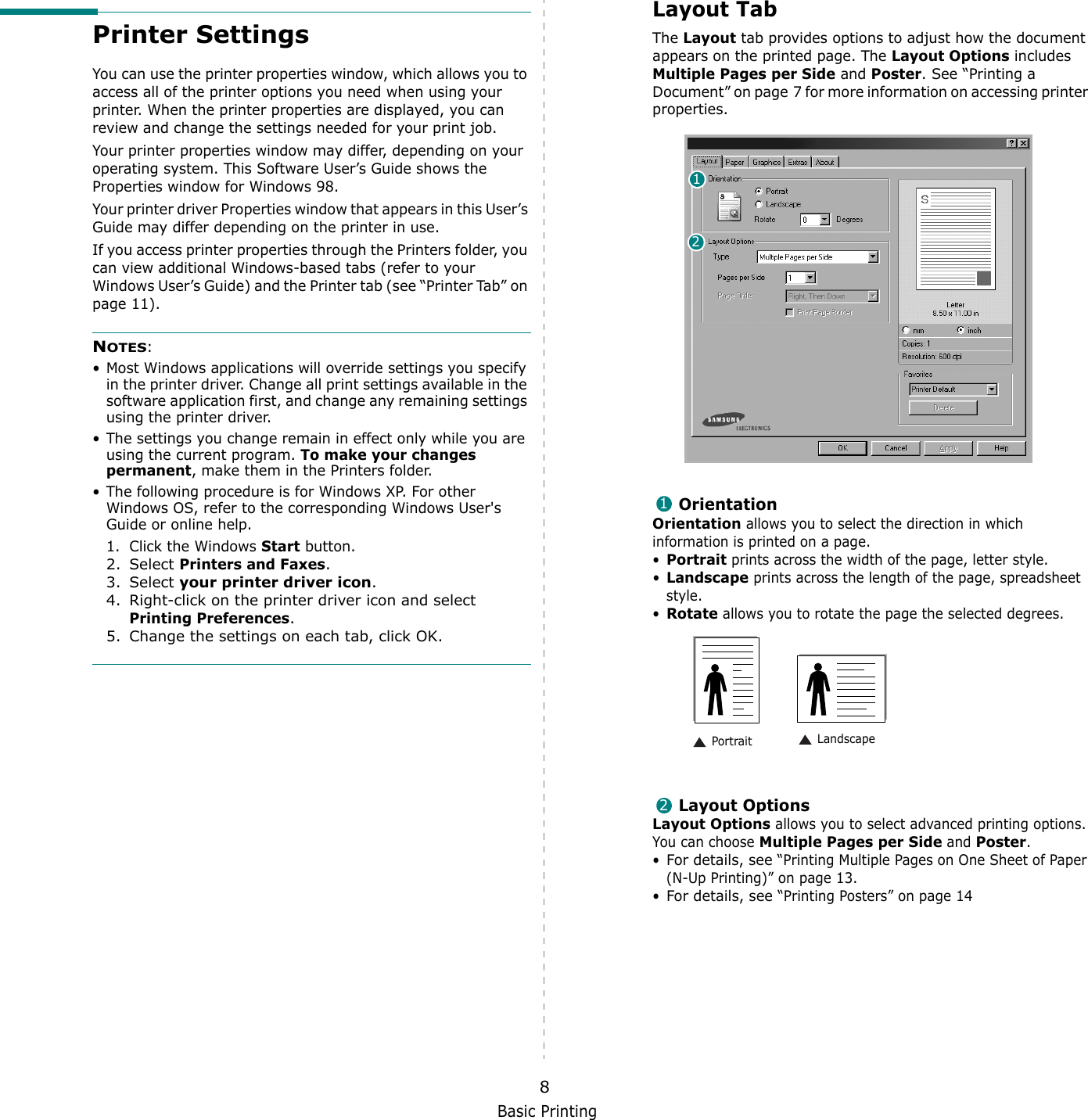
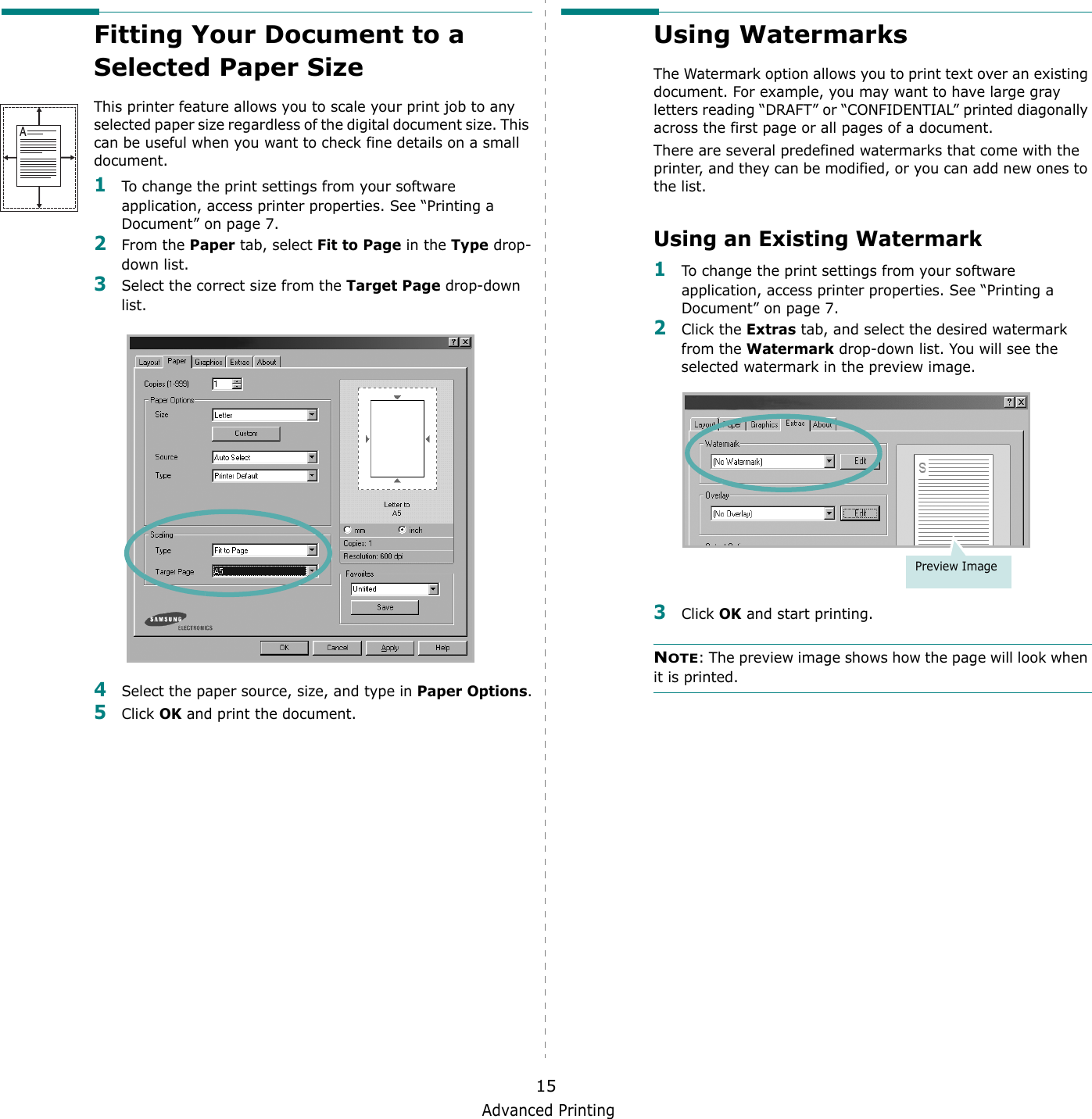
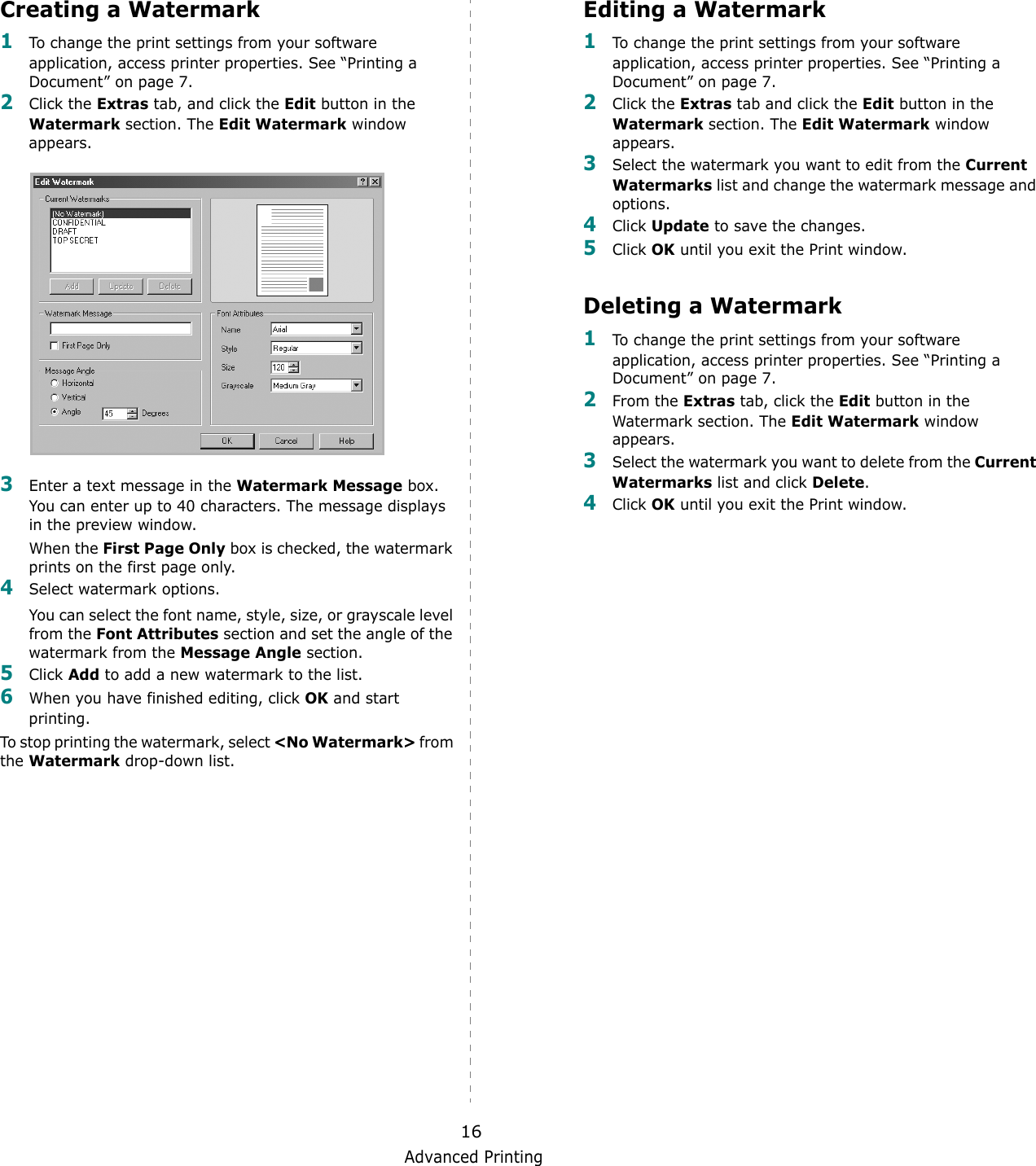
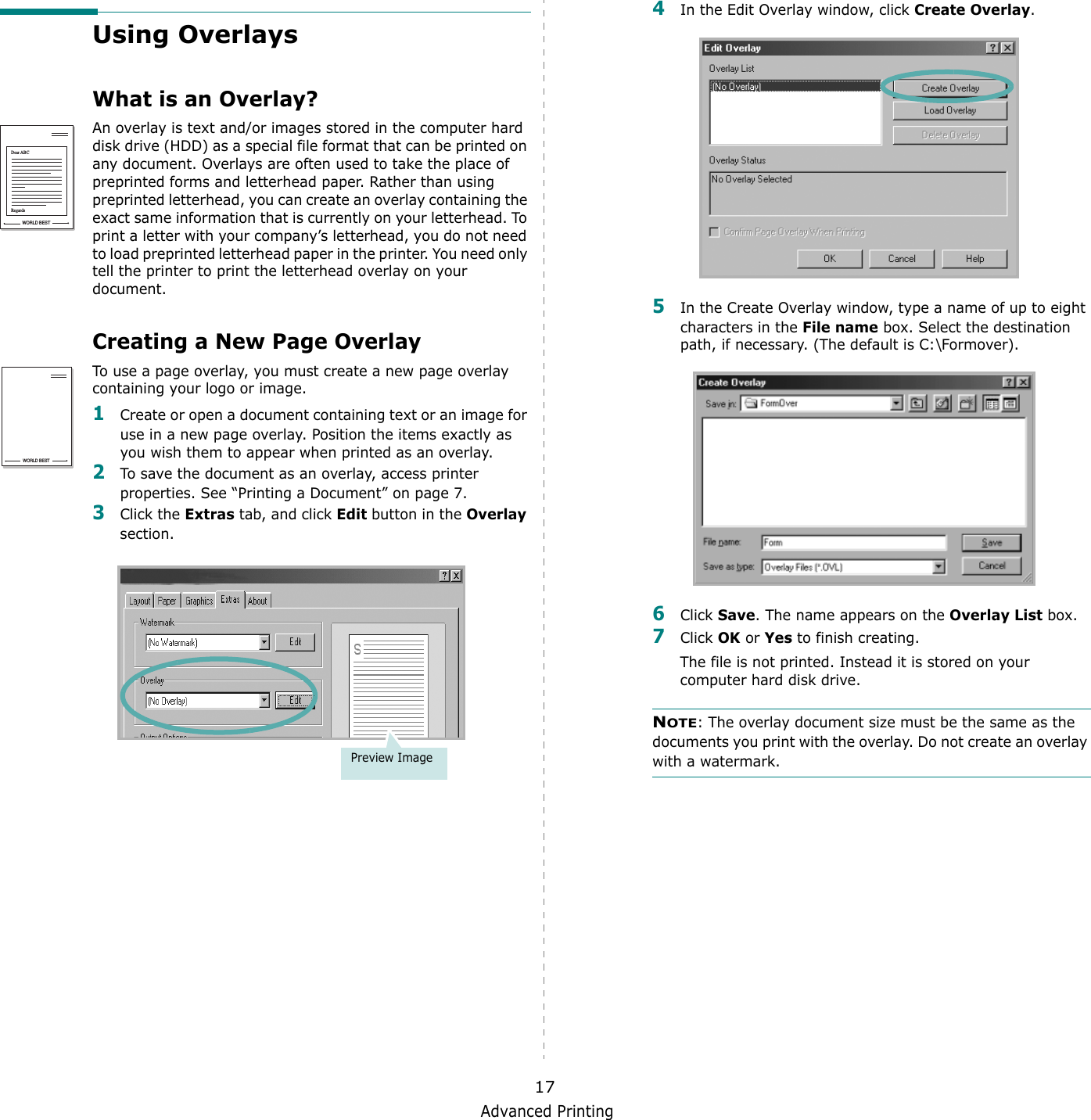
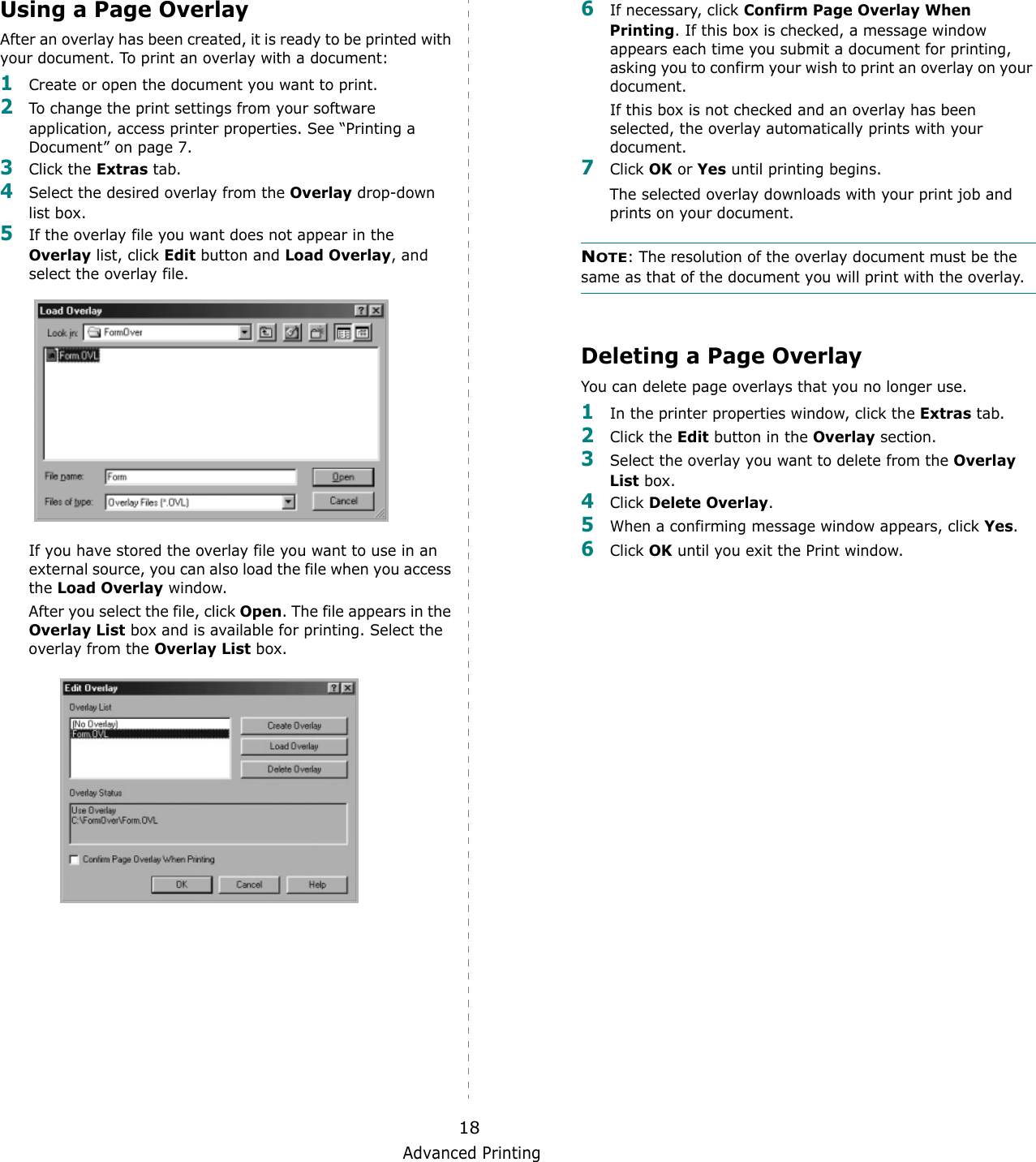
Basic Printing8Printer SettingsYou can use the printer properties window, which allows you to access all of the printer options you need when using your printer. When the printer properties are displayed, you can review and change the settings needed for your print job. Your printer properties window may differ, depending on your operating system. This Software User’s Guide shows the Properties window for Windows 98.Your printer driver Properties window that appears in this User’s Guide may differ depending on the printer in use.If you access printer properties through the Printers folder, you can view additional Windows-based tabs (refer to your Windows User’s Guide) and the Printer tab (see “Printer Tab” on page 11).NOTES:• Most Windows applications will override settings you specify in the printer driver. Change all print settings available in the software application first, and change any remaining settings using the printer driver. • The settings you change remain in effect only while you are using the current program. To make your changes permanent, make them in the Printers folder. • The following procedure is for Windows XP. For other Windows OS, refer to the corresponding Windows User's Guide or online help.1. Click the Windows Start button.2. Select Printers and Faxes.3. Select your printer driver icon.4. Right-click on the printer driver icon and select Printing Preferences.5. Change the settings on each tab, click OK.Layout TabThe Layout tab provides options to adjust how the document appears on the printed page. The Layout Options includes Multiple Pages per Side and Poster. See “Printing a Document” on page 7 for more information on accessing printer properties.   OrientationOrientation allows you to select the direction in which information is printed on a page. •Portrait prints across the width of the page, letter style. •Landscape prints across the length of the page, spreadsheet style. •Rotate allows you to rotate the page the selected degrees.Layout OptionsLayout Options allows you to select advanced printing options. You can choose Multiple Pages per Side and Poster.•For details, see “Printing Multiple Pages on One Sheet of Paper (N-Up Printing)” on page 13.•For details, see “Printing Posters” on page 14121 Landscape Portrait2
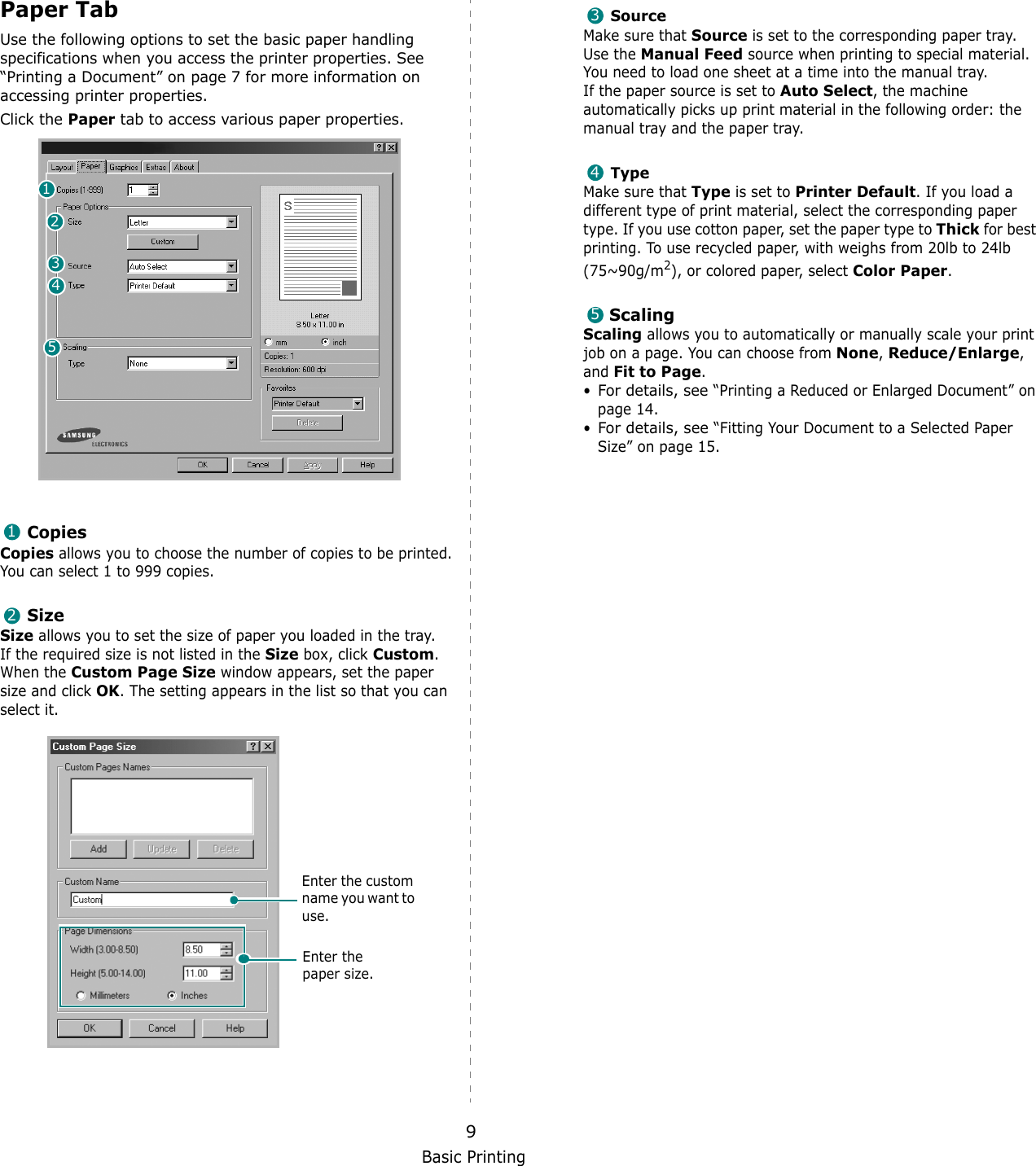
Basic Printing9Paper TabUse the following options to set the basic paper handling specifications when you access the printer properties. See “Printing a Document” on page 7 for more information on accessing printer properties. Click the Paper tab to access various paper properties. CopiesCopies allows you to choose the number of copies to be printed. You can select 1 to 999 copies. SizeSize allows you to set the size of paper you loaded in the tray. If the required size is not listed in the Size box, click Custom. When the Custom Page Size window appears, set the paper size and click OK. The setting appears in the list so that you can select it. 1234512Enter the custom name you want to use. Enter the paper size. SourceMake sure that Source is set to the corresponding paper tray.Use the Manual Feed source when printing to special material. You need to load one sheet at a time into the manual tray.If the paper source is set to Auto Select, the machine automatically picks up print material in the following order: the manual tray and the paper tray.TypeMake sure that Type is set to Printer Default. If you load a different type of print material, select the corresponding paper type. If you use cotton paper, set the paper type to Thick for best printing. To use recycled paper, with weighs from 20lb to 24lb (75~90g/m2), or colored paper, select Color Paper.ScalingScaling allows you to automatically or manually scale your print job on a page. You can choose from None, Reduce/Enlarge, and Fit to Page. •For details, see “Printing a Reduced or Enlarged Document” on page 14.•For details, see “Fitting Your Document to a Selected Paper Size” on page 15.345
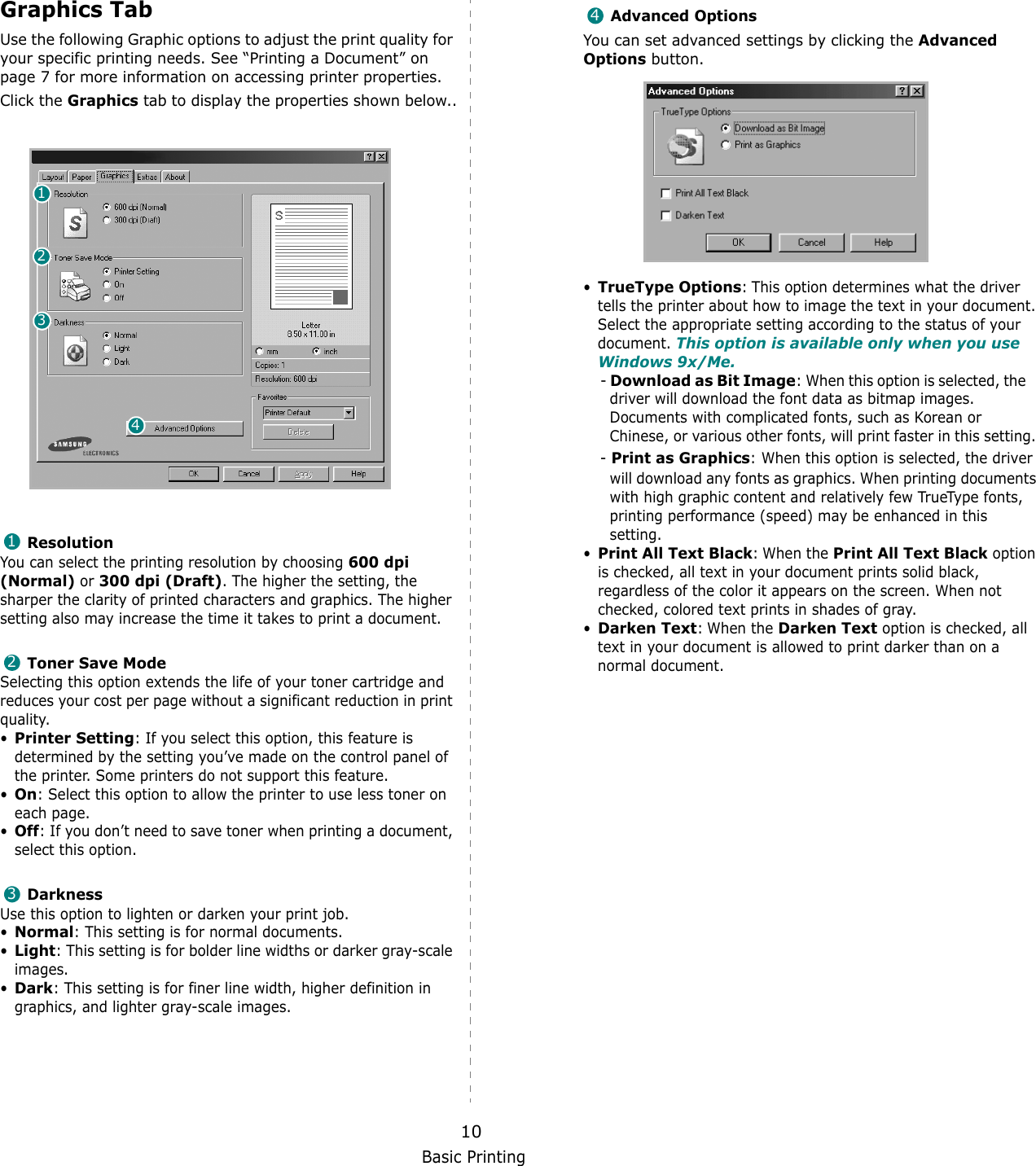
Basic Printing10Graphics TabUse the following Graphic options to adjust the print quality for your specific printing needs. See “Printing a Document” on page 7 for more information on accessing printer properties. Click the Graphics tab to display the properties shown below..   ResolutionYou can select the printing resolution by choosing 600 dpi (Normal) or 300 dpi (Draft). The higher the setting, the sharper the clarity of printed characters and graphics. The higher setting also may increase the time it takes to print a document. Toner Save ModeSelecting this option extends the life of your toner cartridge and reduces your cost per page without a significant reduction in print quality.•Printer Setting: If you select this option, this feature is determined by the setting you’ve made on the control panel of the printer. Some printers do not support this feature. •On: Select this option to allow the printer to use less toner on each page.•Off: If you don’t need to save toner when printing a document, select this option.DarknessUse this option to lighten or darken your print job.•Normal: This setting is for normal documents.•Light: This setting is for bolder line widths or darker gray-scale images.•Dark: This setting is for finer line width, higher definition in graphics, and lighter gray-scale images.1234123Advanced OptionsYou can set advanced settings by clicking the Advanced Options button. •TrueType Options: This option determines what the driver tells the printer about how to image the text in your document. Select the appropriate setting according to the status of your document. This option is available only when you use Windows 9x/Me.- Download as Bit Image: When this option is selected, the    driver will download the font data as bitmap images.    Documents with complicated fonts, such as Korean or    Chinese, or various other fonts, will print faster in this setting. - Print as Graphics: When this option is selected, the driver will download any fonts as graphics. When printing documents with high graphic content and relatively few TrueType fonts, printing performance (speed) may be enhanced in this setting.•Print All Text Black: When the Print All Text Black option is checked, all text in your document prints solid black, regardless of the color it appears on the screen. When not checked, colored text prints in shades of gray.•Darken Text: When the Darken Text option is checked, all text in your document is allowed to print darker than on a normal document. 4
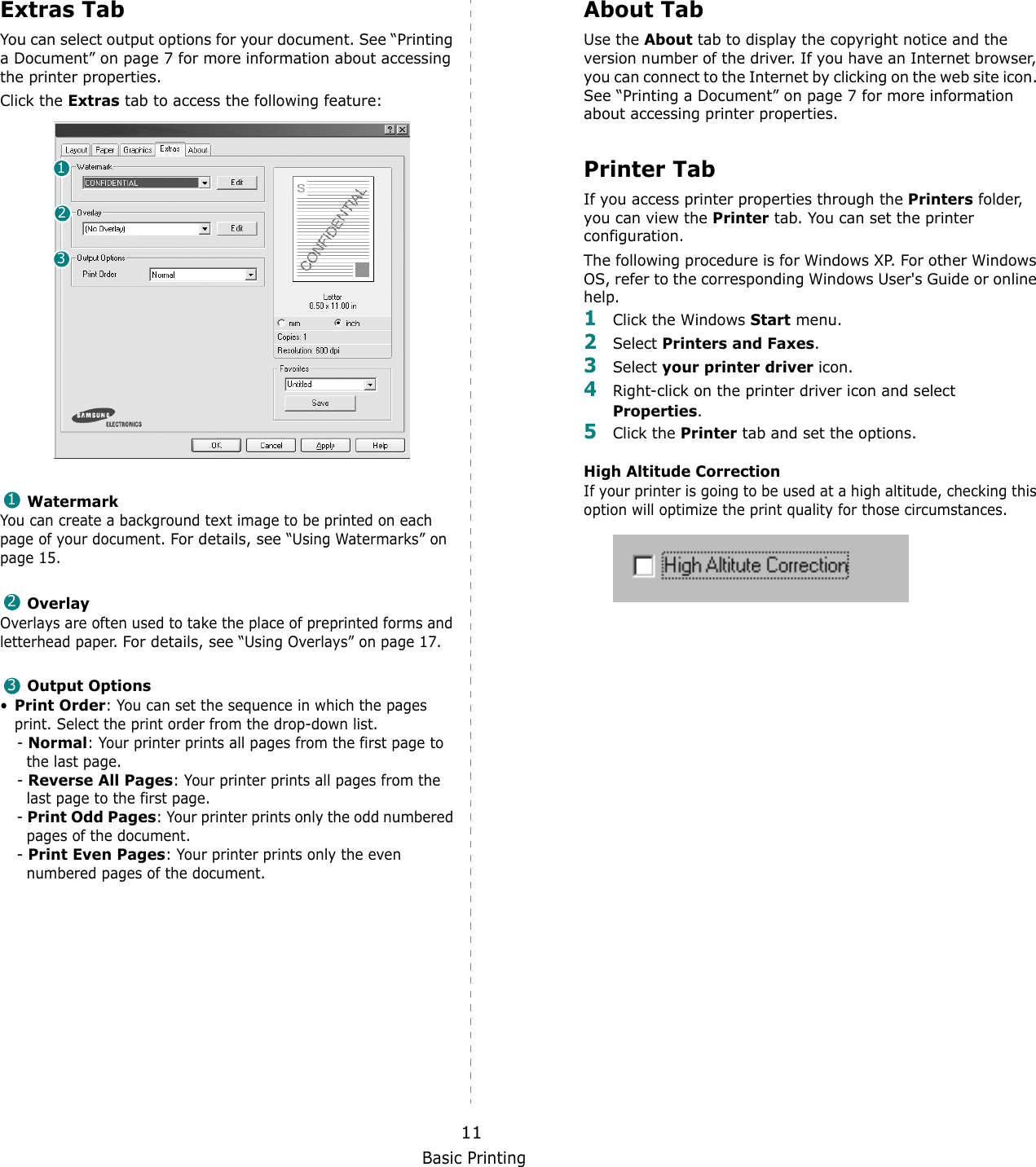
Basic Printing11Extras TabYou can select output options for your document. See “Printing a Document” on page 7 for more information about accessing the printer properties.Click the Extras tab to access the following feature:  WatermarkYou can create a background text image to be printed on each page of your document. For details, see “Using Watermarks” on page 15.OverlayOverlays are often used to take the place of preprinted forms and letterhead paper. For details, see “Using Overlays” on page 17.Output Options•Print Order: You can set the sequence in which the pages print. Select the print order from the drop-down list.- Normal: Your printer prints all pages from the first page to the last page.- Reverse All Pages: Your printer prints all pages from the last page to the first page.- Print Odd Pages: Your printer prints only the odd numbered pages of the document.- Print Even Pages: Your printer prints only the even numbered pages of the document.123123About TabUse the About tab to display the copyright notice and the version number of the driver. If you have an Internet browser, you can connect to the Internet by clicking on the web site icon. See “Printing a Document” on page 7 for more information about accessing printer properties.Printer TabIf you access printer properties through the Printers folder, you can view the Printer tab. You can set the printer configuration.The following procedure is for Windows XP. For other Windows OS, refer to the corresponding Windows User's Guide or online help.1Click the Windows Start menu. 2Select Printers and Faxes.3Select your printer driver icon. 4Right-click on the printer driver icon and select Properties.5Click the Printer tab and set the options.  High Altitude CorrectionIf your printer is going to be used at a high altitude, checking this option will optimize the print quality for those circumstances.
Basic Printing12Using a Favorite Setting  The Favorites option, which is visible on each properties tab, allows you to save the current properties settings for future use. To save a Favorites item:1Change the settings as needed on each tab. 2Enter a name for the item in the Favorites input box. 3Click Save. When you save Favorites, all current driver settings are saved.To use a saved setting, select the item from the Favorites drop down list. The printer is now set to print according to the Favorites setting you selected. To delete a Favorites item, select it from the list and click Delete. You can also restore the printer driver’s default settings by selecting Printer Default from the list. Using HelpYour printer has a help screen that can be activated by clicking the Help button in the printer properties window. These help screens give detailed information about the printer features provided by the printer driver.You can also click   from the upper right corner of the window, and then click on any setting.
Advanced Printing133Advanced PrintingThis chapter explains printing options and advanced printing tasks. NOTE: • Your printer driver Properties window that appears in this User’s Guide may differ depending on the printer in use. However the composition of the printer properties window is similar.• If you need to know the exact name of your printer, you can check the supplied CD-ROM.This chapter includes:• Printing Multiple Pages on One Sheet of Paper (N-Up Printing)•Printing Posters• Printing a Reduced or Enlarged Document• Fitting Your Document to a Selected Paper Size• Using Watermarks• Using OverlaysPrinting Multiple Pages on One Sheet of Paper (N-Up Printing) You can select the number of pages to print on a single sheet of paper. To print more than one page per sheet, the pages will be reduced in size and arranged in the order you specify. You can print up to 16 pages on one sheet.  1To change the print settings from your software application, access printer properties. See “Printing a Document” on page 7.2From the Layout tab, choose Multiple Pages per Side in the Type drop-down list. 3Select the number of pages you want to print per sheet (1, 2, 4, 6, 9, or 16) in the Pages per Side drop-down list.4Select the page order from the Page Order drop-down list, if necessary. Check Print Page Border to print a border around each page on the sheet. 5Click the Paper tab, select the paper source, size, and type.6Click OK and print the document. 1 23 4
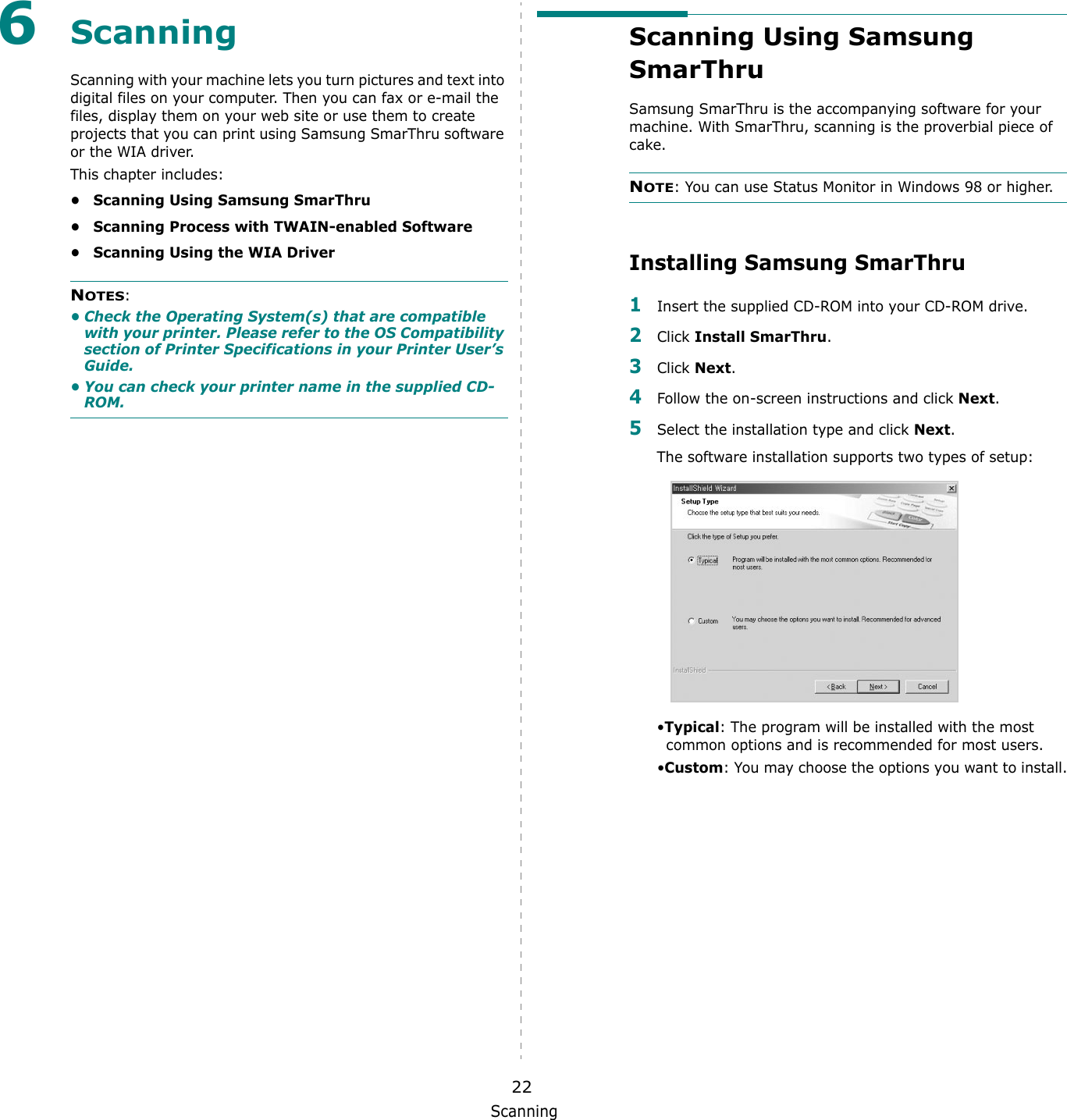
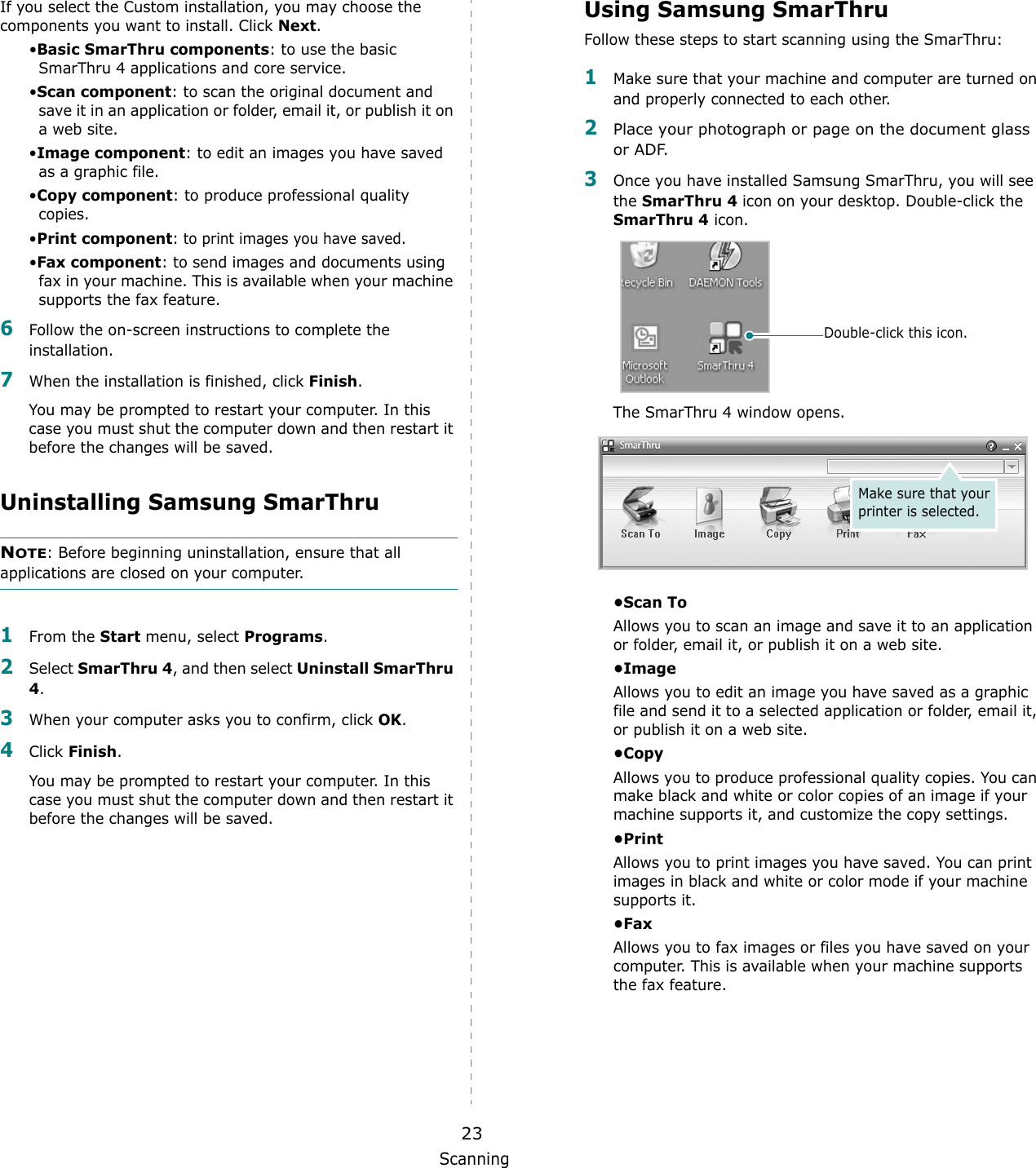
Advanced Printing14Printing PostersThis feature allows you to print a single-page document onto 4, 9, or 16 sheets of paper, for the purpose of pasting the sheets together to form one poster-size document.1To change the print settings from your software application, access printer properties. See “Printing a Document” on page 7.2Click the Layout tab, select Poster in the Type drop-down list. 3Configure the poster option:You can select the page layout from 2x2, 3x3, or 4x4. If you select 2x2, the output will be automatically stretched to cover 4 physical pages. Specify an overlap in millimeters or inches to make it easier to pasting the sheets together. 0.15 inches0.15 inches4Click the Paper tab, select the paper source, size, and type.5Click OK and print the document. You can complete the poster by pasting the sheets together. Printing a Reduced or Enlarged Document You can change the size of a page’s content to appear larger or smaller on the printed page. 1To change the print settings from your software application, access printer properties. See “Printing a Document” on page 7. 2From the Paper tab, select Reduce/Enlarge in the Type drop-down list. 3Enter the scaling rate in the Percentage input box.You can also click the   or   button.4Select the paper source, size, and type in Paper Options. 5Click OK and print the document.
Advanced Printing15Fitting Your Document to a Selected Paper SizeThis printer feature allows you to scale your print job to any selected paper size regardless of the digital document size. This can be useful when you want to check fine details on a small document. 1To change the print settings from your software application, access printer properties. See “Printing a Document” on page 7.2From the Paper tab, select Fit to Page in the Type drop-down list. 3Select the correct size from the Target Page drop-down list.4Select the paper source, size, and type in Paper Options.5Click OK and print the document.AUsing WatermarksThe Watermark option allows you to print text over an existing document. For example, you may want to have large gray letters reading “DRAFT” or “CONFIDENTIAL” printed diagonally across the first page or all pages of a document. There are several predefined watermarks that come with the printer, and they can be modified, or you can add new ones to the list. Using an Existing Watermark1To change the print settings from your software application, access printer properties. See “Printing a Document” on page 7. 2Click the Extras tab, and select the desired watermark from the Watermark drop-down list. You will see the selected watermark in the preview image. 3Click OK and start printing. NOTE: The preview image shows how the page will look when it is printed.Preview Image
Advanced Printing16Creating a Watermark1To change the print settings from your software application, access printer properties. See “Printing a Document” on page 7. 2Click the Extras tab, and click the Edit button in the Watermark section. The Edit Watermark window appears. 3Enter a text message in the Watermark Message box. You can enter up to 40 characters. The message displays in the preview window.When the First Page Only box is checked, the watermark prints on the first page only.4Select watermark options. You can select the font name, style, size, or grayscale level from the Font Attributes section and set the angle of the watermark from the Message Angle section. 5Click Add to add a new watermark to the list.   6When you have finished editing, click OK and start printing. To stop printing the watermark, select <No Watermark> from the Watermark drop-down list. Editing a Watermark1To change the print settings from your software application, access printer properties. See “Printing a Document” on page 7. 2Click the Extras tab and click the Edit button in the Watermark section. The Edit Watermark window appears.3Select the watermark you want to edit from the Current Watermarks list and change the watermark message and options. 4Click Update to save the changes.5Click OK until you exit the Print window. Deleting a Watermark1To change the print settings from your software application, access printer properties. See “Printing a Document” on page 7.2From the Extras tab, click the Edit button in the Watermark section. The Edit Watermark window appears. 3Select the watermark you want to delete from the Current Watermarks list and click Delete. 4Click OK until you exit the Print window.
Advanced Printing17Using OverlaysWhat is an Overlay?An overlay is text and/or images stored in the computer hard disk drive (HDD) as a special file format that can be printed on any document. Overlays are often used to take the place of preprinted forms and letterhead paper. Rather than using preprinted letterhead, you can create an overlay containing the exact same information that is currently on your letterhead. To print a letter with your company’s letterhead, you do not need to load preprinted letterhead paper in the printer. You need only tell the printer to print the letterhead overlay on your document.Creating a New Page OverlayTo use a page overlay, you must create a new page overlay containing your logo or image.1Create or open a document containing text or an image for use in a new page overlay. Position the items exactly as you wish them to appear when printed as an overlay.2To save the document as an overlay, access printer properties. See “Printing a Document” on page 7.3Click the Extras tab, and click Edit button in the Overlay section. WORLD BESTDear ABCRegardsWORLD BESTPreview Image4In the Edit Overlay window, click Create Overlay. 5In the Create Overlay window, type a name of up to eight characters in the File name box. Select the destination path, if necessary. (The default is C:\Formover).6Click Save. The name appears on the Overlay List box. 7Click OK or Yes to finish creating. The file is not printed. Instead it is stored on your computer hard disk drive. NOTE: The overlay document size must be the same as the documents you print with the overlay. Do not create an overlay with a watermark.
Advanced Printing18Using a Page OverlayAfter an overlay has been created, it is ready to be printed with your document. To print an overlay with a document:1Create or open the document you want to print. 2To change the print settings from your software application, access printer properties. See “Printing a Document” on page 7. 3Click the Extras tab. 4Select the desired overlay from the Overlay drop-down list box. 5If the overlay file you want does not appear in the Overlay list, click Edit button and Load Overlay, and select the overlay file. If you have stored the overlay file you want to use in an external source, you can also load the file when you access the Load Overlay window. After you select the file, click Open. The file appears in the Overlay List box and is available for printing. Select the overlay from the Overlay List box. 6If necessary, click Confirm Page Overlay When Printing. If this box is checked, a message window appears each time you submit a document for printing, asking you to confirm your wish to print an overlay on your document. If this box is not checked and an overlay has been selected, the overlay automatically prints with your document. 7Click OK or Yes until printing begins. The selected overlay downloads with your print job and prints on your document. NOTE: The resolution of the overlay document must be the same as that of the document you will print with the overlay. Deleting a Page OverlayYou can delete page overlays that you no longer use. 1In the printer properties window, click the Extras tab. 2Click the Edit button in the Overlay section. 3Select the overlay you want to delete from the Overlay List box. 4Click Delete Overlay. 5When a confirming message window appears, click Yes.6Click OK until you exit the Print window.
Sharing the Printer Locally194Sharing the Printer LocallyYou can connect the printer directly to a selected computer, which is called “host computer,” on the network. The following procedure is for Windows XP. For other Windows OS, refer to the corresponding Windows User's Guide or online help.NOTES: • Check the Operating System(s) that are compatible with your printer. Please refer to the OS Compatibility section of Printer Specifications in your Printer User’s Guide.• If you need to know the exact name of your printer, you can check the supplied CD-ROM.Setting Up a Host Computer1Start Windows. 2From the Start menu select Printers and Faxes. 3Double-click your printer driver icon. 4From the Printer menu, select Sharing. 5Check the Share this printer box.6Fill in the Shared Name field, and then click OK.Setting Up a Client Computer1Right-click the Windows Start button and select Explorer. 2Open your network folder in the left column. 3Click the shared name. 4From the Start menu select Printers and Faxes.5Double-click your printer driver icon. 6From the Printer menu, select Properties. 7From the Ports tab, click Add Port. 8Select Local Port and click New Port. 9Fill in the Enter a port name field with the shared name. 10Click OK and click Close. 11Click Apply and click OK.
Using Printer Settings Utility205Using Printer Settings UtilityThis is automatically installed when you install the MFP (Multi Functional Printer) driver. Using Printer Settings Utility, you can create and edit Phonebook entries from your computer and configure the destination launches when you use the corresponding button on the control panel. You can also update the firmware of the machine. To open Printer Settings Utility:1Start your Windows.2Click the Start button on your desktop computer.3From the Programs or All Programs, select your printer driver name and then Printer Settings Utility.The Printer Settings Utility window opens. 4The Printer Settings Utility window provides the following tabs: Scan Settings, Phonebook (only for the fax available model), and Firmware Update.To exit, click the Exit button at the bottom of each tab.Use the help feature by refering the window which appears when you click the Help button at the bottom.The Scan Settings TabClick the Scan Settings tab to configure the scan destination list that appears on the control panel display when you press the corresponding button on the control panel. Using the destination list, you can select a software program that an image can be scanned to.You can also configure the scan settings, such as the output type and resolution. Select the program you want from the Available Scan Destinations and click   to add it to the Front Panel Destination List. To delete the selected program, click  .  Restore DefaultsClick to restore the default settings. SendDownloads the settings made in the Printer Settings Utility to your machine. 123123
Using Printer Settings Utility21The Phonebook Tab (fax available model only)Click the  tab to create and edit Phonebook entries. ReadReads the Phonebook entries from the machine to the Printer Settings Utility. WriteDownloads the Phonebook entries from the Printer Settings Utility to the machine. Phonebook entries. EditAllows you to edit a selected Phonebook entry in a separate Edit window. DeleteDeletes a selected Phonebook entry. Delete AllDeletes all Phonebook entries. Group dial...Allows you to set up group dial numbers.12345671234567When you click Group dial, the following window opens. NameEnter a name for the group. Shows the numbers included in the group. To remove a number, select it and click Remove. Shows the Phonebook entries you can include in the group. After selecting a number, click Add to move it to the Included numbers list. OKClick to save the group dial number after adding or removing numbers for the group.The Firmware Update TabClick the Firmware Update tab to update the firmware of your machine. This feature should be used by an authorized technician. Please consult with the purchase point.12341234
Scanning226ScanningScanning with your machine lets you turn pictures and text into digital files on your computer. Then you can fax or e-mail the files, display them on your web site or use them to create projects that you can print using Samsung SmarThru software or the WIA driver.This chapter includes:• Scanning Using Samsung SmarThru• Scanning Process with TWAIN-enabled Software• Scanning Using the WIA DriverNOTES: • Check the Operating System(s) that are compatible with your printer. Please refer to the OS Compatibility section of Printer Specifications in your Printer User’s Guide.• You can check your printer name in the supplied CD-ROM.Scanning Using Samsung SmarThruSamsung SmarThru is the accompanying software for your machine. With SmarThru, scanning is the proverbial piece of cake.NOTE: You can use Status Monitor in Windows 98 or higher.Installing Samsung SmarThru 1Insert the supplied CD-ROM into your CD-ROM drive.2Click Install SmarThru.3Click Next.4Follow the on-screen instructions and click Next.5Select the installation type and click Next.The software installation supports two types of setup:•Typical: The program will be installed with the most common options and is recommended for most users.•Custom: You may choose the options you want to install.
Scanning23If you select the Custom installation, you may choose the components you want to install. Click Next.•Basic SmarThru components: to use the basic SmarThru 4 applications and core service.•Scan component: to scan the original document and save it in an application or folder, email it, or publish it on a web site. •Image component: to edit an images you have saved as a graphic file.•Copy component: to produce professional quality copies.•Print component: to print images you have saved.•Fax component: to send images and documents using fax in your machine. This is available when your machine supports the fax feature. 6Follow the on-screen instructions to complete the installation. 7When the installation is finished, click Finish.You may be prompted to restart your computer. In this case you must shut the computer down and then restart it before the changes will be saved.Uninstalling Samsung SmarThruNOTE: Before beginning uninstallation, ensure that all applications are closed on your computer. 1From the Start menu, select Programs.2Select SmarThru 4, and then select Uninstall SmarThru 4.3When your computer asks you to confirm, click OK. 4Click Finish.You may be prompted to restart your computer. In this case you must shut the computer down and then restart it before the changes will be saved.Using Samsung SmarThruFollow these steps to start scanning using the SmarThru:1Make sure that your machine and computer are turned on and properly connected to each other. 2Place your photograph or page on the document glass or ADF.3Once you have installed Samsung SmarThru, you will see the SmarThru 4 icon on your desktop. Double-click the SmarThru 4 icon.The SmarThru 4 window opens.•Scan ToAllows you to scan an image and save it to an application or folder, email it, or publish it on a web site. •ImageAllows you to edit an image you have saved as a graphic file and send it to a selected application or folder, email it, or publish it on a web site. •CopyAllows you to produce professional quality copies. You can make black and white or color copies of an image if your machine supports it, and customize the copy settings. •PrintAllows you to print images you have saved. You can print images in black and white or color mode if your machine supports it.•FaxAllows you to fax images or files you have saved on your computer. This is available when your machine supports the fax feature. Double-click this icon.Make sure that your printer is selected.
Scanning244Click Scan To. The Scan To menu bar appears on the SmarThru 4 window.Scan To lets you use the following services:•ApplicationScanning an image and placing it in an image editor application, such as Paint or Adobe Photoshop. •E-mailScanning an image and emailing it. Allows you to scan an image, preview it, and email it. NOTE: To send an image by e-mail, you must have a mail client program, like Outlook Express, which has been set up with your e-mail account.•FolderScanning an image and saving it to a folder. Allows you to scan an image, preview it, and save it to the folder of your choice.•OCRScanning an image and performing text recognition. Allows you to scan an image, preview it, and send it to the OCR program for text recognition. - Recommended Scan Option for OCR- Resolution: 200 or 300 dpi- Image Type: Grayscale or Black & White•WebScanning an image, previewing it, and publishing it on a web site, using the specified file format for the image you want to publish.Adjust the scan settings.Scan To menu barClick to start scanning.•SettingsCustomizing settings of Scan To basic functions. Allows you to customize settings for Application, E-mail, OCR, and Web functions.5Click the service icon according to your job.6SmarThru 4 opens for the selected service. Adjust the scan settings. 7To start scanning, click Scan. NOTE: If you want to cancel the scan job, click Cancel.Using Onscreen Help FileFor more information about SmarThru, click   at the top right corner of the window. The SmarThru Help window opens and allows you to view onscreen help supplied on the SmarThru program.
Scanning25Scanning Process with TWAIN-enabled Software If you want to scan documents using other software, you will need to use TWAIN-compliant software, such as Adobe PhotoDeluxe or Adobe Photoshop. The first time you scan with your machine, select it as your TWAIN source in the application you use. The basic scanning process involves a number of steps:1Make sure that your machine and computer are turned on and properly connected to each other.2Load the document(s) face up into the ADF.ORPlace a single document face down on the document glass.3Open an application, such as PhotoDeluxe or Photoshop. 4Open the TWAIN window and set the scan options.5Scan and save your scanned image.NOTE: You need to follow the program’s instructions for acquiring an image. Please refer to the user’s guide of the application.Scanning Using the WIA DriverYour machine also supports the Windows Image Acquisition (WIA) driver for scanning images. WIA is one of the standard components provided by Microsoft Windows XP and works with digital cameras and scanners. Unlike the TWAIN driver, the WIA driver allows you to scan and easily manipulate images without using additional software.NOTE: The WIA driver works only on Windows XP with USB port. 1Load the document(s) face up into the ADF.ORPlace a single document face down on the document glass.2From the Start menu on your desktop window, select Settings, Control Panel, and then Scanners and Cameras.3Double click your scanner driver icon. The Scanner and Camera Wizard launches.4Choose your scanning preferences and click Preview to see how your preferences affect the picture.5Click Next.6Enter a picture name, and select a file format and destination to save the picture.7Follow the on-screen instructions to edit the picture after it is copied to your computer.NOTE: If you want to  cancel the scan job, press the Cancel button on the Scanner and Camera Wizard.
Using Your Printer in Linux267Using Your Printer in Linux You can use your machine in a Linux environment. This chapter includes:• Getting Started• Installing the MFP Driver• Using the MFP Configurator• Configuring Printer Properties• Printing a Document• Scanning a DocumentGetting StartedThe supplied CD-ROM provides you with Samsung’s MFP driver package for using your machine with a Linux computer.Samsung’s MFP driver package contains printer and scanner drivers, providing the ability to print documents and scan images. The package also delivers powerful applications for configuring your machine and further processing of the scanned documents.After the driver is installed on your Linux system, the driver package allows you to monitor a number of MFP devices via fast ECP parallel ports and USB simultaneously. The acquired documents can then be edited, printed on the same local MFP or network printers, sent by e-mail, uploaded to an FTP site, or transferred to an external OCR system.The MFP driver package is supplied with a smart and flexible installation program. You don't need to search for additional components that might be necessary for the MFP software: all required packages will be carried onto your system and installed automatically; this is possible on a wide set of the most popular Linux clones.Installing the MFP DriverSystem Requirements Supported OS• Redhat 7.1 and above• Linux Mandrake 8.0 and above• SuSE 7.1 and above• Caldera OpenLinux 3.1 and above• Turbo Linux 7.0 and above• Slackware 8.1 and aboveRecommended Hardware Requirements• Pentium IV 1 GHz or higher• RAM 256 MB or higher•HDD 1 GB or higherNOTES: • It’s also necessary to claim swap partition of 300 MB or larger for working with large scanned images.• The Linux scanner driver supports the optical resolution at maximum. Please refer to the scanner and copy section of Specifications in your Printer User’s Guide.• You can check your printer name in the supplied CD-ROM.Software• Linux Kernel 2.4 or higher• Glibc 2.2 or higher•CUPS•SANE
Using Your Printer in Linux27Installing the MFP Driver1Make sure that you connect your machine to your computer. Turn both the computer and the machine on.2When the Administrator Login window appears, type in root in the Login field and enter the system password.NOTE: You must log in as a super user (root) to install the printer software. If you are not a super user, ask your system administrator.3Insert the printer software CD-ROM. The CD-ROM will automatically run.If the CD-ROM does not automatically run, click the   icon at the bottom of the desktop. When the Terminal screen appears, type in:[root@localhost root]#cd /mnt/cdrom/Linux[root@localhost root]#./install.sh NOTE: The installation program runs automatically if you have an autorun software package installed and configured.4Click Install.5When the welcome screen appears, click Next.6When the installation is complete, click Finish.The installation program has added the MFP Configurator desktop icon and Samsung MFP group to the system menu for your convenience. If you have any difficulties, consult the onscreen help that is available through your system menu or can otherwise be called from the driver package windows applications, such as MFP Configurator or Image Editor.
Using Your Printer in Linux28Uninstalling the MFP Driver1When the Administrator Login window appears, type in root in the Login field and enter the system password.NOTE: You must log in as a super user (root) to install the printer software. If you are not a super user, ask your system administrator.2Insert the printer software CD-ROM. The CD-ROM will automatically run.If the CD-ROM does not automatically run, click the   icon at the bottom of the desktop. When the Terminal screen appears, type in:[root@localhost root]#cd /mnt/cdrom/Linux[root@localhost root]#./install.sh NOTE: The installation program runs automatically if you have an autorun software package installed and configured.3Click Uninstall.4Click Next. 5Click Finish.Using the MFP ConfiguratorMFP Configurator is a tool primarily intended for configuring MFP devices. Since an MFP device combines the printer and scanner, the MFP Configurator provides options logically grouped for printer and scanner functions. There is also a special MFP port option responsible for the regulation of access to an MFP printer and scanner via a single I/O channel.After installing the MFP driver (see page 26), the MFP Configurator icon will automatically be created on your desktop.Opening the MFP Configurator1Double-click MFP Configurator on the desktop.You can also click the Startup Menu icon and select Samsung MFP and then MFP Configurator.2Press each button on the Modules pane to switch to the corresponding configuration window.You can use the onscreen help by clicking Help.3After changing the configurations, click Exit to close the MFP Configurator.Printers Configuration buttonScanners Configuration buttonMFP Ports Configuration button
Using Your Printer in Linux29Printers ConfigurationPrinters configuration has the two tabs; Printers and Classes. Printers TabYou can see the current system’s printer configuration by clicking on the printer icon button on the left side of the MFP Configurator window.You can use the following printer control buttons:•Refresh: renews the available printers list.•Add Printer: allows you to add a new printer.•Remove Printer: removes the selected printer.•Set as Default: sets the current printer as a default printer.•Stop/Start: stops/starts the printer.•Test: allows you to print a test page to check if the machine is working properly.•Properties: allows you to view and change the printer properties. For details, see page 30.Shows all of the installed printer.Switches to Printer configuration.Shows the status, model name and URI of your printer.Classes TabThe Classes tab shows a list of available printer classes.•Refresh : Renews the classes list.•Add Class... : Allows you to add a new printer class.•Remove Class : Removes the selected printer class.Scanners ConfigurationIn this window, you can monitor the activity of scanner devices, view a list of installed Samsung MFP devices, change device properties, and scan images.•Properties... : Allows you to change the scan properties and scan a document. See page 32.•Drivers... : Allows you to monitor the activity of the scan drivers.Shows the status of the class and the number of printers in the class.Shows all of the printer classes.Switches to Scanners configuration. Shows all of the installed scanners.Shows the vendor, model name and type of your scanner.
Using Your Printer in Linux30MFP Ports ConfigurationIn this window, you can view the list of available MFP ports, check the status of each port and release a port that is stalled in busy state when its owner is terminated for any reason.•Refresh : Renews the available ports list.•Release port : Releases the selected port.Sharing Ports Between Printers and ScannersYour machine may be connected to a host computer via the parallel port or USB port. Since the MFP device contains more than one device (printer and scanner), it is necessary to organize proper access of “consumer” applications to these devices via the single I/O port.The Samsung MFP driver package provides an appropriate port sharing mechanism that is used by Samsung printer and scanner drivers. The drivers address their devices via so-called MFP ports. The current status of any MFP port can be viewed via the MFP Ports Configuration. The port sharing prevents you from accessing one functional block of the MFP device, while another block is in use.When you install a new MFP printer onto your system, it is strongly recommended you do this with the assistance of an MFP Configurator. In this case you will be asked to choose I/O port for the new device. This choice will provide the most suitable configuration for MFP’s functionality. For MFP scanners I/O ports are being chosen by scanner drivers automatically, so proper settings are applied by default.Switches to MPF ports configuration.Shows the port type, device connected to the port and statusShows all of the available ports.Configuring Printer PropertiesUsing the properties window provided by the Printers configuration, you can change the various properties for your machine as a printer.1Open the MFP Configurator.If necessary, switch to Printers configuration.2Select your machine on the available printers list and click Properties.3The Printer Properties window opens.The following five tabs display at the top of the window:•General: allows you to change the printer location and name. The name entered in this tab displays on the printer list in Printers configuration.•Connection: allows you to view or select another port. If you change the printer port from USB to parallel or vice versa while in use, you must re-configure the printer port in this tab.•Driver: allows you to view or select another printer driver. By clicking Options, you can set the default device options.•Jobs: shows the list of print jobs. Click Cancel job to cancel the selected job and select the Show completed jobs check box to see previous jobs on the job list.•Classes: shows the class that your printer is in. Click Add to Class to add your printer to a specific class or click Remove from Class to remove the printer from the selected class.4Click OK to apply the changes and close the Printer Properties Window.
Using Your Printer in Linux31Printing a DocumentPrinting from ApplicationsThere are a lot of Linux applications that you are allowed to print from using Common UNIX Printing System (CUPS). You can print on your machine from any such application.1From the application you are using, select Print from the File menu.2Select Print directly using lpr.3In the Samsung LPR window, select the model name of your machine from the Printer list and click Properties.4Change the printer and print job properties.The following four tabs display at the top of the window.•General - allows you to change the paper size, the paper type, and the orientation of the documents, enables the duplex feature, adds start and end banners, and changes the number of pages per sheet.•Text - allows you to specify the page margins and set the text options, such as spacing or columns.Click.•Graphics - allows you to set image options that are used when printing images/files, such as color options, image size, or image position.•Device: allows you to set the print resolution, paper source, and destination.5Click OK to apply the changes and close the scx6x20 Properties window. 6Click OK in the Samsung LPR window to start printing.7The Printing window appears, allowing you to monitor the status of your print job.To abort the current job, click Cancel.Printing FilesYou can print many different types of files on the Samsung MFP device using the standard CUPS way - directly from the command line interface. The CUPS lpr utility allows you do that. But the drivers package replaces the standard lpr tool by a much more user-friendly Samsung LPR program.To print any document file:1Type lpr <file_name> from the Linux shell command line and press Enter. The Samsung LPR window appears.When you type only lpr and press Enter, the Select file(s) to print window appears first. Just select any files you want to print and click Open. 2In the Samsung LPR window, select your printer from the list, and change the printer and print job properties.For details about the properties window, see page 31.3Click OK to start printing.
Using Your Printer in Linux32Scanning a DocumentYou can scan a document using the MFP Configurator window.1Double-click the MFP Configurator on your desktop.2Click the   button to switch to Scanners Configuration.3Select the scanner on the list. When you have only one MFP device and it is connected to the computer and turned on, your scanner appears on the list and is automatically selected.If you have two or more scanners attached to your computer, you can select any scanner to work at any time. For example, while acquisition is in progress on the first scanner, you may select the second scanner, set the device options and start the image acquisition simultaneously.NOTE: The scanner name shown in Scanners configuration can be different from the device name.4Click Properties.5Load the document to be scanned face up into the ADF (Automatic Document Feeder) or face down on the document glass.6Click Preview in the Scanner Properties window.Click your scanner.The document is scanned and the image preview appears in the Preview Pane.7Change the scan options in the Image Quality and Scan Area sections.•Image Quality: allows you to select the color composition and the scan resolution for the image.•Scan Area: allows you to select the page size. The Advanced button enables you to set the page size manually.If you want to use one of the preset scan option settings, select from the Job Type drop-down list. For details about the preset Job Type settings, see page 33.You can restore the default setting for the scan options by clicking Default.8When you have finished, click Scan to start scanning.The status bar appears on the bottom left of the window to show you the progress of the scan. To cancel scanning, click Cancel.9The scanned image appears in the new Image Editor window.If you want to edit the scanned image, use the toolbar. For further details about editing an image, see page 33.Drag the pointer to set the image area to be scanned.
Using Your Printer in Linux3310When you are finished, click Save on the toolbar.11Select the file directory where you want to save the image and enter the file name. 12Click Save.Adding Job Type SettingsYou can save your scan option settings to retrieve for a later scanning.To save a new Job Type setting:1Change the options from the Scanner Properties window.2Click Save As.3Enter the name for your setting.4Click OK. Your setting is added to the Saved Settings drop-down list.To save a Job Type setting for the next scan job:1Select the setting you want to use from the Job Type drop-down list.2Click Save.The next time you open the Scanner Properties window, the saved setting is automatically selected for the scan job.To delete a Job Type setting:1Select the setting you want to delete from the Job Type drop-down list.2Click Delete.The setting is deleted from the listUsing the Image EditorThe Image Editor window provides you with menu commands and tools to edit your scanned image.Use these tools to edit the image.You can use the following tools to edit the image:For further details about the Image Editor program, refer to the onscreen help.Tools FunctionSaves the image.Cancels your last action.Restores the action you canceled.Allows you to scroll through the image.Crops the selected image area.Zooms the image out.Zooms the image in.Allows you to scale the image size; you can enter the size manually, or set the rate to scale proportionally, vertically, or horizontally.Allows you to rotate the image; you can select the number of degrees from the drop-down list.Allows you to flip the image vertically or horizontally. Allows you to adjust the brightness or contrast of the image, or to invert the image.Shows the properties of the image.
Using Your Printer with a Macintosh348Using Your Printer with a MacintoshYour printer supports Macintosh systems with a built-in USB interface or 10/100 Base-TX network interface card. When you print a file from a Macintosh computer, you can use the CUPS driver by installing the PPD file. NOTE: Some printers do not support a network interface. Make sure that your printer supports a network interface by referring to Printer Specifications in your Printer User’s Guide.This chapter includes:• Installing Software for Macintosh• Setting Up the Printer•Printing• ScanningInstalling Software for MacintoshThe CD-ROM that came with your printer provides you with the PPD file that allows you to use the CUPS driver or Apple LaserWriter driver (only available when you use a printer which supports the PostScript driver), for printing on a Macintosh computer. Also, it provides you with the Twain driver for scanning on a Macintosh computer.Verify the following before you install the printer software:Item RequirementsOperating System Mac OS 10.3.xRAM 128 MBFree Disk Space 200 MBInstall the Printer driver1Make sure that you connect your printer to the computer. Turn on your computer and printer.2Insert the CD-ROM which came with your printer into the CD-ROM drive.3Double-click CD-ROM icon that appears on your Macintosh desktop.4Double-click the Installer folder.5Double-click the Printer folder.6Double-click the Samsung SPL2 Installer icon.7Enter the password and click OK.8The Samsung SPL Installer window opens. Click Continue and then click Continue.9Select Easy Install and click Install.10After the installation is finished, click Quit.Uninstalling the Printer driverUninstall is required if you are upgrading the software, or if installation fails.1Insert the CD-ROM which came with your printer into the CD-ROM drive.2Double-click CD-ROM icon that appears on your Macintosh desktop.3Double-click the Installer folder.4Double-click the Printer folder.5Double-click the Samsung SPL2 Installer icon.6Enter the password and click OK.7The Samsung SPL Installer window opens. Click Continue and then click Continue.8Select Uninstall and then click Uninstall.9When the uninstallation is done, click Quit.
Using Your Printer with a Macintosh35Install the Scan driver1Make sure that you connect your printer to the computer. Turn on your computer and printer.2Insert the CD-ROM which came with your printer into the CD-ROM drive.3Double-click CD-ROM icon that appears on your Macintosh desktop.4Double-click the Installer folder.5Double-click the Twain folder.6Double-click the Samsung ScanThru Installer icon.7Enter the password and click OK.8Click Continue.9Click Install.10After the installation is finished, click Quit.Uninstalling the Scan driver1Insert the CD-ROM which came with your printer into the CD-ROM drive.2Double-click CD-ROM icon that appears on your Macintosh desktop.3Double-click the Installer folder.4Double-click the Twain folder.5Double-click the Samsung ScanThru Installer icon.6Enter the password and click OK.7Click Continue.8Select Uninstall from the Installation Type and then Click Uninstall.9When the uninstallation is done, click Quit.Setting Up the Printer Set up for your printer will be different depending on which cable you use to connect the printer to your computer—the network cable or the USB cable.For a Network-connected MacintoshNOTE: Some printers do not support a network interface. Before connecting your printer, make sure that your printer supports a network interface by referring to Printer Specifications in your Printer User’s Guide.1Follow the instructions on “Installing Software for Macintosh” on page 34 to install the PPD and Filter files on your computer.2Open Print Setup Utility from the Utilities folder.3Click Add on the Printer List.4Select the IP Printing tab.5Enter the printer’s IP address in the Printer Address field.6Enter the queue name in the Queue Name field. If you cannot determine the queue name for your printer server, try using the default queue first.7Select Samsung in Printer Model and your printer in Model Name.8Click Add.9Your printer’s IP address appears on the Printer List, and is set as the default printer.For a USB-connected Macintosh1Follow the instructions on “Installing Software for Macintosh” on page 34 to install the PPD and Filter files on your computer.2Open Print Setup Utility from the Utilities folder.3Click Add on the Printer List.4Select the USB tab.5Select Samsung in Printer Model and your printer in Model Name.6Click Add.Your printer appears on the Printer List, and is set as the default printer.
Using Your Printer with a Macintosh36Printing NOTES: • The Macintosh printer’s properties window that appears in this User’s Guide may differ depending on the printer in use. However the composition of the printer properties window is similar.•You can check your printer name in the supplied CD-ROM.Printing a DocumentWhen you print with a Macintosh, you need to check the printer software setting in each application you use. Follow these steps to print from a Macintosh.1Open a Macintosh application and select the file you want to print.2Open the File menu and click Page Setup (Document Setup in some applications). 3Choose your paper size, orientation, scaling, and other options and click OK.4Open the File menu and click Print.5Choose the number of copies you want and indicate which pages you want to print. 6Click Print when you finish setting the options.▲ Mac OS 10.3Make sure that your printer is selected.Changing Printer SettingsYou can use advanced printing features when using your printer. From your Macintosh application, select Print from the File menu. The printer name which appears in the printer properties window may differ depending on the printer in use. Except for the name, the composition of the printer properties window is similar.Layout SettingThe Layout tab provides options to adjust how the document appears on the printed page. You can print multiple pages on one sheet of paper.Select Layout from the Presets drop-down list to access the following features. For details, see “Printing Multiple Pages on One Sheet of Paper” on the next column.▲ Mac OS 10.3
Using Your Printer with a Macintosh37Printer Features SettingThe Printer Features tab provides options for selecting the paper type and adjusting print quality.Select Printer Features from the Presets drop-down list to access the following features:Paper TypeMake sure that Paper Type is set to Printer Default. If you load a different type of print material, select the corresponding paper type.  ResolutionYou can select the printing resolution. The higher the setting, the sharper the clarity of printed characters and graphics. The higher setting also may increase the time it takes to print a document.  ▲ Mac OS 10.31122Printing Multiple Pages on One Sheet of PaperYou can print more than one page on a single sheet of paper. This feature provides a cost-effective way to print draft pages.1From your Macintosh application, select Print from the File menu. 2Select Layout.3Select the number of pages you want to print on one sheet of paper on the Pages per Sheet drop-down list.4Select the page order from the Layout Direction option.To print a border around each page on the sheet, select the option you want from the Border drop-down list.5Click Print, and the printer prints the selected number of pages on one side of each page.▲ Mac OS 10.3
Using Your Printer with a Macintosh38Scanning If you want to scan documents using other software, you will need to use TWAIN-compliant software, such as Adobe PhotoDeluxe or Adobe Photoshop. The first time you scan with your machine, select it as your TWAIN source in the application you use. The basic scanning process involves a number of steps:• Place your photograph or page on the document glass or ADF.• Open an application, such as PhotoDeluxe or Photoshop. • Open the TWAIN window and set the scan options.• Scan and save your scanned image.NOTE: You need to follow the program’s instructions for acquiring an image. Please refer to the User’s Guide of the application.
1INDEXAadvanced printing, use 13Ccancelingscan 25Ddocument, printMacintosh 36Windows 7EExtras properties, set 11Ffavorites settings, use 12GGraphics properties, set 10Hhelp, use 12Iinstallprinter driverMacintosh 34Windows 4installingLinux software 26LLayout properties, setMacintosh 36Windows 8Linuxdriver, install 27printer properties 30printing 31scanning 32MMacintoshdriverinstall 34uninstall 34printing 36scanning 38setting up the printer 35MFP driver, installLinux 27Nn-up printingMacintosh 37Windows 13Oorientation, print 31Windows 8, 20, 21overlaycreate 17delete 18print 18PPaper properties, set 9paper size, set 9print 31paper source, set 31Windows 9paper type, setMacintosh 37print 31Windows 9poster, print 14printdocument 7fit to page 15from Macintosh 36from Windows 7N-upMacintosh 37Windows 13overlay 17poster 15scaling 14watermark 15print resolution 31printer driver, installLinux 27printer propertiesLinux 31printer properties, setMacintosh 36Windows 8printer resolution, setMacintosh 37Windows 10Printer Setting Utilitytabs 20printer softwareinstallMacintosh 34Windows 4uninstallMacintosh 34Windows 6printingfrom Linux 31Rresolutionprinting 31SscanningLinux 32SmarThru 22TWAIN 25WIA driver 25scanning from Macintosh 38settingdarkness 10favorites 12image mode 10
2resolutionMacintosh 37Windows 10toner save 10true-type option 10softwareinstallMacintosh 34Windows 4reinstallWindows 6system requirementsMacintosh 34uninstallMacintosh 34Windows 6system requirementsLinux 26Macintosh 34Ttoner save, set 10TWAIN, scan 25Uuninstall, softwareMacintosh 34Windows 6uninstallingMFP driverLinux 28Wwatermarkcreate 16delete 16edit 16print 15WIA, scan 25
www.samsungprinter.com Rev.0.98

Navigation menu