Telecommunication Laboratories Chunghwa Telecom CHTS200202 HARDWARE SECURE MODULE User Manual SafGuard200 user guide for FCC

Telecommunication Laboratories , Chunghwa Telecom Co., Ltd HARDWARE SECURE MODULE SafGuard200 user guide for FCC

Contents

USERS MANUAL 1
SafGuard 200 Hardware SecurityModule and Key Management User GuideVer 1.1Chunghwa Telecom Co., Ltd. Telecommunication LabOctober, 2002
Note: This equipment has been tested and found to comply with the limitsfor a Class B digital device, pursuant to part 15 of the FCC Rules. Theselimits are designed to provide reasonable protection against harmfulinterference in a residential installation. This equipment generates, usesand can radiate radio frequency energy and, if not installed and used inaccordance with the instructions, may cause harmful interference to radiocommunications. However, there is no guarantee that interference will notoccur in a particular installation. If this equipment does cause harmfulinterference to radio or television reception, which can be determined byturning the equipment off and on, the user is encouraged to try to correctthe interference by one or more of the following measures:♦ Reorient or relocate the receiving antenna.♦ Increase the separation between the equipment and receiver.♦ Connect the equipment into an outlet on a circuit different from thatto which the receiver is connected.♦ Consult the dealer or an experienced radio/TV technician for help.Modifications not expressly approved by the manufacturer could void theuser's authority to operated the equipment under FCC rules.
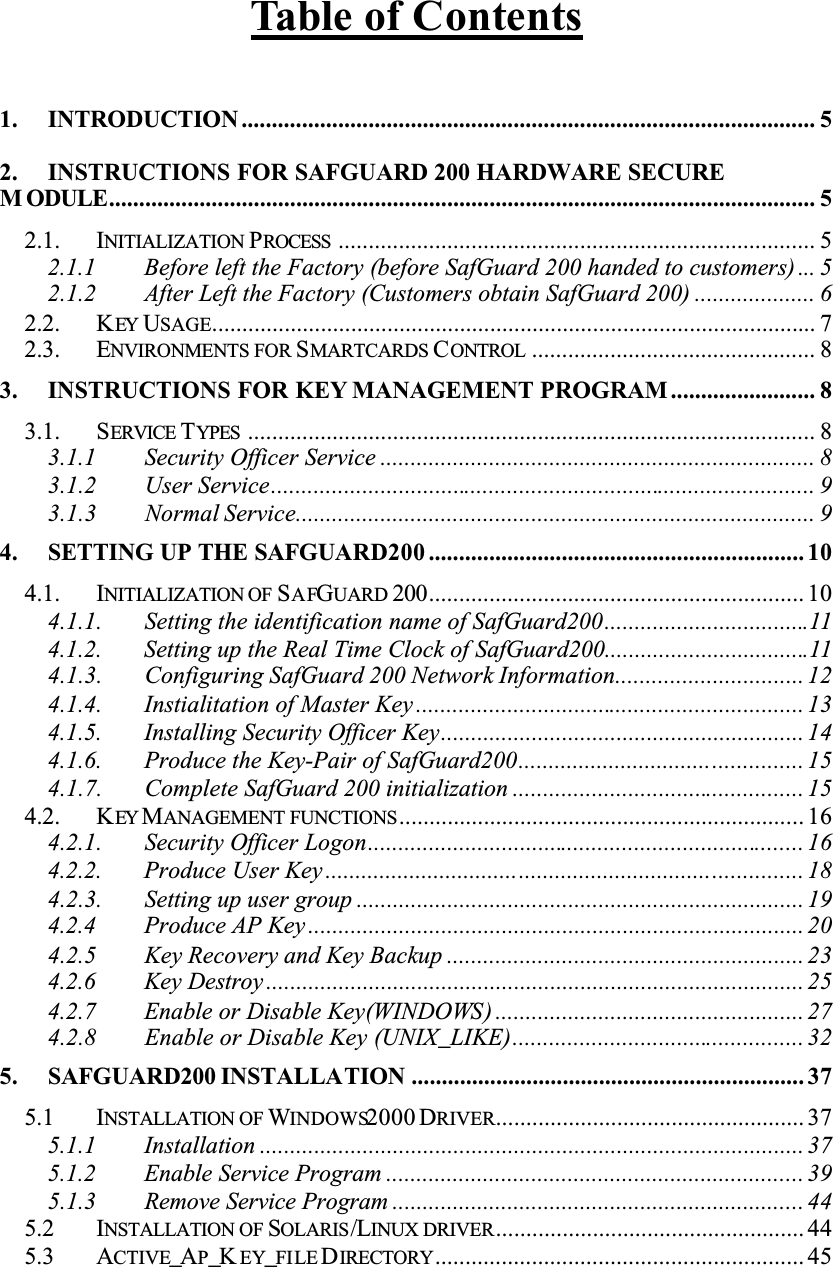
Table of Contents1. INTRODUCTION ............................................................................................... 52. INSTRUCTIONS FOR SAFGUARD 200 HARDWARE SECUREM ODULE..................................................................................................................... 52.1. INITIALIZATION PROCESS ............................................................................... 52.1.1 Before left the Factory (before SafGuard 200 handed to customers) ... 52.1.2 After Left the Factory (Customers obtain SafGuard 200) .................... 62.2. KEY USAGE.................................................................................................... 72.3. ENVIRONMENTS FOR SMARTCARDS CONTROL ............................................... 83. INSTRUCTIONS FOR KEY MANAGEMENT PROGRAM ........................ 83.1. SERVICE TYPES .............................................................................................. 83.1.1 Security Officer Service ........................................................................ 83.1.2 User Service.......................................................................................... 93.1.3 Normal Service...................................................................................... 94. SETTING UP THE SAFGUARD200 .............................................................. 104.1. INITIALIZATION OF SAFGUARD 200.............................................................. 104.1.1. Setting the identification name of SafGuard200..................................114.1.2. Setting up the Real Time Clock of SafGuard200..................................114.1.3. Configuring SafGuard 200 Network Information............................... 124.1.4. Instialitation of Master Key ................................................................ 134.1.5. Installing Security Officer Key............................................................ 144.1.6. Produce the Key-Pair of SafGuard200............................................... 154.1.7. Complete SafGuard 200 initialization ................................................ 154.2. KEY MANAGEMENT FUNCTIONS................................................................... 164.2.1. Security Officer Logon........................................................................ 164.2.2. Produce User Key ............................................................................... 184.2.3. Setting up user group .......................................................................... 194.2.4 Produce AP Key .................................................................................. 204.2.5 Key Recovery and Key Backup ........................................................... 234.2.6 Key Destroy ......................................................................................... 254.2.7 Enable or Disable Key(WINDOWS) ................................................... 274.2.8 Enable or Disable Key (UNIX_LIKE)................................................ 325. SAFGUARD200 INSTALLATION ................................................................. 375.1 INSTALLATION OF WINDOWS2000 DRIVER................................................... 375.1.1 Installation .......................................................................................... 375.1.2 Enable Service Program ..................................................................... 395.1.3 Remove Service Program .................................................................... 445.2 INSTALLATION OF SOLARIS/LINUX DRIVER................................................... 445.3 ACTIVE_AP_K EY_FILE DIRECTORY............................................................. 45
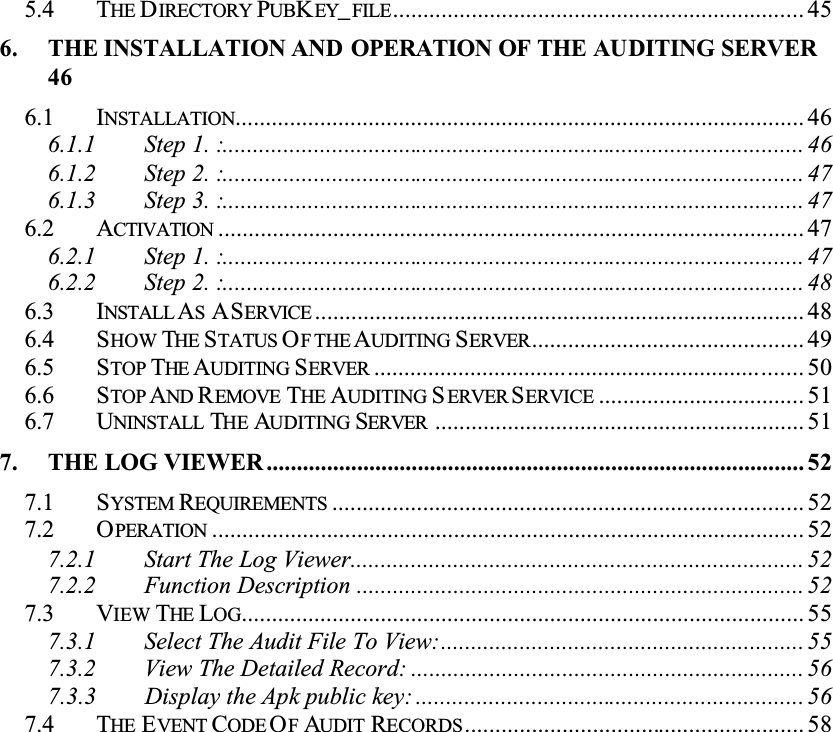
5.4 THE DIRECTORY PUBKEY_FILE.................................................................... 456. THE INSTALLATION AND OPERATION OF THE AUDITING SERVER466.1 INSTALLATION.............................................................................................. 466.1.1 Step 1. :................................................................................................ 466.1.2 Step 2. :................................................................................................ 476.1.3 Step 3. :................................................................................................ 476.2 ACTIVATION ................................................................................................. 476.2.1 Step 1. :................................................................................................ 476.2.2 Step 2. :................................................................................................ 486.3 INSTALL ASASERVICE ................................................................................. 486.4 SHOW THE STATUS OF THE AUDITING SERVER............................................. 496.5 STOP THE AUDITING SERVER ....................................................................... 506.6 STOP AND REMOVE THE AUDITING SERVER SERVICE .................................. 516.7 UNINSTALL THE AUDITING SERVER ............................................................. 517. THE LOG VIEWER ......................................................................................... 527.1 SYSTEM REQUIREMENTS .............................................................................. 527.2 OPERATION .................................................................................................. 527.2.1 Start The Log Viewer........................................................................... 527.2.2 Function Description .......................................................................... 527.3 VIEW THE LOG............................................................................................. 557.3.1 Select The Audit File To View:............................................................ 557.3.2 View The Detailed Record: ................................................................. 567.3.3 Display the Apk public key: ................................................................ 567.4 THE EVENT CODE OFAUDIT RECORDS........................................................ 58
1. IntroductionSafGuard 200 Hardware Security Module and Key management programtransmit data each other via Internet, since a 10M/100Mbps network interfaceis used. In this way,  we are able to transfer and receive information more efficiently.There are 3 or 4 entities in  SafGuard 200 environment; (1) SafGuard 200hardware security Module; (2) a CA server which requests  SafGuard 200 forcryptographic operations ; (3) Smartcards; (4) whether provides a Audit Serve to record the events of cryptographic moduleǶFor security consideration, the Initialization process for SafGuard200 has to meet the following purposes; 1. There must be a unique relationship between SafGuard 200 and CAserver. SafGuard 200 can only provide services to the CA serverswhich have partic ipated in the initialization process. This CA servercan only request SafGuard 200 which has participated in thisinitialization process to provide   cryptographic operation servicesǶ2. SafGuard 200 provides the cryptographic service which depends on the identity of the smartcard; certain identity can only request certain services from  SafGuard 200; this is  decided while  an smartcard is generated, SafGuard 200 will  store the services which could be requested by this identity into the hardware. 3. This CA  server requests that SafGuard  200 to  insert an Smartcardwhile providing some cryptographic services;  in such a way,  thisSafGuard 200 can ensure that the identity of this Smartcard havingthe authorization to execute this cryptographic service. 2. Instructions for SafGuard 200 Hardware Secure Module In order to reach the above goals, we set the following SafGuard 200Initialization process. 2.1. Initialization Process2.1.1 Before left the Factory (before SafGuard 200
handed to customers)While Customers obtain SafGuard 200, they will obtain several emptySmartcards and the files used for installing a CA server; at this moment SafGuard200 firmware already exists without key stored in it.2.1.2 After Left the Factory (Customers obtain SafGuard 200)When SafGuard 200 is handed to a customer, all services related tocryptographic modules are disable.SafGuard 200  state is at  Initialization state;customers can return it to the original factory, if it is not at the Initialization state.Before  initializing any service, customers have  to execute initializationprocess (Key Management Program). After SafGuard 200 left the factory,Initialization process can be divided into the following two stages, customershave to execute these stages by order.2.1.2.1. Generating Smartcards for different identitiesThe process is as follows: generating MK (Master Key) and storing  it to the Smartcard marked as SO (Security Officer). The results that SafGuard 200generates MK are stored in  SafGuard 200 itself and  also Smartcards, which are held by 4  Security Officer. Once generating  MK, SafGuard 200 will store  MKforever, until SO needs to restore a new  MK or this  SafGuard 200 is damaged. While changing  MK,  it is necessary to provide the old MK before installing a new one. If MK is changed, then all keys related to cryptographic modules haveto be regenerated again by using this new  MK.There are 4 Security Officer Key Pair being generated, SafGuard 200encrypts Private Key using MK, then stored it to the Smartcard marked asSecurity Officer. On the other hand, SafGuard 200 will store its Public Key in itsinterior.While generating HK, Key Pair  (RSA key pair with 1024-bit key length) will be stored in SafGuard 200, and the  Public Key is transferred back for keymanagement program to use. After completion  of the above activities, SafGuard 200 system state will be configured as  Authentication State. Rebooting SafGuard 200 is necessary for entering the Authentication State for normal operations.
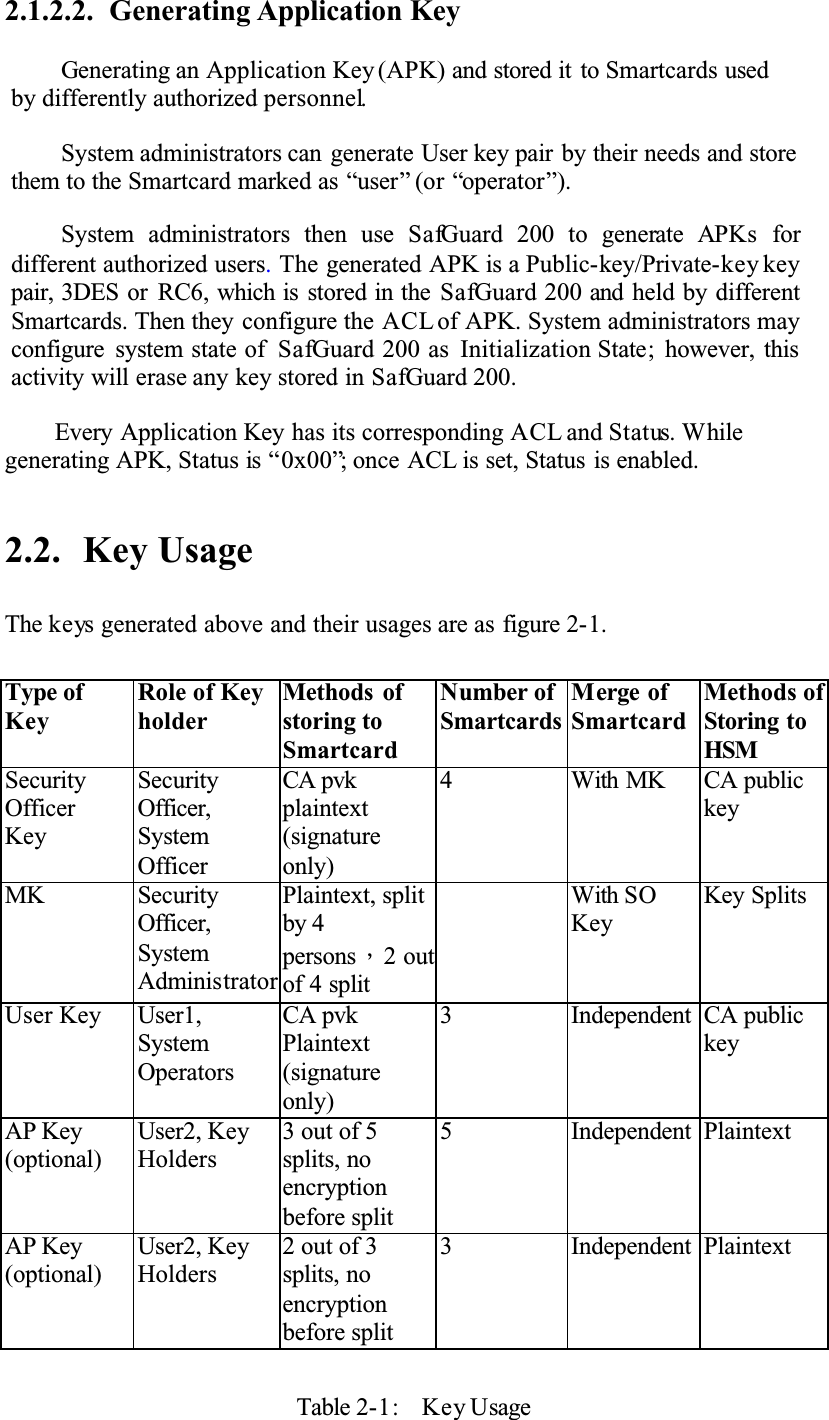
2.1.2.2. Generating Application KeyGenerating an Application Key (APK) and stored it to Smartcards used by differently authorized personnel.System administrators can generate User key pair by their needs and store them to the Smartcard marked as “user” (or “operator”).System administrators then use SafGuard 200 to generate APKs fordifferent authorized users.The generated APK is a Public-key/Private-key key pair, 3DES or  RC6, which is stored in the SafGuard 200 and held by different Smartcards. Then they configure the ACL of APK. System administrators may configure  system state of  SafGuard 200 as  Initialization State; however, this activity will erase any key stored in SafGuard 200. Every Application Key has its corresponding ACL and Status. Whilegenerating APK, Status is “0x00”; once ACL is set, Status is enabled.2.2. Key UsageThe keys generated above and their usages are as figure 2-1.Type of KeyRole of Key holderMethods  ofstoring toSmartcardNumber of SmartcardsMerge of SmartcardMethods of Storing to HSMSecurityOfficerKeySecurityOfficer,SystemOfficerCA pvkplaintext(signatureonly)4 With MK CA public keyMK SecurityOfficer,SystemAdministratorPlaintext, splitby 4personsǴ2 out of 4 splitWith SOKeyKey SplitsUser Key User1,SystemOperatorsCA pvk Plaintext(signatureonly)3 Independent CA public keyAP Key (optional)User2, KeyHolders3 out of 5 splits, no encryptionbefore split5 Independent PlaintextAP Key (optional)User2, KeyHolders2 out of 3 splits, no encryptionbefore split3 Independent PlaintextTable 2-1:  Key Usage
According to the above analysis, one SafGuard 200 needs at most twelve Smartcard holders, at least four holders, three combinations are as follows. (1) 12 persons(2) 9 person (if Security officer and User1 are in the same group)(3) 4 persons (if Security officer and User1, User2 are in  the same group )Two types of Smartcards are as follows.(1) First type is for Security officer and User1.(2) Second type is for User2. Because SafGuard 200 may store more than one key, this type of Smartcard is for saving more memory, and satisfies the  separation principle of  operation Smartcards and backup Smartcards.2.3.Environments for Smartcards ControlCA is under a 12-person control, and RA is suitable for a 9-person or 4-person control. Standard ID-based control is feasible. 3. Instructions for Key Management ProgramThis chapter is for more details about the Authentication State for the hardware SafGuard 200.3.1. Service TypesWhen the system is at the Authentication State, there are three types of Authentication Services, namely, Security Officer Service, User Service and Normal Service.3.1.1 Security Officer ServiceWhen executing the Security Officer Service, security officers need to doSecurity Officer Logon (SOLogon). Two Smartcards, called SO Smartcards, arealso needed in this activity.This will generate a SessionKey, using thisSessionKey for MAC to  ensure that one can execute this service. There is only one SessionKey for Security Officer at a time.
Backup Application keys to SmartcardsRestore application keys from SmartcardsCreate Security OfficersCerate UsersGenerate Application KeysSet AP Key ACL (Access Control Limit)Set Real-time ClockSet network configurationSwitch to Initialization/Maintenance StateErase AP KeyWrite CA Software version- info.3.1.2 User ServiceWhen executing the User Service, a User needs to do User Logon(UserLogon). User Logon  is mainly for AP Keys; the key management programneeds to transfer  APK-keyType and APK-keyID to SafGuard 200. There are at least n different User Smartcards according to the Limit_auth_num “n” in ACL of AP Key.  SafGuard 200 will also compare User ID in the  Smartcard and that in the ACL.Every UserLogon  generates a SessionKey for MAC to ensure whether this service is executable. Every AP Key has only one SessionKey at a time.Use AP Key for cryptographic services3.1.3 Normal ServiceView SafGuard 200 informationChange Smartcard PIN
4. Setting Up the SafGuard200Fig. 4 -1 SafGuard200 setting up screen4.1. Initialization of SafGuard 200Selecting “Initialization” buttons to initialize the SafGuard200
Fig. 4-2 Selecting the button of initialization4.1.1. Setting the identification name of SafGuard200Give an identification name for the safguard200.Fig. 4-3 Setting the identification name4.1.2. Setting up the Real Time Clock of SafGuard200The program will show the time of SafGuard200 “Real Time Clock” on screen Fig. 4-4   The time of SafGuard200
Setting up the SafGuard200 “Real Time Clock”.Fig. 4-5 Setting upSafGuard200 Real Time Clock4.1.3. Configuring SafGuard 200 Network Information(1) The network information of SafGuard200 has default values, please modify the data according to the environment used.Fig. 4-6 Setting up SafGuard200 network information
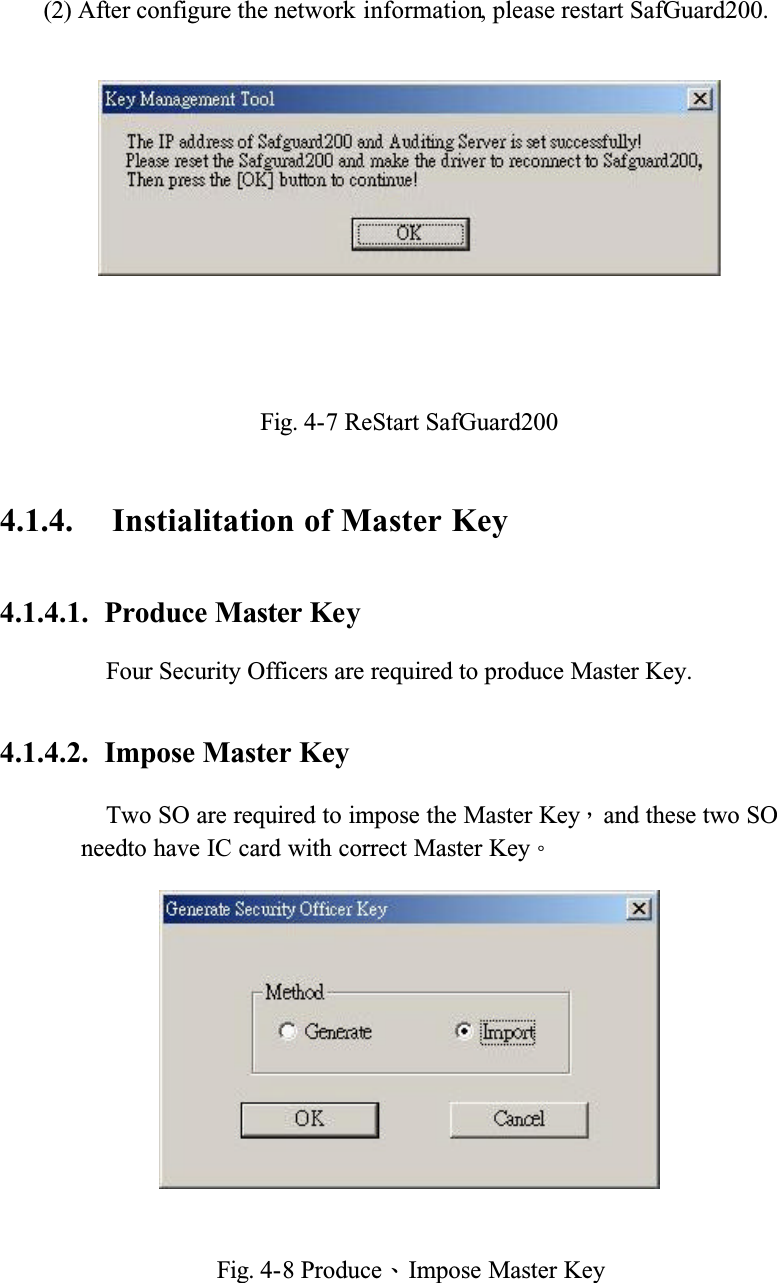
   (2) After configure the network information, please restart SafGuard200.Fig. 4-7 ReStart SafGuard2004.1.4. Instialitation of Master Key4.1.4.1.  Produce Master KeyFour Security Officers are required to produce Master Key.4.1.4.2.  Impose Master KeyTwo SO are required to impose the Master KeyǴand these two SO needto have IC card with correct Master KeyǶFig. 4-8 ProduceǵImpose Master Key
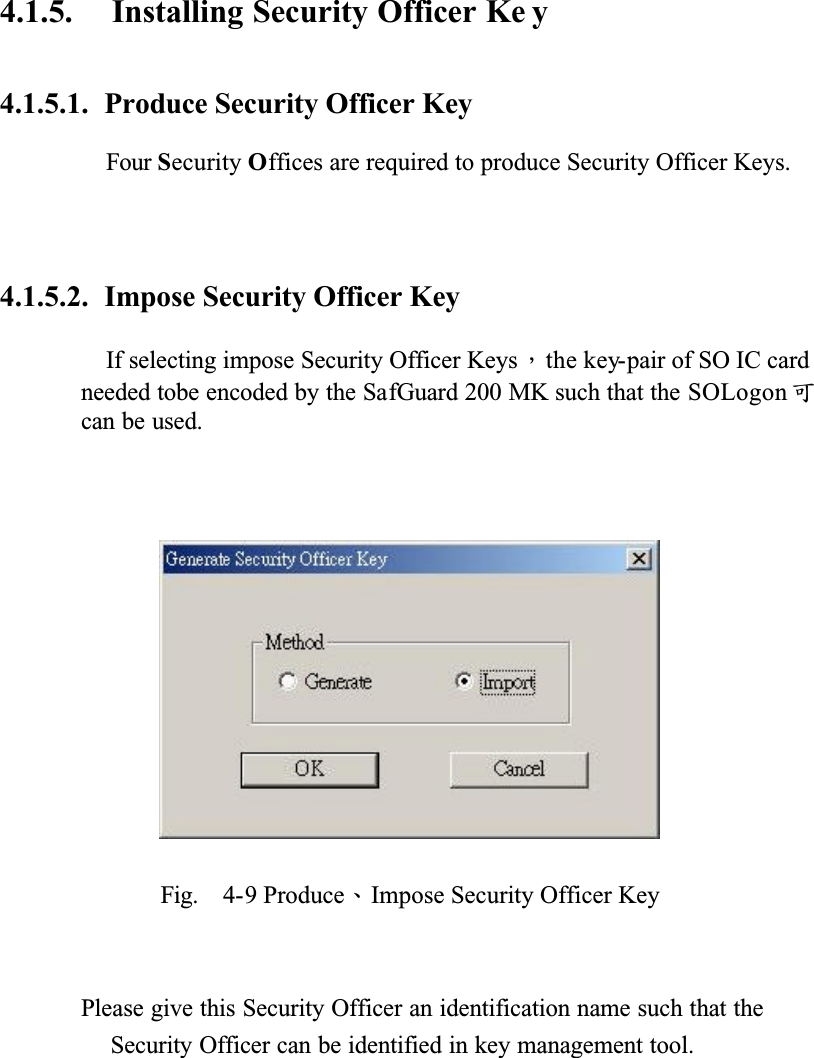
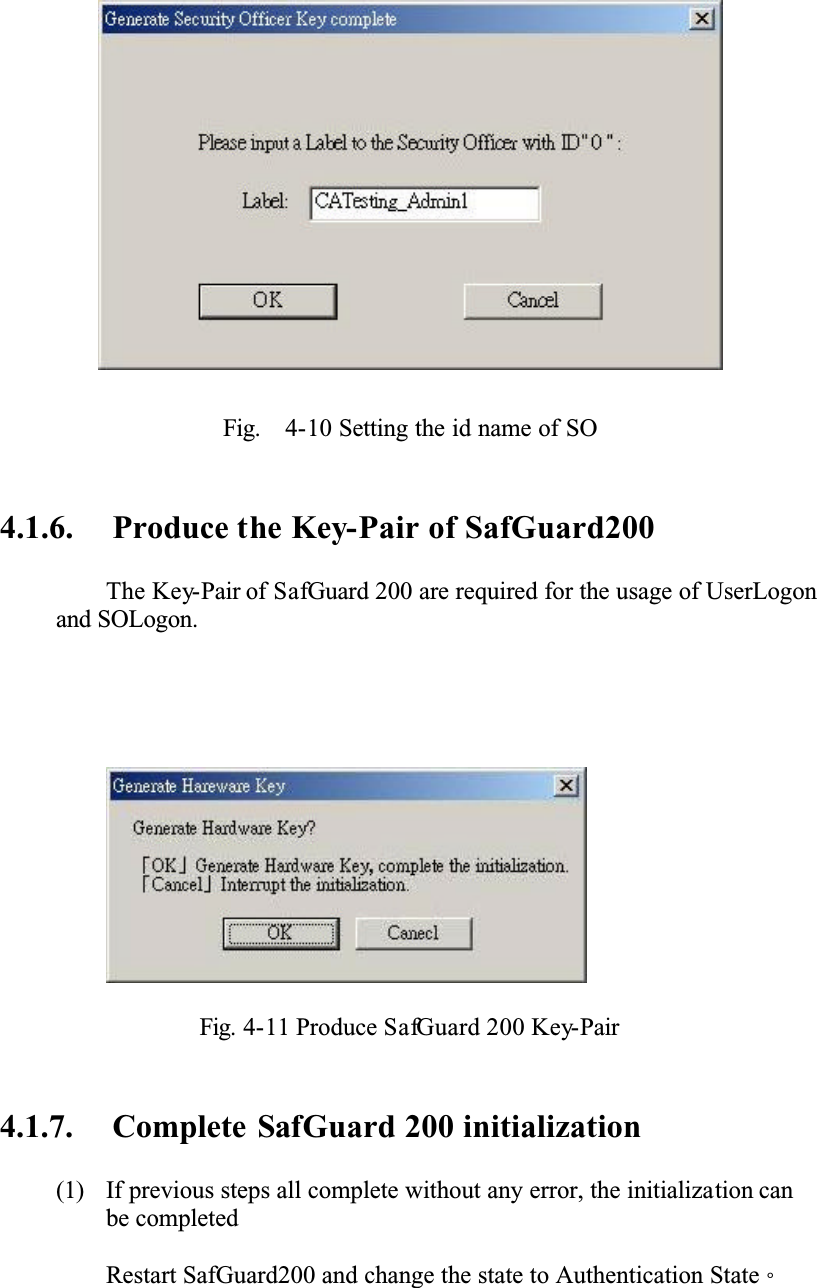
4.1.5. Installing Security Officer Ke y4.1.5.1.  Produce Security Officer KeyFour Security Offices are required to produce Security Officer Keys.4.1.5.2.  Impose Security Officer KeyIf selecting impose Security Officer KeysǴthe key-pair of SO IC card needed tobe encoded by the SafGuard 200 MK such that the SOLogon ёcan be used.Fig.  4-9 ProduceǵImpose Security Officer KeyPlease give this Security Officer an identification name such that the Security Officer can be identified in key management tool.
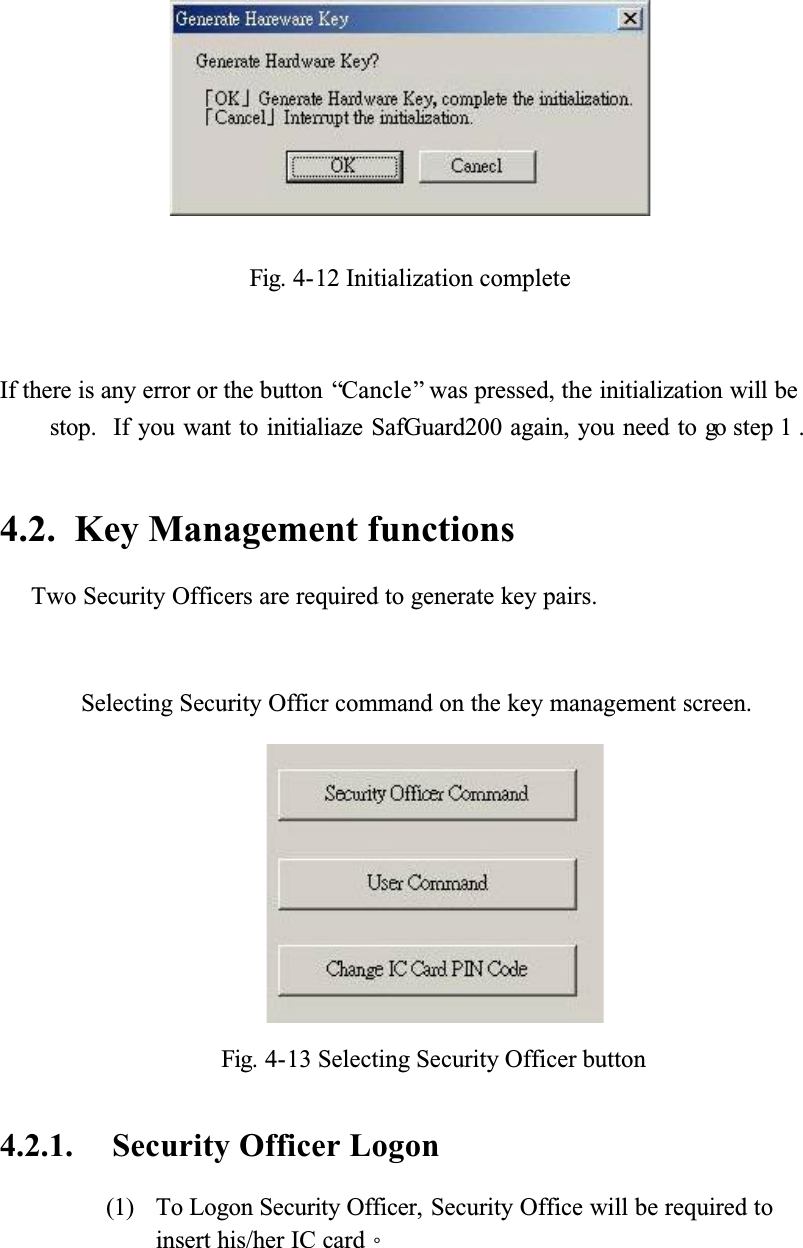
Fig.  4-10 Setting the id name of SO4.1.6. Produce the Key-Pair of SafGuard200The Key-Pair of SafGuard 200 are required for the usage of UserLogon and SOLogon.Fig. 4-11 Produce SafGuard 200 Key-Pair4.1.7. Complete SafGuard 200 initialization (1) If previous steps all complete without any error, the initialization can be completedRestart SafGuard200 and change the state to Authentication StateǶ
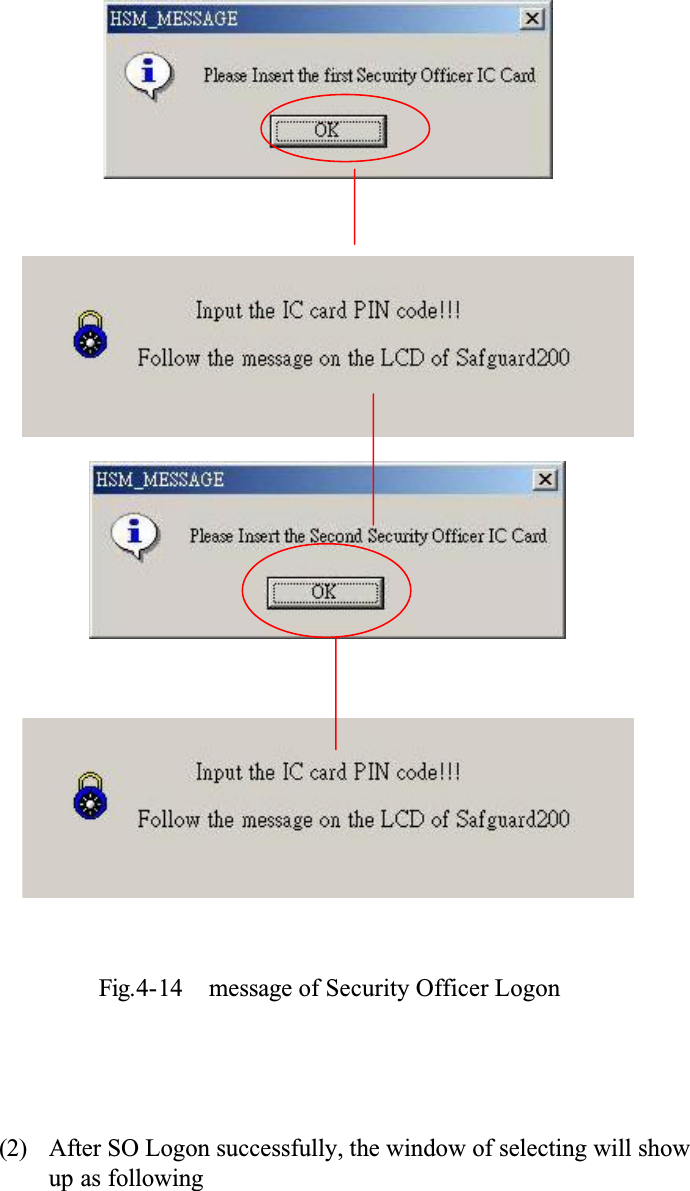
Fig. 4-12 Initialization completeIf there is any error or the button  “Cancle” was pressed, the initialization will be stop.  If you want to initialiaze SafGuard200 again, you need to go step 1 .4.2. Key Management functionsTwo Security Officers are required to generate key pairs.Selecting Security Officr command on the key management screen.Fig. 4-13 Selecting Security Officer button 4.2.1. Security Officer Logon(1) To Logon Security Officer, Security Office will be required to insert his/her IC cardǶ
Fig.4-14  message of Security Officer Logon(2) After SO Logon successfully, the window of selecting will show up as following
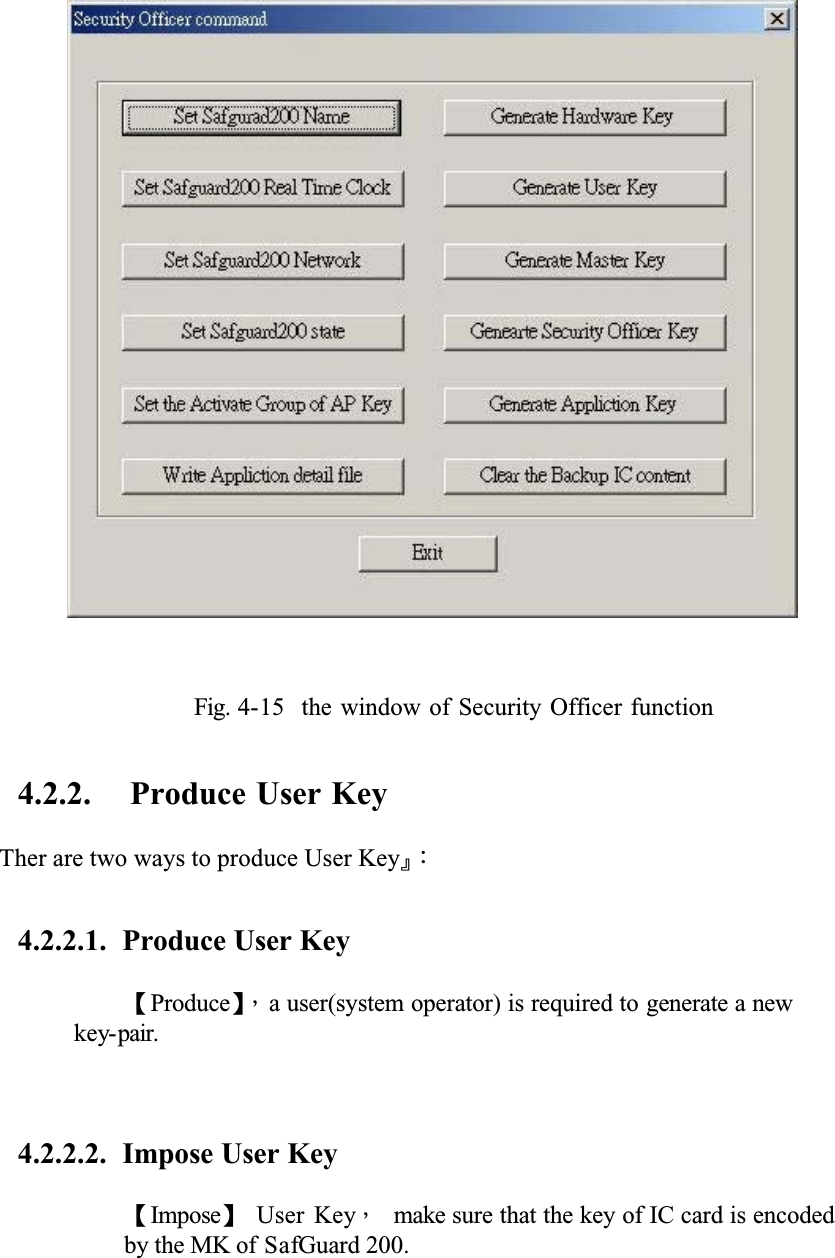
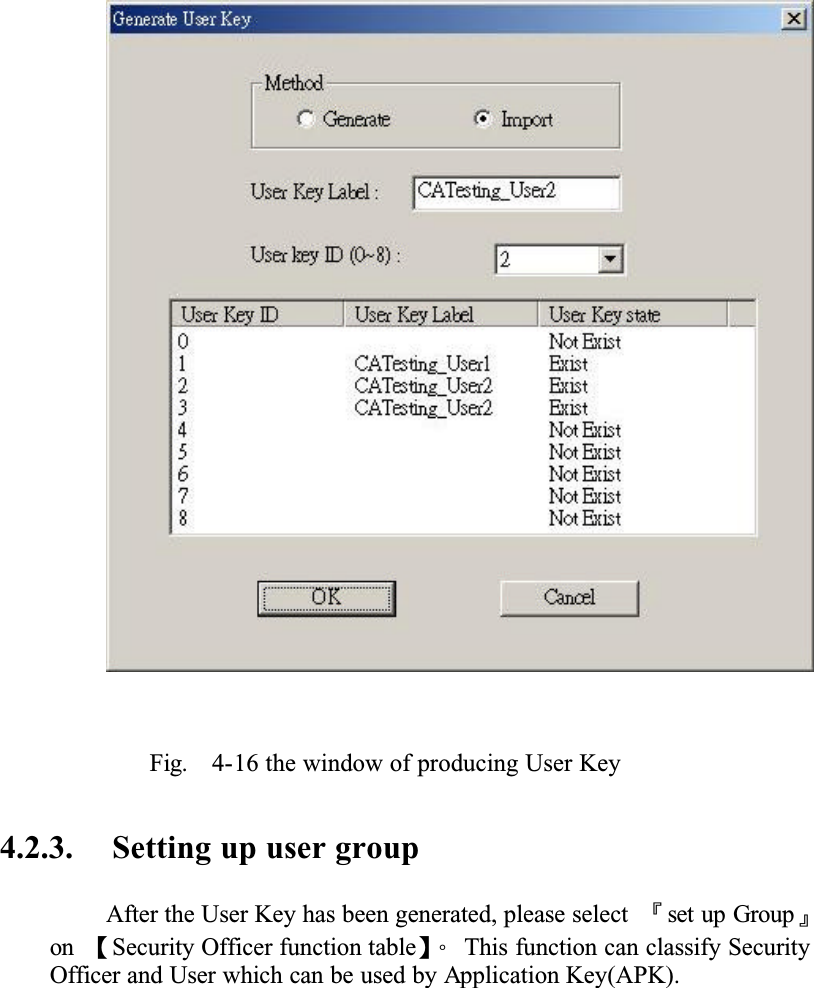
Fig. 4-15  the window of Security Officer function4.2.2. Produce User KeyTher are two ways to produce User KeyȭǺ4.2.2.1.  Produce User KeyȜProduceȝǴa user(system operator) is required to generate a new key-pair.4.2.2.2.  Impose User KeyȜImposeȝ User KeyǴ make sure that the key of IC card is encoded by the MK of SafGuard 200.
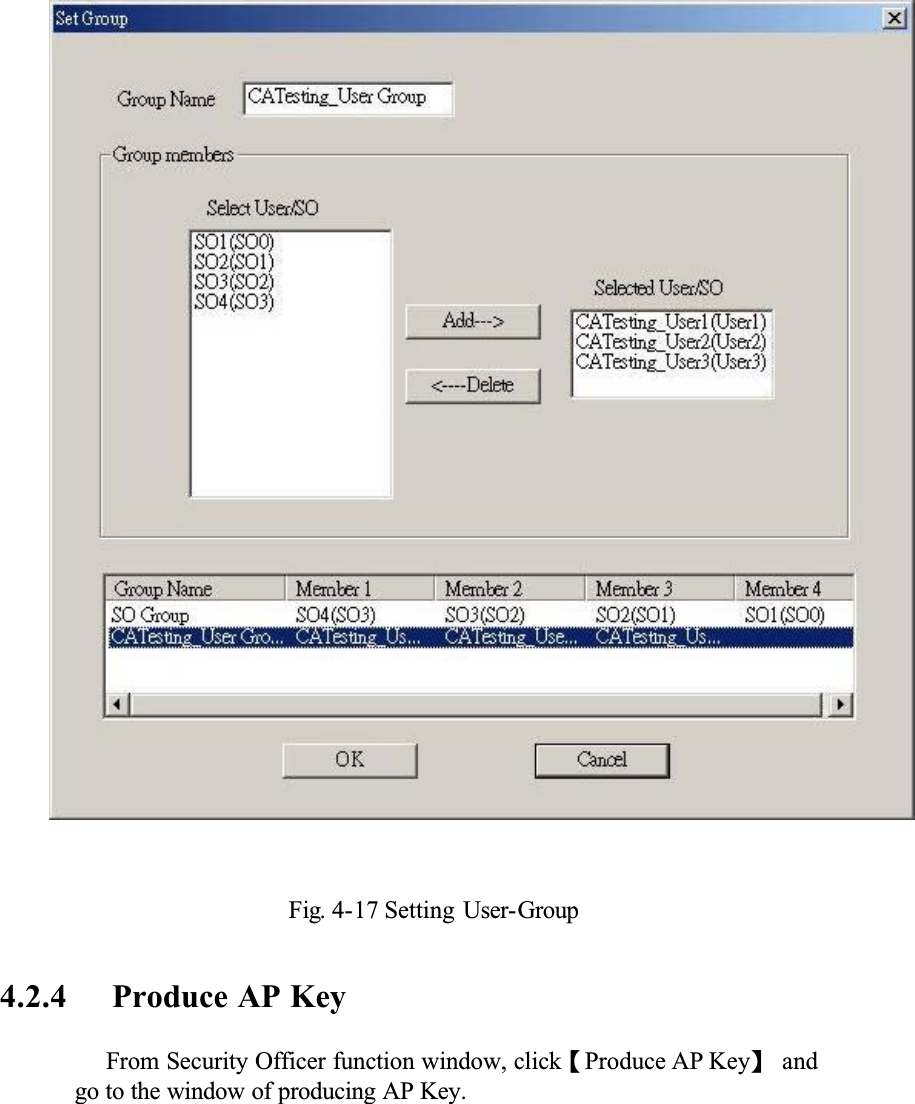
Fig.   4-16 the window of producing User Key4.2.3. Setting up user groupAfter the User Key has been generated, please select  Ȭset up Groupȭon ȜSecurity Officer function tableȝǶ This function can classify Security Officer and User which can be used by Application Key(APK).
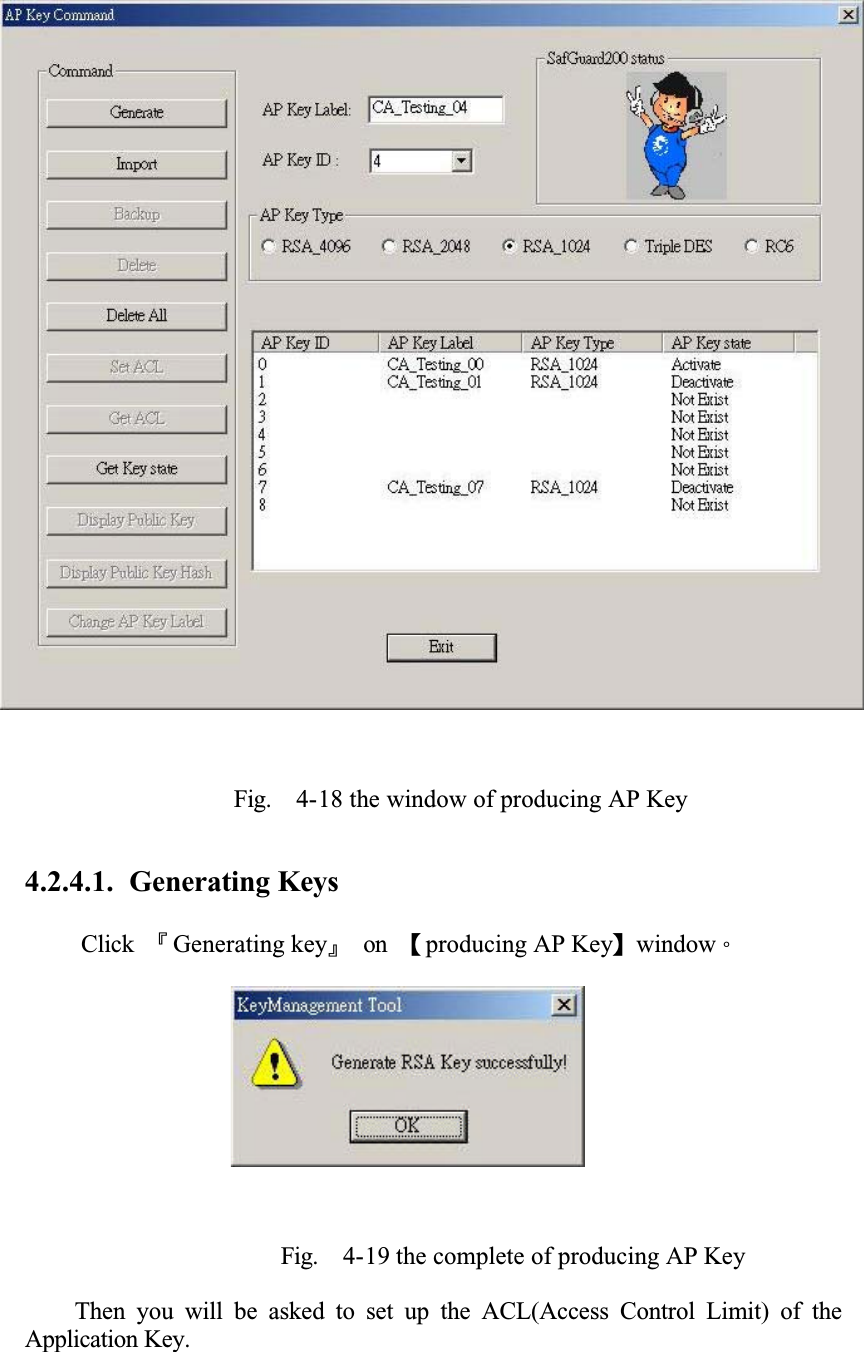
Fig. 4-17 Setting User-Group4.2.4 Produce AP KeyFrom Security Officer function window, clickȜProduce AP Keyȝ and go to the window of producing AP Key.
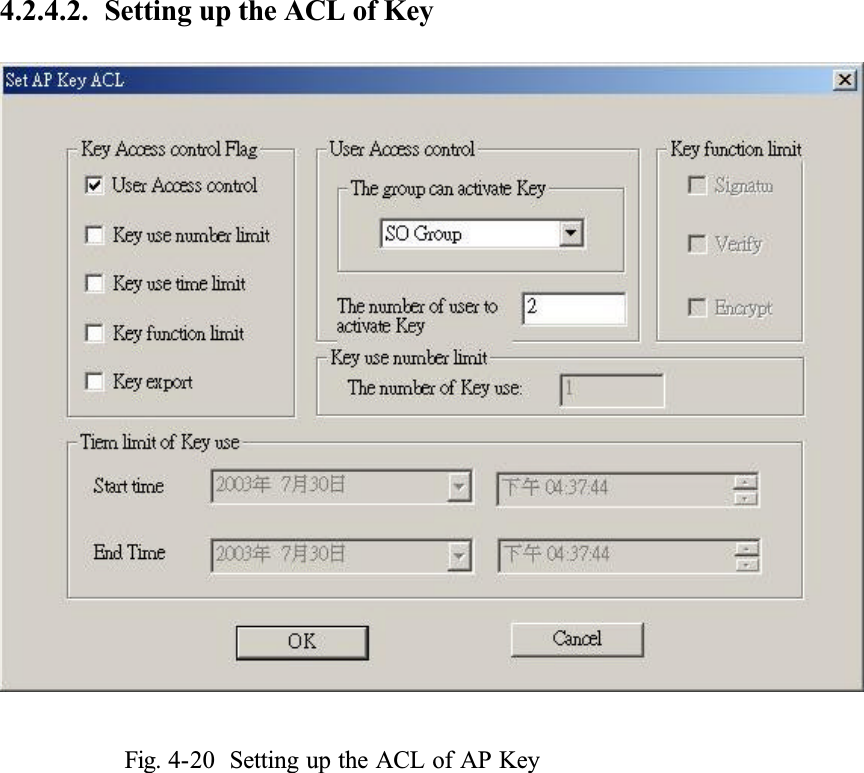
Fig.  4-18 the window of producing AP Key4.2.4.1.  Generating KeysClick ȬGenerating keyȭon Ȝproducing AP KeyȝwindowǶFig.  4-19 the complete of producing AP KeyThen you will be asked to set up the ACL(Access Control Limit) of the Application Key.
4.2.4.2.  Setting up the ACL of KeyFig. 4-20  Setting up the ACL of AP Key
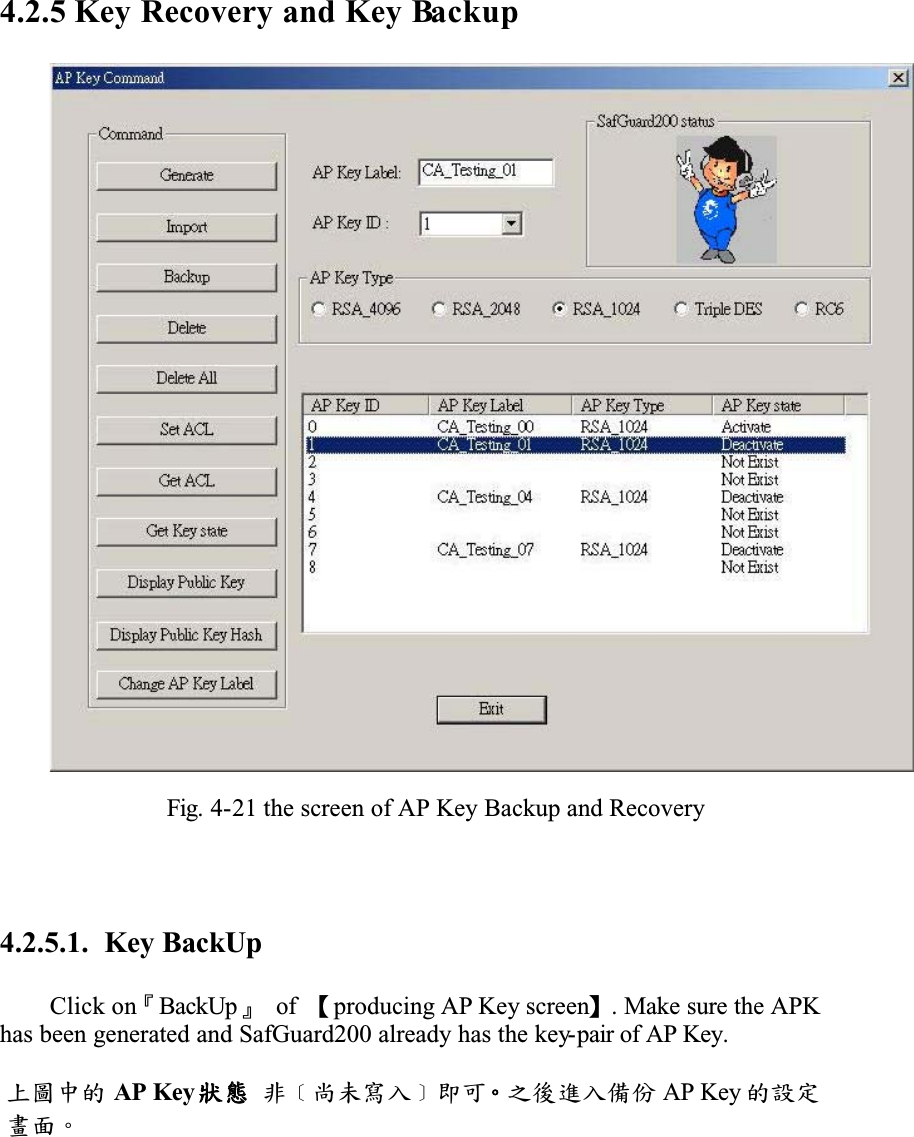
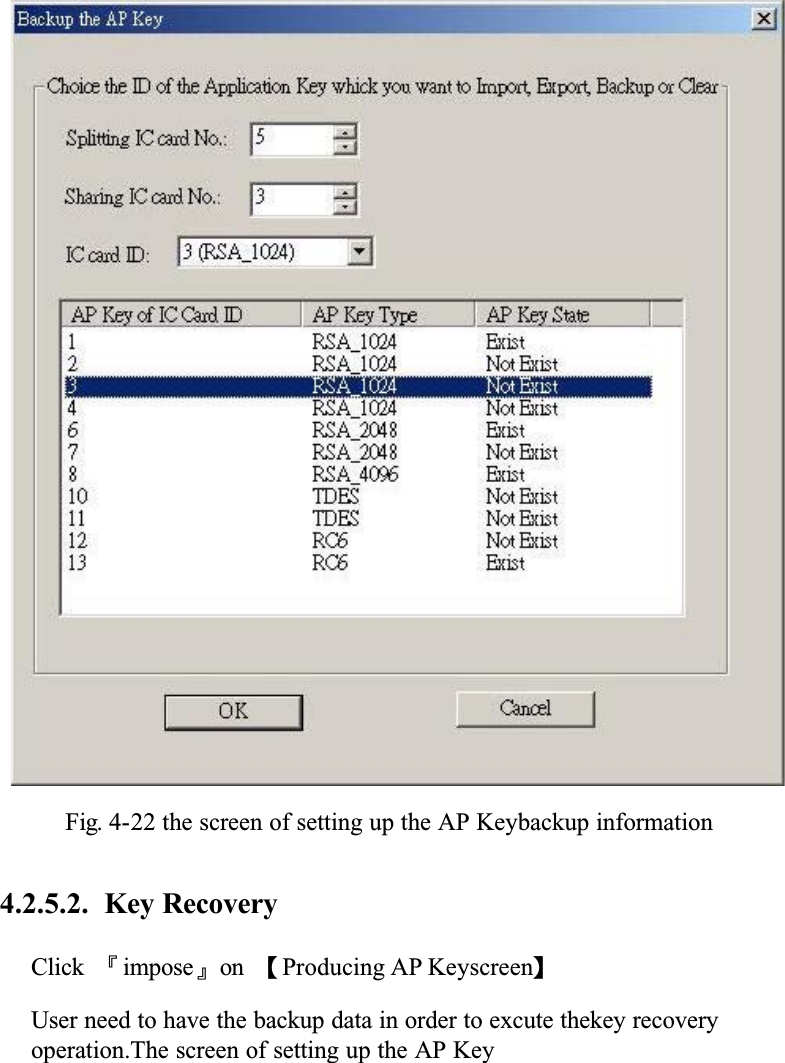
4.2.5 Key Recovery and Key BackupFig. 4-21 the screen of AP Key Backup and Recovery4.2.5.1.  Key BackUpClick onȬBackUpȭ of Ȝproducing AP Key screenȝ. Make sure the APK has been generated and SafGuard200 already has the key-pair of AP Key.΢კύޑ AP Key ߚȴۘ҂ቪΕȵջё ϐࡕ຾Εഢҽ AP Key ޑ೛ۓฝय़Ƕ
Fig. 4-22 the screen of setting up the AP Keybackup information4.2.5.2.  Key RecoveryClick Ȭimposeȭon ȜProducing AP KeyscreenȝUser need to have the backup data in order to excute thekey recovery operation.The screen of setting up the AP Key
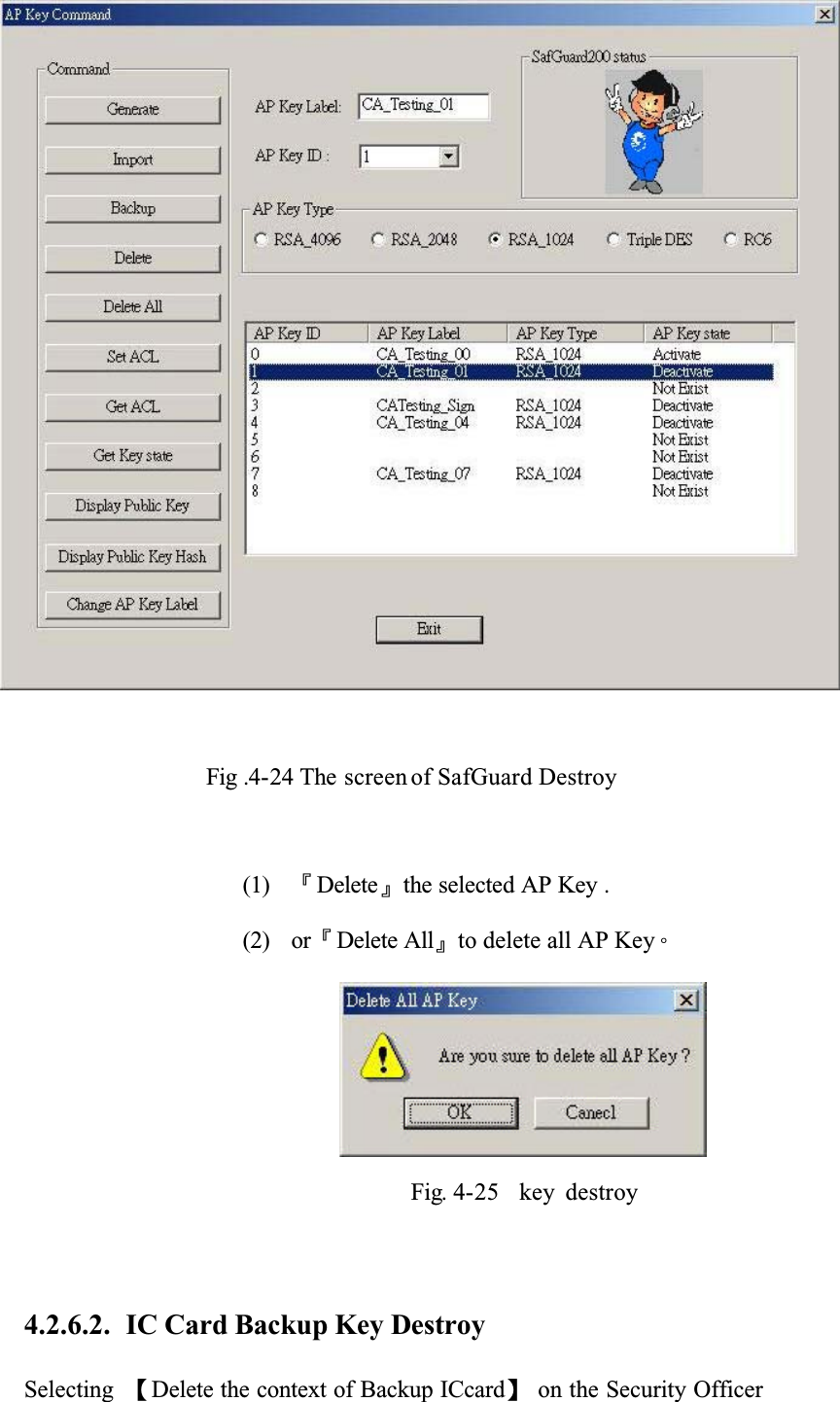
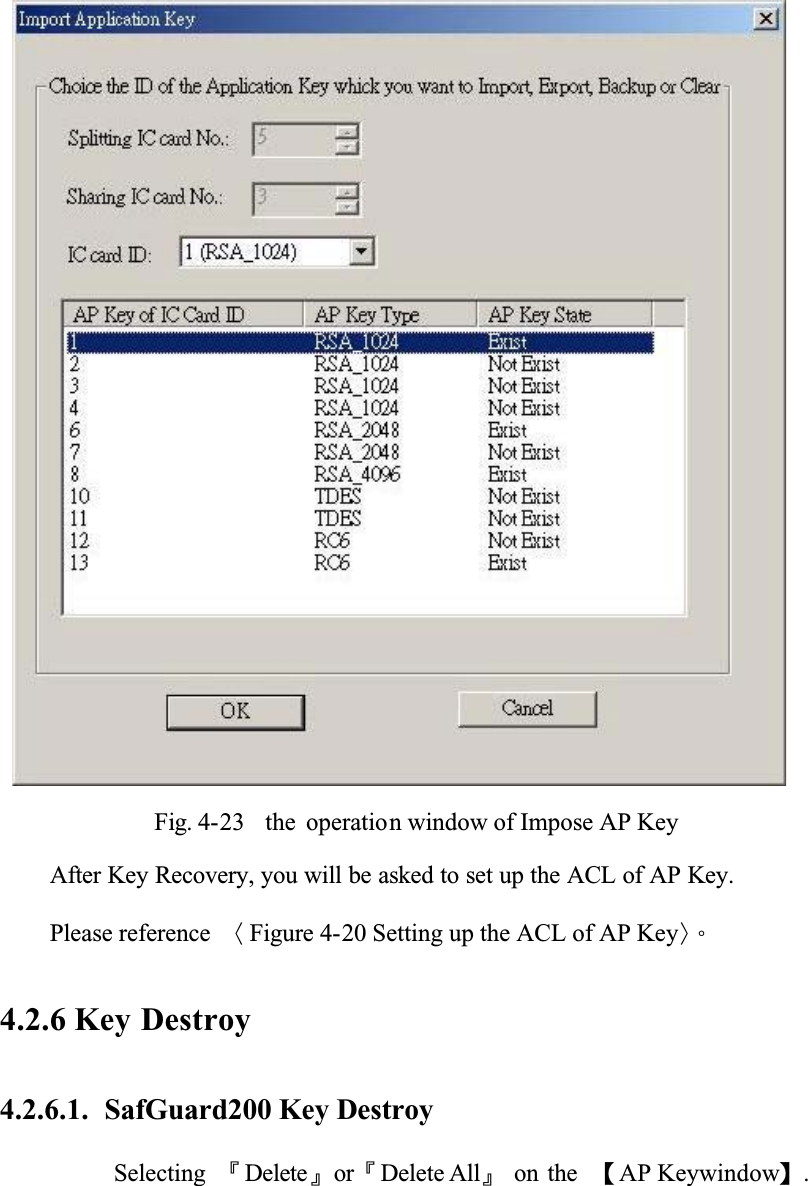
Fig. 4-23    the  operation window of Impose AP KeyAfter Key Recovery, you will be asked to set up the ACL of AP Key. Please reference  ȤFigure 4-20 Setting up the ACL of AP KeyȥǶ4.2.6 Key Destroy4.2.6.1.  SafGuard200 Key DestroySelecting ȬDeleteȭorȬDelete Allȭ on the  ȜAP Keywindowȝ.
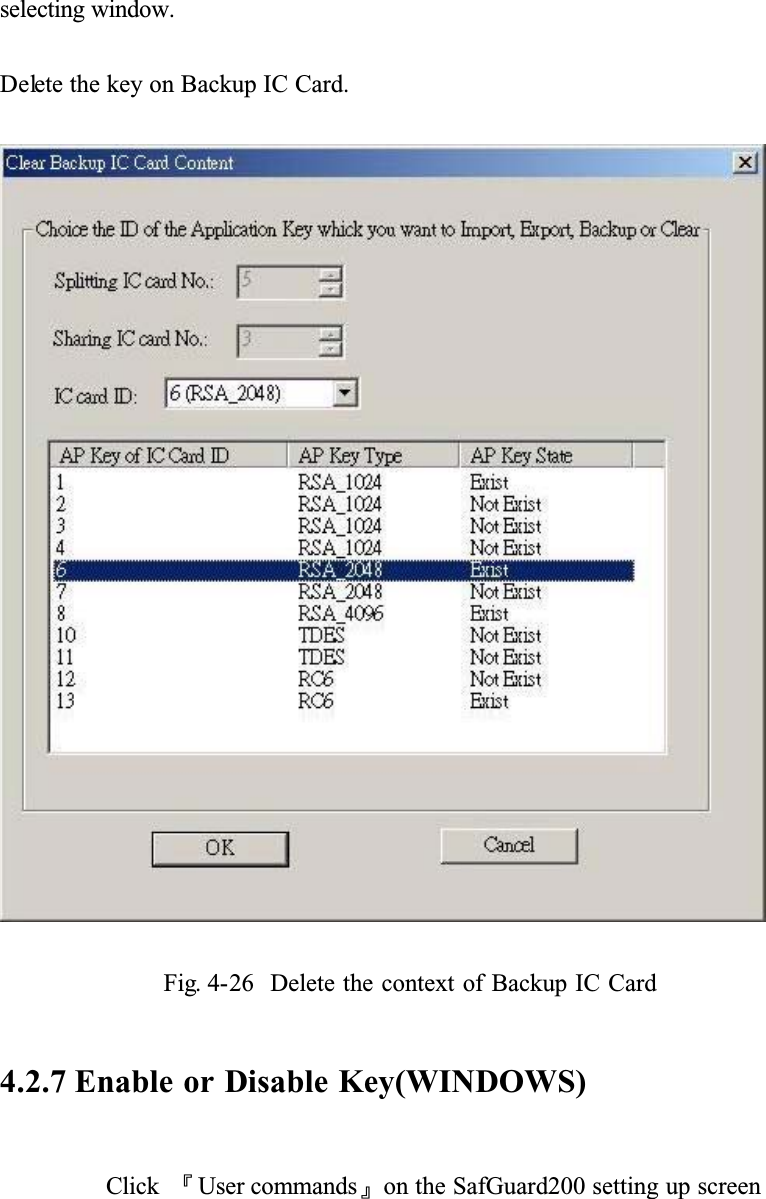
Fig .4-24 The screen of SafGuard Destroy(1) ȬDeleteȭthe selected AP Key .(2) orȬDelete Allȭto delete all AP KeyǶFig. 4-25  key destroy4.2.6.2. IC Card Backup Key DestroySelecting ȜDelete the context of Backup ICcardȝ on the Security Officer
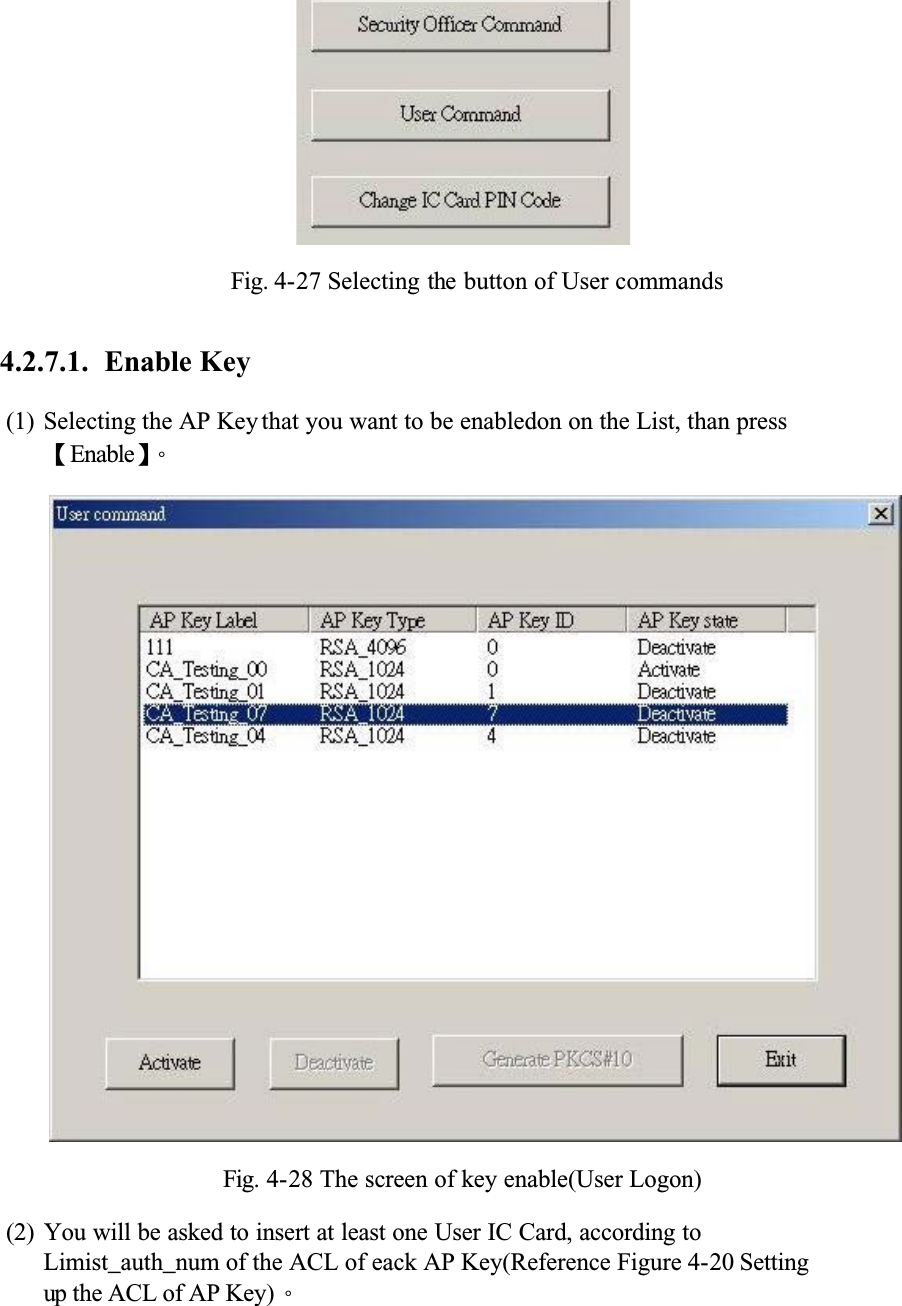
selecting window.Delete the key on Backup IC Card.Fig. 4-26  Delete the context of Backup IC Card4.2.7 Enable or Disable Key(WINDOWS)Click ȬUser commandsȭon the SafGuard200 setting up screen
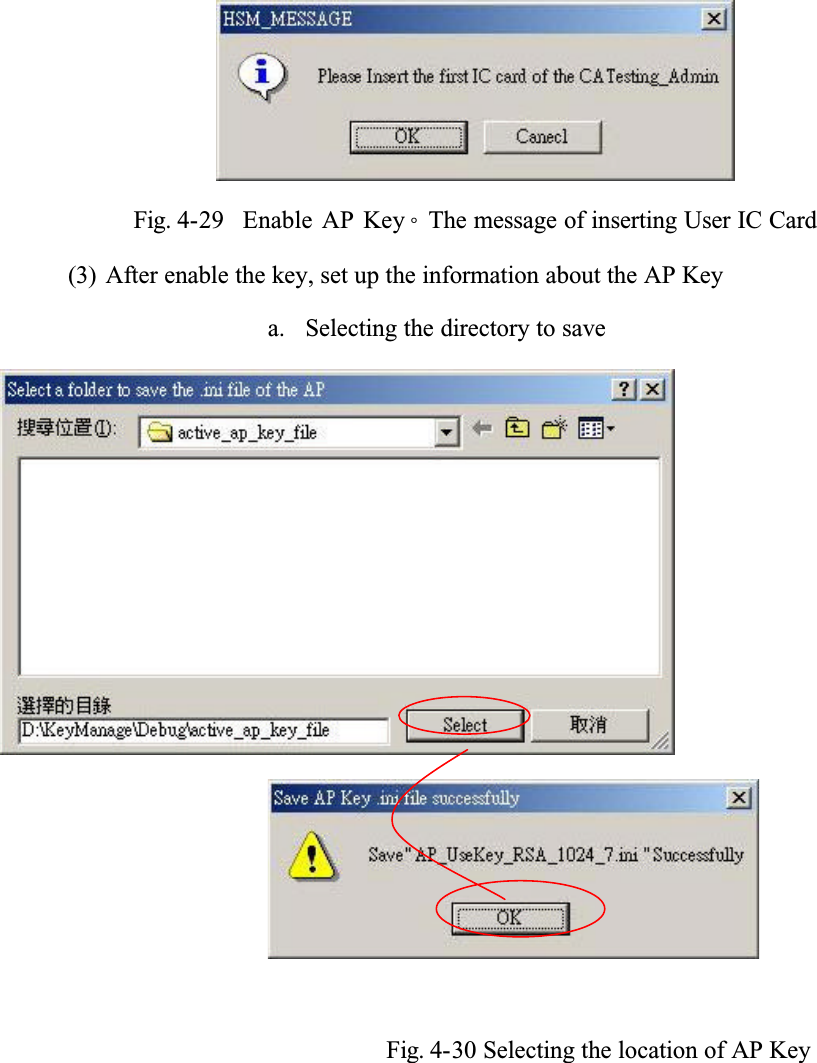
Fig. 4-27 Selecting the button of User commands4.2.7.1.  Enable Key(1) Selecting the AP Key that you want to be enabledon on the List, than press ȜEnableȝǶFig. 4-28 The screen of key enable(User Logon)(2) You will be asked to insert at least one User IC Card, according to Limist_auth_num of the ACL of eack AP Key(Reference Figure 4-20 Setting up the ACL of AP Key)Ƕ
Fig. 4-29  Enable AP KeyǶThe message of inserting User IC Card(3) After enable the key, set up the information about the AP Keya. Selecting the directory to save Fig. 4-30 Selecting the location of AP Key
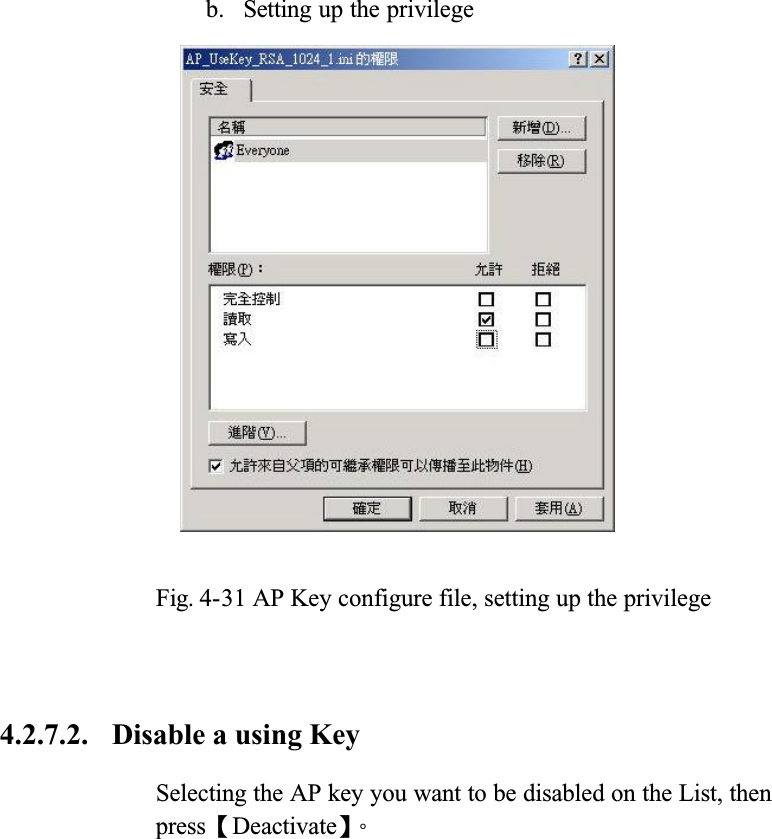
b. Setting up the privilegec.d.Fig. 4-31 AP Key configure file, setting up the privilege4.2.7.2. Disable a using KeySelecting the AP key you want to be disabled on the List, then pressȜDeactivateȝǶ

Navigation menu