Telecommunication Laboratories Chunghwa Telecom CHTS200202 HARDWARE SECURE MODULE User Manual SafGuard200 user guide for FCC

Telecommunication Laboratories , Chunghwa Telecom Co., Ltd HARDWARE SECURE MODULE SafGuard200 user guide for FCC

Contents

USERS MANUAL 2

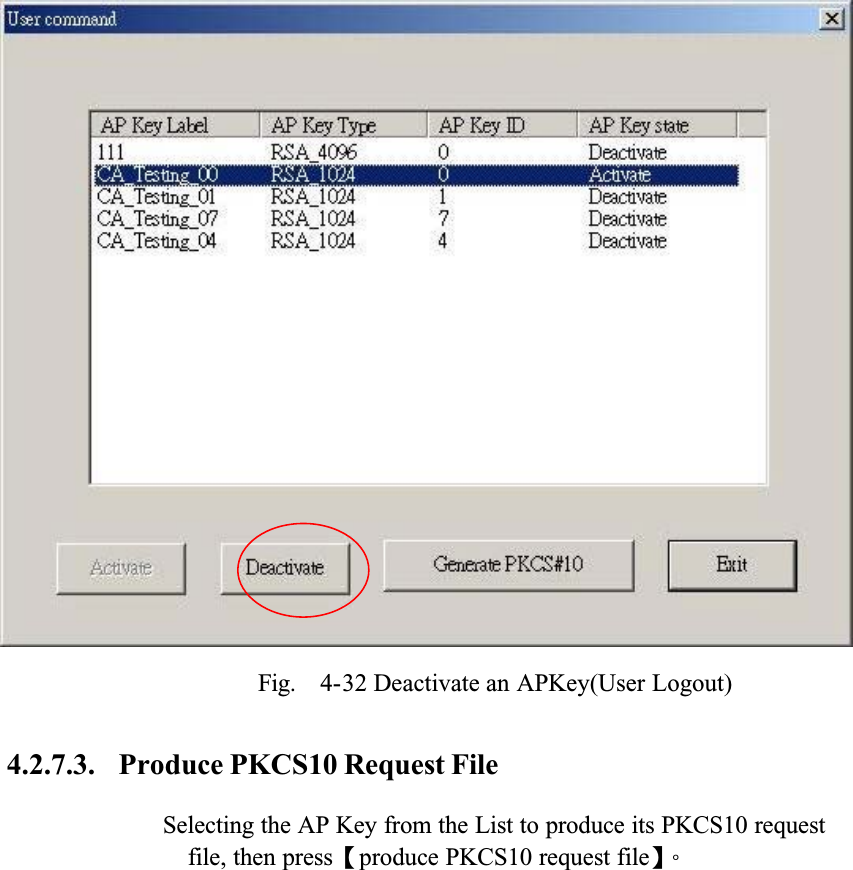
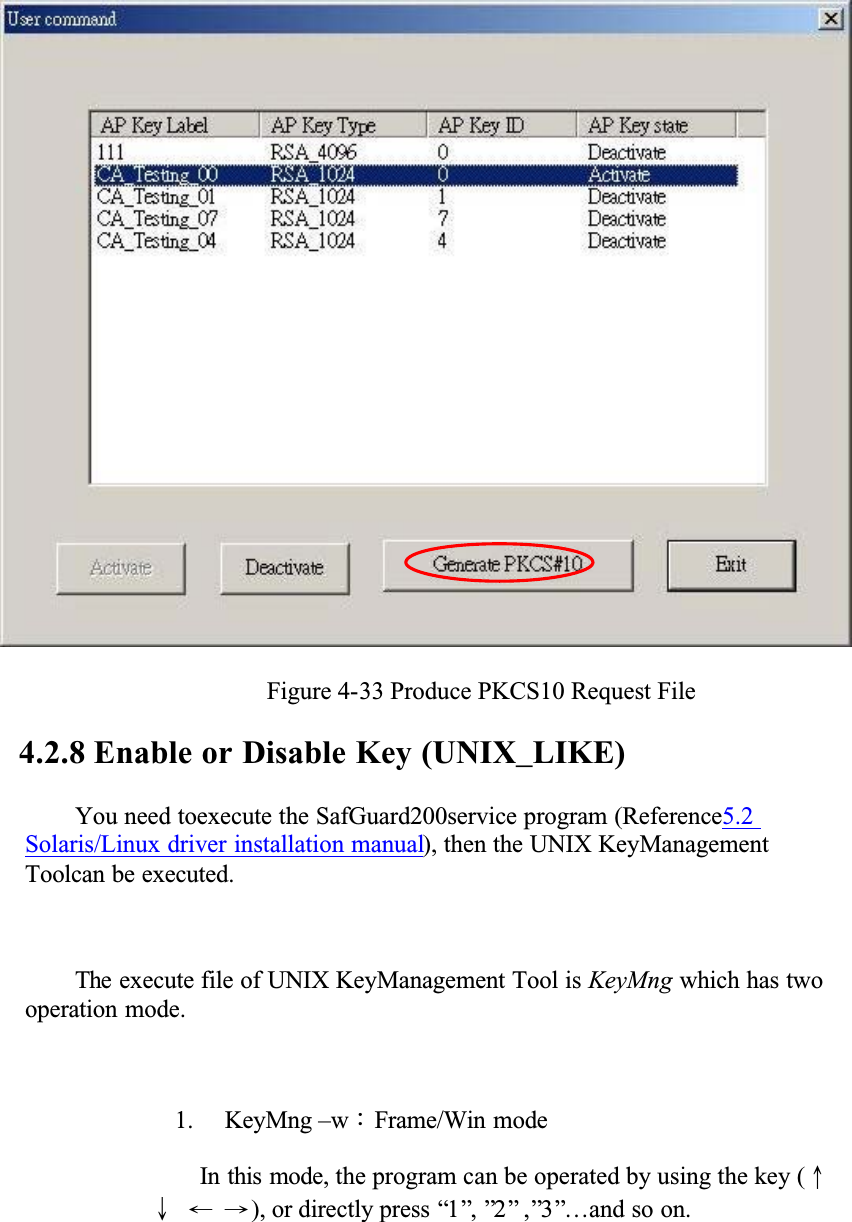
Fig.  4-32 Deactivate an APKey(User Logout)4.2.7.3. Produce PKCS10 Request FileSelecting the AP Key from the List to produce its PKCS10 request file, then pressȜproduce PKCS10 request fileȝǶ
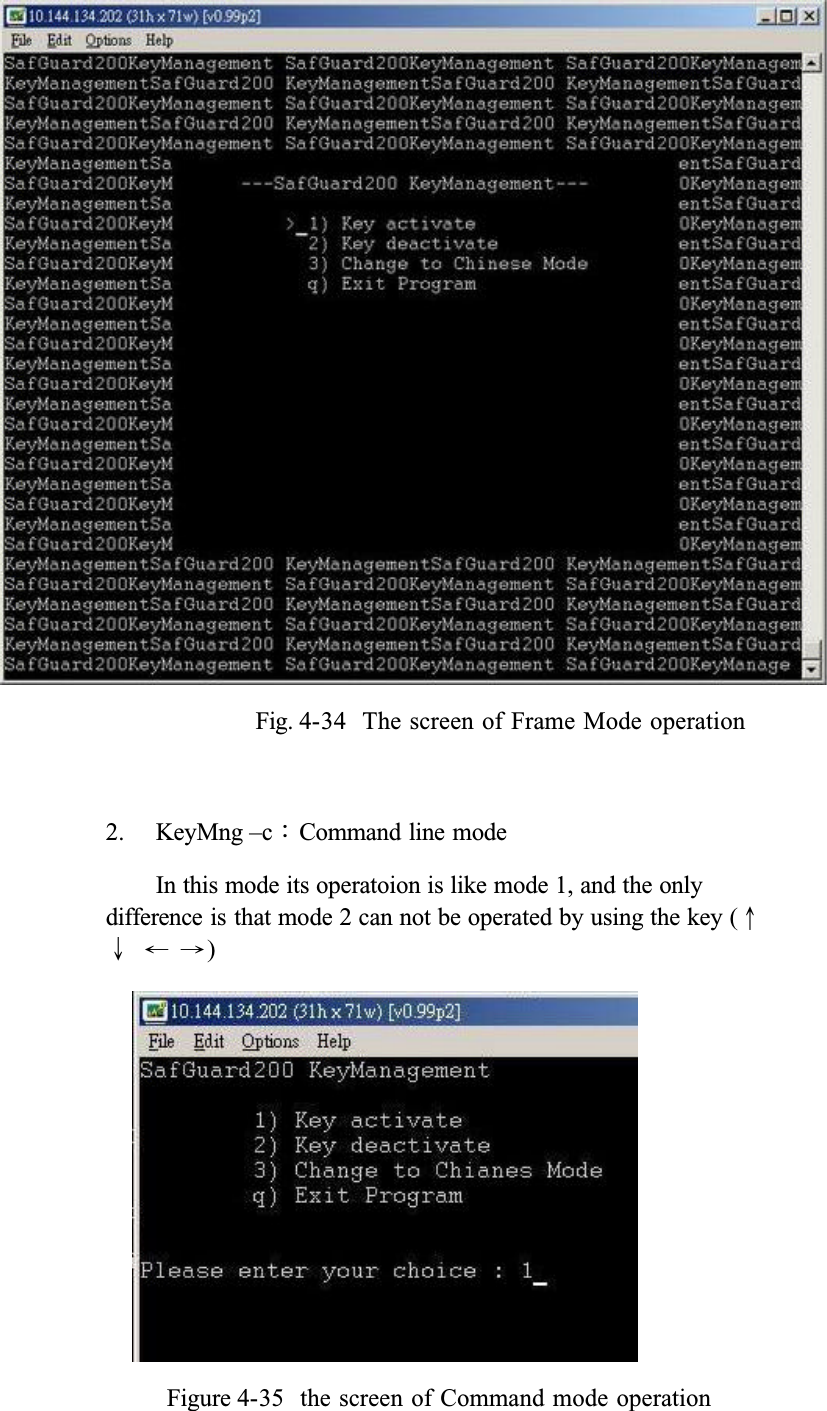
Figure 4-33 Produce PKCS10 Request File4.2.8 Enable or Disable Key (UNIX_LIKE)You need toexecute the SafGuard200service program (Reference5.2Solaris/Linux driver installation manual), then the UNIX KeyManagement Toolcan be executed.The execute file of UNIX KeyManagement Tool is KeyMng which has two operation mode.1. KeyMng –wǺFrame/Win modeIn this mode, the program can be operated by using the key (ʅʆʇʈ), or directly press “1”, ”2” ,”3”…and so on.
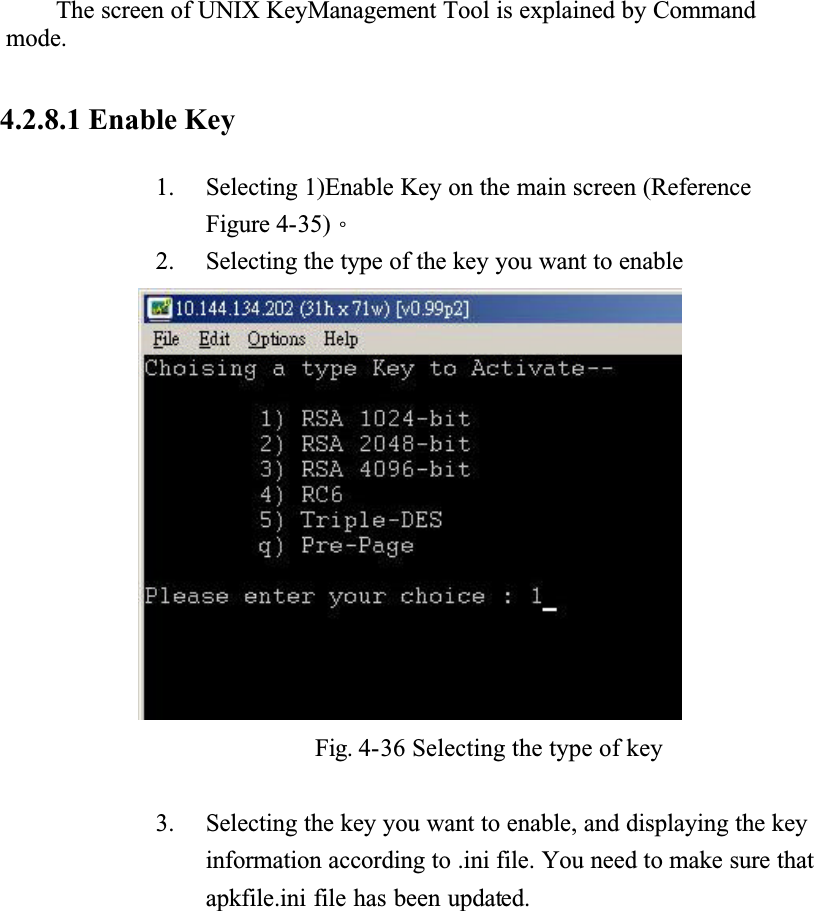
Fig. 4-34  The screen of Frame Mode operation2. KeyMng –cǺCommand line modeIn this mode its operatoion is like mode 1, and the only difference is that mode 2 can not be operated by using the key (ʅʆʇʈ)Figure 4-35  the screen of Command mode operation
The screen of UNIX KeyManagement Tool is explained by Command mode.4.2.8.1 Enable Key1. Selecting 1)Enable Key on the main screen (Reference Figure 4-35)Ƕ2. Selecting the type of the key you want to enableFig. 4-36 Selecting the type of key3. Selecting the key you want to enable, and displaying the key information according to .ini file. You need to make sure that apkfile.ini file has been updated.
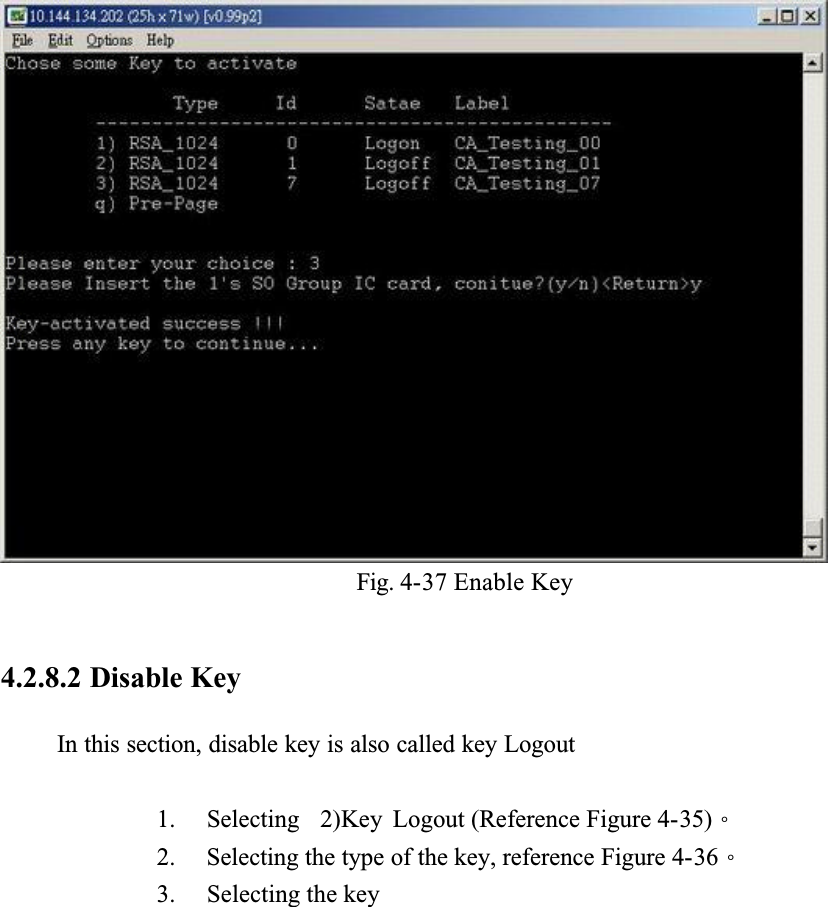
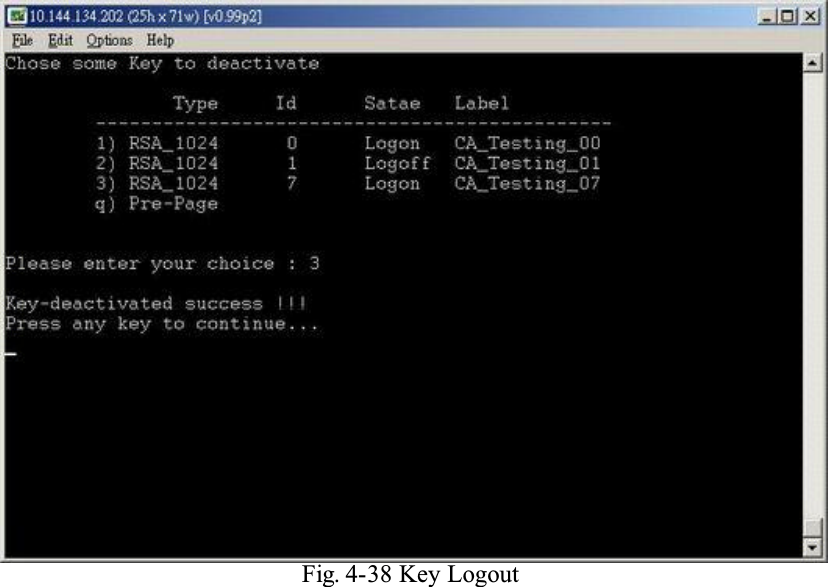
Fig. 4-37 Enable Key4.2.8.2 Disable KeyIn this section, disable key is also called key Logout1. Selecting  2)Key Logout (Reference Figure 4-35)Ƕ2. Selecting the type of the key, reference Figure 4-36Ƕ3. Selecting the key
Fig. 4-38 Key Logout
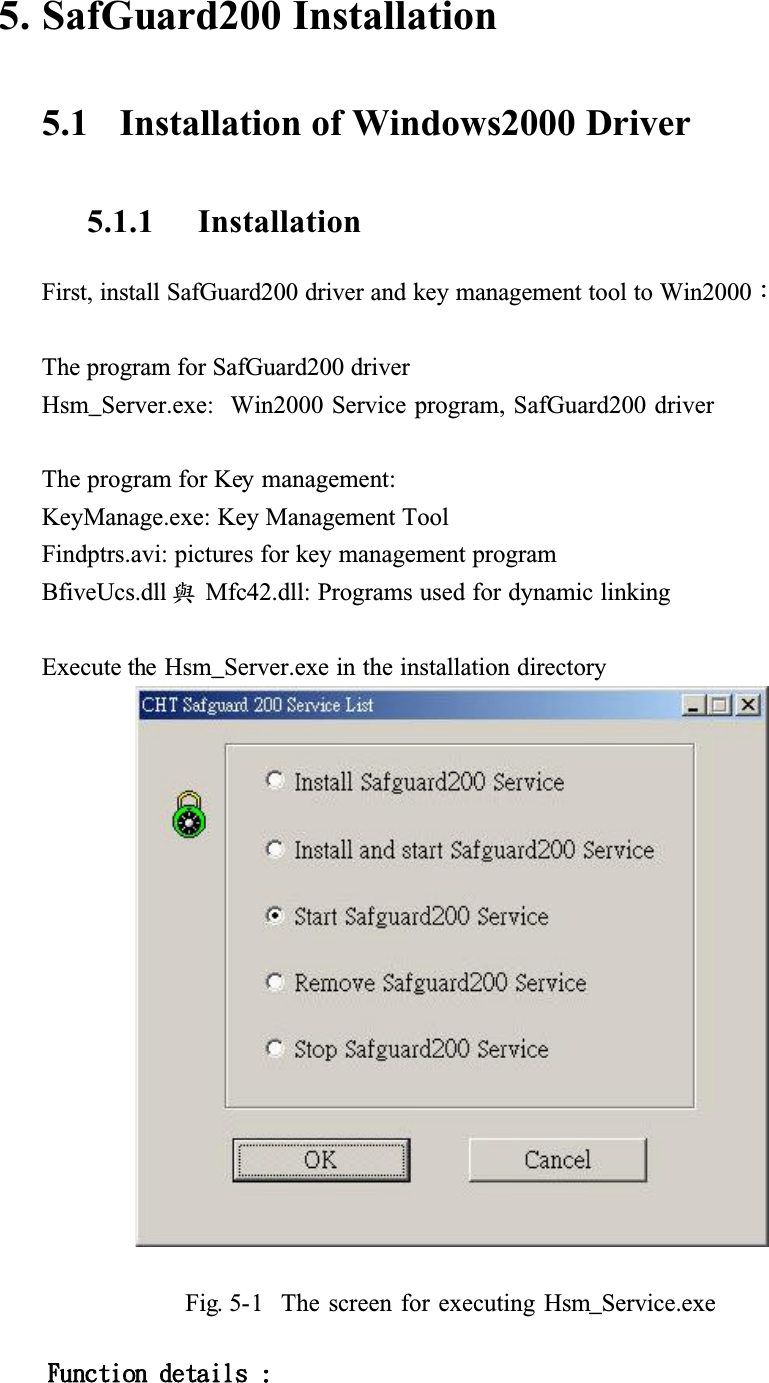
5. SafGuard200 Installation5.1   Installation of Windows2000 Driver5.1.1 InstallationFirst, install SafGuard200 driver and key management tool to Win2000ǺThe program for SafGuard200 driver Hsm_Server.exe:  Win2000 Service program, SafGuard200 driverThe program for Key management:KeyManage.exe: Key Management ToolFindptrs.avi: pictures for key management programBfiveUcs.dll ᆶMfc42.dll: Programs used for dynamic linkingExecute the Hsm_Server.exe in the installation directoryFig. 5-1  The screen for executing Hsm_Service.exe
Jotubmmjoh!tfswjdf!qsphsbn!!Ǻ!jotubmmjoh!TbgHvbse311!tfswjdf!qsphsbnt!!Jotubmmjoh!boe!fobcmf!tfswjdf!qsphsbnǺ!!Jotubmmjoh!tfswjdf!qsphsbn!jo!uif!tztufn!boe!fyfdvuf!uif!tfswjdf!qsphsbn/!Fobcmf!TbgHvbse311!tfswjdf!qsphsbn!Ǻ!!Fyfdvuf!tfswjdf!qsphsbn!Sfnpwf!Tfswjdf!qsphsbn!!!!!!!Ǻ!!Sfnpwf!uif!tfswjdf!qsphsbn!gspn!uif!tztufn/!Shut down service program ǺShut down the service program!After executing Hsm_Server.exe, click [Installing SafGuard200 service program] or [Installing and enable SafGuard200 service program], then press ok button, as shown in the following Figure. If you click[Installing and enableSafeGuard200 service program], the service program will be executed after installion.Fig. 5-2 The screen of installing service program
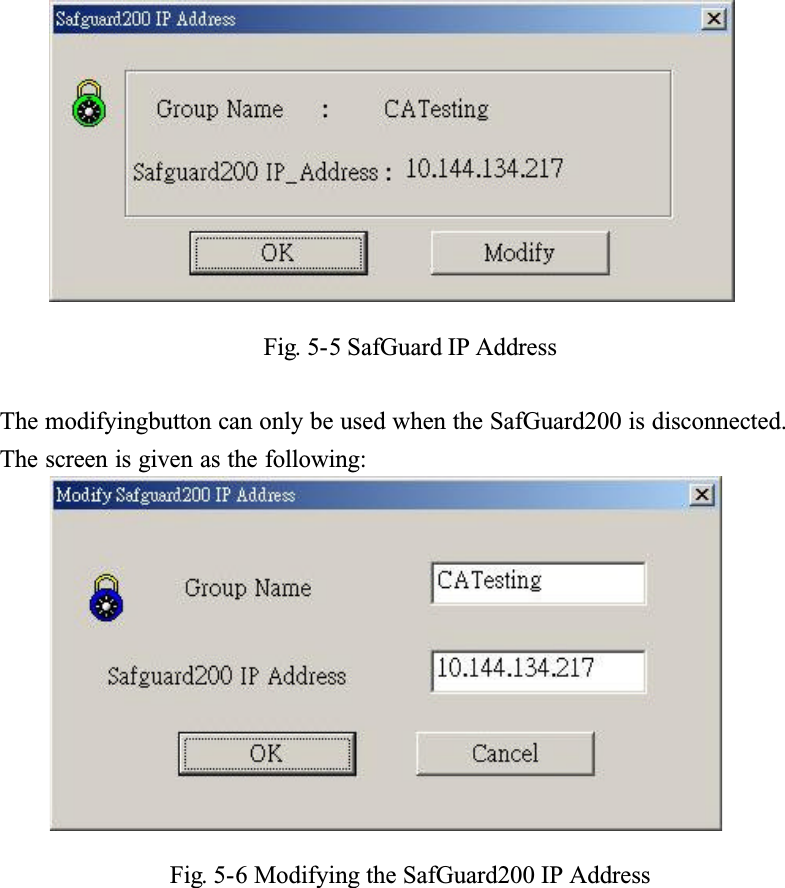
5.1.2 Enable Service ProgramAfter installition, click [EnableSafGuard200 service program] , then click ok button, the service program can be enabled.Gjh/6.4!Uif!tdsffo!pg!fobcmf!uif!tfswjdf!qsphsbnAfter completing all previous tasks, you can find the icon of running HSM_Server at right bottom corner of Win2000.  If the color of this icon is green, like , it means that the SafGuard200 has been connected, otherwise the color of the icon will be red like  . At this point, you can press right button of the mouse to quit HSM_Server. Its function as shown in the followingFig. 5-4 The Screen fo enabling HSM_ServerFunction details:SafGuard IP Address : Displaying theGroup name and IP address of SafGuard200 as shown in the followingǺ
Fig. 5-5 SafGuard IP AddressThe modifyingbutton can only be used when the SafGuard200 is disconnected. The screen is given as the following:Fig. 5-6 Modifying the SafGuard200 IP Address
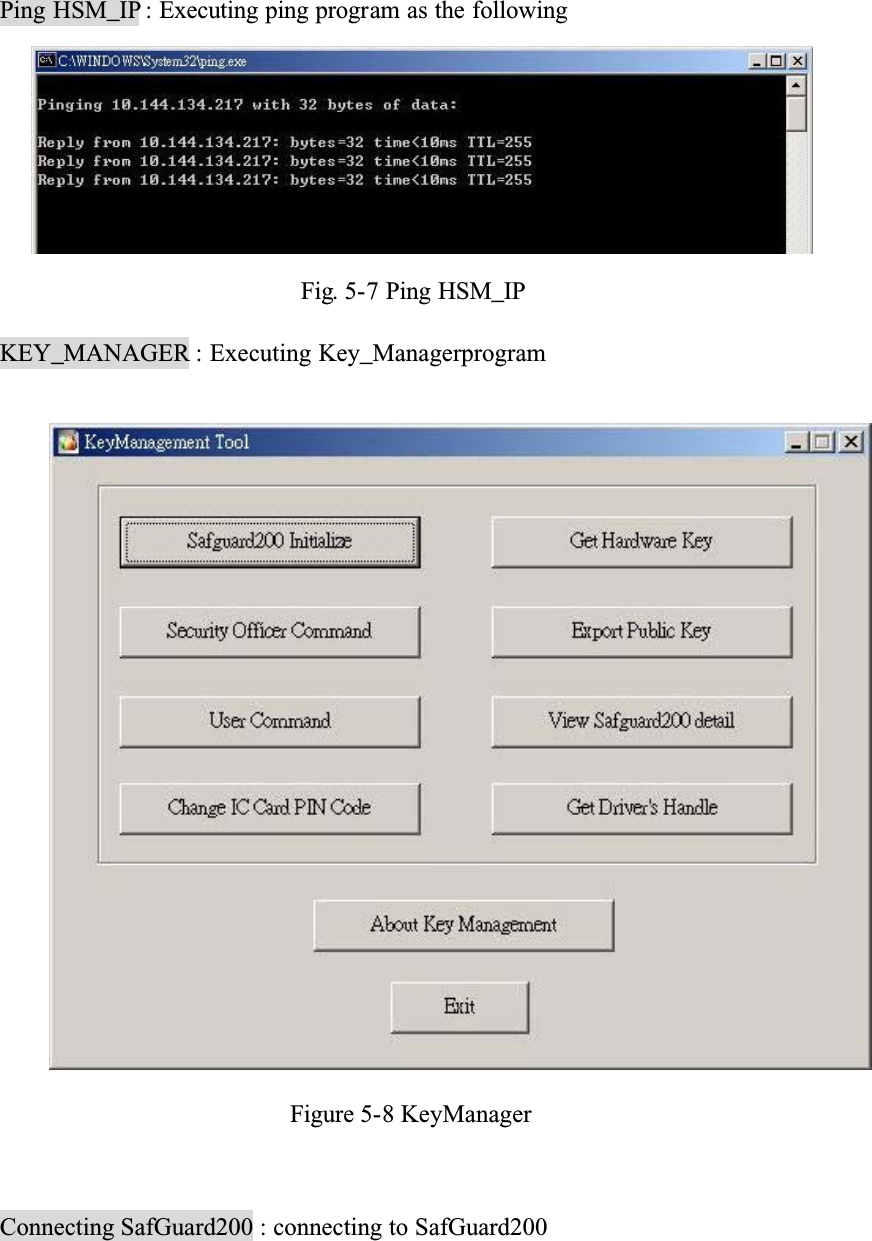
Ping HSM_IP : Executing ping program as the followingFig. 5-7 Ping HSM_IPKEY_MANAGER : Executing Key_ManagerprogramFigure 5-8 KeyManagerConnecting SafGuard200 : connecting to SafGuard200
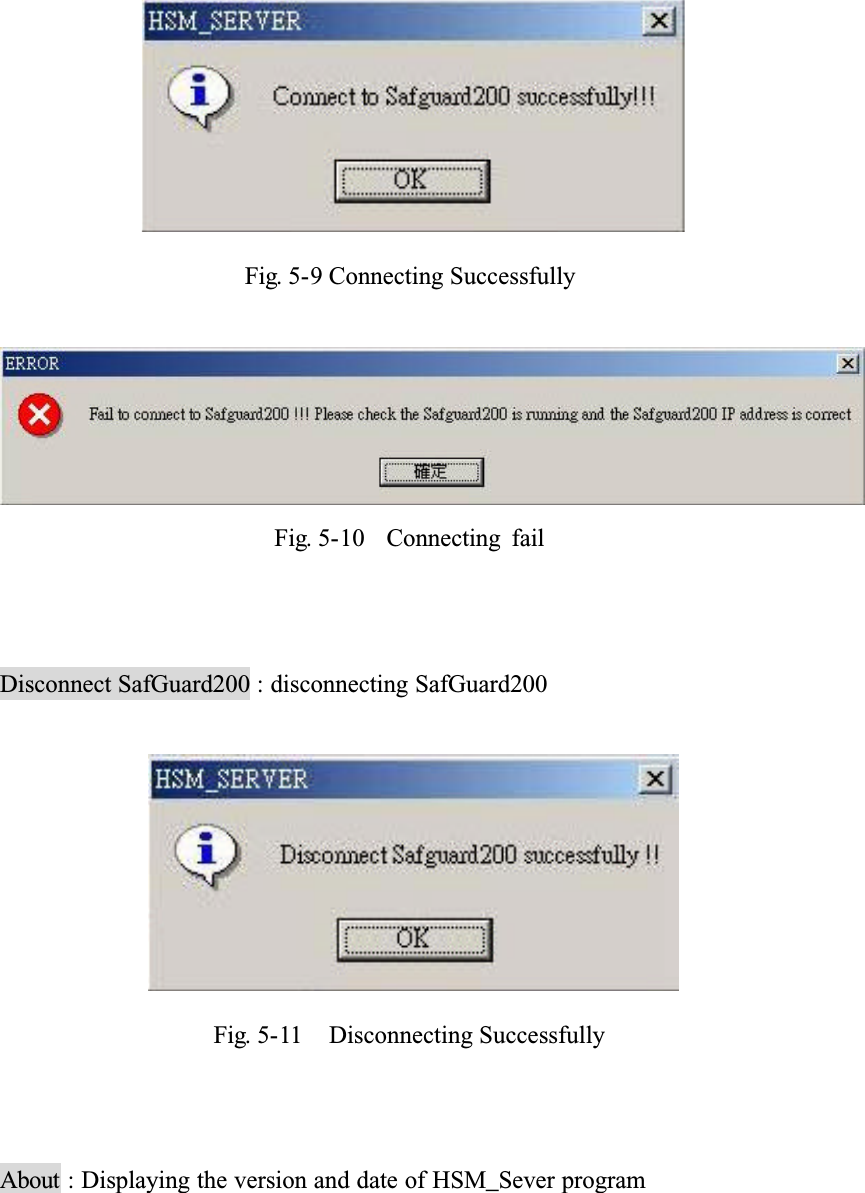
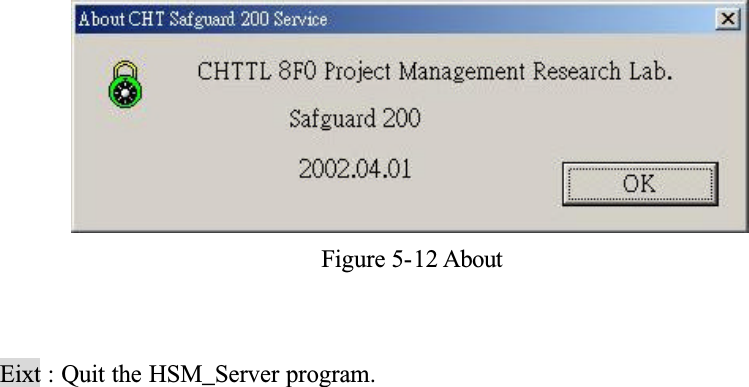
Fig. 5-9 Connecting SuccessfullyFig. 5-10  Connecting failDisconnect SafGuard200 : disconnecting SafGuard200Fig. 5-11    Disconnecting SuccessfullyAbout : Displaying the version and date of HSM_Sever program
Figure 5-12 AboutEixt : Quit the HSM_Server program.
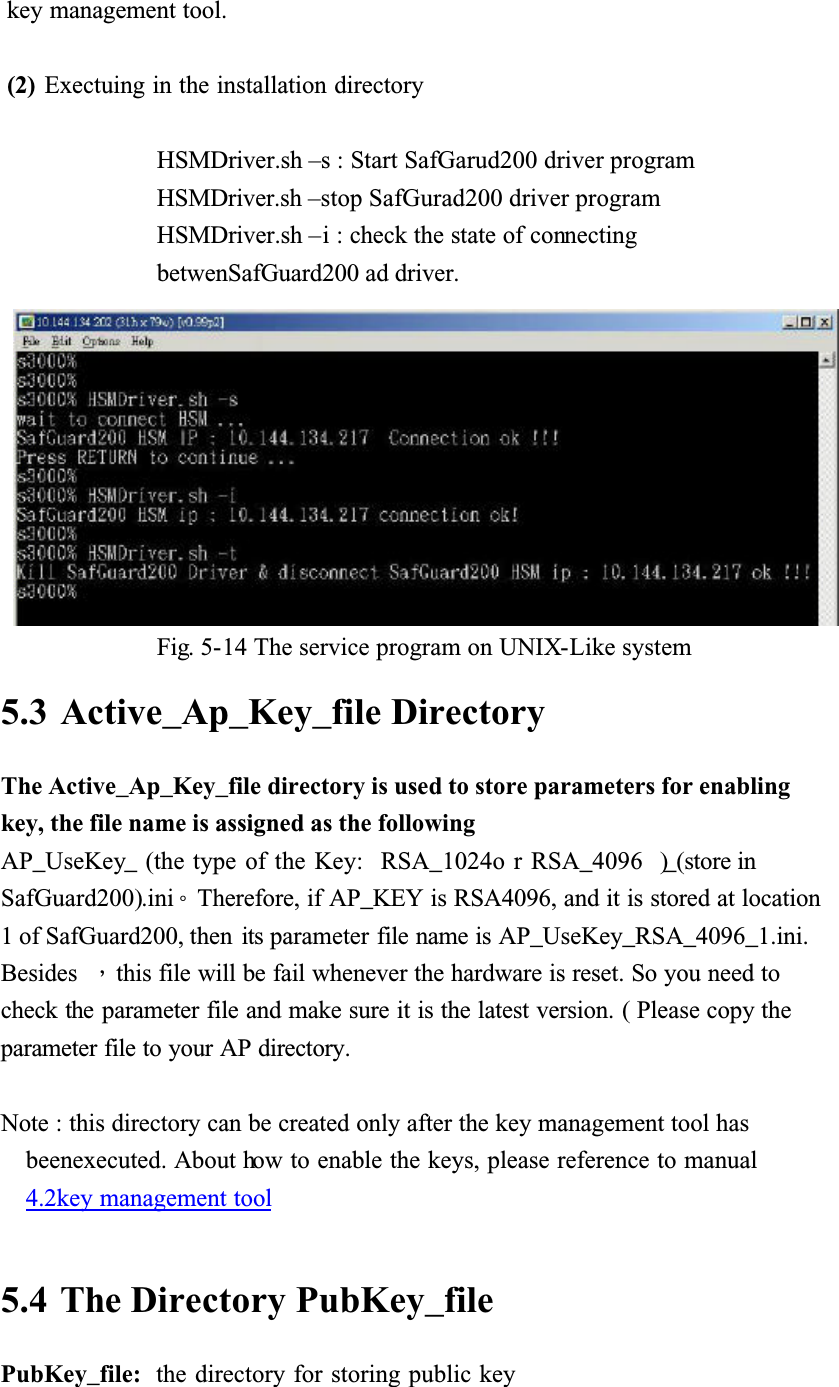
5.1.3 Remove Service Program(1)Executing HSM_Server.exe in the installing directory, click [Removeservice program] and then click ok button. the service program, HSM_Server, will be removed from the system.Fig. 5-13 The screen of removing service program(2) Bgufs!sfnpwf!bmm!gjmf!jo!uif!jotubmmjoh!ejsfdupsz-!uif!pqfsbujpo!pg!sfnpwjoh!jt!dpnqmfufe/5.2   Installation of Solaris/Linux driver(1) First copy the SafGuard200 drivre to UNIX-like system, includingǺ1. HSMDriver.sh  (batch file, start/stop command file)2. server  (main program)3. SafeGuardStop  (stoping running executing file)4. safeguard.ini  ( information about SafGuard200)Safeguard.ini need to be replaced by safeguard.ini generatred by previous
key management tool.(2) Exectuing in the installation directoryHSMDriver.sh –s : Start SafGarud200 driver programHSMDriver.sh –stop SafGurad200 driver programHSMDriver.sh –i : check the state of connectingbetwenSafGuard200 ad driver.Fig. 5-14 The service program on UNIX-Like system5.3 Active_Ap_Key_file DirectoryThe Active_Ap_Key_file directory is used to store parameters for enabling key, the file name is assigned as the followingAP_UseKey_ (the type of the Key:  RSA_1024o r RSA_4096  )_(store in SafGuard200).iniǶTherefore, if AP_KEY is RSA4096, and it is stored at location 1 of SafGuard200, then  its parameter file name is AP_UseKey_RSA_4096_1.ini.Besides Ǵthis file will be fail whenever the hardware is reset. So you need to check the parameter file and make sure it is the latest version. ( Please copy the parameter file to your AP directory.Note : this directory can be created only after the key management tool has beenexecuted. About how to enable the keys, please reference to manual4.2key management tool5.4 The Directory PubKey_filePubKey_file:  the directory for storing public key
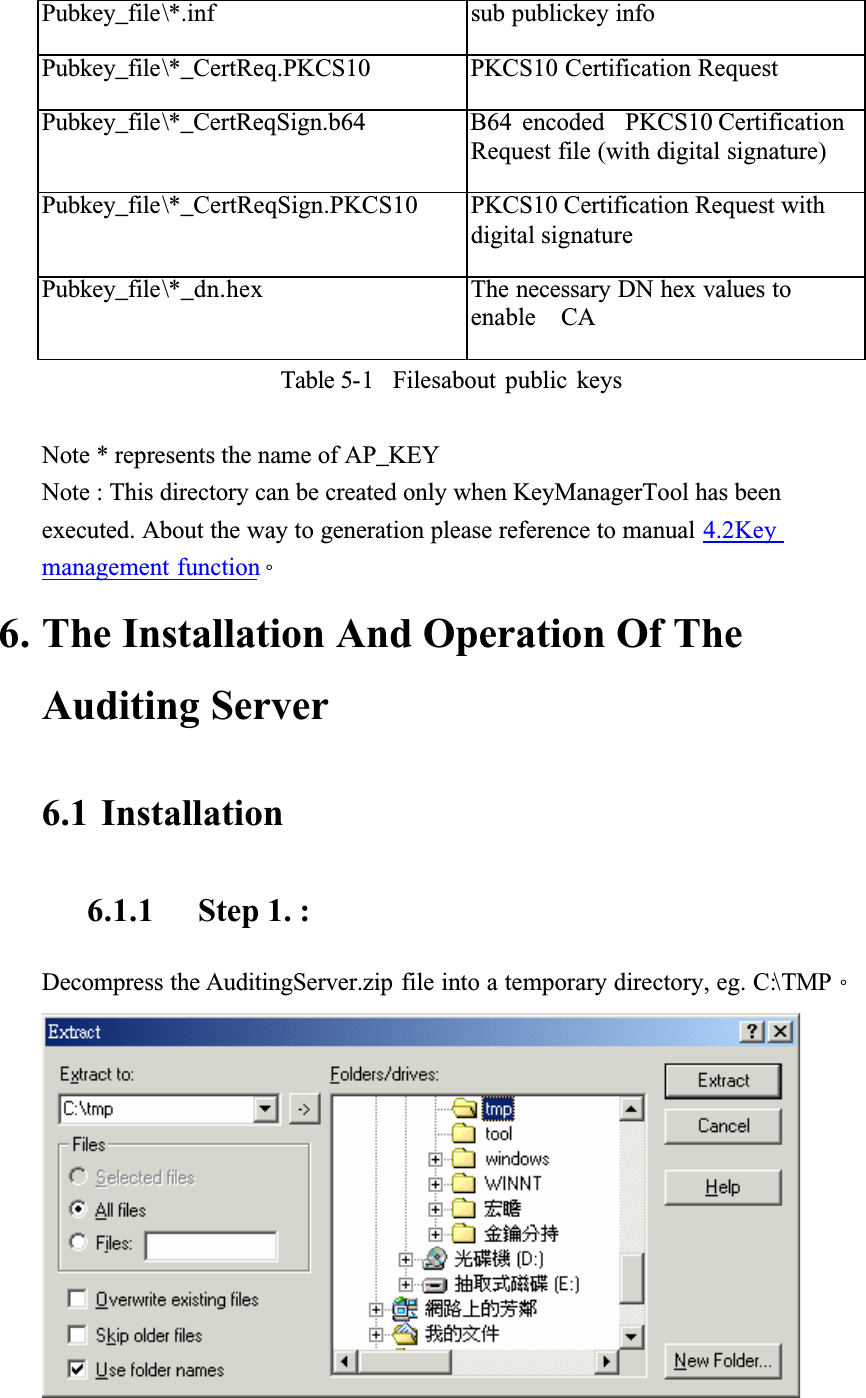
Pubkey_file\*.inf sub publickey infoPubkey_file\*_CertReq.PKCS10 PKCS10 Certification RequestPubkey_file\*_CertReqSign.b64 B64  encoded PKCS10 Certification Request file (with digital signature)Pubkey_file\*_CertReqSign.PKCS10 PKCS10 Certification Request with digital signaturePubkey_file\*_dn.hex The necessary DN hex values to enable  CATable 5-1    Filesabout public keysNote * represents the name of AP_KEYNote : This directory can be created only when KeyManagerTool has been executed. About the way to generation please reference to manual 4.2Keymanagement functionǶ6. The Installation And Operation Of The Auditing Server6.1 Installation6.1.1 Step 1. :Decompress the AuditingServer.zip file into a temporary directory, eg. C:\TMPǶ
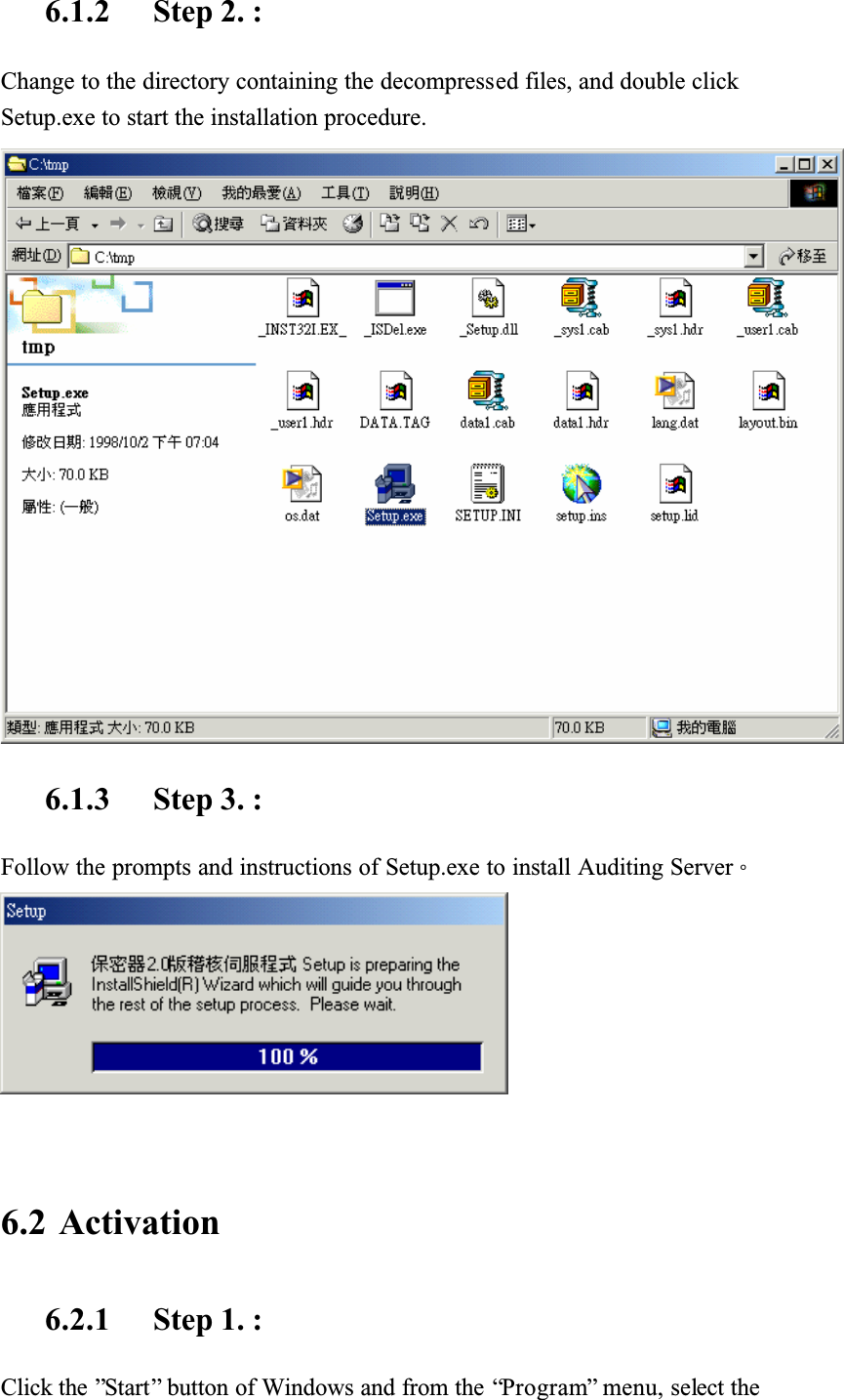
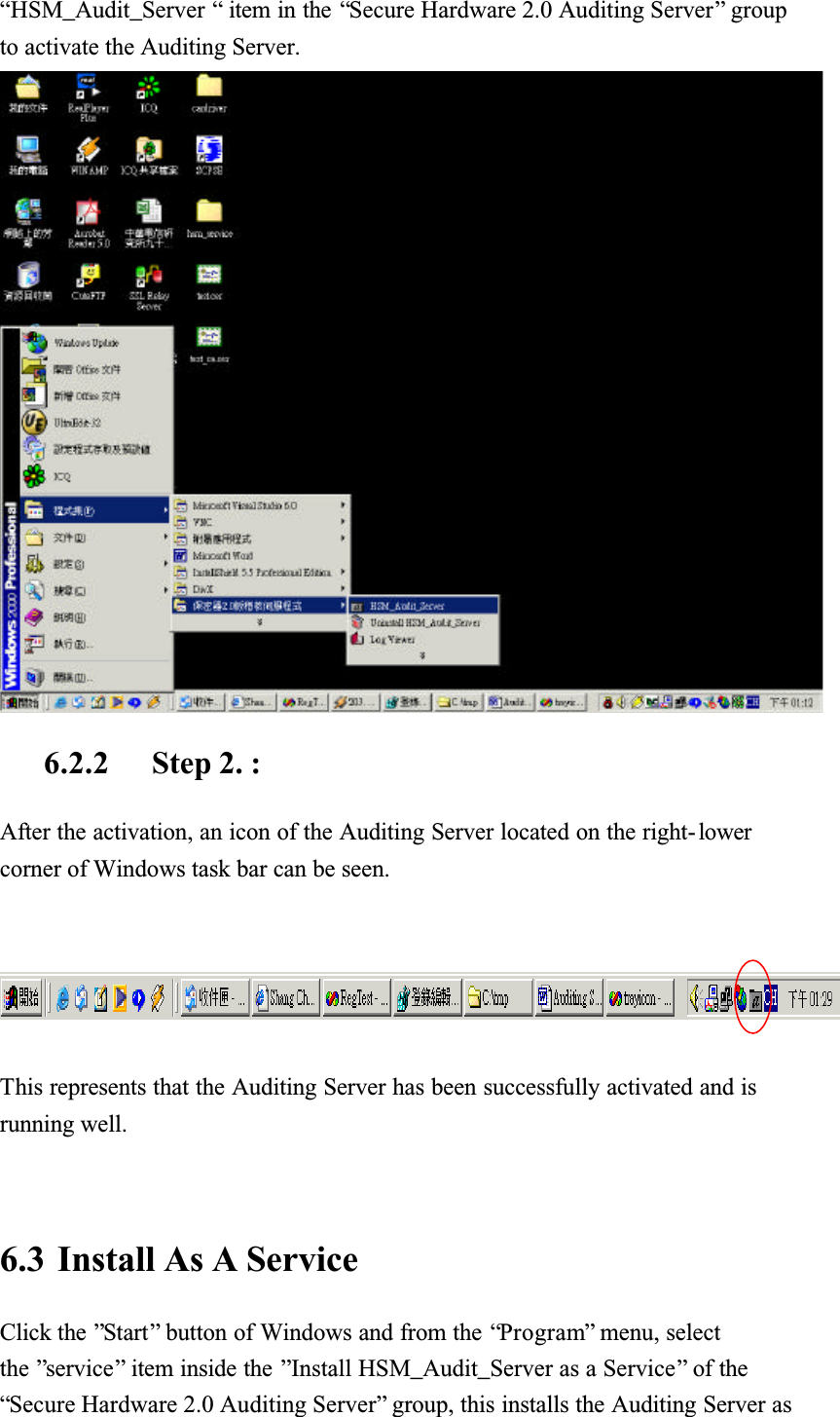
6.1.2 Step 2. :Change to the directory containing the decompressed files, and double click Setup.exe to start the installation procedure. 6.1.3 Step 3. :Follow the prompts and instructions of Setup.exe to install Auditing ServerǶ6.2 Activation6.2.1 Step 1. :Click the ”Start” button of Windows and from the “Program” menu, select the
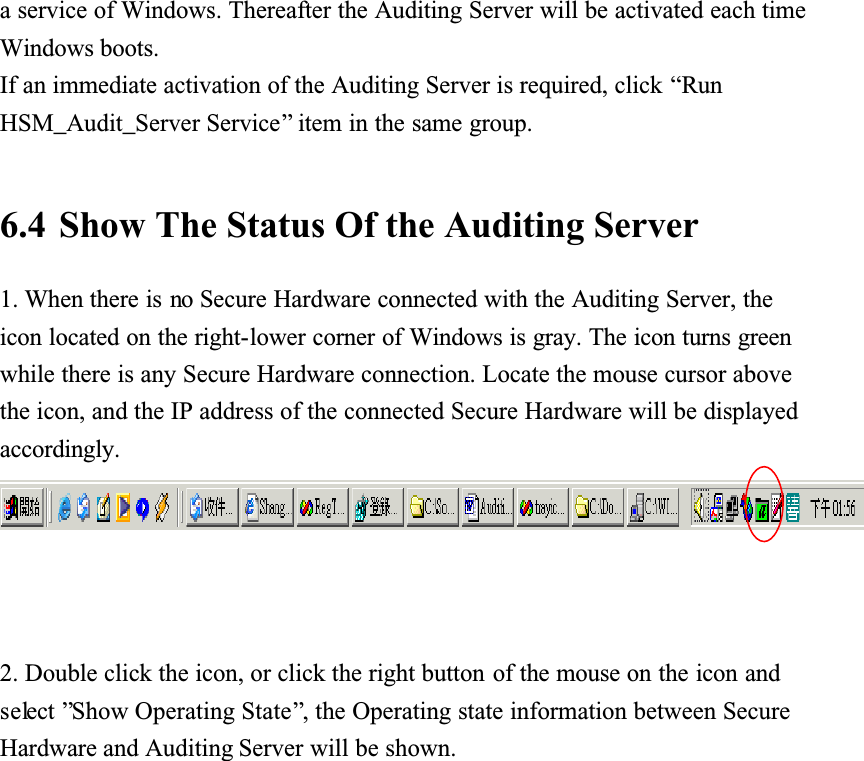
“HSM_Audit_Server “ item in the “Secure Hardware 2.0 Auditing Server” group to activate the Auditing Server. 6.2.2 Step 2. :After the activation, an icon of the Auditing Server located on the right- lowercorner of Windows task bar can be seen.This represents that the Auditing Server has been successfully activated and is running well.6.3 Install As A ServiceClick the ”Start” button of Windows and from the “Program” menu, select the ”service” item inside the ”Install HSM_Audit_Server as a Service” of the “Secure Hardware 2.0 Auditing Server” group, this installs the Auditing Server as
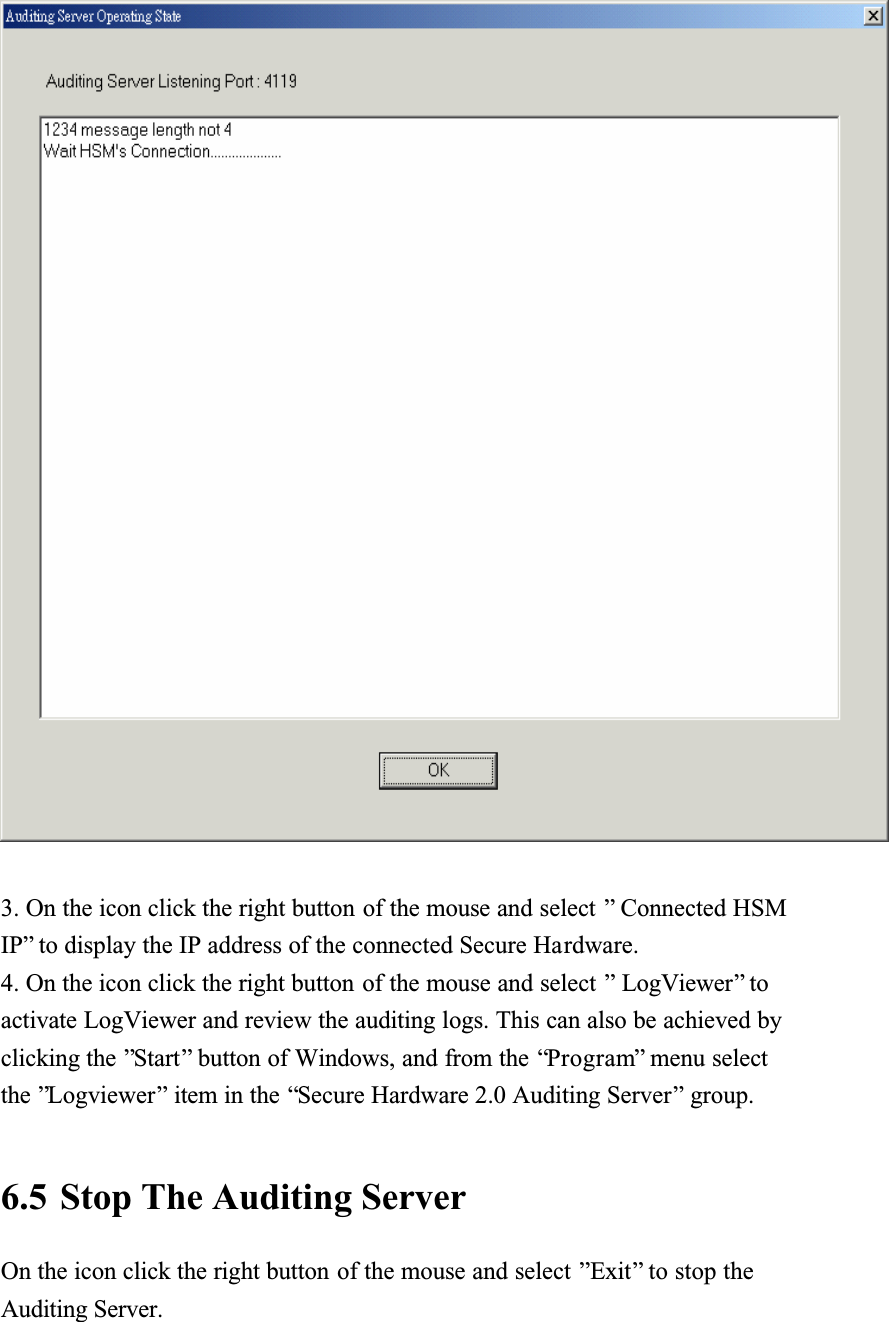
a service of Windows. Thereafter the Auditing Server will be activated each time Windows boots.If an immediate activation of the Auditing Server is required, click “RunHSM_Audit_Server Service” item in the same group. 6.4 Show The Status Of the Auditing Server1. When there is no Secure Hardware connected with the Auditing Server, the icon located on the right-lower corner of Windows is gray. The icon turns green while there is any Secure Hardware connection. Locate the mouse cursor above the icon, and the IP address of the connected Secure Hardware will be displayed accordingly.2. Double click the icon, or click the right button of the mouse on the icon and select ”Show Operating State”, the Operating state information between Secure Hardware and Auditing Server will be shown.
3. On the icon click the right button of the mouse and select ” Connected HSM IP” to display the IP address of the connected Secure Hardware.4. On the icon click the right button of the mouse and select ” LogViewer” to activate LogViewer and review the auditing logs. This can also be achieved by clicking the ”Start” button of Windows, and from the “Program” menu select the ”Logviewer” item in the “Secure Hardware 2.0 Auditing Server” group.6.5 Stop The Auditing Server On the icon click the right button of the mouse and select ”Exit” to stop the Auditing Server.
6.6 Stop And Remove The Auditing Server ServiceClick the ”Start” button of Windows, and from the “Program” menu select ”StopHSM_Audit_Server Service” item in the “Secure Hardware 2.0 Auditing Server”group to stop the Auditing Server Service. Select ”Remove HSM_Audit_Server Service” item in the same group to remove the Auditing Server Service.6.7 Uninstall The Auditing ServerClick the ”Start” button of Windows, and from the “Program” menu select ”Uninstall HSM_Audit_Server” item in the “Secure Hardware 2.0 Auditing Server” group to uninstall the Auditing Server.
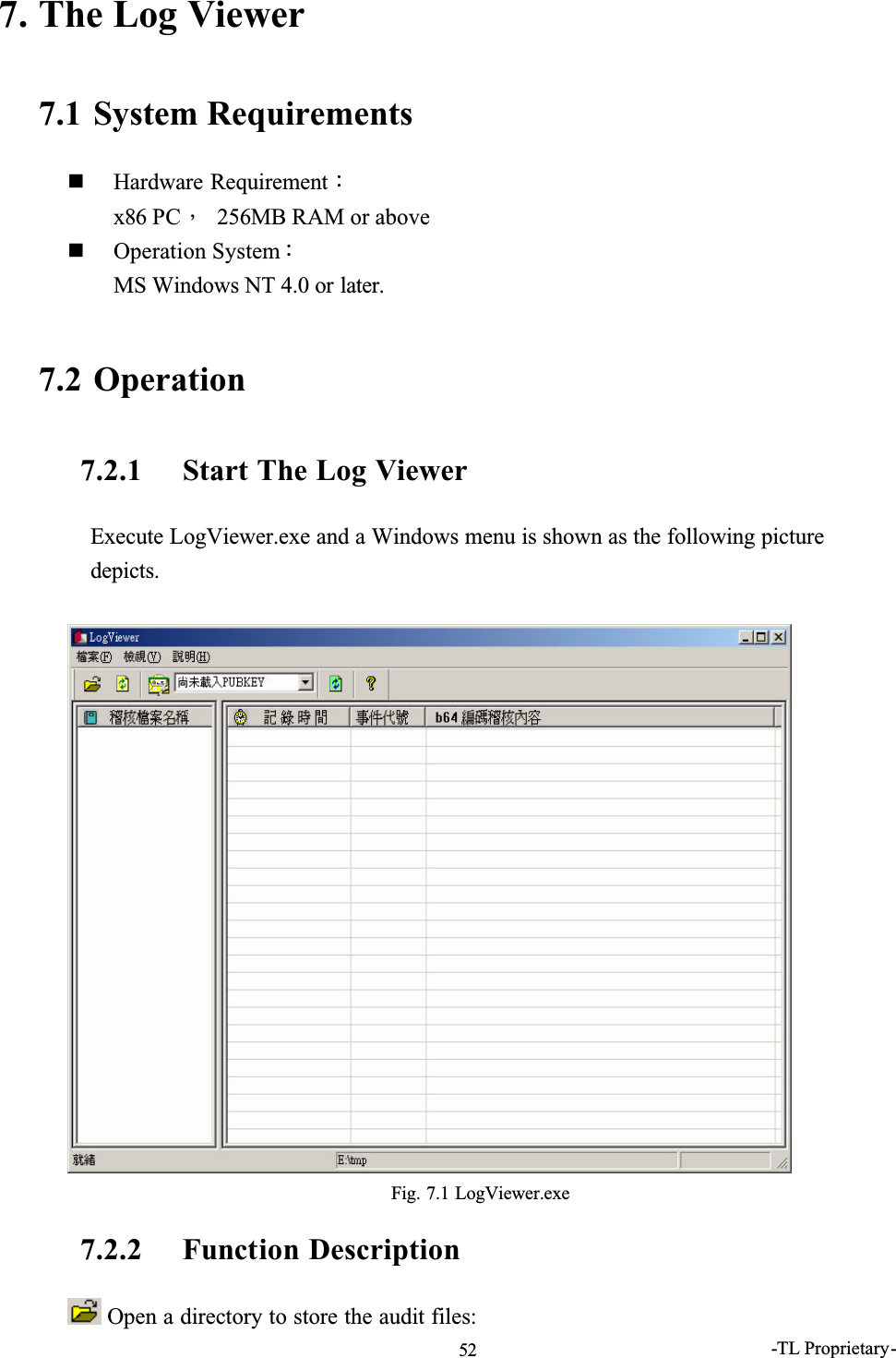
-TL Proprietary-527. The Log Viewer7.1 System RequirementsHardware RequirementǺx86 PCǴ 256MB RAM or aboveOperation SystemǺMS Windows NT 4.0 or later.7.2 Operation7.2.1 Start The Log ViewerExecute LogViewer.exe and a Windows menu is shown as the following picture depicts.Fig. 7.1 LogViewer.exe7.2.2 Function Description Open a directory to store the audit files:
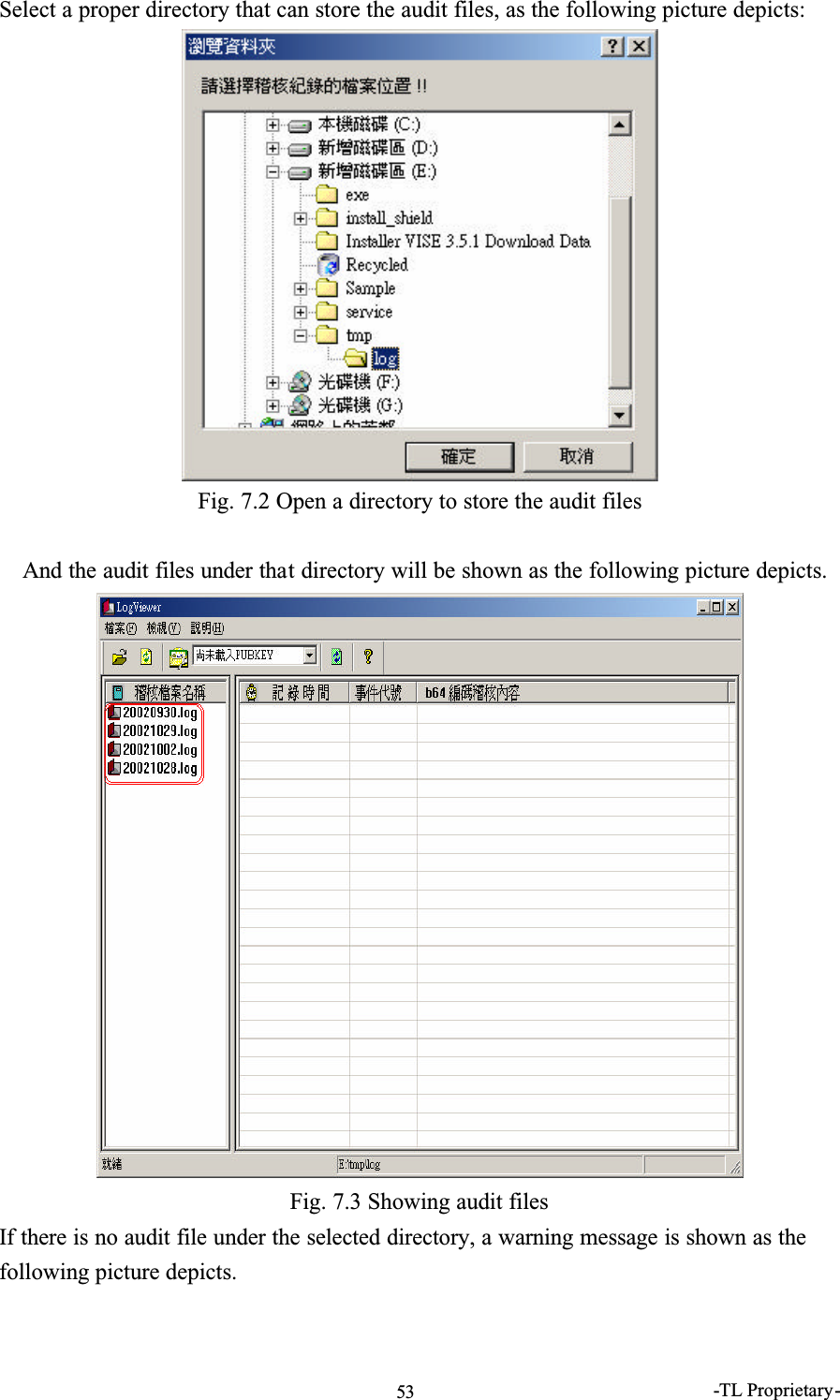
-TL Proprietary-53Select a proper directory that can store the audit files, as the following picture depicts:Fig. 7.2 Open a directory to store the audit filesAnd the audit files under that directory will be shown as the following picture depicts.Fig. 7.3 Showing audit filesIf there is no audit file under the selected directory, a warning message is shown as the following picture depicts.
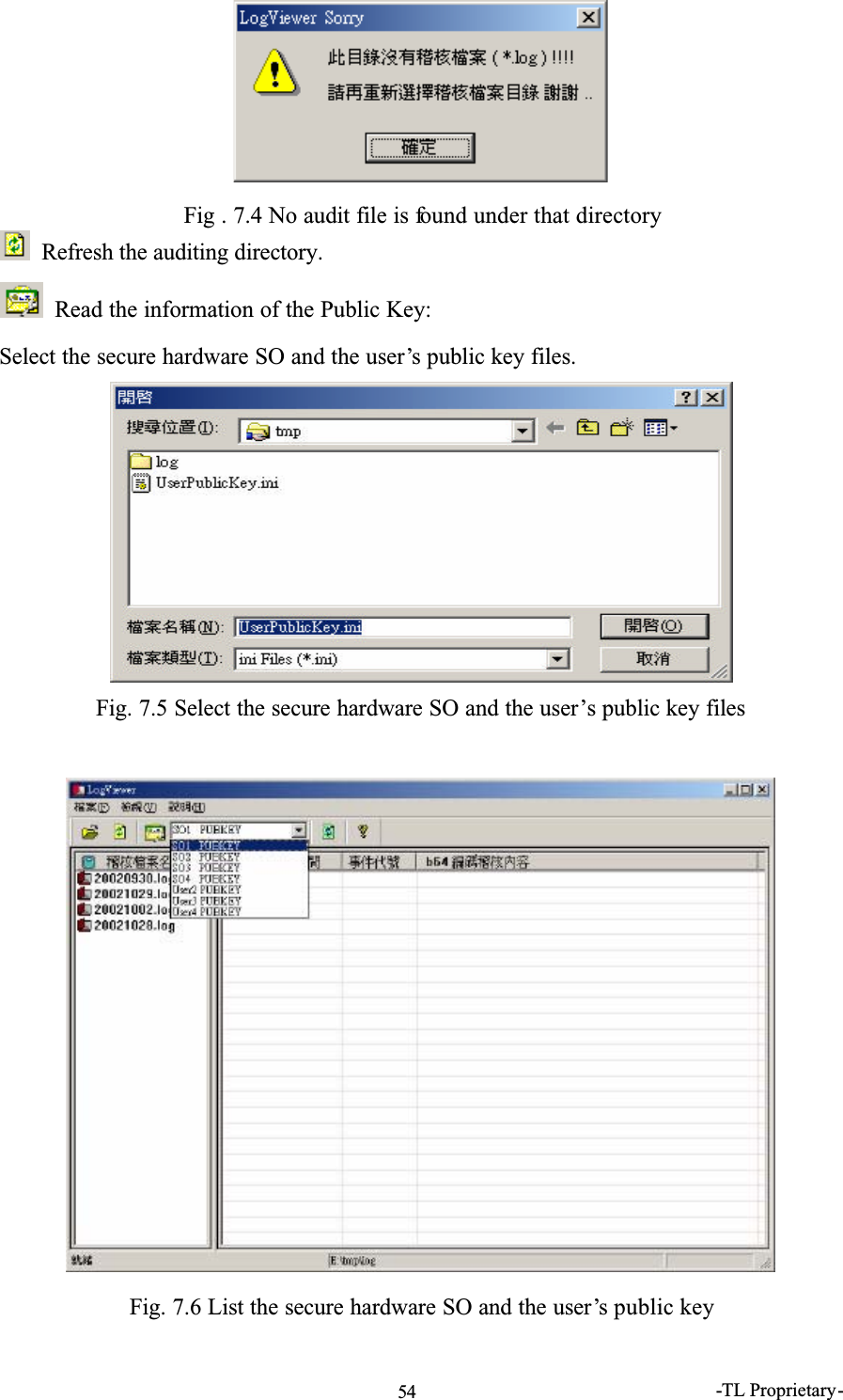
-TL Proprietary-54Fig . 7.4 No audit file is found under that directoryRefresh the auditing directory.Read the information of the Public Key:Select the secure hardware SO and the user’s public key files. Fig. 7.5 Select the secure hardware SO and the user’s public key filesFig. 7.6 List the secure hardware SO and the user’s public key
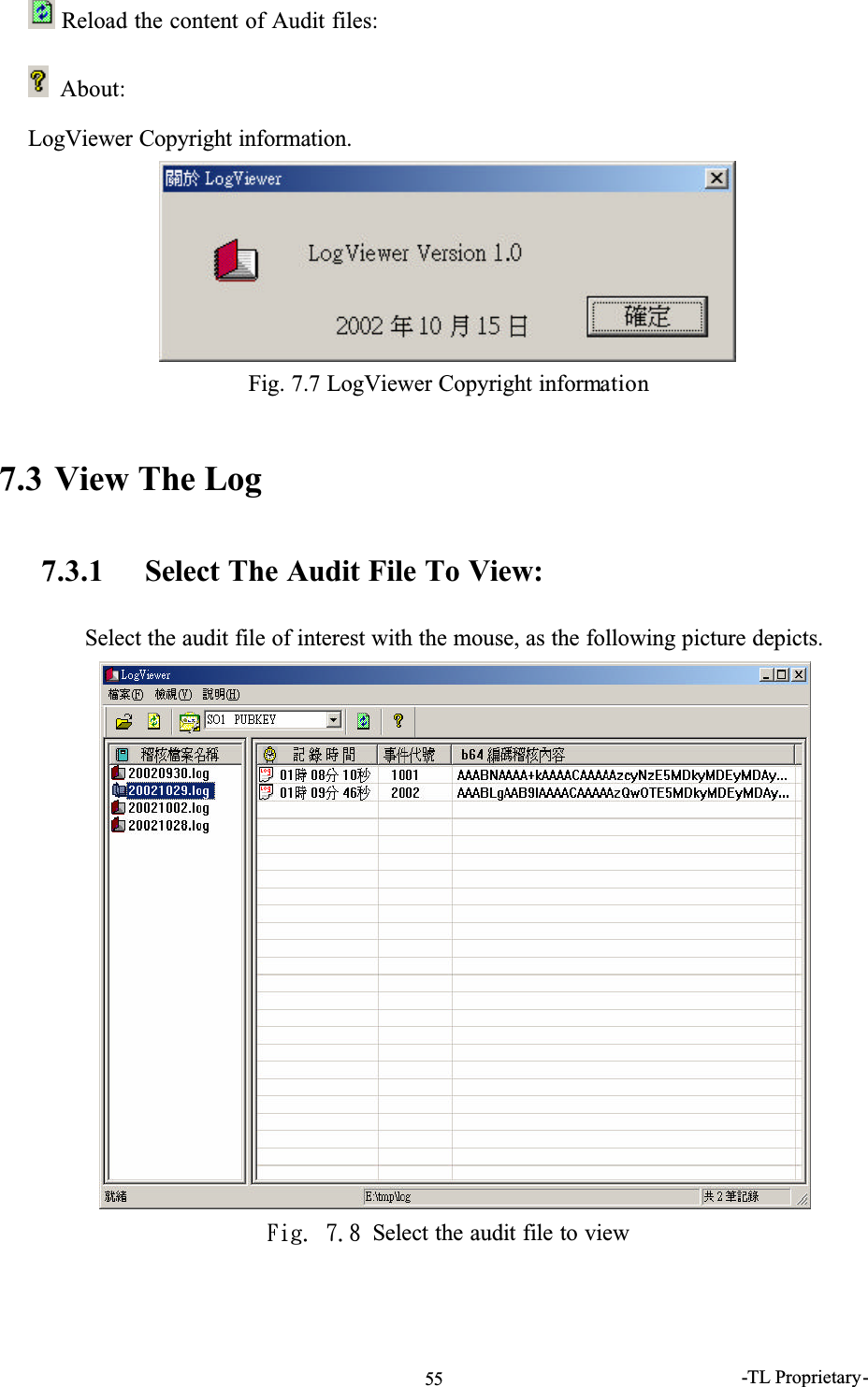
-TL Proprietary-55 Reload the content of Audit files: About:LogViewer Copyright information.Fig. 7.7 LogViewer Copyright information7.3 View The Log7.3.1 Select The Audit File To View:Select the audit file of interest with the mouse, as the following picture depicts.Gjh/!8/9!Select the audit file to view
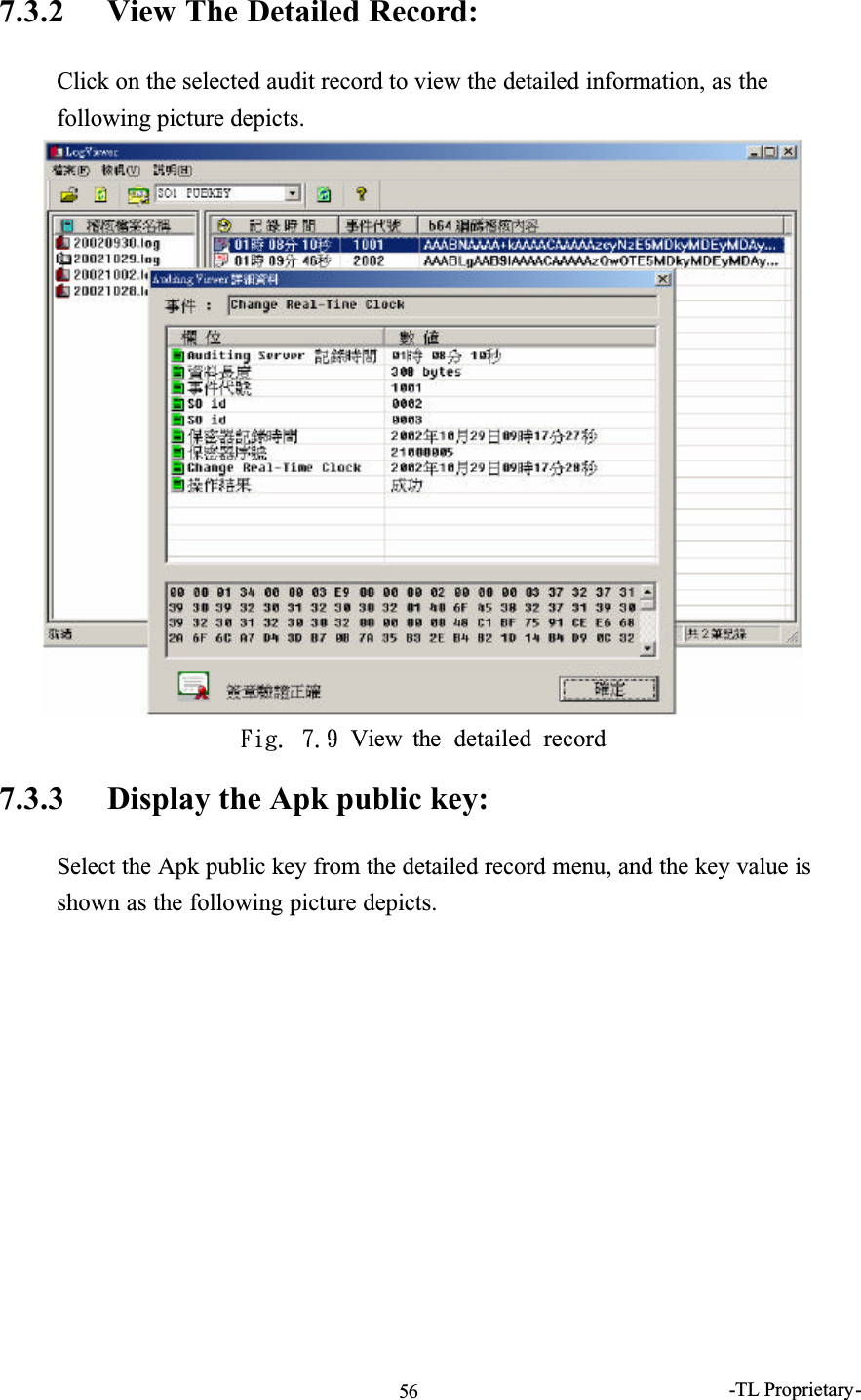
-TL Proprietary-567.3.2 View The Detailed Record:Click on the selected audit record to view the detailed information, as the following picture depicts.Gjh/!8/:!View!the!detailed!record7.3.3 Display the Apk public key:Select the Apk public key from the detailed record menu, and the key value is shown as the following picture depicts.
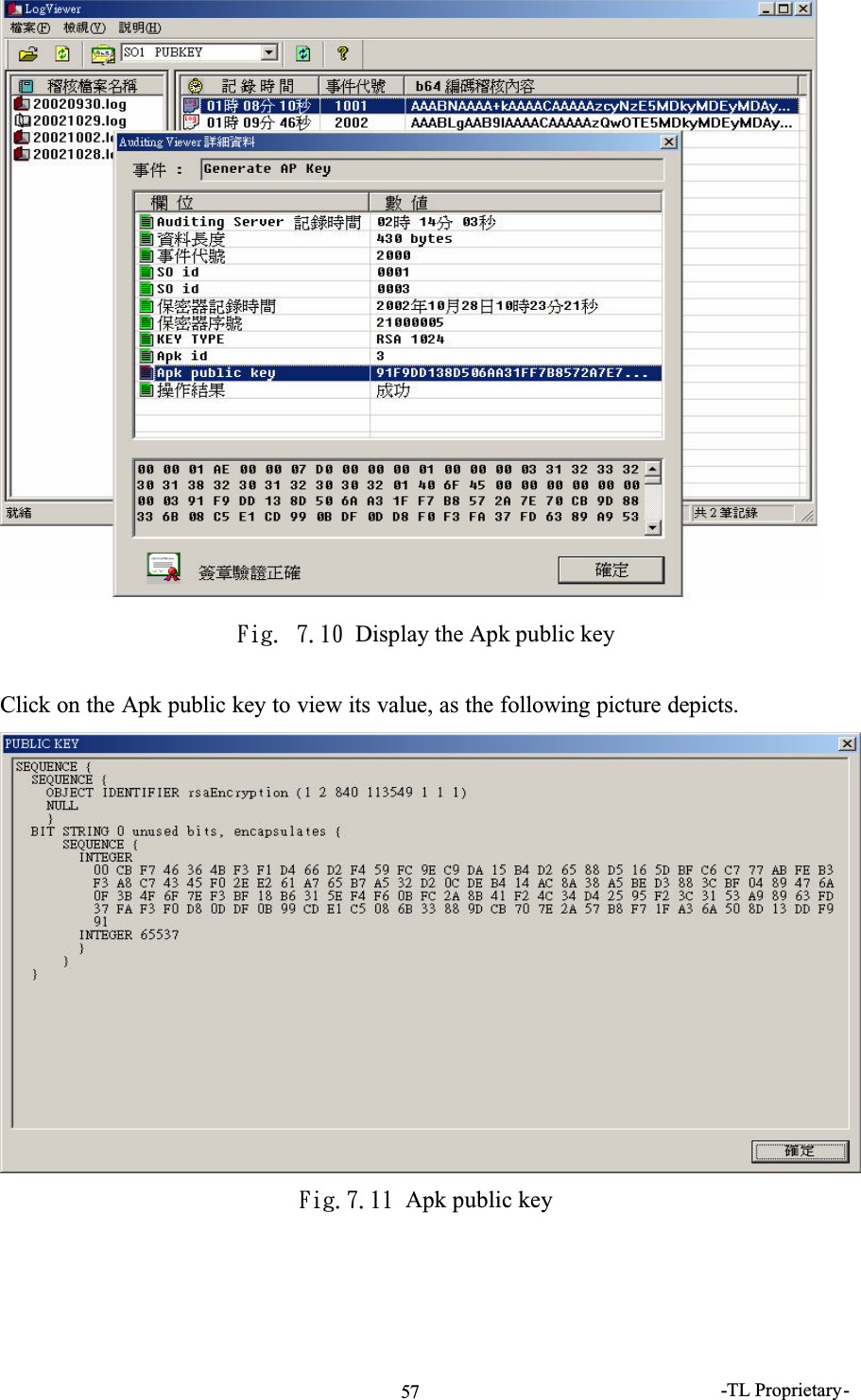
-TL Proprietary-57Gjh/!8/21!Display the Apk public keyClick on the Apk public key to view its value, as the following picture depicts.Gjh/8/22!Apk public key
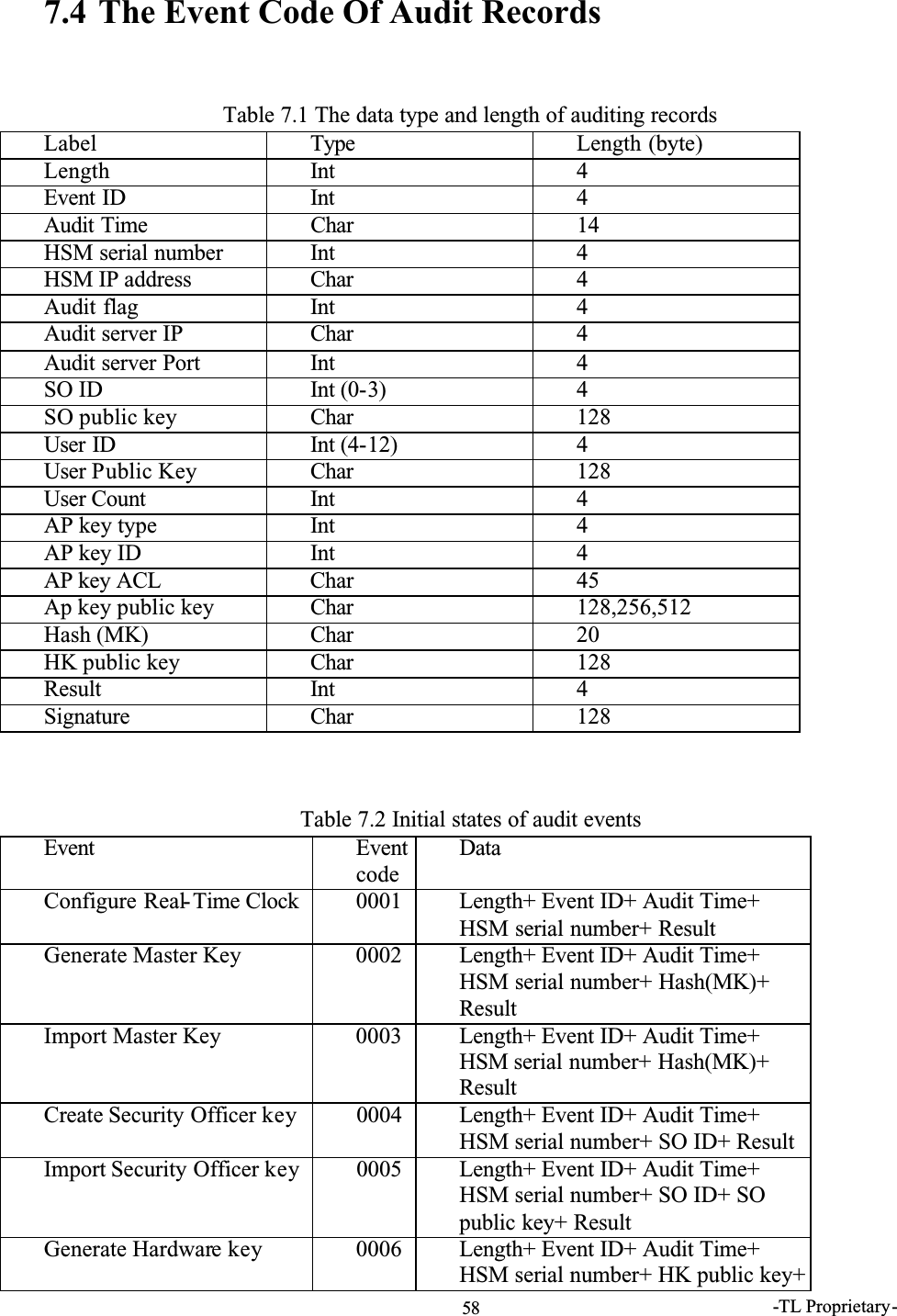
-TL Proprietary-587.4 The Event Code Of Audit Records Table 7.1 The data type and length of auditing recordsLabel Type Length (byte)Length Int 4Event ID Int 4Audit Time Char 14HSM serial number Int 4HSM IP address Char 4Audit flag Int 4Audit server IP Char 4Audit server Port Int 4SO ID Int (0-3) 4SO public key Char 128User ID Int (4-12) 4User Public Key Char 128User Count Int 4AP key type Int 4AP key ID Int 4AP key ACL Char 45Ap key public key Char 128,256,512Hash (MK) Char 20HK public key Char 128Result Int 4Signature Char 128Table 7.2 Initial states of audit eventsEvent EventcodeDataConfigure Real- Time Clock 0001 Length+ Event ID+ Audit Time+ HSM serial number+ ResultGenerate Master Key 0002 Length+ Event ID+ Audit Time+ HSM serial number+ Hash(MK)+ ResultImport Master Key 0003 Length+ Event ID+ Audit Time+ HSM serial number+ Hash(MK)+ ResultCreate Security Officer key 0004 Length+ Event ID+ Audit Time+ HSM serial number+ SO ID+ ResultImport Security Officer key 0005 Length+ Event ID+ Audit Time+ HSM serial number+ SO ID+ SO public key+ ResultGenerate Hardware key 0006 Length+ Event ID+ Audit Time+ HSM serial number+ HK public key+
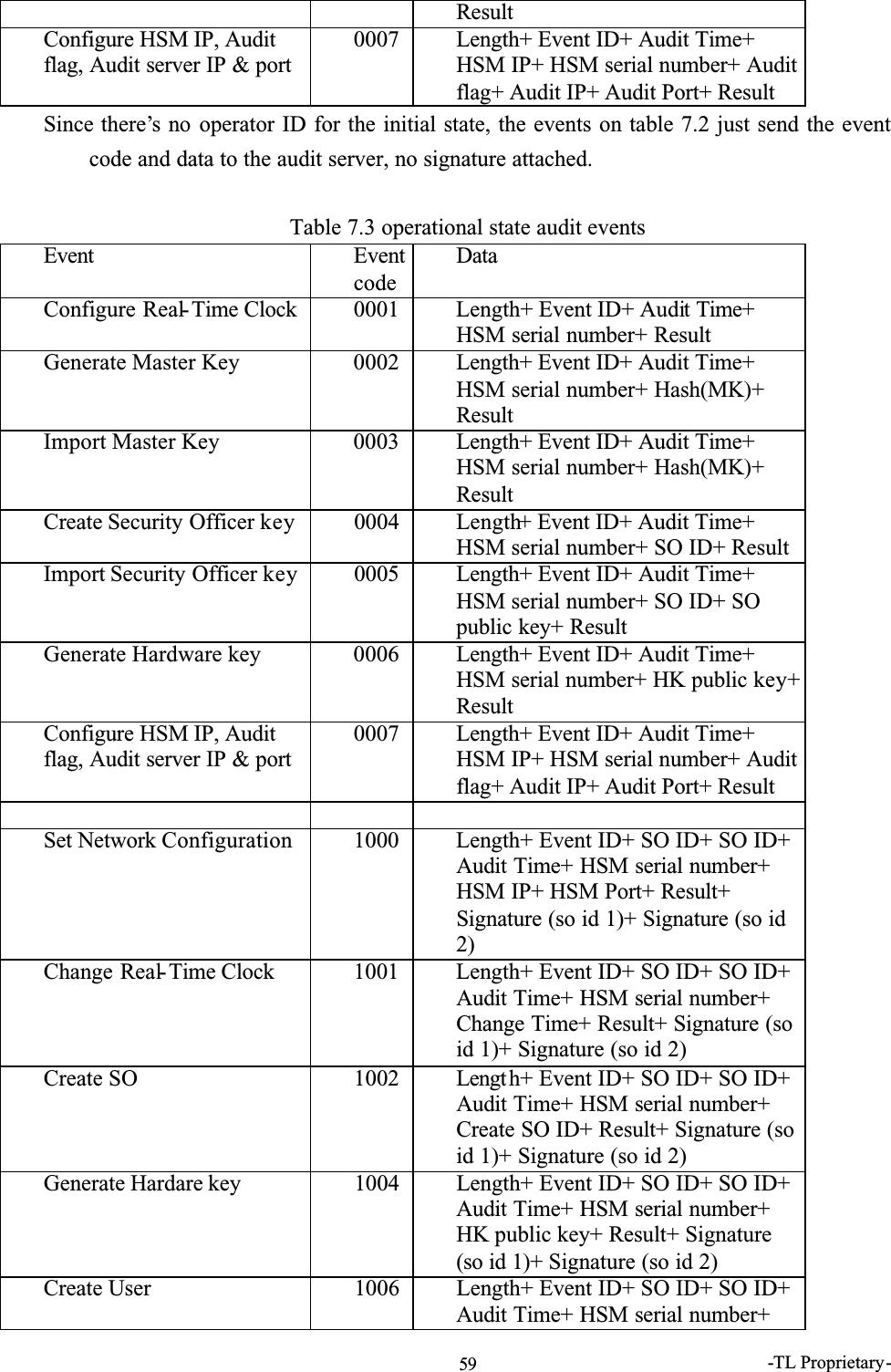
-TL Proprietary-59ResultConfigure HSM IP, Audit flag, Audit server IP & port0007 Length+ Event ID+ Audit Time+ HSM IP+ HSM serial number+ Audit flag+ Audit IP+ Audit Port+ ResultSince there’s no operator ID for the initial state, the events on table 7.2 just send the event code and data to the audit server, no signature attached.Table 7.3 operational state audit eventsEvent EventcodeDataConfigure Real- Time Clock 0001 Length+ Event ID+ Audit Time+ HSM serial number+ ResultGenerate Master Key 0002 Length+ Event ID+ Audit Time+ HSM serial number+ Hash(MK)+ ResultImport Master Key 0003 Length+ Event ID+ Audit Time+ HSM serial number+ Hash(MK)+ ResultCreate Security Officer key 0004 Length+ Event ID+ Audit Time+ HSM serial number+ SO ID+ ResultImport Security Officer key 0005 Length+ Event ID+ Audit Time+ HSM serial number+ SO ID+ SO public key+ ResultGenerate Hardware key 0006 Length+ Event ID+ Audit Time+ HSM serial number+ HK public key+ResultConfigure HSM IP, Audit flag, Audit server IP & port0007 Length+ Event ID+ Audit Time+ HSM IP+ HSM serial number+ Audit flag+ Audit IP+ Audit Port+ ResultSet Network Configuration 1000 Length+ Event ID+ SO ID+ SO ID+ Audit Time+ HSM serial number+ HSM IP+ HSM Port+ Result+ Signature (so id 1)+ Signature (so id 2)Change Real- Time Clock 1001 Length+ Event ID+ SO ID+ SO ID+ Audit Time+ HSM serial number+ Change Time+ Result+ Signature (so id 1)+ Signature (so id 2)Create SO  1002 Lengt h+ Event ID+ SO ID+ SO ID+ Audit Time+ HSM serial number+ Create SO ID+ Result+ Signature (so id 1)+ Signature (so id 2)Generate Hardare key  1004 Length+ Event ID+ SO ID+ SO ID+ Audit Time+ HSM serial number+ HK public key+ Result+ Signature (so id 1)+ Signature (so id 2)Create User  1006 Length+ Event ID+ SO ID+ SO ID+ Audit Time+ HSM serial number+
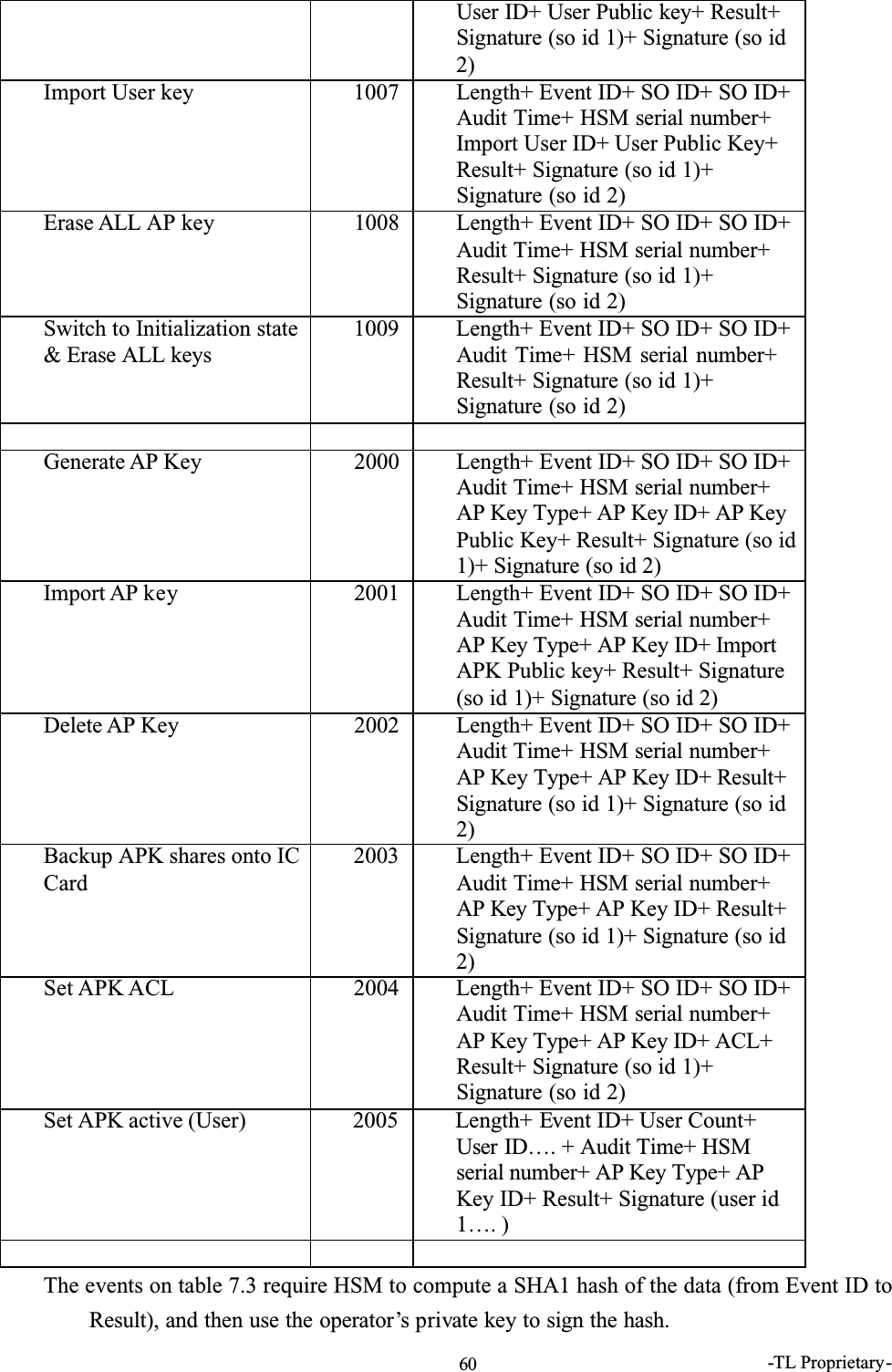
-TL Proprietary-60User ID+ User Public key+ Result+ Signature (so id 1)+ Signature (so id 2)Import User key 1007 Length+ Event ID+ SO ID+ SO ID+ Audit Time+ HSM serial number+Import User ID+ User Public Key+ Result+ Signature (so id 1)+ Signature (so id 2)Erase ALL AP key 1008 Length+ Event ID+ SO ID+ SO ID+ Audit Time+ HSM serial number+ Result+ Signature (so id 1)+ Signature (so id 2)Switch to Initialization state & Erase ALL keys 1009 Length+ Event ID+ SO ID+ SO ID+ Audit Time+ HSM serial number+Result+ Signature (so id 1)+ Signature (so id 2)Generate AP Key 2000 Length+ Event ID+ SO ID+ SO ID+ Audit Time+ HSM serial number+ AP Key Type+ AP Key ID+ AP KeyPublic Key+ Result+ Signature (so id 1)+ Signature (so id 2)Import AP key 2001 Length+ Event ID+ SO ID+ SO ID+ Audit Time+ HSM serial number+ AP Key Type+ AP Key ID+ Import APK Public key+ Result+ Signature (so id 1)+ Signature (so id 2)Delete AP Key 2002 Length+ Event ID+ SO ID+ SO ID+ Audit Time+ HSM serial number+ AP Key Type+ AP Key ID+ Result+ Signature (so id 1)+ Signature (so id 2)Backup APK shares onto IC Card2003 Length+ Event ID+ SO ID+ SO ID+ Audit Time+ HSM serial number+ AP Key Type+ AP Key ID+ Result+ Signature (so id 1)+ Signature (so id 2)Set APK ACL 2004 Length+ Event ID+ SO ID+ SO ID+ Audit Time+ HSM serial number+ AP Key Type+ AP Key ID+ ACL+ Result+ Signature (so id 1)+ Signature (so id 2)Set APK active (User) 2005 Length+ Event ID+ User Count+ User ID…. + Audit Time+ HSM serial number+ AP Key Type+ AP Key ID+ Result+ Signature (user id 1…. )The events on table 7.3 require HSM to compute a SHA1 hash of the data (from Event ID to Result), and then use the operator’s private key to sign the hash.

Navigation menu