TelergyHD THD601DC0003 RF Remote Receiver User Manual
TelergyHD BV RF Remote Receiver
User Manual
TelergyHD BV.
PRODUCT SPECIFICATION
MODEL NAME: THD-AIR1
VERSION HISTORY
Ver Changes Description Date Prepared By Checked By Approved By

TelergyHD BV.
Page 2 of 11
INDEX
1、Cover---------------------------------------------------------------------------------1
2、Index---------------------------------------------------------------------------------2
3、ID Drawing--- ----------------------------------------------------------------------3
4、Button Introduction ----------------------------------------------------------------5
5、Wireles Range ---------------- --------------------------------------------------- 8
6、 RC Pairing-------------------------------------------------------------------------8
7、Air-mouse ------------------------------------------------------------------------9
8、Full Key Board--------------------------------------------------------------------9
9、Button Code----------------------------------------------------------------------10
10、FCC Statement-------------------------------------------------------------------11
TelergyHD BV.
Page 3 of 11
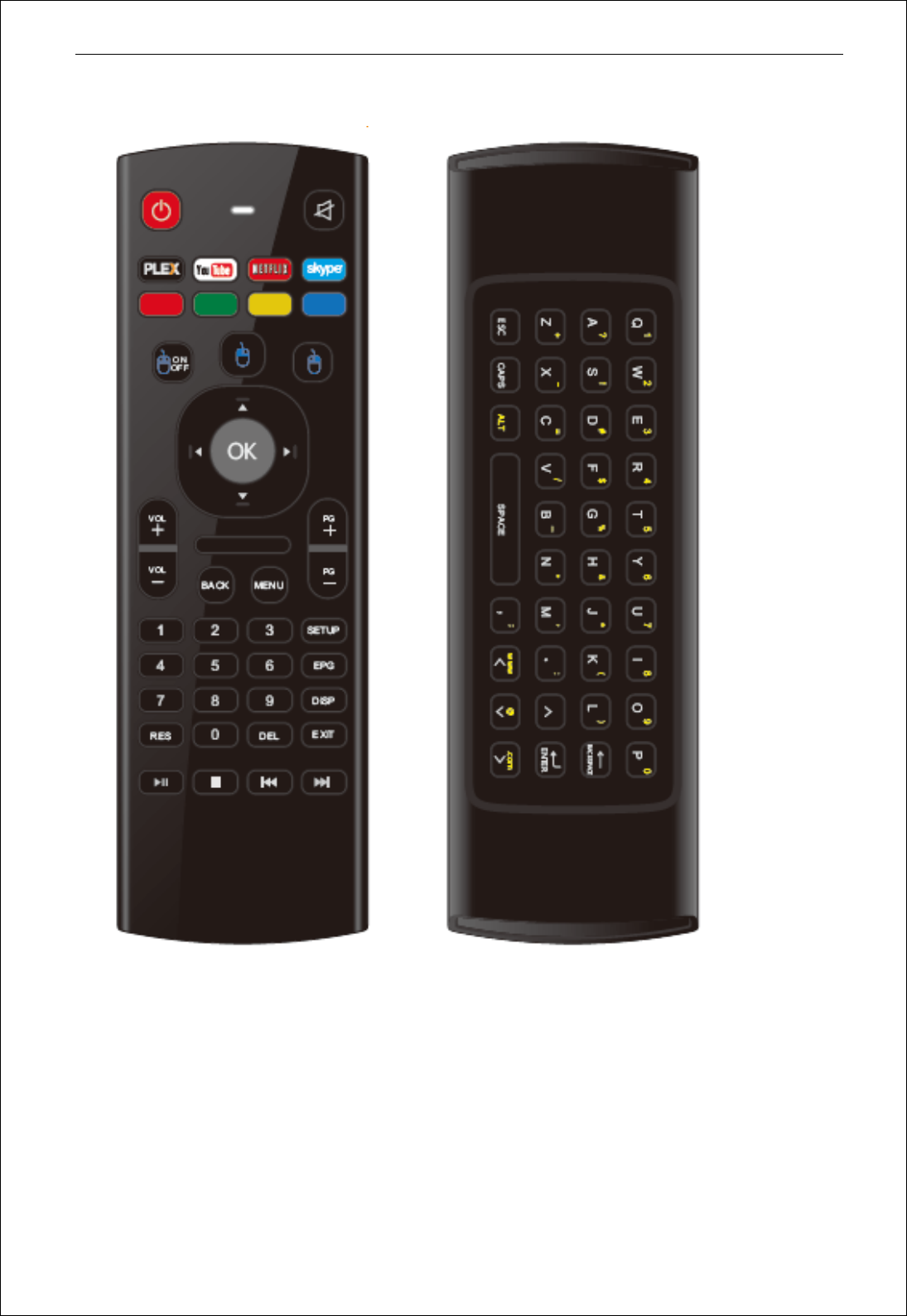
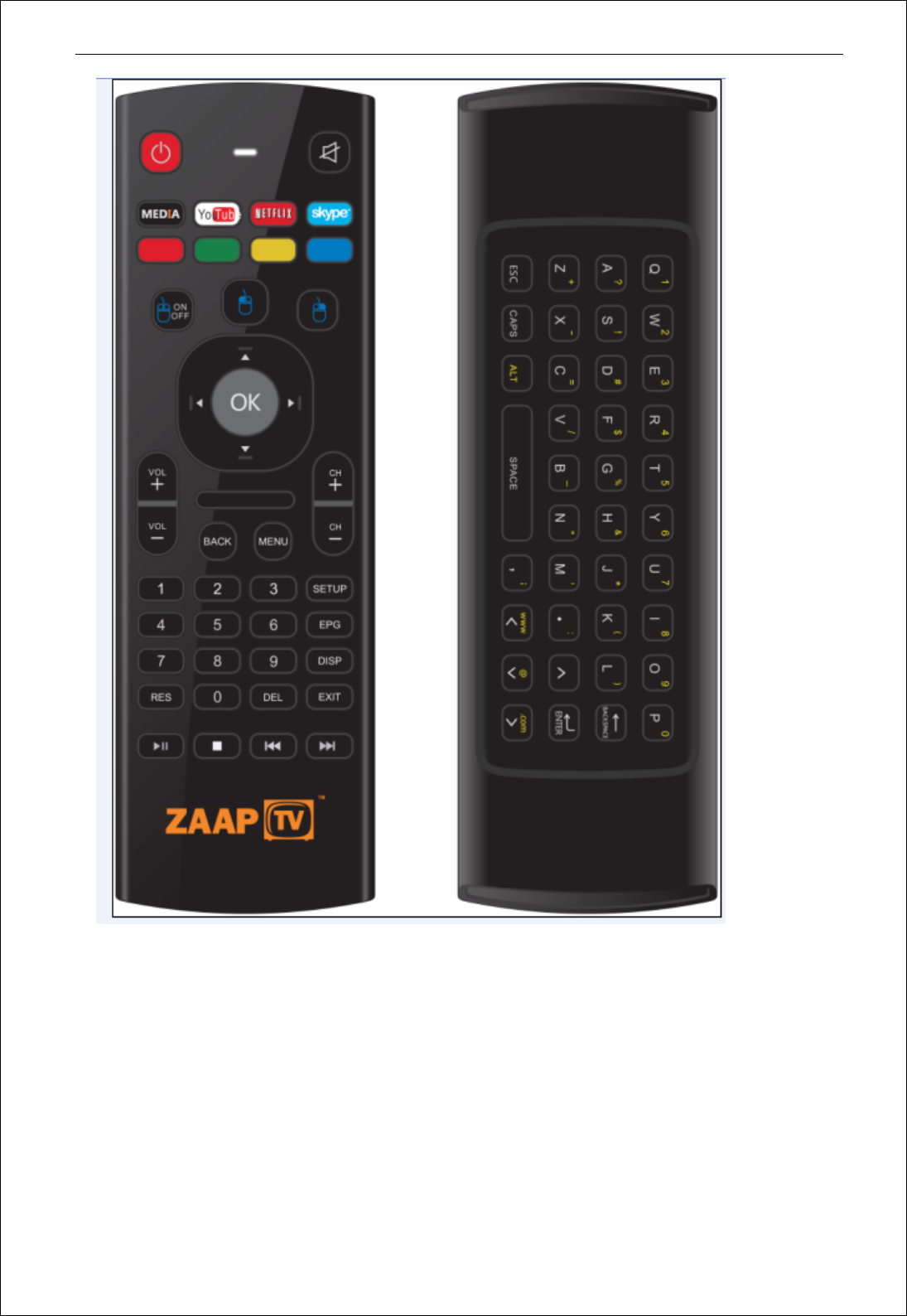
3、 ID Drawing
TelergyHD BV.
Page 4 of 11
TelergyHD BV.
Page 5 of 11
4、Remote Control Button introduction : Total 44 buttons
Item Buttons Type Function Description
01 Power IR Power on/off the target device
02 Mute IR Switch remote to send Mute command to the target
03 Play/Pause IR Play / pause program
04 Stop IR Stop program
05 Fast Forward IR Fast go to next program
06 Fast Backward IR Fast go to last program
07 PLEX IR customize
08 You Tube IR customize
09 NETFLIX IR customize
10 Skype IR customize
11 Mouse on/off RF turn on/off the mouse function
12 Mouse Left RF Mouse’s left button function
13 Mouse Right RF Mouse‘s right button function
14 OK IR Confirms the current selection/mouse left
15 Up IR Move to up
16 Down IR Move to down
17 Left IR Move to left
18 Right IR Move to right
19 Vol + IR Increases the volume of the device
20 Vol - IR Decreases the volume of the device
21 PG+ IR Last page
22 PG- IR next program
23 BACK IR Back to last menu
24 MENU IR Go to homepage
TelergyHD BV.
Page 6 of 11
25 Number 1 IR Input number 1
26 Number 2 IR Input number 2
27 Number 3 IR Input number 3
28 Number 4 IR Input number 4
29 Number 5 IR Input number 5
30 Number 6 IR Input number 6
31 Number 7 IR Input number 7
32 Number 8 IR Input number 8
33 Number 9 IR Input number 9
34 Number 0 IR Input number 0
35 SETUP IR Go to setup page
36 EPG IR customize
37 DISP IR customize
38 EXIT IR Exit current page/menu
39 RES IR customize
40 DEL IR customize
41 Red IR Programmable button - links to a page or function in the
42 Green IR Programmable button - links to a page or function in the
43 Yellow IR Programmable button - links to a page or function in the
44 Blue IR Programmable button - links to a page or function in the
TelergyHD BV.
Page 7 of 11
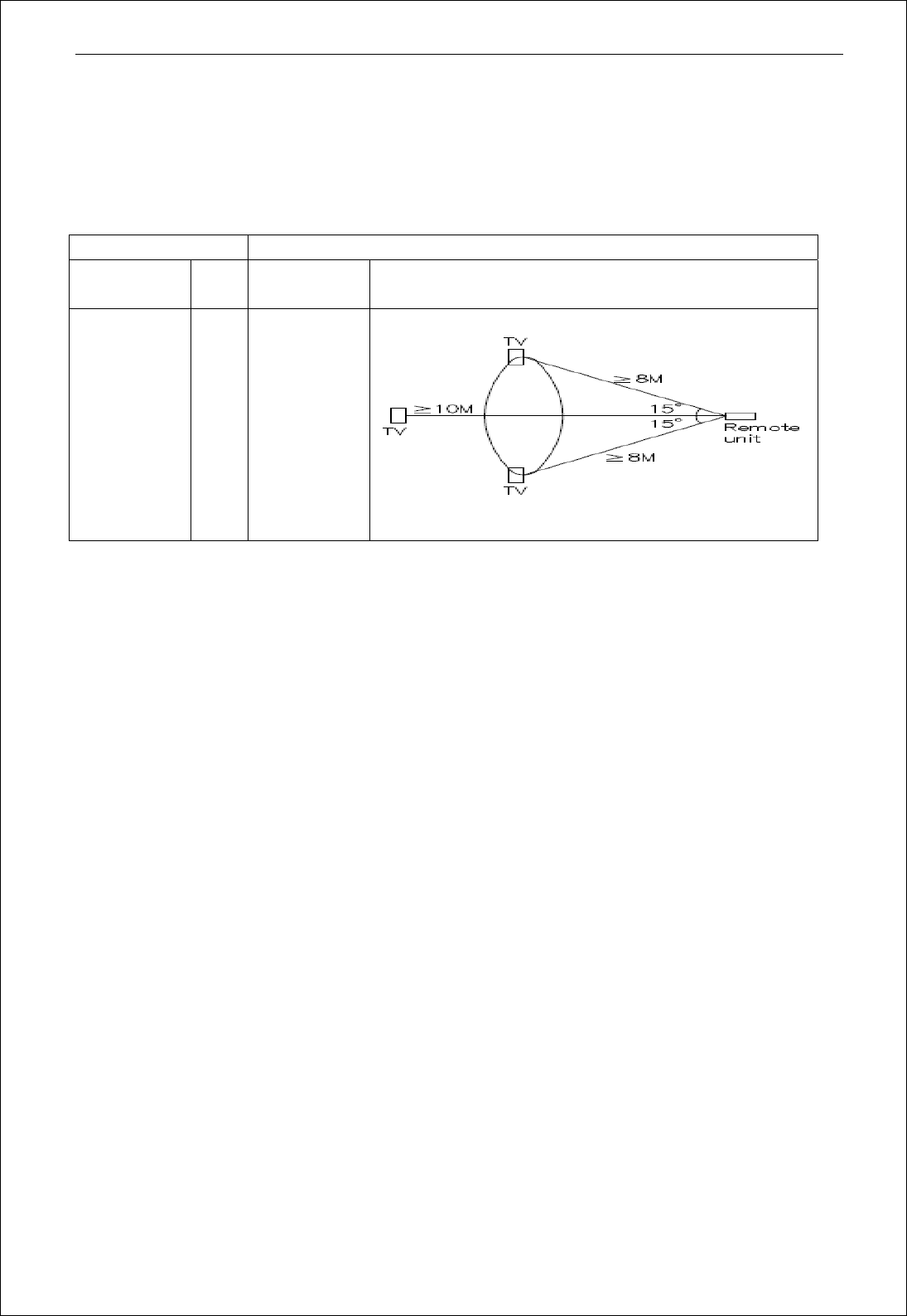
5、RF and IR Range
The remote control can support a transmission range of 16 meters
in direct line-of-sight, 10 meters when not line-of-sight by RF.
RF Range IR Range
Direct line-
of-sight 16m Direct line-
of-sight 10m
Not line-of-
sight 10m Angles IR
distance
8m with the angle 15degree
6、 RC Pairing
Before operating the remote control, user have to pair the target
device with the remote control, the remote should be paired with the target
(Usb dongle) as steps below.
Pairing Process:
First be sure that the device is power on, then press and hold “1” button and
“9” button at the same time .
LED of the remote control will turn on to indicate that it is now in pairing
mode.
Remote control will search the target device(USB Dongle)automatically.
Remote control sends pairing request to the device(USB Dongle).
LED of remote control will blink three times slowly (blink one time each
second) if pairing procedure finish successfully.

TelergyHD BV.
Page 8 of 11
7、Air-mouse Mode
7.1 、Air-mouse Introduction
Two gyros produce the initial delta x and delta y data. This can be
accomplished because the gyros measure the amount of angular velocity in
their corresponding axis.
The pointer follows the user’s motions (no matter what the motion are,
circular, horizontal, vertical, fast, slow, etc.). The pointer works smoothly
and doesn’t produce any unwanted movements or delays. The pointer can go
precisely where the user wants it to.
7.2、Air-mouse Usage
10.2.1 User can press the mouse on/off button to switch
between the air mouse mode and the non-air mouse mode.
10.2.2 Air-mouse only can work on the mode of Remote control.
10.2.3 When Air-mouse is turn on and no any action to Remote
Control within 30 seconds, the Air mouse will enter the sleeping mode,
after that, if you use Remote control again, Air-mouse will wakeup
automatically.
8、Full Key Board
Full keyboard mode will turn on automatically when user make
remote control full keyboard face up ;Full keyboard mode will turn off
automatically when user make remote control full keyboard face down.
TelergyHD BV.
Page 9 of 11
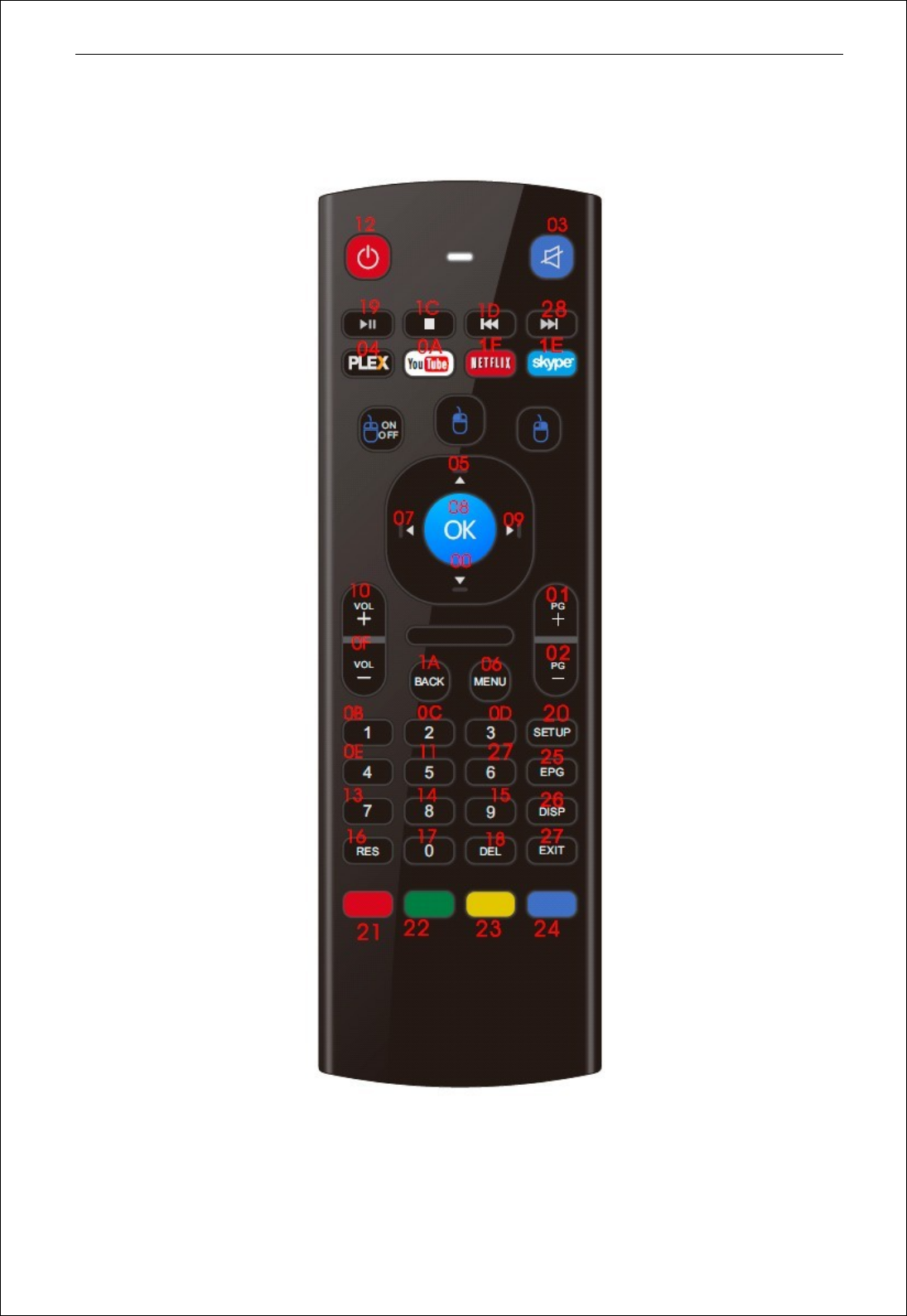
9、Button Code
9.1 Remote control Button Code
TelergyHD BV.
Page 10 of 11
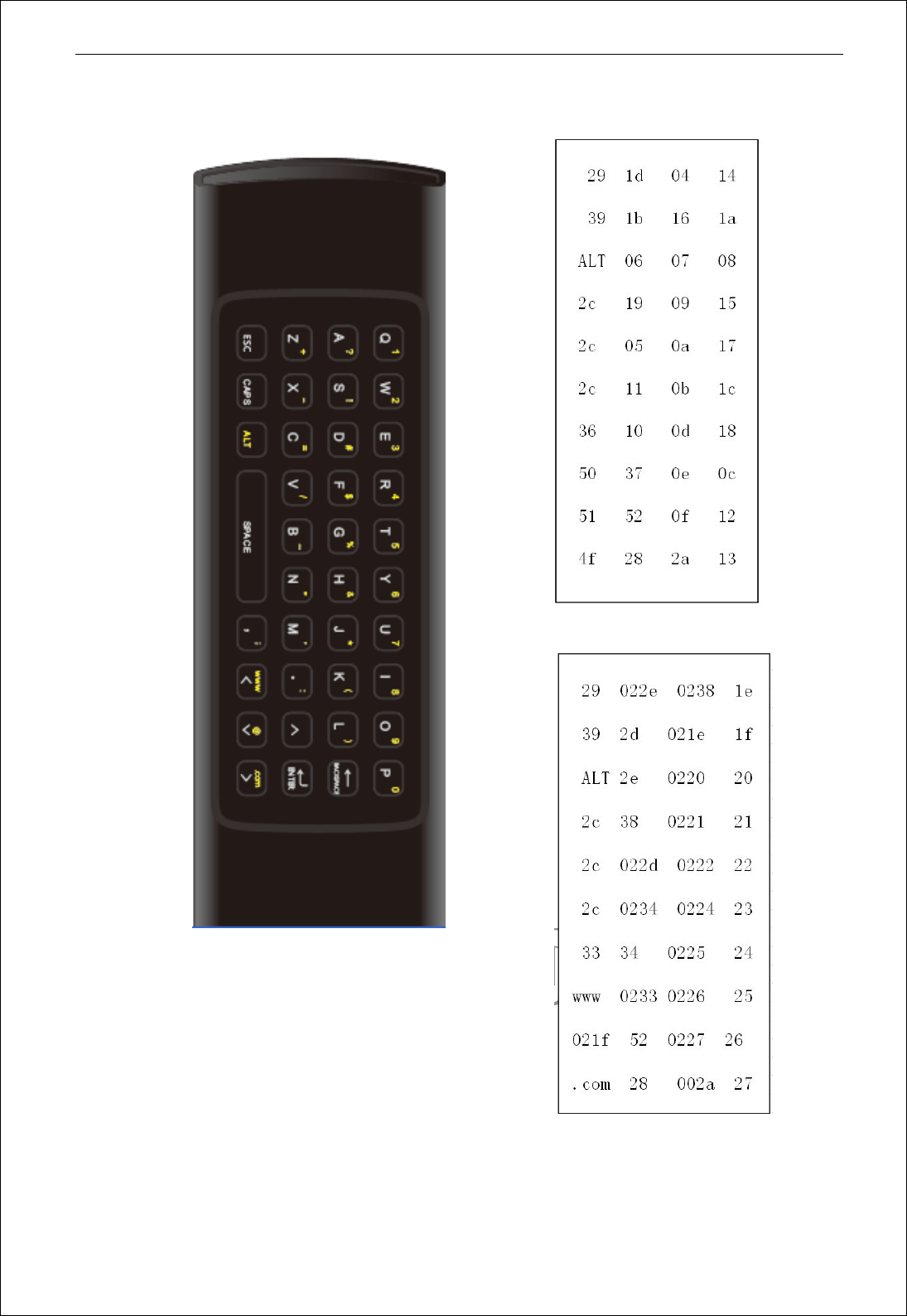
9.2 Full-key board Button Code
Basic button code
Up button code
Remark:
A. Button”mouse on/off”no button code。
B. Button “.com” Code:37 06 12 10
C. Button “www” Code:1a 1a 1a

TelergyHD BV.
Page 11 of 11
10、FCC STATEMENT
1. This device complies with Part 15 of the FCC Rules.
Operation is subject to the following two conditions:
(1) This device may not cause harmful interference, and
(2) This device must accept any interference received, including interference
that may cause undesired operation.
2. Changes or modifications not expressly approved by the party responsible for
compliance could void the user’s authority to operate the equipment.