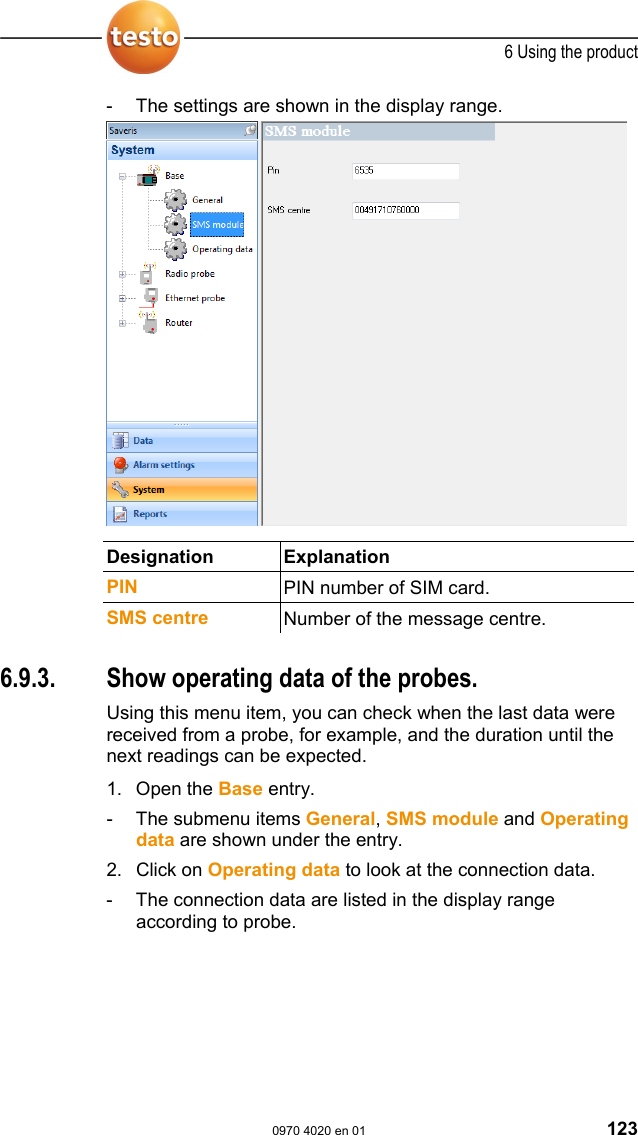
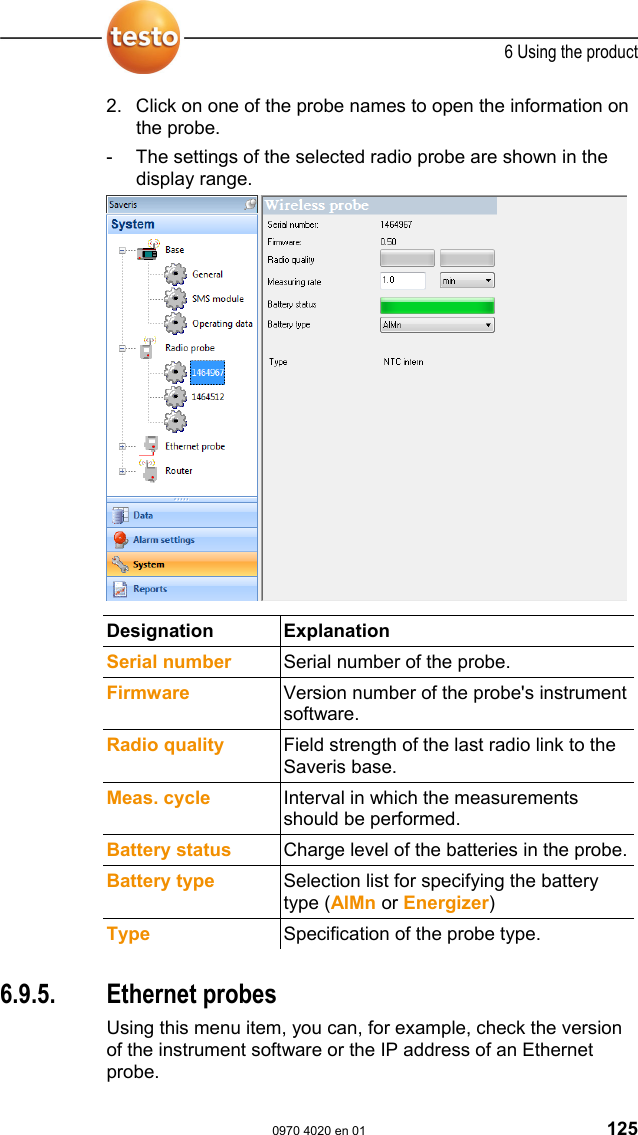
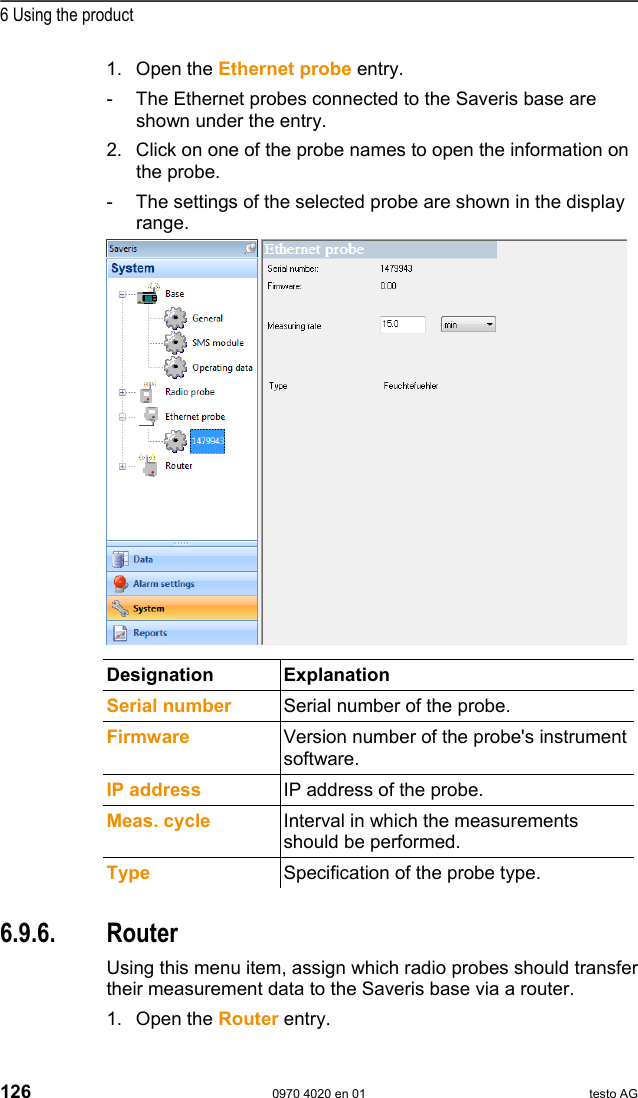
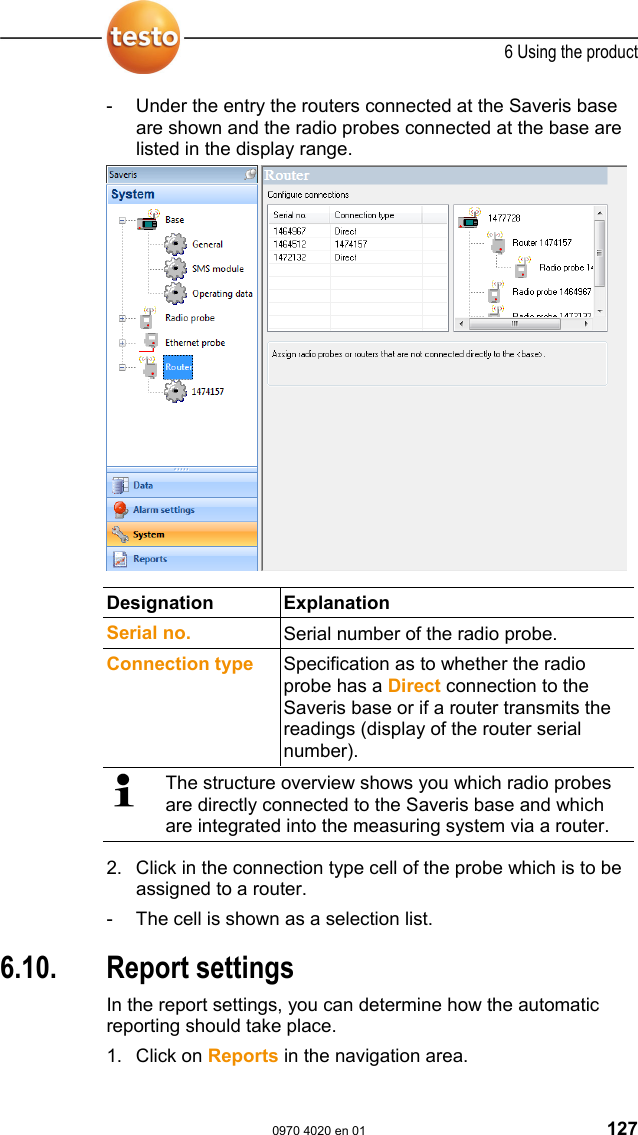
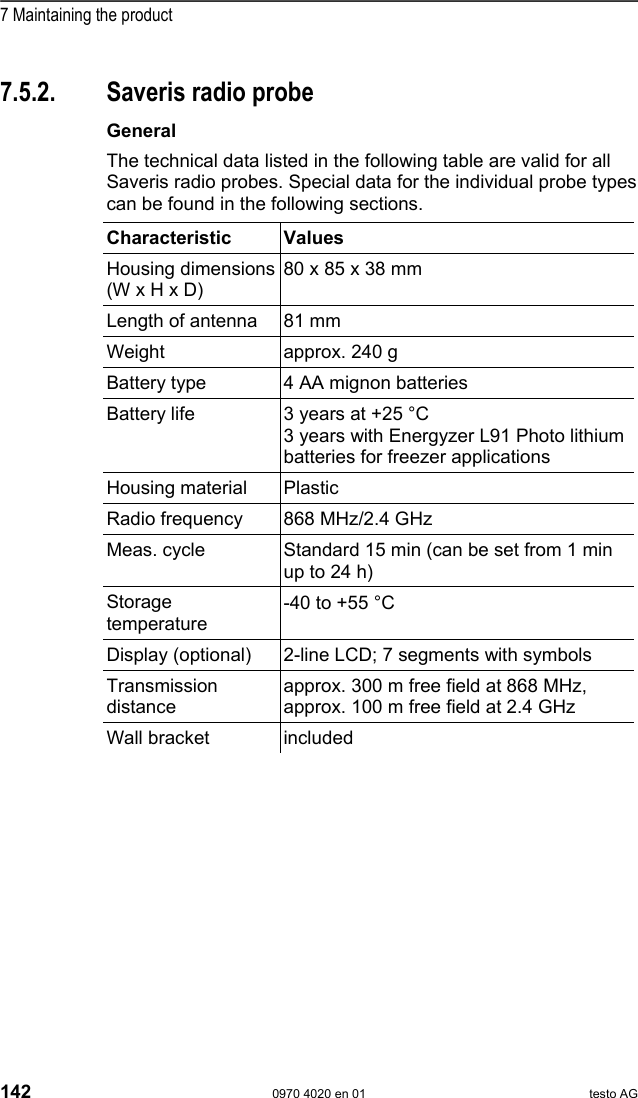
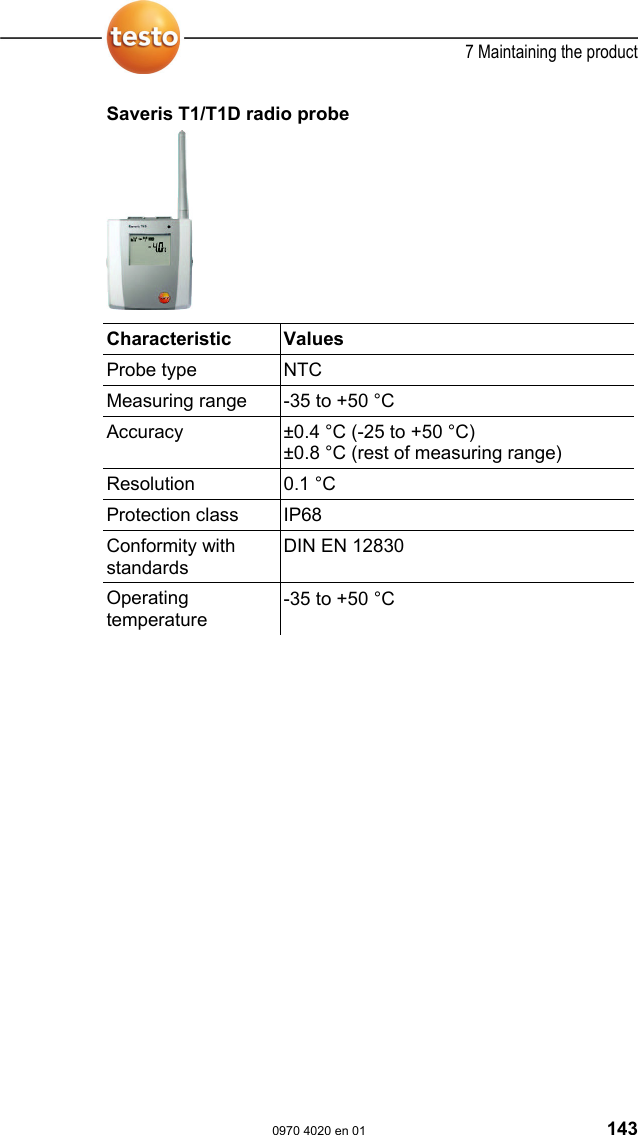
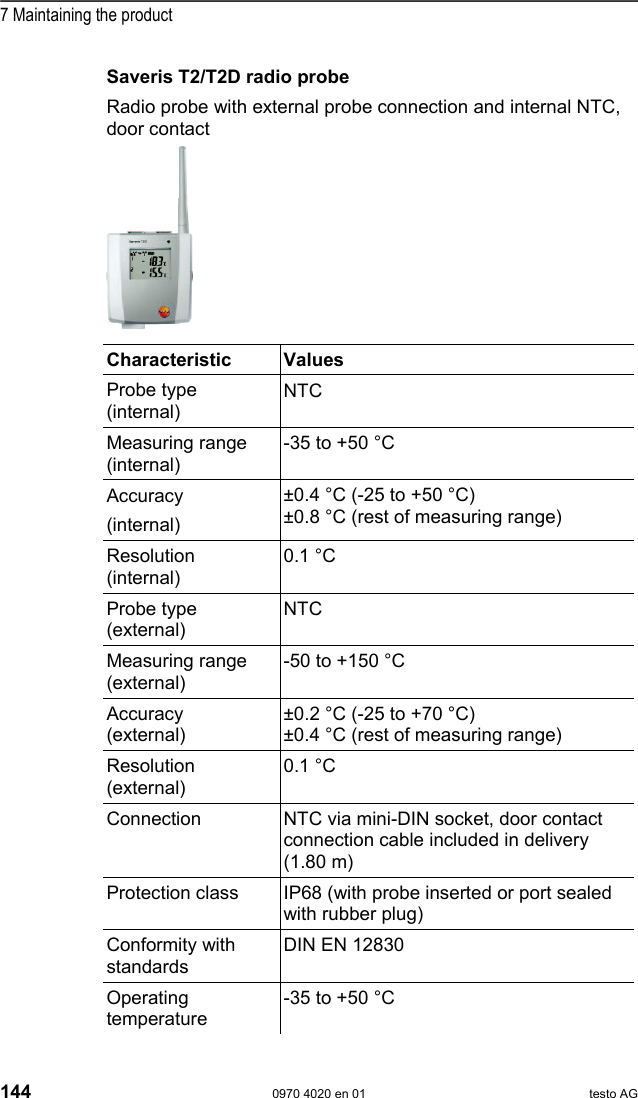
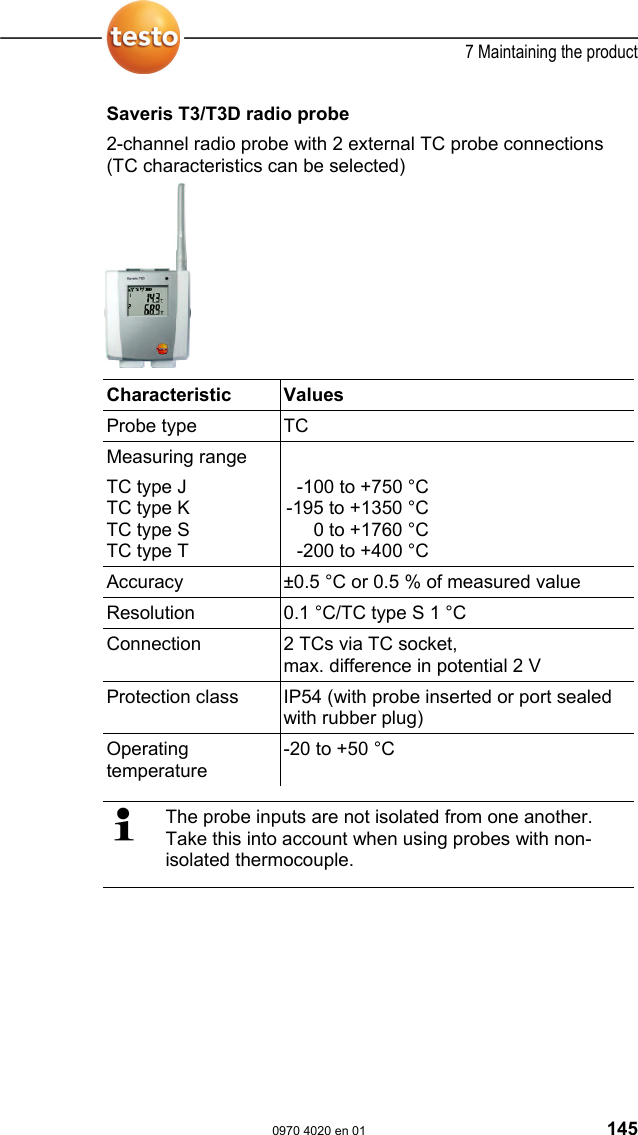
Testo SE and KGaA AMB2520T 2.4 GHz Transceiver module User Manual manual 2

Testo AG 2.4 GHz Transceiver module manual 2

Contents

manual 2

Annex No.4b Page 1 of 164                    Functional description / User’s manual  testo Saveris
 Measurement data monitoring with testo Saveris Small Business Edition  Instruction manual  DraftDemo Unit
 2  0970 4020 en 01 testo AG
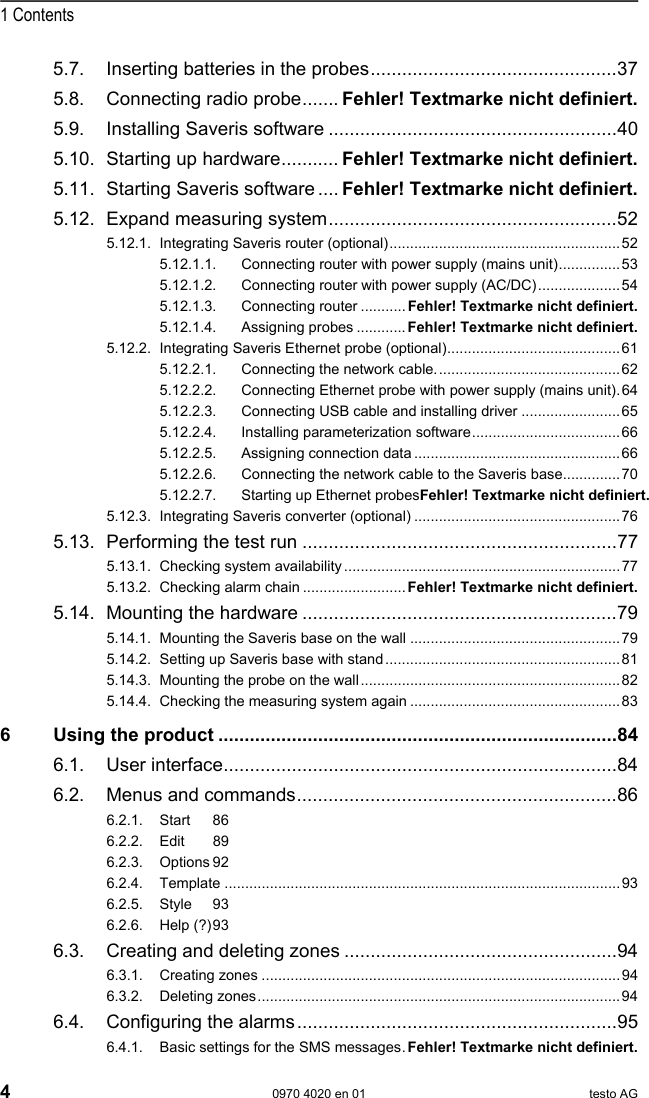
 1 Contents  0970 4020 en 01 3 Pos: 1 /TD/Überschr iften/1. Inhalt @ 0\mod_1 177587817070_79.doc  @ 1243  1 Contents 1 Contents .............................................................................................3 2 Safety and the environment ..............................................................7 2.1. About this document ..................................................................7 2.2. Ensure safety.............................................................................8 2.3. Protecting the environment ........................................................9 3 Specifications...................................................................................10 3.1. Use 10 3.2. System requirements ...............................................................12 4 Product description .........................................................................13 4.1. Saveris base ............................................................................13 4.2. Saveris base GSM module (optional) ......................................15 4.2.1. Control keys............................................................................................15 4.2.2. Displays..............................................Fehler! Textmarke nicht definiert. 4.3. Save radio probe......................................................................20 4.3.1. Radio probe without display................Fehler! Textmarke nicht definiert. 4.3.2. Radio probe with display..................... Fehler! Textmarke nicht definiert. 4.3.3. Meaning of the LED displays at the probes.............................................23 4.4. Saveris Ethernet probes ..........................................................24 4.5. Saveris router...........................................................................26 4.6. Saveris converter .....................................................................27 5 First steps.........................................................................................28 5.1. Checking the scope of delivery ................................................28 5.1.1. Set 1  28 5.1.2. Set 2  28 5.1.3. Set 3  29 5.2. Flowchart .................................................................................30 5.3. Inserting SIM card (optional)....................................................32 5.4. Connecting USB cable to the Saveris base .............................33 5.5. Connecting GSM antenna (optional)........................................34 5.6. Connecting Saveris base with power supply............................35 5.6.1. Power supply via mains unit ...................................................................35 5.6.2. Power supply via plug-in/screw connection (optional).............................36
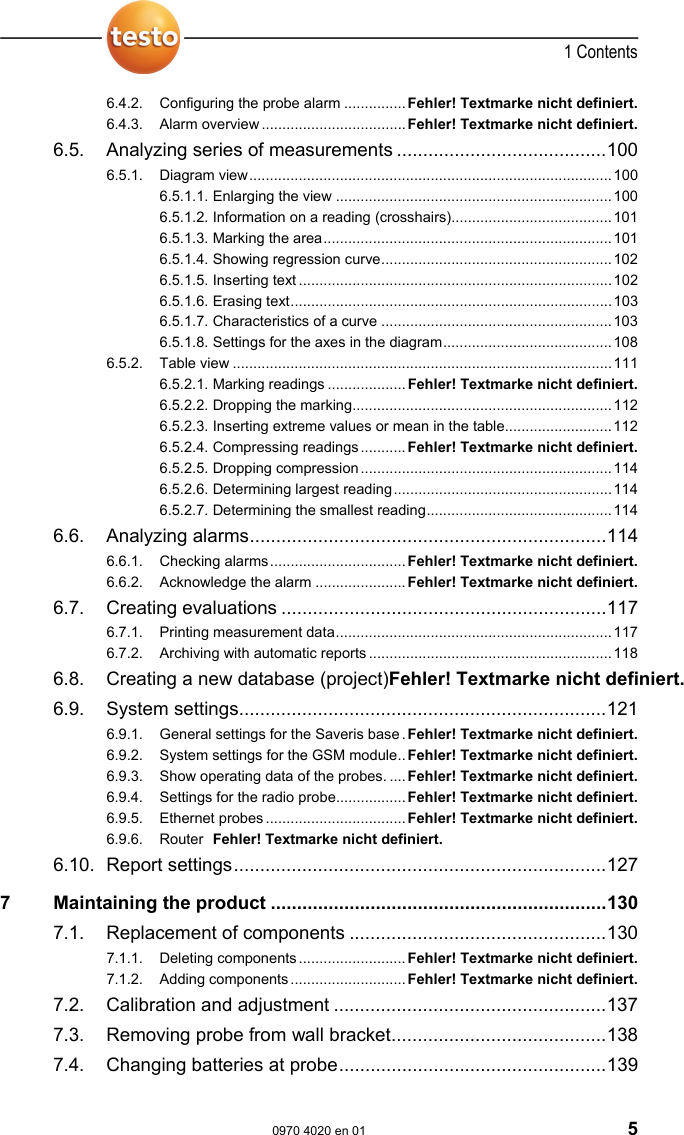
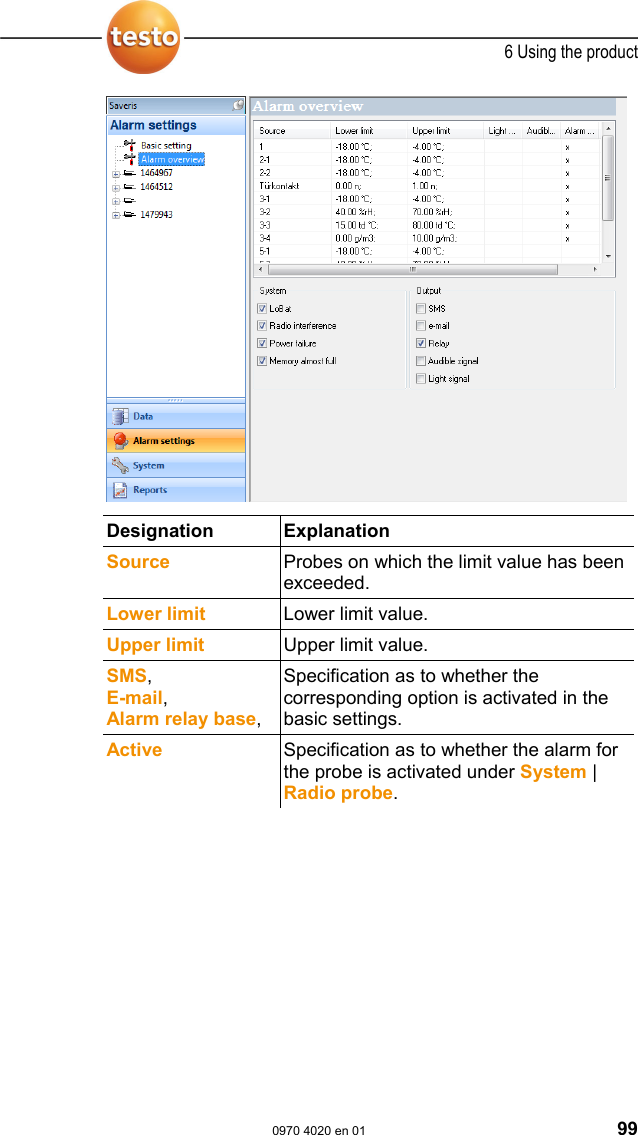
 1 Contents 4  0970 4020 en 01 testo AG 5.7. Inserting batteries in the probes...............................................37 5.8. Connecting radio probe....... Fehler! Textmarke nicht definiert. 5.9. Installing Saveris software .......................................................40 5.10. Starting up hardware........... Fehler! Textmarke nicht definiert. 5.11. Starting Saveris software .... Fehler! Textmarke nicht definiert. 5.12. Expand measuring system.......................................................52 5.12.1. Integrating Saveris router (optional)........................................................52 5.12.1.1. Connecting router with power supply (mains unit)...............53 5.12.1.2. Connecting router with power supply (AC/DC)....................54 5.12.1.3. Connecting router ...........Fehler! Textmarke nicht definiert. 5.12.1.4. Assigning probes ............Fehler! Textmarke nicht definiert. 5.12.2. Integrating Saveris Ethernet probe (optional)..........................................61 5.12.2.1. Connecting the network cable.............................................62 5.12.2.2. Connecting Ethernet probe with power supply (mains unit).64 5.12.2.3. Connecting USB cable and installing driver ........................65 5.12.2.4. Installing parameterization software....................................66 5.12.2.5. Assigning connection data ..................................................66 5.12.2.6. Connecting the network cable to the Saveris base..............70 5.12.2.7. Starting up Ethernet probesFehler! Textmarke nicht definiert. 5.12.3. Integrating Saveris converter (optional) ..................................................76 5.13. Performing the test run ............................................................77 5.13.1. Checking system availability...................................................................77 5.13.2. Checking alarm chain ......................... Fehler! Textmarke nicht definiert. 5.14. Mounting the hardware ............................................................79 5.14.1. Mounting the Saveris base on the wall ...................................................79 5.14.2. Setting up Saveris base with stand.........................................................81 5.14.3. Mounting the probe on the wall...............................................................82 5.14.4. Checking the measuring system again ...................................................83 6 Using the product ............................................................................84 6.1. User interface...........................................................................84 6.2. Menus and commands.............................................................86 6.2.1. Start 86 6.2.2. Edit 89 6.2.3. Options 92 6.2.4. Template ................................................................................................93 6.2.5. Style 93 6.2.6. Help (?) 93 6.3. Creating and deleting zones ....................................................94 6.3.1. Creating zones .......................................................................................94 6.3.2. Deleting zones........................................................................................94 6.4. Configuring the alarms.............................................................95 6.4.1. Basic settings for the SMS messages.Fehler! Textmarke nicht definiert.
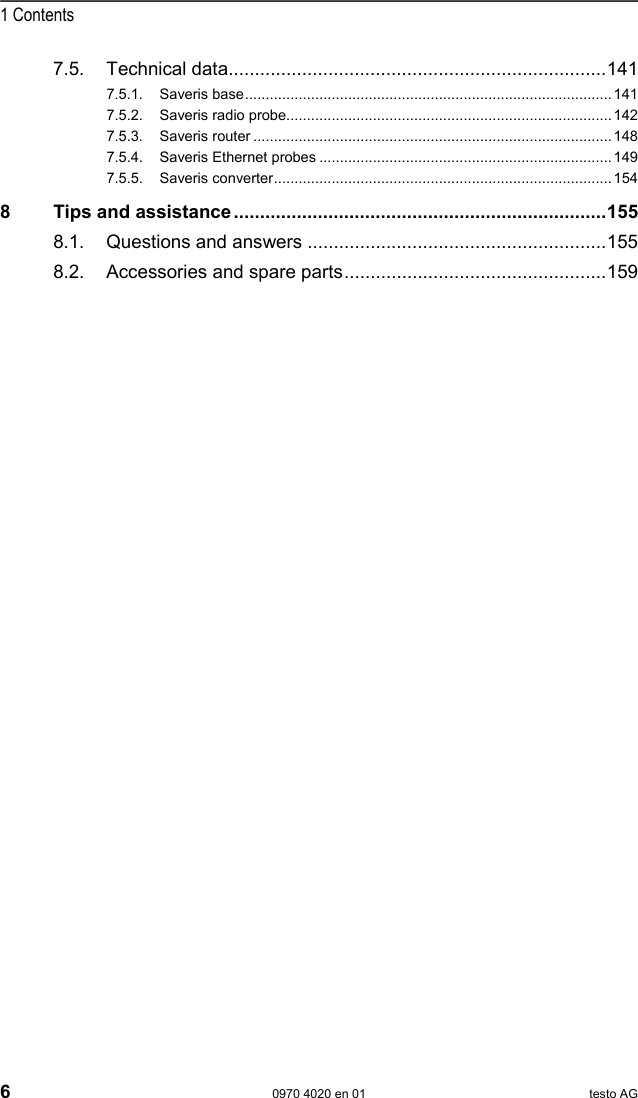
 1 Contents  0970 4020 en 01 5 6.4.2. Configuring the probe alarm ...............Fehler! Textmarke nicht definiert. 6.4.3. Alarm overview ................................... Fehler! Textmarke nicht definiert. 6.5. Analyzing series of measurements ........................................100 6.5.1. Diagram view........................................................................................100 6.5.1.1. Enlarging the view ...................................................................100 6.5.1.2. Information on a reading (crosshairs).......................................101 6.5.1.3. Marking the area......................................................................101 6.5.1.4. Showing regression curve........................................................102 6.5.1.5. Inserting text ............................................................................102 6.5.1.6. Erasing text..............................................................................103 6.5.1.7. Characteristics of a curve ........................................................103 6.5.1.8. Settings for the axes in the diagram.........................................108 6.5.2. Table view ............................................................................................111 6.5.2.1. Marking readings ...................Fehler! Textmarke nicht definiert. 6.5.2.2. Dropping the marking...............................................................112 6.5.2.3. Inserting extreme values or mean in the table..........................112 6.5.2.4. Compressing readings........... Fehler! Textmarke nicht definiert. 6.5.2.5. Dropping compression.............................................................114 6.5.2.6. Determining largest reading.....................................................114 6.5.2.7. Determining the smallest reading.............................................114 6.6. Analyzing alarms....................................................................114 6.6.1. Checking alarms.................................Fehler! Textmarke nicht definiert. 6.6.2. Acknowledge the alarm ......................Fehler! Textmarke nicht definiert. 6.7. Creating evaluations ..............................................................117 6.7.1. Printing measurement data...................................................................117 6.7.2. Archiving with automatic reports ...........................................................118 6.8. Creating a new database (project)Fehler! Textmarke nicht definiert. 6.9. System settings......................................................................121 6.9.1. General settings for the Saveris base. Fehler! Textmarke nicht definiert. 6.9.2. System settings for the GSM module..Fehler! Textmarke nicht definiert. 6.9.3. Show operating data of the probes. .... Fehler! Textmarke nicht definiert. 6.9.4. Settings for the radio probe.................Fehler! Textmarke nicht definiert. 6.9.5. Ethernet probes ..................................Fehler! Textmarke nicht definiert. 6.9.6. Router  Fehler! Textmarke nicht definiert. 6.10. Report settings.......................................................................127 7 Maintaining the product ................................................................130 7.1. Replacement of components .................................................130 7.1.1. Deleting components..........................Fehler! Textmarke nicht definiert. 7.1.2. Adding components............................Fehler! Textmarke nicht definiert. 7.2. Calibration and adjustment ....................................................137 7.3. Removing probe from wall bracket.........................................138 7.4. Changing batteries at probe...................................................139
 1 Contents 6  0970 4020 en 01 testo AG 7.5. Technical data........................................................................141 7.5.1. Saveris base.........................................................................................141 7.5.2. Saveris radio probe...............................................................................142 7.5.3. Saveris router .......................................................................................148 7.5.4. Saveris Ethernet probes .......................................................................149 7.5.5. Saveris converter..................................................................................154 8 Tips and assistance .......................................................................155 8.1. Questions and answers .........................................................155 8.2. Accessories and spare parts..................................................159  Pos: 2 /TD/--- Seitenwechsel --- @ 0\mod_117377443060 1_0.doc @ 283
 2 Safety and the environment  0970 4020 en 01 7  Pos: 3 /TD/Überschr iften/2. Sicher heit und Umwelt @ 0\mod_11737747 19351_79.doc @ 292  2  Safety and the environment Pos: 4 /TD/Überschr iften/2.1 Zu diesem Doku ment @ 0\mod_117377525235 1_79.doc @ 346  2.1.  About this document Pos: 5 /TD/Sicherhei t und Umwelt/Zu diesem Doku ment/Symbole und Schr eibkonv. [Saveris] @ 0\ mod_1193735939953_79. doc @ 5623  Symbols and writing standards  Representation  Explanation   Warning advice, risk level according to the signal word: Warning! Serious physical injury may occur. Caution! Slight physical injury or damage to the equipment may occur. >  Implement the specified precautionary measures.  Note: Basic or further information. 1. ... 2. ... Action: more steps, the sequence must be followed. >  ...  Action: a step or an optional step. -  ...  Result of an action.  ...  ... Position numbers for the clarification of the relationship between text and picture. Menu  Elements of the instrument, the instrument display or the program interface. [OK]  Control keys of the instrument or buttons of the program interface.  ... | ...  Functions/paths within a menu. “...” Example entries  Pos: 6 /TD/Sicherhei t und Umwelt/Zu diesem Doku ment/Verwendung (Sa veris) @ 0\mod_11913287705 62_79.doc @ 5412
 2 Safety and the environment 8  0970 4020 en 01 testo AG Use >  Familiarity with a PC as well as the Microsoft products, especially Microsoft Office 2007, is assumed in this documentation. >  Please read this documentation through carefully and familiarize yourself with the product before putting it to use. Pay particular attention to the safety instructions and warning advice in order to prevent injuries and damage to the products. >  Keep this document to hand so that you can refer to it when necessary.  >  Hand this documentation on to any subsequent users of the product. Pos: 7 /TD/Überschr iften/2.2 Sicher heit gewährleisten @ 0\mod_1173 780783960_79.doc  @ 366  2.2. Ensure safety Pos: 8 /TD/Sicherhei t und Umwelt/Sicherhei t gewährleisten/Sa veris Wartungsarbeite n @ 1\mod_1196958627509_7 9.doc @ 6094  >  Carry out only the maintenance and repair work on the components of the testo Saveris system that is described in the documentation. Follow the prescribed steps exactly. Use only original spare parts from Testo.  Pos: 9 /TD/Sicherhei t und Umwelt/Sicherhei t gewährleisten/Sa veris spannungsführ ende Teile @ 1\mod_120490700 8625_79.doc @ 12630  >  Never use the Saveris probes to measure on or near live parts. Pos: 10 /TD/Sicherhei t und Umwelt/Sicherhei t gewährleisten/Pr odukt bestimmungsge mäß verwenden @ 0\mod_11737812 61848_79.doc @ 386  >  Only operate the product properly, for its intended purpose and within the parameters specified in the technical data. Do not use any force. Pos: 11 /TD/Sicherhei t und Umwelt/Sicherhei t gewährleisten/Sa veris Funk @ 1\mod_11981494 59718_79.doc @ 6845  >  The output of the power supply for the Saveris probes, routers, converters and the Saveris base is restricted in accordance with EN 60950-1:2001. A manipulation of the power supply is not allowed in terms of the radio authorization. >  The radio module is installed in the Saveris components such that the limit values for air and creepage distance is adhered to with regard to the standards. Changing the internal design of the components is not allowed. >  When selecting the location, ensure that the permissible ambient and storage temperatures are adhered to: •  Radio module:  -35 to 50°C •  Components:  -35 to 50 °C (operation);             -40 to 55 °C (storage).
 2 Safety and the environment  0970 4020 en 01 9 Pos: 12 /TD/Überschr iften/2.3 Umwelt schüt zen @ 0\mod_1173780843645 _79.doc @ 375  2.3.  Protecting the environment Pos: 13.1 /TD/Sicher heit und Umwelt/Umwelt sc hützen/Akkus/Bat terien entsorgen @ 0\mod _1175693637007_79.doc  @ 619  >  Dispose of faulty rechargeable batteries/spent batteries in accordance with the valid legal specifications. Pos: 13.2 /TD/Sicher heit und Umwelt/Umwelt schü tzen/Produkt entsor gen @ 0\mod_11737803070 72_79.doc @ 357  >  At the end of its useful life, send the product to the separate collection for electric and electronic devices (observe local regulations) or return the product to Testo for disposal.  Pos: 14 /TD/--- Seitenwechsel --- @ 0\mod_1173774430601_0.doc @ 283
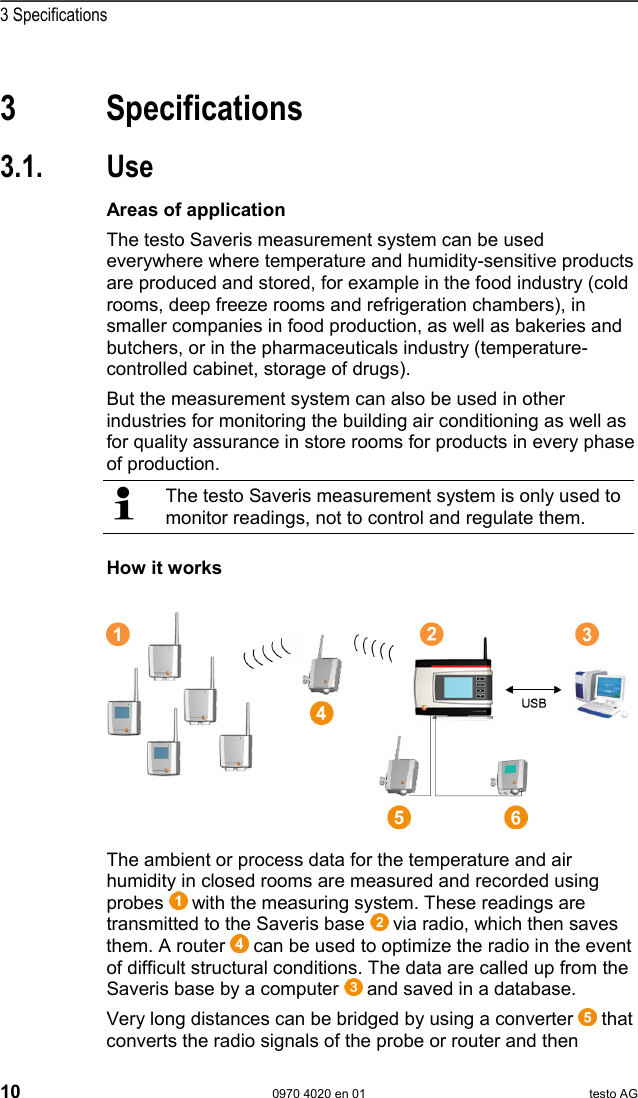
 3 Specifications 10  0970 4020 en 01 testo AG  Pos: 15 /TD/Überschr iften/3. Leistungs beschreibung @ 0\mod_11737 74791554_79.doc  @ 301  3 Specifications Pos: 16 /TD/Überschr iften/3.1 Verwendung @  0\mod_1176211016437_ 79.doc @ 695  3.1. Use Pos: 17 /TD/Leistungsb eschreibung/Ver wendung/testo Saver is/01 Einsatzgebiete @ 1\ mod_1197376440546_79. doc @ 6184  Areas of application The testo Saveris measurement system can be used everywhere where temperature and humidity-sensitive products are produced and stored, for example in the food industry (cold rooms, deep freeze rooms and refrigeration chambers), in smaller companies in food production, as well as bakeries and butchers, or in the pharmaceuticals industry (temperature-controlled cabinet, storage of drugs). But the measurement system can also be used in other industries for monitoring the building air conditioning as well as for quality assurance in store rooms for products in every phase of production.   The testo Saveris measurement system is only used to monitor readings, not to control and regulate them.  Pos: 18 /TD/Leistungsb eschreibung/Ver wendung/testo Saver is/02 Funktionsweise @ 1\ mod_1197376538421_79. doc @ 6194  How it works  Pos: 19 /TD/Leistungsb eschreibung/Ver wendung/testo Saveris/ 02b Funktionsweise SBE @ 1\mod_11 97980459890_79.doc  @ 6553      Pos: 20 /TD/Leistungsb eschreibung/Ver wendung/testo Saver is/02c Funktionsweise @  1\mod_1197980516265 _79.doc @ 6573  The ambient or process data for the temperature and air humidity in closed rooms are measured and recorded using probes   with the measuring system. These readings are transmitted to the Saveris base   via radio, which then saves them. A router   can be used to optimize the radio in the event of difficult structural conditions. The data are called up from the Saveris base by a computer   and saved in a database. Very long distances can be bridged by using a converter   that converts the radio signals of the probe or router and then
 3 Specifications  0970 4020 en 01 11 transmits these measurement data to the base via Ethernet cable. In addition the so-called Ethernet probes   can be connected to the base using an Ethernet cable. With the testo Saveris software you thereby always have an overview of the development of the readings in the individual areas.   Pos: 21 /TD/Leistungsb eschreibung/Ver wendung/testo Saver is/04 Haftungsaussc hluss @ 1\mod_119737661 6906_79.doc @ 6214  Exclusion of liability The testo Saveris system was developed to consolidate a large amount of measurement data from spatially separated probes in the Saveris software, document it without interruption and issue alarms in the event of irregularities. The testo Saveris system is not designed to undertake control and regulation tasks according to the regulations. Particularly the alarms are not to be perceived as so-called critical alarms with which the endangerment of life or limb or damage to equipment can be averted. Liability on the part of Testo AG for damages from this type of application is excluded.    Pos: 22 /TD/Überschr iften/3.2 Systemvorau ssetzungen @ 0\mod_118 7269645125_79.doc  @ 2385
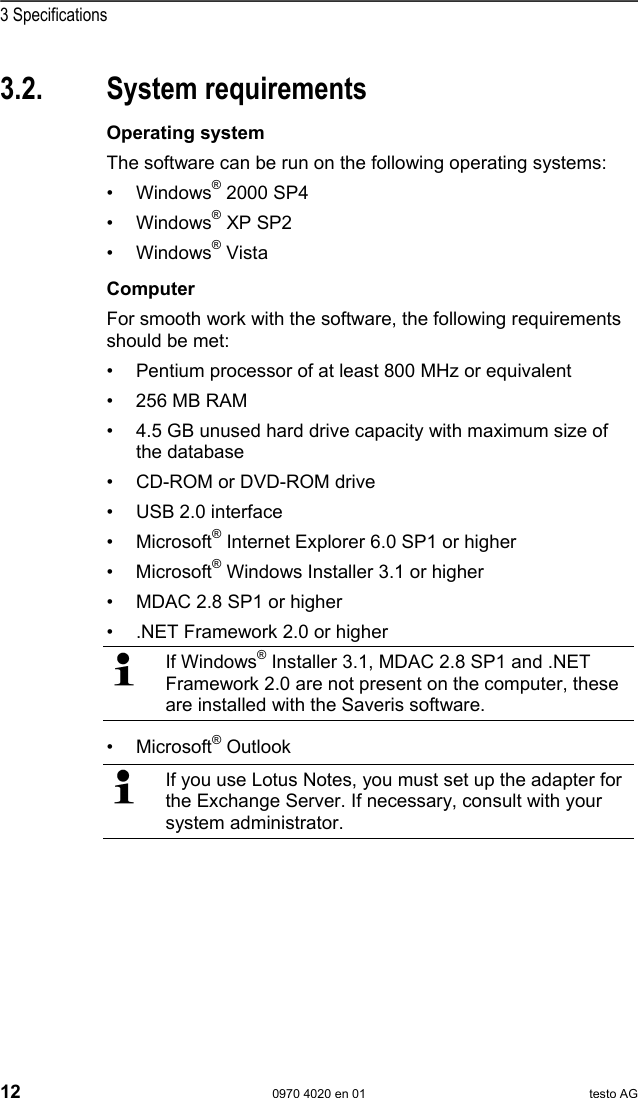
 3 Specifications 12  0970 4020 en 01 testo AG 3.2. System requirements Pos: 23 /TD/Leistungsb eschreibung/Sy stemvoraussetzungen/ Betriebssyste m (Saveris) @ 0\mod_119191 7806171_79.doc @ 5423  Operating system The software can be run on the following operating systems: • Windows® 2000 SP4 • Windows® XP SP2 • Windows® Vista Pos: 24 /TD/Leistungsb eschreibung/Sy stemvoraussetzungen/ Rechner (Saveris)  @ 0\mod_1191918060734_79. doc @ 5433  Computer For smooth work with the software, the following requirements should be met: •  Pentium processor of at least 800 MHz or equivalent •  256 MB RAM •  4.5 GB unused hard drive capacity with maximum size of the database •  CD-ROM or DVD-ROM drive •  USB 2.0 interface • Microsoft® Internet Explorer 6.0 SP1 or higher • Microsoft® Windows Installer 3.1 or higher •  MDAC 2.8 SP1 or higher •  .NET Framework 2.0 or higher  If Windows® Installer 3.1, MDAC 2.8 SP1 and .NET Framework 2.0 are not present on the computer, these are installed with the Saveris software. • Microsoft® Outlook   If you use Lotus Notes, you must set up the adapter for the Exchange Server. If necessary, consult with your system administrator.  Pos: 25 /TD/--- Seitenwechsel --- @ 0\mod_1173774430601_0.doc @ 283
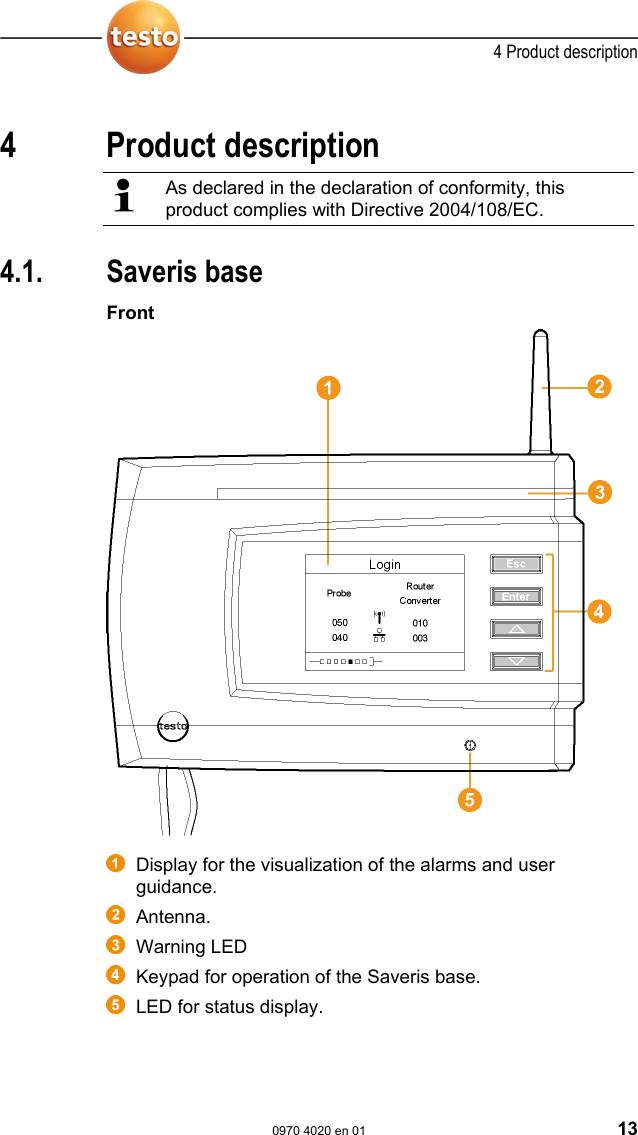
 4 Product description  0970 4020 en 01 13  Pos: 26 /TD/Überschr iften/4. Produktbesc hreibung @ 0\mod_1173 774846679_79.doc @  310  4 Product description Pos: 27 /TD/Produktb eschreibung/Übersic ht/testo Saveri s/Hinweis CE @ 1\mod_120490 5902234_79.doc @ 12612   As declared in the declaration of conformity, this product complies with Directive 2004/108/EC.  Pos: 28 /TD/Produktb eschreibung/Übersic ht/testo Saveri s/00 Base/01 Base @ 0\mod_118 9504245140_79.doc  @ 4274  4.1. Saveris base Front      Display for the visualization of the alarms and user guidance.   Antenna.  Warning LED   Keypad for operation of the Saveris base.  LED for status display.
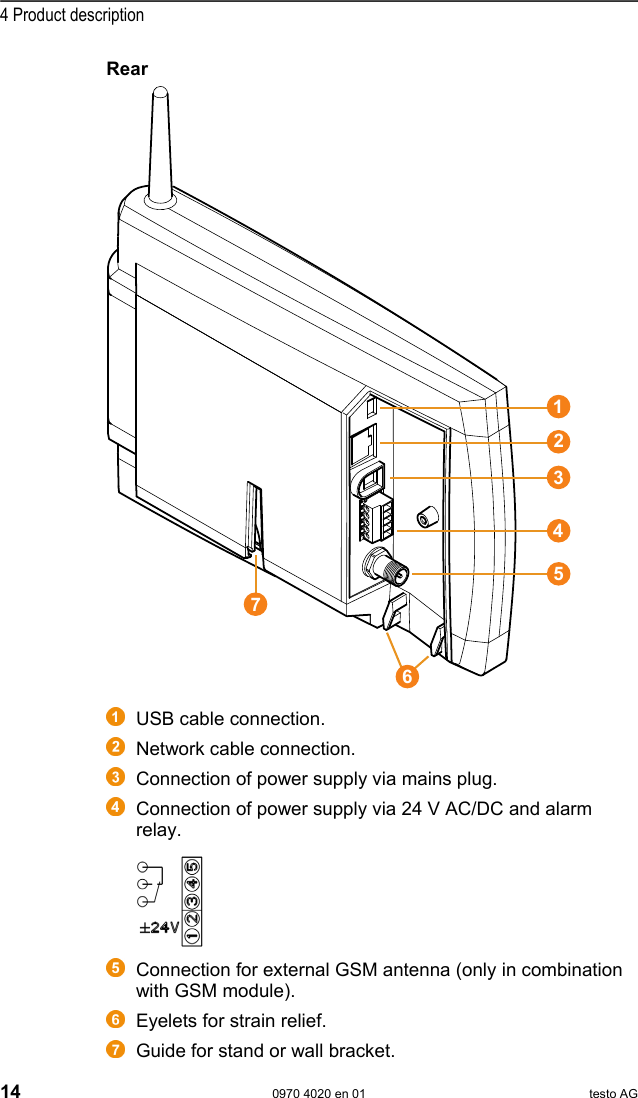
 4 Product description 14  0970 4020 en 01 testo AG Rear     USB cable connection.  Network cable connection.  Connection of power supply via mains plug.   Connection of power supply via 24 V AC/DC and alarm relay.       Connection for external GSM antenna (only in combination with GSM module).   Eyelets for strain relief.   Guide for stand or wall bracket. 1234567
 4 Product description  0970 4020 en 01 15  Pos: 29 /TD/Produktb eschreibung/Übersic ht/testo Saveri s/00 Base/02 Base GSM @ 1\mod_1 196957066669_79.doc  @ 6084  4.2.  Saveris base GSM module (optional)     Insertion slot for the SIM card.  Pos: 30 /TD/Produktb eschreibung/Übersic ht/testo Saveri s/00 Base/Bedientast en @ 0\mod_1190205422265_ 79.doc @ 4893  4.2.1. Control keys  Key Explanation [Esc]  Switches from the Login menu to the Info System menu. [Enter]  In the Info System menu starts up the login status for the probe. [ ▲ ], [ ▼ ]  Navigation buttons for changing the menus.   Pos: 31 /TD/Produktb eschreibung/Übersic ht/testo Saveri s/00 Base/Displayanzei gen @ 0\mod_1190205462 296_79.doc @ 4902  *
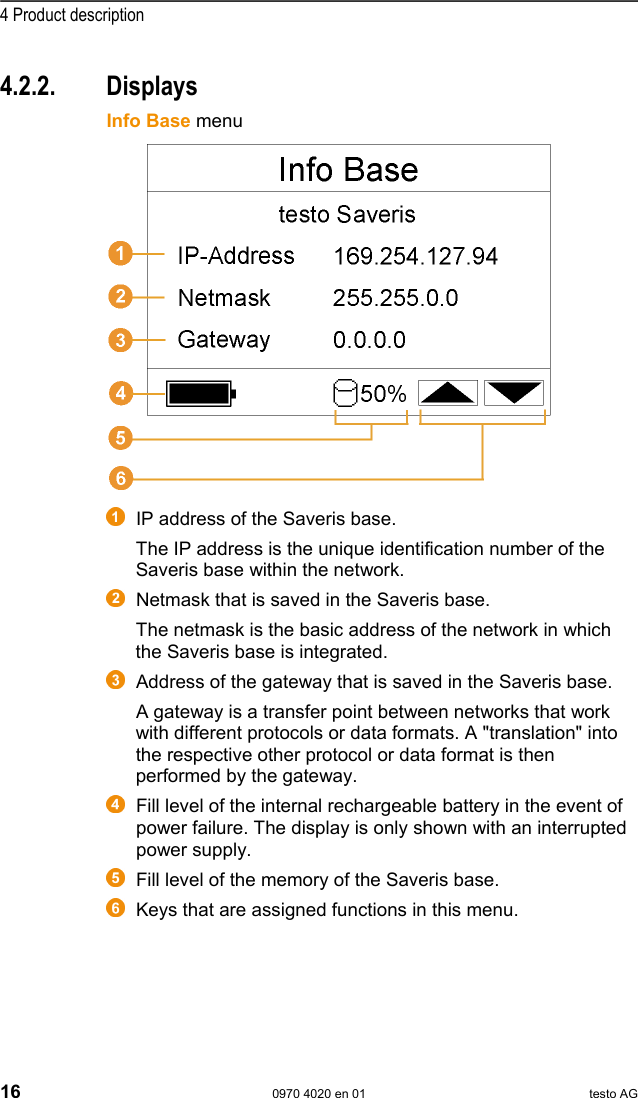
 4 Product description 16  0970 4020 en 01 testo AG 4.2.2. Displays Info Base menu     IP address of the Saveris base. The IP address is the unique identification number of the Saveris base within the network.   Netmask that is saved in the Saveris base. The netmask is the basic address of the network in which the Saveris base is integrated.   Address of the gateway that is saved in the Saveris base. A gateway is a transfer point between networks that work with different protocols or data formats. A "translation" into the respective other protocol or data format is then performed by the gateway.   Fill level of the internal rechargeable battery in the event of power failure. The display is only shown with an interrupted power supply.   Fill level of the memory of the Saveris base.   Keys that are assigned functions in this menu.
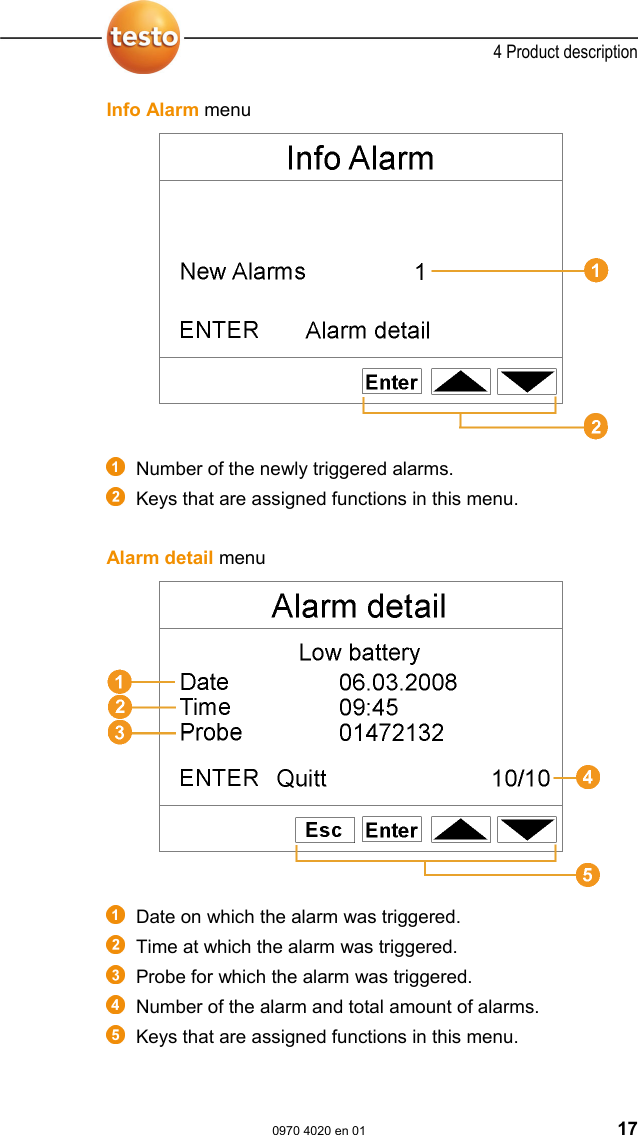
 4 Product description  0970 4020 en 01 17 Info Alarm menu     Number of the newly triggered alarms.   Keys that are assigned functions in this menu.  Alarm detail menu     Date on which the alarm was triggered.   Time at which the alarm was triggered.   Probe for which the alarm was triggered.   Number of the alarm and total amount of alarms.   Keys that are assigned functions in this menu.
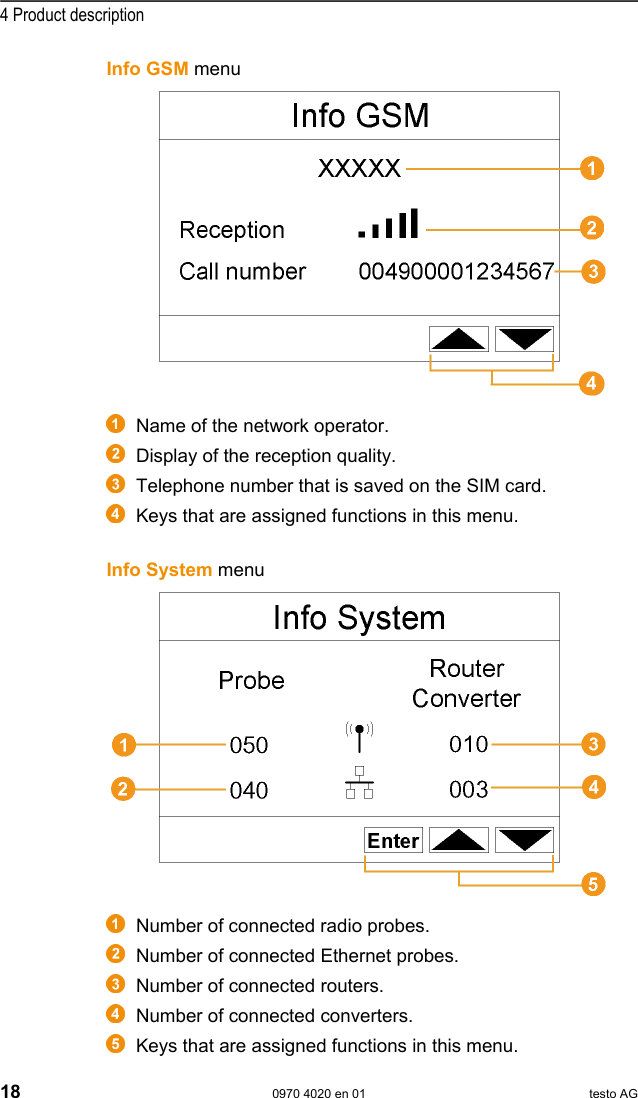
 4 Product description 18  0970 4020 en 01 testo AG Info GSM menu     Name of the network operator.   Display of the reception quality.   Telephone number that is saved on the SIM card.   Keys that are assigned functions in this menu.   Info System menu     Number of connected radio probes.   Number of connected Ethernet probes.   Number of connected routers.   Number of connected converters.   Keys that are assigned functions in this menu.
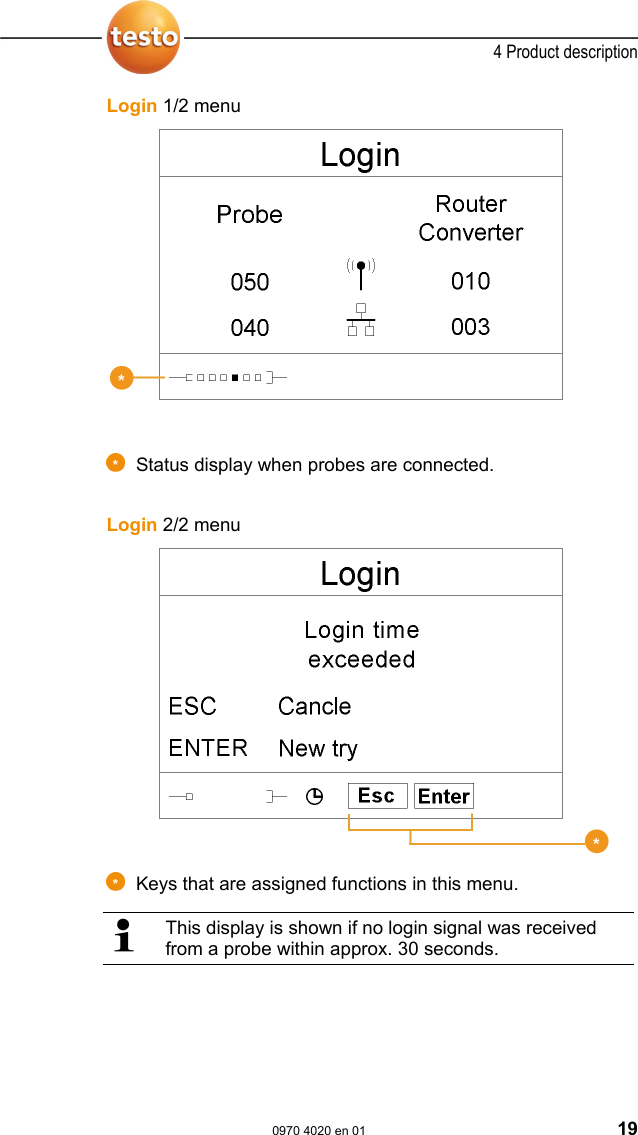
 4 Product description  0970 4020 en 01 19 Login 1/2 menu     Status display when probes are connected.  Login 2/2 menu     Keys that are assigned functions in this menu.   This display is shown if no login signal was received from a probe within approx. 30 seconds.
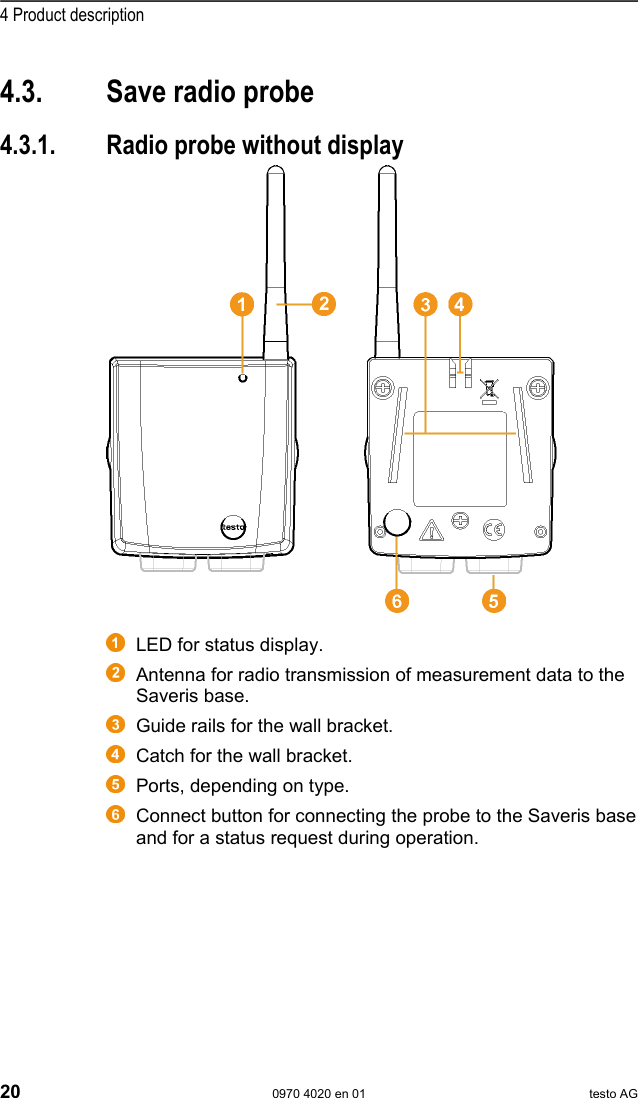
 4 Product description 20  0970 4020 en 01 testo AG Pos: 32 /TD/Produktb eschreibung/Übersic ht/testo Saveri s/01 Funkfühler/00 Funkf ühler @ 0\mod_119028149 7265_79.doc @ 5041  4.3.  Save radio probe Pos: 33 /TD/Produktb eschreibung/Übersic ht/testo Saveri s/01 Funkfühler/01 Fun kfühler ohne Display @ 0\ mod_1189496319546_79.doc  @ 4255  4.3.1.  Radio probe without display      LED for status display.   Antenna for radio transmission of measurement data to the Saveris base.  Guide rails for the wall bracket.   Catch for the wall bracket.   Ports, depending on type.   Connect button for connecting the probe to the Saveris base and for a status request during operation.
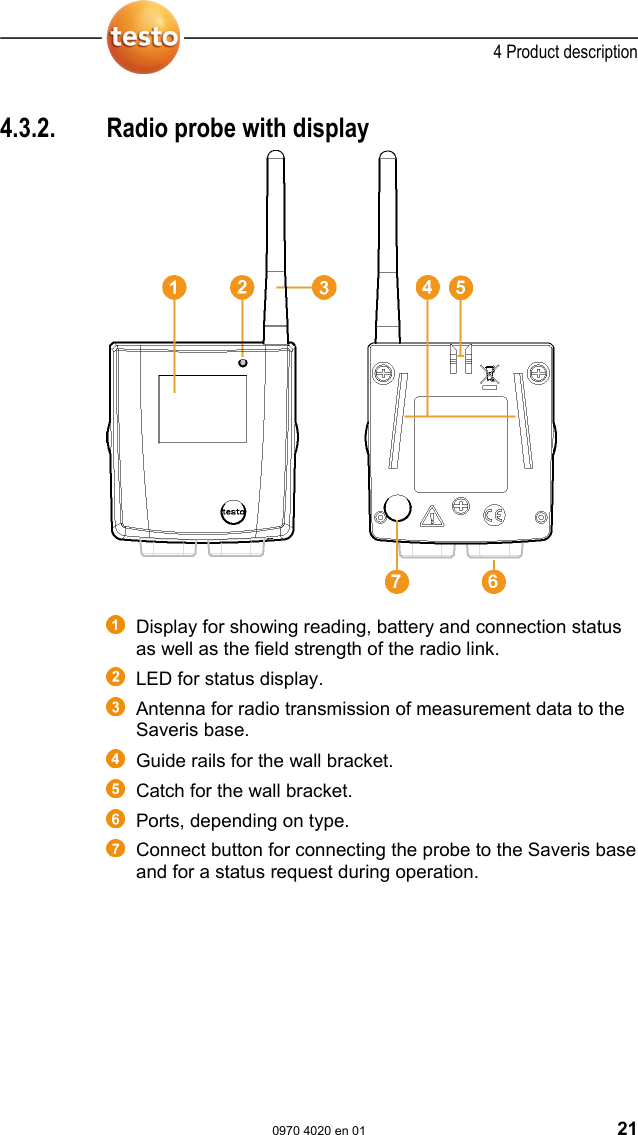
 4 Product description  0970 4020 en 01 21  Pos: 34 /TD/Produktb eschreibung/Übersic ht/testo Saveri s/01 Funkfühler/02 Fun kfühler mit Display @ 0\ mod_1189496687343_79.d oc @ 4264  4.3.2.  Radio probe with display      Display for showing reading, battery and connection status as well as the field strength of the radio link.  LED for status display.  Antenna for radio transmission of measurement data to the Saveris base.   Guide rails for the wall bracket.   Catch for the wall bracket.   Ports, depending on type.   Connect button for connecting the probe to the Saveris base and for a status request during operation.
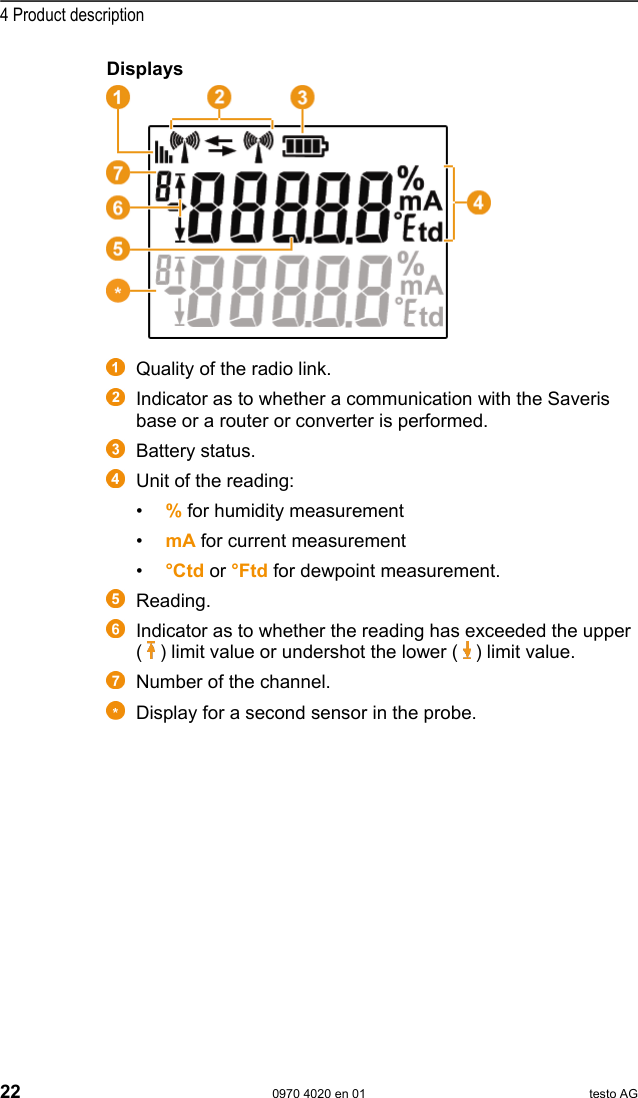
 4 Product description 22  0970 4020 en 01 testo AG Displays     Quality of the radio link.   Indicator as to whether a communication with the Saveris base or a router or converter is performed.  Battery status.   Unit of the reading: •  % for humidity measurement •  mA for current measurement •  °Ctd or °Ftd for dewpoint measurement.  Reading.   Indicator as to whether the reading has exceeded the upper (   ) limit value or undershot the lower (   ) limit value.   Number of the channel.   Display for a second sensor in the probe.  Pos: 35 /TD/Produktb eschreibung/Übersic ht/testo Saveri s/01 Funkfühler/03 Bede utung der LED @ 0\mod_1190807 440000_79.doc @ 5133
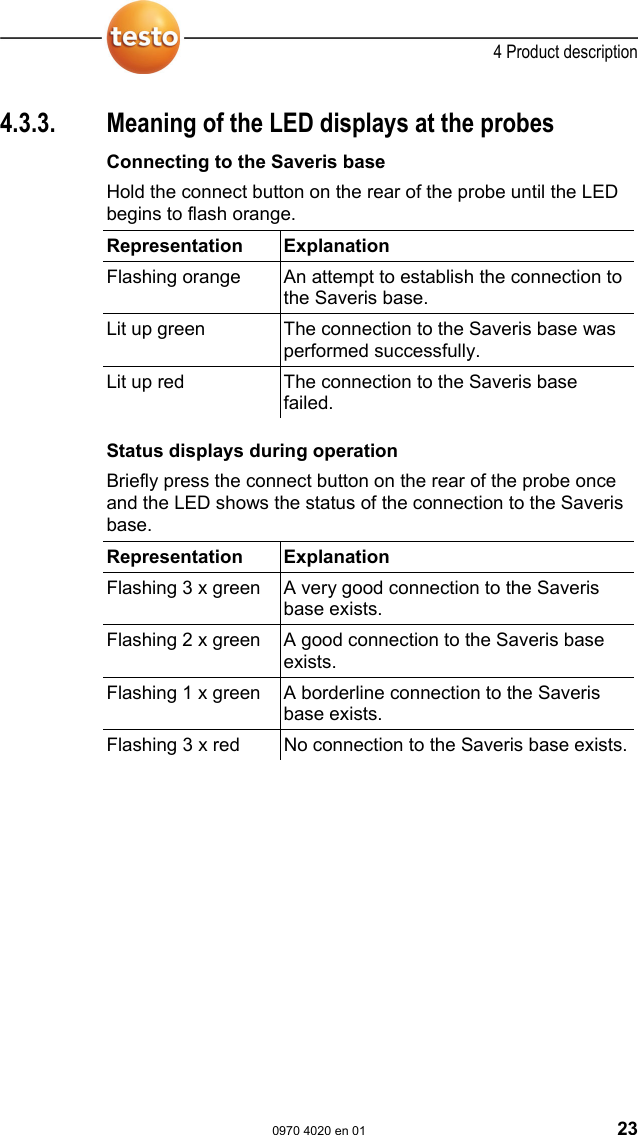
 4 Product description  0970 4020 en 01 23 4.3.3.  Meaning of the LED displays at the probes Connecting to the Saveris base Hold the connect button on the rear of the probe until the LED begins to flash orange.  Representation   Explanation  Flashing orange  An attempt to establish the connection to the Saveris base. Lit up green  The connection to the Saveris base was performed successfully. Lit up red  The connection to the Saveris base failed.  Status displays during operation Briefly press the connect button on the rear of the probe once and the LED shows the status of the connection to the Saveris base.  Representation   Explanation  Flashing 3 x green  A very good connection to the Saveris base exists. Flashing 2 x green  A good connection to the Saveris base exists. Flashing 1 x green  A borderline connection to the Saveris base exists. Flashing 3 x red  No connection to the Saveris base exists.
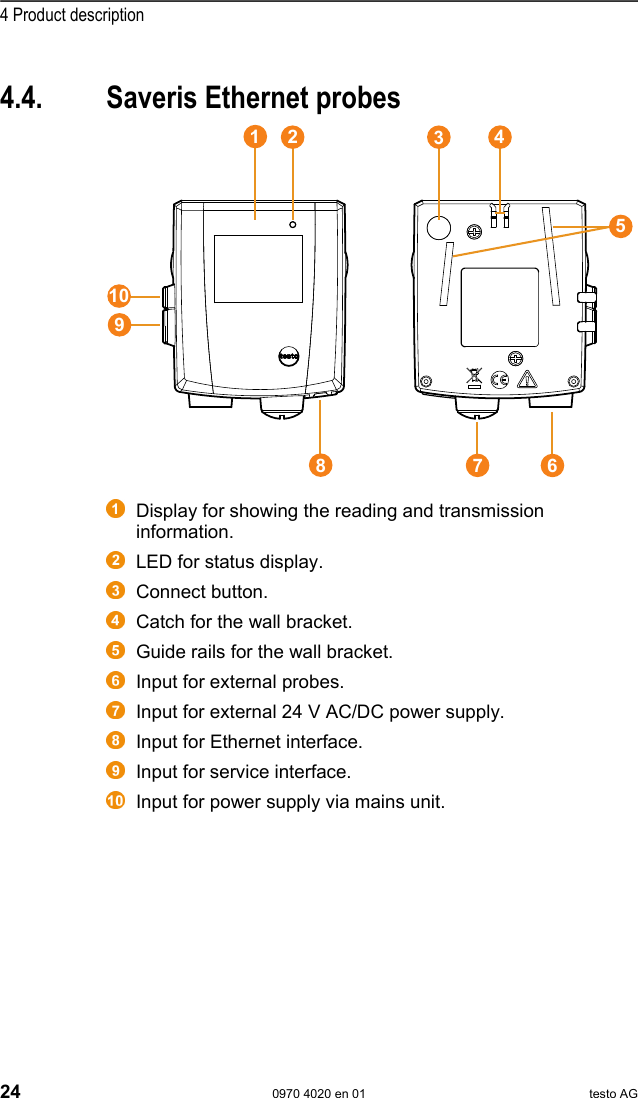
 4 Product description 24  0970 4020 en 01 testo AG     Pos: 36 /TD/Produktb eschreibung/Übersic ht/testo Saveri s/02 Ethernet-Fühler/ 00 Ethernet-Fühler  @ 1\mod_1197555728828_79. doc @ 6366  4.4.  Saveris Ethernet probes Pos: 37 /TD/Produktb eschreibung/Übersic ht/testo Saveri s/02 Ethernet-Fühler/ 02 Ethernet-Fühler  @ 1\mod_1197555730062_79. doc @ 6386      Display for showing the reading and transmission information.  LED for status display.  Connect button.   Catch for the wall bracket.   Guide rails for the wall bracket.   Input for external probes.   Input for external 24 V AC/DC power supply.   Input for Ethernet interface.   Input for service interface.   Input for power supply via mains unit. 12389107456
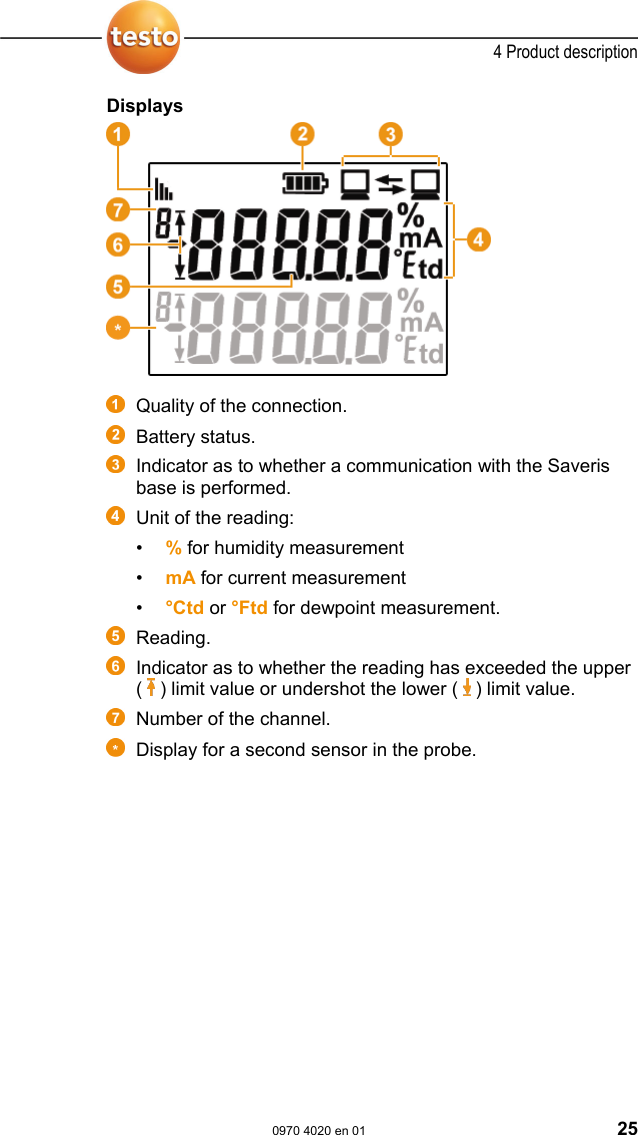
 4 Product description  0970 4020 en 01 25 Displays     Quality of the connection.  Battery status.   Indicator as to whether a communication with the Saveris base is performed.   Unit of the reading: •  % for humidity measurement •  mA for current measurement •  °Ctd or °Ftd for dewpoint measurement.  Reading.   Indicator as to whether the reading has exceeded the upper (   ) limit value or undershot the lower (   ) limit value.   Number of the channel.   Display for a second sensor in the probe.
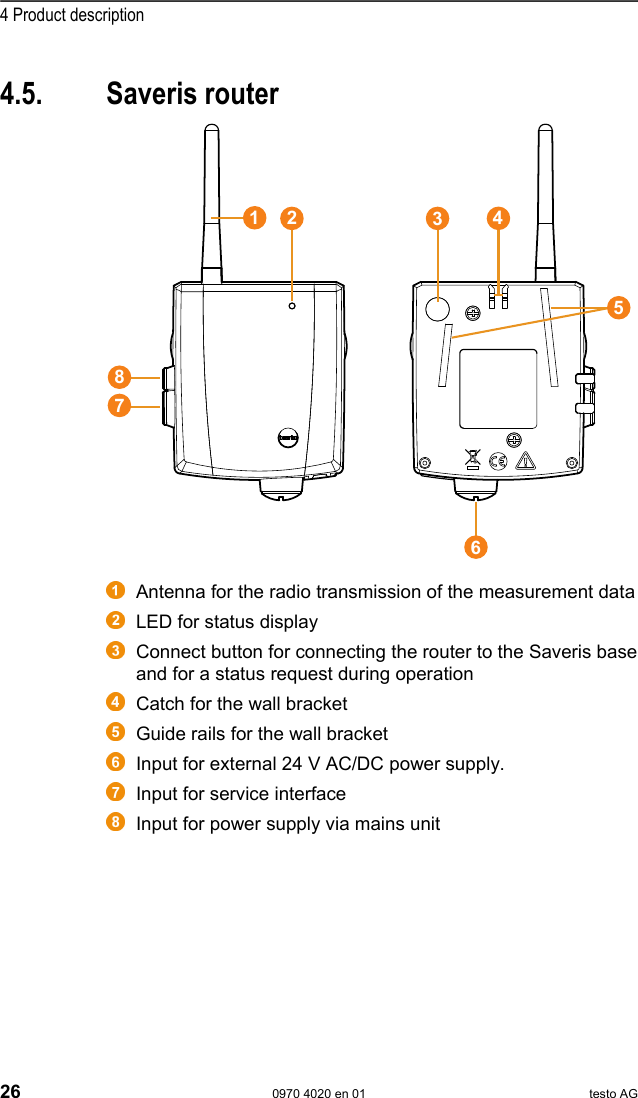
 4 Product description 26  0970 4020 en 01 testo AG  Pos: 38 /TD/Produktb eschreibung/Übersic ht/testo Saveri s/03 Router/01 Router @ 1\ mod_1197555862937_79. doc @ 6406  4.5. Saveris router      Antenna for the radio transmission of the measurement data   LED for status display  Connect button for connecting the router to the Saveris base and for a status request during operation   Catch for the wall bracket   Guide rails for the wall bracket   Input for external 24 V AC/DC power supply.   Input for service interface   Input for power supply via mains unit 12378456
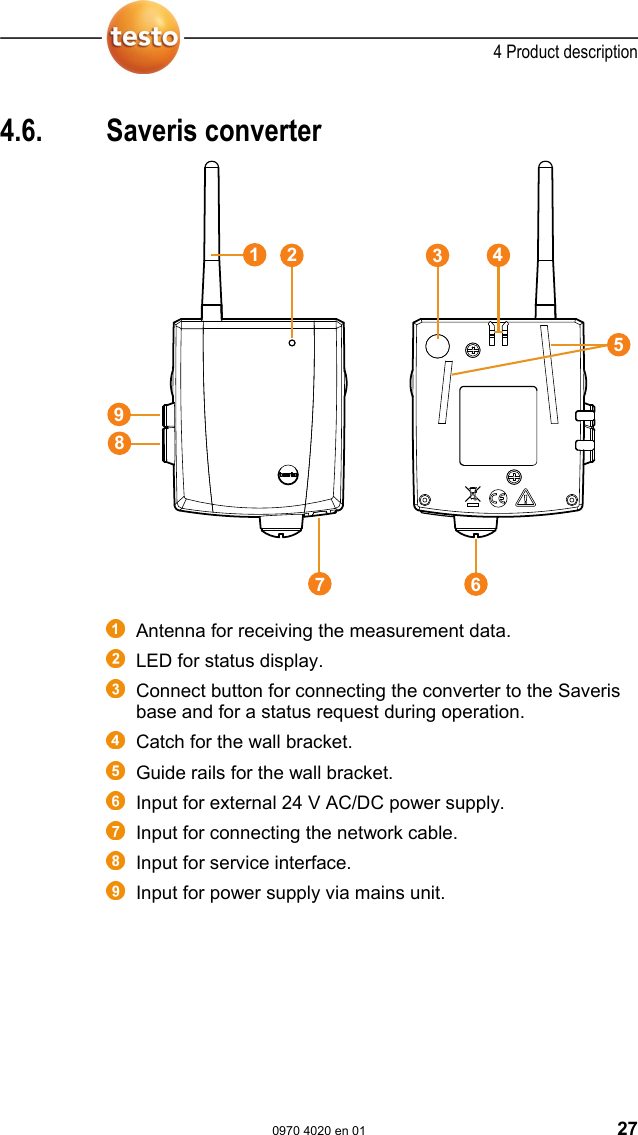
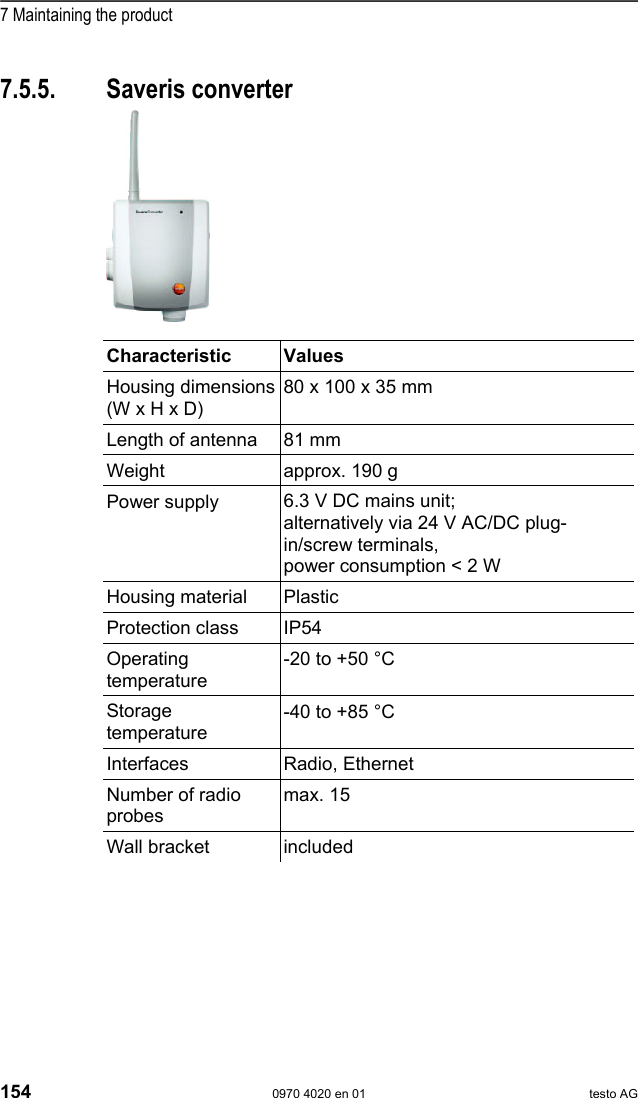
 4 Product description  0970 4020 en 01 27  Pos: 39 /TD/Produktb eschreibung/Übersic ht/testo Saveri s/04 Converter/01 Con verter @ 1\mod_119755708 6312_79.doc @ 6416  4.6. Saveris converter       Antenna for receiving the measurement data.  LED for status display.  Connect button for connecting the converter to the Saveris base and for a status request during operation.   Catch for the wall bracket.   Guide rails for the wall bracket.   Input for external 24 V AC/DC power supply.   Input for connecting the network cable.   Input for service interface.   Input for power supply via mains unit.   Pos: 40 /TD/--- Seitenwechsel --- @ 0\mod_1173774430601_0.doc @ 283 123789456
 5 First steps 28  0970 4020 en 01 testo AG  Pos: 41 /TD/Überschr iften/5. Erste Schr itte @ 0\mod_1173774895039_ 79.doc @ 319  5 First steps Pos: 42 /TD/Erste Sc hritte/testo Saveris/ 01 Lieferumfang/00 Li eferumfang prüfen @ 0\ mod_1189429809359_79. doc @ 4194  5.1.  Checking the scope of delivery If you have purchased a Saveris set, the following components are included in the delivery. Pos: 43 /TD/Erste Sc hritte/testo Saveris/ 01 Lieferumfang/01 Se t 1 @ 0\mod_1189429830390_79. doc @ 4206  5.1.1. Set 1 The following components are included in the delivery of the first set: •  Product CD with testo Saveris software •  CD with instruction manual in PDF format as well as virtual installation description •  Printed brief instructions for commissioning •  Saveris Base without GSM module with wall bracket and stand •  Mains unit for the Saveris base •  3 Saveris T1 NTC radio probes without display with wall bracket and batteries Pos: 44 /TD/Erste Schr itte/testo Saveris/01 Liefer umfang/01 Set 1 SBE @ 1\mod_11979 89725515_79.doc @ 6673  •  USB cable for the connection of the Saveris base to the computer. Pos: 45 /TD/Erste Sc hritte/testo Saveris/ 01 Lieferumfang/02 Se t 2 @ 0\mod_1189429865593_79. doc @ 4216  5.1.2. Set 2 The following components are included in the delivery of the second set: •  Product CD with testo Saveris software •  CD with instruction manual in PDF format as well as virtual installation description •  Printed brief instructions for commissioning •  Saveris Base without GSM module with wall bracket and stand •  Mains unit for the Saveris base • Router
 5 First steps  0970 4020 en 01 29 •  Mains unit for the router •  5 Saveris T1D NTC radio probes with display and with wall bracket and batteries Pos: 46 /TD/Erste Schr itte/testo Saveris/01 Liefer umfang/02 Set 2 SBE @ 1\mod_11979 89908312_79.doc @ 6713  •  USB cable for the connection of the Saveris base to the computer. Pos: 47 /TD/Erste Sc hritte/testo Saveris/ 01 Lieferumfang/03 Se t 3 @ 0\mod_1191325080125_79. doc @ 5352  5.1.3. Set 3 The following components are included in the delivery of the third set: •  Product CD with testo Saveris software •  CD with instruction manual in PDF format as well as virtual installation description •  Printed brief instructions for commissioning •  Saveris base with GSM module and wall bracket, stand and GSM antenna   The SIM card for sending SMS messages is not included in the delivery and must be purchased separately from a provider. It is recommended that you use a contract card instead of a so-called prepaid card, as no alarm messages can be sent if you use up your credit. •  Mains unit for the Saveris base • Router •  Mains unit for the router •  5 Saveris T1D NTC radio probes with display and with wall bracket and batteries Pos: 48 /TD/Erste Schr itte/testo Saveris/01 Liefer umfang/03 Set 3 SBE @ 1\mod_11979 89921984_79.doc @ 6723  •  USB cable for the connection of the Saveris base to the computer. Pos: 49 /TD/--- Seitenwechsel --- @ 0\mod_1173774430601_0.doc @ 283
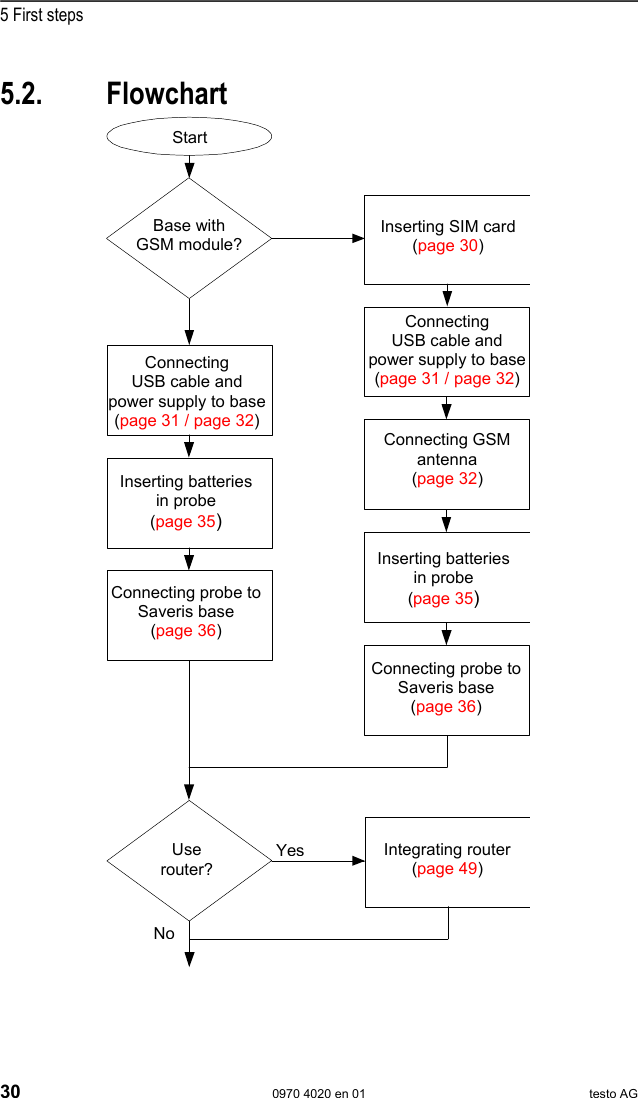
 5 First steps 30  0970 4020 en 01 testo AG  Pos: 50 /TD/Erste Sc hritte/testo Saveris/ 00 Ablaufdiagramm Inbetr iebnahme @ 0\mod_11895 81707421_79.doc @ 4454  5.2. Flowchart  Start Connecting  USB cable and  power supply to base (page 31 / page 32) Connecting probe to Saveris base (page 36) Use router? Integrating router(page 49) Base with  GSM module? Inserting batteriesin probe (page 35) YesNoInserting SIM card(page 30) Connecting  USB cable and power supply to base (page 31 / page 32) Connecting probe toSaveris base (page 36) Inserting batteriesin probe (page 35) Connecting GSMantenna (page 32)
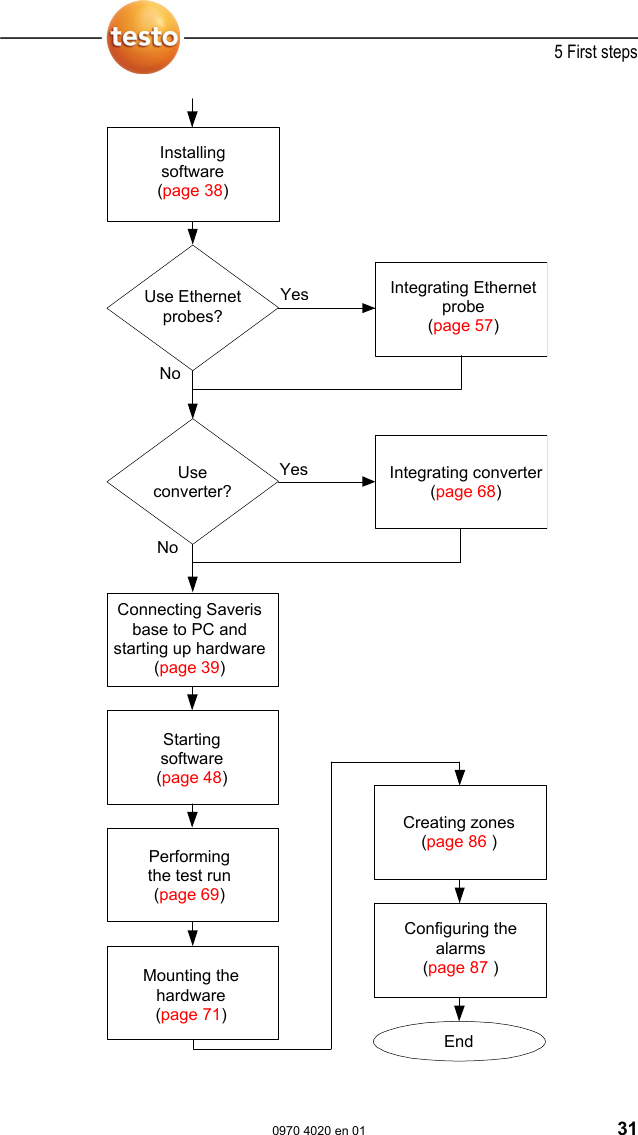
 5 First steps  0970 4020 en 01 31     End Installing software (page 38) Connecting Saveris base to PC and starting up hardware (page 39) Use converter? YesNoIntegrating Ethernet probe (page 57) Use Ethernet probes? Integrating converter(page 68) Starting software (page 48) Performing the test run (page 69) Mounting the hardware (page 71) YesNoCreating zones (page 86 ) Configuring the alarms (page 87 )
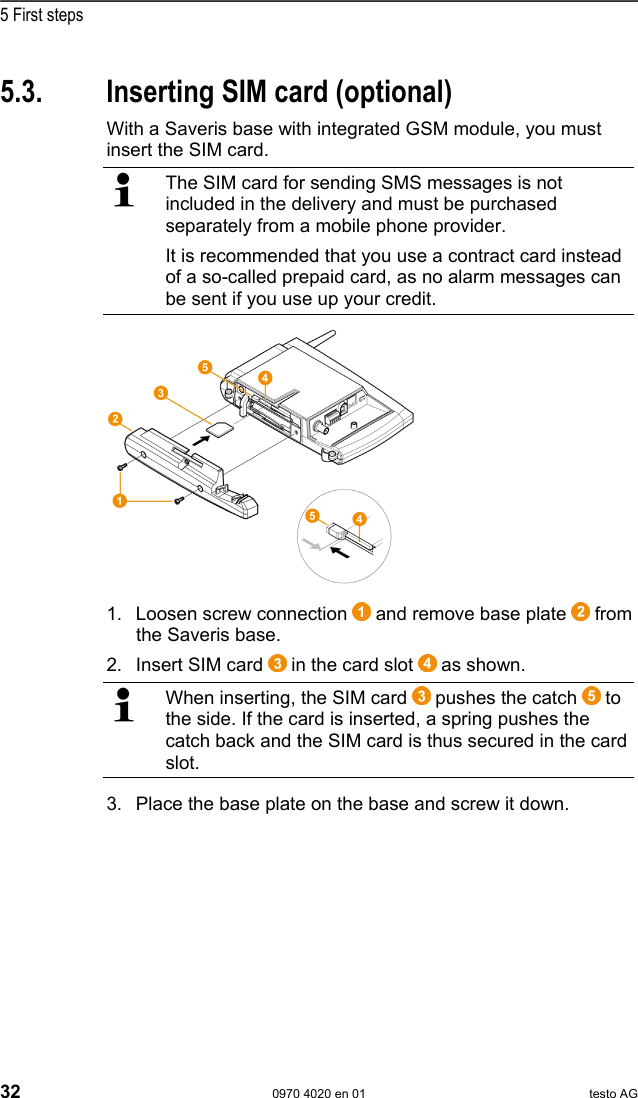
 5 First steps 32  0970 4020 en 01 testo AG Pos: 51 /TD/Erste Sc hritte/testo Saveris/ 00 SIM-Karte einsetzen @ 1\ mod_1197557316734_79. doc @ 6426  5.3.  Inserting SIM card (optional) With a Saveris base with integrated GSM module, you must insert the SIM card.   The SIM card for sending SMS messages is not included in the delivery and must be purchased separately from a mobile phone provider. It is recommended that you use a contract card instead of a so-called prepaid card, as no alarm messages can be sent if you use up your credit.   1. Loosen screw connection   and remove base plate   from the Saveris base. 2. Insert SIM card   in the card slot   as shown.   When inserting, the SIM card   pushes the catch   to the side. If the card is inserted, a spring pushes the catch back and the SIM card is thus secured in the card slot. 3. Place the base plate on the base and screw it down.
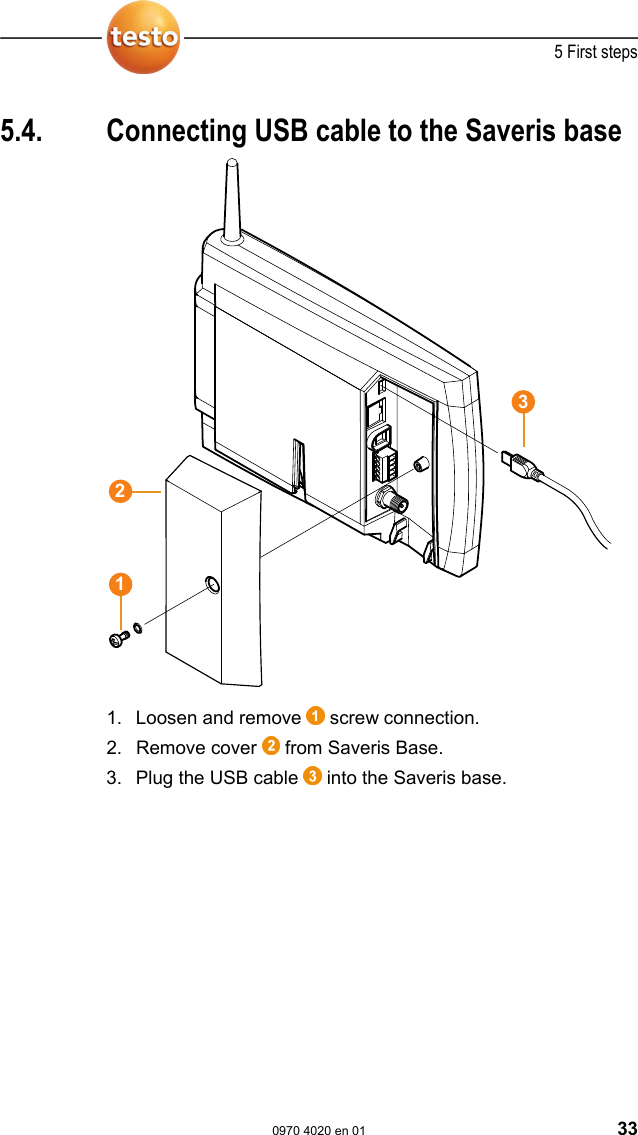
 5 First steps  0970 4020 en 01 33  Pos: 52 /TD/Erste Sc hritte/testo Saveris/ 01 USB-Kabel an Base anschli eßen @ 0\mod_119021019 6906_79.doc @ 4930  5.4.  Connecting USB cable to the Saveris base  1. Loosen and remove   screw connection. 2. Remove cover   from Saveris Base. 3. Plug the USB cable   into the Saveris base. 321
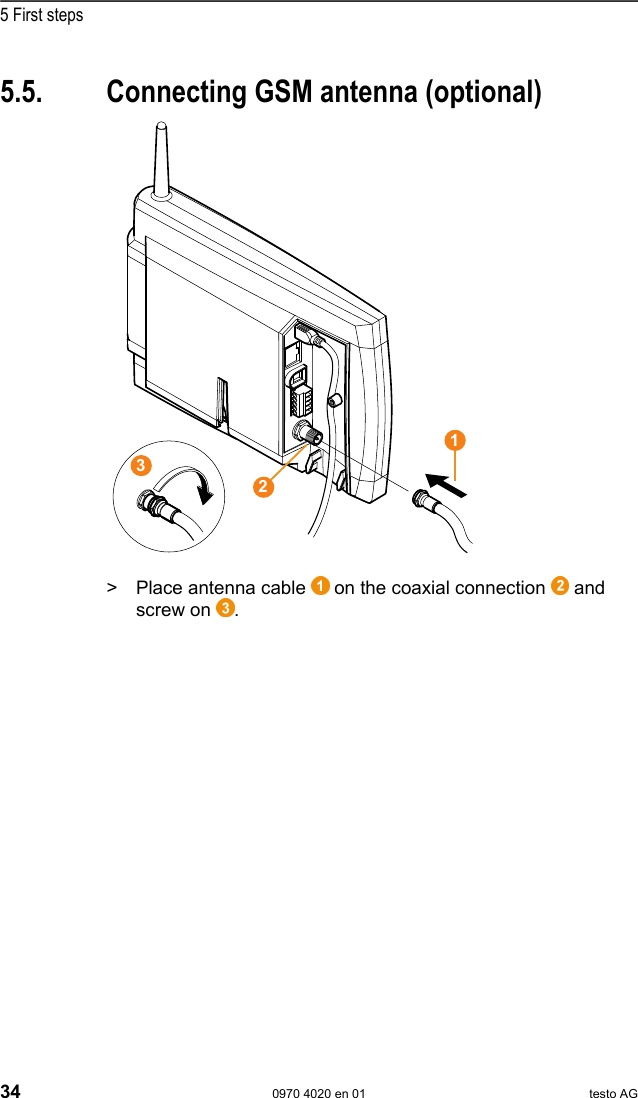
 5 First steps 34  0970 4020 en 01 testo AG Pos: 53 /TD/Erste Sc hritte/testo Saveris/ 01 Antenne anschließen @  1\mod_1197628729203 _79.doc @ 6463  5.5.  Connecting GSM antenna (optional) Pos: 54 /TD/Erste Sc hritte/testo Saveris/ 01b SBE Antenne anschli eßen @ 1\mod_120212369763 9_79.doc @ 8045    Pos: 55 /TD/Erste Sc hritte/testo Saveris/ 01c Antenne anschließen @ 1\ mod_120212374209 3_79.doc @ 8056  >   Place antenna cable   on the coaxial connection   and screw on  . Pos: 56 /TD/Erste Sc hritte/testo Saveris/ 02 Base mit Stromversor gung verbinden @ 0\mod_1188 477940515_79.doc  @ 2955  321
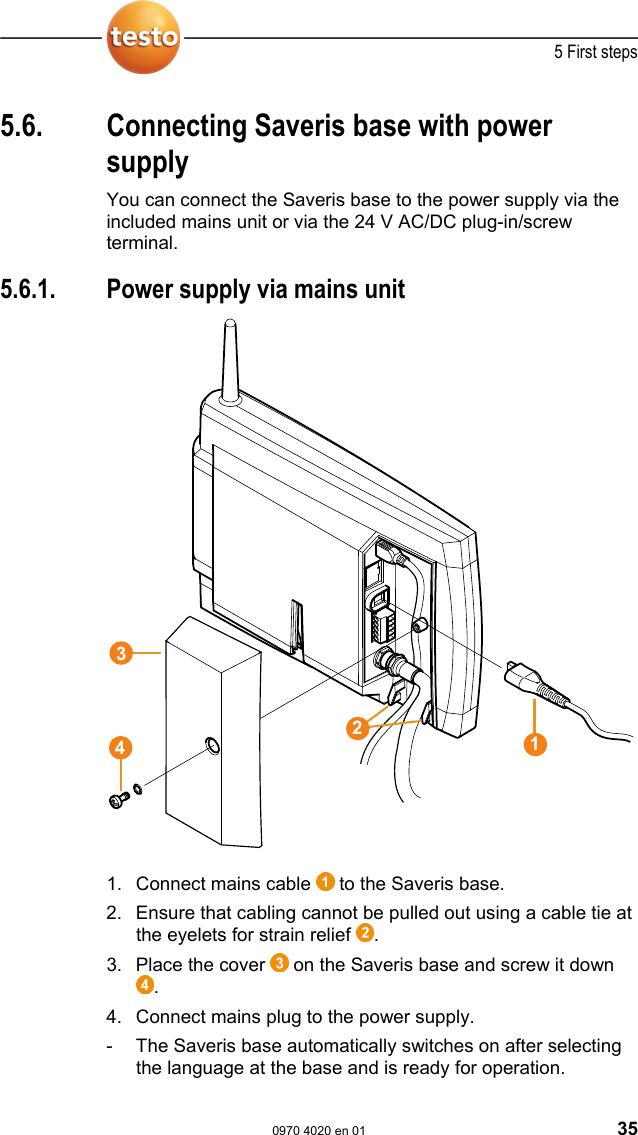
 5 First steps  0970 4020 en 01 35 5.6.  Connecting Saveris base with power supply  You can connect the Saveris base to the power supply via the included mains unit or via the 24 V AC/DC plug-in/screw terminal. Pos: 57 /TD/Erste Sc hritte/testo Saveris/ 02a-1 Stromversorgung üb er Netzteil verbi nden @ 0\mod_119132832684 3_79.doc @ 5392  5.6.1.  Power supply via mains unit  Pos: 58 /TD/Erste Schri tte/testo Saveris/02a-2 SBE Stro mversorgung über Netztei l verbinden @ 1\mod_12000 57993442_79.doc  @ 7524    Pos: 59 /TD/Erste Sc hritte/testo Saveris/ 02a-3 Stromversorgung üb er Netzteil verbi nden @ 1\mod_120005804603 1_79.doc @ 7546  1. Connect mains cable   to the Saveris base. 2. Ensure that cabling cannot be pulled out using a cable tie at the eyelets for strain relief  . 3.  Place the cover   on the Saveris base and screw it down . 4. Connect mains plug to the power supply. -  The Saveris base automatically switches on after selecting the language at the base and is ready for operation. 3421
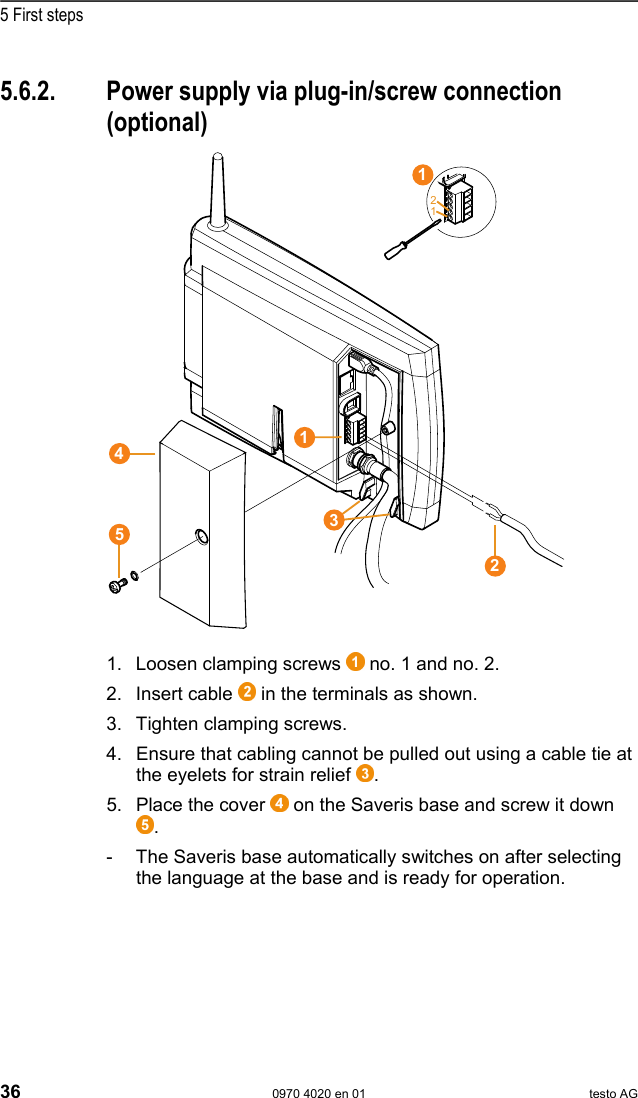
 5 First steps 36  0970 4020 en 01 testo AG  Pos: 60 /TD/Erste Sc hritte/testo Saveris/ 02b-1 Stromversorgung üb er AC/DC verbinden @ 0\ mod_1191328406187_79. doc @ 5402  5.6.2.  Power supply via plug-in/screw connection (optional)   Pos: 61 /TD/Erste Schri tte/testo Saveris/02b-2 SBE Stro mversorgung über AC/DC  verbinden @ 1\mod_12021243896 13_79.doc @ 8067    Pos: 62 /TD/Erste Sc hritte/testo Saveris/ 02b-3 Stromversorgung üb er AC/DC verbinden @ 1\ mod_1202124473316_79. doc @ 8089  1. Loosen clamping screws   no. 1 and no. 2. 2. Insert cable   in the terminals as shown. 3.  Tighten clamping screws. 4.  Ensure that cabling cannot be pulled out using a cable tie at the eyelets for strain relief  . 5.  Place the cover   on the Saveris base and screw it down . -  The Saveris base automatically switches on after selecting the language at the base and is ready for operation. 12213451
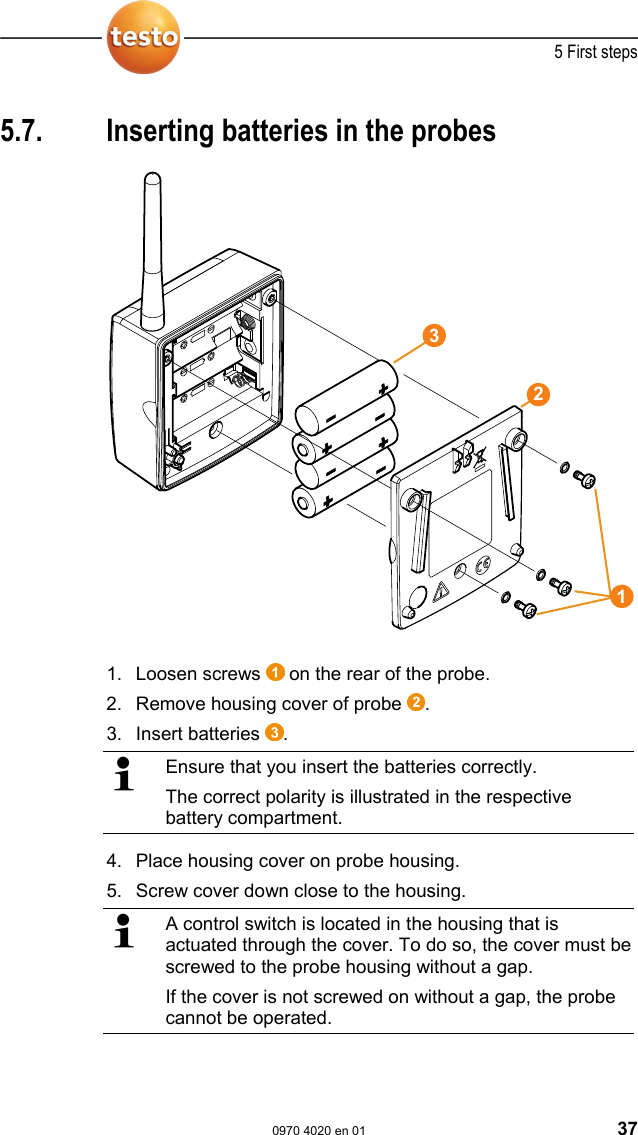
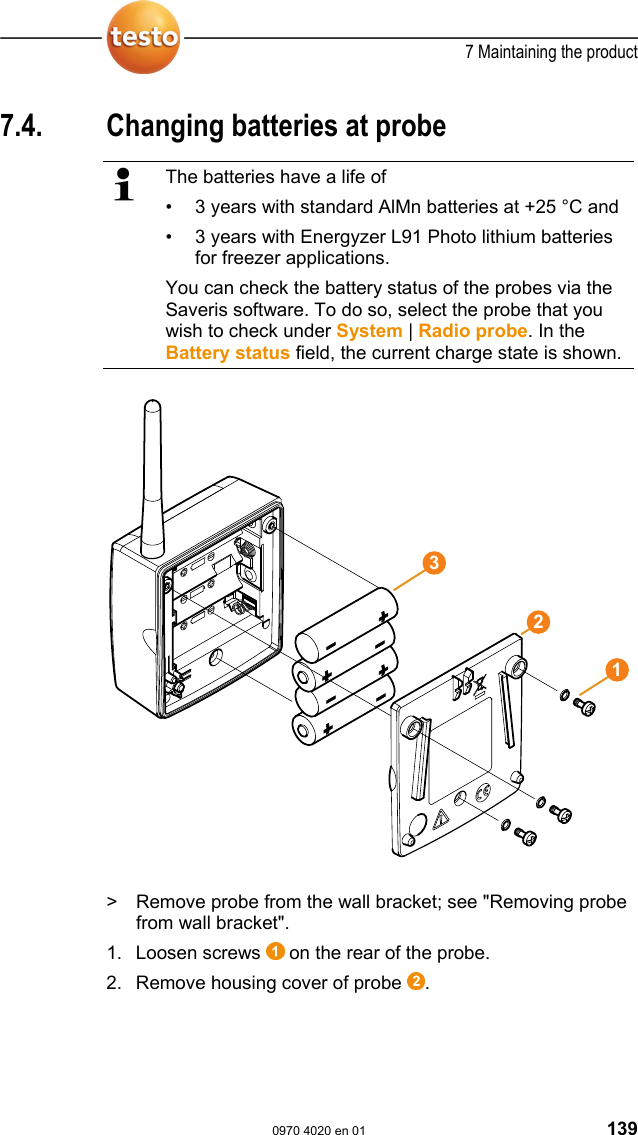
 5 First steps  0970 4020 en 01 37  Pos: 63 /TD/Erste Sc hritte/testo Saveris/ 02 b Batterien am Fühler ei nlegen @ 0\mod_11913221 24515_79.doc @ 5263  5.7.  Inserting batteries in the probes   1. Loosen screws   on the rear of the probe. 2. Remove housing cover of probe  . 3. Insert batteries  .   Ensure that you insert the batteries correctly. The correct polarity is illustrated in the respective battery compartment.  4. Place housing cover on probe housing. 5. Screw cover down close to the housing.   A control switch is located in the housing that is actuated through the cover. To do so, the cover must be screwed to the probe housing without a gap. If the cover is not screwed on without a gap, the probe cannot be operated. 123
 5 First steps 38  0970 4020 en 01 testo AG     Pos: 64 /TD/Erste Sc hritte/testo Saveris/ 03 Fühler an der Base anmeld en @ 0\mod_1188478029328 _79.doc @ 2964 Integrating Saveri s router (optional)  Page 52 5.8.  Connecting radio probe   You can connect a maximum of 15 probes to the Saveris base directly via radio.  In addition, you can operate 15 more probes at the Saveris Base per converter and 5 per router. Note that a maximum of 254 channels can be processed by the Saveris software.  1. Change to the Info System menu at the Saveris base with the [▼] button. 2. Press [Enter] to call up the Login function.  -  The status bar   in the display shows that the Saveris base is ready for probe detection.
 5 First steps  0970 4020 en 01 39  3.  Hold down the connect key   on the rear of the probe until the LED   at the probe begins to flash orange. - The LED  at the probe briefly turns green if this was detected by the Saveris base. The LED at the Saveris base   briefly flashes green and a prompt appears in the display of the base for the connection of more probes or routers.   Multiple probes cannot be connected at the Saveris base simultaneously. Multiple probes can only be connected one after the other. 4. At the Saveris base, press the  •  [Esc] key if no more components are to be connected. -  A note on the required performance of the startup assistant is shown on the display for about ten seconds. Then the Saveris base changes to the Info System menu in which the number of connected components   is now shown. • Press [Enter] if further components are to be connected; see previous step.
 5 First steps 40  0970 4020 en 01 testo AG 5. Position the probes precisely at their measurement points to check the radio link. 6. Briefly press the connect key   on the rear of the probe.  If the LED   at the probe flashes •  green, a radio link exists. •  red, no radio link exists.   If no radio link to the Saveris base exists even after a change of location of the probe, connect a router to the Saveris base; see Integrating Saveris router (optional), page 52.  Pos: 65 /TD/Erste Sc hritte/testo Saveri s/05a Saveris-Sof tware installieren @ 0\ mod_1188478151968_79. doc @ 2991  5.9. Installing Saveris software  Administrator rights are required to install programs and drivers under Windows® 2000 SP4, XP and Vista. 1. Insert CD with Saveris software in the CD-ROM drive. If the installation program does not start automatically, open Windows Explorer and start the Setup.exe file on the product CD.  During the installation of the Saveris software the licence-free database system Microsoft SQL Server 2005 Express is installed – if this is not already present. The database is protected by the so-called "sa password", the password for the database administrator, to prevent unintended changes to the database. If a software exists on the computer used that uses the SQL Server 2005 Express and a password was already set when this was installed, you then require this sa password to be able to perform the installation of the Saveris software. 2. Follow the directions of the installation wizard.   The USB driver for the connection of the Saveris base is installed with the Saveris software. If the Saveris base is not recognized as new hardware when connected to the computer, the USB driver must be manually installed.
 5 First steps  0970 4020 en 01 41  Pos: 66 /TD/Erste Sc hritte/testo Saveris/ 04 Hardware inbetriebn ehmen @ 0\mod_11884781 13640_79.doc @ 2982  5.10.  Starting up hardware The following preconditions must be fulfilled for the startup of the hardware: •  the Saveris base is ready for operation, •  all probes are connected to the Saveris base and •  the Saveris software is installed on the computer.        1. Connect the Saveris base to the computer via the USB cable. -  The startup assistant starts.   Under Windows 2000, you must manually call up the assistant using Start | All Programs | Testo | Startup Assistant.  2. Click on [Continue >]. -  The general system settings of the Saveris base are shown.
 5 First steps 42  0970 4020 en 01 testo AG  3. Click on [Synchronize] to apply the date and time from the operating system of the computer to the Saveris base. 4. Click on [Continue >]. -  If the Saveris base is equipped with a GSM module the dialogue for entering the basic settings for the SMS service is shown.    If there is no GSM module continue with step 7.
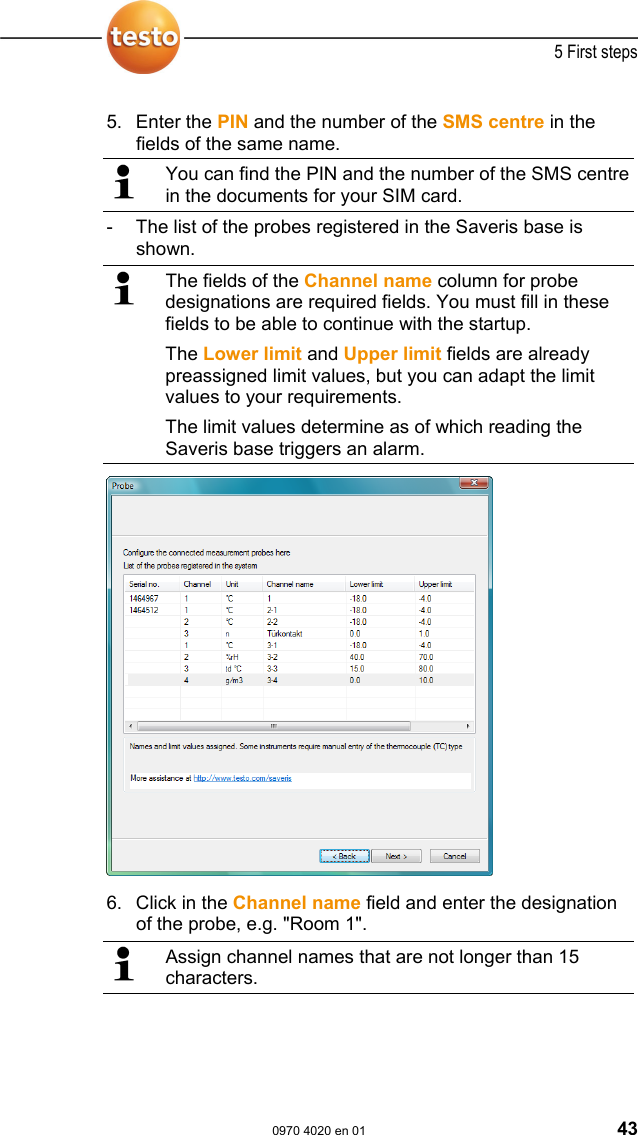
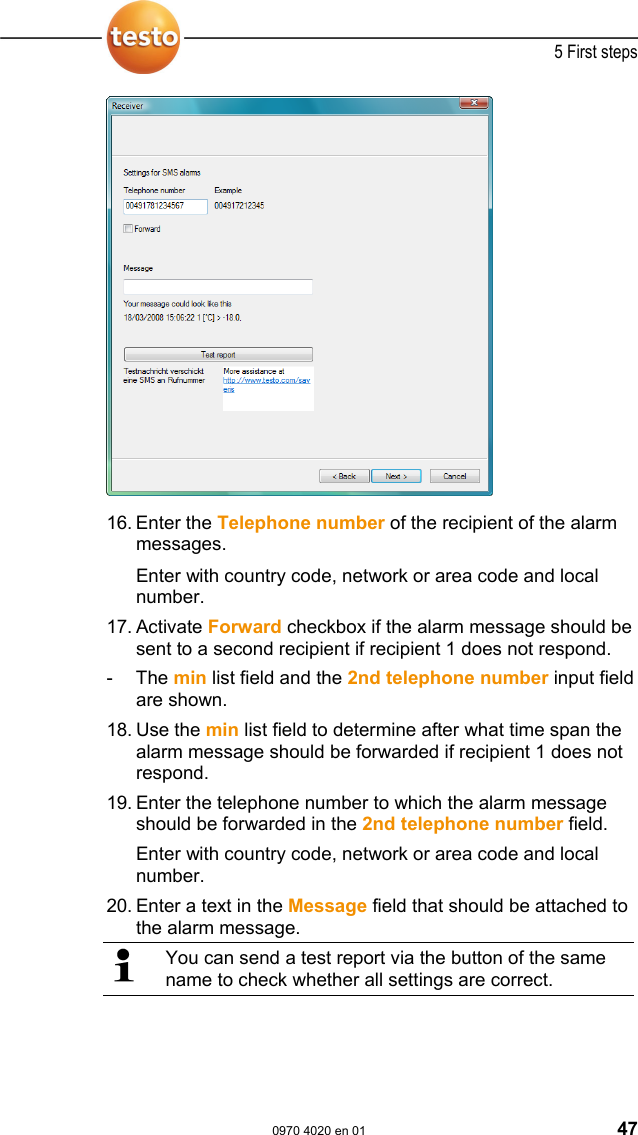
 5 First steps  0970 4020 en 01 43  5. Enter the PIN and the number of the SMS centre in the fields of the same name.  You can find the PIN and the number of the SMS centre in the documents for your SIM card. -  The list of the probes registered in the Saveris base is shown.   The fields of the Channel name column for probe designations are required fields. You must fill in these fields to be able to continue with the startup. The Lower limit and Upper limit fields are already preassigned limit values, but you can adapt the limit values to your requirements. The limit values determine as of which reading the Saveris base triggers an alarm.  6. Click in the Channel name field and enter the designation of the probe, e.g. "Room 1".   Assign channel names that are not longer than 15 characters.
 5 First steps 44  0970 4020 en 01 testo AG >   Click in the Lower limit field and change the lower limit value.   If all probes are to have the same limit value, click on the column title with the right mouse button and then click on Apply to all in the context menu. This also applies for the upper limit value in the next step. >   Click in the Upper limit field and change the upper limit value. >  Click in the TC type field and enter the type of thermocouple (Enter: J, K, S or T) if this information is required for the instrument.  >   Perform step 5 and the following for all other probes until all required fields are filled. 7.  Click on [Continue >]. -  The settings for measuring cycle, the alarm delay and the alarm issue are shown.
 5 First steps  0970 4020 en 01 45 8.  Enter Measuring cycle and determine its Unit.   The measuring cycle determines in which intervals a new reading is saved in the Saveris base. Possible settings for the unit: •  sec (second) •  min (minute) •  h   (hour). The smallest transfer rate for radio probes is one minute. Later the settings can be changed for every probe separately in the software. 9.   Determine Alarm delay.   If you enter the value "5" for example, an alarm is not triggered by the Saveris base until the fifth time that the limit value is exceeded. Later the settings can be changed for every probe separately in the software. 10.  Determine the issue options for the limit value alarms. Possible options: •  SMS (optional with Saveris base with GSM module) •  E-mail •  Relay of the Saveris base.   The system alarms are above all used for pointing out irregularities in the measurement system. If no reaction follows the system alarms, uninterrupted data recording is not guaranteed. If a system alarm is issued via SMS or E-mail time delays may occur. The notification function via SMS is only available if the Saveris base is equipped with a GSM module. Later the settings can be changed for every probe separately in the software.
 5 First steps 46  0970 4020 en 01 testo AG 11.  Click on [Continue >]. -  If a router is connected at the Saveris base the configuration of the connection type for the probes is shown. If no router is connected continue with step 15.   12. Click in the Connection type cell of the probe which is to be assigned to a router. -  The cell is shown as a selection list. 13. Open the selection list via the button   and select the router to which the probe is to be assigned. 14. Perform steps 12 and 13 for all remaining probes whose measurement data is to be transmitted to the Saveris base via a router. 15. Click on [Continue >]. -  If the Saveris base is equipped with a GSM module, the settings for the SMS alarms are shown.   If there is no GSM module continue with step 28.
 5 First steps  0970 4020 en 01 47   16. Enter the Telephone number of the recipient of the alarm messages.  Enter with country code, network or area code and local number. 17. Activate Forward checkbox if the alarm message should be sent to a second recipient if recipient 1 does not respond. - The min list field and the 2nd telephone number input field are shown. 18. Use the min list field to determine after what time span the alarm message should be forwarded if recipient 1 does not respond. 19. Enter the telephone number to which the alarm message should be forwarded in the 2nd telephone number field. Enter with country code, network or area code and local number. 20. Enter a text in the Message field that should be attached to the alarm message.  You can send a test report via the button of the same name to check whether all settings are correct.
 5 First steps 48  0970 4020 en 01 testo AG 21. Click on [Continue >]. -  The settings for the reporting are shown.   These specifications are applied as the default setting for the reporting. You can change these settings or create new configurations for the reports at any time; see chapter "Report settings".  22. Deactivate Automatically create reports checkbox if this function should not be used. -  In this case, continue with step 20. 23. Determine the intervals in which the reports should be automatically created. 24. Determine which content the reports should include. >   Activate Send to receiver checkbox if reports should be sent by e-mail. -  The input fields for the e-mail address and the subject line as well as the [Address book] button are shown. >  Enter the e-mail address of the recipient in the input field or select the recipient from the Outlook contacts using the [Address book]. >  Enter text for the subject line of the e-mail. 25. Enter the address under Cover sheet address field that should be displayed on the top of the report.
 5 First steps  0970 4020 en 01 49 26. Click on [Continue >]. -  The wizard is shown with the information on the start of measurement and the list of the registered probes.   27. Postpone the start of measurement, if necessary.  >   Change the project name in the Name field.   Consider a clear-cut name for the project that you will be able to easily associate later. The project name cannot subsequently be changed. 28. Click on [Finish] to complete the startup of the hardware. -  A dialogue for displaying and printing the configuration settings is shown.
 5 First steps 50  0970 4020 en 01 testo AG 29. Click on •  [Yes] if the settings should be shown in the Internet browser and printed from there. •  [No] if the settings should not be shown.   The dialogue for the conclusion of the startup is shown.   30. Consecutively press the connect button on all probes to synchronize the probes. 31. Close the dialogue with [OK]. -  The hardware is now ready for operation.  Pos: 67 /TD/Produkt  verwenden/testo Saver is/01 Start/01_Saver is-Software star ten @ 0\mod_1189076832593 _79.doc @ 3933
 5 First steps  0970 4020 en 01 51 5.11.  Starting Saveris software   Ensure that the Saveris software is not already open, for example in multi-user operation under Windows® Vista. 1. Select [Start] | All Programs | Testo | Saveris. - The Testo Saveris software program window is opened with the Select project dialogue.     If the software will not start, check whether the testo tdassvcs service is started in the service management of the operating system and restart it, if needed. 2. Select the •  Only active projects option if the data from a running project should be opened •  All projects option if the data from a completed project should be opened. 3. Select the project that is to be opened in the tree structure. 4. Confirm with [OK]. - The Testo Saveris software program window is shown with the selected data record in the foreground. Pos: 68 /TD/Erste Sc hritte/testo Saveris/ Hardware erweitern/ Messsystem erweiter n @ 1\mod_1197551581796 _79.doc @ 6327
 5 First steps 52  0970 4020 en 01 testo AG 5.12.  Expand measuring system In this chapter, you learn how to integrate the Saveris router, converter and Ethernet probes into the measuring system.  Pos: 69 /TD/Erste Sc hritte/testo Saveris/ Hardware erweitern/ 01 Router einbinden/0 0  Router einsetzen @ 1\mod_119 7549116203_79.doc  @ 6304  5.12.1.  Integrating Saveris router (optional) You can use a Saveris router to optimize the radio communication with poor structural conditions or to extend the transmission path. The router receives the signals of the radio probes and forwards them to the Saveris base.   The measurement data of up to five radio probes can be transmitted per router to the Saveris base. Multiple routers can be integrated in the measuring system but cannot be connected in series to cover extremely long transmission paths. In this case, a converter should be used; see "Integrating Saveris converter (optional)".  The integration of a router is performed in three steps: 1. Connect router to the power supply. 2. Connect router to the Saveris base. 3. Assign radio probes to the router.   When positioning a router please note the following points: •  When integrating several probes via a router, the probe with the weakest radio link determines the position of the router. Mount the router in such a way that this probe has an ideal radio link. •  Probes and router should be mounted so that the antennas are aligned upwards. •  The radio link between probes and the router as well as the router and the Saveris base should not be strongly influenced by structural conditions (walls, shelves etc.). Mount the router and probe so that "visual contact" exists with as many radio links as possible.
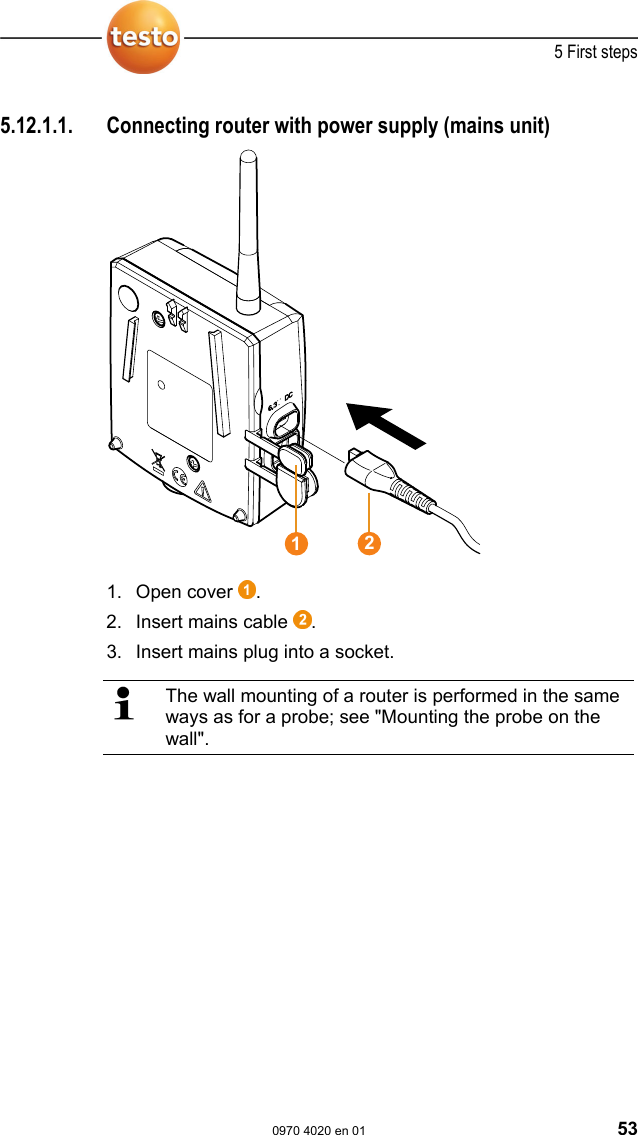
 5 First steps  0970 4020 en 01 53  Pos: 70 /TD/Erste Sc hritte/testo Saveris/ Hardware erweitern/ 01 Router einbinden/0 1 Router-Strom @ 1\mod_1 197548324640_79.doc @  6294  5.12.1.1.  Connecting router with power supply (mains unit)   1. Open cover  . 2. Insert mains cable  . 3.  Insert mains plug into a socket.   The wall mounting of a router is performed in the same ways as for a probe; see "Mounting the probe on the wall". 12
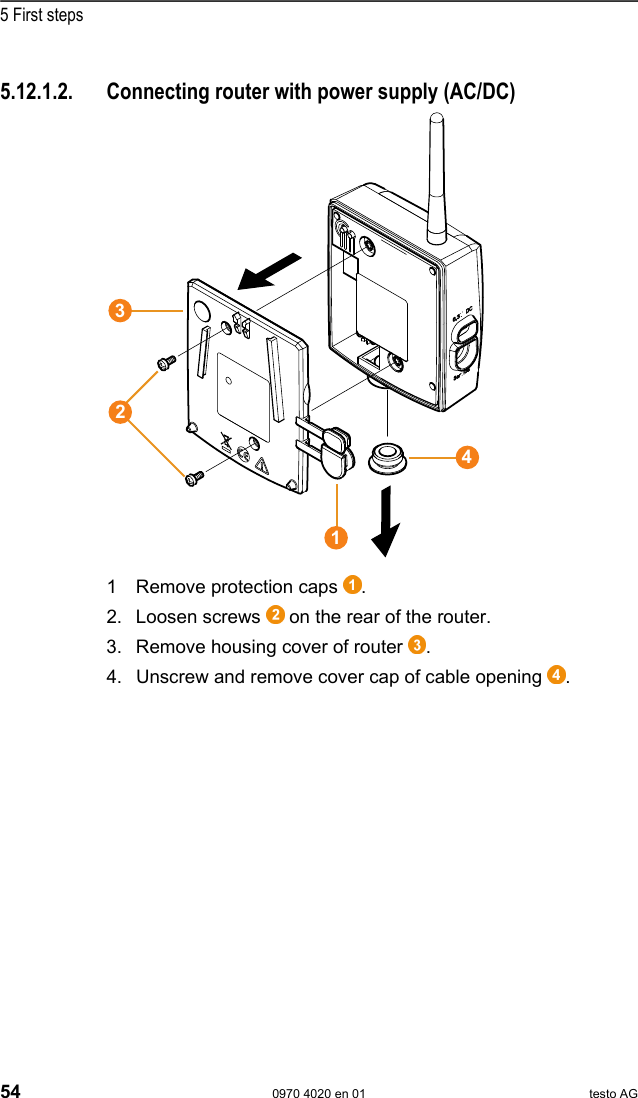
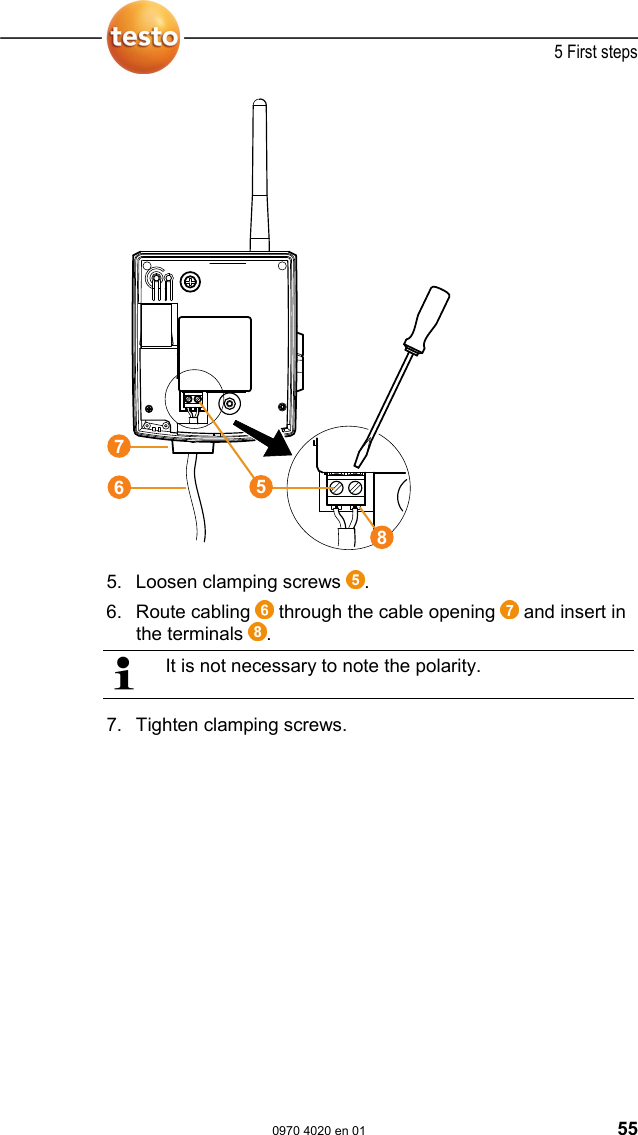
 5 First steps 54  0970 4020 en 01 testo AG    Pos: 71 /TD/Erste Sc hritte/testo Saveris/ Hardware erweitern/ 01 Router einbinden/0 1b Router-ACDC @ 1\mod_119797827 3593_79.doc @ 6543  5.12.1.2.  Connecting router with power supply (AC/DC)   1 Remove protection caps  . 2. Loosen screws   on the rear of the router. 3. Remove housing cover of router  . 4. Unscrew and remove cover cap of cable opening  . 1234
 5 First steps  0970 4020 en 01 55   5. Loosen clamping screws  . 6. Route cabling   through the cable opening   and insert in the terminals  .   It is not necessary to note the polarity. 7. Tighten clamping screws. 7568
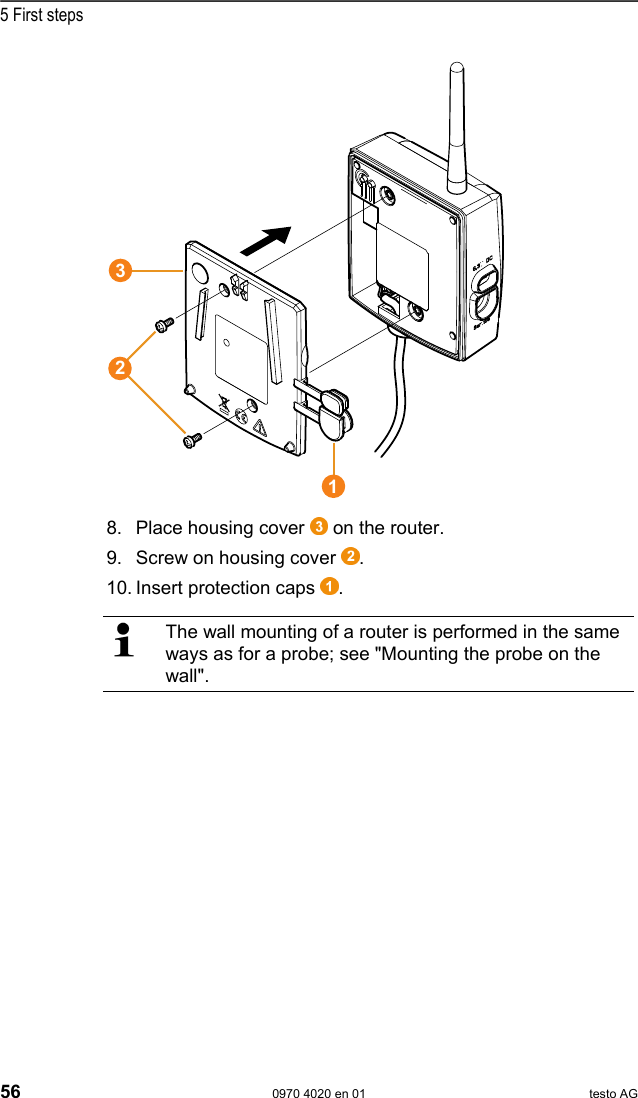
 5 First steps 56  0970 4020 en 01 testo AG   8. Place housing cover   on the router. 9. Screw on housing cover  . 10. Insert protection caps  .   The wall mounting of a router is performed in the same ways as for a probe; see "Mounting the probe on the wall".    Pos: 72 /TD/Erste Sc hritte/testo Saveris/ Hardware erweitern/ 01 Router einbinden/0 2 Router anmelden @ 1\mod_11 97548238578_79.doc  @ 6274  213
 5 First steps  0970 4020 en 01 57 5.12.1.3. Connecting router   You can connect a maximum of 15 routers to the Saveris base. Also note that connecting multiple routers in series is not possible.  1. Change to the Info System menu at the Saveris base with the [▼] button. 2. Press [Enter] to call up the Login function.  -  The status bar   in the display shows that the Saveris base is ready for router detection.
 5 First steps 58  0970 4020 en 01 testo AG  3. Hold down the connect key   on the rear of the router until the LED   at the router begins to flash orange. - The LED  at the router briefly turns green if this was detected by the Saveris base. The LED at the Saveris base   briefly flashes green and a prompt appears in the display of the base for the connection of more probes or routers.   Multiple routers cannot be connected at the Saveris base simultaneously. Multiple routers can only be connected one after the other. 4. At the Saveris base, press the  •  [Esc] key if no more components are to be connected. -  A note on the required performance of the startup assistant is shown on the display for about ten seconds. Then the Saveris base changes to the Info System menu in which the number of connected components   is now shown. • Press [Enter] if further components are to be connected; see previous step.   Pos: 73 /TD/Erste Sc hritte/testo Saveris/ Hardware erweitern/ 01 Router einbinden/0 3 Fühler zuweisen @ 1\mod_1197 548250906_79.doc  @ 6284  5.12.1.4. Assigning probes   To assign a probe to a router, both must be connected in the Saveris base.
 5 First steps  0970 4020 en 01 59 1. Under Start | All Programs | Testo click on Saveris Startup Assistant. -  The welcome dialogue of the startup assistant is shown.  2. Click on [Continue >]. - The System status dialogue with the General tab is shown. 3. Change to Router tab.      The Direct connection type means that the probe is connected directly in the Saveris base or a converter.
 5 First steps 60  0970 4020 en 01 testo AG 4. Click in the Connection type cell of the probe which is to be assigned to a router. -  The cell is shown as a selection list.  5. Open the selection list via the button   and select the router to which the probe is to be assigned. 6. Position the probe within the radio range of the base and briefly push the connect button on the rear of the probe once. >  Perform steps 4 to 6 for all remaining probes whose measurement data is to be transmitted to the Saveris base via a router. 7. Position the probes and router at their mounting locations to check the radio links. 8. Briefly press the connect key on the rear of the probe. If the LED on the front of the probe flashes •  green, a radio link to the router exists. •  red, no radio link to the router exists.
 5 First steps  0970 4020 en 01 61 9. Briefly press the connect key on the rear of the router. If the LED on the front of the router flashes •  green, a radio link to the Saveris base exists. •  red, no radio link to the Saveris base exists.   If no radio link exists after changing the location of the probe and/or router, introduce a converter; see "Integrating Saveris converter (optional)".   Pos: 74 /TD/Erste Sc hritte/testo Saveris/ Hardware erweitern/ 03  Ethernet-Fühler einbi nden/00 Ethernet- Fühler einsetzen @ 1\mod_1 197552336953_79.doc  @ 6336  5.12.2.  Integrating Saveris Ethernet probe (optional) In addition to the Saveris radio probes, you can use probes that are connected to the Ethernet interface of the Saveris base. This also enables the data transfer from the probe to the base over long stretches if you do not wish to use a router or converter.   You must enter the IP address of the Saveris base in the Ethernet probe using the separate parameterization software. If your computer has the Dynamic Host Configuration Protocol (DHCP), its IP address is automatically assigned to the Ethernet probe. If this is not the case, you must automatically assign the IP address to the probe. This chapter contains all required information for this.   You can connect several Ethernet probes to the Saveris base using a so-called switch. In this context, note that a maximum of 150 probes can be connected or 254 measurement channels recorded at the Saveris base.   Pos: 75 /TD/Erste Sc hritte/testo Saveris/ Hardware erweitern/ 03  Ethernet-Fühler einbi nden/01 Netzwerkkabe l @ 1\mod_120342143300 0_79.doc @ 8193
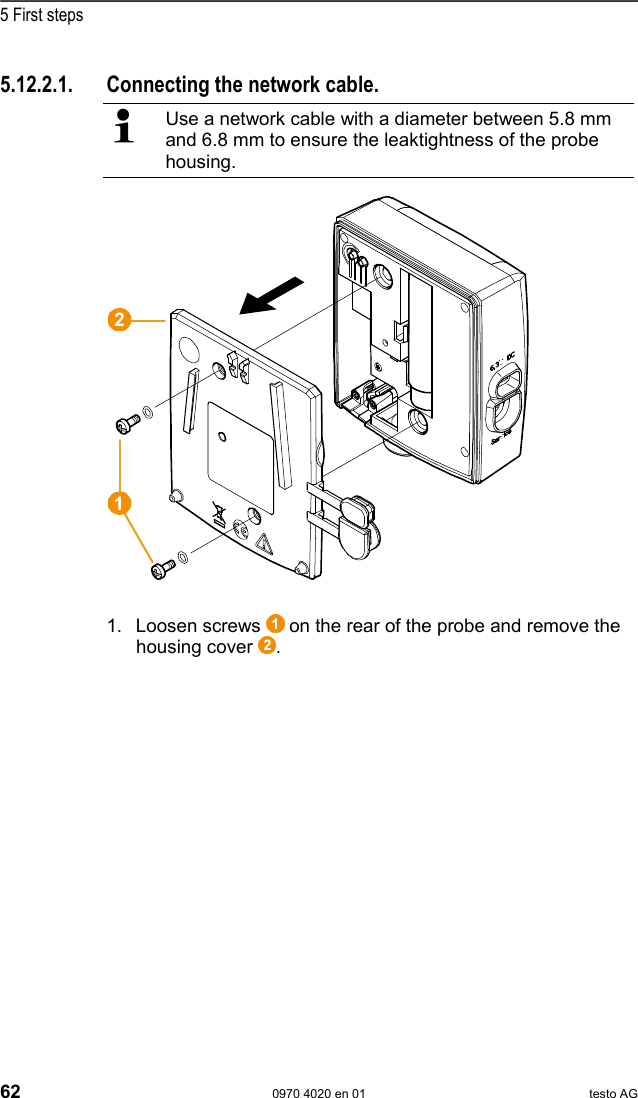
 5 First steps 62  0970 4020 en 01 testo AG 5.12.2.1.  Connecting the network cable.   Use a network cable with a diameter between 5.8 mm and 6.8 mm to ensure the leaktightness of the probe housing.   1. Loosen screws   on the rear of the probe and remove the housing cover  . 12
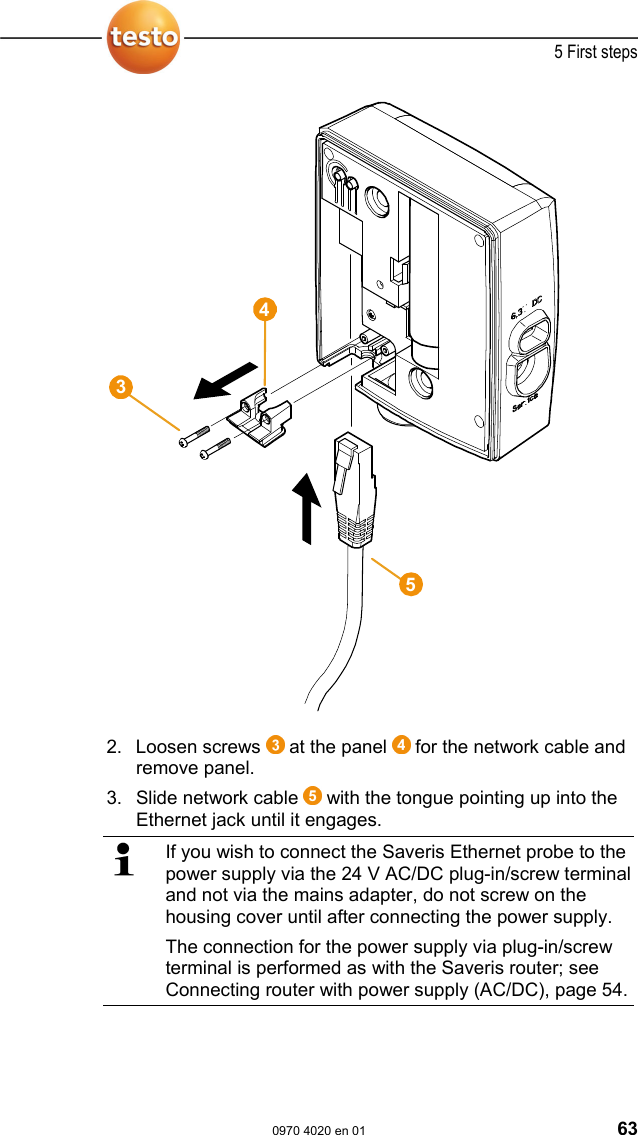
 5 First steps  0970 4020 en 01 63   2. Loosen screws   at the panel   for the network cable and remove panel. 3. Slide network cable   with the tongue pointing up into the Ethernet jack until it engages.   If you wish to connect the Saveris Ethernet probe to the power supply via the 24 V AC/DC plug-in/screw terminal and not via the mains adapter, do not screw on the housing cover until after connecting the power supply. The connection for the power supply via plug-in/screw terminal is performed as with the Saveris router; see Connecting router with power supply (AC/DC), page 54. 435
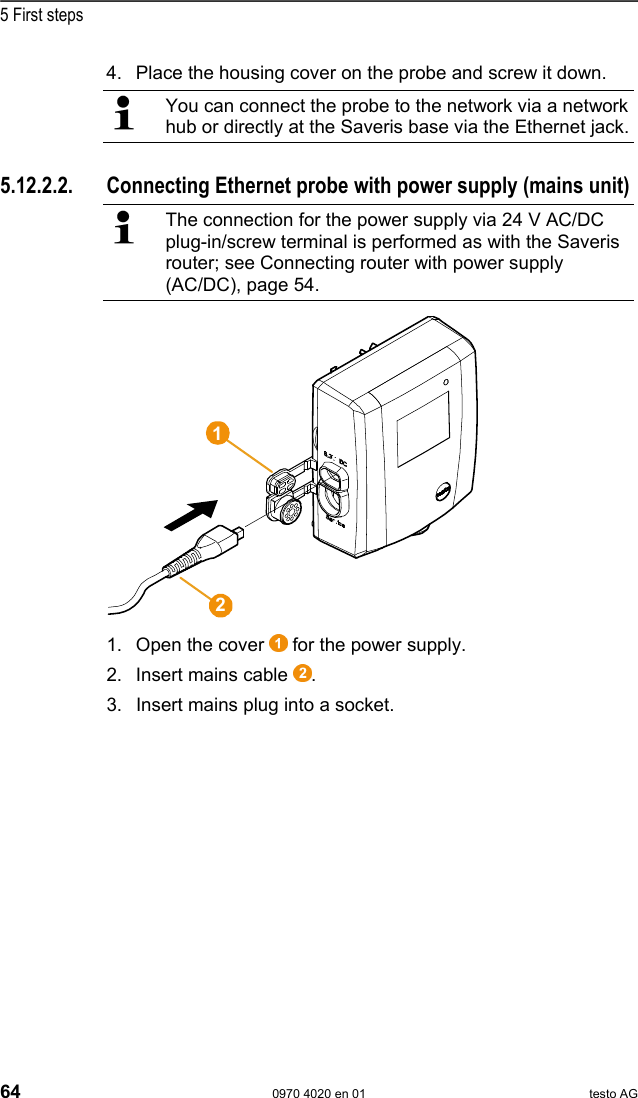
 5 First steps 64  0970 4020 en 01 testo AG 4. Place the housing cover on the probe and screw it down.   You can connect the probe to the network via a network hub or directly at the Saveris base via the Ethernet jack.  Pos: 76 /TD/Erste Sc hritte/testo Saveris/ Hardware erweitern/ 03  Ethernet-Fühler einbi nden/01c Stromversor gung @ 1\mod_1203423 817781_79.doc @ 8270  5.12.2.2.  Connecting Ethernet probe with power supply (mains unit)   The connection for the power supply via 24 V AC/DC plug-in/screw terminal is performed as with the Saveris router; see Connecting router with power supply (AC/DC), page 54.   1. Open the cover   for the power supply. 2. Insert mains cable  . 3. Insert mains plug into a socket. 12
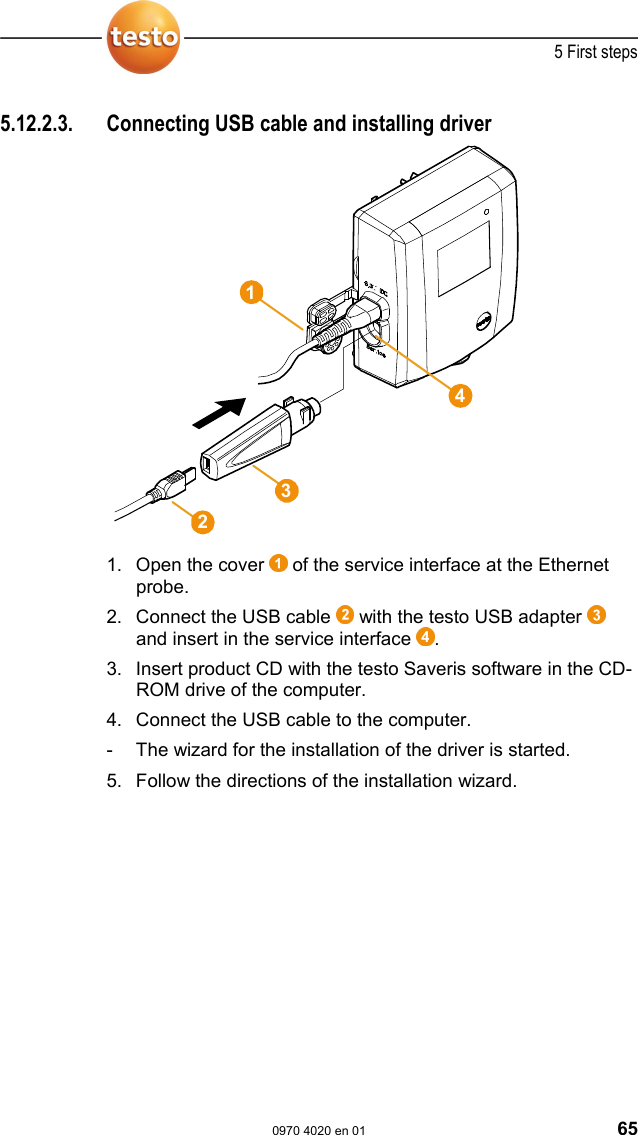
 5 First steps  0970 4020 en 01 65 Pos: 77 /TD/Erste Sc hritte/testo Saveris/ Hardware erweitern/ 03  Ethernet-Fühler einbi nden/01b USB-Kabel @ 1\ mod_1203423817203_79. doc @ 8259  5.12.2.3.  Connecting USB cable and installing driver   1. Open the cover   of the service interface at the Ethernet probe. 2. Connect the USB cable   with the testo USB adapter   and insert in the service interface  . 3. Insert product CD with the testo Saveris software in the CD-ROM drive of the computer. 4. Connect the USB cable to the computer. -  The wizard for the installation of the driver is started.  5. Follow the directions of the installation wizard.   Pos: 78 /TD/Erste Sc hritte/testo Saveris/ Hardware erweitern/ 03  Ethernet-Fühler einbi nden/02 Software i nstallieren @ 1\mod_120 3421488750_79.doc  @ 8215  1243
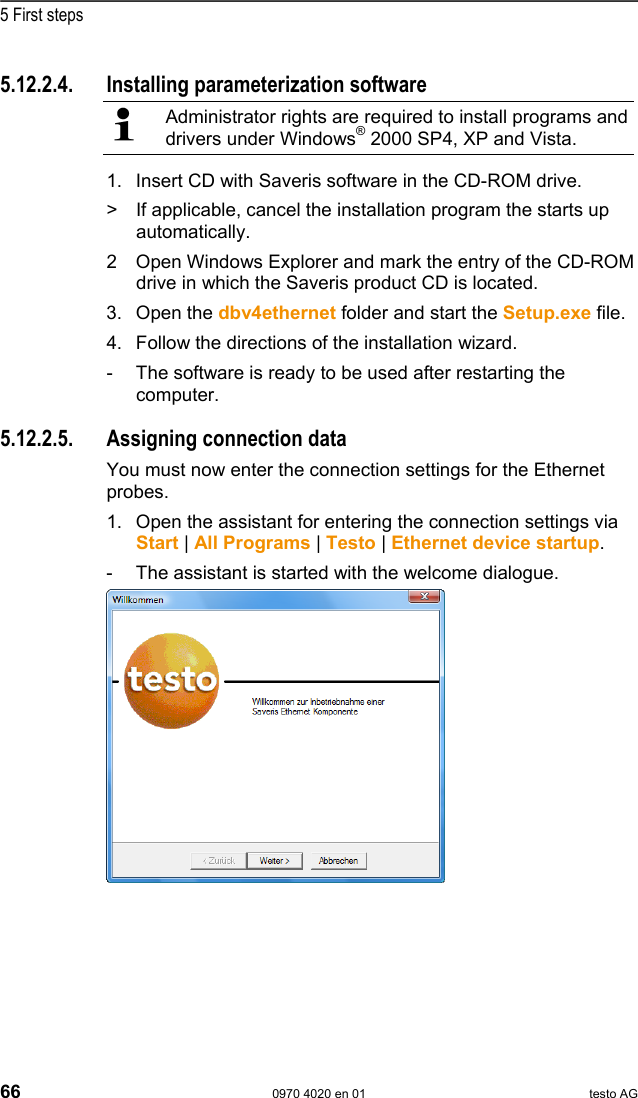
 5 First steps 66  0970 4020 en 01 testo AG 5.12.2.4. Installing parameterization software  Administrator rights are required to install programs and drivers under Windows® 2000 SP4, XP and Vista. 1. Insert CD with Saveris software in the CD-ROM drive. >  If applicable, cancel the installation program the starts up automatically. 2 Open Windows Explorer and mark the entry of the CD-ROM drive in which the Saveris product CD is located. 3. Open the dbv4ethernet folder and start the Setup.exe file. 4. Follow the directions of the installation wizard. -  The software is ready to be used after restarting the computer. Pos: 79 /TD/Erste Sc hritte/testo Saveris/ Hardware erweitern/ 03  Ethernet-Fühler einbi nden/03 Verbindu ngsdaten zuweisen @ 1\mod_ 1203421515781_79.d oc @ 8226  5.12.2.5.  Assigning connection data You must now enter the connection settings for the Ethernet probes. 1. Open the assistant for entering the connection settings via Start | All Programs | Testo | Ethernet device startup. -  The assistant is started with the welcome dialogue.
 5 First steps  0970 4020 en 01 67 2. Click on [Continue >]. -  The dialogue  •  Address of the Saveris base is shown if the computer has DHCP.   In this case, continue with step 4. •  Instrument address allocation is shown if an automatic allocation of the IP address via DHCP is not possible.   You must manually enter the connection data.   3. Enter IP address, Netmask and Gateway.   The first two blocks of the IP address must match those from the Saveris base. The last two blocks can be selected freely. However, the IP address may not yet be assigned. The IP address, the netmask and the gateway can be read off at the Saveris base in the Info Base menu; also see chapter Displays, page 16. 4. Click on [Continue >]. -  The dialogue for the entry of the connection data for the base is shown.
 5 First steps 68  0970 4020 en 01 testo AG   5. Enter IP address of the Saveris base.   The IP address can be read off at the Saveris base in the Info Base menu; also see chapter Displays, page 16. 6. Click on [Finish]. -  The Ethernet probe is restarted, synchronized with the Saveris base and the number of connected Ethernet probes in the display of the base is increased by 1; see
 5 First steps  0970 4020 en 01 69 Displays, page 16. Pos: 80 /TD/Erste Sc hritte/testo Saveris/ Hardware erweitern/ 03  Ethernet-Fühler einbi nden/04 Netzwerkk abel an Base anschließen @ 1\ mod_1203430798656_79. doc @ 8313
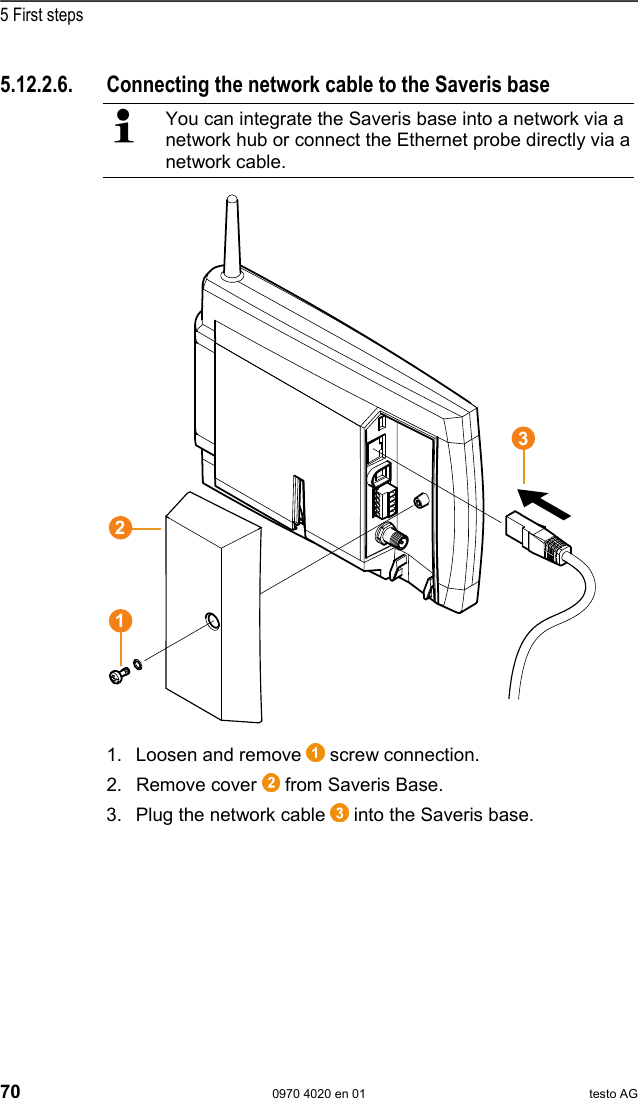
 5 First steps 70  0970 4020 en 01 testo AG 5.12.2.6.  Connecting the network cable to the Saveris base   You can integrate the Saveris base into a network via a network hub or connect the Ethernet probe directly via a network cable.  1. Loosen and remove   screw connection. 2. Remove cover   from Saveris Base. 3. Plug the network cable   into the Saveris base. Pos: 81 /TD/Erste Sc hritte/testo Saveris/ Hardware erweitern/ 03  Ethernet-Fühler einbi nden/05 Ethernet- Fühler inbetrieb nehm en @ 1\mod_1203421551984_7 9.doc @ 8237  321
 5 First steps  0970 4020 en 01 71 5.12.2.7.  Starting up Ethernet probes  1. Open the assistant for starting up new hardware component via Start | All Programs | Testo | Startup Assistant. -  The assistant is opened with the welcome screen.   2. Click on [Continue >]. - The Commission new probe dialogue is shown.
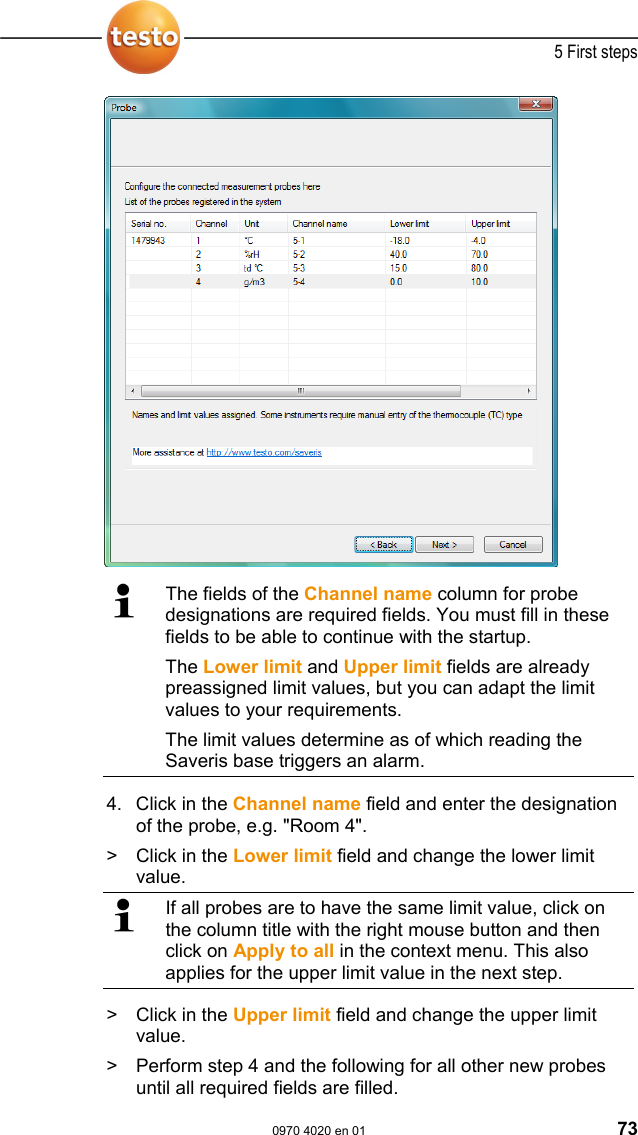
 5 First steps 72  0970 4020 en 01 testo AG   3. Leave default setting and click on [Continue >]. -  The list of the probes newly registered in the Saveris base is shown.
 5 First steps  0970 4020 en 01 73    The fields of the Channel name column for probe designations are required fields. You must fill in these fields to be able to continue with the startup. The Lower limit and Upper limit fields are already preassigned limit values, but you can adapt the limit values to your requirements. The limit values determine as of which reading the Saveris base triggers an alarm.  4. Click in the Channel name field and enter the designation of the probe, e.g. "Room 4". >   Click in the Lower limit field and change the lower limit value.  If all probes are to have the same limit value, click on the column title with the right mouse button and then click on Apply to all in the context menu. This also applies for the upper limit value in the next step. >   Click in the Upper limit field and change the upper limit value. >   Perform step 4 and the following for all other new probes until all required fields are filled.
 5 First steps 74  0970 4020 en 01 testo AG 5.  Click on [Continue >]. -  The settings for measuring cycle, the alarm delay and the alarm issue are shown.   6.  Enter the Measuring cycle and determine its Unit.   The measuring cycle determines in which intervals a new reading is saved in the Saveris base. Possible settings for the unit: •  sec (second) •  min (minute) •  h   (hour). 7.  Determine Alarm delay.   If you enter the value "5" for example, an alarm is not triggered by the Saveris base until the fifth time that the limit value is exceeded.
 5 First steps  0970 4020 en 01 75 8.  Determine the issue options for the limit value alarms. Possible options: •  SMS (optional with Saveris base with GSM module) •  E-mail •  Relay of the Saveris base.   The notification function via SMS is only available if the Saveris base is equipped with a GSM module. 9.  Click on [Continue >]. -  The wizard is shown with the setting for the start of measurement and the list of the newly registered probes.   10.  Postpone the start of measurement, if necessary.  11.  Click on [Finish] to complete the startup of the hardware. -  A note on the successful configuration of the hardware is shown. 12.  Press [OK] to confirm the note. -  The new hardware is now ready for operation.
 5 First steps 76  0970 4020 en 01 testo AG   Pos: 82 /TD/Erste Sc hritte/testo Saveris/ Hardware erweitern/ 02  Converter einbinden/ 00 Converter einset zen @ 1\mod_1197550607093 _79.doc @ 6315  5.12.3.  Integrating Saveris converter (optional) If the distance between the radio probe or router is too large for a radio transmission, you can integrate a Saveris converter into the measuring system. The converter is connected to the Saveris base by means of an Ethernet cable and converts the radio signals to Ethernet signals.   The measurement data of up to 15 radio probes can be transmitted with the converter to the Saveris base. You can connect several converters to the Saveris base using a so-called switch. In this context, note that a maximum of 150 probes can be connected or 254 measurement channels recorded at the Saveris base.    The preparation for the commissioning of a converter is performed as with a Saveris Ethernet probe; see Connecting the network cable., page 62 up to and including Connecting the network cable to the Saveris base, page 70.  Connecting probe to converter   A probe that you wish to connect to the Saveris converter may not be registered at the Saveris base. If this is the case, you must log the probe out of the base before you can continue with the connection at the converter; see Deleting components, page 130. 1. Briefly press the connect button on the rear of the converter. -  The LED at the converter lights green and the converter is ready for probe detection. 2. Press the connect key on the rear of the probe until the LED at the probe begins to flash orange. -  The LED at the probe briefly turns green if this was detected by the Saveris converter. The probe is connected at the converter and this transmits the measurement data of the probe to the Saveris base. Pos: 83 /TD/Erste Sc hritte/testo Saveris/ 06 ****Probelauf/ 00 Probelauf und Abnahme durc hführen @ 0\mod_1189157 354187_79.doc @ 4054
 5 First steps  0970 4020 en 01 77 5.13.  Performing the test run   The test run must be performed to ensure proper operation of the measuring system.  Pos: 84 /TD/Erste Sc hritte/testo Saveris/ 06 ****Probelauf/ 01 Systemverfügbarkei t prüfen @ 0\mod_118915739 5875_79.doc @ 4094  5.13.1.  Checking system availability   Wait for the first connection between the Saveris base and the probes to check the system availability. >   Click on System in the navigation area. -  The following entries are shown in the tree structure in the data window: •  Base •  Radio probe  •  Ethernet probe •  Router •  Converter. 1.  Open the Radio probe entry. -  The active channels of the probes connected in the system are shown. 2  Click on a channel to open the settings and check the Radio quality. >   Repeat step 2 for all other probes.   If no values have accumulated for a probe for a while, check whether a connection exists between the probe and the Saveris base by briefly pressing the connect button at the probe. The LED at the probe shows the connection status; also see "Meaning of the LED displays at the probes " for this.  Pos: 85 /TD/Erste Sc hritte/testo Saveris/ 06 ****Probelauf/ 02 Alarmkette prüfen @ 0\mo d_1189157374281_79.doc  @ 4064
 5 First steps 78  0970 4020 en 01 testo AG 5.13.2.  Checking alarm chain You can trigger an alarm and control the sending of the messages without having to bring about a real alarm situation.  >   Click on Alarms in the navigation area. -  In the data window, the Basic setting and Alarm overview submenus as well as the probes connected in the Saveris base are shown. 1.  Click on Basic setting. -  The basic setting for the alarms is shown in the display range.   2. Click on the [Test report] button. -  A test report is sent to the mobile phone number entered. Pos: 86 /TD/Erste Sc hritte/testo Saveris/ 07 **** Montage der Hardw are/00 Hardware montier en @ 0\mod_1189157579984 _79.doc @ 4124
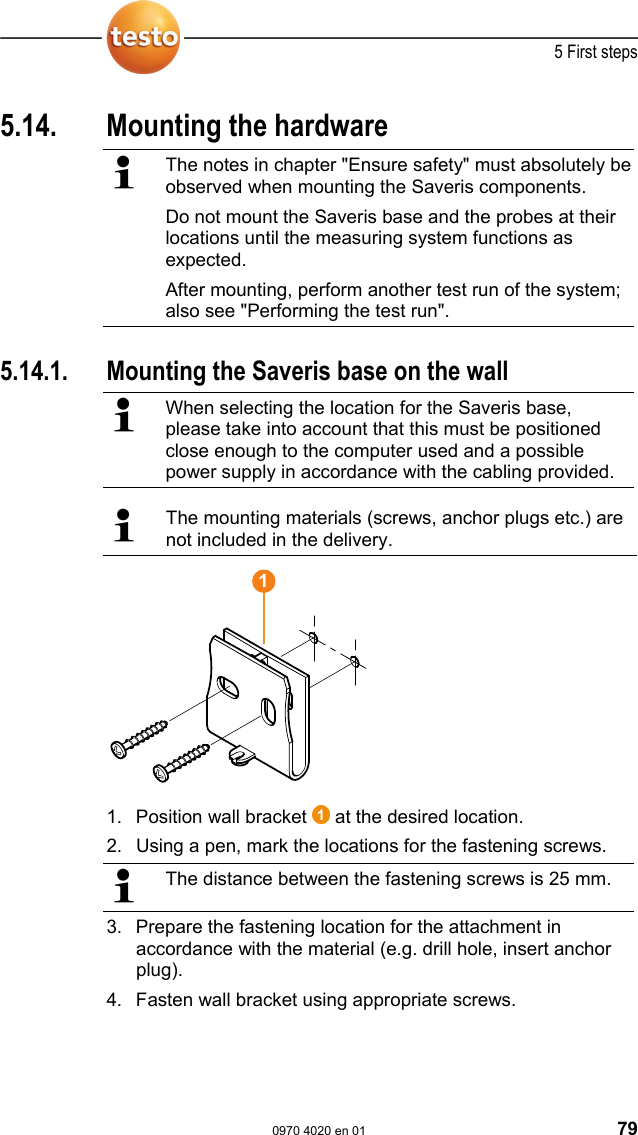
 5 First steps  0970 4020 en 01 79 5.14. Mounting the hardware   The notes in chapter "Ensure safety" must absolutely be observed when mounting the Saveris components. Do not mount the Saveris base and the probes at their locations until the measuring system functions as expected. After mounting, perform another test run of the system; also see "Performing the test run".  Pos: 87 /TD/Erste Sc hritte/testo Saveris/ 07 **** Montage der Hardw are/01 Base an der Wand montier en @ 0\mod_1189157492531 _79.doc @ 4105  5.14.1.  Mounting the Saveris base on the wall   When selecting the location for the Saveris base, please take into account that this must be positioned close enough to the computer used and a possible power supply in accordance with the cabling provided.     The mounting materials (screws, anchor plugs etc.) are not included in the delivery.  1. Position wall bracket   at the desired location. 2. Using a pen, mark the locations for the fastening screws.   The distance between the fastening screws is 25 mm. 3. Prepare the fastening location for the attachment in accordance with the material (e.g. drill hole, insert anchor plug). 4. Fasten wall bracket using appropriate screws. 1
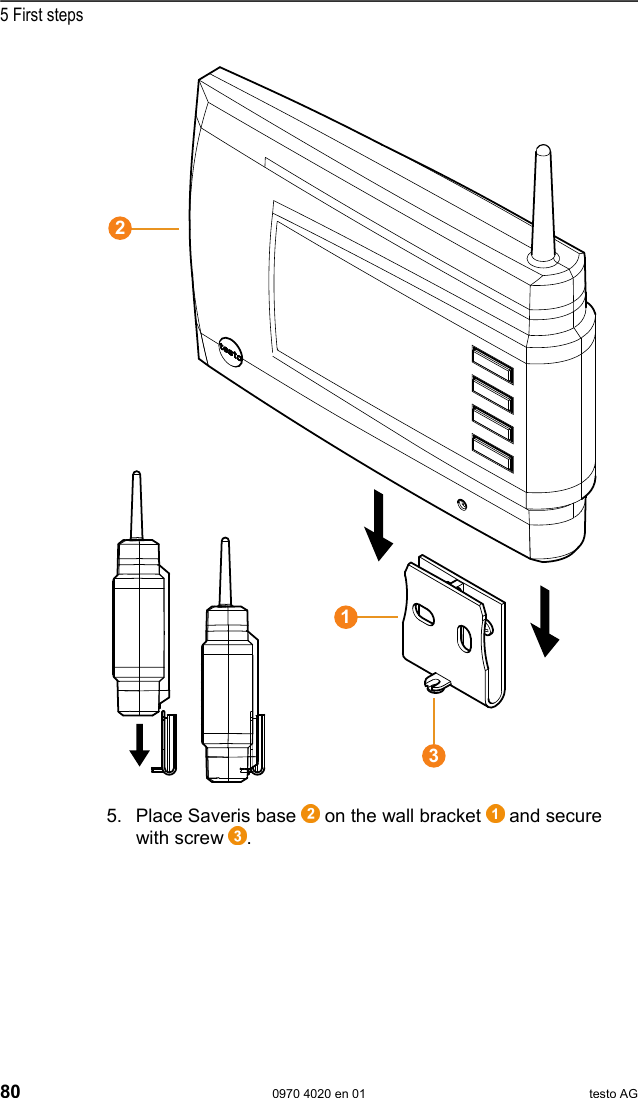
 5 First steps 80  0970 4020 en 01 testo AG   5. Place Saveris base   on the wall bracket   and secure with screw  .     Pos: 88 /TD/Erste Sc hritte/testo Saveris/ 07 **** Montage der Hardw are/01b  Base mit Standfuß @ 0\mo d_1190975629546_79.doc  @ 5233  213
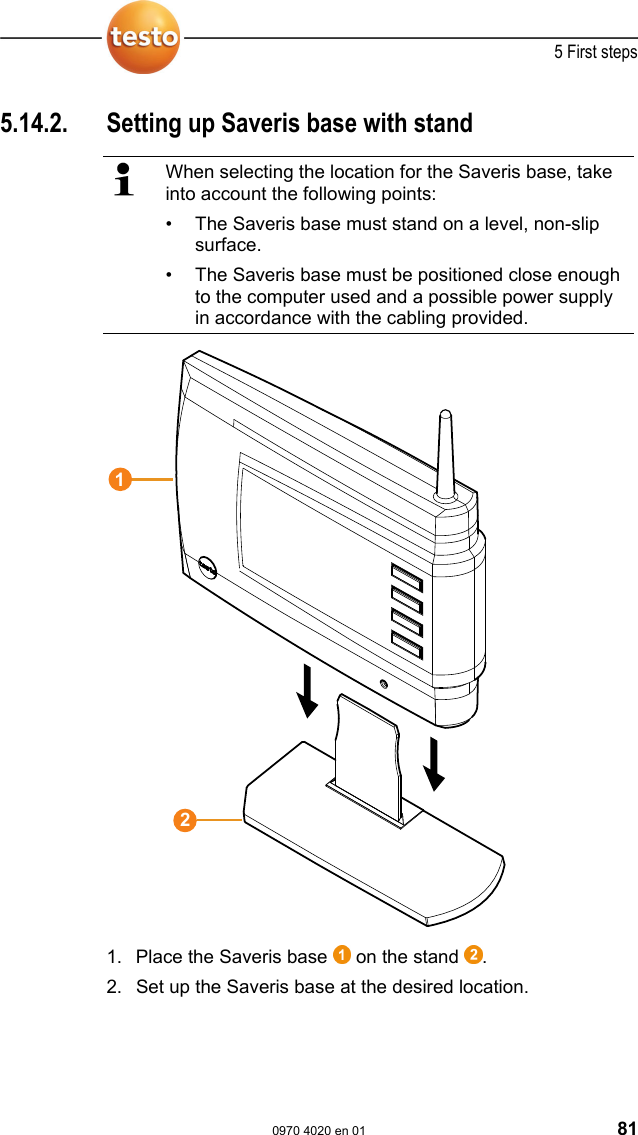
 5 First steps  0970 4020 en 01 81 5.14.2.  Setting up Saveris base with stand   When selecting the location for the Saveris base, take into account the following points: •  The Saveris base must stand on a level, non-slip surface. •  The Saveris base must be positioned close enough to the computer used and a possible power supply in accordance with the cabling provided.   1. Place the Saveris base   on the stand  . 2. Set up the Saveris base at the desired location. 12
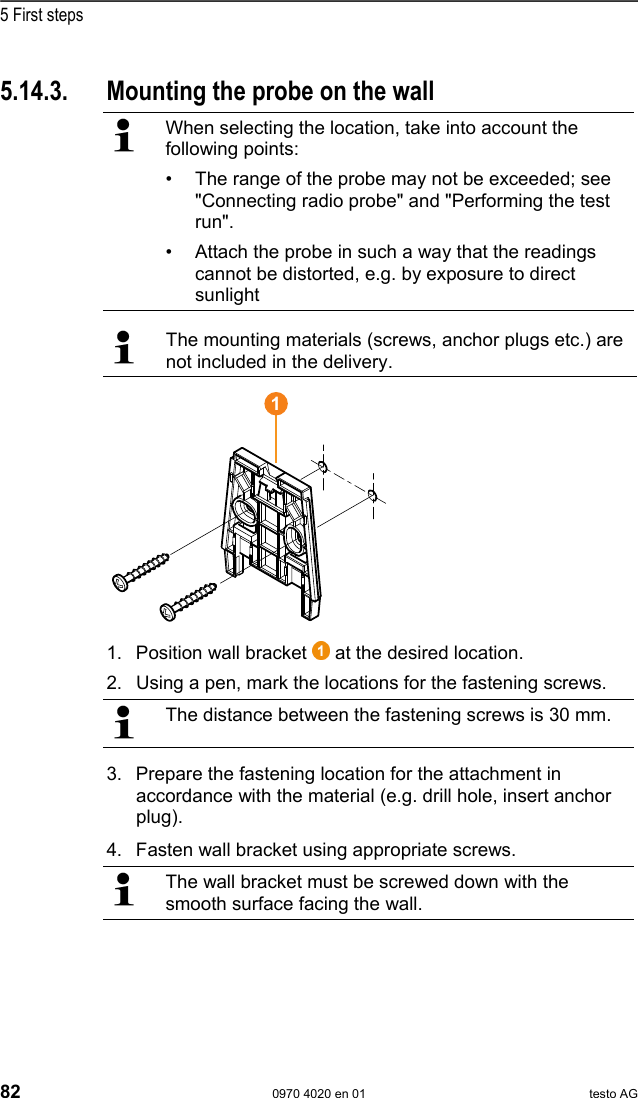
 5 First steps 82  0970 4020 en 01 testo AG  Pos: 89 /TD/Erste Sc hritte/testo Saveris/ 07 **** Montage der Hardwar e/03 Fühler montieren @ 0\ mod_1189157541812_79. doc @ 4114  5.14.3.  Mounting the probe on the wall   When selecting the location, take into account the following points: •  The range of the probe may not be exceeded; see "Connecting radio probe" and "Performing the test run". •  Attach the probe in such a way that the readings cannot be distorted, e.g. by exposure to direct sunlight    The mounting materials (screws, anchor plugs etc.) are not included in the delivery.  1. Position wall bracket   at the desired location. 2. Using a pen, mark the locations for the fastening screws.   The distance between the fastening screws is 30 mm. 3. Prepare the fastening location for the attachment in accordance with the material (e.g. drill hole, insert anchor plug).   4. Fasten wall bracket using appropriate screws.   The wall bracket must be screwed down with the smooth surface facing the wall. 1
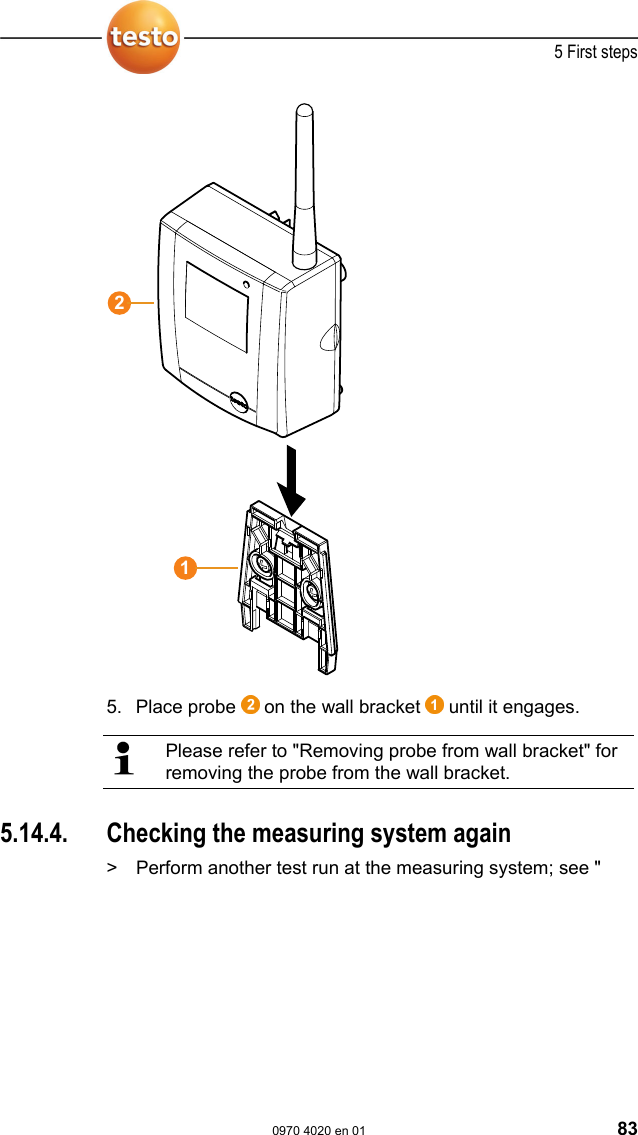
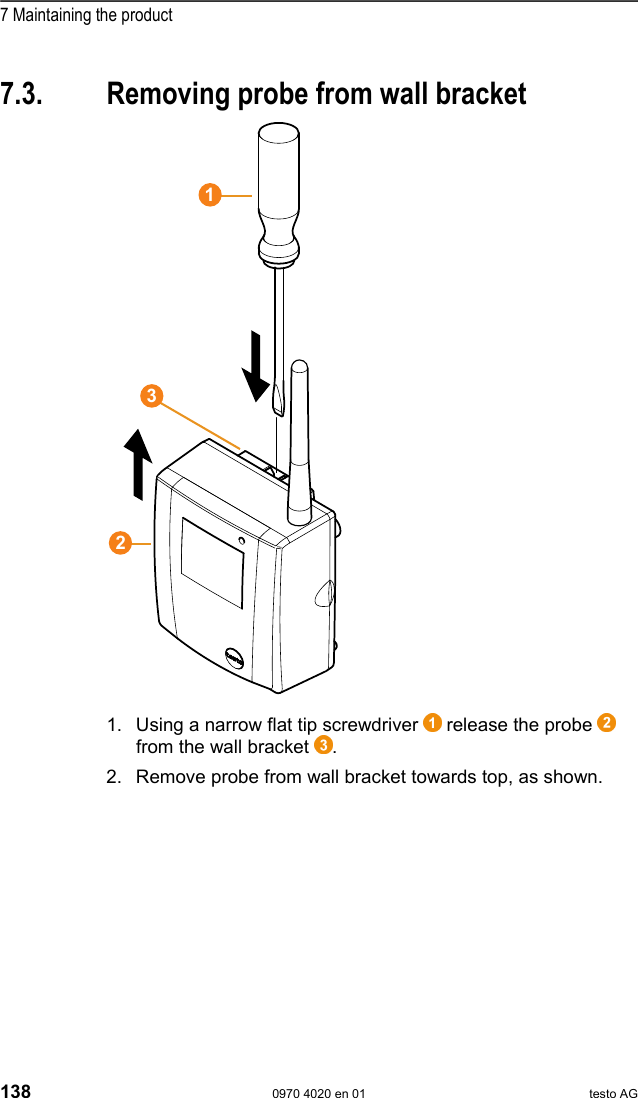
 5 First steps  0970 4020 en 01 83   5. Place probe   on the wall bracket   until it engages.   Please refer to "Removing probe from wall bracket" for removing the probe from the wall bracket.   Pos: 90 /TD/Erste Sc hritte/testo Saveris/ 07 **** Montage der Hardw are/04 System prüfen @ 0\ mod_1191327191562_79. doc @ 5362  5.14.4.  Checking the measuring system again >  Perform another test run at the measuring system; see "12
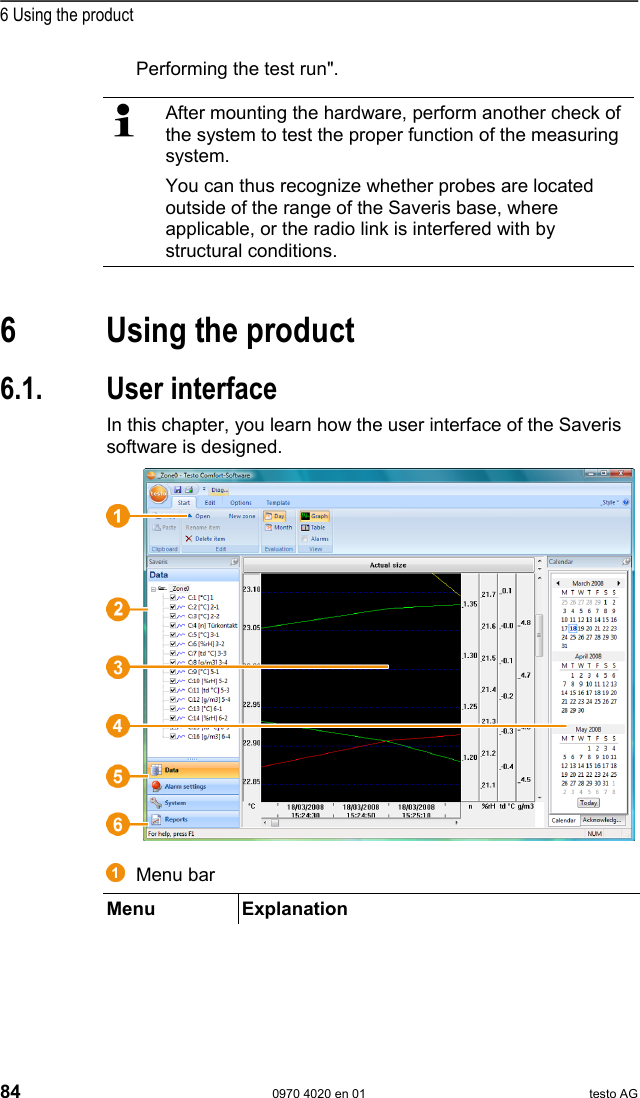
 6 Using the product 84  0970 4020 en 01 testo AG Performing the test run".   After mounting the hardware, perform another check of the system to test the proper function of the measuring system. You can thus recognize whether probes are located outside of the range of the Saveris base, where applicable, or the radio link is interfered with by structural conditions.  Pos: 91 /TD/--- Seitenwechsel --- @ 0\mod_1173774430601_0.doc @ 283  Pos: 92 /TD/Überschr iften/6. Produkt ver wenden @ 0\mod_117377492855 4_79.doc @ 328  6  Using the product Pos: 93 /TD/Produkt  verwenden/testo Saver is/01 Start/02_Bedie noberfläche_01 @ 0\mod_11 89076833359_79.doc  @ 3943  6.1. User interface In this chapter, you learn how the user interface of the Saveris software is designed.  Pos: 94 /TD/Produkt ver wenden/testo Saveris/ 01 Start/02_Bedienoberf läche_02_SBE @ 1\mod_11979837944 06_79.doc @ 6583     Pos: 95 /TD/Produkt  verwenden/testo Saver is/01 Start/02_Bedie noberfläche_03 @ 1\mod_11 97983802515_79.doc  @ 6603     Menu bar   Menu Explanation
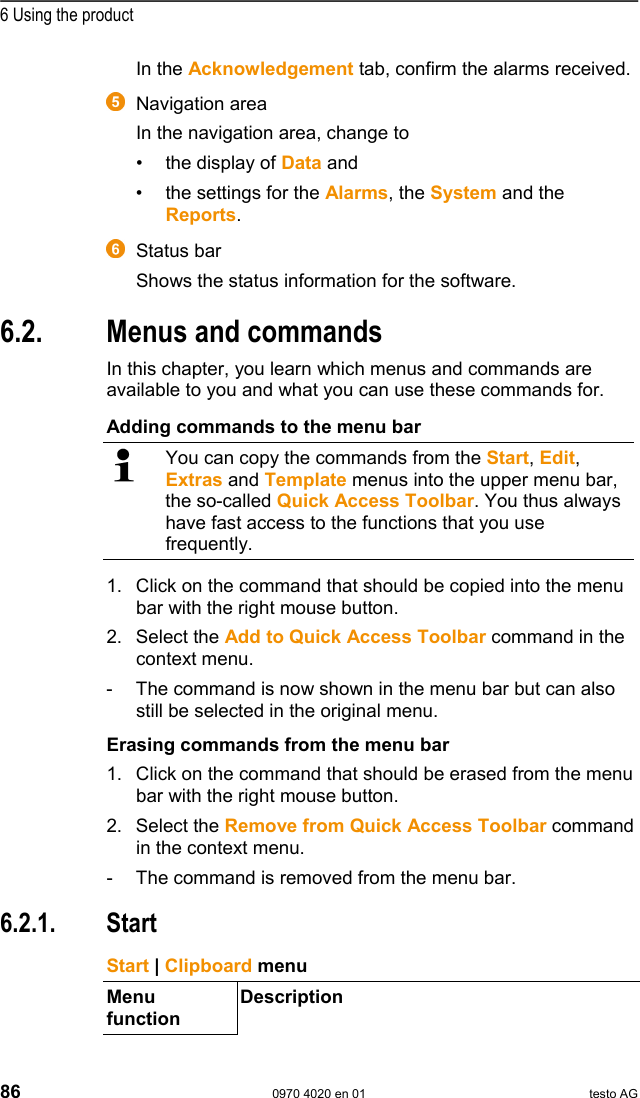
 6 Using the product  0970 4020 en 01 85 Menu Explanation  All functions that you require to open, close, save, delete and print.  The recently used files are also available as a list for opening. Using this menu, the program can also be ended.    With the Send command, you can send measurement results by e-mail. Microsoft Outlook must be installed on the computer for this.     Saves the current selection in a file.   Prints the current view.  Setting options for the menu bar. Start  Functions for the clipboard, editing the measurement data records, the evaluation, the view and the font in the tables and diagrams. Edit  Functions for evaluating the diagrams or tables and possible settings for the curves and axes in the diagram view. Options  Setting options for the display of curves and the display of service data. Templates  Selection of the report heads and editing functions for the templates.  Pos: 96 /TD/Produkt  verwenden/testo Saver is/01 Start/02_Bedie noberfläche_04 @ 1\mod_11 97983805828_79.doc  @ 6613      Data range   The measurement data are managed in the data range. You can create new groups of readings and copy the data from individual channels within the groups.  Pos: 97 /TD/Produkt  verwenden/testo Saver is/01 Start/02_Bedie noberfläche_05 @ 1\mod_11 97983809546_79.doc  @ 6623   Display range In the display range, the readings are represented as diagrams and tables and the alarms received are listed.  Pos: 98 /TD/Produkt  verwenden/testo Saver is/01 Start/02_Bedie noberfläche_06 @ 1\mod_11 97983817359_79.doc  @ 6643   Calendar and acknowledging alarms The Calendar tab is used for fast navigation within the data records. Open the data records in the display range by clicking on a certain day in the calendar or marking a period of several days in the calendar with the mouse button pressed.
 6 Using the product 86  0970 4020 en 01 testo AG In the Acknowledgement tab, confirm the alarms received.  Pos: 99 /TD/Produkt  verwenden/testo Saver is/01 Start/02_Bedie noberfläche_07 @ 1\mod_11 97983827015_79.doc  @ 6653   Navigation area In the navigation area, change to  •  the display of Data and •  the settings for the Alarms, the System and the Reports.   Pos: 100 /TD/Produkt  verwenden/testo Saver is/01 Start/02_Bedi enoberfläche_08 @ 1\mod_1 197984029171_79.d oc @ 6663   Status bar Shows the status information for the software.   Pos: 101 /TD/Produkt  verwenden/testo Saver is/02 Menüs und Befehle der  Ribbon-Leiste/00  Menüs und Befehle @ 0\mod_1190 279903078_79.doc @ 4975  6.2.  Menus and commands In this chapter, you learn which menus and commands are available to you and what you can use these commands for. Pos: 102 /TD/Produkt  verwenden/testo Saver is/02 Menüs und Befehle der  Ribbon-Leiste/00  Quick Access Toolbar @ 0\mod_11 89084046921_79.doc  @ 4022  Adding commands to the menu bar  You can copy the commands from the Start, Edit, Extras and Template menus into the upper menu bar, the so-called Quick Access Toolbar. You thus always have fast access to the functions that you use frequently. 1. Click on the command that should be copied into the menu bar with the right mouse button. 2. Select the Add to Quick Access Toolbar command in the context menu. -  The command is now shown in the menu bar but can also still be selected in the original menu. Erasing commands from the menu bar 1. Click on the command that should be erased from the menu bar with the right mouse button. 2. Select the Remove from Quick Access Toolbar command in the context menu. -  The command is removed from the menu bar. Pos: 103 /TD/Produkt  verwenden/testo Saver is/02 Menüs und Befehle der  Ribbon-Leiste/01 S tart/00 Menü Start @ 0\mod_1 190280034765_79.doc @  4984  6.2.1. Start Pos: 104 /TD/Produkt  verwenden/testo Saver is/02 Menüs und Befehle der  Ribbon-Leiste/01 S tart/01 Zwischenablage @ 0\ mod_1189605664203_79. doc @ 4484   Start | Clipboard menu Menu function Description
 6 Using the product  0970 4020 en 01 87 Menu function Description Copy  Copies the marked element onto the clipboard. Paste  Pastes the contents of the clipboard at the current position.  Pos: 105 /TD/Produkt  verwenden/testo Saver is/02 Menüs und Befehle der  Ribbon-Leiste/01 S tart/02 Bearbeiten @ 0\mod_1 189605697875_79.doc  @ 4494
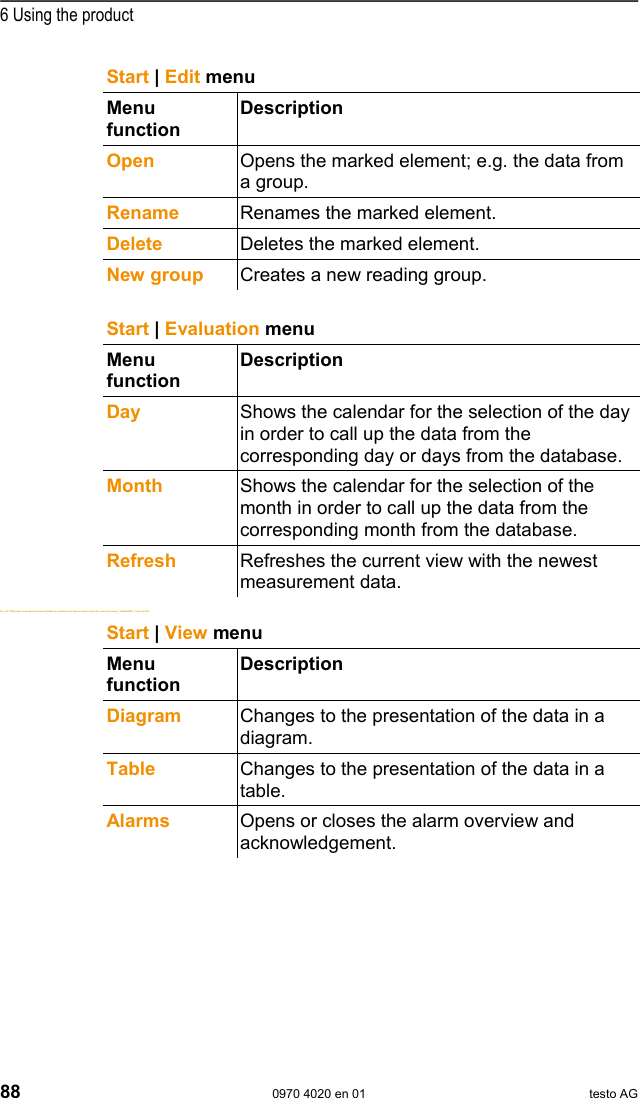
 6 Using the product 88  0970 4020 en 01 testo AG Start | Edit menu Menu function Description Open  Opens the marked element; e.g. the data from a group. Rename  Renames the marked element. Delete  Deletes the marked element. New group  Creates a new reading group.  Pos: 106 /TD/Produkt  verwenden/testo Saver is/02 Menüs und Befehle der  Ribbon-Leiste/01 S tart/03 Auswertung @ 0\mod _1189605812562_79.d oc @ 4524    Start | Evaluation menu Menu function Description Day  Shows the calendar for the selection of the day in order to call up the data from the corresponding day or days from the database. Month  Shows the calendar for the selection of the month in order to call up the data from the corresponding month from the database. Refresh  Refreshes the current view with the newest measurement data.  Pos: 107 /TD/Produkt ver wenden/testo Saveris/02 Menüs und Be fehle der Ribbon-Leiste/ 01 Start/04-1 Ansicht  @ 0\mod_1189605850812_79.doc @  4534  Start | View menu Menu function Description Diagram  Changes to the presentation of the data in a diagram. Table  Changes to the presentation of the data in a table. Alarms  Opens or closes the alarm overview and acknowledgement.  Pos: 108 /TD/Produkt  verwenden/testo Saver is/02 Menüs und Befehle der  Ribbon-Leiste/02 Be arbeiten/00 Menü Bearbei ten @ 0\mod_11902801067 96_79.doc @ 4993
 6 Using the product  0970 4020 en 01 89 6.2.2. Edit Pos: 109 /TD/Produkt  verwenden/testo Saver is/02 Menüs und Befehle der  Ribbon-Leiste/02 Be arbeiten/02 Bearbeit en (Diagramm) @ 0\mod_118960 6502281_79.doc @ 4555   Edit in the diagram view The Edit (diagram) menu is only shown if the diagram is activated by clicking in the window.  Edit | Tools (diagram) menu Menu function Description Zoom in  Drag to form a rectangle in the diagram window to zoom in on the highlighted area.  Click on [Original size] to display the diagram in its total size again. Crosshairs  Crosshairs with which the curve can be followed are shown by clicking on a point of the measurement curve. The date, time, reading number and reading are shown in the process. Mark area  You can determine an area that is to be calculated out or saved: The calculation area is determined by clicking on a curve. The area limits can be moved using the left mouse button and the whole area using the right mouse button.    •  The extract is a time period.   If you have determined an extract for a measurement protocol, all calculations are performed within these limits. Remove the extract markings with the Erase text command if you wish to calculate out the entire data sequence. •  Area marking and calculation of mean value. If you have marked an area, the area borders, the arithmetic mean value and the minimum and maximum of the value pattern are shown in the status bar.
 6 Using the product 90  0970 4020 en 01 testo AG Menu function Description Regression curve Regression curves are an aid for being better able to assess large, unclear amounts of data. In this process, "outliers" are suppressed and the actual course of the curve is reproduced using a theoretical, mathematical function. The regression curve is shown by clicking on a measurement curve. The regression coefficients are shown in the status bar. Insert text  Text can be added to diagrams. The text frame can be moved to any position on the drawing area (click and hold the right mouse button on the upper horizontal frame border and move text frame). Erase text  Erases a marked text frame. Calculation  Opens the Statistical calculation dialogue for the entire data range of the selected reading curve.   Edit | Curves (diagram) menu Menu function Description C:1, C:n  Legend for the diagram. Click on the entry of a curve and the dialogue for the characteristics of the curve is opened.   Edit | Value axis (diagram) menu Menu function Description Upper limit range of values Maximum of the shown range of values. Lower limit range of values Minimum of the shown range of values. Grid  Scaling of the value axis.
 6 Using the product  0970 4020 en 01 91 Edit | Time axis (diagram) menu Menu function Description Grid  Scaling of the time axis.  Pos: 110 /TD/Produkt  verwenden/testo Saver is/02 Menüs und Befehle der  Ribbon-Leiste/02 Be arbeiten/03 Bearbeit en (Tabelle) @ 0\mod_11896 06537468_79.doc @ 4565   Edit in the table view The Edit (table) menu is only shown if the table is activated by clicking in the window.  Edit | Tools (table) menu Menu function Description Mark  Mark data over a definable time period or definable lines (index range). Drop marking Drops the marking. Extra lines (minimum, maximum, mean value) Inserts a row with the corresponding value for the overall table at the end of the table. Compress  Compresses the table to definable intervals. Only the first and the last value are shown for the individual intervals. The other readings are hidden. Drop compression Drops the compression.    Edit | Find (table) menu Menu function Description Minimum  Shows the smallest reading of the selected channel within the table. Maximum  Shows the largest reading of the selected channel within the table.  Pos: 111 /TD/Produkt  verwenden/testo Saver is/02 Menüs und Befehle der  Ribbon-Leiste/03 E xtras/00 Menü Extras @ 0\mod_1 190280173640_79. doc @ 5003
 6 Using the product 92  0970 4020 en 01 testo AG 6.2.3. Options Pos: 112 /TD/Produkt  verwenden/testo Saver is/02 Menüs und Befehle der  Ribbon-Leiste/03 E xtras/01 Verwaltung @ 1\mo d_1197373808453_7 9.doc @ 6173   Extras | Management menu Menu function Description Projects  Opens the dialogue for selecting a project. Protocols  Opens a protocol file that you can send to Customer Service in the event of a problem.   Pos: 113 /TD/Produkt  verwenden/testo Saver is/02 Menüs und Befehle der  Ribbon-Leiste/03 E xtras/02 Bearbeiten @ 0\mod_ 1189606801796_79.d oc @ 4596   Extras | Edit menu Menu function Description Undo  Undo the last action. Paste into a new file Pastes the content on the clipboard in a new file.   Pos: 114 /TD/Produkt  verwenden/testo Saver is/02 Menüs und Befehle der  Ribbon-Leiste/03 E xtras/03 Einstellung en @ 0\mod_1189606889031_ 79.doc @ 4616  Extras | Settings menu Menu function Description Representation Settings for the representation of the diagram.  Pos: 115 /TD/Produkt  verwenden/testo Saver is/02 Menüs und Befehle der  Ribbon-Leiste/03 E xtras/04 Schriftar t @ 0\mod_118960671954 6_79.doc @ 4576  Extras | Font menu Menu function Description Font  Setting the font for the tables and diagrams. Font size  Setting the font size for the tables and diagrams.    When selecting the font and font size, take into account the legibility of the diagrams and tables. Use sans-serif fonts such as Arial or Verdana.  Pos: 116 /TD/Produkt  verwenden/testo Saver is/02 Menüs und Befehle der  Ribbon-Leiste/03 E xtras/05 Servicedaten @ 0\ mod_1189606938750_ 79.doc @ 4626
 6 Using the product  0970 4020 en 01 93 Extras | Service menu Menu function Description Display service data  Creates a text file with the required information for Customer Service if servicing is required.    If the service data cannot be displayed under Windows® Vista, start the WordPad program and save, for example, an empty file of your choice in *.wri format. To do so, manually enter the file extension behind the file name. A link is thus formed between the file and the service data and WordPad.     Pos: 117 /TD/Produkt  verwenden/testo Saver is/02 Menüs und Befehle der  Ribbon-Leiste/05  Menü Vorlage @ 0\mod_1190280 258593_79.doc @ 5013  6.2.4. Template Pos: 118 /TD/Produkt  verwenden/testo Saver is/02 Menüs und Befehle der  Ribbon-Leiste/05 Vorl age @ 0\mod_118899703328 1_79.doc @ 3727   Template | Template menu Select a standard template in this menu into which the data that are to be saved or printed are integrated.  The templates differ in the protocol header, meaning in the company logo, the address field or the specification of statistical values. Template | Edit menu Menu function Description Edit template  Enables the editing of an existing template. Create new template Enables the creation of a new template.  Pos: 119 /TD/Produkt  verwenden/testo Saver is/02 Menüs und Befehle der  Ribbon-Leiste/06  Menü Style @ 0\mod_119037835 6765_79.doc @ 5092  6.2.5. Style Selection of the colour scheme for the program window. Pos: 120 /TD/Produkt  verwenden/testo Saver is/02 Menüs und Befehle der  Ribbon-Leiste/07  Menü Hilfe @ 0\mod_11903785422 50_79.doc @ 5102  6.2.6. Help (?) Display copyright, program information and version number. Pos: 121 /TD/Produkt  verwenden/testo Saver is/03 Gruppen einric hten/organisieren/0 0 Zonen anlegen und lösc hen @ 0\mod_1190280348609_7 9.doc @ 5023
 6 Using the product 94  0970 4020 en 01 testo AG 6.3.  Creating and deleting zones After you have familiarized yourself with the menus of the Saveris software you can now turn to creating zones, for example to separate the probes according to location. You could perhaps combine probes that are located in store rooms into one zone and probes that are in cold rooms into another. Pos: 122 /TD/Produkt  verwenden/testo Saver is/03 Gruppen einric hten/organisieren/0 4 Zonen anlegen @ 0\mod_11890 76726062_79.doc  @ 3902  6.3.1. Creating zones 1. Click on Data in the navigation area. -  The available zones are shown in the data range. 2.  Select the New zone command in the Start | Edit | Organizing menu. - The New zone dialogue is shown. 3.  If necessary, deactivate an unneeded channel.   At least one channel must be activated. When you create a new zone, create a copy with one or more channels from the Zone0 standard group. 4.  In the field of the same name, enter the name of the new zone, e.g. "Store rooms".  Assign names for the zones that are not longer than 15 characters. 5.  Confirm the entries with [OK]. - The New zone dialogue is closed and the new zone is listed in the tree structure in the data range. Pos: 123 /TD/Produkt  verwenden/testo Saver is/03 Gruppen einric hten/organisieren/0 8 Zonen löschen @ 0\mod_1189 076727046_79.doc  @ 3922  6.3.2. Deleting zones   The Zone0 standard group cannot be deleted. 1. Click on Data in the navigation area. -  The available zones are shown in the data range. 2.  Mark the zone that is to be deleted in the tree structure. 3.  Select the Erase command in the Start | Edit menu. -  The zone is deleted without a reference.
 6 Using the product  0970 4020 en 01 95  Pos: 124 /TD/Produkt  verwenden/testo Saver is/04 Alarme konfigur ieren/00 Alarme konfi gurieren @ 0\mod_1189063 396359_79.doc @ 3852  6.4.  Configuring the alarms The testo Saveris measurement system differentiates between two types of alarm, which can be configured independent of one another: •  System alarms, meaning alarms that come from the Saveris base, the GSM modem or the relay at the Saveris base, and  •  Probe alarms, which report a fault or that a limit value was exceeded at a probe.  Pos: 125 /TD/Produkt  verwenden/testo Saver is/04 Alarme konfigur ieren/01 Alarm vorkonf igurieren @ 0\mod_1188 997882750_79.doc  @ 3781  6.4.1.  Basic settings for the SMS messages   The Basic settings submenu is only shown if the Saveris base is equipped with a GSM module. 1. Click on Alarm settings in the navigation area. -  In the data window, the Basic setting and Alarm overview submenus as well as the probes connected in the Saveris base are shown. 2. Click on Basic setting. -  The basic settings for the alarm messages via SMS are shown in the display range.     Designation Description
 6 Using the product 96  0970 4020 en 01 testo AG Designation Description Receiver 1  Telephone number of the employee who is to receive the alarm message. Enter with country code, network or area code and local number: 00491721234567.    To acknowledge an alarm message, send the received message with the same text back to the mobile number of the Saveris base.     Receiver 2  Checkbox and input field for the telephone number of the employee who is to receive the alarm message if Receiver 1 cannot be reached. Enter with country code, network or area code and local number: 00491721234567.    To acknowledge an alarm message, send the received message with the same text back to the mobile number of the Saveris base.     Forward after ... min If Receiver 1 does not react within this time span, the message is forwarded to Receiver 2. Additional text  Additional text that is attached to the alarm message.   The system alarms are above all used for pointing out irregularities in the measurement system. If no reaction follows the system alarms, uninterrupted data recording is not guaranteed. If a system alarm is issued via SMS or E-mail time delays may occur. The notification function via SMS is only available if the Saveris base is equipped with a GSM module. 3. Perform the required settings. When exiting the basic settings the settings are saved.
 6 Using the product  0970 4020 en 01 97 Pos: 126 /TD/Produkt  verwenden/testo Saver is/04 Alarme konfigur ieren/02 Spezifi schen Alarm einrichten @ 0\m od_1189064215593_79. doc @ 3861  6.4.2.  Configuring the probe alarm 1. Click on Alarm settings in the navigation area. -  In the data window, the Basic setting and Alarm overview submenus as well as the probes connected in the Saveris base are shown. 2. In the tree structure open the probe entry and select the channel for which a specific alarm should be set up. -  The channel-specific settings for the alarms are shown in the display range.   Pos: 127 /TD/Produkt  verwenden/testo Saver is/04 Alarme konfigur ieren/02 Spezifi scher Alarm - 01 Grenzwerte @ 0\ mod_1189064521015_79. doc @ 3871  Limit values Designation Explanation  Checkbox  Option of whether an alarm should be triggered in the event of a breach of the limit value. Limit value Designation of the limit value. Value Specification of the limit value. Unit  Unit of the limit value.  Pos: 128 /TD/Produkt  verwenden/testo Saver is/04 Alarme konfigur ieren/02 Spezifi scher Alarm - 02 Verzögerung @ 0\ mod_1189064581156_79. doc @ 3881  Alarm delay   Designation Explanation
 6 Using the product 98  0970 4020 en 01 testo AG Designation Explanation  Delay (min)  With a delay of how many measuring cycles should the alarm be triggered?  Pos: 129 /TD/Produkt  verwenden/testo Saver is/04 Alarme konfigur ieren/02 Spezifi scher Alarm - 03 Ausgabe @ 0\mod_ 1189064615828_79.doc  @ 3891  Output targets   Designation Explanation  SMS, E-mail, Alarm relay base, Determining in which form the probe alarms should be issued.  The system alarms are above all used for pointing out irregularities in the measurement system. If no reaction follows the system alarms, uninterrupted data recording is not guaranteed. If a system alarm is issued via SMS or E-mail time delays may occur. The notification function via SMS is only available if the Saveris base is equipped with a GSM module. >  Make the required entries. When exiting the probe settings the changes are saved. Pos: 130 /TD/Produkt  verwenden/testo Saver is/04 Alarme konfigur ieren/03 Alarmübersi cht @ 0\mod_1188997883 484_79.doc @ 3791  6.4.3. Alarm overview In the alarm overview you will find a list of the probes with their specific alarm settings. 1. Click on Alarm settings in the navigation area. -  In the data window, the Basic setting and Alarm overview submenus as well as the probes connected in the Saveris base are shown. 2. Click on Alarm overview. -  The probes are listed with their specific settings in the display range.
 6 Using the product  0970 4020 en 01 99   Designation Explanation  Source  Probes on which the limit value has been exceeded. Lower limit Lower limit value. Upper limit Upper limit value. SMS,  E-mail,  Alarm relay base, Specification as to whether the corresponding option is activated in the basic settings. Active  Specification as to whether the alarm for the probe is activated under System | Radio probe.  Pos: 131 /TD/Produkt  verwenden/testo Saver is/05 Messreihen ana lysieren @ 0\mod_119089585 9625_79.doc @ 5163
 6 Using the product 100  0970 4020 en 01 testo AG 6.5.  Analyzing series of measurements You can represent series of measurements as a diagram or a table. > In the Start | View menu, select the •  Diagram function if the data should be displayed graphically or •  Table function if the data should be displayed as a table. Pos: 132 /TD/Produkt  verwenden/testo Saver is/05a Diagramme analy sieren/00 Diagramme @ 0\m od_1188996581406_7 9.doc @ 3484  6.5.1. Diagram view In this view, the readings are shown as line diagrams. In the Start | View menu, the Diagram command is activated. Now you have to select the data record that you wish to display. 1. Select the day or time period in the calendar that should be evaluated. 2. In the tree structure of the data range, open the group that contains the data to be displayed. -  The diagram for the selected data is shown.   >  If necessary, deactivate channels via the checkboxes for the display.    You can show or hide the gridlines for the corresponding axis by clicking on the time axis or the value axis.  Pos: 133 /TD/Produkt  verwenden/testo Saver is/05a Diagramme analy sieren/01 Vergrößer n @ 0\mod_1188996582156_7 9.doc @ 3494  6.5.1.1.  Enlarging the view Zoom in on a detail of the diagram to check the behavior of the readings within a specific time span, for example. 1. Click on Edit | Tools | Zoom in. 2. In the diagram, use the left mouse button, pressed and held, to highlight the area that should be shown enlarged.   Click on [Original size] and the entire diagram is shown again.  Pos: 134 /TD/Produkt  verwenden/testo Saver is/05a Diagramme analy sieren/02 Fadenkreuz @ 0\ mod_1188996582421_79. doc @ 3504
 6 Using the product  0970 4020 en 01 101 6.5.1.2.  Information on a reading (crosshairs) If you move your crosshairs along a curve, you will quickly receive detailed information on the individual readings. 1. Click on Edit | Tools | Crosshairs. 2. In the diagram, click on the point for which the details should be shown. -  A dialogue with the following information on the reading is shown: •  date on which the reading was recorded, •  time at which the reading was recorded, •  number of the reading and  • reading.   You can move along the curve with the left mouse button pressed and held and thereby see the individual information for the readings. In doing this, it is not necessary to exactly follow the course of the curve; the crosshairs does this automatically if you move the mouse to the right or left.  Pos: 135 /TD/Produkt  verwenden/testo Saver is/05a Diagramme analy sieren/03 Bereic h markieren @ 0\mod_11889965 82687_79.doc @ 3514  6.5.1.3.  Marking the area Mark an area of the diagram to show the statistical computation for a portion of the curve, for example.  1. Click on Edit | Tools | Mark area. 2. In the diagram, click in the area on the curve that is to be marked. -  A border is shown that marks the area. You can •  change the borders of the area by holding down the left mouse button and  •  move the area to the left or right by pressing down the right mouse button within the area.   The arithmetic mean for the selected area is shown as a horizontal line in the diagram. In the status bar, the borders of the area, the mean and the minimum and maximum reading are shown. >  Delete the marked area with the Erase text command.
 6 Using the product 102  0970 4020 en 01 testo AG Pos: 136 /TD/Produkt  verwenden/testo Saver is/05a Diagramme analy sieren/04 Ausgleic hskurve @ 0\mod_1188996 582968_79.doc @ 3524  6.5.1.4.  Showing regression curve Place the regression curve over the diagram to show the course that the measurement series tends to take.  1. Click on Edit | Tools | Regression curve. 2. Click on the reading curve for which the regression curve should be shown. -  The regression curve is shown and displayed in the status bar of its regression coefficients.   If you click on the curve again, the regression curve is hidden again.  Pos: 137 /TD/Produkt  verwenden/testo Saver is/05a Diagramme analy sieren/05 Text einfügen @  0\mod_118899658325 0_79.doc @ 3534  6.5.1.5. Inserting text Insert text in the diagram, for example to mark distinctive measurement points. 1. Click on Edit | Tools | Insert text. -  A text field is inserted in the diagram. 2. Enter any text. 3. Drag text field to required position in the diagram with left mouse button pressed and held on the upper horizontal border of the field.   The text length possible depends on the size of the text field. Enlarge the text field by dragging the vertical borders of the field or the lower horizontal border of the field with the left mouse button pressed and held.   With one click of the right mouse button on the text field, you open the Font dialogue in which you can format the text. When selecting the font, font size and colour, take into account the legibility of the text. Use sans-serif fonts such as Arial or Verdana as well as a text colour that is clearly visible against the background colour.  Pos: 138 /TD/Produkt  verwenden/testo Saver is/05a Diagramme analy sieren/06 Text entfer nen @ 0\mod_1188996583546_ 79.doc @ 3544
 6 Using the product  0970 4020 en 01 103 6.5.1.6. Erasing text   You also delete a marked area from the diagram with the Erase text command. 1. Click on the text that is to be erased. -  The text field is marked. 2. Click on Edit | Tools | Erase text. -  The text field is deleted.  Pos: 139 /TD/Produkt  verwenden/testo Saver is/05a-2 Kurveneigensc haften/00 Kur veneigenschaften @ 0\mod_1 188996704171_79.d oc @ 3636  6.5.1.7.  Characteristics of a curve You can adapt the representation of a measurement series to your requirements. For example, you can change the line weight of a curve or the representation of the limit values in the diagram. 1. Change to the diagram view of the measurement series, the characteristics of which are to be displayed. 2. Click in the Edit | Curves menu on the entry of the curve, the characteristics of which are to be displayed. - The Characteristics of (name of curve) dialogue is opened. The following tabs are available in the dialogue: •  Curve tab •  Range limits tab •  Data sequence tab •  Statistical computation tab.  Buttons of the dialogue Button Explanation  [OK]  Applies the changed settings. The dialogue is closed. [Cancel]  Closes the dialogue without applying the changes.
 6 Using the product 104  0970 4020 en 01 testo AG  Pos: 140 /TD/Produkt  verwenden/testo Saver is/05a-2 Kurveneigensc haften/01 Register  Kurve bearbeiten @ 0\mod_1 188996705609_79.d oc @ 3666   Curve tab     Designation Explanation  Smooth  The measurement points are connected by an interpolated curve; the plot-points on the curve between two measurement points are estimated mathematically. Mark measuring points The individual measurement points are represented by a symbol.    The value shown only corresponds to the exact measured value at these points. The measurement points are connected with straight lines during the measurement. When the measurement is paused the curve can be smoothed.    Colour  Line colour of curve. Width  Line weight of curve. Style  Line pattern of curve. Marker  Symbol for the measurement points. Degree of regression Possible values "0" to "7". The "0" degree represents a pure mean calculation, the "1" degree of regression the linear trend, a higher value helps in the event of curves with several extreme values.
 6 Using the product  0970 4020 en 01 105  Pos: 141 /TD/Produkt  verwenden/testo Saver is/05a-2 Kurveneigensc haften/02 Register  Grenzwertanzeige @  0\mod_1188996705265_7 9.doc @ 3656   Range limits tab      Designation Explanation  Display area limit  Specification as to whether the limit values should be shown in the diagram. Add limit labels  Specification as to whether the limit values should be labelled (Upper/Lower limit value: name of curve). Area fill  Specification as to whether the areas outside of the limit values should be marked by means of an area fill. Selection list for area fill Selection of the fill. Line fill  Specification as to whether the limit values should by means of horizontal lines. Selection lists for line fill Selection lists for line type and line thickness. Overshoot  Colour selection for the fill of the area above the upper limit value. Undershoot  Colour selection for the fill of the area below the lower limit value.
 6 Using the product 106  0970 4020 en 01 testo AG Pos: 142 /TD/Produkt  verwenden/testo Saver is/05a-2 Kurveneigensc haften/03 Register  Datenreihe @ 0\mod_11 88996704453_79.doc @  3646   Data sequence tab   Designation Explanation  Upper limit values  Specification of the upper limit value. Lower limit values  Specification of the lower limit value. Name  Designation of curve.  Decimal places number representation Number of the decimal places; e.g. for the data table. Possible values "0" to "6". [Convert unit]  Opens a dialogue for converting the unit of the curve. Pie chart  Graphical representation for the distribution of the readings: •  green: readings that are within the limit values. •  blue: readings that are below the lower limit value. •  red: readings that are above the upper limit value.
 6 Using the product  0970 4020 en 01 107 Pos: 143 /TD/Produkt  verwenden/testo Saver is/05a-2 Kurveneigensc haften/04 Register  Stat. Berechnung @ 0\mod_1 188996705906_79.d oc @ 3676   Statistical computation tab   Designation Explanation  Min. value  Smallest reading of the curve. Max. value  Largest reading of the curve. Mean value  Arithmetically-determined average value. Std. deviation  Measure of the scattering of the readings around the average. Calculating the complete data areaSpecification that the given values are valid for the entire measurement curve. Calculation in section area An alternative to Calculating the complete data area, if an area was marked. Specification that the given values are only valid for the selected area of the measurement curve.  Pos: 144 /TD/Produkt  verwenden/testo Saver is/05a-3 Achseins tellungen/05 Einstel lungen für die Achsen im Di agramm @ 0\mod_119399954216 8_79.doc @ 5684
 6 Using the product 108  0970 4020 en 01 testo AG 6.5.1.8.  Settings for the axes in the diagram Change the settings of the axes in the diagram to adapt the representation to your requirements.  Pos: 145 /TD/Produkt  verwenden/testo Saver is/05a-3 Achseins tellungen/06  Wer teachse @ 0\mod_1193999542824_ 79.doc @ 5694  Settings for the value axis >  With the right mouse button, click on the desired value axis in the diagram. -  The Change axis [unit of the readings] dialogue is shown.      Designation Explanation  Division linear  Specification that the axles are divided in a linear manner. Division logarithmic Specification that the axes are divided logarithmically, meaning the increments represent powers of ten. [OK]  Applies the settings until other data are called up. The dialogue is closed. [Cancel]  Closes the dialogue without applying any changes. Automatic scale  Specification as to whether the program should perform the scaling of the value axis. Range of values from ... to Manual entry of the range of values if the Automatic scale is deactivated. [Store as defaults] Saves the current settings as the default setting. Division Automat.  Specification that the program should perform the division of the axis.
 6 Using the product  0970 4020 en 01 109 Designation Explanation  Division Manual  Specification that the division of the axis should be performed manually.  Grid [<], [>] (if automatic division is activated) Decrease or increase the division of the axis by clicking on [<] or [>]. Interval (if manual division is activated)Manual entry of the grid.  Pos: 146 /TD/Produkt  verwenden/testo Saver is/05a-3 Achseins tellungen/07 Zeitachs e @ 0\mod_1193999544199_7 9.doc @ 5704  Settings for the time axis >  With the right mouse button, click on the time axis in the diagram. - The Adjust time axis dialogue is shown.    Designation Explanation  [OK]  Applies the settings until other data are called up. The dialogue is closed. [Cancel]  Closes the dialogue without applying any changes. Position  Shows a freely-definable extract of the diagram. Autom. scaling...  Shows the entire diagram in the window. Extract  Shows a fixed, defined extract that can be moved over the time axis.
 6 Using the product 110  0970 4020 en 01 testo AG Designation Explanation  Limits from ... to (if Position view is activated) Limits for the Position view. Minimum time cycle (if Extract view is activated) Specification of which time period should at least be shown. Selection list for the unit (if Extract view is activated) Unit of the time axis in the minimum time cycle: •  sec (second) •  min   (minute) •  h     (hour) •  d     (day). Absolute  All times are the real times at which the readings were recorded. Relative  Sets the starting time to 00:00; the time the runs relative to this starting point. Paging enabled  The function associated with this is not available in the Small Business Edition. [Store as defaults] Saves the current settings as the default setting. Division Automat.  Specification that the program should perform the division of the axis. Division Manual  Specification that the division of the axis should be performed manually.  Grid [<], [>] (if automatic division is activated) Decrease or increase the division of the axis by clicking on [<] or [>]. Interval (if manual division is activated)Manual entry of the grid. Selection list for the unit (if manual division is activated)Unit of the time axis: •  sec  (second) •  min (minute) •  h   (hour) •  d   (day).
 6 Using the product  0970 4020 en 01 111  Pos: 147 /TD/Produkt  verwenden/testo Saver is/05b Tabellen analy sieren/00 Tabellen @ 0\ mod_1188996635000_79. doc @ 3555  6.5.2. Table view The readings are listed in table form in this view. In the Start | View menu, the Table command is activated. Now you have to select the data record that you wish to display. 1. Select the day or time period in the calendar that should be evaluated. 2. In the tree structure of the data range, open the zone that contains the data to be displayed. -  The table view of the selected data is shown.  >  If necessary, deactivate channels via the checkboxes for the display.   Pos: 148 /TD/Produkt  verwenden/testo Saver is/05b Tabellen ana lysieren/01 Messwerte mar kieren @ 0\mod_11889966 35625_79.doc @ 3565  6.5.2.1. Marking readings Mark specific readings to perform a statistical computation for part of the measurement series, for example.  1. Click on Edit | Tools | Mark. -  A dialogue for determining the criteria is shown.
 6 Using the product 112  0970 4020 en 01 testo AG 2. Select the • Select Date/time if the readings for a particular time period are to be marked. -  The selection lists are enabled for the determination of the time period. • Select the Index range if the readings in particular rows in the table are to be marked. -  The selection lists are enabled for the determination of the index range. 3. Determine time period or index range. 4. Click on [OK]. -  The dialogue is closed and the corresponding readings are marked in the table.   You can also mark readings with the mouse, as you are familiar with from Office applications.  Pos: 149 /TD/Produkt  verwenden/testo Saver is/05b Tabellen ana lysieren/02 Markierung a ufheben @ 0\mod_1188996 637078_79.doc @ 3575  6.5.2.2.  Dropping the marking > Click on Edit | Tools | Drop marking. -  The marking of the readings is deleted. Pos: 150 /TD/Produkt  verwenden/testo Saver is/05b Tabellen ana lysieren/03 Extremwert o der Mittelwert einfüg en @ 0\mod_11889966378 90_79.doc @ 3585  6.5.2.3.  Inserting extreme values or mean in the table Insert the minimum/maximum reading as well as the mean from the whole table at the end of the table. 1. Click on Edit | Tools | Extra lines | Minimum, Maximum or Mean value. -  A row with the corresponding value for all readings is inserted at the end of the table. >  Repeat step 1 to insert another value in the table.   To erase a value from the table again, click in the Extra lines menu again on the corresponding entry.  Pos: 151 /TD/Produkt  verwenden/testo Saver is/05b Tabellen ana lysieren/04 Verdic hten @ 0\mod_1188996638437_ 79.doc @ 3595
 6 Using the product  0970 4020 en 01 113 6.5.2.4. Compressing readings Compress the table to definable intervals to maintain the clarity of the table with large amounts of data. Only the first and the last value are shown for the individual intervals. The other readings are hidden. In addition, the minimum, maximum and/or average value can be shown for the respective time period.  1. Click on Edit | Tools | Compress. -  The dialogue for determining the options is opened.  >  Use the checkboxes to determine whether the respective minimum reading (Min), maximum reading (Max) and/or average value (Mean) should be calculated for the individual time spans.   At least one of these values must be activated to be able to perform the compression of the table. 2. Enter the time span under Extract and determine its unit. Possible settings for the unit: •  sec   (second) •  min   (minute) •  h   (hour) •  d     (day). 3. Click on [OK]. -  The dialogue is closed and the table is shown compressed. Pos: 152 /TD/Produkt  verwenden/testo Saver is/05b Tabellen ana lysieren/05 Verdic htung aufheben @ 0\mod_11889 96639140_79.doc @ 3605
 6 Using the product 114  0970 4020 en 01 testo AG 6.5.2.5. Dropping compression > Click on Edit | Tools | Drop compression. -  The table is shown again in its uncompressed form. Pos: 153 /TD/Produkt  verwenden/testo Saver is/05b Tabellen ana lysieren/07 größter Mess wert @ 0\mod_11889966398 59_79.doc @ 3625  6.5.2.6.  Determining largest reading > In the Edit | Find | Maximum menu click on the curve for which the largest reading should be determined. -  The largest reading is shown marked in the table. Pos: 154 /TD/Produkt  verwenden/testo Saver is/05b Tabellen ana lysieren/08 Kleinster M esswert @ 0\mod_118899 6639562_79.doc @ 3615  6.5.2.7.  Determining the smallest reading > In the Edit | Find | Minimum menu click on the curve for which the smallest reading should be determined. -  The smallest reading is shown marked in the table. Pos: 155 /TD/Produkt  verwenden/testo Saver is/06c Alarme analy sieren/00 Alarme analysi eren @ 0\mod_11890790973 12_79.doc @ 3954  6.6. Analyzing alarms If system or probe alarms were triggered by the Saveris base, you can check the alarms and subsequently confirm (acknowledge) them.   The   symbol in the display range of the task bar also you that an alarm was issued by the Saveris base, even with the software closed. If you move to the symbol with the mouse information is shown regarding the alarm. If an alarm is not triggered, this is shown by the   symbol.  Pos: 156 /TD/Produkt  verwenden/testo Saver is/06c Alarme analy sieren/01 Alarme prüfen @ 0\ mod_1189079390359_79. doc @ 3963  6.6.1. Checking alarms >  In the diagram or table view under Start | View mark the Alarms option. -  The alarms received are shown in the Overview below the diagram or the table.  >    Designation Explanation
 6 Using the product  0970 4020 en 01 115 Designation Explanation  Source  Probes on which the breach of the limit value has occurred.  Time  Date and time at which the message is received. Condition  Condition that was fulfilled so that the alarm was triggered; e.g. Limit value overrun.  Status  Date and time, when the alarm was triggered. Comments  Any comments on the alarm. Tel. number/name  Telephone number or recipient for the alarm message  >  If needed, enter Comments on an alarm in the column of the same name. Pos: 157 /TD/Produkt  verwenden/testo Saver is/06c Alarme analy sieren/02 Alarm quitti eren @ 0\mod_11890794363 28_79.doc @ 3973  6.6.2.  Acknowledge the alarm   If you acknowledge an alarm at the Saveris base, this is carried over into the software. If you have received an alarm message by SMS, you can acknowledge the alarm by sending the received SMS with the same text back to the mobile number of the Saveris base. >   Switch to the Acknowledgement tab in the calendar and acknowledgement section. -  The list of the registered channels is shown.
 6 Using the product 116  0970 4020 en 01 testo AG     Designation Explanation  Source  Designation of the individual channels of the registered probes.   The channel delivers measurement   data within the limit values.   A limit value has been breached   and the Saveris base has triggered an  alarm. Time  Date and time, when the alarm was triggered. Condition  Condition that was fulfilled so that the alarm was triggered.  4. Click with the right mouse button on the alarm entry that is to be confirmed and select the Acknowledge command in the context menu. - The Acknowledgement dialogue is opened.
 6 Using the product  0970 4020 en 01 117   5. Mark the entry of the alarm that should be acknowledged. 6. If needed, enter Comments on the alarm in the field of the same name and confirm the alarm with [OK]. - The  symbol shows that the alarm was confirmed and the comments are carried over in the alarm list in the display range. The confirmation of the alarm is transmitted to the Saveris base. As soon as the confirmation is received in the Saveris base, the alarm relay stops flashing and the alarm is deleted.  Pos: 158 /TD/Produkt  verwenden/testo Saver is/07 Berichte/00 Ber ichte erstellen @ 0\mod _1190280535671_79.doc  @ 5032  6.7. Creating evaluations You can print out series of measurements or have reports on the data automatically created by the software in definable intervals. Pos: 159 /TD/Produkt  verwenden/testo Saver is/07 Berichte/01  Ber icht drucken @ 0\mod_1189522 120546_79.doc @ 4294  6.7.1.  Printing measurement data Measurement data can be printed in diagram or table form. 1. Select the day or time period in the calendar for which the report should be created. -  The data for the day or the time period are shown as a diagram or table, depending on the setting. > In the Start | View menu, select the •  Diagram command if the table view is activated but the diagram view should be printed. •  Table command if the diagram view is activated but the table view should be printed.
 6 Using the product 118  0970 4020 en 01 testo AG 2. Select the type of report head in the Template | Template menu.    Open the preview of the report using the File (Testo logo) | Print preview command. Use portrait format for printing a table and landscape format for printing a diagram. You can determine the format under File | Page Setup....  3. Select the Print command in the File menu. - The Print dialogue for selecting the printing options is shown.  4. Change printing options, if needed, and click on [OK]. -  The report is printed.   The report head contains the following information: • title, •  number of pages, • date, •  start and end time for a measurement (only for tables), •  specification of the extreme values and the mean value for every curve, •  number of channels and readings (only for tables), •  input options for "Conditions" and •  other comment lines.  Pos: 160 /TD/Produkt  verwenden/testo Saver is/07 Berichte/02 * * Automatische Beric hte @ 0\mod_1189522147015_7 9.doc @ 4304  6.7.2.  Archiving with automatic reports A simple and secure option for archiving your data is the automatic creation of reports. The reports are created by the software and recorded on a daily, weekly or monthly basis at a specified location on the computer or a server; also see the chapter "Report settings" for this. The reports are saved as PDF files so that they can easily be read or sent per e-mail but without being able to change the data stock.
 6 Using the product  0970 4020 en 01 119  Pos: 161 /TD/Produkt  verwenden/testo Saver is/07 Berichte/03 * * Langzeitarchivierun g und Datensicherung @ 0\m od_1190970854000_79. doc @ 5223  6.8.  Creating a new database (project)    The licence-free database system Microsoft SQL Server 2005 Express is installed as standard with the testo Saveris software. The Microsoft SQL Server 2005 Express can manage databases up to a size of 4 GB.  Before reaching the maximum capacity of the database, you receive a warning message from the Saveris software in good time in which you are made aware of the remaining life.  In this case, close the database by ending and saving the current project and create a new project, and thus a new database.   The possible duration of the recording is primarily determined by the measuring rate with a constant number of channels. If the Saveris base, for example, records the data from 20 channels with a measuring rate of 2 minutes, the database can save data for longer than ten years in this configuration. 1. Under Start | All Programs | Testo click on Saveris Startup Assistant. -  The welcome dialogue of the startup assistant is shown.
 6 Using the product 120  0970 4020 en 01 testo AG 2. Click on [Continue >]. - The System status dialogue with the General tab is shown.  3. Change to Projects tab.  4. Mark the project that is to be ended and click on [End Measuring Mode]. -  A notification is shown in which you must confirm the reset of Saveris base to the basic configuration. 5. Click on [Yes] to reset the Saveris base to the basic configuration. -  All components are deleted from the Saveris base and the project is closed in the Saveris software.   To be able to start a new project, you must reconnect all components to the Saveris base and then start up the hardware again.  Pos: 162 /TD/Produkt  verwenden/testo Saver is/09 Einstellungen Sy stem/00 Einstellu ngen System @ 0\mod_11894937 29343_79.doc @ 4233
 6 Using the product  0970 4020 en 01 121 6.9. System settings In this menu, determine the settings for the Saveris base, the radio probes and – if installed in the measuring system – the Ethernet probes, router and converter. > Click on System in the navigation area. -  The following entries are shown in the tree structure in the data range: •  Base with the general settings of the Saveris base and the SMS module (if present) as well as the operating data of the probes. •  Radio probe with the settings for the radio probes connected to the Saveris base. •  Ethernet probe with the settings for the Ethernet probes attached to the Saveris base. •  Router with the settings for the routers connected to the Saveris base. •  Converter with the settings for the converters connected to the Saveris base. Pos: 163 /TD/Produkt  verwenden/testo Saver is/09 Einstellungen Sy stem/01 Allgemein @  0\mod_1188997905046_7 9.doc @ 3801  6.9.1.  General settings for the Saveris base Using this menu item you can, for example, synchronize the date and time of the Saveris base with the values from the computer or change the IP address of the Saveris base. 1. Open the Base entry. -  The submenu items General, SMS module and Operating data are shown under the entry. 2. Click on General to open the basic settings for the Saveris base. -  The settings of the Saveris base are shown in the display range.
 6 Using the product 122  0970 4020 en 01 testo AG    Designation Explanation  Serial number  Serial number of the Saveris base. Firmware  Version number of the instrument software in the Saveris base. Date and time Date and time of the Saveris base. [Synchronize]  Date and time from the operating system are applied to the Saveris base. IP address IP address of the Saveris base.  Pos: 164 /TD/Produkt  verwenden/testo Saver is/09 Einstellungen Sy stem/02 SMS-Modul @ 0\m od_1188997905750_79.d oc @ 3811  6.9.2.  System settings for the GSM module Using this menu item, you enter the data of the SIM card and can determine whether the alarm messages are to be sent again if the first attempt at sending them should fail.   To be able to use the notification function via SMS you require a Saveris base with an integrated GSM module. 1. Open the Base entry. -  The submenu items General, SMS module and Operating data are shown under the entry. 2. Click on SMS module to open the settings for sending the SMS messages.
 6 Using the product  0970 4020 en 01 123 -  The settings are shown in the display range.   Designation Explanation  PIN PIN number of SIM card. SMS centre  Number of the message centre.  Pos: 165 /TD/Produkt  verwenden/testo Saver is/09 Einstellungen Sy stem/03 Betriebsda ten @ 1\mod_1197536994375 _79.doc @ 6253  6.9.3.  Show operating data of the probes. Using this menu item, you can check when the last data were received from a probe, for example, and the duration until the next readings can be expected.   1. Open the Base entry. -  The submenu items General, SMS module and Operating data are shown under the entry. 2. Click on Operating data to look at the connection data. -  The connection data are listed in the display range according to probe.
 6 Using the product 124  0970 4020 en 01 testo AG   Designation Explanation  Serial no.  Serial number of the probe _Sync  Date and time of the last connection. _SND  Date and time when the probe last sent data. _RCV  Date and time when the probe last received data. _next Sync  Date and time of the next planned connection establishment. _Starttime  Date and time of the first measurement of the probe. _Values within [min] Duration in minutes until the probe delivers the next data.  Pos: 166 /TD/Produkt  verwenden/testo Saver is/09 Einstellungen Sy stem/03 Wireless probe s @ 0\mod_1189598701 171_79.doc @ 4463  6.9.4.  Settings for the radio probe Using this menu item you can, for example, check the battery status of the probe or the quality of the radio transmission. 1. Open the Radio probe entry. -  The radio probes connected in the Saveris base are listed under the entry.
 6 Using the product  0970 4020 en 01 125 2. Click on one of the probe names to open the information on the probe. -  The settings of the selected radio probe are shown in the display range.    Designation Explanation  Serial number  Serial number of the probe. Firmware  Version number of the probe's instrument software. Radio quality  Field strength of the last radio link to the Saveris base. Meas. cycle  Interval in which the measurements should be performed. Battery status  Charge level of the batteries in the probe.Battery type  Selection list for specifying the battery type (AlMn or Energizer) Type  Specification of the probe type.  Pos: 167 /TD/Produkt  verwenden/testo Saver is/09 Einstellungen Sy stem/04 Ethernet prob es @ 0\mod_1190896768531_ 79.doc @ 5172  6.9.5. Ethernet probes Using this menu item, you can, for example, check the version of the instrument software or the IP address of an Ethernet probe.
 6 Using the product 126  0970 4020 en 01 testo AG 1. Open the Ethernet probe entry. -  The Ethernet probes connected to the Saveris base are shown under the entry. 2. Click on one of the probe names to open the information on the probe. -  The settings of the selected probe are shown in the display range.    Designation Explanation  Serial number  Serial number of the probe. Firmware  Version number of the probe's instrument software. IP address   IP address of the probe. Meas. cycle  Interval in which the measurements should be performed. Type  Specification of the probe type.  Pos: 168 /TD/Produkt  verwenden/testo Saver is/09 Einstellungen Sy stem/05 Router @ 1\ mod_1197537685343_79.d oc @ 6263  6.9.6. Router Using this menu item, assign which radio probes should transfer their measurement data to the Saveris base via a router. 1. Open the Router entry.
 6 Using the product  0970 4020 en 01 127 -  Under the entry the routers connected at the Saveris base are shown and the radio probes connected at the base are listed in the display range.      Designation Explanation  Serial no.  Serial number of the radio probe. Connection type  Specification as to whether the radio probe has a Direct connection to the Saveris base or if a router transmits the readings (display of the router serial number).   The structure overview shows you which radio probes are directly connected to the Saveris base and which are integrated into the measuring system via a router. 2. Click in the connection type cell of the probe which is to be assigned to a router. -  The cell is shown as a selection list. Pos: 169 /TD/Produkt  verwenden/testo Saver is/10 Einstellungen Ber ichte/00 Einste llungen Berichte @ 0\mod_118 9494078218_79.doc  @ 4243  6.10. Report settings In the report settings, you can determine how the automatic reporting should take place. 1. Click on Reports in the navigation area.
 6 Using the product 128  0970 4020 en 01 testo AG - The Settings for reports submenu is shown in the data window. 2. Click on Settings for reports. -  The report settings are shown in the display range. Pos: 170 /TD/Produkt  verwenden/testo Saver is/10 Einstellungen Ber ichte/01 Settings @  0\mod_1188997925140 _79.doc @ 3821     Designation Explanation  [New report]  Adds a new reporting task to the list. List of the reporting tasks List of the created reporting tasks. Zones  Selection list of the group for which the report should be created. Time of the creation Specification as to whether the report should be created Daily, Weekly or Monthly.    Daily: The report is created daily at 12 a.m. Weekly: The report is created every Sunday at 12 a.m. Monthly: The report is created on the last day of the month at 12 a.m.     Content group field With activated option the corresponding
 6 Using the product  0970 4020 en 01 129 Designation Explanation  • Cover page • Graph • Table • Alarms data sheet is attached to the report. Send to receiver option Specification as to whether the report should be sent to an employee by e-mail.If the function is activated, the input fields for the recipient address and the subject line as well as the [Address book] button are shown. Recipient input field Input field for the e-mail address of the employee to whom the report is to be sent. [Address book]  Opens the dialogue for the selection of the recipient from the Outlook contact list.Subject  Input field for the subject line. Data sheet address field Input field for the address that should be shown on the pages of the report.    The storage location for the reports was determined during the installation of the Saveris software. Generally this is C:\Documents and Settings\All Users\Documents\Saveris Small Business Edition.  Pos: 171 /TD/--- Seitenwechsel --- @ 0\mod_117 3774430601_0.doc  @ 283
 7 Maintaining the product 130  0970 4020 en 01 testo AG  Pos: 172 /TD/Überschr iften/7. Produkt i nstand halten @ 0\mod_117378 9831362_79.doc @ 397  7  Maintaining the product Pos: 173 /TD/Produkt ins tand halten/test o Saveris/00 Ersatz von Ko mponenten @ 0\mod_1188476 464890_79.doc @ 2909  7.1.  Replacement of components You can shut down a component – probe, converter or router – at any time because this is temporarily not in use or to replace it with a new component, for example, in the event of a defect.   In the event of a replacement of the Saveris base, you must reinstall the software and set up the entire measurement system again. Remember to save the existing measurement data before reinstalling the software.   Pos: 174 /TD/Produkt ins tand halten/test o Saveris/01 Komponenten en tfernen @ 0\mod_11937 37448921_79.doc @ 5643  7.1.1. Deleting components 1. Under Start | All Programs | Testo click on Saveris Startup Assistant. -  The welcome dialogue of the startup assistant is shown.  2. Click on [Continue >]. - The System status dialogue with the General tab is shown.
 7 Maintaining the product  0970 4020 en 01 131 3. Change to Projects tab.  4. Click on [Log out component]. - The Log out component dialogue is shown.    5. Activate the checkbox in front of the component that is to be logged out of the system. 6. Click on [OK]. -  A query to erase the components from the configuration is shown. 7. Confirm the query with [Yes]. -  The component is deleted from the configuration. >  After deleting a probe, briefly press the connect button on the rear of the probe so that the probe no longer attempts to send measurement data.
 7 Maintaining the product 132  0970 4020 en 01 testo AG  Pos: 175 /TD/Produkt ins tand halten/test o Saveris/02 Komponenten hi nzufügen @ 0\mod_1188 476503984_79.doc @ 2918  7.1.2. Adding components 1. Connecting new probes at the Saveris base; see "Connecting radio probe". 2. Start up testo Saveris software. -  The software recognizes that a new probe is located in the system and the wizard for the installation of a new component is started.   3. Click on [Continue >]. -  The Commission new probe dialogue is shown.
 7 Maintaining the product  0970 4020 en 01 133   4. Leave default setting and click on [Continue >]. -  The list of the probes newly registered in the Saveris base is shown.
 7 Maintaining the product 134  0970 4020 en 01 testo AG   The fields of the Channel name column for probe designations are required fields. You must fill in these fields to be able to continue with the startup. The Lower limit and Upper limit fields are already preassigned limit values, but you can adapt the limit values to your requirements. The limit values determine as of which reading the Saveris base triggers an alarm.  5. Click in the Channel name field and enter the designation of the probe, e.g. "Room 4". >   Click in the Lower limit field and change the lower limit value.   If all probes are to have the same limit value, click on the column title with the right mouse button and then click on Apply to all in the context menu. This also applies for the upper limit value in the next step. >   Click in the Upper limit field and change the upper limit value. >  Click in the TC type field and enter the type of thermocouple if this information is required for the instrument.  >   Perform step 4 and the following for all other new probes until all required fields are filled. 6.  Click on [Continue >]. -  The settings for measuring cycle, the alarm delay and the alarm issue are shown.
 7 Maintaining the product  0970 4020 en 01 135   7.  Enter the Measuring cycle and determine its Unit.   The measuring cycle determines in which intervals a new reading is saved in the Saveris base. Possible settings for the unit: •  sec (second) •  min (minute) •  h   (hour). The smallest transfer rate for radio probes is one minute. 8.  Determine Alarm delay.   If you enter the value "5" for example, an alarm is not triggered by the Saveris base until the fifth time that the limit value is exceeded. 9.  Determine in which cases a system alarm should be triggered.  10.   Click on [Continue >]. -  If a router is connected at the Saveris base the configuration of the connection type for the probes is shown. If no router is connected continue with step 15.
 7 Maintaining the product 136  0970 4020 en 01 testo AG   11. Click in the Connection type cell of the probe which is to be assigned to a router. -  The cell is shown as a selection list. 12. Open the selection list via the button   and select the router to which the probe is to be assigned. 13. Perform steps 11 and 12 for all remaining probes whose measurement data is to be transmitted to the Saveris base via a router. 14. Click on [Continue >]. -  The wizard is shown with the setting for the start of measurement and the list of the newly registered probes.
 7 Maintaining the product  0970 4020 en 01 137  15.  Postpone the start of measurement, if necessary.  16.  Click on [Finish] to complete the startup of the hardware. -  A note on the successful configuration of the hardware is shown. 17.  Press [OK] to confirm the note. -  The new hardware is now ready for operation.   Pos: 176 /TD/Produkt ins tand halten/test o Saveris/Kalibrier ung und Justage @ 0\mod_118 8476360640_79.doc @  2882  7.2.  Calibration and adjustment All testo Saveris probes are adjusted in the factory, which is confirmed by the corresponding adjustment report. You can undertake other calibrations or adjustments on site. The separate Saveris adjustment software is available for this. After successful adjustment, the current adjustment data is stored in the probe. At the same time, the adjustment software and the Saveris software accept this data so that the adjustment histories are available.
 7 Maintaining the product 138  0970 4020 en 01 testo AG  Pos: 177 /TD/Produkt ins tand halten/test o Saveris/Fühler von W andhalterung abnehmen @ 0\mod_11 91328027078_79.doc  @ 5382  7.3.  Removing probe from wall bracket   1. Using a narrow flat tip screwdriver   release the probe   from the wall bracket  . 2. Remove probe from wall bracket towards top, as shown. Pos: 178 /TD/Produkt ins tand halten/test o Saveris/Batterien a m Fühler wechseln @ 0\mod_118 8476555656_79.doc  @ 2927  123
 7 Maintaining the product  0970 4020 en 01 139 7.4.  Changing batteries at probe   The batteries have a life of •  3 years with standard AlMn batteries at +25 °C and •  3 years with Energyzer L91 Photo lithium batteries for freezer applications. You can check the battery status of the probes via the Saveris software. To do so, select the probe that you wish to check under System | Radio probe. In the Battery status field, the current charge state is shown.   >  Remove probe from the wall bracket; see "Removing probe from wall bracket". 1. Loosen screws   on the rear of the probe. 2. Remove housing cover of probe  . 123
 7 Maintaining the product 140  0970 4020 en 01 testo AG 3. Change batteries  .   Ensure that you insert the batteries correctly. The correct polarity is illustrated in the respective battery compartment.  4. Place housing cover on probe housing. 5. Screw cover down close to the housing.   A control switch is located in the housing that is actuated through the cover. To do so, the cover must be screwed to the probe housing without a gap. If the control switch is not actuated through the cover, the probe cannot be operated.    Caution! Unintended residual discharge when disposing of old batteries. >  Mask the poles of the old batteries in order to prevent an unintended residual discharge by means of short-circuits during disposal.  Pos: 179 /TD/--- Seitenwechsel --- @ 0\mod_117 3774430601_0.doc  @ 283
 7 Maintaining the product  0970 4020 en 01 141  Pos: 180 /TD/Überschr iften/3.2 Technisc he Daten @ 0\mod_11762110884 37_79.doc @ 704  7.5. Technical data Pos: 181 /TD/Leistungs beschreibung/Tec hnische Daten/tes to Saveris/01 Basissta tion @ 0\mod_1191323639 453_79.doc @ 5302  7.5.1. Saveris base  Characteristic   Values  Memory  40,000 values per channel (total max. 10,160,000 values) Dimensions  225 x 150 x 49 mm Weight  approx. 1510 g Protection class  IP42 Housing material  Die-cast zinc/plastic Radio frequency  868 MHz/2.4 GHz Power supply  6.3 V DC mains unit; alternatively via 24 V AC/DC plug-in/screw terminals, power consumption < 4 W. Rech. batt.  Li-ion battery The rechargeable battery is used only for backing up data and for emergency SMS in the event of failure of the power supply, not for the power supply during operation.Operating temperature -10 to +50 °C Storage temperature -40 to +85 °C Display  Graphical LCD display Interfaces  USB, radio, Ethernet Number of radio probes max. 15 probes can be directly connected via radio interface, max. 150 total via radio/router/converter and Ethernet, max. 254 channels. Alarm relay  max. 1 A, max. 30 W, max. 60/25 V DC/AC, NC or NO contact GSM module  850/900/1800/1900 MHz Installation  Table base and wall bracket included
 7 Maintaining the product 142  0970 4020 en 01 testo AG   Pos: 182 /TD/Leistungs beschreibung/Techni sche Daten/testo Sa veris/05 Fühler @ 0\ mod_1191323803625_79.d oc @ 5342  7.5.2.  Saveris radio probe General The technical data listed in the following table are valid for all Saveris radio probes. Special data for the individual probe types can be found in the following sections.   Characteristic   Values  Housing dimensions (W x H x D) 80 x 85 x 38 mm Length of antenna  81 mm Weight  approx. 240 g Battery type  4 AA mignon batteries Battery life  3 years at +25 °C 3 years with Energyzer L91 Photo lithium batteries for freezer applications Housing material  Plastic Radio frequency  868 MHz/2.4 GHz Meas. cycle  Standard 15 min (can be set from 1 min up to 24 h) Storage temperature -40 to +55 °C Display (optional)  2-line LCD; 7 segments with symbols Transmission distance approx. 300 m free field at 868 MHz, approx. 100 m free field at 2.4 GHz Wall bracket  included
 7 Maintaining the product  0970 4020 en 01 143 Saveris T1/T1D radio probe    Characteristic   Values  Probe type  NTC Measuring range  -35 to +50 °C Accuracy  ±0.4 °C (-25 to +50 °C) ±0.8 °C (rest of measuring range) Resolution 0.1 °C Protection class  IP68 Conformity with standards DIN EN 12830 Operating temperature -35 to +50 °C
 7 Maintaining the product 144  0970 4020 en 01 testo AG Saveris T2/T2D radio probe Radio probe with external probe connection and internal NTC, door contact     Characteristic   Values  Probe type (internal) NTC Measuring range (internal) -35 to +50 °C Accuracy (internal) ±0.4 °C (-25 to +50 °C) ±0.8 °C (rest of measuring range) Resolution (internal) 0.1 °C Probe type (external) NTC Measuring range (external) -50 to +150 °C Accuracy (external) ±0.2 °C (-25 to +70 °C) ±0.4 °C (rest of measuring range) Resolution (external) 0.1 °C Connection  NTC via mini-DIN socket, door contact connection cable included in delivery (1.80 m) Protection class  IP68 (with probe inserted or port sealed with rubber plug) Conformity with standards DIN EN 12830 Operating temperature -35 to +50 °C
 7 Maintaining the product  0970 4020 en 01 145 Saveris T3/T3D radio probe 2-channel radio probe with 2 external TC probe connections (TC characteristics can be selected)   Characteristic   Values  Probe type  TC Measuring range TC type J TC type K TC type S TC type T  -100 to +750 °C-195 to +1350 °C0 to +1760 °C-200 to +400 °C Accuracy  ±0.5 °C or 0.5 % of measured value Resolution  0.1 °C/TC type S 1 °C Connection  2 TCs via TC socket, max. difference in potential 2 V Protection class  IP54 (with probe inserted or port sealed with rubber plug) Operating temperature -20 to +50 °C    The probe inputs are not isolated from one another. Take this into account when using probes with non-isolated thermocouple.
 7 Maintaining the product 146  0970 4020 en 01 testo AG Saveris Pt/PtD radio probe Radio probe with an external Pt100 probe connection   Characteristic   Values  Probe type  Pt100 Measuring range  -200 to +600 °C Accuracy  ±0.1 °C (0 to +60 °C) ±0.2 °C (-100 to +200 °C) ±0.5 °C (rest of measuring range) at 25 °C Resolution 0.01 °C Connection  1 Pt100 via mini-DIN socket Protection class  IP68 (with probe inserted or port sealed with rubber plug) Operating temperature -20 to +50 °C
 7 Maintaining the product  0970 4020 en 01 147 Saveris H3/H3D radio probe Humidity radio probe   Characteristic   Values  Probe type  NTC  Humidity sensor Measuring range  -20 to +50 °C  0 to 100 % RH Accuracy  ±0.5 °C   ±3 % RH Resolution  0.1 °C/0.1 °Ctd  0.1 % Protection class  IP 42 Operating temperature -20 to +50 °C  Pos: 183 /TD/Leistungs beschreibung/Techni sche Daten/testo Sa veris/04 Router @ 0\mo d_1191323737875_79.doc  @ 5332
 7 Maintaining the product 148  0970 4020 en 01 testo AG 7.5.3. Saveris router        Characteristic Values Housing dimensions (W x H x D) 80 x 100 x 38 mm Length of antenna  81 mm Weight  approx. 180 g Power supply  6.3 V DC mains unit;  alternatively via 24 V AC/DC plug-in/screw terminals, power consumption < 5 W Housing material  Plastic Protection class  IP54 Operating temperature -20 to +50 °C Storage temperature -40 to +85 °C Interfaces Radio Number of radio probes max. 5 Wall bracket  included  Pos: 184 /TD/Leistungs beschreibung/Techni sche Daten/testo Sa veris/06 Ethernet- Fühler @ 1\mod_1197559409 437_79.doc @ 6435
 7 Maintaining the product  0970 4020 en 01 149 7.5.4.  Saveris Ethernet probes The technical data listed in the following table are valid for all Saveris Ethernet probes. Special data for the individual probe types can be found in the following sections.   Characteristic   Values  Housing dimensions (W x H x D) 85 x 100 x 38 mm Power supply  6.3 V DC mains unit; alternatively via 24 V AC/DC plug-in/screw terminals Buffer battery  Li-ion Housing material  Plastic Protection class  IP54 Meas. cycle  2 sec - 24 h Operating temperature -20 to +70 °C Storage temperature -40 to +85 °C Display (optional)  2-line LCD; 7 segments with symbols Wall bracket  included
 7 Maintaining the product 150  0970 4020 en 01 testo AG Saveris PtE Ethernet probe Ethernet probe with external Pt100 probe connection   Characteristic   Values  Probe type  Pt100 Measuring range  -200 to +600 °C Accuracy  ±0.1 °C (0 to +60 °C) ±0.2 °C (-100 to +200 °C) ±0.5 °C (rest of measuring range) at 25 °C Resolution 0.01 °C Connection  Mini-DIN service interface is accessible externally 1 Pt100 via mini-DIN socket Weight  approx. 220 g
 7 Maintaining the product  0970 4020 en 01 151 Saveris T4E Ethernet probe 4-channel Ethernet probe with 4 external TC probe connections    Characteristic   Values  Probe type  TC Measuring range TC type S TC type T  TC type J TC type K  0 to +1760 °C-200 to +400 °C-100 to +750 °C-195 to +1350 °CAccuracy  ±0.5 °C or 0.5 % of measured value Resolution  0.1 °C/TC type S 1 °C Connection  Mini-DIN service interface is accessible externally 4 TCs via TC socket max. difference in potential 50 V Weight  approx. 220 g    The technical data refer to the probe in a stable, stationary operating mode. To receive a stable measurement the probe must be in operation for one to two hours.   The usage of isolate thermocouples is recommended for supplying the Ethernet probe. Otherwise discrepancies in readings of up to 0.6 °C may occur due to leakage currents.
 7 Maintaining the product 152  0970 4020 en 01 testo AG H2E Ethernet probe Humidity Ethernet probe, 2 %    Characteristic   Values  Probe type  Humidity sensor  NTC Measuring range  0 to 100 % RH*  -20 to +70 °C Accuracy  ±2 % RH < 90 % RH±3 % RH > 90 % RH±0.5 °C  Resolution  0.1 %/0.1 °Ctd   0.1 % Connection  Mini-DIN service interface is accessible externally Weight  approx. 230 g  * not for continuous high-humidity applications
 7 Maintaining the product  0970 4020 en 01 153 H1E Ethernet probes Humidity Ethernet probe, 1 %    Characteristic   Values  Probe type  Humidity sensor  NTC Measuring range  0 to 100 % RH*  -20 to +70 °C Accuracy  ±(1 % RH + 0.7 % of meas. value)  < 90 % RH at 25 °C ±(1.4 % RH + 0.7 % of meas. value)  > 90 % RH at 25 °C ±0.2 °C  (0 to +30 °C) ±0.5 °C (rest of measuring range) Resolution  0.1 %/0.1 °Ctd   0.1 % Connection  Mini-DIN service interface is accessible externally Weight  approx. 230 g  * not for continuous high-humidity applications
 7 Maintaining the product 154  0970 4020 en 01 testo AG Pos: 185 /TD/Leistungs beschreibung/Techni sche Daten/testo Sa veris/04-2 Con verter @ 1\mod_1196955545798 _79.doc @ 6063  7.5.5. Saveris converter        Characteristic Values Housing dimensions (W x H x D) 80 x 100 x 35 mm Length of antenna  81 mm Weight  approx. 190 g Power supply  6.3 V DC mains unit;  alternatively via 24 V AC/DC plug-in/screw terminals, power consumption < 2 W Housing material  Plastic Protection class  IP54 Operating temperature -20 to +50 °C Storage temperature -40 to +85 °C Interfaces Radio, Ethernet Number of radio probes max. 15 Wall bracket  included  Pos: 186 /TD/--- Seitenwechsel --- @ 0\mod_117 3774430601_0.doc  @ 283
 8 Tips and assistance  0970 4020 en 01 155  Pos: 187 /TD/Überschr iften/8. Tipps und Hilfe @  0\mod_117378988798 5_79.doc @ 406  8 Tips and assistance Pos: 188 /TD/Überschr iften/8.1 Fragen und Ant worten @ 0\mod_11774020 17078_79.doc @ 1093  8.1.  Questions and answers Pos: 189 /TD/Tipps und  Hilfe/Fragen und Antworte n/testo Saveris/FA Q Probleme und Lösungen @ 0\ mod_1188479044703_79. doc @ 3046  1. After changing the batteries, I no long receive values from my probe and the LED on the front does not light up. •  Check whether the housing cover is bolted down correctly. •  Check the batteries with an appropriate measuring instrument and if necessary exchange these if they are not OK. •  Briefly press the button on the rear of the probe and the LED must show the radio quality; see "
 8 Tips and assistance 156  0970 4020 en 01 testo AG Meaning of the LED displays at the probes".   If this is not the case and the probe flashes red, the configuration of the probe is faulty. Reconnect the probe and reconfigure it.  2. Only the battery symbol and the symbol of the radio quality appear on the display of my probe. The probe has not yet received a valid configuration.  Connect the probe to the base and execute the startup assistant.  3. Despite the proper connection of a probe, I do not receive readings after the probe was placed at its location. Press the button on the rear of the probe. If the LED on the front flashes red, the probe is outside of the radio range. •  Install a router in the system and assign the probe to the router using the startup assistant (see "Integrating Saveris router (optional)") or •  Place the probe at a suitable location so that the probe is within the radio range.
 8 Tips and assistance  0970 4020 en 01 157 4. A probe is too far away from the Saveris base. Even integrating a router was unsuccessful. Can I connect multiple routers in series to extend the radio range? No, connecting multiple routers in series is not possible. To bridge the transmission path, you have the option of using a router and a converter and creating the connection from the converter to the Saveris base using an Ethernet cable.  5. Can the data transfer from the radio probes to the base be influenced by other instruments communicating by radio? A disruption of the transfer by other radio subscribers that operate with the same radio frequency as the Saveris system is not impossible. However, routines were implemented in the Saveris system that prevent the loss of data. The data are transferred via an intelligent protocol that can head off faults or only transfers data when the radio frequency is free.  6. What must I take into account when placing the individual components? The local conditions must be taken into account for the placement. The radio is obstructed by objects such as thick walls made of reinforced concrete, metal doors etc. You can seek out suitable locations using a radio probe. Briefly press the button on the rear of the probe to show the current radio quality by means of the LED; see "
 8 Tips and assistance 158  0970 4020 en 01 testo AG Meaning of the LED displays at the probes".  If you are outside of the range the LED lights up red. You can then create or optimize the transmission path with a router connected between the Saveris base and the probe. Rough advanced planning using a floor plan of the building has proved itself worthwhile.  7. The Saveris base shows an incorrect date and an incorrect time. How can this be set? You can synchronize the date and time when starting up the hardware or within the Saveris software, meaning applying the date and time from the operating system of the computer; see "Starting up hardware" and "General settings for the Saveris base". The changeover between winter/summer time is made automatically.  8. How long may the USB cable between the base and the computer be? The USB cable for connecting the Saveris base to the computer may be a maximum of 5 m.  9. Why is a bidirectional radio used with testo Saveris? Only by using a bidirectional radio (i.e. probes and Saveris base are both transmitters and receivers) is it possible to ensure that the data communication between the participants can be performed without loss of data.  10. After the configuration of the probes and the base the software was started, but no probes or readings are shown. For the initial start of the Saveris software after starting up the system, it takes approx. 15 to 60 minutes until the first readings from the system are entered in the database. The probes and their readings are only visible in the software when the data are present in the database.  11. The base was connected to a USB port of the computer but is not automatically recognized by this. Download the current USB driver for the Saveris system from the Testo website (www.testo.com/saveris) and install the new driver.  The Saveris base may not be connected to the computer during the installation of the driver. After restarting the
 8 Tips and assistance  0970 4020 en 01 159 computer, the Saveris base can be reconnected with the computer and should then be automatically recognized. 12. How can I change the language for the user guidance at the Saveris base? Disconnect the mains plug of the Saveris base and wait about one minute. After connecting the mains plug, the base shows the language selection. Select the new language and press [Enter] at the Saveris base. The base starts up with the new language setting. 13. After commissioning a probe the reading is outside of the limit values, but no alarm was triggered by the Saveris base. The readings that are recorded from the probe must have already been within the limit values for a breach of the limit values to be recognized by the Saveris base.  Pos: 190 /TD/Überschr iften/8.2 Zubehör und Er satzteile @ 0\mod_11774 02058734_79.doc  @ 1102  8.2.  Accessories and spare parts Pos: 191 /TD/Tipps und  Hilfe/Zubehör und Ersa tzteile/testo Saveri s @ 0\mod_1188805346875_7 9.doc @ 3193  Description   Article no. Spare batteries for radio probes (4 x AA alkali manganese mignon batteries) 0515 0414 Spare batteries for radio probes for operation below -10 °C (Energyzer L91 Photo lithium) 0515 0572 Mains unit 100 to 200 V DC; for Saveris base, router, converter, Ethernet probe 0554 1096 Mains unit (top-hat rail mounting) 90 to 240 VAC/24 VDC (2.5 A) 0554 1749 Mains unit (desktop instrument) 90 to 240 VAC/24 VDC (350 mA) 0554 1745 Antenna with magnetic base with 3 m cable for base with GSM module 0554 0524 Quad-band antenna  0554 0525 Alarm module (optical & acoustic), can be connected to alarm relay, Ø 700 x 164  mm, 24 V AC/DC/320 mA, steady on: red, steady tone: buzzer approx. 2.4 kHz 0629 6666
 8 Tips and assistance 160  0970 4020 en 01 testo AG Description   Article no. testo Saveris SBE software, incl. USB cable for connection of the Saveris base to the computer 0572 0180 testo Saveris PROF software, incl. USB cable for connection of the Saveris base to the computer 0572 0181 Saveris adjustment software  0572 0183 Measurement data view via Internet  on request ISO temperature calibration certificate; temperature data logger;  calibration points -18 °C, 0 °C, +60 °C; per channel/instrument 0520 0151 DKD temperature calibration certificate; temperature data logger;  calibration points -20 °C, 0 °C, +60 °C; per channel/instrument 0520 0261 ISO humidity calibration certificate; humidity data logger;  calibration points 11.3 % RH and 75.3 % RH at +25 °C; per channel/instrument 0520 0076 DKD humidity calibration certificate; humidity data logger;  calibration points 11.3 % RH and 75.3 % RH at +25 °C; per channel/instrument 0520 0246   ===== Ende der Stücklist e =====
   testo AG Postfach 1140, 79849 Lenzkirch Testo-Strasse 1, 79853 Lenzkirch GERMANY Phone:  +49 (0) 7653 681-0 Fax:    +49 (0) 7653 681-100 Internet: www.testo.com email :   info@testo.com  Handling codes :    Document code: 0970 4020 en 01

Navigation menu