Tonning Electronic Technology JWM40 Car Radio User Manual
Tonning Electronic Technology CO.,Ltd. Car Radio
User Manual

JWM40
MOBILE AUDIO SYSTEM
Installation and Owner's Manual

CONTENTS
Introduction
.........................................................
3
Disc Notes
.........................................................
4
Installation
..........................................................
5
Wiring
..............................................................
6
Basic Operation
.....................................................
7
Tuner Operation
.....................................................
9
Disc Operation
......................................................
10
CD Operation
......................................................
10
DVD/VCD Operation
................................................
10
MP3
/
USB Operation
................................................
13
Bluetooth Operation
................................................
15
Remote Control Operation
...........................................
17
DVD Setup Menu
...................................................
19
Care and Maintenance
..............................................
21
Troubleshooting
....................................................
21
Specifications
......................................................
22
FCC Notice
........................................................
22
JW
M40
3
INTRODU
C
TI
ON
Thank
Y
ou
!
Thank yo u for choosing a Jensen product. We hope you wil l find the instruction s
in this owne r’s manual clear and eas y to follow. If you tak e a few minutes to look
throug h it, you’ll learn how to use all the features of you r ne w Jensen receiver for
maximu m enjoyment.
F
eatures
Feature s of Jensen JWM40 mobile audio syste m include:
Ÿ
Digita l AM/FM Tuner/30 Preset station s (12 AM/18 FM)
Ÿ
Bluetooth Read y with A2DP/ AVRCP Streamin g Audio
Ÿ
Electronic Bass, Treble, Balance and Fader Controls
Ÿ
Avoi d Cleaning Products.
The front of this unit should only be cleane d with a slightly damp cloth. Do not
use cleansers.
Ÿ
Us e Recommended Accessories.
TO REDUCE TH E RISK OF FIRE OR ELECTRIC SHOC K AND ANNOYIN G
INTERFERENCE, USE ON LY THE RECOMMENDED ACCESSORIES .
CAUTION: Thi s mobile DVD player is a Class I laser produ ct that uses a
visible/invisible laser beam which could cause hazardou s radiation exposure
if improperl y directed. Be sure to operat e the mobile DVD player as instructed .
Us e of controls or adjustments or performance of procedures other than those
specified herein may result in hazardou s radiatio n exposure. Do not open
covers an d do no t attempt to repair the uni t yourself.
Refer servicin g to qualified personnel.
Ÿ
Skip Protected Dis c Mechanism
Ÿ
DVD/CD-R/RW and MP3 Compatible
Ÿ
Time/Alarm Cloc k
Ÿ
LC D Backlight Contro l
Ÿ
1/8" Front Auxiliary Audio/Video Inpu t
Ÿ
Rear Audi o RCA Inputs/Outputs
Ÿ
USB Playback of MP3/WMA Files
Ÿ
2 Zone / 4 Speake r Output
Ÿ
Wireless Remote Control Include d
Precautions
Ÿ
Us e the Proper Power Supply.
This product is designed to operate wit h a 12 volt DC, negative ground
batter y system (the standard system in a North American vehicle).
Ÿ
Protect the Disc Mechanism .
Avoid inserting any foreign objects int o the slo t of this player. Failur e to
observe this ma y caus e malfunction due to the precise mechanism of this
unit.
Ÿ
Us e Authorized Service Centers.
Do not attemp t to disassemble or adjust thi s precision product ; contac t a
professional for assistance.
Ÿ
Avoi d Moisture.
To reduce the risk of fire or electri c shock, do not expose thi s equipmen t to
rain or moisture .
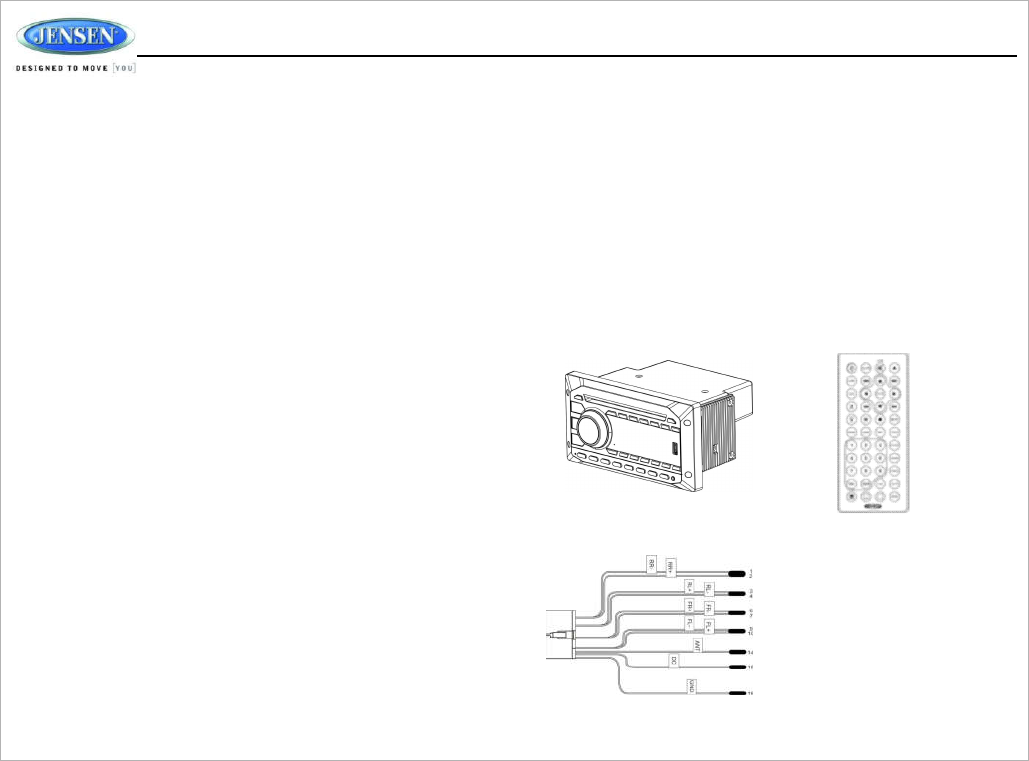
Packing List
JWM40
20-PIN Speake r Wire
Remote Contro l
JW
M40
4
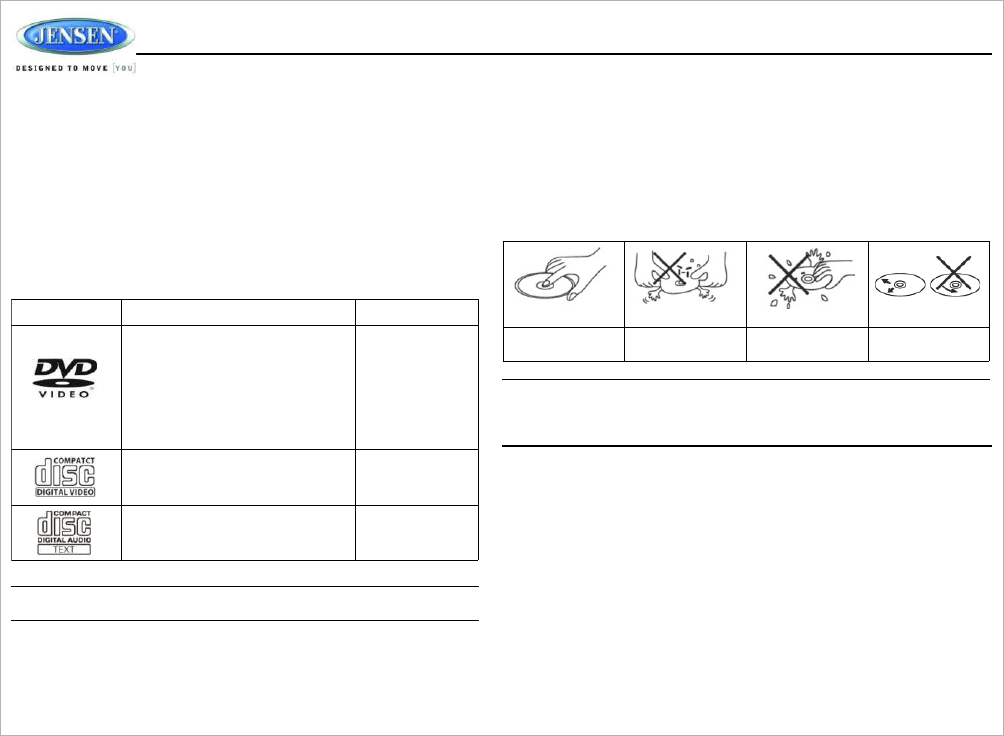
Insert label side up. Do not bend. Never touc h the
undersid e of th e disc.
Wipe clean fro m this
center to the edge.
Symbol 12cm Dis c Properties Max Play time
Single side single layer (DVD-5 )
Single side doubl e layer (DVD-9)
Double side single layer (DVD-10)
Double side double layer (DVD-18)
(MPEG 2 Method)
133 minutes
242 minutes
266 minutes
484 minutes
Single side single layer (VCD) MPEG 1 Method
Single side single layer 74 minutes
DISC
NOTES
Depending on th e recording status, conditions of the disc, and the equipment
used for recording, som e CD-Rs/CD-RWs may not pla y on thi s unit. For more
reliable playback, please adhere to the following recommendations :
Ÿ
Us e CD-RWs with speed 1x to 4x an d write with spee d 1x to 2x .
Ÿ
Us e CD-Rs with speed 1x to 8x and write with spee d 1x to 2x.
Ÿ
Do not pla y a CD-RW which has bee n written more than 5 times.
Compatible
Disc
Types
Ÿ
Be sure to use only round CDs fo r this unit and do not us e any special shape
CDs. Use of special shape CDs ma y caus e th e uni t to malfunction.
Ÿ
Do not stic k paper or tape on th e disc. Do not us e CDs with labels or stickers
attached or that have sticky residue from remove d stickers.
Ÿ
Do not expose discs to direct sunlight or heat sources such as hot air-ducts,
or leave them in a vehi cl e parked in direct sunlight where there ca n be a
considerabl e ris e in temperature inside the vehicle .
Table 1: Genera l Dis c Information
NOTE: A disc may become scratched (although not enoug h to make it
unusable) depending on ho w you handle it an d other conditions in the usag e
environment . These scratches are not an indication of a problem wit h the
player.
NOTE: CD- R and CD-RW discs will no t pla y unless th e recording sessio n is
closed and the CD is finalized.
Disc
Maintenance
Ÿ
A dirt y or defectiv e disc ma y cause sound dropouts while playing. Before
playing, wipe th e disc usin g a clean cloth, working from the center hole
toward s the outside edge. Never us e benzene , thinners, cleaning fluids,
anti-static liquid s or any other solvent.
JW
M40
5
INSTALLATION NOTE: Before cutting th e mountin g hole, make sure th e are a behind the
.
mountin g locatio n is clear of wires, fue l an d vacuum or brake lines.
It's a good ide a to read all of the instructions befor e beginning th e installation .
We recommen d having your Jensen JWM60A installed by a reputable RV
dealership .
Tools and Supplies
You will nee d these tools an d supplie s to install you r JWM60A :
Ÿ
Phillips screwdriver
Ÿ
Wire cutters and stripper s
Ÿ
Tools to remove existing radio (screwdriver, socke t wrench se t or other tools)
Ÿ
Electrical tape
Ÿ
Crimping too l
Ÿ
Volt meter/test light
Ÿ
Crimp connections
Ÿ
16 gauge wire fo r power connection s
Ÿ
16 –18 gauge speaker wire
Ÿ
Four M3x20mm (3/32 x 0.75") screws
Disconnecting
the
Battery
To prevent a short circuit, be sur e to turn off the ignition and remove the negative
(-) battery cable prior to installation.
NOTE: If the JWM60A is to be installed in a vehicl e equipped wit h an on-
board drive or navigation computer, do not disconnect the battery cable. If
the cabl e is disconnected, the computer memory ma y be lost . Under these
conditions , use extra caution during installatio n to avoid causing a short
circuit.
R.6.7 + 01
4-PLCS.
98
+
0.6
65
+
0.6
.23
+
0.6
178
+
0
.
6
MOUNTIN G SCREW S M3 X
20 PHILLIPS TYP E ROUND
HEAD 4 PLACES
178
+
0
.
6
98+
0.6
Selecting
the
Mounting Location
Select a mounting location , taking care to avoi d th e following:
Ÿ
Places exposed to heat-radiating appliances such as electric heaters
Ÿ
Adjacent to other equipmen t tha t radiate s heat
Ÿ
Poorly-ventilated or dusty places
Ÿ
Moist or humid locations
Preparing
the
Opening
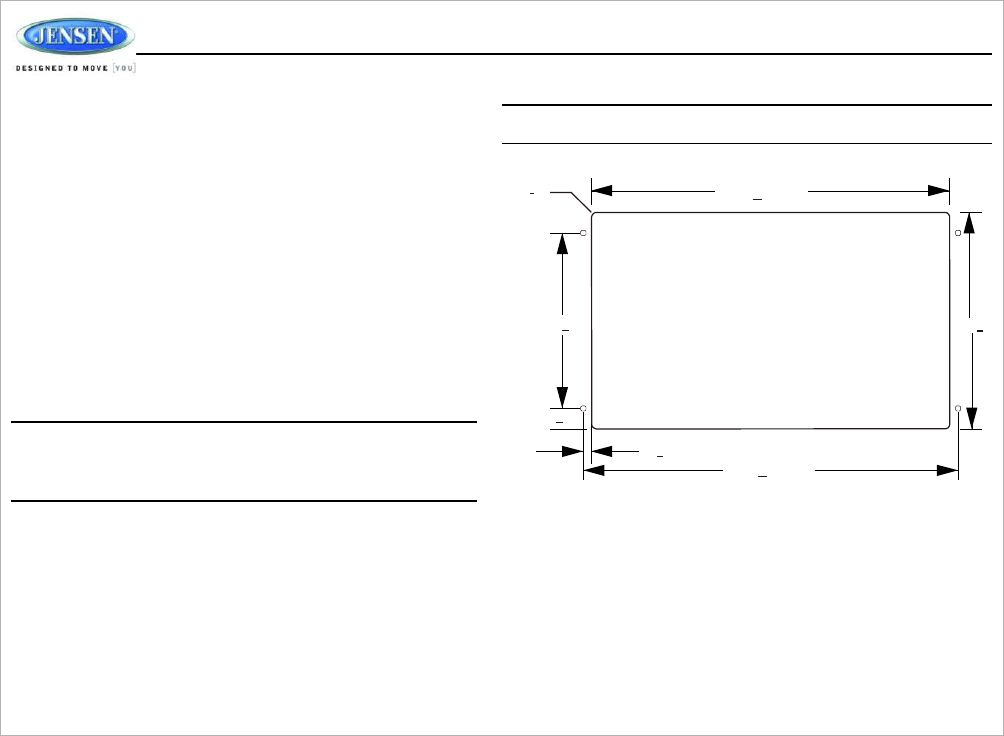
Us e the mountin g hole diagram(below ) to measure and cut a mounting hole,
then moun t th e uni t using four M3x20mm screws.
JW
M40
6
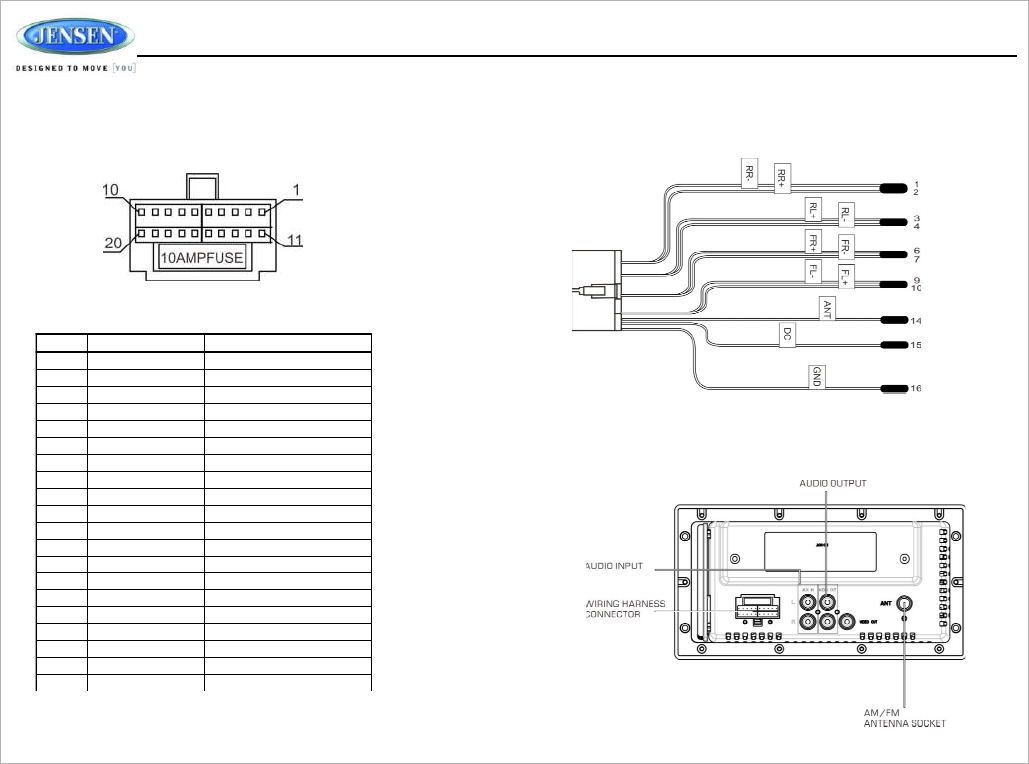
PIN NO . WIRE COLOR DESCRIPTION
1 VIOLET/BLACK REAR RIGHT
SPEAKER
(-)
2VIOLET REAR RIGHT SPEAKER (+)
3 GREE N REAR LEFT SPEAKER (+ )
4 GREEN/BLACK REAR LEFT SPEAKE R (-)
5 N/A N/A
6 GRAY FRON T RIGH T SPEAKE R (
+)
7 GRAY/BLACK FRON T RIGH T SPEAKE R (
-)
8N/A N/ A
9 WHITE/BLAC K FRON T LEFT SPEAKE R (- )
10 WHITE FRON T LEFT SPEAKE R (+)
11 N/A N/A
12 N/A N/A
13 N/A N/A
14 BLU E AM P REMOT E (+12VD C
10 0m A )
15 RED +12VDC SWITCHED
16 BLACK GROUN D
17 N/A N/A
18 N/A N/A
19 N/A N/A
20 N/A N/A
WIRING
The wiring diagra m depicts all th e wiring connections required fo r proper
operation of the unit.
WARNING : Wiring harness comes with stripped and tinned leads to aid in th e
installatio n process . Any unused speaker wire s mus t have their exposed ends cu t
off or insulate d individually.
DETAIL A
SHOWN FROM PIN VIEW
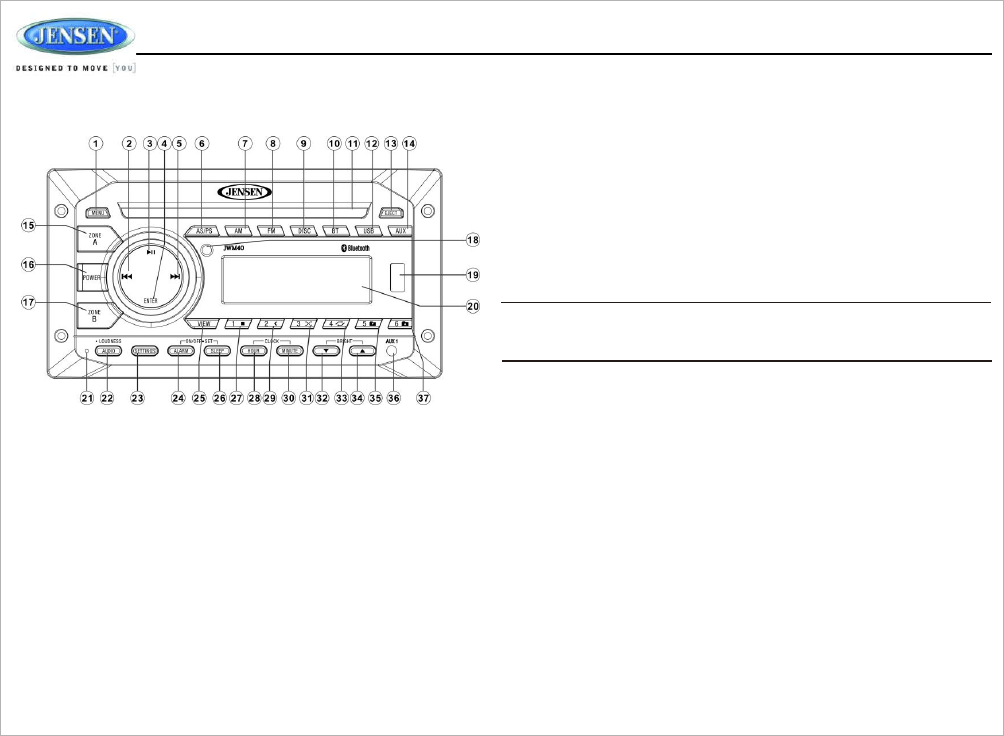
CONNECTIONS
The diagram below depicts all th e available audio/video connections available to
use with your system.
JW
M40
7
BASIC
OPERATION
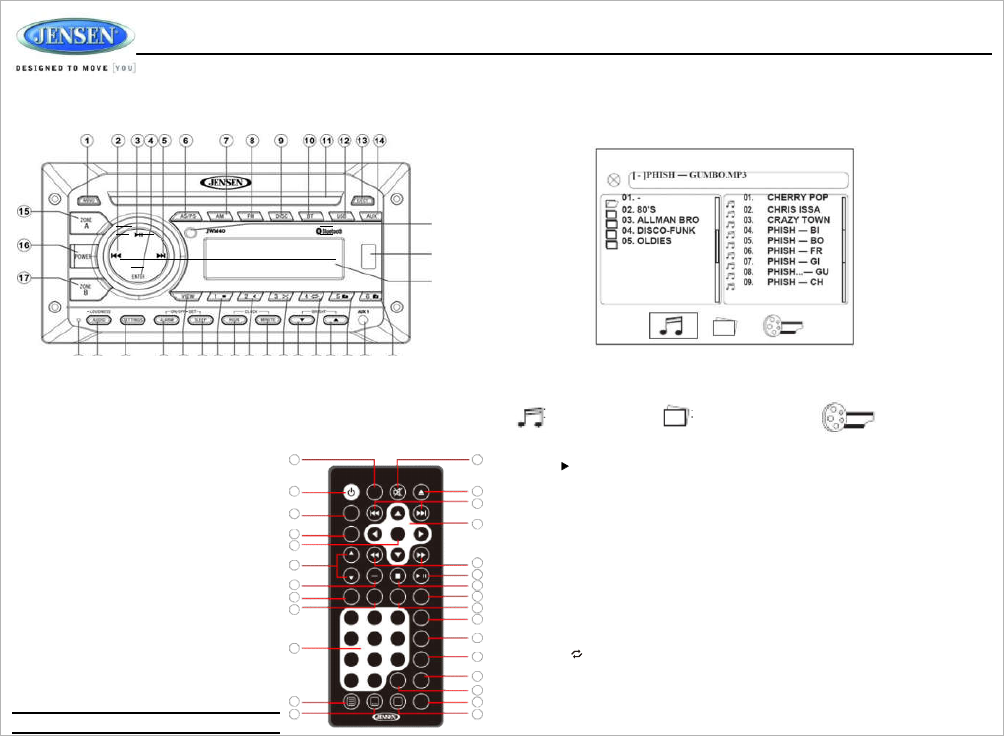
1
2
3
4
5
6
78
9
1 0
11
31
30
This functio n will time out after si x second s of inactivity and th e unit wil l
resum e normal operation.
Loudness
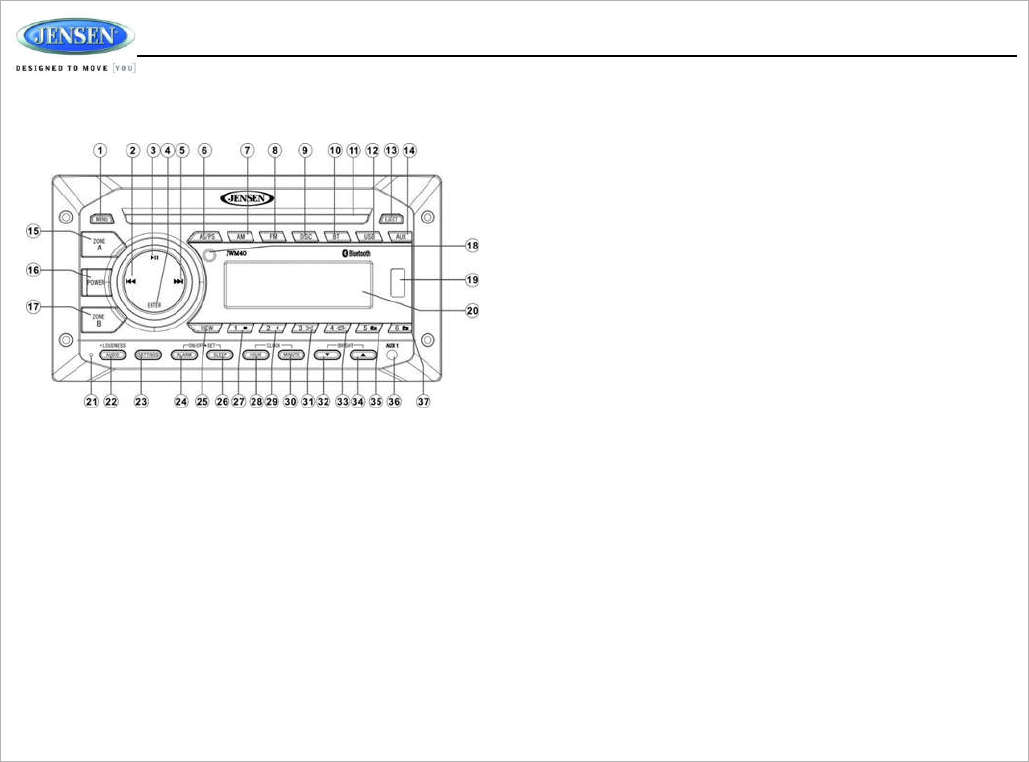
Press the LOUD button (22) to toggl e the loudness function on/off.
Mute
Press the MUTE button (3) to silenc e the audio output in tune r, CD , DVD, BT, US B
or auxiliary input mode. Press again to restore the previous volume level.
Liquid Crystal Display (LCD)
The liqui d crystal displa y (LCD ) panel (20) display s the frequency, time an d
activated functions.
Press th e BRIGHT UP butto n (34) to increase th e LC D brightness an d press the
BRIGHT DOWN button (32) to decrease the LC D brightness from “LEVEL 0(off)” to
“LEVEL 9” (brightest) .
12
13
14
15
16
29
28
NOTE: When subjected to cold temperatures fo r an extended period of time,
27 LCD panels will take longer to illuminate and the display visibility may slightly
26 decrease . Optimal LCD operation will return to normal when th e temperature
increases to a normal range.
System
Menu
Setting
Power
17 18 20 2 2 24 1.Press th e SETTING button (23) to enter the system menu.
2.Press SETTING button or press the |<< or >>| ( 2,5) to choos e th e following
system menu list :
Press th e
POWER
button (16) to turn the uni t on or enter standb y
mode. The unit will resume at the las t mode (Tune r, Aux , etc.) after
turn on.
Volume
Control
Rotate the VOL encoder knob control clockwise to increas e or counter-
clockwise to decrease the volume output.
The maximum volume setting is “40”. While adjusting the volume, the LC D
displays numerica l representation of the level.
Audio
Menu Setting
Press th e
AUDIO
button (22) to step through the followin g audio adjustment
options.
Rotate th e VOL/ENTER encoder kno b control to adjust the selecte d audio
feature.
Audio Adjustment
Ÿ
BAS: Adjust the Bas s level from “-7” to “+7”
Ÿ
TRE: Adj ust the treble from “-7 ” to “+7”.
Ÿ
BAL: Adjust the speake r outpu t balanc e between “L7” (left) an d “R7” (right) .
BA L 0” indicates an equal balanc e between the lef t and righ t speakers.
Ÿ
FAD: Adj ust the speaker fade between “R7” (rear) and “F7” (front). “FAD 0”
indicates and equal balanc e betwee n the rear and front speakers .
3.Once the desire d menu item appears on the display, adjust that option by rotating
the volume encoder knob clockwise or counter-clockwise within 6 seconds .
4.Press the ENTER kno b button (4) to confirm your selectio n and exit system menu.
The uni t will automaticall y exit the audio menu after 6 seconds of inactivity.
The following items can be adjusted:
Ÿ
Beep On/Off: Turn th e audibl e beep On/O ff (heard when function s /button s are
selected).
Note: Beep tone off will not affect the audibl e tone of th e alarm clock.
Ÿ
LCD Brightness: Adjust the brightness of the LC D backligh t fro m “BR I 0” (off) to
“BRI 9” (Brightest )
Ÿ
Region (USA/Canada): Set frequency spacing for various regions .
Setting
the
Bluetooth
Ÿ
Bluetooth (On/Off): Choose “Bluetooth On ” or “Bluetoot h Off”.
Ÿ
Bluetooth Device (Locked/Unlocked , Disconnect/Connect, Delete) : view, loc k
an d delete from a list of previously paired mobile devic e models .
Ÿ
Bluetooth Pair: Press “ENTER” knob to automatically pai r a device .
Ÿ
PRESET Volume (PVOL) : Select an automatic tur n on volume.
Reset
Press ENTER knob button to reset the JWM40 to factory default set up values.
8
JW
M40
Auxiliary
Input Function
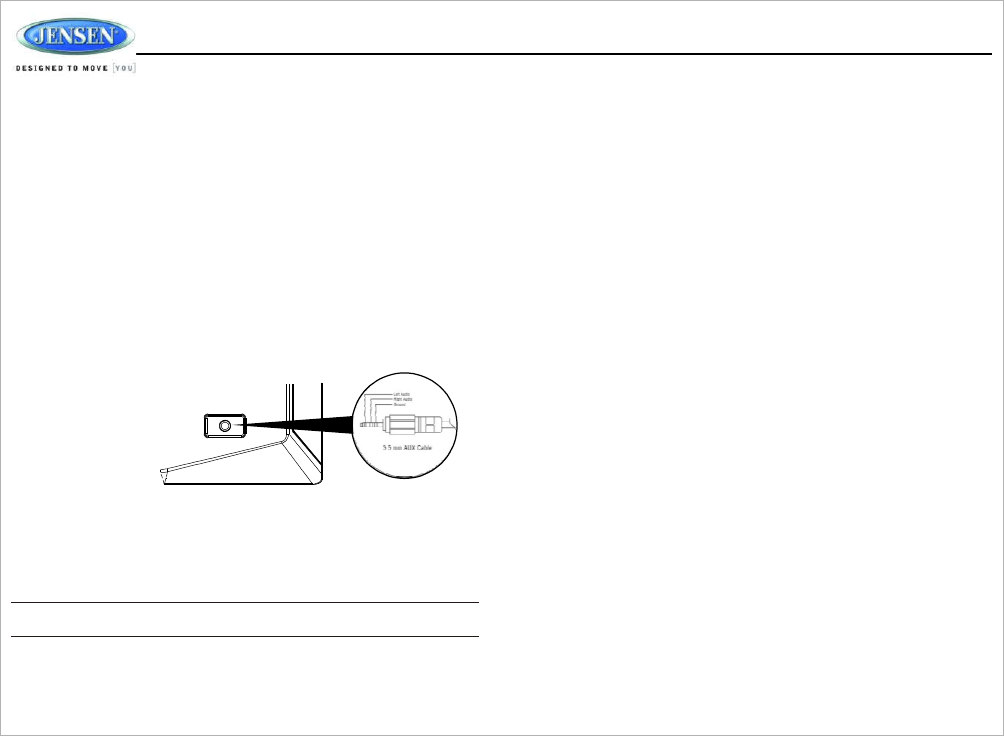
Press th e AU X button (14) to directly access auxiliary input modes (AUX IN 1 and
AUX IN2) from any other mod e when a portabl e audio device is connected to the
unit. To connect a portable audio device, insert a standard 3.5mm (audio line
output or headphone output from you r portable CD / MP 3 / iPod or other media
player) into the AUX A/ V IN connecto r (AUX IN1) (36 ) on the front of the unit or
th e AUDIO IN (AUX IN2 ) on the back of the unit (see
“
Wiring
”
on page 3).
Auxiliary Input
Connector
For front panel A/ V input, an external audio/video (A/V) source such as a video
game player, camera, etc. ca n be connecte d to the fron t panel A/V input wit h the
provided 3.5m m A/V cable adapter (Please note that ther e are several different
A/V cabl e "standards"). Connec t the device to the AUX A/V IN connecto r (36) on
th e front panel.
In addition to front panel auxiliary input source, the unit can also be connected
to the RCA audio input throug h the AUX AUDIO INPUT jack on the rear of th e
unit.
Press th e AUX button (14) to directl y access auxiliary input modes (AU X 1 IN
and AUX 2 IN ) from any other mode when a portabl e audio devic e is connected
to the unit .
USB
Interface Connector
You ca n connec t a US B device directly to US B interface (19) on the front of the
JWM40 for playbac k of compatible files. Playback begins automaticall y. Press
th e USB button (12) to switch to US B mod e from anothe r source . Refe r to
“MP3/USB Operation” on page 13 for additional operatin g instructions.
NOTE: USB will not suppor t Appl e device playback. The USB input supplies
up to 1A of charging current .
Clock
Setup
Press and hold the cloc k HOUR or MINUTE button (28, 30) to access clock setup
mode. The number representin g the hours and minutes will flash. Press the HOU R
button (28) to adjust the hou r and pres s the MINUTE button (30) to adjust minutes .
The new time wil l be saved five seconds after the last adjustment is made.
Sleep Mode
The Sleep Time r will automaticall y turn off the JWM40 in the designated number of
minutes . To set th e Sleep Time, press th e SLEEP button (26) and th e sleep time wil l
appear in the display with the number representing th e minute s (SLEE P 0). Pres s
SLEEP button repeatedly to chang e th e sleep tim e from 0 (OFF), 15, 30 , 45 or 60
mi nu tes .
Alarm
Setting
To set the alarm , press an d hol d the
ALARM SET
button (24) for 2 seconds an d the
clock digits will be flashing. Pres s th e HOUR button to adjust the hou r once at a time
or press and hold to advance rapidl y. Repeatedl y press the MINUT E button to adjust
the minute on e digit at a time, or press and hol d to advance rapidly.
Press th e ALARM SET or ENTER knob button to save th e alarm time.
Once a tim e is set, press ALARM ON/OFF (24) to turn the alarm function on or off.
Remote
Sensor
Infrared receive r (18) is located on the upper left of front panel to receiv e infrared signal
emitted by th e remote control.
Speaker Output
The two speaker output button s (15, 17) (Zone A, Zone B) control
speaker zones output from th e radio. Press an y of th e two buttons to turn the
corresponding speaker zone on or off. SPK A (Zon e A), SP K B (Zone B) will
appear on the display.
Reset
The reset button should be activated fo r th e following reasons :
•
initia l installatio n of the unit whe n al l wiring is completed
•
function buttons do not operate
•
error symbol on the display
Use a ball point pe n or similar object to press the RESE T button (21). This ma y be
necessary should th e unit display an error code.
Clock Display
Press the VIEW button (25) to alternate between playing time and clock time
while in Tuner, CD , DVD, US B or auxiliary input mode.
9
JW
M40
TUNER
OPERATION
Automatically Store
/
Preset Scan (AS/PS)
Automatically Stor e
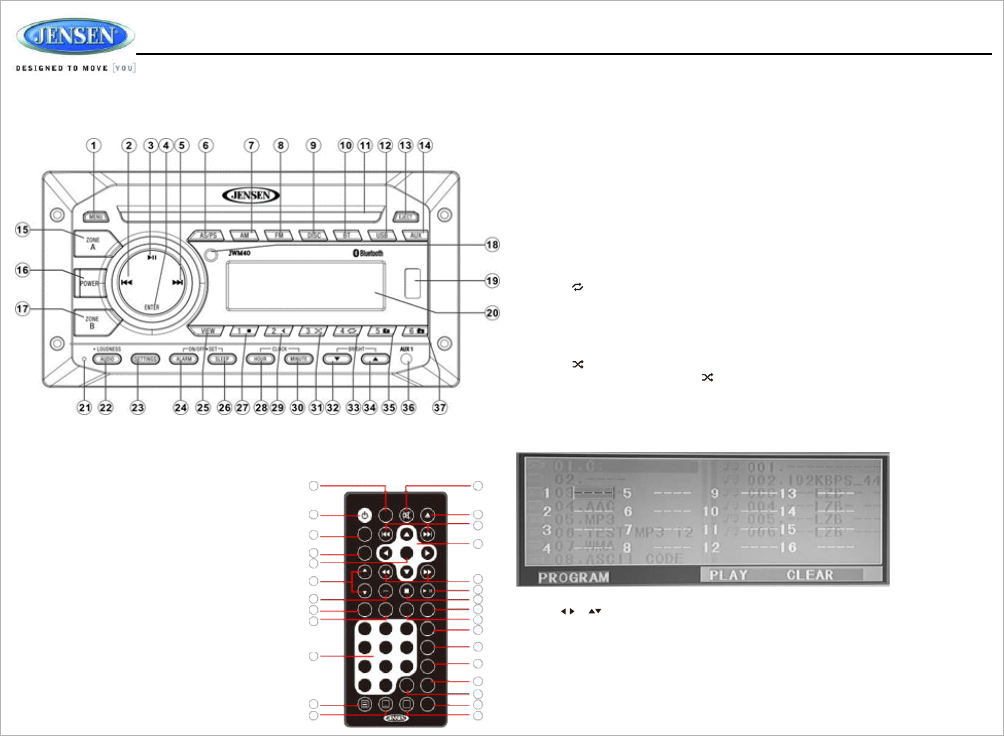
Select an AM or FM band. Press and hold th e AS/PS button (30) for more than
3 seconds and th e unit will automaticall y sca n for and store 12 or 18 strongest
storing is complete, press AS/PS again.
Preset Scan
Select a band. Press AS/P S button to scan stations stored in the current band.
The unit will pause fo r 10 second s at each preset station. Press AS/PS again to
stop scannin g when the desire d statio n is reached.
Sele
ct
a
Ban
d
1. Press AM button (17) repeatedl y to select the band (AM1, AM2)
2. Press FM button (18) repeat edl y to selec t th e band (FM1, FM2 and FM3 )
Manual Tuning
Press the>>|or|<< button s (35, 6) to seek stations up/down step by step.
Auto
Seek Tuning
Press an d hold th e >>| or |<< buttons (35, 6) to automatically seek the next or
previous strong station .
Preset Stations
Six numbered prese t button s store an d recal l stations for each AM an d FM band.
Store a Station
Select a band (if needed). Press a 1-6 preset button to selec t th e corresponding
stored station.
10
3
9
JW
M40
DISC
OPERATION
1
2
3
4
5
6
78
9
1 0
11
12
39
38
37
36
35
34
33
32
31
30
29
Track
Select
Press th e >>| or |<< button (3, 4) to advance to the previous or next track on the CD.
The selected track number will appear on the display. Press and hold the >> | or |<<
button for more than three second s to fast forwar d or fast reverse through the disc.
CD play starts when the play/pause button is pressed.
Fast Forward/Reverse
Press and hold the >>| or |<< button (3, 4) or press the >> or << buttons on the
remote control (14) once for FORWARD X 2. Press and hold additiona l times fo r
FORWARD X 4, X 8, X 20 or PLAY. Pres s th e
u
II button on the contro l panel (3) or
remote contro l (17) to end fast forward or reverse an d resume normal playback.
Repeat (RPT)
Press the
4/
button (33) during disc play to access the repea t function . Press again
to continuously repeat th e selecte d track (RPT ONE). Press a third tim e to repeat all
13
14
15
16
28
tracks (RPT ALL). Press onc e more tim e to stop repeat function (RPT OFF).
27
26
Random Shuffle
(RDM)
Press th e 3/ button (31) during disc play to play al l tracks on CD in random,
shuffled order (RD M ON) . Press 3/ again to stop rando m pla y (RDM OFF).
17 18
19
CD
OPERATION
Inserting
a CD
20 2 2
21 23
24 25
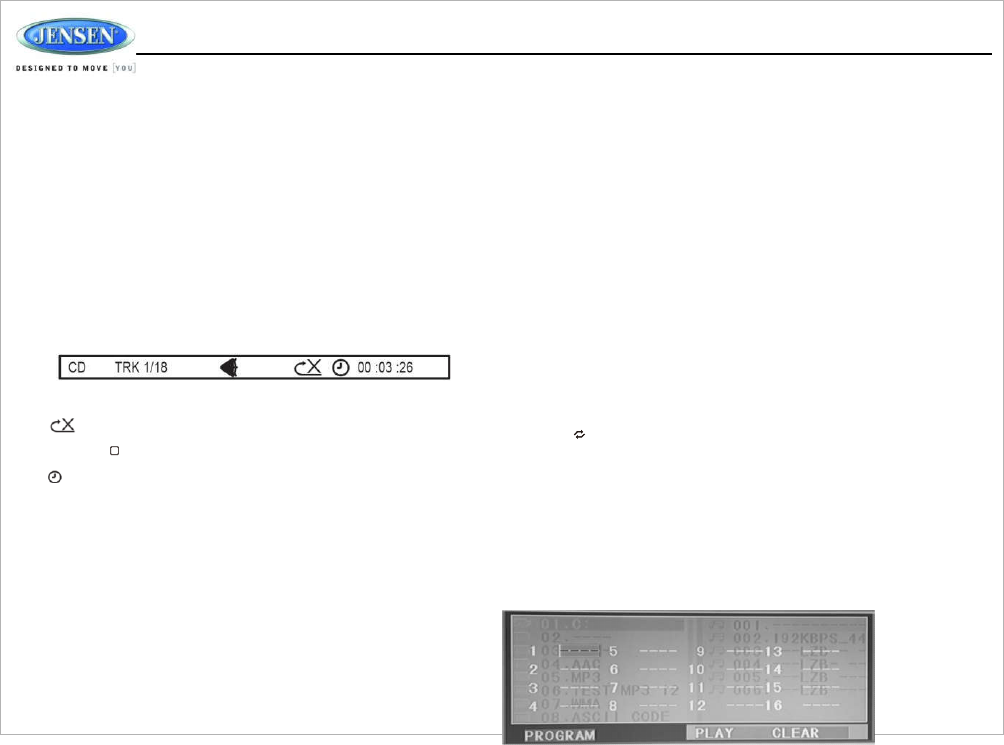
Programmed Playback
1. Press the
PROG
button (7) on the remote contro l to access the programmed
playback screen.
Inserting a CD label-side up into the dis c slot (11)
6
an d th e dis c will begin to pla y automaticall y.
1
Ejecting
a CD
Press the EJECT butto n (13) to stop CD play an d
4
eject the CD.
5
Pausing Playback
2
27
Press the
u
II button (3) to suspend or resume
7
disc play.
8
Stop Playback
Press th e 1/
■
button (27) to suspen d disc play, and
“PRE-STOP” wil l appear in the display.
Press the
u
II butto n (3 ) to resume disc pla y from
LOU D
12
13
14
15
16
17
18
19 2. Use th e or cursor buttons (15) on th e remote control to access the fields
20
on the “PROG” screen.
21
3. Use th e number button s on the remote contro l to enter a track numbe r in each field.
22
4. Press the
u
/|| button (17) on the remot e contro l or highlight “PLAY” on scree n an d
23
then press the ENTER button (5) to begin playback in the numbere d order
25
indicated to delete the list, highlight “CLEAR ” an d then press
ENTER
. Press
PRO G
24
to exit the programmed playback screen.
th e last position. Pres s 1/ ■button twice an d
“STOP” wil l appear on th e display.
10
28
11
26
11
JW
M40
Remote Control Direct Track Entry
To select a track directly, use the number pad on the remote control (10).
For single digit entries, press the corresponding number for tw o digit
entries. Press th e 10+ butto n followe d by the las t digit (i.e., for track 16,
press 10 + an d the n 6) .
GOTO
Direct Track/Chapter
Access
Us e the GOTO function to access a track (chapter) directly.
1. Press the GO TO button (25 ) on the remote control . The On Screen
Displa y information wil l appear wit h the track number highli ghted.
2. Use the numbe r keys on th e remote control to enter th e 3-digit track
number directl y (i.e. for track 10 , enter “010”)
3. Press the ENTER button (5) to confirm and begi n playback.
CD
Playback Information
Th e following information is displayed at the top of the screen during CD
playback:
TR K ##/## –"1/18" indicates the first of 18 tracks on th e CD is currently
playing.
“
X
”
indicates repeat play is OFF,
“
1
”
indicates repeat track,
and
“
A
”
indicates repeat disc.
Press th e button on the remote control (26) repeatedly to view th e
following informatio n for elapsed/remainin g playing time:
00:02:18 –total elapsed playing time of current track;
C –00 :34 :37–remaining playing time of curren t track;
T 00:02:18 –total elapse d playing time for current disc;
T–00 :3 4 :3 7 –remaining playin g tim e for current disc.
DVD/VCD
OPERATION
Inserting
a
Disc
Insert a disc label-side up into th e disc slo t (11) and the dis c will begin to
play.
NOTE: Press th e DISC or USB button (9,12) to alternate between th e
USB and DVD source .
Ejecting
a DVD
Press th e
EJECT
button (13) to stop DVD pla y an d ejec t the DVD.
Pausing Playback
Press th e
u
II
button (3) to suspen d or resume disc play.
Stop Playback
Press the 1/■button (27) to suspen d disc pla y, and “PR E STOP ” will appear in
th e display.
Press the
u
II button (3) to resume disc play fro m the last position. Press 1/■button
twice an d “STOP ” will appear on the display.
Track
Select
Press th e
>>|
or
|<<
button (2 , 5) to advance to the next or previous track on the
disc. The selected track number wil l appear on the display.
Enter/Select
While in men u mode, press the ENTER button (4) to selec t a menu option.
Language Selection
While playin g a DVD, press the 6/FOLDER UP butto n (37) to chang e the DVD audio
language.
Fast Forward/Reverse
Press and hold the
>> |
or
|<<
button (2, 5) or pres s the
>>
or
<<
button s on th e
remote control (17) once fo r FORWARD X 2. Press an d hold additional time s fo r
FORWARD X 4, X 8, X 20 or PLAY. Press the
u
IIbutton on the contro l panel (3) or
remote control (17) to end fast forwar d or reverse and resume normal playback.
Repeat Chapter/Title
Press th e
4/
button (33) on the control panel or the RPT butto n (21) on the remote
contro l multipl e times during playbac k to select from the followin g repeat pla y
options:
•VCD: RER1 (track), RER ALL (disc), RPT OFF
•DVD: RER Chapter, RE R Title, RP T All , RPT OFF
Playback Control
(VCD
Only)
Press th e
MENU
button (14) on the remote control to turn Playback Control on/off
when this feature is available on your VCD .
Programmed Playback
1. Press the PROG button (7) on the remote control to access the programme d
playb ack scree n .
12
JW
M40
2. Use the ◄►or ▲▼ cursor buttons (15) on the remote contro l to acces s
the fields on the "PROG" screen.
3. Use the numbe r buttons on the remote control to enter a track number in
each field.
4. Press the
u
/| | button (17) on the remote control or highlight “PLAY” on
screen and then press the ENTER button (5 ) to begin playback in th e
numbere d order indicated to delete the list, highlight “CLEAR ” an d then
press ENTER. Press PROG to exit the programmed playbac k screen .
DVD
Playback
Features
Th e following remote contro l features, along with many others, are
available during DVD playback (se e “Remote Control Operation” on page
17 for complet e functionality):
Ÿ
LANG: Press to choos e an alternate audio language, if available.
Ÿ
SUBTITLE: Press to select an alternate subtitle language, if available.
Ÿ
ANGLE: Press to select an alternat e viewin g angle, if available .
Ÿ
ZOOM: Press to zoom th e picture at ZOO M 2, ZOOM 3, ZOOM 4,
ZOOM 1/2 , ZOOM 1/ 3 or ZOOM 1/4, or select OFF to return to normal
view.
00:02:18 –total elapsed playing time of th e current track;
C –00:34:37 –remaining playing time of the current track;
T 00:02:18 –total elapse d playing time for disc ;
T –00:34:37 –remaining playing time for disc.
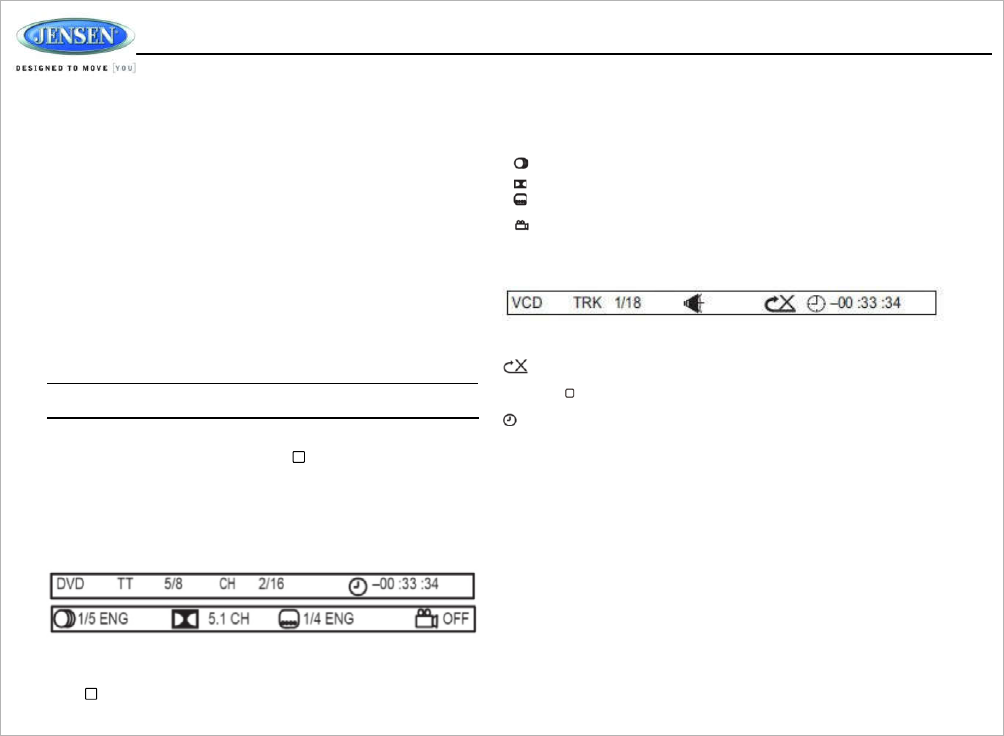
1/5 ENG –English is the selected audio languag e out of 5 possible
choices;
5.1 CH –The current languag e is recorded in 5.1 surroun d sound;
1/4 ENG –English is the selected subtitle language ou t of 4 possible
choices;
OFF –There ar e no alternate angles recorded for this scene.
VCD Playback Information
The following informatio n is displayed at the to p of the screen during VC D playback:
TRK ##/## – “1/18” indicates the first of 18 tracks on th e VCD is currently playing .
PBC: Indicate s when PBC (Playback Control ) is turne d on .
– “X” indicate s repeat play is OF F, “1” indicates repeat track, “D” indicate s
repea t directory, and “A” indicates repeat disc.
NOTE: Featur e availability is dependen t upon DV D embedded
information.
Playback Information
During DV D and VCD playback, press th e button (26 ) on th e remote
contro l to display playbac k information on the screen , including the media
playing and current playback time.
Continu e pressing the butto n to display additional information, as indicate d
below.
DVD Playback Information
Th e following information is displayed at the top of the screen during DVD
playback:
TT 5/8 – “5 / 8" indicates the fift h of 8 titles on the DVD is currently playing .
CH 2/1 6 – “2 / 16" indicate s that th e second of 16 chapter s on the DVD is
currently playing.
Press repeatedly to view th e following information: fo r elapsed/remaining
playing time:
Press th e repeatedly to view the following information for elapsed/remainin g
playing time:
00:02:18 –total elapsed playin g time of current track;
C –00 :34 :37–remaining playing time of current track;
T 00:02:18 –total elapse d playing time for current disc;
T–00 :34 :3 7 –remaining playing time for current disc.
Remote Control Direct Track Entry
To select a trac k directl y, us e the number pa d on the remote control (10). For single
digit entries , press th e corresponding number. For tw o digit entries, press the 10+
button followed by the last digit (i.e., for track 16, press 10+ an d the n 6).
GOTO
Direct Track/Chapter
Access
Us e the GOTO function to access a track (chapter) directly.
1. Press the GOTO button (25) on th e remote control. The On Screen Displa y
information will appear with th e track number highlighted.
2. Use th e number keys on th e remote control to enter th e 3-digi t track number
directly (i.e. for track 10 , enter “010”).
3. Press the ENTER button to confirm an d begin playback.
13
3
12
18
JW
M40
MP3/USB
OPERATION
Mp3
Monitor Display
After loading an MP3 disc or USB device, th e following screen will appea r on your
output Monito r.
7
9
10
34
32
31
14
28
Insert/Eject Disc
17 18
19
20
22
21
23
24
25
Select one of these icons to acces s th e corresponding medi a on your disc or USB
device. If th e media typ e is not present, the icon will not be selectable .
Audio Photos :Video
Insert a disc label-side up into th e disc slo t
(11) and th e disc will begi n to pla y
Press th e ejec t button (13 ) to sto p playbac k 6
and eject the disc.
1
Insert/Remove
USB
Device
To connec t a USB device, locate the USB
interface connector (28) located near the 4
LCD on the fron t of the radio. 5
Insert the USB devic e into the USB jac k to
2
automatically access USB mode and begin
27
playback, the LCD will displa y “LOADING”
7
while file s are initially loaded. 8
When USB device is removed , press the
FM/AM button, DISC button, US B button or
AUX button to change to another mode an d 9
then remove the USB device from th e US B
connector.
Press th e DIS C button (8 ) to acces s US B
LO U D
Play/Pause
Press th e || button (33) to suspen d or resum e disc play.
13
Track
Select
14
When playbac k is stopped, press the >>| or |<< button (2, 5) or >>| or |< < butto n on
15
the remote contro l to search in current folder. During playback, press the >>| or |<<
button to access the previous/next file . The selecte d file number wil l appear on the
display.
16
17
Folder Up/Down
19 Press and hold th e 6/FD UP butto n (37) to access a higher folder level (FOLDER UP).
20
Press and hold the 5/F D DW button (35) to access a lower folder level (FOLDER DN).
21
22
Repeat (RPT)
23 Press th e 4/ button (33) on the control panel or the RPT button (31) on the remote
contro l multiple time s during playback to select from the following repea t play options:
25 RPT 1 (track), RPT DIR (folder), RPT ALL (disc), RPT OFF.
24
mode from any other mode.
NOTE: MP4 video format is not supported.
10 2 8
11 26
14
JW
M40
Random Shuffle
(RDM)
Press th e 3/ button (13) during disc to play all files in random, shuffled
order. Press 3/ agai n to stop rando m pla y.
Fast Forward/Reverse
Press th e >>| or |<< button (2 , 5) for more than three second s or press the >> or
<< button on the remote control (16) to fast forwar d or fast reverse. Press and
hold once fo r FORWARD X 2. Press and hold additional times for FORWARD X 4,
X 8, X 20 or PLAY. Press th e
u
II button on th e control panel (3) or remote
contro l (18) to end fast forward or reverse an d resume normal playback.
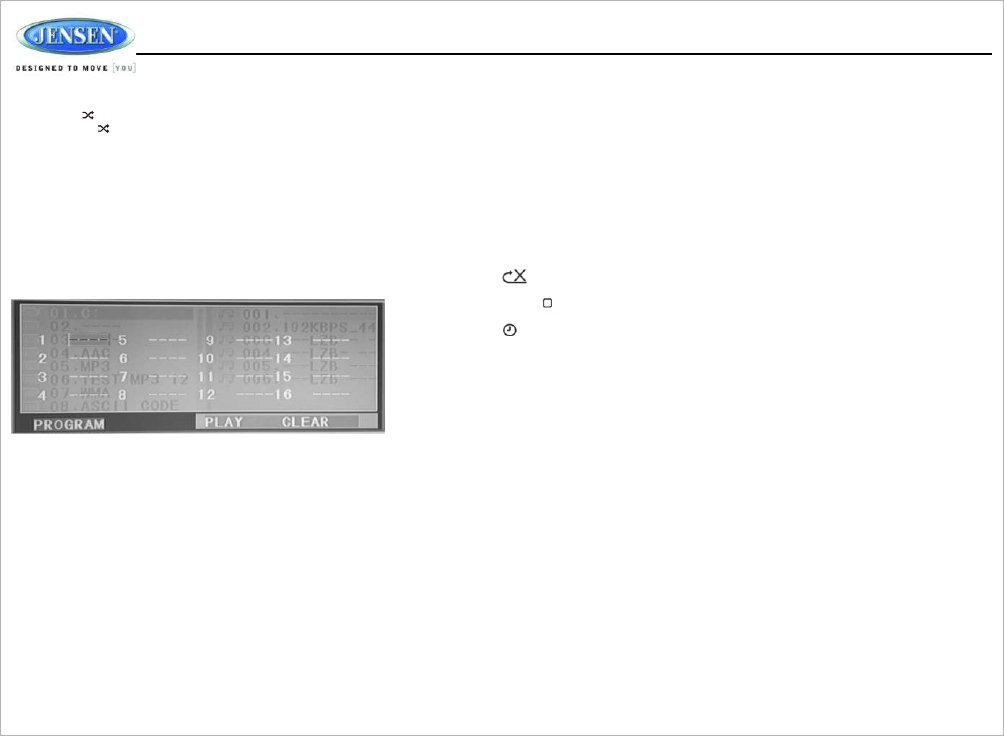
Programmed Playback
1. Press the PROG butto n (7 ) on the remote control to acces s the programmed
playbac k screen."
GOTO
Direct Track/Chapter
Access
Use th e GO TO function to acces s a track (chapter) directl y.
1. Press th e GOTO button (25) on the remote control. Th e On Screen Display
information will appear with th e file number highlighted.
2. Use th e number keys on the remote control to ente r the 3-digit trac k number
directly (i.e. for file 10, enter “010”).
3. Press th e ENTER button to confirm and begin playback.
Mp3
Playback Information
The following information is displayed at th e top of th e screen during CD playback:
TRK ##/## – “9/150 ” indicates the ninth of 150 tracks on th e disc is currently playing.
– “X” indicates repeat play is OFF, “1” indicates repeat song, and “D” indicate s
repeat directory (folder).
Press repeatedl y to view the following information for elapsed/remainin g playin g
time:
00:02:18 – total elapsed playing time fo r disc
C –00 :3 4 :3 7 – remaining playin g tim e
T 00:02:18 – total elapsed playing time for current track
C –00 :3 4 :3 7 – remaining playin g tim e for current track
2. Use th e ◄ ► or ▲ ▼ cursor button s (15) on th e remote control to access the
fields on the “PROG” screen.
3. Use th e number button s on the remote contro l to enter a track numbe r in each
field.
4.Press the
u
/| | button (17) on the remote control or highlight “PLAY” on screen
and then press the ENTER button (4) to begin playback in the numbered order
indicated to delete the list, highligh t “CLEAR” and then press ENTER. Press
PROG to exi t the programmed playbac k screen."
Remote Control Direct Track Entry
To select a file directl y, use the numbe r pa d on the remote contro l (9) . Fo r singl e
digit entries, pres s th e corresponding number. For tw o digit entries, press the
10 + button followed by th e last digit (i.e., fo r file 16, press 10 + and then 6).
15
JW
M40
BLUETOOTH
OPERATION
The JWM40 includes built-in Bluetooth technology tha t allows you to connec t
this head unit to Bluetoot h devices for streaming audi o playback.
About Bluetooth T
ec
hno
l
og
y
Bluetooth wireless technolog y is a short-rang e wireles s radio protocol.
Operating in the 2.4 GHz range, it transmits audio an d data at speeds up to 2.1
Mbit/s over a range of up to 10 meters.
Bluetooth
Menu
O
pt
i
on
s
NOTE: Please note that some Bluetooth menu options are only available
while the uni t is in Bluetooth Audio mode.
Press and hold the BT butto n (10) to enter menu adjustment mode. Repeatedly
press th e >> | or |<< buttons (2, 5) or SETTING button to access th e “Bluetooth
On/Off” men u function. Rotate th e volume encode r knob to select BLUETOOT H
ON , then press the ENTER button to turn the Bluetoot h function On or Off. The
following men u option s ar e available whe n the unit is in Bluetoot h mode.
Ÿ
Bluetooth Pai r <ENTER> : Press an d hold the BT (10) button fo r abou t 4
seconds to start pairing with a Bluetooth enabled device.
Ÿ
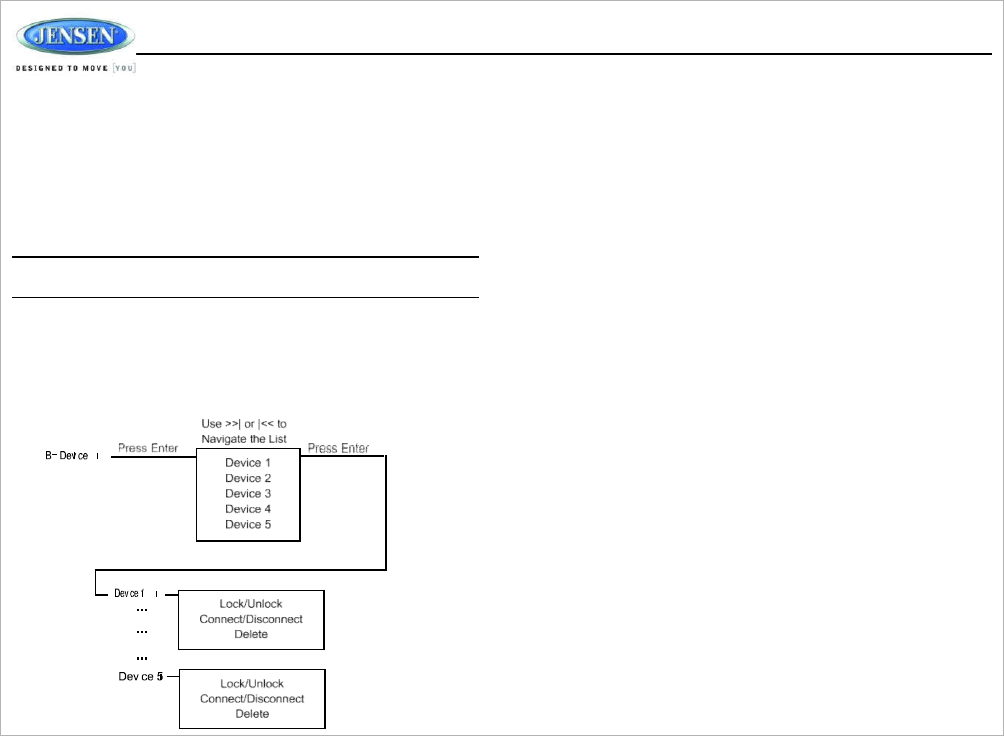
Bluetooth Device: Press the ENTER knob button to view a list of previously
paired mobile devices models. Press the >>|or |<< buttons to vie w devices from
th e list. You canno t delete a device that is actively connected. Press th e ENTER
knob button to select the device. Press the >>| or |< < button to choose
Locked/Unlocked , Connect/Disconnect or Delete fo r this device.
Ÿ
Bluetooth Pai r (B T Pair): Press an d hold the BT button (10) fo r about 4 second s
to start pairing wit h a Bluetooth enable d device.
Ÿ
DISCONNECT: To disconnect a paired device, press the ENT ER knob butto n to
temporarily remov e th e BT link . The link can be re-established throug h your
phone menu by selecting th e JWM40 fo r connection.
Ÿ
LOCKED/UNLOCKED: Th e JWM40 can store up to 5 dev ices fo r BT connection.
The devices ar e stored in FIFO (First In First Out) order. To preven t a device
from being bumped from the list when more than 5 device s are used , yo u must
lock th e device. To Lock/Unlock a device , press the ENTER knob button.
Ÿ
DELETE: To delete a device from the list, Press the ENTE R knob button.
Pairing
a
Bluetooth D
e
v
i
ce
Before you begin, consul t th e owner’s manua l fo r th e Bluetooth device yo u want to pair
with the JWM40.
1. Make sure th e device you want to pair is on and ready to receiv e a signal from the
JWM40. With the JWM40 in BT Mode. Press an d hol d th e BT button (10) fo r
about 4 seconds. The unit is waiting to connec t to a mobil e phone device . When
pairing with a smart phone/iPhone, the JWM40 becomes “discoverable ” by your
smart phone and ca n be paired usin g th e phon e menu.
2. When the Bluetoot h device has completed its search, the mobile device will
display the Bluetooth device name (JWM40)
3. Selec t BT PAUSE on th e radio and ente r th e pairing password (0000) , if requested.
After connecting successfully, you are able to liste n to music stored on you r Bluetooth
enabled device through the JWM40.
Bluetooth Audio (A
2
D
P
)
The A2DP music is availabl e for Bluetooth enable d phones when th e phone is
connected. To access Bluetooth mode an d play songs stored in your phone, press
the BT button (10) to enter the Bluetooth mode.
While in Bluetooth mode, the “BT PAUSE ” will display on the LCD.
16
JW
M40
Selecting Tracks
During playback, press the >>| or |<< button (2 , 5) to play th e previous or next
track.
Pausin g Playback
During playback, press the
▶
II button (3) to pause the Bluetooth audio
playback. “BT PAUSE” will appear on the LCD . Press
▶
II butto n again to resum e
playback.
If you change to anothe r mode, the mobile device audio wil l pause. Press the BT
button (10) to return to Bluetooth mode and resume mobile phone audio
playback.
NOTE: If a Bluetooth devic e is disconnected due to the power being turne d
off or if the device is disconnected inadvertently, the uni t wil l automatically
search for th e matchin g BT mobile phone when the power is restored.
17
JW
M40
JW
M40
REMOTE CONTROL
OPERATION
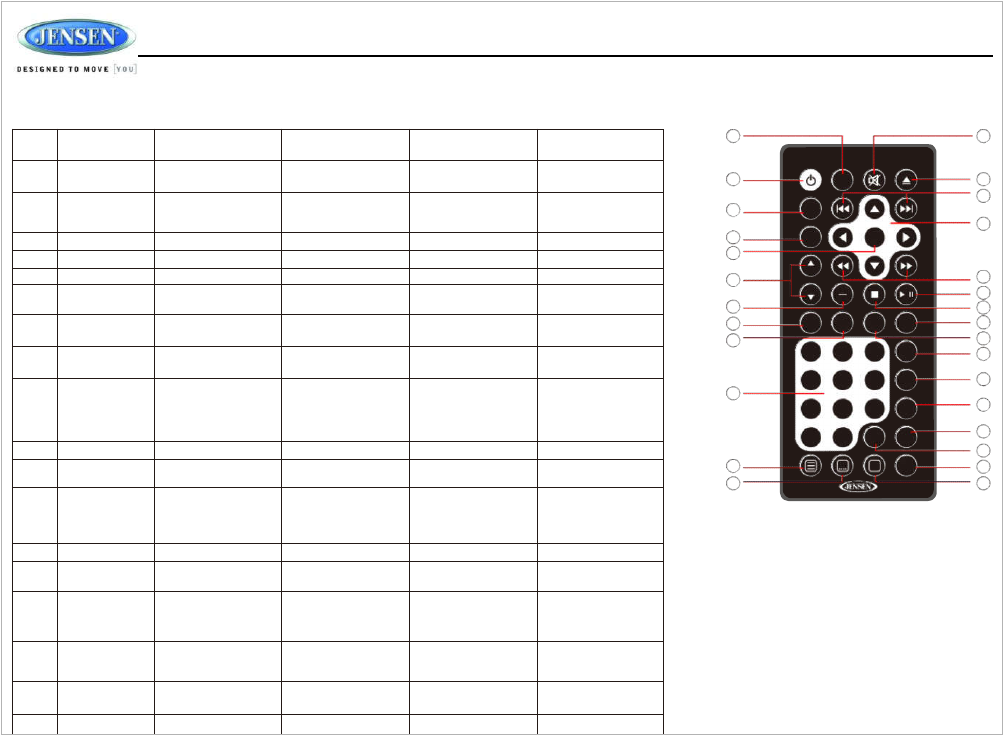
REF DESCRIPTION TUNER BLUETOOTH CD/MP3/USB DVD
6
12
LOU D
1
13
14
3
15
4
5
2
16
17
27
18
7
19
8
20
21
22
9
23
25
24
10
28
11
26
1 Powe r Turn radi o on/standb y
mode .
Tur n radi o on/standb y
mode .
Turn radio on/standby
mode .
Tur n radi o on/standb y
mode .
2VOL +/ - Adjust volum e up/down.
Press for Audi o Control
Setup menu.
Adjust volume up/down .
Press for Audi o Contro l
Setup menu.
Adjust volume up/down .
Press for Audi o Control
Setup menu.
Adjust volume up/down .
Press for Audi o Control
Setup menu.
3 TUNE + Tune to higher station
4TUNE - Tune to lowe r station
5 ENTE R Confirm menu selection Con firm men u selection
6ALAR M Turn the alar m feature
on/o ff.
Turn the alarm feature
on/off.
Tur n the alar m feature
on/o ff.
Turn the alarm feature
on/off.
7PROG Displa y Program Play
Menu
Display Program Pla y
Menu
8LANG Display MONO/L ,
MONO/R or STEREO .
Select alternate audi o
language, if available.
9 Numeric
Keyboard
Use 1- 6 to access prese t
stations.
Enter track number to
access trac k directly.
For trac k Numbe r > 10 ,
use 10 + followed by
second digit.
Enter track number to
access track directly.
For trac k Number > 10,
use 10 + followed by
second digit.
10 Setup View SETU P menu. View SETU P menu.
11 Subtitle Choose subtitl e
language, if available.
12 Mute/LOU D
Silence Audio output.
Press an d hol d to turn
LOUDNESS feature
on/o ff.
Silenc e Audi o output.
Press an d hold to turn
LOUDNESS feature
on/off.
Silence Audio output.
Pres s an d hol d to turn
LOUDNESS feature
on/o ff.
Silence Audio output.
Press an d hol d to turn
LOUDNESS feature
on/o ff.
13 Eject Ejec t Disc. Ejec t Disc. Ejec t Disc. Ejec t Disc.
14 Previous/Next Select next/previou s
track.
Select next/previou s
track.
Select next/previous
track.
15 Directiona l
Buttons
Move to desired menu
item and then press
ENTE R to confirm.
Use with DVD menu to
move to desire d menu
item and then press
ENTE R to confirm
16 Fas t Re verse /
Forward
Fa st Fo rw ar d 2X , 4X , 8X ,
20X.Fas t Reverse 2X ,
4X, 8X , 20X .
Fast Forward 2X, 4X, 8X,
20X.Fast Reverse 2X,
4X, 8X , 20X.
17 Play/Pause Stop Pause/resum e
playback
Pause/resume
playback
Pause/resume
playback
18 TITLE Stop playback. Stop playback.
18
JW
M40
19 TITLE Pres s to view title
menu . Use directiona l
arrows an d play butto n
to pla y selecte d title.
May no t be supported
by all discs.
20 RPT Repeat track Repeat chapter
21 SOURCE Sele c t sourc e fo r
playback
Select sourc e for
play back
Select source for
playback
Sele c t sourc e fo r
playback
22 ZOOM Zoom picture or press
repeat edl y to change
magnification level.
23 ANGLE Select alternate viewing
angle, if available .
24 AUD Access Audio Men u
options .
Access Audi o Men u
options.
Access Audi o Menu
options .
Access Audi o Menu
options .
25 GOTO Select exact time, track
or chapte r for playback .
Select exact time, trac k
or chapter for playback.
26 Display Disp la y cu rre n t
playback informatio n on
the screen.
Display current
playback information on
the screen.
27 AS/PS Brows e prese t stations
(10 sec. interval). Pres s
and hold to scan/stor e
stations.
28 MENU Access syste m MENU. Access system MENU.
A
Access system MENU. Press to access system
MENU. Press and hold
to access DVD MENU.
19
JW
M40
DVD SETUP MENU
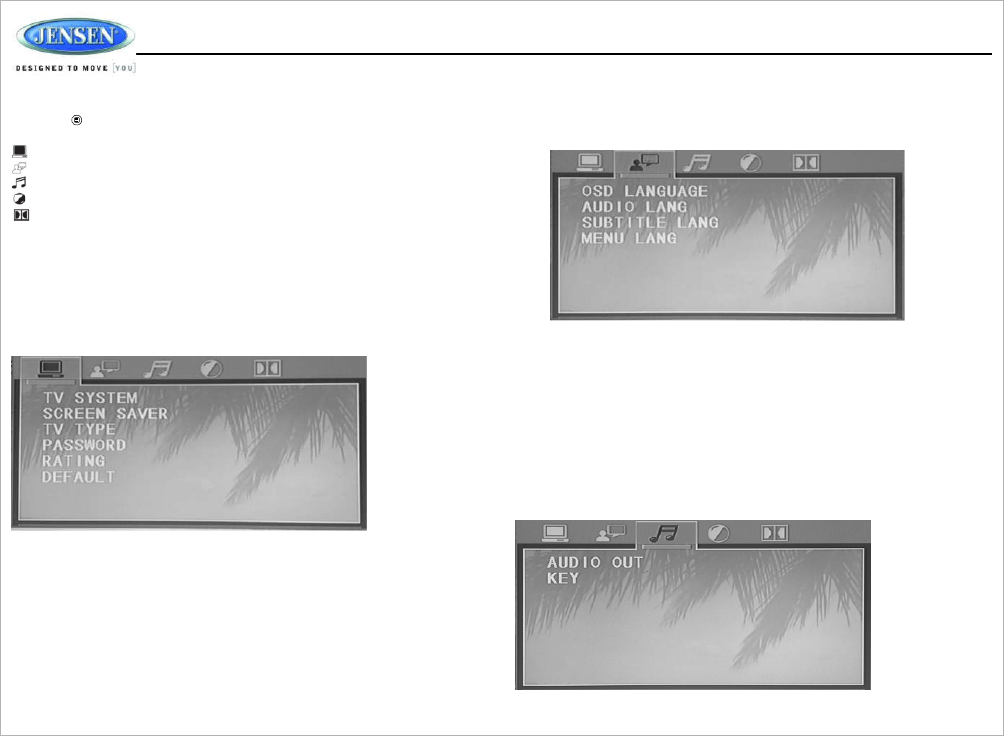
Press th e (setup) button (10) on the remot e contro l to access the SETUP
menu and adjust system settings fo r the following categories :
System Setup
Language Setup
Audio Setup
Vide o Setu p
Digita l Setup
While in the setup menus, use your directiona l arrows to selec t and change
settings. Th e “up” an d “down” arrow s highlight the options, and the “right” an d
“left” arrow s will change th e setting for th e highlighted option .
System
S
e
tup
The System Setup menu controls th e following features:
Language
S
e
tup
The Languag e Setup menu controls the following features :
–
On-Screen Display (OSD) Language: Se t th e OS D languag e to one of the
following: English, German , Spanish , French.
–
Audio Language: Se t th e audio languag e to one of the following: English,
Japanese, French, Spanish, Portuguese, Latin or German.
–
Subtitle Language: Set the subtitle language to on e of the following: English,
French, Spanish, Portuguese, Germa n or OFF.
–
Menu Language: Set the menu language to one of the following : English,
French, Spanish, Portuguese, German.
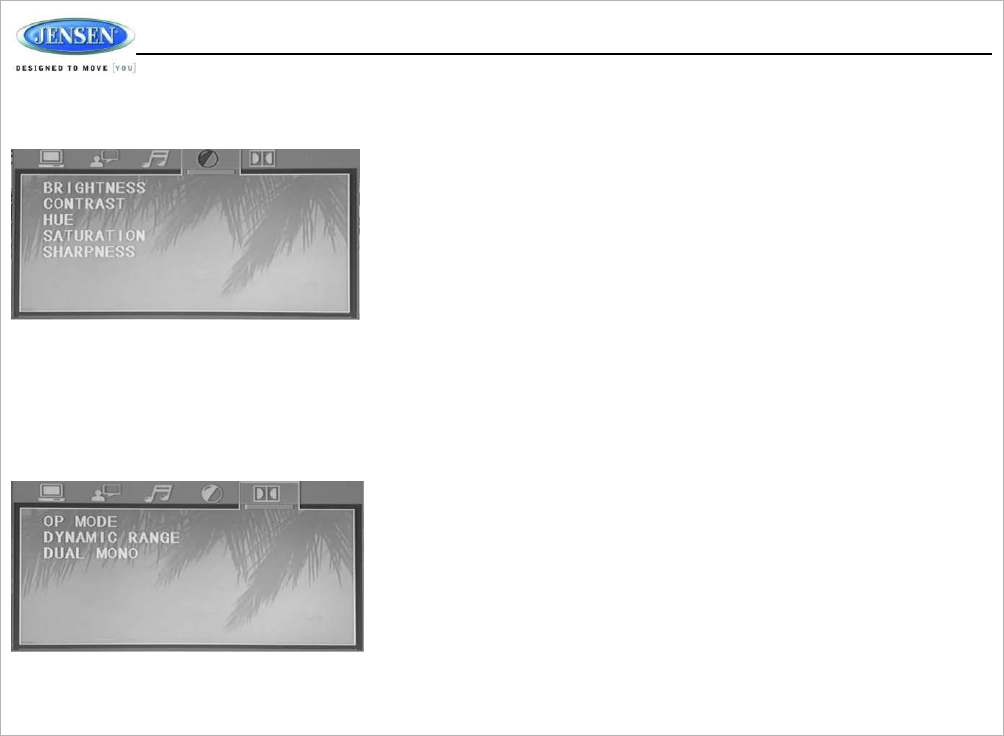
Audio
S
e
tup
The Audio Setu p menu control s th e following features:
–
TV System: This ite m is used to select a TV signal system to match your TV
set. Select on e of the following options: AUTO, NTSC or PAL.
–
Screen Saver : Turn Screen Saver Feature On/O ff.
–
TV Type: Selec t on e of the following picture formats: 4:3PS, 4: 3 LB or 16:9 .
4: 3 is a letterbo x selection, and 16: 9 is wid e screen.
–
Password: This item allows the selection of a new four-digit code to us e for
securit y purposes .
–
Rating: Sel ect the parental contro l level for all DVD play. Th e security
password is required to mak e change s to thi s feature .
–
Default: Use this ite m to restore default setting s at any time.
Ÿ
Audio Out: This ite m defines the digital output format.
Ÿ
Key: This ite m change s the audio output key.
20
JW
M40
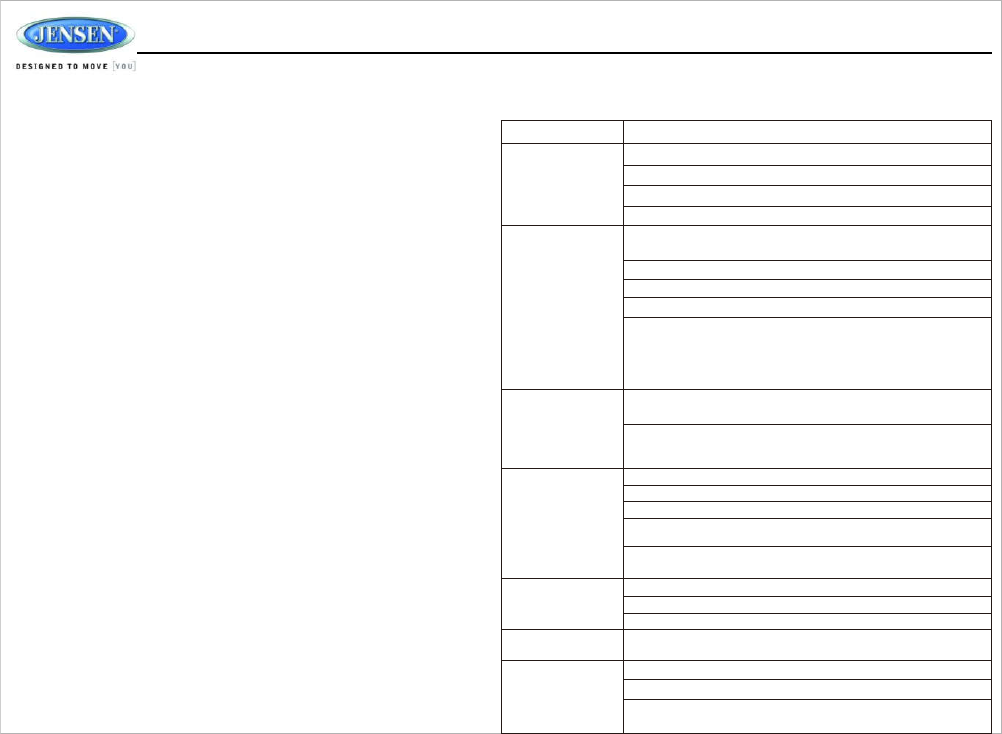
Video
S
e
tup
The Video Setup men u controls the following features:
–
System Setup
–
Language Setup
–
Audio Setup
–
Vide o Setup
–
Digita l Setup
Digital Setup
The Speaker Setup men u controls the following features:
–
OP Mode: Select LINE OUT or RF REMOD.
–
Dynamic Range: Select FULL, 6/8 , 4/8, 2/8 or OFF.
–
Dual Mono : Select STEREO, MONO/L, MONO/R or MIX MONO.
21
JW
M40
CARE AND MAINTENANCE
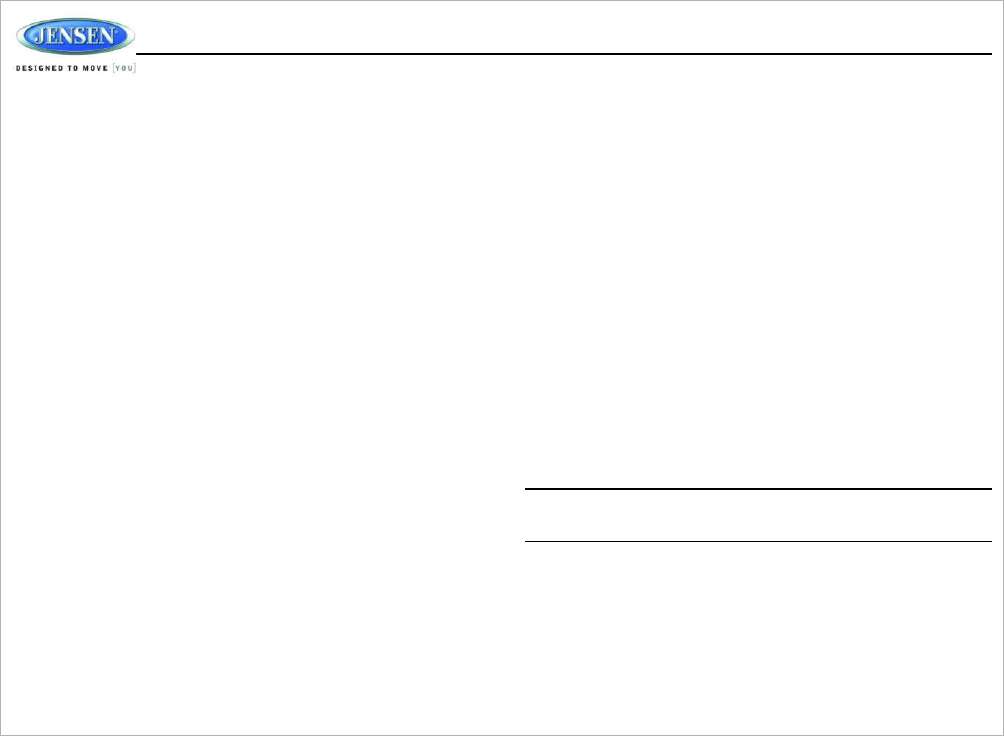
TROUBLESHOOTING
might contai n minerals tha t ca n corrode the electronic circuits.
–
Keep th e product away from dus t and dirt, which ca n cause premature wea r
of parts .
–
Handle th e product gently and carefully. Dropping it ca n damage circui t
boards and cases, and can cause th e product to work improperly.
–
Wipe the product with a dampened cloth occasionally to keep it looking new.
Do not us e harsh chemicals, cleaning solvents, or strong detergent s to clea n
th e product .
–
Us e and stor e the product only in norma l temperature environments. Hig h
temperatur e can shorten the life of electronic devices, damage batteries,
an d distort or mel t plastic parts.
I
gn
i
t
i
on
The most commo n source of nois e in reception is the ignition system. This is a
result of the radio being placed close to the ignition system (engine) . This typ e of
noise can be easily detected because it will vary in intensity of pitch with th e
speed of the engine.
Usually, th e ignition nois e ca n be suppresse d considerabl y by using a radio
suppressio n type hig h voltag e ignitio n wire an d suppressor resistor in the
ignition system. (Most vessel s employ this wir e and resisto r but it ma y be
necessary to chec k them for correct operation.) Another metho d of suppressio n
is the use of additiona l noise suppressors . These can be obtaine d from mos t
CB/A radio or electronic supply shops .
I
nt
e
r
f
e
r
e
n
ce
Radio reception in a moving environmen t is very different from reception in a
stationary environment (home) . It is ver y important to understand th e di fference.
AM reception will deteriorate when passing under a bridge or when passing
under high voltage lines . Although AM is subjec t to environmental noise, it has
the ability to receive at great distance. This is because broadcasti ng signals
follow th e curvature of th e earth and are re flected back by th e uppe r atmosphere.
Symptom Solution
Radio will not turn
ON or No front
panel operation
Try th e reset button.
Check fuse.
Check 12V+ on accessory wire to radio (RED wire)
Check Ground.
Radio turns ON ,
bu t no sound
Verify Volume, Fader/Balance, Mute controls are se t
correctly (see owner's manual).
Try the reset button.
Verify proper speaker selection.
Verify proper speaker connections .
Check fo r shorts or open circuit s on speaker wires.
Ÿ
If shor t on “A” channel , “B” channels will continue to
function.
Ÿ
If shor t on “B” channels , “A” channel will continue to
function.
CD/DVD doe s no t
load fully
Make sur e unit has power and no other CD/DVD is currently
inside.
Make sur e transport screw ha s been removed from rear of
unit. Disc will load fo r several second s and the n eject if
transport screw ha s not been removed .
CD/DVD doe s no t
play correctl y
Check to make sure disc is inserted correctly.
Verify disc is fre e from dirt, scratches , etc.
Check with factory CDs .
Inspec t radio's chassis to verify shippin g screw(s ) have bee n
removed.
Check factor y original CDs fo r compatibilit y warning s (due to
va ri ou s co py -prot ec ti on , mult imedia co nt ent , et c. ).
No AM or FM
reception
Verify yo u are tuned to a valid station.
Check your antenna connection on rear of stereo.
Try a di fferent antenna
DVD plays sound
but no video
Make sur e the HDMI cable is route d fro m the HDM I output to
th e input on the television.
Unit does not
respon d to
Remote Control
Verify that yo u hav e a clear line of sight for th e IR signal.
Check the batteries.
Confirm th e remote IR sensor in plugged int o IR input (if
applicable) .
–
Keep th e product dry. If it does get wet, wipe it dr y immediately. Liquids
22
JW
M40
SPECIFICATIONS
FM Tuner
Frequency Coverag e (USA) . . . . . . . . . . . . . . . . . . . . . . . . . . . . . .87.5 to 107.9 MHz
Sensitivity . . . . . . . . . . . . . . . . . . . . . . . . . . . . . . . . . . . . . . . . . . . . . . . . . . . . . . . <4 μV
Stereo Separation@1 kHz . . . . . . . . . . . . . . . . . . . . . . . . . . . . . . . . . . . . . . . . >25 dB
AM Tuner
Frequency Range (USA). . . . . . . . . . . . . . . . . . . . . . . . . . . . . . . . . . . . 530-1710 kHz
Sensitivity (S/N=20dB) . . . . . . . . . . . . . . . . . . . . . . . . . . . . . . . . . . . . . . . . . . . <63 μV
Amplifier
OutputPower....................................................6Wx4
Output Impedance . . . . . .
Compatible with 4-8 Ω ohm s speakers, 4 ohm load minimum
DVD
Frequency Response . . . . . . . . . . . . . . . . . . . . . . . . . . . . . . . . . . . . . . . 20-20,000 Hz
Channe l Separation . . . . . . . . . . . . . . . . . . . . . . . . . . . . . . . . . . . . . . . . . . . . . . . 50 dB
S/N Rati o . . . . . . . . . . . . . . . . . . . . . . . . . . . . . . . . . . . . . . . . . . . . . . . . . . . . . . . . 65 dB
Distortion . . . . . . . . . . . . . . . . . . . . . . . . . . . . . . . . . . . . . . . . . . . . . . . . . . . . . . . . 0.5%
General
Power Supply Requirement s . . . . . . . . . . . . . . . . . . DC 12 Volts , Negative Ground
Operating Voltage . . . . . . . . . . . . . . . . . . . . . . . . . . . . . . . . . . . . . . . . . . . . 11-16 VDC
Overal l Dimensions . . . . . . . . . . . . . . 208m m (W) x 110.0m m (D ) x 170.0m m (H )
. . . . . . . . . . . . . . . . . . . . . . . . . . . . . . . . . . . . . . . . . . . 8.19” (W ) x 4.33 ” (D) x 6.69” (H )
Mounting Dimension s . . . . . . . . . . . . . 180mm (W) x 133mm (D) x 86mm (H )
. . . . . . . . . . . . . . . . . . . . . . . . . . . . . . . . . . . . . . . . . . . .7.09” (W ) x 5.2” (D ) x 3.39” (H)
Weight.........................................................1.45KG
...............................................................3.20lbs
FCC N
o
t
i
ce
NOTE: This equipment has been tested and found to comply with the limits for a
Class B digital device, pursuant to Part 15 of the FCC Rules. These limits ar e
designe d to provide reasonable protection against harmfu l interference in a
residential installation. This equipment generate s uses and can radiat e radio
frequency energy and, if no t installed and used in accordanc e with the
instructions, may cause harmful interference to radio communications. Howeve r,
there is no guarante e tha t interference will not occur in a particular installation. If
this equipmen t does cause harmful interferenc e to radi o or television reception,
which ca n be determine d by turnin g the equipmen t off an d on , the user is
encourage d to try to correct th e interferenc e by one or more of th e following
me asure s :
---Reorient or relocate the receivin g antenna.
---Increase the separation between the equipment and receiver.
---Connect th e equipment into an outlet on a circuit different from that to which
th e rec ei ve r is co nnected .
---Consult the dealer or an experience d radio/TV technician for help.
WARNING : Changes or modi fications not expressl y approve d by the party
responsibl e for compliance coul d void the user' s authorit y to operate th e
equipment.
This equipment complied wit h FCC radiation exposure limits set forth for an
uncontrolle d environment. This equipment shoul d be installed and operated with
minimu m distance 20cm between the radiator & you r bod y.
NOTE: The manufacture r is not responsible fo r an y radio or TV interference cause d by
unauthorized modifications to this equipment . Such modification s could voi d the user's
authority to operat e th e equipment.

ELECTRONI
C
S
26
02 Marina Drive, Elkhart, IN 46514
www.asaelectronics.com