Unfors RaySafe 8603022 DoseAware Base Station User Manual manager

Unfors RaySafe AB DoseAware Base Station manager

Contents

user manual manager

DoseAware Dose ManagerPackageINSTRUCTIONS FOR USEDocument version 1.2EnglishPhilips Healthcare 9897 100 01273 1 2 3 4 5 6 7 8 9 10 11 12 13 14 15 16 17 18 19 20 21 22 23 24 25 26 27 28 29 30 31 32 33 34 35 36 37 38 39 40 41 42 43 44 45 46 47 48 49 50 51 52 53 54 55 56 57 58 59 60
Published by Philips Medical Systems Nederland B.V.Philips Medical Systems Nederland B.V. reserves the right tomake changes to both this document and to the product itdescribes. Product specifications are subject to change withoutnotice. Nothing contained within this document is intended asany offer, warranty, promise or contractual condition, and mustnot be taken as such.© Koninklijke Philips Electronics N.V. 2009All Rights are reserved. Reproduction in whole or in part in anyform or by any means, electrical, mechanical or otherwise isprohibited without the written consent of the copyright holder.Issue Number 9897 100 01273Philips Medical Systems Nederland B.V.Veenpluis 4-65684 PC BestThe NetherlandsUnauthorized copying of this publication may not only infringecopyright but also reduce the ability of Philips Medical Systemsto provide accurate and up-to-date information to users.Non-Philips product names may be trademarks of theirrespective owners.Published in The Netherlands.0-2 DoseAware Dose Manager Package Document version 1.2Philips Healthcare 9897 100 01273 0900a44780045a3b 1 2 3 4 5 6 7 8 9 10 11 12 13 14 15 16 17 18 19 20 21 22 23 24 25 26 27 28 29 30 31 32 33 34 35 36 37 38 39 40 41 42 43 44 45 46 47 48 49 50 51 52 53 54 55 56 57 58 59 60
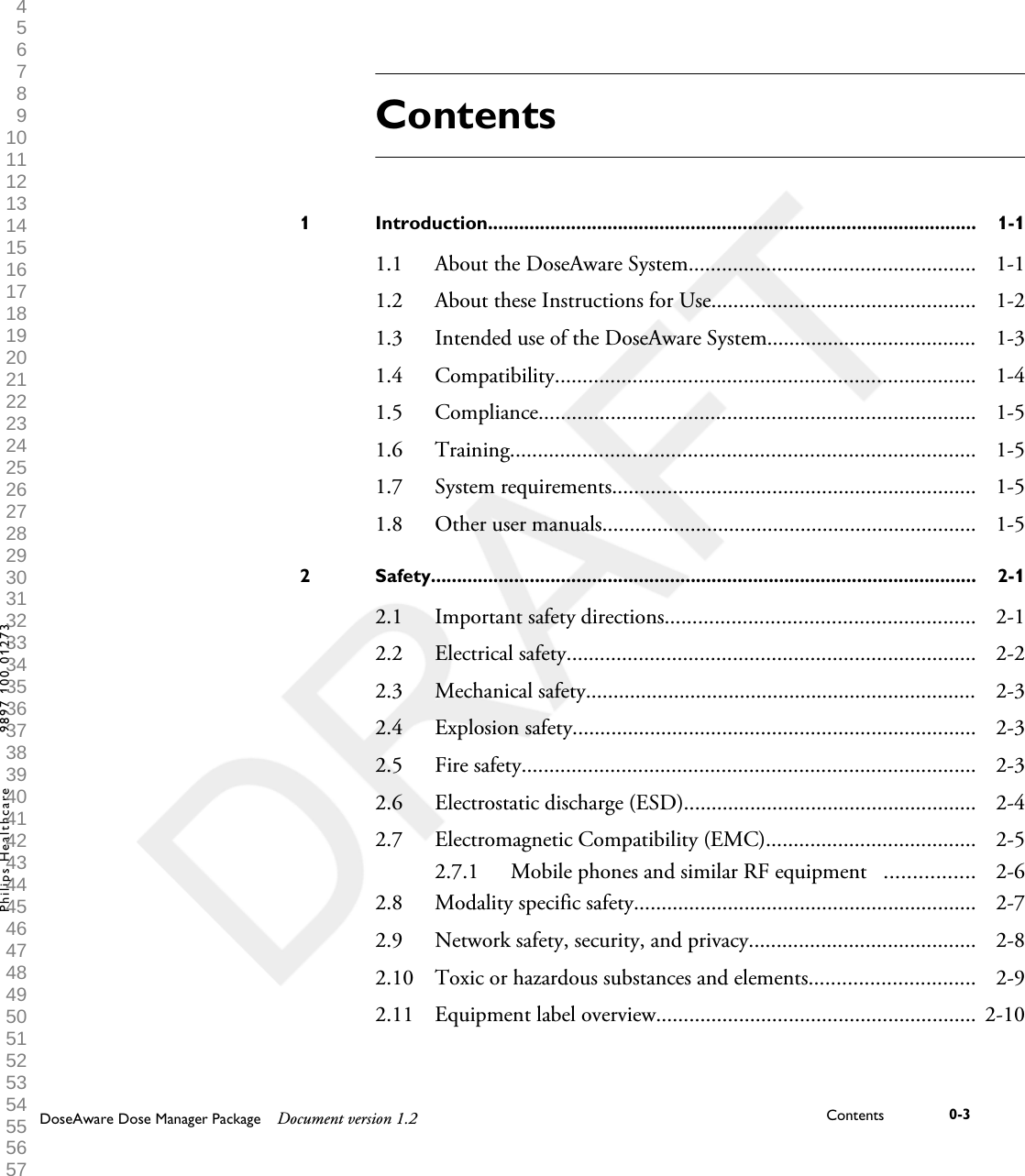
ContentsIntroduction..............................................................................................1 1-11.1 About the DoseAware System.................................................... 1-11.2 About these Instructions for Use................................................ 1-21.3 Intended use of the DoseAware System...................................... 1-31.4 Compatibility............................................................................ 1-41.5 Compliance............................................................................... 1-51.6 Training.................................................................................... 1-51.7 System requirements.................................................................. 1-51.8 Other user manuals.................................................................... 1-5Safety.........................................................................................................2 2-12.1 Important safety directions........................................................ 2-12.2 Electrical safety.......................................................................... 2-22.3 Mechanical safety....................................................................... 2-32.4 Explosion safety......................................................................... 2-32.5 Fire safety.................................................................................. 2-32.6 Electrostatic discharge (ESD)..................................................... 2-42.7 Electromagnetic Compatibility (EMC)...................................... 2-52.7.1 Mobile phones and similar RF equipment   ................ 2-62.8 Modality specific safety.............................................................. 2-72.9 Network safety, security, and privacy......................................... 2-82.10 Toxic or hazardous substances and elements.............................. 2-92.11 Equipment label overview.......................................................... 2-10DoseAware Dose Manager Package Document version 1.2 Contents 0-3Philips Healthcare 9897 100 01273 1 2 3 4 5 6 7 8 9 10 11 12 13 14 15 16 17 18 19 20 21 22 23 24 25 26 27 28 29 30 31 32 33 34 35 36 37 38 39 40 41 42 43 44 45 46 47 48 49 50 51 52 53 54 55 56 57 58 59 60
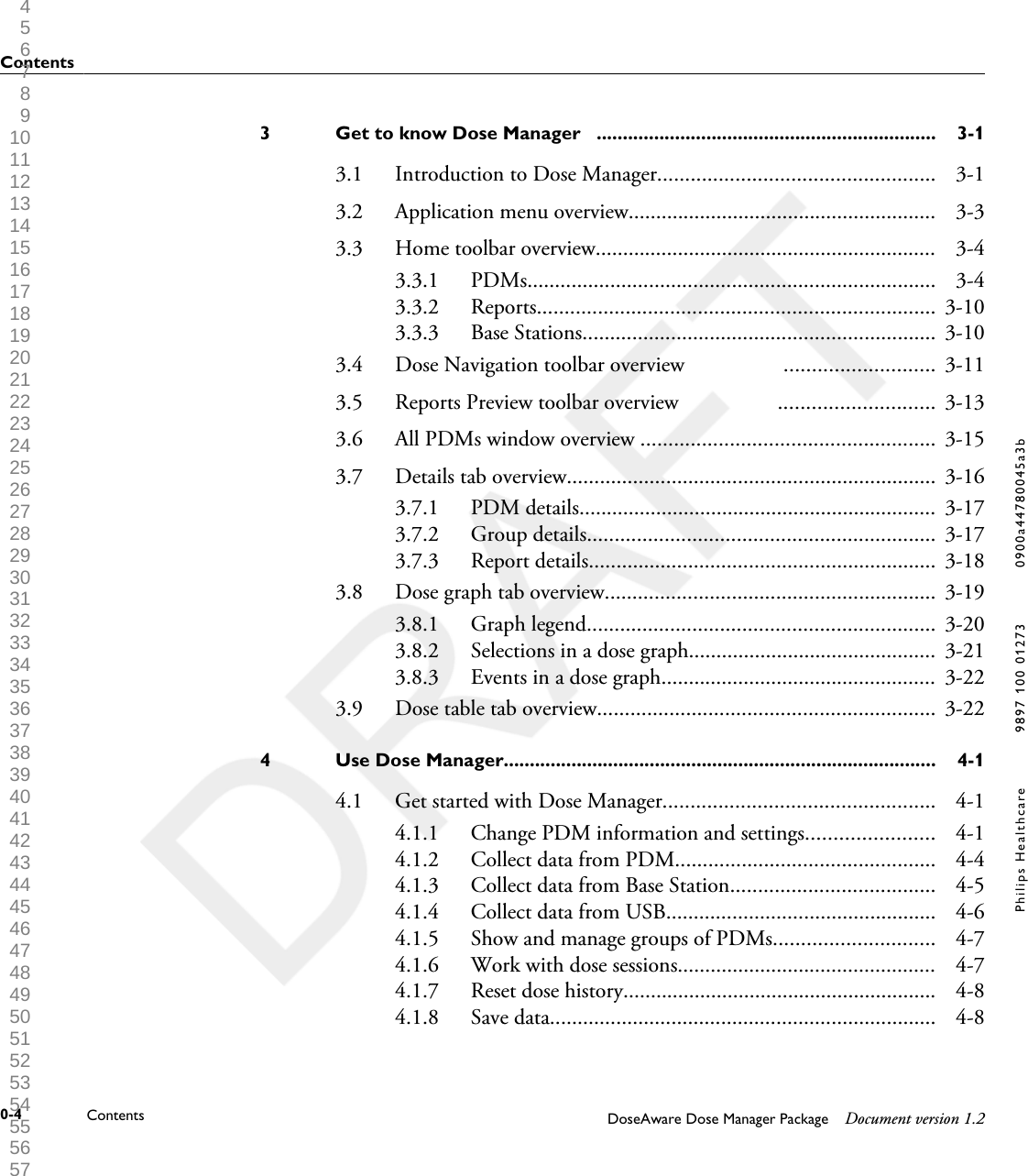
Get to know Dose Manager   .................................................................3 3-13.1 Introduction to Dose Manager.................................................. 3-13.2 Application menu overview........................................................ 3-33.3 Home toolbar overview.............................................................. 3-43.3.1 PDMs.......................................................................... 3-43.3.2 Reports........................................................................ 3-103.3.3 Base Stations................................................................ 3-103.4 Dose Navigation toolbar overview                  ........................... 3-113.5 Reports Preview toolbar overview                  ............................ 3-133.6 All PDMs window overview ..................................................... 3-153.7 Details tab overview................................................................... 3-163.7.1 PDM details................................................................. 3-173.7.2 Group details............................................................... 3-173.7.3 Report details............................................................... 3-183.8 Dose graph tab overview............................................................ 3-193.8.1 Graph legend............................................................... 3-203.8.2 Selections in a dose graph............................................. 3-213.8.3 Events in a dose graph.................................................. 3-223.9 Dose table tab overview............................................................. 3-22Use Dose Manager...................................................................................4 4-14.1 Get started with Dose Manager................................................. 4-14.1.1 Change PDM information and settings....................... 4-14.1.2 Collect data from PDM............................................... 4-44.1.3 Collect data from Base Station..................................... 4-54.1.4 Collect data from USB................................................. 4-64.1.5 Show and manage groups of PDMs............................. 4-74.1.6 Work with dose sessions............................................... 4-74.1.7 Reset dose history......................................................... 4-84.1.8 Save data...................................................................... 4-8Contents0-4 Contents DoseAware Dose Manager Package Document version 1.2Philips Healthcare 9897 100 01273 0900a44780045a3b 1 2 3 4 5 6 7 8 9 10 11 12 13 14 15 16 17 18 19 20 21 22 23 24 25 26 27 28 29 30 31 32 33 34 35 36 37 38 39 40 41 42 43 44 45 46 47 48 49 50 51 52 53 54 55 56 57 58 59 60
4.2 Work with the main window..................................................... 4-94.2.1 Customize the columns................................................ 4-94.2.2 Sort information in the columns.................................. 4-104.3 Analyze dose history from one PDM......................................... 4-114.3.1 View dose history as a graph            ............................. 4-114.3.2 Navigate in a graph...................................................... 4-124.3.3 Make a selection in a graph.......................................... 4-134.3.4 View dose history as a table.......................................... 4-144.3.5 Print data from a dose graph or dose table            ........ 4-154.3.6 Export data from a dose table                           ............ 4-164.4 Analyze dose data from several PDMs........................................ 4-184.4.1 View dose history as a graph......................................... 4-184.4.2 View dose history as a table.......................................... 4-214.4.3 Print data from a dose graph or dose table                         .................................................................................... 4-224.4.4 Export data from a dose table ...................................... 4-224.5 Reports...................................................................................... 4-224.5.1 Create reports.............................................................. 4-234.5.2 Export or e-mail a report.............................................. 4-244.6 Dose Manager options............................................................... 4-264.6.1 Set password................................................................ 4-264.6.2 Change password......................................................... 4-264.6.3 Change language.......................................................... 4-264.7 Dose manager license................................................................. 4-27Product disposal.......................................................................................5 5-15.1 Introduction.............................................................................. 5-15.2 Passing the system on to another user........................................ 5-15.3 Final disposal of the system........................................................ 5-25.4 Fitting, removing, and disposing of batteries.............................. 5-3ContentsDoseAware Dose Manager Package Document version 1.2 Contents 0-5Philips Healthcare 9897 100 01273 1 2 3 4 5 6 7 8 9 10 11 12 13 14 15 16 17 18 19 20 21 22 23 24 25 26 27 28 29 30 31 32 33 34 35 36 37 38 39 40 41 42 43 44 45 46 47 48 49 50 51 52 53 54 55 56 57 58 59 60
Technical data..........................................................................................6 6-16.1 PDM and Base Station/Dose Manager memories...................... 6-16.2 Time management..................................................................... 6-16.3 Security and privacy requirements.............................................. 6-2Contents0-6 Contents DoseAware Dose Manager Package Document version 1.2Philips Healthcare 9897 100 01273 0900a44780045a3b 1 2 3 4 5 6 7 8 9 10 11 12 13 14 15 16 17 18 19 20 21 22 23 24 25 26 27 28 29 30 31 32 33 34 35 36 37 38 39 40 41 42 43 44 45 46 47 48 49 50 51 52 53 54 55 56 57 58 59 60
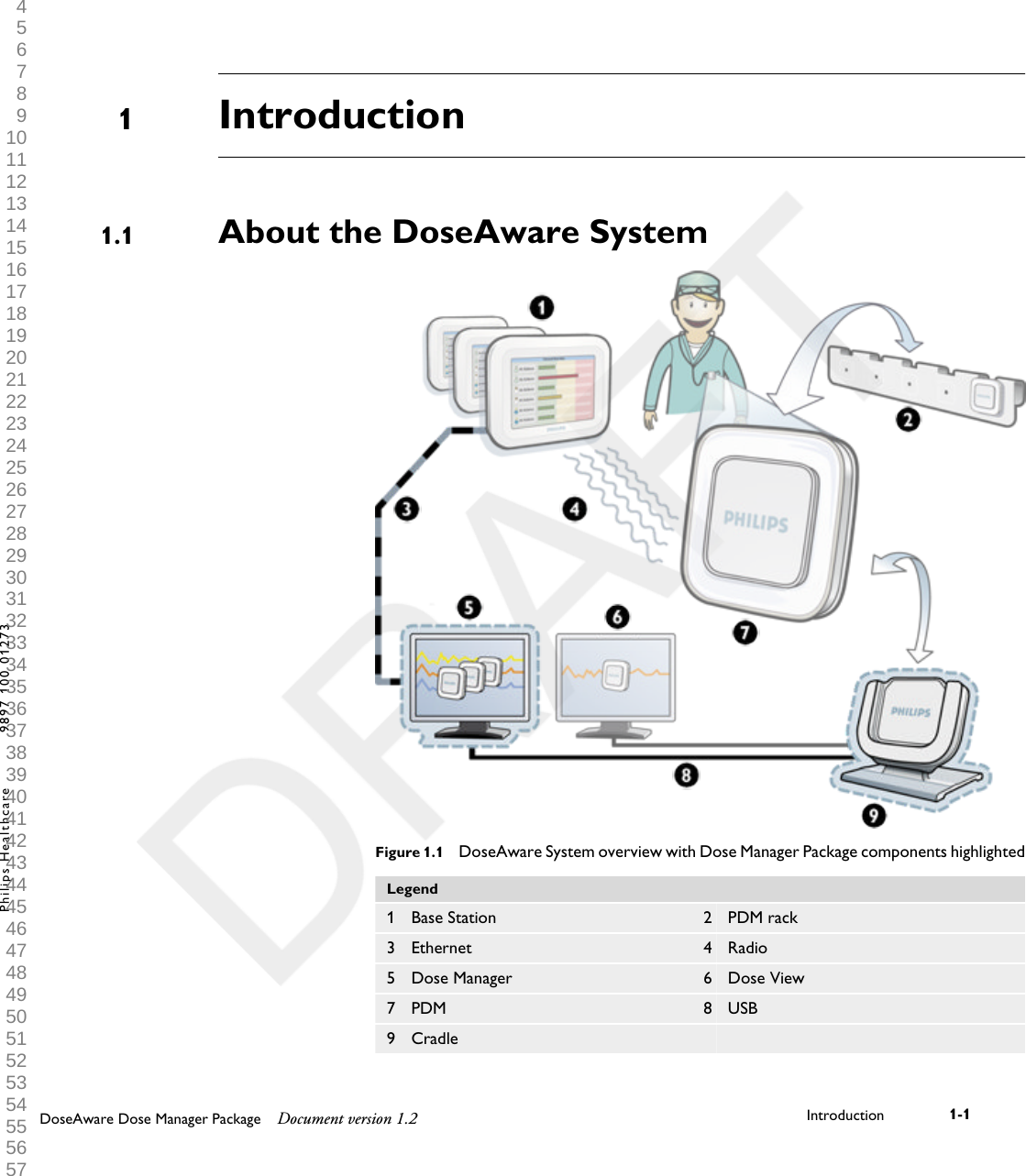
IntroductionAbout the DoseAware SystemFigure 1.1 DoseAware System overview with Dose Manager Package components highlightedLegend1 Base Station 2 PDM rack3 Ethernet 4 Radio5 Dose Manager 6 Dose View7 PDM 8 USB9 Cradle    11.1DoseAware Dose Manager Package Document version 1.2 Introduction 1-1Philips Healthcare 9897 100 01273 1 2 3 4 5 6 7 8 9 10 11 12 13 14 15 16 17 18 19 20 21 22 23 24 25 26 27 28 29 30 31 32 33 34 35 36 37 38 39 40 41 42 43 44 45 46 47 48 49 50 51 52 53 54 55 56 57 58 59 60
The Dose Manager Package consists of:•Dose Manager licensed software (CD)• User Manual (CD)• Cradle, USB cableAbout these Instructions for UseThese Instructions for Use are intended to assist users in the safe andeffective operation of the product described.Before attempting to operate the product, you must read these Instructionsfor Use, noting and strictly observing all WARNINGS and CAUTIONnotices.Pay special attention to all the information given and procedures describedin the Safety section.A WARNING alerts you to a potential serious outcome, adverse event or safetyhazard. Failure to observe a warning may result in death or serious injury to theoperator or patient.A CAUTION alerts you to where special care is necessary for the safe and effectiveuse of the product. Failure to observe a caution may result in minor or moderatepersonal injury or damage to the product or other property, and possibly in a remoterisk of more serious injury, and/or cause environmental pollution.NOTES highlight unusual points as an aid to the operator.These Instructions for Use describe the most extensive configuration of theproduct, with the maximum number of options and accessories. Not everyfunction described may be available on your product.These Instructions for Use describes the Base Station Package. In order toget an immediate hands-on experience of the Base StationPackage, we recommended that you interact with the Base Station,DoseView, and Cradle in parallel to reading these Instructions for Use.1.2WARNINGCAUTIONNOTE1.2 About these Instructions for Use1-2 Introduction DoseAware Dose Manager Package Document version 1.2Philips Healthcare 9897 100 01273 0900a44780045a3b 1 2 3 4 5 6 7 8 9 10 11 12 13 14 15 16 17 18 19 20 21 22 23 24 25 26 27 28 29 30 31 32 33 34 35 36 37 38 39 40 41 42 43 44 45 46 47 48 49 50 51 52 53 54 55 56 57 58 59 60
These Instructions for Use describe the Dose Manager software and itsfunctions. In order to get an immediate hands-on experience of DoseManager, we recommended that you interact with Dose Manager in parallelto reading these Instructions for Use.Intended use of the DoseAware SystemThis Philips product is intended to be installed, used and operated only inaccordance with the safety procedures and operating instructions given inthese Instructions for Use for the purpose for which it was designed. Thepurpose for which the product is intended is given below. However, nothingstated in these Instructions for Use reduces users’ responsibilities for soundclinical judgment and best clinical procedure.The DoseAware System is an electronic X-ray dose monitoring system. Theintended use is to improve the awareness of people, who work with or are inthe presence of X-Ray imaging equipment, about their occupational dose(also known as staff dose). The awareness focuses on:•A graphical visualization of the real-time staff dose rate while workingwith X-Ray equipment in examination rooms during medical procedures;• Instant access to historical staff dose for reporting and analysis purposes.The benefits of the DoseAware System are to:• Make people aware of their received staff dose during clinical work withX-ray imaging equipment;• Instantly visualize the result of reducing measures of occupationaldose by, for example, changing a person’s position in the examination room.The DoseAware System may not be used as a legal staff dose recordingsolution. The DoseAware System is not intended for patient use.•Do not expose the PDMs in direct X-ray beam. They are designed to be exposed toscattered radiation only.•The Dose Manager, DoseView, Cradle and PDM Rack are not intended to be usedinside examination rooms.•The DoseAware product is not a replacement for a TLD (ThermoLuminescentDosimeter) or similar product.1.3NOTESIntended use of the DoseAware System 1.3DoseAware Dose Manager Package Document version 1.2 Introduction 1-3Philips Healthcare 9897 100 01273 1 2 3 4 5 6 7 8 9 10 11 12 13 14 15 16 17 18 19 20 21 22 23 24 25 26 27 28 29 30 31 32 33 34 35 36 37 38 39 40 41 42 43 44 45 46 47 48 49 50 51 52 53 54 55 56 57 58 59 60
Installation, use and operation of this product is subject to the law in thejurisdiction(s) in which the product is being used. Operators must onlyinstall, use and operate the DoseAware System in such ways as do notconflict with applicable laws, or regulations, which have the force of law.Uses of the Allura CV20 for purposes other than those intended and Uses ofthe DoseAware System for purposes other than those intended and expresslystated by the manufacturer, as well as incorrect use or operation, may relievethe manufacturer (or his agent) from all or some responsibility for resultantnon-compliance, damage or injury.CompatibilityThe product described in this manual should not be used in combinationwith other products or components unless such other products orcomponents are expressly recognized as compatible by Philips Healthcare.(A list of such products and components is available from the manufacturer.)Changes and/or additions to the product should only be carried out byPhilips Medical Systems or by third parties expressly authorized by PhilipsMedical Systems to do so. Such changes and/or additions must comply withall applicable laws and regulations that have the force of law within thejurisdiction(s) concerned, and with best engineering practice.Changes and/or additions to the product that are carried out by persons without theappropriate training and/or using unapproved spare parts may lead to the PhilipsMedical Systems warranty being voided. As with all complex technical products,maintenance by persons not appropriately qualified and/or using unapproved spareparts carries serious risks of damage to the product and of personal injury.1.4WARNING1.4 Compatibility1-4 Introduction DoseAware Dose Manager Package Document version 1.2Philips Healthcare 9897 100 01273 0900a44780045a3b 1 2 3 4 5 6 7 8 9 10 11 12 13 14 15 16 17 18 19 20 21 22 23 24 25 26 27 28 29 30 31 32 33 34 35 36 37 38 39 40 41 42 43 44 45 46 47 48 49 50 51 52 53 54 55 56 57 58 59 60
ComplianceThe Philips DoseAware System complies with relevant international andnational standards and laws. Information on compliance will be supplied onrequest by your local Philips Medical Systems representative, or by themanufacturer.TrainingUsers of this product must have received adequate training on its safe andeffective use before attempting to operate the product described in theseInstructions for Use. Training requirements for this type of device will varyfrom country to country. Users must make sure they receive adequatetraining in accordance with local laws or regulations.If you require further information about training in the use of this product,please contact your local Philips Medical Systems representative.Alternatively, contact the manufacturer.System requirements•Operating systems: Windows Vista or Windows XP.• .NET 3.5.• At least one USB port available.• At least 2 GB of system memory available.• At least 40 GB hard drive with at least 15 GB of memory available.• Recommended screen resolution at least 1280 x 1024.Other user manuals• The Base Station and DoseView are described in aseparate user manual, which can be found on the CD delivered in the boxtogether with the Base Station package.• The PDMs are briefly described in the PDM Quick Guide, a leaflet thatis delivered in the box together with the PDM.1.51.61.71.8Compliance 1.5DoseAware Dose Manager Package Document version 1.2 Introduction 1-5Philips Healthcare 9897 100 01273 1 2 3 4 5 6 7 8 9 10 11 12 13 14 15 16 17 18 19 20 21 22 23 24 25 26 27 28 29 30 31 32 33 34 35 36 37 38 39 40 41 42 43 44 45 46 47 48 49 50 51 52 53 54 55 56 57 58 59 60
1.8 Other user manuals1-6 Introduction DoseAware Dose Manager Package Document version 1.2Philips Healthcare 9897 100 01273 0900a44780045a3b 1 2 3 4 5 6 7 8 9 10 11 12 13 14 15 16 17 18 19 20 21 22 23 24 25 26 27 28 29 30 31 32 33 34 35 36 37 38 39 40 41 42 43 44 45 46 47 48 49 50 51 52 53 54 55 56 57 58 59 60
SafetyImportant safety directionsIf the DoseAware system is not functioning correct or damage is visible,inform a Philips service engineer, which will take appropriate actions inorder not to harm personnel or patients.Handle the hardware and software with care. Make sure that the hardwareand software is used and stored in a secured environment to preventunauthorized access.Maintenance & faultsDo not use the product for any application until you are sure that the user routine-checks have been satisfactorily completed, and that the periodic maintenance of theproduct is up to date. If any part of the product is known (or suspected) to bedefective or wrongly adjusted, DO NOT USE the product until a repair has beenmade. Operation of the product with defective or wrongly adjusted components couldexpose the user or the patient to radiation or other safety hazards. This could lead tofatal or other serious personal injury, or to clinical misdiagnosis/clinical mistreatment.Safety awarenessDo not use the product for any application until you have read, understood and knowall the safety information, safety procedures and emergency procedures contained inthis Safety section. Operation of the product without a proper awareness of how touse it safely could lead to fatal or other serious personal injury. It could also lead toclinical misdiagnosis/clinical mistreatment.22.1WARNINGWARNINGDoseAware Dose Manager Package Document version 1.2 Safety 2-1Philips Healthcare 9897 100 01273 1 2 3 4 5 6 7 8 9 10 11 12 13 14 15 16 17 18 19 20 21 22 23 24 25 26 27 28 29 30 31 32 33 34 35 36 37 38 39 40 41 42 43 44 45 46 47 48 49 50 51 52 53 54 55 56 57 58 59 60
Adequate training•Do not use the product for any application until you have received adequate andproper training in its safe and effective operation. If you are unsure of your abilityto operate this product safely and effectively, DO NOT USE IT. Operation of thisproduct without proper and adequate training could lead to fatal or other seriouspersonal injury. It could also lead to clinical misdiagnosis/clinical mistreatment.•Do not operate the product with patients unless you have an adequateunderstanding of its capabilities and functions. Using this product without such anunderstanding may compromise its effectiveness and/or reduce the safety of thepatient, you and others.Safety devicesNever attempt to remove, modify, override or frustrate any safety device on theproduct. Interfering with safety devices could lead to fatal or other serious personalinjury.Intended use and compatibilityDo not use the product for any purpose other than those for which it is intended. Donot use the product with products other than that which Philips Medical Systemsrecognizes as compatible. Operation of the product for unintended purposes, or withincompatible products, could lead to fatal or other serious injury. It could also lead toclinical misdiagnosis/clinical mistreatment.Electrical safety Do not remove covers or cables from this product. Dangerous electrical voltages arepresent within this product. Removing covers or cables could lead to serious or fatalpersonal injury.WARNINGSWARNINGWARNING2.2WARNING2.2 Electrical safety2-2 Safety DoseAware Dose Manager Package Document version 1.2Philips Healthcare 9897 100 01273 0900a44780045a3b 1 2 3 4 5 6 7 8 9 10 11 12 13 14 15 16 17 18 19 20 21 22 23 24 25 26 27 28 29 30 31 32 33 34 35 36 37 38 39 40 41 42 43 44 45 46 47 48 49 50 51 52 53 54 55 56 57 58 59 60
Covers or cables should only be removed by qualified and authorized servicepersonnel. Use this product in rooms or areas that comply with allapplicable laws (or regulations having the force of law) concerning electricalsafety for this type of product.Electrically isolate this product from the mains electrical supply beforecleaning, disinfecting or sterilizing it.Mechanical safetyDo not remove covers from this product. Removing covers could lead to serious orfatal personal injury.Covers should only be removed by qualified and authorized servicepersonnel. In this context, qualified means those legally permitted to workon this type of medical electrical product in the jurisdiction(s) in which theproduct is being used, and authorized means those authorized by the user ofthe product.Explosion safety•Do not use this product in the presence of explosive gases or vapors, such ascertain anesthetic gases.•Do not use flammable or potentially explosive disinfecting sprays.•Use of this product in an environment for which it was not designed can lead tofire or explosion.Fire safetyUse of electrical product in an environment for which it was notdesigned can lead to fire or explosion.2.3WARNING2.4WARNINGS2.5Mechanical safety 2.3DoseAware Dose Manager Package Document version 1.2 Safety 2-3Philips Healthcare 9897 100 01273 1 2 3 4 5 6 7 8 9 10 11 12 13 14 15 16 17 18 19 20 21 22 23 24 25 26 27 28 29 30 31 32 33 34 35 36 37 38 39 40 41 42 43 44 45 46 47 48 49 50 51 52 53 54 55 56 57 58 59 60
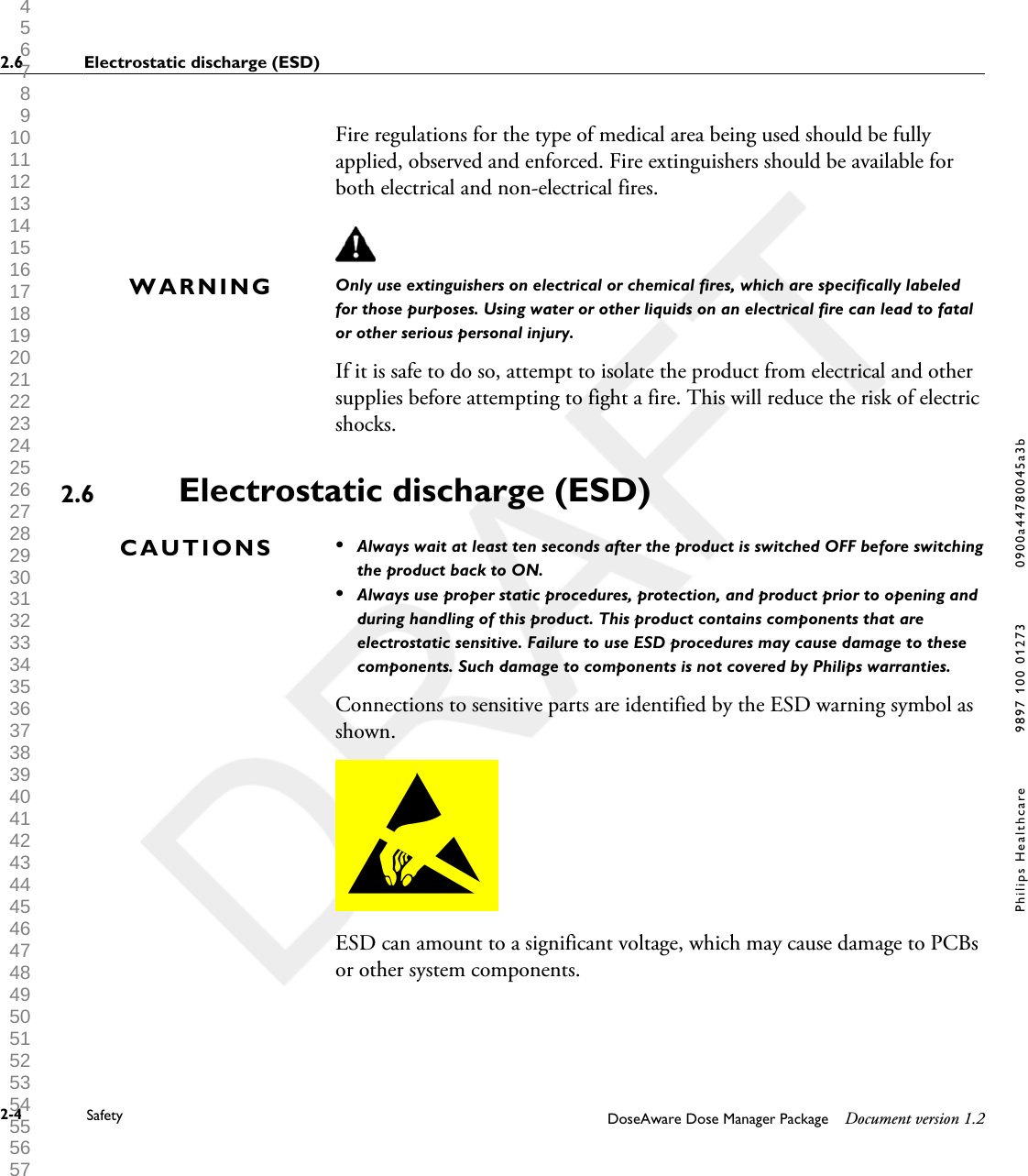
Fire regulations for the type of medical area being used should be fullyapplied, observed and enforced. Fire extinguishers should be available forboth electrical and non-electrical fires.Only use extinguishers on electrical or chemical fires, which are specifically labeledfor those purposes. Using water or other liquids on an electrical fire can lead to fatalor other serious personal injury.If it is safe to do so, attempt to isolate the product from electrical and othersupplies before attempting to fight a fire. This will reduce the risk of electricshocks.Electrostatic discharge (ESD)•Always wait at least ten seconds after the product is switched OFF before switchingthe product back to ON.•Always use proper static procedures, protection, and product prior to opening andduring handling of this product. This product contains components that areelectrostatic sensitive. Failure to use ESD procedures may cause damage to thesecomponents. Such damage to components is not covered by Philips warranties.Connections to sensitive parts are identified by the ESD warning symbol asshown.ESD can amount to a significant voltage, which may cause damage to PCBsor other system components.WARNING2.6CAUTIONS2.6 Electrostatic discharge (ESD)2-4 Safety DoseAware Dose Manager Package Document version 1.2Philips Healthcare 9897 100 01273 0900a44780045a3b 1 2 3 4 5 6 7 8 9 10 11 12 13 14 15 16 17 18 19 20 21 22 23 24 25 26 27 28 29 30 31 32 33 34 35 36 37 38 39 40 41 42 43 44 45 46 47 48 49 50 51 52 53 54 55 56 57 58 59 60
ESD damage is cumulative and may not be apparent at first, as indicated bya hard failure, but can cause degraded performance. Therefore, always useproper ESD handling procedures. ESD can result from low humidityconditions, use of electrical equipment on carpeting, linens, and clothing.Electromagnetic Compatibility (EMC)This Philips product complies with relevant international and national lawsand standards on EMC (electromagnetic compatibility) for this type ofproduct when used as intended. Such laws and standards define both thepermissible electromagnetic emission levels from equipment and its requiredimmunity to electromagnetic interference from external sources.Other electronic products exceeding the limits defined in such EMCstandards could, under unusual circumstances, affect the operation of theproduct.•Medical electrical products need special precautions regarding EMC, andneed to be installed and put into service according to EMC informationprovided in the accompanying documents.• The use of accessories and cables other than those specified may result inincreased emission or decreased immunity levels.• The product should not be used adjacent to or stacked with otherproducts and that if adjacent or stacked use is necessary, it should beobserved to verify normal operation.This equipment is intended for use in a hospital environment. Operation inother than hospital environments may compromise electromagneticcompatibility.The Base Station and PDM comply with part 15 of the FCC Rules.Operation is subject to the following conditions :(1) This device may notcause harmful interference, and (2) this device must accept any interferencereceived, including interference that may cause undesired operation.Changes or modifications to the equipment not expressly approved by theparty responsible for compliance could void the user’s authority to operatethe equipment.2.7Electromagnetic Compatibility (EMC) 2.7DoseAware Dose Manager Package Document version 1.2 Safety 2-5Philips Healthcare 9897 100 01273 1 2 3 4 5 6 7 8 9 10 11 12 13 14 15 16 17 18 19 20 21 22 23 24 25 26 27 28 29 30 31 32 33 34 35 36 37 38 39 40 41 42 43 44 45 46 47 48 49 50 51 52 53 54 55 56 57 58 59 60
This device complies with Industry Canada license-exempt RSS standard(s).Operation is subject to the following two conditions: (1) This device maynot cause interference, and (2) this device must accept any interference,including interference that may cause undesired operation of the device.Le présent appareil est conforme aux CNR d'Industrie Canada applicables auxappareils radio exempts de licence. L'exploitation est autorisée aux deuxconditions suivantes : (1) l'appareil ne doit pas produire de brouillage, et (2)l'utilisateur de l'appareil doit accepter tout brouillage radioélectrique subi, mêmesi le brouillage est susceptible d'en compromettre le fonctionnement.This class A digital apparatus complies with Canadian ICES-003.Cet appareil numérique de la classe A est conforme à la norme NMB-003 duCanada.The Base Station and PDM have been tested and found to comply with thelimits for a Class A digital device, pursuant to part 15 of the FCC Rules.These limits are designed to provide reasonable protection against harmfulinterference when the equipment is operated in a commercial environment.This equipment generates, uses, and can radiate radio frequency energy and,if not installed and used in accordance with the instruction manual, maycause harmful interference to radio communications. Operation of thisequipment in a residential area is likely to cause harmful interference inwhich case the user will be required to correct the interference at his ownexpense.Mobile phones and similar RF equipment   The DoseAware system is intended for use in the electromagneticenvironment in which radiated RF disturbances are controlled.Portable and mobile RF communications can affect medical electrical equipment. Usecaution when using such communication devices within the specified range of medicalelectrical devices.2.7.1CAUTION2.7 Electromagnetic Compatibility (EMC)2-6 Safety DoseAware Dose Manager Package Document version 1.2Philips Healthcare 9897 100 01273 0900a44780045a3b 1 2 3 4 5 6 7 8 9 10 11 12 13 14 15 16 17 18 19 20 21 22 23 24 25 26 27 28 29 30 31 32 33 34 35 36 37 38 39 40 41 42 43 44 45 46 47 48 49 50 51 52 53 54 55 56 57 58 59 60
The customer or the user of the DoseAware system can help preventelectromagnetic interference by maintaining a minimum distance betweenportable and mobile RF communications equipment (transmitters) and theDoseAware system as recommended below, according to the maximumoutput power of the communications equipment:•A minimum distance of 20 cm between a PDM and a mobile phone orregular electronic device (e.g. a computer).• A minimum distance of 50 cm between a PDM and a medical device orintended radiator (e.g. a wireless router).These guidelines may not apply in all situations. Electromagnetic propagation isaffected by absorption and reflection from structures, objects and people.Modality specific safetyDuring communication between the Base Station and PDMs, personal data istransmitted in open air.Be careful when using a PDM while being near a patient and make sure thatthe PDM does not fall or comes in contact with other equipment (such as acatheter) to endanger the procedure.Do not move a PDM to an unknown environment (for example anotherhospital). If you are visiting unknown environments, there is a risk thatpersonal data is registered there. For correct registration of staff dose data,only use the PDM within designated environment.Philips Medical Systems declares that all CE marked DoseAware productsincorporating Radio and Telecoms Terminal Equipment functionality are incompliance with the essential requirements and other relevant provisions ofDirective 1999/5/EC.NOTE2.8WARNINGModality specific safety 2.8DoseAware Dose Manager Package Document version 1.2 Safety 2-7Philips Healthcare 9897 100 01273 1 2 3 4 5 6 7 8 9 10 11 12 13 14 15 16 17 18 19 20 21 22 23 24 25 26 27 28 29 30 31 32 33 34 35 36 37 38 39 40 41 42 43 44 45 46 47 48 49 50 51 52 53 54 55 56 57 58 59 60
Network safety, security, and privacyCustomer Role in the Product Security PartnershipWe recognize that the security of Philips Medical Systems products is animportant part of your facility's security-in depth strategy. However, thesebenefits can only be realized if you implement a comprehensive, multi-layered strategy (including policies, processes, and technologies) to protectinformation and systems from external and internal threats.Following industry-standard practice, your strategy should address physicalsecurity, operational security, procedural security, risk management, securitypolicies, and contingency planning. The practical implementation oftechnical security elements varies by site and may employ a number oftechnologies, including firewalls, virus-scanning software, authenticationtechnologies, etc.As with any computer-based system, protection must be provided such thatfirewalls and/or other security devices are in place between the medicalsystem and any externally accessible systems.The USA Veterans Administration has developed a widely used MedicalDevice Isolation Architecture for this purpose. Such perimeter and networkdefenses are essential elements in a comprehensive medical device securitystrategy.For our product security policy statement and additional information, seethe Philips Medical Systems product security website at:2.92.9 Network safety, security, and privacy2-8 Safety DoseAware Dose Manager Package Document version 1.2Philips Healthcare 9897 100 01273 0900a44780045a3b 1 2 3 4 5 6 7 8 9 10 11 12 13 14 15 16 17 18 19 20 21 22 23 24 25 26 27 28 29 30 31 32 33 34 35 36 37 38 39 40 41 42 43 44 45 46 47 48 49 50 51 52 53 54 55 56 57 58 59 60
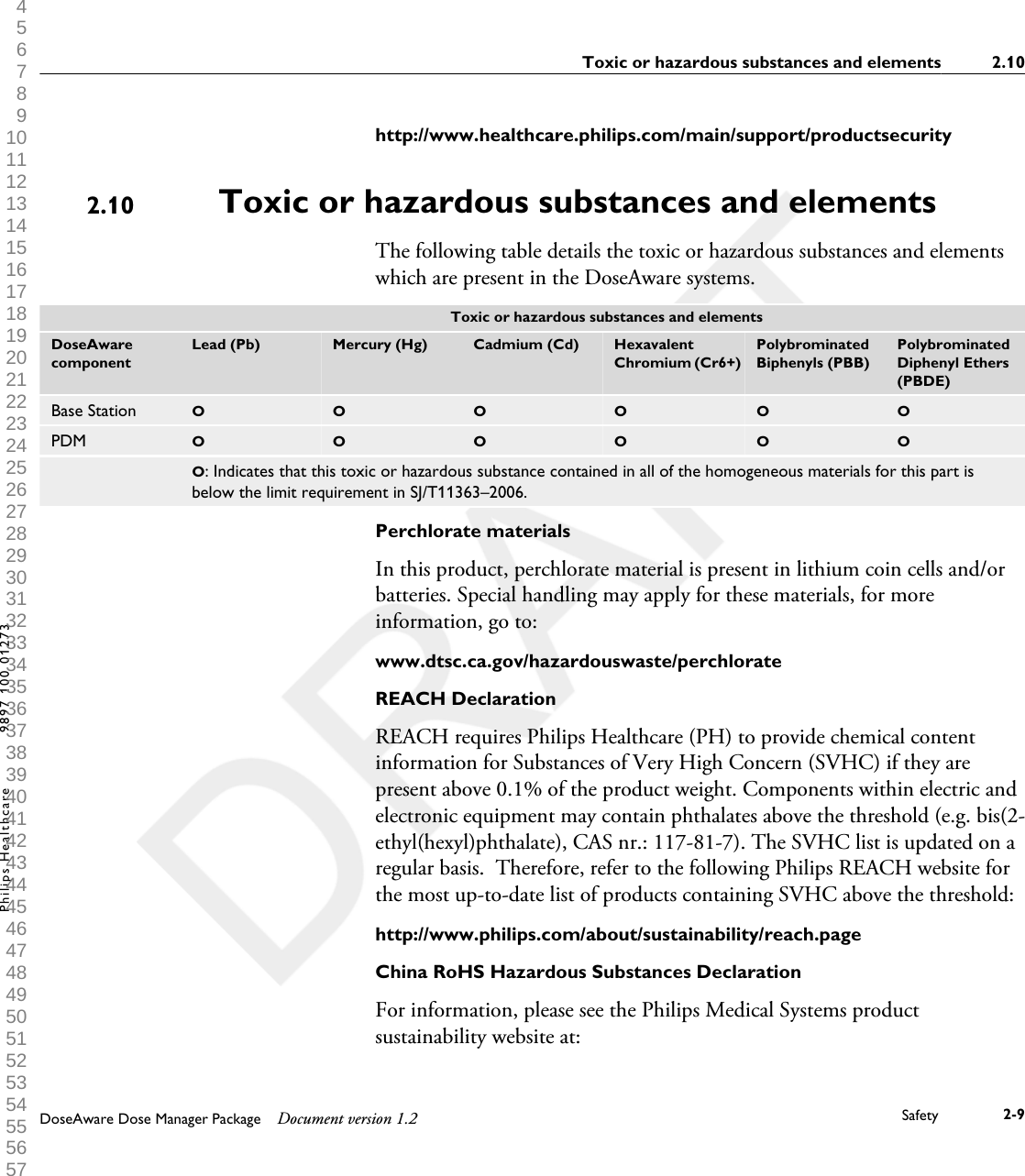
http://www.healthcare.philips.com/main/support/productsecurityToxic or hazardous substances and elementsThe following table details the toxic or hazardous substances and elementswhich are present in the DoseAware systems.  Toxic or hazardous substances and elementsDoseAwarecomponentLead (Pb) Mercury (Hg) Cadmium (Cd) HexavalentChromium (Cr6+)PolybrominatedBiphenyls (PBB)PolybrominatedDiphenyl Ethers(PBDE)Base Station O O O O O OPDM O O O O O O O: Indicates that this toxic or hazardous substance contained in all of the homogeneous materials for this part isbelow the limit requirement in SJ/T11363–2006.Perchlorate materialsIn this product, perchlorate material is present in lithium coin cells and/orbatteries. Special handling may apply for these materials, for moreinformation, go to:www.dtsc.ca.gov/hazardouswaste/perchlorateREACH DeclarationREACH requires Philips Healthcare (PH) to provide chemical contentinformation for Substances of Very High Concern (SVHC) if they arepresent above 0.1% of the product weight. Components within electric andelectronic equipment may contain phthalates above the threshold (e.g. bis(2-ethyl(hexyl)phthalate), CAS nr.: 117-81-7). The SVHC list is updated on aregular basis.  Therefore, refer to the following Philips REACH website forthe most up-to-date list of products containing SVHC above the threshold:http://www.philips.com/about/sustainability/reach.pageChina RoHS Hazardous Substances DeclarationFor information, please see the Philips Medical Systems productsustainability website at:2.10Toxic or hazardous substances and elements 2.10DoseAware Dose Manager Package Document version 1.2 Safety 2-9Philips Healthcare 9897 100 01273 1 2 3 4 5 6 7 8 9 10 11 12 13 14 15 16 17 18 19 20 21 22 23 24 25 26 27 28 29 30 31 32 33 34 35 36 37 38 39 40 41 42 43 44 45 46 47 48 49 50 51 52 53 54 55 56 57 58 59 60
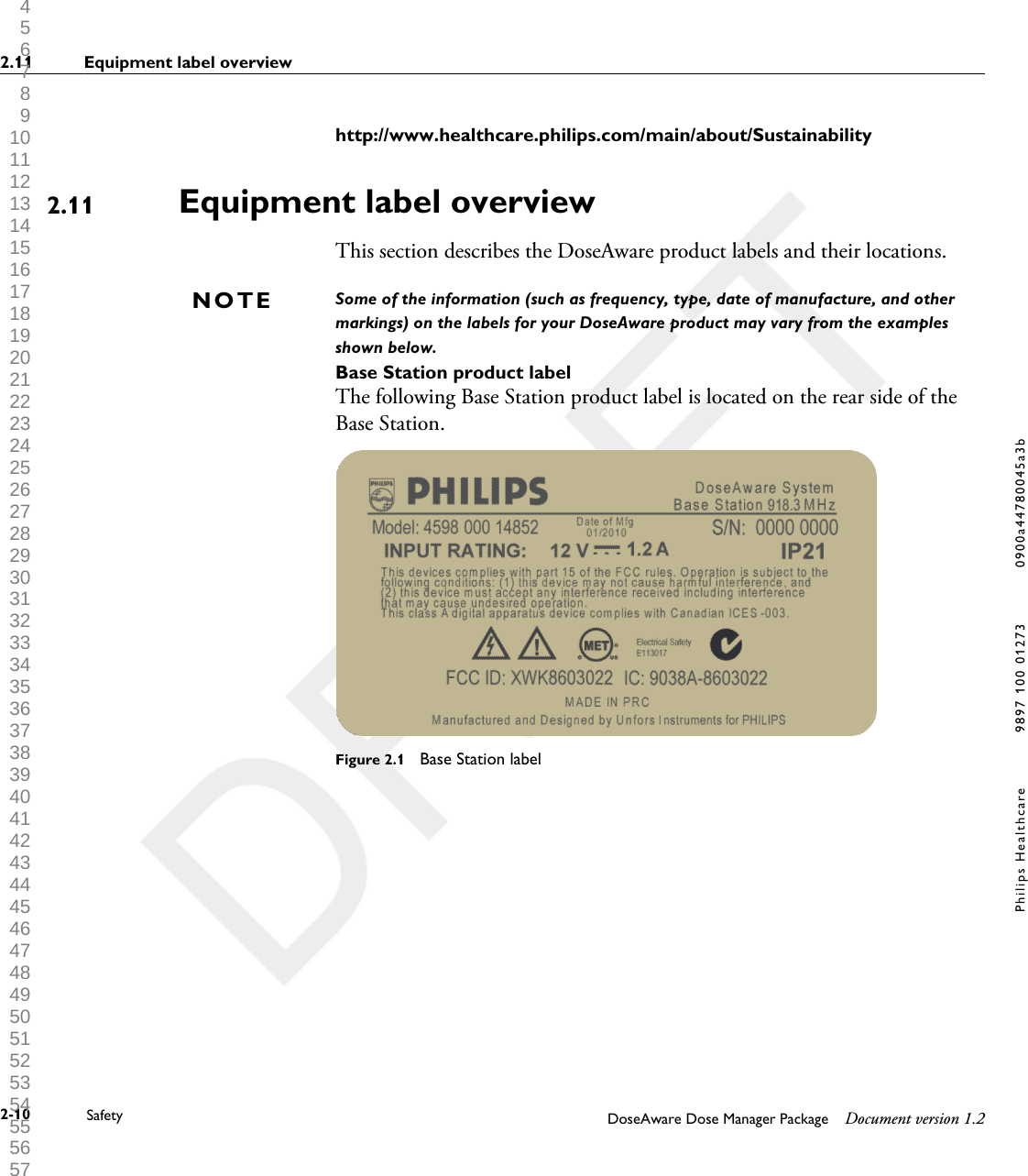
http://www.healthcare.philips.com/main/about/SustainabilityEquipment label overviewThis section describes the DoseAware product labels and their locations.Some of the information (such as frequency, type, date of manufacture, and othermarkings) on the labels for your DoseAware product may vary from the examplesshown below.Base Station product labelThe following Base Station product label is located on the rear side of theBase Station.Figure 2.1  Base Station label2.11NOTE2.11 Equipment label overview2-10 Safety DoseAware Dose Manager Package Document version 1.2Philips Healthcare 9897 100 01273 0900a44780045a3b 1 2 3 4 5 6 7 8 9 10 11 12 13 14 15 16 17 18 19 20 21 22 23 24 25 26 27 28 29 30 31 32 33 34 35 36 37 38 39 40 41 42 43 44 45 46 47 48 49 50 51 52 53 54 55 56 57 58 59 60
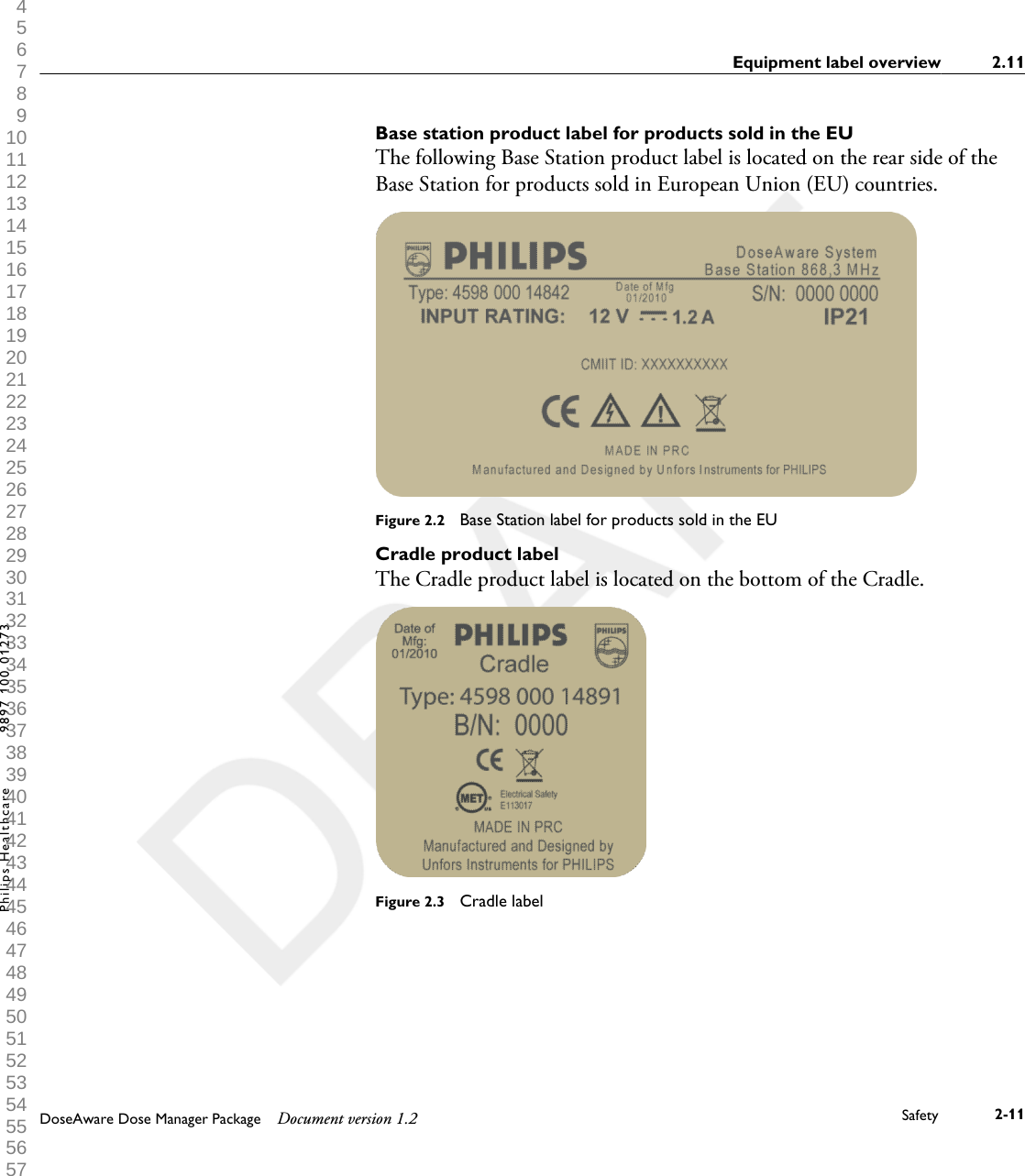
Base station product label for products sold in the EUThe following Base Station product label is located on the rear side of theBase Station for products sold in European Union (EU) countries.Figure 2.2  Base Station label for products sold in the EUCradle product labelThe Cradle product label is located on the bottom of the Cradle.Figure 2.3  Cradle labelEquipment label overview 2.11DoseAware Dose Manager Package Document version 1.2 Safety 2-11Philips Healthcare 9897 100 01273 1 2 3 4 5 6 7 8 9 10 11 12 13 14 15 16 17 18 19 20 21 22 23 24 25 26 27 28 29 30 31 32 33 34 35 36 37 38 39 40 41 42 43 44 45 46 47 48 49 50 51 52 53 54 55 56 57 58 59 60
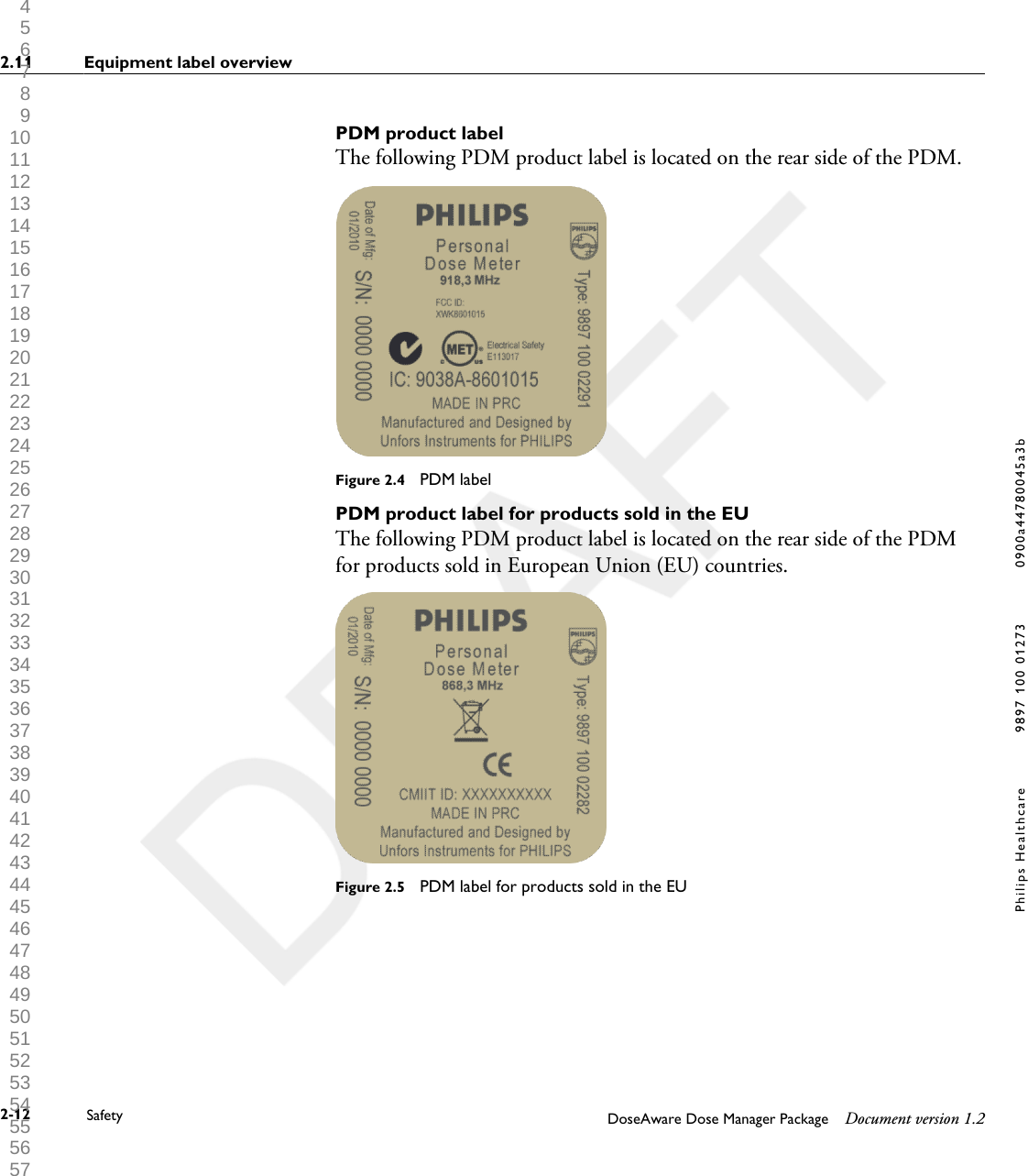
PDM product labelThe following PDM product label is located on the rear side of the PDM.Figure 2.4  PDM labelPDM product label for products sold in the EUThe following PDM product label is located on the rear side of the PDMfor products sold in European Union (EU) countries.Figure 2.5  PDM label for products sold in the EU2.11 Equipment label overview2-12 Safety DoseAware Dose Manager Package Document version 1.2Philips Healthcare 9897 100 01273 0900a44780045a3b 1 2 3 4 5 6 7 8 9 10 11 12 13 14 15 16 17 18 19 20 21 22 23 24 25 26 27 28 29 30 31 32 33 34 35 36 37 38 39 40 41 42 43 44 45 46 47 48 49 50 51 52 53 54 55 56 57 58 59 60
Get to know Dose Manager   This chapter describes the available features in Dose Manager. Instructionsand commonly used workflows are found in  section “Use Dose Manager”on page 4-1 .Do not start up the product unless you and all other users present have read, fullyunderstood and know all the safety information and emergency procedures given inthe Safety section of these Instructions for Use. Operation of the product withouthaving read, understood and knowing all the safety information and procedures in theSafety section could lead to fatal or other serious personal injury, clinicalmisdiagnosis, or clinical mistreatment.Introduction to Dose ManagerDose Manager is a powerful, easy-to-use tool for analyzing, reporting andstoring dose information as well as administrating multiple PDMs.Dose Manager makes it possible for you to:•Store and manage dose history for multiple PDMs.• Collect dose history from Base Stations in your local network.• Analyze dose data.• View dose history as a graph or table.•Export dose data for further analysis with other software tools, such as Excel.• Create and print reports of dose history.3WARNING3.1DoseAware Dose Manager Package Document version 1.2 Get to know Dose Manager    3-1Philips Healthcare 9897 100 01273 1 2 3 4 5 6 7 8 9 10 11 12 13 14 15 16 17 18 19 20 21 22 23 24 25 26 27 28 29 30 31 32 33 34 35 36 37 38 39 40 41 42 43 44 45 46 47 48 49 50 51 52 53 54 55 56 57 58 59 60
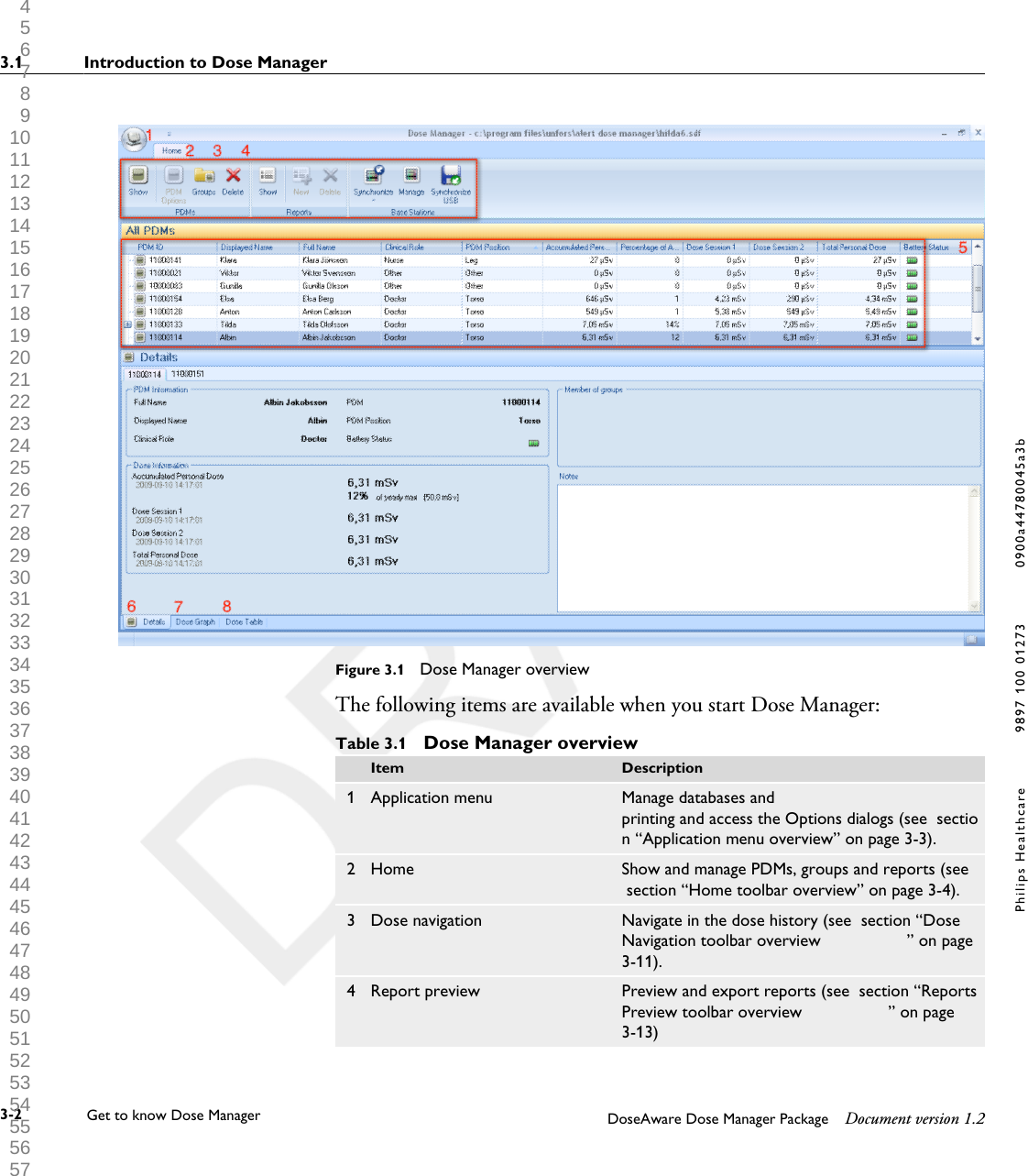
Figure 3.1  Dose Manager overviewThe following items are available when you start Dose Manager:Table 3.1  Dose Manager overview  Item Description1 Application menu Manage databases andprinting and access the Options dialogs (see  section “Application menu overview” on page 3-3).2 Home Show and manage PDMs, groups and reports (see section “Home toolbar overview” on page 3-4).3 Dose navigation Navigate in the dose history (see  section “DoseNavigation toolbar overview                  ” on page3-11).4 Report preview Preview and export reports (see  section “ReportsPreview toolbar overview                  ” on page3-13)3.1 Introduction to Dose Manager3-2 Get to know Dose Manager    DoseAware Dose Manager Package Document version 1.2Philips Healthcare 9897 100 01273 0900a44780045a3b 1 2 3 4 5 6 7 8 9 10 11 12 13 14 15 16 17 18 19 20 21 22 23 24 25 26 27 28 29 30 31 32 33 34 35 36 37 38 39 40 41 42 43 44 45 46 47 48 49 50 51 52 53 54 55 56 57 58 59 60
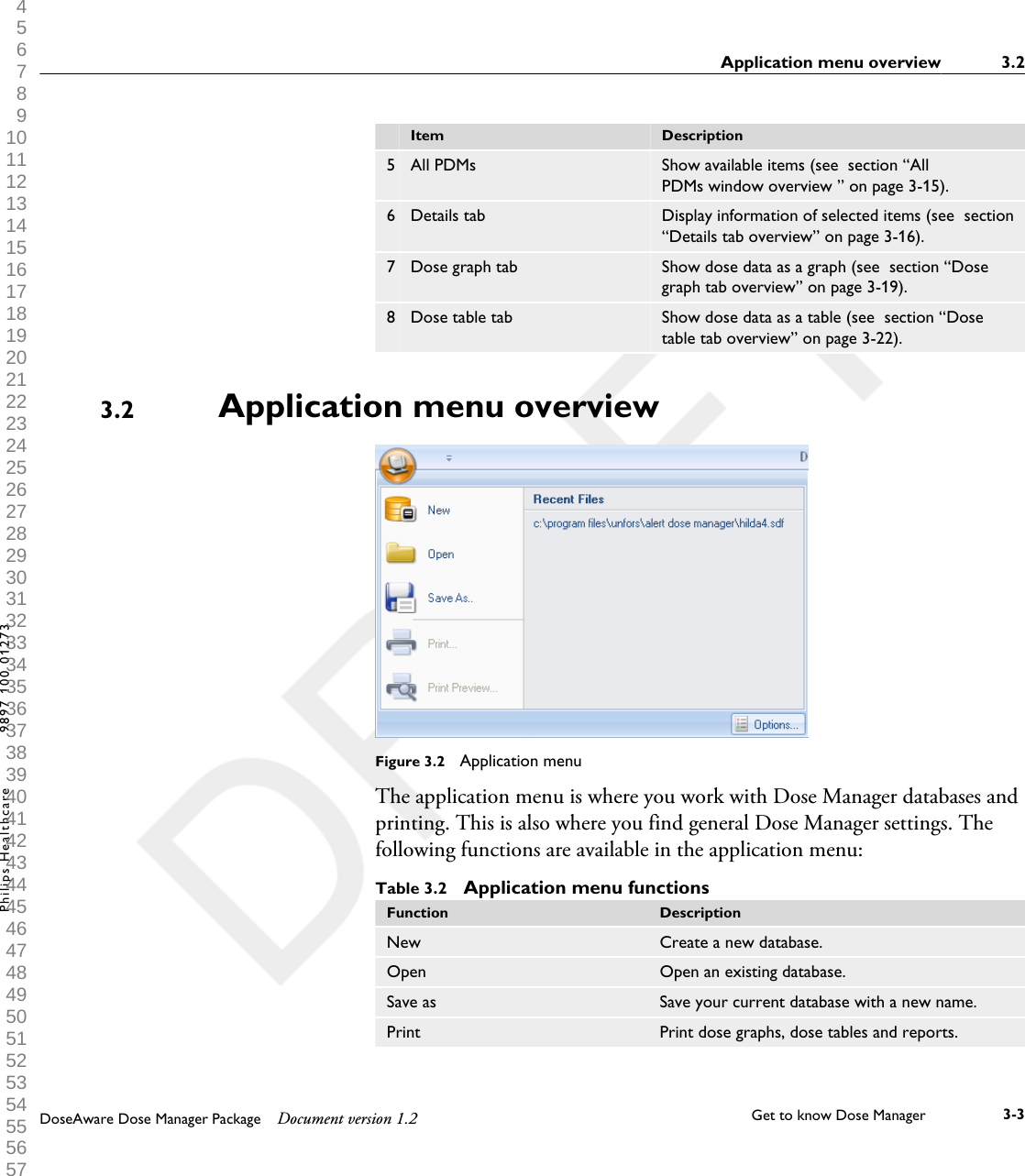
  Item Description5 All PDMs Show available items (see  section “AllPDMs window overview ” on page 3-15).6 Details tab Display information of selected items (see  section“Details tab overview” on page 3-16).7 Dose graph tab Show dose data as a graph (see  section “Dosegraph tab overview” on page 3-19).8 Dose table tab Show dose data as a table (see  section “Dosetable tab overview” on page 3-22).Application menu overviewFigure 3.2  Application menuThe application menu is where you work with Dose Manager databases andprinting. This is also where you find general Dose Manager settings. Thefollowing functions are available in the application menu:Table 3.2  Application menu functionsFunction DescriptionNew Create a new database.Open Open an existing database.Save as Save your current database with a new name.Print Print dose graphs, dose tables and reports.3.2Application menu overview 3.2DoseAware Dose Manager Package Document version 1.2 Get to know Dose Manager    3-3Philips Healthcare 9897 100 01273 1 2 3 4 5 6 7 8 9 10 11 12 13 14 15 16 17 18 19 20 21 22 23 24 25 26 27 28 29 30 31 32 33 34 35 36 37 38 39 40 41 42 43 44 45 46 47 48 49 50 51 52 53 54 55 56 57 58 59 60
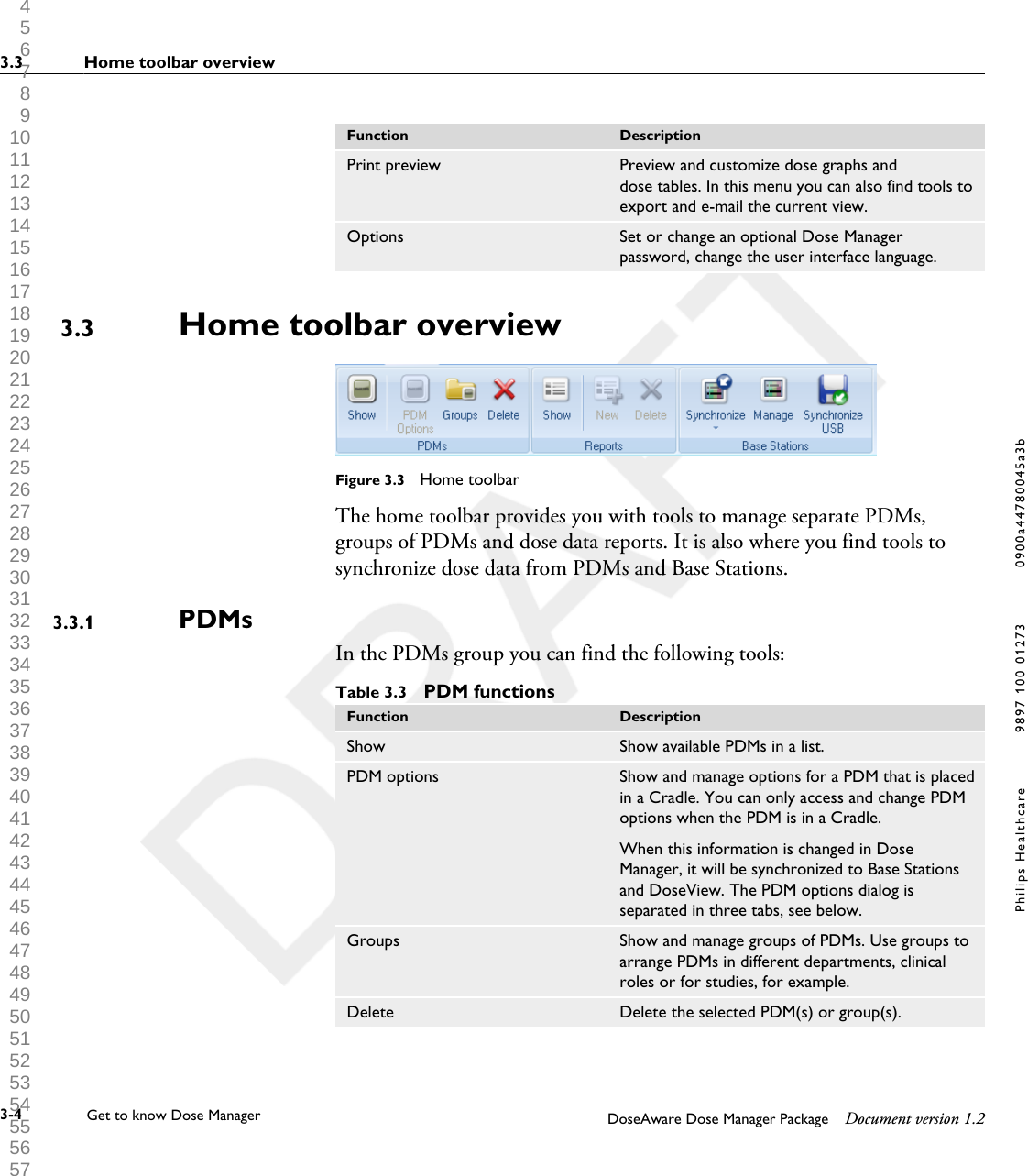
Function DescriptionPrint preview Preview and customize dose graphs anddose tables. In this menu you can also find tools toexport and e-mail the current view.Options Set or change an optional Dose Managerpassword, change the user interface language.Home toolbar overviewFigure 3.3  Home toolbarThe home toolbar provides you with tools to manage separate PDMs,groups of PDMs and dose data reports. It is also where you find tools tosynchronize dose data from PDMs and Base Stations.PDMsIn the PDMs group you can find the following tools:Table 3.3  PDM functionsFunction DescriptionShow Show available PDMs in a list.PDM options Show and manage options for a PDM that is placedin a Cradle. You can only access and change PDMoptions when the PDM is in a Cradle.When this information is changed in DoseManager, it will be synchronized to Base Stationsand DoseView. The PDM options dialog isseparated in three tabs, see below.Groups Show and manage groups of PDMs. Use groups toarrange PDMs in different departments, clinicalroles or for studies, for example.Delete Delete the selected PDM(s) or group(s).3.33.3.13.3 Home toolbar overview3-4 Get to know Dose Manager    DoseAware Dose Manager Package Document version 1.2Philips Healthcare 9897 100 01273 0900a44780045a3b 1 2 3 4 5 6 7 8 9 10 11 12 13 14 15 16 17 18 19 20 21 22 23 24 25 26 27 28 29 30 31 32 33 34 35 36 37 38 39 40 41 42 43 44 45 46 47 48 49 50 51 52 53 54 55 56 57 58 59 60
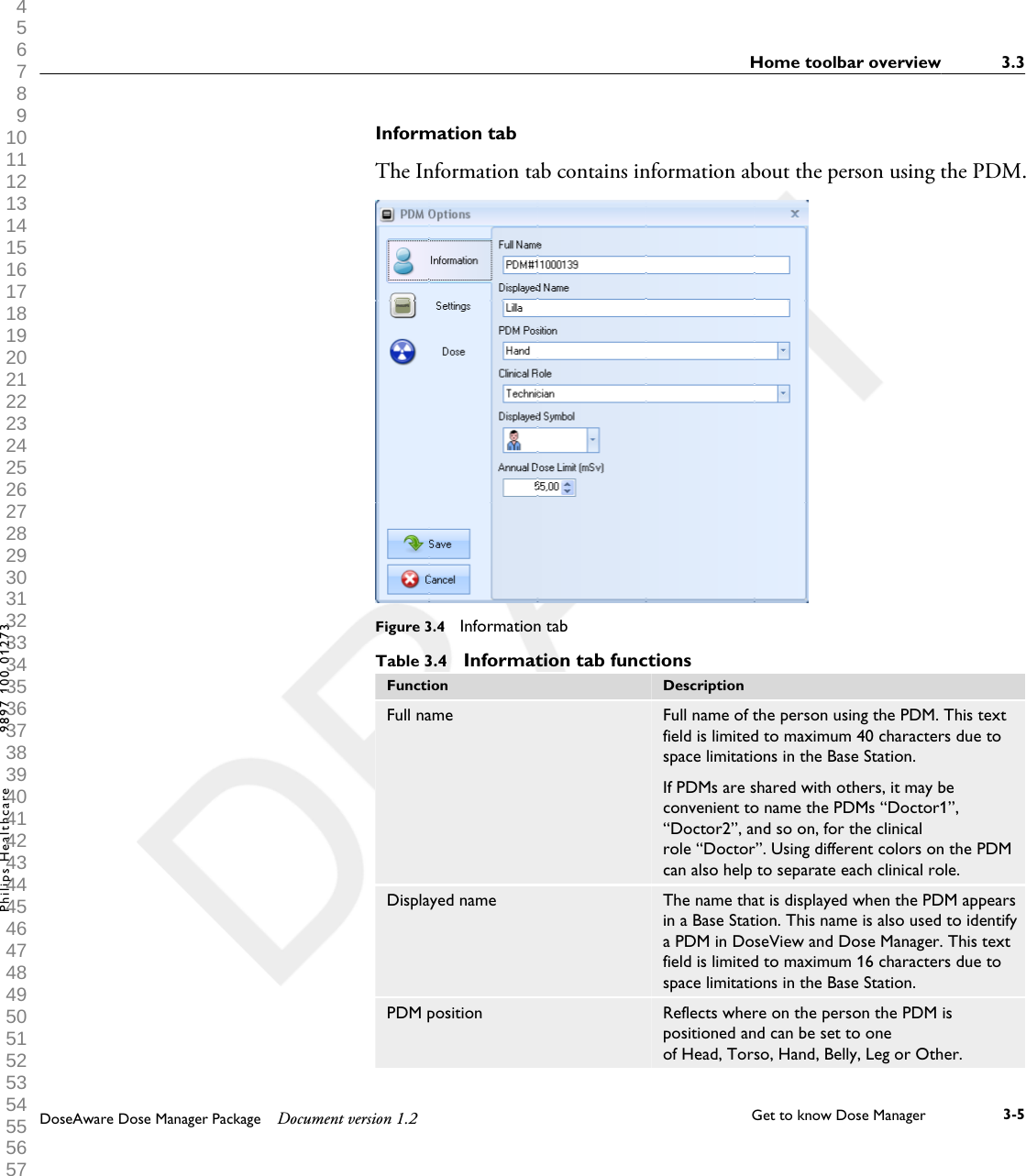
Information tabThe Information tab contains information about the person using the PDM.Figure 3.4  Information tabTable 3.4  Information tab functionsFunction DescriptionFull name Full name of the person using the PDM. This textfield is limited to maximum 40 characters due tospace limitations in the Base Station.If PDMs are shared with others, it may beconvenient to name the PDMs “Doctor1”,“Doctor2”, and so on, for the clinicalrole “Doctor”. Using different colors on the PDMcan also help to separate each clinical role.Displayed name The name that is displayed when the PDM appearsin a Base Station. This name is also used to identifya PDM in DoseView and Dose Manager. This textfield is limited to maximum 16 characters due tospace limitations in the Base Station.PDM position Reflects where on the person the PDM ispositioned and can be set to oneof Head, Torso, Hand, Belly, Leg or Other.Home toolbar overview 3.3DoseAware Dose Manager Package Document version 1.2 Get to know Dose Manager    3-5Philips Healthcare 9897 100 01273 1 2 3 4 5 6 7 8 9 10 11 12 13 14 15 16 17 18 19 20 21 22 23 24 25 26 27 28 29 30 31 32 33 34 35 36 37 38 39 40 41 42 43 44 45 46 47 48 49 50 51 52 53 54 55 56 57 58 59 60
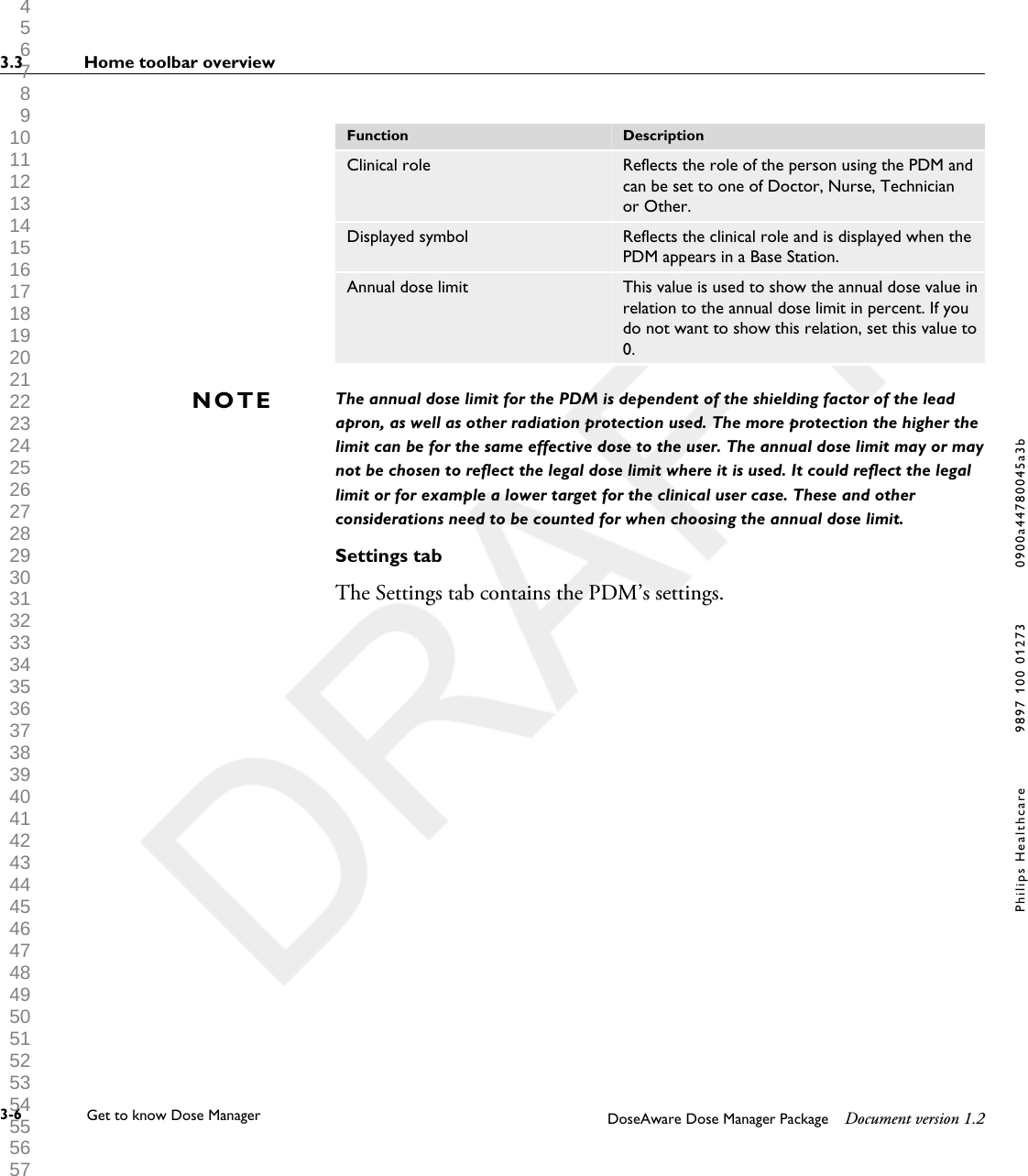
Function DescriptionClinical role Reflects the role of the person using the PDM andcan be set to one of Doctor, Nurse, Technicianor Other.Displayed symbol Reflects the clinical role and is displayed when thePDM appears in a Base Station.Annual dose limit This value is used to show the annual dose value inrelation to the annual dose limit in percent. If youdo not want to show this relation, set this value to0.The annual dose limit for the PDM is dependent of the shielding factor of the leadapron, as well as other radiation protection used. The more protection the higher thelimit can be for the same effective dose to the user. The annual dose limit may or maynot be chosen to reflect the legal dose limit where it is used. It could reflect the legallimit or for example a lower target for the clinical user case. These and otherconsiderations need to be counted for when choosing the annual dose limit.Settings tabThe Settings tab contains the PDM’s settings.NOTE3.3 Home toolbar overview3-6 Get to know Dose Manager    DoseAware Dose Manager Package Document version 1.2Philips Healthcare 9897 100 01273 0900a44780045a3b 1 2 3 4 5 6 7 8 9 10 11 12 13 14 15 16 17 18 19 20 21 22 23 24 25 26 27 28 29 30 31 32 33 34 35 36 37 38 39 40 41 42 43 44 45 46 47 48 49 50 51 52 53 54 55 56 57 58 59 60
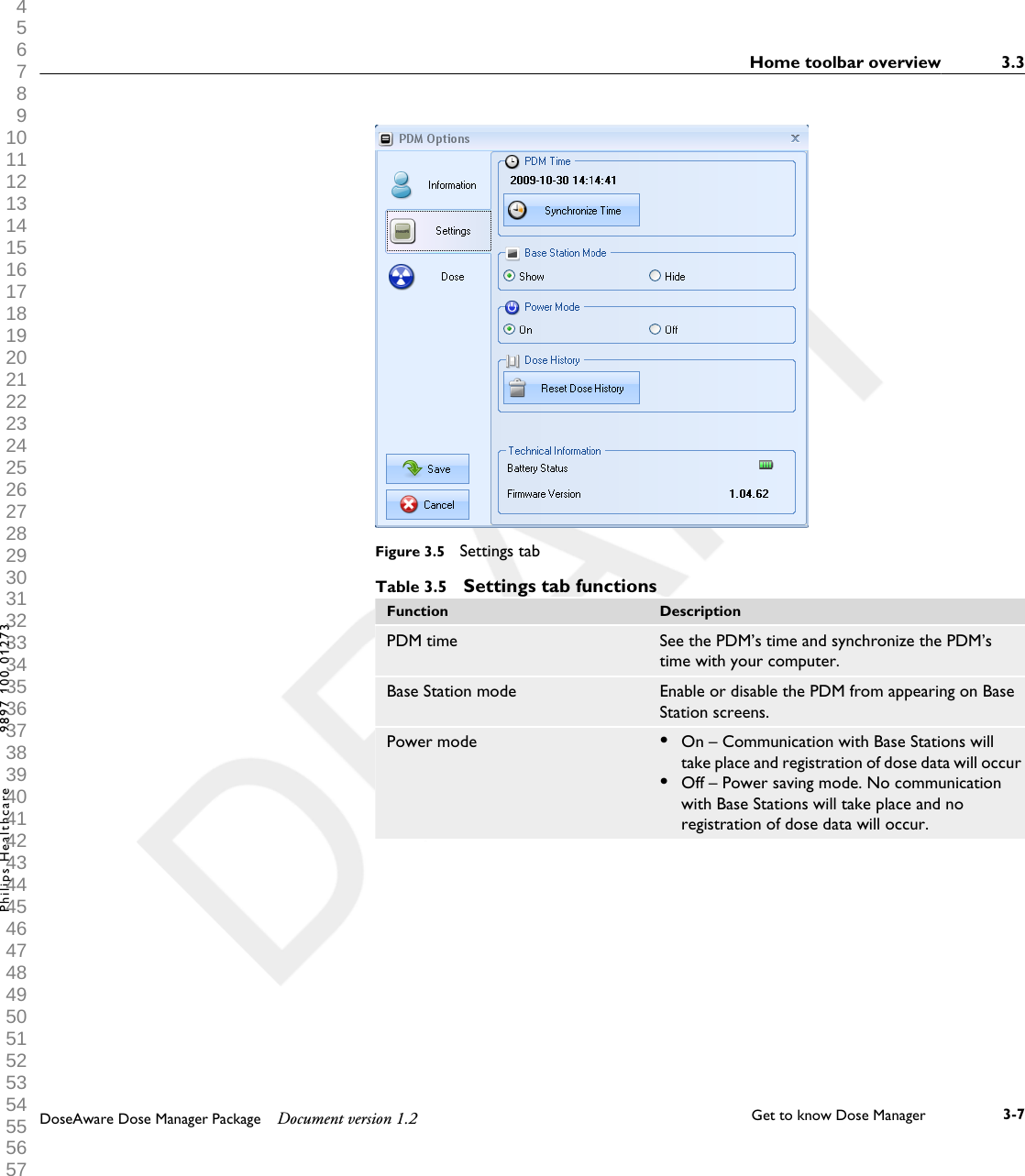
Figure 3.5  Settings tabTable 3.5  Settings tab functionsFunction DescriptionPDM time See the PDM’s time and synchronize the PDM’stime with your computer.Base Station mode Enable or disable the PDM from appearing on BaseStation screens.Power mode •On – Communication with Base Stations willtake place and registration of dose data will occur•Off – Power saving mode. No communicationwith Base Stations will take place and noregistration of dose data will occur.Home toolbar overview 3.3DoseAware Dose Manager Package Document version 1.2 Get to know Dose Manager    3-7Philips Healthcare 9897 100 01273 1 2 3 4 5 6 7 8 9 10 11 12 13 14 15 16 17 18 19 20 21 22 23 24 25 26 27 28 29 30 31 32 33 34 35 36 37 38 39 40 41 42 43 44 45 46 47 48 49 50 51 52 53 54 55 56 57 58 59 60
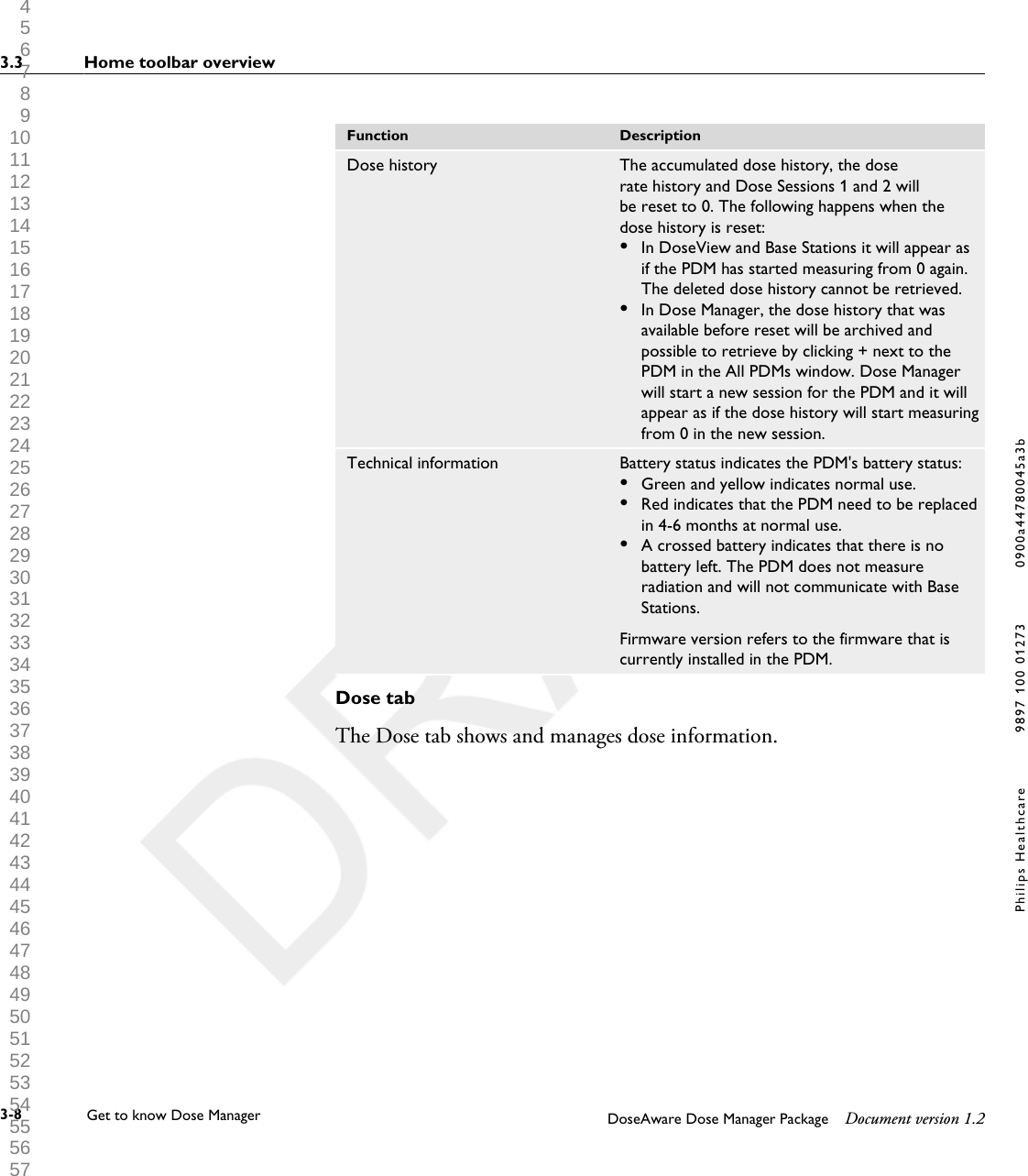
Function DescriptionDose history The accumulated dose history, the doserate history and Dose Sessions 1 and 2 willbe reset to 0. The following happens when thedose history is reset:•In DoseView and Base Stations it will appear asif the PDM has started measuring from 0 again.The deleted dose history cannot be retrieved.•In Dose Manager, the dose history that wasavailable before reset will be archived andpossible to retrieve by clicking + next to thePDM in the All PDMs window. Dose Managerwill start a new session for the PDM and it willappear as if the dose history will start measuringfrom 0 in the new session.Technical information Battery status indicates the PDM's battery status:•Green and yellow indicates normal use.•Red indicates that the PDM need to be replacedin 4-6 months at normal use.•A crossed battery indicates that there is nobattery left. The PDM does not measureradiation and will not communicate with BaseStations.Firmware version refers to the firmware that iscurrently installed in the PDM.Dose tabThe Dose tab shows and manages dose information.3.3 Home toolbar overview3-8 Get to know Dose Manager    DoseAware Dose Manager Package Document version 1.2Philips Healthcare 9897 100 01273 0900a44780045a3b 1 2 3 4 5 6 7 8 9 10 11 12 13 14 15 16 17 18 19 20 21 22 23 24 25 26 27 28 29 30 31 32 33 34 35 36 37 38 39 40 41 42 43 44 45 46 47 48 49 50 51 52 53 54 55 56 57 58 59 60
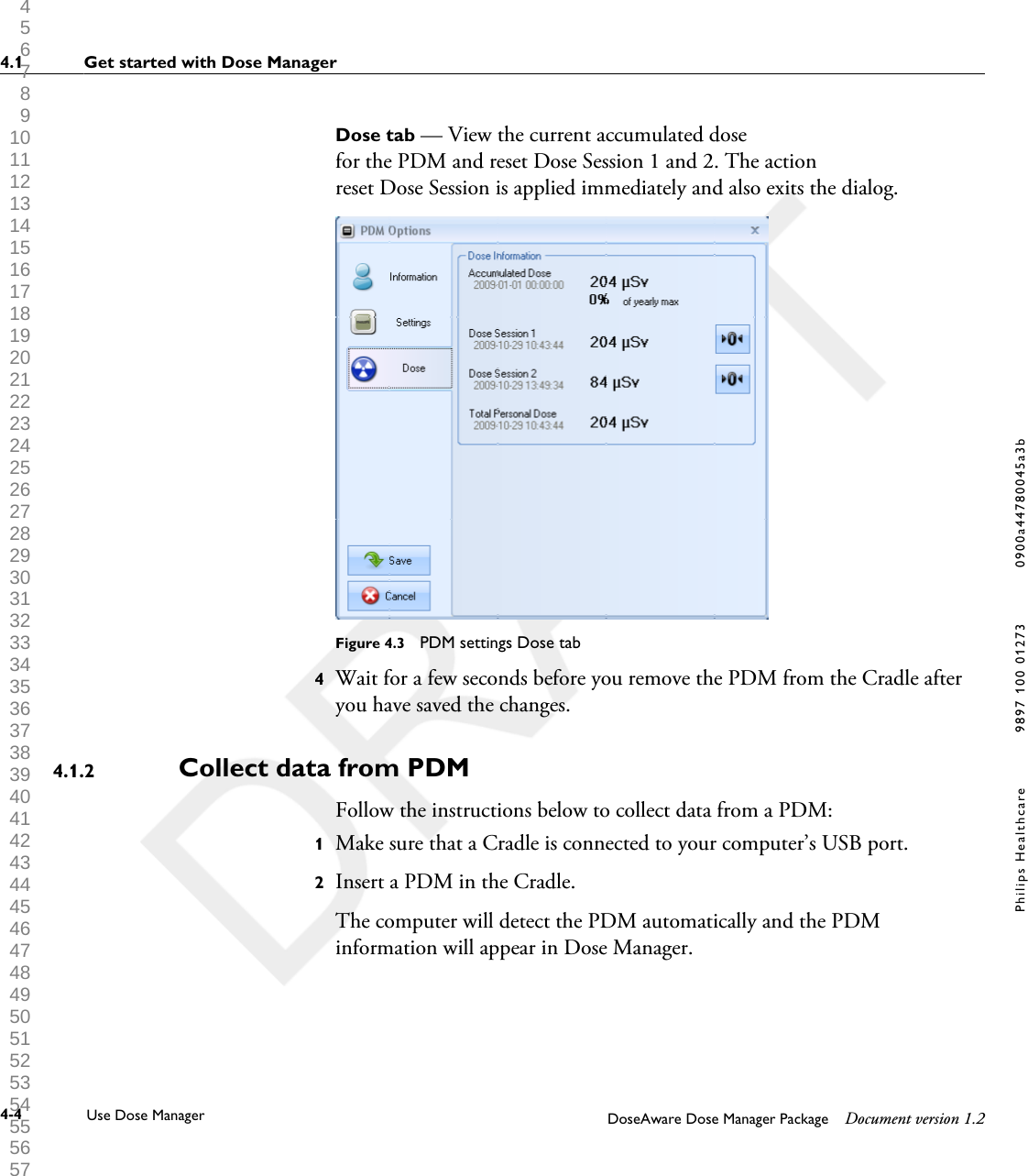
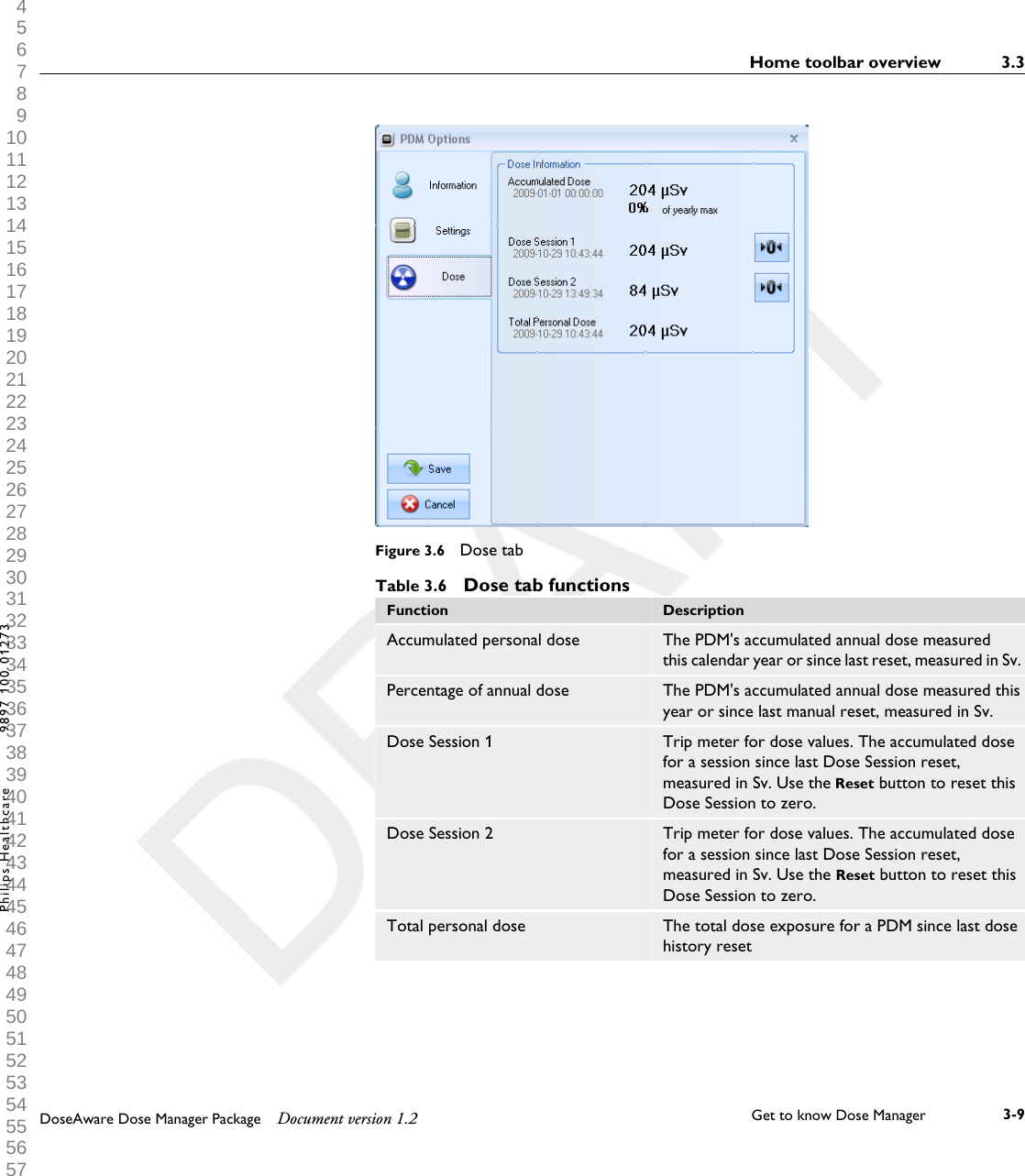
Figure 3.6  Dose tabTable 3.6  Dose tab functionsFunction DescriptionAccumulated personal dose The PDM's accumulated annual dose measuredthis calendar year or since last reset, measured in Sv.Percentage of annual dose The PDM's accumulated annual dose measured thisyear or since last manual reset, measured in Sv.Dose Session 1 Trip meter for dose values. The accumulated dosefor a session since last Dose Session reset,measured in Sv. Use the Reset button to reset thisDose Session to zero.Dose Session 2 Trip meter for dose values. The accumulated dosefor a session since last Dose Session reset,measured in Sv. Use the Reset button to reset thisDose Session to zero.Total personal dose The total dose exposure for a PDM since last dosehistory resetHome toolbar overview 3.3DoseAware Dose Manager Package Document version 1.2 Get to know Dose Manager    3-9Philips Healthcare 9897 100 01273 1 2 3 4 5 6 7 8 9 10 11 12 13 14 15 16 17 18 19 20 21 22 23 24 25 26 27 28 29 30 31 32 33 34 35 36 37 38 39 40 41 42 43 44 45 46 47 48 49 50 51 52 53 54 55 56 57 58 59 60
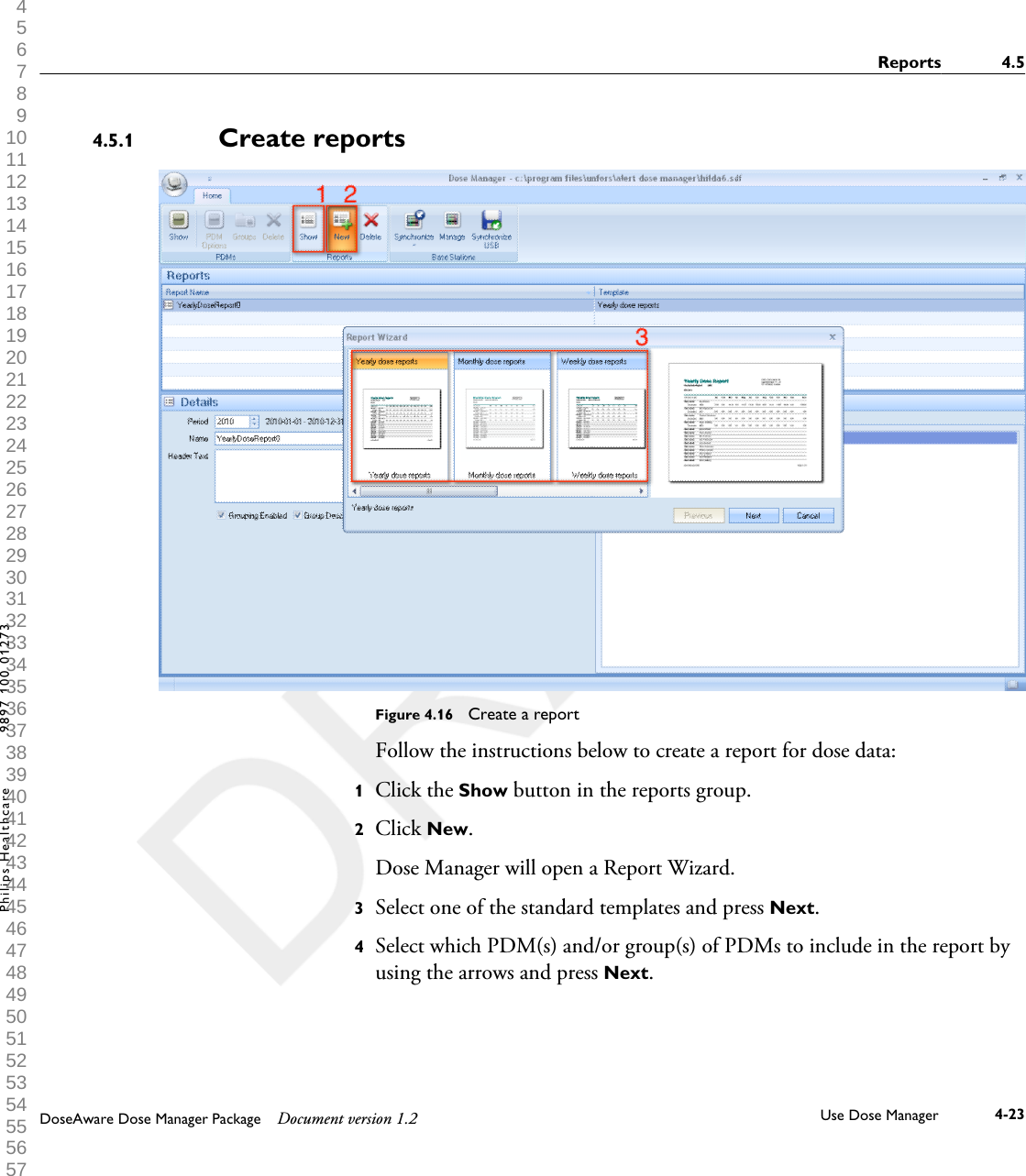
ReportsIn the reports group you can find the following tools:Table 3.7  Reports group functionsFunction DescriptionShow Show all available reports.New Enter the report wizard to create a new report.There are 4 standard report templates available tobase reports upon:•Yearly dose report•Monthly dose report•Weekly dose report•PDM reportDelete Delete the selected report(s).For information about how to work with reports, see section “Reports” onpage 4-22. For information about the reports preview, see section “ReportsPreview toolbar overview                  ” on page 3-13.Base StationsThe Base Stations group provides the following tools:Table 3.8  Base Stations group functionsFunction DescriptionSynchronize Synchronize data from Base Stations that are addedto Dose Manager.Manage Find Base Stations in your local network and addthem to Dose Manager. Manage Base Stations thatare added to Dose Manager.Synchronize USB Synchronize Base Station data from USB.3.3.23.3.33.3 Home toolbar overview3-10 Get to know Dose Manager    DoseAware Dose Manager Package Document version 1.2Philips Healthcare 9897 100 01273 0900a44780045a3b 1 2 3 4 5 6 7 8 9 10 11 12 13 14 15 16 17 18 19 20 21 22 23 24 25 26 27 28 29 30 31 32 33 34 35 36 37 38 39 40 41 42 43 44 45 46 47 48 49 50 51 52 53 54 55 56 57 58 59 60
Dose Navigation toolbar overview                  Figure 3.7  Dose Navigation toolbarThe Dose Navigation toolbar is where you find tools to navigate in dosegraphs and dose tables. The following items are available in the DoseNavigation toolbar:Navigation groupThe Navigation group contains access tools for dose history navigation.Table 3.9  Navigation group functionsFunction DescriptionUndo zoom Move one step back in a sequence of zoom actions,showing the last selected time range.Redo zoom Move one step forward in a sequence of zoomactions, showing the time range that was selectedbefore the last undo zoom action.Show all Show all available data for the selected PDM(s).The time range will start the first date any PDMbegun to measure dose and stop the last date anyPDM was synchronized.Left Shift the time range one step backward. If you haveselected year/month/week/day, the time rangewill move one year/month/week/day backward.If you have selected another time range, the timerange will move approximately 10% backward.Right Shift the time range one step forward. If you haveselected year/month/week/day, the time range willmove one year/month/week/day forward. If youhave selected another time range, the time rangewill move approximately 10% forward.Day View dose history for the current day.Week View dose history for the current week.Month View dose history for the current month.3.4Dose Navigation toolbar overview                   3.4DoseAware Dose Manager Package Document version 1.2 Get to know Dose Manager    3-11Philips Healthcare 9897 100 01273 1 2 3 4 5 6 7 8 9 10 11 12 13 14 15 16 17 18 19 20 21 22 23 24 25 26 27 28 29 30 31 32 33 34 35 36 37 38 39 40 41 42 43 44 45 46 47 48 49 50 51 52 53 54 55 56 57 58 59 60
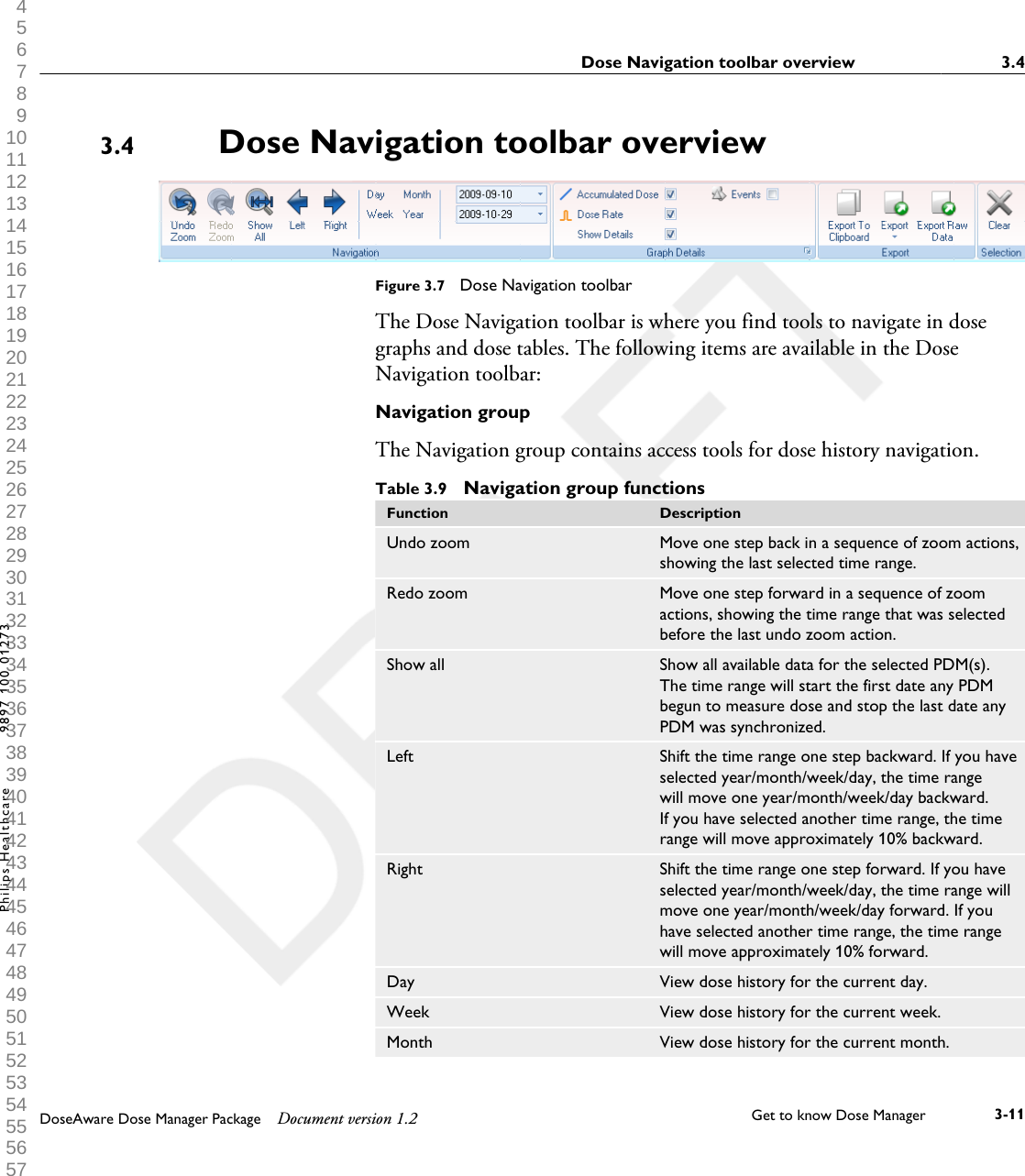
Function DescriptionYear View dose history for the current year.Start time The viewed time range start day.End time The viewed time range end day.Graph Details groupThe Graph Details group allows you to select which information is visible inthe graph.Table 3.10  Graph details group functionsFunction DescriptionAccumulated dose Show/hide the accumulated dose in the graph.Dose rate Show/hide the dose rate in the dose graph.Show details Checked: The graphs will display dose rate samplesfor every second, where such data is available.Unchecked: the graphs will display mean dose ratevalues per hour.Events Show/hide events, such as synchronizationoccasions, in the dose graph.Graph options Enter the graph options dialog, where you canaccess the graph visibility settings and select to show/hide:•Base Station to PDM synchronization occasions.•Cradle to Dose Manager synchronizationoccasions.•Session reset occasions.•Event labels.•Accumulated dose.•Dose rate.•Details.3.4 Dose Navigation toolbar overview                  3-12 Get to know Dose Manager    DoseAware Dose Manager Package Document version 1.2Philips Healthcare 9897 100 01273 0900a44780045a3b 1 2 3 4 5 6 7 8 9 10 11 12 13 14 15 16 17 18 19 20 21 22 23 24 25 26 27 28 29 30 31 32 33 34 35 36 37 38 39 40 41 42 43 44 45 46 47 48 49 50 51 52 53 54 55 56 57 58 59 60
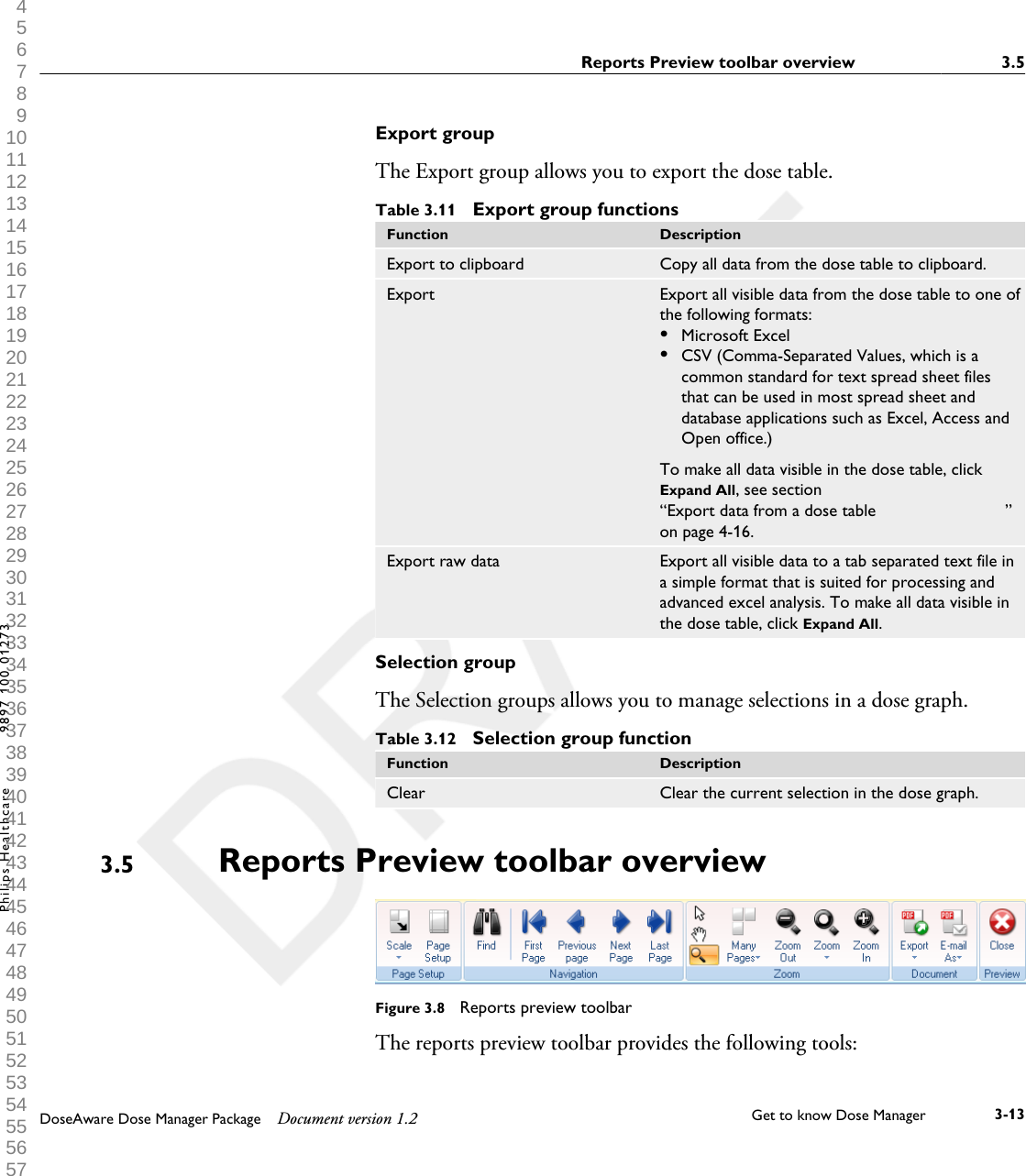
Export groupThe Export group allows you to export the dose table.Table 3.11  Export group functionsFunction DescriptionExport to clipboard Copy all data from the dose table to clipboard.Export Export all visible data from the dose table to one ofthe following formats:•Microsoft Excel•CSV (Comma-Separated Values, which is acommon standard for text spread sheet filesthat can be used in most spread sheet anddatabase applications such as Excel, Access andOpen office.)To make all data visible in the dose table, clickExpand All, see section“Export data from a dose table                           ”on page 4-16.Export raw data Export all visible data to a tab separated text file ina simple format that is suited for processing andadvanced excel analysis. To make all data visible inthe dose table, click Expand All.Selection groupThe Selection groups allows you to manage selections in a dose graph.Table 3.12  Selection group functionFunction DescriptionClear Clear the current selection in the dose graph.Reports Preview toolbar overview                  Figure 3.8  Reports preview toolbarThe reports preview toolbar provides the following tools:3.5Reports Preview toolbar overview                   3.5DoseAware Dose Manager Package Document version 1.2 Get to know Dose Manager    3-13Philips Healthcare 9897 100 01273 1 2 3 4 5 6 7 8 9 10 11 12 13 14 15 16 17 18 19 20 21 22 23 24 25 26 27 28 29 30 31 32 33 34 35 36 37 38 39 40 41 42 43 44 45 46 47 48 49 50 51 52 53 54 55 56 57 58 59 60
Page Setup groupAccess tools to change the layout of the report.Table 3.13  Page setup group functionsFunction DescriptionScale Resize the report to either a percentage of thenormal size or to fit a certain page width.Page setup Change the page layout of the report.Navigation groupAccess tools to navigate in the report.Table 3.14  Navigation group functionsFunction DescriptionFind Search in the report.First page Go to the first page.Previous page Go to the previous page.Next page Go to the next page.Last page Go to the last page.Zoom groupAccess tools to customize the display of the report.Table 3.15  Zoom group functionsFunction DescriptionSelect Select and drag guides in the report to increase ordecrease the margins.Hand tool Move the report within the reports window.Magnifier Increase/decrease the view magnification in thereports window one step.Many pages View one or multiple pages.Zoom out Decrease the view magnification in the reportswindow.Zoom Increase/decrease the view magnification in thereports window to predefined values.Zoom in Decrease the view magnification in the reportswindow.3.5 Reports Preview toolbar overview                  3-14 Get to know Dose Manager    DoseAware Dose Manager Package Document version 1.2Philips Healthcare 9897 100 01273 0900a44780045a3b 1 2 3 4 5 6 7 8 9 10 11 12 13 14 15 16 17 18 19 20 21 22 23 24 25 26 27 28 29 30 31 32 33 34 35 36 37 38 39 40 41 42 43 44 45 46 47 48 49 50 51 52 53 54 55 56 57 58 59 60
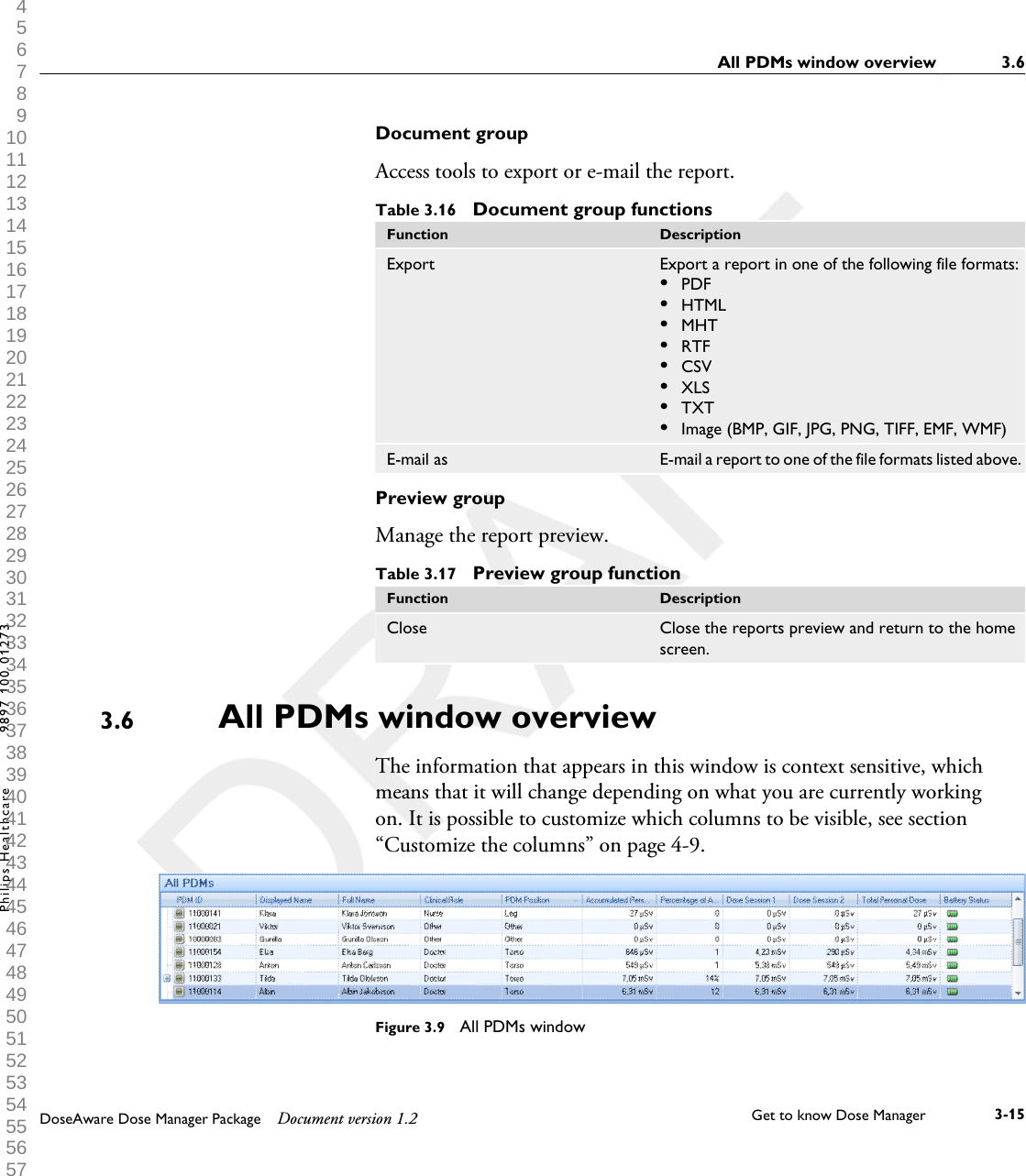
Document groupAccess tools to export or e-mail the report.Table 3.16  Document group functionsFunction DescriptionExport Export a report in one of the following file formats:•PDF•HTML•MHT•RTF•CSV•XLS•TXT•Image (BMP, GIF, JPG, PNG, TIFF, EMF, WMF)E-mail as E-mail a report to one of the file formats listed above.Preview groupManage the report preview.Table 3.17  Preview group functionFunction DescriptionClose Close the reports preview and return to the homescreen.All PDMs window overview The information that appears in this window is context sensitive, whichmeans that it will change depending on what you are currently workingon. It is possible to customize which columns to be visible, see section“Customize the columns” on page 4-9.Figure 3.9  All PDMs window3.6All PDMs window overview  3.6DoseAware Dose Manager Package Document version 1.2 Get to know Dose Manager    3-15Philips Healthcare 9897 100 01273 1 2 3 4 5 6 7 8 9 10 11 12 13 14 15 16 17 18 19 20 21 22 23 24 25 26 27 28 29 30 31 32 33 34 35 36 37 38 39 40 41 42 43 44 45 46 47 48 49 50 51 52 53 54 55 56 57 58 59 60
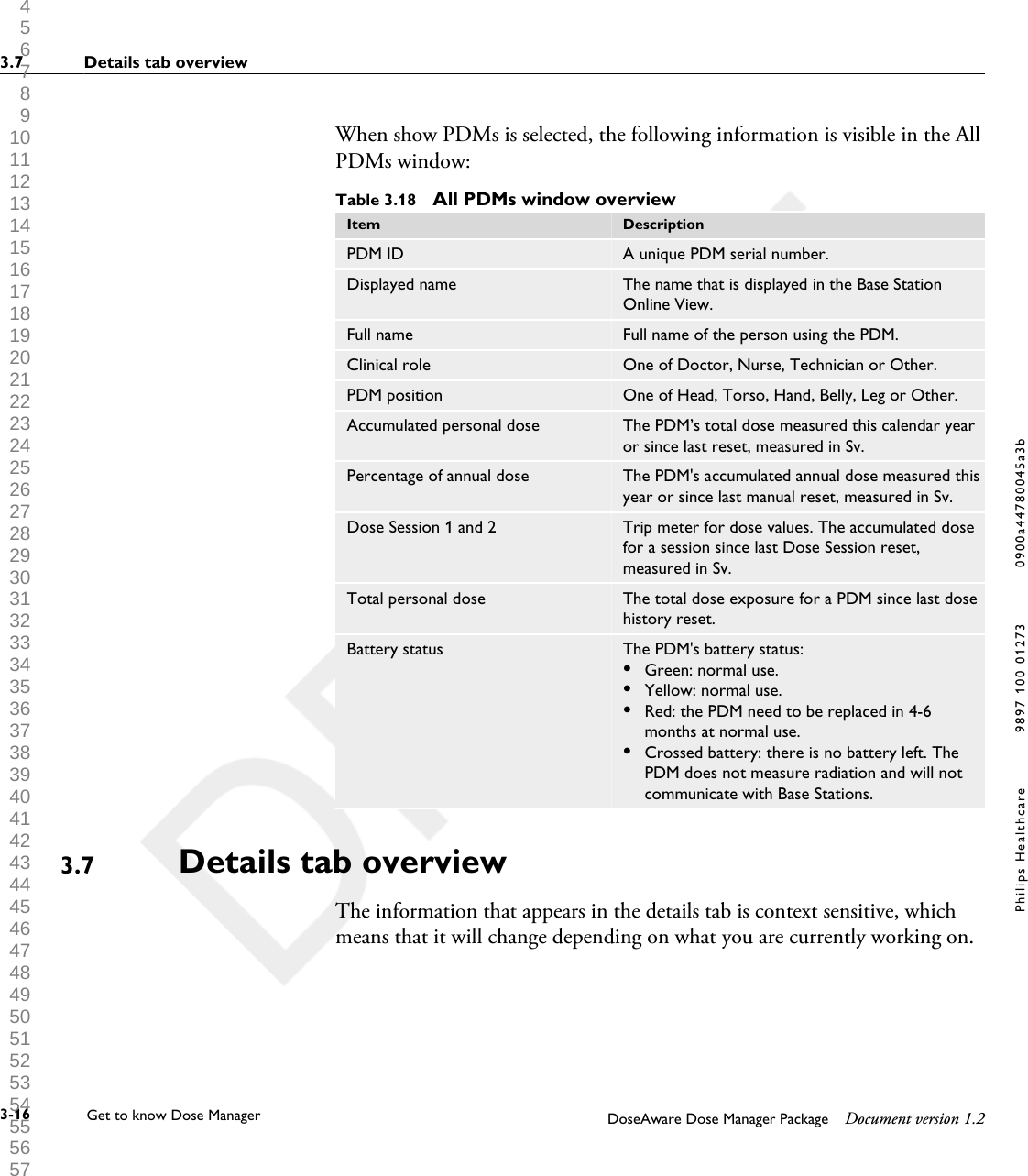
When show PDMs is selected, the following information is visible in the AllPDMs window:Table 3.18  All PDMs window overviewItem DescriptionPDM ID A unique PDM serial number.Displayed name The name that is displayed in the Base StationOnline View.Full name Full name of the person using the PDM.Clinical role One of Doctor, Nurse, Technician or Other.PDM position One of Head, Torso, Hand, Belly, Leg or Other.Accumulated personal dose The PDM’s total dose measured this calendar yearor since last reset, measured in Sv.Percentage of annual dose The PDM's accumulated annual dose measured thisyear or since last manual reset, measured in Sv.Dose Session 1 and 2 Trip meter for dose values. The accumulated dosefor a session since last Dose Session reset,measured in Sv.Total personal dose The total dose exposure for a PDM since last dosehistory reset.Battery status The PDM's battery status:•Green: normal use.•Yellow: normal use.•Red: the PDM need to be replaced in 4-6months at normal use.•Crossed battery: there is no battery left. ThePDM does not measure radiation and will notcommunicate with Base Stations.Details tab overviewThe information that appears in the details tab is context sensitive, whichmeans that it will change depending on what you are currently working on.3.73.7 Details tab overview3-16 Get to know Dose Manager    DoseAware Dose Manager Package Document version 1.2Philips Healthcare 9897 100 01273 0900a44780045a3b 1 2 3 4 5 6 7 8 9 10 11 12 13 14 15 16 17 18 19 20 21 22 23 24 25 26 27 28 29 30 31 32 33 34 35 36 37 38 39 40 41 42 43 44 45 46 47 48 49 50 51 52 53 54 55 56 57 58 59 60
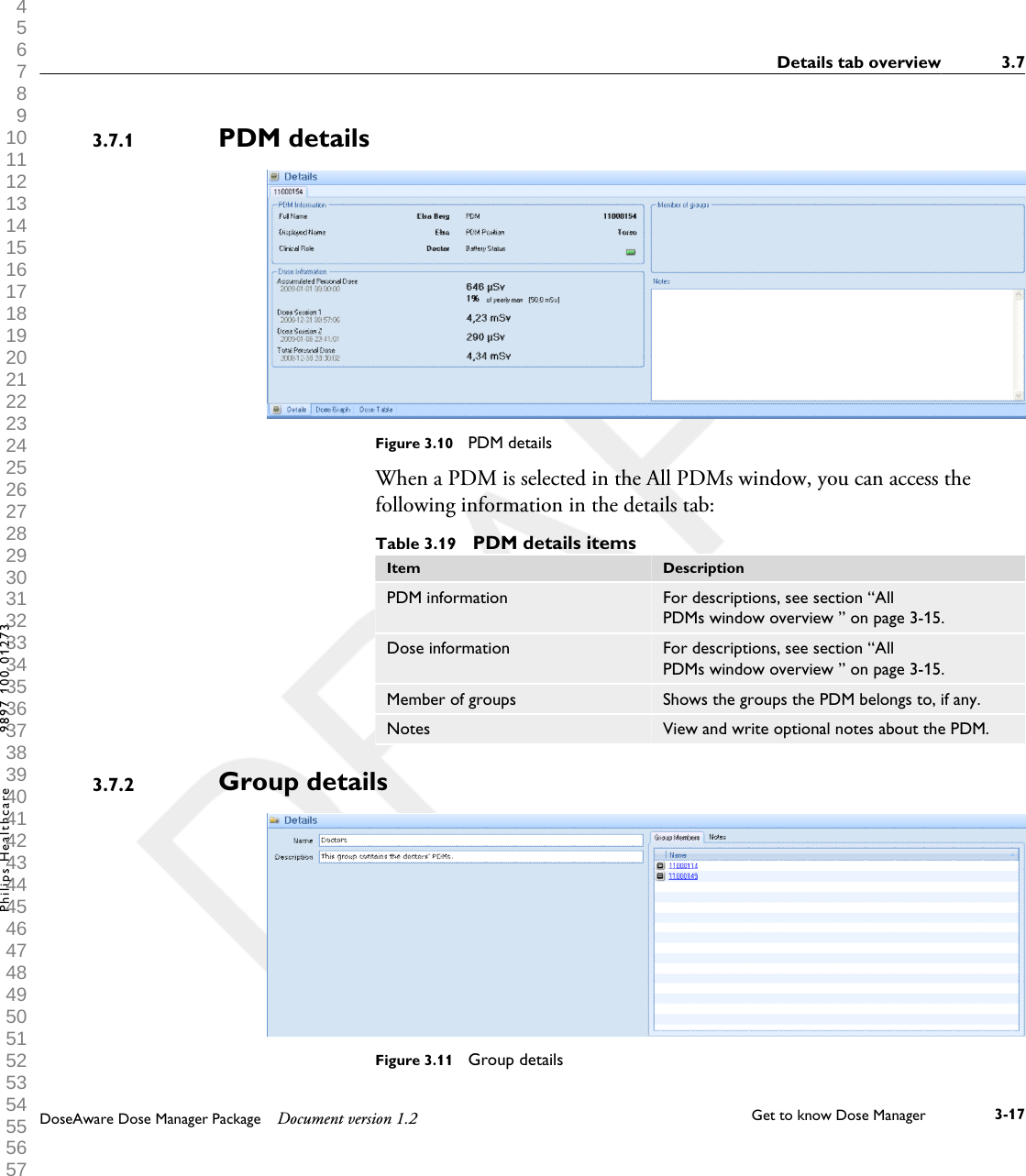
PDM detailsFigure 3.10  PDM detailsWhen a PDM is selected in the All PDMs window, you can access thefollowing information in the details tab:Table 3.19  PDM details itemsItem DescriptionPDM information For descriptions, see section “AllPDMs window overview ” on page 3-15.Dose information For descriptions, see section “AllPDMs window overview ” on page 3-15.Member of groups Shows the groups the PDM belongs to, if any.Notes View and write optional notes about the PDM.Group detailsFigure 3.11  Group details3.7.13.7.2Details tab overview 3.7DoseAware Dose Manager Package Document version 1.2 Get to know Dose Manager    3-17Philips Healthcare 9897 100 01273 1 2 3 4 5 6 7 8 9 10 11 12 13 14 15 16 17 18 19 20 21 22 23 24 25 26 27 28 29 30 31 32 33 34 35 36 37 38 39 40 41 42 43 44 45 46 47 48 49 50 51 52 53 54 55 56 57 58 59 60
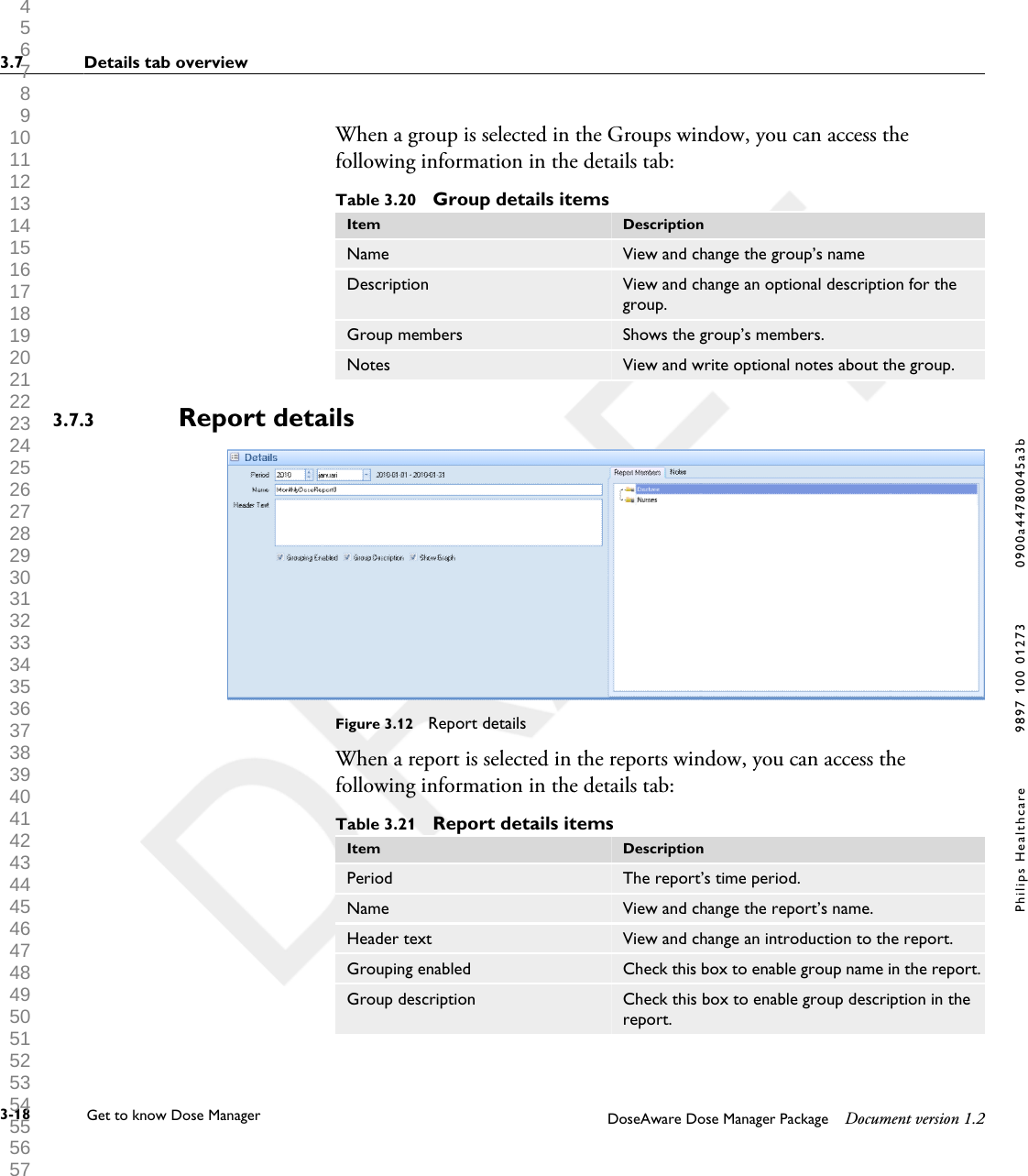
When a group is selected in the Groups window, you can access thefollowing information in the details tab:Table 3.20  Group details itemsItem DescriptionName View and change the group’s nameDescription View and change an optional description for thegroup.Group members Shows the group’s members.Notes View and write optional notes about the group.Report detailsFigure 3.12  Report detailsWhen a report is selected in the reports window, you can access thefollowing information in the details tab:Table 3.21  Report details itemsItem DescriptionPeriod The report’s time period.Name View and change the report’s name.Header text View and change an introduction to the report.Grouping enabled Check this box to enable group name in the report.Group description Check this box to enable group description in thereport.3.7.33.7 Details tab overview3-18 Get to know Dose Manager    DoseAware Dose Manager Package Document version 1.2Philips Healthcare 9897 100 01273 0900a44780045a3b 1 2 3 4 5 6 7 8 9 10 11 12 13 14 15 16 17 18 19 20 21 22 23 24 25 26 27 28 29 30 31 32 33 34 35 36 37 38 39 40 41 42 43 44 45 46 47 48 49 50 51 52 53 54 55 56 57 58 59 60
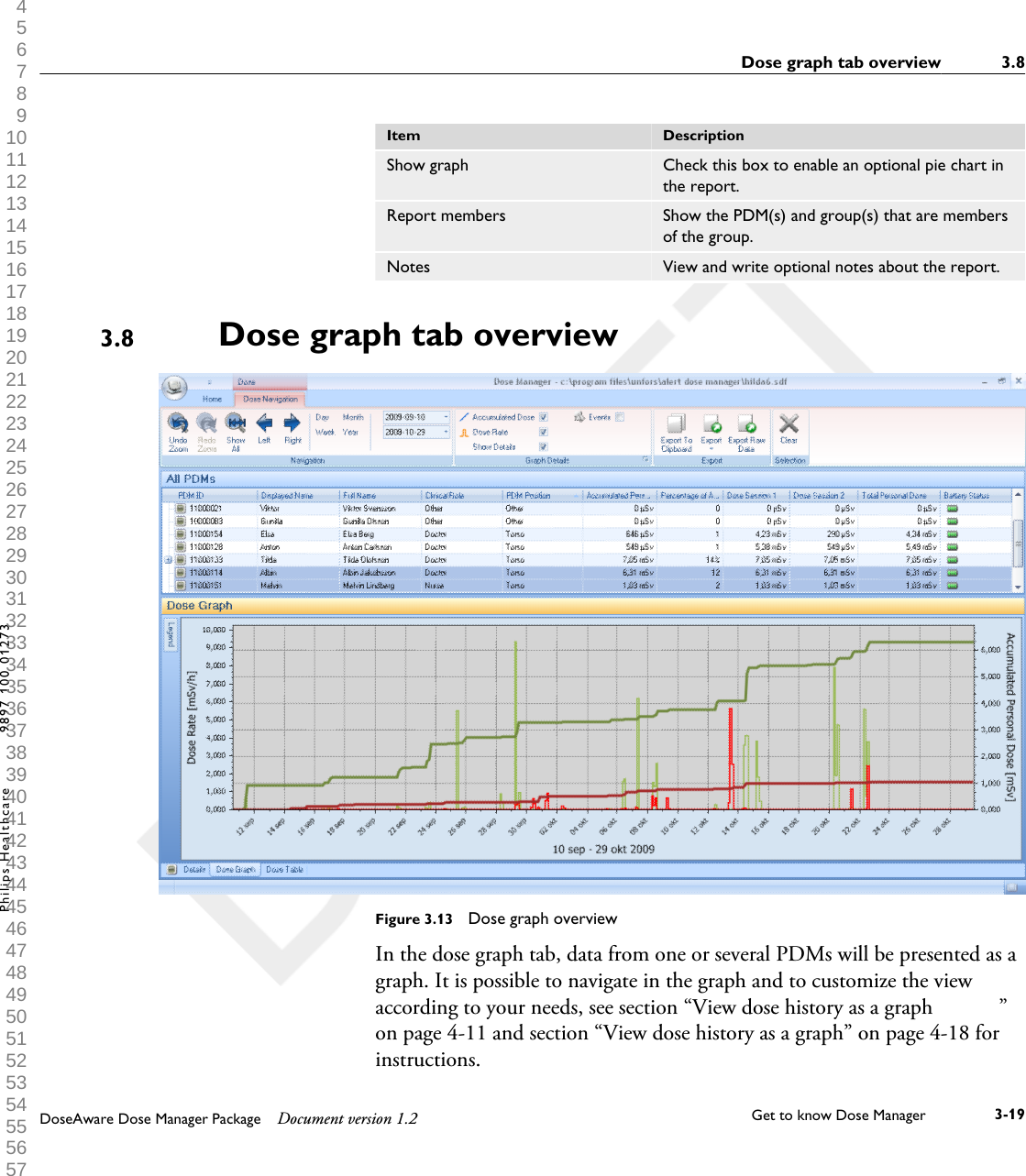
Item DescriptionShow graph Check this box to enable an optional pie chart inthe report.Report members Show the PDM(s) and group(s) that are membersof the group.Notes View and write optional notes about the report.Dose graph tab overviewFigure 3.13  Dose graph overviewIn the dose graph tab, data from one or several PDMs will be presented as agraph. It is possible to navigate in the graph and to customize the viewaccording to your needs, see section “View dose history as a graph            ”on page 4-11 and section “View dose history as a graph” on page 4-18 forinstructions.3.8Dose graph tab overview 3.8DoseAware Dose Manager Package Document version 1.2 Get to know Dose Manager    3-19Philips Healthcare 9897 100 01273 1 2 3 4 5 6 7 8 9 10 11 12 13 14 15 16 17 18 19 20 21 22 23 24 25 26 27 28 29 30 31 32 33 34 35 36 37 38 39 40 41 42 43 44 45 46 47 48 49 50 51 52 53 54 55 56 57 58 59 60
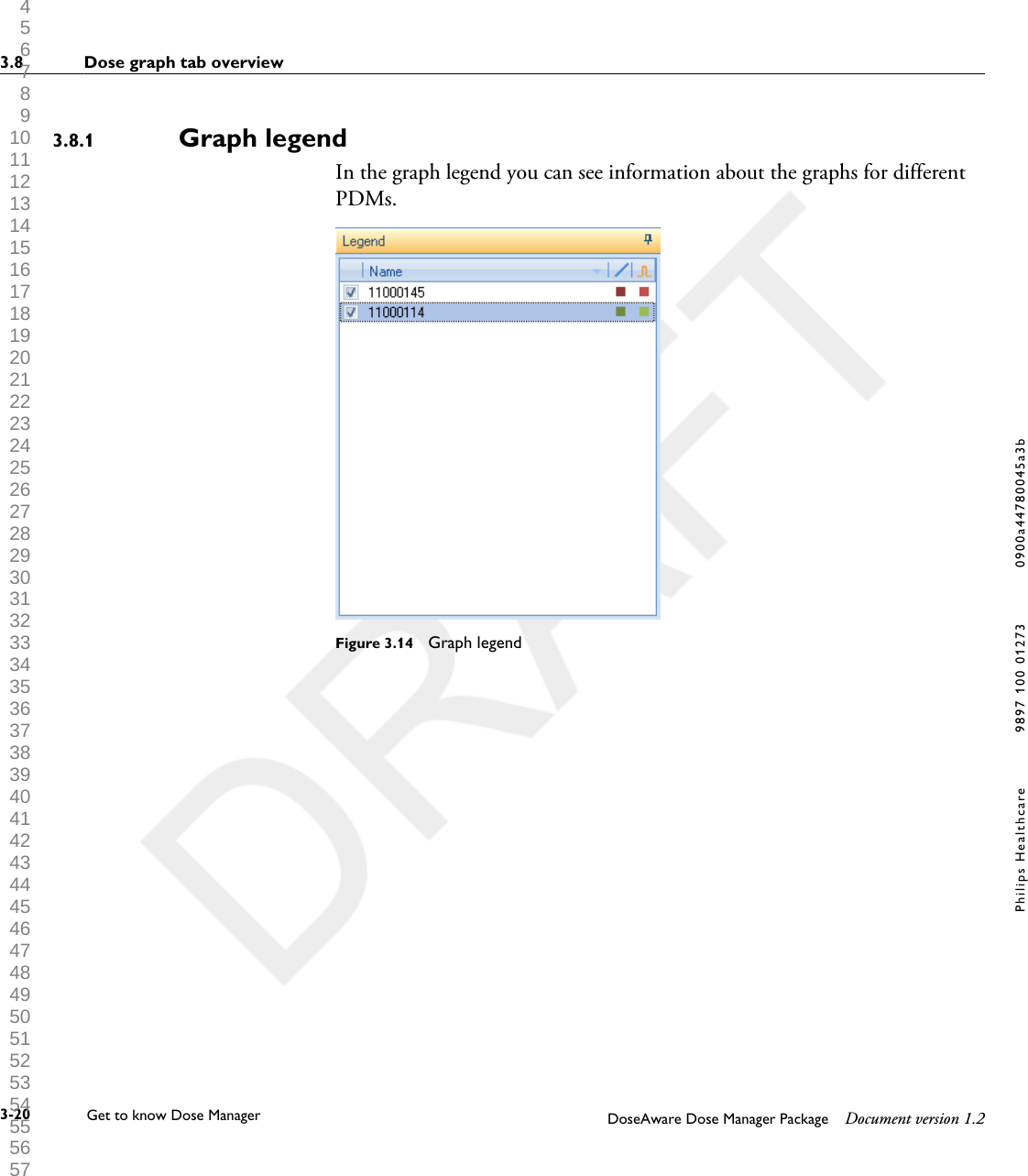
Graph legendIn the graph legend you can see information about the graphs for differentPDMs.Figure 3.14  Graph legend3.8.13.8 Dose graph tab overview3-20 Get to know Dose Manager    DoseAware Dose Manager Package Document version 1.2Philips Healthcare 9897 100 01273 0900a44780045a3b 1 2 3 4 5 6 7 8 9 10 11 12 13 14 15 16 17 18 19 20 21 22 23 24 25 26 27 28 29 30 31 32 33 34 35 36 37 38 39 40 41 42 43 44 45 46 47 48 49 50 51 52 53 54 55 56 57 58 59 60
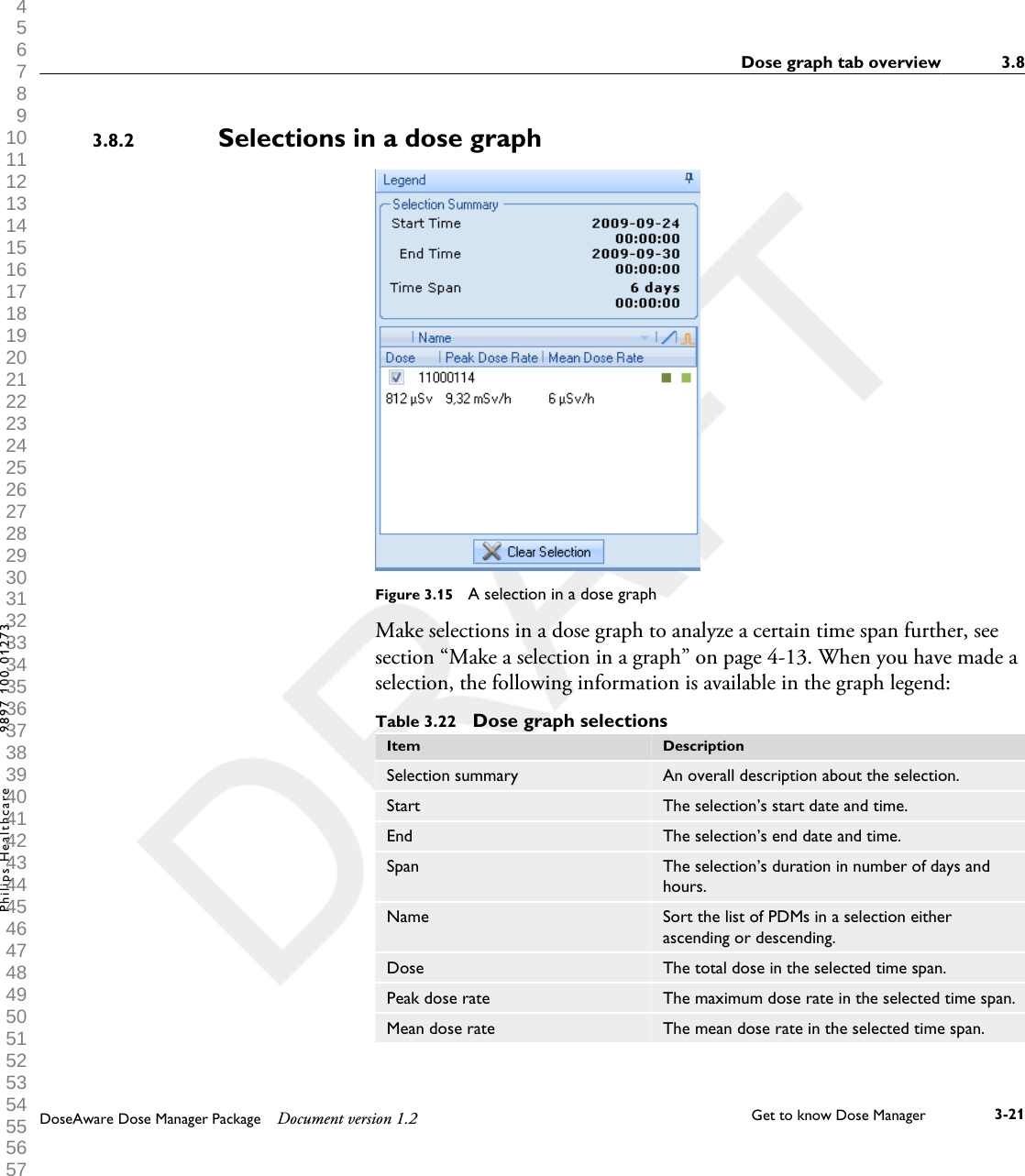
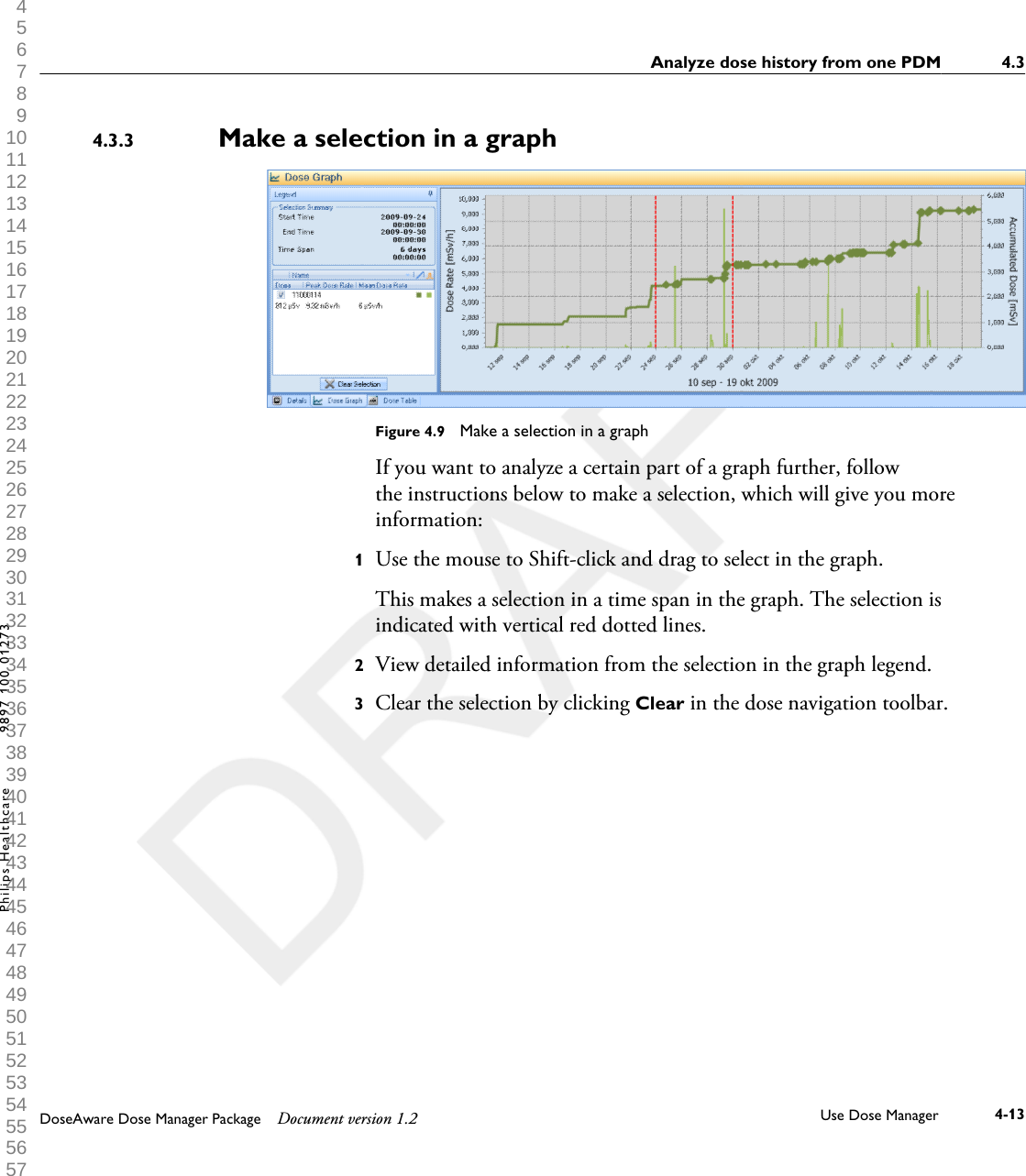
Selections in a dose graphFigure 3.15  A selection in a dose graphMake selections in a dose graph to analyze a certain time span further, seesection “Make a selection in a graph” on page 4-13. When you have made aselection, the following information is available in the graph legend:Table 3.22  Dose graph selectionsItem DescriptionSelection summary An overall description about the selection.Start The selection’s start date and time.End The selection’s end date and time.Span The selection’s duration in number of days andhours.Name Sort the list of PDMs in a selection eitherascending or descending.Dose The total dose in the selected time span.Peak dose rate The maximum dose rate in the selected time span.Mean dose rate The mean dose rate in the selected time span.3.8.2Dose graph tab overview 3.8DoseAware Dose Manager Package Document version 1.2 Get to know Dose Manager    3-21Philips Healthcare 9897 100 01273 1 2 3 4 5 6 7 8 9 10 11 12 13 14 15 16 17 18 19 20 21 22 23 24 25 26 27 28 29 30 31 32 33 34 35 36 37 38 39 40 41 42 43 44 45 46 47 48 49 50 51 52 53 54 55 56 57 58 59 60
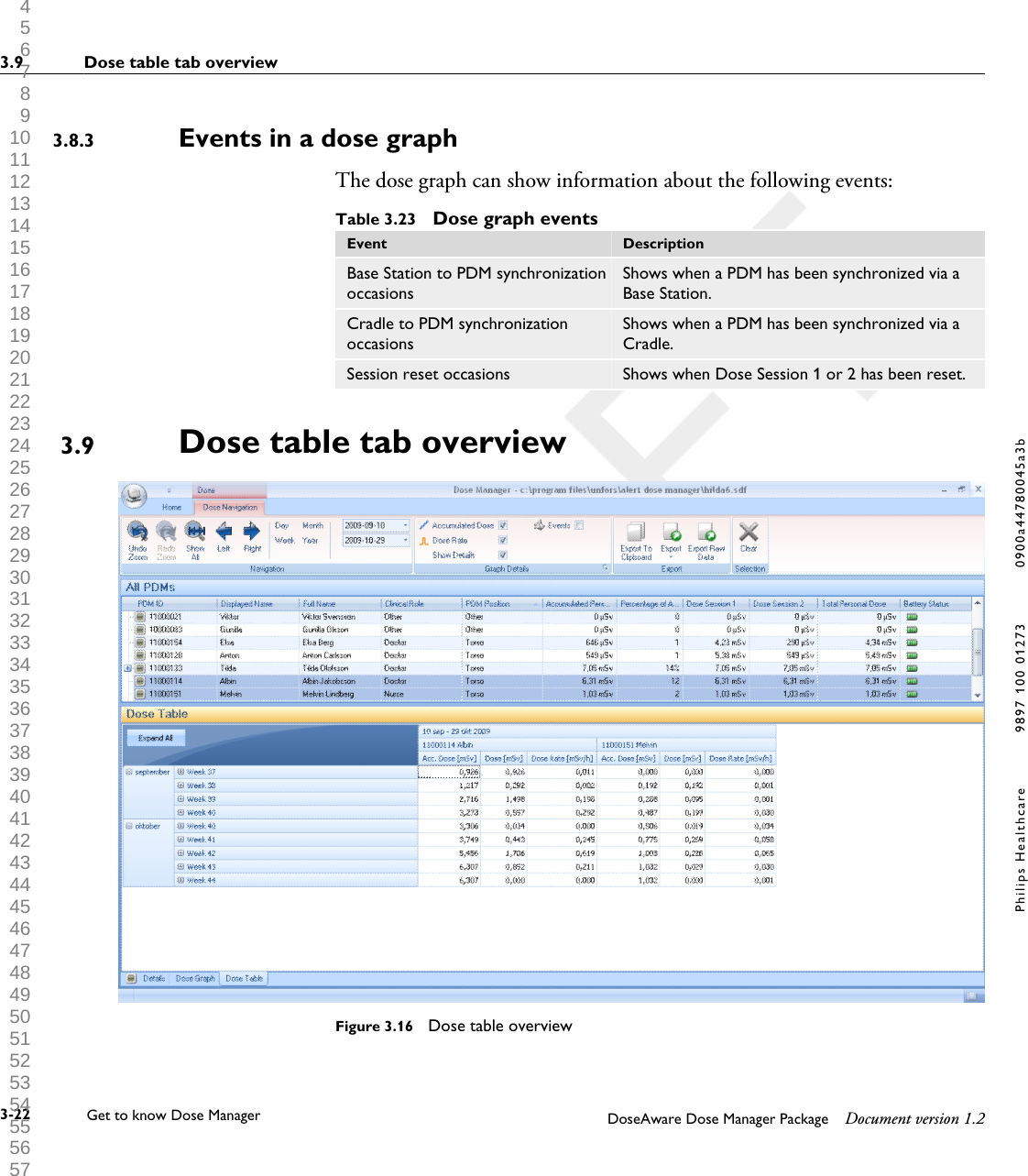
Events in a dose graphThe dose graph can show information about the following events:Table 3.23  Dose graph eventsEvent DescriptionBase Station to PDM synchronizationoccasionsShows when a PDM has been synchronized via aBase Station.Cradle to PDM synchronizationoccasionsShows when a PDM has been synchronized via aCradle.Session reset occasions Shows when Dose Session 1 or 2 has been reset.Dose table tab overviewFigure 3.16  Dose table overview3.8.33.93.9 Dose table tab overview3-22 Get to know Dose Manager    DoseAware Dose Manager Package Document version 1.2Philips Healthcare 9897 100 01273 0900a44780045a3b 1 2 3 4 5 6 7 8 9 10 11 12 13 14 15 16 17 18 19 20 21 22 23 24 25 26 27 28 29 30 31 32 33 34 35 36 37 38 39 40 41 42 43 44 45 46 47 48 49 50 51 52 53 54 55 56 57 58 59 60
In the dose table tab, data from one or several PDMs will be presented asa table. It is possible to navigate in the table and to customize the viewaccording to your needs, see section “View dose history as a graph            ”on page 4-11 and section “View dose history as a graph” on page 4-18 forinstructions.Dose table tab overview 3.9DoseAware Dose Manager Package Document version 1.2 Get to know Dose Manager    3-23Philips Healthcare 9897 100 01273 1 2 3 4 5 6 7 8 9 10 11 12 13 14 15 16 17 18 19 20 21 22 23 24 25 26 27 28 29 30 31 32 33 34 35 36 37 38 39 40 41 42 43 44 45 46 47 48 49 50 51 52 53 54 55 56 57 58 59 60
3.9 Dose table tab overview3-24 Get to know Dose Manager    DoseAware Dose Manager Package Document version 1.2Philips Healthcare 9897 100 01273 0900a44780045a3b 1 2 3 4 5 6 7 8 9 10 11 12 13 14 15 16 17 18 19 20 21 22 23 24 25 26 27 28 29 30 31 32 33 34 35 36 37 38 39 40 41 42 43 44 45 46 47 48 49 50 51 52 53 54 55 56 57 58 59 60
Use Dose ManagerThis chapter contains instructions and commonly used workflows in DoseManager. Detailed descriptions of all the available features are found insection “Get to know Dose Manager   ” on page 3-1.Get started with Dose ManagerChange PDM information and settingsWhen you change the PDM’s information and settings in DoseManager the PDM will synchronize these changes to Base Stations andDoseView. It is only possible to access and change the PDM options when the PDM is placed ina Cradle.Follow the instructions below to change PDM information and settings:1Make sure that a Cradle is connected to your computer’s USB port.2Insert a PDM in the Cradle.The computer will detect the PDM automatically and the PDMinformation will appear in Dose Manager.3Access the PDM options dialog by clicking the PDM options button in thePDM Group in the Home tab.The PDM options dialog is separated in three tabs. For descriptions aboutthe information that is available in these tabs, see section “PDMs” on page3-4.44.14.1.1NOTEDoseAware Dose Manager Package Document version 1.2 Use Dose Manager 4-1Philips Healthcare 9897 100 01273 1 2 3 4 5 6 7 8 9 10 11 12 13 14 15 16 17 18 19 20 21 22 23 24 25 26 27 28 29 30 31 32 33 34 35 36 37 38 39 40 41 42 43 44 45 46 47 48 49 50 51 52 53 54 55 56 57 58 59 60
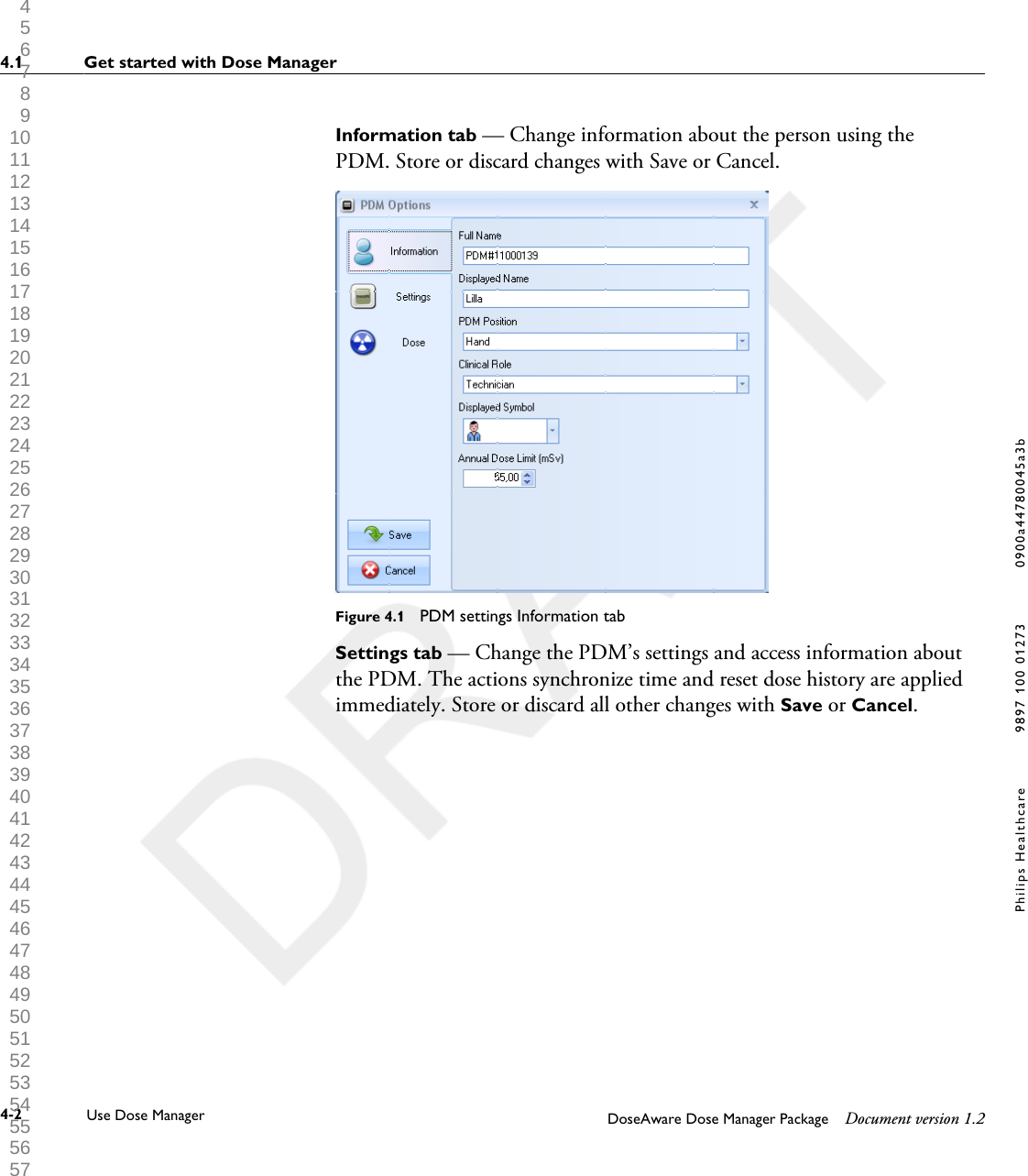
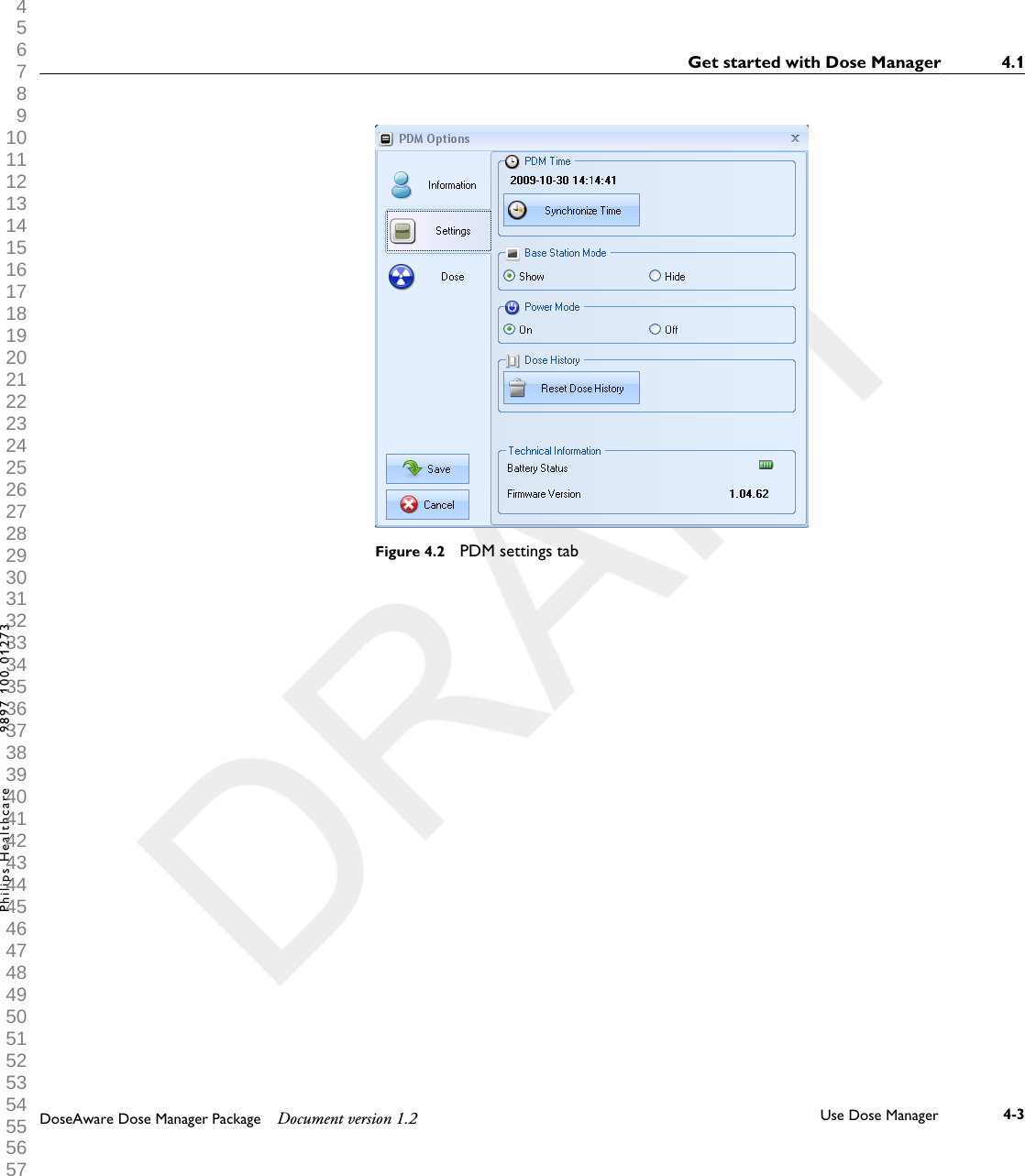
Information tab — Change information about the person using thePDM. Store or discard changes with Save or Cancel.Figure 4.1  PDM settings Information tabSettings tab — Change the PDM’s settings and access information aboutthe PDM. The actions synchronize time and reset dose history are appliedimmediately. Store or discard all other changes with Save or Cancel.4.1 Get started with Dose Manager4-2 Use Dose Manager DoseAware Dose Manager Package Document version 1.2Philips Healthcare 9897 100 01273 0900a44780045a3b 1 2 3 4 5 6 7 8 9 10 11 12 13 14 15 16 17 18 19 20 21 22 23 24 25 26 27 28 29 30 31 32 33 34 35 36 37 38 39 40 41 42 43 44 45 46 47 48 49 50 51 52 53 54 55 56 57 58 59 60
Figure 4.2  PDM settings tabGet started with Dose Manager 4.1DoseAware Dose Manager Package Document version 1.2 Use Dose Manager 4-3Philips Healthcare 9897 100 01273 1 2 3 4 5 6 7 8 9 10 11 12 13 14 15 16 17 18 19 20 21 22 23 24 25 26 27 28 29 30 31 32 33 34 35 36 37 38 39 40 41 42 43 44 45 46 47 48 49 50 51 52 53 54 55 56 57 58 59 60
Dose tab — View the current accumulated dosefor the PDM and reset Dose Session 1 and 2. The actionreset Dose Session is applied immediately and also exits the dialog.Figure 4.3  PDM settings Dose tab4Wait for a few seconds before you remove the PDM from the Cradle afteryou have saved the changes.Collect data from PDMFollow the instructions below to collect data from a PDM:1Make sure that a Cradle is connected to your computer’s USB port.2Insert a PDM in the Cradle. The computer will detect the PDM automatically and the PDMinformation will appear in Dose Manager.4.1.24.1 Get started with Dose Manager4-4 Use Dose Manager DoseAware Dose Manager Package Document version 1.2Philips Healthcare 9897 100 01273 0900a44780045a3b 1 2 3 4 5 6 7 8 9 10 11 12 13 14 15 16 17 18 19 20 21 22 23 24 25 26 27 28 29 30 31 32 33 34 35 36 37 38 39 40 41 42 43 44 45 46 47 48 49 50 51 52 53 54 55 56 57 58 59 60
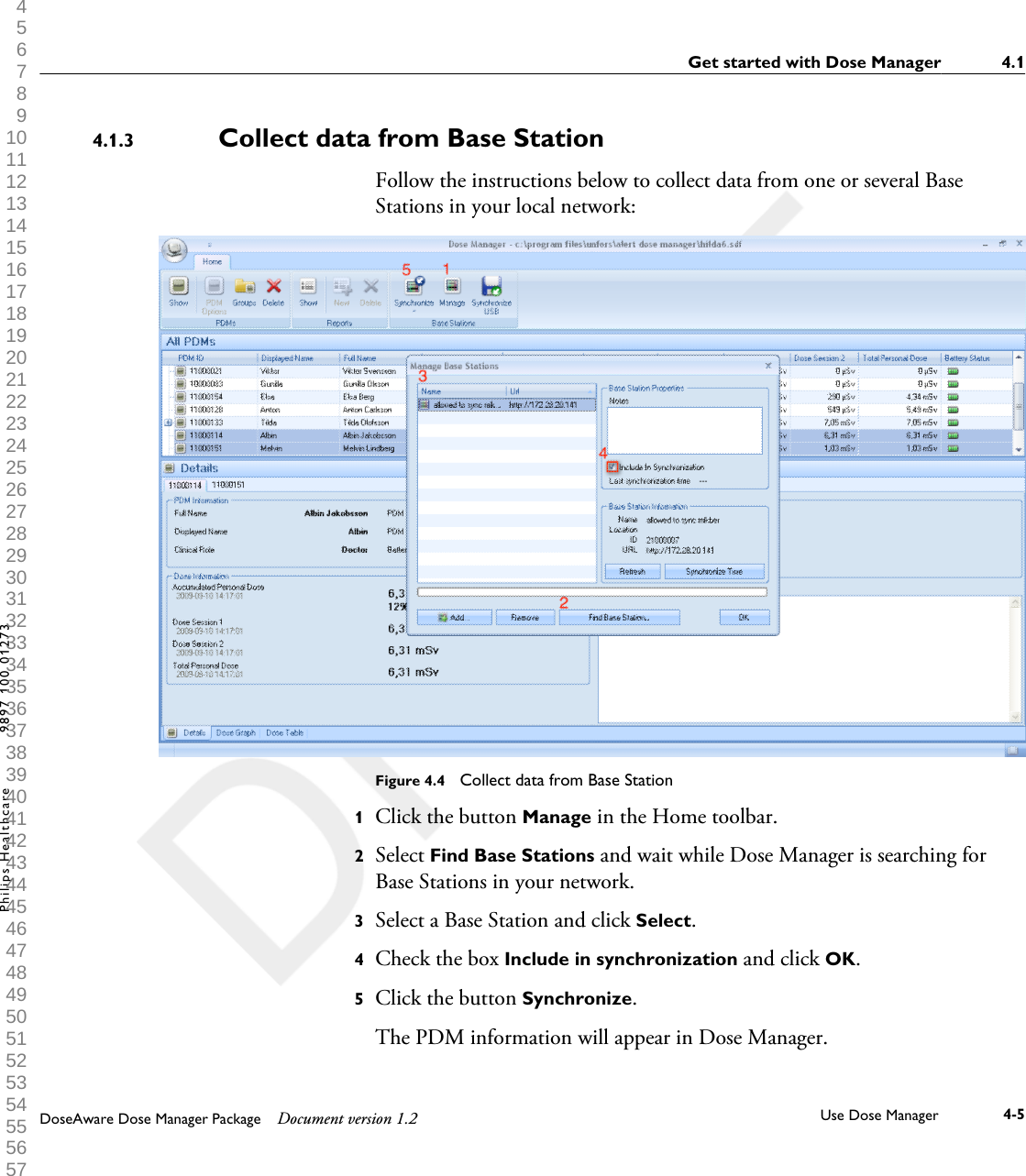
Collect data from Base StationFollow the instructions below to collect data from one or several BaseStations in your local network:Figure 4.4  Collect data from Base Station1Click the button Manage in the Home toolbar.2Select Find Base Stations and wait while Dose Manager is searching forBase Stations in your network.3Select a Base Station and click Select.4Check the box Include in synchronization and click OK.5Click the button Synchronize. The PDM information will appear in Dose Manager.4.1.3Get started with Dose Manager 4.1DoseAware Dose Manager Package Document version 1.2 Use Dose Manager 4-5Philips Healthcare 9897 100 01273 1 2 3 4 5 6 7 8 9 10 11 12 13 14 15 16 17 18 19 20 21 22 23 24 25 26 27 28 29 30 31 32 33 34 35 36 37 38 39 40 41 42 43 44 45 46 47 48 49 50 51 52 53 54 55 56 57 58 59 60
Finding Base Stations on a local network might not be possible due to thenetwork configuration. If you cannot find a Base Station that is installed onyour local network it can also be added to the list of Base Stations for DoseManger using its network IP address. The IP address used by the BaseStation can be found in its network setup menu.TroubleshootingIf communication with a Base Stations that has been manually added to thelist by using its network address does not work, it might be a result ofnetwork configuration. Make sure that the Base Station and Dose managerPC is connected to the same network and use the same subnet mask. If theproblems cannot be resolved, contact the local network administrator.Collect data from USBFollow the instructions below to collect data from USB:1Click the button Synchronize USB in the Home toolbar.2Select the folder from which to synchronize Base Station data.3Click OK.4.1.44.1 Get started with Dose Manager4-6 Use Dose Manager DoseAware Dose Manager Package Document version 1.2Philips Healthcare 9897 100 01273 0900a44780045a3b 1 2 3 4 5 6 7 8 9 10 11 12 13 14 15 16 17 18 19 20 21 22 23 24 25 26 27 28 29 30 31 32 33 34 35 36 37 38 39 40 41 42 43 44 45 46 47 48 49 50 51 52 53 54 55 56 57 58 59 60
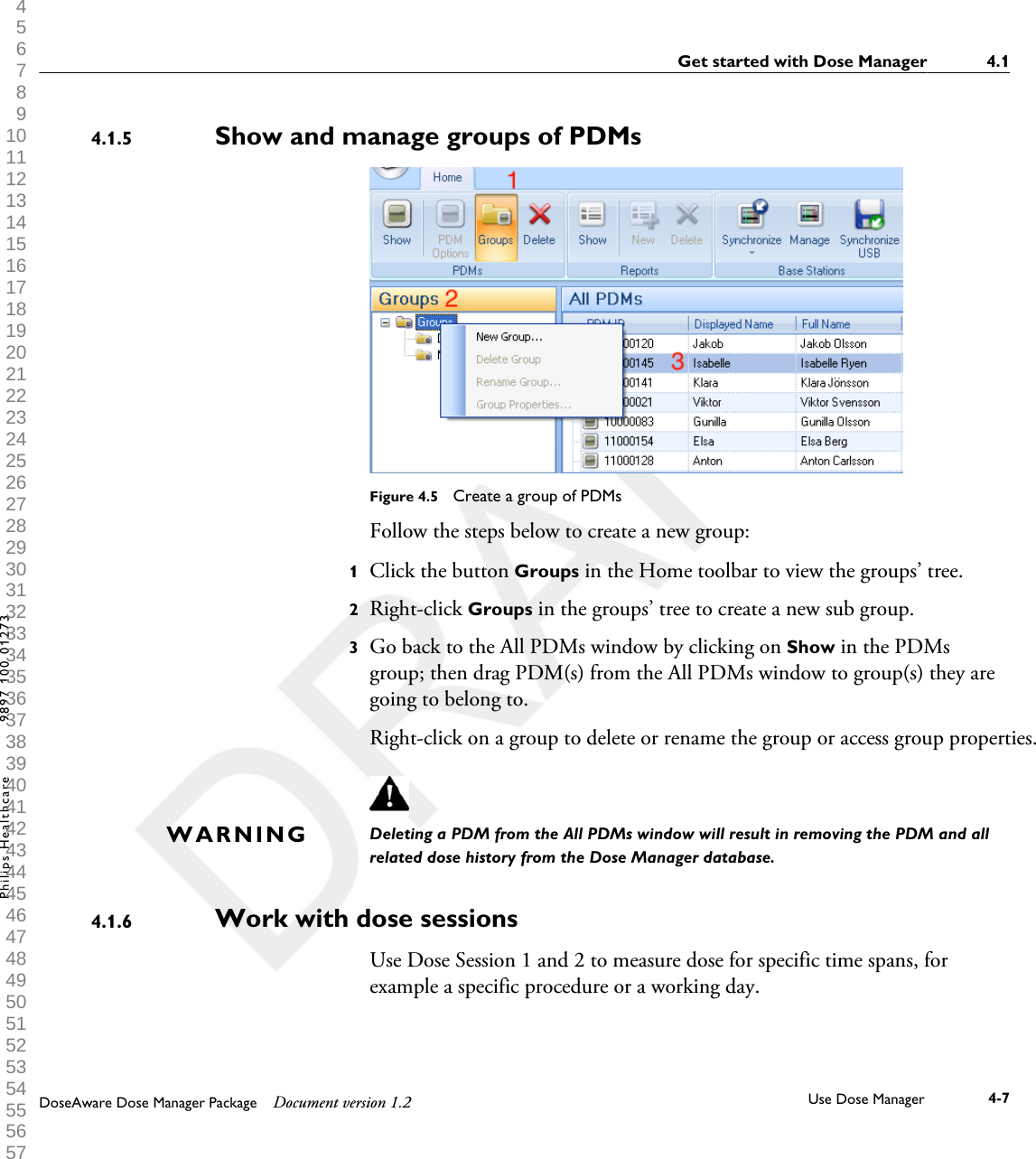
Show and manage groups of PDMsFigure 4.5  Create a group of PDMsFollow the steps below to create a new group:1Click the button Groups in the Home toolbar to view the groups’ tree.2Right-click Groups in the groups’ tree to create a new sub group.3Go back to the All PDMs window by clicking on Show in the PDMsgroup; then drag PDM(s) from the All PDMs window to group(s) they aregoing to belong to.Right-click on a group to delete or rename the group or access group properties.Deleting a PDM from the All PDMs window will result in removing the PDM and allrelated dose history from the Dose Manager database.Work with dose sessionsUse Dose Session 1 and 2 to measure dose for specific time spans, forexample a specific procedure or a working day.4.1.5WARNING4.1.6Get started with Dose Manager 4.1DoseAware Dose Manager Package Document version 1.2 Use Dose Manager 4-7Philips Healthcare 9897 100 01273 1 2 3 4 5 6 7 8 9 10 11 12 13 14 15 16 17 18 19 20 21 22 23 24 25 26 27 28 29 30 31 32 33 34 35 36 37 38 39 40 41 42 43 44 45 46 47 48 49 50 51 52 53 54 55 56 57 58 59 60
The end user can easily reset these Dose Sessions in the Base Station withoutthe use of a computer. When Dose Sessions are reset either on a BaseStation that is synchronized to Dose Manager, or directly in Dose Manager,a Dose Session event will be added to the dose history. This event will bevisible on the PDM’s accumulated dose series when viewed. Dose Session resets that are done in DoseView will not be displayed as an event inDose Manager.Reset dose historyThe accumulated dose history, the dose rate history and Dose Sessions 1and 2 will be reset to 0. The dose history that was available before reset willbe archived and possible to retrieve by clicking + next to the PDM in the AllPDMs window. Dose Manager will start a new session for the PDM and itwill appear as if the dose history will start measuring from 0 in the new session. Follow the steps below to reset the dose history:1Make sure that a Cradle is connected to your computer’s USB port.2Insert a PDM in the Cradle.The computer will detect the PDM automatically and the PDMinformation will appear in Dose Manager.3Access the PDM settings dialog by clicking the PDM options button.4Select the Settings/dose tab.5Click Reset dose history. This action is applied immediately and also exitsthe dialog.Save dataDose Manager automatically saves application and dosedata to the database that you are currently working on.NOTE4.1.74.1.84.1 Get started with Dose Manager4-8 Use Dose Manager DoseAware Dose Manager Package Document version 1.2Philips Healthcare 9897 100 01273 0900a44780045a3b 1 2 3 4 5 6 7 8 9 10 11 12 13 14 15 16 17 18 19 20 21 22 23 24 25 26 27 28 29 30 31 32 33 34 35 36 37 38 39 40 41 42 43 44 45 46 47 48 49 50 51 52 53 54 55 56 57 58 59 60
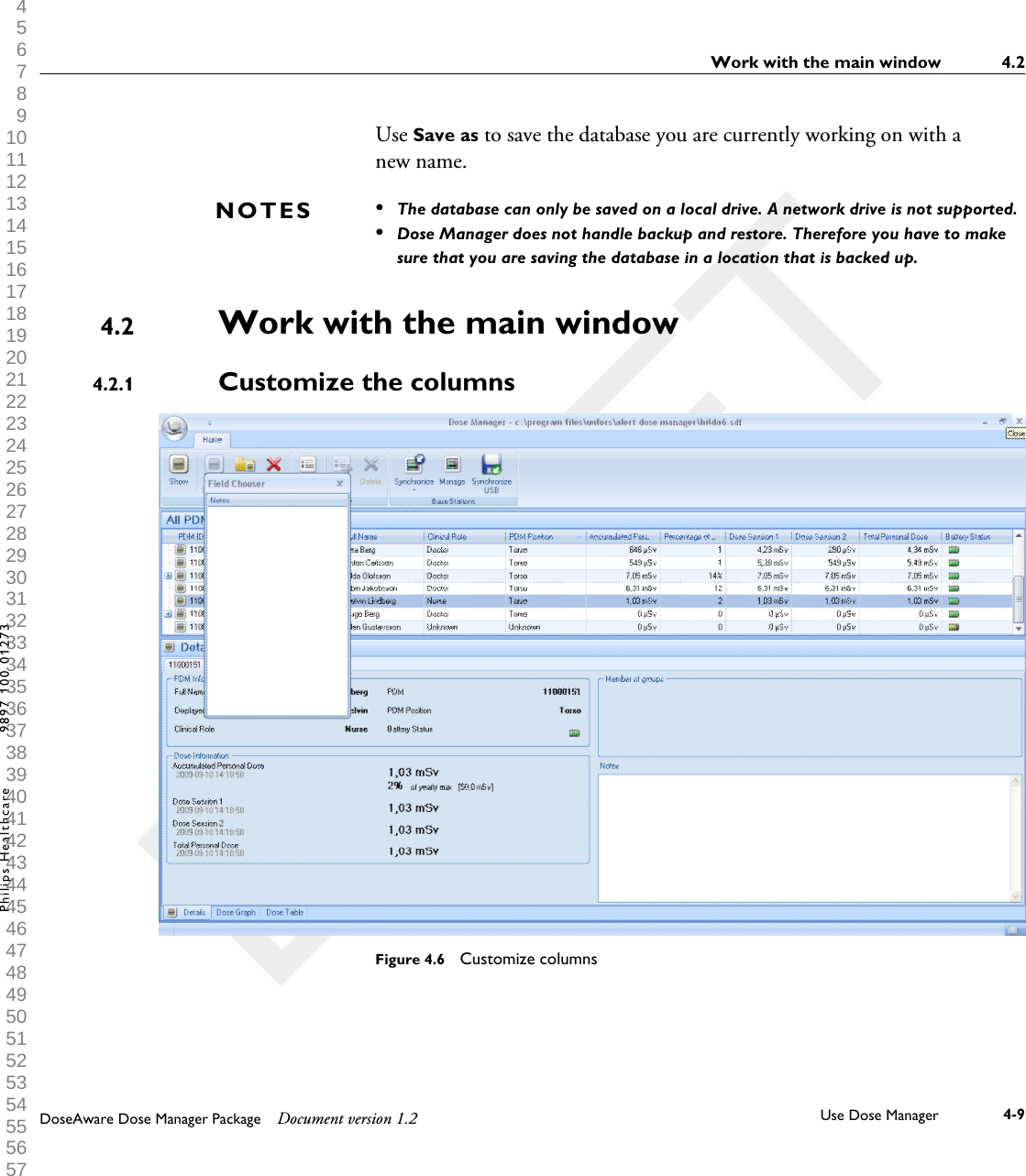
Use Save as to save the database you are currently working on with anew name.•The database can only be saved on a local drive. A network drive is not supported.•Dose Manager does not handle backup and restore. Therefore you have to makesure that you are saving the database in a location that is backed up.Work with the main windowCustomize the columnsFigure 4.6  Customize columnsNOTES4.24.2.1Work with the main window 4.2DoseAware Dose Manager Package Document version 1.2 Use Dose Manager 4-9Philips Healthcare 9897 100 01273 1 2 3 4 5 6 7 8 9 10 11 12 13 14 15 16 17 18 19 20 21 22 23 24 25 26 27 28 29 30 31 32 33 34 35 36 37 38 39 40 41 42 43 44 45 46 47 48 49 50 51 52 53 54 55 56 57 58 59 60
Follow the instructions below to add or remove columns in the main window:1Right-click in the column header row in the main window and selectShow field chooser.2Drag and drop column headers between the field chooser and the columnheader row in the main window.The order of the selected column headers can be easily changed. Just dragand drop a column header to move it to the left or to the right.Sort information in the columns•Click on the different column headers to sort the list ascending or descending.4.2.24.2 Work with the main window4-10 Use Dose Manager DoseAware Dose Manager Package Document version 1.2Philips Healthcare 9897 100 01273 0900a44780045a3b 1 2 3 4 5 6 7 8 9 10 11 12 13 14 15 16 17 18 19 20 21 22 23 24 25 26 27 28 29 30 31 32 33 34 35 36 37 38 39 40 41 42 43 44 45 46 47 48 49 50 51 52 53 54 55 56 57 58 59 60
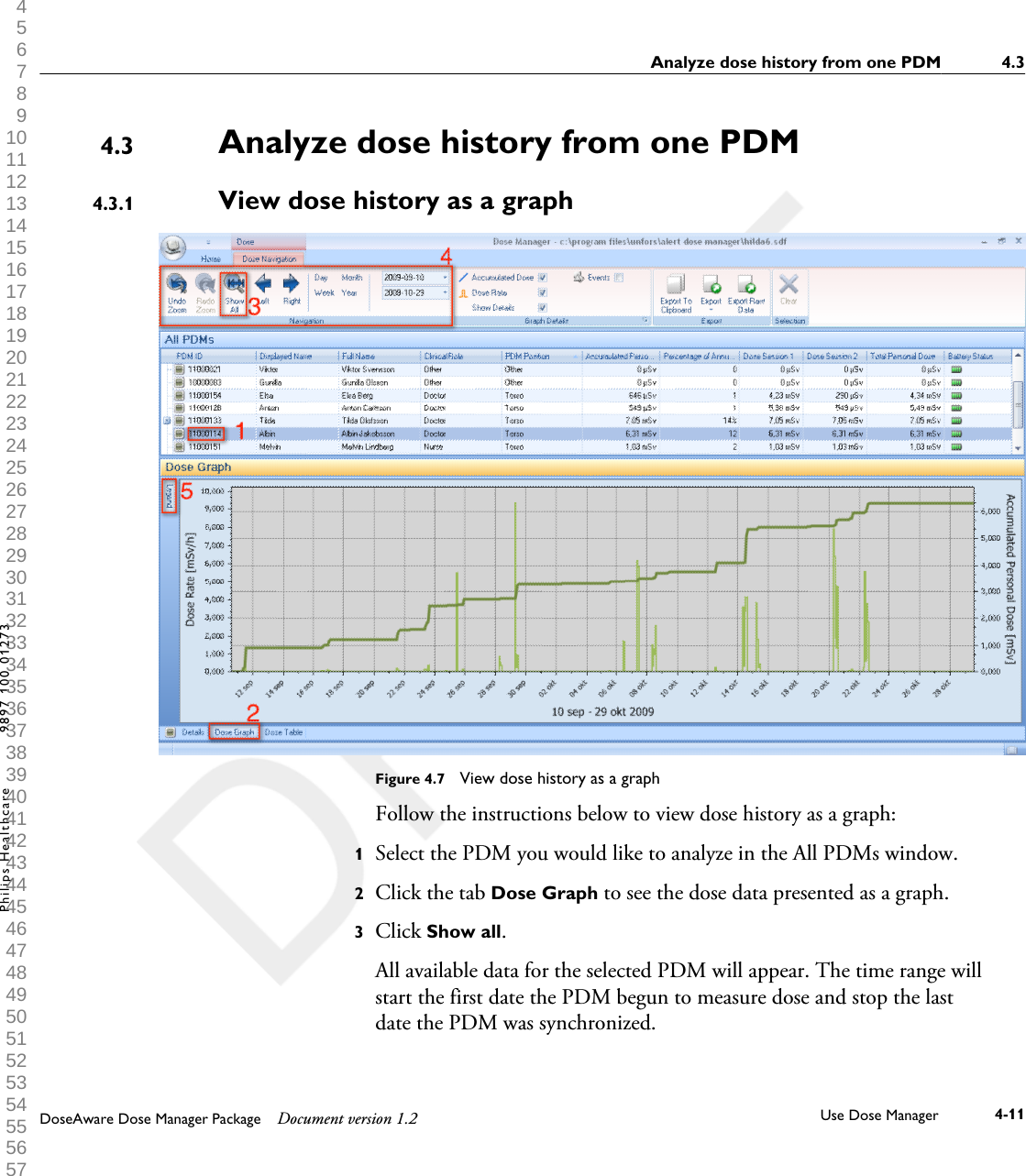
Analyze dose history from one PDMView dose history as a graph            Figure 4.7  View dose history as a graphFollow the instructions below to view dose history as a graph:1Select the PDM you would like to analyze in the All PDMs window.2Click the tab Dose Graph to see the dose data presented as a graph.3Click Show all. All available data for the selected PDM will appear. The time range willstart the first date the PDM begun to measure dose and stop the lastdate the PDM was synchronized.4.34.3.1Analyze dose history from one PDM 4.3DoseAware Dose Manager Package Document version 1.2 Use Dose Manager 4-11Philips Healthcare 9897 100 01273 1 2 3 4 5 6 7 8 9 10 11 12 13 14 15 16 17 18 19 20 21 22 23 24 25 26 27 28 29 30 31 32 33 34 35 36 37 38 39 40 41 42 43 44 45 46 47 48 49 50 51 52 53 54 55 56 57 58 59 60
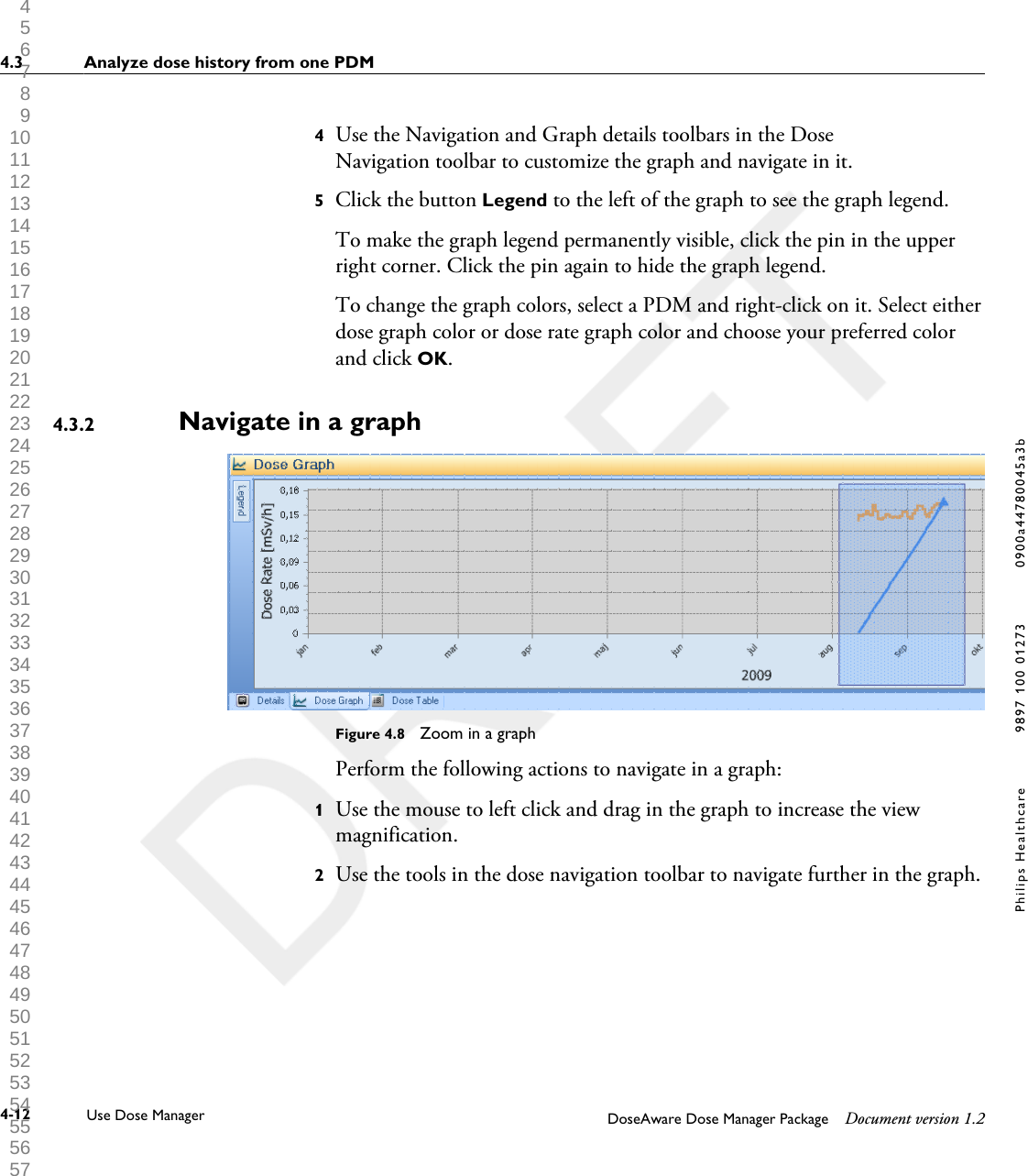
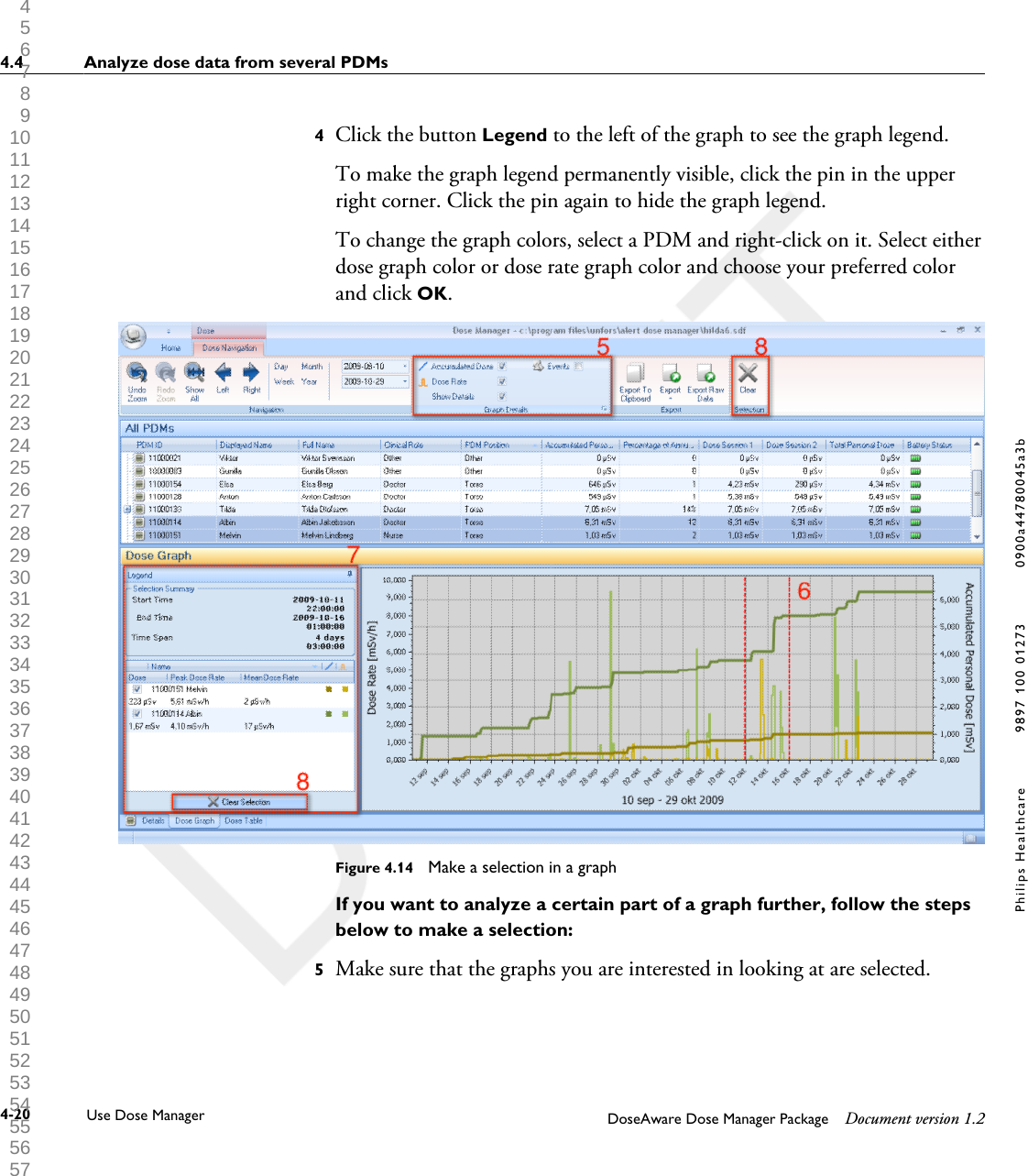
4Use the Navigation and Graph details toolbars in the DoseNavigation toolbar to customize the graph and navigate in it.5Click the button Legend to the left of the graph to see the graph legend.To make the graph legend permanently visible, click the pin in the upperright corner. Click the pin again to hide the graph legend.To change the graph colors, select a PDM and right-click on it. Select eitherdose graph color or dose rate graph color and choose your preferred colorand click OK.Navigate in a graphFigure 4.8  Zoom in a graphPerform the following actions to navigate in a graph:1Use the mouse to left click and drag in the graph to increase the viewmagnification.2Use the tools in the dose navigation toolbar to navigate further in the graph.4.3.24.3 Analyze dose history from one PDM4-12 Use Dose Manager DoseAware Dose Manager Package Document version 1.2Philips Healthcare 9897 100 01273 0900a44780045a3b 1 2 3 4 5 6 7 8 9 10 11 12 13 14 15 16 17 18 19 20 21 22 23 24 25 26 27 28 29 30 31 32 33 34 35 36 37 38 39 40 41 42 43 44 45 46 47 48 49 50 51 52 53 54 55 56 57 58 59 60
Make a selection in a graphFigure 4.9  Make a selection in a graphIf you want to analyze a certain part of a graph further, followthe instructions below to make a selection, which will give you moreinformation:1Use the mouse to Shift-click and drag to select in the graph. This makes a selection in a time span in the graph. The selection isindicated with vertical red dotted lines.2View detailed information from the selection in the graph legend.3Clear the selection by clicking Clear in the dose navigation toolbar.4.3.3Analyze dose history from one PDM 4.3DoseAware Dose Manager Package Document version 1.2 Use Dose Manager 4-13Philips Healthcare 9897 100 01273 1 2 3 4 5 6 7 8 9 10 11 12 13 14 15 16 17 18 19 20 21 22 23 24 25 26 27 28 29 30 31 32 33 34 35 36 37 38 39 40 41 42 43 44 45 46 47 48 49 50 51 52 53 54 55 56 57 58 59 60
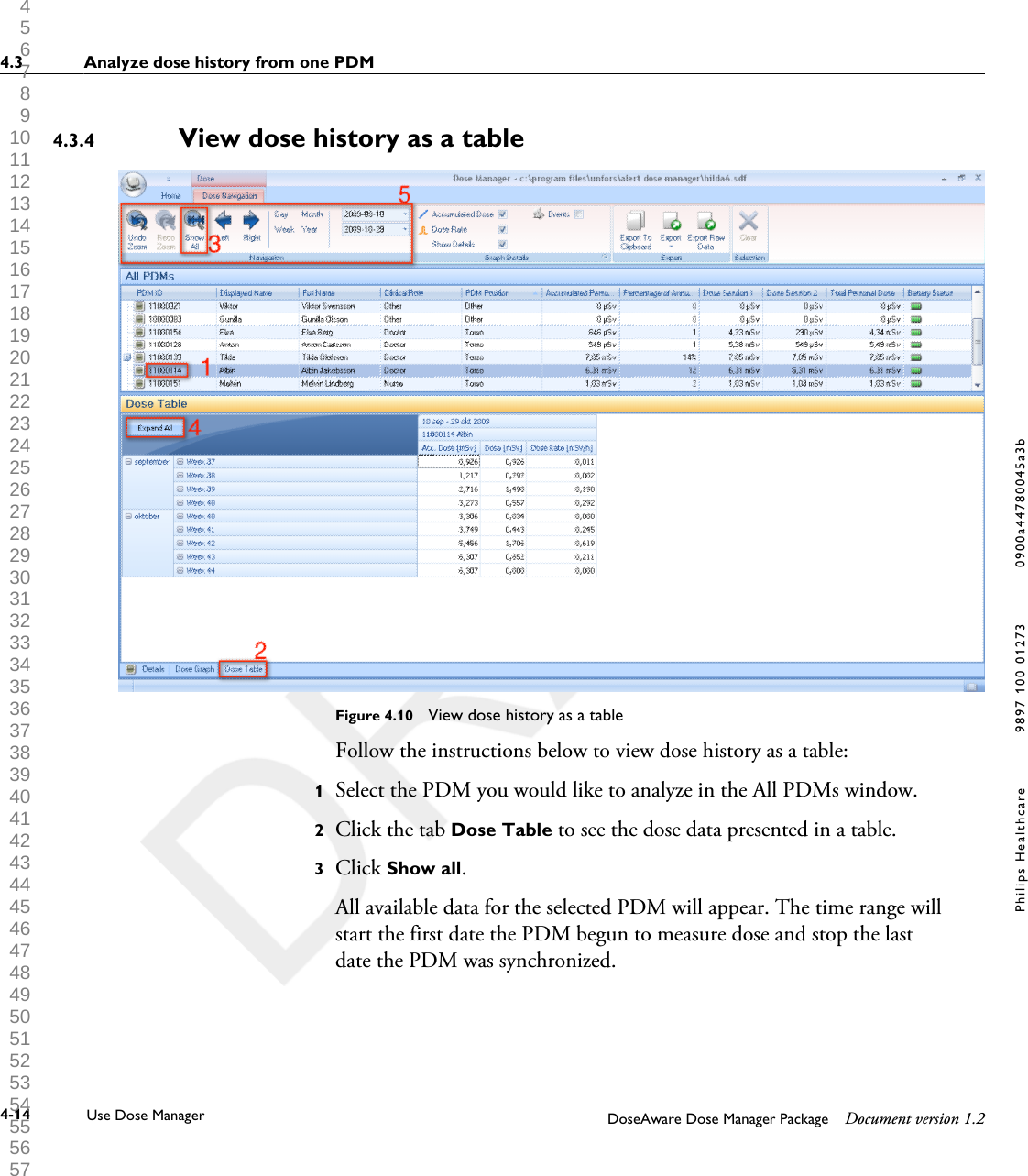
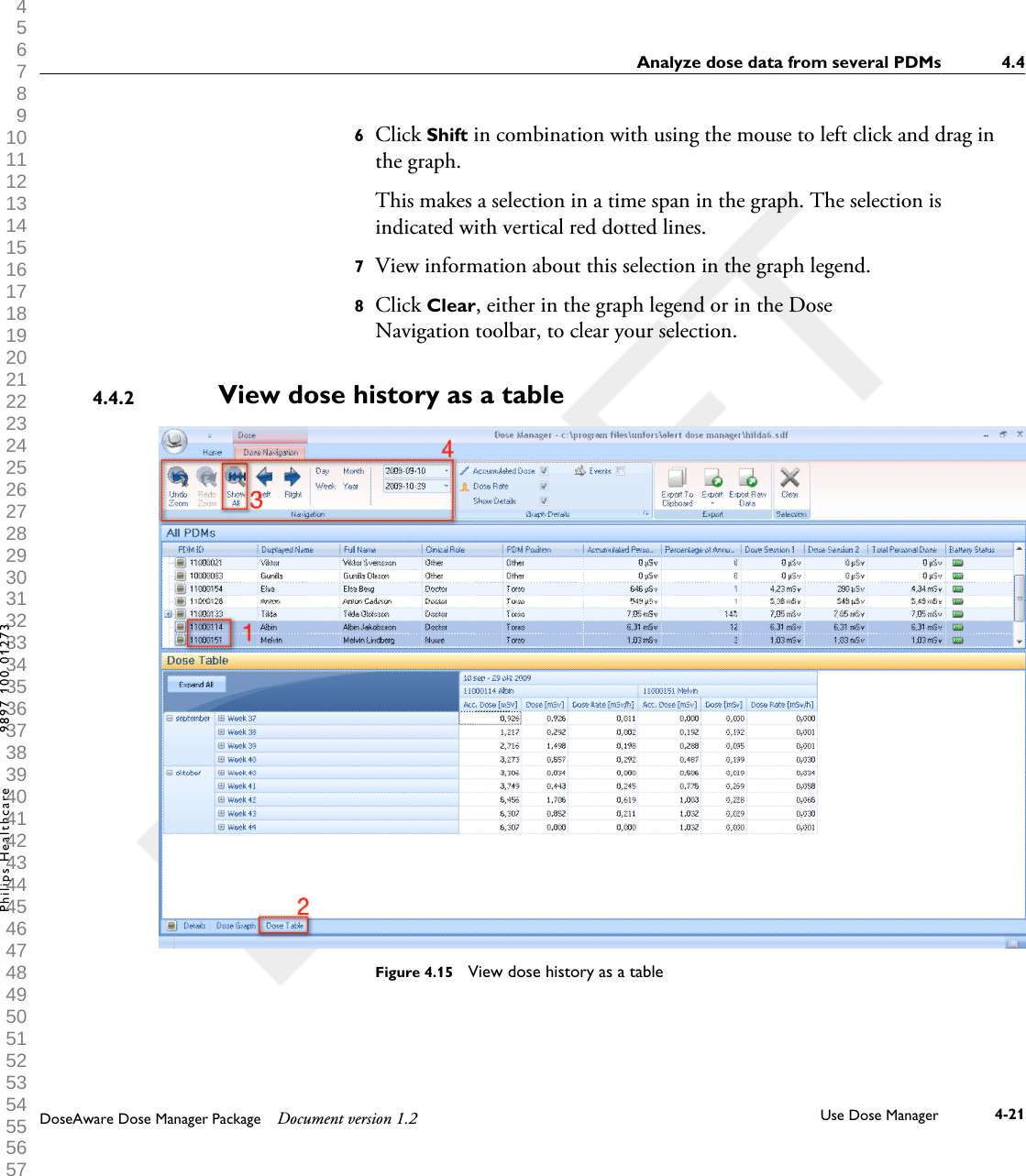
View dose history as a tableFigure 4.10  View dose history as a tableFollow the instructions below to view dose history as a table:1Select the PDM you would like to analyze in the All PDMs window.2Click the tab Dose Table to see the dose data presented in a table.3Click Show all.All available data for the selected PDM will appear. The time range willstart the first date the PDM begun to measure dose and stop the lastdate the PDM was synchronized.4.3.44.3 Analyze dose history from one PDM4-14 Use Dose Manager DoseAware Dose Manager Package Document version 1.2Philips Healthcare 9897 100 01273 0900a44780045a3b 1 2 3 4 5 6 7 8 9 10 11 12 13 14 15 16 17 18 19 20 21 22 23 24 25 26 27 28 29 30 31 32 33 34 35 36 37 38 39 40 41 42 43 44 45 46 47 48 49 50 51 52 53 54 55 56 57 58 59 60
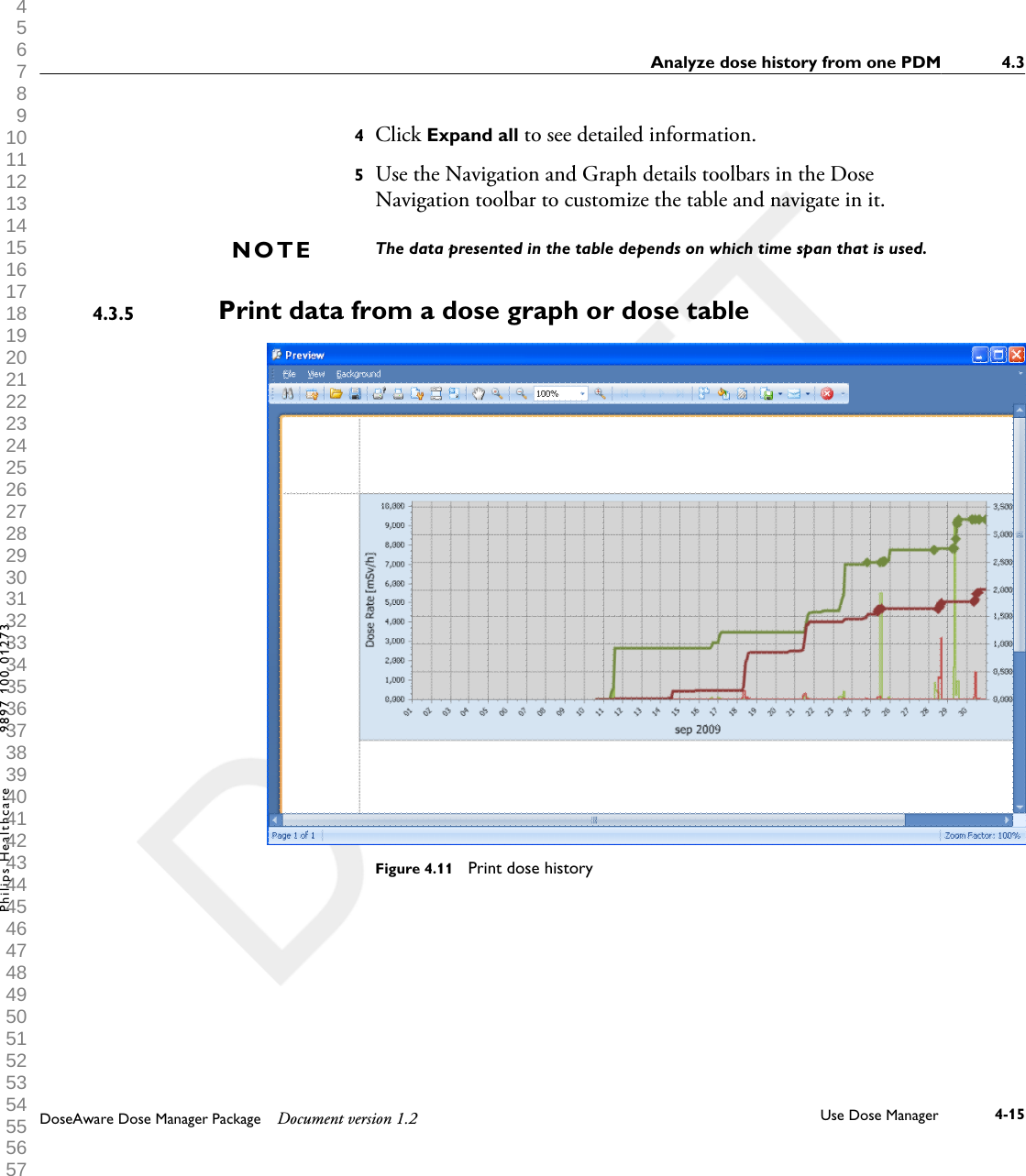
4Click Expand all to see detailed information.5Use the Navigation and Graph details toolbars in the DoseNavigation toolbar to customize the table and navigate in it.The data presented in the table depends on which time span that is used.Print data from a dose graph or dose table            Figure 4.11  Print dose historyNOTE4.3.5Analyze dose history from one PDM 4.3DoseAware Dose Manager Package Document version 1.2 Use Dose Manager 4-15Philips Healthcare 9897 100 01273 1 2 3 4 5 6 7 8 9 10 11 12 13 14 15 16 17 18 19 20 21 22 23 24 25 26 27 28 29 30 31 32 33 34 35 36 37 38 39 40 41 42 43 44 45 46 47 48 49 50 51 52 53 54 55 56 57 58 59 60
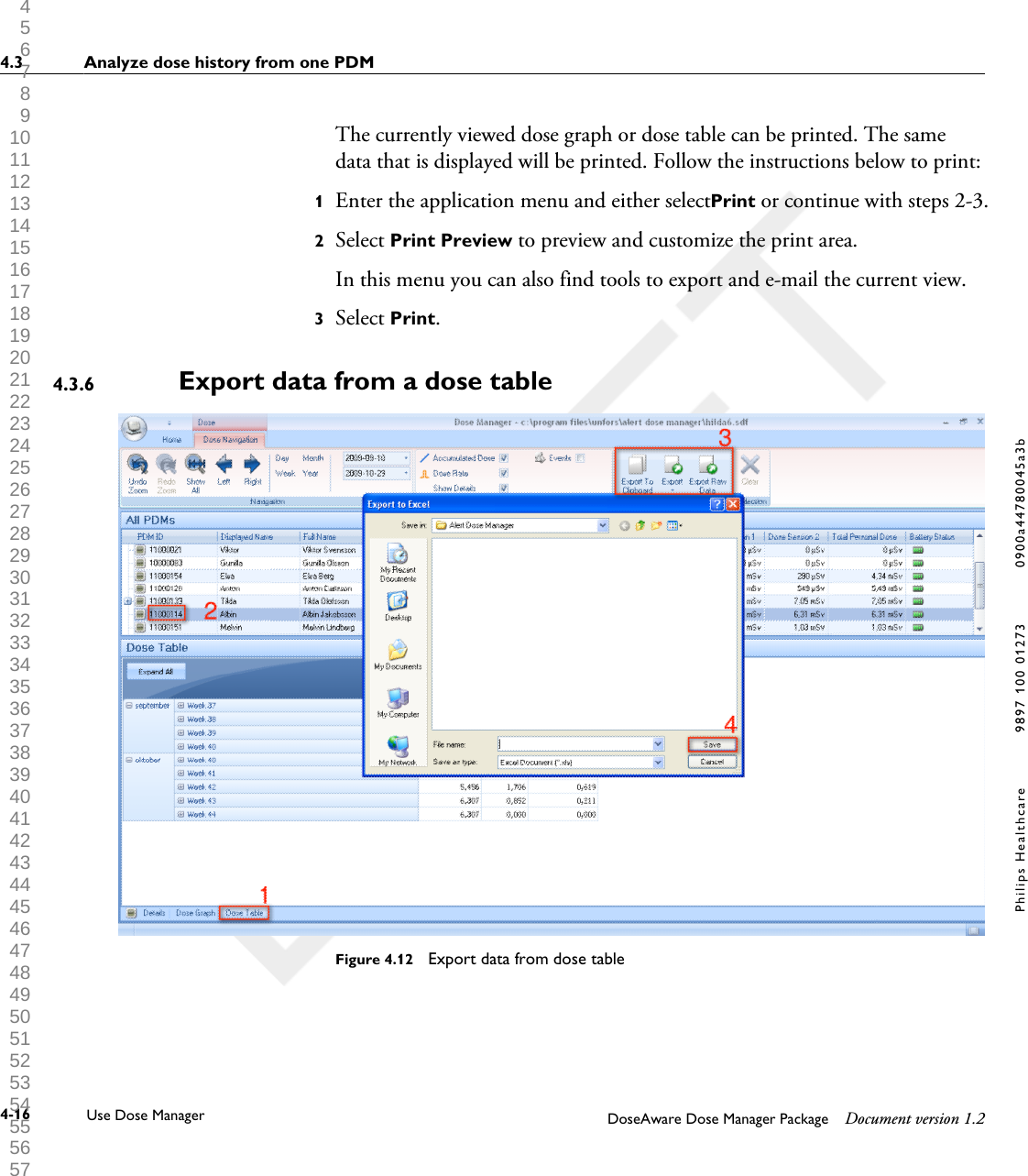
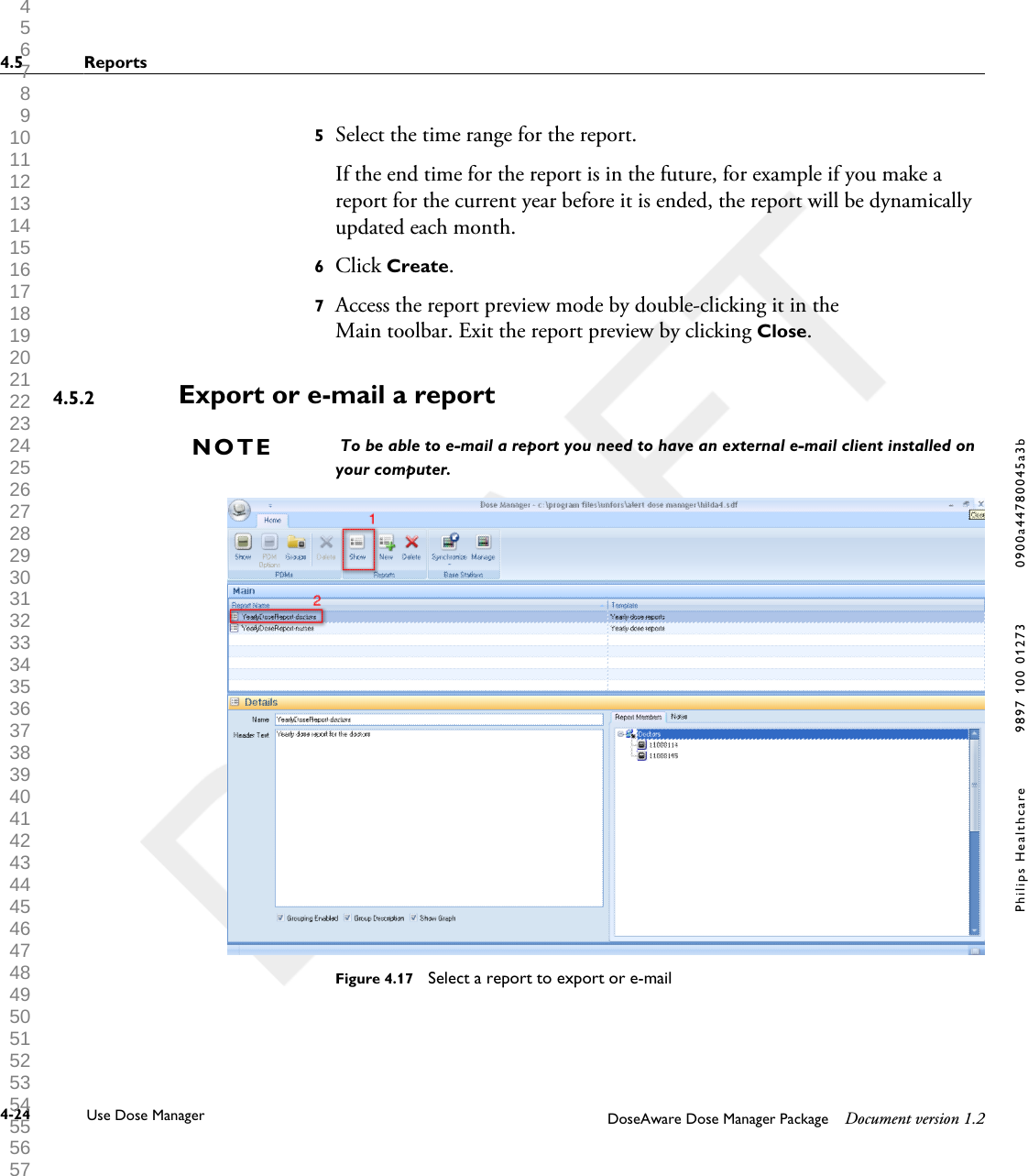
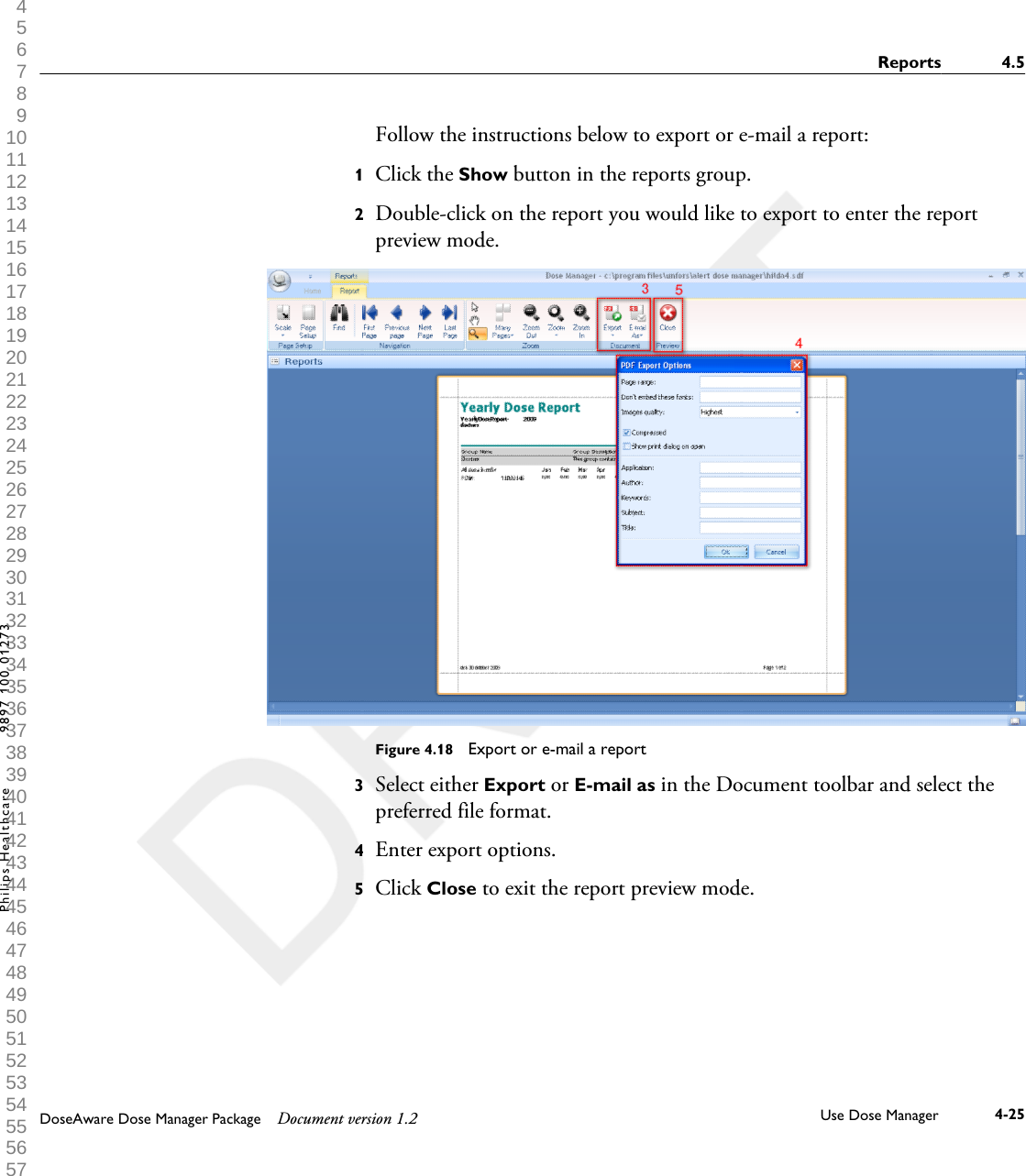
The currently viewed dose graph or dose table can be printed. The samedata that is displayed will be printed. Follow the instructions below to print:1Enter the application menu and either select Print or continue with steps 2-3.2Select Print Preview to preview and customize the print area. In this menu you can also find tools to export and e-mail the current view.3Select Print.Export data from a dose table                           Figure 4.12  Export data from dose table4.3.64.3 Analyze dose history from one PDM4-16 Use Dose Manager DoseAware Dose Manager Package Document version 1.2Philips Healthcare 9897 100 01273 0900a44780045a3b 1 2 3 4 5 6 7 8 9 10 11 12 13 14 15 16 17 18 19 20 21 22 23 24 25 26 27 28 29 30 31 32 33 34 35 36 37 38 39 40 41 42 43 44 45 46 47 48 49 50 51 52 53 54 55 56 57 58 59 60
Follow the instructions below to export data from a dose table for furtheranalysis:1Make sure that you are in the Dose Table view.2Select the PDM(s) from which you want to export data.Note that all PDMs in a selection may not have been exposed to radiationduring the same time.3Click the Export button and select your preferred file format.4Save the document on your computer.Only the data that is currently visible in the dose table will be exported. Click thebutton Expand all to make all data visible.Copy specific cells in a table1Make sure that you are in the Dose Table view.2Select the PDM(s) from which you want to export data.Note that all PDMs in a selection may not have been exposed to radiationduring the same time.3Select the cells that you want to copy by clicking on the first and last rowthat are going to be included.4Copy the cells with the command ctrl + c.5Paste the copied cells in the target document with the command ctrl + v.Export data to a tab-separated text file1Make sure that you are in the Dose Table view.2Select the PDM(s) from which you want to export data.Note that all PDMs in a selection may not have been exposed to radiationduring the same time.NOTEAnalyze dose history from one PDM 4.3DoseAware Dose Manager Package Document version 1.2 Use Dose Manager 4-17Philips Healthcare 9897 100 01273 1 2 3 4 5 6 7 8 9 10 11 12 13 14 15 16 17 18 19 20 21 22 23 24 25 26 27 28 29 30 31 32 33 34 35 36 37 38 39 40 41 42 43 44 45 46 47 48 49 50 51 52 53 54 55 56 57 58 59 60
3Click the Export raw data button.4Save the document on your computer.Only the data that is currently visible in the dose table will be exported. Click thebutton Expand all to make all data visible.Analyze dose data from several PDMsView dose history as a graphFigure 4.13  Analyze dose history from several PDMsNOTE4.44.4.14.4 Analyze dose data from several PDMs4-18 Use Dose Manager DoseAware Dose Manager Package Document version 1.2Philips Healthcare 9897 100 01273 0900a44780045a3b 1 2 3 4 5 6 7 8 9 10 11 12 13 14 15 16 17 18 19 20 21 22 23 24 25 26 27 28 29 30 31 32 33 34 35 36 37 38 39 40 41 42 43 44 45 46 47 48 49 50 51 52 53 54 55 56 57 58 59 60
Follow the instructions below to view dose history from several PDMs as agraph:1Select either:•Several PDMs in the All PDMs window by holding down Ctrl whileclicking on the PDMs.Or• A group of PDMs.2Click the tab Dose Graph to see the dose data presented as a graph.3Click Show all. All available data for the selected PDMs will appear. The time range willstart the first date any PDM received dose and stop the last date any PDMreceived dose.Analyze dose data from several PDMs 4.4DoseAware Dose Manager Package Document version 1.2 Use Dose Manager 4-19Philips Healthcare 9897 100 01273 1 2 3 4 5 6 7 8 9 10 11 12 13 14 15 16 17 18 19 20 21 22 23 24 25 26 27 28 29 30 31 32 33 34 35 36 37 38 39 40 41 42 43 44 45 46 47 48 49 50 51 52 53 54 55 56 57 58 59 60
4Click the button Legend to the left of the graph to see the graph legend.To make the graph legend permanently visible, click the pin in the upperright corner. Click the pin again to hide the graph legend.To change the graph colors, select a PDM and right-click on it. Select eitherdose graph color or dose rate graph color and choose your preferred colorand click OK.Figure 4.14  Make a selection in a graphIf you want to analyze a certain part of a graph further, follow the stepsbelow to make a selection:5Make sure that the graphs you are interested in looking at are selected.4.4 Analyze dose data from several PDMs4-20 Use Dose Manager DoseAware Dose Manager Package Document version 1.2Philips Healthcare 9897 100 01273 0900a44780045a3b 1 2 3 4 5 6 7 8 9 10 11 12 13 14 15 16 17 18 19 20 21 22 23 24 25 26 27 28 29 30 31 32 33 34 35 36 37 38 39 40 41 42 43 44 45 46 47 48 49 50 51 52 53 54 55 56 57 58 59 60
6Click Shift in combination with using the mouse to left click and drag inthe graph.This makes a selection in a time span in the graph. The selection isindicated with vertical red dotted lines.7View information about this selection in the graph legend.8Click Clear, either in the graph legend or in the DoseNavigation toolbar, to clear your selection.View dose history as a tableFigure 4.15  View dose history as a table4.4.2Analyze dose data from several PDMs 4.4DoseAware Dose Manager Package Document version 1.2 Use Dose Manager 4-21Philips Healthcare 9897 100 01273 1 2 3 4 5 6 7 8 9 10 11 12 13 14 15 16 17 18 19 20 21 22 23 24 25 26 27 28 29 30 31 32 33 34 35 36 37 38 39 40 41 42 43 44 45 46 47 48 49 50 51 52 53 54 55 56 57 58 59 60
Follow the instructions below to view dose history as a table:1Select either:•Several PDMs in the All PDMs window by holding down Ctrl whileclicking on the PDMs.Or• A group of PDMs.2Click the tab Dose Table to see the dose data presented in a table.3Click Show all. All available data for the selected PDM will appear. The time range willstart the first date the PDM begun to measure dose and stop the lastdate the PDM was synchronized.4Use the Navigation and Graph details toolbars in the DoseNavigation toolbar to customize the table and navigate in it.The data presented in the table depends on which time span is used.Print data from a dose graph or dose table                         See section “Print data from a dose graph or dose table            ” on page4-15Export data from a dose table See section “Export data from a dose table                           ” on page 4-16ReportsYou can easily create reports for further analysis of both separate PDMs andgroups of PDMs.NOTE4.4.34.4.44.54.5 Reports4-22 Use Dose Manager DoseAware Dose Manager Package Document version 1.2Philips Healthcare 9897 100 01273 0900a44780045a3b 1 2 3 4 5 6 7 8 9 10 11 12 13 14 15 16 17 18 19 20 21 22 23 24 25 26 27 28 29 30 31 32 33 34 35 36 37 38 39 40 41 42 43 44 45 46 47 48 49 50 51 52 53 54 55 56 57 58 59 60
Create reportsFigure 4.16  Create a reportFollow the instructions below to create a report for dose data:1Click the Show button in the reports group.2Click New. Dose Manager will open a Report Wizard.3Select one of the standard templates and press Next.4Select which PDM(s) and/or group(s) of PDMs to include in the report byusing the arrows and press Next.4.5.1Reports 4.5DoseAware Dose Manager Package Document version 1.2 Use Dose Manager 4-23Philips Healthcare 9897 100 01273 1 2 3 4 5 6 7 8 9 10 11 12 13 14 15 16 17 18 19 20 21 22 23 24 25 26 27 28 29 30 31 32 33 34 35 36 37 38 39 40 41 42 43 44 45 46 47 48 49 50 51 52 53 54 55 56 57 58 59 60
5Select the time range for the report.If the end time for the report is in the future, for example if you make areport for the current year before it is ended, the report will be dynamicallyupdated each month.6Click Create.7Access the report preview mode by double-clicking it in theMain toolbar. Exit the report preview by clicking Close.Export or e-mail a report To be able to e-mail a report you need to have an external e-mail client installed onyour computer.Figure 4.17  Select a report to export or e-mail4.5.2NOTE4.5 Reports4-24 Use Dose Manager DoseAware Dose Manager Package Document version 1.2Philips Healthcare 9897 100 01273 0900a44780045a3b 1 2 3 4 5 6 7 8 9 10 11 12 13 14 15 16 17 18 19 20 21 22 23 24 25 26 27 28 29 30 31 32 33 34 35 36 37 38 39 40 41 42 43 44 45 46 47 48 49 50 51 52 53 54 55 56 57 58 59 60
Follow the instructions below to export or e-mail a report:1Click the Show button in the reports group.2Double-click on the report you would like to export to enter the reportpreview mode.Figure 4.18  Export or e-mail a report3Select either Export or E-mail as in the Document toolbar and select thepreferred file format.4Enter export options.5Click Close to exit the report preview mode.Reports 4.5DoseAware Dose Manager Package Document version 1.2 Use Dose Manager 4-25Philips Healthcare 9897 100 01273 1 2 3 4 5 6 7 8 9 10 11 12 13 14 15 16 17 18 19 20 21 22 23 24 25 26 27 28 29 30 31 32 33 34 35 36 37 38 39 40 41 42 43 44 45 46 47 48 49 50 51 52 53 54 55 56 57 58 59 60
Dose Manager optionsSet passwordTo protect the information stored in Dose Manager, it is possible to set anoptional password that will be required when Dose Manager is launched. Follow the instructions below to set a password:1Click the Application menu.2Select Options.3Enter a password in the field New Password.Contact you local administrator for password guidelines.4Repeat the password in the field Verify Password.5Click OK.Change passwordFollow the instructions below to change the current password:1Click the Application menu.2Select Options.3Enter your current password in the field Current Password.4Enter a new password in the field New Password.5Repeat the new password in the field Verify Password.6Click OK.Change languageFollow the instructions below to change the user interface language:1Click the Application menu.2Select Options.4.64.6.1NOTE4.6.24.6.34.6 Dose Manager options4-26 Use Dose Manager DoseAware Dose Manager Package Document version 1.2Philips Healthcare 9897 100 01273 0900a44780045a3b 1 2 3 4 5 6 7 8 9 10 11 12 13 14 15 16 17 18 19 20 21 22 23 24 25 26 27 28 29 30 31 32 33 34 35 36 37 38 39 40 41 42 43 44 45 46 47 48 49 50 51 52 53 54 55 56 57 58 59 60
3Select your preferred language in the drop-down menu.4Click OK.5Re-start Dose Manager to apply the change.Dose manager licenseDose Manager shall be used only on the designated hardware and at the siteof the licensee as specified in the Customer Software License Agreement. Aseparate Dose Manager is required per each designated hardware on whichthe Dose Manager is to be used.4.7Dose manager license 4.7DoseAware Dose Manager Package Document version 1.2 Use Dose Manager 4-27Philips Healthcare 9897 100 01273 1 2 3 4 5 6 7 8 9 10 11 12 13 14 15 16 17 18 19 20 21 22 23 24 25 26 27 28 29 30 31 32 33 34 35 36 37 38 39 40 41 42 43 44 45 46 47 48 49 50 51 52 53 54 55 56 57 58 59 60
4.7 Dose manager license4-28 Use Dose Manager DoseAware Dose Manager Package Document version 1.2Philips Healthcare 9897 100 01273 0900a44780045a3b 1 2 3 4 5 6 7 8 9 10 11 12 13 14 15 16 17 18 19 20 21 22 23 24 25 26 27 28 29 30 31 32 33 34 35 36 37 38 39 40 41 42 43 44 45 46 47 48 49 50 51 52 53 54 55 56 57 58 59 60
Product disposalIntroductionPhilips Medical Systems is concerned to help protect the naturalenvironment, and to help ensure continued safe and effective use of thisproduct, through proper support, maintenance and training.Therefore Philips products are designed and manufactured to comply withrelevant guidelines for environmental protection. As long as the product isproperly operated and maintained, it presents no environmental risks.However, the product may contain material, which could be harmful to theenvironment if disposed of incorrectly. Use of such material is essential toperforming the functions of the product, and to meeting statutory and otherrequirements.This section of these Instructions for Use is directed mainly at the user/owner of the product.Passing the system on to another userIf this product passes to another user, it must be in its complete state,including all product support documentation.Make the new user aware of the support services that Philips MedicalSystems provides for installing, commissioning and maintaining the product.Before passing on the product or taking it out of service, all data must be(backed up elsewhere if necessary, and) unrecoverable be deleted on theproduct.It must be remembered by all existing users that passing on electricalproducts to new users may create serious technical, medical and legal (e.g.on privacy) risks. Such risks can arise even if the product is given away.55.15.2DoseAware Dose Manager Package Document version 1.2 Product disposal 5-1Philips Healthcare 9897 100 01273 1 2 3 4 5 6 7 8 9 10 11 12 13 14 15 16 17 18 19 20 21 22 23 24 25 26 27 28 29 30 31 32 33 34 35 36 37 38 39 40 41 42 43 44 45 46 47 48 49 50 51 52 53 54 55 56 57 58 59 60
Existing users are strongly advised to seek advice from their local PhilipsMedical Systems representative before committing themselves to passing onany product. Alternatively, contact the manufacturer.Once the product has been passed on to a new user, a previous user may stillreceive important safety-related information, such as bulletins and fieldchange orders. In many jurisdictions, there is a clear duty on the previoususer to communicate such safety-related information to new users. Previoususers who are not able or prepared to do this should inform Philips MedicalSystems about the new user, so that Philips Medical Systems can provide thenew user with safety-related information.Final disposal of the systemFinal disposal is when the user disposes of the product in such a way that itcan no longer be used for its intended purpose(s).In the European Union, this label (according to the WEEE directive)indicates that the product should not be disposed of together withhousehold waste:This product should be disposed of at an appropriate facility to enablerecovery and recycling.Philips supports users in:•Recovering reusable parts.• Recycling of useful materials by competent disposal companies.• Safe and effective disposal of product.5.35.3 Final disposal of the system5-2 Product disposal DoseAware Dose Manager Package Document version 1.2Philips Healthcare 9897 100 01273 0900a44780045a3b 1 2 3 4 5 6 7 8 9 10 11 12 13 14 15 16 17 18 19 20 21 22 23 24 25 26 27 28 29 30 31 32 33 34 35 36 37 38 39 40 41 42 43 44 45 46 47 48 49 50 51 52 53 54 55 56 57 58 59 60
For advice and information, contact your Philips Service Organization first,or otherwise the manufacturer.Fitting, removing, and disposing of batteriesBatteries harm the environment; dispose of the old batteries in an environmentallysound way.For information about disposal of the product, batteries, and hazardousmaterials, see the Philips Medical Systems product sustainability website at:http://www.healthcare.philips.com/main/about/Sustainability/Recycling/5.4NOTEFitting, removing, and disposing of batteries 5.4DoseAware Dose Manager Package Document version 1.2 Product disposal 5-3Philips Healthcare 9897 100 01273 1 2 3 4 5 6 7 8 9 10 11 12 13 14 15 16 17 18 19 20 21 22 23 24 25 26 27 28 29 30 31 32 33 34 35 36 37 38 39 40 41 42 43 44 45 46 47 48 49 50 51 52 53 54 55 56 57 58 59 60
5.4 Fitting, removing, and disposing of batteries5-4 Product disposal DoseAware Dose Manager Package Document version 1.2Philips Healthcare 9897 100 01273 0900a44780045a3b 1 2 3 4 5 6 7 8 9 10 11 12 13 14 15 16 17 18 19 20 21 22 23 24 25 26 27 28 29 30 31 32 33 34 35 36 37 38 39 40 41 42 43 44 45 46 47 48 49 50 51 52 53 54 55 56 57 58 59 60
Technical dataPDM and Base Station/Dose Manager memoriesDose rate samples that have been overwritten in the PDM’s dose ratememory may still be available in the Base Station andDose Manager memories.If there are no dose rate samples neither in the Base Station orDose Manager memories, nor in the PDM dose rate memory, the BaseStation and Dose Manager will instead display mean dose rate values basedon accumulated dose values.Lack of dose rate samples in the Base Station and/orDose Manager memories occurs when the:•PDM is not within range of the Base Station when it is exposed to radiation.•Dose rate samples in the PDM dose rate memory are overwritten.Time managementThe PDM logs dose history in local time with no daylight saving timeadjustments. Daylight saving time adjustment is done in the Base Station,DoseView or Dose Manager when the dose history is presented.The following happens when the daylight saving time is changed:• When going to summertime, one extra hour with no dose data will beadded to the dose log.• When going to wintertime, two hours of dose data will be merged intoone hour. This hour contains no dose rate details. When changingfrom summertime to wintertime, dose date details in the two mergedhours will not be displayed.66.16.2DoseAware Dose Manager Package Document version 1.2 Technical data 6-1Philips Healthcare 9897 100 01273 1 2 3 4 5 6 7 8 9 10 11 12 13 14 15 16 17 18 19 20 21 22 23 24 25 26 27 28 29 30 31 32 33 34 35 36 37 38 39 40 41 42 43 44 45 46 47 48 49 50 51 52 53 54 55 56 57 58 59 60
Security and privacy requirementsNetwork portsThe following ports and protocols are open on the Base Station forcommunication with the Dose Manager:TCP/UDP PortnumberProtocol Additional noteTCP 8070 gSOAP httpd 2.7 Used for regular (bidirectional)communication between Base Stationand Dose ManagerUDP 8060 Proprietary discoveryprotocolProtocol (bidirectional) used for BaseStation discoveryEncryptionDoseAware data is encrypted during transmission, at rest on the BaseStation and is stored in an encrypted Dose Manager database.6.36.3 Security and privacy requirements6-2 Technical data DoseAware Dose Manager Package Document version 1.2Philips Healthcare 9897 100 01273 0900a44780045a3b 1 2 3 4 5 6 7 8 9 10 11 12 13 14 15 16 17 18 19 20 21 22 23 24 25 26 27 28 29 30 31 32 33 34 35 36 37 38 39 40 41 42 43 44 45 46 47 48 49 50 51 52 53 54 55 56 57 58 59 60

Navigation menu