Welland Technology WLD-1 Digital bluetooth body fat scale User Manual
Guangdong Welland Technology Co., Ltd. Digital bluetooth body fat scale Users Manual
Users Manual
1
Questions or Concerns? support@etekcity.com
Digital bluetooth body
fat scale
Model No.: FG830LB

2
Thank You.
Thank you for purchasing the FG830LB Digital bluetooth body
fat scale by Etekcity. We are dedicated to providing our
customers with quality products for building a better living.
Should you have any questions or concerns about using your
new product, feel free to reach out to our helpful Customer
Support Team at (855) 686-3835 or by email at
support@etekcity.com. We hope you enjoy your new
product!

3
Table of Contents
Package Contents
Specifications
Safety Information
Function Diagram
Setup
App Setup
Using Digital bluetooth body fat scale
• Weighing without the VeSync App
• Weighing with the VeSync App
Using the App
• Weight Measurements
— Add or Switch Users
— More Data
— Data Graphs
— Device Settings
Maintenance
• Cleaning the Scale
• Calibrating the Scale
• Replacing the Batteries
Display Messages
Troubleshooting
Warranty Information
Customer Support
Package Contents
1 x Digital bluetooth body fat scale
3 x 1.5V AAA Batteries (Pre-Installed)
1 x User Manual
Specications
Weight Capacity 400 lb / 28 st / 180 kg
Graduation 0.2 lb (0.1 kg)
Weight Units lb / st / kg
Platform Tempered Glass
Dimensions 11.8 x 11.8 x 1.0 in
(300 x 300 x 24 mm)
Battery 3 x 1.5V AAA Batteries
Auto-Off 30 seconds
3
3
4
6
7
8
9
9
10
14
16
16
17
18
20
25
25
25
26
27
28
29
30
4
Safety Information
General Use
• Check the scale before using. Do not use the
scale if it is damaged in any way.
•Do not strike or bang on the scale, and do not
use the scale if there is a slight crack on the glass.
Due to the nature of tempered glass, the glass
will shatter if there is a slight crack. If you see a
crack, contact Customer Service (page 30).
Please read and follow all instructions and safety guidelines in this manual.
NOTE:
•This scale should not be used to diagnose or treat
any medical condition.
•Scale data should not be used as a substitute for
medical advice from a healthcare professional.
•This scale uses a harmless electrical current to
measure body fat. We do not recommend using
the scale if you use medical electronic equipment
such as a pacemaker. Consult a healthcare
professional before use.
• The glass platform is slippery when wet. Always
make sure the platform and your feet are dry
before stepping on for measurement.
•Place the scale on a hard, at surface to avoid
tipping.
• To weigh safely and accurately, stand with your
feet shoulder-width apart while on the scale. Do
not stand on the edge of the scale or jump on the
scale.
• Avoid standing on the scale for a long period of
time.
•Do not overload the scale. Maximum weight
capacity is 400 lb (180 kg).
• Keep the scale in a cool area with low humidity.
Keep the scale away from heat sources, such as
ovens or heaters. Store the scale horizontally, not
vertically.
• For household use only. This scale is not intended
for commercial use.
• Handle with care.
5
Batteries
•Do not mix new and used batteries.
• If the scale is not in use for a long period of time,
remove the batteries to extend the lifetime of the
scale.
NOTE: This smart scale complies with Part 15 of the
FCC Rules. Operation is subject to the following two
conditions: (1) this device may not cause harmful
interference, and (2) this device must accept any
interference received, including interference that
may cause undesired operation.
6
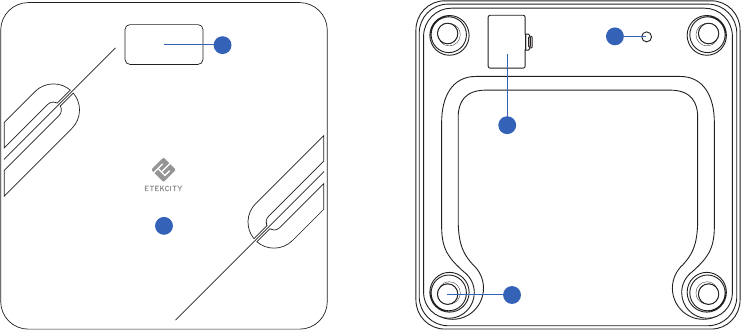
Function Diagram
1. Weighing Platform
2. Display
3. Anti-Skid Padding
4. Battery Compartment
5. Unit Conversion Button
6
Top Bottom
1
25
4
3
7
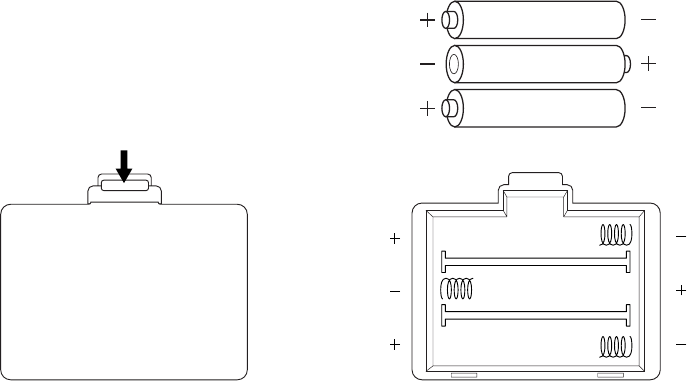
1.5v - AAA
1.5v - AAA
1.5v - AAA
Setup
Push down and Lift
Before First Use
1. Open the battery compartment on the bottom
of the scale. Remove the included AAA batteries
from the scale.
2. Remove the plastic wrap from batteries.
3. Replace the batteries. Follow the guidelines in
the battery compartment to match the + and -
terminals.
8
App Setup
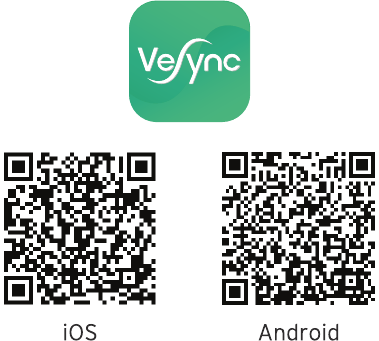
1. Scan the QR code, or download the VeSync app
from the App Store or Google Play Store.
NOTE: For Android users, choose “Allow” (when
prompted) to use VeSync.
2. After you’ve signed up, enter your email and
password, then tap Log In.
NOTE: You must create your own VeSync account
to use third-party services and products, such as
the Amazon Echo and Google Home. These will not
work with the Guest account. You can also allow your
family or friends to use your smart scale.
9
Using Digital bluetooth body
fat scale
NOTE: If you are pregnant, some measurements
may not be accurate.
Weighing without the VeSync App
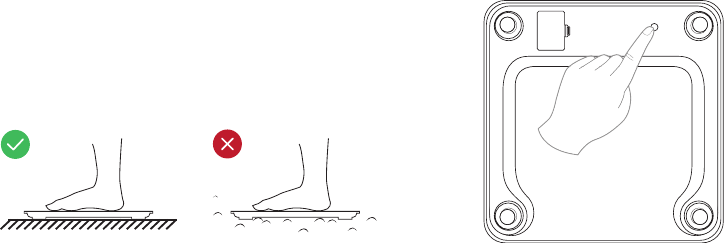
1. Place the scale on a hard, flat surface.
NOTE: Using the scale on a soft surfaces such as
carpets and mats will result in inaccurate
measurements.
2. Step onto the scale. The scale will automatically
turn on and start measuring your weight.
3. Keep standing on the scale until the digits on the
screen ash 3 times with your nal measurement.
NOTE: Press the unit conversion button on the
bottom of the scale to change units from kilograms
(kg) to pounds (lb) to stone (st).
10
Weighing with the VeSync App
Pairing with Scale with VeSync
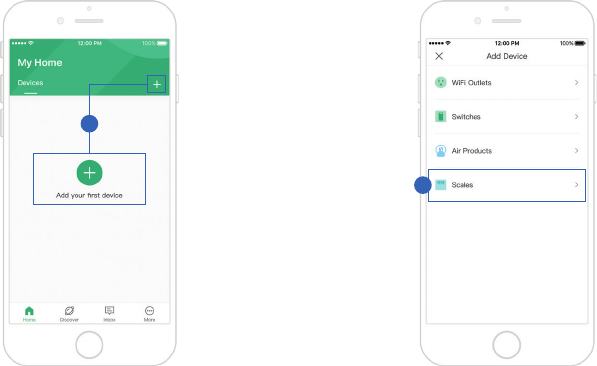
1. Tap the + button to add your device. 2. Tap Scales.
2
1
11
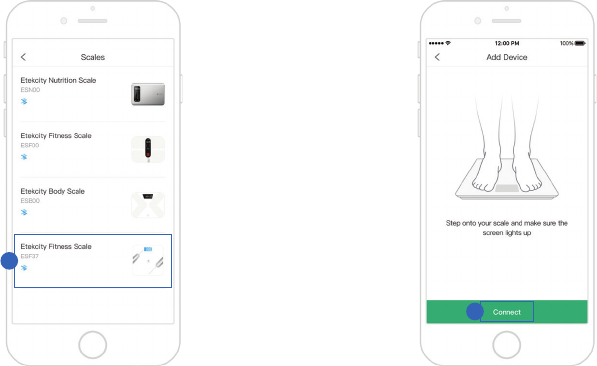
3. Select the Etekcity Fitness Scale. 4. Go to your phone’s settings and turn on your
phone’s Bluetooth®. Tap Connect.
3
4
12
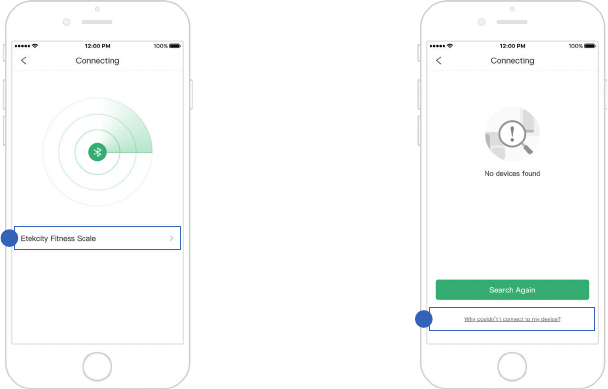
5. The app will take a moment to scan for devices.
Tap Etekcity Fitness Scale to connect.
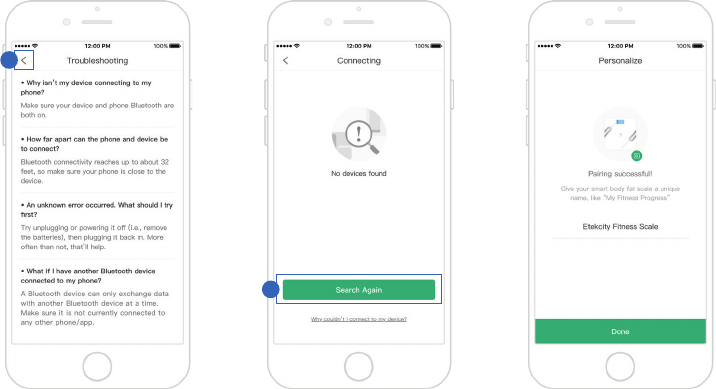
6. If you can’t connect, tap Why couldn’t I connect
to my device? at the bottom of the screen.
5
6
13
7. After following the Troubleshooting steps,
tap < to return to the previous screen.
8. Then tap Search Again.
9. You’ve completed setup! Give your smart scale a
unique name, or simply use the default name.
NOTE: You can change the name and picture at any
time in “Device Settings”.
8
7
14
Using the App
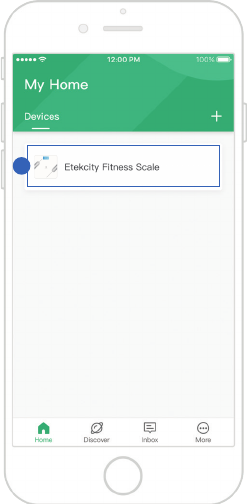
1. On the “My Home” screen, tap on the name of
your smart scale.
NOTE: New users should enter physical information
to let the scale calculate accurate body metrics.
1
15
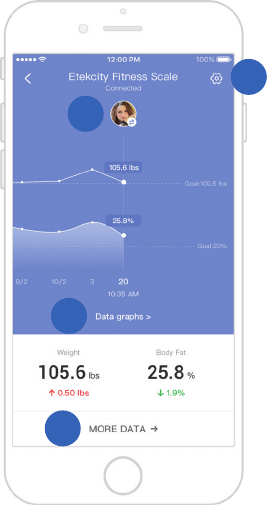
2. Stand on the scale. Your results will display.
Tap to access the following:
A. Add or Switch User (see page 16)
B. More Data (see page 17)
C. Data Graphs (see page 18)
D. Device Settings (see page 20)
NOTE:
•If you’re wearing shoes, or if you haven’t entered
physical information, the results will only show
weight.
A
B
C
D
16
A. Add or Switch Users
NOTE:
•The smart scale can only track up to 8 users. If
you need to add another user, delete an existing
user first.
•You can reset the scale by pressing and holding
the unit button for 10 seconds. This will remove
all users.
•Once user is deleted, there is no way to retrieve
deleted information.
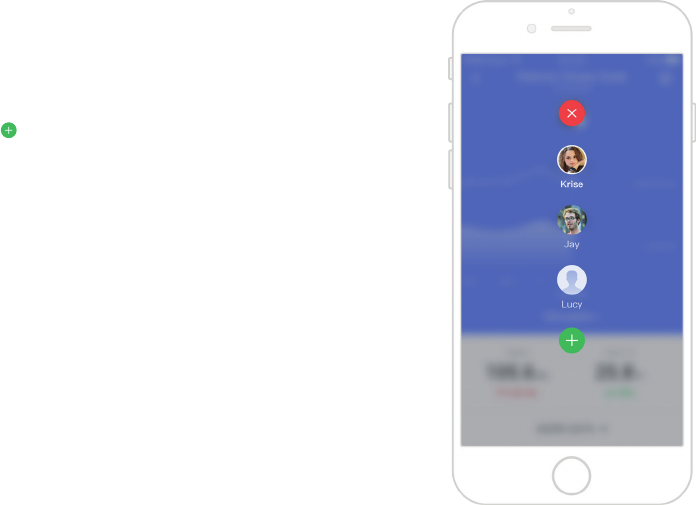
Weight Measurement
Select a user by tapping on the prole picture, or
tap to add a new user.
17
B. More Data
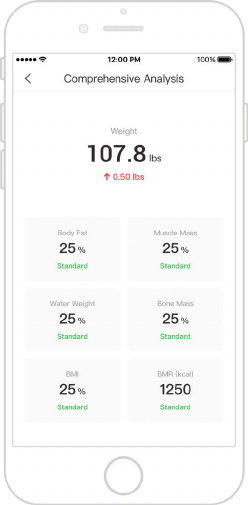
This screen shows a comprehensive analysis of 6 health
metrics that the scale tracks. Tap < to return to the
previous screen.
18
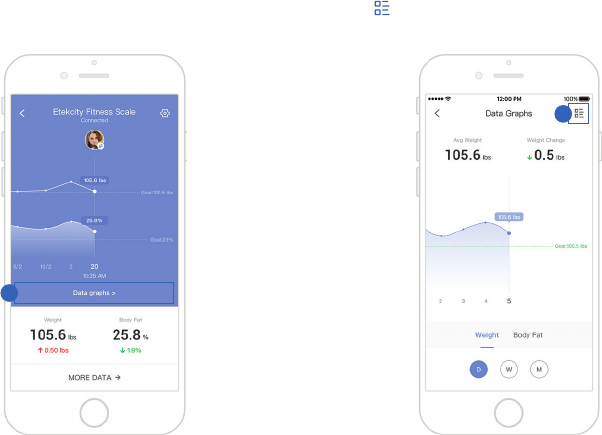
2. You can view daily, weekly, or monthly progress.
Tap to view your weighing history.
1. Tap Data Graphs.
C. Data Graphs
1
2
19
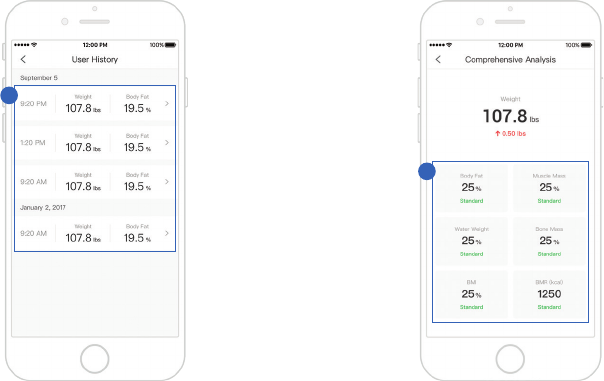
3. Tap on any entry to see more information. 4. View analysis of the 6 health metrics that the
scale tracks.
NOTE: Swipe left on any entry to delete.
4
3
20
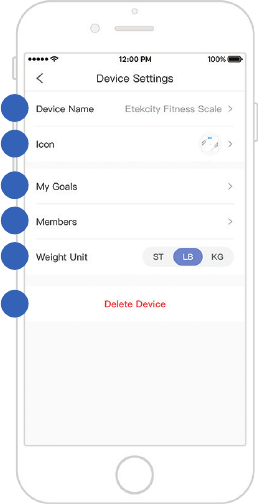
On the Device Settings screen, you can customize
the following scale settings:
a. Device Name
b. Icon
c. My Goals (see page 21)
d. Members (see page 22)
e. Weight Unit (see page 24)
f. Delete Device (see page 24)
D. Device Settings
a
b
c
d
e
f
21
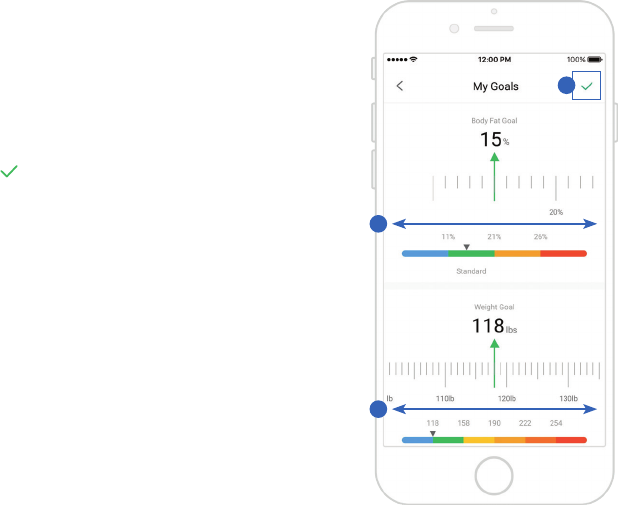
1. Tap My Goals to change your Body Fat Goal and
Weight Goal.
2. Scroll the goal meter left and right to change
your goals.
3. Then select when completed.
My Goals
3
2
2
22
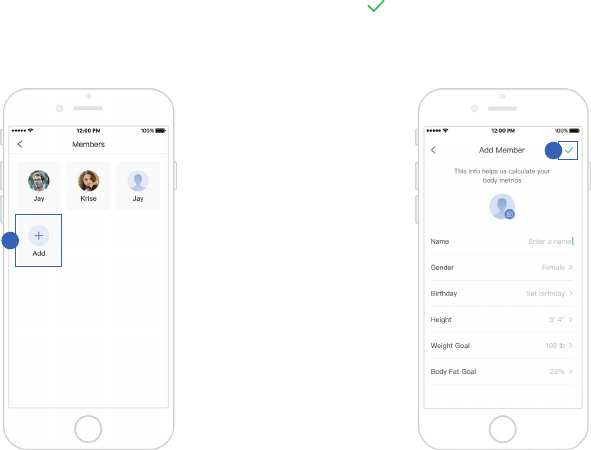
Add Member
1. Tap Add. Select the new member’s photo and
enter the new member’s information.
Members
2. Tap to save.
1
2
23
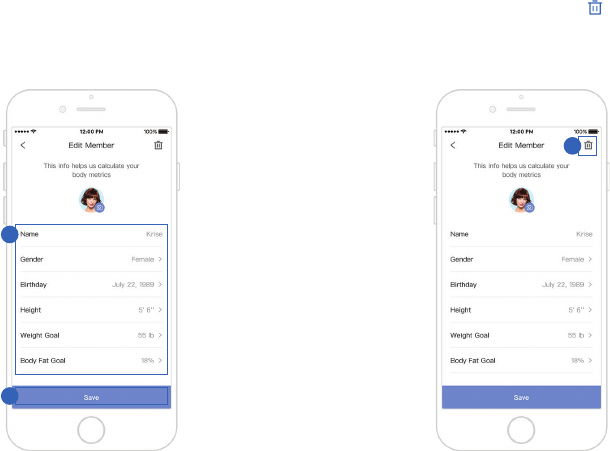
Edit Member
1. View and edit user information. Tap on member’s
picture and select each detail to edit information.
2. Tap Save when nished.
3. To delete the user prole, tap in the
upper right corner.
1
2
3
24
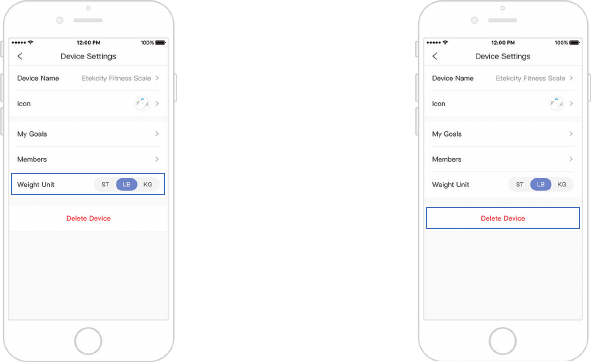
Tap the toggle button to change the weight units. Tap Delete Device to delete the scale from your
VeSync app.
Weight Unit Delete Device
NOTE: If you change the weight units, the units on
the smart scale will change to match. NOTE: Once user is deleted, there is no way to
retrieve deleted information.
25
Cleaning the Scale
• Use a slightly damp cloth to clean the surface of
the scale, followed by a dry, soft cloth to wipe
away the remaining moisture.
•Do not use chemical or abrasive cleaning agents
to clean the scale.
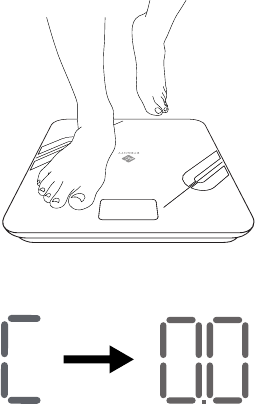
Calibrating the Scale
it must be calibrated to ensure accurate results.
1.
2. Step on the scale with one foot until digits appear
on the display. Then, step off.
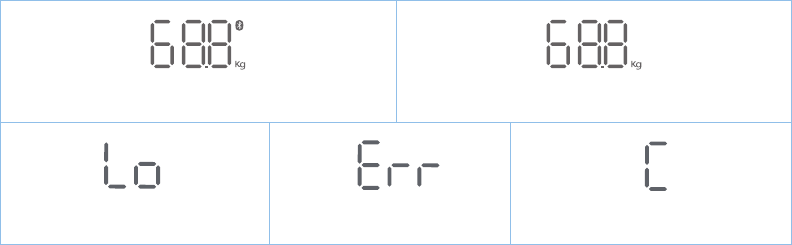
3. The scale will show “C” while calibrating, then
“0.0” when complete.
Maintenance
If the scale has been moved or flipped upside down,
Place the scale on a hard, flat surface.
26
1.5v - AAA
1.5v - AAA
1.5v - AAA
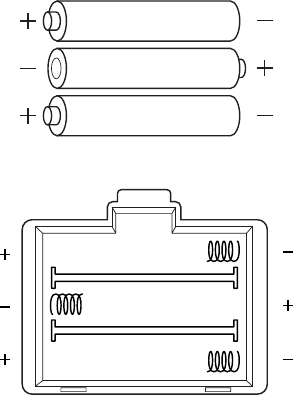
Replacing the Batteries
The display will show “Lo” when the batteries need
to be replaced.
1. Open the battery compartment on the underside
of the scale.
2. Remove the old batteries and dispose of them
properly.
3. Install 3 new 1.5V AAA batteries. Follow the
guidelines in the battery compartment to match
the + and - terminals.
4. After closing the battery compartment, calibrate
the scale (see Calibrating the Scale, page 25).
27
Display Messages
Wireless Connection
Change Battery Overload Calibrating
No Wireless Connection
28
4. Why is my body fat not measured when weighing in?
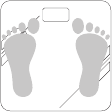
• Step on the scale with dry, bare feet. Make sure your
feet are on the scale’s conductive areas.
• Make sure Bluetooth is turned on.
• Enter your physical information into the VeSync
app.
1. Why doesn’t the scale turn on?
• Check if the batteries are properly installed. If the
scale is new, make sure to remove plastic wrap from
the batteries.
2.
disappear?
• The batteries are low and may need to be replaced.
3. Why doesn’t the scale connect with the VeSync app?
•Make sure your phone’s operating system is running
on iOS 8.0+ or Android 4.3+.
• Download and open the newest version of the
VeSync app.
• Turn on Bluetooth on your phone (for Android users,
make sure your Location is turned on as well).
• Make sure your scale and phone are within 30 feet
(10 meters) of each other.
• Make sure the scale is not currently connected to
any other phone or app.
• Make sure your phone is not currently connected to
another Bluetooth(™) device.
Conductive
Areas
NOTE:
•If the scale has errors on the display, it will not turn off
automatically, or has a problem not listed here, then try
removing the batteries for 3 seconds, then replacing
them.
• To reset the scale, press and hold the unit button for 10
seconds. This will remove all users and their information.
•Once user is deleted, there is no way to retrieve deleted
information.
If you still need help, please contact Customer Support (page 30).
Troubleshooting
Why does information flash on the screen and then

29
Warranty Information
Terms & Policy
Etekcity warrants all products to be of the highest quality in material,
craftsmanship, and service, effective from the date of purchase to
the end of the warranty period.
Etekcity will replace any product found to be defective due to
manufacturer aws based on eligibility. Refunds are available within
the rst 30 days of purchase. Refunds are only available to the
original purchaser of the product. This warranty extends only to
personal use and does not extend to any product that has been used
for commercial, rental, or any other use in which the product is not
intended for. There are no warranties other than the warranties
expressly set forth with each product.
This warranty is non-transferrable. Etekcity is not responsible in any
way for any damages, losses, or inconveniences caused by equipment
failure by user negligence, abuse, or use noncompliant with the user
manual or any additional safety, use, or warnings included in the
product packaging and manual.
This warranty does not apply to the following:
• Damage due to abuse, accident, alteration, misuse, tampering or
vandalism.
• Improper or inadequate maintenance.
• Damage in return transit.
• Unsupervised use by children under 18 years of age.
Etekcity and its subsidiaries assume no liability for damage caused
by the use of the product other than for its intended use or as
instructed in the user manual. Some states do not allow this exclusion
or limitation of incidental or consequential losses, so the foregoing
disclaimer may not apply to you. This warranty gives you specic legal
rights, and you may also have other rights which may vary from state
to state.
ALL EXPRESSED AND IMPLIED WARRANTIES, INCLUDING THE
WARRANTY OF MERCHANTABILITY, ARE LIMITED TO THE
PERIOD OF THE LIMITED WARRANTY.
Additional 1-Year Warranty
You can extend your 1-year warranty by an additional year. Log
onto www.etekcity.com/warranty and enter your order number (for
example, from Amazon or Houzz) to register your new product for the
extended warranty.
If you are unable to provide the order number for your product, please
type a short note in the order number eld along with the date you
received your product.
Defective Products & Returns
If your product proves defective within the specied warranty period,
please contact Customer Support via support@etekcity.com with
your order number. Do not dispose of your product before contacting
us. Once Customer Support has approved your request, please return
the unit with a copy of the invoice or your order number.
Product ESF37 Smart Fitness Scale
Default Warranty Period 1 year
For your own reference, we strongly recommend that you record
your order number and date of purchase.
Order Number:
Date of Purchase:
30
Customer Support
If you encounter any issues or have any questions regarding your new product, please contact our helpful
Customer Support Team. Your satisfaction is our goal!
Customer Support
Etekcity Corporation
1202 N Miller St., Suite A
Anaheim, CA 92806
Toll Free: (855) 686-3835
Email: support@etekcity.com
Support Hours
Monday - Friday
9:00 am - 5:00 pm PT
*Please have your order confirmation number ready
before contacting customer support.
FCC WARNING
Changes or modifications not expressly approved by the party responsible for
compliance could void the user's authority to operate the equipment.
Note: This equipment has been tested and found to comply with the limits for
a Class B digital device, pursuant to part 15 of the FCC Rules. These limits are
designed to provide reasonable protection against harmful interference in a
residential installation. This equipment generates uses and can radiate radio
frequency energy and, if not installed and used in accordance with the
instructions, may cause harmful interference to radio communications.
However, there is no guarantee that interference will not occur in a particular
installation. If this equipment does cause harmful interference to radio or
television reception, which can be determined by turning the equipment off
and on, the user is encouraged to try to correct the interference by one or more
of the following measures:
-Reorient or relocate the receiving antenna.
-Increase the separation between the equipment and receiver.
-Connect the equipment into an outlet on a circuit different from that to
which the receiver is connected.
-Consult the dealer or an experienced radio/TV technician for help.
The device has been evaluated to meet general RF exposure requirement. The
device can be used in portable exposure condition without restriction.
This device complies with part 15 of the FCC Rules. Operation is subject to
the following two conditions: (1) This device may not cause harmful
interference, and (2) this device must accept any interference received,
including interference that may cause undesired operation.

31
Connect with us @Etekcity.

Scan here to join the community!
Visit us at www.etekcity.com
Building on better living.