Wellington Drive Technologies CLICK1 Bluetooth LE transmission adaptor, SCS Click User Manual Part 2 of 2

Wellington Drive Technologies Ltd Bluetooth LE transmission adaptor, SCS Click Users Manual Part 2 of 2

Contents

Users Manual_Part 2 of 2

MOBILE GUI - contIn-Field SetupEnter Asset number manually. Or Barcode scan Asset number usingthephone’scamera.A list of available cooler models will drop down.Choose SAVE to save changes.Choose OK to accept.Enter Asset number.Choose SAVE to savechanges.Choose EDIT to edit Cooler model.Choose the cooler model from the list of available models.TABLE OF CONTENTSINTRODUCTION & WARNINGSDESCRIPTION & INSTALLATIONPROCESSOVERVIEWAUTHENTICATION IN-FIELD SET-UP UPGRADING FIRMWARETECHNICAL SPECIFICATIONGLOSSARY APPENDICESPD0012 V1.0 – 10 Oct 201716
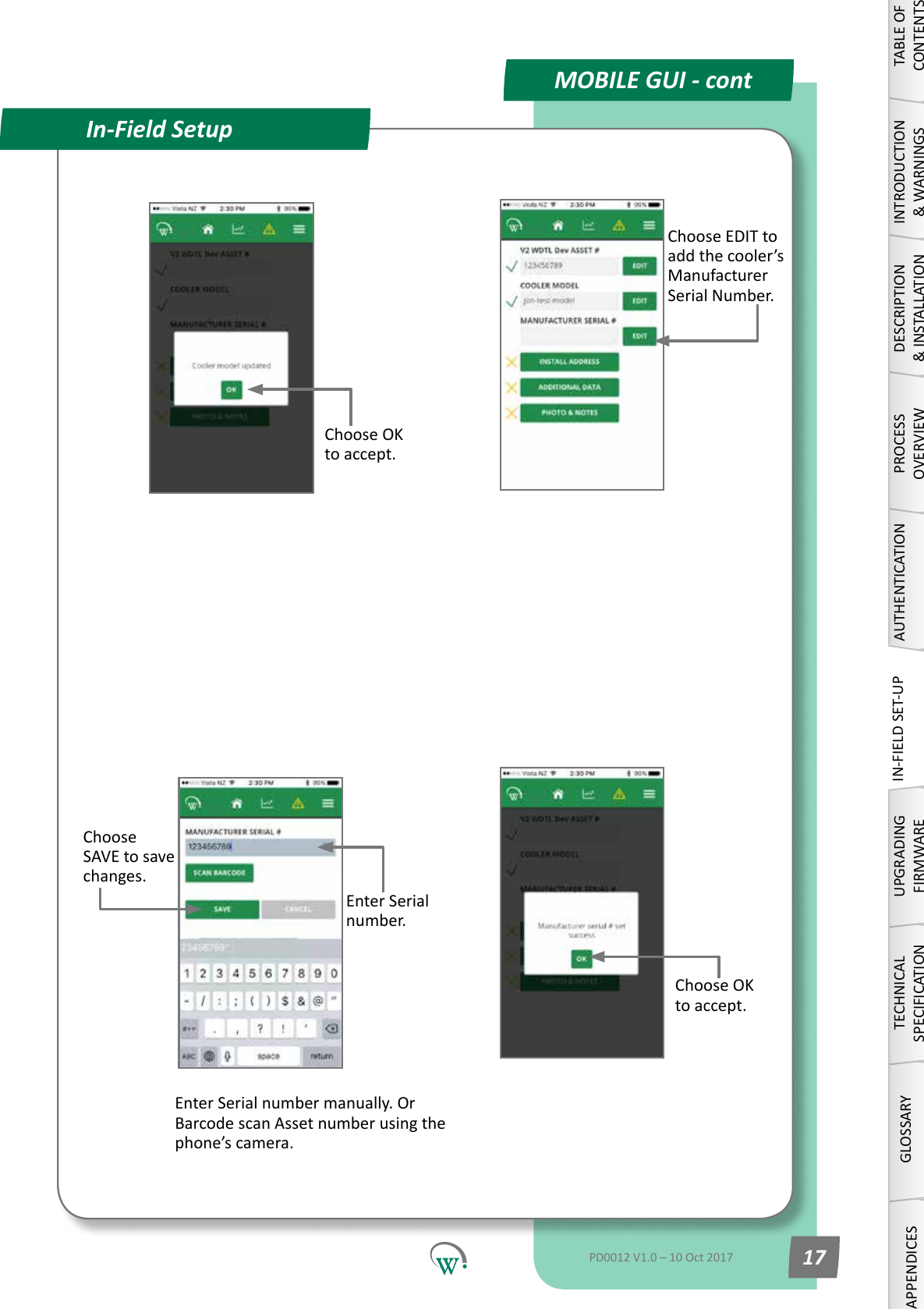
MOBILE GUI - contIn-Field SetupChoose EDIT to add the cooler’s Manufacturer Serial Number.Enter Serial number manually. Or BarcodescanAssetnumberusingthephone’s camera.Enter Serial number.Choose SAVE to save changes.Choose OK to accept.Choose OK to accept.TABLE OF CONTENTSINTRODUCTION & WARNINGSDESCRIPTION & INSTALLATIONPROCESSOVERVIEWAUTHENTICATIONIN-FIELD SET-UPUPGRADING FIRMWARETECHNICAL SPECIFICATIONGLOSSARYAPPENDICESPD0012 V1.0 – 10 Oct 2017 17
MOBILE GUI - contIn-Field SetupIt is not necessary to select SAVE at this point.IfyouchoseSAVEaercomplengthe previous step, select INSTALL ADDRESStogetbacktothisscreen.If GPS is turned o,typetheoutletaddress in the INSTALL ADDRESS box and select SHOW ON MAP.Manually enter the address if the Googleaddressisnotcorrect.If GPS is turned on, the phone will automacallylocateyourcurrentposion(bluemarker).Select INSTALL ADDRESSEnter outlet name and other details.TheUNITeldisforlocaoninformaonwhich is useful, but not part of the street address,e.g.“2ndoor”or“unit3”.Choose SAVE to savechanges.Double tap the map screentoposionthecooler’sexactlocaonwith a yellow marker.Dragtheyellowmarker around to posionthecooler’sexactlocaon.SelectOUTLET/UNIT tab.TABLE OF CONTENTSINTRODUCTION & WARNINGSDESCRIPTION & INSTALLATIONPROCESSOVERVIEWAUTHENTICATION IN-FIELD SET-UP UPGRADING FIRMWARETECHNICAL SPECIFICATIONGLOSSARY APPENDICESPD0012 V1.0 – 10 Oct 201718Note: Itisstronglypreferabletodothisprocesswhileonline,asotherwisethereisahighchanceofenteringanun-interpretableaddressandnotrealisingit.Ifyouarenotonlinewhiledoingthisprocess,GoogleMapslookupwon’twork.Inthiscase,justtypeintheaddress.
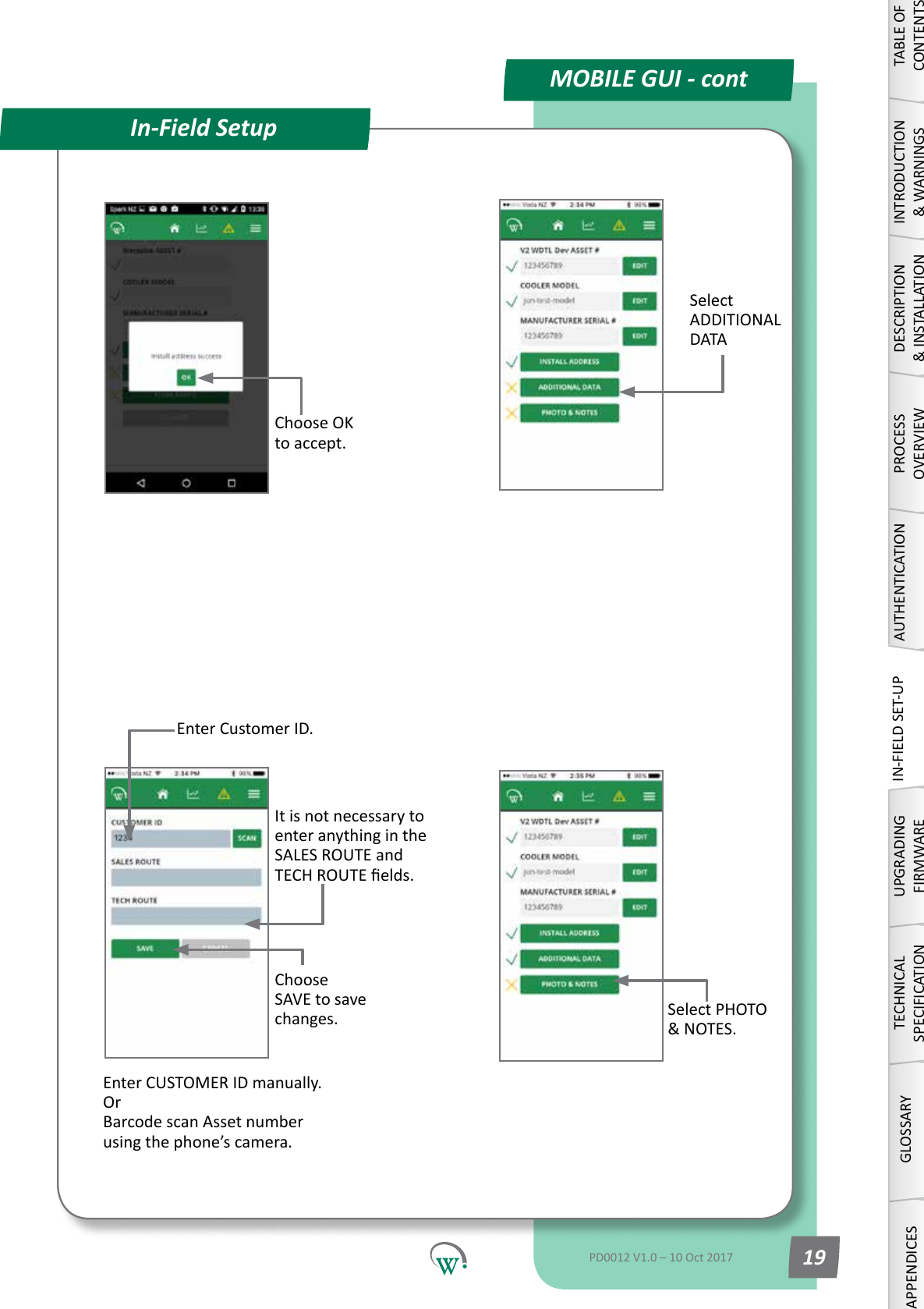
MOBILE GUI - contIn-Field SetupEnter Customer ID.Select ADDITIONAL DATAEnter CUSTOMER ID manually. Or Barcode scan Asset number usingthephone’scamera.Choose SAVE to save changes.It is not necessary to enteranythingintheSALES ROUTE and TECHROUTEelds.Choose OK to accept.Select PHOTO &NOTES.TABLE OF CONTENTSINTRODUCTION & WARNINGSDESCRIPTION & INSTALLATIONPROCESSOVERVIEWAUTHENTICATIONIN-FIELD SET-UPUPGRADING FIRMWARETECHNICAL SPECIFICATIONGLOSSARYAPPENDICESPD0012 V1.0 – 10 Oct 2017 19
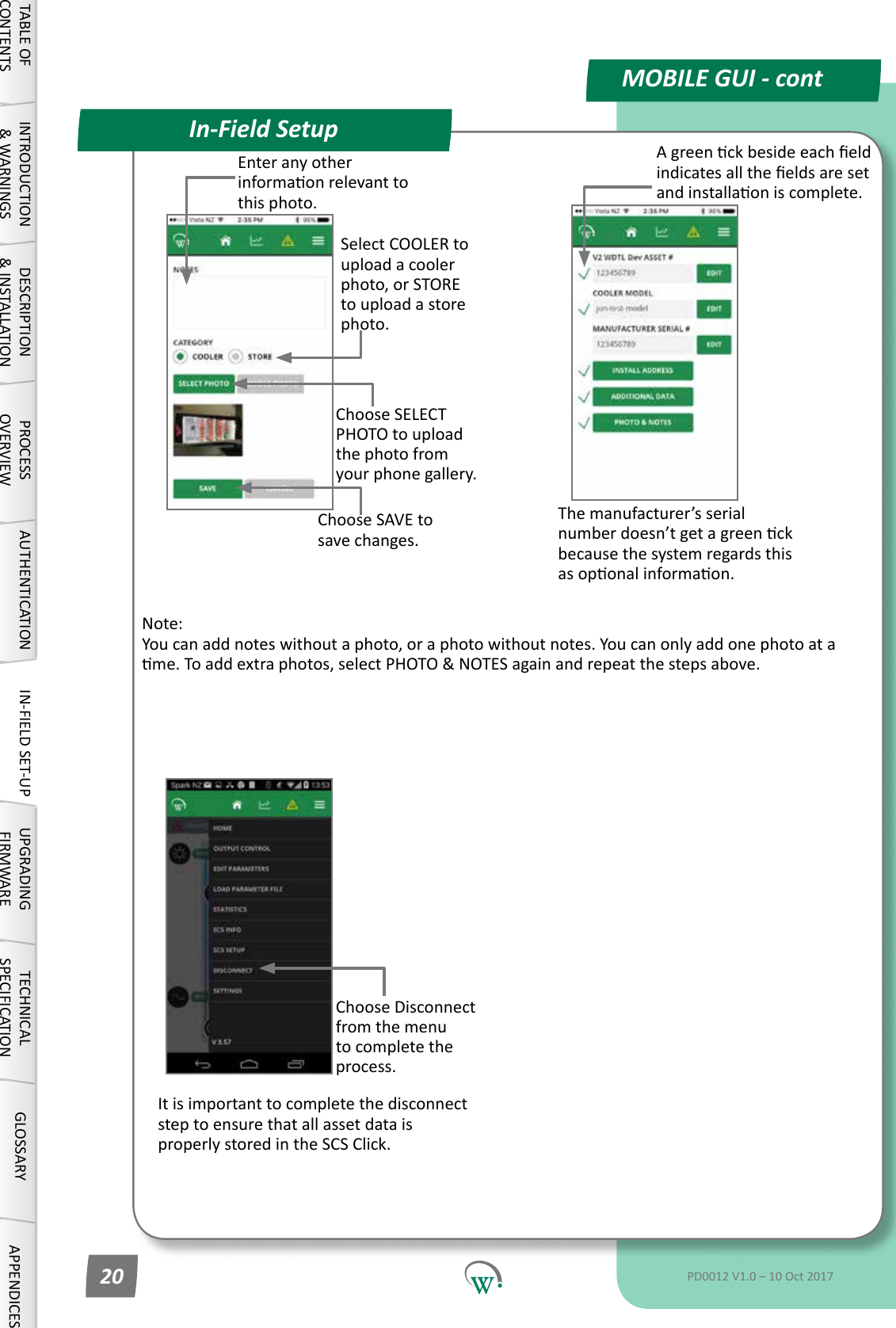
MOBILE GUI - contIn-Field SetupIt is important to complete the disconnect step to ensure that all asset data is properly stored in the SCS Click.Agreenckbesideeacheldindicatesalltheeldsaresetandinstallaoniscomplete.The manufacturer’s serial numberdoesn’tgetagreenckbecausethesystemregardsthisasoponalinformaon.Select COOLER to upload a cooler photo, or STORE to upload a store photo.Enter any other informaonrelevanttothis photo.Choose SELECT PHOTO to upload the photo from yourphonegallery.Choose SAVE to savechanges.Choose Disconnect from the menu to complete the process.TABLE OF CONTENTSINTRODUCTION & WARNINGSDESCRIPTION & INSTALLATIONPROCESSOVERVIEWAUTHENTICATION IN-FIELD SET-UP UPGRADING FIRMWARETECHNICAL SPECIFICATIONGLOSSARY APPENDICESPD0012 V1.0 – 10 Oct 201720Note: You can add notes without a photo, or a photo without notes. You can only add one photo at a me.Toaddextraphotos,selectPHOTO&NOTESagainandrepeatthestepsabove.
UPGRADING FIRMWAREQuick ReadFIRMWARE UPDATE ScreenSCS Click Programming StepsNavigatestothis ScreenScreenforseleconof Cloud stored Firmware FilesScreen for managementof locally stored Firmware FilesIniatestheSCSClickscanningprocessStops the SCS Click scanningprocessWindowshowingvisible SCS Click Forseleconofrmwareletobere-ashedontoSCSClickToiniatethereashingprocessReashingStatus barTo terminate thereashingprocessNeed New Screen shotTABLE OF CONTENTSINTRODUCTION & WARNINGSDESCRIPTION & INSTALLATIONPROCESSOVERVIEWAUTHENTICATIONIN-FIELD SET-UPUPGRADING FIRMWARETECHNICAL SPECIFICATIONGLOSSARYAPPENDICESStep 1: Select controller.Step 2: Select Bin File.Step 3:  Connect.Step 4:  Verify and Program.PD0012 V1.0 – 10 Oct 2017 21Firmware can be updated from either the mobile or desktop app.  The steps are the same for both.  Screenshots used are from the mobile app, but look the same on the desktop appThe SCS click contains a microprocessors.•Mainmicroresponsibleforallcontrolalgorithms.
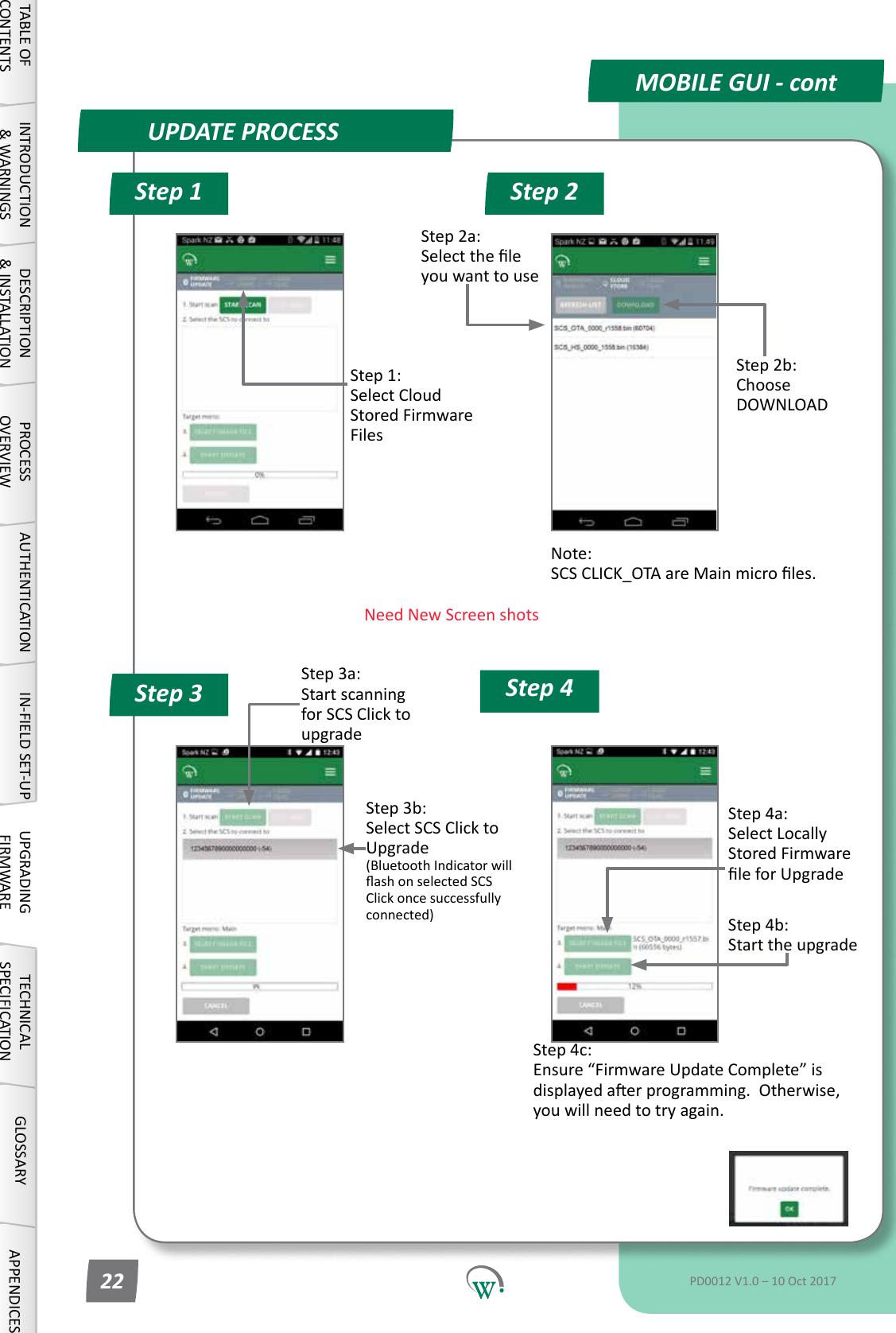
UPDATE PROCESSStep 1 Step 2Step 4Step 3MOBILE GUI - contStep 3a: Startscanningfor SCS Click to upgradeStep 3b: Select SCS Click to Upgrade (Bluetooth Indicator will ashonselectedSCSClick once successfully connected)Step 4c: Ensure“FirmwareUpdateComplete”isdisplayedaerprogramming.Otherwise,youwillneedtotryagain.Step 4a: Select Locally Stored Firmware leforUpgradeStep 4b: StarttheupgradeStep 2a: Selecttheleyou want to useNote: SCSCLICK_OTAareMainmicroles.Step 1: Select Cloud Stored Firmware FilesStep 2b: Choose DOWNLOADTABLE OF CONTENTSINTRODUCTION & WARNINGSDESCRIPTION & INSTALLATIONPROCESSOVERVIEWAUTHENTICATION IN-FIELD SET-UP UPGRADING FIRMWARETECHNICAL SPECIFICATIONGLOSSARY APPENDICESPD0012 V1.0 – 10 Oct 201722Need New Screen shots
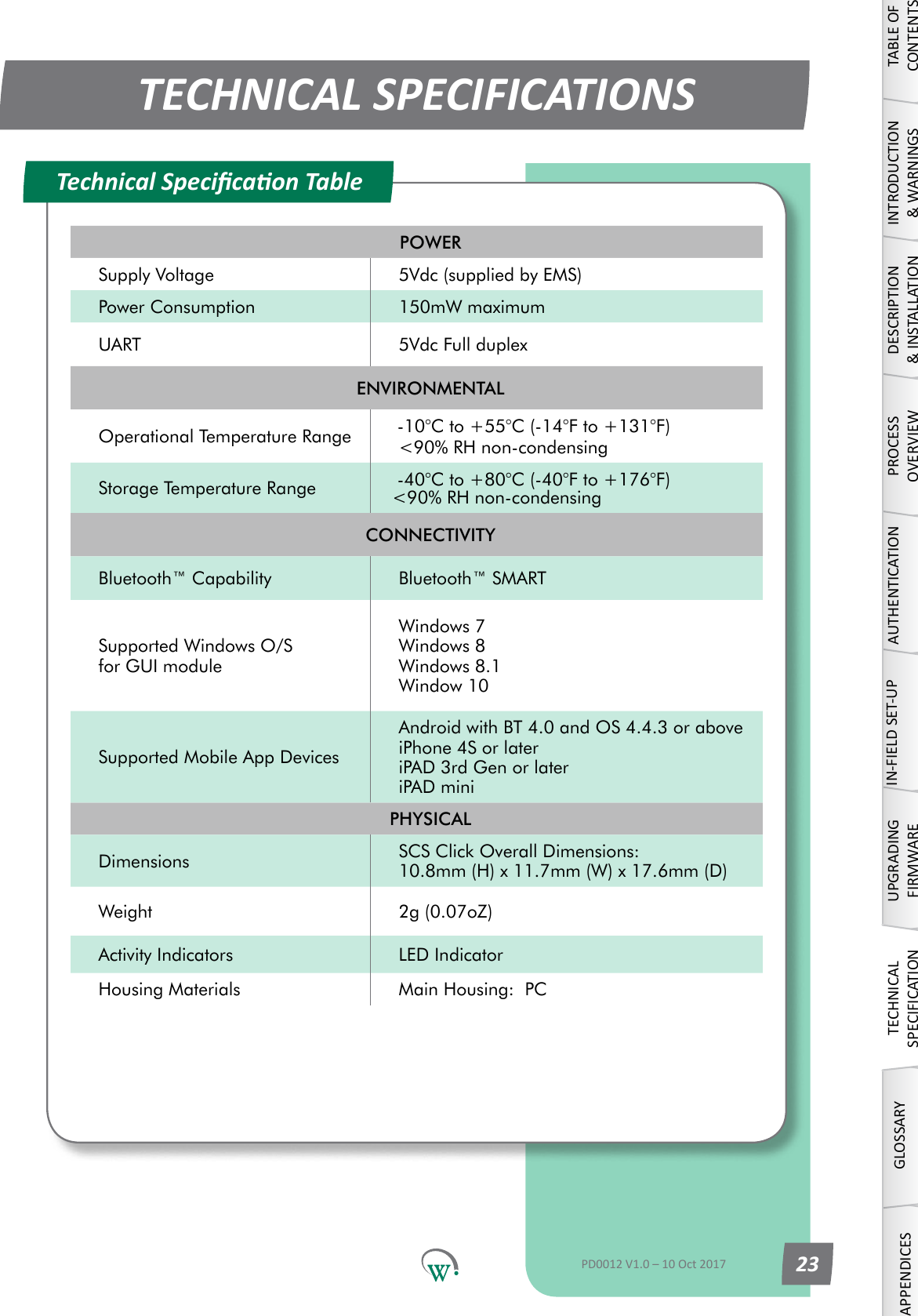
POWERSupply Voltage 5Vdc (supplied by EMS)Power Consumption 150mW maximumUART 5Vdc Full duplexENVIRONMENTALOperational Temperature Range      -10°C to +55°C (-14°F to +131°F) <90% RH non-condensingStorage Temperature Range      -40°C to +80°C (-40°F to +176°F)    <90% RH non-condensingCONNECTIVITYBluetooth™ Capability Bluetooth™ SMARTSupported Windows O/S for GUI moduleWindows 7 Windows 8 Windows 8.1 Window 10Supported Mobile App DevicesAndroid with BT 4.0 and OS 4.4.3 or above iPhone 4S or later iPAD 3rd Gen or later iPAD miniPHYSICALDimensions SCS Click Overall Dimensions: 10.8mm (H) x 11.7mm (W) x 17.6mm (D)Weight 2g (0.07oZ)Activity Indicators LED IndicatorHousing Materials Main Housing:  PCTECHNICAL SPECIFICATIONSTechnical Specicaon TableTABLE OF CONTENTSINTRODUCTION & WARNINGSDESCRIPTION & INSTALLATIONPROCESSOVERVIEWAUTHENTICATIONIN-FIELD SET-UPUPGRADING FIRMWARETECHNICAL SPECIFICATIONGLOSSARYAPPENDICESPD0012 V1.0 – 10 Oct 2017 23
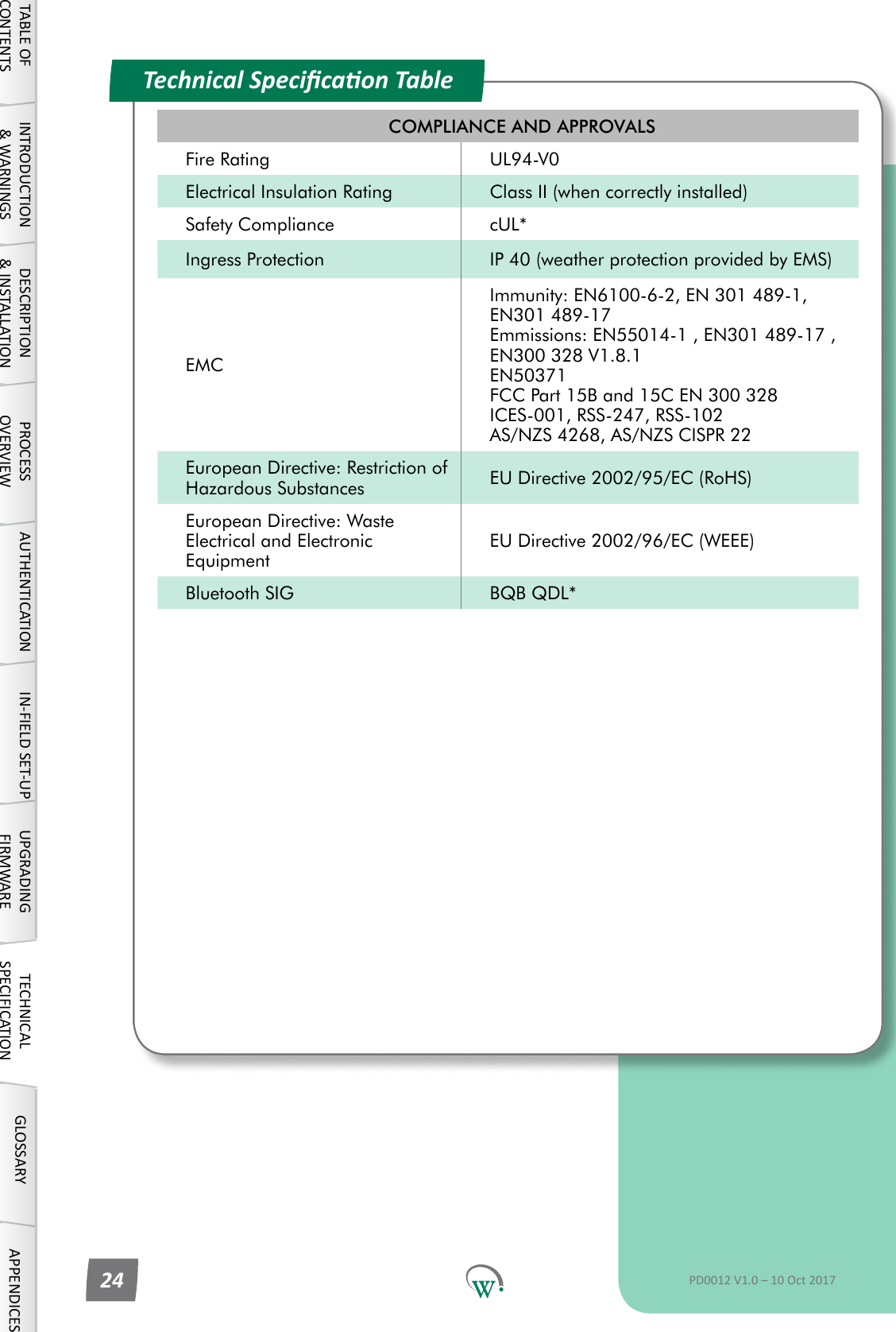
COMPLIANCE AND APPROVALSFire Rating UL94-V0Electrical Insulation Rating Class II (when correctly installed)Safety Compliance cUL*Ingress Protection IP 40 (weather protection provided by EMS)EMCImmunity: EN6100-6-2, EN 301 489-1, EN301 489-17 Emmissions: EN55014-1 , EN301 489-17 , EN300 328 V1.8.1 EN50371 FCC Part 15B and 15C EN 300 328 ICES-001, RSS-247, RSS-102 AS/NZS 4268, AS/NZS CISPR 22European Directive: Restriction of Hazardous Substances EU Directive 2002/95/EC (RoHS)European Directive: Waste Electrical and Electronic EquipmentEU Directive 2002/96/EC (WEEE)Bluetooth SIG BQB QDL*Technical Specicaon TableTABLE OF CONTENTSINTRODUCTION & WARNINGSDESCRIPTION & INSTALLATIONPROCESSOVERVIEWAUTHENTICATION IN-FIELD SET-UP UPGRADING FIRMWARETECHNICAL SPECIFICATIONGLOSSARY APPENDICESPD0012 V1.0 – 10 Oct 201724
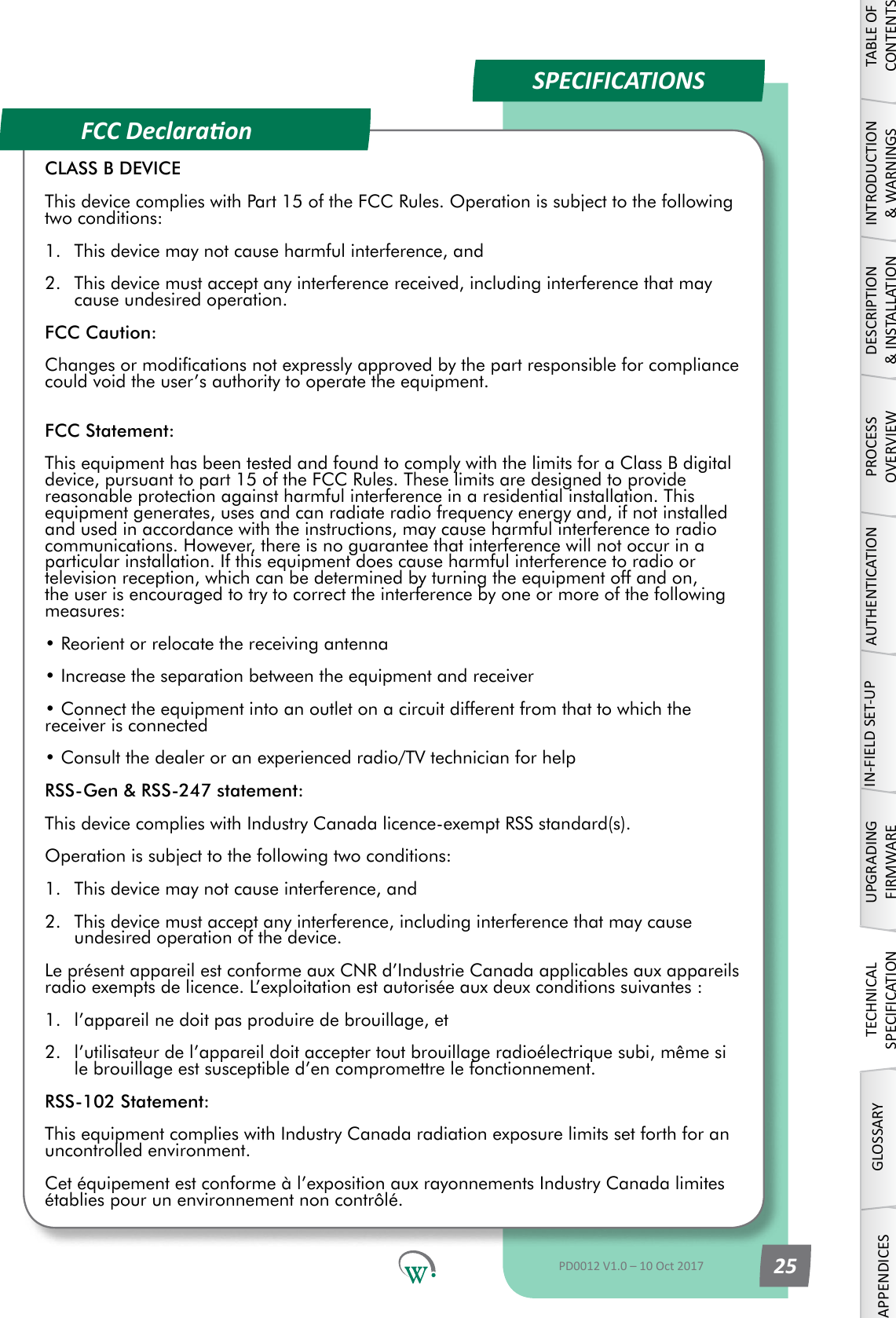
FCC DeclaraonSPECIFICATIONS TABLE OF CONTENTSINTRODUCTION & WARNINGSDESCRIPTION & INSTALLATIONPROCESSOVERVIEWAUTHENTICATIONIN-FIELD SET-UPUPGRADING FIRMWARETECHNICAL SPECIFICATIONGLOSSARYAPPENDICESPD0012 V1.0 – 10 Oct 2017 25CLASS B DEVICEThis device complies with Part 15 of the FCC Rules. Operation is subject to the following two conditions:1.  This device may not cause harmful interference, and2.  This device must accept any interference received, including interference that may cause undesired operation.FCC Caution:Changes or modications not expressly approved by the part responsible for compliance could void the user’s authority to operate the equipment. FCC Statement:This equipment has been tested and found to comply with the limits for a Class B digital device, pursuant to part 15 of the FCC Rules. These limits are designed to provide reasonable protection against harmful interference in a residential installation. This equipment generates, uses and can radiate radio frequency energy and, if not installed and used in accordance with the instructions, may cause harmful interference to radio communications. However, there is no guarantee that interference will not occur in a particular installation. If this equipment does cause harmful interference to radio or television reception, which can be determined by turning the equipment off and on, the user is encouraged to try to correct the interference by one or more of the following measures:• Reorient or relocate the receiving antenna• Increase the separation between the equipment and receiver• Connect the equipment into an outlet on a circuit different from that to which the receiver is connected• Consult the dealer or an experienced radio/TV technician for helpRSS-Gen & RSS-247 statement:This device complies with Industry Canada licence-exempt RSS standard(s).Operation is subject to the following two conditions:1.  This device may not cause interference, and2.  This device must accept any interference, including interference that may cause undesired operation of the device.Le présent appareil est conforme aux CNR d’Industrie Canada applicables aux appareils radio exempts de licence. L’exploitation est autorisée aux deux conditions suivantes : 1.  l’appareil ne doit pas produire de brouillage, et 2.  l’utilisateur de l’appareil doit accepter tout brouillage radioélectrique subi, même si le brouillage est susceptible d’en compromettre le fonctionnement.RSS-102 Statement:This equipment complies with Industry Canada radiation exposure limits set forth for an uncontrolled environment. Cet équipement est conforme à l’exposition aux rayonnements Industry Canada limites établies pour un environnement non contrôlé.
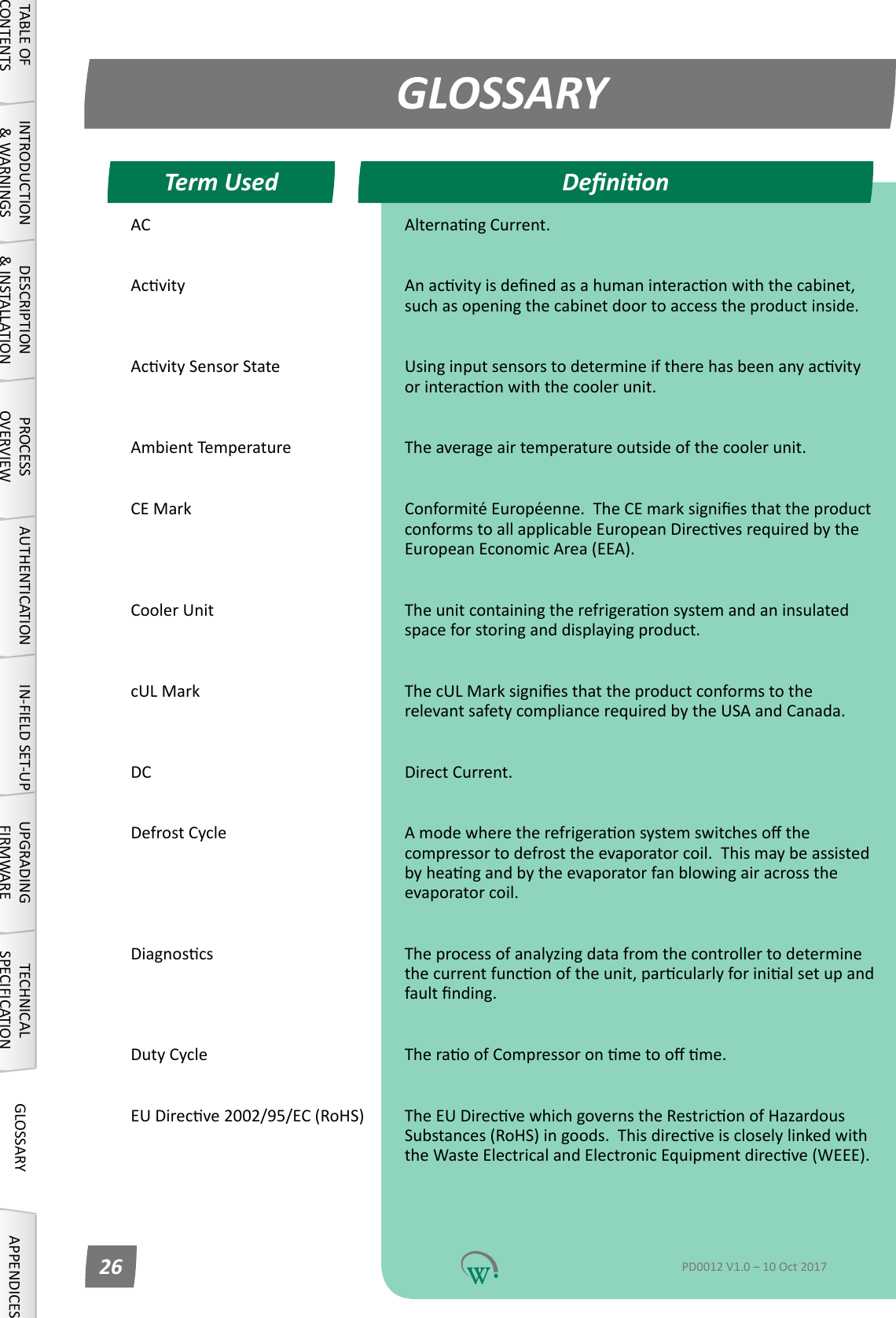
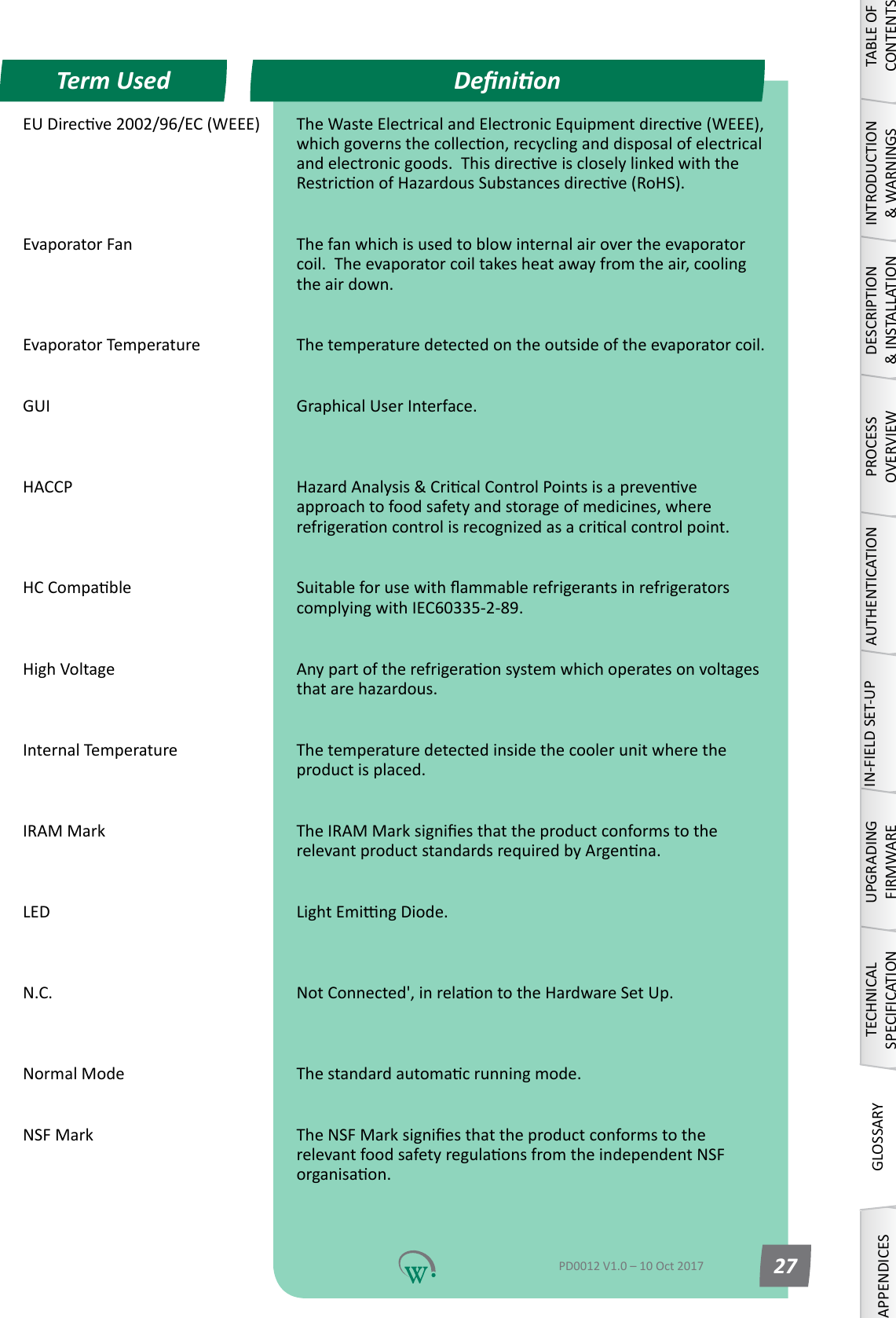
AC AlternangCurrent. Acvity Anacvityisdenedasahumaninteraconwiththecabinet,suchasopeningthecabinetdoortoaccesstheproductinside. AcvitySensorState Usinginputsensorstodetermineiftherehasbeenanyacvityorinteraconwiththecoolerunit. Ambient Temperature Theaverageairtemperatureoutsideofthecoolerunit. CE Mark ConformitéEuropéenne.TheCEmarksigniesthattheproductconformstoallapplicableEuropeanDirecvesrequiredbytheEuropeanEconomicArea(EEA). Cooler Unit Theunitcontainingtherefrigeraonsystemandaninsulatedspaceforstoringanddisplayingproduct. cUL Mark ThecULMarksigniesthattheproductconformstotherelevant safety compliance required by the USA and Canada. DC Direct Current. Defrost Cycle Amodewheretherefrigeraonsystemswitchesothecompressor to defrost the evaporator coil.  This may be assisted byheangandbytheevaporatorfanblowingairacrosstheevaporator coil. Diagnoscs Theprocessofanalyzingdatafromthecontrollertodeterminethecurrentfunconoftheunit,parcularlyforinialsetupandfaultnding. Duty Cycle TheraoofCompressoronmetoome. EUDirecve2002/95/EC(RoHS) TheEUDirecvewhichgovernstheRestriconofHazardousSubstances(RoHS)ingoods.ThisdirecveiscloselylinkedwiththeWasteElectricalandElectronicEquipmentdirecve(WEEE). GLOSSARYDenionTerm UsedTABLE OF CONTENTSINTRODUCTION & WARNINGSDESCRIPTION & INSTALLATIONPROCESSOVERVIEWAUTHENTICATION IN-FIELD SET-UP UPGRADING FIRMWARETECHNICAL SPECIFICATIONGLOSSARY APPENDICESPD0012 V1.0 – 10 Oct 201726
EUDirecve2002/96/EC(WEEE) TheWasteElectricalandElectronicEquipmentdirecve(WEEE),whichgovernsthecollecon,recyclinganddisposalofelectricalandelectronicgoods.ThisdirecveiscloselylinkedwiththeRestriconofHazardousSubstancesdirecve(RoHS). Evaporator Fan The fan which is used to blow internal air over the evaporator coil.Theevaporatorcoiltakesheatawayfromtheair,coolingthe air down. Evaporator Temperature The temperature detected on the outside of the evaporator coil. GUI Graphical User Interface.  HACCP HazardAnalysis&CricalControlPointsisaprevenveapproachtofoodsafetyandstorageofmedicines,whererefrigeraoncontrolisrecognizedasacricalcontrolpoint. HCCompable SuitableforusewithammablerefrigerantsinrefrigeratorscomplyingwithIEC60335-2-89. HighVoltage Anypartoftherefrigeraonsystemwhichoperatesonvoltagesthatarehazardous. Internal Temperature The temperature detected inside the cooler unit where the product is placed. IRAM Mark TheIRAMMarksigniesthattheproductconformstotherelevantproductstandardsrequiredbyArgenna. LED LightEmingDiode.  N.C. NotConnected',inrelaontotheHardwareSetUp.  Normal Mode Thestandardautomacrunningmode. NSF Mark TheNSFMarksigniesthattheproductconformstotherelevantfoodsafetyregulaonsfromtheindependentNSForganisaon. DenionTerm UsedTABLE OF CONTENTSINTRODUCTION & WARNINGSDESCRIPTION & INSTALLATIONPROCESSOVERVIEWAUTHENTICATIONIN-FIELD SET-UPUPGRADING FIRMWARETECHNICAL SPECIFICATIONGLOSSARYAPPENDICESPD0012 V1.0 – 10 Oct 2017 27
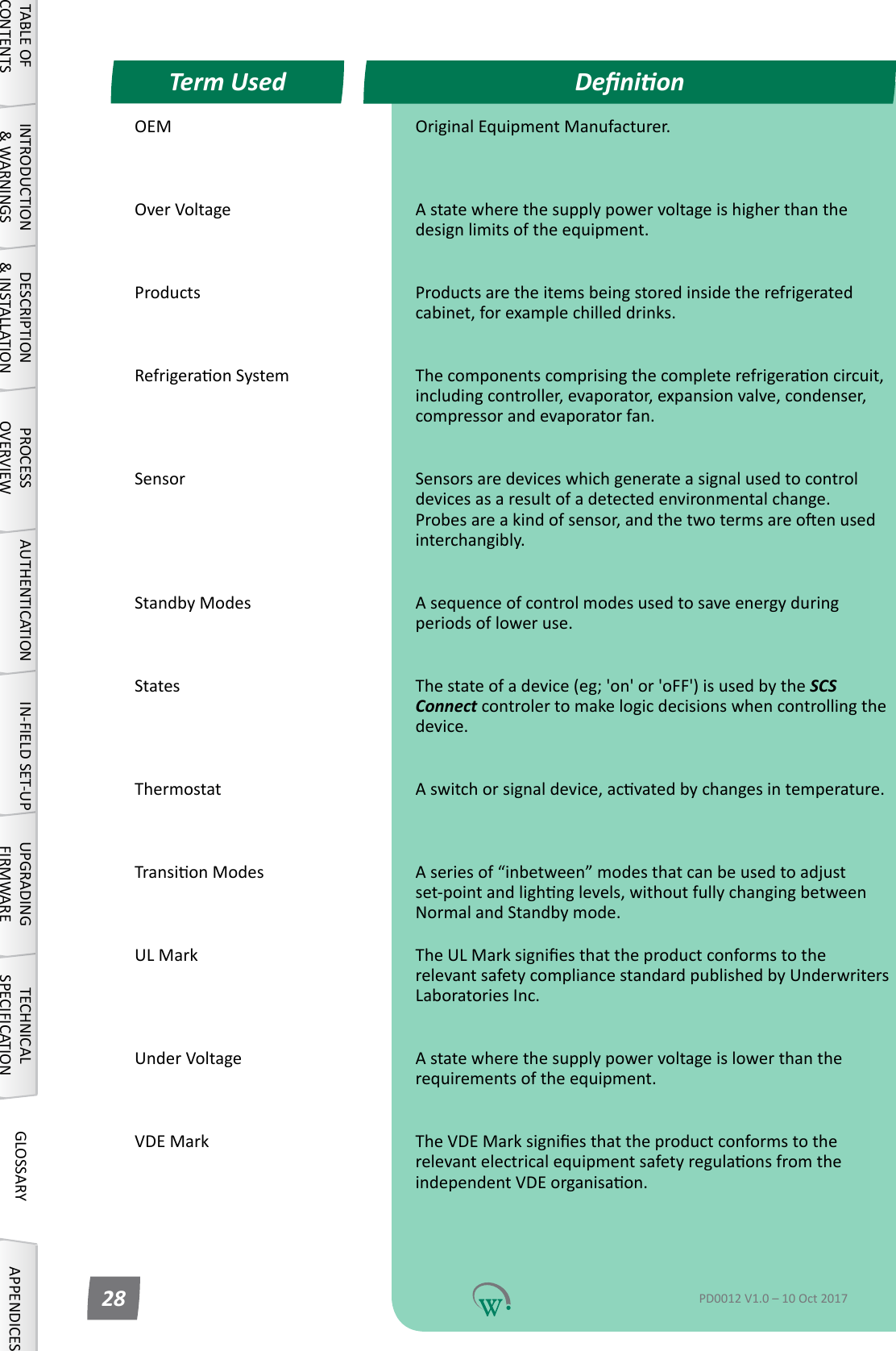
OEM OriginalEquipmentManufacturer.  OverVoltage Astatewherethesupplypowervoltageishigherthanthedesignlimitsoftheequipment. Products Productsaretheitemsbeingstoredinsidetherefrigeratedcabinet, for example chilled drinks. RefrigeraonSystem Thecomponentscomprisingthecompleterefrigeraoncircuit,includingcontroller,evaporator,expansionvalve,condenser,compressor and evaporator fan. Sensor Sensorsaredeviceswhichgenerateasignalusedtocontroldevicesasaresultofadetectedenvironmentalchange.Probesareakindofsensor,andthetwotermsareoenusedinterchangibly. Standby Modes Asequenceofcontrolmodesusedtosaveenergyduringperiods of lower use. States Thestateofadevice(eg;'on'or'oFF')isusedbytheSCS Connectcontrolertomakelogicdecisionswhencontrollingthedevice. Thermostat Aswitchorsignaldevice,acvatedbychangesintemperature.  TransionModes Aseriesof“inbetween”modesthatcanbeusedtoadjustset-pointandlighnglevels,withoutfullychangingbetweenNormal and Standby mode.UL Mark TheULMarksigniesthattheproductconformstotherelevant safety compliance standard published by Underwriters Laboratories Inc. UnderVoltage Astatewherethesupplypowervoltageislowerthantherequirements of the equipment. VDE Mark TheVDEMarksigniesthattheproductconformstotherelevantelectricalequipmentsafetyregulaonsfromtheindependentVDEorganisaon. DenionTerm UsedTABLE OF CONTENTSINTRODUCTION & WARNINGSDESCRIPTION & INSTALLATIONPROCESSOVERVIEWAUTHENTICATION IN-FIELD SET-UP UPGRADING FIRMWARETECHNICAL SPECIFICATIONGLOSSARY APPENDICESPD0012 V1.0 – 10 Oct 201728
SERVICE CENTER CONTACT ADDRESSESSouth AmericaNorth AmericaAustralasiaAsiaEuropeNorth AmericaAustralasiaAsiaEurope © 2017 Wellington Drive Technologies Limited 21 Arrenway Drive, Rosedale, Auckland 0632, New Zealand PO Box 302-533, North Harbour, Auckland 0751, New ZealandTel.:    + 64 9 477 4500,  Fax:   + 64 9 479 5540, E-mail: info@wdtl.com  Website: www.wdtl.com

Navigation menu