Wireless Seismic 00102 Wireless Remote Unit User Manual DeploymentGuide

Wireless Seismic, Inc. Wireless Remote Unit DeploymentGuide

Contents

Users Manual 1

5Mbps DraftReal Time MattersWireless Seismic, Inc.13100 Southwest Freeway, Suite 150Sugar Land, TX 77478832.532.5080RT 1000Deployment GuideJanuary 31, 2012Part Number: 90-0004R03.h
5Mbps DraftTo order additional copies of this document, send an email to your sales representative requesting the following:Part Number: 90-0004-PDFPart Number: 90-0004-Paper© 2010-2012 Wireless Seismic, Inc. All rights reserved. All other brands, company names, product names, trademarks or service marks referenced in this material are the property of their respective owners, who may or may not be affiliated with, connected to, or sponsored by Wireless Seismic, Inc.Wireless Seismic, Inc.'s trademarks, registered trademarks or trade dress may not be used in connection with any product or service that is not the property of Wireless Seismic, Inc., in any manner that is likely to cause confusion among customers, or in any manner that disparages or discredits Wireless Seismic, Inc. The products and services described in this material may not be available in all regions.All information supplied in this Deployment Guide regarding weights, sizes, performance, functionality and other technical information of any kind is approximate and shall be taken as generally representing our products. We may modify our products, discontinue products or add new products at any time and without providing an update to this Deployment Guide.NOTHING CONTAINED IN THIS DEPLOYMENT GUIDE SHALL BE CONSIDERED A REPRESENTATION OR WARRANTY MADE BY WIRELESS SEISMIC, INC. (“WIRELESS SEISMIC”) CONCERNING ANY PRODUCT DESCRIBED HEREIN, OR OTHERWISE. EXCEPT FOR THE WARRANTIES THAT MAY BE PROVIDED IN A SEPARATE AGREEMENT BETWEEN YOU AND WIRELESS SEISMIC, WIRELESS SEISMIC MAKES NO REPRESENTATION OR WARRANTY OF ANY KIND AND NO WARRANTY, CONDITION OR REPRESENTATION, WHETHER EXPRESS, IMPLIED, ORAL OR STATUTORY, IS PROVIDED TO YOU OR ANY THIRD PARTY. WITHOUT LIMITING THE FOREGOING, WIRELESS SEISMIC EXPRESS EXCLUDES AND DISCLAIMS ANY WARRANTY, CONDITION OR REPRESENTATION: (1) OF MERCHANTABILITY, FITNESS FOR A PARTICULAR PURPOSE, TITLE, SATISFACTORY QUALITY, OR ARISING FROM A COURSE OF DEALING, USAGE, OR TRADE PRACTICE; (2) THAT ANY PRODUCTS (INCLUDING SOFTWARE) WILL BE FREE FROM INFRINGEMENT OR VIOLATION OF ANY RIGHTS, INCLUDING INTELLECTUAL PROPERTY RIGHTS, OF THIRD PARTIES; OR (3) THAT THE OPERATION OF ANY PRODUCT (INCLUDING SOFTWARE) WILL BE UNINTERRUPTED OR ERROR FREE. THIS DISCLAIMER AND EXCLUSION SHALL APPLY EVEN IF THE EXPRESS WARRANTIES HEREIN FAIL OF THEIR ESSENTIAL PURPOSE.
5Mbps DraftRT 1000 1.5.0 3  Deployment Guide R03.h© 2010-2012 Wireless Seismic, Inc. All rights reserved.Table of Contents1.1. Overview . . . . . . . . . . . . . . . . . . . . . . . . . . . . . . . . . . . . . . . . . .  91.1 About this Guide  . . . . . . . . . . . . . . . . . . . . . . . . . . . . . . . . . . . . . . 91.2 Who Should Use this Guide . . . . . . . . . . . . . . . . . . . . . . . . . . . . . . . 91.3 Related Documents  . . . . . . . . . . . . . . . . . . . . . . . . . . . . . . . . . . . . 91.4 Getting Help  . . . . . . . . . . . . . . . . . . . . . . . . . . . . . . . . . . . . . . . . . 92.2. Layout  . . . . . . . . . . . . . . . . . . . . . . . . . . . . . . . . . . . . . . . . . . . .112.1 Prerequisites . . . . . . . . . . . . . . . . . . . . . . . . . . . . . . . . . . . . . . . . 112.2 Getting Ready . . . . . . . . . . . . . . . . . . . . . . . . . . . . . . . . . . . . . . . 112.3 Preparing the Equipment. . . . . . . . . . . . . . . . . . . . . . . . . . . . . . . . 132.4 Setting Up the Central Recording System . . . . . . . . . . . . . . . . . . . . 132.4.1 Setting up the Computer . . . . . . . . . . . . . . . . . . . . . . . . . . . . 132.4.2 Connecting to the Source Controller  . . . . . . . . . . . . . . . . . . . . 132.4.3 Source Interface Cables . . . . . . . . . . . . . . . . . . . . . . . . . . . . . 202.4.4 Trigger Pin-Outs . . . . . . . . . . . . . . . . . . . . . . . . . . . . . . . . . . 222.5 Laying Out the Equipment. . . . . . . . . . . . . . . . . . . . . . . . . . . . . . . 252.5.1 Prerequisites. . . . . . . . . . . . . . . . . . . . . . . . . . . . . . . . . . . . . 252.5.2 Assembling the Ground Equipment . . . . . . . . . . . . . . . . . . . . . 262.5.3 Placing the WRU in the Field . . . . . . . . . . . . . . . . . . . . . . . . . . 282.5.4 Placing the BSU in the Field . . . . . . . . . . . . . . . . . . . . . . . . . . 303.3. Backhaul  . . . . . . . . . . . . . . . . . . . . . . . . . . . . . . . . . . . . . . . . . .313.1 Overview. . . . . . . . . . . . . . . . . . . . . . . . . . . . . . . . . . . . . . . . . . . 313.2 Backhaul Components  . . . . . . . . . . . . . . . . . . . . . . . . . . . . . . . . . 353.2.1 BSU Components  . . . . . . . . . . . . . . . . . . . . . . . . . . . . . . . . . 353.2.1.1 BSU  . . . . . . . . . . . . . . . . . . . . . . . . . . . . . . . . . . . . . . . 353.2.1.2 PoE Switch Unit . . . . . . . . . . . . . . . . . . . . . . . . . . . . . . . 363.2.1.3 Battery and Power Supply . . . . . . . . . . . . . . . . . . . . . . . . 373.2.1.4 Cables. . . . . . . . . . . . . . . . . . . . . . . . . . . . . . . . . . . . . . 383.2.2 Antennas . . . . . . . . . . . . . . . . . . . . . . . . . . . . . . . . . . . . . . . 393.2.3 Radio Kit Components . . . . . . . . . . . . . . . . . . . . . . . . . . . . . . 393.2.3.1 FM1100 Radio  . . . . . . . . . . . . . . . . . . . . . . . . . . . . . . . . 403.2.3.2 FM3100 Radio  . . . . . . . . . . . . . . . . . . . . . . . . . . . . . . . . 413.2.4 Mast Kit Components. . . . . . . . . . . . . . . . . . . . . . . . . . . . . . . 413.2.4.1 Mast . . . . . . . . . . . . . . . . . . . . . . . . . . . . . . . . . . . . . . . 423.2.4.2 Base . . . . . . . . . . . . . . . . . . . . . . . . . . . . . . . . . . . . . . . 423.2.4.3 Bag. . . . . . . . . . . . . . . . . . . . . . . . . . . . . . . . . . . . . . . . 453.2.4.4 Backpack Kit . . . . . . . . . . . . . . . . . . . . . . . . . . . . . . . . . 45
5Mbps Draft4 RT 1000 1.5.0 Deployment Guide R03.h© 2010-2012 Wireless Seismic, Inc. All rights reserved.Table of Contents3.3 Configure the Radios . . . . . . . . . . . . . . . . . . . . . . . . . . . . . . . . . . .463.3.1 Create a Private Network. . . . . . . . . . . . . . . . . . . . . . . . . . . . .463.3.2 Setting NIC Priority. . . . . . . . . . . . . . . . . . . . . . . . . . . . . . . . .543.3.3 Configure the Radio . . . . . . . . . . . . . . . . . . . . . . . . . . . . . . . .563.3.4 Restore your Network Settings. . . . . . . . . . . . . . . . . . . . . . . . .593.3.5 Using the Fluidmesh Interface to Scan  . . . . . . . . . . . . . . . . . . .593.3.6 Using the Fluidmesh Interface to Ping. . . . . . . . . . . . . . . . . . . .593.4 Setting up the Backhaul Equipment. . . . . . . . . . . . . . . . . . . . . . . . .593.5 Installing Two Radios on the Mast . . . . . . . . . . . . . . . . . . . . . . . . . .633.6 Removing the Backhaul Equipment . . . . . . . . . . . . . . . . . . . . . . . . .643.7 Use Cases or Example Deployments  . . . . . . . . . . . . . . . . . . . . . . . .644.4. Demobilization . . . . . . . . . . . . . . . . . . . . . . . . . . . . . . . . . . . . . 684.1 Overview . . . . . . . . . . . . . . . . . . . . . . . . . . . . . . . . . . . . . . . . . . .684.2 Removing the WRU from the Field. . . . . . . . . . . . . . . . . . . . . . . . . .684.3 Disassemble the WRU . . . . . . . . . . . . . . . . . . . . . . . . . . . . . . . . . .695.5. Maintaining the Equipment. . . . . . . . . . . . . . . . . . . . . . . . . . . . 715.1 Units . . . . . . . . . . . . . . . . . . . . . . . . . . . . . . . . . . . . . . . . . . . . . .715.2 Antennas . . . . . . . . . . . . . . . . . . . . . . . . . . . . . . . . . . . . . . . . . . .715.3 Geophones . . . . . . . . . . . . . . . . . . . . . . . . . . . . . . . . . . . . . . . . . .715.4 Cautions. . . . . . . . . . . . . . . . . . . . . . . . . . . . . . . . . . . . . . . . . . . .726.6. Troubleshooting and Tips . . . . . . . . . . . . . . . . . . . . . . . . . . . . . 736.1 Best Practices . . . . . . . . . . . . . . . . . . . . . . . . . . . . . . . . . . . . . . . .736.1.1 24 Ah Batteries  . . . . . . . . . . . . . . . . . . . . . . . . . . . . . . . . . . .736.1.2 PoE. . . . . . . . . . . . . . . . . . . . . . . . . . . . . . . . . . . . . . . . . . . .736.1.3 Urban Environments . . . . . . . . . . . . . . . . . . . . . . . . . . . . . . . .736.1.4 Ethernet Cables . . . . . . . . . . . . . . . . . . . . . . . . . . . . . . . . . . .746.1.5 Antennas. . . . . . . . . . . . . . . . . . . . . . . . . . . . . . . . . . . . . . . .746.2 Troubleshooting  . . . . . . . . . . . . . . . . . . . . . . . . . . . . . . . . . . . . . .746.2.1 Fluidmesh Radios . . . . . . . . . . . . . . . . . . . . . . . . . . . . . . . . . .747.7. Batteries. . . . . . . . . . . . . . . . . . . . . . . . . . . . . . . . . . . . . . . . . . 757.1 Lithium Ion Batteries . . . . . . . . . . . . . . . . . . . . . . . . . . . . . . . . . . .757.1.1 Specifications. . . . . . . . . . . . . . . . . . . . . . . . . . . . . . . . . . . . .757.1.2 Handling and Safety Guidelines . . . . . . . . . . . . . . . . . . . . . . . .767.1.3 Transportation . . . . . . . . . . . . . . . . . . . . . . . . . . . . . . . . . . . .777.1.4 Storage. . . . . . . . . . . . . . . . . . . . . . . . . . . . . . . . . . . . . . . . .787.2 Charging Lithium Ion Batteries . . . . . . . . . . . . . . . . . . . . . . . . . . . .797.2.1 Charging Precautions  . . . . . . . . . . . . . . . . . . . . . . . . . . . . . . .797.2.2 Battery Charger . . . . . . . . . . . . . . . . . . . . . . . . . . . . . . . . . . .807.3 BSU Battery . . . . . . . . . . . . . . . . . . . . . . . . . . . . . . . . . . . . . . . . .818.8. Batteries. . . . . . . . . . . . . . . . . . . . . . . . . . . . . . . . . . . . . . . . . . 828.1 Batteries au lithium-ion . . . . . . . . . . . . . . . . . . . . . . . . . . . . . . . . .828.1.1 Spécifications. . . . . . . . . . . . . . . . . . . . . . . . . . . . . . . . . . . . .828.1.2 Directives en matière de manipulation et de sécurité . . . . . . . . .838.1.3 Transport  . . . . . . . . . . . . . . . . . . . . . . . . . . . . . . . . . . . . . . .84
5Mbps DraftR03.h RT 1000 1.5.0 Deployment Guide 5© 2010-2012 Wireless Seismic, Inc. All rights reserved.Table of Contents8.1.4 Entreposage . . . . . . . . . . . . . . . . . . . . . . . . . . . . . . . . . . . . . 868.2 Chargement des batteries au lithium-ion. . . . . . . . . . . . . . . . . . . . . 878.2.1 Précautions de chargement. . . . . . . . . . . . . . . . . . . . . . . . . . . 878.2.2 Chargeur de batterie . . . . . . . . . . . . . . . . . . . . . . . . . . . . . . . 878.3 BSU de batterie . . . . . . . . . . . . . . . . . . . . . . . . . . . . . . . . . . . . . . 89A.A. Legal Information . . . . . . . . . . . . . . . . . . . . . . . . . . . . . . . . . . .90A.1 FCC Rules and Regulations Compliance. . . . . . . . . . . . . . . . . . . . . . 90A.2 Industry Canada Compliance. . . . . . . . . . . . . . . . . . . . . . . . . . . . . 91B.B. l'information juridique. . . . . . . . . . . . . . . . . . . . . . . . . . . . . . . .92B.1 Conformité avec les règles et règlements de la FCC . . . . . . . . . . . . . 92B.2 Industrie Canada Conformité. . . . . . . . . . . . . . . . . . . . . . . . . . . . . 93C.C. Fluidmesh Radio Specifications . . . . . . . . . . . . . . . . . . . . . . . . .94C.1 The Fluidmesh Mito Series. . . . . . . . . . . . . . . . . . . . . . . . . . . . . . . 94C.2 Fluidmesh 1100 with MITO Technology. . . . . . . . . . . . . . . . . . . . . . 96C.3 Fluidmesh 3100 with MITO Technology. . . . . . . . . . . . . . . . . . . . . . 97C.4 MITO Series General Characteristics. . . . . . . . . . . . . . . . . . . . . . . . 98D.D. LED Indicators. . . . . . . . . . . . . . . . . . . . . . . . . . . . . . . . . . . . .100E.E. Weighted Mast . . . . . . . . . . . . . . . . . . . . . . . . . . . . . . . . . . . . .106E.1 Specifications. . . . . . . . . . . . . . . . . . . . . . . . . . . . . . . . . . . . . . . 106E.2 Hardware Supplied. . . . . . . . . . . . . . . . . . . . . . . . . . . . . . . . . . . 107E.3 Assembly Instructions. . . . . . . . . . . . . . . . . . . . . . . . . . . . . . . . . 108Index  . . . . . . . . . . . . . . . . . . . . . . . . . . . . . . . . . . . . . . . . . . . . . . .109
5Mbps Draft6 RT 1000 1.5.0 Deployment Guide R03.h© 2010-2012 Wireless Seismic, Inc. All rights reserved.List of FiguresList of FiguresFigure 2–1 Pelton Vib Pro Interface Card in Slot..................................................15Figure 2–2 Pelton Vib Pro Interface Card............................................................15Figure 2–3 Pelton Vib Pro Interface Card Assembly Drawing .................................16Figure 2–4 Pelton Vib Pro Jumpers....................................................................17Figure 2–5 Pelton Analog Output Connection ......................................................18Figure 2–6 BSU Analog Input Connection...........................................................18Figure 2–7 Pelton Vib Pro TimeBrk Act...............................................................19Figure 2–8 Pelton Vib Pro StartDelay.................................................................20Figure 2–9 PELTON SOURCE CONTROL (60-0015) Cable ......................................21Figure 2–10 WRU .............................................................................................25Figure 2–11 BSU ..............................................................................................25Figure 2–12 Geophone......................................................................................25Figure 2–13 Battery Latch .................................................................................27Figure 2–14 Installing the Battery.......................................................................27Figure 2–15 Installing the Geophone...................................................................28Figure 2–16 Installing the Antenna .....................................................................28Figure 2–17 Power on the Unit ...........................................................................29Figure 2–18 Place the Unit.................................................................................29Figure 3–1 Possible LTU Components.................................................................32Figure 3–2 Central Recording Truck Components ................................................33Figure 3–3 Single Backhaul Data Direction .........................................................34Figure 3–4 Backhaul Components Packed for Transport........................................35Figure 3–5 Base Station Unit (BSU)...................................................................36Figure 3–6 PoE...............................................................................................37Figure 3–7 Protective Battery Case....................................................................38Figure 3–8 Protective Ethernet Connector ..........................................................38Figure 3–9 Channel Color Example....................................................................40Figure 3–10 FM1100 Radio ................................................................................40Figure 3–11 FM3100 Radio ................................................................................41Figure 3–12 Mast (55-0008) .............................................................................. 42Figure 3–13 Base (55-0007) .............................................................................. 43Figure 3–14 Assembled Backhaul Mast ................................................................44Figure 3–15 Base (70-0070) .............................................................................. 45Figure 3–16 Fluidmesh Radio Private Network ......................................................47Figure 3–17 Control Panel, Network and Internet..................................................48Figure 3–18 Control Panel, Network and Sharing Center ........................................49Figure 3–19 Control Panel, Change Adapter Settings.............................................50Figure 3–20 Control Panel, LAN Properties ...........................................................51Figure 3–21 Control Panel, Networking Properties.................................................52Figure 3–22 Control Panel, IP Address.................................................................53Figure 3–23 Advanced Network Settings Menu .....................................................55Figure 3–24 LAN Hierarchy ................................................................................55Figure 3–25 Radio Login Window........................................................................56Figure 3–26 Radio Home Window, Mesh End ........................................................57Figure 3–27 Fluidmesh MeshWizard Interface.......................................................58Figure 3–28 Mast on a Slope..............................................................................60Figure 3–29 Base and Wind Orientation...............................................................61Figure 3–30 Securing Lines to Large Cleat ...........................................................62Figure 3–31 Backhaul Antenna Erected................................................................62
5Mbps DraftR03.h RT 1000 1.5.0 Deployment Guide 7© 2010-2012 Wireless Seismic, Inc. All rights reserved.List of FiguresFigure 3–32 Two-Radio Installation......................................................................63Figure 3–33 2D Single Backhaul..........................................................................65Figure 3–34 3D Dual Backhaul, Two Root Nodes....................................................66Figure 3–35 2D Single Backhaul, Star Configuration ..............................................67Figure 4–1 Power Off the Unit...........................................................................68Figure 4–2 Undeployed Unit..............................................................................69Figure 4–3 Removing the Antenna.....................................................................70Figure 4–4 Removing the Geophone ..................................................................70Figure 4–5 Removing the Battery ......................................................................70Figure 7–1 Example Battery Shipping Label ........................................................78Figure 7–2 Battery Charger ..............................................................................80Figure 7–3 Serial Number Label and LED Indicator...............................................81Figure E–1 Weighted Mast..............................................................................107Figure E–2 Tripod Assembly – Front View .........................................................108
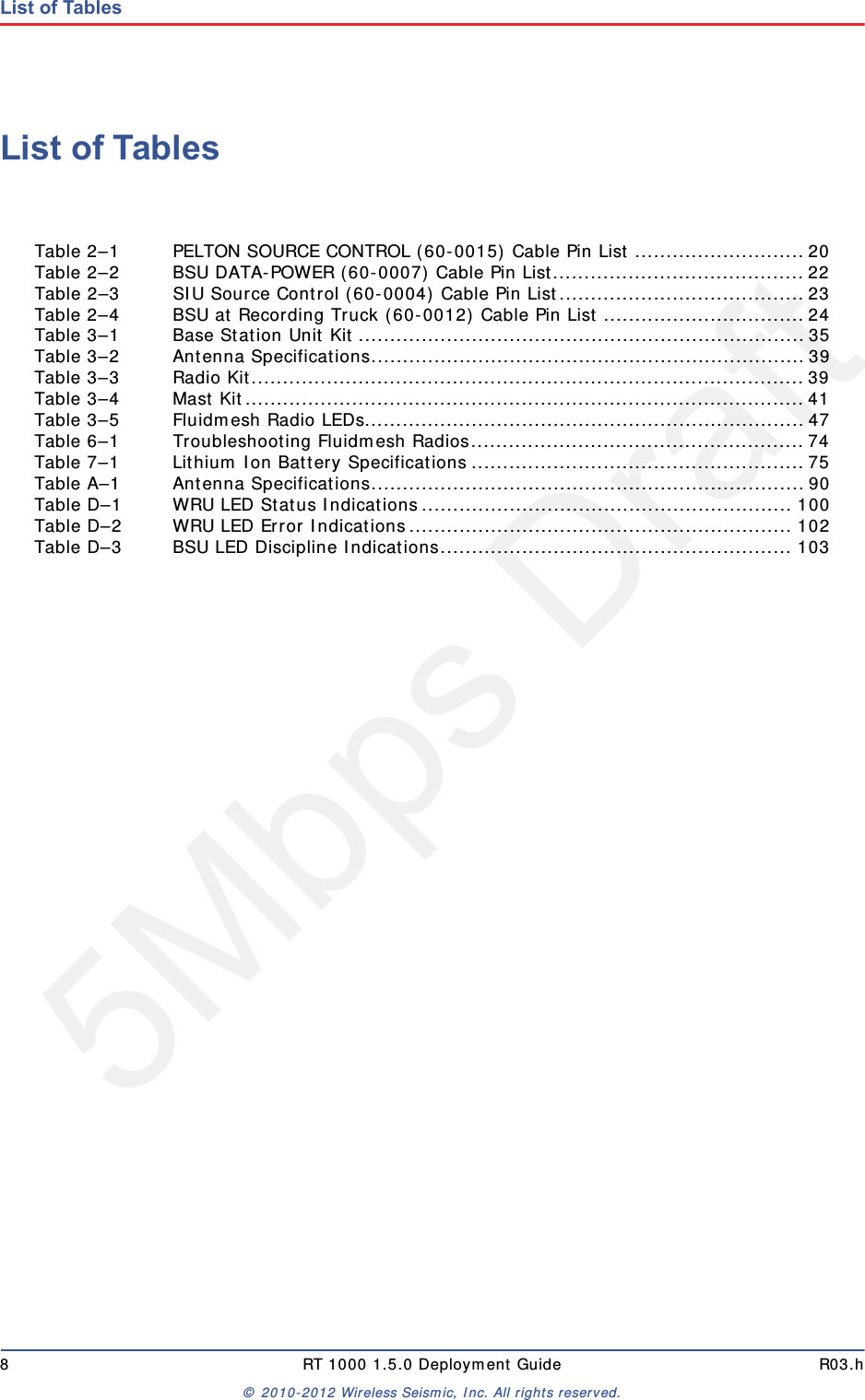
5Mbps Draft8 RT 1000 1.5.0 Deployment Guide R03.h© 2010-2012 Wireless Seismic, Inc. All rights reserved.List of TablesList of TablesTable 2–1 PELTON SOURCE CONTROL (60-0015) Cable Pin List ...........................20Table 2–2 BSU DATA-POWER (60-0007) Cable Pin List........................................ 22Table 2–3 SIU Source Control (60-0004) Cable Pin List....................................... 23Table 2–4 BSU at Recording Truck (60-0012) Cable Pin List ................................24Table 3–1 Base Station Unit Kit .......................................................................35Table 3–2 Antenna Specifications.....................................................................39Table 3–3 Radio Kit........................................................................................39Table 3–4 Mast Kit.........................................................................................41Table 3–5 Fluidmesh Radio LEDs......................................................................47Table 6–1 Troubleshooting Fluidmesh Radios.....................................................74Table 7–1 Lithium Ion Battery Specifications .....................................................75Table A–1 Antenna Specifications.....................................................................90Table D–1 WRU LED Status Indications........................................................... 100Table D–2 WRU LED Error Indications............................................................. 102Table D–3 BSU LED Discipline Indications........................................................ 103
5Mbps DraftRT 1000 1.5.0 9  Deployment Guide R03.h© 2010-2012 Wireless Seismic, Inc. All rights reserved.11. Overview1.1 About this GuideThis document provides information on how to deploy the RT 1000 in the field.1.2 Who Should Use this GuideThe expected users of this document are as follows:Crew (Layout/Troubleshooters)Technician (LTU)Bosses (Line Crew)1.3 Related DocumentsRT 1000-related documents are as follows:“RT 1000 Documents Guide” (90-0001) – Lists all of the RT 1000 documents with a brief description of each.“RT 1000 Glossary” (90-0012) – Lists and defines RT 1000 terms and acronyms. Includes some general seismic and geologic terms and acronyms.Installation Guide (90-0003) – TBD 1.4 Getting HelpTo get help on the RT 1000 Central Recording System, consult the online help. You can find the help documents by clicking the help icon in the user interface, or by navigating to the following directory:C:\wsi\rt1000\vx.y\server\help\index.htm Where vx.y is the version number (for example, v1.3).To get help on the RT 1000 deployment, consult this document.
5Mbps Draft10 RT 1000 1.5.0 Deployment Guide R03.h© 2010-2012 Wireless Seismic, Inc. All rights reserved.1. OverviewGetting HelpIf you cannot find the answers you need, please contact Wireless Seismic, Inc. Customer Support at:13100 Southwest Freeway, Suite 150 Sugar Land, TX 77478 (832) 532-5048support@wirelessseismic.com
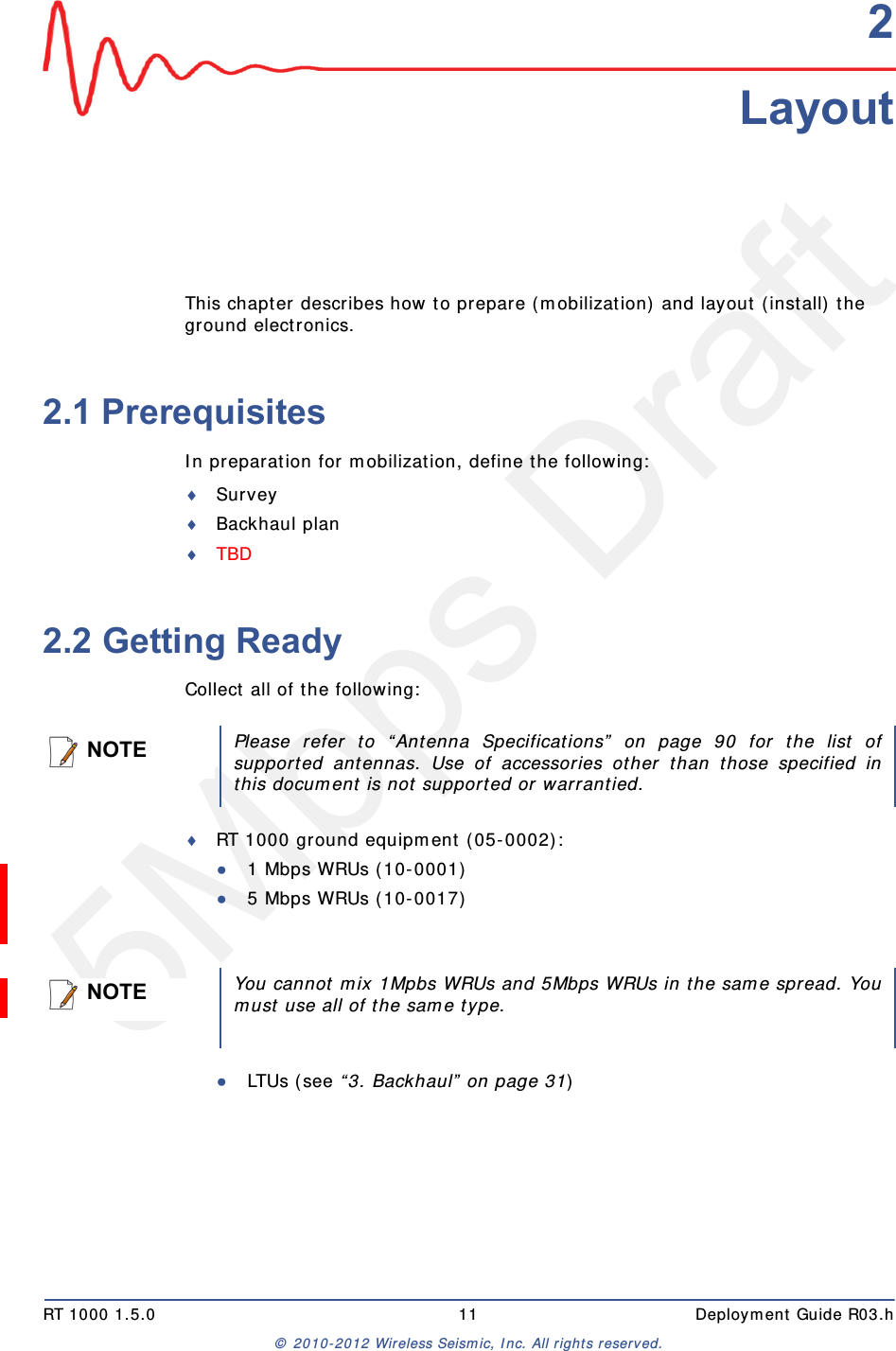
5Mbps DraftRT 1000 1.5.0 11  Deployment Guide R03.h© 2010-2012 Wireless Seismic, Inc. All rights reserved.22. LayoutThis chapter describes how to prepare (mobilization) and layout (install) the ground electronics. 2.1 PrerequisitesIn preparation for mobilization, define the following:SurveyBackhaul planTBD 2.2 Getting ReadyCollect all of the following:RT 1000 ground equipment (05-0002):●1 Mbps WRUs (10-0001)●5 Mbps WRUs (10-0017)●LTUs (see “3. Backhaul” on page 31)NOTEPlease refer to “Antenna Specifications” on page 90 for the list ofsupported antennas. Use of accessories other than those specified inthis document is not supported or warrantied.NOTEYou cannot mix 1Mpbs WRUs and 5Mbps WRUs in the same spread. Youmust use all of the same type.
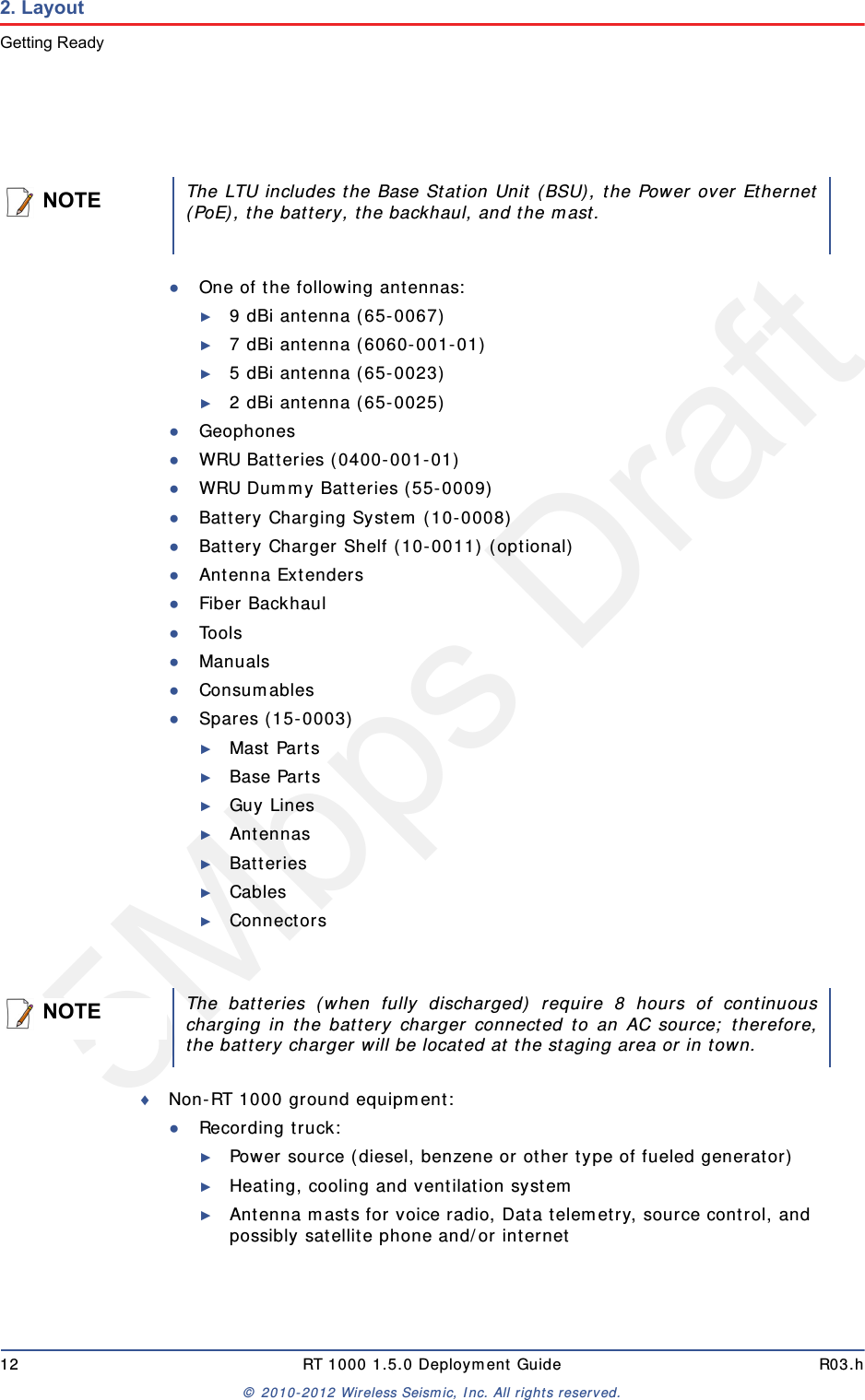
5Mbps Draft12 RT 1000 1.5.0 Deployment Guide R03.h© 2010-2012 Wireless Seismic, Inc. All rights reserved.2. LayoutGetting Ready●One of the following antennas:►9 dBi antenna (65-0067)►7 dBi antenna (6060-001-01)►5 dBi antenna (65-0023)►2 dBi antenna (65-0025)●Geophones●WRU Batteries (0400-001-01)●WRU Dummy Batteries (55-0009)●Battery Charging System (10-0008)●Battery Charger Shelf (10-0011) (optional)●Antenna Extenders●Fiber Backhaul●Tools●Manuals●Consumables●Spares (15-0003)►Mast Parts►Base Parts►Guy Lines►Antennas►Batteries►Cables►ConnectorsNon-RT 1000 ground equipment:●Recording truck:►Power source (diesel, benzene or other type of fueled generator)►Heating, cooling and ventilation system►Antenna masts for voice radio, Data telemetry, source control, and possibly satellite phone and/or internetNOTEThe LTU includes the Base Station Unit (BSU), the Power over Ethernet(PoE), the battery, the backhaul, and the mast.NOTEThe batteries (when fully discharged) require 8 hours of continuouscharging in the battery charger connected to an AC source; therefore,the battery charger will be located at the staging area or in town.
5Mbps DraftR03.h RT 1000 1.5.0 Deployment Guide 13© 2010-2012 Wireless Seismic, Inc. All rights reserved.2. LayoutPreparing the Equipment►Shock-mounted rack for PC, displays, servers, network devices, output devices, and so on►Thermal plotter or equivalent►Desk, chairs, small refrigerator, and coffeepot►Computer, monitors, keyboard, mice, and so on ►External interfaces for installing and testing●Safety equipment (vests, hard hats, and so on)●Source controllers/Source Interface Unit (SIU)●Any other third-party equipment●Any other shot-related equipment●Two-way radios2.3 Preparing the EquipmentEnsure that the central recording system has the latest software available installed (see in the RT 1000 Release Notes).Ensure that the ground equipment has the latest firmware available installed (see in the RT 1000 Release Notes).Ensure that the industry standard best practices are followed for securing the equipment for transport. 2.4 Setting Up the Central Recording SystemYou can prepare the Central Recording System (CRS) hardware and software while the ground equipment is being placed in the field. Set up the computer and peripheral equipment in the central recording system truck or trailer.2.4.1 Setting up the ComputerSet up the CRS computer according to the instructions in the RT 1000 Installation Guide. 2.4.2 Connecting to the Source ControllerThis section describes how to connect a source controller or Source Interface Unit (SIU) to the CRS. This release uses a Pelton Vib Pro™ source encoder/decoder.See “Central Recording Truck Components” on page 33 for an illustration of the connected components.You must configure the following items on the Pelton Vib Pro:
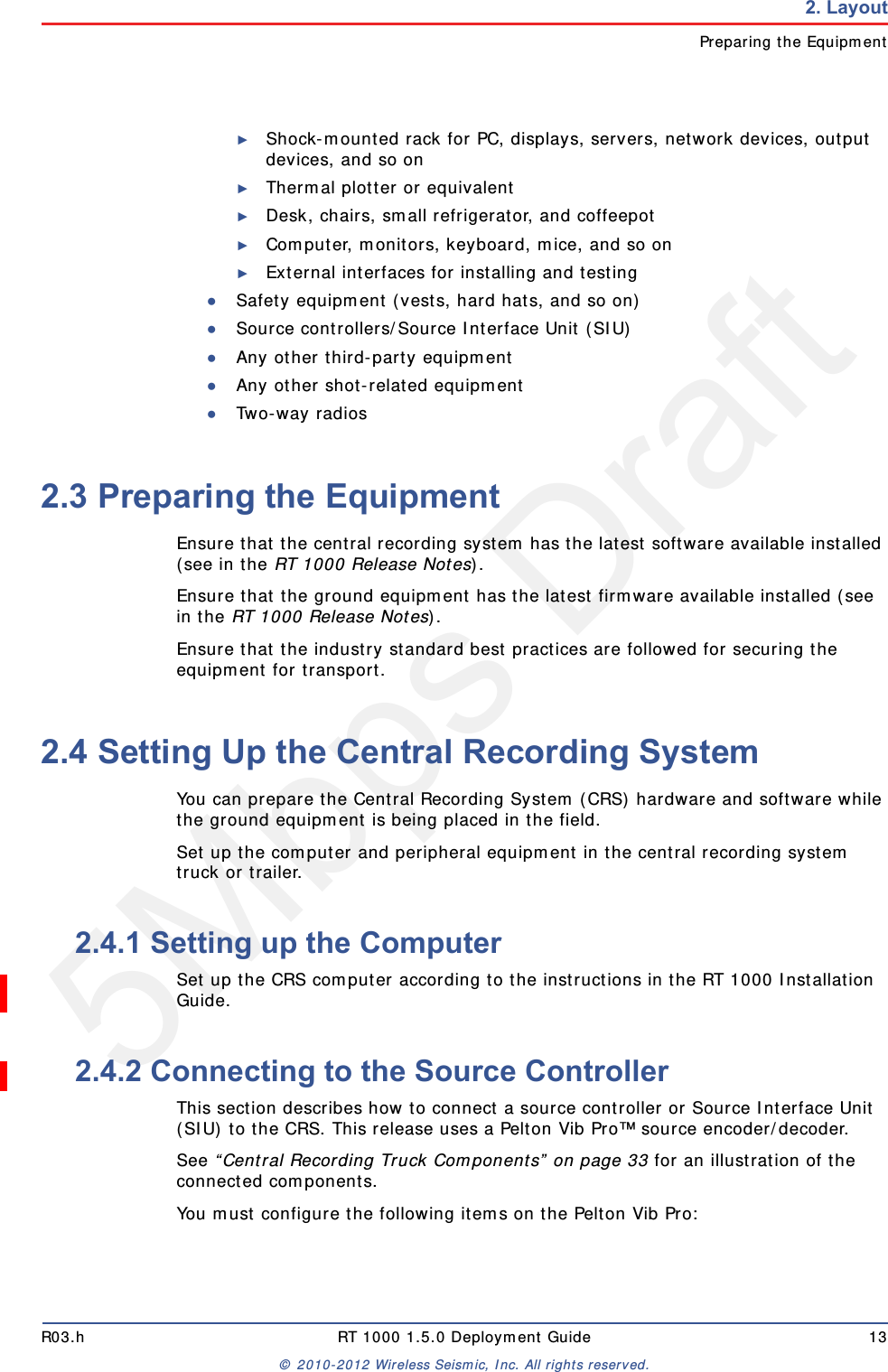
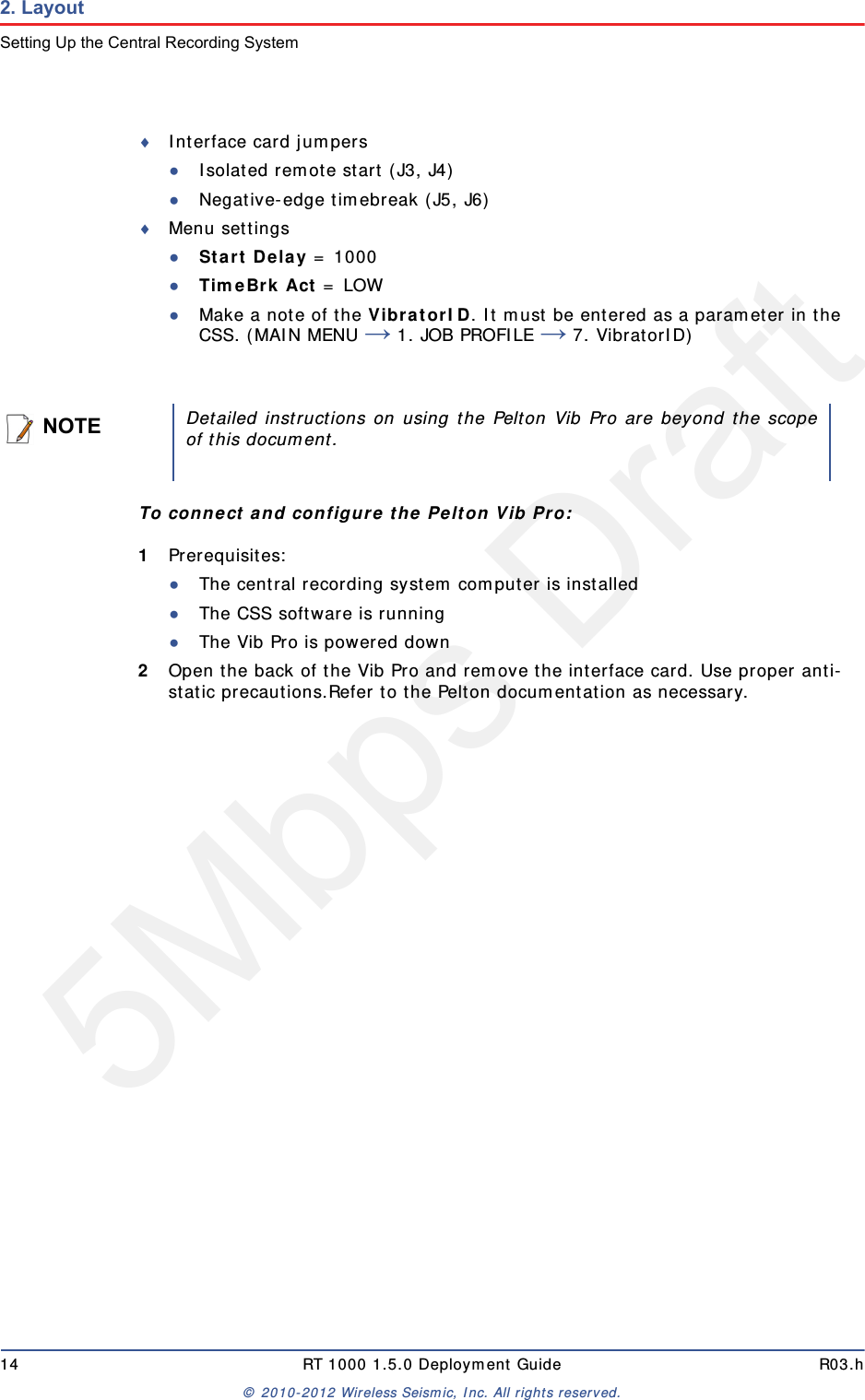
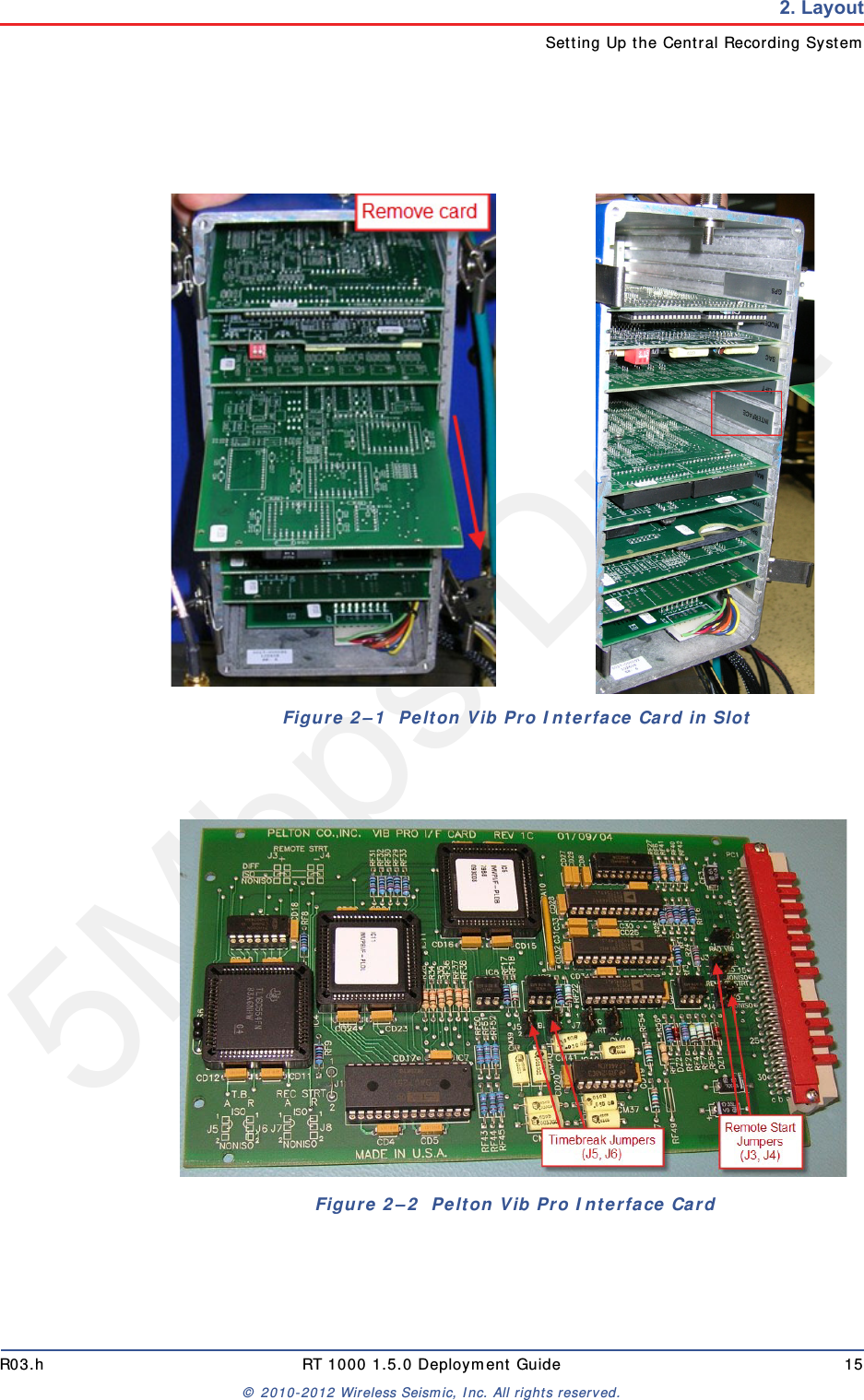
5Mbps Draft14 RT 1000 1.5.0 Deployment Guide R03.h© 2010-2012 Wireless Seismic, Inc. All rights reserved.2. LayoutSetting Up the Central Recording SystemInterface card jumpers●Isolated remote start (J3, J4)●Negative-edge timebreak (J5, J6)Menu settings●Start Delay = 1000●TimeBrk Act = LOW●Make a note of the VibratorID. It must be entered as a parameter in the CSS. (MAIN MENU → 1. JOB PROFILE → 7. VibratorID) To connect and configure the Pelton Vib Pro:1Prerequisites:●The central recording system computer is installed●The CSS software is running●The Vib Pro is powered down2Open the back of the Vib Pro and remove the interface card. Use proper anti-static precautions.Refer to the Pelton documentation as necessary.NOTEDetailed instructions on using the Pelton Vib Pro are beyond the scopeof this document.
5Mbps DraftR03.h RT 1000 1.5.0 Deployment Guide 15© 2010-2012 Wireless Seismic, Inc. All rights reserved.2. LayoutSetting Up the Central Recording SystemFigure 2–1  Pelton Vib Pro Interface Card in SlotFigure 2–2  Pelton Vib Pro Interface Card
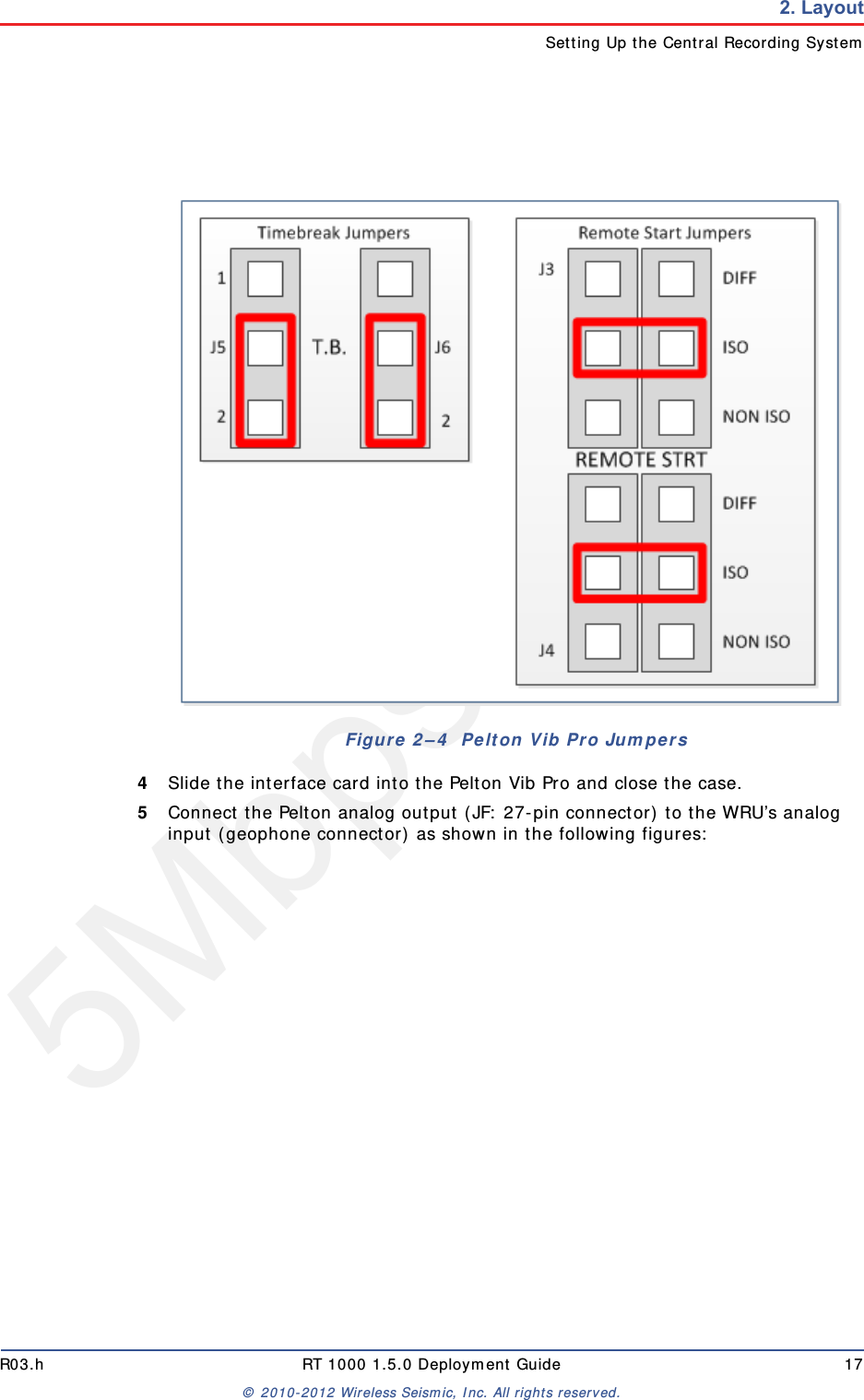
5Mbps Draft16 RT 1000 1.5.0 Deployment Guide R03.h© 2010-2012 Wireless Seismic, Inc. All rights reserved.2. LayoutSetting Up the Central Recording System3Connect the Timebreak and Remote Start jumpers as shown in the following figure:Figure 2–3  Pelton Vib Pro Interface Card Assembly Drawing
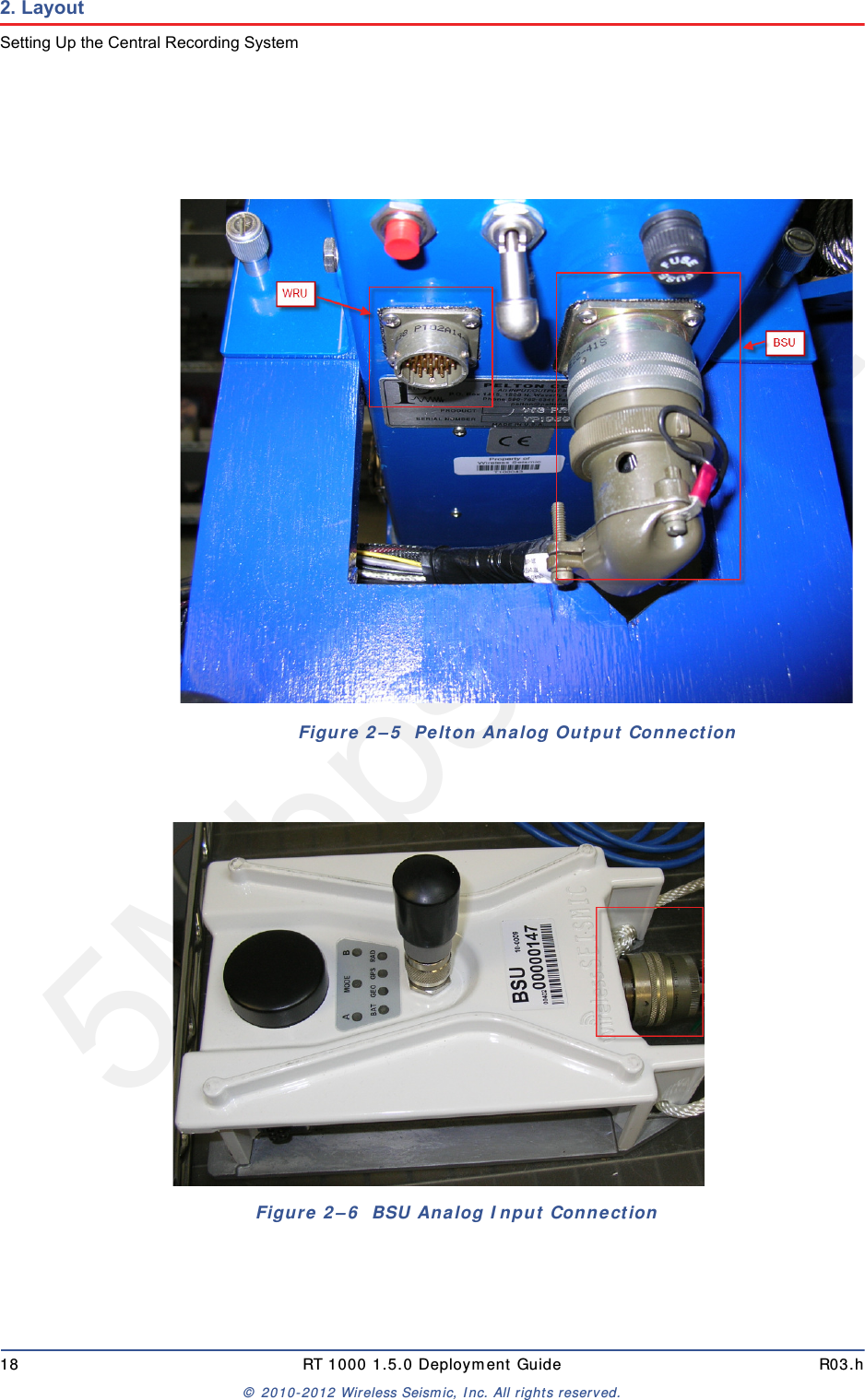
5Mbps DraftR03.h RT 1000 1.5.0 Deployment Guide 17© 2010-2012 Wireless Seismic, Inc. All rights reserved.2. LayoutSetting Up the Central Recording System4Slide the interface card into the Pelton Vib Pro and close the case.5Connect the Pelton analog output (JF: 27-pin connector) to the WRU’s analog input (geophone connector) as shown in the following figures:Figure 2–4  Pelton Vib Pro Jumpers
5Mbps Draft18 RT 1000 1.5.0 Deployment Guide R03.h© 2010-2012 Wireless Seismic, Inc. All rights reserved.2. LayoutSetting Up the Central Recording SystemFigure 2–5  Pelton Analog Output ConnectionFigure 2–6  BSU Analog Input Connection
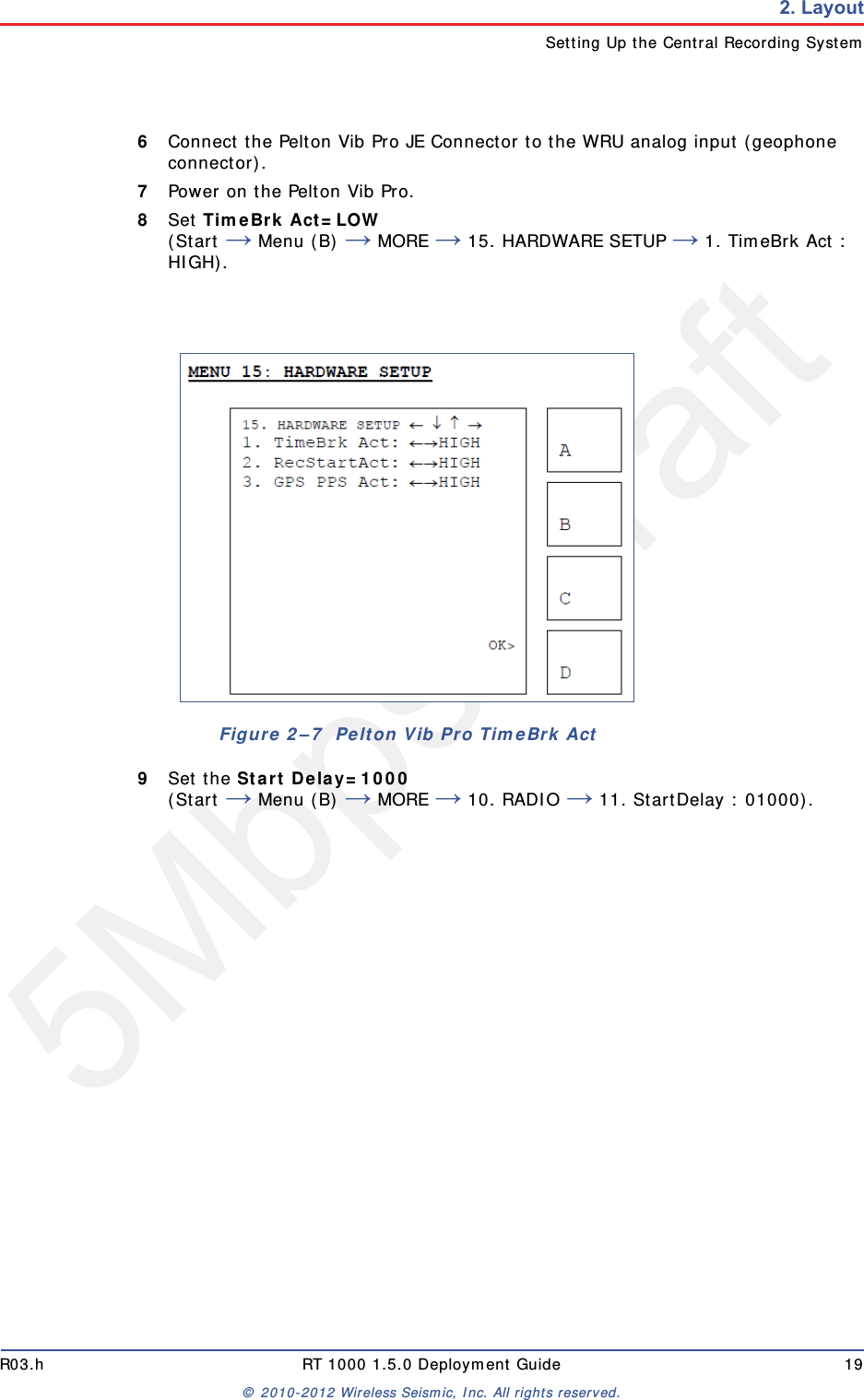
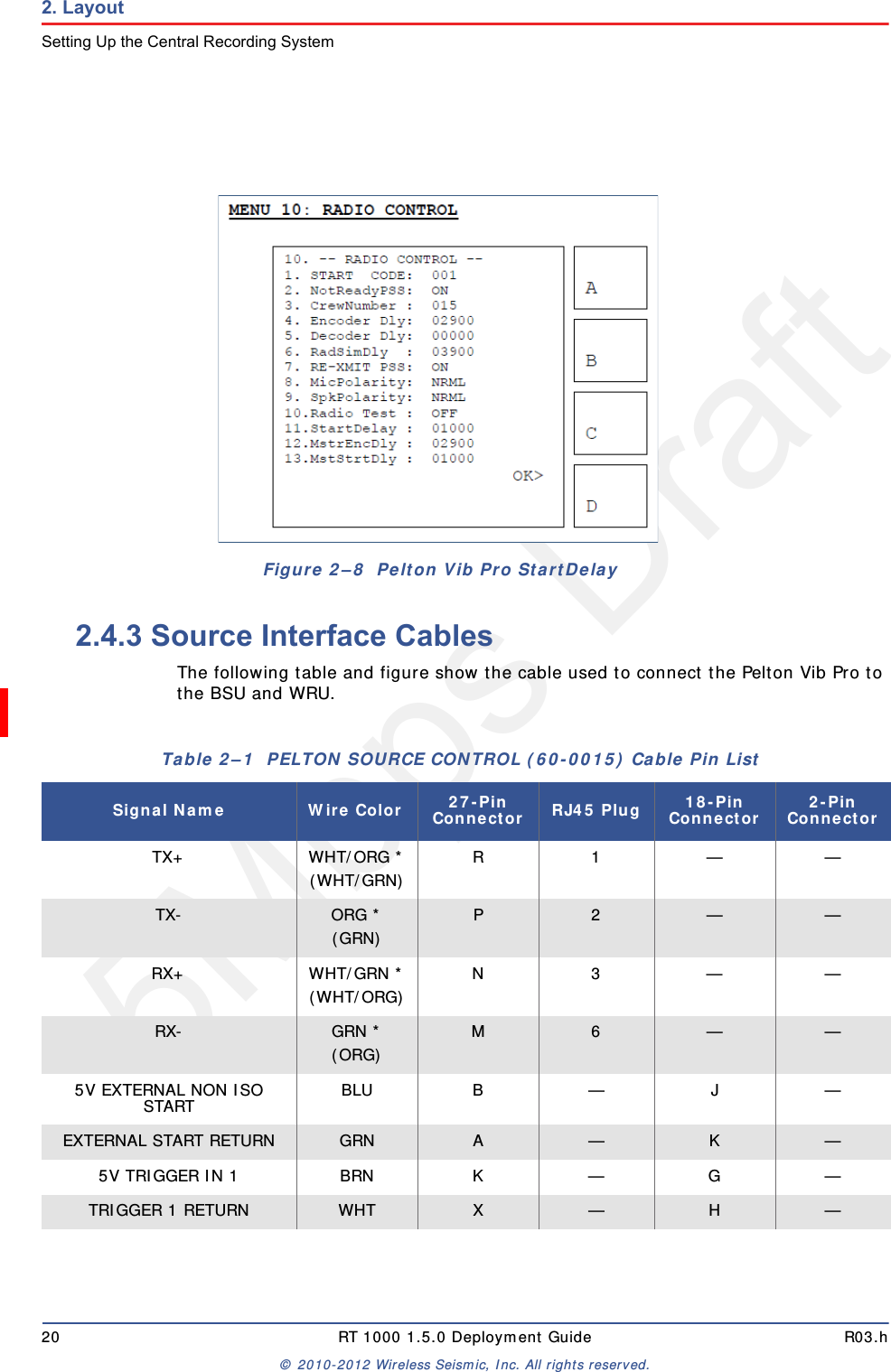
5Mbps DraftR03.h RT 1000 1.5.0 Deployment Guide 19© 2010-2012 Wireless Seismic, Inc. All rights reserved.2. LayoutSetting Up the Central Recording System6Connect the Pelton Vib Pro JE Connector to the WRU analog input (geophone connector). 7Power on the Pelton Vib Pro.8Set TimeBrk Act=LOW (Start → Menu (B) → MORE → 15. HARDWARE SETUP → 1. TimeBrk Act : HIGH).9Set the Start Delay=1000 (Start → Menu (B) → MORE → 10. RADIO → 11. StartDelay : 01000).Figure 2–7  Pelton Vib Pro TimeBrk Act
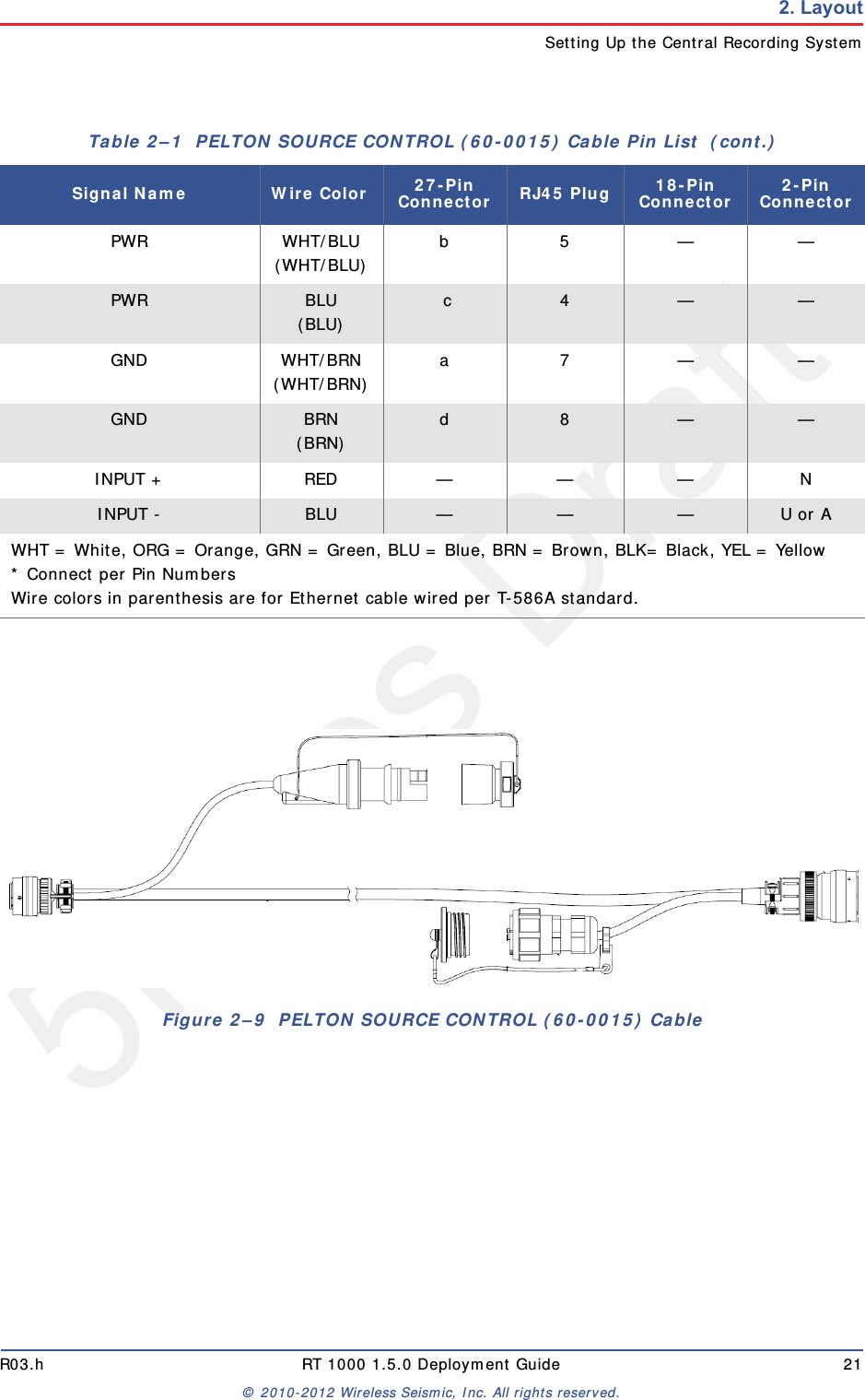
5Mbps Draft20 RT 1000 1.5.0 Deployment Guide R03.h© 2010-2012 Wireless Seismic, Inc. All rights reserved.2. LayoutSetting Up the Central Recording System2.4.3 Source Interface CablesThe following table and figure show the cable used to connect the Pelton Vib Pro to the BSU and WRU.Figure 2–8  Pelton Vib Pro StartDelayTable 2–1  PELTON SOURCE CONTROL (60-0015) Cable Pin List Signal Name Wire Color 27-Pin Connector RJ45 Plug 18-Pin Connector 2-Pin ConnectorTX+ WHT/ORG *(WHT/GRN) R1——TX- ORG *(GRN) P 2 — —RX+ WHT/GRN *(WHT/ORG) N3——RX- GRN *(ORG) M 6 — —5V EXTERNAL NON ISO START BLU B — J —EXTERNAL START RETURN GRN A — K —5V TRIGGER IN 1 BRN K — G —TRIGGER 1 RETURN WHT X — H —
5Mbps DraftR03.h RT 1000 1.5.0 Deployment Guide 21© 2010-2012 Wireless Seismic, Inc. All rights reserved.2. LayoutSetting Up the Central Recording SystemPWR WHT/BLU(WHT/BLU) b5——PWR BLU(BLU)  c 4 — —GND WHT/BRN(WHT/BRN) a7——GND BRN(BRN) d 8 — —INPUT + RED — — — NINPUT - BLU — — — U or AWHT = White, ORG = Orange, GRN = Green, BLU = Blue, BRN = Brown, BLK= Black, YEL = Yellow* Connect per Pin NumbersWire colors in parenthesis are for Ethernet cable wired per T-586A standard.Table 2–1  PELTON SOURCE CONTROL (60-0015) Cable Pin List  (cont.)Signal Name Wire Color 27-Pin Connector RJ45 Plug 18-Pin Connector 2-Pin ConnectorFigure 2–9  PELTON SOURCE CONTROL (60-0015) Cable
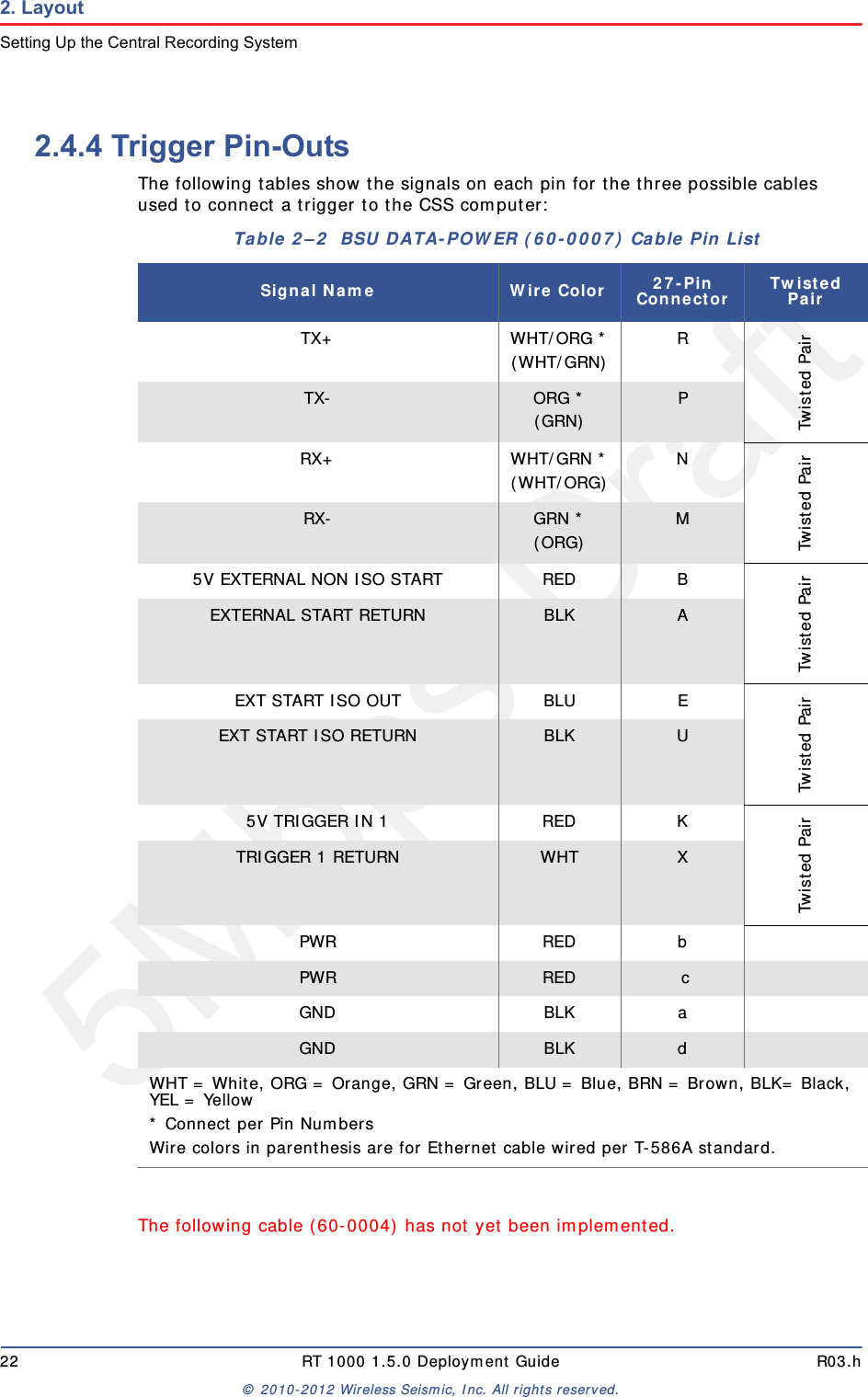
5Mbps Draft22 RT 1000 1.5.0 Deployment Guide R03.h© 2010-2012 Wireless Seismic, Inc. All rights reserved.2. LayoutSetting Up the Central Recording System2.4.4 Trigger Pin-OutsThe following tables show the signals on each pin for the three possible cables used to connect a trigger to the CSS computer:The following cable (60-0004) has not yet been implemented. Table 2–2  BSU DATA-POWER (60-0007) Cable Pin List Signal Name Wire Color 27-Pin Connector Twisted PairTX+ WHT/ORG *(WHT/GRN) RTwisted PairTX- ORG *(GRN) PRX+ WHT/GRN *(WHT/ORG) NTwisted PairRX- GRN *(ORG) M5V EXTERNAL NON ISO START RED BTwisted PairEXTERNAL START RETURN BLK AEXT START ISO OUT BLU ETwisted PairEXT START ISO RETURN BLK U5V TRIGGER IN 1 RED KTwisted PairTRIGGER 1 RETURN WHT XPWR RED bPWR RED  cGND BLK aGND BLK dWHT = White, ORG = Orange, GRN = Green, BLU = Blue, BRN = Brown, BLK= Black, YEL = Yellow* Connect per Pin NumbersWire colors in parenthesis are for Ethernet cable wired per T-586A standard.
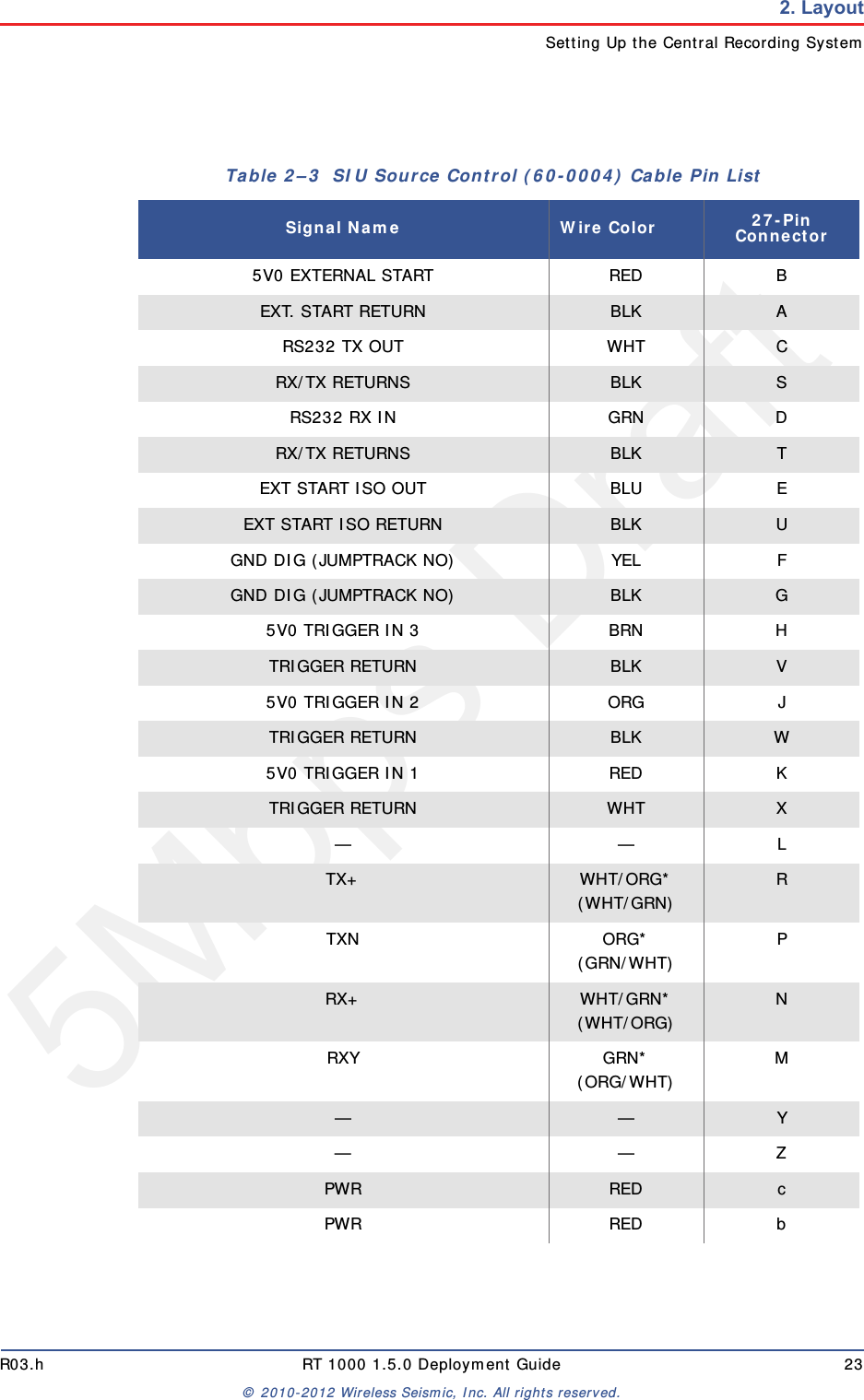
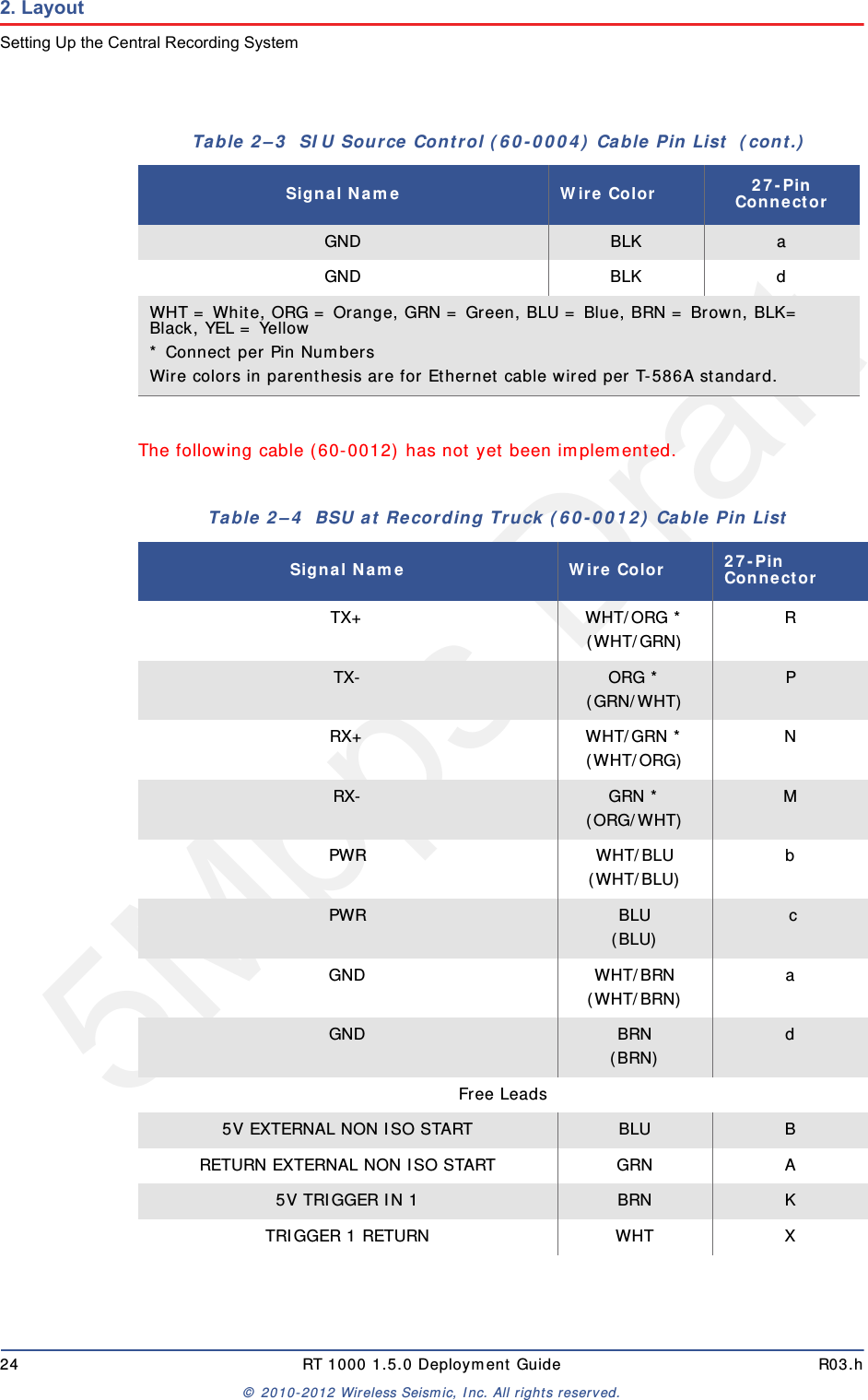
5Mbps DraftR03.h RT 1000 1.5.0 Deployment Guide 23© 2010-2012 Wireless Seismic, Inc. All rights reserved.2. LayoutSetting Up the Central Recording SystemTable 2–3  SIU Source Control (60-0004) Cable Pin List Signal Name Wire Color 27-Pin Connector5V0 EXTERNAL START RED BEXT. START RETURN BLK ARS232 TX OUT WHT CRX/TX RETURNS BLK SRS232 RX IN GRN DRX/TX RETURNS BLK TEXT START ISO OUT BLU EEXT START ISO RETURN BLK UGND DIG (JUMPTRACK NO) YEL FGND DIG (JUMPTRACK NO) BLK G5V0 TRIGGER IN 3 BRN HTRIGGER RETURN BLK V5V0 TRIGGER IN 2 ORG JTRIGGER RETURN BLK W5V0 TRIGGER IN 1 RED KTRIGGER RETURN WHT X——LTX+ WHT/ORG*(WHT/GRN) RTXN ORG*(GRN/WHT) PRX+ WHT/GRN*(WHT/ORG) NRXY GRN*(ORG/WHT) M— — Y——ZPWR RED cPWR RED b
5Mbps Draft24 RT 1000 1.5.0 Deployment Guide R03.h© 2010-2012 Wireless Seismic, Inc. All rights reserved.2. LayoutSetting Up the Central Recording SystemThe following cable (60-0012) has not yet been implemented. GND BLK aGND BLK dWHT = White, ORG = Orange, GRN = Green, BLU = Blue, BRN = Brown, BLK= Black, YEL = Yellow* Connect per Pin NumbersWire colors in parenthesis are for Ethernet cable wired per T-586A standard.Table 2–4  BSU at Recording Truck (60-0012) Cable Pin List Signal Name Wire Color 27-Pin ConnectorTX+ WHT/ORG *(WHT/GRN) RTX- ORG *(GRN/WHT) PRX+ WHT/GRN *(WHT/ORG) NRX- GRN *(ORG/WHT) MPWR WHT/BLU(WHT/BLU) bPWR BLU(BLU)  cGND WHT/BRN(WHT/BRN) aGND BRN(BRN) dFree Leads5V EXTERNAL NON ISO START BLU BRETURN EXTERNAL NON ISO START GRN A5V TRIGGER IN 1 BRN KTRIGGER 1 RETURN WHT XTable 2–3  SIU Source Control (60-0004) Cable Pin List  (cont.)Signal Name Wire Color 27-Pin Connector
5Mbps DraftR03.h RT 1000 1.5.0 Deployment Guide 25© 2010-2012 Wireless Seismic, Inc. All rights reserved.2. LayoutLaying Out the Equipment2.5 Laying Out the EquipmentYou can lay out the ground equipment while the central recording system hardware and software is being prepared. The WRU is shown in the following figure:The BSU is shown in the following figure:An example geophone is shown in the following figure2.5.1 PrerequisitesYou can attach the batteries, antennas, and geophones to the ground equipment prior to going into to the field, or as you place each unit. If you are assembling as you place the units, ensure that you have sufficient quantities for each unit, plus a few spares.The RT 1000 shall be used with only the supplied antennas (Table A–1 Antenna Specifications, on page 90) attached to the WRU with an integrated type N male connector.The RT 1000 antennas shall be installed and handled by professionals specifically designated for this purpose.Changes or modifications not expressly approved by Wireless Seismic, Inc. can void the users’s authority to operate the equipment. WHT = White, ORG = Orange, GRN = Green, BLU = Blue, BRN = Brown, BLK= Black, YEL = Yellow* Connect per Pin NumbersWire colors in parenthesis are for Ethernet cable wired per T-586A standard.Table 2–4  BSU at Recording Truck (60-0012) Cable Pin List  (cont.)Signal Name Wire Color 27-Pin ConnectorIllustration TBD Figure 2–10  WRUIllustration TBD Figure 2–11  BSUIllustration TBD Figure 2–12  Geophone
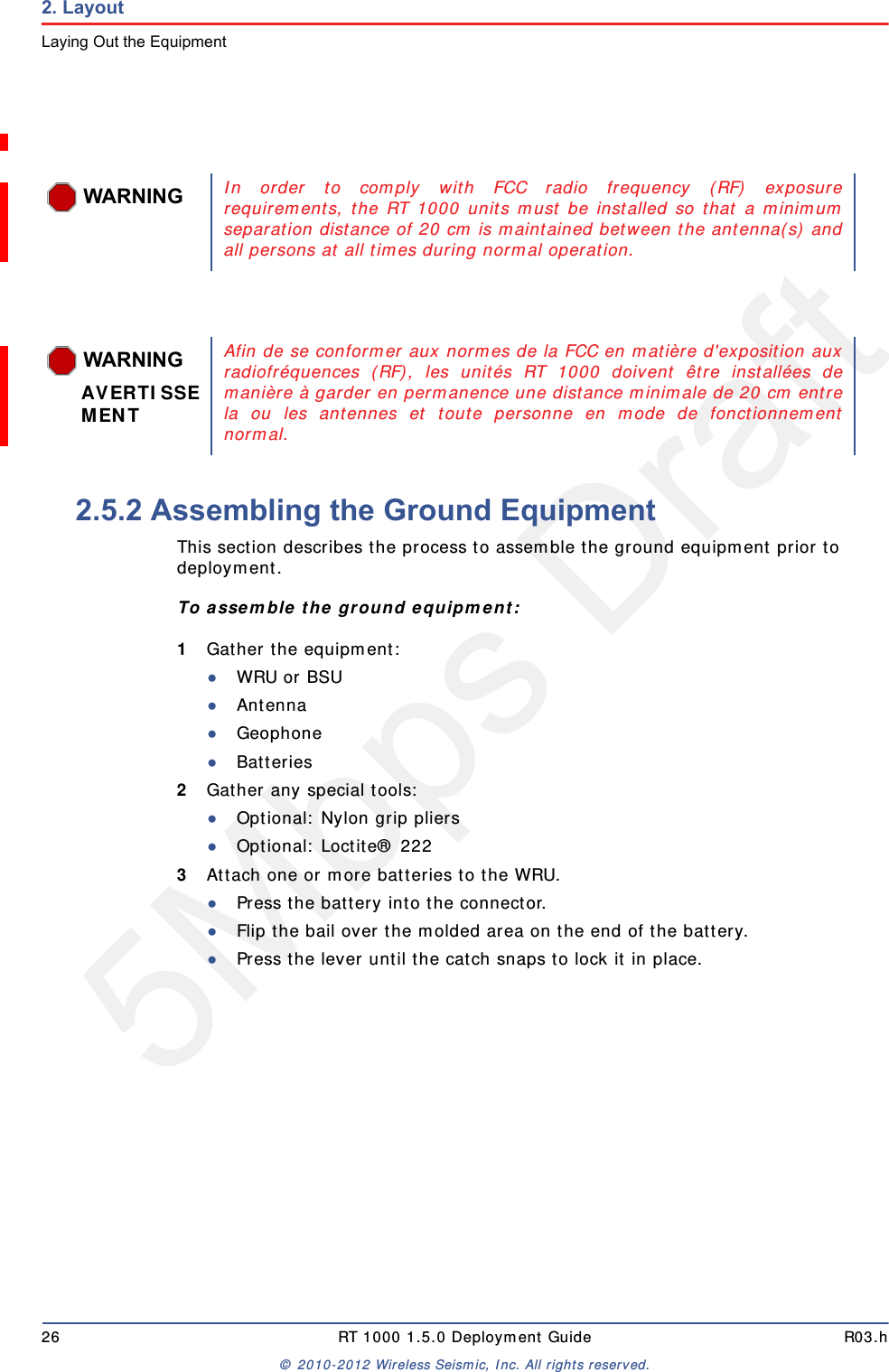
5Mbps Draft26 RT 1000 1.5.0 Deployment Guide R03.h© 2010-2012 Wireless Seismic, Inc. All rights reserved.2. LayoutLaying Out the Equipment2.5.2 Assembling the Ground Equipment This section describes the process to assemble the ground equipment prior to deployment.To assemble the ground equipment:1Gather the equipment:●WRU or BSU●Antenna●Geophone●Batteries2Gather any special tools:●Optional: Nylon grip pliers●Optional: Loctite® 2223Attach one or more batteries to the WRU.●Press the battery into the connector.●Flip the bail over the molded area on the end of the battery.●Press the lever until the catch snaps to lock it in place.WARNINGIn order to comply with FCC radio frequency (RF) exposurerequirements, the RT 1000 units must be installed so that a minimumseparation distance of 20 cm is maintained between the antenna(s) andall persons at all times during normal operation.WARNINGAVERTISSEMENTAfin de se conformer aux normes de la FCC en matière d'exposition auxradiofréquences (RF), les unités RT 1000 doivent être installées demanière à garder en permanence une distance minimale de 20 cm entrela ou les antennes et toute personne en mode de fonctionnementnormal.
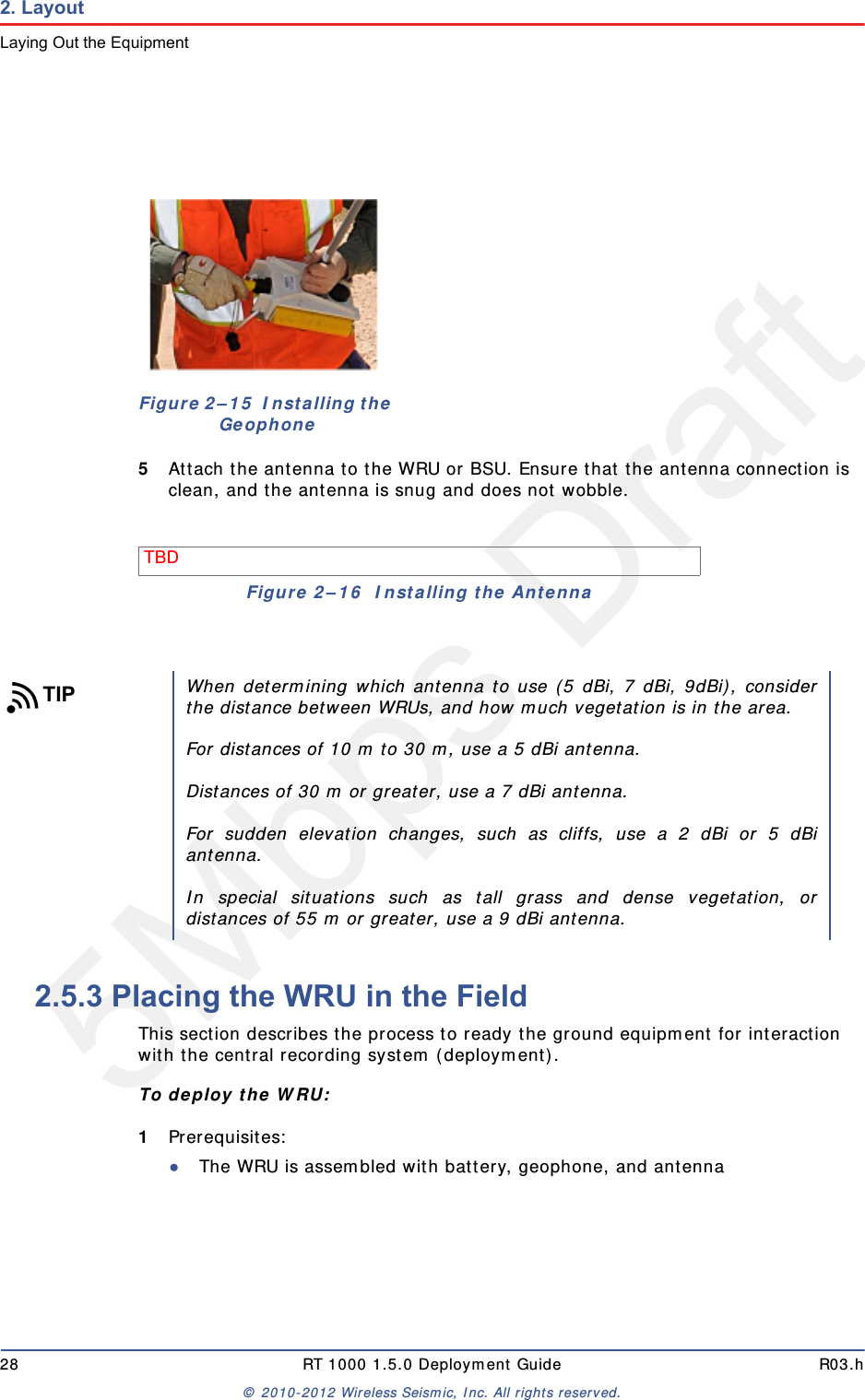
5Mbps DraftR03.h RT 1000 1.5.0 Deployment Guide 27© 2010-2012 Wireless Seismic, Inc. All rights reserved.2. LayoutLaying Out the Equipment4Attach the geophone to the WRU.Figure 2–13  Battery LatchFigure 2–14  Installing the Battery
5Mbps Draft28 RT 1000 1.5.0 Deployment Guide R03.h© 2010-2012 Wireless Seismic, Inc. All rights reserved.2. LayoutLaying Out the Equipment5Attach the antenna to the WRU or BSU. Ensure that the antenna connection is clean, and the antenna is snug and does not wobble.2.5.3 Placing the WRU in the FieldThis section describes the process to ready the ground equipment for interaction with the central recording system (deployment).To deploy the WRU:1Prerequisites:●The WRU is assembled with battery, geophone, and antennaFigure 2–15  Installing the GeophoneTBD Figure 2–16  Installing the AntennaTIPWhen determining which antenna to use (5 dBi, 7 dBi, 9dBi), considerthe distance between WRUs, and how much vegetation is in the area. For distances of 10 m to 30 m, use a 5 dBi antenna. Distances of 30 m or greater, use a 7 dBi antenna.For sudden elevation changes, such as cliffs, use a 2 dBi or 5 dBiantenna.In special situations such as tall grass and dense vegetation, ordistances of 55 m or greater, use a 9 dBi antenna.
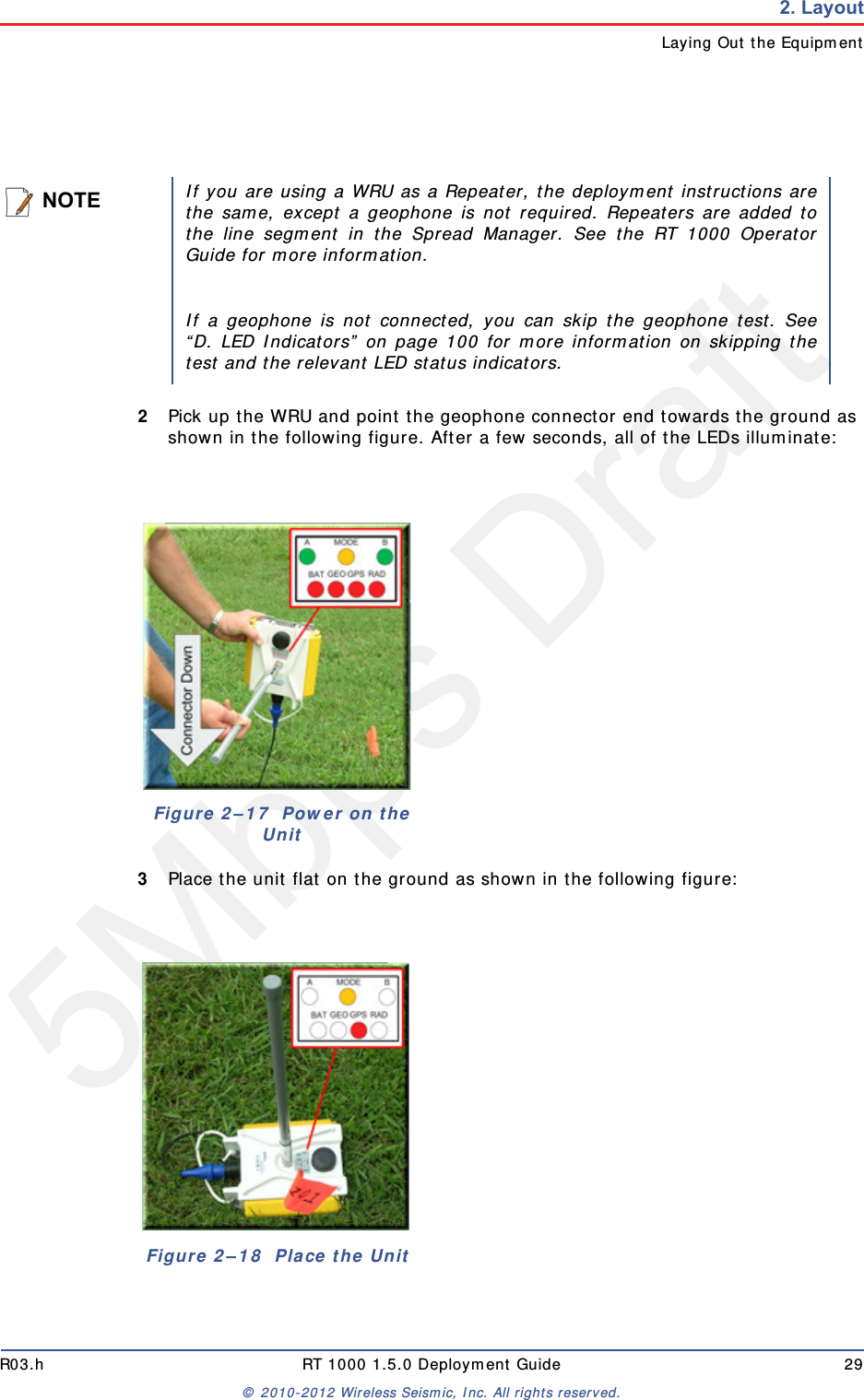
5Mbps DraftR03.h RT 1000 1.5.0 Deployment Guide 29© 2010-2012 Wireless Seismic, Inc. All rights reserved.2. LayoutLaying Out the Equipment2Pick up the WRU and point the geophone connector end towards the ground as shown in the following figure. After a few seconds, all of the LEDs illuminate:3Place the unit flat on the ground as shown in the following figure:NOTEIf you are using a WRU as a Repeater, the deployment instructions arethe same, except a geophone is not required. Repeaters are added tothe line segment in the Spread Manager. See the RT 1000 OperatorGuide for more information. If a geophone is not connected, you can skip the geophone test. See“D. LED Indicators” on page 100 for more information on skipping thetest and the relevant LED status indicators.Figure 2–17  Power on the UnitFigure 2–18  Place the Unit
5Mbps Draft30 RT 1000 1.5.0 Deployment Guide R03.h© 2010-2012 Wireless Seismic, Inc. All rights reserved.2. LayoutLaying Out the Equipment4The unit will begin a series of internal and external tests. The LEDs on the top of the unit indicate the current test and whether the unit passes or fails each test. 2.5.4 Placing the BSU in the FieldThe BSU is part of the backhaul configuration. See “3. Backhaul” on page 31 for more information. NOTESee  “D. LED Indicators” on page 100 for an explanation of the LEDstatus and error conditions.If a WRU self test fails, the WRU will continue to the next test. You can skip a self-test by tipping the WRU geophone down and thenreturning it to the upright position (flat on the ground).
5Mbps DraftRT 1000 1.5.0 31  Deployment Guide R03.h© 2010-2012 Wireless Seismic, Inc. All rights reserved.33. Backhaul3.1 OverviewIn network communications, the backhaul is the part of the network that contains the links and equipment between the core network and the sub networks.Wireless mesh networking is a method where each radio node in the network captures and disseminates its own data as well as serves as a relay for other radio nodes in the network sending data along a path, hopping from one node to the next. Power over Ethernet (PoE) is a technology that passes electrical power along an Ethernet cable. PoE is used where DC power is not available and USB unsuitable. Power can be supplied at the end of a network span or somewhere in the middle. PoE switches supply power at the end of a span. PoE injectors supply power somewhere between the PoE switch and the powered device. They inject power and do not affect the data.The RT 1000 Central Recording System is a fully connected mesh network of Wireless Remote Units (WRUs) that communicate in a relay pattern (bucket-brigade or string-of-pearls) with a Line Tap Unit (LTU) on the 2.4 GHz Industrial, Scientific, and Medical (ISM) radio band. The LTU is composed of the following:Base Station Unit (BSU)Power over Ethernet (PoE)24 Ah DC Battery or Power SupplyCablesMast, mast base, and guy-wires5.8 GHz backhaul radiosAntennasCAUTIONEnsure that the PoE box is placed on the ground, or that a groundingcable is attached to avoid causing damage to the internal electronicsduring use.
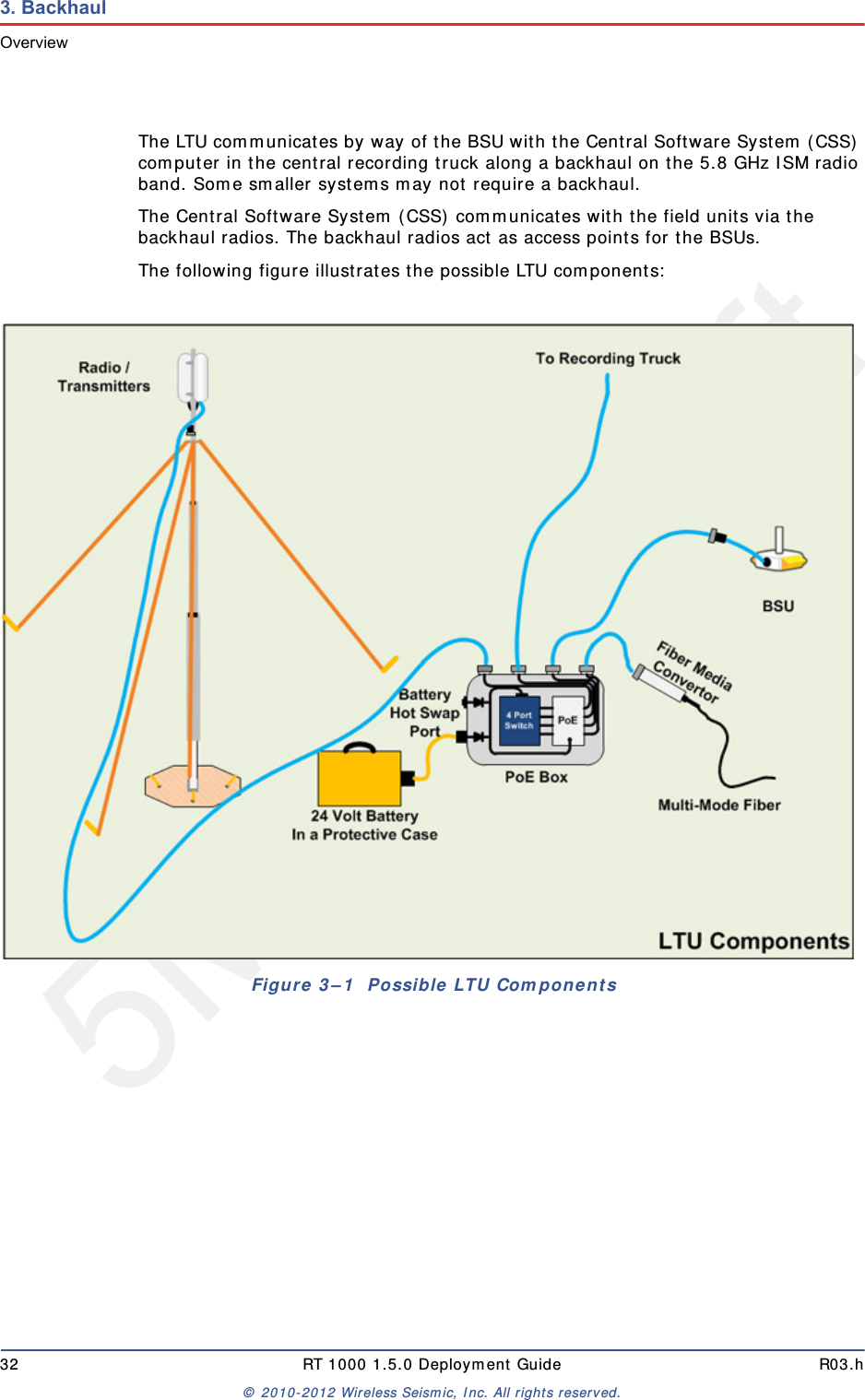
5Mbps Draft32 RT 1000 1.5.0 Deployment Guide R03.h© 2010-2012 Wireless Seismic, Inc. All rights reserved.3. BackhaulOverviewThe LTU communicates by way of the BSU with the Central Software System (CSS) computer in the central recording truck along a backhaul on the 5.8 GHz ISM radio band. Some smaller systems may not require a backhaul.The Central Software System (CSS) communicates with the field units via the backhaul radios. The backhaul radios act as access points for the BSUs.The following figure illustrates the possible LTU components:Figure 3–1  Possible LTU Components
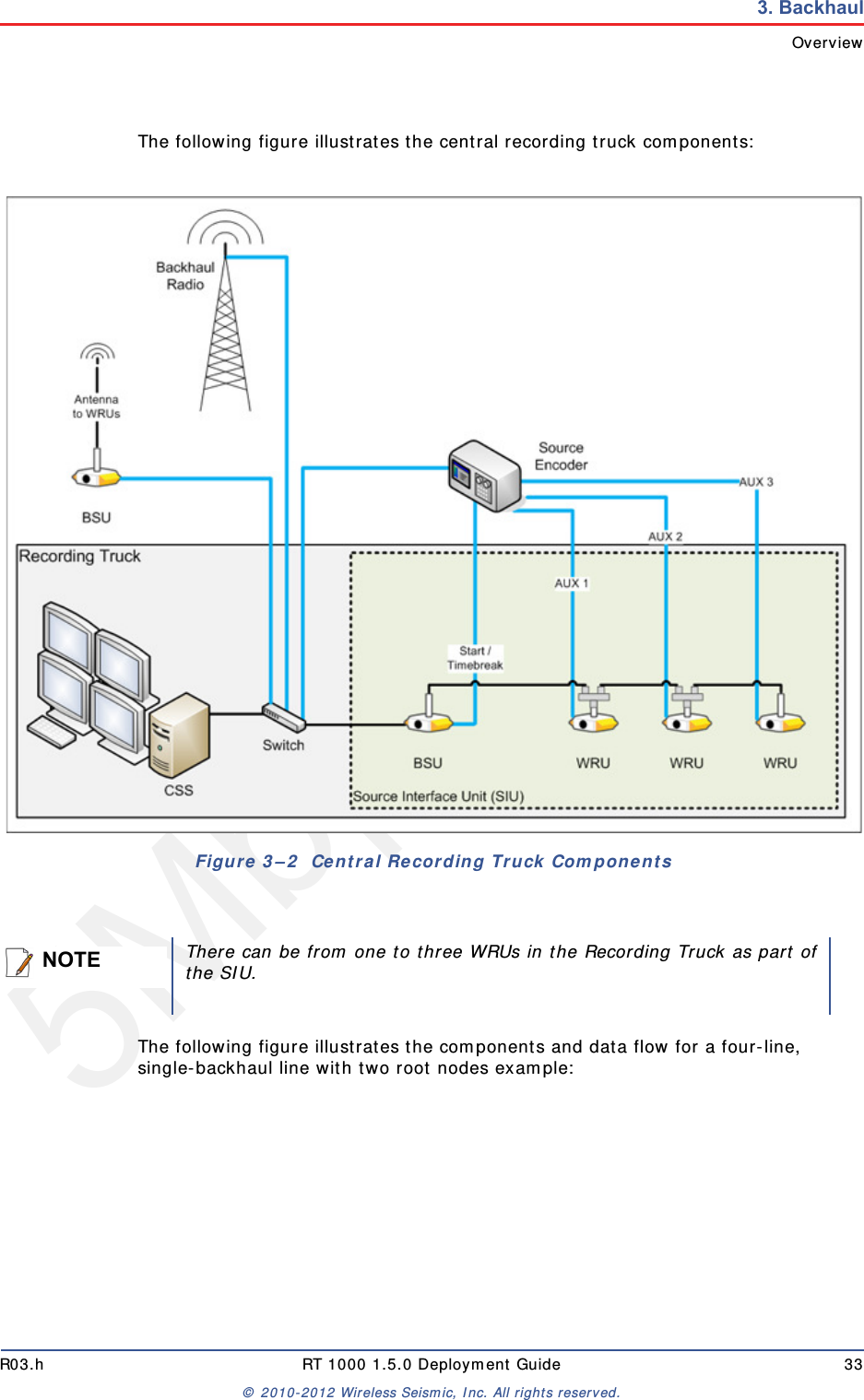
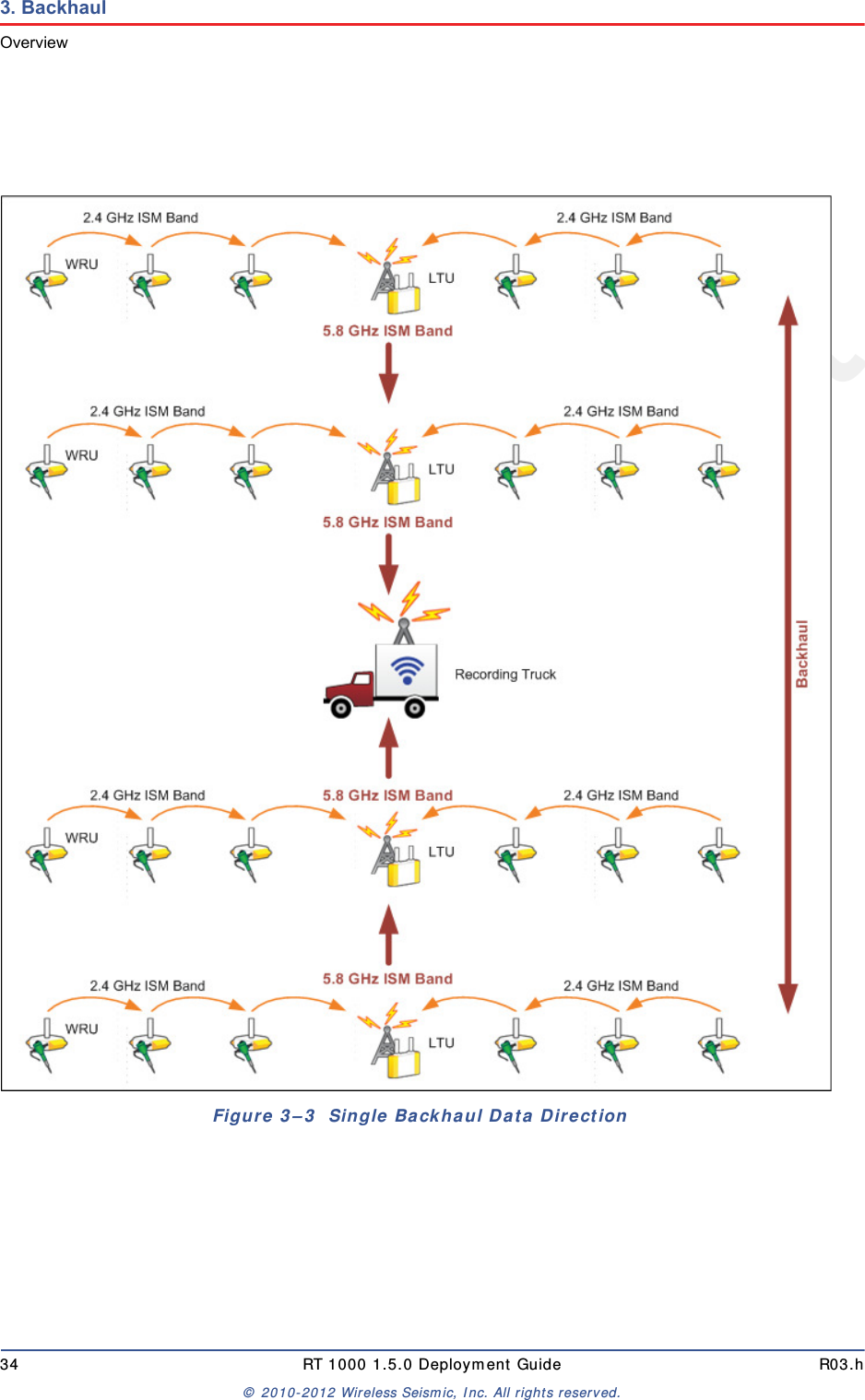
5Mbps DraftR03.h RT 1000 1.5.0 Deployment Guide 33© 2010-2012 Wireless Seismic, Inc. All rights reserved.3. BackhaulOverviewThe following figure illustrates the central recording truck components:The following figure illustrates the components and data flow for a four-line, single-backhaul line with two root nodes example:Figure 3–2  Central Recording Truck ComponentsNOTEThere can be from one to three WRUs in the Recording Truck as part ofthe SIU.
5Mbps Draft34 RT 1000 1.5.0 Deployment Guide R03.h© 2010-2012 Wireless Seismic, Inc. All rights reserved.3. BackhaulOverviewFigure 3–3  Single Backhaul Data Direction
5Mbps DraftR03.h RT 1000 1.5.0 Deployment Guide 35© 2010-2012 Wireless Seismic, Inc. All rights reserved.3. BackhaulBackhaul Components3.2 Backhaul ComponentsThe backhaul components are either remote backhaul components or central backhaul components. Remote components are the components that are not physically located next to the recording truck. Central components are physically located at the recording truck. Both remote and central backhauls are composed of the following:Base Station Unit (BSU) KitAntennaRadio KitMast KitThe following figure shows the backhaul components packed for transport:3.2.1 BSU ComponentsThe following table lists the BSU kit components:3.2.1.1 BSUThe Base Station Unit (BSU) is shown in the following figure:TBD Figure 3–4  Backhaul Components Packed for TransportTable 3–1  Base Station Unit Kit Remote Backhaul Components Central Backhaul ComponentsItem Reference Item ReferenceBSU (10-0009)  “BSU” on page 35 BSU (10-0009)  “BSU” on page 35PoE Switch Unit (10-0012)  “PoE Switch Unit” on page 36PoE Switch Unit (10-0012)  “PoE Switch Unit” on page 36Battery (10-0015)  “Battery and Power Supply” on page 37Power Supply, 24 V (75-0017) “Battery and Power Supply” on page 37Cable Assembly, BSU-to-PoE Switch (60-0008)  “Cables” on page 38 Cable Assembly, BSU at truck (60-0012) “Cables” on page 38Cable, PoE Switch-to-Battery (60-0011)  “Cables” on page 38 Cable, Power Supply-to-PoE (# TBD) “Cables” on page 38Ethernet Cable, 25 ft (65-0046) “Cables” on page 38
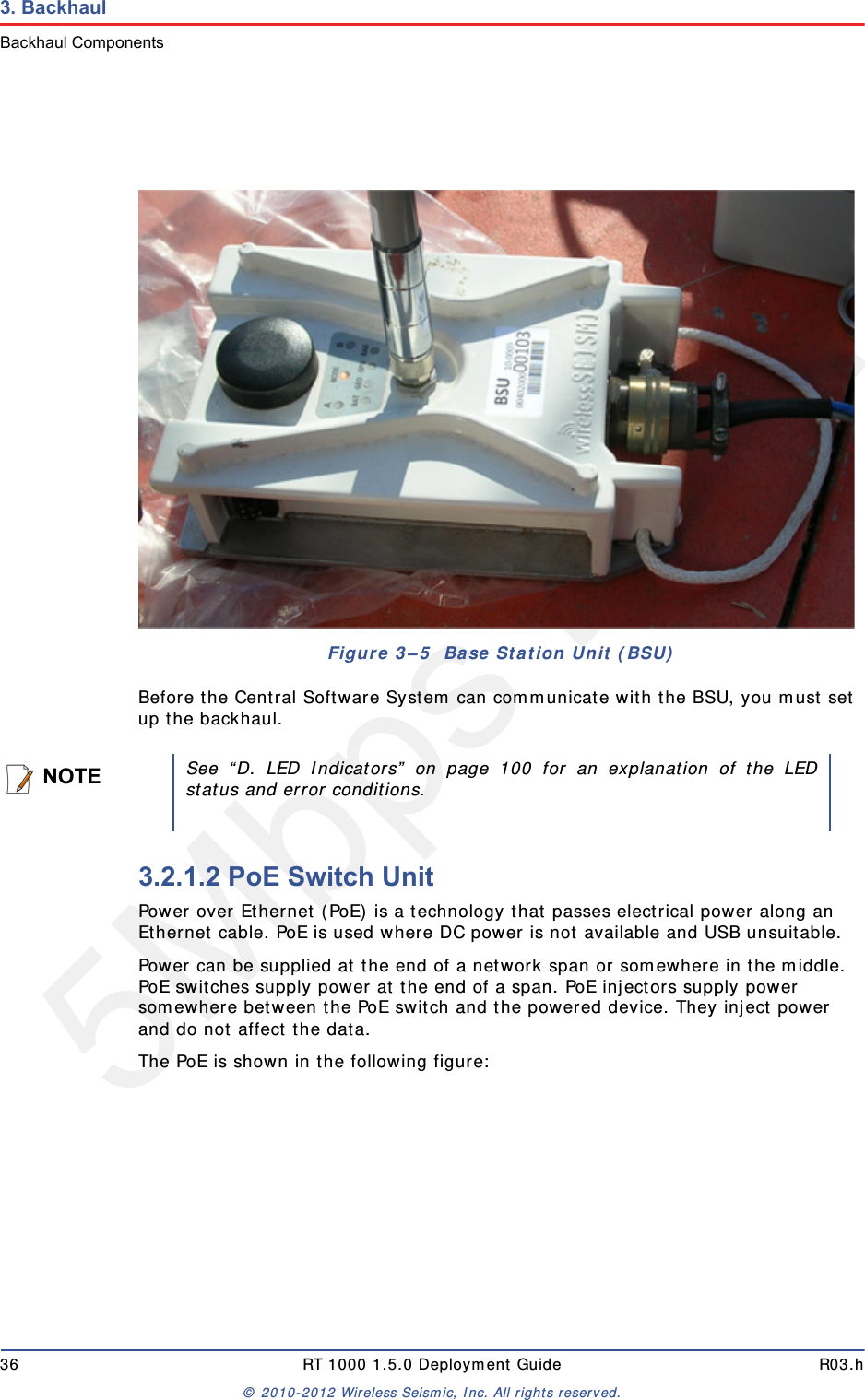
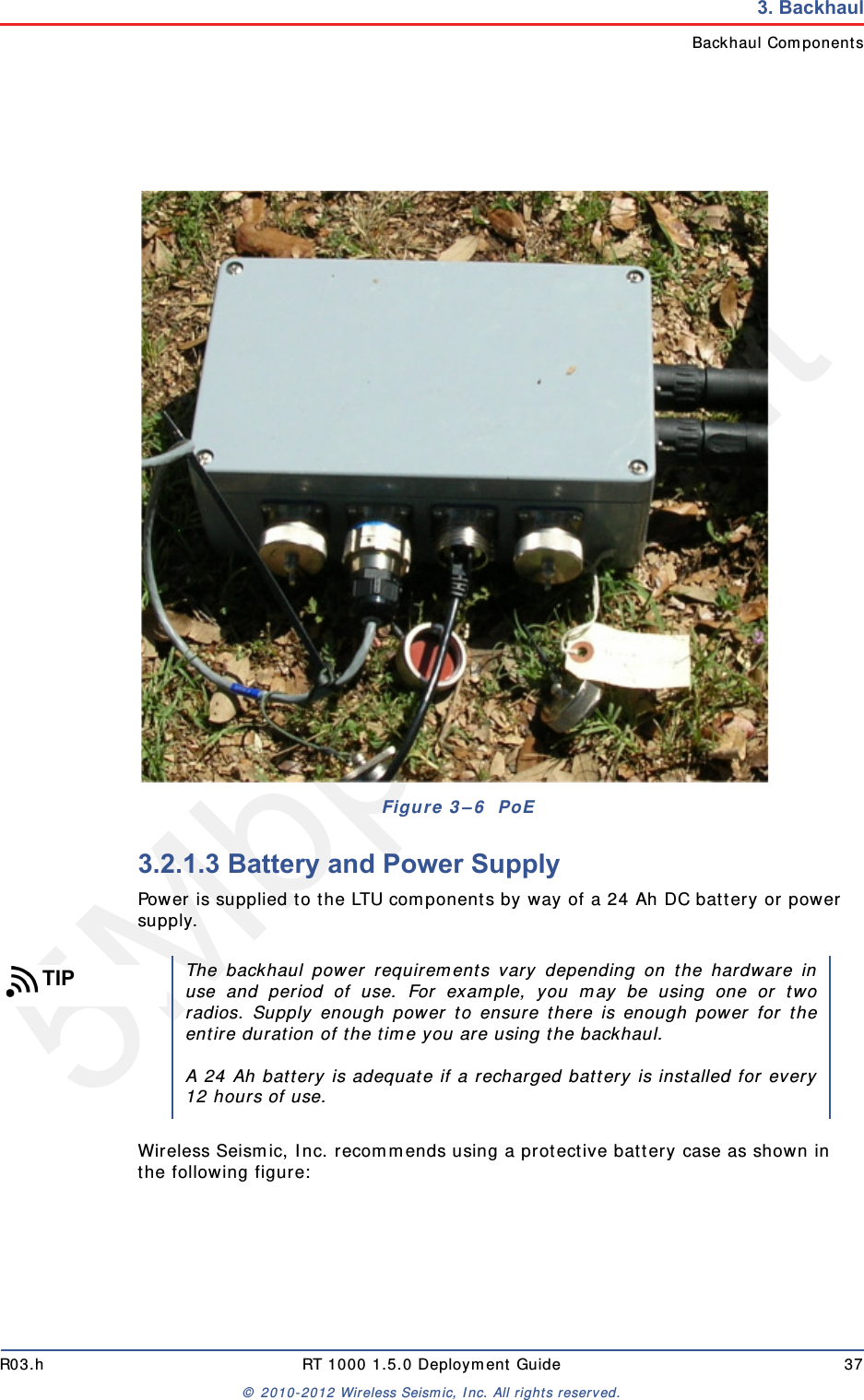
5Mbps Draft36 RT 1000 1.5.0 Deployment Guide R03.h© 2010-2012 Wireless Seismic, Inc. All rights reserved.3. BackhaulBackhaul ComponentsBefore the Central Software System can communicate with the BSU, you must set up the backhaul.3.2.1.2 PoE Switch UnitPower over Ethernet (PoE) is a technology that passes electrical power along an Ethernet cable. PoE is used where DC power is not available and USB unsuitable. Power can be supplied at the end of a network span or somewhere in the middle. PoE switches supply power at the end of a span. PoE injectors supply power somewhere between the PoE switch and the powered device. They inject power and do not affect the data.The PoE is shown in the following figure:Figure 3–5  Base Station Unit (BSU)NOTESee “D. LED Indicators” on page 100 for an explanation of the LEDstatus and error conditions.
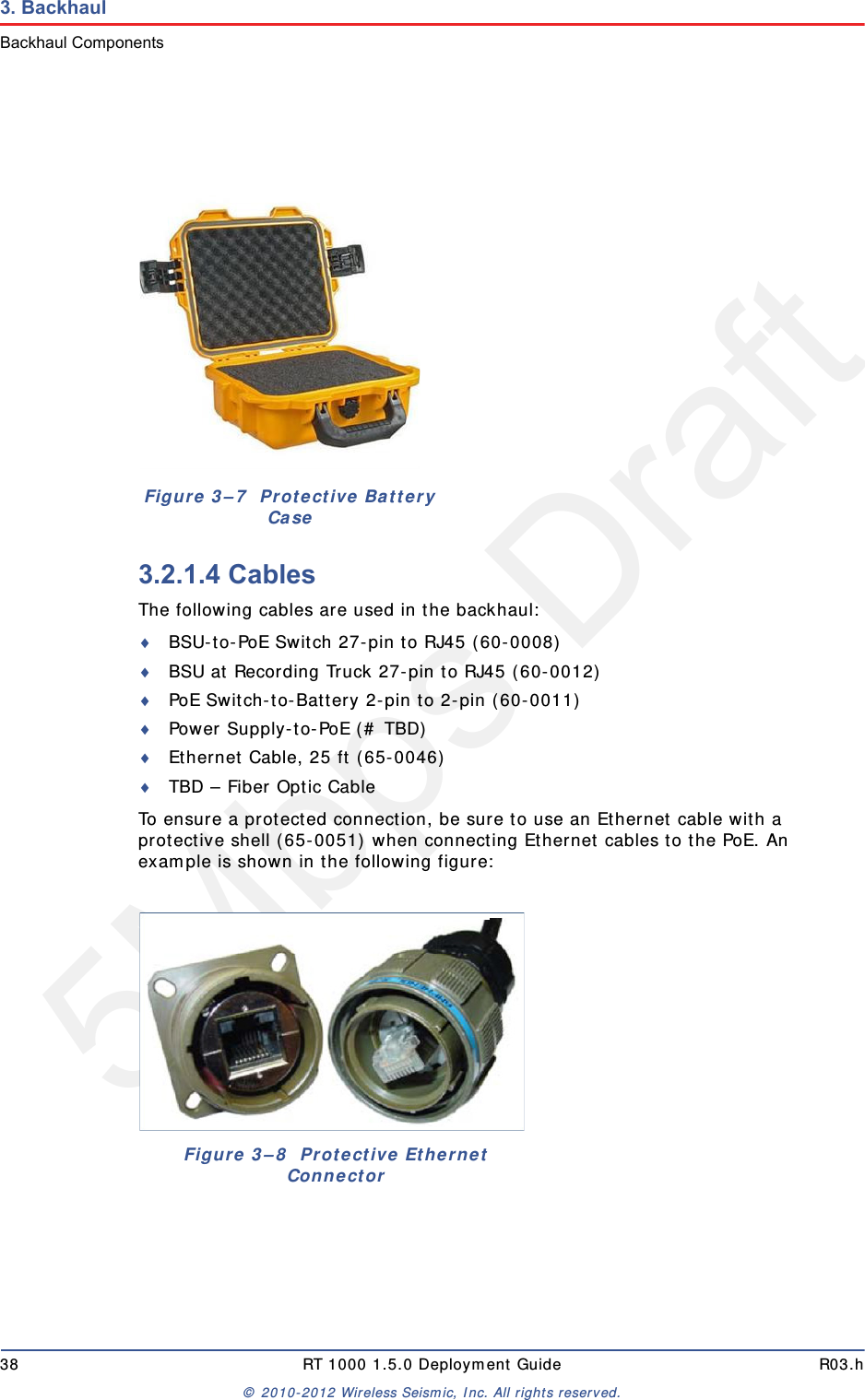
5Mbps DraftR03.h RT 1000 1.5.0 Deployment Guide 37© 2010-2012 Wireless Seismic, Inc. All rights reserved.3. BackhaulBackhaul Components3.2.1.3 Battery and Power SupplyPower is supplied to the LTU components by way of a 24 Ah DC battery or power supply.Wireless Seismic, Inc. recommends using a protective battery case as shown in the following figure:Figure 3–6  PoETIPThe backhaul power requirements vary depending on the hardware inuse and period of use. For example, you may be using one or tworadios. Supply enough power to ensure there is enough power for theentire duration of the time you are using the backhaul. A 24 Ah battery is adequate if a recharged battery is installed for every12 hours of use.
5Mbps Draft38 RT 1000 1.5.0 Deployment Guide R03.h© 2010-2012 Wireless Seismic, Inc. All rights reserved.3. BackhaulBackhaul Components3.2.1.4 CablesThe following cables are used in the backhaul:BSU-to-PoE Switch 27-pin to RJ45 (60-0008)BSU at Recording Truck 27-pin to RJ45 (60-0012)PoE Switch-to-Battery 2-pin to 2-pin (60-0011)Power Supply-to-PoE (# TBD)Ethernet Cable, 25 ft (65-0046)TBD – Fiber Optic CableTo ensure a protected connection, be sure to use an Ethernet cable with a protective shell (65-0051) when connecting Ethernet cables to the PoE. An example is shown in the following figure:Figure 3–7  Protective Battery CaseFigure 3–8  Protective Ethernet Connector
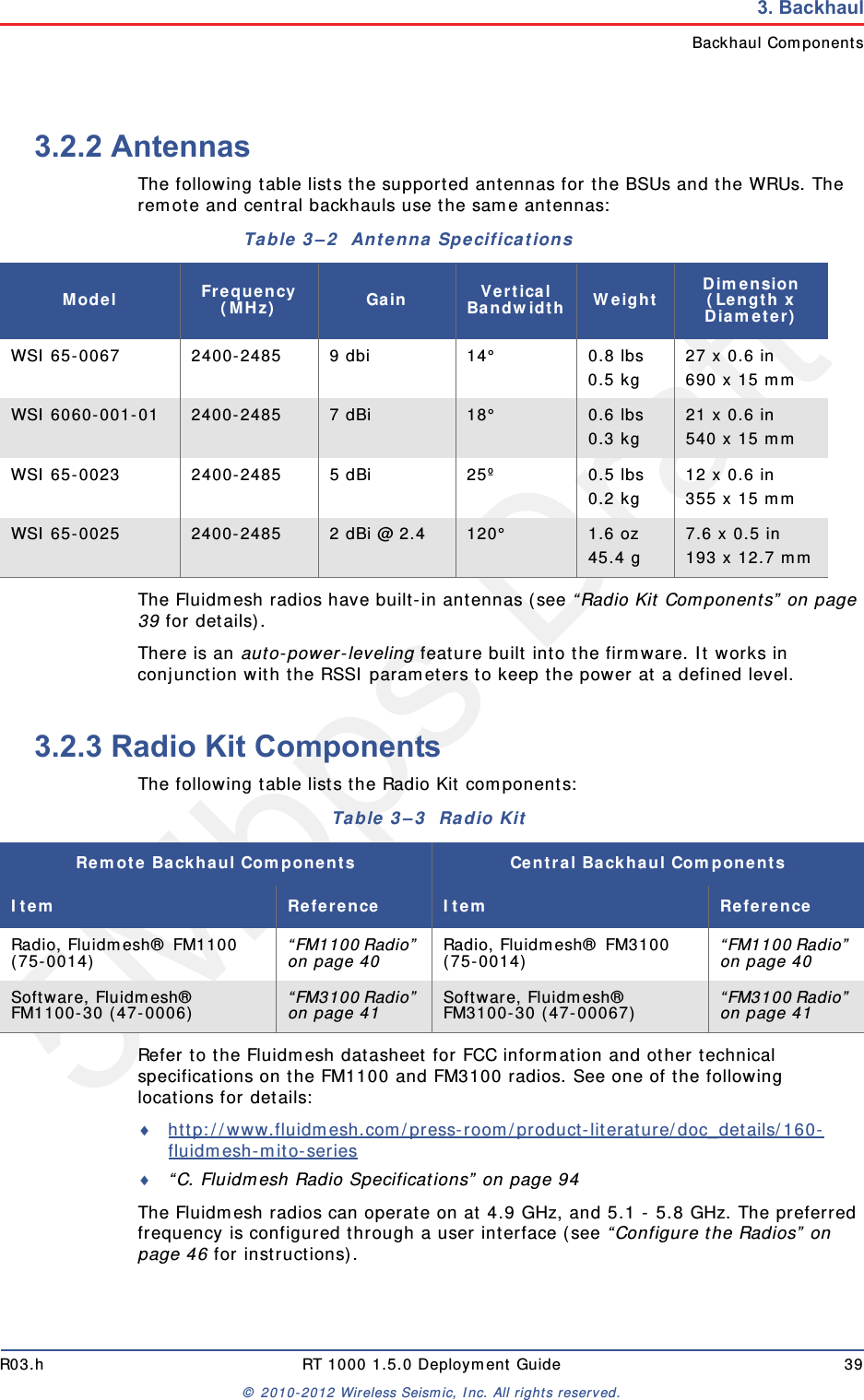
5Mbps DraftR03.h RT 1000 1.5.0 Deployment Guide 39© 2010-2012 Wireless Seismic, Inc. All rights reserved.3. BackhaulBackhaul Components3.2.2 AntennasThe following table lists the supported antennas for the BSUs and the WRUs. The remote and central backhauls use the same antennas: The Fluidmesh radios have built-in antennas (see “Radio Kit Components” on page 39 for details). There is an auto-power-leveling feature built into the firmware. It works in conjunction with the RSSI parameters to keep the power at a defined level. 3.2.3 Radio Kit ComponentsThe following table lists the Radio Kit components:Refer to the Fluidmesh datasheet for FCC information and other technical specifications on the FM1100 and FM3100 radios. See one of the following locations for details: http://www.fluidmesh.com/press-room/product-literature/doc_details/160-fluidmesh-mito-series “C. Fluidmesh Radio Specifications” on page 94The Fluidmesh radios can operate on at 4.9 GHz, and 5.1 - 5.8 GHz. The preferred frequency is configured through a user interface (see “Configure the Radios” on page 46 for instructions). Table 3–2  Antenna Specifications Model Frequency (MHz) Gain Vertical Bandwidth Weight Dimension (Length x Diameter)WSI 65-0067 2400-2485 9 dbi 14° 0.8 lbs0.5 kg 27 x 0.6 in690 x 15 mmWSI 6060-001-01 2400-2485 7 dBi 18° 0.6 lbs 0.3 kg 21 x 0.6 in540 x 15 mmWSI 65-0023 2400-2485 5 dBi 25º 0.5 lbs 0.2 kg 12 x 0.6 in355 x 15 mmWSI 65-0025 2400-2485 2 dBi @ 2.4 120°  1.6 oz 45.4 g 7.6 x 0.5 in193 x 12.7 mmTable 3–3  Radio KitRemote Backhaul Components Central Backhaul ComponentsItem Reference Item ReferenceRadio, Fluidmesh® FM1100 (75-0014)  “FM1100 Radio” on page 40 Radio, Fluidmesh® FM3100 (75-0014)  “FM1100 Radio” on page 40Software, Fluidmesh® FM1100-30 (47-0006)  “FM3100 Radio” on page 41 Software, Fluidmesh® FM3100-30 (47-00067)  “FM3100 Radio” on page 41
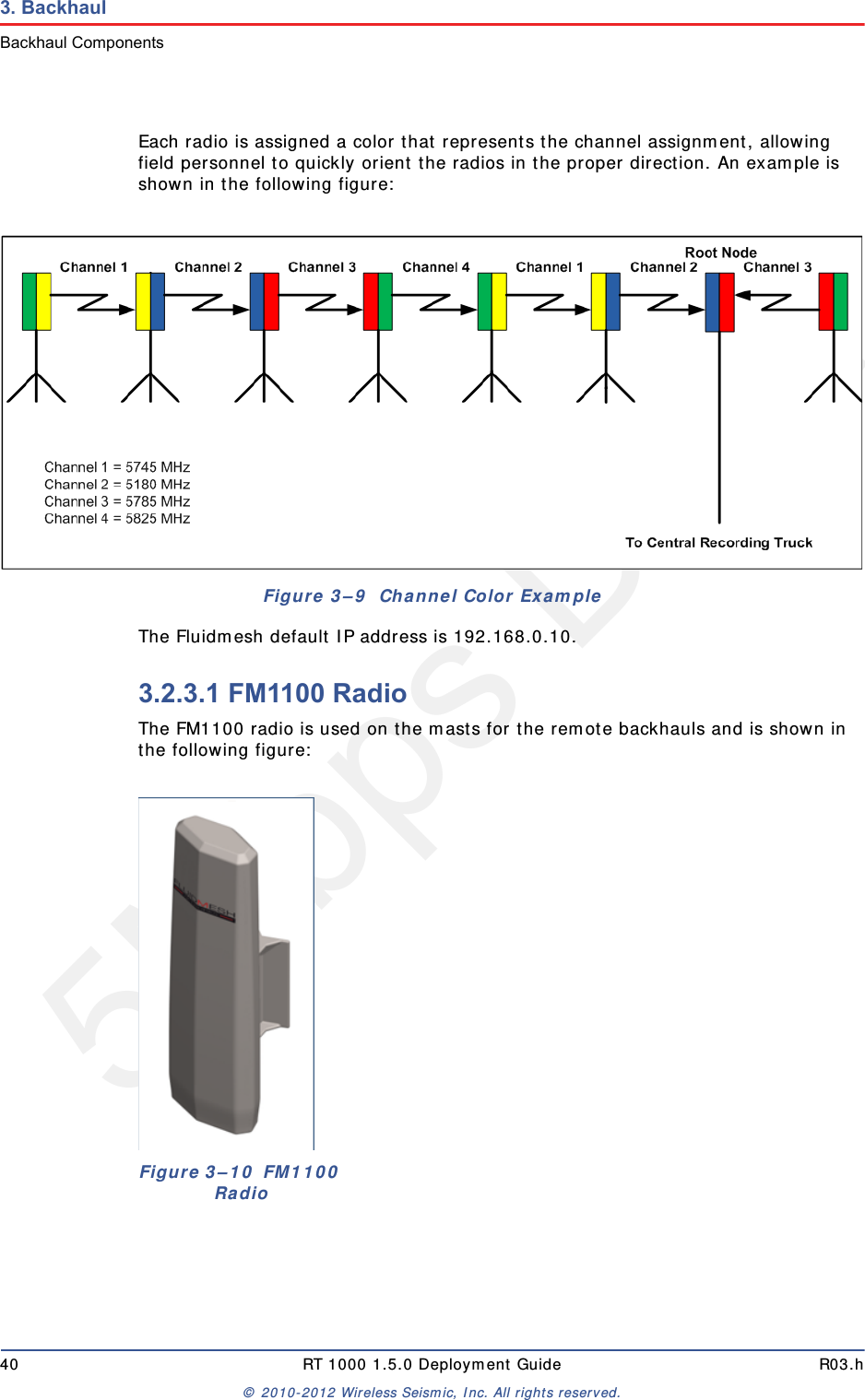
5Mbps Draft40 RT 1000 1.5.0 Deployment Guide R03.h© 2010-2012 Wireless Seismic, Inc. All rights reserved.3. BackhaulBackhaul ComponentsEach radio is assigned a color that represents the channel assignment, allowing field personnel to quickly orient the radios in the proper direction. An example is shown in the following figure:The Fluidmesh default IP address is 192.168.0.10.3.2.3.1 FM1100 RadioThe FM1100 radio is used on the masts for the remote backhauls and is shown in the following figure:Figure 3–9  Channel Color Example Figure 3–10  FM1100 Radio

Navigation menu