Wireless Seismic 00102 Wireless Remote Unit User Manual DeploymentGuide

Wireless Seismic, Inc. Wireless Remote Unit DeploymentGuide

Contents

Users Manual 2

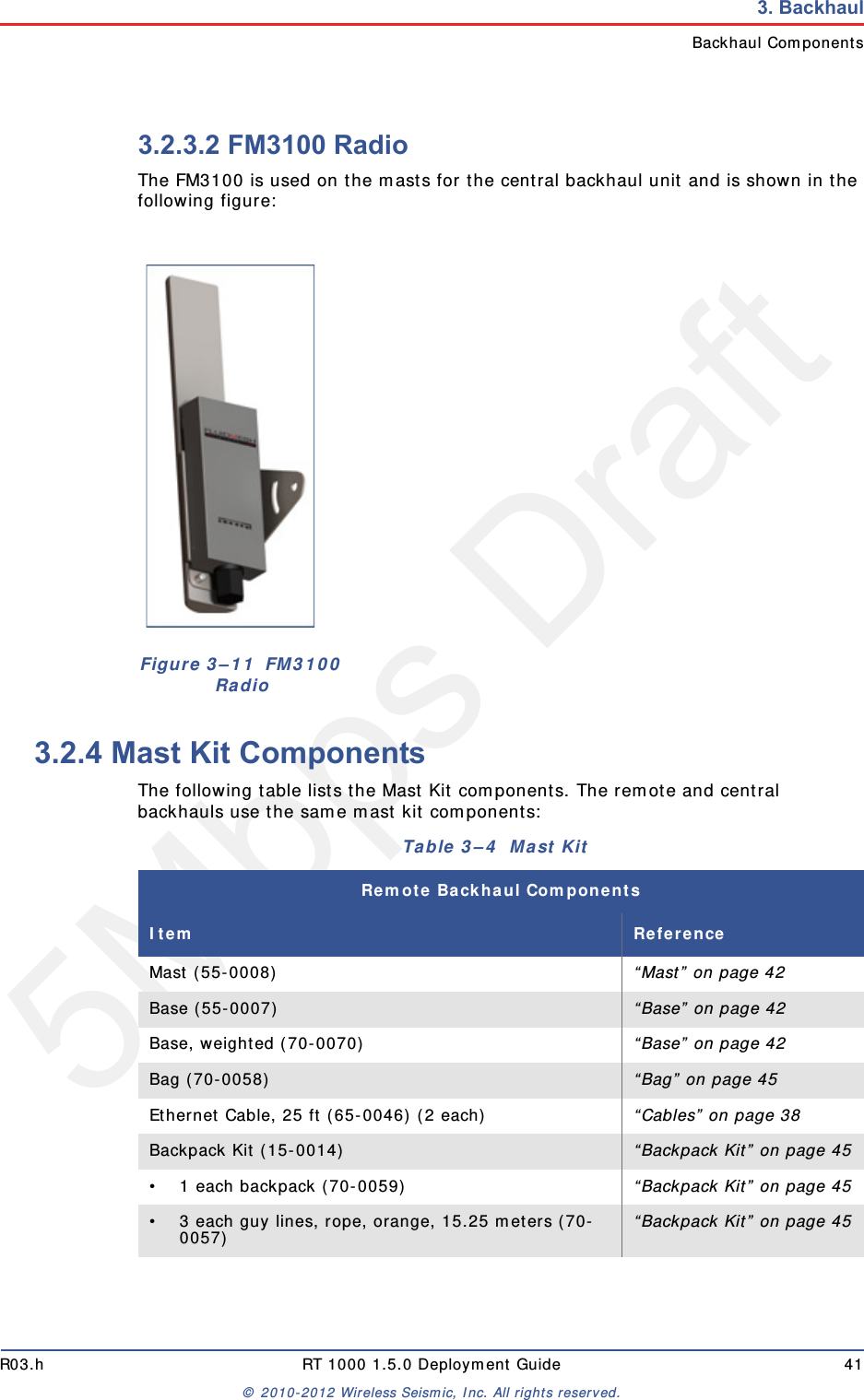
5Mbps DraftR03.h RT 1000 1.5.0 Deployment Guide 41© 2010-2012 Wireless Seismic, Inc. All rights reserved.3. BackhaulBackhaul Components3.2.3.2 FM3100 RadioThe FM3100 is used on the masts for the central backhaul unit and is shown in the following figure:3.2.4 Mast Kit ComponentsThe following table lists the Mast Kit components. The remote and central backhauls use the same mast kit components:Figure 3–11  FM3100 RadioTable 3–4  Mast Kit Remote Backhaul ComponentsItem ReferenceMast (55-0008)  “Mast” on page 42Base (55-0007)  “Base” on page 42Base, weighted (70-0070) “Base” on page 42Bag (70-0058)  “Bag” on page 45Ethernet Cable, 25 ft (65-0046) (2 each)  “Cables” on page 38Backpack Kit (15-0014)  “Backpack Kit” on page 45• 1 each backpack (70-0059)  “Backpack Kit” on page 45• 3 each guy lines, rope, orange, 15.25 meters (70-0057)  “Backpack Kit” on page 45
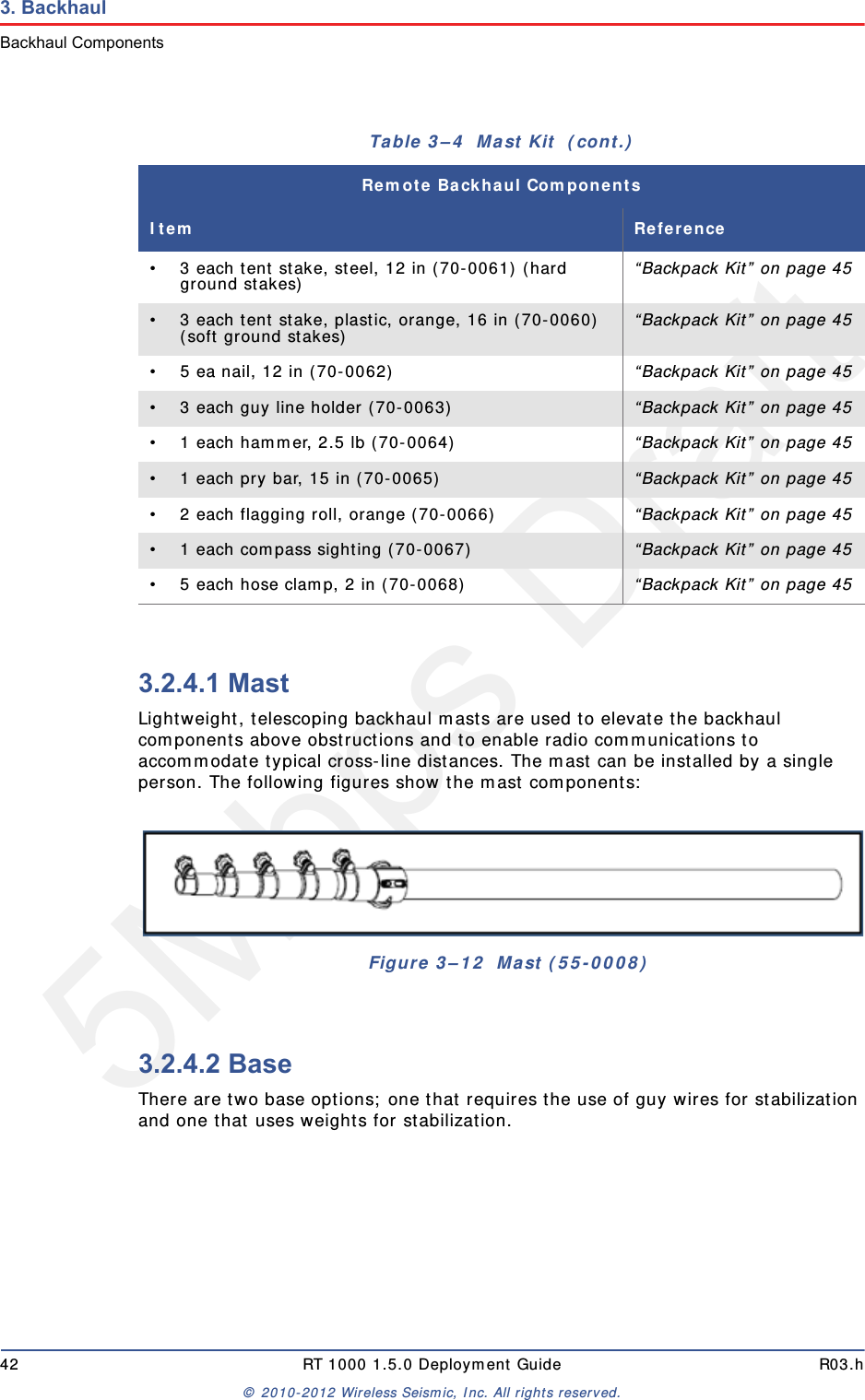
5Mbps Draft42 RT 1000 1.5.0 Deployment Guide R03.h© 2010-2012 Wireless Seismic, Inc. All rights reserved.3. BackhaulBackhaul Components3.2.4.1 MastLightweight, telescoping backhaul masts are used to elevate the backhaul components above obstructions and to enable radio communications to accommodate typical cross-line distances. The mast can be installed by a single person. The following figures show the mast components:3.2.4.2 BaseThere are two base options; one that requires the use of guy wires for stabilization and one that uses weights for stabilization.• 3 each tent stake, steel, 12 in (70-0061) (hard ground stakes) “Backpack Kit” on page 45• 3 each tent stake, plastic, orange, 16 in (70-0060) (soft ground stakes) “Backpack Kit” on page 45• 5 ea nail, 12 in (70-0062) “Backpack Kit” on page 45• 3 each guy line holder (70-0063)  “Backpack Kit” on page 45• 1 each hammer, 2.5 lb (70-0064) “Backpack Kit” on page 45• 1 each pry bar, 15 in (70-0065) “Backpack Kit” on page 45• 2 each flagging roll, orange (70-0066) “Backpack Kit” on page 45• 1 each compass sighting (70-0067) “Backpack Kit” on page 45• 5 each hose clamp, 2 in (70-0068) “Backpack Kit” on page 45Figure 3–12  Mast (55-0008)Table 3–4  Mast Kit  (cont.)Remote Backhaul ComponentsItem Reference
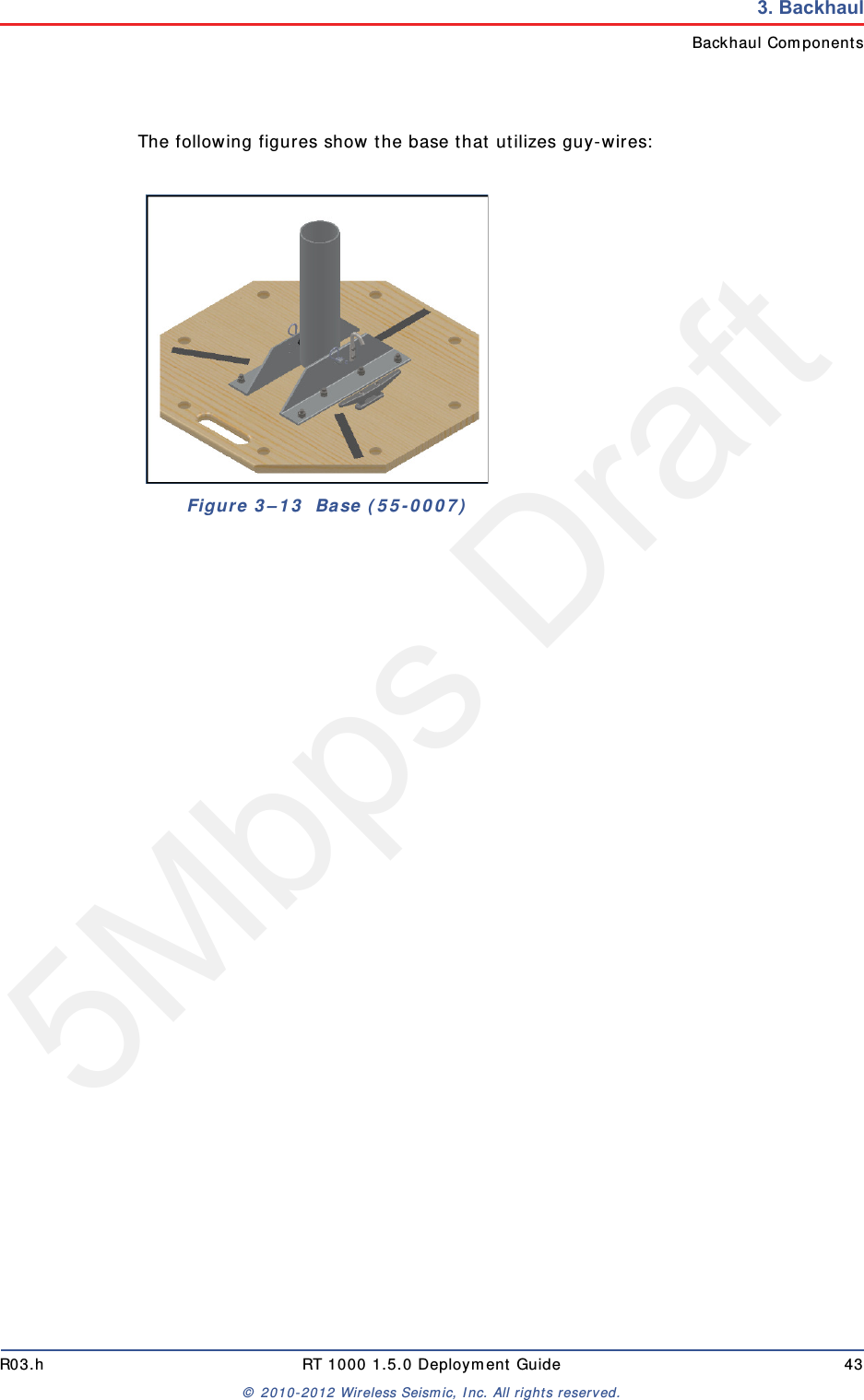
5Mbps DraftR03.h RT 1000 1.5.0 Deployment Guide 43© 2010-2012 Wireless Seismic, Inc. All rights reserved.3. BackhaulBackhaul ComponentsThe following figures show the base that utilizes guy-wires:Figure 3–13  Base (55-0007)
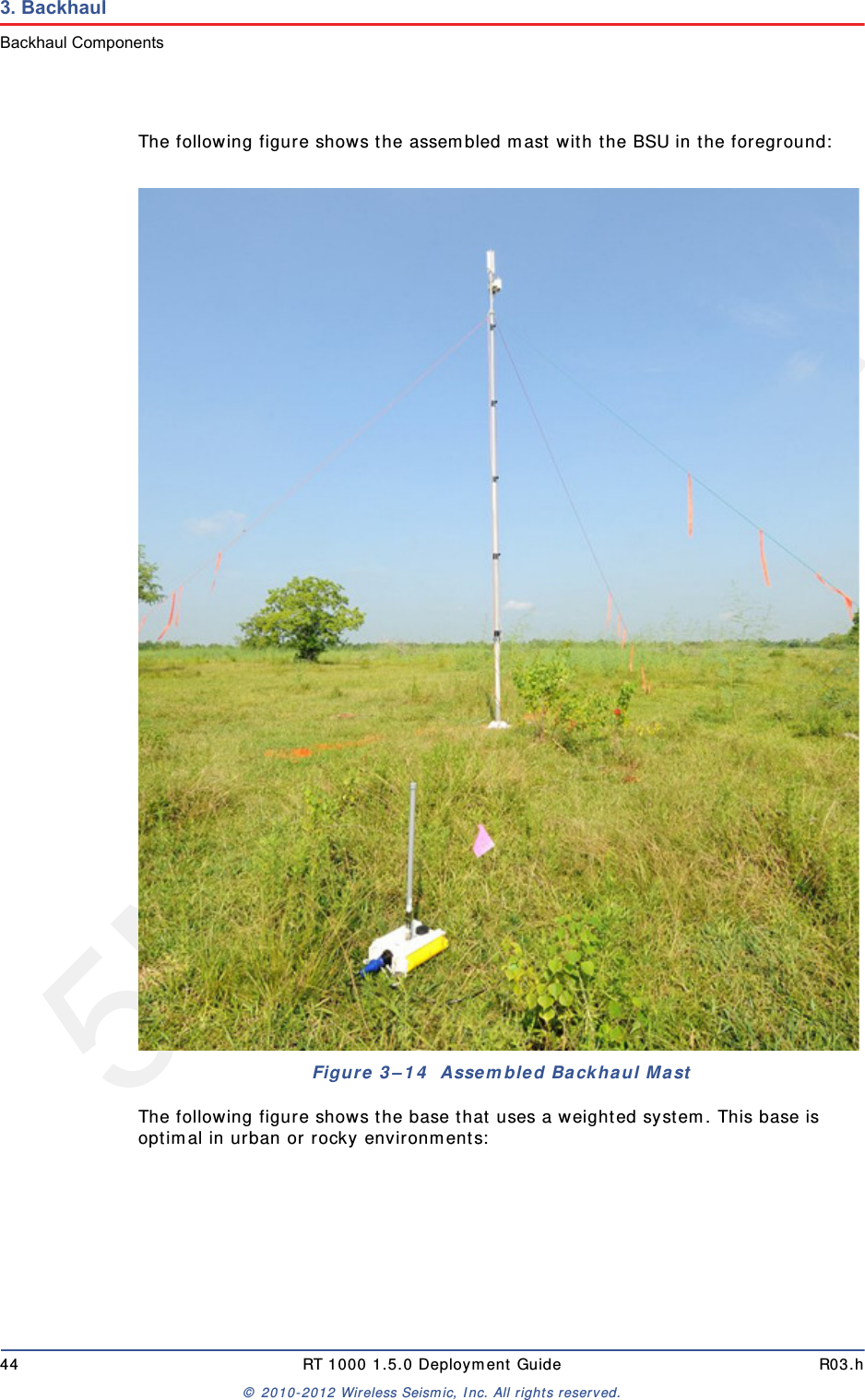
5Mbps Draft44 RT 1000 1.5.0 Deployment Guide R03.h© 2010-2012 Wireless Seismic, Inc. All rights reserved.3. BackhaulBackhaul ComponentsThe following figure shows the assembled mast with the BSU in the foreground:The following figure shows the base that uses a weighted system. This base is optimal in urban or rocky environments:Figure 3–14  Assembled Backhaul Mast
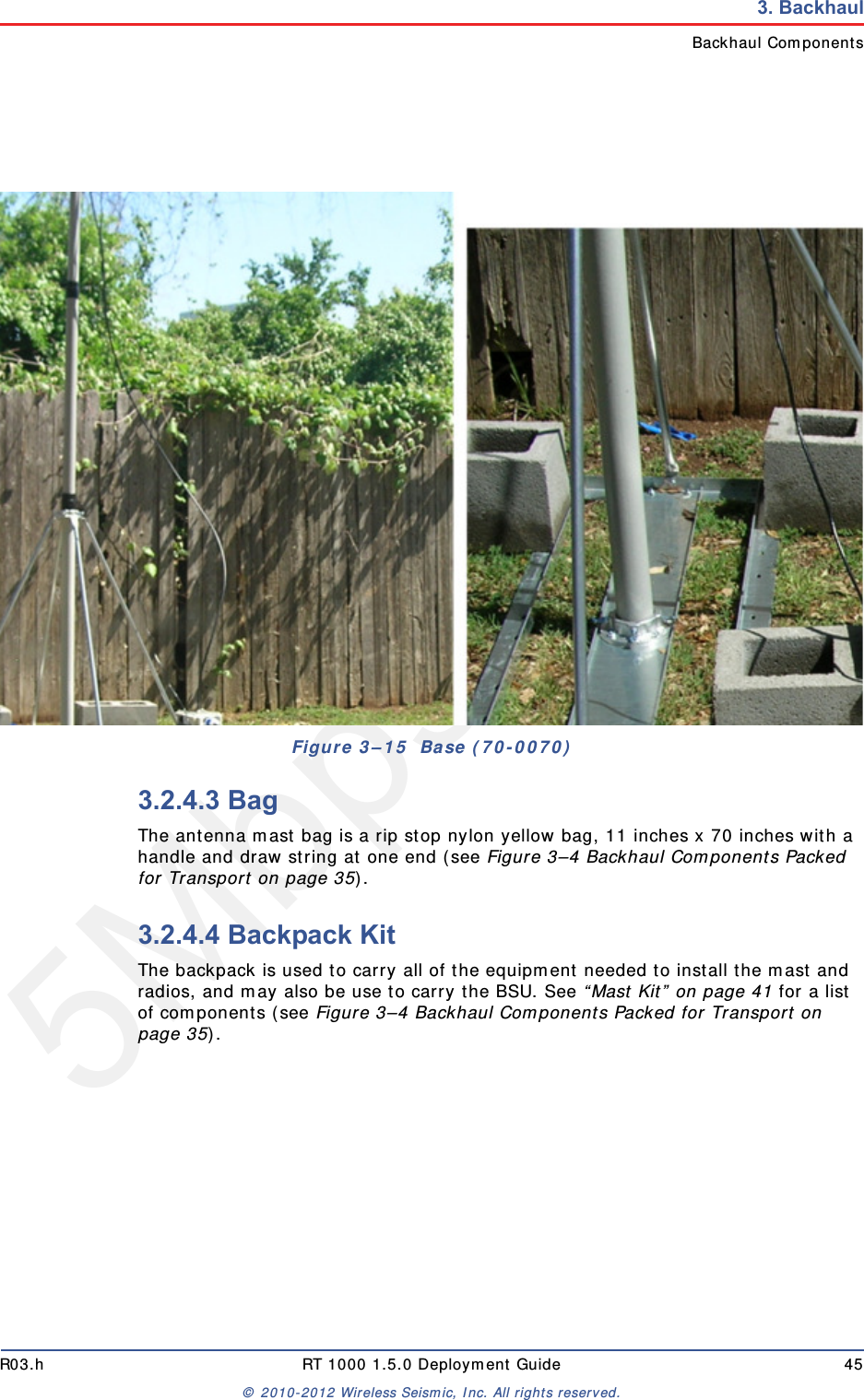
5Mbps DraftR03.h RT 1000 1.5.0 Deployment Guide 45© 2010-2012 Wireless Seismic, Inc. All rights reserved.3. BackhaulBackhaul Components3.2.4.3 BagThe antenna mast bag is a rip stop nylon yellow bag, 11 inches x 70 inches with a handle and draw string at one end (see Figure 3–4 Backhaul Components Packed for Transport on page 35).3.2.4.4 Backpack KitThe backpack is used to carry all of the equipment needed to install the mast and radios, and may also be use to carry the BSU. See “Mast Kit” on page 41 for a list of components (see Figure 3–4 Backhaul Components Packed for Transport on page 35). Figure 3–15  Base (70-0070)
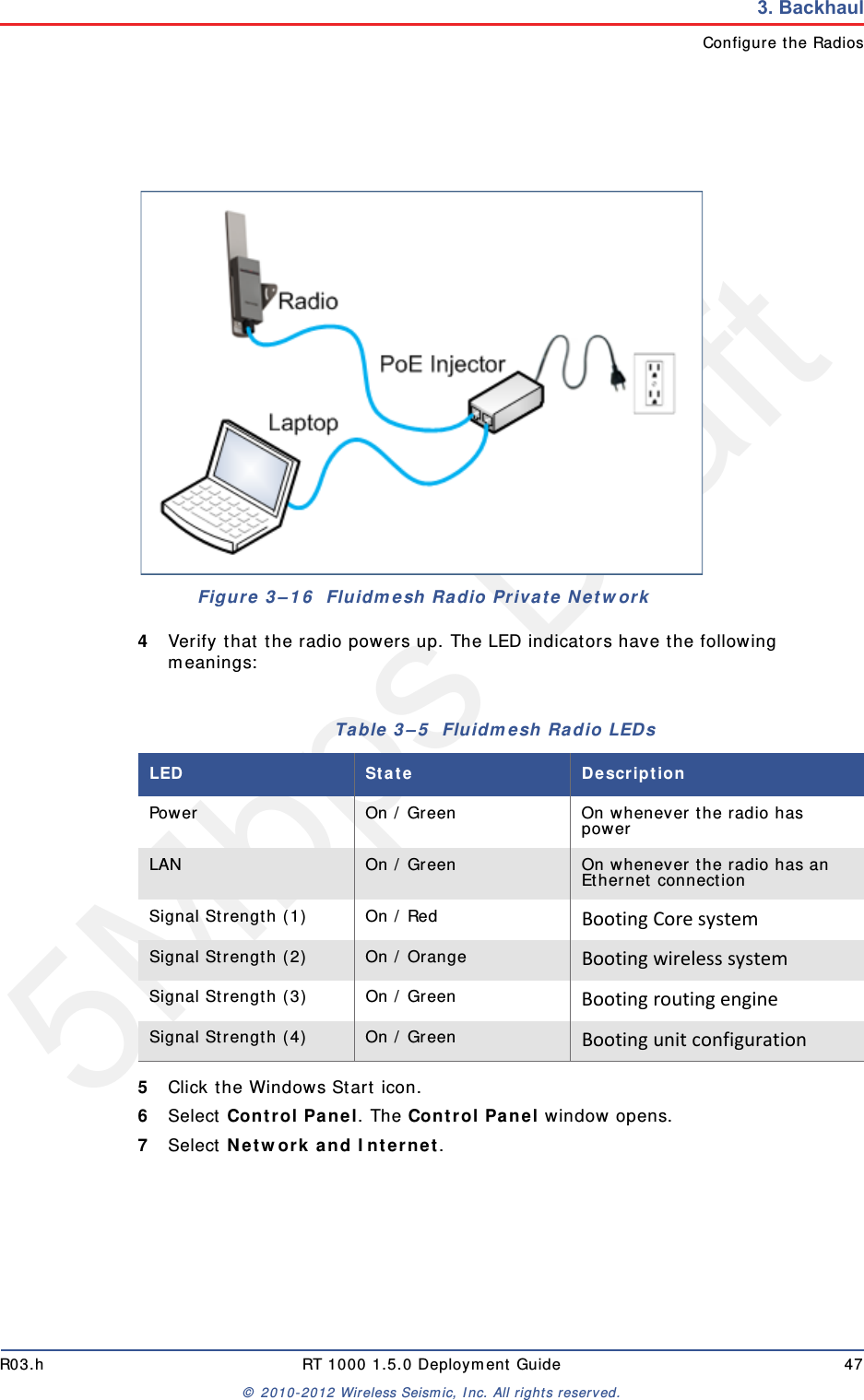
5Mbps Draft46 RT 1000 1.5.0 Deployment Guide R03.h© 2010-2012 Wireless Seismic, Inc. All rights reserved.3. BackhaulConfigure the Radios3.3 Configure the RadiosThe FMQuadro™ Web Interface is used to configure the radio channels. The radio licenses are pre-configured by Wireless Seismic, Inc. This section describes how to connect the radios to a computer and configure them.Check the radios before connecting them to any switch.3.3.1 Create a Private NetworkCreate a private network between the computer and the Fluidmesh radio.1Prerequisites:●Windows computer●Browser with Adobe Flash●AC Power●PoE Injector●Two Ethernet Cables2Power on the computer.3Connect the components (see Figure 3–16 Fluidmesh Radio Private Network on page 47):●Plug the PoE injector into an AC outlet.●Connect the computer to the PoE injector with an Ethernet cable.●Connect the Fluidmesh radio to the PoE injector with an Ethernet cable. The radio powers up.►FM1100 – Connect to LAN 1►FM3100 – There is only one connectorNOTEThe expected configuration in the RT 1000 system is as follows:FM1100 = mesh point (remote backhaul)FM3100 = mesh end (central backhaul)NOTEAll Fluidmesh units are preconfigured with an IP address of192.168.0.10.CAUTIONPower up only one radio at a time. Never place two powered-up radiosnext to each other. It is possible to damage the radio receivers ifmultiple radios are powered up in close proximity.
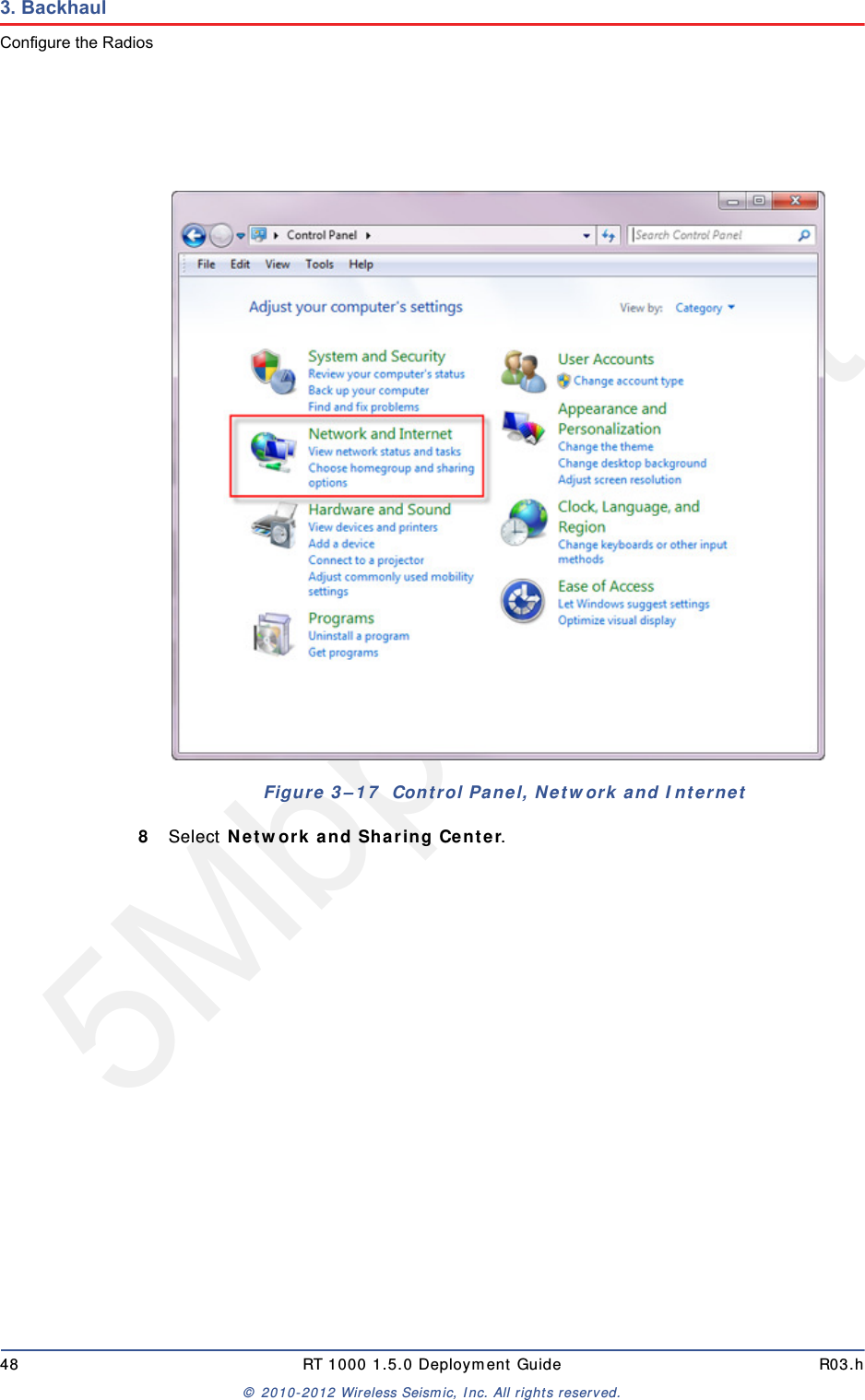
5Mbps DraftR03.h RT 1000 1.5.0 Deployment Guide 47© 2010-2012 Wireless Seismic, Inc. All rights reserved.3. BackhaulConfigure the Radios4Verify that the radio powers up. The LED indicators have the following meanings:5Click the Windows Start icon.6Select Control Panel. The Control Panel window opens. 7Select Network and Internet. Figure 3–16  Fluidmesh Radio Private NetworkTable 3–5  Fluidmesh Radio LEDs LED State DescriptionPower On / Green On whenever the radio has powerLAN On / Green On whenever the radio has an Ethernet connectionSignal Strength (1) On / Red BootingCoresystemSignal Strength (2) On / Orange BootingwirelesssystemSignal Strength (3) On / Green BootingroutingengineSignal Strength (4) On / Green Bootingunitconfiguration
5Mbps Draft48 RT 1000 1.5.0 Deployment Guide R03.h© 2010-2012 Wireless Seismic, Inc. All rights reserved.3. BackhaulConfigure the Radios8Select Network and Sharing Center.Figure 3–17  Control Panel, Network and Internet
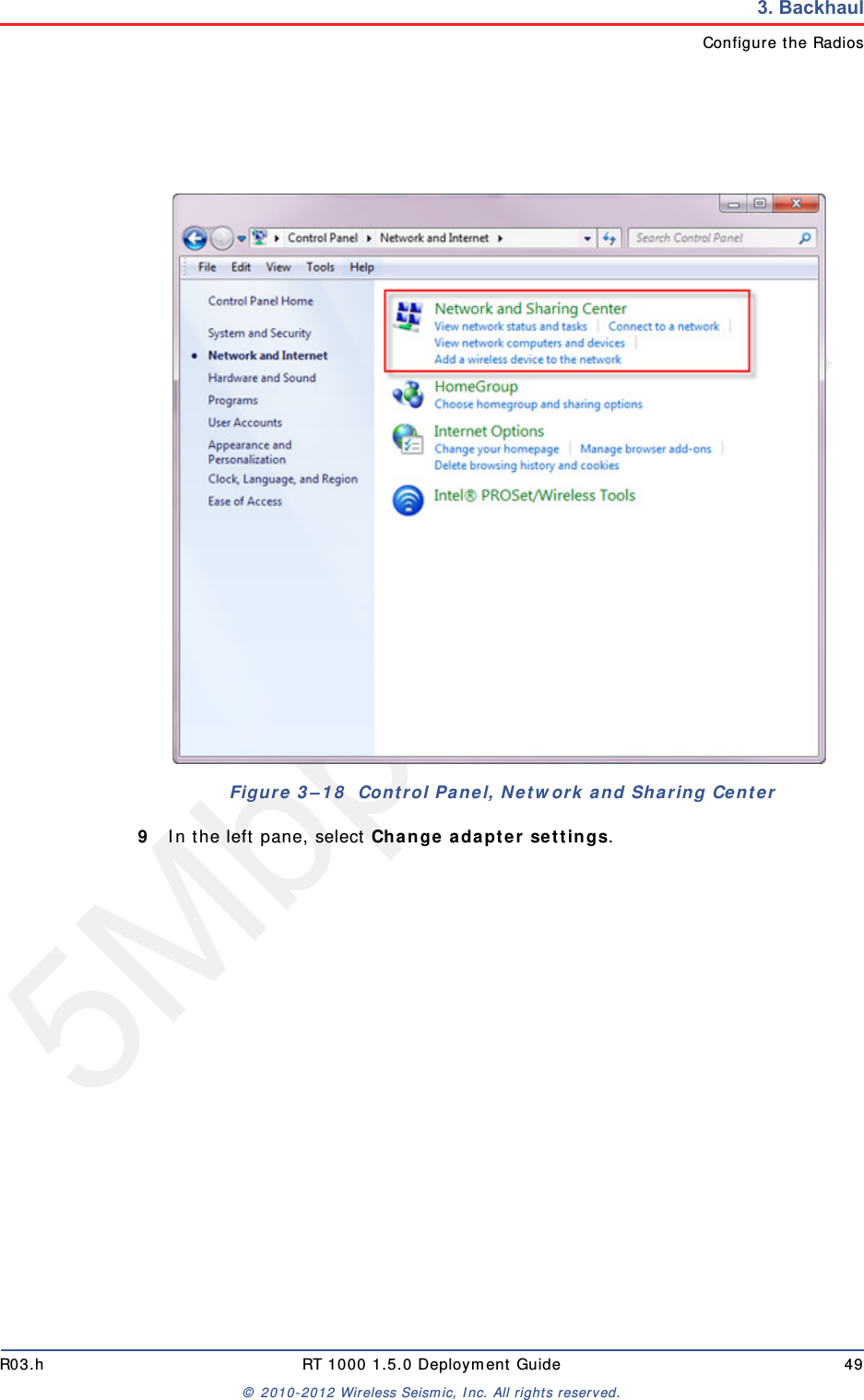
5Mbps DraftR03.h RT 1000 1.5.0 Deployment Guide 49© 2010-2012 Wireless Seismic, Inc. All rights reserved.3. BackhaulConfigure the Radios9In the left pane, select Change adapter settings.Figure 3–18  Control Panel, Network and Sharing Center
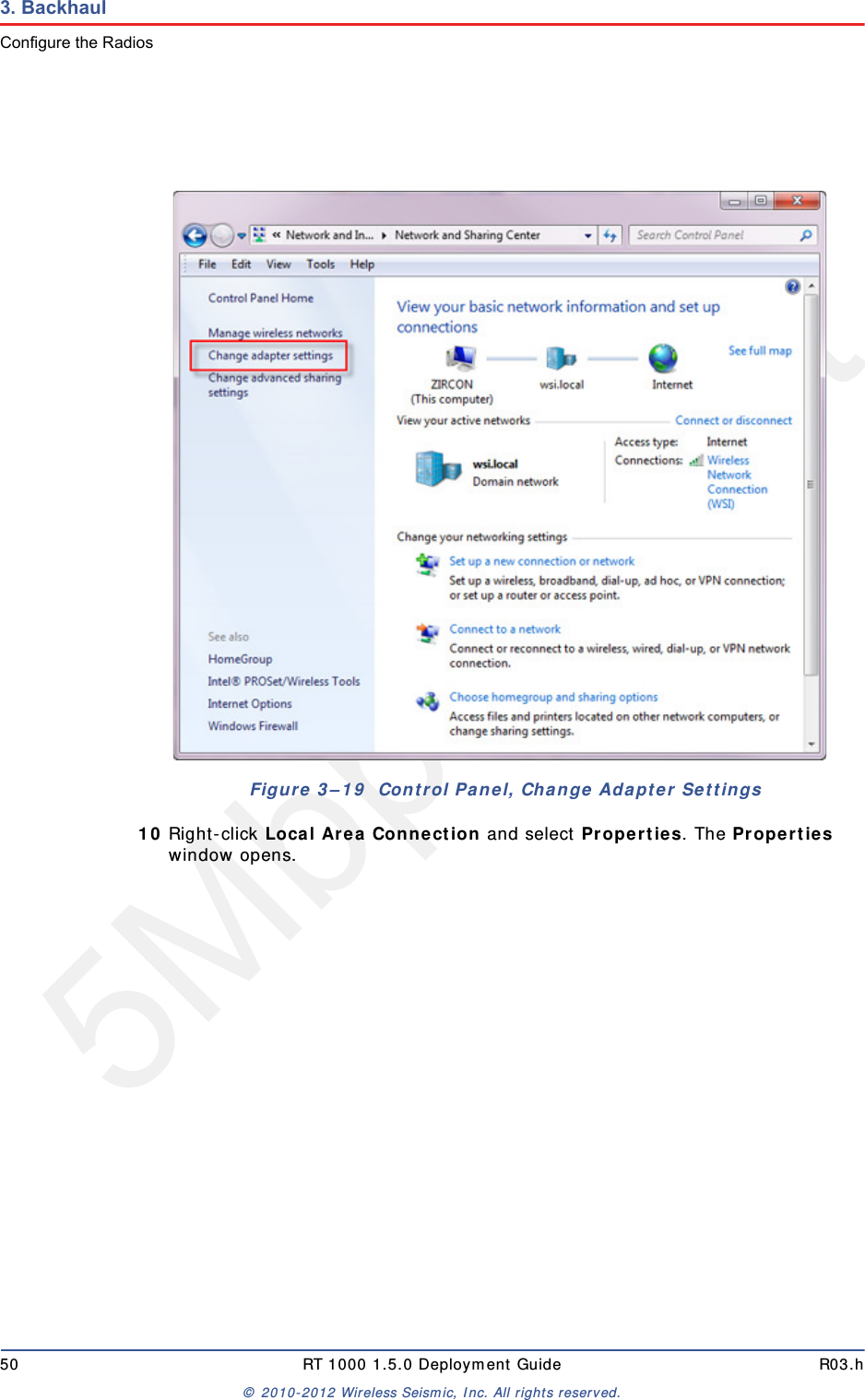
5Mbps Draft50 RT 1000 1.5.0 Deployment Guide R03.h© 2010-2012 Wireless Seismic, Inc. All rights reserved.3. BackhaulConfigure the Radios10 Right-click Local Area Connection and select Properties. The Properties window opens. Figure 3–19  Control Panel, Change Adapter Settings
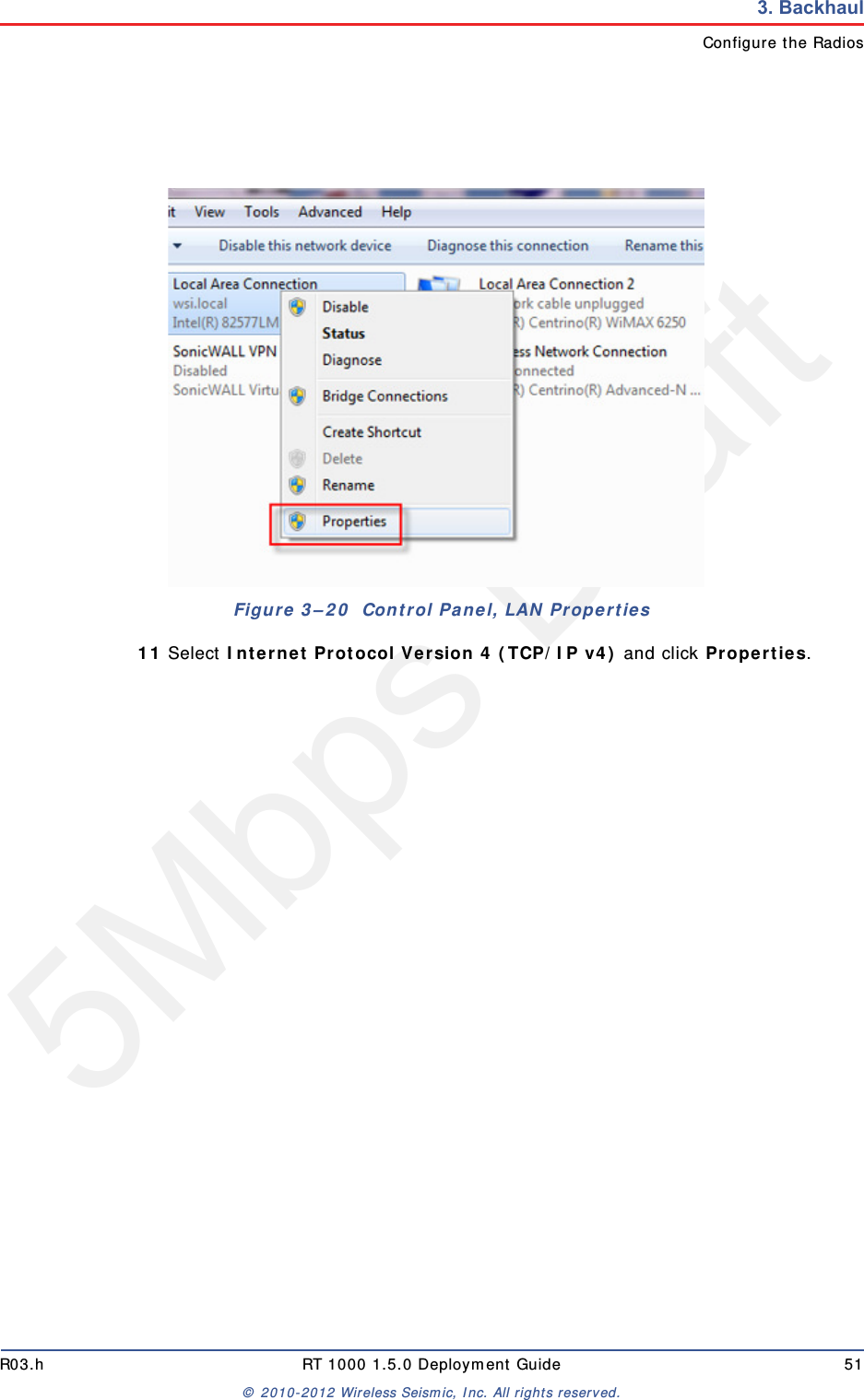
5Mbps DraftR03.h RT 1000 1.5.0 Deployment Guide 51© 2010-2012 Wireless Seismic, Inc. All rights reserved.3. BackhaulConfigure the Radios11 Select Internet Protocol Version 4 (TCP/IP v4) and click Properties. Figure 3–20  Control Panel, LAN Properties
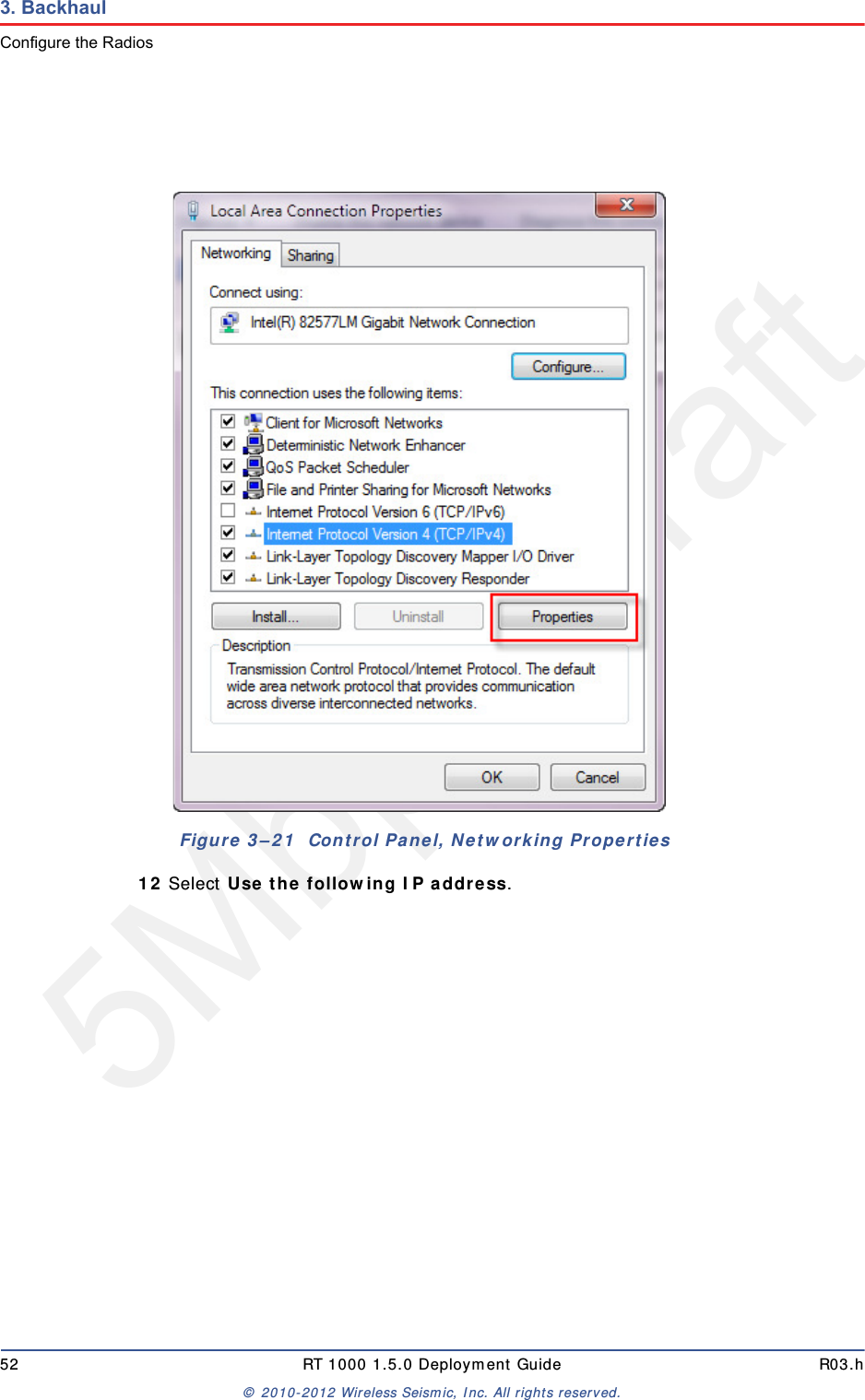
5Mbps Draft52 RT 1000 1.5.0 Deployment Guide R03.h© 2010-2012 Wireless Seismic, Inc. All rights reserved.3. BackhaulConfigure the Radios12 Select Use the following IP address.Figure 3–21  Control Panel, Networking Properties
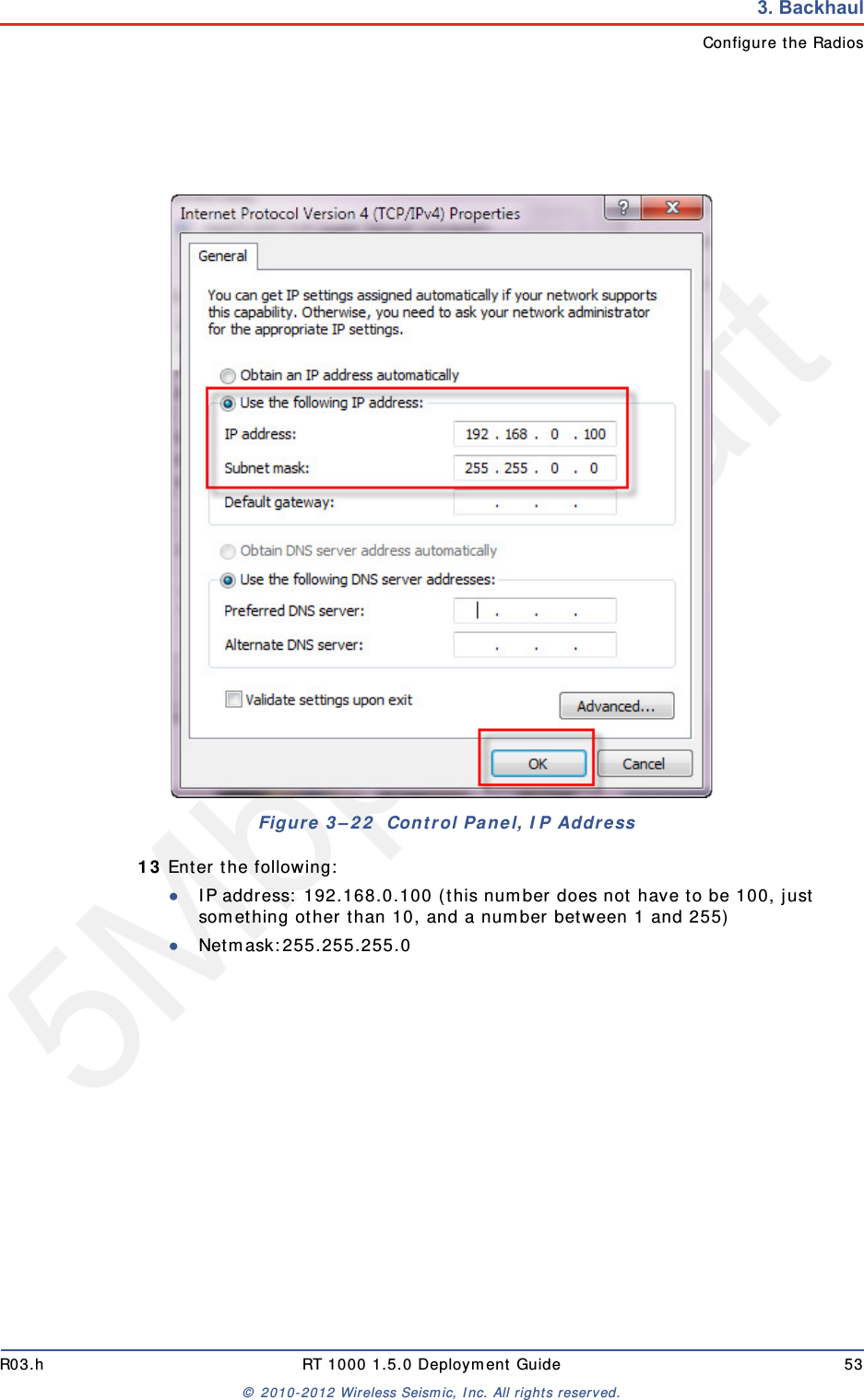
5Mbps DraftR03.h RT 1000 1.5.0 Deployment Guide 53© 2010-2012 Wireless Seismic, Inc. All rights reserved.3. BackhaulConfigure the Radios13 Enter the following:●IP address: 192.168.0.100 (this number does not have to be 100, just something other than 10, and a number between 1 and 255)●Netmask:255.255.255.0Figure 3–22  Control Panel, IP Address
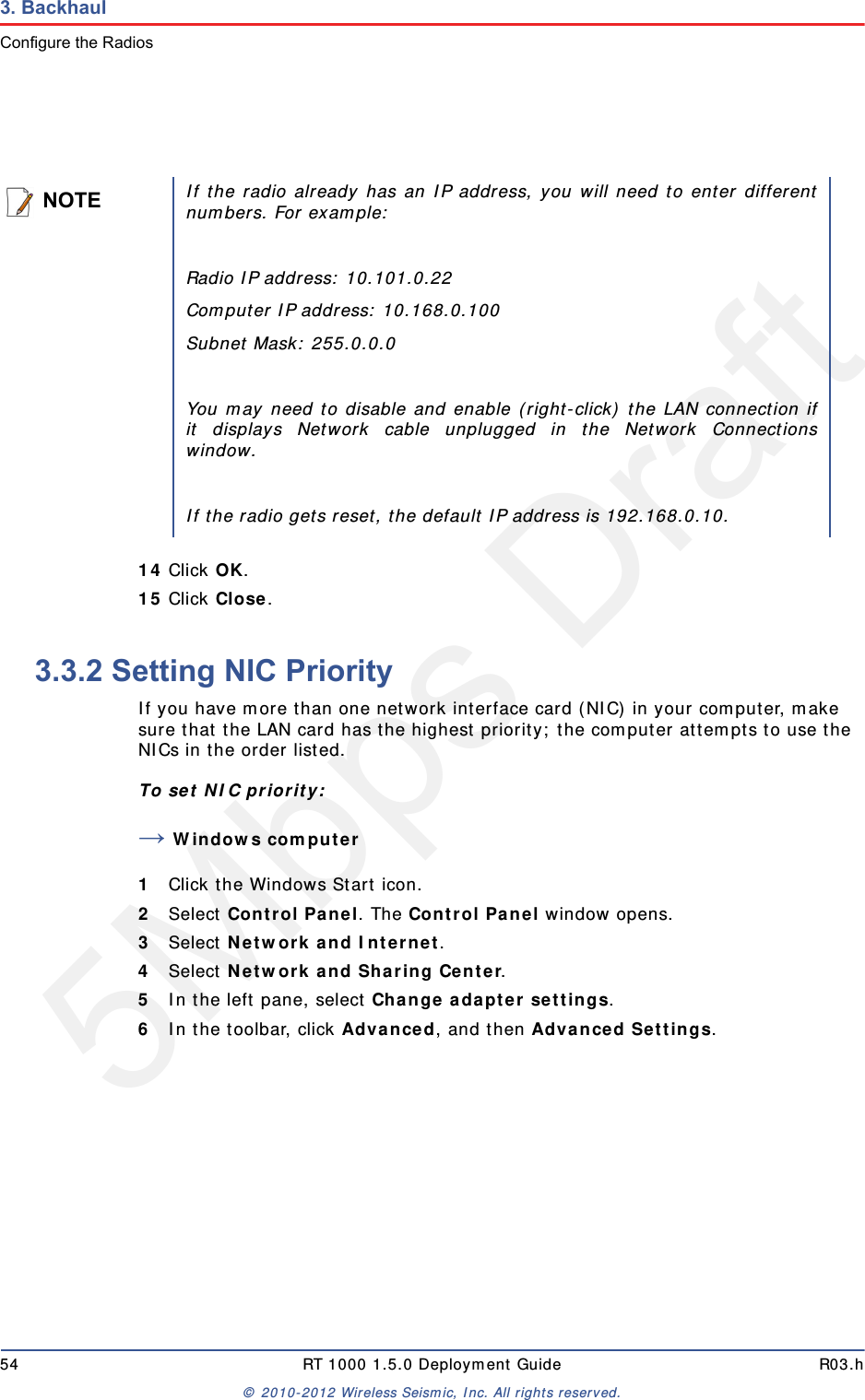
5Mbps Draft54 RT 1000 1.5.0 Deployment Guide R03.h© 2010-2012 Wireless Seismic, Inc. All rights reserved.3. BackhaulConfigure the Radios14 Click OK.15 Click Close.3.3.2 Setting NIC PriorityIf you have more than one network interface card (NIC) in your computer, make sure that the LAN card has the highest priority; the computer attempts to use the NICs in the order listed.To set NIC priority:→Windows computer1Click the Windows Start icon.2Select Control Panel. The Control Panel window opens. 3Select Network and Internet. 4Select Network and Sharing Center.5In the left pane, select Change adapter settings.6In the toolbar, click Advanced, and then Advanced Settings.NOTEIf the radio already has an IP address, you will need to enter differentnumbers. For example:Radio IP address: 10.101.0.22Computer IP address: 10.168.0.100Subnet Mask: 255.0.0.0You may need to disable and enable (right-click) the LAN connection ifit displays Network cable unplugged in the Network Connectionswindow. If the radio gets reset, the default IP address is 192.168.0.10.
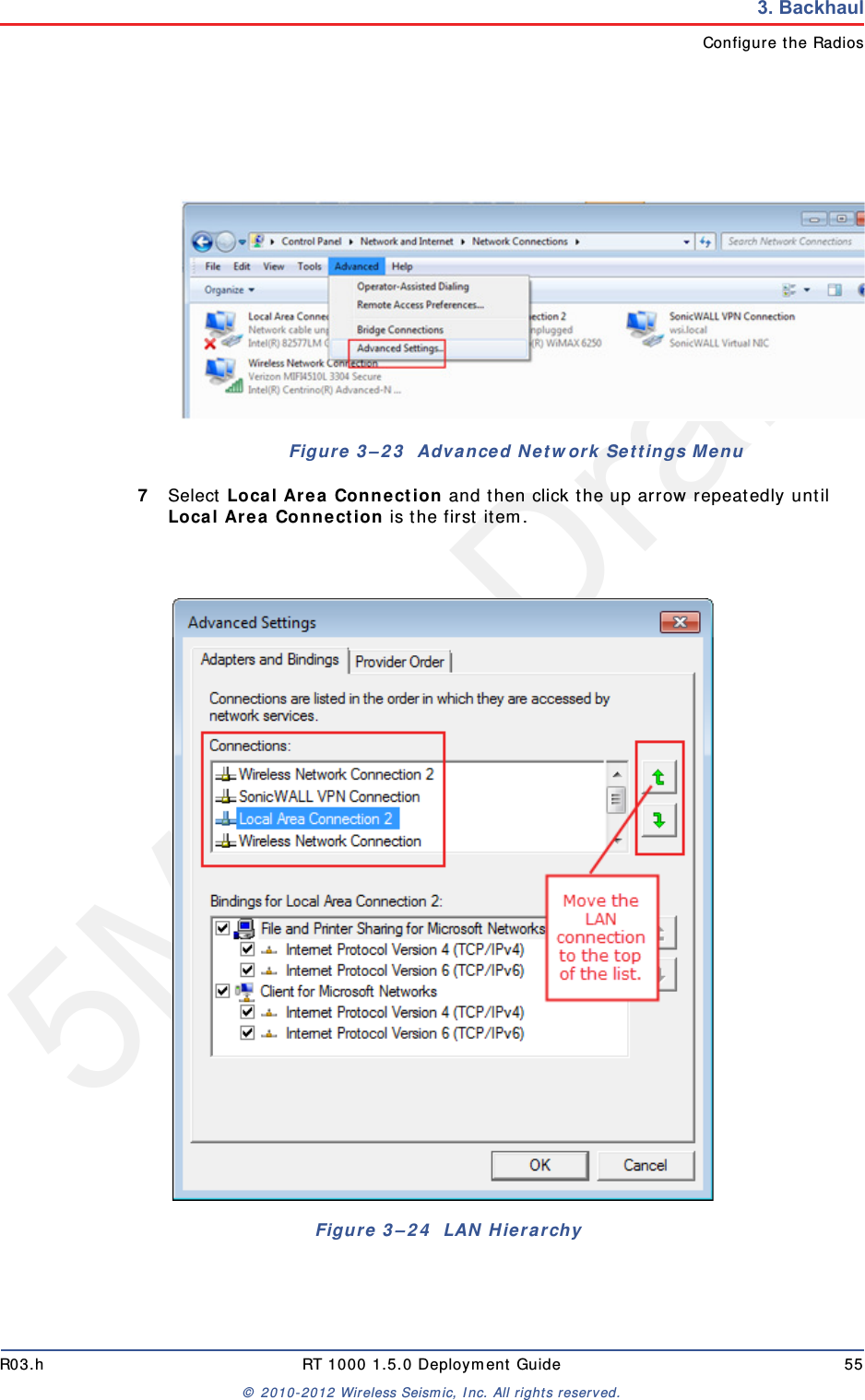
5Mbps DraftR03.h RT 1000 1.5.0 Deployment Guide 55© 2010-2012 Wireless Seismic, Inc. All rights reserved.3. BackhaulConfigure the Radios7Select Local Area Connection and then click the up arrow repeatedly until Local Area Connection is the first item. Figure 3–23  Advanced Network Settings MenuFigure 3–24  LAN Hierarchy
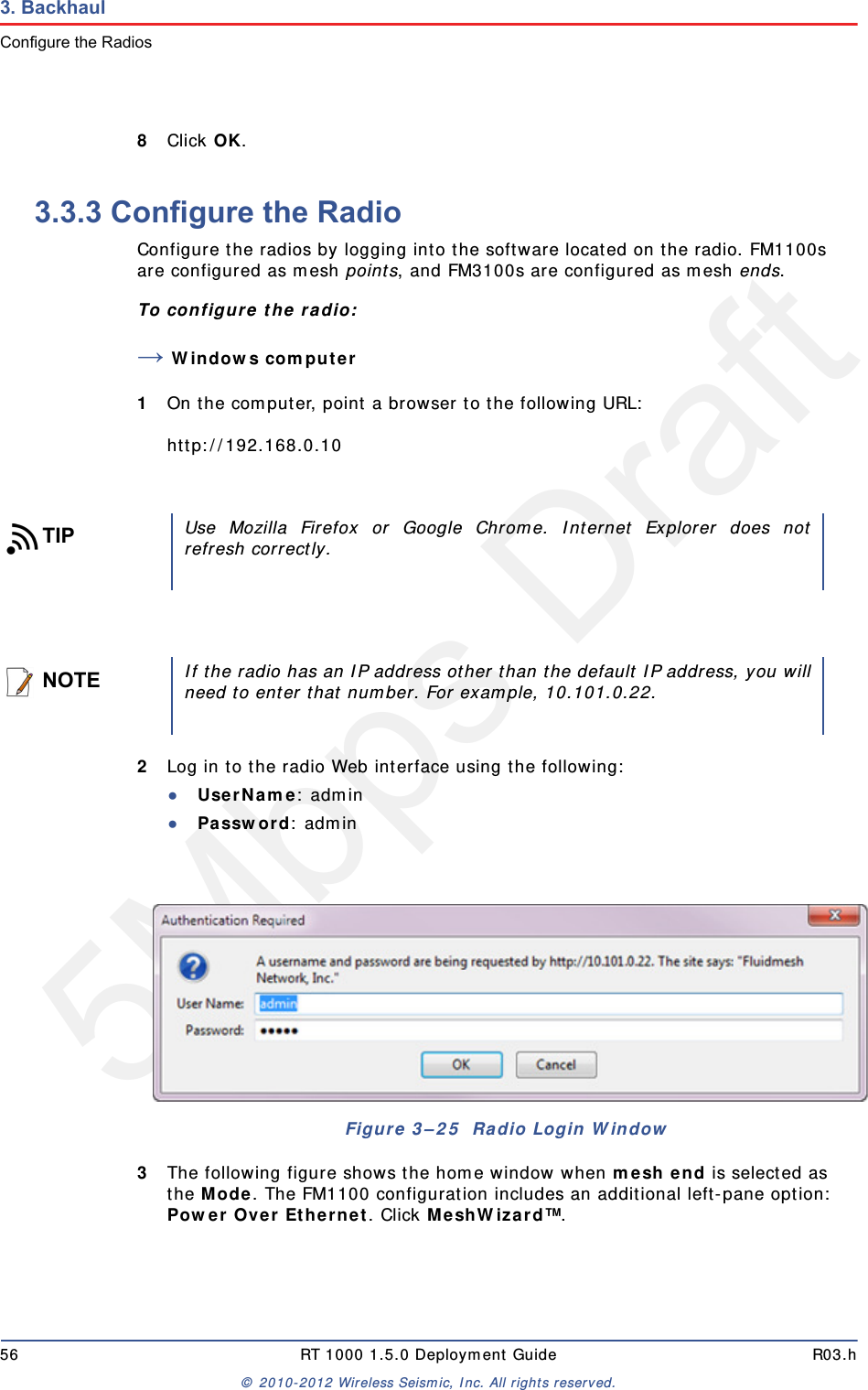
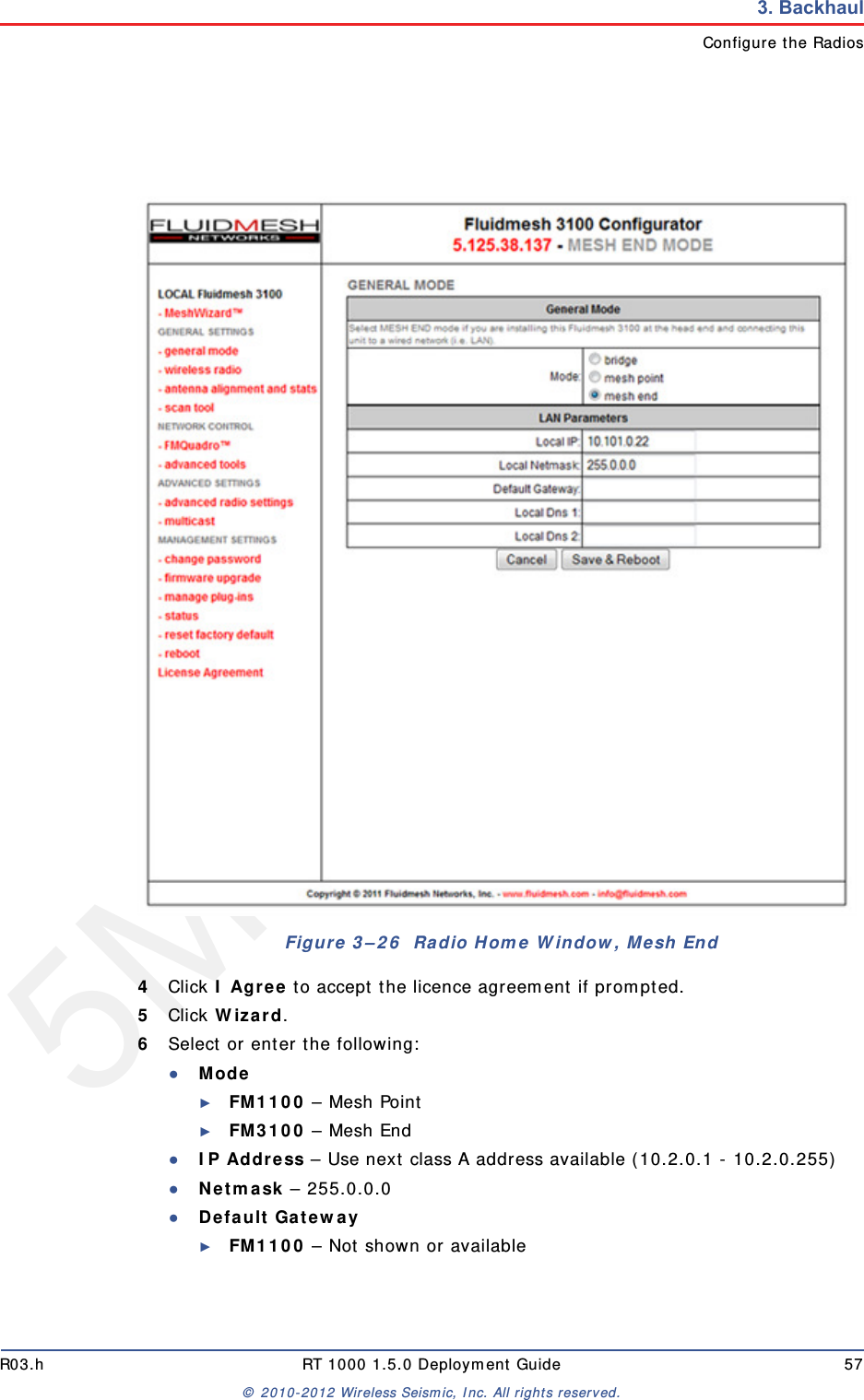
5Mbps Draft56 RT 1000 1.5.0 Deployment Guide R03.h© 2010-2012 Wireless Seismic, Inc. All rights reserved.3. BackhaulConfigure the Radios8Click OK. 3.3.3 Configure the RadioConfigure the radios by logging into the software located on the radio. FM1100s are configured as mesh points, and FM3100s are configured as mesh ends.To configure the radio:→Windows computer1On the computer, point a browser to the following URL:http://192.168.0.102Log in to the radio Web interface using the following:●UserName: admin●Password: admin3The following figure shows the home window when mesh end is selected as the Mode. The FM1100 configuration includes an additional left-pane option: Power Over Ethernet. Click MeshWizard™.TIPUse Mozilla Firefox or Google Chrome. Internet Explorer does notrefresh correctly.NOTEIf the radio has an IP address other than the default IP address, you willneed to enter that number. For example, 10.101.0.22.Figure 3–25  Radio Login Window
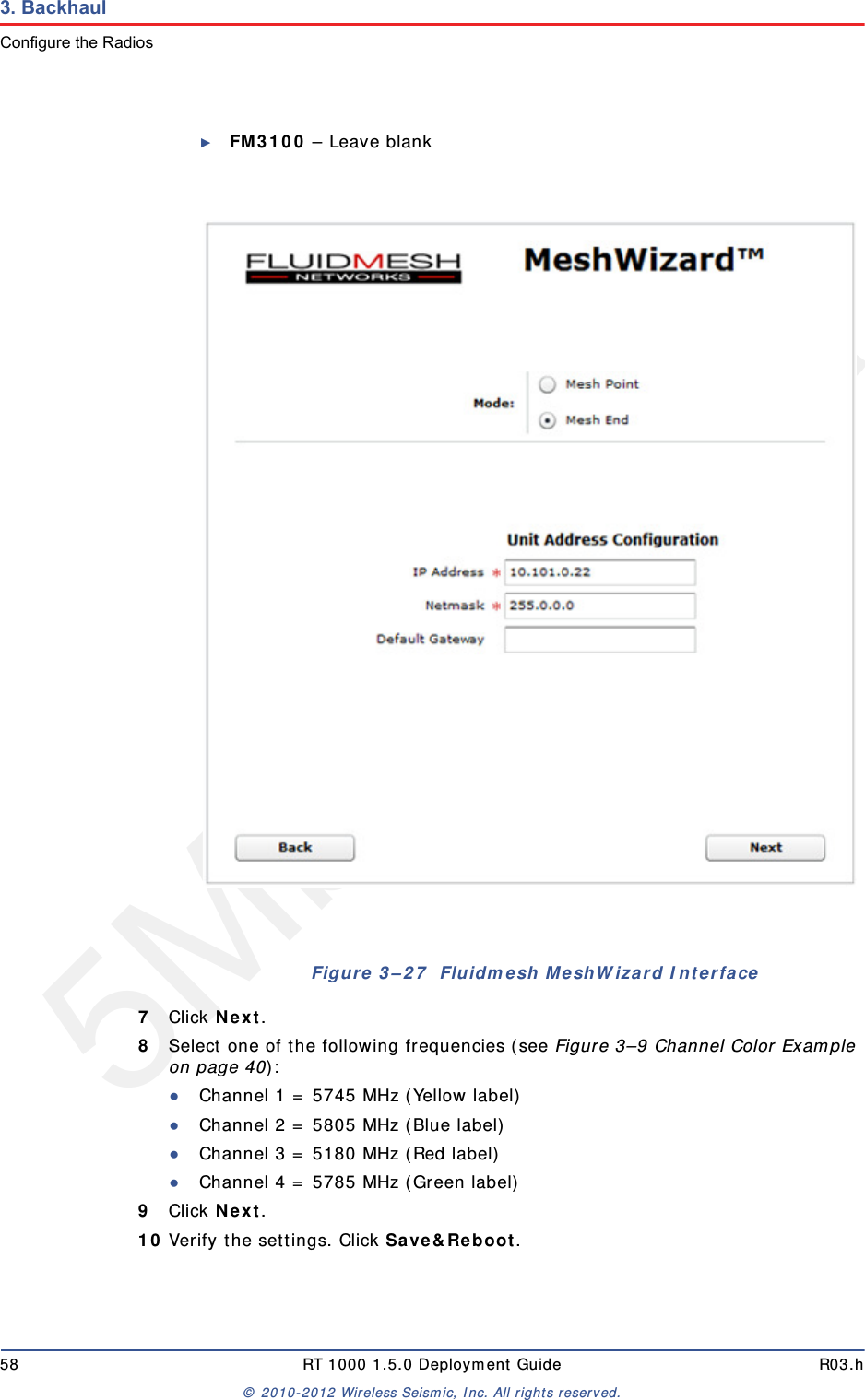
5Mbps DraftR03.h RT 1000 1.5.0 Deployment Guide 57© 2010-2012 Wireless Seismic, Inc. All rights reserved.3. BackhaulConfigure the Radios4Click I Agree to accept the licence agreement if prompted.5Click Wizard.6Select or enter the following:●Mode ►FM1100 – Mesh Point►FM3100 – Mesh End ●IP Address – Use next class A address available (10.2.0.1 - 10.2.0.255)●Netmask – 255.0.0.0●Default Gateway►FM1100 – Not shown or availableFigure 3–26  Radio Home Window, Mesh End
5Mbps Draft58 RT 1000 1.5.0 Deployment Guide R03.h© 2010-2012 Wireless Seismic, Inc. All rights reserved.3. BackhaulConfigure the Radios►FM3100 – Leave blank7Click Next.8Select one of the following frequencies (see Figure 3–9 Channel Color Example on page 40):●Channel 1 = 5745 MHz (Yellow label)●Channel 2 = 5805 MHz (Blue label)●Channel 3 = 5180 MHz (Red label)●Channel 4 = 5785 MHz (Green label)9Click Next.10 Verify the settings. Click Save&Reboot.Figure 3–27  Fluidmesh MeshWizard Interface
5Mbps DraftR03.h RT 1000 1.5.0 Deployment Guide 59© 2010-2012 Wireless Seismic, Inc. All rights reserved.3. BackhaulSetting up the Backhaul Equipment11 FM1100 only: ●Click poe pass-through in the ADVANCED SETTINGS area of the left pane. This option allows the LAN 2 port on the radio to deliver passive PoE to a second FM1100 on the mast using one short Ethernet cable. ●Select Enable for the Status.●Click Apply.3.3.4 Restore your Network SettingsWhen have finished configuring all of your radios, restore your network settings as described in this section. To restore network settings:→Windows computer1Click the Windows Start icon.2Select Control Panel. The Control Panel window opens. 3Select Network and Internet. 4Select Network and Sharing Center.5In the left pane, select Change adapter settings.6Right-click Local Area Connection and select Properties. The Properties window opens. 7Select Internet Protocol Version 4 (TCP/IP v4) and click Properties. 8Select Obtain IP address automatically.9Click OK.10 Click Close.3.3.5 Using the Fluidmesh Interface to ScanTBD 3.3.6 Using the Fluidmesh Interface to PingTBD3.4 Setting up the Backhaul EquipmentUse the following procedure to erect and secure the mast
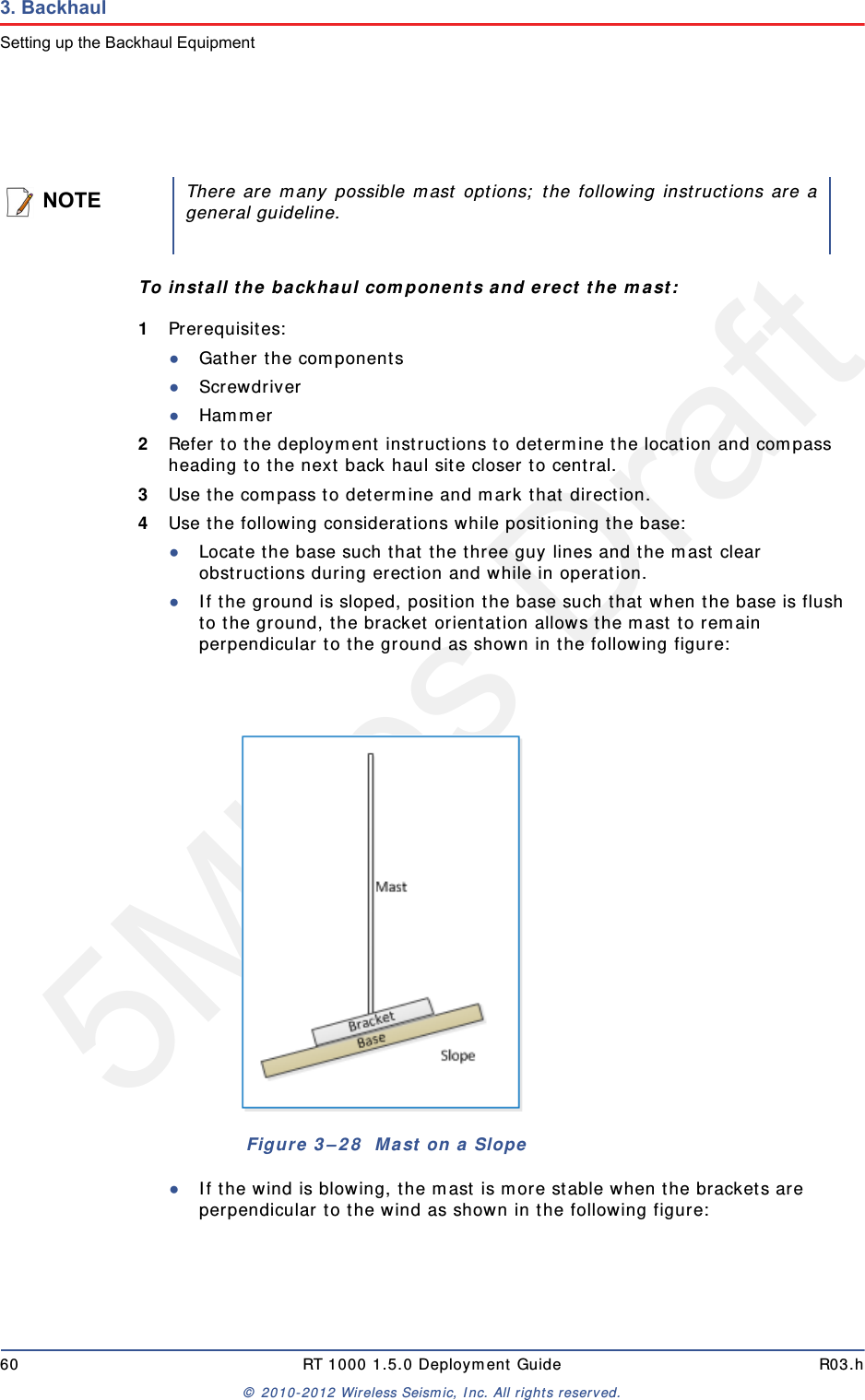
5Mbps Draft60 RT 1000 1.5.0 Deployment Guide R03.h© 2010-2012 Wireless Seismic, Inc. All rights reserved.3. BackhaulSetting up the Backhaul EquipmentTo install the backhaul components and erect the mast:1Prerequisites:●Gather the components●Screwdriver●Hammer2Refer to the deployment instructions to determine the location and compass heading to the next back haul site closer to central.3Use the compass to determine and mark that direction.4Use the following considerations while positioning the base:●Locate the base such that the three guy lines and the mast clear obstructions during erection and while in operation.●If the ground is sloped, position the base such that when the base is flush to the ground, the bracket orientation allows the mast to remain perpendicular to the ground as shown in the following figure:●If the wind is blowing, the mast is more stable when the brackets are perpendicular to the wind as shown in the following figure: NOTEThere are many possible mast options; the following instructions are ageneral guideline.Figure 3–28  Mast on a Slope
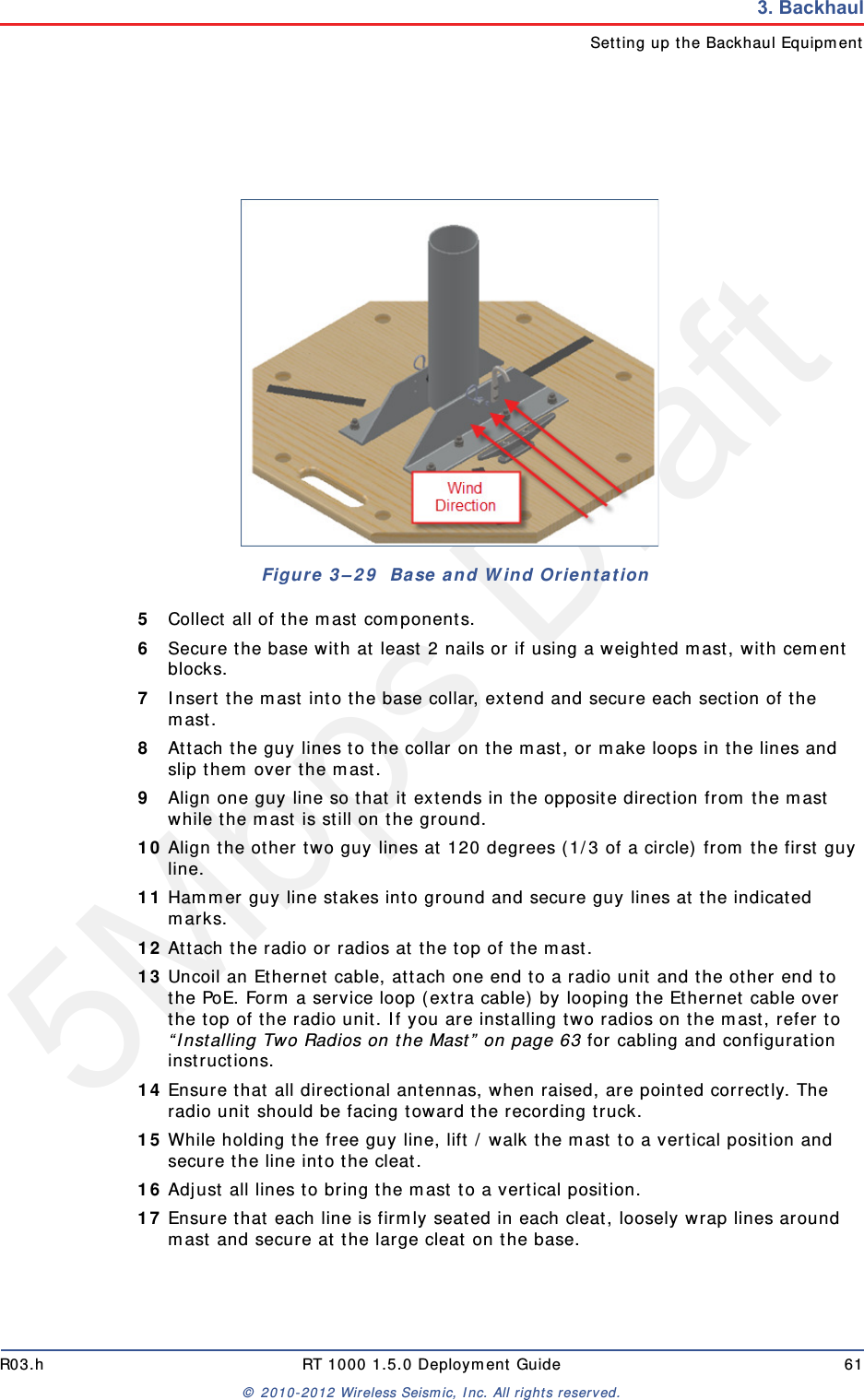
5Mbps DraftR03.h RT 1000 1.5.0 Deployment Guide 61© 2010-2012 Wireless Seismic, Inc. All rights reserved.3. BackhaulSetting up the Backhaul Equipment5Collect all of the mast components. 6Secure the base with at least 2 nails or if using a weighted mast, with cement blocks. 7Insert the mast into the base collar, extend and secure each section of the mast. 8Attach the guy lines to the collar on the mast, or make loops in the lines and slip them over the mast. 9Align one guy line so that it extends in the opposite direction from the mast while the mast is still on the ground. 10 Align the other two guy lines at 120 degrees (1/3 of a circle) from the first guy line. 11 Hammer guy line stakes into ground and secure guy lines at the indicated marks. 12 Attach the radio or radios at the top of the mast.13 Uncoil an Ethernet cable, attach one end to a radio unit and the other end to the PoE. Form a service loop (extra cable) by looping the Ethernet cable over the top of the radio unit. If you are installing two radios on the mast, refer to “Installing Two Radios on the Mast” on page 63 for cabling and configuration instructions.14 Ensure that all directional antennas, when raised, are pointed correctly. The radio unit should be facing toward the recording truck.15 While holding the free guy line, lift / walk the mast to a vertical position and secure the line into the cleat.16 Adjust all lines to bring the mast to a vertical position.17 Ensure that each line is firmly seated in each cleat, loosely wrap lines around mast and secure at the large cleat on the base.Figure 3–29  Base and Wind Orientation
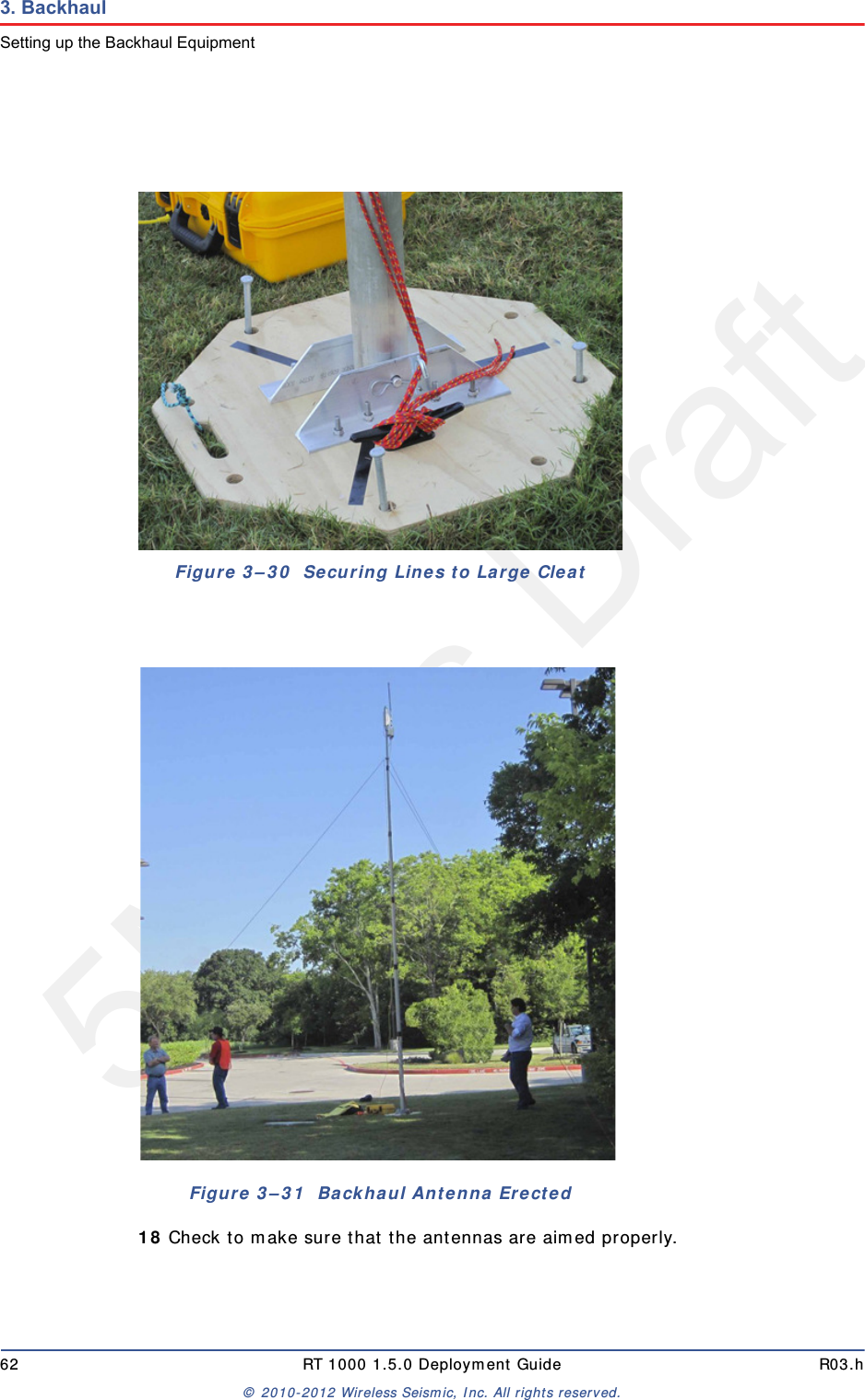
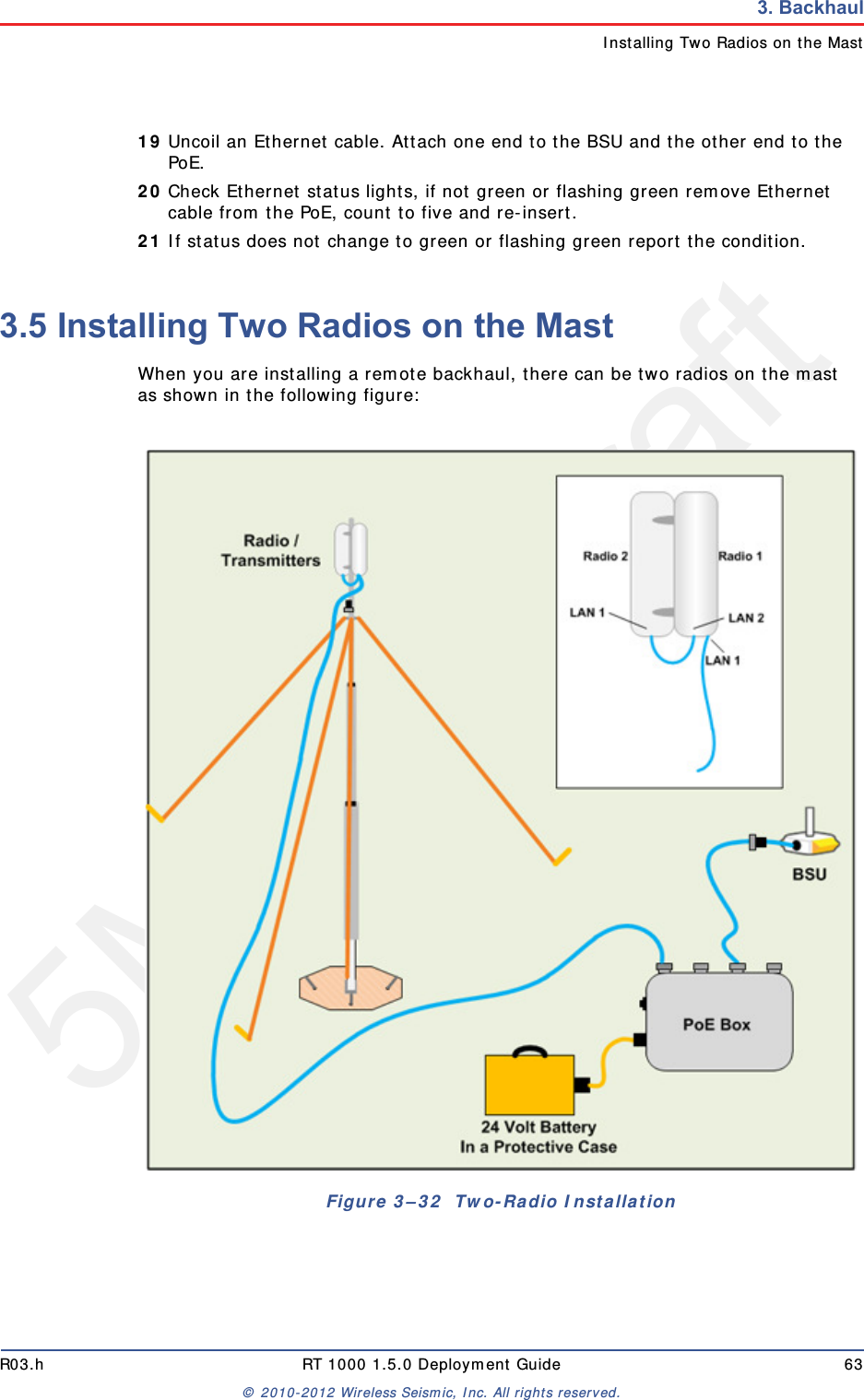
5Mbps Draft62 RT 1000 1.5.0 Deployment Guide R03.h© 2010-2012 Wireless Seismic, Inc. All rights reserved.3. BackhaulSetting up the Backhaul Equipment18 Check to make sure that the antennas are aimed properly.Figure 3–30  Securing Lines to Large CleatFigure 3–31  Backhaul Antenna Erected
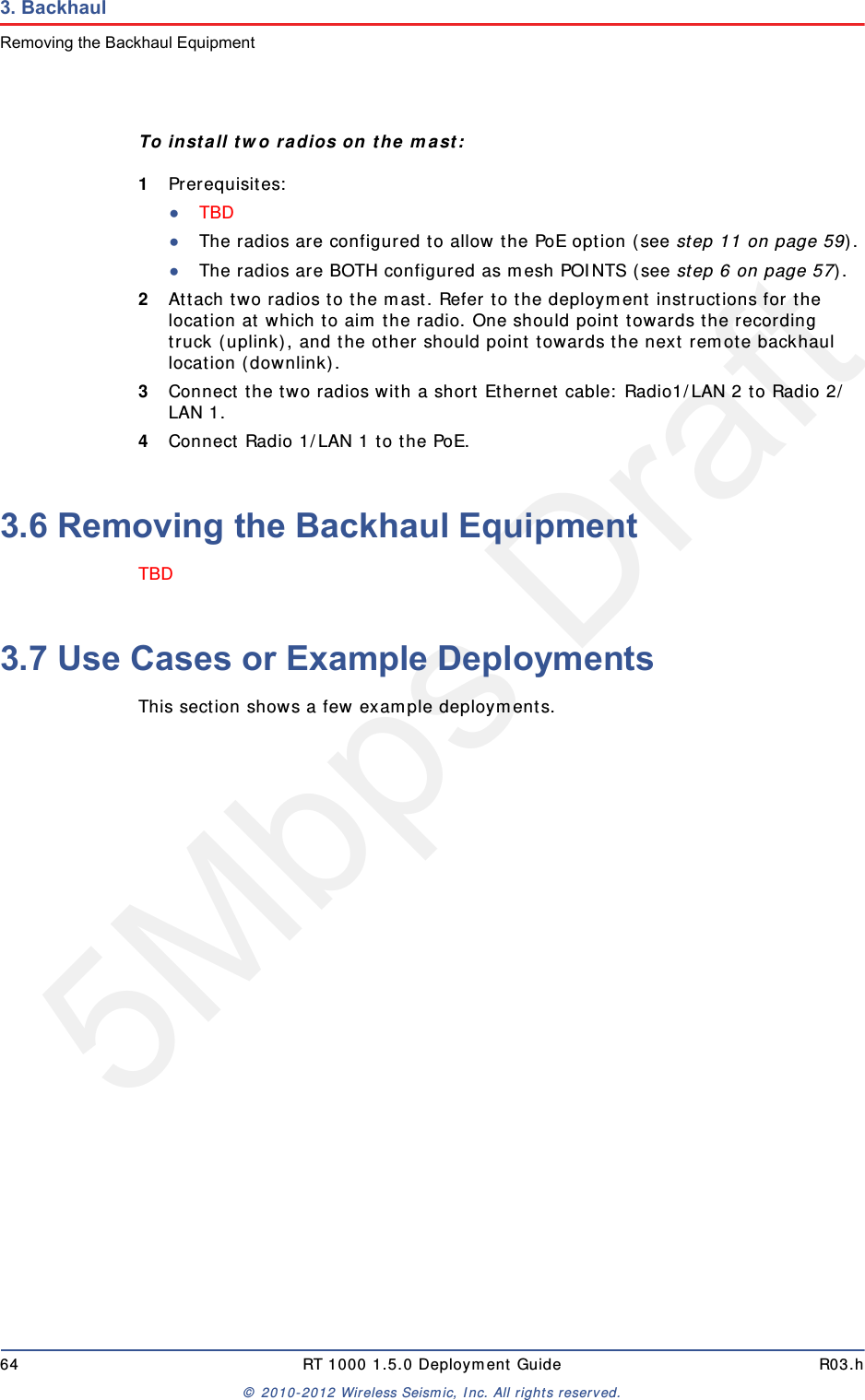
5Mbps DraftR03.h RT 1000 1.5.0 Deployment Guide 63© 2010-2012 Wireless Seismic, Inc. All rights reserved.3. BackhaulInstalling Two Radios on the Mast19 Uncoil an Ethernet cable. Attach one end to the BSU and the other end to the PoE.20 Check Ethernet status lights, if not green or flashing green remove Ethernet cable from the PoE, count to five and re-insert.21 If status does not change to green or flashing green report the condition. 3.5 Installing Two Radios on the MastWhen you are installing a remote backhaul, there can be two radios on the mast as shown in the following figure: Figure 3–32  Two-Radio Installation
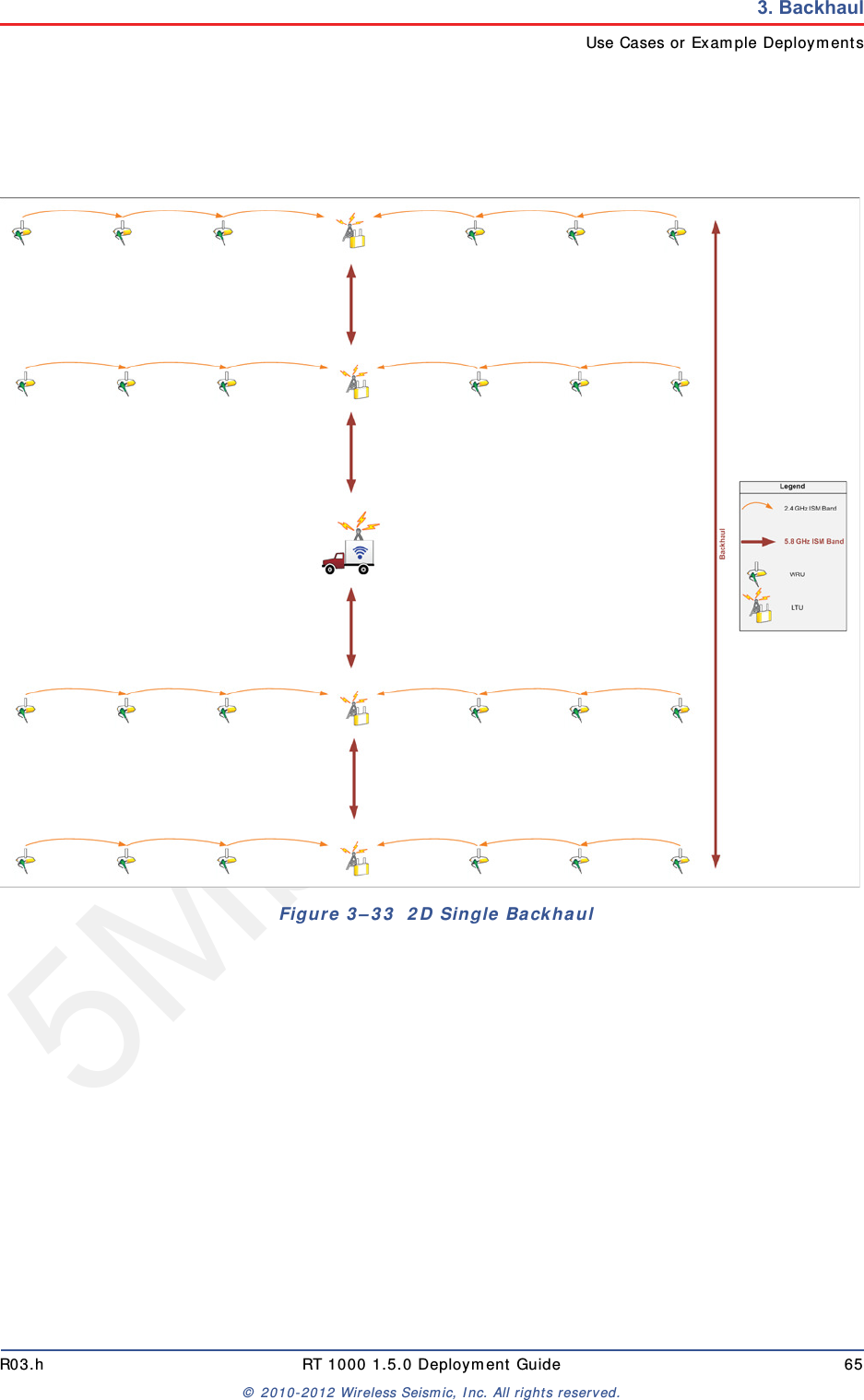
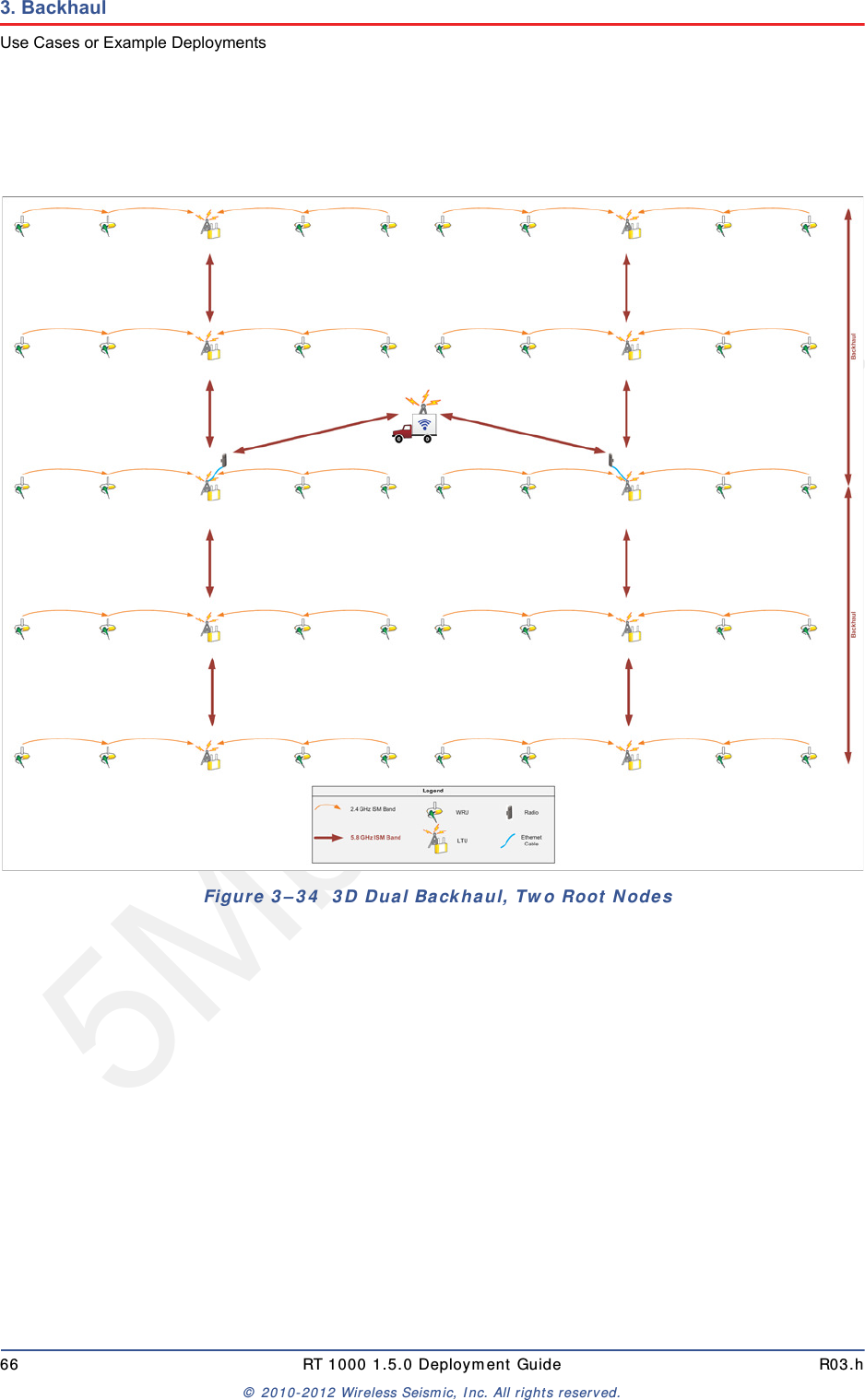
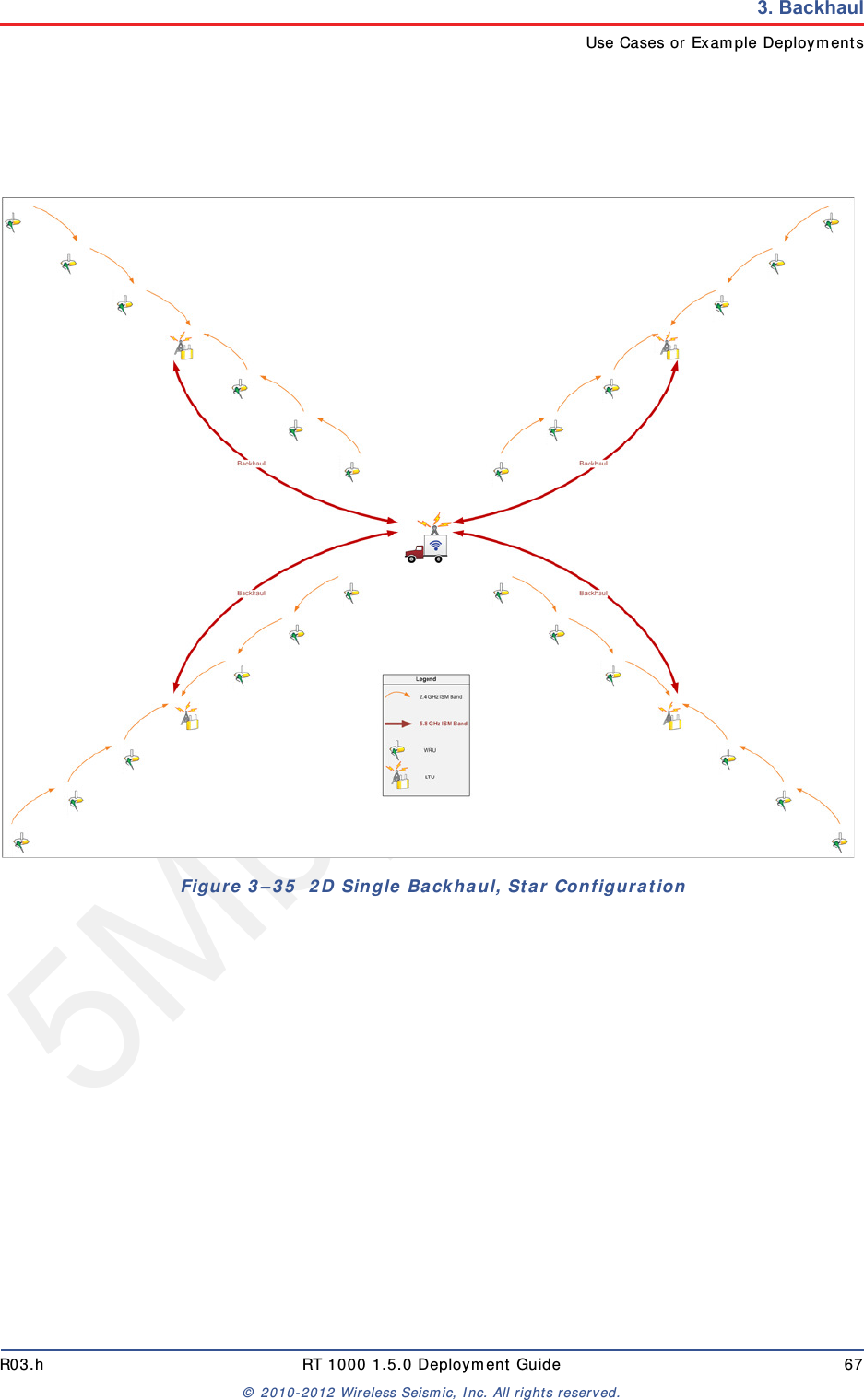
5Mbps Draft64 RT 1000 1.5.0 Deployment Guide R03.h© 2010-2012 Wireless Seismic, Inc. All rights reserved.3. BackhaulRemoving the Backhaul EquipmentTo install two radios on the mast:1Prerequisites:●TBD ●The radios are configured to allow the PoE option (see step 11 on page 59).●The radios are BOTH configured as mesh POINTS (see step 6 on page 57).2Attach two radios to the mast. Refer to the deployment instructions for the location at which to aim the radio. One should point towards the recording truck (uplink), and the other should point towards the next remote backhaul location (downlink).3Connect the two radios with a short Ethernet cable: Radio1/LAN 2 to Radio 2/LAN 1.4Connect Radio 1/LAN 1 to the PoE.3.6 Removing the Backhaul EquipmentTBD 3.7 Use Cases or Example DeploymentsThis section shows a few example deployments.
5Mbps DraftR03.h RT 1000 1.5.0 Deployment Guide 65© 2010-2012 Wireless Seismic, Inc. All rights reserved.3. BackhaulUse Cases or Example DeploymentsFigure 3–33  2D Single Backhaul
5Mbps Draft66 RT 1000 1.5.0 Deployment Guide R03.h© 2010-2012 Wireless Seismic, Inc. All rights reserved.3. BackhaulUse Cases or Example DeploymentsFigure 3–34  3D Dual Backhaul, Two Root Nodes
5Mbps DraftR03.h RT 1000 1.5.0 Deployment Guide 67© 2010-2012 Wireless Seismic, Inc. All rights reserved.3. BackhaulUse Cases or Example DeploymentsFigure 3–35  2D Single Backhaul, Star Configuration
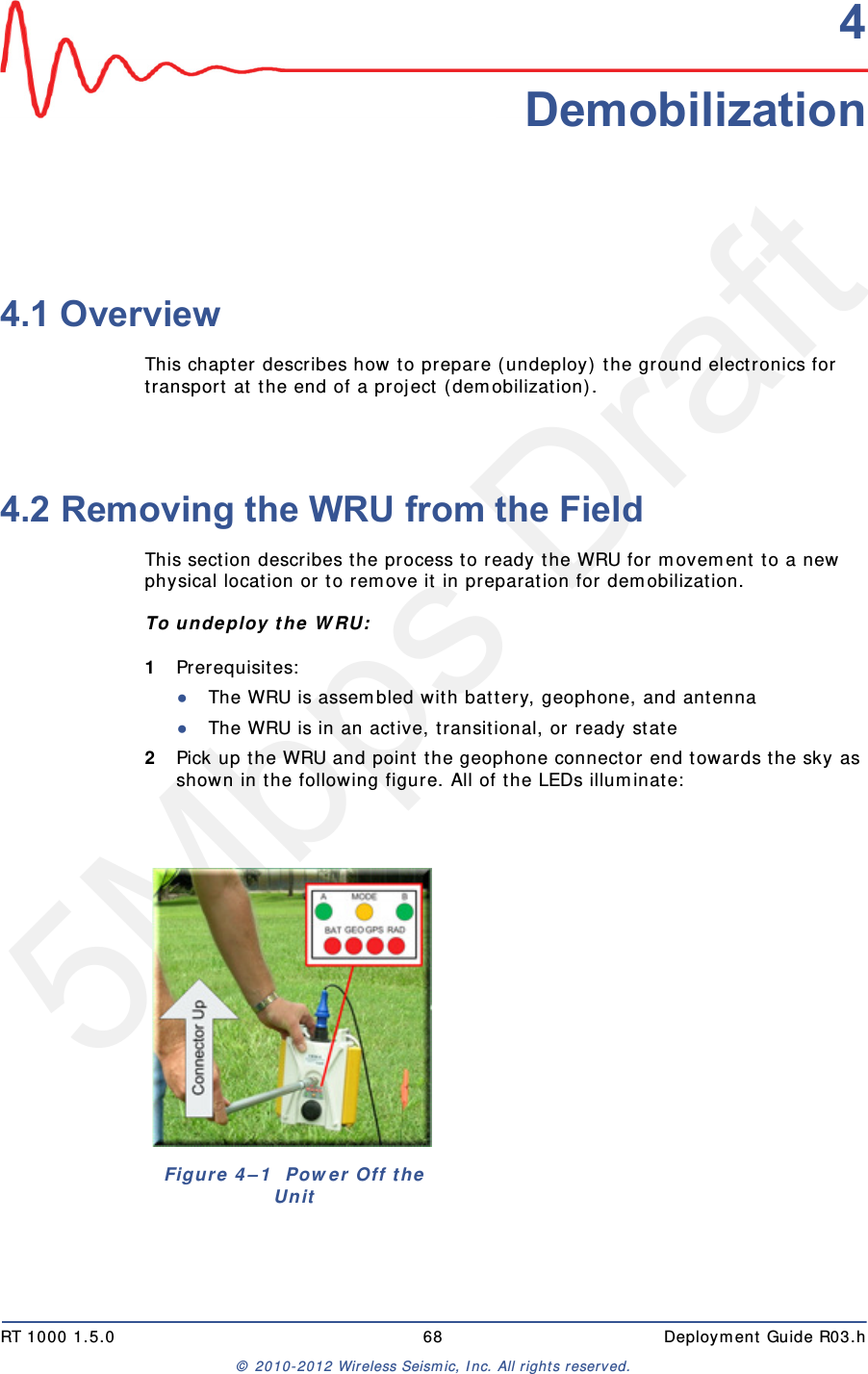
5Mbps DraftRT 1000 1.5.0 68  Deployment Guide R03.h© 2010-2012 Wireless Seismic, Inc. All rights reserved.44. Demobilization4.1 OverviewThis chapter describes how to prepare (undeploy) the ground electronics for transport at the end of a project (demobilization).4.2 Removing the WRU from the FieldThis section describes the process to ready the WRU for movement to a new physical location or to remove it in preparation for demobilization.To undeploy the WRU:1Prerequisites:●The WRU is assembled with battery, geophone, and antenna●The WRU is in an active, transitional, or ready state2Pick up the WRU and point the geophone connector end towards the sky as shown in the following figure. All of the LEDs illuminate:Figure 4–1  Power Off the Unit
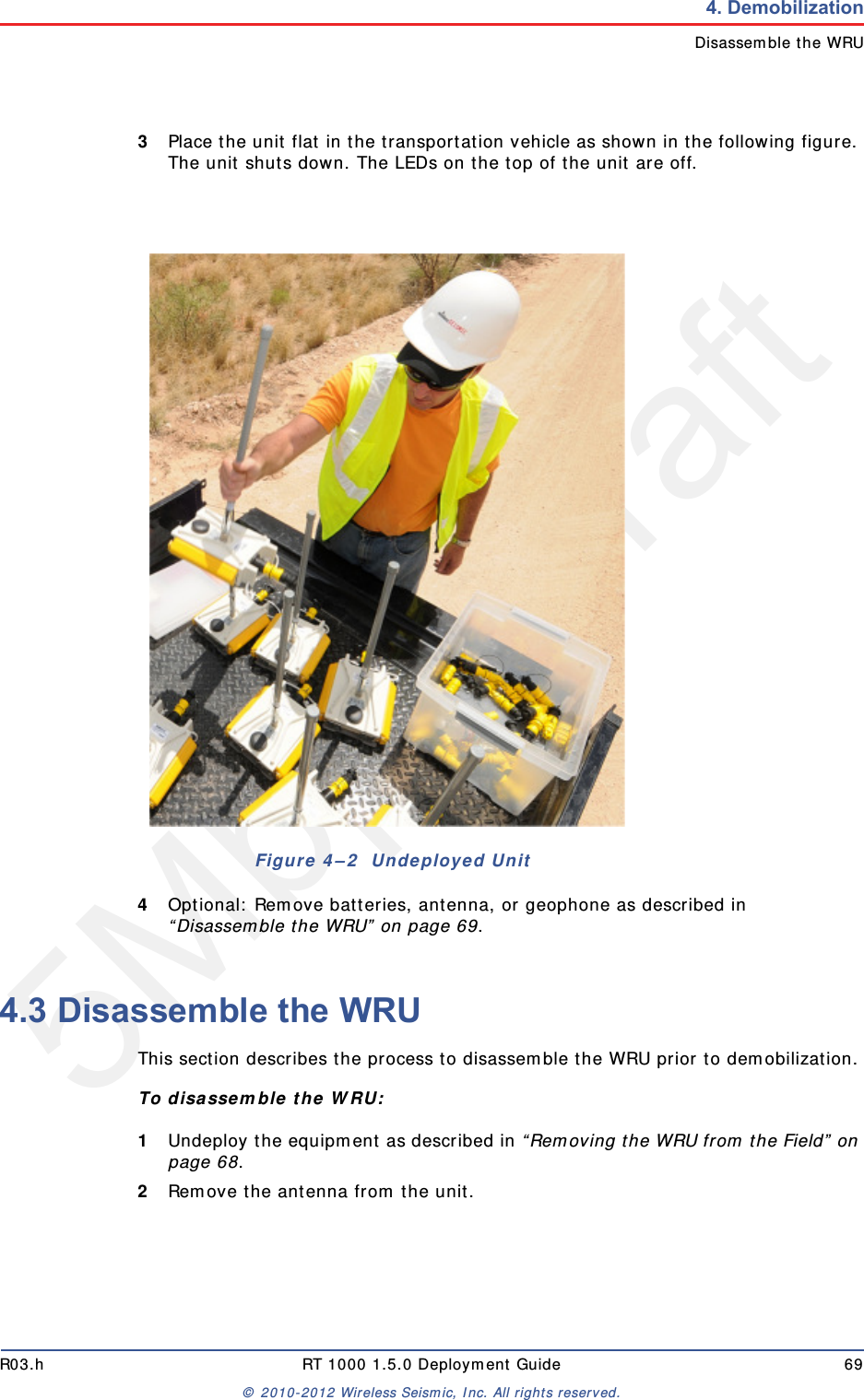
5Mbps DraftR03.h RT 1000 1.5.0 Deployment Guide 69© 2010-2012 Wireless Seismic, Inc. All rights reserved.4. DemobilizationDisassemble the WRU3Place the unit flat in the transportation vehicle as shown in the following figure. The unit shuts down. The LEDs on the top of the unit are off.4Optional: Remove batteries, antenna, or geophone as described in “Disassemble the WRU” on page 69.4.3 Disassemble the WRU This section describes the process to disassemble the WRU prior to demobilization.To disassemble the WRU:1Undeploy the equipment as described in “Removing the WRU from the Field” on page 68.2Remove the antenna from the unit.Figure 4–2  Undeployed Unit
5Mbps Draft70 RT 1000 1.5.0 Deployment Guide R03.h© 2010-2012 Wireless Seismic, Inc. All rights reserved.4. DemobilizationDisassemble the WRU3Remove the geophone from the unit.4Remove the batteries from the unit.●Press the catch on the battery latch.●Lift the lever, but do not lift the bail from the molded area on the battery.●Continue to lift the lever using the bail to push the battery out of the connector. 5Secure the equipment in the transport vehicle.TBD Figure 4–3  Removing the AntennaImage showing geophone installation TBD. Figure 4–4  Removing the GeophoneFigure 4–5  Removing the Battery
5Mbps DraftRT 1000 1.5.0 71  Deployment Guide R03.h© 2010-2012 Wireless Seismic, Inc. All rights reserved.55. Maintaining the Equipment5.1 UnitsTBD 5.2 AntennasEnsure that the antennas are snug.TBD 5.3 GeophonesEnsure that the geophone connection is clean and snug.TBD WARNINGIn order to comply with FCC radio frequency (RF) exposurerequirements, the RT 1000 units must be installed so that a minimumseparation distance of 20 cm is maintained between the antenna(s) andall persons at all times during normal operation. WARNINGAVERTISSEMENTAfin de se conformer aux exigences de la FCC en matière d'expositionaux radiofréquences (RF), les unités RT 1000 doivent être installées demanière à garder en permanence une distance minimale de 20 cm entrela ou les antennes et toute personne en mode de fonctionnementnormal.
5Mbps Draft72 RT 1000 1.5.0 Deployment Guide R03.h© 2010-2012 Wireless Seismic, Inc. All rights reserved.5. Maintaining the EquipmentCautions5.4 CautionsTBD
5Mbps DraftRT 1000 1.5.0 73  Deployment Guide R03.h© 2010-2012 Wireless Seismic, Inc. All rights reserved.66. Troubleshooting and Tips6.1 Best PracticesThis section provides some tips on working with the equipment.6.1.1 24 Ah BatteriesIn order to maintain the best possible communication channel, observe the following tips:Place a fully charged 24 Ah battery on the backhaul every day.(90-0012) Keep extra 24 Ah batteries charged up at the staging area.Store 24 Ah batteries at the staging area when not in use. Deep discharging of the batteries can shorten their lifespan considerably.6.1.2 PoEWhen temperature swings are extreme, or weather is severe, store the PoE boxes in the recording truck at night.To ensure a protected connection, be sure to use an Ethernet cable with a protective shell (65-0051) when connecting Ethernet cables to the PoE (see Figure 3–8 Protective Ethernet Connector on page 38).6.1.3 Urban EnvironmentsThe following could impact your configuration in urban environments:You may need to use repeaters when crossing a road.You may need to extend the antenna with coaxial cableYou may need to adjust WRU placement and antenna strength when crossing a road.You will need to consider the presence of power lines and buildings when placing WRUs and backhaul components.CAUTIONDo not allow the PoE battery to remain connected at a voltage of 22V orless. Damage to the equipment could occur.
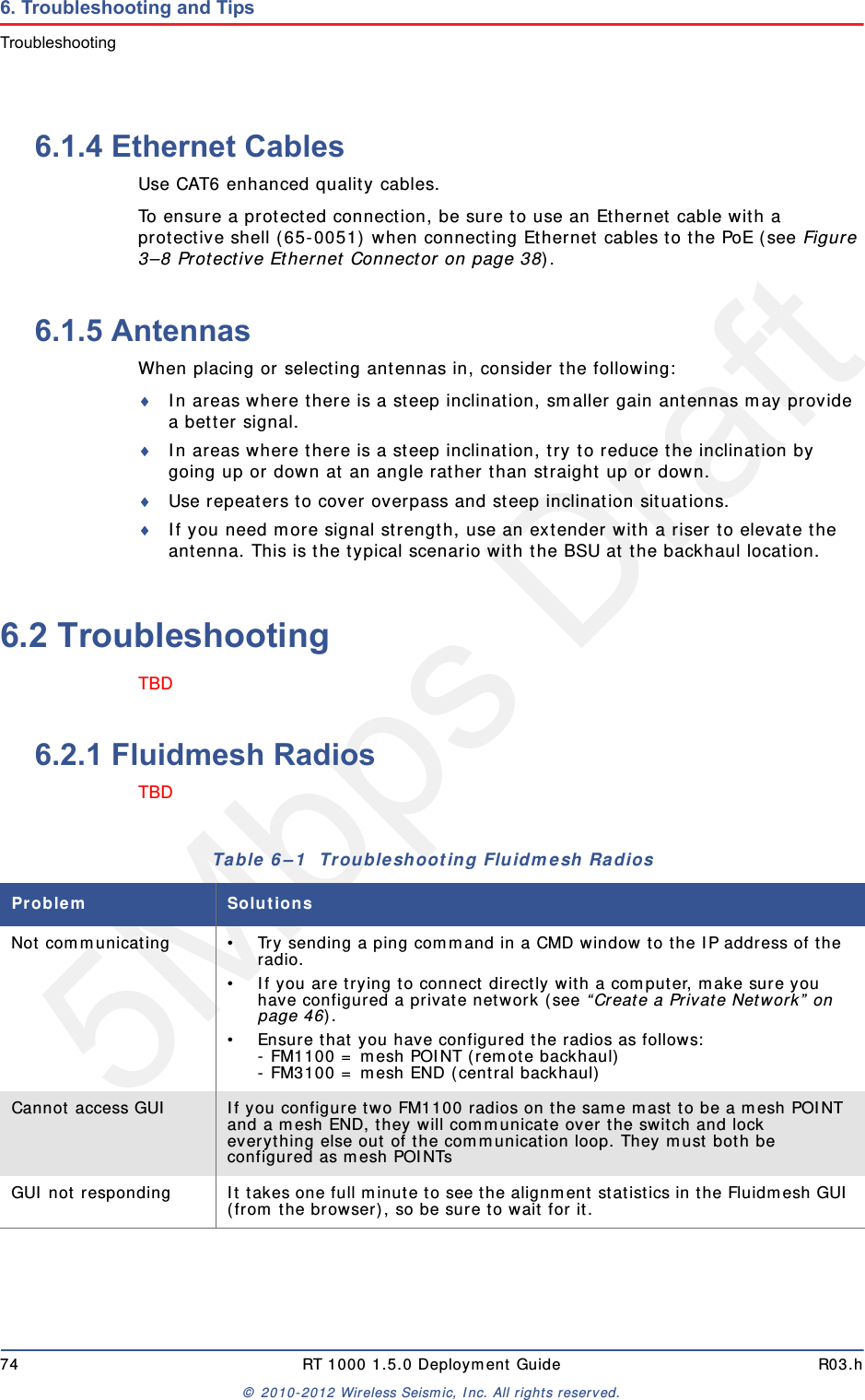
5Mbps Draft74 RT 1000 1.5.0 Deployment Guide R03.h© 2010-2012 Wireless Seismic, Inc. All rights reserved.6. Troubleshooting and TipsTroubleshooting6.1.4 Ethernet CablesUse CAT6 enhanced quality cables. To ensure a protected connection, be sure to use an Ethernet cable with a protective shell (65-0051) when connecting Ethernet cables to the PoE (see Figure 3–8 Protective Ethernet Connector on page 38).6.1.5 AntennasWhen placing or selecting antennas in, consider the following:In areas where there is a steep inclination, smaller gain antennas may provide a better signal. In areas where there is a steep inclination, try to reduce the inclination by going up or down at an angle rather than straight up or down.Use repeaters to cover overpass and steep inclination situations.If you need more signal strength, use an extender with a riser to elevate the antenna. This is the typical scenario with the BSU at the backhaul location.6.2 TroubleshootingTBD 6.2.1 Fluidmesh RadiosTBD Table 6–1  Troubleshooting Fluidmesh RadiosProblem SolutionsNot communicating • Try sending a ping command in a CMD window to the IP address of the radio. • If you are trying to connect directly with a computer, make sure you have configured a private network (see “Create a Private Network” on page 46).• Ensure that you have configured the radios as follows:- FM1100 = mesh POINT (remote backhaul)- FM3100 = mesh END (central backhaul)Cannot access GUI If you configure two FM1100 radios on the same mast to be a mesh POINT and a mesh END, they will communicate over the switch and lock everything else out of the communication loop. They must both be configured as mesh POINTsGUI not responding It takes one full minute to see the alignment statistics in the Fluidmesh GUI (from the browser), so be sure to wait for it.
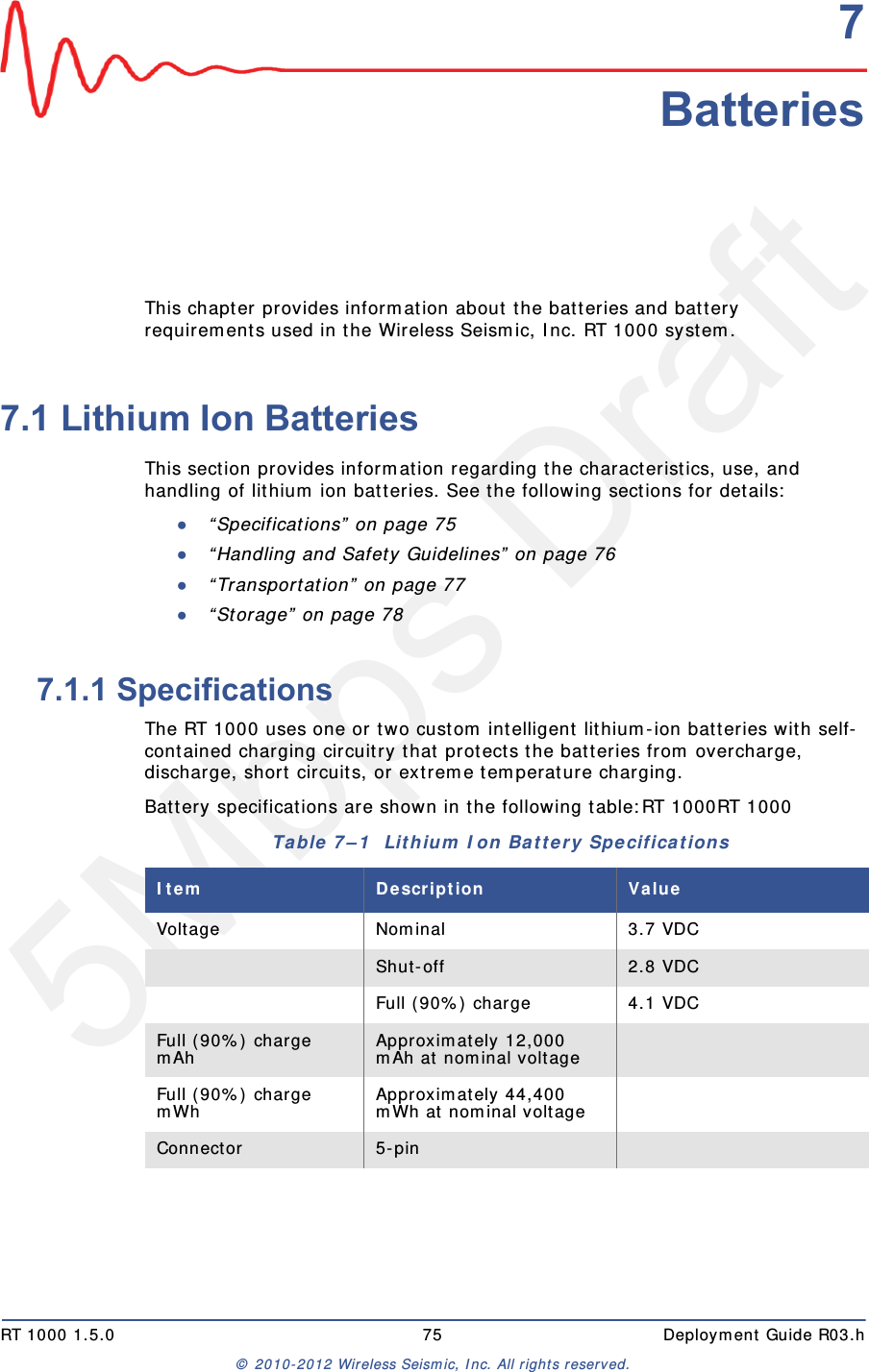
5Mbps DraftRT 1000 1.5.0 75  Deployment Guide R03.h© 2010-2012 Wireless Seismic, Inc. All rights reserved.77. BatteriesThis chapter provides information about the batteries and battery requirements used in the Wireless Seismic, Inc. RT 1000 system. 7.1 Lithium Ion BatteriesThis section provides information regarding the characteristics, use, and handling of lithium ion batteries. See the following sections for details:●“Specifications” on page 75●“Handling and Safety Guidelines” on page 76●“Transportation” on page 77●“Storage” on page 787.1.1 SpecificationsThe RT 1000 uses one or two custom intelligent lithium-ion batteries with self-contained charging circuitry that protects the batteries from overcharge, discharge, short circuits, or extreme temperature charging. Battery specifications are shown in the following table:RT 1000RT 1000Table 7–1  Lithium Ion Battery Specifications Item Description ValueVoltage Nominal 3.7 VDCShut-off 2.8 VDCFull (90%) charge 4.1 VDCFull (90%) charge mAh Approximately 12,000 mAh at nominal voltageFull (90%) charge mWh Approximately 44,400 mWh at nominal voltageConnector 5-pin
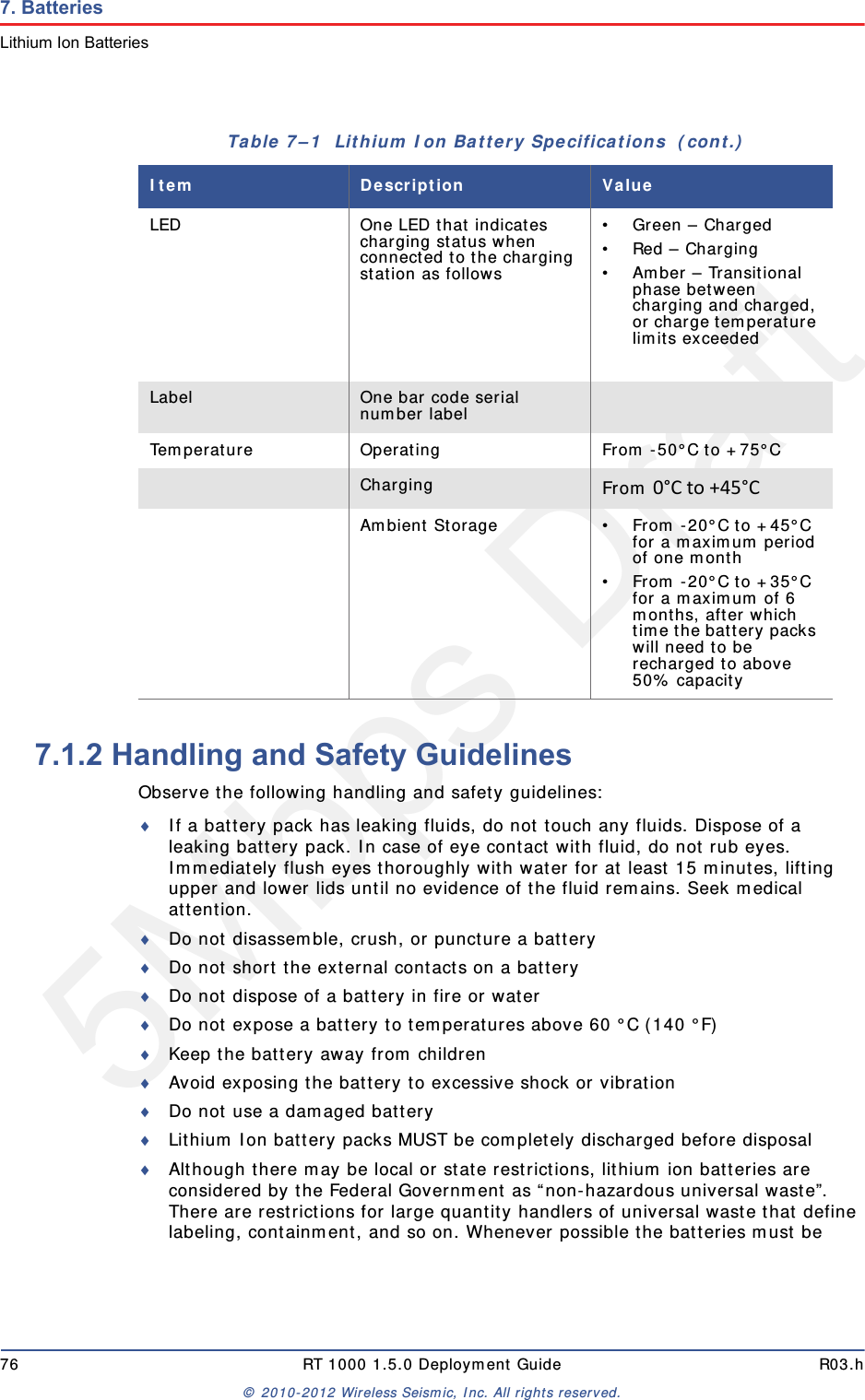
5Mbps Draft76 RT 1000 1.5.0 Deployment Guide R03.h© 2010-2012 Wireless Seismic, Inc. All rights reserved.7. BatteriesLithium Ion Batteries7.1.2 Handling and Safety GuidelinesObserve the following handling and safety guidelines:If a battery pack has leaking fluids, do not touch any fluids. Dispose of a leaking battery pack. In case of eye contact with fluid, do not rub eyes. Immediately flush eyes thoroughly with water for at least 15 minutes, lifting upper and lower lids until no evidence of the fluid remains. Seek medical attention. Do not disassemble, crush, or puncture a batteryDo not short the external contacts on a batteryDo not dispose of a battery in fire or waterDo not expose a battery to temperatures above 60 °C (140 °F)Keep the battery away from childrenAvoid exposing the battery to excessive shock or vibrationDo not use a damaged batteryLithium Ion battery packs MUST be completely discharged before disposalAlthough there may be local or state restrictions, lithium ion batteries are considered by the Federal Government as “non-hazardous universal waste”. There are restrictions for large quantity handlers of universal waste that define labeling, containment, and so on. Whenever possible the batteries must be LED One LED that indicates charging status when connected to the charging station as follows• Green – Charged•Red – Charging• Amber – Transitional phase between charging and charged, or charge temperature limits exceededLabel One bar code serial number labelTemperature Operating From -50°C to +75°CCharging From 0°Cto+45°CAmbient Storage • From -20°C to +45°C for a maximum period of one month• From -20°C to +35°C for a maximum of 6 months, after which time the battery packs will need to be recharged to above 50% capacityTable 7–1  Lithium Ion Battery Specifications  (cont.)Item Description Value
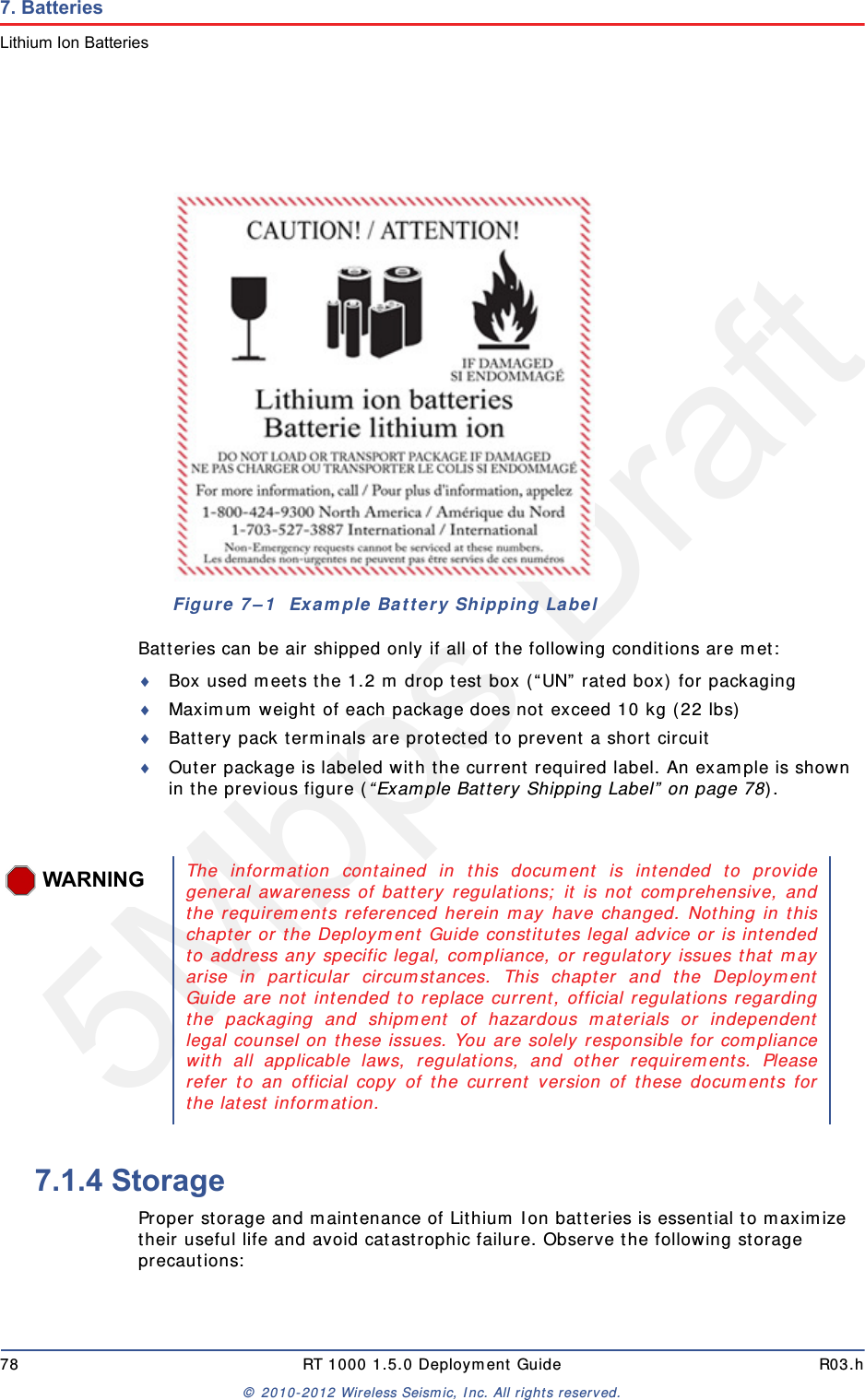
5Mbps DraftR03.h RT 1000 1.5.0 Deployment Guide 77© 2010-2012 Wireless Seismic, Inc. All rights reserved.7. BatteriesLithium Ion Batteriesdischarged before disposal. Battery leads/contacts should be taped off to prevent accidental shorting. Each battery pack should be placed in a plastic bag.Recycling is encouraged when practical and applicable. The batteries contain recyclable material and are accepted by several battery recycling companies. Refer to one of the following for more information on recycling and disposal:●http://www.swe.com ●http://www.rbrc.org ●http://www.call2recycle.org ●1-800-8-BATTERY ●1-877-2-RECYCLE7.1.3 TransportationIn the United States, large lithium ion battery shipments (more than 24 cells or 12 batteries per package) are regulated as hazardous material (Class 9) by the Federal Government and are subject to the regulations described in the following:Code of Federal Regulations, Title 49 Transportation. http://ecfr.gpoaccess.gov/cgi/t/text/text-idx?sid=92868a82add6feba6afa796572133179&c=ecfr&tpl=/ecfrbrowse/Title49/49tab_02.tpl International Air Transport Association (IATA)http://www.iata.org/whatwedo/cargo/dangerous_goods/pages/lithium_batteries.aspx Batteries can be ground shipped only if all of the following conditions are met: Box used meets the 1.2 m drop test box (“UN” rated box) for packagingBattery pack terminals are protected to prevent a short circuitGross weight does not exceed 30 kg (66 pounds) Outer package is labeled with the current required label. An example is shown in the following figure.
5Mbps Draft78 RT 1000 1.5.0 Deployment Guide R03.h© 2010-2012 Wireless Seismic, Inc. All rights reserved.7. BatteriesLithium Ion BatteriesBatteries can be air shipped only if all of the following conditions are met:Box used meets the 1.2 m drop test box (“UN” rated box) for packagingMaximum weight of each package does not exceed 10 kg (22 lbs)Battery pack terminals are protected to prevent a short circuitOuter package is labeled with the current required label. An example is shown in the previous figure (“Example Battery Shipping Label” on page 78).7.1.4 StorageProper storage and maintenance of Lithium Ion batteries is essential to maximize their useful life and avoid catastrophic failure. Observe the following storage precautions:Figure 7–1  Example Battery Shipping LabelWARNINGThe information contained in this document is intended to providegeneral awareness of battery regulations; it is not comprehensive, andthe requirements referenced herein may have changed. Nothing in thischapter or the Deployment Guide constitutes legal advice or is intendedto address any specific legal, compliance, or regulatory issues that mayarise in particular circumstances. This chapter and the DeploymentGuide are not intended to replace current, official regulations regardingthe packaging and shipment of hazardous materials or independentlegal counsel on these issues. You are solely responsible for compliancewith all applicable laws, regulations, and other requirements. Pleaserefer to an official copy of the current version of these documents forthe latest information.
5Mbps DraftR03.h RT 1000 1.5.0 Deployment Guide 79© 2010-2012 Wireless Seismic, Inc. All rights reserved.7. BatteriesCharging Lithium Ion BatteriesRemove the batteries from the WRU for storageThe recommended storage temperature for Lithium ion batteries is as follows:●From -20°C to +45°C for a maximum period of one month●From -20°C to +35°C for a maximum of 6 months, after which time the battery packs will need to be recharged to above 50% capacity●Storing at cooler temperatures slows down self discharge and capacity loss over time. Store the batteries at 25°C or less if possibleThe recommended storage charge levels are as follows:●Charge (or discharge) batteries to a 30% to 50% charge level before placing into storage. Higher or lower charge levels can reduce the battery life.●Never store the battery completely depleted of charge unless for disposal.●Periodic charging is necessary to maintain 30% to 50% charge when stored for a long period of timeStore batteries in a well ventilated areaDo not leave batteries unused for extended periods of time, either in the product or in storage. When a battery has been unused for 6 months, check the charge status and charge or dispose of the battery as appropriate.Routinely check the battery’s charge statusConsider replacing the battery with a new one if you note either of the following conditions:●The battery run time drops below about 80% of the original run time●The battery charge time increases significantly7.2 Charging Lithium Ion BatteriesThis section describes charging precautions and provides an overview of the battery charger. 7.2.1 Charging PrecautionsObserve the following charging precautions:Prior to charging, inspect the battery for any visible damage to the case or connector that could create an electrical shortage.The temperature range over which the battery can be charged is 0°Cto+45°C. Charging the battery outside of this temperature can cause the battery to become hot or to break.Be absolutely sure that only a 5 V source is used when charging the battery.Care should be taken to charge batteries on a fireproof surface. Do not charge batteries near flammable items or liquids.Keep a Class C Dry Chemical fire extinguisher nearby.
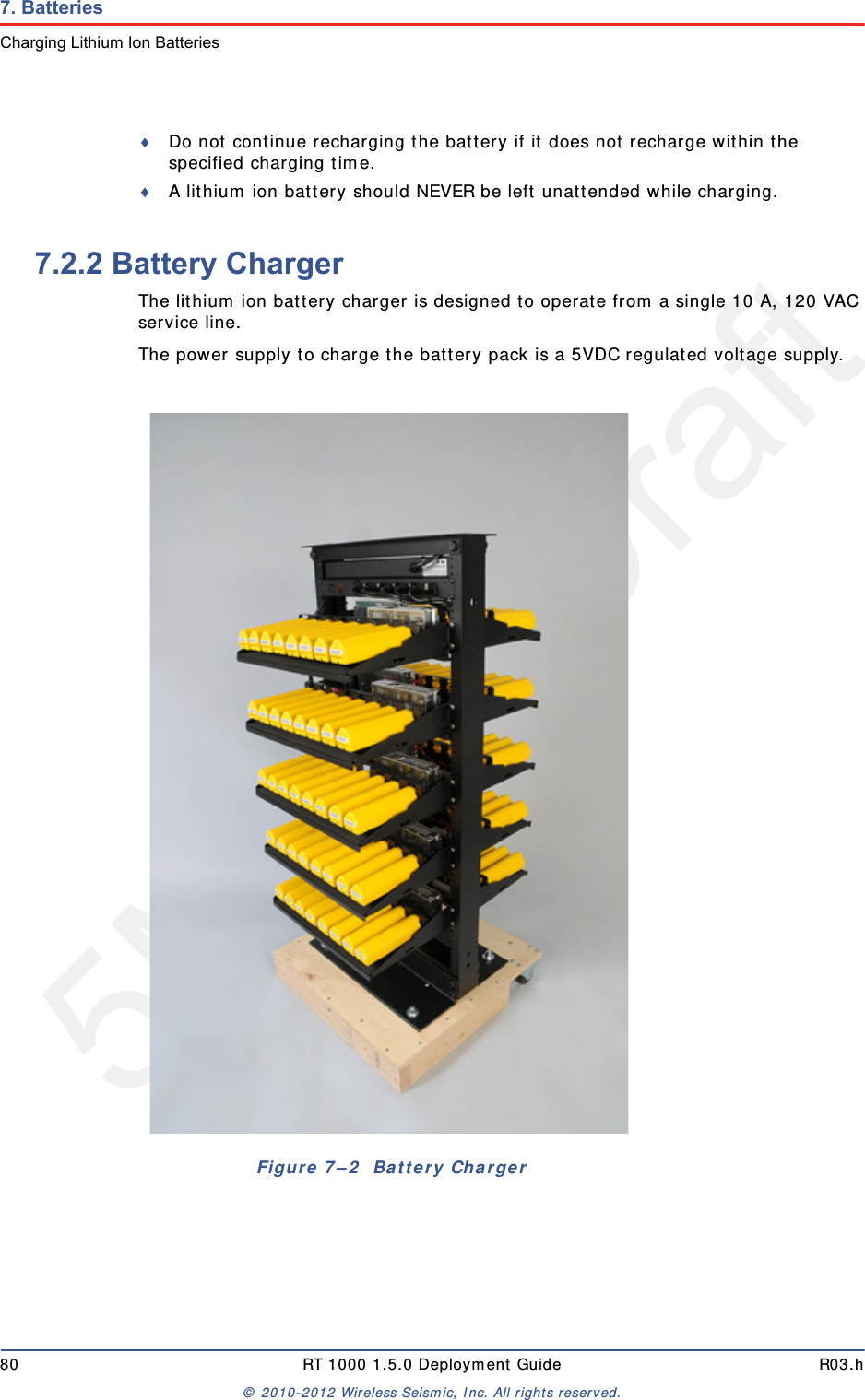
5Mbps Draft80 RT 1000 1.5.0 Deployment Guide R03.h© 2010-2012 Wireless Seismic, Inc. All rights reserved.7. BatteriesCharging Lithium Ion BatteriesDo not continue recharging the battery if it does not recharge within the specified charging time.A lithium ion battery should NEVER be left unattended while charging.7.2.2 Battery ChargerThe lithium ion battery charger is designed to operate from a single 10 A, 120 VAC service line.The power supply to charge the battery pack is a 5VDC regulated voltage supply.Figure 7–2  Battery Charger
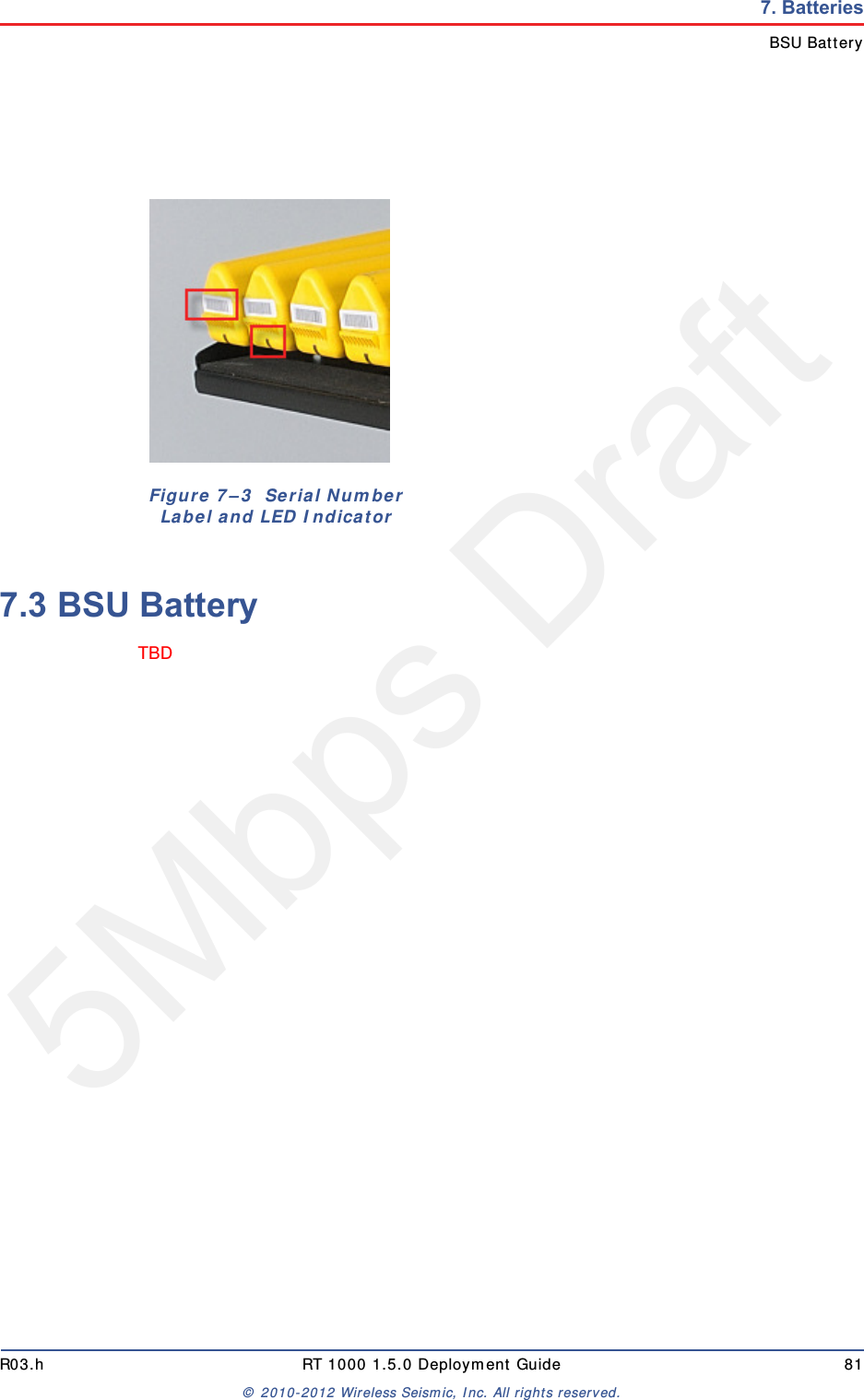
5Mbps DraftR03.h RT 1000 1.5.0 Deployment Guide 81© 2010-2012 Wireless Seismic, Inc. All rights reserved.7. BatteriesBSU Battery7.3 BSU BatteryTBD Figure 7–3  Serial Number Label and LED Indicator
5Mbps DraftRT 1000 1.5.0 82  Deployment Guide R03.h© 2010-2012 Wireless Seismic, Inc. All rights reserved.88. BatteriesCe chapitre fournit des informations sur les batteries utilisées dans le système RT 1000 de Wireless Seismic, Inc. 8.1 Batteries au lithium-ionCette section fournit des informations sur les caractéristiques, l'utilisation et la manipulation des batteries au lithium-ion. Reportez-vous aux sections suivantes pour en savoir plus:●“Spécifications” on page 82●“Directives en matière de manipulation et de sécurité” on page 83●“Transport” on page 84●“Entreposage” on page 868.1.1 SpécificationsLe RT 1000 utilise une ou deux batteries au lithium-ion intelligentes et personnalisées, dotées d'un circuit de charge autonome qui protège les batteries contre les surcharges, décharges, courts-circuits ou changements extrêmes de température.Le tableau suivant indique les spécifications des batteries:Tableau 8–1  Spécifications des batteries au lithium-ion Élément Description ValeurTension Nominale 3,7 V c.c.Arrêt 2,8 V c.c.Charge complète (90 %) 4,1 V c.c.Charge complète (90 %) mAh Environ 12 000 mAh à la tension nominaleCharge complète (90 %) mWh Environ 44 400 mWh à la tension nominaleConnecteur 5 broches
5Mbps DraftR03.h RT 1000 1.5.0 Deployment Guide 83© 2010-2012 Wireless Seismic, Inc. All rights reserved.8. BatteriesBatteries au lithium-ion8.1.2 Directives en matière de manipulation et de sécuritéRespecter les directives suivantes en matière de manipulation et de sécurité :Si un bloc-batterie présente une fuite de liquides, ne pas toucher les liquides. Jeter le bloc-batterie en cas de fuite. En cas de contact oculaire avec du liquide, ne pas se frotter les yeux. Rincer immédiatement les yeux avec de l'eau pendant au moins 15 minutes, en soulevant les paupières supérieures et inférieures jusqu'à ce qu'il n'y ait plus de trace de liquide. Consulter un médecin. Ne pas démonter, écraser ou percer une batterieNe pas court-circuiter les contacts externes d'une batterieNe pas jeter une batterie dans le feu ou l'eauNe pas exposer une batterie à des températures supérieures à 60 °C (140 °F)Maintenir la batterie à l'écart des enfantsÉviter d'exposer la batterie à des vibrations ou chocs excessifsNe pas utiliser une batterie endommagéeDEL Une DEL qui indique l'état de charge lors de la connexion à la station de charge, de la manière suivante :•Vert : chargé• Rouge : en train de charger• Orange : phase transitionnelle entre l'état de chargement et l'état chargé, ou dépassement des limites de la température de chargeÉtiquette Une étiquette indiquant le numéro de série sous forme de code à barresTempérature Fonctionnement De -50°C à +75°CChargement De 0°Cà+45°CEntreposage à température ambiente • De -20°C à +45°C durant une période maximum d'un mois• De -20°C à +35°C durant 6 mois maximum ; passé ce délai, les blocs-batteries doivent être rechargés à plus de 50 % de leur capacitéTableau 8–1  Spécifications des batteries au lithium-ion  (cont.)Élément Description Valeur
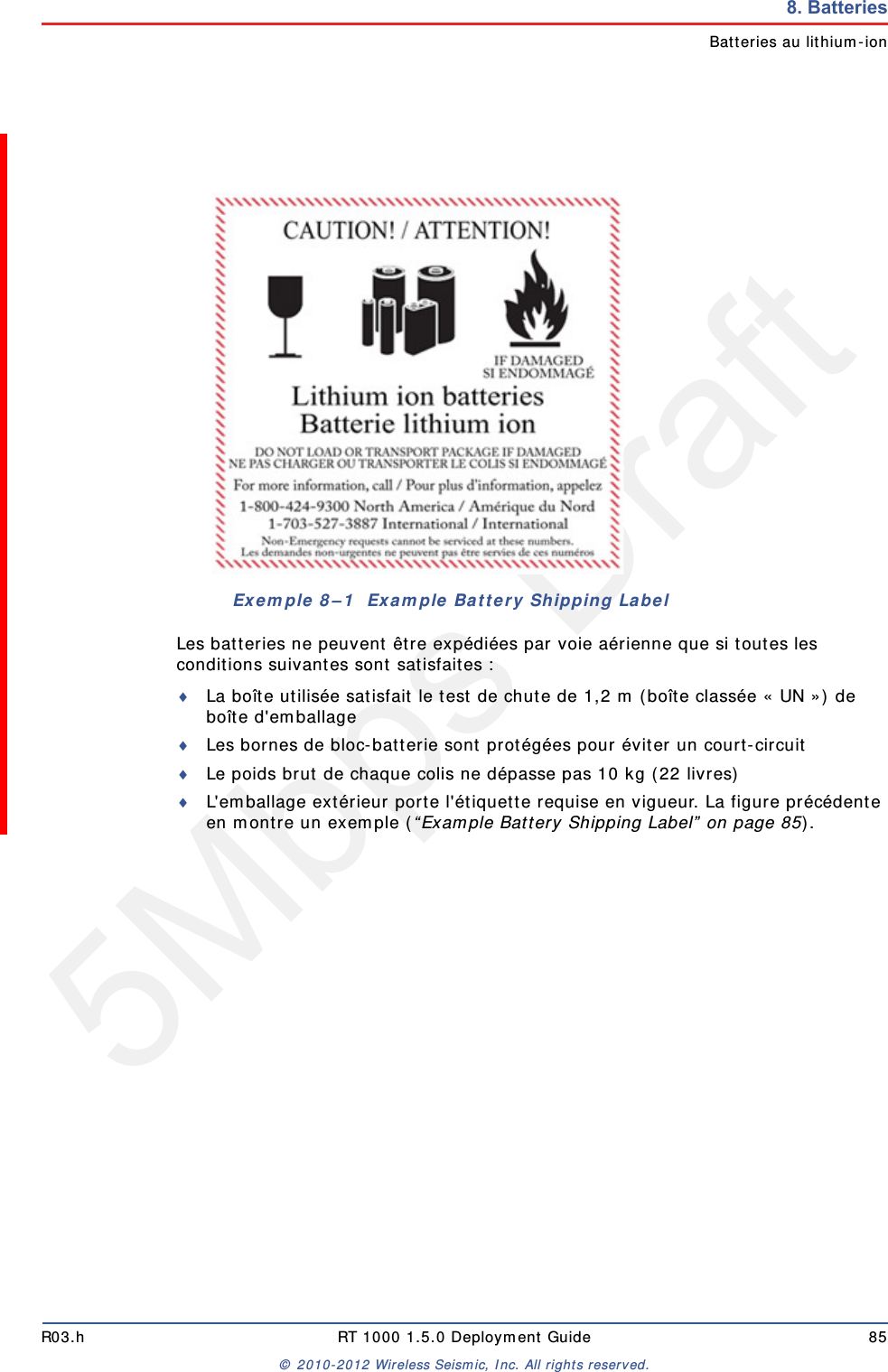
5Mbps Draft84 RT 1000 1.5.0 Deployment Guide R03.h© 2010-2012 Wireless Seismic, Inc. All rights reserved.8. BatteriesBatteries au lithium-ionLes blocs-batteries au lithium-ion DOIVENT être entièrement déchargés avant leur éliminationBien qu'il puisse exister des restrictions locales ou nationales, les batteries au lithium-ion sont considérées comme des « déchets universels non dangereux » par le gouvernement fédéral. Il existe des restrictions qui s'appliquent à ceux qui gèrent de grandes quantités de déchets universels ; celles-ci définissent l'étiquetage, le confinement, etc. Dans la mesure du possible, les batteries doivent être déchargées avant de les jeter. Les  conducteurs/contacts de batterie doivent être fixés de manière à éviter un court-circuit accidentel. Chaque bloc-batterie doit être placé dans un sac en plastique.Le recyclage est encouragé lorsqu'il est réalisable. Les batteries contiennent des matériaux recyclables et sont acceptées par plusieurs entreprises de recyclage de batteries. Reportez-vous à l'un des éléments suivants pour obtenir plus d'informations sur le recyclage et l'élimination :●http://www.swe.com ●http://www.rbrc.org ●http://www.call2recycle.org ●1-800-8-BATTERY ●1-877-2-RECYCLE8.1.3 TransportAux États-Unis, les expéditions de grandes quantités de batterie au lithium-ion (plus de 24 piles ou 12 batteries par colis) sont réglementées comme des matières dangereuses (classe 9) par le gouvernement fédéral et sont soumises aux règlements décrits ci-après :Code of Federal Regulations, Title 49 Transportation. http://ecfr.gpoaccess.gov/cgi/t/text/text-idx?sid=92868a82add6feba6afa796572133179&c=ecfr&tpl=/ecfrbrowse/Title49/49tab_02.tpl International Air Transport Association (IATA)http://www.iata.org/whatwedo/cargo/dangerous_goods/pages/lithium_batteries.aspx Les batteries ne peuvent être expédiées par voie terrestre que si toutes les conditions suivantes sont satisfaites : La boîte utilisée satisfait le test de chute de 1,2 m (boîte classée « UN ») de boîte d'emballageLes bornes de bloc-batterie sont protégées pour éviter un court-circuitLe poids brut ne dépasse pas 30 kg (66 livres) L'emballage extérieur porte l'étiquette requise en vigueur. La figure suivante en montre un exemple.
5Mbps DraftR03.h RT 1000 1.5.0 Deployment Guide 85© 2010-2012 Wireless Seismic, Inc. All rights reserved.8. BatteriesBatteries au lithium-ionLes batteries ne peuvent être expédiées par voie aérienne que si toutes les conditions suivantes sont satisfaites :La boîte utilisée satisfait le test de chute de 1,2 m (boîte classée « UN ») de boîte d'emballageLes bornes de bloc-batterie sont protégées pour éviter un court-circuitLe poids brut de chaque colis ne dépasse pas 10 kg (22 livres) L'emballage extérieur porte l'étiquette requise en vigueur. La figure précédente en montre un exemple (“Example Battery Shipping Label” on page 85).Exemple 8–1  Example Battery Shipping Label
5Mbps Draft86 RT 1000 1.5.0 Deployment Guide R03.h© 2010-2012 Wireless Seismic, Inc. All rights reserved.8. BatteriesBatteries au lithium-ion8.1.4 EntreposageUn entreposage et un entretien adéquats des batteries au lithium-ion est indispensable pour optimiser leur durée de vie utile et éviter une défaillance catastrophique. Respecter les précautions suivantes en matière d'entreposage :Retirer les batteries de l'unité distante sans fil avant l'entreposageTempérature d'entreposage recommandée des batteries au lithium-ion :●De -20°C à +45°C durant une période maximum d'un mois●De -20°C à +35°C durant 6 mois maximum ; passé ce délai, les blocs-batteries doivent être rechargés à plus de 50 % de leur capacité ●L'entreposage à basses températures ralentit la décharge naturelle et la perte de capacité au fil du temps. Entreposer les batteries à 25°C ou moins si possibleNiveaux de charge d'entreposage recommandés :●Charger (ou décharger) les batteries à un niveau de charge de 30 % à 50 % avant de les entreposer. Des niveaux de charge inférieurs ou supérieurs peuvent réduire la durée de vie des batteries.●Ne jamais entreposer des batteries entièrement déchargées, sauf en cas d'élimination.●Un chargement périodique est nécessaire pour maintenir une charge de 30 % à 50 % en cas d'entreposage de longue duréeEntreposer les batteries dans un endroit bien aéréNe pas laisser les batteries inutilisées pendant de longues durées, qu'elles soient dans le produit ou placées en entreposage. Si une batterie n'a pas été utilisée pendant 6 mois, vérifier l'état de charge et charger ou éliminer la batterie, le cas échéant.AVERTISSEMENTLes informations contenues dans le présent documentont pour but de fournir une connaissance générale desrèglements s'appliquant aux batteries. Elles ne sont pasexhaustives, et les conditions mentionnées dans cedocument peuvent avoir changées. Rien dans le présentchapitre ou dans le Guide de déploiement ne constitueun avis juridique ou est destiné à répondre auxproblèmes juridiques, de conformité, ou réglementairesspécifiques qui peuvent survenir dans des circonstancesparticulières. Le présent chapitre et le Guide dedéploiement ne sont pas destinés à remplacer lesrèglements officiels en vigueur concernant l'emballageet l'expédition de matières dangereuses ou un conseiljuridique indépendant sur   c es questions. Vous êtesseul responsable du respect de toutes les lois,règlements et autres exigences. Veuillez vous reporter àune copie officielle de la version en vigueur de cesdocuments pour obtenir les dernières informations.
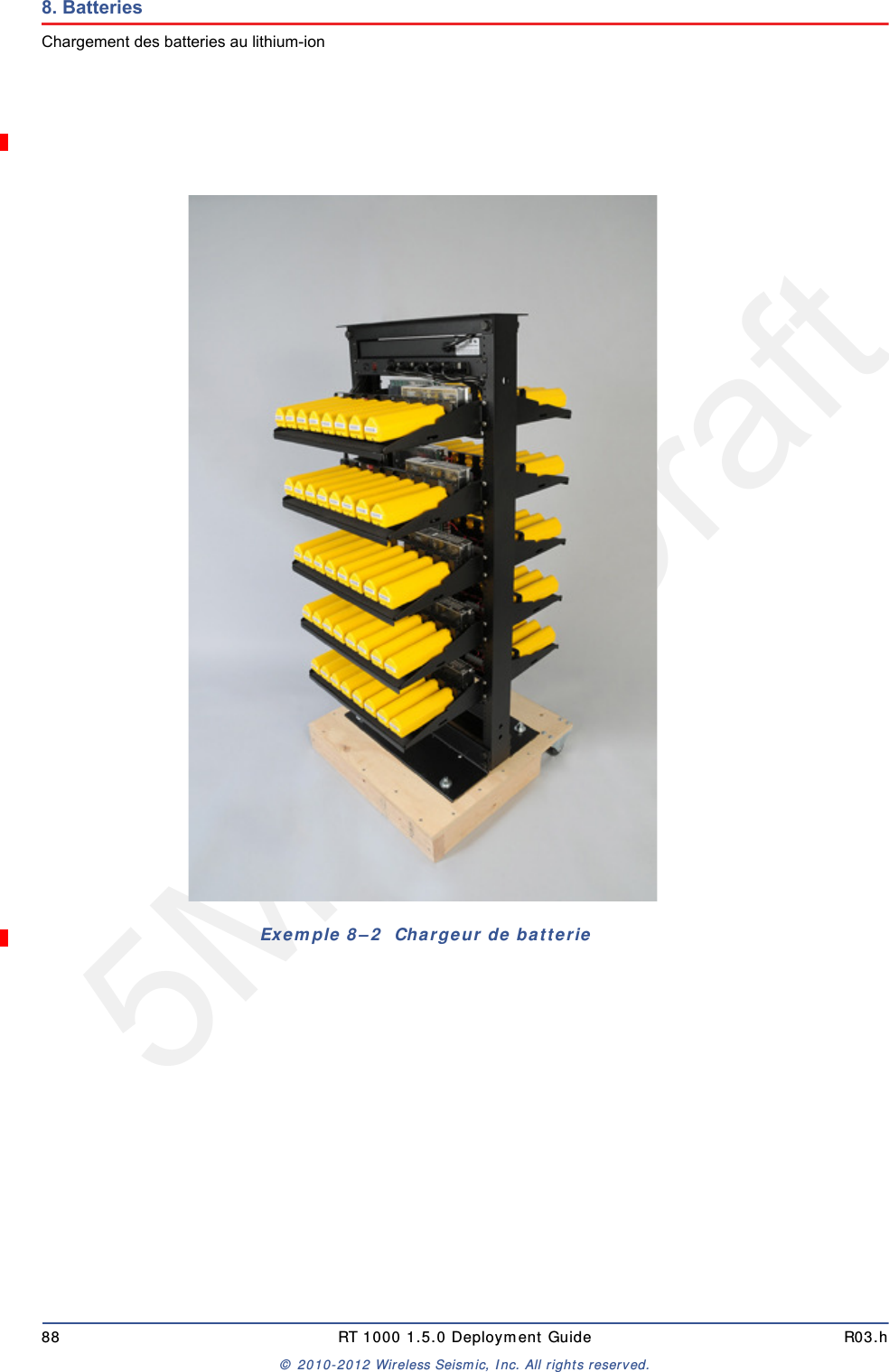
5Mbps DraftR03.h RT 1000 1.5.0 Deployment Guide 87© 2010-2012 Wireless Seismic, Inc. All rights reserved.8. BatteriesChargement des batteries au lithium-ionVérifier régulièrement l'état de charge de la batterieEnvisager le remplacement de la batterie par une nouvelle en cas de constat d'une des conditions suivantes :●L'autonomie de la batterie descend en dessous d'environ 80 % de son autonomie initiale●Le temps de charge de la batterie augmente sensiblement8.2 Chargement des batteries au lithium-ionThis section describes charging precautions and provides an overview of the battery charger. 8.2.1 Précautions de chargementRespecter les précautions de chargement suivantes :Avant de la charger, inspecter la batterie pour détecter les signes éventuels de dommages sur le boîtier ou les connecteurs susceptibles de créer un court-circuit.La batterie peut être chargée dans la plage de température de 0°Cà+45°C. En cas de chargement de la batterie en dehors de cette plage, la batterie peut devenir très chaude ou se rompre.Être absolument sûr de l'utilisation d'une source de 5 V lors du chargement de la batterie.Prendre soin de charger les batteries sur une surface ininflammable. Ne pas charger les batteries à proximité d'objets ou de liquides inflammables.Conserver un extincteur à poudre chimique de classe C à proximité.Ne pas continuer de recharger la batterie si elle ne se recharge pas dans le temps de chargement spécifié.NE JAMAIS laisser une batterie au lithium-ion sans surveillance lorsqu'elle est en train de charger.8.2.2 Chargeur de batterieLe chargeur de batterie au lithium-ion est conçu pour fonctionner à partir d'une ligne de service simple 120 V c.a., 10 A.Le bloc d'alimentation servant à charger le bloc-batterie fournit une tension régulée de 5 V c.c.
5Mbps Draft88 RT 1000 1.5.0 Deployment Guide R03.h© 2010-2012 Wireless Seismic, Inc. All rights reserved.8. BatteriesChargement des batteries au lithium-ionExemple 8–2  Chargeur de batterie
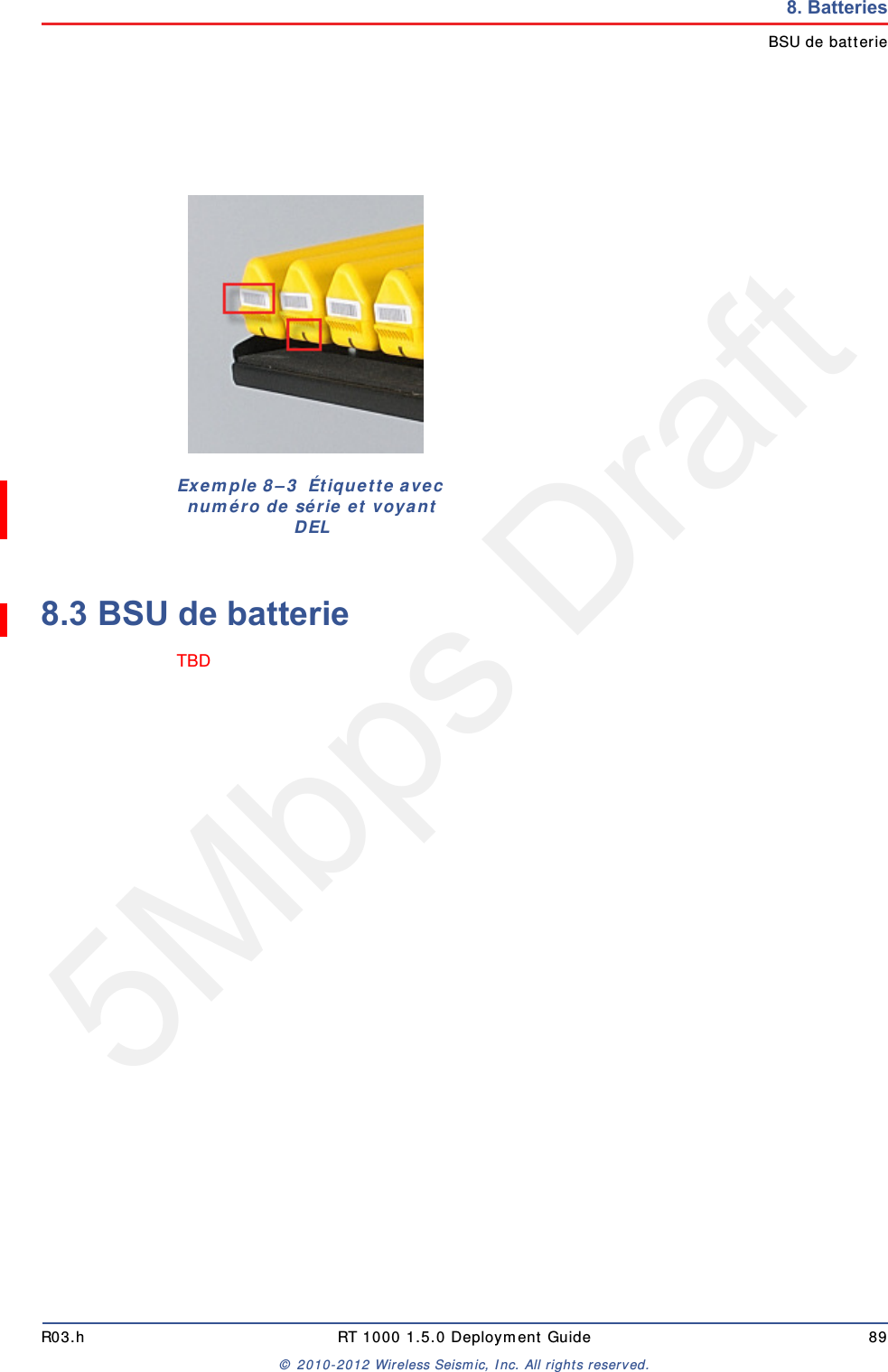
5Mbps DraftR03.h RT 1000 1.5.0 Deployment Guide 89© 2010-2012 Wireless Seismic, Inc. All rights reserved.8. BatteriesBSU de batterie8.3 BSU de batterieTBD Exemple 8–3  Étiquette avec numéro de série et voyant DEL
5Mbps DraftRT 1000 1.5.0 90  Deployment Guide R03.h© 2010-2012 Wireless Seismic, Inc. All rights reserved.AA. Legal InformationA.1 FCC Rules and Regulations ComplianceThe Federal Communications Commission (FCC) regulates the use of antennas in the “Code of Federal Regulations – Title 47, Part 15 – Radio Frequency Devices, Subpart C – Intentional Radiators, Section 15.203 Antenna Requirement.” When used as intended, the RT 1000 complies with FCC Section 15.203 requirements as follows:The RT 1000 antennas shall be installed and handled by professionals specifically designated for this purpose.Changes or modifications not expressly approved by Wireless Seismic, Inc. can void the users’s authority to operate the equipment. The RT 1000 shall be used with only the supplied antennas (Table A–1) attached to the WRU or BSU with an integrated type N male connector.NOTEThis equipment has been tested and found to comply with the limits fora Class A digital device, pursuant to part 15 of the FCC Rules. Theselimits are designed to provide reasonable protection against harmfulinterference when the equipment is operated in a commercialenvironment. This equipment generates, uses, and can radiate radiofrequency energy and, if not installed and used in accordance with theinstruction manual, may cause harmful interference to radiocommunications. Operation of this equipment in a residential area islikely to cause harmful interference in which case the user will berequired to correct the interference at his own expense.Table A–1  Antenna Specifications Model Frequency (MHz) Gain Vertical Bandwidth Weight Dimension (Length x Diameter)WSI 65-0067 2400-2485 9 dbi 14° 0.8 lbs0.5 kg 27 x 0.6 in690 x 15 mmWSI 6060-001-01 2400-2485 7 dBi 18° 0.6 lbs 0.3 kg 21 x 0.6 in540 x 15 mm
5Mbps DraftR03.h RT 1000 1.5.0 Deployment Guide 91© 2010-2012 Wireless Seismic, Inc. All rights reserved.A. Legal InformationIndustry Canada ComplianceThe Base Station Unit has been granted FCC equipment authorization under the FCC Identifier YZO-00400.The Wireless Remote Unit has been granted FCC equipment authorization under the FCC Identifier YZO-00100.A.2 Industry Canada ComplianceThe Base Station Unit has been granted Industry Canada (IC) approval and certification per RSS-210 Issue 8 and RSS-102 Issue 4 as:1Mbps BSU: Model number 10-0009,   IC: 10081A-WSI00401The Wireless Remote Unit has been granted Industry Canada (IC) approval and certification per RSS-210 Issue8 and RSS-102 Issue 4 as:1Mbps WRU: Model number 10-0001, IC: 10081A-WSI001015Mbps WRU: Model number 10-0017, IC: 10081A-WSI00102 WSI 65-0023 2400-2485 5 dBi 25º 0.5 lbs 0.2 kg 12 x 0.6 in355 x 15 mmWSI 65-0025 2400-2485 2 dBi @ 2.4 120°  1.6 oz 45.4 g 7.6 x 0.5 in193 x 12.7 mmTable A–1  Antenna Specifications  (cont.)Model Frequency (MHz) Gain Vertical Bandwidth Weight Dimension (Length x Diameter)WARNINGIn order to comply with FCC radio frequency (RF) exposurerequirements, the RT 1000 units must be installed so that a minimumseparation distance of 20 cm is maintained between the antenna(s) andall persons at all times during normal operation.NOTEYou cannot mix 1Mpbs WRUs and 5Mbps WRUs in the same spread. Youmust use all of the same type.
5Mbps DraftRT 1000 1.5.0 92  Deployment Guide R03.h© 2010-2012 Wireless Seismic, Inc. All rights reserved.BB. l'information juridiqueB.1 Conformité avec les règles et règlements de la FCCLa Federal Communications Commission (FCC) règlemente l'utilisation d'antennes dans l'article suivant : Code of Federal Regulations – Title 47, Part 15 – Radio Frequency Devices, Subpart C – Intentional Radiators, Section 15.203 Antenna Requirement. Lorsqu'il est utilisé comme prévu, le RT 1000 respecte les conditions de l'article 15.203 de la FCC de la manière suivante :Les antennes du RT 1000 doivent être installées et manipulées par des professionnels spécifiquement désignés pour cela.Les changements ou modifications non expressément approuvés par Wireless Seismic, Inc. peuvent annuler l'autorisation de l'utilisateur d'utiliser l'équipement.  Le RT 1000 doit être utilisé uniquement avec les antennes fournies (Tableau B–1) branchées à l'unité distante sans fil ou à la station de base à l'aide d'un connecteur mâle de type N intégré.REMARQUECet équipement a été testé et jugé conforme aux limites fixées pourun appareil numérique de classe A, conformément à la partie 15 desrègles de la FCC. Ces limites sont conçues pour fournir une protectionraisonnable contre les interférences nuisibles lorsque l'équipement estutilisé dans un environnement commercial. Cet équipement génère,utilise et peut émettre l'énergie des fréquences radio et, s'il n'est pasinstallé et utilisé conformément au mode d'emploi, peut causer desinterférences nuisibles avec les communications radio. Lefonctionnement de cet équipement dans une zone résidentielle estsusceptible de provoquer des interférences nuisibles, auquel casl'utilisateur devra corriger les interférences à ses propres frais.Tableau B–1  Spécifications des antennes Modèle Fréquence (MHz) Gain Largeur de bande verticale Poids Dimensions (Longueur x Diamètre)WSI 65-0067 2400-2485 9 dbi 14° 0,8 lb0,5 kg 27 x 0,6 po690 x 15 mm
5Mbps DraftR03.h RT 1000 1.5.0 Deployment Guide 93© 2010-2012 Wireless Seismic, Inc. All rights reserved.B. l'information juridiqueIndustrie Canada ConformitéLa station de base a reçu l'autorisation d'équipement de la FCC sous l'identifiant YZO-00400.L'unité distante sans fil a reçu l'autorisation d'équipement de la FCC sous l'identifiant YZO-00100.B.2 Industrie Canada ConformitéLa station de base a reçu l'approbation et la certification d'Industrie Canada (IC) par rapport à CNR-210 8e édition et CNR-102 4e édition :1Mbps BSU●Numéro de modèle : 10-0009●Numéro de certification IC : IC: 10081A-WSI00401L'unité distante sans fil a reçu l'approbation et la certification d'Industrie Canada (IC) par rapport à CNR-210 8e édition et CNR-102 4e édition :1Mbps WRU●Numéro de modèle : 10-0001●Numéro de certification IC : IC: 10081A-WSI001015Mbps WRU●Numéro de modèle : 10-0017●Numéro de certification IC : IC: 10081A-WSI00102 WSI 6060-001-01 2400-2485 7 dBi 18° 0,6 lb 0,3 kg 21 x 0,6 po540 x 15 mmWSI 65-0023 2400-2485 5 dBi 25º 0,5 lb 0,2 kg 12 x 0,6 po355 x 15 mmWSI 65-0025 2400-2485 2 dBi à 2,4 120°  1,6 oz 45,4 g 7.6 x 0,5 po193 x 12,7 mmTableau B–1  Spécifications des antennes  (cont.)Modèle Fréquence (MHz) Gain Largeur de bande verticale Poids Dimensions (Longueur x Diamètre)AVERTISSEMENTAfin de se conformer aux normes de la FCC en matière d'expositionaux  radiofréquences (RF), les unités RT 1000 doivent êtreinstallées de manière à garder en permanence une distanceminimale de 20 cm entre la ou les antennes et toute personne enmode de fonctionnement normal.
5Mbps DraftRT 1000 1.5.0 94  Deployment Guide R03.h© 2010-2012 Wireless Seismic, Inc. All rights reserved.CC. Fluidmesh Radio SpecificationsThe information in this chapter is reproduced here for your convenience from the Fluidmesh data sheet available at the following location:http://www.fluidmesh.com/press-room/product-literature/doc_details/160-fluidmesh-mito-series © 2005-2010 Fluidmesh Networks, Inc. (90-0012) C.1 The Fluidmesh Mito SeriesThe Fluidmesh® MITO Series is a MIMO-based tri-band wireless Ethernet product line designed and manufactured specifically for multi-service backhaul applications.MITO - The Revolution in Wireless Backhauling With the MITO product line, Fluidmesh has developed a revolutionary wireless backhaul solution that is capable of offering extreme performances with a small form factor. MITO is a unique 2x2 MIMO solution with integrated directional antennas which has allowed Fluidmesh to break the mould and create a product line that is a game changer in the wireless backhauling arena. You won't need to install external antennas. You won't need to deal with coaxial cables, lighting suppressors, and grounding. The Fluidmesh1100 MITO and the Fluidmesh 3100 MITO have an integrated radio-antenna solution with an outdoor rated enclosure that is slightly bigger than two decks of cards. The Fluidmesh 11oo MITO mounts a 2x2 MIMO patch antenna and can be used to create point to point, point to multipoint, and mesh networks providing unparalleled performances and a compact form factor. The Fluidmesh 3100 MITO mounts a 2x2 MIMO sector antenna and is designed for medium and large point to multipoint deployments with up to 150 clients.Tri-band Radio operating at 4.9 GHz, and 5.1-5.8 GHz The Fluidmesh MITO Series features one tri-band radio and can operate at 4.9 GHz, and 5.1-5.8 GHz and modulate up to 300 Mbps. The preferred frequency can be easily selected through a web based interface.Optimized Prodigy Transmission Protocol for maximum Reliability The Fluidmesh MITO Series employs Prodigy, Fluidmesh's proprietary high performance 'intelligent' transmission protocol, built to overcome the limits of standard license-free protocols and to deliver a wireless infrastructure with a higher level of reliability. Prodigy was developed to transmit any IP-compatible
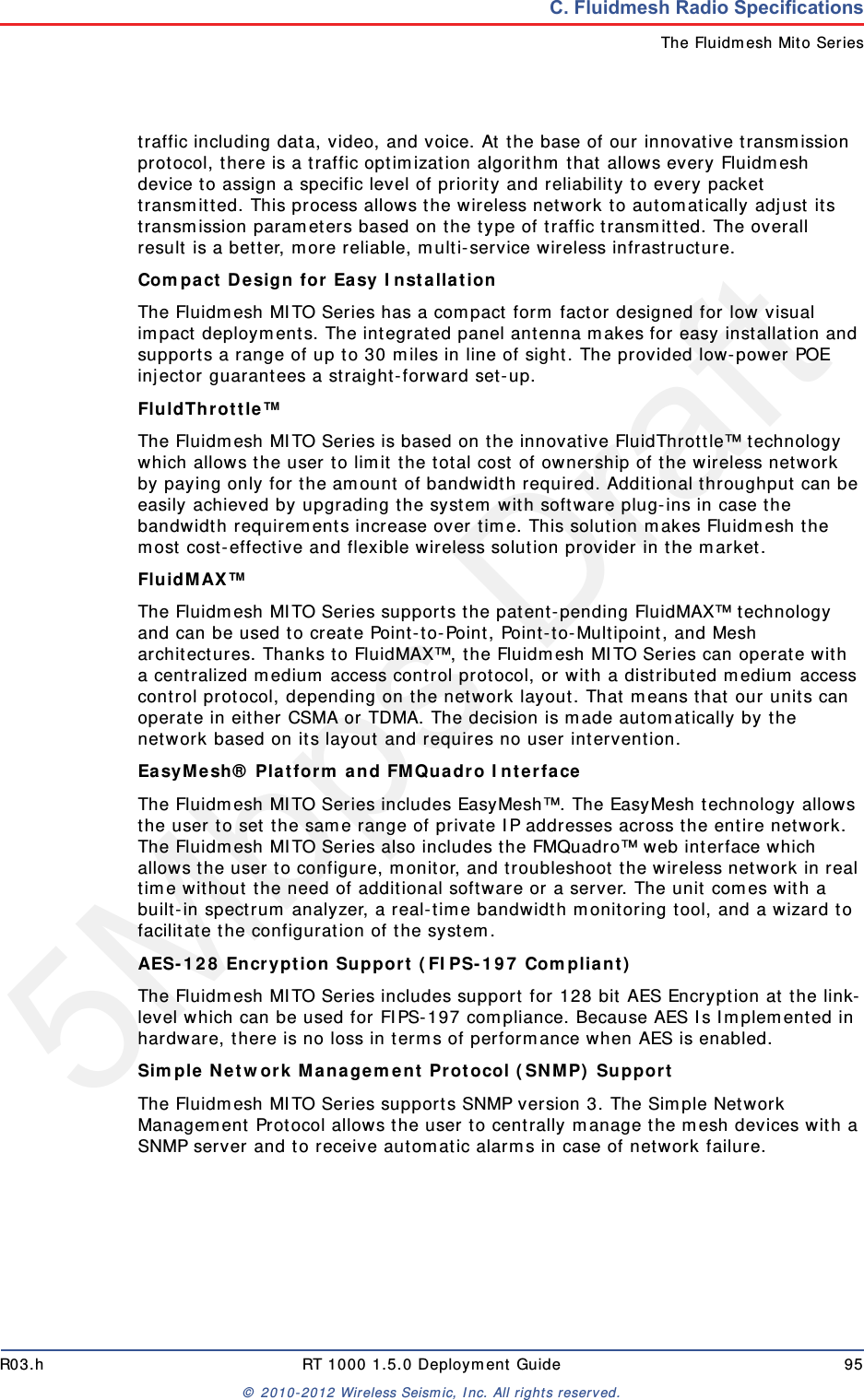
5Mbps DraftR03.h RT 1000 1.5.0 Deployment Guide 95© 2010-2012 Wireless Seismic, Inc. All rights reserved.C. Fluidmesh Radio SpecificationsThe Fluidmesh Mito Seriestraffic including data, video, and voice. At the base of our innovative transmission protocol, there is a traffic optimization algorithm that allows every Fluidmesh device to assign a specific level of priority and reliability to every packet transmitted. This process allows the wireless network to automatically adjust its transmission parameters based on the type of traffic transmitted. The overall result is a better, more reliable, multi-service wireless infrastructure.Compact Design for Easy Installation The Fluidmesh MITO Series has a compact form factor designed for low visual impact deployments. The integrated panel antenna makes for easy installation and supports a range of up to 30 miles in line of sight. The provided low-power POE injector guarantees a straight-forward set-up.FluldThrottle™ The Fluidmesh MITO Series is based on the innovative FluidThrottle™ technology which allows the user to limit the total cost of ownership of the wireless network by paying only for the amount of bandwidth required. Additional throughput can be easily achieved by upgrading the system with software plug-ins in case the bandwidth requirements increase over time. This solution makes Fluidmesh the most cost-effective and flexible wireless solution provider in the market.FluidMAX™ The Fluidmesh MITO Series supports the patent-pending FluidMAX™ technology and can be used to create Point-to-Point, Point-to-Multipoint, and Mesh architectures. Thanks to FluidMAX™, the Fluidmesh MITO Series can operate with a centralized medium access control protocol, or with a distributed medium access control protocol, depending on the network layout. That means that our units can operate in either CSMA or TDMA. The decision is made automatically by the network based on its layout and requires no user intervention.EasyMesh® Platform and FMQuadro Interface The Fluidmesh MITO Series includes EasyMesh™. The EasyMesh technology allows the user to set the same range of private IP addresses across the entire network. The Fluidmesh MITO Series also includes the FMQuadro™ web interface which allows the user to configure, monitor, and troubleshoot the wireless network in real time without the need of additional software or a server. The unit comes with a built-in spectrum analyzer, a real-time bandwidth monitoring tool, and a wizard to facilitate the configuration of the system.AES-128 Encryption Support (FIPS-197 Compliant) The Fluidmesh MITO Series includes support for 128 bit AES Encryption at the link-level which can be used for FIPS-197 compliance. Because AES Is Implemented in hardware, there is no loss in terms of performance when AES is enabled.Simple Network Management Protocol (SNMP) Support The Fluidmesh MITO Series supports SNMP version 3. The Simple Network Management Protocol allows the user to centrally manage the mesh devices with a SNMP server and to receive automatic alarms in case of network failure.
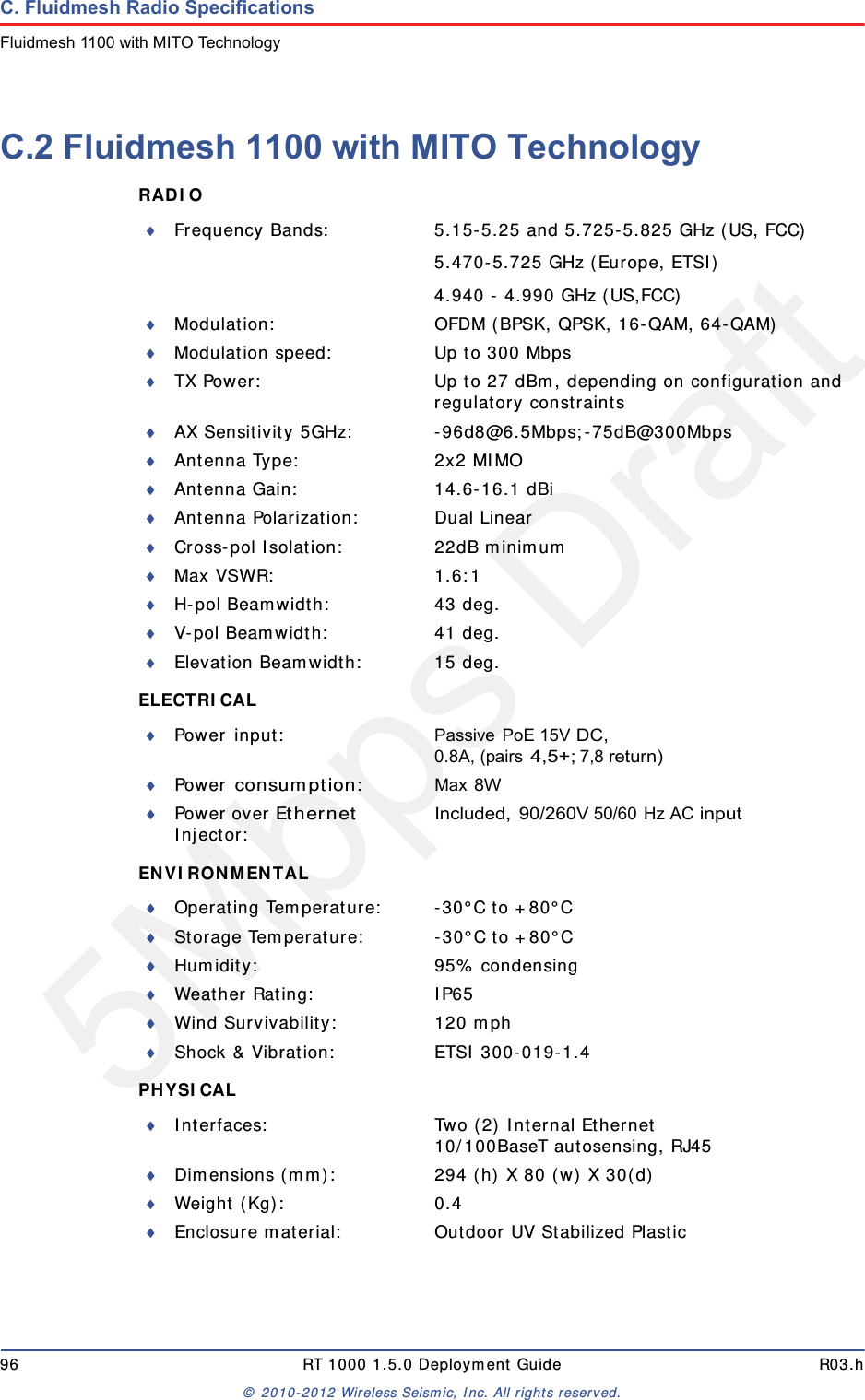
5Mbps Draft96 RT 1000 1.5.0 Deployment Guide R03.h© 2010-2012 Wireless Seismic, Inc. All rights reserved.C. Fluidmesh Radio SpecificationsFluidmesh 1100 with MITO TechnologyC.2 Fluidmesh 1100 with MITO TechnologyRADIO ELECTRICAL ENVIRONMENTAL PHYSICAL Frequency Bands: 5.15-5.25 and 5.725-5.825 GHz (US, FCC)5.470-5.725 GHz (Europe, ETSI)4.940 - 4.990 GHz (US,FCC)Modulation: OFDM (BPSK, QPSK, 16-QAM, 64-QAM)Modulation speed: Up to 300 MbpsTX Power: Up to 27 dBm, depending on configuration and regulatory constraintsAX Sensitivity 5GHz: -96d8@6.5Mbps;-75dB@300MbpsAntenna Type: 2x2 MIMOAntenna Gain: 14.6-16.1 dBiAntenna Polarization: Dual LinearCross-pol Isolation: 22dB minimumMax VSWR: 1.6:1H-pol Beamwidth: 43 deg.V-pol Beamwidth: 41 deg.Elevation Beamwidth: 15 deg.Power input: Passive PoE 15V DC, 0.8A, (pairs 4,5+; 7,8 return)Power consumption:Max 8WPower over Ethernet Injector:Included, 90/260V 50/60 Hz AC inputOperating Temperature: -30°C to +80°CStorage Temperature: -30°C to +80°CHumidity: 95% condensingWeather Rating: IP65Wind Survivability: 120 mphShock & Vibration: ETSI 300-019-1.4Interfaces: Two (2) Internal Ethernet10/100BaseT autosensing, RJ45Dimensions (mm): 294 (h) X 80 (w) X 30(d)Weight (Kg): 0.4Enclosure material: Outdoor UV Stabilized Plastic
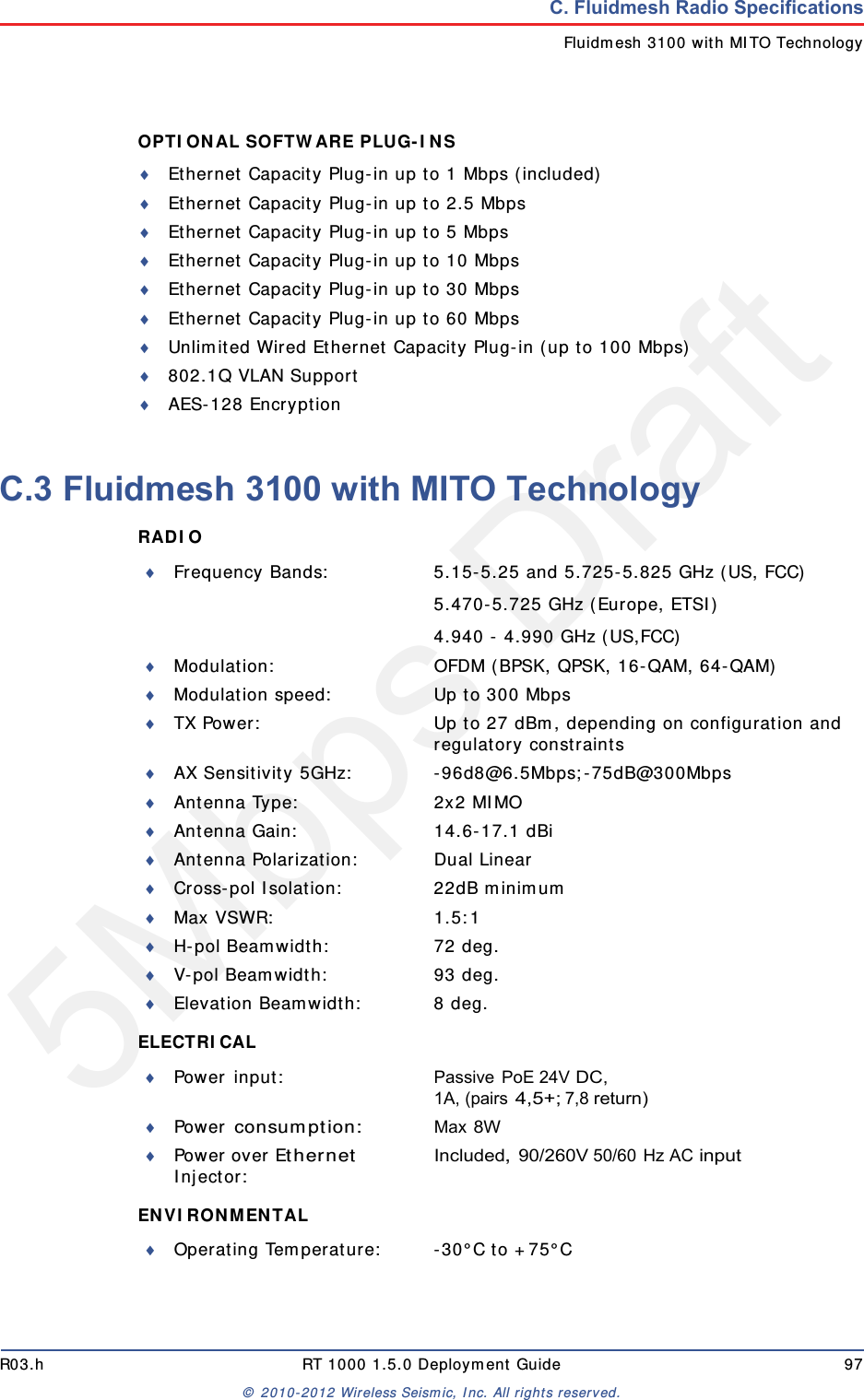
5Mbps DraftR03.h RT 1000 1.5.0 Deployment Guide 97© 2010-2012 Wireless Seismic, Inc. All rights reserved.C. Fluidmesh Radio SpecificationsFluidmesh 3100 with MITO TechnologyOPTIONAL SOFTWARE PLUG-INS Ethernet Capacity Plug-in up to 1 Mbps (included)Ethernet Capacity Plug-in up to 2.5 MbpsEthernet Capacity Plug-in up to 5 MbpsEthernet Capacity Plug-in up to 10 MbpsEthernet Capacity Plug-in up to 30 MbpsEthernet Capacity Plug-in up to 60 MbpsUnlimited Wired Ethernet Capacity Plug-in (up to 100 Mbps)802.1Q VLAN SupportAES-128 EncryptionC.3 Fluidmesh 3100 with MITO TechnologyRADIO ELECTRICAL ENVIRONMENTAL Frequency Bands: 5.15-5.25 and 5.725-5.825 GHz (US, FCC)5.470-5.725 GHz (Europe, ETSI)4.940 - 4.990 GHz (US,FCC)Modulation: OFDM (BPSK, QPSK, 16-QAM, 64-QAM)Modulation speed: Up to 300 MbpsTX Power: Up to 27 dBm, depending on configuration and regulatory constraintsAX Sensitivity 5GHz: -96d8@6.5Mbps;-75dB@300MbpsAntenna Type: 2x2 MIMOAntenna Gain: 14.6-17.1 dBiAntenna Polarization: Dual LinearCross-pol Isolation: 22dB minimumMax VSWR: 1.5:1H-pol Beamwidth: 72 deg.V-pol Beamwidth: 93 deg.Elevation Beamwidth: 8 deg.Power input: Passive PoE 24V DC, 1A, (pairs 4,5+; 7,8 return)Power consumption:Max 8WPower over Ethernet Injector:Included, 90/260V 50/60 Hz AC inputOperating Temperature: -30°C to +75°C
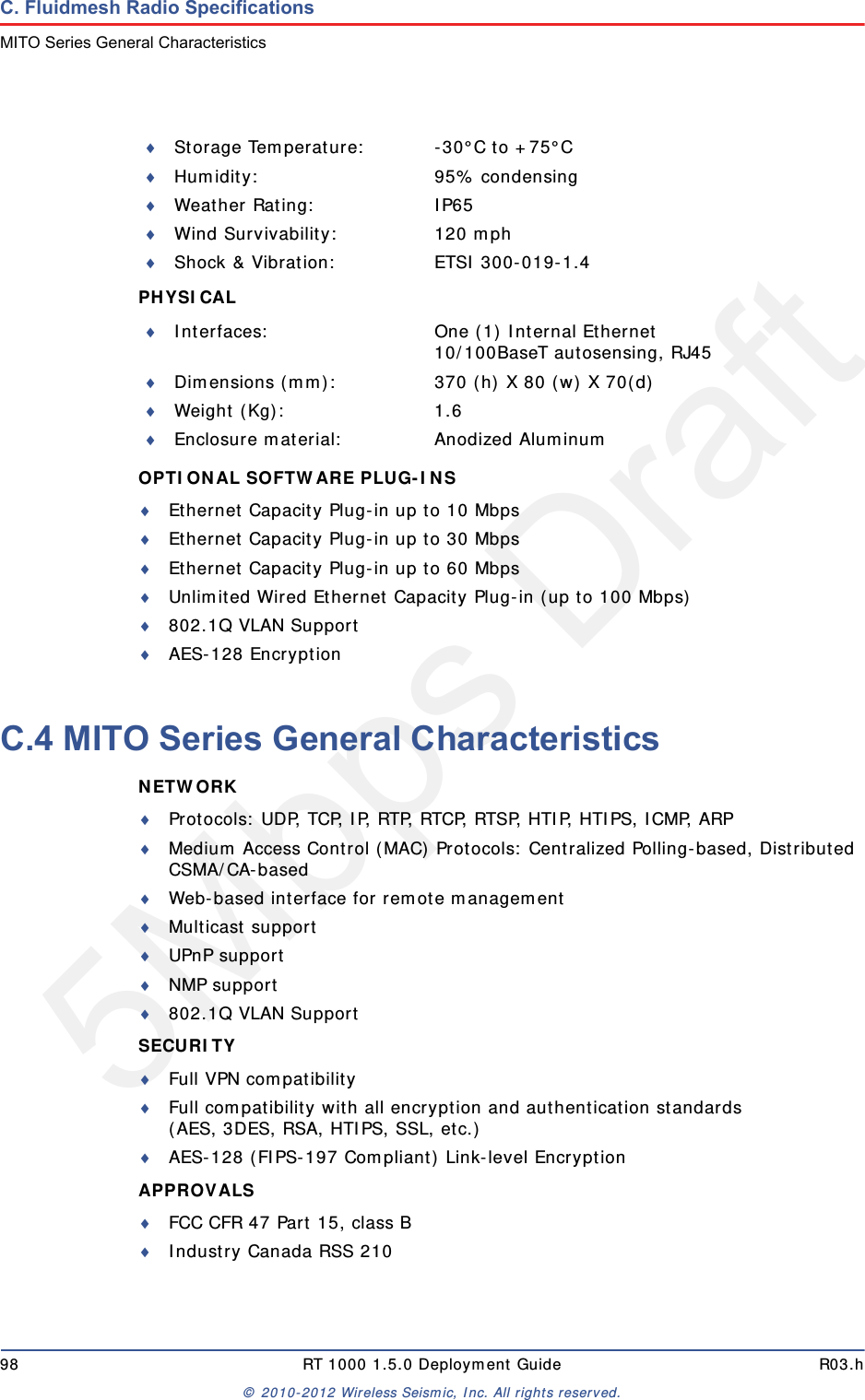
5Mbps Draft98 RT 1000 1.5.0 Deployment Guide R03.h© 2010-2012 Wireless Seismic, Inc. All rights reserved.C. Fluidmesh Radio SpecificationsMITO Series General CharacteristicsPHYSICAL OPTIONAL SOFTWARE PLUG-INS Ethernet Capacity Plug-in up to 10 MbpsEthernet Capacity Plug-in up to 30 MbpsEthernet Capacity Plug-in up to 60 MbpsUnlimited Wired Ethernet Capacity Plug-in (up to 100 Mbps)802.1Q VLAN SupportAES-128 EncryptionC.4 MITO Series General CharacteristicsNETWORK Protocols: UDP, TCP, IP, RTP, RTCP, RTSP, HTIP, HTIPS, ICMP, ARPMedium Access Control (MAC) Protocols: Centralized Polling-based, Distributed CSMA/CA-basedWeb-based interface for remote managementMulticast supportUPnP supportNMP support802.1Q VLAN SupportSECURITY Full VPN compatibilityFull compatibility with all encryption and authentication standards(AES, 3DES, RSA, HTIPS, SSL, etc.)AES-128 (FIPS-197 Compliant) Link-level EncryptionAPPROVALS FCC CFR 47 Part 15, class BIndustry Canada RSS 210Storage Temperature: -30°C to +75°CHumidity: 95% condensingWeather Rating: IP65Wind Survivability: 120 mphShock & Vibration: ETSI 300-019-1.4Interfaces: One (1) Internal Ethernet10/100BaseT autosensing, RJ45Dimensions (mm): 370 (h) X 80 (w) X 70(d)Weight (Kg): 1.6Enclosure material: Anodized Aluminum
5Mbps DraftR03.h RT 1000 1.5.0 Deployment Guide 99© 2010-2012 Wireless Seismic, Inc. All rights reserved.C. Fluidmesh Radio SpecificationsMITO Series General CharacteristicsCEI!SUPPLIED ACCESSORIES PoE Injector with US/EU/UK Power CordPole Mounting Kit (i.e.Pole Mounting Kit Max O.D. 2 in.)WARRANTY Two (2) years on parts and laborThree (3) years optional extended warranty plan with advanced replacementFive (5) years optional extended warranty plan with advanced replacementCopyright © 2005-2010 Fluidmesh Networks, Inc. All rights reserved. Fluidmesh is a registered trademark of Fluidmesh Networks, Inc. EasyMesh, FMQuadro, FluidMAX and FluidThrottle are trademarks of Fluidmesh Networks, Inc. All other brand or product names are the trademarks or registered trademark of their respective holder(s). Information contained herein is subject to change without notice. The only warranties for Fluidmesh Networks products and services are set forth in the express warranty statements accompanying such products and services. Nothing herein should be construed as constituting an additional warranty. Fluidmesh Networks shall not be liable lor technical or editorial errors or omissions contained herein.Fluidmesh Networks, Inc.18 Tremont Street, Suite 730Boston, MA 02108U.S.A.Tel. +1 {617) 209-6080Fax. +1 {866} 458-1522www.fluidmesh.cominfo@fluidmesh.comEMEA Headquarters {Italy}Tel. +39.02.0061.6189UK BranchTel. +44.2078.553.132
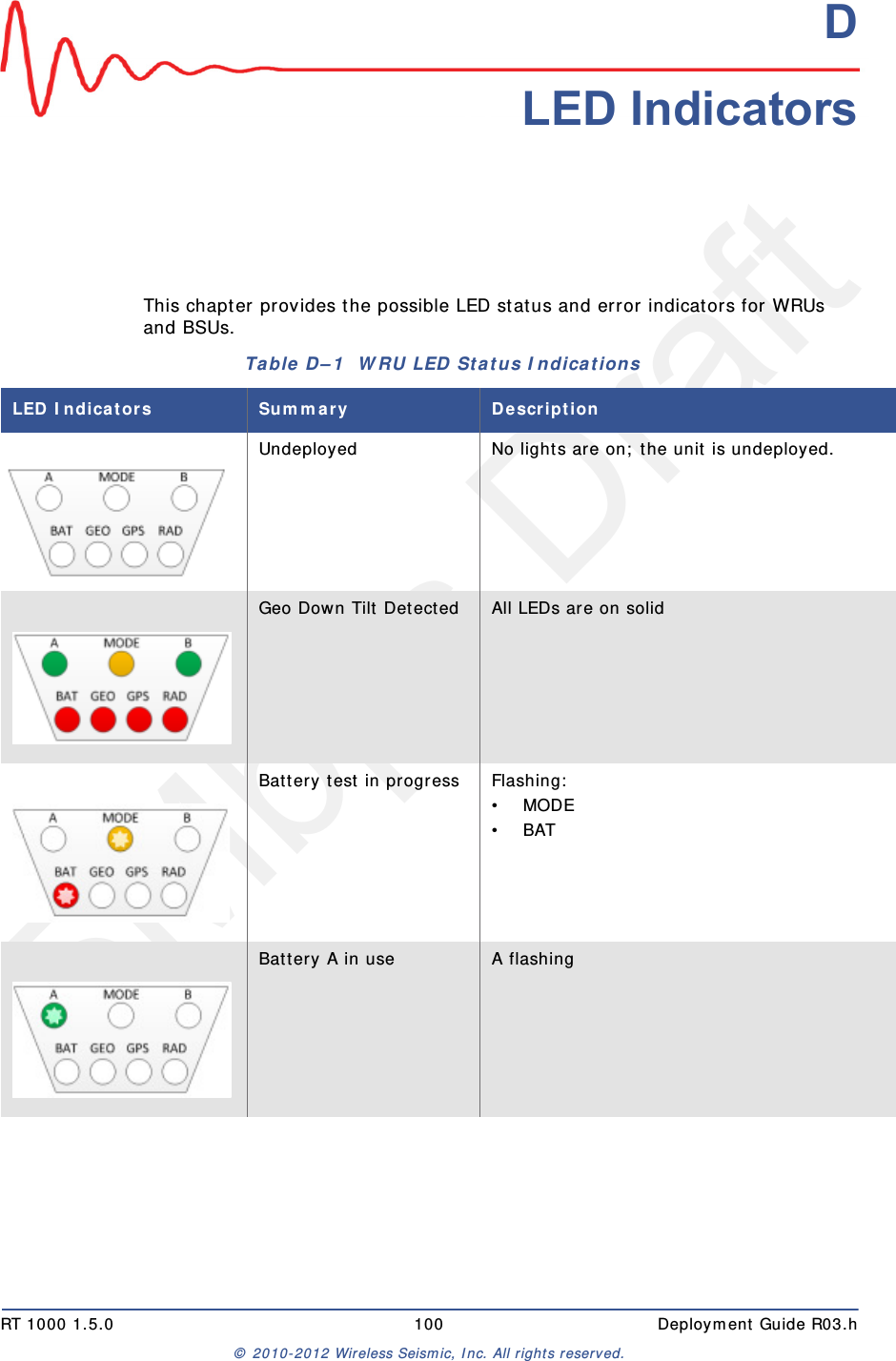
5Mbps DraftRT 1000 1.5.0 100  Deployment Guide R03.h© 2010-2012 Wireless Seismic, Inc. All rights reserved.DD. LED IndicatorsThis chapter provides the possible LED status and error indicators for WRUs and BSUs. Table D–1  WRU LED Status Indications LED Indicators Summary DescriptionUndeployed No lights are on; the unit is undeployed.Geo Down Tilt Detected All LEDs are on solidBattery test in progress Flashing:•MODE•BATBattery A in use A flashing
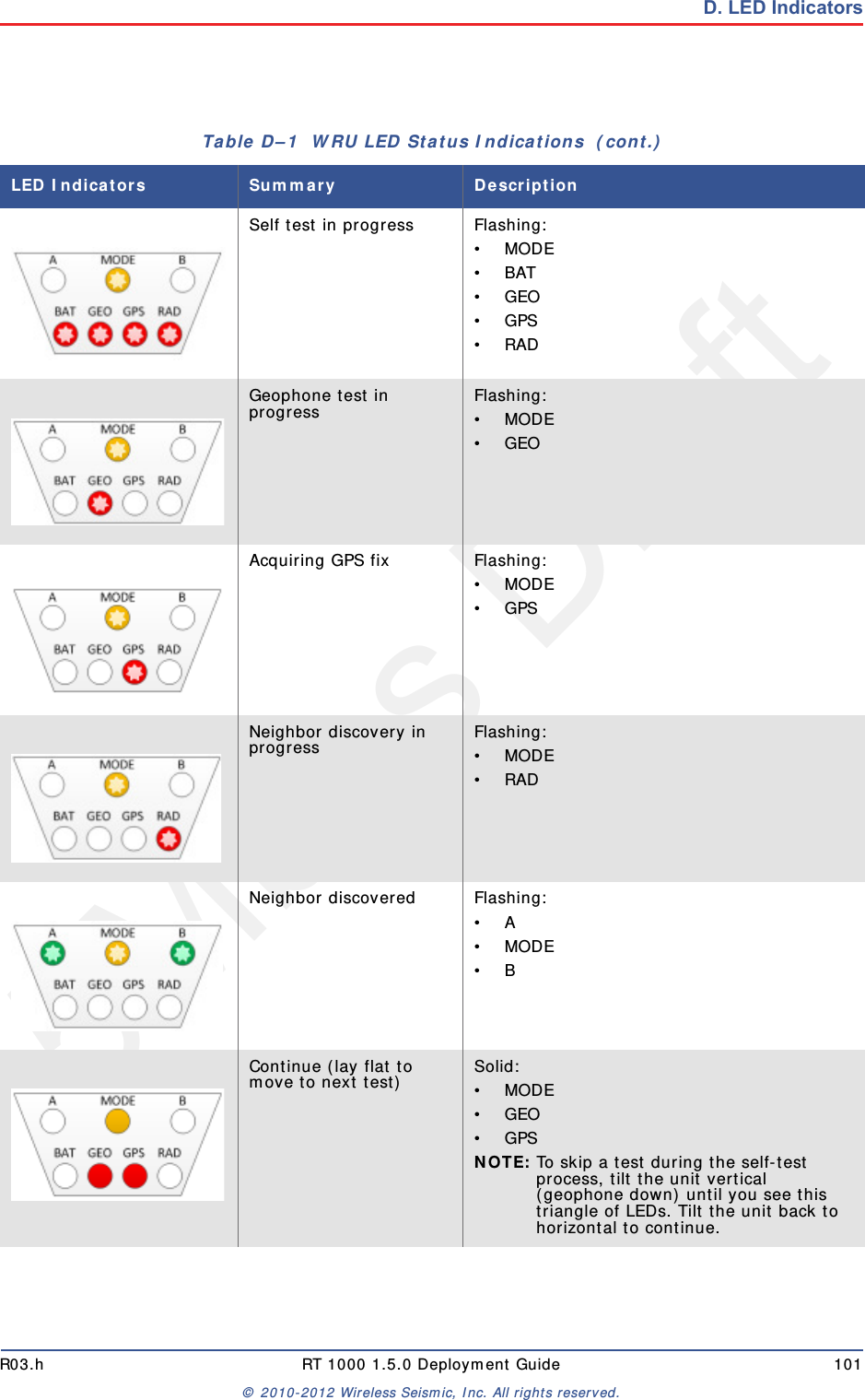
5Mbps DraftR03.h RT 1000 1.5.0 Deployment Guide 101© 2010-2012 Wireless Seismic, Inc. All rights reserved.D. LED IndicatorsSelf test in progress Flashing:•MODE•BAT•GEO•GPS•RADGeophone test in progress Flashing:•MODE•GEOAcquiring GPS fix Flashing:•MODE•GPSNeighbor discovery in progress Flashing:•MODE•RADNeighbor discovered Flashing:•A•MODE•BContinue (lay flat to move to next test) Solid:•MODE•GEO•GPSNOTE: To skip a test during the self-test process, tilt the unit vertical (geophone down) until you see this triangle of LEDs. Tilt the unit back to horizontal to continue.Table D–1  WRU LED Status Indications  (cont.)LED Indicators Summary Description
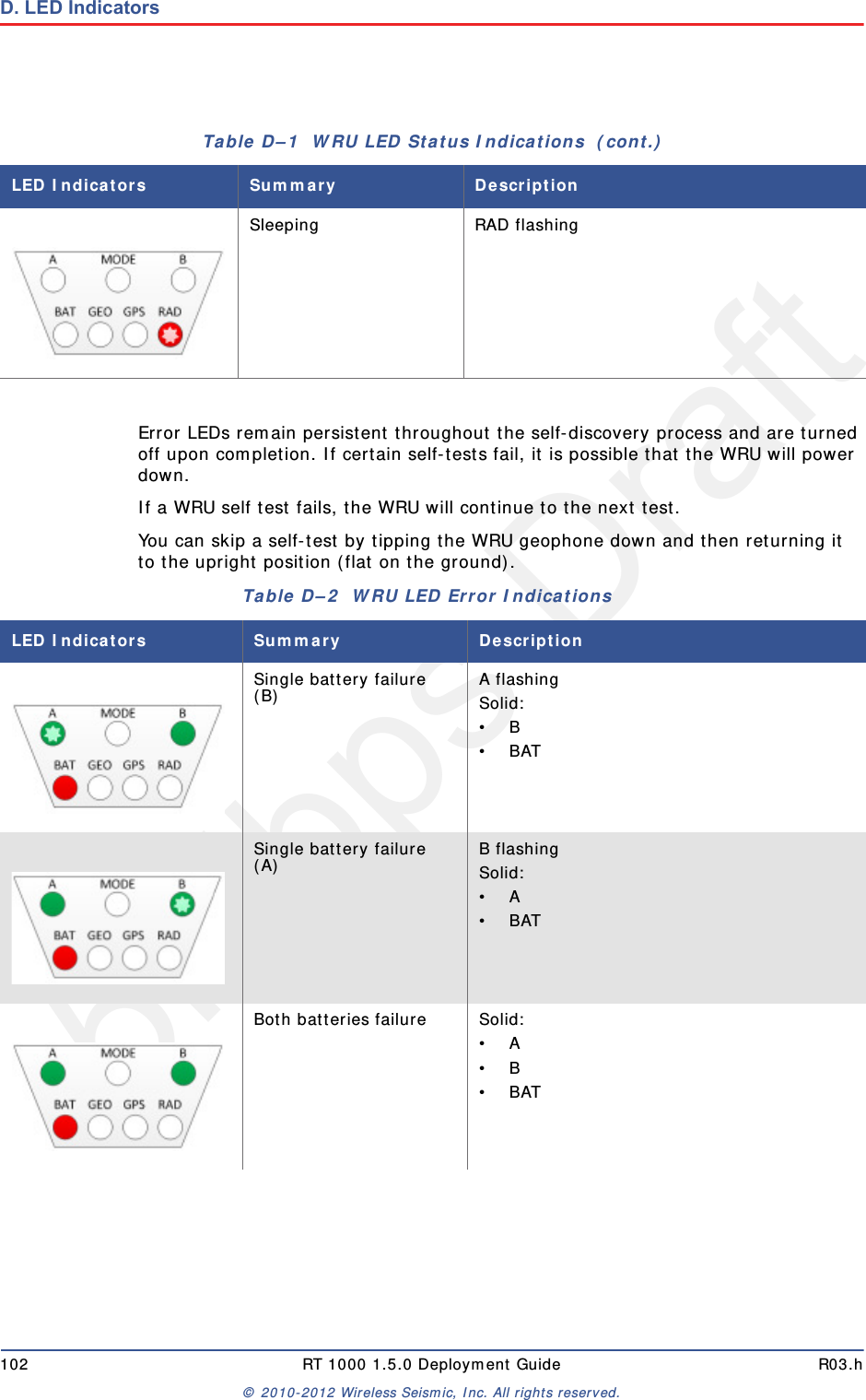
5Mbps Draft102 RT 1000 1.5.0 Deployment Guide R03.h© 2010-2012 Wireless Seismic, Inc. All rights reserved.D. LED IndicatorsError LEDs remain persistent throughout the self-discovery process and are turned off upon completion. If certain self-tests fail, it is possible that the WRU will power down.If a WRU self test fails, the WRU will continue to the next test. You can skip a self-test by tipping the WRU geophone down and then returning it to the upright position (flat on the ground).Sleeping RAD flashingTable D–1  WRU LED Status Indications  (cont.)LED Indicators Summary DescriptionTable D–2  WRU LED Error Indications LED Indicators Summary DescriptionSingle battery failure (B) A flashingSolid:•B•BATSingle battery failure (A) B flashingSolid:•A •BAT Both batteries failure Solid:•A•B•BAT
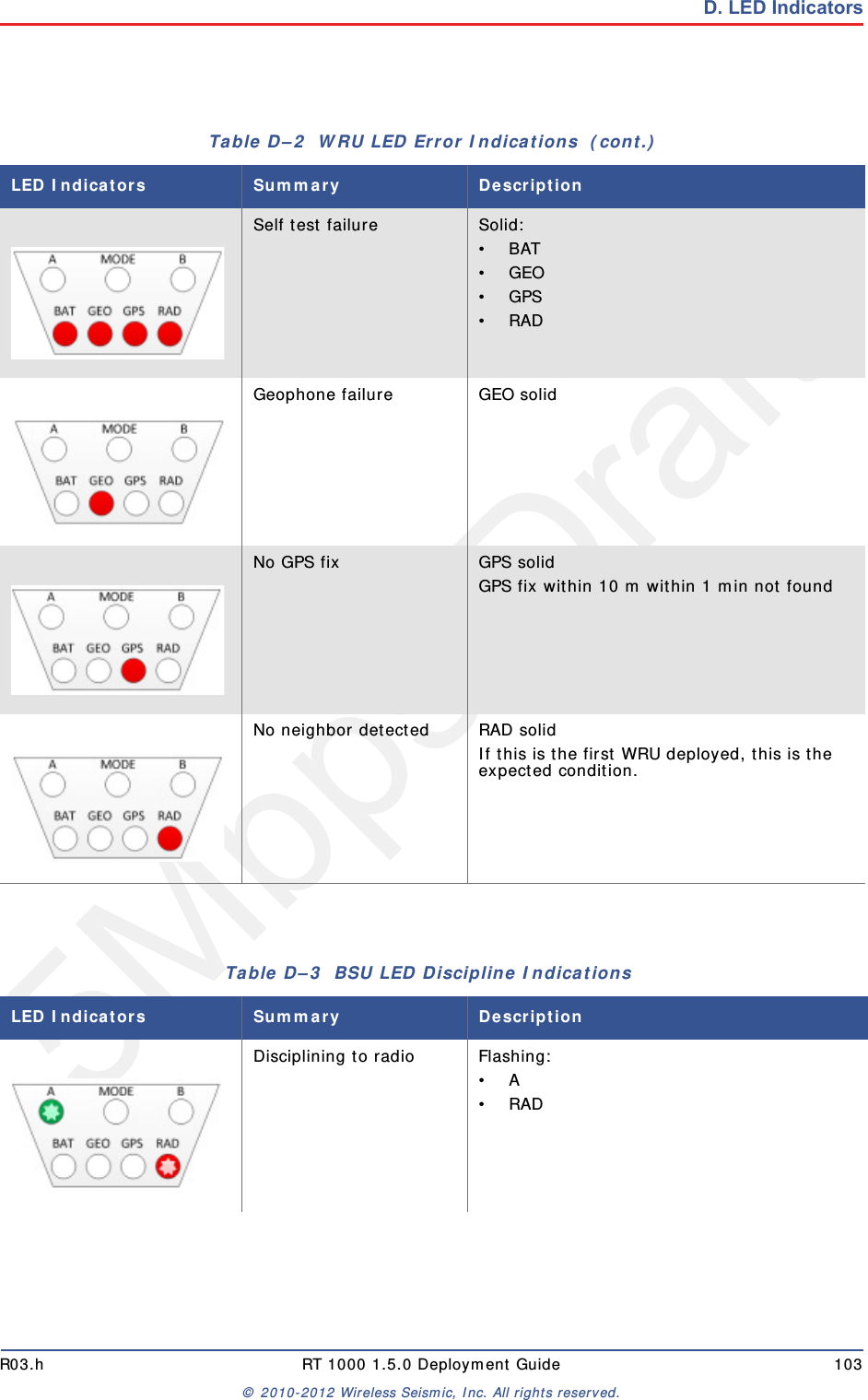
5Mbps DraftR03.h RT 1000 1.5.0 Deployment Guide 103© 2010-2012 Wireless Seismic, Inc. All rights reserved.D. LED IndicatorsSelf test failure Solid:•BAT•GEO•GPS•RADGeophone failure GEO solidNo GPS fix GPS solidGPS fix within 10 m within 1 min not foundNo neighbor detected RAD solidIf this is the first WRU deployed, this is the expected condition. Table D–2  WRU LED Error Indications  (cont.)LED Indicators Summary DescriptionTable D–3  BSU LED Discipline Indications LED Indicators Summary DescriptionDisciplining to radio Flashing:•A•RAD
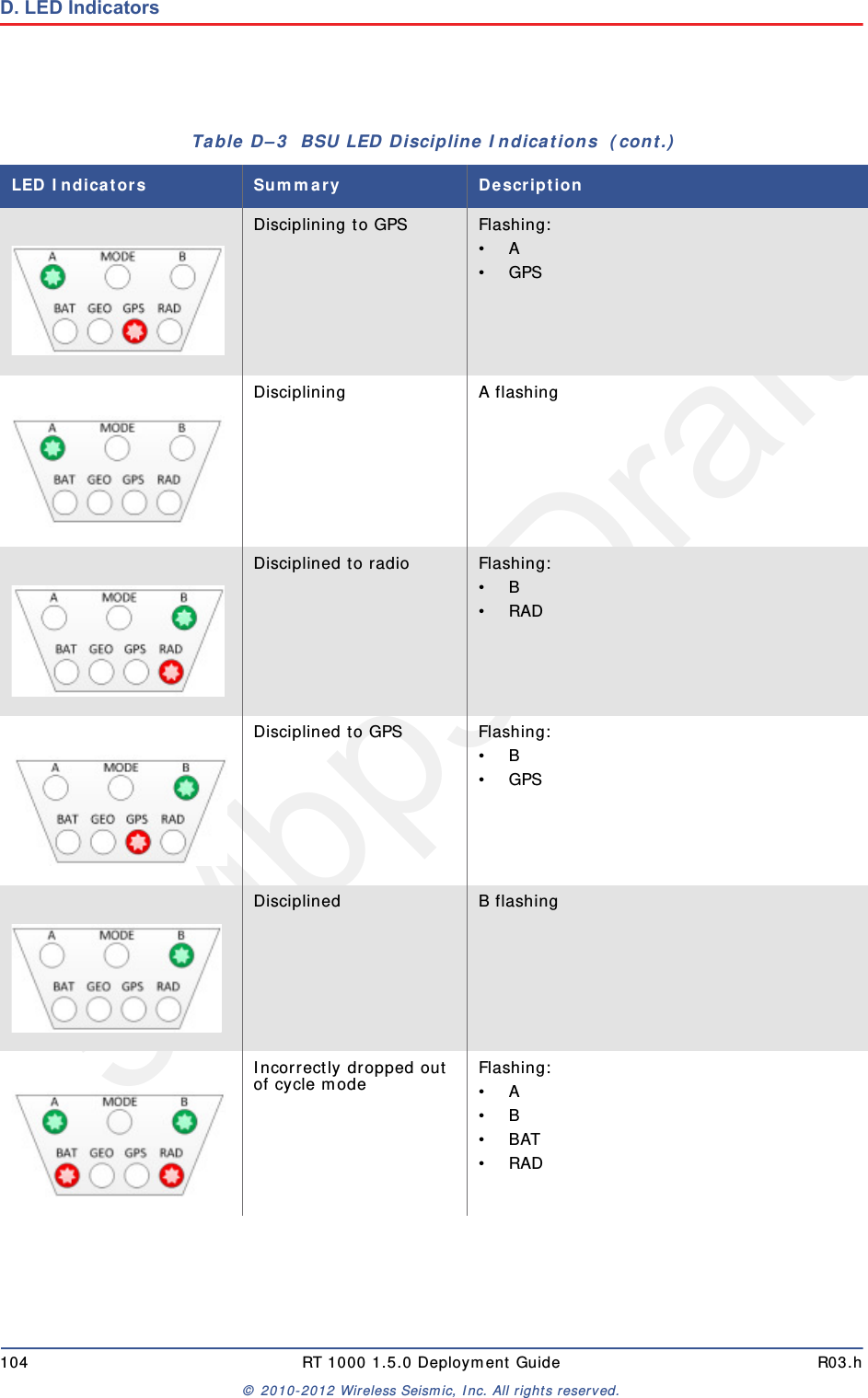
5Mbps Draft104 RT 1000 1.5.0 Deployment Guide R03.h© 2010-2012 Wireless Seismic, Inc. All rights reserved.D. LED IndicatorsDisciplining to GPS Flashing:•A•GPSDisciplining A flashingDisciplined to radio Flashing:•B•RADDisciplined to GPS Flashing:•B•GPSDisciplined B flashingIncorrectly dropped out of cycle mode Flashing:•A•B•BAT•RADTable D–3  BSU LED Discipline Indications  (cont.)LED Indicators Summary Description
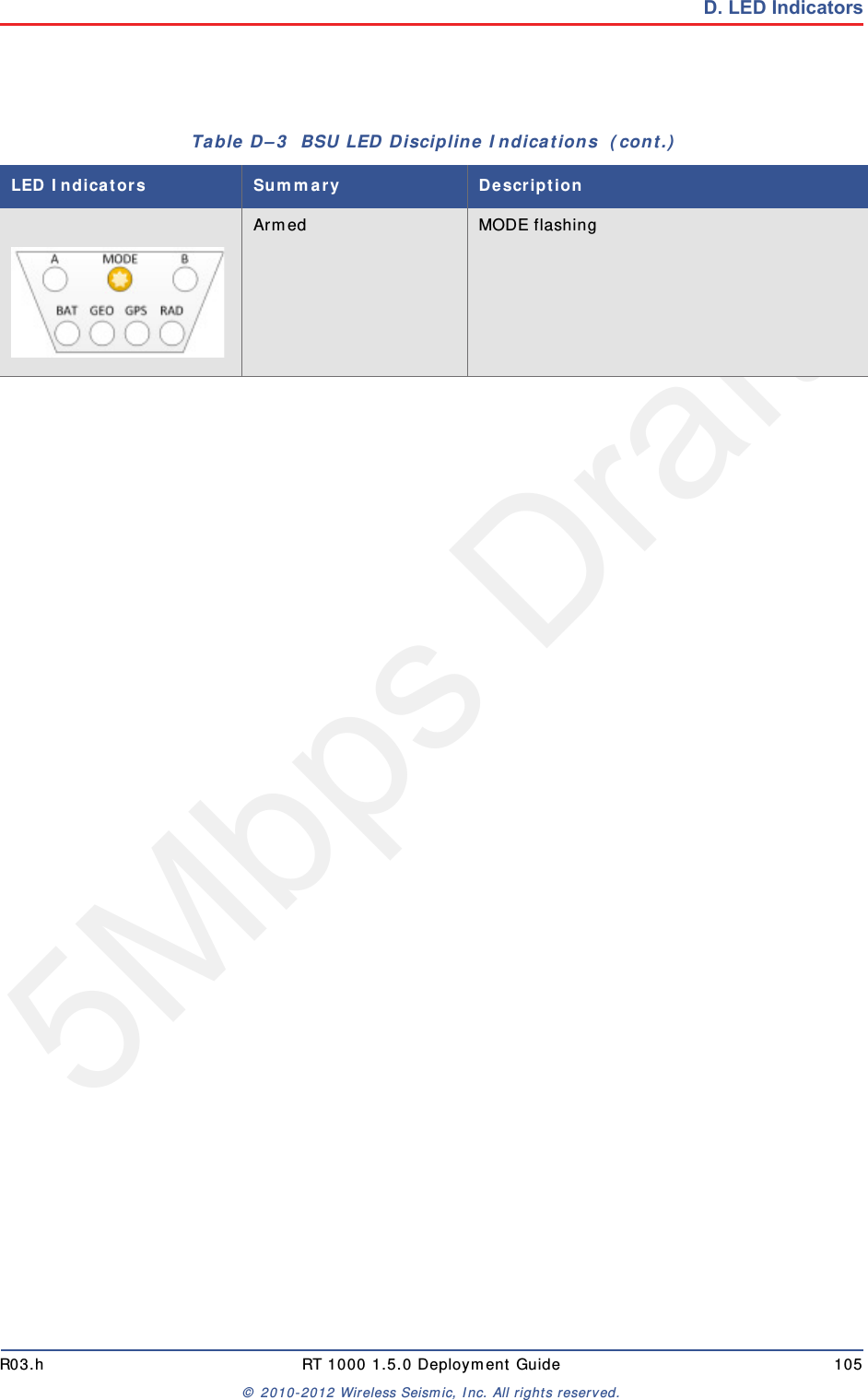
5Mbps DraftR03.h RT 1000 1.5.0 Deployment Guide 105© 2010-2012 Wireless Seismic, Inc. All rights reserved.D. LED IndicatorsArmed MODE flashingTable D–3  BSU LED Discipline Indications  (cont.)LED Indicators Summary Description
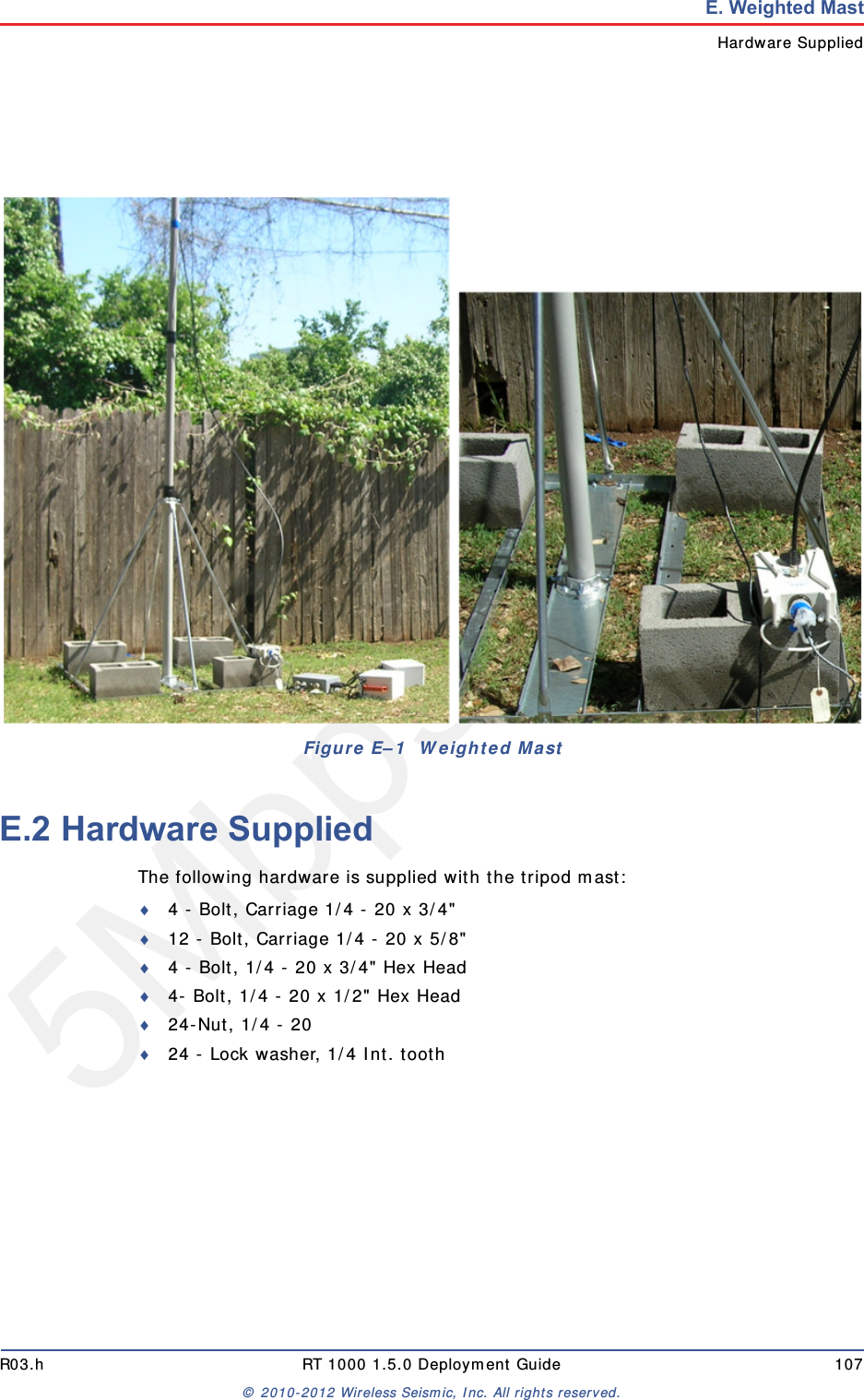
5Mbps DraftRT 1000 1.5.0 106  Deployment Guide R03.h© 2010-2012 Wireless Seismic, Inc. All rights reserved.EE. Weighted MastThis section describes the mast that uses weights to maintain stability.E.1 SpecificationsTripod Weight = 50 lbs (22.73 kg)Minimum mast height = 53” (includes 6” for mounting)Base size = 48” (1.2m) x 48” (1.2m)Supports up to 12 – 16” x 8” blocksPre-galvanized steel frameAccepts up to 2.5” mast (not included)
5Mbps DraftR03.h RT 1000 1.5.0 Deployment Guide 107© 2010-2012 Wireless Seismic, Inc. All rights reserved.E. Weighted MastHardware SuppliedE.2 Hardware SuppliedThe following hardware is supplied with the tripod mast:4 - Bolt, Carriage 1/4 - 20 x 3/4"12 - Bolt, Carriage 1/4 - 20 x 5/8"4 - Bolt, 1/4 - 20 x 3/4" Hex Head4- Bolt, 1/4 - 20 x 1/2" Hex Head24-Nut, 1/4 - 2024 - Lock washer, 1/4 Int. toothFigure E–1  Weighted Mast
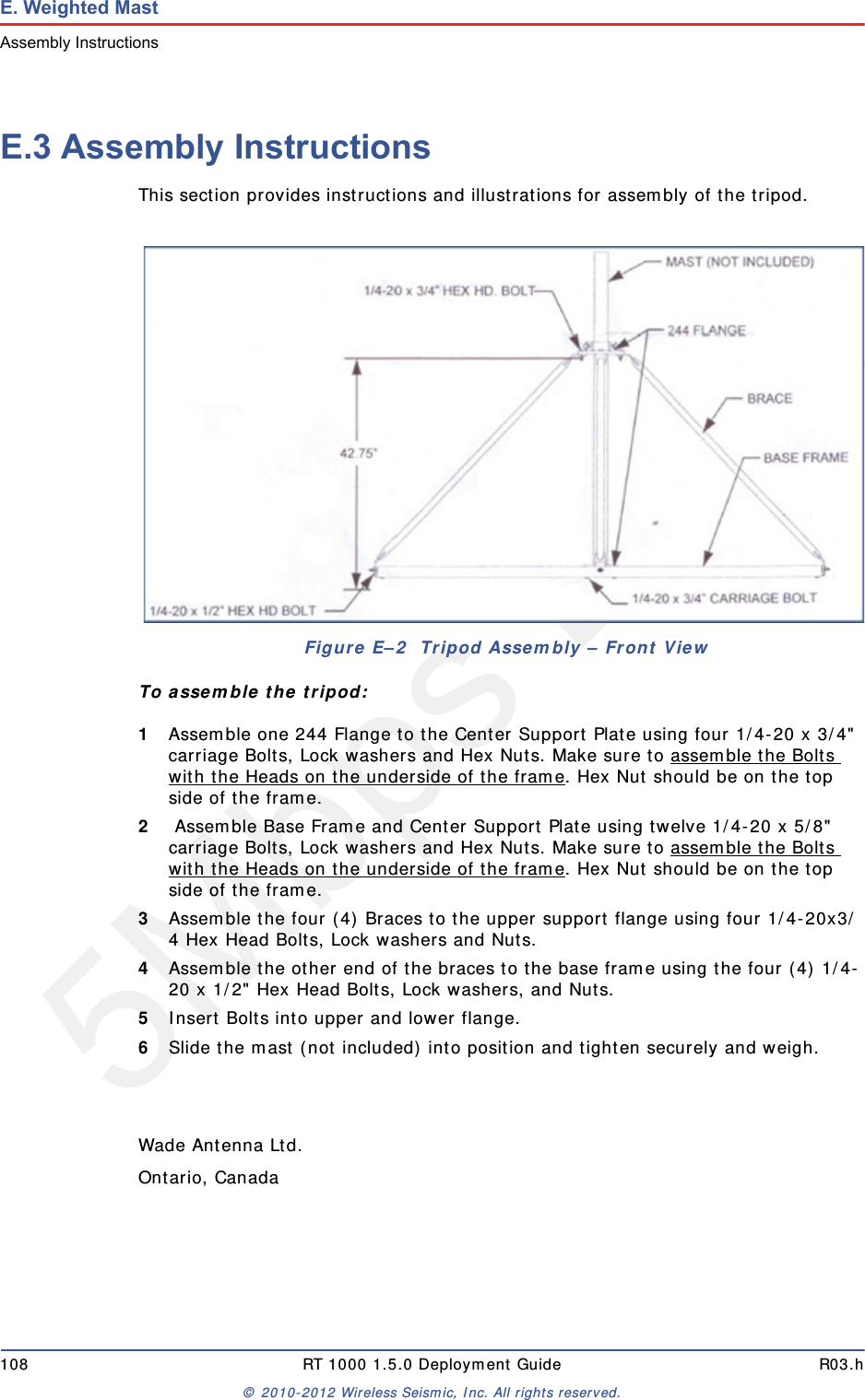
5Mbps Draft108 RT 1000 1.5.0 Deployment Guide R03.h© 2010-2012 Wireless Seismic, Inc. All rights reserved.E. Weighted MastAssembly InstructionsE.3 Assembly InstructionsThis section provides instructions and illustrations for assembly of the tripod.To assemble the tripod:1Assemble one 244 Flange to the Center Support Plate using four 1/4-20 x 3/4" carriage Bolts, Lock washers and Hex Nuts. Make sure to assemble the Bolts with the Heads on the underside of the frame. Hex Nut should be on the top side of the frame. 2 Assemble Base Frame and Center Support Plate using twelve 1/4-20 x 5/8" carriage Bolts, Lock washers and Hex Nuts. Make sure to assemble the Bolts with the Heads on the underside of the frame. Hex Nut should be on the top side of the frame.3Assemble the four (4) Braces to the upper support flange using four 1/4-20x3/4 Hex Head Bolts, Lock washers and Nuts.4Assemble the other end of the braces to the base frame using the four (4) 1/4-20 x 1/2" Hex Head Bolts, Lock washers, and Nuts.5Insert Bolts into upper and lower flange.6Slide the mast (not included) into position and tighten securely and weigh.Wade Antenna Ltd.Ontario, CanadaFigure E–2  Tripod Assembly – Front View
5Mbps DraftRT 1000 1.5.0 109  Deployment Guide R03.h© 2010-2012 Wireless Seismic, Inc. All rights reserved.IndexNumerics192.168.0.10 402.4 GHz 3124 Ah DC battery 374.9 GHz 395.1 GHz 395.8 GHz 31, 39AA 100Acquiring GPS fix 101antenna 12connecting 28specifications 39, 90tips 28, 74antennas 39, 90auto-power-leveling 39BB 101backhaul 31, 32, 35backhaul masts 42backpack 45bag 45base 42tips 60BAT 100battery24 V 37charger 80recharge 37remove 70specifications 75tips 73Battery A in use 100Battery test in progress 100BSU 32Armed 105Disciplined 104Disciplined to GPS 104Disciplined to radio 104Disciplining 104Disciplining to GPS 104Disciplining to radio 103error 104kit 35bucket-brigade 31Ccentral recording truck components 33color 40colors 58communicationtips 73contact 10Continue 101CSS 32Ddatasheet 39default IP address 40down tilt detected 100EerrorBoth batteries failure 102Geophone failure 103No GPS fix 103No neighbor detected 103Self test failure 103Single battery failure (A) 102Single battery failure (B) 102error indicators 100Ethernet cable 74example 33deployment 64FFCC 90Section 15.203 90FM1100 40FM3100 41frequencies 58GGEO 101geophone 27Geophone test in progress 101GPS 101
5Mbps DraftIndexH110 RT 1000 1.5.0 Deployment Guide R03.h© 2010-2012 Wireless Seismic, Inc. All rights reserved.disciplined 104error 103ground equipment 11assemble 26Hhelp 9hopping 31IIndustrial, Scientific, and Medical radio band 31IP addressFluidmesh default 40ISM 31LLED status 100LTU 31Mmast 106erect 59mast kit 41masts 42meshend 56point 56mesh networking 31MODE 100modifications 90NNeighbor discovered 101Neighbor discovery in progress 101Netmask 53networkprivate 46radio 46restore settings 59NIC 54node 31PPoE 31, 36injector 31switch 31tips 73power off WRU 68Power over Ethernet 31power supply 37power-leveling 39protective shell 38RRAD 101radiocolor 40configure 46datasheet 39install two 63kit 39network configuration 46radio band 31radios 32relay 31remove battery 70repeater 29restore network settings 59SSelf test in progress 101self-test 101SIU 33skip a test 101Sleeping 102solid LEDs 100specificationsantenna 39, 90statusAcquiring GPS fix 101Battery A in use 100Battery test in progress 100Continue 101down tilt detected 100Geophone test in progress 101Neighbor discovered 101Neighbor discovery in progress 101Self test in progress 101Sleeping 102Undeployed 100string-of-pearls 31supportedantennas 39, 90Ttilt 100tripod assembly 108UUndeployed 100urban environments 73users 9WWRU 31power off 68power on 29powers down 102tests 30

Navigation menu