Wireless Seismic 00104 Wireless Seismic Sensor User Manual DeploymentGuide
Wireless Seismic, Inc. Wireless Seismic Sensor DeploymentGuide
Contents
- 1. Users Manual Rev 1 Part 1 of 2
- 2. Users Manual Rev 1 Part 2 of 2
Users Manual Rev 1 Part 1 of 2

Draft
RT System 2
Deployment Guide
December 12, 2013
Part Number: 90-0069
R01.b

Draft
To order additional copies of this document, send an email to your sales representative requesting the
following:
Part Number: 90-0069-PDF
Part Number: 90-0069-Paper
Real Time Matters
Corporate Headquarters: 13100 Southwest Freeway, Suite 150 Sugar Land, TX 77478 USA 832-532-5080
Regional Office: 1172 West Century Drive, Suite 200 Louisville, CO 80027 USA 720-242-9916
info@wirelessseismic.com www.wirelessseismic.com
© 2010-2013 Wireless Seismic, Inc. All rights reserved.
All other brands, company names, product names, trademarks or service marks referenced in this material are the
property of their respective owners, who may or may not be affiliated with, connected to, or sponsored by Wireless
Seismic, Inc.
Wireless Seismic, Inc.'s trademarks, registered trademarks or trade dress may not be used in connection with any
product or service that is not the property of Wireless Seismic, Inc., in any manner that is likely to cause confusion
among customers, or in any manner that disparages or discredits Wireless Seismic, Inc. The products and services
described in this material may not be available in all regions.
All information supplied in this document regarding weights, sizes, performance, functionality and other technical
information of any kind is approximate and shall be taken as generally representing our products. We may modify our
products, discontinue products or add new products at any time and without providing an update to this document.
NOTHING CONTAINED IN THIS DOCUMENT SHALL BE CONSIDERED A REPRESENTATION OR WARRANTY MADE BY
WIRELESS SEISMIC, INC. (“WIRELESS SEISMIC”) CONCERNING ANY PRODUCT DESCRIBED HEREIN, OR OTHERWISE.
EXCEPT FOR THE WARRANTIES THAT MAY BE PROVIDED IN A SEPARATE AGREEMENT BETWEEN YOU AND WIRELESS
SEISMIC, WIRELESS SEISMIC MAKES NO REPRESENTATION OR WARRANTY OF ANY KIND AND NO WARRANTY,
CONDITION OR REPRESENTATION, WHETHER EXPRESS, IMPLIED, ORAL OR STATUTORY, IS PROVIDED TO YOU OR
ANY THIRD PARTY. WITHOUT LIMITING THE FOREGOING, WIRELESS SEISMIC EXPRESS EXCLUDES AND DISCLAIMS
ANY WARRANTY, CONDITION OR REPRESENTATION: (1) OF MERCHANTABILITY, FITNESS FOR A PARTICULAR
PURPOSE, TITLE, SATISFACTORY QUALITY, OR ARISING FROM A COURSE OF DEALING, USAGE, OR TRADE PRACTICE;
(2) THAT ANY PRODUCTS (INCLUDING SOFTWARE) WILL BE FREE FROM INFRINGEMENT OR VIOLATION OF ANY
RIGHTS, INCLUDING INTELLECTUAL PROPERTY RIGHTS, OF THIRD PARTIES; OR (3) THAT THE OPERATION OF ANY
PRODUCT (INCLUDING SOFTWARE) WILL BE UNINTERRUPTED OR ERROR FREE. THIS DISCLAIMER AND EXCLUSION
SHALL APPLY EVEN IF THE EXPRESS WARRANTIES HEREIN FAIL OF THEIR ESSENTIAL PURPOSE.

Draft
RT System 2 v2.3.0 3 Deployment Guide R01.b
© 2010-2013 Wireless Seismic, Inc. All rights reserved.
Table of Contents
1.1. Overview. . . . . . . . . . . . . . . . . . . . . . . . . . . . . . . . . . . . . . . . . . . . . . . . . . . . . . 10
1.1 About this Guide . . . . . . . . . . . . . . . . . . . . . . . . . . . . . . . . . . . . . . . . . . . 10
1.2 Who Should Use this Guide . . . . . . . . . . . . . . . . . . . . . . . . . . . . . . . . . . . . 10
1.3 Related Documents . . . . . . . . . . . . . . . . . . . . . . . . . . . . . . . . . . . . . . . . . 10
1.4 Getting Help . . . . . . . . . . . . . . . . . . . . . . . . . . . . . . . . . . . . . . . . . . . . . . 10
2.2. Layout. . . . . . . . . . . . . . . . . . . . . . . . . . . . . . . . . . . . . . . . . . . . . . . . . . . . . . . . 11
2.1 Prerequisites . . . . . . . . . . . . . . . . . . . . . . . . . . . . . . . . . . . . . . . . . . . . . . 11
2.2 Getting Ready . . . . . . . . . . . . . . . . . . . . . . . . . . . . . . . . . . . . . . . . . . . . . 11
2.3 Preparing the Equipment. . . . . . . . . . . . . . . . . . . . . . . . . . . . . . . . . . . . . . 12
2.4 Laying Out the Equipment. . . . . . . . . . . . . . . . . . . . . . . . . . . . . . . . . . . . . 12
2.4.1 Prerequisites . . . . . . . . . . . . . . . . . . . . . . . . . . . . . . . . . . . . . . . . . . 14
2.4.2 Assembling the Ground Equipment . . . . . . . . . . . . . . . . . . . . . . . . . . . 16
2.4.3 Placing the WRU in the Field. . . . . . . . . . . . . . . . . . . . . . . . . . . . . . . . 19
2.4.4 Placing the LIU in the Field. . . . . . . . . . . . . . . . . . . . . . . . . . . . . . . . . 22
3.3. Backhaul . . . . . . . . . . . . . . . . . . . . . . . . . . . . . . . . . . . . . . . . . . . . . . . . . . . . . . 23
3.1 Overview . . . . . . . . . . . . . . . . . . . . . . . . . . . . . . . . . . . . . . . . . . . . . . . . 23
3.2 Backhaul Components . . . . . . . . . . . . . . . . . . . . . . . . . . . . . . . . . . . . . . . 28
3.2.1 LIU . . . . . . . . . . . . . . . . . . . . . . . . . . . . . . . . . . . . . . . . . . . . . . . . . 35
3.2.2 LIU Battery or Power Supply . . . . . . . . . . . . . . . . . . . . . . . . . . . . . . . 36
3.2.3 LIU and WRU Antennas . . . . . . . . . . . . . . . . . . . . . . . . . . . . . . . . . . . 36
3.2.4 Line Radios . . . . . . . . . . . . . . . . . . . . . . . . . . . . . . . . . . . . . . . . . . . 36
3.2.5 Recorder Radio. . . . . . . . . . . . . . . . . . . . . . . . . . . . . . . . . . . . . . . . . 39
3.2.6 Radio Antennas . . . . . . . . . . . . . . . . . . . . . . . . . . . . . . . . . . . . . . . . 41
3.2.7 Surge Protector Box . . . . . . . . . . . . . . . . . . . . . . . . . . . . . . . . . . . . . 41
3.2.8 Cable Assemblies . . . . . . . . . . . . . . . . . . . . . . . . . . . . . . . . . . . . . . . 42
3.2.9 Mast and Base . . . . . . . . . . . . . . . . . . . . . . . . . . . . . . . . . . . . . . . . . 46
3.2.9.1 Telescoping Mast. . . . . . . . . . . . . . . . . . . . . . . . . . . . . . . . . . . . 46
3.2.9.2 Base . . . . . . . . . . . . . . . . . . . . . . . . . . . . . . . . . . . . . . . . . . . . 46
3.3 Setting up the Backhaul . . . . . . . . . . . . . . . . . . . . . . . . . . . . . . . . . . . . . . 47
4.4. Point-to-Point Backhaul . . . . . . . . . . . . . . . . . . . . . . . . . . . . . . . . . . . . . . . . . . 62
4.1 Overview . . . . . . . . . . . . . . . . . . . . . . . . . . . . . . . . . . . . . . . . . . . . . . . . 62
4.2 Preparation . . . . . . . . . . . . . . . . . . . . . . . . . . . . . . . . . . . . . . . . . . . . . . . 67
4.3 Create Plan and Map . . . . . . . . . . . . . . . . . . . . . . . . . . . . . . . . . . . . . . . . 74
4.4 Install and Troubleshoot . . . . . . . . . . . . . . . . . . . . . . . . . . . . . . . . . . . . . . 75
4.5 Final Communication Test . . . . . . . . . . . . . . . . . . . . . . . . . . . . . . . . . . . . . 78
4.6 Rolling the Backhaul. . . . . . . . . . . . . . . . . . . . . . . . . . . . . . . . . . . . . . . . . 84
4.7 Replacing a Radio. . . . . . . . . . . . . . . . . . . . . . . . . . . . . . . . . . . . . . . . . . . 88
4.8 Upload New Firmware. . . . . . . . . . . . . . . . . . . . . . . . . . . . . . . . . . . . . . . . 88
4.9 Unzipping the Configuration Files . . . . . . . . . . . . . . . . . . . . . . . . . . . . . . . . 89
4.10 Connecting to the Recording Truck. . . . . . . . . . . . . . . . . . . . . . . . . . . . . . 90
5.5. Point-to-Multipoint Backhaul . . . . . . . . . . . . . . . . . . . . . . . . . . . . . . . . . . . . . . 96

Draft
4 RT System 2 v2.3.0 Deployment Guide R01.b
© 2010-2013 Wireless Seismic, Inc. All rights reserved.
Table of Contents
5.1 Overview . . . . . . . . . . . . . . . . . . . . . . . . . . . . . . . . . . . . . . . . . . . . . . . . .96
5.2 Preparation. . . . . . . . . . . . . . . . . . . . . . . . . . . . . . . . . . . . . . . . . . . . . . .102
5.3 Create Plan and Map . . . . . . . . . . . . . . . . . . . . . . . . . . . . . . . . . . . . . . . .109
5.4 Install and Troubleshoot. . . . . . . . . . . . . . . . . . . . . . . . . . . . . . . . . . . . . .113
5.4.1 Using one Recorder Radio . . . . . . . . . . . . . . . . . . . . . . . . . . . . . . . . .115
5.4.2 Using a Redundant Recorder Radio. . . . . . . . . . . . . . . . . . . . . . . . . . .116
5.4.3 Using a Custom Configuration . . . . . . . . . . . . . . . . . . . . . . . . . . . . . .117
5.5 Final Communication Test. . . . . . . . . . . . . . . . . . . . . . . . . . . . . . . . . . . . .117
5.6 Replacing a Radio . . . . . . . . . . . . . . . . . . . . . . . . . . . . . . . . . . . . . . . . . .125
5.7 Upload New Firmware . . . . . . . . . . . . . . . . . . . . . . . . . . . . . . . . . . . . . . .126
5.8 Unzipping the Configuration Files. . . . . . . . . . . . . . . . . . . . . . . . . . . . . . . .126
5.9 Connecting to the Recording Truck . . . . . . . . . . . . . . . . . . . . . . . . . . . . . .127
6.6. Demobilization . . . . . . . . . . . . . . . . . . . . . . . . . . . . . . . . . . . . . . . . . . . . . . . . .133
6.1 Overview . . . . . . . . . . . . . . . . . . . . . . . . . . . . . . . . . . . . . . . . . . . . . . . .133
6.2 Removing the WRU from the Field . . . . . . . . . . . . . . . . . . . . . . . . . . . . . . .133
6.3 Disassemble the WRU . . . . . . . . . . . . . . . . . . . . . . . . . . . . . . . . . . . . . . .134
7.7. Batteries. . . . . . . . . . . . . . . . . . . . . . . . . . . . . . . . . . . . . . . . . . . . . . . . . . . . . .136
7.1 Lithium Ion Batteries . . . . . . . . . . . . . . . . . . . . . . . . . . . . . . . . . . . . . . . .136
7.1.1 Specifications. . . . . . . . . . . . . . . . . . . . . . . . . . . . . . . . . . . . . . . . . .136
7.1.2 Handling and Safety Guidelines . . . . . . . . . . . . . . . . . . . . . . . . . . . . .137
7.1.3 Transportation . . . . . . . . . . . . . . . . . . . . . . . . . . . . . . . . . . . . . . . . .138
7.1.4 Storage. . . . . . . . . . . . . . . . . . . . . . . . . . . . . . . . . . . . . . . . . . . . . .139
7.2 Charging Lithium Ion Batteries . . . . . . . . . . . . . . . . . . . . . . . . . . . . . . . . .140
7.2.1 Charging Precautions . . . . . . . . . . . . . . . . . . . . . . . . . . . . . . . . . . . .140
7.2.2 Battery Charger . . . . . . . . . . . . . . . . . . . . . . . . . . . . . . . . . . . . . . . .140
A.A. Legal Information . . . . . . . . . . . . . . . . . . . . . . . . . . . . . . . . . . . . . . . . . . . . . .143
A.1 FCC Rules and Regulations Compliance . . . . . . . . . . . . . . . . . . . . . . . . . . .143
A.2 Industry Canada Compliance . . . . . . . . . . . . . . . . . . . . . . . . . . . . . . . . . .144
A.3 CE Compliance . . . . . . . . . . . . . . . . . . . . . . . . . . . . . . . . . . . . . . . . . . . .144
B.B. WRU and LIU Specifications . . . . . . . . . . . . . . . . . . . . . . . . . . . . . . . . . . . . . . .145
B.1 WRU Specifications . . . . . . . . . . . . . . . . . . . . . . . . . . . . . . . . . . . . . . . . .145
B.2 LIU Specifications . . . . . . . . . . . . . . . . . . . . . . . . . . . . . . . . . . . . . . . . . .146
C.C. Radio Specifications . . . . . . . . . . . . . . . . . . . . . . . . . . . . . . . . . . . . . . . . . . . . .147
C.1 Antenna Specifications. . . . . . . . . . . . . . . . . . . . . . . . . . . . . . . . . . . . . . .147
C.1.1 Bullet Line Station Antenna . . . . . . . . . . . . . . . . . . . . . . . . . . . . . . . .147
C.1.2 Rocket Recorder Antenna . . . . . . . . . . . . . . . . . . . . . . . . . . . . . . . . .150
C.1.3 NanoStation Recorder/Line Station Antenna . . . . . . . . . . . . . . . . . . . .153
C.2 Radio Specifications. . . . . . . . . . . . . . . . . . . . . . . . . . . . . . . . . . . . . . . . .154
C.2.1 Bullet Line Station Radios . . . . . . . . . . . . . . . . . . . . . . . . . . . . . . . . .155
C.2.2 Rocket Recorder Radios . . . . . . . . . . . . . . . . . . . . . . . . . . . . . . . . . .157
C.2.3 NanoStation Recorder/Line Station Radios. . . . . . . . . . . . . . . . . . . . . .158
D.D. LED Indicators . . . . . . . . . . . . . . . . . . . . . . . . . . . . . . . . . . . . . . . . . . . . . . . . .161

Draft
R01.b RT System 2 v2.3.0 Deployment Guide 5
© 2010-2013 Wireless Seismic, Inc. All rights reserved.
Table of Contents
D.1 WRU Undeployed. . . . . . . . . . . . . . . . . . . . . . . . . . . . . . . . . . . . . . . . . . 161
D.2 WRU Deploying . . . . . . . . . . . . . . . . . . . . . . . . . . . . . . . . . . . . . . . . . . . 163
D.3 WRU Deployed . . . . . . . . . . . . . . . . . . . . . . . . . . . . . . . . . . . . . . . . . . . 170
D.4 LIU Power-On . . . . . . . . . . . . . . . . . . . . . . . . . . . . . . . . . . . . . . . . . . . . 173
D.5 LIU Normal Operation . . . . . . . . . . . . . . . . . . . . . . . . . . . . . . . . . . . . . . 174
D.6 Firmware Upgrade . . . . . . . . . . . . . . . . . . . . . . . . . . . . . . . . . . . . . . . . . 178
E.E. Weighted Base . . . . . . . . . . . . . . . . . . . . . . . . . . . . . . . . . . . . . . . . . . . . . . . . 180
E.1 Specifications . . . . . . . . . . . . . . . . . . . . . . . . . . . . . . . . . . . . . . . . . . . . 180
E.2 Hardware Supplied. . . . . . . . . . . . . . . . . . . . . . . . . . . . . . . . . . . . . . . . . 181
E.3 Assembly Instructions. . . . . . . . . . . . . . . . . . . . . . . . . . . . . . . . . . . . . . . 181
F.F. Using a Compass . . . . . . . . . . . . . . . . . . . . . . . . . . . . . . . . . . . . . . . . . . . . . . . 182
G.G. Rope Knot. . . . . . . . . . . . . . . . . . . . . . . . . . . . . . . . . . . . . . . . . . . . . . . . . . . . 186
H.H. Country Codes . . . . . . . . . . . . . . . . . . . . . . . . . . . . . . . . . . . . . . . . . . . . . . . . 187
I.I. Français . . . . . . . . . . . . . . . . . . . . . . . . . . . . . . . . . . . . . . . . . . . . . . . . . . . . . . 192
I.1 Batteries . . . . . . . . . . . . . . . . . . . . . . . . . . . . . . . . . . . . . . . . . . . . . . . . 192
I.1.1 Batteries au lithium-ion . . . . . . . . . . . . . . . . . . . . . . . . . . . . . . . . . . 192
I.1.1.1 Spécifications . . . . . . . . . . . . . . . . . . . . . . . . . . . . . . . . . . . . . 192
I.1.1.2 Directives en matière de manipulation et de sécurité . . . . . . . . . . 193
I.1.1.3 Transport . . . . . . . . . . . . . . . . . . . . . . . . . . . . . . . . . . . . . . . . 194
I.1.1.4 Entreposage . . . . . . . . . . . . . . . . . . . . . . . . . . . . . . . . . . . . . . 196
I.1.2 Chargement des batteries au lithium-ion . . . . . . . . . . . . . . . . . . . . . . 196
I.1.2.1 Précautions de chargement . . . . . . . . . . . . . . . . . . . . . . . . . . . . 196
I.1.2.2 Chargeur de batterie . . . . . . . . . . . . . . . . . . . . . . . . . . . . . . . . 197
I.2 l'information juridique . . . . . . . . . . . . . . . . . . . . . . . . . . . . . . . . . . . . . . . 198
I.2.1 Conformité avec les règles et règlements de la FCC. . . . . . . . . . . . . . . 198
I.2.2 Industrie Canada Conformité . . . . . . . . . . . . . . . . . . . . . . . . . . . . . . 199
I.2.3 Acquiescement de CE. . . . . . . . . . . . . . . . . . . . . . . . . . . . . . . . . . . . 199
Index . . . . . . . . . . . . . . . . . . . . . . . . . . . . . . . . . . . . . . . . . . . . . . . . . . . . . . . . . . . 200

Draft
6 RT System 2 v2.3.0 Deployment Guide R01.b
© 2010-2013 Wireless Seismic, Inc. All rights reserved.
List of Figures
List of Figures
Figure 2–1 WRU .......................................................................................................... 12
Figure 2–2 WRU with Geophone..................................................................................... 13
Figure 2–3 LIU ............................................................................................................ 14
Figure 2–4 Assembling WRUs........................................................................................ 15
Figure 2–5 Battery Latch .............................................................................................. 17
Figure 2–6 Installing the Battery.................................................................................... 17
Figure 2–7 Installing the Geophone................................................................................ 18
Figure 2–8 Antenna Extender (65-0091)......................................................................... 18
Figure 2–9 Antenna with Spring Relief............................................................................ 19
Figure 2–10 Power on the Unit........................................................................................ 20
Figure 2–11 Place the Unit.............................................................................................. 21
Figure 2–12 Geophone Self-Test Failure ........................................................................... 22
Figure 3–1 Point-to-Point Single Backhaul Data Direction .................................................. 25
Figure 3–2 Point-to-Point Dual Backhaul Data Direction .................................................... 26
Figure 3–3 Point-to-Multipoint Backhaul Data Direction..................................................... 27
Figure 3–4 Line Station Backhaul Components................................................................. 32
Figure 3–5 Recorder Backhaul Components..................................................................... 33
Figure 3–6 Recorder/Line NanoStation Backhaul Components............................................ 34
Figure 3–7 Line Interface Unit (LIU)............................................................................... 35
Figure 3–8 Line Radio and Antennas, Bullet..................................................................... 37
Figure 3–9 Line Radio, NanoStation................................................................................ 38
Figure 3–10 Bullet Radio Case (70-0138).......................................................................... 38
Figure 3–11 NanoStation Radio Case (70-0176) ................................................................ 39
Figure 3–12 Recorder Radio............................................................................................ 40
Figure 3–13 Surge Protector Connections ......................................................................... 41
Figure 3–14 Cable, LIU to Battery (60-0034) .................................................................... 42
Figure 3–15 Cable, LIU to NanoStation Radio (60-0036)..................................................... 43
Figure 3–16 Cable, LIU-to-PC (60-0039) .......................................................................... 43
Figure 3–17 Cable, Ethernet, 3 ft Shielded (65-0104)......................................................... 44
Figure 3–18 Cable, Armored Ethernet, 10 ft (60-0053)....................................................... 44
Figure 3–19 Cable, RF Extender, 10 ft (65-0103)............................................................... 45
Figure 3–20 Media Converter (60-0017)........................................................................... 45
Figure 3–21 Cable, Backhaul Jumper (60-0033) ................................................................ 45
Figure 3–22 Cable, Fiber Optic, Armored, 250 m (60-0026) ................................................ 46
Figure 3–23 Mast (55-0050) ........................................................................................... 46
Figure 3–24 Base (55-0050)........................................................................................... 47
Figure 4–1 Channel – 80 MHz Wide Frequency Band......................................................... 62
Figure 4–2 Line Station Backhaul................................................................................... 63
Figure 4–3 Radio-to-Radio Communication...................................................................... 65
Figure 4–4 Radio-to-Fiber Communication....................................................................... 66
Figure 4–5 Preparation Troubleshooting Flow................................................................... 67
Figure 4–6 Invalid Country Code Error Message............................................................... 68
Figure 4–7 Ubiquiti NanoStation Private Network Connection............................................. 70
Figure 4–8 Ubiquiti Discovery Tool Icon .......................................................................... 70
Figure 4–9 Ubiquiti Discovery Window............................................................................ 71
Figure 4–10 Ubiquiti airOS Login Window.......................................................................... 72
Figure 4–11 Ubiquiti airOS Window, System Tab................................................................ 73
Figure 4–12 Ubiquiti, Upload Configuration File.................................................................. 73
Figure 4–13 Ubiquiti, Apply Configuration Changes ............................................................ 74
Figure 4–14 Create Plan and Map Troubleshooting Flow...................................................... 74
Figure 4–15 Maintain Line-of-Sight .................................................................................. 75
Figure 4–16 Install and Troubleshoot the Radios Flow......................................................... 76
Figure 4–17 Final Communication Test Flow...................................................................... 79
Figure 4–18 Ubiquiti airOS Tools...................................................................................... 80

Draft
R01.b RT System 2 v2.3.0 Deployment Guide 7
© 2010-2013 Wireless Seismic, Inc. All rights reserved.
List of Figures
Figure 4–19 Speed Test Window ..................................................................................... 81
Figure 4–20 NanoStation Main Tab .................................................................................. 82
Figure 4–21 NanoStation Radio Shielding and Surge Suppressor.......................................... 83
Figure 4–22 Rolling the Poles Example for 18 Total Poles.................................................... 85
Figure 4–23 Rolling Scheme, 18 Total Poles Example ......................................................... 86
Figure 4–24 Rolling Scheme, 18 Pole Backhaul, 10 Poles in Use........................................... 87
Figure 4–25 Radio Configuration, Updating Firmware ......................................................... 89
Figure 4–26 Connecting the Recording Truck with Fiber...................................................... 90
Figure 4–27 Connecting the Recording Truck with a Pendant Radio Link................................ 91
Figure 4–28 Optimal Angle, Radio Link to Recording Truck.................................................. 92
Figure 4–29 Connecting the Pendant Radio Link ................................................................ 93
Figure 4–30 Wireless Tab............................................................................................... 95
Figure 5–1 Channel, 80 MHz Wide Frequency Band .......................................................... 96
Figure 5–2 Line Station Mast (Bullet Radio)..................................................................... 97
Figure 5–3 Recording Truck or Line Station Mast (NanoStation Radio) ................................ 98
Figure 5–4 Recording Truck Mast with LIU (Rocket Radio)................................................. 99
Figure 5–5 Recording Truck Mast without LIU (Rocket Radio) ...........................................100
Figure 5–6 Preparation Troubleshooting Flow .................................................................102
Figure 5–7 Invalid Country Code Error Message..............................................................103
Figure 5–8 Ubiquiti Rocket/Bullet Private Network Connection ..........................................105
Figure 5–9 Ubiquiti Discovery Tool Icon.........................................................................106
Figure 5–10 Ubiquiti Discovery Window...........................................................................107
Figure 5–11 Ubiquiti Login Window.................................................................................107
Figure 5–12 Ubiquiti Rocket/Bullet Window, System Tab....................................................108
Figure 5–13 Upload Configuration File.............................................................................108
Figure 5–14 System Tab, Apply Changes.........................................................................109
Figure 5–15 Create Plan and Map Troubleshooting Flow.....................................................109
Figure 5–16 Maintain Line-of-Sight .................................................................................110
Figure 5–17 Install and Troubleshoot the Radios Flow .......................................................114
Figure 5–18 Final Communication Test Flow.....................................................................118
Figure 5–19 Tools, Speed Test.......................................................................................119
Figure 5–20 Speed Test Window ....................................................................................120
Figure 5–21 Bullet Radio Status Tab ...............................................................................122
Figure 5–22 NanoStation Main Tab .................................................................................123
Figure 5–23 Radio/Antenna Shielding..............................................................................124
Figure 5–24 NanoStation Radio Shielding and Surge Suppressor.........................................125
Figure 5–25 Radio Configuration, Updating Firmware ........................................................126
Figure 5–26 Connecting the Recording Truck with Fiber.....................................................128
Figure 5–27 Connecting the Recording Truck with a Pendant Radio Link...............................129
Figure 5–28 Connecting the Pendant Radio Link ...............................................................130
Figure 5–29 Wireless Tab..............................................................................................132
Figure 6–1 Power Off the Unit ......................................................................................133
Figure 6–2 Undeployed Unit.........................................................................................134
Figure 6–3 Removing the Battery .................................................................................135
Figure 7–1 Example Battery Shipping Label....................................................................138
Figure 7–2 Battery Charger..........................................................................................141
Figure 7–3 Serial Number Label and LED Indicator..........................................................141
Figure A–1 CE Mark ....................................................................................................144
Figure C–1 19 dBi Antenna (65-0177) ...........................................................................147
Figure C–2 6 dBi Antenna (65-0179).............................................................................148
Figure C–3 13 dBi Antenna (65-0178) ...........................................................................151
Figure D–1 WRU Down-Tilt Action .................................................................................161
Figure D–2 WRU Up-Tilt Action .....................................................................................161
Figure E–1 Weighted Mast ...........................................................................................180
Figure E–2 Tripod Assembly, Front View ........................................................................181
Figure F–1 Sighting Compass (70-0067)........................................................................182
Figure F–2 Declination Indication on Map.......................................................................183
Figure F–3 Compass and Map ......................................................................................184
Figure F–4 Compass Adjusted for Declination.................................................................185

Draft
8 RT System 2 v2.3.0 Deployment Guide R01.b
© 2010-2013 Wireless Seismic, Inc. All rights reserved.
List of Figures
Figure F–5 Compass Adjusted for Declination ................................................................ 185
Figure G–1 Tying the Taut-line Hitch Knot ..................................................................... 186

Draft
R01.b RT System 2 v2.3.0 Deployment Guide 9
© 2010-2013 Wireless Seismic, Inc. All rights reserved.
List of Tables
List of Tables
Table 3–1 Backhaul Communication Concepts................................................................ 23
Table 3–2 Backhaul Components, LIU, Mast, and Fiber.................................................... 28
Table 3–3 Backhaul Components, Radios....................................................................... 29
Table 3–4 Antenna Specifications, WRU/LIU................................................................... 36
Table 3–5 Antenna Specifications, Radios ...................................................................... 41
Table 3–6 Cable Pinout, LIU to Battery (60-0034)........................................................... 42
Table 3–7 Cable Pinout, to NanoStation Radio(60-0036).................................................. 43
Table 3–8 Cable Pinout, LIU-to-PC (60-0039)................................................................. 44
Table 3–9 Cable Pinout, Backhaul Jumper (60-0033)....................................................... 45
Table 3–10 How to Set Up the Backhaul.......................................................................... 47
Table 4–1 Label Nomenclature ..................................................................................... 64
Table 4–2 Ethernet Cable Connections Comparison......................................................... 78
Table 4–3 Pendant Radio Link Elements......................................................................... 94
Table 5–1 Supported Backhaul Radios..........................................................................103
Table 5–2 Example File Names....................................................................................104
Table 5–3 Creating a Google Earth Elevation Profile .......................................................111
Table 5–4 Ethernet Cable Connections Comparison........................................................116
Table 5–5 Pendant Radio Link Elements........................................................................131
Table 7–1 Lithium Ion Battery Specifications.................................................................136
Table A–1 Antenna Specifications ................................................................................143
Table B–1 WRU Specifications .....................................................................................145
Table B–2 LIU Specifications.......................................................................................146
Table C–1 Antenna Specifications, 6 dBi (65-0179)........................................................148
Table C–2 Antenna Specifications, 13 dBi (65-0177) ......................................................149
Table C–3 Antenna Wind Loading, 13 dBi (65-0177).......................................................150
Table C–4 Antenna Specifications, 13 dBi (65-0178) ......................................................151
Table C–5 NanoStation Integrated Antenna Specifications...............................................153
Table C–6 Bullet Line Station Radio Specifications (56-0019 US, 56-0024 Intl) ..................155
Table C–7 Bullet Line Station Radio Power Specifications (56-0019 US, 56-0024 Intl).........156
Table C–8 Rocket Recorder Radio Specifications (15-0052 US, 15-0054 Intl).....................157
Table C–9 Rocket Recorder Radio Power Specifications (15-0052 US, 15-0054 Intl)............158
Table C–10 NanoStation Radio Specifications (56-0035 US, 56-0032 Intl)...........................158
Table C–11 NanoStation Radio Power Specifications (56-0035 US, 56-0032 Intl) .................159
Table D–1 WRU LED Indications, Undeployed ................................................................162
Table D–2 WRU LED Indications, Undeployed Power-On Sequence....................................163
Table D–3 WRU LED Indications, Deploying Sequence.....................................................164
Table D–4 WRU LED Indications, Deploying Power-On Sequence......................................169
Table D–5 WRU LED Indications, Deployed WRU, No Geophone Tilt ..................................170
Table D–6 WRU LED Indications, Deployed WRU, Geophone Down Tilt ..............................171
Table D–7 WRU LED Indications, Deployed WRU, Geophone Up Tilt ..................................172
Table D–8 LIU LED Indications, Power-On Sequence.......................................................173
Table D–9 LIU LED Status Indications, Normal Mode ......................................................175
Table D–10 LIU LED Error Indications, Normal Mode ........................................................177
Table D–11 WRU and LIU LED Status Indications, Firmware Upgrade..................................178
Table H–1 ISO 3166 Country Codes .............................................................................187

Draft
RT System 2 v2.3.0 10 Deployment Guide R01.b
© 2010-2013 Wireless Seismic, Inc. All rights reserved.
1
1. Overview
1.1 About this Guide
This document provides information on how to deploy the RT System 2 in the field. See
the RT System 2 Installation Guide for instructions on setting up the recording truck
equipment and software.
1.2 Who Should Use this Guide
The expected users of this document are as follows:
Crew (Layout/Troubleshooters)
Technician (LIU)
Bosses (Line Crew)
1.3 Related Documents
RT System 2-related documents are as follows:
RT System 2 Documents Guide (90-0026) – Lists all of the RT System 2
documents with a brief description of each.
RT System 2 Glossary (90-0032) – Lists and defines RT System 2 terms and
acronyms. Includes some general seismic and geologic terms and acronyms.
RT System 2 Installation Guide (90-0028) – Provides instructions for setting up
the recording truck hardware, and installing and updating software and firmware.
RT System 2 Troubleshooting Guide (90-0039) – Provides instructions on how to
solve common problems.
1.4 Getting Help
To get help on the RT System 2 Central Recording System, consult the online help. You
can find the help documents by clicking the help icon in the user interface, or by
navigating to the following directory:
C:\wsi\rt\vx.y.z\server\help\index.htm
Where vx.y.z is the version number (for example, v2.3.0).
To get help on the RT System 2 deployment, consult this document.
If you cannot find the answers you need, please contact Wireless Seismic, Inc. Customer
Support at:
13100 Southwest Freeway, Suite 150
Sugar Land, TX 77478
(832) 532-5048
support@wirelessseismic.com

Draft
RT System 2 v2.3.0 11 Deployment Guide R01.b
© 2010-2013 Wireless Seismic, Inc. All rights reserved.
2
2. Layout
This chapter describes how to prepare (mobilization) and layout (install) the ground
electronics. See the RT System 2 Installation Guide for instructions on setting up the
recording truck equipment and software.
2.1 Prerequisites
In preparation for mobilization, define the following:
Survey
Backhaul plan
2.2 Getting Ready
Collect all of the following:
RT System 2 ground equipment (05-0007):
WRUs
LIUs (see “Backhaul Components” on page 28)
Antennas 5.5 dBi (65-0204)
Geophones
WRU Batteries (0400-001-01)
WRU Dummy Batteries (55-0009)
Antenna Extenders
●30 in (762 mm) antenna extender (65-00941) (standard)
●10 ft (3 m) M-to-F coax cable (65-0103)
●25 ft (7.6 m) M-to-F coax cable (65-0110)
Backhaul Components (see “Backhaul Components” on page 28)
Tools
Manuals
Consumables
Spares (15-0003)
●Mast Parts
●Base Parts
●Guy Lines
NOTE
Please refer to “Antenna Specifications” on page 143 for the list of supported
antennas. Use of accessories other than those specified in this document is not
supported or warrantied.
Draft
12 RT System 2 v2.3.0 Deployment Guide R01.b
© 2010-2013 Wireless Seismic, Inc. All rights reserved.
2. Layout
Preparing the Equipment
●Antennas
●Antenna Extenders
●Batteries
●Cables
●Connectors
2.3 Preparing the Equipment
Ensure that the Central Recording System has the latest available software installed. Ensure
that the ground equipment has the latest available firmware installed. See the following for
more information:
See the RT System 2 Release Notes for version numbers.
See the RT System 2 Installation Guide for installation and update instructions.
Ensure that the industry standard best practices are followed for securing the equipment for
transport.
2.4 Laying Out the Equipment
Lay out the ground equipment while the central recording system hardware and software is
being prepared to save time.
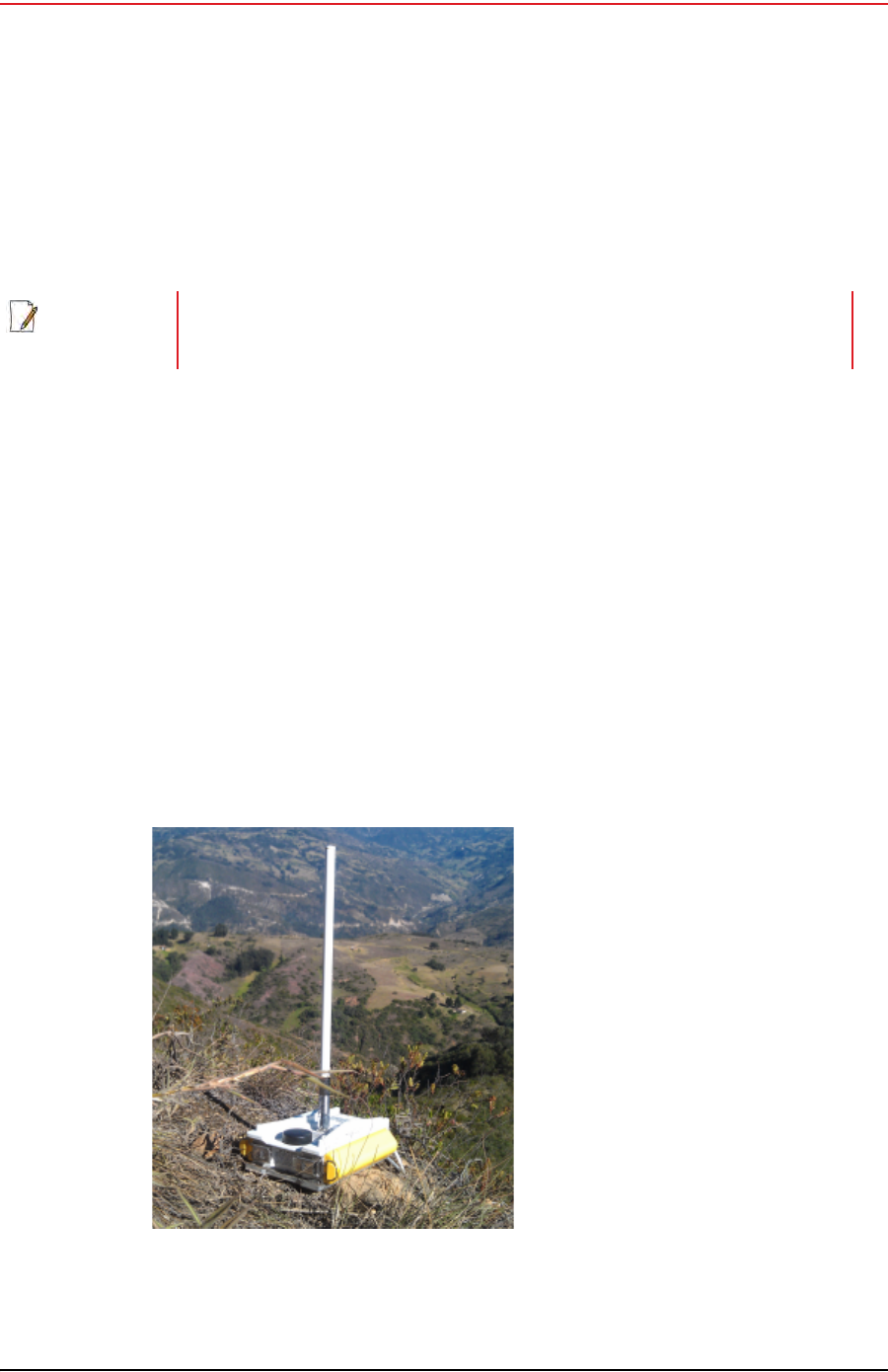
The WRU is shown in the following figure:
NOTE
The batteries (when fully discharged) require 8 hours of continuous charging in
the battery charger connected to an AC source; therefore, the battery charger
should be located at the staging area or in town.
Figure 2–1 WRU
Draft
R01.b RT System 2 v2.3.0 Deployment Guide 13
© 2010-2013 Wireless Seismic, Inc. All rights reserved.
2. Layout
Laying Out the Equipment
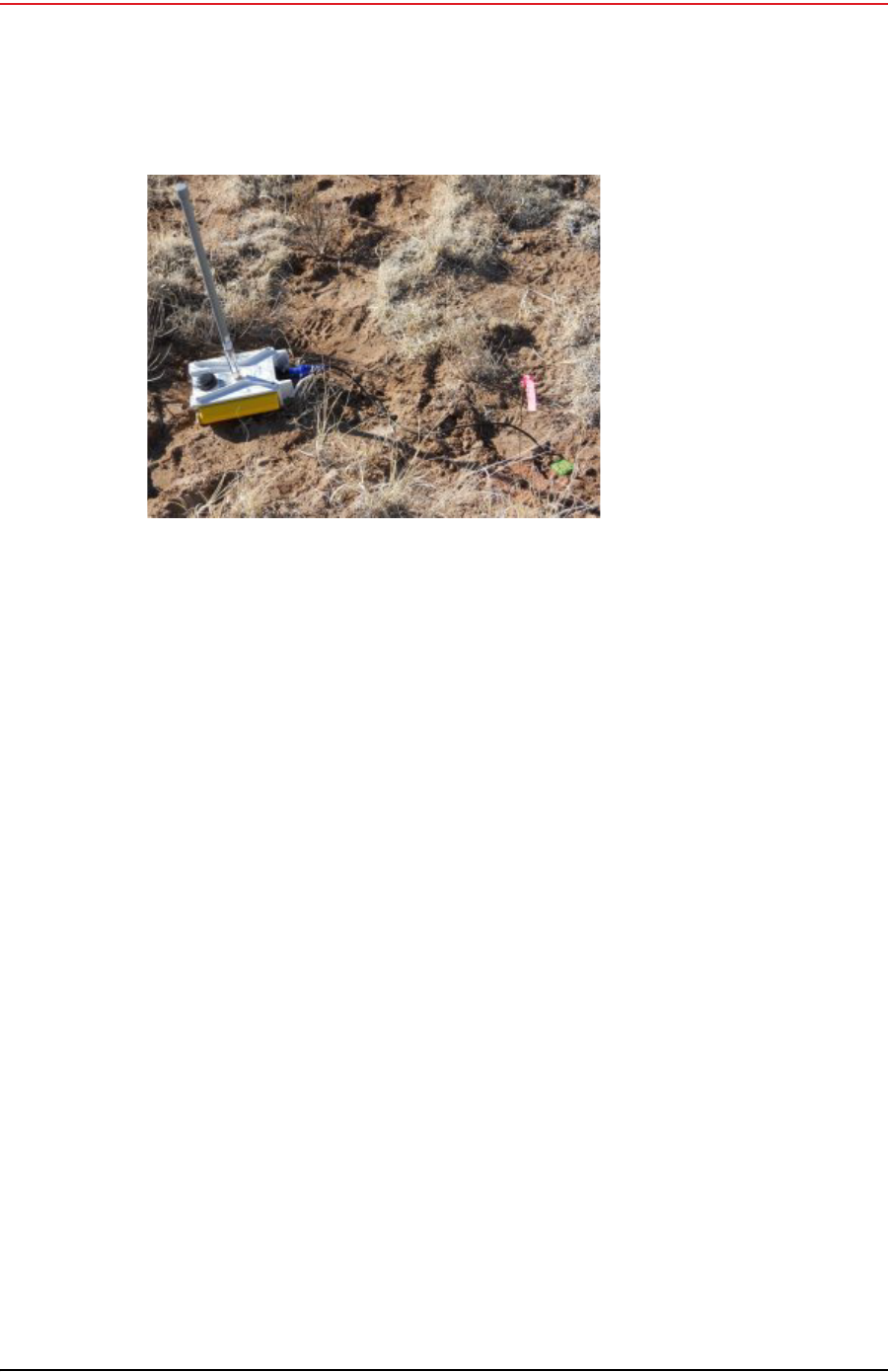
A WRU with a geophone attached is shown in the following figure
Figure 2–2 WRU with Geophone
Draft
14 RT System 2 v2.3.0 Deployment Guide R01.b
© 2010-2013 Wireless Seismic, Inc. All rights reserved.
2. Layout
Laying Out the Equipment
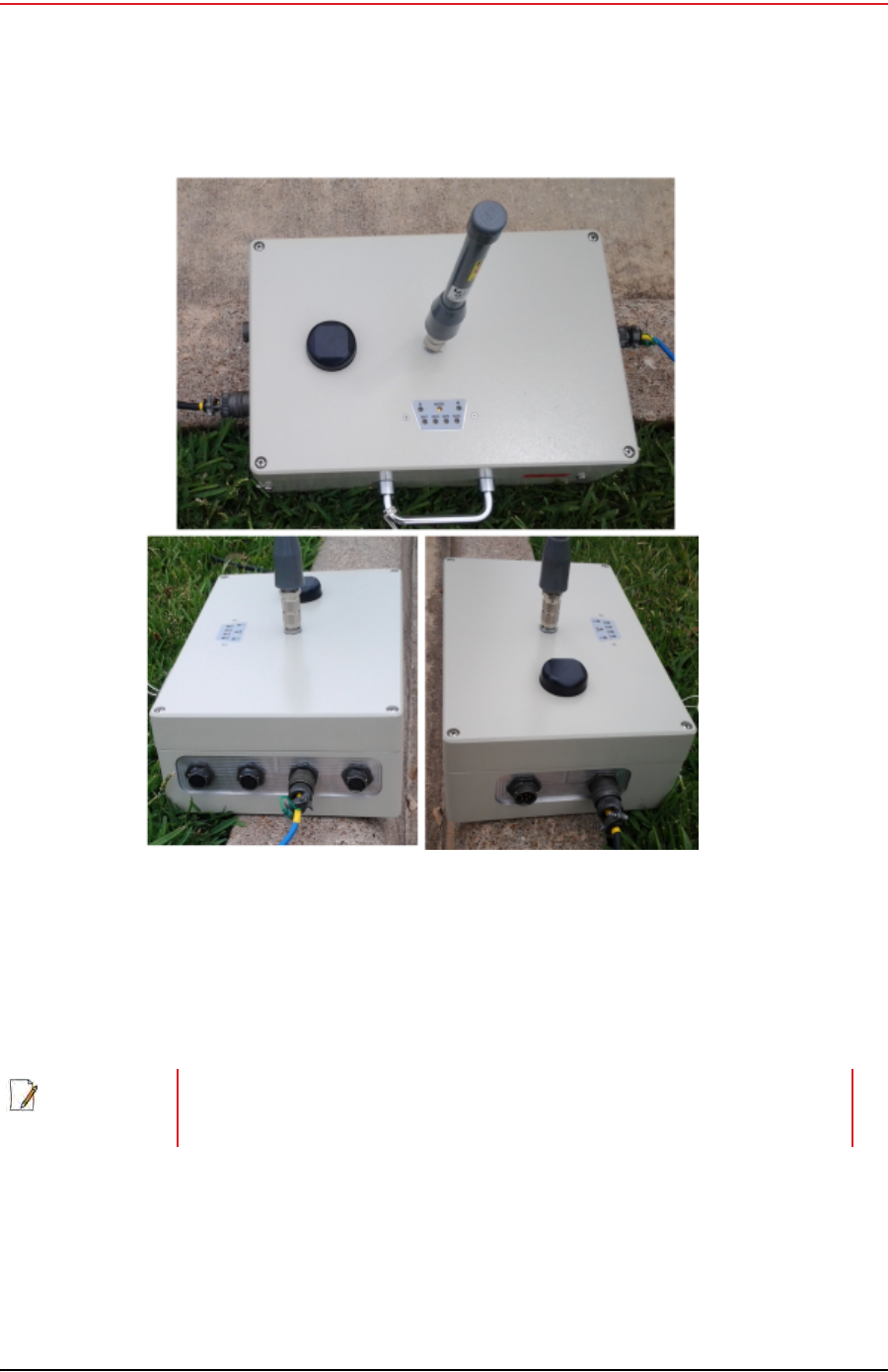
The LIU is shown in the following figure:
2.4.1 Prerequisites
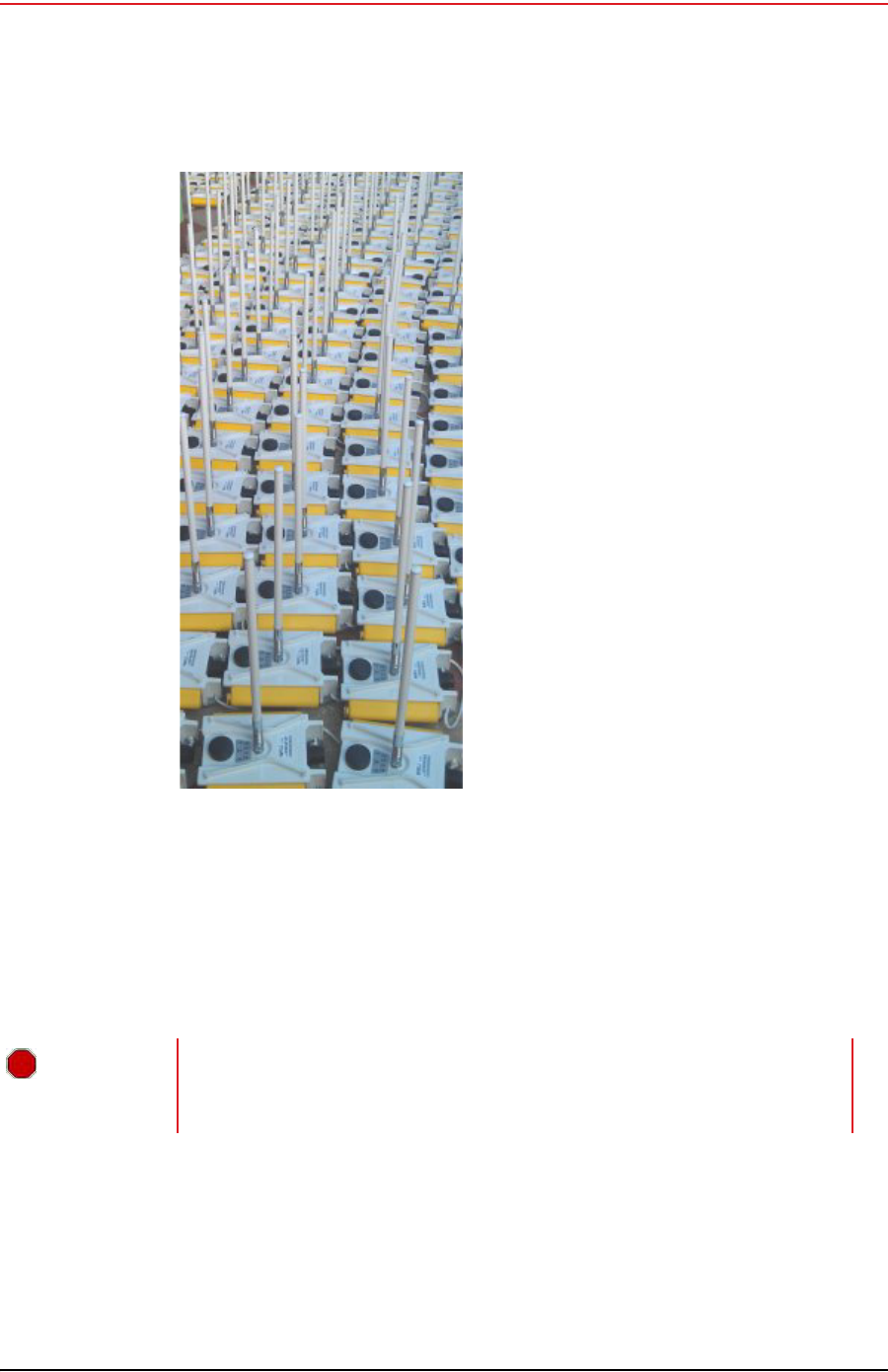
Attach the batteries, antennas, and geophones to the ground equipment prior to going into
the field, or as each unit is placed. If you are assembling as you place the units, ensure that
you have sufficient quantities for each unit, plus a few spares.
Figure 2–3 LIU
NOTE
Do not deploy (tip to power on) the WRUs until they are at the actual location
where they will be placed.
Draft
R01.b RT System 2 v2.3.0 Deployment Guide 15
© 2010-2013 Wireless Seismic, Inc. All rights reserved.
2. Layout
Laying Out the Equipment
The RT System 2 shall be used with only the supplied antennas (Table A–1 Antenna
Specifications, on page 143) attached to the WRU with an integrated type N male connector.
The RT System 2 antennas shall be installed and handled by professionals specifically
designated for this purpose.
Changes or modifications not expressly approved by Wireless Seismic, Inc. can void the
users’s authority to operate the equipment.
Figure 2–4 Assembling WRUs
WARNING
In order to comply with radio frequency (RF) exposure requirements, the RT
System 2 units must be installed so that a minimum separation distance of 20
cm is maintained between the antenna(s) and the body of all persons at all times
during normal operation.

Draft
16 RT System 2 v2.3.0 Deployment Guide R01.b
© 2010-2013 Wireless Seismic, Inc. All rights reserved.
2. Layout
Laying Out the Equipment
2.4.2 Assembling the Ground Equipment
This section describes the process to assemble the ground equipment prior to deployment.
To assemble the ground equipment:
1Gather the equipment:
●WRU
●Antenna
●Antenna Extender
●Geophone
●Batteries
2Gather any special tools and equipment:
●Optional: Nylon grip pliers
●Optional: Loctite® 222
●Safety gear such as vests, hard hat, and gloves.
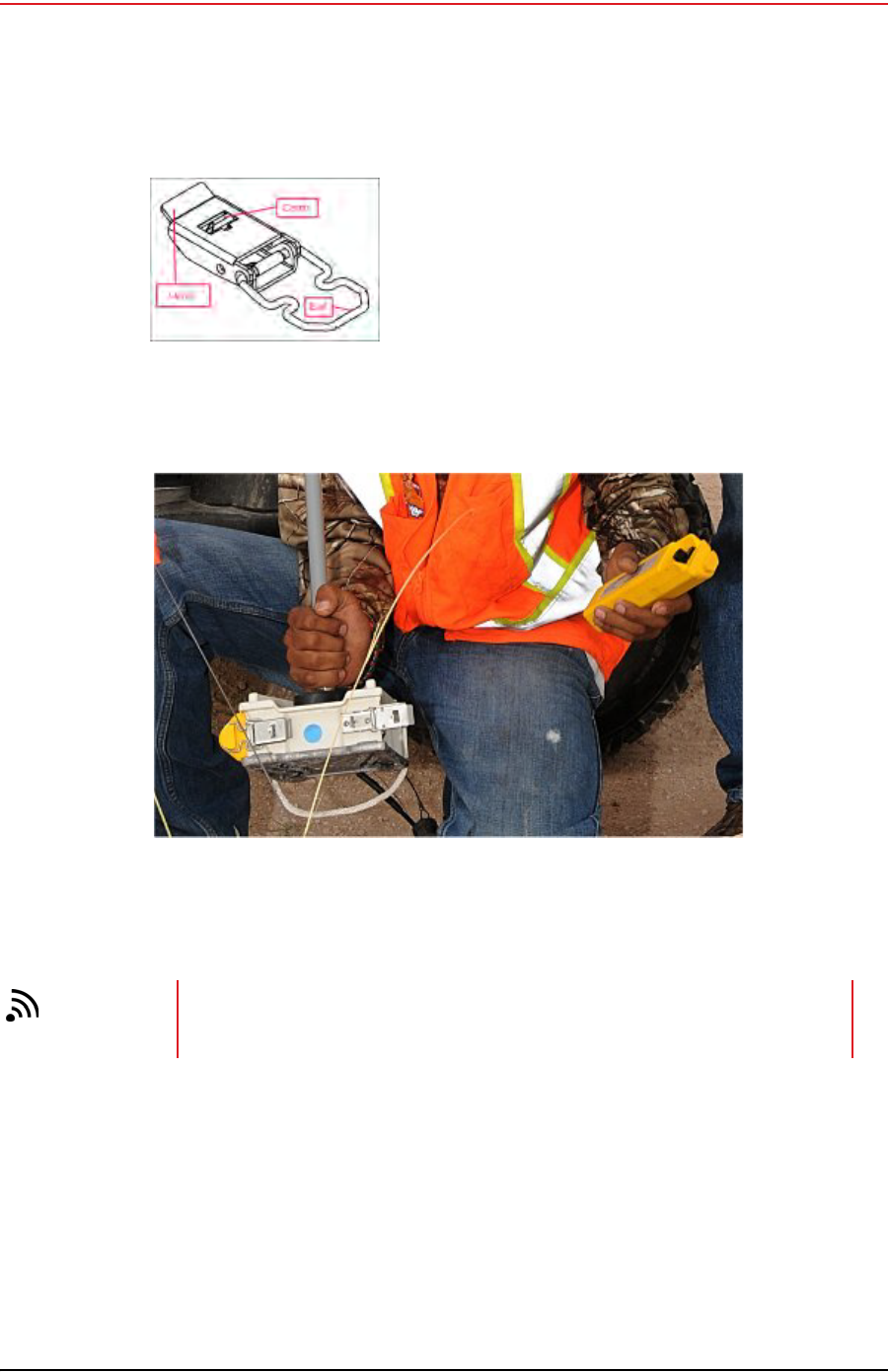
3Attach one or more batteries to the WRU.
●Press the battery into the connector.
●Flip the bail over the molded area on the end of the battery.
●Press the lever until the catch snaps to lock it in place.
AVERTISSEMENT
Afin de se conformer aux normes de la en matière d'exposition aux
radiofréquences (RF), les unités RT System 2 doivent être installées de
manière à garder en permanence une distance minimale de 20 cm entre
la ou les antennes et le corps de toute personne en mode de
fonctionnement normal.
CAUTION
The metal ground equipment can become hot while exposed to the sun. Wear
gloves to handle hot equipment.
PRUDENCE
L'équipement au sol en métal peut devenir très chaud lors de l'exposition au
soleil. Portez des gants pour manipuler l'équipement chaud.
UWAGA
L'équipement au sol en métal peut devenir très chaud lors de l'exposition au
soleil. Portez des gants pour manipuler l'équipement chaud.
Draft
R01.b RT System 2 v2.3.0 Deployment Guide 17
© 2010-2013 Wireless Seismic, Inc. All rights reserved.
2. Layout
Laying Out the Equipment
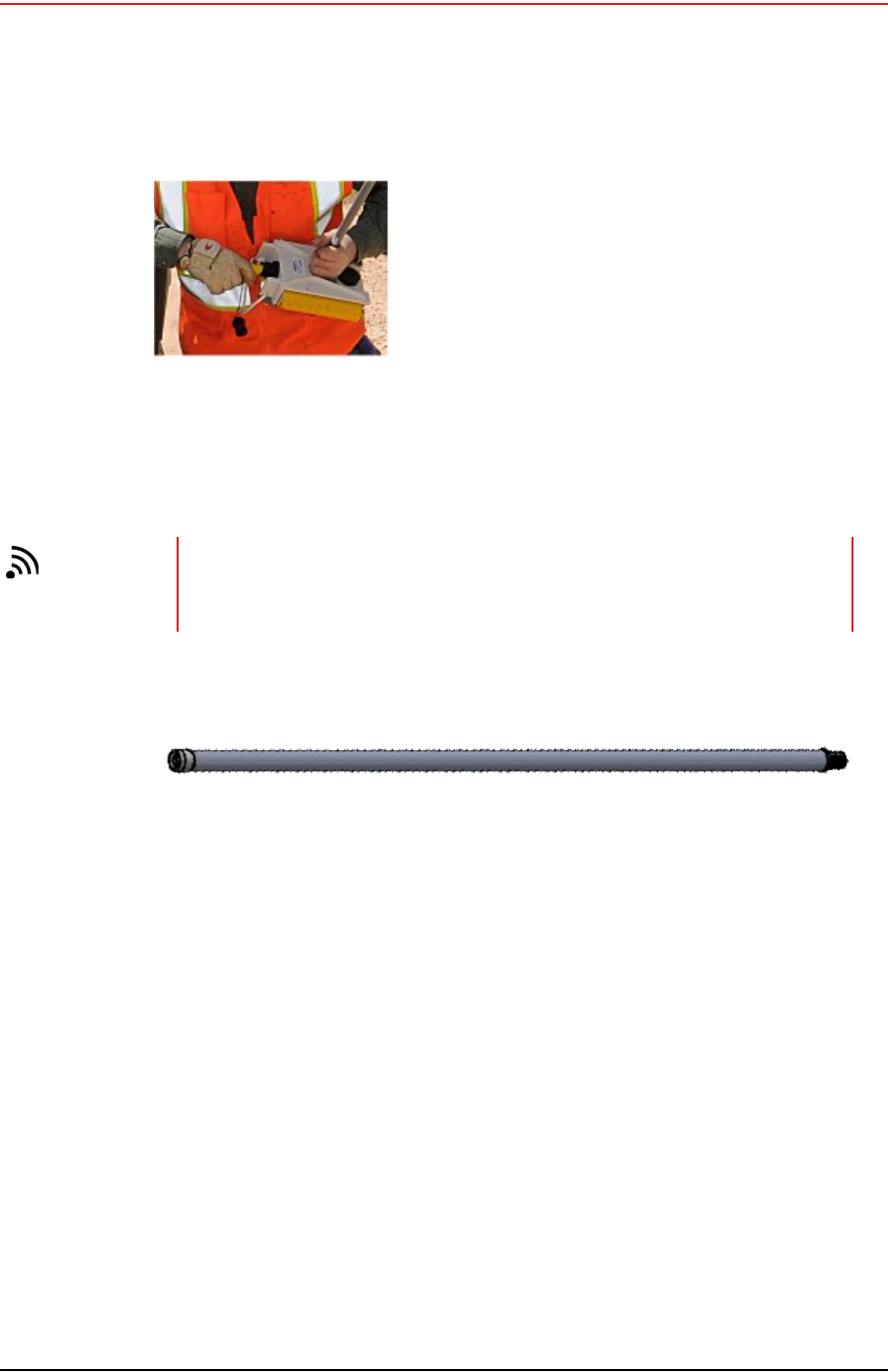
4Attach the geophone to the WRU.
Figure 2–5 Battery Latch
Figure 2–6 Installing the Battery
TIP
To record three components of seismic data with the multiple-channel WRU,
connect three separate arrays of one-component geophones to the same WRU,
or connect a multiple-component geophone to the WRU
Draft
18 RT System 2 v2.3.0 Deployment Guide R01.b
© 2010-2013 Wireless Seismic, Inc. All rights reserved.
2. Layout
Laying Out the Equipment
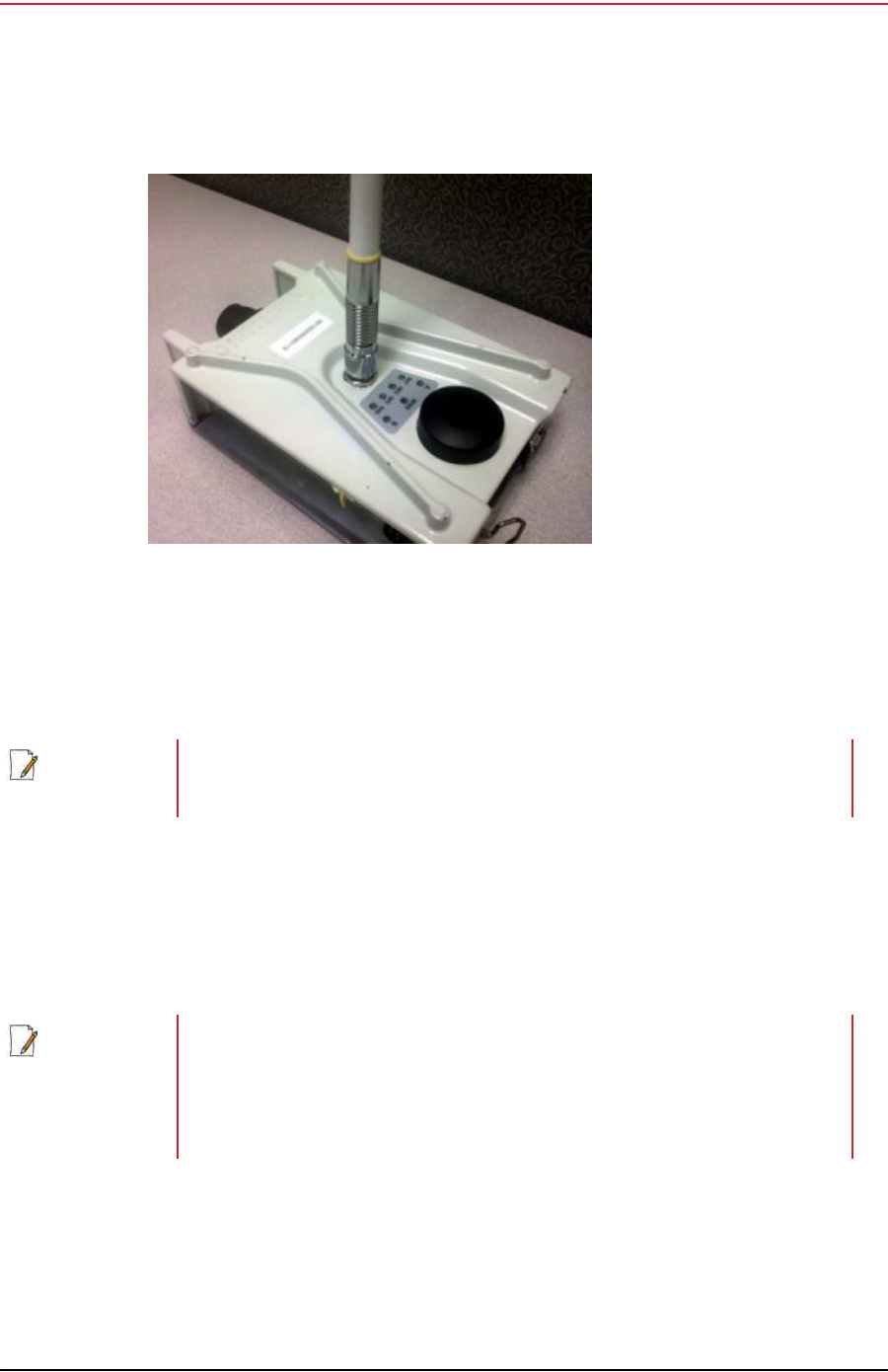
5Attach the antenna with extender to the WRU. Ensure that the antenna connection is
clean, and the antenna is snug and does not wobble.
Figure 2–7 Installing the
Geophone
TIP
The antenna screws on to the WRU in a clockwise direction. It should twist on
easily; do not use force. To ensure that the threads are properly aligned, turn
the connector counter-clockwise until you hear a click indicating that the threads
are aligned, then turn clockwise to tighten.
Figure 2–8 Antenna Extender (65-0091)
Draft
R01.b RT System 2 v2.3.0 Deployment Guide 19
© 2010-2013 Wireless Seismic, Inc. All rights reserved.
2. Layout
Laying Out the Equipment
2.4.3 Placing the WRU in the Field
This section describes the process to ready the ground equipment for interaction with the
central recording system (deployment).
To deploy the WRU:
1Prerequisites:
●The WRU is assembled with battery, geophone, and antenna
2Pick up the WRU and point the geophone connector end towards the ground as shown in
the following figure. After a few seconds, all of the LEDs illuminate:
Figure 2–9 Antenna with Spring Relief
NOTE
Do not deploy (tip to power on) the WRUs until they are at the actual location
where they will be placed.
NOTE
When using a WRU as a Repeater, the deployment instructions are the same,
except a geophone is not required. Repeaters are added to the line segment in
the Spread Manager. See the RT System 2 Operator Guide for more information.
If a geophone is not connected, you can skip the geophone test. See “D. LED
Indicators” on page 161 for more information on skipping the test and the
relevant LED status indicators.

Draft
20 RT System 2 v2.3.0 Deployment Guide R01.b
© 2010-2013 Wireless Seismic, Inc. All rights reserved.
2. Layout
Laying Out the Equipment
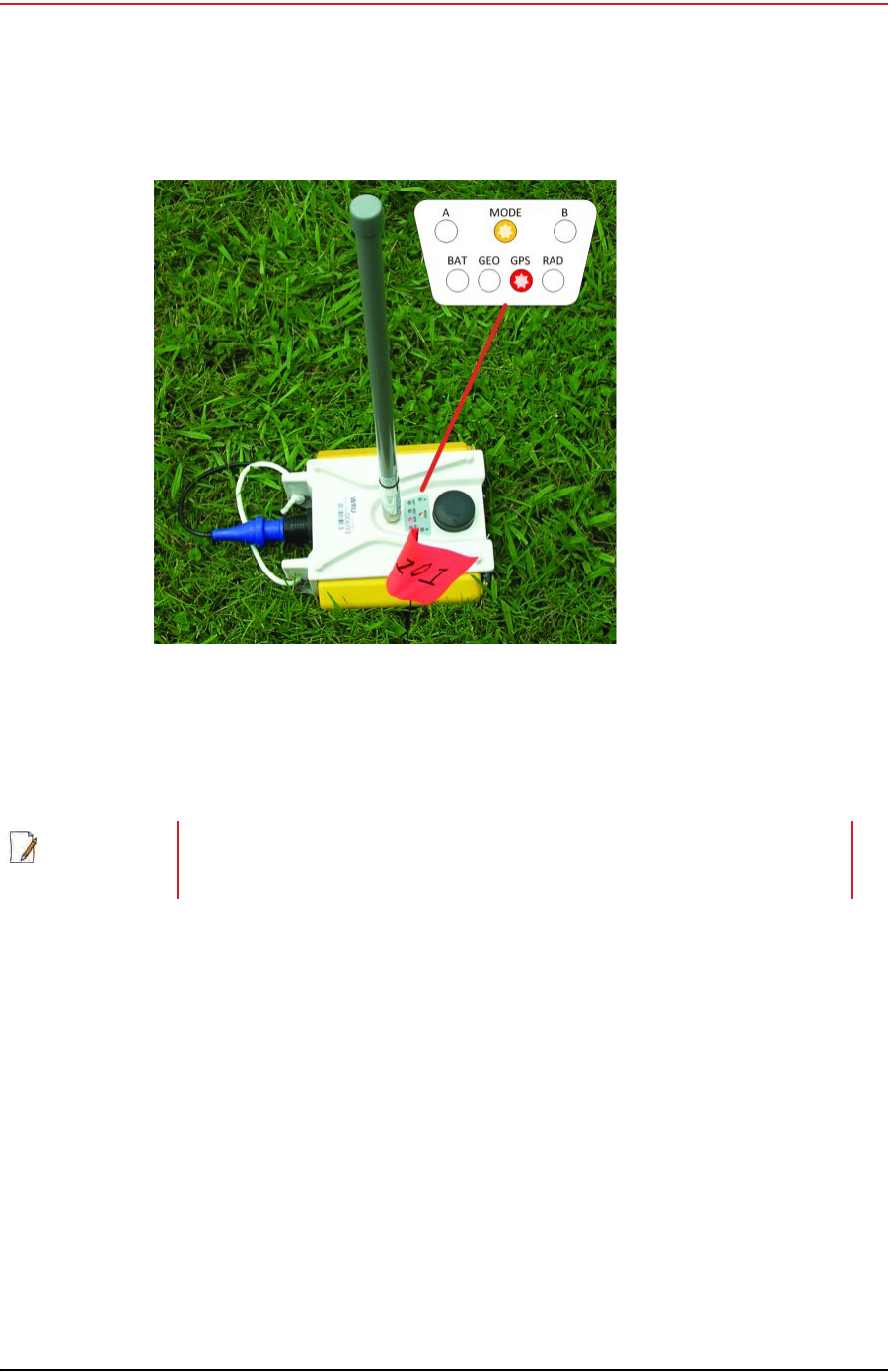
3Place the unit flat on the ground as shown in the following figure:
Figure 2–10 Power on the Unit
Draft
R01.b RT System 2 v2.3.0 Deployment Guide 21
© 2010-2013 Wireless Seismic, Inc. All rights reserved.
2. Layout
Laying Out the Equipment
4The unit first turns on its GPS and acquires a new position. Then it will begin a series of
internal and external tests. The LEDs on the top of the unit indicate the current test and
whether the unit passes or fails each test.
5Press or stomp the geophone into the ground. If you stomp the geophone while the
geophone test is running, the test will fail and the WRU will not deploy.
Verify that the WRU does not show a GEO self-test failure (see the following figure) after
placing the geophone. If the WRU does show a self-test failure, pick up the WRU, point
the geophone connector end towards the ground until all of the LEDs illuminate, and then
place the unit flat on the ground to re-run the self-test.
Figure 2–11 Place the Unit
NOTE
The WRU will attempt to get a 3-meter GPS lock for up to 15 minutes. During
this time, the GPS LED flashes. The WRU will not form until the GPS lock is
achieved. If the GPS lock cannot be achieved, form by serial number.

Draft
22 RT System 2 v2.3.0 Deployment Guide R01.b
© 2010-2013 Wireless Seismic, Inc. All rights reserved.
2. Layout
Laying Out the Equipment
2.4.4 Placing the LIU in the Field
The LIU is part of the backhaul configuration. See “3. Backhaul” on page 23 for more
information.
Figure 2–12 Geophone Self-Test
Failure
NOTE
See “D. LED Indicators” on page 161 for an explanation of the LED status and
error conditions.
If a WRU self test fails, the WRU will continue to the next test.
Skip a self-test by tipping the WRU geophone down and then returning it to the
upright position (flat on the ground).

Draft
RT System 2 v2.3.0 23 Deployment Guide R01.b
© 2010-2013 Wireless Seismic, Inc. All rights reserved.
3
3. Backhaul
3.1 Overview
In network communications, the backhaul is the part of the network that contains the
links and equipment between the core network and the sub networks. The following
table defines concepts associated with backhaul communications:
Table 3–1 Backhaul Communication Concepts
Term Definition Reference
Point-to-Point A method where each radio node in the
network captures and disseminates its own
data as well as serves as a relay for other
radio nodes in the network sending data
along a path, hopping from one node to the
next.
This is how the RT System 2 WRUs send
information to the LIU and how LIUs
communicate with each other in a point-to-
point configuration.
Also called Bucket Brigade or String-of-
Pearls.
•“Point-to-Point Single
Backhaul Data Direction” on
page 25
•“Point-to-Point Dual Backhaul
Data Direction” on page 26
•“4. Point-to-Point Backhaul”
on page 62
Point-to-Multipoint A method where each line station LIU
communicates directly with the recorder LIU.
The backhaul is composed of a number of
line station mast/radio/LIUs pointing to a
recording truck mast/radio/LIU. The following
list describes the most common
configurations:
•Point-to-Multipoint – A single
recording truck radio and multiple line
station radios
•Point-to-Multipoint (redundant) – A
single active recording truck radio, a
backup (redundant) recording truck
radio, and multiple line station radios
•Point-to-Multipoint (custom) – A
combination of recording truck radios
and line station radios
Also called Star Configuration.
•“Point-to-Multipoint Backhaul
Data Direction” on page 27
•“5. Point-to-Multipoint
Backhaul” on page 96

Draft
24 RT System 2 v2.3.0 Deployment Guide R01.b
© 2010-2013 Wireless Seismic, Inc. All rights reserved.
3. Backhaul
Overview
In the RT System 2 system, the LIU communicates with the Central Software System (CSS)
computer in the central recording truck along a backhaul on the
5.8 GHz Industrial, Scientific, and Medical (ISM) radio band. Some smaller systems may not
require a backhaul.
Power over Ethernet
(PoE) A technology that passes electrical power
along an Ethernet cable. PoE is used where
DC power is not available and USB
unsuitable. Power can be supplied at the end
of a network span or somewhere in the
middle.
PoE switches supply power at the end of a
span. The RT System 2 Line Interface Unit
(LIU) acts as a switch with PoE.
PoE injectors supply power somewhere
between the PoE switch and the powered
device. They inject power and do not affect
the data. A discrete PoE injector is used
when configuring the backhaul radios.
•“Ubiquiti Rocket/Bullet Private
Network Connection” on page
105
•“Ubiquiti NanoStation Private
Network Connection” on page
70
Table 3–1 Backhaul Communication Concepts
Term Definition Reference
Draft
R01.b RT System 2 v2.3.0 Deployment Guide 25
© 2010-2013 Wireless Seismic, Inc. All rights reserved.
3. Backhaul
Overview
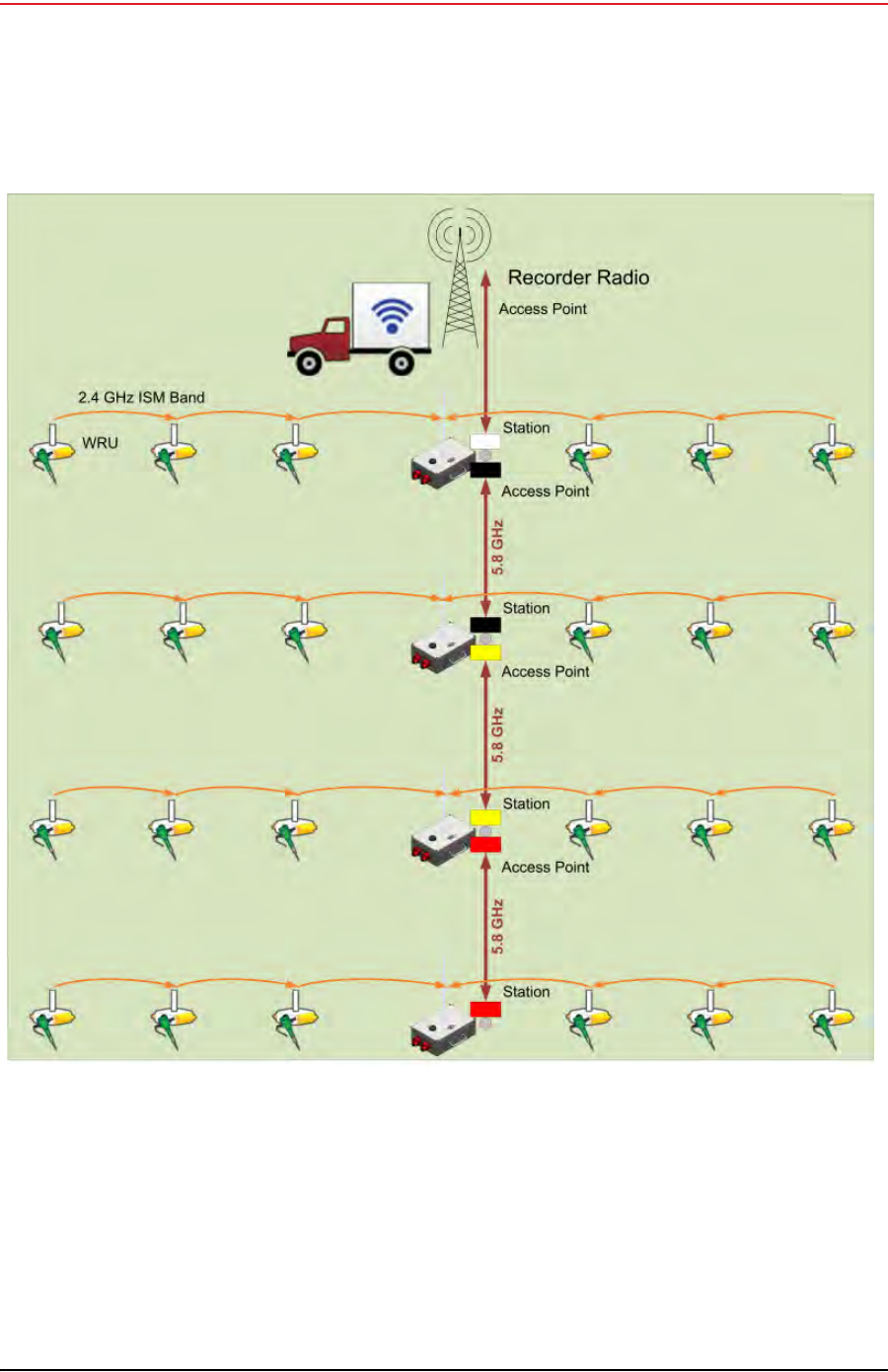
The following figure illustrates the components and data flow for a four-line, single-backhaul,
point-to-point line:
Figure 3–1 Point-to-Point Single Backhaul Data Direction
Draft
26 RT System 2 v2.3.0 Deployment Guide R01.b
© 2010-2013 Wireless Seismic, Inc. All rights reserved.
3. Backhaul
Overview
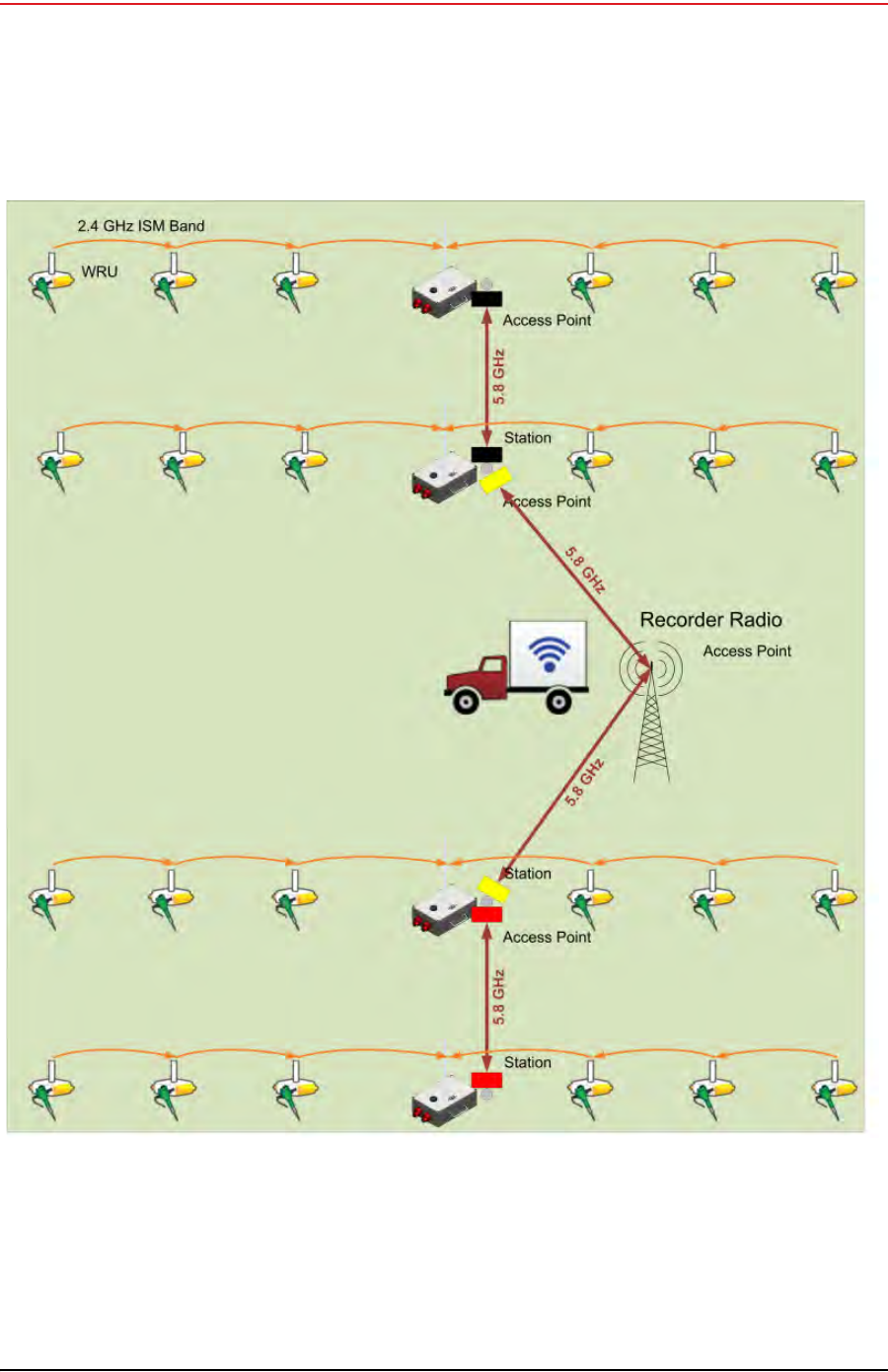
The following figure illustrates the components and data flow for a four-line, dual-backhaul,
point-to-point line:
Figure 3–2 Point-to-Point Dual Backhaul Data Direction
Draft
R01.b RT System 2 v2.3.0 Deployment Guide 27
© 2010-2013 Wireless Seismic, Inc. All rights reserved.
3. Backhaul
Overview
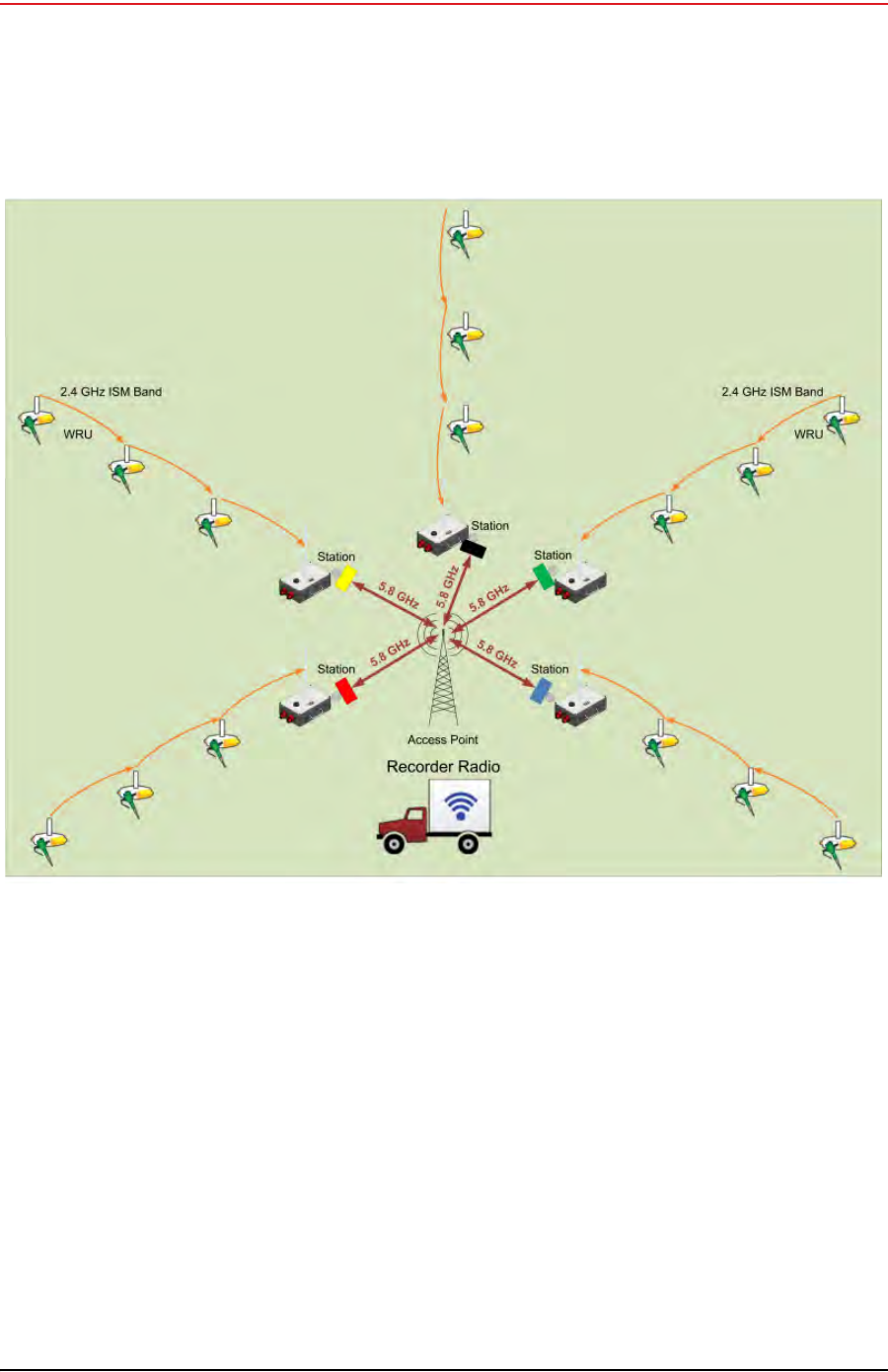
The following figure illustrates the components and data flow for a point-to-multipoint, star
configuration:
Figure 3–3 Point-to-Multipoint Backhaul Data Direction

Draft
28 RT System 2 v2.3.0 Deployment Guide R01.b
© 2010-2013 Wireless Seismic, Inc. All rights reserved.
3. Backhaul
Backhaul Components
3.2 Backhaul Components
The backhaul components are either line station (remote) backhaul components or recorder
(central) backhaul components. Line station components are the components that are not
physically located next to the recording truck. Recorder components are physically located at
the recording truck.
The following tables and figures illustrate the backhaul components.
Table 3–2 Backhaul Components, LIU, Mast, and Fiber
#EA Item Line Recorder Reference
L-1 1LIU Kit (15-0041) Y Y —
L-2 1 • LIU (10-0016) Y Y “LIU” on page 35
L-3 1 • Cable, LIU to Battery, yellow (60-
0034) YY“Cable Assemblies” on page
42
L-4 — • An antenna is required to
communicate with the WRUs. YY“LIU and WRU Antennas” on
page 36
L-5 — • A 12 V DC Battery or power supply
is required, but not included. YY“LIU and WRU Antennas” on
page 36
M-1 1Mast Kit (15-0046) Y Y —
M-2 1 • Mast (15-0051) Y Y “Mast and Base” on page 46
M-3 1 – 20 ft Telescoping Mast (70-
0130) YY—
M-4 1 – Mast Guy Ring (70-0133) YY—
M-5 1 – Bracket, Omni Antenna
(70-0136) YY—
B-1 1• Base (55-0050) Y Y “Mast and Base” on page 46
B-2 2 – Knob, 10-32 x 1/2 inch
Threaded Stud (70-0137) YY—
BK-1 1• Backpack Kit (15-0014) Y Y “Setting up the Backhaul” on
page 47
BK-2 1 – Backpack, Red/Grey (70-
0059) YY—
BK-3 4 – Antenna Mast Guy Line, 4
mm, 15.25 m, Orange (70-
0057)
YY—
BK-4 4 – Tent Stake, Steel, 12 in
(70-0061) (hard ground
stakes)
YY—
BK-5 4 – Tent Stake, Plastic, 16 in,
Orange (70-0060) (soft
ground stakes)
YY—
BK-6 5 – Nail, 12 in (70-0062) YY—
BK-7 4 – Guy Line Holder (70-0063) YY—

Draft
R01.b RT System 2 v2.3.0 Deployment Guide 29
© 2010-2013 Wireless Seismic, Inc. All rights reserved.
3. Backhaul
Backhaul Components
BK-8 1 – Hammer, 2.5 lb (70-0064) YY—
BK-9 1 – Pry Bar, 15 in (70-0065) YY—
BK-10 2 – Flagging Roll, Orange (70-
0066) YY—
BK-11 1 – Compass Sighting (70-
0067) YY“F. Using a Compass” on
page 182
BK-12 5 – Hose Clamp, 2 in (70-
0142) YY—
BK-13 2 – Hose Clamp, 0.5 in (70-
0084) YY—
BK-14 15
ft – Wire, 18AWG Green (65-
0077) YY—
F-1 1• Fiber Backhaul Kit, 250 m (15-
0037)
– OR –
• Fiber Backhaul Kit, 500 m (15-
0038)
Y Y —
F-2 1 – Media Converter (60-0017) YY“Cable Assemblies” on page
42
F-3 1 – Cable, Backhaul Jumper
(60-0033) YY“Cable Assemblies” on page
42
F-4 1 –Cable, Fiber Optic,
Armored, 250 m (60-0026)
– OR –
–Cable, Fiber Optic,
Armored, 500 m (60-0023)
YY“Cable Assemblies” on page
42
Table 3–2 Backhaul Components, LIU, Mast, and Fiber (cont.)
#EA Item Line Recorder Reference
Table 3–3 Backhaul Components, Radios
#EA Item Line Recorder Reference
LB-1 1
1
Ubiquiti Bullet Radio
Line Radio Kit (US) (15-0044)
– OR –
Line Radio Kit (Intl) (15-0053)
Y — —
LB-2 2 • 5 GHz Radio (US) (56-0019 US)
– OR –
• 5 GHz Radio (Intl) (56-0024)
Y—“Bullet Line Station Radios”
on page 155
LB-3 1 • 5.8 GHz 6 dBi Omni Antenna (65-
0179) Y—“Bullet Line Station Antenna”
on page 147

Draft
30 RT System 2 v2.3.0 Deployment Guide R01.b
© 2010-2013 Wireless Seismic, Inc. All rights reserved.
3. Backhaul
Backhaul Components
LB-4 1 • 5.8 GHz 19 dBi Panel Antenna, W
Polarization (56-0020) Y—“Bullet Line Station Antenna”
on page 147
LB-5 1 • 5.8 GHz 19 dBi Panel Antenna, G
Polarization (56-0021) Y—“Bullet Line Station Antenna”
on page 147
LB-6 1 • Bracket, Line Radio (55-0047) Y — —
LB-7 2 • Cable, Armored Ethernet, 10 ft,
White (60-0053) Y—“Cable Assemblies” on page
42
LB-8 1 • Cable, Armored Ethernet, 15 ft,
Green (60-0055) Y—“Cable Assemblies” on page
42
LB-9 2 • Cable, Shielded Ethernet, 15 ft,
Black (60-0054) Y—“Cable Assemblies” on page
42
LB-10 1 • Carrying Case (70-0138) Y — —
LB-11 1 • Hose Clamp, 4 in (70-0140) Y — —
LB-12 1 • Hose Clamp, 2 in (70-0142) Y — —
LB-13 1 • Nut Driver, 5/16 in (70-0147) Y — —
LB-14 2 • Elbow connector (comes with 15-
0044 and 15-0053) Y——
RR-1 1
1
Ubiquiti Rocket Radio
Recorder Radio Kit (US) (15-0045)
– OR –
Recorder Radio Kit (Intl) (15-0055)
— Y —
RR-2 1
1
• Recorder Radio and Antenna (US)
(15-0052)
– OR –
• Recorder Radio and Antenna (Intl)
(15-0054)
—Y—
RR-3 1
1
– 5 GHz Radio (US) (75-
0031 US)
– OR –
– 5 GHz Radio (Intl) (75-
0038)
—Y“Rocket Recorder Radios” on
page 157
RR-4 1 – 5 GHz 13 dBI Dual Polarity
Omni Antenna (65-0178) —Y“Rocket Recorder Antenna”
on page 150
RR-5 1 – Shield, Recorder Radio
Omni (70-0129) —Y“Cable Assemblies” on page
42
RR-6 1 – Bracket GPS Antenna
Holder (70-0148) —Y—
RR-7 – GPS Antenna (comes with
15-0045 and 15-0055) —Y—
Table 3–3 Backhaul Components, Radios (cont.)
#EA Item Line Recorder Reference

Draft
R01.b RT System 2 v2.3.0 Deployment Guide 31
© 2010-2013 Wireless Seismic, Inc. All rights reserved.
3. Backhaul
Backhaul Components
RR-8 1 – Cable, Shielded Ethernet, 3
ft, Black (65-0104) —Y“Cable Assemblies” on page
42
—1 – PoE Injector (75-0023) ——•“Ubiquiti Rocket/Bullet
Private Network
Connection” on page 105
•“Ubiquiti NanoStation
Private Network
Connection” on page 70
RR-9 1 • Surge Protector (75-0021) — Y “Surge Protector Box” on
page 41
RR-10 1 • Cable, Shielded Ethernet, 120 ft,
Black (60-0038) —Y“Cable Assemblies” on page
42
RR-11 60
ft • Wire, 18AWG Green (65-0077) — Y —
RR-12 1 • Case, Recorder Radio Kit (70-
0139) —Y—
RR-13 1 • Nut Driver, 5/16 in (70-0147) — Y —
RN-1 2
2
Ubiquiti NanoStation Radio Kit
• Recorder Radio Kit (US) (15-0068)
– OR –
• Recorder Radio Kit (Intl) (15-0067)
— Y —
RN-2 2 – 5 GHz Radio Assembly
(US) (56-0035 US)
– OR –
– 5 GHz Radio Assembly
(Intl) (56-0032)
—Y—
RN-3 2 – Cable, Shielded Ethernet,
120 ft, Black with Red
shrink tube (60-0036)
—Y—
RN-4 3 – Strain Relief, Wedge Clamp
.160/.330 DIA. (70-0171) —Y—
RN-5 1 – Case, NanoStation Line
Radio (70-0176) —Y—
RN-6 1 – Nut driver, 7/16 in, Brown
(70-0178) —Y—
RN-7 1 – Wrench, Double Open-end,
7/16 in - 1/2 in (70-0179) —Y—
Table 3–3 Backhaul Components, Radios (cont.)
#EA Item Line Recorder Reference
Draft
32 RT System 2 v2.3.0 Deployment Guide R01.b
© 2010-2013 Wireless Seismic, Inc. All rights reserved.
3. Backhaul
Backhaul Components
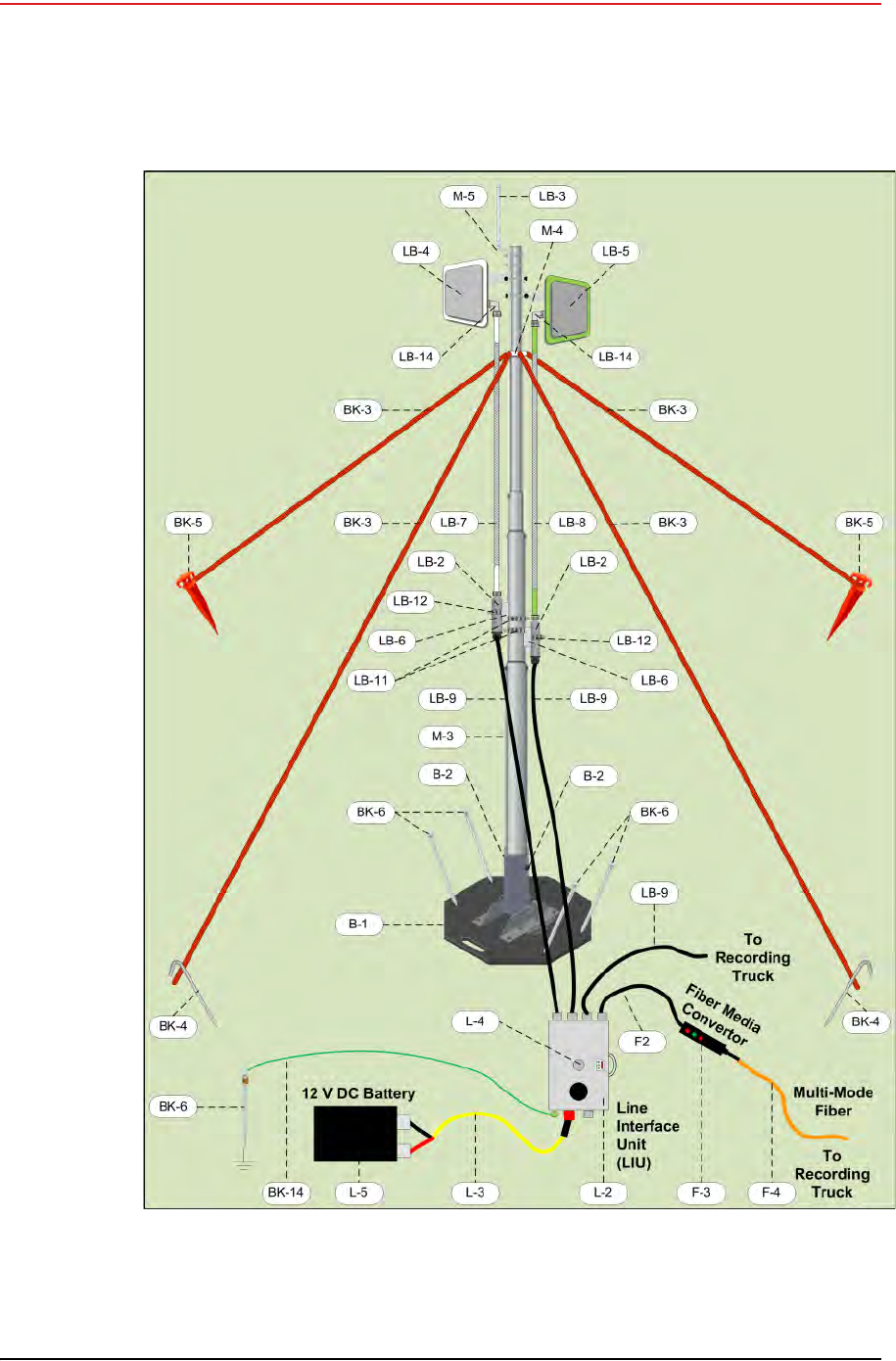
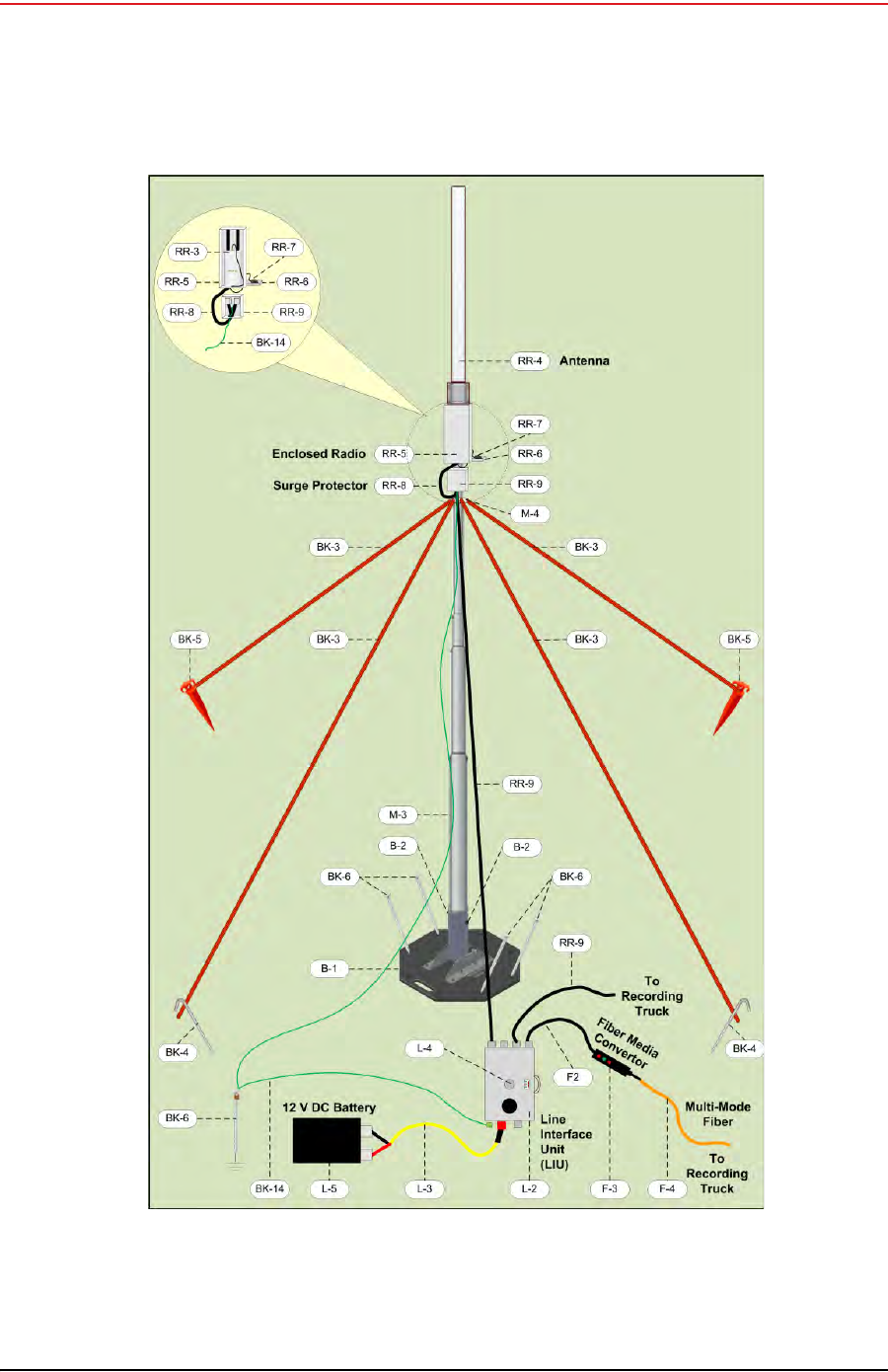
Figure 3–4 Line Station Backhaul Components
Draft
R01.b RT System 2 v2.3.0 Deployment Guide 33
© 2010-2013 Wireless Seismic, Inc. All rights reserved.
3. Backhaul
Backhaul Components
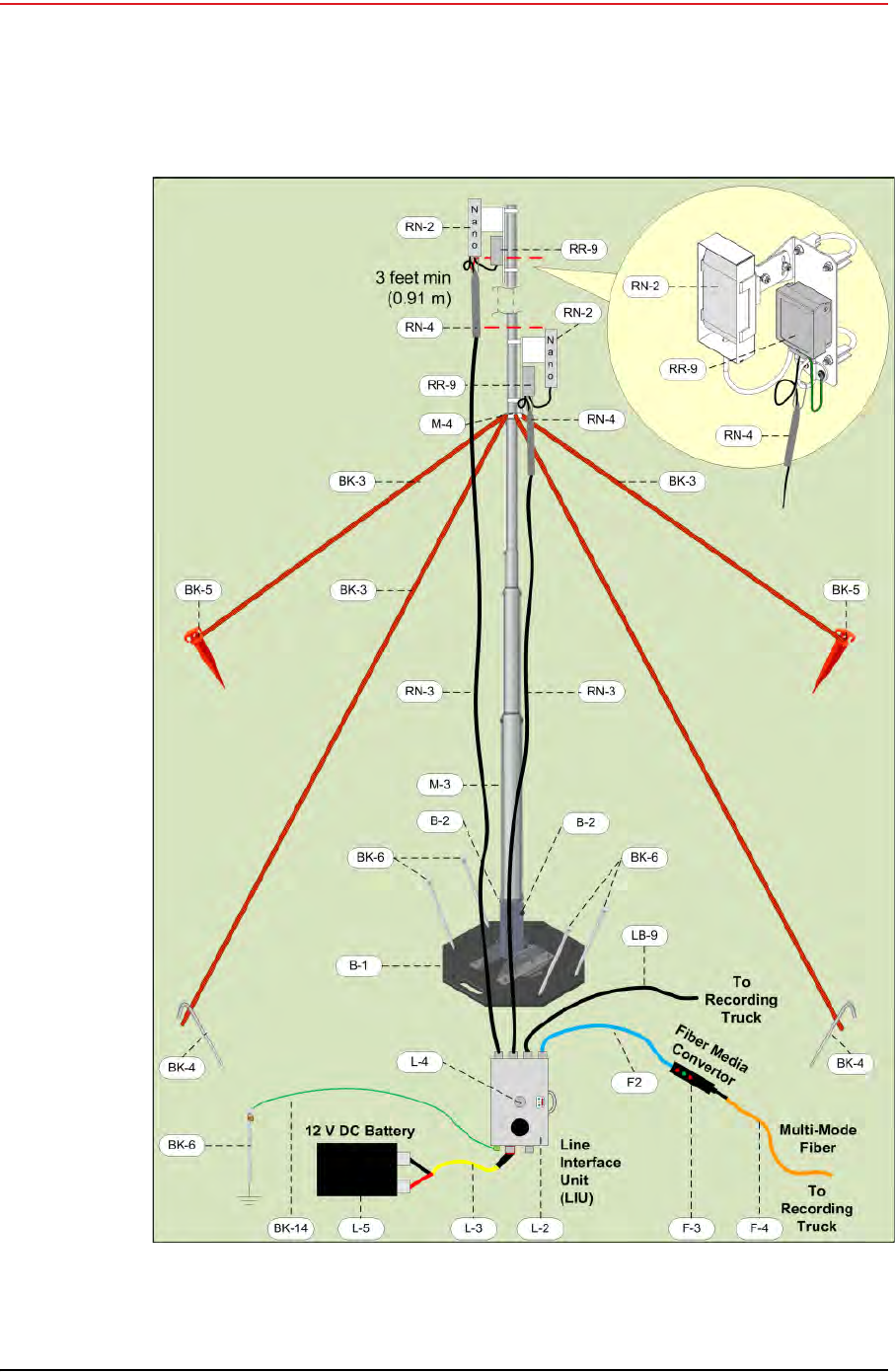
Figure 3–5 Recorder Backhaul Components
Draft
34 RT System 2 v2.3.0 Deployment Guide R01.b
© 2010-2013 Wireless Seismic, Inc. All rights reserved.
3. Backhaul
Backhaul Components
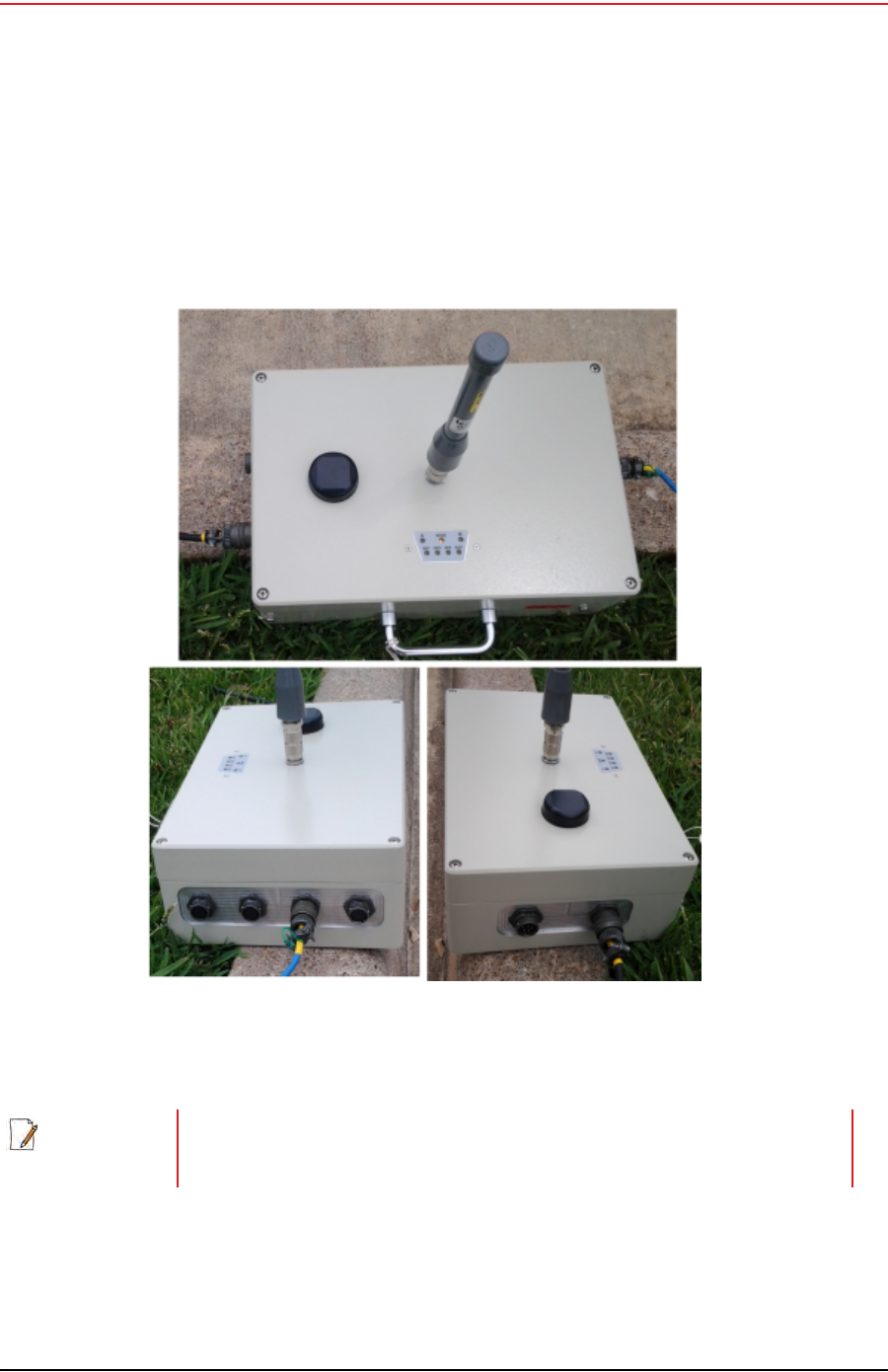
Figure 3–6 Recorder/Line NanoStation Backhaul Components
Draft
R01.b RT System 2 v2.3.0 Deployment Guide 35
© 2010-2013 Wireless Seismic, Inc. All rights reserved.
3. Backhaul
Backhaul Components
3.2.1 LIU
The data transmitted by the WRUs is collected by the Line Interface Unit (LIU). The LIU acts
as the interface between the network of WRUs and the backhaul equipment. The LIU has an
Ethernet port that can be connected directly to a computer, or more commonly, to an
armored fiber optic cable or a backhaul radio. Backhaul radios operate in the 5.8 GHz band.
A second array of WRUs can be deployed on the other side of the LIU, symmetrically or
asymmetrically around the LIU. The LIU is shown in the following figure:
Before the Central Software System can communicate with the LIU, you must set up the
backhaul.
Figure 3–7 Line Interface Unit (LIU)
NOTE
See “D. LED Indicators” on page 161 for an explanation of the LED status and
error conditions.

Draft
36 RT System 2 v2.3.0 Deployment Guide R01.b
© 2010-2013 Wireless Seismic, Inc. All rights reserved.
3. Backhaul
Backhaul Components
3.2.2 LIU Battery or Power Supply
Power is supplied to the LIU components by way of a 12 V DC battery or power supply. The
external battery is not supplied as part of the backhaul system.
See the Troubleshooting Guide, Best Practices chapter, LIU Batteries section for instructions
on how to hot-swap the LIU battery.
3.2.3 LIU and WRU Antennas
The following table lists the supported antennas for the LIUs and the WRUs. The remote and
central backhauls use the same antennas:
There is an auto-power-leveling feature built into the firmware. It works in conjunction with
the RSSI parameters to keep the power at a defined level. If the Unit Thresholds →
Command (or Data) RSSI parameter is set to any number greater than zero, power-
leveling is enabled.
3.2.4 Line Radios
There are two line radio options provided as follows:
Ubiquiti Bullet – Currently supported for point-to-point (string-of-pearls) backhauls:
●5 GHz Radio (US) (56-0019 US)
●5 GHz Radio (Intl) (56-0024)
Ubiquiti NanoStation M5 – Currently supported for point-to-multi-point (star)
backhauls:
●5 GHz Radio Assembly (US) (56-0035 US)
●5 GHz Radio Assembly (Intl) (56-0032)
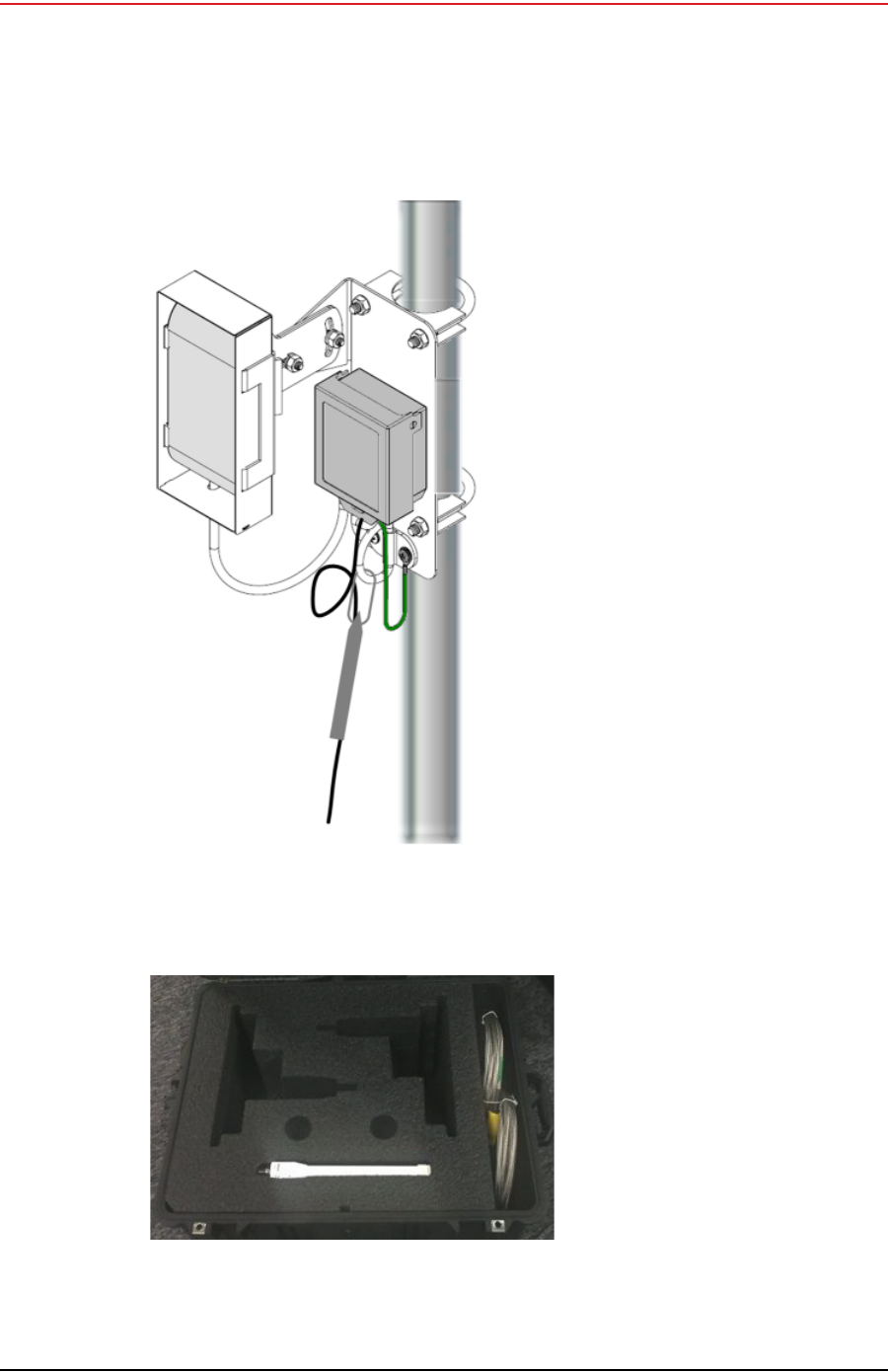
The Ubiquiti Bullet line radio is normally used with a directional antenna; however an
omnidirectional antenna is also included. The antennas are attached at the top of the mast
and the radio is attached to the mast at eye level as shown in the following figure.
TIP
The backhaul power requirements vary depending on the hardware in use and
period of use. For example, you may be using one or two radios. Supply enough
power to ensure there is enough power for the entire duration of the time you
are using the backhaul.
Table 3–4 Antenna Specifications, WRU/LIU
Model Frequency
(MHz) Gain Vertical
Beam Width Weight Dimension
(Length x
Diameter)
WSI 65-0204
(antenna-standard) 2400 5.5 dBi 25° 0.4 lbs
0.2 kg 32 x 0.6 in
810.5 x 15 mm
WSI 65-0091
(extender-standard) 2400 0 dBi N/A 0.6 lbs
0.3 kg 30 x 0.7 in
762 x 18.5 mm

Draft
R01.b RT System 2 v2.3.0 Deployment Guide 37
© 2010-2013 Wireless Seismic, Inc. All rights reserved.
3. Backhaul
Backhaul Components
Figure 3–8 Line Radio and Antennas, Bullet
Draft
38 RT System 2 v2.3.0 Deployment Guide R01.b
© 2010-2013 Wireless Seismic, Inc. All rights reserved.
3. Backhaul
Backhaul Components
The Ubiquiti NanoStation M5 radio has an integrated (internal) antenna. The radio is attached
at the top of the mast with a surge protector as shown in the following figure:
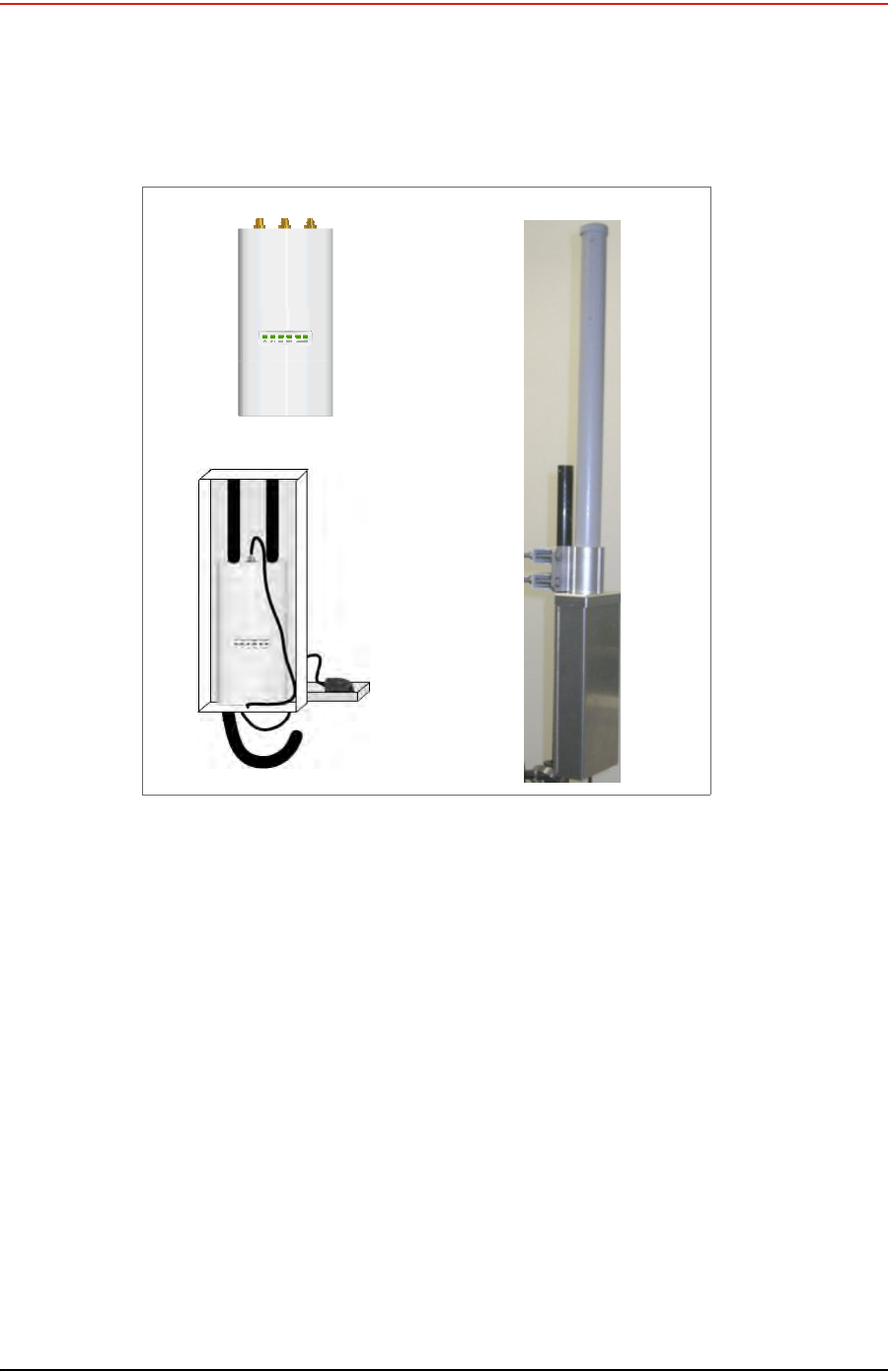
The line radios and antennas can be stored in their protective case when not in use:
Figure 3–9 Line Radio, NanoStation
Figure 3–10 Bullet Radio Case (70-0138)

Draft
R01.b RT System 2 v2.3.0 Deployment Guide 39
© 2010-2013 Wireless Seismic, Inc. All rights reserved.
3. Backhaul
Backhaul Components
See “C. Radio Specifications” on page 147 for FCC information and other technical
specifications.
3.2.5 Recorder Radio
There are two recorder radio options provided as follows:
Ubiquiti Rocket – Currently supported for point-to-point (string-of-pearls) backhauls:
●Recorder Radio and Antenna (US) (15-0052)
●Recorder Radio and Antenna (Intl) (15-0054)
Ubiquiti NanoStation M5 – Currently supported for point-to-multi-point (star)
backhauls
●5 GHz Radio Assembly (US) (56-0035 US)
●5 GHz Radio Assembly (Intl) (56-0032)
Figure 3–11 NanoStation Radio Case (70-0176)
Draft
40 RT System 2 v2.3.0 Deployment Guide R01.b
© 2010-2013 Wireless Seismic, Inc. All rights reserved.
3. Backhaul
Backhaul Components
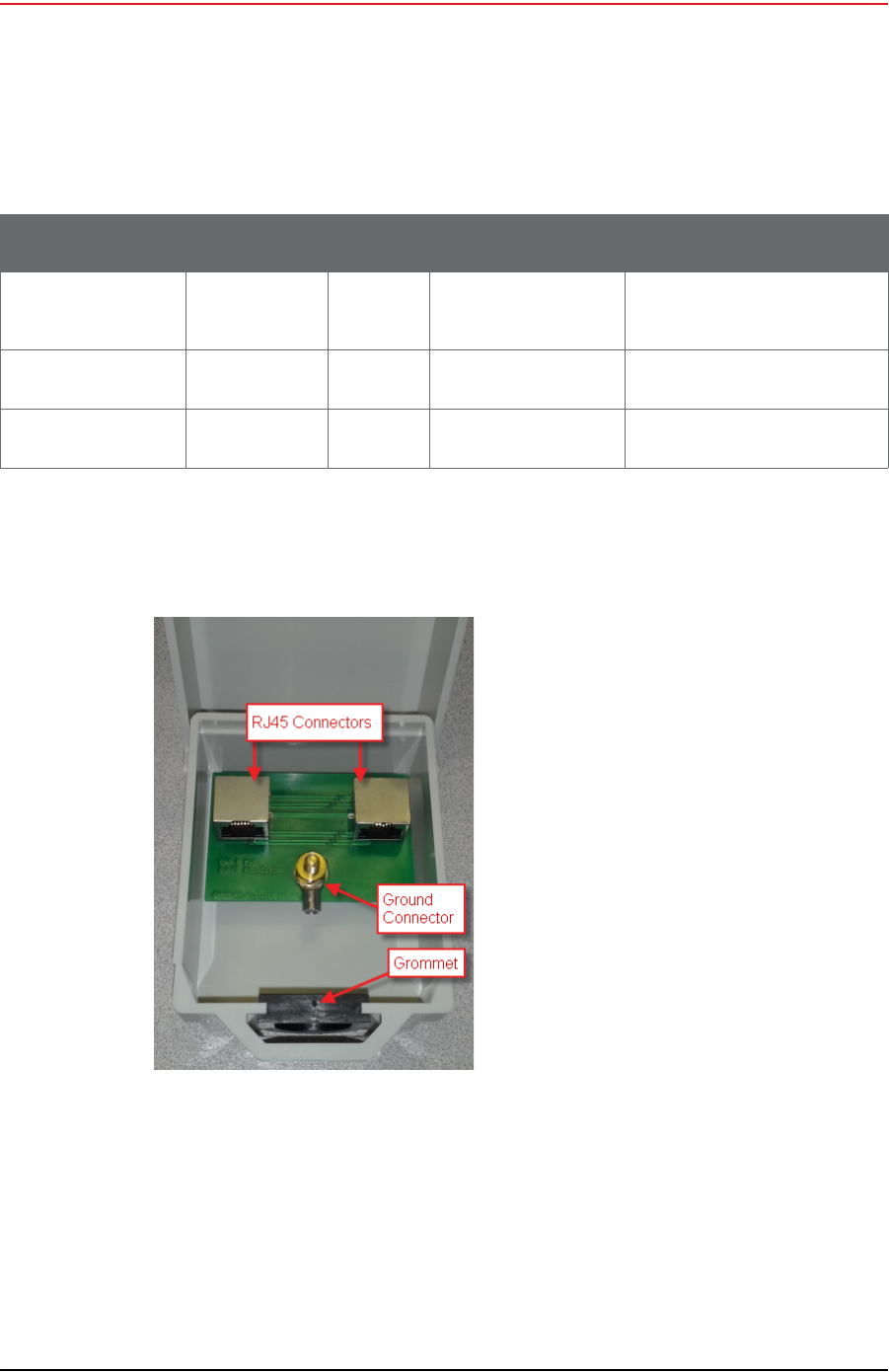
The Ubiquiti Rocket recorder radio is used with an omnidirectional antenna. It is attached to
the top of the mast and is shown in the following figure. The Rocket radio is completely
enclosed in a protective metal case when installed.
The Ubiquiti NanoStation M5 radio has an integrated (internal) antenna. The radio is attached
at the top of the mast with a surge protector as shown in “Line Radio, NanoStation” on page
38.
See “C. Radio Specifications” on page 147 for FCC information and other technical
specifications.
Figure 3–12 Recorder Radio
Draft
R01.b RT System 2 v2.3.0 Deployment Guide 41
© 2010-2013 Wireless Seismic, Inc. All rights reserved.
3. Backhaul
Backhaul Components
3.2.6 Radio Antennas
The following table lists the supported antennas for the radios:
3.2.7 Surge Protector Box
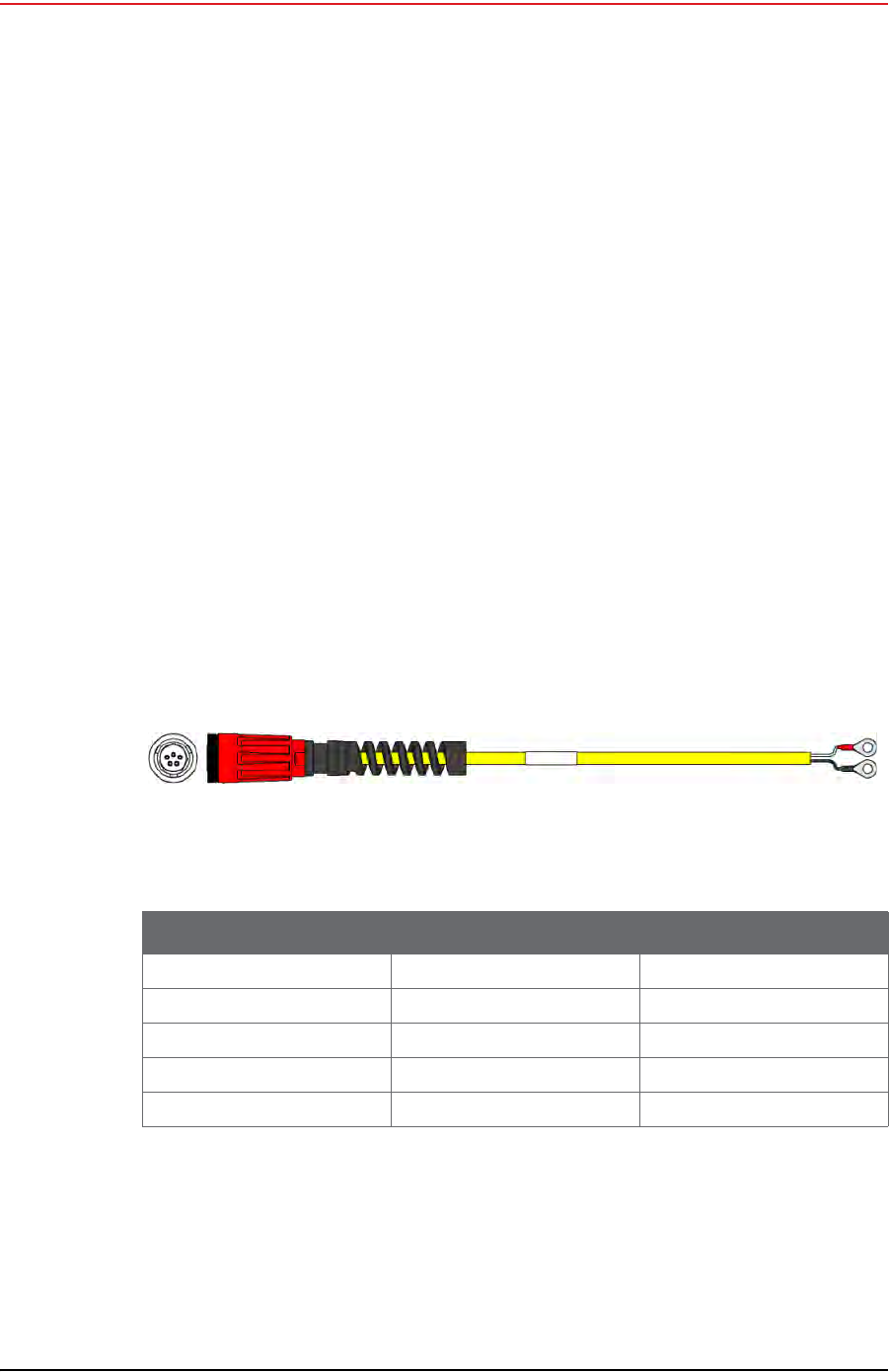
The following figure illustrates the inside of the Surge Protector Use a surge protector on
each mast between the Rocket radio or the NanoStation radio and the LIU.
Table 3–5 Antenna Specifications, Radios
Model Frequency
(MHz) Gain Dimension (Length
x Diameter) See
WSI 65-0178
2x2 Dual Polarity
MIMO Omni
5450 - 5850 13 dBi 6.2x3.8x32.8 in
158x98x834 mm
“Rocket Recorder Antenna” on
page 150
WSI 65-0179
Omni 5275 - 5850 6 dBi 10.6 in
269 mm
“Bullet Line Station Antenna”
on page 147
WSI 65-0177
Antenna Panel 5150 - 5825 19 dBi 7.5 x 7.5 x 0.8 in
190 x 190 x 20 mm “Bullet Line Station Antenna”
on page 147
Figure 3–13 Surge Protector
Connections
Draft
42 RT System 2 v2.3.0 Deployment Guide R01.b
© 2010-2013 Wireless Seismic, Inc. All rights reserved.
3. Backhaul
Backhaul Components
3.2.8 Cable Assemblies
The following cables are used in the backhaul:
Cable, LIU to Battery (60-0034)
Cable, LIU to NanoStation Radio (60-0036)
Cable, Ethernet, 120 ft Shielded, Black with Red shrink tube (60-0036)
Cable, LIU-to-PC (60-0039)
Cable, Ethernet, 3 ft Shielded (65-0104)
Cable, Armored Ethernet, 10 ft (60-0053)
Cable, Shielded Ethernet, 15 ft (60-0054)
Cable, Armored Ethernet, 15 ft (60-0055)
Cable, Shielded Ethernet, 120 ft (60-0038)
Cable, RF Extender, 10 ft (65-0103)
Cable, RF Extender, 25 ft (65-0110)
Fiber Backhaul Kit, 250 m (15-0037)
●Media Converter (60-0017)
●Cable, Backhaul Jumper (60-0033)
●Cable, Fiber Optic, Armored, 250 m (60-0026)
Fiber Backhaul Kit, 500 m (15-0038)
●Media Converter (60-0017)
●Cable, Backhaul Jumper (60-0033)
●Cable, Fiber Optic, Armored, 500 m (60-0023)
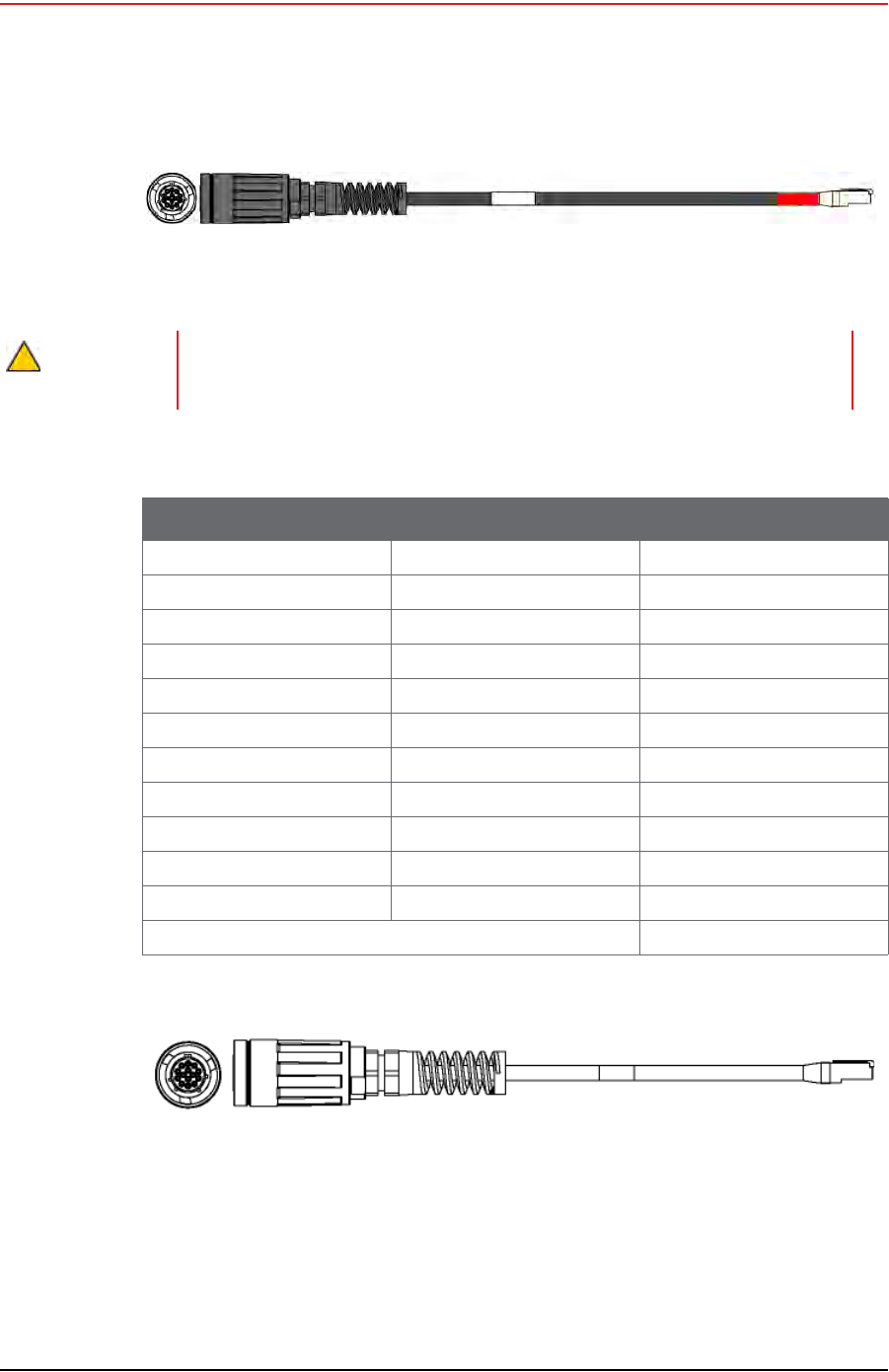
Figure 3–14 Cable, LIU to Battery (60-0034)
Table 3–6 Cable Pinout, LIU to Battery (60-0034)
5-Pin Connector 2-Terminal End Signal Name
ANC—
BWHT+V
CBLK5-V
DNC—
ENC—
Draft
R01.b RT System 2 v2.3.0 Deployment Guide 43
© 2010-2013 Wireless Seismic, Inc. All rights reserved.
3. Backhaul
Backhaul Components
Figure 3–15 Cable, LIU to NanoStation Radio (60-0036)
CAUTION
The LIU to Radio cable is a powered Ethernet Cable. Do not plug it into the
Ethernet port on a Laptop computer when troubleshooting the radios. Use a non-
powered Ethernet cable.
Table 3–7 Cable Pinout, to NanoStation Radio(60-0036)
14-Pin Connector RJ-45 Connector Signal Name
B1TX+
A2TX-
C3RX+
H 4 POSITIVE
F 5 POSITIVE
D6RX-
E 7 RETURN
L 8 RETURN
P — SHIELD DRAIN
R* NC —
M* NC —
* Jumper R and M together.
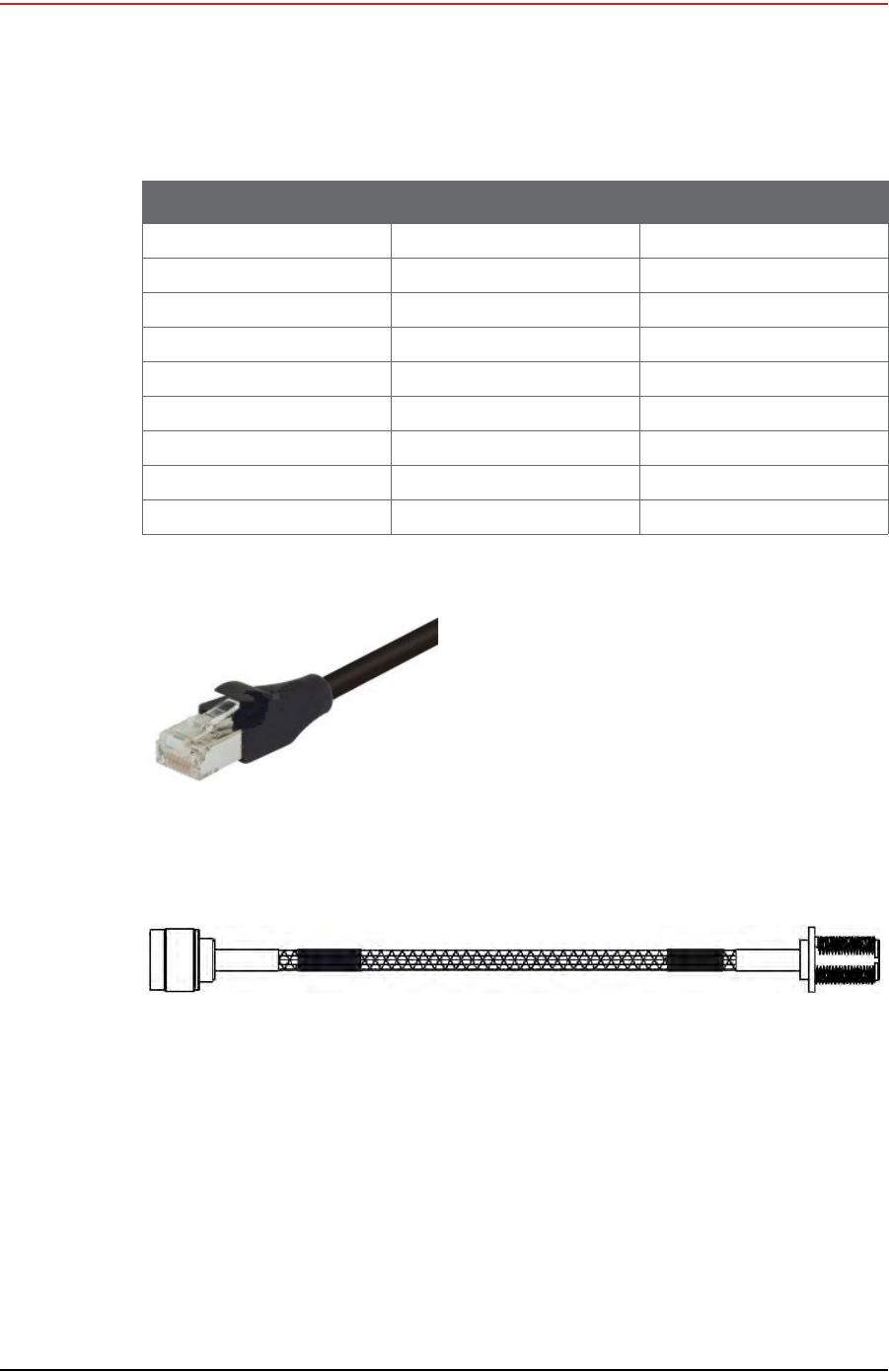
Figure 3–16 Cable, LIU-to-PC (60-0039)
Draft
44 RT System 2 v2.3.0 Deployment Guide R01.b
© 2010-2013 Wireless Seismic, Inc. All rights reserved.
3. Backhaul
Backhaul Components
Table 3–8 Cable Pinout, LIU-to-PC (60-0039)
14-Pin Connector RJ-45 Connector Signal Name
B1TX +
A2TX -
C3RX +
NC 4 POSITIVE
NC 5 POSITIVE
D6RX -
NC 7 RETURN
NC 8 RETURN
P — SHIELD DRAIN
Figure 3–17 Cable, Ethernet, 3 ft
Shielded (65-0104)
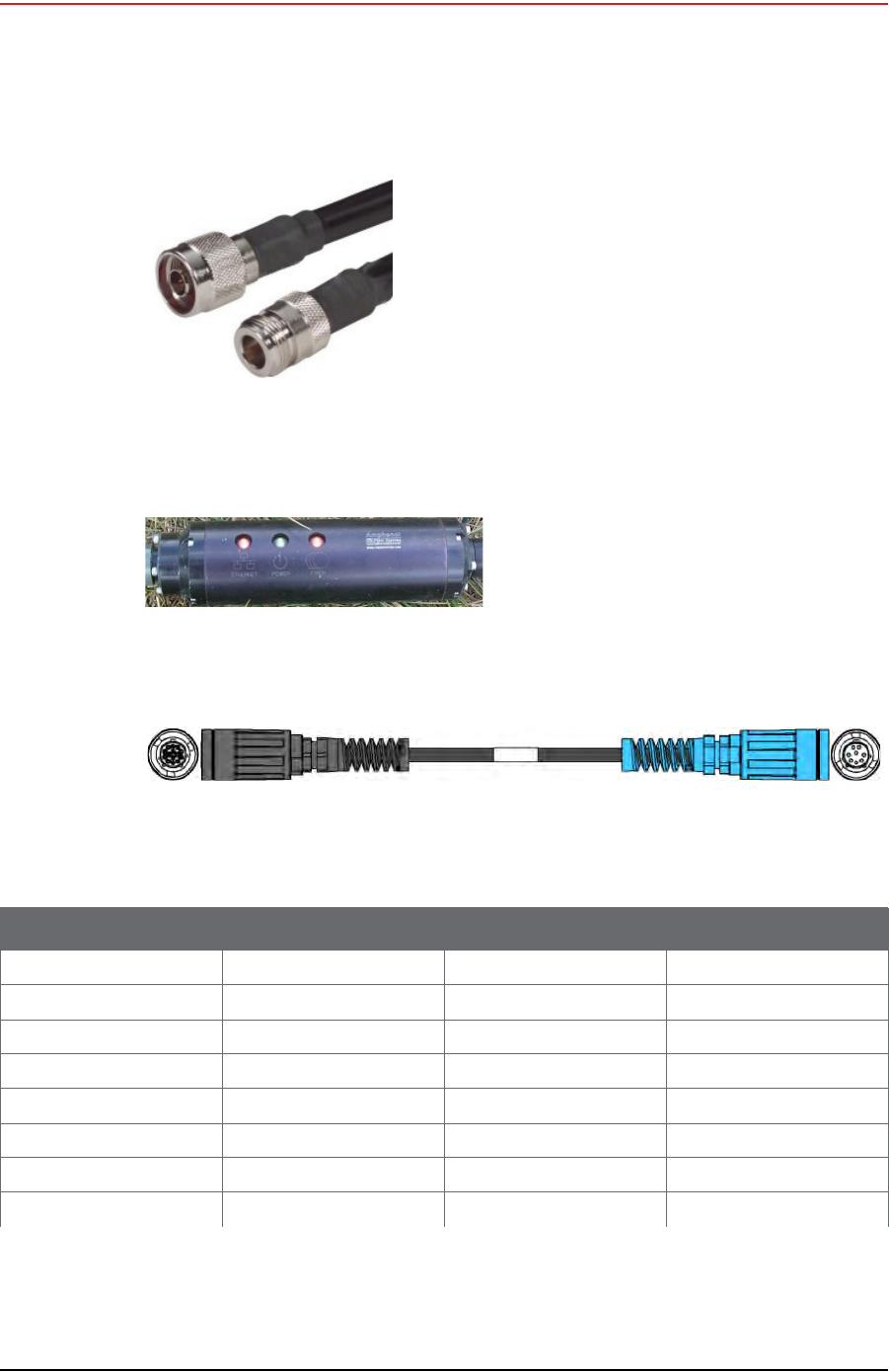
Figure 3–18 Cable, Armored Ethernet, 10 ft (60-0053)
Draft
R01.b RT System 2 v2.3.0 Deployment Guide 45
© 2010-2013 Wireless Seismic, Inc. All rights reserved.
3. Backhaul
Backhaul Components
Figure 3–19 Cable, RF
Extender, 10 ft (65-0103)
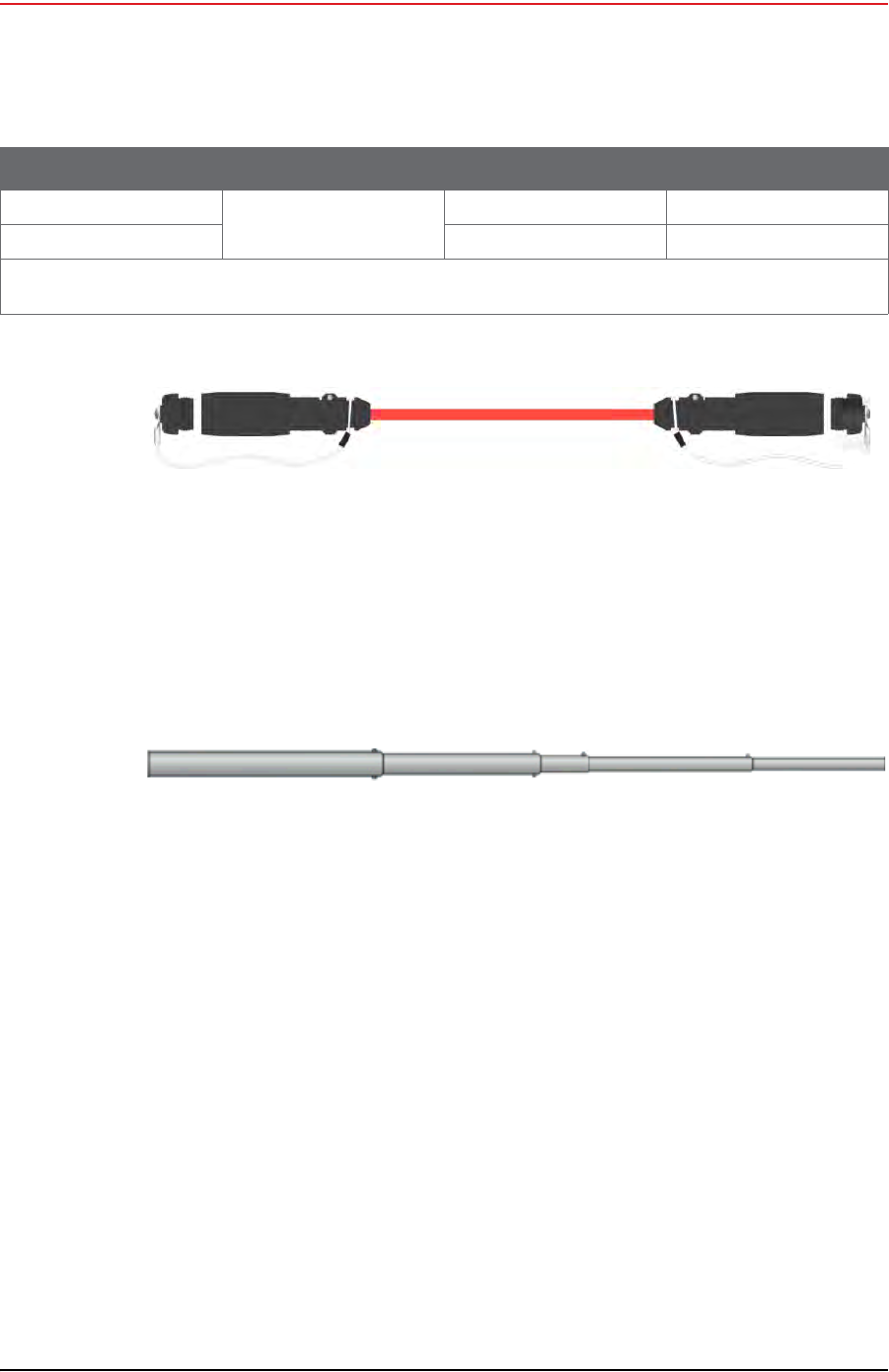
Figure 3–20 Media Converter (60-0017)
Figure 3–21 Cable, Backhaul Jumper (60-0033)
Table 3–9 Cable Pinout, Backhaul Jumper (60-0033)
14-Pin Connector Wire Color 8-Pin Connector Signal Name
BWHT/ORGATX +
AORGBTX -
CWHT/GRNCRX +
HBLUDPWR +
FWHT/BLUEPWR +
DGRNFRX -
EWHT/BRNGGND
LBRNHGND
Draft
46 RT System 2 v2.3.0 Deployment Guide R01.b
© 2010-2013 Wireless Seismic, Inc. All rights reserved.
3. Backhaul
Backhaul Components
3.2.9 Mast and Base
The line and recorder backhauls use the same mast kit components.
3.2.9.1 Telescoping Mast
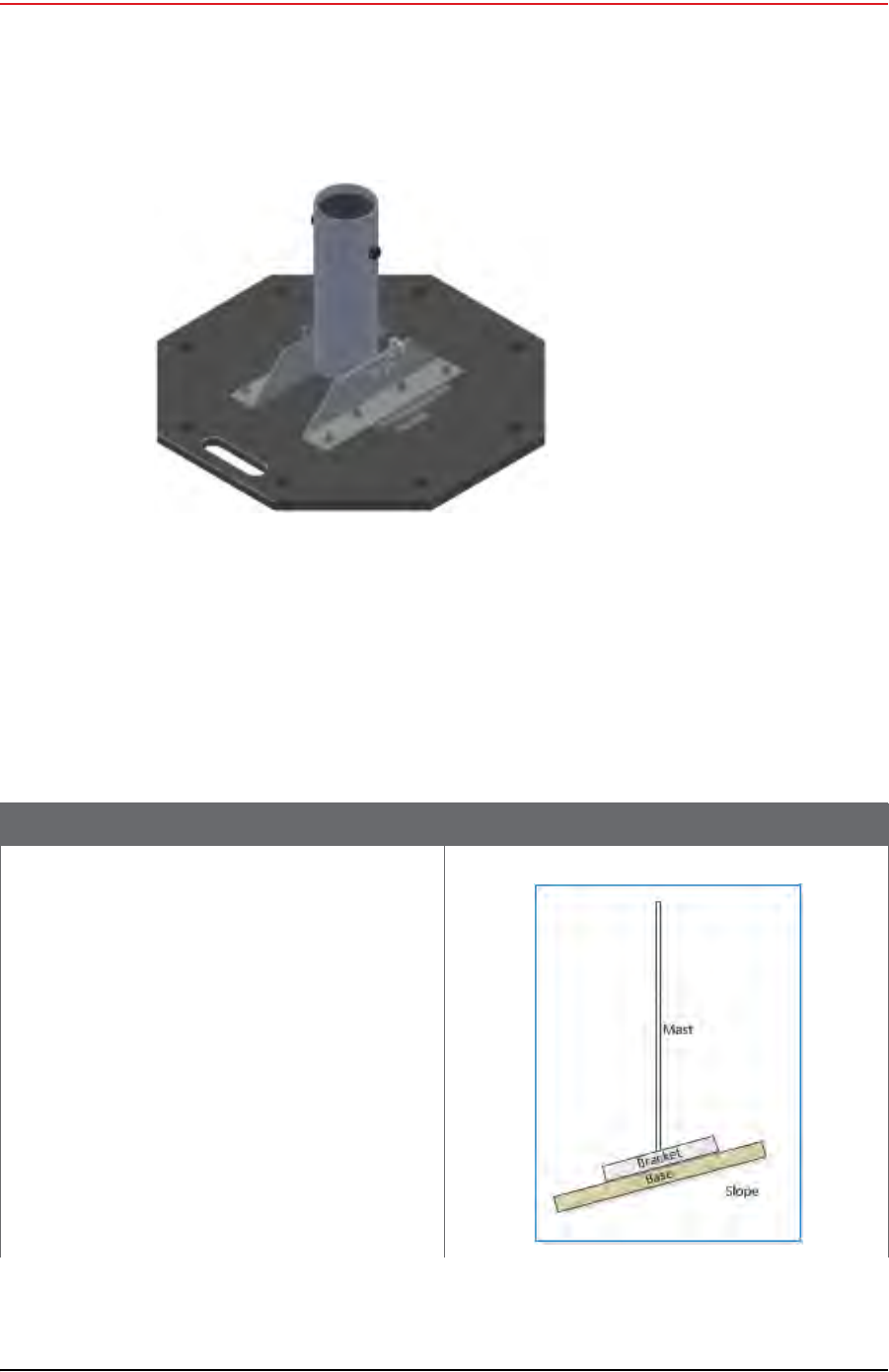
Telescoping backhaul masts are used to elevate the backhaul components above obstructions
and to enable radio communications to accommodate typical cross-line distances. The mast
is stabilized with guy ropes. The following figure shows the mast:
3.2.9.2 Base
The base (shown in the following figure) stabilizes the mast that is attached to the hinged
mast sleeve. The base is staked into the ground for added stability.
R* RED NC —
M* NC —
* Install a 1.5 inch long jumper wire between pins R and M
WHT = White, ORG = Orange, GRN = Green, BLU = Blue, BRN = Brown, BLK= Black, YEL = Yellow
Table 3–9 Cable Pinout, Backhaul Jumper (60-0033)
14-Pin Connector Wire Color 8-Pin Connector Signal Name
Figure 3–22 Cable, Fiber Optic, Armored, 250 m (60-0026)
Figure 3–23 Mast (55-0050)
Draft
R01.b RT System 2 v2.3.0 Deployment Guide 47
© 2010-2013 Wireless Seismic, Inc. All rights reserved.
3. Backhaul
Setting up the Backhaul
The Weighted Base (70-0070) is another option for use when staking is impractical (see “E.
Weighted Base” on page 180).
3.3 Setting up the Backhaul
This section provides instructions on how to assemble the backhaul components.
Figure 3–24 Base (55-0050)
Table 3–10 How to Set Up the Backhaul
Step Image
1Gather all of the backhaul components.
2Refer to the deployment instructions to
determine the location and compass heading to
the next back haul site closer to central.
3Use the compass to determine and mark that
direction.
4Use the following considerations while
positioning the base:
●Locate the base such that the guy lines and
the mast clear obstructions during erection
and while in operation.
●If the ground is sloped, position the base
such that when the base is flush to the
ground, the bracket orientation allows the
mast to remain perpendicular to the ground.
Draft
48 RT System 2 v2.3.0 Deployment Guide R01.b
© 2010-2013 Wireless Seismic, Inc. All rights reserved.
3. Backhaul
Setting up the Backhaul
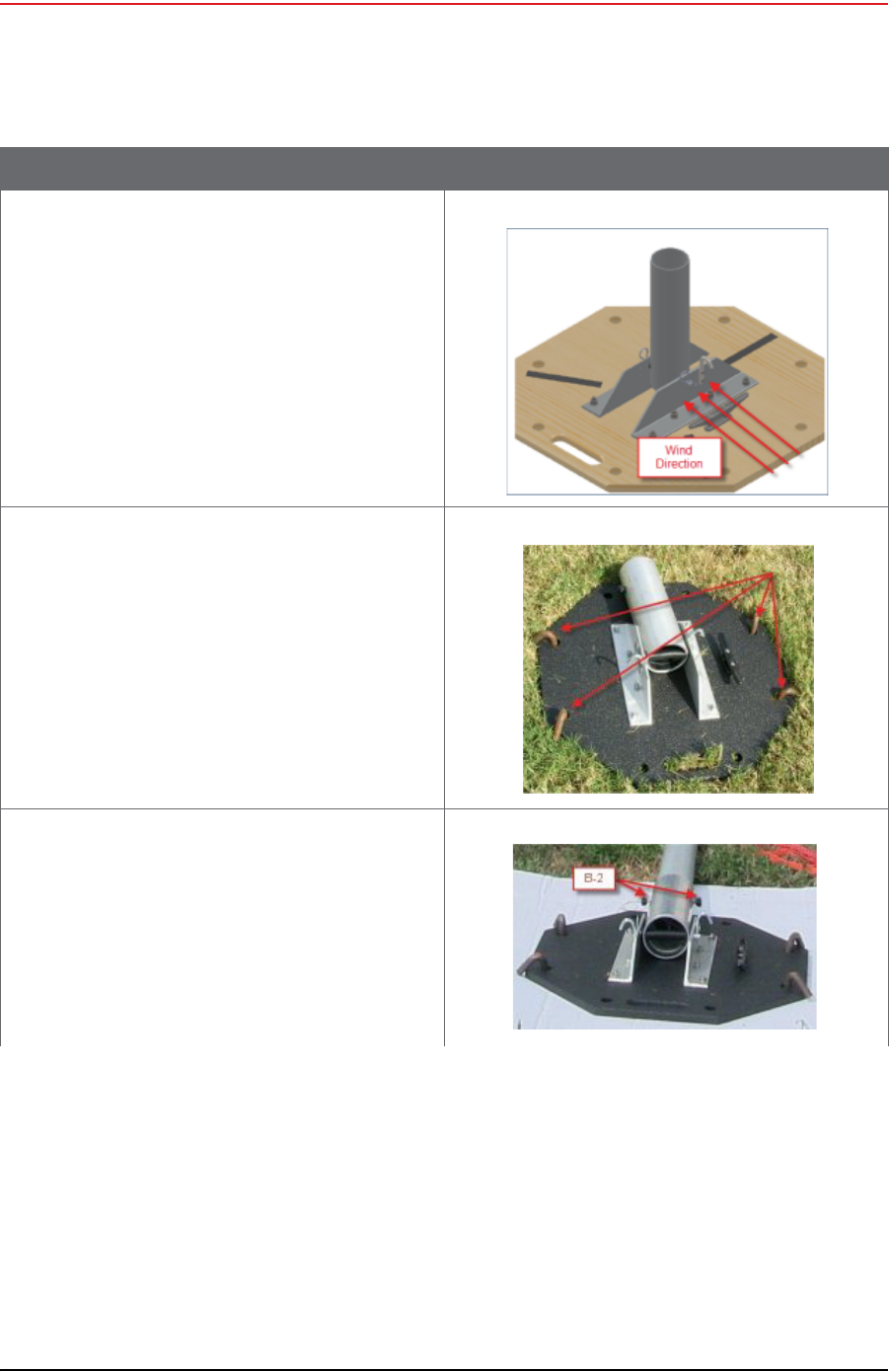
●If the wind is blowing, the mast is more
stable when the brackets are perpendicular
to the wind.
5Secure the base [B-1] to the ground with stakes
[BK-4] or nails [BK-6].
6Attach the mast [M-3] to the base [B-1].
Tighten both knobs [B-2].
Table 3–10 How to Set Up the Backhaul
Step Image
Draft
R01.b RT System 2 v2.3.0 Deployment Guide 49
© 2010-2013 Wireless Seismic, Inc. All rights reserved.
3. Backhaul
Setting up the Backhaul
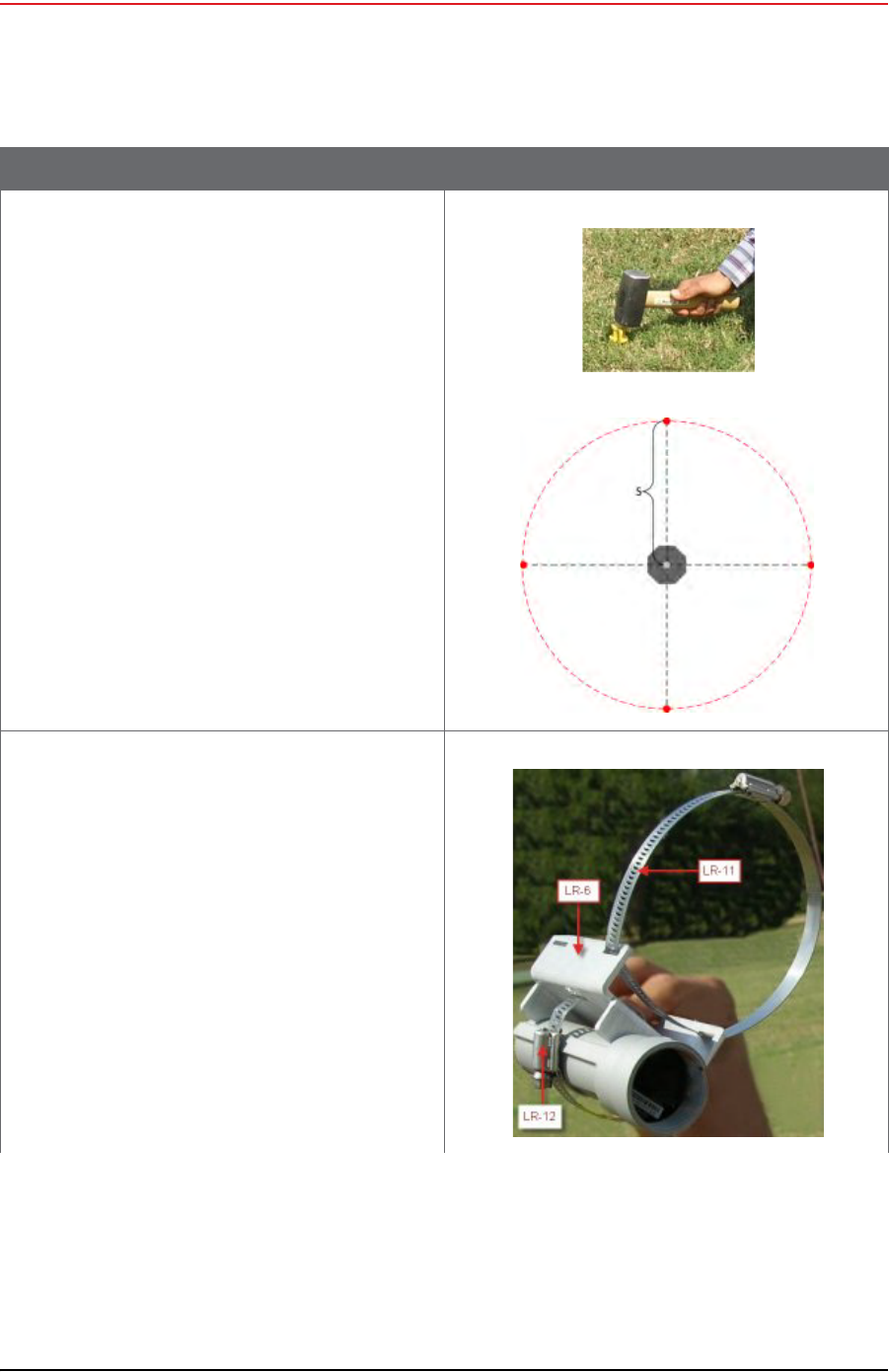
7Position four stakes equal distances apart at
approximately 20 ft (6 m) from the base. Pound
them into the ground.
8Assemble the radios and brackets:
●Bullet line radio installation – Assemble the
Bullet radios and brackets.
►Insert the 4 in hose clamp [LR-11] in the
side slots of the bracket [LR-6].
►Insert the 2 in hose clamp [LR-12] in the
center slots of the bracket [LR-6].
►Insert the line radio between the bracket
[LR-6] and the 2 in hose clamp [LR-12].
►Tighten the 2 in hose clamp
[LR-12]around the radio.
Line radio in bracket:
Table 3–10 How to Set Up the Backhaul
Step Image
Draft
50 RT System 2 v2.3.0 Deployment Guide R01.b
© 2010-2013 Wireless Seismic, Inc. All rights reserved.
3. Backhaul
Setting up the Backhaul
●Rocket radio installation – The Rocket radio,
antennas, and bracket are already
assembled.
Recorder radio in bracket:
●NanoStation radio installation – The
NanoStation radio, surge protector, and
bracket are already assembled.
Table 3–10 How to Set Up the Backhaul
Step Image
Draft
R01.b RT System 2 v2.3.0 Deployment Guide 51
© 2010-2013 Wireless Seismic, Inc. All rights reserved.
3. Backhaul
Setting up the Backhaul
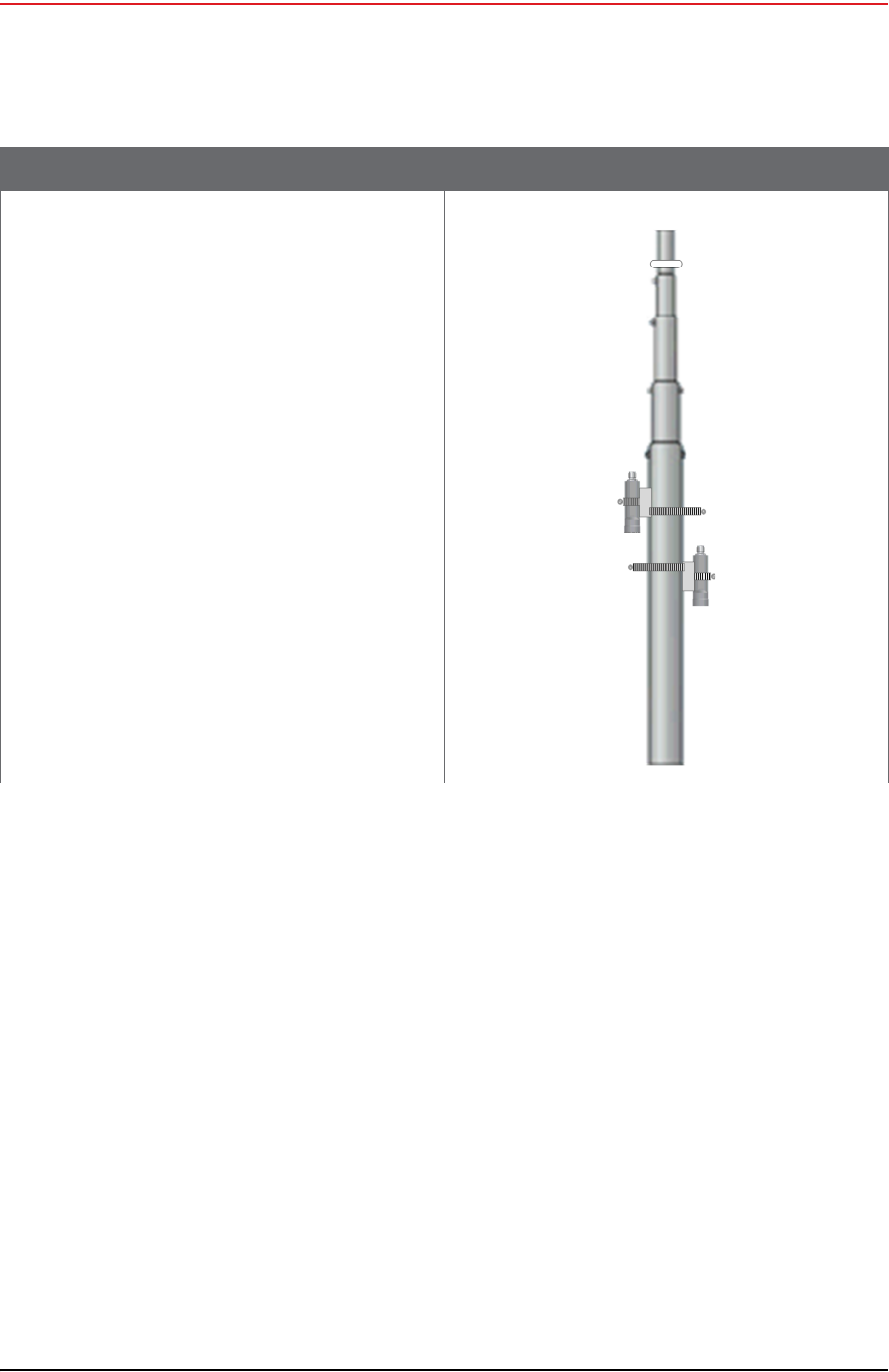
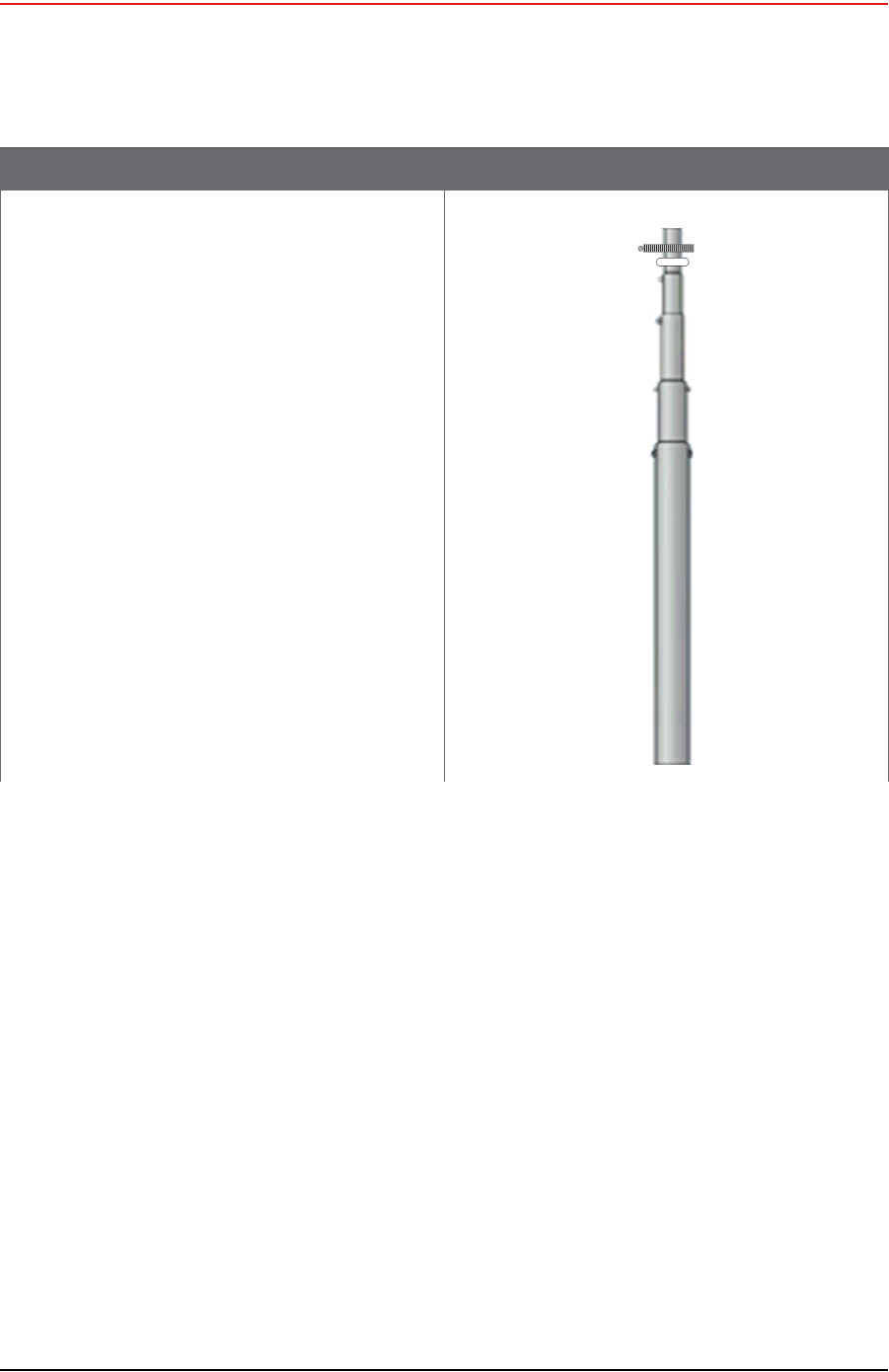
9Assemble the mast:
●Bullet radio installation – While the mast is
resting on the ground, slide the following on
the mast:
►Bullet radios and clamps (do not tighten)
►Mast guy ring [M-4]
Table 3–10 How to Set Up the Backhaul
Step Image
Draft
52 RT System 2 v2.3.0 Deployment Guide R01.b
© 2010-2013 Wireless Seismic, Inc. All rights reserved.
3. Backhaul
Setting up the Backhaul
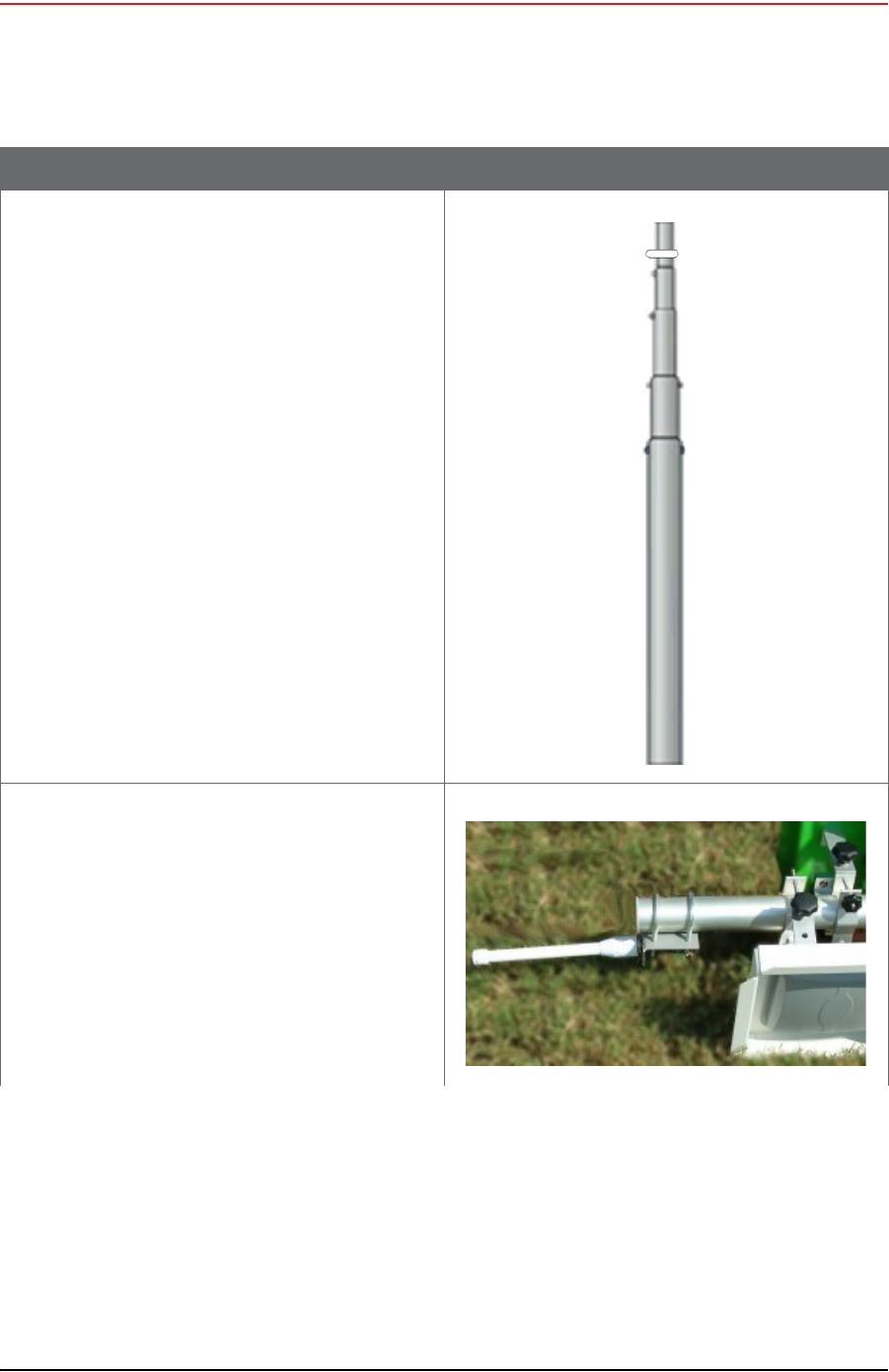
●Rocket radio installation – While the mast is
resting on the ground, slide the following on
the mast:
►Mast guy ring [M-4]
►Surge Protector cable clamp (do not
tighten)
Table 3–10 How to Set Up the Backhaul
Step Image
Draft
R01.b RT System 2 v2.3.0 Deployment Guide 53
© 2010-2013 Wireless Seismic, Inc. All rights reserved.
3. Backhaul
Setting up the Backhaul
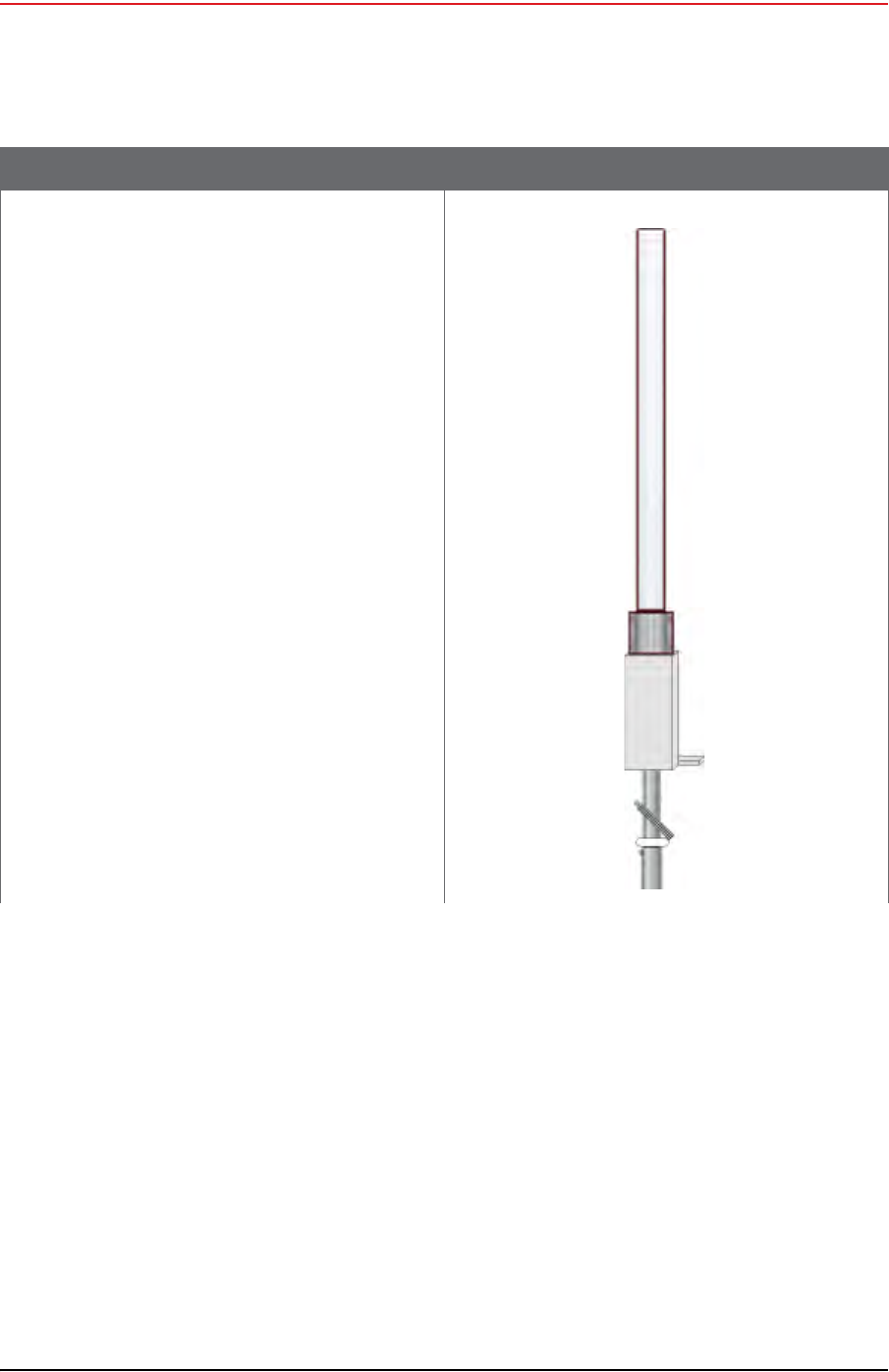
●NanoStation radio installation – While the
mast is resting on the ground, slide the
following on the mast:
►Mast guy ring [M-4]
10 Attach and tighten the following:
●Bullet radio installation:
►Bullet radio antenna brackets and
antennas [LR-4, LR-5]
►Omni antenna bracket [M-5] and
antenna [LR-3]
Table 3–10 How to Set Up the Backhaul
Step Image
Draft
54 RT System 2 v2.3.0 Deployment Guide R01.b
© 2010-2013 Wireless Seismic, Inc. All rights reserved.
3. Backhaul
Setting up the Backhaul
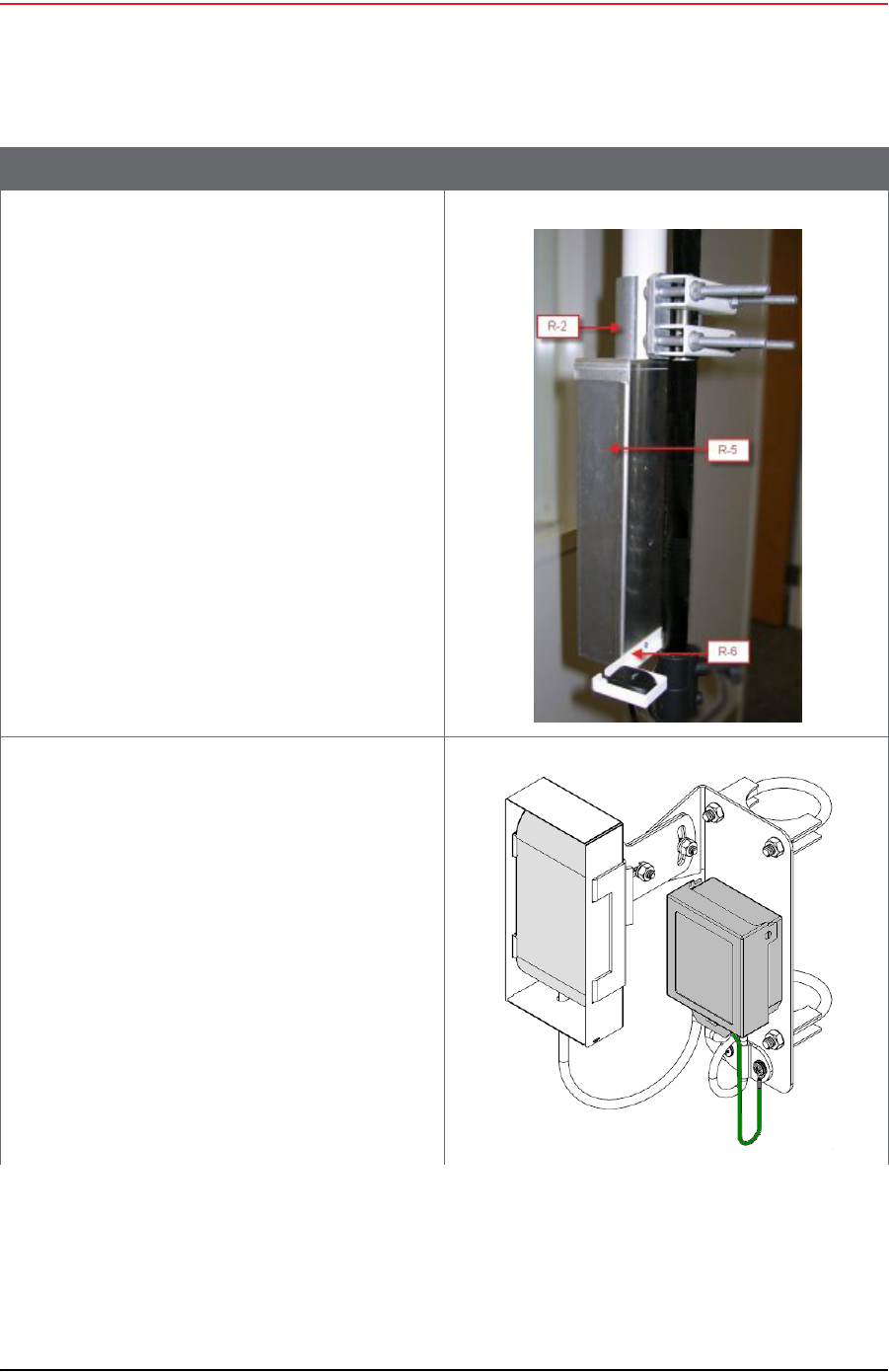
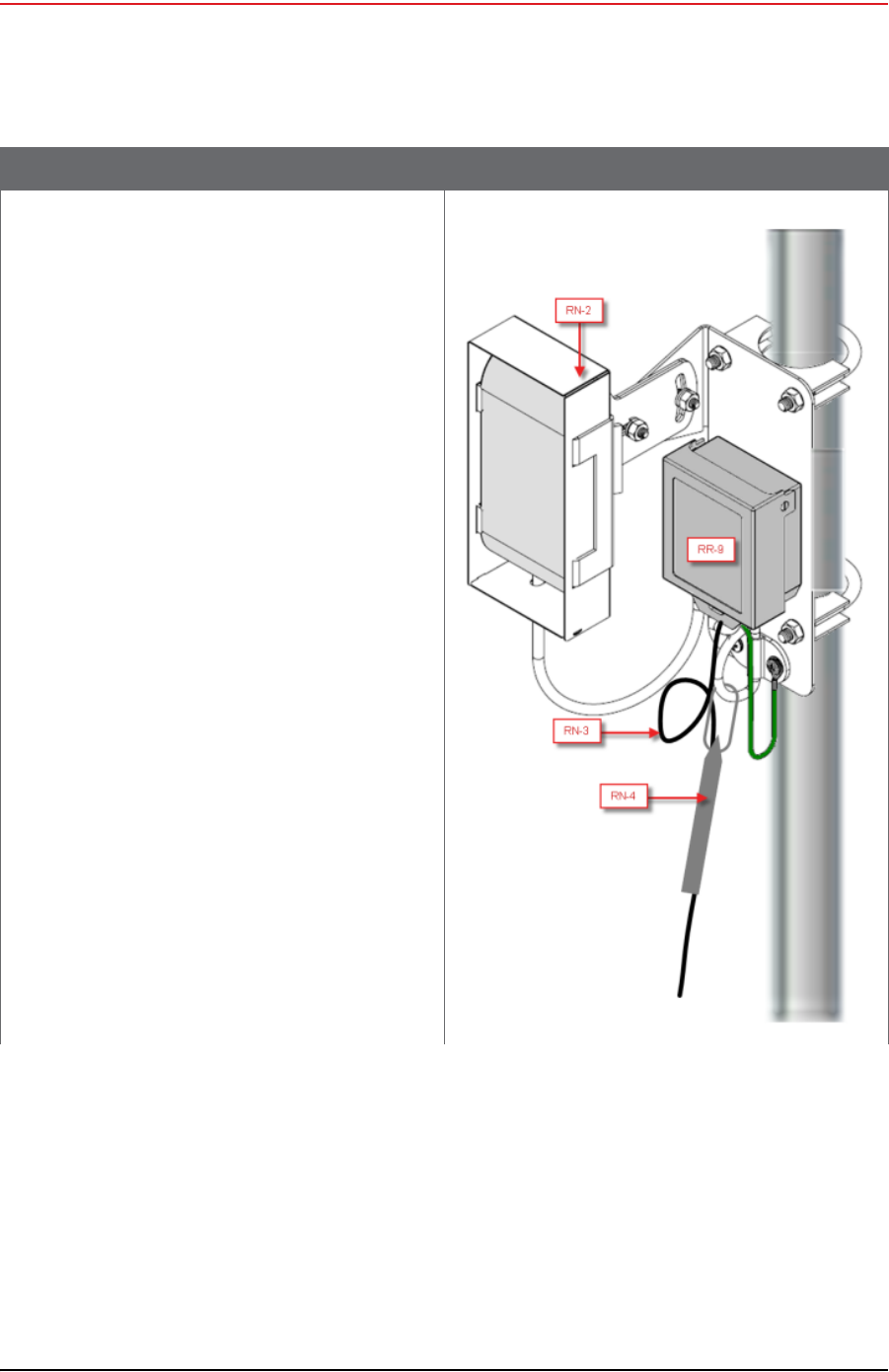
●Rocket radio installation – Attach the Rocket
radio antenna and bracket [R-2] to the
mast.
Table 3–10 How to Set Up the Backhaul
Step Image
Draft
R01.b RT System 2 v2.3.0 Deployment Guide 55
© 2010-2013 Wireless Seismic, Inc. All rights reserved.
3. Backhaul
Setting up the Backhaul
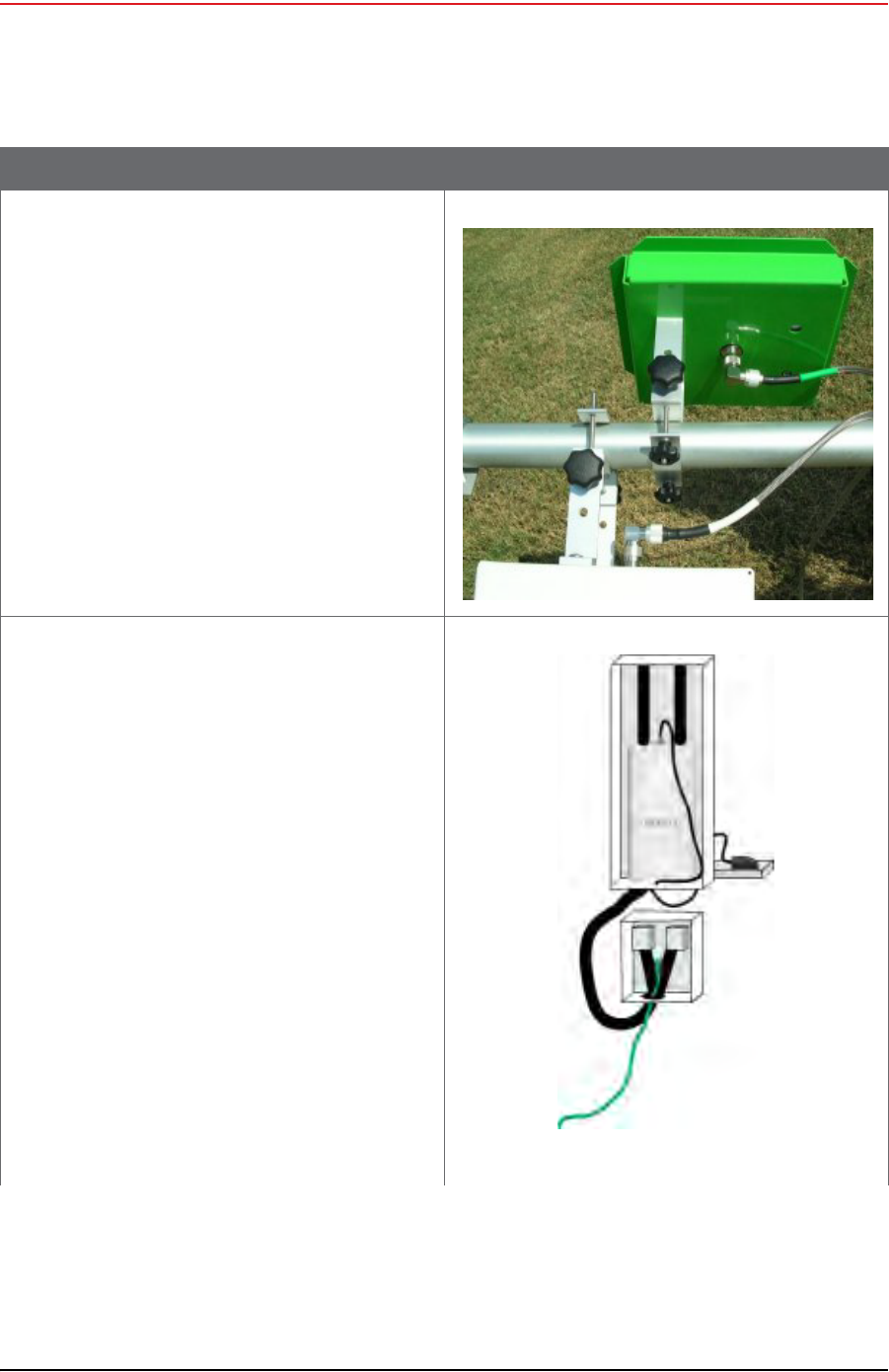
●NanoStation radio installation – Attach the
NanoStation radio bracket assembly [RN-2]
to the mast.
Table 3–10 How to Set Up the Backhaul
Step Image
Draft
56 RT System 2 v2.3.0 Deployment Guide R01.b
© 2010-2013 Wireless Seismic, Inc. All rights reserved.
3. Backhaul
Setting up the Backhaul
11 Attach the cables:
●Bullet radio installation – Attach an elbow
connector [LR-14] to the antenna and then
an armored cable [LR-7, LR-8] to the elbow
connector.
Match white-to-white and green-to-green if
your panels are color-coded.
●Rocket radio installation:
►Open the protective metal case if the
Ethernet cable is not already attached.
►Connect the GPS antenna if it is not
already connected.
►Connect a short Ethernet cable [R-8] to
the radio [R-3].
►Close the protective metal case.
►Open the surge protector case [R-9].
►Remove the rubber grommet from the
surge protector case and cut some slots
in it.
►Thread two Ethernet cables [R-8, R-10]
and a ground wire [BK-14] through the
grommet and place the grommet back in
the case.
►Plug the Ethernet cables into the
shielded RJ45 jacks. It does not matter
which cable goes to which jack; the unit
provides bidirectional protection.
►Attach the ground wire to the ground
lug.
►Close the surge protector case and
secure it to the mast with the hose
clamp.
Table 3–10 How to Set Up the Backhaul
Step Image
Draft
R01.b RT System 2 v2.3.0 Deployment Guide 57
© 2010-2013 Wireless Seismic, Inc. All rights reserved.
3. Backhaul
Setting up the Backhaul
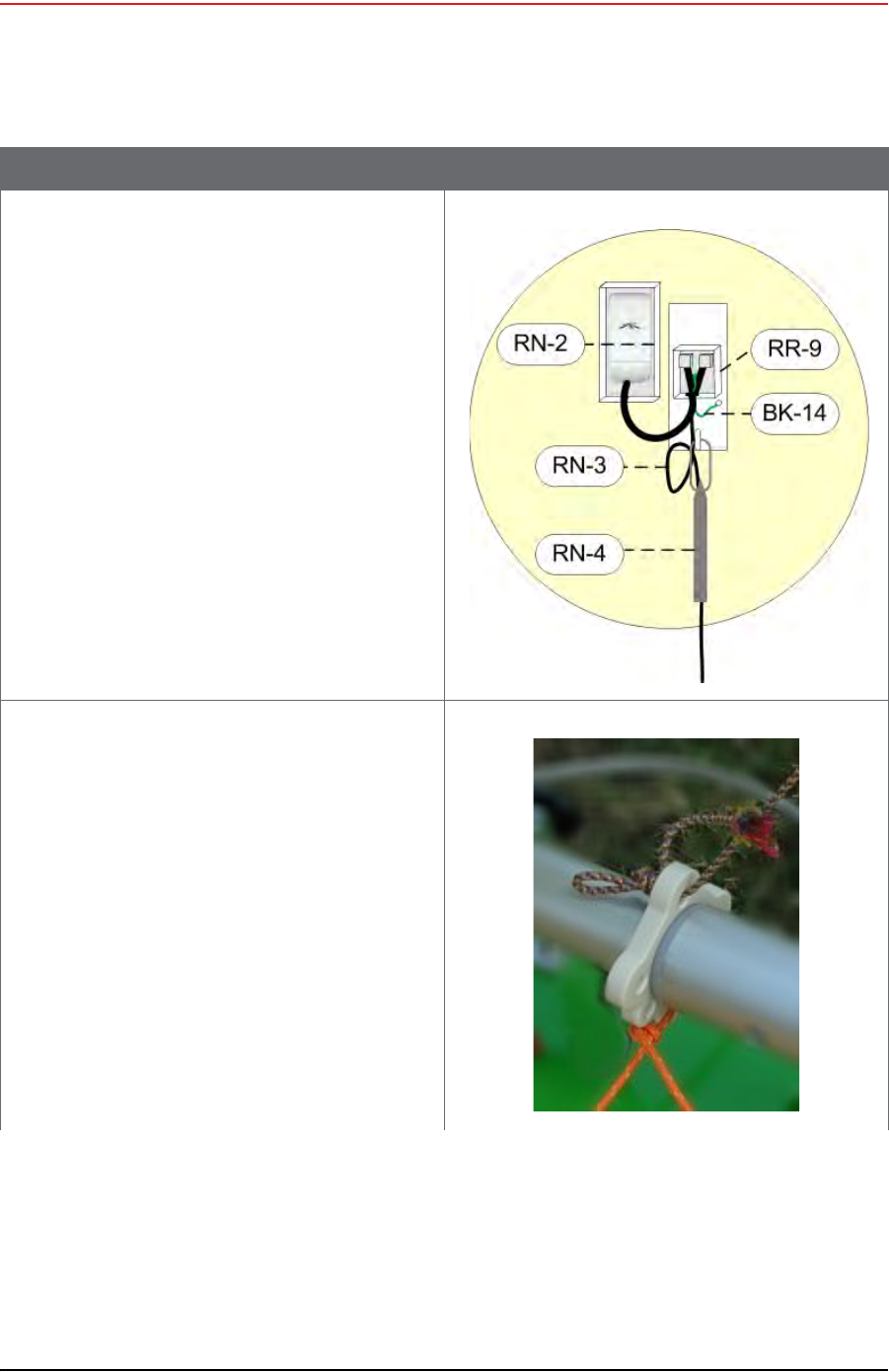
●NanoStation radio installation:
►Open the surge protector case [R-9].
►Remove the grommet from the case.
►Thread the Ethernet cable [RN-3],
through the grommet with the short
Ethernet cable (that is attached to the
redound the ground wire [BK-14]. Place
the grommet back in the case.
►Plug the Ethernet cable into the shielded
RJ45 jacks. It does not matter which
cable goes to which jack; the unit
provides bidirectional protection.
►Close the surge protector case.
►Attache the strain relief [RN-4] to the D-
ring on the bracket.
►Loop the Ethernet Cable [RN-3] through
the strain relief [RN-4].
12 Attach the guy lines to the mast collar.
NOTE: Use a taut-line-hitch knot for best results (see
“G. Rope Knot” on page 186).
Table 3–10 How to Set Up the Backhaul
Step Image
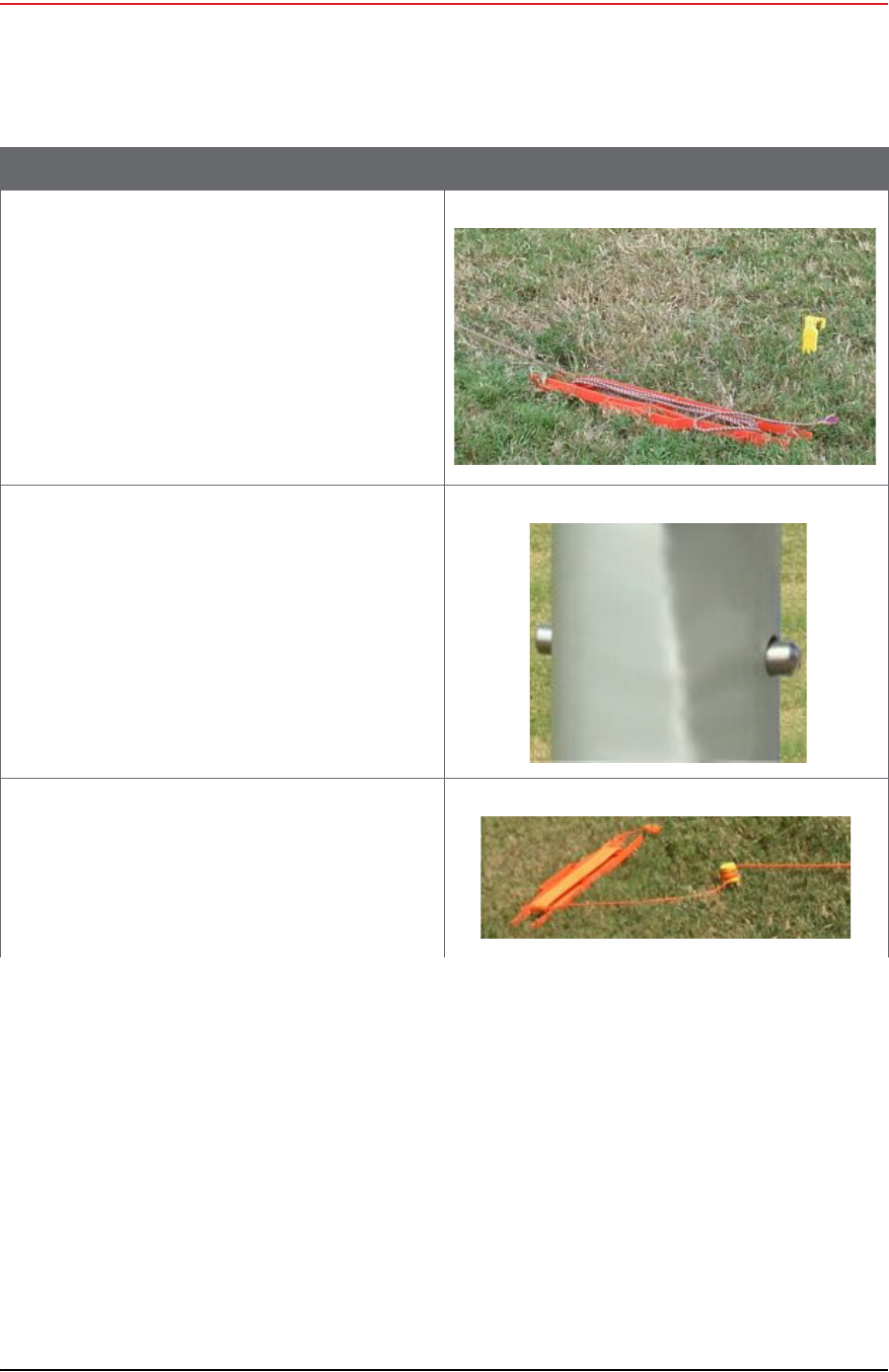
Draft
58 RT System 2 v2.3.0 Deployment Guide R01.b
© 2010-2013 Wireless Seismic, Inc. All rights reserved.
3. Backhaul
Setting up the Backhaul
13 Lay out the four guy lines close to the stakes.
14 Extend the mast, clicking the segments into
place.
15 Attach the guy lines to the stakes.
NOTE: Use a taut-line-hitch knot for best results (see
“G. Rope Knot” on page 186).
Table 3–10 How to Set Up the Backhaul
Step Image
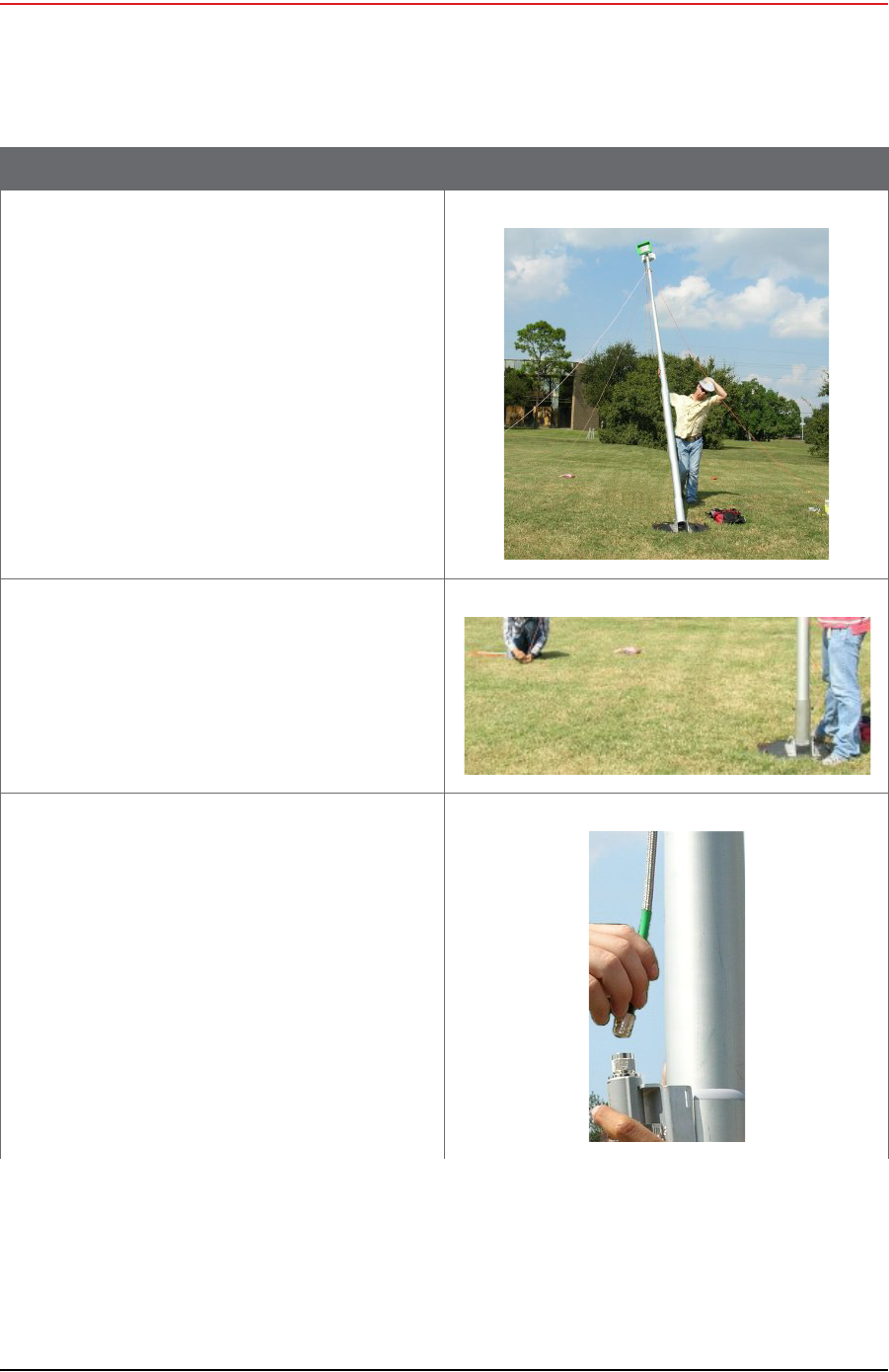
Draft
R01.b RT System 2 v2.3.0 Deployment Guide 59
© 2010-2013 Wireless Seismic, Inc. All rights reserved.
3. Backhaul
Setting up the Backhaul
16 Walk the mast to an upright position.
17 While one person holds the mast, a second
person tightens the guy lines evenly. Keep the
mast level/vertical (use the level included with
the kit).
18 If assembling the Bullet radio backhaul:
aAttach the cables from the antennas to the
top of the Bullet radios.
Table 3–10 How to Set Up the Backhaul
Step Image
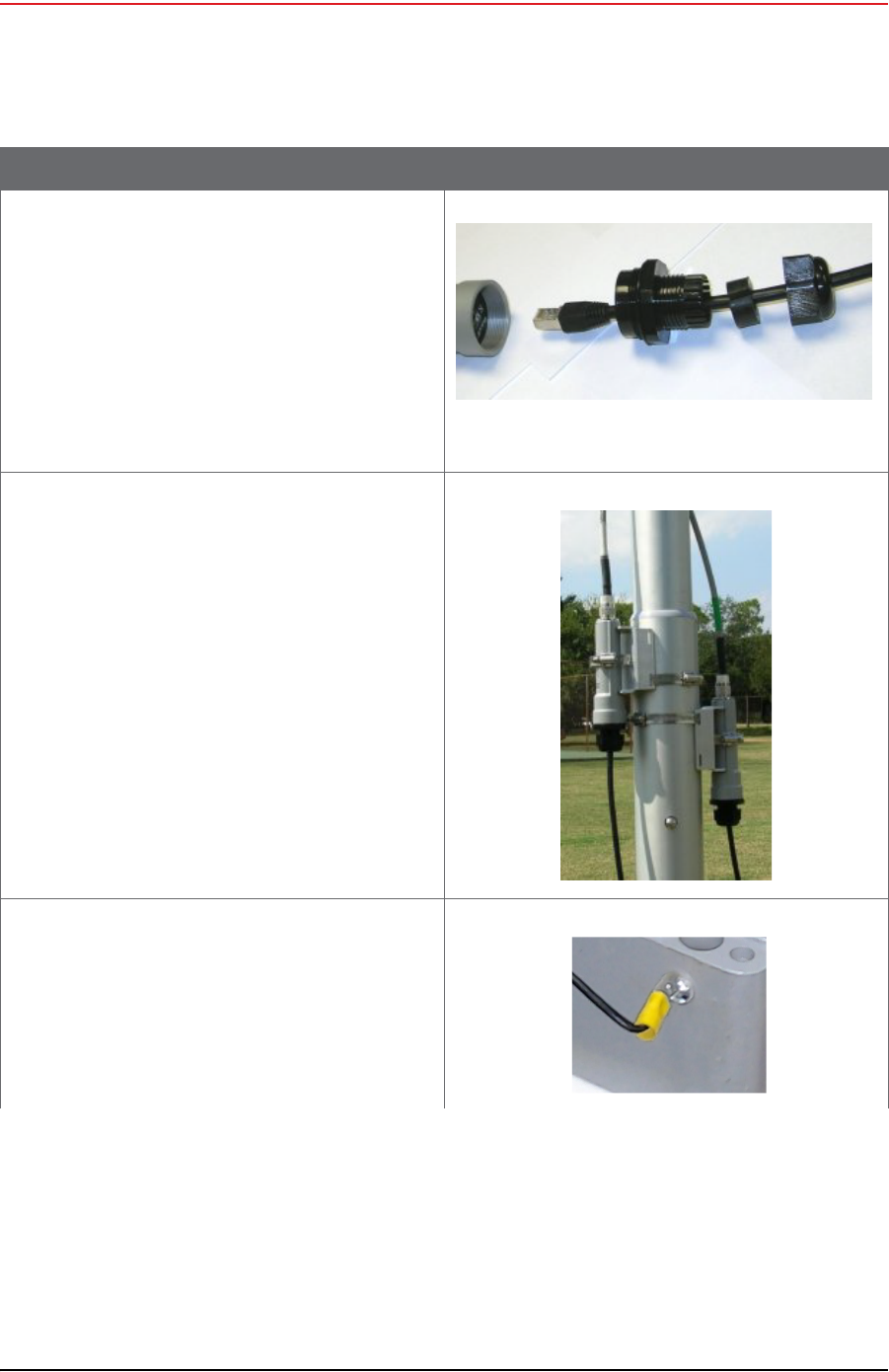
Draft
60 RT System 2 v2.3.0 Deployment Guide R01.b
© 2010-2013 Wireless Seismic, Inc. All rights reserved.
3. Backhaul
Setting up the Backhaul
bAttach the cables to the bottom end of the
Bullet radios.
►Assemble the connector for the radio as
shown in the image to the right:
►Plug the Ethernet connector into the
radio.
►Screw the large coupler into the base of
the radio. Hand-tighten only.
►Push the rubber grommet into the base
of the large coupler.
►Screw the end cap on the large coupler.
Hand-tighten only.
cTighten the clamps on the Bullet radios.
►Verify that the armored cables attached
to the antennas are straight and not
twisted.
►Position the line radio so the armored
cable is not pulling on the antenna.
►Tighten the cable clamp.
19 Set up the LIU:
●Ground the LIU – Verify that the LIU is
grounded. Attach a ground wire to the case,
and to a nail that is driven into the ground.
Attach the LIU ground wire and the Surge
Protector ground wire to the same nail.
Table 3–10 How to Set Up the Backhaul
Step Image
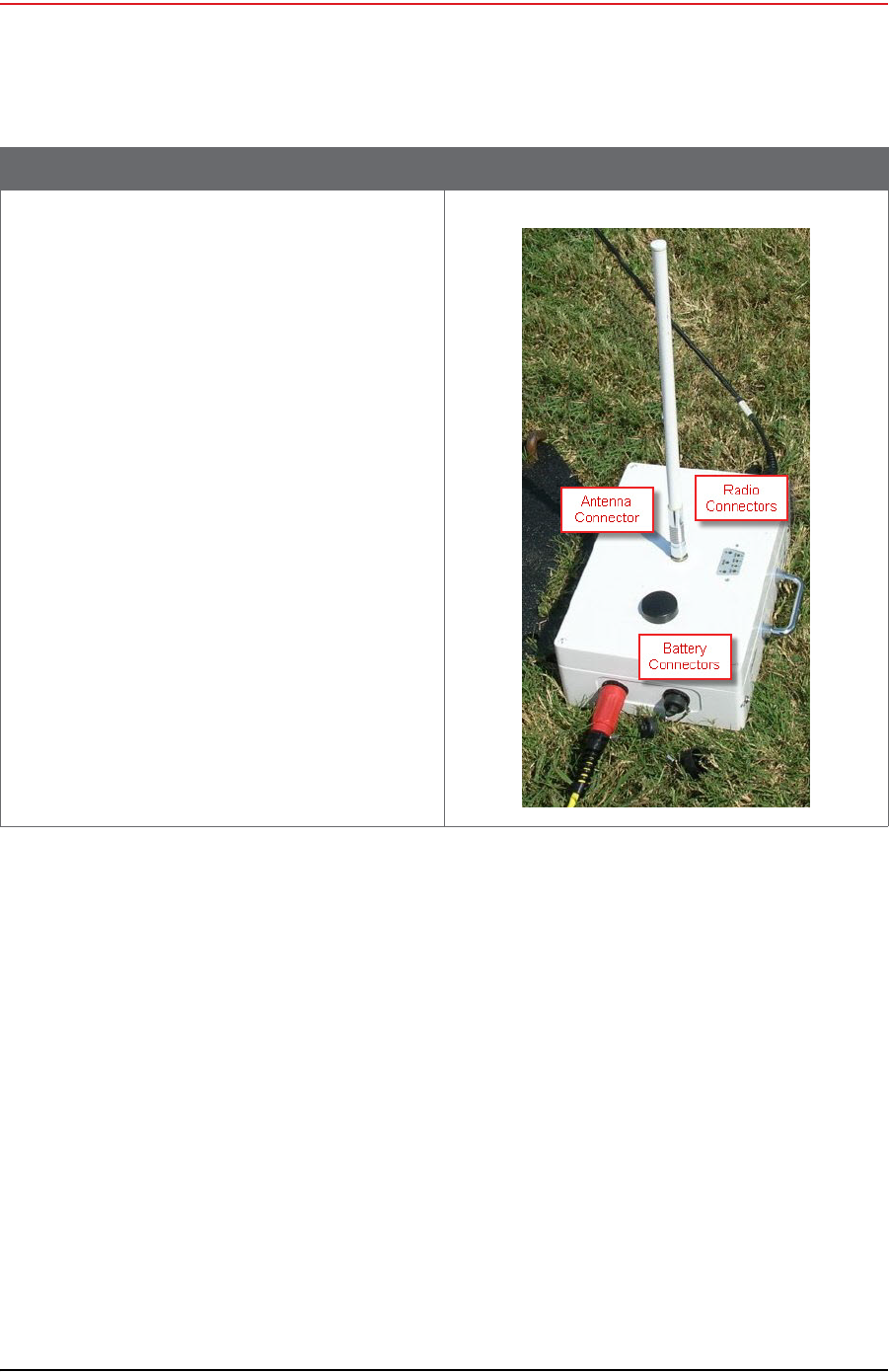
Draft
R01.b RT System 2 v2.3.0 Deployment Guide 61
© 2010-2013 Wireless Seismic, Inc. All rights reserved.
3. Backhaul
Setting up the Backhaul
●Attach the radio cables to the LIU.
●Attach the antenna to LIU.
●Attach the battery to the LIU.
Table 3–10 How to Set Up the Backhaul
Step Image
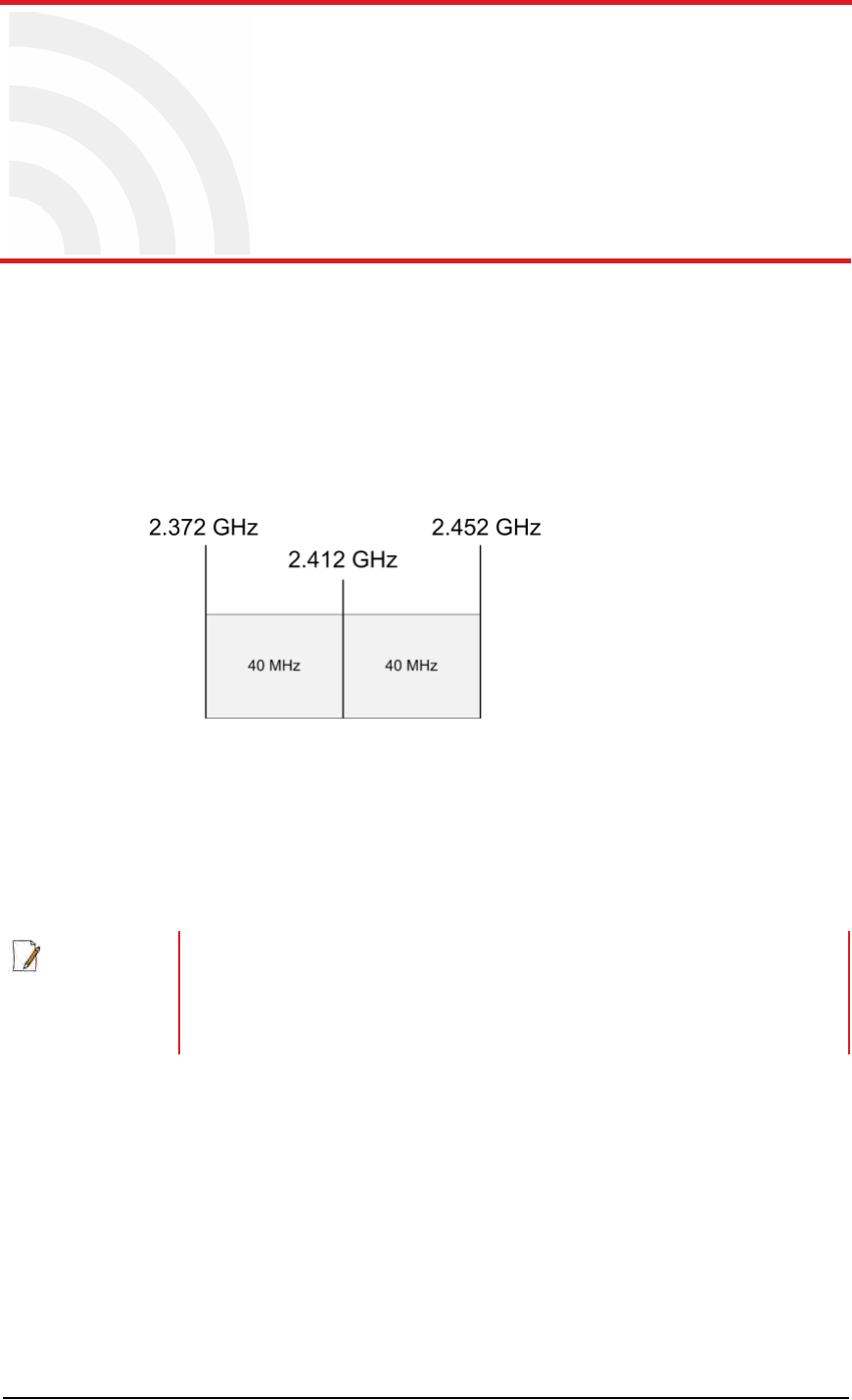
Draft
RT System 2 v2.3.0 62 Deployment Guide R01.b
© 2010-2013 Wireless Seismic, Inc. All rights reserved.
4
4. Point-to-Point Backhaul
4.1 Overview
The backhaul is composed of a number of line station mast/radio/LIUs. The number of
poles pole (masts/towers) in your point-to-point spread must be a multiple of the
number of channels used.
A channel is an 80 MHz wide frequency band with 40 MHz on either side of the center
frequency. For example, if the center frequency is 2.412 GHz, the frequency range for
that channel is 2.372 to 2.452 GHz.
When using a system with six possible channels, the backhaul could have just 6 poles,
or a multiple of 6 poles: 6, 12, 18, 24, and so on.
This section uses an example of six possible channels, and 18 line station mast/radio/
LIUs. Each pole (mast/tower) has two radios and one LIU as shown in the following
figure.
Figure 4–1 Channel – 80 MHz Wide Frequency
Band
NOTE
If using the mast at the recording truck, connect the LIU with an Ethernet or
Fiber cable to the recording truck. If the mast is not used at the recording truck,
the connections shown in the figure to the recording truck are not used.
See “Connecting to the Recording Truck” on page 90 for a radio link (pendant)
option).
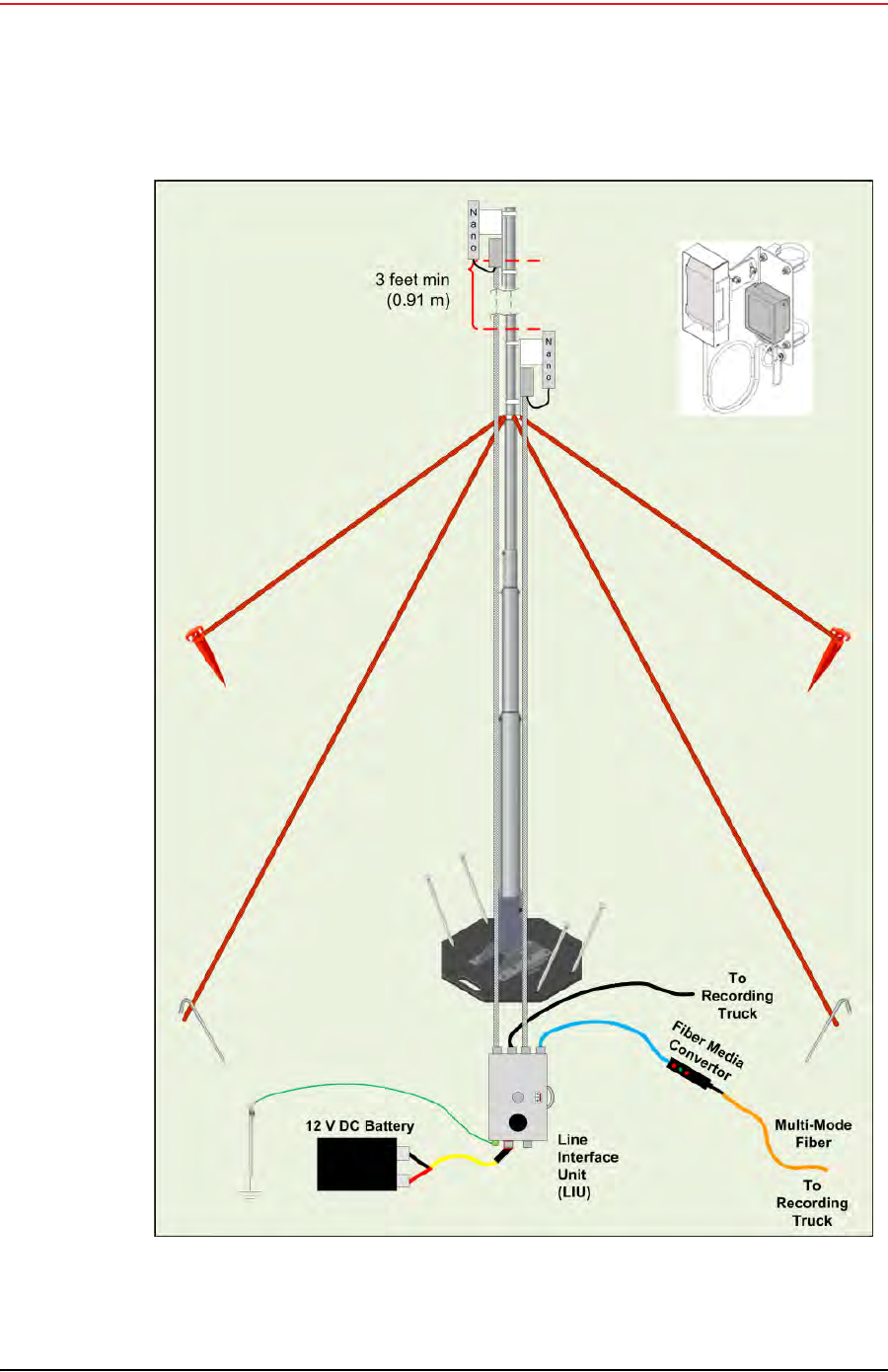
Draft
R01.b RT System 2 v2.3.0 Deployment Guide 63
© 2010-2013 Wireless Seismic, Inc. All rights reserved.
4. Point-to-Point Backhaul
Overview
Figure 4–2 Line Station Backhaul

Draft
64 RT System 2 v2.3.0 Deployment Guide R01.b
© 2010-2013 Wireless Seismic, Inc. All rights reserved.
4. Point-to-Point Backhaul
Overview
The radios are configured as pairs and are either an Access Point (A) or a Station (S).
An Access Point communicates only with a Station. An Access Point cannot communicate with
an Access Point, and a Station cannot communicate with a Station.
The poles (masts) and radios for a six-channel system are labeled and color-coded as
follows. The number of colors used should match the number of channels used.
Where:
Label Nomenclature:
S = Station
A = Access Point
The pole pairs must remain in sequential order:
●Radio 1:A-P1 communicates only with Radio 1:S-P2
●Radio 2:A-P2 communicates only with Radio 2:S-P3
●And so on until pole 18, where Radio 18:A-P18 communicates only with Radio 18:S-
P1
Pole Radio Color Pole Radio Color
Pole 1 18:S-P1 White Pole 10 9:S-P10 Red
1:A-P1 Black 10:A-P10 Green
Pole 2 1:S-P2 Black Pole 11 10:S-P11 Green
2:A-P2 Yellow 11:A- P11 Blue
Pole 3 2:S-P3 Yellow Pole 12 11:S-P12 Blue
3:A-P3 Red 12:A-P12 White
Pole 4 3:S-P4 Red Pole 13 12:S-P13 White
4:A-P4 Green 13:A-P13 Black
Pole 5 4:S-P5 Green Pole 14 13:S-P14 Black
5:A-P5 Blue 14:A-P14 Yellow
Pole 6 5:S-P6 Blue Pole 15 14:S-P15 Yellow
6:A-P6 White 15:A-P15 Red
Pole 7 6:S-P7 White Pole 16 15:S-P16 Red
7:A-P7 Black 16:A-P16 Green
Pole 8 7:S-P8 Black Pole 17 16:S-P17 Green
8:A-P8 Yellow 17:A-P17 Blue
Pole 9 8:S-P9 Yellow Pole 18 17:S-P18 Blue
9:A-P9 Red 18:A-P18 White
Table 4–1 Label Nomenclature
Pair # :A or S -Pole #
2:A-P2
2:S-P3
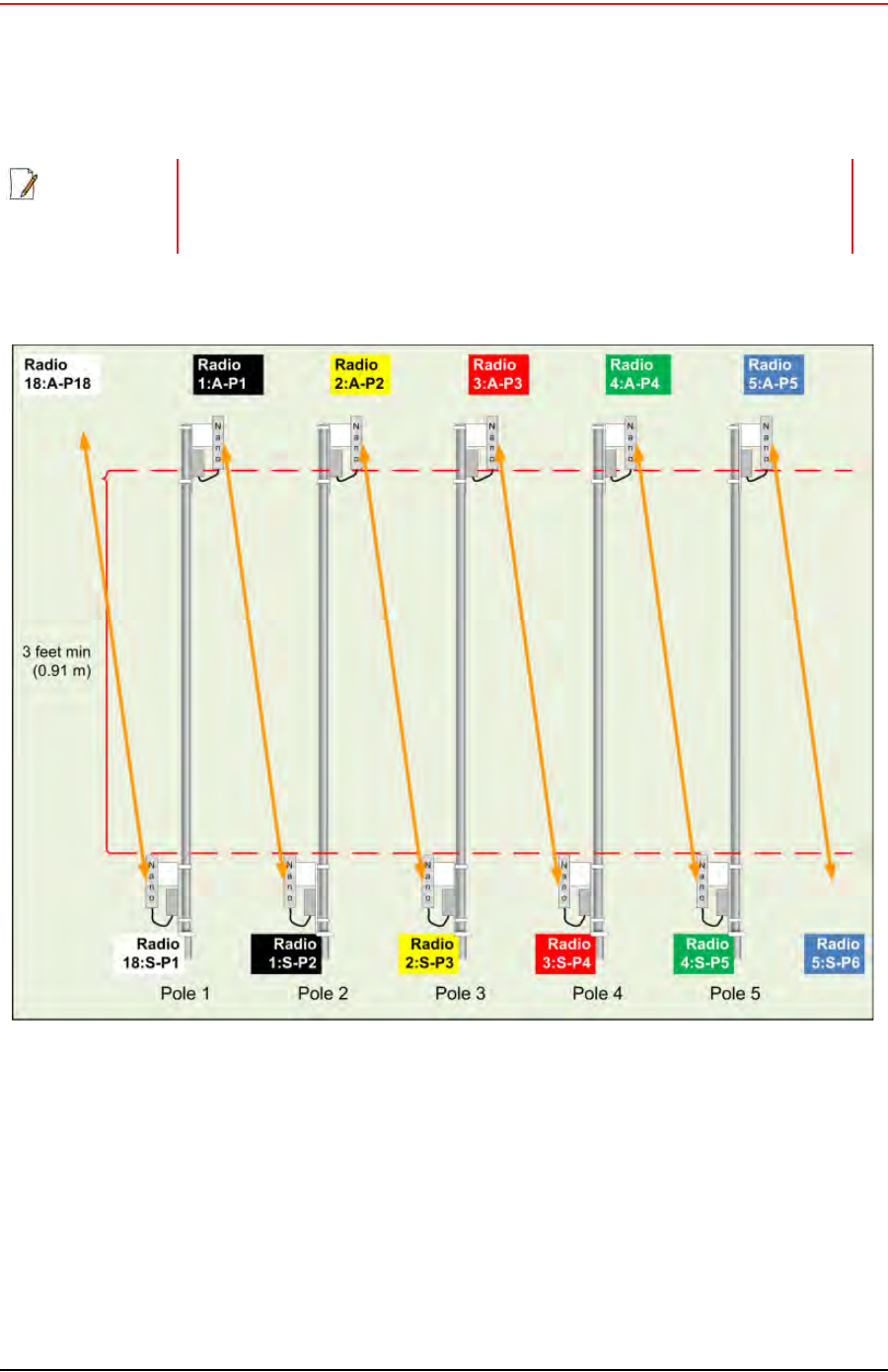
Draft
R01.b RT System 2 v2.3.0 Deployment Guide 65
© 2010-2013 Wireless Seismic, Inc. All rights reserved.
4. Point-to-Point Backhaul
Overview
In some cases—such as when line-of-sight cannot be established—using fiber cables can
improve communication. Install the radios and poles using the same labels and positioning;
however, only the odd or even pairings are used for radio communication. The other pairings
are linked together with fiber cable as shown in the following figure.
NOTE
The primary indicator for radio-to-radio communication is the alpha-numeric
label. The colored label is provided as a visual indicator to ensure that the pole is
pointed correctly to the next radio. For example, a yellow radio cannot
communicate with all yellow radios.
Figure 4–3 Radio-to-Radio Communication
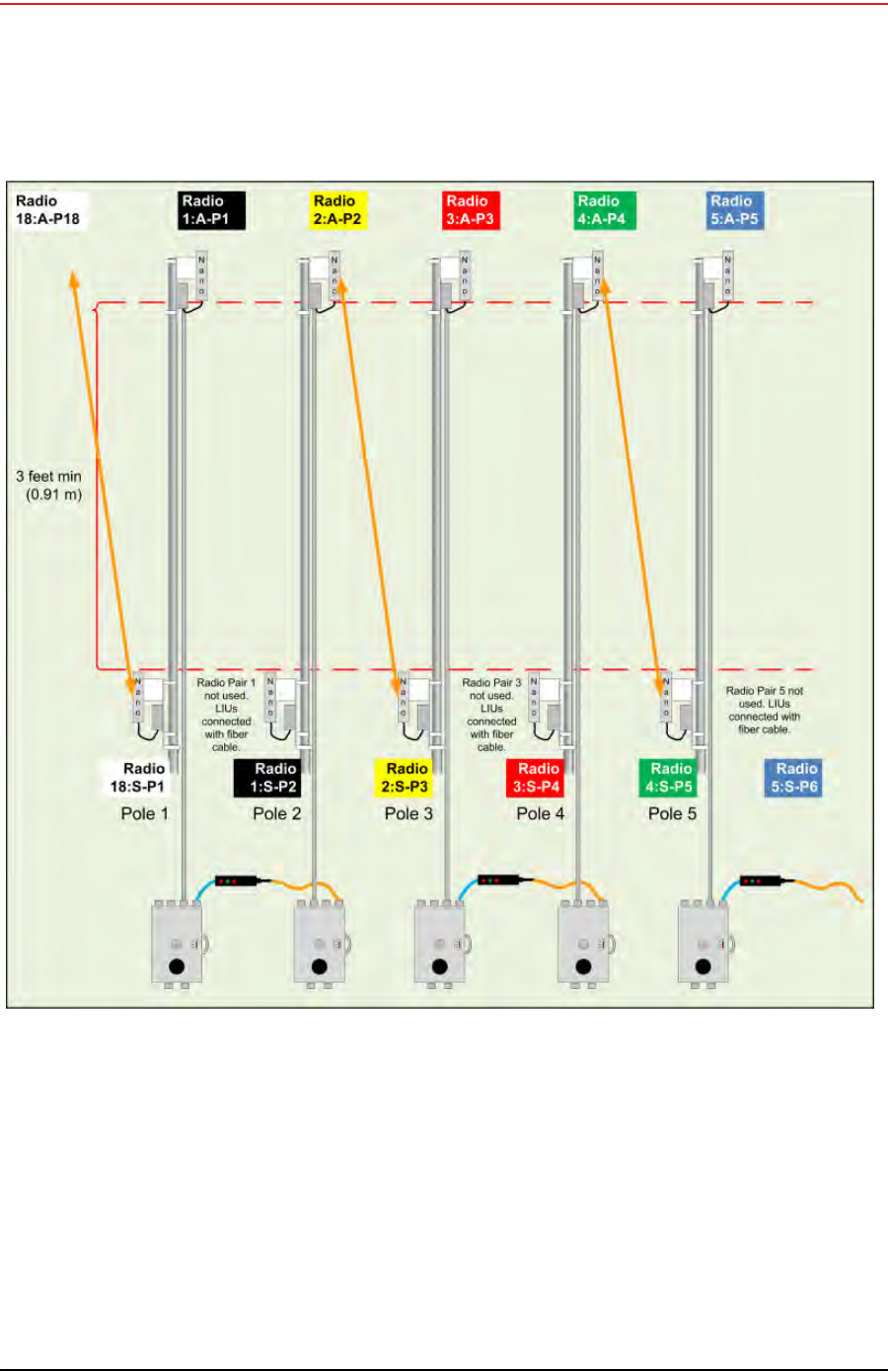
Draft
66 RT System 2 v2.3.0 Deployment Guide R01.b
© 2010-2013 Wireless Seismic, Inc. All rights reserved.
4. Point-to-Point Backhaul
Overview
Figure 4–4 Radio-to-Fiber Communication
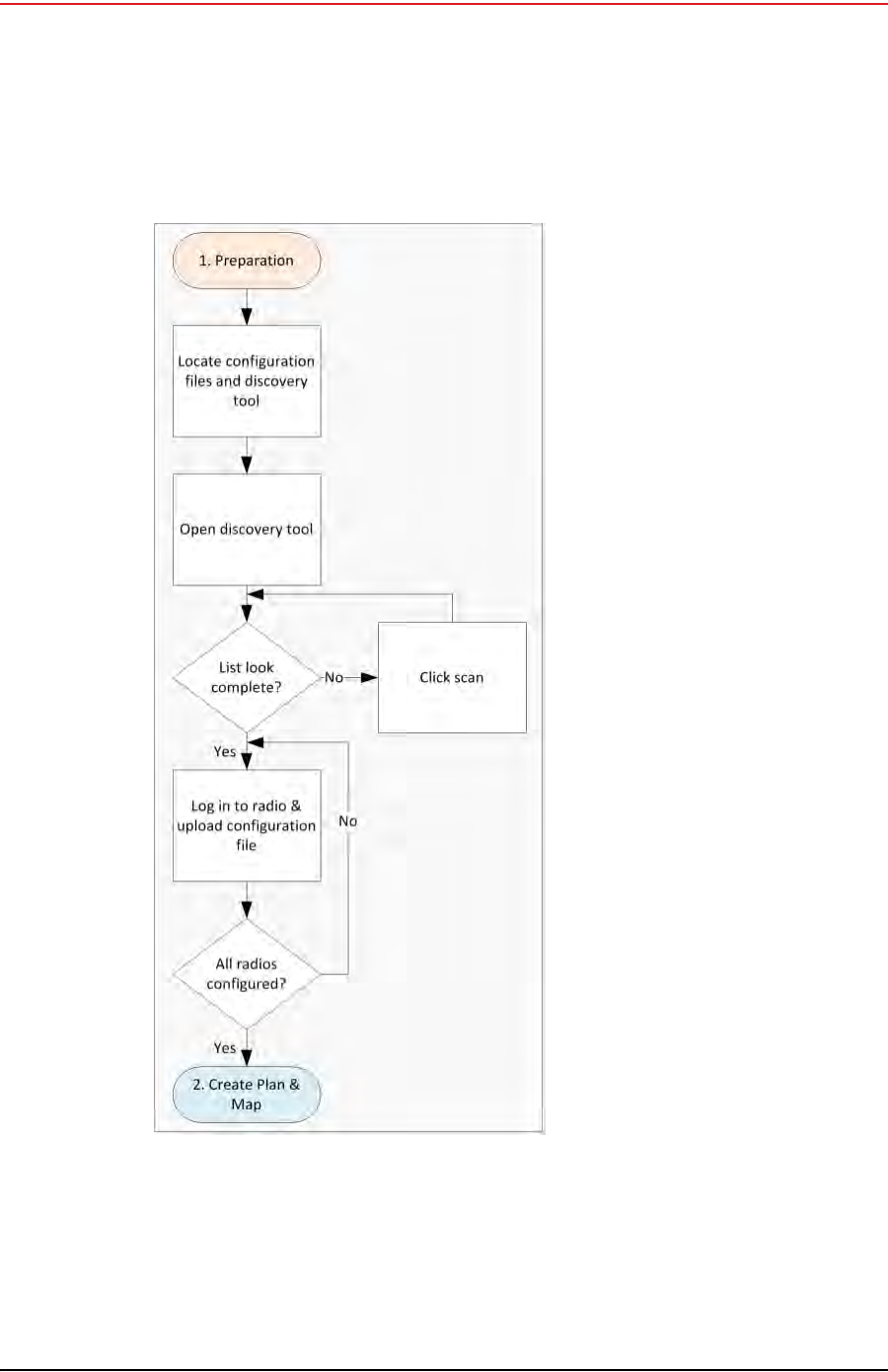
Draft
R01.b RT System 2 v2.3.0 Deployment Guide 67
© 2010-2013 Wireless Seismic, Inc. All rights reserved.
4. Point-to-Point Backhaul
Preparation
4.2 Preparation
This section provides the steps required to prepare the radios for placement in the field.
There are two versions of the NanoStation M5 radio. Verify that you are using the correct
radio and configuration files for your location. Wireless Seismic, Inc. recommends using only
the following radios in a point-to-point network.
Figure 4–5 Preparation Troubleshooting Flow
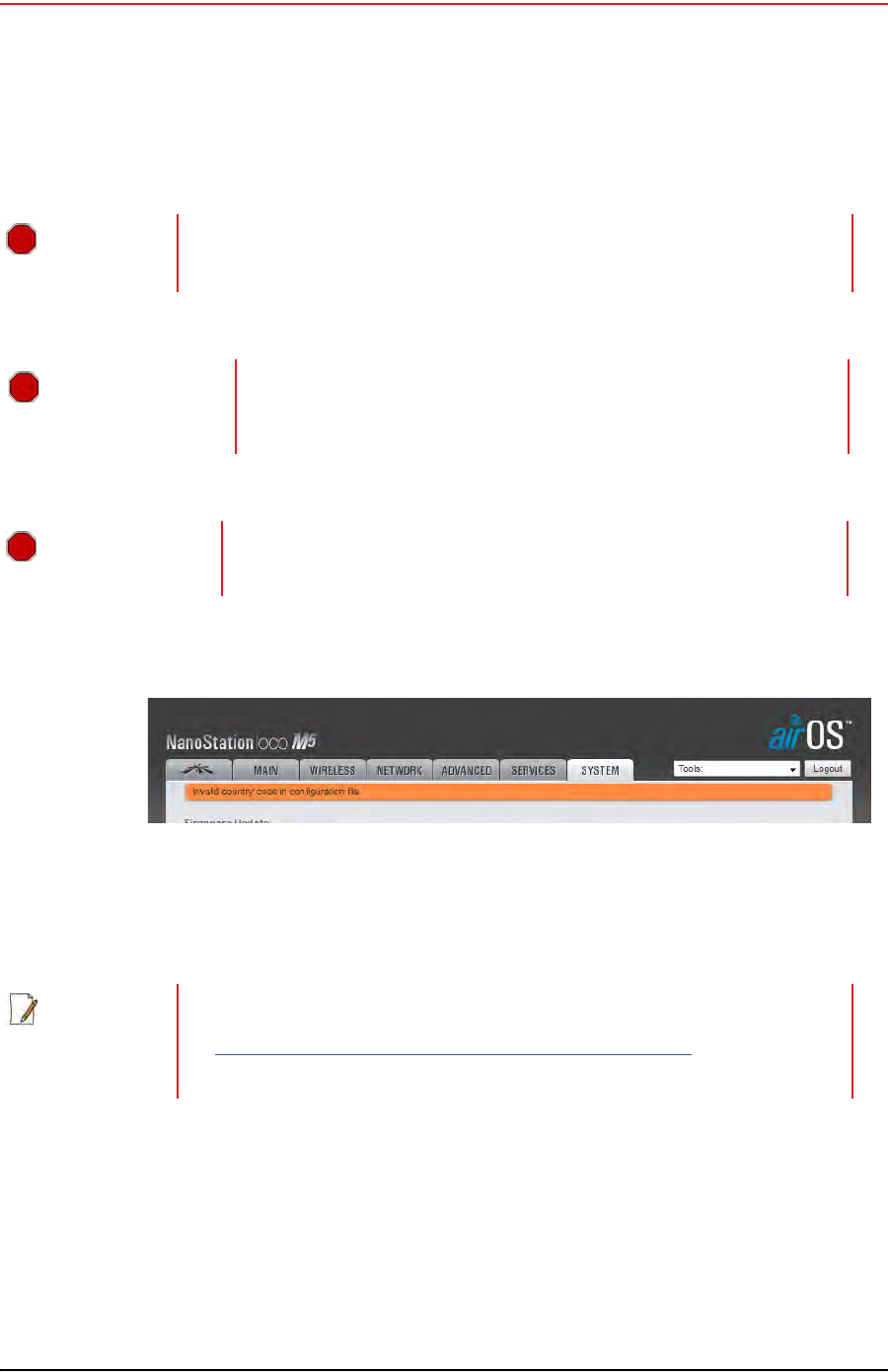
Draft
68 RT System 2 v2.3.0 Deployment Guide R01.b
© 2010-2013 Wireless Seismic, Inc. All rights reserved.
4. Point-to-Point Backhaul
Preparation
United States frequencies (56-0035 US) – Operating frequency 5745 – 5825 MHz
International frequencies (56-0032 INTL) – Operating frequency 5470 – 5825 MHz
If you use an international configuration file with a United States radio, or a United States
configuration file with an international radio, an error message is displayed:
The ability to modify the Country Code is disabled for radios that are configured for use in
the United States and Canada.
To discover and configure the radios:
→RT System 2 Windows computer
1Verify that the configuration files for the radios and the discovery tool are on the
RT System 2 Windows computer. The configuration files and the Ubiquiti Discovery
WARNING
WARNING
Operating outside of the allowed frequency range could result in sanctions by
governmental regulatory agencies. Verify that all radios are correct for the
market in which they will be used.
AVERTISSEMENT
Le fait de faire marcher à l'extérieur de la bande de fréquences permise
pourrait s'ensuivre dans les sanctions par les agences gouvernementales
de contrôle. Vérifiez que toutes les radios sont correctes pour le marché
dans lequel ils seront utilisés.
OSTRZEŻENIE
Działających poza zakres częstotliwości dozwolonych może skutkować
sankcjami przez rządowe agencje regulacyjne. Sprawdź, czy wszystkie
radia są poprawne dla rynku, w którym będą one wykorzystywane.
Figure 4–6 Invalid Country Code Error Message
NOTE
Country codes are three-digit codes defined in ISO 3166-1. See the following for
more information:
•http://www.iso.org/iso/home/standards/country_codes.htm
• “H. Country Codes” on page 187

Draft
R01.b RT System 2 v2.3.0 Deployment Guide 69
© 2010-2013 Wireless Seismic, Inc. All rights reserved.
4. Point-to-Point Backhaul
Preparation
Tool files are provided as a ZIP file. Extract the files if necessary.
The file names are as follows:
2Configure the computer to be a private network with a static IP address of
192.168.1.100. See the Troubleshooting Guide, Additional Information chapter, Setting a
Static IP Address section if you need instructions on setting the IP address.
3Connect a single radio to the computer.
• ubnt-discovery-
v2.3.bat • ubnt-discovery-
v2.3.jar
•1-AP.cfg •7-AP.cfg •13-AP.cfg
•1-S.cfg •7-S.cfg •13-S.cfg
•2-AP.cfg •8-AP.cfg •14-AP.cfg
•2-S.cfg •8-S.cfg •14-S.cfg
•3-AP.cfg •9-AP.cfg •15-AP.cfg
•3-S.cfg •9-S.cfg •15-S.cfg
• 4-AP.cfg • 10-AP.cfg • 16-AP.cfg
•4-S.cfg •10-S.cfg •16-S.cfg
• 5-AP.cfg • 11-A P.cfg • 17-AP.cfg
•5-S.cfg •11-S.cfg •17-S.cfg
• 6-AP.cfg • 12-AP.cfg • 18-AP.cfg
•6-S.cfg •12-S.cfg •18-S.cfg
NOTE
When using a radio link (pendant) to the recording truck, the following
configuration files are also required:
• Recorder-AP.cfg
•Recorder-S.cfg
See “Connecting to the Recording Truck” on page 90 for more information on
using a pendant radio link.
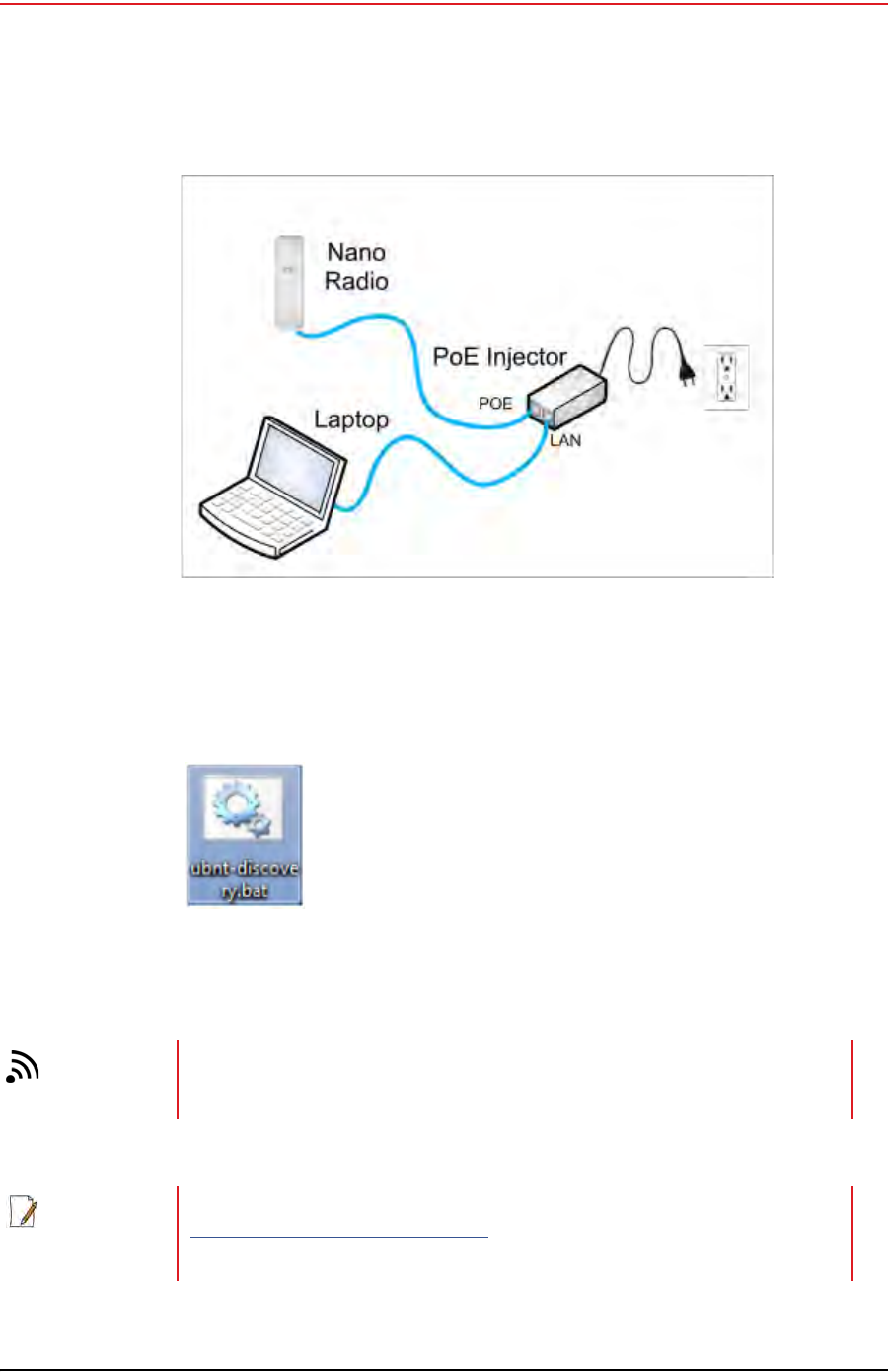
Draft
70 RT System 2 v2.3.0 Deployment Guide R01.b
© 2010-2013 Wireless Seismic, Inc. All rights reserved.
4. Point-to-Point Backhaul
Preparation
4Open the Ubiquiti Discovery Tool by double-clicking the shortcut on the desktop.
Figure 4–7 Ubiquiti NanoStation Private Network Connection
Figure 4–8 Ubiquiti
Discovery Tool Icon
TIP
Ensure that the .bat file and the .jar file are in the same directory.
NOTE
The discovery tool can also be downloaded from the following location:
http://www.ubnt.com/download#app
Extract the files from the downloaded ZIP file to the desktop.
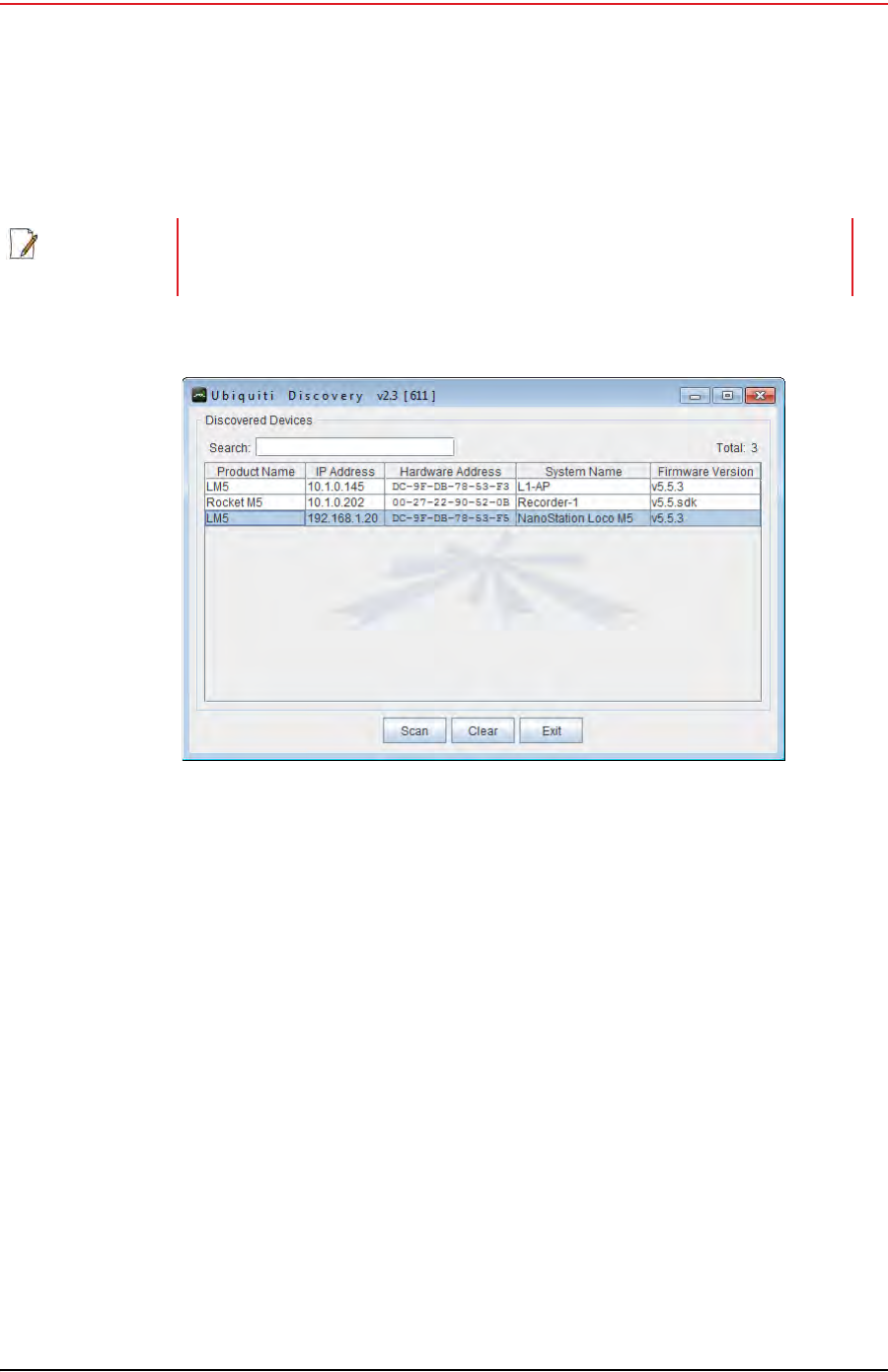
Draft
R01.b RT System 2 v2.3.0 Deployment Guide 71
© 2010-2013 Wireless Seismic, Inc. All rights reserved.
4. Point-to-Point Backhaul
Preparation
5The Discovery window opens and displays a list of all Discovered Devices:
6If the list does not look correct, click Scan.
7Right-click one of the radios and then click Web UI. For example, right-click the
following row:
L M5 | 192.168.1.20 | DC-9F-DB-78-53-F3 | NanoStation Loco M5
and then click Web UI. The airOS login window opens:
NOTE
The factory default IP address for the radios is 192.168.1.20. Configure the
radios one at a time.
Figure 4–9 Ubiquiti Discovery Window

Draft
72 RT System 2 v2.3.0 Deployment Guide R01.b
© 2010-2013 Wireless Seismic, Inc. All rights reserved.
4. Point-to-Point Backhaul
Preparation
8Type the following credentials and click Login:
●Username: ubnt
●Password: ubnt
9The radio configuration window opens. Click the System tab.
Figure 4–10 Ubiquiti airOS Login Window
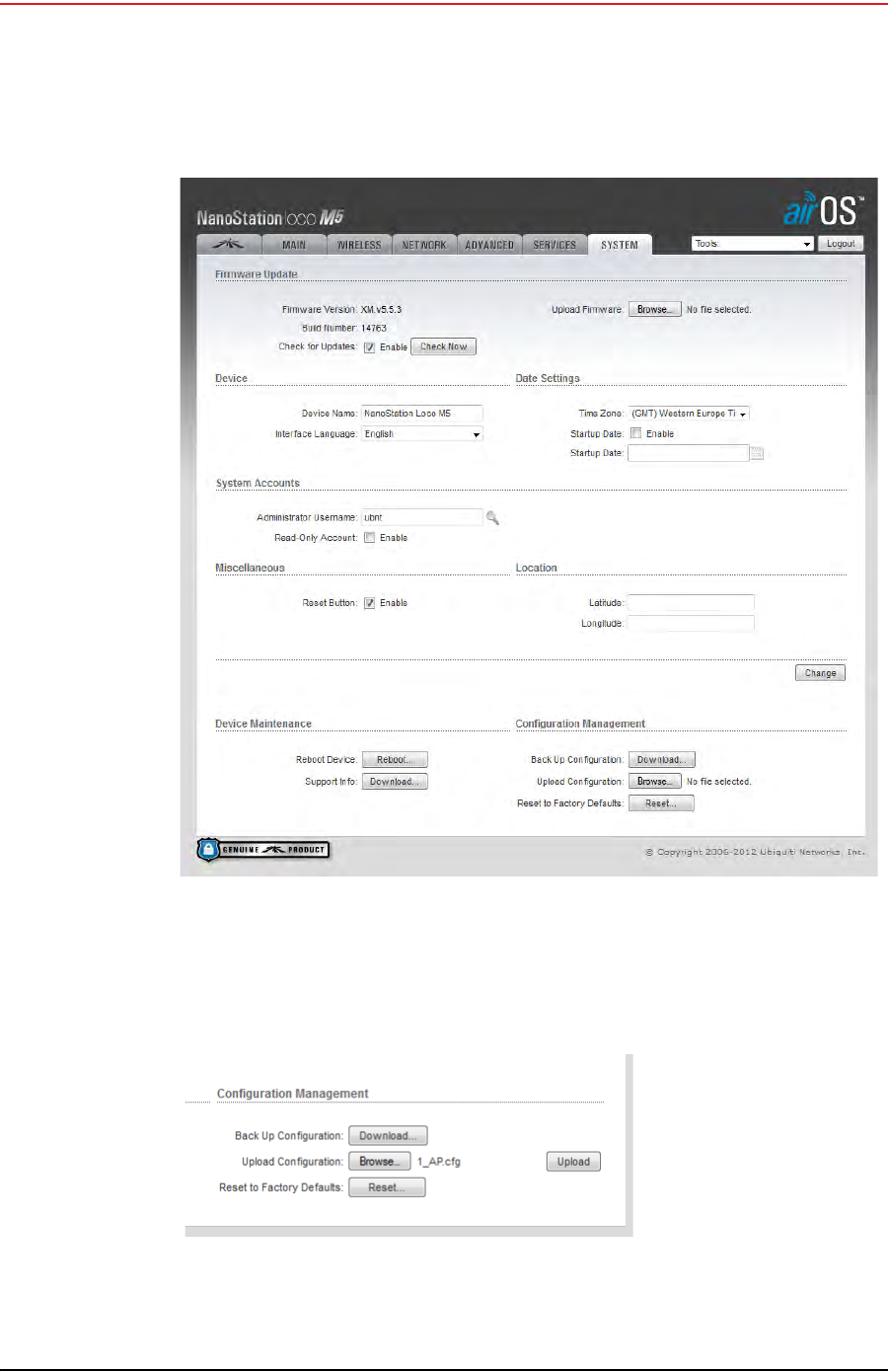
Draft
R01.b RT System 2 v2.3.0 Deployment Guide 73
© 2010-2013 Wireless Seismic, Inc. All rights reserved.
4. Point-to-Point Backhaul
Preparation
10 In the Configuration Management → Upload Configuration area, click Browse.
Browse to the configuration file (for example 1-AP.cfg), and then click Upload.
Figure 4–11 Ubiquiti airOS Window, System Tab
Figure 4–12 Ubiquiti, Upload Configuration File
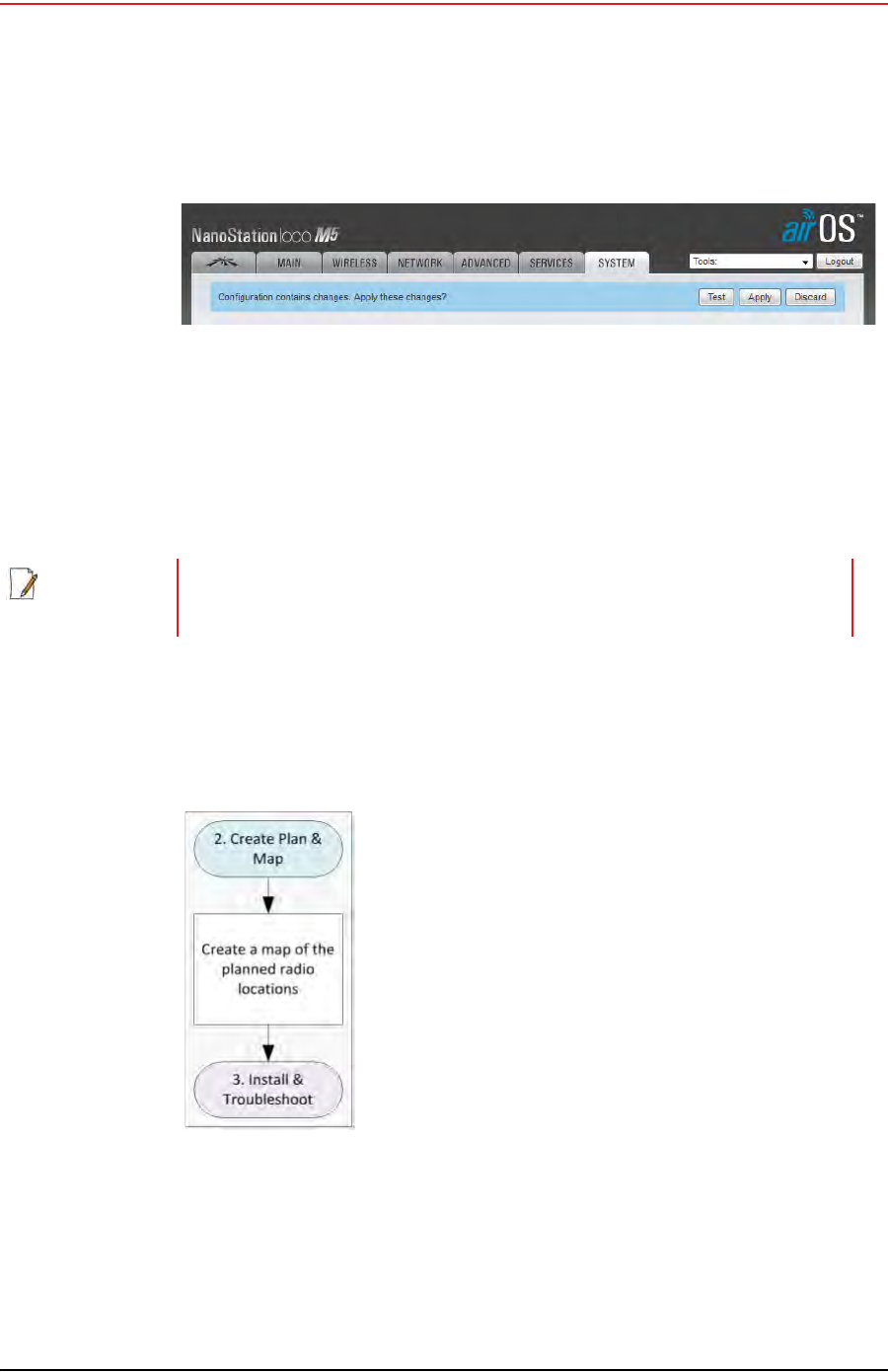
Draft
74 RT System 2 v2.3.0 Deployment Guide R01.b
© 2010-2013 Wireless Seismic, Inc. All rights reserved.
4. Point-to-Point Backhaul
Create Plan and Map
11 Click Apply.
12 The radio reboots and obtains a new IP address if a DHCP server is active. The current
session of airOS is no longer valid since the IP address of the radio has changed.
13 Close the browser window.
14 Disconnect the radio. It is now ready for deployment.
15 Continue connecting radios and uploading configuration files until they are all configured.
4.3 Create Plan and Map
Using the documents provided for the job (survey, planned LIU locations, and so on), create
a plan to plot radio locations and map the layout of AP and S radios.
Keep the following in mind as you create the layout plan:
Point the radio pairs directly at each other whenever possible maintaining line-of-sight
around obstructions (see “Maintain Line-of-Sight” on page 75).
Figure 4–13 Ubiquiti, Apply Configuration Changes
NOTE
Radios were labeled prior to shipment and there should be a 1:1 correlation
between radios and configuration files. Make sure the correct configuration file is
loaded onto the corresponding radio.
Figure 4–14 Create Plan and
Map Troubleshooting Flow
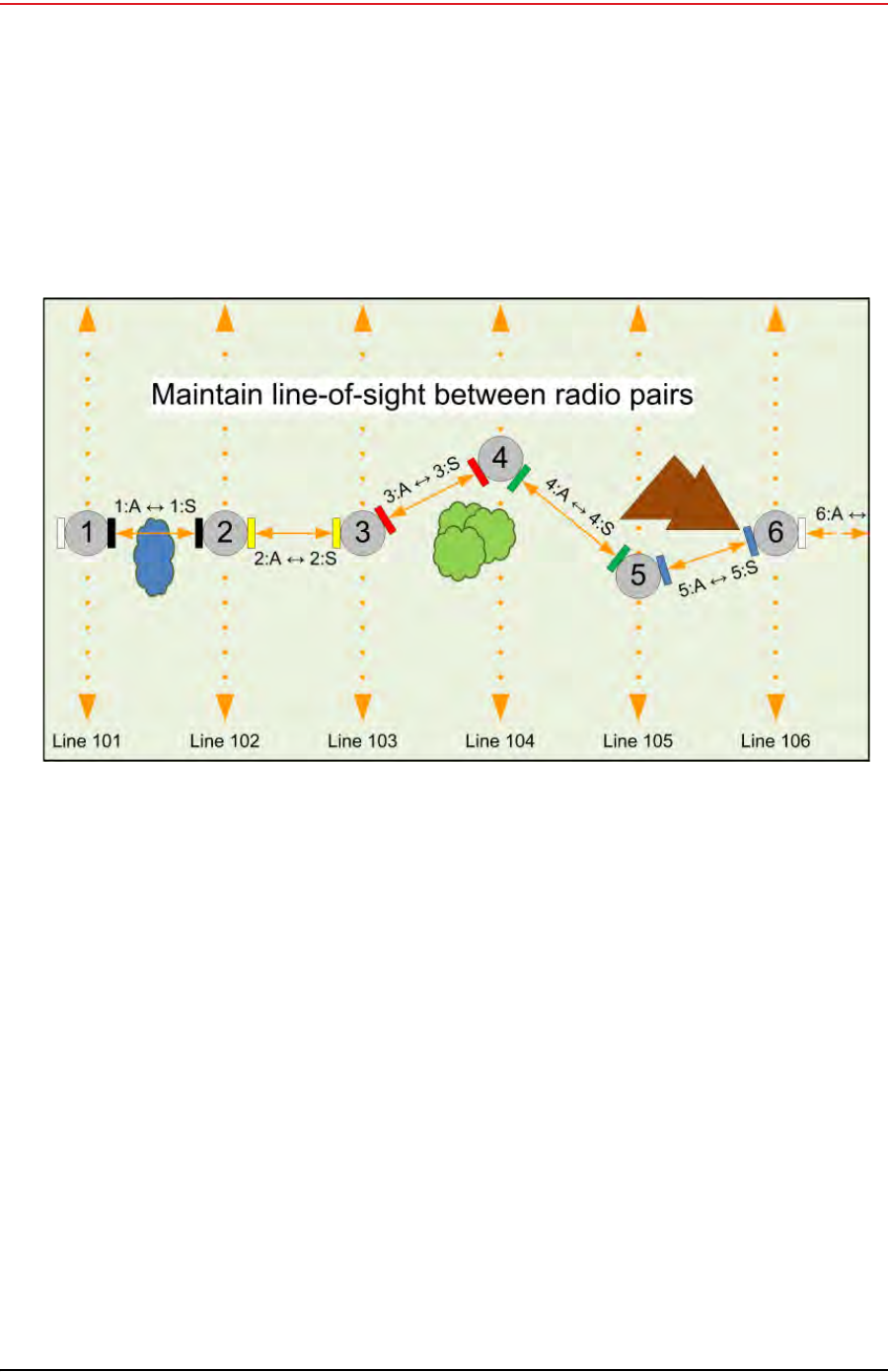
Draft
R01.b RT System 2 v2.3.0 Deployment Guide 75
© 2010-2013 Wireless Seismic, Inc. All rights reserved.
4. Point-to-Point Backhaul
Install and Troubleshoot
Use a tool such as Google Earth or Global Mapper to create an Elevation Profile to assist
with determining the best locations for radio towers. See “Creating a Google Earth
Elevation Profile” on page 111 for an example.
An Access Point communicates only with a Station. An Access Point cannot communicate
with an Access Point, and a Station cannot communicate with a Station.
4.4 Install and Troubleshoot
This section describes how to install the radios and troubleshoot the radio communications.
Figure 4–15 Maintain Line-of-Sight

Draft
76 RT System 2 v2.3.0 Deployment Guide R01.b
© 2010-2013 Wireless Seismic, Inc. All rights reserved.
4. Point-to-Point Backhaul
Install and Troubleshoot
To install and troubleshoot the radios:
1Using the plan created in section “Create Plan and Map” on page 74. install all of the
radios, masts, and LIUs. Keep the following in mind as you proceed through the
installation:
Figure 4–16 Install and Troubleshoot the Radios Flow

Draft
R01.b RT System 2 v2.3.0 Deployment Guide 77
© 2010-2013 Wireless Seismic, Inc. All rights reserved.
4. Point-to-Point Backhaul
Install and Troubleshoot
●Use labels to ensure that the correct radios are in the correct positions.
●Install the Access Point (A) radios are at the top of the pole, and the Station (S)
radios on the same pole are at least three feet below the Access Point radios as
shown in “Radio-to-Radio Communication” on page 65.
●Point radio pairs directly at each other where possible (see “Maintain Line-of-Sight”
on page 75). Some inaccuracy is tolerable; however, align the radios as close as
possible using binoculars or compass bearing.
2From the recording truck, open the Ubiquiti Discovery Tool. Verify that all of the radios
are listed, and verify that each of the radios has a valid IP Address. Note the following:
●If a radio is listed, that means there is an Ethernet path to the radio.
●If a radio has a valid IP address that means the DHCP is active, DHCP is being
accepted by the radios, and DHCP is being passed from radio link to radio link.
►DHCP server-assigned IP addresses are 10.xxx.xxx.xxx
►Non-DHCP server-assigned IP addresses are 192.168.1.xxx
3If a radio is not listed, send a troubleshooter to the first radio that is not listed (the radio
closest to the recording truck) and perform the following steps:
aVerify that the LIU has active LED lights (the battery has power).
bVerify that the radio is visible in Discovery.
cVerify that the radio is securely connected to the LIU with a known-good cable.
dConnect a laptop to the LIU.
IMPORTANT: The Ethernet ports on the LIU are PoE enabled. When connecting a
laptop computer to the LIU, use a non-powered cable (60-0039) to protect the
computer’s Ethernet port. Do not use a powered Ethernet cable (60-0054). See
“Ethernet Cable Connections Comparison” on page 78 for more information.
eOpen the discovery tool and verify that the radio is listed. If the radio is not listed,
perform the following steps.
1) Verify that the radio has power by visually inspecting the LEDs.
2) If the radio has power but is not visible to the laptop, try a different Ethernet
port.
3) If the radio does not have power, troubleshoot the power and/or replace the
radio.
fVerify that the radio is pointed in the direction of its partner (pair) radio and has
reasonable line-of-sight to its partner (pair) (see “Maintain Line-of-Sight” on page
75).
gVerify that the last radio visible from the doghouse is pointed in the correct direction.
hReload the configuration file to the radio.
iIf the above steps fail, contact Wireless Seismic, Inc. for assistance.

Draft
78 RT System 2 v2.3.0 Deployment Guide R01.b
© 2010-2013 Wireless Seismic, Inc. All rights reserved.
4. Point-to-Point Backhaul
Final Communication Test
The following table compares the powered Ethernet cable and the non-powered Ethernet
cable:
4.5 Final Communication Test
This section describes how to run the final speed test to verify good communication
throughout the backhaul.
Table 4–2 Ethernet Cable Connections Comparison
60-0039 LIU to Computer Signal Name 60-0054 LIU to Radio PoE
14-Pin Connector RJ-45 Connector RJ-45 Connector 11-Pin Connector
B1TX+1B
A2TX-2A
C3RX+3C
NC 4 POSITIVE 4 H
NC 5 POSITIVE 5 F
D6RX-6D
NC 7 RETURN 7 E
NC 8 RETURN 8 L
P — SHIELD DRAIN — P
———NCR*
———NCM*
— *Jumper pins R and M together.
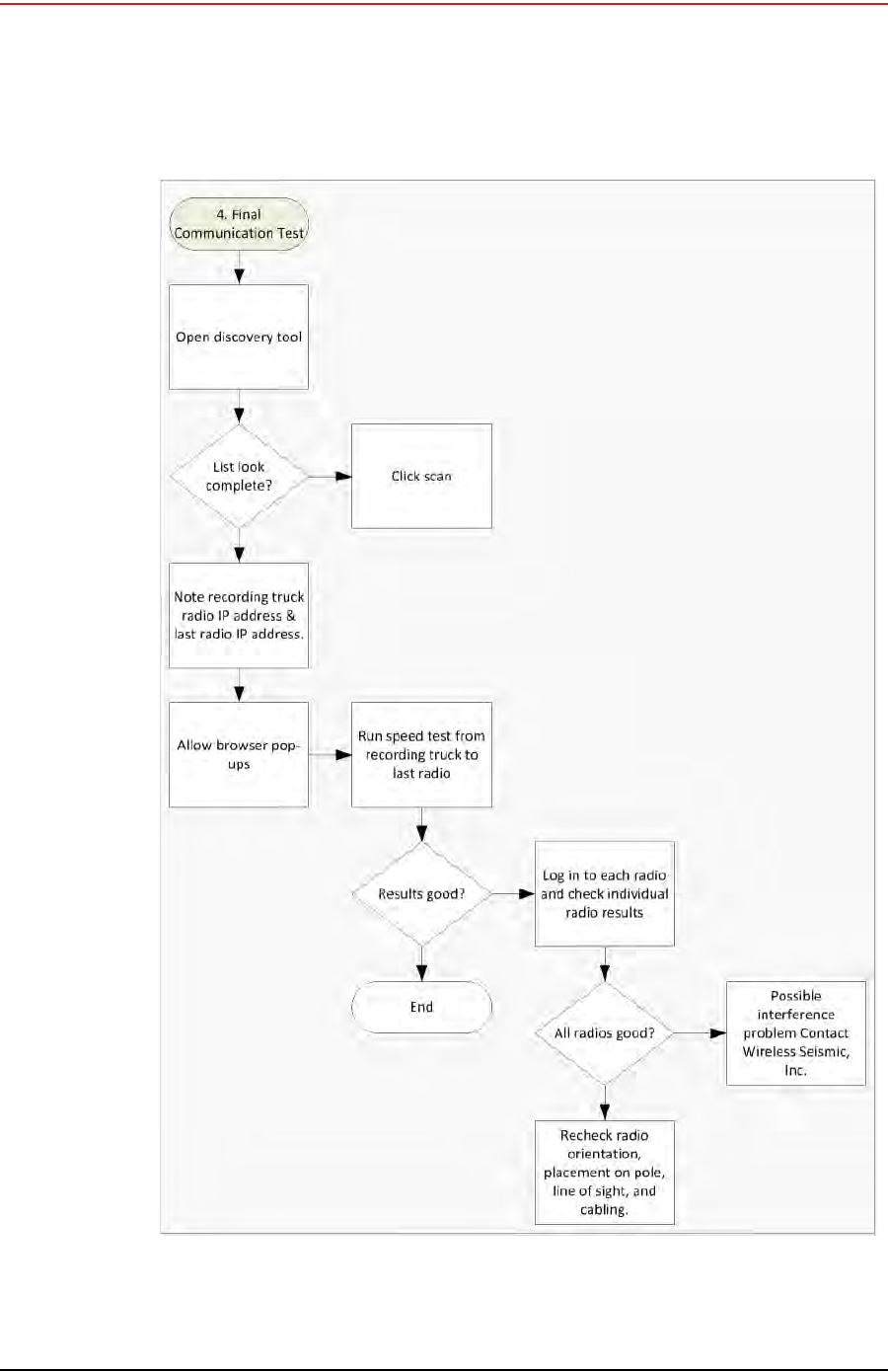
Draft
R01.b RT System 2 v2.3.0 Deployment Guide 79
© 2010-2013 Wireless Seismic, Inc. All rights reserved.
4. Point-to-Point Backhaul
Final Communication Test
Figure 4–17 Final Communication Test Flow

Draft
80 RT System 2 v2.3.0 Deployment Guide R01.b
© 2010-2013 Wireless Seismic, Inc. All rights reserved.
4. Point-to-Point Backhaul
Final Communication Test
To run the speed test:
1Verify that all radios are listed in the Ubiquiti Discovery Tool as described in step 4 on
page 70 through step 6 on page 71.
2Make a note of the following IP addresses:
●The last radio in the line segment, that is, the radio farthest away from the recording
truck:
______.______.______.______
●The radio at the recording truck:
______.______.______.______
3The speed test should be run from the recording truck radio to the radio farthest from
the recording truck. Log in to the recording truck radio as described in step 4 on page 70
through step 8 on page 72.
4Verify that browser pop-ups are allowed:
►Firefox – Tools → Options → Content → clear the Block pop-up
windows check box → click OK
►Internet Explorer – Tools → Internet Options → Privacy → clear the
Turn on Pop-up Blocker check box → click OK
5Click Tools → Speed Test.
6In the Speed Test window, perform the following steps:
aClick the IP address for the radio farthest from the recording truck in the Select
Destination IP list:
Figure 4–18 Ubiquiti airOS Tools
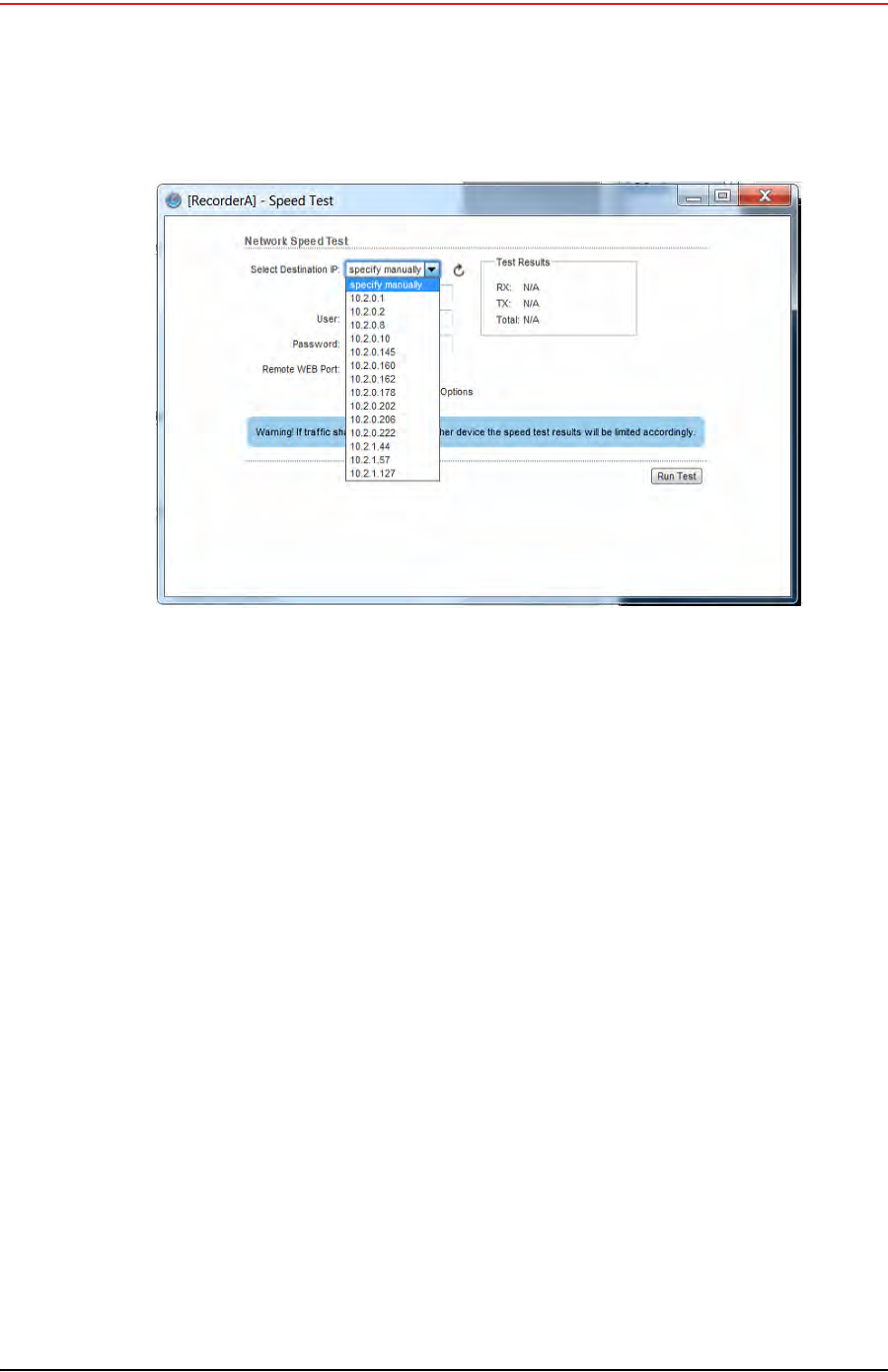
Draft
R01.b RT System 2 v2.3.0 Deployment Guide 81
© 2010-2013 Wireless Seismic, Inc. All rights reserved.
4. Point-to-Point Backhaul
Final Communication Test
bType ubnt in the User text box.
cType ubnt in the Password text box.
dType 443 in the Remote WEB Port text box.
eThe default test Direction is duplex; the test is performed for both transmit and
receive. If you want to run the test in only one direction, perform the following steps:
1) Select the Show Advanced Options check box.
2) Select transmit or receive.
fClick Run Test.
gGood Test Results are as follows:
►RX (receive) only = 70+ Mbps
►TX (transmit) only = 70+ Mbps
►Total (duplex) = 90+ Mbps
–RX = 40+ Mbps
–TX = 40+ Mbps
7If Speed Test results are low, use a systematic approach of testing links to identify the
offending radio pairs:
aLog in to a Station (S) radio.
bClick the Main tab and verify the following values:
►Signal Strength < -75 dBm
►Either the Vertical or Horizontal (Main Tab, Stations only) < -80 (between -65
and -75 is ideal)
►Transmit CCQ < 90% (100% is ideal)
►Click AP Information in the Monitor area. Verify that the Access Point Signal
Strength < -75 dBm
Figure 4–19 Speed Test Window
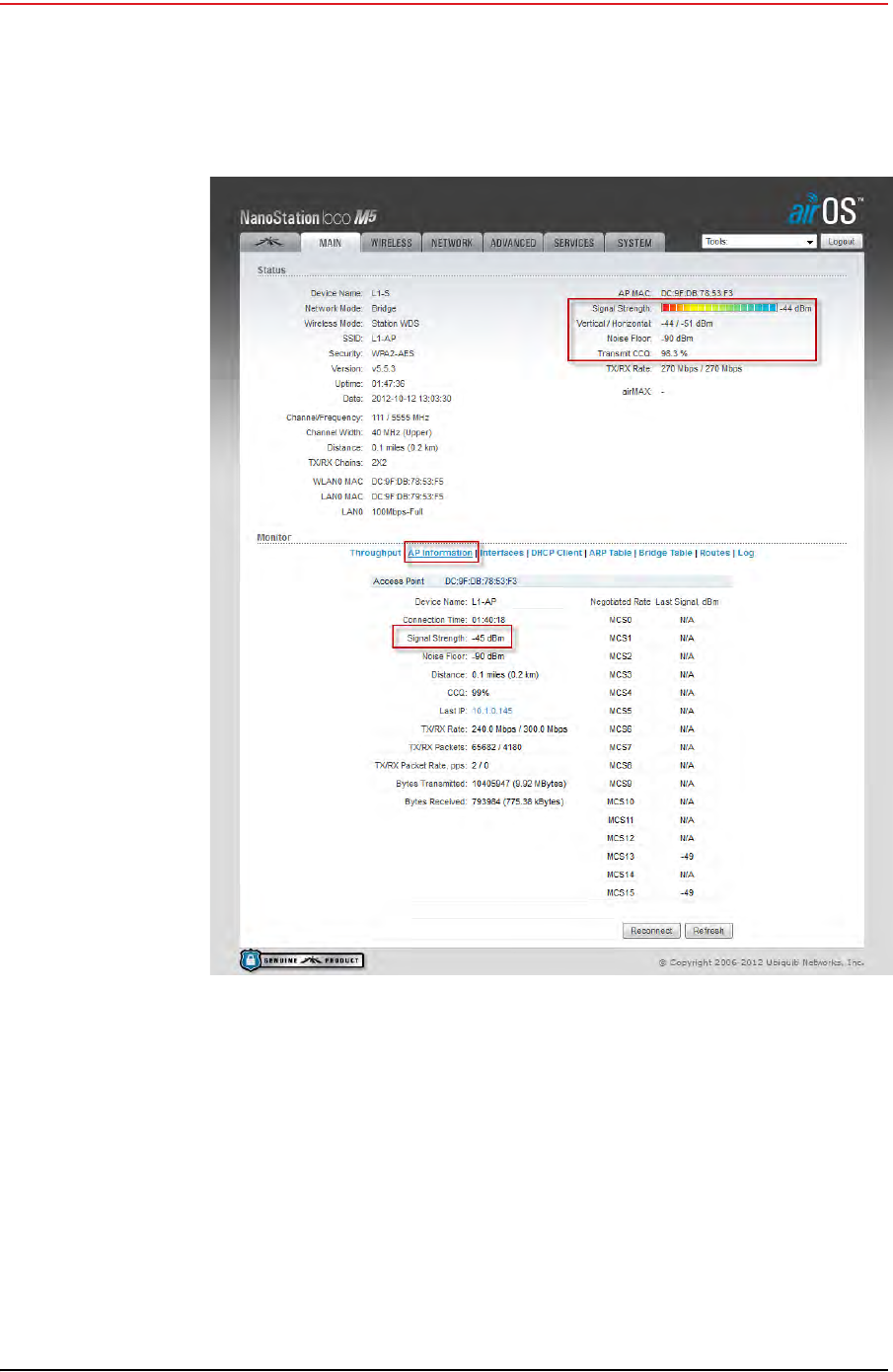
Draft
82 RT System 2 v2.3.0 Deployment Guide R01.b
© 2010-2013 Wireless Seismic, Inc. All rights reserved.
4. Point-to-Point Backhaul
Final Communication Test
cRepeat step a on page 81 and step b on page 81 for all of the radios.
8If the individual links are all good but the backhaul as a whole does not deliver the
appropriate throughput, it indicates that there is an interference problem.
Contact Andy Prokop, Jerry Stair, or Mike Shilts for project-specific recommendations.
9If there are individual links with low numbers, perform the following steps to fix them:
aVerify that the radios are pointing in the correct directions.
bVerify that shielding is properly installed. The following figure shows the NanoStation
radio shielding and surge suppressor assembly (56-0032):
Figure 4–20 NanoStation Main Tab
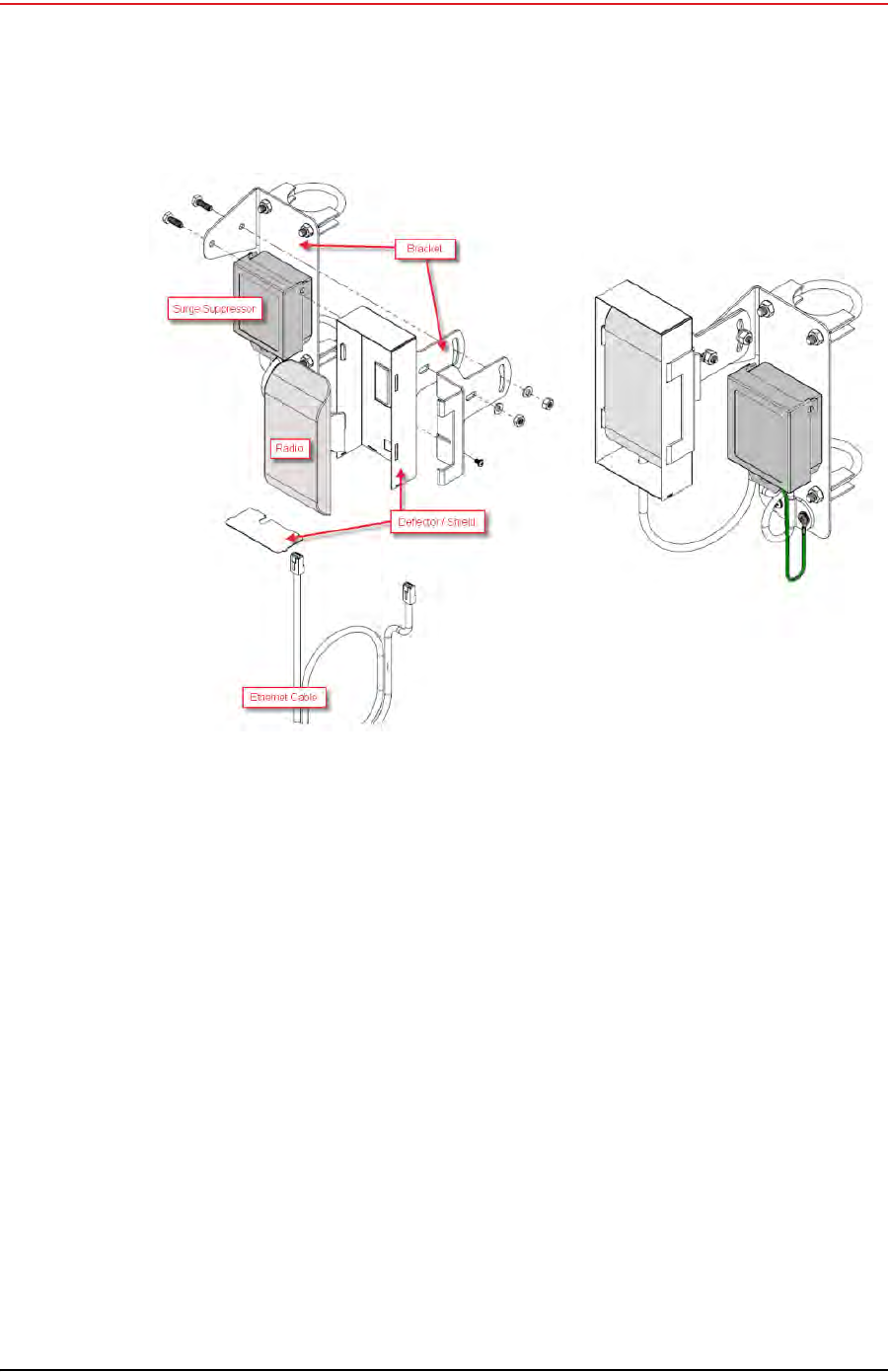
Draft
R01.b RT System 2 v2.3.0 Deployment Guide 83
© 2010-2013 Wireless Seismic, Inc. All rights reserved.
4. Point-to-Point Backhaul
Final Communication Test
cCheck for misaligned or improperly installed shielding.
dVerify that the radios on the same pole are at least three feet apart.
eVerify that the Access Point (A) radio is three feet higher on the pole than the Station
(S) radio.
fIf possible, raise the poles (masts) to provide the least-obstructed view to the
partner radio as is reasonable.
gVerify that there are no frayed cables or cables with water intrusion.
Figure 4–21 NanoStation Radio Shielding and Surge Suppressor

Draft
84 RT System 2 v2.3.0 Deployment Guide R01.b
© 2010-2013 Wireless Seismic, Inc. All rights reserved.
4. Point-to-Point Backhaul
Rolling the Backhaul
4.6 Rolling the Backhaul
As production rolls away from the lines, radios, and towers farthest from the recording truck,
these lines, radios, and towers become available to be used on the other side of the
recording truck.
As you move the equipment, note the following:
Maintain the A-to-S configuration throughout the survey.
The poles must stay in sequential order as you roll the spread.
The following figure shows the movement of the poles and recording truck:
NOTE
The recording truck radio can be any one of the poles; in an ideal case the
recording truck starts at pole farthest from the recording truck, for example Pole
18. When you roll Pole 18, you will also need to move the recording truck.
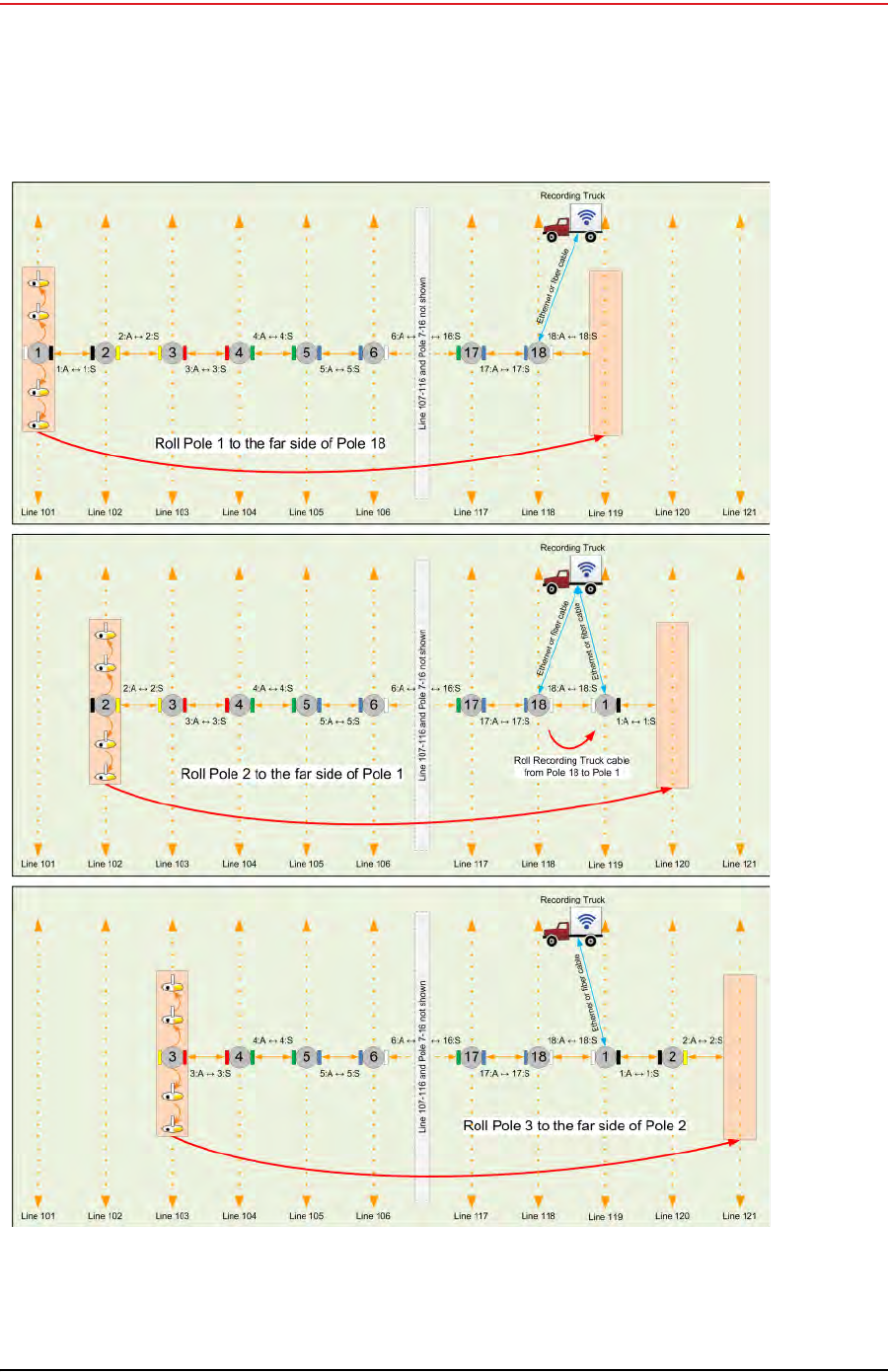
Draft
R01.b RT System 2 v2.3.0 Deployment Guide 85
© 2010-2013 Wireless Seismic, Inc. All rights reserved.
4. Point-to-Point Backhaul
Rolling the Backhaul
Figure 4–22 Rolling the Poles Example for 18 Total Poles
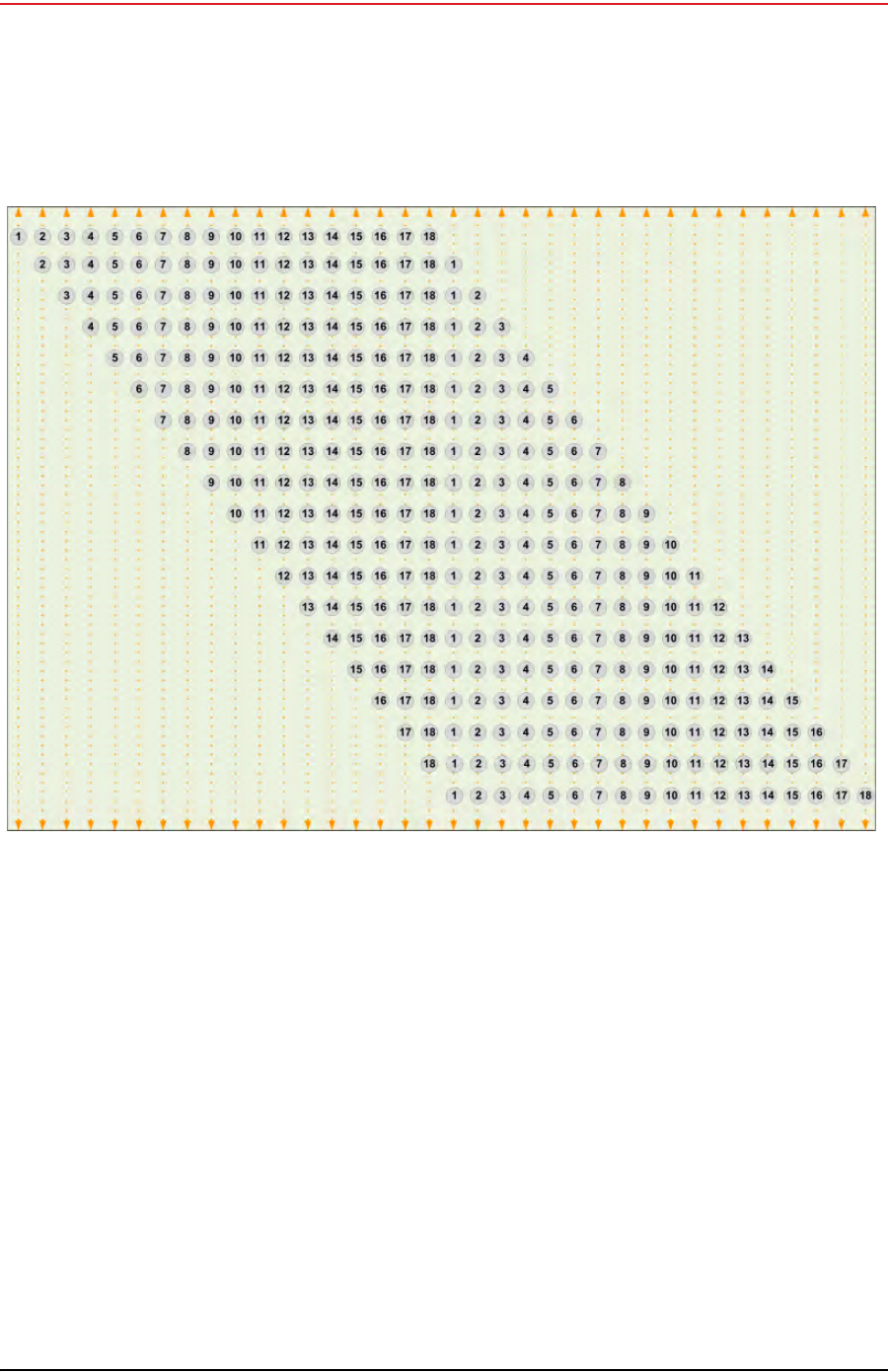
Draft
86 RT System 2 v2.3.0 Deployment Guide R01.b
© 2010-2013 Wireless Seismic, Inc. All rights reserved.
4. Point-to-Point Backhaul
Rolling the Backhaul
The following figure shows the movement of the poles when using 18 total poles:
Figure 4–23 Rolling Scheme, 18 Total Poles Example
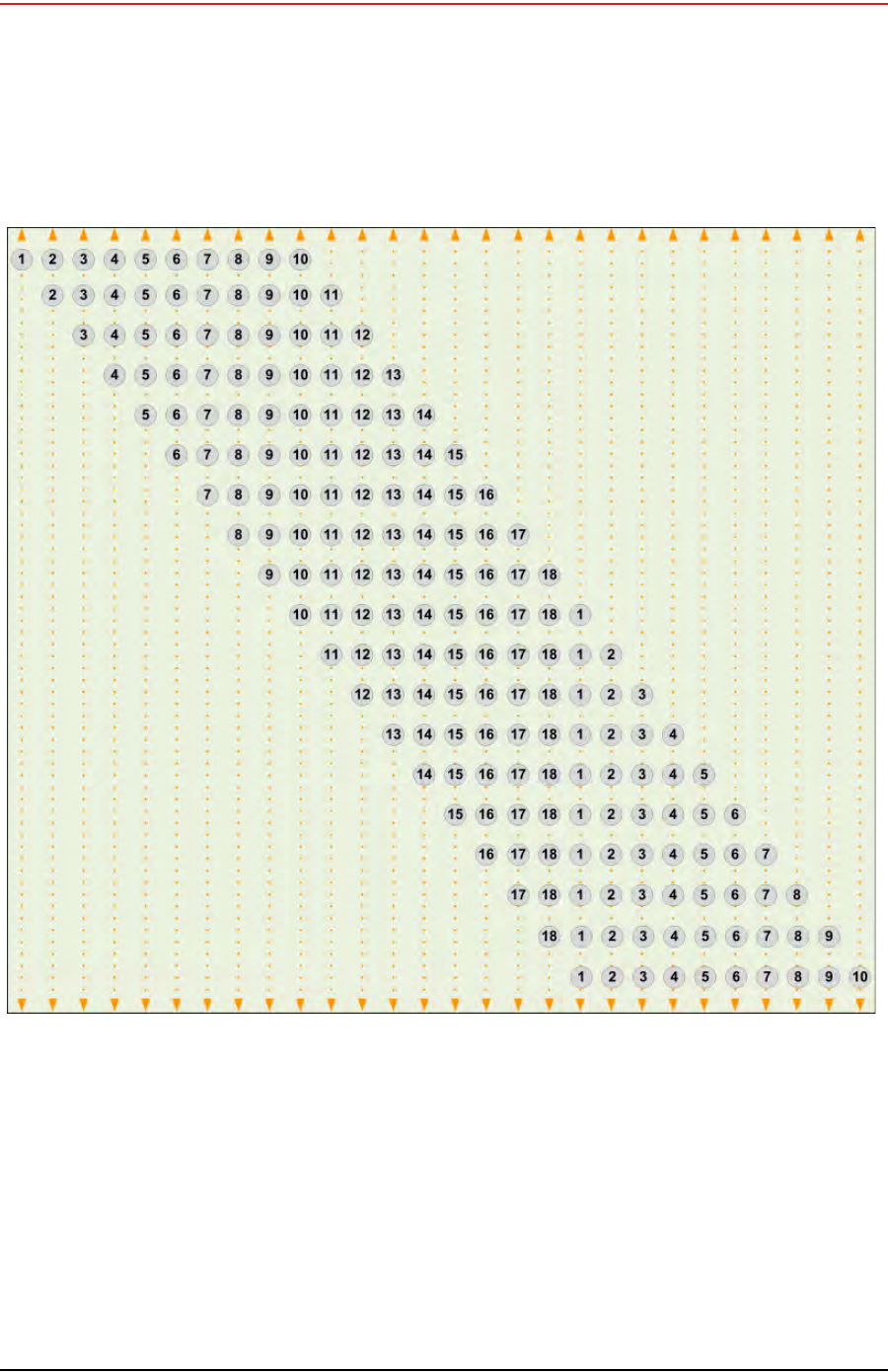
Draft
R01.b RT System 2 v2.3.0 Deployment Guide 87
© 2010-2013 Wireless Seismic, Inc. All rights reserved.
4. Point-to-Point Backhaul
Rolling the Backhaul
For a backhaul using 18 poles, even if you do not have all 18 lines set up at the same time,
the rolling scheme must be followed using all 18 poles as shown in the following figure:
Figure 4–24 Rolling Scheme, 18 Pole Backhaul, 10 Poles in Use

Draft
88 RT System 2 v2.3.0 Deployment Guide R01.b
© 2010-2013 Wireless Seismic, Inc. All rights reserved.
4. Point-to-Point Backhaul
Replacing a Radio
4.7 Replacing a Radio
Any number of environmental hazards could destroy an existing radio. When this happens,
replace it using the following instructions:
1Identify the radio that needs to be replaced.
2When the radio was initially configured for the point-to-point backhaul, a label was
attached to the radio indicating which configuration file was used. Make a note of the
configuration label (for example, 12:A-P12).
3Duplicate the configuration label and attach it to the replacement radio using the same
information and color.
The following example label indicates a radio configured for the following:
●Radio pair 12
●Access Point
●Pole 12
4Locate the corresponding configuration file (for example, 12-AP.cfg) and upload it to the
replacement radio according to step 4 on page 70 through step 13 on page 74.
5Mark the faulty radio is so that it does not work its way back into the spread.
6Replace the radio on the pole.
4.8 Upload New Firmware
This section describes how to upload new firmware into the radio.
To upload new firmware:
→Windows computer → Radio Configuration, System tab
1Click Browse next to Upload Firmware and navigate to the supplied BIN file.
2Select the file and click Open.
3Click Upload.
4Click Update.
5Do not power off the radio until the firmware is updated.
12:A-P12 White
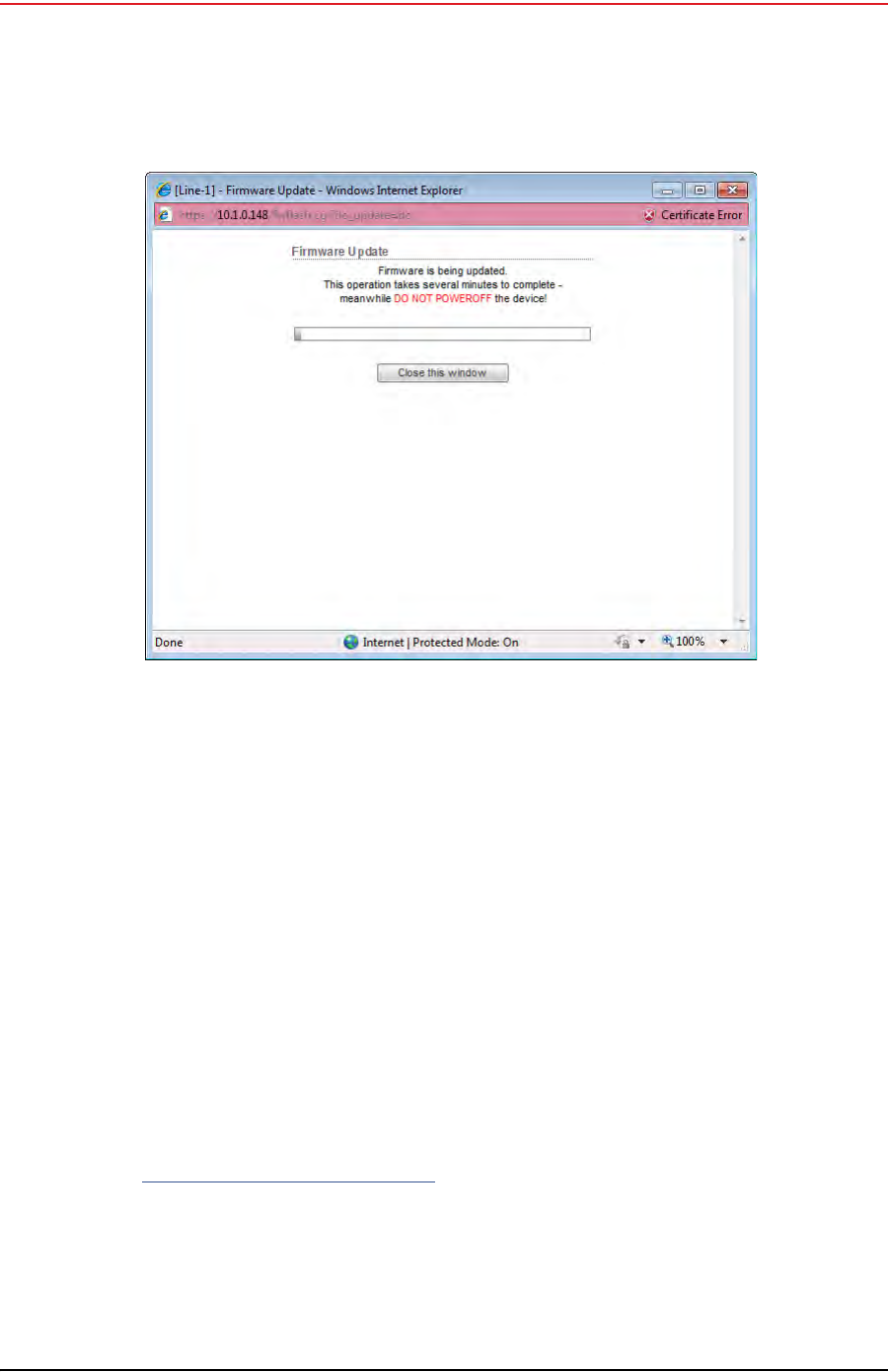
Draft
R01.b RT System 2 v2.3.0 Deployment Guide 89
© 2010-2013 Wireless Seismic, Inc. All rights reserved.
4. Point-to-Point Backhaul
Unzipping the Configuration Files
4.9 Unzipping the Configuration Files
The configuration files are delivered combined into one compressed file (config.zip).
To extract the files, use the built-in Windows 7 extraction process, or you can use a third-
party tool such as 7-Zip.
To use the Windows 7 process:
1Locate the ZIP file in Windows Explorer.
2Right-click the ZIP file name and then click Extract All.
3Browse to and select a folder.
4Click Extract.
To use 7-Zip:
1Download and install 7-Zip if it is not already installed:
http://www.7-zip.org/download.html
2Locate the ZIP file in Windows Explorer.
3Right-click the ZIP file name and then click 7-zip → Extract Files.
4Browse to and select a folder.
Figure 4–25 Radio Configuration, Updating Firmware
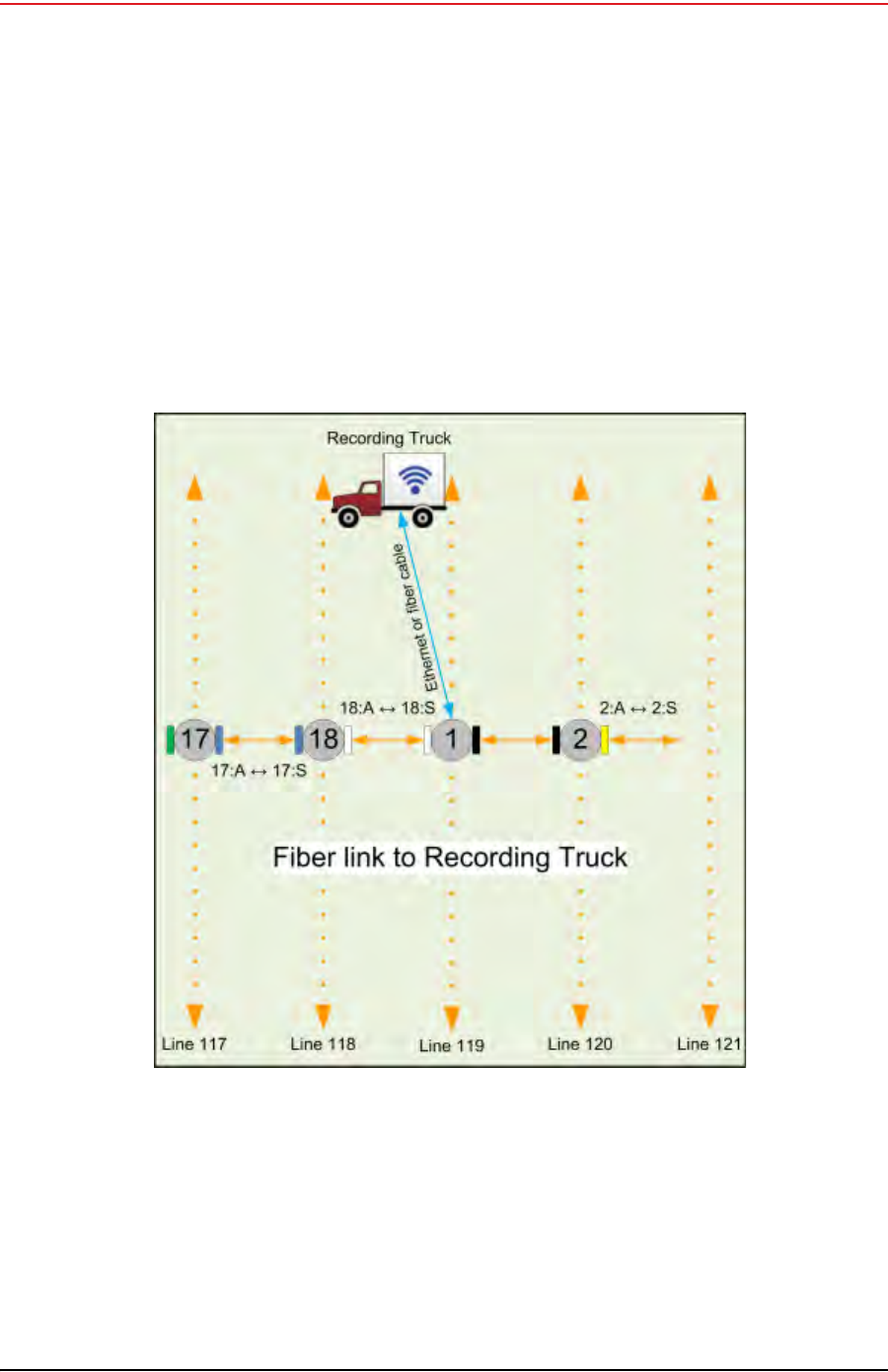
Draft
90 RT System 2 v2.3.0 Deployment Guide R01.b
© 2010-2013 Wireless Seismic, Inc. All rights reserved.
4. Point-to-Point Backhaul
Connecting to the Recording Truck
5Click OK.
4.10 Connecting to the Recording Truck
The line communicates to the recording truck through an LIU using one of the following
methods:
Fiber cable
Radio link (pendant)
The following figure shows a fiber cable connection example:
Figure 4–26 Connecting the Recording Truck with Fiber
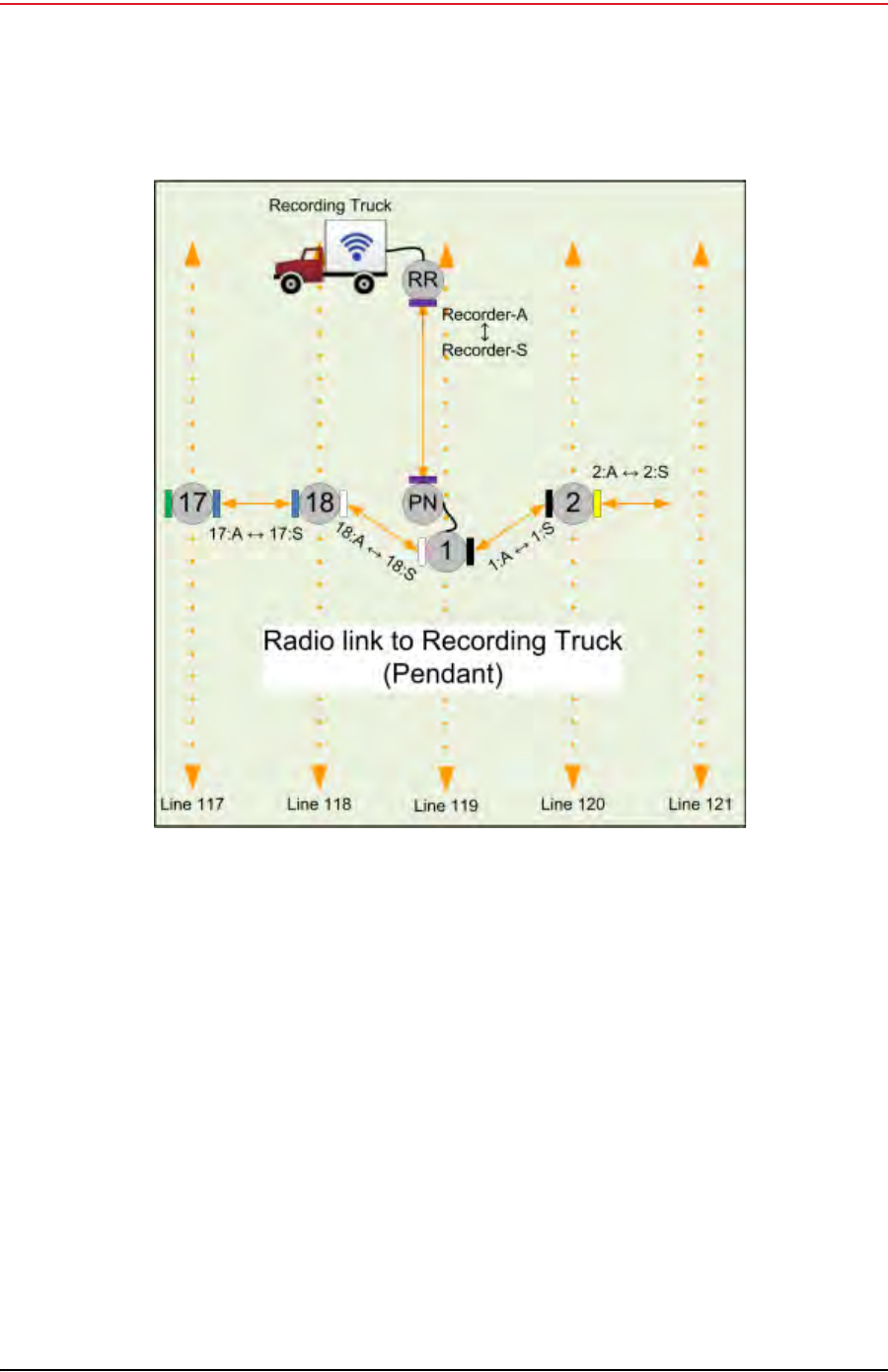
Draft
R01.b RT System 2 v2.3.0 Deployment Guide 91
© 2010-2013 Wireless Seismic, Inc. All rights reserved.
4. Point-to-Point Backhaul
Connecting to the Recording Truck
The following figure shows a radio link (pendant) connection example.
Figure 4–27 Connecting the Recording Truck with a Pendant Radio Link
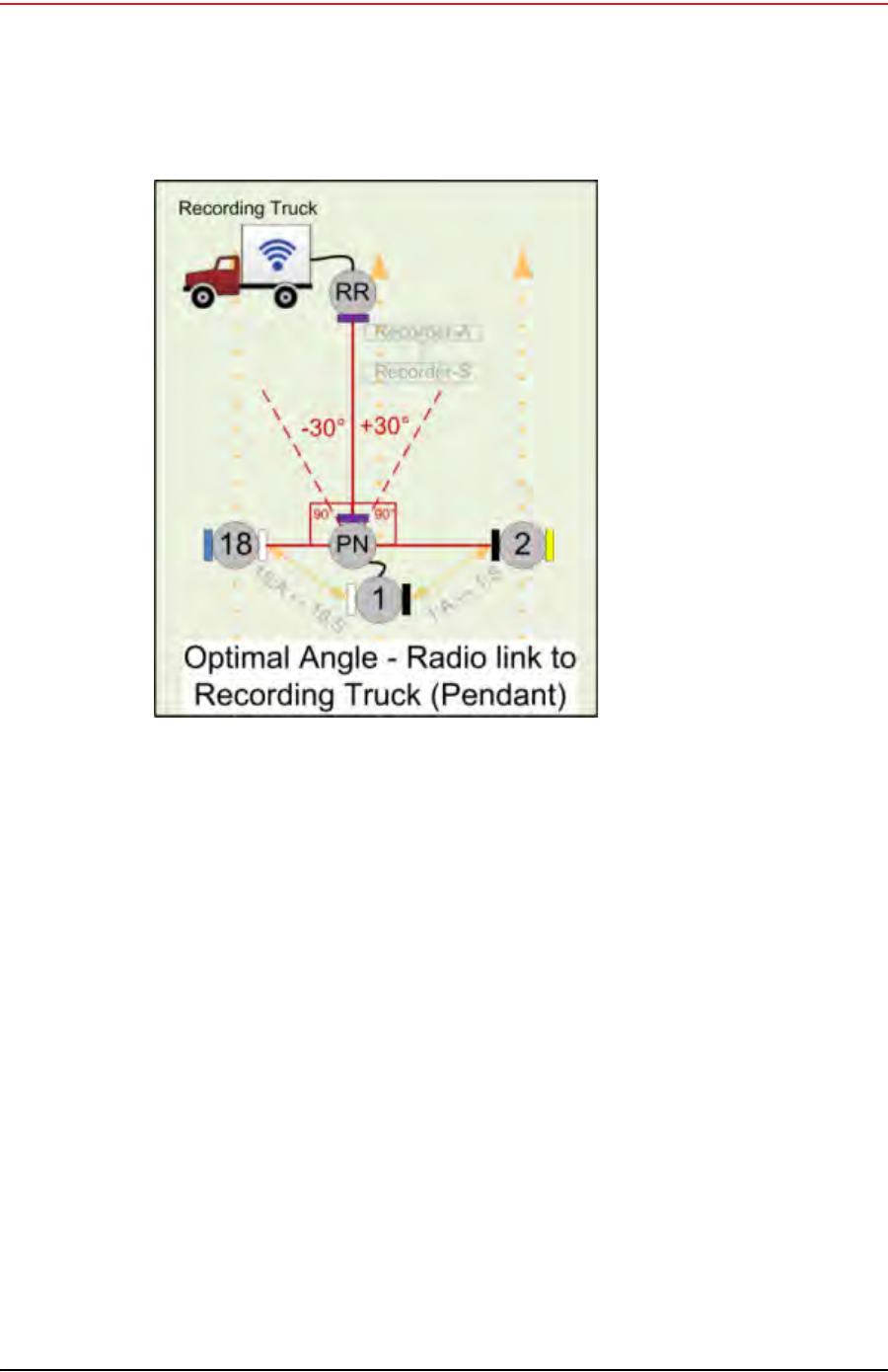
Draft
92 RT System 2 v2.3.0 Deployment Guide R01.b
© 2010-2013 Wireless Seismic, Inc. All rights reserved.
4. Point-to-Point Backhaul
Connecting to the Recording Truck
The following figure shows the optimal angle between the pendent and the line.
Figure 4–28 Optimal Angle, Radio Link to Recording
Truck
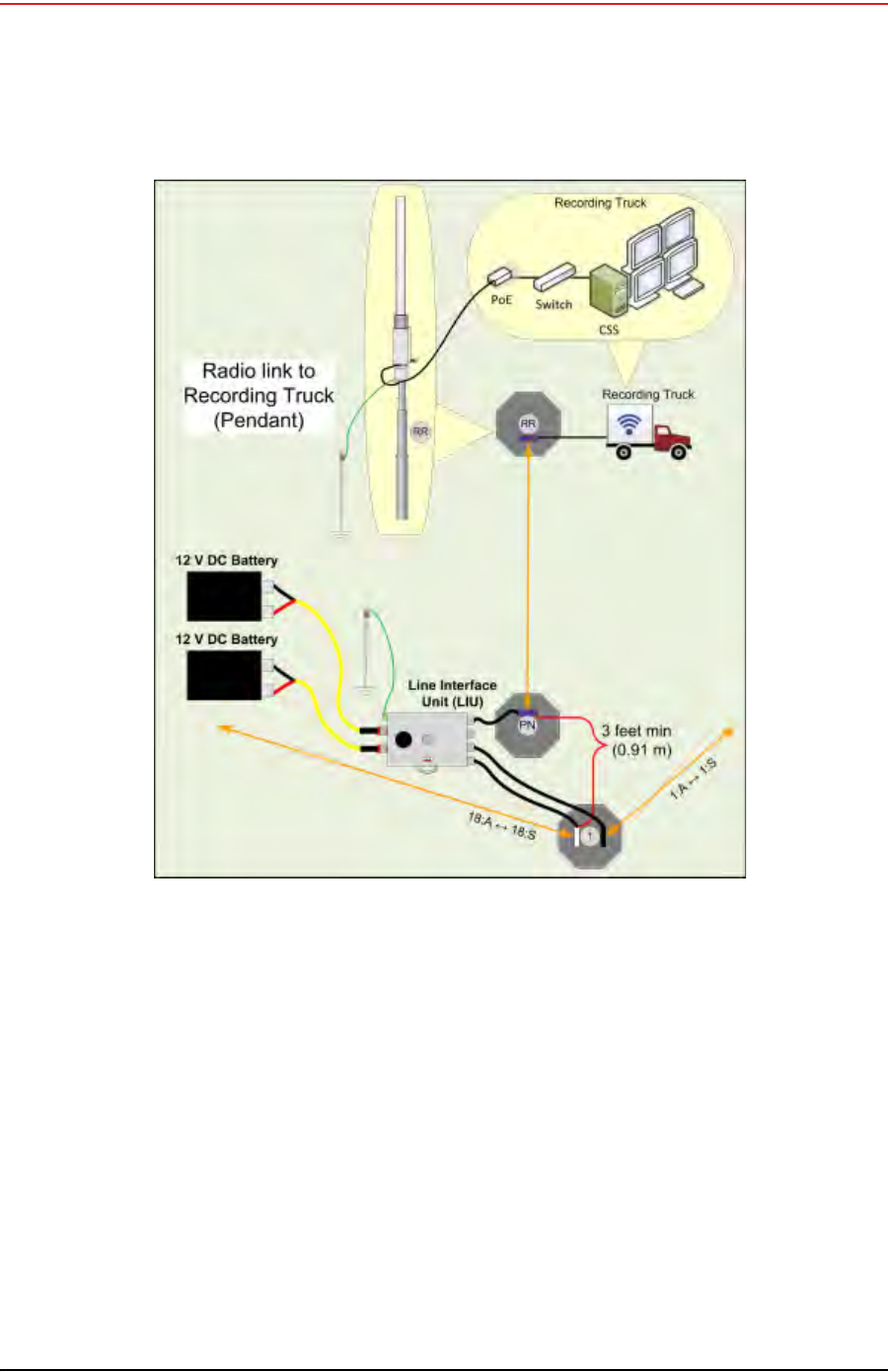
Draft
R01.b RT System 2 v2.3.0 Deployment Guide 93
© 2010-2013 Wireless Seismic, Inc. All rights reserved.
4. Point-to-Point Backhaul
Connecting to the Recording Truck
The following figure shows the connections for the pendant radio link example.
Figure 4–29 Connecting the Pendant Radio Link

Draft
94 RT System 2 v2.3.0 Deployment Guide R01.b
© 2010-2013 Wireless Seismic, Inc. All rights reserved.
4. Point-to-Point Backhaul
Connecting to the Recording Truck
The following table lists information about the pendant radio connection.
Table 4–3 Pendant Radio Link Elements
Item Description
Configuration The following additional configuration files are provided:
• • Recorder-AP.cfg
• • Recorder-S.cfg
RR • The radio at the recording truck is a Rocket radio with an Omni
antenna and is indicated in the drawings as RR (Recorder/
Rocket).
• Use the Recorder-AP.cfg file with this radio.
• The RR radio should be installed at the top of the pole, pointing
directly at the pendant radio (PN).
PN • The radio at the line is a NanoStation radio with a built-in
antenna and is indicated in the drawings as PN (Pendant/Nano).
• Use the Recorder-S.cfg file with this radio.
• The PN radio should be installed at the top of the pole, pointing
directly at the recording truck radio antenna (RR).
• The optimal angle between the pendant radio link (RR to PN)
and the next LIU in the line segment (pearl) is 90° as shown in
“Optimal Angle, Radio Link to Recording Truck” on page 92. If
necessary, ±30° off of perpendicular should also work.
• The PN radio should be at least 3 ft (0.91 m) from the line pole
(Pole 1 in the example shown in “Connecting the Recording
Truck with a Pendant Radio Link” on page 91). Use as much
distance as you can as allowed by your cable lengths.
• The PN radio and pole should be between the line and the
recording truck as shown in “Connecting the Recording Truck
with a Pendant Radio Link” on page 91.
Batteries • Adding a third radio to the LIU increases the battery usage at
this position. To ensure that the LIU does not reset due to a low
or depleted battery, keep two batteries connected to the LIU at
all times.
• The battery with the lowest voltage is used until the voltage falls
below the Unit Thresholds ? LIU Voltage Warning number
(usually about 11V). At this point, the LIU auto-swaps to the
battery with the higher voltage. Monitor the battery status in
the Ground Equipment Table. Replace the low-voltage battery
with a fully-charged battery as soon as possible after the battery
auto-swap occurs.
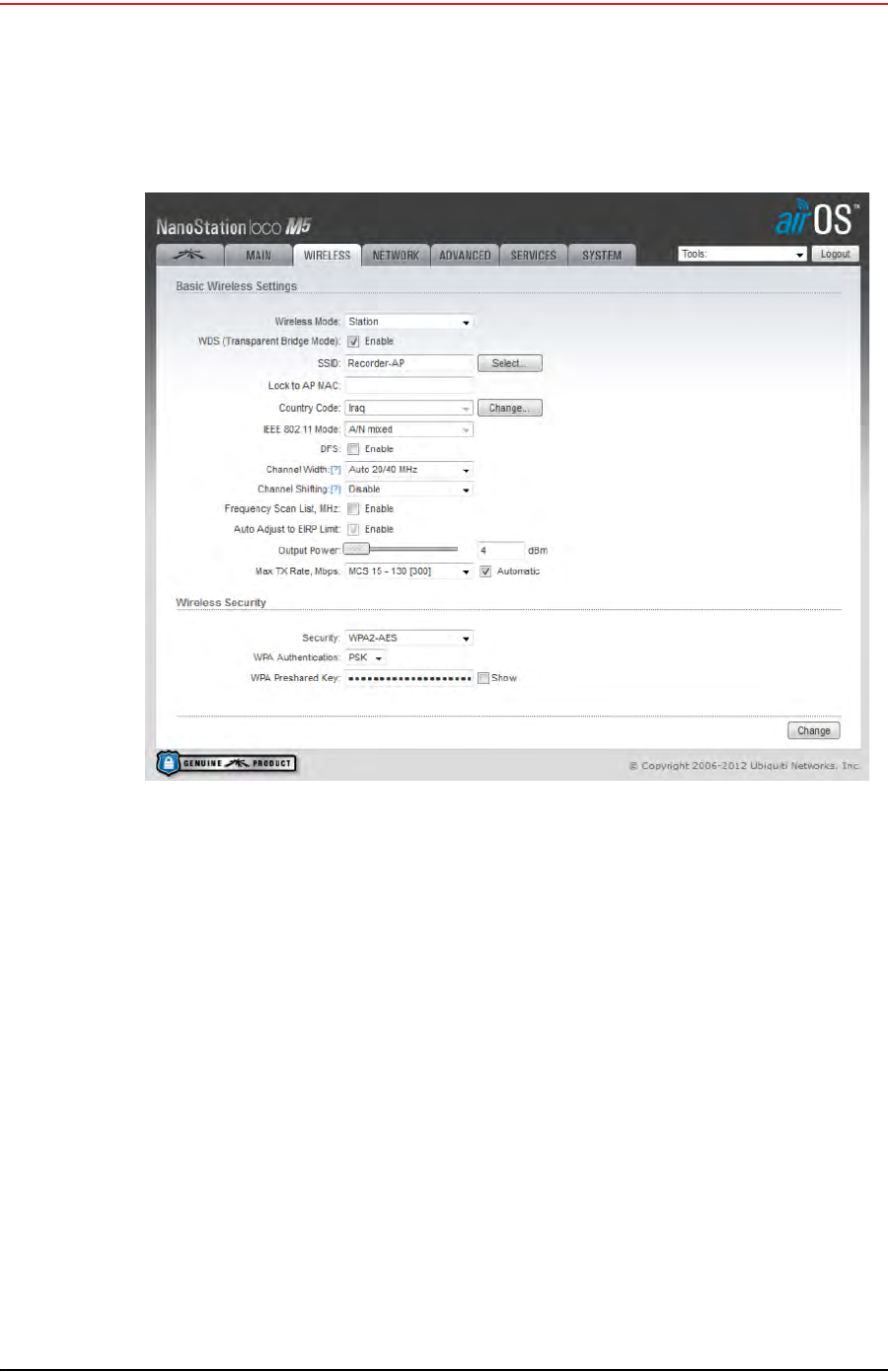
Draft
R01.b RT System 2 v2.3.0 Deployment Guide 95
© 2010-2013 Wireless Seismic, Inc. All rights reserved.
4. Point-to-Point Backhaul
Connecting to the Recording Truck
After the pendant radio link radios are configured and installed, log in to the PN radio and set
the power level to the minimum amount required to achieve communication with the RR.
To set the PN radio power level:
1Click the Wireless tab.
2Move the Output Power slider bar to the desired power level.
3Click Change at the bottom of the window.
4Click Apply Command at the top of the window.
5Wait 30 – 60 seconds.
Figure 4–30 Wireless Tab
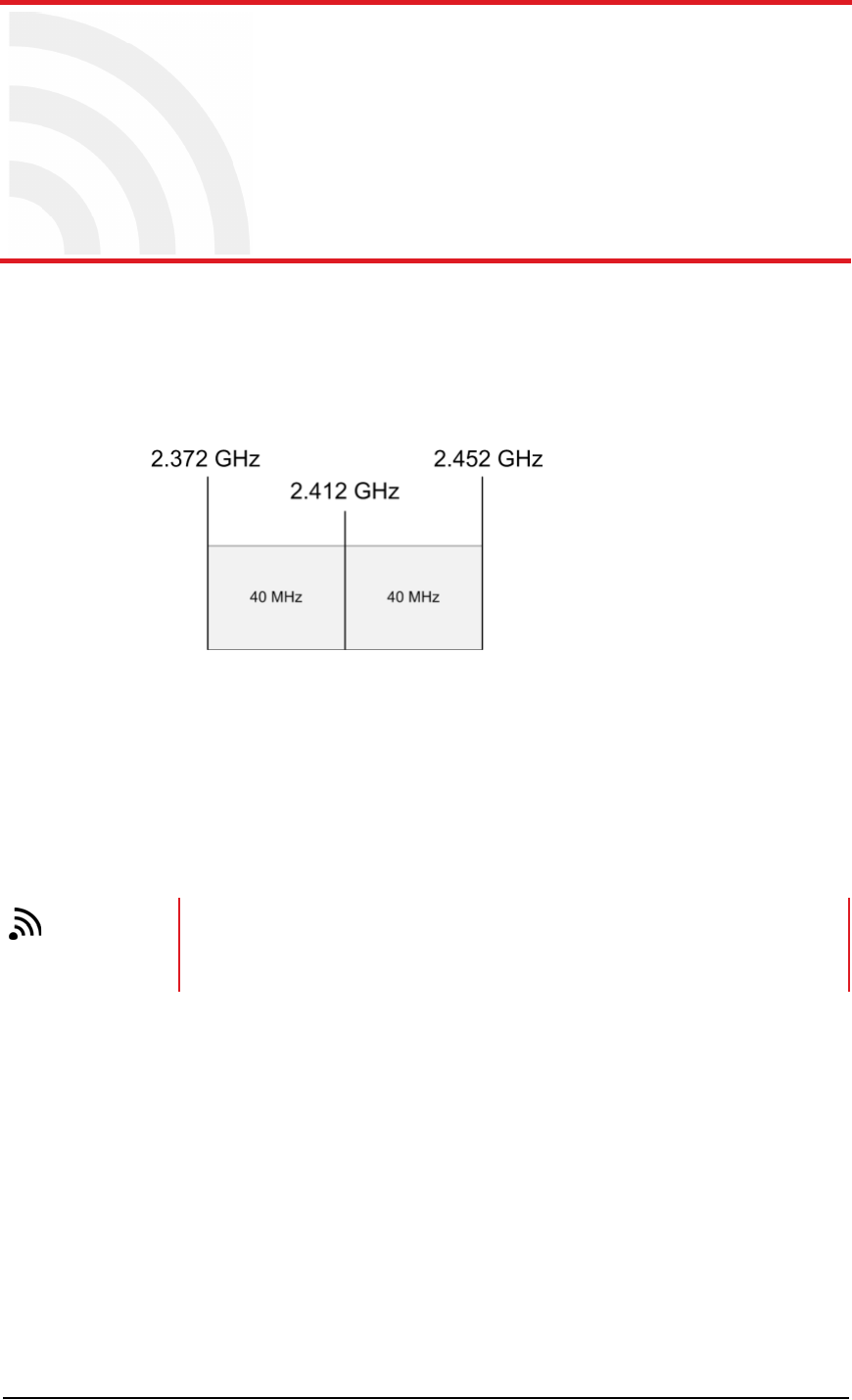
Draft
RT System 2 v2.3.0 96 Deployment Guide R01.b
© 2010-2013 Wireless Seismic, Inc. All rights reserved.
5
5. Point-to-Multipoint Backhaul
5.1 Overview
A channel is a frequency band of a specified width. For example, if the center frequency
is 2.412 GHz, and the frequency band is 80 MHz wide, there are 40 MHz on either side
of the center frequency, and the frequency range for that channel is 2.372 to 2.452 GHz.
Some custom configurations will require multiple channels operating at the same time.
Verify that channel ranges do not overlap to avoid interference.
The recording truck radios are configured Access Points (A) and the line station radios
are configured as Stations (S).
An Access Point communicates only with a Station. An Access Point cannot communicate
with an Access Point, and a Station cannot communicate with a Station.
Figure 5–1 Channel, 80 MHz Wide Frequency
Band
TIP
A line station mast requires an LIU to communicate with the recording truck. A
mast located at the recording truck can communicate using an LIU or a PoE
connected directly to the recording truck computer. See the following figures for
examples.
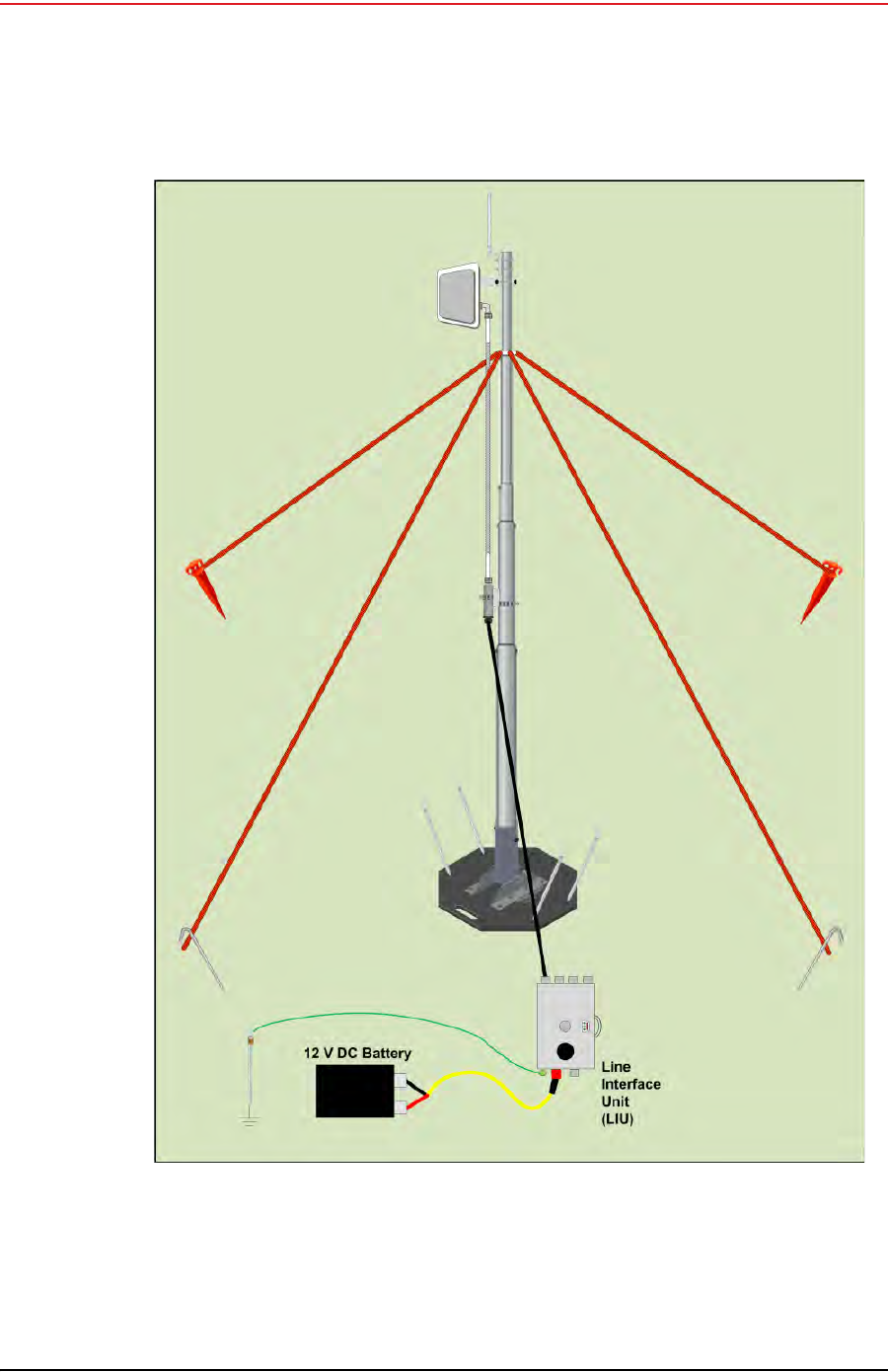
Draft
R01.b RT System 2 v2.3.0 Deployment Guide 97
© 2010-2013 Wireless Seismic, Inc. All rights reserved.
5. Point-to-Multipoint Backhaul
Overview
Figure 5–2 Line Station Mast (Bullet Radio)
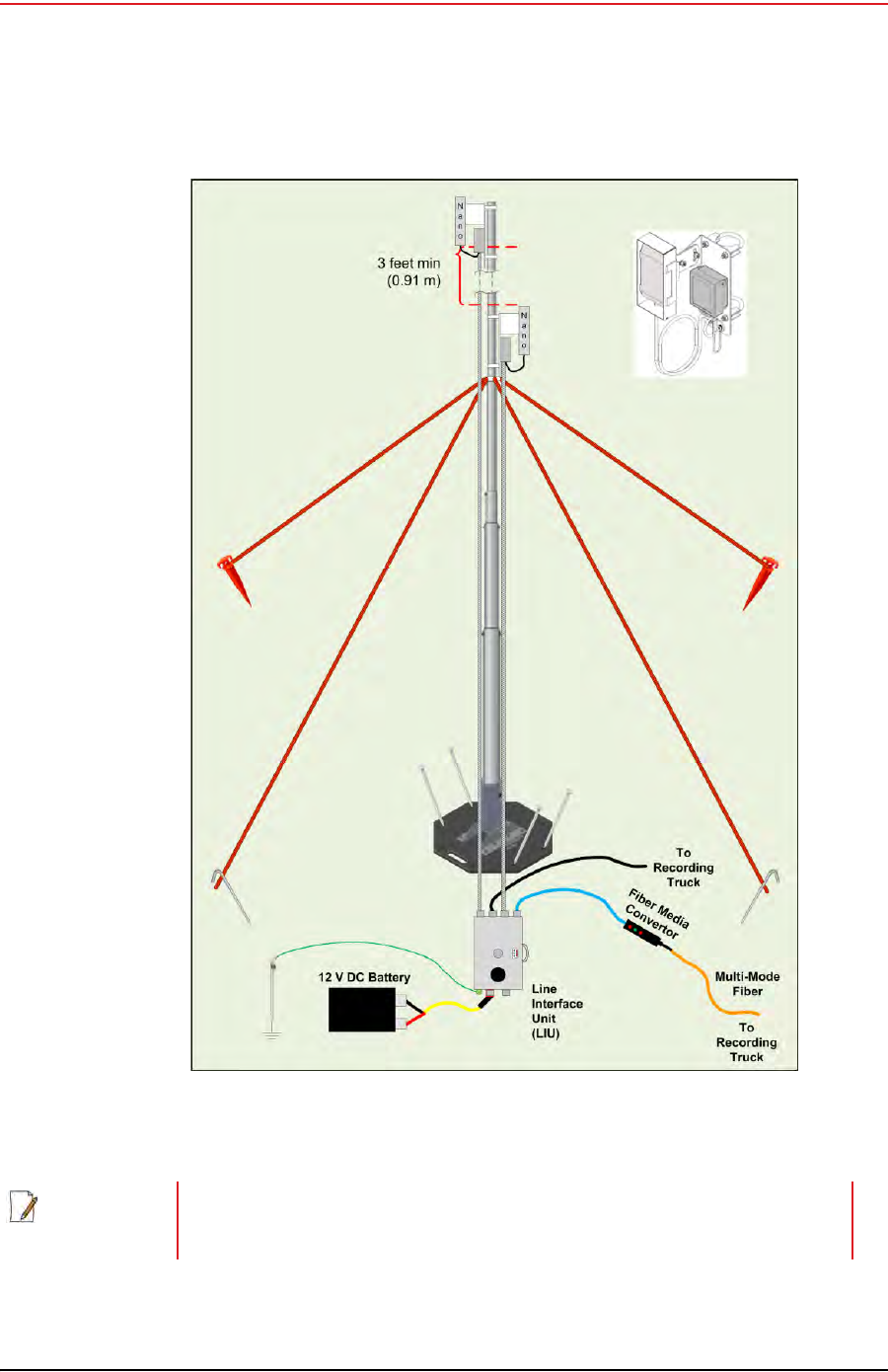
Draft
98 RT System 2 v2.3.0 Deployment Guide R01.b
© 2010-2013 Wireless Seismic, Inc. All rights reserved.
5. Point-to-Multipoint Backhaul
Overview
Figure 5–3 Recording Truck or Line Station Mast (NanoStation Radio)
NOTE
If using the mast at the recording truck, connect the LIU with an Ethernet or
Fiber cable to the recording truck. If the mast is not used at the recording truck,
the connections shown in the figure to the recording truck are not used.
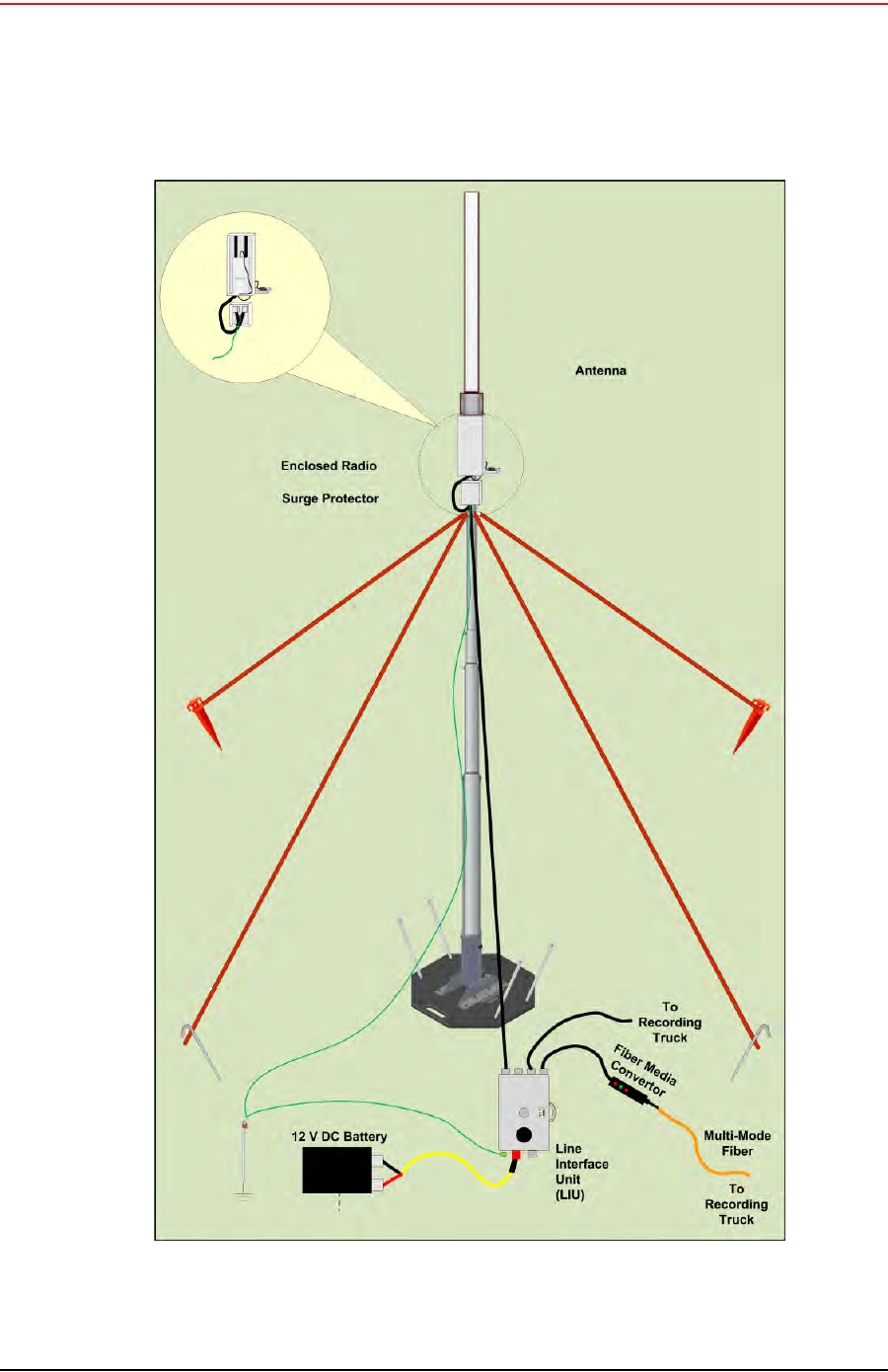
Draft
R01.b RT System 2 v2.3.0 Deployment Guide 99
© 2010-2013 Wireless Seismic, Inc. All rights reserved.
5. Point-to-Multipoint Backhaul
Overview
Figure 5–4 Recording Truck Mast with LIU (Rocket Radio)
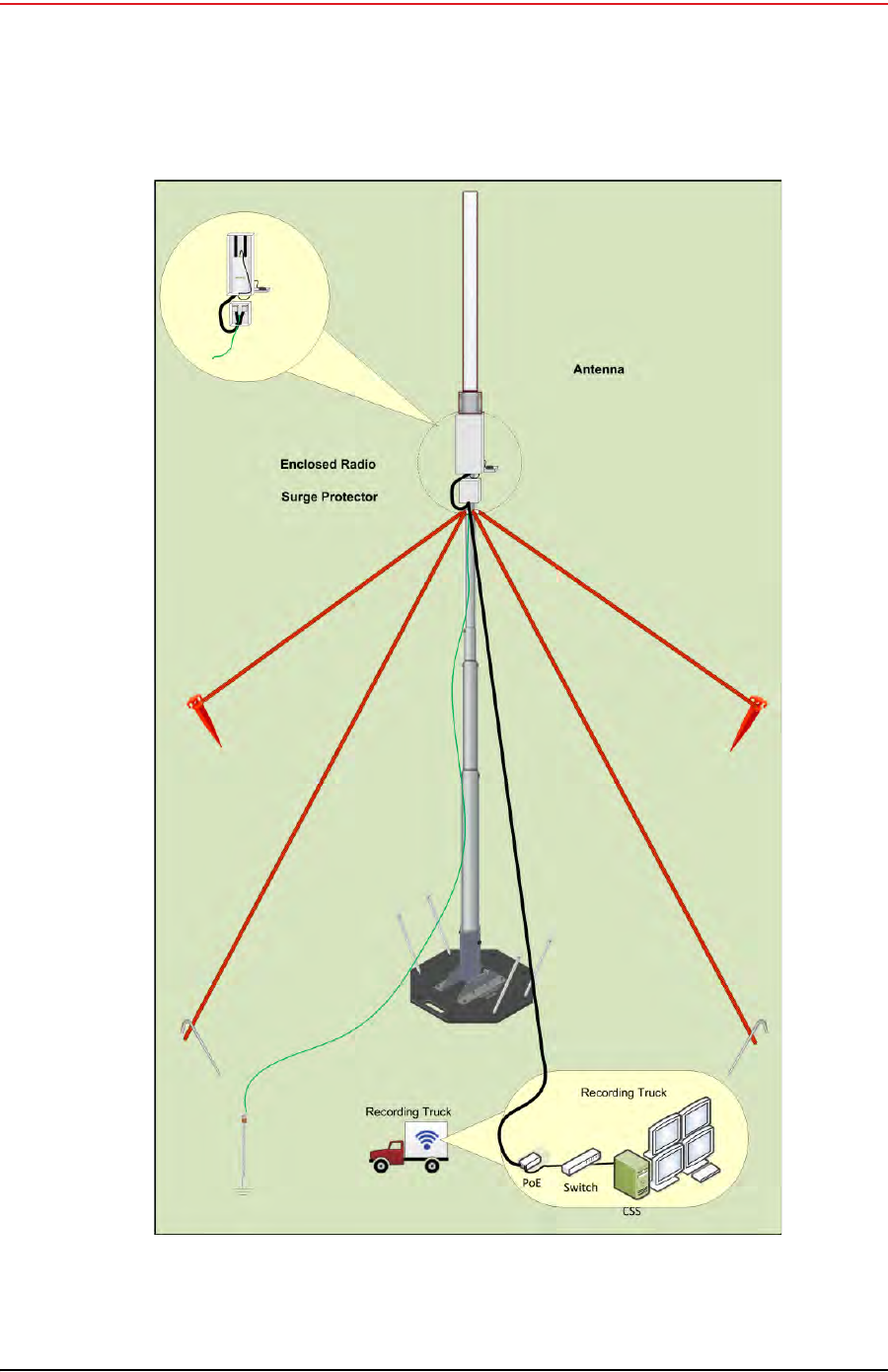
Draft
100 RT System 2 v2.3.0 Deployment Guide R01.b
© 2010-2013 Wireless Seismic, Inc. All rights reserved.
5. Point-to-Multipoint Backhaul
Overview
Figure 5–5 Recording Truck Mast without LIU (Rocket Radio)

Draft
R01.b RT System 2 v2.3.0 Deployment Guide 101
© 2010-2013 Wireless Seismic, Inc. All rights reserved.
5. Point-to-Multipoint Backhaul
Overview
NOTE
You can use a NanoStation radio instead of the Rocket Radio on the mast at the
Recording Truck without an LIU.
TIP
If you have multiple radios at the recording truck, and enough PoE devices,
Ethernet cables, Ethernet ports, and AC power receptacles, all of the recording
truck radios can be used without an LIU unit.