XTC Motorsports XTC5000 Digital Satellite Receiver User Manual Microsoft PowerPoint XTC5000
XTC Motorsports Inc. Digital Satellite Receiver Microsoft PowerPoint XTC5000
Contents
- 1. Users Manual Part I
- 2. Users Manual Part II
- 3. Users Manual Part III
Users Manual Part II
23
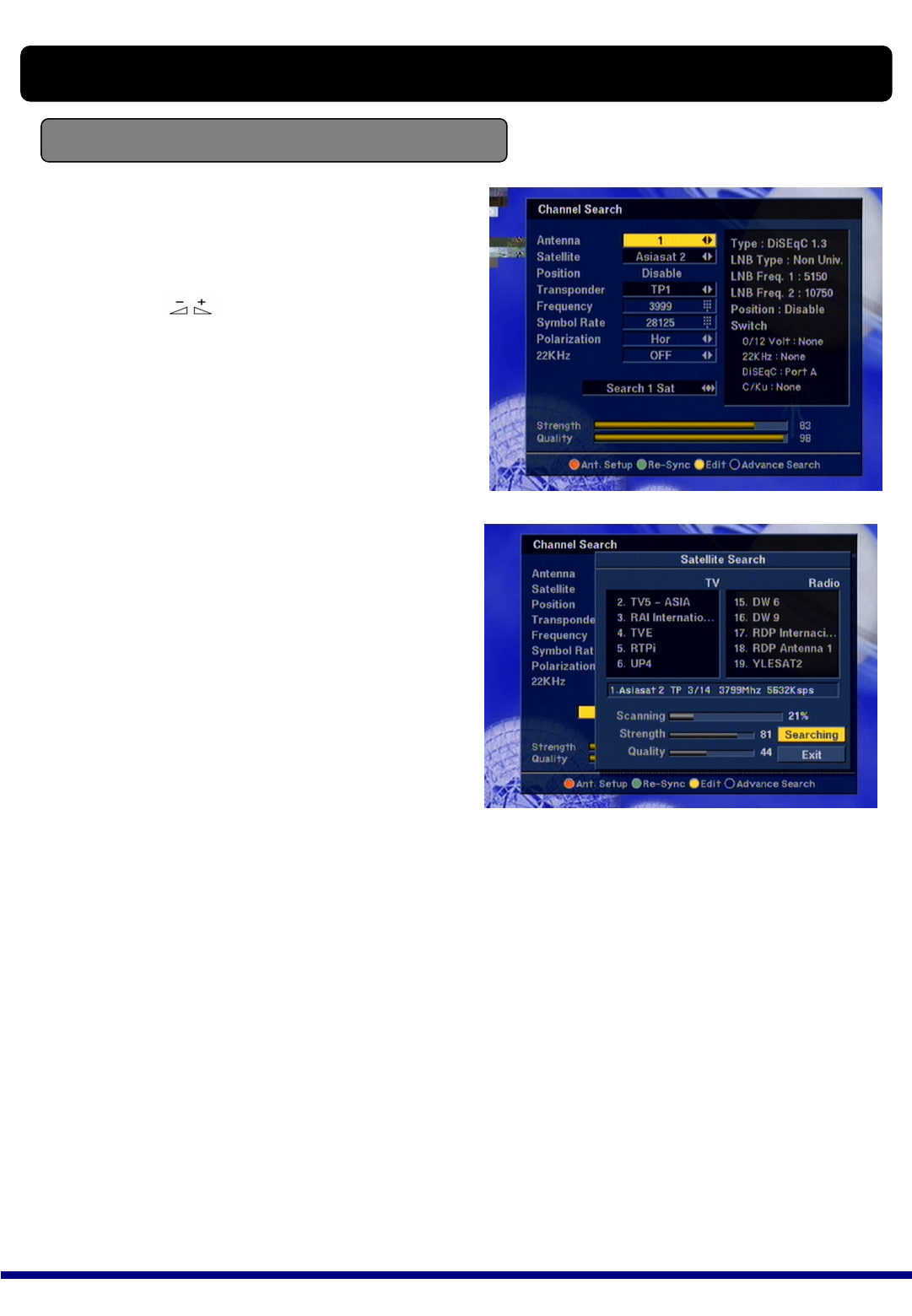
1) Antenna : Select your antenna number.
Channel Search-3) USALS
2) Satellite : Select a desired satellite using
keys or if you press OK key,
the list of satellite will be
displayed so that you can select
easily.
You can see the information of
selected satellite in the right side.
4) ~ 9) Please refer to DiSEqC 1.2
type antenna.
USER INSTALLATION
After searching for SATELLITE 1, choose
another satellite on the CHANNEL SEARCH
screen. It will automatically locate the satellite
and search for SIGNAL to start channel
searching.
●Edit (Edit Mode):
Please press ●Edit key on the RCU to display the sub-command box and edit the pre-programmed
data such as Frequency, Symborate, Polarization, 22KHz.
You can also use “Delete TP” & “Rename SAT” as well in this Edit Mode.
●Re-Sync
When all location of searched satellites are shifted by unknown reason, you can realign all of them at
once if you adjust one satellite’s location.
★Short-Cut Color Keys ★
24
MultiSAT Search
USER INSTALLATION
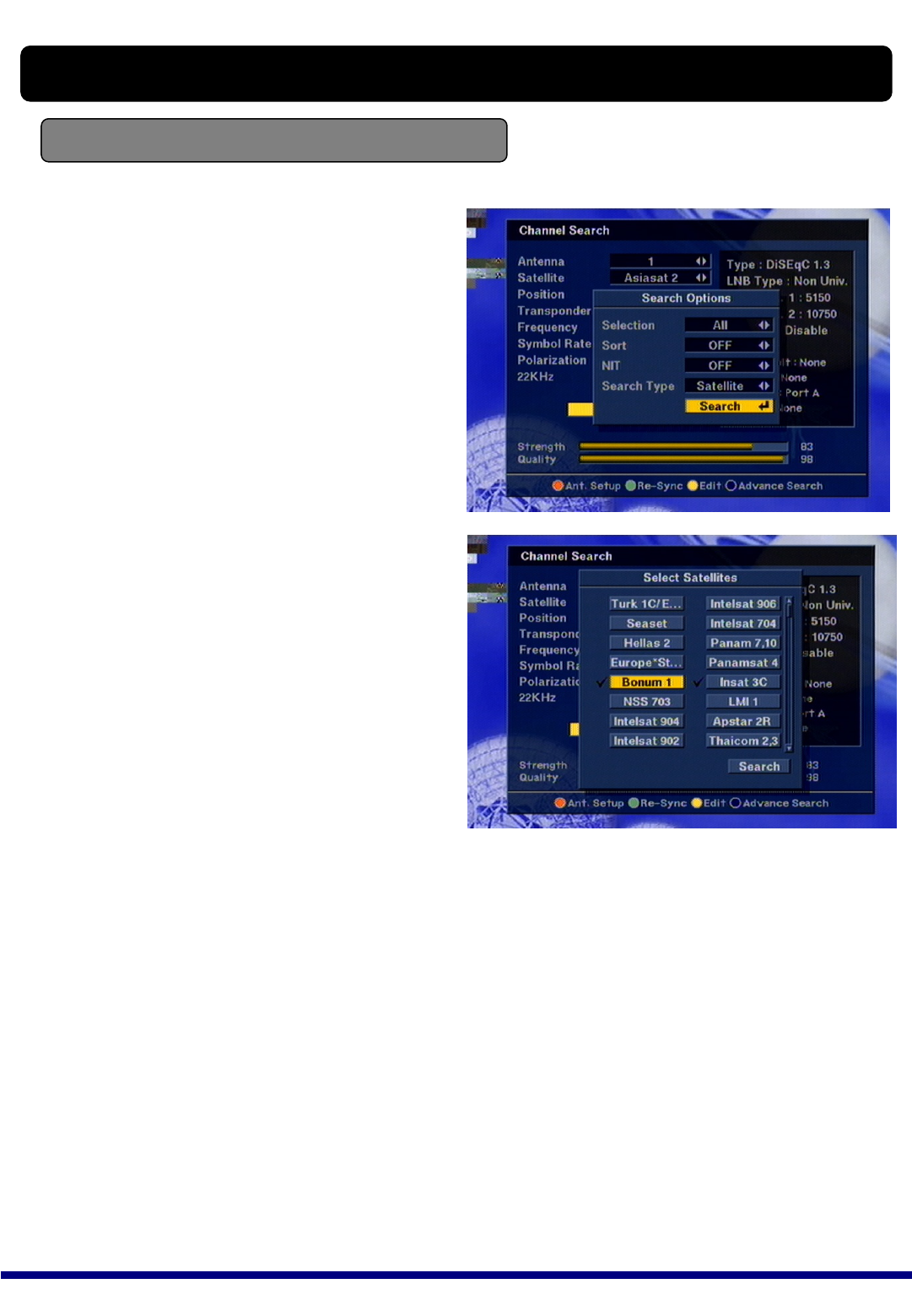
XTC 5000 enables end users to have a multi-
SAT search in each antenna type such as Fixed,
DiSEqC1.2 and DiSEqC1.3.
After all the necessary antenna set-up, simply
press ●CH Search/ Advance key to open a
search options.
You can choose one of the options and press
SEARCH and you are automatically moved to
multi-sat search box and you can choose all the
satellites you are searching for.
●Edit (Edit Mode):
Please press ●Edit key on the RCU to display the sub-command box and edit the pre-
programmed data such as Frequency, Symborate, Polarization, 22KHz.
You can also use “Delete TP” & “Rename SAT” as well in this Edit Mode.
●Re-Sync
When all location of searched satellites are shifted by unknown reason, you can realign all of
them at once if you adjust one satellite’s location.
★Short-Cut Color Keys ★
25
USER INSTALLATION
System Setting
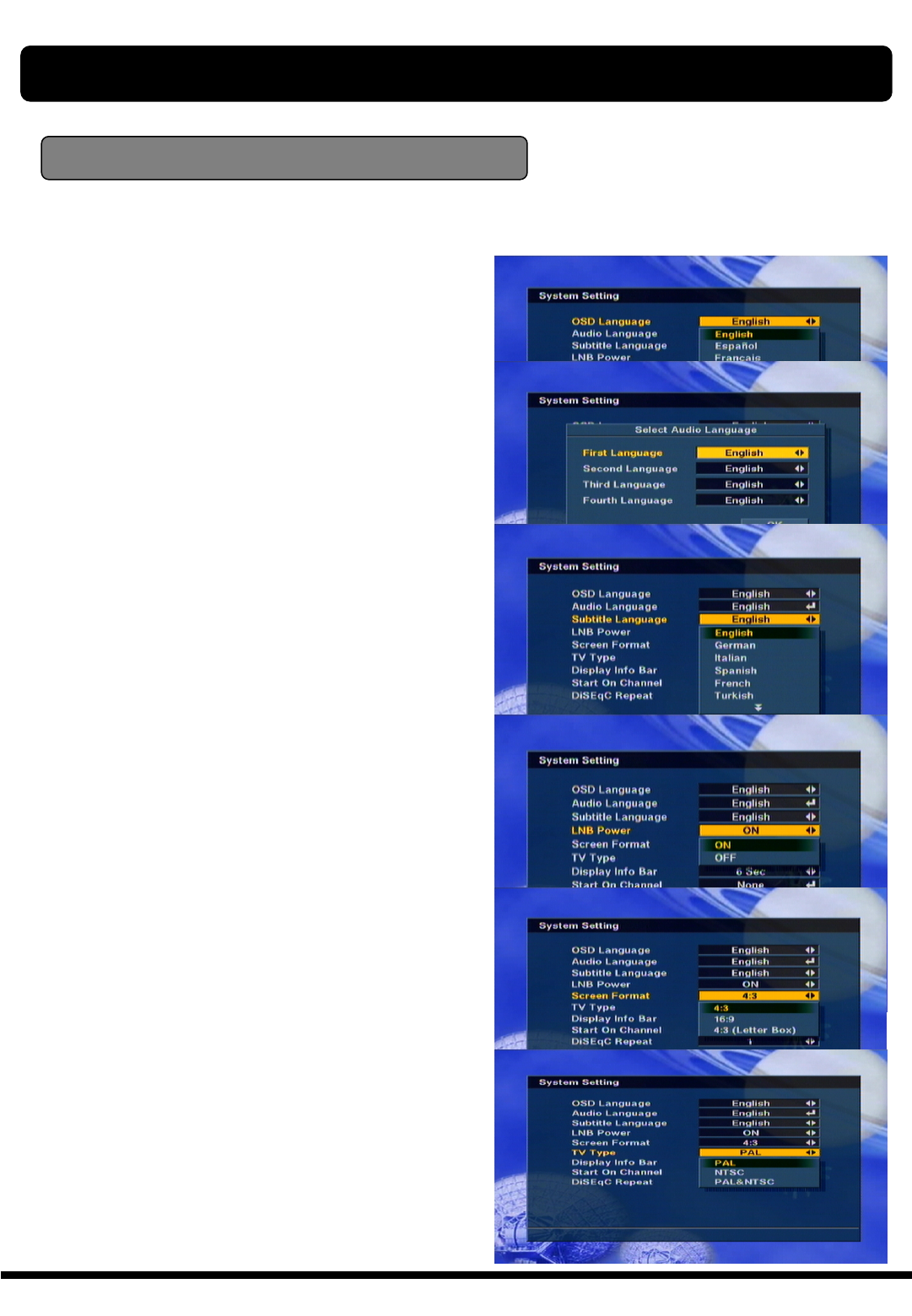
System Setting menu allows you to change the the principal option and to set other items proper to
your environment by pressing OK key on the RCU.
1) OSD Language : Select your desired OSD
Language.
2) Audio Language : Select your desired audio
language to be in the top
priority under the condition that this
language is supported from the channel.
3) Subtitle Language: Select your desired
Subtitle Language.
4) LNB power : The default value of LNB
power is ON. Select Off in the case of the
LNB power is not necessary.
5) Screen Format : If your TV supports 16:9
screen format and selected channel
provides 16:9 format program, select 16:9.
6) TV type : Select the type according
to your TV type.
7) Display Info Bar : You can select the
second Info Bar displayed on the screen.
8) Start On Channel: If you press OK key, then
the channel list is displayed. You can
select one channel of the list, the selected
channel starts whenever you turn on AD-
9700 PLUS.
9) DiSEqC Repeat : Select your DiSEqC.
26
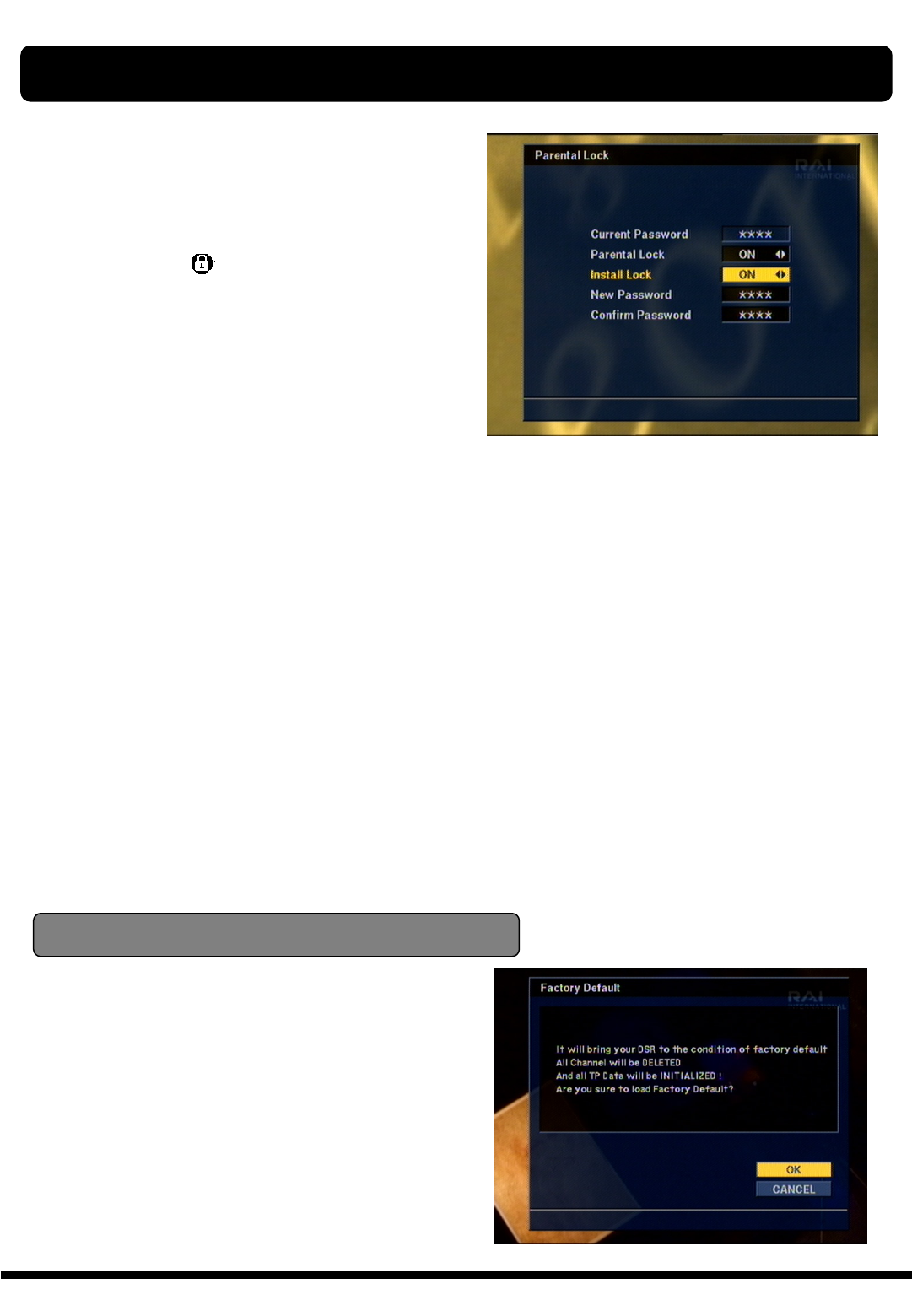
Parent Lock
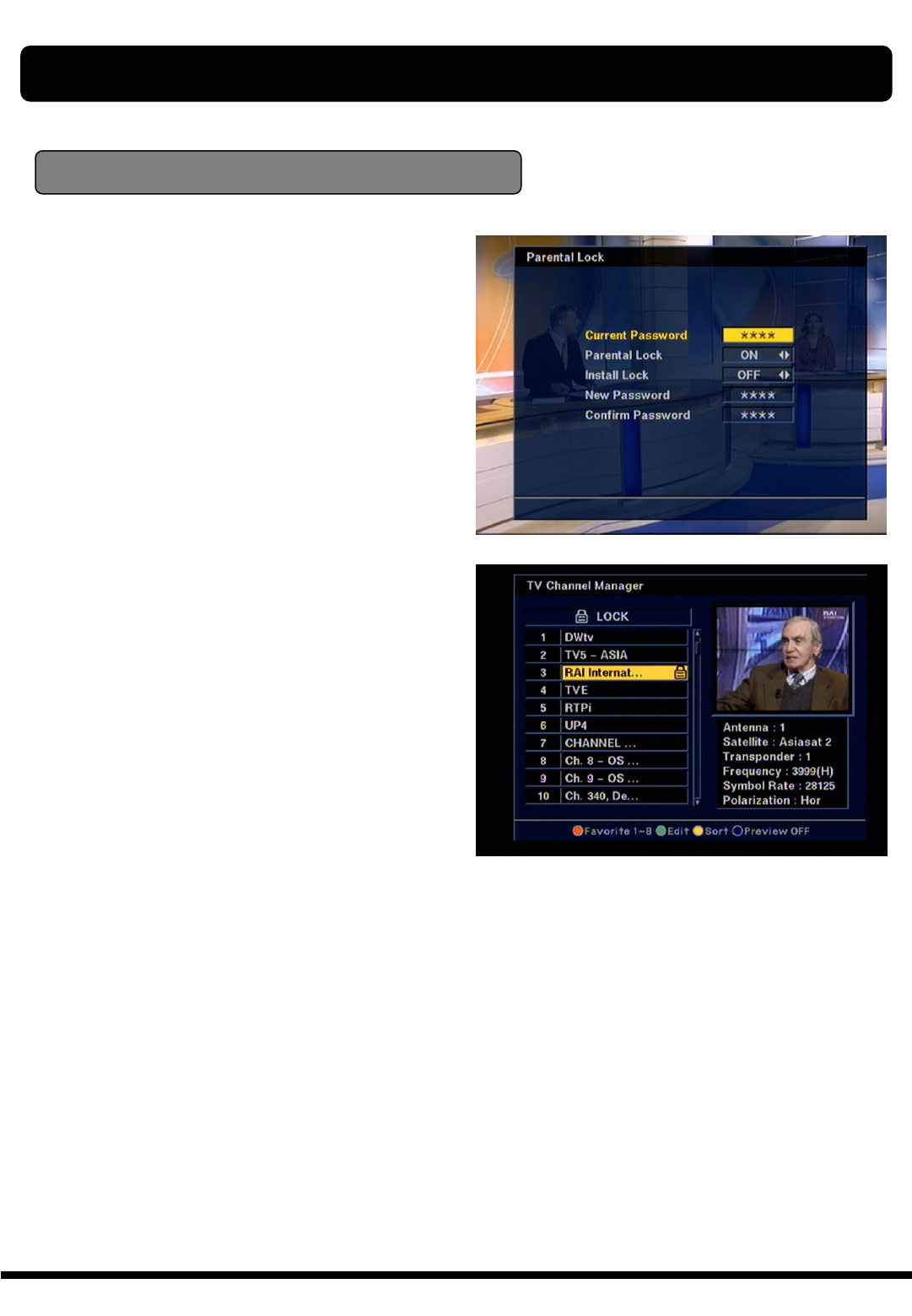
This function allows you to lock the channel
with your password in order to prevent from
accessing the channel by your children or any
other person.
And also you can protect your installed data
and information using Install Lock.
★How to change Password
1) Enter the current password.
2) Select ON of Parent Lock.
3) Enter new password.
4) Confirm your new password entering new
password again.
Note : Default password is 0000.
Warning : Do not forget your password in
order not to fail to view the channel.
USER INSTALLATION
27
1) Enter the current password.
2) Select ON of Install Lock
3) Enter new password
4) Confirm your new password entering
new password again
5) Exit this menu and Turn off the AD-9700
PLUS.
6) Turn on DSR 6500 GOLDand press
MENU
key on the RCU
7) Select any menu and press OK.
8) Then Enter Password Box will be
displayed.
9) Unless enter correct password, you can
not run any menu.
Note : Default password is 0000
Warning : Do not forget your password in
order not to fail to operate DVB-S CX
★How to use Install Lock
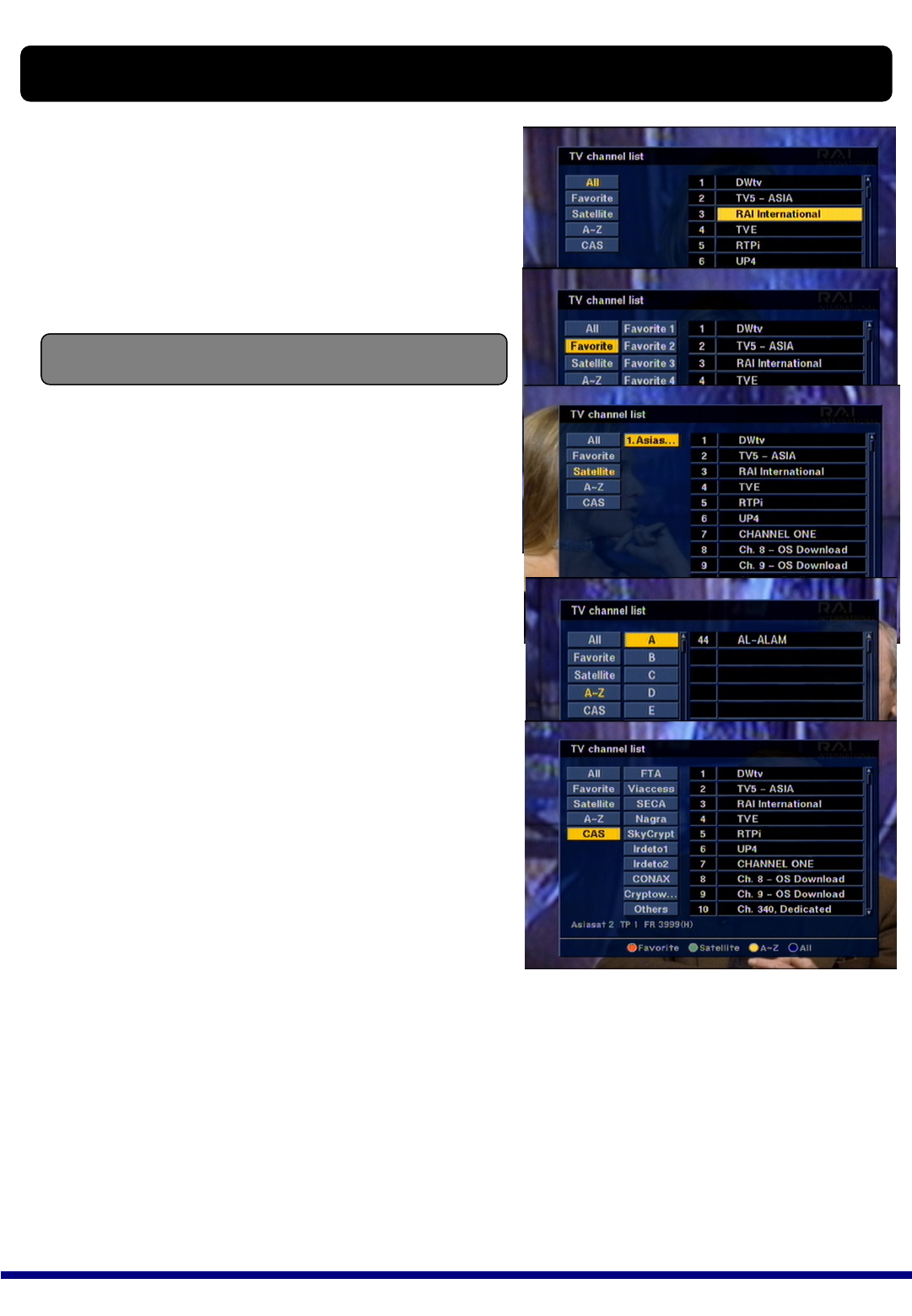
Factory Default
If you want to bring DSR 6500 GOLDback
to the factory default condition, select
Factory Default and press OK key.
Then Warning message will be displayed.
To confirm select OK and press OK key.
Warning : You will lose all of data and
information which was installed.
USER INSTALLATION
Note : To activate Parent Lock, you have to turn
off DSR 6500 GOLDonce. And turn on the DSR
6500 GOLDand select channel which is locked.
Then enter your password.
★How to use Parent Lock
1) If you activate parent lock function, go to the TV
channel Manager Page.
2) Press Open command box and select Lock
3) Select channel the which you want to Lock
4) Press OK then symbol is marked.
5) Exit this menu and Turn off the AD-9700 PLUS
28
If you want to select channel, use CH key on the
front panel, PR+, PR- key on the RCU or numeric
key on the RCU to select a channel and press OK
key on the RCU.
In addition to the above normal function, XTC 5000
provides more convenient channel change function.
While watching, press OK/LIST key on the RCU or
front panel. Then channel list will be displayed on
the screen. If press EXIT key, the channel list will
be disappeared.
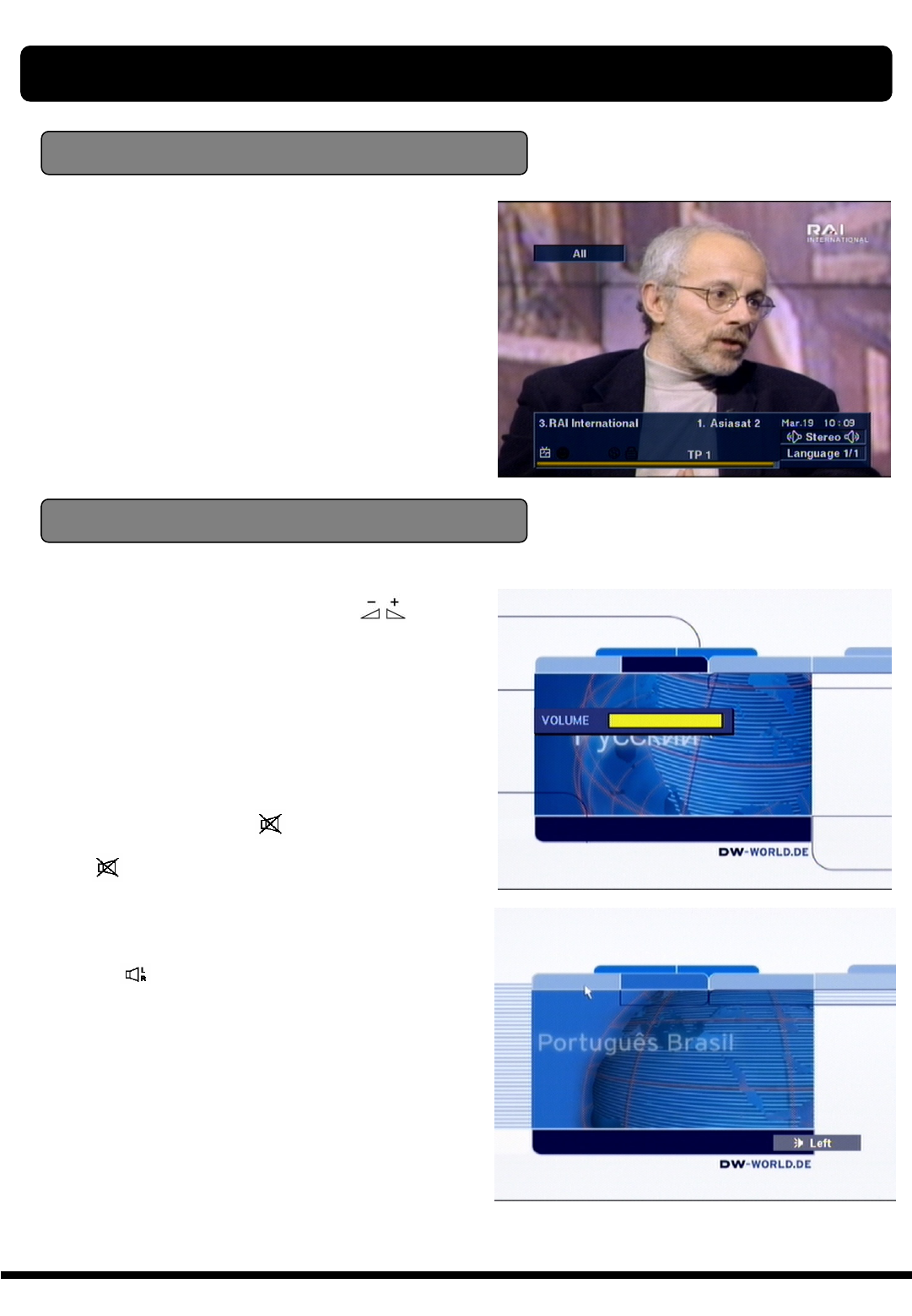
You can sort channel list by All, Favorite group,
Satellite, Alphabet, CAS as follows.
1) All : It shows you all channel
list sort by alphabet.
2) Favorite group : You can make favorite
group in the menu of
channel manager. It shows
that group, and you can
select one favorite group,
then channel list belongs
that group will be displayed.
3) Satellite : If you select ‘Satellite’, the
list of satellite searched in
DSR 6500 GOLDwill be
displayed. Then you can
select satellite you want.
After that, you can see
channel list belongs to the
satellite.
4) Alphabet : If you select A or B…
channel list(head of channel
name A or B…) will be
displayed.
The following describes the basic functions of your
XTC 5000 while watching satellite TV or listening
to satellite radio.
XTC 5000 enables you to watch various scrambled
channels by inserting the Smartcards according to
your choice.
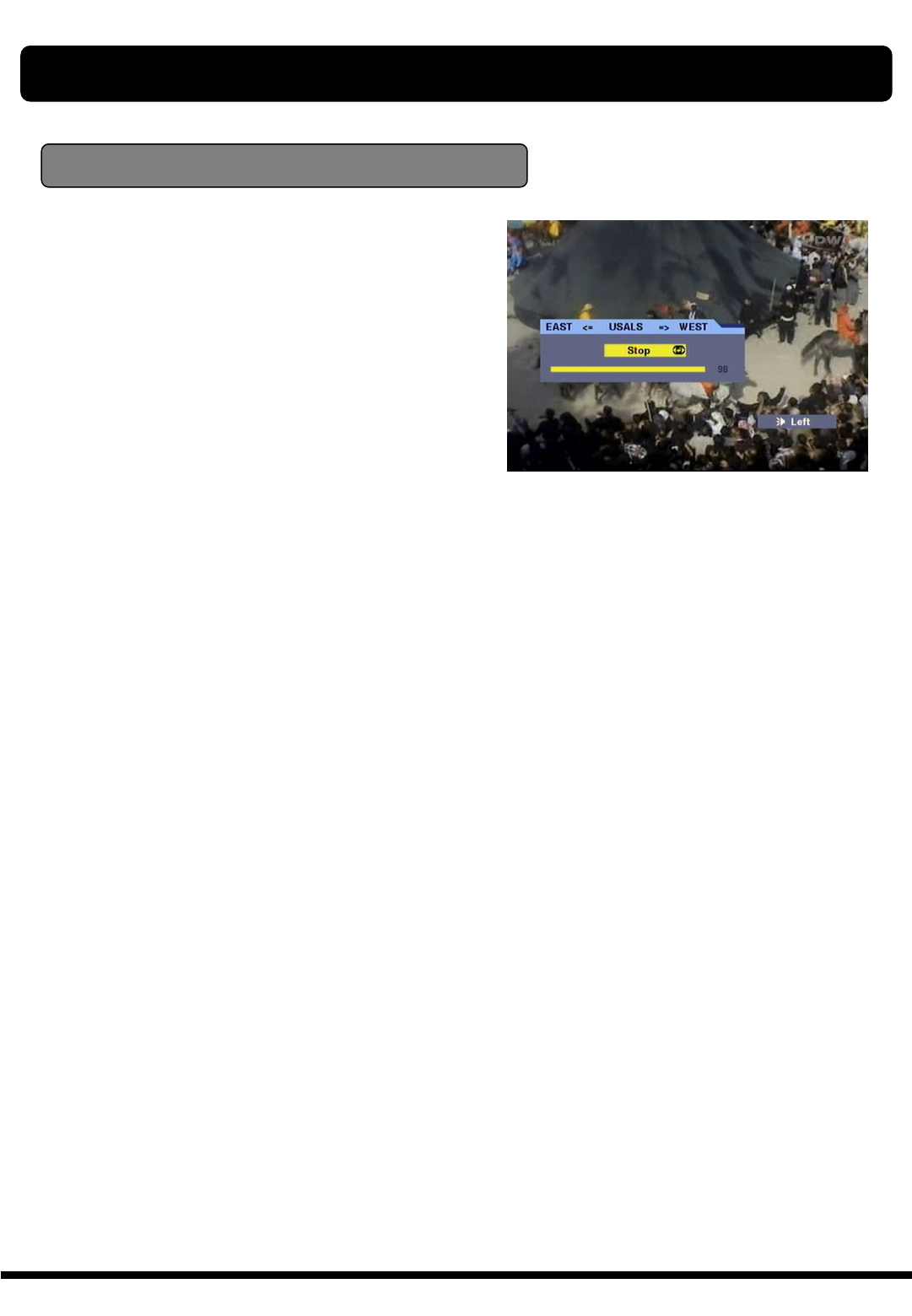
While watching, the current channel information
will be shown on the bottom of the screen if you
press INFO button on the RCU.
Select Channel
GENERAL FUNCTION
5) CAS: If you select ‘CAS’, you can sort the
channels by CA system.

29
Pause the frame
Previous channel recall
Press PAUSE key on the RCU to pause the
screen. To bring it back to the normal mode,
press PAUSE key once again.
* Only video will be paused during PAUSE
function. (Audio is active.)
Press ←PR key on the RCU to move the
previous channel which you watched before.
TV & Radio switching
While viewing TV channel, press TV/RADIO key
on the RCU to move radio mode. Press this key
once again, it will bring you back to the TV mode..
TV & VCR mode
While viewing satellite channel, press TV/AV
key on the RCU to move TV mode. Press this
key once again, it will bring you to the VCR
mode. To move satellite channel, press this key
once again.
Note : In this case, you can see the current
mode through LED display on the front panel.
*This function will be provided with “Scart”
Connector.
GENERAL FUNCTION
30
3) Audio Control
Press the key repeatedly to select one of three
possible Audio settings (Left, Right and Stereo)
The current audio condition will be displayed in the
channel information
Channel Information
Every time you change channels, you will receive
program information for a few second.
While viewing channel, you can see the current
channel information anytime, pressing INFO key
on the RCU.
Note : The channel information can be displayed
for 2,4,6,8,10, or 12 seconds on the screen. (You
can arrange the time by the System setting menu.)
Volume & Audio Control
4) Language Selection
Press the AUDIO key on the RCU to repeatedly
select audio-language. This is dependent on the
transmission of audio signal which supports Multi-
language.
1) Volume Control
To increase or decrease volume, use key on
the RCU or VOL on the front panel.
Note : XTC 5000 has 18 volume levels and this
shall be controlled from the adjusted volume level
of your TV.
2) Mute
To mute the sound, press button on the remote
control. To bring back the normal sound condition,
press key once again.
GENERAL FUNCTION
31
Position
If you need to adjust the antenna more accurately
to watch a clear channel, press POSITION key on
the RCU and then the position bar will be
displayed. Press E or W key on the RCU to
adjust for clear channel.
Otherwise, you can use this function for manual
search instead of Auto tracking.
GENERAL FUNCTION
32
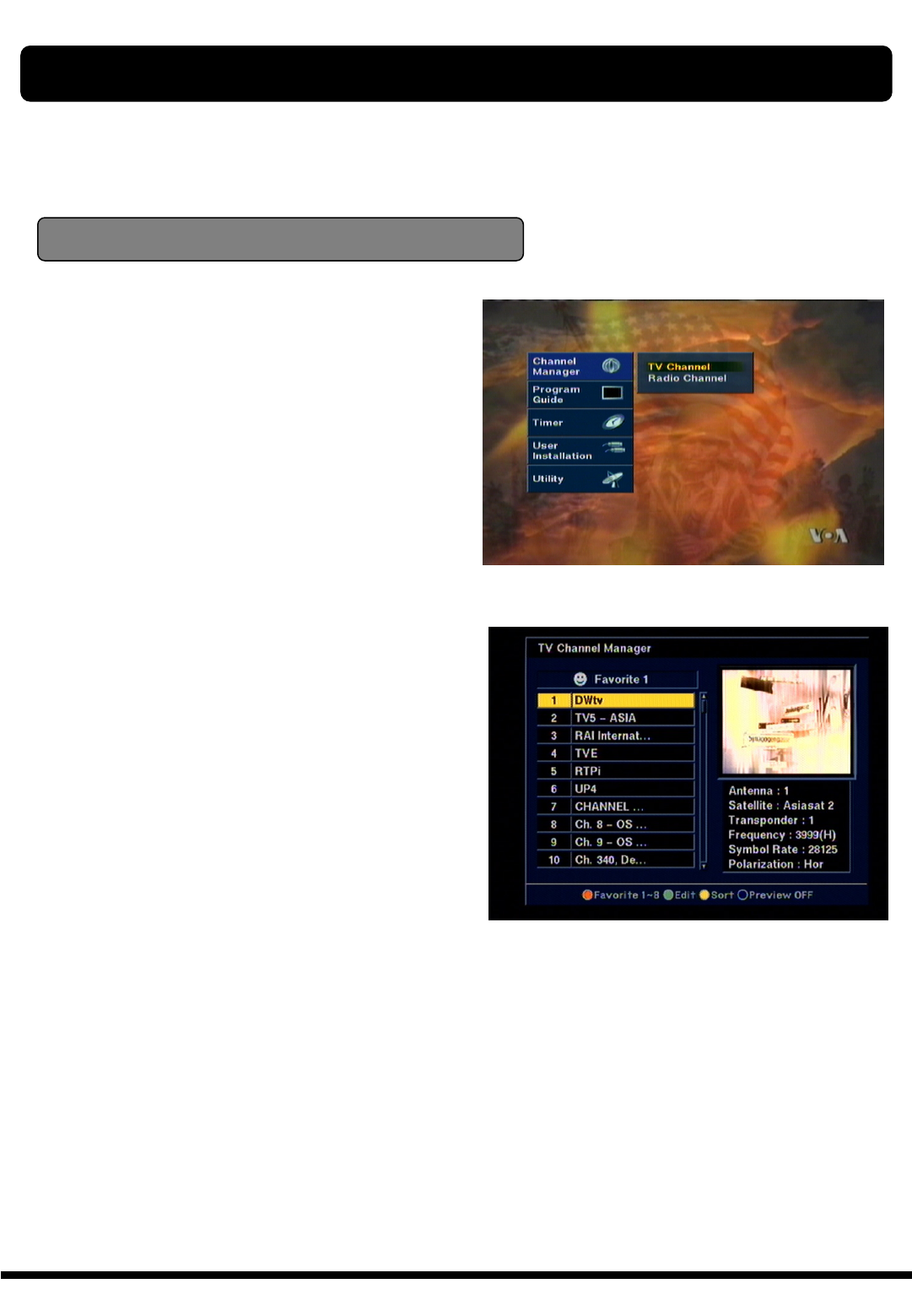
Channel Manager
Channel manager consists of TV channel manager
and Radio channel manager. Press OK key
placing the cursor on the TV Channel.
Note :Since the usage of Radio Channel manager
is same as that of TV channel manager, in this
menu only TV Channel manager is explained.
XTC 5000 provides most powerful channel managing function in the world and this function allows
you to have a more interesting and useful operation as well as viewing channels simply.
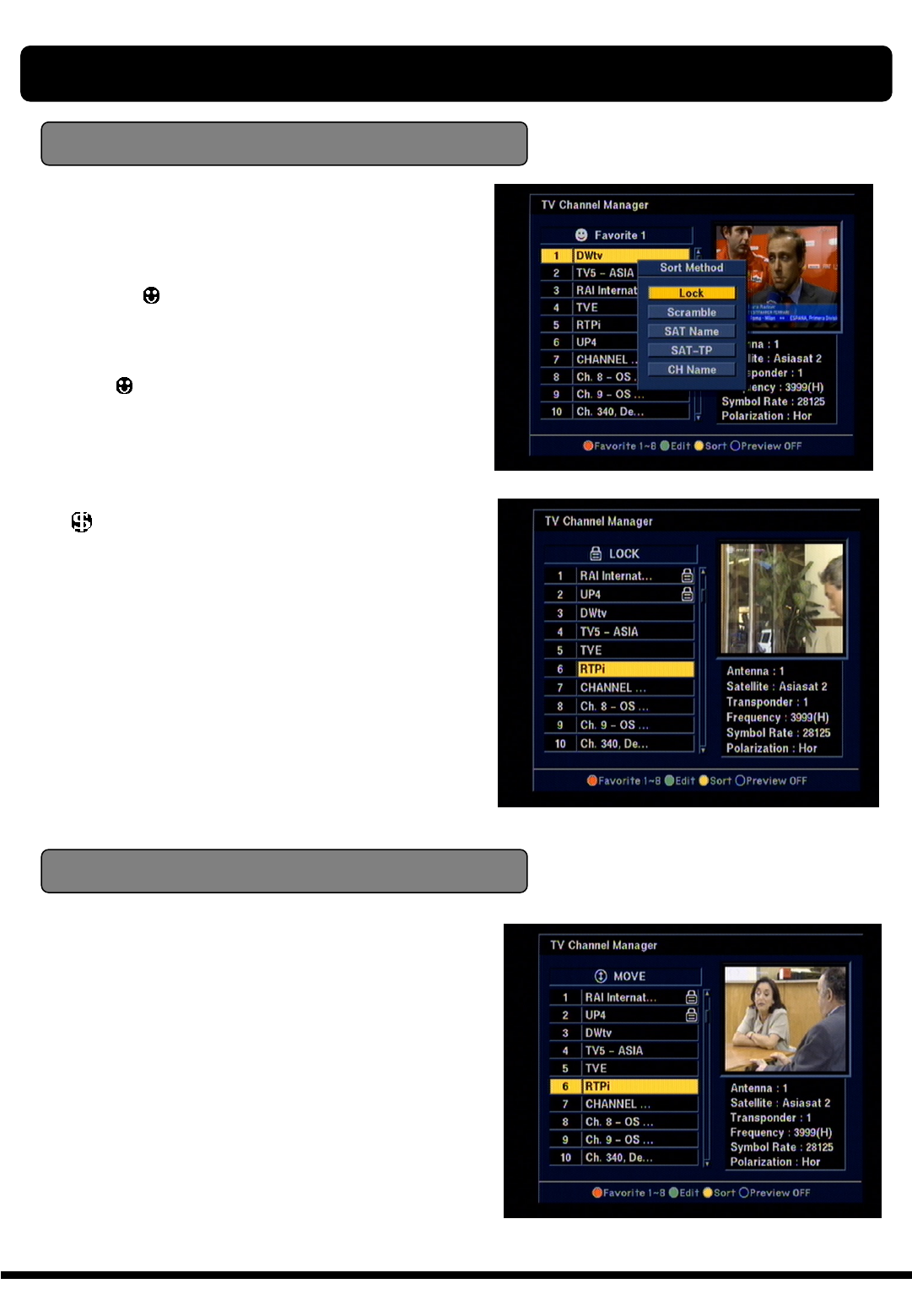
In this menu you can see the channel list which
XTC 5000 searched in the left side and in the
right side, Current channel information is
displayed.
Press MENU key on the RCU, then command
menu will be displayed
TV channel manager has 4 short-cut color keys
as below;
●FAVORITE 1 ~8
●EDIT
1. MOVE
2. LOCK
3. DELETE BY CH
4. DELETE BY TP
5. DELETE BY SAT
6. DELETE ALL
7. RENAME CH
8. RENAME FAV
●SORT
1. LOCK
2. SCRAMBLE
3. SAT NAME
4. CH NAME
●PREVIEW OFF
You can turn off the picture on the screen
CHANNEL MANAGER
33
Favorite Channel
Move channel
CHANNEL MANAGER
★How to make favorite group
1. When you enter channel manager, the default
favorite group will be showed once on the screen
as Favorite 1.
2. In the channel manager page, press ●
FAVORITE 1 ~8 key and select FAVORITE, then
Favorite group 1,2,3 will be displayed. After that,
select group and cursor channel what you want
and press ok key by group.
After the selection of favorite channels press EXIT
key and press FAV key to see if each of the
favorite groups are properly selected.
* means scrambled channel.
When you select channel manager, default
favorite list will be showed on the screen as
Favorite 1.
Select your favorite channel and then press OK
key. Then will be marked at rear of your
selected channel name.
And if you want to delete the channel name in the
favorite channel list, press OK key once again,
then the mark will be disappeared.
In the TV channel Manager Page, press ●Edit
key on the RCU and select MOVE in the command
box.
Select a channel by pressing OK key and move the
cursor to the location in which you want to move
the selected channel and press OK key. Then, you
will find the selected channel has moved to the
desired location and channel no. also changed in
order accordingly.
And check whether the channel number is
changed on the channel list or not.