Y Soft a s 0YX0ML01016 Ultralight P&C; 125kHz ASK FSK User Manual

Y Soft Corporation, a.s. Ultralight P&C; 125kHz ASK FSK

User Manual

CONFIDENTIALmaking the MFDs think™Using Terminal UltraLightOctober 13, 2014
October 13, 2014Using Terminal UltraLight CONFIDENTIAL 2TABLE OF CONTENTS1 FCC statements  . . . . . . . . . . . . . . . . . . . . . . . . . . . . . . . . . . . . . . . . . . . . . . . . . . . . . . . . . . . . . . . . . . . .  42 Overview  . . . . . . . . . . . . . . . . . . . . . . . . . . . . . . . . . . . . . . . . . . . . . . . . . . . . . . . . . . . . . . . . . . . . . . . . . .  53 Using the keypad . . . . . . . . . . . . . . . . . . . . . . . . . . . . . . . . . . . . . . . . . . . . . . . . . . . . . . . . . . . . . . . . . . . .  84 Logging in at the printer . . . . . . . . . . . . . . . . . . . . . . . . . . . . . . . . . . . . . . . . . . . . . . . . . . . . . . . . . . . . . . .  94.1 Logging out  . . . . . . . . . . . . . . . . . . . . . . . . . . . . . . . . . . . . . . . . . . . . . . . . . . . . . . . . . . . . . . . . . . . .  95 Printing all print jobs  . . . . . . . . . . . . . . . . . . . . . . . . . . . . . . . . . . . . . . . . . . . . . . . . . . . . . . . . . . . . . . . .  115.1 Print all jobs . . . . . . . . . . . . . . . . . . . . . . . . . . . . . . . . . . . . . . . . . . . . . . . . . . . . . . . . . . . . . . . . . . .  115.2 Print with Credit balance  . . . . . . . . . . . . . . . . . . . . . . . . . . . . . . . . . . . . . . . . . . . . . . . . . . . . . . . . .  116 Copying  . . . . . . . . . . . . . . . . . . . . . . . . . . . . . . . . . . . . . . . . . . . . . . . . . . . . . . . . . . . . . . . . . . . . . . . . . .  126.1 Copy and scan  . . . . . . . . . . . . . . . . . . . . . . . . . . . . . . . . . . . . . . . . . . . . . . . . . . . . . . . . . . . . . . . .  126.2 Copy and scan with Credit balance . . . . . . . . . . . . . . . . . . . . . . . . . . . . . . . . . . . . . . . . . . . . . . . . .  127 Terminal specifications  . . . . . . . . . . . . . . . . . . . . . . . . . . . . . . . . . . . . . . . . . . . . . . . . . . . . . . . . . . . . . .  138 Terminal UltraLight beep and LED code sequences . . . . . . . . . . . . . . . . . . . . . . . . . . . . . . . . . . . . . . . .  149 Beep code sequences . . . . . . . . . . . . . . . . . . . . . . . . . . . . . . . . . . . . . . . . . . . . . . . . . . . . . . . . . . . . . . .  1510 LED code sequences  . . . . . . . . . . . . . . . . . . . . . . . . . . . . . . . . . . . . . . . . . . . . . . . . . . . . . . . . . . . . . . .  16
October 13, 2014Using Terminal UltraLight CONFIDENTIAL 3DOCUMENT DESCRIPTIONAt a GlanceFCC statementsOverviewUsing the keypadLogging in at the printerLogging outPrinting all print jobsPrint all jobsPrint with Credit balanceCopyingCopy and scan Copy and scan with Credit balanceTerminal specificationsTerminal UltraLight beep and LED code sequencesBeep code sequencesLED code sequences
October 13, 2014Using Terminal UltraLight CONFIDENTIAL 41   FCC STATEMENTS§ 15.21 Information to userThe user's manual or instruction manual for an intentional or unintentional radiator shall caution the user thatchanges or modifications not expressly approved by the party responsible for compliance could void theuser's authority to operate the equipment. In cases where the manual is provided only in a form other thanpaper, such as on a computer disk or over the Internet, the information required by this section may beincluded in the manual in that alternative form, provided the user can reasonably be expected to have thecapability to access information in that form.§ 15.105 Information to the userThis equipment has been tested and found to comply with the limits for a Class A digital device, pursuant topart 15 of the FCC Rules. These limits are designed to provide reasonable protection against harmfulinterference when the equipment is operated in a commercial environment. This equipment generates, uses,and can radiate radio frequency energy and, if not installed and used in accordance with the instructionmanual, may cause harmful interference to radio communications. Operation of this equipment in aresidential area is likely to cause harmful interference in which case the user will be required to correct theinterference at his own expense.
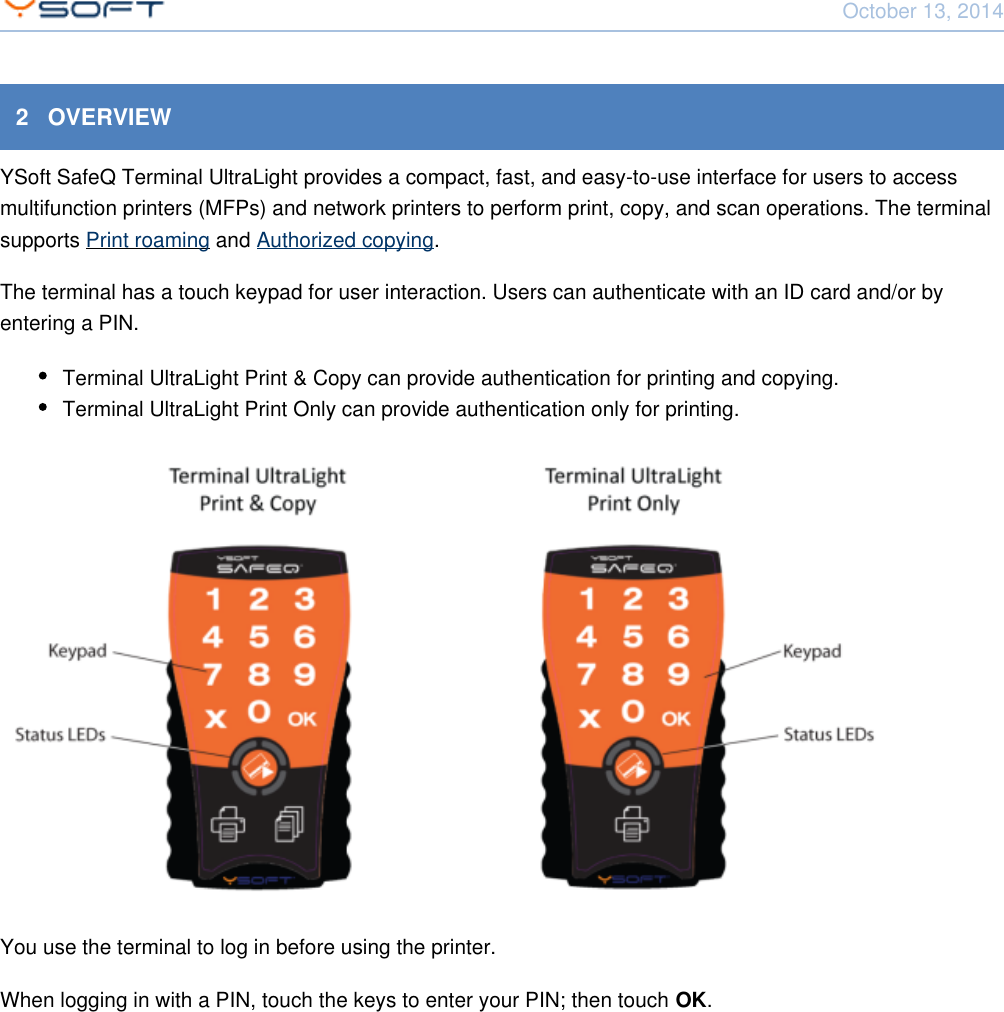
October 13, 2014Using Terminal UltraLight CONFIDENTIAL 52   OVERVIEWYSoft SafeQ Terminal UltraLight provides a compact, fast, and easy-to-use interface for users to accessmultifunction printers (MFPs) and network printers to perform print, copy, and scan operations. The terminalsupports   and  .Print roaming Authorized copyingThe terminal has a touch keypad for user interaction. Users can authenticate with an ID card and/or byentering a PIN.Terminal UltraLight Print & Copy can provide authentication for printing and copying.Terminal UltraLight Print Only can provide authentication only for printing.You use the terminal to log in before using the printer.When logging in with a PIN, touch the keys to enter your PIN; then touch  .OK
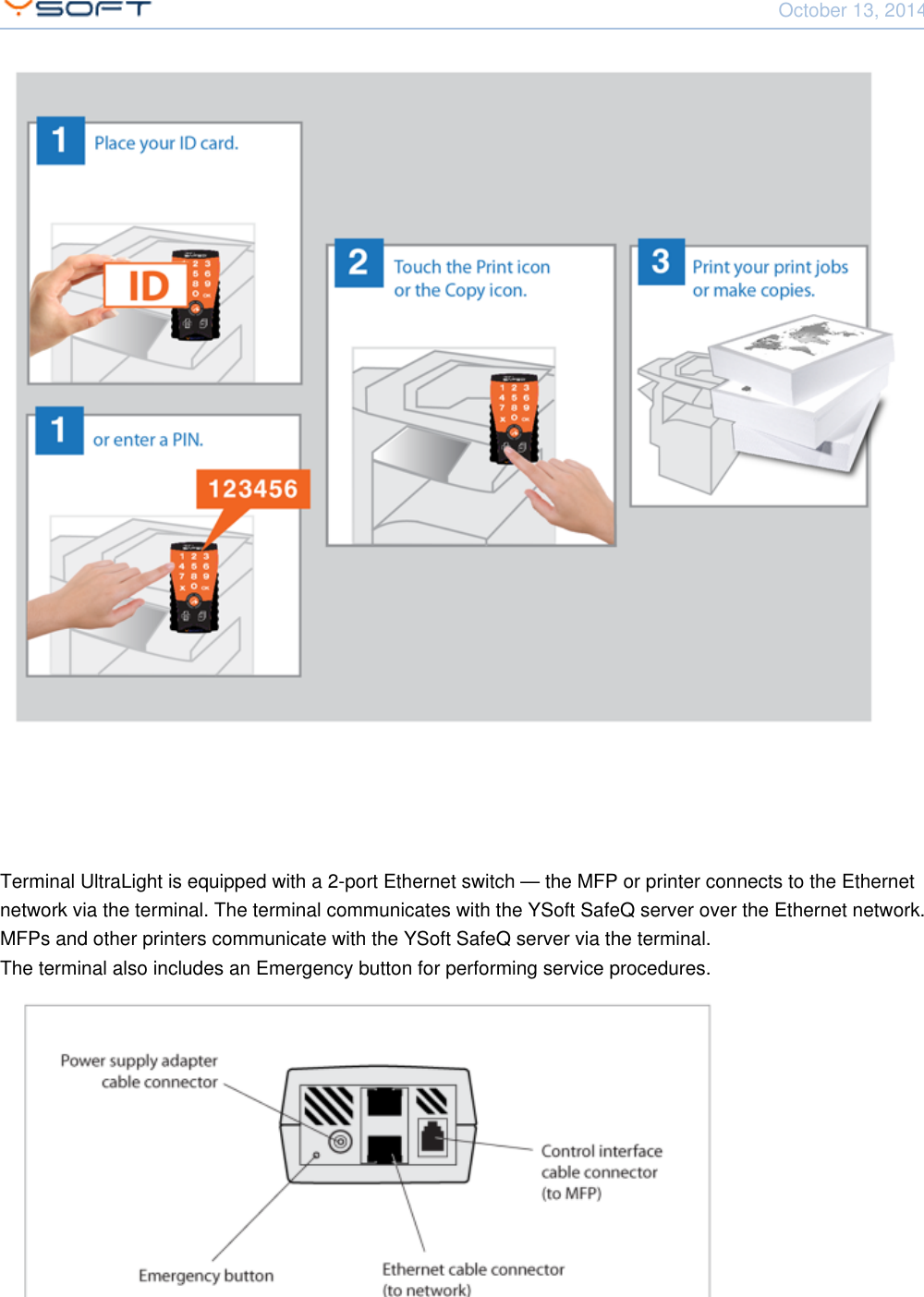
October 13, 2014Using Terminal UltraLight CONFIDENTIAL 6Terminal UltraLight is equipped with a 2-port Ethernet switch — the MFP or printer connects to the Ethernetnetwork via the terminal. The terminal communicates with the YSoft SafeQ server over the Ethernet network.MFPs and other printers communicate with the YSoft SafeQ server via the terminal.The terminal also includes an Emergency button for performing service procedures.
October 13, 2014Using Terminal UltraLight CONFIDENTIAL 7The terminal also features:MicrocomputerFlash ROM(Optional) Card reader – Various optional card readers are available to meet the compatibilityrequirements of your existing identification cards. (PINs can be used instead of the card reader.)
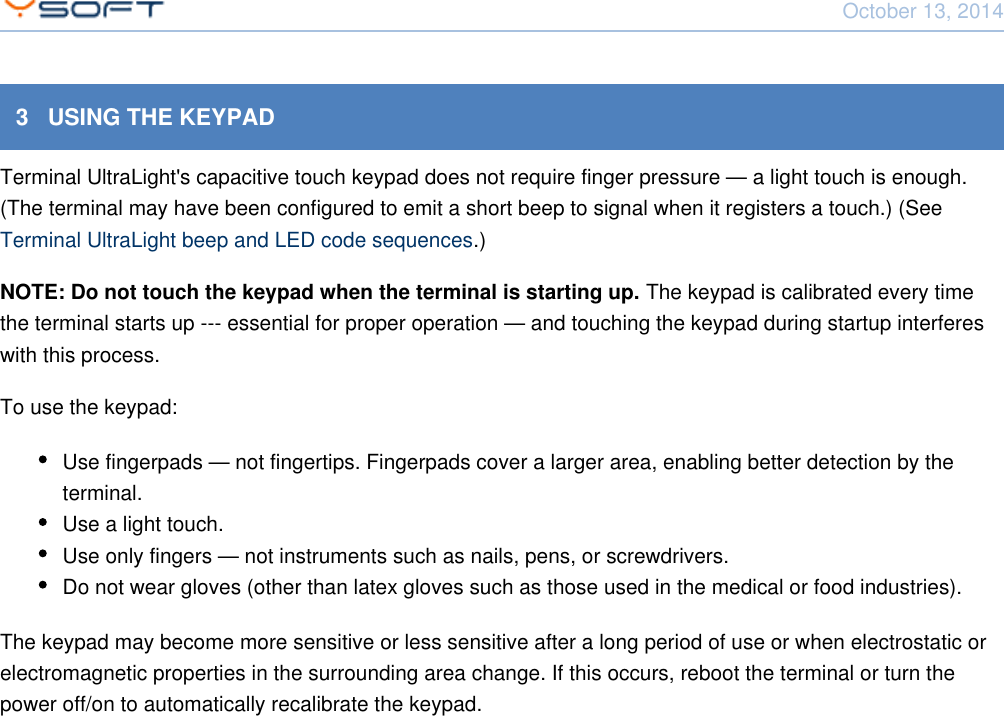
October 13, 2014Using Terminal UltraLight CONFIDENTIAL 83   USING THE KEYPADTerminal UltraLight's capacitive touch keypad does not require finger pressure — a light touch is enough.(The terminal may have been configured to emit a short beep to signal when it registers a touch.) (See .)Terminal UltraLight beep and LED code sequencesNOTE: Do not touch the keypad when the terminal is starting up. The keypad is calibrated every timethe terminal starts up --- essential for proper operation — and touching the keypad during startup interfereswith this process.To use the keypad:Use fingerpads — not fingertips. Fingerpads cover a larger area, enabling better detection by theterminal.Use a light touch.Use only fingers — not instruments such as nails, pens, or screwdrivers.Do not wear gloves (other than latex gloves such as those used in the medical or food industries).The keypad may become more sensitive or less sensitive after a long period of use or when electrostatic orelectromagnetic properties in the surrounding area change. If this occurs, reboot the terminal or turn thepower off/on to automatically recalibrate the keypad.
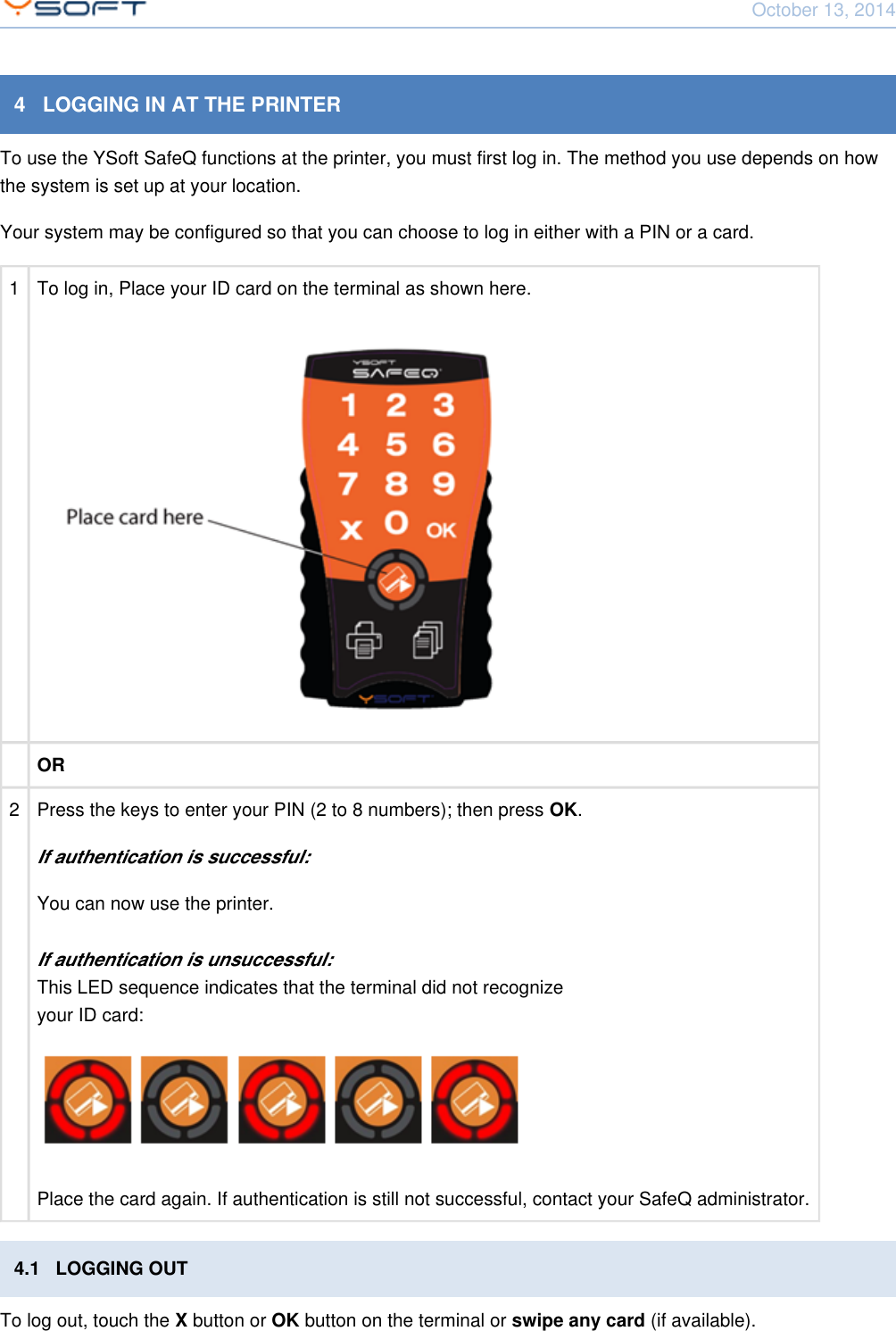
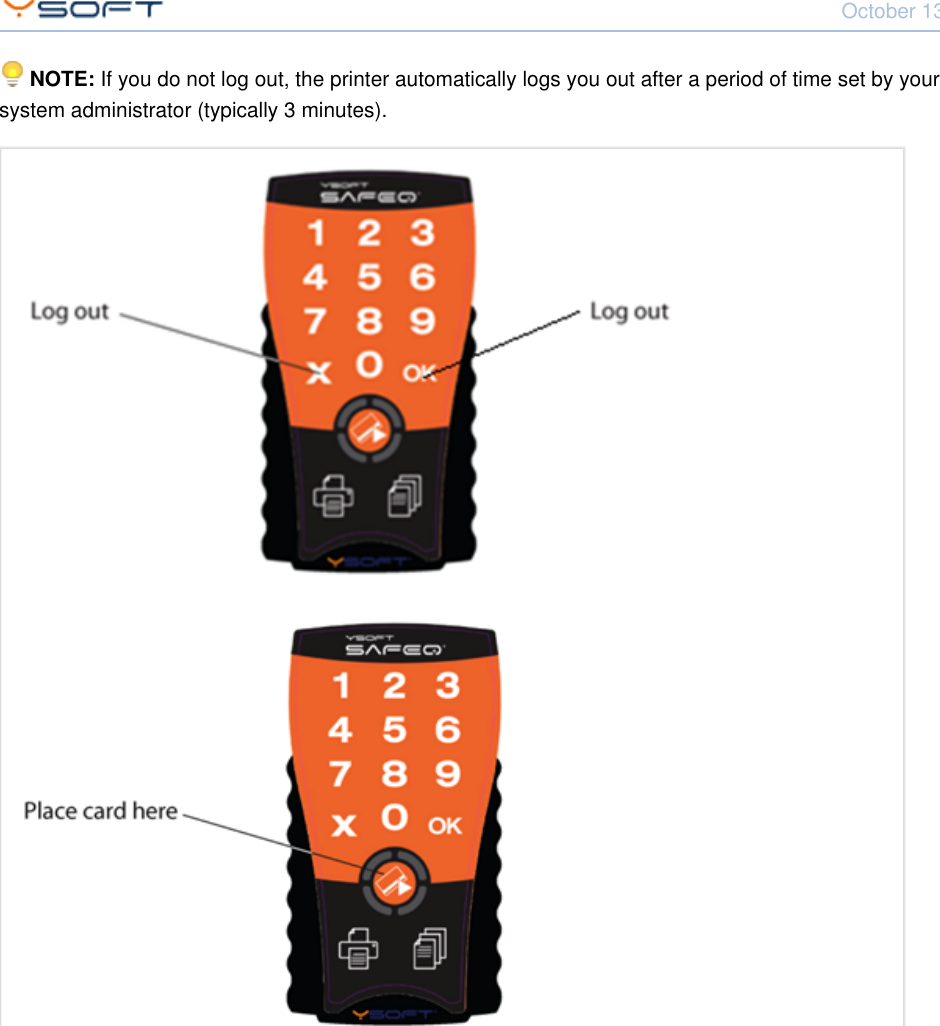
October 13, 2014Using Terminal UltraLight CONFIDENTIAL 94   LOGGING IN AT THE PRINTERTo use the YSoft SafeQ functions at the printer, you must first log in. The method you use depends on howthe system is set up at your location.Your system may be configured so that you can choose to log in either with a PIN or a card.1 To log in, Place your ID card on the terminal as shown here.OR2Press the keys to enter your PIN (2 to 8 numbers); then press  .OKIf authentication is successful:You can now use the printer.If authentication is unsuccessful:This LED sequence indicates that the terminal did not recognizeyour ID card:Place the card again. If authentication is still not successful, contact your SafeQ administrator.4.1   LOGGING OUTTo log out, touch the   button or   button on the terminal or   (if available).X OK swipe any card
October 13, 2014Using Terminal UltraLight CONFIDENTIAL 10 NOTE: If you do not log out, the printer automatically logs you out after a period of time set by yoursystem administrator (typically 3 minutes).
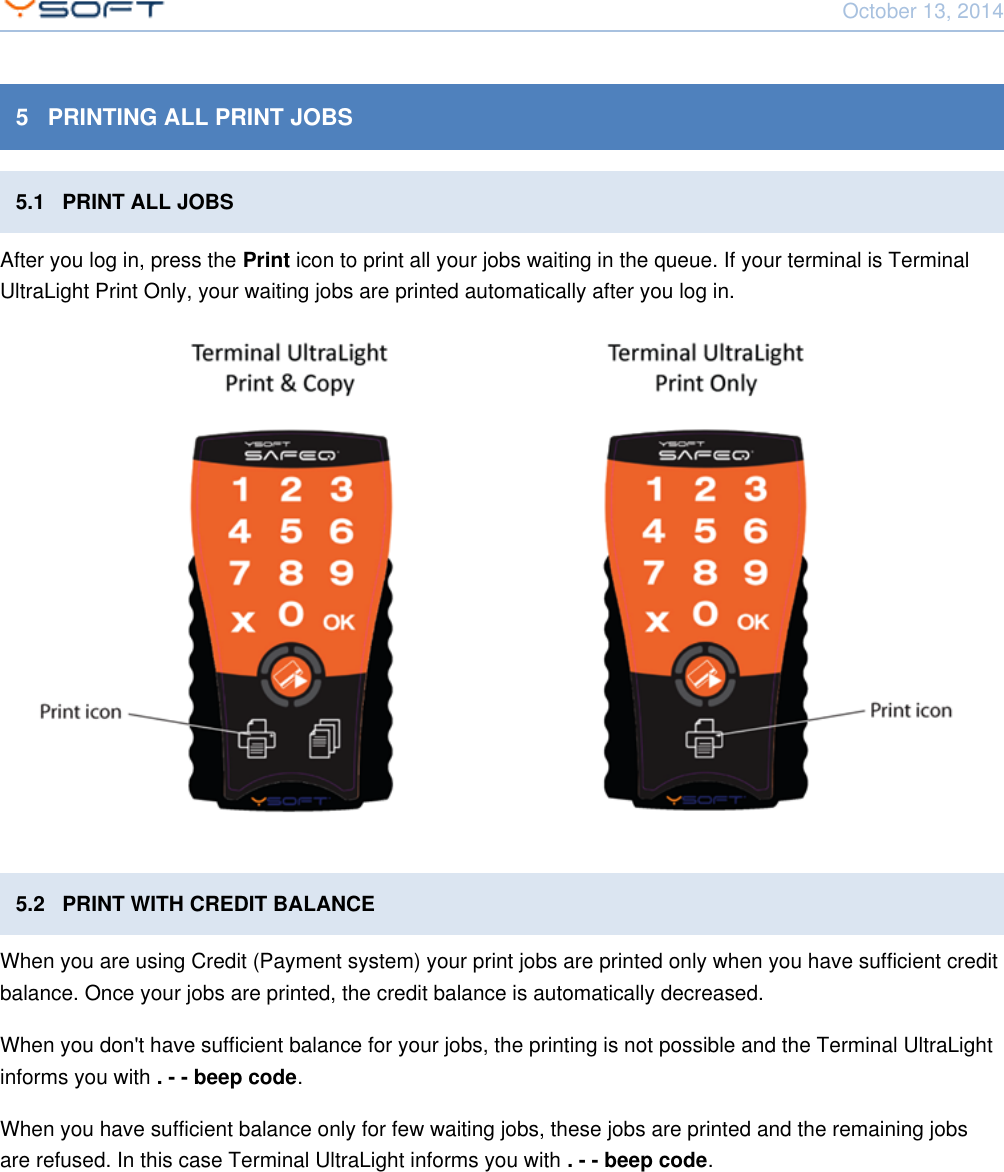
October 13, 2014Using Terminal UltraLight CONFIDENTIAL 115   PRINTING ALL PRINT JOBS5.1   PRINT ALL JOBSAfter you log in, press the   icon to print all your jobs waiting in the queue. If your terminal is TerminalPrintUltraLight Print Only, your waiting jobs are printed automatically after you log in.5.2   PRINT WITH CREDIT BALANCEWhen you are using Credit (Payment system) your print jobs are printed only when you have sufficient creditbalance. Once your jobs are printed, the credit balance is automatically decreased.When you don't have sufficient balance for your jobs, the printing is not possible and the Terminal UltraLightinforms you with  .. - - beep codeWhen you have sufficient balance only for few waiting jobs, these jobs are printed and the remaining jobsare refused. In this case Terminal UltraLight informs you with  .. - - beep code
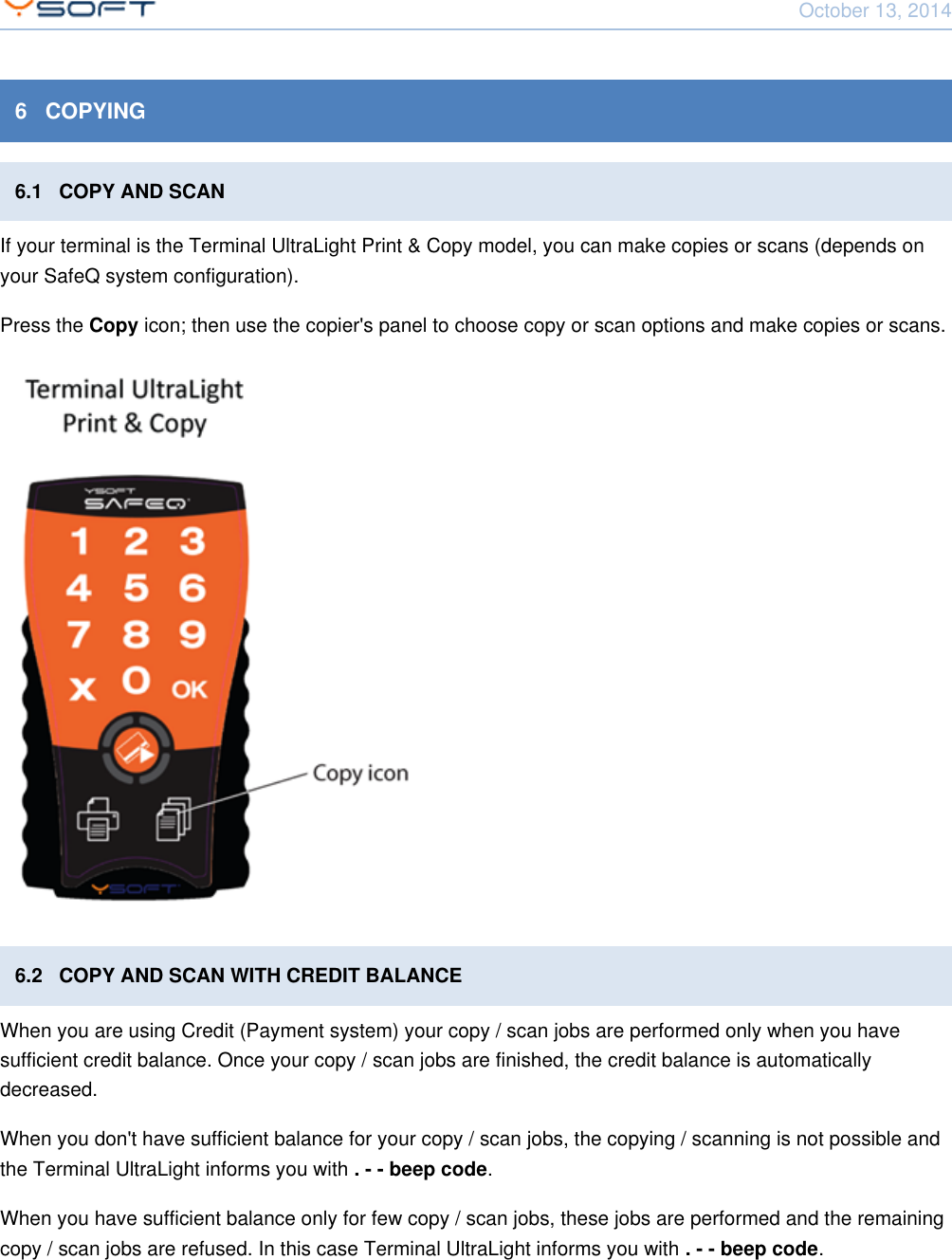
October 13, 2014Using Terminal UltraLight CONFIDENTIAL 126   COPYING6.1   COPY AND SCANIf your terminal is the Terminal UltraLight Print & Copy model, you can make copies or scans (depends onyour SafeQ system configuration).Press the   icon; then use the copier's panel to choose copy or scan options and make copies or scans.Copy6.2   COPY AND SCAN WITH CREDIT BALANCEWhen you are using Credit (Payment system) your copy / scan jobs are performed only when you havesufficient credit balance. Once your copy / scan jobs are finished, the credit balance is automaticallydecreased.When you don't have sufficient balance for your copy / scan jobs, the copying / scanning is not possible andthe Terminal UltraLight informs you with  .. - - beep codeWhen you have sufficient balance only for few copy / scan jobs, these jobs are performed and the remainingcopy / scan jobs are refused. In this case Terminal UltraLight informs you with  .. - - beep code
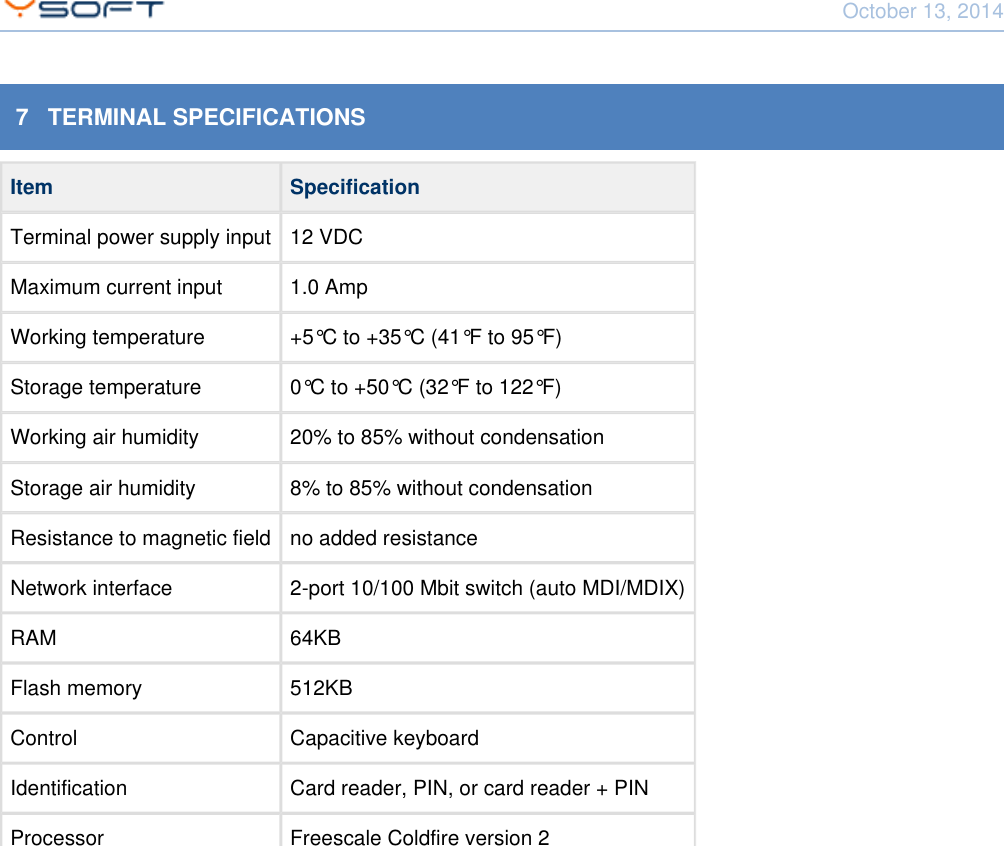
October 13, 2014Using Terminal UltraLight CONFIDENTIAL 137   TERMINAL SPECIFICATIONSItem SpecificationTerminal power supply input 12 VDCMaximum current input 1.0 AmpWorking temperature +5°C to +35°C (41°F to 95°F)Storage temperature 0°C to +50°C (32°F to 122°F)Working air humidity 20% to 85% without condensationStorage air humidity 8% to 85% without condensationResistance to magnetic field no added resistanceNetwork interface 2-port 10/100 Mbit switch (auto MDI/MDIX)RAM 64KBFlash memory 512KBControl Capacitive keyboardIdentification Card reader, PIN, or card reader + PINProcessor Freescale Coldfire version 2
October 13, 2014Using Terminal UltraLight CONFIDENTIAL 148   TERMINAL ULTRALIGHT BEEP AND LED CODE SEQUENCESThe Terminal Ultralight contains status LEDs that serve for interaction with user. This chapter describes thebeeps the terminal emits and LED codes it displays to notify the user about various status conditions.
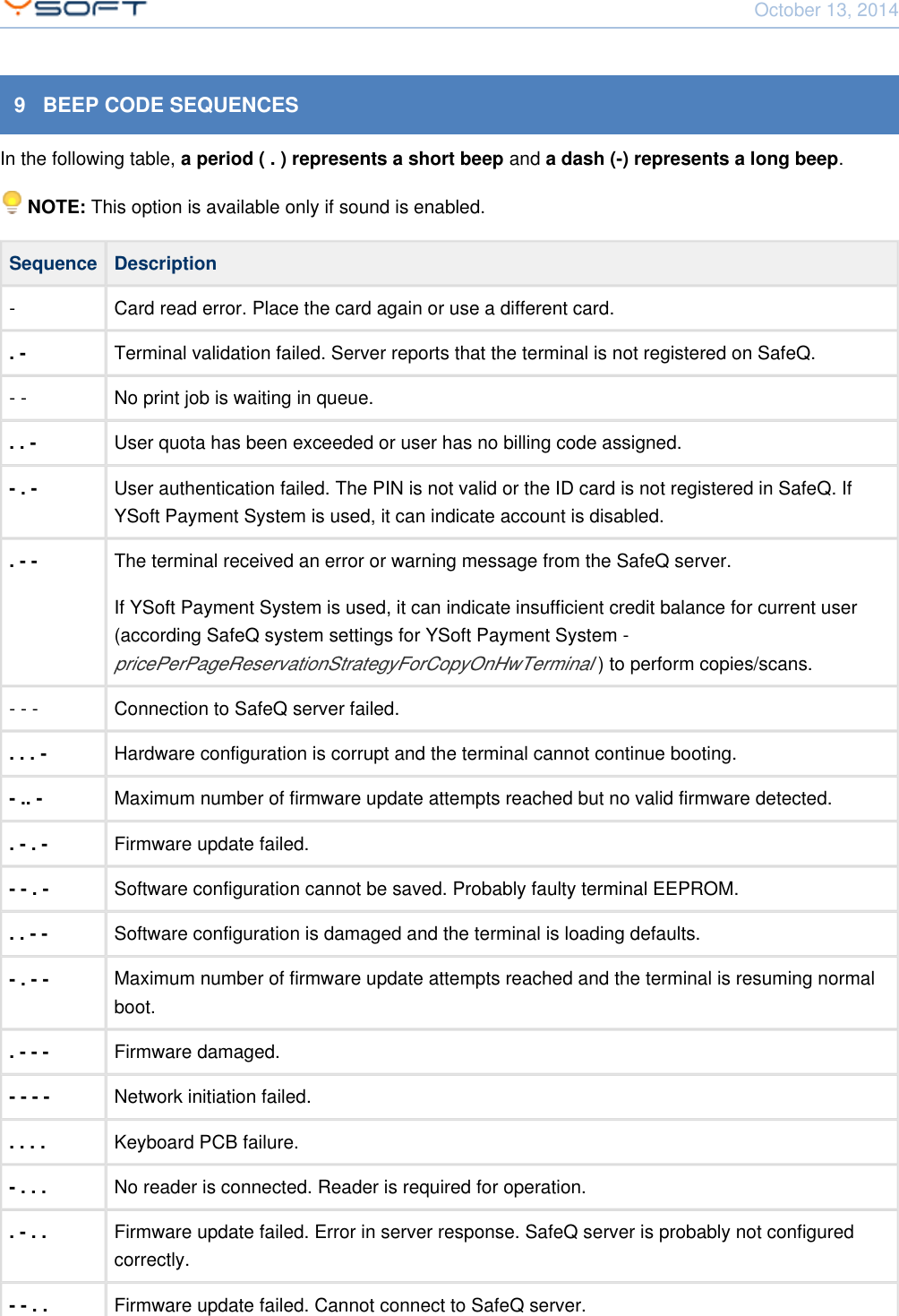
October 13, 2014Using Terminal UltraLight CONFIDENTIAL 159   BEEP CODE SEQUENCESIn the following table,     and  .a period ( . ) represents a short beep a dash (-) represents a long beep NOTE: This option is available only if sound is enabled.Sequence Description- Card read error. Place the card again or use a different card.. - Terminal validation failed. Server reports that the terminal is not registered on SafeQ.- - No print job is waiting in queue.. . - User quota has been exceeded or user has no billing code assigned.- . - User authentication failed. The PIN is not valid or the ID card is not registered in SafeQ. IfYSoft Payment System is used, it can indicate account is disabled.. - - The terminal received an error or warning message from the SafeQ server.If YSoft Payment System is used, it can indicate insufficient credit balance for current user(according SafeQ system settings for YSoft Payment System - ) to perform copies/scans.pricePerPageReservationStrategyForCopyOnHwTerminal - - - Connection to SafeQ server failed.. . . - Hardware configuration is corrupt and the terminal cannot continue booting.- .. - Maximum number of firmware update attempts reached but no valid firmware detected.. - . - Firmware update failed.- - . - Software configuration cannot be saved. Probably faulty terminal EEPROM.. . - - Software configuration is damaged and the terminal is loading defaults.- . - - Maximum number of firmware update attempts reached and the terminal is resuming normalboot.. - - - Firmware damaged.- - - - Network initiation failed.. . . . Keyboard PCB failure.- . . . No reader is connected. Reader is required for operation.. - . . Firmware update failed. Error in server response. SafeQ server is probably not configuredcorrectly.- - . . Firmware update failed. Cannot connect to SafeQ server.
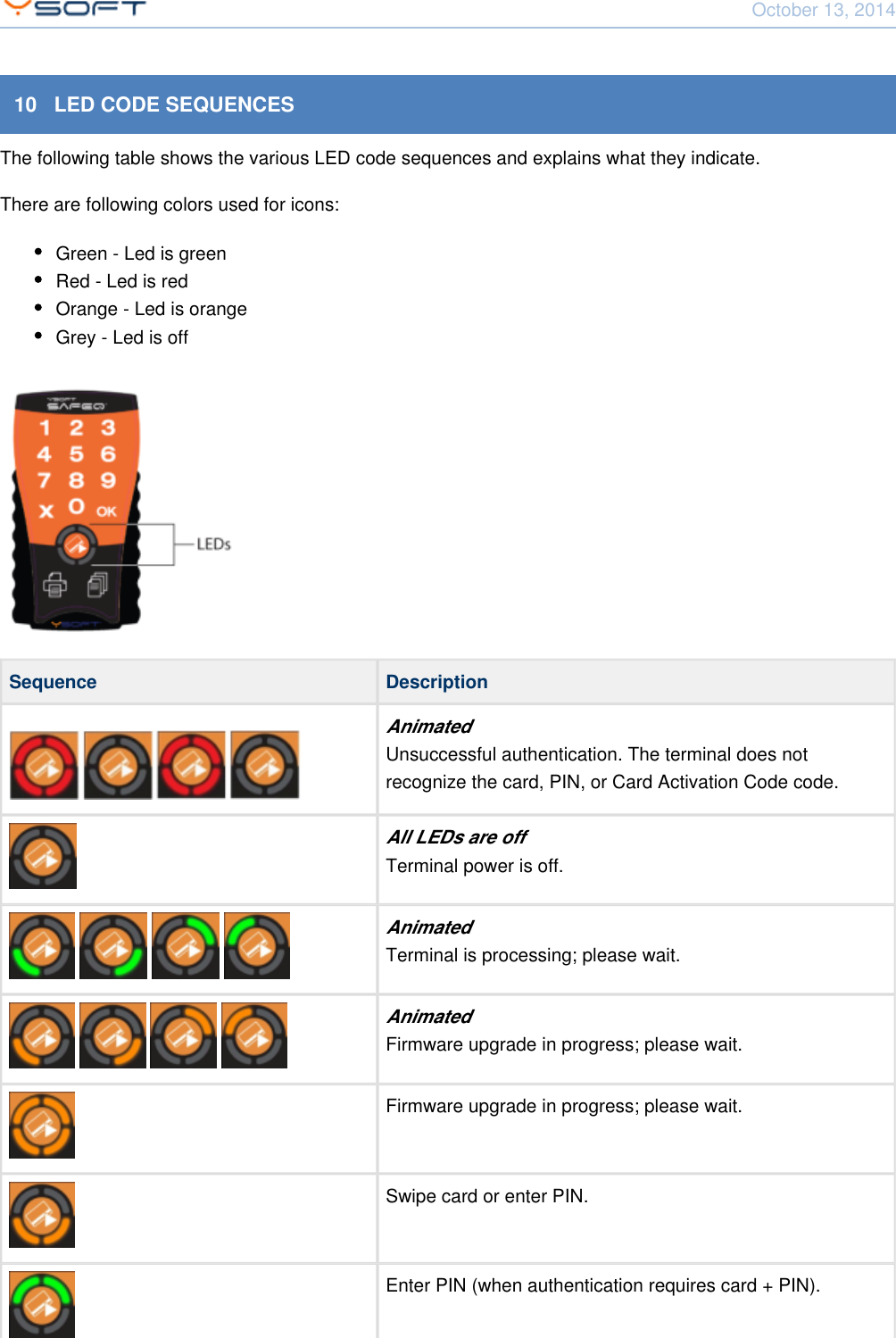
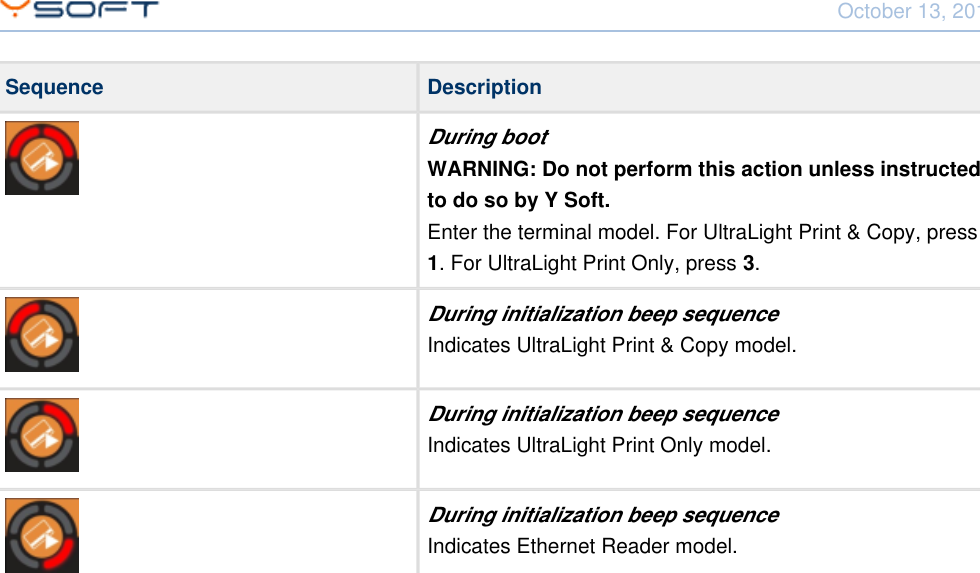
October 13, 2014Using Terminal UltraLight CONFIDENTIAL 1610   LED CODE SEQUENCESThe following table shows the various LED code sequences and explains what they indicate.There are following colors used for icons:Green - Led is greenRed - Led is redOrange - Led is orangeGrey - Led is offSequence DescriptionAnimatedUnsuccessful authentication. The terminal does notrecognize the card, PIN, or Card Activation Code code.All LEDs are offTerminal power is off.   AnimatedTerminal is processing; please wait.   AnimatedFirmware upgrade in progress; please wait.Firmware upgrade in progress; please wait.Swipe card or enter PIN.Enter PIN (when authentication requires card + PIN).
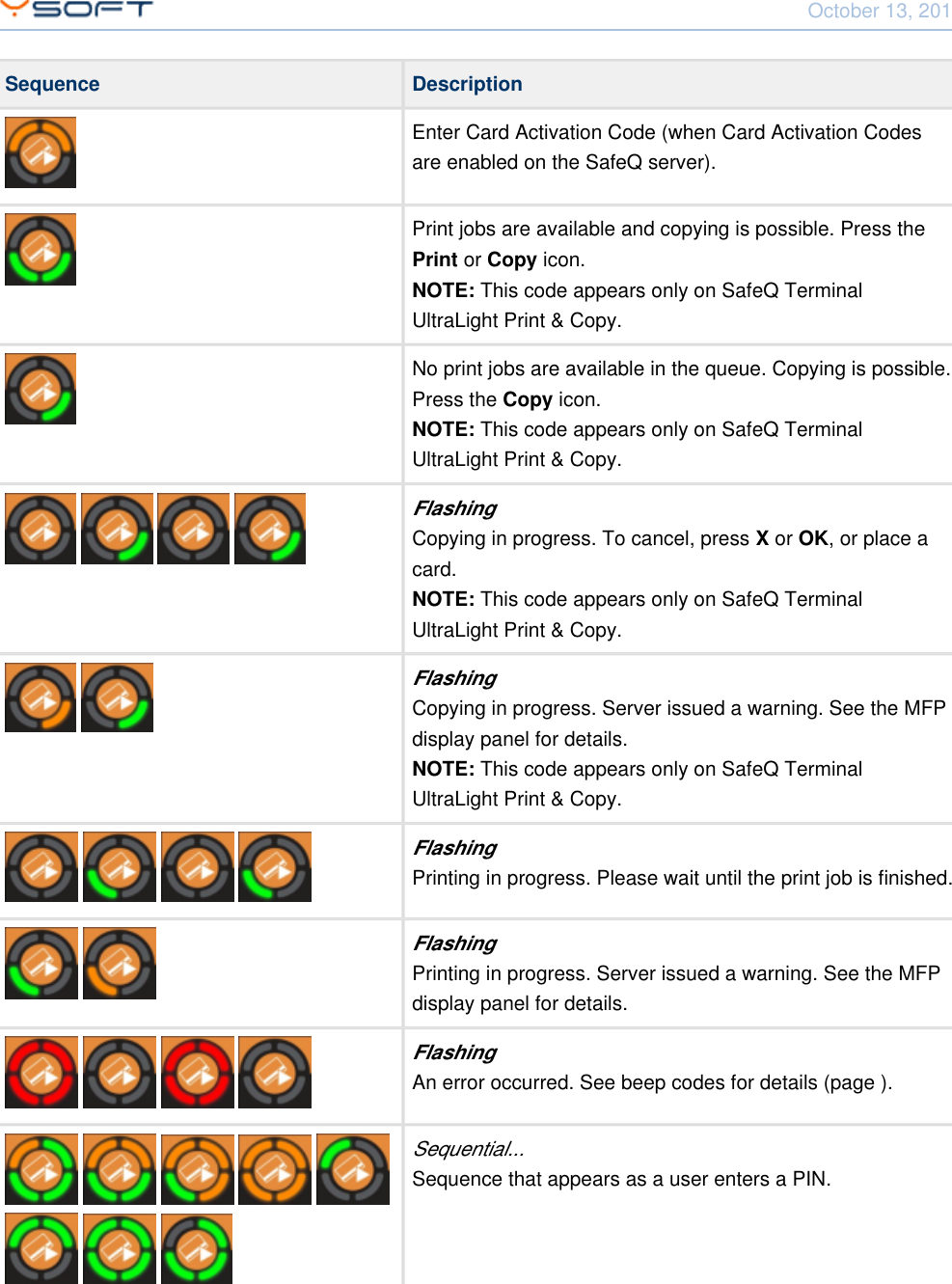
October 13, 2014Using Terminal UltraLight CONFIDENTIAL 17Sequence DescriptionEnter Card Activation Code (when Card Activation Codesare enabled on the SafeQ server).Print jobs are available and copying is possible. Press the  or   icon.Print Copy This code appears only on SafeQ TerminalNOTE:UltraLight Print & Copy.No print jobs are available in the queue. Copying is possible.Press the   icon.Copy This code appears only on SafeQ TerminalNOTE:UltraLight Print & Copy.   FlashingCopying in progress. To cancel, press   or  , or place aX OKcard. This code appears only on SafeQ TerminalNOTE:UltraLight Print & Copy. FlashingCopying in progress. Server issued a warning. See the MFPdisplay panel for details. This code appears only on SafeQ TerminalNOTE:UltraLight Print & Copy.   FlashingPrinting in progress. Please wait until the print job is finished. FlashingPrinting in progress. Server issued a warning. See the MFPdisplay panel for details.   FlashingAn error occurred. See beep codes for details (page ).       Sequential...Sequence that appears as a user enters a PIN.
October 13, 2014Using Terminal UltraLight CONFIDENTIAL 18Sequence DescriptionDuring bootWARNING: Do not perform this action unless instructedto do so by Y Soft.Enter the terminal model. For UltraLight Print & Copy, press . For UltraLight Print Only, press  .1 3During initialization beep sequenceIndicates UltraLight Print & Copy model.During initialization beep sequenceIndicates UltraLight Print Only model.During initialization beep sequenceIndicates Ethernet Reader model.

Navigation menu