ZMODO Technology H2401 Tune User Manual 1

ZMODO Technology Shenzhen Corp. Ltd. Tune 1

User Manual

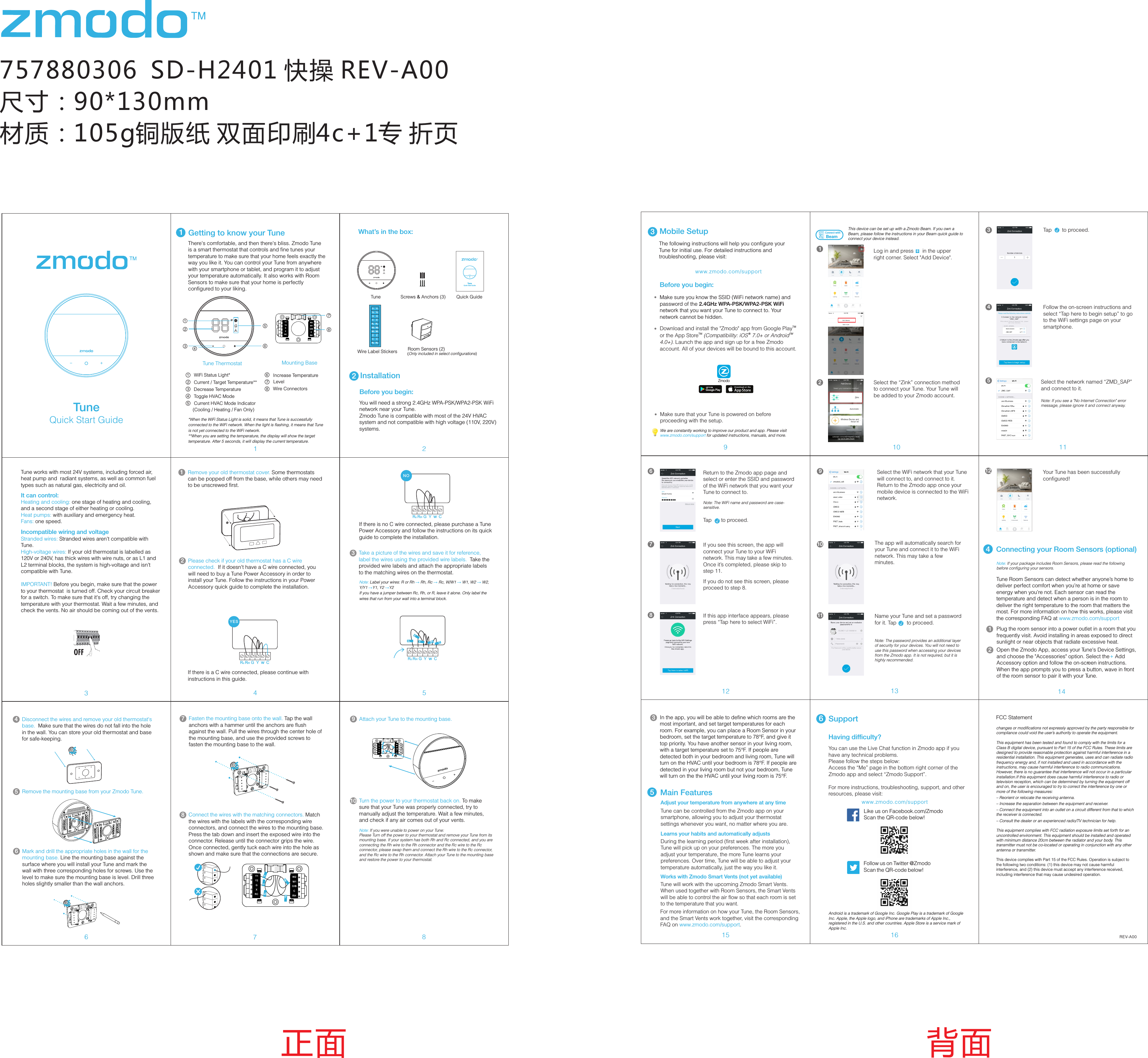
757880306  SD-H2401 快操 REV-A00尺寸:90*130mm材质:105g铜版纸 双面印刷4c+1专 折页4正面 背面11Getting to know your Tune*When the WiFi Status Light is solid, it means that Tune is successfully connected to the WiFi network. When the light is flashing, it means that Tune is not yet connected to the WiFi network. **When you are setting the temperature, the display will show the target temperature. After 5 seconds, it will display the current temperature. WiFi Status Light*Current / Target Temperature**Decrease TemperatureToggle HVAC Mode Current HVAC Mode Indicator(Cooling / Heating / Fan Only)910 1112 13 1415 16Main FeaturesTake a picture of the wires and save it for reference, label the wires using the provided wire labels.  Take the provided wire labels and attach the appropriate labels to the matching wires on the thermostat.3REV-A00Android is a trademark of Google Inc. Google Play is a trademark of Google Inc. Apple, the Apple logo, and iPhone are trademarks of Apple Inc., registered in the U.S. and other countries. Apple Store is a service mark of Apple Inc.Having difficulty?Follow us on Twitter @ZmodoScan the QR-code below! Like us on Facebook.com/Zmodo Scan the QR-code below!www.zmodo.com/supportYou can use the Live Chat function in Zmodo app if you have any technical problems.Please follow the steps below:Access the “Me” page in the bottom right corner of the Zmodo app and select “Zmodo Support”. For more instructions, troubleshooting, support, and other resources, please visit:6SupportThere's comfortable, and then there's bliss. Zmodo Tune is a smart thermostat that controls and fine tunes your temperature to make sure that your home feels exactly the way you like it. You can control your Tune from anywhere with your smartphone or tablet, and program it to adjust your temperature automatically. It also works with Room Sensors to make sure that your home is perfectly configured to your liking.The following instructions will help you configure your Tune for initial use. For detailed instructions and troubleshooting, please visit:3Before you begin:Mobile SetupMake sure you know the SSID (WiFi network name) and password of the 2.4GHz WPA-PSK/WPA2-PSK WiFi network that you want your Tune to connect to. Your network cannot be hidden. www.zmodo.com/supportConnecting your Room Sensors (optional)5Select the network named “ZMD_SAP” and connect to it.Note: If you see a "No Internet Connection" error message, please ignore it and connect anyway.Follow the on-screen instructions and select “Tap here to begin setup” to go to the WiFi settings page on your smartphone.47If you see this screen, the app will connect your Tune to your WiFi network. This may take a few minutes. Once it’s completed, please skip to step 11.If you do not see this screen, please proceed to step 8.8If this app interface appears, please press “Tap here to select WiFi”.1011The app will automatically search for your Tune and connect it to the WiFi network. This may take a few minutes. Name your Tune and set a password for it. Tap       to proceed.√Note: The password provides an additional layer of security for your devices. You will not need to use this password when accessing your devices from the Zmodo app. It is not required, but it is highly recommended.Your Tune has been successfully configured! 9Select the WiFi network that your Tune will connect to, and connect to it. Return to the Zmodo app once your mobile device is connected to the WiFi network.Return to the Zmodo app page and select or enter the SSID and password of the WiFi network that you want your Tune to connect to.Note: The WiFi name and password are case-sensitive.Tap    to proceed.√63Tap       to proceed.√12Log in and press      in the upper right corner. Select "Add Device". This device can be set up with a Zmodo Beam. If you own a Beam, please follow the instructions in your Beam quick guide to connect your device instead.2ConnectwithBeam+1Select the “Zink” connection method to connect your Tune. Your Tune will be added to your Zmodo account.TMDownload and install the "Zmodo" app from Google Play  TM  ® TMor the App Store  (Compatibility: iOS  7.0+ or Android  4.0+). Launch the app and sign up for a free Zmodo account. All of your devices will be bound to this account. ZmodoNote: If your package includes Room Sensors, please read the following before configuring your sensors. Plug the room sensor into a power outlet in a room that you frequently visit. Avoid installing in areas exposed to direct sunlight or near objects that radiate excessive heat.Open the Zmodo App, access your Tune's Device Settings, and choose the "Accessories" option. Select the Add +   Accessory option and follow the on-screen instructions. When the app prompts you to press a button, wave in front of the room sensor to pair it with your Tune.In the app, you will be able to define which rooms are the most important, and set target temperatures for each room. For example, you can place a Room Sensor in your bedroom, set the target temperature to 78°F, and give it top priority. You have another sensor in your living room, with a target temperature set to 75°F. If people are detected both in your bedroom and living room, Tune will turn on the HVAC until your bedroom is 78°F. If people are detected in your living room but not your bedroom, Tune will turn on the the HVAC until your living room is 75°F. 5Adjust your temperature from anywhere at any timeTune can be controlled from the Zmodo app on your smartphone, allowing you to adjust your thermostat settings whenever you want, no matter where you are. Learns your habits and automatically adjustsDuring the learning period (first week after installation), Tune will pick up on your preferences. The more you adjust your temperature, the more Tune learns your preferences. Over time, Tune will be able to adjust your temperature automatically, just the way you like it. Works with Zmodo Smart Vents (not yet available)Tune will work with the upcoming Zmodo Smart Vents. When used together with Room Sensors, the Smart Vents will be able to control the air flow so that each room is set to the temperature that you want. Quick Start GuideTuneWe are constantly working to improve our product and app. Please visit www.zmodo.com/support for updated instructions, manuals, and more.12343Remove your old thermostat cover. Some thermostats can be popped off from the base, while others may need to be unscrewed first. 1IMPORTANT! Before you begin, make sure that the power to your thermostat  is turned off. Check your circuit breaker for a switch. To make sure that it's off, try changing the temperature with your thermostat. Wait a few minutes, and check the vents. No air should be coming out of the vents. 6Disconnect the wires and remove your old thermostat's base.  Make sure that the wires do not fall into the hole in the wall. You can store your old thermostat and base for safe-keeping. 4Remove the mounting base from your Zmodo Tune.  57Mark and drill the appropriate holes in the wall for the mounting base. Line the mounting base against the surface where you will install your Tune and mark the wall with three corresponding holes for screws. Use the level to make sure the mounting base is level. Drill three holes slightly smaller than the wall anchors. 6Fasten the mounting base onto the wall. Tap the wall anchors with a hammer until the anchors are flush against the wall. Pull the wires through the center hole of the mounting base, and use the provided screws to fasten the mounting base to the wall. 78Connect the wires with the matching connectors. Match the wires with the labels with the corresponding wire connectors, and connect the wires to the mounting base. Press the tab down and insert the exposed wire into the connector. Release until the connector grips the wire. Once connected, gently tuck each wire into the hole as shown and make sure that the connections are secure. 8Attach your Tune to the mounting base. 9Turn the power to your thermostat back on. To make sure that your Tune was properly connected, try to manually adjust the temperature. Wait a few minutes, and check if any air comes out of your vents.10Y1Y2GXRCW2W1O/BCRHY1Y2GXRCW2W1O/ BCRHTune Thermostat Mounting Base2What’s in the box:2Before you begin:InstallationQuick Start GuideTuneTune Quick GuideScrews & Anchors (3)Wire Label StickersYou will need a strong 2.4GHz WPA-PSK/WPA2-PSK WiFi network near your Tune.Zmodo Tune is compatible with most of the 24V HVAC system and not compatible with high voltage (110V, 220V) systems.Please check if your old thermostat has a C wire connected.  If it doesn't have a C wire connected, you will need to buy a Tune Power Accessory in order to install your Tune. Follow the instructions in your Power Accessory quick guide to complete the installation. 2Make sure that your Tune is powered on before proceeding with the setup. 5Tune works with most 24V systems, including forced air, heat pump and  radiant systems, as well as common fuel types such as natural gas, electricity and oil.It can control:Heating and cooling: one stage of heating and cooling, and a second stage of either heating or cooling.Heat pumps: with auxiliary and emergency heat.Fans: one speed.Incompatible wiring and voltageStranded wires: Stranded wires aren't compatible with Tune.  High-voltage wires: If your old thermostat is labelled as 120V or 240V, has thick wires with wire nuts, or as L1 and L2 terminal blocks, the system is high-voltage and isn't compatible with Tune. Y2GOBOBGW1CRHRHY2Y1Y1W1CX XW2W2RcRcRHRcwYG CYESRHRcwYG CNOIf there is a C wire connected, please continue with instructions in this guide. If there is no C wire connected, please purchase a Tune Power Accessory and follow the instructions on its quick guide to complete the installation. Note:   →  →  →  →Label your wires: R or Rh  Rh, Rc  Rc, W/W1  W1, W2  W2, Y/Y1 Y1, Y2  Y2 → →If you have a jumper between Rc, Rh, or R, leave it alone. Only label the wires that run from your wall into a terminal block.RHRcwYG Ccw1Y1Y2GXRCW2W1O/ BCRHRoom Sensors (2)(Only included in select configurations)Tune Room Sensors can detect whether anyone’s home to deliver perfect comfort when you’re at home or save energy when you’re not. Each sensor can read the temperature and detect when a person is in the room to deliver the right temperature to the room that matters the most. For more information on how this works, please visit the corresponding FAQ at www.zmodo.com/supportWire ConnectorsIncrease TemperatureLevelNote: If you were unable to power on your Tune:Please Turn off the power to your thermostat and remove your Tune from its mounting base. If your system has both Rh and Rc connected, and you are connecting the Rh wire to the Rh connector and the Rc wire to the Rc connector, please swap them and connect the Rh wire to the Rc connector, and the Rc wire to the Rh connector. Attach your Tune to the mounting base and restore the power to your thermostat.  For more information on how your Tune, the Room Sensors, and the Smart Vents work together, visit the corresponding FAQ on  .www.zmodo.com/supportFCC Statementchanges or modifications not expressly approved by the party responsible for compliance could void the user’s authority to operate the equipment.This equipment has been tested and found to comply with the limits for a Class B digital device, pursuant to Part 15 of the FCC Rules. These limits are designed to provide reasonable protection against harmful interference in a residential installation. This equipment generates, uses and can radiate radio frequency energy and, if not installed and used in accordance with the instructions, may cause harmful interference to radio communications. However, there is no guarantee that interference will not occur in a particular installation.If this equipment does cause harmful interference to radio or television reception, which can be determined by turning the equipment off and on, the user is encouraged to try to correct the interference by one or more of the following measures:– Reorient or relocate the receiving antenna.– Increase the separation between the equipment and receiver.– Connect the equipment into an outlet on a circuit different from that to which the receiver is connected.– Consult the dealer or an experienced radio/TV technician for help.This equipment complies with FCC radiation exposure limits set forth for an uncontrolled environment. This equipment should be installed and operated with minimum distance 20cm between the radiator and your body. This transmitter must not be co-located or operating in conjunction with any other antenna or transmitter.This device complies with Part 15 of the FCC Rules. Operation is subject to the following two conditions: (1) this device may not cause harmful interference, and (2) this device must accept any interference received, including interference that may cause undesired operation.

Navigation menu