Zida Technologies MB-A815EP-11 Mainboard User Manual Manual A815E1 indd

Zida Technologies Ltd. Mainboard Manual A815E1 indd

users manual 3

Jumper settings        Set the Jumper     JP1 default setting is [1-2], to (2-3) to clear CMOS.    JP4 default setting is [1-2] to Panel speaker out, to (2-3) to mix out AC97 codec .    JP6 default setting is OPEN, to Enable AC97 CODEC, to CLOSE to Disable AC97 CODEC.    JP7 default setting is OPEN, to Enable MC97 CODEC, to CLOSE to Disable MC97 CODEC.Page 10 90-A815E1-A2-00
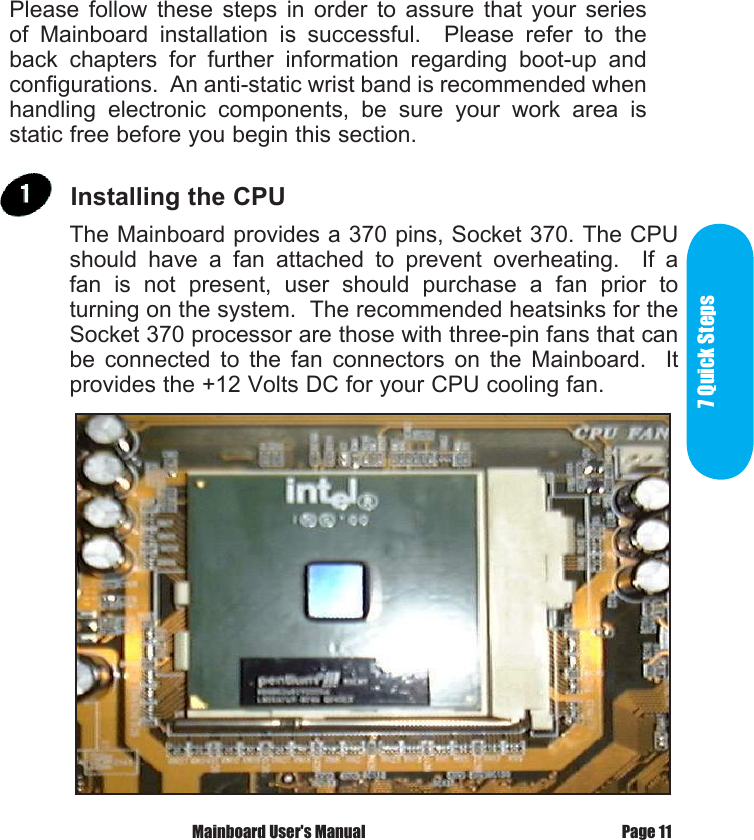
 7 Quick      StepsPlease  follow  these  steps  in  order  to  assure  that  your  series of  Mainboard  installation  is  successful.    Please  refer  to  the back  chapters  for  further  information  regarding  boot-up  and configurations.  An anti-static wrist band is recommended when handling  electronic  components,  be  sure  your  work  area  is static free before you begin this section.Page 11 Mainboard User's ManualThe Mainboard provides a 370 pins, Socket 370. The CPU should  have  a  fan  attached  to  prevent  overheating.    If  a fan  is  not  present,  user  should  purchase  a  fan  prior  to turning on the system.  The recommended heatsinks for the Socket 370 processor are those with three-pin fans that can be  connected  to  the  fan  connectors  on  the  Mainboard.    It provides the +12 Volts DC for your CPU cooling fan. Installing the CPU 7 Quick Steps
CAUTION!       Be  sure  that  sufficient  air  circulation  must  be  available across the processor’s heatsink.  Without sufficient circulation, the processor could overheat and damage both the processor and  the  mainboard.    You  may  install  an  auxiliary  fan  if necessary. Mainboard User's ManualPage 12
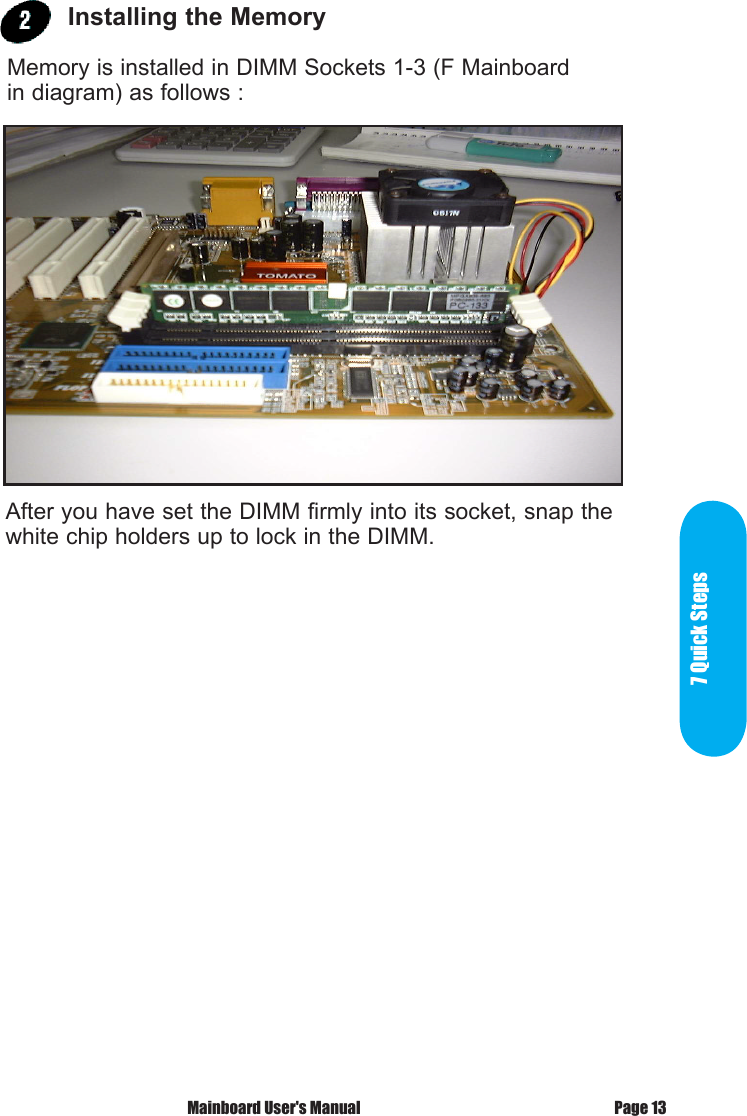
7 Quick StepsPage 13 Mainboard User's ManualAfter you have set the DIMM firmly into its socket, snap the white chip holders up to lock in the DIMM. Installing the Memory Memory is installed in DIMM Sockets 1-3 (F Mainboard in diagram) as follows :
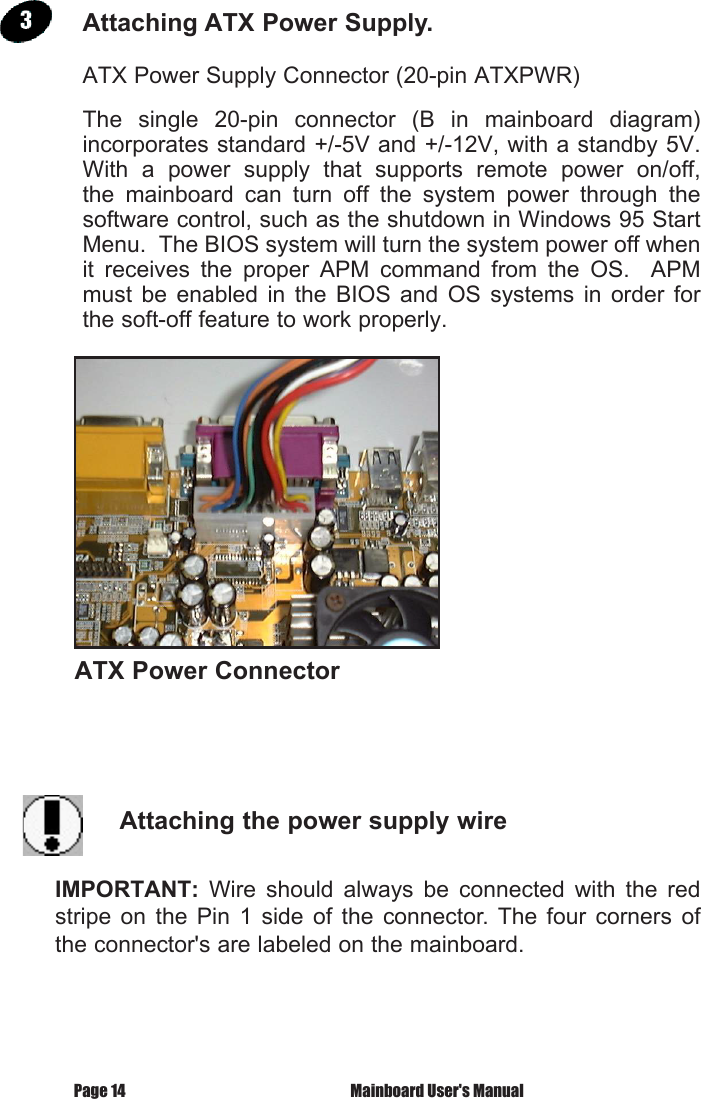
 Mainboard User's ManualPage 14ATX Power Supply Connector (20-pin ATXPWR)The  single  20-pin  connector  (B  in  mainboard  diagram) incorporates standard +/-5V and +/-12V, with a standby 5V.  With  a  power  supply  that  supports  remote  power  on/off, the  mainboard  can  turn  off  the  system  power  through  the software control, such as the shutdown in Windows 95 Start Menu.  The BIOS system will turn the system power off when it  receives  the  proper  APM  command  from  the  OS.    APM must  be  enabled  in  the  BIOS and OS  systems  in  order  for the soft-off feature to work properly.Attaching the power supply wireIMPORTANT:  Wire  should  always  be  connected  with  the  red stripe  on  the  Pin  1  side  of  the  connector.  The  four  corners  of the connector's are labeled on the mainboard.ATX Power ConnectorAttaching ATX Power Supply.
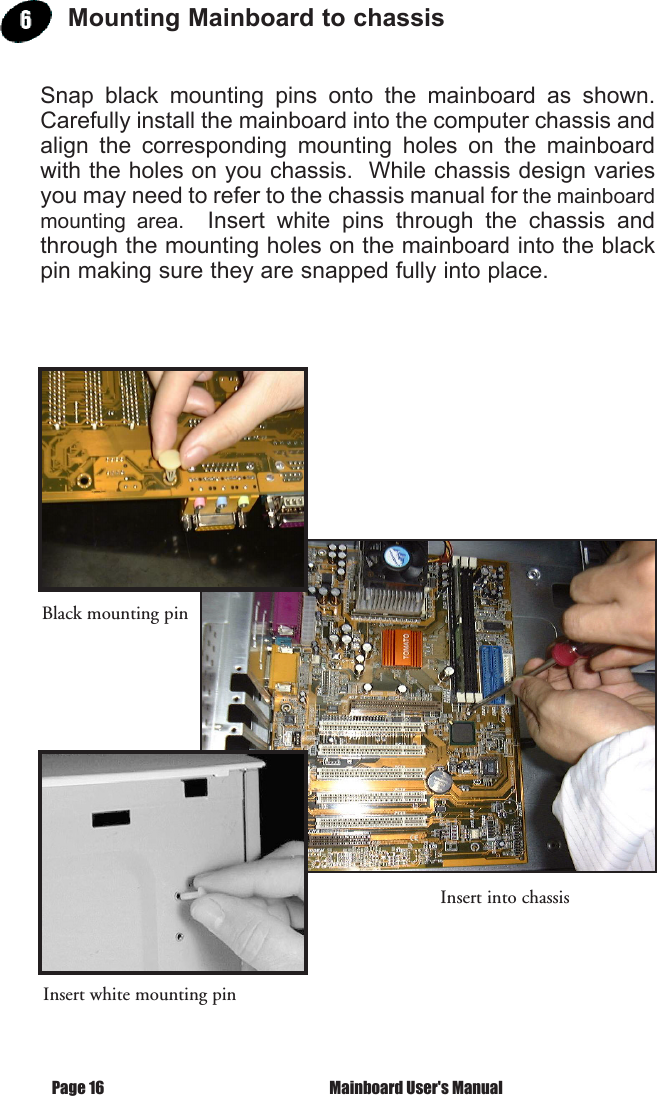
7 Quick StepsPage 15 Mainboard User's ManualFloppy Disk Drive Connector (34-pin FLOPPY).This  is  a  34-pin  connector  that  supports  the  provided  floppy drive  ribbon  cable.    After  connecting  the  single  end  to  the on-board  “FLOPPY”  connector,  (O  in  mainboard  diagram) connect  the  remaining  plugs  on  the  other  end  to  the corresponding floppy drives.IDE Device Connector.The  on-board  IDE  connectors  (P  in  mainboard  diagram)  support  the  provided  40/80-pin  IDE  hard  disk  ribbon  cable.  After  connecting  the  single  end  to  the  mainboard,  connect the  remaining  plugs  at  the  other  end  of  your  hard  disk(s).  If  you  install  hard  disks,  you  must  configure  the  drives  by setting  its  jumpers  according  to  the  documentation  of  your hard disk.Also,  you  may  connect  the  hard  disk  drives  so  that  both become Masters, using one ribbon cable on the primary IDE- connector, and the other on the secondary IDE connector.NOTE:    For  the  flat  ribbon  cable  connection,  please  make sure  that  the  pin  1  of  the  ribbon  cable  (the  red  wire  side  of the cable) is correctly connected to the on-board connector's pin 1 as shown on the “mainboard diagram”.Floppy connectionIDE connection
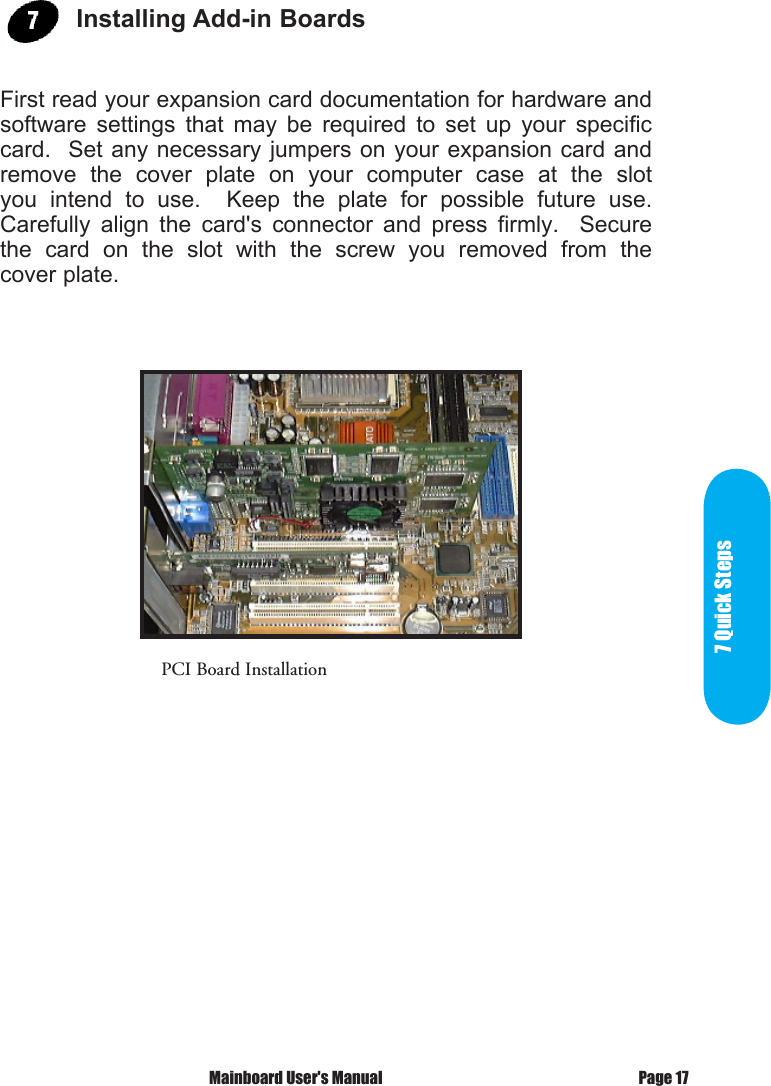
 Mainboard User's ManualPage 16Mounting Mainboard to chassisSnap  black  mounting  pins  onto  the  mainboard  as  shown.  Carefully install the mainboard into the computer chassis and align  the  corresponding  mounting  holes  on  the  mainboard with the holes on you chassis.  While chassis design varies you may need to refer to the chassis manual for the mainboard mounting  area.    Insert  white  pins  through  the  chassis  and through the mounting holes on the mainboard into the black pin making sure they are snapped fully into place.Black mounting pinInsert into chassisInsert white mounting pin
7 Quick StepsPage 17 Mainboard User's ManualPCI Board InstallationInstalling Add-in BoardsFirst read your expansion card documentation for hardware and software  settings  that  may  be  required  to  set  up  your  specific card.  Set  any necessary  jumpers on  your expansion  card and remove  the  cover  plate  on  your  computer  case  at  the  slot you  intend  to  use.    Keep  the  plate  for  possible  future  use.  Carefully  align  the  card's  connector  and  press  firmly.    Secure the  card  on  the  slot  with  the  screw  you  removed  from  the cover plate.
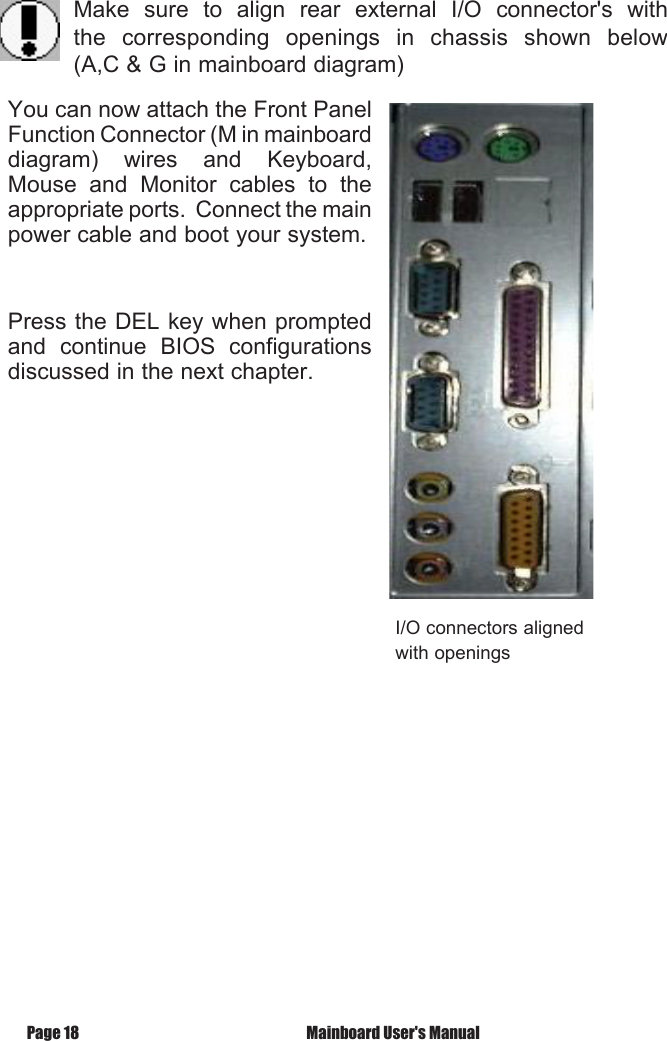
 Mainboard User's ManualPage 18I/O connectors alignedwith openingsMake  sure  to  align  rear  external  I/O  connector's  with the  corresponding  openings  in  chassis  shown  below (A,C & G in mainboard diagram)You can now attach the Front Panel Function Connector (M in mainboard diagram)  wires  and  Keyboard, Mouse  and  Monitor  cables  to  the appropriate ports.  Connect the main power cable and boot your system.Press the DEL key when prompted and  continue  BIOS  configurations discussed in the next chapter.

Navigation menu