em trak Marine Electronics 427-0004 Marine Class B AIS Transceiver with WLAN User Manual Apollo EN
em-trak Marine Electronics Ltd Marine Class B AIS Transceiver with WLAN Apollo EN
User manual
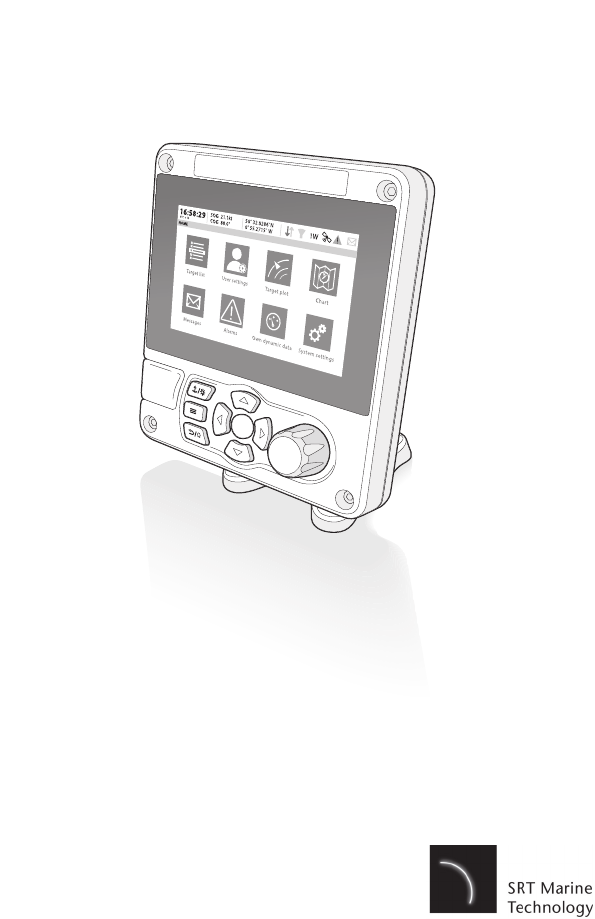
AIS Class B Transceiver
Installation and Operation Manual
Thank you for purchasing this AIS Class B transceiver.
This product has been engineered to offer you the highest level of perfor-
mance and durability and we hope that it will provide many years of reliable
service. We constantly strive to achieve the highest possible quality standards,
should you encounter any problems with this product, please contact your
dealer who will be pleased to offer any assistance you require.
List of Abbreviations
Page 3
List of Abbreviations.
AIS Automatic Identification System
AIS SART AIS Search and Rescue Transmitter
AP Access Point (Relating to WiFi behaviour)
AtoN AIS Aid to Navigation
CD Compact Disc
CE European Declaration of Conformity
COG Coarse Over Ground
COM Common (electrical)
CPA Closest Point of Approach
CS Carrier Sense
DC Direct Current
Dec Decimal
DGPS Differential GPS
DGNSS Differential GNSS
DHCP Dynamic Host Configuration Protocol
DSC Digital Selective Calling
DTM Datum
ECDIS Electronic Chart Display and Information System
ENI Unique European Vessel Identification Number
EPFS Electronic Position Fixing System
ERI Electronic Reporting International
ETA Estimated Time of Arrival
EXT External
FCC Federal Communications Committee
GLONASS Globalnaya Navigazionnaya Sputnikovaya Sistema
GND Electrical Ground
GNSS Global Navigation Satellite System
GPS Global Positioning System
List of Abbreviations
Page 4
Hex Hexadecimal
IEC International Electrotechnical Commission
IMO International Maritime Organisation
INT Internal
IPx6 Ingress Protection (to powerful water jets)
ISO International Standards Organisation
Kt Knots
LAT Latitude
LCD Liquid Crystal Display
LON Longitude
LR Long Range
MKD Minimum Keyboard and Display
MMSI Maritime Mobile Service Identity
NC Normally Closed (electrical)
NAV Navigation
NM Nautical Miles
NMEA National Marine Electronics Association
PGN Parameter Group Number
PI Presentation Interface
R&TTE Radio equipment and Telecommunications Terminal Equipment
RADAR Radio Detection and Ranging
RAIM Receiver Autonomous Integrity Monitoring
ROT Rate of Turn
RX Receive
SD Secure Digital
SOG Speed Over Ground
SOLAS Safety of Life at Sea
SRM Safety Related Message
TCP Transmission Control Protocol
List of Abbreviations
Page 5
TCPA Time to Closest Point of Approach
TNC Threaded Neill–Concelman (a type of connector)
TPI Threads per Inch
TX Transmit
UDP User Datagram Protocol
UHF Ultra High Frequency
UTC Universal Time Co-ordinated
VDO AIS own-ship broadcast data
VDM All VDL AIS messages received
VHF Very High Frequency
VSWR Voltage Standing Wave Ratio
WEEE Waste Electrical & Electronic Equipment
WiFi Wireless networking technology
List of Abbreviations
Page 6
Table of contents
Page 1
Table of contents
1 Notices......................................................................... 5
1.1 Safety Warnings ........................................................... 5
1.2 General Notices............................................................ 6
1.3 Regulatory Statements ................................................. 7
2 Introduction................................................................. 9
2.1 About AIS ..................................................................... 9
3 Installation and Configuration................................... 11
3.1 What’s in the Box?........................................................ 11
3.2 Preparing for Installation............................................... 11
3.3 Installation Procedures ................................................. 12
3.4 Connecting the Equipment ........................................... 21
3.5 Grounding the Transceiver ........................................... 26
3.6 Connection to an NMEA2000 network (optional).......... 27
3.7 USB Connection (optional) ........................................... 27
3.8 Turning the Transceiver On .......................................... 28
4 Operation..................................................................... 29
4.1 Using the AIS transceiver ............................................. 29
4.2 Display and Controls..................................................... 29
4.3 Button Functions........................................................... 30
4.4 Adjusting Display Brightness ........................................ 30
4.5 Changing Navigation Status ......................................... 30
4.6 Menu Navigation........................................................... 31
4.7 Information Displayed................................................... 33
4.8 Configuring Vessel Information..................................... 38
4.9 Passwords and Security ............................................... 40
4.10 Confirming Correct Operation....................................... 40
4.11 Displaying AIS Targets ................................................. 42
4.12 Micro SD card data input .............................................. 44
4.13 WiFi Feature ................................................................. 46
5 Technical Information ................................................ 47
5.1 AIS Transceiver Overall Dimensions ............................ 47
5.2 GNSS Antenna Drawing............................................... 48
6 Technical Specification.............................................. 49
6.1 Applicable Equipment Standards.................................. 49
6.2 Product Category.......................................................... 50
Table of contents
Page 2
6.3 Physical ........................................................................ 50
6.4 Environmental............................................................... 50
6.5 Electrical....................................................................... 50
6.6 Display and User Interface ........................................... 51
6.7 Internal GNSS .............................................................. 51
6.8 TDMA Transmitter ........................................................ 52
6.9 TDMA receiver.............................................................. 52
6.10 DSC Receiver............................................................... 52
6.11 RF Connections............................................................ 53
6.12 Data interface ............................................................... 53
6.13 Power and Data Connector Information ....................... 54
6.14 Open Source Licences ................................................. 54
6.15 Product Versions .......................................................... 54
List of Figures and Tables
Page 3
List of Figures and Tables
Figure 1 The AIS Network .................................................. 9
Figure 2 What’s in the Box? ............................................... 11
Figure 3 Typical AIS Transceiver Connection .................... 13
Figure 4 Mounting the Transceiver..................................... 15
Figure 5 Desk Mounting the AIS Transceiver..................... 16
Figure 6 Panel Mounting the AIS Transceiver.................... 17
Figure 7 GNSS Antenna Location ...................................... 18
Figure 8 GNSS Antenna Connection ................................. 19
Figure 9 VHF Antenna Location ......................................... 20
Figure 10 VHF Antenna Connection .................................... 21
Figure 11 Serial Input Port Connection ................................ 22
Figure 12 14 way Connector Cable Wiring Connections...... 22
Table 1 14 way Connector Serial Data Ports .................... 23
Figure 13 Serial Bi-directional Port Connection ................... 23
Figure 14 18 way Connector Cable Wiring Connections...... 24
Table 2 18 way Connector Serial Data Ports .................... 24
Table 3 Alarm Relay Connections..................................... 25
Figure 15 Power Connection................................................ 25
Table 4 Power Supply Connections .................................. 26
Figure 16 Grounding the Transceiver................................... 27
Figure 17 Transceiver Front Panel....................................... 29
Figure 18 Home Page Menu Screen.................................... 31
Figure 19 Main Menu Structure............................................ 32
Figure 20 Display Layout...................................................... 33
Figure 21 GNSS Icons ......................................................... 34
Figure 22 Alarm icons .......................................................... 34
Table 5 Alarms List ........................................................... 36
Figure 23 Vessel Dimension Measurement ......................... 39
Figure 24 Enter Password Screen ....................................... 40
Figure 25 Target List Screen................................................ 42
Figure 26 AIS target symbols displayed............................... 43
Figure 27 Micro SD card Socket .......................................... 45
Figure 28 Transceiver Dimensions....................................... 47
Figure 29 GNSS Antenna..................................................... 48
List of Figures and Tables
Page 4

Notices
Page 5
1Notices
When reading this manual please pay particular attention to
warnings marked with the warning triangle symbol shown on the
left. These are important messages for safety, installation and
usage of the transceiver.
1.1 Safety Warnings
This equipment must be installed in accordance with the instructions
provided in this manual. Failure to do so will seriously affect its perfor-
mance and reliability. It is strongly recommended that a trained tech-
nician installs and configures this product.
This product must be connected to protective earth via the earth
connection point. It is essential that the earth connection point
is used in all installations, regardless of what other equipment is
connected. The earth connection point must be bonded to pro-
tective earth using as short a connection as possible.
This equipment is intended as an aid to navigation and is not a re-
placement for proper navigational judgement. Information provided by
the equipment must not be relied upon as accurate. User decisions
based upon information provided by the equipment are done so en-
tirely at the users own risk.
Do not install this equipment in a flammable atmosphere such as in
an engine room or near to fuel tanks.
It is recommended that this product is not installed in direct sunlight or
under a windshield where it can be subjected to excessive solar heat-
ing.
Do not attempt to service this equipment as doing so may cause fire,
electric shock or malfunction and will invalidate the warranty. If any
malfunctions are detected contact your supplier or service agent.
!
!
!
!
!
!
!

Notices
Page 6
NOT ALL SHIPS CARRY AIS. The Officer of the Watch should al-
ways be aware that other ships and, in particular, leisure craft, fishing
vessels and warships may not be fitted with AIS. Any AIS equipment
fitted on other ships as a mandatory carriage requirement may also
be off based on the Master’s professional judgement.
1.2 General Notices
1.2.1 Position Source
All marine AIS transceivers utilise a satellite based location system such as
the GLONASS or GPS satellite networks.
The accuracy of a GNSS position fix is variable and affected by fac-
tors such as the antenna positioning, how many satellites are used to
determine a position and for how long satellite information has been
received.
1.2.2 Compass Safe Distance
The compass safe distance of this transceiver is 0.3m or greater for a 0.3° de-
viation.
1.2.3 Product Category
This product is categorized as ‘protected’ in accordance with the definitions
provided in IEC 60945.
1.2.4 Disposal of Transceiver and Packaging
Please dispose of this AIS transceiver in accordance with the European
WEEE Directive or with the applicable local regulations for disposal of electri-
cal equipment. Please dispose of the packaging in an environmentally friendly
manner.
1.2.5 Accuracy of this Manual
This manual is intended as a guide to the installation, setup and use of this
product. If you are in any doubt about any aspect of this product, please con-
tact your dealer.
!
!

Notices
Page 7
1.3 Regulatory Statements
1.3.1 Declaration of Conformity - R&TTE
The manufacturer of this product declares that this product is in compliance
with the essential requirements and other provisions of the R&TTE directive.
The declaration of conformity is provided as a .pdf file on the product CD sup-
plied with the product. The product carries the CE mark, notified body number
and alert symbol as required by the R&TTE directive. The product is intended
for sale in the following member states: Great Britain, France, Spain, Sweden,
Austria, Netherlands, Portugal, Denmark, Norway, Belgium, Italy, Finland, Ire-
land, Luxembourg, Germany and Czech Republic.
1.3.2 FCC Notice
This equipment has been tested and found to comply with the limits
for a class A digital device, pursuant to part 15 of the FCC Rules.
These limits are designed to provide reasonable protection against
harmful interference in a residential installation. This equipment gen-
erates, uses and can radiate radio frequency energy and, if not in-
stalled and used in accordance with the instructions, may cause
harmful interference to radio communications.
This device complies with part 15 of the FCC Rules. Operation is sub-
ject to the following two conditions:
(1)This device may not cause harmful interference, and
(2) this device must accept any interference received, including inter-
ference that may cause undesired operation.
Changes or modifications not expressly approved by the party re-
sponsible for compliance could void the user's authority to operate the
equipment.
!

Notices
Page 8
1.3.3 Industry Canada Notice
This device complies with Industry Canada licence-exempt RSS stan-
dard(s). Operation is subject to the following two conditions:
1.This device may not cause interference, and
2.This device must accept any interference, including interference
that may cause undesired operation of the device.
This Class A digital apparatus complies with Canadian ICES-003.
Le présent appareil est conforme aux CNR d'Industrie Canada appli-
cables aux appareils radio exempts de licence. L'exploitation est au-
torisée aux deux conditions suivantes:
1. L'appareil ne doit pas produire de brouillage, et
2. L'utilisateur de l'appareil doit accepter tout brouillage radioélec-
trique subi, même si le brouillage est susceptible d'en compromettre
le Fonctionnement.
Cet appareil numérique de la classe A est conforme à la norme NMB-
003 du Canada.
!
Introduction
Page 9
2 Introduction
2.1 About AIS
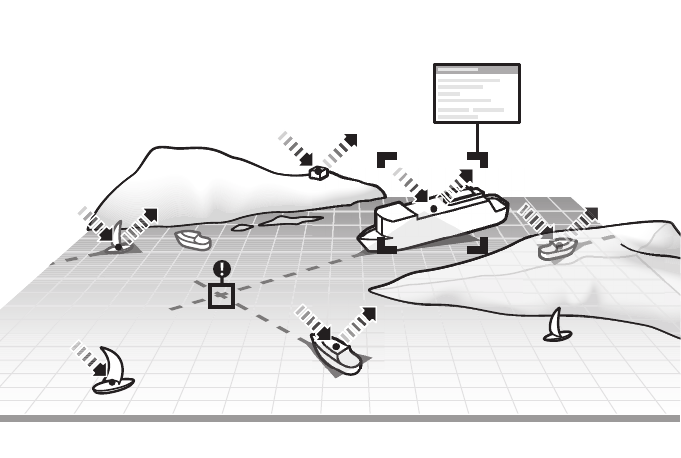
The marine Automatic Identification System (AIS) is a location and vessel
information reporting system. It allows vessels equipped with AIS to
automatically and dynamically share and regularly update their position,
speed, course and other information such as vessel identity with similarly
equipped vessels. Position is derived from GLONASS or GPS and
communication between vessels is by VHF digital transmissions.
Figure 1 The AIS Network
Introduction
Page 10

Installation and Configuration
Page 11
3 Installation and Configuration
3.1 What’s in the Box?
Please ensure all items are present and if any of the items are missing please
contact your dealer.
Figure 2 What’s in the Box?
3.2 Preparing for Installation
In addition to the items provided with the transceiver the following items will be
required to complete the installation:
Power cable GNSS antenna and cable
Product CD
Warranty card
Product
manual Product Mounting
Template
Quick Start
Guide
AIS transceiver
18 way data cable
Mounting bracket
Fixings
USB cable
Installation and Configuration
Page 12
3.2.1 VHF Antenna
Connection of a suitable VHF antenna will be required for the AIS transceiver
to operate. The antenna cable should be terminated with a PL-259 (or UHF)
connector. A surge arrestor should be fitted in line with VHF antenna connec-
tor. See section 3.3.3 for more information.
Please take note of the warnings listed at the start of this manual regarding the
installation and use of antennas.
3.2.2 Antenna Cables
The supplied GNSS antenna is provided with 10 metres (32.8ft) of cable. If this
is not sufficient to reach between the desired GNSS antenna location and the
AIS transceiver you will require an extension cable. Please contact your dealer
for details.
3.2.3 GNSS Antenna Mount
A mounting bracket is required for the supplied GNSS antenna.
3.2.4 Data Interface Cables
Suitable screened, multi core cable will be required to connect the ships sen-
sor (Heading etc.) data ports to the AIS transceiver.
3.3 Installation Procedures
Before beginning installation of your AIS transceiver, please ensure that you
read all of the instructions in this manual.
Installation and Configuration
Page 13
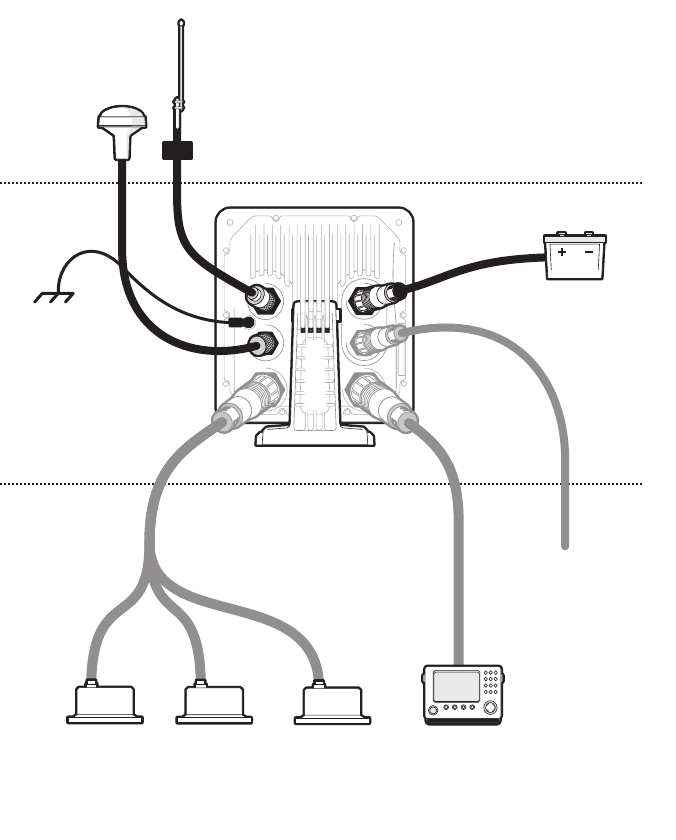
The following sections explain the installation process step by step for each of
the main system elements. A typical system and connection diagram is pro-
vided in Figure 3
Figure 3 Typical AIS Transceiver Connection
NMEA2000
Above decks
Below decks
Optional connections
Chassis/GND
GNSS antenna
VHF antenna
12/24V DC Supply
Displays etc.
Surge arrestor
Ship’s sensor data (Heading etc.)
Installation and Configuration
Page 14
3.3.1 Step 1 - Installing the AIS Transceiver
Please note the following guidelines when selecting a location for your AIS
transceiver:
●The AIS transceiver must be fitted in a location where it is at least
0.3m (1ft) from a compass or any magnetic device.
●There should be adequate space around the AIS transceiver for
routing of cables. See Figure 28 for details of the AIS transceiver
dimensions.
●The ambient temperature around the AIS transceiver should be
maintained between -15°C and +55°C (5°F to 131°F). Ensure
adequate ventilation is present when panel mounting the transceiver.
●It is recommended that the AIS transceiver be installed in a 'below
decks' environment protected from the weather.
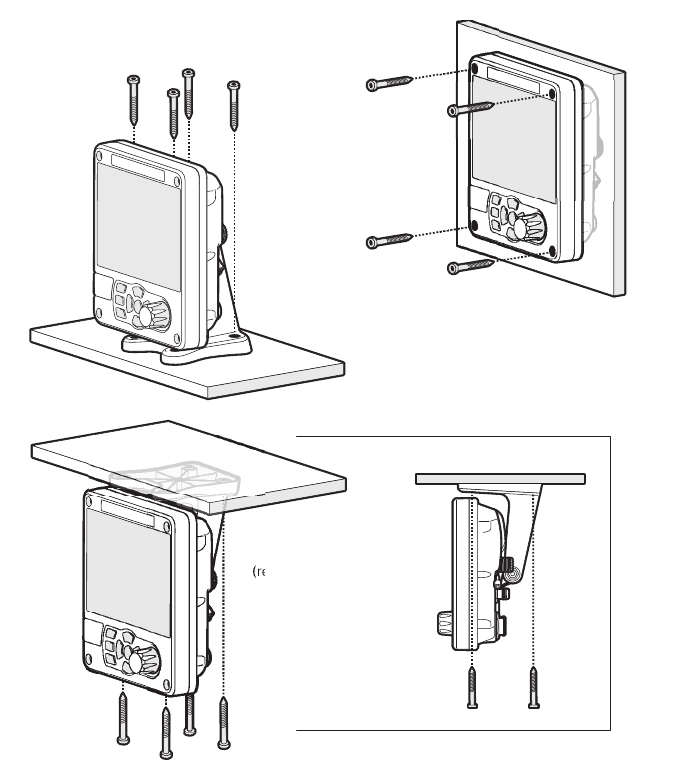
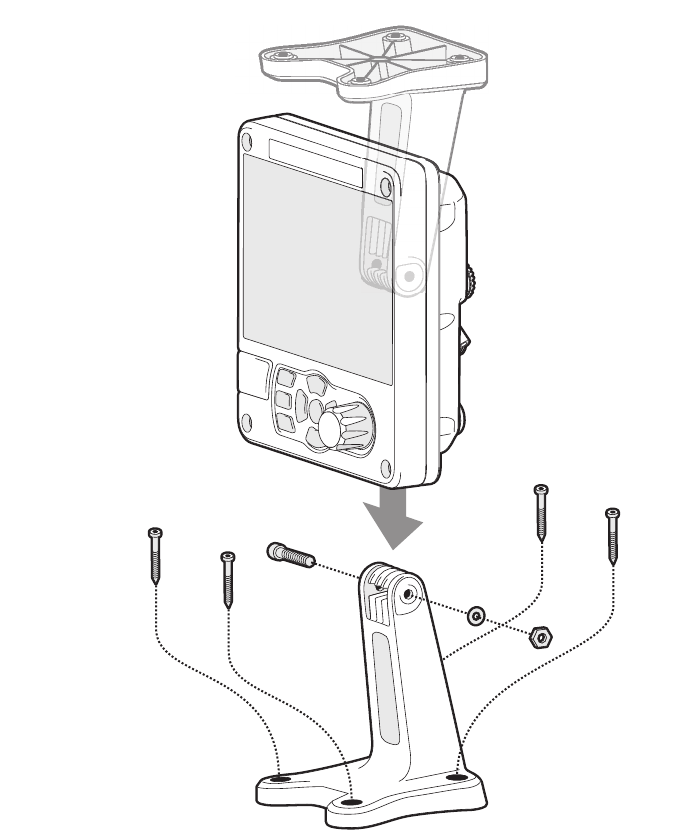
●The transceiver is supplied with four self tapping screws for
attachment of the AIS transceiver to a suitable surface using the
supplied bracket. Please refer to Figure 5 for guidance.
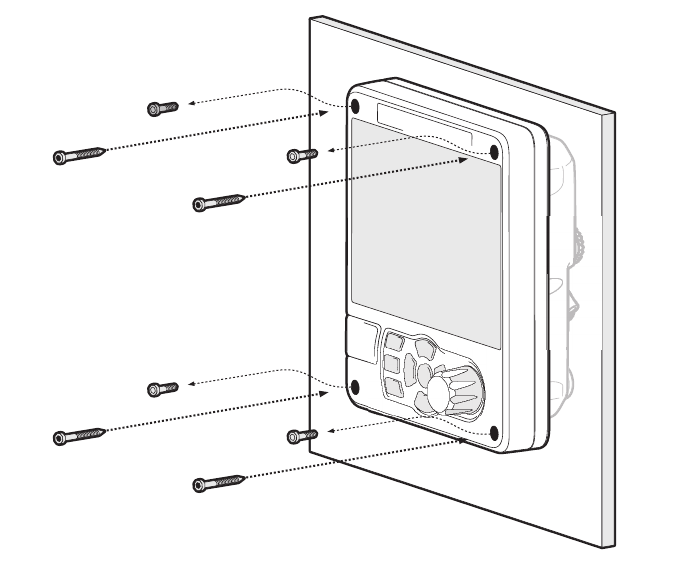
●The transceiver can be panel mounted using the four self tapping
screws provided. Please refer to Figure 6 for guidance. Access
behind the panel is required when using this mounting option.
●The AIS transceiver should be mounted in a location where the
display is visible to the user at the position from which the vessel is
normally operated.
Installation and Configuration
Page 15
Figure 4 Mounting the Transceiver
Refer to Figure 28 for dimensions. A drilling and cutting template is provided
with the transceiver.
To panel mount the unit it is necessary to remove the 4 off socket cap screws
recessed in front of the unit. See Figure 6.
Desk mounted
Panel mounted
Overhead mounted
(reverse mounting bracket)
Installation and Configuration
Page 16
Figure 5 Desk Mounting the AIS Transceiver
Installation and Configuration
Page 17
Figure 6 Panel Mounting the AIS Transceiver
3.3.2 Installing the GNSS Antenna
For mounting the GNSS antenna supplied with your AIS transceiver you will
require a one inch 14 TPI pole mount. Contact your dealer to source a mount
suitable for the installation location.
Please note the following guidelines when selecting a location for the GNSS
antenna:
●The GNSS antenna mount should be secured to a rigid surface.
●The GNSS antenna should be located where it has a clear,
unobstructed view of the sky overhead.
Installation and Configuration
Page 18
●The GNSS antenna should be mounted as high as possible, however
it is not recommended to mount the antenna on the top of a high mast
where the motion of the vessel will cause the antenna to move and
potentially reduce the accuracy of the GNSS position.
●Route the GNSS antenna cable to the AIS transceiver. If extension
cables are required all junctions should be made using appropriate
co-axial connectors and made watertight.
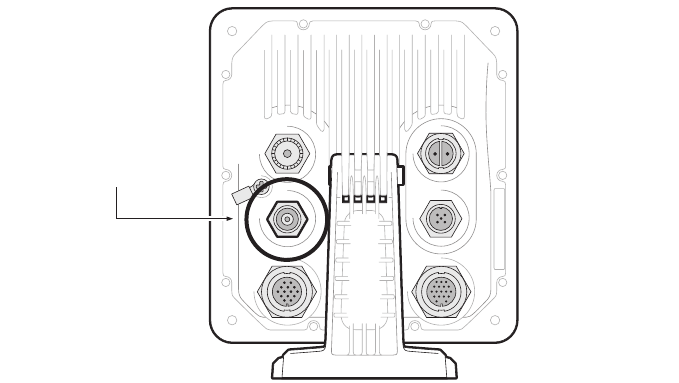
Connect the GNSS antenna cable to the GNSS connector on the AIS trans-
ceiver.
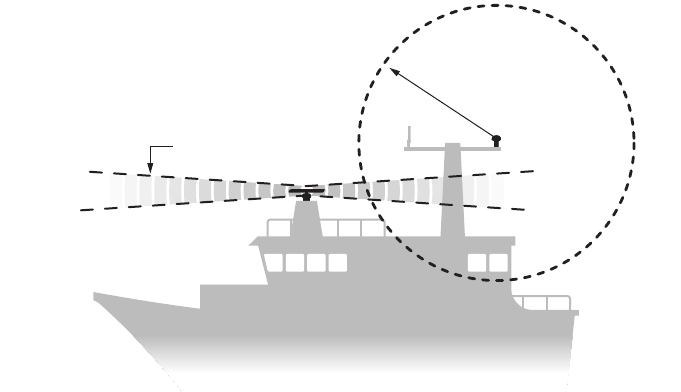
Figure 7 GNSS Antenna Location
GNSS antenna should be at least 5m (16ft)
from RADAR or satellite communication
antennas. It should also be away from
the RADAR beam path and mounted
on a rigid surface.
RADAR beam path
GNSS antenna
5m (16ft)
Installation and Configuration
Page 19
Figure 8 GNSS Antenna Connection
3.3.3 Installing the VHF Antenna
Please note the following guidelines when selecting and locating the AIS VHF
antenna:
●The VHF antenna should be located as high as possible and
positioned as far from other antennas as possible.
●The VHF antenna should have omnidirectional vertical polarization.
●Where possible the VHF antenna should be installed at least 3m
(10ft) away from other transmitting radio, satellite and RADAR
antennas.
●Ideally the AIS VHF antenna should be mounted directly above or
below the ship’s primary VHF radiotelephone antenna, with no
horizontal separation and with a minimum of 2m vertical separation.
Refer to Figure 9 for further guidance.
●The VHF antenna cable should be kept as short as possible to
minimize signal loss. High quality, low loss coaxial cable appropriate
to the installation location should be used.
●The VHF antenna cable should be terminated in a PL-259 co-axial
connector for connection to the AIS transceiver.
●Any outdoor installed connectors in the antenna cables should be
waterproof by design.
GNSS antenna
connection

Installation and Configuration
Page 20
●Antenna cables should be installed in separate signal cable channels
at least 10cm (4ins) away from power supply cables. Crossing of
cables should be done at right angles and sharp bends in the
antenna cables should be avoided.
●It is recommended that a suitable surge arrestor is fitted in-line with
the VHF antenna connector.
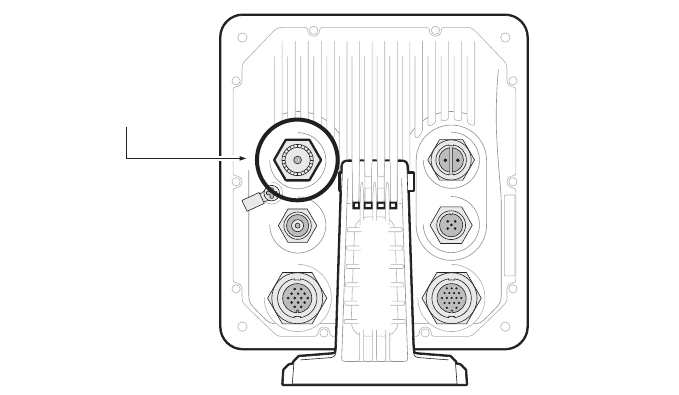
Connect the VHF antenna cable to the VHF connector on the AIS transceiver
as shown in Figure 10.
Figure 9 VHF Antenna Location
VHF antenna should be at least
3m (10ft) from other transmitting radio,
satellite and RADAR antennas.
3m (10ft)
VHF antenna
Installation and Configuration
Page 21
Figure 10 VHF Antenna Connection
3.4 Connecting the Equipment
3.4.1 Data Connections
The transceiver is supplied with a 2m (6.5ft) 18 way data cable for connection
of the transceiver to external equipment. A 2m (6.5ft) 14 way data accessory
cable can be purchased from your dealer for connection of other sensors"
3.4.2 Sensor Configuration
The transceiver has six NMEA0183 (IEC61162-1/2) data ports for connection
of ship’s sensors and display equipment as described in Table 1 and Table 2.
There are three input only ports for ship’s sensor data and three bidirectional
high speed ports for connection of display equipment.
VHF antenna
connection
Installation and Configuration
Page 22
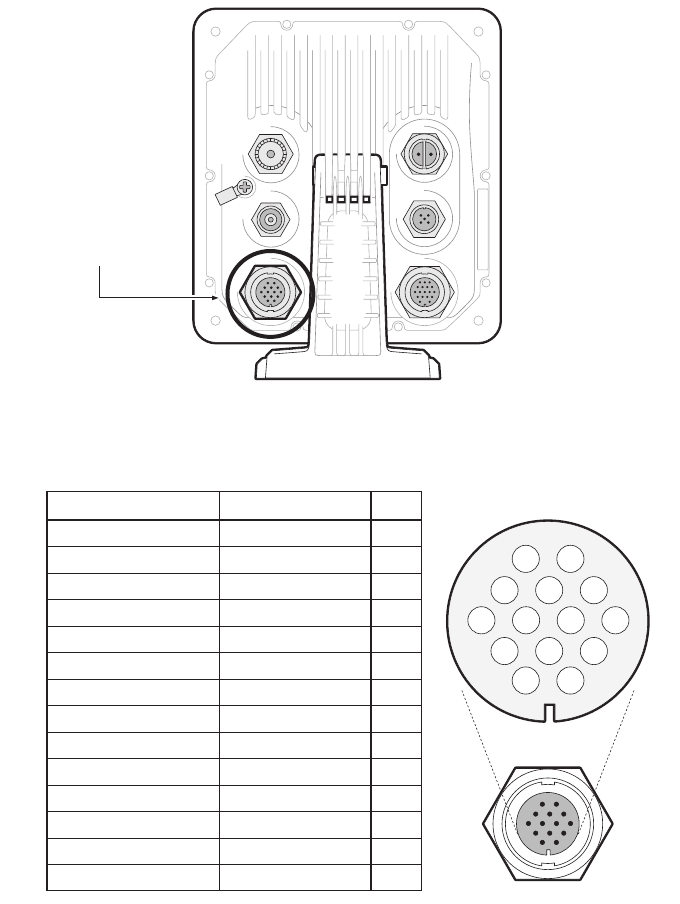
3.4.3 Data Input Ports (14 way connector)
Figure 11 Serial Input Port Connection
Figure 12 14 way Connector Cable Wiring Connections
14 way interface
connection
PIN
1
3
6
7
2
5
8
9
12
11
14
13
10
4
WIRE COLOUR
BLACK
BROWN
BLUE
RED
ORANGE
PURPLE
GREEN
WHITE
WHITE/BLACK
GREY
YELLOW
RED/BLACK
PINK
DRAIN WIRE
SIGNAL
NOT USED
NOT USED
SILENT N
SILENT P
SENSOR 1 RX A
SENSOR 1 RX B
SENSOR 1 COM
SENSOR 2 RX A
SENSOR 2 RX B
SENSOR 2 COM
SENSOR 3 RX A
SENSOR 3 RX B
SENSOR 3 COM
CHASSIS
9876
12 11 10
54 3
21
14 13
Installation and Configuration
Page 23
Table 1 14 way Connector Serial Data Ports
Note: Any unused ports should be terminated by a 120 Ohm resistor across
RX A and RX B signals.
3.4.4 Silent mode switch
To activate the Silent mode switch, apply a voltage of between 2V and 30V to
the SILENT P (Pin 7) and SILENT N (Pin 6) terminals of the 14 way connector.
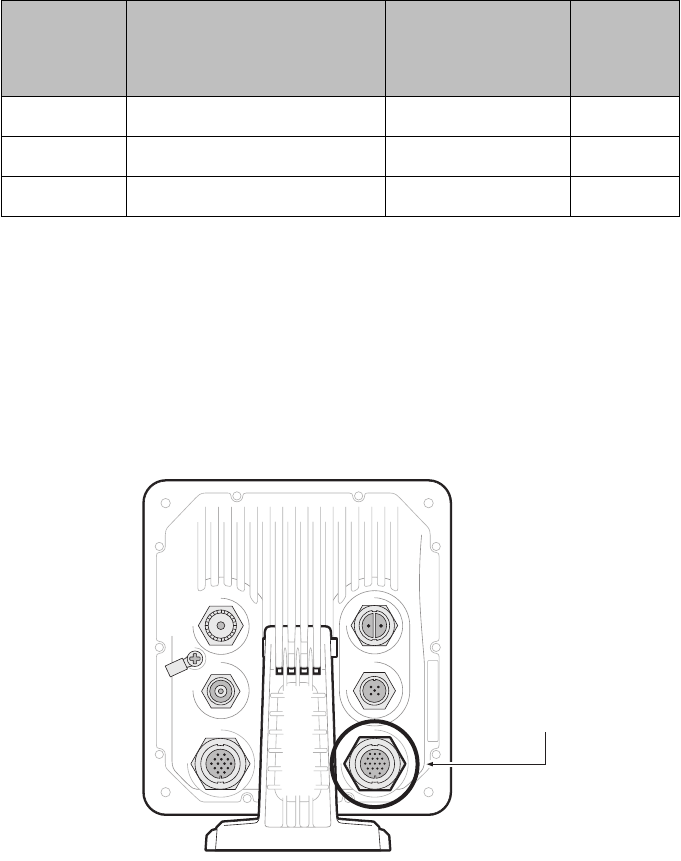
3.4.5 Data Bi-directional Ports (18 way connector)
Figure 13 Serial Bi-directional Port Connection
Data port Function Type
Default
Baud
rate
1 Sensor 1 input Receive only 4800
2 Sensor 2 input Receive only 4800
3 Sensor 3 input Receive only 4800
18 way interface
connection
Installation and Configuration
Page 24
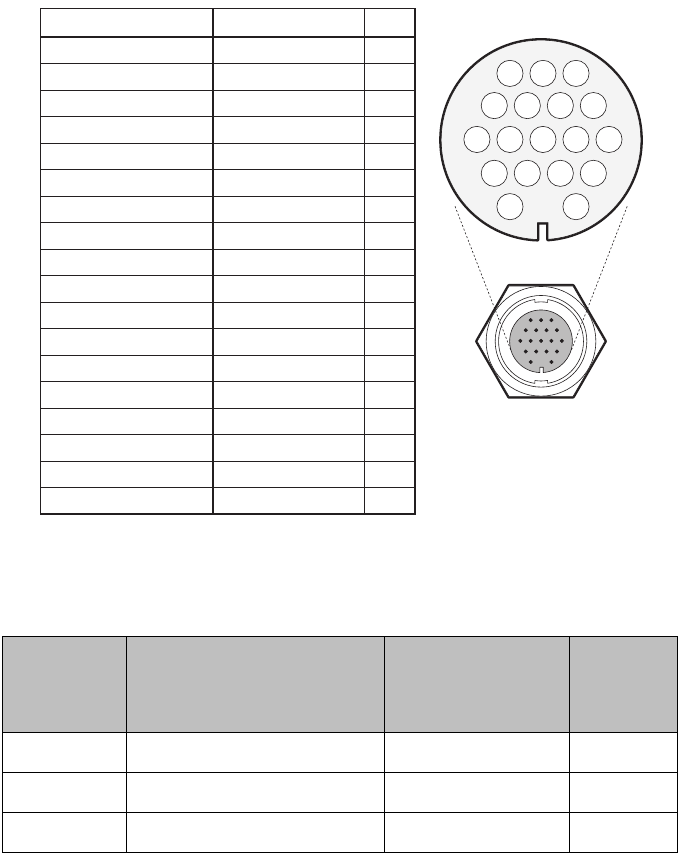
Figure 14 18 way Connector Cable Wiring Connections
Table 2 18 way Connector Serial Data Ports
Note: Any unused ports should be terminated by a 120 Ohm resistor across
RX A and RX B signals.
Data port Function Type
Default
Baud
rate
4 External display 1 Bi-directional 38400
5 External display 2 Bi-directional 38400
6 Serial port Bi-directional 38400
PINWIRE COLOURSIGNAL
SERIAL PORT TX A
SERIAL PORT TX B
SERIAL PORT RX A
SERIAL PORT RX B
SERIAL PORT COM
EXT DISPLAY 2 TX A
EXT DISPLAY 2 TX B
EXT DISPLAY 2 RX A
EXT DISPLAY 2 RX B
EXT DISPLAY 2 COM
ALARM NC
ALARM COM
EXT DISPLAY 1 TX A
EXT DISPLAY 1 TX B
EXT DISPLAY 1 RX A
EXT DISPLAY 1 RX B
EXT DISPLAY 1 COM
CHASSIS
ORANGE
BROWN
PURPLE
BLUE
BLACK
RED
RED/WHITE
PINK
YELLOW
GREEN
GREY
WHITE
ORANGE/WHITE
BLACK/WHITE
BROWN/WHITE
YELLOW/WHITE
GREEN/WHITE
DRAIN WIRE
3
4
7
8
1
2
5
6
10
11
16
12
13
17
14
18
15
9
11 10 9 78
15 14 1213
65 34
18 16
21
17
Installation and Configuration
Page 25
All sensor ports can be configured via the Interface settings menu which can
be found under the ‘System settings’-> ‘Interfaces’ menu option.
3.4.6 Alarm Connections
The transceiver also provides connections to the alarm relay contacts. The
alarm relay connections are described in Table 3.
Table 3 Alarm Relay Connections
3.4.7 Power Connection
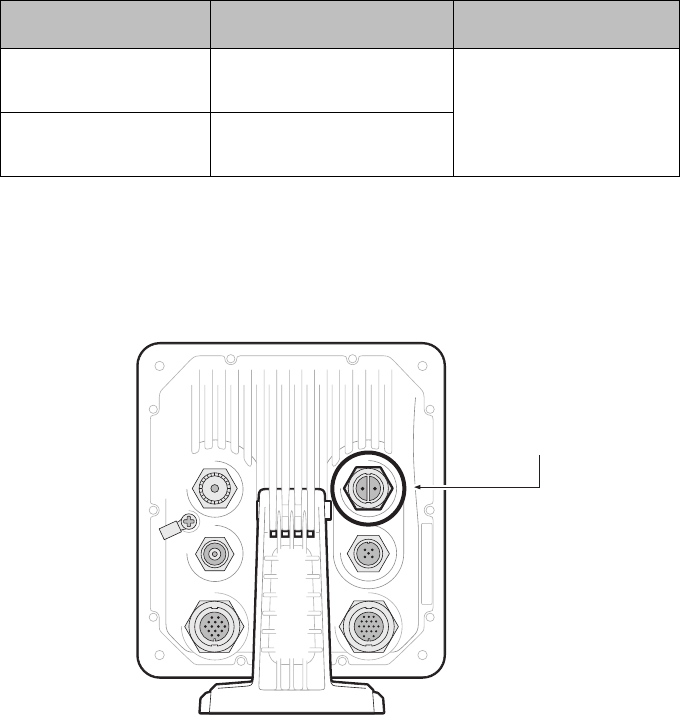
Power is connected to the transceiver via the supplied 2 way power cable as
shown in Figure 15.
Figure 15 Power Connection
Alarm connection Function Contact rating
COM Alarm relay common
connection 2A at 220VDC or 60W
maximum
NC Alarm relay normally
closed connection
Power connection
Installation and Configuration
Page 26
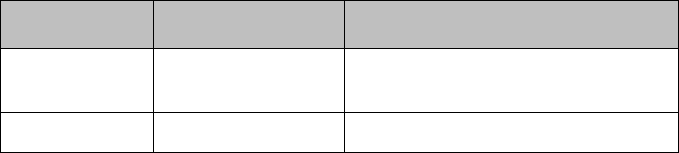
Table 4 Power Supply Connections
*Connection to an emergency power source is an IMO requirement for SOLAS
vessels.
The power supply current ratings and recommended fusing or circuit breaker
currents are as follows:
●A 12VDC supply should be able to provide a peak current of 6.0A
and be fused at 10.0A.
●A 24VDC supply should be able to provide a peak current of 4.0A
and should be fused at 6.3A.
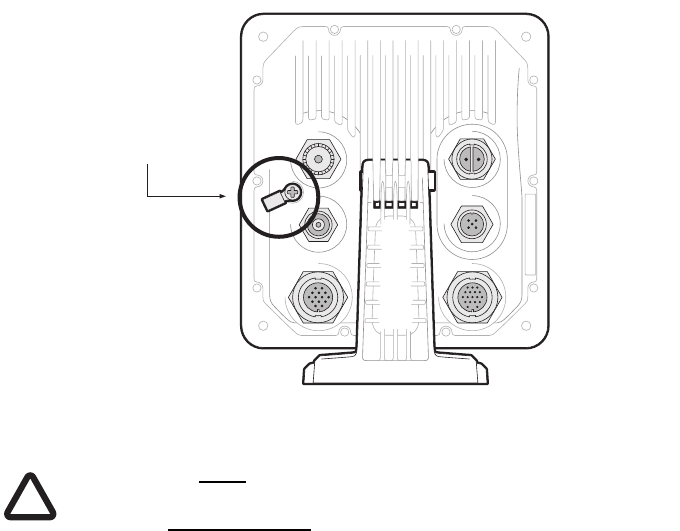
3.5 Grounding the Transceiver
An M4 grounding screw and ring crimp are provided in the fixing kit to allow
connection to the grounding point on the rear of the transceiver chassis as in-
dicated in Figure 16.
Wire colour Function Connect to
Red Power supply + 12V or 24V DC power supply from
ships emergency power source*
Black Power supply - Power supply ground
Installation and Configuration
Page 27
Figure 16 Grounding the Transceiver
This product must be connected to protective earth via the earth
connection point. It is essential that the earth connection point
is used in all installations, regardless of what other equipment is
connected. The earth connection point must be bonded to pro-
tective earth using as short a connection as possible.
3.6 Connection to an NMEA2000 network (optional)
The AIS transceiver can be connected to an NMEA2000 network by a suitable
NMEA2000 network cable available from your local
dealer. If your vessel has an NMEA2000 network please refer to the relevant
documentation for your NMEA2000 equipment. Once
connected, and with your chart plotter also connected to your NMEA2000 net-
work you will be able to receive AIS targets on your chart
plotter.
3.7 USB Connection (optional)
The AIS transceiver is supplied with a USB cable for connection to a PC or
Mac. The USB connector can be connected directly to the
USB port on the PC or Mac via the supplied USB cable. To enable connection
of the AIS transceiver to a PC the USB drivers, supplied
Ground screw
and ring tag
!

Installation and Configuration
Page 28
on the product CD, must first be installed. Driver installation is typically not re-
quired for use with a Mac.
To install the drivers please follows the steps below:
1. Insert the product CD into the PC and navigate to the USB drivers folder.
2. Double click on the setup.exe file to launch the installer.
3. Follow the on screen installation instructions to complete installation.
4. Once installed the AIS unit can be connected to the PC. The USB drivers
will be installed automatically and the AIS will appear as
a new COM port device.
5. Select the AIS COM port and a baud rate of 38,400 in PC based navigation
software to make use of the AIS data.
If the USB connection is removed from the PC or Mac during use
you must reset the connection before further use. To reset the
connection, disconnect then reapply power to the AIS before
closing and relaunching any PC or Mac applications using the
USB connection. Finally, reconnect the USB cable between the
PC or Mac and the AIS transceiver
3.8 Turning the Transceiver On
The transceiver does not have an on/off switch and will operate immediately
that power is applied to the unit.
!
Operation
Page 29
4 Operation
Please read the warning notices at the front of this manual before operating
the AIS transceiver.
4.1 Using the AIS transceiver
Once the unit has been configured it is ready for use. Providing other vessels
with AIS transceivers installed are within radio range of your vessel you should
see their details appear on your chart plotter or PC.
These vessels will also be able to see your vessel on their chart plotter or PC.
It may take up to six minutes for your full vessel details to be visible to others.
Specific details of how to configure your chart plotter to make use of the AIS
transceiver features will be given in your chart plotter manual.
If you are using charting software running on a PC, please refer to the instruc-
tions provided with your chart plotting software for details of how to configure
it to display AIS information.
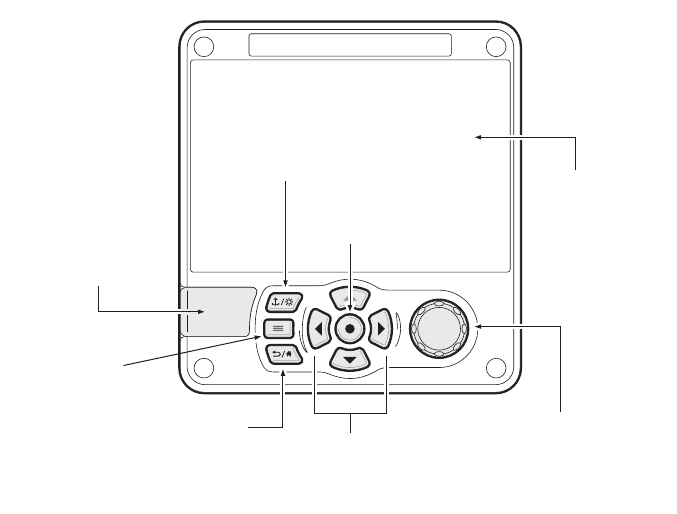
4.2 Display and Controls
Figure 17 Transceiver Front Panel
Scroll wheel
(push to select)
Function keys
(up, down, left right)
Back / Home
Micro SD card
slot behind door
Chart /
Screen brightness
Select
Options menu
Display
Operation
Page 30
The front panel of the transceiver is shown in Figure 17 with each control
marked.
4.3 Button Functions
Scroll wheel. This is used to highlight information presented on the display.
The scroll wheel can also be pressed to confirm data entry or select informa-
tion.
Chart / Screen brightness key. When pressed with a short press will go to
the Chart screen. When pressed with a long press it will go to the display
brightness screen.
Options menu key. Provides access to additional features and relevant
shortcuts on certain screens.
Back / Home key. When pressed with a short press cancels the current oper-
ation and moves to the previous menu or if pressed and held will return to the
home screen.
Select key. When pressed selects the current option highlighted on the
screen.
Up, down, left and right function keys. Provide an alternative means of
navigating around the screen.
Speaker. The speaker is located behind the ‘Scroll’ wheel and can provide an
audible sound when a key is pressed, a message is received, or an alarm is
activated. Sounds can be enabled or disabled via the Sounds Settings menu.
Micro SD card. The micro SD card socket (behind the door) is provided to al-
low uploading of new software or charts to the transceiver.
Display. The display shows essential AIS operating information and allows for
configuration of the transceiver via the menus.
4.4 Adjusting Display Brightness
Press and hold the ‘Chart / Screen brightness’ key. The screen will change to
the Display and unit settings menu screen.
4.5 Changing Navigation Status
Press the ‘Chart / Screen brightness’ key. The screen will change to the Nav-
igation menu screen. Move to the desired navigation status icon to select it.
Operation
Page 31
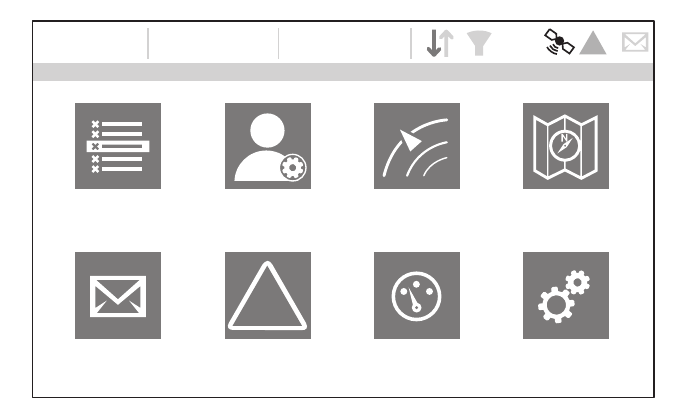
4.6 Menu Navigation
Figure 18 Home Page Menu Screen
4.6.1 Main / Sub Menus
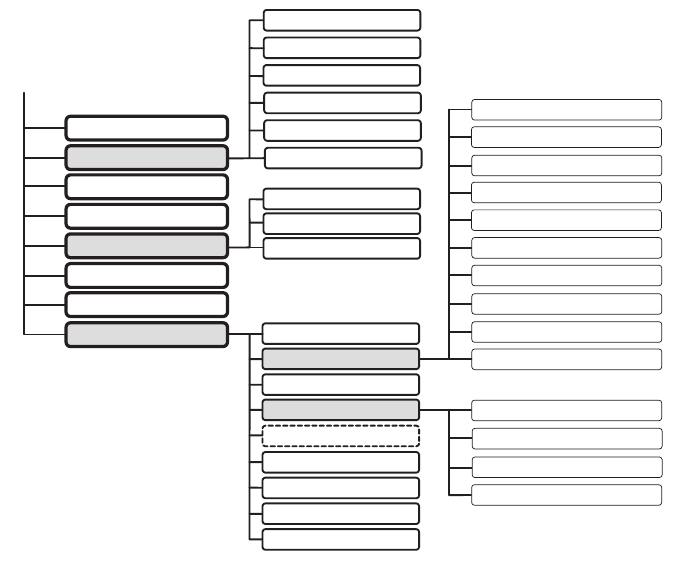
Menus are displayed as a set of icons which can be navigated between using
the controls. Selection of an icon will then display the information beneath in
accordance with Figure 19. Pressing the Back/home’ key will exit the menu.
HOME
16:58:29 SOG 21.1kt
UTC + 1h COG 88.0°
50° 32.0286’ N
0° 55.2715’ W
Target list User settings Target plot Chart
Messages Alarms Own dynamic data System settings
!
5W !
Operation
Page 32
Figure 19 Main Menu Structure
4.6.2 Data Entry Screens
Some screens allow you to enter data, such as vessel parameters. On these
screens you navigate to the desired field and select the appropriate menu
item. Some data entry items require a password, this is shown by means of a
‘Padlock’ icon. Pressing the ‘Back/home’ key will exit these menus.
4.6.3 Keyboard/Keypad Screens
Some screens require text or numeric entry. When these are selected, a virtual
keyboard is displayed which can be used to enter text or numbers.
4.6.4 Options Menu
On certain screens, the Options Menu will bring up a further list of functions
specific to that screen.
MESSAGE INBOX
SENT MESSAGES
COMPOSE MESSAGE
SENSOR PORT 1
TARGET LIST
USER SETTINGS
TARGET PLOT
CHART
MESSAGES
ALARMS
OWN DYNAMIC DATA
SYSTEM SETTINGS
FILTER & CPA/TCPA SETTINGS
PASSWORD
TIME
LANGUAGE
SOUND SETTINGS
DISPLAY SETTINGS
LOGGING
INTERFACES
SYSTEM INFORMATION
ADVANCED
TEST ENGINEERING
GNSS SOURCE
CHART SETUP
HELP AND SUPPORT
VESSEL DATA SETTINGS
HOME
SENSOR PORT 2
SENSOR PORT 3
WiFi
GNSS OUTPUT
EXTERNAL DISPLAY PORT 1
BI-DIRECTIONAL SERIAL PORT
EXTERNAL DISPLAY PORT 2
NMEA 2000
PORT DATA VIEW
AIS SART TEST
RADIO SETTINGS
SOFTWARE UPDATES
SAVE / RESTORE & RESET SETTINGS
Operation
Page 33
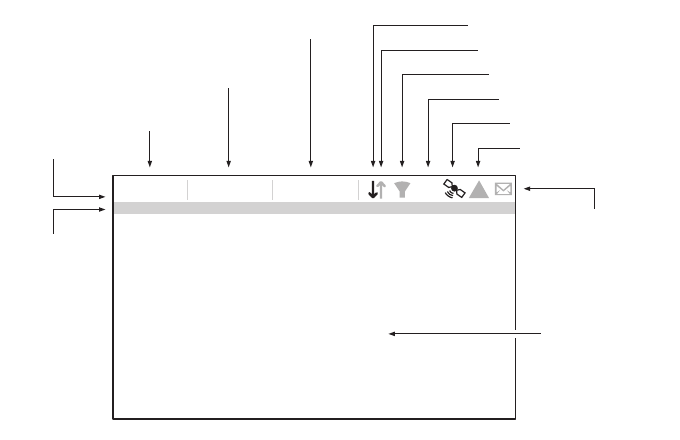
4.7 Information Displayed
Figure 20 Display Layout
4.7.1 Menu Title
Refers to the current menu displayed from Figure 19.
4.7.2 Time
Time derived from GNSS satellites or AIS Base Stations.
4.7.3 Time Offset
Offset from UTC, set on the ‘Time and date’ menu.
4.7.4 Speed/Course
Vessel speed and course as taken from GNSS satellite data.
4.7.5 Position
Vessel position taken from GNSS source.
4.7.6 Icons
RX - Illuminates to show receiving an AIS message.
TX - Illuminates to show transmission of an AIS message.
HOME
16:58:29
SOG 21.1kt
UTC + 1h COG 88.0°
50° 32.0286’ N
0° 55.2715’ W
Speed / Course
Time
Time oset
Menu title
Main display
area
Messages
RX
TX
Filtering
Power Setting
GNSS Status
Alarms
Position
5W
!
Operation
Page 34
Filtering - Illuminated to show that target filter settings apply.
Alarms - Displays an icon to show the presence of acknowledged or
unacknowledged AIS alarms.
Messages - Displays an envelope icon with a number to show the pres-
ence of AIS messages received See menu ‘Messages’.
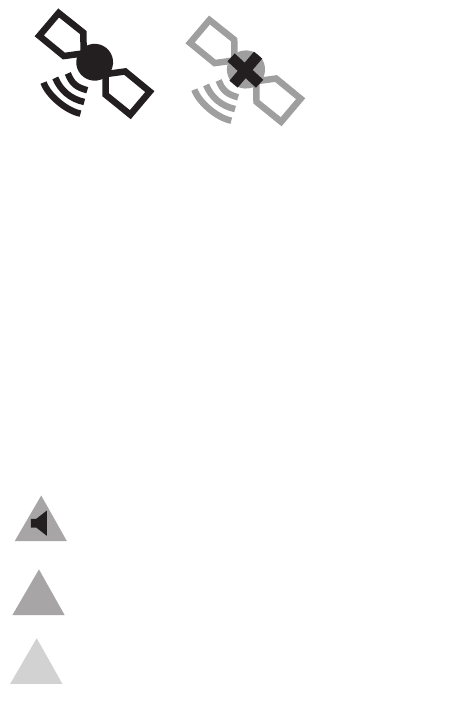
GNSS Status - Displays an icon to show if GNSS data is being received.
Figure 21 GNSS Icons
Power - Displays “1W” or “5W” to indicate the current radio power output.
4.7.7 Alarms
The transceiver performs self checking functions continuously. If a self check
fails a display will appear on the screen notifying the operator of this. This will
be accompanied by a sound. The alarm can be acknowledged via an on-
screen message. The list of currently active AIS Alarms can be displayed by
accessing the ‘Alarms’ menu. Certain AIS Alarms can be switched off in the
‘Alarm Settings’ menu. The alarm conditions are displayed at the top of the
screen and are represented as follows:
Figure 22 Alarm icons
GNSS Available GNSS Unavailable
!
New unacknowledged alarm, this will flash.
New acknowledged alarm.
No active alarms.

Operation
Page 35
If any alarm condition persists, contact your dealer or installer.
Possible alarm conditions are listed in Table 5:
Alarm Description
TX Malfunction This alarm will occur if the MMSI has not
been configured.
This alarm can also occur if the radio hard-
ware has failed to select the correct fre-
quency, that the output power is too low or a
transmitter shutdown has occurred.
In this situation, ALR 001 is output over the
PI.
The alarm will be cleared if the transmitter
recovers normal operation.
RX Channel x Malfunction This alarm occurs should the receiver hard-
ware malfunction. The receiver is identified
by the value of x (as shown below).
The following alarms will be generated over
the PI in this condition:
ALR 003 - Rx Channel 1
ALR 004 - Rx Channel 2
ALR 005 - DSC (Channel 70)
If the receiver returns to normal operation this
alarm will be cleared.
Antenna VSWR exceeds
limit
This alarm condition can occur if the VSWR
of the AIS antenna exceeds pre-defined lim-
its. This alarm is cleared if the VSWR returns
to an allowable value.
No valid COG information This alarm occurs if the transceiver has no
valid Course Over Ground information from
any connected sensor.
No valid SOG information This alarm occurs if the transceiver has no
valid Speed Over Ground information from
any connected sensor.
Heading lost or invalid This alarm occurs if the transceiver has no
valid heading information from any con-
nected sensor, or if the heading is undefined.

Operation
Page 36
Table 5: Alarms List
4.7.8 Messages
AIS text messages and Safety Related Messages (SRMs) can be received
from other AIS equipped vessels and also sent to specific vessels (addressed
messages) or sent to all vessels in range (broadcast messages).
Reception of an AIS text message is indicated by the presence of the message
icon at the top of the screen. This icon is shown whenever there are unread
AIS text messages. Messages can be reviewed and replied to via the In-box.
The transceiver can store up to a maximum of 20 messages in the In-box and
20 messages in the Sent folder. If the number of messages exceeds 20 then
the oldest message will be overwritten.
When a Safety Related Message is received the user will be notified immedi-
ately with a pop-up showing the message. Standard text messages are not
displayed on receipt, however the message icon will be displayed at the top of
the screen.
AIS messages can be viewed, created and transmitted from the ‘Messages’
menu.
The available options are:
Compose - takes you to the message composition screen
In-box - takes you to the received message list view
Sent - shows a list of recently sent messages.
No sensor position in use This alarm occurs if the transceiver has no
valid position information from any connected
sensor.
UTC Sync Invalid This alarm indicates that the transmitter is no
longer directly synchronized with the GNSS
receiver. This may be because the GNSS
receiver cannot receive sufficient satellites.
Heading sensor offset This alarm occurs if the difference between
the course over ground and heading data is
greater than 45° for more than 5 minutes.
This alarm only occurs if the vessel speed
over ground is greater than 5 knots.
Alarm Description

Operation
Page 37
To compose a new message, select the type of message from the drop down
menu and the destination. This can be by directly entering the MMSI, or by se-
lecting from a list of visible targets.
The message text is entered using the on screen keyboard. Messages are lim-
ited to 80 characters in length.
Class B transceivers are permitted to receive broadcast SRMs
and broadcast text messages, however this function is not man-
datory. Class B transceivers are not able to receive addressed
SRM or text messages. There is therefore no guarantee that text
messages or SRMs sent to a Class B transceiver will be received.
4.7.9 Chart
The AIS transceiver contains an application which will display AIS targets re-
ceived, along with its own vessel position on a chart style plot.
The chart can be scrolled up, down, left, and right using the ‘Function’ keys.
Zooming in and out is via the ‘Scroll’ wheel.
Targets can be selected by moving the cross hairs over a target and pressing
the ‘Select’ key.
The ‘Options’ menu is also available for more advanced features.
Within the ‘Options’ menu, the chart can be oriented to either North, Heading,
or Course Up. The chart can be set so that the own vessel position is always
in the centre of the screen and kept in the centre if ‘Centre Tracking’ is en-
abled.
The chart can be de-cluttered by hiding filtered targets, or the own vessel icon,
from the display.
SOG vectors can also be displayed on the screen if this item is selected from
the ‘Options’ menu.
Some of the layers displayed on the chart can be removed to provide more
clarity on the display. The ‘Chart Settings’ screen provides a way of modifying
these.
The chart feature is an aid for the display of information only and should not
be used for vessel navigation.
4.7.10 Help and Support Screen
This screen is available from the ‘System Settings’ menu and provides contact
information for the product manufacturer.
It also provides relevant information from the User Manual.
!

Operation
Page 38
4.7.11 User Settings Screen
From this screen, it is possible to set the display brightness, set the display to
a day or night colour scheme and configure the sounds emitted by the device.
It is also possible from this screen to set the UTC time offset, change the pass-
word, change the filter settings and display the menus in a number of non-En-
glish languages.
4.8 Configuring Vessel Information
4.8.1 Pre-configuration Checks
To proceed with configuration the steps in Section 3 should already have been
completed.
4.8.2 Configuring Vessel Identification Information
The transceiver must be configured with information about the vessel on which
it is installed prior to operation. The following information is required to be en-
tered in the ‘Vessel data settings’ menu:
●MMSI - Vessel MMSI number, this can usually be found on the ships
VHF radio license and should be the same MMSI as used for the
VHF / DSC radio.
●Ship Name (limited to 20 characters)
●Call sign - Vessel radio call sign (limited to 7 characters)
●Ship type - Selected from the menu provided.
●Dimensions of the location of the GNSS antenna connected directly
to the AIS transceiver (Internal GNSS)
Please ensure that you enter all vessel data accurately. Failure to
do so could result in other vessels failing to identify your vessel
correctly. The vessel MMSI can only be programmed once using
proAIS2, please take care to program your MMSI correctly. If you
need to change the MMSI for any reason, please contact your
dealer who will arrange to have the MMSI reset.
4.8.3 Configuring the GNSS Receiver
The GNSS receiver can be configured to operate in one of three modes:
●GLONASS and GPS – in this mode the position fix is derived from
both the GLONASS and GPS network in parallel. This mode is the
default setting and gives the best performance.
●GPS – in this mode only GPS satellites are used for the position fix.
!
Operation
Page 39
●GLONASS – in this mode only GLONASS satellites are used for the
position fix.
The operating mode can be selected from the ‘GNSS source’ option in the ‘Ad-
vanced’ settings menu.
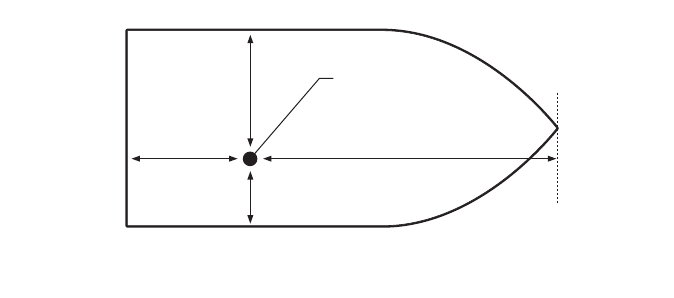
The antenna dimensions should be entered in metres according to the dia-
gram provided in Figure 23.
Figure 23 Vessel Dimension Measurement
Ref A
Antenna
Ref A + Ref B = Length in metres Ref C + Ref D = Beam in metres
Ref B
Stern Bow
Ref C
Ref D
Operation
Page 40
4.9 Passwords and Security
The WiFi feature in this transceiver require a password to be entered. In order
to do this, you will be prompted with the password entry screen.
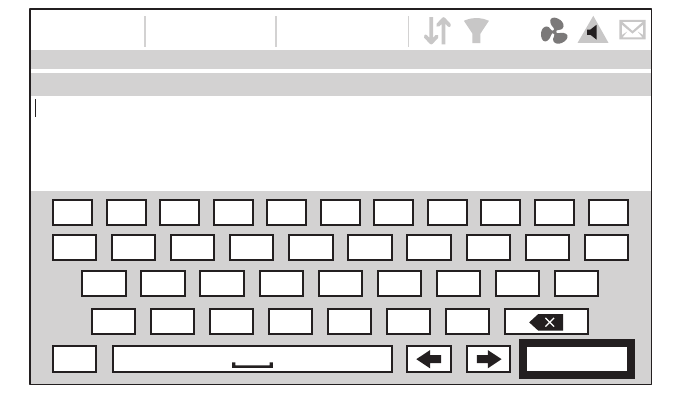
The password entry screen is shown in Figure 24. Highlight the required char-
acter, then press ‘Select’ to enter that character. When all characters of the
password have been entered, select ‘OK’.
Figure 24 Enter Password Screen
Following configuration of the transceiver the password should be changed
from its default value of ‘0000’ (four zeros) to another alpha numeric code.
Password change is carried out by selecting ‘User Settings’ -> ‘Password’.
4.10 Confirming Correct Operation
Following entry of the vessel and voyage information the transceiver will com-
mence normal operation. Correct operation should be verified as follows:
1. Select the ‘Own dynamic data’ option from the main menu.
2. Check that the displayed position, course, speed and heading are cor-
rect by comparing to the display associated to the connected position
source and other data sources.
3. Check that the ‘TX’ icon flashes periodically.
16:58:29 SOG 21.1kt
UTC + 1h COG 88.0°
50° 32.0286’ N
0° 55.2715’ W
PASSWORD SETTINGS
Enter the current password:
1234567890 .
QWE R T Y U I O
A
ZXCVBNM
!? OK
P
SDFGH J KL
Operation
Page 41
4. If the vessel is in an area where other AIS equipped vessels are pres-
ent press the ‘Back / Home’ key and select ‘Target list’ to check that
data from other AIS equipped vessels is displayed.
5. Go to the ‘System settings / System Information’ screen and select
‘Hardware status’, check that the supply voltage and antenna VSWR
are correct.
The transceiver is now operational and should remain powered unless autho-
rised by the local maritime authority. The installation record at the rear of this
manual should be completed and left on board the vessel.
Operation
Page 42
4.11 Displaying AIS Targets
4.11.1 Target List
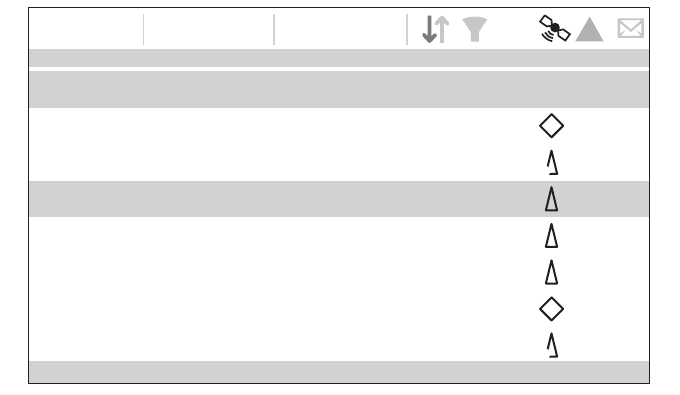
The Target List Screen is the primary screen for displaying AIS targets re-
ceived. This is the first screen displayed when the unit is switched on, but can
also be accessed from the Target List option on the main menu.
Figure 25 Target List Screen
By default the target list is sorted by range but can be sorted on any column
by using the left and right ‘Function’ keys to select a column and pressing the
'Select' key to sort either in ascending or descending order. Navigation up and
down the list is via the up and down arrow keys or scroll wheel. Selecting a
highlighted target using the Select key will bring up more details of that target.
The Options menu on this screen provides additional actions which can be
performed on the target list.
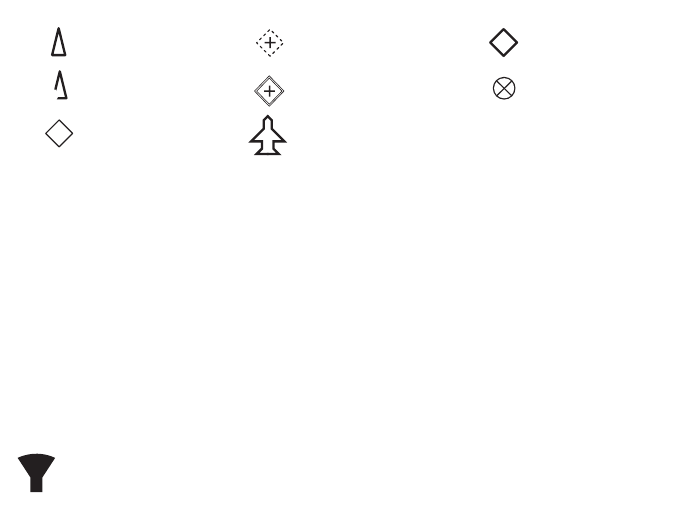
Different symbols are shown for an AIS target depending on the type of target
and its status, these are shown in . These symbols are common to the Target
list, Target plot and Chart displays.
NAME/MMSI Range Bearing CPA TCPA Type Age
TARGET LIST
16:58:29 SOG 21.1kt
UTC + 1h COG 88.0°
50° 32.0286’ N
0° 55.2715’ W
DUBLIN FISHER 1m 50s
B
B
BS
PROXIMITY CRAFT 1m 47s
ATLANTIC PRIDE 0m 1s
212222222 0m 36s
EMSLAKE 0m 45s
PIER 4 0m 6s
444110175
3.15NM
15.5NM
6.9NM
6.7NM
-
5.2NM
35.8NM
3.15NM
15.5NM
6.9NM
6.7NM
-
5.2NM
35.8NM
-
-
-
-
-
5h 38m
-
120.80
22.60
37.20
313.40
-
86.60
167.300m 5s
Visible: 12 Filtered out: 0
5W
!
Operation
Page 43
Figure 26 AIS target symbols displayed
4.11.2 Target Filtering
From the Target List options menu, if 'Show Filter Settings' is selected, a
screen is displayed indicating which filter parameters can be set to reduce the
amount of data displayed on screen. This screen can also be accessed
through ‘System Settings’-> ‘User Settings’.
Filters can be toggled on and off on the target list by pressing the
‘Options menu’ key and selecting ‘Toggle filters off’. The bottom line
of the target list shows how many targets are visible or filtered out. If
a filter is set, the filter icon is displayed at the top of the screen.
The Filters icon does not represent CPA/TCPA alarm settings.
4.11.3 CPA/TCPA Settings
The transceiver can be configured to filter out approaching vessels which fall
within certain limits. The Closest Point of Approach (CPA) defines a boundary
around the own vessel upon which, if breached, will trigger the filter. Time to
Closest Point of Approach (TCPA) can only be set if CPA is set, and will trigger
the filter if the time to the CPA limit is breached.
These parameters are set on the ‘Filtering and CPA/TCPA Settings’ menu.
The target list shows targets which trigger the TCPA/CPA filter red.
These CPA/TCPA figures are calculated solely on AIS data and should not be
used for anti-collision purposes.
Note: Setting the CPA/TCPA filter will not activate the Filters Icon.
4.11.4 Target Plot
The Target Plot screen shows the location of other AIS equipped vessels and
shore stations relative to your own vessel. The target plot screen provides a
basic overview of AIS targets and should not be regarded as a substitute for
AIS Class A
O Position AtoN
Base station
AIS SART
AIS SAR Aircraft
O Position AtoN
B
BS
AIS Class B
AIS AtoN
Operation
Page 44
display of AIS information on a dedicated electronic chart display system (EC-
DIS).
The plot range can be adjusted by rotating the scroll wheel which cycles
through the ranges 0.2NM up to 100NM. The range relates to the radius of the
outer range ring shown on the screen.
Individual targets can be selected by using the arrow keys. When selected a
square outline will appear around the target and the vessel details will be
shown on the left hand side of the screen.
By pressing the options menu key, additional display features can be selected.
If the Own Vessel Details option is selected the left hand side of the screen will
change to show own vessel dynamic data.
If the MOB Details Display option is selected, the target plot will change to
show only AIS-MOB, AIS-SART, and AIS-EPIRB devices. The left hand side
of the screen will show the range and relative bearing to whichever target is
currently highlighted using the arrow keys.
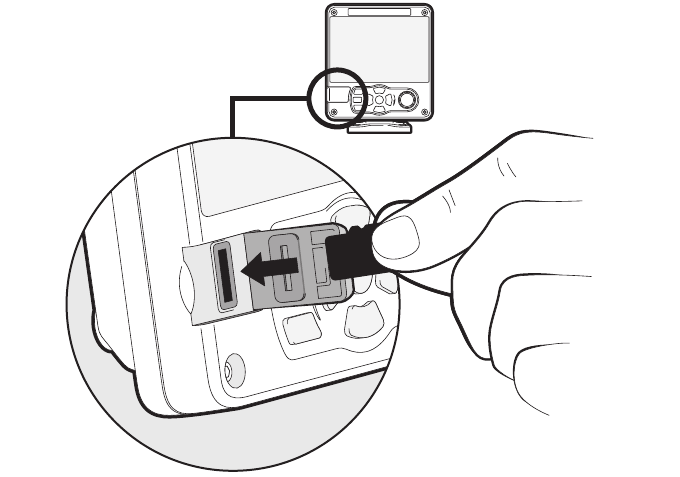
4.12 Micro SD card data input
On the front of the transceiver under the door on the lower left hand side is a
socket for a Micro SD memory card. See Figure 27. This can be used for load-
ing new navigation charts or to upgrade the unit firmware. Note the orientation
of the Micro SD card, which is critical to ensure the product is not damaged.
Operation
Page 45
Figure 27 Micro SD card Socket
4.12.1 Loading New Charts
The transceiver always contains a basic low resolution world chart.
More detailed resolution charts can be purchased and overlaid onto the trans-
ceiver’s chart display.
The transceiver will read only Jepperson C-MAP MAX format Micro SD cards.
See your dealer for available charts for your region.
Insert a C-MAP Micro SD card into the Micro SD card socket. The transceiver
will then automatically overlay that higher resolution chart region onto the rel-
evant region on the transceiver’s world chart.
Remove the Micro SD card and the region will revert back to the basic world-
chart.
4.12.2 Upgrading the Unit Firmware
If a Micro SD card that contains valid upgrade firmware is inserted into the card
socket, the unit will recognize the new firmware and will display a message
asking you if you want to install it. The system will guide you to the appropriate
menu screen, where the firmware update can be applied.
Operation
Page 46
4.12.3 Logging Ports to the Micro SD card
If a Micro SD card is inserted into the card socket, the AIS transceiver can be
configured to output specific data to the card. This is accessed from the indi-
vidual port menu (from the ‘System settings’ -> ‘Interfaces’ menu.) If the ‘Log
port to SD Card’ option is set to ‘On’, data will be output from that port to the
Micro SD card, if one is inserted into the card socket. Only one port can be
logged to the Micro SD card at a time.
4.12.4 Saving/Loading Settings
From the ‘Save/Restore& reset settings’ menu, all system settings and trans-
ceiver configuration data can be saved to the Micro SD card, if one is inserted
into the card socket. Settings previously saved can be restored, thus restoring
the transceiver to a previous configuration. ‘Reset settings’ will restore the unit
to its factory defaults and is protected by the unit password.
4.13 WiFi Feature
The AIS transceiver provides features to operate with vessel WiFi networks,
or to create its own network. Access the WiFi menu through ‘Interfaces’ -> ‘Wi-
Fi settings’.
4.13.1 Client Mode
If client mode is selected, the transceiver will search for available WiFi net-
works to connect to. If one is selected a password may be required, and upon
connection the details of the connection will be shown in the bottom right cor-
ner of the screen. Once a WiFi connection is made, the transceiver will output
a range of NMEA sentences over the selected WiFi port.
4.13.2 Access Point Mode
If the transceiver is configured as a WiFi access point (AP) it will create its own
WiFi network, allowing other WiFi enabled devices to connect to it. Once con-
nections are made, a range of NMEA sentences will be transmitted from the
transceiver to any connected devices.
4.13.3 Advanced WiFi Features
Within the ‘WiFi’ screen, certain parameters can be changed such as Channel
Number, Protocol, Port, Encryption, etc. These are recommended for ad-
vanced users only.
WiFi is switched off by selecting ‘Disable’ in the ‘Select Operating mode’ box.
Technical Information
Page 47
5 Technical Information
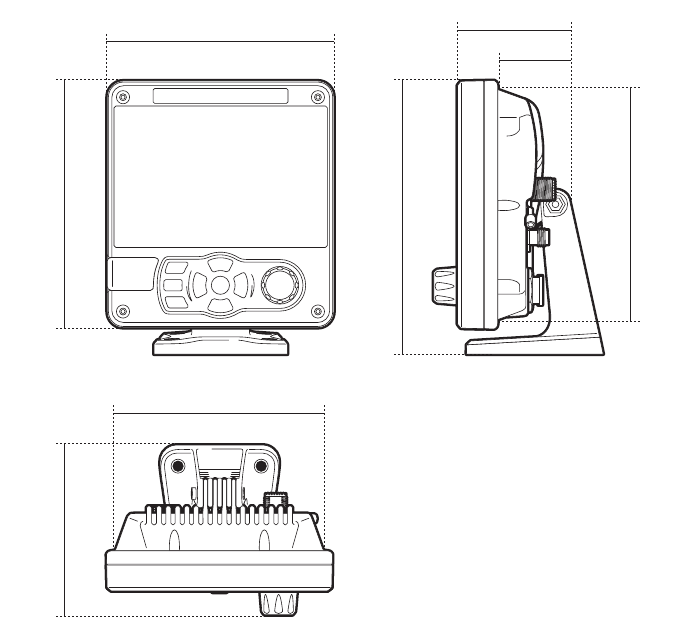
5.1 AIS Transceiver Overall Dimensions
Figure 28 Transceiver Dimensions
165 mm111 mm
196 mm
143 mm
152 mm
130 mm
79 mm
49 mm
Technical Information
Page 48
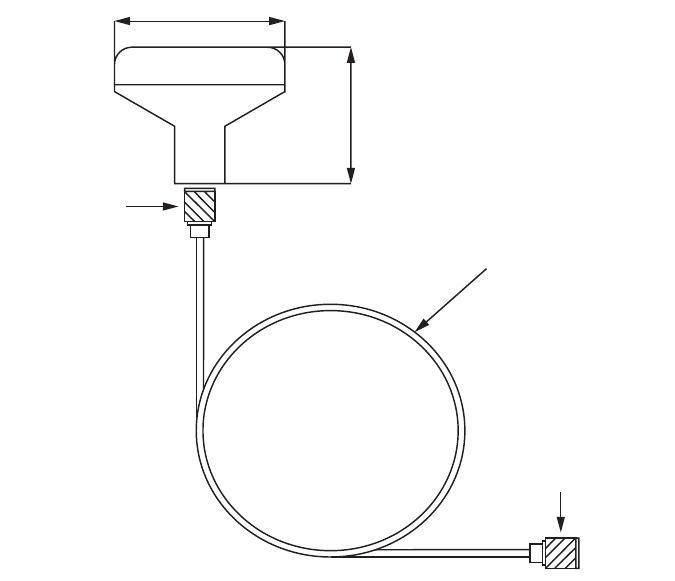
5.2 GNSS Antenna Drawing
Figure 29 GNSS Antenna
* The dimensions of the supplied antenna may vary from those shown here.
68mm
75mm
TNC (male)
TNC (male)
10m RG58 cable

Technical Specification
Page 49
6 Technical Specification
6.1 Applicable Equipment Standards
IEC62287-2
Ed. 1.0
2013-03
Maritime navigation and radiocommunication equip-
ment and systems - Class B
shipborne equipment of the universal automatic
identification system (AIS) – Part 2: Self organising
time devision multiple access (SOTDMA) techniques
IEC60945
4th Ed.
2002-08
Maritime navigation and radio communication equip-
ment and systems –
General requirements – Methods of testing and
required test results
IEC61162-1
Ed. 4.0
2010-11
Maritime navigation and radio communication equip-
ment and systems –
Digital interfaces - Single talker and multiple listeners
IEC61162-2
Ed. 1.0
1998-09
Maritime navigation and radio communication equip-
ment and systems –
Digital interfaces - Single talker and multiple listen-
ers, high speed transmission
IEC61162-3
2008+A2:2014
Maritime navigation and radio communication equip-
ment and systems -
Digital interfaces - Part 3: Serial data instrument net-
work.
ITU-R M.1371-5
02/2014
Technical characteristics for an automatic identifica-
tion system using time division multiple access in the
VHF maritime mobile band
IEC61108-1
2nd Ed.
2003-07
Global Navigation Satellite Systems (GNSS) –
Part 1: Global positioning system (GPS) - Receiver
equipment - Performance standards, methods of
testing and required test results
IEC6118-02
1st Ed.
1998-06
Global navigation satellite systems (GNSS) - Part 2:
Global navigation satellite system (GLONASS) -
Receiver equipment - Performance standards, meth-
ods of testing and required test results

Technical Specification
Page 50
6.2 Product Category
6.3 Physical
6.4 Environmental
6.5 Electrical
Product Category This product is categorized as ‘protected’ in accor-
dance with the definitions provided in IEC 60945
Transceiver
Dimensions
152mm x 165mm x 111mm (WxHxD), see Figure 28
for drawing)
Transceiver
Weight
1.5kg
Compass Safe
Distance
0.3m (Transceiver)
Operating Temperature
Range -15°C to +55°C
Maximum Operating
Humidity 90% at +40°C, non-condensing
Water Ingress Rating IPx6 and IPx7
Supply Voltage 12 to 24V DC (absolute min 10.8V, absolute
max 31.2 V)
Power Consumption < 12W
Current Consumption
@12 VDC Supply
0.9A typical, 6.0A peak
Current consumption
@24 VDC supply
0.5A typical, 4.0A peak

Technical Specification
Page 51
6.6 Display and User Interface
6.7 Internal GNSS
Display 800 x 480 pixel colour LCD with adjustable backlight
Luminance 500cd/m2 max, 75cd/m2 default
Recommended
Viewing Distance
45cm
Keypad Five function keys and three menu keys with adjust-
able backlight
Rotary Control Encoder with push function
Speaker 600mW@750Hz 11mm x 15mm
Receiver Chan-
nels
32 channels GPS and GLONASS operating modes
Time to First Fix Typically 26 seconds
Frequency L1 GPS band, 1575.42MHz and L1 GLONASS band
1597.1 - 1609.5MHz
Accuracy 2.5m CEP / 5.0m SEP without differential correction
2.0m CEP / 3.0m SEP with SBAS or RTCM DGPS
correction
Antenna Require-
ment
Active antenna (5V bias) with gain >15dB

Technical Specification
Page 52
6.8 TDMA Transmitter
6.9 TDMA receiver
6.10 DSC Receiver
Frequency Range 156.025MHz to 162.025MHz
Channel Bandwidth 25kHz
Output Power 1W or 12.5W (automatic selection)
Data Transmission Rate 9600 bits/s
Modulation Mode 25kHz GMSK
Number of Receivers 3
Frequency Range 156.025MHz to 162.025MHz
Channel Bandwidth 25kHz
Sensitivity <-107dBm for 20% PER
Modulation Mode 25kHz GMSK
Adjacent Channel Selectivity 70dB
Spurious Response Rejection 70dB
Number of Receivers 1
Frequency 156.525MHz (Channel 70)
Channel Bandwidth 25kHz
Sensitivity -107dBm @ BER <10-2
Modulation mode 25kHz AFSK
Adjacent channel selectivity 70dB
Spurious response rejection 70dB

Technical Specification
Page 53
6.11 RF Connections
6.12 Data interface
VHF Antenna Connection SO-239 / UHF
VHF Port Impedance 50 Ohms
GNSS Antenna Connections TNC female
GNSS Port Impedance 50 Ohms
Sensor Data Input Ports
Number of Ports 3
Standard IEC61162-1 / -2
Baud Rate 4800 baud or 38400 baud
Port Impedance 54K Ohms
Bidirectional Data Ports (including pilot port)
Number of Ports 3
Standard IEC61162-1 / -2
Baud Rate 4800 or 38400 baud
Port Impedance 54K Ohm
Silent Mode port
Port Impedance 10K Ohms
NMEA 2000 Port
Load Equivalency
Number (LEN)
1

Technical Specification
Page 54
6.13 Power and Data Connector Information
6.14 Open Source Licences
This product contains open source software. For details please see the ‘Sys-
tem information’ screen.
6.15 Product Versions
At delivery, the product contains the following software and hardware ver-
sions:
MKD Software: 130400.01.09
MKD Firmware: 130400.01.09
Modem Software: 130200.01.02
MKD Hardware: 1
Modem Hardware:1
The ‘System Information’ screen will display the currently installed software
and hardware versions on the transceiver. If this differs from that stated here,
please check Online for an updated manual.
Power Con-
nector
Chogori
22002525-04-RC
Mating Half Chogori
22002221-01
18 way Data
Connector
Chogori
23018525-04-RC
Mating Half Chogori
23018221-01
14 way Data
Connector
Chogori
23014525-05-RC
Mating Half Chogori
23014221-01

201-0707:1
Manufacturer’s Code: xxx
NMEA 2000 Product Code: xxxxx