ikeGPS SP02 Spike User Manual Spike UserManual v1 6

ikeGPS Limited Spike Spike UserManual v1 6

Contents

Spike_UserManual_v1.6

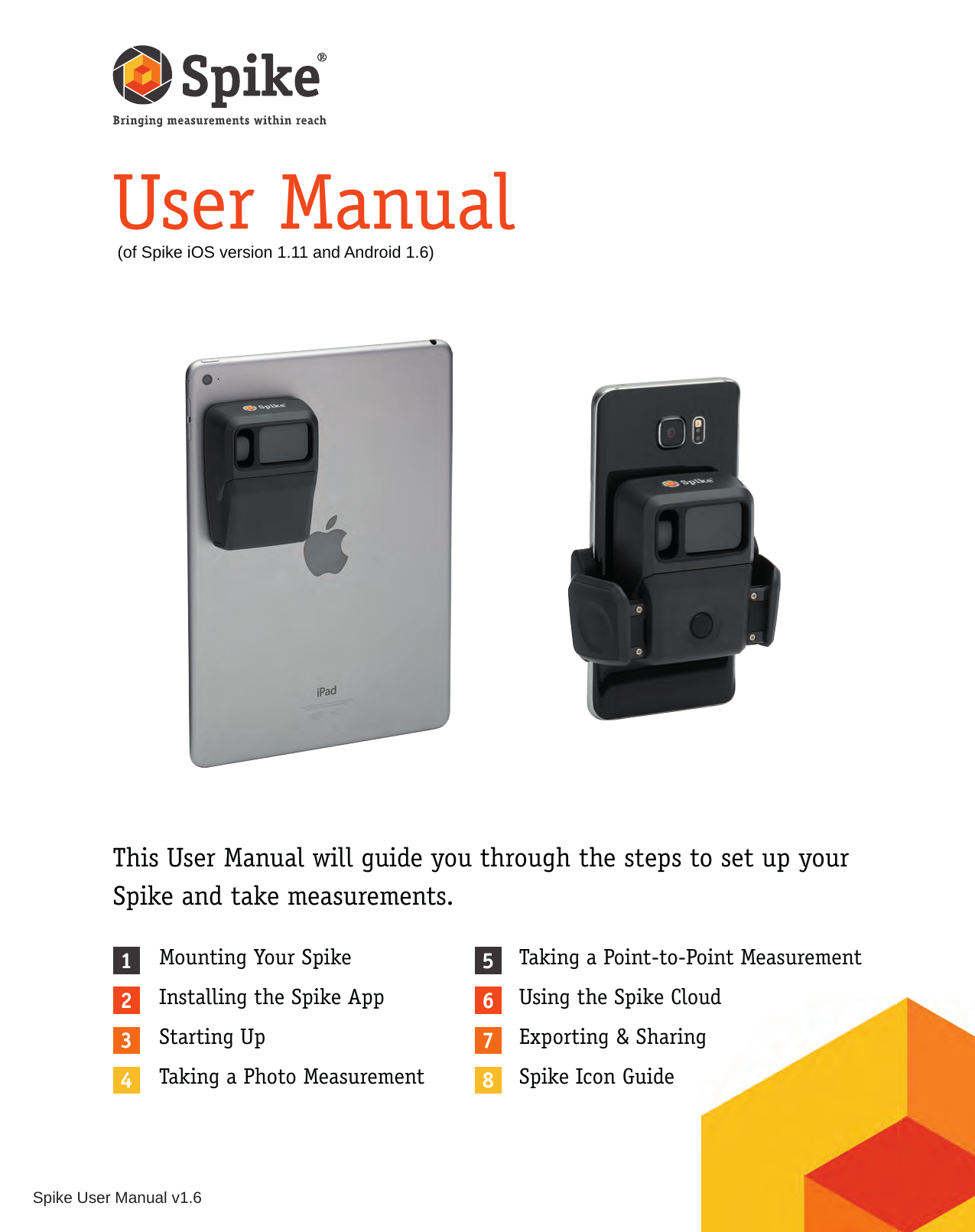
User Manual (of Spike iOS version 1.11 and Android 1.6)This User Manual will guide you through the steps to set up your Spike and take measurements.Spike User Manual v1.61 Mounting Your Spike  5 Taking a Point-to-Point Measurement2 Installing the Spike App 6 Using the Spike Cloud3 Starting Up 7 Exporting & Sharing4 Taking a Photo Measurement 8 Spike Icon Guide
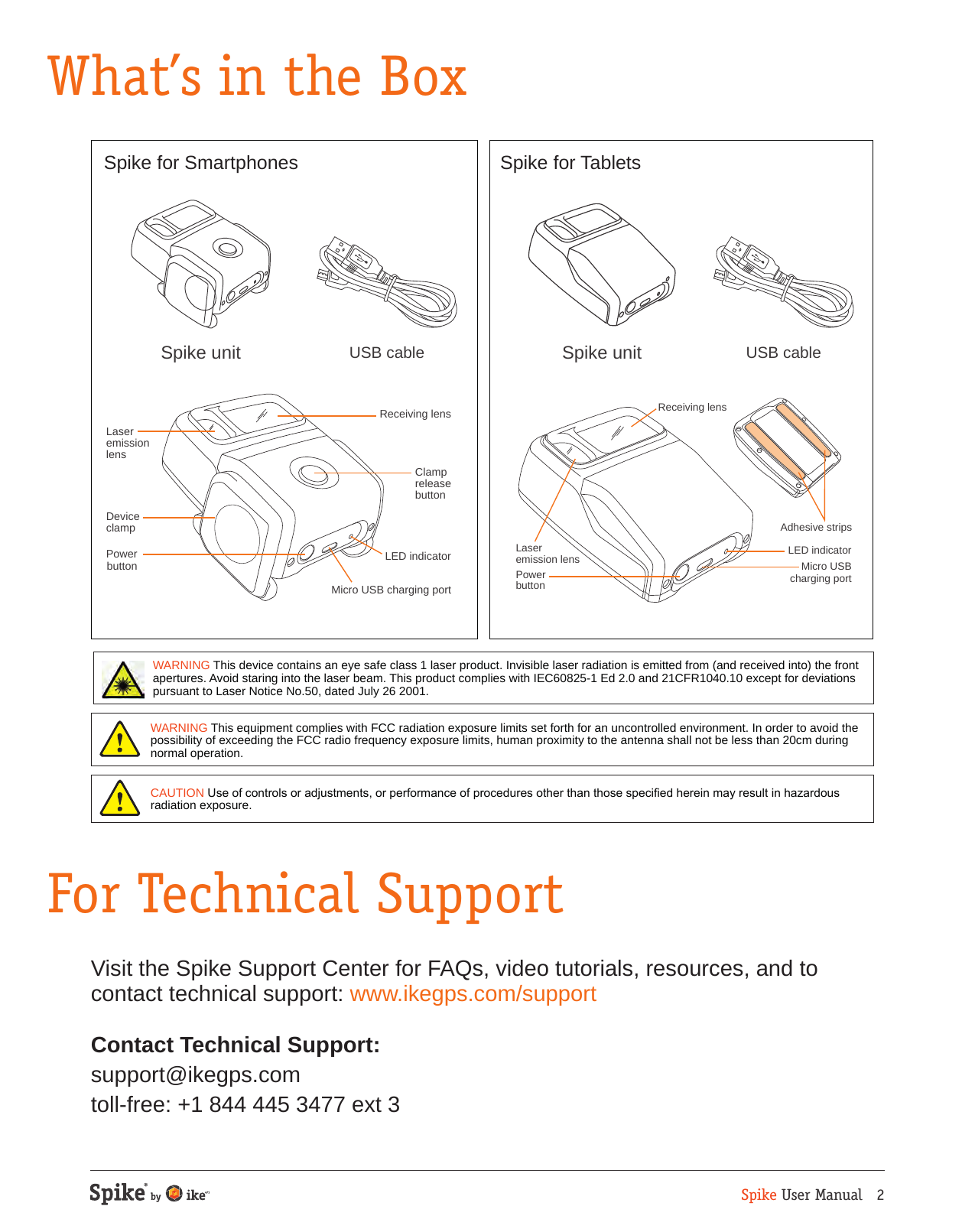
Spike User Manual   2What’s in the BoxFor Technical SupportWARNING This device contains an eye safe class 1 laser product. Invisible laser radiation is emitted from (and received into) the front apertures. Avoid staring into the laser beam. This product complies with IEC60825-1 Ed 2.0 and 21CFR1040.10 except for deviations pursuant to Laser Notice No.50, dated July 26 2001.CAUTION Use of controls or adjustments, or performance of procedures other than those specied herein may result in hazardous radiation exposure.WARNING This equipment complies with FCC radiation exposure limits set forth for an uncontrolled environment. In order to avoid the possibility of exceeding the FCC radio frequency exposure limits, human proximity to the antenna shall not be less than 20cm during normal operation.Visit the Spike Support Center for FAQs, video tutorials, resources, and to contact technical support: www.ikegps.com/supportContact Technical Support: support@ikegps.com toll-free: +1 844 445 3477 ext 3Laser emission lensReceiving lensLED indicatorAdhesive stripsMicro USBcharging portPower buttonSpike unit USB cableLaseremissionlensReceiving lensClampreleasebuttonLED indicatorMicro USB charging portPowerbuttonDeviceclampSpike unit USB cableSpike for Smartphones Spike for Tablets
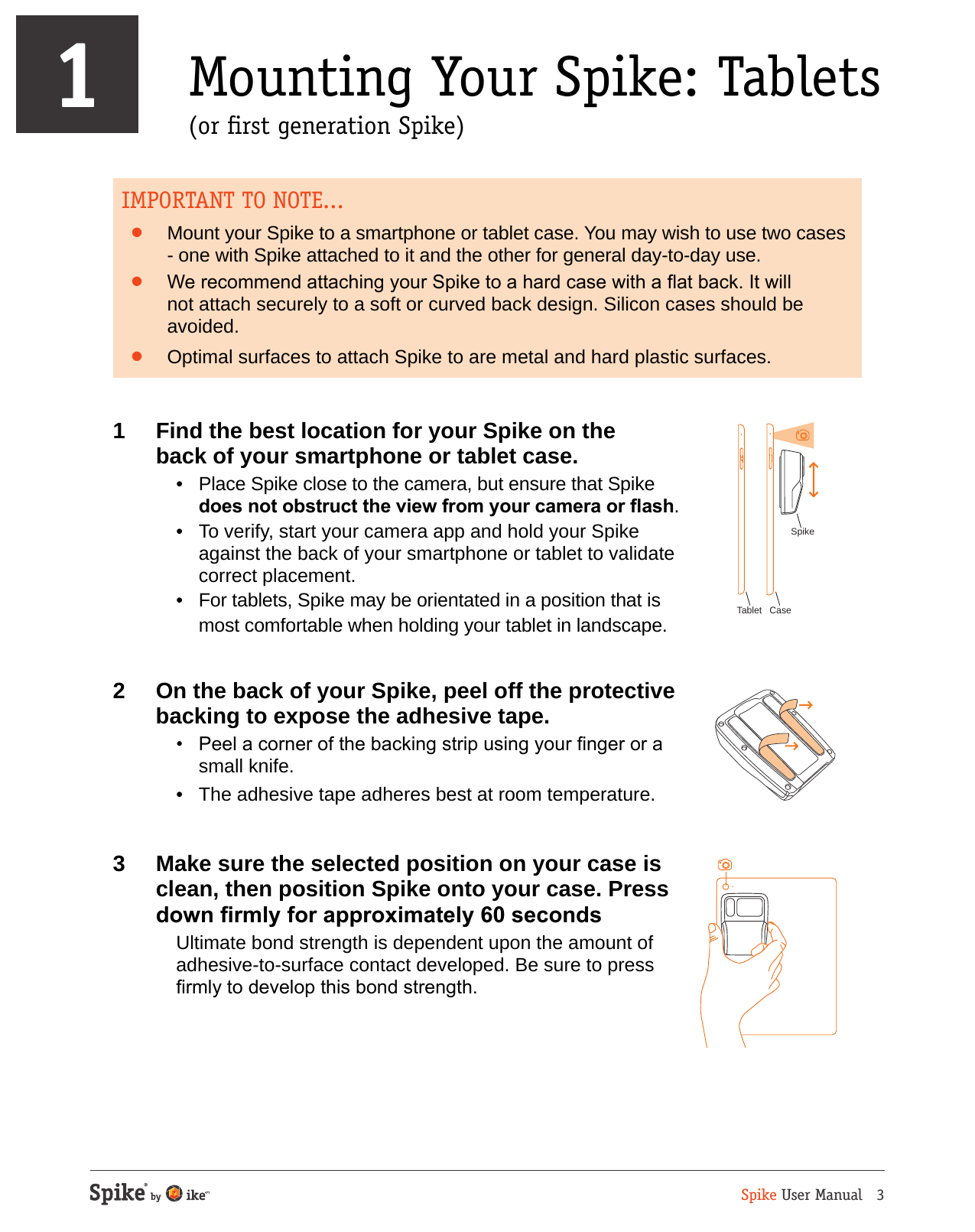
Spike User Manual   31 Mounting Your Spike: Tablets    (or rst generation Spike)IMPORTANT TO NOTE...•  Mount your Spike to a smartphone or tablet case. You may wish to use two cases - one with Spike attached to it and the other for general day-to-day use. •  We recommend attaching your Spike to a hard case with a at back. It will not attach securely to a soft or curved back design. Silicon cases should be avoided.•  Optimal surfaces to attach Spike to are metal and hard plastic surfaces. 1  Find the best location for your Spike on the  back of your smartphone or tablet case.  •  Place Spike close to the camera, but ensure that Spike does not obstruct the view from your camera or ash.  •  To verify, start your camera app and hold your Spike against the back of your smartphone or tablet to validate correct placement.  •  For tablets, Spike may be orientated in a position that is most comfortable when holding your tablet in landscape.2  On the back of your Spike, peel off the protective backing to expose the adhesive tape.  •  Peel a corner of the backing strip using your nger or a small knife.  •  The adhesive tape adheres best at room temperature.3  Make sure the selected position on your case is clean, then position Spike onto your case. Press down rmly for approximately 60 seconds  Ultimate bond strength is dependent upon the amount of adhesive-to-surface contact developed. Be sure to press rmly to develop this bond strength.Tablet CaseSpike
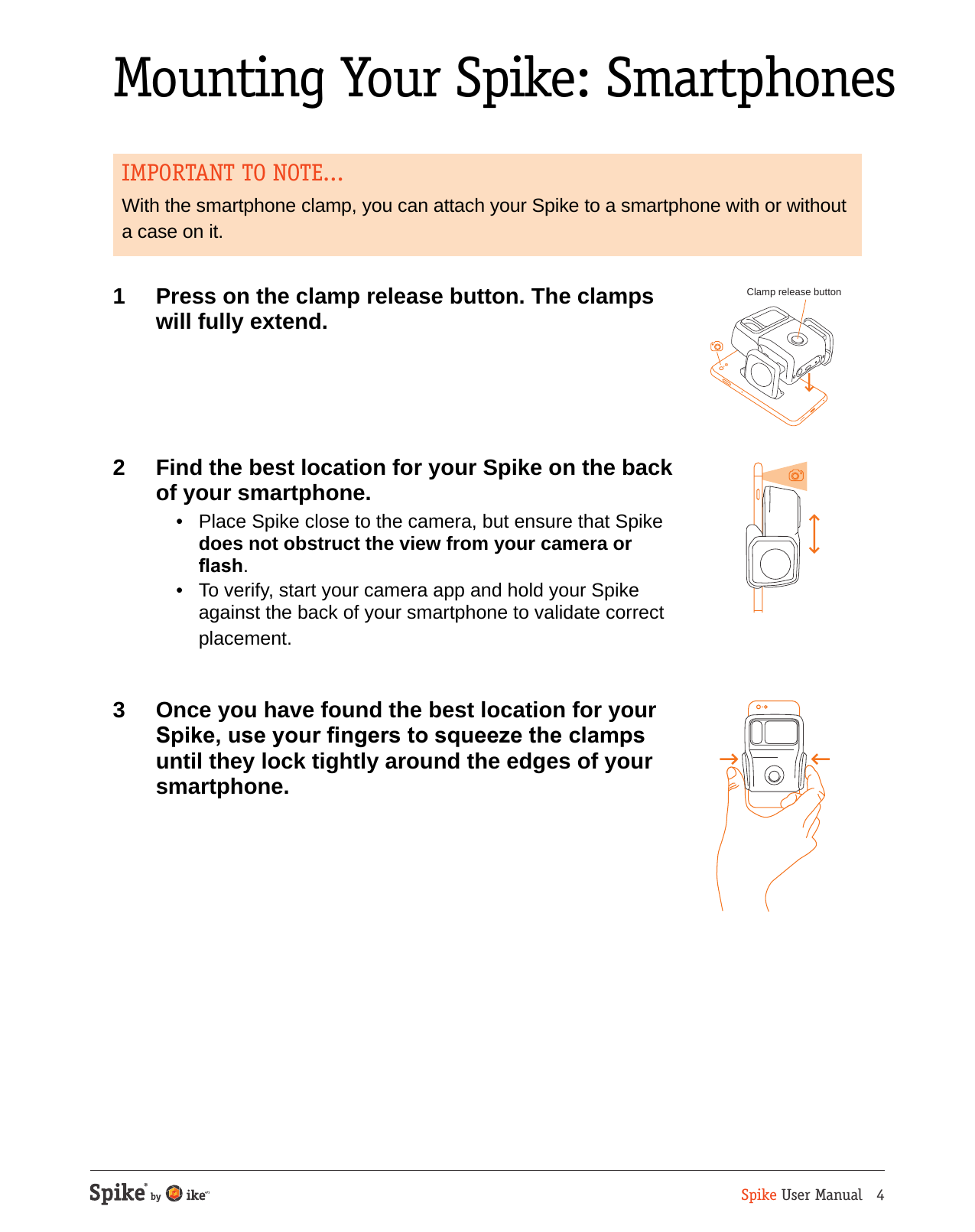
Spike User Manual   4Mounting Your Spike: SmartphonesIMPORTANT TO NOTE...With the smartphone clamp, you can attach your Spike to a smartphone with or without a case on it.1  Press on the clamp release button. The clamps will fully extend.2  Find the best location for your Spike on the back of your smartphone.   •  Place Spike close to the camera, but ensure that Spike does not obstruct the view from your camera or ash.  •  To verify, start your camera app and hold your Spike against the back of your smartphone to validate correct placement.3  Once you have found the best location for your Spike, use your ngers to squeeze the clamps until they lock tightly around the edges of your smartphone.Clamp release button
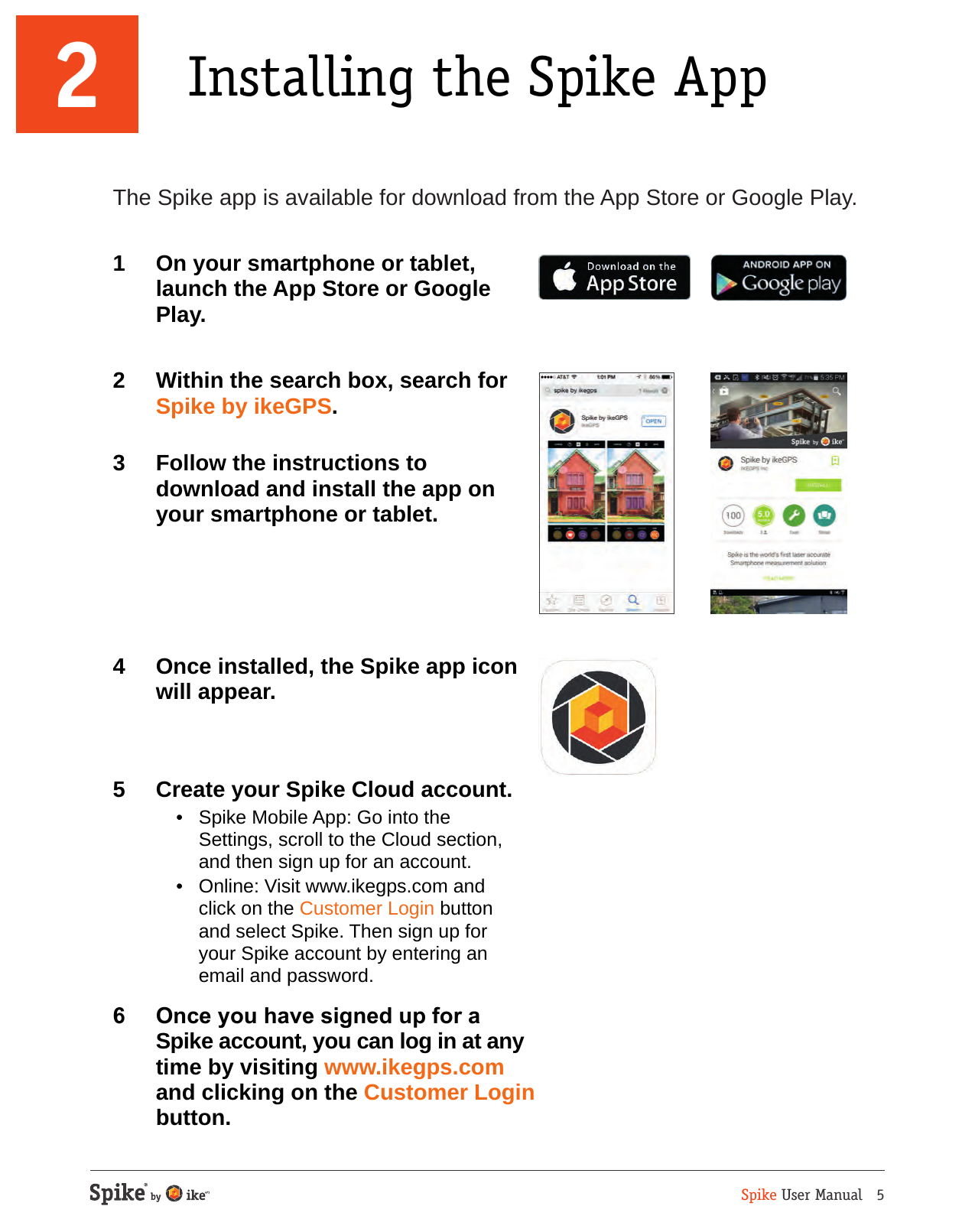
Spike User Manual   52 Installing the Spike AppThe Spike app is available for download from the App Store or Google Play.1  On your smartphone or tablet, launch the App Store or Google Play. 2  Within the search box, search for Spike by ikeGPS.3  Follow the instructions to download and install the app on your smartphone or tablet.4  Once installed, the Spike app icon will appear.5  Create your Spike Cloud account.  •  Spike Mobile App: Go into the Settings, scroll to the Cloud section, and then sign up for an account.   •  Online: Visit www.ikegps.com and click on the Customer Login button and select Spike. Then sign up for your Spike account by entering an email and password.6  Once you have signed up for a Spike account, you can log in at any time by visiting www.ikegps.com and clicking on the Customer Login button.
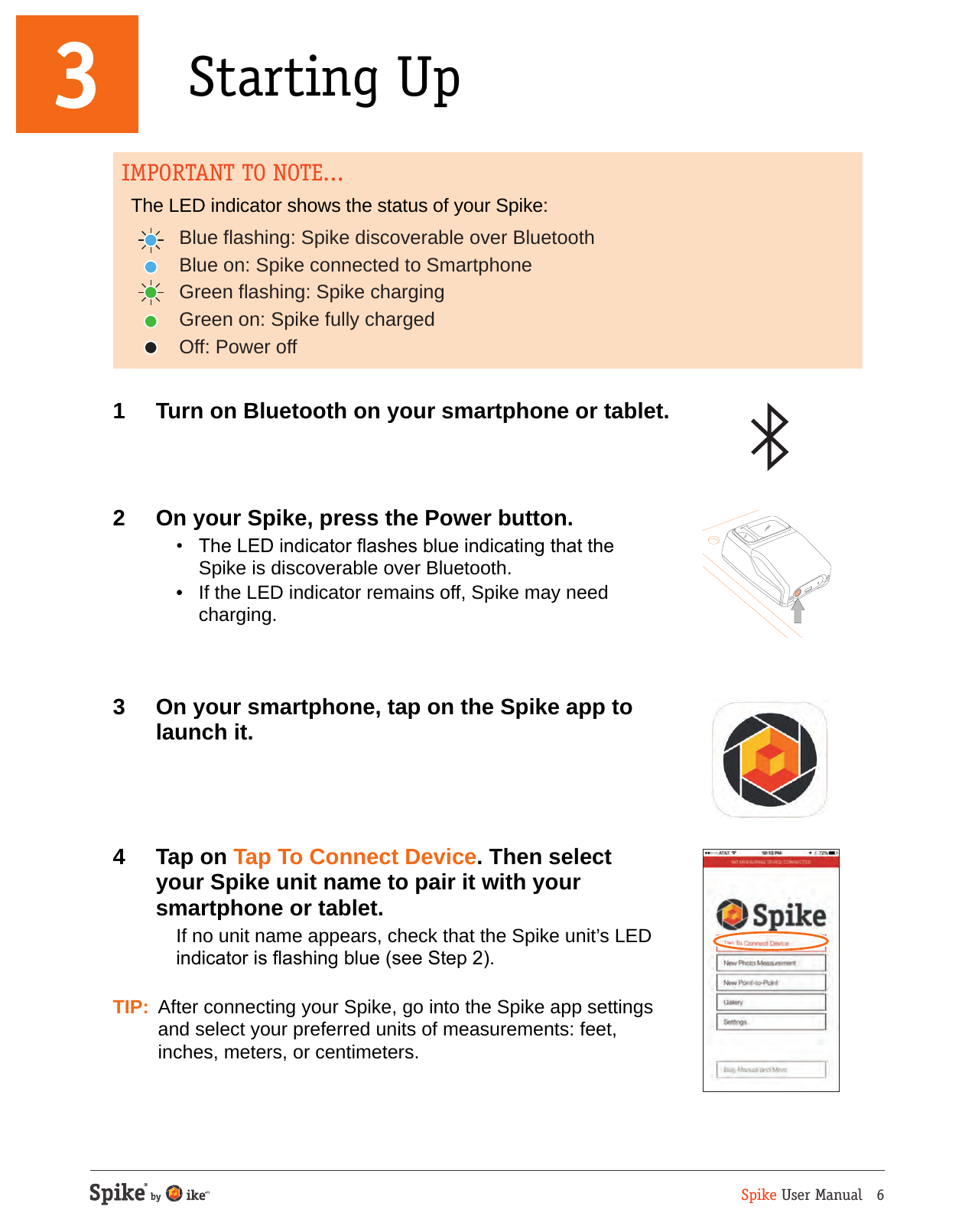
Spike User Manual   61  Turn on Bluetooth on your smartphone or tablet.2  On your Spike, press the Power button.  •  The LED indicator ashes blue indicating that the  Spike is discoverable over Bluetooth.  •  If the LED indicator remains off, Spike may need charging.3  On your smartphone, tap on the Spike app to launch it. 4  Tap on Tap To Connect Device. Then select your Spike unit name to pair it with your smartphone or tablet.  If no unit name appears, check that the Spike unit’s LED indicator is ashing blue (see Step 2). TIP:  After connecting your Spike, go into the Spike app settings and select your preferred units of measurements: feet, inches, meters, or centimeters.3 Starting UpBlue flashing: Spike discoverable over BluetoothBlue on: Spike connected to SmartphoneGreen flashing: Spike chargingGreen on: Spike fully chargedOff: Power offIMPORTANT TO NOTE...The LED indicator shows the status of your Spike:
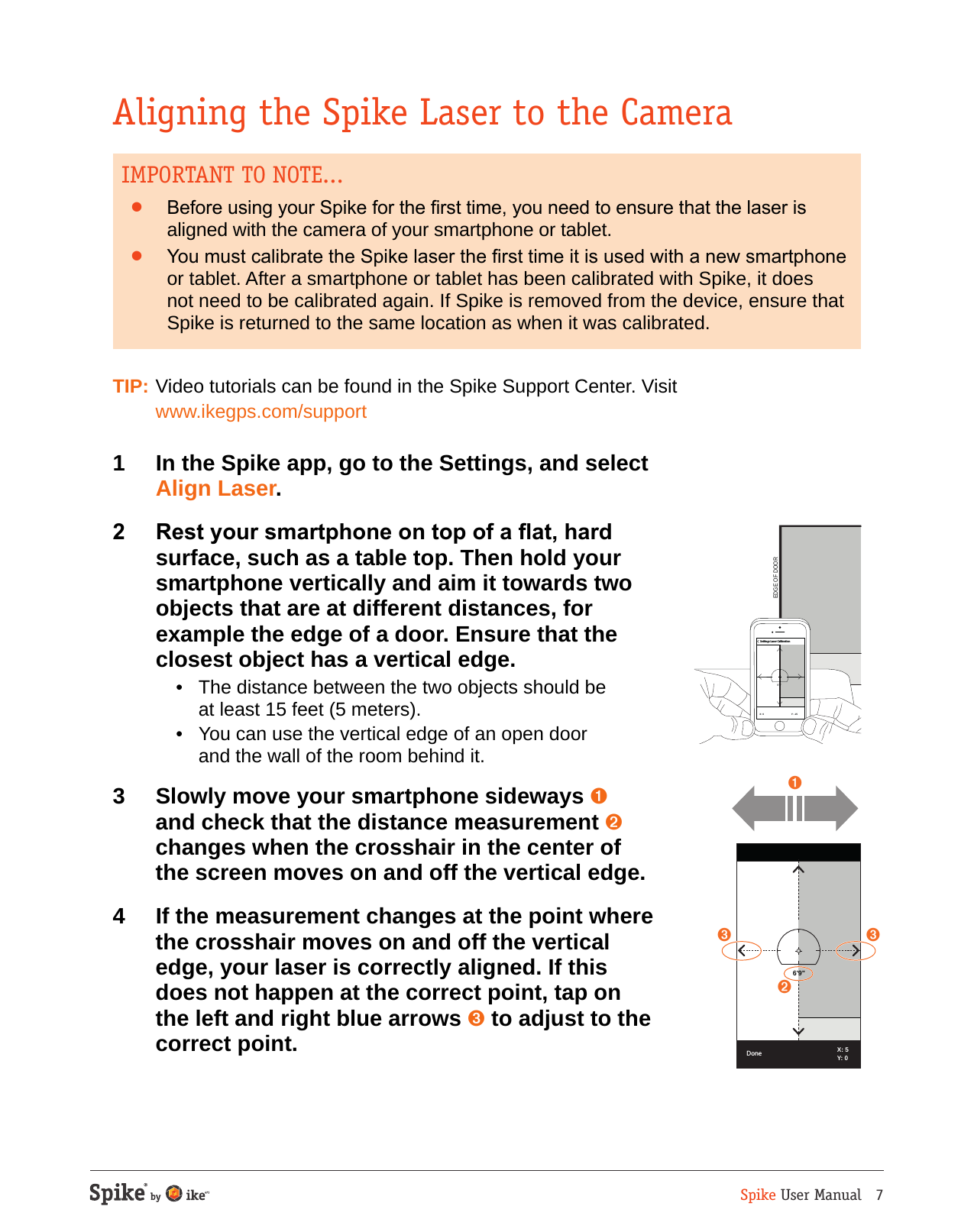
Spike User Manual   7Aligning the Spike Laser to the CameraIMPORTANT TO NOTE...•  Before using your Spike for the rst time, you need to ensure that the laser is aligned with the camera of your smartphone or tablet. •  You must calibrate the Spike laser the rst time it is used with a new smartphone or tablet. After a smartphone or tablet has been calibrated with Spike, it does not need to be calibrated again. If Spike is removed from the device, ensure that Spike is returned to the same location as when it was calibrated.TIP: Video tutorials can be found in the Spike Support Center. Visit  www.ikegps.com/support1  In the Spike app, go to the Settings, and select  Align Laser.2  Rest your smartphone on top of a at, hard surface, such as a table top. Then hold your smartphone vertically and aim it towards two objects that are at different distances, for example the edge of a door. Ensure that the closest object has a vertical edge.  •  The distance between the two objects should be at least 15 feet (5 meters).   •  You can use the vertical edge of an open door and the wall of the room behind it.3  Slowly move your smartphone sideways ➊ and check that the distance measurement ➋ changes when the crosshair in the center of  the screen moves on and off the vertical edge. 4  If the measurement changes at the point where the crosshair moves on and off the vertical edge, your laser is correctly aligned. If this does not happen at the correct point, tap on the left and right blue arrows ➌ to adjust to the correct point.EDGE OF DOOR9'1"X: 0 Y: -15Settings Laser Calibration➋DoneX: 56'9"Y: 0➌➌➊
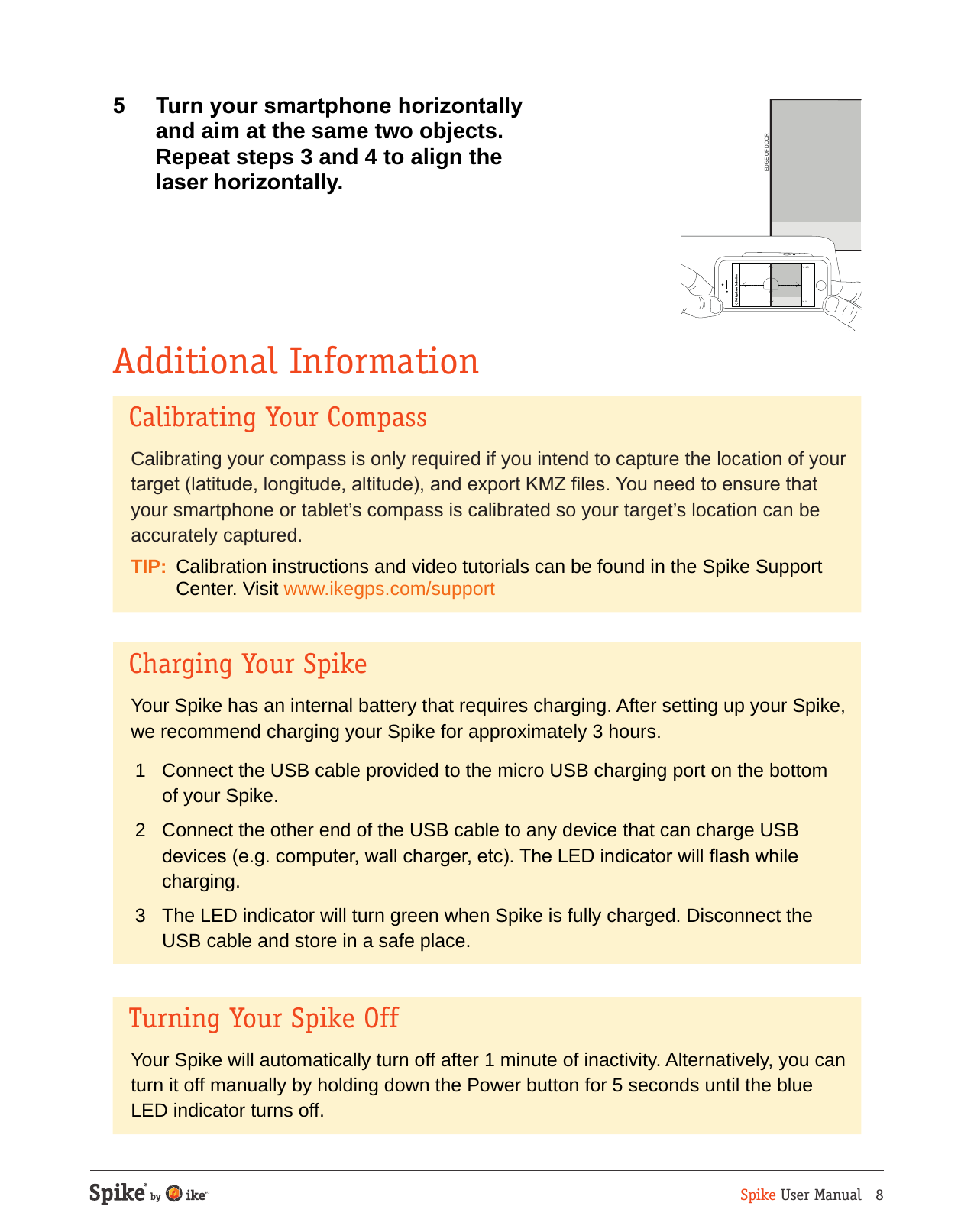
Spike User Manual   85  Turn your smartphone horizontally and aim at the same two objects. Repeat steps 3 and 4 to align the laser horizontally.Additional InformationCalibrating Your CompassCalibrating your compass is only required if you intend to capture the location of your target (latitude, longitude, altitude), and export KMZ les. You need to ensure that your smartphone or tablet’s compass is calibrated so your target’s location can be accurately captured.TIP:  Calibration instructions and video tutorials can be found in the Spike Support Center. Visit www.ikegps.com/supportCharging Your SpikeYour Spike has an internal battery that requires charging. After setting up your Spike, we recommend charging your Spike for approximately 3 hours.1  Connect the USB cable provided to the micro USB charging port on the bottom of your Spike. 2  Connect the other end of the USB cable to any device that can charge USB devices (e.g. computer, wall charger, etc). The LED indicator will ash while charging.3  The LED indicator will turn green when Spike is fully charged. Disconnect the USB cable and store in a safe place.Turning Your Spike OffYour Spike will automatically turn off after 1 minute of inactivity. Alternatively, you can turn it off manually by holding down the Power button for 5 seconds until the blue LED indicator turns off. EDGE OF DOOR9'1"X: 0Y: -15Settings Laser Calibration
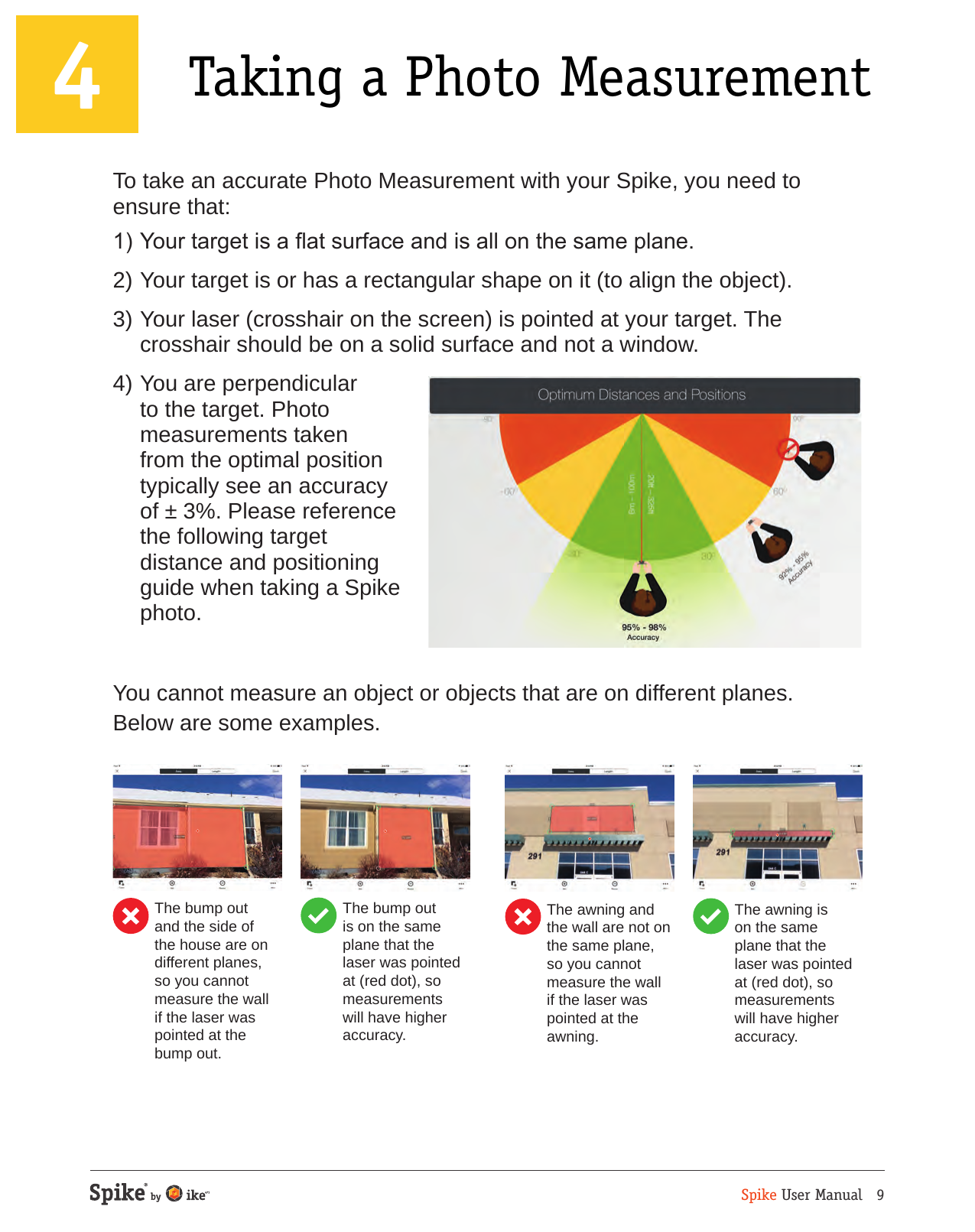
Spike User Manual   94 Taking a Photo MeasurementTo take an accurate Photo Measurement with your Spike, you need to ensure that:1) Your target is a at surface and is all on the same plane.2) Your target is or has a rectangular shape on it (to align the object).3) Your laser (crosshair on the screen) is pointed at your target. The crosshair should be on a solid surface and not a window.4) You are perpendicular to the target. Photo measurements taken from the optimal position typically see an accuracy of ± 3%. Please reference the following target distance and positioning guide when taking a Spike photo. You cannot measure an object or objects that are on different planes. Below are some examples.The bump out and the side of the house are on different planes, so you cannot measure the wall if the laser was pointed at the bump out.The bump out is on the same plane that the laser was pointed at (red dot), so measurements will have higher accuracy.The awning and the wall are not on the same plane, so you cannot measure the wall if the laser was pointed at the awning. The awning is on the same plane that the laser was pointed at (red dot), so measurements will have higher accuracy.
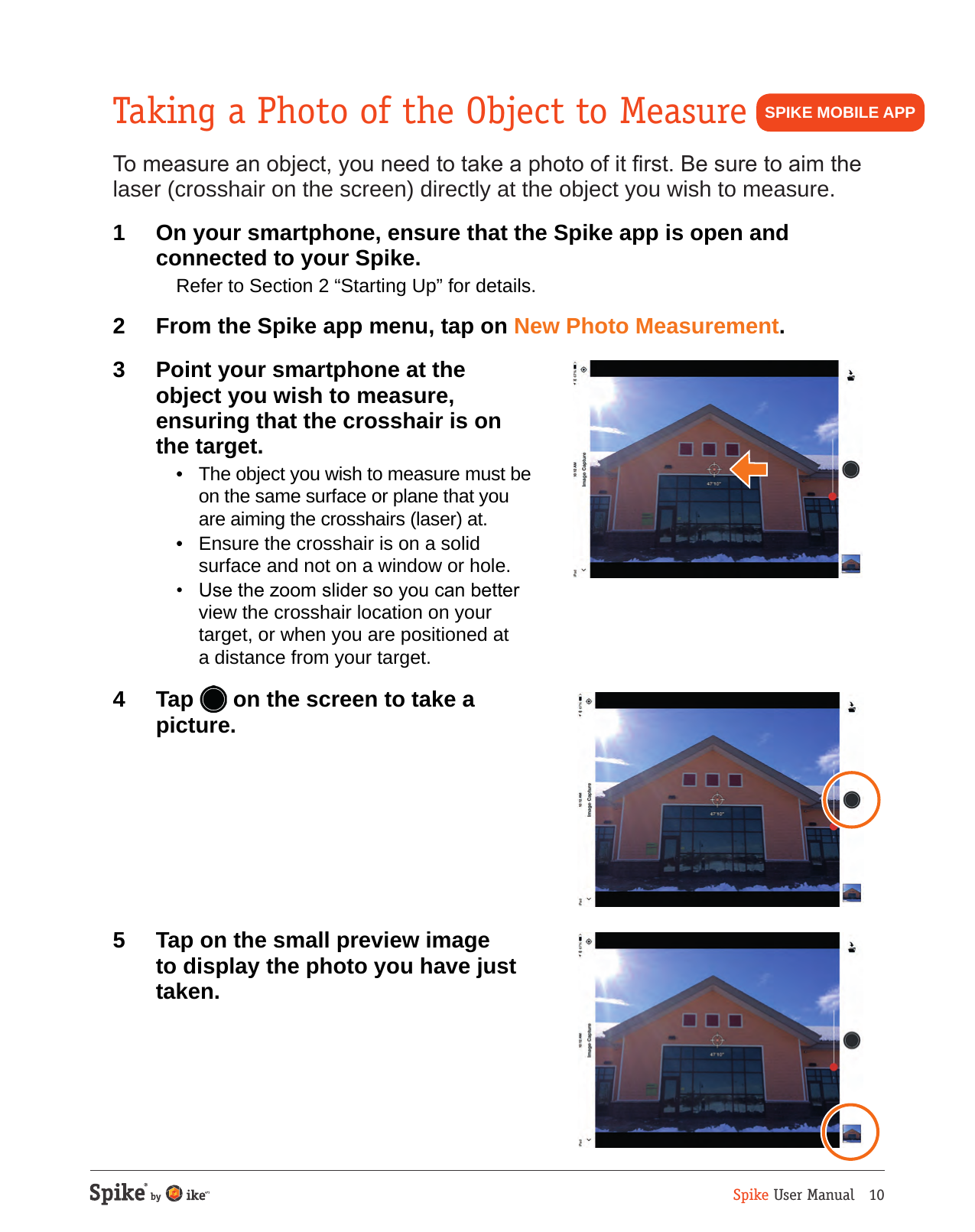
Spike User Manual   10Taking a Photo of the Object to MeasureTo measure an object, you need to take a photo of it rst. Be sure to aim the laser (crosshair on the screen) directly at the object you wish to measure.1  On your smartphone, ensure that the Spike app is open and connected to your Spike.  Refer to Section 2 “Starting Up” for details.2  From the Spike app menu, tap on New Photo Measurement.3  Point your smartphone at the object you wish to measure, ensuring that the crosshair is on the target.   •  The object you wish to measure must be on the same surface or plane that you are aiming the crosshairs (laser) at.  •  Ensure the crosshair is on a solid surface and not on a window or hole.   •  Use the zoom slider so you can better view the crosshair location on your target, or when you are positioned at a distance from your target.4 Tap  on the screen to take a picture. 5  Tap on the small preview image to display the photo you have just taken.SPIKE MOBILE APP
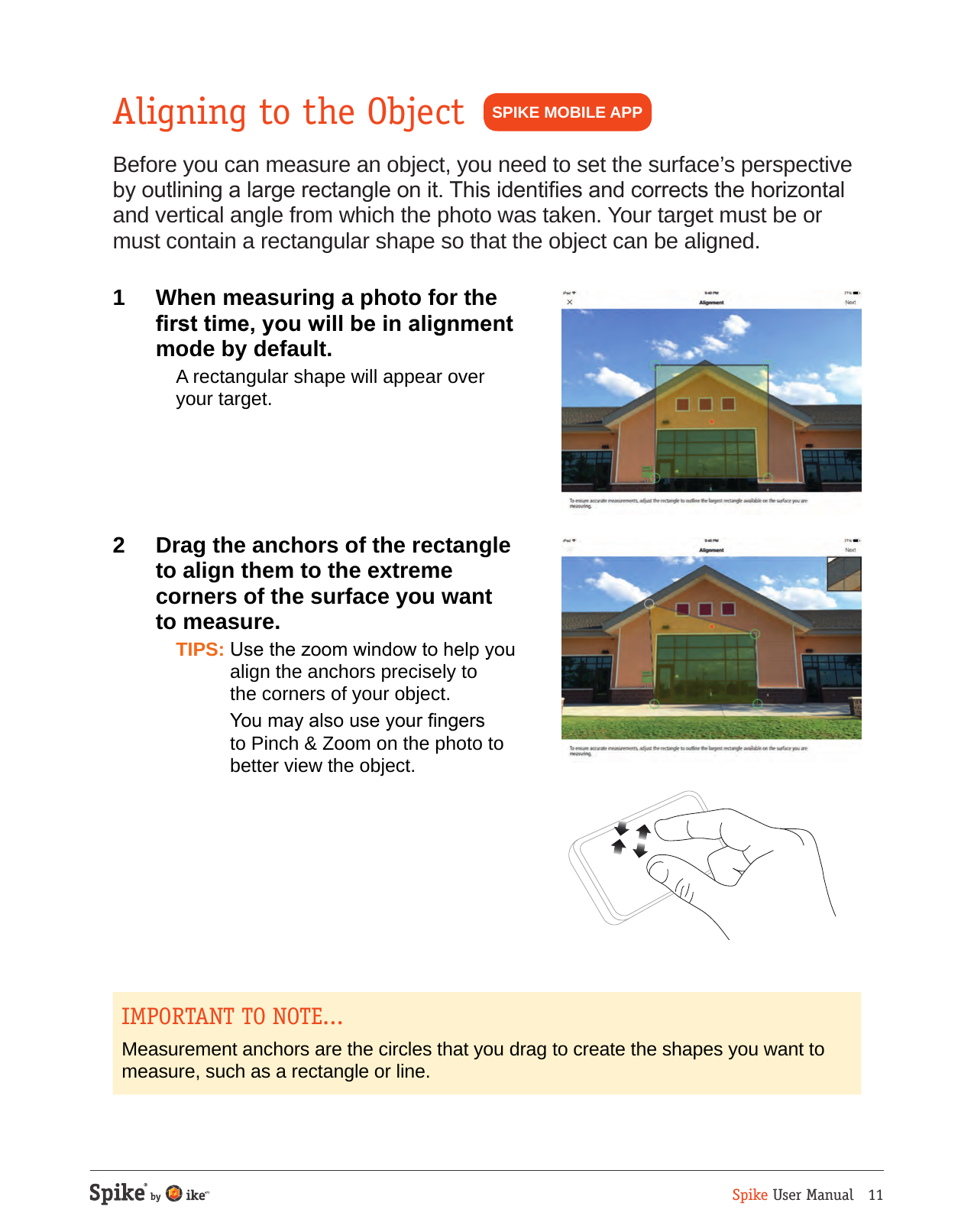
Spike User Manual   11SPIKE MOBILE APPAligning to the ObjectBefore you can measure an object, you need to set the surface’s perspective by outlining a large rectangle on it. This identies and corrects the horizontal and vertical angle from which the photo was taken. Your target must be or must contain a rectangular shape so that the object can be aligned.1  When measuring a photo for the rst time, you will be in alignment mode by default.  A rectangular shape will appear over your target.2  Drag the anchors of the rectangle  to align them to the extreme  corners of the surface you want  to measure.  TIPS: Use the zoom window to help you align the anchors precisely to  the corners of your object.  You may also use your ngers to Pinch & Zoom on the photo to better view the object.IMPORTANT TO NOTE...Measurement anchors are the circles that you drag to create the shapes you want to measure, such as a rectangle or line.
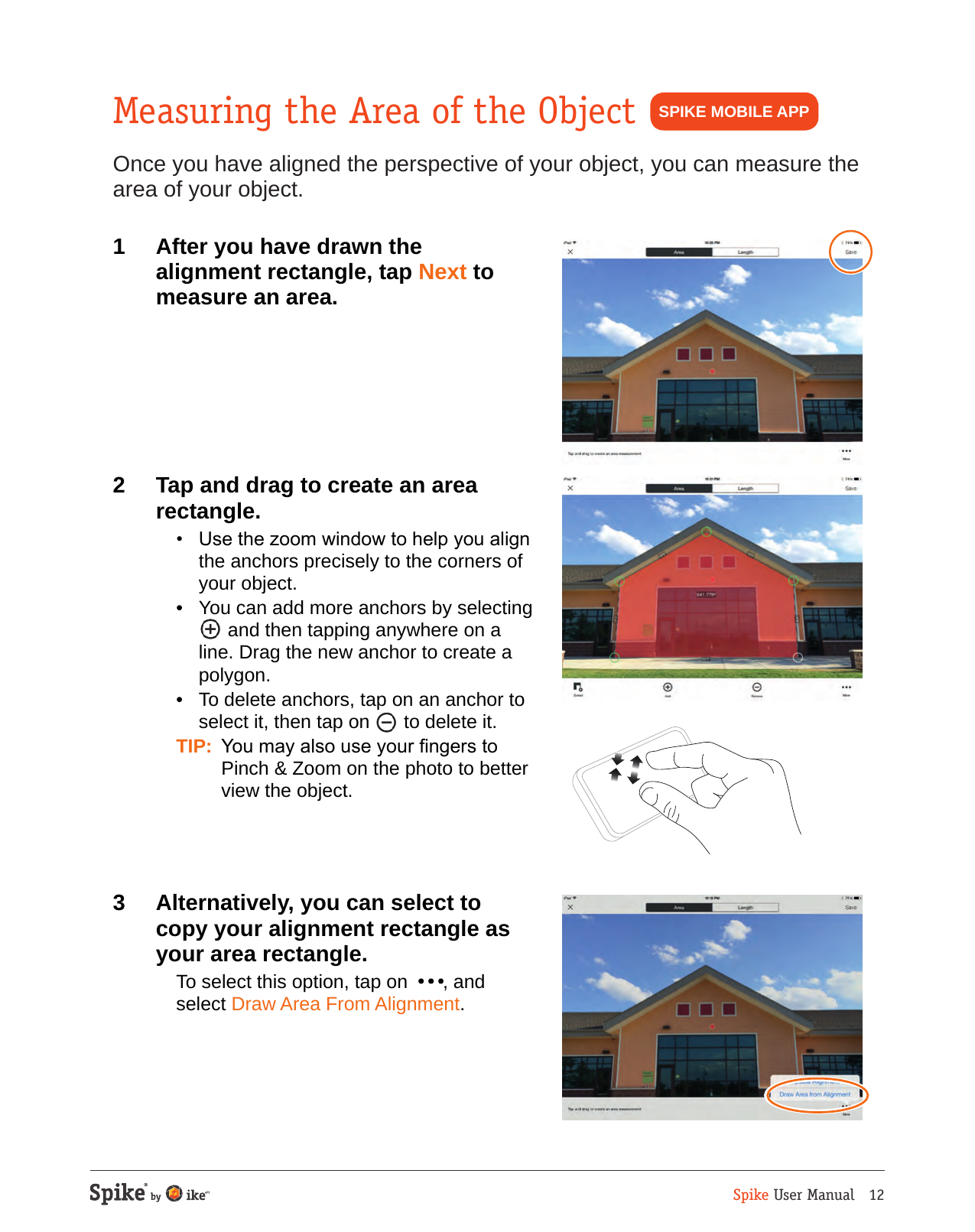
Spike User Manual   12Measuring the Area of the ObjectOnce you have aligned the perspective of your object, you can measure the area of your object.1  After you have drawn the alignment rectangle, tap Next to measure an area.2  Tap and drag to create an area rectangle.  •  Use the zoom window to help you align the anchors precisely to the corners of your object.  •  You can add more anchors by selecting  and then tapping anywhere on a line. Drag the new anchor to create a polygon.  •  To delete anchors, tap on an anchor to select it, then tap on   to delete it. TIP:  You may also use your ngers to Pinch & Zoom on the photo to better view the object.3  Alternatively, you can select to copy your alignment rectangle as your area rectangle.  To select this option, tap on   , and select Draw Area From Alignment.SPIKE MOBILE APP
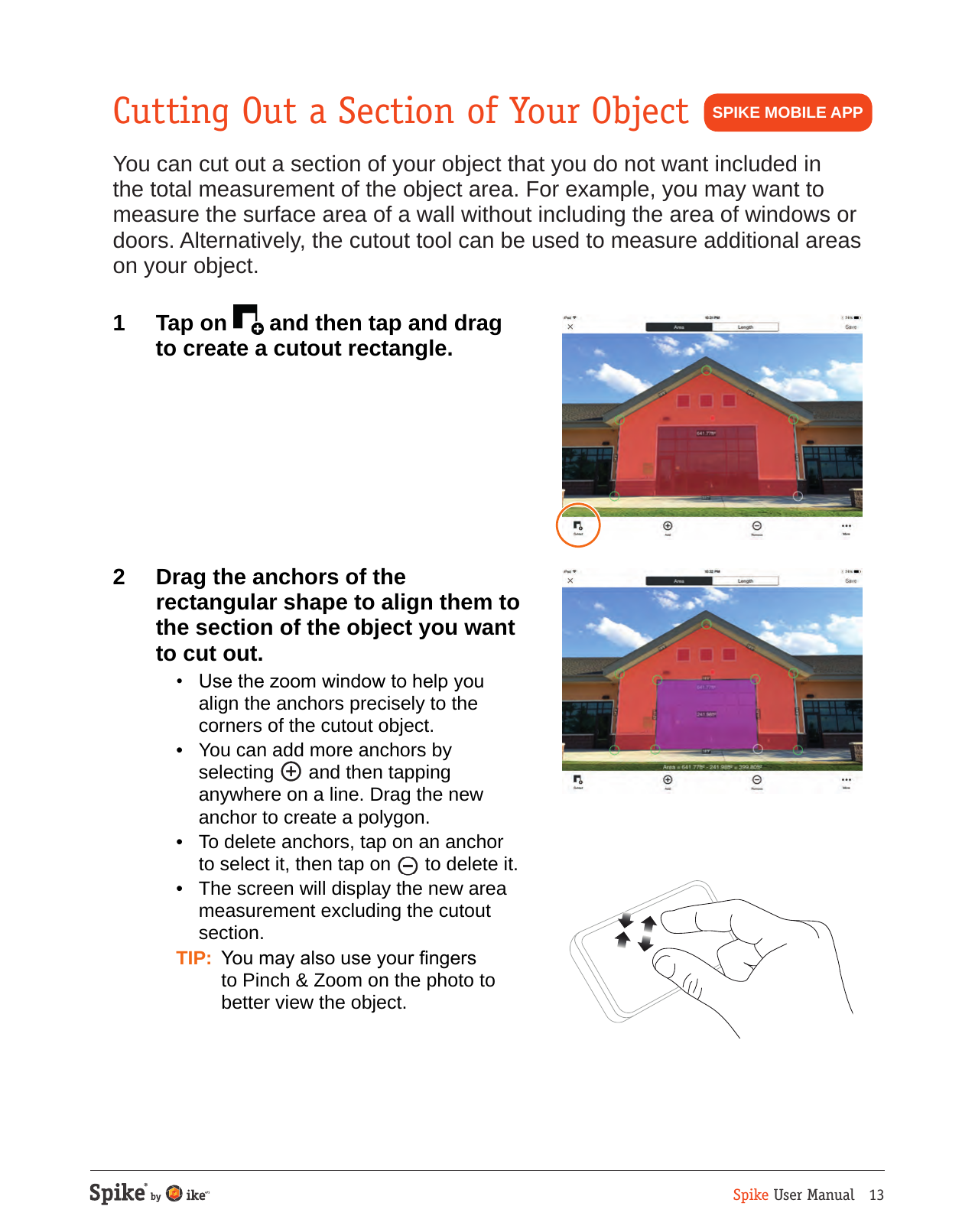
Spike User Manual   13Cutting Out a Section of Your ObjectYou can cut out a section of your object that you do not want included in the total measurement of the object area. For example, you may want to measure the surface area of a wall without including the area of windows or doors. Alternatively, the cutout tool can be used to measure additional areas on your object.1  Tap on   and then tap and drag to create a cutout rectangle.  2  Drag the anchors of the rectangular shape to align them to the section of the object you want to cut out.   •  Use the zoom window to help you align the anchors precisely to the corners of the cutout object.  •  You can add more anchors by selecting   and then tapping anywhere on a line. Drag the new anchor to create a polygon.  •  To delete anchors, tap on an anchor to select it, then tap on   to delete it.  •  The screen will display the new area measurement excluding the cutout section. TIP:  You may also use your ngers to Pinch & Zoom on the photo to better view the object.SPIKE MOBILE APP
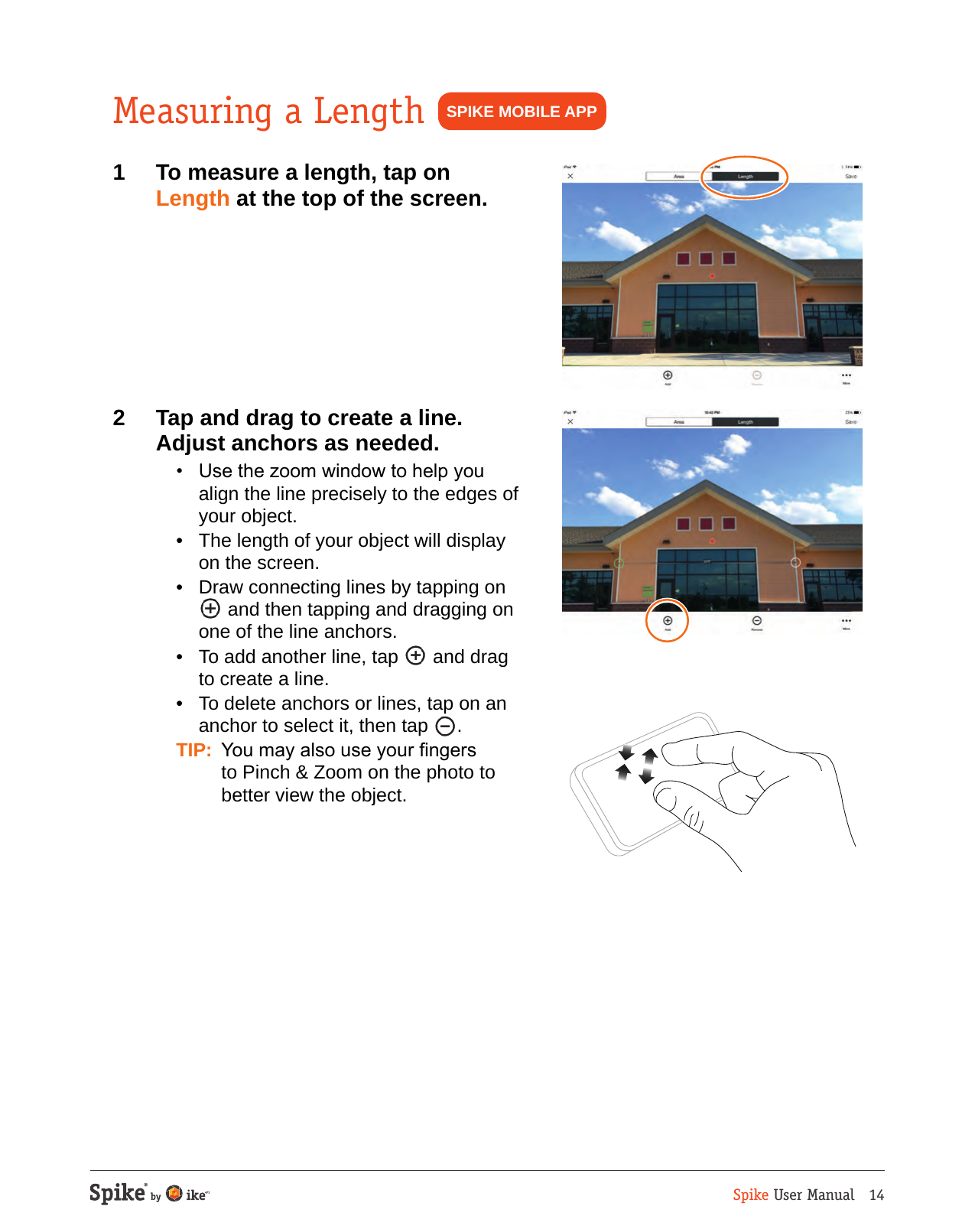
Spike User Manual   14Measuring a Length1  To measure a length, tap on Length at the top of the screen.2  Tap and drag to create a line. Adjust anchors as needed.  •  Use the zoom window to help you align the line precisely to the edges of your object.  •  The length of your object will display on the screen.  •  Draw connecting lines by tapping on   and then tapping and dragging on one of the line anchors.  •  To add another line, tap   and drag to create a line.  •  To delete anchors or lines, tap on an anchor to select it, then tap  . TIP:  You may also use your ngers to Pinch & Zoom on the photo to better view the object.SPIKE MOBILE APP
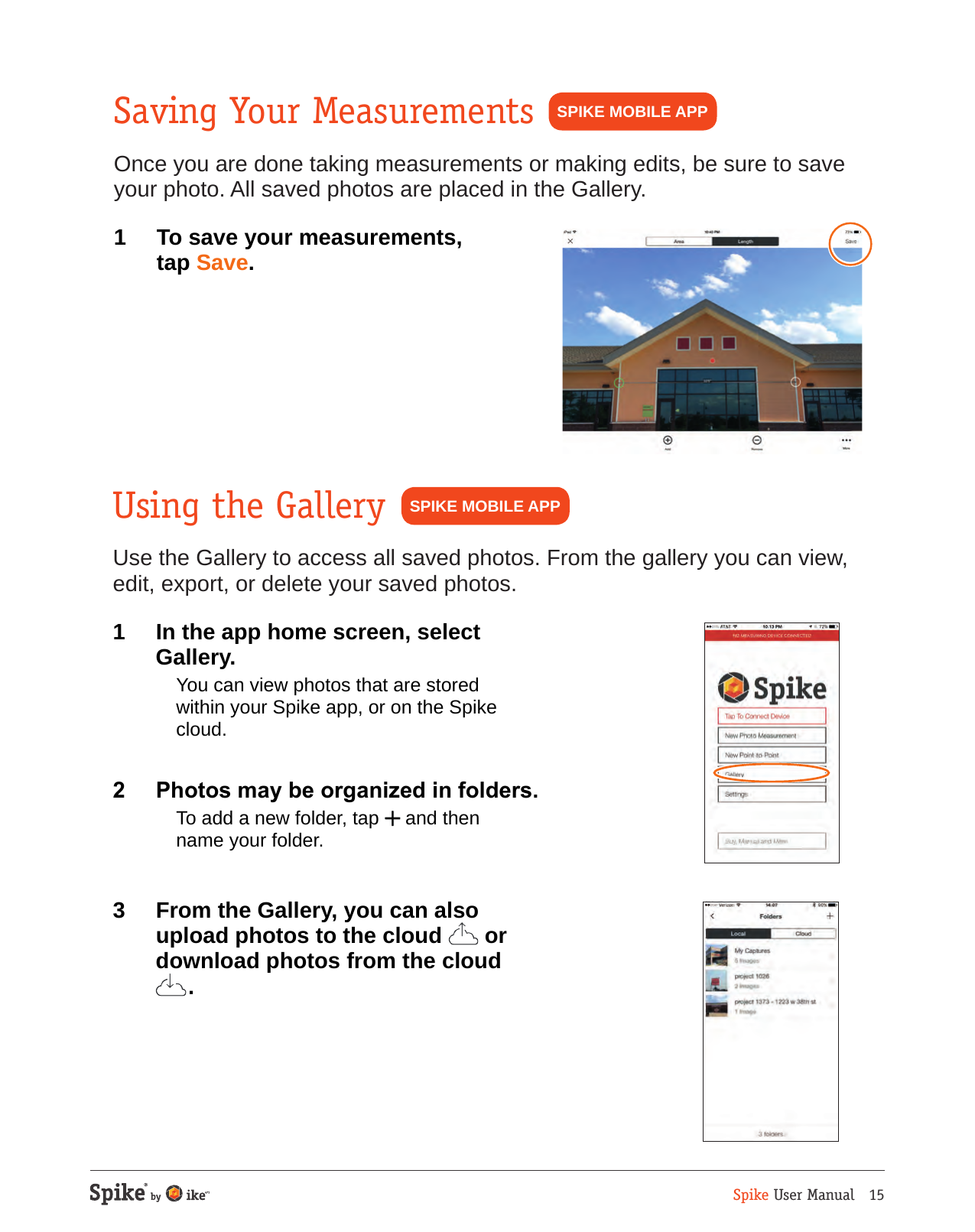
Spike User Manual   15Saving Your MeasurementsOnce you are done taking measurements or making edits, be sure to save your photo. All saved photos are placed in the Gallery.1  To save your measurements,  tap Save. SPIKE MOBILE APPUsing the GalleryUse the Gallery to access all saved photos. From the gallery you can view, edit, export, or delete your saved photos.1  In the app home screen, select  Gallery.  You can view photos that are stored within your Spike app, or on the Spike cloud.2  Photos may be organized in folders.  To add a new folder, tap and then name your folder.3  From the Gallery, you can also upload photos to the cloud   or download photos from the cloud  .SPIKE MOBILE APP
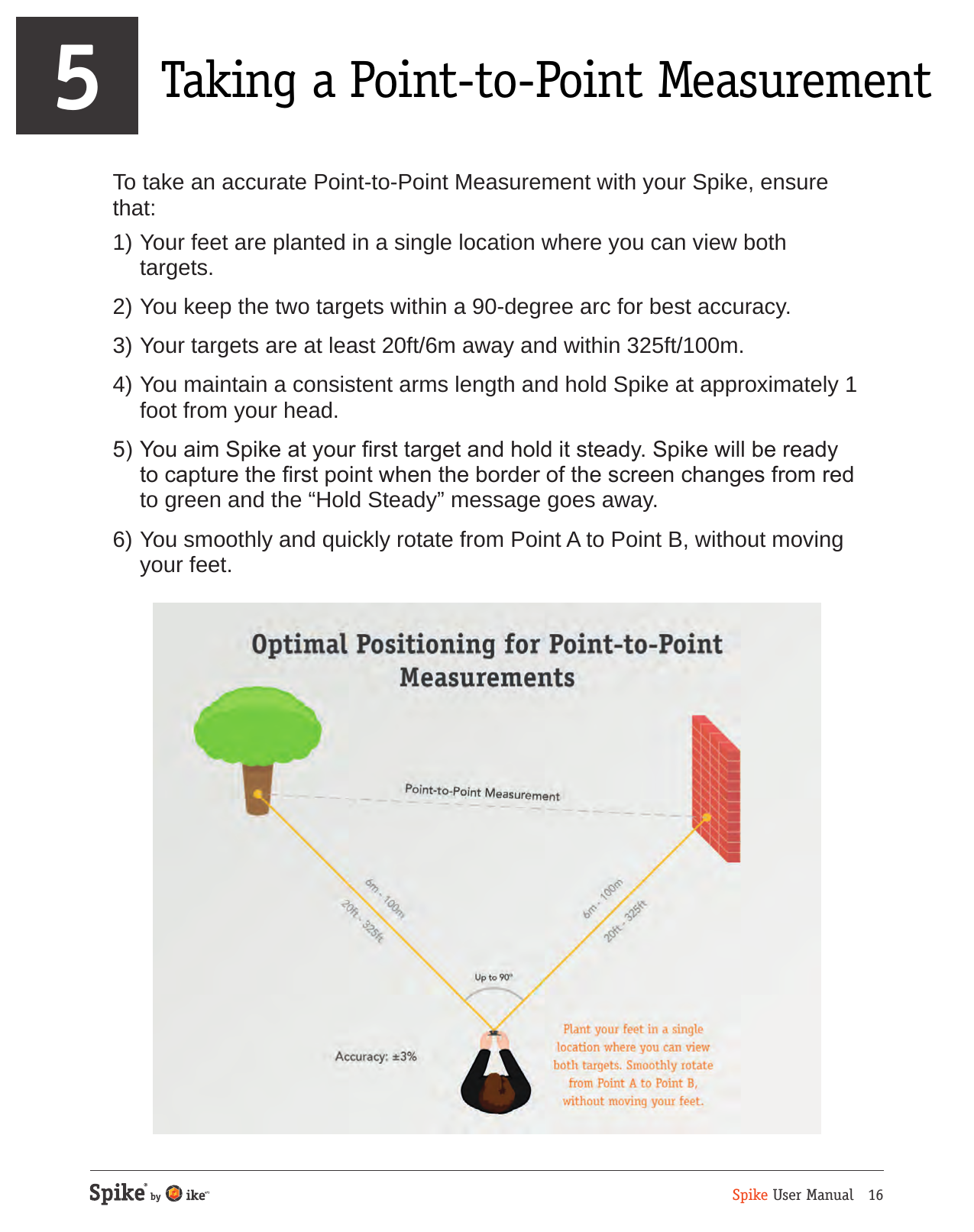
Spike User Manual   165 Taking a Point-to-Point MeasurementTo take an accurate Point-to-Point Measurement with your Spike, ensure that:1) Your feet are planted in a single location where you can view both targets.2) You keep the two targets within a 90-degree arc for best accuracy.3) Your targets are at least 20ft/6m away and within 325ft/100m.4) You maintain a consistent arms length and hold Spike at approximately 1 foot from your head.5) You aim Spike at your rst target and hold it steady. Spike will be ready to capture the rst point when the border of the screen changes from red to green and the “Hold Steady” message goes away.6) You smoothly and quickly rotate from Point A to Point B, without moving your feet.
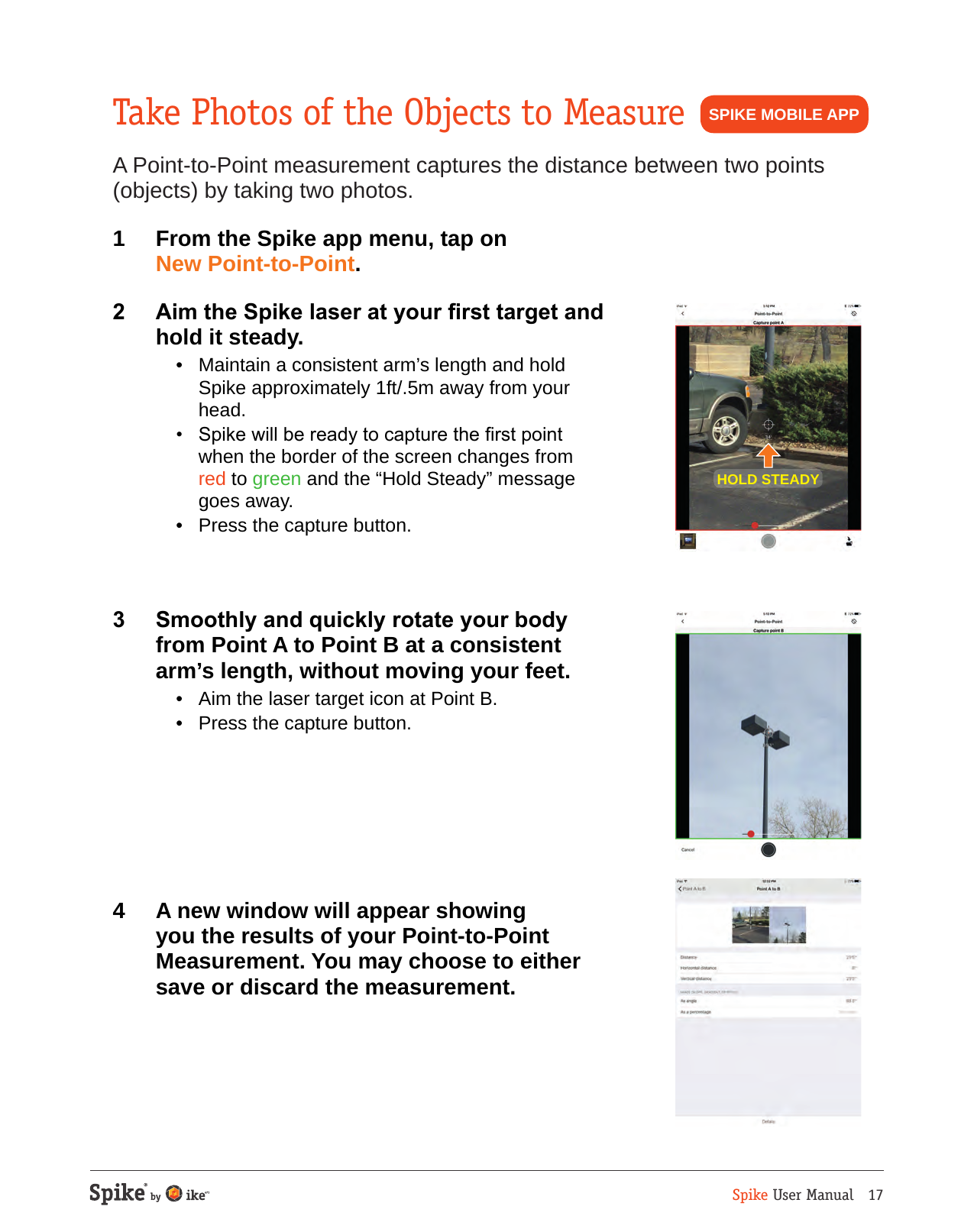
Spike User Manual   17Take Photos of the Objects to MeasureA Point-to-Point measurement captures the distance between two points (objects) by taking two photos.1  From the Spike app menu, tap on New Point-to-Point.2  Aim the Spike laser at your rst target and hold it steady.  •  Maintain a consistent arm’s length and hold Spike approximately 1ft/.5m away from your head.  •  Spike will be ready to capture the rst point  when the border of the screen changes from  red to green and the “Hold Steady” message goes away.  •  Press the capture button.3  Smoothly and quickly rotate your body from Point A to Point B at a consistent arm’s length, without moving your feet.  •  Aim the laser target icon at Point B.  •  Press the capture button.4  A new window will appear showing you the results of your Point-to-Point Measurement. You may choose to either save or discard the measurement.HOLD STEADYSPIKE MOBILE APP
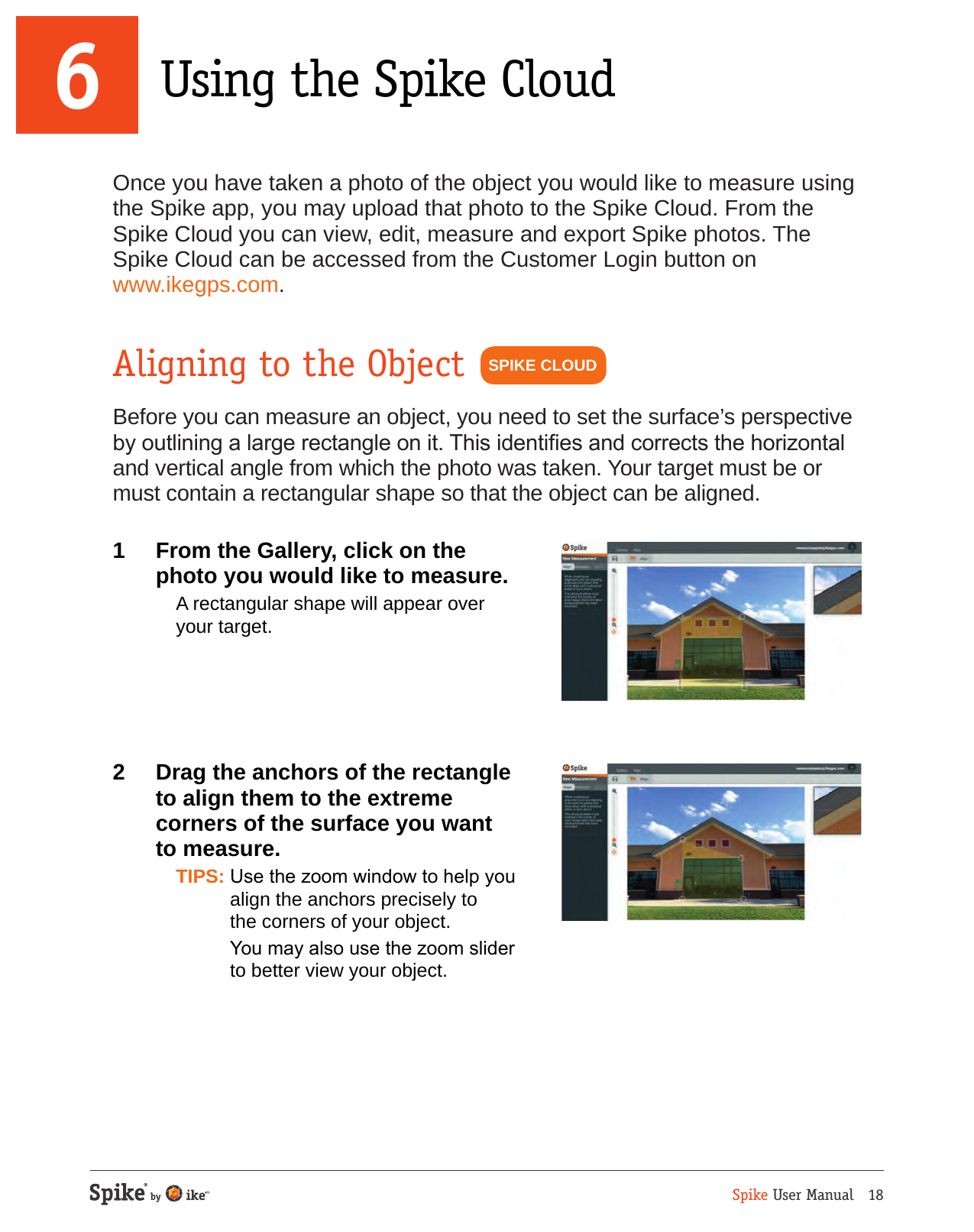
Spike User Manual   18Once you have taken a photo of the object you would like to measure using the Spike app, you may upload that photo to the Spike Cloud. From the Spike Cloud you can view, edit, measure and export Spike photos. The Spike Cloud can be accessed from the Customer Login button on  www.ikegps.com.Aligning to the ObjectBefore you can measure an object, you need to set the surface’s perspective by outlining a large rectangle on it. This identies and corrects the horizontal and vertical angle from which the photo was taken. Your target must be or must contain a rectangular shape so that the object can be aligned.1  From the Gallery, click on the photo you would like to measure.  A rectangular shape will appear over your target.2  Drag the anchors of the rectangle  to align them to the extreme  corners of the surface you want  to measure. TIPS: Use the zoom window to help you align the anchors precisely to  the corners of your object.  You may also use the zoom slider to better view your object.SPIKE CLOUD6 Using the Spike Cloud
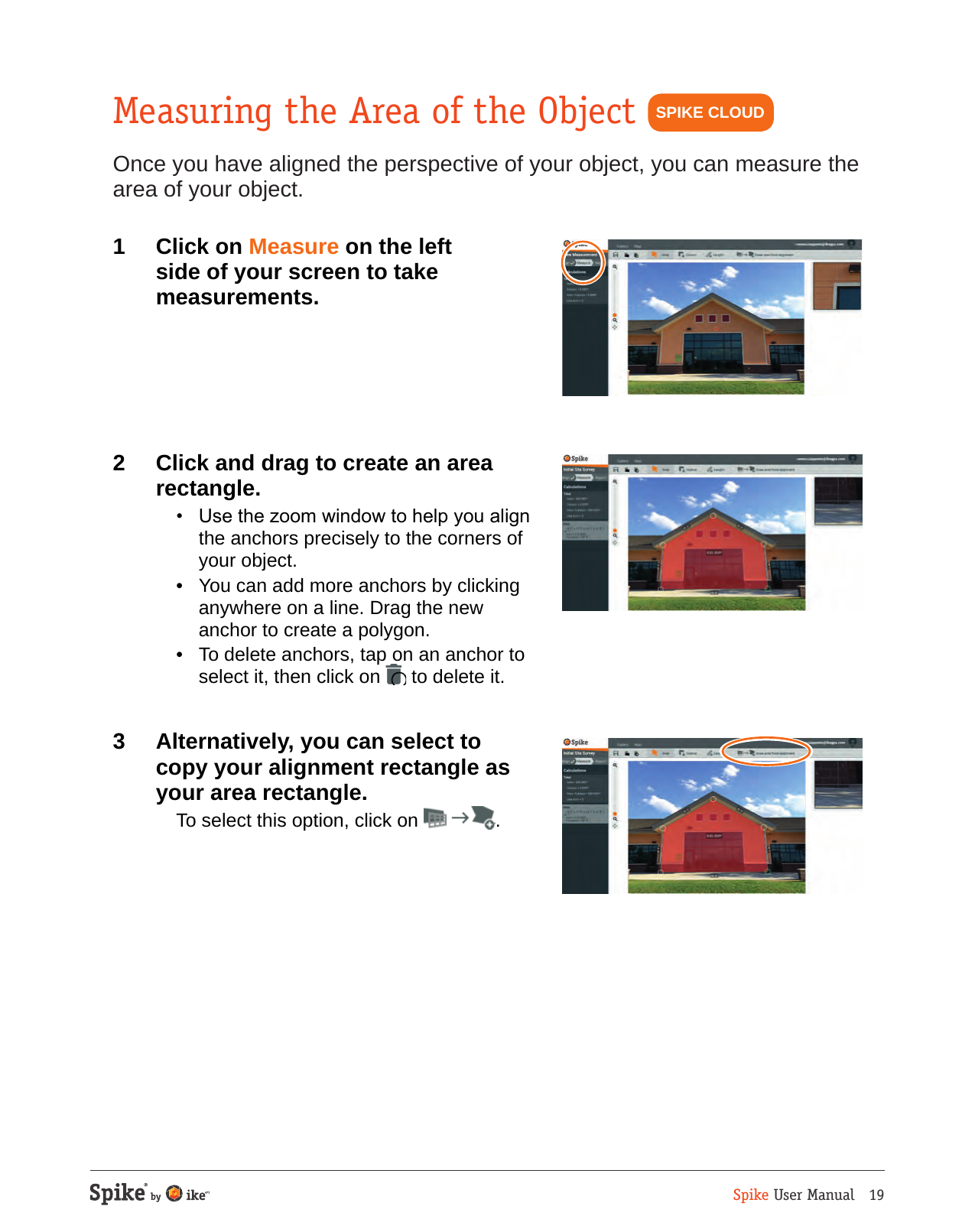
Spike User Manual   19Measuring the Area of the ObjectOnce you have aligned the perspective of your object, you can measure the area of your object.1  Click on Measure on the left side of your screen to take measurements.2  Click and drag to create an area rectangle.  •  Use the zoom window to help you align the anchors precisely to the corners of your object.  •  You can add more anchors by clicking anywhere on a line. Drag the new anchor to create a polygon.  •  To delete anchors, tap on an anchor to select it, then click on   to delete it.3  Alternatively, you can select to copy your alignment rectangle as your area rectangle.  To select this option, click on  .SPIKE CLOUD
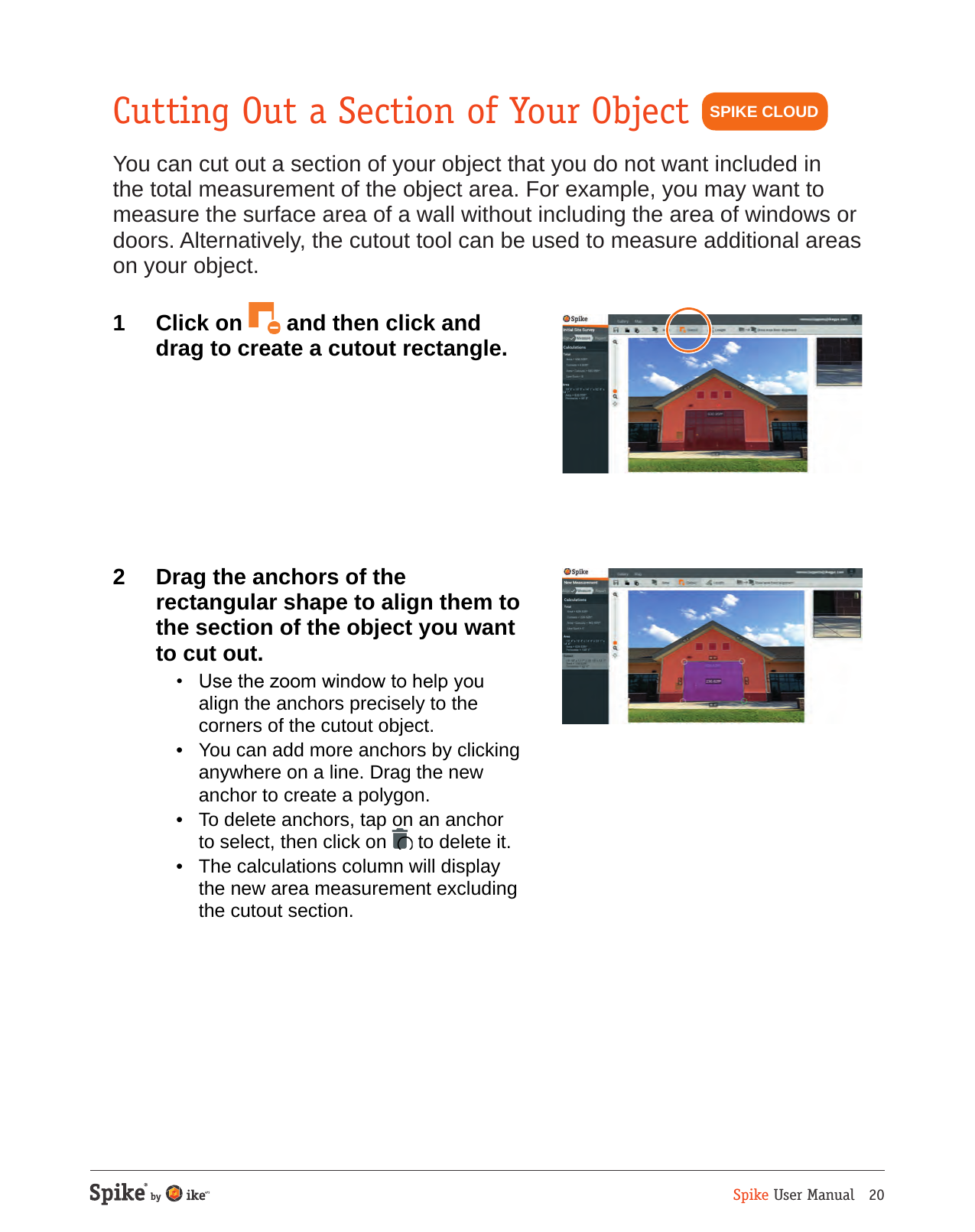
Spike User Manual   20Cutting Out a Section of Your ObjectYou can cut out a section of your object that you do not want included in the total measurement of the object area. For example, you may want to measure the surface area of a wall without including the area of windows or doors. Alternatively, the cutout tool can be used to measure additional areas on your object.1  Click on   and then click and drag to create a cutout rectangle.  2  Drag the anchors of the rectangular shape to align them to the section of the object you want to cut out.   •  Use the zoom window to help you align the anchors precisely to the corners of the cutout object.  •  You can add more anchors by clicking anywhere on a line. Drag the new anchor to create a polygon.  •  To delete anchors, tap on an anchor to select, then click on   to delete it.  •  The calculations column will display the new area measurement excluding the cutout section.SPIKE CLOUD
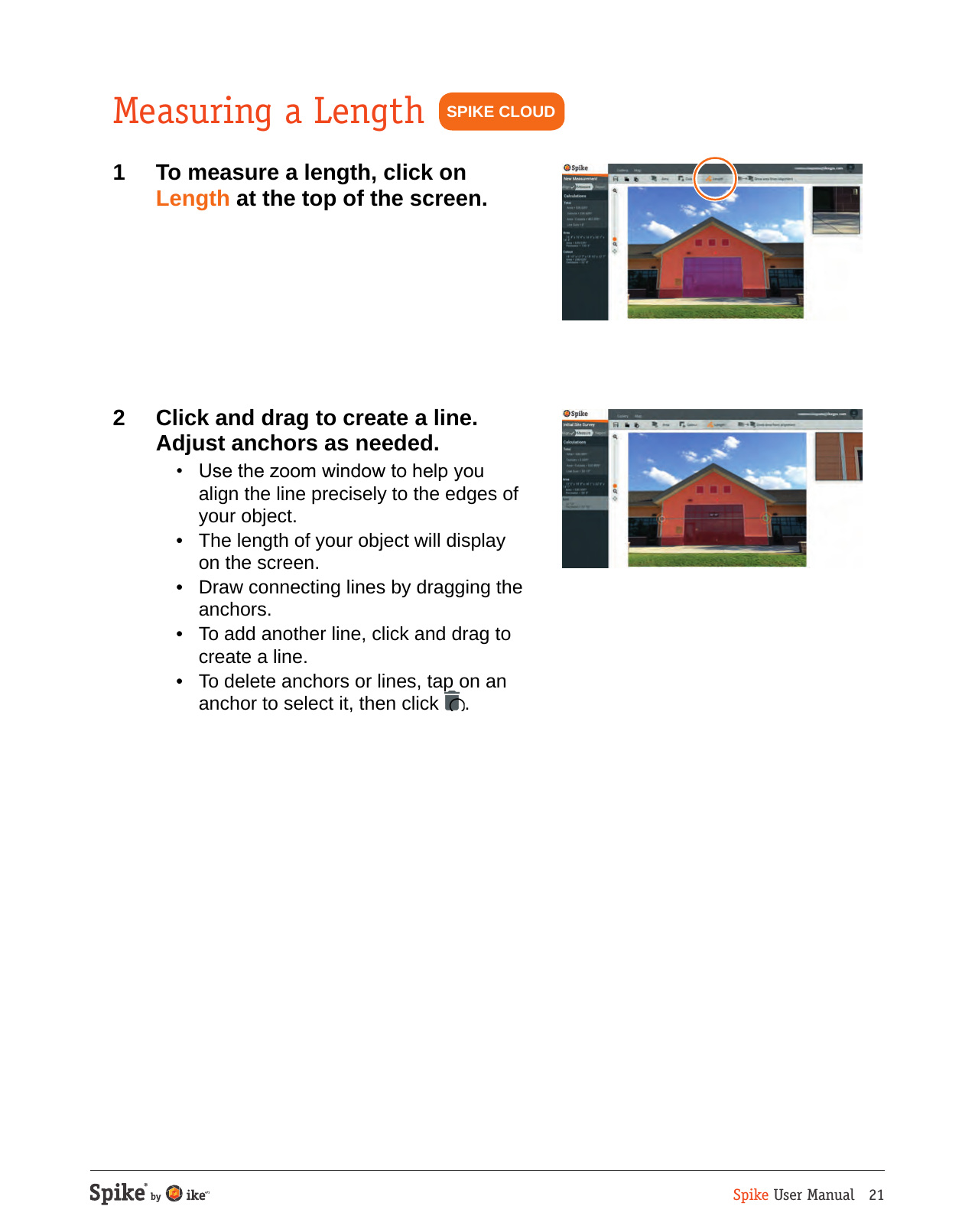
Spike User Manual   21Measuring a Length1  To measure a length, click on Length at the top of the screen.2  Click and drag to create a line. Adjust anchors as needed.  •  Use the zoom window to help you align the line precisely to the edges of your object.  •  The length of your object will display on the screen.  •  Draw connecting lines by dragging the anchors.  •  To add another line, click and drag to create a line.  •  To delete anchors or lines, tap on an anchor to select it, then click  .SPIKE CLOUD
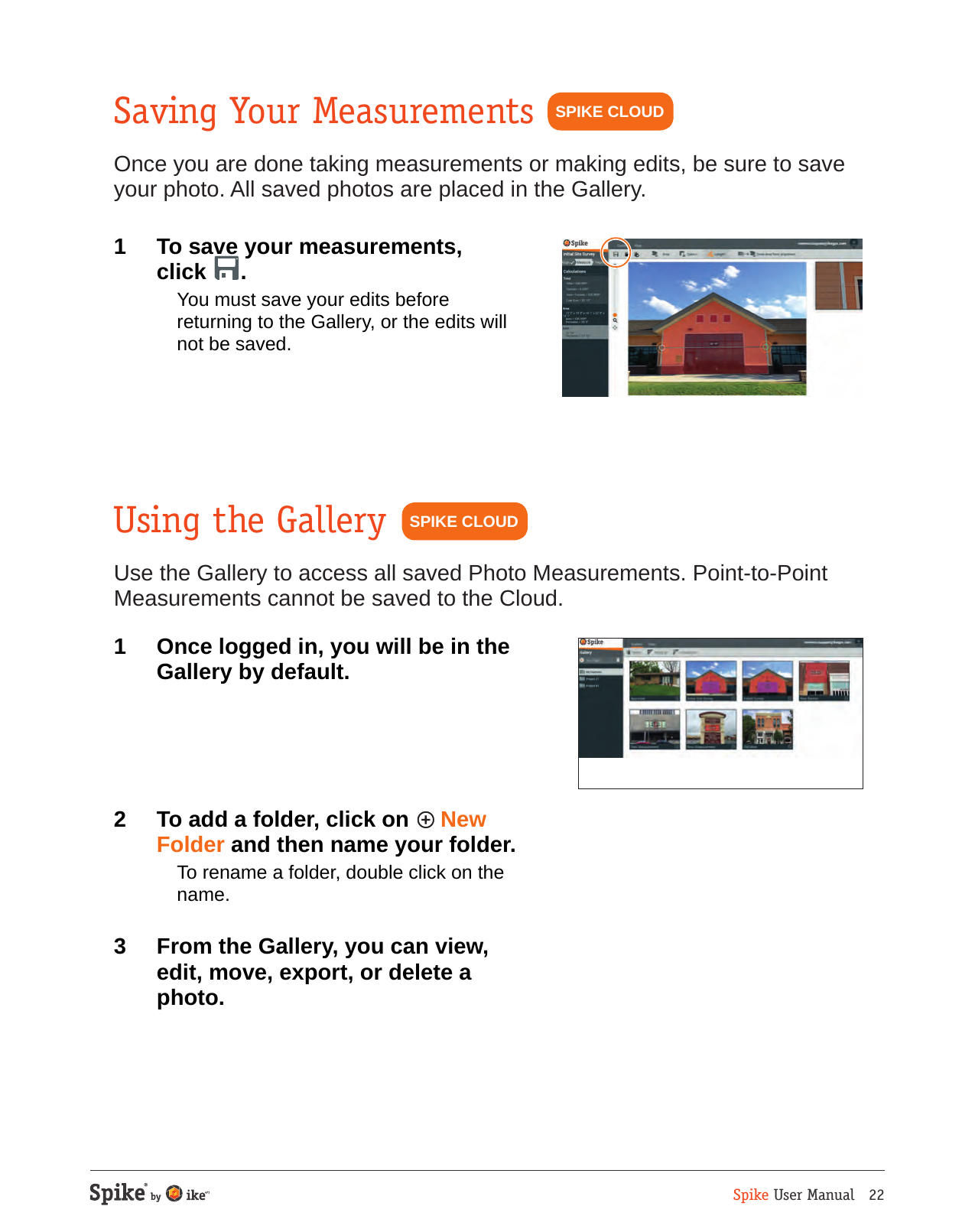
Spike User Manual   22Saving Your MeasurementsOnce you are done taking measurements or making edits, be sure to save your photo. All saved photos are placed in the Gallery.1  To save your measurements,  click  .  You must save your edits before returning to the Gallery, or the edits will not be saved.SPIKE CLOUDUsing the GalleryUse the Gallery to access all saved Photo Measurements. Point-to-Point Measurements cannot be saved to the Cloud.1  Once logged in, you will be in the  Gallery by default. 2  To add a folder, click on   New Folder and then name your folder.  To rename a folder, double click on the name. 3  From the Gallery, you can view, edit, move, export, or delete a photo.SPIKE CLOUD
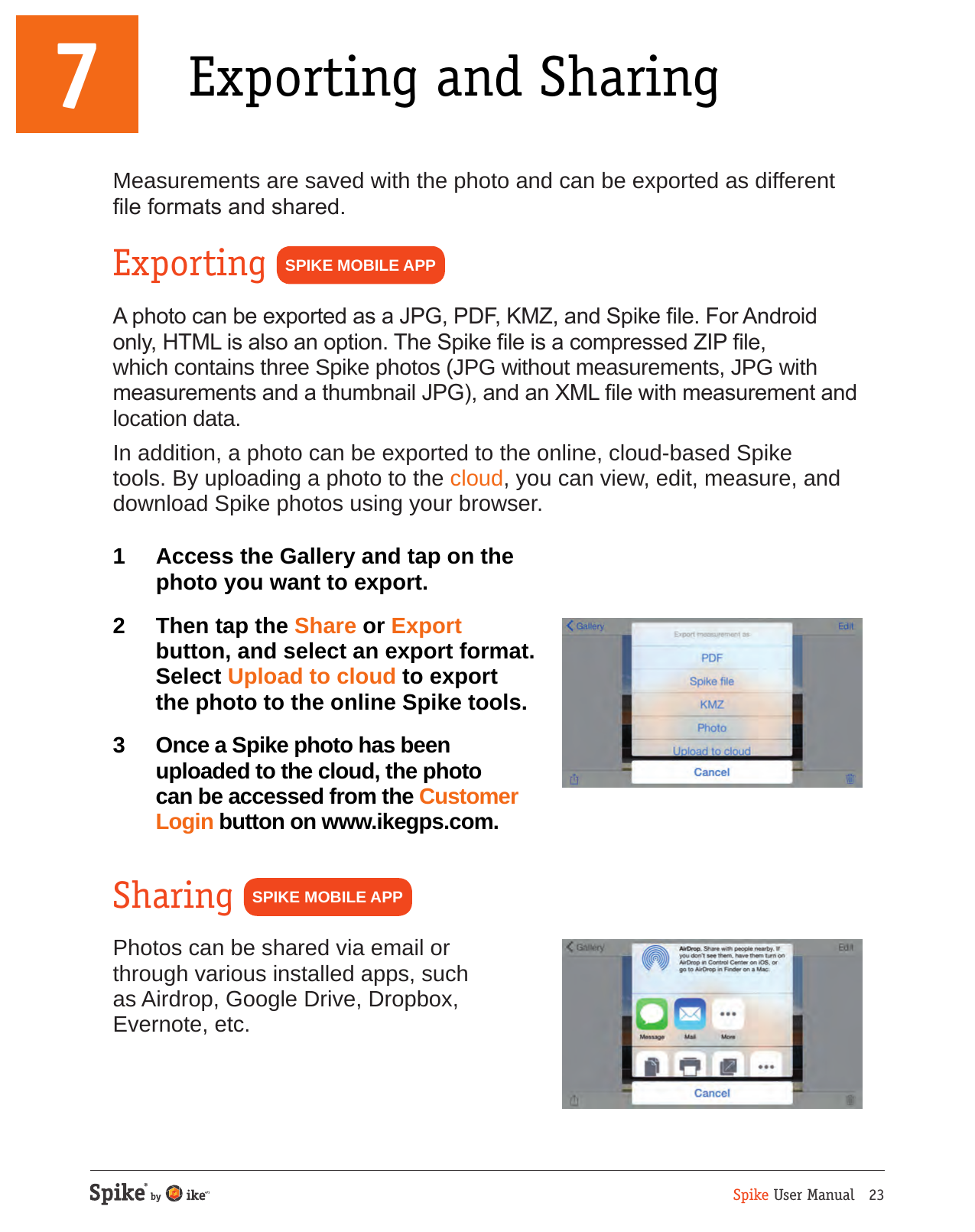
Spike User Manual   237 Exporting and Sharing Measurements are saved with the photo and can be exported as different le formats and shared.ExportingA photo can be exported as a JPG, PDF, KMZ, and Spike le. For Android only, HTML is also an option. The Spike le is a compressed ZIP le, which contains three Spike photos (JPG without measurements, JPG with measurements and a thumbnail JPG), and an XML le with measurement and location data. In addition, a photo can be exported to the online, cloud-based Spike tools. By uploading a photo to the cloud, you can view, edit, measure, and download Spike photos using your browser.1  Access the Gallery and tap on the photo you want to export.2  Then tap the Share or Export button, and select an export format. Select Upload to cloud to export the photo to the online Spike tools.3  Once a Spike photo has been uploaded to the cloud, the photo can be accessed from the Customer Login button on www.ikegps.com.SharingPhotos can be shared via email or through various installed apps, such as Airdrop, Google Drive, Dropbox, Evernote, etc.SPIKE MOBILE APPSPIKE MOBILE APP
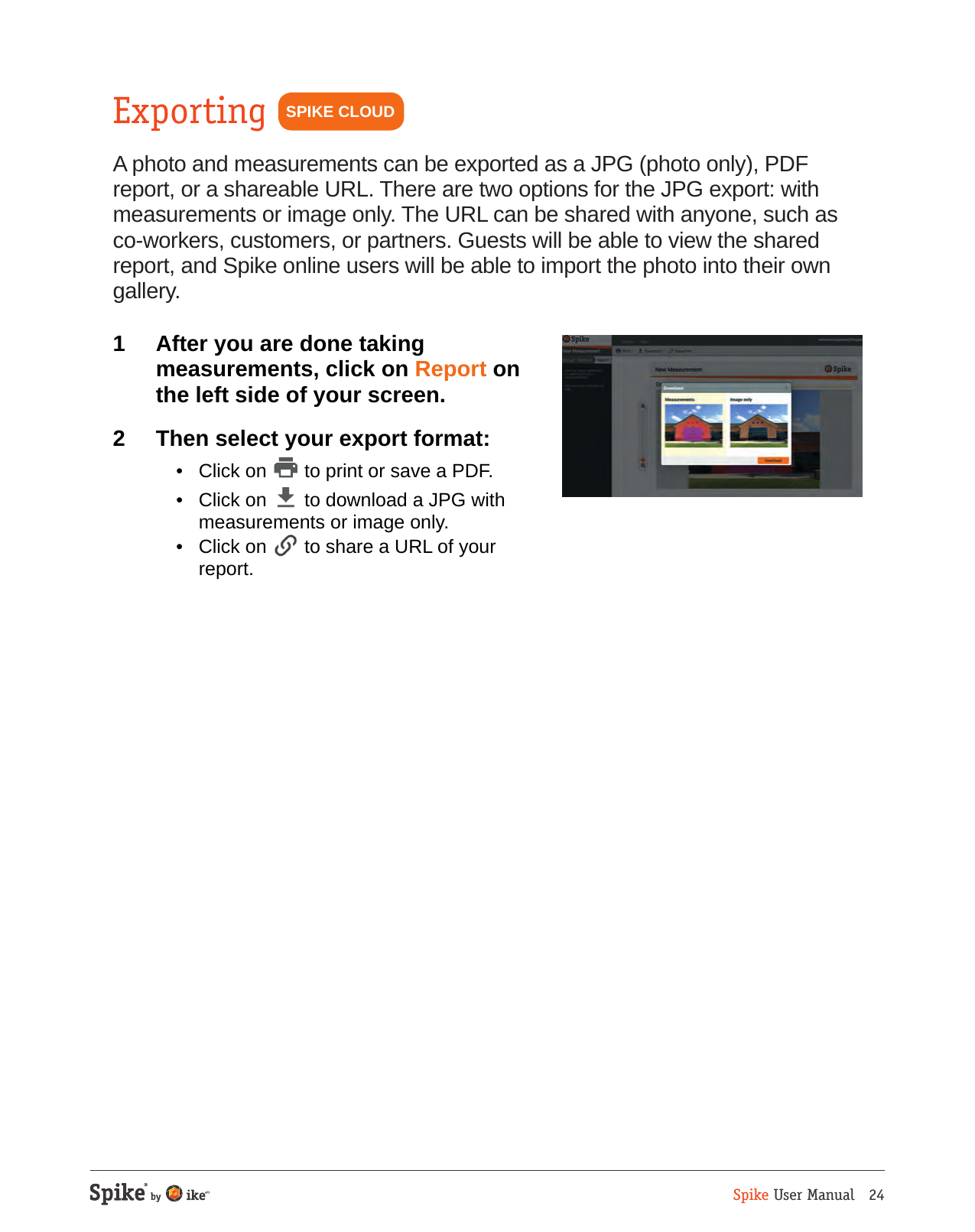
Spike User Manual   24ExportingA photo and measurements can be exported as a JPG (photo only), PDF report, or a shareable URL. There are two options for the JPG export: with measurements or image only. The URL can be shared with anyone, such as co-workers, customers, or partners. Guests will be able to view the shared report, and Spike online users will be able to import the photo into their own gallery.1  After you are done taking measurements, click on Report on the left side of your screen.2  Then select your export format:  •  Click on   to print or save a PDF.  •  Click on   to download a JPG with measurements or image only.  •  Click on   to share a URL of your report.SPIKE CLOUD
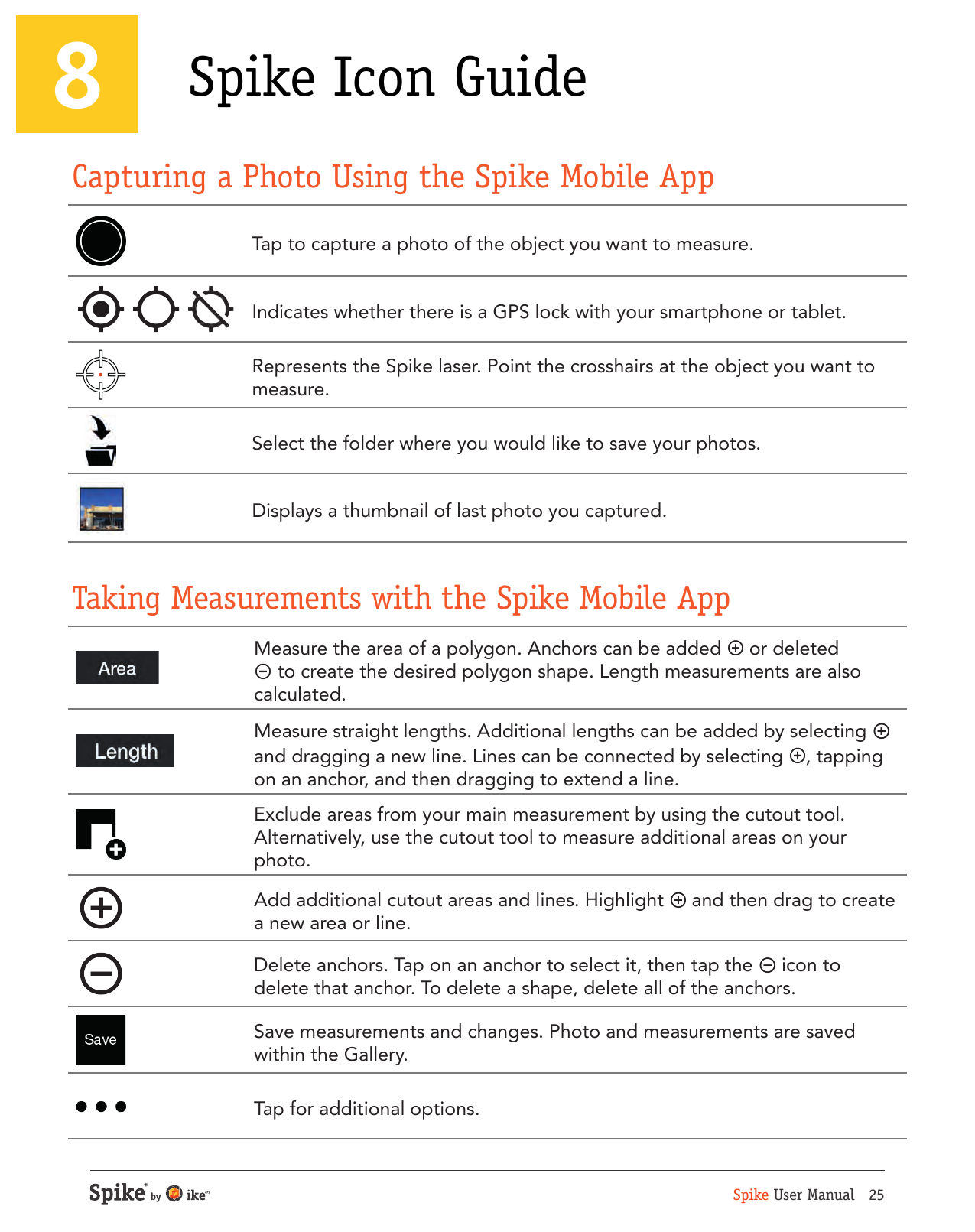
Spike User Manual   258 Spike Icon Guide  Tap to capture a photo of the object you want to measure.    Indicates whether there is a GPS lock with your smartphone or tablet.  Represents the Spike laser. Point the crosshairs at the object you want to measure. Select the folder where you would like to save your photos.Displays a thumbnail of last photo you captured.Measure the area of a polygon. Anchors can be added   or deleted  to create the desired polygon shape. Length measurements are also calculated.Measure straight lengths. Additional lengths can be added by selecting   and dragging a new line. Lines can be connected by selecting  , tapping on an anchor, and then dragging to extend a line.Exclude areas from your main measurement by using the cutout tool. Alternatively, use the cutout tool to measure additional areas on your photo.Add additional cutout areas and lines. Highlight   and then drag to create a new area or line.Delete anchors. Tap on an anchor to select it, then tap the   icon to delete that anchor. To delete a shape, delete all of the anchors.Save measurements and changes. Photo and measurements are saved within the Gallery.Tap for additional options.Capturing a Photo Using the Spike Mobile AppTaking Measurements with the Spike Mobile App
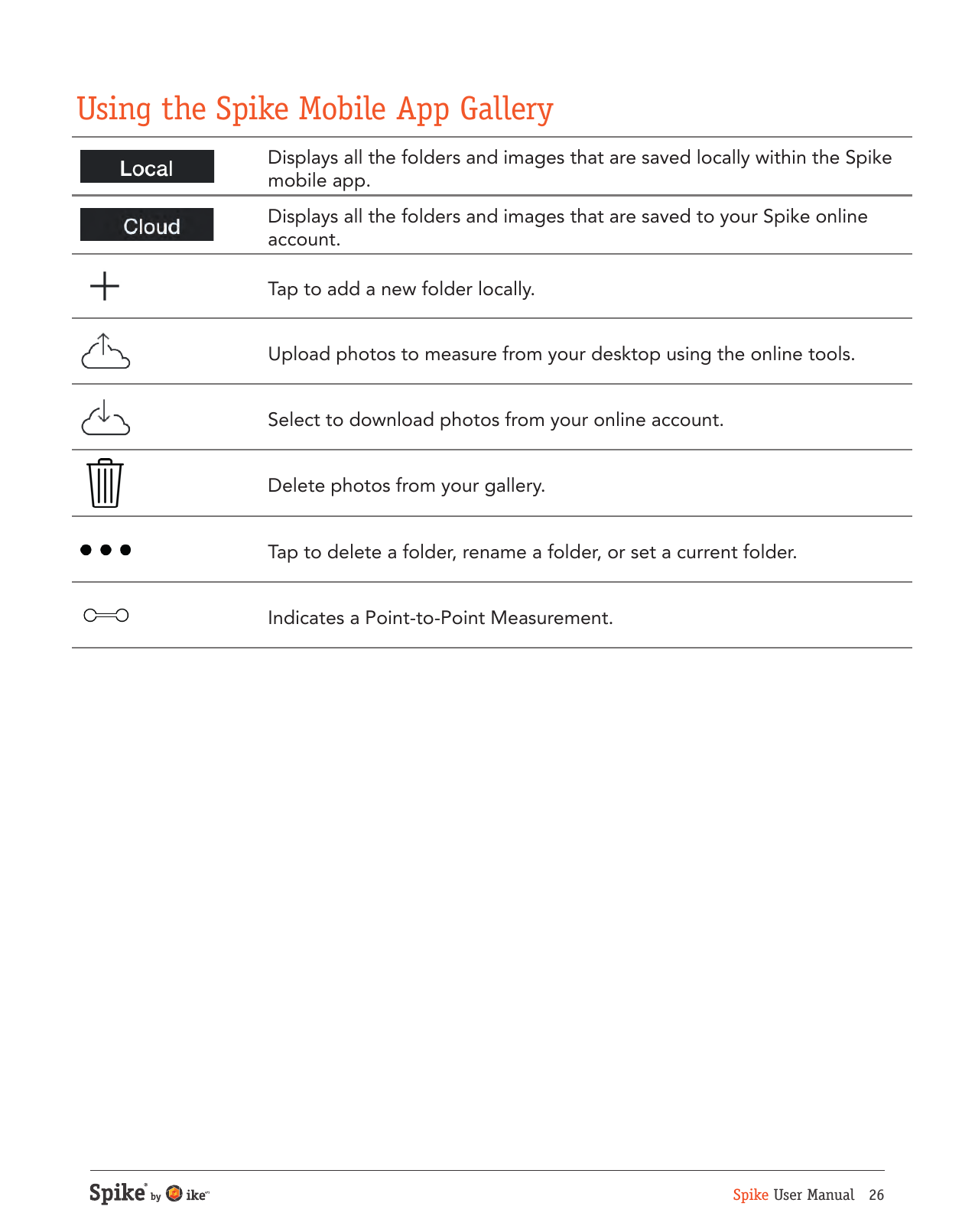
Spike User Manual   26Displays all the folders and images that are saved locally within the Spike mobile app.Displays all the folders and images that are saved to your Spike online account.Tap to add a new folder locally.Upload photos to measure from your desktop using the online tools.Select to download photos from your online account.Delete photos from your gallery.Tap to delete a folder, rename a folder, or set a current folder. Indicates a Point-to-Point Measurement.Using the Spike Mobile App Gallery
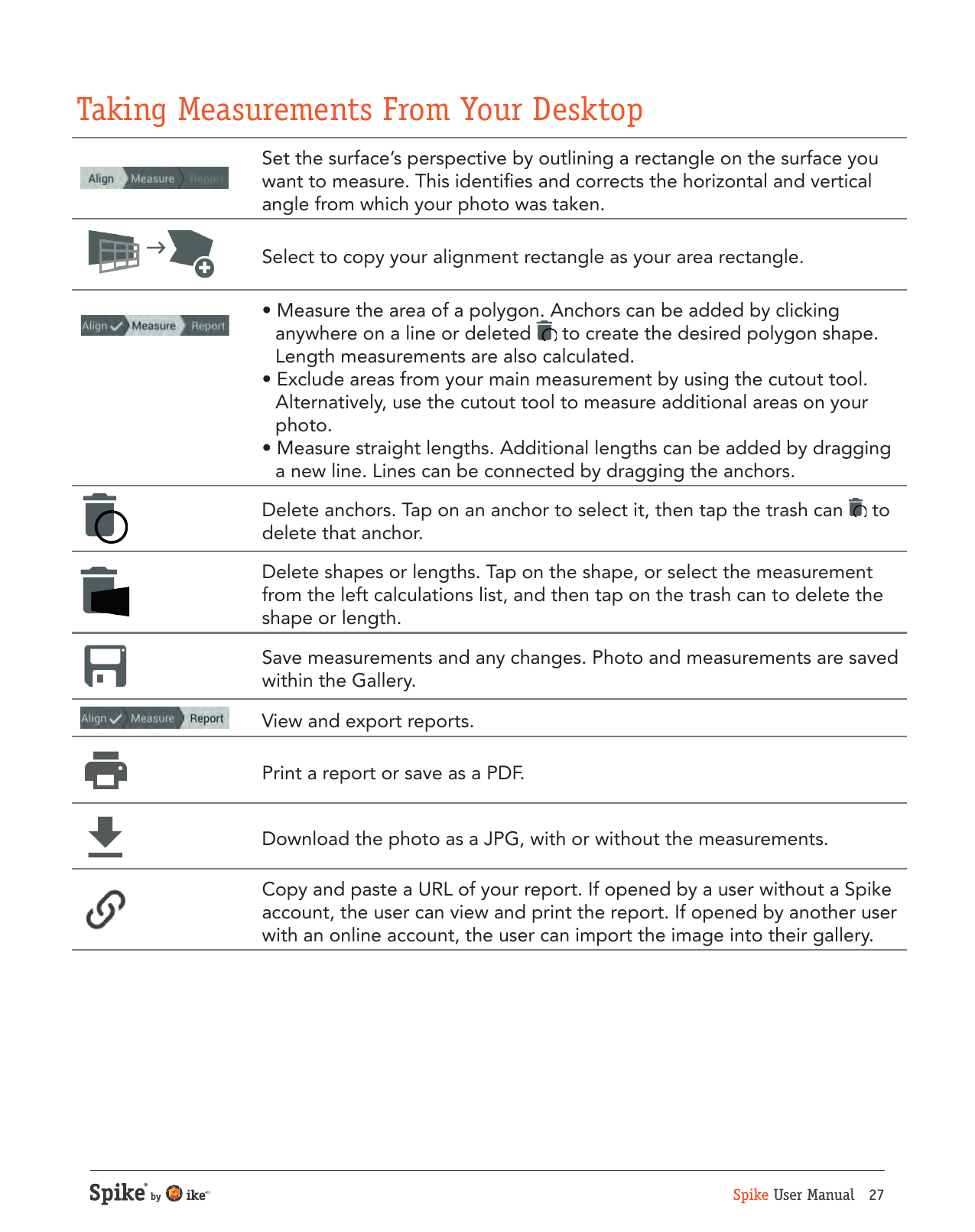
Spike User Manual   27  Set the surface’s perspective by outlining a rectangle on the surface you want to measure. This identies and corrects the horizontal and vertical angle from which your photo was taken. Select to copy your alignment rectangle as your area rectangle.• Measure the area of a polygon. Anchors can be added by clicking anywhere on a line or deleted   to create the desired polygon shape. Length measurements are also calculated.• Exclude areas from your main measurement by using the cutout tool. Alternatively, use the cutout tool to measure additional areas on your photo.• Measure straight lengths. Additional lengths can be added by dragging a new line. Lines can be connected by dragging the anchors.Delete anchors. Tap on an anchor to select it, then tap the trash can   to delete that anchor. Delete shapes or lengths. Tap on the shape, or select the measurement from the left calculations list, and then tap on the trash can to delete the shape or length.Save measurements and any changes. Photo and measurements are saved within the Gallery.View and export reports.Print a report or save as a PDF. Download the photo as a JPG, with or without the measurements.Copy and paste a URL of your report. If opened by a user without a Spike account, the user can view and print the report. If opened by another user with an online account, the user can import the image into their gallery.Taking Measurements From Your Desktop
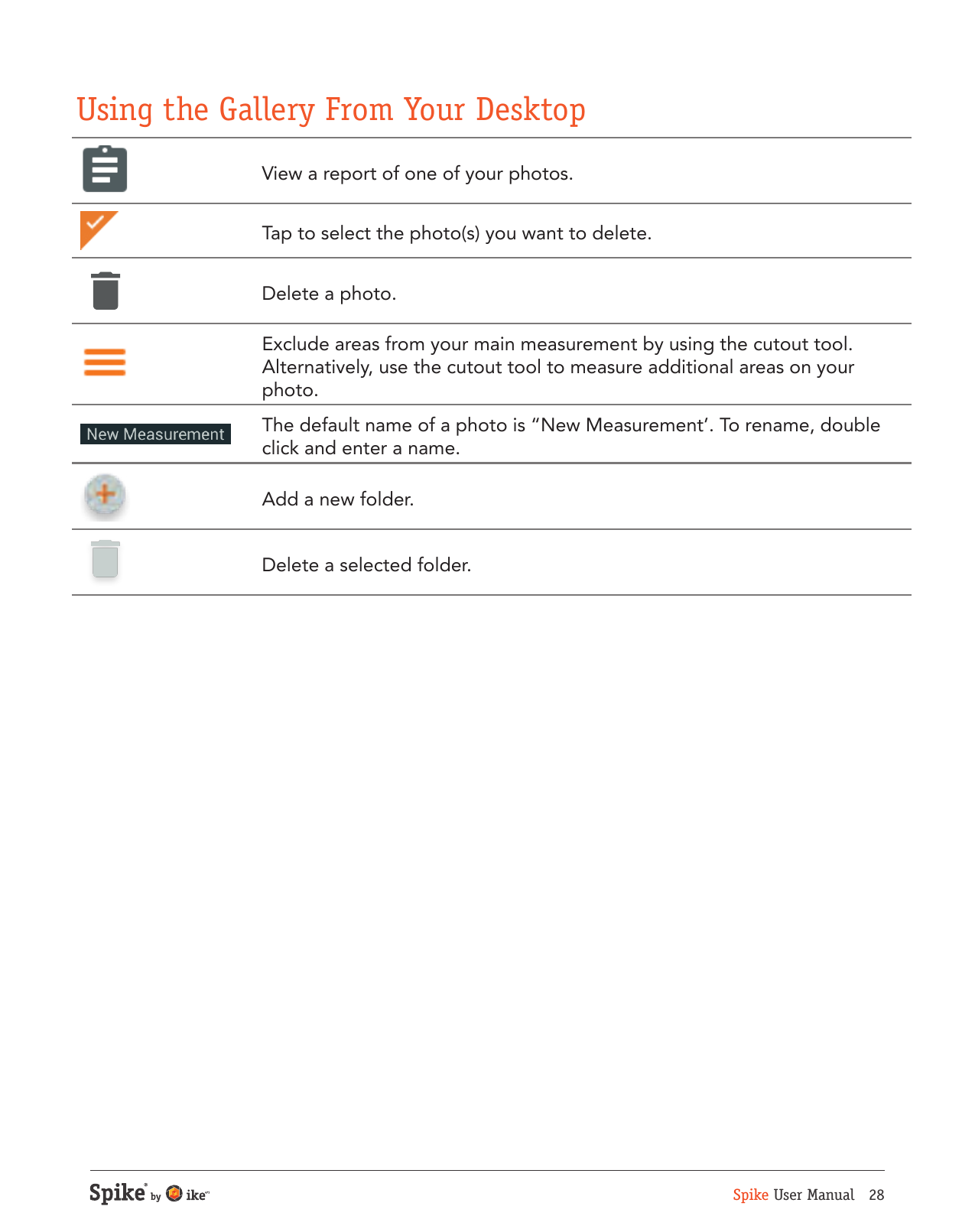
Spike User Manual   28View a report of one of your photos.Tap to select the photo(s) you want to delete.Delete a photo.Exclude areas from your main measurement by using the cutout tool. Alternatively, use the cutout tool to measure additional areas on your photo.The default name of a photo is “New Measurement’. To rename, double click and enter a name.Add a new folder.Delete a selected folder.Using the Gallery From Your Desktop
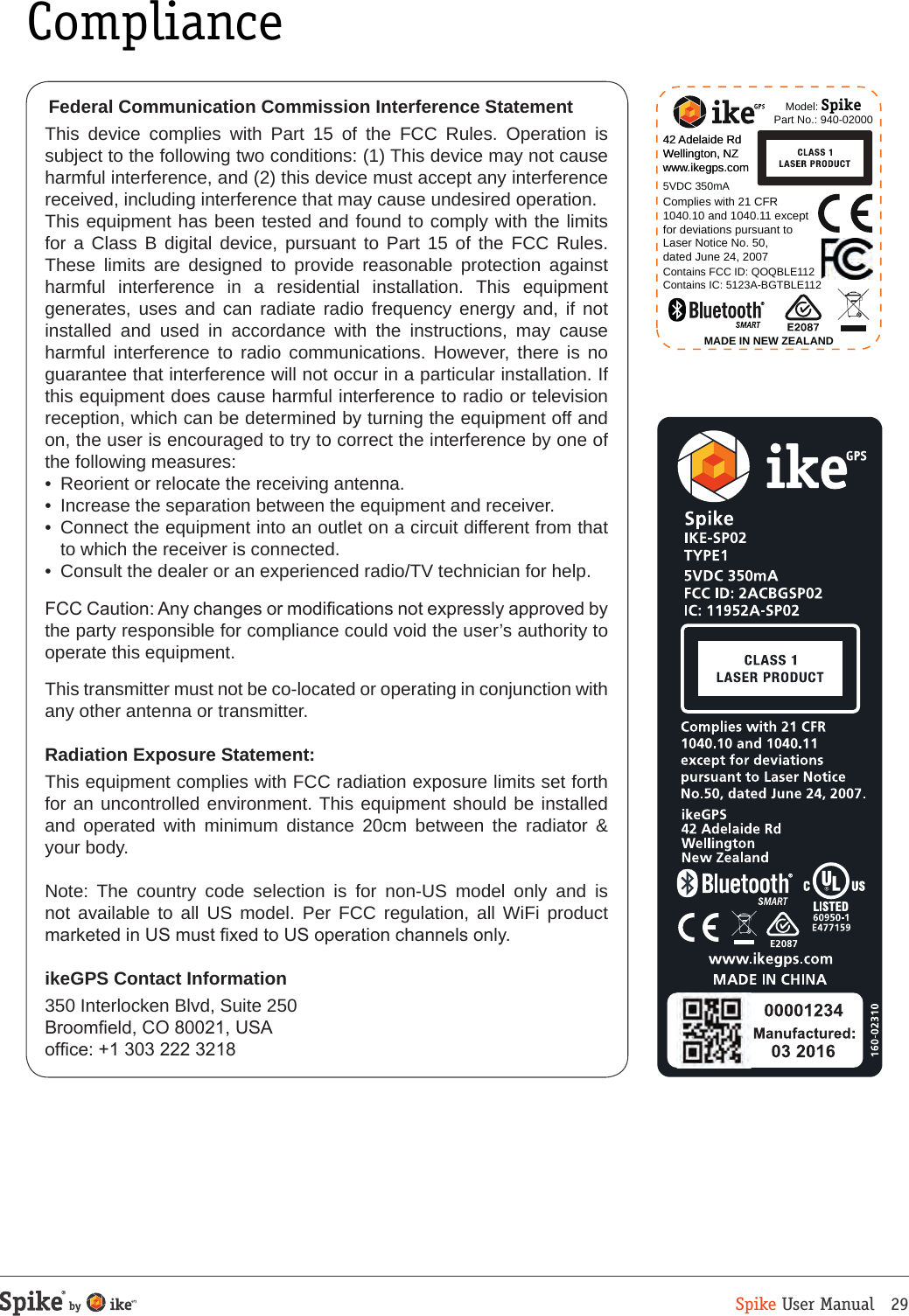
Spike User Manual   29ComplianceFederal Communication Commission Interference StatementThis device complies with Part 15 of the FCC Rules. Operation is subject to the following two conditions: (1) This device may not cause harmful interference, and (2) this device must accept any interference received, including interference that may cause undesired operation.This equipment has been tested and found to comply with the limits for a Class B digital device, pursuant to Part 15 of the FCC Rules. These limits are designed to provide reasonable protection against harmful interference in a residential installation. This equipment generates, uses and can radiate radio frequency energy and, if not installed and used in accordance with the instructions, may cause harmful interference to radio communications. However, there is no guarantee that interference will not occur in a particular installation. If this equipment does cause harmful interference to radio or television reception, which can be determined by turning the equipment off and on, the user is encouraged to try to correct the interference by one of the following measures:•  Reorient or relocate the receiving antenna.•  Increase the separation between the equipment and receiver.•  Connect the equipment into an outlet on a circuit different from that to which the receiver is connected.•  Consult the dealer or an experienced radio/TV technician for help.FCC Caution: Any changes or modications not expressly approved by the party responsible for compliance could void the user’s authority to operate this equipment.This transmitter must not be co-located or operating in conjunction with any other antenna or transmitter.Radiation Exposure Statement:This equipment complies with FCC radiation exposure limits set forth for an uncontrolled environment. This equipment should be installed and operated with minimum distance 20cm between the radiator & your body.Note: The country code selection is for non-US model only and is not available to all US model. Per FCC regulation, all WiFi product marketed in US must xed to US operation channels only.ikeGPS Contact Information350 Interlocken Blvd, Suite 250Broomeld, CO 80021, USAofce: +1 303 222 321842 Adelaide RdWellington, NZwww.ikegps.com42 Adelaide RdWellington, NZwww.ikegps.comModel: SpikeComplies with 21 CFR 1040.10 and 1040.11 except for deviations pursuant to Laser Notice No. 50, dated June 24, 2007Part No.: 940-020005VDC 350mAMADE IN NEW ZEALANDContains FCC ID: QOQBLE112Contains IC: 5123A-BGTBLE112
Spike User Manual   30Industry Canada Statement:This device complies with RSS-210 of the Industry Canada Rules. Operation is subject to the following two conditions: (1) This device may not cause harmful interference, and (2) this device must accept any interference received, including interference that may cause undesired operation.Ce dispositif est conforme à la norme CNR-210 d’Industrie Canada applicable aux appareils radio exempts de licence. Son fonctionnement est sujet aux deux conditions suivantes: (1) le dispositif ne doit pas produire de brouillage préjudiciable, et (2) ce dispositif doit accepter tout brouillage reçu, y compris un brouillage susceptible de provoquer un fonctionnement indésirable.Radiation Exposure Statement:This equipment complies with IC radiation exposure limits set forth for an uncontrolled environment. This equipment should be installed and operated with minimum distance 20cm between the radiator & your body.Déclaration d’exposition aux radiations:Cet équipement est conforme aux limites d’exposition aux rayonnements IC établies pour un environnement non contrôlé. Cet équipement doit être installé et utilisé avec un minimum de 20 cm de distance entre la source de rayonnement et votre corps.ikeGPS Contact Information350 Interlocken Blvd, Suite 250Broomeld, CO 80021, USAofce: +1 303 222 3218Europe - EU Declaration of ConformityThis device complies with the essential requirements and other relevant provisions of the R&TIE Directive 1999/5/EC. The following test methods have been applied in order to prove presumption of conformity with the essential requirements of the R&TIE Directive 1999/5/EC:•  EN 60950-1/A12: 2011•  EN 300 328 V1.8.1: 2012  Electromagnetic compatibility and Radio spectrum Matters (ERM); Wideband Transmission systems; Data transmission equipment operating in the 2,4 GHz ISM band and using spread spectrum modulation techniques; Harmonized EN covering essential requirements under article 3.2 of the R&TIE Directive•  EN 301 489-1 V1.9.2: 2011  Electromagnetic compatibility and Radio Spectrum Matters (ERM); ElectroMagnetic Compatibility (EMC) standard for radio equipment and services; Part 1: Common technical requirements•  EN 301 489-17 V2.2.1: 2012  Electromagnetic compatibility and Radio spectrum Matters (ERM); ElectroMagnetic Compatibility (EMC) standard for rad io equipment  and services; Part 17: Specic conditions for  2,4 GHz wideband transmission systems and 5 GHz high performance RLAN equipment•  EN 62479:2010  Assessment of the complia nce of low power electronic and electrical equipment with the basic restrictions related to human exposure to electromagnetic elds (10 MHz to 300 GHz)For additional compliance information, please visit www.ikegps.com/support.Copyright © 2014 ikeGPSDisposal of Old Electrical & Electronic Equipment (Applicable in the European Union)This symbol on the product or on its packaging indicates that this product shall not be treated as household waste. Instead it shall be returned, at no cost to you, to ikeGPS.By ensuring this product is disposed of correctly, you will help prevent potential negative consequences for the environment and human health, which could otherwise be caused by inappropriate waste handling of this product. The recycling of materials will help to conserve natural resources. For more detail on how to recycle your Spike please visit www.ikegps.com/support and submit a request for collection. ikeGPS will coordinate the collection of the unit from you with our logistics service provider at no additional cost to you.

Navigation menu