Arima Communication 3600 3G Pocket PC phone with BT and WLAN User Manual Ch11 Xda Star IM Eng Synchronisation indd

Arima Communication Corporation 3G Pocket PC phone with BT and WLAN Ch11 Xda Star IM Eng Synchronisation indd

Contents

User manual 3
Chapter 11   Synchronization  11.1   About synchronization  11.2   Installing ActiveSync  11.3   Choosing your connection  11.4   Synchronizing information  11.5   ActiveSync Errors
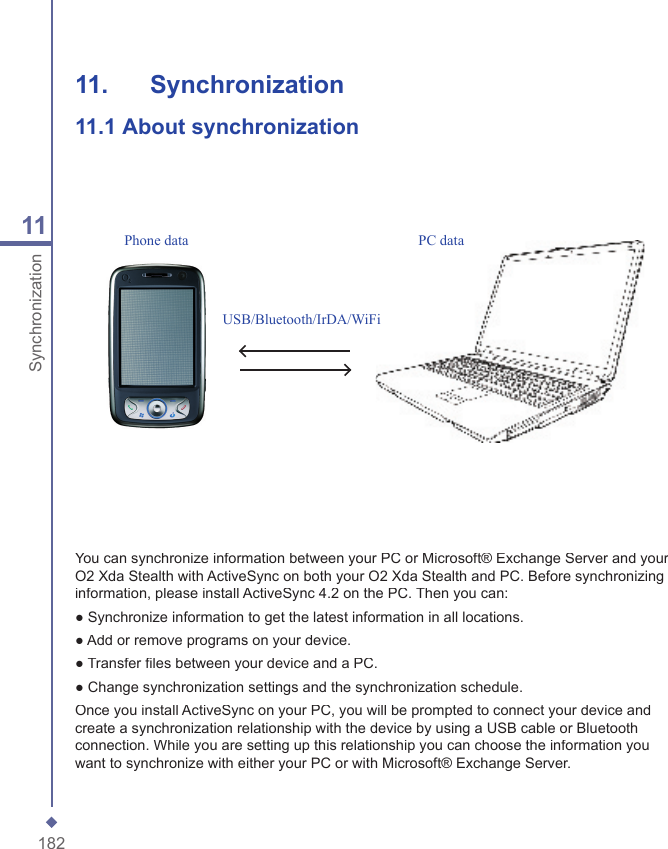
18211Synchronization11.   Synchronization11.1  About synchronizationYou can synchronize information between your PC or Microsoft® Exchange Server and your O2 Xda Stealth with ActiveSync on both your O2 Xda Stealth and PC. Before synchronizing information, please install ActiveSync 4.2 on the PC. Then you can:● Synchronize information to get the latest information in all locations.● Add or remove programs on your device.● Transfer fi les between your device and a PC.● Change synchronization settings and the synchronization schedule.Once you install ActiveSync on your PC, you will be prompted to connect your device and create a synchronization relationship with the device by using a USB cable or Bluetooth connection. While you are setting up this relationship you can choose the information you want to synchronize with either your PC or with Microsoft® Exchange Server.USB/Bluetooth/IrDA/WiFiPhone data PC data
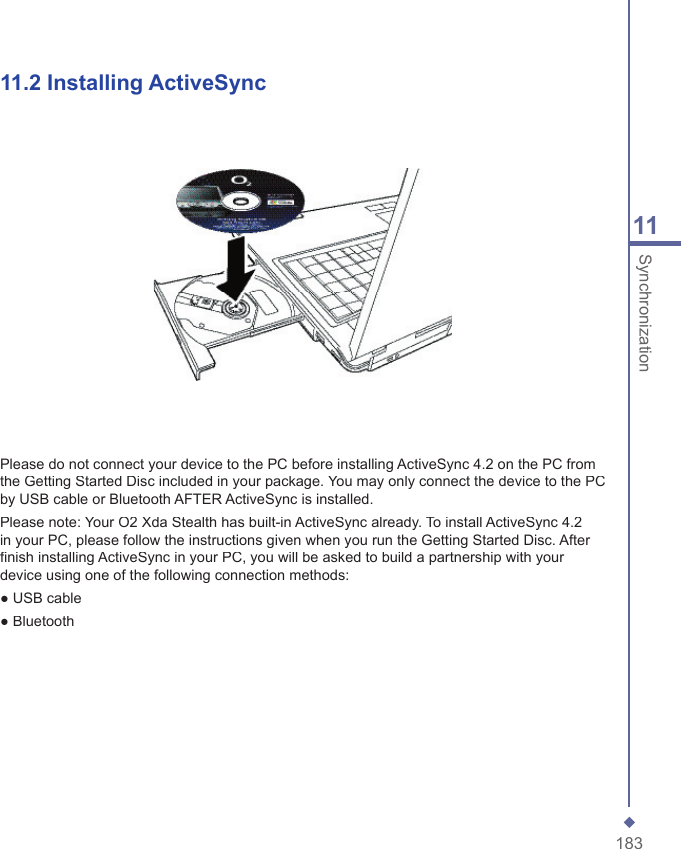
18311Synchronization11.2   Installing ActiveSyncPlease do not connect your device to the PC before installing ActiveSync 4.2 on the PC from the Getting Started Disc included in your package. You may only connect the device to the PC by USB cable or Bluetooth AFTER ActiveSync is installed.Please note: Your O2 Xda Stealth has built-in ActiveSync already. To install ActiveSync 4.2 in your PC, please follow the instructions given when you run the Getting Started Disc. After fi nish installing ActiveSync in your PC, you will be asked to build a partnership with your device using one of the following connection methods:● USB cable● Bluetooth
18411Synchronization11.3  Choosing your  synchronization typeUSB cableYou can connect your device with other devices via a mini-USB connector. You can manually changethe connection settings as follows. The new settings will be used when you connect your device to thePC next time.1. Tap Start > Programs > ActiveSync.2. Tap Menu tab > Connections.3. Choose USB in the drop-down menus and check Synchronize all PCs using this connection. Bluetooth connectionYou can also synchronize your information by using Bluetooth wireless connectivity technology, which allows your device to connect to a Bluetooth-compatible device within 10 meters. For best connection results, it is recommended that you connect the device to the PC using USB to establish a synchronization relationship before connecting via Bluetooth.To synchronize via Bluetooth connection:1. Execute ActiveSync Help on the PC and follow the instructions for confi guring Bluetooth on your PC to support ActiveSync.2. Tap Start > Programs > ActiveSync.3. Tap Menu > Connect via Bluetooth. Make sure that the device and the PC are within 10 meters or shorter.4. Tap Sync.5. After fi nishing the synchronization, tap Menu > Disconnect Bluetooth.6. Turn off Bluetooth to preserve battery power if not used.Please note: Before you connect to this PC via Bluetooth, please make sure that you have set up a Bluetooth partnership with the PC: Tap Start > Settings > Connections > Bluetooth.For more details, please refer to Chapter 6 Getting Connected..
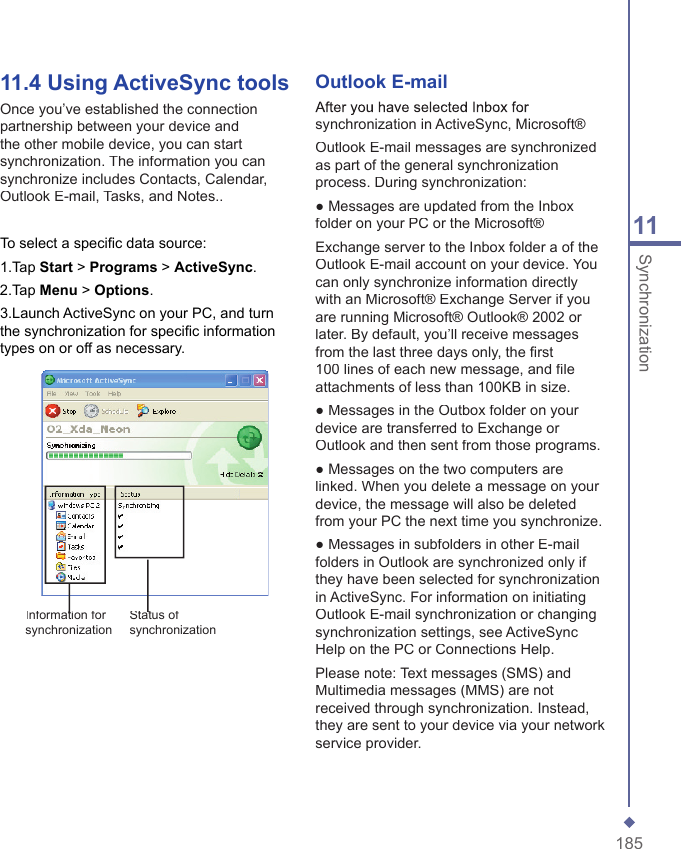
18511Synchronization11.4  Using ActiveSync toolsOnce you’ve established the connection partnership between your device and the other mobile device, you can start synchronization. The information you can synchronize includes Contacts, Calendar, Outlook E-mail, Tasks, and Notes..To select a specifi c data source:1.Tap Start > Programs > ActiveSync.2.Tap Menu > Options.3.Launch ActiveSync on your PC, and turn the synchronization for specifi c information types on or off as necessary. Outlook E-mailAfter you have selected Inbox for synchronization in ActiveSync, Microsoft®Outlook E-mail messages are synchronized as part of the general synchronization process. During synchronization:● Messages are updated from the Inbox folder on your PC or the Microsoft®Exchange server to the Inbox folder a of the Outlook E-mail account on your device. You can only synchronize information directly with an Microsoft® Exchange Server if you are running Microsoft® Outlook® 2002 or later. By default, you’ll receive messages from the last three days only, the fi rst 100 lines of each new message, and fi le attachments of less than 100KB in size.● Messages in the Outbox folder on your device are transferred to Exchange or Outlook and then sent from those programs.● Messages on the two computers are linked. When you delete a message on your device, the message will also be deleted from your PC the next time you synchronize.● Messages in subfolders in other E-mail folders in Outlook are synchronized only if they have been selected for synchronization in ActiveSync. For information on initiating Outlook E-mail synchronization or changing synchronization settings, see ActiveSync Help on the PC or Connections Help.Please note: Text messages (SMS) and Multimedia messages (MMS) are not received through synchronization. Instead, they are sent to your device via your network service provider.Information for Information for synchronizationStatus of Status of synchronization
18611Synchronization Please note   Text messages (SMS) and Multimedia messages (MMS) are not received through synchronization. Instead, they are sent to your device via your network operator.CalendarYou can synchronize calendar items on your device with calendar items on your PC or Microsoft® Exchange Server. You can only synchronize information directly with a Microsoft® Exchange Server if you are running Microsoft® Outlook® 2002 or later. Calendar synchronization is automatically selected in ActiveSync.Calendar items entered on one computer are copied to the other during synchronization. Handwritten notes and drawings are saved as metafi les (pictures)..ContactsContacts stored on your device can be synchronized with Outlook contacts stored on your PC or with Microsoft® Outlook® 2002 or later.New items entered in one location are copied to the other during synchronization. Handwritten notes and drawings are saved as pictures when synchronizing with your PC, but are removed when synchronizing with a server. For more information on synchronization, see ActiveSync Help on the PC. TasksTasks stored on your device can be synchronized with Outlook on your PC. Task synchronization is automatically selected in ActiveSync.New items entered on one computer are copied to your device during synchronization. Handwritten notes and drawings are saved as metafi les (pictures). For more information on synchronization, see ActiveSync Help on the PC. NotesNotes can be synchronized between your PC and phone either through notes synchronization or fi le synchronization. Notes synchronization synchronizes the notes on your device with Outlook Notes on your PC. File synchronization synchronizes all notes on your device with My Documents folder on your PC.To synchronize your notes through notes synchronization, fi rst select Notes information type for synchronization in ActiveSync. The next time you synchronize, all notes in My Documents and its subfolder on your device will appear in Outlook Notes on your PC. Notes that contain only text will appear as regular notes in Outlook on your PC, while notes containing written text or drawings will appear in the device format. In addition, all notes in Notes group in Outlook on the PC will appear in Notes on the device.To synchronize your notes as fi les, in ActiveSync, select Files information type for synchronization and clear Notes information type. When you
18711Synchronizationselect Files, My Documents folder is created on Toolyour PC’s desktop. All .pwi fi les placed in My Documents folder on your device and all .doc fi les placed in \ My Documents folder on your PC will be synchronized. Password-protected fi les cannot be synchronized. ActiveSync converts documents during synchronization. For more information on synchronization or fi le conversion, see ActiveSync Help on the PC.Please note: When you delete or change an item on either your PC or device, the item is changed or deleted in the other location the next time you synchronize. If you synchronize your notes using fi le synchronization and then later decide to use notes synchronization, all of your notes will be synchronized with Outlook on your PC and will no longer be stored in My Documents folder.11.5   ActiveSync ErrorsWhenever ActiveSync cannot successfully synchronize your information, it displays an error on your device and your PC.Viewing error informationPress Action button when the error text is displayed. ActiveSync will then display more information about the error that has occurred. Some types of errors can interfere with automatic synchronization. If you suspect that a scheduled automatic synchronization has not occurred, you should attempt to manually synchronize your information. Successfully completing manual synchronization will reset automatic synchronization. For more information, see Synchronizing Information section of ActiveSync Help on your PC.Please note: Most fi rewall applications are intended to block network traffi c and secure the PC from incoming network connections. Since ActiveSync uses TCP ports for data transfer with Devices, to avoid this potential experience, you will need to manually allow this traffi c to be un-blocked by Firewall applications for the Device using ActiveSync. You will need to add ActiveSync application processes into Firewall Programs Exception List.
Chapter 12   Managing your O2 Xda Flame12.1   Self Diagnostics12.2   O2 Auto-Confi gurator12.3  Power Management 12.4   Removing Programs12.5   Installing my own applications12.6  O2 AutoInstall
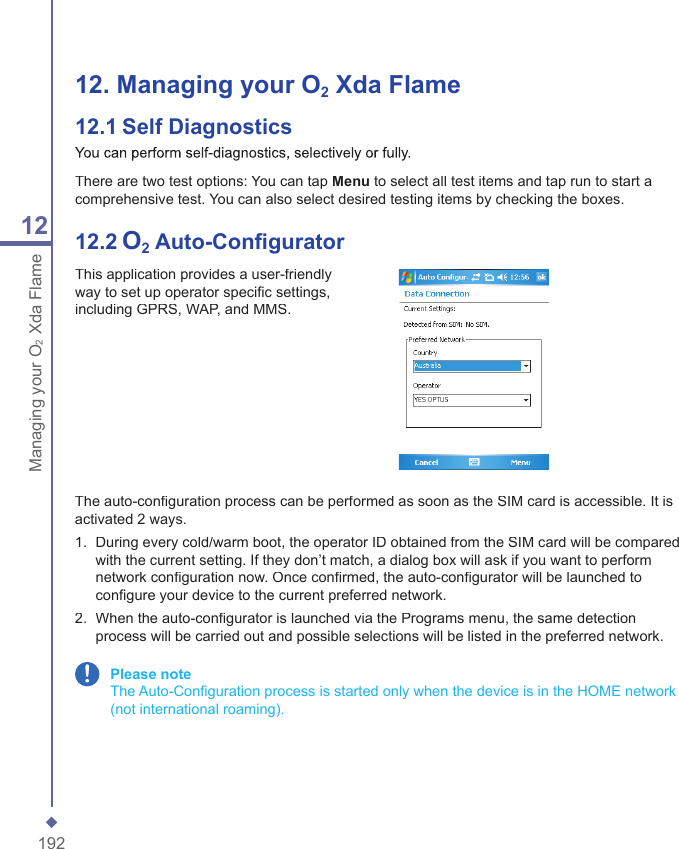
19212Managing your O2Xda Flame12.  Managing your O2 Xda Flame12.1   Self DiagnosticsYou can perform self-diagnostics, selectively or fully.There are two test options: You can tap Menu to select all test items and tap run to start a comprehensive test. You can also select desired testing items by checking the boxes.12.2   O2 Auto-Confi guratorThis application provides a user-friendly way to set up operator specifi c settings, including GPRS, WAP, and MMS.The auto-confi guration process can be performed as soon as the SIM card is accessible. It is activated 2 ways.1.   During every cold/warm boot, the operator ID obtained from the SIM card will be compared with the current setting. If they don’t match, a dialog box will ask if you want to perform network confi guration now. Once confi rmed, the auto-confi gurator will be launched to confi gure your device to the current preferred network.2.   When the auto-confi gurator is launched via the Programs menu, the same detection process will be carried out and possible selections will be listed in the preferred network. Please note   The Auto-Confi guration process is started only when the device is in the HOME network (not international roaming).
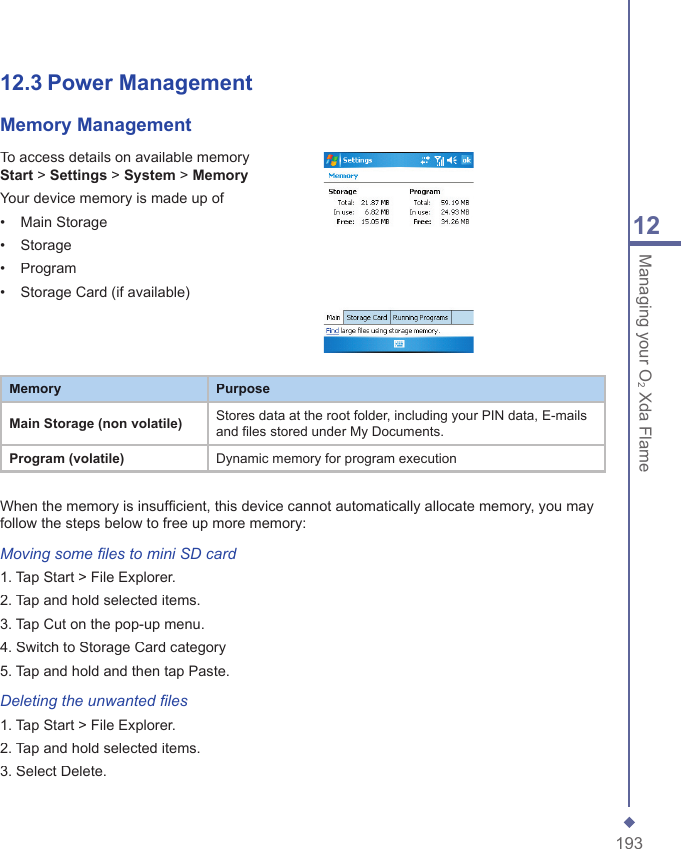
19312Managing your O2 Xda Flame12.3 Power Management Memory ManagementTo access details on available memory Start > Settings > System > MemoryYour device memory is made up of•   Main Storage•   Storage•   Program•   Storage Card (if available)MemoryPurposeMain Storage (non volatile)Stores data at the root folder, including your PIN data, E-mails and files stored under My Documents.Program (volatile)Dynamic memory for program executionWhen the memory is insuffi cient, this device cannot automatically allocate memory, you may follow the steps below to free up more memory:Moving some fi les to mini SD card1. Tap Start > File Explorer.2. Tap and hold selected items.3. Tap Cut on the pop-up menu.4. Switch to Storage Card category5. Tap and hold and then tap Paste.Deleting the unwanted fi les1. Tap Start > File Explorer.2. Tap and hold selected items.3. Select Delete.
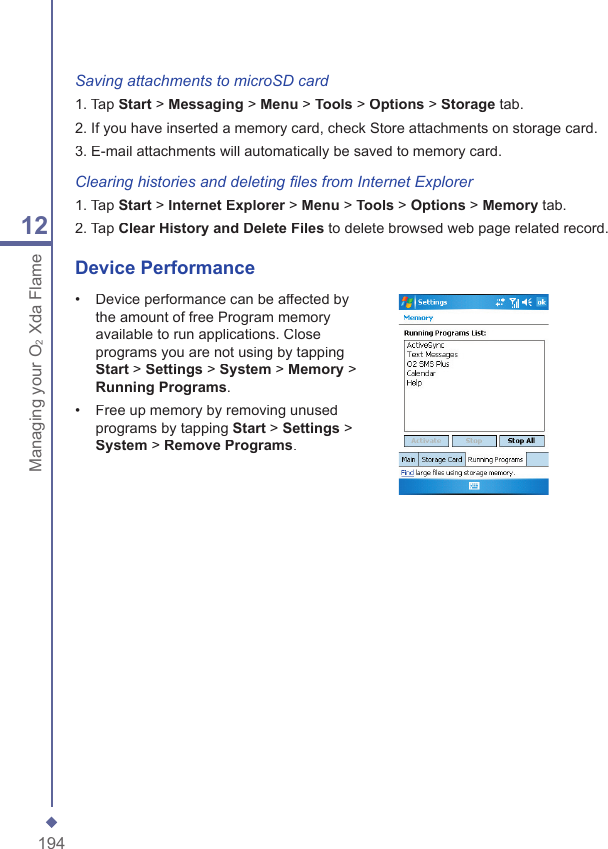
19412Managing your O2Xda FlameSaving attachments to microSD card1. Tap Start > Messaging > Menu > Tools > Options > Storage tab.2. If you have inserted a memory card, check Store attachments on storage card.3. E-mail attachments will automatically be saved to memory card.Clearing histories and deleting fi les from Internet Explorer1. Tap Start > InternetExplorer > Explorer > ExplorerMenu > Tools > Options > Memory tab.2. Tap Clear History and Delete Files to delete browsed web page related record.Device Performance•   Device performance can be affected by the amount of free Program memory available to run applications. Close programs you are not using by tapping Start > Settings > System > Memory > Running Programs.•   Free up memory by removing unused programs by tapping Start > Settings > System > Remove Programs.
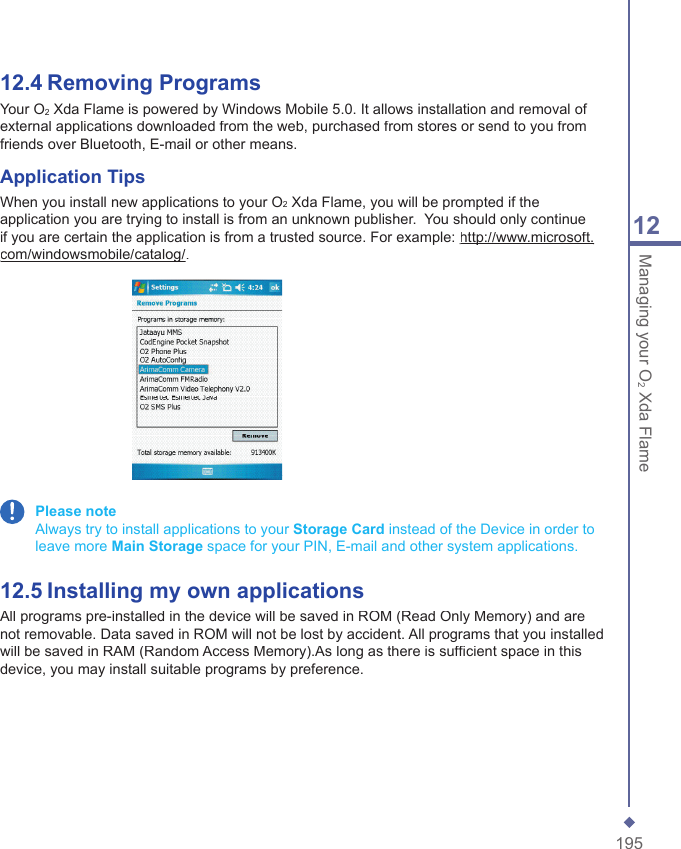
19512Managing your O2 Xda Flame12.4   Removing ProgramsYour O2 Xda Flame is powered by Windows Mobile 5.0. It allows installation and removal of external applications downloaded from the web, purchased from stores or send to you from friends over Bluetooth, E-mail or other means.Application TipsWhen you install new applications to your O2 Xda Flame, you will be prompted if the application you are trying to install is from an unknown publisher.  You should only continue if you are certain the application is from a trusted source. For example: http://www.microsoft.http://www.microsoft.com/windowsmobile/catalog/com/windowsmobile/catalog/. Please note    Always try to install applications to your Storage Card instead of the Device in order to leave more Main Storage space for your PIN, E-mail and other system applications.12.5   Installing my own applicationsAll programs pre-installed in the device will be saved in ROM (Read Only Memory) and are not removable. Data saved in ROM will not be lost by accident. All programs that you installed will be saved in RAM (Random Access Memory).As long as there is suffi cient space in this device, you may install suitable programs by preference.
19612Managing your O2Xda FlameAdding programs through ActiveSync1. Before installing the program, please make sure that your O2 Xda Flame processor is suitable for the software. Tap Start > Settings > System tab > About >Version tab to check for information of this device.2. Download the desired software to your computer (Please select software that is designed for Pocket PC and this device).3. Read installation instructions, readme fi le, or accompanied programs provided to you.4. Connect your computer with this device.5. Install executive fi le to your computer.If this fi le contains installation program, the installation wizard will automatically activate. Please follow the instructions on screen. Once the installation on your computer is completed, the program will automatically be installed to this device. If this fi le does not contain any installation program, an error message will show on the screen and tell you this program is invalid, which is not suitable for your computer. You must move this program to this device manually. If you cannot fi nd any installation instructions for this program, please use “Browse” function of ActiveSync to copy program fi le to Program Files folder in this device. After completing installation, tap Start > Programs, and then select the program icon to launch that program.Adding programs through InternetYou may download software suitable for this device from Internet.1.Before installing the program, please make sure that your O2 Xda Flame processor is suitable for the software.Tap Start > Settings > System tab > About > Version tab to check information in this device.2.Directly download programs to this device by using Internet Explorer in this device. (Please select programs designed for Pocket PC and this device)3.Read installation instructions, readme fi le, or accompanied programs provided to you.4.Run installation executive fi le in your computer.Adding programs to Start menuTap Start > Settings > Personal tab > Menu.1. Check the programs to be displayed on Start menu.2. Tap OK to save settings and return to Personal tab screen.
19712Managing your O2 Xda Flame12.6 O2 AutoInstallO2 Auto Installer provides you with a list of ready-to-install applications for your O2 Xda Flame. These optional applications can help you do more with your device. When you need them, you can choose to install them anytime by tapping Start > Programs > O2 Auto Install > checking Option next to the application and tap Next to start.
19812Managing your O2Xda Flame
 Chapter 13   TV Connection   13.1   Connecting to a TV
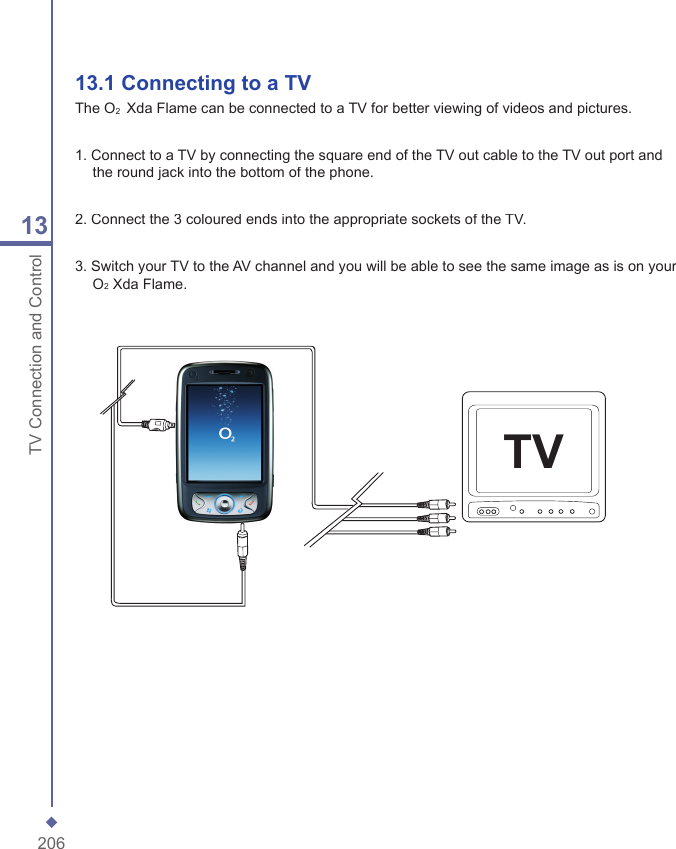
20613TV Connection and Control13.1 Connecting to a TVThe O2  Xda Flame can be connected to a TV for better viewing of videos and pictures.1. Connect to a TV by connecting the square end of the TV out cable to the TV out port and the round jack into the bottom of the phone.2. Connect the 3 coloured ends into the appropriate sockets of the TV.3. Switch your TV to the AV channel and you will be able to see the same image as is on your  O2 Xda Flame.TV
Chapter 14   Troubleshooting14.1   Glossary14.2   Troubleshooting
20814Troubleshooting14.1  GlossaryRoamingRoaming allows your phone to be used when not in your home country. Please contact your network operator for more information.HandoverHandover allows you to move from one base station to another, or from one network to another, without affecting the call.Tri-bandYour phone operates on different frequencies in different countries. A tri-band phone can switch between three frequencies (900, 1800 and 1900 Mhz). The O2 Xda Flame is a tri-band Pocket PC Phone.SIM cardA SIM card is the little plastic card you get from your network operator and holds the unique data the network needs to identify your phone and operate it.PIN and PUKAccess to a phone is most often protected by a code known as “PIN”– Personal Identifi cation Number. Your SIM card comes with a default PIN that you can change to any code. If you forget your code, or by mistake enter a faulty code three times, the SIM card will lock. To unlock it, you must enter the Personal Unblocking Key, or “PUK” code, which you can get from your network operator.PIN2PIN2 is a security code that you can obtain from your network operator.IMEIIMEI stands for International Mobile Equipment Identifi er and is a number that’s unique to your phone.WAPWireless Application Protocol (WAP) allows you to access information and entertainment services.GPRSGeneral Packet Radio System is a service that transmits data to and from your phone. Charges are based on the amount of transferred data rather than airtime.CSDA wireless service protocol used for WAP. CSD stands for Circuit Switched Data. This allows you to have continuous WAP connection. You pay for the time spent connected rather than the amount of data.URLUniform Resource Locator or URL is an address system used on the Internet. All homepages have a unique address, allowing browsers to distinguish one from an other.APNAccess Point Name.ISPInternet Service Provider.
20914Troubleshooting14.2  TroubleshootingWhy can’t I turn on my device when I press the power key?Either you didn’t press the key long enough, or the device has shut down because the battery power level is too low to make calls. Please recharge the battery.How do I suspend the screen display or wake up the device?Press and hold the power key to turn off the device. If the screen display is off, press the power key to wake up your device.Why does my device display “INSUFFICIENT MEMORY” when I open a fi le or a program?The device memory is shared by both storage and programs. You can free up some memory by removing some of the rarely used programs you installed or removing rarely used fi les.Why doesn’t the screen respond accurately to my stylus taps?Tap Start > Settings > System tab > Screen > General tab. Select Align Screento align the screen.Why does my O2 Xda Flame launch wrong programs or ignore my command when I press a device key?Tap Start > Settings > Personal tab > Buttons and check whether the programs assigned to each key is correct. You can change these key assignments by preference.My phone displays ‘Insert SIM’, what does this mean?Insert the SIM card before you can use the device. If it is already installed, remove and clean the metal contacts area with a dry cloth, and then insert it again. If the problem persists, your SIM card may be damaged,  contact your service provider or call our service hotline for help.My phone displays ‘INVALID or Missing SIM’, what does this mean?The phone is SIM-locked and will not accept the inserted SIM card.Insert the correct SIM card or contact your network operator.My phone displays ‘EMERGENCY ONLY’, what does this mean?Your SIM card is not properly installed or confi gured, or you are out of network range.My phone displays ‘NO NETWORK’, what does this mean?Insert the SIM card before you can use the device. If it is already installed, remove and clean the metal contacts area with a dry cloth, and then insert it again.Some calls are not processed.?Certain call barring function may have been set to restrict device usage. Check the call barring status and cancel as necessary.Someone else is receiving my calls. What is wrong?Call Forward feature could have been activated. Cancel call forwarding function as necessary.Can I send and receive emails and surf the Mobile Internet on my phone?Yes. Your phone has Web capability, which means that you can access the Mobile Internet from your phone. For sending and receiving E-mails, please look in the user manual or contact O2 Customer Service.
21014TroubleshootingMy phone is not running well. How can I check where my phone goes wrong?Tap Start > Programs > Self Diagnosticsto run diagnostic tests for your system. Otherwise, have your warranty card and phone ready and contact your local dealer.Why does the screen freezes and does not respond to my commands or input?Reboot the system to free up memory. The system shall operate more effi ciently. If the system still lags after rebooting, you will need to clean boot your O2 Xda Flame. To clean boot, power off your O2 Xda Flame and then press Windows   key, OK key and the Power key at the same time, for about 5 seconds. Your O2 Xda Flame will reset to factory defaults and reboot.Please note: When you perform a clean boot on your O2 Xda Flame, all your personalized settings, information, and programs installed will be removed. The system will reset to factory defaults.My O2 Xda Flamre can’t form a successful connection with ActiveSync.Please make sure you have installed ActiveSync 4.2 or later on your computer. You can fi nd ActiveSync in the installation CD, or you can download the latest version from Microsoft’s website. Please make sure you have connected your O2 Xda Flame to the computer by plugging in the USB cable to both your O2 Xda Flame and the computer. Make sure that you are not running another program that uses the same serial port. If the connection still fails, remove ActiveSync on your computer and reinstall it.Why are there double entries in my Contacts list?You may have selected Show SIM Contacts in Contacts menu. If you have already copied your SIM contacts to your O2 Xda Flame, then you do not need to select this option.Why can’t my O2 Xda Flame make any sound alerts?Tap on the speaker icon   on the top right corner of the screen, and then adjust the alert or ring volume. You could also use the volume key on the left side of your O2 Xda Flame to adjust volume.
Chapter 15   Safety Information15.1   Safety Information15.2   Phone Care15.3   Driving Safety  15.4  Other Safety  15.5  Cautions
21015Safety  Information15.1  Safety informationRead this informationYour O2 Xda Flame Pocket PC Phone has been designed, manufactured and tested not to exceed the limits for exposure to electromagnetic fi elds recommended by the Council of the European Union and the FCC rule of the United States. These limits are part of comprehensive guidelines developed by independent scientifi c organizations.European standards provide for the amount of radio frequency electromagnetic energy absorbed by the body when using a phone to be measured by reference to the Specifi c Absorption Rate (SAR). The SAR limit for the general public is currently 2 watts per kilogram averaged over 10 grams of body tissue of head tissue (<2.0W/kg @ 10g) and the FCC public is currently 1.6 watts per kilogram averaged over 1 grams of head and body tissue (<1.6W/kg @ 1g).The maximum SAR values for the O2 Xda Flame are  •  0.751 W/kg @10g (CE)  •  0.461 W/kg @1g (FCC) head  •  0.339 W/kg @1g (FCC) body15.2  Phone careYou should never attempt to open the phone casing. There are no user-serviceable parts You should never attempt to open the phone casing. There are no user-serviceable parts You should neverinside and you might damage sensitive electronic circuits and components. Unauthorized disassembly will void the warranty.You should never leave your phone in the window of your car or otherwise expose it to You should never leave your phone in the window of your car or otherwise expose it to You should neverstrong sunlight or excessive heat for a prolonged period. This may damage it.You should never handle your phone with wet hands or expose it to moisture or liquids of You should never handle your phone with wet hands or expose it to moisture or liquids of You should neverany kind. Continuous changes from a cold to a warm environment may lead to condensation inside the phone, resulting in corrosion and possible damage.If you pack your phone in your suitcase during travel, beware damage. Cramming a suitcase may crack the LCD display. Remember to switch off your wireless connections during air travel.As with all other radio devices, touching the built-in antenna area during telephone conversation may impair the quality and lead to shorter standby time due to increased power consumption.
21115safety InformationThe batteryYour phone is equipped with a high-performance Li-Ion battery. Optional battery types may not be available; check with your local retailer. Observe the maintenance guidelines and your battery should give you a long service life.•   At the beginning of the battery’s life, fully charge and discharge (let it go fl at) three times.•   Do not overcharge the Li-Ion battery, as this can result in a reduction in battery performance and lifespan. The recommended maximum charge time is 2.5 hrs.•   Avoid repeated short charging. It is preferable to let the battery go fl at and then recharge it completely.•   Avoid charging in strong heat or extreme cold. Ambient room temperature is preferable. The battery has its optimum performance in an ambient temperature of +5 °C to +45 °C.•   Don’t store a battery near a fi re or heat source.•   Use only the battery approved by the manufacturer.•   Never replace the battery with a non-approved battery.•   Never soak the battery in water or any other fl uid.•   Never try to open the battery as it contains substances that might be harmful if swallowed or allowed to come into contact with unprotected skin.•   Never short-circuit the battery, as it may overheat and cause a fi re. Keep it away from jewellery and other metal objects.•   Never dispose of the battery in a fi re. It could explode and release harmful substances into the environment.•   Never dispose of the battery with your regular household waste. Take it to a hazardous material collection point.•   Do not touch the battery terminals. Caution     There is a risk of explosion if a battery is replaced by an incorrect type.
21215Safety  InformationThe charger•   Use only the charger supplied with your phone.•   Never pull the charger cord to release it from the mains – pull the charger itself.Memory card•   Do not remove or insert a memory card or turn off the handset while data on the card is being edited.•   Do not touch the metal terminals with your hands or metal objects.•   Do not bend the memory card or subject it to violent impacts. Keep it away from water and high temperatures.•   Keep all memory cards out of the reach of small children.•   Do not short circuit the contact points or expose it to liquids or moisture. When not in use, keep it in the antistatic container it came in.•   Do not use force when inserting or handling the card, and do not expose it to excessive heat or strong magnetic fi elds.Cleaning and storing•   Your phone should always be handled with care and protected from dirt, dust and dampness. To avoid scratches, never place your phone face down.•   If cleaning is necessary, switch the phone off and wipe carefully with a soft, slightly damp (not wet) cloth. Use a cotton swab to clean the camera lens. Allow the phone to dry completely before switching it on. Never use solvents for cleaning.•   If you are not going to use your phone for some time, fully charge the battery and store the phone in a dry place away from direct sunlight. Your phone should be switched off during storage. Recharge every 6 to 12 months.•   Never expose your phone to heat or strong sunlight.•   Never expose your phone to moisture or liquids of any kind.•   Do not paint your phone or otherwise block the keypad, microphone or earpiece function, i.e. with stickers..
21315safety Information15.3  Driving safetyNever use the handheld phones while driving. It is an offence while driving to hold a phone or cradle it in your neck, at any point during the setup, making or taking of a phone call, text message or any other data related to mobile communication. Use of fully installed car kits are still permitted, as are the use of alternate handsfree accessories.In the interest of safety, we would recommend to use a cradle while using any form of handsfree accessory.While driving, we recommend that you use voicemail wherever possible, and that you can listen to your messages when you are not in the car. If you must make a handsfree call when driving, keep it brief.An airbag infl ates with great force. Do notplace objects, including both installed or portable wireless equipment, in the area over the airbag or in the airbag deployment area. If in-vehicle wireless equipment is improperly installed and the air bag infl ates, serious injury could result. Warning     Failure to follow these instructions may lead to serious personal injury and possible property damage.15.4  Other safetyMost modern electronic equipment is shielded from RF energy.However, certain electronic equipment may not be shielded against the RF signals from your Pocket PC phone.PacemakersThe Health Industry Manufacturers’ Association recommends that a minimum separation of six (6”) inches be maintained between a phone and a pacemaker to avoid potential interference with the pacemaker. These recommendations are consistent with the independent research by and recommendations of Wireless Technology Research.If you have a pacemaker:•   Always keep your phone more than six inches from your pacemaker when turned on.•   Do not carry your phone in a breast pocket.•   Use the ear opposite to the pacemaker to minimize potential interference•   If you have any reason to suspect that interference is taking place, turn your phone off immediately.off immediately.offHearing aidsSome digital phones may interfere with some hearing aids. In the event of such interference, call O2 Customer Service to discuss alternatives.Other medical devicesIf you use any other personal medical device, consult the manufacturer of your device to determine if it is adequately shielded from external RF energy. Your physician may be able to assist you in obtaining this information.Hospitals or healthcare facilities may be using equipment that could be sensitive to external RF energy.
21415Safety  InformationTurn your phone off in healthcare facilities off in healthcare facilities offwhen any regulations posted in these areas instruct you to do so.VehiclesRF signals may affect improperly installed or inadequately shielded electronic systems in motor vehicles. Check with the manufacturer or its representative regarding your vehicle. You should also consult the manufacturer of any equipment added to your vehicle.Posted facilitiesTurn your phone off where posted notices off where posted notices offrequire you to do so.Magnetic mediaMagnetic fi elds generated by Pocket PC Phone may damage data on magnetic storage media, such as credit cards, computer discs or tapes. Do not place your phone next to such media.You should never expose your phone to strong magnetic fi elds as this may cause temporary malfunction.AircraftRegulations prohibit using your phone while in the air. Switch off your phone before off your phone before offboarding an aircraft or turn off the wireless connections.Blasting areasTo avoid interfering with blasting operations, turn your phone off when in a ‘blasting area’ or in areas posted: ‘Turn off two-way radio.’ Obey all signs and instructions.Potentially explosive environmentsTurn your phone off when in any area with a off when in any area with a offpotentially explosive environment and obey all signs and instructions.Sparks in such areas could cause an explosion or fi re resulting in bodily injury or even death.Areas with a potentially explosive environment are often, but not always, clearly marked. They include fuelling areas such as gas stations, below decks on boats, fuel or chemical transfer or storage facilities, vehicles using liquifi ed petroleum gas (such as propane or butane), areas where the air contains chemicals or articles, such as grain, dust, or metal powders, and any other area where you would normally be advised to turn off your vehicle’s engine.ChokingKeep your phone away from children as the SIM card and other small parts present a choking hazard.
21515safety Information15.5  CautionsYour Pocket PC Phone is a high quality piece of equipment. Before operating, read all instructions and cautionary markings on (1) AC Adaptor (2) Battery and (3) Product Using Battery.•   Do not use this equipment in an extreme environment where high temperature or high humidity exists.•   Do not abuse the equipment. Avoid striking, shaking or giving it a shock. When not using the unit, lay it down to avoid possible damage due to instability.•   Do not expose this equipment to rain or spilled beverages.•   Do not use unauthorized accessories.•   Do not disassemble the phone or its accessories. If service or repair is required, return the unit to an authorized service center. If the unit is disassembled, a risk of electric shock or fi re may result.•   Do not short-circuit the battery terminals with metal items.
21615Safety  Information
Chapter 16   Technical Data16.1   Technical Specifi cations16.2   EULA16.3   Declaration of Conformity16.4   About this guide
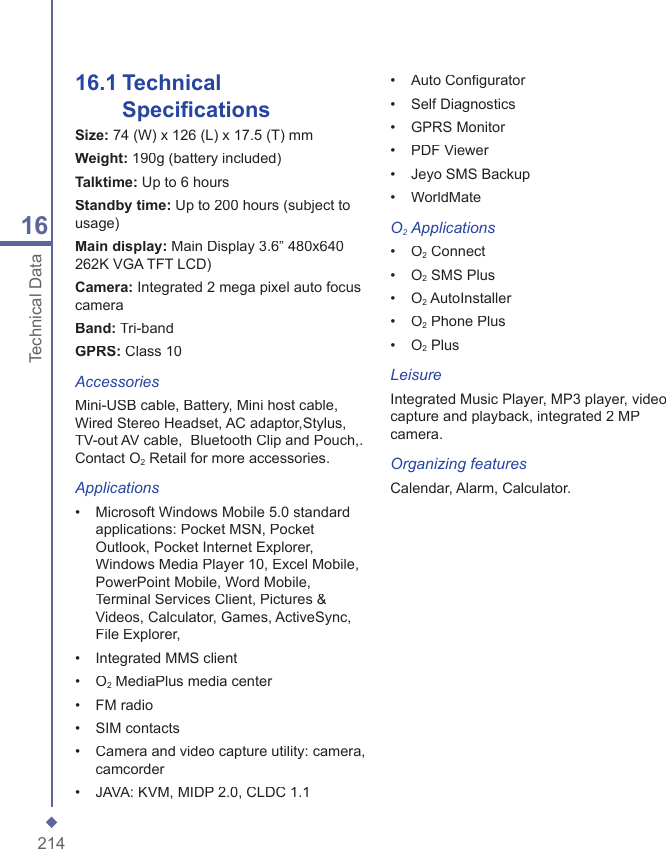
21416Technical Data16.1  Technical Specifi cationsSize: 74 (W) x 126 (L) x 17.5 (T) mmWeight: 190g (battery included)Talktime: Up to 6 hoursStandby time: Up to 200 hours (subject to usage)Main display: Main Display 3.6” 480x640 262K VGA TFT LCD)Camera: Integrated 2 mega pixel auto focus cameraBand: Tri-bandGPRS: Class 10AccessoriesMini-USB cable, Battery, Mini host cable, Wired Stereo Headset, AC adaptor,Stylus, TV-out AV cable,  Bluetooth Clip and Pouch,. Contact O2 Retail for more accessories.Applications•   Microsoft Windows Mobile 5.0 standard applications: Pocket MSN, Pocket Outlook, Pocket Internet Explorer, Windows Media Player 10, Excel Mobile, PowerPoint Mobile, Word Mobile, Terminal Services Client, Pictures & Videos, Calculator, Games, ActiveSync, File Explorer,•   Integrated MMS client•   O2 MediaPlus media center•   FM radio•   SIM contacts•   Camera and video capture utility: camera, camcorder•   JAVA: KVM, MIDP 2.0, CLDC 1.1•   Auto Confi gurator•   Self Diagnostics•   GPRS Monitor•   PDF Viewer•   Jeyo SMS Backup•   WorldMateO2 Applications•   O2 Connect•   O2 SMS Plus•   O2 AutoInstaller•   O2 Phone Plus•   O2 PlusLeisureIntegrated Music Player, MP3 player, video capture and playback, integrated 2 MP camera.Organizing featuresCalendar, Alarm, Calculator.
21516Technical Data16.2  EULA16.3  Declaration of ConformityImportant SAR InformationYour wireless phone is a radio transmitter and receiver. It is designed and manufactured not to exceed the emission limits for exposure to radio frequency (RF) energy set by the FCC of USA. These limits are part of comprehensive guidelines and establish permitted levels of RF energy for the general population. The guidelines are based on standards that were developed by independent scientifi c organizations through periodic and thorough evaluation of scientifi c studies. The standards include a substantial safety margin designed to assure the safety of all persons, regardless of age and health. The exposure standard for wireless mobile phones employs a unit of measurement known as the Specifi c Absorption Rate, or SAR. The SAR limit set by the FCC is 1.6 W/kg. *Tests for SAR are conducted with the phone transmitting at its highest certifi ed power level in all tested frequency bands. Although the SAR is determined at the highest certifi ed power level, the actual SAR level of the phone while operating can be well below the maximum value. This is because the phone is designed to operate at multiple power levels so as to use only the power required to reach the network. In general, the closer you are to a wireless base station antenna, the lower the power output. Before a phone model is available for sale to the public, it must be tested and certifi ed to the FCC that it does not exceed the limit established by the government adopted requirement for safe exposure. The tests are performed in positions and locations (e.g., at the ear and worn on the body) as required by the FCC for each model. The highest SAR value for this model phone when tested for use at the ear is 0.461 W/Kg and when worn on the body, as described in this user guide, is 0.339 W/Kg. (Body-worn measurements differ among phone models, depending upon available accessories and FCC requirements). While there may be differences between the SAR levels of various phones and at various positions, they all meet the government requirement for safe exposure. * In the United States and Canada, the SAR limit for mobile phones used by the public is 1.6 watts/kg (W/kg) averaged over one gram of tissue. The standard incorporates a substantial margin of safety to give additional protection for the public and to account for any variations in measurements.Use only the supplied or an approved antenna. Unauthorized antennas, modifi cations, or attachments could impair call quality, damage the phone, or result in violation of FCC regulations. Do not use the phone with a damaged antenna. If a damaged antenna comes into contact with the skin, a minor burn may result. Please contact your local dealer for replacement antenna.This transmitter must not be co-located or operating in conjunction with any other antenna or transmitter.
21616Technical DataBody-worn OperationThis device was tested for typical body-worn operations. To comply with RF exposure requirements, a minimum separation distance of 1.5 cm must be maintained between the user’s body and the handset, including the antenna. Third-party belt-clips, holsters, and similar accessories used by this device should not contain any metallic components. Body-worn accessories that do not meet these requirements may not comply with RF exposure requirements and should be avoided.  Use only the supplied or an approved antenna. Unauthorized antennas, modifi cations, or attachments could impair call quality, damage the phone, or result in violation of regulations. Do not use the phone with a damaged antenna. If a damaged antenna comes into contact with the skin, a minor burn may result. Please contact your local dealer for replacement antenna.FCC Part 15 Notice This device complies with part 15 of the FCC Rules. Operation is subject to the following two conditions: (1) This device may not cause harmful interference, and (2) this device must accept any interference received, including interference that may cause undesired operation.  Warning: This device has been tested and found to comply with the limits for a Class B digital device pursuant to Part 15 of the Federal Communications Commissions Rules and Regulations. These limits are designed to provide reasonable protection against harmful interference when the equipment is operated in a commercial environment. This equipment generates, uses, and can radiate radio frequency energy and, if not installed and used in accordance with the instruction manual, may cause harmful interference to radio communications. However, there is no guarantee that interference will not occur in a particular installation. If this equipment does cause harmful interference to radio or television reception, which can be determined by turning the equipment off and on, the user is encouraged to try and correct the interference by one or more of the following measures: . Relocate this device . Increase the separation between the device and the receiver . Connect the device into an outlet on a circuit different from that of other electronics. Consult the dealer or an experienced radio technician for help.FCC Radiation Exposure Statement Important Note: To comply with FCC RF exposure compliance requirement, the antenna used for this transmitter must not be co-located or operating in conjunction with any other transmitter. Caution: Any changes or modifi cations not expressly approved by the party responsible for compliance could void the user’s authority to operate this equipment.This  equipment  complies  with  FCC  radiationexposure  limits  set  forth  for  an  uncontrolledenvironment.  End  users  must  follow  the  specificoperating  instructions  for  satisfying  RF  exposurecompliance. To maintain compliance with FCC RFexposure  compliance  requirements,  please  followoperation instruction as documented in this manual.
21716Technical Data16.4  About this guideThis document is provided as a user guide to the O2 Xda Flame Pocket PC Phone and to this system only. O2 Xda Flame is a trademark of the O2 group of companies.Latest version of user guide can be found on our website http://SeeO2.com. Year of Manufacturing:2007 Copyright InformationMandatory statementsWe hereby declare that the  O2 Xda Flame is in conformity with all essential requirements of Directive 1999/5/EC.減少電磁波影響,請妥適使用」「SAR標準值2.0W/Kg;送測產品實測值為:  0.751 W/KgNCC聲明: (1) 經型式認證合格之低功率射頻電機,非經許可,公司、商號或使用者均不得擅自變更頻率、加大功率或變更原設計之特性及功能。(2) 低功率射頻電機之使用不得影響飛航安全及干擾合法通信;經發現有干擾現象時,應立即停用,並改善至無干擾時方得繼續使用。(3)前項合法通信,指依電信規定操作之無線電通信。低功率射頻電機須忍受合法通信或工業、科學及醫療用電波輻射性電機設備之干擾。
21816Technical Data減少電磁波影響,請妥適使用」「SAR標準值2.0W/Kg;送測產品實測值為:  0.751 W/KgNCC聲明: (1) 經型式認證合格之低功率射頻電機,非經許可,公司、商號或使用者均不得擅自變更頻率、加大功率或變更原設計之特性及功能。(2) 低功率射頻電機之使用不得影響飛航安全及干擾合法通信;經發現有干擾現象時,應立即停用,並改善至無干擾時方得繼續使用。(3)前項合法通信,指依電信規定操作之無線電通信。低功率射頻電機須忍受合法通信或工業、科學及醫療用電波輻射性電機設備之干擾。
1O2on purchasing your O2 Xda Flame.In the following quick tour, you will learn about the basics and major features of your O2 Xda Flame.Congratulations
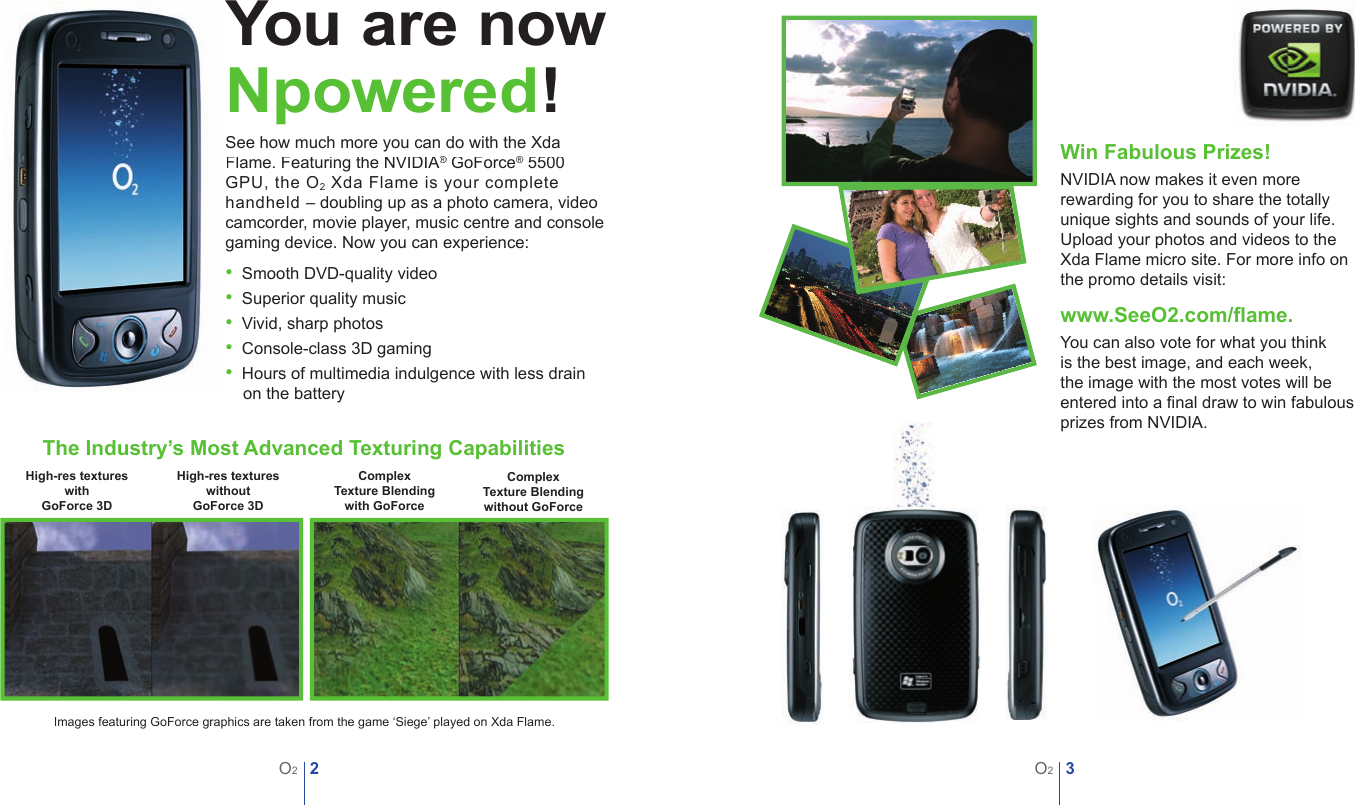
2O23O2You are nowNpowered!See how much more you can do with the Xda Flame. Featuring the NVIDIA®Flame. Featuring the NVIDIA®Flame. Featuring the NVIDIA GoForce® GoForce®® 5500 ® 5500 ®GPU, the O2 Xda Flame is your complete handheld – doubling up as a photo camera, video camcorder, movie player, music centre and console gaming device. Now you can experience: •  Smooth DVD-quality video•  Superior quality music•  Vivid, sharp photos•  Console-class 3D gaming•  Hours of multimedia indulgence with less drain on the batteryWin Fabulous Prizes!NVIDIA now makes it even more rewarding for you to share the totally unique sights and sounds of your life. Upload your photos and videos to the Xda Flame micro site. For more info on the promo details visit: www.SeeO2.com/fl ame.You can also vote for what you think is the best image, and each week, the image with the most votes will be entered into a fi nal draw to win fabulous prizes from NVIDIA.The Industry’s Most Advanced Texturing CapabilitiesHigh-res textures with GoForce 3DHigh-res textures without GoForce 3DComplex Texture Blending without GoForceComplex Texture Blending with GoForceImages featuring GoForce graphics are taken from the game ‘Siege’ played on Xda Flame.
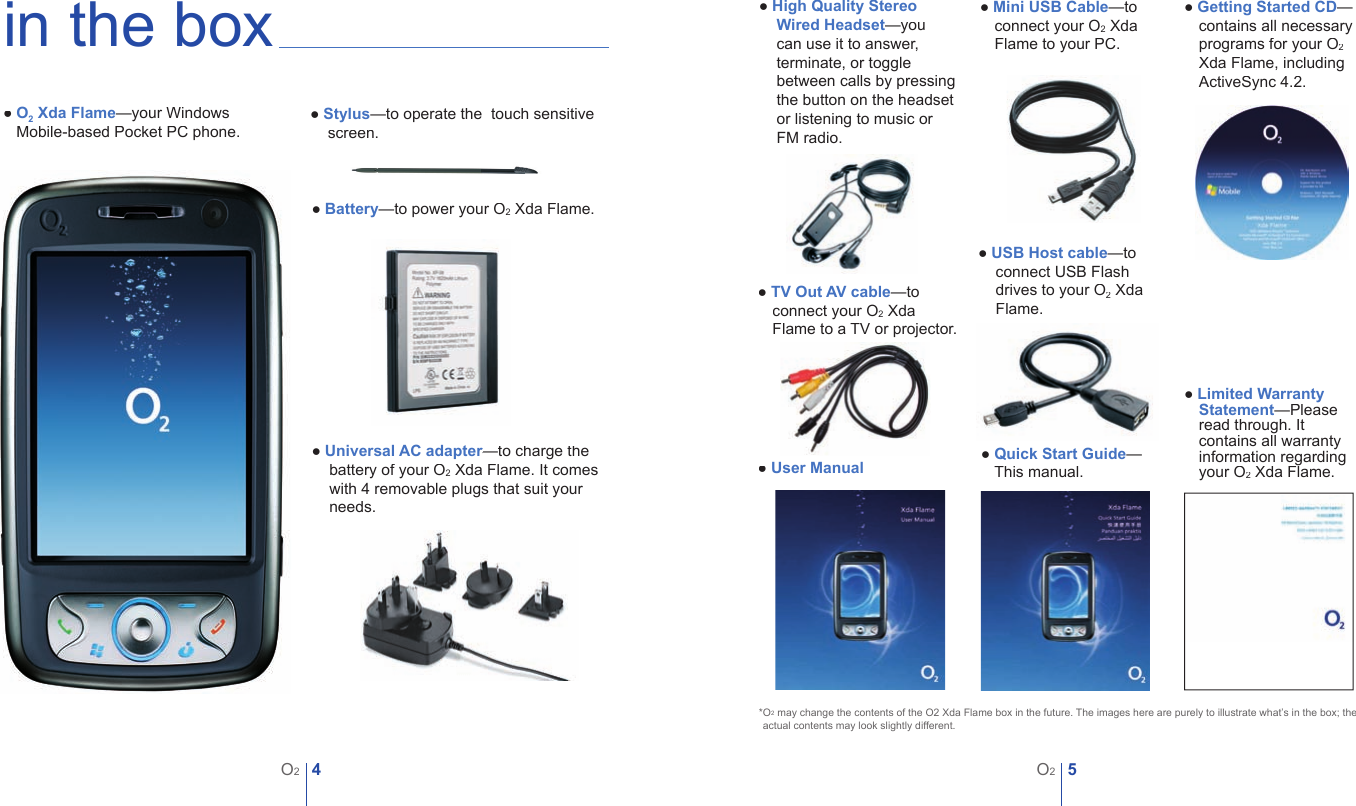
4O25O2in the box● O2 Xda Flame—your Windows ● Mobile-based Pocket PC phone.● Stylus—to operate the  touch sensitive screen.  ● Battery—to power your O2 Xda Flame.● Universal AC adapter—to charge the Universal AC adapter—to charge the Universal AC adapterbattery of your O2 Xda Flame. It comes with 4 removable plugs that suit your needs.● High Quality Stereo Wired Headset—you can use it to answer, terminate, or toggle between calls by pressing the button on the headset or listening to music or FM radio.● Mini USB Cable—to connect your O2 Xda Flame to your PC.● Getting Started CD— contains all necessary programs for your O2Xda Flame, including ActiveSync 4.2.● User Manual ● Quick Start Guide—● This manual.● Limited Warranty Statement—Please read through. It contains all warranty information regarding your O2 Xda Flame.*O2 may change the contents of the O2 Xda Flame box in the future. The images here are purely to illustrate what’s in the box; the  *actual contents may look slightly different.● TV Out AV cable—to connect your O2 Xda Flame to a TV or projector.● USB Host cable—to connect USB Flash drives to your O2 Xda Flame.
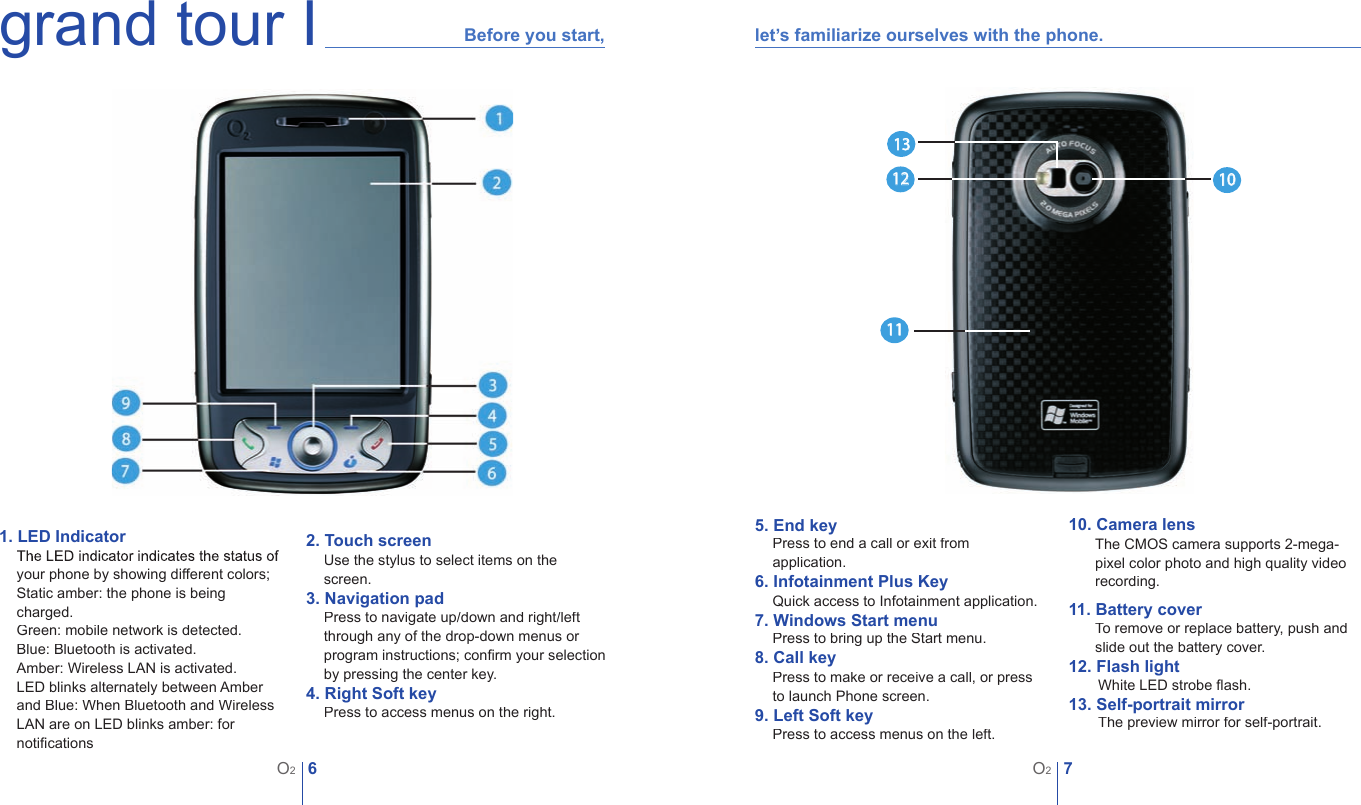
6O27O2grand tour I 1. LED IndicatorThe LED indicator indicates the status of your phone by showing different colors;Static amber: the phone is being charged.Green: mobile network is detected.Blue: Bluetooth is activated.Amber: Wireless LAN is activated.LED blinks alternately between Amber and Blue: When Bluetooth and Wireless LAN are on LED blinks amber: for notifi cations2. Touch screenUse the stylus to select items on the screen.3. Navigation padPress to navigate up/down and right/left through any of the drop-down menus or program instructions; confi rm your selection by pressing the center key.4. Right Soft keyPress to access menus on the right.Before you start, 5. End keyPress to end a call or exit from application.6. Infotainment Plus KeyQuick access to Infotainment application.7. Windows Start menuPress to bring up the Start menu.8. Call keyPress to make or receive a call, or press to launch Phone screen.9. Left Soft keyPress to access menus on the left.10. Camera lensThe CMOS camera supports 2-mega-pixel color photo and high quality video recording.11. Battery coverTo remove or replace battery, push and slide out the battery cover.12. Flash lightWhite LED strobe fl ash.13. Self-portrait mirrorThe preview mirror for self-portrait.11121310let’s familiarize ourselves with the phone.
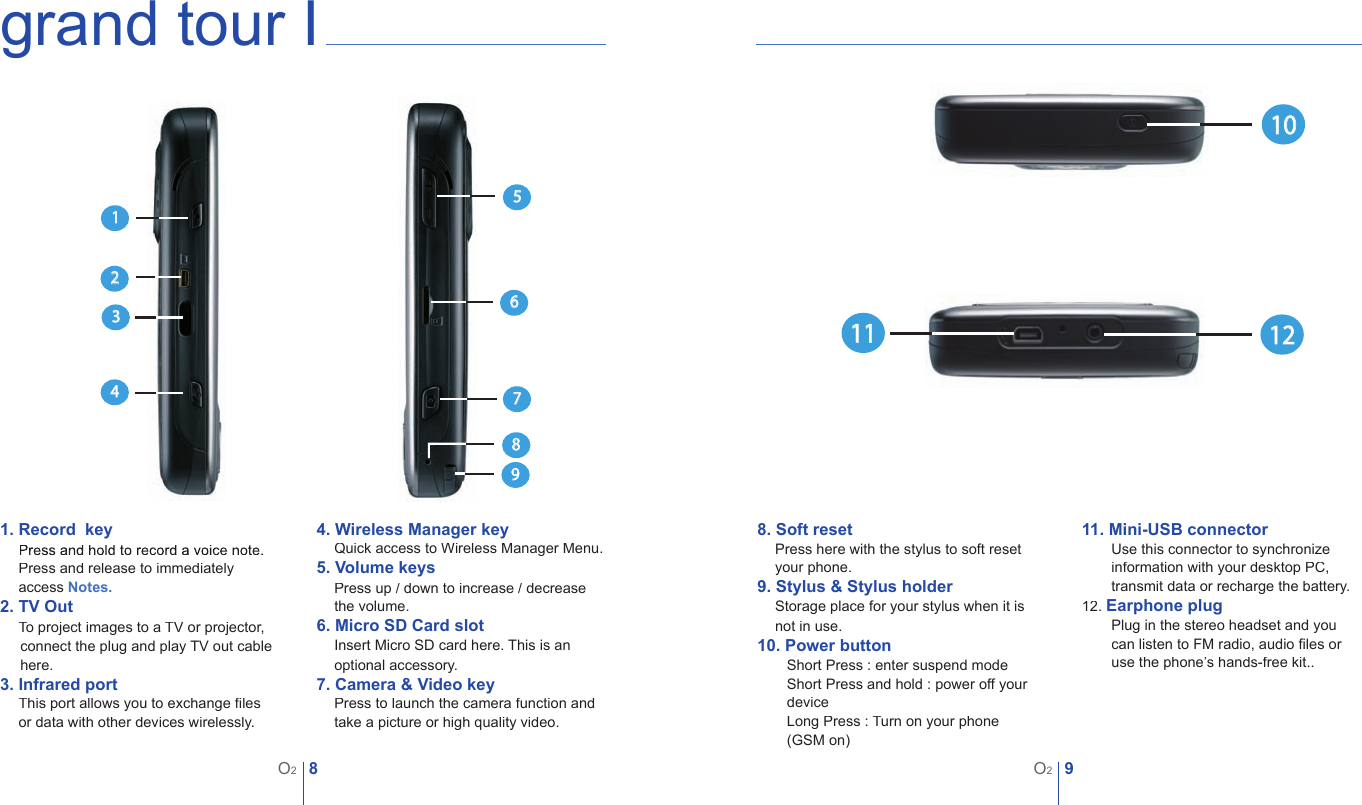
8O29O2grand tour I 1. Record  key    Press and hold to record a voice note.  1. Press and release to immediately 1. access Notes.2. TV Out1. To project images to a TV or projector,       connect the plug and play TV out cable       here.3. Infrared port1. This port allows you to exchange fi les  1. or data with other devices wirelessly.12344. Wireless Manager keyQuick access to Wireless Manager Menu.5. Volume keysPress up / down to increase / decrease  the volume.6. Micro SD Card slotInsert Micro SD card here. This is an optional accessory.7. Camera & Video keyPress to launch the camera function and take a picture or high quality video.956788. Soft resetPress here with the stylus to soft reset your phone.9. Stylus & Stylus holderStorage place for your stylus when it is not in use.10. Power buttonShort Press : enter suspend modeShort Press and hold : power off your deviceLong Press : Turn on your phone(GSM on)11. Mini-USB connectorUse this connector to synchronize information with your desktop PC, transmit data or recharge the battery.12. Earphone plugPlug in the stereo headset and you can listen to FM radio, audio fi les or use the phone’s hands-free kit..11 1210
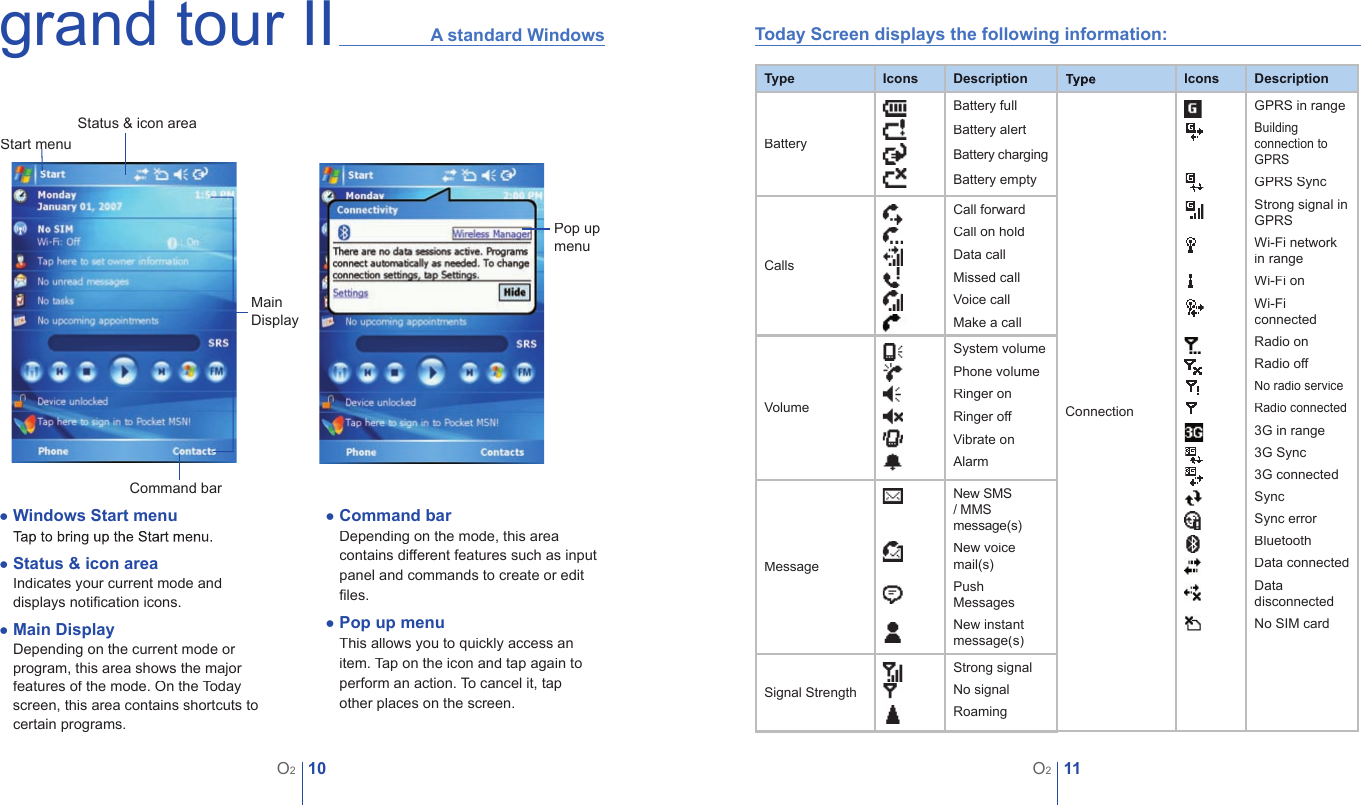
10O211O2grand tour II●Windows Start menu● Tap to bring up the Start menu.● Status & icon area● Indicates your current mode and ● displays notifi cation icons.● Main Display● Depending on the current mode or ● program, this area shows the major ● features of the mode. On the Today ● ●      screen, this area contains shortcuts to  ● certain programs.● Command bar● Depending on the mode, this area ● contains different features such as input  ● panel and commands to create or edit   ● fi les.● Pop up menu● This allows you to quickly access an  ● item. Tap on the icon and tap again to  ● perform an action. To cancel it, tap  ● other places on the screen.A standard WindowsStart menuStart menuStatus & icon areaCommand barMain DisplayPop up menuToday Screen displays the following information:TypeIconsDescriptionBattery  Battery fullBattery alertBattery chargingBattery emptyCalls               Call forwardCall on holdData callMissed callVoice callMake a callVolume           System volumePhone volumeRinger onRinger offVibrate onAlarmMessageNew SMS / MMS message(s)New voice mail(s)Push Messages New instant message(s)Signal StrengthStrong signalNo signalRoamingTypeIconsDescriptionConnection                                                                                              GPRS in rangeBuilding connection to GPRSGPRS SyncStrong signal in GPRSWi-Fi network in rangeWi-Fi onWi-Fi connectedRadio onRadio offNo radio serviceRadio connected3G in range3G Sync3G connectedSyncSync errorBluetoothData connectedData disconnectedNo SIM card
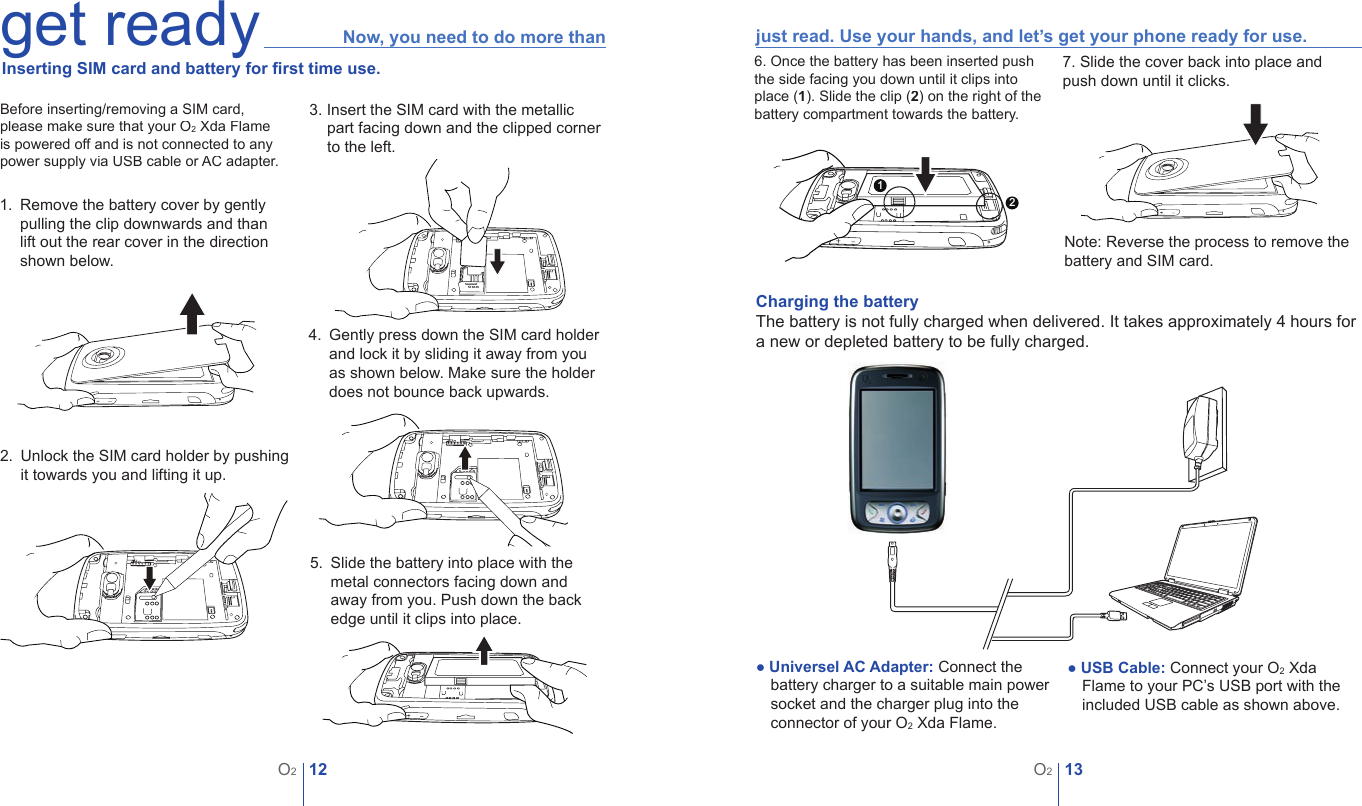
12O213O2get ready Now, you need to do more than  Inserting SIM card and battery for fi rst time use.1.   Remove the battery cover by gently pulling the clip downwards and than lift out the rear cover in the direction shown below.2.   Unlock the SIM card holder by pushing it towards you and lifting it up. 4.   Gently press down the SIM card holder and lock it by sliding it away from you as shown below. Make sure the holder does not bounce back upwards. 7. Slide the cover back into place and push down until it clicks.Note: Reverse the process to remove the battery and SIM card.● Universel AC Adapter: Connect the battery charger to a suitable main power socket and the charger plug into the connector of your O2 Xda Flame. ● USB Cable: Connect your O2 Xda Flame to your PC’s USB port with the included USB cable as shown above.Charging the batteryThe battery is not fully charged when delivered. It takes approximately 4 hours for a new or depleted battery to be fully charged. just read. Use your hands, and let’s get your phone ready for use.3. Insert the SIM card with the metallic part facing down and the clipped corner to the left.5.   Slide the battery into place with the metal connectors facing down and away from you. Push down the back edge until it clips into place.Before inserting/removing a SIM card, please make sure that your O2 Xda Flame is powered off and is not connected to any power supply via USB cable or AC adapter.126. Once the battery has been inserted push the side facing you down until it clips into place (1). Slide the clip (2) on the right of the battery compartment towards the battery.
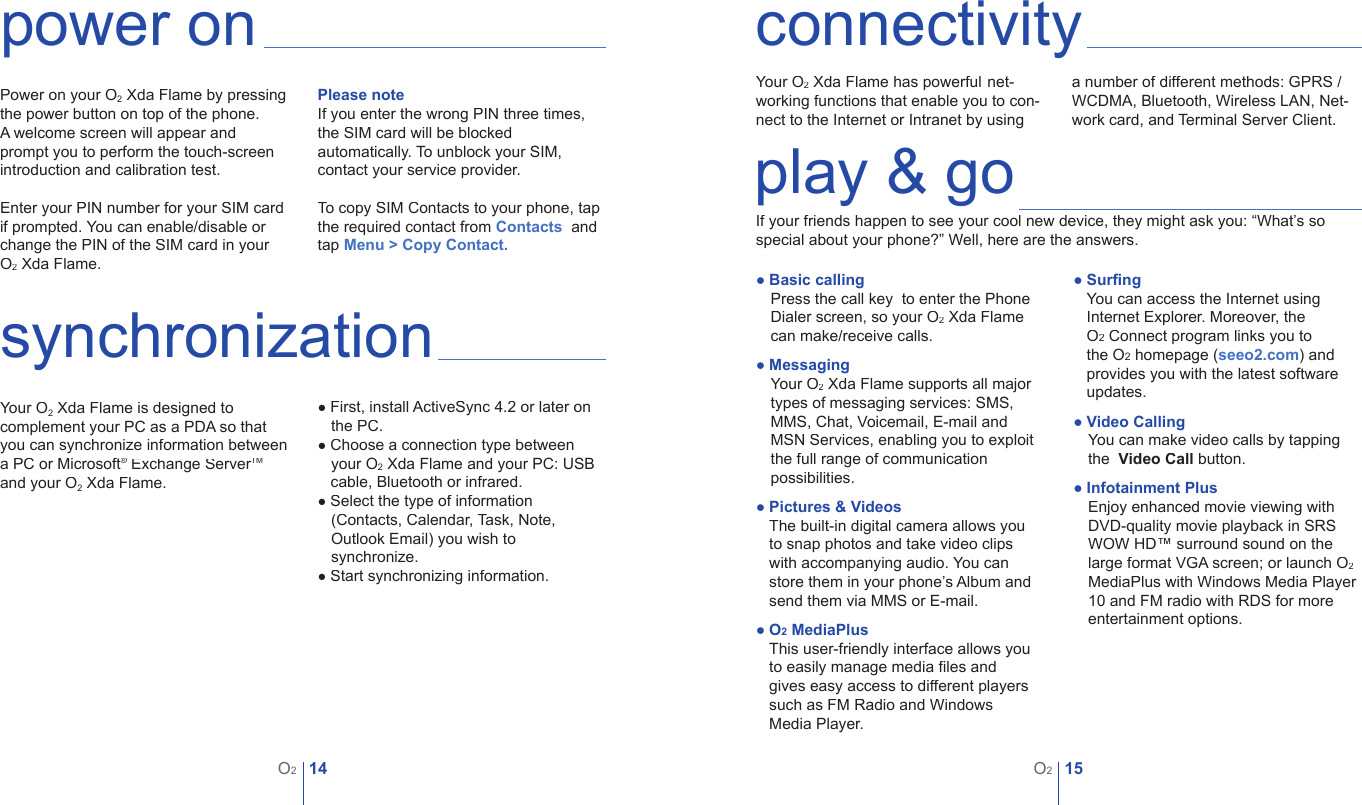
14O215O2power onPower on your O2 Xda Flame by pressing the power button on top of the phone. A welcome screen will appear and prompt you to perform the touch-screen introduction and calibration test.Enter your PIN number for your SIM card if prompted. You can enable/disable or change the PIN of the SIM card in your O2 Xda Flame.synchronizationYour O2 Xda Flame is designed to complement your PC as a PDA so that you can synchronize information between a PC or Microsoft® Exchange Server® Exchange Server®TM  Exchange ServerTM  Exchange Serverand your O2 Xda Flame.Please noteIf you enter the wrong PIN three times, the SIM card will be blocked automatically. To unblock your SIM, contact your service provider.To copy SIM Contacts to your phone, tap the required contact from Contacts  and tap Menu > Copy Contact.● First, install ActiveSync 4.2 or later on ● the PC.● Choose a connection type between ● your O2 Xda Flame and your PC: USB       cable, Bluetooth or infrared. ● Select the type of information ● (Contacts, Calendar, Task, Note, ● Outlook Email) you wish to ● synchronize.● Start synchronizing information. connectivityYour O2 Xda Flame has powerful net-working functions that enable you to con-nect to the Internet or Intranet by using a number of different methods: GPRS / WCDMA, Bluetooth, Wireless LAN, Net-work card, and Terminal Server Client.play & goIf your friends happen to see your cool new device, they might ask you: “What’s so special about your phone?” Well, here are the answers.● Surfi ng● You can access the Internet using  ● Internet Explorer. Moreover, the ● O2 Connect program links you to ●  ● the O2 homepage (seeo2.com) and ● ● provides you with the latest software  ● updates.● Video CallingYou can make video calls by tapping the  Video Call button.● Infotainment PlusEnjoy enhanced movie viewing with DVD-quality movie playback in SRS WOW HD™ surround sound on the large format VGA screen; or launch O2MediaPlus with Windows Media Player 10 and FM radio with RDS for more entertainment options.● Basic callingPress the call key  to enter the Phone Dialer screen, so your O2 Xda Flame can make/receive calls.● MessagingYour O2 Xda Flame supports all major types of messaging services: SMS, MMS, Chat, Voicemail, E-mail and MSN Services, enabling you to exploit the full range of communication  possibilities.● Pictures & Videos● The built-in digital camera allows you  ● to snap photos and take video clips  ● with accompanying audio. You can  ● store them in your phone’s Album and  ● send them via MMS or E-mail.● O2 MediaPlus● This user-friendly interface allows you ● to easily manage media fi les and ● gives easy access to different players ● such as FM Radio and Windows  ● Media Player.
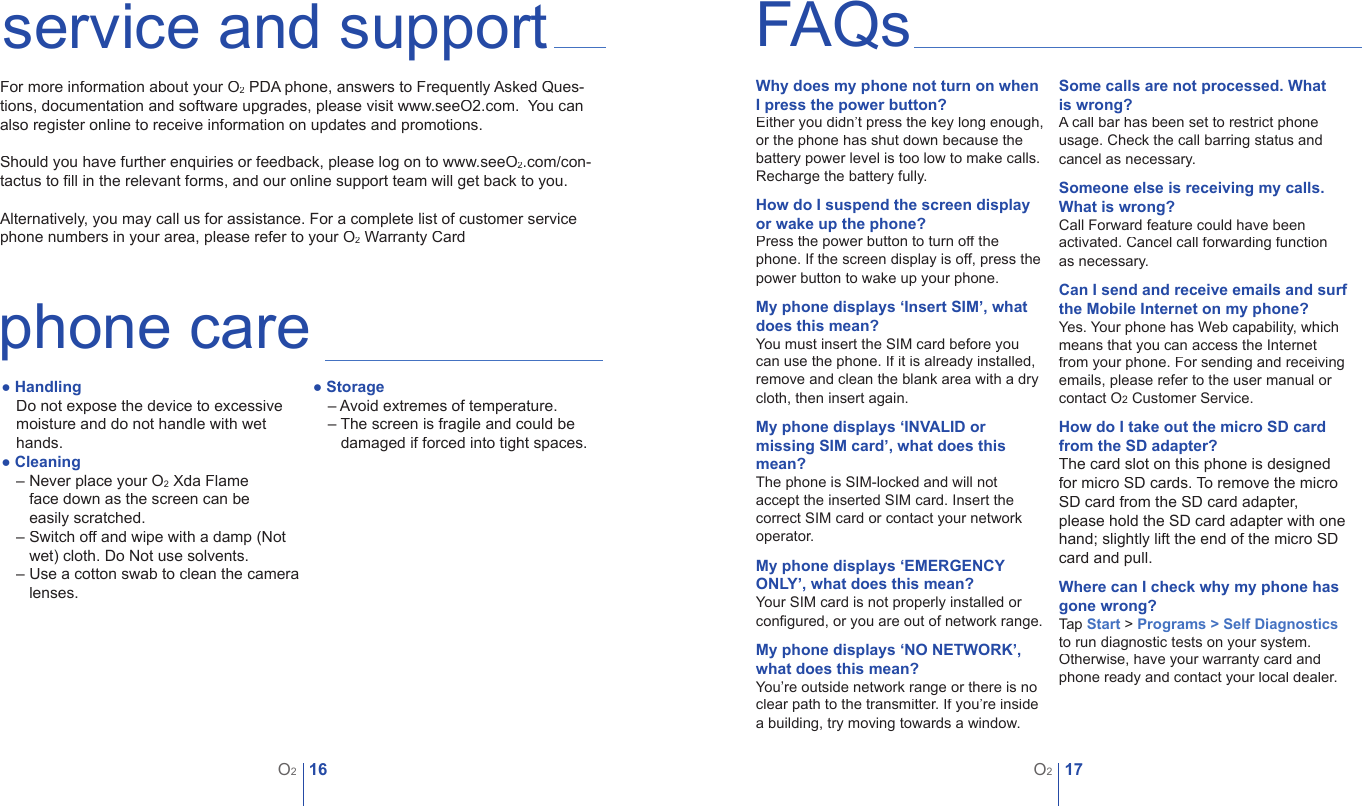
16O217O2service and supportFor more information about your O2 PDA phone, answers to Frequently Asked Ques-tions, documentation and software upgrades, please visit www.seeO2.com.  You can also register online to receive information on updates and promotions.Should you have further enquiries or feedback, please log on to www.seeO2.com/con-tactus to fi ll in the relevant forms, and our online support team will get back to you. Alternatively, you may call us for assistance. For a complete list of customer service phone numbers in your area, please refer to your O2 Warranty CardFAQsWhy does my phone not turn on when I press the power button?Either you didn’t press the key long enough, or the phone has shut down because the battery power level is too low to make calls.Recharge the battery fully.How do I suspend the screen display or wake up the phone?Press the power button to turn off the phone. If the screen display is off, press the power button to wake up your phone.My phone displays ‘Insert SIM’, what does this mean?You must insert the SIM card before you can use the phone. If it is already installed, remove and clean the blank area with a dry cloth, then insert again.My phone displays ‘INVALID or missing SIM card’, what does this mean?The phone is SIM-locked and will not accept the inserted SIM card. Insert the correct SIM card or contact your network operator.   My phone displays ‘EMERGENCY ONLY’, what does this mean?Your SIM card is not properly installed or confi gured, or you are out of network range.My phone displays ‘NO NETWORK’, what does this mean?You’re outside network range or there is no clear path to the transmitter. If you’re inside a building, try moving towards a window.Some calls are not processed. What is wrong?A call bar has been set to restrict phone usage. Check the call barring status and cancel as necessary.Someone else is receiving my calls. What is wrong?Call Forward feature could have been activated. Cancel call forwarding function as necessary.Can I send and receive emails and surf the Mobile Internet on my phone?Yes. Your phone has Web capability, which means that you can access the Internet from your phone. For sending and receiving emails, please refer to the user manual or contact O2 Customer Service.How do I take out the micro SD card from the SD adapter?The card slot on this phone is designed for micro SD cards. To remove the micro SD card from the SD card adapter, please hold the SD card adapter with one hand; slightly lift the end of the micro SD card and pull.Where can I check why my phone has gone wrong?Tap Start > Programs > Self Diagnosticsto run diagnostic tests on your system. Otherwise, have your warranty card and phone ready and contact your local dealer.phone care● HandlingDo not expose the device to excessive moisture and do not handle with wet hands.● Cleaning– Never place your O2 Xda Flame  – face down as the screen can be  – easily scratched.– Switch off and wipe with a damp (Not – wet) cloth. Do Not use solvents.– Use a cotton swab to clean the camera – lenses.● Storage– Avoid extremes of temperature.– The screen is fragile and could be – damaged if forced into tight spaces.

Navigation menu