HUBSAN INTELLIGENT 501ARX HUBSAN X4 CAM BRUSHLESS WITH APP User Manual pt 2

SHENZHEN HUBSAN INTELLIGENT COMPANY LIMITED HUBSAN X4 CAM BRUSHLESS WITH APP pt 2

Contents

User Manual pt 2

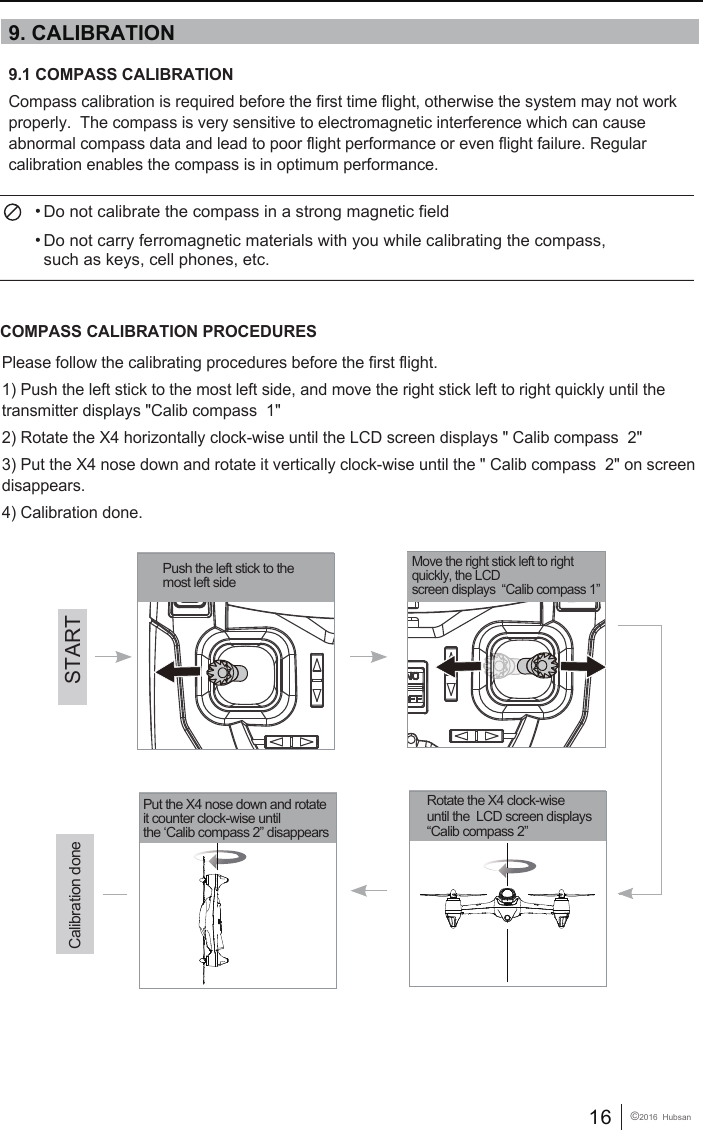
16 ©2016  Hubsan9. CALIBRATION Push the left stick to the most left sideMove the right stick left to right quickly, the LCD screen displays  “Calib compass 1”Rotate the X4 clock-wiseuntil the  LCD screen displays “Calib compass 2”Put the X4 nose down and rotate it counter clock-wise until the ‘Calib compass 2” disappears     STARTCalibration done COMPASS CALIBRATION PROCEDURESPlease follow the calibrating procedures before the first flight.1) Push the left stick to the most left side, and move the right stick left to right quickly until the transmitter displays "Calib compass  1"2) Rotate the X4 horizontally clock-wise until the LCD screen displays " Calib compass  2"3) Put the X4 nose down and rotate it vertically clock-wise until the " Calib compass  2" on screen disappears.4) Calibration done.  Do not calibrate the compass in a strong magnetic fieldDo not carry ferromagnetic materials with you while calibrating the compass, such as keys, cell phones, etc.     9.1 COMPASS CALIBRATIONCompass calibration is required before the first time flight, otherwise the system may not work properly.  The compass is very sensitive to electromagnetic interference which can cause abnormal compass data and lead to poor flight performance or even flight failure. Regular calibration enables the compass is in optimum performance.
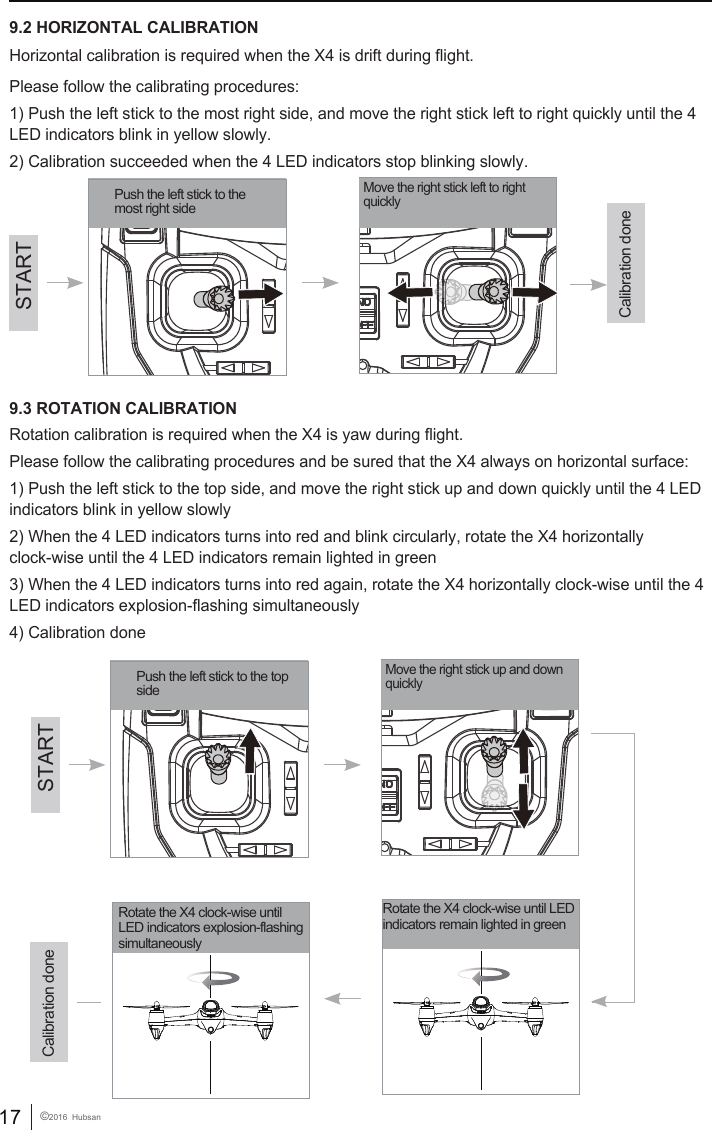
17 ©2016  Hubsan9.2 HORIZONTAL CALIBRATION  Horizontal calibration is required when the X4 is drift during flight.Please follow the calibrating procedures:1) Push the left stick to the most right side, and move the right stick left to right quickly until the 4 LED indicators blink in yellow slowly.2) Calibration succeeded when the 4 LED indicators stop blinking slowly.Push the left stick to the most right sideMove the right stick left to right quicklySTARTCalibration done9.3 ROTATION CALIBRATION Rotation calibration is required when the X4 is yaw during flight.Please follow the calibrating procedures and be sured that the X4 always on horizontal surface:1) Push the left stick to the top side, and move the right stick up and down quickly until the 4 LED indicators blink in yellow slowly2) When the 4 LED indicators turns into red and blink circularly, rotate the X4 horizontally clock-wise until the 4 LED indicators remain lighted in green3) When the 4 LED indicators turns into red again, rotate the X4 horizontally clock-wise until the 4 LED indicators explosion-flashing simultaneously4) Calibration donePush the left stick to the topsideMove the right stick up and downquicklyRotate the X4 clock-wise until LEDindicators remain lighted in greenSTARTCalibration doneRotate the X4 clock-wise until LED indicators explosion-flashingsimultaneously
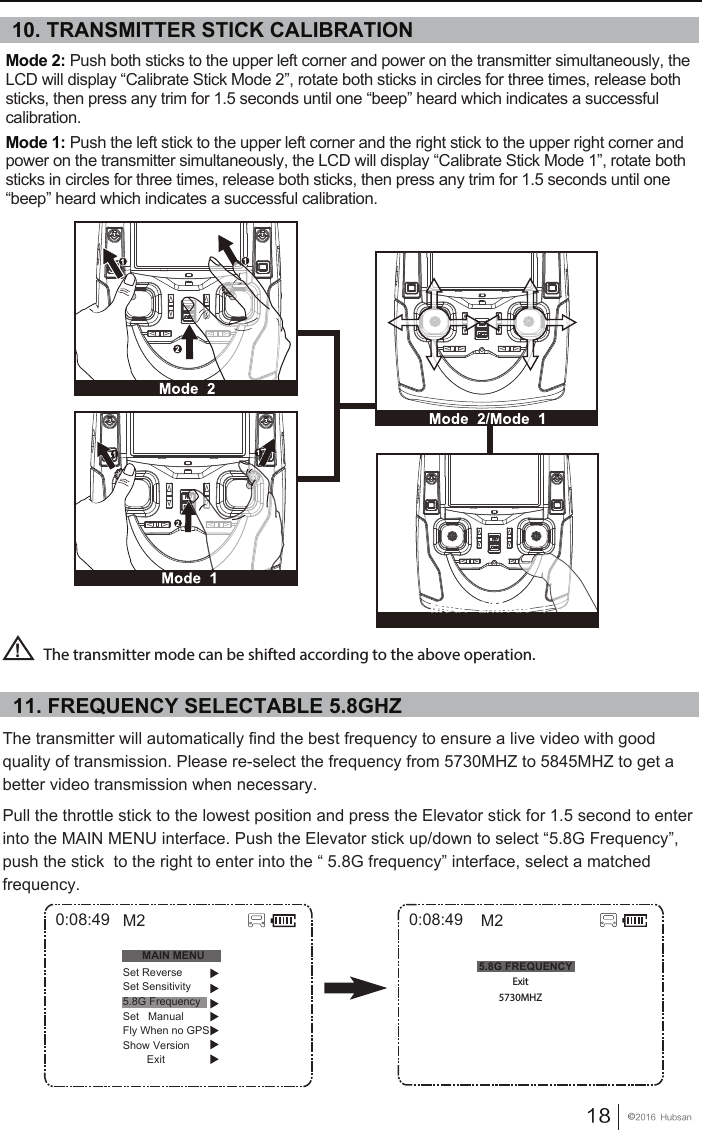
18󰔢2016  HubsanThe transmitter will automatically find the best frequency to ensure a live video with good quality of transmission. Please re-select the frequency from 5730MHZ to 5845MHZ to get a better video transmission when necessary.Pull the throttle stick to the lowest position and press the Elevator stick for 1.5 second to enter into the MAIN MENU interface. Push the Elevator stick up/down to select “5.8G Frequency”, push the stick  to the right to enter into the “ 5.8G frequency” interface, select a matched frequency.5.8G FREQUENCY0:08:49Exit5730MHZM2Mode 2: Push both sticks to the upper left corner and power on the transmitter simultaneously, the LCD will display “Calibrate Stick Mode 2”, rotate both sticks in circles for three times, release both sticks, then press any trim for 1.5 seconds until one “beep” heard which indicates a successful calibration. Mode 1: Push the left stick to the upper left corner and the right stick to the upper right corner and power on the transmitter simultaneously, the LCD will display “Calibrate Stick Mode 1”, rotate both sticks in circles for three times, release both sticks, then press any trim for 1.5 seconds until one “beep” heard which indicates a successful calibration. The transmitter mode can be shifted according to the above operation.!0:08:49MAIN MENUSet ReverseSet Sensitivity5.8G FrequencySet   ManualFly When no GPSShow Version        ExitM210. TRANSMITTER STICK CALIBRATION11. FREQUENCY SELECTABLE 5.8GHZ
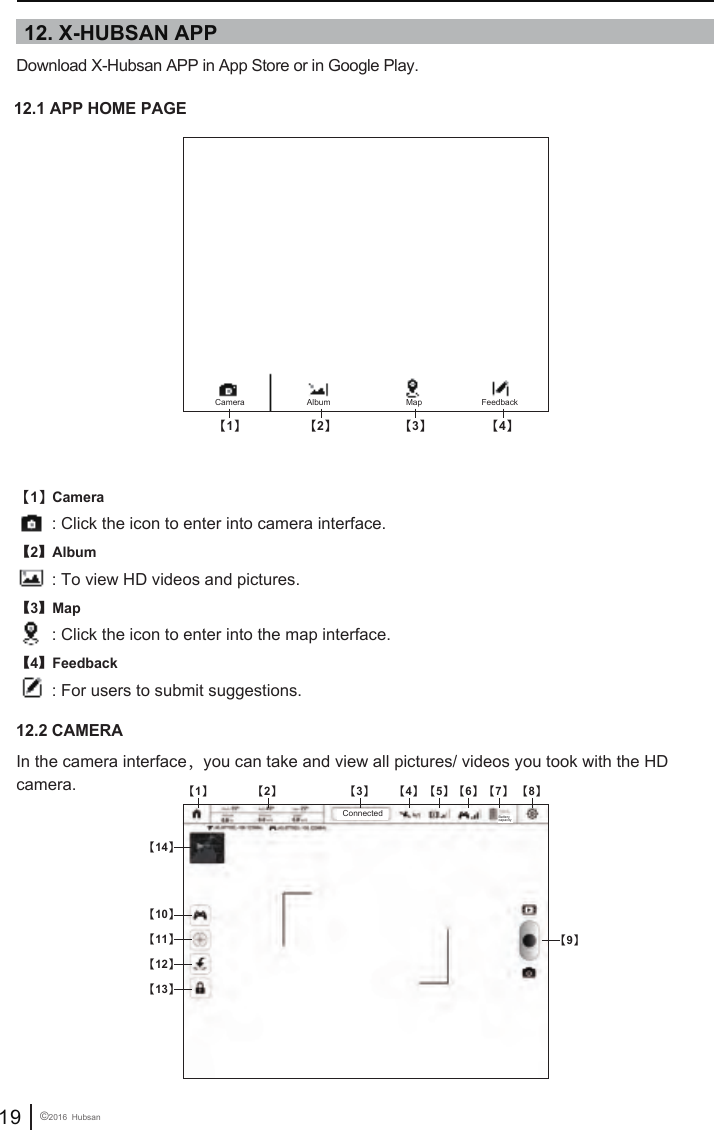
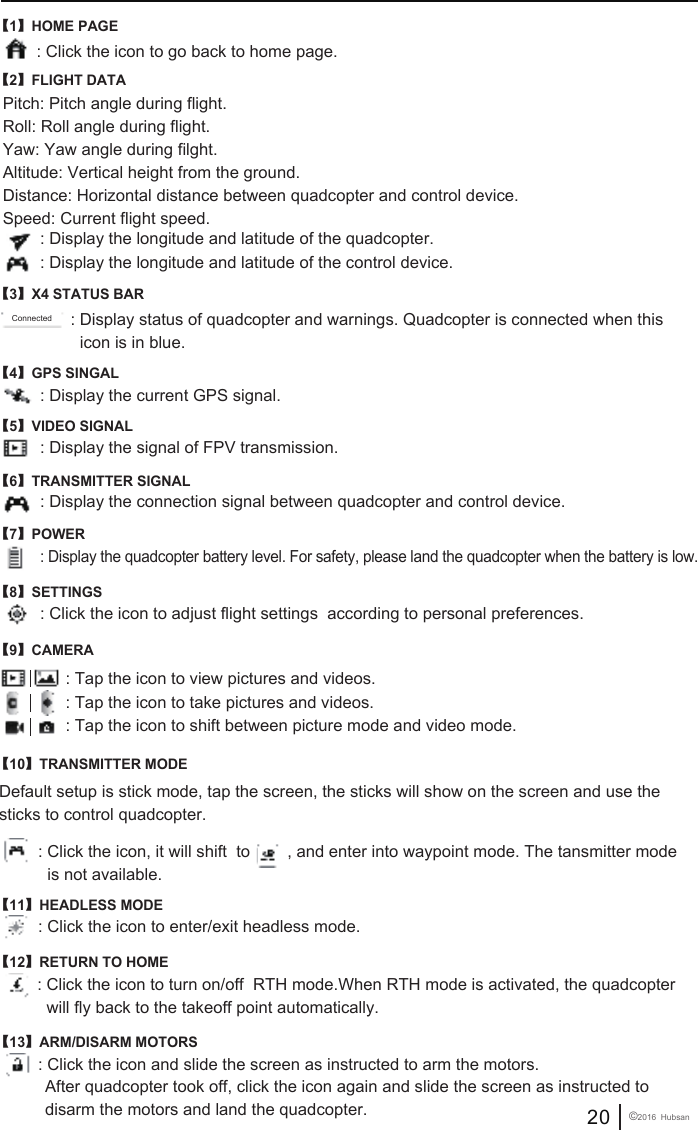
12. X-HUBSAN APP 12.1 APP HOME PAGE12.2 CAMERA Download X-Hubsan APP in App Store or in Google Play.In the camera interface,you can take and view all pictures/ videos you took with the HD camera.【1】Camera: Click the icon to enter into camera interface.【2】Album: To view HD videos and pictures.【3】Map: Click the icon to enter into the map interface.【4】Feedback: For users to submit suggestions.19 ©2016  Hubsan【1】Camera FeedbackAlbum Map【2】 【3】 【4】【1】【14】【10】【11】【12】【13】【2】 【3】 【4】 【5】【6】【7】 【8】【9】Connected Battery capacity
【1】HOME PAGE: Click the icon to go back to home page.: Display the longitude and latitude of the quadcopter.: Display status of quadcopter and warnings. Quadcopter is connected when this   icon is in blue. : Display the longitude and latitude of the control device.: Display the current GPS signal.Pitch: Pitch angle during flight.Roll: Roll angle during flight.Yaw: Yaw angle during filght.Altitude: Vertical height from the ground.Distance: Horizontal distance between quadcopter and control device.Speed: Current flight speed.【2】FLIGHT DATA【3】X4 STATUS BAR【4】GPS SINGAL: Display the signal of FPV transmission.【5】VIDEO SIGNAL: Display the connection signal between quadcopter and control device.【6】TRANSMITTER SIGNAL: Display the quadcopter battery level. For safety, please land the quadcopter when the battery is low.【7】POWER: Click the icon to adjust flight settings  according to personal preferences.: Tap the icon to view pictures and videos.: Tap the icon to take pictures and videos.: Tap the icon to shift between picture mode and video mode.【8】SETTINGS: Click the icon to enter/exit headless mode.【11】HEADLESS MODEDefault setup is stick mode, tap the screen, the sticks will show on the screen and use the sticks to control quadcopter.: Click the icon, it will shift  to        , and enter into waypoint mode. The tansmitter mode   is not available.【10】TRANSMITTER MODE【9】CAMERA: Click the icon to turn on/off  RTH mode.When RTH mode is activated, the quadcopter   will fly back to the takeoff point automatically.【12】RETURN TO HOME: Click the icon and slide the screen as instructed to arm the motors.【13】ARM/DISARM MOTORS After quadcopter took off, click the icon again and slide the screen as instructed to  disarm the motors and land the quadcopter. 20 ©2016  HubsanConnected
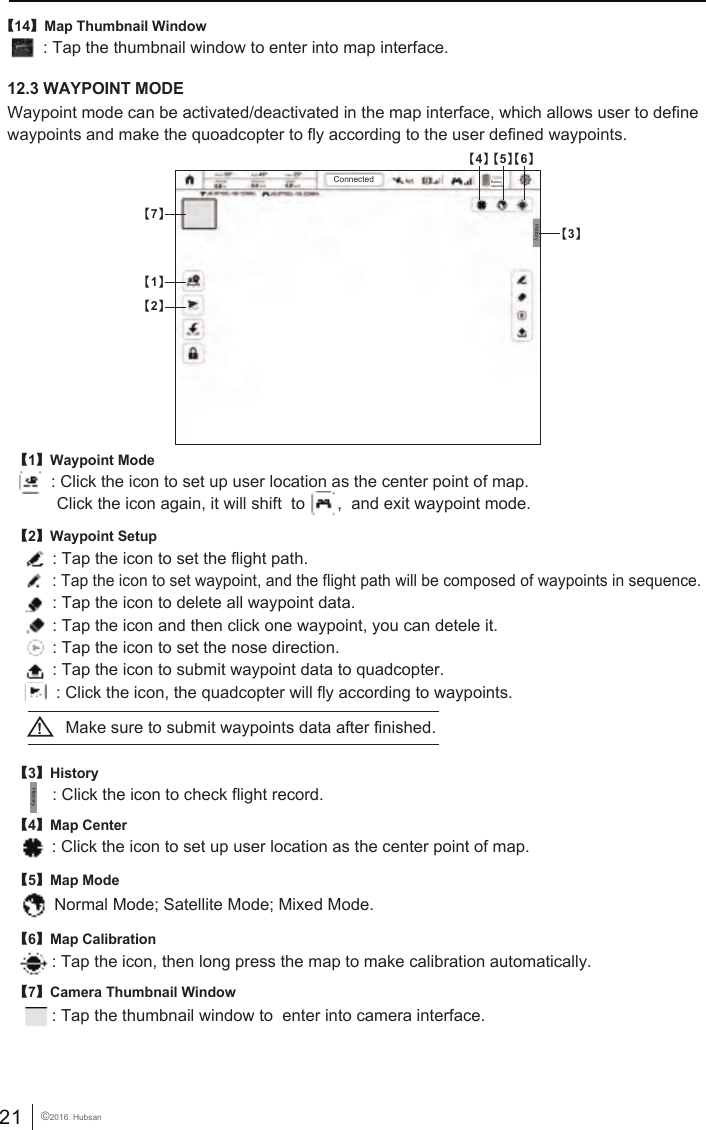
21 ©2016  Hubsan: Tap the thumbnail window to enter into map interface.【14】Map Thumbnail Window12.3 WAYPOINT MODE【1】Waypoint Mode: Click the icon to set up user location as the center point of map.Waypoint mode can be activated/deactivated in the map interface, which allows user to define waypoints and make the quoadcopter to fly according to the user defined waypoints.: Click the icon, the quadcopter will fly according to waypoints. Click the icon again, it will shift  to       ,  and exit waypoint mode.【3】History: Click the icon to check flight record.【2】Waypoint Setup: Tap the icon to set the flight path.: Tap the icon to set waypoint, and the flight path will be composed of waypoints in sequence.: Tap the icon to delete all waypoint data.: Tap the icon and then click one waypoint, you can detele it.: Tap the icon to set the nose direction.: Tap the icon to submit waypoint data to quadcopter.【4】Map Center: Click the icon to set up user location as the center point of map.: Tap the icon, then long press the map to make calibration automatically.【5】Map ModeNormal Mode; Satellite Mode; Mixed Mode.【6】Map Calibration: Tap the thumbnail window to  enter into camera interface.【7】Camera Thumbnail WindowMake sure to submit waypoints data after finished.!HistoryConnected Battery capacityHistory【1】【7】【2】【3】【4】【5】【6】
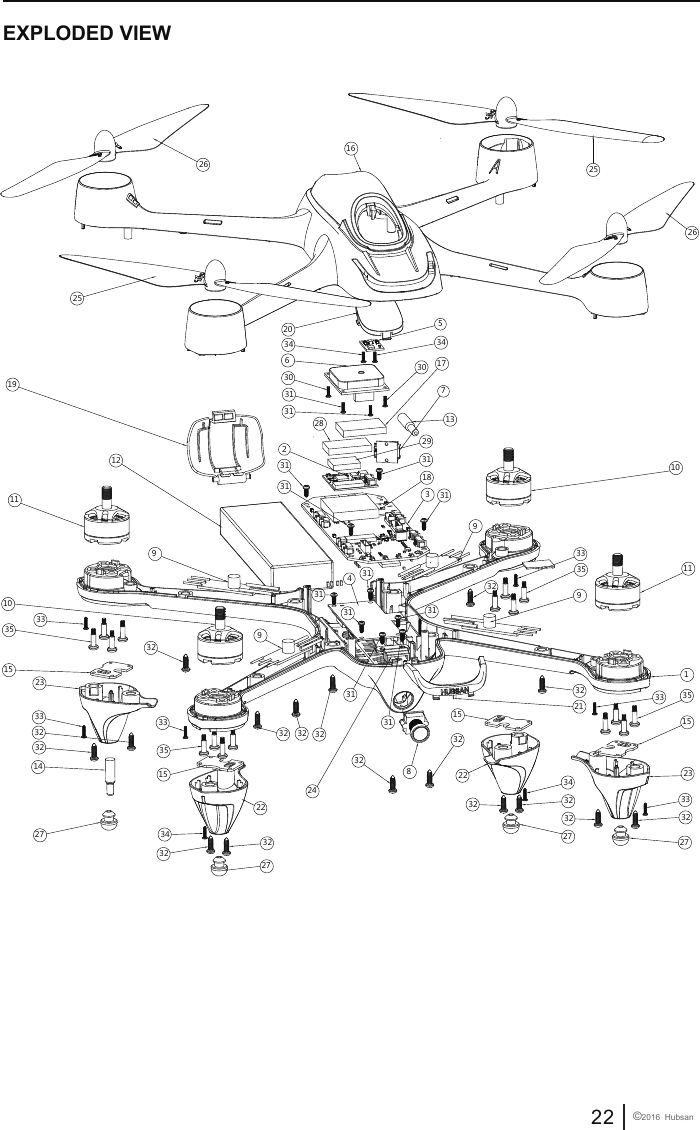
22 ©2016  Hubsan EXPLODED VIEW            6  9  10  15  17 9  9  9  10  15  15  15  8  11  16  1  19  20  21  24  27  11  27  27  27 343232323232323232323232323232 32127353535353433333442525262651831 3131312313131 31313132303130312222 23233413142829333333333
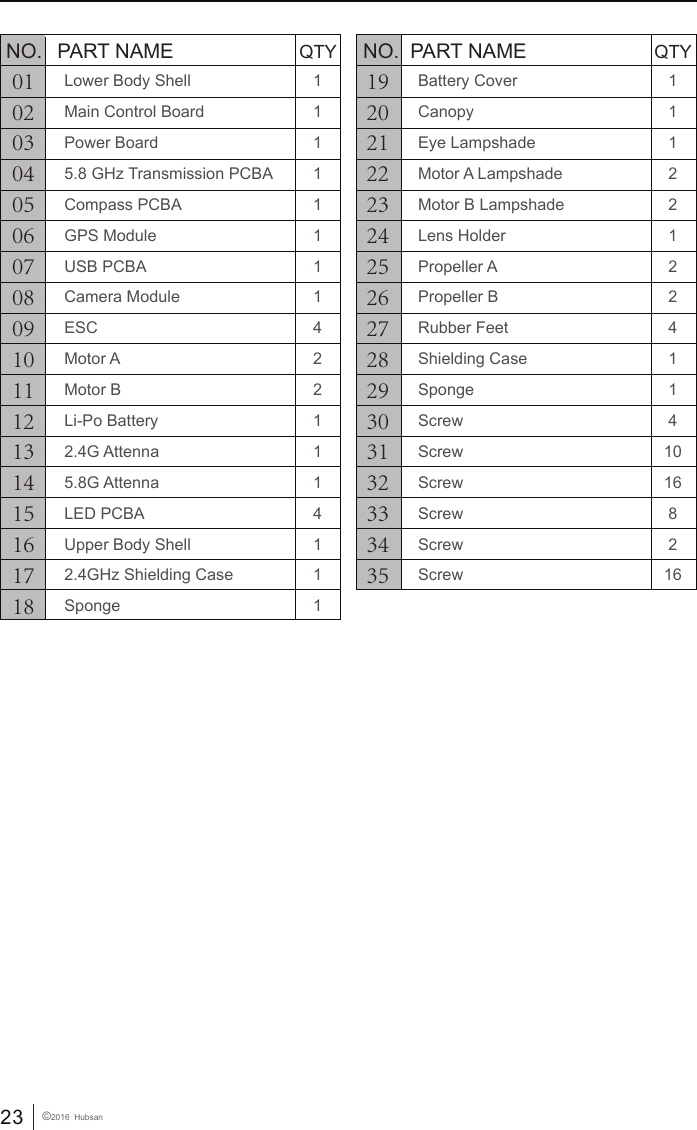
23 ©2016  Hubsan010203040506070809101112131415161718NO. PART NAME QTY1920212223242526272829303132333435NO. PART NAME QTYLower Body ShellMain Control BoardPower Board5.8 GHz Transmission PCBACompass PCBAGPS ModuleUSB PCBACamera ModuleESCMotor AMotor BLi-Po Battery2.4G Attenna5.8G AttennaLED PCBAUpper Body Shell2.4GHz Shielding CaseSpongeBattery CoverCanopyEye LampshadeMotor A LampshadeMotor B LampshadeLens HolderPropeller APropeller BRubber FeetShielding CaseSpongeScrewScrewScrewScrewScrewScrew11122122411410168216111111114221114111
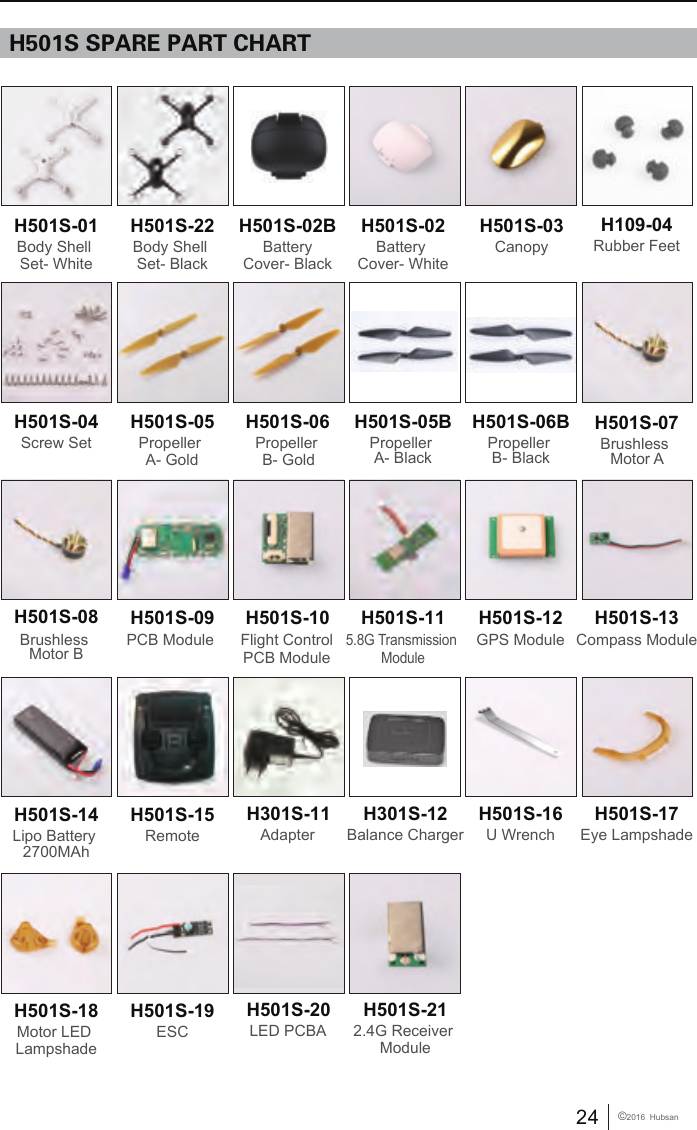
H501S SPARE PART CHARTH501S-01Body Shell Set- WhiteH501S-22Body Shell Set- BlackH501S-02B Battery Cover- BlackH501S-02Battery Cover- WhiteH501S-03CanopyH109-04Rubber FeetH501S-04Screw SetH501S-05Propeller A- GoldPropeller B- GoldH501S-06 H501S-05BPropeller A- BlackH501S-06BPropeller B- BlackH501S-07Brushless Motor AH501S-08 H501S-09PCB Module H501S-10Flight Control  PCB Module  H501S-115.8G Transmission ModuleH501S-13Compass ModuleH501S-14Lipo Battery 2700MAhH501S-15RemoteH301S-11AdapterH501S-17Eye LampshadeBrushless Motor BH501S-12GPS ModuleH501S-16U WrenchH301S-12Balance ChargerH501S-18Motor LED LampshadeH501S-19ESCH501S-20LED PCBAH501S-212.4G Receiver Module24 ©2016  Hubsan
FCC INFORMATIONThis equipment has been tested and found to comply with the limits for a Class B digital device, pursuant to Part 15 of the FCC Rules. These limits are designed to provide reasonable protection against harmful interference in a residential installation. This equipment generates, uses, and can radiate radio frequency energy and, if not installed and used in accordance with the instructions, may cause harmful interference to radio communications. However, there is no guarantee that interference will not occur in a particular installation. If this equipment does cause harmful interference to radio or television reception, which can be determined by turning the equipment off and on, the user is encouraged to try to correct the interference by one or more of the following measures:• Reorient or relocate the receiving antenna.• Increase the separation between the equipment and receiver. •  Connect  the  equipment  into  an  outlet  on  a  circuit  different  from  that  to  which  the  receiver  is connected. • Consult the local dealer or an experienced radio/TV technician for help.Changes or modifications not expressly approved by the party responsible for compliance could void the user’s authority to operate the equipment.This device complies with Part 15 of the FCC Rules. Operation is subject to the following two conditions: (1) this device may not cause harmful interference, and (2) this device must accept any interference received, including interference that may cause undesired operation.ENVIRONMENTALLY FRIENDLY DISPOSALOld electrical appliances must not be disposed of together with the residual waste, but have to be disposed of separately. The disposal at the communal collecting point via private persons is for free. The owner of old appliances is responsible to bring the appliances to thise collecting points or to similar collection points. With this little personal effort, you contribute to recycle valuable raw materials and the treatment of toxic substances.25 ©2016  Hubsan
User manual is subject to change without prior notice due to unforseen product upgrades.Download the latest user manual fromWWW.HUBSAN.COMVERSION 1.0 EN

Navigation menu