Ixia EE11ABG 802.11 a/b/g Emulation Engine User Manual EmulationEngine 11a b g User s Guide
Ixia 802.11 a/b/g Emulation Engine EmulationEngine 11a b g User s Guide
Ixia >
Contents
- 1. User Manual 1 of 3
- 2. User Manual 2 of 3
- 3. User Manual 3 of 3
User Manual 2 of 3

EmulationEngine 11a/b/g User's Guide
Rev #/Date: 2.0.0 Beta/07.17.03 6-1
CHAPTER 6: The Command Line Interface (CLI)
The CLI can be used to display and modify the configuration of the
EmulationEngine from a PC that is connected via Telnet or the
serial port. The CLI also includes commands to configure and run
virtual stations, display statistics, and to access the System Under
Test. The EmulationEngine maintains statistics and event log files
that you can configure and display using CLI commands.
CLI Usage Notes
1) CLI commands are not case sensitive (e.g., "set Date" is the
same as "set date").
2) You do not need to enter the entire command string to execute
a command. Only the number of unique characters required to
identify the command are needed (e.g., "se da" will execute the "set
date" command because there are no other CLI commands that
begin with “se” and no other set objects that begin with "da").
3) Some parameters can be assigned very large values in the
range: 0...2,147,483,647. Do not enter commas (,) for values larger
than 999 (e.g., use 1000 rather than 1,000).
4) It is very important to keep a printed record of configuration
parameters. See "Configuration Records" in Chapter 9.
User Log-In
The EE login prompt is displayed after you successfully establish
a connection to the EmulationEngine. See “Initial Setup” in
Chapter 4. When you have successfully established this
connection, the CLI prompts you to enter a log in name and
password.
EE login: Admin
Password: **
The default log in user name is "Admin". The default password is
"EE". Both entries are case sensitive (i.e., the default user name is
"Admin", not "admin"). After you enter a valid user name and
password, the CLI displays a version banner, the current system
time and status, and a CLI prompt.
Communication Machinery Corporation
EmulationEngine(tm) 11a/b/g Rev 2.0.0
System date & time is THU JAN 01 00:00:44 1970
Use the "set date" or "set time" command to adjust
EmulationEngine 11a/b/g software version 2.0.0
WLAN mode .................... 802.11b
WLAN MAC address ............. 00:0b:cd:59:23:57
WLAN address mask ............ ff:ff:ff:ff:00:00
LAN MAC address .............. 00:0b:16:00:00:07
BSSID of System Under Test.... 00:60:1d:f0:de:97

Communication Machinery Corporation (CMC)
6-2 Rev #/Date: 2.0.0 Beta/07.17.03
The EmulationEngine is not joined with the SUT.
0 vSTAs currently in the system.
CMC_EE ->
The CLI is now ready to accept your commands.
NOTE: If the CLI displays the message “This EmulationEngine has
not been Node Locked” after you enter the EE login name and
password, see “Missing Key File” in Chapter 9. Troubleshooting.
User Log-Off
Use the quit command to log off from the CLI:
CMC_EE -> quit
After log-off, you must reopen the telnet connection to log in to the
CLI.
CLI Commands
The “help” command will display a list of all CLI commands.
Example:
CMC_EE -> help
List of EmulationEngine CLI commands:
assoc -- Associate a vSTA with the SUT
auth -- Authenticate a vSTA with the SUT
autoconf -- Autoconfig-init-auth-assoc N vSTAs
autorun -- Run N configured/associated vSTAs
clear bssid -- Clear BSSID for System Under Test
clear evlog -- Clear event log file or buffer
clear group -- Clear vSTA group data
clear sntpserver -- Clear SNTP/NTP server IP address
clear systemname -- Clear the EmulationEngine system name
clear vsta -- Clear vSTA data
conf -- Configure a vSTA
deauth -- Deauthenticate a vSTA
del group -- Delete a vSTA group
del key -- Delete Encryption key
del statfile -- Delete a vSTA statistics file
del summfile -- Delete a vSTA statistics summary file
del vsta -- Delete a vSTA
disassoc -- Disassociate a vSTA
exec -- Execute a command file
ftp -- Software update via FTP
get association -- Display Association Table
get basic11b -- Display Basic 11b Rates
get bssid -- Display BSSID of System Under Test
get bsslist -- Display list of discovered BSSIDs
get channel -- Display Radio Channel
get config -- Display current EmulationEngine configuration
get countrycode -- Display Country Code
get ctsmode -- Display CTS mode (11g)
get ctsrate -- Display CTS rate (11g)
get ctstype -- Display CTS type (11g)
get eemac -- Display Wireless LAN MAC Address
get eemask -- Display Wireless LAN Address Mask

EmulationEngine 11a/b/g User's Guide
Rev #/Date: 2.0.0 Beta/07.17.03 6-3
get eestatus -- Display EmulationEngine status
get evlog -- Display event log data
get features -- Display authorized features
get fragmentthreshold -- Display Fragment Threshold
get frequency -- Display Radio Frequency (MHz)
get gateway -- Display Gateway IP Address
get group -- Display information for a vSTA group
get hardware -- Display Hardware Revisions
get ipaddr -- Display IP Address
get ipmask -- Display IP Subnet Mask
get key -- Display Encryption Key
get keyentrymethod -- Display Encryption Key Entry Method
get login -- Display Login User Name
get power -- Display Transmit Power Setting
get rate -- Display Data Rate
get rtsthreshold -- Display RTS/CTS Threshold
get shortpreamble -- Display Short Preamble (11b/11g) Usage
get shortslottime -- Display Short Slot Time (11g) Usage
get sntpserver -- Display SNTP/NTP Server IP Address
get statfile -- Display vSTA statistics from file
get station -- Display Station Status
get summfile -- Display vSTA statistics summary from file
get systemname -- Display the EmulationEngine system name
get telnet -- Display Telnet Mode
get tzone -- Display Time Zone Setting
get uptime -- Display UpTime
get version -- Display Firmware Version
get vsta -- Display vSTA information
get wirelessmode -- Display Wireless LAN Mode
halt -- Halt a running vSTA
help -- Display CLI Command List
history -- Display the command line history
init -- Initialize a configured vSTA
join -- Join the EE with the System Under Test
ping -- Ping
quit -- Logoff
reboot -- Reboot the EmulationEngine
reset eemac -- Reset the WLAN MAC address to default value
reset group -- Reset a vSTA group to the initialized state
reset vsta -- Reset a vSTA to the initialized state
run -- Run an associated vSTA
save evlog -- Save the event log buffer to file
save group -- Save vSTA group data
save vsta -- Save vSTA data
scan -- Acquire SUT (scan/join)
set basic11b -- Set Use of Basic 11b Rates
set bssid -- Set the BSSID for the System Under Test
set countrycode -- Set Country Code
set ctsmode -- Set CTS Mode (11g)
set ctsrate -- Set CTS Rate (11g)
set ctstype -- Set CTS Type (11g)
set date -- Set the system date
set eemac -- Set WLAN MAC Address
set eemask -- Set WLAN Address Mask
set evlog -- Set event log controls
set factorydefault -- Restore to Default Factory Settings

Communication Machinery Corporation (CMC)
6-4 Rev #/Date: 2.0.0 Beta/07.17.03
set features -- Upgrade current feature set
set fragmentthreshold -- Set Fragment Threshold
set gdraft5 -- Set 11g Draft 5.0 compatibility (11g)
set gateway -- Set Gateway IP Address
set group -- Set vSTA group configuration parameters
set ipaddr -- Set IP Address
set ipmask -- Set IP Subnet Mask
set key -- Set Encryption Key
set keyentrymethod -- Select Encryption Key Entry Method
set login -- Modify Login User Name
set password -- Modify Password
set power -- Set Transmit Power
set rate -- Set Data Rate
set rtsthreshold -- Set RTS/CTS Threshold
set shortpreamble -- Set Short Preamble (11b/11g) Usage
set shortslottime -- Set Short Slot Time (11g) Usage
set sntpserver -- Set SNTP/NTP Server IP Address
set systemname -- Set the EmulationEngine system name
set telnet -- Set Telnet Mode
set time -- Set the system time
set tzone -- Set Time Zone Setting
set vsta -- Set vSTA configuration parameters
set wirelessmode -- Set Wireless LAN Mode
timeofday -- Display Current Time of Day
version -- Software version
CMC_EE->
This list does not include the commands that are available in
administrative mode. See “Administrative Mode Commands” for a
list of additional commands that are available in administrative
mode.
System Under Test Commands
These commands are used to scan for and join with a device that
can be tested by the EmulationEngine. These commands must be
used to select and join with a System Under Test before you can
use the Virtual Station Set-Up and Control Commands described
below.
clear bssid -- Clear BSSID for System under test
get bssid -- Display BSSID of System under test
get bsslist -- Display list of discovered BSSIDs
get wirelessmode -- Display Wireless LAN Mode
join -- Join the EE with the System Under Test
scan -- Acquire SUT (scan/join)
set bssid -- Set the BSSID for the System Under Test
set wirelessmode -- Set Wireless LAN Mode
These commands can also be used to change the System Under
Test while virtual stations are defined and active. Use the following
command sequence:
1) Use the reset command to return all virtual stations to an
initialized state:
reset vsta all

EmulationEngine 11a/b/g User's Guide
Rev #/Date: 2.0.0 Beta/07.17.03 6-5
2) If the new System Under Test is not in the EmulationEngine's
BSS list, a scan is required:
scan
3) Use the set bssid command to set the EmulationEngine to
another System Under Test:
set bssid <mac_address_of_new_SUT>
4) Use the join command to join with the System Under Test:
join
5) Issue the authenticate command for all virtual stations:
auth vsta all
6) Issue the associate command for all virtual stations:
assoc vsta all
7) Run the test for all virtual stations:
run vsta all
bssid (get/set/clear)
get bssid
This command shows the current BSSID/MAC address of the
system that is being tested.
get bssid
Example:
CMC_EE -> get bssid
BSSID of System Under Test: 00:04:e2:34:e0:a8
CMC_EE ->
set bssid
This command specifies the BSSID/MAC address of the system to
be tested. This is the System Under Test that the
EmulationEngine will scan for and join with. The default value is
all zeros.
NOTE: The EmulationEngine must be configured with a non-zero
BSSID in order to perform a Join operation and to create and run
virtual stations.
set bssid <mac_address>
<mac_address>: MAC address of the System Under Test.
Example:
CMC_EE -> set bssid 00:04:e2:34:e0:a8
BSSID of System Under Test: 00:04:e2:34:e0:a8
CMC_EE ->
CMC_EE -> get bssid
BSSID of System Under Test: 00:04:e2:34:e0:a8
CMC_EE ->

Communication Machinery Corporation (CMC)
6-6 Rev #/Date: 2.0.0 Beta/07.17.03
clear bssid
This command clears the current BSSID.
clear bssid
Example:
CMC_EE -> clear bssid
BSSID 00:04:e2:34:e0:a8 cleared
use the set bssid CLI command to set the BSSID of the
System Under Test
CMC_EE ->
bsslist (get)
This command shows the Basic Service Sets discovered in the
most recent scan. See the scan command.
get bsslist
Example:
CMC_EE -> get bsslist
BSS Type Channel RSSI BSSID SSID
-------- ------- ---- ----- ----
SUT BSS 5.180 ( 36) 38 00:04:e2:37:e6:a1 CMC/KDB SMC-1
SUT BSS 5.200 ( 40) 36 00:05:5d:89:c5:f9 Noah - DLink
SUT BSS 5.220 ( 44) 35 00:04:e2:38:a7:87 jeff
SUT BSS 5.260 ( 52) 68 00:04:e2:38:a8:d2 SMC_03
SUT: 4, Ad-Hoc: 0. Total BSS: 4
CMC_EE ->
join
This command joins with the System Under Test. It must be
present in the current Basic Service Set list. See the bsslist
command.
join
Example:
CMC_EE -> join
The join should take about 1 sec
CMC_EE -> EE Join: Checking BSS ... OK
EE Join: Checking channel ... OK
EE Join: Initiating JOIN ...
Infrastructure 5.260 55 00:04:e2:38:a8:d2 SMC_03
EE Join: channel 5260, SMC_03
OK
CMC_EE ->
vSTA ID:0 NOTIFY Operation JOIN succeeded. - WED JUL 09
10:12:24 2003
CMC_EE ->
scan
This command scans for Basic Service Set IDs and, optionally,
joins with the System Under Test. The EmulationEngine’s wireless
mode affects the type of devices that can be discovered in a scan.

EmulationEngine 11a/b/g User's Guide
Rev #/Date: 2.0.0 Beta/07.17.03 6-7
See “set wirelessmode” to change the EmulationEngine’s wireless
mode.
NOTE: If a test is in process (see the run command), a scan
operation will be disruptive to the normal testing operations of the
EmulationEngine.
CMC_EE -> scan
Active (probe request) or passive (listen for beacons)
[a/p: p]?
Enter "a" and press the <Enter> key to select an active scan. Just
press the <Enter> key to select the default passive mode. If
passive mode is selected, the CLI will prompt for the following
scanning options:
Channel (0 = all) [0]?
Channel timeout in msec [300]?
Attempt a join with SUT 00:04:e2:34:e0:a8 [y/n: n]?
If active mode is selected, the CLI will prompt for the following
scanning options:
Broadcast or directed probe request [b/d: d]?
Channel (0 = all) [0]?
Channel timeout in msec [300]?
Attempt a join with SUT 00:04:e2:38:56:78 [y/n: n]? n
Example:
CMC_EE -> scan
Active (probe request) or passive (listen for beacons)
[a/p: p]?
Channel (0 = all) [0]?
Channel timeout in msec [300]?
Attempt a join with SUT 00:04:e2:38:a8:d2 [y/n: n]?
The scan should take about 4 sec
CMC_EE -> OK
CMC_EE ->
CMC_EE ->
Passive scanning 5 GHz 54Mbps (802.11a) channels for 4
seconds...
BSS No. 0 BSSID 00:04:E2:38:A8:D2
BSS No. 1 BSSID 00:04:E2:38:56:68
BSS No. 2 BSSID 00:04:E2:37:E6:A1
BSS No. 3 BSSID 00:04:E2:38:A7:87
Select BSS: Looking for .. 00:04:E2:38:A8:D2
Select BSS: Found ........ 00:04:E2:38:A8:D2
=> BSS'es from the selected wireless mode <=
BSS Type Channel RSSI BSSID SSID
-------- ------- ---- ----- ----
SUT BSS 5.220 ( 44) 31 00:04:e2:38:a7:87 jeff
SUT BSS 5.260 ( 52) 55 00:04:e2:38:a8:d2 SMC_03
SUT BSS 5.280 ( 56) 46 00:04:e2:38:56:68 DSM APDUT
SUT BSS 5.300 ( 60) 44 00:04:e2:37:e6:a1 CMC/KDB
SMC-1
SUT: 4, Ad-Hoc: 0. Total BSS: 4

Communication Machinery Corporation (CMC)
6-8 Rev #/Date: 2.0.0 Beta/07.17.03
vSTA ID:0 NOTIFY Operation SCAN succeeded. - WED JUL 09
10:12:19 2003
wirelessmode (get/set)
get wirelessmode
This command displays the current Wireless LAN Mode (11a, 11b,
or 11g):
get wirelessmode
Example:
CMC_EE -> get wirelessmode
Wireless LAN Mode: 11g
CMC_EE ->
set wirelessmode
This command sets the EmulationEngine’s Wireless LAN Mode:
set wirelessmode <mode>
<mode>: 11a = 802.11a, 11b = 802.11b, or 11g = 802.11g. The
default value is 11g.
NOTE: The feature set you ordered from CMC may limit the
number of available wireless mode selections. The CLI will display
an error message if the wireless mode selection is not in your
feature set.
Virtual Station Set-Up & Control Commands
The following commands configure and activate virtual stations.
Most of these commands require that you select and join with a
System Under Test before the command is issued (see the “System
Under Test Commands”).
assoc -- Associate a vSTA with the SUT
auth -- Authenticate a vSTA with the SUT
autoconf -- Autoconfig-init-auth-assoc N vSTAs
autorun -- Run N configured/associated vSTAs
clear group -- Clear vSTA group data
clear vsta -- Clear vSTA data
conf -- Configure a vSTA
deauth -- Deauthenticate a vSTA
del group -- Delete a vSTA group
del vsta -- Delete a vSTA
disassoc -- Disassociate a vSTA
get group -- Display information for a vSTA group
get vsta -- Display vSTA information
halt -- Halt a running vSTA
init -- Initialize a configured vSTA
reset group -- Reset a vSTA group to the initialized state
reset vsta -- Reset a vSTA to the initialized state
run -- Run an associated vSTA
save group -- Save vSTA group data
save vsta -- Save vSTA data
set group -- Set vSTA group configuration parameters
set vsta -- Set vSTA configuration parameters
EmulationEngine 11a/b/g User's Guide
Rev #/Date: 2.0.0 Beta/07.17.03 6-9
Most of the commands in this group require that you join with a
System Under Test. If a join or scan has not been done, the CLI
will display the following message:
**
**You must do a "join" or a "scan" with the join option
first.
**
Use the System Under Test commands described above to join
with a System Under Test before using the commands in this
group.
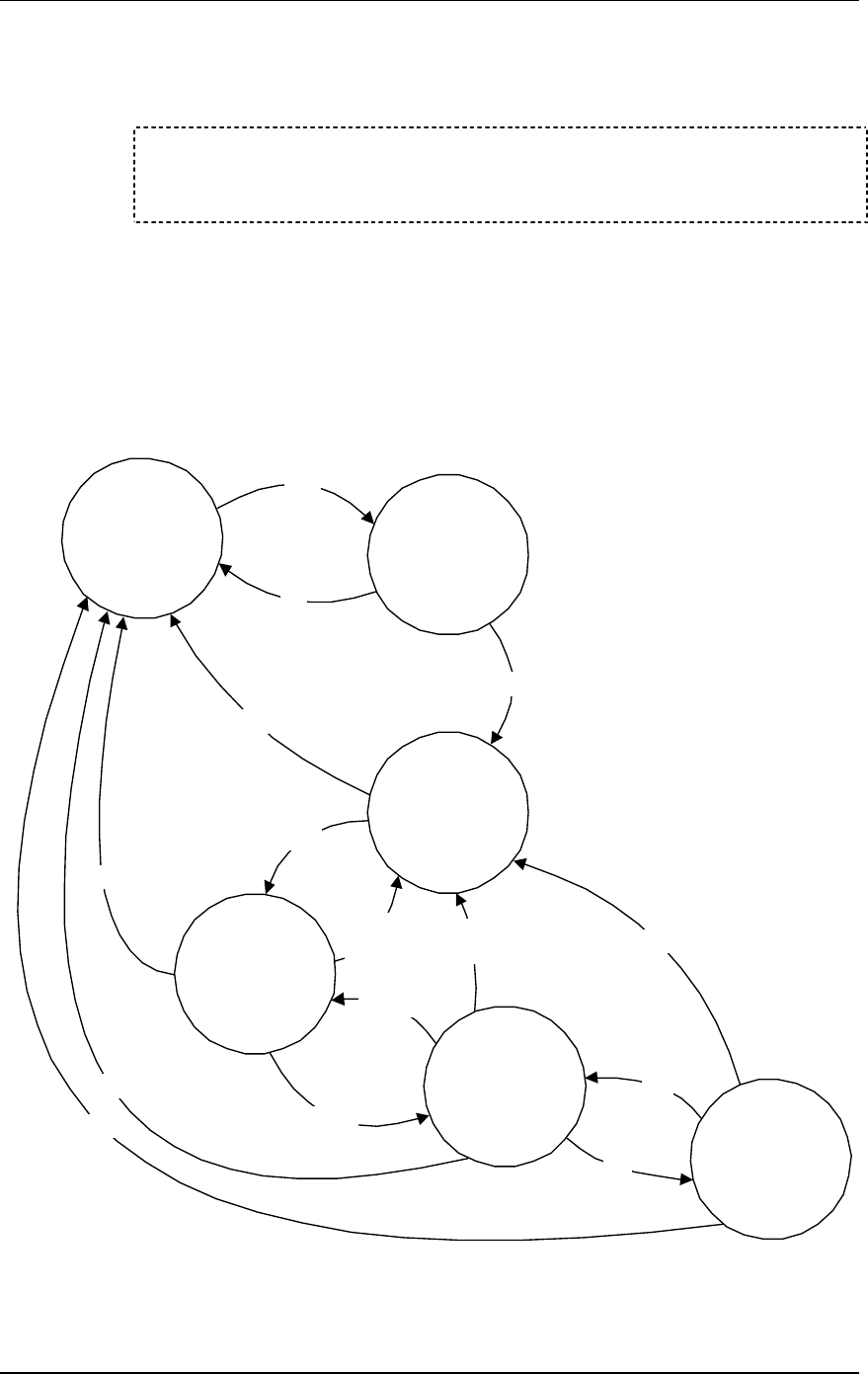
The following diagram illustrates the life cycle of a virtual station
from its null (unconfigured) state to its running state in the active
execution of a test. This illustration will help you determine the
sequence of commands to use to achieve the desired results with
virtual station setup and control commands.
Null
conf
Associated
Initialized
Configured
Authenticated
Running
init
auth
deauth,
reset
del
halt
run
reset
deauth,
reset
disassoc
assoc
del
del
del
del
NOTES: The state names used in the diagram are defined as
follows:

Communication Machinery Corporation (CMC)
6-10 Rev #/Date: 2.0.0 Beta/07.17.03
Null: The virtual station does not yet exist, it hasn't been created
(i.e., configured).
Configured: The initial configuration parameters for the virtual
station have been defined.
Initialized: The virtual station has been added to the system's
internal tables (addressing, etc.).
Authenticated: The virtual station has been authenticated with the
System Under Test.
Associated: The virtual station has been associated with the
System Under Test.
Running: The virtual station is running, either its internal load
application or externally supplied network traffic.
assoc
This command initiates the association sequence for one or more
virtual stations. The virtual station(s) must be configured,
initialized, and authenticated before this command can be used.
The following command will initiate the association sequence for
one or all virtual stations.
assoc vsta <id>
<id>: Virtual Station ID (1...64) or "all". If <id> is set to "all" (i.e.,
assoc vsta all), the association sequence is initiated for all virtual
stations.
The following command will initiate the association sequence for
all virtual stations in a specified group.
assoc group <id>
<id>: Group ID (1...64)
Example:
CMC_EE -> assoc vsta 1
CMC_EE -> OK
CMC_EE ->
vSTA ID:1 NOTIFY Operation ASSOC succeeded - TUE JUL 15
03:08:38 2003
CMC_EE ->
auth
This command initiates the authentication sequence for one or
more virtual stations. The virtual station(s) must be configured
and initialized before this command can be used.
NOTE: The EmulationEngine supports both open system and
shared key authentication.
The following command will initiate the authentication sequence
for one or all virtual stations.
auth vsta <id>

EmulationEngine 11a/b/g User's Guide
Rev #/Date: 2.0.0 Beta/07.17.03 6-11
<id>: Virtual Station ID (1...64) or "all". If <id> is set to "all" (i.e.,
auth vsta all), the authentication sequence is initiated for all
virtual stations.
The following command will initiate the authentication sequence
for all virtual stations in a specified group.
auth group <id>
<id>: Group ID (1...64)
Example:
CMC_EE -> auth vsta 1
CMC_EE -> OK
CMC_EE ->
vSTA ID:1 NOTIFY Operation AUTH succeeded - TUE JUL 15
03:08:15 2003
CMC_EE ->
autoconf
This command can be used to configure, initialize, authenticate
and associate a number of virtual stations using a single
command. It can be issued multiple times. The first time the
command is issued the base MAC and IP virtual station addresses
must be specified. For subsequent commands, the IP and MAC
address parameters are not required. The specified number of
virtual stations will be configured using either default values or
the values specified in the command line. Except for the number
of virtual stations to be configured, values are specified using a
"name/value" pair syntax and may be given in any order.
autoconf <num> mac <mac_addr> ip <ip_addr> [group <grpId>]
[csmode persistent|non-persistent] [retry <integer>]
[timeout <integer>] [authentication open-system|shared-key]
[encryption on|off] [keyindex <integer>] [cipher wep] [mode
internal|external] [target <ip_addr>] [count <integer>]
[size <integer>]
<num>: The number of virtual stations to be configured (1...64). If
this is not the first autoconf command, new virtual stations will be
configured starting at the last virtual station and incrementing for
<num>. Default: None.
mac <mac_address>: Base/starting value to be used for virtual
station MAC addresses. This parameter is required for the first
autoconf command and should not be specified for subsequent
commands. Default: Last MAC address + 1. The starting MAC
address must be within the range of MAC addresses defined by
the WLAN Base MAC Address and WLAN MAC Mask in
EmulationEngine configuration (see “set eemac” & “set eemask”).
ip <ip_address>: Base/starting value to be used for virtual station
IP addresses. This parameter is required for the first autoconf
command and should not be specified for subsequent commands.
Default: Last IP address + 1.

Communication Machinery Corporation (CMC)
6-12 Rev #/Date: 2.0.0 Beta/07.17.03
[group <grpId>]: Optional group ID number (1...64).
[csmode persistent|non-persistent]: Connection mode (persistent
or non-persistent).
[retry <integer>]: If csmode is presistent, this parameter specifies
the Authentication/Association retry limit (1...2,147,483,647 or
zero (=no retries)).
[timeout <integer>]: If csmode is presistent, this parameter
specifies the Authentication/Association timeout in milliseconds
(1...2,147,483,647 or zero (=immediate timeout)).
[authentication open-system|shared-key]: Authentication mode
(open-system or shared-key).
[encryption on|off]: Encryption mode (on or off).
[keyindex <integer>]: If encryption is on, a shared key index
number (1...4).
[cipher wep]: Enables WEP cipher mode.
[mode internal|external]: If mode is internal, virtual station(s) will
generate data using Ping (ICMP Echo Request) packets. Each
virtual station will run a ping transmitter process. The packets
will contain virtual station IP and MAC source address. If Internal
is specified the "target" parameter must also be specified. If mode
is external, data for virtual station(s) will be generated by an
external host connected to the same LAN as the EmulationEngine.
IP and ARP packets generated from this host that contain the
virtual station's IP address as a source will be translated at the
MAC layer to appear as if sourced from the virtual station's MAC
address. Default: Internal.
[target <ip_address>]: Target host's IP address. If mode is Internal
this parameter is required. Default: None.
[count <integer>]: Number of ping packets to send:
0...2,147,483,647. Default: 1000.
[size <integer>]: Size of ping data buffer (64...1024). Default: 1024.
Examples:
CMC_EE -> autoconf 2 mac 00:0b:cd:59:00:01 ip 10.1.35.150
mode external
vSTA ID:1 IP:10.1.35.150 MAC:00:0b:cd:59:00:01 CONF OK
vSTA ID:2 IP:10.1.35.151 MAC:00:0b:cd:59:00:02 CONF OK
vSTA ID:1 INIT OK
vSTA ID:2 INIT OK
vSTA ID:1 AUTH CMD OK
vSTA ID:1 AUTH NOTIFY OK
vSTA ID:2 AUTH CMD OK
vSTA ID:2 AUTH NOTIFY OK
vSTA ID:1 ASSOC CMD OK
vSTA ID:1 ASSOC NOTIFY OK
vSTA ID:2 ASSOC CMD OK

EmulationEngine 11a/b/g User's Guide
Rev #/Date: 2.0.0 Beta/07.17.03 6-13
vSTA ID:2 ASSOC NOTIFY OK
CMC_EE ->
CMC_EE -> autoconf ?
vSTA Auto-Configuration Information
Configured vSTAs ...... 2
Base IP Address ....... 10.1.35.150
Next IP Address ....... 10.1.35.152
Base MAC Address ...... 00:0b:cd:59:00:01
Next MAC Address ...... 00:0b:cd:59:00:03
CMC_EE ->
NOTE: By default, all virtual stations that are created in the CLI
are assigned to group 1. This can be changed using the “set vsta
<vStaId> group <grpId>” command.
autorun
This command automatically runs one or more configured virtual
stations that are in the associated state. It is intended for use in
conjunction with the autoconf command. Any other use may
produce unexpected results. It will issue the run command for the
specified number of virtual stations.
autorun [nVstas]
[nVstas]: Optional number of virtual stations (1...64). If this
parameter is omitted, the total number of auto-configured
(autoconf) virtual stations is used.
conf
This command configures a virtual station. It specifies a virtual
station's IP address, WLAN MAC address and load application
mode. It also specifies the load application protocol, target host
and application specific parameters. After a virtual station is
configured, it must be initialized with the "init" command.
conf <id> <ip> <mac> <mode> <lp> <target> <count> <size>
<id>: Virtual Station ID (1...64)
<ip>: Virtual station’s WLAN IP address (nnn.nnn.nnn.nnn)
<mac>: Virtual station’s WLAN MAC address (xx:xx:xx:xx:xx:xx).
The starting MAC address must be within the range of MAC
addresses defined by the WLAN Base MAC Address and WLAN
MAC Mask in EmulationEngine configuration (see “set eemac” &
“set eemask”).
<mode>: external or internal. If external mode is used, the
remaining parameters (<lp> <target> <count> <size>) are optional.
<lp>: Specifies the Load Application Protocol (ping).
<target>: Target IP address (nnn.nnn.nnn.nnn)
<count>: Number of ICMP Echo Requests to transmit:
0...2,147,483,647.

Communication Machinery Corporation (CMC)
6-14 Rev #/Date: 2.0.0 Beta/07.17.03
<size>: Number of data bytes to be included in ICMP Echo
Requests: 64...1024.
Example:
CMC_EE -> conf 3 10.1.40.20 00:0b:cd:59:00:01 internal ping
10.1.40.16 64000 1024
CMC_EE -> OK
NOTE: By default, all virtual stations that are created in the CLI
are assigned to group 1. This can be changed using the “set vsta
<vStaId> group <grpId>” command.
deauth
This command initiates the de-authentication sequence for one or
more virtual stations. The virtual station(s) must be configured,
initialized and authenticated before this command can be used.
The following command will initiate the de-authentication
sequence for one or all virtual stations.
deauth vsta <id>
<id>: Virtual Station ID (1...64) or "all". If <id> is set to "all" (i.e.,
deauth vsta all), the de-authentication sequence is initiated for all
virtual stations.
The following command will initiate the de-authentication
sequence for all virtual stations in a specified group.
deauth group <id>
<id>: Group ID (1...64)
Example:
CMC_EE -> deauth vsta 1
CMC_EE -> OK
CMC_EE ->
vSTA ID:1 NOTIFY Operation DEAUTH succeeded - TUE JUL 15
03:09:56 2003
CMC_EE ->
disassoc
This command initiates the disassociation sequence for one or
more virtual stations. The virtual station(s) must be configured,
initialized, authenticated, and associated before this command
can be used. The following command will initiate the
disassociation sequence for one or all virtual stations.
disassoc vsta <id>
<id>: Virtual Station ID (1...64) or "all". If <id> is set to "all" (i.e.,
disassoc vsta all), the disassociation sequence is initiated for all
virtual stations.
The following command will initiate the disassociation sequence
for all virtual stations in a specified group.
disassoc group <id>
<id>: Group ID (1...64)

EmulationEngine 11a/b/g User's Guide
Rev #/Date: 2.0.0 Beta/07.17.03 6-15
Example:
CMC_EE -> disassoc vsta 1
CMC_EE -> OK
CMC_EE ->
vSTA ID:1 NOTIFY Operation DISASSOC succeeded - TUE JUL 15
03:09:50 2003
CMC_EE ->
group (clear/del/get/reset/save/set)
These commands display and modify group configuration. Group
commands are a convenient way to reference multiple virtual
stations using a single command. For example, the "set group"
command will assign the specified parameters to all virtual
stations in the group.
clear group stats
This command clears all statistics for all virtual stations in a
specified group.
clear group <id> stats
<id>: Group ID (1...64)
del group
This command clears all configuration parameters for a specified
group and removes the group from the system.
del group <id>
<id>: Group Number (1...64)
Example:
CMC_EE -> del group 2
5 vSTAs deleted
CMC_EE -> OK
CMC_EE ->
vSTA ID:6 NOTIFY DELETED - reason: delete command - WED JUL
16 07:35:27 2003
CMC_EE -> OK
CMC_EE ->
vSTA ID:7 NOTIFY DELETED - reason: delete command - WED JUL
16 07:35:27 2003
CMC_EE -> OK
CMC_EE ->
vSTA ID:8 NOTIFY DELETED - reason: delete command - WED JUL
16 07:35:27 2003
CMC_EE -> OK
CMC_EE ->
vSTA ID:9 NOTIFY DELETED - reason: delete command - WED JUL
16 07:35:28 2003
CMC_EE -> OK
CMC_EE ->
vSTA ID:10 NOTIFY DELETED - reason: delete command - WED
JUL 16 07:35:28 2003
CMC_EE ->

Communication Machinery Corporation (CMC)
6-16 Rev #/Date: 2.0.0 Beta/07.17.03
get group
This command retrieves and displays a configuration parameter or
statistics for all virtual stations in a group.
get group <id> <attribute>
<id>: Group Number (1...64). If <attribute> is “summary”, you may
specify “all” as the group number (i.e., get group all summary) to
display summary statistics for all groups.
<attribute>: The attribute of the information to get/display:
authentication: Display the group’s authentication mode (open-
system or shared-key).
cipher: Display the group’s cipher mode (wep)
count: If the group’s test mode is internal, display the configured
ping count (0...2,147,483,647)
csmode: Display the group’s connection mode (persistent or non-
persistent)
encryption: Display the group’s encryption mode: on or off
keyindex: Display the group’s shared-key index (1, 2, 3, or 4)
lp: Load Protocol: ping
mode: Display the group’s test mode (external or internal)
retry: If the group’s csmode is persistent, display the configured
Authentication/Association retry limit (1...2,147,483,647 or zero
(=no retries)).
size: If the group’s test mode is internal, display the configured
ping packet size (64...1024).
stats: Displays statistics counters for all virtual stations in a
group.
summary: Displays cumulative summary statistics for all virtual
stations in one or all groups.
target: If the group’s test mode is internal, display the configured
ping target IP address (e.g., 10.1.35.100).
timeout: If the group’s csmode is persistent, display the configured
Authentication/Association timeout in milliseconds
(1...2,147,483,647 or zero (=immediate timeout).
Example:
CMC_EE -> get group 1 csmode
vSTA 1 connection mode: persistent
vSTA 2 connection mode: persistent
vSTA 3 connection mode: persistent
vSTA 4 connection mode: persistent
vSTA 5 connection mode: persistent
5 vSTAs found

EmulationEngine 11a/b/g User's Guide
Rev #/Date: 2.0.0 Beta/07.17.03 6-17
CMC_EE ->
reset group
This command resets all virtual stations in a group to the
Initialized state and clears all group statistics counters.
reset group <id>
<id>: Group Number (1...64)
Example:
CMC_EE -> reset group 1
5 vSTAs reset
CMC_EE ->
save group stats
This command saves statistics information in a file for all virtual
stations in a specified group. Each virtual station in the group is
saved to its own file. The file will be stored in the /Statistics
subdirectory and named "Vsta#Stats.dat" (where "#" is the virtual
station ID).
save group <id> stats
<id>: Group ID (1...64)
save group summary
This command saves cumulative summary statistics in a file for all
virtual stations in one or all groups. Each group is saved to its
own file. The file will be stored in the /Statistics subdirectory and
named "Grp#Summ.dat" (where "#" is the group ID).
save group <id> summary
<id>: Group ID (1...64) or "all". If <id> is set to "all" (i.e., save
group all summary), summary statistics are saved for all virtual
stations in all groups.
set group
This command modifies configuration parameters for all virtual
stations in a specified group.
set group <id> <attribute> <value>
<id>: Group Number (1...64)
<attribute>: authentication, cipher, count, csmode, encryption,
keyindex, lp, mode, retry, size, target, timeout.
<value>: Depending on the <attribute>, set <value> to one of the
following.
<attribute> <value>
authentication Authentication mode: open-system or shared-key
cipher Cipher mode: wep
count Ping Count: 0...2,147,483,647

Communication Machinery Corporation (CMC)
6-18 Rev #/Date: 2.0.0 Beta/07.17.03
<attribute> <value>
csmode Connection mode: persistent or non-persistent
encryption Encryption mode: on or off
keyindex Shared-key index: 1, 2, 3, or 4
lp Load Protocol: ping
mode external or internal
retry Authentication/Association retry limit: 1...2,147,483,647 or zero
(=no retries)
size Ping Packet Size: 64...1024
target Ping Target IP address in ASCII Dotted Decimal Notation:
nnn.nnn.nnn.nnn (e.g., 10.1.35.100).
timeout Authentication/Association timeout in milliseconds:
1...2,147,483,647 or zero (=immediate timeout)
Example:
CMC_EE -> set group 1 size 64
5 vSTAs updated
OK
CMC_EE ->
halt
This command initiates an immediate halt of the load application
currently being run by one or more virtual stations. The virtual
station(s) must be configured, initialized, authenticated,
associated and running a load application. As long as the specified
virtual station remains in the associated state, the load
application may be re-started by issuing a run command. The
following command will execute the halt for one or all virtual
stations.
halt vsta <id>
<id>: Virtual Station ID (1...64) or "all". If <id> is set to "all" (i.e.,
halt vsta all), the halt command will be sent to all virtual stations.
The following command will execute the halt for all virtual stations
in a specified group.
halt group <id>
<id>: Group ID (1...64)
Example:
CMC_EE -> halt vsta 1
CMC_EE ->
vSTA ID:1 halted OK
CMC_EE ->
init
This command initializes one or more virtual stations. A virtual
station must be configured before it can be initialized. See the

EmulationEngine 11a/b/g User's Guide
Rev #/Date: 2.0.0 Beta/07.17.03 6-19
"conf" command. The following command initializes one or all
virtual stations.
init vsta <id>
<id>: Virtual Station ID (1...64) or "all". If <id> is set to "all" (i.e.,
init vsta all), all virtual stations are initialized.
The following command initializes all virtual stations in a specified
group.
init group <id>
<id>: Group ID (1...64)
Example:
CMC_EE -> init vsta 1
CMC_EE -> OK
run
This command starts running the load application for one or more
virtual stations. The virtual station(s) must be configured,
initialized, authenticated and associated before issuing this
command. After a run command has completed, it may be
reissued/re-started as long as the virtual station remains in the
associated state. The following command starts running the load
application for one or all virtual stations.
run vsta <id>
<id>: Virtual Station ID (1...64) or "all". If <id> is set to "all" (i.e.,
run vsta all), the run command is sent to all virtual stations.
The following command starts running the load application for all
virtual stations in a specified group.
run group <id>
<id> = Group ID (1...64)
Example:
CMC_EE ->run vsta 1
CMC_EE ->
vSTA ID:1 running OK
CMC_EE ->
vSTA ID:1 NOTIFY Operation RUN completed.
CMC_EE ->
vsta (clear/del/get/reset/save/set)
These commands can be used to clear virtual station statistics,
delete virtual stations from the system, display virtual station
configuration and statistics, reset virtual stations, save virtual
station statistics in a file, and to set virtual station parameters.
clear vsta stats
This command clears all statistics for one or more virtual stations.
clear vsta <id> stats

Communication Machinery Corporation (CMC)
6-20 Rev #/Date: 2.0.0 Beta/07.17.03
<id>: Virtual Station ID (1...64), "all", or "master". If <id> is set to
"all" (i.e., clear vsta all stats), this command will clear all statistics
for all virtual stations. If <id> is set to "master" (i.e., clear vsta
master stats), this command will clear all statistics for the
EmulationEngine.
Example:
CMC_EE -> clear vsta 1 stats
CMC_EE ->
del vsta
This command clears all configuration parameters for one or more
virtual stations and removes the virtual station(s) from the system.
del vsta <id>
<id>: Virtual Station ID (1...64) or "all". If <id> is set to "all" (i.e.,
del vsta all), all virtual stations are deleted.
Example:
CMC_EE -> del vsta 1
CMC_EE -> OK
CMC_EE ->
vSTA ID:1 NOTIFY DELETED - reason: delete command - WED JUL
16 07:44:09 2003
CMC_EE ->
get vsta
This command gets (retrieves and displays) a configuration
parameter or statistics for one or all virtual stations.
get vsta <id> <attribute>
<id>: Virtual Station ID (1...64). Use "all" to display <attribute> for
all virtual stations. If the <attribute> is set to “stats” to display
statistics, the <id> can be set to “master” to show statistics for the
EmulationEngine (i.e., get vsta master stats). If <attribute> is
“summary”, <id> must be set to “all”
<attribute>: The attribute of the information to get. Omit this
parameter (e.g., get vsta 1) to show a virtual station's complete
configuration. Or, use one of the following attributes to show a
specific configuration parameter:
authentication: Display the virtual station’s authentication mode
(open-system or shared-key).
cipher: Display the virtual station’s cipher mode (wep).
count: If the virtual station’s test mode is internal, display the
configured ping count (0...2,147,483,647).
csmode: Display the virtual station’s connection mode (persistent
or non-persistent).
encryption: Display the virtual station’s encryption mode (on or
off).

EmulationEngine 11a/b/g User's Guide
Rev #/Date: 2.0.0 Beta/07.17.03 6-21
keyindex: Display the virtual station’s shared-key index (1, 2, 3, or
4).
lp: Display the virtual station’s Load Protocol (ping).
mode: Display the virtual station’s test mode (external or internal).
retry: If csmode is persistent, display the virtual station’s
Authentication/Association retry limit (1...2,147,483,647 or zero
(=no retries)).
size: If the virtual station’s test mode is internal, display the
configured ping packet size (64...1024).
stats: Depending on the value of <id>, display statistics counters
for one virtual station, all virtual stations, or the
EmulationEngine.
summary: Display cumulative summary statistics for all virtual
stations
target: If the virtual station’s test mode is internal, display the
configured ping target IP address (e.g., 10.1.35.100).
timeout: If the virtual station’s test csmode is persistent, display
the Authentication/Association timeout in milliseconds
(1...2,147,483,647 or zero (=immediate timeout)).
Examples:
CMC_EE -> get vsta 1 count
vSTA 1 Ping count: 1000
CMC_EE -> get vsta 1
vSTA configuration:
ID ...................... 1
Group ID ................ 1
IP Address .............. 10.1.40.18
MAC Address ............. 00:0b:cd:59:00:01
Connection Mode ......... persistent
Auth/Assoc Retry ........ 2
Auth/Assoc Timeout ...... 300 mSec
Authentication .......... Shared-key
Cipher .................. WEP(RC4)
Data encryption ......... Off
Shared-key Index ........ 1
Mode .................... internal
Load Application ........ ping
Target IP Address ....... 10.1.40.16
Ping transmit count ..... 1000
Ping data size .......... 1024
CMC_EE ->
CMC_EE -> get vsta 1 state
vSTA: 1
State: Running
Mode: internal
vStaPingRcv:Active

Communication Machinery Corporation (CMC)
6-22 Rev #/Date: 2.0.0 Beta/07.17.03
vStaPingXmt:Active
CMC_EE ->
CMC_EE -> get vsta 1 stats
vSTA 1: MAC 00:0b:cd:59:00:01, IP 10.1.35.150, State:
Running
Authentications: 1, Deauthentications: 0
Associations: 1, Disassociations: 0
Rcv Sig Strength: 72, Ack Sig Strength: 83
Rcv Rate: 24, Tx SF Rate: 54, Tx LF Rate: 54
Frame counts: MSDUs Data Mcast Mgmt Ctrl
Rcv 240 238 0 2 0
Tx 95 97 0 2 0
vSTA 1 Ping statistics:
Transmit count: 1000
Transmit data size: 1024
Packets transmitted: 96 Round-trip (uSec):
Bytes transmitted: 99072 Min: 50000
Transmit ENOBUFS: 0 Max: 100000
Packets received: 96 Avg: 74725
Bytes received: 99072 Stddev: 25137
Packet loss: 0%
Rcv Errors: 64, Tx Errors: 4
Rcv PHY Errors: 0, Excess Retries: 3
Rcv CRC Errors: 64, Total Retries: 7
Rcv Duplicates: 146, Tx Filtered: 1
Rcv Discarded: 146, Tx Discarded: 0
Ack Rcv Fails: 0, RTS Fails: 0
Authentication Type: Open System
Encryption: Off, FCS Fails: 0
Rcv Decrypt Errs: 0, WEP Excluded: 0
CMC_EE ->
CMC_EE -> get vsta all summary
Summary statistics for 5 vSTAs:
Authentications: 6 Deauthentications: 3
Associations: 6 Disassociations: 0
Signal Quality: Min Max Avg
Rcv Strength 0 61 36
Ack Strength 0 60 35
Rcv Rate 54 54 54
Tx SF Rate 54 54 54
Tx LF Rate 54 54 54
Rcv Frames: Min Max Avg Total
MSDUs 0 10 6 30
Data 0 0 0 0
Multicast 0 0 0 0
Management 0 6 4 18
Control 0 4 2 12
Error 0 0 0 0
Tx Frames: Min Max Avg Total
MSDUs 0 4 2 12
Data 0 0 0 0
Multicast 0 0 0 0
Management 0 4 2 12
Control 0 0 0 0
Error 0 0 0 0

EmulationEngine 11a/b/g User's Guide
Rev #/Date: 2.0.0 Beta/07.17.03 6-23
Tx Retries 0 0 0 0
Rcv Errors: 0, Tx Errors: 0
Rcv PHY Errors: 0, Excess Retries: 0
Rcv CRC Errors: 0, Total Retries: 0
Rcv Duplicates: 3, Tx Filtered: 0
Rcv Discarded: 0, Tx Discarded: 0
Ack Rcv Fails: 0, RTS Fails: 0
Rcv Decrypt Errs: 0, WEP Excluded: 0
FCS Fails: 0
reset vsta
This command resets virtual stations to the Initialized state and
clears the virtual station's statistics counters.
reset vsta <id>
<id>: Virtual Station ID (1...64) or "all". If <id> is set to all (i.e.,
reset vsta all), this command will reset all virtual stations.
Example:
CMC_EE -> reset vsta 1
CMC_EE ->
save vsta stats
This command writes all statistics for virtual stations to a file in
the flash file system. The file will be stored in the /Statistics
subdirectory and named "Vsta#Stats.dat" (where "#" is the virtual
station ID).
save vsta <id> stats
<id>: Virtual Station ID (1...64), "all", or "master". If <id> is set to
all (i.e., save vsta all stats), statistics for all virtual stations are
written to individual files. If <id> is set to "master" (i.e., save vsta
master stats), EmulationEngine statistics information are written
in the file /Statistics/VstaMasterStats.dat.
Example:
CMC_EE -> save vsta 1 stats
Wrote vSTA 1 statistics to file
CMC_EE ->
save vsta all summary
This command saves cumulative summary statistics for all virtual
stations to the file /Statistics/VstaAllSumm.dat.
save vsta all summary
Example:
CMC_EE -> save vsta all summary
Wrote vSTA all summary to file
CMC_EE ->
set vsta
This command modifies virtual station parameters.

Communication Machinery Corporation (CMC)
6-24 Rev #/Date: 2.0.0 Beta/07.17.03
set vsta <id> <attribute> <value>
<id>: Virtual Station ID (1...64). If <attribute> is anything other
than "ip" or "mac", the <id> can be given as "all" to apply the
configuration parameter to all virtual stations.
<attribute>: authentication, cipher, count, csmode, encryption,
group, ip, keyindex, lp, mac, mode, retry, size, target, timeout.
<value>: Depending on the <attribute>, set <value> to one of the
following.
<attribute> <value>
authentication Authentication mode: open-system or shared-key
cipher Cipher mode: wep
count Ping Count: 0...2,147,483,647
csmode Connection mode: persistent or non-persistent (see NOTE
below)
encryption Encryption mode: on or off
group Assign virtual station(s) to group ID (1...64)
ip IP address in ASCII Dotted Decimal Notation: nnn.nnn.nnn.nnn
(e.g., 10.1.35.100).
keyindex Shared-key index: 1, 2, 3, or 4
lp Load Protocol: ping
mac MAC address in ASCII Colon Separated Hexadecimal Notation:
xx:xx:xx:xx:xx:xx (e.g., 02:cf:1f:00:00:01)
mode external or internal
retry Authentication/Association retry limit: 1...2,147,483,647 or zero
(=no retries)
size Ping Packet Size: 64...1024
target Ping Target IP address in ASCII Dotted Decimal Notation:
nnn.nnn.nnn.nnn (e.g., 10.1.35.100).
timeout Authentication/Association timeout in milliseconds:
1...2,147,483,647 or zero (=immediate timeout)
NOTE: The purpose of the csmode parameter is for the virtual
station to remain persistent (connected) to a system during a test
if the system deauthenticates or disassociates. If the
EmulationEngine loses connection to a System Under Test, it
must be able to recover and continue where it left off. For
example, if the virtual station is in a run or associated state and
an 802.11 management frame (deauth or disassoc) is sent from
the system and received by the EmulationEngine virtual station,
the virtual station will go back to the state it was in prior to
receiving the management frame. If it was in an internal run state,
ping will continue. If it was in an associated state, the virtual
station will go back to associated. Examples:
CMC_EE -> set vsta 1 count 100

EmulationEngine 11a/b/g User's Guide
Rev #/Date: 2.0.0 Beta/07.17.03 6-25
CMC_EE -> OK
CMC_EE -> set vsta 1 csmode persistent
CMC_EE -> OK
CMC_EE -> set vsta 1 csmode non-persistent
CMC_EE -> OK
Statistics File Commands
The following commands can be used to display and delete
statistics files:
del statfile -- Delete a vSTA statistics file
del summfile -- Delete a vSTA statistics summary file
get statfile -- Display vSTA statistics from file
get summfile -- Display vSTA statistics summary from file
See "Chapter 8, Statistics Counters" for a description of the fields
that may be displayed by any of the commands in this group that
display statistics counters. Also see the “group” and “vsta”
commands under “Virtual Station Setup & Control Commands”
above for commands that display, clear, and save statistics
counters for a group or one or more virtual stations.
Delete Statistics File
del statfile group
This command deletes the statistic file for all virtual stations in a
specified group.
del statfile group <id>
<id>: Group ID (1...64)
del statfile vsta
This command deletes the statistic file for one or more virtual
stations.
del statfile vsta <id>
<id>: Virtual Station ID (1...64), "all", or "master". If <id> is set to
"all" (i.e., del statfile vsta all), this command will delete the
statistics file for all virtual stations. If <id> is set to "master" (i.e.,
del statfile vsta master), this command will delete the statistics file
for the EmulationEngine.
Example:
CMC_EE -> del statfile vsta 1
Deleted vSta 1 statistics file
CMC_EE ->
del summfile group
This command deletes the group summary statistics file for one or
all groups.
del summfile group <id>
<id>: Group ID (1...64) or "all". If <id> is set to "all" (i.e., gel group
all summfile), group summary statistics are deleted for all groups.

Communication Machinery Corporation (CMC)
6-26 Rev #/Date: 2.0.0 Beta/07.17.03
del summfile vsta all
This command deletes the overall summary statistics file for all
virtual stations.
del vsta all summfile
Get/Display Statistics File
get statfile group
This command retrieves and displays a statistics file for all virtual
stations in a specified group.
get statfile group <id>
<id>: Group ID (1...64)
get statfile vsta
This command retrieves and displays a statistics file for one or
more virtual stations.
get statfile vsta <id>
<id>: Virtual Station ID (1...64), "all", or "master". If <id> is set to
"all" (i.e., get statfile vsta all), this command will display the
statistics file for all virtual stations. If <id> is set to "master" (i.e.,
get statfile vsta master), this command will display the statistics
file for the EmulationEngine.
get summfile group
This command displays cumulative statistics from a summary
statistics file for all virtual stations in one or all groups.
get summfile group id
<id>: Group ID (1...64) or "all". If <id> is set to "all" (i.e., get
summfile group all), group summary statistics are displayed for all
groups.
get summfile vsta all
This command displays cumulative statistics from a summary
statistics file for all virtual stations.
get summfile vsta all
Event Log Commands
These commands can be used to clear the event log, display the
event log, set event log controls, and save the event log in a file.
clear evlog -- Clear event log file or buffer
get evlog -- Display event log data
save evlog -- Save the event log buffer to file
set evlog -- Set event log controls
Also see "Chapter 7, Event Logging" for more information about
how the EmulationEngine creates and maintains the event log.

EmulationEngine 11a/b/g User's Guide
Rev #/Date: 2.0.0 Beta/07.17.03 6-27
Clear Event Log
clear evlog buffer
This command clears the EmulationEngine's event log buffer.
clear evlog buffer
Example:
CMC_EE -> clear evlog buffer
clear evlog file
This command clears a log file.
clear evlog file <fileAorB>
<fileAorB>: A or B
Example:
CMC_EE -> clear evlog file A
Get/Display Event Log
get evlog buffer
This command displays event log data from the event log buffer.
get evlog buffer <n>
<n>: the number of records to display. The CLI will display the last
<n> number of records in the buffer. Omit this parameter to show
all records in the buffer.
Example:
CMC_EE -> get evlog buffer
1/17/2003,10:25:14,5527.040462,0, Joined, BSSID
00:04:e2:38:52:18, chan 5280
1/17/2003,10:27:19,5651.922666,1, vSta conf ID 1, IP
10.1.35.231, mac 02:22:33:44:55:61, mode external
1/17/2003,10:27:19,5652.172465,2, vSta conf ID 2, IP
10.1.35.232, mac 02:22:33:44:55:62, mode external
1/17/2003,10:27:20,5652.672575,3, vSta init ID 1
1/17/2003,10:27:20,5652.922582,4, vSta init ID 2
1/17/2003,10:27:21,5653.839116,5, vSta auth ID 1
1/17/2003,10:27:22,5654.339023,6, vSta auth ID 2
1/17/2003,10:27:23,5655.339004,7, vSta assoc ID 1
1/17/2003,10:27:23,5655.839090,8, vSta assoc ID 2
get evlog file
This command displays event log data from an event log file.
get evlog file <fileAorB> [<startRec#> [<count>]]
get evlog file <fileAorB> ?
<fileAorB>: A or B
<startRec#>: The first record to be displayed. Omit this parameter
to start with the first record in the file.

Communication Machinery Corporation (CMC)
6-28 Rev #/Date: 2.0.0 Beta/07.17.03
<count>: The number of records to display. Omit this parameter to
show all remaining records in the file. This parameter can only be
used if <startRec#> is specified.
Use "?" to display the number of records in the file.
Example:
CMC_EE -> get evlog file A ?
Log file A has 15 records
CMC_EE -> get evlog file A
1/1/1970,0:00:37,30.963149,0, CLI: set date 5/5/2003 15:21
5/5/2003,15:21:03,34.229892,1, CLI: (null)
5/5/2003,15:21:21,52.663185,2, CLI: autoconf 5 ip
10.1.35.150 mac 00:0b:cd:59:00:01
1 mode external
5/5/2003,15:21:23,54.646520,3, CLI: join
5/5/2003,15:21:23,61.952464,4, Joined, BSSID
00:04:e2:3a:3c:32, chan 5180
5/5/2003,15:21:45,83.939091,5, CLI: autoconf 2 ip
10.1.35.150 mac 00:0b:cd:59:00:02 mode external
5/5/2003,15:21:45,83.939443,6, vSTA 1: configured, IP
10.1.35.150, mac 00:0b:cd:59:00:03, mode external
5/5/2003,15:21:45,84.189298,7, vSTA 2: configured, IP
10.1.35.151, mac 04:cf:1f:00:00:02, mode external
5/5/2003,15:21:46,84.439303,8, vSTA 1: initialized
5/5/2003,15:21:46,84.689242,9, vSTA 2: initialized
5/5/2003,15:21:46,85.022468,10, vSTA 1: authenticated
5/5/2003,15:21:47,85.272568,11, vSTA 2: authenticated
5/5/2003,15:21:47,85.522474,12, vSTA 1: associated
5/5/2003,15:21:47,85.772538,13, vSTA 2: associated
5/5/2003,15:21:53,91.422499,22, CLI: save evlog
get evlog settings
This command displays the current event log control settings.
get evlog settings
Example:
CMC_EE -> get evlog settings
Event logging is enabled
Event log verbosity : critical events only
WLANTX module: disabled
WLANRX module: disabled
EE module: enabled
VSTA module: enabled
UI module: disabled
Event data to console: disabled
Event data to file : disabled
CMC_EE ->
Save Event Log (save evlog)
This command flushes all records from the log buffer to the
current log file, even if log to file is not enabled.
save evlog

EmulationEngine 11a/b/g User's Guide
Rev #/Date: 2.0.0 Beta/07.17.03 6-29
NOTE: When logging to file is enabled (i.e., set evlog file enable),
event records are automatically written to the log file as they
occur. The "save evlog" command is intended for use when log to
file is not enabled but there are significant events in the event log
buffer that you want to save to file.
Set Event Log Controls
set evlog
This command enables/disables event logging.
set evlog <mode>
<mode>: enable/disable
Example:
CMC_EE -> set evlog enable
set evlog console
This command enables/disables event logging to the console.
set evlog console <mode>
<mode>: enable/disable
Example:
CMC_EE -> set evlog console enable
set evlog file
This command enables/disables event logging to event log files.
set evlog file <mode>
<mode>: enable/disable
Example:
CMC_EE -> set evlog file enable
set evlog level
This command sets the level at which events are logged. The
verbosity level sets an “importance” threshold for events: at lower
verbosity, only more “important” events are logged; at higher
verbosity, less important events may also be logged.
set evlog level <level>
<level>: 0 or critical = Log critical events only, 1 or low = Set log
level to low verbosity, 2 or medium = Set log level to medium
verbosity, 3 or high = Set log level to high verbosity.
Example:
CMC_EE -> set evlog level 1
set evlog module
This command enables/disables event logging for specific
modules.

Communication Machinery Corporation (CMC)
6-30 Rev #/Date: 2.0.0 Beta/07.17.03
set evlog module <module_name> <mode>
<module_name>: WLANTX = 802.11 WLAN frame transmissions,
WLANRX = 802.11 WLAN frame receptions, EE = EmulationEngine
control, VSTA = Virtual station control, UI = User interface actions
<mode>: enable/disable
Example:
CMC_EE -> set evlog module EE enable
EmulationEngine Commands
The commands in this group can be used to display and modify
the EmulationEngine configuration.
clear sntpserver -- Clear SNTP/NTP server IP address
clear systemname -- Clear the EmulationEngine system name
del key -- Delete Encryption key
exec -- Execute a command file
ftp -- Software update via FTP
get association -- Display Association Table
get channel -- Display Radio Channel
get config -- Display current EmulationEngine configuration
get countrycode -- Display Country Code
get eemac -- Display Wireless LAN MAC Address
get eemask -- Display Wireless LAN Address Mask
get eestatus -- Display EmulationEngine status
get features -– Display authorized features
get fragmentthreshold -- Display Fragment Threshold
get frequency -- Display Radio Frequency (MHz)
get gateway -- Display Gateway IP Address
get hardware -- Display Hardware Revisions
get hwtxretries – Display HW Transmit Retry Limit
get ipaddr -- Display IP Address
get ipmask -- Display IP Subnet Mask
get key -- Display Encryption Key
get keyentrymethod -- Display Encyrption Key Entry Method
get login -- Display Login User Name
get power -- Display Transmit Power Setting
get rate -- Display Data Rate
get sntpserver -- Display SNTP/NTP Server IP Address
get station -- Display Station Status
get systemname -- Display the EmulationEngine system name
get telnet -- Display Telnet Mode
get tzone -- Display Time Zone Setting
get uptime -- Display UpTime
help -- Display CLI Command List
history -- Display the command line history
ping -- Ping
quit -- Logoff
reboot -- Reboot the EmulationEngine
reset eemac -- Reset the WLAN MAC address to default value
set countrycode -- Set Country Code
set date -- Set the system date
set eemac -- Set WLAN MAC Address
set eemask -- Set WLAN Address Mask
set factorydefault -- Restore to Default Factory Settings

EmulationEngine 11a/b/g User's Guide
Rev #/Date: 2.0.0 Beta/07.17.03 6-31
set features -- Upgrade current feature set
set fragmentthreshold -- Set Fragment Threshold
set gateway -- Set Gateway IP Address
set hwtxretries – Set HW Transmit Retry Limit
set ipaddr -- Set IP Address
set ipmask -- Set IP Subnet Mask
set key -- Set Encryption Key
set keyentrymethod -- Select Encryption Key Entry Method
set login -- Modify Login User Name
set password -- Modify Password
set power -- Set Transmit Power
set rate -- Set Data Rate
set sntpserver -- Set SNTP/NTP Server IP Address
set systemname -- Set the EmulationEngine system name
set telnet -- Set Telnet Mode
set time -- Set the system time
set tzone -- Set Time Zone Setting
timeofday -- Display Current Time of Day
version -- Software version
!WARNING!: When EmulationEngine configuration settings are
changed using many of these commands, the device will write all
settings to a new configuration file in Flash. This process is
delayed to allow multiple parameters to be changed. The new file
will be written within one minute from the time the first parameter
is changed. The EmulationEngine will display the following
warning and confirmation:
**
** DO NOT REMOVE POWER FROM THE EmulationEngine!
** Wait for the EE to update the configuration file in
** Flash or use the "reboot" command for immediate
** update & reboot.
** Automatic update will be done within one minute.
**
...Configuration file update completed.
association (get)
This command shows a list of known stations and their
association status. This list will include the master station, the
System Under Test, and all virtual stations.
get association
Example:
get association
CMC_EE -> get assoc
STA MAC Address State
0 00:04:E2:38:56:78 up
SUT 00:04:E2:38:A8:D2 up
1 02:CF:1F:00:00:01 joined
2 02:CF:1F:00:00:02 joined
3 02:CF:1F:00:00:03 joined
4 02:CF:1F:00:00:04 joined
5 02:CF:1F:00:00:05 joined

Communication Machinery Corporation (CMC)
6-32 Rev #/Date: 2.0.0 Beta/07.17.03
channel (get)
This command displays the radio channel/frequency used by the
EmulationEngine. The channel is set automatically when it joins
with the System Under Test.
get channel
Example:
CMC_EE -> get channel
Radio Frequency: 5260 MHz (IEEE 52)
CMC_EE ->
config (get)
This command displays the EmulationEngine configuration.
get config
Example: This example shows the default configuration.
CMC_EE -> get config
EmulationEngine Cfg Rev: 2
Country Code: NA
Wireless Mode: 802.11a
Data Rate: best
Login Username: Admin
BSSID of System Under Test: 00:00:00:00:00:00
WLAN MAC Address: 00:00:00:00:00:00
WLAN MAC Address Mask: ff:ff:ff:ff:00:00
System Name:
DTIM: 1
Fragmentation Threshold: 2346
RTS/CTS Threshold: 2346
IP Address: 192.168.0.50
IP Mask: 255.255.255.0
Host IP Address: 192.168.0.2
Gateway IP Address: 10.10.5.1
SNTP/NTP Server IP Address:
Time Zone:
HW Transmit Retry Limit: 4
TransmitPower: full
Current Transmit Output Power 15.0 dBm
Default transmit key: 1
Shared Key 1, size 40, 1234567890
Key Entry Method: hexadecimal
Telnet: Enabled
CMC_EE ->
countrycode (get/set)
get countrycode
This command displays the country code that is currently
configured in the EmulationEngine.
get countrycode
Example:
CMC_EE -> get country code
Country Code: US - UNITED_STATES

EmulationEngine 11a/b/g User's Guide
Rev #/Date: 2.0.0 Beta/07.17.03 6-33
set countrycode
This command sets the country code configuration parameter for
the EmulationEngine.
set <country_code>
<country_code>: An ISO standard country code (e.g., DB -
DEBUG, NA - NO_COUNTRY_SET, PR - PUERTO_RICO, US -
UNITED_STATES, etc.)
Example:
CMC_EE -> set countrycode us
Country Code: US
**
**DO NOT REMOVE POWER FROM THE EmulationEngine!
**Wait for the EE to update the configuration file in Flash
**or use the "reboot" command for immediate update &
reboot.
**Automatic update will be done within one minute.
**
CMC_EE -> ...Configuration file update completed.
get countrycode
Country Code: US
CMC_EE ->
date (set)
This command sets the current system date and (optionally) time
in the EmulationEngine.
set date <date> [<time>]
<date>: current date in the format: mm/dd/yyyy
<time>: current time in the format: hh:mm:ss. Use 24-hour clock
numbers (i.e., 13:30:00 = 1:30PM). This parameter is optional. If
not specified, the current system time is used. The system time
starts at midnight when the unit is powered on or reset. If the time
is given, the “seconds” component is optional. If not specified the
seconds value is initialized to zero.
Example:
CMC_EE -> set date 06/04/03 06:14:15
System date & time is WED JUN 04 06:14:15 2003
Use the "set date" or "set time" command to adjust
CMC_EE ->
eemac (get/reset/set)
These commands are used to get (display), reset, and set the
Wireless LAN MAC Address. The Wireless LAN MAC address
defaults to a unique address (typically in the 00:0b:cd:xx:xx:xx
range). It is a globally unique MAC address that is programmed in
to the EmulationEngine hardware. The address can be changed to
any valid non-broadcast or non-multicast MAC address. If you use
multiple EmulationEngine's at your facility, each should have a
WLAN MAC whose prefix is unique. For example, on the first

Communication Machinery Corporation (CMC)
6-34 Rev #/Date: 2.0.0 Beta/07.17.03
EmulationEngine, use WLAN MAC Address: 04:0d:e0:62:23:57
and on the second EmulationEngine, use WLAN MAC
Address: 06:0f:14:62:32:a0. This address and the WLAN MAC
Mask (see “set eemask”) limits the range of MAC addresses that
can be assigned to virtual stations.
get eemac
This command displays the current Wireless LAN MAC Address:
get eemac
Example:
CMC_EE -> get eemac
WLAN MAC Address: 00:0b:cd:59:23:44
CMC_EE ->
reset eemac
This command resets the Wireless LAN MAC Address to its default
value:
reset eemac
Example:
CMC_EE -> reset eemac
* *
* * DO NOT REMOVE POWER FROM THE EmulationEngine!
* * Wait for the EE to update the configuration file in
Flash
* * or use the "reboot" command for immediate update &
reboot.
* * Automatic update will be done within one minute.
* *
set eemac
This command sets the Wireless LAN MAC Address:
set eemac <address>
<address>: any non-broadcast or non-multicast valid MAC
address (e.g., 00:0b:cd:59:23:44)
eemask (get/set)
These commands are used to get (display) and set the Wireless
LAN address mask. The Wireless LAN address mask is used in
conjunction with the Wireless LAN MAC address (set by “set
eemac”) to define the range of MAC addresses that can be assigned
to virtual stations. If for example, “eemac” is set to
00:0b:cd:59:23:44 and “eemask” is set at ff:ff:ff:ff:00:00, the only
MAC addresses that can be detected on the wireless LAN and
received by the EmulationEngine are: 00:0b:cd:59:00:00 -
00:0b:cd:59:FF:FF. All other MAC addresses will be filtered out.
The “eemac” and “eemask” limits the range of MAC addresses that
can be assigned to virtual stations.

EmulationEngine 11a/b/g User's Guide
Rev #/Date: 2.0.0 Beta/07.17.03 6-35
get eemask
This command displays the Wireless LAN Address Mask:
get eemask
Example:
CMC_EE -> get eemask
WLAN Address Mask: ff:ff:ff:ff:00:00
CMC_EE ->
set eemask
This command sets the Wireless LAN Address Mask:
set eemask <address_mask>
<address_mask>: a valid address mask (e.g., ff:ff:ff:ff:00:00)
eestatus (get)
This command displays a high-level summary of the
EmulationEngine's current status. It includes: the BSSID of the
System Under Test, an indication of whether this system has been
detected and if the EmulationEngine is joined with it, and a count
of current virtual stations
get eestatus
Example:
CMC_EE -> get eestatus
EmulationEngine 11a/b/g software version 2.0.0
WLAN mode .................... 802.11a
WLAN MAC address ............. 00:0b:cd:59:23:42
WLAN address mask ............ ff:ff:ff:ff:00:00
LAN MAC address .............. 00:0b:16:00:00:06
BSSID of System Under Test ... 00:00:00:00:00:00
Use the "set bssid" command to specify your SUT.
0 vSTAs currently in the system.
CMC_EE ->
exec
This command executes a command file. The command file must
contain a series of CLI commands. When this command is
executed, the commands in the file will be treated/executed as if
they were entered via the CLI.
exec <file_name>
<file_name>: The name of the command file to be executed.
Example: The try.txt file in this example contains "version" and
"get association" CLI commands.
CMC_EE -> exec try.txt
run -> version
EmulationEngine (tm) software version 2.0.0
d@W:D:/WLANLO~1/src/ap/os/vxworks/Jan 17 2003, 16:16:59
DEBUG
run -> get association
STA MAC Address State

Communication Machinery Corporation (CMC)
6-36 Rev #/Date: 2.0.0 Beta/07.17.03
0 00:04:E2:38:56:78 up
SUT 00:04:E2:38:A8:D2 up
CMC_EE ->
NOTE: You must use the "ftp" command to upload the command
file to the EmulationEngine's flash file system.
factorydefault (set)
This command restores the EmulationEngine configuration to
default factory settings.
set factorydefault
NOTE: The example with the get config command shows the
EmulationEngine's factory default configuration.
features (get/set)
get features
This command displays features that have been enabled by your
authorization code:
get features
Example:
CMC_EE -> get features
Features: 802.11A, 802.11B and 802.11G
CMC_EE ->
See “802.11b/g Commands” below for additional commands that
are available if your feature set includes 802.11B or 802.11G.
set features
This command can be used to modify your authorization code
keyfile in the flash file system to enable new features (i.e., 802.11b
and 802.11g).
CMC_EE -> set features
This command will modify your system!!
Are you sure you want to do this (y/n)?y
*** This EmulationEngine has not been Node Locked
*** Please enter "admin" to continue
CMC_EE -> admin
Password: ***
Ok
Please Enter EE Authorization Codes for MAC:
00:0b:16:00:00:07
CMC_EE ->
ba27108c5b7f16dda96094be96b3105734643030303030300000
Thank you...Authorization Codes Accepted
CONGRATULATIONS! you have been authorized for
Features: 802.11A, 802.11B and 802.11G
CMC_EE ->

EmulationEngine 11a/b/g User's Guide
Rev #/Date: 2.0.0 Beta/07.17.03 6-37
This command is only used when you upgrade the
EmulationEngine software with new features (i.e., from 802.11a to
802.11b or from 802.11a or 11b to 802.11a/b/g).
fragmentthreshold (get/set)
get fragmentthreshold
This command displays the current fragmentation length
threshold setting (256...2346):
get fragmentthreshold
set fragmentthreshold
This command sets the fragmentation length threshold (i.e., the
size at which an 802.11 frame is transmitted fragmented). The
default value is the largest frame size (2346) which effectively
disables fragmentation:
set fragmentthreshold <length>
<length>: 256...2346.
frequency (get)
This command displays the EmulationEngine's radio frequency
setting.
get frequency
Example:
CMC_EE -> get frequency
Radio Frequency: 5260 MHz (IEEE 52)
CMC_EE ->
ftp
This command can be used to update the EmulationEngine
software using FTP. It can also be used to upload command files
into the EmulationEngine file system (see the "exec" command).
ftp <host_name>
<host_name>: The IP address of the target host.
The CLI will prompt for the following entries:
Username: The user name required to access the remote file.
Password: The password required to access the remote file.
Remote File: The file name on the remote host. The full pathname
should be included.
Local File: The name of the file to be used in the EmulationEngine.
download or upload: download (get from the remote host to the
EmulationEngine) or upload (put from the EmulationEngine to the
remote host). This entry is case sensitive.
Example:

Communication Machinery Corporation (CMC)
6-38 Rev #/Date: 2.0.0 Beta/07.17.03
CMC_EE -> ftp 10.1.35.67
Username:
Password:
Remote File: I:\Engineering\EE\SW\Release\2.0.0\EE22.SYS
Local File: EE22NEW.SYS
download or upload: download
Getting
@10.1.35.67:I:\Engineering\LoadGenerator\Software\Release\2
.0.0\EE2
SYS -> EE22NEW.SYS
###########################################################
###########################################################
###########################################################
###########################################################
###########################################################
###########################################################
###########################################################
###########################################################
###########################################################
###########################################################
###########################################################
###########################################################
###########################################################
###########################################################
#
done
1007441 bytes
CMC_EE ->
gateway (get/set)
get gateway
This command displays the EmulationEngine's default gateway IP
address.
get gateway
Example:
CMC_EE -> get gateway
Gateway IP Address: 10.10.10.1
CMC_EE->
set gateway
This command sets the EmulationEngine's default gateway IP
address.
set gateway <ip_address>
<ip_address>: A valid IP address in ASCII dotted-decimal notation
(nn.nn.nn.nn).
hardware (get)
This command displays the EmulationEngine hardware revision
information.
get hardware

EmulationEngine 11a/b/g User's Guide
Rev #/Date: 2.0.0 Beta/07.17.03 6-39
Example:
CMC_EE -> get hardware
wlan0:
PCI Vendor ID: 0x168c, Device ID: 0x13
Sub Vendor ID: 0x168c, Sub Device ID: 0x2026
wlan revisions: mac 5.6 phy 4.1 analog 1.7
CMC_EE ->
help
This command displays all commands that are available in the CLI
command set.
help
history
The command displays the last 20 commands that were entered in
the CLI.
history
Example:
CMC_EE -> history
1 set date 2/4/03 11:09:30
2 join
3 autoconf 2 ip 10.1.35.231 mac 10:20:30:40:50:61 mode
external
4 get vsta 1 conf
5 get vsta 1 stats
6 save evlog
7 history
hwtxretries (get/set)
get hwtxretries
This command displays the current setting of the maximum
number of hardware transmit retries for standard 802.11 MAC
protocol frames.
get hwtxretries
Example:
CMC_EE -> get hwtxretries
HW Transmit Retry Limit: 4
CMC_EE ->
set hwtxretries
This command sets the maximum number of hardware transmit
retries for standard 802.11 MAC protocol frames.
set hwtxretries <limit>
<limit>: 4...31
ipaddr (get/set)
get ipaddr
This command displays the EmulationEngine's IP address.

Communication Machinery Corporation (CMC)
6-40 Rev #/Date: 2.0.0 Beta/07.17.03
get ipaddr
Example:
CMC_EE -> get ipaddr
IP Address: 10.10.10.46
CMC_EE ->
set ipaddr
This command sets the EmulationEngine's IP address.
set ipaddr <ip_address>
<ip_address>: A valid IP address in ASCII dotted-decimal notation
(nn.nn.nn.nn).
ipmask (get/set)
get ipmask
This command displays the EmulationEngine's IP subnet mask.
get ipmask
Example:
CMC_EE -> get ipmask
IP Subnet Mask: 255.255.0.0
CMC_EE ->
set ipmask
This command sets the EmulationEngine's IP subnet mask.
set ipmask <ip_mask>
<ip_mask>: A valid IP address mask in ASCII dotted-decimal
notation (nn.nn.nn.nn).
NOTE: The ipmask of the EmulationEngine must match the IP
subnet addressing scheme for internal mode (it is not used for
external mode). For example, if the EmulationEngine's IP address
is 10.1.40.18 and the System Under Test is 10.1.35.17, then the
subnet mask is 16 bits or 255.255.0.0.
key (del/get/set)
del key
This command deletes the encryption key.
del key <key_number>
get key
This command displays an encryption key.
get key <key_number>
Example:
CMC_EE -> get key 1
Shared Key 1, size 40, 1234567890
CMC_EE ->

EmulationEngine 11a/b/g User's Guide
Rev #/Date: 2.0.0 Beta/07.17.03 6-41
set key
This command sets an encryption key or default shared key.
set key["keynum"|unique][40|104|128]keystring
set key [1-4] default
Example:
CMC_EE -> set key
set key [1-4] default
set key ["keynum"|unique] [40|104|128] value
CMC_EE ->
CMC_EE -> set key 1 40 1234567890
Shared Key 1, size 40: 1234567890
CMC_EE ->
CMC_EE -> get key 1
Shared Key 1, size 40, 1234567890
CMC_EE ->
keyentrymethod (get/set)
get keyentrymethod
This command displays the current Encryption Key Entry Method:
get keyentrymethod
Example:
CMC_EE -> get keyentrymethod
Key Entry Method: Hexadecimal
CMC_EE ->
set keyentrymethod
This command sets the Encryption Key Entry Method:
set keyentrymethod <method>
<method>: hexadecimal = Key contains (0 - 9, A - F), asciitext =
Key contains keyboard characters
login (get/set)
get login
This command displays the login user name.
-> get login
Login Username:
Example:
CMC_EE -> get login
Login Username: My_User_Name
CMC_EE ->
set login
This command sets the login user name. The login user name is a
text string and can be up to 32 characters. Control characters are
not permitted.
set login <User_Name_String>

Communication Machinery Corporation (CMC)
6-42 Rev #/Date: 2.0.0 Beta/07.17.03
Example:
CMC_EE -> set login Your_User_Name
Login Username: Your_User_Name
CMC_EE ->
password (set)
This command sets the password that will be required to log in
into the EmulationEngine command line interface and web-based
user interface. Type the new password twice to confirm the use of
the new password. The password is a text string and can be up to
32 characters. Control characters are not permitted. The
password is case sensitive.
CMC_EE -> set password
Password: *******
Type password again to confirm: *******
Password confirmed
CMC_EE ->
ping
This command can be used to ping other hosts on the subnet. If
<count> is not supplied, three pings are sent.
ping <host_name> <count>
<host_name>: Host name.
<count>: Number of pings packets to send: 0...2,147,483,647.
Example:
CMC_EE -> ping 10.10.10.233 3
PING 10.10.10.233: 56 data bytes
64 bytes from here(10.10.10.233) : icmp-seq=O. time=O. ms
64 bytes from here(10.10.10.233) : icmp-seq=l. time=O. ms
64 bytes from here(10.10.10.233) : icmp-seq=2. time=O. ms
----10.10.10.233 PING Statistics ----
3 packets transmitted, 3 packets received, 0% packet loss
round-trip (ms) min/avg/max = 0/0/0
-> ping 10.10.10.233 1
10.10.10.233 is alive
CMC_EE ->
power (get/set)
get power
This command displays the EmulationEngine's transmit power
setting.
get power
Example:
CMC_EE -> get power
TransmitPower: half (-3 dB)
Current Transmit Output Power 18 dBm
CMC_EE ->

EmulationEngine 11a/b/g User's Guide
Rev #/Date: 2.0.0 Beta/07.17.03 6-43
set power
This command sets the transmit power setting: full, half, quarter,
eighth, or minimum. A lower setting will reduce the range of the
EmulationEngine.
set power <mode>
<mode>:
full - Set maximum (normal) transmit power (18 dBm/64 mW)
half - Set fractional (1/2) transmit power (15 dBm/31.5 mW)
quarter - Set fractional (1/4) transmit power (12 dBm/16 mW)
eighth -- Set fractional (1/8) transmit power (9 dBm/8 mW)
min - Set minimum transmit power (3 dBm/2 mW)
Example:
CMC_EE -> set power half
Transmit Power: half (-3 dB)
* *
* * DO NOT REMOVE POWER FROM THE EmulationEngine!
* * Wait for the EE to update the configuration file in
Flash
* * or use the "reboot" command for immediate update &
reboot.
* * Automatic update will be done within one minute.
* *
CMC_EE -> CMC_EE -> ...Configuration file update completed.
get power
TransmitPower: half (-3 dB)
Current Transmit Output Power 18 dBm
CMC_EE ->
quit
This command exits the CLI.
quit
You must reopen the telnet connection to log in after this
command is used.
rate (get/set)
get rate
This command displays the EmulationEngine's data rate.
get rate
Example:
CMC_EE -> get rate
Data Rate: best
CMC_EE ->
set rate
This command sets the EmulationEngine data rate. Available
selections will be different depending on the current wireless
mode: 802.11a, 802.11b, or 802.11b. When you choose the best

Communication Machinery Corporation (CMC)
6-44 Rev #/Date: 2.0.0 Beta/07.17.03
rate, the EmulationEngine attempts to deliver unicast data
packets at the highest possible optimum data rate. If there are
obstacles or interference, the EmulationEngine automatically
steps down to an optimum data rate that supports reliable data
transmission. In addition, the optimum data rate is adjusted
periodically based on past performance of the data transmissions
at different neighboring data rates.
set rate <rate>
<rate>: If the wireless mode is 802.11a: 6, 9, 12, 18, 24, 36, 48,
54, or best (variable rate). If the wireless mode is 802.11b: 1, 2,
5.5, 11, or best (variable rate). If the wireless mode is 802.11g: 1,
2, 5.5, 11, 6, 9, 12, 18, 24, 36, 48, 54, or best (variable rate). All
values are Mbps.
If a <rate> value is not given, the CLI will show a list of available
rates for the current wireless mode. Example:
CMC_EE -> get wirelessmode
Wireless LAN Mode: 11g
CMC_EE -> set rate
rate best -- Select best data rate
rate 1 -- Select 1 Mbps
rate 2 -- Select 2 Mbps
rate 5.5 -- Select 5.5 Mbps
rate 11 -- Select 11 Mbps
rate 6 -- Select 6 Mbps
rate 9 -- Select 9 Mbps
rate 12 -- Select 12 Mbps
rate 18 -- Select 18 Mbps
rate 24 -- Select 24 Mbps
rate 36 -- Select 36 Mbps
rate 48 -- Select 48 Mbps
rate 54 -- Select 54 Mbps
Not enough parameters!
CMC_EE ->
reboot
This command reboots the EmulationEngine:
reboot
rtsthreshold (get/set)
get rtsthreshold
This command displays the RTS/CTS threshold.
get rtsthreshold
Example:
CMC_EE -> get rtsthreshold
RTS/CTS Threshold: 2346
CMC_EE->
set rtsthreshold
This command sets the RTS/CTS threshold value.

EmulationEngine 11a/b/g User's Guide
Rev #/Date: 2.0.0 Beta/07.17.03 6-45
set rtsthreshold <threshhold>
<threshold>: 1...2346
sntpserver (get/set/clear)
clear sntpserver
This command clears the IP Address of the SNTP server.
clear sntpserver
get sntpserver
This command displays the IP Address of the SNTP server.
get sntpserver
set sntpserver
This command sets the SNTP server address. If an SNTP server
address is configured, the EmulationEngine will attempt to
retrieve the time from that server during initialization.
set sntpserver <ip_address>
<ip_address>: The IP address of the SNTP server.
station (get)
This command displays the status of a virtual station in terms of
an 802.11 STA.
get station <id>
<id>: Virtual Station Identifier (1...64)
Example:
CMC_EE -> get station 1
MacAddr: 02:22:33:44:55:66, State: joined, AID: 1
Authentication Type: Open System
Encryption: OFF
VLAN TAG: 0x0001
Power Save Mode: OFF
Rx Data Rate:36, RxSignalStrength:60, AckSignalStrength:60
MSDU Data Mcast Mgmt Ctrl Errors
Rx 10 8 0 2 0 0
Tx 8 6 0 4 0 2
CMC_EE ->
NOTE: The get vsta <xx> stats command displays a superset of
this information, including much more detail about a virtual
station's performance statistics. See the Statistics Commands.
systemname (clear/get/set)
clear systemname
This command clears the EmulationEngine system name.
clear systemname
get systemname
This command displays the EmulationEngine system name.

Communication Machinery Corporation (CMC)
6-46 Rev #/Date: 2.0.0 Beta/07.17.03
get systemname
set systemname
This command sets the EmulationEngine system name. It can be
up to 32 characters. Control characters are not allowed.
set systemname <name>
<name>: up to 32 printable characters
telnet (get/set)
get telnet
This command displays the telnet mode and the current state of
telnet connections.
get telnet
Example:
CMC_EE -> get telnet
Telnet Access: Enabled
1 of 4 connections active
2 connection attempts
2 good logins
0 failed logins
CMC_EE ->
set telnet
This command enables/disables telnet mode.
set telnet <mode>
<mode>: enable = allow access to the EmulationEngine CLI via
telnet, disable = do not allow access via telnet
time (set)
This command sets the current system time.
set time <time>
<time>: current time in the format: hh:mm:ss. Use 24-hour clock
numbers (i.e., 13:30:00 = 1:30PM). Seconds are optional. If
omitted, the seconds will be initialized to zero.
Example:
CMC_EE -> set time 07:01:15
System date & time is TUE JUN 10 07:01:15 2003
Use the "set date" or "set time" command to adjust
CMC_EE ->
timeofday
This command shows the current system time.
timeofday
Example:
CMC_EE-> timeofday
System date & time is TUE JUN 10 07:02:07 2003

EmulationEngine 11a/b/g User's Guide
Rev #/Date: 2.0.0 Beta/07.17.03 6-47
Use the "set date" or "set time" command to adjust
CMC_EE ->
tzone (get/set)
get tzone
This command shows the current time zone setting.
get tzone
Example:
CMC_EE -> get tzone
SNTP/NTP Time Zone: -8
CMC_EE ->
set tzone
This command sets the local time zone. If no time zone is defined,
GMT time is used. For example, use "set tzone -8" to set the time
zone for the west coast of North America.
set tzone <zone>
<zone>: -12...14
uptime (get)
This command displays the elapsed time the EmulationEngine has
been up and running.
get uptime
Example:
CMC_EE -> get uptime
EE Uptime -- 5 days, 15:32:29
CMC_EE ->
version (get)
These commands display the software version or the version of the
configuration file stored in Flash. Use "version" to display the
software version. Use "get version" to show the version of the
configuration file stored in Flash.
CMC_EE -> version
CMC_EE -> get version
Example:
CMC_EE -> version
Communication Machinery Corporation EmulationEngine(tm)
11a/b/g Rev 2.0.0
a@ab:C:/WLANLoadEmulator/src/ap/os/vxworks/target/proj/ap-
ppc
May 1 2003, 17:02:39
CMC_EE ->
CMC_EE -> get version
EE Cfg Rev: 2
CMC_EE ->

Communication Machinery Corporation (CMC)
6-48 Rev #/Date: 2.0.0 Beta/07.17.03
802.11b/g Commands
The following commands are only available when the wireless
mode is set to 802.11b or 802.11g.
get basic11b -- Display Basic 11b Rates
get ctsmode -- Display CTS mode (11g)
get ctsrate -- Display CTS rate (11g)
get ctstype -- Display CTS type (11g)
get gdraft5 -– Display 11g Draft 5.0 compatiblity (11g)
get shortpreamble -- Display Short Preamble (11b/11g) Usage
get shortslottime -- Display Short Slot Time (11g) Usage
set basic11b -- Set Use of Basic 11b Rates
set ctsmode -- Set CTS Mode (11g)
set ctsrate -- Set CTS Rate (11g)
set ctstype -- Set CTS Type (11g)
set gdraft5 -– Set 11g Draft 5.0 compatiblity (11g)
set shortpreamble -- Set Short Preamble (11b/11g) Usage
set shortslottime -- Set Short Slot Time (11g) Usage
These commands are specific to the current wireless mode. If you
enter an 11g only command while in 802.11a or 802.11b wireless
mode for example, the CLI will display a message:
This command is not applicable for this wireless mode
CMC_EE ->
basic11b (get/set)
get basic11b (11b only)
This command display the current setting of basic 802.11b mode
(enabled or disabled):
get basic 11b
Example:
CMC_EE -> get basic11b
Use only basic 11b Rates (1, 2): Disabled
CMC_EE ->
set basic11b (11b only)
This command enables/disables use of basic 802.11b rates only.
When enabled, only basic 802.11b rates (1 and 2Mbps) are used.
When disabled, all rates are used.
set basic11b <mode>
<mode>: enable = use only basic 802.11b rates, disable = Disable
only basic 11b rates - use all rates.
ctsmode (get/set)
These commands are used to get (display) and set CTS protection
mode. 802.11 is a "listen and wait" protocol (CSMA/CA or collision
avoidance) that requires the airwaves to be clear before
transmission. Because 802.11b and 802.11g use different
modulation schemes (CCK for 11b and OFDM for 11g), the
RTS/CTS mechanism can be used to allow 11b and 11g devices to

EmulationEngine 11a/b/g User's Guide
Rev #/Date: 2.0.0 Beta/07.17.03 6-49
communicate. When CTS protection mode is enabled (mode =
always or auto), the EmulationEngine will use RTS/CTS (as
defined by “ctstype”) to communicate with an 11b device.
get ctsmode (11g only)
This command displays the current CTS protection mode setting:
get ctsmode
Example
CMC_EE -> get ctsmode
CTS Mode: AUTO
CMC_EE ->
set ctsmode (11g only)
This command sets CTS protection mode:
set ctsmode <mode>
<mode>: none = never use CTS protection, always = always use
CTS Protection, or auto = use CTS protection when an 802.11b
device is detected.
ctsrate (get/set)
get ctsrate (11g only)
This command displays the current CTS rate:
get ctsrate
Example:
CMC_EE -> get ctsrate
CTS Rate: 11 Mbps
CMC_EE ->
set ctsrate (11g only)
When CTS mode is enabled (always or auto), this command sets
the rate at which RTS/CTS frames are transmitted:
set ctsrate <rate>
<rate>: 1, 2, 5.5, or 11 Mbps.
ctstype (get/set)
get ctstype (11g only)
This command displays the current CTS type setting:
get ctstype
Example:
CMC_EE -> get ctstype
CTS Type: CTS-ONLY
CMC_EE ->
set ctstype (11g only)
When CTS mode is enabled (always or auto), this command sets
the CTS type:

Communication Machinery Corporation (CMC)
6-50 Rev #/Date: 2.0.0 Beta/07.17.03
set ctstype <type>
<type>: cts-only = before transmission the EmulationEngine will
transmit a CTS frame or rts-cts = transmission will follow an
RTS/CTS frame exchange.
gdraft5 (get/set)
get gdraft5 (11g only)
This command displays the current 11g Draft 5.0 compatibility
setting:
get gdraft5
Example:
CMC_EE -> get gdraft5
11g Draft 5.0 compatibility: Disabled
CMC_EE ->
set gdraft5 (11g only)
This command sets the 11g Draft 5.0 compatibility setting:
set gdraft5 <mode>
mode: enable = enable 11g Draft 5.0 compatibility (11g), disable =
disable 11g Draft 5.0 compatibility. If Draft 5.0 compatibility is
enabled (set gdraft5 enable), the extended rate set normally
available in 802.11g wireless mode, will be disabled.
shortpreamble (get/set)
The preamble is the checksum of the payload (Short = 56 bits,
Long = 128 bits).
get shortpreamble (11b/11g)
This command displays the current Short Preamble (11b/11g)
Usage setting (enabled or disabled):
get shortpreamble
Example:
CMC_EE -> get shortpreamble
Short Preamble (11b/11g) Usage: Enabled
CMC_EE ->
set shortpreamble (11b/11g)
This command enables/disables Short Preamble (11b/11g) Usage:
set shortpreamble <mode>
<mode>: enable = Enable Short and Long Preamble, disable =
Disable Short Preamble (use only long).
shortslottime (get/set)
get shortslottime (11g only)
This command displays the current Short Slot Time (11g) Usage
setting (enabled or disabled):

EmulationEngine 11a/b/g User's Guide
Rev #/Date: 2.0.0 Beta/07.17.03 6-51
get shortslottime
Example:
CMC_EE -> get shortslottime
Short Slot Time: Enabled
CMC_EE ->
set shortslottime (11g only)
This command enables/disables Short Slot Time (11g) Usage.
When enabled, the EmulationEngine will advertise using 9
millisecond slot times. When disabled, the EmulationEngine will
advertise using 20 millisecond slot times.
set shortslottime <mode>
<mode>: enable = Enable Short Slot Time (G mode), disable =
Disable Short Slot Time (use only long).
Administrative Mode Commands
The following commands are only available in administrative mode
in the Command Line Interface. They are not available in user
mode or in the EmulationEngine's web-based user interface.
!WARNING!: Do not use these commands unless instructed to do
so by an EmulationEngine engineer.
# -- Identifies a comment line in a command file
? -- Display CLI Command List
admin – Temporary factory admin
boot flash -- Boot from flash
boot ethernet -- Boot from network
bootrom -- Update boot ROM image
clear admin -- Quit admin mode
cp -- Copy file
format -- Format flash file system
get basic11g -- Display Basic 11g Rates
get calibration -- Display noise & offset calibration mode
get hostipaddr -- Display Host IP Address
get watchdog -- Display watchdog mode.
ls -- List the files in the flash file system.
mv – Move file
rm -- Remove file
set calibration -- Set noise and offset calibration mode
set basic11g -- Set Use of Basic 11g Rates
set hostipaddr -- Set Host IP Address
set regulatorydomain –- Set Regulatory Domain
set watchdog -- Set watchdog mode.
trace -- Enable/Disable EmulationEngine debug trace functions.
translate -- Enable/disable vSTA address translation
If you attempt to enter any of the commands before activating
administrative mode, the CLI will indicate that the command does
not exist. Example:
CMC_EE -> get calibration
Invalid parameter: calibration
Type "help" for a list of valid commands.

Communication Machinery Corporation (CMC)
6-52 Rev #/Date: 2.0.0 Beta/07.17.03
CMC_EE ->
You must use the admin command to activate administrative
mode before using any of the commands listed in this table.
admin (clear)
This command is used to activate and deactivate administrative
mode. Enter "admin" and the administrative mode password (cmc)
to activate administrative mode. The password is case sensitive
(use "cmc", not "CMC"). Enter "clear admin" and press <Enter> to
deactivate administrative mode.
CMC_EE -> admin
Password: ***
Ok
CMC_EE -> clear admin
Ok
CMC_EE ->
NOTE: This admin command is not the same as the default Admin
password. The default Admin password is case sensitive. This
admin command is not case sensitive. The administrative mode
password that is required to successfully execute this command is
also case sensitive.
basic11g (get/set)
get basic11g (11g only)
This command displays the current setting of 802.11g wireless
mode basic rates:
get basic 11g
Example:
CMC_EE -> get basic11g
Basic Rate Set (11g): (1, 2, 5.5, 11)
CMC_EE ->
set basic11g (11g only)
This command sets the basic rates to be used in 802.11g wireless
mode.
set basic11g <mode>
<mode>: 11 = Use Basic rates (1, 2), 11b = Use Basic rates (1, 2,
5.5, 11), 11g = Use Basic rates (1, 2, 5.5, 11, 6, 12, 24), ofdm =
Use Basic rates (6, 12, 24).
boot
This command can be used to reboot the EmulationEngine from
flash or the network.
CMC_EE -> boot <source> <file> [hostname [hostIP [username
[password]
<source>: "flash" or ethernet

EmulationEngine 11a/b/g User's Guide
Rev #/Date: 2.0.0 Beta/07.17.03 6-53
<filename>: The name of an image file (.sys) to use to boot the
EmulationEngine.
<hostname>: If <source> is ethernet, the name of the host
computer where <filename> resides.
<hostIP>: If <source> is ethernet, the IP address of the host
computer where <filename> resides.
<username>: If <source> is ethernet, the username required to
access <hostname>.
<password>: If <source> is ethernet, the password required to
access <hostname>.
Examples:
CMC_EE -> boot flash EE22.SYS
boot device : tffs:
unit number : 0
processor number : 0
file name : /fl/EE22.SYS
inet on ethernet (e) : 10.1.35.18
inet on backplane (b): 255.255.255.0
host inet (h) : 10.1.35.67
gateway inet (g) : 10.1.35.1
user (u) : u=anonymous
ftp password (pw) : password
flags (f) : 0x0
other (o) : dp
CMC_EE -> boot flash
boot device : tffs:
unit number : 0
processor number : 0
file name : /fl/EE22.SYS
inet on ethernet (e) : 10.1.35.18
inet on backplane (b): 255.255.255.0
host inet (h) : 10.1.35.67
gateway inet (g) : 10.1.35.1
user (u) : u=anonymous
ftp password (pw) : password
flags (f) : 0x0
other (o) : dp
CMC_EE ->
bootrom
This command can be used to update the EmulationEngine boot
ROM image.
bootrom
When you enter this command, you will be prompted to confirm
execution of this command:
Updating boot firmware with a flat binary file bootrom*.sys
This is a risky operation!
Are you sure (y/n)?

Communication Machinery Corporation (CMC)
6-54 Rev #/Date: 2.0.0 Beta/07.17.03
calibration (get/set)
To ensure performance of the EmulationEngine over temperature
and environment changes, the software performs periodic
calibration.
get calibration
This command displays the current calibration period.
get calibration
Example:
CMC_EE -> get calibration
Calibration time: 60 seconds
CMC_EE ->
set calibration
This command sets the current calibration period.
CMC_EE -> set calibration <seconds>
<seconds> = 0...60 seconds (zero disables the periodic calibration).
cp
This command copies a file in the EmulationEngine's flash file
system.
CMC_EE -> cp <source_file> <destination_file>
format
This command formats the EmulationEngine's flash file system.
CMC_EE -> format
hostipaddr (get/set)
get hostipaddr
This command is used for debugging only. It allows the
EmulationEngine to find the host PC in order to load software via
FTP from a file on the PC into RAM (instead of from flash into RAM
as is the normal operation).
CMC_EE -> get hostipaddr
set hostipaddr
This command sets the host IP address that can be used by the
get hostipaddr command.
CMC_EE -> set hostipaddr <ip_address>
<ip_address>: A valid IP address in ASCII dotted-decimal notation
(nn.nn.nn.nn).
ls
This command lists the files in the EmulationEngine's flash file
system.
CMC_EE -> ls <directory_name>

EmulationEngine 11a/b/g User's Guide
Rev #/Date: 2.0.0 Beta/07.17.03 6-55
Example:
CMC_EE -> ls
Directory listing of ".":
2/18/2003 17:12:24 1009597 EE22.SYS
12/01/2002 9:03:32 <DIR> Scenarios
12/06/2002 11:03:06 <DIR> Statistics
1/21/2003 14:06:00 598 eecfg.bak
3/05/2003 12:27:24 598 eecfg
11/21/2002 8:33:02 <DIR> Logs
11/21/2002 10:01:36 <DIR> Scripts
4 directories, 5 files
1839104 bytes free
mv
This command renames a file in the EmulationEngine's flash file
system.
CMC_EE -> mv <old_file_name> <new_file_name>
regulatorydomain (set)
This command enables different radio frequencies for different
countries.
CMC_EE -> set regulatorydomain <domain>
<domain>: NONE, FCC, MKK, or ETSI
rm
This command removes/deletes a file in the EmulationEngine's
flash file system.
CMC_EE -> rm <file_name>
NOTE: If <file_name> is a non-existent file or a directory that
contains files, this command will not provide an error indication. A
directory that contains files will not be deleted. You must delete all
of the files in the directory before you can delete the directory.
trace
This command enable/disable EmulationEngine debug trace
functions.
trace <mode>
<mode>:
all = Enable all EmulationEngine debug trace functions. See Note.
none = Disable all EmulationEngine debug trace functions
ctask = Toggle virtual station control debug trace function
mtask = Toggle virtual station master debug trace function
prdr = Toggle Ping Reader debug trace function
pwrt = Ping Writer debug trace function
dso = Toggle DS Out debug trace function

Communication Machinery Corporation (CMC)
6-56 Rev #/Date: 2.0.0 Beta/07.17.03
dsi = Toggle DS In debug trace function
arp = Toggle ARP debug trace function
show = Display EE debug trace status
NOTE: If you are running a log generator tool, do not enable "trace
all”. This will cause numerous “printf” statements to be generated
in the background and the EmulationEngine will malfunction.
translate
This command enables or disables virtual station ATL (Address
Translation Logic).
translate [<translate_value>]
<translate_value> can be one of the following:
on: Enable translations of virtual station IP and MAC
source/destination addresses.
off: Disable translations of virtual station IP and MAC
source/destination addresses.
null: Display current translation mode.
watchdog (get/set)
get watchdog
This command displays the current watchdog setting.
CMC_EE -> get watchdog
Watchdog: Enabled
set watchdog
This command enables/disables the system watchdog. If enabled,
the watchdog monitors the system for processes and services that
are not responding. It also maintains the hardware watchdog
timer.
set watchdog <mode>
<mode>: enable/disable
Example:
CMC_EE -> set watchdog disabled
Watchdog: Disabled
CMC_EE ->
Example Configurations
Example First Time Configuration
The EmulationEngine is shipped with default configuration
parameters. You can change configuration settings via the CLI or
the web-based user interface. It is strongly recommended that you
keep careful records of the current configuration of each
EmulationEngine in use at your facility. You may view a detailed
configuration report by entering the "get conf" command.

EmulationEngine 11a/b/g User's Guide
Rev #/Date: 2.0.0 Beta/07.17.03 6-57
The default IP address of your EmulationEngine is 192.168.0.50.
For the initial configuration of your EmulationEngine, use the
provided crossover Ethernet cable to establish a direct connection
between a PC and the EmulationEngine. The PC must also be
configured with an IP addresses in the 192.168.0.xxx range. You
may then use telnet on the PC to login to the EmulationEngine
and use the CLI to set the desired configuration parameters.
You may wish to change the following settings from their defaults:
Parameter Default CLI Command Example
IP address 192.168.0.50 set ipaddr set ipaddr 10.1.35.16
Subnet mask 255.255.255.0 set ipmask set ipmask 255.255.255.0
Gateway 0.0.0.0 set gateway set gateway 10.1.35.1
Username Admin set login set login Admin
Password EE set password set password (then follow prompts)
BSSID of the
System Under Test
00:00:00:00:00:00 set bssid set bssid 00:04:e2:38:52:18
WLAN Base MAC
Address
set eemac set eemac 00:0b:cd:59:23:44
WLAN MAC Mask ff:ff:ff:ff:00:00 set eemask set eemask ff:ff:ff:ff:00:00
A suitable static IP address must be assigned to the
EmulationEngine in accordance with network policy at your
facility. Each EmulationEngine must have its own IP address. If
you use multiple EmulationEngine's at your facility, each should
have a WLAN MAC whose prefix is unique. For example, on the
first EmulationEngine, use WLAN MAC Address:
04:0d:e0:62:23:57 and on the second EmulationEngine, use
WLAN MAC Address: 06:0f:14:62:32:a0.
The following table shows some additional, optional parameters
you may wish to set:
Parameter Default CLI Command Example
System name (none) set systemname set systemname EE_1
SNTP server (none) set sntpserver set sntpserver 128.138.140.44
Time zone -8 (ie, PST) set tzone set tzone -6

Communication Machinery Corporation (CMC)
6-58 Rev #/Date: 2.0.0 Beta/07.17.03
Example Security Configuration
Step 1: Configure the virtual station.
CMC_EE -> conf 1 10.1.40.18 04:cf:1f:00:00:01 internal ping
10.1.40.16 10 1000000 1024
CMC_EE -> OK
CMC_EE -> get vsta 1
vSTA configuration:
ID ...................... 1
Group ID ................ 1
IP Address .............. 10.1.40.18
MAC Address ............. 04:cf:1f:00:00:01
Connection Mode ......... persistent
Auth/Assoc Retry ........ 2
Auth/Assoc Timeout ...... 300 mSec
Authentication .......... Open-System
Cipher .................. WEP(RC4)
Data encryption ......... Off
Shared-key Index ........ 0
Mode .................... internal
Load Application ........ ping
Target IP Address ....... 10.1.40.16
Ping transmit count ..... 10
Ping data size .......... 1024
Step 2: Turn on data encryption for the specified virtual station.
CMC_EE -> set vsta 1 encryption on
CMC_EE -> OK
Step 3: Set the shared key to 64 bit with the following key.
CMC_EE -> set key 1 40 1234567890
Shared Key 1, size 40: 1234567890
Step 4: Set a virtual station to the shared key index (1-4) to be
used.
CMC_EE -> set vsta 1 keyindex 1
CMC_EE -> OK
CMC_EE -> get vsta 1
vSTA configuration:
ID ...................... 1
Group ID ................ 1
IP Address .............. 10.1.40.18
MAC Address ............. 04:cf:1f:00:00:01
Connection Mode ......... persistent
Auth/Assoc Retry ........ 2
Auth/Assoc Timeout ...... 300 mSec
Authentication .......... Open-System
Cipher .................. WEP(RC4)
Data encryption ......... On
Shared-key Index ........ 1
Mode .................... internal
Load Application ........ ping
Target IP Address ....... 10.1.40.16
Ping transmit count ..... 10

EmulationEngine 11a/b/g User's Guide
Rev #/Date: 2.0.0 Beta/07.17.03 6-59
Ping data size .......... 1024
CMC_EE ->
Step 5: Use the following command to turn on authentication
using shared keys.
CMC_EE -> set vsta 1 authentication shared-key
CMC_EE -> OK
NOTE: Virtual stations could have authentication using shared
static key or data encryption using shared static key or both. Only
WEP cipher is available.
Changing the EmulationEngine IP Address
The following example describes how to change the
EmulationEngine's IP address to match the IP subnet addressing
scheme of the network where it is being installed. The example
assumes the IP subnet of the network is 10.1.40.x.
Step 1: Change the command PC’s IP Address and subnet mask
as follows:
Select Control Panel from the Start menu on the PC.
Double click on the Network Connections icon.
Right-click on the Local Area Connection icon for the Ethernet
controller that is connected to the EmulationEngine. Select
Properties from the right-click menu to display the Local Area
Connection Properties dialog.
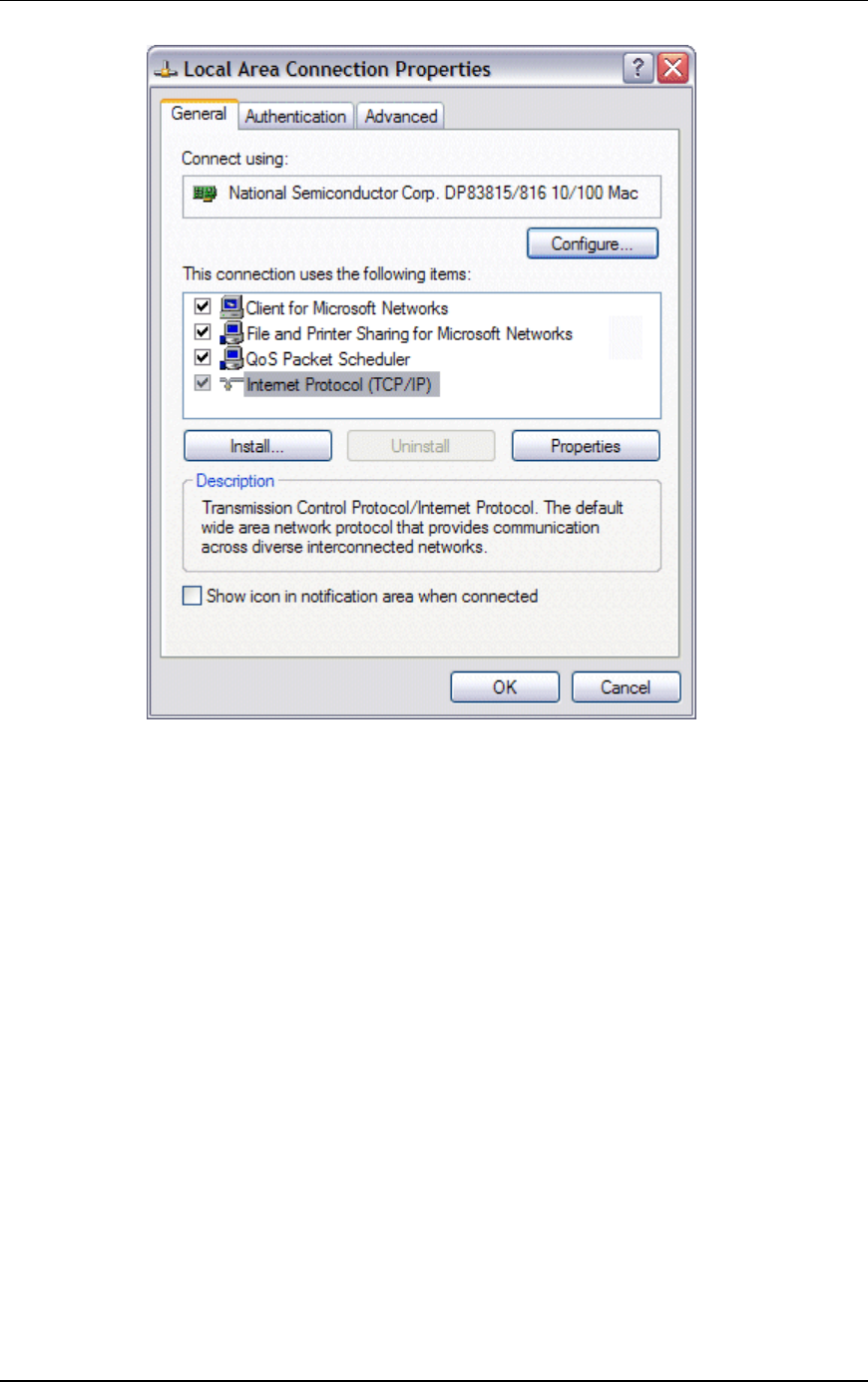
Communication Machinery Corporation (CMC)
6-60 Rev #/Date: 2.0.0 Beta/07.17.03
Select/highlight Internet Protocol (TCP/IP).
Click the Properties button to display the Internet Protocol
(TCP/IP) Properties dialog.
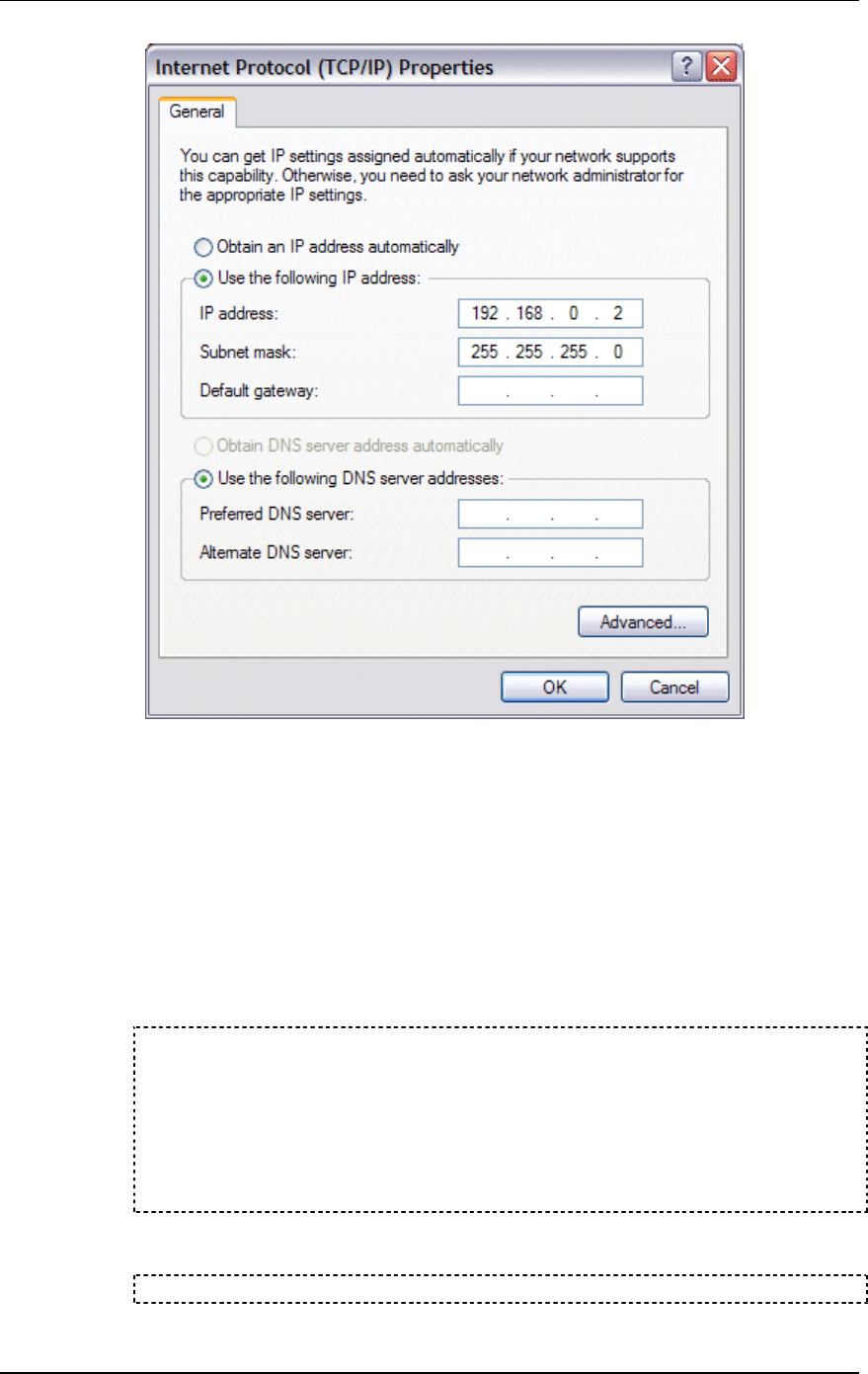
EmulationEngine 11a/b/g User's Guide
Rev #/Date: 2.0.0 Beta/07.17.03 6-61
Select the “Use the following IP address” radio button and enter
the IP address for the Ethernet connection. Use an IP Address that
resides on the same IP subnet as the EmulationEngine. For
example, use 192.168.0.2 if you are using the EmulationEngine's
default IP address 192.168.0.50.
Click “OK” to close the Internet Protocol (TCP/IP) Properties dialog.
Click the Close button in the Local Area Connection Properties
dialog.
Open a DOS windows and verify your PC's IP address has been
changed:
C:\Documents and Settings\my_computer>ipconfig
Windows IP Configuration
Ethernet adapter Local Area Connection:
Connection-specific DNS Suffix . :
IP Address. . . . . . . . . . . . : 192.168.0.2
Subnet Mask . . . . . . . . . . . : 255.255.255.0
Default Gateway . . . . . . . . . :
C:\Documents and Settings\my_computer>
Step 2: Open a telnet connection to the EmulationEngine
(192.168.0.50) and login:
telnet 192.168.0.50

Communication Machinery Corporation (CMC)
6-62 Rev #/Date: 2.0.0 Beta/07.17.03
EE login: Admin
Password: **
The default log in name is Admin. The default password is EE.
Following successful log in, the CLI will display the log in banner:
Communication Machinery Corporation
EmulationEngine(tm) 11a/b/g Rev 2.0.0.a1
System date & time is THU JAN 01 00:00:44 1970
Use the "set date" or "set time" command to adjust
EmulationEngine 11a/b/g software version 2.0.0
WLAN mode .................... 802.11b
WLAN MAC address ............. 00:0b:cd:59:23:57
WLAN address mask ............ ff:ff:ff:ff:00:00
LAN MAC address .............. 00:0b:16:00:00:07
BSSID of System Under Test.... 00:60:1d:f0:de:97
The EmulationEngine is not joined with the SUT.
0 vSTAs currently in the system.
CMC_EE ->
Step 3: Change the EmulationEngine's IP address.
CMC_EE -> set ipaddr 10.1.40.17
IP Address: 10.1.40.17
CMC_EE ->
Step 4: Reboot.
CMC_EE -> reboot
Rebooting EE...
Step 5: Repeat Step 1 but change the command PC's IP address to
your desired subnet (e.g., 10.1.40.15).
Step 6: Reestablish the telnet connection and log back into the
EmulationEngine:
telnet 10.1.40.17
EE login: Admin
Password: **
Communication Machinery Corporation
EmulationEngine(tm) 11a/b/g Rev 2.0.0
System date & time is THU JAN 01 00:00:44 1970
Use the "set date" or "set time" command to adjust
EmulationEngine 11a/b/g software version 2.0.0.a1
WLAN mode .................... 802.11b
WLAN MAC address ............. 00:0b:cd:59:23:57
WLAN address mask ............ ff:ff:ff:ff:00:00
LAN MAC address .............. 00:0b:16:00:00:07
BSSID of System Under Test.... 00:60:1d:f0:de:97
The EmulationEngine is not joined with the SUT.
0 vSTAs currently in the system.
CMC_EE ->

EmulationEngine 11a/b/g User's Guide
Rev #/Date: 2.0.0 Beta/07.17.03 6-63
CLI Editor
After you have entered one or more CLI commands, press the
<Esc> key to enter edit mode. In edit mode, you can use UNIX vi-
style commands to quickly navigate, edit and resubmit previous
CLI commands. Use the history (hi) command to show a history of
the last up-to-20 commands.
Movement & Search Commands
In the following commands, the default value for n is 1
Command Description
nG Go to command number n (e.g., 2G = go to command
number 2)
/s Search backward in history for string s (e.g., /stats =
search backward for "stats")
?s Search forward in history for string s (e.g., ?stats =
search forward for "stats")
n Repeat last search.
N Repeat last search in opposite direction.
nk or n- Get nth previous shell command in history.
nj or n+ Get nth next shell command in history.
nh or <Ctrl>H Move cursor left n characters.
nl or <Space> Move right n characters.
nw Move n words forward.
nW Move n blank-separated words forward.
ne Move to end of the nth next word.
nE Move to end of the nth next blank-separated word.
nb Move back n words.
nB Move back n blank-separated words.
fc Find character c, searching forward.
Fc Find character c, searching backward.
^ Move cursor to first non-blank character in line.
$ Go to end of line.
0 (zero) Go to beginning of line.
Insert Commands
In the following commands, input is expected until you press the
<Esc> key:
Command Description
a Append.
A Append at end of line.
c SPACE Change character.

Communication Machinery Corporation (CMC)
6-64 Rev #/Date: 2.0.0 Beta/07.17.03
cl Change character.
cw Change word.
cc or S Change entire line.
c$ or C Change everything from cursor to end of line.
i Insert.
I Insert at beginning of line.
R Type over characters.
Editing Commands
In the following commands, the default value for n is 1
Command Description
nrc Replace the following n characters with c.
nx Delete n characters starting at cursor.
nX Delete n characters to the left of the cursor.
d SPACE Delete character.
dl Delete character.
dw Delete word.
dd Delete entire line.
d$ or D Delete everything from cursor to end of line.
p Put last deletion after the cursor.
P Put last deletion before the cursor.
u Undo last command.
~ Toggle case, lower to upper or vice versa.

EmulationEngine 11a/b/g User's Guide
Rev #/Date: 2.0.0 Beta/07.17.03 6-65
Special Commands
Command Description
CTRL-U - Delete line and leave edit mode.
CTRL-L - Redraw line.
CTRL-D - Complete symbol name.
RETURN - Give line to shell and leave edit mode.

Communication Machinery Corporation (CMC)
6-66 Rev #/Date: 2.0.0 Beta/07.17.03