Mini Mitter XTP1 Integrated Physiological Monitoring System User Manual Tinman Book

Mini Mitter Co. Inc. Integrated Physiological Monitoring System Tinman Book

Contents

Users Manual part 1
Mini Mitter Company, Inc.Bend, OR USAVitalSense®Integrated Physiological Monitoring SystemInstruction ManualVersion 1.1This document is Mini Mitter Part Number 910-0500-XX© 2003-2004 Mini Mitter Company, Inc.VitalSense® is a registered trademark of Mini Mitter Company, Inc.                                                                                                  Medic Mode™is a trademark of the Mini Mitter Company, Inc.Preliminary(includes Tinman)
MINI MITTER COMPANY, INC.WARRANTY POLICY1.  WARRANTY: Mini Mitter warrants that upon delivery the goods sold hereunder will be free of defects in materials and workmanship, and such goods will substantially conform to the specifications furnished by the Seller, and to any drawings or specifications furnished to the Buyer by Mini Mitter if approved by Mini Mitter.a)  Commencement of Warranty – The warranty period begins on the date of delivery.b)  Duration of Warranty – The goods sold hereunder are warranted for a period of twelve months, except PDT-4000 and PDT-4000HR, which are warranted for two years.c)  Third Party Product Warranty – Third party products purchased by Buyer through Mini Mitter are covered by the manufacturer’s warranty and ARE NOT COVERED BY THE MINI MITTER WARRANTY.d)  Place of Repair or Replacement. Buyer must return the defective or nonconforming goods upon request to Mini Mitter at 20300 Empire Ave-nue, Building B-3; Bend, OR 97701, not later than 15 days after Mini Mitter’s receipt of notice of the alleged defect or nonconformance.  Buyer shall prepay transportation charges. Mini Mitter shall pay for the return of the goods to Buyer. No goods are to be returned to Mini Mitter without prior authorization and a valid Corrective Action Request (CAR) number.e)  Limitation of Warranty The foregoing warranty shall not apply to defects resulting from (a) improper or inadequate maintenance by Buyer; (b) unauthorized modification of the goods; (c) operation of the goods outside of the environmental specifications for the goods; (d) neglect, misuse or abuse of the goods or (e) modification or integration with other goods not covered by a Mini Mitter warranty when such modifica-tion or integration increases the likelihood of damage to the goods.f)  Technical assistance – The warranty set forth above shall not be enlarged, diminished or affected by and no obligation or liability shall arise from Mini Mitter’s rendering of technical advice, assistance or services in connection with Buyer’s order of the goods furnished hereunder. The Buyer is not relying on Mini Mitter's skill or judgment to select or furnish suitable goods.THE WARRANTY SET FORTH ABOVE IS EXCLUSIVE AND MINI MITTER GIVES NO OTHER WARRANTY WRITTEN OR VERBAL, EXPRESS OR IMPLIED. MINI MITTER SPECIFICALLY DISCLAIMS THE IMPLIED WARRANTIES OF MERCHANT-ABILITY AND FITNESS FOR A PARTICULAR PURPOSE.   MINI MITTER’S STANDARD WARRANTY POLICY COVERING ANY MINI MITTER PRODUCTS SHALL BE NULL, VOID, AND OF NO EFFECT IF THE BUYER OR ANY THIRD PARTY USES THAT PRODUCT FOR ANY USE OTHER THAN THE INTENDED USE OF THAT PRODUCT.2.  LIMITATION OF REMEDIES AND LIABILITY. The remedies provided herein are Buyer’s sole and exclusive remedies. Mini Mitter shall have no responsibility other than, at Mini Mitter’s option, to repair or replace defective or nonconforming goods or to refund the purchase price of defective or nonconforming goods in the event of breach of any warranty. IN NO EVENT SHALL Mini Mitter BE LIABLE FOR ANY DIRECT, INDIRECT SPECIAL, INCIDENTAL OR CONSEQUENTIAL DAMAGES (INCLUDING LOSS OF PROFITS) WHETHER BASED ON CONTRACT, TORT OR ANY OTHER LEGAL THEORY. In the event that any limitation of warranty or dis-claimer of liability is found to be unlawful or inapplicable, or to have failed of its essential purpose, Mini Mitter’s liability shall be limited to the amount paid by the Buyer for the specific goods that caused such liability. 900-0016-01
iiiTechnical Support vNotices to Practitioners and Subjects viSystem Introduction 1-1Monitor Operation/Sensor Activation 2-1VitalSense Application Program 3-1Maintenance 4-1VitalSense XHR Heart Rate Sensor 5-1Appendices   Frequently Asked Questions A-1   Universal Coordinated Time B-1   Medic Mode™C-1   Specification D-1IndexTable of Contents
iv
vThank You! .....for purchasing Mini Mitter products. If you need assistance with your VitalSense Physiological Monitoring System, remember Mini Mitter support continues after the purchase. If you have any problems or questions, please call our Technical Support staff of technicians, engineers, and scientists. We are available by telephone, fax, e-mail, or website.Contacting Mini Mitter Technical SupportMailing andShippingAddressMini Mitter Company, Inc.20300 Empire Avenue, Building B-3Bend, OR 97701 USATelephone (800) 685-2999(541) 322-7272Fax (541) 322-7277E-Mail mm@minimitter.comWebsite www.minimitter.com
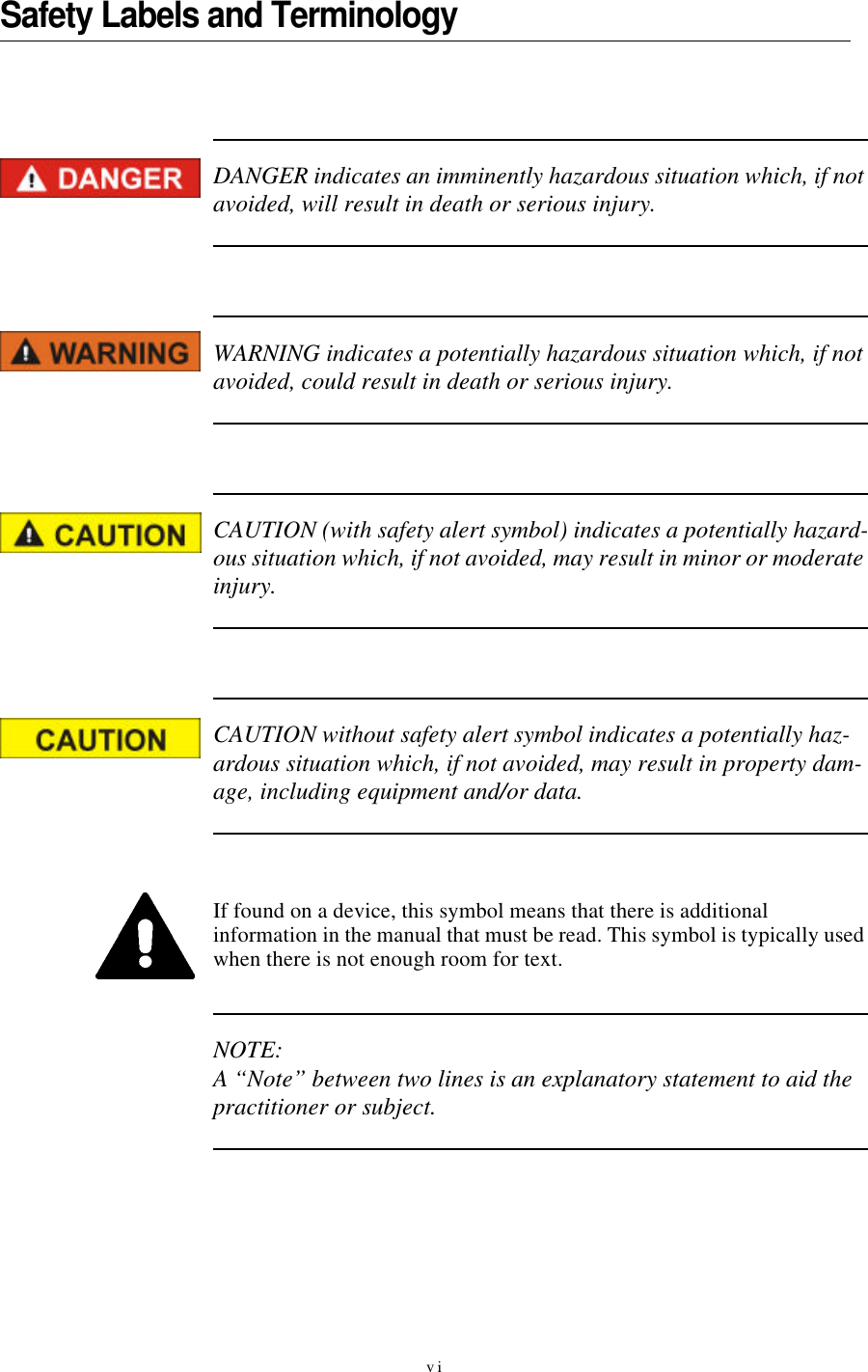
viSafety Labels and TerminologyDANGER indicates an imminently hazardous situation which, if not avoided, will result in death or serious injury.WARNING indicates a potentially hazardous situation which, if not avoided, could result in death or serious injury.CAUTION (with safety alert symbol) indicates a potentially hazard-ous situation which, if not avoided, may result in minor or moderate injury.CAUTION without safety alert symbol indicates a potentially haz-ardous situation which, if not avoided, may result in property dam-age, including equipment and/or data.If found on a device, this symbol means that there is additional information in the manual that must be read. This symbol is typically used when there is not enough room for text.NOTE:                                                                                                           A “Note” between two lines is an explanatory statement to aid the practitioner or subject.
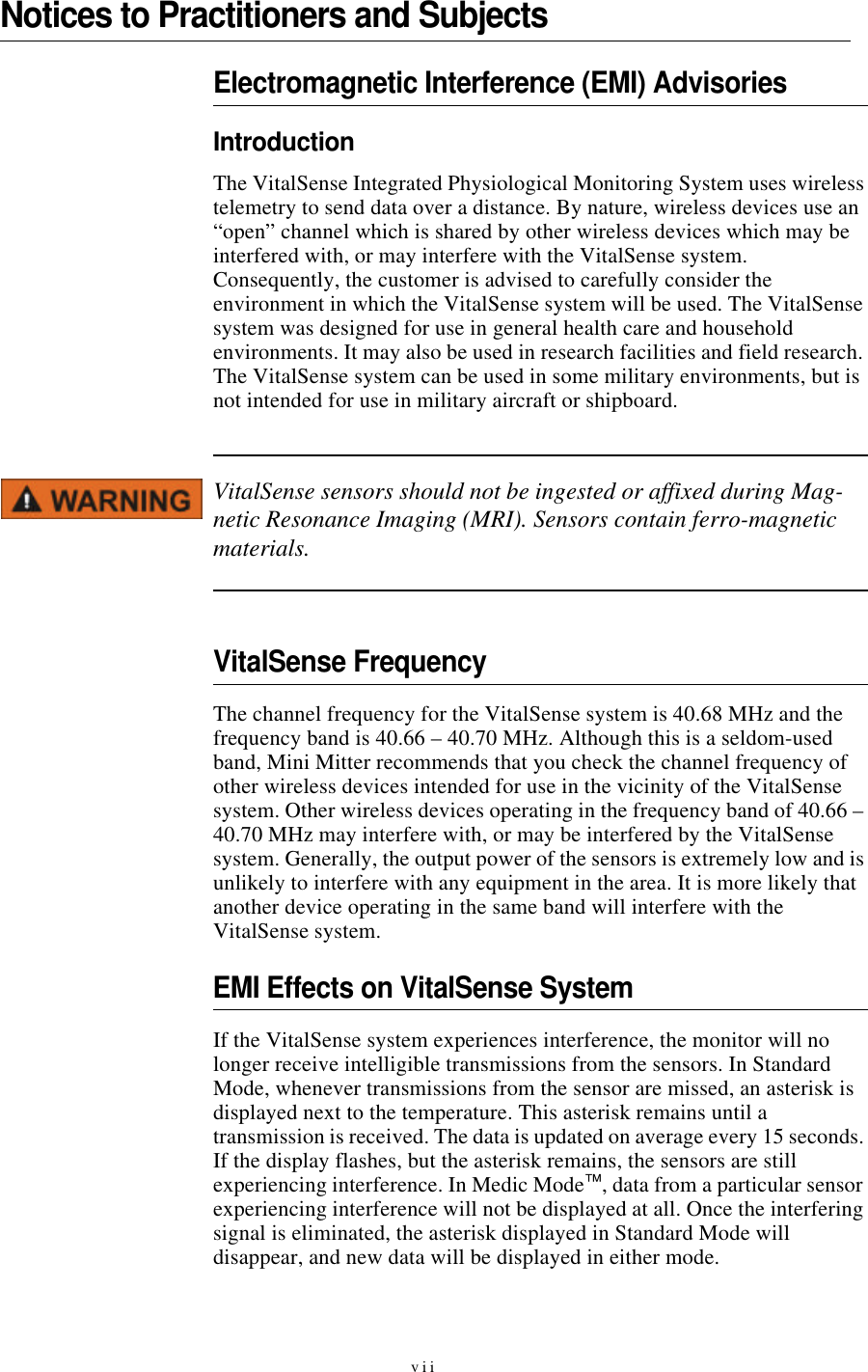
viiNotices to Practitioners and SubjectsElectromagnetic Interference (EMI) AdvisoriesIntroductionThe VitalSense Integrated Physiological Monitoring System uses wireless telemetry to send data over a distance. By nature, wireless devices use an “open” channel which is shared by other wireless devices which may be interfered with, or may interfere with the VitalSense system. Consequently, the customer is advised to carefully consider the environment in which the VitalSense system will be used. The VitalSense system was designed for use in general health care and household environments. It may also be used in research facilities and field research. The VitalSense system can be used in some military environments, but is not intended for use in military aircraft or shipboard. VitalSense sensors should not be ingested or affixed during Mag-netic Resonance Imaging (MRI). Sensors contain ferro-magnetic materials.VitalSense FrequencyThe channel frequency for the VitalSense system is 40.68 MHz and the frequency band is 40.66 – 40.70 MHz. Although this is a seldom-used band, Mini Mitter recommends that you check the channel frequency of other wireless devices intended for use in the vicinity of the VitalSense system. Other wireless devices operating in the frequency band of 40.66 – 40.70 MHz may interfere with, or may be interfered by the VitalSense system. Generally, the output power of the sensors is extremely low and is unlikely to interfere with any equipment in the area. It is more likely that another device operating in the same band will interfere with the VitalSense system.  EMI Effects on VitalSense SystemIf the VitalSense system experiences interference, the monitor will no longer receive intelligible transmissions from the sensors. In Standard Mode, whenever transmissions from the sensor are missed, an asterisk is displayed next to the temperature. This asterisk remains until a transmission is received. The data is updated on average every 15 seconds. If the display flashes, but the asterisk remains, the sensors are still experiencing interference. In Medic Mode™, data from a particular sensor experiencing interference will not be displayed at all. Once the interfering signal is eliminated, the asterisk displayed in Standard Mode will disappear, and new data will be displayed in either mode.
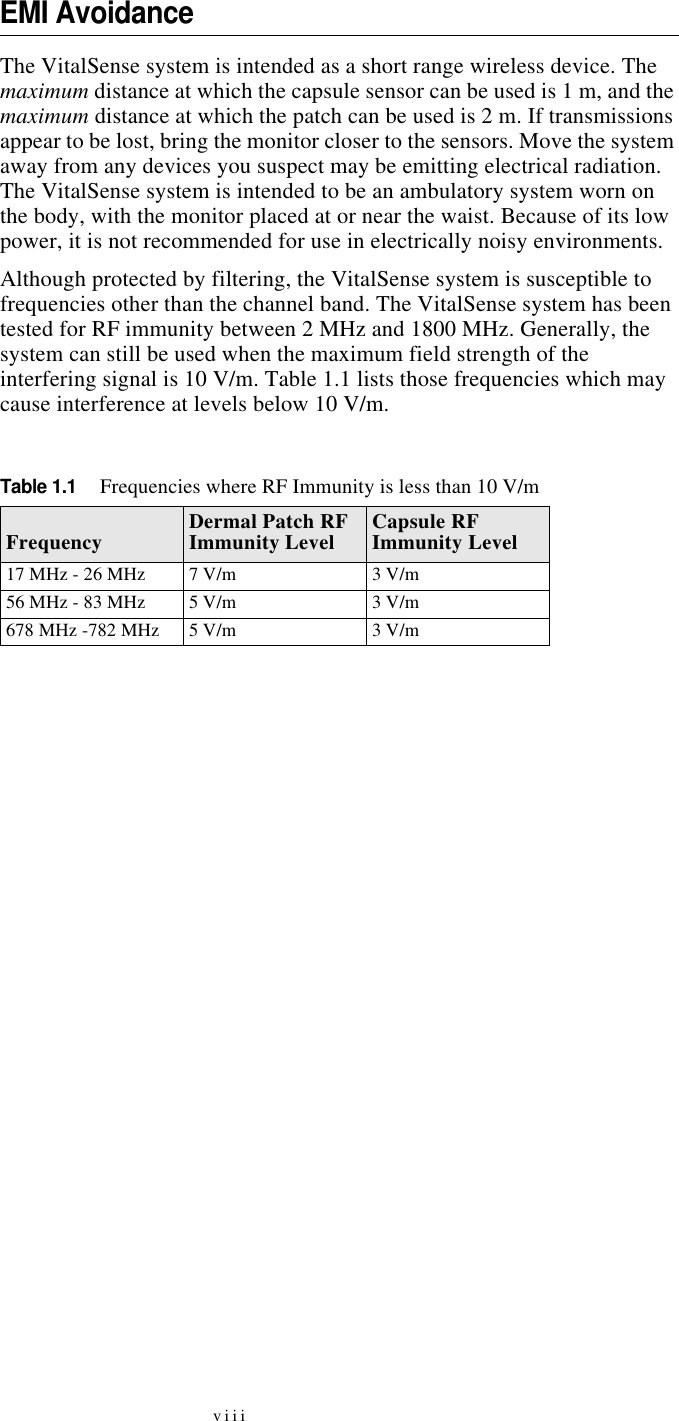
viiiEMI AvoidanceThe VitalSense system is intended as a short range wireless device. The maximum distance at which the capsule sensor can be used is 1 m, and the maximum distance at which the patch can be used is 2 m. If transmissions appear to be lost, bring the monitor closer to the sensors. Move the system away from any devices you suspect may be emitting electrical radiation. The VitalSense system is intended to be an ambulatory system worn on the body, with the monitor placed at or near the waist. Because of its low power, it is not recommended for use in electrically noisy environments.Although protected by filtering, the VitalSense system is susceptible to frequencies other than the channel band. The VitalSense system has been tested for RF immunity between 2 MHz and 1800 MHz. Generally, the system can still be used when the maximum field strength of the interfering signal is 10 V/m. Table 1.1 lists those frequencies which may cause interference at levels below 10 V/m.Table 1.1Frequencies where RF Immunity is less than 10 V/mFrequency Dermal Patch RF Immunity Level Capsule RF Immunity Level17 MHz - 26 MHz 7 V/m 3 V/m56 MHz - 83 MHz 5 V/m 3 V/m678 MHz -782 MHz 5 V/m 3 V/m
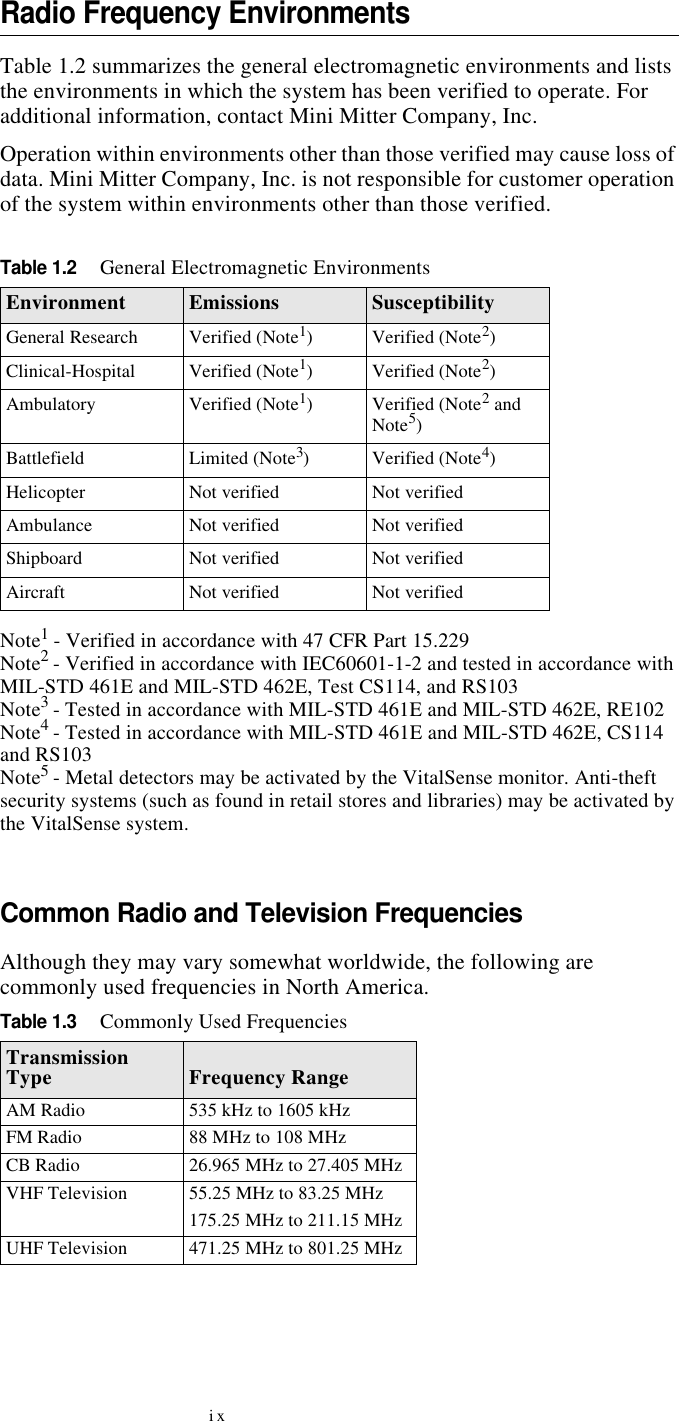
ixRadio Frequency EnvironmentsTable 1.2 summarizes the general electromagnetic environments and lists the environments in which the system has been verified to operate. For additional information, contact Mini Mitter Company, Inc. Operation within environments other than those verified may cause loss of data. Mini Mitter Company, Inc. is not responsible for customer operation of the system within environments other than those verified.Note1 - Verified in accordance with 47 CFR Part 15.229Note2 - Verified in accordance with IEC60601-1-2 and tested in accordance with MIL-STD 461E and MIL-STD 462E, Test CS114, and RS103Note3 - Tested in accordance with MIL-STD 461E and MIL-STD 462E, RE102Note4 - Tested in accordance with MIL-STD 461E and MIL-STD 462E, CS114 and RS103Note5 - Metal detectors may be activated by the VitalSense monitor. Anti-theft security systems (such as found in retail stores and libraries) may be activated by the VitalSense system.Common Radio and Television FrequenciesTable 1.2General Electromagnetic EnvironmentsEnvironment Emissions SusceptibilityGeneral Research Verified (Note1)Verified (Note2)Clinical-Hospital Verified (Note1)Verified (Note2)Ambulatory Verified (Note1)Verified (Note2 and Note5)Battlefield Limited (Note3)Verified (Note4)Helicopter Not verified Not verifiedAmbulance Not verified Not verifiedShipboard Not verified Not verifiedAircraft Not verified Not verifiedAlthough they may vary somewhat worldwide, the following are commonly used frequencies in North America.Table 1.3Commonly Used FrequenciesTransmission Type Frequency RangeAM Radio 535 kHz to 1605 kHzFM Radio 88 MHz to 108 MHzCB Radio 26.965 MHz to 27.405 MHzVHF Television 55.25 MHz to 83.25 MHz175.25 MHz to 211.15 MHzUHF Television 471.25 MHz to 801.25 MHz
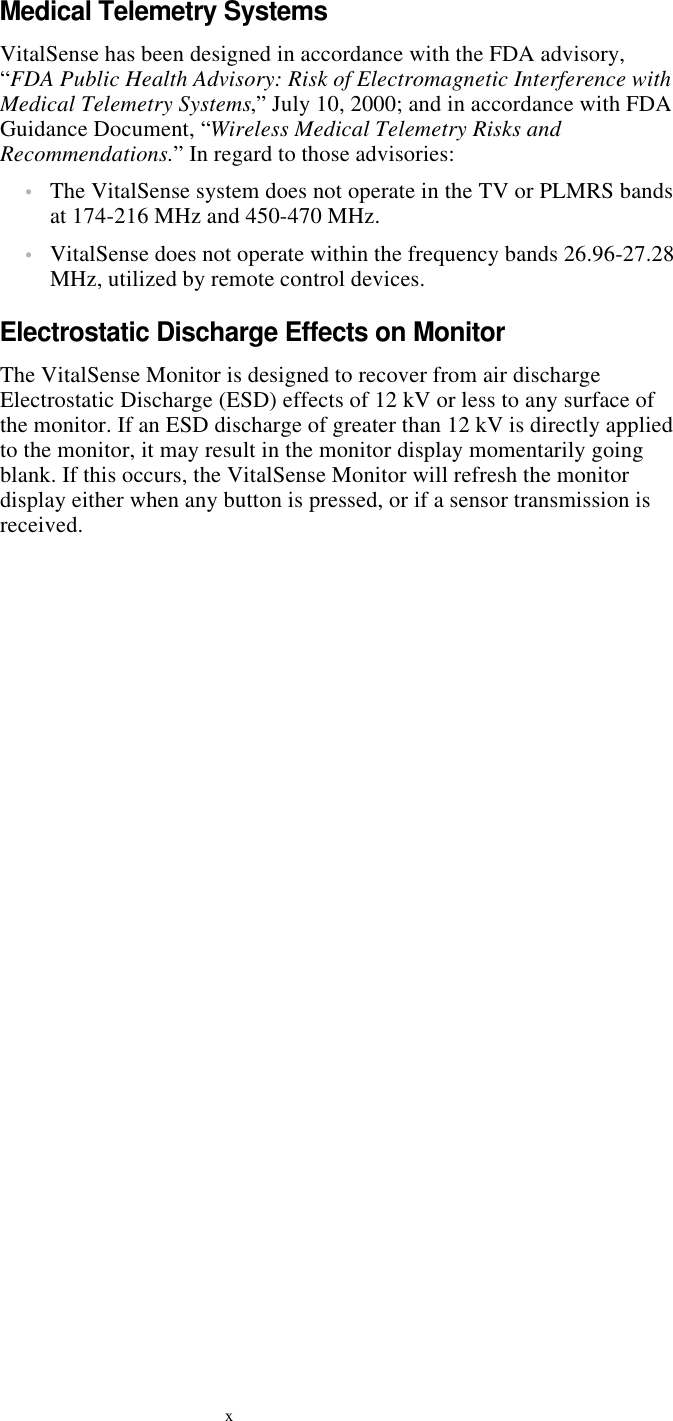
xMedical Telemetry SystemsVitalSense has been designed in accordance with the FDA advisory, “FDA Public Health Advisory: Risk of Electromagnetic Interference with Medical Telemetry Systems,” July 10, 2000; and in accordance with FDA Guidance Document, “Wireless Medical Telemetry Risks and Recommendations.” In regard to those advisories:•The VitalSense system does not operate in the TV or PLMRS bands at 174-216 MHz and 450-470 MHz.•VitalSense does not operate within the frequency bands 26.96-27.28 MHz, utilized by remote control devices.Electrostatic Discharge Effects on MonitorThe VitalSense Monitor is designed to recover from air discharge Electrostatic Discharge (ESD) effects of 12 kV or less to any surface of the monitor. If an ESD discharge of greater than 12 kV is directly applied to the monitor, it may result in the monitor display momentarily going blank. If this occurs, the VitalSense Monitor will refresh the monitor display either when any button is pressed, or if a sensor transmission is received.
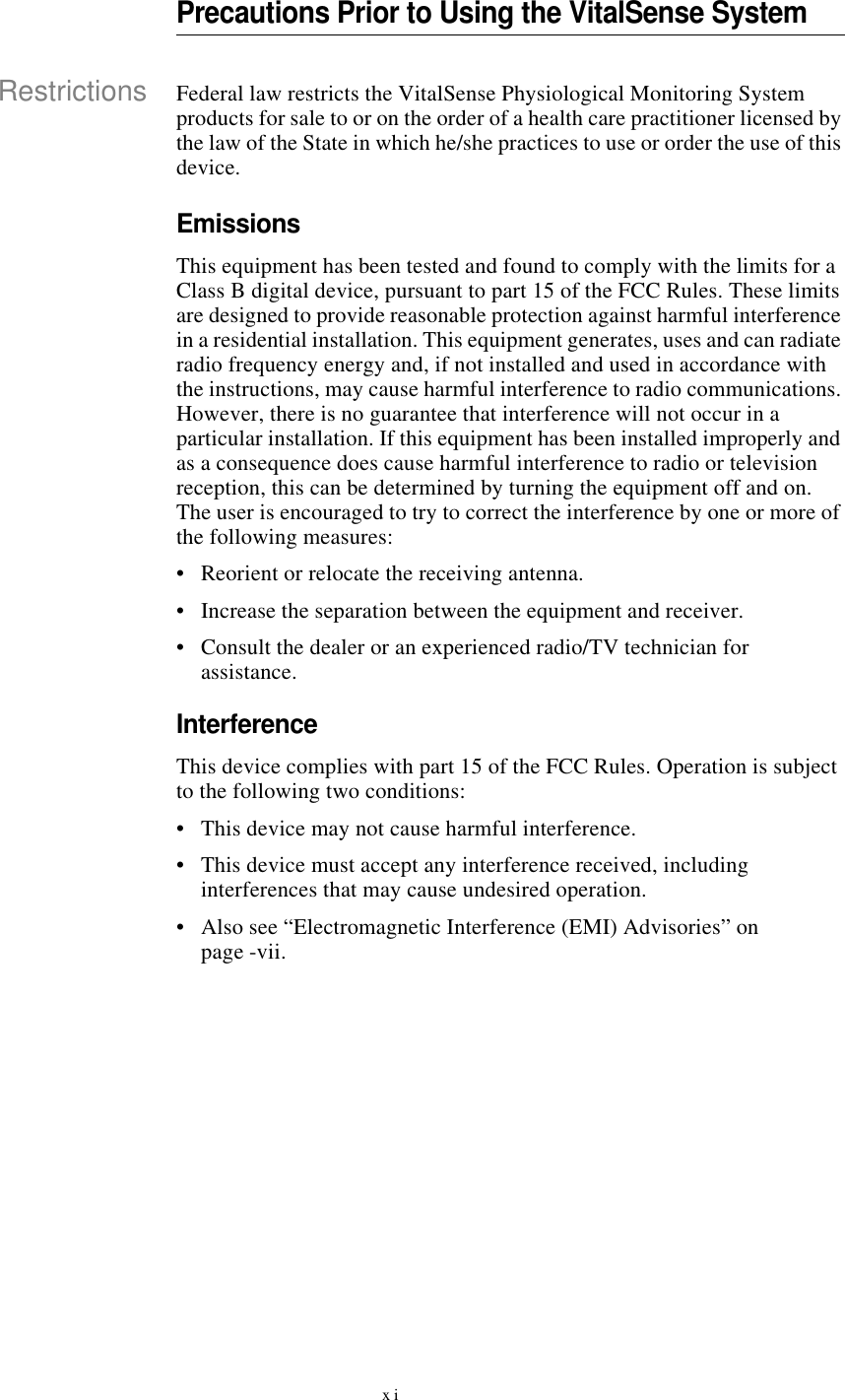
xiPrecautions Prior to Using the VitalSense SystemRestrictions Federal law restricts the VitalSense Physiological Monitoring System products for sale to or on the order of a health care practitioner licensed by the law of the State in which he/she practices to use or order the use of this device.EmissionsThis equipment has been tested and found to comply with the limits for a Class B digital device, pursuant to part 15 of the FCC Rules. These limits are designed to provide reasonable protection against harmful interference in a residential installation. This equipment generates, uses and can radiate radio frequency energy and, if not installed and used in accordance with the instructions, may cause harmful interference to radio communications. However, there is no guarantee that interference will not occur in a particular installation. If this equipment has been installed improperly and as a consequence does cause harmful interference to radio or television reception, this can be determined by turning the equipment off and on. The user is encouraged to try to correct the interference by one or more of the following measures:•Reorient or relocate the receiving antenna.•Increase the separation between the equipment and receiver.•Consult the dealer or an experienced radio/TV technician for assistance.InterferenceThis device complies with part 15 of the FCC Rules. Operation is subject to the following two conditions:•This device may not cause harmful interference.•This device must accept any interference received, including interferences that may cause undesired operation.•Also see “Electromagnetic Interference (EMI) Advisories” on page-vii.
xiiTravel by Commercial AircraftFollowing activation, VitalSense sensors are radio transmitters. The Dermal Patch sensor has a range up to 2 meters, and the Capsule Sensor has a range up to 1 meter. The VitalSense Monitor can be a source of radio interference. They should not be used on commercial aircraft without the expressed permission of the governing aircraft security agency in countries of travel and the airline carrier. In the United States, this is the Transportation Security Administration under the Office of Homeland Security. Mini Mitter suggests the following:•Do not activate the sensors until your flight has concluded.•If you do inadvertently find yourself in the position of having to board an aircraft with activated sensors, realize you may have to do the following:Remove all Dermal Patch Sensors and leave them behind.Turn off the VitalSense Monitor. If it is in Lockout Mode, remove the battery. The monitor will retain the data that has been collected.If you have ingested a Capsule Sensor, it is recommended that you tell the security screener that you are wearing an ingested medical device.It is recommended that you be totally honest with airport security personnel. Although they are familiar with implanted devices, wireless thermometers may be unfamiliar to them. Policies regarding medical devices are typically very accommodating. If there are any questions we can help answer, please call us. See “Contacting Mini Mitter Technical Support” on page-v.Modification of VitalSense DevicesAny changes to the VitalSense Physiological Monitoring System not expressly approved by Mini Mitter will void the practitioner’s or subject’s authority to operate the devices or the software.NOTE: VitalSense conforms to all of the requirements established in ASTM-E1112-00, Standard Specification for Electronic Ther-mometer for Intermittent Determination of Patient Temperature, clauses 4.1 and 4.2.
xiiiSanitizing VitalSense ComponentsThe VitalSense monitor may be sanitized with a soft cloth moistened with a non-alcohol based antibacterial cleaner.The Capsule Sensor and Dermal Patch Sensor are single-use disposable devices. They are supplied ready-for-use as long as they remain in their original factory packaging.For VitalSense Monitor maintenance cleaning, see “Cleaning” on page4-6.Do not autoclave the VitalSense monitor or the associated sensors. They will be destroyed in the process. Only gas processes may be used.
xivPrecautions Prior to Using the VitalSense MonitorSafetyThis device is classified as having Type CF protection against electrical shocks during the sensor activation procedure.NOTE: For additional advisories with respect to the VitalSense Monitor, see “Precautions Prior to Using the VitalSense System” on page-xi, and “EMI Effects on VitalSense System” on page-vii.♥
xvPrecautions Prior to Using the Dermal Patch SensorRead before administering Dermal Patch Sensor!Description•Supplied one Dermal Patch Sensor per package•Patch is biocompatible, colored plastic•Temperature Sensing Range: -20 °C to 60 °C•Reception Range: maximum of 2 meters•Battery life following activation: maximum of 240 hours (10 days)IndicationsAn indication is a sign or circumstance that indicates proper treatment.•The VitalSense Dermal Patch is a wireless, miniaturized, externally activated, dermally affixed, biocompatible thermometer.•The Dermal Patch Sensor is to be used for monitoring vital signs (external skin temperature) as part of a complete physiological sensor and monitoring system.•The subject is not restricted to a medical environment. The subject may shower and participate in normal activities while the Dermal Patch is in place.•The Dermal Patch is a single-use sensor.ContraindicationsA contraindication is any circumstance that indicates a form of treatment may be inappropriate.This device is contraindicated if the patient presents or has a history of any of the following conditions:•This product should not be used if the patient has known skin allergies, a break in the skin at the application site, or other abnormal skin conditions. If a skin rash occurs, notify the health care practitioner immediately.WarningsA warning indicates a condition that may endanger the subject.•DO NOT attempt an MRI (magnetic resonance imaging) if a Dermal Patch has been affixed. Remove the device prior to MRI.Affix an MRI Warning wrist band (supplied) to the subject with instructions to wear it until the Dermal Patch has been removed.•DO NOT affix Dermal Patch if any damage is visible to the packaging or the device.•Keep sensors away from small children. They can be a choking hazard.
xviCautionsThe following cautions indicate conditions that may result in minor or moderate injury to the subject.•The Dermal Patch Sensor should be administered only by a health care practitioner.•Following activation, the Dermal Patch Sensor can be affixed to nearly any flat, hairless area on the body. Placement, however, is limited to the size of the patch. It cannot be trimmed or altered, and should not be bent or crushed. It would, for example, be appropriate for a large muscle of the arm or leg, or axilla, but not on the bottom of the foot or around a bony structure such as the side of the wrist.The following cautions indicate possible damage to the equipment, or erroneous or incomplete data.•Data points could be missed if you are close to radio or television transmission sites, or other sources of electrical signals. See “EMI Avoidance” on page-viii of this section.•DO NOT administer a Dermal Patch Sensor after the expiration date.•The Dermal Patch Sensor should be administered every 3 to 4 days, when the Patch looses contact with the skin, or as directed by a health care practitioner.•Avoid the use of lotions and emollients in the area of the Dermal Patch Sensor. Their use may cause the patch adhesive to loosen.•DO NOT leave the monitor out of range of the Dermal Patch Sensor for more than 30 minutes.Adverse ReactionsMay cause skin rash. Remove hair and clean skin before activation and application of Patch. If discomfort occurs or rash appears, discontinue use and notify health care practitioner.
xviiPrecautions Prior to Using the Capsule SensorRead before administering capsule!Limitations of Capsule SensorThe VitalSense ingestible capsule thermometer is a Class II Medical Device according to 21 CFR 882.1845 and is classified as a Surface Contacting Device according to ISO 10993-1. The capsule is intended to be used in contact with the mucosal membrane (alimentary tract) only. The VitalSense ingestible capsule thermometer must not be used in any situation where the mucosal membrane is already breached by surgery or trauma. The VitalSense ingestible capsule thermometer is not intended to be used as an implant. For additional information, contact Mini Mitter Company, Inc. See “Contacting Mini Mitter Technical Support” on page-v.Description•Supplied as one Capsule Sensor per package•Sensor is colored biocompatible polycarbonate•Temperature Sensing Range: 25 °C to 50 °C•Reception Range: Maximum of 1 meter•Battery life following activation: maximum of 240 hours (10 days)IndicationsAn indication is a sign or circumstance that indicates proper treatment.•The VitalSense Capsule Sensor is a wireless, miniaturized, externally activated, ingestible, biocompatible thermometer.•It is to be used for monitoring vital signs (core body temperature) as part of a complete physiological sensor and monitoring system.•Once ingested, the patient is not restricted to a medical environment.•The Capsule Sensor may be taken without regard to dietary restrictions.•It is a single-use sensor.ContraindicationsA contraindication is any circumstance that indicates a form of treatment may be inappropriate.This device is contraindicated if the patient presents or has a history of any of the following conditions:•Abnormalities in swallowing•Esophageal or bowel strictures•Fistulas•Gastrointestinal obstructions
xviiiIf suspected, a contrasted X-ray series should be considered prior to ingestion.WarningsA warning indicates a condition that may endanger the subject or patient.•DO NOT attempt an MRI (magnetic resonance imaging) if a Capsule Sensor has been ingested. Wait until the device is passed from the digestive system.Affix an MRI Warning wrist band (supplied) to the subject with instructions to wear it until the Capsule Sensor has been passed.•DO NOT ingest if any damage is visible to the packaging or the device.•DO NOT chew prior to swallowing. The electronics within the device will be made inoperable.•The Capsule Sensor should be swallowed with water or other suitable liquid.•DO NOT administer a Capsule Sensor after the expiration date.•If gastrointestinal discomfort occurs following ingestion, report it to the health care practitioner. Nausea, vomiting, or pain should be reported immediately.•Keep Capsule Sensors away from small children. They can be a choking hazard.•The Capsule Sensor is not to be implanted.Cautions The following cautions indicate possible damage to the equipment, or erroneous or incomplete data.•DO NOT open the VitalSense Capsule Sensor protective packaging until ready for use.•The Capsule Sensor should be administered only by a health care practitioner.•The following cautions indicate possible damage to the equipment, or provide erroneous or incomplete data.•Data points could be missed if you are close to radio or television transmission sites, or other sources of electrical signals. See “EMI Avoidance” on page-viii of this section.•DO NOT administer a Capsule Sensor after the expiration date.•DO NOT leave the monitor out of range of the Capsule Sensor for more than 30 minutes.•The VitalSense Monitor battery level should be checked prior to use.
xixAdverse Reactions•May cause choking. Should be taken with water.•In rare instances, may become lodged in the intestines.
xxPrecautions Prior to Using VS-XHR Heart Rate SensorRead before administering VS-XHR Heart Rate Sensor!DescriptionVS-XHR is a cardiac monitor sensor, used to detect, measure, and transmit Heart Rate and Respiration Rate values to the VitalSense Integrated Physiological Monitoring System (VS-IPMS). VS-XHR attaches directly to the chest surface using standard disposable ECG (EKG) electrodes. VS-XHR is powered from its own internal rechargeable lithium coin cell; there is no external power source. There are no ECG leads. VS-XHR is not equipped with any alarm function.Intended UseVS-XHR Sensor is intended to be used as an HR and/or RR monitor, in conjunction with the VS-IPMS. VS-XHR is not equipped with alarms to signal tachycardia or any other cardiac arrhythmias.IndicationsAn indication is a sign or circumstance that indicates proper treatment.•VS-XHR Sensor is an ambulatory, wireless, chest-worn, dermally affixed, Heart Rate and Respiration Rate Sensor.•The VS-XHR Sensor is to be used for monitoring vital signs (heart rate and respiration rate) as part of a complete physiological sensor and monitoring system.•The subject is not restricted to a medical environment. The subject may participate in normal activities while the VS-XHR Sensor is in place.•The VS-XHR Sensor is a multi-use sensor.•VS-XHR, in combination with VitalSense Physiological Monitoring System, may be used where quantifiable measurement of human Heart Rate and/or Respiration Rate are needed.
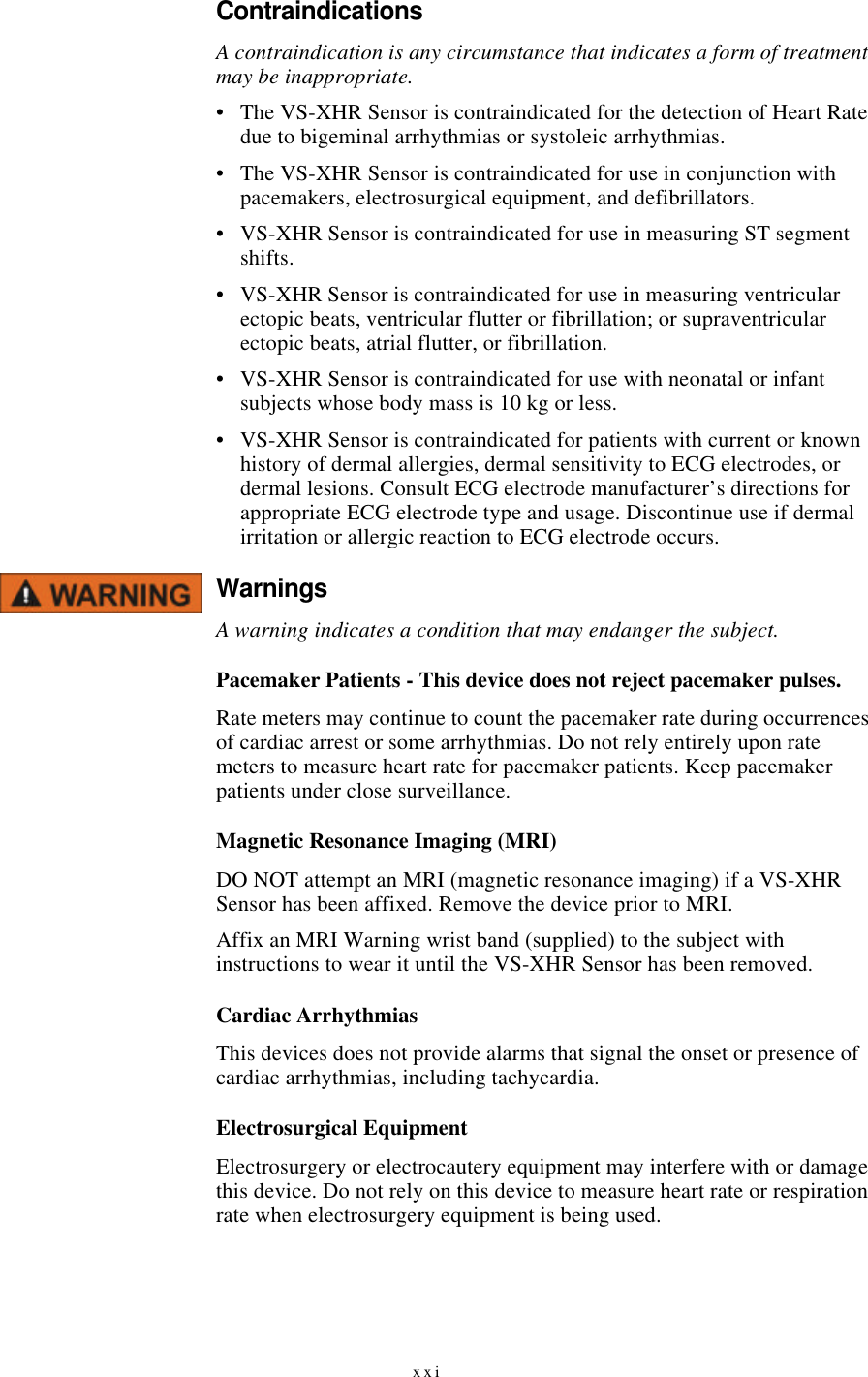
xxiContraindicationsA contraindication is any circumstance that indicates a form of treatment may be inappropriate.•The VS-XHR Sensor is contraindicated for the detection of Heart Rate due to bigeminal arrhythmias or systoleic arrhythmias.•The VS-XHR Sensor is contraindicated for use in conjunction with pacemakers, electrosurgical equipment, and defibrillators.•VS-XHR Sensor is contraindicated for use in measuring ST segment shifts.•VS-XHR Sensor is contraindicated for use in measuring ventricular ectopic beats, ventricular flutter or fibrillation; or supraventricular ectopic beats, atrial flutter, or fibrillation.•VS-XHR Sensor is contraindicated for use with neonatal or infant subjects whose body mass is 10 kg or less.•VS-XHR Sensor is contraindicated for patients with current or known history of dermal allergies, dermal sensitivity to ECG electrodes, or dermal lesions. Consult ECG electrode manufacturer’s directions for appropriate ECG electrode type and usage. Discontinue use if dermal irritation or allergic reaction to ECG electrode occurs.WarningsA warning indicates a condition that may endanger the subject.Pacemaker Patients - This device does not reject pacemaker pulses.Rate meters may continue to count the pacemaker rate during occurrences of cardiac arrest or some arrhythmias. Do not rely entirely upon rate meters to measure heart rate for pacemaker patients. Keep pacemaker patients under close surveillance.Magnetic Resonance Imaging (MRI)DO NOT attempt an MRI (magnetic resonance imaging) if a VS-XHR Sensor has been affixed. Remove the device prior to MRI.Affix an MRI Warning wrist band (supplied) to the subject with instructions to wear it until the VS-XHR Sensor has been removed.Cardiac ArrhythmiasThis devices does not provide alarms that signal the onset or presence of cardiac arrhythmias, including tachycardia.Electrosurgical EquipmentElectrosurgery or electrocautery equipment may interfere with or damage this device. Do not rely on this device to measure heart rate or respiration rate when electrosurgery equipment is being used.
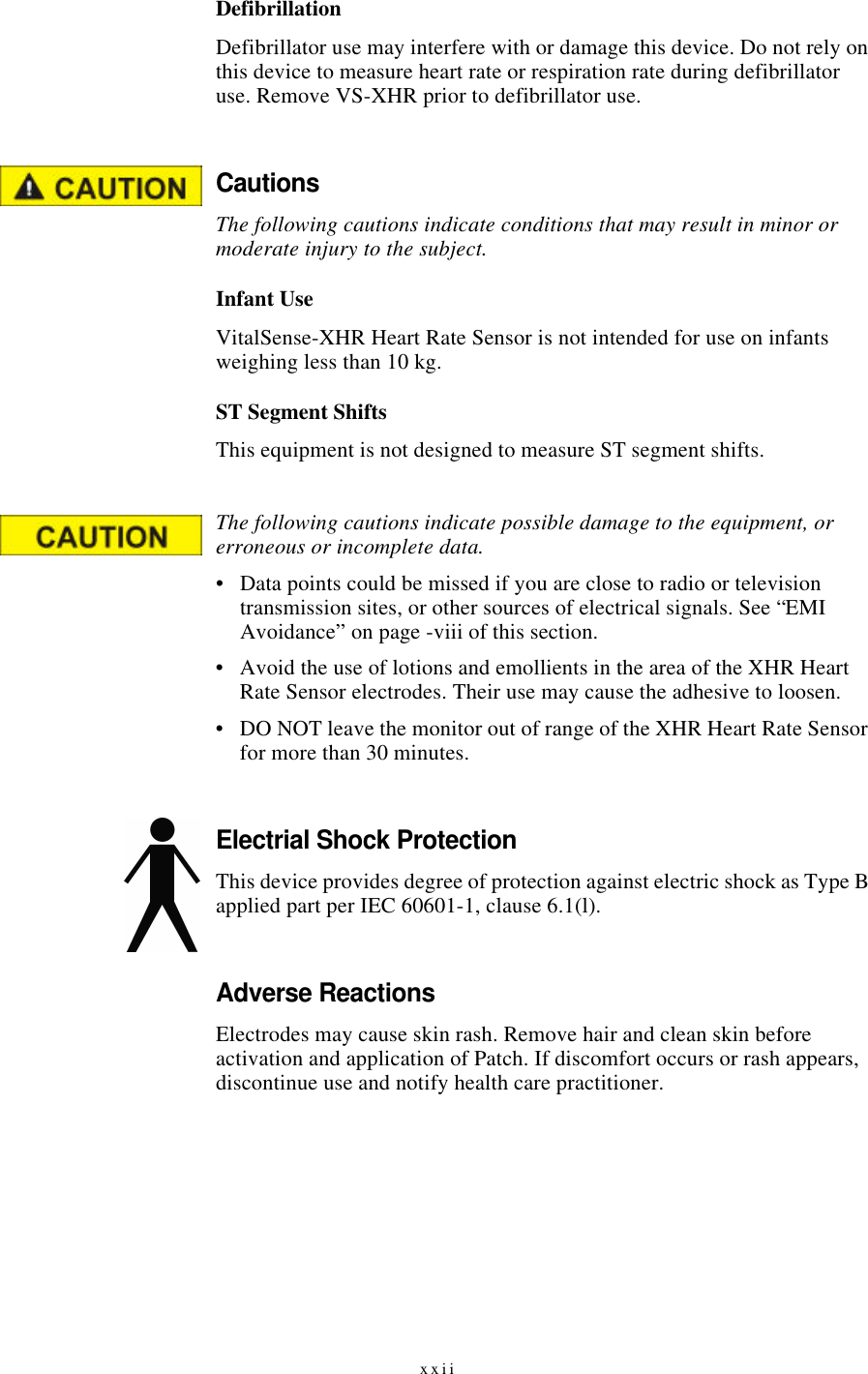
xxiiDefibrillationDefibrillator use may interfere with or damage this device. Do not rely on this device to measure heart rate or respiration rate during defibrillator use. Remove VS-XHR prior to defibrillator use.CautionsThe following cautions indicate conditions that may result in minor or moderate injury to the subject.Infant UseVitalSense-XHR Heart Rate Sensor is not intended for use on infants weighing less than 10 kg.ST Segment ShiftsThis equipment is not designed to measure ST segment shifts.The following cautions indicate possible damage to the equipment, or erroneous or incomplete data.•Data points could be missed if you are close to radio or television transmission sites, or other sources of electrical signals. See “EMI Avoidance” on page-viii of this section.•Avoid the use of lotions and emollients in the area of the XHR Heart Rate Sensor electrodes. Their use may cause the adhesive to loosen.•DO NOT leave the monitor out of range of the XHR Heart Rate Sensor for more than 30 minutes.Electrial Shock ProtectionThis device provides degree of protection against electric shock as Type B applied part per IEC 60601-1, clause 6.1(l).Adverse ReactionsElectrodes may cause skin rash. Remove hair and clean skin before activation and application of Patch. If discomfort occurs or rash appears, discontinue use and notify health care practitioner.
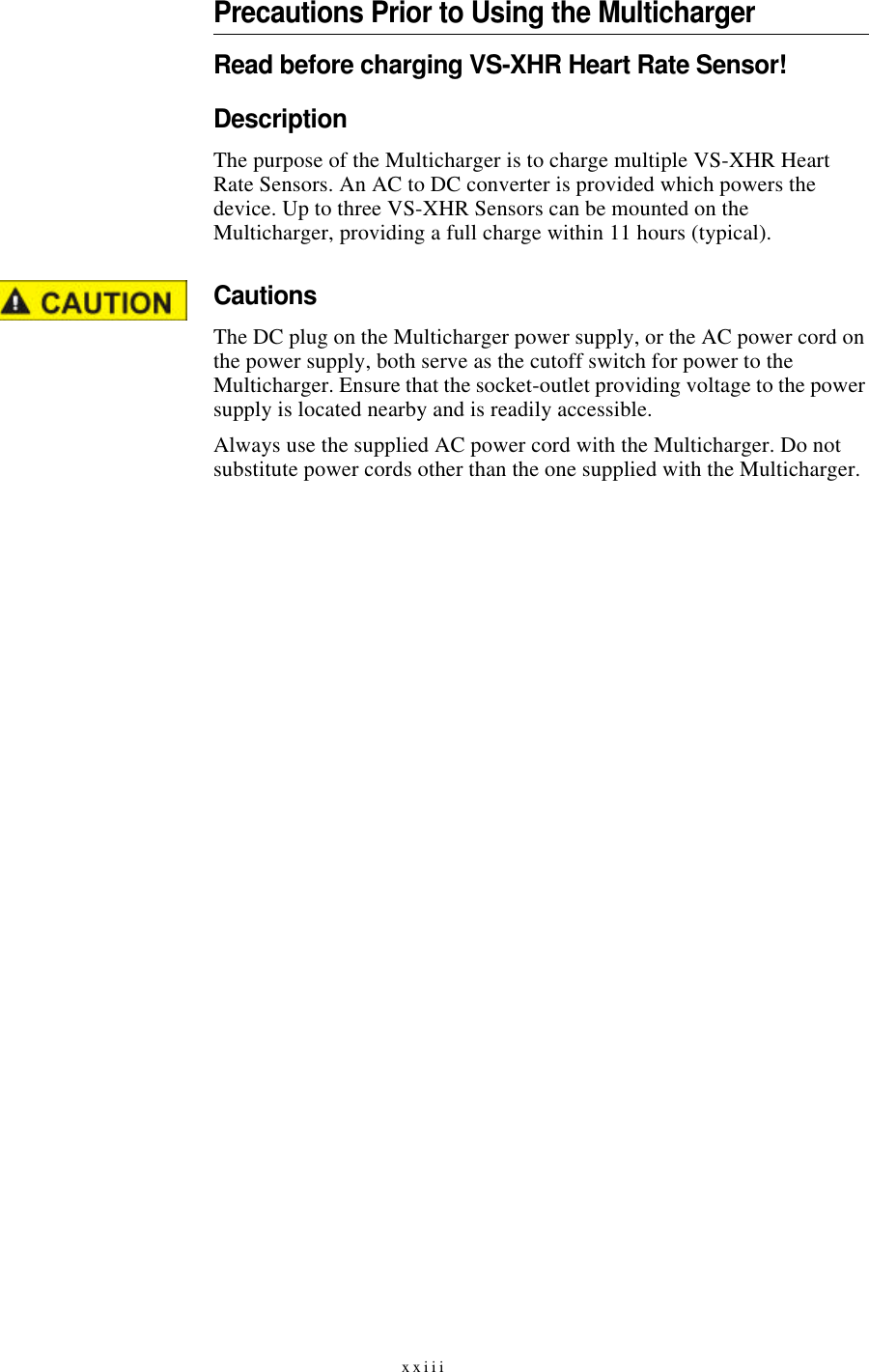
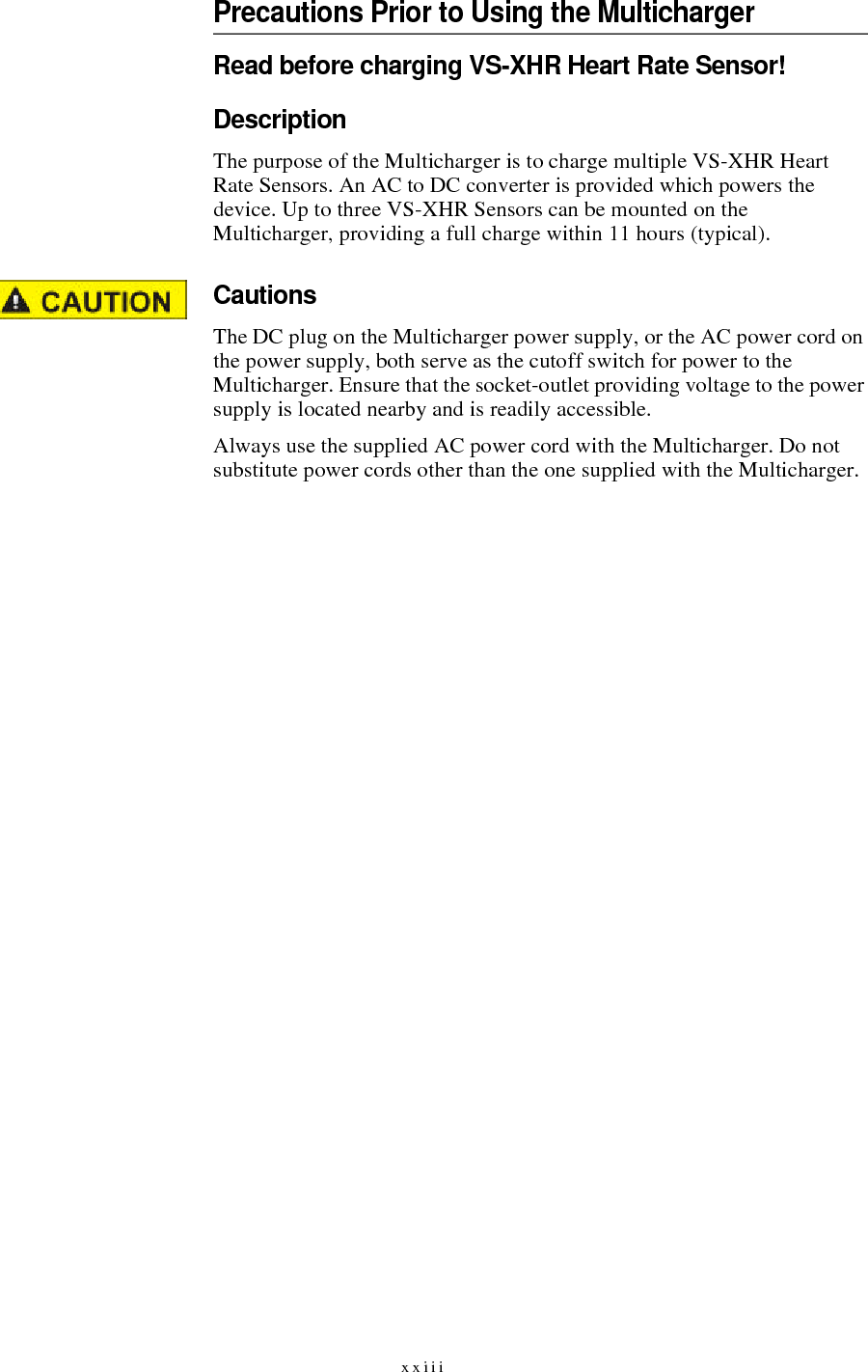
xxiiiPrecautions Prior to Using the MultichargerRead before charging VS-XHR Heart Rate Sensor!DescriptionThe purpose of the Multicharger is to charge multiple VS-XHR Heart Rate Sensors. An AC to DC converter is provided which powers the device. Up to three VS-XHR Sensors can be mounted on the Multicharger, providing a full charge within 11 hours (typical).CautionsThe DC plug on the Multicharger power supply, or the AC power cord on the power supply, both serve as the cutoff switch for power to the Multicharger. Ensure that the socket-outlet providing voltage to the power supply is located nearby and is readily accessible.Always use the supplied AC power cord with the Multicharger. Do not substitute power cords other than the one supplied with the Multicharger.
xxiv
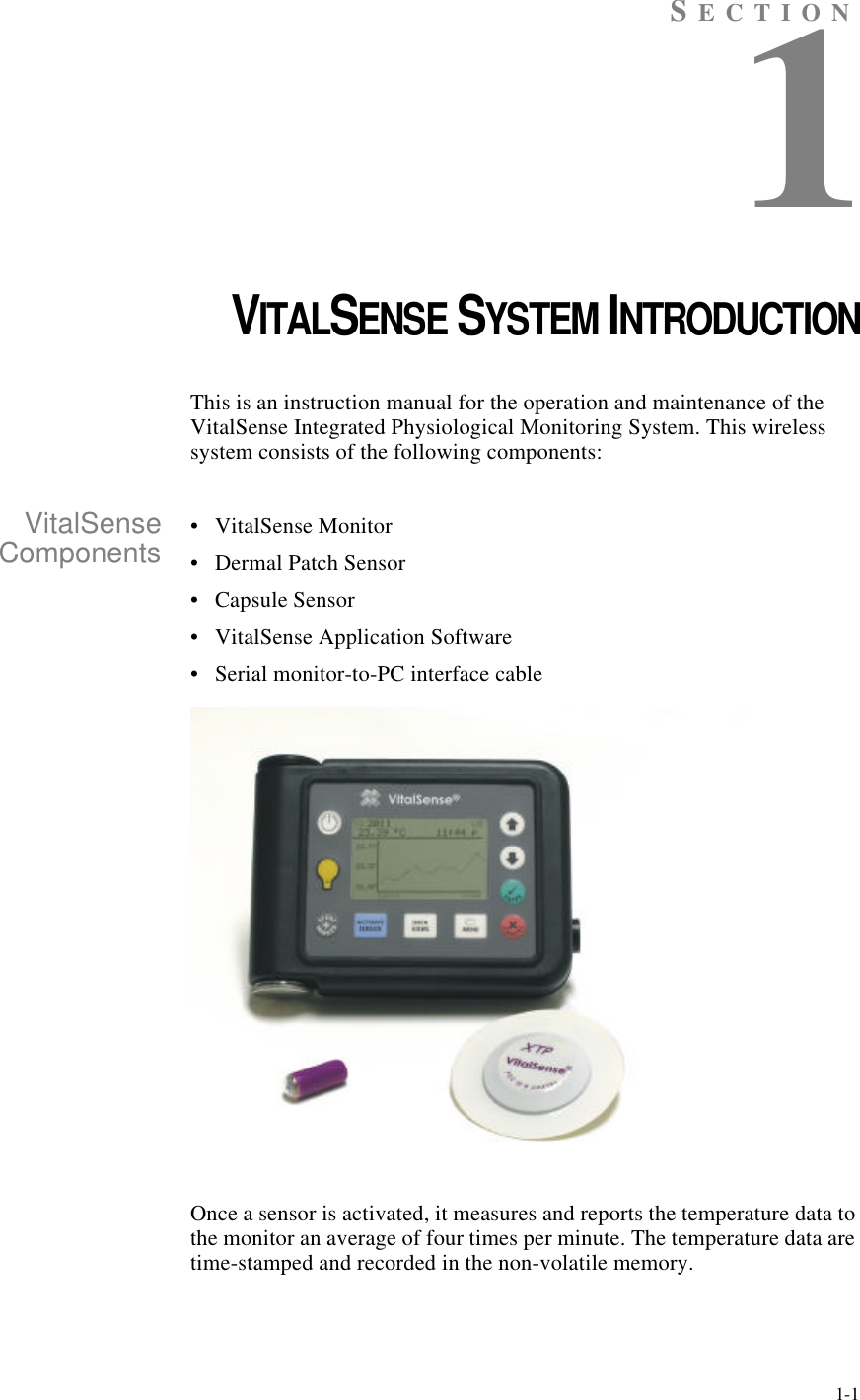
1-1SECTION1CHAPTER 1VITALSENSE SYSTEM INTRODUCTIONThis is an instruction manual for the operation and maintenance of the VitalSense Integrated Physiological Monitoring System. This wireless system consists of the following components:VitalSenseComponents •VitalSense Monitor•Dermal Patch Sensor•Capsule Sensor•VitalSense Application Software•Serial monitor-to-PC interface cableOnce a sensor is activated, it measures and reports the temperature data to the monitor an average of four times per minute. The temperature data are time-stamped and recorded in the non-volatile memory.
1-2 IntroductionA Standard Mode VitalSense Monitor can monitor up to ten sensors. In order to do this, each sensor must be activated by the monitor that will be recording that specific sensor. During activation, each sensor and the monitor are synchronized.In optional Medic Mode™, an unlimited number of sensors may be operationally verified and the temperature recorded with a time stamp.Getting Started - THIS MUST HAPPEN FIRSTThe following must occur before a new data collection session can begin:•Monitor clock must be set - (from monitor front panel or the host PC)•Erase data memory - (from monitor front panel or the host PC)•Logging must be turned on - (from monitor front panel or the host PC)•Sensor(s) must be activated - (from the monitor only)See “ Monitor Setup for Data Collection ” on page2-4.MonitorThe VitalSense Monitor is a central element in the VitalSense system. It serves to activate the sensors, track and record data from the sensors, and provide an interface to a computer.Sensor activation is a key event in the operation of VitalSense. It is used to synchronize the monitor with each sensor. Once activated, the monitor can display the incoming data in real-time and at the same time log the data to the non-volatile memory for future transfer to a computer.SensorsVitalSense sensors are activated by the VitalSense Monitor. Once activated, a sensor will begin its monitoring assignment, and will continue to function until the battery expires (approximately 240 hours), the sensor is removed from the sensor schedule, or the sensor is disposed.Each sensor is given an identity number at the factory, along with temperature calibration data. During activation, these data are automatically retrieved from the sensor and stored in the monitor memory.All sensors are activated using essentially the same process:•A specific optical signal from the monitor activates the sensor.•By radio, the sensor transfers its identification and calibration data to the monitor.Following activation, the sensor is either swallowed (Capsule Sensor), or affixed to the body (Dermal Patch Sensor). The activation process is identical for each sensor. Sensors are single-use and cannot be de-activated. Additional sensors may be ordered from Mini Mitter Company, Inc. See “ Contacting Mini Mitter Technical Support ” on page-v.
1-3TrackingTracking is a term used in this manual which refers to the synchronization of the VitalSense Monitor and the sensors.In order to preserve battery power of the VitalSense Monitor and conserve the power of the sensors, the sensors are designed to transmit according to a pre-determined schedule. Both the sensor and the monitor which activated it have this schedule. As a result, the monitor only “listens” for a specific sensor for a short period during the expected transmission time. It is through the activation process and the periodic reception of these transmissions that the monitor remains synchronized with the sensor transmission schedule. The monitor quite literally “tracks” the minor variations between the two clock sources at each transmission.FirmwareVitalSense firmware is operational information that is programmed into the VitalSense Monitor non-volatile memory. When calling Mini Mitter Technical Support, the version number of this firmware can be very helpful. To find the firmware version using the VitalSense Application Program, see “ Firmware Version ” on page3-21.SoftwareInstalled, the VitalSense Application Software converts a PC to “host status” for the VitalSense Application Program, allowing setup of select monitor functions, real-time monitoring of data, and retrieval of data which have been stored on the monitor.Installation of the VitalSense Application Software can be found under     “ Installation of Software ” on page3-3.CalibrationVitalSense transmitter/sensors do not require calibration prior to use.EMI and ESD SusceptibilityIt is recommended you read the advisories concerning EMI and ESD. They begin on page-vii.
1-4 Introduction
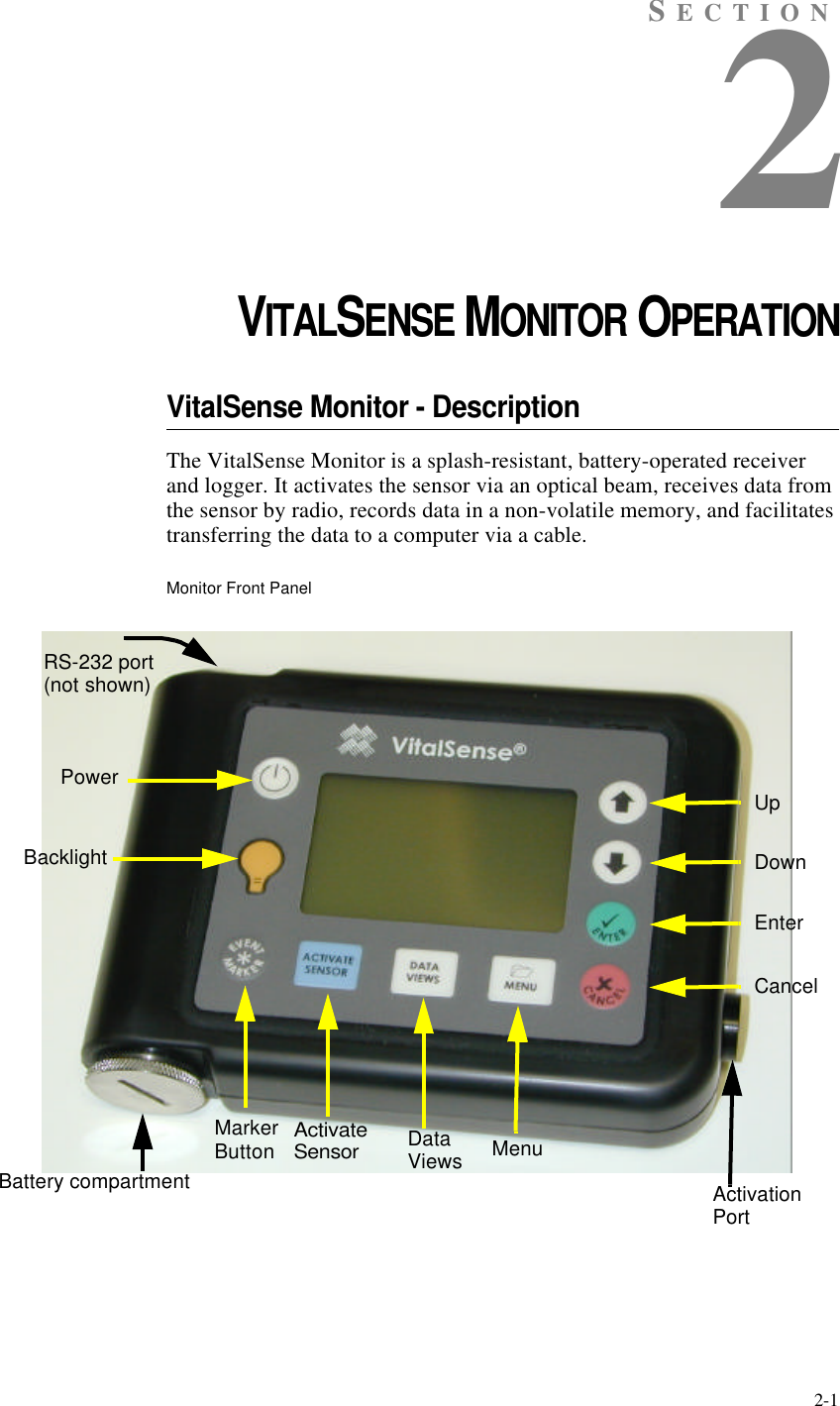
2-1SECTION2CHAPTER 2VITALSENSE MONITOR OPERATIONVitalSense Monitor - DescriptionThe VitalSense Monitor is a splash-resistant, battery-operated receiver and logger. It activates the sensor via an optical beam, receives data from the sensor by radio, records data in a non-volatile memory, and facilitates transferring the data to a computer via a cable.Monitor Front PanelPowerActivateSensorDataViews MenuUpDownEnterCancelBacklightMarkerButtonBattery compartmentRS-232 port(not shown)ActivationPort
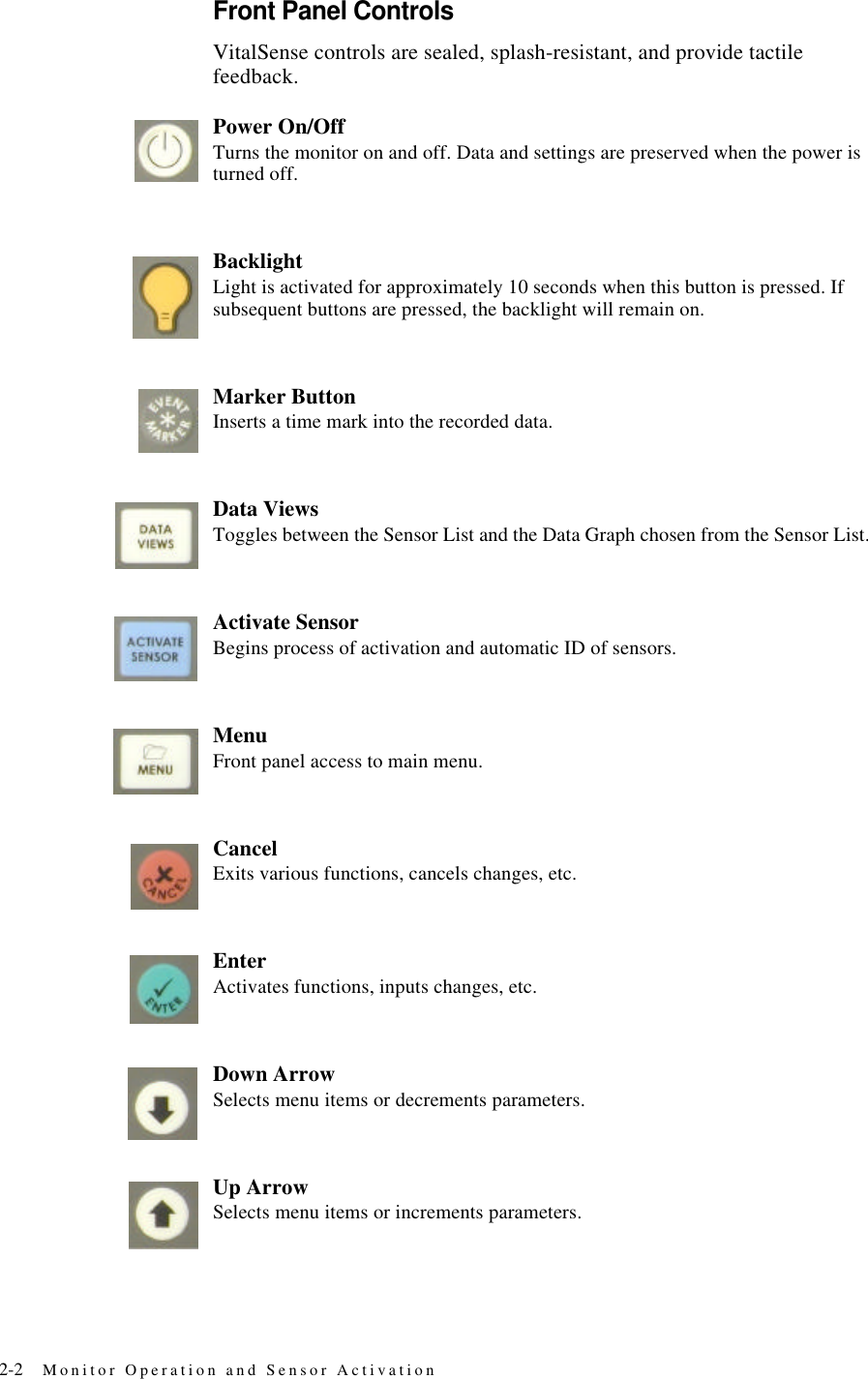
2-2 Monitor Operation and Sensor ActivationFront Panel ControlsVitalSense controls are sealed, splash-resistant, and provide tactile feedback.Power On/OffTurns the monitor on and off. Data and settings are preserved when the power is turned off.BacklightLight is activated for approximately 10 seconds when this button is pressed. If subsequent buttons are pressed, the backlight will remain on.Marker ButtonInserts a time mark into the recorded data.Data ViewsToggles between the Sensor List and the Data Graph chosen from the Sensor List.Activate SensorBegins process of activation and automatic ID of sensors.MenuFront panel access to main menu.CancelExits various functions, cancels changes, etc.EnterActivates functions, inputs changes, etc.Down ArrowSelects menu items or decrements parameters.Up ArrowSelects menu items or increments parameters.
2-3Other features•RS-232 Port - Accepts RS-232 serial cable to facilitate transfer of data.•Battery compartment - Access to lithium power source.•Activation Port - Activates sensor during activation procedure.
2-4 Monitor Operation and Sensor ActivationMonitor Setup for Data CollectionBefore data collection can begin, the monitor must be set up, or configured. All configuring can be done from the monitor front panel, and some configuration functions can be done from the host PC. This section will cover monitor front panel operations.There are three requirements that may have to be accomplished before the monitor will collect data:•“ Erase Data Memory ” on page2-27•“ Adjusting the Time/Date ” on page2-20•“ Activating Sensors Using the VitalSense Monitor ” on page2-7Some of these requirements may not be necessary, e.g., if you have configured VitalSense previously, erased the memory, or if you have already set the time.Time and Date Time and date must be set carefully. VitalSense data are collected with UTC (Universal Coordinated Time) as a reference. However, the monitor can display Local time as well as UTC.If the UTC or Local times, and the UTC offset are entered correctly, VitalSense can compensate for Standard and Daylight time changes (US only). If adjusting the time from the host PC, the monitor may automatically be set to the same time as your PC clock.CAUTION! You cannot change the UTC time or date with sensors on-line. (UTC offset and Daylight Saving Time compensation are allowed.)A note on UTC UTC is based on precise atomic clocks, shortwave time signals, and satellites. This insures that there is a reliable, accurate standard for scientific and navigation purposes.The difference between local time and UTC is called the UTC offset.For detailed information on UTC, see “ Universal Coordinated Time ” on pageB-1.
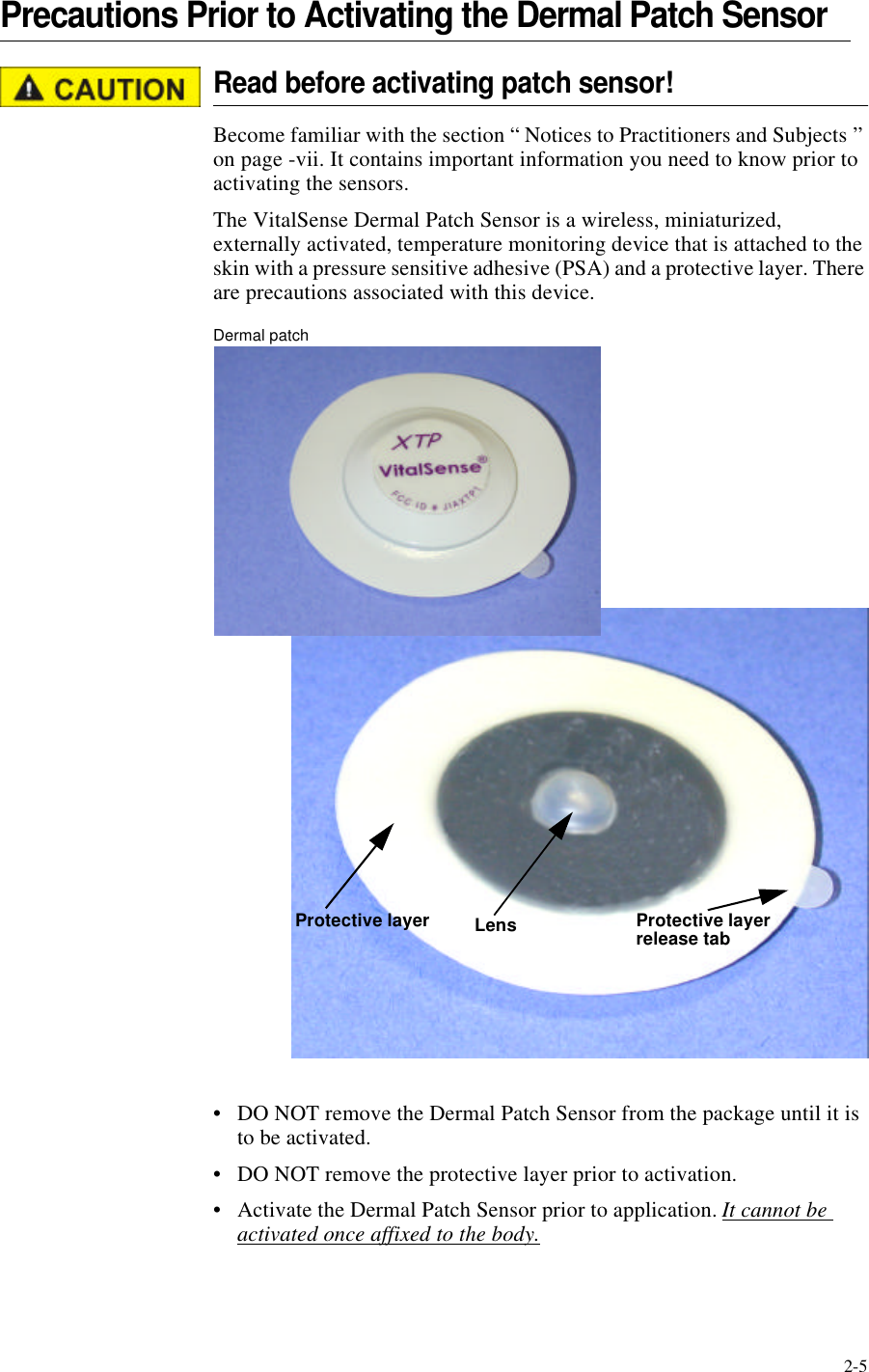
2-5Precautions Prior to Activating the Dermal Patch SensorRead before activating patch sensor!Become familiar with the section “ Notices to Practitioners and Subjects ” on page-vii. It contains important information you need to know prior to activating the sensors.The VitalSense Dermal Patch Sensor is a wireless, miniaturized, externally activated, temperature monitoring device that is attached to the skin with a pressure sensitive adhesive (PSA) and a protective layer. There are precautions associated with this device.Dermal patch•DO NOT remove the Dermal Patch Sensor from the package until it is to be activated.•DO NOT remove the protective layer prior to activation.•Activate the Dermal Patch Sensor prior to application. It cannot be activated once affixed to the body.Protective layerLensProtective layer release tab
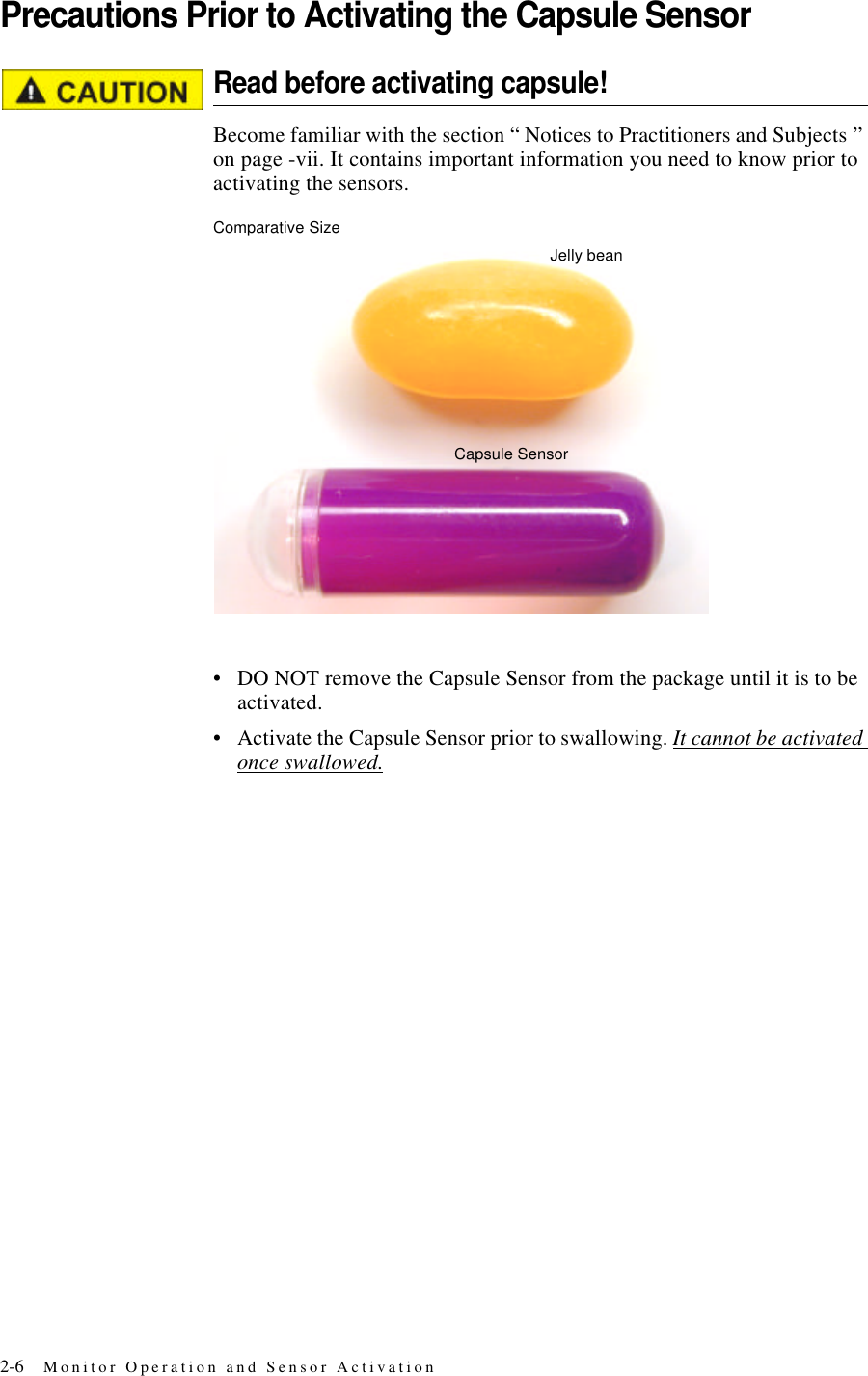
2-6 Monitor Operation and Sensor ActivationPrecautions Prior to Activating the Capsule SensorRead before activating capsule!Become familiar with the section “ Notices to Practitioners and Subjects ” on page-vii. It contains important information you need to know prior to activating the sensors.Comparative Size•DO NOT remove the Capsule Sensor from the package until it is to be activated.•Activate the Capsule Sensor prior to swallowing. It cannot be activated once swallowed.Capsule SensorJelly bean
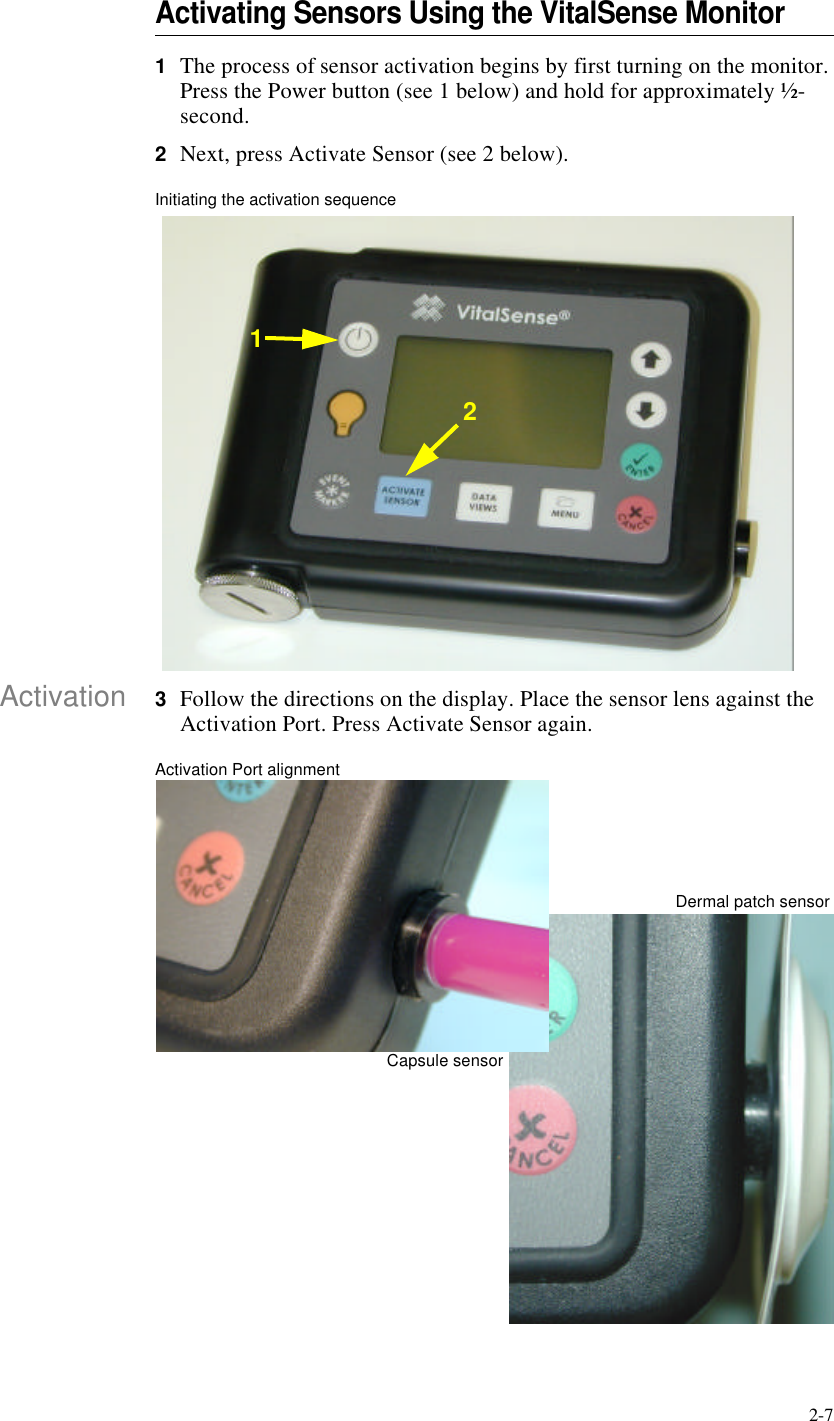
2-7Activating Sensors Using the VitalSense Monitor1The process of sensor activation begins by first turning on the monitor. Press the Power button (see 1 below) and hold for approximately ½-second.2Next, press Activate Sensor (see 2 below).Initiating the activation sequenceActivation 3Follow the directions on the display. Place the sensor lens against the Activation Port. Press Activate Sensor again.Activation Port alignment12Dermal patch sensorCapsule sensor
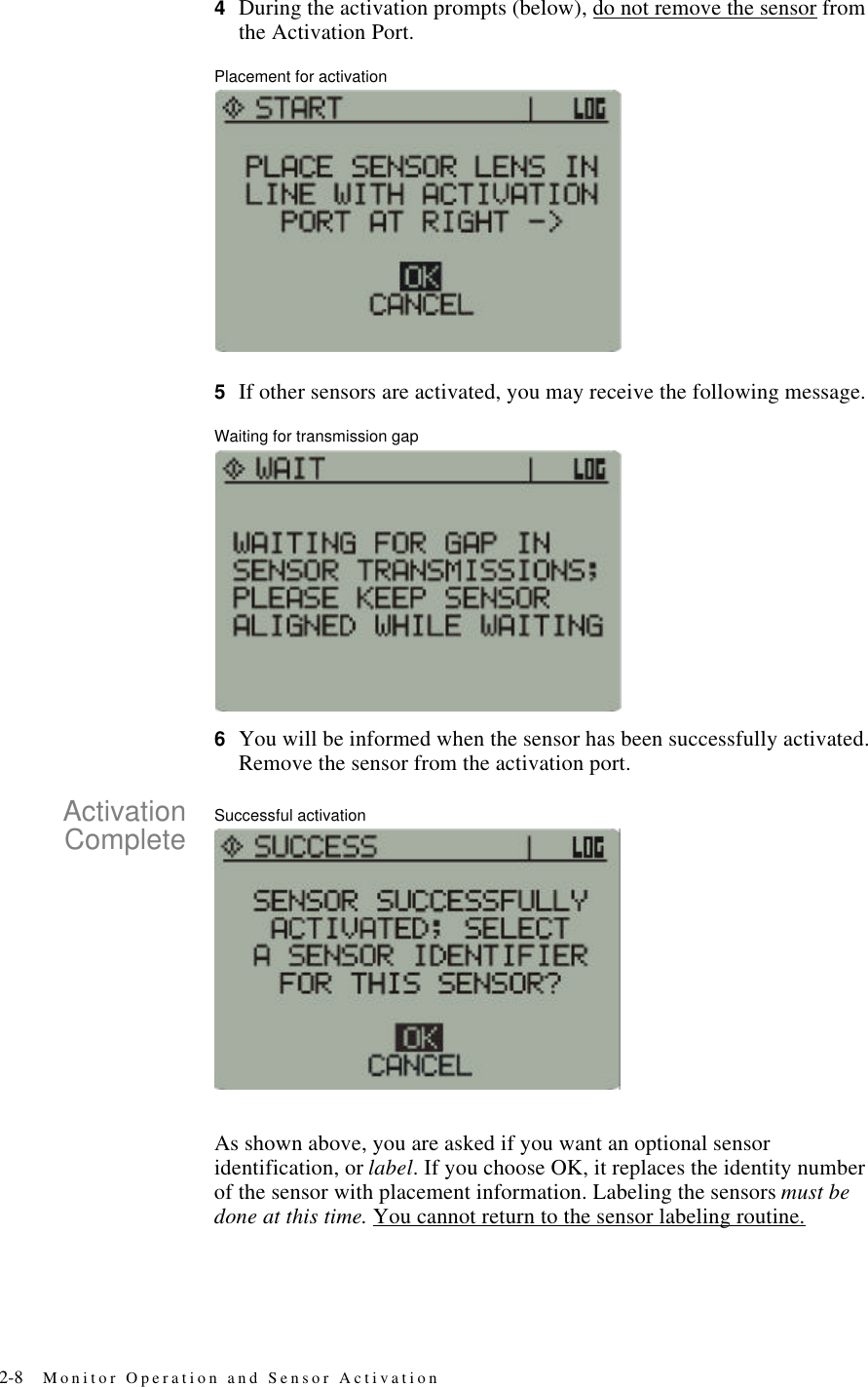
2-8 Monitor Operation and Sensor Activation4During the activation prompts (below), do not remove the sensor from the Activation Port.Placement for activation5If other sensors are activated, you may receive the following message.Waiting for transmission gap6You will be informed when the sensor has been successfully activated. Remove the sensor from the activation port.ActivationComplete Successful activationAs shown above, you are asked if you want an optional sensor identification, or label. If you choose OK, it replaces the identity number of the sensor with placement information. Labeling the sensors must be done at this time. You cannot return to the sensor labeling routine.
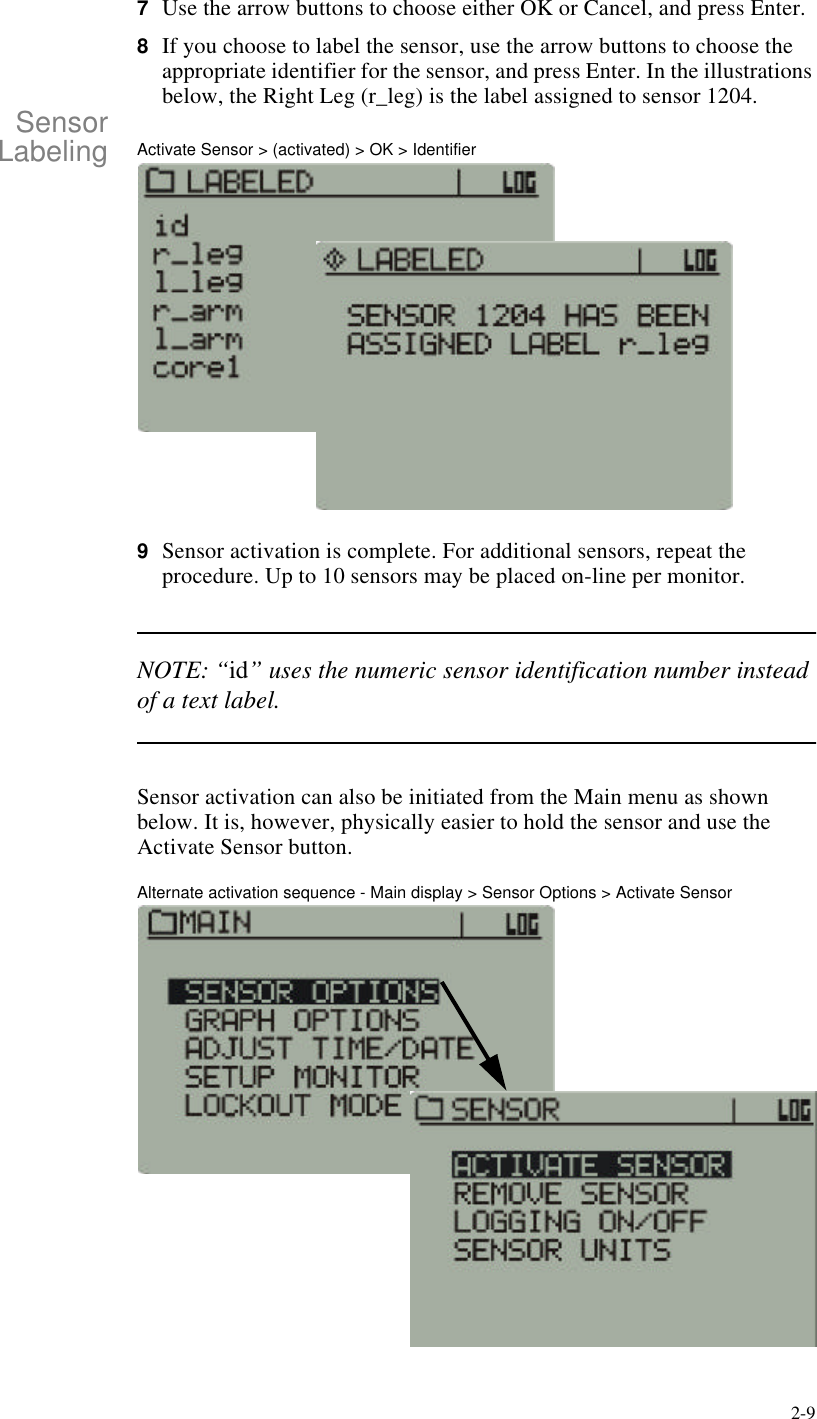
2-97Use the arrow buttons to choose either OK or Cancel, and press Enter.8If you choose to label the sensor, use the arrow buttons to choose the appropriate identifier for the sensor, and press Enter. In the illustrations below, the Right Leg (r_leg) is the label assigned to sensor 1204.SensorLabeling Activate Sensor > (activated) > OK > Identifier9Sensor activation is complete. For additional sensors, repeat the procedure. Up to 10 sensors may be placed on-line per monitor.NOTE: “id” uses the numeric sensor identification number instead of a text label.Sensor activation can also be initiated from the Main menu as shown below. It is, however, physically easier to hold the sensor and use the Activate Sensor button.Alternate activation sequence - Main display > Sensor Options > Activate Sensor
2-10 Monitor Operation and Sensor ActivationAdministrationBoth the Capsule Sensor and the Dermal Patch contain ferromag-netic materials incompatible with MRI (magnetic resonance imag-ing) and should not be worn nor ingested if an MRI is planned. Any subject ingesting or affixing the above sensors is to wear an MRI Warning wrist band (supplied with each sensor) as long as the sen-sors are in place.Dermal Patch Sensor1Remove excess hair from the area in which the sensor will be mounted.2Prepare the skin by cleaning with an alcohol-moistened wipe.3Following successful activation, use the tab to peel away the protective layer.4Affix the Dermal Patch Sensor to the skin.5Affix an MRI Warning wrist band (supplied) to the subject with instructions that it is to be worn as long as the Dermal Patch is in place.Keep the VitalSense Monitor within 2 meters of your body.NOTE: Avoid the use of lotions and emollients in the area of the Dermal Patch Sensor. Their uses may cause the adhesive to loosen.Capsule SensorDo not chew. There are metal components inside the capsule. Swal-low whole with liquid.1Following successful activation, swallow the Capsule Sensor with approximately 8-ounces of water, juice, or soft drink.2Keep the VitalSense Monitor within 1 meter of your body.3Affix an MRI Warning wrist band (supplied) to the subject with instructions that it is to be worn until the Capsule Sensor has been expelled.
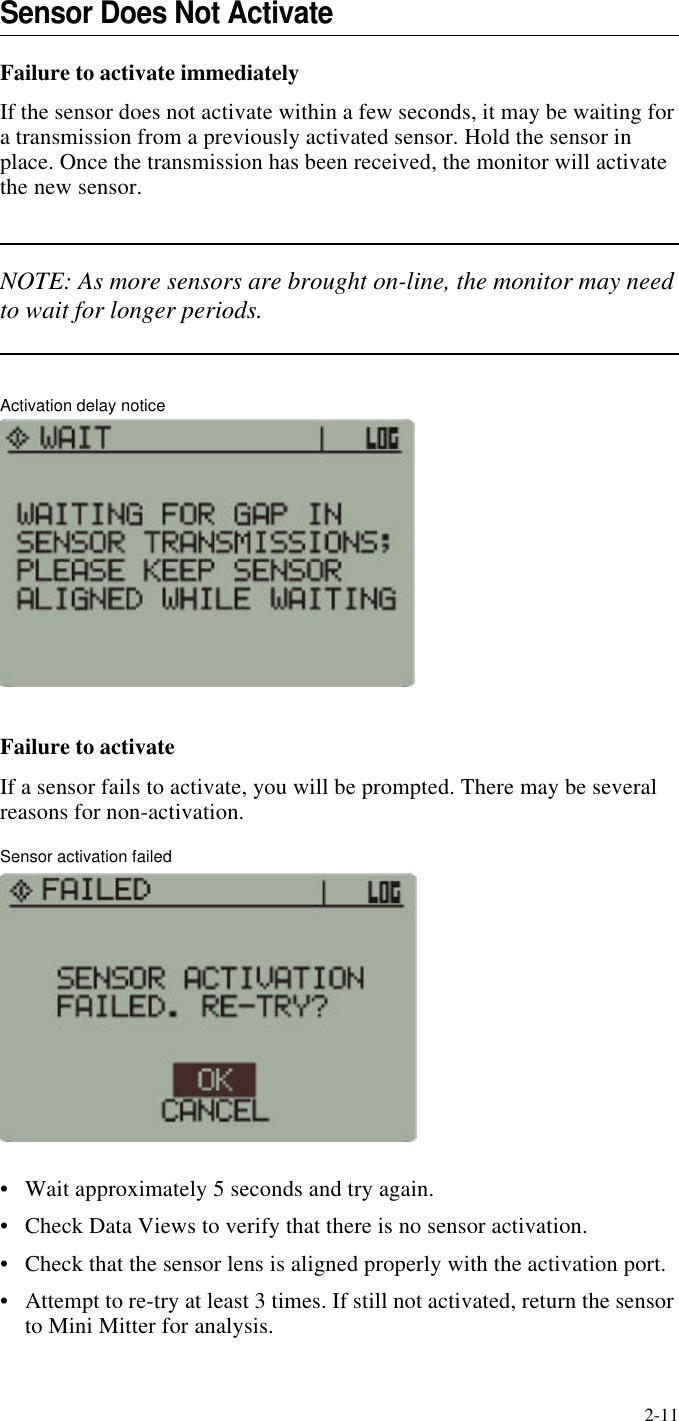
2-11Sensor Does Not ActivateFailure to activate immediatelyIf the sensor does not activate within a few seconds, it may be waiting for a transmission from a previously activated sensor. Hold the sensor in place. Once the transmission has been received, the monitor will activate the new sensor.NOTE: As more sensors are brought on-line, the monitor may need to wait for longer periods.Activation delay noticeFailure to activateIf a sensor fails to activate, you will be prompted. There may be several reasons for non-activation.Sensor activation failed•Wait approximately 5 seconds and try again.•Check Data Views to verify that there is no sensor activation.•Check that the sensor lens is aligned properly with the activation port.•Attempt to re-try at least 3 times. If still not activated, return the sensor to Mini Mitter for analysis.
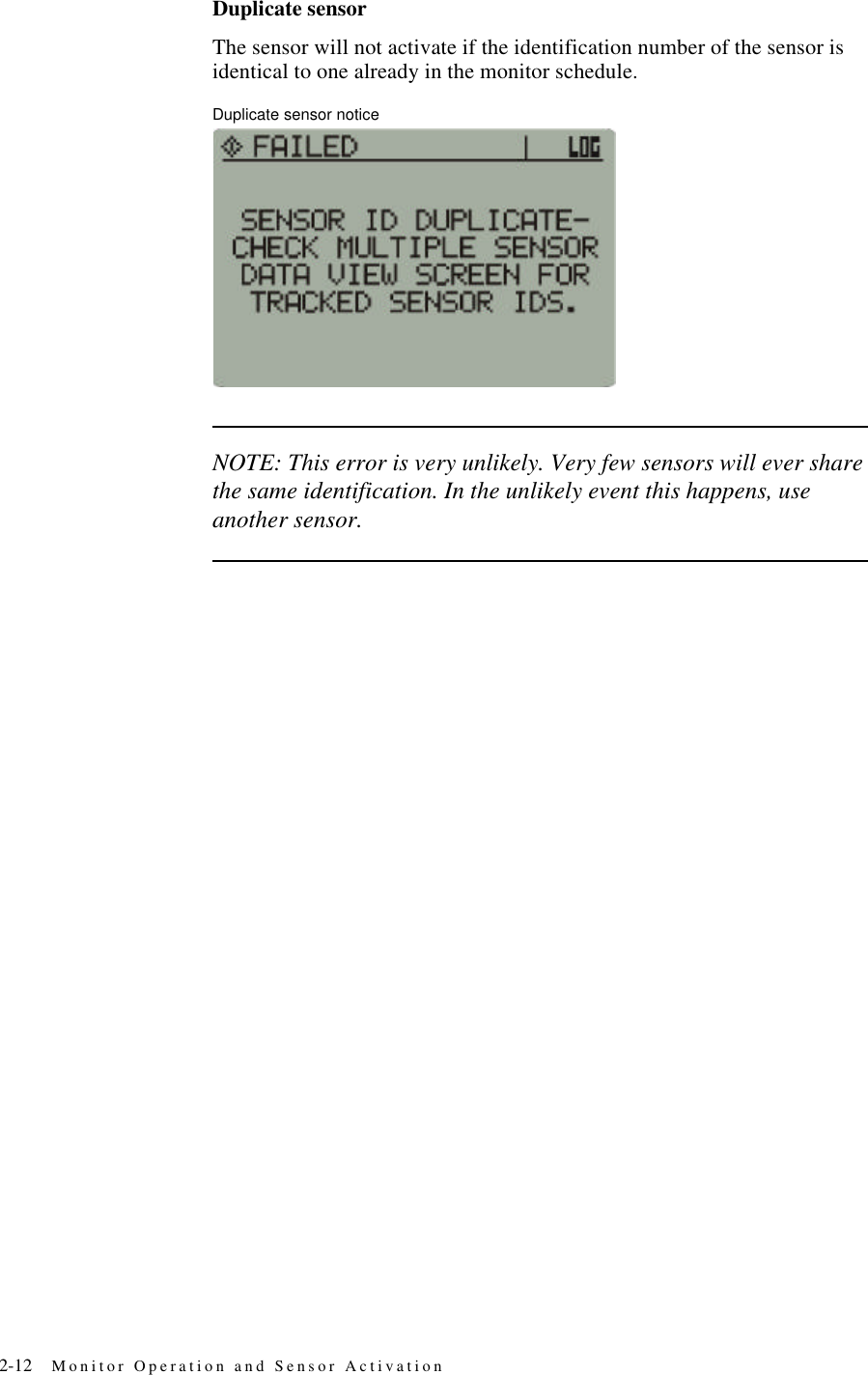
2-12 Monitor Operation and Sensor ActivationDuplicate sensorThe sensor will not activate if the identification number of the sensor is identical to one already in the monitor schedule.Duplicate sensor noticeNOTE: This error is very unlikely. Very few sensors will ever share the same identification. In the unlikely event this happens, use another sensor.
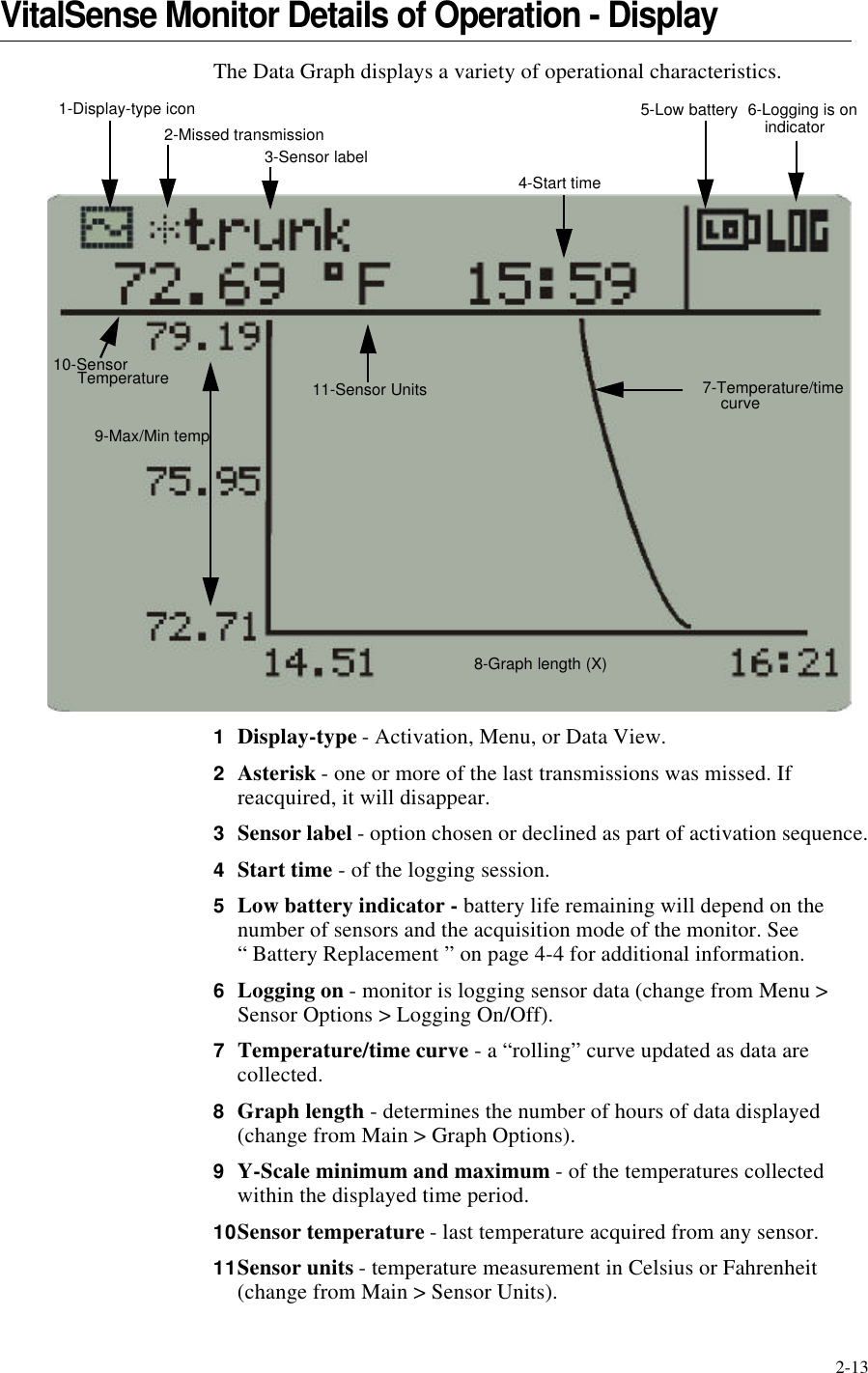
2-13VitalSense Monitor Details of Operation - DisplayThe Data Graph displays a variety of operational characteristics.1Display-type - Activation, Menu, or Data View.2Asterisk - one or more of the last transmissions was missed. If reacquired, it will disappear.3Sensor label - option chosen or declined as part of activation sequence.4Start time - of the logging session.5Low battery indicator - battery life remaining will depend on the number of sensors and the acquisition mode of the monitor. See             “ Battery Replacement ” on page4-4 for additional information.6Logging on - monitor is logging sensor data (change from Menu > Sensor Options > Logging On/Off).7Temperature/time curve - a “rolling” curve updated as data are collected.8Graph length - determines the number of hours of data displayed (change from Main > Graph Options).9Y-Scale minimum and maximum - of the temperatures collected within the displayed time period.10Sensor temperature - last temperature acquired from any sensor.11Sensor units - temperature measurement in Celsius or Fahrenheit (change from Main > Sensor Units).1-Display-type icon2-Missed transmission6-Logging is on7-Temperature/time4-Start time3-Sensor label8-Graph length (X)5-Low battery10-Sensor9-Max/Min tempcurveTemperatureindicator11-Sensor Units
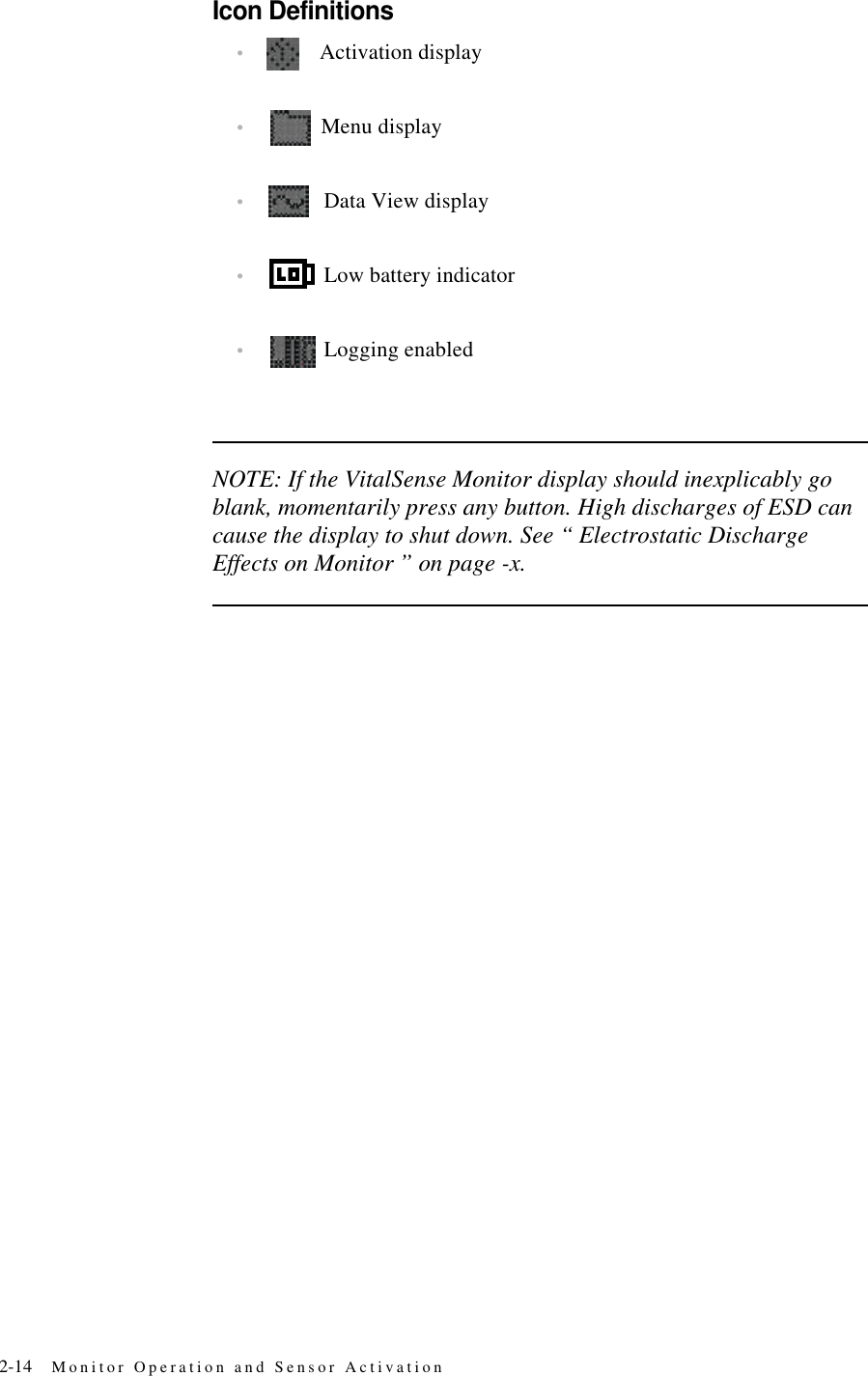
2-14 Monitor Operation and Sensor ActivationIcon Definitions•Activation display•Menu display•Data View display•Low battery indicator•Logging enabledNOTE: If the VitalSense Monitor display should inexplicably go blank, momentarily press any button. High discharges of ESD can cause the display to shut down. See “ Electrostatic Discharge Effects on Monitor ” on page-x.
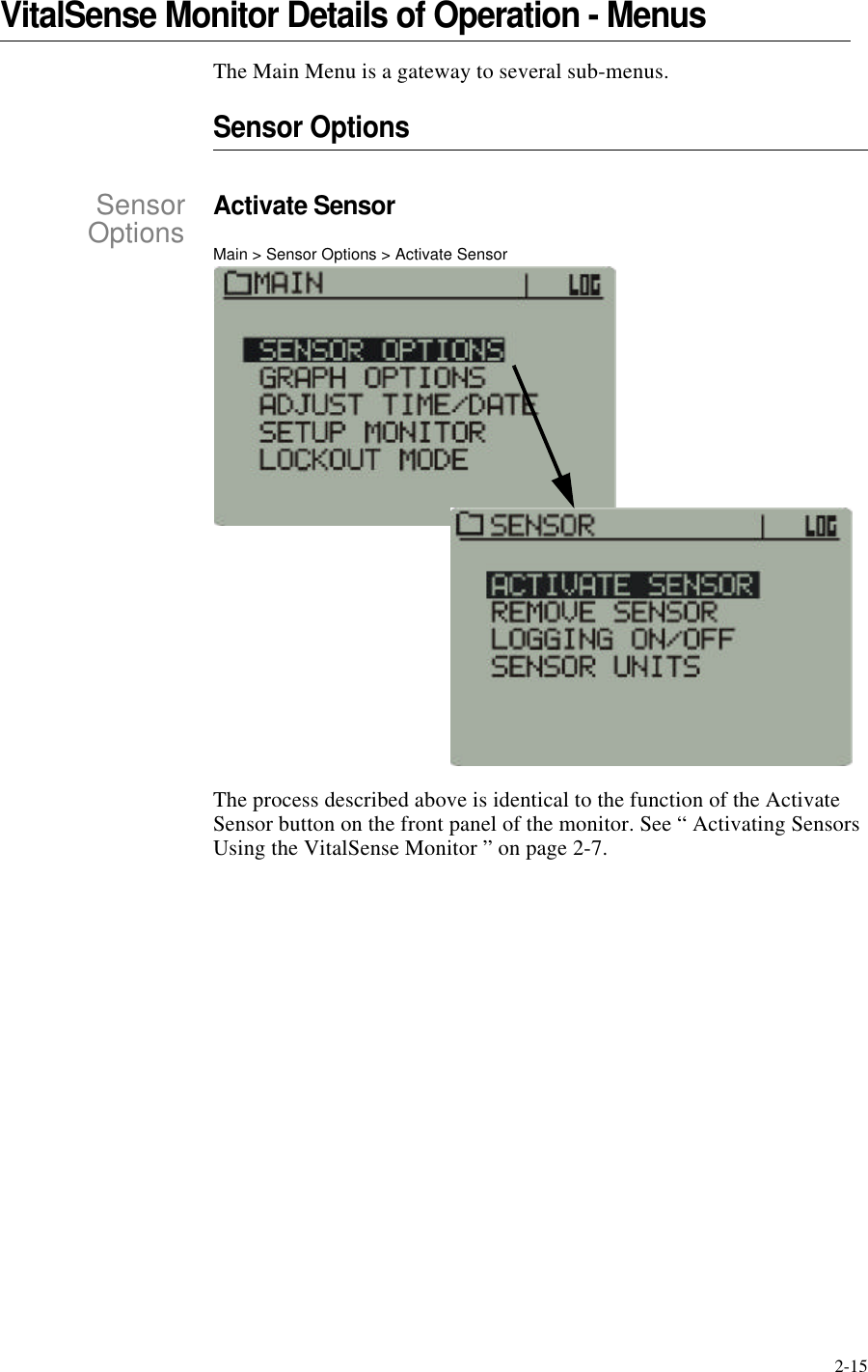
2-15VitalSense Monitor Details of Operation - MenusThe Main Menu is a gateway to several sub-menus.Sensor OptionsSensorOptionsActivate SensorMain > Sensor Options > Activate SensorThe process described above is identical to the function of the Activate Sensor button on the front panel of the monitor. See “ Activating Sensors Using the VitalSense Monitor ” on page2-7.
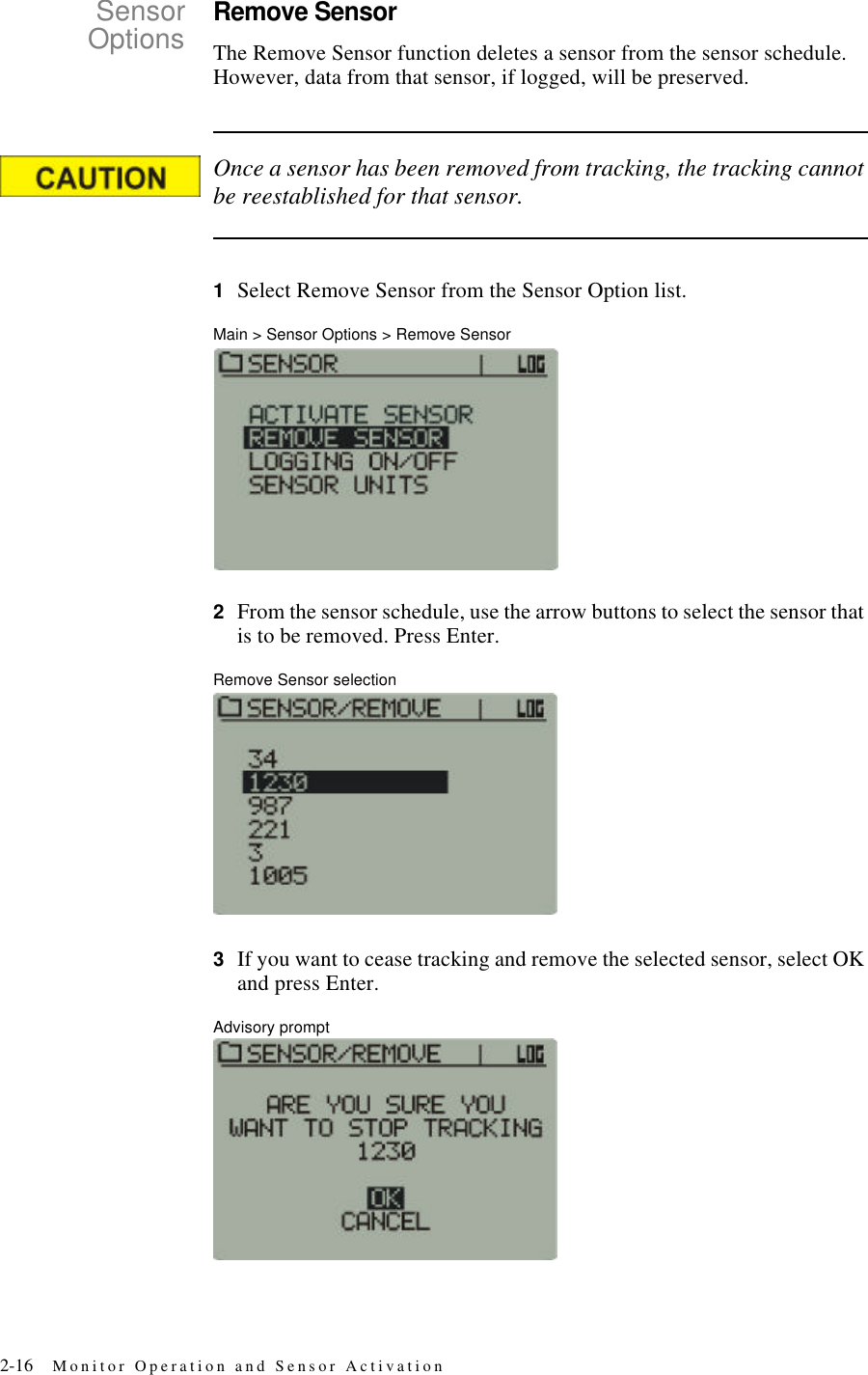
2-16 Monitor Operation and Sensor ActivationSensorOptionsRemove SensorThe Remove Sensor function deletes a sensor from the sensor schedule. However, data from that sensor, if logged, will be preserved.Once a sensor has been removed from tracking, the tracking cannot be reestablished for that sensor.1Select Remove Sensor from the Sensor Option list.Main > Sensor Options > Remove Sensor2From the sensor schedule, use the arrow buttons to select the sensor that is to be removed. Press Enter.Remove Sensor selection3If you want to cease tracking and remove the selected sensor, select OK and press Enter.Advisory prompt
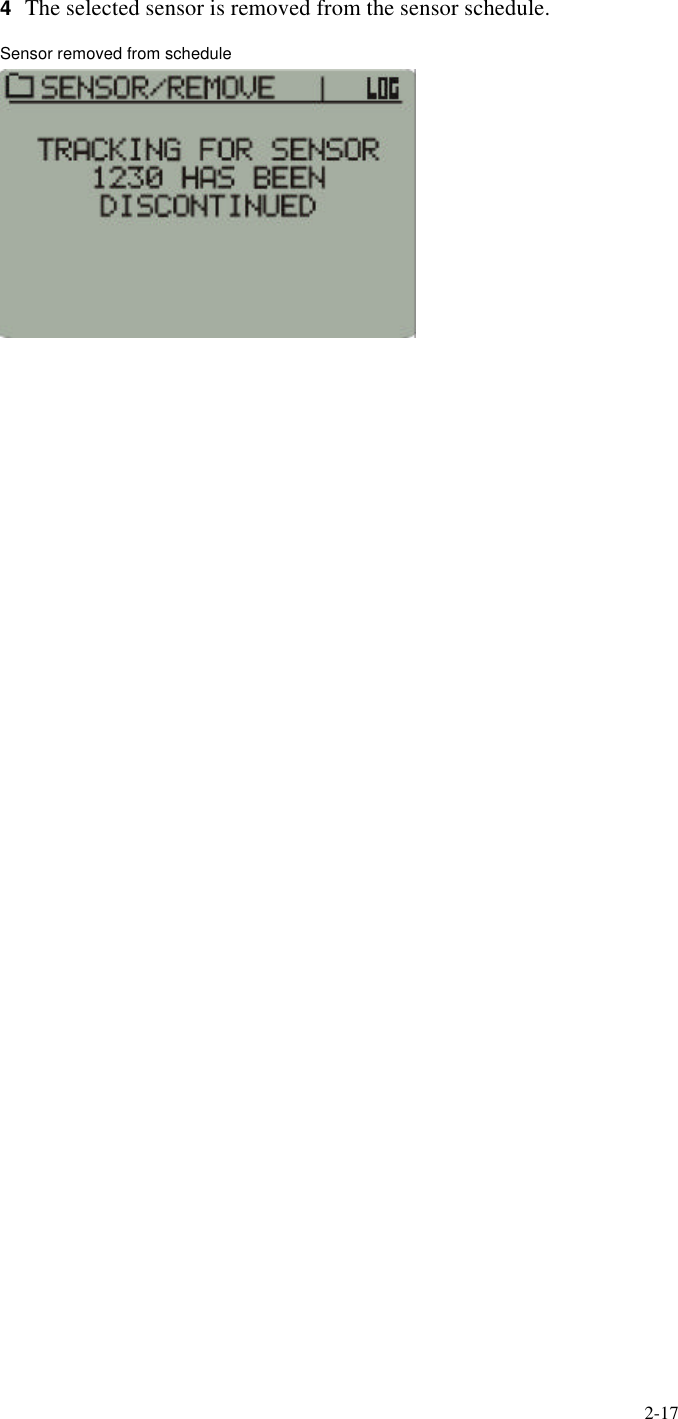
2-174The selected sensor is removed from the sensor schedule.Sensor removed from schedule
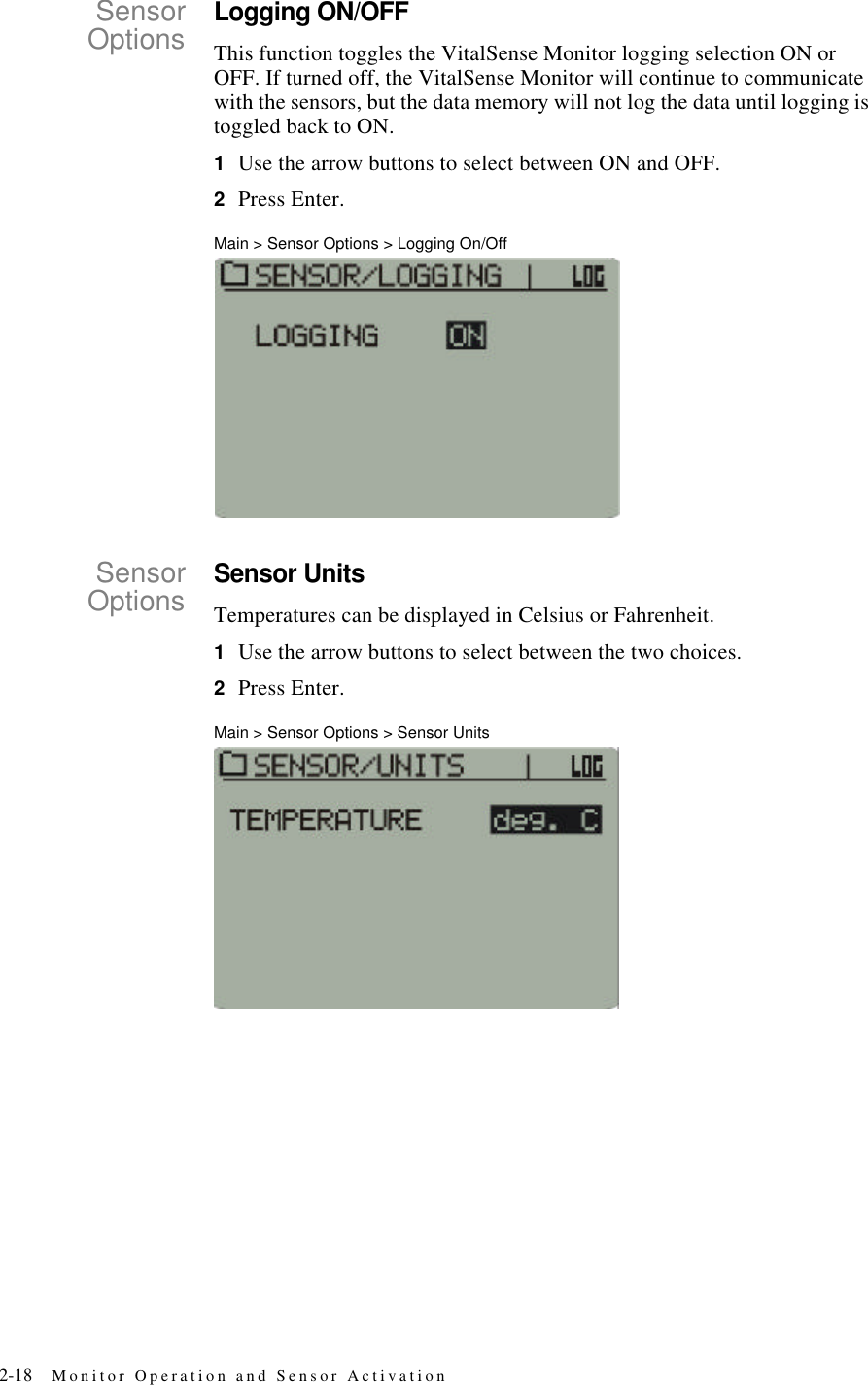
2-18 Monitor Operation and Sensor ActivationSensorOptionsLogging ON/OFFThis function toggles the VitalSense Monitor logging selection ON or OFF. If turned off, the VitalSense Monitor will continue to communicate with the sensors, but the data memory will not log the data until logging is toggled back to ON.1Use the arrow buttons to select between ON and OFF.2Press Enter.Main > Sensor Options > Logging On/OffSensorOptionsSensor UnitsTemperatures can be displayed in Celsius or Fahrenheit.1Use the arrow buttons to select between the two choices.2Press Enter.Main > Sensor Options > Sensor Units
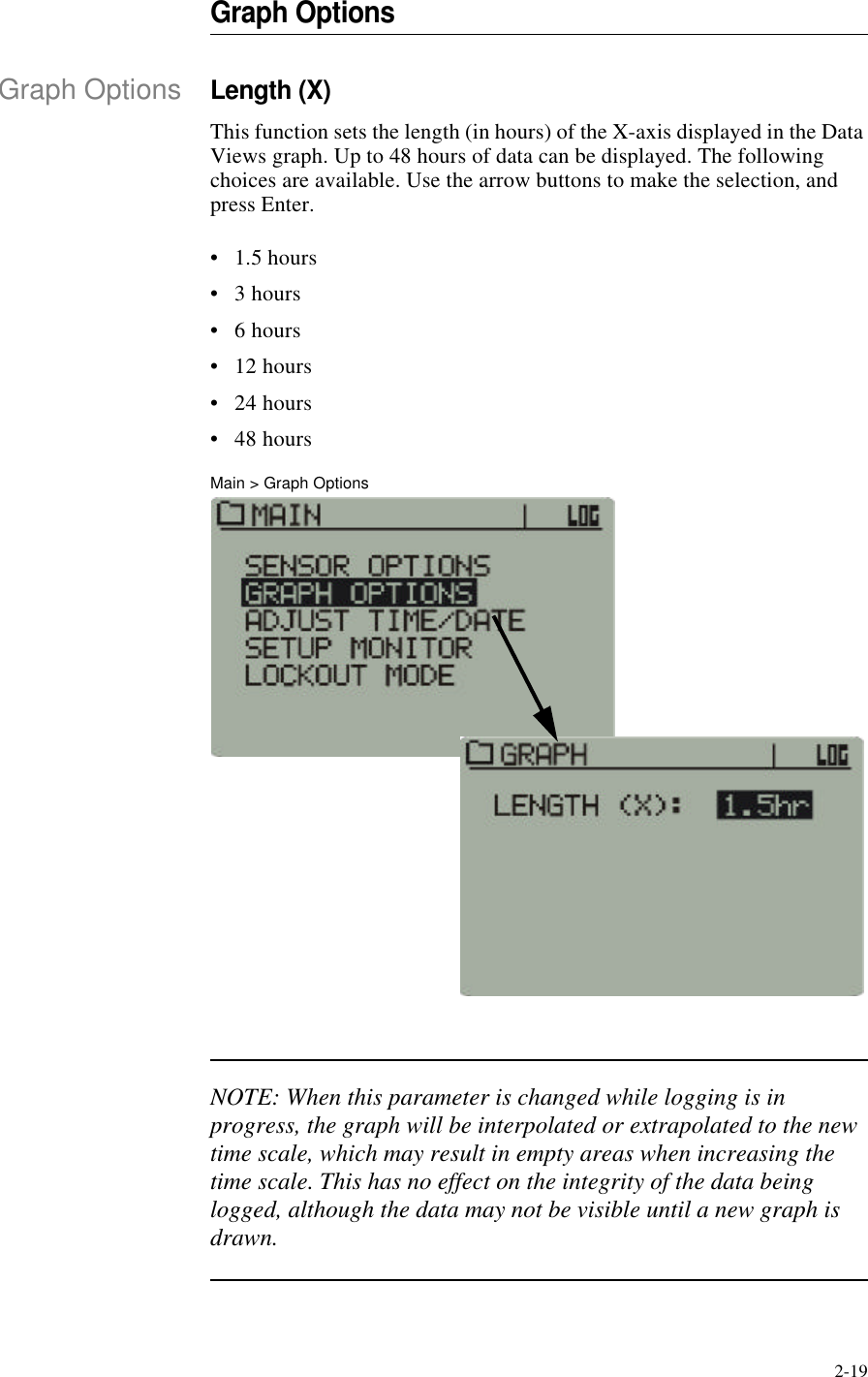
2-19Graph OptionsGraph OptionsLength (X)This function sets the length (in hours) of the X-axis displayed in the Data Views graph. Up to 48 hours of data can be displayed. The following choices are available. Use the arrow buttons to make the selection, and press Enter.•1.5 hours•3 hours•6 hours•12 hours•24 hours•48 hoursMain > Graph OptionsNOTE: When this parameter is changed while logging is in progress, the graph will be interpolated or extrapolated to the new time scale, which may result in empty areas when increasing the time scale. This has no effect on the integrity of the data being logged, although the data may not be visible until a new graph is drawn.
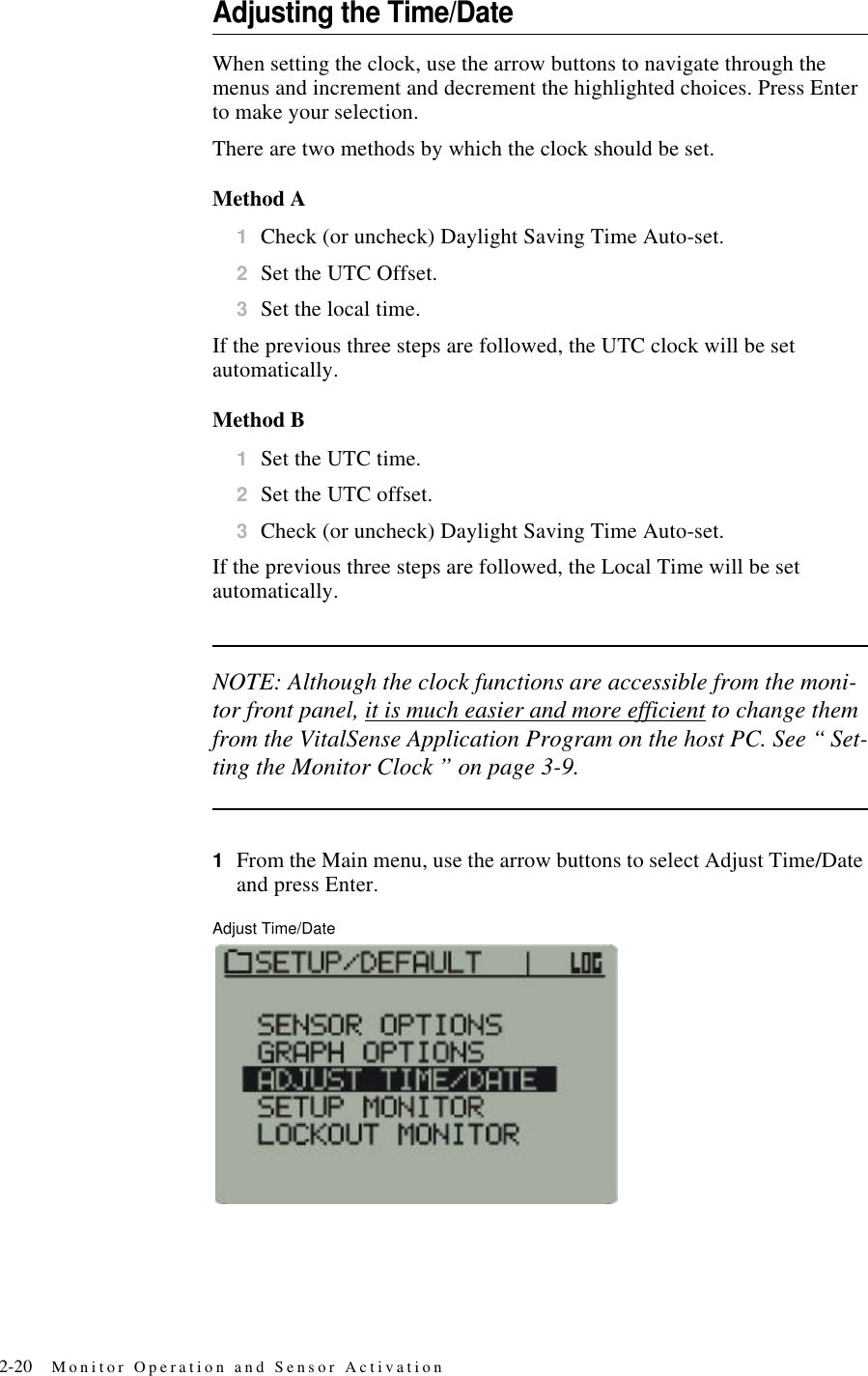
2-20 Monitor Operation and Sensor ActivationAdjusting the Time/DateWhen setting the clock, use the arrow buttons to navigate through the menus and increment and decrement the highlighted choices. Press Enter to make your selection.There are two methods by which the clock should be set.Method A1Check (or uncheck) Daylight Saving Time Auto-set.2Set the UTC Offset.3Set the local time.If the previous three steps are followed, the UTC clock will be set automatically.Method B1Set the UTC time.2Set the UTC offset.3Check (or uncheck) Daylight Saving Time Auto-set.If the previous three steps are followed, the Local Time will be set automatically.NOTE: Although the clock functions are accessible from the moni-tor front panel, it is much easier and more efficient to change them from the VitalSense Application Program on the host PC. See “ Set-ting the Monitor Clock ” on page3-9.1From the Main menu, use the arrow buttons to select Adjust Time/Date and press Enter.Adjust Time/Date
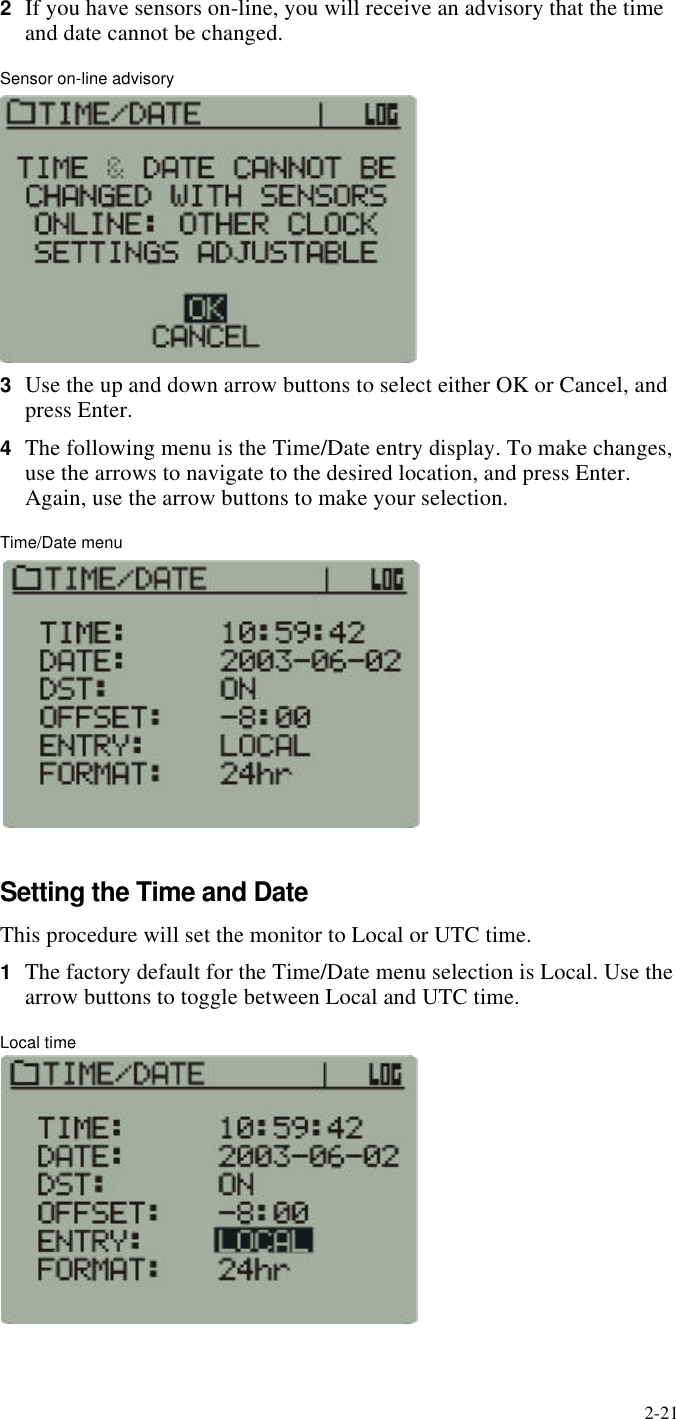
2-212If you have sensors on-line, you will receive an advisory that the time and date cannot be changed.Sensor on-line advisory3Use the up and down arrow buttons to select either OK or Cancel, and press Enter.4The following menu is the Time/Date entry display. To make changes, use the arrows to navigate to the desired location, and press Enter. Again, use the arrow buttons to make your selection.Time/Date menuSetting the Time and DateThis procedure will set the monitor to Local or UTC time.1The factory default for the Time/Date menu selection is Local. Use the arrow buttons to toggle between Local and UTC time.Local time
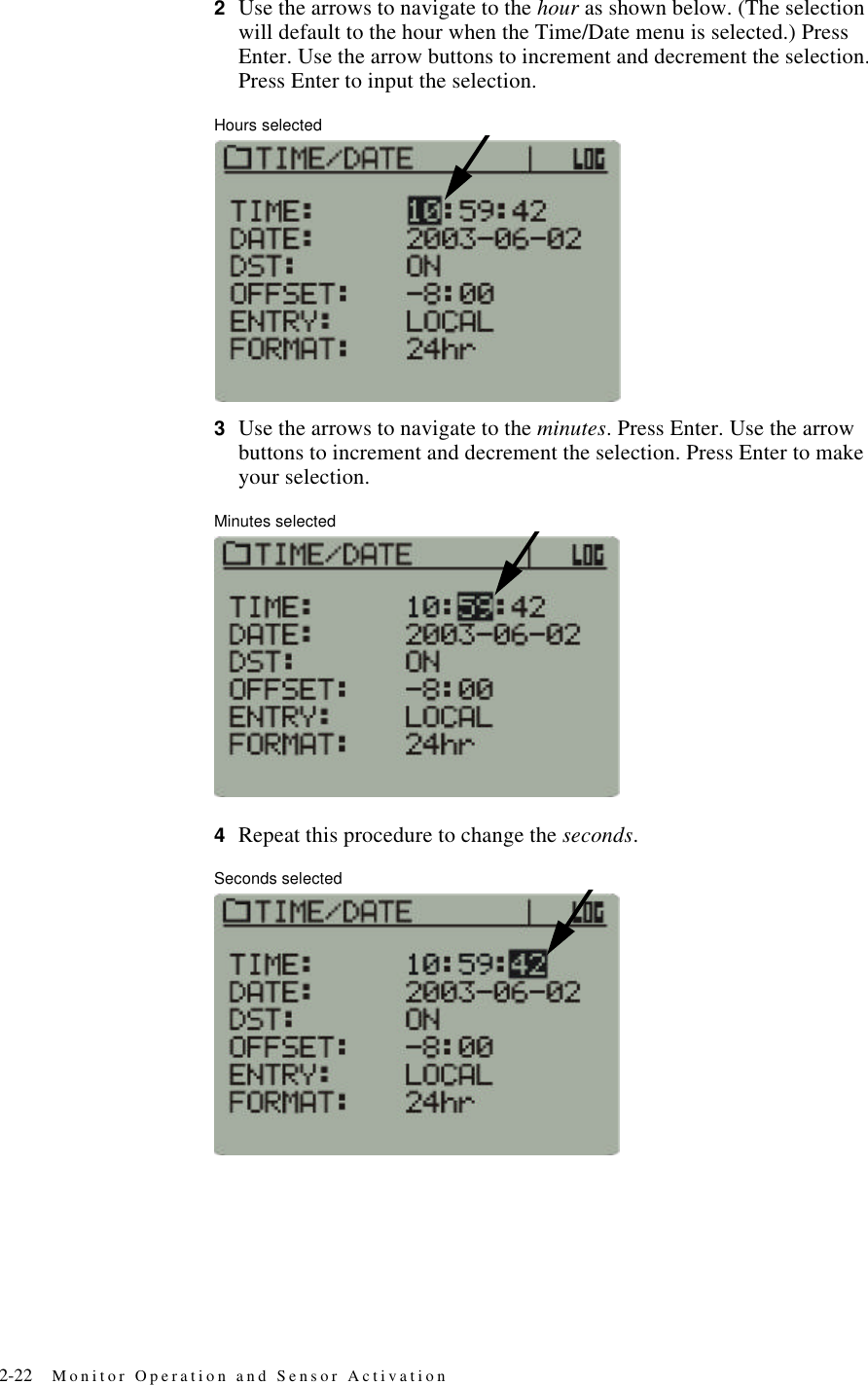
2-22 Monitor Operation and Sensor Activation2Use the arrows to navigate to the hour as shown below. (The selection will default to the hour when the Time/Date menu is selected.) Press Enter. Use the arrow buttons to increment and decrement the selection. Press Enter to input the selection.Hours selected3Use the arrows to navigate to the minutes. Press Enter. Use the arrow buttons to increment and decrement the selection. Press Enter to make your selection.Minutes selected4Repeat this procedure to change the seconds.Seconds selected
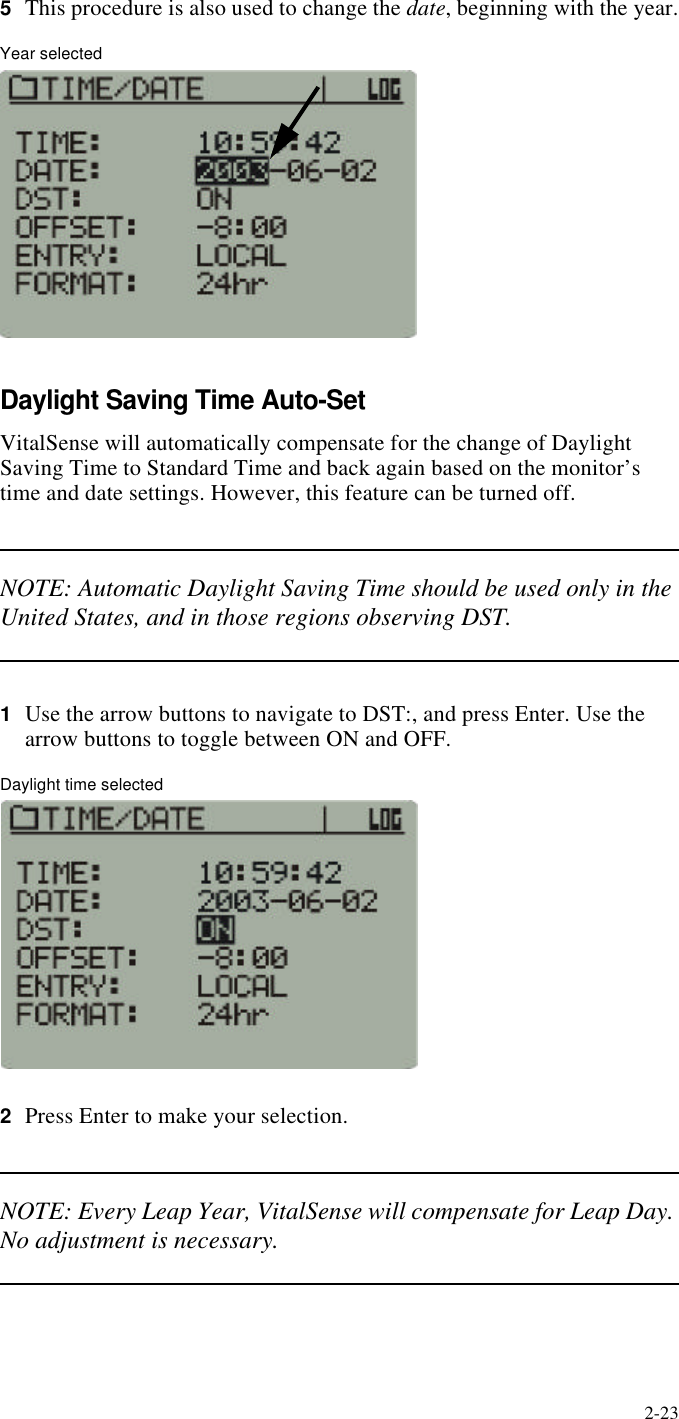
2-235This procedure is also used to change the date, beginning with the year.Year selectedDaylight Saving Time Auto-SetVitalSense will automatically compensate for the change of Daylight Saving Time to Standard Time and back again based on the monitor’s time and date settings. However, this feature can be turned off.NOTE: Automatic Daylight Saving Time should be used only in the United States, and in those regions observing DST.1Use the arrow buttons to navigate to DST:, and press Enter. Use the arrow buttons to toggle between ON and OFF.Daylight time selected2Press Enter to make your selection.NOTE: Every Leap Year, VitalSense will compensate for Leap Day. No adjustment is necessary.
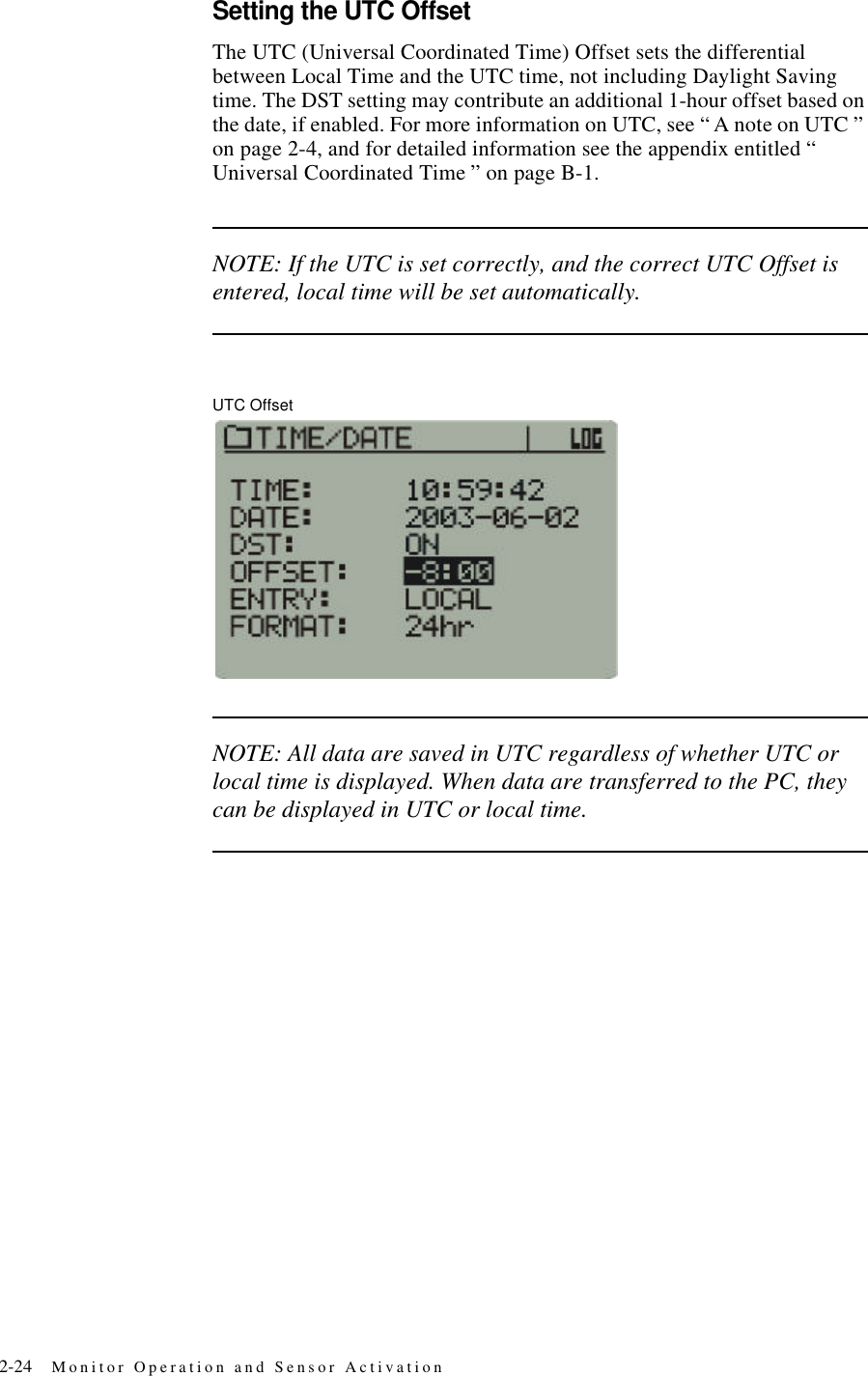
2-24 Monitor Operation and Sensor ActivationSetting the UTC OffsetThe UTC (Universal Coordinated Time) Offset sets the differential between Local Time and the UTC time, not including Daylight Saving time. The DST setting may contribute an additional 1-hour offset based on the date, if enabled. For more information on UTC, see “ A note on UTC ” on page2-4, and for detailed information see the appendix entitled “ Universal Coordinated Time ” on pageB-1.NOTE: If the UTC is set correctly, and the correct UTC Offset is entered, local time will be set automatically.UTC OffsetNOTE: All data are saved in UTC regardless of whether UTC or local time is displayed. When data are transferred to the PC, they can be displayed in UTC or local time.
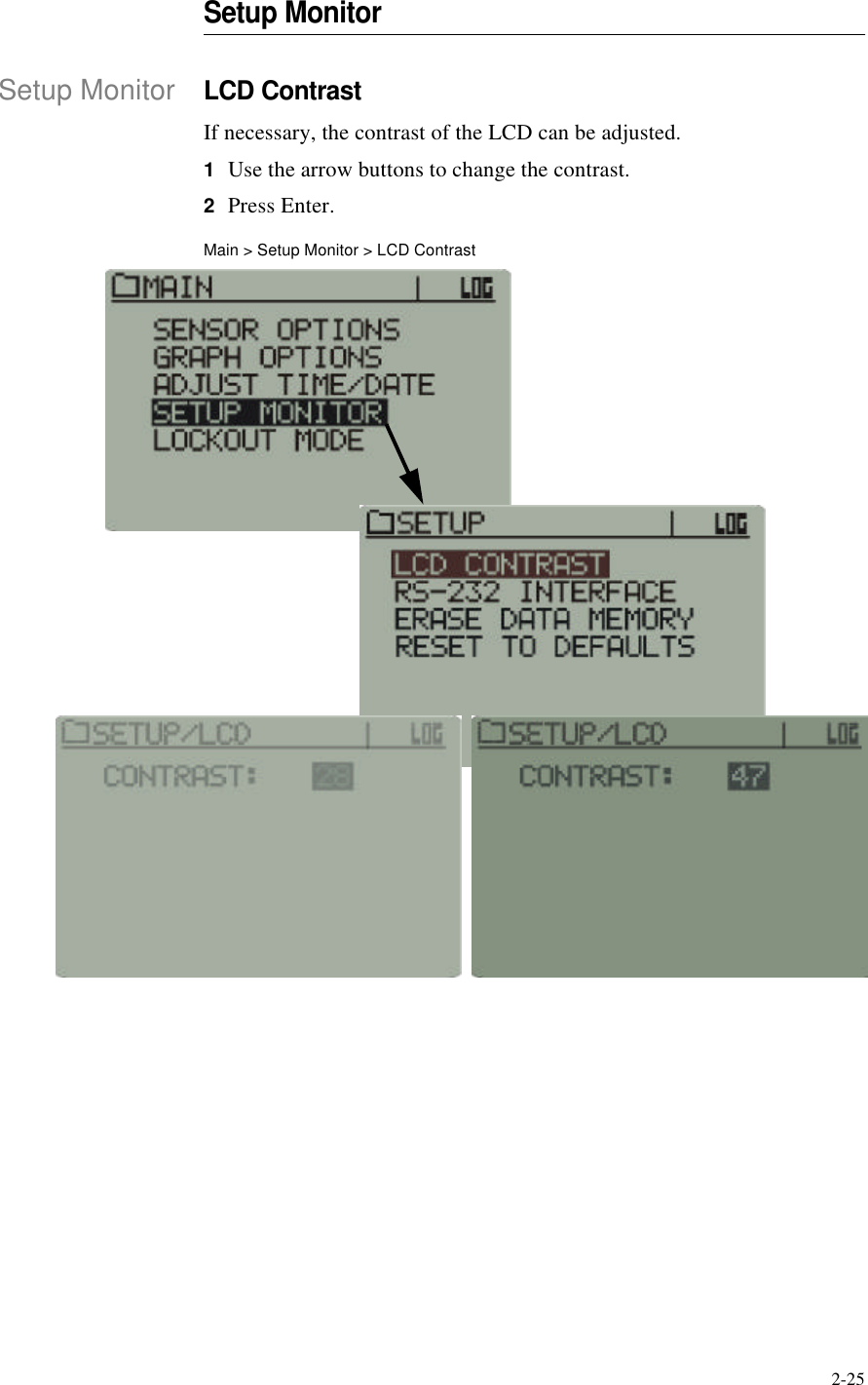
2-25Setup MonitorSetup MonitorLCD ContrastIf necessary, the contrast of the LCD can be adjusted.1Use the arrow buttons to change the contrast.2Press Enter.Main > Setup Monitor > LCD Contrast
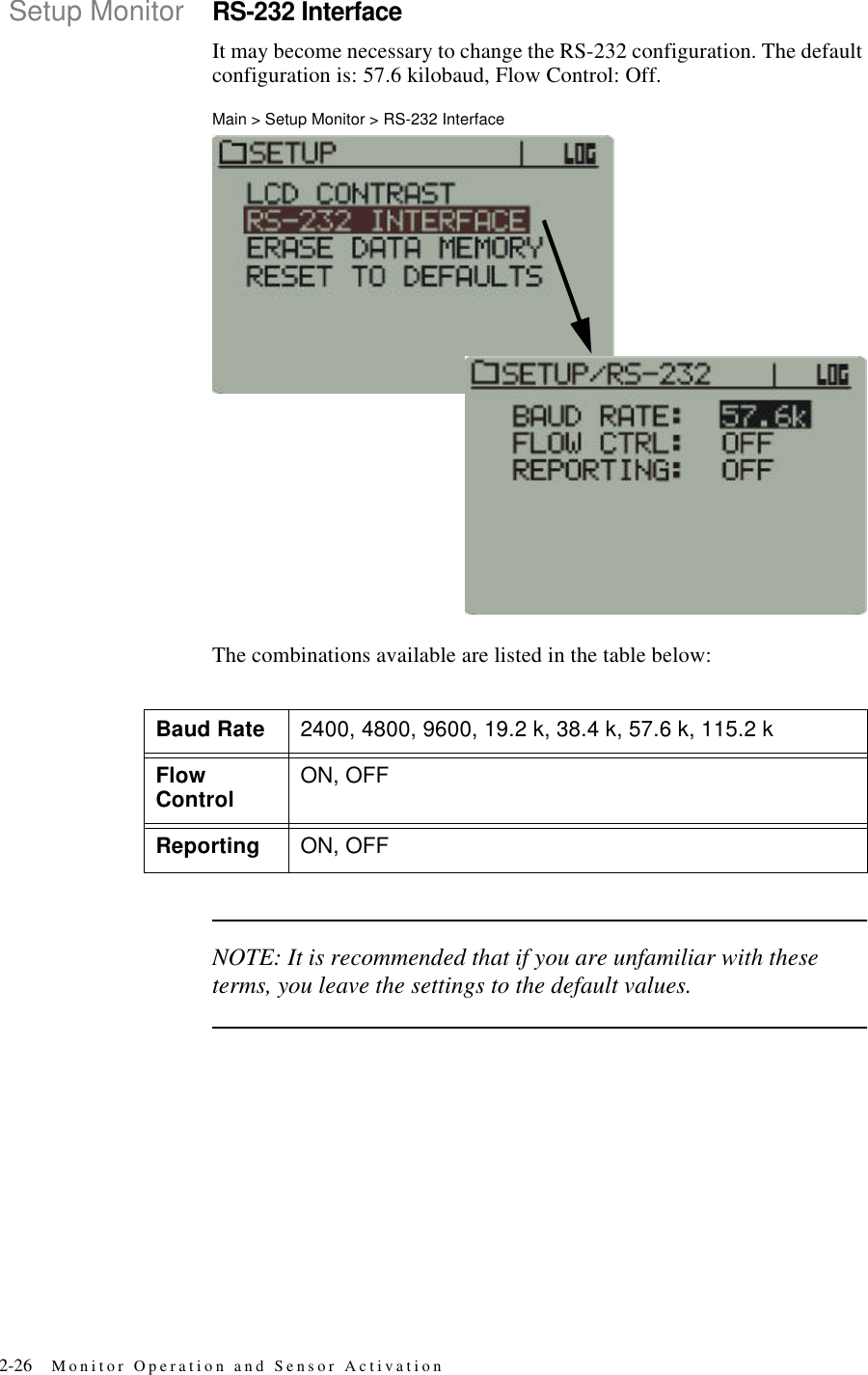
2-26 Monitor Operation and Sensor ActivationSetup MonitorRS-232 InterfaceIt may become necessary to change the RS-232 configuration. The default configuration is: 57.6 kilobaud, Flow Control: Off.Main > Setup Monitor > RS-232 InterfaceThe combinations available are listed in the table below:NOTE: It is recommended that if you are unfamiliar with these terms, you leave the settings to the default values.Baud Rate 2400, 4800, 9600, 19.2 k, 38.4 k, 57.6 k, 115.2 kFlow Control ON, OFFReporting ON, OFF
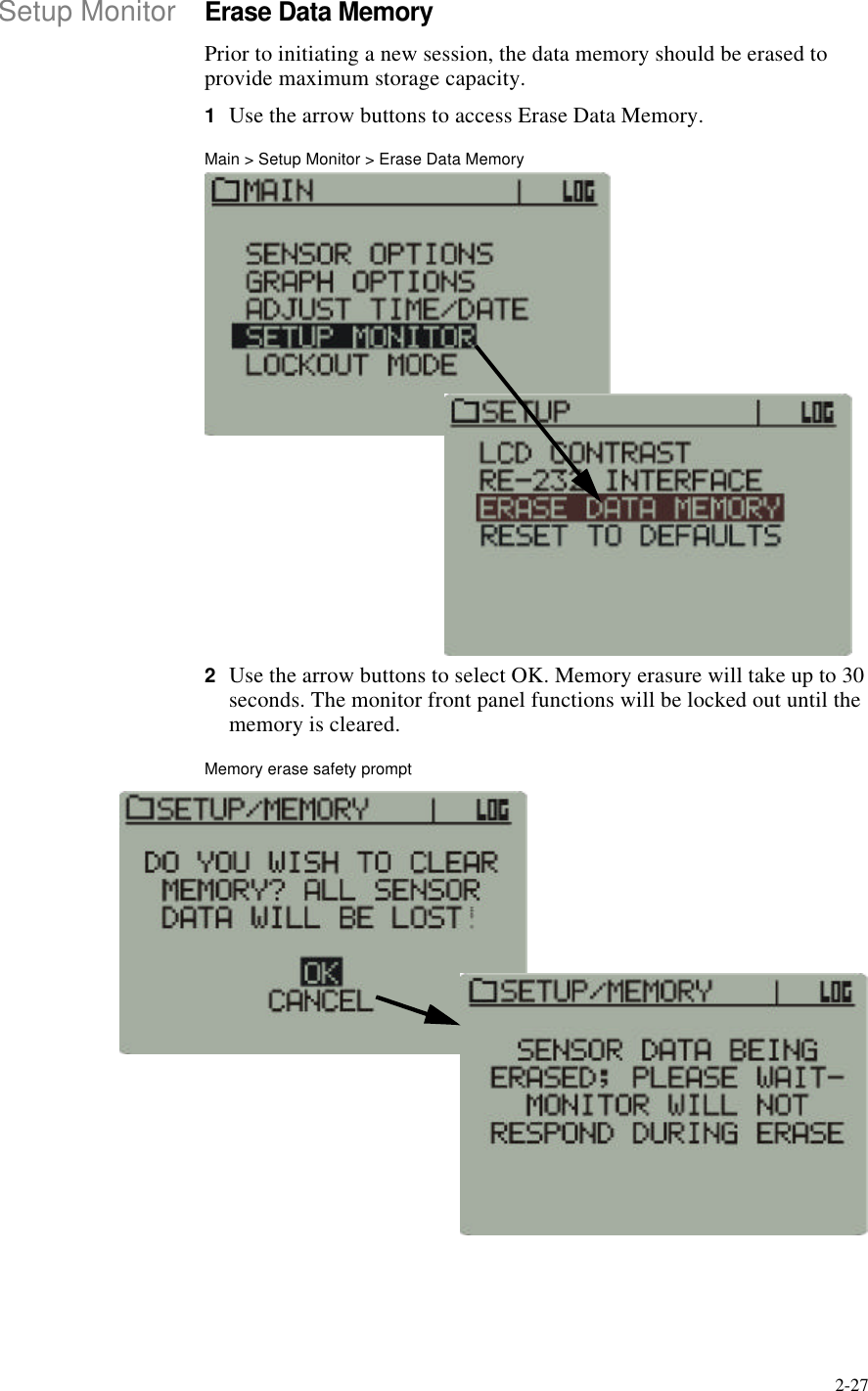
2-27Setup MonitorErase Data MemoryPrior to initiating a new session, the data memory should be erased to provide maximum storage capacity.1Use the arrow buttons to access Erase Data Memory.Main > Setup Monitor > Erase Data Memory2Use the arrow buttons to select OK. Memory erasure will take up to 30 seconds. The monitor front panel functions will be locked out until the memory is cleared.Memory erase safety prompt
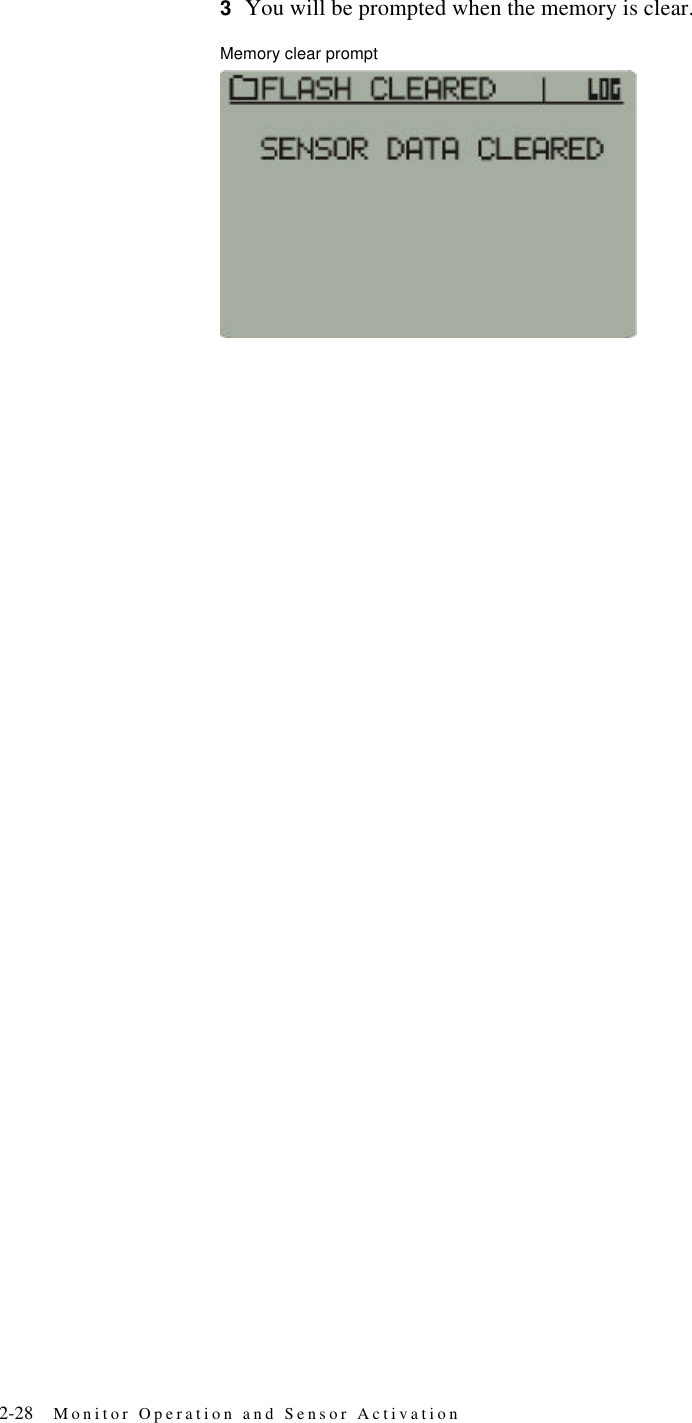
2-28 Monitor Operation and Sensor Activation3You will be prompted when the memory is clear.Memory clear prompt
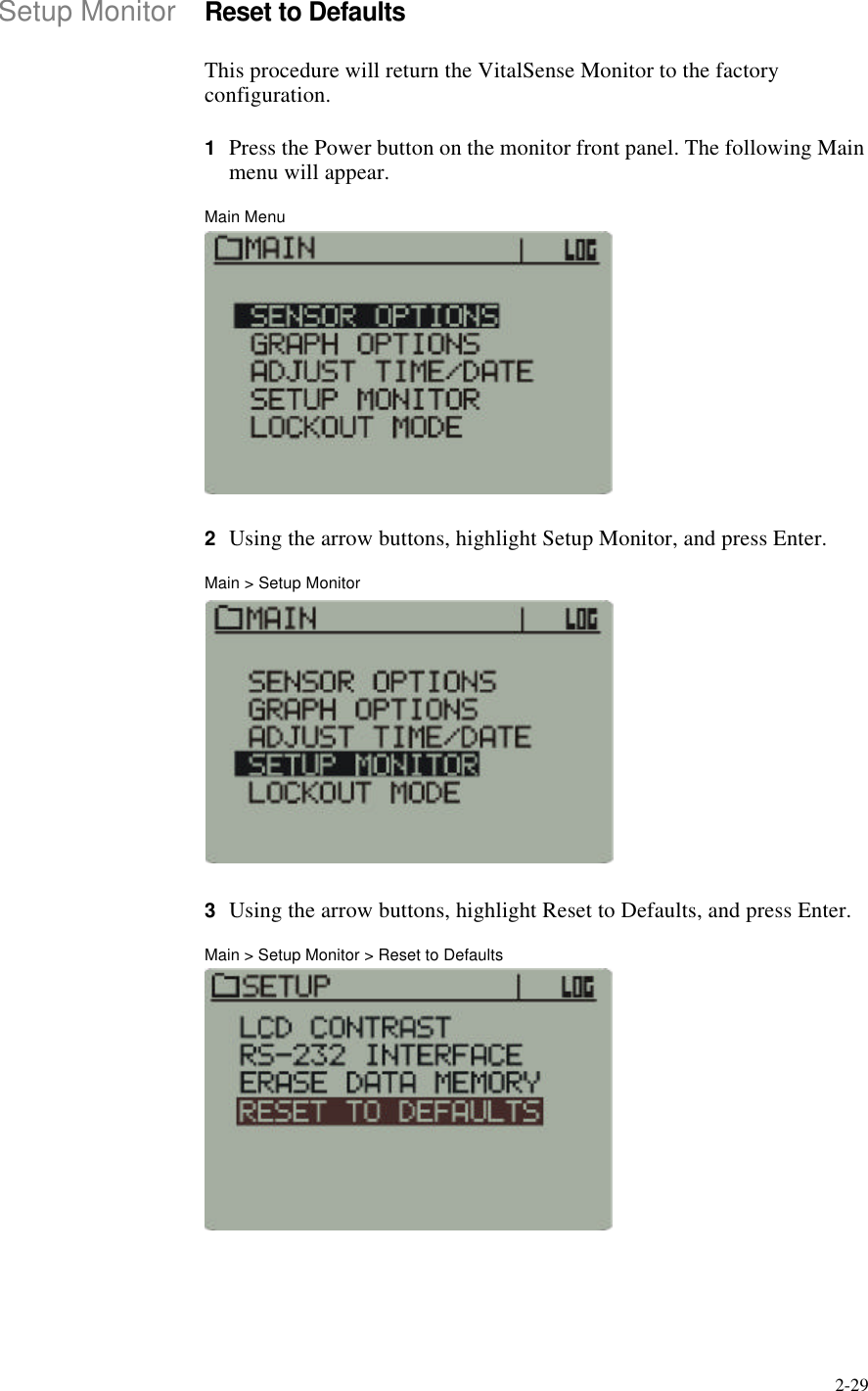
2-29Setup MonitorReset to DefaultsThis procedure will return the VitalSense Monitor to the factory configuration.1Press the Power button on the monitor front panel. The following Main menu will appear.Main Menu2Using the arrow buttons, highlight Setup Monitor, and press Enter.Main > Setup Monitor3Using the arrow buttons, highlight Reset to Defaults, and press Enter.Main > Setup Monitor > Reset to Defaults
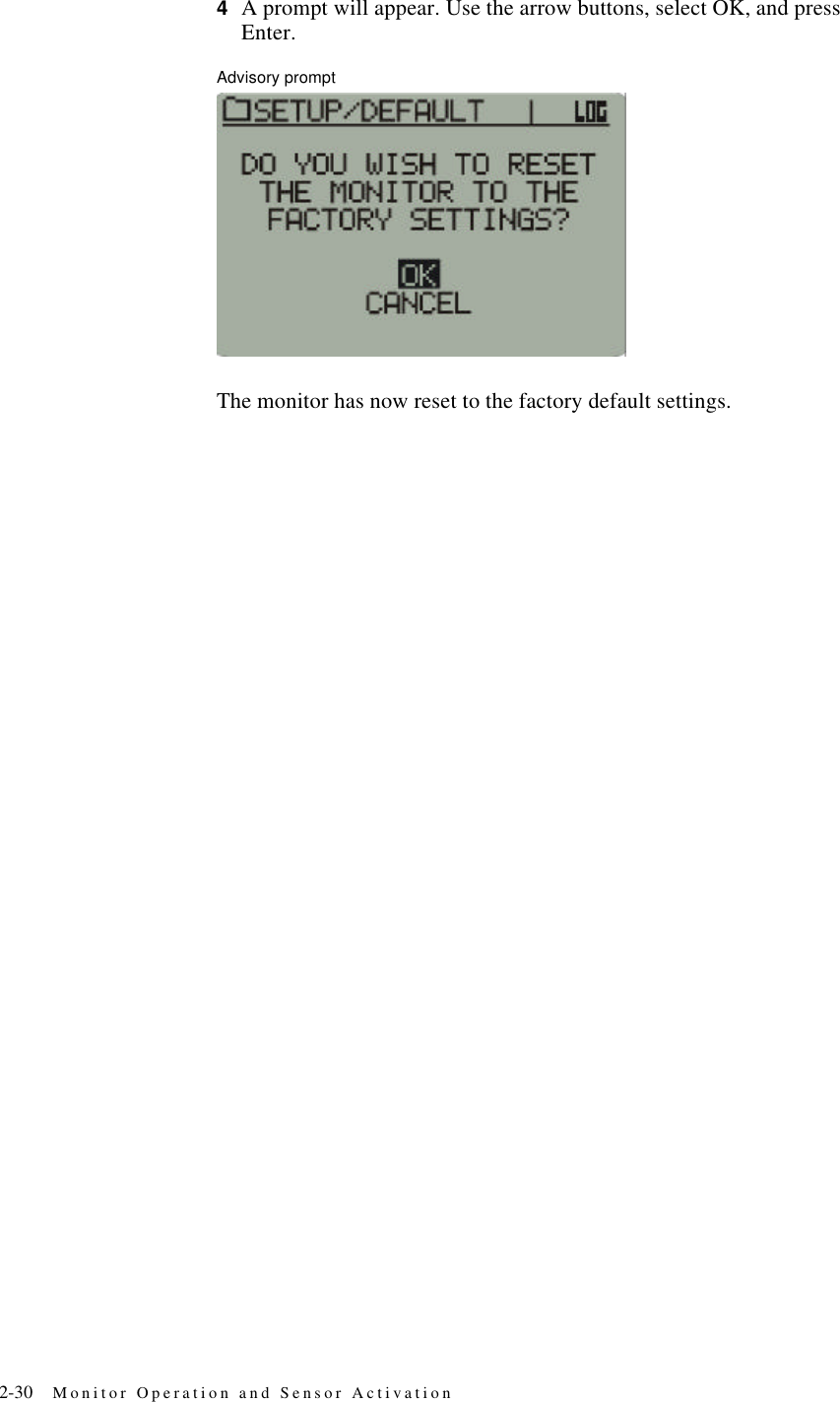
2-30 Monitor Operation and Sensor Activation4A prompt will appear. Use the arrow buttons, select OK, and press Enter.Advisory promptThe monitor has now reset to the factory default settings.
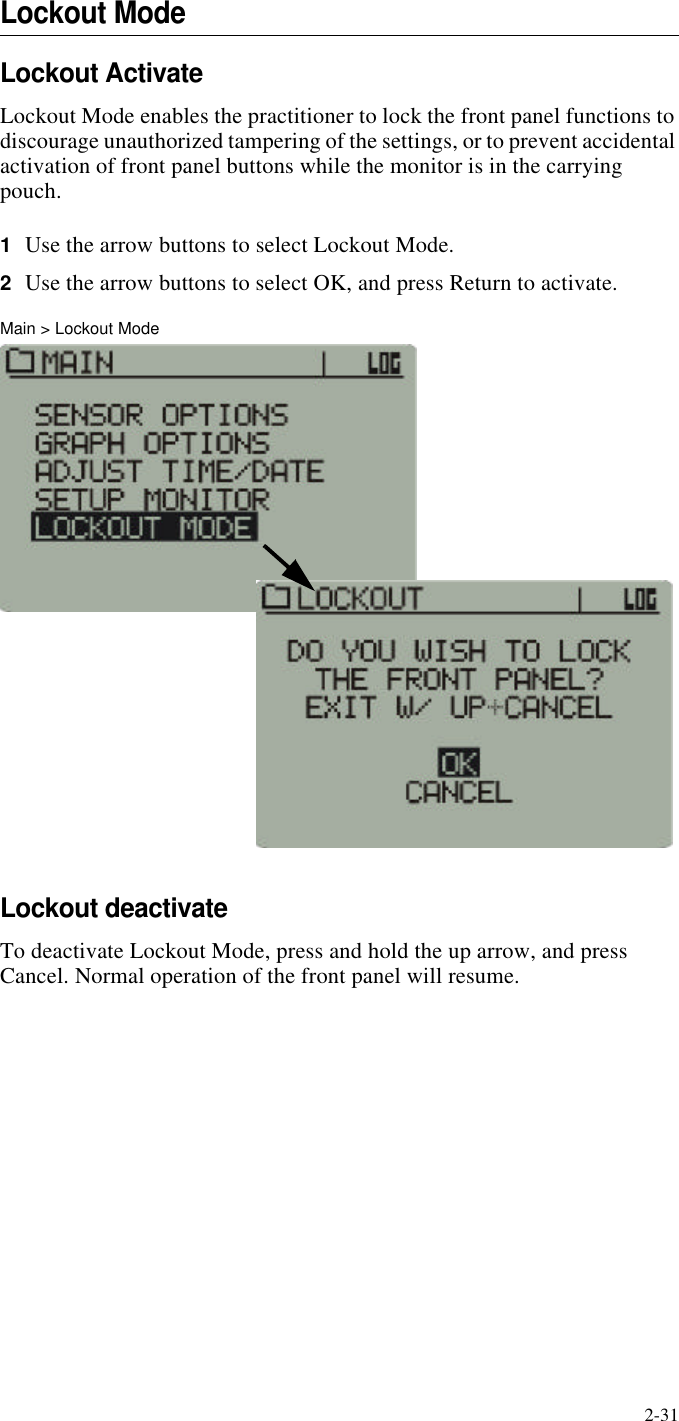
2-31Lockout ModeLockout ActivateLockout Mode enables the practitioner to lock the front panel functions to discourage unauthorized tampering of the settings, or to prevent accidental activation of front panel buttons while the monitor is in the carrying pouch.1Use the arrow buttons to select Lockout Mode.2Use the arrow buttons to select OK, and press Return to activate.Main > Lockout ModeLockout deactivateTo deactivate Lockout Mode, press and hold the up arrow, and press Cancel. Normal operation of the front panel will resume.
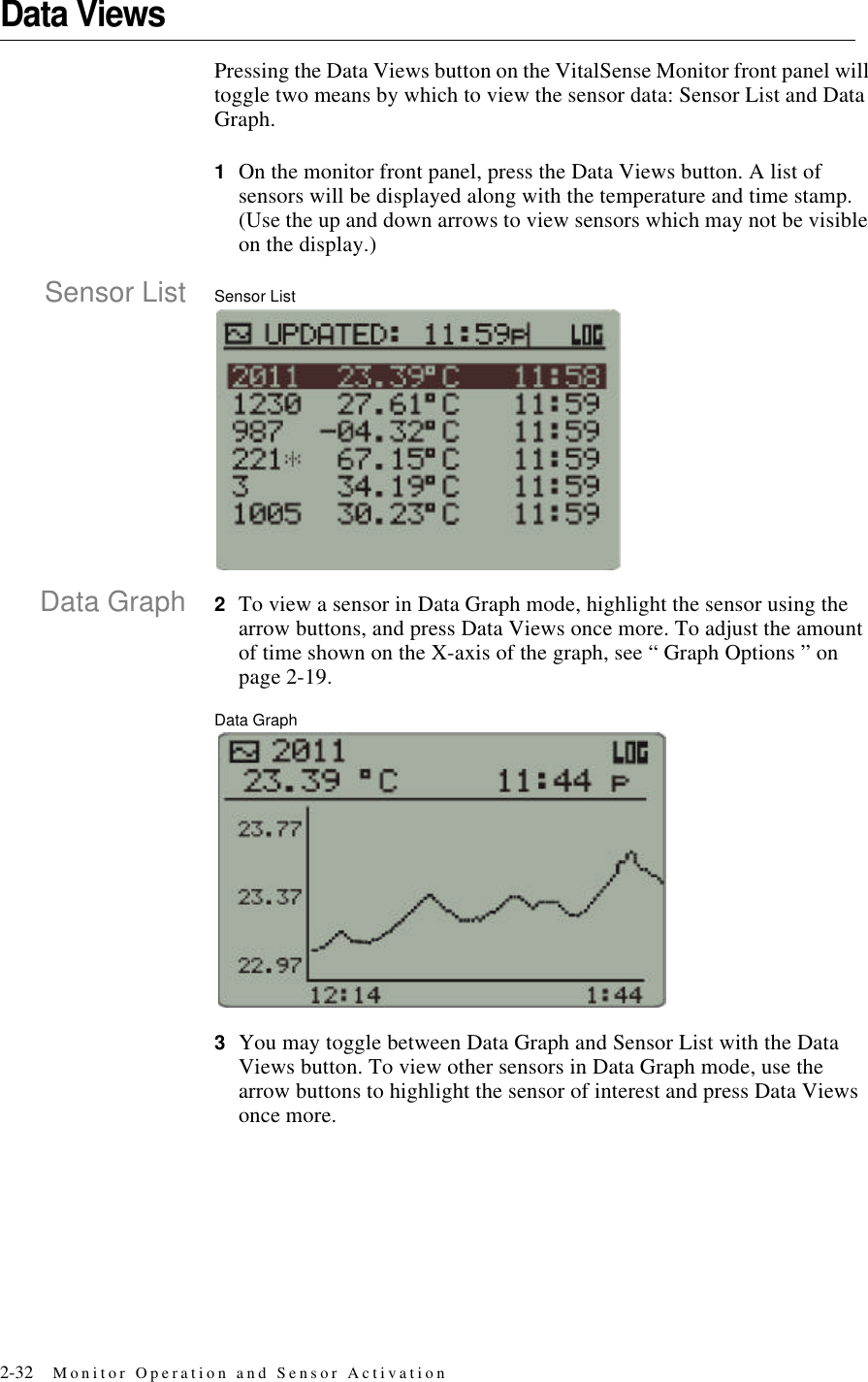
2-32 Monitor Operation and Sensor ActivationData ViewsPressing the Data Views button on the VitalSense Monitor front panel will toggle two means by which to view the sensor data: Sensor List and Data Graph.1On the monitor front panel, press the Data Views button. A list of sensors will be displayed along with the temperature and time stamp. (Use the up and down arrows to view sensors which may not be visible on the display.)Sensor List Sensor ListData Graph 2To view a sensor in Data Graph mode, highlight the sensor using the arrow buttons, and press Data Views once more. To adjust the amount of time shown on the X-axis of the graph, see “ Graph Options ” on page2-19.Data Graph3You may toggle between Data Graph and Sensor List with the Data Views button. To view other sensors in Data Graph mode, use the arrow buttons to highlight the sensor of interest and press Data Views once more.
2-33Out-of-Range ConditionsWith respect to periodic hygiene, change of clothing, decontamination, and other related tasks, it may be necessary to remove the VitalSense Monitor from the working range of the sensors for short periods of time.The VitalSense Monitor may be removed from sensor range for up to 30 minutes. Beyond 30 minutes, VitalSense may have difficulty resynchronizing with sensor transmissions, and a significant loss of data may occur. Previously logged data will be preserved in the monitor, but future data collection may not be possible in Standard Mode.An asterisk will appear beside any sensor for which the last data transmission was missed. The value displayed will be the last valid data for that sensor. The time shown will be when the last reading was recorded.
2-34 Monitor Operation and Sensor Activation

Navigation menu