Mini Mitter XTP1 Integrated Physiological Monitoring System User Manual Tinman Book

Mini Mitter Co. Inc. Integrated Physiological Monitoring System Tinman Book

Contents

Users Manual part 2
3-1SECTION3CHAPTER 3VITALSENSE OPERATION -APPLICATION PROGRAMIntroductionThe VitalSense Application Program is a software utility that communicates with the VitalSense Monitor via an RS-232 cable. With this link, a variety of functions can be accomplished from the host PC.Functions of VitalSense Application Program•Establish communication with VitalSense Monitor•Load Subject Information into VitalSense Monitor•Turn off logging function of VitalSense Monitor•Set the on-board clock VitalSense Monitor•Drop a Sensor from VitalSense Monitor Sensor List•Real-time viewing of temperature data from VitalSense Monitor•Erase the subject/sensor data, and the temperature data from VitalSense Monitor•Retrieve data from VitalSense Monitor•Identify firmware of VitalSense Monitor•Load updated firmware version into VitalSense Monitor
3-2 VitalSense Operation - Application ProgramPC Preparation Prior to InstallationPCRequirementsfor VitalSense•IBM®-compatible PC•Pentium® II processor with a clock speed of at least 350 MHz •64 MB of RAM•Windows® ‘98, 2000, XP, Millennium, or Windows NT 4.0 SP 6•CD-ROM drive•4 MB of free space on the hard disk•9-pin or 25-pin RS-232 communications serial port, or USB port with USB-to-serial adapter•Super Video Graphics Array (SVGA - 800 x 600 pixels required to view all data displays)•Printer (optional)NOTE: Recommended is a Pentium® III or IV Processor, 866 MHz to 1+ GHz, and 128MB or more of RAM.PreferredSettings VitalSense software is best used with the following computer display settings. Directions for changing these settings can be found in the On-line Help feature of your specific operating system.Monitor area or monitor resolutionSet the resolution for 800 x 600 or higher. 1024 x 768 is recommended.Appearance scheme (or theme)Avoid “High Contrast” or “Extra large” schemes. Windows Standard is recommended.Font sizesSelect “Normal” or “Small font” (font sizes of 12 points or less). Eight-point is recommended because it will allow you to see more information than larger font sizes.
3-3Installation of SoftwareNOTE: Before beginning the installation procedure, make sure that no other applications are currently running on the host PC. This includes MS Office® and any other utilities. These can interfere with proper installation, resulting in software conflicts.The VitalSense Application Program software is distributed as a MicroSoft® Installation package (.msi) file. If you have Windows® 2000 or XP, simply double-click on the filename and follow the instructions. The default installation path is \Program Files\VitalSense.Earlier versions of Windows may require installing the Microsoft Installer program on your computer. This program can be obtained as a free download from the Microsoft Website. A copy of Microsoft Installer version 2.0 for Windows 95/98/ME (InstmsiA.exe), and for Windows NT SP6/Windows 2000 (InstmsiW.exe) is supplied on the VitalSense CD. Windows XP comes with Microsoft Installer 2.0 pre-installed.
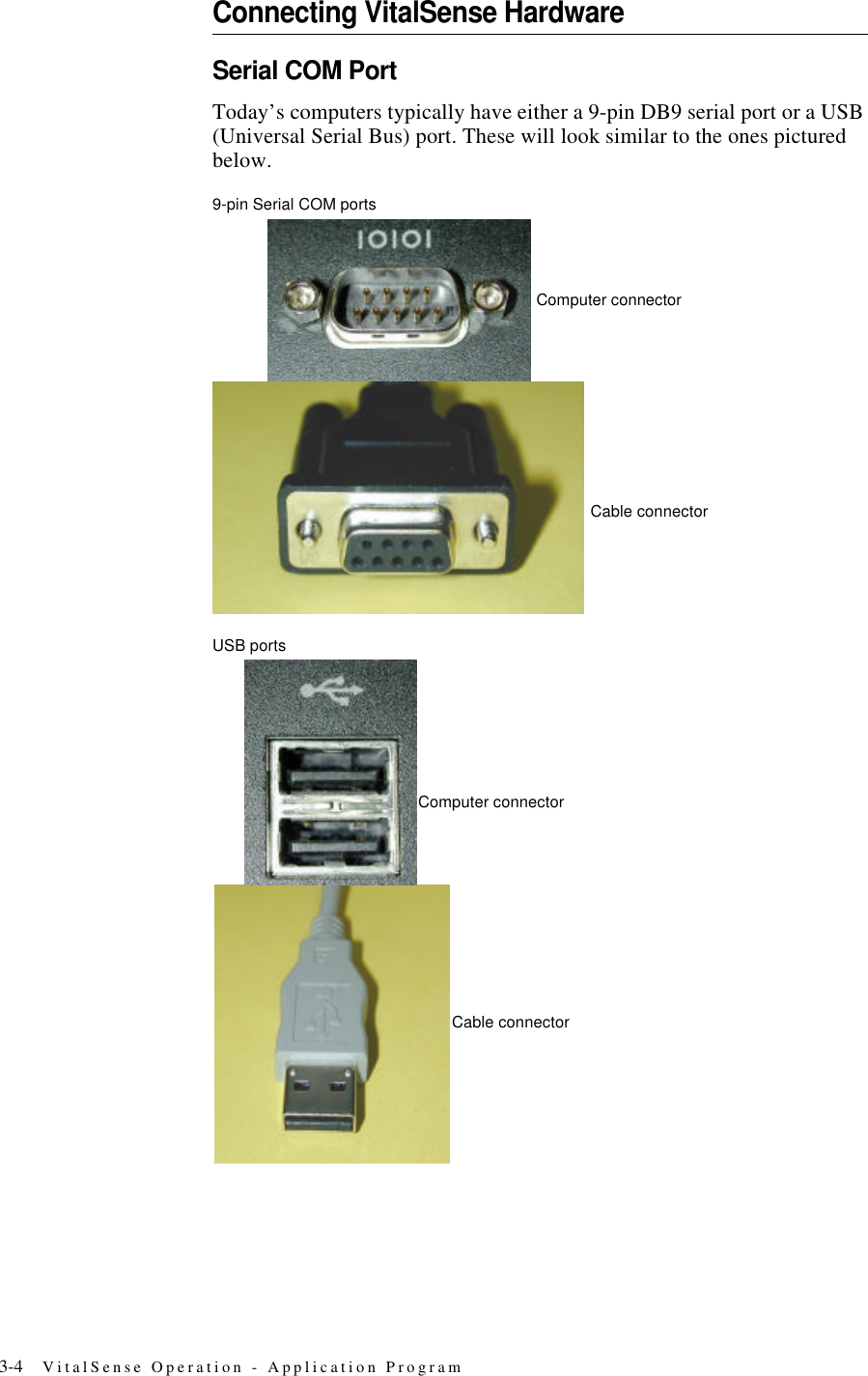
3-4 VitalSense Operation - Application ProgramConnecting VitalSense HardwareSerial COM PortToday’s computers typically have either a 9-pin DB9 serial port or a USB (Universal Serial Bus) port. These will look similar to the ones pictured below.9-pin Serial COM portsUSB portsComputer connectorCable connectorCable connectorComputer connector
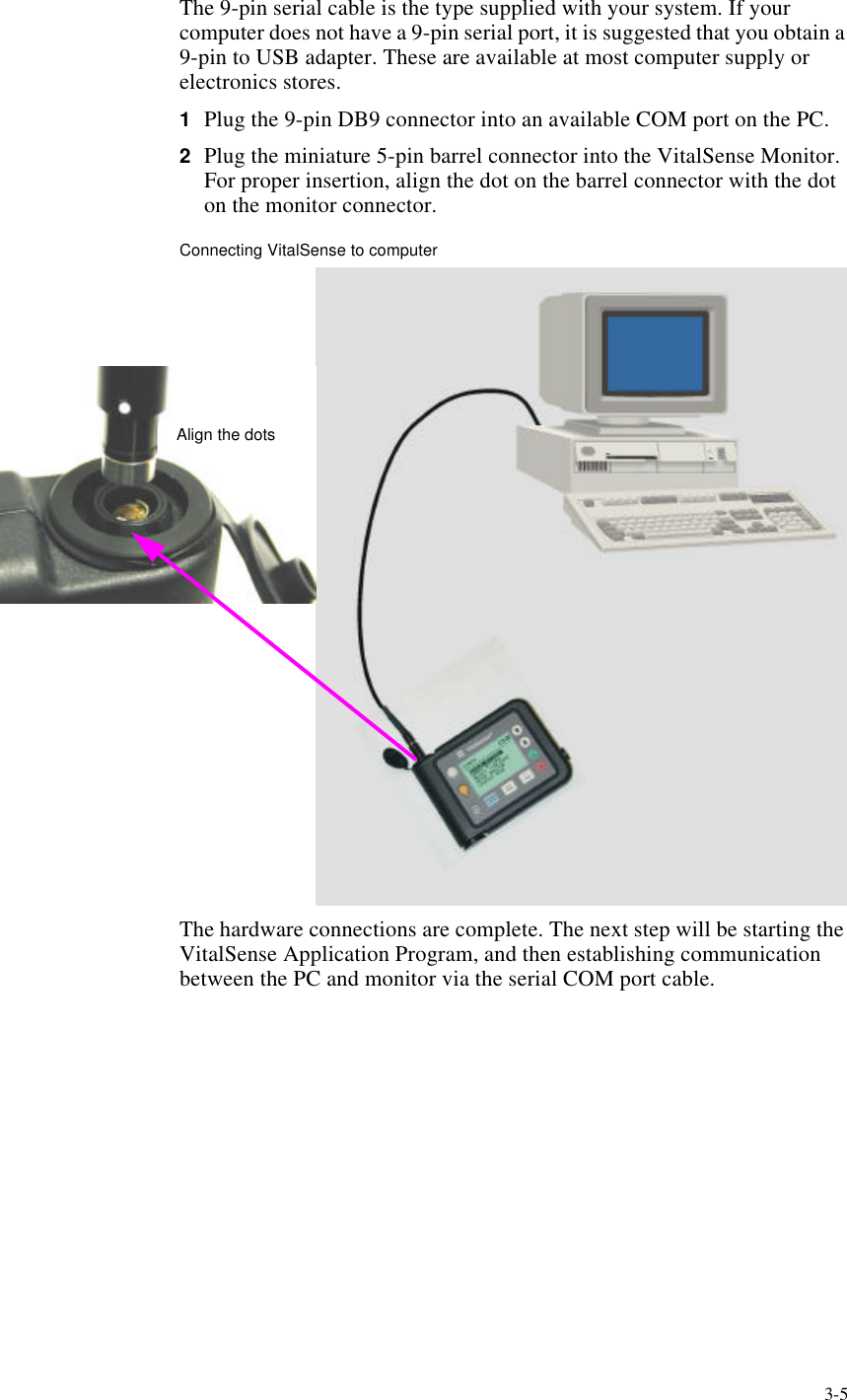
3-5The 9-pin serial cable is the type supplied with your system. If your computer does not have a 9-pin serial port, it is suggested that you obtain a 9-pin to USB adapter. These are available at most computer supply or electronics stores.1Plug the 9-pin DB9 connector into an available COM port on the PC.2Plug the miniature 5-pin barrel connector into the VitalSense Monitor. For proper insertion, align the dot on the barrel connector with the dot on the monitor connector.Connecting VitalSense to computerThe hardware connections are complete. The next step will be starting the VitalSense Application Program, and then establishing communication between the PC and monitor via the serial COM port cable.Align the dots
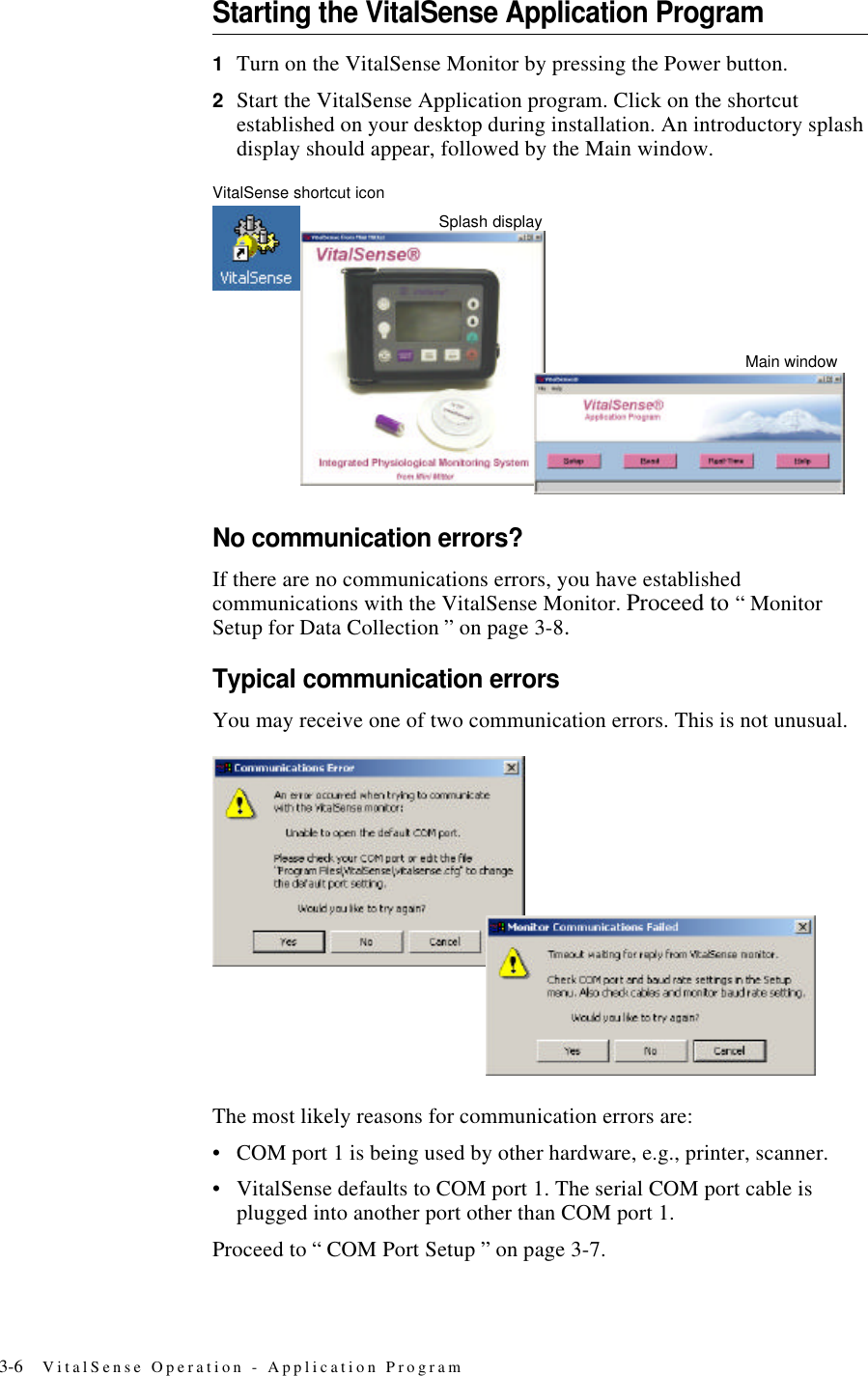
3-6 VitalSense Operation - Application ProgramStarting the VitalSense Application Program1Turn on the VitalSense Monitor by pressing the Power button.2Start the VitalSense Application program. Click on the shortcut established on your desktop during installation. An introductory splash display should appear, followed by the Main window.VitalSense shortcut iconNo communication errors?If there are no communications errors, you have established communications with the VitalSense Monitor. Proceed to “ Monitor Setup for Data Collection ” on page3-8.Typical communication errorsYou may receive one of two communication errors. This is not unusual.The most likely reasons for communication errors are:•COM port 1 is being used by other hardware, e.g., printer, scanner.•VitalSense defaults to COM port 1. The serial COM port cable is plugged into another port other than COM port 1.Proceed to “ COM Port Setup ” on page3-7.Main windowSplash display
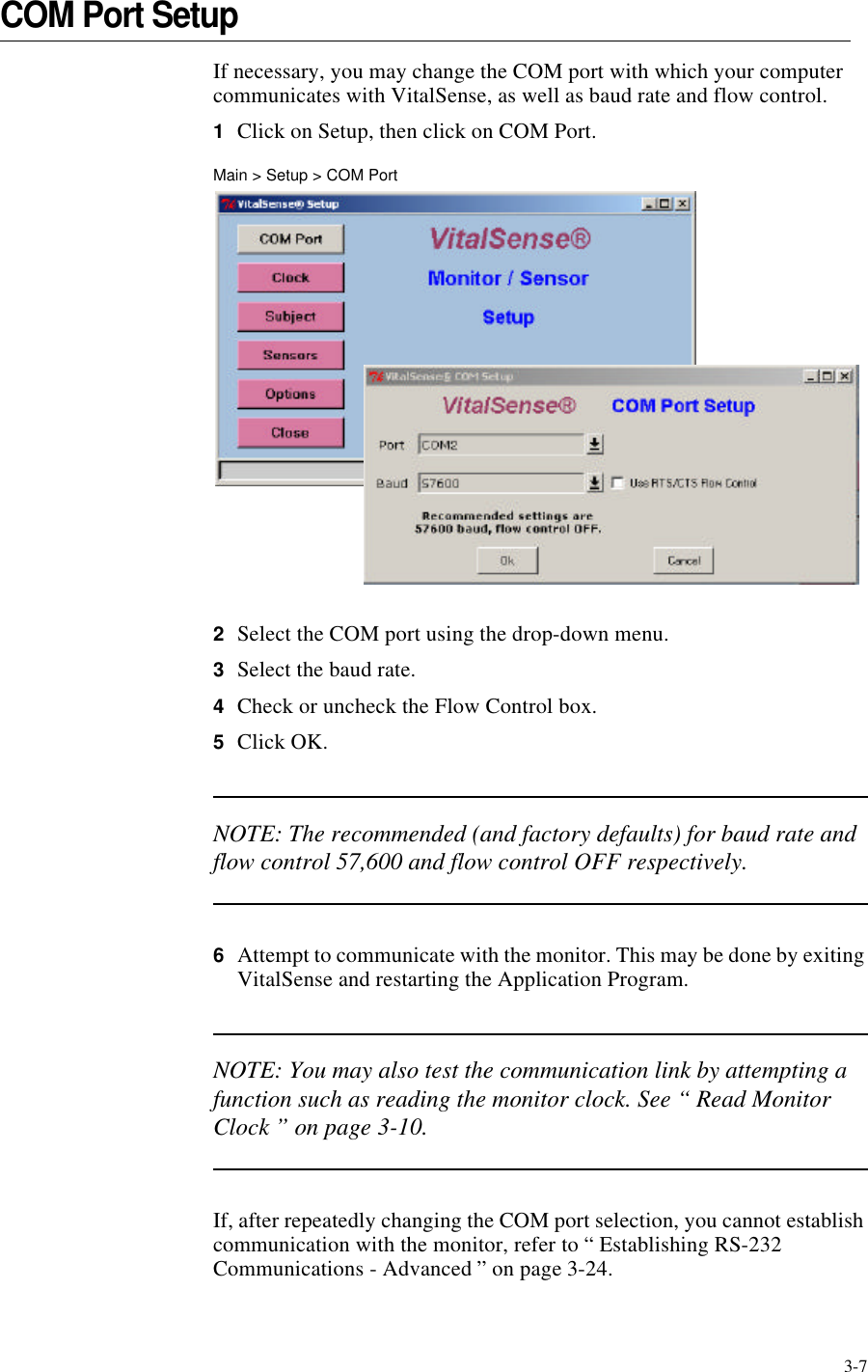
3-7COM Port SetupIf necessary, you may change the COM port with which your computer communicates with VitalSense, as well as baud rate and flow control.1Click on Setup, then click on COM Port.Main > Setup > COM Port2Select the COM port using the drop-down menu.3Select the baud rate.4Check or uncheck the Flow Control box.5Click OK.NOTE: The recommended (and factory defaults) for baud rate and flow control 57,600 and flow control OFF respectively.6Attempt to communicate with the monitor. This may be done by exiting VitalSense and restarting the Application Program.NOTE: You may also test the communication link by attempting a function such as reading the monitor clock. See “ Read Monitor Clock ” on page3-10.If, after repeatedly changing the COM port selection, you cannot establish communication with the monitor, refer to “ Establishing RS-232 Communications - Advanced ” on page3-24.
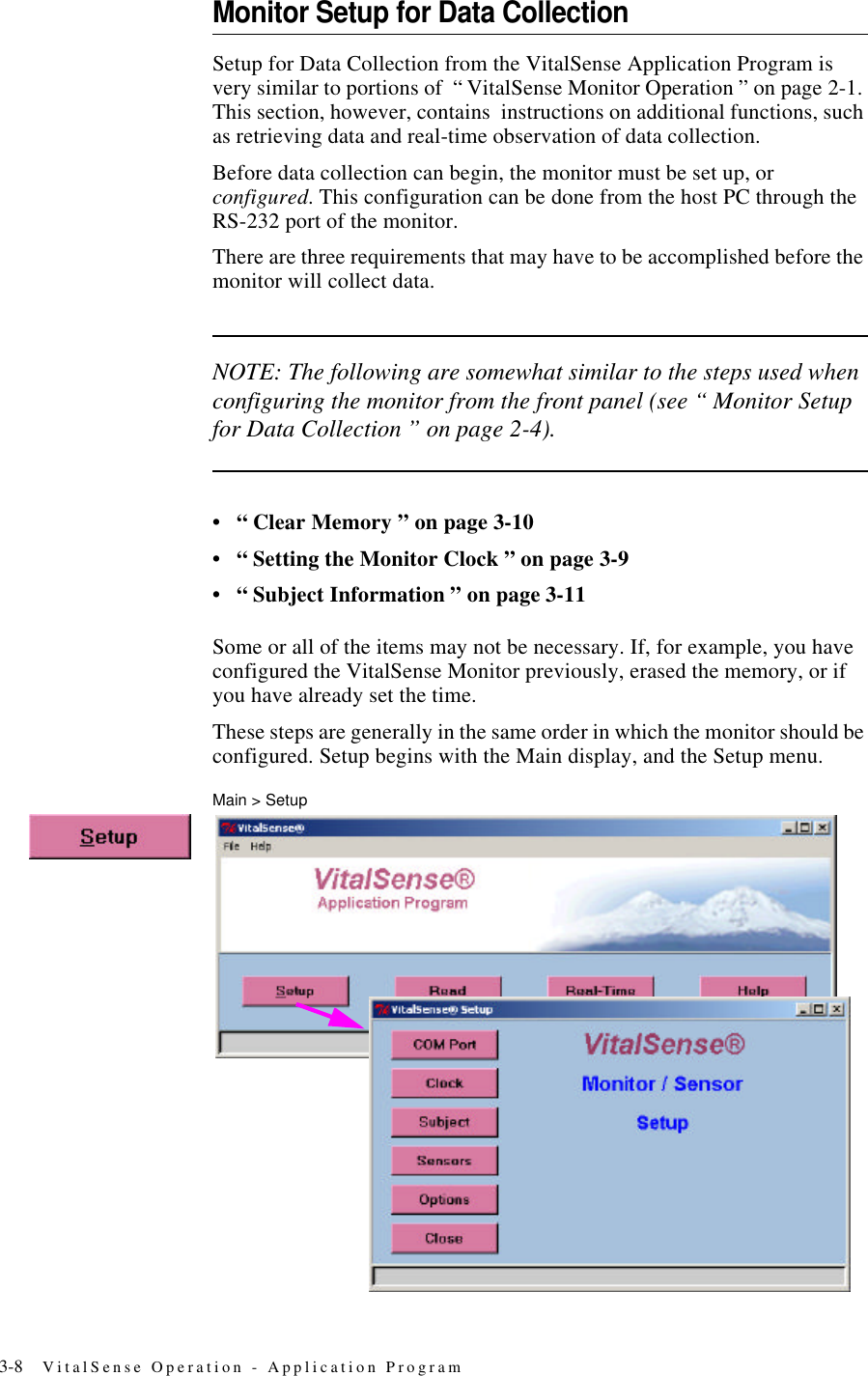
3-8 VitalSense Operation - Application ProgramMonitor Setup for Data CollectionSetup for Data Collection from the VitalSense Application Program is very similar to portions of  “ VitalSense Monitor Operation ” on page2-1. This section, however, contains  instructions on additional functions, such as retrieving data and real-time observation of data collection.Before data collection can begin, the monitor must be set up, or configured. This configuration can be done from the host PC through the RS-232 port of the monitor.There are three requirements that may have to be accomplished before the monitor will collect data. NOTE: The following are somewhat similar to the steps used when configuring the monitor from the front panel (see “ Monitor Setup for Data Collection ” on page2-4).•“ Clear Memory ” on page3-10•“ Setting the Monitor Clock ” on page3-9•“ Subject Information ” on page3-11Some or all of the items may not be necessary. If, for example, you have configured the VitalSense Monitor previously, erased the memory, or if you have already set the time.These steps are generally in the same order in which the monitor should be configured. Setup begins with the Main display, and the Setup menu.Main > Setup
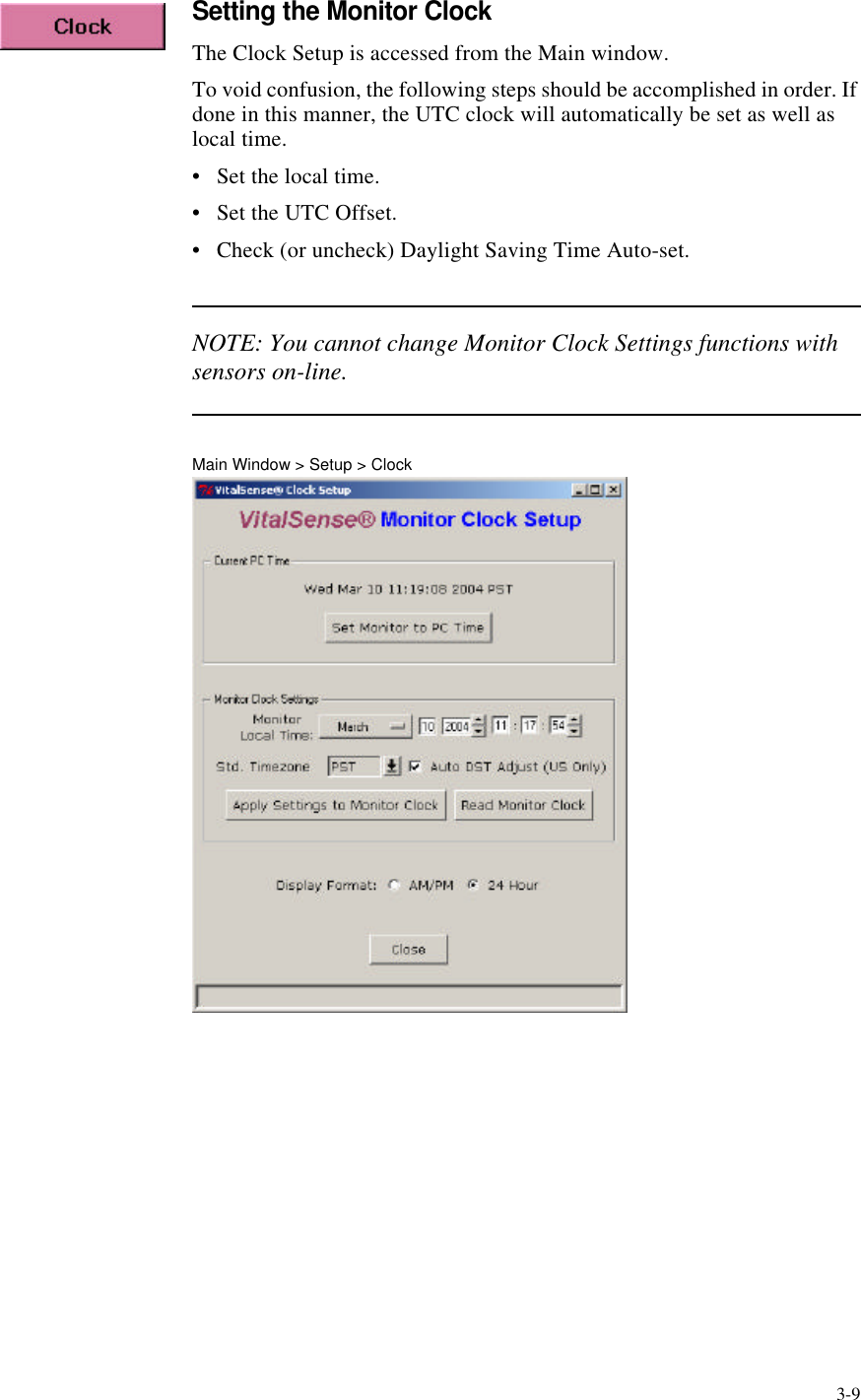
3-9Setting the Monitor ClockThe Clock Setup is accessed from the Main window.To void confusion, the following steps should be accomplished in order. If done in this manner, the UTC clock will automatically be set as well as local time.•Set the local time.•Set the UTC Offset.•Check (or uncheck) Daylight Saving Time Auto-set.NOTE: You cannot change Monitor Clock Settings functions with sensors on-line.Main Window > Setup > Clock
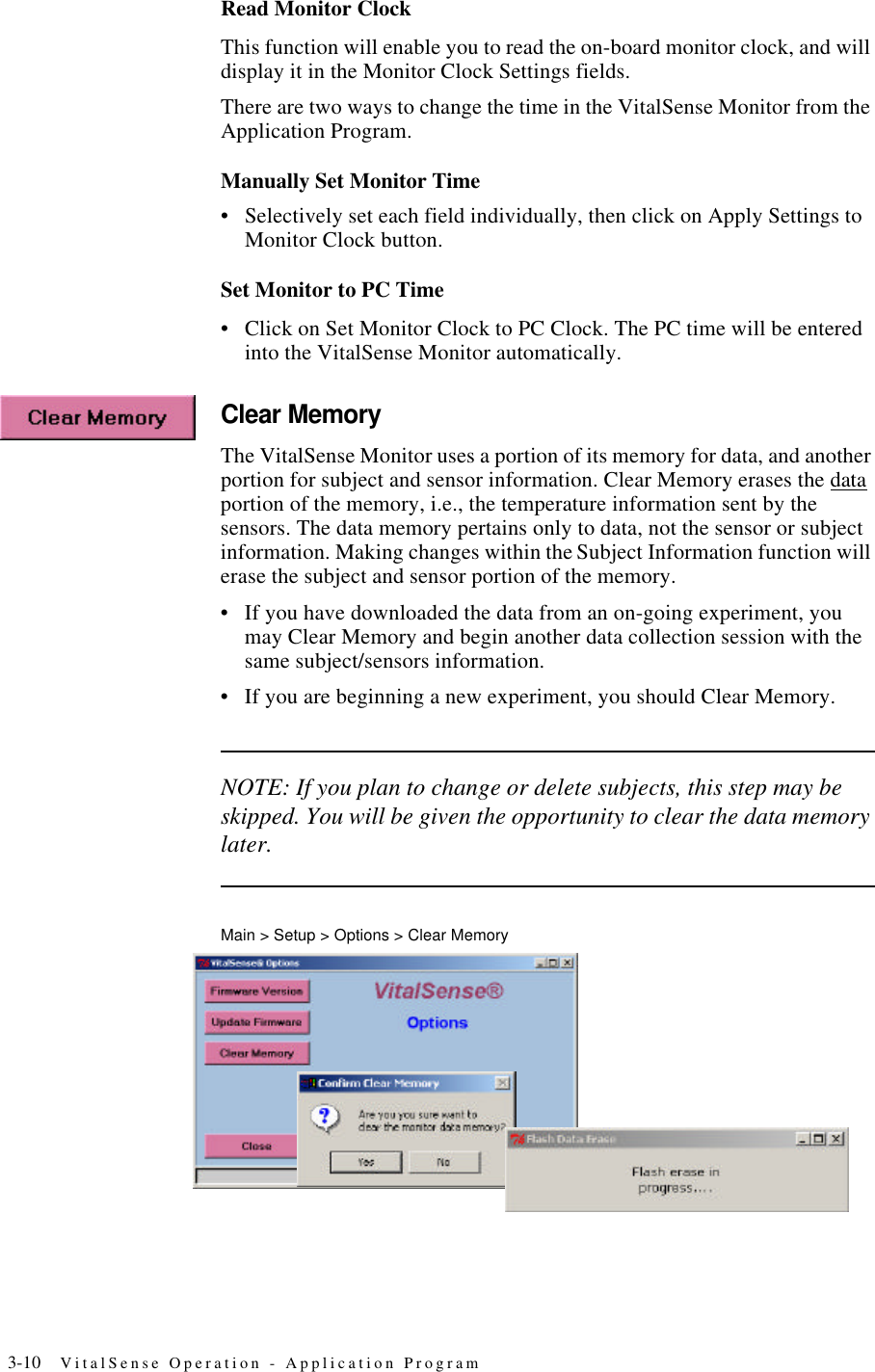
3-10 VitalSense Operation - Application ProgramRead Monitor ClockThis function will enable you to read the on-board monitor clock, and will display it in the Monitor Clock Settings fields.There are two ways to change the time in the VitalSense Monitor from the Application Program.Manually Set Monitor Time•Selectively set each field individually, then click on Apply Settings to Monitor Clock button.Set Monitor to PC Time•Click on Set Monitor Clock to PC Clock. The PC time will be entered into the VitalSense Monitor automatically.Clear MemoryThe VitalSense Monitor uses a portion of its memory for data, and another portion for subject and sensor information. Clear Memory erases the data portion of the memory, i.e., the temperature information sent by the sensors. The data memory pertains only to data, not the sensor or subject information. Making changes within the Subject Information function will erase the subject and sensor portion of the memory.•If you have downloaded the data from an on-going experiment, you may Clear Memory and begin another data collection session with the same subject/sensors information.•If you are beginning a new experiment, you should Clear Memory.NOTE: If you plan to change or delete subjects, this step may be skipped. You will be given the opportunity to clear the data memory later.Main > Setup > Options > Clear Memory
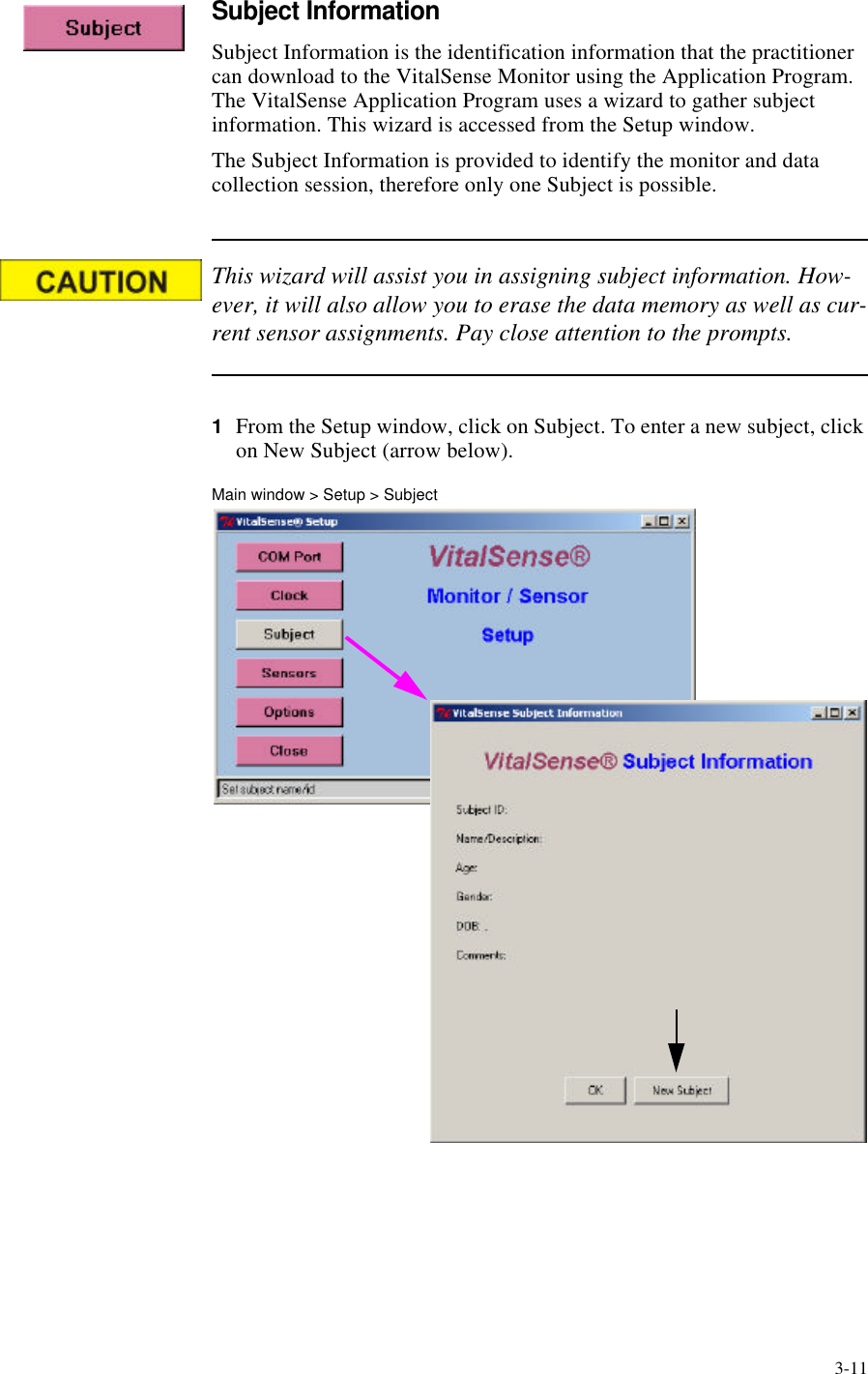
3-11Subject InformationSubject Information is the identification information that the practitioner can download to the VitalSense Monitor using the Application Program. The VitalSense Application Program uses a wizard to gather subject information. This wizard is accessed from the Setup window.The Subject Information is provided to identify the monitor and data collection session, therefore only one Subject is possible.This wizard will assist you in assigning subject information. How-ever, it will also allow you to erase the data memory as well as cur-rent sensor assignments. Pay close attention to the prompts.1From the Setup window, click on Subject. To enter a new subject, click on New Subject (arrow below).Main window > Setup > Subject
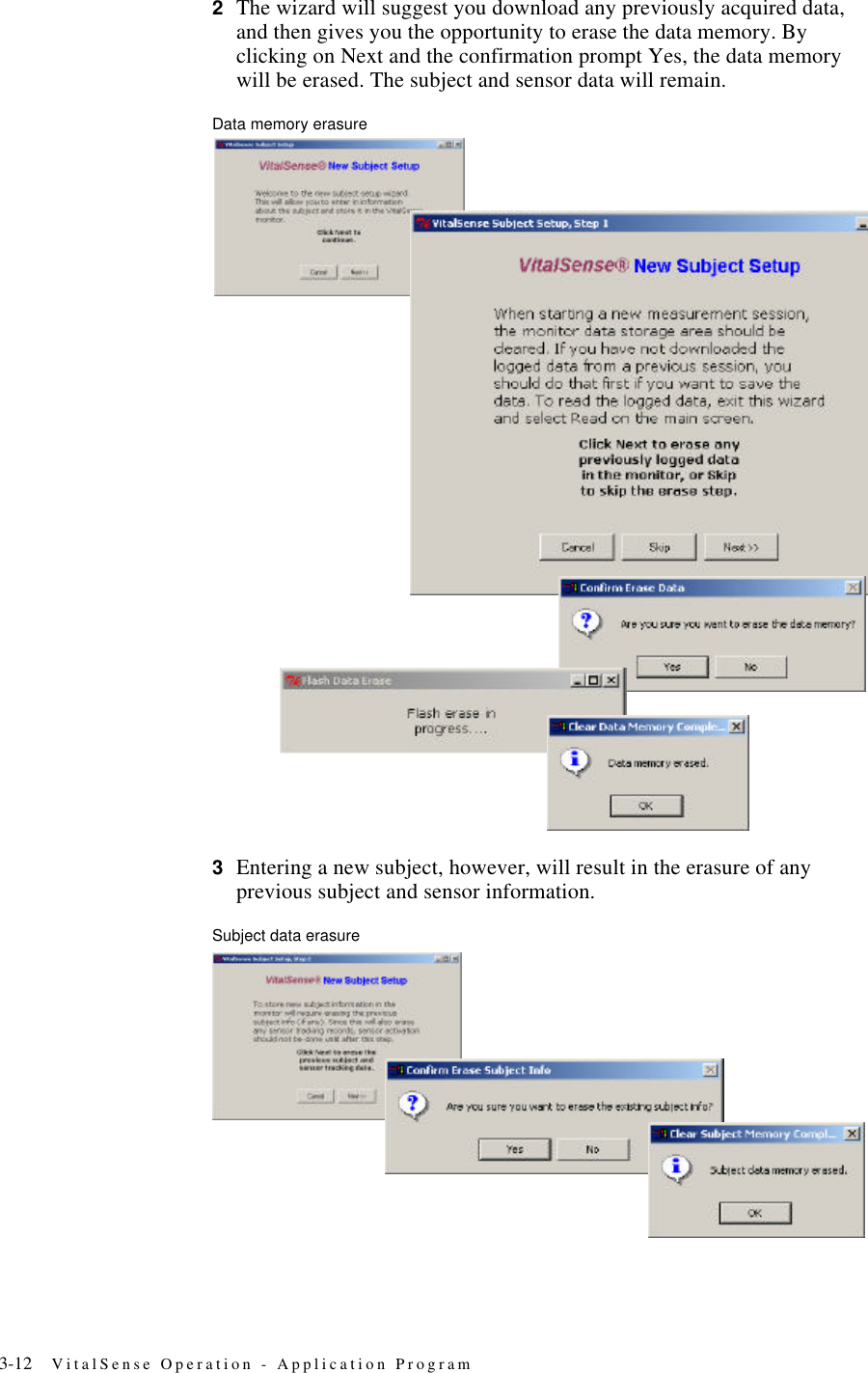
3-12 VitalSense Operation - Application Program2The wizard will suggest you download any previously acquired data, and then gives you the opportunity to erase the data memory. By clicking on Next and the confirmation prompt Yes, the data memory will be erased. The subject and sensor data will remain.Data memory erasure3Entering a new subject, however, will result in the erasure of any previous subject and sensor information.Subject data erasure
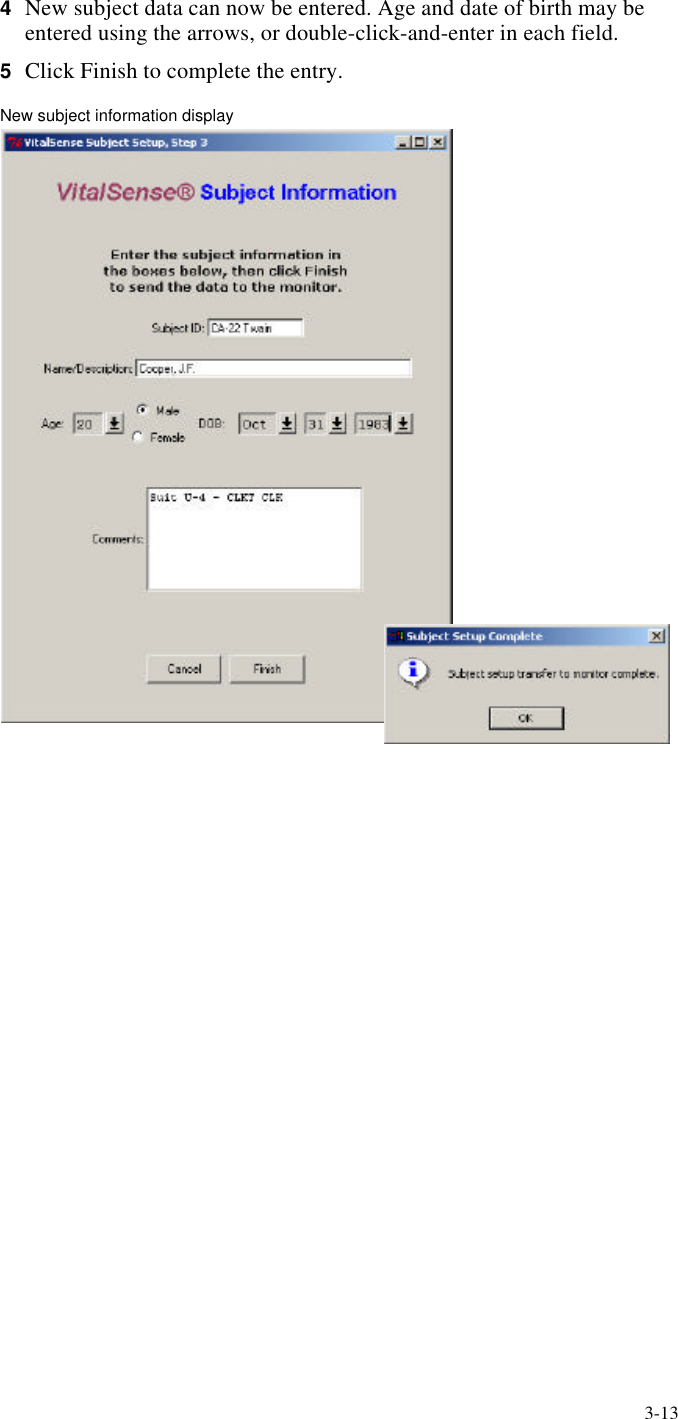
3-134New subject data can now be entered. Age and date of birth may be entered using the arrows, or double-click-and-enter in each field.5Click Finish to complete the entry.New subject information display
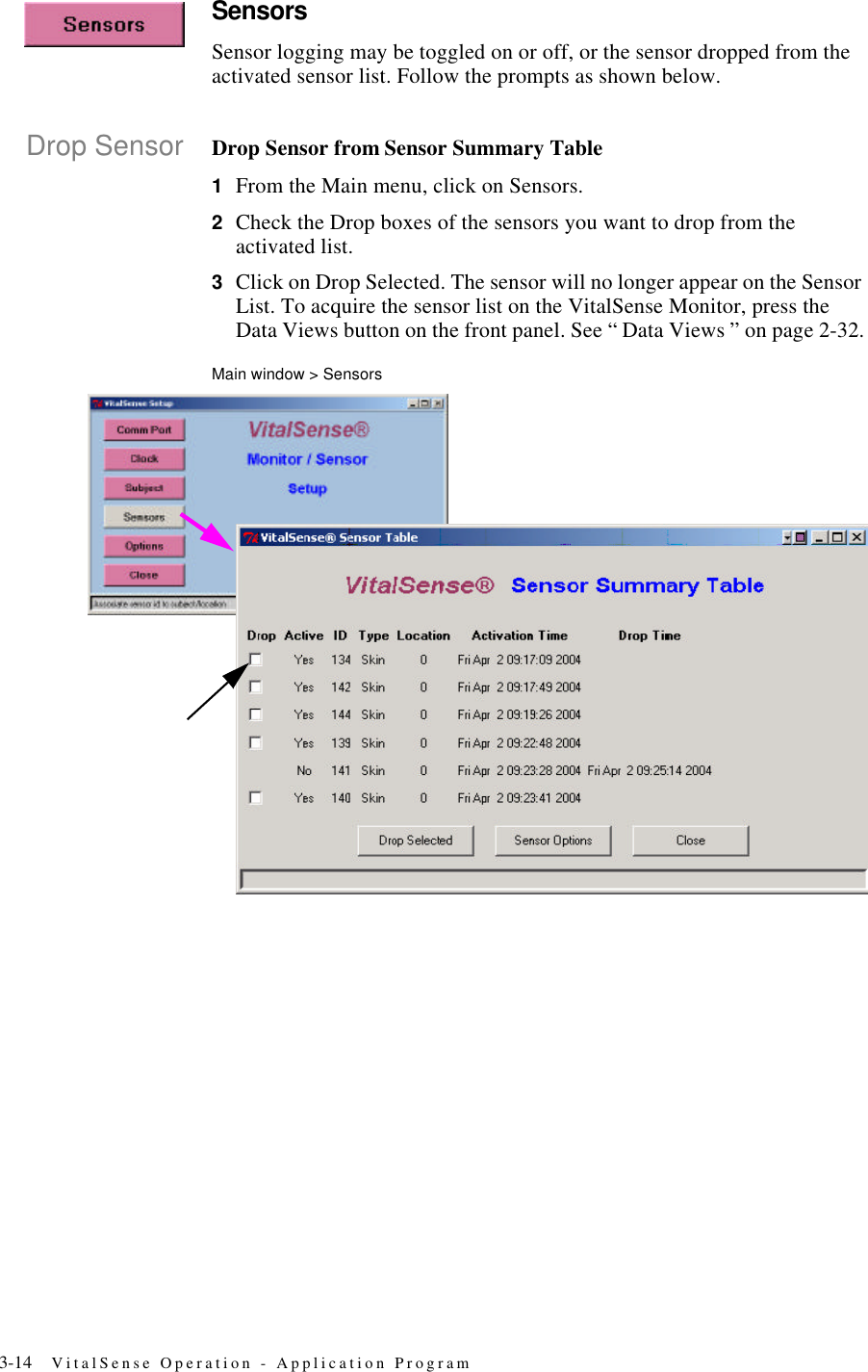
3-14 VitalSense Operation - Application ProgramSensorsSensor logging may be toggled on or off, or the sensor dropped from the activated sensor list. Follow the prompts as shown below.Drop Sensor Drop Sensor from Sensor Summary Table1From the Main menu, click on Sensors.2Check the Drop boxes of the sensors you want to drop from the activated list.3Click on Drop Selected. The sensor will no longer appear on the Sensor List. To acquire the sensor list on the VitalSense Monitor, press the Data Views button on the front panel. See “ Data Views ” on page2-32.Main window > Sensors
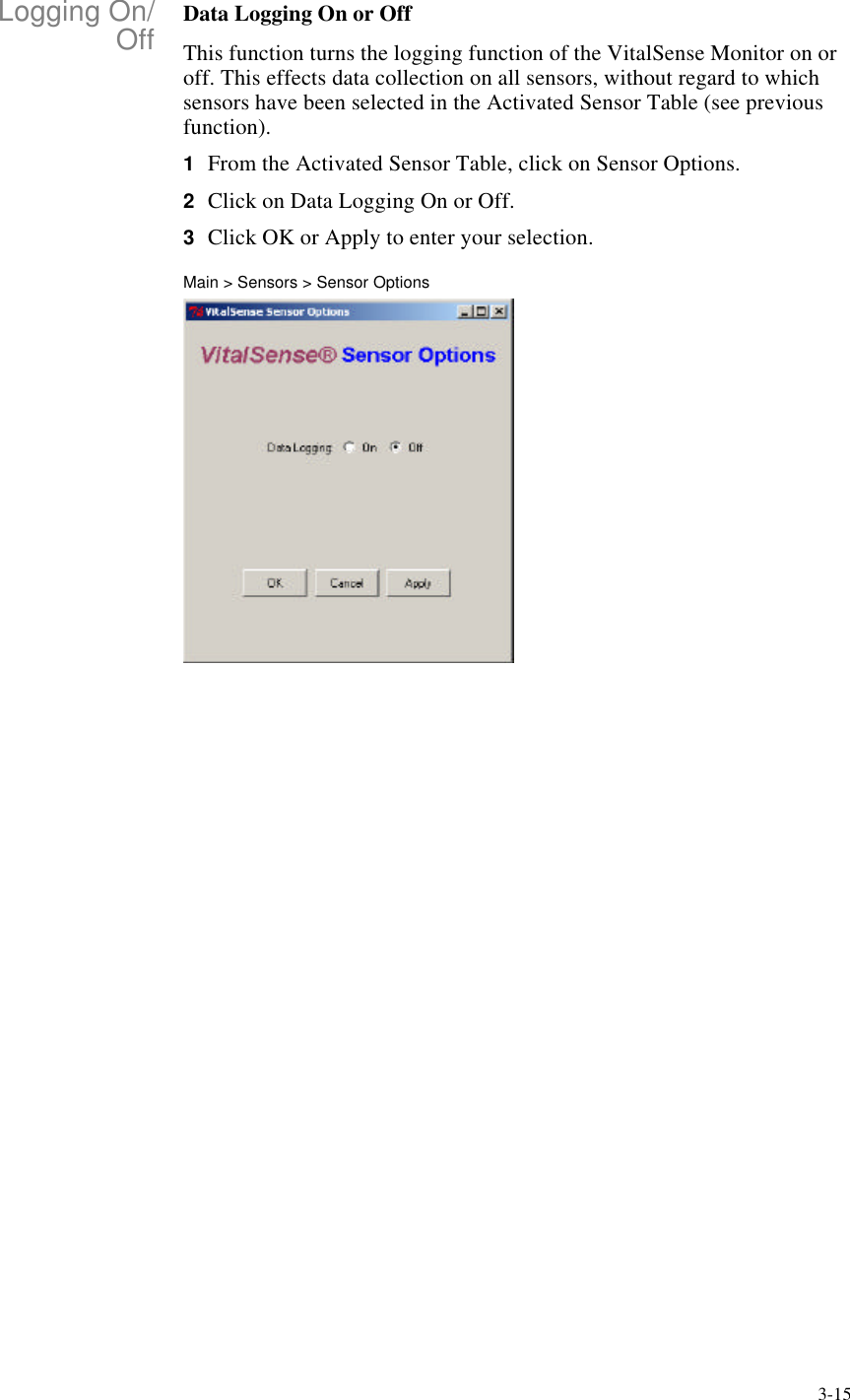
3-15Logging On/Off Data Logging On or OffThis function turns the logging function of the VitalSense Monitor on or off. This effects data collection on all sensors, without regard to which sensors have been selected in the Activated Sensor Table (see previous function).1From the Activated Sensor Table, click on Sensor Options.2Click on Data Logging On or Off.3Click OK or Apply to enter your selection.Main > Sensors > Sensor Options
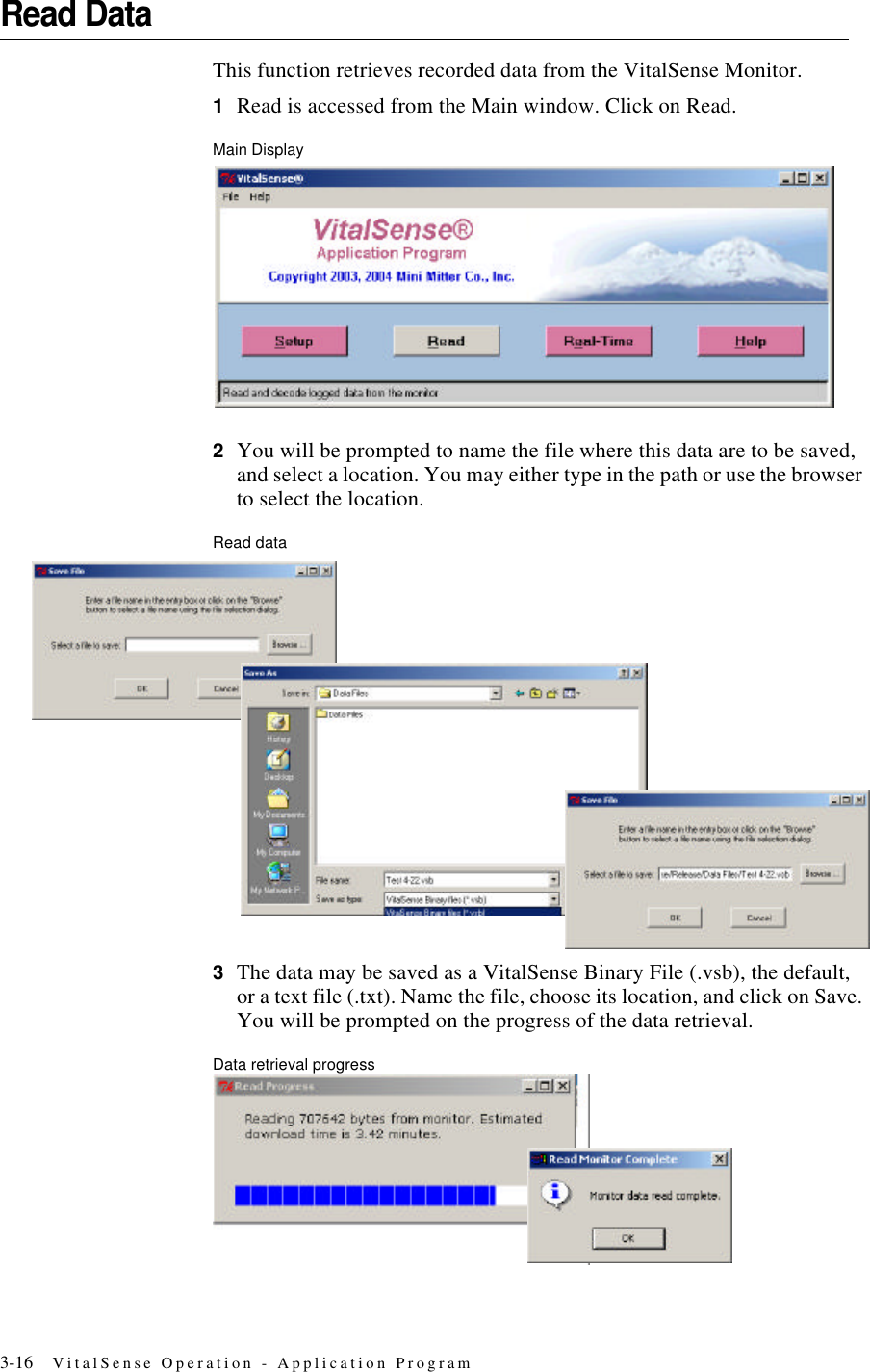
3-16 VitalSense Operation - Application ProgramRead DataThis function retrieves recorded data from the VitalSense Monitor. 1Read is accessed from the Main window. Click on Read.Main Display2You will be prompted to name the file where this data are to be saved, and select a location. You may either type in the path or use the browser to select the location.Read data3The data may be saved as a VitalSense Binary File (.vsb), the default, or a text file (.txt). Name the file, choose its location, and click on Save. You will be prompted on the progress of the data retrieval.Data retrieval progress
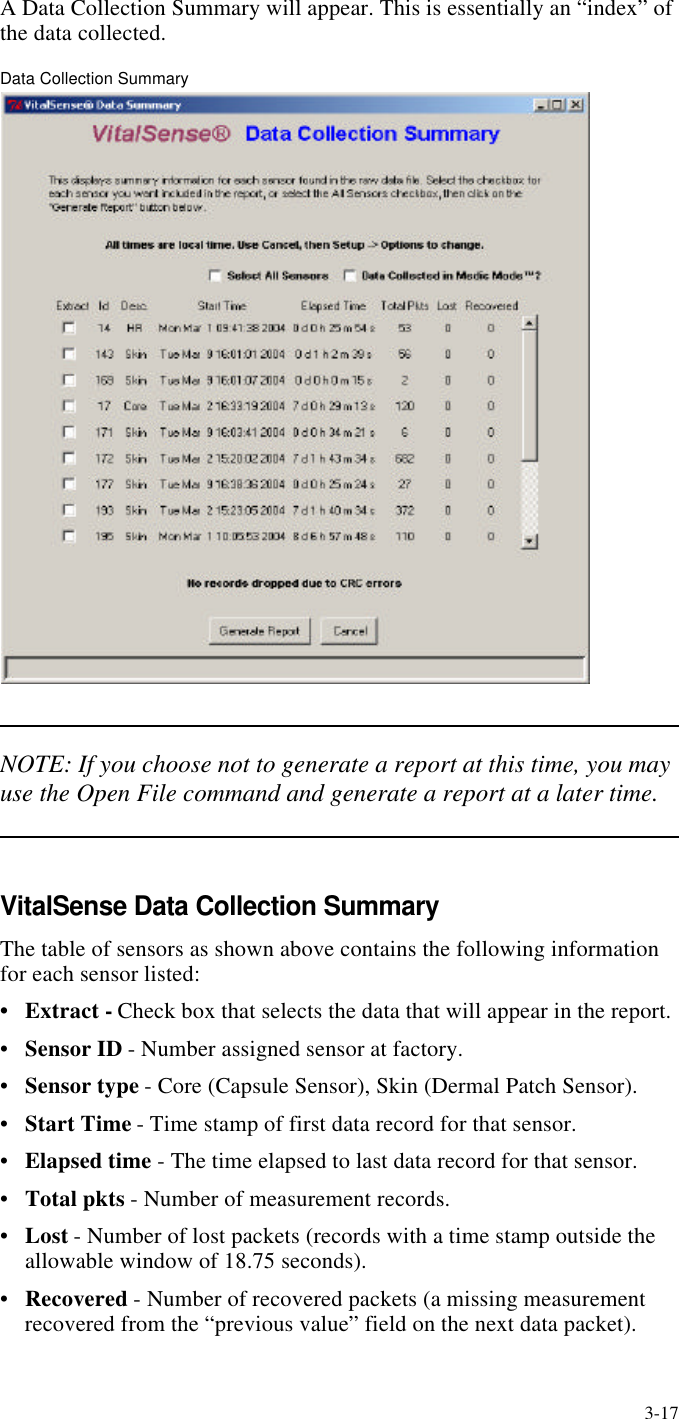
3-17A Data Collection Summary will appear. This is essentially an “index” of the data collected.Data Collection SummaryNOTE: If you choose not to generate a report at this time, you may use the Open File command and generate a report at a later time.VitalSense Data Collection SummaryThe table of sensors as shown above contains the following information for each sensor listed:•Extract - Check box that selects the data that will appear in the report.•Sensor ID - Number assigned sensor at factory.•Sensor type - Core (Capsule Sensor), Skin (Dermal Patch Sensor).•Start Time - Time stamp of first data record for that sensor.•Elapsed time - The time elapsed to last data record for that sensor.•Total pkts - Number of measurement records.•Lost - Number of lost packets (records with a time stamp outside the allowable window of 18.75 seconds).•Recovered - Number of recovered packets (a missing measurement recovered from the “previous value” field on the next data packet).
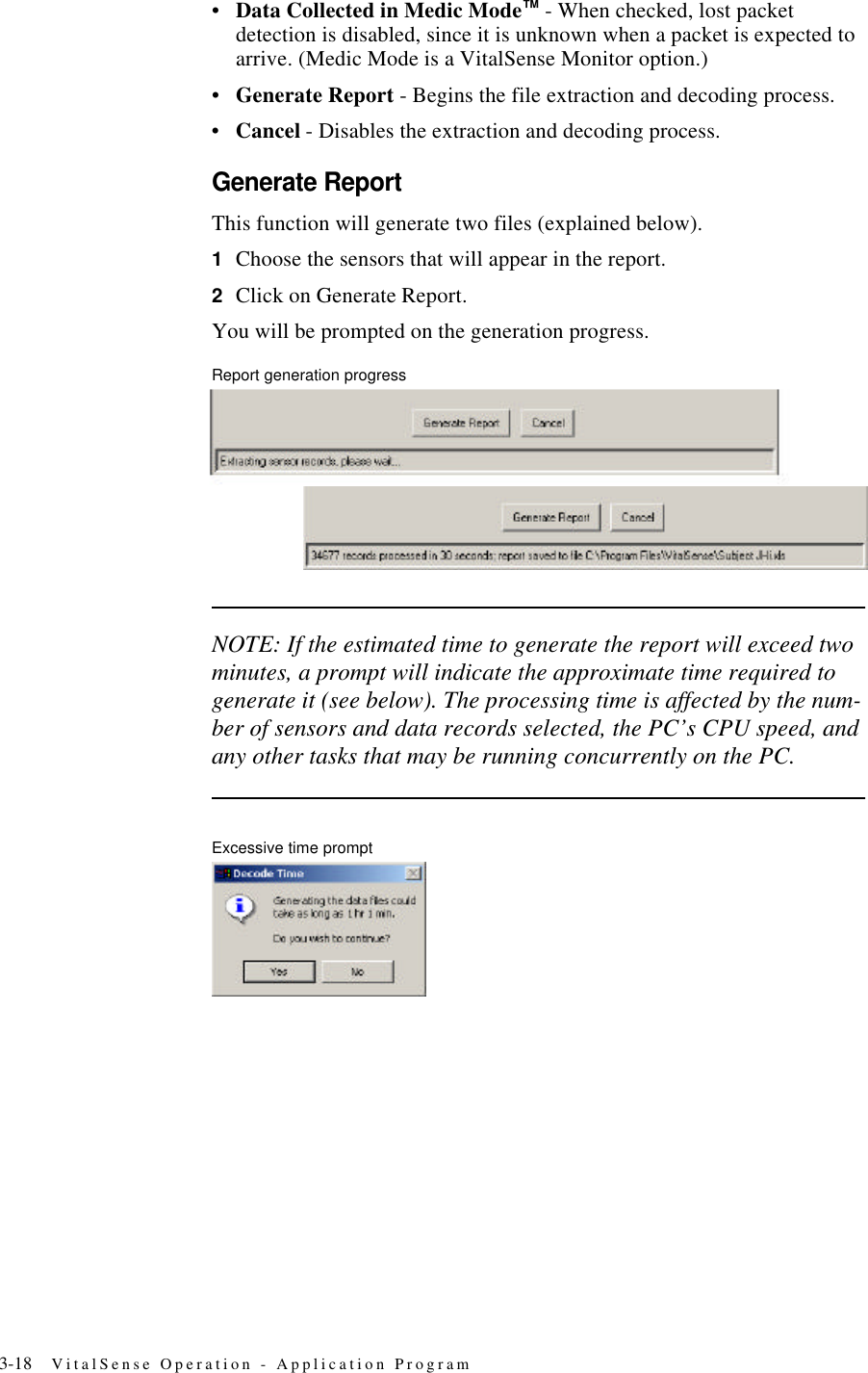
3-18 VitalSense Operation - Application Program•Data Collected in Medic Mode™ - When checked, lost packet detection is disabled, since it is unknown when a packet is expected to arrive. (Medic Mode is a VitalSense Monitor option.)•Generate Report - Begins the file extraction and decoding process.•Cancel - Disables the extraction and decoding process.Generate ReportThis function will generate two files (explained below).1Choose the sensors that will appear in the report.2Click on Generate Report.You will be prompted on the generation progress.Report generation progressNOTE: If the estimated time to generate the report will exceed two minutes, a prompt will indicate the approximate time required to generate it (see below). The processing time is affected by the num-ber of sensors and data records selected, the PC’s CPU speed, and any other tasks that may be running concurrently on the PC.Excessive time prompt
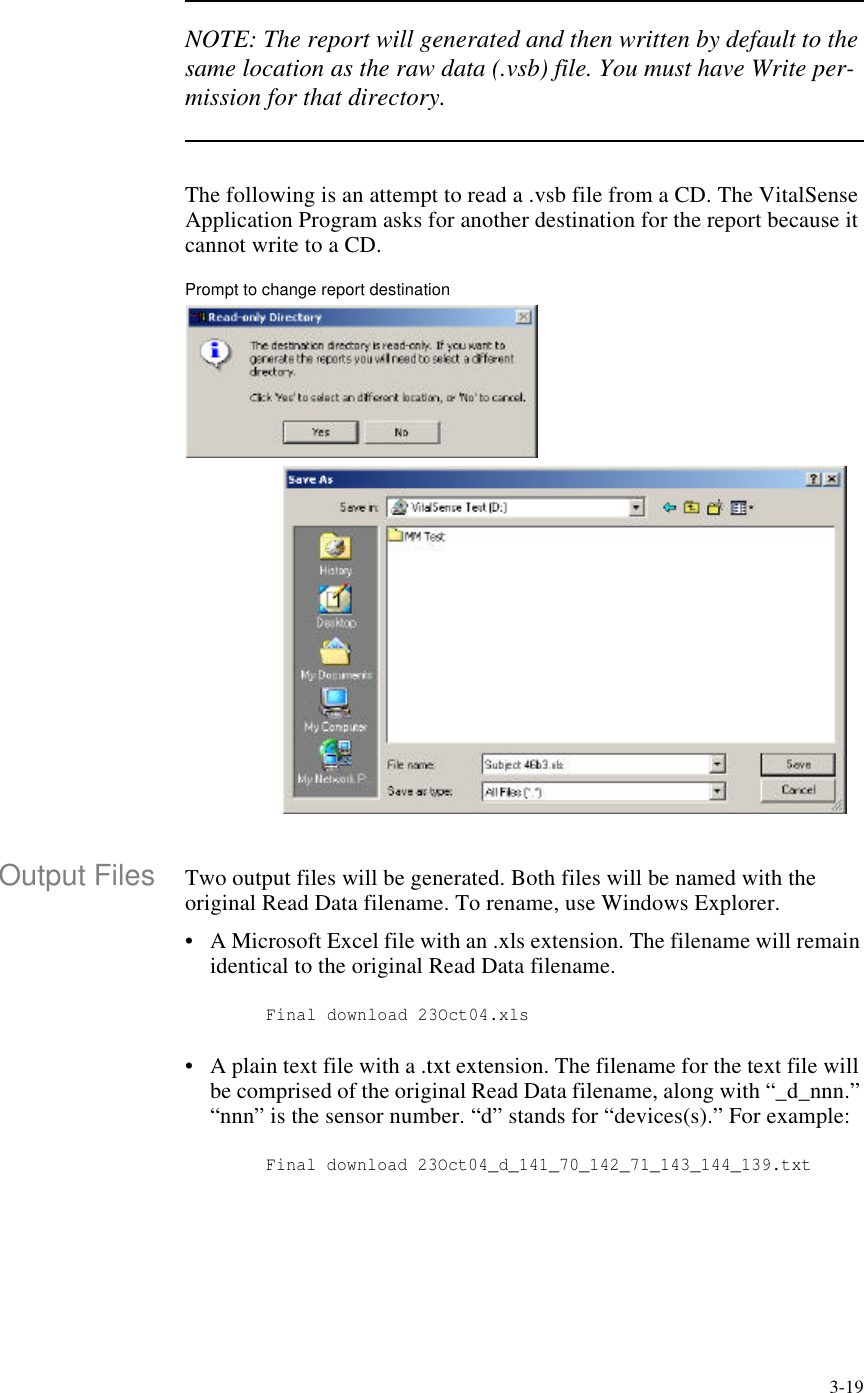
3-19NOTE: The report will generated and then written by default to the same location as the raw data (.vsb) file. You must have Write per-mission for that directory.The following is an attempt to read a .vsb file from a CD. The VitalSense Application Program asks for another destination for the report because it cannot write to a CD.Prompt to change report destinationOutput Files Two output files will be generated. Both files will be named with the original Read Data filename. To rename, use Windows Explorer.•A Microsoft Excel file with an .xls extension. The filename will remain identical to the original Read Data filename.        Final download 23Oct04.xls•A plain text file with a .txt extension. The filename for the text file will be comprised of the original Read Data filename, along with “_d_nnn.” “nnn” is the sensor number. “d” stands for “devices(s).” For example:        Final download 23Oct04_d_141_70_142_71_143_144_139.txt
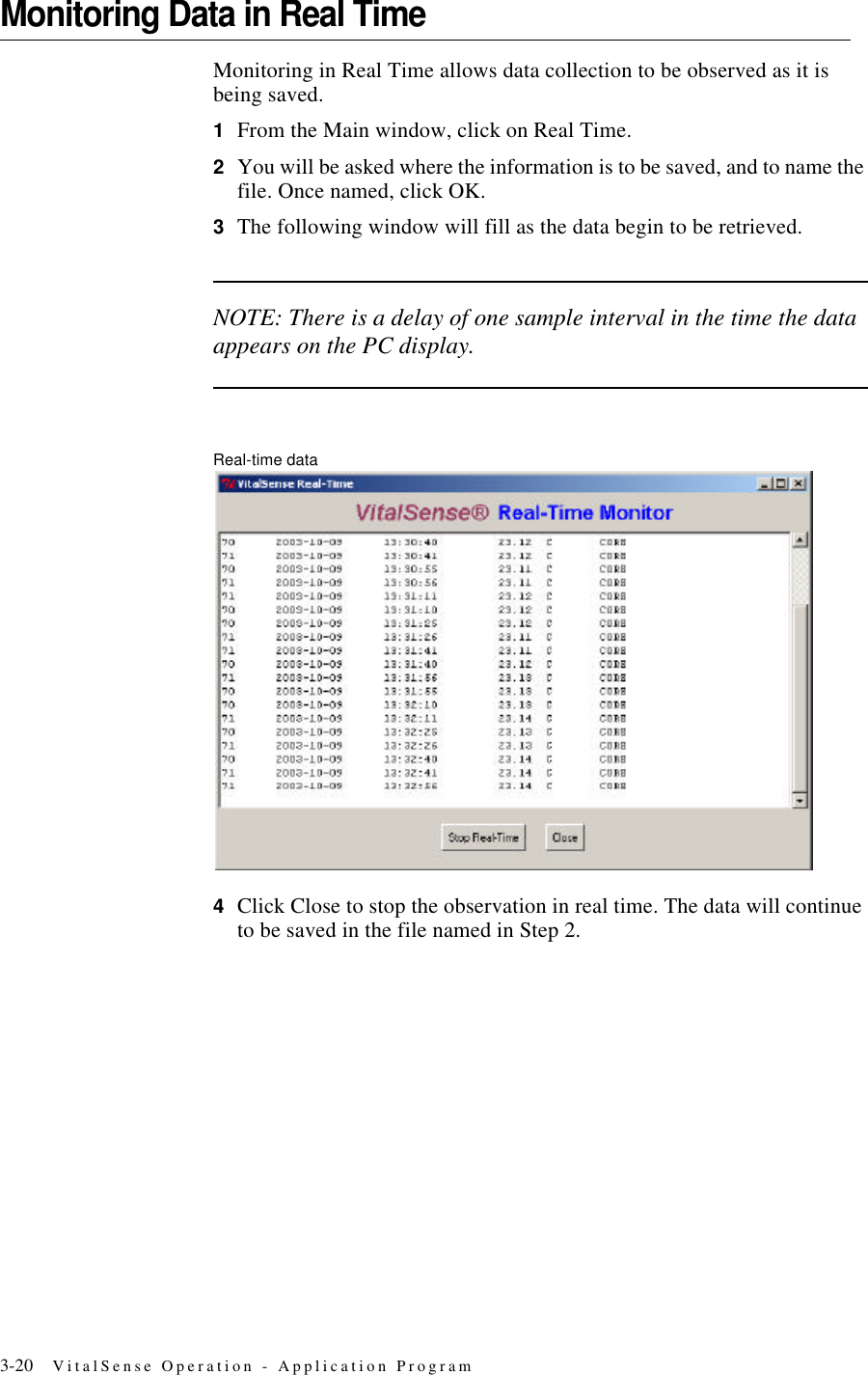
3-20 VitalSense Operation - Application ProgramMonitoring Data in Real TimeMonitoring in Real Time allows data collection to be observed as it is being saved.1From the Main window, click on Real Time.2You will be asked where the information is to be saved, and to name the file. Once named, click OK.3The following window will fill as the data begin to be retrieved.NOTE: There is a delay of one sample interval in the time the data appears on the PC display.Real-time data4Click Close to stop the observation in real time. The data will continue to be saved in the file named in Step 2.
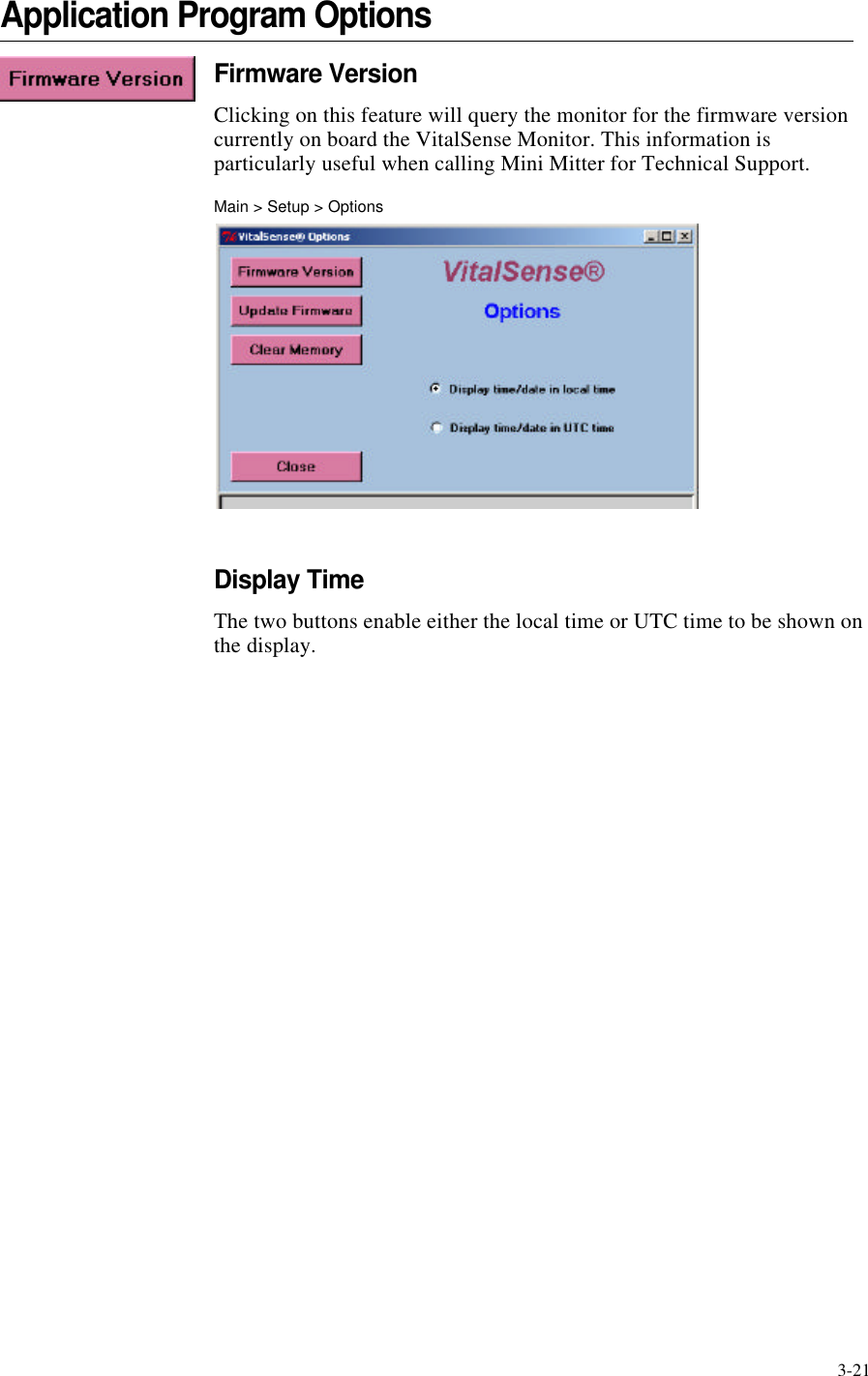
3-21Application Program OptionsFirmware VersionClicking on this feature will query the monitor for the firmware version currently on board the VitalSense Monitor. This information is particularly useful when calling Mini Mitter for Technical Support.Main > Setup > OptionsDisplay TimeThe two buttons enable either the local time or UTC time to be shown on the display.
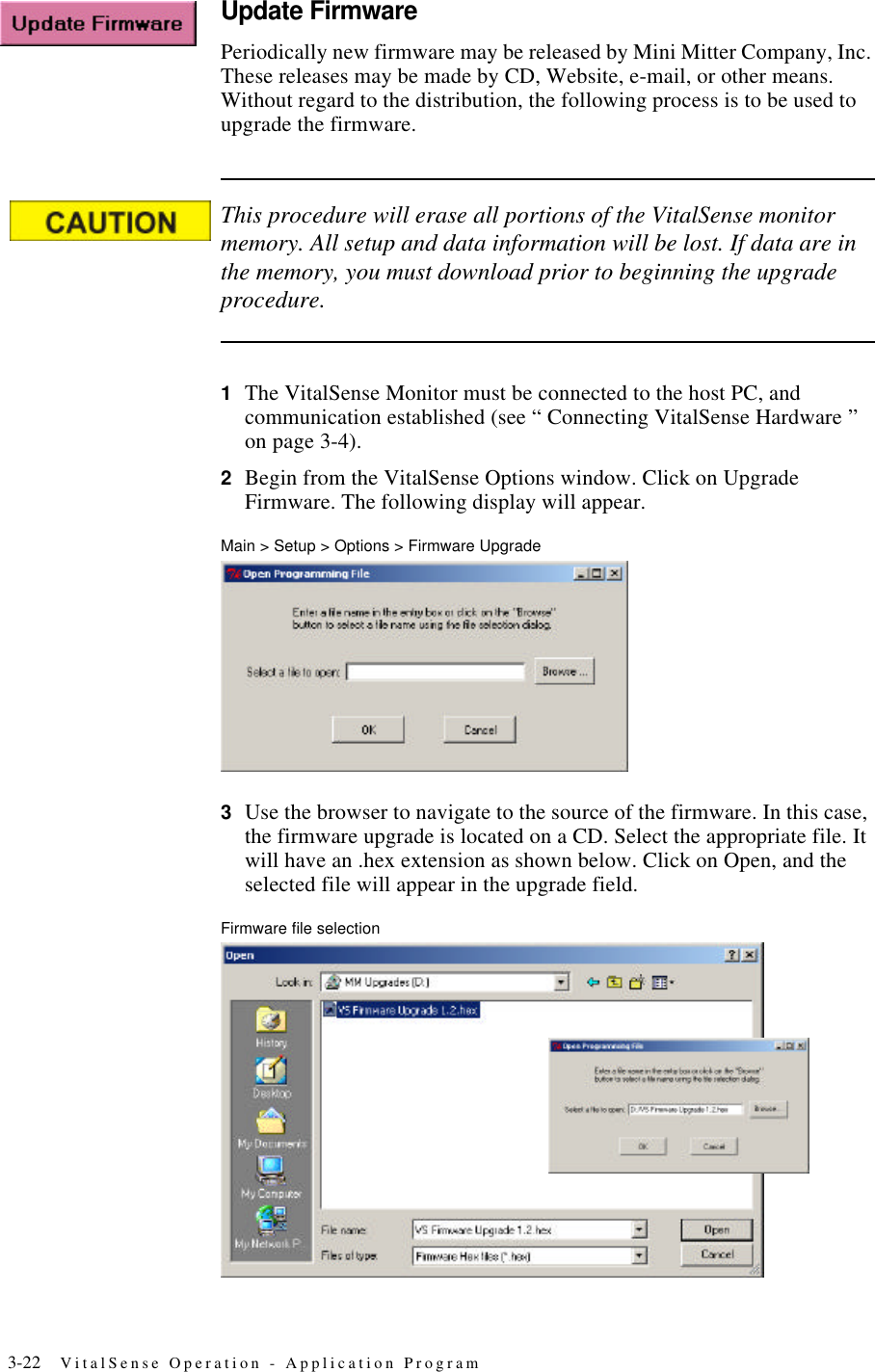
3-22 VitalSense Operation - Application ProgramUpdate FirmwarePeriodically new firmware may be released by Mini Mitter Company, Inc. These releases may be made by CD, Website, e-mail, or other means. Without regard to the distribution, the following process is to be used to upgrade the firmware.This procedure will erase all portions of the VitalSense monitor memory. All setup and data information will be lost. If data are in the memory, you must download prior to beginning the upgrade procedure.1The VitalSense Monitor must be connected to the host PC, and communication established (see “ Connecting VitalSense Hardware ” on page3-4).2Begin from the VitalSense Options window. Click on Upgrade Firmware. The following display will appear.Main > Setup > Options > Firmware Upgrade3Use the browser to navigate to the source of the firmware. In this case, the firmware upgrade is located on a CD. Select the appropriate file. It will have an .hex extension as shown below. Click on Open, and the selected file will appear in the upgrade field.Firmware file selection
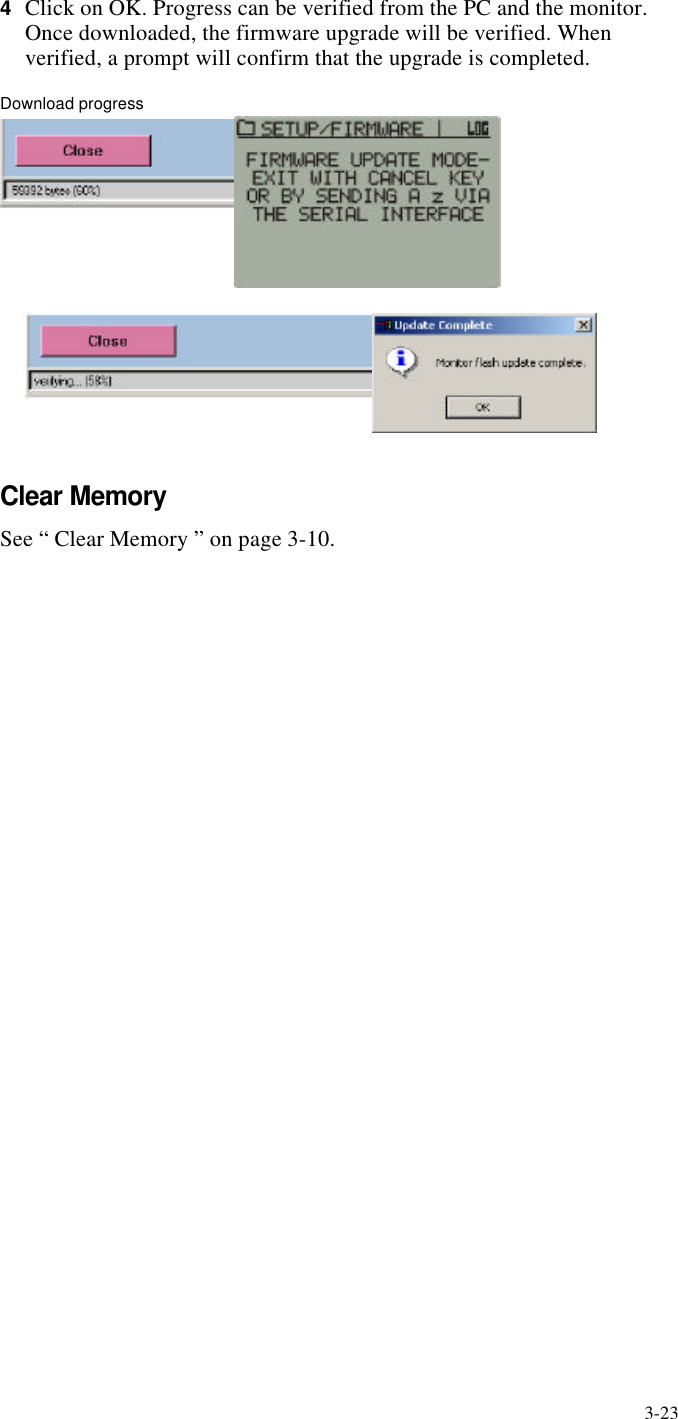
3-234Click on OK. Progress can be verified from the PC and the monitor. Once downloaded, the firmware upgrade will be verified. When verified, a prompt will confirm that the upgrade is completed.Download progressClear MemorySee “ Clear Memory ” on page3-10.
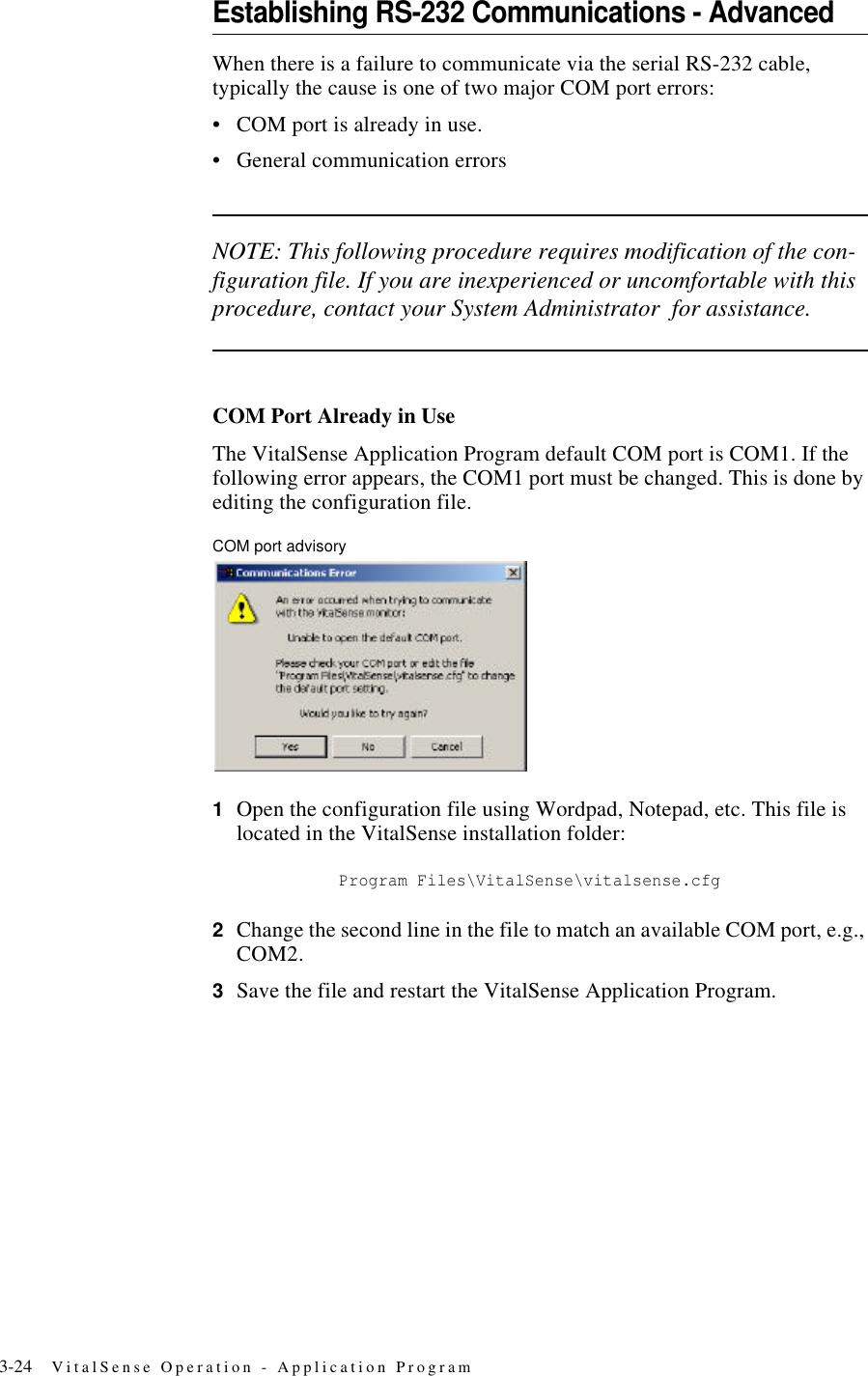
3-24 VitalSense Operation - Application ProgramEstablishing RS-232 Communications - AdvancedWhen there is a failure to communicate via the serial RS-232 cable, typically the cause is one of two major COM port errors:•COM port is already in use.•General communication errorsNOTE: This following procedure requires modification of the con-figuration file. If you are inexperienced or uncomfortable with this procedure, contact your System Administrator  for assistance.COM Port Already in UseThe VitalSense Application Program default COM port is COM1. If the following error appears, the COM1 port must be changed. This is done by editing the configuration file.COM port advisory1Open the configuration file using Wordpad, Notepad, etc. This file is located in the VitalSense installation folder:             Program Files\VitalSense\vitalsense.cfg2Change the second line in the file to match an available COM port, e.g., COM2.3Save the file and restart the VitalSense Application Program.
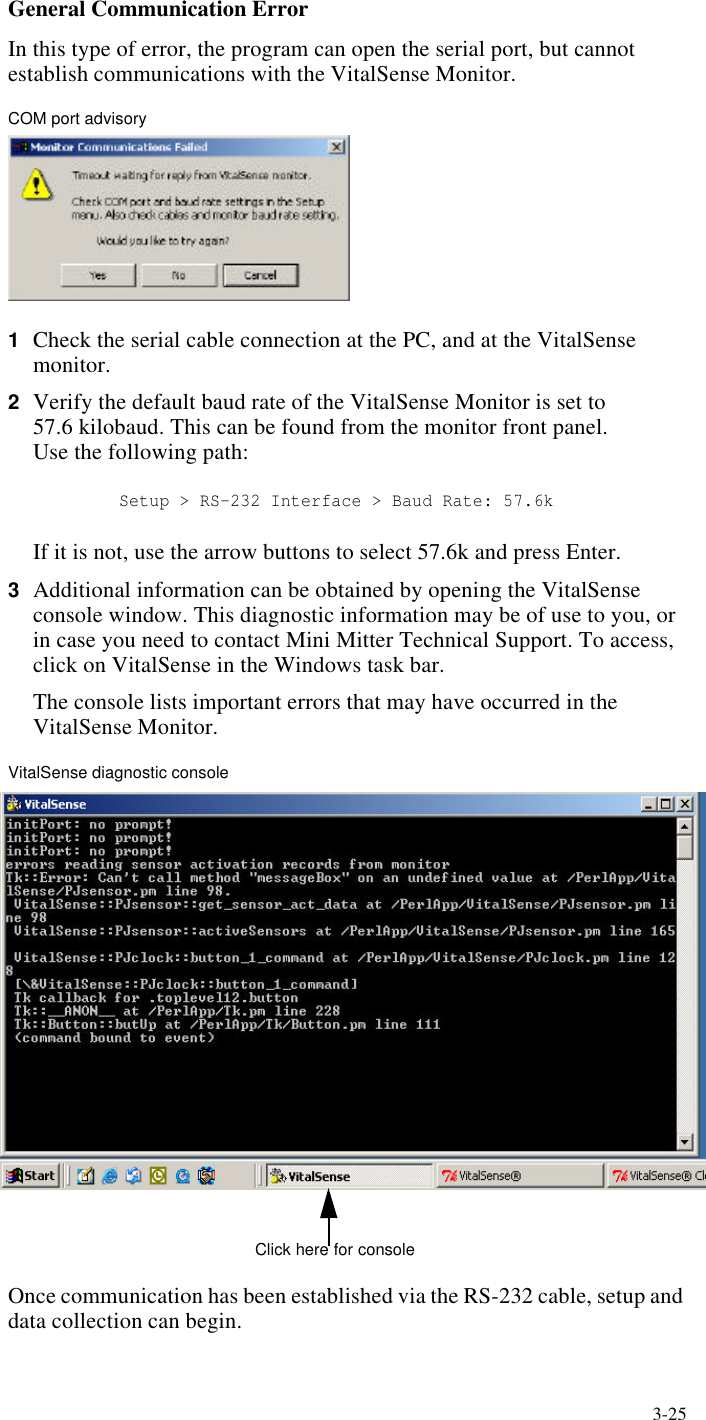
3-25General Communication ErrorIn this type of error, the program can open the serial port, but cannot establish communications with the VitalSense Monitor.COM port advisory1Check the serial cable connection at the PC, and at the VitalSense monitor.2Verify the default baud rate of the VitalSense Monitor is set to          57.6 kilobaud. This can be found from the monitor front panel.          Use the following path:           Setup > RS-232 Interface > Baud Rate: 57.6kIf it is not, use the arrow buttons to select 57.6k and press Enter.3Additional information can be obtained by opening the VitalSense console window. This diagnostic information may be of use to you, or in case you need to contact Mini Mitter Technical Support. To access, click on VitalSense in the Windows task bar.The console lists important errors that may have occurred in the VitalSense Monitor.VitalSense diagnostic consoleOnce communication has been established via the RS-232 cable, setup and data collection can begin.Click here for console
3-26 VitalSense Operation - Application ProgramUSB AdapterPersistent RS-232 ErrorsIf you still have difficulty establishing communications with the VitalSense Monitor, it may be necessary to use a USB to serial adapter. Some brands of laptops have demonstrated peculiar problems due to hardware and/or driver incompatibility. The use of a USB-to-serial port adapter will require you to install the new driver supplied with the adapter, and this may result in successful communication.A USB-to-serial port adapter may be purchased from Mini Mitter Company, or your local computer store. The recommended adapter type at this printing is the Aten® UC232A.Installing the USB Adapter1To install the proper drivers, follow the directions included with the adapter.2Connect the adapter to the USB port on your computer.3Use the Windows Device Manager to find the COM port assigned by the adapter driver. See the Windows help function for instructions.4Once the assigned COM port is known, enter the port number in VitalSense Application Program Setup (see “ COM Port Setup ” on page3-7).
4-1SECTION4CHAPTER 4MAINTENANCEThis section applies to the VitalSense Monitor, including hardware maintenance such as battery replacement and cleaning. The VitalSense Monitor uses a very specific battery. When replac-ing the battery, use only a lithium 3.6 volt AA-size battery (SAFT LS 14500). Any battery other than the one specified may cause damage to the circuitry of the VitalSense Monitor, or cause reduced performance. Do not attempt to recharge the lithium battery. NOTE: The sensor batteries cannot be replaced. Do not dispose of lithium batteries in fire or flame. An explosion may result. Only dispose in accordance with manufacture’s recom-mendation, or local codes.
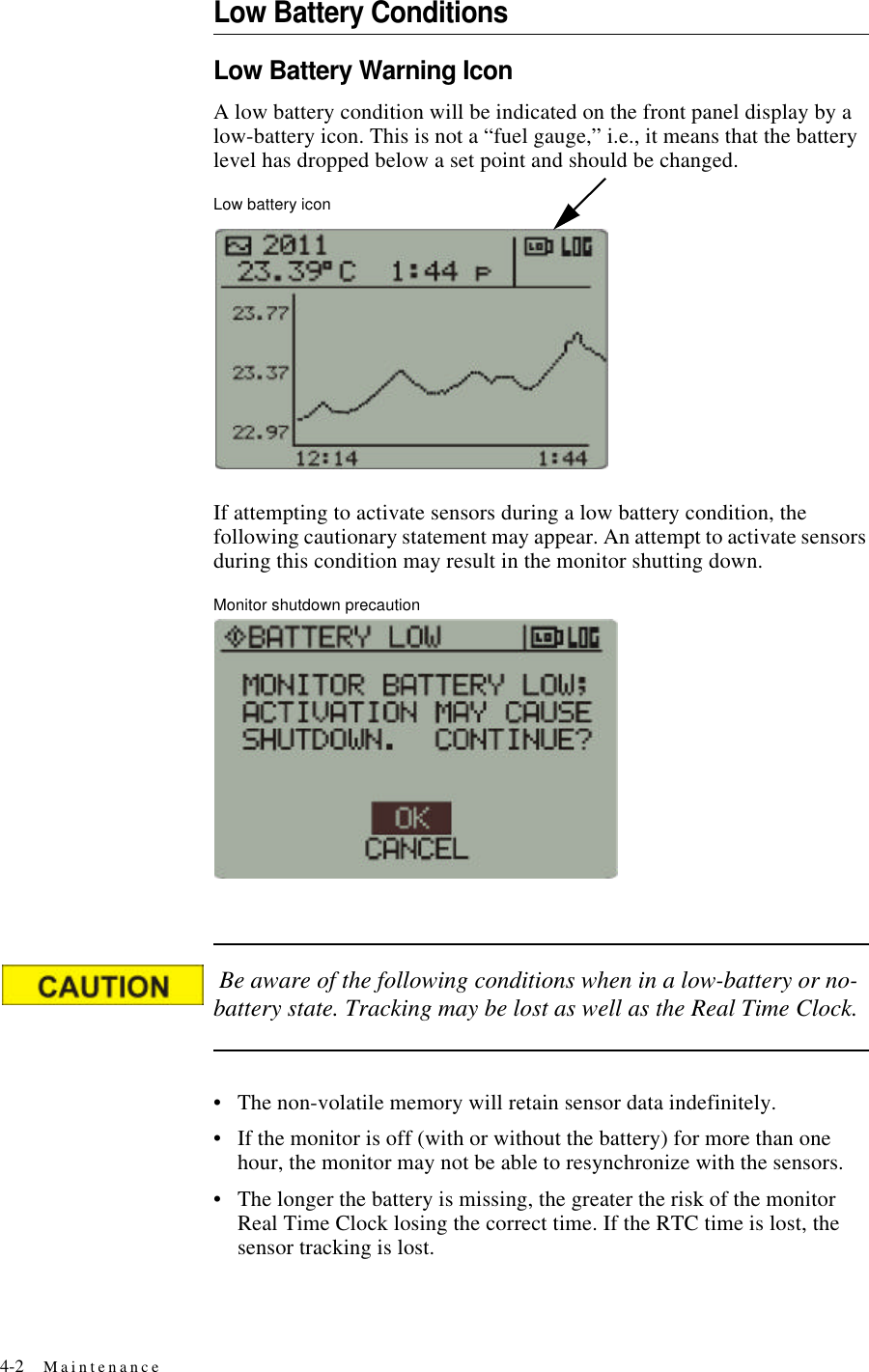
4-2 MaintenanceLow Battery ConditionsLow Battery Warning IconA low battery condition will be indicated on the front panel display by a low-battery icon. This is not a “fuel gauge,” i.e., it means that the battery level has dropped below a set point and should be changed. Low battery iconIf attempting to activate sensors during a low battery condition, the following cautionary statement may appear. An attempt to activate sensors during this condition may result in the monitor shutting down.Monitor shutdown precaution Be aware of the following conditions when in a low-battery or no-battery state. Tracking may be lost as well as the Real Time Clock.•The non-volatile memory will retain sensor data indefinitely.•If the monitor is off (with or without the battery) for more than one hour, the monitor may not be able to resynchronize with the sensors.•The longer the battery is missing, the greater the risk of the monitor Real Time Clock losing the correct time. If the RTC time is lost, the sensor tracking is lost.
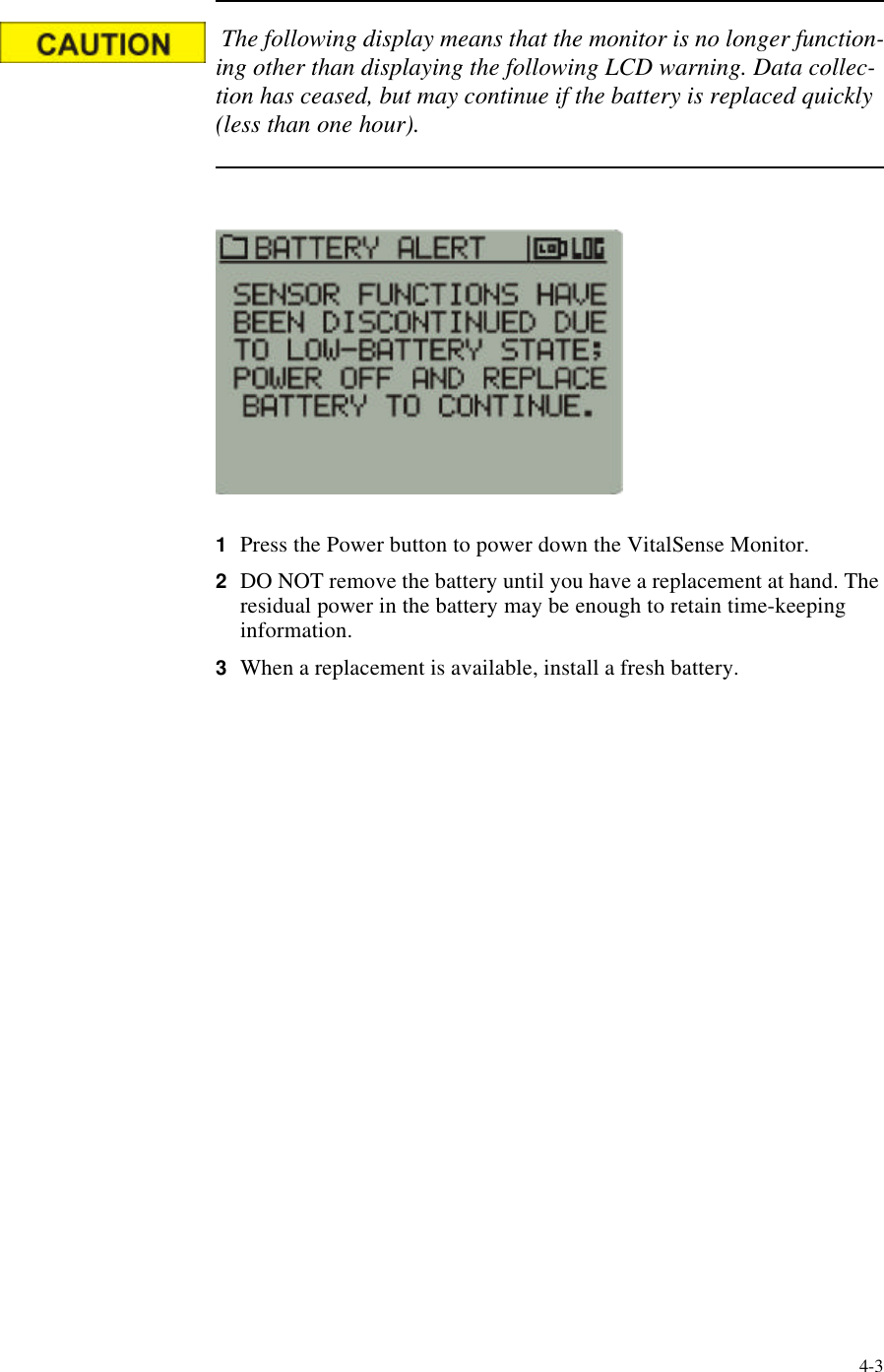
4-3 The following display means that the monitor is no longer function-ing other than displaying the following LCD warning. Data collec-tion has ceased, but may continue if the battery is replaced quickly (less than one hour).1Press the Power button to power down the VitalSense Monitor.2DO NOT remove the battery until you have a replacement at hand. The residual power in the battery may be enough to retain time-keeping information.3When a replacement is available, install a fresh battery.
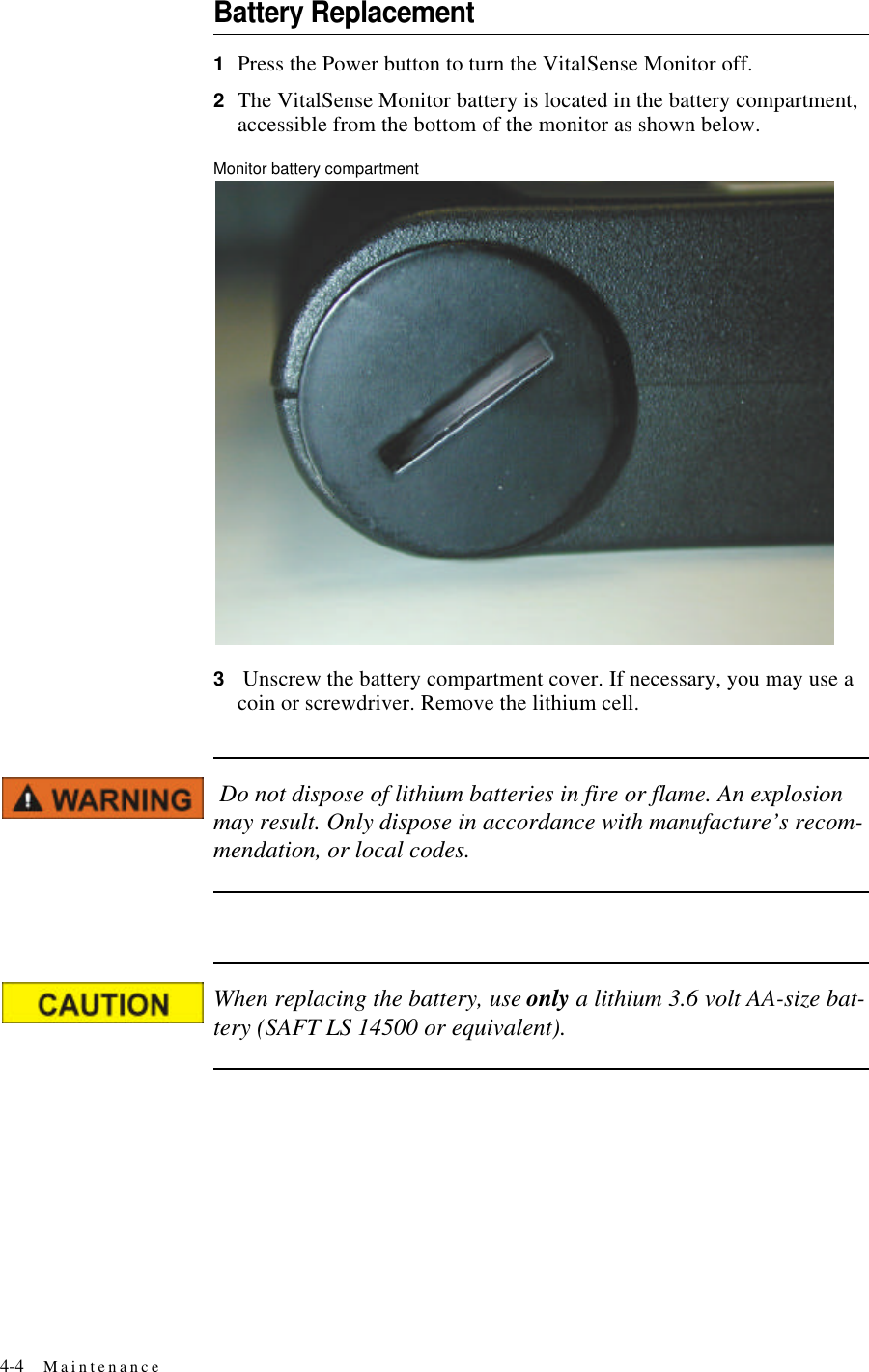
4-4 MaintenanceBattery Replacement1Press the Power button to turn the VitalSense Monitor off.2The VitalSense Monitor battery is located in the battery compartment, accessible from the bottom of the monitor as shown below.Monitor battery compartment3 Unscrew the battery compartment cover. If necessary, you may use a coin or screwdriver. Remove the lithium cell. Do not dispose of lithium batteries in fire or flame. An explosion may result. Only dispose in accordance with manufacture’s recom-mendation, or local codes.When replacing the battery, use only a lithium 3.6 volt AA-size bat-tery (SAFT LS 14500 or equivalent).
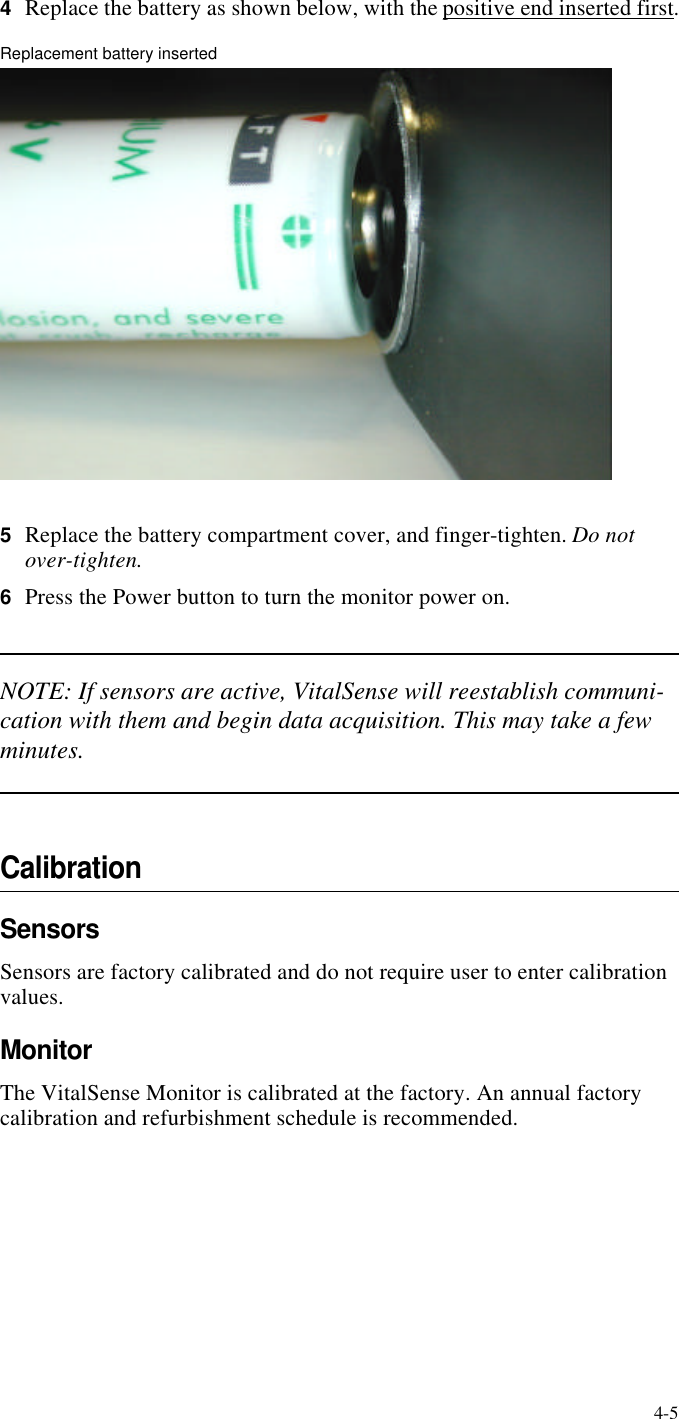
4-54Replace the battery as shown below, with the positive end inserted first.Replacement battery inserted5Replace the battery compartment cover, and finger-tighten. Do not over-tighten.6Press the Power button to turn the monitor power on.NOTE: If sensors are active, VitalSense will reestablish communi-cation with them and begin data acquisition. This may take a few minutes.CalibrationSensorsSensors are factory calibrated and do not require user to enter calibration values.MonitorThe VitalSense Monitor is calibrated at the factory. An annual factory calibration and refurbishment schedule is recommended.
4-6 MaintenanceStorageAlthough the shelf-life of the monitor battery is extremely long, it is recommended that the battery be removed if the monitor is to be placed in storage for more than 180 days.CleaningCleaning of the VitalSense Monitor can be accomplished by wiping the surface with a soft, damp cloth. A mild detergent and water can be used to remove dirt and stains. Do not use abrasives or alcohol. The seals and display may be damaged. Also see  “ Sanitizing VitalSense Components ” on page-xiii.
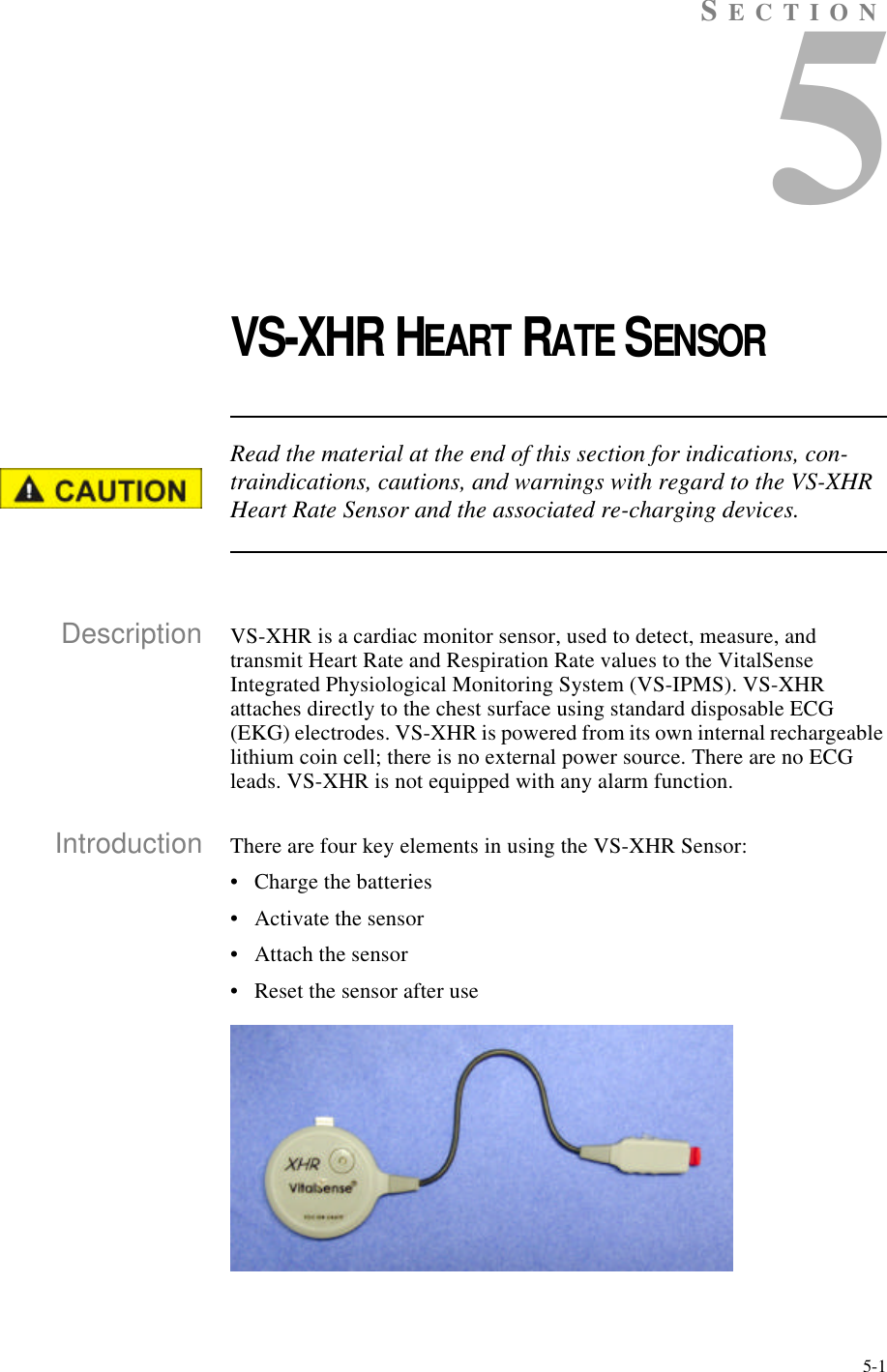
5-1SECTION5VS-XHR HEART RATE SENSORRead the material at the end of this section for indications, con-traindications, cautions, and warnings with regard to the VS-XHR Heart Rate Sensor and the associated re-charging devices.Description VS-XHR is a cardiac monitor sensor, used to detect, measure, and transmit Heart Rate and Respiration Rate values to the VitalSense Integrated Physiological Monitoring System (VS-IPMS). VS-XHR attaches directly to the chest surface using standard disposable ECG (EKG) electrodes. VS-XHR is powered from its own internal rechargeable lithium coin cell; there is no external power source. There are no ECG leads. VS-XHR is not equipped with any alarm function.Introduction There are four key elements in using the VS-XHR Sensor:•Charge the batteries•Activate the sensor•Attach the sensor•Reset the sensor after use
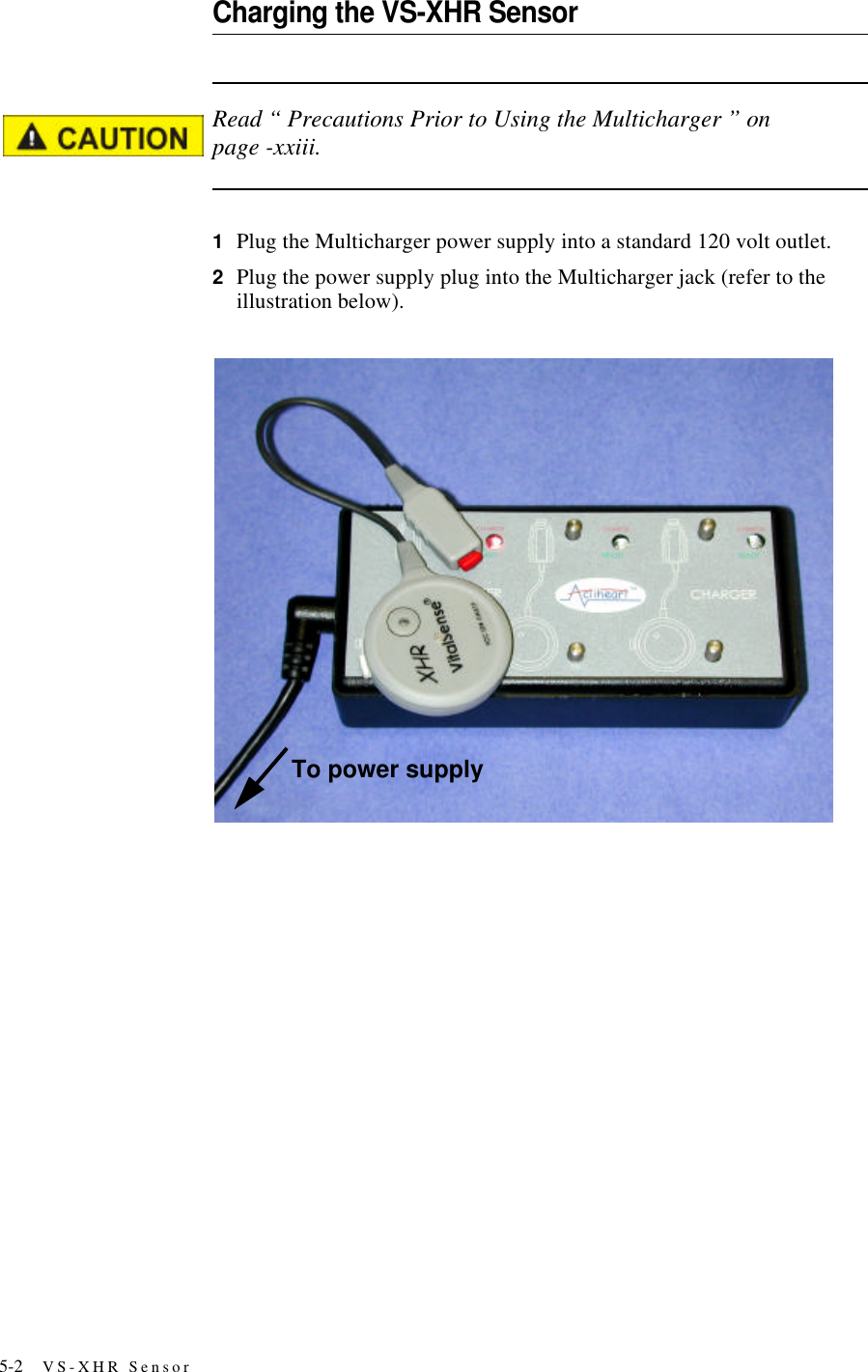
5-2 VS-XHR SensorCharging the VS-XHR SensorRead “ Precautions Prior to Using the Multicharger ” on page-xxiii.1Plug the Multicharger power supply into a standard 120 volt outlet.2Plug the power supply plug into the Multicharger jack (refer to the illustration below).To power supply
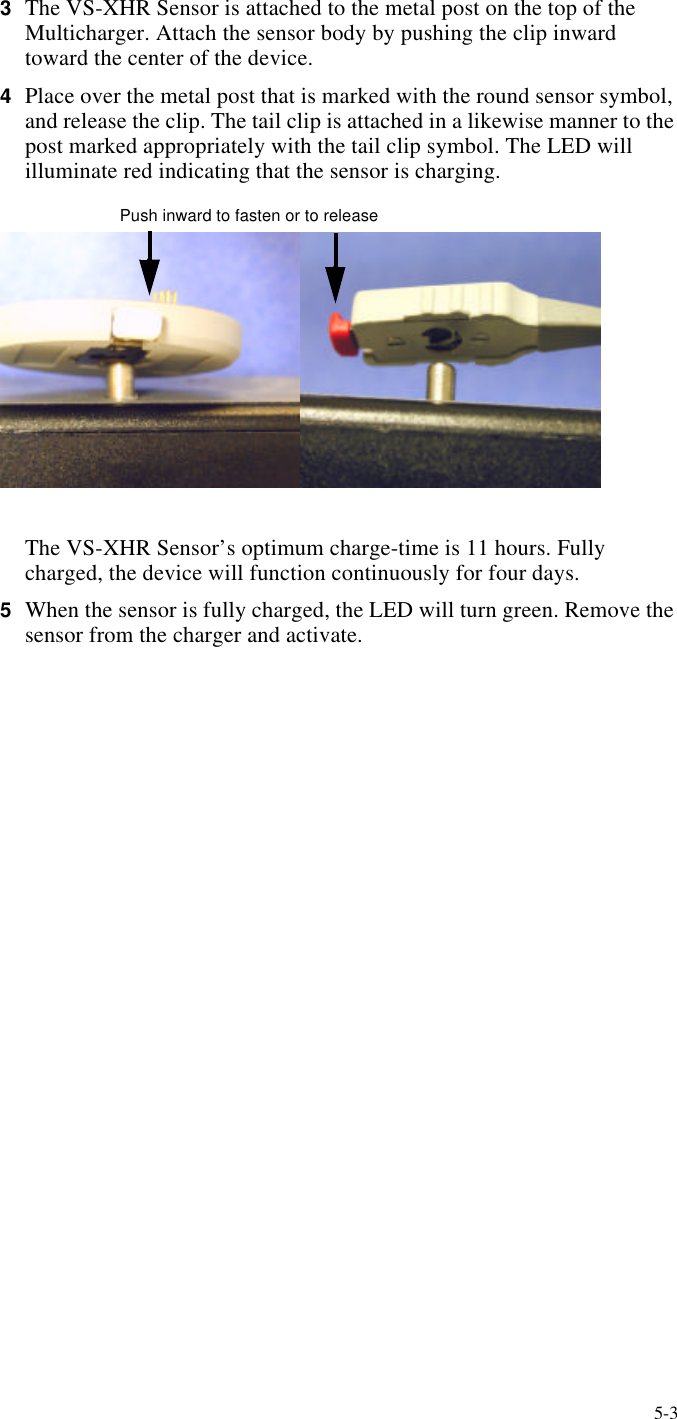
5-33The VS-XHR Sensor is attached to the metal post on the top of the Multicharger. Attach the sensor body by pushing the clip inward toward the center of the device.4Place over the metal post that is marked with the round sensor symbol, and release the clip. The tail clip is attached in a likewise manner to the post marked appropriately with the tail clip symbol. The LED will illuminate red indicating that the sensor is charging.                          Push inward to fasten or to releaseThe VS-XHR Sensor’s optimum charge-time is 11 hours. Fully charged, the device will function continuously for four days.5When the sensor is fully charged, the LED will turn green. Remove the sensor from the charger and activate.
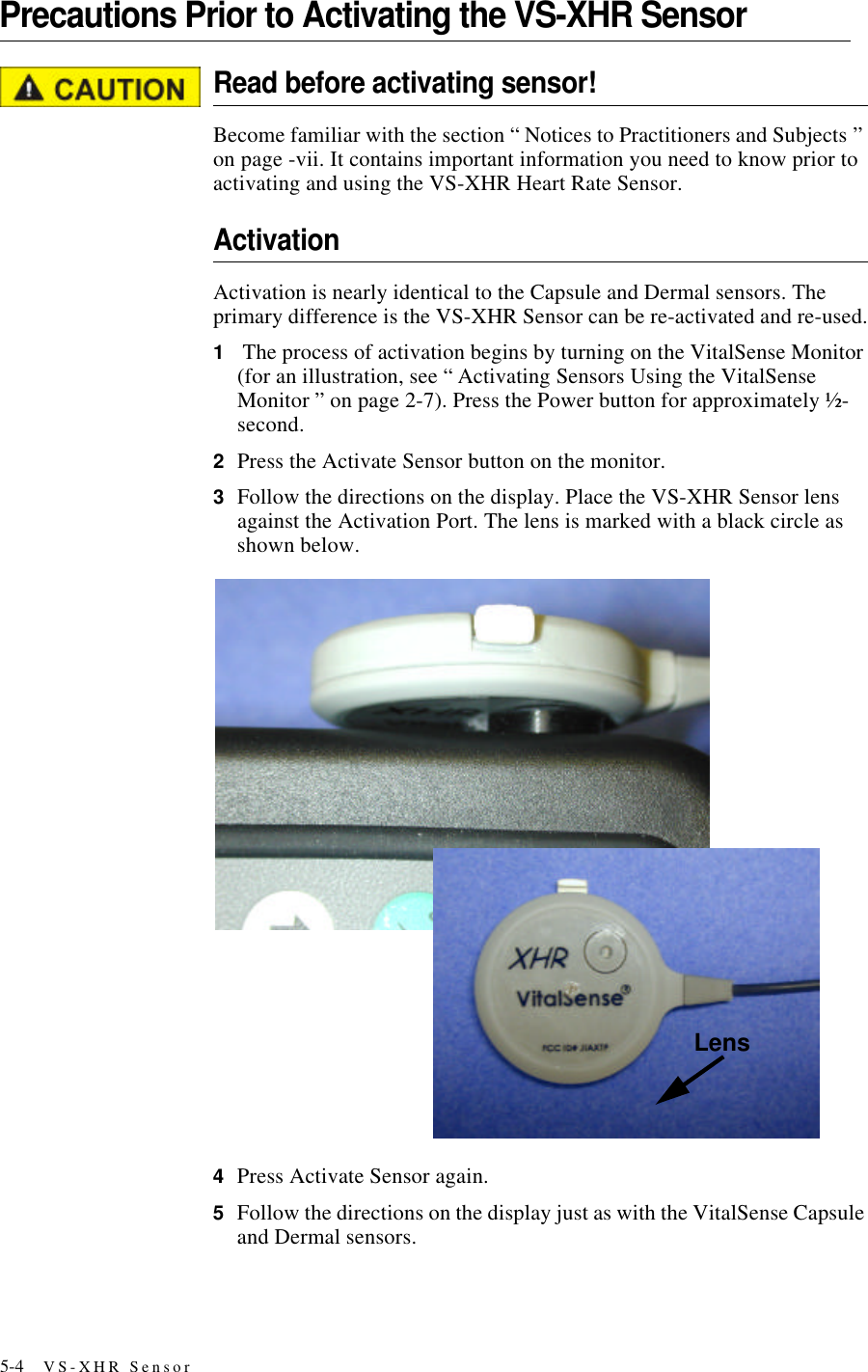
5-4 VS-XHR SensorPrecautions Prior to Activating the VS-XHR SensorRead before activating sensor!Become familiar with the section “ Notices to Practitioners and Subjects ” on page-vii. It contains important information you need to know prior to activating and using the VS-XHR Heart Rate Sensor.ActivationActivation is nearly identical to the Capsule and Dermal sensors. The primary difference is the VS-XHR Sensor can be re-activated and re-used.1 The process of activation begins by turning on the VitalSense Monitor (for an illustration, see “ Activating Sensors Using the VitalSense Monitor ” on page2-7). Press the Power button for approximately ½-second.2Press the Activate Sensor button on the monitor.3Follow the directions on the display. Place the VS-XHR Sensor lens against the Activation Port. The lens is marked with a black circle as shown below.4Press Activate Sensor again.5Follow the directions on the display just as with the VitalSense Capsule and Dermal sensors. Lens
5-5Resetting the VitalSense XHRUnlike the Capsule Sensor and the Dermal Sensor, the VS- XHR Sensor can be re-used. The following procedure is very similar to the charging procedure except the VS-XHR Sensor is left on the multi-charger for only a short time.1Connect the multi-charger to the power supply as described on page5-2.2Clip the VS-XHR on the multi-charger as indicated by the diagram on the top of the multi-charger.3Leave the VS-XHR Sensor on the unit for two (2) minutes to erase the previous data and reset the unit for activation and re-use.CHAPTER 5
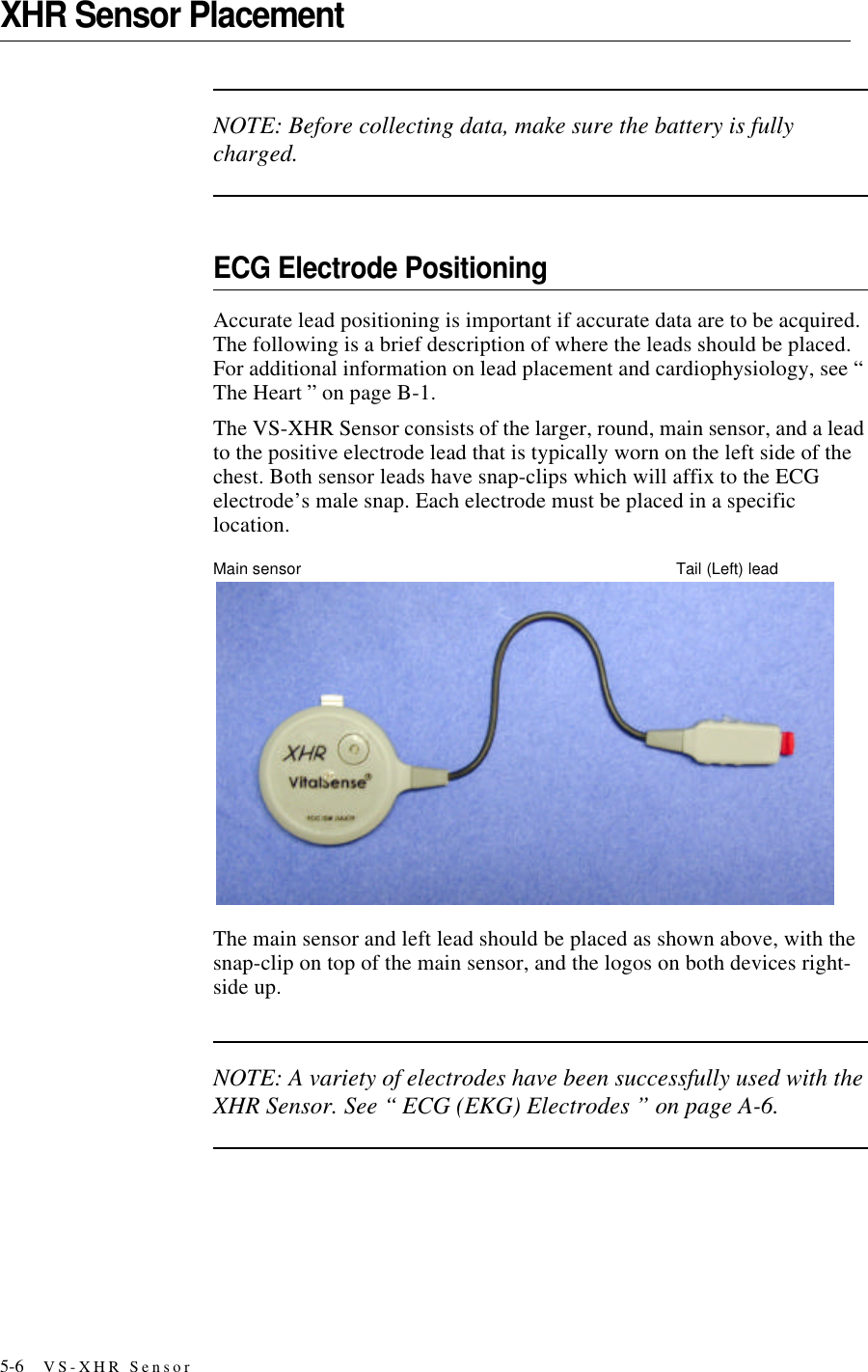
5-6 VS-XHR SensorXHR Sensor PlacementNOTE: Before collecting data, make sure the battery is fully charged.ECG Electrode PositioningAccurate lead positioning is important if accurate data are to be acquired. The following is a brief description of where the leads should be placed. For additional information on lead placement and cardiophysiology, see “ The Heart ” on pageB-1.The VS-XHR Sensor consists of the larger, round, main sensor, and a lead to the positive electrode lead that is typically worn on the left side of the chest. Both sensor leads have snap-clips which will affix to the ECG electrode’s male snap. Each electrode must be placed in a specific location.Main sensor  Tail (Left) leadThe main sensor and left lead should be placed as shown above, with the snap-clip on top of the main sensor, and the logos on both devices right-side up.NOTE: A variety of electrodes have been successfully used with the XHR Sensor. See “ ECG (EKG) Electrodes ” on pageA-6.
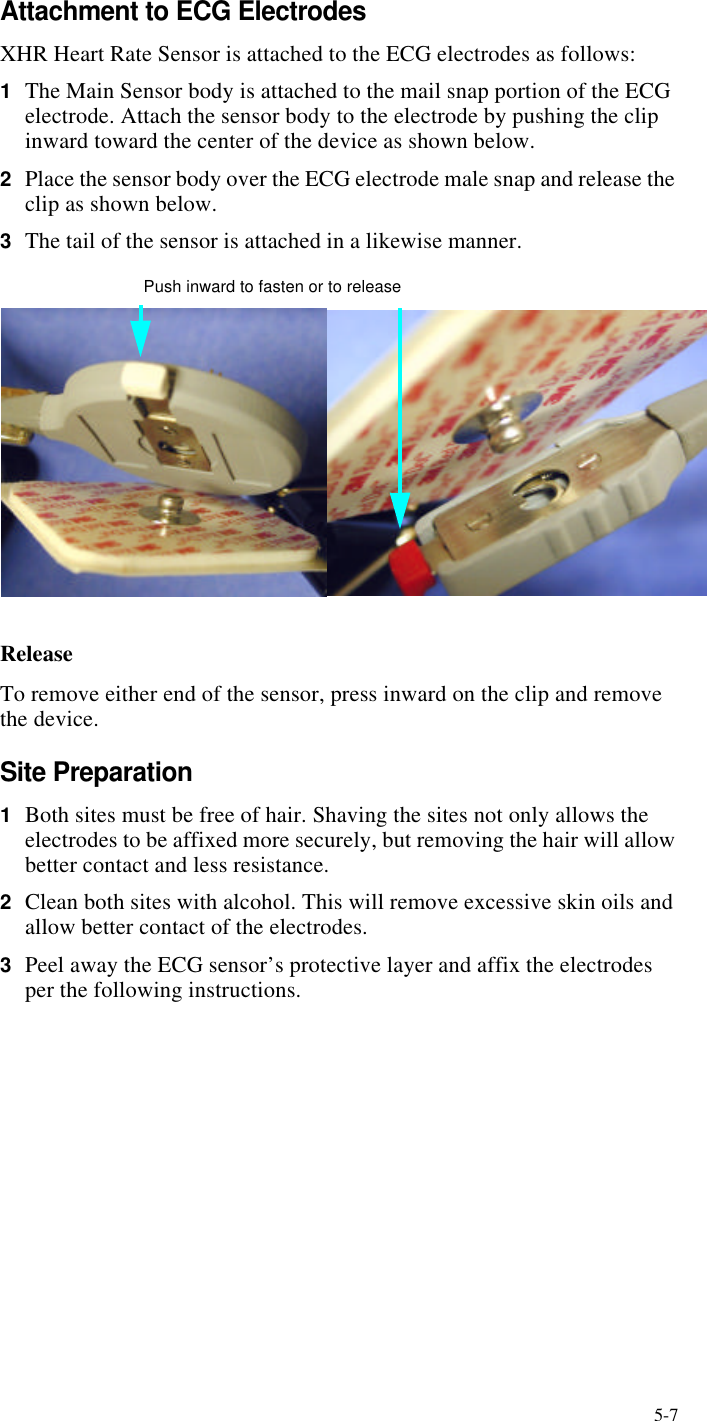
5-7Attachment to ECG ElectrodesXHR Heart Rate Sensor is attached to the ECG electrodes as follows:1The Main Sensor body is attached to the mail snap portion of the ECG electrode. Attach the sensor body to the electrode by pushing the clip inward toward the center of the device as shown below.2Place the sensor body over the ECG electrode male snap and release the clip as shown below.3The tail of the sensor is attached in a likewise manner.                               Push inward to fasten or to releaseReleaseTo remove either end of the sensor, press inward on the clip and remove the device.Site Preparation1Both sites must be free of hair. Shaving the sites not only allows the electrodes to be affixed more securely, but removing the hair will allow better contact and less resistance.2Clean both sites with alcohol. This will remove excessive skin oils and allow better contact of the electrodes.3Peel away the ECG sensor’s protective layer and affix the electrodes per the following instructions.
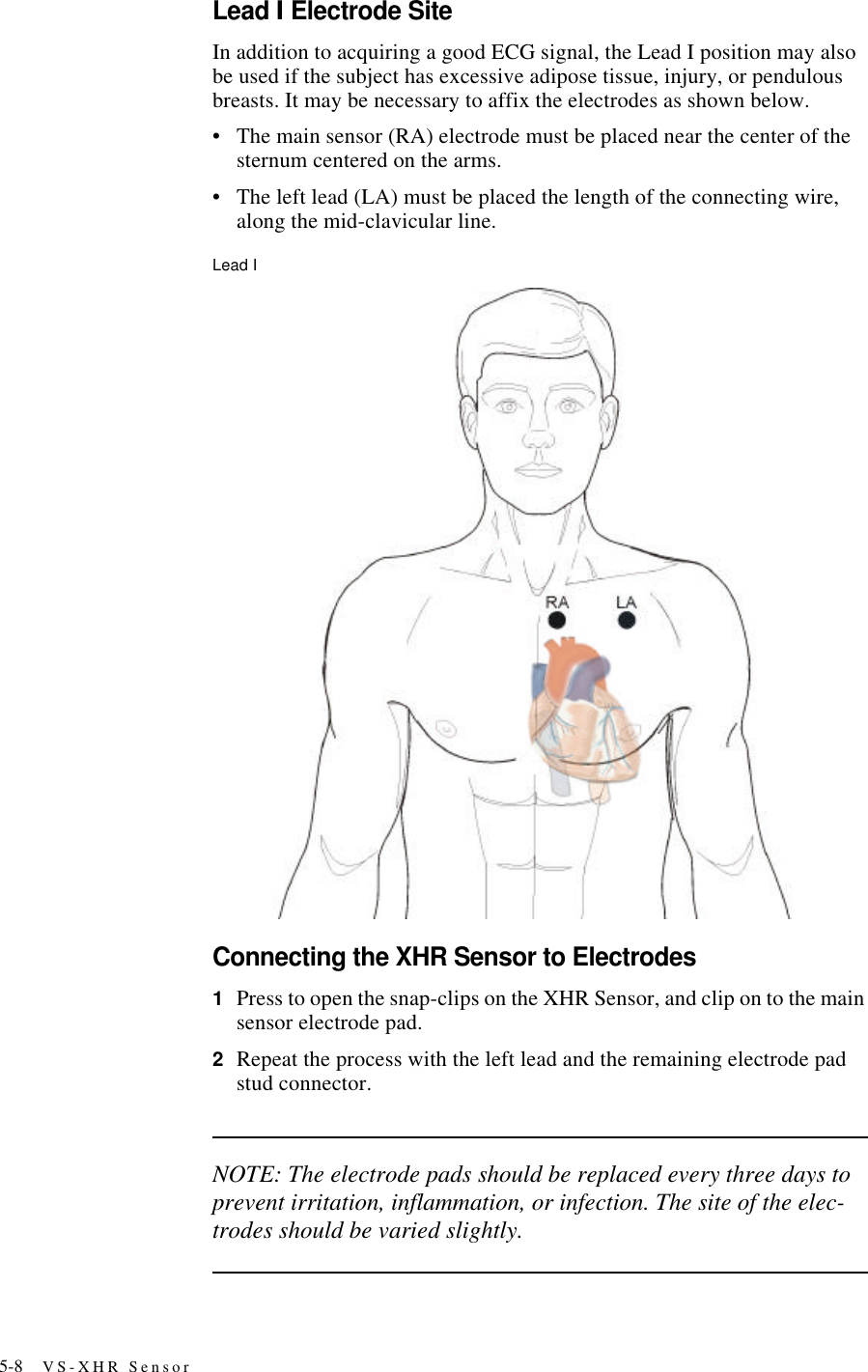
5-8 VS-XHR SensorLead I Electrode SiteIn addition to acquiring a good ECG signal, the Lead I position may also be used if the subject has excessive adipose tissue, injury, or pendulous breasts. It may be necessary to affix the electrodes as shown below.•The main sensor (RA) electrode must be placed near the center of the sternum centered on the arms.•The left lead (LA) must be placed the length of the connecting wire, along the mid-clavicular line.Lead IConnecting the XHR Sensor to Electrodes1Press to open the snap-clips on the XHR Sensor, and clip on to the main sensor electrode pad.2Repeat the process with the left lead and the remaining electrode pad stud connector.NOTE: The electrode pads should be replaced every three days to prevent irritation, inflammation, or infection. The site of the elec-trodes should be varied slightly.
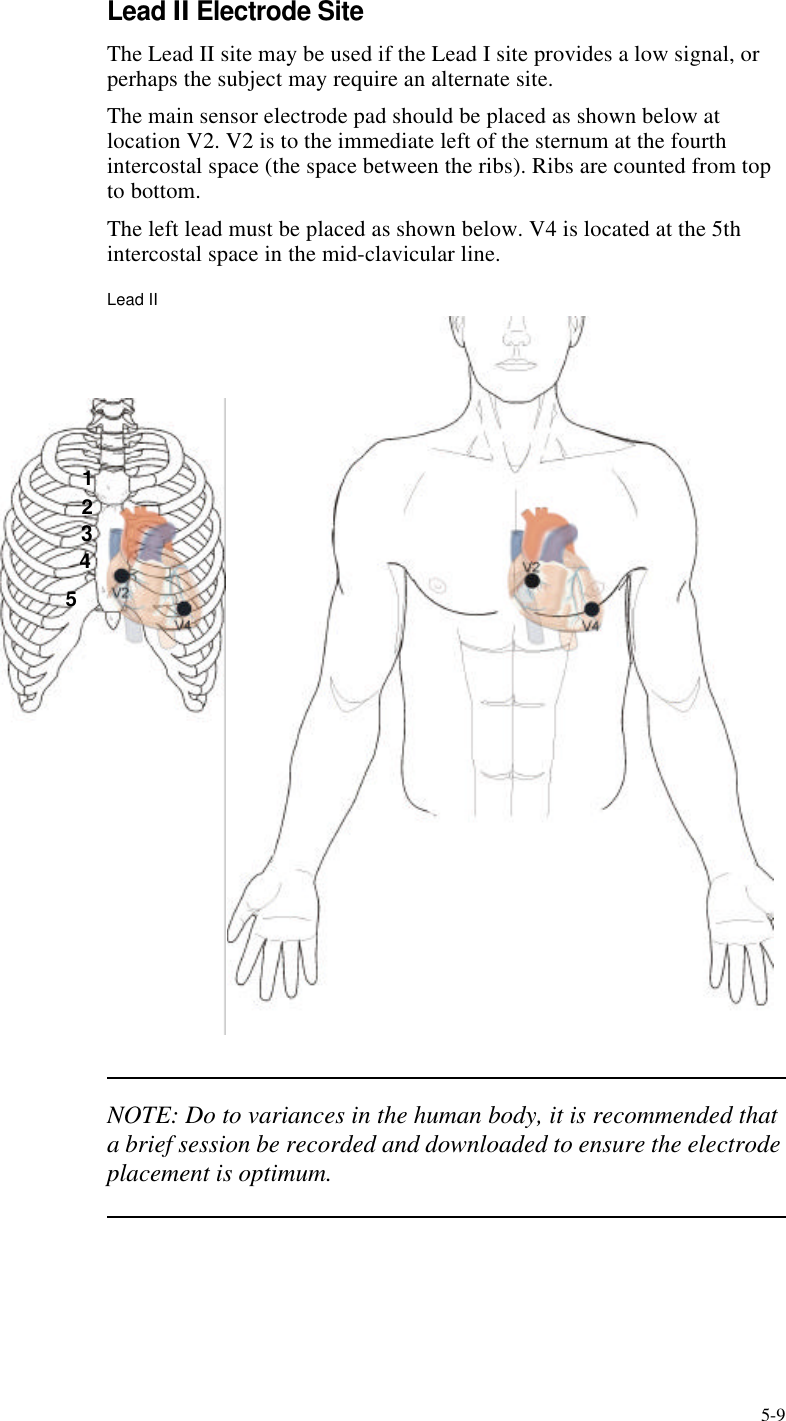
5-9Lead II Electrode SiteThe Lead II site may be used if the Lead I site provides a low signal, or perhaps the subject may require an alternate site. The main sensor electrode pad should be placed as shown below at location V2. V2 is to the immediate left of the sternum at the fourth intercostal space (the space between the ribs). Ribs are counted from top to bottom.The left lead must be placed as shown below. V4 is located at the 5th intercostal space in the mid-clavicular line.Lead IINOTE: Do to variances in the human body, it is recommended that a brief session be recorded and downloaded to ensure the electrode placement is optimum.12345
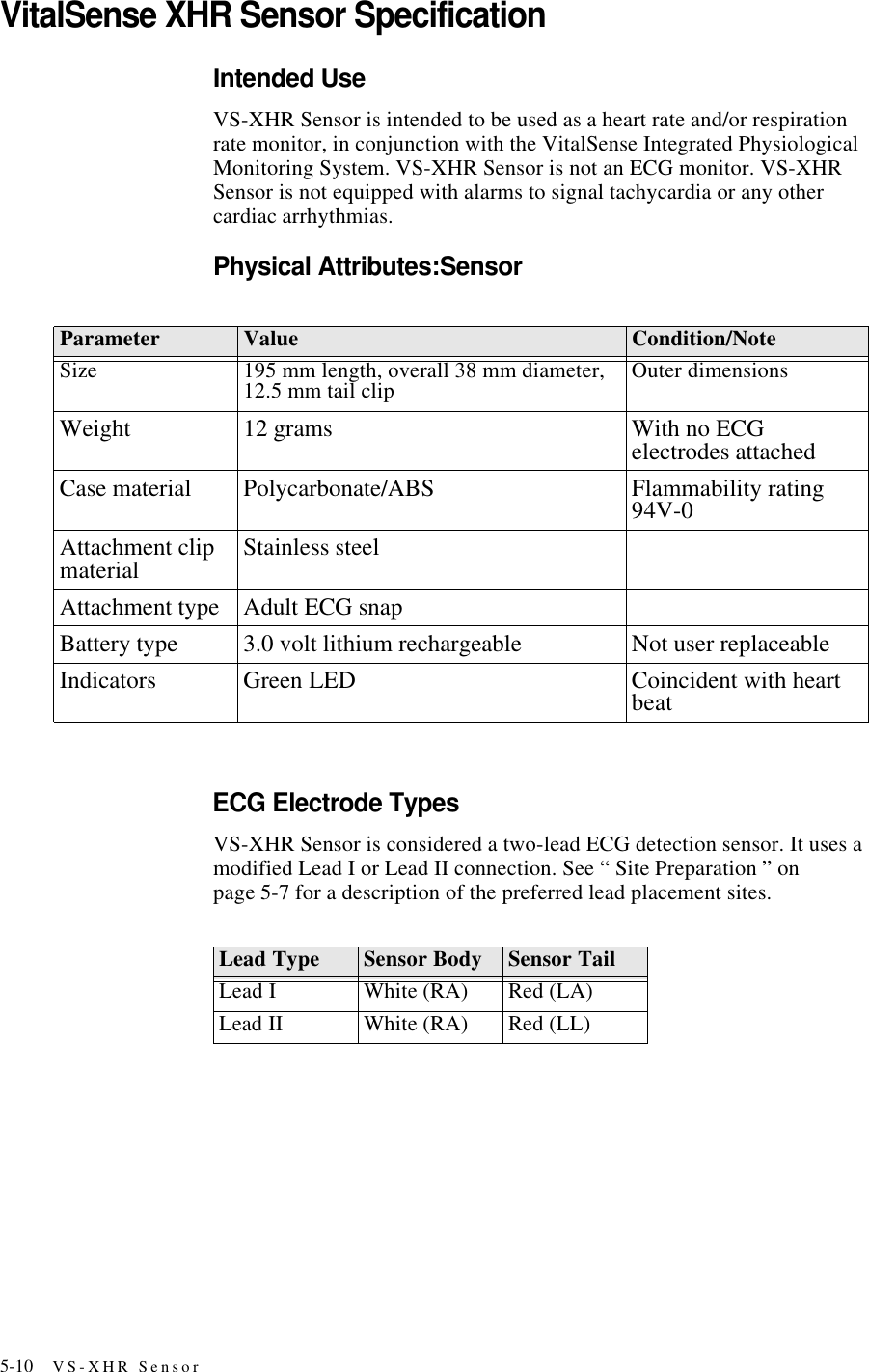
5-10 VS-XHR SensorVitalSense XHR Sensor SpecificationIntended UseVS-XHR Sensor is intended to be used as a heart rate and/or respiration rate monitor, in conjunction with the VitalSense Integrated Physiological Monitoring System. VS-XHR Sensor is not an ECG monitor. VS-XHR Sensor is not equipped with alarms to signal tachycardia or any other cardiac arrhythmias. Physical Attributes:SensorECG Electrode TypesVS-XHR Sensor is considered a two-lead ECG detection sensor. It uses a modified Lead I or Lead II connection. See “ Site Preparation ” on page5-7 for a description of the preferred lead placement sites.Parameter Value Condition/NoteSize 195 mm length, overall 38 mm diameter, 12.5 mm tail clip Outer dimensionsWeight 12 grams With no ECG electrodes attachedCase material Polycarbonate/ABS Flammability rating 94V-0Attachment clip material Stainless steelAttachment type Adult ECG snapBattery type 3.0 volt lithium rechargeable Not user replaceableIndicators Green LED Coincident with heart beatLead Type Sensor Body Sensor TailLead I White (RA) Red (LA)Lead II White (RA) Red (LL)
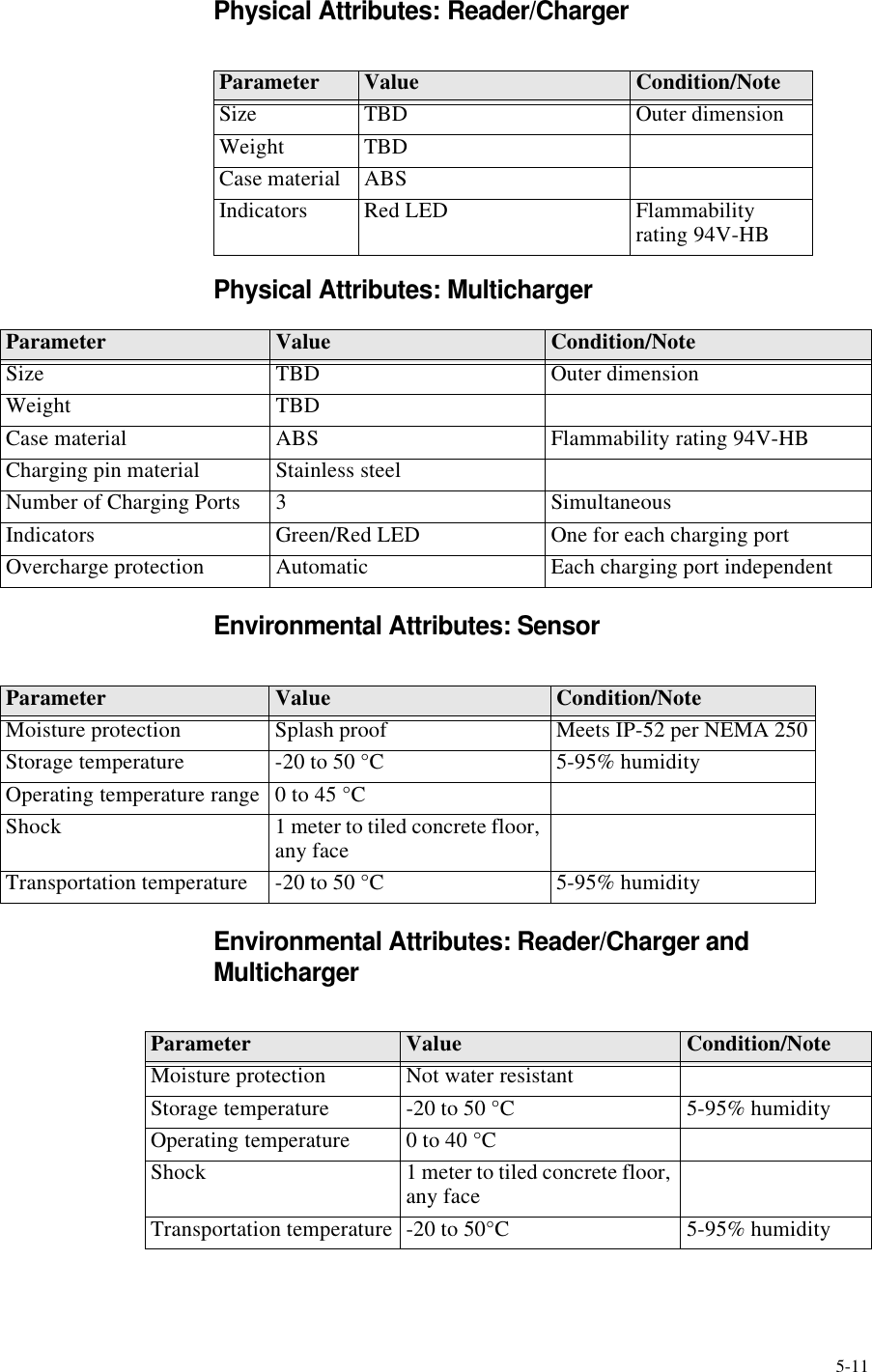
5-11Physical Attributes: Reader/ChargerPhysical Attributes: MultichargerEnvironmental Attributes: SensorEnvironmental Attributes: Reader/Charger and MultichargerParameter Value Condition/NoteSize TBD Outer dimensionWeight TBDCase material ABSIndicators Red LED Flammability rating 94V-HBParameter Value Condition/NoteSize TBD Outer dimensionWeight TBDCase material ABS Flammability rating 94V-HBCharging pin material Stainless steelNumber of Charging Ports 3SimultaneousIndicators Green/Red LED One for each charging portOvercharge protection Automatic Each charging port independentParameter Value Condition/NoteMoisture protection Splash proof Meets IP-52 per NEMA 250Storage temperature -20 to 50 °C 5-95% humidityOperating temperature range 0 to 45 °CShock 1 meter to tiled concrete floor, any faceTransportation temperature -20 to 50 °C 5-95% humidityParameter Value Condition/NoteMoisture protection Not water resistantStorage temperature -20 to 50 °C 5-95% humidityOperating temperature 0 to 40 °CShock 1 meter to tiled concrete floor, any faceTransportation temperature -20 to 50°C 5-95% humidity
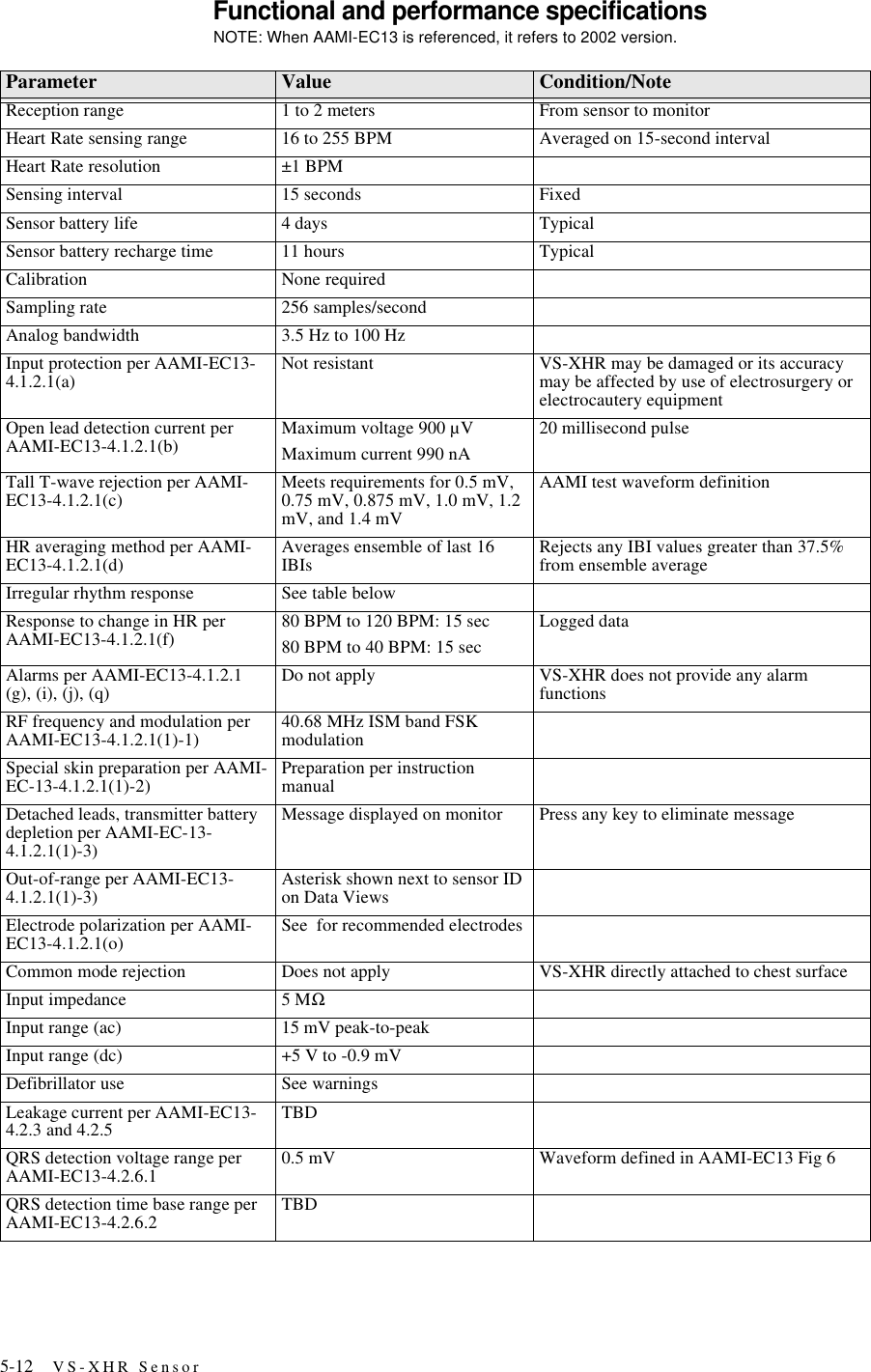
5-12 VS-XHR SensorFunctional and performance specificationsNOTE: When AAMI-EC13 is referenced, it refers to 2002 version.Parameter Value Condition/NoteReception range 1 to 2 meters From sensor to monitorHeart Rate sensing range 16 to 255 BPM Averaged on 15-second intervalHeart Rate resolution ±1 BPMSensing interval 15 seconds FixedSensor battery life 4 days TypicalSensor battery recharge time 11 hours TypicalCalibration None requiredSampling rate 256 samples/secondAnalog bandwidth 3.5 Hz to 100 HzInput protection per AAMI-EC13-4.1.2.1(a) Not resistant VS-XHR may be damaged or its accuracy may be affected by use of electrosurgery or electrocautery equipmentOpen lead detection current per AAMI-EC13-4.1.2.1(b) Maximum voltage 900 µVMaximum current 990 nA20 millisecond pulseTall T-wave rejection per AAMI-EC13-4.1.2.1(c) Meets requirements for 0.5 mV, 0.75 mV, 0.875 mV, 1.0 mV, 1.2 mV, and 1.4 mVAAMI test waveform definitionHR averaging method per AAMI-EC13-4.1.2.1(d) Averages ensemble of last 16 IBIs Rejects any IBI values greater than 37.5% from ensemble averageIrregular rhythm response See table belowResponse to change in HR per AAMI-EC13-4.1.2.1(f) 80 BPM to 120 BPM: 15 sec80 BPM to 40 BPM: 15 secLogged dataAlarms per AAMI-EC13-4.1.2.1 (g), (i), (j), (q) Do not apply VS-XHR does not provide any alarm functionsRF frequency and modulation per AAMI-EC13-4.1.2.1(1)-1) 40.68 MHz ISM band FSK modulationSpecial skin preparation per AAMI-EC-13-4.1.2.1(1)-2) Preparation per instruction manualDetached leads, transmitter battery depletion per AAMI-EC-13-4.1.2.1(1)-3)Message displayed on monitor Press any key to eliminate messageOut-of-range per AAMI-EC13-4.1.2.1(1)-3) Asterisk shown next to sensor ID on Data ViewsElectrode polarization per AAMI-EC13-4.1.2.1(o) See  for recommended electrodesCommon mode rejection Does not apply VS-XHR directly attached to chest surfaceInput impedance 5 MΩInput range (ac) 15 mV peak-to-peakInput range (dc) +5 V to -0.9 mVDefibrillator use See warningsLeakage current per AAMI-EC13-4.2.3 and 4.2.5 TBDQRS detection voltage range per AAMI-EC13-4.2.6.1 0.5 mV Waveform defined in AAMI-EC13 Fig 6QRS detection time base range per AAMI-EC13-4.2.6.2 TBD
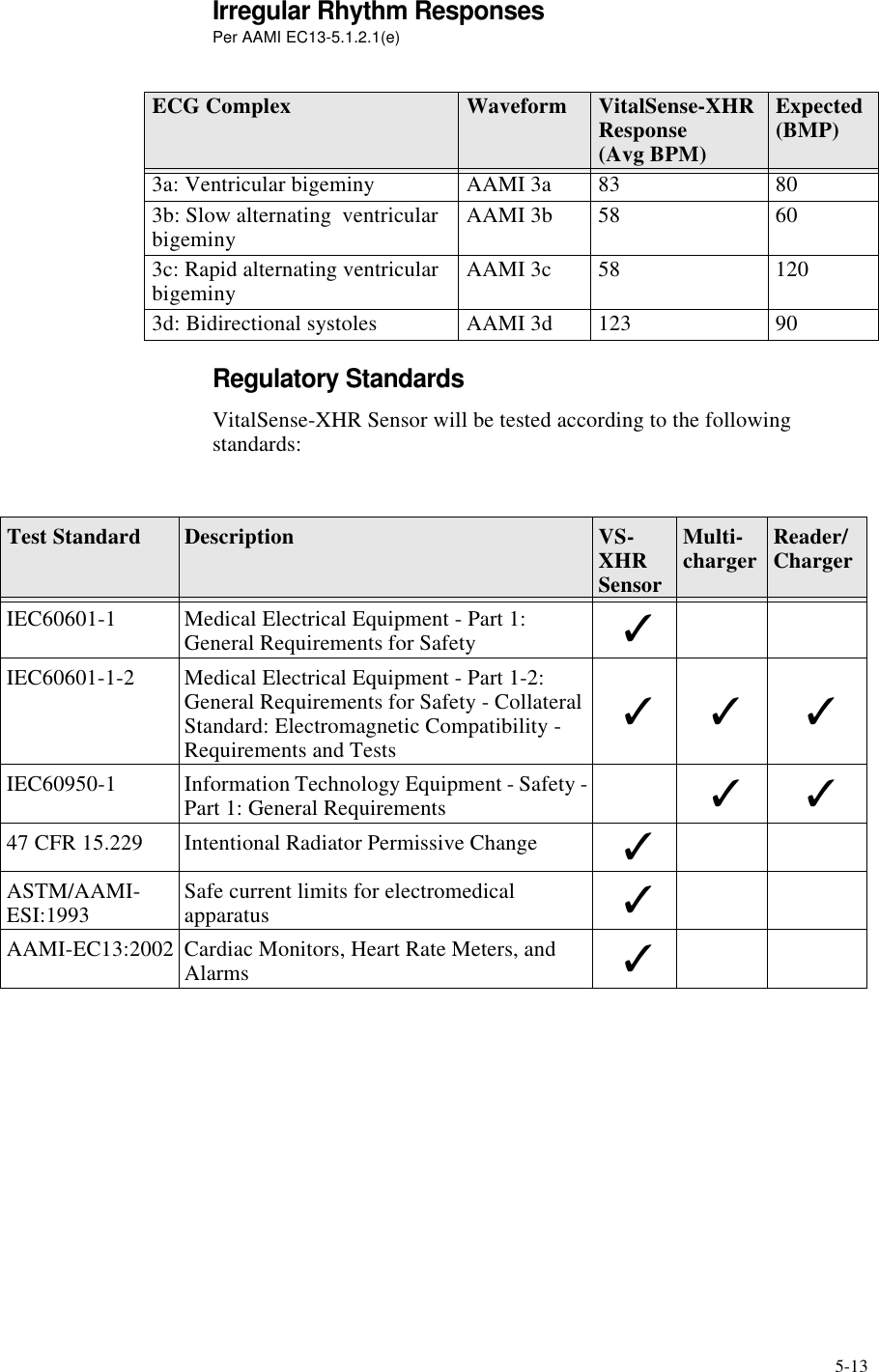
5-13Irregular Rhythm ResponsesPer AAMI EC13-5.1.2.1(e)Regulatory StandardsVitalSense-XHR Sensor will be tested according to the following standards:ECG Complex Waveform VitalSense-XHR Response     (Avg BPM)Expected (BMP)3a: Ventricular bigeminy AAMI 3a 83 803b: Slow alternating  ventricular bigeminy AAMI 3b 58 603c: Rapid alternating ventricular bigeminy AAMI 3c 58 1203d: Bidirectional systoles AAMI 3d 123 90Test Standard Description VS-XHR SensorMulti-charger Reader/ChargerIEC60601-1 Medical Electrical Equipment - Part 1: General Requirements for Safety 3IEC60601-1-2 Medical Electrical Equipment - Part 1-2: General Requirements for Safety - Collateral Standard: Electromagnetic Compatibility - Requirements and Tests3 3 3IEC60950-1 Information Technology Equipment - Safety - Part 1: General Requirements 3 347 CFR 15.229 Intentional Radiator Permissive Change 3ASTM/AAMI-ESI:1993 Safe current limits for electromedical apparatus 3AAMI-EC13:2002 Cardiac Monitors, Heart Rate Meters, and Alarms 3
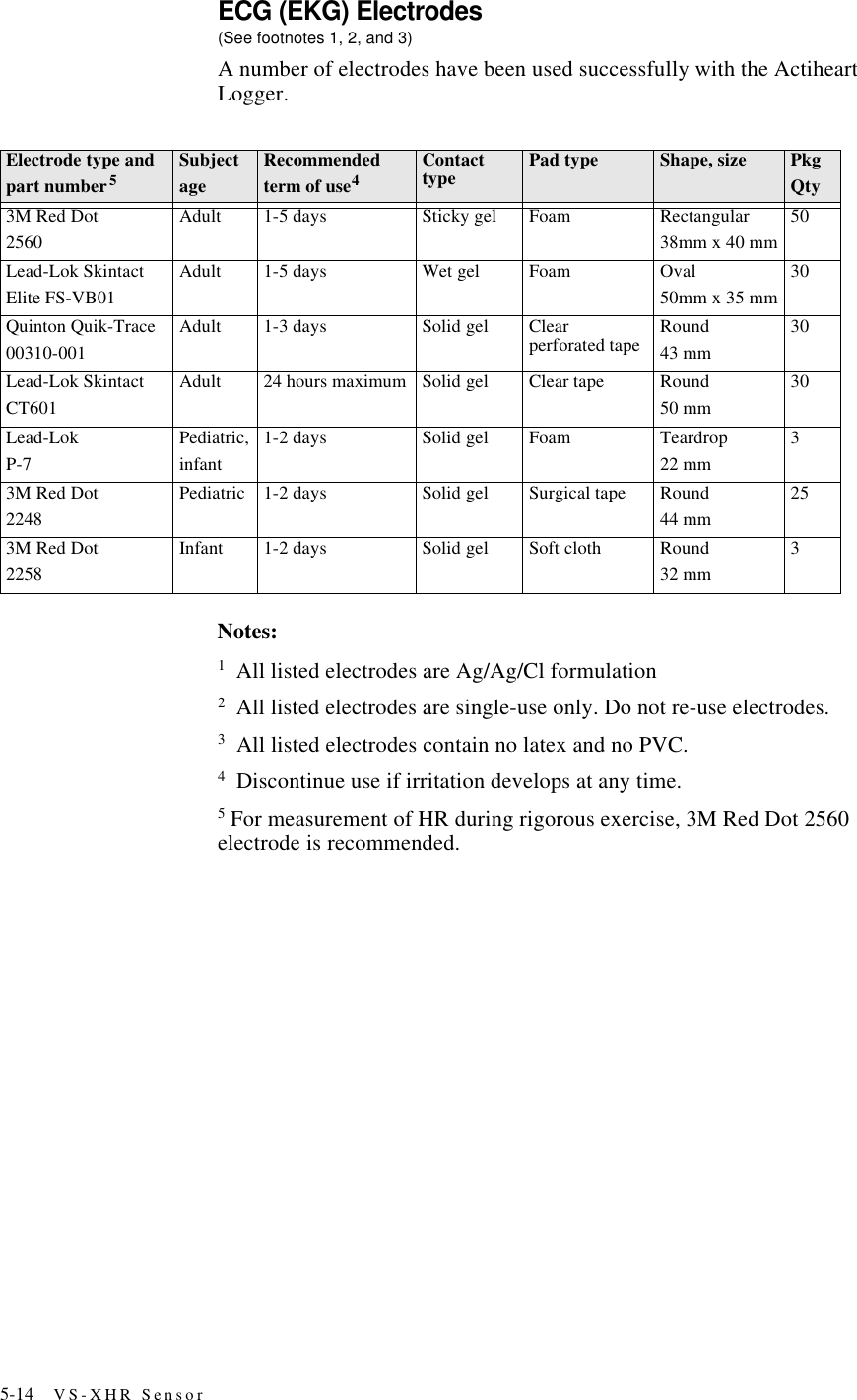
5-14 VS-XHR SensorECG (EKG) Electrodes(See footnotes 1, 2, and 3)A number of electrodes have been used successfully with the Actiheart Logger.Notes:1  All listed electrodes are Ag/Ag/Cl formulation2  All listed electrodes are single-use only. Do not re-use electrodes.3  All listed electrodes contain no latex and no PVC.4  Discontinue use if irritation develops at any time.5 For measurement of HR during rigorous exercise, 3M Red Dot 2560 electrode is recommended.Electrode type andpart number5SubjectageRecommendedterm of use4Contact type Pad type Shape, size Pkg Qty3M Red Dot2560Adult 1-5 days Sticky gel Foam  Rectangular38mm x 40 mm50Lead-Lok SkintactElite FS-VB01Adult 1-5 days Wet gel Foam Oval50mm x 35 mm30Quinton Quik-Trace00310-001Adult 1-3 days Solid gel Clear perforated tape Round43 mm30Lead-Lok SkintactCT601Adult 24 hours maximum Solid gel Clear tape Round50 mm30Lead-LokP-7Pediatric,infant1-2 days Solid gel Foam Teardrop22 mm33M Red Dot2248Pediatric 1-2 days Solid gel Surgical tape Round44 mm253M Red Dot2258Infant 1-2 days Solid gel Soft cloth Round32 mm3
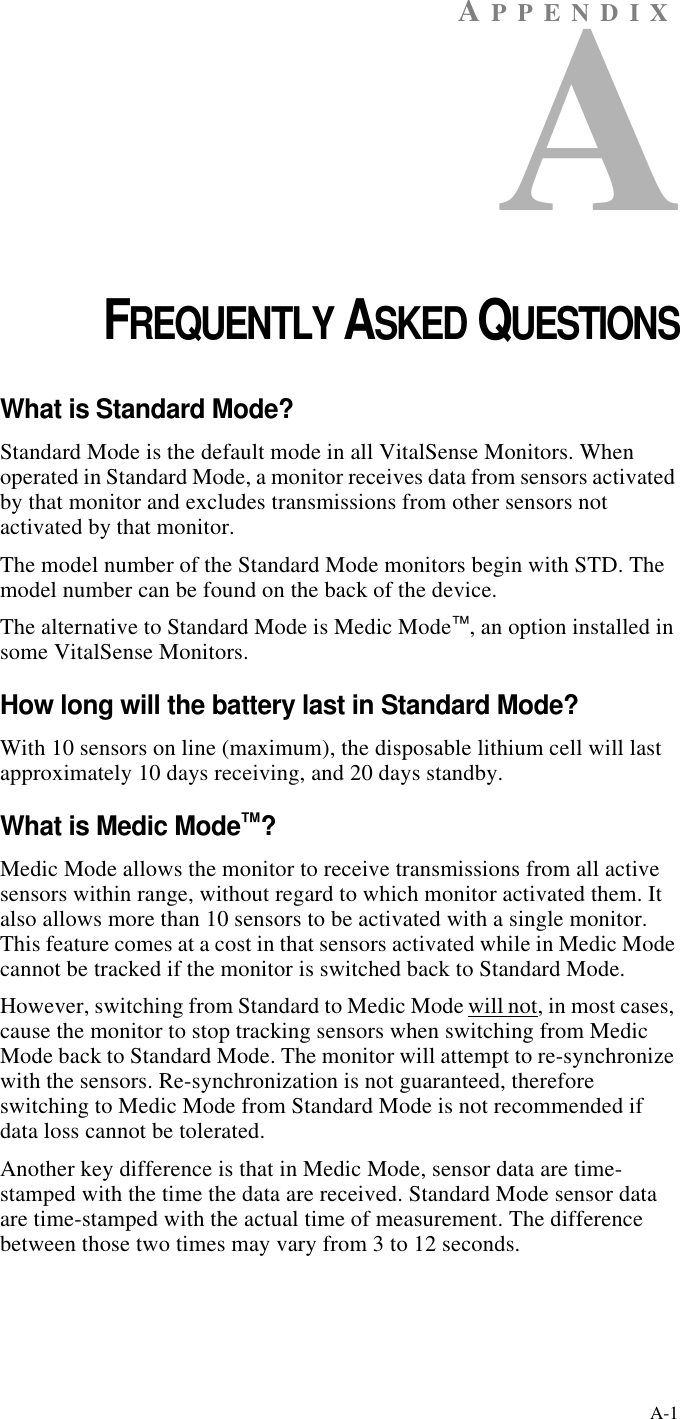
A-1AP P ENDIXACHAPTER 1FREQUENTLY ASKED QUESTIONSWhat is Standard Mode?Standard Mode is the default mode in all VitalSense Monitors. When operated in Standard Mode, a monitor receives data from sensors activated by that monitor and excludes transmissions from other sensors not activated by that monitor.The model number of the Standard Mode monitors begin with STD. The model number can be found on the back of the device.The alternative to Standard Mode is Medic Mode™, an option installed in some VitalSense Monitors.How long will the battery last in Standard Mode?With 10 sensors on line (maximum), the disposable lithium cell will last approximately 10 days receiving, and 20 days standby.What is Medic Mode™?Medic Mode allows the monitor to receive transmissions from all active sensors within range, without regard to which monitor activated them. It also allows more than 10 sensors to be activated with a single monitor. This feature comes at a cost in that sensors activated while in Medic Mode cannot be tracked if the monitor is switched back to Standard Mode.However, switching from Standard to Medic Mode will not, in most cases, cause the monitor to stop tracking sensors when switching from Medic Mode back to Standard Mode. The monitor will attempt to re-synchronize with the sensors. Re-synchronization is not guaranteed, therefore switching to Medic Mode from Standard Mode is not recommended if data loss cannot be tolerated.Another key difference is that in Medic Mode, sensor data are time-stamped with the time the data are received. Standard Mode sensor data are time-stamped with the actual time of measurement. The difference between those two times may vary from 3 to 12 seconds.
A-2 Frequently Asked QuestionsHow long will the battery last in Medic Mode™?If the monitor is left on continuously in Medic Mode, the disposable lithium cell will last approximately 48 hours.How do I know if my monitor has the Medic Mode™ option?Medic Mode will be listed in the Setup Monitor menu. Press the Menu button on the monitor, then select Setup Monitor.You can also look at the label on the back of the monitor. The model number will begin with MED.Will a common AA alkaline or Ni-Cad battery work in my monitor?No! They are the wrong voltage and wrong design. Use only SAFT LS14500 batteries, available from Mini Mitter.What should I do if the monitor and sensors are separated for more than 30 minutes?First, try bringing the monitor within range of the sensors and wait for 2 minutes. If the monitor does not lock on to the sensors, try turning the monitor power off, then back on. The monitor will attempt to lock on to the sensors. If this is not successful, it is likely the sensors have been lost from tracking. Unfortunately, once a sensor is lost from tracking, it may not be brought back on line. A lost sensor should be removed from the tracking list by using “Remove Sensor” on page2-16. This is under the Sensors Option menu.Can I still receive data from a “lost” sensor?Yes, but only if you have Medic Mode, an optional feature of VitalSense. Details can be found in “Medic Mode” on pageC-1.Why does the Power button seem to work intermittently?This is actually by design. The Power button must be held down at least ½-second to power up the monitor. This is to prevent the accidental operation of the button if jostled in the carrying pouch.What is the purpose of Lockout Mode?Lockout Mode is a feature that prevents “idle tampering” of the monitor, and also reduces the chance of the inadvertent pressing of front panel buttons during use.Why may I not have an MRI?The components within both the Capsule Sensor and Dermal Sensor contain elements which are incompatible with MRI procedures. You would risk injury to yourself.
A-3What if a Capsule Sensor should leak while ingested?VitalSense ingestible capsule shells are composed of inert plastic and medical grade plastic adhesive. Each capsule is individually inspected to insure a complete seal at the factory. VitalSense capsules have been tested for resistance to moisture, varying pH levels, heat, enzyme reaction, saline, and alcohol exposure. We know of no condition within the alimentary tract that could lead to a breach of the capsule seal. However, as an added precaution, the circuits within the capsule are further coated with a plastic, water-resistant coating. Finally, the components within the capsule would pass through the digestive system without noticeable influence on the subject’s system.What is the temperature range of the sensors?See “Specification” on pageD-1.How is the accuracy of the thermometer sensors guaranteed?The accuracy of the sensors is established with a process traceable to the Nation Bureau of Standards and Technology.Can a glass bulb thermometer be used to check the accuracy of my sensors?No. Glass bulb thermometers are not accurate enough.How can I check the accuracy of my Capsule Sensors?You will need a highly temperature-stabilized water bath (better than   0.05 °C stability and accuracy), and a NIST traceable RTD digital electronic thermometer.Will the accuracy of the sensors degrade as their batteries become low?The sensors will remain accurate for up to 10 days of transmission.How long will the sensors transmit?Following activation, approximately 10 days (240 hours). This holds true following a shelf life of up to one year.After ingestion, when will the Capsule Sensor begin to transmit actual core temperature?Approximately one minute.What is the best way to administer the Capsule Sensor?Take it with a glass of water or a soft drink as you would most capsules or pills.
A-4 Frequently Asked QuestionsAre there any dietary restrictions while the Capsule Sensor is inside me?None.Can my Capsule Sensor be re-used?Capsule Sensors must not be re-used in human applications.What if a Dermal Patch Sensor causes a rash or discomfort?Discomfort may be the result of inadequate hair removal, or placing the patch on an area of skin that is subject to flexing or stretching. A rash may be a sign of dermatitis or allergy. Notify your practitioner immediately.Can the Dermal Patch Sensor be worn in the shower or bath tub?Yes. However the VitalSense Monitor must be left outside the shower or tub.What is UTC and why is it important?It stands for Universal Coordinated Time. A complete section has been devoted to this subject. Turn to “Universal Coordinated Time” on pageB-1.How does VitalSense software get installed and uninstalled?The VitalSense Application Program is supplied in two distribution formats: a Microsoft Installer (.msi) package, and as a self-extracting Zip file. Normally just double-clicking on the MSI version will install the package. Older versions of Windows may require you to obtain the installer from the Microsoft website, or use the Zip file. The files will be installed in C:\Program Files\VitalSense. The MSI package will automatically create a shortcut on your desktop.Uninstallation can be done using the Add/Remove Programs feature found in your control panel. If the installation was done using the Zip package, simply delete the VitalSense directory and the associated shortcut.What is the “version” of my firmware?See “Firmware Version” on page3-21.The display on the VitalSense Monitor went blank.Occasionally, to protect itself from electrostatic discharge, the LCD will shut down. The display will reactivate when a transmission is received, or when you momentarily press any button.
B-1AP P ENDIXBCHAPTER 2UNIVERSAL COORDINATED TIMEIf the world were ideal, we would have one time the world over, and all clocks would read the same. However, because our planet is divided between day and night, our global structure has generally adopted solar time. This divides the planet into a series of time zones. Although it makes it easy to keep time based on daylight, it is very difficult for scientists, pilots, military, and others to use. Another complication is the occurrence of Daylight Saving Time in selected areas. Navigation, exchanging data, astronomy, synchronization of experiments, and other fields require a single means by which to keep time.
B-2 Universal Coordinated TimeAnother way of keeping time is similar to solar time, called Universal Time. Within this category are variations. UT1 is a measure of the rotation angle of the Earth as observed astronomically. Solar time varies slightly. Because of the Earth’s tides, the earth slows down, wobbles, and introduces slight variations in measurements. UT1 accounts for these variations, making it useful for astronomy.Universal Coordinated Time is the basis for worldwide civil time-keeping. Timing laboratories around the world contribute to provide the international standard Universal Coordinated Time (UTC).NOTE: “UTC” technically does not represent a series of words. During international discussions, the three letters were agreed upon as a “symbol” rather than an abbreviation or acronym.The UTC second is based on the atomic transition of the element cesium under specific conditions. It is independent of astronomical variations, and because of its stability is accurate to a nanosecond (1,000,000,000th of a second) per day.
B-3UT1 (based on rotation of the Earth) and UTC (based on man-made instruments) may differ, but never more than 0.9 second. By agreement, when the difference begins to reach this point, a “leap-second” is introduced in the UTC. This occurs, on average, every 12 to 18 months.Universal Coordinated Time may be referred to colloquially (and historically) as Greenwich Mean Time (GMT). This village lies on the Greenwich meridian (0° longitude) in England, and for years was the point of reference for all other time zones. Pacific Standard Time, for example, is 8 hours behind UTC (UTC-8).UTC and GMT may also be called Zulu time. This is a common military term, and is typically shown in 24-hour format, such as 1800Z (6pm).Finding the Universal Coordinated TimeThere are a variety of ways to obtain the UTC. By computer, radio, and even telephone.United States Naval Observatory•Internet http://tycho.usno.navy.milUnited States Government•Internethttp://www.time.govNational Institute of Standards and Technology •Internethttp://physics.nist.gov/time•Telephone (delayed by approximately 30 ms because of land line)(303) 499-7111 in Ft. Collins, Colorado (not toll-free)(808) 335-4363 in Kauai, Hawaii (not toll-free)•RadioWWV - 2.5 MHz, 5 MHz, 10 MHz, 15 MHz, 20 MHzWWVH - 2.5 MHz, 5 MHz, 10 MHz, 15 MHzUTC and VitalSenseWhen collecting time-sensitive data, specifically across time zones, it is not advisable to change the clock during data collection. Within the VitalSense Monitor, the real time clock is to be set to UTC. This insures that the data is universally time-stamped, and can be recognized and analyzed by scientists throughout the world without regard to time-conversion or gaps in the data caused by clock changes.
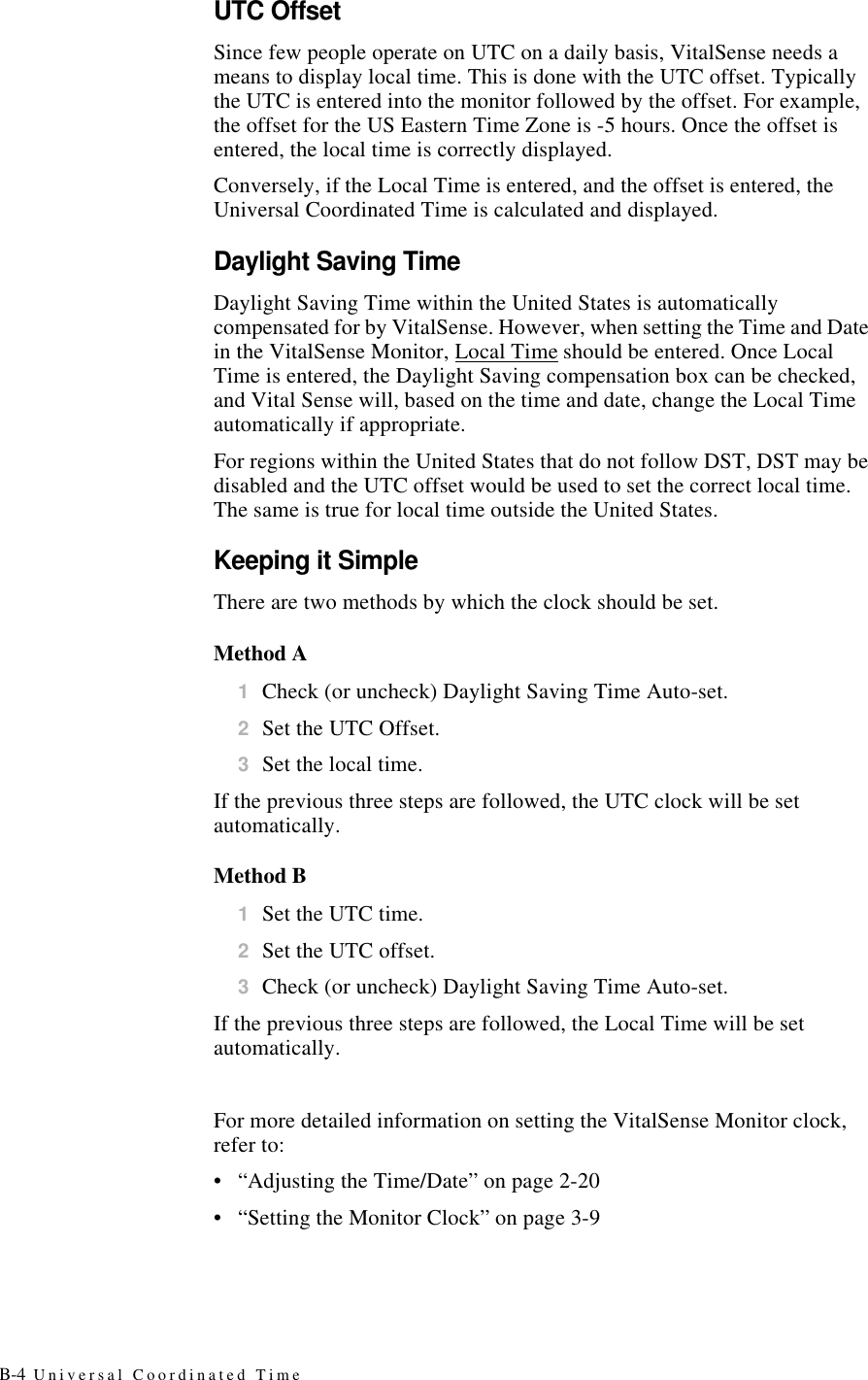
B-4 Universal Coordinated TimeUTC OffsetSince few people operate on UTC on a daily basis, VitalSense needs a means to display local time. This is done with the UTC offset. Typically the UTC is entered into the monitor followed by the offset. For example, the offset for the US Eastern Time Zone is -5 hours. Once the offset is entered, the local time is correctly displayed.Conversely, if the Local Time is entered, and the offset is entered, the Universal Coordinated Time is calculated and displayed.Daylight Saving TimeDaylight Saving Time within the United States is automatically compensated for by VitalSense. However, when setting the Time and Date in the VitalSense Monitor, Local Time should be entered. Once Local Time is entered, the Daylight Saving compensation box can be checked, and Vital Sense will, based on the time and date, change the Local Time automatically if appropriate.For regions within the United States that do not follow DST, DST may be disabled and the UTC offset would be used to set the correct local time. The same is true for local time outside the United States.Keeping it SimpleThere are two methods by which the clock should be set.Method A1Check (or uncheck) Daylight Saving Time Auto-set.2Set the UTC Offset.3Set the local time.If the previous three steps are followed, the UTC clock will be set automatically.Method B1Set the UTC time.2Set the UTC offset.3Check (or uncheck) Daylight Saving Time Auto-set.If the previous three steps are followed, the Local Time will be set automatically.For more detailed information on setting the VitalSense Monitor clock, refer to:•“Adjusting the Time/Date” on page2-20•“Setting the Monitor Clock” on page3-9
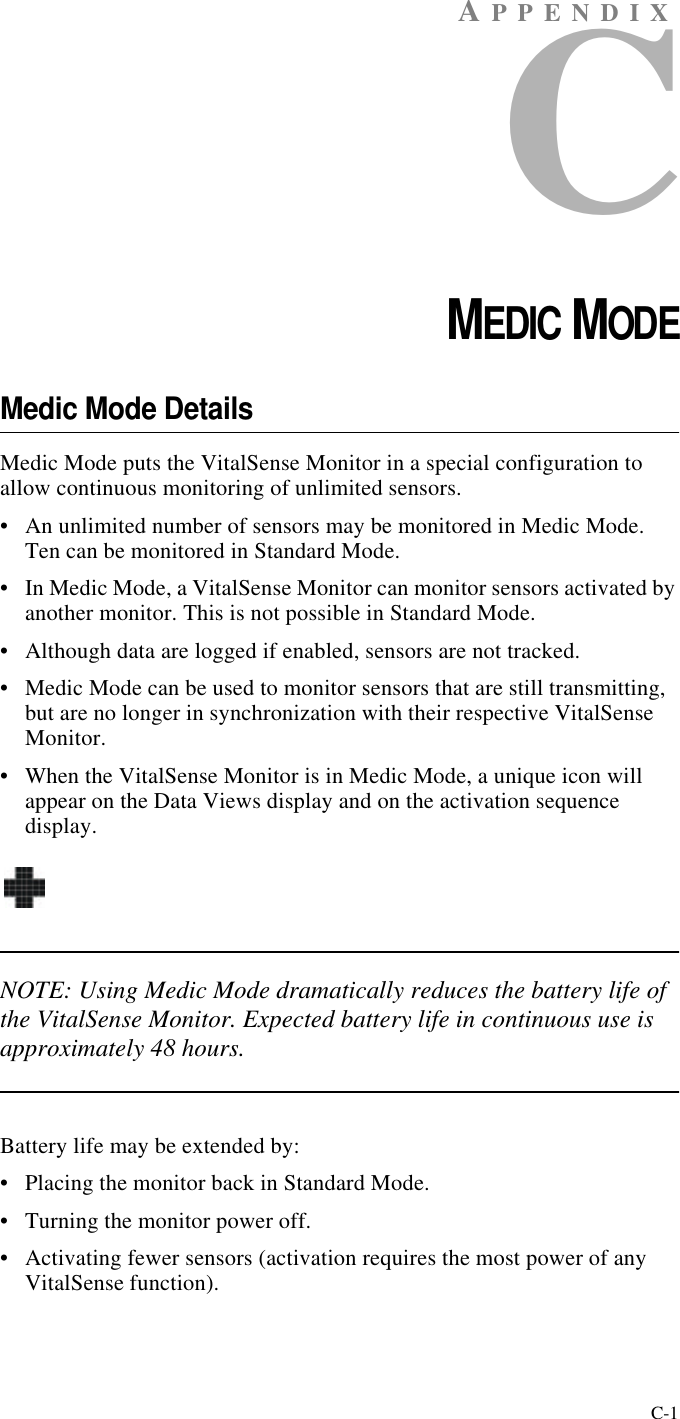
C-1AP P ENDIXCCHAPTER 3MEDIC MODEMedic Mode DetailsMedic Mode puts the VitalSense Monitor in a special configuration to allow continuous monitoring of unlimited sensors.•An unlimited number of sensors may be monitored in Medic Mode. Ten can be monitored in Standard Mode.•In Medic Mode, a VitalSense Monitor can monitor sensors activated by another monitor. This is not possible in Standard Mode.•Although data are logged if enabled, sensors are not tracked.•Medic Mode can be used to monitor sensors that are still transmitting, but are no longer in synchronization with their respective VitalSense Monitor.•When the VitalSense Monitor is in Medic Mode, a unique icon will appear on the Data Views display and on the activation sequence display.NOTE: Using Medic Mode dramatically reduces the battery life of the VitalSense Monitor. Expected battery life in continuous use is approximately 48 hours.Battery life may be extended by:•Placing the monitor back in Standard Mode.•Turning the monitor power off.•Activating fewer sensors (activation requires the most power of any VitalSense function).
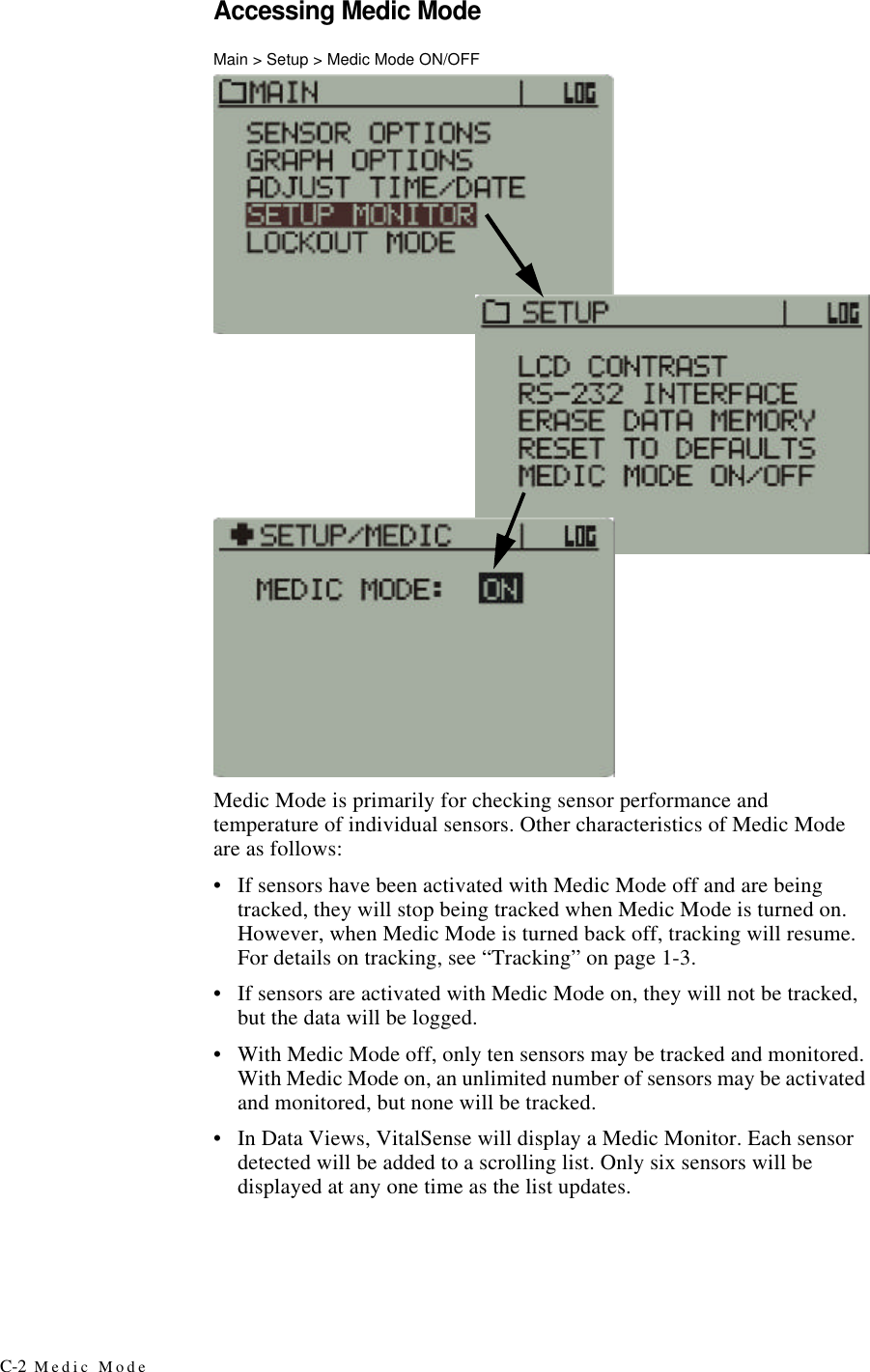
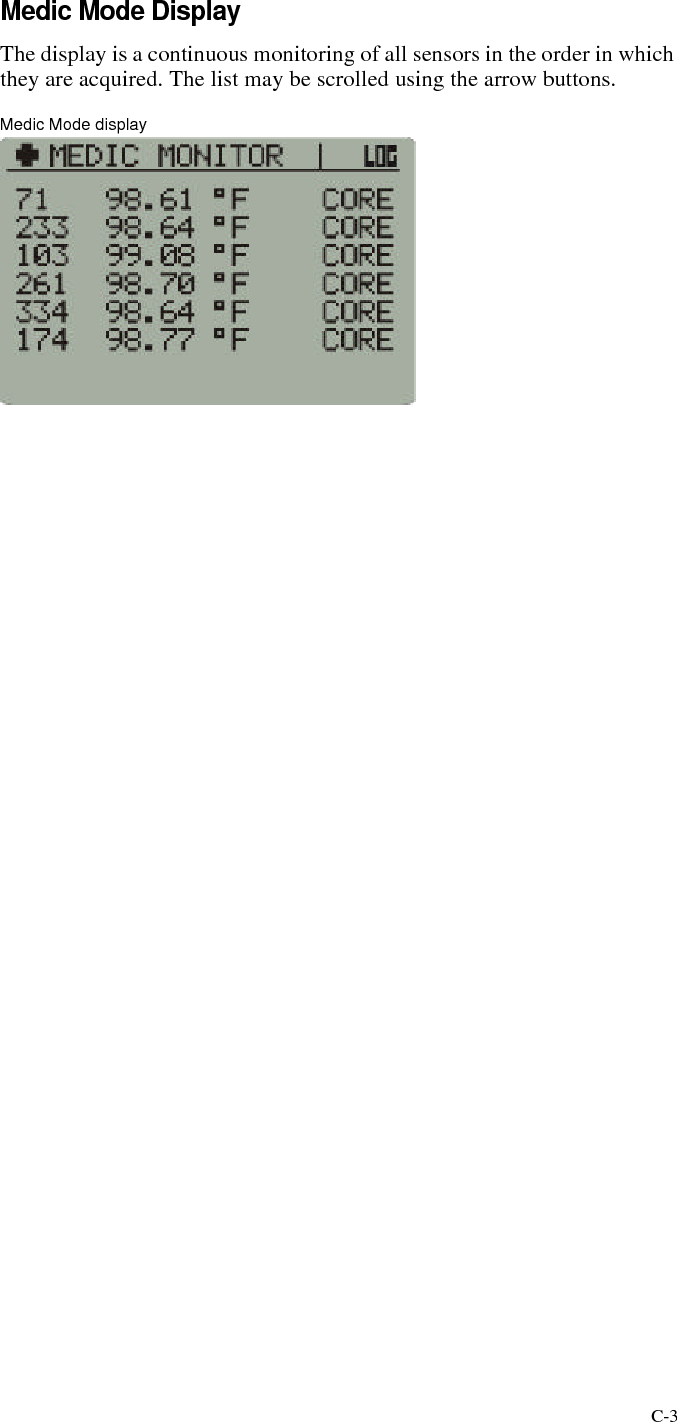
C-2 Medic ModeAccessing Medic ModeMain > Setup > Medic Mode ON/OFFMedic Mode is primarily for checking sensor performance and temperature of individual sensors. Other characteristics of Medic Mode are as follows:•If sensors have been activated with Medic Mode off and are being tracked, they will stop being tracked when Medic Mode is turned on. However, when Medic Mode is turned back off, tracking will resume. For details on tracking, see “Tracking” on page1-3.•If sensors are activated with Medic Mode on, they will not be tracked, but the data will be logged.•With Medic Mode off, only ten sensors may be tracked and monitored. With Medic Mode on, an unlimited number of sensors may be activated and monitored, but none will be tracked.•In Data Views, VitalSense will display a Medic Monitor. Each sensor detected will be added to a scrolling list. Only six sensors will be displayed at any one time as the list updates.
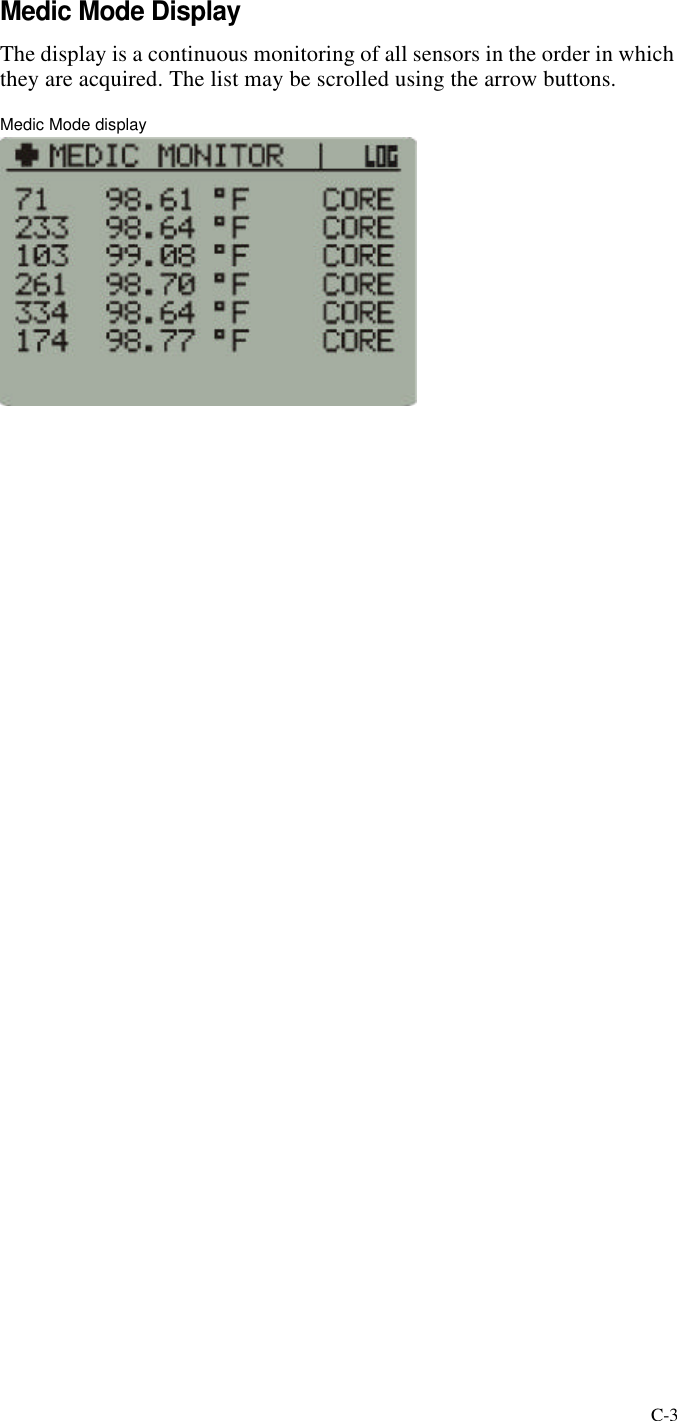
C-3Medic Mode DisplayThe display is a continuous monitoring of all sensors in the order in which they are acquired. The list may be scrolled using the arrow buttons.Medic Mode display
C-4 Medic Mode
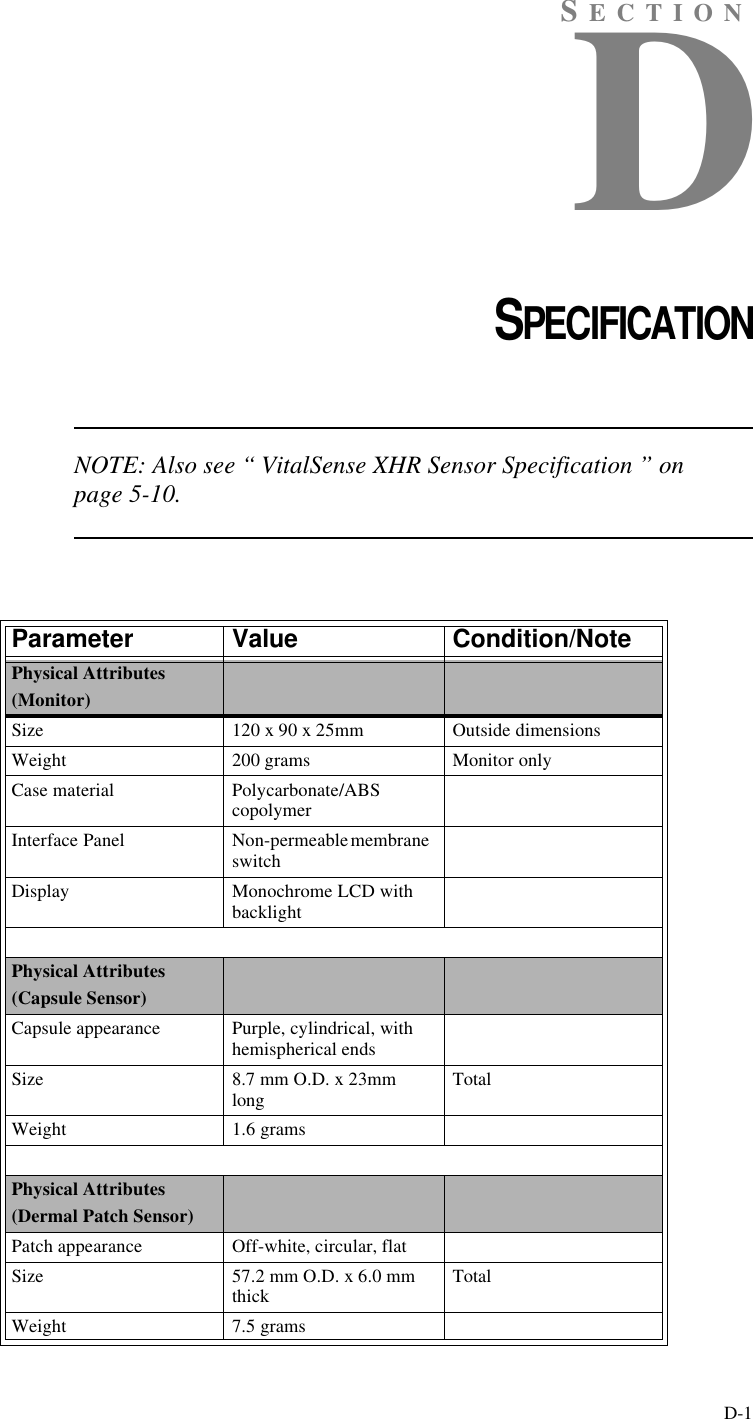
D-1SECTIONDCHAPTER 4SPECIFICATIONNOTE: Also see “ VitalSense XHR Sensor Specification ” on page5-10.Parameter Value Condition/NotePhysical Attributes(Monitor)Size 120 x 90 x 25mm Outside dimensionsWeight 200 grams Monitor onlyCase material Polycarbonate/ABS copolymerInterface Panel Non-permeable membrane switchDisplay Monochrome LCD with backlightPhysical Attributes(Capsule Sensor)Capsule appearance Purple, cylindrical, with hemispherical endsSize 8.7 mm O.D. x 23mm long TotalWeight 1.6 gramsPhysical Attributes(Dermal Patch Sensor)Patch appearance Off-white, circular, flatSize 57.2 mm O.D. x 6.0 mm thick TotalWeight 7.5 grams
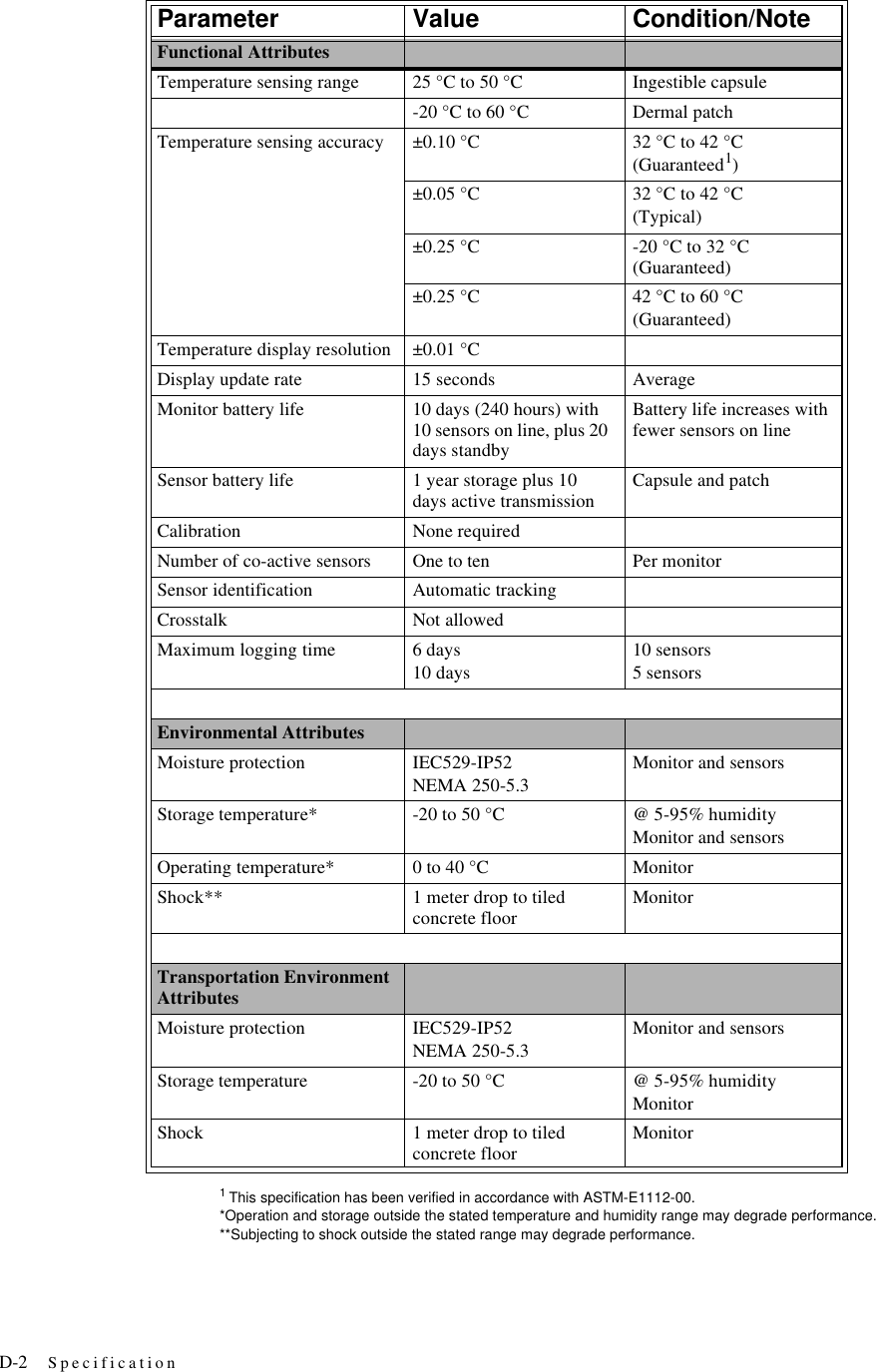
D-2 Specification1 This specification has been verified in accordance with ASTM-E1112-00.*Operation and storage outside the stated temperature and humidity range may degrade performance.**Subjecting to shock outside the stated range may degrade performance.Parameter Value Condition/NoteFunctional AttributesTemperature sensing range 25 °C to 50 °C Ingestible capsule-20 °C to 60 °C Dermal patchTemperature sensing accuracy ±0.10 °C 32 °C to 42 °C(Guaranteed1)±0.05 °C 32 °C to 42 °C(Typical)±0.25 °C -20 °C to 32 °C (Guaranteed)±0.25 °C 42 °C to 60 °C(Guaranteed)Temperature display resolution ±0.01 °CDisplay update rate 15 seconds AverageMonitor battery life 10 days (240 hours) with 10 sensors on line, plus 20 days standbyBattery life increases with fewer sensors on lineSensor battery life 1 year storage plus 10 days active transmission Capsule and patchCalibration None requiredNumber of co-active sensors One to ten Per monitorSensor identification Automatic trackingCrosstalk Not allowedMaximum logging time 6 days10 days10 sensors5 sensorsEnvironmental AttributesMoisture protection IEC529-IP52NEMA 250-5.3Monitor and sensorsStorage temperature* -20 to 50 °C @ 5-95% humidityMonitor and sensorsOperating temperature* 0 to 40 °C MonitorShock** 1 meter drop to tiled concrete floor MonitorTransportation Environment AttributesMoisture protection IEC529-IP52NEMA 250-5.3Monitor and sensorsStorage temperature -20 to 50 °C @ 5-95% humidityMonitorShock 1 meter drop to tiled concrete floor Monitor
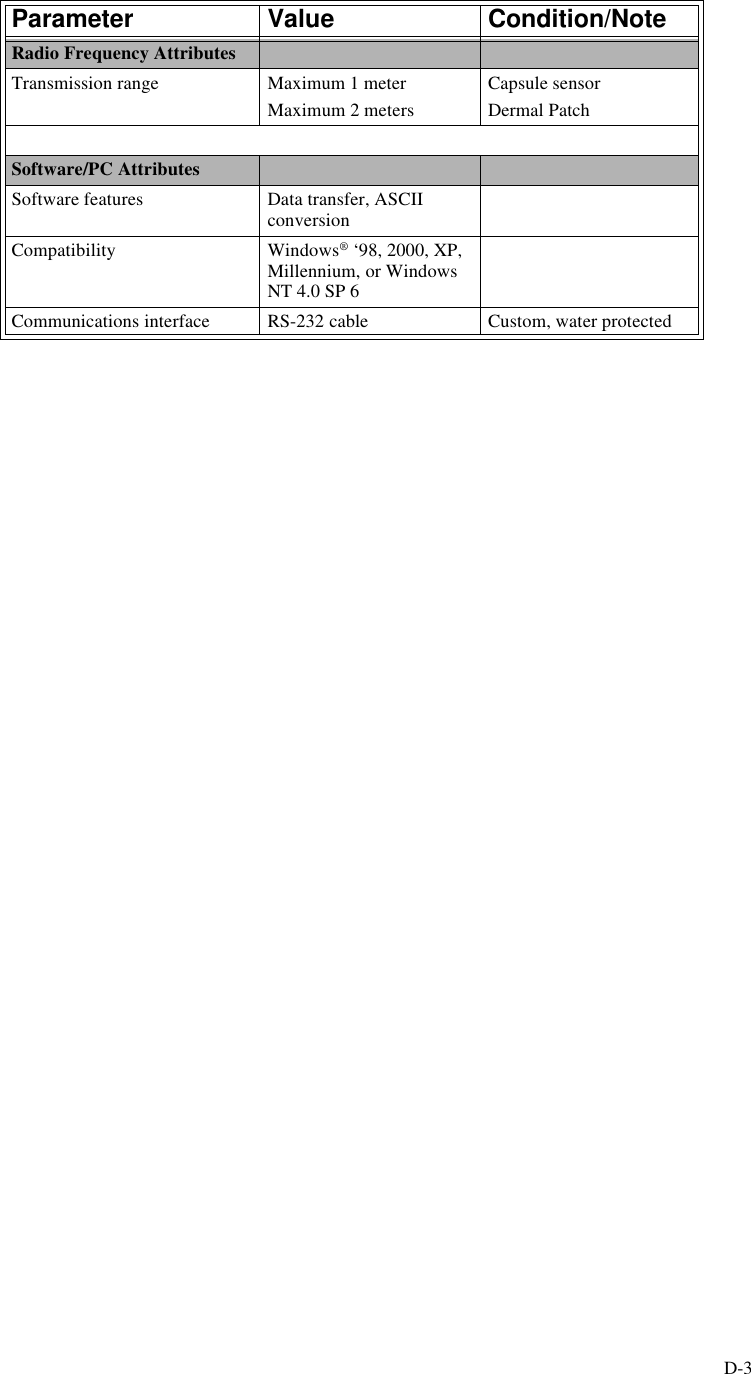
D-3Parameter Value Condition/NoteRadio Frequency AttributesTransmission range Maximum 1 meterMaximum 2 metersCapsule sensorDermal PatchSoftware/PC AttributesSoftware features Data transfer, ASCII conversionCompatibility Windows® ‘98, 2000, XP, Millennium, or Windows NT 4.0 SP 6Communications interface RS-232 cable Custom, water protected
D-4 SpecificationAgency Standards MetLimitationsThe VitalSense ingestible capsule thermometer is a Class II Medical Device according to 21 CFR 882.1845 and is classified as a Surface Contacting Device according to ISO 10993-1. The capsule is intended to be used in contact with the mucosal membrane (alimentary tract) only. The VitalSense ingestible capsule thermometer must not be used in any situation where the mucosal membrane is already breached by surgery or trauma. The VitalSense ingestible capsule thermometer is not intended to be used as an implant. For additional information, contact Mini Mitter Company, Inc.Medical DeviceVitalSense system is cleared by the United States Food and Drug Administration for marketing as a Class II medical device.Clinical ThermometerVitalSenses meets  ASTM-E1112-00, Standard Specification for Electronic Thermometer for Intermittent Determination of Patient Temperature.(For those VitalSense System owners needing “Determination of Accuracy” documentation related to this specification, please contact Mini Mitter.)Radio EmissionsVitalSense meets CFR Title 47, Part 15, Subpart C. FCC listing code is JIAXTP1.Human SafetyThis device is classified as Type CF protection against electrical shock. The VitalSense Monitor conforms to IEC 60601-1 (UL 2601-1).Water ResistanceVitalSense monitor meets IEC 529-IP52, and NEMA 250-5.Safety Labeling and TerminologyInstruction manual conforms to ANSI Z535.4-2002♥
Index - 1AActivation of SensorsSee SensorsAdministrationCapsule Sensor,2-10Dermal Patch Sensor,2-10Astriskmeaning of in Data Views,2-33AttributesEnvironmental,D-2Functional,D-2Physical,D-1Radio Frequency,D-3Software/PC,D-3Transportation Environment,D-2BBatteryAlert,4-3Alkaline or NiCad,A-2Cautions,4-1, 4-3, 4-4Installation,4-5Life,A-1Low battery indication,2-13, 2-14Requirements and Specification,4-1Storage,4-6Baud Rate,2-26, 3-7CCalibration,1-3, 4-5Capsule SensorComparative Size,2-6Precautions,2-6ClassificationsClass B digital device,i-xiv, D-4Class II Medical Device,i-xviiType CF,i-xiv, D-4Clear Memory,3-10ClockManually Set Monitor Time,3-10Read Monitor Clock,3-10Set Monitor to PC TIme,3-10Setting from Application Software,3-9Setting from monitor front panel,2-20COM Port,3-7Communication errorsCOM Port,3-24General,3-25Connecting VitalSense Hardware,3-4Connector9-pin serial DB9,3-4, 3-5USB,3-4DData Collection Summary,3-17Data LoggingOn/Off,2-18, 3-14Data Views,2-32Graph,2-32List,2-32Daylight Saving Time,2-4, B-4Auto-Set,2-23Dermal Patch SensorApplication,2-5Description,2-5Precautions,2-5, 5-4Protective layer,2-5Diagnostic information,3-25EECG ElectrodesElectrode Compatability,5-14Lead II Site,5-9Site Preparation,5-7Electromagnetic Interference (EMI),i-viiAvoidance,i-viiiEffects on VitalSense,i-viiPractitioner Advisories,i-viiElectrostatic Discharge EffectsOn monitor,i-x, A-4Susceptability levels,i-xEmissions,i-vii, i-xi, D-4Aircraft (FAA),i-xiInterference,i-xiRadio (FCC),i-xiEnvironmentsEMI,i-ixFFactory defaultResetting,2-29Time,2-22FCC listing code,D-4Index
Index - 2File-type,exe,3-3.msi,3-3.txt,3-16, 3-19.vsb,3-16.xls,3-19Firmware,1-3Finding version from PC,3-21Flow Control,2-26, 3-7Font sizes,3-2FrequencySensor,i-viiFrequently Asked Questions,A-1GGetting Started,1-2IIcon definitions,2-14ImplantationLimitations,i-xviiLLabeling Sensors,2-8Lockout Mode,A-2Lockout mode,2-31deactivating,2-31Low BatteryConditions,4-2Low battery indicator,2-13, 2-14MMedic Mode,1-2Frequently Asked Questions,A-1Operation,C-1MenuAdjusting the Time/Date,2-20Graph OptionsLength (X),2-19Lockout Mode,2-31Sensor OptionsActivate Sensor,2-15Logging ON/OFF,2-18Remove Sensor,2-16Sensor Units of Measure,2-18Setup MonitorErase Data Memory,2-27LCD contrast,2-25Reset to defaults,2-29RS-232 interface,2-26Monitor OperationSee VitalSense MonitorMonitoring Data in Real Time,3-20MRI (magnetic resonance imaging)warning,i-vii, i-xv, i-xviii, i-xxi, A-2NNew Subject,3-11Notices to Practitioners and Subjects,i-viiOOptionsApplication Program,3-21Out-of-Range Conditions,2-33PPC Preparation,3-2Power buttonIntermittent,A-2RRadio and Television Frequencies,i-ixRadio Frequency Environments,i-ixRead Data,3-16Real Time Monitoring,3-20Reporting rate,1-1Restrictions,i-xiRS-232,3-1, 3-8Errors,3-26Establishing communications,3-24Interface,2-26SSafety Labels and Terminology,i-viSanitizing VitalSense Components,i-xiiiSensor Summary Table,3-14Sensors,1-2Activate sensor,2-15Activation procedure,2-7Battery life,1-2Capsule Sensor Adverse Reactions,i-xixCapsule Sensor Contraindications,i-xviiCapsule Sensor Description,i-xviiCapsule Sensor Indications,i-xviiCapsule Sensor Precautions,i-xviii, 2-6Capsule Sensor Warnings,i-xviiiDermal Patch Adverse Reactions,i-xvi, i-xxiiDermal Patch Contraindications,i-xv, i-xxiDermal Patch Description,i-xv, i-xxDermal Patch Indications,i-xv, i-xxDermal Patch Precautions,i-xvi, i-xxiiDermal Patch Sensor precautions,2-5Duplicate sensor,2-12
Index - 3Failure to activate,2-11Frequently Asked Questions,A-2Labeling,2-9Limitations,i-xviiLogging On/Off,2-18Sensor activation,1-2, 2-7Specification,D-1Tracking,1-3Travel on aircraft,i-xiiSerial COM port9-pin DB9,3-4Setup,3-7USB,3-4Setting the Time and Date,2-21Shipping Address,i-vSpecification,D-1Standard ModeExplanation,A-1Standards,D-421 CFR 882.1845,i-xvii21 CFR Part 15.229,i-ixANSI Z535.4-2002,D-4ASTM-E1112-00,i-xii, D-2, D-4IEC 529-IP52,D-4IEC 60601-1,i-ix, D-4IEC529-IP52,D-2ISO 10993-1,i-xviiMIL-STD 461E,i-ixMIL-STD 462E,i-ixNEMA 250-5,D-2, D-4Subject Information,3-10, 3-11TTechnical Support,i-vTime and Date,2-4Tracking,1-3Travel by Commercial Aircraft,i-xiiUUniversal Coordinated Time (UTC),2-4, B-1data saved in,2-24Display option,3-21Finding the UTC,B-3GMT,B-3UT1,B-3UTC Offset,2-24, B-4Zulu,B-3USBAdapter Installation,3-26Description,3-5USB Adapter,3-26UTC (Universal Coordinated Time) See UniversalCoordinated Time (UTC)VVitalSense Application Program,3-1Data Collection Summary,3-17Finding Firmware Version,3-21Functions,3-1Generate Report,3-18Installation,3-2, 3-3Monitoring in Real Time,3-20Options,3-21Preferred Settings,3-2Requirements,3-2Retrieving Data,3-16Sensor Activation Table,3-14Sensor Options,3-14Subject Information Wizard,3-11Upgrading Firmware,3-22VitalSense Components,1-1VitalSense MonitorCleaning,4-6Clock Setup,3-9Configuration,2-4, 3-7, 3-8Description,1-2, 2-1Display Details,2-13Display icons,2-13, 2-14Front Panel,2-1Front Panel Controls,2-2Initial Setup,2-4, 3-7Maintenance,4-1Manually Set Monitor Time,3-10Operation from Application Program,3-1Operation from front panel,2-1Read Monitor Clock,3-10Set Monitor to PC Time,3-10Setup,3-8Storage,4-6Three requirements at setup,2-4VitalSense Sensors See SensorsVitalSense SoftwareSee VitalSense Application ProgramVitalSense SystemAutoclaving,i-xiiiCalibration,1-3Components,1-1Console window,3-25Frequency,i-viiHardware installation,3-5Introduction,1-1Modification of,i-xiiPrecautions,i-xvSanitizing,i-xiii
Index - 4WWarningsCapsule Sensor,i-xviiiDefinitions,i-viDermal Patch Sensor,i-xv, i-xxiLithium battery disposal,4-1, 4-4Low battery,4-2Low battery icon,4-2MRI (magnetic resonance imaging),i-viiWeight,D-1XXHR Heart Rate Sensor,5-1Charging the battery,5-2Lens location,5-4Sensor Activation,5-4

Navigation menu